Mobilescape
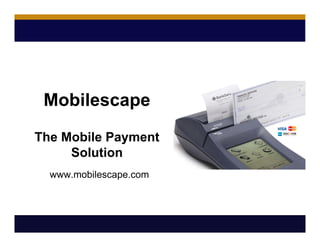
The Mobile Payment
Solution
www.mobilescape.com
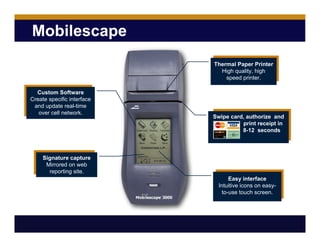
Mobilescape
Thermal Paper Printer
High quality, high
speed printer.
Custom Software
Create specific interface
and update real-time
over cell network.
Swipe card, authorize and
print receipt in
8-12 seconds
Easy interface
Intuitive icons on easy-
to-use touch screen.
Signature capture
Mirrored on web
reporting site.
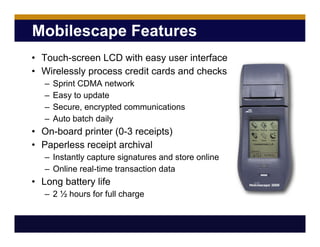
Mobilescape Features
• Touch-screen LCD with easy user interface
• Wirelessly process credit cards and checks
– Sprint CDMA network
– Easy to update
– Secure, encrypted communications
– Auto batch daily
• On-board printer (0-3 receipts)
• Paperless receipt archival
– Instantly capture signatures and store online
– Online real-time transaction data
• Long battery life
– 2 ½ hours for full charge
Total Solution Benefits
• Eliminates dedicated phone line
• Change from key entered to swiped rates
• Cash-flow improvement
• Safer for merchants, no need to keep large amounts of
cash on hand
• One call resolution
• Equipment made in the USA
• Mobilescape 5000 processes credit cards and checks
from the same unit
Let us worry about technology so you can run your business
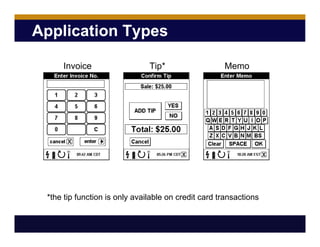
Application Types
*the tip function is only available on credit card transactions
Invoice Tip* Memo
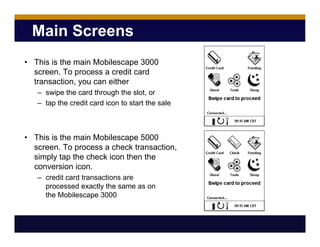
Main Screens
• This is the main Mobilescape 3000
screen. To process a credit card
transaction, you can either
– swipe the card through the slot, or
– tap the credit card icon to start the sale
• This is the main Mobilescape 5000
screen. To process a check transaction,
simply tap the check icon then the
conversion icon.
– credit card transactions are
processed exactly the same as on
the Mobilescape 3000
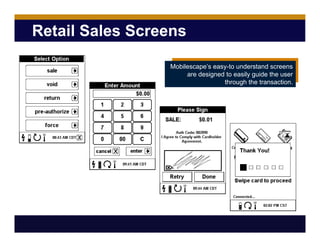
Retail Sales Screens
Mobilescape’s easy-to understand screens
are designed to easily guide the user
through the transaction.
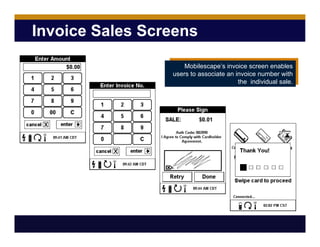
Invoice Sales Screens
Mobilescape’s invoice screen enables
users to associate an invoice number with
the individual sale.
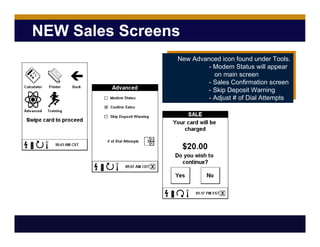
NEW Sales Screens
New Advanced icon found under Tools.
- Modem Status will appear
on main screen
- Sales Confirmation screen
- Skip Deposit Warning
- Adjust # of Dial Attempts
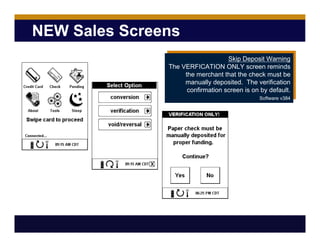
NEW Sales Screens
Skip Deposit Warning
The VERFICATION ONLY screen reminds
the merchant that the check must be
manually deposited. The verification
confirmation screen is on by default.
Software v384
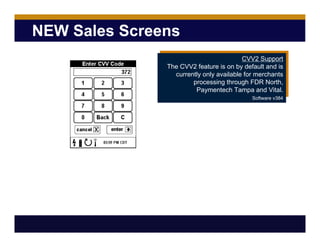
NEW Sales Screens
CVV2 Support
The CVV2 feature is on by default and is
currently only available for merchants
processing through FDR North,
Paymentech Tampa and Vital.
Software v384
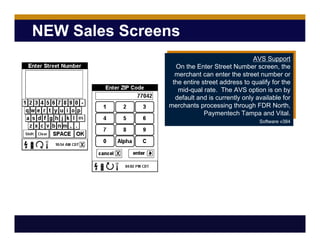
NEW Sales Screens
AVS Support
On the Enter Street Number screen, the
merchant can enter the street number or
the entire street address to qualify for the
mid-qual rate. The AVS option is on by
default and is currently only available for
merchants processing through FDR North,
Paymentech Tampa and Vital.
Software v384
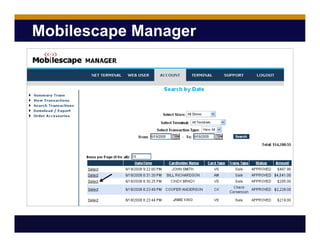
Reporting
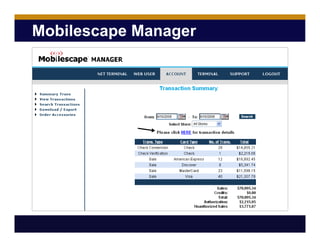
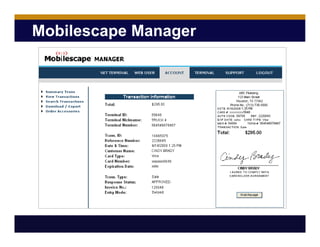
At any time, executives/back-office personnel can
• Retrieve reports detailing the day’s activity
• Drill down to a particular transaction and retrieve an
exact copy of the customer’s receipt
Other features
• Sort by invoice
• Sort by terminal number
• Sort by date
• Sort by amount
• Export information to Excel
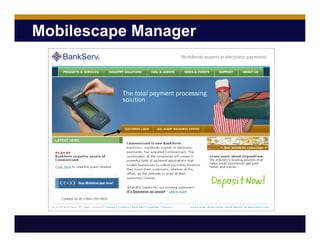
Mobilescape Manager
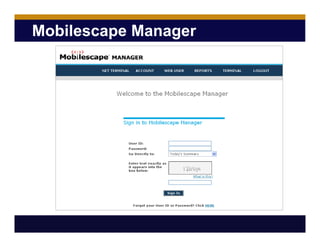
Mobilescape Manager
Mobilescape Manager
Mobilescape Manager
Mobilescape Manager
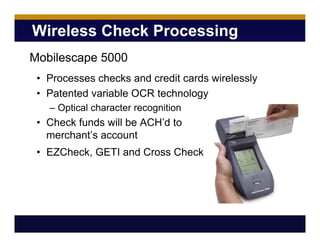
Wireless Check Processing
• Processes checks and credit cards wirelessly
• Patented variable OCR technology
– Optical character recognition
• Check funds will be ACH’d to
merchant’s account
• EZCheck, GETI and Cross Check
Mobilescape 5000
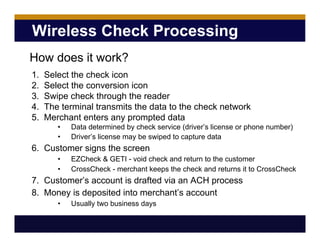
Wireless Check Processing
1. Select the check icon
2. Select the conversion icon
3. Swipe check through the reader
4. The terminal transmits the data to the check network
5. Merchant enters any prompted data
• Data determined by check service (driver’s license or phone number)
• Driver’s license may be swiped to capture data
6. Customer signs the screen
• EZCheck & GETI - void check and return to the customer
• CrossCheck - merchant keeps the check and returns it to CrossCheck
7. Customer’s account is drafted via an ACH process
8. Money is deposited into merchant’s account
• Usually two business days
How does it work?
Wireless Check Processing
• Why won’t the check read?
– Tear on the MICR line
– Large signature
– No signal present
• If the check won’t read, the merchant can
manually enter the check
– Select the verification icon and follow the prompts
– Not eligible for electronic check conversion
– Must be manually deposited at the bank

Mobilescape 3000 5000 Customerversion

  • 1.
  • 2.
    Mobilescape Thermal Paper Printer Highquality, high speed printer. Custom Software Create specific interface and update real-time over cell network. Swipe card, authorize and print receipt in 8-12 seconds Easy interface Intuitive icons on easy- to-use touch screen. Signature capture Mirrored on web reporting site.
  • 3.
    Mobilescape Features • Touch-screenLCD with easy user interface • Wirelessly process credit cards and checks – Sprint CDMA network – Easy to update – Secure, encrypted communications – Auto batch daily • On-board printer (0-3 receipts) • Paperless receipt archival – Instantly capture signatures and store online – Online real-time transaction data • Long battery life – 2 ½ hours for full charge
  • 4.
    Total Solution Benefits •Eliminates dedicated phone line • Change from key entered to swiped rates • Cash-flow improvement • Safer for merchants, no need to keep large amounts of cash on hand • One call resolution • Equipment made in the USA • Mobilescape 5000 processes credit cards and checks from the same unit Let us worry about technology so you can run your business
  • 5.
    Application Types *the tipfunction is only available on credit card transactions Invoice Tip* Memo
  • 6.
    Main Screens • Thisis the main Mobilescape 3000 screen. To process a credit card transaction, you can either – swipe the card through the slot, or – tap the credit card icon to start the sale • This is the main Mobilescape 5000 screen. To process a check transaction, simply tap the check icon then the conversion icon. – credit card transactions are processed exactly the same as on the Mobilescape 3000
  • 7.
    Retail Sales Screens Mobilescape’seasy-to understand screens are designed to easily guide the user through the transaction.
  • 8.
    Invoice Sales Screens Mobilescape’sinvoice screen enables users to associate an invoice number with the individual sale.
  • 9.
    NEW Sales Screens NewAdvanced icon found under Tools. - Modem Status will appear on main screen - Sales Confirmation screen - Skip Deposit Warning - Adjust # of Dial Attempts
  • 10.
    NEW Sales Screens SkipDeposit Warning The VERFICATION ONLY screen reminds the merchant that the check must be manually deposited. The verification confirmation screen is on by default. Software v384
  • 11.
    NEW Sales Screens CVV2Support The CVV2 feature is on by default and is currently only available for merchants processing through FDR North, Paymentech Tampa and Vital. Software v384
  • 12.
    NEW Sales Screens AVSSupport On the Enter Street Number screen, the merchant can enter the street number or the entire street address to qualify for the mid-qual rate. The AVS option is on by default and is currently only available for merchants processing through FDR North, Paymentech Tampa and Vital. Software v384
  • 13.
    Reporting At any time,executives/back-office personnel can • Retrieve reports detailing the day’s activity • Drill down to a particular transaction and retrieve an exact copy of the customer’s receipt Other features • Sort by invoice • Sort by terminal number • Sort by date • Sort by amount • Export information to Excel
  • 14.
  • 15.
  • 16.
  • 17.
  • 18.
  • 19.
    Wireless Check Processing •Processes checks and credit cards wirelessly • Patented variable OCR technology – Optical character recognition • Check funds will be ACH’d to merchant’s account • EZCheck, GETI and Cross Check Mobilescape 5000
  • 20.
    Wireless Check Processing 1.Select the check icon 2. Select the conversion icon 3. Swipe check through the reader 4. The terminal transmits the data to the check network 5. Merchant enters any prompted data • Data determined by check service (driver’s license or phone number) • Driver’s license may be swiped to capture data 6. Customer signs the screen • EZCheck & GETI - void check and return to the customer • CrossCheck - merchant keeps the check and returns it to CrossCheck 7. Customer’s account is drafted via an ACH process 8. Money is deposited into merchant’s account • Usually two business days How does it work?
  • 21.
    Wireless Check Processing •Why won’t the check read? – Tear on the MICR line – Large signature – No signal present • If the check won’t read, the merchant can manually enter the check – Select the verification icon and follow the prompts – Not eligible for electronic check conversion – Must be manually deposited at the bank