

Microsoft Office ®  Spelling/Grammar Check As An Assistive Technology By Marc “The Shark” Morgenstern 1
What is Microsoft Office ®  Spelling/Grammar Check?   Microsoft Office ®  Spelling/Grammar check is a simple, easy-to-use feature of the entire Microsoft Office Suite ®  of word-processing products. Put simply, Microsoft Office ®  Spelling/Grammar Check allows those users who are textually-challenged to quickly, easily, and automatically check and correct their spelling and grammar. Their There They’re ?????? 2
Wow! That’s great! But how does it work? That’s what’s great about Microsoft Office ®  Spelling/Grammar check! It does all the work (well, most of it, anyway) so you don’t have to bother to learn how to spell English correctly or compose a coherent sentence! 3
O.K.! Tell me more! Fantastic! First of all, let’s open a typical document in Microsoft Word. ® 4
What document are we going to open? Hey, you sure ask a lot of questions for a PowerPoint ® prompt! O.K., how about that most treasured and revered document of American history… ? 5
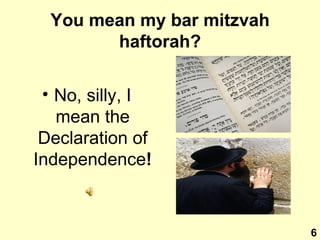
You mean my bar mitzvah haftorah? No, silly, I mean the Declaration of Independence ! 6
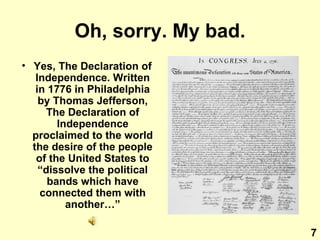
Oh, sorry. My bad. Yes, The Declaration of Independence. Written in 1776 in Philadelphia by Thomas Jefferson, The Declaration of Independence proclaimed to the world the desire of the people of the United States to “dissolve the political bands which have connected them with another…” 7
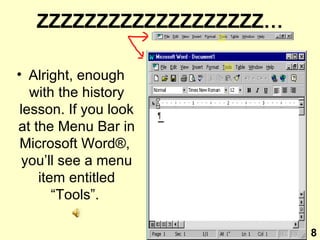
ZZZZZZZZZZZZZZZZZZZ… Alright, enough with the history lesson. If you look at the Menu Bar in Microsoft Word ®,  you’ll see a menu item entitled “Tools”.   8
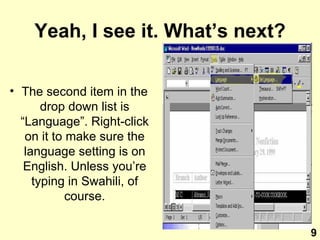
Yeah, I see it. What’s next? The second item in the drop down list is “Language”. Right-click on it to make sure the language setting is on English. Unless you’re typing in Swahili, of course. 9
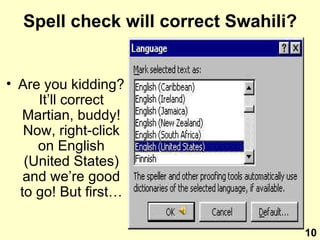
Spell check will correct Swahili? Are you kidding? It’ll correct Martian, buddy! Now, right-click on English (United States) and we’re good to go! But first… 10
Microsoft Office ®  Spelling/Grammar Check Disclaimer Some of the content in this topic may not be applicable to some languages. Microsoft ® Corporation, its subsidiaries and subcontractors, make no claim as to the safety of this product, nor do they accept any claim to liability resulting from any injuries incurred through the use of this product, so there, nyeah! 11
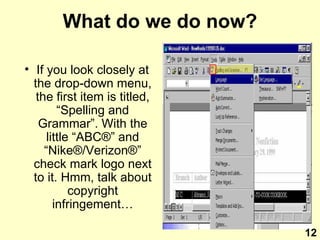
What do we do now? If you look closely at the drop-down menu, the first item is titled, “Spelling and Grammar”. With the little “ABC ® ” and “Nike ® /Verizon ® ” check mark logo next to it. Hmm, talk about copyright infringement… 12
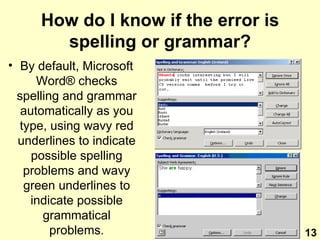
How do I know if the error is spelling or grammar? By default, Microsoft Word ®  checks spelling and grammar automatically as you type, using wavy red underlines to indicate possible spelling problems and wavy green underlines to indicate possible grammatical problems. 13
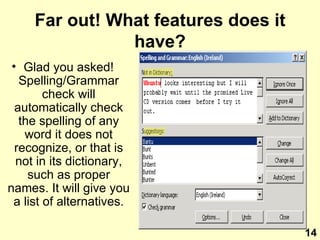
Far out! What features does it have? Glad you asked! Spelling/Grammar check will automatically check the spelling of any word it does not recognize, or that is not in its dictionary, such as proper names. It will give you a list of alternatives. 14
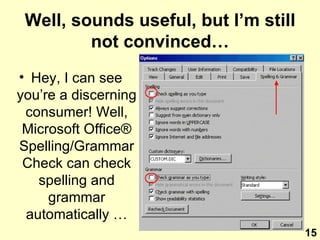
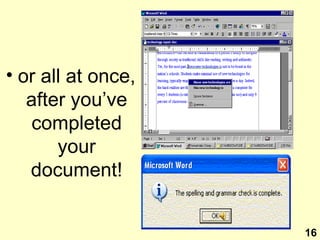
Well, sounds useful, but I’m still not convinced… Hey, I can see you’re a discerning consumer! Well, Microsoft Office ®  Spelling/Grammar Check can check spelling and grammar automatically … 15
or all at once, after you’ve completed your document! 16
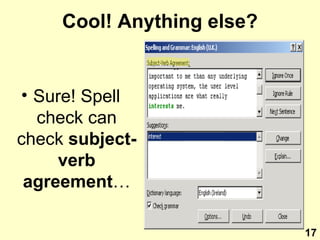
Cool! Anything else? Sure! Spell check can check  subject-verb agreement … 17
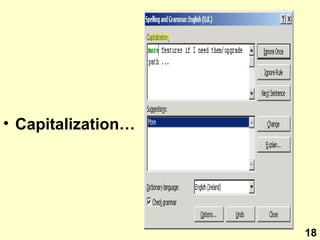
Capitalization… 18
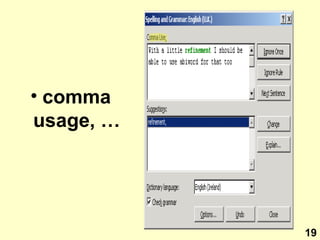
comma usage, … 19
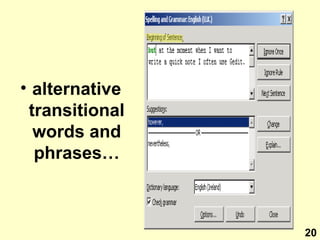
alternative transitional words and phrases… 20
all on this attractive CD-ROM! 21
There’s a Windows version… 22
a Macintosh version… 23
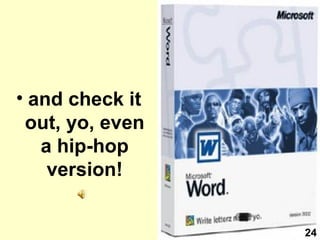
and check it out, yo, even a hip-hop version! 24
Is that all? Wait, there’s more! If you order now, you’ll also receive the Bamboo Steamer ®!... 25
and this lovely set of steak knives! 26
O.K., I’m sold! But there’s one problem.. Yes, what’s that? 27
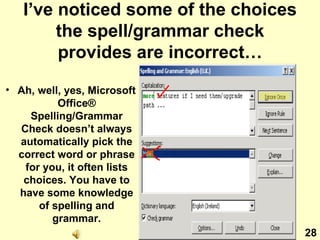
I’ve noticed some of the choices the spell/grammar check provides are incorrect… Ah, well, yes, Microsoft Office ® Spelling/Grammar Check doesn’t always automatically pick the correct word or phrase for you, it often lists choices. You have to have some knowledge of spelling and grammar. 28
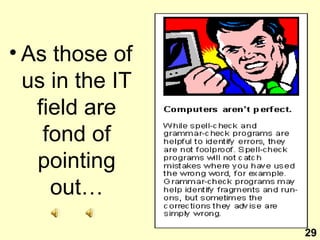
As those of us in the IT field are fond of pointing out… 29
You mean… Yes, my friend, technology will never take the place of competent, qualified, caring teachers. You should have paid more attention in English class. 30
And for those of you who liked the raspberry sound, here it is… ONE MORE TIME! 31
That’s all, folks! 32
Resources and Credits MUSIC Enter the Gladiators  by Julius Fucik Hava Nagilah  traditional Jewish folk song The Star Spangled Banner  by Francis Scott Key Back to School  by Afroman That’s All, Folks!  by Carl W. Stalling Piano Concerto No. 21 in C  (Andante) by Wolfgang Amadeus Mozart SOUND EFFECTS All sound effects courtesy of Microsoft Corporation ®  and World’s Greatest Sound Effects ® (©1994 by Thomas J. Valentino, Inc.) SCREENSHOTS AND CLIP ART Microsoft Word® screenshots and clip art courtesy of Microsoft Corporation® This presentation was composed using Microsoft Office PowerPoint 2003® and WavePad® © 2005 MorningStar Education®. All rights reserved. No part of this presentation may be copied or used for commercial presentation without express permission of the publisher. 33

Microsoft Office Spellcheck as an Assistive Technology

  • 1.
    Microsoft Office ® Spelling/Grammar Check As An Assistive Technology By Marc “The Shark” Morgenstern 1
  • 2.
    What is MicrosoftOffice ® Spelling/Grammar Check? Microsoft Office ® Spelling/Grammar check is a simple, easy-to-use feature of the entire Microsoft Office Suite ® of word-processing products. Put simply, Microsoft Office ® Spelling/Grammar Check allows those users who are textually-challenged to quickly, easily, and automatically check and correct their spelling and grammar. Their There They’re ?????? 2
  • 3.
    Wow! That’s great!But how does it work? That’s what’s great about Microsoft Office ® Spelling/Grammar check! It does all the work (well, most of it, anyway) so you don’t have to bother to learn how to spell English correctly or compose a coherent sentence! 3
  • 4.
    O.K.! Tell memore! Fantastic! First of all, let’s open a typical document in Microsoft Word. ® 4
  • 5.
    What document arewe going to open? Hey, you sure ask a lot of questions for a PowerPoint ® prompt! O.K., how about that most treasured and revered document of American history… ? 5
  • 6.
    You mean mybar mitzvah haftorah? No, silly, I mean the Declaration of Independence ! 6
  • 7.
    Oh, sorry. Mybad. Yes, The Declaration of Independence. Written in 1776 in Philadelphia by Thomas Jefferson, The Declaration of Independence proclaimed to the world the desire of the people of the United States to “dissolve the political bands which have connected them with another…” 7
  • 8.
    ZZZZZZZZZZZZZZZZZZZ… Alright, enoughwith the history lesson. If you look at the Menu Bar in Microsoft Word ®, you’ll see a menu item entitled “Tools”. 8
  • 9.
    Yeah, I seeit. What’s next? The second item in the drop down list is “Language”. Right-click on it to make sure the language setting is on English. Unless you’re typing in Swahili, of course. 9
  • 10.
    Spell check willcorrect Swahili? Are you kidding? It’ll correct Martian, buddy! Now, right-click on English (United States) and we’re good to go! But first… 10
  • 11.
    Microsoft Office ® Spelling/Grammar Check Disclaimer Some of the content in this topic may not be applicable to some languages. Microsoft ® Corporation, its subsidiaries and subcontractors, make no claim as to the safety of this product, nor do they accept any claim to liability resulting from any injuries incurred through the use of this product, so there, nyeah! 11
  • 12.
    What do wedo now? If you look closely at the drop-down menu, the first item is titled, “Spelling and Grammar”. With the little “ABC ® ” and “Nike ® /Verizon ® ” check mark logo next to it. Hmm, talk about copyright infringement… 12
  • 13.
    How do Iknow if the error is spelling or grammar? By default, Microsoft Word ® checks spelling and grammar automatically as you type, using wavy red underlines to indicate possible spelling problems and wavy green underlines to indicate possible grammatical problems. 13
  • 14.
    Far out! Whatfeatures does it have? Glad you asked! Spelling/Grammar check will automatically check the spelling of any word it does not recognize, or that is not in its dictionary, such as proper names. It will give you a list of alternatives. 14
  • 15.
    Well, sounds useful,but I’m still not convinced… Hey, I can see you’re a discerning consumer! Well, Microsoft Office ® Spelling/Grammar Check can check spelling and grammar automatically … 15
  • 16.
    or all atonce, after you’ve completed your document! 16
  • 17.
    Cool! Anything else?Sure! Spell check can check subject-verb agreement … 17
  • 18.
  • 19.
  • 20.
  • 21.
    all on thisattractive CD-ROM! 21
  • 22.
    There’s a Windowsversion… 22
  • 23.
  • 24.
    and check itout, yo, even a hip-hop version! 24
  • 25.
    Is that all?Wait, there’s more! If you order now, you’ll also receive the Bamboo Steamer ®!... 25
  • 26.
    and this lovelyset of steak knives! 26
  • 27.
    O.K., I’m sold!But there’s one problem.. Yes, what’s that? 27
  • 28.
    I’ve noticed someof the choices the spell/grammar check provides are incorrect… Ah, well, yes, Microsoft Office ® Spelling/Grammar Check doesn’t always automatically pick the correct word or phrase for you, it often lists choices. You have to have some knowledge of spelling and grammar. 28
  • 29.
    As those ofus in the IT field are fond of pointing out… 29
  • 30.
    You mean… Yes,my friend, technology will never take the place of competent, qualified, caring teachers. You should have paid more attention in English class. 30
  • 31.
    And for thoseof you who liked the raspberry sound, here it is… ONE MORE TIME! 31
  • 32.
  • 33.
    Resources and CreditsMUSIC Enter the Gladiators by Julius Fucik Hava Nagilah traditional Jewish folk song The Star Spangled Banner by Francis Scott Key Back to School by Afroman That’s All, Folks! by Carl W. Stalling Piano Concerto No. 21 in C (Andante) by Wolfgang Amadeus Mozart SOUND EFFECTS All sound effects courtesy of Microsoft Corporation ® and World’s Greatest Sound Effects ® (©1994 by Thomas J. Valentino, Inc.) SCREENSHOTS AND CLIP ART Microsoft Word® screenshots and clip art courtesy of Microsoft Corporation® This presentation was composed using Microsoft Office PowerPoint 2003® and WavePad® © 2005 MorningStar Education®. All rights reserved. No part of this presentation may be copied or used for commercial presentation without express permission of the publisher. 33