by Denise Etheridge
by Denise Etheridge
Excel® 2007: Top 100                                                   LIMIT OF LIABILITY/DISCLAIMER OF WARRANTY: THE
                                                                       PUBLISHER AND THE AUTHOR MAKE NO REPRESENTATIONS
Simplified® Tips & Tricks                                              OR WARRANTIES WITH RESPECT TO THE ACCURACY OR
                                                                       COMPLETENESS OF THE CONTENTS OF THIS WORK AND
Published by
                                                                       SPECIFICALLY DISCLAIM ALL WARRANTIES, INCLUDING
Wiley Publishing, Inc.                                                 WITHOUT LIMITATION WARRANTIES OF FITNESS FOR A
111 River Street                                                       PARTICULAR PURPOSE. NO WARRANTY MAY BE CREATED
Hoboken, NJ 07030-5774                                                 OR EXTENDED BY SALES OR PROMOTIONAL MATERIALS. THE
                                                                       ADVICE AND STRATEGIES CONTAINED HEREIN MAY NOT BE
Published simultaneously in Canada
                                                                       SUITABLE FOR EVERY SITUATION. THIS WORK IS SOLD WITH
Copyright © 2007 by Wiley Publishing, Inc., Indianapolis,              THE UNDERSTANDING THAT THE PUBLISHER IS NOT
Indiana                                                                ENGAGED IN RENDERING LEGAL, ACCOUNTING, OR OTHER
Library of Congress Control Number: 2007926010                         PROFESSIONAL SERVICES. IF PROFESSIONAL ASSISTANCE IS
                                                                       REQUIRED, THE SERVICES OF A COMPETENT PROFESSIONAL
ISBN: 978-0-470-12674-5                                                PERSON SHOULD BE SOUGHT. NEITHER THE PUBLISHER NOR
Manufactured in the United States of America                           THE AUTHOR SHALL BE LIABLE FOR DAMAGES ARISING
                                                                       HEREFROM. THE FACT THAT AN ORGANIZATION OR
10 9 8 7 6 5 4 3 2 1                                                   WEBSITE IS REFERRED TO IN THIS WORK AS A CITATION
No part of this publication may be reproduced, stored in a             AND/OR A POTENTIAL SOURCE OF FURTHER INFORMATION
retrieval system or transmitted in any form or by any means,           DOES NOT MEAN THAT THE AUTHOR OR THE PUBLISHER
electronic, mechanical, photocopying, recording, scanning or           ENDORSES THE INFORMATION THE ORGANIZATION OR
otherwise, except as permitted under Sections 107 or 108 of            WEBSITE MAY PROVIDE OR RECOMMENDATIONS IT MAY
the 1976 United States Copyright Act, without either the prior         MAKE. FURTHER, READERS SHOULD BE AWARE THAT
written permission of the Publisher, or authorization through          INTERNET WEBSITES LISTED IN THIS WORK MAY HAVE
                                                                       CHANGED OR DISAPPEARED BETWEEN WHEN THIS WORK
payment of the appropriate per-copy fee to the Copyright
                                                                       WAS WRITTEN AND WHEN IT IS READ.
Clearance Center, 222 Rosewood Drive, Danvers, MA 01923,
978-750-8400, fax 978-646-8600. Requests to the Publisher
for permission should be addressed to the Legal Department,            FOR PURPOSES OF ILLUSTRATING THE CONCEPTS AND
Wiley Publishing, Inc., 10475 Crosspoint Blvd., Indianapolis,          TECHNIQUES DESCRIBED IN THIS BOOK, THE AUTHOR HAS
                                                                       CREATED VARIOUS NAMES, COMPANY NAMES, MAILING,
IN 46256, 317-572-3447, fax 317-572-4355, online:
                                                                       E-MAIL AND INTERNET ADDRESSES, PHONE AND FAX
www.wiley.com/go/permissions.
                                                                       NUMBERS AND SIMILAR INFORMATION, ALL OF WHICH
Trademark Acknowledgments                                              ARE FICTITIOUS. ANY RESEMBLANCE OF THESE FICTITIOUS
                                                                       NAMES, ADDRESSES, PHONE AND FAX NUMBERS AND
Wiley, the Wiley Publishing logo, Visual, the Visual logo,             SIMILAR INFORMATION TO ANY ACTUAL PERSON, COMPANY
Simplified, Read Less - Learn More, and related trade dress are        AND/OR ORGANIZATION IS UNINTENTIONAL AND PURELY
trademarks or registered trademarks of John Wiley & Sons, Inc.         COINCIDENTAL.
and/or its affiliates. Microsoft and Excel are registered trademarks
of Microsoft Corporation in the U.S. and/or other countries. All
other trademarks are the property of their respective owners.
Wiley Publishing, Inc. is not associated with any product or
vendor mentioned in this book.

Contact Us
For general information on our other products and services
contact our Customer Care Department within the U.S. at
800-762-2974, outside the U.S. at 317-572-3993, or fax
317-572-4002.
For technical support please visit www.wiley.com/techsupport.


                                                                                      U.S. Sales
                                                                                      Contact Wiley at
                                                                                      (800) 762-2974 or
                                                                                      fax (317) 572-4002.
PRAISE        FOR      VISUAL BOOKS

“I have to praise you and your company on the            “Like a lot of other people, I understand things
fine products you turn out. I have twelve Visual         best when I see them visually. Your books really
books in my house. They were instrumental in             make learning easy and life more fun.”
helping me pass a difficult computer course.                                       John T. Frey (Cadillac, MI)
Thank you for creating books that are easy to
follow. Keep turning out those quality books.”           “I have quite a few of your Visual books and have
                          Gordon Justin (Brielle, NJ)    been very pleased with all of them. I love the way
                                                         the lessons are presented!”
“What fantastic teaching books you have                               Mary Jane Newman (Yorba Linda, CA)
produced! Congratulations to you and your staff.
You deserve the Nobel prize in Education. Thanks         “Thank you, thank you, thank you...for making it
for helping me understand computers.”                    so easy for me to break into this high-tech world.”
               Bruno Tonon (Melbourne, Australia)                  Gay O’Donnell (Calgary, Alberta,Canada)

“A Picture Is Worth A Thousand Words! If your            “I write to extend my thanks and appreciation for
learning method is by observing or hands-on              your books. They are clear, easy to follow, and
training, this is the book for you!”                     straight to the point. Keep up the good work! I
              Lorri Pegan-Durastante (Wickliffe, OH)     bought several of your books and they are just
                                                         right! No regrets! I will always buy your books
“Over time, I have bought a number of your               because they are the best.”
‘Read Less - Learn More’ books. For me, they are                              Seward Kollie (Dakar, Senegal)
THE way to learn anything easily. I learn easiest
using your method of teaching.”                          “I would like to take this time to thank you and
                         José A. Mazón (Cuba, NY)        your company for producing great and easy-to-
                                                         learn products. I bought two of your books from a
“You’ve got a fan for life!! Thanks so much!!”           local bookstore, and it was the best investment
                      Kevin P. Quinn (Oakland, CA)       I’ve ever made! Thank you for thinking of us
                                                         ordinary people.”
“I have several books from the Visual series and                          Jeff Eastman (West Des Moines, IA)
have always found them to be valuable
resources.”                                              “Compliments to the chef!! Your books are
                Stephen P. Miller (Ballston Spa, NY)     extraordinary! Or, simply put, extra-ordinary,
                                                         meaning way above the rest! THANKYOU
“I have several of your Visual books and they are        THANKYOU THANKYOU! I buy them for friends,
the best I have ever used.”                              family, and colleagues.”
                    Stanley Clark (Crawfordville, FL)                  Christine J. Manfrin (Castle Rock, CO)
CREDITS
     Project Editor                            Layout
      Sarah Hellert                         Carrie A. Foster
                                          Jennifer Mayberry
   Acquisitions Editor                       Heather Pope
      Jody Lefevere                      Amanda Spagnuolo

      Copy Editor                          Screen Artist
       Kim Heusel                            Jill A. Proll

     Technical Editor                         Proofreader
    Suzanne Borys, PhD             Broccoli Information Management
     James Floyd Kelly
                                          Quality Control
   Editorial Manager                       Cynthia Fields
      Robyn Siesky                         Jessica Kramer
                                          Charles Spencer
   Business Manager
       Amy Knies                               Indexer
                                    Infodex Indexing Services, Inc.
   Editorial Assistant
       Laura Sinise                  Wiley Bicentennial Logo
                                         Richard J. Pacifico
     Manufacturing
        Allan Conley                       Special Help
        Linda Cook                        Malinda McCain
       Paul Gilchrist                      Barbara Moore
      Jennifer Guynn                      Christine Williams

      Book Design                  Vice President and Executive
      Kathie Rickard                     Group Publisher
                                          Richard Swadley
Production Coordinator
       Erin Smith                  Vice President and Publisher
                                            Barry Pruett

                                       Composition Director
                                          Debbie Stailey


               ABOUT       THE    AUTHOR
  Denise Etheridge is a certified public accountant as well as
the president and founder of Baycon Group, Inc. She publishes
 Web sites, provides consulting services on accounting-related
  software, and authors computer-related books. You can visit
      www.baycongroup.com to view her online tutorials.


This book is dedicated to my mother, Catherine Austin Etheridge
HOW TO USE THIS BOOK
Excel 2007: Top 100 Simplified® Tips & Tricks includes 100 tasks that reveal cool secrets, teach timesaving tricks, and
explain great tips guaranteed to make you more productive with Excel. The easy-to-use layout lets you work
through all the tasks from beginning to end or jump in at random.
Who is this book for?
You already know Excel basics. Now you’d like to go beyond, with shortcuts, tricks, and tips that let you work
smarter and faster. And because you learn more easily when someone shows you how, this is the book for you.


Conventions Used In This Book

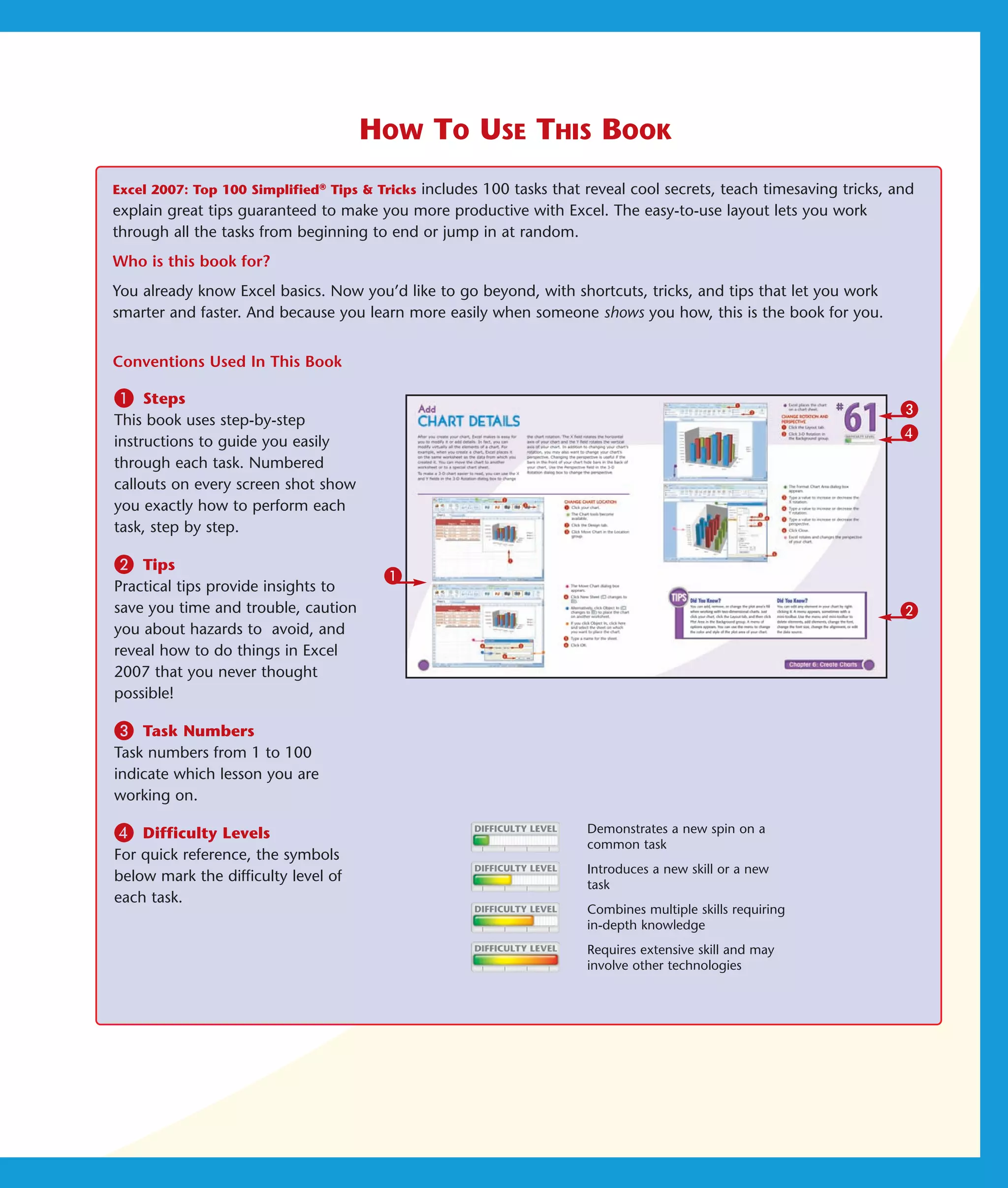
1    Steps
                                                                                                                    3
This book uses step-by-step
instructions to guide you easily
                                                                                                                    4
through each task. Numbered
callouts on every screen shot show
you exactly how to perform each
task, step by step.

2   Tips
                                        1
Practical tips provide insights to
save you time and trouble, caution                                                                                  2
you about hazards to avoid, and
reveal how to do things in Excel
2007 that you never thought
possible!

3   Task Numbers
Task numbers from 1 to 100
indicate which lesson you are
working on.

4   Difficulty Levels                                                 Demonstrates a new spin on a
                                                                      common task
For quick reference, the symbols
                                                                      Introduces a new skill or a new
below mark the difficulty level of
                                                                      task
each task.
                                                                      Combines multiple skills requiring
                                                                      in-depth knowledge
                                                                      Requires extensive skill and may
                                                                      involve other technologies
Table of Contents
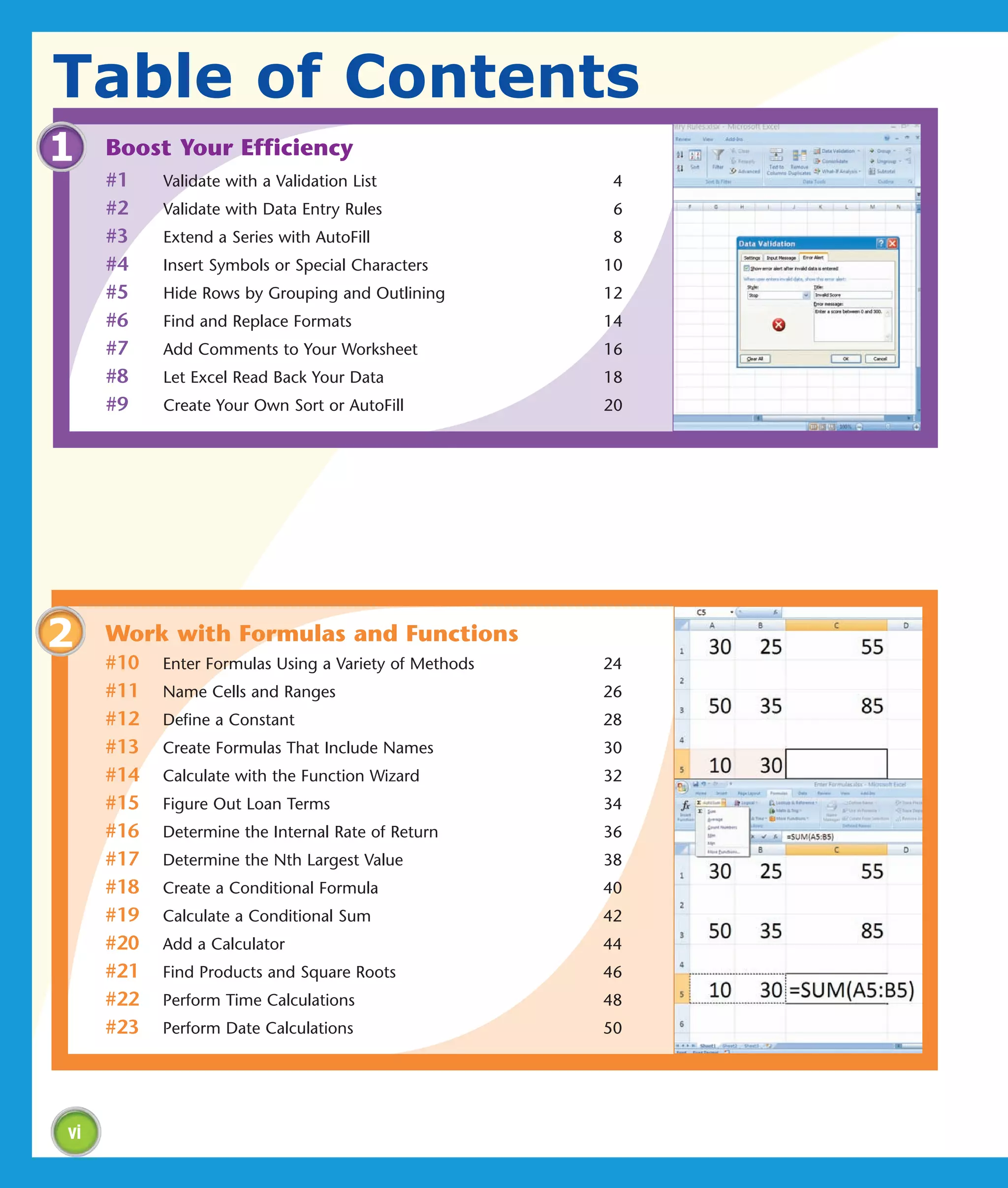
1    Boost Your Efficiency
     #1    Validate with a Validation List              4
     #2    Validate with Data Entry Rules               6
     #3    Extend a Series with AutoFill                8
     #4    Insert Symbols or Special Characters        10
     #5    Hide Rows by Grouping and Outlining         12
     #6    Find and Replace Formats                    14
     #7    Add Comments to Your Worksheet              16
     #8    Let Excel Read Back Your Data               18
     #9    Create Your Own Sort or AutoFill            20


2    Work with Formulas and Functions
     #10   Enter Formulas Using a Variety of Methods   24
     #11   Name Cells and Ranges                       26
     #12   Define a Constant                           28
     #13   Create Formulas That Include Names          30
     #14   Calculate with the Function Wizard          32
     #15   Figure Out Loan Terms                       34
     #16   Determine the Internal Rate of Return       36
     #17   Determine the Nth Largest Value             38
     #18   Create a Conditional Formula                40
     #19   Calculate a Conditional Sum                 42
     #20   Add a Calculator                            44
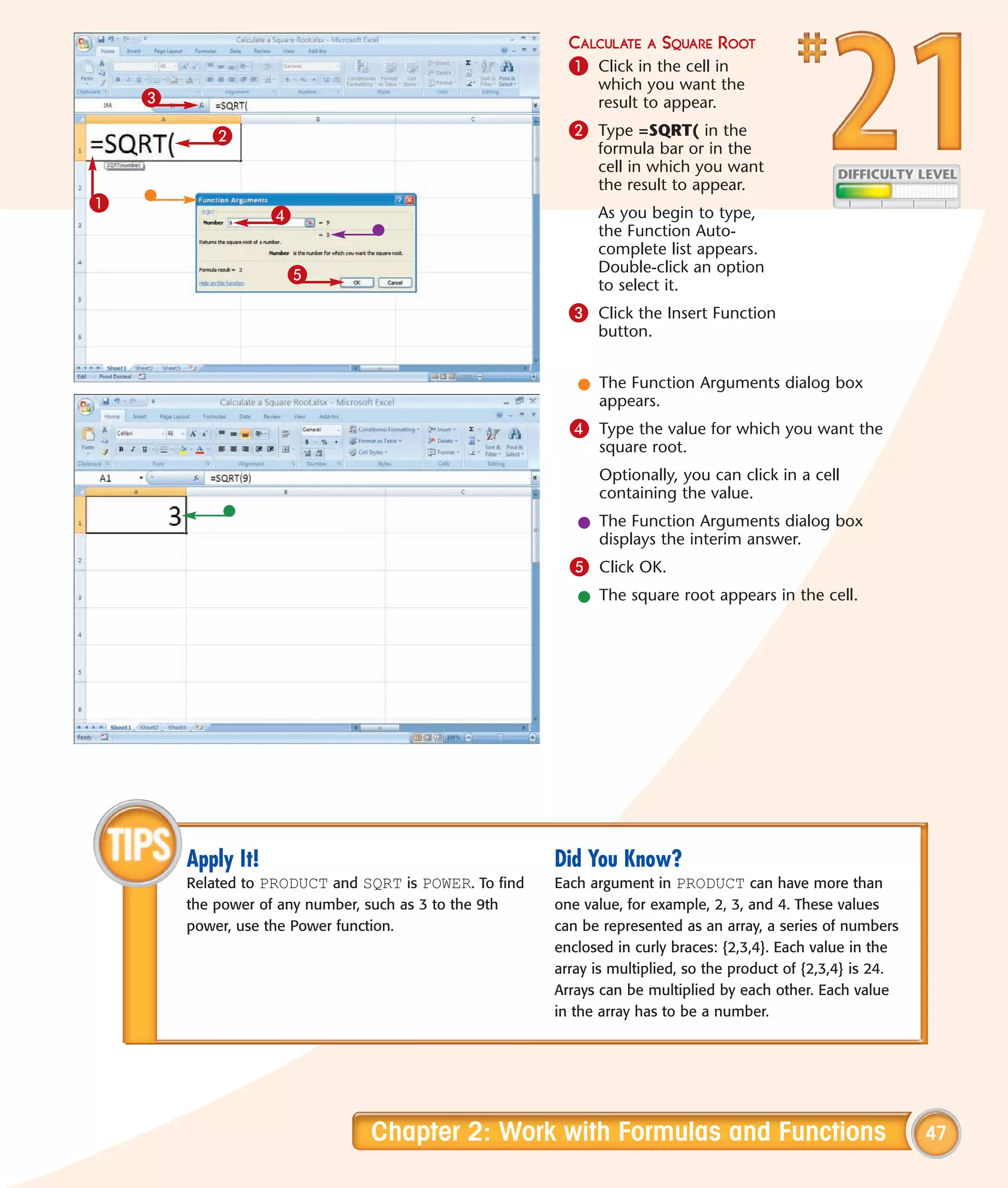
     #21   Find Products and Square Roots              46
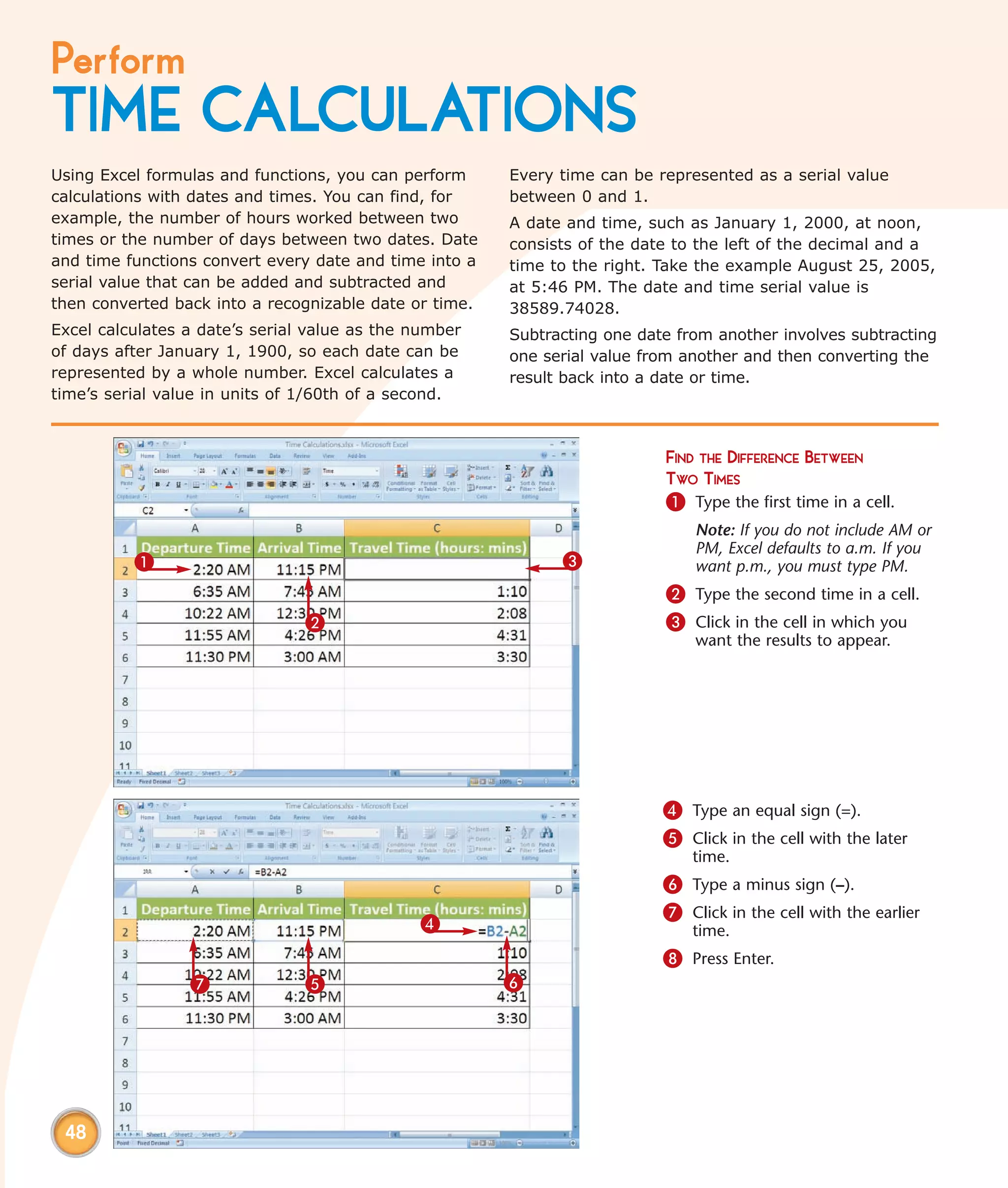
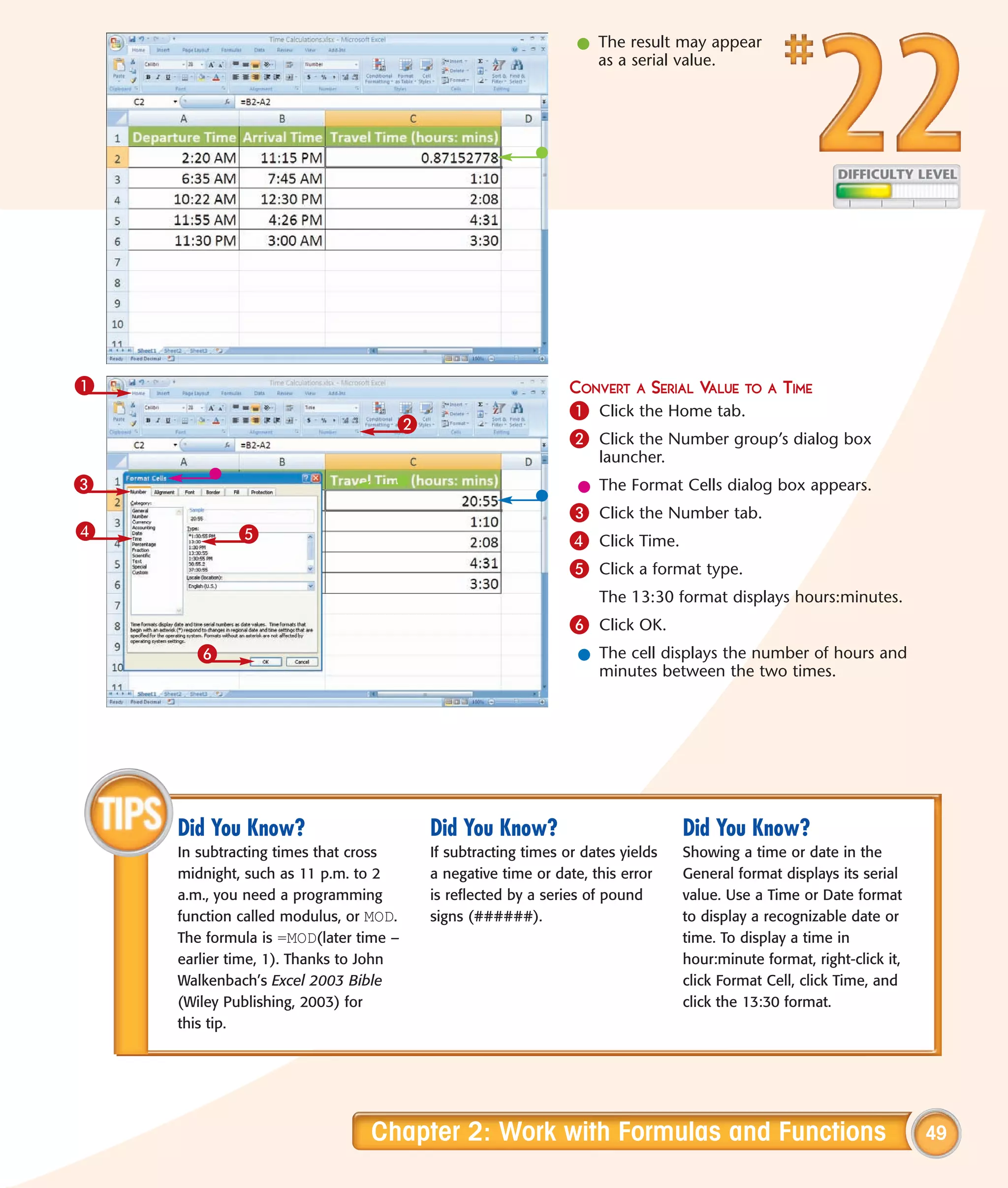
     #22   Perform Time Calculations                   48
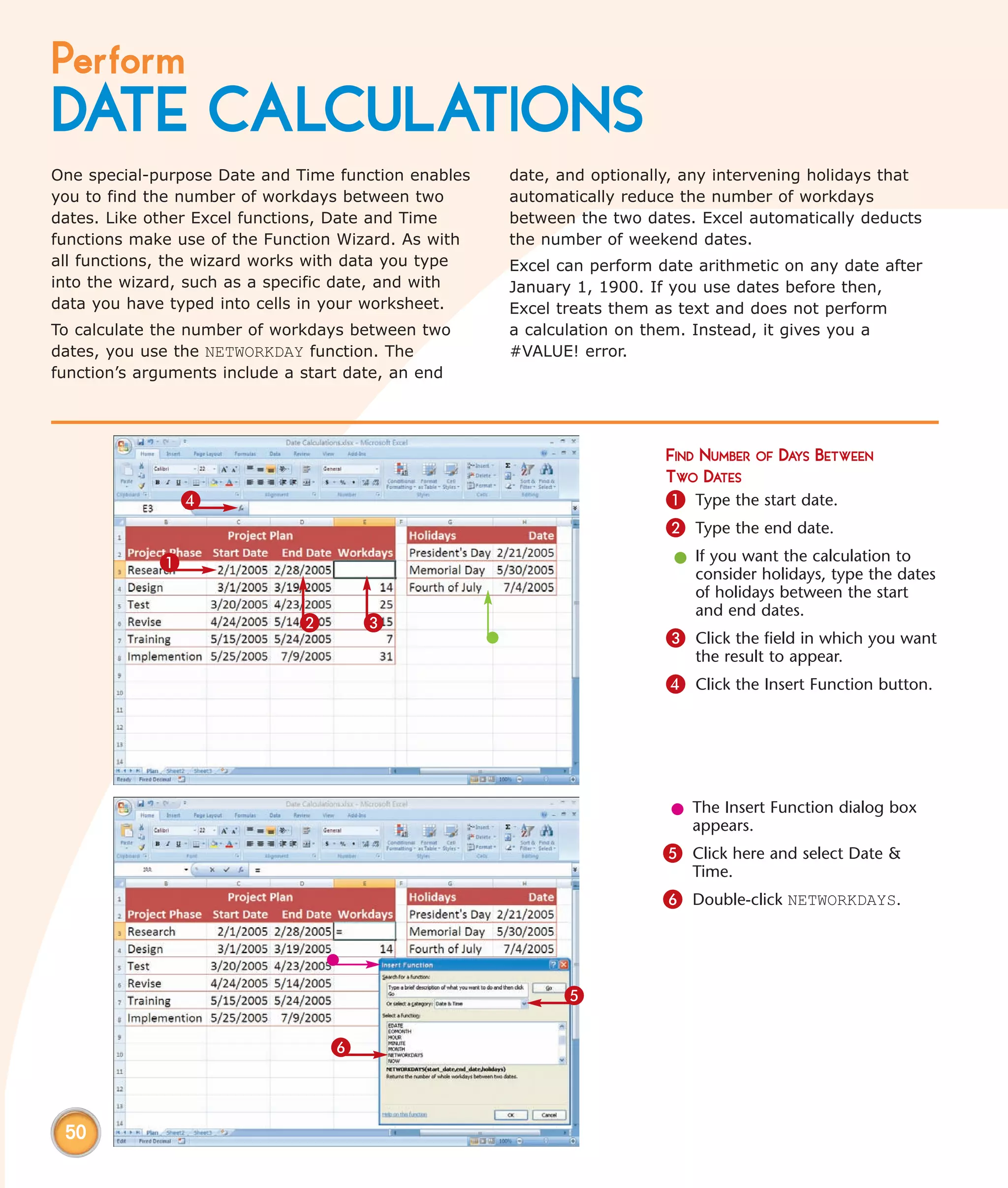
     #23   Perform Date Calculations                   50


vi
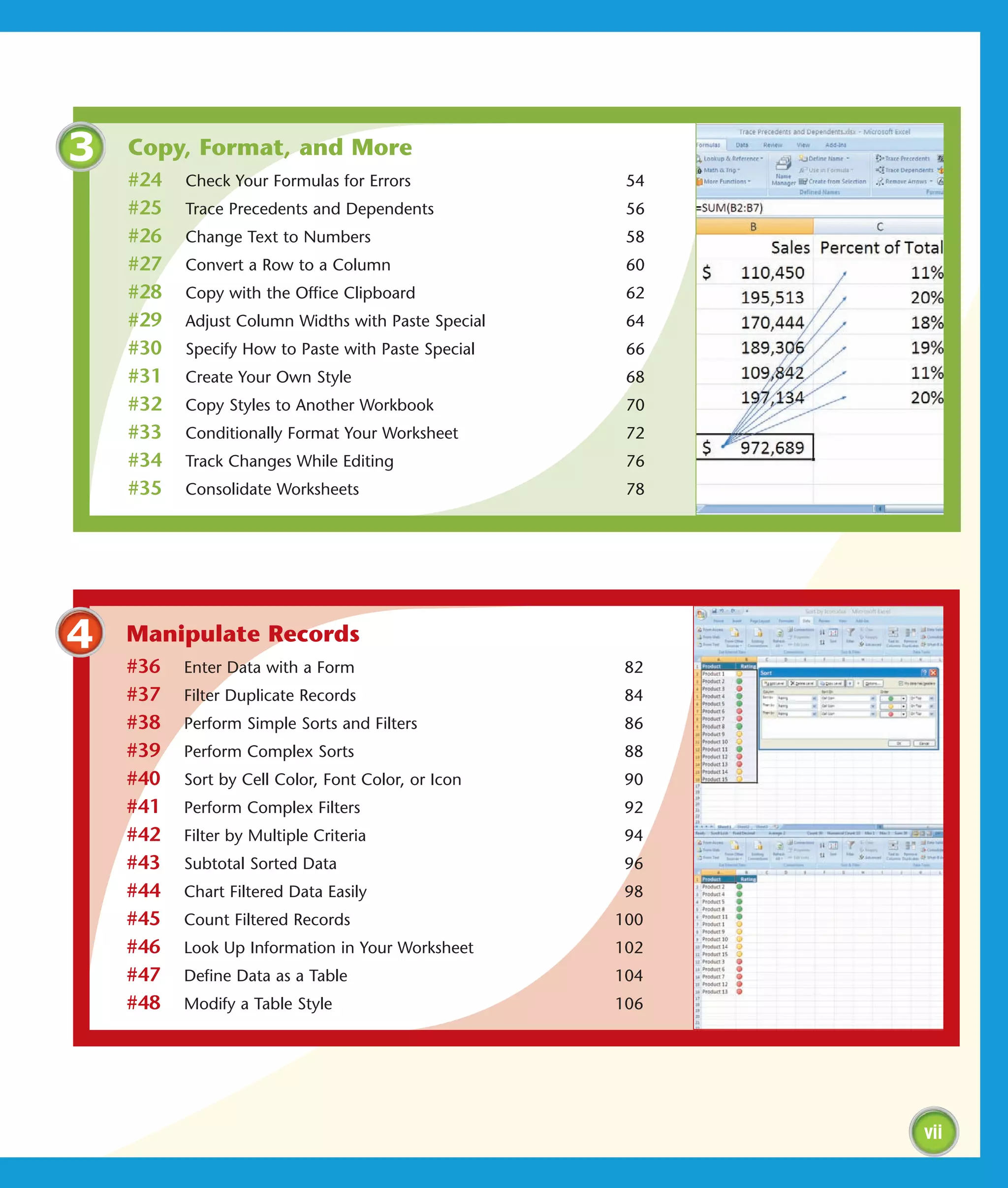
3   Copy, Format, and More
    #24   Check Your Formulas for Errors             54
    #25   Trace Precedents and Dependents            56
    #26   Change Text to Numbers                     58
    #27   Convert a Row to a Column                  60
    #28   Copy with the Office Clipboard             62
    #29   Adjust Column Widths with Paste Special    64
    #30   Specify How to Paste with Paste Special    66
    #31   Create Your Own Style                      68
    #32   Copy Styles to Another Workbook            70
    #33   Conditionally Format Your Worksheet        72
    #34   Track Changes While Editing                76
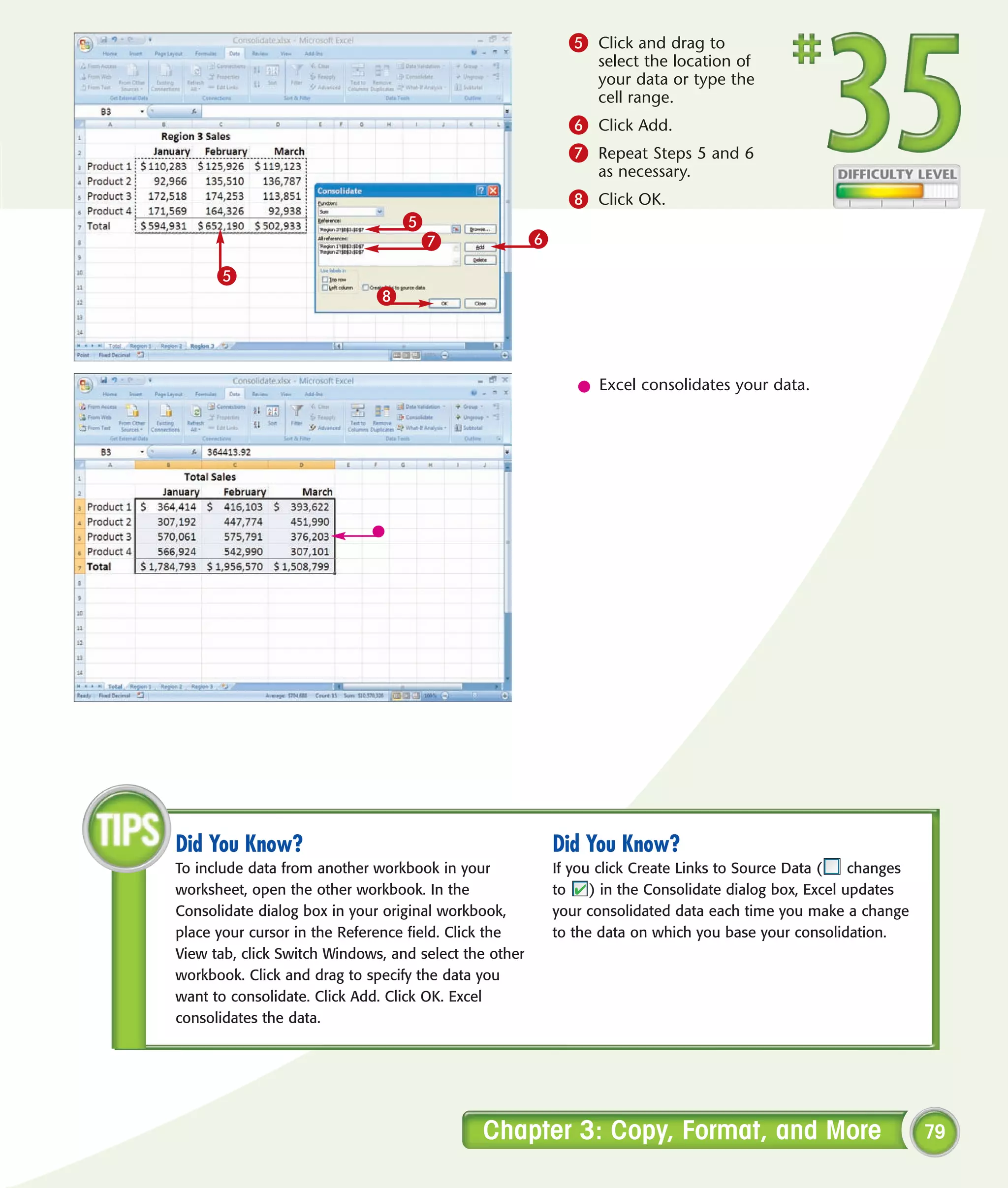
    #35   Consolidate Worksheets                     78


4   Manipulate Records
    #36   Enter Data with a Form                     82
    #37   Filter Duplicate Records                   84
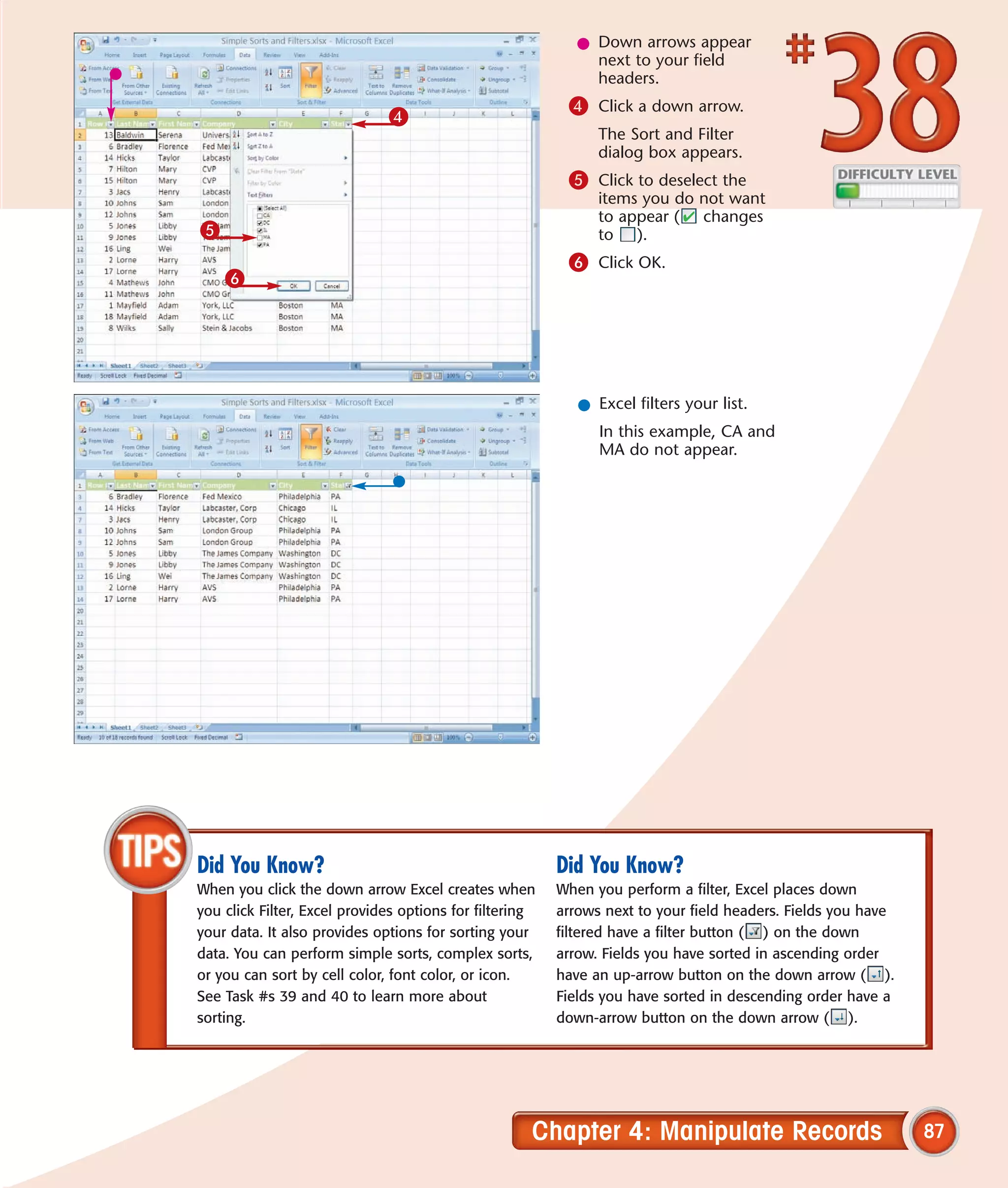
    #38   Perform Simple Sorts and Filters           86
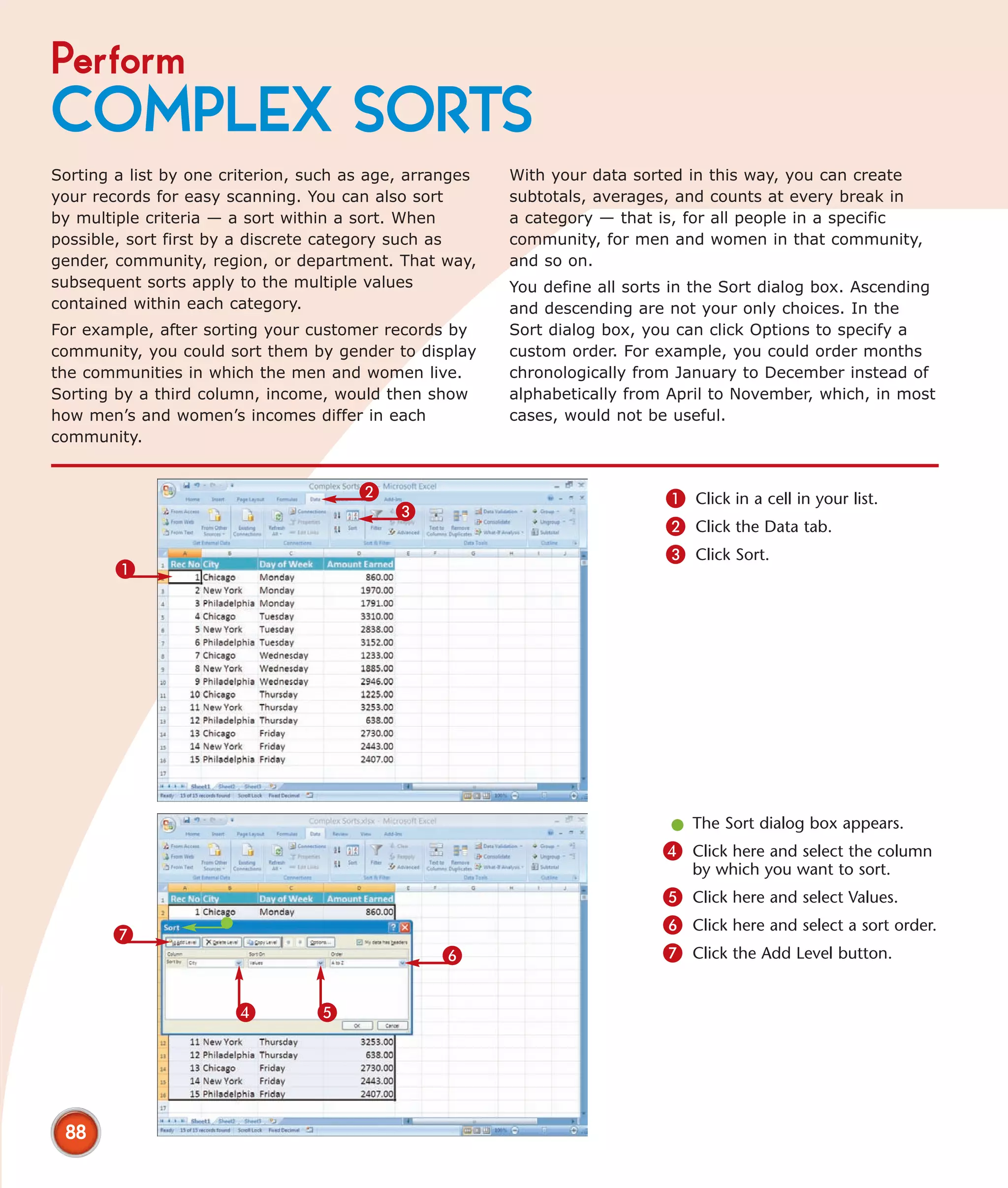
    #39   Perform Complex Sorts                      88
    #40   Sort by Cell Color, Font Color, or Icon    90
    #41   Perform Complex Filters                    92
    #42   Filter by Multiple Criteria                94
    #43   Subtotal Sorted Data                       96
    #44   Chart Filtered Data Easily                 98
    #45   Count Filtered Records                    100
    #46   Look Up Information in Your Worksheet     102
    #47   Define Data as a Table                    104
    #48   Modify a Table Style                      106


                                                          vii
Table of Contents
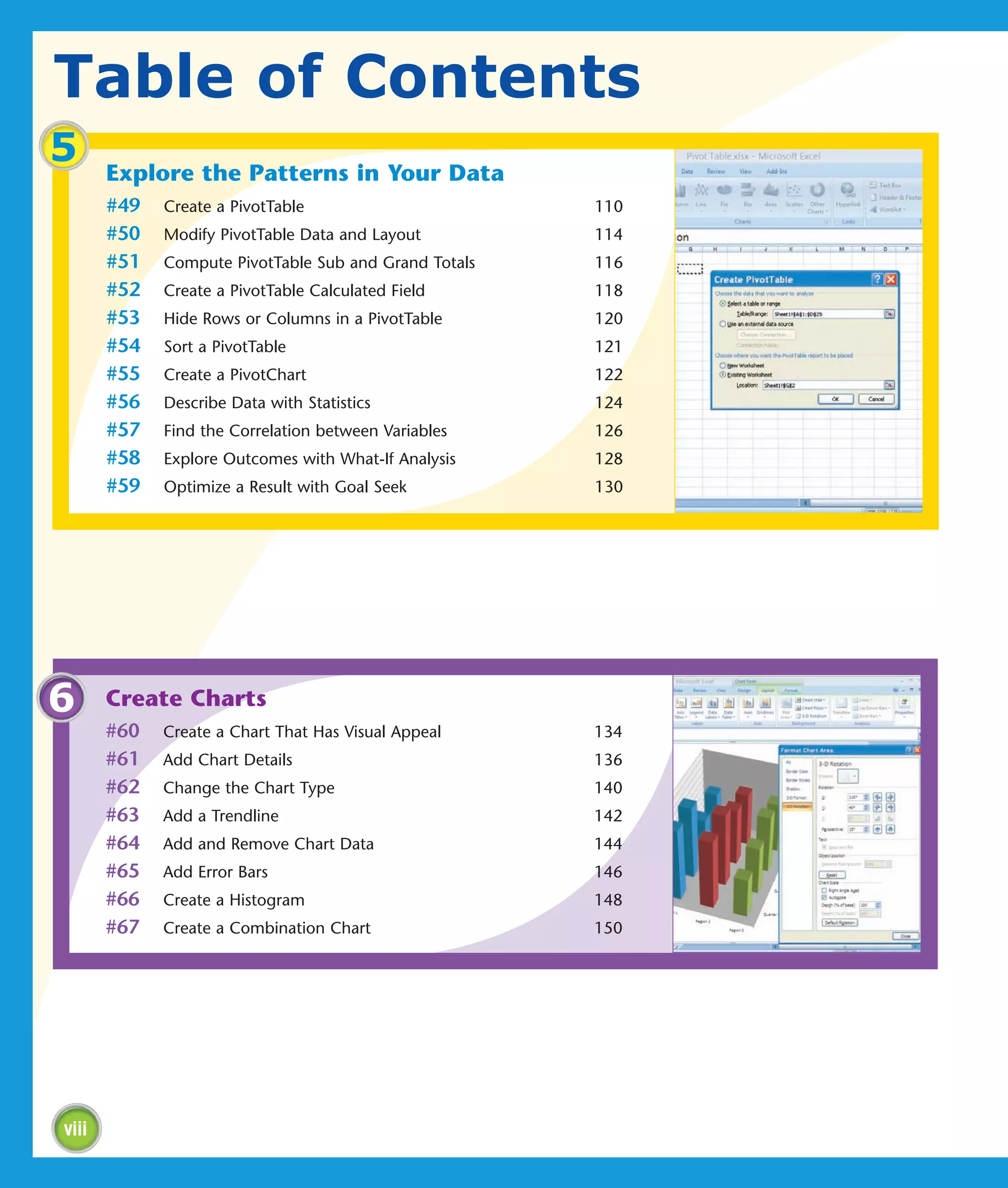
5      Explore the Patterns in Your Data
       #49   Create a PivotTable                       110
       #50   Modify PivotTable Data and Layout         114
       #51   Compute PivotTable Sub and Grand Totals   116
       #52   Create a PivotTable Calculated Field      118
       #53   Hide Rows or Columns in a PivotTable      120
       #54   Sort a PivotTable                         121
       #55   Create a PivotChart                       122
       #56   Describe Data with Statistics             124
       #57   Find the Correlation between Variables    126
       #58   Explore Outcomes with What-If Analysis    128
       #59   Optimize a Result with Goal Seek          130


6      Create Charts
       #60   Create a Chart That Has Visual Appeal     134
       #61   Add Chart Details                         136
       #62   Change the Chart Type                     140
       #63   Add a Trendline                           142
       #64   Add and Remove Chart Data                 144
       #65   Add Error Bars                            146
       #66   Create a Histogram                        148
       #67   Create a Combination Chart                150


viii
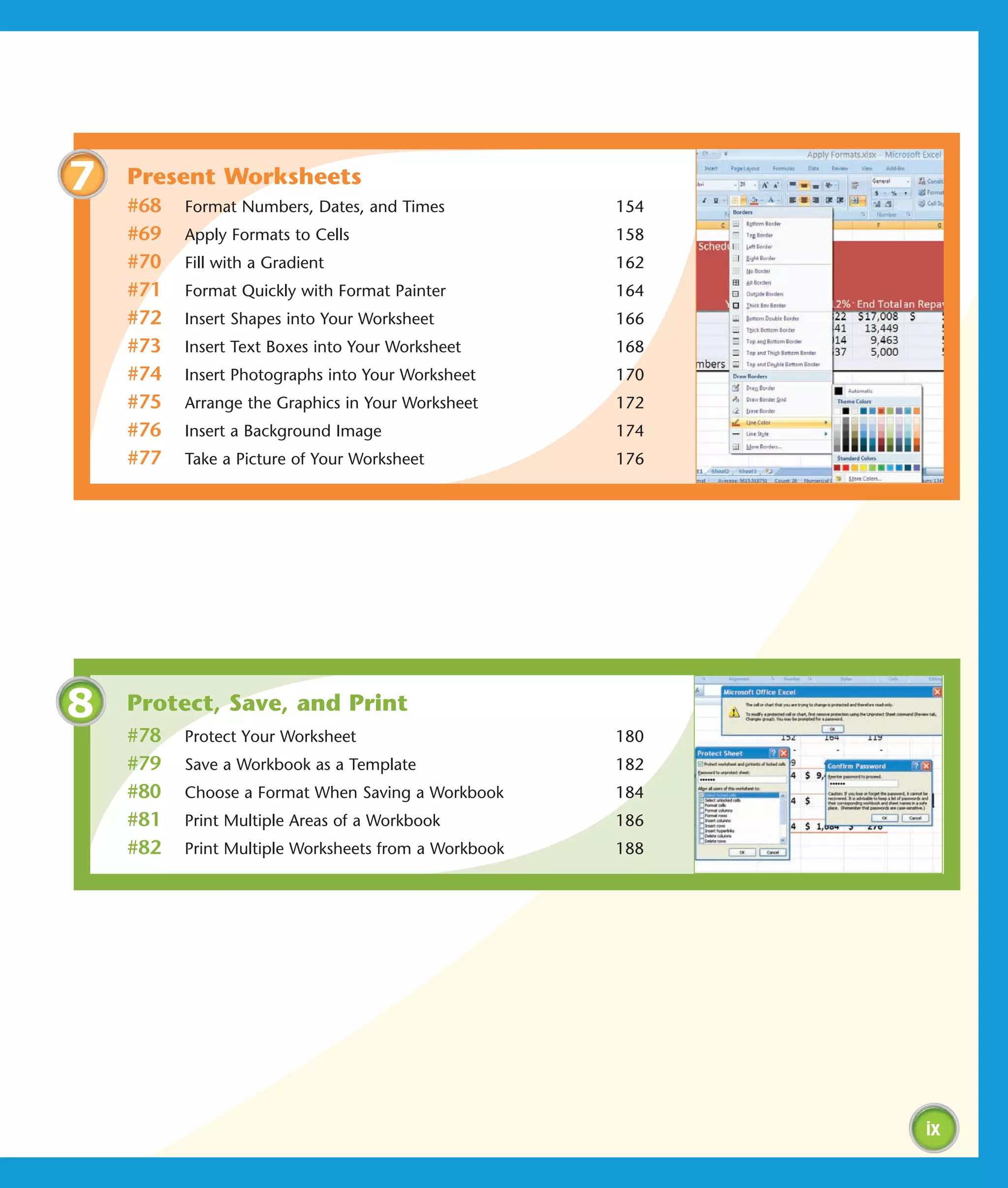
7   Present Worksheets
    #68   Format Numbers, Dates, and Times            154
    #69   Apply Formats to Cells                      158
    #70   Fill with a Gradient                        162
    #71   Format Quickly with Format Painter          164
    #72   Insert Shapes into Your Worksheet           166
    #73   Insert Text Boxes into Your Worksheet       168
    #74   Insert Photographs into Your Worksheet      170
    #75   Arrange the Graphics in Your Worksheet      172
    #76   Insert a Background Image                   174
    #77   Take a Picture of Your Worksheet            176


8   Protect, Save, and Print
    #78   Protect Your Worksheet                      180
    #79   Save a Workbook as a Template               182
    #80   Choose a Format When Saving a Workbook      184
    #81   Print Multiple Areas of a Workbook          186
    #82   Print Multiple Worksheets from a Workbook   188


                                                            ix
Table of Contents

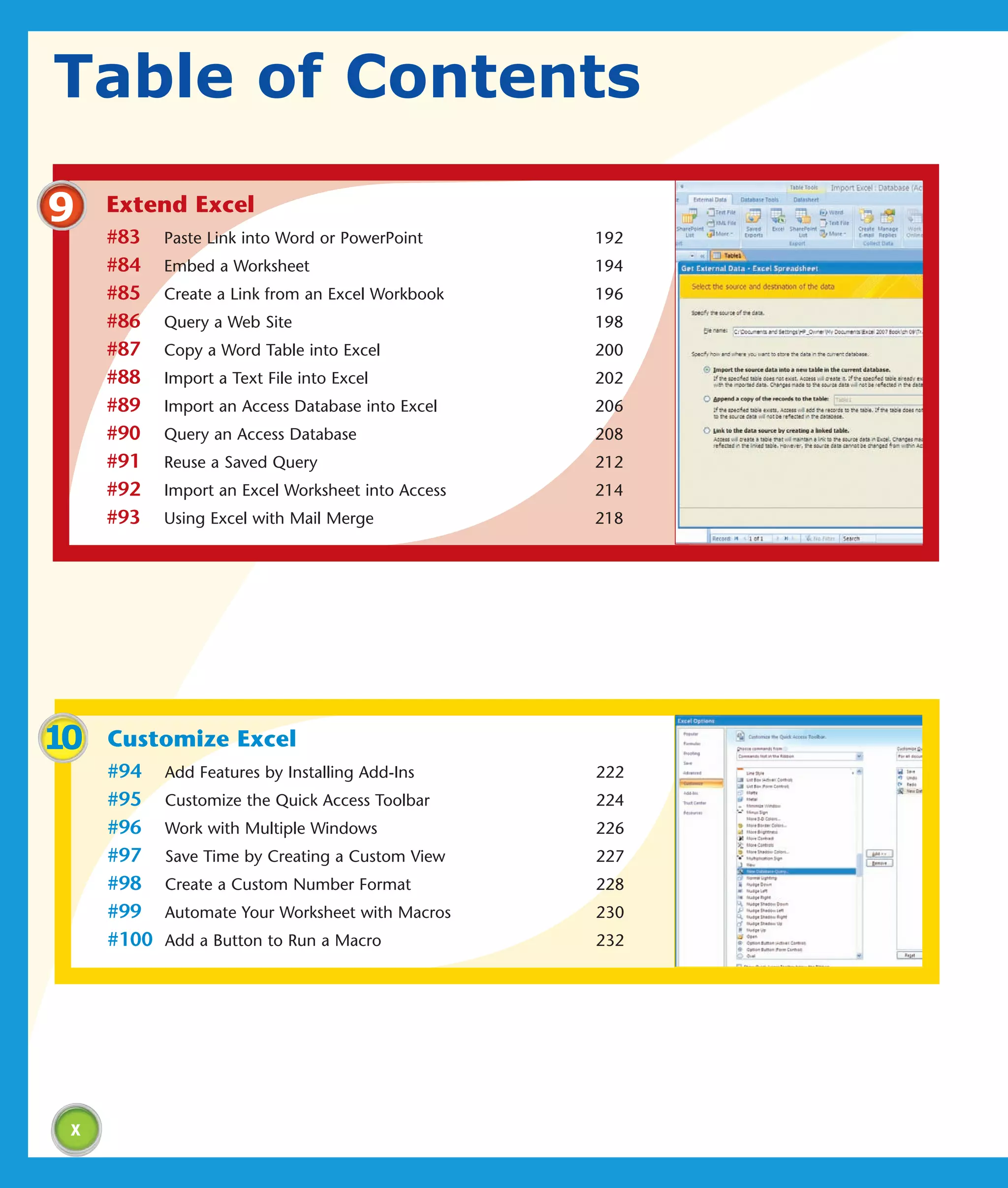
9    Extend Excel
     #83    Paste Link into Word or PowerPoint      192
     #84    Embed a Worksheet                       194
     #85    Create a Link from an Excel Workbook    196
     #86    Query a Web Site                        198
     #87    Copy a Word Table into Excel            200
     #88    Import a Text File into Excel           202
     #89    Import an Access Database into Excel    206
     #90    Query an Access Database                208
     #91    Reuse a Saved Query                     212
     #92    Import an Excel Worksheet into Access   214
     #93    Using Excel with Mail Merge             218


10   Customize Excel
     #94    Add Features by Installing Add-Ins      222
     #95    Customize the Quick Access Toolbar      224
     #96    Work with Multiple Windows              226
     #97    Save Time by Creating a Custom View     227
     #98    Create a Custom Number Format           228
     #99    Automate Your Worksheet with Macros     230
     #100   Add a Button to Run a Macro             232


 x
Boost Your Efficiency
You can use Microsoft Excel 2007 to work            or more values you have entered. This chapter
with numbers. In fact, wherever you use             will show you how to use the AutoFills that
numbers — doing taxes, running a small              come standard with Excel and how to create
business, maintaining a budget, or anything         your own AutoFills.
else — Excel can help make your work easier,
quicker, and more accurate.                         You can use grouping and outlining to hide
                                                    parts of your worksheet, enabling you to focus
Excel 2007 provides you with many ways to           in on the data in which you are interested,
enter, present, explore, and analyze data. This     thereby making data analysis easier. This
chapter focuses on ways in which you can            chapter steps you through the process of
boost your efficiency when using Excel. You         grouping and outlining.
learn how to use the Excel AutoFill feature, to
group and outline, to check the accuracy of         Sometimes you may want to double-check the
your data and more.                                 accuracy of your data. One of the final tasks in
                                                    this chapter teaches you how you can increase
The AutoFill feature enables you to fill a row or   the accuracy of your data entry by letting
column quickly with a series of values,             Excel read back your data to you.
numbers, dates, or times generated from one
Validate with a Validation List . . . . . . . . . . . . . . . . . . . . . . . 4


Validate with Data Entry Rules . . . . . . . . . . . . . . . . . . . . . . 6


Extend a Series with AutoFill . . . . . . . . . . . . . . . . . . . . . . . . 8


Insert Symbols or Special Characters . . . . . . . . . . . . . . . . 10


Hide Rows by Grouping and Outlining . . . . . . . . . . . . . . . 12


Find and Replace Formats . . . . . . . . . . . . . . . . . . . . . . . . . 14


Add Comments to Your Worksheet . . . . . . . . . . . . . . . . . . 16


Let Excel Read Back Your Data . . . . . . . . . . . . . . . . . . . . . 18


Create Your Own Sort or AutoFill . . . . . . . . . . . . . . . . . . . 20
Validate with a
VALIDATION LIST
Excel enables you to restrict the values a user can       may want to name the range. See Task #11 to learn
enter in a cell. By restricting values, you ensure that   how to name ranges. After you type your values, use
your worksheet entries are valid and that calculations    the Data Validation dialog box to assign values to your
based on them thereby are valid as well. During           validation list. Then copy and paste your validation list
data entry, a validation list forces anyone using your    into the appropriate cells by using the Paste Special
worksheet to select a value from a drop-down menu         Validation option.
rather than typing it and potentially typing the wrong    You may want to place your validation list in an out-
information. In this way, validation lists save time      of-the-way place on your worksheet or on a separate
and reduce errors.                                        worksheet.
To create a validation list, type the values you want
to include into adjacent cells in a column or row. You


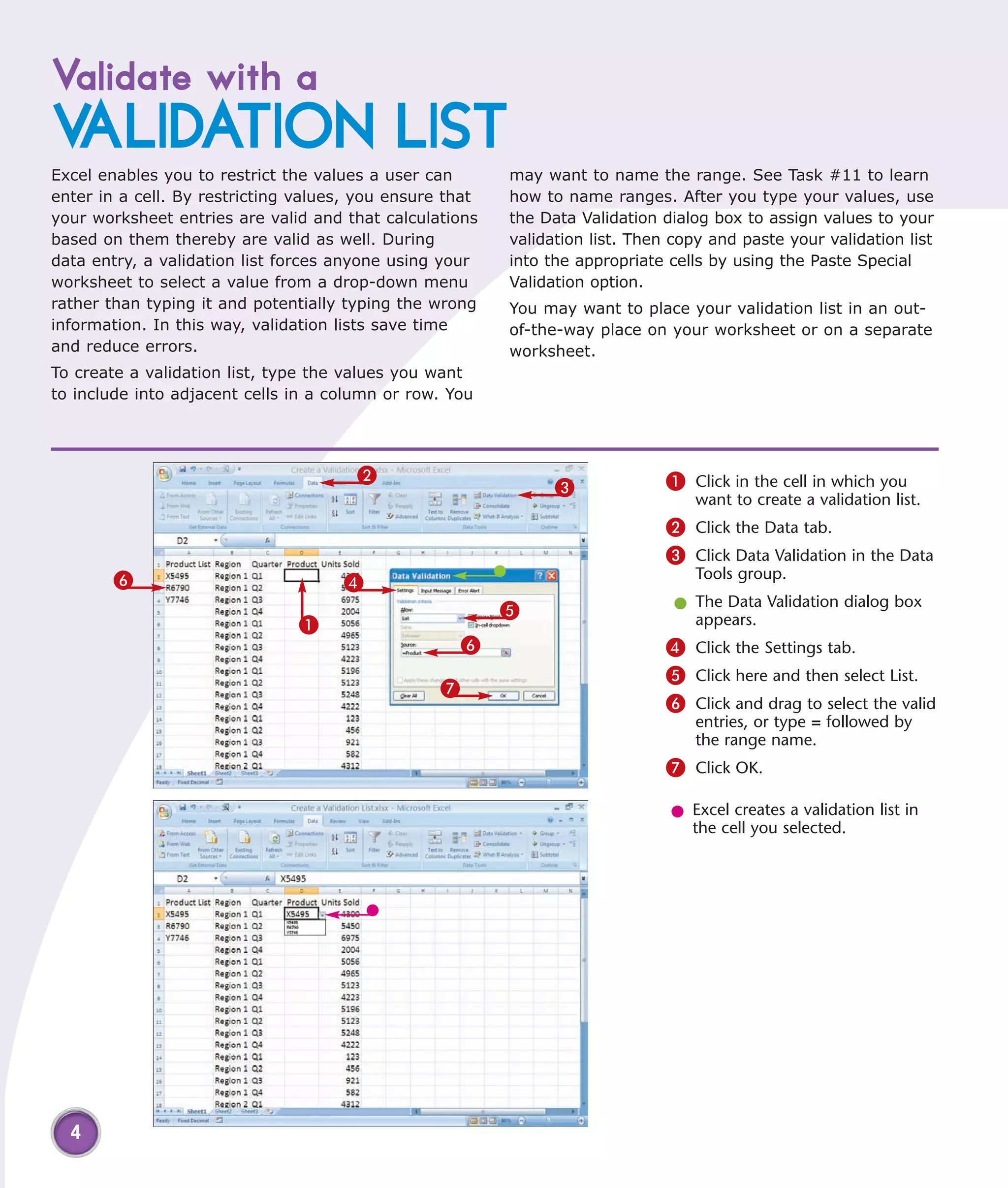
                                       2                                       1 Click in the cell in which you
                                                                3
                                                                                  want to create a validation list.
                                                                               2 Click the Data tab.
                                                                               3 Click Data Validation in the Data
        6                                                                         Tools group.
                                     4
                                                          5                     l The Data Validation dialog box
                               1                                                  appears.
                                                      6                        4 Click the Settings tab.
                                                                               5 Click here and then select List.
                                                  7
                                                                               6 Click and drag to select the valid
                                                                                  entries, or type = followed by
                                                                                  the range name.
                                                                               7 Click OK.

                                                                               l Excel creates a validation list in
                                                                                 the cell you selected.


  4
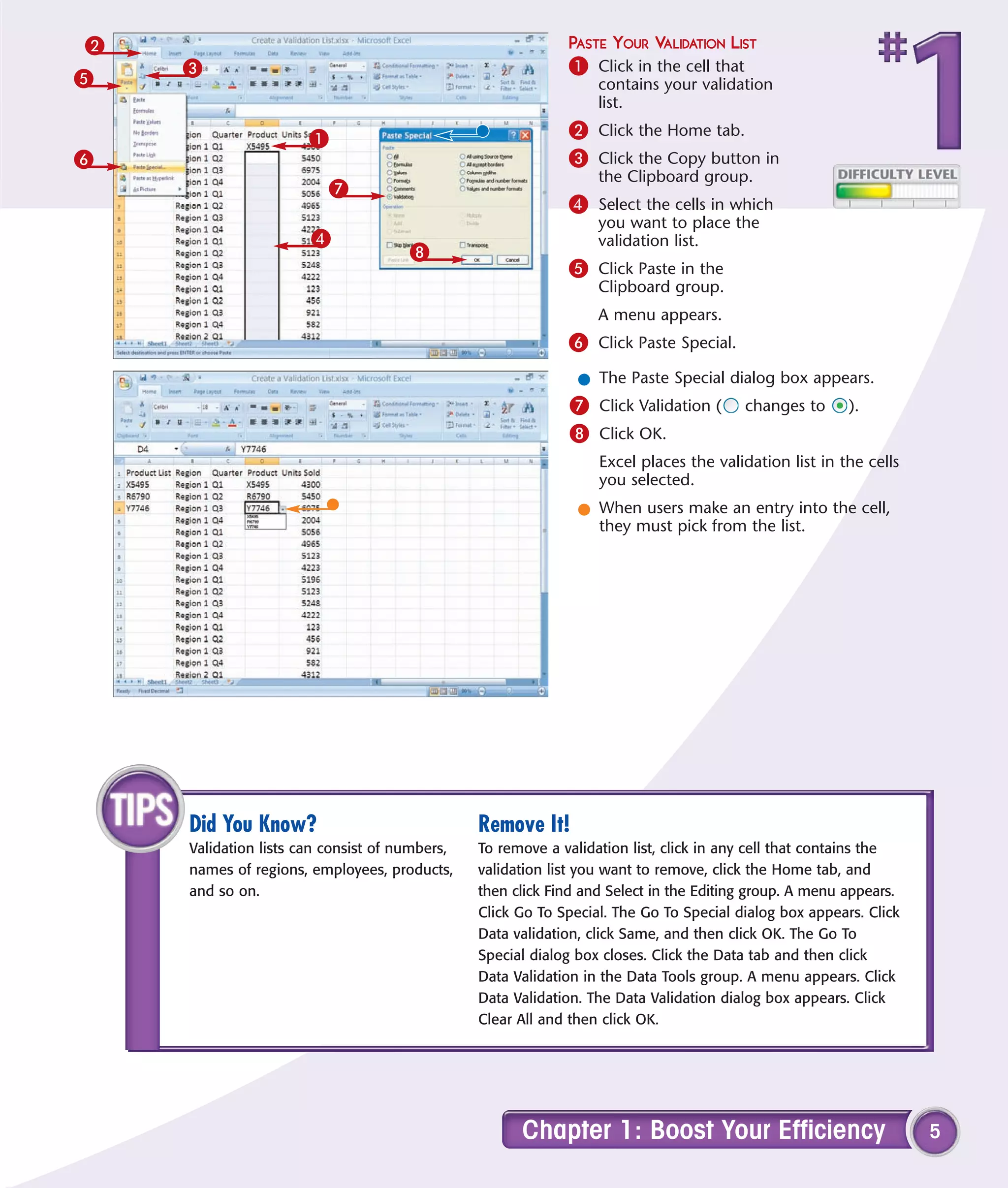
2                                                           PASTE YOUR VALIDATION LIST
    3                                                       1 Click in the cell that
5                                                                contains your validation
                                                                 list.

                      1                                     2 Click the Home tab.
6                                                           3 Click the Copy button in
                                                                 the Clipboard group.
                         7
                                                            4 Select the cells in which
                                                                 you want to place the
                      4                                          validation list.
                                     8
                                                            5 Click Paste in the
                                                                 Clipboard group.
                                                                 A menu appears.
                                                            6 Click Paste Special.
                                                              l The Paste Special dialog box appears.
                                                            7 Click Validation (       changes to      ).
                                                            8 Click OK.
                                                                 Excel places the validation list in the cells
                                                                 you selected.
                                                              l When users make an entry into the cell,
                                                                they must pick from the list.


    Did You Know?                              Remove It!
    Validation lists can consist of numbers,   To remove a validation list, click in any cell that contains the
    names of regions, employees, products,     validation list you want to remove, click the Home tab, and
    and so on.                                 then click Find and Select in the Editing group. A menu appears.
                                               Click Go To Special. The Go To Special dialog box appears. Click
                                               Data validation, click Same, and then click OK. The Go To
                                               Special dialog box closes. Click the Data tab and then click
                                               Data Validation in the Data Tools group. A menu appears. Click
                                               Data Validation. The Data Validation dialog box appears. Click
                                               Clear All and then click OK.


                                                     Chapter 1: Boost Your Efficiency                             5
Validate with
DATA ENTRY RULES
You can use data entry rules to ensure that data          as well as an error alert that displays if the user
entered has the correct format, and you can restrict      makes an incorrect entry. Error alerts can stop the
the data entered to whole numbers, decimals, dates,       user, provide a warning, or just provide information.
times, or a specific text length. You can also specify    After you create your data entry rule, copy and paste
whether the values need to be between, not                it into the appropriate cells by using the Paste Special
between, equal to, not equal to, greater than, less       Validation option. See Task #1 under Paste Your
than, greater than or equal to, or less than or equal     Validation List to learn how to copy and paste
to the values you specify.                                your data entry rule.
As with all data validation, you can create an input
message that appears when the user enters the cell,


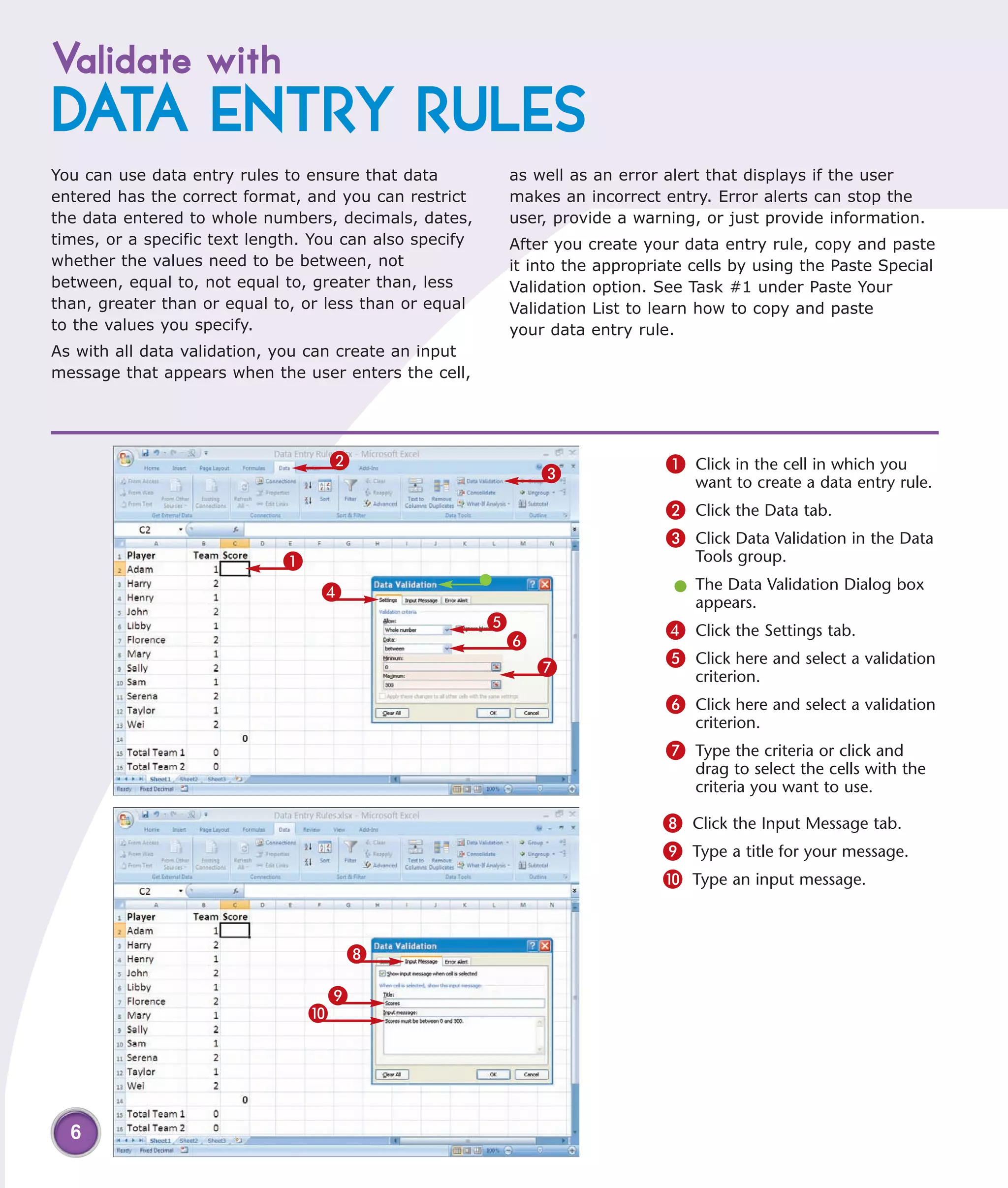
                                   2                                          1 Click in the cell in which you
                                                              3                   want to create a data entry rule.
                                                                              2 Click the Data tab.
                                                                              3 Click Data Validation in the Data
                             1                                                    Tools group.

                                  4                                            l The Data Validation Dialog box
                                                                                 appears.
                                                         5                    4 Click the Settings tab.
                                                          6
                                                              7               5 Click here and select a validation
                                                                                  criterion.
                                                                              6 Click here and select a validation
                                                                                  criterion.
                                                                              7 Type the criteria or click and
                                                                                  drag to select the cells with the
                                                                                  criteria you want to use.

                                                                              8 Click the Input Message tab.
                                                                              9 Type a title for your message.
                                                                              0 Type an input message.


                                      8

                                  9
                                 0


  6
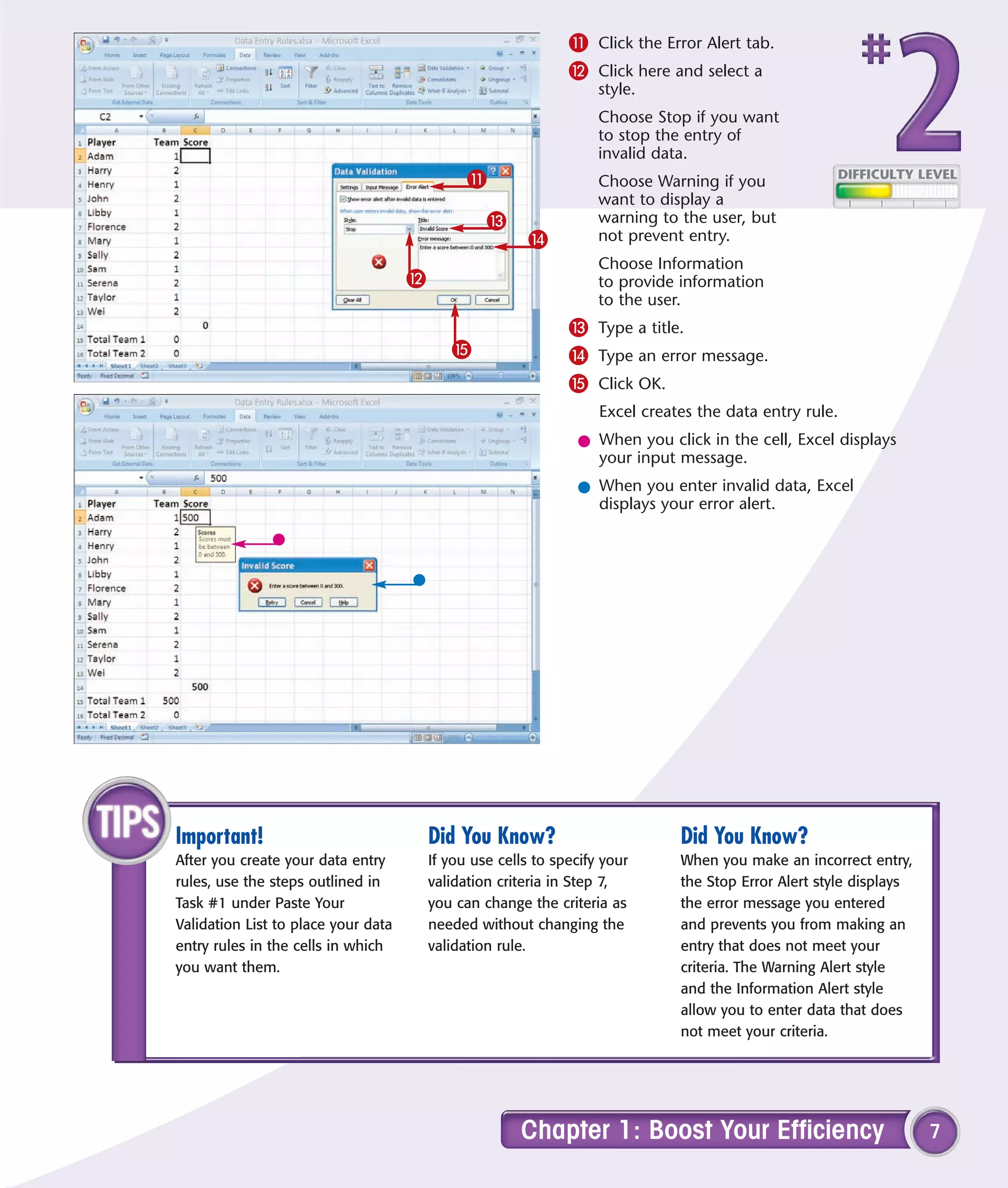
! Click the Error Alert tab.
                                                               @ Click here and select a
                                                                    style.
                                                                    Choose Stop if you want
                                                                    to stop the entry of
                                                                    invalid data.
                                               !                    Choose Warning if you
                                                                    want to display a
                                                  #                 warning to the user, but
                                                         $          not prevent entry.
                                                                    Choose Information
                                     @                              to provide information
                                                                    to the user.
                                                               # Type a title.
                                            %                  $ Type an error message.
                                                               % Click OK.
                                                                    Excel creates the data entry rule.
                                                                l When you click in the cell, Excel displays
                                                                  your input message.
                                                                l When you enter invalid data, Excel
                                                                  displays your error alert.


Important!                               Did You Know?                         Did You Know?
After you create your data entry         If you use cells to specify your      When you make an incorrect entry,
rules, use the steps outlined in         validation criteria in Step 7,        the Stop Error Alert style displays
Task #1 under Paste Your                 you can change the criteria as        the error message you entered
Validation List to place your data       needed without changing the           and prevents you from making an
entry rules in the cells in which        validation rule.                      entry that does not meet your
you want them.                                                                 criteria. The Warning Alert style
                                                                               and the Information Alert style
                                                                               allow you to enter data that does
                                                                               not meet your criteria.


                                                       Chapter 1: Boost Your Efficiency                              7
Extend a series with
AUTOFILL
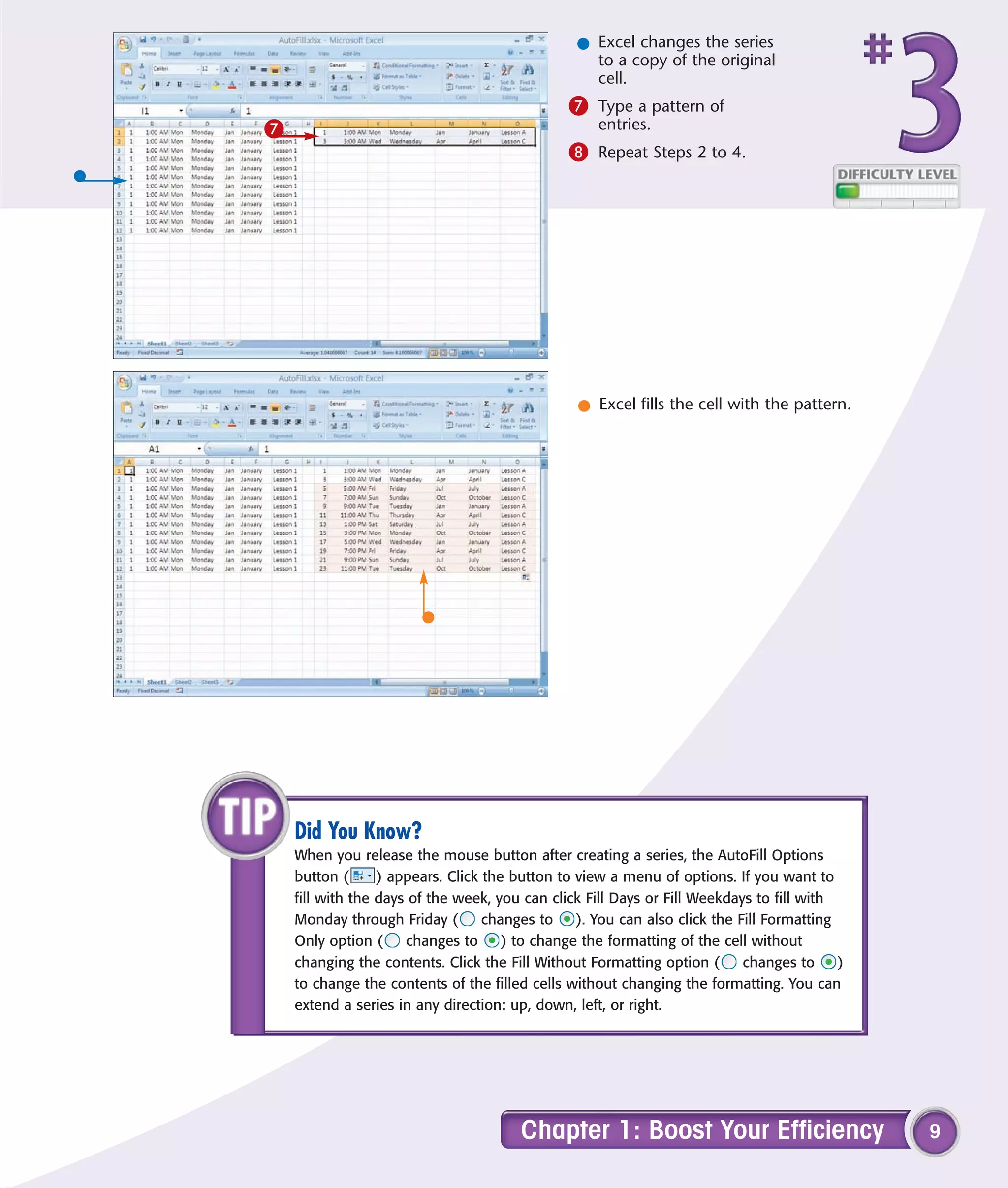
AutoFill gives you a way to ensure accurate data        selected, click the Fill handle in the lower-right corner
entry when a particular data series has an intrinsic    and drag. When you release the mouse button, Excel
order: days of the week, months of the year, numeric    fills the cells with values.
increments of two, and so on.                           After filling the cells, Excel provides a menu button.
To use AutoFill, start by typing one or more values     Click the button to open a menu that enables you to
from which you will generate other values. Select the   change the fill. You can copy the initial value; fill the
cell or cells you want to extend. Selecting two or      series one day at a time; or extend it by weekdays,
more cells determines the step size, or increment, by   months, or years, depending on the type of fill you
which you want to jump in each cell. With the cells     create.


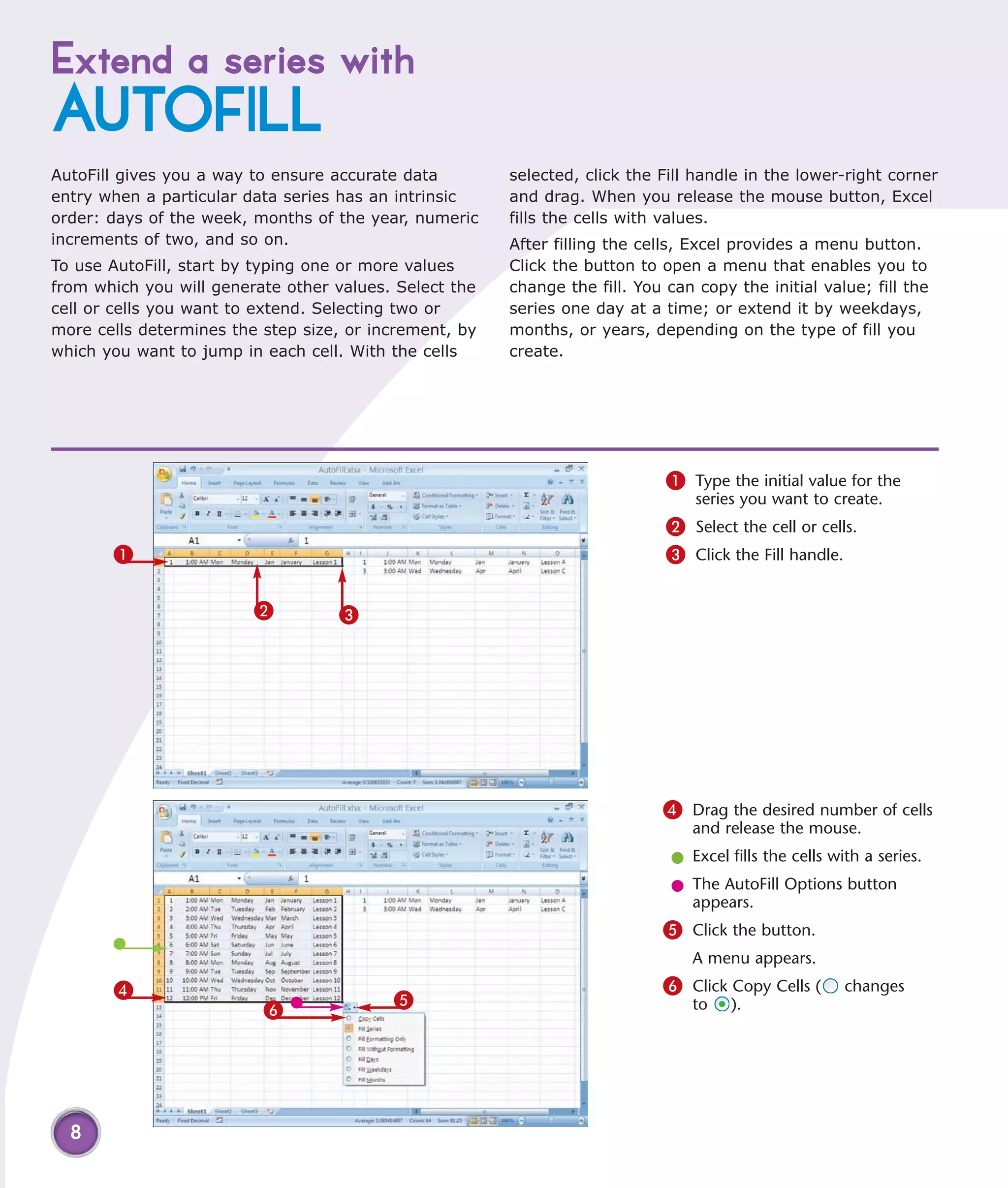
                                                                             1 Type the initial value for the
                                                                                 series you want to create.
                                                                             2 Select the cell or cells.
       1                                                                     3 Click the Fill handle.

                         2         3


                                                                            4 Drag the desired number of cells
                                                                                and release the mouse.
                                                                             l Excel fills the cells with a series.
                                                                             l The AutoFill Options button
                                                                               appears.
                                                                            5 Click the button.
                                                                                A menu appears.
       4                                                                    6 Click Copy Cells (       changes
                                          5
                          6                                                     to    ).


  8
l Excel changes the series
                                                   to a copy of the original
                                                   cell.
                                               7 Type a pattern of
7                                                   entries.
                                               8 Repeat Steps 2 to 4.


                                                 l Excel fills the cell with the pattern.


    Did You Know?
    When you release the mouse button after creating a series, the AutoFill Options
    button (      ) appears. Click the button to view a menu of options. If you want to
    fill with the days of the week, you can click Fill Days or Fill Weekdays to fill with
    Monday through Friday (        changes to    ). You can also click the Fill Formatting
    Only option (     changes to      ) to change the formatting of the cell without
    changing the contents. Click the Fill Without Formatting option (       changes to     )
    to change the contents of the filled cells without changing the formatting. You can
    extend a series in any direction: up, down, left, or right.


                                        Chapter 1: Boost Your Efficiency                       9
Insert
SYMBOLS OR SPECIAL
CHARACTERS
In Excel, you are not restricted to the standard            for currency symbols. Symbols and special characters
numerals, letters, and punctuation marks on your            are useful in column and row heads as part of the
keyboard. You can also select from hundreds of special      text describing column and row content, for example,
characters, such as foreign letters and currency            Net sales in €.
characters such as the Euro (€). Each font has a            Using symbols and special characters in the same cell
different set of special characters. A smaller set of       with a value such as a number, date, or time usually
standard characters, called symbols, is always              prevents the value from being used in a formula. If
available as well; they include dashes, hyphens, and        you need to use a symbol in a cell used in a formula,
quotation marks.                                            use a number format. If you need to create a custom
Symbols and special characters serve many uses in           number format, see Task #98.
Excel. Many financial applications, for example, call

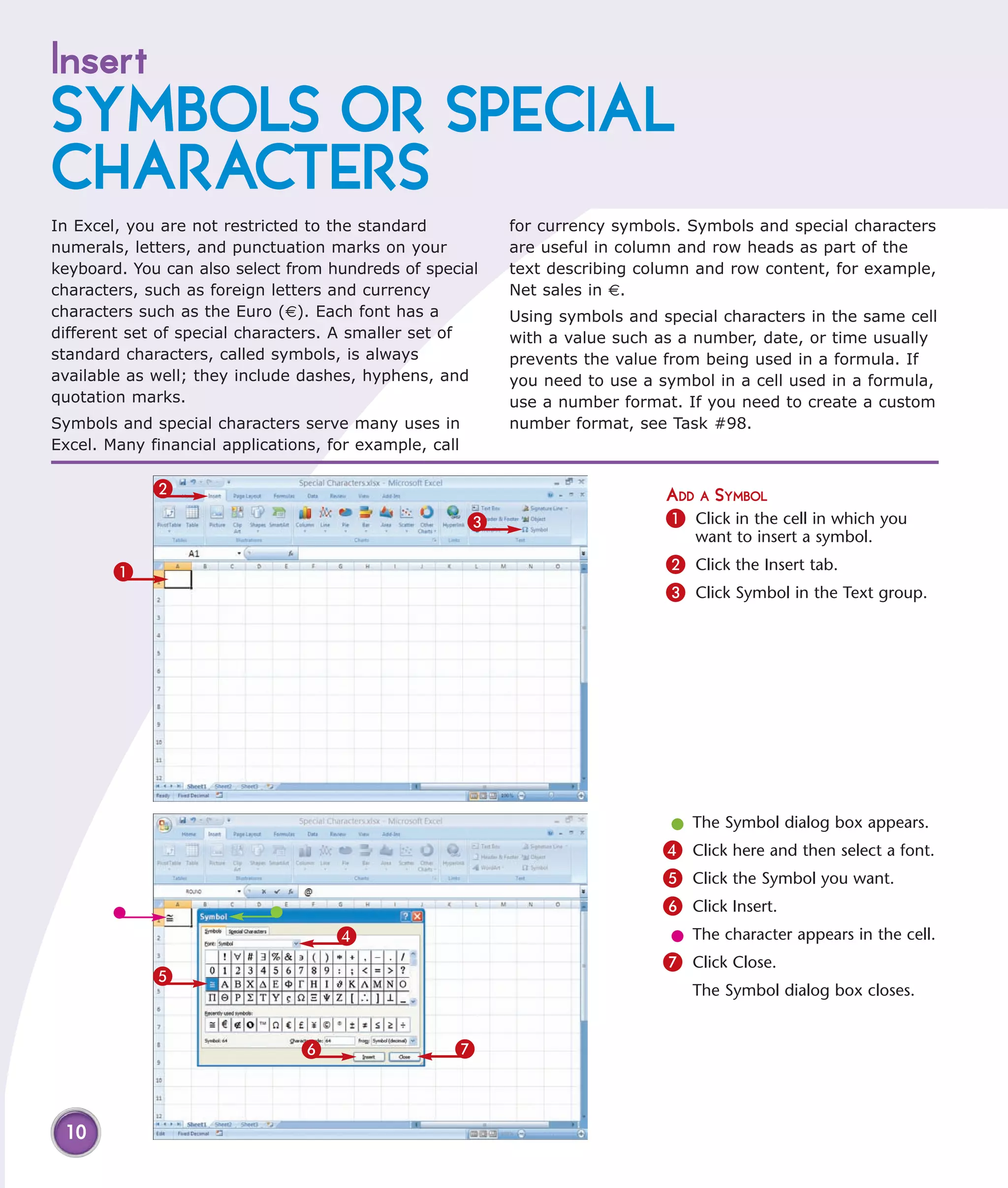
             2                                                                 ADD A SYMBOL
                                                        3                      1 Click in the cell in which you
                                                                                   want to insert a symbol.

        1                                                                      2 Click the Insert tab.
                                                                               3 Click Symbol in the Text group.


                                                                                l The Symbol dialog box appears.
                                                                               4 Click here and then select a font.
                                                                               5 Click the Symbol you want.
                                                                               6 Click Insert.
                                     4                                          l The character appears in the cell.
                                                                               7 Click Close.
             5
                                                                                  The Symbol dialog box closes.


                                6                   7


 10
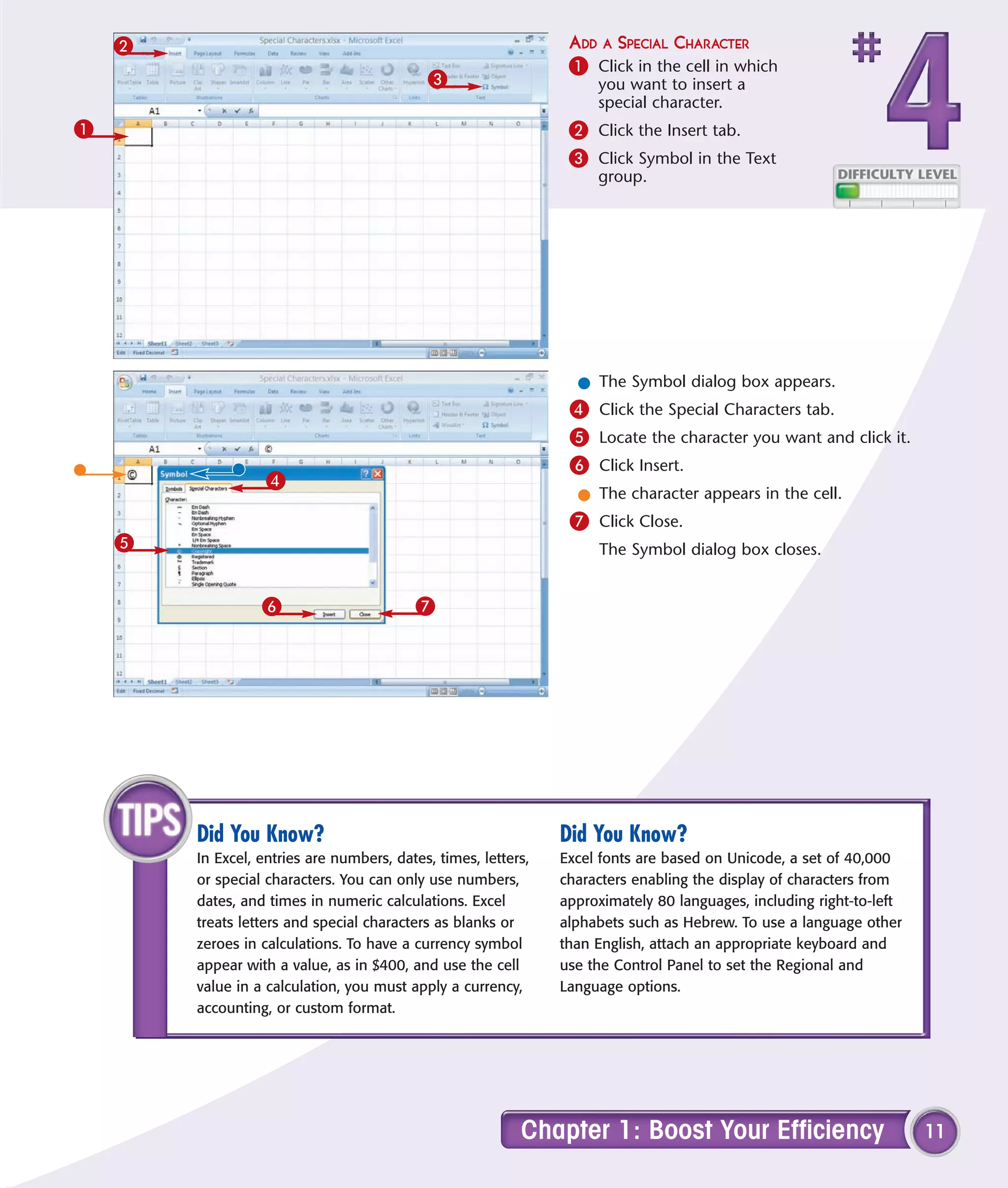
2                                                            ADD A SPECIAL CHARACTER
                                                                 1 Click in the cell in which
                                            3                        you want to insert a
                                                                     special character.
1                                                                2 Click the Insert tab.
                                                                 3 Click Symbol in the Text
                                                                     group.


                                                                  l The Symbol dialog box appears.
                                                                 4 Click the Special Characters tab.
                                                                 5 Locate the character you want and click it.
                                                                 6 Click Insert.
                   4
                                                                  l The character appears in the cell.
                                                                 7 Click Close.
    5                                                                The Symbol dialog box closes.


                  6                       7


        Did You Know?                                           Did You Know?
        In Excel, entries are numbers, dates, times, letters,   Excel fonts are based on Unicode, a set of 40,000
        or special characters. You can only use numbers,        characters enabling the display of characters from
        dates, and times in numeric calculations. Excel         approximately 80 languages, including right-to-left
        treats letters and special characters as blanks or      alphabets such as Hebrew. To use a language other
        zeroes in calculations. To have a currency symbol       than English, attach an appropriate keyboard and
        appear with a value, as in $400, and use the cell       use the Control Panel to set the Regional and
        value in a calculation, you must apply a currency,      Language options.
        accounting, or custom format.


                                                           Chapter 1: Boost Your Efficiency                           11
Hide rows by
GROUPING AND OUTLINING
You can use the Excel grouping and outlining feature     the plus sign to display them again. Adjacent to the
to hide sets of columns and/or rows. For example,        button is a solid line that indicates, by its length, the
you can hide the details relating to weekly sales        approximate number of rows or columns Excel has
so you can compare monthly sales. Your outlines          hidden.
can include up to eight levels of detail.                Outlining was designed for use with structured
Outlining a set of rows or columns creates a clickable   information such as lists but can be used with
button on the far left or top of your worksheet. The     any worksheet. When you outline a PivotTable,
button displays either a minus sign or a plus sign,      outlining has the same effect as it does in any other
depending on what is displayed in the worksheet.         worksheet.
Click the minus sign to hide rows or columns, and


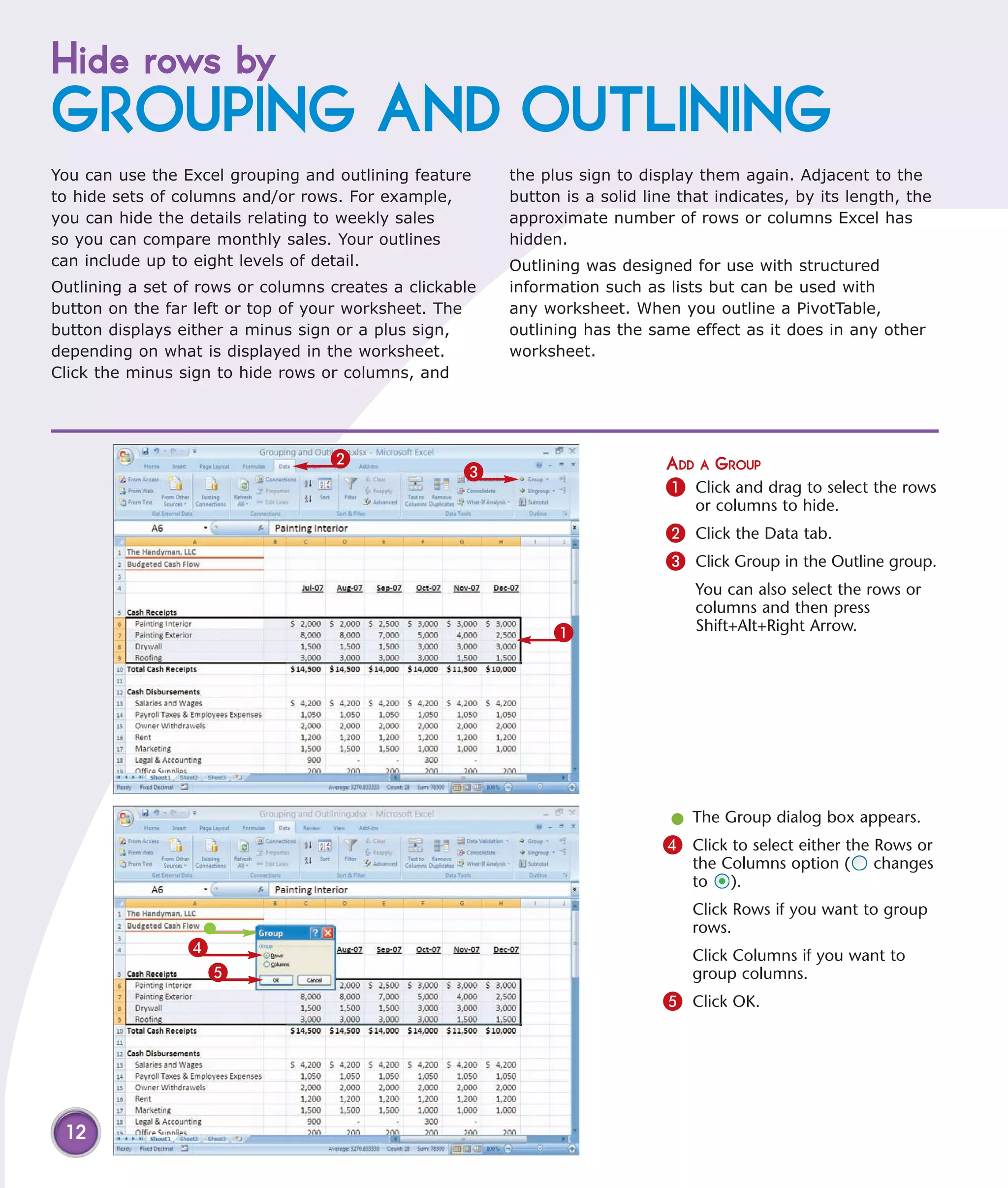
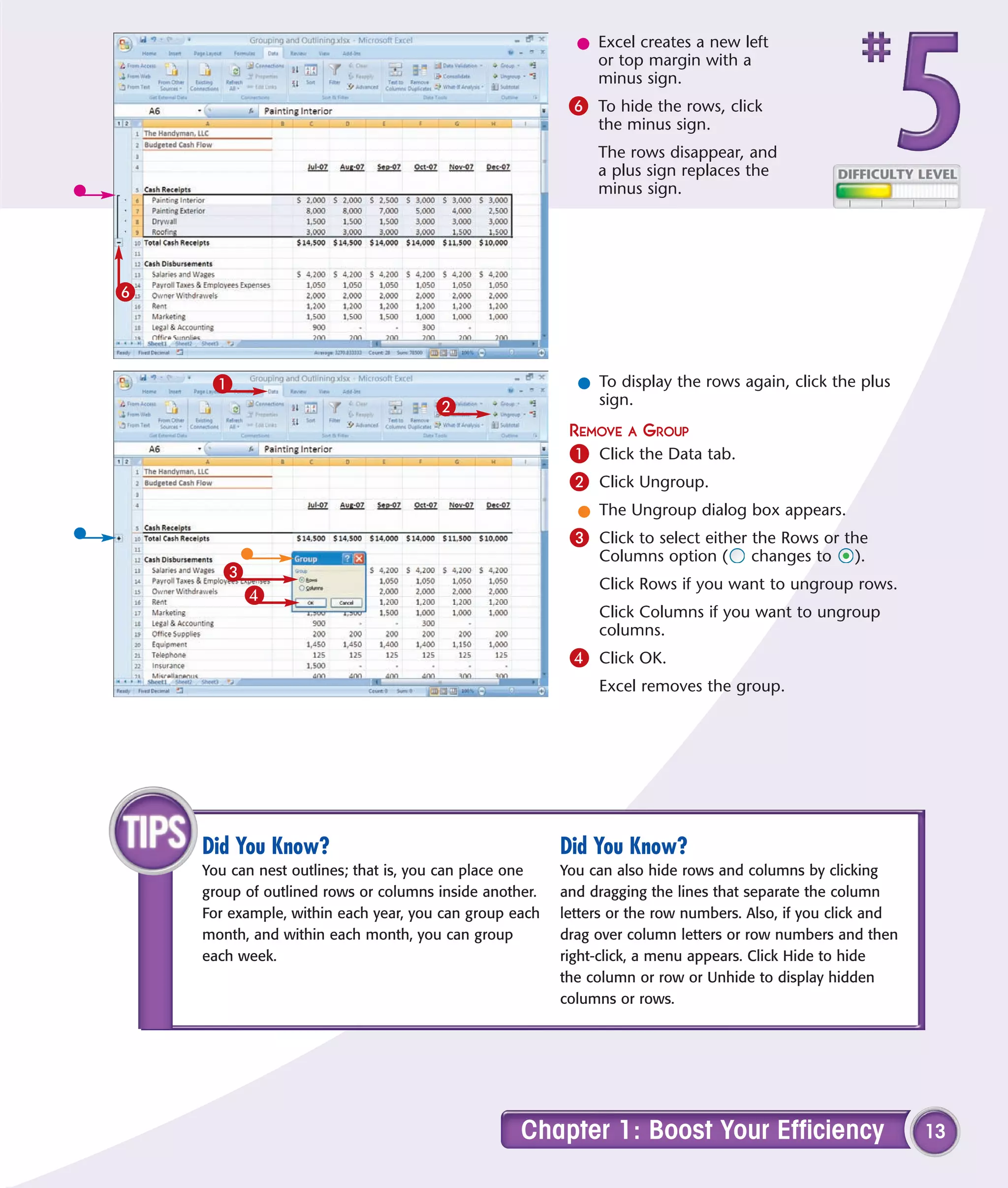
                                   2                                          ADD A GROUP
                                                    3
                                                                              1 Click and drag to select the rows
                                                                                  or columns to hide.
                                                                              2 Click the Data tab.
                                                                              3 Click Group in the Outline group.
                                                                                  You can also select the rows or
                                                                                  columns and then press
                                                               1                  Shift+Alt+Right Arrow.


                                                                              l The Group dialog box appears.
                                                                             4 Click to select either the Rows or
                                                                                 the Columns option (     changes
                                                                                 to ).
                                                                                 Click Rows if you want to group
                                                                                 rows.
                 4                                                               Click Columns if you want to
                     5                                                           group columns.
                                                                             5 Click OK.


 12
l Excel creates a new left
                                                            or top margin with a
                                                            minus sign.
                                                         6 To hide the rows, click
                                                             the minus sign.
                                                             The rows disappear, and
                                                             a plus sign replaces the
                                                             minus sign.


6


     1                                                    l To display the rows again, click the plus
                                     2                      sign.
                                                         REMOVE A GROUP
                                                         1 Click the Data tab.
                                                         2 Click Ungroup.
                                                          l The Ungroup dialog box appears.
                                                         3 Click to select either the Rows or the
                                                             Columns option (       changes to     ).
       3
                                                             Click Rows if you want to ungroup rows.
           4
                                                             Click Columns if you want to ungroup
                                                             columns.
                                                         4 Click OK.
                                                             Excel removes the group.


    Did You Know?                                       Did You Know?
    You can nest outlines; that is, you can place one   You can also hide rows and columns by clicking
    group of outlined rows or columns inside another.   and dragging the lines that separate the column
    For example, within each year, you can group each   letters or the row numbers. Also, if you click and
    month, and within each month, you can group         drag over column letters or row numbers and then
    each week.                                          right-click, a menu appears. Click Hide to hide
                                                        the column or row or Unhide to display hidden
                                                        columns or rows.


                                                  Chapter 1: Boost Your Efficiency                           13
FIND AND REPLACE
formats
Cells can contain numbers, text, comments, formats,       To find and replace formats, specify what you are
and formulas. With Excel, you can search for any          seeking and with what you want to replace the item
of these elements to view them, replace them, or          you are seeking. Click the Options button in the Find
perform some other action. You may, for example,          and Replace dialog box to specify additional details.
find and replace values to correct mistakes, or perhaps   Use the Within drop-down menu to indicate whether
you need to return to a value to add a comment or         to search the current worksheet or the current
apply formatting.                                         workbook. Click the Formatting button to restrict
The Excel Find and Replace dialog box is available on     your search to characters formatted in a certain way,
the Home tab in the Editing group or by pressing          such as bold or percentages.
Ctrl+H. The Find feature is part of Find and Replace
and is available on the Home tab in the Editing group
or by pressing Ctrl+F.


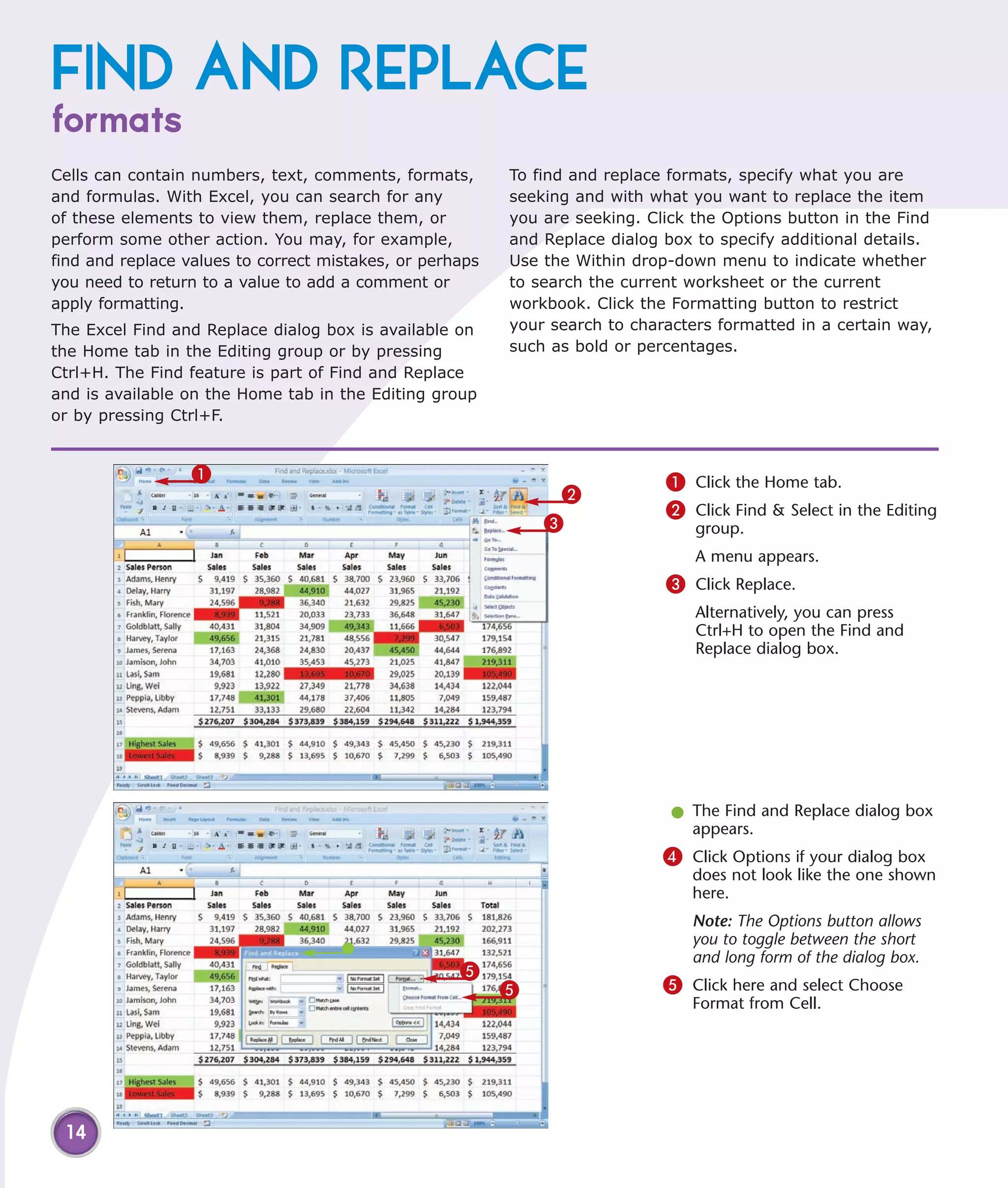
                  1                                                          1 Click the Home tab.
                                                               2
                                                                             2 Click Find & Select in the Editing
                                                              3                  group.
                                                                                 A menu appears.
                                                                             3 Click Replace.
                                                                                 Alternatively, you can press
                                                                                 Ctrl+H to open the Find and
                                                                                 Replace dialog box.


                                                                              l The Find and Replace dialog box
                                                                                appears.
                                                                             4 Click Options if your dialog box
                                                                                does not look like the one shown
                                                                                here.
                                                                                Note: The Options button allows
                                                                                you to toggle between the short
                                                                                and long form of the dialog box.
                                                    5
                                                          5                  5 Click here and select Choose
                                                                                Format from Cell.


 14
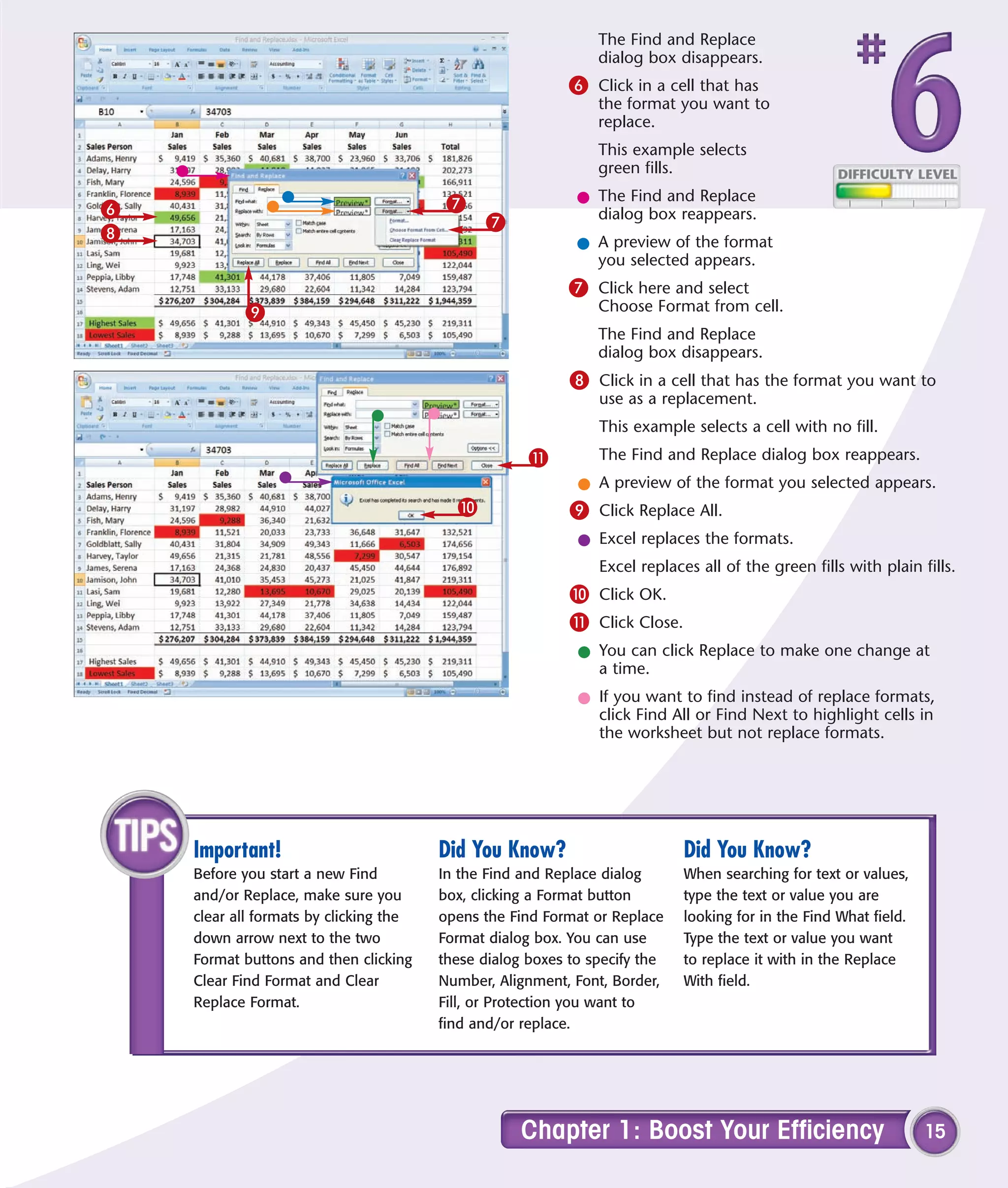
The Find and Replace
                                                               dialog box disappears.
                                                           6 Click in a cell that has
                                                               the format you want to
                                                               replace.
                                                               This example selects
                                                               green fills.

                                         7                  l The Find and Replace
6                                                             dialog box reappears.
                                              7
8
                                                            l A preview of the format
                                                              you selected appears.
                                                           7 Click here and select
           9                                                   Choose Format from cell.
                                                               The Find and Replace
                                                               dialog box disappears.
                                                           8 Click in a cell that has the format you want to
                                                               use as a replacement.
                                                               This example selects a cell with no fill.
                                                     !         The Find and Replace dialog box reappears.
                                                            l A preview of the format you selected appears.
                                          0                9 Click Replace All.
                                                            l Excel replaces the formats.
                                                               Excel replaces all of the green fills with plain fills.
                                                           0 Click OK.
                                                           ! Click Close.
                                                            l You can click Replace to make one change at
                                                              a time.
                                                            l If you want to find instead of replace formats,
                                                              click Find All or Find Next to highlight cells in
                                                              the worksheet but not replace formats.


    Important!                          Did You Know?                       Did You Know?
    Before you start a new Find         In the Find and Replace dialog      When searching for text or values,
    and/or Replace, make sure you       box, clicking a Format button       type the text or value you are
    clear all formats by clicking the   opens the Find Format or Replace    looking for in the Find What field.
    down arrow next to the two          Format dialog box. You can use      Type the text or value you want
    Format buttons and then clicking    these dialog boxes to specify the   to replace it with in the Replace
    Clear Find Format and Clear         Number, Alignment, Font, Border,    With field.
    Replace Format.                     Fill, or Protection you want to
                                        find and/or replace.


                                                    Chapter 1: Boost Your Efficiency                              15
ADD COMMENTS
to your worksheet
A comment is a bit of descriptive text that enables        an individual comment by clicking in the cell or
you to document your work when you add text or             passing your cursor over it. View all comments in a
create a formula. If someone else maintains your           worksheet by clicking the Review tab and then
worksheet, or others use it in a workgroup, your           clicking Show All Comments.
comments can provide useful information. You can           When you track your changes, Excel automatically
enter comments in any cell you want to document or         generates a comment every time you copy or change
otherwise annotate.                                        a cell. The comment records what changes in the
Comments in Excel do not appear until you choose to        cell, who makes the change, and the time and date
view them. Excel associates comments with                  of the change. To learn more about tracking changes,
individual cells and indicates their presence with a       see Task #34.
tiny red triangle in the cell’s upper-right corner. View


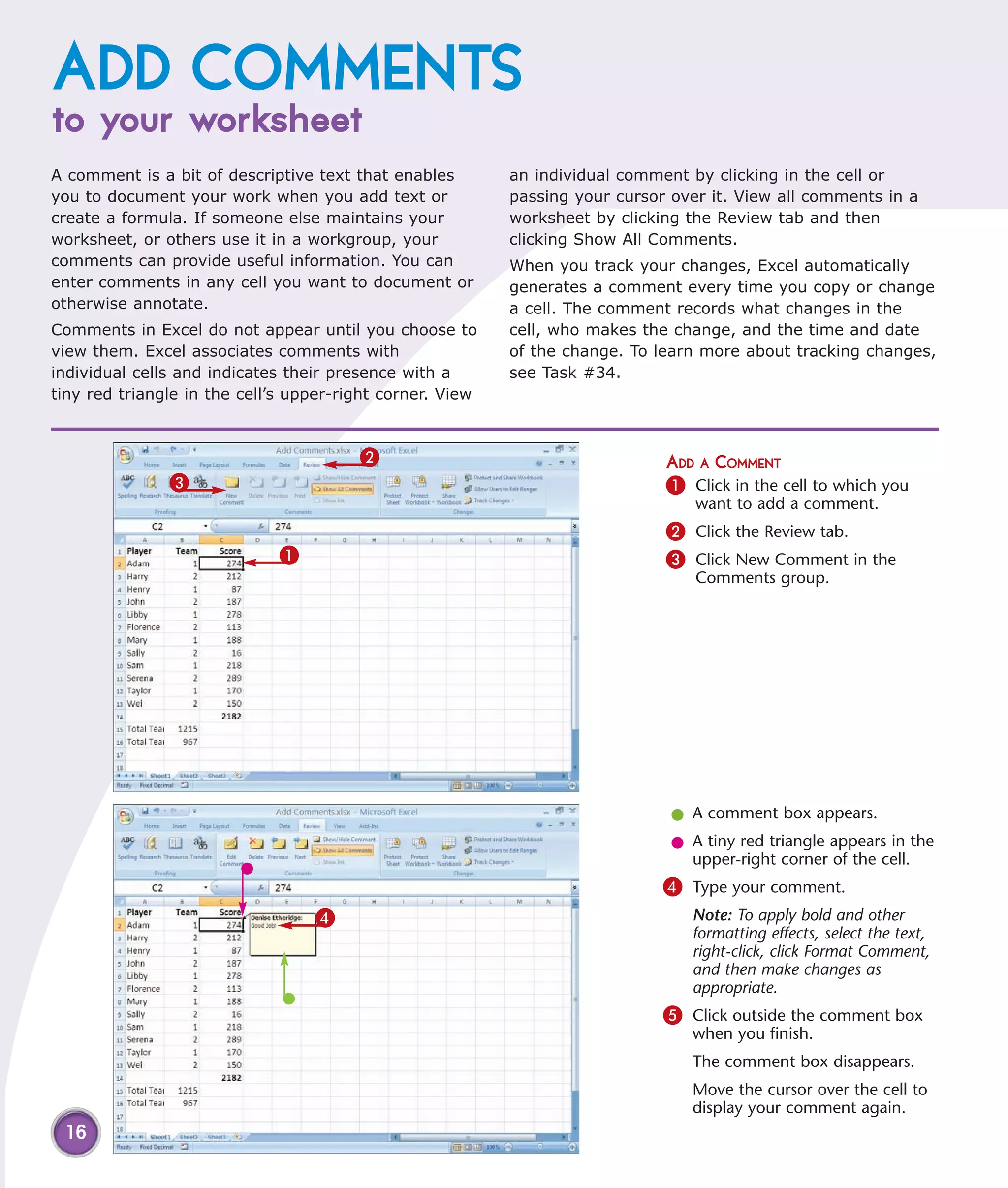
                                        2                                     ADD A COMMENT
               3                                                              1 Click in the cell to which you
                                                                                  want to add a comment.
                                                                              2 Click the Review tab.
                             1                                                3 Click New Comment in the
                                                                                  Comments group.


                                                                               l A comment box appears.
                                                                               l A tiny red triangle appears in the
                                                                                 upper-right corner of the cell.
                                                                              4 Type your comment.
                                  4                                              Note: To apply bold and other
                                                                                 formatting effects, select the text,
                                                                                 right-click, click Format Comment,
                                                                                 and then make changes as
                                                                                 appropriate.
                                                                              5 Click outside the comment box
                                                                                 when you finish.
                                                                                 The comment box disappears.
                                                                                 Move the cursor over the cell to
                                                                                 display your comment again.
 16
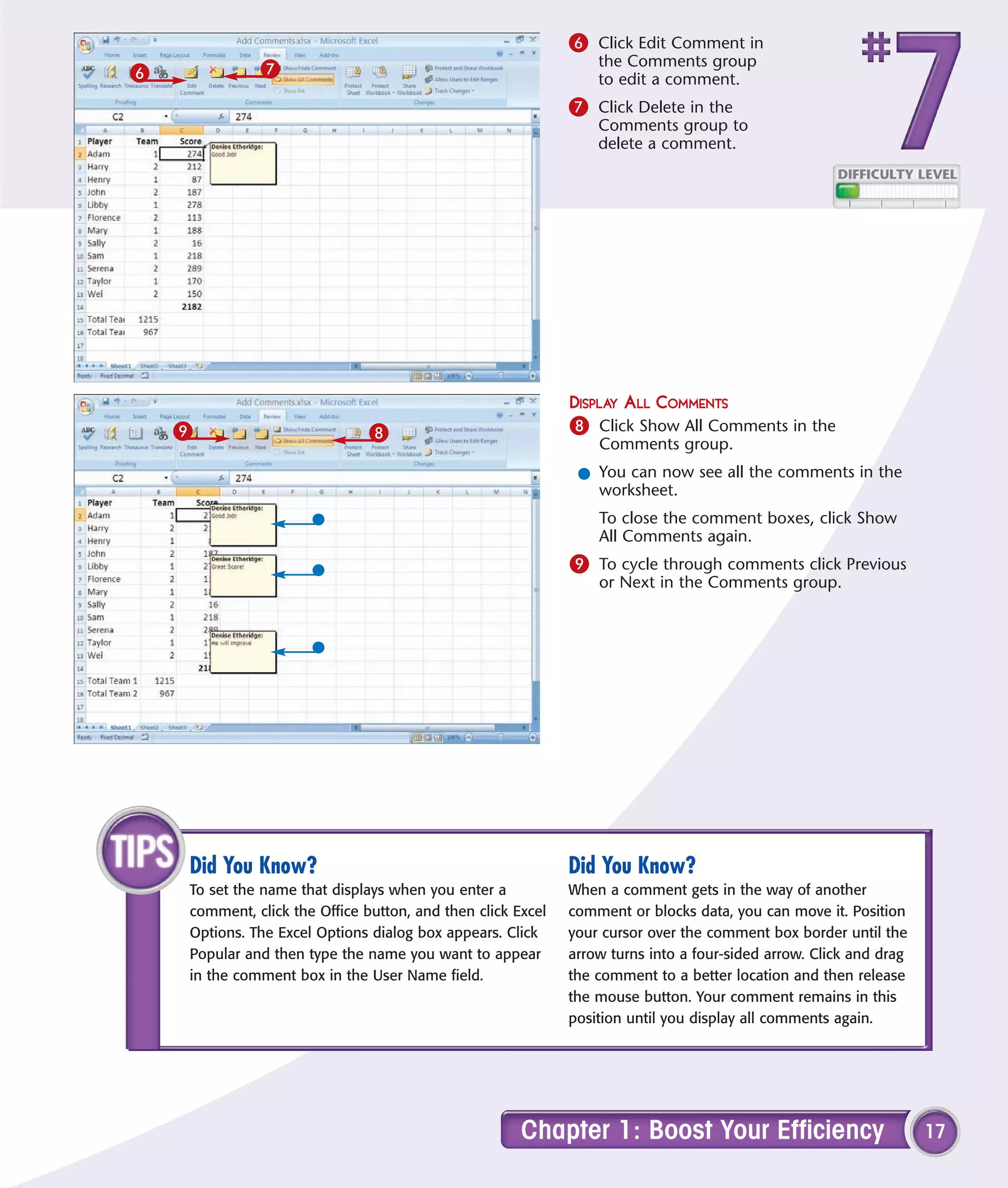
6 Click Edit Comment in
              7                                                  the Comments group
6                                                                to edit a comment.
                                                             7 Click Delete in the
                                                                 Comments group to
                                                                 delete a comment.


                                                             DISPLAY ALL COMMENTS
    9                          8                             8 Click Show All Comments in the
                                                                 Comments group.
                                                              l You can now see all the comments in the
                                                                worksheet.
                                                                 To close the comment boxes, click Show
                                                                 All Comments again.
                                                             9 To cycle through comments click Previous
                                                                 or Next in the Comments group.


    Did You Know?                                            Did You Know?
    To set the name that displays when you enter a           When a comment gets in the way of another
    comment, click the Office button, and then click Excel   comment or blocks data, you can move it. Position
    Options. The Excel Options dialog box appears. Click     your cursor over the comment box border until the
    Popular and then type the name you want to appear        arrow turns into a four-sided arrow. Click and drag
    in the comment box in the User Name field.               the comment to a better location and then release
                                                             the mouse button. Your comment remains in this
                                                             position until you display all comments again.


                                                      Chapter 1: Boost Your Efficiency                             17
Let Excel
READ BACK YOUR DATA
If you have a large amount of data to enter, especially   However, before Excel can read your data, you must
numbers, you may want to check the accuracy of            add the following buttons to the Quick Access
your data entry by having the data read back to you       toolbar: Speak Cells, Speak Cells — Stop Speaking
while you match it against a printed list. Excel can      Cells, Speak Cells by Columns, Speak Cells by Rows,
read back your data. All you have to do is specify the    and Speak Cells on Enter. To learn how to add
data you want to read, click a button, and Excel          buttons to the Quick Access toolbar, see Task #95.
begins reading. You can choose to have Excel read         You can find the buttons needed for this task in the
across the first row and then move to the next row,       Commands Not in the Ribbon section.
or down the first column and then move to the next
column. You can also have Excel read data as you
enter it.


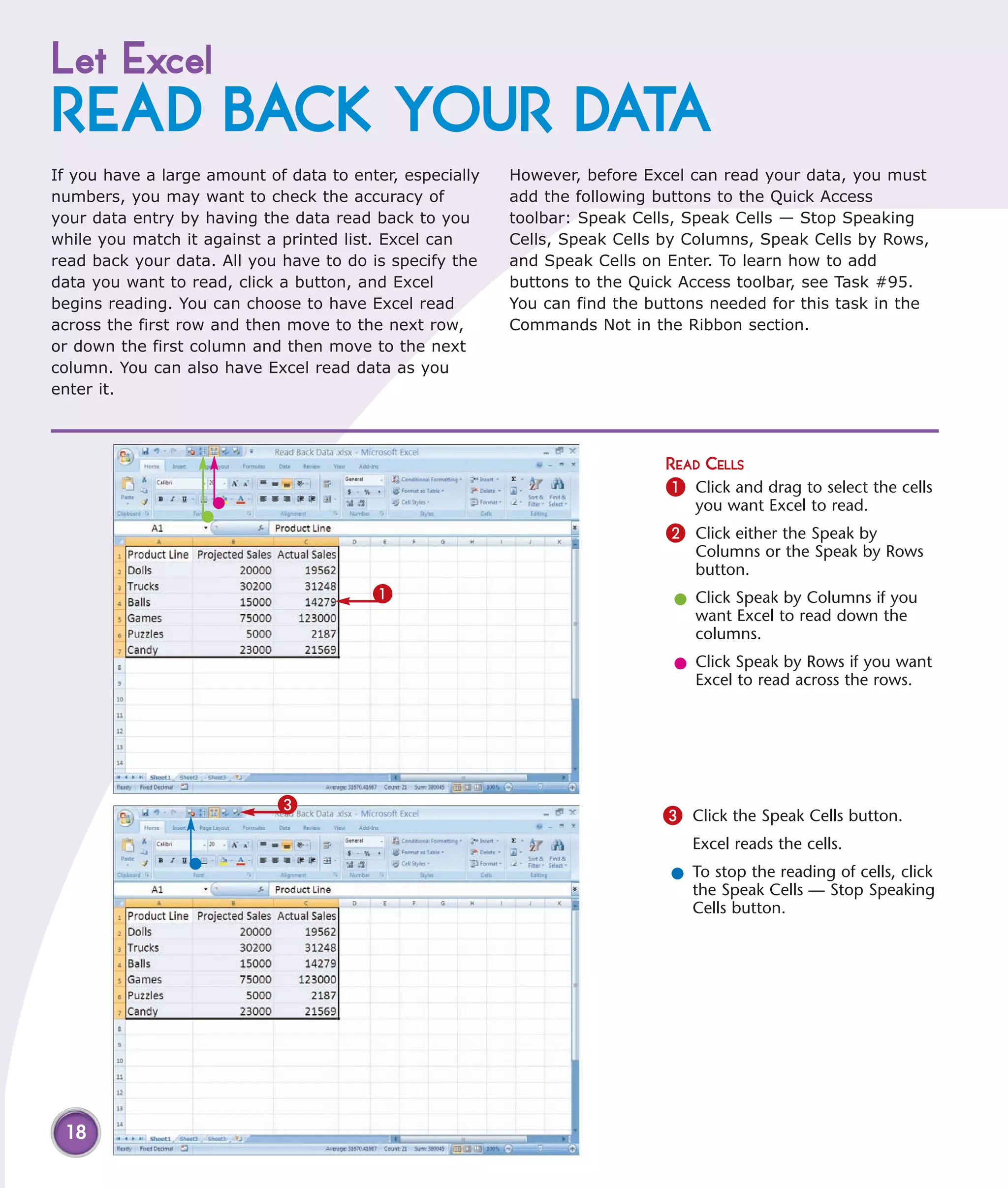
                                                                             READ CELLS
                                                                             1 Click and drag to select the cells
                                                                                 you want Excel to read.
                                                                             2 Click either the Speak by
                                                                                 Columns or the Speak by Rows
                                                                                 button.
                                         1                                    l Click Speak by Columns if you
                                                                                want Excel to read down the
                                                                                columns.
                                                                              l Click Speak by Rows if you want
                                                                                Excel to read across the rows.


                             3
                                                                             3 Click the Speak Cells button.
                                                                                 Excel reads the cells.
                                                                              l To stop the reading of cells, click
                                                                                the Speak Cells — Stop Speaking
                                                                                Cells button.


 18
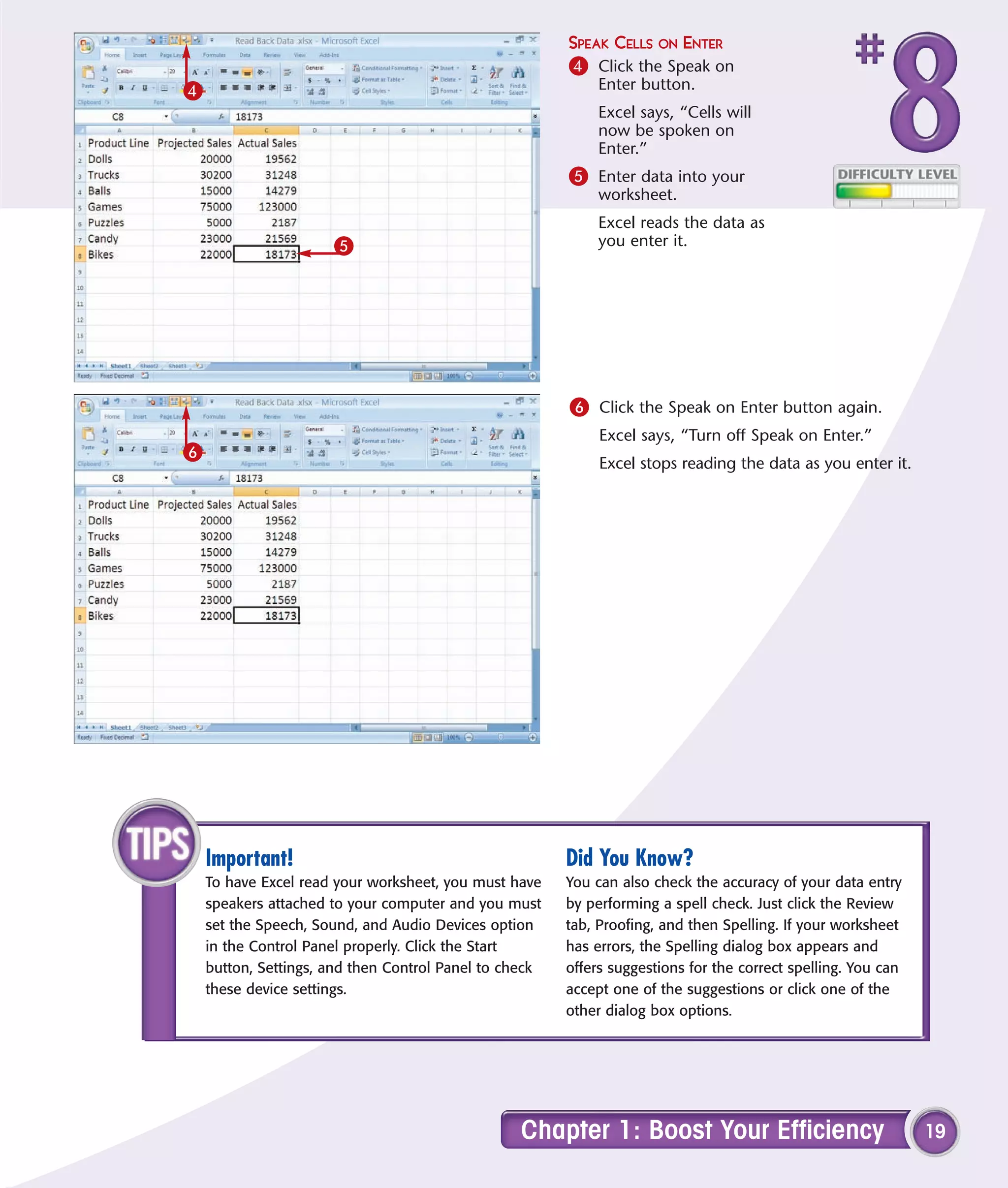
SPEAK CELLS ON ENTER
                                                        4 Click the Speak on
4                                                            Enter button.
                                                             Excel says, “Cells will
                                                             now be spoken on
                                                             Enter.”
                                                        5 Enter data into your
                                                             worksheet.
                                                             Excel reads the data as
                      5                                      you enter it.


                                                        6 Click the Speak on Enter button again.
                                                             Excel says, “Turn off Speak on Enter.”
6
                                                             Excel stops reading the data as you enter it.


    Important!                                          Did You Know?
    To have Excel read your worksheet, you must have    You can also check the accuracy of your data entry
    speakers attached to your computer and you must     by performing a spell check. Just click the Review
    set the Speech, Sound, and Audio Devices option     tab, Proofing, and then Spelling. If your worksheet
    in the Control Panel properly. Click the Start      has errors, the Spelling dialog box appears and
    button, Settings, and then Control Panel to check   offers suggestions for the correct spelling. You can
    these device settings.                              accept one of the suggestions or click one of the
                                                        other dialog box options.


                                                  Chapter 1: Boost Your Efficiency                             19
Create your own
SORT OR AUTOFILL
In Excel, you can sort your data alphabetically, by      in the following order: North East, South East, North
days of the week, or by months of the year. See          Central, South Central, North West, and South West.
Chapter 4 to learn more about sorting your data. You     You can create a custom list that enables you to
can also automatically fill cells with the days of the   AutoFill and sort based on your list.
week or months of the year by using Excel’s AutoFill     Use     the Custom List dialog box to create your custom
feature. See Task # 3 to learn more about AutoFill.      list.   You can type your list into the Custom List dialog
If you have a data series you use often, you can         box     or import your list from cells in your worksheet.
create your own custom list and use it to fill cells     You     access your custom list the same way you would
automatically or to sort a list. For example, you        any     other custom list or AutoFill.
collect data by region and you always list the data


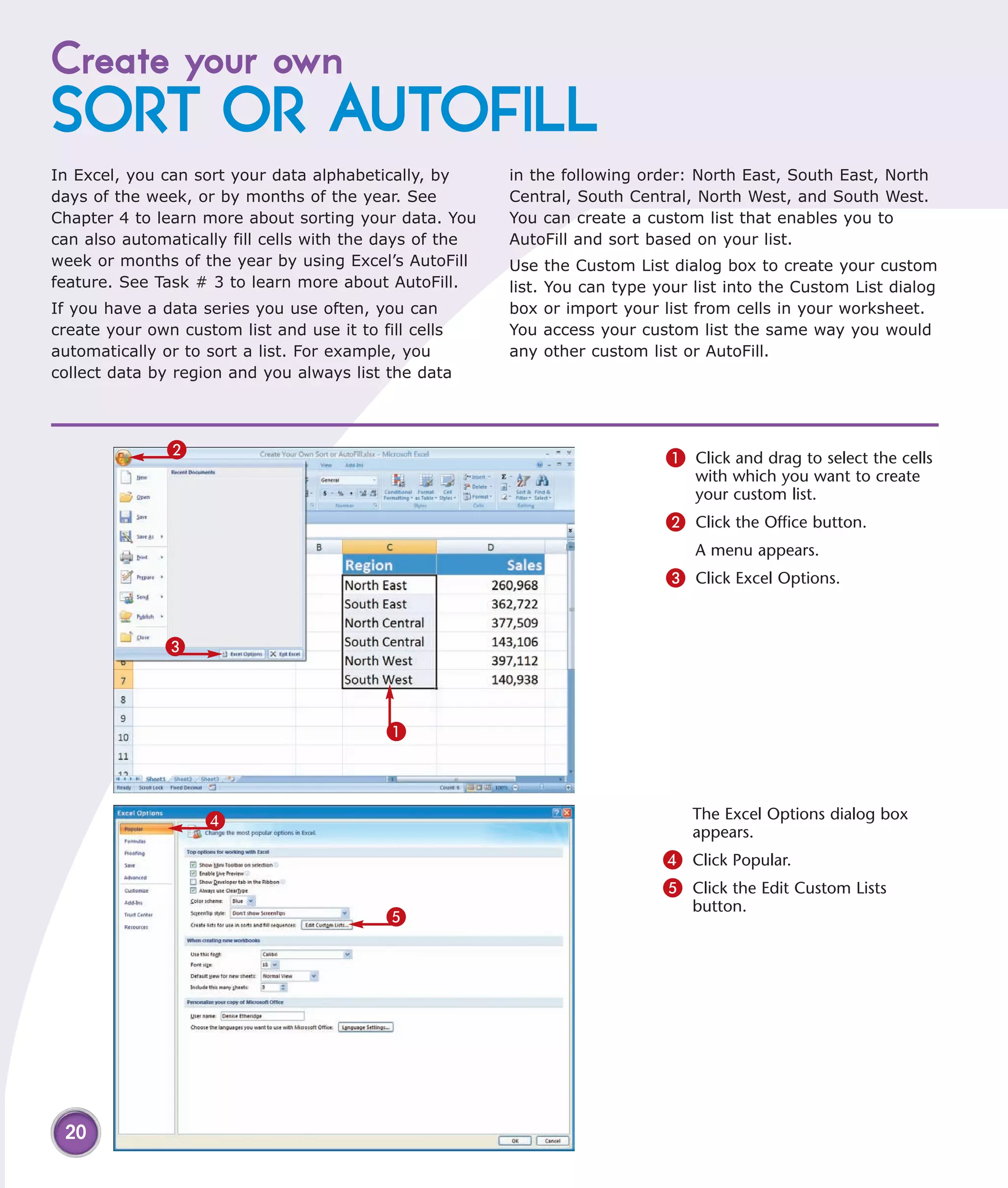
               2                                                                1 Click and drag to select the cells
                                                                                    with which you want to create
                                                                                    your custom list.
                                                                                2 Click the Office button.
                                                                                    A menu appears.
                                                                                3 Click Excel Options.


              3


                                           1


                    4                                                              The Excel Options dialog box
                                                                                   appears.
                                                                                4 Click Popular.
                                                                                5 Click the Edit Custom Lists
                                                                                   button.
                                           5


 20
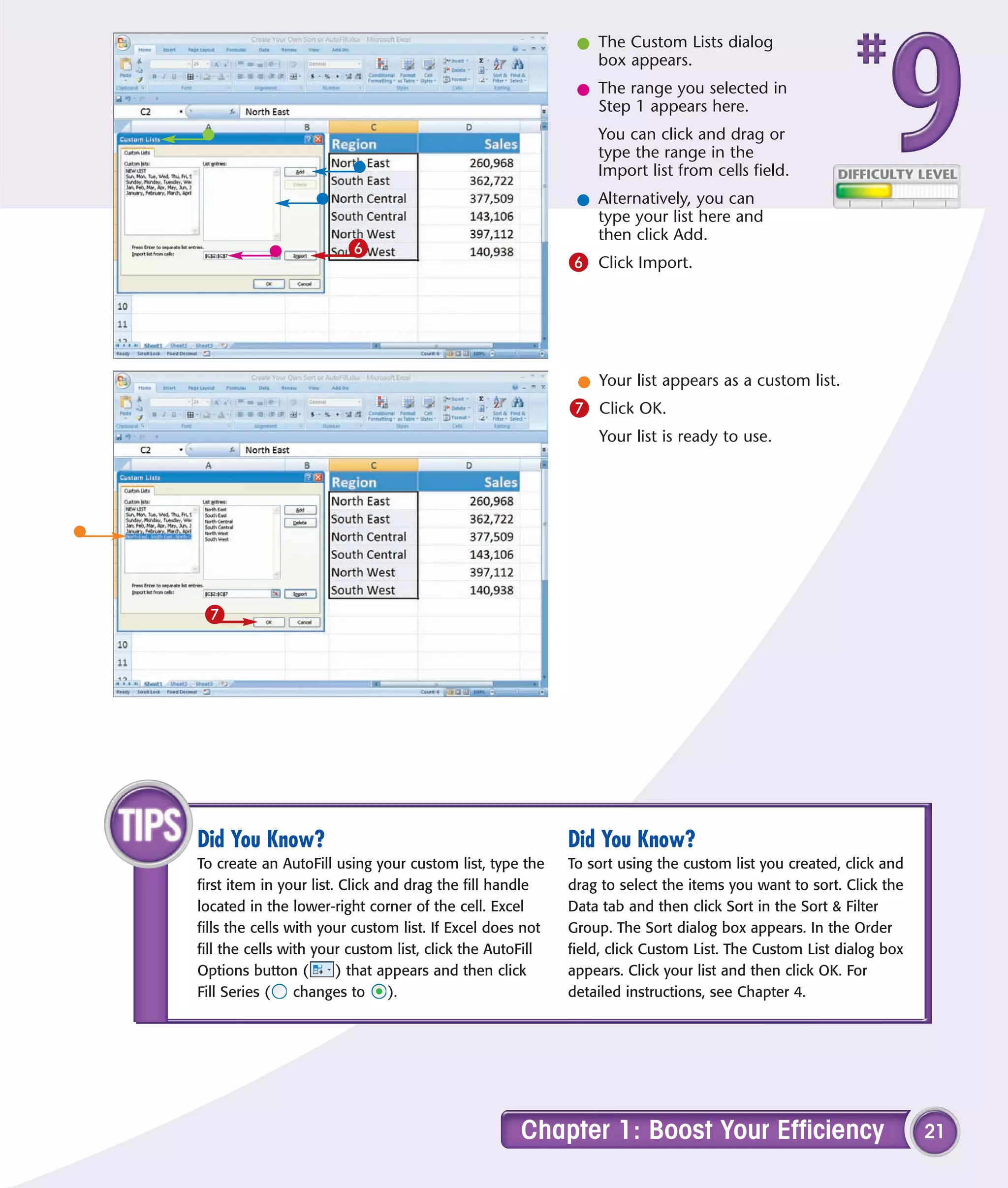
l The Custom Lists dialog
                                                              box appears.
                                                            l The range you selected in
                                                              Step 1 appears here.
                                                               You can click and drag or
                                                               type the range in the
                                                               Import list from cells field.
                                                            l Alternatively, you can
                                                              type your list here and
                                                              then click Add.
                        6
                                                           6 Click Import.


                                                            l Your list appears as a custom list.
                                                           7 Click OK.
                                                               Your list is ready to use.


 7


Did You Know?                                              Did You Know?
To create an AutoFill using your custom list, type the     To sort using the custom list you created, click and
first item in your list. Click and drag the fill handle    drag to select the items you want to sort. Click the
located in the lower-right corner of the cell. Excel       Data tab and then click Sort in the Sort & Filter
fills the cells with your custom list. If Excel does not   Group. The Sort dialog box appears. In the Order
fill the cells with your custom list, click the AutoFill   field, click Custom List. The Custom List dialog box
Options button (        ) that appears and then click      appears. Click your list and then click OK. For
Fill Series (    changes to      ).                        detailed instructions, see Chapter 4.


                                                    Chapter 1: Boost Your Efficiency                              21
Work with Formulas
and Functions
Excel provides you with tools for storing          and any other values required to get your
numbers and other kinds of information.            results.
However, the real power of Excel comes from
manipulating all this information. You can use     Many Excel functions do special-purpose
formulas and functions to calculate in Excel.      financial, statistical, engineering, and
                                                   mathematical calculations. The Function
The more than 300 functions built into Excel       Wizard arranges functions in categories for
enable you to perform tasks of every kind,         easy access. The Payment (PMT) function in the
from adding numbers to calculating the             Financial category, for example, enables you to
internal rate of return for an investment. You     determine an optimal loan payment for a given
can think of a function as a black box. You put    principal, interest rate, and length of loan.
your information into the box, and out come
the results you want. You do not need to know      This chapter introduces useful techniques for
any obscure algorithms to use functions.           making formulas and functions even easier,
                                                   including the Function Wizard and the Excel
Each bit of information you provide is called      calculator. You can also find tips for working
an argument. Excel’s Function Wizard provides      more efficiently with functions by naming cells,
guidance for every argument for every function.    creating constants, and documenting your
A formula consists of an equal sign, one or        work. Finally, you can find tips for functions
more functions, their arguments, operators         such as IF and special-purpose functions such
such as the division and multiplication symbols,   as PMT and Internal Rate of Return (IRR).
Enter Formulas Using a Variety of Methods . . . . . . . . . . . 24


Name Cells and Ranges . . . . . . . . . . . . . . . . . . . . . . . . . . . 26


Define a Constant . . . . . . . . . . . . . . . . . . . . . . . . . . . . . . . 28


Create Formulas That Include Names . . . . . . . . . . . . . . . . 30


Calculate with the Function Wizard . . . . . . . . . . . . . . . . . 32


Figure Out Loan Terms. . . . . . . . . . . . . . . . . . . . . . . . . . . . 34


Determine the Internal Rate of Return . . . . . . . . . . . . . . . 36


Determine the Nth Largest Value . . . . . . . . . . . . . . . . . . . 38


Create a Conditional Formula . . . . . . . . . . . . . . . . . . . . . . 40


Calculate a Conditional Sum . . . . . . . . . . . . . . . . . . . . . . . 42


Add a Calculator. . . . . . . . . . . . . . . . . . . . . . . . . . . . . . . . . 44


Find Products and Square Roots . . . . . . . . . . . . . . . . . . . . 46


Perform Time Calculations. . . . . . . . . . . . . . . . . . . . . . . . . 48


Perform Date Calculations . . . . . . . . . . . . . . . . . . . . . . . . . 50
ENTER FORMULAS
using a variety of methods
In Excel, you can carry out calculations such as        A second method involves functions. Functions
simple arithmetic in three ways. One method is to       perform calculations on your information and make
use the plus (+), minus (–), multiplication (*), and    the results available to you. To use a function, type
division (/) signs. Start by typing an equal sign and   an equal sign followed by the function; for example,
the values to be added, subtracted, multiplied, or      =SUM(). Place the numbers you want to add inside
divided, each separated by an operator; for example,    the parentheses, separating them with commas. If
=25 + 31. Press Enter, and Excel does the math and      the numbers are on the worksheet, click the cells.
displays the answer in the same cell. You can also      A third method is to use Excel’s AutoSum feature,
type an equal sign, click in a cell that contains the   which offers a point-and-click interface for several
value you want to perform an operation on, and then     functions, including SUM, AVERAGE, and COUNT.
type the operator.


                                                                            CALCULATE WITH AN OPERATOR
                                                                            1 Type =.
                                                                            2 Click in the cell with the number
                                                                                you want to use in your
                                                                                calculation, or type the first
                                                                                number.
                                                                            3 Type an operator, such as plus
                 2       4   1    3                                             (+), minus (–), multiply (*), or
                                                                                divide (/).
                                                                            4 Click in the cell with the number
                                                                                you want to use in your
                                                                                calculation, or type the next
                                                                                number.
                                                                            5 Repeat Steps 2 to 4, if necessary.
                                                                            6 Press Enter.
                                                                             l The result appears in the current
                                                                               cell.
                 5                                                          CALCULATE BY USING A FUNCTION AND
                                                                            CELL ADDRESSES
                                                                            1 Type the numbers you want to
                                                                                calculate into adjacent cells.
                                                                            2 In another cell, type = followed
       1                                                                        by the first few letters of the
                                                                                function.
                                                                                A list of options appears.
                     4       2 3
                                                                            3 Double-click the option you
                                                                                want to use.
                                                                            4 Click and drag to select the
                                                                                numbers you want to calculate.
 24                                                                         5 Click Check.
3                                          l The result appears in
                                                               the cell.
                                                            CALCULATE BY USING AUTOSUM
                                                            1 In adjacent cells, type
                                                                 numbers.
                                                            2 Click the cell in which
                                                                 you want the result.
                                                            3 Click the Formulas tab.


1                                  2


      4                                                     4 Click here and select an option.
                                                             l This example uses SUM.
                                                             l Excel places =sum() in the cell, with the
                                                               cell address for numbers you may want
                                                               to add.
                                                            5 To accept the cell addresses chosen by
                                                                 Excel, press Enter.
                                                                 To select other addresses, click and drag
                                                                 them and then press Enter.
                                                                 The result appears in the cell selected in
                                                                 Step 2.


    Did You Know?                      Did You Know?                         Did You Know?
    You can click the chevron ( ) at   When you click and drag over          You can add buttons for equal,
    the end of the formula bar to      multiple cells, Excel automatically   plus, minus, divide, and multiply
    expand and collapse the bar.       places the average, a number          to the Quick Access toolbar. You
    Expanding the formula bar lets     count, and the sum of the values      can use these buttons to enter
    you enter longer formulas.         on the status bar, at the bottom      formulas quickly. To learn how to
                                       of the screen.                        add buttons to the Quick Access
                                                                             toolbar, see Task #95.


                               Chapter 2: Work with Formulas and Functions                                       25
Name
CELLS AND RANGES
In Excel, you can name individual cells and groups of   current worksheet or the entire workbook. You can
cells, called ranges. A cell named Tax or a range       name several ranges at once by using Excel’s Create
named Northern_Region is easier to remember than        from Selection option. You can use the Name
the corresponding cell address. You can use named       Manager to delete named ranges.
cells and ranges directly in formulas to refer to the   Excel range names must be fewer than 255 characters.
values contained in them. When you move a named         The first character must be a letter. You cannot use
range to a new location, Excel automatically updates    spaces or symbols except for the period and
any formulas that refer to the named range.             underscore. It is best to create short, memorable
When you name a range, you determine the scope of       names. To learn how to use a named range, see
the name by telling Excel whether it applies to the     Task #13.


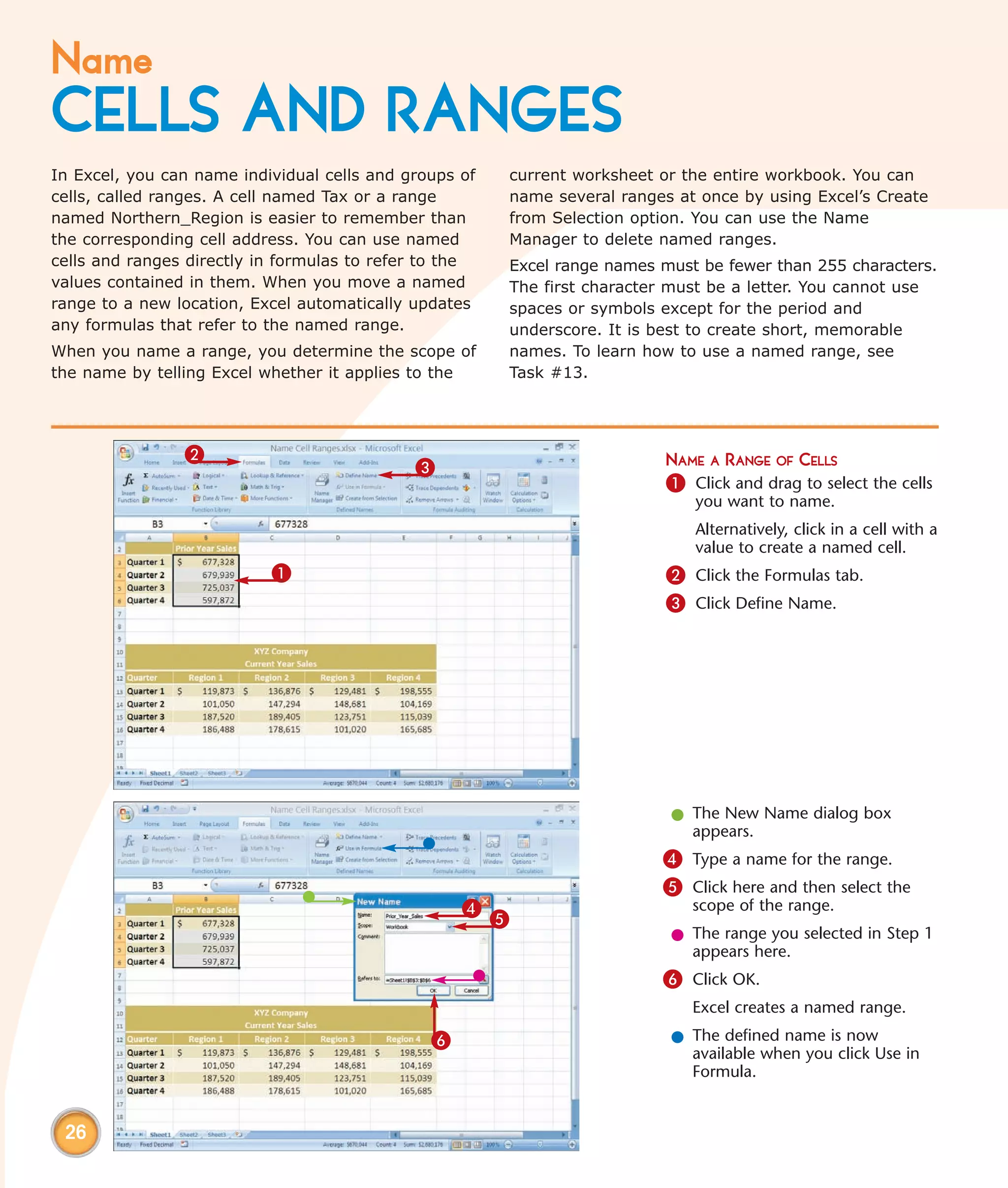
                2                                                          NAME A RANGE OF CELLS
                                             3
                                                                           1 Click and drag to select the cells
                                                                              you want to name.
                                                                              Alternatively, click in a cell with a
                                                                              value to create a named cell.
                           1                                               2 Click the Formulas tab.
                                                                           3 Click Define Name.


                                                                           l The New Name dialog box
                                                                             appears.
                                                                          4 Type a name for the range.
                                                                          5 Click here and then select the
                                                   4                          scope of the range.
                                                        5
                                                                           l The range you selected in Step 1
                                                                             appears here.
                                                                          6 Click OK.
                                                                              Excel creates a named range.

                                               6                           l The defined name is now
                                                                             available when you click Use in
                                                                             Formula.


 26
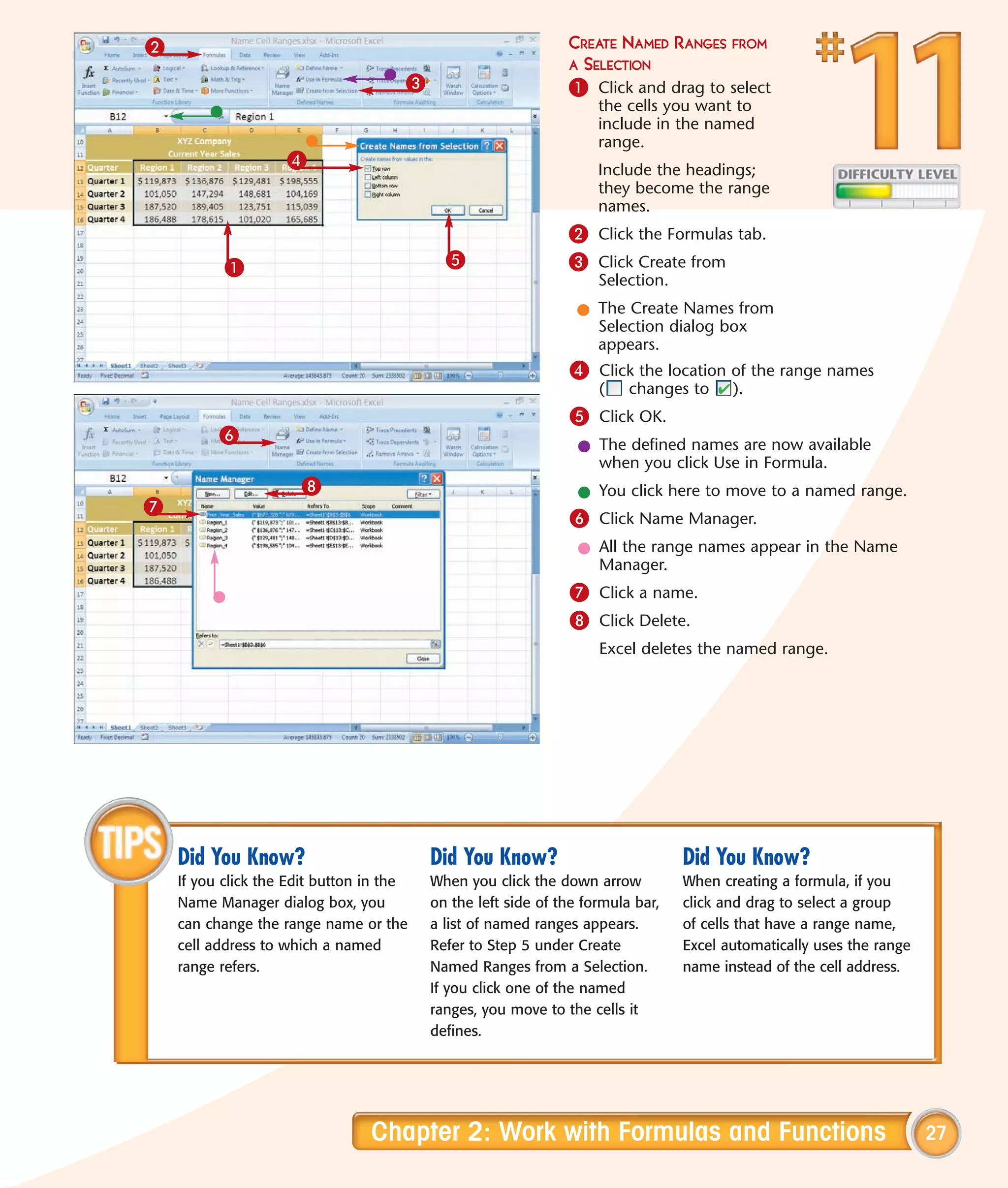
2                                                              CREATE NAMED      RANGES FROM
                                                               A SELECTION
                                      3                        1 Click and drag to select
                                                                    the cells you want to
                                                                    include in the named
                                                                    range.
                    4                                               Include the headings;
                                                                    they become the range
                                                                    names.
                                                               2 Click the Formulas tab.
           1                                5                  3 Click Create from
                                                                    Selection.
                                                                 l The Create Names from
                                                                   Selection dialog box
                                                                   appears.
                                                               4 Click the location of the range names
                                                                    (    changes to     ).
                                                               5 Click OK.
          6
                                                                 l The defined names are now available
                                                                   when you click Use in Formula.
                      8                                          l You click here to move to a named range.
7
                                                               6 Click Name Manager.
                                                                 l All the range names appear in the Name
                                                                   Manager.
                                                               7 Click a name.
                                                               8 Click Delete.
                                                                    Excel deletes the named range.


    Did You Know?                         Did You Know?                          Did You Know?
    If you click the Edit button in the   When you click the down arrow          When creating a formula, if you
    Name Manager dialog box, you          on the left side of the formula bar,   click and drag to select a group
    can change the range name or the      a list of named ranges appears.        of cells that have a range name,
    cell address to which a named         Refer to Step 5 under Create           Excel automatically uses the range
    range refers.                         Named Ranges from a Selection.         name instead of the cell address.
                                          If you click one of the named
                                          ranges, you move to the cells it
                                          defines.


                                 Chapter 2: Work with Formulas and Functions                                          27
Define a
CONSTANT
Use a constant whenever you want to use the same         tax rates change from time to time, they tend to
value in different cells and/or formulas. With           remain constant within a tax period.
constants, you can refer to a value, whether it is       To create a constant in Excel, you need to type its
simple or consists of many digits, by simply using       value in the New Name dialog box, the same dialog
the constant’s name.                                     box you use to name ranges as shown in Task #11.
You can use constants in many applications. For          When you define a constant, you determine the
example, sales tax rate is a familiar constant that,     scope of the constant by telling Excel whether it
when multiplied by the subtotal on an invoice, results   applies to the current worksheet or the entire
in the tax owed. Likewise, income tax rates are the      workbook. To use the constant in any formula in the
constants used to calculate tax liabilities. Although    same workbook, simply use the name you defined.


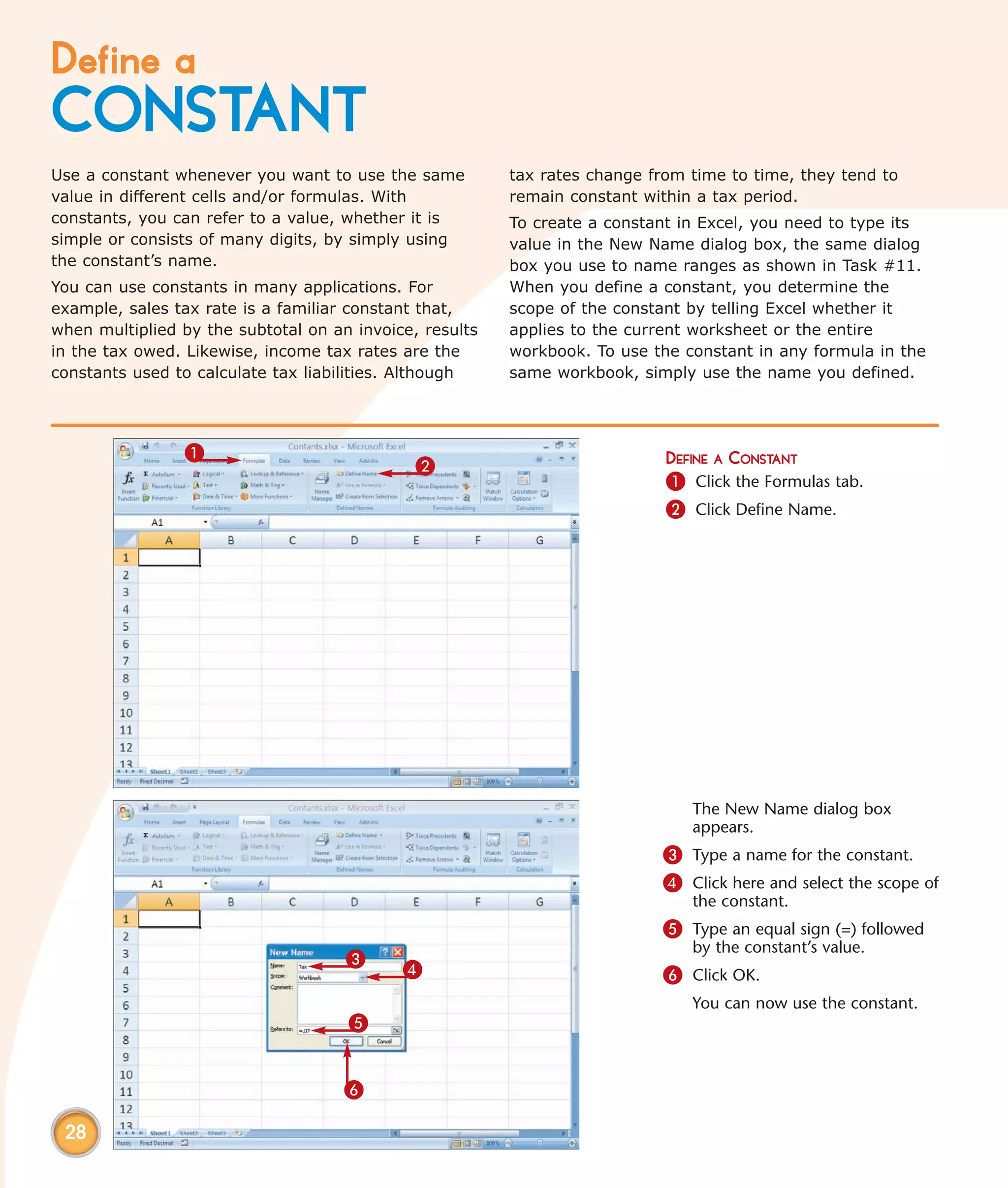
                1                                                           DEFINE A CONSTANT
                                              2
                                                                            1 Click the Formulas tab.
                                                                            2 Click Define Name.


                                                                               The New Name dialog box
                                                                               appears.
                                                                           3 Type a name for the constant.
                                                                           4 Click here and select the scope of
                                                                               the constant.
                                                                           5 Type an equal sign (=) followed
                                                                               by the constant’s value.
                                     3
                                            4                              6 Click OK.
                                                                               You can now use the constant.
                                     5


                                     6

 28
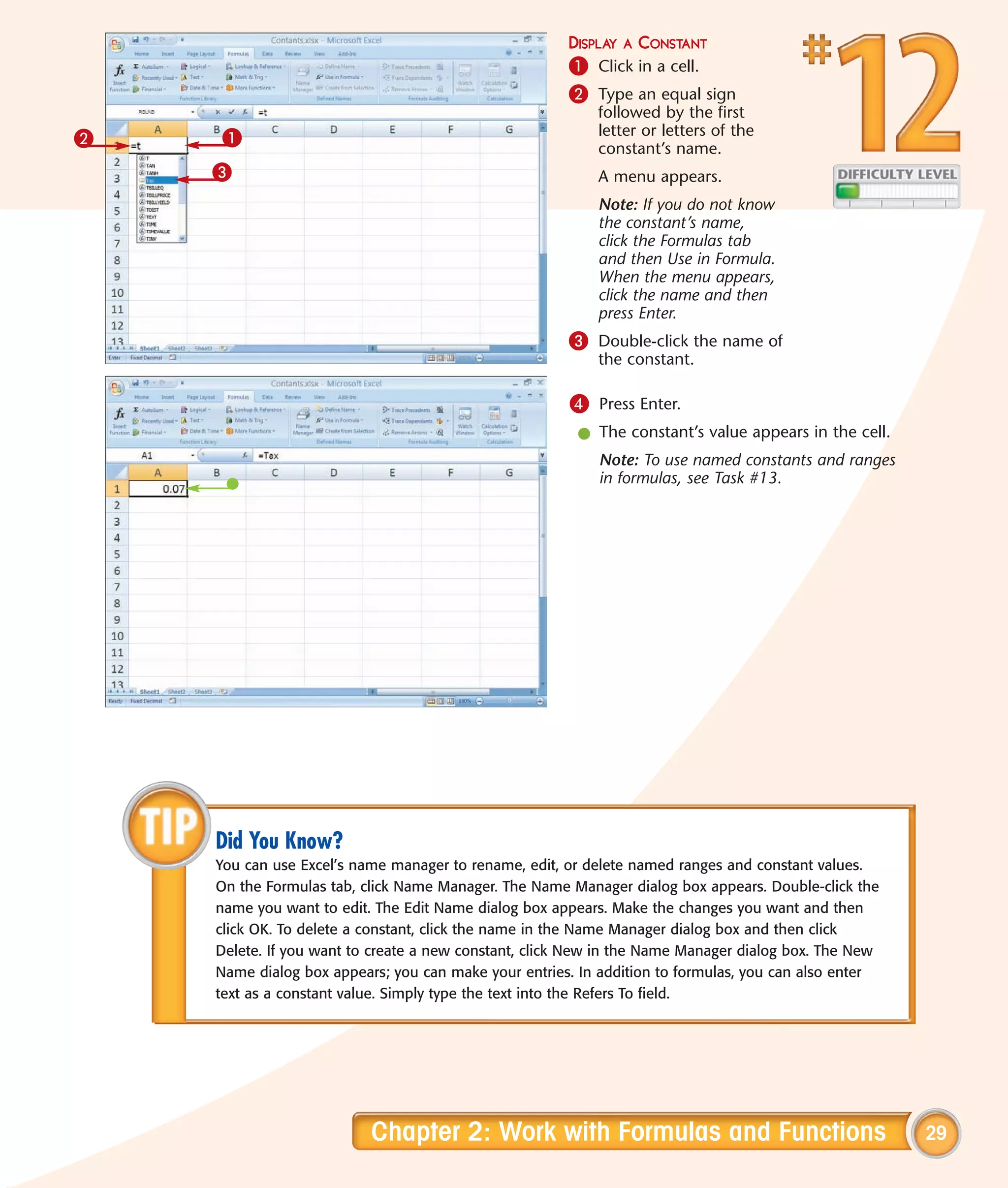
DISPLAY A CONSTANT
                                                      1 Click in a cell.
                                                      2 Type an equal sign
                                                          followed by the first
    1                                                     letter or letters of the
2                                                         constant’s name.
    3                                                     A menu appears.
                                                          Note: If you do not know
                                                          the constant’s name,
                                                          click the Formulas tab
                                                          and then Use in Formula.
                                                          When the menu appears,
                                                          click the name and then
                                                          press Enter.
                                                      3 Double-click the name of
                                                          the constant.

                                                      4 Press Enter.
                                                       l The constant’s value appears in the cell.
                                                          Note: To use named constants and ranges
                                                          in formulas, see Task #13.


    Did You Know?
    You can use Excel’s name manager to rename, edit, or delete named ranges and constant values.
    On the Formulas tab, click Name Manager. The Name Manager dialog box appears. Double-click the
    name you want to edit. The Edit Name dialog box appears. Make the changes you want and then
    click OK. To delete a constant, click the name in the Name Manager dialog box and then click
    Delete. If you want to create a new constant, click New in the Name Manager dialog box. The New
    Name dialog box appears; you can make your entries. In addition to formulas, you can also enter
    text as a constant value. Simply type the text into the Refers To field.


                          Chapter 2: Work with Formulas and Functions                                 29
CREATE FORMULAS
that include names
Constructing formulas can be complicated, especially   so the function can do its work. A named constant is
when you use several functions in the same formula     a name you create that refers to a single, frequently
or when multiple arguments are required in a single    used value; see Task #12. A named range is a name
function. Using named constants and named ranges       you assign to a group of related cells; see Task #11.
can make creating formulas and using functions         To insert a name into a function or use it in a
easier by enabling you to use terms you have created   formula or as a function’s argument, you must type
that clearly identify a value or range of values. An   it, access it by using Use in Formula on the Formulas
argument is information you provide to the function    tab, or select it from the Function Auto-complete list.


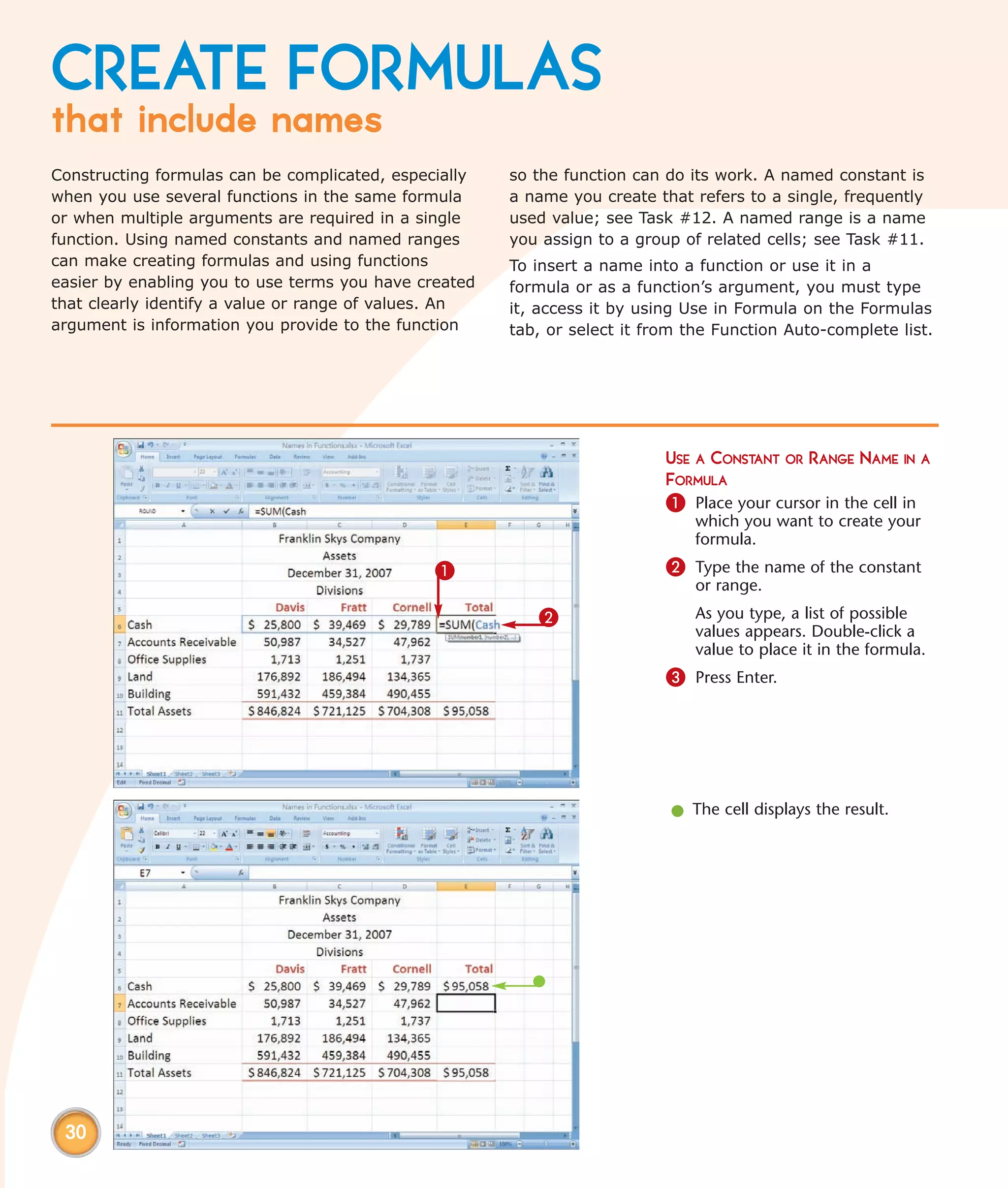
                                                                           USE A CONSTANT OR RANGE NAME IN A
                                                                           FORMULA
                                                                           1 Place your cursor in the cell in
                                                                               which you want to create your
                                                                               formula.
                                               1                           2 Type the name of the constant
                                                                               or range.
                                                          2                    As you type, a list of possible
                                                                               values appears. Double-click a
                                                                               value to place it in the formula.
                                                                           3 Press Enter.


                                                                           l The cell displays the result.


 30
2                                                              USE A CONSTANT OR RANGE
                                 3                             NAME IN A FORMULA
             4
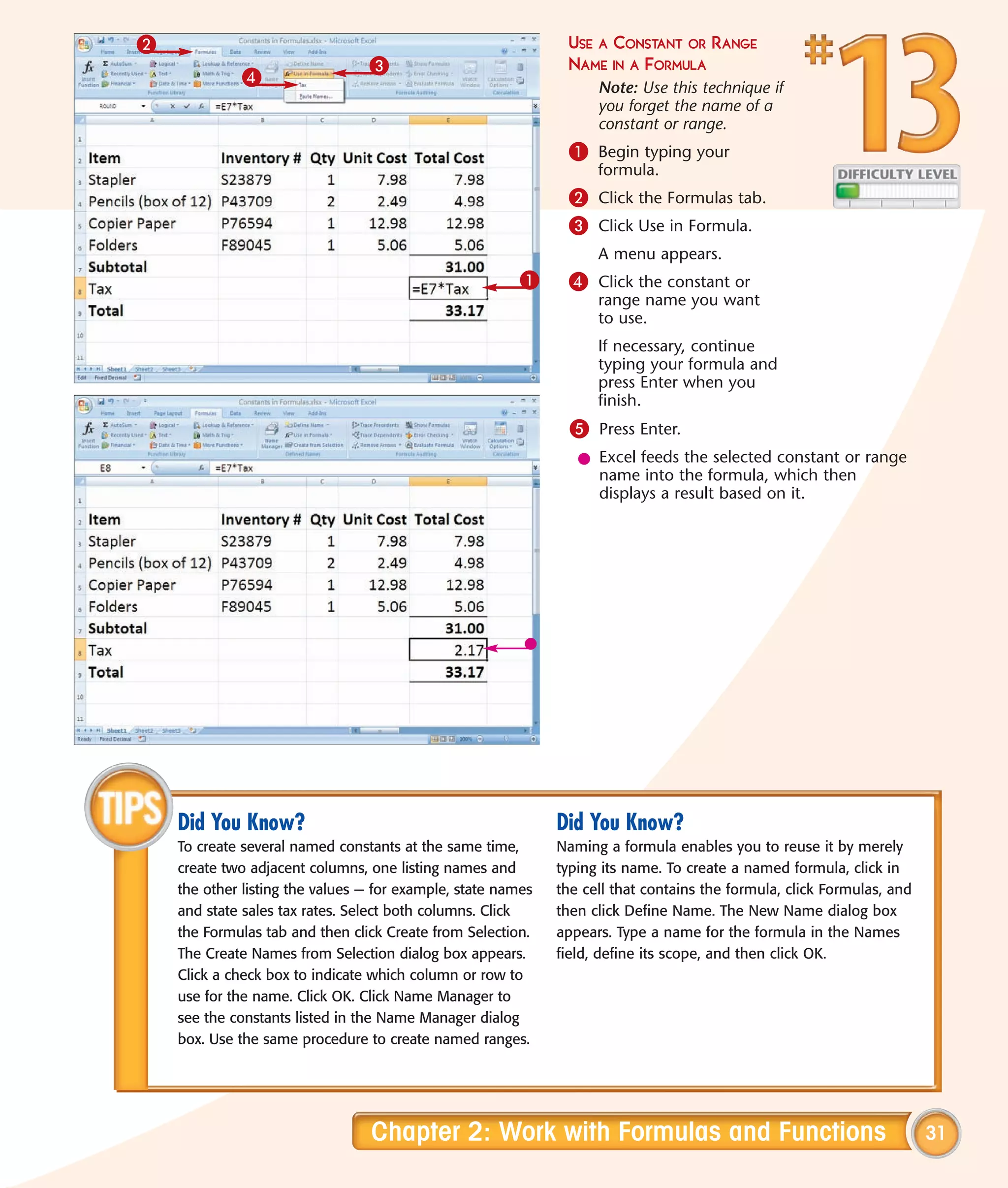
                                                                    Note: Use this technique if
                                                                    you forget the name of a
                                                                    constant or range.
                                                               1 Begin typing your
                                                                    formula.
                                                               2 Click the Formulas tab.
                                                               3 Click Use in Formula.
                                                                    A menu appears.
                                                         1     4 Click the constant or
                                                                    range name you want
                                                                    to use.
                                                                    If necessary, continue
                                                                    typing your formula and
                                                                    press Enter when you
                                                                    finish.
                                                                5 Press Enter.
                                                                 l Excel feeds the selected constant or range
                                                                   name into the formula, which then
                                                                   displays a result based on it.


    Did You Know?                                             Did You Know?
    To create several named constants at the same time,       Naming a formula enables you to reuse it by merely
    create two adjacent columns, one listing names and        typing its name. To create a named formula, click in
    the other listing the values — for example, state names   the cell that contains the formula, click Formulas, and
    and state sales tax rates. Select both columns. Click     then click Define Name. The New Name dialog box
    the Formulas tab and then click Create from Selection.    appears. Type a name for the formula in the Names
    The Create Names from Selection dialog box appears.       field, define its scope, and then click OK.
    Click a check box to indicate which column or row to
    use for the name. Click OK. Click Name Manager to
    see the constants listed in the Name Manager dialog
    box. Use the same procedure to create named ranges.


                                 Chapter 2: Work with Formulas and Functions                                            31
Calculate with
THE FUNCTION WIZARD
Excel’s Function Wizard simplifies the use of             function. Another way, which is a bit quicker, makes
functions. You can take advantage of the wizard for       sense when you know the name of your function.
every one of Excel’s functions, from the sum (SUM)        Start by selecting a cell for the result. Type an equal
function to the most complex statistical, mathematical,   sign (=) and the beginning of the function name. In
financial, and engineering function. One simple but       the list of functions that appears, double-click the
useful function, ROUND, rounds off values to the          function you want and then click the Insert Function
number of places you choose.                              button.
You can access the Function Wizard in two ways. One       Both methods bring up the Function Arguments box,
way involves selecting a cell where the result is to      where you type the values you want in your calculation
appear and then clicking the Insert Function button       or click in the cells containing the values.
and using the Insert Function dialog box to select a


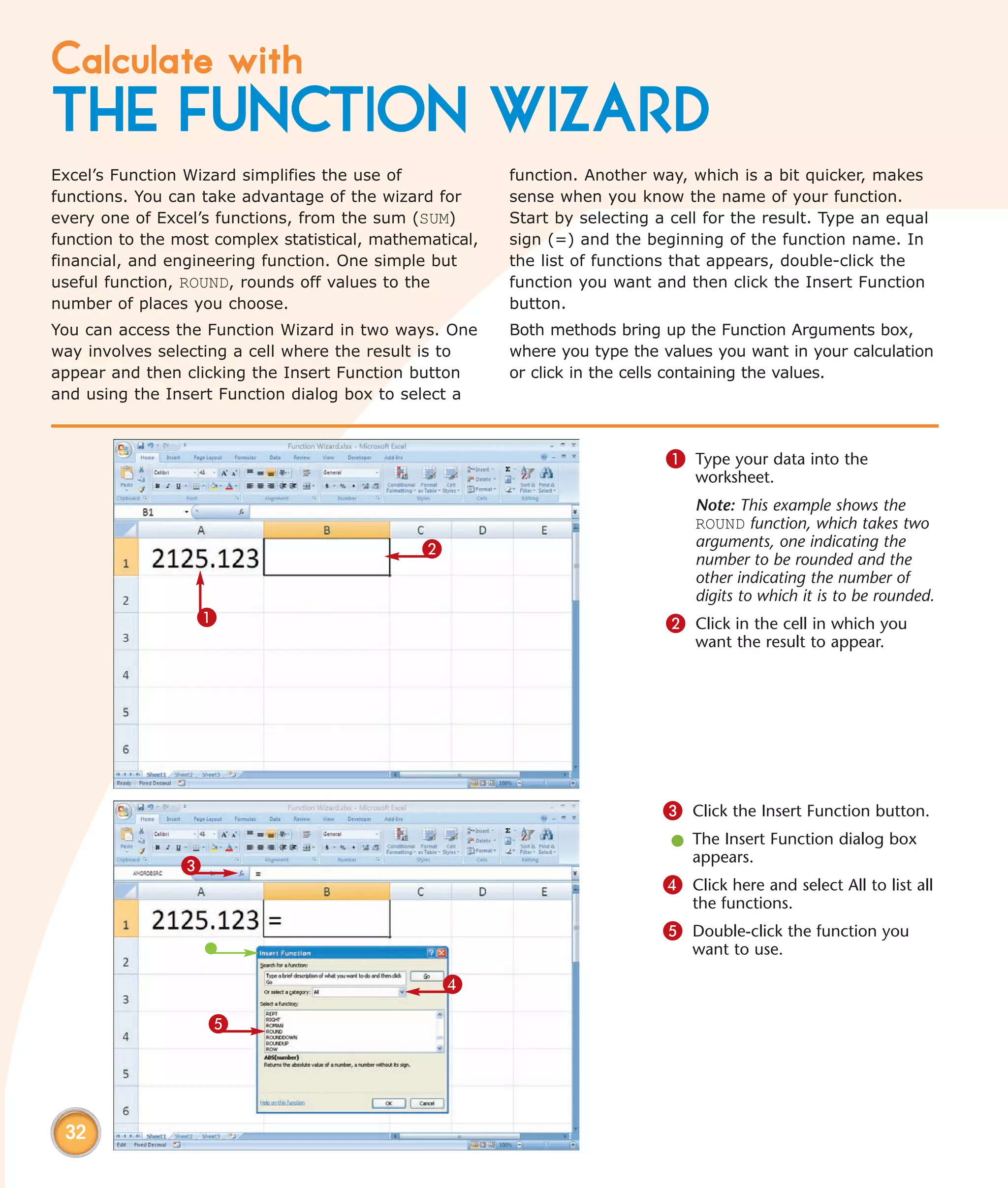
                                                                              1 Type your data into the
                                                                                  worksheet.
                                                                                  Note: This example shows the
                                                                                  ROUND function, which takes two
                                               2                                  arguments, one indicating the
                                                                                  number to be rounded and the
                                                                                  other indicating the number of
                                                                                  digits to which it is to be rounded.
                  1                                                           2 Click in the cell in which you
                                                                                  want the result to appear.


                                                                              3 Click the Insert Function button.
                                                                               l The Insert Function dialog box
                                                                                 appears.
                3
                                                                              4 Click here and select All to list all
                                                                                  the functions.
                                                                              5 Double-click the function you
                                                                                  want to use.

                                                   4

                    5


 32
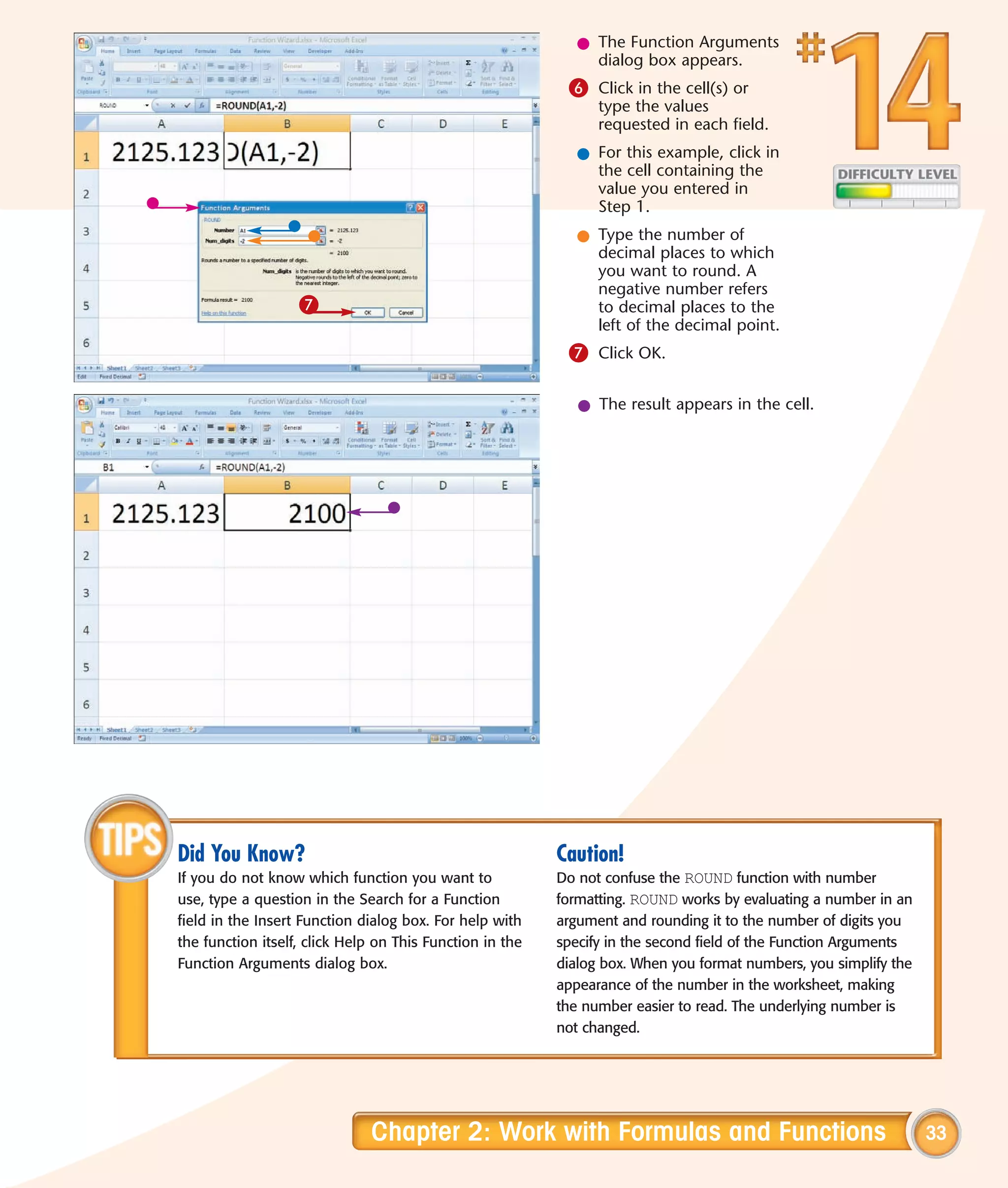
l The Function Arguments
                                                               dialog box appears.
                                                           6 Click in the cell(s) or
                                                                type the values
                                                                requested in each field.
                                                             l For this example, click in
                                                               the cell containing the
                                                               value you entered in
                                                               Step 1.
                                                             l Type the number of
                                                               decimal places to which
                                                               you want to round. A
                                                               negative number refers
                   7                                           to decimal places to the
                                                               left of the decimal point.
                                                           7 Click OK.

                                                             l The result appears in the cell.


Did You Know?                                             Caution!
If you do not know which function you want to             Do not confuse the ROUND function with number
use, type a question in the Search for a Function         formatting. ROUND works by evaluating a number in an
field in the Insert Function dialog box. For help with    argument and rounding it to the number of digits you
the function itself, click Help on This Function in the   specify in the second field of the Function Arguments
Function Arguments dialog box.                            dialog box. When you format numbers, you simplify the
                                                          appearance of the number in the worksheet, making
                                                          the number easier to read. The underlying number is
                                                          not changed.


                              Chapter 2: Work with Formulas and Functions                                         33
Figure out
LOAN TERMS
You can use Excel’s Payment (PMT) function when       clicking in a cell, you can enter the value of the cell
buying a house or car. This function enables you to   into the wizard.
compare loan terms and make an objective decision     The PMT function takes three required arguments. For
based on factors such as the amount of the monthly    RATE, enter an annual interest rate such as 5 percent
payment.                                              and then type .05 divided by 12 to calculate the
You can calculate loan payments in many ways when     monthly rate. For NPER, number of periods, enter
using Excel, but using the PMT function may be the    the number of loan periods for the loan you are
simplest because you merely enter the arguments       seeking. For PV, present value, enter the amount of
into the Function Wizard. To make your job even       the loan. The monthly payment appears surrounded
easier, enter your argument values into your          by parentheses, signifying that the number is
worksheet before launching the wizard. Then by        negative, or a cash outflow.


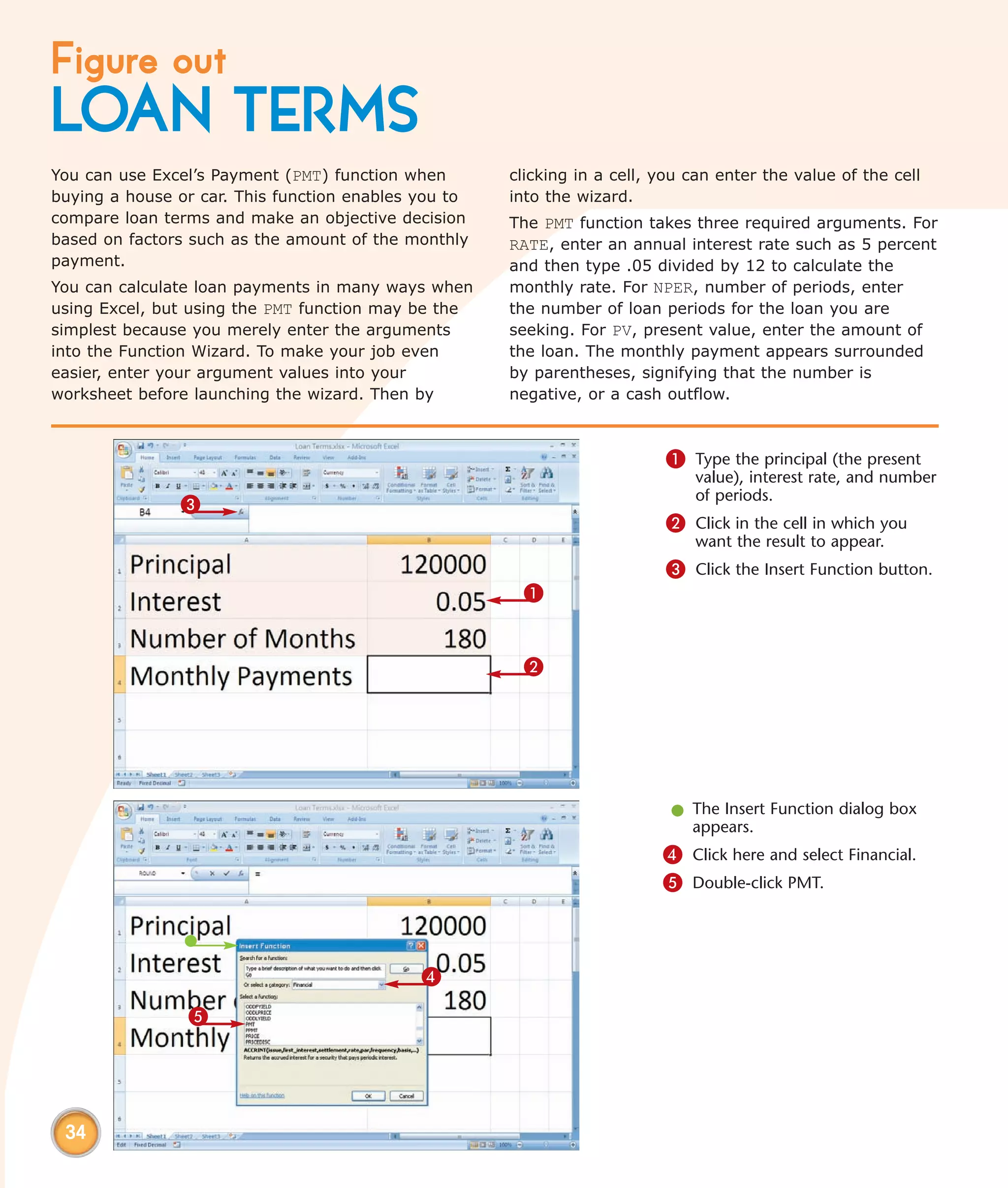
                                                                          1 Type the principal (the present
                                                                              value), interest rate, and number
                                                                              of periods.
               3
                                                                          2 Click in the cell in which you
                                                                              want the result to appear.
                                                                          3 Click the Insert Function button.
                                                       1


                                                       2


                                                                           l The Insert Function dialog box
                                                                             appears.
                                                                          4 Click here and select Financial.
                                                                          5 Double-click PMT.


                                             4

                5


 34
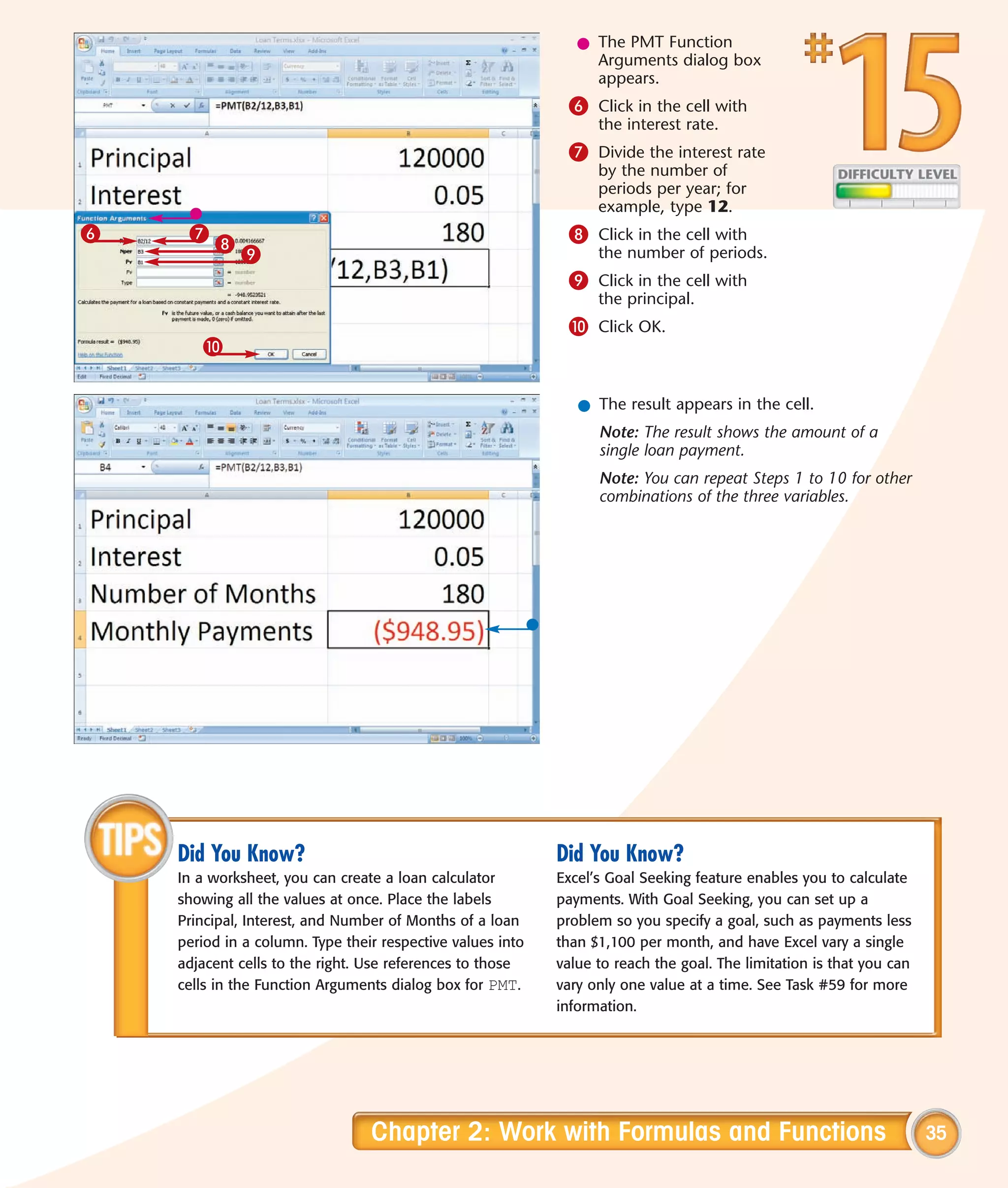
l The PMT Function
                                                                 Arguments dialog box
                                                                 appears.
                                                             6 Click in the cell with
                                                                  the interest rate.
                                                             7 Divide the interest rate
                                                                  by the number of
                                                                  periods per year; for
                                                                  example, type 12.
6    7                                                       8 Click in the cell with
         8
             9                                                    the number of periods.
                                                             9 Click in the cell with
                                                                  the principal.
                                                             0 Click OK.
       0


                                                               l The result appears in the cell.
                                                                  Note: The result shows the amount of a
                                                                  single loan payment.
                                                                  Note: You can repeat Steps 1 to 10 for other
                                                                  combinations of the three variables.


    Did You Know?                                           Did You Know?
    In a worksheet, you can create a loan calculator        Excel’s Goal Seeking feature enables you to calculate
    showing all the values at once. Place the labels        payments. With Goal Seeking, you can set up a
    Principal, Interest, and Number of Months of a loan     problem so you specify a goal, such as payments less
    period in a column. Type their respective values into   than $1,100 per month, and have Excel vary a single
    adjacent cells to the right. Use references to those    value to reach the goal. The limitation is that you can
    cells in the Function Arguments dialog box for PMT.     vary only one value at a time. See Task #59 for more
                                                            information.


                                 Chapter 2: Work with Formulas and Functions                                          35
Determine the
INTERNAL RATE OF RETURN
You can use Excel’s Internal Rate of Return (IRR)        so you enter them as positive numbers. When using
function to calculate the rate of return on an           the Internal Rate of Return function, you must enter
investment. When using the IRR function, the cash        at least one positive and one negative number.
flows do not have to be equal, but they must occur at    Optionally, you can provide, as the second argument,
regular intervals. As an example, you make a loan of     your best-guess estimate as to the rate of return.
$6,607 on January 1, year 1. You receive payments        The default value, if you do not provide an estimate,
every January 1 for four succeeding years. You can       is .10, representing a 10 percent rate of return. Your
use the IRR function to determine the interest rate      estimate merely gives Excel a starting point at which
you receive on the loan.                                 to calculate the IRR.
Your loan of $6,607 is a cash outflow, so you enter it
as a negative number. Each payment is a cash inflow,


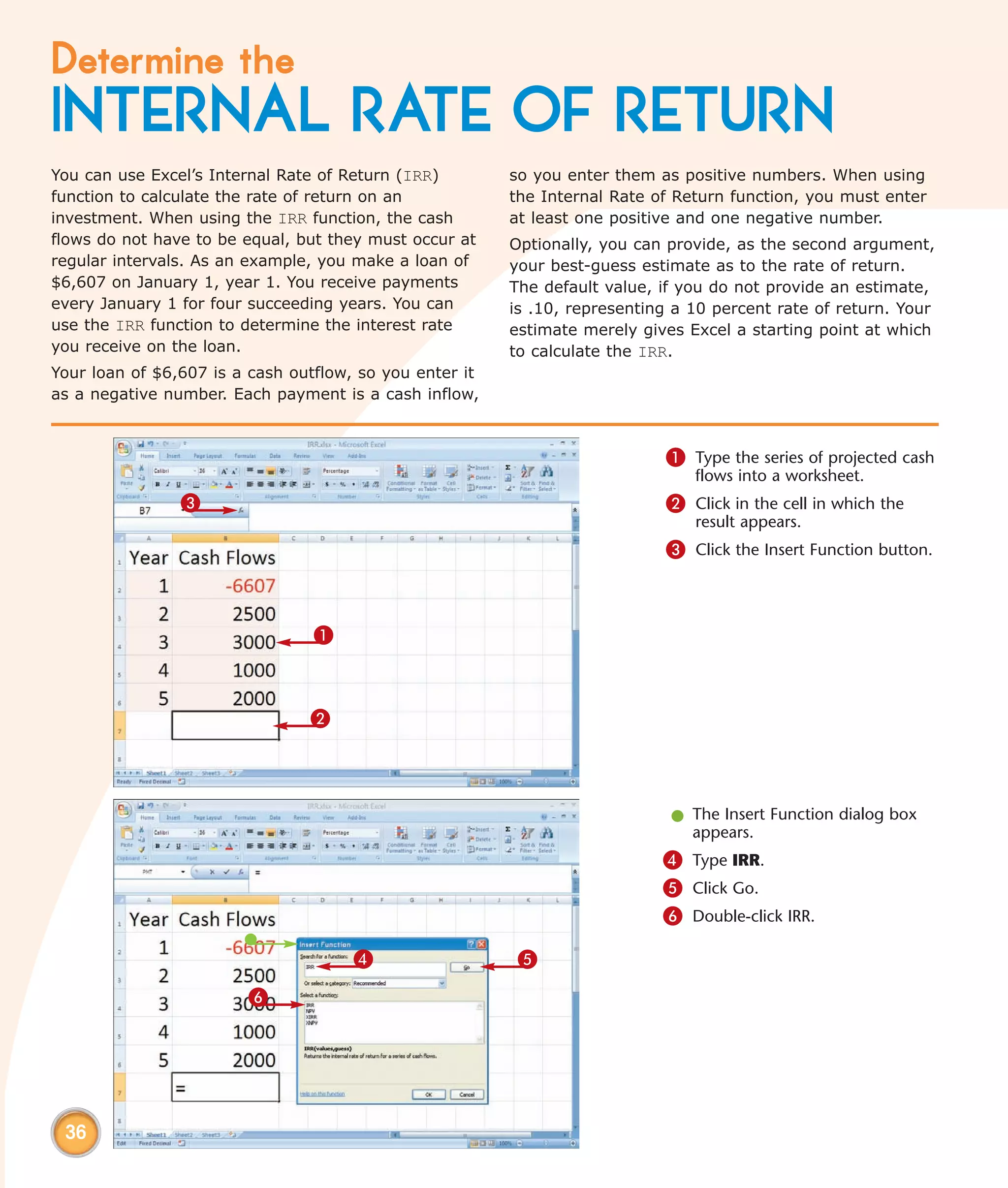
                                                                            1 Type the series of projected cash
                                                                                flows into a worksheet.
                3                                                           2 Click in the cell in which the
                                                                                result appears.
                                                                            3 Click the Insert Function button.


                                 1


                                2


                                                                             l The Insert Function dialog box
                                                                               appears.
                                                                            4 Type IRR.
                                                                            5 Click Go.
                                                                            6 Double-click IRR.

                                      4                   5
                        6


 36
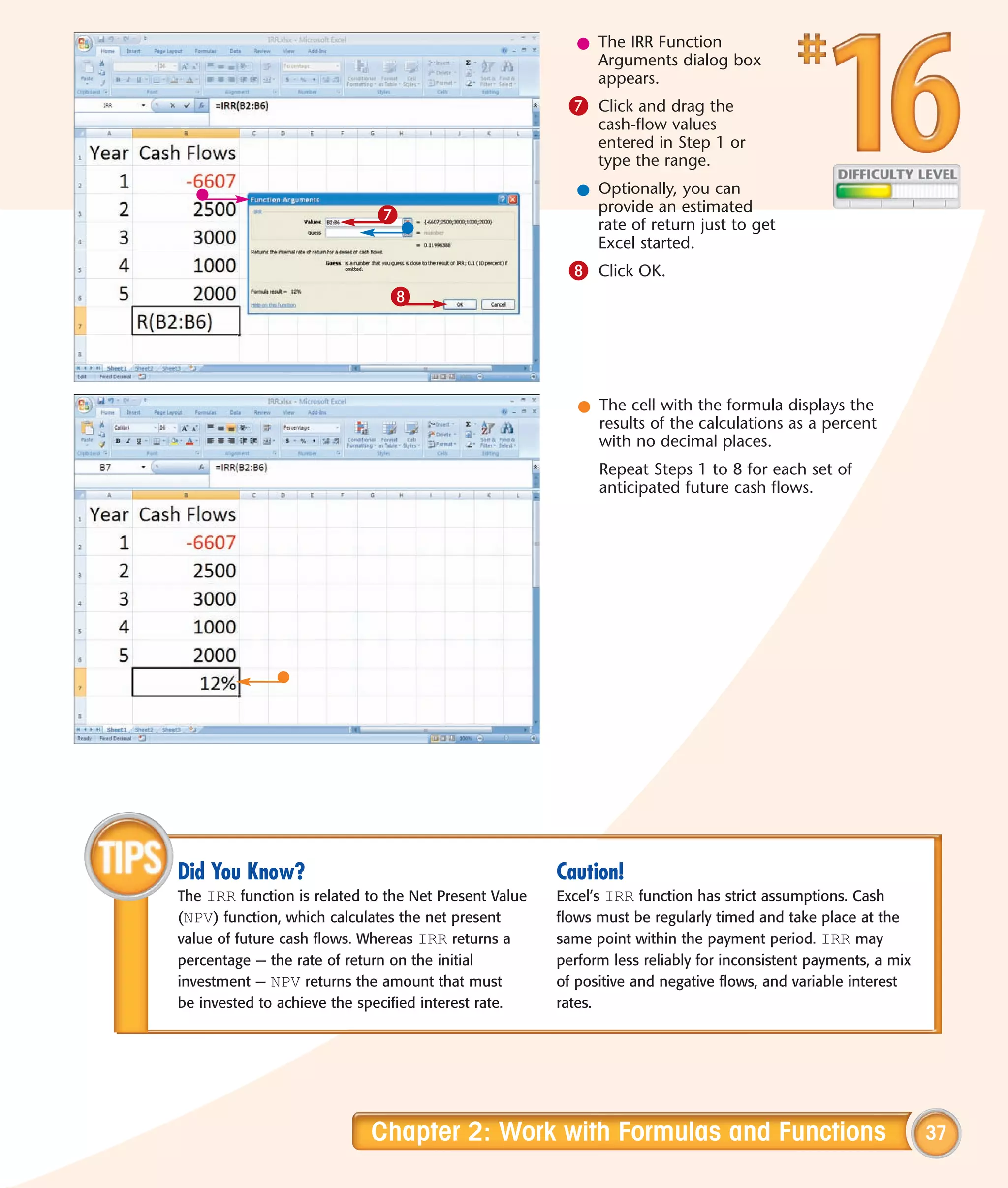
l The IRR Function
                                                            Arguments dialog box
                                                            appears.
                                                        7 Click and drag the
                                                             cash-flow values
                                                             entered in Step 1 or
                                                             type the range.
                                                          l Optionally, you can
                                                            provide an estimated
                             7                              rate of return just to get
                                                            Excel started.
                                                        8 Click OK.
                               8


                                                          l The cell with the formula displays the
                                                            results of the calculations as a percent
                                                            with no decimal places.
                                                             Repeat Steps 1 to 8 for each set of
                                                             anticipated future cash flows.


Did You Know?                                          Caution!
The IRR function is related to the Net Present Value   Excel’s IRR function has strict assumptions. Cash
(NPV) function, which calculates the net present       flows must be regularly timed and take place at the
value of future cash flows. Whereas IRR returns a      same point within the payment period. IRR may
percentage — the rate of return on the initial         perform less reliably for inconsistent payments, a mix
investment — NPV returns the amount that must          of positive and negative flows, and variable interest
be invested to achieve the specified interest rate.    rates.


                            Chapter 2: Work with Formulas and Functions                                         37
Determine the
NTH LARGEST VALUE
Sometimes you want to identify and characterize           you are seeking, with 1 being the highest, 2 the next
the top values in a series, such as the RBIs of the       highest, and so on. The result of LARGE is the value
top three hitters in Major League Baseball or the         you requested.
purchases, in a given period, for your five largest       Another way to determine the first, second, or Nth
purchasers.                                               number in a series is to sort the numbers from
The LARGE function evaluates a series of numbers          biggest to smallest and then simply read the results,
and determines the highest value, second highest, or      as shown in Chapter 4. Sorting is less useful when
Nth highest in the series, with N being a value’s rank    you have a long list or when you want to use the
order. LARGE takes two arguments: the range of cells      result in another function, such as summing the top
you want to evaluate and the rank order of the value      five values.


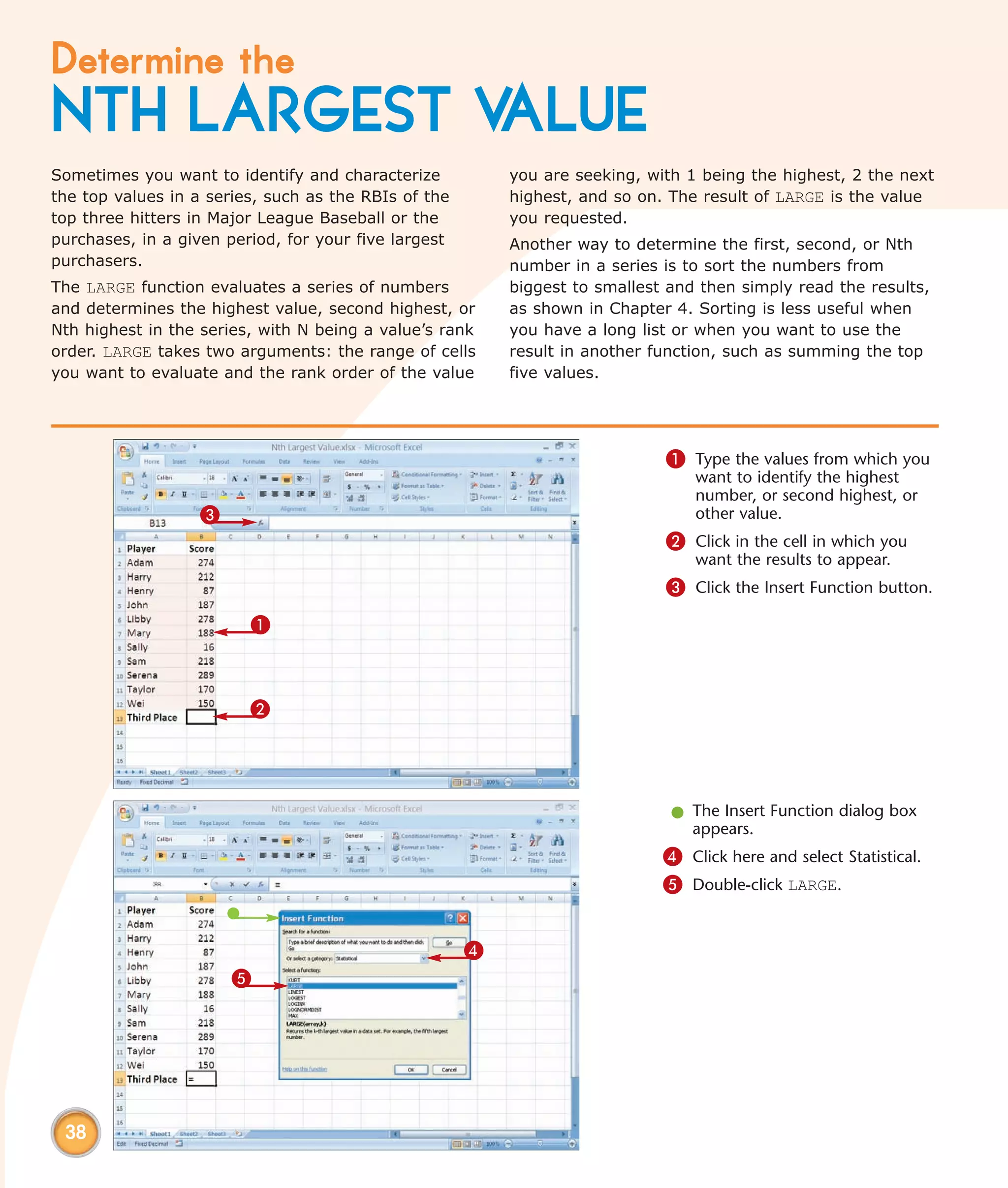
                                                                             1 Type the values from which you
                                                                                 want to identify the highest
                                                                                 number, or second highest, or
                   3                                                             other value.
                                                                             2 Click in the cell in which you
                                                                                 want the results to appear.
                                                                             3 Click the Insert Function button.
                         1


                         2


                                                                              l The Insert Function dialog box
                                                                                appears.
                                                                             4 Click here and select Statistical.
                                                                             5 Double-click LARGE.


                                                      4
                       5


 38
l The Function Arguments
                                                           dialog box appears for
                                                           the LARGE function.
                                                       6 Click and drag to select
                                                            the cells you want to
                                                            evaluate, or type the
                                                            range.
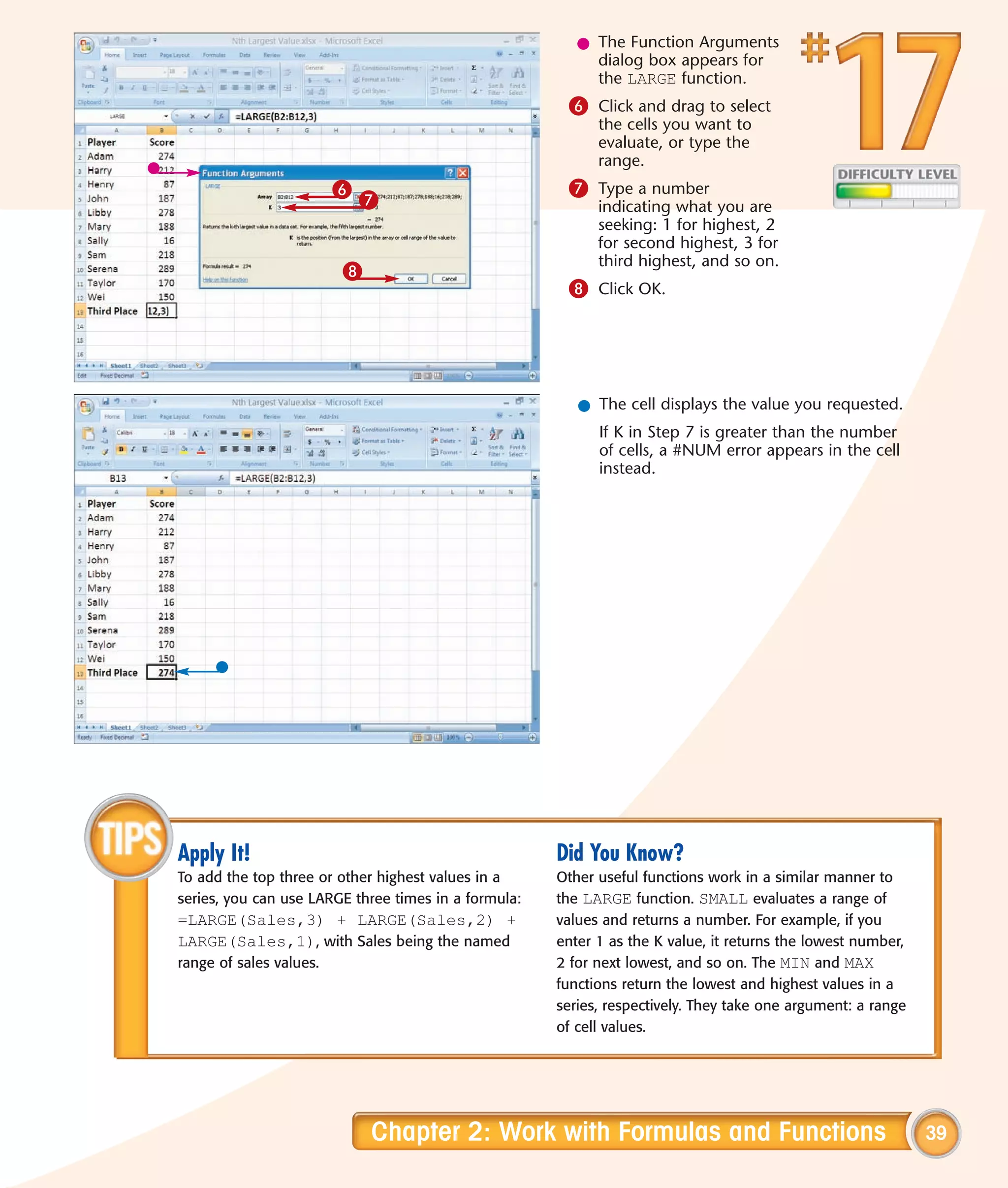
                         6                             7 Type a number
                             7                              indicating what you are
                                                            seeking: 1 for highest, 2
                                                            for second highest, 3 for
                                                            third highest, and so on.
                         8
                                                       8 Click OK.


                                                         l The cell displays the value you requested.
                                                            If K in Step 7 is greater than the number
                                                            of cells, a #NUM error appears in the cell
                                                            instead.


Apply It!                                             Did You Know?
To add the top three or other highest values in a     Other useful functions work in a similar manner to
series, you can use LARGE three times in a formula:   the LARGE function. SMALL evaluates a range of
=LARGE(Sales,3) + LARGE(Sales,2) +                    values and returns a number. For example, if you
LARGE(Sales,1), with Sales being the named            enter 1 as the K value, it returns the lowest number,
range of sales values.                                2 for next lowest, and so on. The MIN and MAX
                                                      functions return the lowest and highest values in a
                                                      series, respectively. They take one argument: a range
                                                      of cell values.


                             Chapter 2: Work with Formulas and Functions                                      39
Create a
CONDITIONAL FORMULA
With a conditional formula, you can perform                use comparison operators, such as greater than (>),
calculations on numbers that meet a certain                greater than or equal to (>=), less than (<), less
condition. For example, you can find the highest score     than or equal to (<= ), or equal to (=).
for a particular team from a list that consists of         The second function in a conditional formula performs
several teams. The Team number is the condition and        a calculation on numbers that meet the condition.
you can set the formula so only the values for players     Excel carries out the IF function first and then
on a particular team are evaluated.                        calculates the values that meet the condition defined
A conditional formula uses at least two functions. The     in the IF function. Because two functions are involved,
first function, IF, defines the condition, or test, such   when you use the Function Wizard, one function, IF,
as players on Team 1. To create the condition, you         is an argument of another function.


                                                                               1 Type the data into the
                                                                                  worksheet.
                                                                               2 Click in the cell in which you
                   3                                                              want the results to appear.
                                                                               3 Click the Insert Function button.


                                1


                            2


                                                                               l The Insert Function dialog box
                                                                                 appears.
                                                                              4 Click here and select All.
                                                                              5 Double-click the function on
                                                                                  which you want to base your
                                                                                  conditional function.
                                                                                  This example uses MAX, which
                                                                                  finds the highest value in a list.
                                                            4
                                5


 40
l The Function Arguments
                                                         dialog box appears.
                                                     6 Type If(.
                                                     7 Type the range or range
                                                          name for the series you
                                                          want to evaluate.
                          0                          8 Type a comparison
                                                          operator, the condition,
                                                          and then a comma.
               9                                     9 Type the range or range
              8                                           name for the series that
             7                                            you want to calculate.
             6                                       0 Type ).


                                                      ! Press Ctrl+Shift+Enter.
                                                       l The result appears in the cell with the
                                                         formula.


Important!                                           Did You Know?
IF is an array function. It compares every number    IF has an optional third argument. Use the third
in a series to a condition and keeps track of the    argument if you want to specify what happens
numbers meeting the condition. To create an          when the condition is not met. For example, you
array function, press Ctrl+Shift+Enter instead of    can use IF to test whether any sales values
pressing Enter or clicking OK to complete your       exceed 9,000, and then display True if such
function. You must surround arrays with curly        values exist and False if they do not.
braces ({ }). The braces are entered automatically
when you press Ctrl+Shift+Enter but not
when you press Enter or click OK when using
the Function Arguments dialog box.


                        Chapter 2: Work with Formulas and Functions                                     41
Calculate a
CONDITIONAL SUM
You can use conditional sums to identify and sum            SUMIF takes three arguments: a range of numbers,
investments whose growth exceeds a certain rate. The        the condition being applied to the numbers, and the
SUMIF function combines the SUM and IF functions into       range to which the condition applies. Values that
one easy-to-use function.                                   meet the condition are added together. For example,
SUMIF() is simple, relative to a formula that uses          you can create a function that evaluates a list to
both SUM() and IF(). SUMIF() enables you to avoid           determine the team a person is on and for all
complicated nesting and to use the Function Wizard          persons on Team 1 it can add the scores. The third
without making one function an argument of the              argument, the range to which the condition applies,
other. However, using two functions — SUM and IF —          is optional. If you exclude it, Excel sums the range
gives you more flexibility. For example, you can use        you specify in the first argument.
IF to create multiple complex conditions.


                                                                               1 Create a list of values to sum
                                                                                   conditionally.
                                                                                   Note: Each value in the list is
                3                                                                  tested to see whether it meets a
                                                                                   condition. If it does, it is added to
                                                                                   other values meeting the condition.
                                                                               2 Click in the cell in which you
                             1                                                     want the results to appear.
                                                                               3 Click the Insert Function button.


                        2


                                                                                l The Insert Function dialog box
                                                                                  appears.
                                                                               4 Click here and select All.
                                                                               5 Double-click SUMIF.


                                                        4

                        5


 42
l The Function Arguments
                                                         dialog box for SUMIF
                                                         appears.
                                                      6 Type the range or range
                                                           name for the series you
                                                           want to evaluate.
                                                      7 Type a comparison
                     6
                         7                                 operator and a
                             8                             condition.
                                                      8 Type the range or range
                                                           name for the series to
                      9                                    be summed if the
                                                           condition is met.
                                                      9 Click OK.


                                                       l The result appears in the cell with the
                                                         formula.


Did You Know?                                         Did You Know?
The COUNTIF function works like SUMIF. It             You can use the Conditional Sum Wizard, an Excel
combines two functions, COUNT and IF, and takes       add-in. The Conditional Sum Wizard has four self-
two arguments: a series of values and the condition   explanatory steps. The last step diverges from the
by which the values are tested. Whereas SUMIF         SUMIF Function Wizard in that both the condition
sums the values, COUNTIF returns the number of        and the result can appear on your worksheet. You
items that passed the test.                           can thus display conditions and results side by side
                                                      to compare them. To learn how to install this add-in,
                                                      see Task #94.


                           Chapter 2: Work with Formulas and Functions                                        43
Add a
CALCULATOR
Often you may want to do quick calculations without      result. Use MS to remember a value, MR to recall it,
using a formula or function. In Excel, you can place a   and MC to clear memory.
calculator on the Quick Access toolbar so it is always   Statistical and mathematical functions are available
available. The Excel calculator is one of many           in the calculator’s scientific view by clicking View and
commands you can add to the Quick Access toolbar.        then Scientific. In this view, you can cube a number,
You can use the calculator as you would any electronic   find its square root, compute its log, and more. In
calculator. Click a number, choose an operator — such    both standard and scientific views, you can transfer
as the plus key (+) to do addition — and then click      a value from the calculator to Excel by displaying it,
another number. Press the equal sign key (=) to get a    copying it, and pasting it into a cell.


                       1                                                     ADD THE CALCULATOR
                                                                             1 Click here and then click More
                                                                                 Commands.


                              2


                                                                                 The Excel Options dialog box
                                                                                 appears.
                             2                                               2 Click here and select Commands
                                                                                 Not in the Ribbon.
          3
                                                                             3 Click Calculator.
                                                                             4 Click Add.
                               4                                              l Excel adds the Calculator to the
                                                                                list on the right.
                                                                             5 Click OK.


 44                                              5
6                                                       6 Click the Calculator
                                                                     button.
                                                                  l The calculator appears.


        1
                                                                 USE THE SCIENTIFIC MODE
2
       3                                                         1 Click the Calculator button.
                                                                 2 Click View.
                                                                 3 Click Scientific.
                                                                     The calculator displays in scientific mode.


    Apply It!                                                  Did You Know?
    To calculate an average, switch to the scientific view     For complete instructions on using the Excel
    and enter the first number to be averaged. Click the       calculator, open the calculator. On the calculator’s
    Sta button to display the Statistics box. Click Dat.       menu, click Help and then Help Topics. The Calculator
    Back in the calculator, click another value to average     dialog box appears. Click the Contents tab and then
    and click Dat. Keep entering data and clicking Dat         Calculator. A list of topics appears. Click any topic to
    until you have entered all the values. Click Ave to find   learn more about the calculator.
    the average.


                                  Chapter 2: Work with Formulas and Functions                                             45
Find
PRODUCTS AND SQUARE ROOTS
Many Excel users are familiar with the basic           You can compute a PRODUCT or SQRT by entering the
operations available by clicking the AutoSum button:   values to be used in the function into the worksheet.
addition, subtraction, minimum, maximum, and           If you do not want the values to appear in the
count. Fewer are familiar with two other basic         worksheet, start by clicking in the cell where the
operations available by using a mathematical           result is to appear and pressing an equal sign (=),
function. Using the PRODUCT function, you can          typing the function name — PRODUCT or SQRT — and
multiply two or more numbers, and using the SQRT       parentheses. Click the Insert Function button (fx) to
function, you can find the square root of a number.    enter your values for the formula.
Excel can calculate the square roots of positive
numbers only. If a negative number is the argument,
as in SQRT(–1), Excel returns #NUM in the cell.


                                                                          CALCULATE A PRODUCT
                                                                          1 Type the values you want to
                4                                                             multiply.
                                                                          2 Click in the cell in which you
                                                                              want the result to appear.
                                      1
                                                                          3 Type =product( in the cell.
                                                                              Note: Typing the function directly
          2                            3                                      into a cell or into the formula bar
                                                                              preceded by an equal sign is an
                                                                              alternative to choosing it from the
                             5                                                Function Wizard.
                                 6
                                                                          4 Click the Insert Function button.
                                                                           l The Function Arguments dialog
                                                                             box appears.
                                 7                                        5 Click the cell address of the first
                                                                              value you want to multiply or
                                                                              type the cell address.
                                                                              Optionally, you can type a value
                                                                              directly into the Number1 field.
                                                                          6 Click the cell address of the
                                                                              second value you want to
                                                                              multiply or type the cell address.
                                                                              Optionally, you can type the
                                                                              value directly into the Number2
                                                                              field.
                                                                           l The Function Arguments dialog
                                                                             box displays the interim answer.
                                                                          7 Click OK.
                                                                           l The product appears in the cell
                                                                             you clicked in Step 2.
 46
CALCULATE A SQUARE ROOT
                                                          1 Click in the cell in
                                                              which you want the
    3                                                         result to appear.

           2                                              2 Type =SQRT( in the
                                                              formula bar or in the
                                                              cell in which you want
                                                              the result to appear.
1
                    4                                         As you begin to type,
                                                              the Function Auto-
                                                              complete list appears.
                     5                                        Double-click an option
                                                              to select it.
                                                          3 Click the Insert Function
                                                              button.


                                                           l The Function Arguments dialog box
                                                             appears.
                                                          4 Type the value for which you want the
                                                              square root.
                                                              Optionally, you can click in a cell
                                                              containing the value.
                                                           l The Function Arguments dialog box
                                                             displays the interim answer.
                                                          5 Click OK.
                                                           l The square root appears in the cell.


        Apply It!                                       Did You Know?
        Related to PRODUCT and SQRT is POWER. To find   Each argument in PRODUCT can have more than
        the power of any number, such as 3 to the 9th   one value, for example, 2, 3, and 4. These values
        power, use the Power function.                  can be represented as an array, a series of numbers
                                                        enclosed in curly braces: {2,3,4}. Each value in the
                                                        array is multiplied, so the product of {2,3,4} is 24.
                                                        Arrays can be multiplied by each other. Each value
                                                        in the array has to be a number.


                                Chapter 2: Work with Formulas and Functions                                     47
Perform
TIME CALCULATIONS
Using Excel formulas and functions, you can perform     Every time can be represented as a serial value
calculations with dates and times. You can find, for    between 0 and 1.
example, the number of hours worked between two         A date and time, such as January 1, 2000, at noon,
times or the number of days between two dates. Date     consists of the date to the left of the decimal and a
and time functions convert every date and time into a   time to the right. Take the example August 25, 2005,
serial value that can be added and subtracted and       at 5:46 PM. The date and time serial value is
then converted back into a recognizable date or time.   38589.74028.
Excel calculates a date’s serial value as the number    Subtracting one date from another involves subtracting
of days after January 1, 1900, so each date can be      one serial value from another and then converting the
represented by a whole number. Excel calculates a       result back into a date or time.
time’s serial value in units of 1/60th of a second.


                                                                           FIND THE DIFFERENCE BETWEEN
                                                                           TWO TIMES
                                                                           1 Type the first time in a cell.
                                                                               Note: If you do not include AM or
                                                                               PM, Excel defaults to a.m. If you
          1                                                   3                want p.m., you must type PM.
                                                                           2 Type the second time in a cell.
                                2                                          3 Click in the cell in which you
                                                                               want the results to appear.


                                                                           4 Type an equal sign (=).
                                                                           5 Click in the cell with the later
                                                                               time.
                                                                           6 Type a minus sign (–).
                                                                           7 Click in the cell with the earlier
                                              4                                time.
                                                                           8 Press Enter.
                 7              5                       6


 48
l The result may appear
                                                                as a serial value.


1                                                            CONVERT A SERIAL VALUE TO A TIME
                                                             1 Click the Home tab.
                                   2
                                                             2 Click the Number group’s dialog box
                                                                 launcher.
3                                                             l The Format Cells dialog box appears.
                                                             3 Click the Number tab.
4           5                                                4 Click Time.
                                                             5 Click a format type.
                                                                 The 13:30 format displays hours:minutes.
                                                             6 Click OK.
      6                                                       l The cell displays the number of hours and
                                                                minutes between the two times.


    Did You Know?                      Did You Know?                          Did You Know?
    In subtracting times that cross    If subtracting times or dates yields   Showing a time or date in the
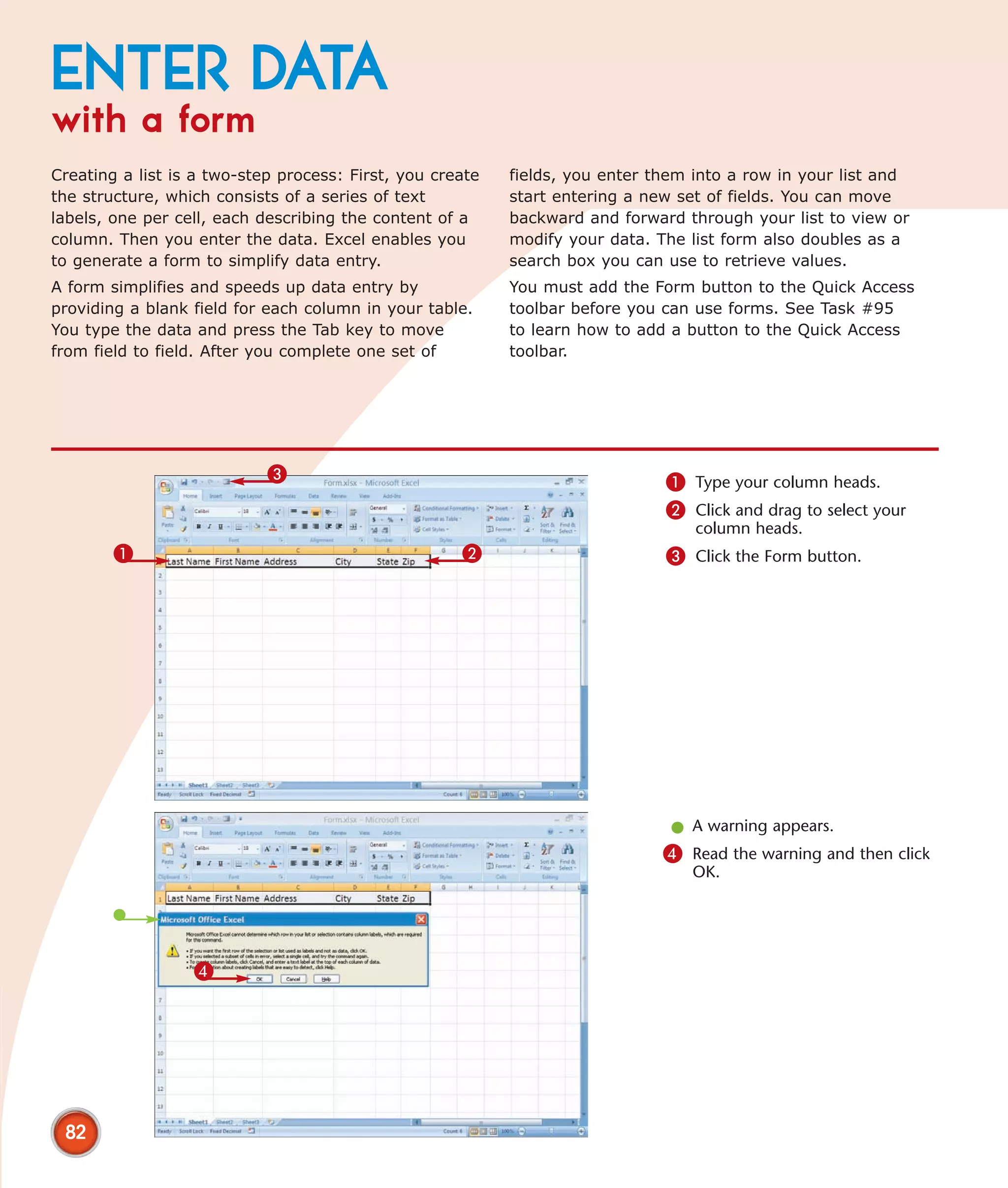
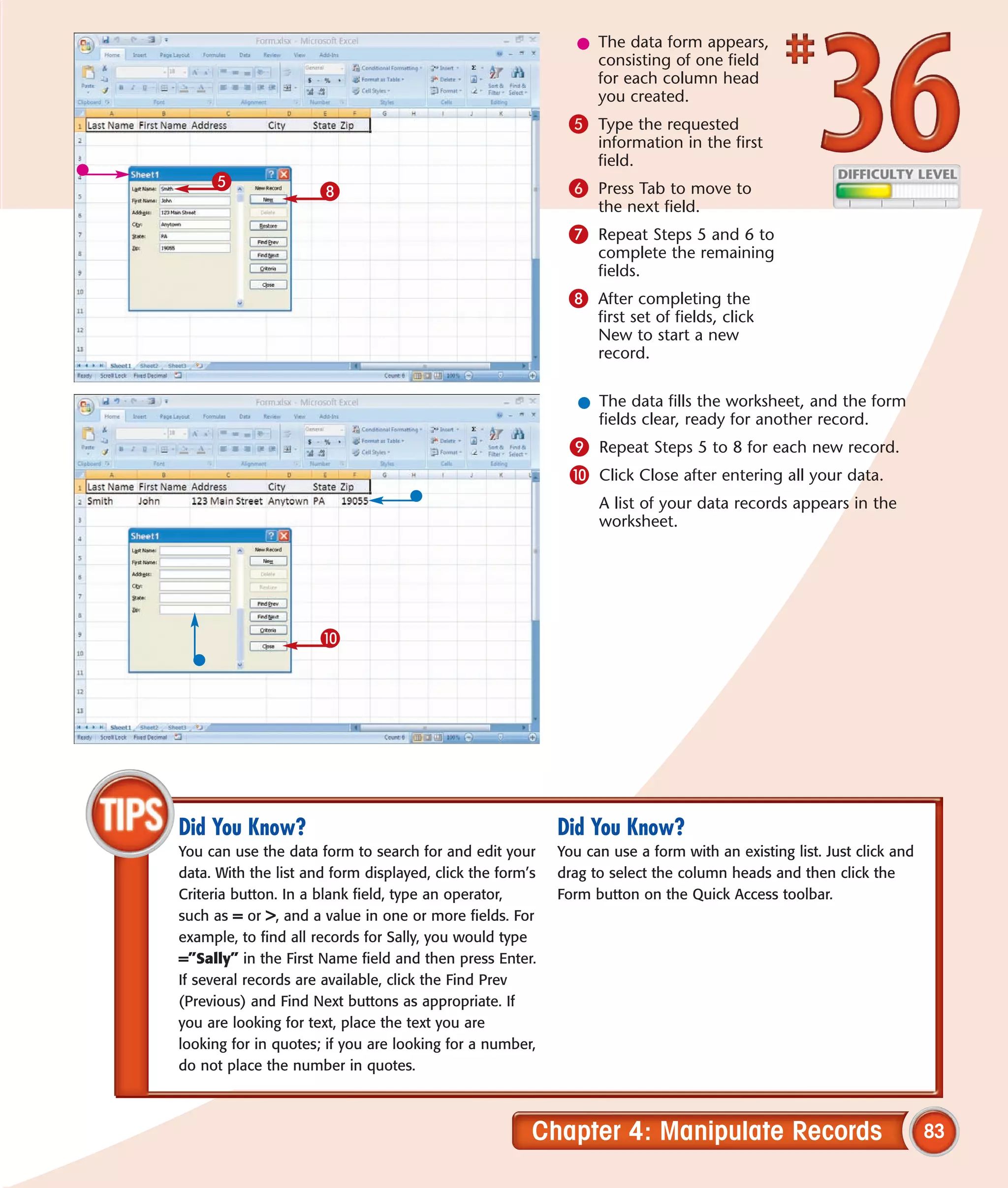
    midnight, such as 11 p.m. to 2     a negative time or date, this error    General format displays its serial
    a.m., you need a programming       is reflected by a series of pound      value. Use a Time or Date format
    function called modulus, or MOD.   signs (######).                        to display a recognizable date or
    The formula is =MOD(later time –                                          time. To display a time in
    earlier time, 1). Thanks to John                                          hour:minute format, right-click it,
    Walkenbach’s Excel 2003 Bible                                             click Format Cell, click Time, and
    (Wiley Publishing, 2003) for                                              click the 13:30 format.
    this tip.


                               Chapter 2: Work with Formulas and Functions                                          49
Perform
DATE CALCULATIONS
One special-purpose Date and Time function enables   date, and optionally, any intervening holidays that
you to find the number of workdays between two       automatically reduce the number of workdays
dates. Like other Excel functions, Date and Time     between the two dates. Excel automatically deducts
functions make use of the Function Wizard. As with   the number of weekend dates.
all functions, the wizard works with data you type   Excel can perform date arithmetic on any date after
into the wizard, such as a specific date, and with   January 1, 1900. If you use dates before then,
data you have typed into cells in your worksheet.    Excel treats them as text and does not perform
To calculate the number of workdays between two      a calculation on them. Instead, it gives you a
dates, you use the NETWORKDAY function. The          #VALUE! error.
function’s arguments include a start date, an end


                                                                        FIND NUMBER OF DAYS BETWEEN
                                                                        TWO DATES
                 4                                                      1 Type the start date.
                                                                        2 Type the end date.
             1                                                           l If you want the calculation to
                                                                           consider holidays, type the dates
                                                                           of holidays between the start
                                                                           and end dates.
                              2       3
                                                                        3 Click the field in which you want
                                                                            the result to appear.
                                                                        4 Click the Insert Function button.


                                                                        l The Insert Function dialog box
                                                                          appears.
                                                                       5 Click here and select Date &
                                                                           Time.
                                                                       6 Double-click NETWORKDAYS.


                                                           5

                                  6


 50
l The Function
                                                                Arguments dialog
                                                                box appears.
                                                             7 Click in the cell
                                                                 containing the start
                                                                 date or type the cell
                                                                 address.
                                                             8 Click in the cell
                                                                 containing the end
                                                                 date or type the cell
                               7                                 address.
                                      8
                                                              l Optionally, click and
                                                                drag the range of
                                                                holidays or type the
                                 9                              range.
                                                             9 Click OK.

                                                              l The cell with the formula displays the net
                                                                workdays between the two dates.


Did You Know?                             Did You Know?                     Did You Know?
In Excel you can enter the current        There are more than 15 ways you   When calculating NETWORKDAYS,
date simply by clicking in the cell       can format a date, including      if your start date is later than your
in which you want the date to             August 1, 1956; Aug 1, 1956;      end date, Excel returns a negative
appear and pressing the Ctrl and          01-Aug-56, Wednesday, August,     number.
semicolon keys at the same time.          1956, 8/1; and 8/1/56.


                              Chapter 2: Work with Formulas and Functions                                           51
Copy, Format, and More
If you have used Word, you know that copying         Excel makes use of the copy features built into
text for use in another document or application      Windows as well as those built into Office
enables you to reuse material and minimize           2007. You can store as many as 24 different
retyping and errors. Basic copying in Excel is       items on the Office Clipboard for pasting into
similar: Select the value and then click the Copy    Excel and other Office applications.
button in the Ribbon. In the new location, click
in the cell where you want to place the value        In this chapter, you learn to use the Office
and then click Paste. But copying can be both        Clipboard. You also learn to transpose a row
more involved and more powerful in Excel             into a column, to copy styles from one
because so many elements can occupy a cell:          worksheet to another, to copy formulas from
values, functions, formulas, formats, styles, and    one cell to another, to change text to numbers,
more. You can copy any of these elements             and much more. If you share your workbooks
between cells, worksheets, workbooks, and            with others, you may want to use the tip on
even applications. You can copy one value at a       keeping track of the changes.
time, such as a specific number or specific bit of
text, or many consecutively arranged values at
the same time, such as a range.
Check Your Formulas for Errors . . . . . . . . . . . . . . . . . . . . . 54


Trace Precedents and Dependents . . . . . . . . . . . . . . . . . . 56


Change Text to Numbers . . . . . . . . . . . . . . . . . . . . . . . . . . 58


Convert a Row to a Column . . . . . . . . . . . . . . . . . . . . . . . 60


Copy with the Office Clipboard. . . . . . . . . . . . . . . . . . . . . 62


Adjust Column Widths with Paste Special. . . . . . . . . . . . . 64


Specify How to Paste with Paste Special. . . . . . . . . . . . . . 66


Create Your Own Style. . . . . . . . . . . . . . . . . . . . . . . . . . . . 68


Copy Styles to Another Workbook . . . . . . . . . . . . . . . . . . 70


Conditionally Format Your Worksheet . . . . . . . . . . . . . . . 72


Track Changes While Editing . . . . . . . . . . . . . . . . . . . . . . . 76


Consolidate Worksheets. . . . . . . . . . . . . . . . . . . . . . . . . . . 78
CHECK YOUR FORMULAS
for errors
When you create formulas, you can nest a formula         argument. Click the Evaluate button to begin the
within another formula. Because there are so many        process. Excel underlines individual expressions. You
intermediate steps when you nest formulas,               can click the Evaluate button again to see the results
determining the accuracy of your results may be          of an expression. The results of expressions appear
difficult. You can use the Evaluate Formula dialog box   in italics.
to check the result of intermediate calculations to      If you base the reference on another formula, you
determine if your result is correct.                     can click the Step In button to display the formula.
When you open the Evaluate Formula dialog box, you       Click the Step Out button to return to the reference.
see your formula. The Evaluate Formula dialog box        After you step through the entire formula, Excel
steps you through the calculation one expression at      displays the result and a Restart button. Click the
a time so you can see how Excel evaluates each           Restart button to evaluate your expression again.


                2                                                           1 Click in the cell that contains the
                                                                                formula you want to check.
                                                         3
                                                                            2 Click the Formulas tab.
                                                                            3 Click Evaluate Formulas in the
                                                                                Formula Auditing group.


                                      1


                                                                             l The Evaluate Formula dialog box
                                                                               appears.
                                                                            4 Click Evaluate.
                                                                             l Excel begins evaluating the
                                                                               formula.


                                      4

 54
5 Continue clicking
                                                      Evaluate to review
                                                      each expression.
                                                  l Click Step In to review
                                                    the results of an
                                                    expression.
                                                  l Click Step Out to return
                                                    to the expression.


                 5


                                                  l When Excel reaches the end of the
                                                    formula, it displays the results.
                                                  l Click Restart to evaluate the formula
                                                    again.
                                                 6 Click Close to close the dialog box.


                                          6


Did You Know?                                  Did You Know?
The maximum number of functions you can nest   The #### error occurs when a cell is not wide
within a function is 64.                       enough or when you use a negative date or time.
                                               The #DIV/0 error occurs when you try to divide by
                                               zero. The #N/A error occurs when a value is not
                                               available to your function. The #VALUE error occurs
                                               when you use the wrong type of argument or
                                               operand.


                                        Chapter 3: Copy, Format, and More                            55
TRACE
precedents and dependents
When you create a formula, Excel evaluates all the            If you want to find out which formulas use a specific
values in the formula and returns the result. If Excel        cell, you can view a graphical representation by
cannot calculate the formula, it displays an error in         clicking in the cell and then clicking Trace
the formula’s cell. You can use the Excel trace               Dependents in the Formula Auditing group on the
features to help you locate your error.                       Formulas tab. This option draws blue arrows to each
You can view a graphical representation of the cells          cell that contains a formula that uses the active cell
a formula refers to by clicking in the cell and then          as an argument. If you perform this function before
clicking Trace Precedents in the Formula Auditing             deleting a value, you can determine if your deletion
group on the Formulas tab. This option draws blue             affects a formula in your worksheet.
arrows to each cell referenced by your formula. By
selecting this option, you can identify the exact cells
used by your formula.

                2
                                                          3                       TRACE PRECEDENTS
                                                                                  1 Click in the cell containing the
                                                                                      formula for which you want to
                                                                                      trace precedents.
                                                                                   l If the cell has an error, an Error
                                                          1                          button displays next to the
                                                                                     formula.
                                                                                  2 Click the Formulas tab.
                                                                                  3 Click Trace Precedents in the
                                                                                      Formula Auditing group.


                                                                                  l Excel draws arrows between the
                                                                                    cells on which the formula is
                                                          5                         based and the formula’s cell.
                                                                                 4 Make the appropriate
                                                                                     modifications to correct the error
                                                                                     in the formula.
                                                                                 5 Click Remove Arrows.
                                                                                     Excel removes the arrows.
                                                                                     Note: Click the down arrow next to
                                                                                     Remove Arrows to choose Remove
                                                                                     Arrow, Remove Precedent Arrows,
                    4                                                                or Remove Dependent Arrows.


 56
2                                                  TRACE DEPENDENTS
                                3                  1 Click in the cell for
                                                        which you want to
                                                        trace dependants.
                                                   2 Click the Formulas tab.
                                                   3 Click Trace Dependents.


                1


                                                     l Excel draws arrows between the formula’s
                                                       cell and the dependent cells.
                               4
                                                   4 Click Remove Arrows.
                                                        Excel removes the arrows.
                                                        Note: Click the down arrow next to Remove
                                                        Arrows to choose Remove Arrow, Remove
                                                        Precedent Arrows, or Remove Dependent
                                                        Arrows.


    Did You Know?
    When working with large or complicated worksheets, where the result of the formula is
    dependent on the results of another formula in another cell, you may want to monitor cell
    values. To do so, you can use the Watch Window. To add a cell to the Watch Window, click
    Watch Window on the Formulas tab in the Formula Auditing group. The Watch Window
    appears at the bottom of your screen. Click the Add Watch button. The Add Watch dialog
    box appears. Click and drag to select the cells you want to watch and then click Add. You
    can now monitor the cells you have added to the Watch Window.


                                       Chapter 3: Copy, Format, and More                            57
Change
TEXT TO NUMBERS
You can use formulas to perform complex calculations    You can address the problem in several ways. You
quickly and accurately on numbers, dates, or times.     can use the Format Cells dialog box to reformat the
Sometimes, however, your numbers look like numbers      text cells to numbers, but this method does not
but are, in fact, text — mere characters. If a number   always work. A more reliable technique is to multiply
is left-aligned in a cell, it is probably text; true    each numeral by 1 to convert the data type from text
numbers, by default, are right-aligned.                 to a number.
In Excel, text and numbers are different data types.    The numbers-as-text problem often occurs when you
You should use numbers, but not text, in mathematical   import data from another application — for example,
formulas and functions. Trying to include text in a     an external database such as Access. Chapter 9
mathematical calculation results in an error.           covers importing data in detail.


                                                                               Note: The left-aligned numbers
                                                                               in this task are really text. In Excel,
                                                                               the default position for numbers is
                                                                               the right side of the cell.
                                                                            l You cannot calculate the average;
                                                                              Excel displays a #DIV/0! error.


                 2                                                         1 Type 1 into any neighboring cell.
                3                                                          2 Click the Home tab.
                                                                           3 Click the Copy button.


                                         1


 58
4 Click and drag to
                                                                select the cells you
                                                                want to convert.
    5                                                      5 Right-click the selected
                                                                cells.
                                                                A contextual menu
4                                                               appears.
                                                           6 Click Paste Special.
                  6


                                                            l The Paste Special dialog box appears.
                                                           7 Click Multiply (       changes to      ).
                                                           8 Click OK.
                                                            l The numbers now appear on the right
                                                              side of their cells, and you can use them
                                                              in mathematical formulas.


          7

           8


    Did You Know?
    Excel can convert text-based numbers to actual numbers. Click the Office button and then click Excel
    Options. The Excel Options dialog box appears. Click Formulas. In the Error Checking Rules section,
    select Numbers Formatted as Text or Preceded by an Apostrophe (           changes to   ). Excel flags
    cells containing text by placing a green flag in the upper-left corner. Click the menu button
    appearing alongside any cells with this error. Click Convert to Number. If Excel is able to convert
    the text to a number, the numbers will right-align. This method does not always work.


                                              Chapter 3: Copy, Format, and More                             59
CONVERT A ROW
to a column
When you create a worksheet, Excel gives you               products, with each column describing a feature
flexibility when working with rows and columns. At         of the product: its ID, its price, the quantity in
any time, you can insert new rows or columns, delete       inventory, and so on. Tables typically have many
rows or columns, and move entire rows or columns           rows and fewer columns.
while retaining most of their properties. Sometimes,       With Excel, you can copy, or transpose, a row into
however, you may want to transpose a row into a            a column and vice versa by using the Paste Special
column — or vice versa.                                    dialog box. To ensure you have room for new
Transposing comes in handy when you need to create         worksheet data, you can place the transposed
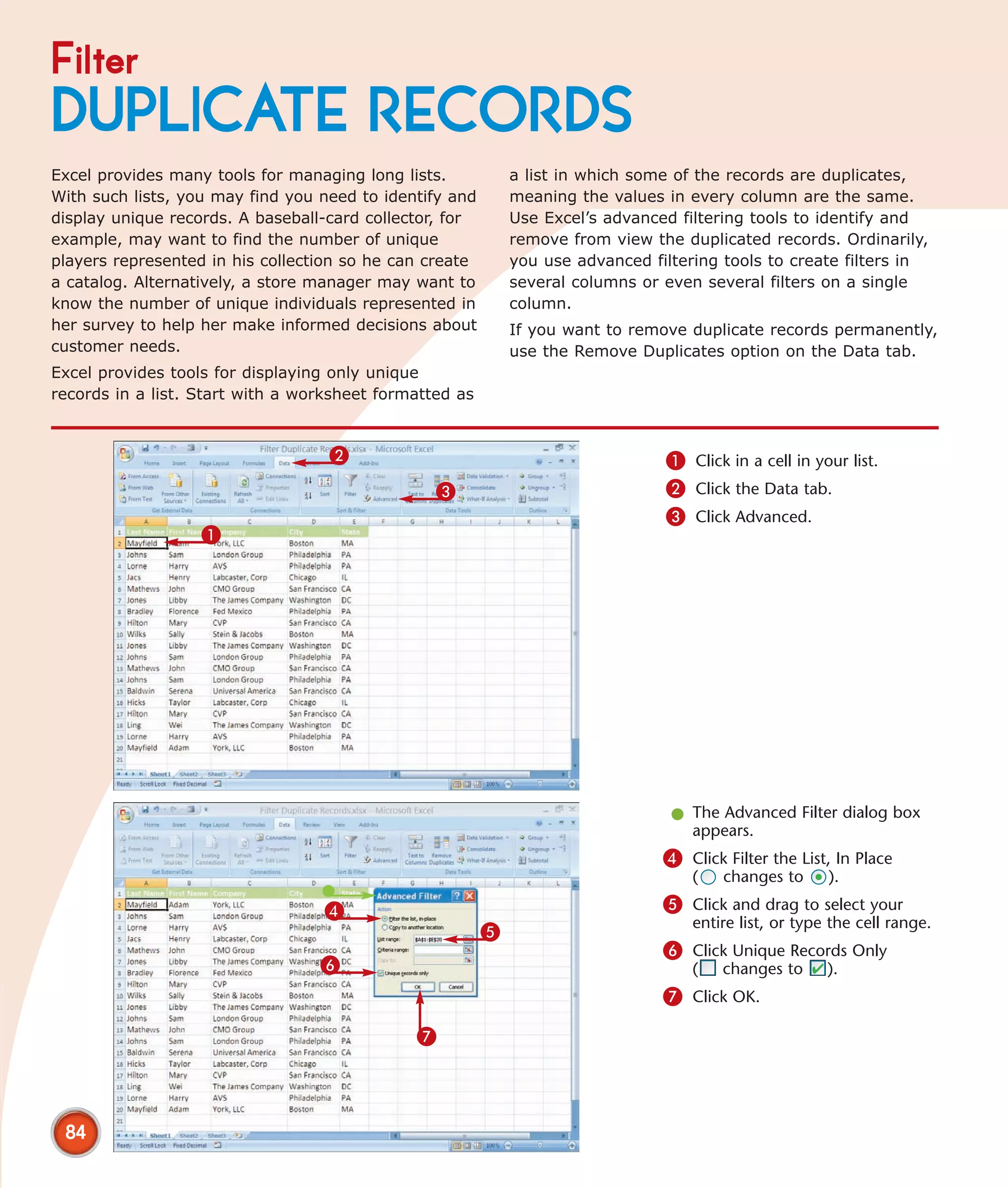
a table, a special kind of worksheet discussed in          columns or rows on a different worksheet or in a
Chapter 4. A table might consist of rows describing        new workbook.


                 2                                                             1 Click and drag to select the cells
                3                                                                  you want to transpose.
                                                                                   Note: Make sure a series of blank
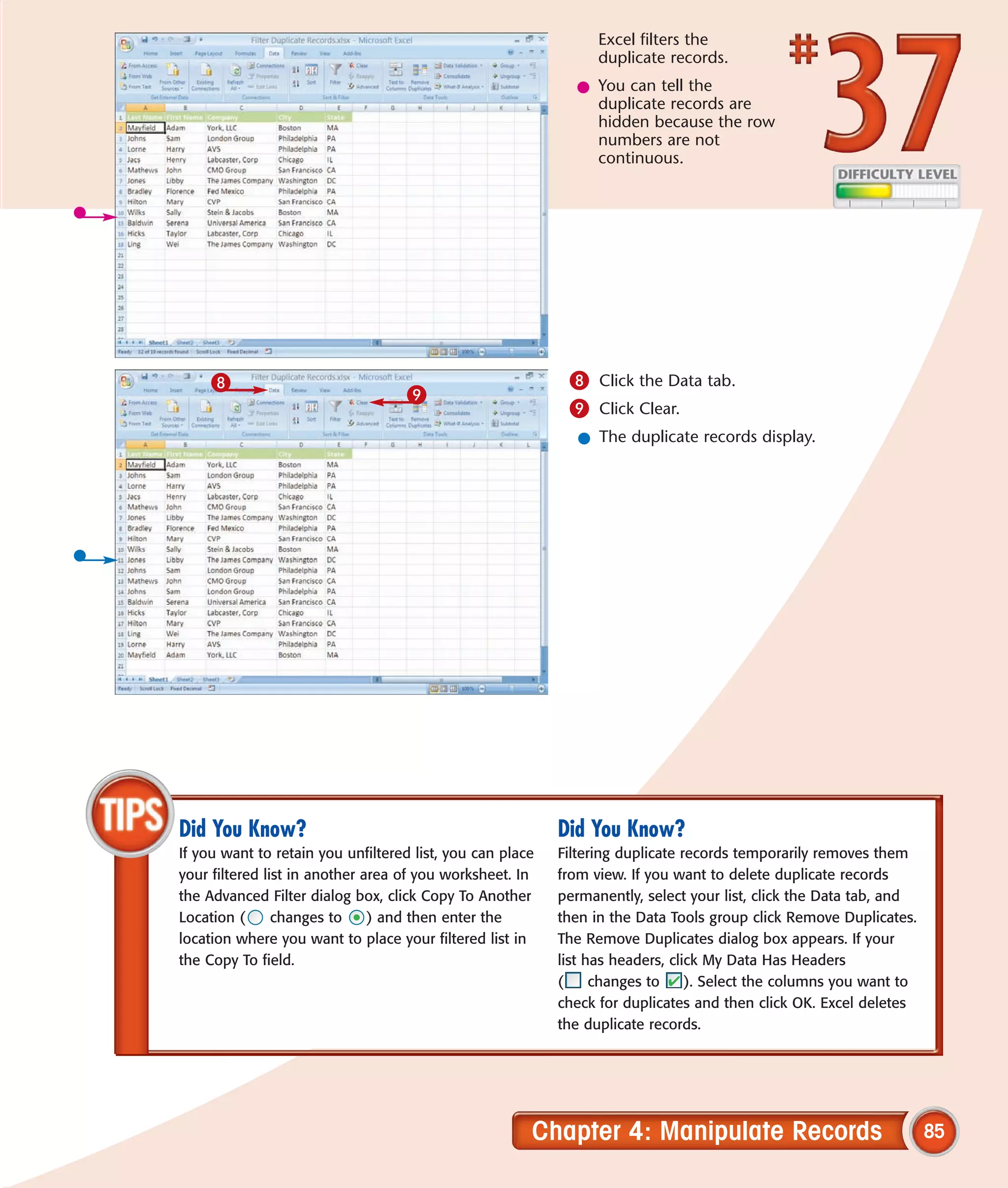
                                                                                   cells is available to accommodate
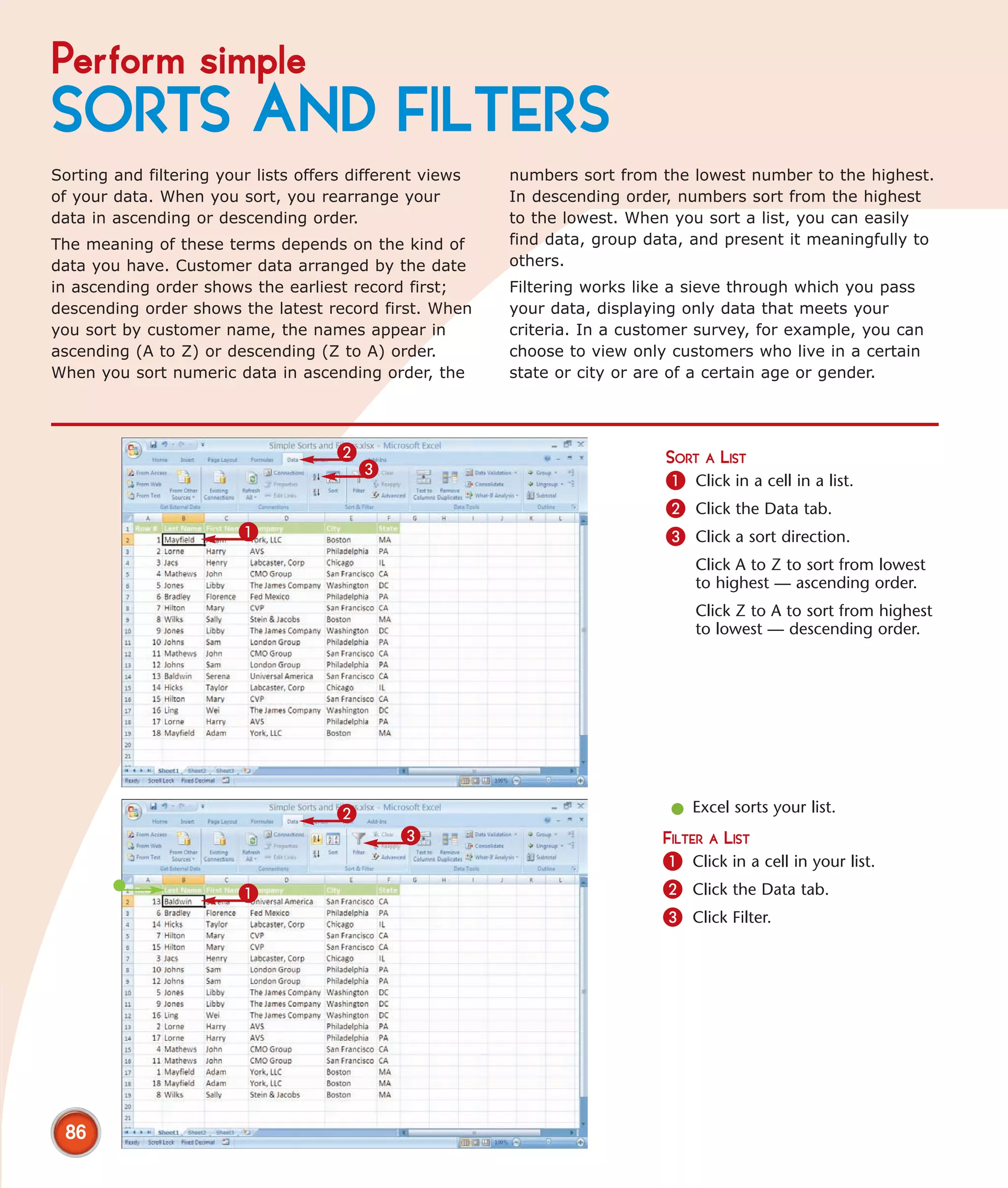
                                                       1                           the copied data.
                                                                               2 Click the Home tab.
                                                                               3 Click the Copy button.


                  5                                                           4 Click to select the first cell in the
                                                                                  new column or row.
              6                                                                   Note: Excel removes existing data
                                                                                  by copying over it.
                                                                              5 Click the Home tab.
                  7                4                                          6 Click Paste.
                                                                                  A menu appears.
                                                                              7 Click Paste Special.


 60
l The Paste Special dialog
                                                          box appears.
                                                       8 Click Transpose
                                                            (   changes to     ).
                                                       9 Click OK.


                    8


                               9
                                                         l The data appears in its new position.


Did You Know?                                         Did You Know?
With the TRANSPOSE function, you can transpose        You can avoid rearranging worksheets by designing
a grid of cells. Start by selecting an area large     them carefully. For long lists of people, things,
enough to hold the new grid. In the Formula bar,      transactions, and so on, arrange them in columns
type =TRANSPOSE( and then click the Insert            with descriptive column heads. Excel calls this
Function button. The Function Arguments dialog        type of layout a table. For more about tables, see
box appears. Select the cells you want to transpose   Chapter 4.
and then press Ctrl+Shift+Enter. Excel transposes
the grid.


                                          Chapter 3: Copy, Format, and More                                61
Copy with the
OFFICE CLIPBOARD
With Office 2007, you can place content into a            in the Clipboard group of the Home tab. You can use
storage area called the Clipboard and paste the           the Clipboard to store a range of cells. The Office
content into Excel or another Office application. Cut     Clipboard pastes the entire range, including all the
and copied content stays on the Clipboard until you       values, but any formulas in the cells are not included
close all Office applications. The Office clipboard can   when you paste.
store up to 24 cut or copied items. All the items on      After you paste an item from the Clipboard, Excel
the Clipboard are available for you to paste to a new     provides the Paste Options icon menu. You can use
location in Excel or in another Office document.          the menu to choose whether you want to use the
The Clipboard is not visible until you access it. In      source formatting or the destination formatting on
Excel, access the Clipboard by clicking the launcher      the pasted data.


                  2                                                          1 Click and drag to select the cells
                 3                                                               you want to copy.
                                                                             2 Click the Home tab.
                                                                             3 Click the Copy button.
                                                                                 Excel places a copy of the cells
                                            1                                    you selected on the Office
                                                                                 Clipboard.


                                                                             4 Click the Launcher in the
                                                                                 Clipboard group.

                 4                                                               The Clipboard Task Pane appears.


 62
5 Click the destination
                                                                  cell.
                                                              6 Click the item you
                                                                  want to paste.


6
                 5


                                                               l The content is pasted into the new
                                                                 location.
                                                               l In the Paste Options icon menu, choose
                                                                 whether to keep the formatting of the
                                                                 copied item or change it to match the
                                                                 formatting of the new location. The
                                                                 default is to match the formatting of the
                                                                 new location. Press Esc to accept the
                                                                 default and remove the menu.


    Did You Know?                                          Did You Know?
    To copy a cell range within or between worksheets,     To keep the Clipboard Task Pane from unexpectedly
    click and drag to select a series of cells and then    appearing while you are copying, open the pane,
    click the Copy button on the Home tab in the           click the Options button on the lower left, and select
    Clipboard group. To paste the range, navigate to the   Collect Without Showing Office Clipboard.
    worksheet to which you want to copy the range,
    click in the cell where you want the range to start,
    and click Paste on the Home tab in the Clipboard
    group.


                                                  Chapter 3: Copy, Format, and More                                 63
Adjust column widths with
PASTE SPECIAL
By clicking the Copy button on the Home tab,              You can paste more than once. For example, when
pressing Ctrl+C, or clicking Copy on a contextual         you paste by clicking Paste, Excel pastes the values,
menu, you can easily copy the contents of a range         formulas, and formats but does not adjust the
of cells so you can paste the contents somewhere          column widths. You can remedy this problem by
else in your worksheet. Cells can contain a lot of        pasting in two steps. In the first step, paste column
information. When you paste with Paste Special, you       widths. Excel adjusts the column widths. In the
decide exactly what information you want to paste.        second step, paste your values, formulas, and
You can choose to paste everything or you can             formats.
choose to paste just one element of the cell’s
contents, such as the formula, value, format,
comment, validation, or column width.


                       2                                                     1 Click and drag to select the cells
                      3                                                          you want to copy.
       5
                                                                             2 Click the Home tab.
                                                      4                      3 Click the Copy button.
       6                                                                     4 Place the cursor in the cell(s)
                                                                                 into which you want to paste.
                                                                             5 Click Paste.
                               1                                                 A menu appears.
                                                                             6 Click Paste Special.


                                                                              l The Paste Special dialog box
                                                                                appears.
                                                                             7 Click Column Widths
                                                                                 (   changes to      ).
                                                                             8 Click OK.


                         7


                           8


 64
l Excel copies the
                                                                column widths
9                                                               from the source to
                                                                the destination.
                                                             9 Click Paste.


                                                              l Excel pastes the contents of the cell.
                                                                 You can press Esc to end the copy session.


    Did You Know?                          Did You Know?                        Did You Know?
    You can choose the Skip Blanks         You can press Ctrl+C to copy. You    The Office Clipboard holds
    option (    changes to     ) in the    can press Ctrl+V to paste. You can   graphical objects, so you can
    Paste Special dialog box if your       press Ctrl+X to cut. Cutting moves   use it to bring digital pictures,
    source includes any blanks. If you     data from its current location to    WordArt, and clip art from
    do, Excel will not overwrite a         the location where you paste it.     other programs into Excel.
    destination cell with a blank if the
    destination cell has data in it.


                                                Chapter 3: Copy, Format, and More                                   65
Specify how to paste with
PASTE SPECIAL
You can use the Format Painter to copy formats from     When you want the results of a formula but not the
one cell to another. You can also use Paste Special.    formula itself, paste the value.
Simply copy a cell with the format you want, and        You can also use Paste Special to perform simple
then use Paste Special to paste the format into other   arithmetic operations on each cell in a range. For
cells. See Chapter 7 to learn more about the Format     example, in a list of prices, you may want to increase
Painter.                                                every price by 10 percent. You can use Paste Special
You can use the same steps to copy formulas or          to make the change quickly. Just type 1.10 in a
values from one location in your worksheet to           cell and then select Multiply in the Paste Special
another. When you want to use a cell’s formula in       dialog box.
other cells in your worksheet, paste the formula.


                                                                           1 Click in a cell with the format,
                       2                                                       formula, or value you want to
       4
                                                                               copy.
                                                                           2 Click the Copy button.
                                                                           3 Place the cursor in the cell(s)
       5                                                                       into which you want to paste.
                                                            3              4 Click Paste.
                                                                               A menu appears.
                                              1                            5 Click Paste Special.


                                                                            l The Paste Special dialog box
                                                                              appears.
                                                                           6 Click to select a Paste option
                                                                               (   changes to    ).
                                                                               This example copies a formula.
                                                                           7 Click OK.
         6
                                                                            l Excel pastes.


                   7


 66
8 Click in a cell with the
                                                            number by which you
                                                            want to add, subtract,
                                                            multiply, or divide.
                                                       9 Repeat Steps 2 to 5.
                     8
                                                         l The Paste Special
                                                           Dialog box appears.
                                                       0 Click an operation
                                                            (   changes to     ).
                                                       ! Click OK.


0

!

                                                         l Excel performs the operation you selected.


    Did You Know?                                     Did You Know?
    You can use the Paste Link option in the Paste    You do not have to open the Paste Special dialog
    Special dialog box to keep your source and        box to paste formulas and values. You can select
    destination data synchronized. If you click the   these options directly from the Paste menu on the
    Paste Link button when pasting, when you make     Home tab.
    changes to the source data, Excel automatically
    updates the destination data.


                                             Chapter 3: Copy, Format, and More                            67
Create your own
STYLE
By using Excel’s many format options, you can easily            You can create your own styles. To create a new style
format numbers, text, and cells. A style is a named             based on the current one, right-click the style in the
collection of formats you can share among users and             Cell Styles gallery and then click Modify. The Style
apply across workbooks. Styles streamline the work of           dialog box appears. Click Format. The Cells dialog
formatting so you and others can apply a consistent             box appears. Use the dialog box to select one or
set of formats to worksheet elements such as row                more formats. Click OK when you finish. Back in the
heads, column heads, and data values. Excel comes               Style box, give your new style a name, and then
with many styles, which you can view in the Style               click OK.
gallery. To apply one of Excel’s styles, select the cells
you want to apply it to and then click the style.


          2                                                                        GROUP FORMATS AS A STYLE
                                                            3                      1 Click in a cell with formats you
                                                                                       want to use as the basis for a
                                                                                       style.
                                                                                   2 Click the Home tab.
        1
                                                                                   3 Click Cell Styles.
                                                                                       The Styles gallery appears.
                                                                                   4 Click New Cell Style.
                                       4


                                                                                    l The Style dialog box appears.
                                                                                    l This area describes the formats of
                                                                                      the cell selected in Step 1.
                                                                                   5 Type a name for your style.
                                                                                   6 Click OK.
                                                5
                                                                                       You can now apply the style
                                                                                       throughout the current
                                                                                       workbook.


                                       6


 68
2                                                         APPLY A FORMAT STYLE
                                                                  1 Click and drag to select
                                             3                        the cells to which you
    4                                                                 want to apply the style.
                                                                  2 Click the Home tab.
1                                                                 3 Click Cell Styles.
                                                                      The Style gallery
                                                                      appears.
                                                                  4 Click the style you
                                                                      created.


                                                                   l Excel applies the style.


            Did You Know?                                       Apply It!
            You can use the Format Painter to apply styles,     You can build a style from the ground up rather
            and you can copy, and paste formats from one cell   than basing it on a formatted cell. Click the Home
            to another. However, if you use a format often,     tab and then click Cell Styles. The Style gallery
            consider creating a style. See Task # 71 to learn   appears. Click New Cell Style and then in the Style
            more about Format Painter.                          dialog box click Format. The Format cells dialog
                                                                box appears. You can use it to design your style.


                                                     Chapter 3: Copy, Format, and More                                69
COPY STYLES
to another workbook
A style is a collection of formats you use within a        change many cells at once by creating a style and
workbook. With styles, you maintain consistency in         applying the style to other cells. To use a style in
the way numbers, dates, times, borders, and text           another workbook, copy the style from one workbook
appear in cells. You can create a style based on any       to the other. When you copy a style into another
combination of formats available in the Format Cells       workbook, Excel calls that merging.
dialog box, which you access by clicking the Format        To copy styles, you need to open both the workbook
button in the Styles dialog box. One workbook can          from which you want to copy the style and the
contain many styles.                                       workbook to which you want to apply it.
Styles simplify your work and reduce the time
required to format worksheets. With styles, you can


                          1                                                   1 Open the file with your custom
                                                                                 style.

                1


                      2
       3                                                                     2 Open the workbook into which
                                                                                 you want to merge styles.
                                                       4                     3 Click the Home tab.
                                                                             4 Click Cell Styles.
                                                                                 The Styles gallery appears.
                                                                             5 Click Merge Styles.


                 5


 70
l The Merge Styles
                                                              dialog box appears.
                                                          6 Click the workbook
                                                               whose styles you
                                                               want to use.
                                                          7 Click OK.
6


         7


                                                            l The copied styles are now available in the
                                                              new workbook.


    Did You Know?                                        Apply It!
    Each style in a workbook must have a unique          Using a style copied into a workbook works the
    name. If you try to copy a style into a workbook     same as if you created the style within the
    containing a style with the same name, a warning     workbook. To use a copied style, select the cell
    box appears when you click OK in the Merge           or range of cells to be styled. Click Home and
    Styles dialog box. If you want the imported style    then click Cell Styles in the Styles group. The
    to take the place of the existing style, click OK.   style gallery appears. Click the imported style.
    Otherwise, click No or Cancel.


                                             Chapter 3: Copy, Format, and More                              71
Conditionally
FORMAT YOUR WORKSHEET
If you want to monitor your data by highlighting         the bottom N percent, above average values, or
certain conditions, Excel’s conditional formatting       below average values.
feature can aid you. For example, if your company        Changes affect conditionally-formatted data. If, after
offers a bonus whenever sales exceed 150,000             a change, a cell no longer meets the condition, Excel
dollars, you can have Excel highlight cells containing   removes the highlighting. If, after a change, a cell
sales figures whenever the value is more than            meets the condition, Excel adds highlighting. You
150,000 dollars. You can also have Excel highlight       determine exactly what the condition is and what
a cell when the entry is less than, between, or equal    should happen if a cell meets the condition. Excel
to a specified value. Use Excel’s conditional            provides you with a list of formats from which to
formatting feature to monitor text, dates, duplicate     choose, and you can also create a custom format.
values, the top N, the top N percent, the bottom N,


        2
                                                         3                   CONDITIONAL FORMAT
                                     4                          5            1 Click and drag to select the data
                                                                                you want to monitor.
                                                                             2 Click the Home tab.
                                                                             3 Click Conditional Formatting.
                                                                                A menu appears.
                                                                             4 Click to select a menu option.
                                                                                A submenu appears.
                        1
                                                                             5 Click to select a menu option.


                                                                             l A dialog box appears.
                                                                                Note: This example uses
                                                                                Greater Than.
                                                                            6 Type your criteria.
                                                                            7 Click here and select the
                                                                                formatting you want to apply.
                                                                                You can choose to create a
                                                                                custom format.
                                                                            8 Click OK.
        6                                 7
                      8                                                      l Excel highlights all of the data
                                                                               that meets your criteria.


 72
DATA BARS
                                                         1 Repeat Steps 1 to 3
                                                              listed under Conditional
                                                              Format.
                 2                                3       l This is the selected
                                                            data.
                                                              A menu appears.
                                                         2 Click Data Bars.
                                                              A submenu appears.
                                                         3 Click the color data bar
                                                              you want to use.


                                                          l Excel applies the data bars to the cells you
                                                            selected.


Did You Know?                                          Did You Know?
Excel provides you with several colors to choose       You can use color scales to conditionally format data.
from when you add data bars to your worksheet.         Color scales use gradations of color. For example, if
You can select another color. Click the Home tab       you use Excel’s yellow and green color scale, yellow
and then click Conditional Formatting in the Styles    represents lower values and green, higher values. To
group. A menu appears. Click Data Bars and then        apply a color scale, select the cells to which you
click More Rules. The New Formatting Rule dialog       want to apply the scale, click the Home tab, click
box appears. Use the Bar Color field to select a new   Conditional Formatting, click Color Scales, and then
color. Click OK.                                       click the color scale you want to apply.


                                             Chapter 3: Copy, Format, and More                                  73
Conditionally
FORMAT YOUR WORKSHEET
Data bars enable you to discern at a glance how large      represent the relative size of the cell value, and icon
a value in one cell is relative to the values in other     sets use icons to represent the relative size of the
cells. A data bar is a colored bar you place in a cell.    value.
The length of the bar represents the value of the cell     Data bars, color scales, and icon sets all use rules to
relative to other cells — the longer the bar, the higher   determine when to display what. You can use the
the value. Excel provides you with several bars from       rules defined by Excel or you can create your own
which to choose and you can design your own.               rules. At the bottom of the data bar, color scale, or
Color scales and icon sets are similar to data bars,       icon set menu, click More Rules to adjust rules.
except color scales use gradients of color to


                                                                               MODIFY RULES
                                                                               1 Repeat Steps 1 to 3 listed under
                                                                                   Conditional Format.
                                                                                l This is the selected data.
                                                                                   A menu appears.
                                                           2                   2 Click Icon Sets.
                                                                                   Alternatively, you can click Data
                                                                                   Bars or Color Scales. Each allows
                                                                                   you to change the associated
                                                                                   rules.
                                      3                                            A submenu appears.
                                                                               3 Click More Rules.


                                                                                l The New Formatting Rule dialog
                                                                                  box appears.
                                                                               4 Click here and select a rule type.
                                                                               5 Click here and select a format
                                                                                   style.

                    4                                                          6 Click here and select an operator.
                                                                               7 Type a value or click in the cell
                                    5                                              that contains the value you want
                                        6                                          to use.
                                             7
                                                                               8 Click here and select a type.
                                                           8                       Note: You can choose Number,
                                                                                   Percent, Formula, or Percentile.


 74
9 Click here and select an
                                                         icon style.
                                                     0 Click OK.


                9

                                 0


                                                      l Excel displays the results of your rule.


Did You Know?                                       Did You Know?
You can Sort by Cell Color, Font Color, or Icon.    If you click Show Icon Only, Show Bar Only, or
Right-click in any cell that has conditional        Show Color Only in the New Formatting Rule
formatting applied to it. A context menu appears.   dialog box (     changes to      ), Excel displays
Click Sort and then select the appropriate sort     icons, bars, or color, but not the values in
option. To learn more see Task #40.                 each cell.


                                         Chapter 3: Copy, Format, and More                               75
TRACK CHANGES
while editing
If you work in a networked environment and several   track — for example, everyone in the workgroup,
people work on the same worksheet, you may need      everyone but you, or a named individual. Use Where
to account for who makes what change, in which       to specify the rows and columns whose data you
cells, and when. To do so, you can use the Track     want to monitor.
Changes feature.                                     When someone makes a change, Excel indicates the
In the Highlight Changes dialog box, use the When,   change by placing a small purple triangle in the upper-
Who, and Where options. Use When to define the       left corner of the changed cell. Excel records cell
time after which edits are tracked — for example,    changes in automatically generated cell comments.
after a specific date or since you last saved. Use   You can view these comments by moving your mouse
Who to identify the group whose edits you want to    pointer over the cells.


                        1                                                1 Click the Review tab.
                                                          2              2 Click Track Changes.
                                           3
                                                                            A menu appears.
                                                                         3 Click Highlight Changes.


                                                                         l The Highlight Changes dialog
                                                                           box appears.
                                                                        4 Click Track Changes While
                                                                            Editing (   changes to    ).
                                                                            The optional When, Who, and
                                                                            Where fields become available.

                    4


 76
5 Click here and select
                                                                  when to track changes.
                                                             6 Click here and select
                                                                  whose changes to track.
                                                             7 Type the cell range, or
                                                                  click and drag to select
                                                                  the cells you want to
                                      5                           monitor.
                                          6
                                              7              8 Click Highlight Changes
8
                                                                  On Screen to insert a
            9                                                     purple flag into edited
                                                                  cells ( changes to ).
                                                             9 Click OK.
                          0                                  0 A message informs you
                                                                  that Excel has saved your
                                                                  workbook. Click OK.

                                                               l Purple flags appear in edited cells.
                                                               l To view a cell’s comment, move your
                                                                 cursor over the cell.
                                                                  Note: For more about comments, see
                                                                  Task #7.


Did You Know?                                               Did You Know?
To view all worksheet changes after you or others           You can review every change made to a worksheet
make edits, open the Highlight Changes dialog box           and either accept or reject the change. Click the
and click the List Changes on a New Sheet option            Review tab, click Track Changes, and then click
(    changes to     ). For the Who field, click Everyone.   Accept/Reject Changes. The available options let you
Click to uncheck the When and Where fields. Click           restrict your review to changes by certain people and
OK. Excel creates a new worksheet called History that       at certain times.
shows each change, the type of change, the values
changed, the person who made the change, and so
on. You can sort and filter the worksheet.


                                                Chapter 3: Copy, Format, and More                                   77
CONSOLIDATE
worksheets
If you keep related data in separate worksheets, or           You start the consolidation process by selecting the
for that matter, separate workbooks, you may                  location for your consolidated data. You may want to
eventually want to consolidate. For example, if you           format your cells so that the incoming data displays
keep sales information for several regions on                 properly. You then select the function you want to
separate worksheets, you may want to consolidate              use to consolidate you data. The SUM function takes
the worksheets to find the total sales for all regions.       the data from each location you specify and adds it
Excel’s Consolidate feature allows you to do just             together. You tell Excel the location of the data you
that. Excel provides a variety of functions you can           want to consolidate. The data can be in the same
use to consolidate including SUM, COUNT, AVERAGE,             workbook or another workbook. Excel takes the data
MAX, MIN, and PRODUCT.                                        and consolidates it.


                      2                                                          1 Click in the top-left cell of the
                                                                 3                   range into which you want to
                                                                                     consolidate your data.
                                                                                 2 Click the Data tab.
                                                                                 3 Click Consolidate.
                             1


                                                                                  l The Consolidate dialog box
                                                                                    appears.
                                                                                 4 Click here and select the function
                                                                                     you want to use to consolidate
                                                                                     your data.


                                                          4


 78
5 Click and drag to
                                                                 select the location of
                                                                 your data or type the
                                                                 cell range.
                                                             6 Click Add.
                                                             7 Repeat Steps 5 and 6
                                                                 as necessary.
                                                             8 Click OK.
                                 5
                                  7                    6
      5
                             8


                                                              l Excel consolidates your data.


Did You Know?                                              Did You Know?
To include data from another workbook in your              If you click Create Links to Source Data (    changes
worksheet, open the other workbook. In the                 to    ) in the Consolidate dialog box, Excel updates
Consolidate dialog box in your original workbook,          your consolidated data each time you make a change
place your cursor in the Reference field. Click the        to the data on which you base your consolidation.
View tab, click Switch Windows, and select the other
workbook. Click and drag to specify the data you
want to consolidate. Click Add. Click OK. Excel
consolidates the data.


                                             Chapter 3: Copy, Format, and More                                     79
Manipulate Records
A list is a set of columns and rows. Each          Advanced filtering gives you tools for filtering
column represents a single type of data. For       out duplicate records and applying multiple
example, a list might have three columns:          complex filters to your data.
name, gender, and age. Each row in the list is
a record. For each record in the list, the name    With data formatted as a list, you can count,
column contains a name, the gender column          average, and subtotal parts of your data that
contains a gender, and the age column contains     meet certain criteria. In a customer survey, for
an age. When you structure a worksheet as a        example, you can count the number of senior
list, you can tap the Excel database-like          citizens who prefer a certain sport or compare
capabilities that go beyond what is possible       the time spent online among different age
with a simple worksheet.                           groups in different communities. You carry out
                                                   calculations by using the Ribbon or by using
This chapter shows you how to work with lists      database functions. Refer to Chapter 2 to learn
and other data that you structure as lists.        more about functions.
Much of the chapter focuses on sorting and
filtering. To sort means to arrange a list in      When you organize data into a list, you have
order, either alphabetically or numerically. You   access to lookups, a special way of searching
can sort and re-sort lists as necessary and        for data. You might use a lookup to retrieve a
even sort within a sort. To filter means to        stock price by typing a stock symbol. You can
display only the information that meets            also create a powerful analytical tool called a
certain criteria — temporarily hiding the rest.    PivotTable, which is discussed in Chapter 5.
Enter Data with a Form . . . . . . . . . . . . . . . . . . . . . . . . . . . 82


Filter Duplicate Records . . . . . . . . . . . . . . . . . . . . . . . . . . . 84


Perform Simple Sorts and Filters . . . . . . . . . . . . . . . . . . . . 86


Perform Complex Sorts . . . . . . . . . . . . . . . . . . . . . . . . . . . 88


Sort by Cell Color, Font Color, or Icon . . . . . . . . . . . . . . . 90


Perform Complex Filters . . . . . . . . . . . . . . . . . . . . . . . . . . 92


Filter by Multiple Criteria. . . . . . . . . . . . . . . . . . . . . . . . . . 94


Subtotal Sorted Data . . . . . . . . . . . . . . . . . . . . . . . . . . . . . 96


Chart Filtered Data Easily. . . . . . . . . . . . . . . . . . . . . . . . . . 98


Count Filtered Records. . . . . . . . . . . . . . . . . . . . . . . . . . . 100


Look Up Information in Your Worksheet . . . . . . . . . . . . 102


Define Data as a Table . . . . . . . . . . . . . . . . . . . . . . . . . . . 104


Modify a Table Style. . . . . . . . . . . . . . . . . . . . . . . . . . . . . 106
ENTER DATA
with a form
Creating a list is a two-step process: First, you create   fields, you enter them into a row in your list and
the structure, which consists of a series of text          start entering a new set of fields. You can move
labels, one per cell, each describing the content of a     backward and forward through your list to view or
column. Then you enter the data. Excel enables you         modify your data. The list form also doubles as a
to generate a form to simplify data entry.                 search box you can use to retrieve values.
A form simplifies and speeds up data entry by              You must add the Form button to the Quick Access
providing a blank field for each column in your table.     toolbar before you can use forms. See Task #95
You type the data and press the Tab key to move            to learn how to add a button to the Quick Access
from field to field. After you complete one set of         toolbar.


                            3                                                 1 Type your column heads.
                                                                              2 Click and drag to select your
                                                                                  column heads.
        1                                            2                        3 Click the Form button.


                                                                               l A warning appears.
                                                                              4 Read the warning and then click
                                                                                 OK.


                  4


 82
l The data form appears,
                                                                consisting of one field
                                                                for each column head
                                                                you created.
                                                            5 Type the requested
                                                                 information in the first
                                                                 field.
     5                                                      6 Press Tab to move to
                      8
                                                                 the next field.
                                                            7 Repeat Steps 5 and 6 to
                                                                 complete the remaining
                                                                 fields.
                                                            8 After completing the
                                                                 first set of fields, click
                                                                 New to start a new
                                                                 record.


                                                              l The data fills the worksheet, and the form
                                                                fields clear, ready for another record.
                                                            9 Repeat Steps 5 to 8 for each new record.
                                                            0 Click Close after entering all your data.
                                                                 A list of your data records appears in the
                                                                 worksheet.


                      0


Did You Know?                                              Did You Know?
You can use the data form to search for and edit your      You can use a form with an existing list. Just click and
data. With the list and form displayed, click the form’s   drag to select the column heads and then click the
Criteria button. In a blank field, type an operator,       Form button on the Quick Access toolbar.
such as = or >, and a value in one or more fields. For
example, to find all records for Sally, you would type
=”Sally” in the First Name field and then press Enter.
If several records are available, click the Find Prev
(Previous) and Find Next buttons as appropriate. If
you are looking for text, place the text you are
looking for in quotes; if you are looking for a number,
do not place the number in quotes.


                                                       Chapter 4: Manipulate Records                                  83
Filter
DUPLICATE RECORDS
Excel provides many tools for managing long lists.           a list in which some of the records are duplicates,
With such lists, you may find you need to identify and       meaning the values in every column are the same.
display unique records. A baseball-card collector, for       Use Excel’s advanced filtering tools to identify and
example, may want to find the number of unique               remove from view the duplicated records. Ordinarily,
players represented in his collection so he can create       you use advanced filtering tools to create filters in
a catalog. Alternatively, a store manager may want to        several columns or even several filters on a single
know the number of unique individuals represented in         column.
her survey to help her make informed decisions about         If you want to remove duplicate records permanently,
customer needs.                                              use the Remove Duplicates option on the Data tab.
Excel provides tools for displaying only unique
records in a list. Start with a worksheet formatted as


                                   2                                            1 Click in a cell in your list.
                                                 3                              2 Click the Data tab.
                                                                                3 Click Advanced.
                   1


                                                                                 l The Advanced Filter dialog box
                                                                                   appears.
                                                                                4 Click Filter the List, In Place
                                                                                    (   changes to      ).

                                  4                                             5 Click and drag to select your
                                                                                    entire list, or type the cell range.
                                                         5
                                                                                6 Click Unique Records Only
                                  6                                                 (   changes to      ).
                                                                                7 Click OK.

                                              7


 84
Excel filters the
                                                                 duplicate records.
                                                             l You can tell the
                                                               duplicate records are
                                                               hidden because the row
                                                               numbers are not
                                                               continuous.


     8                                                      8 Click the Data tab.
                                   9
                                                            9 Click Clear.
                                                             l The duplicate records display.


Did You Know?                                              Did You Know?
If you want to retain you unfiltered list, you can place   Filtering duplicate records temporarily removes them
your filtered list in another area of you worksheet. In    from view. If you want to delete duplicate records
the Advanced Filter dialog box, click Copy To Another      permanently, select your list, click the Data tab, and
Location (      changes to     ) and then enter the        then in the Data Tools group click Remove Duplicates.
location where you want to place your filtered list in     The Remove Duplicates dialog box appears. If your
the Copy To field.                                         list has headers, click My Data Has Headers
                                                           (     changes to     ). Select the columns you want to
                                                           check for duplicates and then click OK. Excel deletes
                                                           the duplicate records.


                                                       Chapter 4: Manipulate Records                                85
Perform simple
SORTS AND FILTERS
Sorting and filtering your lists offers different views   numbers sort from the lowest number to the highest.
of your data. When you sort, you rearrange your           In descending order, numbers sort from the highest
data in ascending or descending order.                    to the lowest. When you sort a list, you can easily
The meaning of these terms depends on the kind of         find data, group data, and present it meaningfully to
data you have. Customer data arranged by the date         others.
in ascending order shows the earliest record first;       Filtering works like a sieve through which you pass
descending order shows the latest record first. When      your data, displaying only data that meets your
you sort by customer name, the names appear in            criteria. In a customer survey, for example, you can
ascending (A to Z) or descending (Z to A) order.          choose to view only customers who live in a certain
When you sort numeric data in ascending order, the        state or city or are of a certain age or gender.


                                      2                                      SORT A LIST
                                          3
                                                                             1 Click in a cell in a list.
                                                                             2 Click the Data tab.
                         1                                                   3 Click a sort direction.
                                                                                 Click A to Z to sort from lowest
                                                                                 to highest — ascending order.
                                                                                 Click Z to A to sort from highest
                                                                                 to lowest — descending order.


                                      2                                       l Excel sorts your list.
                                              3                              FILTER A LIST
                                                                             1 Click in a cell in your list.
                         1                                                   2 Click the Data tab.
                                                                             3 Click Filter.


 86
l Down arrows appear
                                                              next to your field
                                                              headers.
                                                          4 Click a down arrow.
                              4
                                                               The Sort and Filter
                                                               dialog box appears.
                                                          5 Click to deselect the
                                                               items you do not want
                                                               to appear ( changes
5                                                              to ).
                                                          6 Click OK.
    6


                                                            l Excel filters your list.
                                                               In this example, CA and
                                                               MA do not appear.


Did You Know?                                            Did You Know?
When you click the down arrow Excel creates when         When you perform a filter, Excel places down
you click Filter, Excel provides options for filtering   arrows next to your field headers. Fields you have
your data. It also provides options for sorting your     filtered have a filter button ( ) on the down
data. You can perform simple sorts, complex sorts,       arrow. Fields you have sorted in ascending order
or you can sort by cell color, font color, or icon.      have an up-arrow button on the down arrow ( ).
See Task #s 39 and 40 to learn more about                Fields you have sorted in descending order have a
sorting.                                                 down-arrow button on the down arrow ( ).


                                                     Chapter 4: Manipulate Records                            87
Perform
COMPLEX SORTS
Sorting a list by one criterion, such as age, arranges   With your data sorted in this way, you can create
your records for easy scanning. You can also sort        subtotals, averages, and counts at every break in
by multiple criteria — a sort within a sort. When        a category — that is, for all people in a specific
possible, sort first by a discrete category such as      community, for men and women in that community,
gender, community, region, or department. That way,      and so on.
subsequent sorts apply to the multiple values            You define all sorts in the Sort dialog box. Ascending
contained within each category.                          and descending are not your only choices. In the
For example, after sorting your customer records by      Sort dialog box, you can click Options to specify a
community, you could sort them by gender to display      custom order. For example, you could order months
the communities in which the men and women live.         chronologically from January to December instead of
Sorting by a third column, income, would then show       alphabetically from April to November, which, in most
how men’s and women’s incomes differ in each             cases, would not be useful.
community.


                                       2                                    1 Click in a cell in your list.
                                           3
                                                                            2 Click the Data tab.
                                                                            3 Click Sort.
        1


                                                                             l The Sort dialog box appears.
                                                                            4 Click here and select the column
                                                                                by which you want to sort.
                                                                            5 Click here and select Values.
       7                                                                    6 Click here and select a sort order.
                                                 6                          7 Click the Add Level button.


                       4         5


 88
l A new level appears.

                                    9                         8 Repeat Steps 4 and 5
                                                                   to sort by an additional
                                                                   criterion.
           @                                                  9 Click here and select
                                                                   Custom List.
                                                                l The Custom Lists dialog
0                                                                 box appears.
                                                              0 Click to sort by days of
                                                                   the week or months of
                                                                   the year.
     !                                                        ! Click OK to close the
                                                                   Custom Lists dialog box.
                                                              @ Click OK to close the
                                                                   Sort dialog box.

                                                                l The list sorts according to the sort order
                                                                  specified, along with any options chosen.


    Did You Know?                                            Did You Know?
    Excel defines different sorts as follows. For numbers,   In the Sort dialog box, click Delete Level to delete
    ascending order goes from the smallest number to         a level of sort. Click Copy Level to copy a level of
    the largest. For text that includes numerals, as in U2   sort. Click     to move a sort level up. Click    to
    and K12, ascending order places numerals before          move a sort level down.
    symbols and symbols before letters. Case does not
    matter unless you click Options in the Sort dialog
    box and then click the Case Sensitive check box
    (    changes to      ).


                                                         Chapter 4: Manipulate Records                              89
SORT
by cell color, font color, or icon
You can use conditional formatting to set criteria and   You can also manually assign cells a font or cell color.
then format your data based on that criteria. For        Then you can sort cells by these colors. Select a
example, you can have the highest ten values in a        single column and then click a sort button on the
list appear in a particular color or font or with an     Ribbon to sort your data. You can nest your sorts.
icon. You can have values that meet other criteria       In the Sort dialog box, you can select the color you
appear in another color or font or with another icon.    want to sort by and then tell Excel whether you want
See Task #33 to learn how to conditionally format        to send items of that type to the top or the bottom
your data. You can then sort your data based on the      of the list.
cell color, font, or icon you assign.


                                       3                                     1 Format your data with a color,
                                           4                                     font, or icon.
                                                                             2 Select the data you want to sort.
                                                                                 Note: If you have formatted your
                                                                                 data as a list, click in any cell in
                                                                                 the table.
       1                     2                                               3 Click the Data tab.
                                                                             4 Click Sort.


                                                                              l The Sort dialog box appears.
                                                                             5 Click here and select the column
                                                                                 by which you want to sort.
                                                                             6 Click here and select whether
                                                                                 you want to sort by a value, cell
                                                                                 color, font color, or icon.


                                  5          6


 90
l If you select Cell Color,
                                                             Font Color, or Cell Icon,
                                                             an Order field appears.
                                                         7 Click here and select a
                              7                               color or icon.
9
                                                         8 Click here and select
                                           8                  from On Top or On
                                                              Bottom.
                                                              Click On Top to
                                                              send the items that
                                                              match the criteria to
                                                              the top of the list.
                                                              Click On Bottom to
                                                              send the items that
                                                              match the criteria to
                                                              the bottom of the list.
                                                          9 Click the Add Level button to add another
                                                              level of sort.
                                                              Repeat Steps 5 to 8, as necessary.
                                                          0 Click OK when you finish.
                                                           l Excel sorts your data by font, color, or
                                                             icon.


    Did You Know?                                        Did You Know?
    An alternative way to sort by color, font, or icon   By default, Excel sorts from top to bottom. If
    is to right-click in any cell that has the color,    you want to sort from left to right, click Options
    font, or icon by which you want to sort. A menu      in the Sort dialog box. The Sort Options dialog
    appears. Click Sort. Another menu appears.           box appears. Click Sort Left to Right.
    Click to choose from Put Selected Cell Color
    on Top, Put Selected Font Color on Top, or Put
    Selected Icon on Top.


                                                    Chapter 4: Manipulate Records                             91
Perform
COMPLEX FILTERS
Whereas sorting rearranges all records in ascending         Missouri or all men over 65. You can also create a
or descending order, filtering enables you to see only      filter that displays the records for a column’s top ten
the records that match your criteria, hiding the rest.      values. With Excel, you can combine filters, applying
Criteria look like this: Age is greater than 65 and State   different criteria to different columns.
equals Missouri, where Age and State are the names          By applying several filters, you can quickly narrow
of column heads. When you filter a list, down arrows        down a long list to the few records of interest to you.
appear to the right of every column head.                   Criteria that apply to too narrow a range of values,
Click a column’s arrow to select values, such as            however, might not return any records. To filter a list
Missouri or Age greater than 65. By applying a filter,      by multiple criteria, start with a worksheet formatted
you display only those records that contain certain         as a list.
values in the column — for example, all customers in


                                      2                                         1 Click in a cell in your list.
                                              3
                                                                                2 Click the Data tab.
                                                                                3 Click Filter in the Sort & Filter
        1                                                                           group.


                                                                                 l Down arrows appear next to all
                                                                                   of your column heads.
                                                                                4 Click the down arrow next to the
                                                                                    field you want to filter.
                                                4
                                                                                5 Click Number Filters if you chose
                                                                                    a number field.
                                                                                    Alternatively, click Text Filters
                    5                                                               if you chose a text field or Date
                                                                                    Filters if you chose a date field in
                                                                                    Step 4.
                                                                                6 Click Custom Filter.

                                                            6

 92
l The Custom AutoFilter
                                                   dialog box appears.
                                                7 Click here and select an
                                                    operator.
                                                8 Type a value or select a
                                                    value.
                         7
                                                 l You can repeat Steps 7
                                          8        and 8 if you want to
                                                   create a second criterion.
                                                   Choose And if you want
                   9                               both criteria to be met.
                                                   Choose Or if you want
                                                   either criteria to be met.
                                                9 Click OK.


                                                 l The list displays records matching your
                                                   criteria.
                                                    Note: To sort the filtered records, click the
                                                    Data tab and then click a sort option.


Did You Know?
You can use a filter to view the top or bottom N values in a list, where N stands for the
number of values you want to view. Click the down arrow next to the numeric field you
want to filter. A menu appears. Click Number Filters and then click Top Ten. The Top 10
AutoFilter dialog box appears. Select Top if you want to view the Top N values. Click
Bottom, if you want to view the bottom N values. Type the number of values you want
to view and then select whether you want Excel to return results based on a number or
a percentage. Click OK. Excel returns the results you request.


                                          Chapter 4: Manipulate Records                             93
Filter by
MULTIPLE CRITERIA
With advanced filtering, you can go beyond the         create a criteria range. Use one or more column
limitations of the AutoFilter command discussed in     heads from a list. In the cell below each head, type
Task #41. With advanced filtering, you can create      criteria by which to filter each column, such as
two or more filters and easily coordinate a set of     <=35, to find people 35 and under and = “=M” to
filters between columns. For example, you can filter   find all males.
a survey to find people age 30 or younger who are      Using the Advanced Filter dialog box, you specify the
male and people age 60 or older who are female.        cell addresses of the entire list, the criteria range,
Advanced filtering requires a bit of work, even when   and a location for the filtered list. The filtered list
you use the Advanced Filter menu command. You          must be on the same worksheet as the original list.
must find a block of cells on the worksheet and


                                                                           1 On the worksheet with your list,
                                                                               type the column head names of
                                                                               the columns you want to filter.
                                           1                               2 Type criteria by which you want
                                                                               to filter values.
                                                                               Note: Use operators to define
                                                                               criteria and place text in quotes.
                                  2                                            For example, to find all males,
                                                                               type = “=M”; Excel will display
                                                                               =M.


                     3                                                    3 Click the Data tab.
                                                                          4 Click Advanced.
                                                4


 94
l The Advanced Filter
                                                            dialog box appears.
                                                         5 Click to indicate where
                                                             to place the filtered list
                              8                              (   changes to      ).
                                                             You can click Copy To
                                                             Another Location to
                                                             copy the list to another
     5                                                       location and retain the
                                  6                          original list.
                                      7
                                          8              6 Click and drag to select
         9                                                   or type the range for
                                                             the entire list.
                                                         7 Click and drag to select
                                                             or type the range for
                                                             the criteria defined in
                                                             Step 2.
                                                         8 If you chose to copy the filtered list in
                                                              Step 5, click in the first cell for the filter.
                                                         9 Click OK.
                                                          l The filtered list appears.
                                                              You may need to format the results to
                                                              accommodate wide columns.


Did You Know?                                          Caution!
A criteria range can have several rows of criteria.    Make sure your Copy To range has enough room
When a row consists of two or more criteria,           below it to include all the values that may return
Excel looks through your list and returns only the     in the filtered list. If you place the Copy To range
rows that meet all criteria. If you want Excel to      above your original list, the results may overwrite
return records that meet either criteria place the     the list and disrupt the filtering. Placing the copy
criteria on separate rows.                             to the side of the list or below it protects your
                                                       original list.


                                                      Chapter 4: Manipulate Records                             95
SUBTOTAL
sorted data
After you sort and group your data into categories        Subtotaling uses outlining to hide data so you can
such as gender or age, you can perform a calculation      compare rows or columns. When you calculate the
on each category. Excel provides the tools for            average, sum, or other calculation for a sorted list,
performing simple calculations to compare one             outlining enables you to view only the results of the
category with another. With a sort defined for at least   calculation.
one column, you can find the average, sum, min, max,      Note that with subtotals, you can do a count on a
number of items, and much more for that column or         column with text entries. In other circumstances, the
another column. Excel calls the feature that enables      COUNT function works only with numbers.
you to perform calculations on columns subtotaling,
even though you can use it to do more than subtotal.


                     2                                                        1 Click in a cell in your sorted list.
                                                    3                         2 Click the Data tab.
                                                                              3 Click Subtotal.
                   1


                                                                              l The Subtotal dialog box appears.
                                                                             4 Click here and select the
                                                                                 category by which you want to
                                                                                 subtotal.
                                                                             5 Click here and select the type of
                                                                                 calculation you want to perform.
                                                          4
                                                           5                 6 Click one or more columns to
                                                                                 subtotal (    changes to     ).
                                6
                                                                             7 Click OK.


                                              7
 96
l The list appears with
                                                                   the outlining controls
                                                                   that enable you to
                                                                   compare the results.
                                                               8 To compare results in
                                                                    different rows, click the
    8                                                               minus signs (-).


                                                                 l Only the result rows appear.
                                                                9 To redisplay all results, click the plus
                                                                    signs (+).
9                                                                   All results display.


    Did You Know?                          Did You Know?                         Did You Know?
    You can create several subtotals       You can remove outlining by           Remember that you can do a
    for a single sorted list. To display   clicking the Data tab, and then       calculation on a different column
    all your subtotals, make sure the      in the Outline group, clicking        from the one defining the sort. For
    Replace Current Subtotals check        Ungroup and Clear Outline.            example, if you sort by gender in
    box is not checked when you use                                              one column, you can find the
    the Subtotal dialog box.                                                     average salary or age for men or
                                                                                 women and place the results in
                                                                                 their respective columns, such as
                                                                                 an income column or age column.


                                                          Chapter 4: Manipulate Records                                97
CHART FILTERED DATA
easily
With Excel, you can quickly create a chart showing      Excel creates a chart. You can position your chart
the information in a worksheet or list. Charts show     next to the data on which you base it, so when
trends and anomalies that may otherwise be difficult    you change the data you can instantly observe the
to detect in columns of numbers. By choosing the        changes in the chart.
appropriate type of chart and formatting chart          By default, as you filter your data, Excel removes the
features, you can share your results with others and    filtered data from your chart. If you do not want
convey patterns in your data. For more about            Excel to remove filtered data, select the Show Data
charting, see Chapter 6.                                in Hidden Fields option in the Hidden and Empty Cell
To create a chart, select the data you want to chart,   Settings dialog box.
click the Insert tab, and then click a chart type.


                                                                           1 Create a chart.
                                                                               Note: See Chapter 6 for detailed
                                                                               information on creating charts.
                                                                           2 Filter the data on which the
                                                                               chart is based.
                                                                               Note: See previous tasks in this
                                                                               chapter to learn more about
                                                                               filtering.
                                                                            l A filter button on the down
                                                                              arrow indicates that you have
                                                        1                     filtered data.
                                                                               By default, only the unfiltered
                                                                               data displays in the chart.


                                4                                          3 Click your chart.
             5                                                              l The chart tools become available.
                                                                           4 Click the Design tab.
                                                                           5 Click Select Data.


                                                        3


 98
l The Select Data Source
                                                                dialog box appears.
                                                             6 Click the Hidden and
                                                                 Empty Cells button.


6


                                                              l The Hidden and Empty Cell Settings
                                                                dialog box appears.
                                                             7 Click Show Data in Hidden Rows and
                                                                  Columns (      changes to     ).
                                                             8 Click OK to close the Hidden and Empty
                                                                  Cell Settings dialog box.
                  7
                                                             9 Click OK to close the Select Data Source
                                                                  dialog box.

                                           8                      Excel displays the hidden data in your
                                                                  chart.


    Did You Know?                                           Did You Know?
    If you want to reposition a chart, click the chart.     You can delete the graphical representation of a
    A border with triple dots on all four sides of the      value from a chart. For example, you can delete
    chart and on the corners appears. Roll your             the graphical representation of Region 2 in the
    mouse pointer over the dots. When your mouse            chart shown in this task. Just click the graphic
    pointer turns into a four-headed arrow, you can         and then press the Delete key.
    click and drag your chart.


                                                          Chapter 4: Manipulate Records                        99
COUNT
filtered records
Like the standard worksheet functions, database         three arguments. The first argument, Database,
functions enable you to perform calculations and        identifies the cell range for the entire list. The second
summarize data patterns. You use database functions     argument, Field, identifies the cell range for the
with lists. Database functions are especially good at   column from which you want to extract data. In the
summarizing the subsets of your list. Most database     third argument, Criteria, you provide Excel a criterion
functions combine two tasks: They filter a group of     for extracting information. For example, your
records based on values in a single column, and then    criterion in a sales list could be Net Sales>5,000,
they count them or perform another simple operation     where Net Sales is the column name. You build the
on the filtered data.                                   criterion manually, copying a column head and
DCOUNT is a database function that counts the           defining a condition in the cell below it.
number of cells containing a number. DCOUNT takes


                                                                            1 Insert several rows above your
                                                                                list to hold the criteria range.
                                                                            2 Type the column head for which
                                                                                you want to count records.
                         2
       1             3                                                      3 Type the criterion for counting
                                      4                                         records.
                                                                            4 Click in the cell in which you
                                                                                want your results to appear.


                                                                            5 Type =DCOUNT(.
                                                                                Alternatively, click the function
                                                                                on the AutoComplete list.
                   6
                                                                            6 Click the Insert Function button.

                                      5


 100
l The Function
                                                         Arguments dialog box
                                                         for DCOUNT appears.
                                                      7 Click and drag all the
                                                           cells in your list, or type
                                                           the cell range.
                                                      8 Type the column name
                                                           within quotation marks.
                           7
                               8                           Alternatively, you can
                                   9                       type the column’s
                                                           number or the column’s
                                                           range.
                            0                         9 Click and drag or type
                                                           the cell range from
                                                           Steps 2 and 3.
                                                      0 Click OK.

                                                        l The result appears.
                                                           Note: The DCOUNT function counts only
                                                           cells containing numbers. For nonnumeric
                                                           data, use the DCOUNTA function.


Did You Know?                                        Did You Know?
The names of database functions begin with a D       You can use the DSUM function to add numbers
to distinguish them from worksheet functions. As     that match the criteria you specify. You can use
with worksheet functions, you can use the Function   DAVERAGE to find the average of numbers that
Wizard to build database functions. Type the         match the criteria you specify. These functions use
function into a cell, for example =DCOUNT(),         the same arguments as DCOUNT: database, field,
and click the Insert Function button.                and criteria range.


                                                 Chapter 4: Manipulate Records                             101
LOOK UP INFORMATION
in your worksheet
By using the VLOOKUP function, you can enter a              arguments: the cell address containing the value you
product’s ID and retrieve its price. Use VLOOKUP            want to use to retrieve another value, the list’s cell
when you know one value, such as the product ID,            range, and the column that contains the value you
and need to look up another value, such as price.           want to retrieve. For simplicity, call the first column
Before you can use VLOOKUP, you must sort your list         in the list 1, the second column 2, and so on.
in ascending order, and the first column of your list       The VLOOKUP function has an optional fourth
must contain the values you want to use to retrieve         argument called range lookup. If you enter TRUE or
another value. Specify the column from which you            leave this argument blank, the function looks for the
want to retrieve the corresponding value.                   closest match to the value you seek. If you enter
You can use the Function Wizard to enter your               FALSE, the function returns only exact matches.
VLOOKUP arguments. You must enter three required


                                                                                1 Type the value you want to use
                                                                                    to retrieve another value.
                                                                                2 In an adjacent cell, type
               3                                                                    =VLOOKUP(.
                                                                                    As you begin to type, the
                                                                                    Function AutoComplete list
                                                                                    appears. Double-click an
                            1                           2                           option to select it.
                                                                                3 Click the Insert Function button.


                                                                                l The Function Arguments dialog
                                                                                  box for VLOOKUP appears.
                                                                               4 Click in the cell with the value
                                                                                   entered in Step 1 or type the cell
                                                                                   address.
                                                                               5 Click and drag to select all the
                                                                                   values in the list, or type the cell
                                                                                   range.
                                                                               6 Type the number of the column
                                              4                                    containing the value you want to
                                                  5
                                                        6                          retrieve.
                                                                               7 Click OK.


                                                 7
 102
l The cell containing the
                                                       formula displays the
                                                       value corresponding
                                                       to the lookup value.


                                                    8 Type another lookup value.
                                                     l The cell containing the formula displays
                                                       the value corresponding to the lookup
                                                       value.


       8


Did You Know?                                      Caution!
The closely related but less commonly used         When using VLOOKUP, if you are searching text
HLOOKUP function finds a value in a row based on   data, make sure the column you are searching does
another value in the same row.                     not contain any leading spaces, trailing spaces,
                                                   inconsistent use of curly and straight quotation
                                                   marks, or nonprinting characters. These situations
                                                   can cause VLOOKUP to bring back an incorrect
                                                   result. For the same reason, if you search dates,
                                                   make sure you format your dates as dates, not text.


                                               Chapter 4: Manipulate Records                             103
DEFINE DATA
as a table
A table is a set of columns and rows where each         filter your data. Defining a table is simple. In fact, you
column represents a single type of data. For example,   can define an existing worksheet as a table. Before
your table might have three columns: name, gender,      you start, make sure your data is arranged in columns
and age. For each row in your table, the name           and rows, each with a descriptive column head.
column contains a name, the gender column contains      Defining rows and columns as data also makes Design
a gender, and the age column contains an age. You       tools available. You can use the design tools to format
can define worksheet rows and columns as a table.       your table quickly.
When you define rows and columns as a table, sort       You should avoid blank cells and blank spaces at the
and filter drop-down lists are automatically added to   beginning of a table cell because they make sorting
each column head, enabling you to readily sort and      difficult.


        2                                                                    1 Click and drag to select the data
                   3                                                             you want to define as a table.
                                                                                 Include column heads.
                                                                             2 Click the Insert tab.
                                                                             3 Click Table in the Tables group.
                                                             1


                                                                              l The Create Table dialog box
                                                                                appears.
                                                                              l The data range you selected
                                                                                appears here.
                                                                            4 Click here if your table has
                                                                                 headers (   changes to      ).
                                                                            5 Click OK.


             4
            5

 104
Excel converts your
            6                                          data to a table.
    7
                                                   l The Table tools become
                                                     available.
                                                   l Each column has a
                                                     drop-down arrow that
                                                     you can click to sort
                                                     and filter.
                                                       Note: Refer to the other
                                                       tasks in this chapter to
                                                       learn how to sort and
                                                       filter.
                                                  6 Click the Design tab.
                                                  7 Click Total Row
                                                       (    changes to      ).

                                                    l Excel places a total at the end of your
                                                      table.
                                                  8 Click a field in the Total row.
                                                       A down arrow appears next to the field.
                                                  9 Click the down arrow and then select how
                                                       you want to total the column.
                                                       Excel totals your column.


                                           9

                            8
                           9


Did You Know?                                    Did You Know?
An Excel table is primitive when compared with   You can convert a table back to a regular range
the data management capabilities of Access       of cells. Click anywhere in your table, click the
or server-based databases. You can create        Design tab, and then click Convert to Range in
worksheets in Excel and then export them into    the Tools group. At the prompt, click Yes. Excel
Access, where you can maintain and incorporate   converts the table to a normal range and
the sheets into a set of data tables. For more   removes the drop-down arrows.
information, see Task #92.


                                             Chapter 4: Manipulate Records                           105
Modify a
TABLE STYLE
Table styles format the rows and columns of your          Excel also provides a number of table-style options
table to make your table easier to read. When you         you can use to modify your table. By choosing
create a table, Excel applies the default style. You      banded rows or banded columns, you can have every
can easily change or remove any style applied to          other row or every other column appear in a different
your table. Excel provides you with a large gallery of    color. You can also apply special formatting to the
styles from which to choose. As you roll your cursor      last column or the first column in your table if you
over each style in the gallery, Excel gives you a quick   want the titles, totals, or information in those
preview of how each style will appear when applied.       columns to stand out. Table styles make your table
                                                          more attractive and user friendly.


                                    2                                        1 Click in any cell in your table.
                                                          3                   l The Table tools become
                                                                                available.
                                                                             2 Click the Design tab.
                   1                                                         3 Click the down arrow in the
                                                                                 Table Styles group.


                                                                                 A gallery of styles becomes
                                                                                 available.
                                                                             4 Click a style to apply the style to
                                                                                 your table.

                                                      4                      5 Click Clear to remove a style
                                                                                 from your table.
                                                                             6 Right-click a style.
                                                              6


                          5


 106
A menu appears.
                                                          7 Click Set As Default.
                                                               Excel makes the style
                                                               the default style.


                       7


                                                          8 Click to remove banded rows (                changes
                 0                                             to     ).
             !
         8                                                9 Click for banded columns (              changes
                                                               to     ).

                        9                                 0 Click to apply special formatting to the
                                                               first column (      changes to       ).
                                                          ! Click to apply special formatting to the
                                                               last column (       changes to       ).
                                                            l Excel formats your table.


Did You Know?                                            Did You Know?
You can easily add columns to your table. Click in any   You can create your own table style. The easiest way
cell in your table. The Table tools become available.    is to modify an existing style. Click in any cell in your
Click the Design tab and then click Resize Table in      table and then click the Design tab. Click the down
the Properties group. The Resize Table dialog box        arrow in the Table Styles group. A gallery of styles
appears. Click and drag to select the new range, or      appears. Click the style you want to modify and then
type the range in the Select the New Data Range for      right-click. A menu appears. Click Duplicate. The
Your Table field. Click OK.                              Modify Table Quick Style dialog box appears. Use it
                                                         to modify your style.


                                                     Chapter 4: Manipulate Records                                   107
Explore the Patterns
in Your Data
Excel offers you much more than a way                This chapter also introduces Excel’s statistical
of keeping track of your data and doing              functions. These statistics were once available
calculations. It also provides tools to analyze      only through large, expensive statistical
your data and thus to understand it better and       software packages. You will learn to use
make better decisions. In this chapter, you          descriptive statistics to characterize your data
learn about a range of tools that can give you       and to explore associations between data
rich insights into your data.                        series by using the correlation function. For
                                                     the statistically adept, Excel also includes more
One of the most useful tools, the PivotTable, is     advanced functions.
also one of the least understood. Similar to
cross-tabulation in statistics, a PivotTable shows   Finally, you learn to do two related analytical
how data is distributed across categories. For       tasks: what-if analysis and goal seeking. With
example, you can analyze data and display how        what-if analysis, you vary an input to find how
different products sell by region and by quarter.    it affects a result. With goal seeking, you start
Alternatively, you can analyze income distribution   with a goal and try to achieve it by varying a
or consumer preferences by gender and age            single factor.
bracket. Excel makes it easy for you to answer
useful questions about your data.
Create a PivotTable . . . . . . . . . . . . . . . . . . . . . . . . . . . . . 110


Modify PivotTable Data and Layout . . . . . . . . . . . . . . . . 114


Compute PivotTable Sub and Grand Totals . . . . . . . . . . 116


Create a PivotTable Calculated Field . . . . . . . . . . . . . . . . 118


Hide Rows or Columns in a PivotTable . . . . . . . . . . . . . . 120


Sort a PivotTable . . . . . . . . . . . . . . . . . . . . . . . . . . . . . . . 121


Create a PivotChart . . . . . . . . . . . . . . . . . . . . . . . . . . . . . 122


Describe Data with Statistics . . . . . . . . . . . . . . . . . . . . . . 124


Find the Correlation between Variables . . . . . . . . . . . . . 126


Explore Outcomes with What-If Analysis . . . . . . . . . . . . 128


Optimize a Result with Goal Seek . . . . . . . . . . . . . . . . . . 130
Create a
PIVOTTABLE
PivotTables help you answer questions about your         Quarter is another discrete variable because all
data. PivotTables are based on lists. Lists are made     values fall into one of four quarters — Quarter 1,
up of rows and columns. You can use a worksheet          Quarter 2, Quarter 3, or Quarter 4. Salary and
list or you can connect to a list from another data      weight are not discrete but continuous because
source, such as Access. For more information on          a wide range of values is possible for each.
lists, see Chapter 4.                                    The body of a PivotTable — the data area — usually
The row and column labels of a PivotTable usually        has continuous data to show how the data are
have discrete information, meaning the values fall       distributed across rows and columns. For example,
into categories. For example, gender is a discrete       you could show how the number of units sold is
variable because all values are either male or female.   distributed among sales regions in different quarters.


                                                                             1 Click and drag to select the data
                                                                                you want to include in your
                                                                                PivotTable.
                                                                                Note: Make sure to include the
                                                                                row and column headings.


                                 1


                          2                                                 2 Click the Insert tab.
       3                                                                    3 Click PivotTable.


 110
The Create PivotTable
                                                          dialog box appears.
                                                     4 Click a data source
                                                          (    changes to     ).
                                                      l If you selected a
                                                        range in the current
 4                                                      workbook, the range
                                                        appears here.
                                                     5 Click to select where
 5                                                        to place the report
                                                          (   changes to     ).
                                                      l If you want to place
                                                        the list in the existing
                          6                             worksheet, click the cell
                                                        in which you want to
                                                        place the list, or type a
                                                        location.

                                                     6 Click OK.
                                                       l Excel opens the PivotTable Field List.
                                                       l The PivotTable tools become available.


Delete It!                                          Caution!
If you want to remove a PivotTable from your        PivotTables are based on lists. When creating a
worksheet, click anywhere in the PivotTable.        PivotTable, do not use a list with blank columns
The PivotTable tools become available. Click the    or rows. Excel may not create the PivotTable
Options tab. Click Select in the Actions group.     correctly if the list includes a blank column
A menu appears. Click Entire Table. Excel selects   or row.
the entire table. Press the Delete key. Excel
deletes your PivotTable.


                         Chapter 5: Explore the Patterns in Your Data                                  111
Create a
PIVOTTABLE
The PivotTable layout consists of several elements:        and drag more than one field into an area. Report
report filters, data, columns, and rows. Use the           Filter fields enable you to filter the data that appears
PivotTable Field List to organize the elements. When       in your report. Row Label fields show as row labels
working with a PivotTable, you can bring the Field         down the left side of your PivotTable, and Column
List into view by clicking anywhere in the PivotTable,     Label fields show as column labels across the top of
clicking the Options tab, and then clicking Field List.    your PivotTable. Place your continuous data fields in
To construct a PivotTable, choose the fields you want      the Σ Values box. Fields placed in the Σ Values box
to include in your report and then drag fields from        make up the data area. You can sort and filter your
the PivotTable Field List into the Report Filter, Column   PivotTable column and row data, and you can arrange
Labels, Row Labels, and Σ Values boxes. You can click      and rearrange field layouts.


                                                                               7 Click to select the fields you want
                                                                                   to include in your PivotTable
                                                                                   ( changes to ).


                                            7


                                                                               8 Click and drag fields among the
                                                                                  Report Filter, Column Labels,
                                                                                  Row Labels, and Σ Values boxes.
                                                                                l If you want to filter what displays
                                                                                  in a PivotTable page, click and
                                                                                  drag the field you want to filter
                                                                                  by to the Report Filter box.
                                                                                l Click and drag fields you want
                                                                                  to display as columns to the
                                                                                  Column Labels box.
                                                                 8
                                                                                l Click and drag fields you want
                                                                                  to display as rows to the Row
                                                                                  Labels box.
                                                                                l Click and drag fields you want
                                                                                  to display as data to the Σ Values
                                                                                  box.
 112
l As you build the
                                                       PivotTable, your
                                                       changes instantly
                                                       appear.


                                                    9 Click the field header and then choose
                                                         your sort and filter options.
                                                         Note: For more information on sorting and
                                                         filtering, see Chapter 4.


          9


9


    Customize It!                                   Did You Know?
    To change the way the PivotTable Field List     Field and column labels appear in the order
    displays, click the Field List button (    ),   you place them in the Column and Row
    which is located in the upper right-hand        Labels box. You can change the display order
    corner of the PivotTable Field List box. A      by clicking and dragging the fields within
    menu appears. Choose from the options           the box.
    listed.


                          Chapter 5: Explore the Patterns in Your Data                               113
Modify
PIVOTTABLE DATA AND LAYOUT
PivotTables help you answer essential questions          You can easily change the layout of a PivotTable by
about your data. To extend the value of PivotTables,     clicking the Design tab and choosing the PivotTable
Excel allows you to change the data on which they        style and layout you want. Excel 2007 has many
are based and the manner in which they are laid out.     predesigned styles from which you can choose.
PivotTables can easily get quite complex. Fortunately,   You can decide whether you want your PivotTable to
you need not regenerate and re-edit a table every        have row headers, column headers, banded rows, or
time the underlying data changes. Instead, you can       banded columns. Excel 2007 also lets you display your
refresh a table by clicking Refresh.                     table in a compact, tabular, or outline form. Try each
                                                         form to determine which one displays your data best.


                                                                            REFRESH DATA
                                                                            1 Make changes to your data.
                                                                             l The data changed here.
                                                                             l There is no change here.


                                                  3                         2 Click any cell in your PivotTable.
                            4                                                l The PivotTable tools become
                                                                               available.
                                                                            3 Click the Options tab.
                                                                            4 Click Refresh.
                        2                                                    l Numbers and calculations reflect
                                                                               changes in the data.


 114
2                 CHANGE LAYOUT
    4                                                            1 Click any cell in the
                                                                      PivotTable.
                                                                  l The PivotTable tools
                                                                    become available.
                                                          3
                                                                 2 Click the Design tab.
                                                                 3 Click here and select the
                                                                      style you want.
                                                                      Excel applies the style.
                                                                 4 Click to select PivotTable
                                                                      style options
                                                                      ( changes to      ).
                                                                      In this example, all four
                                                                      options were selected.
                                                                  l Excel applies the options.
                                                                 5 Click Report Layout.
5                                                                     A menu of layouts appears.
                                                                 6 Click a layout.
                                                                   l Excel changes your report layout.
6


        Did You Know?                                           Did You Know?
        By default, Excel creates or modifies your PivotTable   If you choose the Design tab and then click Blank
        as you click and drag fields among the Report Filter,   Rows in the Layout group, you can add — or remove —
        Column Labels, Row Labels, and Σ Values boxes. If       a blank line after each data group.
        you do not want your PivotTable created or modified
        dynamically, click the Defer Layout Update check box
        (    changes to     ) at the bottom of the PivotTable
        Field List and then click the Update button when you
        are ready to create or modify your PivotTable.


                                      Chapter 5: Explore the Patterns in Your Data                                    115
Compute PivotTable
SUB AND GRAND TOTALS
You can use PivotTables to compare and contrast the      calculation you want to use to summarize your data.
distribution of data across categories. You may need     Changing the type of calculation used to generate
a variety of statistics to examine differences between   values in a row or column can result in improperly
categories. To aid you, PivotTables can automatically    formatted data. To remedy this, use the Number
calculate subtotals and grand totals for the columns     Forward button in the PivotTable Field dialog box to
and rows in your list. When calculating subtotals and    access the number-formatting capabilities of the
grand totals, you have a choice of calculations from     Format Cells dialog box. You may, for example, want
which to choose, including sum, average, count,          to add a thousands separator so you see 7,236,273
standard deviation, minimum, and maximum.                instead of 7236273.
To change the summary statistic, open the Value
Field Settings dialog box and choose the type of


                                                 2                          1 Click any field in your
                                                             3
                                                                                PivotTable.
                                                                             l The PivotTable tools become
                                                                               available.
                                                                            2 Click the Options tab.
                                                   1
                                                                            3 Click Field List.
                                                                                The PivotTable Field List
                                                                                becomes available.
                                                                            4 Click the field for which you
                                                                                want a subtotal or grand total.
                                             5                   4              A menu of options appears.
                                                                            5 Click Value Field Settings.


                                                                             l The Value Field Settings dialog
                                                                               box appears.
                                                                            6 Click the type of calculation
                                                                               you want to use to summarize
                                                                               your data.
                                                                               This example uses MAX.
                                                                            7 Click Number Format.


                       6
                      7

 116
l The Format Cells dialog
                                                                  box appears, displaying
                                                                  only the Number tab.
                                                               8 Click to select
8                                                                   formatting options.
    8                                                          9 Click OK to close the
                                                                    Format Cells dialog box.
                                     8
                                                               0 Click OK to close the
                                                                    Value Field Settings
                                                                    dialog box.

               9

                    0


                                                                 l Excel recalculates the PivotTable.
                                                                 l Excel reformats the numbers.


        Change It!                                           Did You Know?
        In the Design tab Layout group, click Subtotals to   A cell in a PivotTable may summarize several
        tell Excel whether you want to show subtotals        rows of information. To view the underlying data
        and whether the subtotals should show at the         for a cell, double-click it. The rows appear in a
        top or the bottom of the group. Click Grand          new worksheet. Changes you make to the new
        Totals to tell Excel whether you want to show        worksheet have no effect on the original data.
        grand totals for rows and columns, just for rows,
        or just for columns


                                   Chapter 5: Explore the Patterns in Your Data                                  117
Create a PivotTable
CALCULATED FIELD
Within a PivotTable, you can create new fields, called   Price by a sales tax rate to create a calculated field
calculated fields, which you base on the values in       called Tax. Use the Insert Calculated Field dialog box
existing fields. You create a calculated field by        to name your calculated field and create the formula
performing simple arithmetic on every value in the       you want to use. You can also use this dialog box to
existing column. Your formula can include functions;     modify existing calculated fields or delete fields you
operators such as +, –, *, and /; and existing fields,   no longer want to use.
including other calculated fields.                       Your calculated fields are available in the PivotTable
You usually use calculated fields with continuous        Field List for use in your PivotTable. You can use the
data such as incomes, prices, miles, and sales. For      values in the calculated field only in data cells.
example, you can multiply each value in a field called


                                                 2                           1 Click any field in your
                                                                                 PivotTable.
                                                                              l The PivotTable tools become
                                                                                available.
                                                     4    3
                   1                                                         2 Click the Options tab.
                                                                             3 Click Field List.
                                                                                 The PivotTable Field List
                                                                                 becomes available.
                                                                             4 Click Formulas.


                                                                                A menu appears.
                                                                            5 Click Calculated Field.
                                               5


 118
l The Insert Calculated
                                                          Field dialog box
                                                          appears.
                                                       6 Type a name for the
                                                           new field.
                                                       7 Double-click an existing
                                                           field to use in defining
               6                                           the field.
                   8
                                                       8 Type an operator and
7                                                          the value, such as
                                                           *1.05.
                                                       9 Click OK.
             9


                                                        l Values for the calculated field fill the data
                                                          area.
                                                        l The calculated field appears at the end of
                                                          the Field List.


    Did You Know?                                     Did You Know?
    You can use the Value Field Settings dialog box   You can change your data source. Click
    to change the name of your field headers. Open    anywhere in your PivotTable to activate the
    the Value Field Settings dialog box and type a    PivotTable tools. On the Ribbon, click Options
    new name in the Custom Name field. To remove      and then click Change Data Source. The Change
    field headers from your PivotTable, click the     PivotTable Data Source dialog box appears.
    Options tab on the Ribbon and then click Field    Select a new table or range or change the
    Headers to toggle off the field headers.          external data source.


                           Chapter 5: Explore the Patterns in Your Data                                   119
HIDE ROWS OR COLUMNS
in a PivotTable
Formatting data changes its appearance, but formatting         a drill-down button that displays
is not just a matter of cosmetics. Rather, formatting is       either a plus or a minus sign.
useful because the details in PivotTables can make it          When the drill-down button displays a minus sign, you
difficult to see data patterns. Formatting improves data       can click the button to collapse the data. When the
legibility.                                                    drill-down button displays a plus sign, you can click
Two PivotTable formatting options available in Excel           the button to expand the data. If you do not want to
are grouping and sorting. With grouping, you can               display the button, you can click Buttons on the
hide detail so you can easily compare groups of data.          Options tab to toggle the display of buttons to off. If
When you group columns or rows, Excel totals the               after grouping your data, you want to ungroup it, you
data, creates a field header, and creates a field with         can.


                                                    2                              1 Click and drag the row or
               3                                                                       column labels to select the rows
                                                                                       or columns you want to hide.
                                                                                    l The PivotTable tools become
                                                                                      available.

                                                           1                       2 Click the Options tab.
                                                                                   3 Click Group Selection.
                                             4                                      l A new cell appears, with a minus
                                                                                      button.
                                                                                   4 Click the minus button.


                                                                                    l The details of the rows or
                                                                                      columns are hidden, the total
               6                                                                      appears, and the minus sign on
                                                                                      the button turns into a plus sign.
                                                                                       Note: You can click the plus button
                                                                                       to see the hidden cells again.
                                                     5                             5 Click the cell that contains the
                                                                                       group header.
                                                                                   6 Click Ungroup.
                                                                                       Excel removes the grouping.


 120
SORT
a PivotTable
Sorting enables you to see patterns in your data. You
can sort PivotTables by field labels or by data values.
When you sort by field labels, the corresponding data           Did You Know?
values are sorted as well. The opposite is also true:           You can click the down arrow next to
sorting the data values rearranges the field labels.            the field header to sort and filter your
You can sort your PivotTable in either ascending or             PivotTable data. For more information
descending order. You can also specify the sort                 on sorting and filtering with field
direction: top to bottom or left to right. This can get a       headings, see Chapter 4.
bit confusing, so the Sort By Value dialog box provides
an explanation of the results of your sort selection.


                                             2                      SORT FIELD LABELS
               4                                                    1 Click any field in your
                                                                        PivotTable.
                                                                     l The PivotTable tools become
                                                                       available.
          1                   3                                     2 Click the Options tab.
                                                                    3 Click and drag to select the field
                                                                        labels you want to sort.
                                                                    4 Click the ascending or
                                                                        descending button.
                                                                        Excel sorts your field labels.
                                                                    SORT DATA FIELDS
                                                                    1 Click and drag to select the data
                                                                        you want to sort.
                                                                    2 Click Sort.
                                                                     l The Sort By Value dialog box
                 2                                                     appears.
                                                                    3 Click a Sort option (         changes
                                                                        to     ).
                                                                    4 Click a Sort direction
                                                                        (    changes to       ).
                   1              3                         4        l The Sort By Value dialog box
                                                                       provides an explanation of what
                                                                       will result from your sort
                                                                       selection.
                                         5
                                                                    5 Click OK.
                                                                        Excel sorts your data fields.


                                                                                        Chapter 5             121
Create a
PIVOTCHART
PivotTables reveal patterns in your data. PivotCharts,   adjust the row and column layout. After creating your
which you base on PivotTables, make patterns even        chart, you can display the PivotTable Field List and
more apparent. Like all charts in Excel, PivotCharts     change the layout of your PivotTable. As you do, your
consist of elements such as chart type, axis, legend,    PivotChart changes automatically.
and data, all of which you can modify to meet your       In addition, PivotCharts have options that regular
needs. See Chapter 6 to learn more about working         charts do not have. You can filter the data that
with charts.                                             appears in your PivotChart. For example, if your data
When you create a chart from a PivotTable, you can       is divided into multiple regions, you can easily specify
base your chart on summary statistics and you can        which regions appear in your PivotChart.


                                                   2                         1 Click any cell in your PivotTable.
                                                            3
                                                                              l The PivotTable tools become
                                                                                available.
                                                                             2 Click the Options tab.
                                                                             3 Click PivotChart on the Tools
                                                                                 group.
                                             1


                                                                              l The Insert Chart dialog box
                                                                                appears.
                                                                             4 Click to select a chart type.
                                                                             5 Click to select a chart sub-type.
                                                                             6 Click OK.
                      4                    5


                                            6


 122
l The PivotChart appears.
                                                         l The PivotChart Filter
                                                           Pane appears.
                                                         7 Click here and then
                                                             select the fields you
                                                             want to appear in your
                                                     7       chart.
                                                         8 Click here and then
                                                             select the fields you
                                                             want to appear in your
                                              8              legend.


                                                             Excel filters your chart.
                                                         9 Click the PivotTable Field List button.
                                                          l The PivotTable Field List appears.
                    9                                    0 Modify your PivotTable layout.
                                                             Note: See Task #50 to learn how to modify
                                                             your layout.
                                                          l Excel changes the layout of your chart.


                         0


Did You Know?                                        Remove It!
When you use the PivotChart Filter Pane to filter    To remove all the filters from your PivotChart, click
your chart, Excel also filters your PivotTable. As   your chart to activate the PivotChart tools. Click the
such, information you remove from the PivotChart     Analyze tab, click Clear, and then click Clear Filters.
is also removed from the PivotTable.                 To clear your PivotChart and your PivotTable, click
                                                     the chart to activate the PivotChart tools, click the
                                                     Analyze tab, click Clear, and then click Clear All.


                             Chapter 5: Explore the Patterns in Your Data                                      123
DESCRIBE DATA
with statistics
Excel includes more than 80 statistical functions. You     variance and standard deviation. The Function Wizard
can find these functions by using the Function Wizard      provides individual statistical functions. By using the
in the Statistics category. Some of them are also          Descriptive Statistics dialog box, you can apply all
available in the Descriptive Statistics dialog box. To     descriptive statistics at the same time.
make additional statistical functions available, install   To use descriptive statistics, first display a worksheet
the Excel Analysis Toolpak described in Task #94.          with the data you want to analyze. You can generate
Among the statistical functions, you will find more        the worksheet within Excel or import it from Access
than a dozen types of descriptive statistics. With         or another data source. Many functions work only
these statistics, you characterize both the central        with numeric data.
tendency of your data, such as mean, mode, and
median, and the data’s variability, such as sample


                      1                                                        1 Click the Data tab.
                                                                  2
                                                                               2 Click Data Analysis.


                                                                                l The Data Analysis dialog box
                                                                                  appears.
                                                                               3 Click Descriptive Statistics.
                                                                               4 Click OK.


                                                                 4
                                 3


 124
l The Descriptive
                                                           Statistics dialog box
                                                           appears.
                                                        5 Click and drag the cells
                                                            you want to describe,
                                  5                         or type the cell range.

                                                 9      6 Click if your data has
                                                            labels (    changes to     ).
            6                                           7 Click to select where
            7                                               you want the output
                                                            to appear (  changes
            8                                               to   ).
                                                         l If necessary, type a
                                                           location.

                                                        8 Click Summary Statistics ( changes
                                                            to     ).
                                                         l Optionally, you can include other
                                                           statistics.
                                                        9 Click OK.
                                                            The statistics appear in a boxed area.
                                                         l To see all your statistics, widen the
                                                           column heads by clicking the border
                                                           between column letters and dragging.


Did You Know?                                                 Excel Functions
Descriptive statistics are         Descriptive          Excel            Descriptive        Excel
available as Excel functions.      Statistic            Function         Statistic          Function
                                   Mean                 AVERAGE()        Skewness           SKEW()
                                   Standard Error       STEYX()          Range              MAX()–MIN()
                                   Median               MEDIAN()         Minimum            MIN()
                                   Mode                 MODE()           Maximum            MAX()
                                   Standard Deviation   STDEV()          Sum                SUM()
                                   Sample Variance      VAR()            Count              COUNT()
                                   Kurtosis             KURT()


                                Chapter 5: Explore the Patterns in Your Data                              125
FIND THE CORRELATION
between variables
With the correlation function, you can measure the        then gather evidence and develop plausible reasons
relationship between two variables. You can explore       for the correlation.
questions such as whether baseball players hit fewer      Use the CORREL function to determine a correlation.
home runs as they age.                                    CORREL takes two arguments: array1 and array2 —
A correlation does not prove one thing causes             the two lists of numbers. The result of the function is
another. The most you can say is that one number          a number, r, between –1 and 1. The closer r gets to
varies with the other. Their variation may be the         –1 or 1, the stronger the relationship. If r is negative,
result of how your numbers were measured or the           the relationship is an inverse relationship — for
result of some factor underlying both variables. When     example, as age increases, batting averages decrease.
you use correlations, you start with a theory that two    A positive result suggests that as one variable
things are related. If there is a correlation, you must   increases, so does the other.


                                                                              1 Click the cell in which you want
                                                                                  to place your answer.
                                                                              2 Type =correl( or double-click
                                                                                  CORREL on the Function
                                                                                  AutoComplete list.


                 1                2


                                                                              3 Click the Insert Function button.


                        3


 126
l The Function
                                                           Arguments dialog box
                                                           appears.
                                                        4 Click and drag to select
                                                             the first series of
                                                             numbers, or type the
                                                             cell range.
                                                        5 Click and drag to select
                             4
                                 5                           the second series of
                                                             numbers, or type the
                                                             cell range.
                                                             Note: You can select a
                               6                             subset of a list, but make
                                                             sure the same subset is
                                                             selected for each list.
                                                        6 Click OK.

                                                         l The correlation coefficient appears.
                                                             Note: The sign suggests whether the
                                                             relationship is positive (+) or negative (–).


Did You Know?                                         Did You Know?
When using CORREL, if a reference cell contains       An add-in is software that adds one or more
text, logical values, or empty cells, Excel ignores   features to Excel. To learn how to install add-ins,
those values. However, reference cells that have a    see Task #94. The Analysis Toolpak is an add-in that
value of 0 are included in the calculation. If the    contains a number of statistical tools, including the
number of data points in array1 and array2 are        Correlation tool, which you can use to calculate
not equal, Excel returns the error message #N/A.      correlations. Correlations calculated by using the
                                                      Correlation tool do not automatically update as you
                                                      update your worksheet.


                            Chapter 5: Explore the Patterns in Your Data                                      127
Explore outcomes with
WHAT-IF ANALYSIS
When you use a function, your purpose is often to         result. Scenario Manager lets you vary one or more
find out how one thing influences another. When you       inputs to find out how the result changes. The
use the IRR function, for example, you can find out       advantage of the Scenario Manager is that it stores
how a change in the loan amount, payment amount,          a series of values so you can create a single report
or payment date — or some combination of these            or table showing how each value or combination of
factors — affects the interest received. By typing in     values influences the result — your interest rate, in
different amounts, and payment dates, you can see         this example. You can even present this information
how different scenarios affect the interest rate.         as a PivotTable, with all the flexibility it offers.
What-If analysis is a systematic way of finding out
how a change in one or more variables affects a


                     2                                                           Note: To create scenarios, you must
                                                                                 first enter the values required into a
                                 3                                               worksheet and type a formula that
                                                      4                          calculates the answer. This example
                                                                                 uses the IRR function, discussed in
                                                                                 Task #16.
                                                                              1 Click and drag to select the cells
                         1                                                       that contain the values you want
                                                                                 to vary.
                                                                              2 Click the Data tab.
                                                                              3 Click What-If Analysis.
                                                                                 A menu appears.
                                                                              4 Click Scenario Manager.


                                                                              l The Scenario Manager dialog
                                                                                box appears.
                                                                             5 Click Add.
                                                                              l The Add Scenario dialog box
                                                                                appears, indicating the cells
                                             5                                  selected in Step 1.
                                                                             6 Type a name for the scenario.
                                                                             7 Click OK.
                                                 6


                                                 7

 128
l The Scenario Values
                                                               dialog box appears.
                                                           8 Type the scenario
                                                                values.
                                                           9 Click Add to create
                                                                more scenarios.
                                                                The Add Scenario
                                                                dialog box reappears.

                       !                                   0 Click OK in the Scenario
                                                                Values dialog box
                                                                instead of Add when
         8                    @                                 you finish entering
                                                                scenarios.
9            0                                 #
                                    $                        l The Scenario Manager
                                                               dialog box appears.
                                                           ! Click Summary.
                                                             l The Scenario Summary dialog box
                                                               appears.
                                                           @ Click to select a report type (          changes
                                                                to    ).
                                                           # Click the field or type the cell address of
                                                                the field that calculates the results.
                                                           $ Click OK.
                                                             l The type of report you requested appears
                                                               on a new worksheet, displaying how each
                                                               value affects the result.


    Did You Know?                                        Did You Know?
    If you share copies of a workbook and people add     If you name the cells in your original worksheet,
    their own scenarios, you can merge these scenarios   your Scenario Summary becomes easier to read
    into a single list. To do so, open the workbooks     because Excel displays the cell name instead of
    and click Data and then Scenario Manager. In the     the cell address. For example, in this task cell, cell
    Scenario Manager, click Merge. In the Merge          B2 is named Investment, cells B3 through B6 are
    Scenarios window, select the workbooks and           named Payment_1 through Payment_4, and cell B7
    individual worksheets to consolidate. Click OK       is named Interest_Earned. To learn how to name
    when you finish selecting.                           cells, see Task #11.


                                Chapter 5: Explore the Patterns in Your Data                                      129
Optimize a result with
GOAL SEEK
Excel gives you a powerful tool for finding a way to      amount, or find the loan amount required to reach
reach your goals. For example, if you need a loan for     your goal, given a specific interest rate. Some goals
a new home your goal might be to pay a specific           cannot be met, as when you try to reduce your
monthly payment. You can use the Goal Seek feature        monthly payment to nothing; the interest rates and
to show how you can reach your goal by adjusting one      loan amounts would be unrealistic.
of the loan terms such as interest rate or loan amount.   To vary multiple inputs to achieve a specific goal,
You could also have Goal Seek find the interest rate      you need to use Solver, an add-in. See Task #94 for
required to reach your payment goal, given a loan         more about add-ins.


                     2                                                        1 Click the cell that contains the
                                                                                 value you want to reach.
                                  3
                                                   4                          2 Click the Data tab.
                                                                              3 Click What-If Analysis.
                                                                                 A menu appears.
                                 1                                            4 Click Goal Seek.


                                                                              l The Goal Seek dialog box
                                                                                appears.
                                                                             5 Type the value you want to
                                                                                 reach.
                                                                             6 Click or type the cell address of
                                          5                                      the cell whose value you want to
                                              6                                  change to reach your goal.
                         7
                                                                             7 Click OK.


 130
l The result appears in
                                                           the worksheet.
                                                       8 Click OK to accept the
                                                            change.
                                                         l Alternatively, you can
                                                           click Cancel to restore
                                                           the original values.
                                                            In this example, principal
                                                            is kept the same, and
                                                            the $900 monthly
                   8                                        payment can be reached
                                                            by finding an interest
                                                            rate of 4.2 percent.


                                                         l Repeat Steps 1 to 7 for another value.


Did You Know?                                         Did You Know?
The example in this task shows the loan amount        If you are not getting a result, you can try clicking
required to bring the monthly payment down to $900    the Office button, Excel Options, and then Formulas.
($113,810). If your purchase price is $120,000, you   Then in the Calculations Options area, increase the
would have to contribute a down payment of just       maximum iterations.
over $6,000 to bring the loan down to that amount.
You could construct a worksheet that allows you to
enter various down-payment amounts.


                            Chapter 5: Explore the Patterns in Your Data                                      131
Create Charts
Excel gives you tools for quickly generating a    with the Excel charting tools, so you can
chart, or visual representation, of the numbers   communicate your content as effectively as
in your worksheet. Charts clarify patterns that   possible.
can get lost in columns of numbers and
formulas, and they make your data more            In this chapter, you learn how to generate a
accessible to people who are not familiar with    chart quickly. You then learn to add chart
or do not want to delve into the details.         details, change the chart type, and remove
                                                  data series. One task shows you how to create
Charts can make a greater impression than         a trendline. A trendline visually summarizes the
rows and columns of numbers because the           direction and magnitude of change over time.
mind perceives, processes, and recalls visual
information more quickly than textual or          Anyone who uses Excel to manage and analyze
numerical information. In addition, shapes and    experimental data can benefit from the section
colors have real impact. This effectiveness,      in this chapter on error bars. Several tasks
however, can be a liability when charts           provide insight into specific types of charts. For
emphasize unimportant or misleading patterns.     example, you can use histograms to show
This chapter helps you become comfortable         frequencies.
Create a Chart That Has Visual Appeal . . . . . . . . . . . . . . 134


Add Chart Details . . . . . . . . . . . . . . . . . . . . . . . . . . . . . . . 136


Change the Chart Type . . . . . . . . . . . . . . . . . . . . . . . . . . 140


Add a Trendline . . . . . . . . . . . . . . . . . . . . . . . . . . . . . . . . 142


Add and Remove Chart Data . . . . . . . . . . . . . . . . . . . . . . 144


Add Error Bars . . . . . . . . . . . . . . . . . . . . . . . . . . . . . . . . . 146


Create a Histogram . . . . . . . . . . . . . . . . . . . . . . . . . . . . . 148


Create a Combination Chart . . . . . . . . . . . . . . . . . . . . . . 150
CREATE A CHART
that has visual appeal
With Excel 2007, you can create charts with dramatic   Format contextual tabs. Using the Chart tools, you
visual appeal quickly and easily. Simply select the    can choose a chart style and layout. You can change
data you want to chart and then choose a chart type    the color scheme of your chart with chart styles and
from the Insert tab’s Chart group. Excel provides      use layouts to add a chart title, axis labels, a legend,
several chart types from which to choose, including    or a data table to your chart. A chart title summarizes
column, line, pie, bar, area, and scatter charts. In   chart content; axis labels explain each axis; a legend
addition, each chart type has a number of subtype      explains the colors used to represent data; and a data
options.                                               table displays the data presented in the chart. Chart
After you create your chart, Excel makes Chart tools   tools make changing row data to column data, or vice
available to you through the Design, Layout, and       versa, as simple as clicking a button.


            2                                                              1 Click and drag to select the
                                            3                                  worksheet data you want to
                                                                               chart.
                                             4                                 Include row and column
                                                                               headings.
       1                                                                   2 Click the Insert tab.
                                                                           3 Click a chart type in the Charts
                                                                               group.
                                                                           4 Click a chart subtype.


                                                   5                           Excel creates a chart based on
                                                                               the data you selected.
                    7
                                                         6                  l Row data.
                                                                            l Column data.
                                                                            l The Chart tools become
                        8                                                     available.
                                                                           5 Click the Design tab.
                                                                           6 Click here and select a chart style.
                                                                               Excel applies the style to your
                                                                               chart.
                                                                           7 Click Quick Layout in the Chart
                                                                               Layouts group.
                                                                           8 Click to select a chart layout.
 134                                                                        l Excel applies the layout to your
                                                                              chart.
9 Right-click the chart
                                                               title or an axis title.
@
                                                               A menu appears.
                                                           0 Click Edit Text.
                                   !                       ! Type to change the title
                                                               or axis label.
                         9                                 @ Click Switch
                                                               Row/Column in the
                                                 0             Data group.


                                                            l Excel switches the data row and column.


    Did You Know?                                         Did You Know?
    The Column chart is the default chart type. You       The fastest way to create a chart using all of
    can change the default chart type by clicking the     Excel’s charting defaults is to select the data you
    launcher in the Insert tab’s Chart group to open      want to chart and then press F11. Excel creates a
    the Insert Chart dialog box. Click a chart type and   chart on a new worksheet. You can then modify
    a subtype, and then click the Set as Default Chart    the chart by using any of the Chart tools.
    button located at the bottom of the Insert Chart
    dialog box.


                                                                Chapter 6: Create Charts                        135
Add
CHART DETAILS
After you create your chart, Excel makes is easy for       change the chart rotation. The X field rotates the
you to modify it or add details. In fact, you can          horizontal axis of your chart and the Y field rotates
modify virtually all the elements of a chart. For          the vertical axis of your chart. In addition to
example, when you create a chart, Excel places it          changing your chart’s rotation, you may also want
on the same worksheet as the data from which you           to change your chart’s perspective. Changing the
created it. You can move the chart to another              perspective is useful if the bars in the front of your
worksheet or to a special chart sheet.                     chart hide bars in the back of your chart. Use the
To make a 3-D chart easier to read, you can use            Perspective field in the 3-D Rotation dialog box to
the X and Y fields in the 3-D Rotation dialog box to       change the perspective.


                                             2                                 CHANGE CHART LOCATION
                                                       3                       1 Click your chart.
                                                                                l The Chart tools become
                                                                                  available.
                                                                               2 Click the Design tab.
                                                                               3 Click Move Chart in the Location
                                                                                   group.


                                                 1


                                                                                l The Move Chart dialog box
                                                                                  appears.
                                                                               4 Click New Sheet (       changes
                                                                                   to   ).
                                                                                l Alternatively, click Object In
                                                                                  (   changes to ) to place the
                                                                                  chart on another worksheet.
                                                                                l If you click Object In, click here
                                                                                  and select the sheet on which
                                                                                  you want to place the chart.
                                                                               5 Type a name for the sheet.
                                 4                     5                       6 Click OK.

                                             6
 136
1                                  l Excel places the chart
                                                                   on a chart sheet.
                                       2
                                                               CHANGE ROTATION AND
                                                               PERSPECTIVE
                                                               1 Click the Layout tab.
                                                               2 Click 3-D Rotation in
                                                                    the Background group.


                                                                 l The Format Chart Area dialog box
                                                                   appears.
                                                                3 Type a value to increase or decrease the
                                                                    X rotation.
                                                                4 Type a value to increase or decrease the
                                                                    Y rotation.
                                             3
                                                 4              5 Type a value to increase or decrease the
                                             5                      perspective.
                                                                6 Click Close.
                                                                 l Excel rotates and changes the perspective
                                                                   of your chart.


                                                         6


Did You Know?                                                Did You Know?
You can add, remove, or change the plot area’s fill          You can edit any element in your chart by right-
when working with two-dimensional charts. Just               clicking it. A menu appears, sometimes with a
click your chart, click the Layout tab, and then click       mini-toolbar. Use the menu and mini-toolbar to
Plot Area in the Background group. A menu of                 delete elements, add elements, change the font,
options appears. You can use the menu to change              change the font size, change the alignment, or edit
the color and style of the plot area of your chart.          the data source.


                                                                    Chapter 6: Create Charts                       137
Add
CHART DETAILS
To make your chart more readable, you may want to        labels describe the data displayed on each axis. Excel
change some of the attributes of your chart. You can     provides several options for choosing whether to
easily change the walls and floor of your three-         display axis values and how to display the axis values
dimensional charts. The walls are the side and back      and labels on each axis, including the horizontal,
of your chart and the floor is the bottom of your        vertical, and depth axes.
chart. You can choose to show the chart walls and/or     When you create a chart in Excel, Excel creates
floor; fill the chart walls and/or floor with a color,   horizontal and vertical gridlines to mark major
gradient, or other item; or not show the walls and/or    intervals in your data series. You can remove the
floor at all.                                            gridlines, display major gridlines only, display minor
Excel bases axis values on the range of values in        gridlines, or display major and minor gridlines.
your data. Axis values encompass the range. Axis


                                              2
                                                     3                       CHANGE THE WALL AND FLOOR
                                                                             1 Click your chart.
                                                         4                    l The Chart tools become
                                                                                available.
                                                                             2 Click the Layout tab.
                                                                             3 Click Chart Wall in the
                                                                                 Background group.
                                                                                 A menu appears.
                                                                             4 Click More Wall Options.
                                            1                                 l Alternatively, choose an option
                                                                                from the menu.


                                                                              l The Format Walls dialog box
                                                                                appears.
                                                                             5 Click Fill.
                               5                                             6 Click to choose a fill option
                                                                                 (   changes to    ).
                                        6
                                                                             7 Click Close.
                                                                              l Excel changes the fill of the chart
                                                                                wall.
                                                                              l Click Chart Floor in the
                                                                                Background group and repeat
                                                                                Steps 4 to 6 to change the
                                                                                chart floor.

                                                                7

 138
1                                             ADJUST THE AXIS
               2                                                  1 Click the Layout tab.
              3                                                   2 Click Axes in the
                                                                       Axes group.

                                                         4        3 Click Primary
                                                                       Horizontal Axis.
                                                                       A menu appears.
                                                                  4 Click a Primary
                                                                       Horizontal Axis option.

                                                                   l Excel changes the display of your horizontal
                                                                     axis.
                                                                       To change the vertical axis, click Primary
                                                                       Vertical Axis.
                                                                       To change the depth axis, click Depth Axis.
                                                                  CHANGE THE GRIDLINES
                                             1                    1 Click the Layout tab.
                   2                                              2 Click Gridlines in the Axes group.
                                                3                 3 Click Primary Horizontal Gridlines.
                                                                       A menu appears.
                                                                  4 Click a menu option.
4
                                                                       None shows no gridlines; Major Gridlines
                                                                       shows major units; Minor Gridlines show
                                                                       minor units; Major and Minor shows major
                                                                       and minor units.
                                                                   l Excel changes the display of your horizontal
                                                                     axis.
                                                                       To change the vertical gridlines, click Primary
                                                                       Vertical Gridlines and click a menu option.
                                                                       To change the depth gridlines, click Depth
                                                                       Gridlines and choose a menu option.


    Caution!                                Did You Know?                          Did You Know?
    To resize a chart, click the chart. A   You can use the options in the         You can use the Shapes options in
    border surrounds it, with dots on       Labels group on the Layout tab to      the Insert group on the Layout tab
    the sides and corners. Place the        add or modify a chart title, axis      to add pictures, shapes, and text
    cursor over the dots. When a            titles, legend, data labels, or data   boxes to your chart.
    double arrow appears, click and         tables.
    drag to resize the chart. Be careful
    when resizing, because resizing
    may skew the chart and distort the
    presentation of the content.


                                                                       Chapter 6: Create Charts                         139
Change the
CHART TYPE
Excel provides a variety of chart types and subtypes   to show how values change over time and how each
from which to choose. Choose the chart type that       part of the whole contributes to the change. Line
best explains your data.                               charts are ideal for showing trends in your data;
You can use a column or bar chart to plot data         consider using a line chart to show changes
arranged in rows and columns. Both types are useful    measured at regular intervals.
when you have data that changes over time or when      Pie charts are useful when you want to display data
you want to compare data values.                       arranged in one column or one row. Each data point in
Area and line charts are also good for plotting data   a pie chart represents a percentage of the whole pie.
organized into columns and rows. Use an area chart


                                                                          1 Click your chart.
                                                                           l The Chart tools become
                                                                             available.


                                                       1


                                            2                             2 Click the Design tab.
               3                                                          3 Click Change Chart Type in the
                                                                             Type group.


 140
l The Change Chart
                                                             Type dialog box
                                                             appears.
                                                         4 Click a new chart type.
                                                         5 Click a subtype.
                                                         6 Click OK.
4
                                        5


                 6


                                                              The chart appears, formatted in the new
                                                              chart type and subtype.


    Did You Know?                                       Do It!
    If you show more than two data series in a single   To create a combination chart, right-click a
    chart, you can change the chart type for one or     representation of a data series in the current
    more series and create a combination chart.         chart. For example, right-click one of the bars in
    Using different chart types can make it easier to   a bar chart. Then choose Change Series Chart
    distinguish different categories of data shown in   Type from the menu that appears. The Change
    the same chart.                                     Chart Type dialog box appears. Choose a new
                                                        chart type, and then click OK.


                                                               Chapter 6: Create Charts                      141
Add a
TRENDLINE
With Excel, you can add trendlines to your charts.        A trendline is the line through your data series that is
Trendlines help you see both the size and direction       as close as possible to every point in the data series.
of changes in your data and you can use them to           Excel provides the following trendline types: linear,
forecast future or past values based on available data.   logarithmic, polynomial, power, exponential, and
By creating a trendline, you can answer questions         moving average. The type of trendline you choose
such as, “Is there a pattern in the recent surge of       should be based on the type of data you have. Excel
new orders?”                                              generates a statistic called R-squared that indicates
You can add a trendline to any chart type except          how well a given trendline fits your data. The closer
3-D, stacked, radar, pie, surface, or doughnut charts.    R-squared is to 1, the better the line fits your data.
Excel superimposes the trendline over your chart.         You can choose to have the R-squared value appear
                                                          on your chart.


                                                2                             1 Click your chart.
                                                          3
                                                                               l The Chart tools become
                                                                                 available.
                                                                              2 Click the Layout tab.
                                                                              3 Click Trendline in the Analysis
                                                                                  group.
                                                              4                   A menu appears.
                                                                              4 Click More Trendline Options.
                                                     1                         l Alternatively, click a menu
                                                                                 option to choose the type of
                                                                                 trendline you want to apply.


                                                                               l The Format Trendline dialog box
                                                                                 appears.
                                                                              5 Click Trendline Options.
                          5


 142
6 Click a regression type
                                                                 (    changes to    ).
                                                            7 Set the number of
                                                                 periods to forecast.
                                                            8 Click Display R-squared
                                                                 Value on Chart
                                                                 ( changes to       ).
                      6                                          R-squared gives you an
                                                                 idea of the accuracy of
                                                                 the line generated. The
                                                                 closer R-squared is to 1,
                                                                 the better the fit.
                                          7
                                                            9 Click Close.
                     8
                                                      9


                                                              l The trendline appears on the chart.
                                                              l If selected, the R-squared value appears
                                                                on the chart.


Did You Know?                         Did You Know?                        Did You Know?
If you want to project future         You can project values that fit a    You can use the Forecast section
values for a simple linear trend,     straight-line trend by using the     of the Format Trendline dialog
you can use the fill handle. Select   TREND function. You can project      box to forecast future and past
at least the last two rows in your    values that fit an exponential       data. To open the Format
data and then drag the fill handle.   trend by using the GROWTH            Trendline dialog box, click your
                                      function. See the Excel Help files   chart, the Layout tab, Trendline,
                                      for more about these functions.      More Trendline Options, and then
                                                                           Trendline Options.


                                                                  Chapter 6: Create Charts                     143
Add and remove
CHART DATA
If you want to include new data in your chart or         data series label and your data series. You can also
exclude data from your chart, you can use the Edit       use the Legend Entry (Series) box to add or remove
Data Source dialog box to add and remove entire          a data series. Click Switch Row/Column if you need
columns or rows of information or change your data       to switch your column and row data.
series entirely without changing your chart’s type or    If you update the data on which your chart is based,
other properties.                                        you do not have to regenerate your chart. Excel
You can also add data to an existing data series. Use    charts automatically update to reflect changes you
the Edit Data Source dialog box’s Legend Entries         make to your data.
(Series) to select the cell addresses that define your


                                                 2                          CHANGE THE DATA AREA
                 3                                                              If the chart is on the worksheet,
                                                                                position it so it does not overlap
                                                                                the data.
                                                                             l Currently charted data.
                                                                            1 Click your chart.
                                                                             l The Chart tools become
                                                                               available.
                                                           1
                                                                            2 Click the Design tab.
                                                                            3 Click Select Data in the Data
                                                                                group.


                                                                             l The Select Data Source dialog
                                                                               box appears.
                                                                            4 Click and drag to select the data
                                                                               you want to include in your chart
                                                                               or type the cell range.
                                                     4                      5 Click OK.


       4
                                            5


 144
l Excel redefines the
                                                              data series area.
                                                           ADD A LEGEND ITEM
2                                                          1 Perform Steps 1 to 3
                                                               under Change the
                                                               Data Area.
                                                            l The Select Data Source
                                                              dialog box appears.
                                                           2 Click Add.


                                                            l The Edit Series dialog box appears.
                                                           3 Click the cell with the name you want for
                                                               your new data series or type the cell
                                                               address.
                                                           4 Click and drag to select the data series or
      3                                                        type the range.
       4
                                                           5 Click OK.
                       3                                    l Excel adds the data series and legend
                                                              name to your chart.
      5                 4


    Delete It!                                           Did You Know?
    To delete data from your chart, click the data you   Here is a quick way to add data to a chart. Click
    want to delete in the Legend Series box of the       and drag to select the data you want to include
    Select Data Source dialog box and then click         in the chart. Click the Copy button on the Home
    Remove. Or, click the legend item on the chart       tab. Click the chart to select it and click Paste
    and then press the Delete key.                       on the Home tab. The chart reflects the added
                                                         data series.


                                                                Chapter 6: Create Charts                     145
Add
ERROR BARS
With Excel, you can easily generate error bars to      possible values in several ways: as a fixed number,
provide an estimate of the potential error in          measured in the same units used to measure data,
experimental or sampled data. In science, marketing,   above or below each data point in your data series;
polling, and other fields, people make conclusions     as a percentage of the data point; or in terms of
about populations by sampling the population or        standard deviation units.
devising controlled experiments. When data is          Standard deviation units indicate whether an
sampled or generated in laboratory conditions, the     experimental number is reasonably close to the
resulting numbers approximate the larger reality       population characteristic being studied. For example,
you are exploring. An error bar shows the range of     you can have a confidence level of 95 percent that the
possible values for these experimentally derived       population mean falls within two standard deviation
numbers. With Excel, you can show the range of         units of the sampled mean, which you know.


                                                                          1 Click your chart.
                                                                           l The Chart tools become
                                                                             available.


                                                       1


                                            2                             2 Click the Layout tab.
                                                           3              3 Click Error Bars in the Analysis
                                                                              group.
                                                                              A menu appears.
                                                                          4 Click More Error Bars Options.
                                                           4
                                                                           l Alternatively, click the
                                                                             appropriate menu option.


 146
The Format Error Bars
                                                                 dialog box appears.
                                                            5 Click Vertical Error Bars.
                 5
                                                             l The Vertical Error Bars
                            6                                  options appear.
                                                            6 Click to choose a
                                                                 direction (     changes
                            7                                    to ).
                                                                 Click Both if you want
                          8                         9            to show the possible
                                                                 error amount above
                                                                 and below the observed
                                                                 value.
                                         0                       Click Minus if you want
                                                                 to show the possible
                                                                 error amount below the
                                                                 observed value.
                                                                 Click Plus if you want to show the possible
                                                                 error amount above the observed value.
                                                            7 Click to choose an end style (           changes
                                                                 to    ).
                                                            8 Click to choose an error amount type
                                                                 (    changes to       ).
                                                            9 Type a value, if necessary.
                                                            0 Click Close.
                                                             l The chart appears with error bars.


Did You Know?                         Did You Know?                            Did You Know?
Your confidence level in estimating   You can add trendlines and error         Only certain chart types support
population characteristics assumes    bars to a PivotChart. However, if you    error bars, including 2-D area, bar,
that the sampled values are           make changes to your PivotChart,         column, line, and XY scatter charts.
normally (evenly) distributed         Excel may remove the trendlines or       These types let you create error
around the mean, as in a bell         error bars. Changes that may result      bars for the values measured by
curve.                                in the loss of trendlines or error       the y axis. For the scatter chart,
                                      bars include changing the layout,        you can create both X and Y
                                      removing fields, and hiding or           error bars.
                                      displaying items.


                                                                 Chapter 6: Create Charts                             147
Create a
HISTOGRAM
With Excel, you can use histograms to group a list of    the cell in which you want the result to appear. Your
values into categories and compare the categories.       bins must be in lowest to highest order. The results
Excel calls these categories bins. To display the test   can appear in the current worksheet, in a new
scores for a group of students, for example, your        worksheet, or in a new workbook. As you make
first bin might be <=60, representing scores of 60       changes to your data, Excel does not automatically
percent or under; your second bin might be 70; and       make changes to your histogram. You must
so on up to a bin for test scores over 100 percent.      regenerate your histogram when you make changes
Excel counts the number of occurrences in each bin.      to your data.
When creating a histogram, you must provide three        The histogram tool is part of the Analysis Toolpak,
pieces of information. First, define the raw data you    which you may need to install as explained in
want to sort. Then define the bins. Finally, specify     Task #94.


                     2                                                      1 Type the values that define
                                                                3
                                                                                the bins.
                                                                                Note: The bins must be ordered
                                                                                from lowest to highest but need
                                                                                not be the same size.
                                                                            2 Click the Data tab.
                               1
                                                                            3 Click Data Analysis in the
                                                                                Analysis group.


                                                                             l The Data Analysis dialog box
                                                                               appears.
                                                                            4 Click Histogram.
                                                                            5 Click OK.


                                                                5
                                   4


 148
l The Histogram dialog
                                                              box appears.
                                                           6 Click and drag the
                                                                range of numbers to
                         6                                      categorize, or type
                                                                the cell range.
                                          !                7 Click and drag the
               7                                                range of bins created
                                                                in Step 1, or type the
    8                          9                                cell range.
                                                           8 Click where you want
    0                                                           to place your output.
                                                           9 Click the cell where you
                                                                want the results to
                                                                start, or type the cell
                                                                address.
                                                           0 Select options.
                                                                Pareto sorts data from highest to lowest.
                                                                Cumulative shows cumulative percentage.
                                                                Chart Output displays a chart.
                                                           ! Click OK.
                                                                The results appear on the same worksheet
                                                                as the original data.
                                                             l Frequency means number of values
                                                               per bin.
                                                             l More refers to the uncategorized values
                                                               above the highest bin.


Did You Know?                         Did You Know?                          Did You Know?
Click the Chart Output option         You can click the Cumulative           The FREQUENCY function gives
(    changes to    ) in the           Percentage option (      changes       you the same capabilities as the
Histogram dialog box to create a      to    ) in the Histogram dialog box    histogram tool. However, when
histogram and a chart at the same     to create a histogram output table     you use the FREQUENCY function,
time. You can modify the chart just   that includes cumulative               your bins are automatically
as you would any other chart.         percentages. You can click the         updated as you update your data.
                                      Pareto (sorted histogram) option       See the Excel Help files for more
                                      (    changes to     ) to create a      about this function.
                                      histogram output table that includes
                                      your data sorted in descending
                                      order based on frequency.


                                                                Chapter 6: Create Charts                         149
Create a
COMBINATION CHART
If you show more than two data series in a single         example, the range of values for homes sold might
chart, you can change the chart type for one or more      be between 9 and 15 while the range of values for
series and create a combination chart. Using different    the average sales price might be between 760,577
chart types can make it easier to distinguish different   and 936,966. You can plot each of these data series
categories of data shown in the same chart. For           on a different vertical axis to make it easier for the
example, you can create a combination chart that          user to see values for the associated series. In the
shows the number of homes sold as a line chart and        example, you could plot average sales prices on
the average sales price as a column chart.                one vertical axis and number of homes sold on the
When you plot two different types of data in the          other vertical axis.
same chart, the range of values can vary wildly. For


            2                                                                 1 Select the data you want to
                                                                                  chart.
                                                                              2 Click the Insert tab.
                                                                              3 Select a chart type. Excel charts
        1                                3                                        your data.
                                                                               l The Home Sold data series.
                                                                               l The Average Sales Price data
                                                                                 series.
                                                                              CREATE A SECONDARY AXIS
                                                                              1 Click a data point in the series
                                                                                  you want to place on a
                                       1                                          secondary axis.


                                                          2                    l The Chart tools become
                                                                                 available.
        3
                                                                             2 Click the Format tab.
                                                                             3 Click Format Selection in the
        4                                                                        Current Selection group.
                                                                               l The Format Data Series dialog
                                                                                 box appears.
                                                                             4 Click Series Options.
                     5                                                       5 Click Secondary Axis (       changes
                                                                                 to    ).
                                                                             6 Click Close.
                                                                               l Excel plots the data you chose on
                                                                                 a secondary Axis.
                         6
 150
2                     CHANGE CHART TYPE
3                                                          1 Click a data point in
                                                               the series for which
               5                                               you want to change
                                                               the data series.
    4                                                       l The Chart tools become
                                                              available.
                                                           2 Click the Design tab.
               6
                                              1            3 Click Change Chart
                                                               Type.
                                                            l The Change Chart Type
                                                              dialog box appears.
                                                           4 Click a new chart type.
                                                           5 Click a new chart
                                                               subtype.
                                                           6 Click OK.
                                                            l Excel changes the chart type for the
                                                              series.


        Did You Know?
        You can add a title to your secondary axis. Click anywhere in your chart. The Chart tools
        become available. Click the Layout tab, click Axis Titles in the Labels group, click Secondary
        Vertical Axis Title, and then choose an option from the menu. Choose None if you do not
        want to display an Axis Title. Choose Rotated if you want to display a Rotated axis title and
        you want Excel to resize the chart. Choose Vertical if you want to display vertical text and you
        want Excel to resize the chart. Choose Horizontal if you want to display horizontal text and
        you want Excel to resize the chart.


                                                                Chapter 6: Create Charts                   151
Present Worksheets
With Excel, you can adjust almost every aspect     you need to change the look and properties
of how your worksheets appear. Such control        of both cells and numbers. You can adjust
results in more than making text bold or           the color, border, and numerous other cell
coloring cells blue. Formatting makes your         properties, and you can choose from a variety
worksheets easier to read and understand and       of formats for numbers, dates, and times.
thus more useful to others.
                                                   With shapes, text boxes, and pictures, Excel
This chapter provides tips on formatting.          goes even further, giving you the ability to
You learn how to format numbers and cells          integrate graphics into your worksheet. It also
manually and then how to apply formats             supplies prepackaged styles you can apply to
quickly with Format Painter. Format Painter        your graphics to give them a distinctive flair.
speeds your work. With Format Painter, in just
a few clicks, you can copy a format from one       You can place background images behind your
cell to other cells.                               data to get people’s attention or to enhance
                                                   the content itself. You can also take a picture
Excel gives you several tools to simplify the      of your worksheet and use the resulting
work of formatting. The Home tab and the           graphic in Excel or another software product.
Format Cells dialog box provide all the controls
Format Numbers, Dates, and Times . . . . . . . . . . . . . . . . 154


Apply Formats to Cells . . . . . . . . . . . . . . . . . . . . . . . . . . . 158


Fill with a Gradient. . . . . . . . . . . . . . . . . . . . . . . . . . . . . . 162


Format Quickly with Format Painter . . . . . . . . . . . . . . . . 164


Insert Shapes into Your Worksheet . . . . . . . . . . . . . . . . . 166


Insert Text Boxes into Your Worksheet . . . . . . . . . . . . . . 168


Insert Photographs into Your Worksheet . . . . . . . . . . . . 170


Arrange the Graphics in Your Worksheet . . . . . . . . . . . . 172


Insert a Background Image . . . . . . . . . . . . . . . . . . . . . . . 174


Take a Picture of Your Worksheet . . . . . . . . . . . . . . . . . . 176
FORMAT
numbers, dates, and times
Excel provides a variety of options for formatting      Currency, and Accounting. The General format is the
numbers, dates, and times. Formatting makes your        default format. It displays the numbers exactly the
data easier to read and helps you conform to company,   way you type them.
country, or industry standards for formatting.          The Number format lets you apply special formats to
The Home tab in the Number group has a number of        your numbers. You can set the number of decimal
buttons you can use to format numbers quickly. If       places, specify whether your number should display a
you cannot find the format you need, you can click      thousands separator, and determine how to display
the Number group’s launcher to open the Format          negative numbers. You can choose from four choices
Cells dialog box.                                       for negative numbers: preceded by a negative
The Format Cells dialog box has four categories you     sign (–), in red, in parentheses, or in red and in
can use to format numbers: General, Number,             parentheses.


       3                                                                   COMMA STYLE FORMAT
                                               4                           1 Type numbers.
                                                                              The numbers appear in the
                                                                              format you type them.
       1                                                 2                 2 Click and drag to select the cells
                                                                              to format.
                                                                           3 Click the Home tab.
                                                                           4 Click the Comma Style button in
                                                                              the Number group.


                                                                           l Excel separates the thousands in
                                                                             the numbers.
                                                                           l Excel adds two decimal places.
                                                                           l Negative numbers display in
                                                                             parentheses.
                                                                           l Zeros display as a dash.


 154
ACCOUNTING NUMBER FORMAT
               2                                                   1 Click and drag to select
                                  3                                     the numbers to format.
                                                                   2 Click the Accounting
                                                                        Number Format button.
                                                                    l Excel adds a dollar sign,
                                                     1                aligned with the left
                                                                      side of the cell. Excel
                                                                      reserves space for right
                                                                      parenthesis if there are
                                                                      negative values.
                                                                   3 Click the Decrease
                                                                        Decimal Place button.
                                                                    l Each click removes a
                                                                      decimal place.
                                                                     l If you click the Increase Decimal Place
                                                                       button, each click adds a decimal place.
                                                                   CURRENCY FORMAT
                                                                   1 Click and drag to select the numbers to
                                     2                                  format.
                                                                   2 Click the Number group’s launcher.
                                                         1           l The Format Cells dialog box opens to the
                                                                       Number tab.
                                                                   3 Click Currency in the Category box.
3             4
                          5                                        4 Click here and set the number of decimal
                                                                        places.
         6                                                         5 Click here and select a currency symbol.
                                                                   6 Click to select the number format for
                                                                        negative numbers.
                                                                   7 Click OK.
7
                                                                     l Excel formats your numbers.


    Did You Know?                                                 Did You Know?
    Changing a number format can increase the contents            You can use the Text format in the Format Cells
    of the cell. If your number is too long to fit in its cell,   dialog box to convert a number to text. Numbers
    Excel fills the cells with pound signs (#####). To            formatted as text should not be used in mathematical
    view the number, at the top of the column, double-            calculations. Certain numbers — for example, employee
    click the line that separates columns or click and drag       numbers — are never used in mathematical
    the line to make the cell wider.                              calculations and should be formatted as text. If you
                                                                  want to format a number as text as you type it,
                                                                  precede the number with an apostrophe (‘).


                                                              Chapter 7: Present Worksheets                               155
FORMAT
numbers, dates, and times
The Currency format offers you the same options as      Countries vary in the way they display dates and
the Number format except you can choose to display      times. Use the Date and Time format option to
a currency symbol. The currency symbol you choose       choose a locale. If you choose English (U.S.), you
determines the options you have for displaying          have more than 15 ways to display a date and a
negative numbers. If you choose the dollar sign ($),    variety of ways to display time. To learn more about
thousands are separated by commas by default.           dates and times, see Task #s 22 and 23.
Excel designed the Accounting format to comply with     The percentage option converts numbers to a
accounting standards. If you use the dollar sign        percent. You can choose the number of decimal
symbol ($), the dollar sign displays aligned with the   places you want to display. The fraction option
left side of the cell, decimal points are aligned, a    converts numbers to a fraction.
dash (–) displays instead of a zero, and negative
values display in parentheses.


                                                                           PERCENTS
                                            2                              1 Click and drag to select the
                                                                               numbers you want to format.
                                                                           2 Click the Percent Style button.
                                          1


                                                                            l Excel converts the numbers to a
                                                                              percent.

                                              2                            DATES
                                                                           1 Click and drag to select the cells
                                                                              you want to format.
                                             1                             2 Click the Number group’s
                                                                              launcher.
                                                                            l The Format Cells dialog box
               3                                                              opens to the Number tab.
                       4                                                   3 Click Date.
                                                                           4 Click to choose a format.
                                                                           5 Click OK.

 156               5
l Excel formats the
                                                               dates.
                                    2                      TIMES
                                                           1 Click and drag to
                                                                select the cells you
                                   1                            want to format.
                                                           2 Click the Number
                                                                group’s launcher.
3                                                            l The Format Cells dialog
            4                                                  box opens to the
                                                               Number tab.
                                                           3 Click Time.
                                                           4 Click to choose a
    5                                                           format type.
                                                           5 Click OK.
                                                             l Excel formats the time.

                                    2                       FRACTIONS
                                                            1 Click and drag to select the cells you want
                                   1                            to format.
                                                            2 Click the Number group’s launcher.
                                                             l The Format Cells dialog box opens to the
                                                               Number tab.
3                4                                          3 Click Fraction.
                                                            4 Click to choose a format type.
                                                            5 Click OK.
                                                                Excel formats the numbers as fractions.
    5                                                        l These cells show how Excel formats the
                                                               numbers.


    Did You Know?                                          Did You Know?
    You can set the default number of decimal places       If you right-click in any cell that contains a number,
    Excel applies when you type a number into a            you can choose number formatting options from
    worksheet. Click the Office button. A menu appears.    the Mini-Toolbar or you can click Format Cells
    Click Excel Options in the lower-right corner. Click   from the contextual menu to open the Format
    Advanced. Make sure the Automatically Insert           Cells dialog box.
    Decimal Point check box is checked (      changes
    to    ). Type the number of decimal places you want
    in the Places field. Click OK.


                                                       Chapter 7: Present Worksheets                                157
APPLY FORMATS
to cells
Formatting enhances the presentation of reports.         the options available to you in the Format Cells
Rows of column headings provide a visual orientation     dialog box are also available in the Ribbon. By using
to your data and highlight important information         the Ribbon, you can frequently apply a format with a
about the structure and content of your data.            single click.
By using the Home tab, you can format cells in a         You can set off cells by applying a colored background
variety of ways. Clicking the launcher in the Font or    and changing the font color. You can set off columns
Alignment group opens the Format Cells dialog box,       or other important information by applying borders.
which you can use to format numbers, align data          When applying a border, you can choose the color,
within or across cells, apply a variety of formats to    style, and placement of the border.
fonts, add borders, and fill cells with color. Many of


                    1                                                       CREATE A FILL
                             3                                              1 Click the Home tab.
                                  3                                         2 Click and drag to select the cells
                                                                                you want to format.

                                                             2              3 Click here and then select a fill
                                                                                color.


                                                                             l Excel applies a fill color to the
                                                                               cells you selected.
                                2
                                                                            CHANGE THE TEXT COLOR
                  2                                                         1 Click and drag to select the cells
                                                                                you want to format.
                                                             1              2 Click here and then select a font
                                                                                color.


 158
l Excel applies the font
                                                                color to the cells you
            2                                                   selected.
                                                            ADD A BORDER
                                                            1 Click and drag to select
                3                                                the cells you want to
                                                                 format.
                                                            2 Click here and then
                                                   1             select a border color.
                                                            3 Click to select a border
                                                                 style.
                                2
2


                                                              l Excel adds a border to your cells.


    Did You Know?                                          Did You Know?
    On the Home tab, in the Font group, Excel provides     Clicking the down arrow next to the Border button,
    an Increase Font Size button ( ) and a Decrease        Fill Color button, and the Font Color button provides
    Font Size button ( ). Click the Increase Font Size     you with a menu of choices. The choice you make
    button to make your font larger. Click the Decrease    becomes the default format for the button until you
    Font Size button to make your font smaller.            change it. When you want to reapply the format, just
                                                           click the appropriate button.


                                                          Chapter 7: Present Worksheets                            159
APPLY FORMATS
to cells
Titles provide a brief summary of your data and              that spilt into the adjacent cell. You can click the
you often center them over the data they summarize.          Wrap Text button to wrap the text in the cell in which
To center text within a cell, click the Center button. To    you typed it and thereby make it readable.
center text across several cells, click the Merge and        By default, data or text you enter in a cell displays
Center button to merge all the cells you select and          from left to right. You can change the default display
center the text in the merged cells.                         by clicking the Orientation button and selecting a
If the text you enter is too long to fit in a single cell,   new orientation. You can angle your text or have
Excel allows the text to spill over into adjacent cells.     your text display vertically.
If you place text or data in the adjacent cells, Excel
cuts the text off and you can no longer read the text


        1                                                                        MERGE AND CENTER
                                             3                                   1 Click the Home tab.
                                                                                 2 Click and drag to select the cells
                                                                2                   you want to merge and center.
                                                                                 3 Click the Merge and Center
                                                                                    button.


                                                                                 l Excel merges and centers your
                                             2                                     text.
                                                                                WRAP TEXT
                                                                                1 Click and drag to select the cells
                                                                                    whose text you want to wrap.
                                                                1               2 Click the Wrap Text button.


 160
l Excel wraps your
                    2                                        text.
                                                          ORIENTATION
                          2                               1 Click the cell
                                                              or cells whose
                                                              orientation you
                                                              want to change.
                                                          2 Click here and
1                                                             then select an
                                                              orientation.


                                                           l Excel changes the orientation of your text.


    Did You Know?                                        Did You Know?
    Excel has several buttons you can use to align       Excel has buttons you can use to place data at
    data within a cell. Use the Align Left button ( )    the top, bottom, or middle of the cell. Use the
    to align your data with the left side of the cell,   Top Align button ( ) to place data at the top
    use the Align Right button ( ) to align your         of the cell, use the Middle Align button ( ) to
    data with the right side of the cell, and use        place data in the middle of the cell, and use the
    the Center button ( ) to center your data            Bottom Align button ( ) to place data at the
    in the cell.                                         bottom of the cell.


                                                    Chapter 7: Present Worksheets                            161
Fill with a
GRADIENT
You can add a two-color effect to your fills by using        The Horizontal shading style provides horizontal
Excel’s gradient fill feature. A gradient is a blending of   bands of color, the Vertical shading style provides
colors — one color gradually changes to another color.       vertical bands of color, and Diagonal Up and Diagonal
In Excel, you choose the two colors you want to use          Down shading styles provide diagonal bands of color.
to create your gradient. You then choose from one of         In the Variants box, you can choose the color with
the following shading styles: Horizontal, Vertical,          which the gradient starts and ends.
Diagonal Up, Diagonal Down, From Corner, or From             The From Corner style starts with Color 1 and blends
Center. Each shading style has several Variants —            to Color 2. In the Variants box, you choose the
ways in which you can create your gradient. The              corner in which Color 1 starts. The From Center style
Sample box provides you with a preview of what               starts with Color 1 in the center and blends outward
your gradient will look like when applied.                   to Color 2.


         2                                                                      1 Select the cells you want to
                                                                                    format.
                                    3                                           2 Click the Home tab.
                                                                                3 Click the launcher in the Font
                                                                                    group.


                                                       1


                                   4                                             l The Format Cells dialog box
                                                                                   appears.
                                                                                4 Click the Fill tab.
                                                                                5 Click Fill Effects.
        5


 162
l The Fill Effects dialog
                                                               box appears.
                                                           6 Click Two Colors
                                                                (    changes to      ).
                                                           7 Click here and then
                                                                select Color 1.

6                7                                         8 Click here and then
                  8                                             select Color 2.
                              @
                                                           9 Click to select a Shading
                                                                style (   changes to       ).
9
                                                           0 Click to select a Variant.
             0
                                                           ! Click OK to close the
                                                                Fill Effects dialog box.
    !
                                                           @ Click OK to close the
                                                                Format Cells dialog box.
                                                             l Excel fills the cells with the gradient
                                                               you created.


        Did You Know?                                     Did You Know?
        You can clear the formats you apply to cells.     You can give your fill a professional look by
        Select the cells you want to clear, click the     adding a pattern to your fill. Patterns consist of
        Home tab, and then click the Clear button ( )     dots or hatches. To add patterns, use the Fill tab
        in the Editing group. A menu appears. Click       in the Format Cells dialog box. In the Pattern
        Clear Formats. Excel removes the formats you      Color field, select a color. In the Pattern Style
        applied to the selected cells.                    field, select a pattern. Click OK. Excel adds the
                                                          pattern to selected cells.


                                                        Chapter 7: Present Worksheets                          163
Format quickly with
FORMAT PAINTER
Excel can save you time when you need to reapply               with the format you want to copy. Then click the
formats that already exist in your worksheet. The              Format Painter button. Finally, click in a cell or cells
easiest way to apply a cell’s format to another cell or        that you want to receive the formatting. You can
to a range of cells is by using the Format Painter. Use        apply a format to many cells at the same time. Excel
the Format Painter for one-time copying of formats             applies formats instantly. Use the Format Painter to
within a workbook. Use styles, discussed in Task               copy and apply both cell and number formats. If you
#s 31 and 32, when you plan to apply common                    make a mistake, you can undo the formats by
formats throughout a workbook and across workbooks.            pressing Ctrl+Z.
You can find the Format Painter tool on the Home tab
in the Clipboard group. To use it, first click in a cell


                                                                                   1 Click and drag to select the cells
                                                                                       with the format you want to
                                                                                       copy.
                                                                                       Note: Open multiple windows to
                                                                                       see different parts of the worksheet
                                                                                       at the same time. See Task #96.


                                                           1


                   2                                                               2 Click the Home tab.
                                                                                   3 Click the Format Painter button.
                 3
                                                                                       To apply the format you selected
                                                                                       in Step 1 several times, double-
                                                                                       click the Format Painter button.


 164
4 Click in the cell or cells
                                                             in which you want to
                                                             apply the format.
                                                             You can also click and
                                                             drag to select a range
                                                             of cells you want to
                                                             format.


                                        4


                                                          l The cell or cell range instantly takes on
                                                            the formatting of the cell.


Did You Know?                                          Did You Know?
You can only apply a format once if you click the      You can use the Format Painter to transfer properties
Format Painter tool. If you want to copy a format      from one image, such as clip art, to another image.
more than once, applying one format to several         The properties you transfer include background color,
nonadjacent cells, double-click the tool instead of    text flow around the image, and so on. Click the
single-clicking it in Step 2.                          formatted graphic, click the Format Painter button,
                                                       and then click the graphic you want to format.


                                                      Chapter 7: Present Worksheets                            165
INSERT SHAPES
into your worksheet
Shapes have a variety of purposes. Arrows point out       choose. As you roll your cursor over each shape style,
relationships between data. Flowchart elements            Excel provides a quick preview of how the style
convey the structure of your data. Excel provides a       appears when applied.
variety of shapes, including lines, rectangles, arrows,   In many cases, you can add text to your shape. You
flowchart elements, stars, banners, and callouts — all    can reformat the text on your shape and change its
of which you can use in your worksheet.                   font, size, color, and alignment. Simply select the
You can rotate, resize, move, and reshape shapes. You     text and then click commands on the Home tab to
can also apply predefined styles to your shapes. Excel    make your changes.
provides many predefined styles from which to


                          1                                                   1 Click the Insert tab.
                                2
                                                                              2 Click Shapes in the Illustration
                                                                                  group.
                                                                                  A menu of shapes appears.
                                                                              3 Click the shape you want to add.


                                         3


                                                      5                      4 Click and drag to add the shape
                                                                                 to your worksheet.
                                         6
                                                                              l The Drawing tools become
                                                                                available.
                                                                              l Click and drag to rotate the
                                                                                shape.
                                                                              l Click and drag to adjust the size.
                                                                              l Click and drag to adjust the size
                                                                                of the arrow.
        4
                                                                             5 Click the Format tab.
                                                                             6 Click here and select a style.


 166
9                                                               l Excel formats your
                                                                  shape.
                                                               7 Click your shape and
                                                                   type your text.
                                                               8 Click and drag to the
                                                                   left to select your text.
                                                               9 Click the Home tab.
                                                                l Click to adjust the size
                                                                  of your text.
        8
                                                                l Click to align your text.
                                                                l Click to format your
    7                                                             text.
                                                                l Click to change the
                                                                  color of your text.

                                                                l Excel applies your changes.


    Did You Know?                                   Did You Know?
    You can copy and paste shapes. Select your      You can use the buttons to format your text.
    shape. Click the Home tab. Click the Copy
    button ( ). Click Paste. A menu appears.                               Format Options
    Click Paste Special. The Paste Special Dialog    Button         Function            Button     Function
    box appears. In the As box, click Microsoft                     Bold                           Italicize
    Office Drawing Object and then click OK.
                                                                    Underline                      Rotate
    A copy of your shape appears in your
                                                                    Increase Indent                Decrease Indent
    worksheet.
                                                                    Change Font


                                                         Chapter 7: Present Worksheets                               167
INSERT TEXT BOXES
into your worksheet
By using a text graphic, you can create logos, add text   Use the Text Fill button to change the color of your
to pictures, or add text to your worksheet. You can       text and the Text Outline button to change the color
create text with shadows, reflections, glows, bevels,     that outlines your text.
3-D rotations, and transforms. For each option, you       As with all graphics, you can resize, rotate, and
can choose from several sub-options, and you can          reposition text boxes. You can also change the font
apply multiple effects to the same piece of text.         size, alignment, and format. Use the same methods
By using the various options, you can create the          you use to change text added to a shape. To learn
style you want or select a predefined style. As you       more, see Task #72.
roll your cursor over the predefined styles, Excel
provides a quick preview of how the styles appear
when applied to your text.


                      1                                                      1 Click the Insert tab.
                                                              2
                                                                             2 Click Text Box.
                                                                             3 Click and drag to create a
                                                                                 text box.
                                           3


                                                   5                          l Your text box appears.

                                                  6                           l The Drawing tools become
                                                                                available.
                                                                             4 Type your text.
                 4                                                           5 Click the Format tab.
                                                                             6 Click the Text Effects button.
                                                                                A menu appears.
                                                          7
                                                                             7 Click to view the menu for the
                                                                                text effect you want to apply.
                                                                             8 Click the text effect you want to
                                                                                apply.
                        8

 168
l Excel applies the effect.
                                  0                          9 Click and drag to the
                                                                  left to select your text.
                                                                  You can also press
                                                                  Shift+Home.
9
                                                             0 Click Quick Styles.
                                                                  A menu of choices
                                                                  appears.
                                                             ! Click the style you want
                                                                  to apply.
                                                    !


                                                              @ Click outside your text box.
                                                                  Excel applies your formats.
                                                                  Note: As you roll your cursor over your text
                                                                  box, a four-sided arrow appears. When you
                                                                  see the four-sided arrow, click and drag to
                                                                  reposition your text.
                                       @


    Did You Know?                                           Did You Know?
    You can format a text box as columns. Use the           You can use WordArt to create a text graphic. Click
    launcher on the Format tab in the Shape Styles group    the Insert tab. Click WordArt. A list of options appears.
    to open the Format Shapes dialog box. Click Text Box.   Click the text style you want. A text box appears with
    The Text Box Pane appears. Click the Columns button.    text. Type your text. You can modify the WordArt text
    The Columns dialog box appears. In the Number           just as you would any other text box.
    field, enter the number of columns you want. In the
    Spacing field, enter the amount of space you want to
    create between each column.


                                                        Chapter 7: Present Worksheets                                   169
INSERT PHOTOGRAPHS
into your worksheet
Photographs can enhance your worksheet, illustrate        You can change the color of your picture border and
your point, and emphasize your message. Adding a          adjust your photo’s brightness and contrast. You
photograph to Excel is easy. Just locate the photograph   can even crop your photo to show only the portion
and insert it.                                            you want.
After you insert your photograph, you can choose          You can manipulate your photograph the same way
from many options to enhance the display of your          you manipulate any other graphic. You can move it,
photo. Use picture styles to angle; add borders,          rotate it, and resize it. When resizing, drag the corner
shadows, and reflections; and otherwise stylize your      handles to resize your photo proportionately. Drag the
photograph. As you roll your cursor over the various      side handles to make your picture wider. Drag the
picture styles, Excel provides a preview of how the       top and bottom handles to make your picture taller.
styles appear when applied.


                      1                                                       1 Click the Insert tab.
        2
                                                                              2 Click Picture in the Illustrations
                                                                                  group.


                                                                                  The Insert Picture dialog box
                                                                                  appears.
                                                                              3 Click here and select the folder in
                                                                                  which you stored your picture.
                                                                              4 Click your picture.
                                        3
                                                                              5 Click Insert.
                              4


                                         5
 170
6                           The picture appears in
!                                                                 your worksheet.
               0                                   7
          9                                                    l The Picture tools
                                                                 become available.
                                                              6 Click the Format tab.
                                                              7 Click Crop.
           8                                                   l Black markings appear
                                                                 on your photo.
                                                              8 Click and drag the
                                                                  markings to crop your
                                                                  photo.
                                                              9 Click here and select a
                                                                  picture style.
                                                              0 Click here and select a
                                                                  color for your picture’s
                                                                  border.
                                                              ! Click here and select a brightness
                                                                  adjustment.
                                                              @ Click outside your photo.
                                                                  Excel applies the options you selected.
                                                              # Click your photo.
                                                               l Click and drag to rotate.
                                                               l Click and drag to resize.
      #                                                           Excel adjusts your photo.


    Did You Know?                                           Did You Know?
    You can also add clip art to your worksheet. Click      You can use Excel to colorize your photographs.
    the Insert tab and then click Clip Art. The Clip Art    Click your photo. Click the Format tab and then click
    dialog box appears. In the Search For field, type       Recolor in the Adjust group. Among other choices,
    the category in which the item for which you are        you can change your photo to grayscale or to a
    looking falls and then click Go. Excel finds all the    sepia tone.
    clip art in that category and displays them. Double-
    click the image you want. It appears in your
    worksheet.


                                                           Chapter 7: Present Worksheets                            171
ARRANGE THE GRAPHICS
in your worksheet
When you place a shape, text box, photograph, clip           Excel names each graphic as you create or add it to
art, or any other type of graphic into your Excel            your worksheet. When you open the Selection and
worksheet, Excel stacks it. When graphics overlap,           Visibility Pane, these names display. You can change
graphics that are higher in the stack appear to be on        the Excel-generated names to names that are more
top of graphics that are lower in the stack. This can        meaningful.
cause problems. For example, the text you want to            Excel also provides tools to help you arrange
place on a shape could actually appear behind the            graphics on your worksheet. You can select graphics
shape. Fortunately, you can change the stacking              and then align or rotate them.
order. You can use the Selection and Visibility Pane
to choose the exact stack order in which your graphics
display.


                                                2                               1 Click a graphic.
                                                         3                       l The Drawing tools become
                                                                                   available.
                                                                                2 Click the Format tab.
                                                                                3 Click Selection Pane.

       1


                                                                                   The Selection and Visibility Pane
                                                                                   appears.
                                                                7
                                                                                4 Double-click a shape name and
                                                                                   type to change the name.
                                               4                                5 Click to reorder the graphics.
                                                                    6
                                                                                 l Click to move the graphics up.
                                                                                 l Click to move the graphics
                                                                                   down.
                                                                                6 Click to hide graphics.
                                                                                7 Click to close the pane.
                                                                                   Excel arranges the graphics as
                                                                                   listed in the Selection and
                                                                    5              Visibility Pane.

 172
2                     ROTATE AND ALIGN GRAPHICS
                                                         1 Click a graphic to
                                            3                 select it.
                                                           l The Drawing tools
                                                  4          become available.
                                                         2 Click the Format tab.
                                                         3 Click the Rotate button
                                                              in the Arrange group.
                                                              A menu appears.
            1
                                                         4 Click to select a rotate
                                                              option.


                                                              Excel rotates your graphic.
                                            6            5 Hold down the Shift key and click to
                                                7
                                                              select the objects you want to align.
                                                         6 Click the Align button.
                                                              A menu appears.

             5                                           7 Click to select an align option.
                                                           l Excel aligns your graphics.

            5


Did You Know?                                           Did You Know?
You can group your graphics. Grouping graphics          You can use the Bring to Front and Send to Back
allows you to treat two or more graphics as if they     options on the Format tab in the Arrange group to
are one. As you move one graphic in a group, all the    change the stacking order of your graphics. Send to
other graphics in the same group move with it. To       Back sends your graphic to the bottom of the stack.
group, hold down the Shift key and click each graphic   Send Back moves it down one level. Bring to Front
you want to group. Click the Format tab, click the      brings your graphic to the top of the stack. Bring
Group button (      ), and then click Group.            Forward brings it up one level.


                                                    Chapter 7: Present Worksheets                             173
Insert a
BACKGROUND IMAGE
Placing a background image behind a worksheet can      can use images in any standard format, such as JPG,
draw attention to and enhance the appearance of        BMP, PNG, or GIF. Excel tiles your worksheet with the
otherwise drab columns of numbers. In other words,     image.
backgrounds can set the tone. Using a company logo,    Background images are for display in Excel only. When
for example, can convey official status. Backgrounds   you print your worksheet or publish your worksheet as
can also create a dramatic or decorative effect        a Web page, the image is not printed or displayed on
related to worksheet content. For example, you can     the Web page.
place pale red hearts behind a worksheet showing
                                                       If you include your worksheet in a presentation, you
trends in the sale of Valentine’s Day cards.
                                                       may want to view it in Full Screen mode.
A background shows a color or image under the text
and covers the entire surface of the worksheet. You


                          1                                               1 Click the Page Layout tab.
                                     2
                                                                          2 Click Background.


                                                                             The Sheet Background dialog
                                                                             box appears.
                                                                          3 Click here and select the proper
                                                                             folder.
                                   3
                                                                          4 Click the image.
                         4
                                                                          5 Click Insert.


                                    5


 174
6                                     The image appears in
                                                             your worksheet.
 7                                                           Note: Click Delete
                                                             Background on the
                                                             Page Layout tab to
                                                             remove the image.
                                                         6 Click View.
                                                         7 Click Full Screen in the
                                                             Workbook views group.


                                                             Your worksheet displays in Full Screen mode.
                                                             Note: Press the Esc key to return to normal
                                                             mode.


Did You Know?                                          Did You Know?
If you do not want to see the formula bar, headings,   You can apply backgrounds to other objects in
or gridlines when you present your worksheet, you      Excel. To place a background behind a chart, right-
can hide them. Click the View tab and then, in the     click near the chart border. A menu appears. Click
Show/Hide group, deselect the options you want to      Format Chart Area. The Format Chart Area dialog
hide (     changes to   ).                             box appears. Click Fill and then click the File
                                                       button to import a picture or other background.


                                                   Chapter 7: Present Worksheets                             175
TAKE A PICTURE
of your worksheet
Using Excel’s Copy as Picture feature, you can take       products such as Word or non-Office products such
snapshots of cell ranges in your worksheet. The Copy      as Photoshop.
as Picture feature turns whatever you copy into a         Using the Copy as Picture feature is as simple as
graphic that you can manipulate just as you would         copying and pasting. When you copy as a picture,
any other graphic. In fact, you can apply styles,         you do not retain information such as formulas. The
shapes, borders, and picture effects to the graphic.      result is a graphical image with which you can work.
You can also adjust the brightness and the contrast,      You can resize the image and drag it to a new
and you can recolor your graphic. You can copy your       location, but you cannot edit the values represented
graphic to the Clipboard and paste it into other Office   in the image.


                       2                                                     1 Click and drag to select cells.
        3
                                                                             2 Click the Home tab.
                                                                             3 Click Paste.
                                                                                 A menu appears.

                                                 1                           4 Click As Picture.
        4                         5
                                                                             5 Click Copy As Picture.


                                                                              l The Copy Picture dialog box
                                                                                appears.
                                                                             6 Click As Shown on Screen
                                                                                (   changes to     ).
                                                                             7 Click Picture (   changes to      ).
                                                                             8 Click OK.


                        6
                         7
                        8


 176
9 Click where you want
                                                                 to paste the picture.
0
                                                             0 Click Paste.
                                                                 A menu appears.
                                                             ! Click As Picture.
!                                                            @ Click Paste As Picture.
                 @


                                           9


                                                              l Excel pastes the cells as a picture.
                                                              l The Picture tools become available.


    Did You Know?                                          Did You Know?
    You can add the Camera button ( ) to the Quick         You can copy cell images as pictures into other
    Access toolbar and use it to take pictures of your     Office applications and use them in presentations
    worksheet. You select the cells, click the Camera      and reports; however, the copies lose their live
    button, and then click the location where you want     connection to the Excel data. With a live connection,
    to paste the picture. You cannot use the Picture       updates occur in Word, for example, as you update
    tools with graphics created with the Camera button.    your data in Excel.
    See Task #95 to learn how to add a button to the
    Quick Access toolbar.


                                                          Chapter 7: Present Worksheets                            177
Protect, Save, and Print
After you complete the work of entering,         The printing tips in this chapter focus on
formatting, analyzing, and charting your data,   printing multiple-page worksheets and multiple-
you can share it with others. Sharing data       sheet workbooks. You find out how to select
usually means either saving it and sharing the   noncontiguous cell ranges and print them and
file, or saving it and sharing a printout. The   how to repeat row and column labels across
tips in this chapter make it easier to share     several pages.
your work with others.
                                                 The two key printing tools are the Page Setup
You can protect your worksheet so others         dialog box and the Print Preview window.
can view and print it but cannot make changes    Familiarize yourself with the many choices
to it. You can also save your workbook as        they offer.
a template. By saving your workbook as a
template, you eliminate the chore of re-         Chapter 9 carries forward the themes
creating a special-purpose worksheet each        introduced in this chapter. There you learn
time you need to use it. In addition, you can    more about exchanging data between Excel
save documents in many formats; in this          and other applications.
chapter, you review a few document formats
and the advantages of each are explained.
Protect Your Worksheet . . . . . . . . . . . . . . . . . . . . . . . . . . 180


Save a Workbook as a Template . . . . . . . . . . . . . . . . . . . 182


Choose a Format When Saving a Workbook. . . . . . . . . . 184


Print Multiple Areas of a Workbook . . . . . . . . . . . . . . . . 186


Print Multiple Worksheets from a Workbook . . . . . . . . . 188
PROTECT
your worksheet
If you share your worksheets with others, you can             By default, when you lock a worksheet, Excel locks
protect them so others can view and print them, but           every cell in the worksheet, and the formulas are
cannot make changes to them. Even if you do not               visible to anyone who uses the worksheet. You can
share your worksheets, you may want to lock certain           specify the cells that remain unlocked, and you can
areas so you do not inadvertently make changes.               hide formulas.
Locking your worksheet enables users to make certain          To protect your worksheet, enter a password
types of changes while disallowing others. For                in the Protect Sheet dialog box. Keep a list of
example, you can allow users to make changes to               your worksheet passwords in a safe place because a
formats; insert or delete columns, rows, or hyperlinks;       worksheet password cannot be recovered. If you lose
sort; filter; use PivotTables; and/or edit objects or         or forget your password, you can no longer access
scenarios.                                                    the locked areas of your worksheet.


                   2                                                             1 Click and drag to select the cells
                                                                                     you want to remain unlocked
                                                                 3                   or whose formulas you want
                                                                                     to hide.
                                                                                 2 Click the Home tab.
                                                                                 3 Click Format in the Cells group.
                                                                                     A menu appears.
                                                                                 4 Click Format Cells.
                           1
                                                                    4


                                                                                  l The Format Cells dialog box
                                                                                    appears.
                                                                                 5 Click the Protection tab.
                                                                                  l By default, Locked is selected.
                                                          5                         Selecting Locked enables you
                                                                                    to lock the selected cells, and
                                                                                    deselecting Locked enables
                                                                                    you to leave the selected cells
                                                                                    unlocked.
                                                                                  l By default, Hidden is deselected;
                                                                                    select it if you want to hide your
                                                                                    formulas.
                                                                                 6 Click OK.
                                         6

 180
7 Click Format in the
                                                                   Cells group.
                                                    7              A menu appears.
                                                               8 Click Protect Sheet.


                                                        8


                                                                l The Protect Sheet dialog box appears.
                                                               9 Enter a password, if you wish to password-
                                                                   protect your worksheet.
                                                               0 Click to select the options you want to allow
                                                                   the users to perform (      changes to      ).
                                                               ! Click OK.
                                                                l The Confirm Password dialog box appears.
 9                    @                                        @ Reenter your password.
0                                                              # Click OK.
                                 #                                 Excel locks the cells in your worksheet and
                                                                   hides the formulas in the selected cells.
       !
                                                                l Users receive a message if they attempt to
                                                                  change data.


     Did You Know?                                           Did You Know?
     You can protect a workbook from unwanted changes.       If you click the Review tab and then click Allow Users
     Click the Review tab, click Protect Workbook in the     to Edit Ranges in the Changes group, the Allow
     Changes group, and then click Protect Structure and     Users to Edit Ranges dialog box appears. Use this
     Windows. The Protect Structure and Windows dialog       dialog box to specify the ranges users can modify.
     box appears. Select Structure (     changes to   ) to   Click the New button and complete the fields in the
     protect your workbook from the moving, addition, and    New Range dialog box. You can password-protect
     deletion of worksheets. Select Windows (      changes   each range you allow.
     to    ) to protect your workbook from changes in the
     size and position of windows. Optionally, require a
     password to remove these protections.


                                                   Chapter 8: Protect, Save, and Print                                181
Save a workbook as
A TEMPLATE
Templates are special-purpose workbooks you use to      Saving an Excel worksheet as a template creates a
create new worksheets. They can contain formats,        file with an .xltx extension.
styles, and specific content such as images, column     Your custom template includes all the changes you
heads, and date ranges you want to reuse in other       have made to your workbook, including formats,
worksheets. Templates save you the work of re-          formulas, and such changes as opening multiple
creating workbooks for recurring purposes such as       windows or deleting tabs. Saving formulas with
filling out invoices and preparing monthly reports.     your template causes your worksheet to calculate
When you work with a template, you edit a copy, not     automatically. Saving formats saves you from having
the original, so you retain the original template for   to re-create them.
use in structuring other worksheets. Excel 2007
worksheets ordinarily have an .xlsx file extension.


       2                   1                                              1 Open the workbook you want to
                                                                              use as a template.
                                                                              Templates can consist of actual
       3                                                                      data, column labels, and empty
                                                                              cells with specific number
                                                                              formats such as percentage.
                                      4
                                                                          2 Click the Office button.
                                                                              A menu appears.
                                                                          3 Click Save As.
                                                                          4 Click Other Formats.


                                                                              The Save As dialog box appears.
                                                                          5 Type a name for your template.
                                                                          6 Click here and select Excel
                                                                              Template (*.xltx).


                                        5
                                                           6

 182
l The Save In folder
                                                                  changes to Templates.
                                                               7 Click Save.


                              7


                                                                l Excel creates the template.


Did You Know?                                                Did You Know?
To use a template you have created, click the Office         Excel comes with ready-made templates that serve
button and then click New. The New Workbook dialog           basic business purposes such as invoicing. To open
box appears. Click My Templates. The New dialog box          and use one of these templates, click the Office
appears. Click the template you want to open and             button and then click New. The New Workbook
then click OK. Excel opens your template. When you           dialog box appears. Click Installed Templates. Click
save your modified file, save it as a regular file with an   the template you want to open and then click Create.
.xlsx extension so you do not overwrite your template.


                                                  Chapter 8: Protect, Save, and Print                               183
CHOOSE A FORMAT
when saving a workbook
After you create an Excel 2007 worksheet, you may        use Excel 97-2003, you can save your file as an
want to share it with others. The file format you        Excel 97-2003 workbook (.xls). Features that are not
choose when you save your file can aid you. The          supported in earlier versions of Excel are lost when
default format for Office 2007 is Excel Workbook         you save your file as an Excel 97-2003 workbook.
(.xlsx). This file format is new to Office 2007. It      You can also save your worksheet in other file
creates smaller files that are easily accessible in      formats, including several text-based formats such
other software programs because the files are            as Text (Tab delimited), Text (Macintosh), and CSV
in XML format, which is a data-exchange standard.        (comma delimited). These formats save the
Previous versions of Excel did not use XML as the        worksheet as text that can be read into other
default format. These files have an .xls extension. If   applications.
you want to share your documents with people who


        1                                                                   1 Click the Office button.
                                                                                A menu appears.
                                                                            2 Click Save As.
        2                                                                   3 Click Other Formats.
                                 3


                                                                               The Save As dialog box appears.
                                                                           4 Click here and select the folder in
                                                                               which you want to save your file.
                                              4                            5 Type a file name.
                                                                           6 Click here and select a file type.
                                                                           7 Click Save.
                                                                               You may be warned about
                                                                               incompatibilities.


                                       5
                                                             6
                                                7


 184
Excel saves your
                                                                 worksheet in the
                                                                 format you specify.
                                                              l This example shows
                                                                the worksheet saved in
                                                                Office 2003.


                                                                  This example shows the file saved in CSV
                                                                  format.


Did You Know?                                              Did You Know?
If you want to see the XML layout for an Excel 2007        If you have a computer with Excel 97-2003 installed,
file, change the file extension on the file to .zip and    you can go to the Office Update Web site and
then double-click the file. The file opens and several     download the 2007 Microsoft Office system
folders and files appear. Double-click the files to open   Compatibility Pack for Excel. Once you install the
and view them.                                             Compatibility Pack, you can open Excel 2007 files in
                                                           Excel 97-2003. Excel features and formatting may
                                                           not display in the earlier version, but they are still
                                                           available when you open the file again in Excel 2007.


                                                Chapter 8: Protect, Save, and Print                                 185
PRINT MULTIPLE AREAS
of a workbook
You can print noncontiguous areas of your worksheet,      Ctrl key as you click and drag. After you select areas,
thereby limiting your printing to the information that    you set them as the print area.
is of relevance. This feature involves little more than   When printing noncontiguous areas of your worksheet,
selecting the cells you want to print.                    you may have column headings or row labels you
There are many reasons why you may want to print          want to print with each selection. You can specify the
noncontiguous areas of your worksheet. For example,       rows you want to repeat at the top or the columns you
if you have sales data for several products, each in a    want to repeat down the side of every page you print.
column, you can select and print only the columns         When you print a worksheet with multiple selected
that are of interest to you. You select noncontiguous     areas, each area prints on its own page.
areas of the worksheet by pressing and holding the


           2                                                                  1 Press and hold the Ctrl key as
                  3                        5                                      you click and drag to select each
                                                                                  area you want to print.
                 4
                                                                              2   Click the Page Layout tab.
                                                                              3   Click Print Area.
                                                                              4   Click Set Print Area.
                                                                              5   Click Print Titles.


                              1        1        1


                                                                              l The Page Setup dialog box
                                                                                appears.
                                                                             6 Click the Sheet tab.
                                                                              l The areas you selected in Step 1
                                                                                are shown here.
                                           6                                 7 Click and drag the columns or
                                                                                  rows you want to repeat or type
                                       7                                          the range.
                                                                             8 Click Print Preview.
                                               8


 186
l The Print Preview
                                                                  window shows the
                                                                  first page of the
                                                                  printout containing
                                                                  an area you selected
                                                                  in Step 1.


                                                               9 Click Next Page and Previous Page to
           9                                                       view subsequent and previous pages.
                                                                l The Print Preview window shows the next
                                                                  page of the printout containing an area
0                                                                 you selected in Step 1.
                                                               0 Click Print when you are satisfied with the
                                                                   layout.
                                                                   Excel prints the selected areas.


    Delete It!                                               Did You Know?
    To clear the print area, click Page Layout and then      To open the Page Setup dialog box, click the
    click Print Area. A menu appears. Click Clear Print      launcher in the Page Setup group. You can use the
    Area. Print Areas stay in effect until you clear them.   Header/Footer tab in the dialog box to add page
    You can add to the print area by selecting a range       numbers as well as both a header and a footer. Click
    and clicking Page Layout, Print Area, and then Add to    Custom Header or Custom Footer to create dates and
    Print Area.                                              page numbers on each page, or even add an image
                                                             to the header or footer.


                                                   Chapter 8: Protect, Save, and Print                              187
PRINT MULTIPLE WORKSHEETS
from a workbook
By default, Excel prints either the entire active         tab for each sheet you want to print. To print every
worksheet or a selected print area within the active      worksheet in the workbook, right-click any tab. A
worksheet. However, you can select several worksheets     menu appears. Click Select All Sheets.
and print them all at the same time. You may want to      Selecting multiple tabs groups the sheets. While the
use this option if you have a workbook with data or       sheets are grouped, any data you type into any sheet
charts on several separate sheets.                        or any changes you make to the structure of sheets
To select two or more adjacent sheets for printing,       are also typed into or changed in all the other sheets
press and hold the Shift key and click the tab for each   in the group. To ungroup sheets, click any unselected
sheet you want to print. To select several nonadjacent    sheet. If no unselected sheet is visible, right-click
worksheets, press and hold the Ctrl key and click the     any sheet. A menu appears. Click Ungroup Sheets.


                                                                              1 Press and hold the Ctrl key.
                                                                              2 Click the individual tabs you
                                                                                 want to print.
                                                                                 You can click Chart tabs, Sheet
                                                                                 tabs, and tabs you have
                                                                                 renamed.
                                                                              3 Release the Ctrl key.
                                                                                 The selected tabs appear white.


             2 2         2


                             4                                               4 Click the Page Layout tab.
                                                                             5 Click the Page Setup group
                                          5                                      launcher.


 188
l The Page Setup dialog
                                                                   box appears.
                                                                6 Click Print Preview.


                            6


                                                                 l Each worksheet appears on its own page.
                                                                   The first worksheet you selected in Step 2
                                                                   appears first.
                                                                 l Click Previous Page and Next Page to
7                                                                  review the selected sheets.
                                                                7 Click Print when you are ready to print.
                                                                    Excel prints the selected worksheets.


    Did You Know?                                             Did You Know?
    You can print row numbers and column letters on           To print several workbooks at the same time, click
    every page. Click the Launcher in the Page Setup          the Office button and then click Open. In the Open
    group on the Page Layout tab to open the Page             dialog box, press and hold the Ctrl key and click the
    Setup dialog box. On the Sheet tab, click Row and         workbooks you want to print. Click the Tools drop-
    Column Headings (        changes to   ) before printing   down menu in the lower-right corner and then click
    your worksheet. To print comments, select an option       Print.
    in the Comments field. You can print comments
    adjacent to their cells or gather them at the end of
    the report.


                                                    Chapter 8: Protect, Save, and Print                               189
Extend Excel
In Excel, you can do more than create and        Queries are a powerful database tool for
maintain workbooks and worksheets. Through       analyzing data sets. With minor changes,
data exchange, you can extend Excel in two       you can extend the tasks in this chapter to
ways. First, you can use data from other         exchange data with corporate databases
programs within Excel and thereby apply          based on Oracle, SQL Server, and other such
Excel’s extensive worksheet capabilities to      products.
other programs’ data. Second, you can use
Excel data within other programs, thereby        Less known to Excel users are the query
extending your ability to use, analyze, and      features that enable you to query a Web site
present your Excel data. This chapter focuses    within Excel. You can query a Web site and
on the many techniques for integrating Excel     import Web content into Excel. For example,
with Word, PowerPoint, and Access; querying      you can import statistics presented in HTML
Web sites; importing data; exporting data;       tables.
and querying Access databases from Excel.
                                                 You can create links from your worksheets
With queries, you can bring non-Excel data,      to other worksheets and other programs. For
such as a Microsoft Access table, into Excel.    example, you can use a link to open a related
As you create a query, you can sort and filter   workbook or a related Word document.
the data. Later you can analyze and chart the
data as you would any other worksheet data.
Paste Link into Word or PowerPoint . . . . . . . . . . . . . . . . 192


Embed a Worksheet . . . . . . . . . . . . . . . . . . . . . . . . . . . . . 194


Create a Link from an Excel Workbook . . . . . . . . . . . . . . 196


Query a Web Site . . . . . . . . . . . . . . . . . . . . . . . . . . . . . . . 198


Copy a Word Table into Excel . . . . . . . . . . . . . . . . . . . . . 200


Import a Text File into Excel . . . . . . . . . . . . . . . . . . . . . . 202


Import an Access Database into Excel. . . . . . . . . . . . . . . 206


Query an Access Database . . . . . . . . . . . . . . . . . . . . . . . . 208


Reuse a Saved Query . . . . . . . . . . . . . . . . . . . . . . . . . . . . 212


Import an Excel Worksheet into Access. . . . . . . . . . . . . . 214


Using Excel with Mail Merge . . . . . . . . . . . . . . . . . . . . . . 218
PASTE LINK
into Word or PowerPoint
By paste linking Excel worksheets into Word or         PowerPoint document. Paste linking enables you to
PowerPoint, you can add sophisticated calculations     keep your documents in sync, because you do not
created in Excel to documents created in Word or       have to worry about manually coordinating the
PowerPoint. In Word, for example, you can use Excel    changes to one document with the other document.
worksheets to present quarterly reports or other       To update a paste-linked Excel worksheet while in
financial documents.                                   Word or PowerPoint, double-click the worksheet to
When you paste link, if you alter Excel data while     edit it. When you do, Microsoft Word or PowerPoint
in Word or PowerPoint, Office automatically updates    automatically opens the document in Excel so you
the Excel worksheet. The opposite is also true. When   have all the Excel commands available to you as you
you alter paste-linked data while in Excel, Office     edit your document.
automatically updates the paste-linked Word or


                  2                                                      1 Select the worksheet data you
                   3                                                         want to paste link.
                                                                         2 Click the Home tab.
                                                                         3 Click the Copy button in the
                                                                             Clipboard group.

                                               1


                                              4
                5                                                        4 Switch to your Word document.
              6                                                          5 Click the Home tab.
                    7                                                    6 Click Paste in the Clipboard
                                                                             group.
                                                                             A menu appears.
                                                                         7 Click Paste Special.


 192
l The Paste Special dialog
                                                                 box appears.
                                                              8 Click Paste Link
                                                                   (    changes to      ).
                                                              9 Click Microsoft Office
                               9                                   Excel Worksheet Object.
8
                                                              0 Click OK.


                      0


                                                                l The worksheet appears in Word.
                                                              ! Double-click the worksheet to edit it.
                                                                   Your worksheet opens in Excel and you
                                                                   can make any necessary edits.
                                                                   When you finish your edits, save and close
                                                                   Excel and return to your Word document.


                                                     !


    Did You Know?                                            Did You Know?
    The example paste links Excel into Word. You can         You can paste link a Word document into Excel. The
    follow the same steps to paste link an Excel worksheet   procedure is the same except you select the data in
    into PowerPoint; just switch to PowerPoint instead of    Word you want to paste link and click the Word Copy
    Word in Step 4.                                          button ( ). Then move to Excel and click the Home
                                                             tab, Paste, and Paste Special. The Paste Special dialog
                                                             box appears. Click Paste Link (    changes to     ).
                                                             Click Microsoft Office Word Document Object and
                                                             then OK. Your Word document appears in Excel.
                                                             Double-click your Word document to edit it.


                                                                       Chapter 9: Extend Excel                         193
EMBED
a worksheet
You can create a PowerPoint presentation or a Word        When you embed Excel documents, the Excel
document that contains an Excel worksheet you can         worksheet becomes part of the PowerPoint or Word
edit without leaving PowerPoint or Word. This means       document and is accessible only through PowerPoint
you can demonstrate different business scenarios          or Word. Embedding differs from paste linking. When
as you give your PowerPoint presentation or do            you make changes to an Excel worksheet embedded
sophisticated mathematical calculations while in          into PowerPoint or Word, changes you make only
Word. To use this feature, you must embed your            affect the PowerPoint or Word file. When you paste
worksheet into your PowerPoint or Word file. You          link a worksheet into PowerPoint or Word and make
can use an existing Excel file or generate a new          changes to your file from Word or PowerPoint, Office
Excel file entirely within PowerPoint or Word.            also updates the Excel file.


                                               1                             1 Open the PowerPoint
                    2
                                                      3                         presentation in which you
                                                                                want to include a worksheet.
                                                                                Note: This example uses
                                                                                PowerPoint. You can open
                                                                                Word and follow similar steps to
                                                                                embed your document in Word.
                                                                             2 Click the Insert tab.
                                                                             3 Click Object.


                                                                             l The Insert Object dialog box
                                                                               appears.
                                                                            4 Click Create New to generate
                                                                                a new worksheet (      changes
                                                                                to ).
                                                                                Alternatively, click Create from
                                                                                File (   changes to      ) to open
            4                                         6                         an existing workbook.

                                         5                                  5 Click Microsoft Office Excel
                                                                                Worksheet.
                                                                            6 Click OK.


 194
l A blank worksheet
                                                            appears.
                                                          l All of the Microsoft
                                                            Excel commands are
                                                            available to you.
                                                         7 Create your worksheet.
                                                             Click outside the
              7                                              worksheet when you
                                                             finish.


                                                          l Excel adds the worksheet to your
                                                            PowerPoint presentation.


Did You Know?                                          Did You Know?
When you create a new Excel chart in PowerPoint,       You can embed an existing worksheet. Click Create
you see a fake data set and associated chart.          from File (    changes to     ) in Step 4 of the
Change the data and replace it with your own,          example. The dialog box changes and prompts you
either by typing new data or by copying and pasting    to type a file name or to click Browse to select a
data from an existing Excel worksheet. You can use     workbook to embed.
the new or copied data as the basis for a chart that
you can modify as you would any chart. For more
information on creating charts, see Chapter 6.


                                                               Chapter 9: Extend Excel                      195
CREATE A LINK
from an Excel workbook
You may be familiar with the many benefits of links as       into Excel, a link enables you to move from a
a result of using the Internet. On the Internet, when        worksheet to a related document.
you click a link, you jump to a new Web page with            You can use links to jump directly to a chart or
more links, creating an enormous and seamless web            PivotTable based on the worksheet. Or, you can link
of information. Like most Office applications, Excel         a worksheet to a Word document providing detailed
lets you create links. These links can take you to a         information or identifying the assumptions used in
place in the same worksheet or workbook, to a                the worksheet. You can also create e-mail address
document created by another Office application, or           links. This option is useful if you are going to save
even to a Web page.                                          your file as a Web page and you want readers to be
Linking a document is different from paste linking.          able to click a link to e-mail you.
Instead of pulling data created by another application


                     2                                                           1 Click the cell in which you want
                                                  3                                 the link to appear.
                                                                                 2 Click the Insert tab.
                                                         1                       3 Click Hyperlink.


                                                                                 l The Insert Hyperlink dialog box
                                                                                   appears.
                                                                                4 Click a Link To location.
                                                                                    This example uses Existing File or
                                           5                                        Web Page.
               4                                  6
                                                      7                         5 Type the text you want to display
                                                                                    in the worksheet field.
                                                                                6 Click here and select the folder in
                                                                                    which the file you want to link to
                                                                                    is located.
                                          8
                                                                                7 Click the file to which you want
                                                                                    to link.
                                                                                8 Click OK.

 196
l The cell content
                                                        appears as a link.
                                                         You can pass your
                                                         mouse over the link
                                                         without clicking to
                                                         see the name of the
                                                         linked-to file.
                       9                            9 Right-click the new link.
                                                         A menu appears.
                                                    0 Click Open Hyperlink.
                                            0


                                        !                The linked-to document appears.
                                                     ! Close the document to return to your
                                                         original document.
                                                         To remove the link, right-click the linked
                                                         worksheet cell and then click Remove
                                                         Hyperlink.


Did You Know?                                     Did You Know?
Creating a link to a Word document provides an    You can create links from workbook graphics
alternative to annotating worksheets by using     such as shapes, pictures, clip art, and WordArt.
comments and text boxes. Unlike comments,         Click the graphic, click the Insert tab, and then
Word links can be of any length and complexity.   click Hyperlink. Use the Insert Hyperlink dialog
Unlike text boxes, hyperlinks do not obstruct     box to select a destination in the same document,
worksheets or distract readers.                   in another document, or on the Web.


                                                           Chapter 9: Extend Excel                    197
Query a
WEB SITE
You can use Excel to query Web data so you can           the Get External Data group, click the From Web
analyze the Web data in Excel. You can find structured   option to query a Web page.
data in many forms on the Web, including online Excel    Both techniques allow you to view and edit numbers,
worksheets. Excel considers ordinary Web pages           but querying a Web site has advantages. Importing
structured if they contain tabular content — that is,    data as a query enables you to filter the data,
rows and columns of numbers or other data.               viewing only records of interest. A query also lets
Excel gives you two options for opening and using        you refresh data if it is subject to updates. With the
Web-based tabular data. You can click the Office         data in Excel, you have complete access to data
button and then click Open. The Open dialog box          analysis and presentation tools, including functions,
appears. Type the Web address in the File Name field     PivotTables, and charts.
and then click Open. Or, click the Data tab and, in


                                                 1                          1 Open a new Excel worksheet.
                     2
                 3                                                          2 Click the Data tab.
                                                                            3 Click From Web in the Get
                                                                                External Data group.


                                                                                The New Web Query dialog box
                                                                                appears.
                                                                            4 Type the Web address for the site
                                                                                from which you want data.
                                                                                This example uses www.fec.gov/
                                                                                pages/96to.htm.
                                                                            5 Click Go.
                  4          5


 198
The Web page appears
                                                             in the dialog box.
                                                        6 Click the elements you
                                                             want to appear in your
                                                             query.
                                                         l A check mark indicates
                                                           you want to query an
                                                           element. An arrow
                                                           indicates you do not
                                                           want to query it.
                                                        7 Click Import.

6
                          7


                                                         l The Import Data dialog box appears.
                                                        8 Click to select where you want to put the
                                                             imported data (      changes to       ).
                                                             Choose from Existing Worksheet or New
                                                             Worksheet.
                                                        9 Click the cell address or type a range if
                                                             you selected Existing Worksheet.
                  8
                                         9              0 Click OK.
                                                         l The selected Web elements appear
                                                           within Excel, ready for analysis, charting,
                                                           and so on.
                                       0


Did You Know?                                         Did You Know?
To find statistical data on the Web, you can do a     A query definition is a file containing a definition
Google search. You can download U.S. federal          of the data you import into Excel from an external
statistics in multiple formats from the official      source. The query definition indicates the data
FedStats site at www.fedstats.gov/cgi-bin/A2Z.cgi.    source, the rows to include, how rows added to
State and municipal data is also available in great   the source are accommodated by the query, and
abundance. You can find central access to this        the frequency with which the data is updated. You
material at the federal compendium, FirstGov,         can view and modify query properties by clicking
which is available at www.firstgov.gov.               the Data tab and then clicking Properties in the
                                                      Connections group.


                                                               Chapter 9: Extend Excel                       199
COPY A WORD TABLE
into Excel
If you create a table or other collection of data             time consuming, if not impossible, in Word. When
structured as rows and columns in Microsoft Word,             you copy a table from Word and paste it into an
you can import that information into Excel and take           Excel worksheet, you may lose some formatting, and
advantage of Excel’s many features. Creating a table          some of the data may transfer as text instead of
in Word is often satisfactory; however, sometimes             as numbers. You can correct these problems. For
you start creating a table in Word that becomes long          information on converting text to numbers, see Task
and elaborate. At that point, maintaining the                 #26. For information on formatting, see Task #s 68,
information in Excel may make more sense than                 69, and 70. After you import the table into Excel, you
maintaining it in Word.                                       can proceed to add data to the list by using a form,
In Excel, you can perform calculations on the data,           as explained in Task #36.
use functions, and apply filters, all of which would be


                  2                                                              1 In Word, select the table you
                   3                                                                 want to copy.
                                                                                 2 Click the Home tab.
                                                                                 3 Click the Copy button.
                                                                                     Word copies the table to the
                                                                                     Windows Clipboard.
                                                          1


                 5                                                               4 In Excel, click a cell, making sure
                  6                                                                  there are enough cells below and
                                                                                     to the right to accommodate the
                                                                                     Word table.
                     4                                                           5 Click the Home tab.
                                                                                 6 Click Paste.


 200
The table is copied
                                                           into Excel.
                                                           A formatting button
                                                           appears.
                                                       7 Click the formatting
                                                           button.
                                                        l The Word formatting is
                                                          applied by default.
                                                        l Click here if you want
                                                          to match the Excel
                                                          formatting (     changes
                                                          to    ).


                           7

                                                           You can click and drag columns to adjust
                                                           them to fit the imported data.
                                                           You can add formats to the data.


Did You Know?                                         Customize It!
You can import data that consists of text             When you transfer data into Excel the formatting
separated by commas, tabs, semicolons, or other       button appears. To prevent unwanted Word
delimiters. Click the Data tab and then, in the Get   formatting from accompanying the imported
External Data group, click the From Text button       content, click the menu and click Match
( ). The Import Text File dialog box appears.         Destination Formatting (   changes to     ). The
Click your file and then click Import. The Text       Paste Options menu remains visible until you
Import Wizard appears. The wizard steps you           begin another Excel task.
through the process of importing your file.


                                                             Chapter 9: Extend Excel                     201
IMPORT A TEXT FILE
into Excel
Many software applications have an option you can        in your text file with which you want to begin the
use to export the application’s data to a text file.     import. If your data has titles or other information
You can import text files from other applications into   you do not want to import at the top of the file, this
Excel by using the Text Import Wizard. You can then      feature gives you the ability to skip those rows.
use Excel to analyze the data. In fact, after you        The Text Import Wizard can handle any delimited
import data, you can use it in a PivotTable, create      or fixed-width file. A delimited file uses a comma,
charts with it, or manipulate it just as you would       semicolon, tab, space, or other character to mark the
any other Excel data.                                    end of each column. A fixed-width file aligns each
On the first page of the Data Import Wizard, you can     column and gives each column a defined width.
use the Start Import at Row field to specify the row


                                  1                                          1 Click the Data tab.
                 2                                                           2 Click From Text in the Get
                                                                                 External Data group.


                                                                                The Import Text File dialog box
                                                                                appears.
                                                                            3 Click here and locate the folder in
                                                                                which you stored your text file.

                                           3                                4 Click the file.
                              4                                             5 Click Import.


                                            5

 202
The Text Import
                                                               Wizard appears.
                                                           6 Click to select the file
                                                               type that best describes
                                                               your data (    changes
                                                               to    ).

6                                                              Click Delimited if a
                                                               comma or some other
               7                                               character separates
                                                               each column.
                                                               Click Fixed Width if
                                                               space separates each
                                                               column.
                                                           7 Click to select the row
                                                               at which to begin
                             8                                 importing.
                                                           8 Click Next.
                                                           9 Click to select the type of delimiter your
                                                               data uses (     changes to     ).
                                                           0 Click to select the text qualifier your
                                                               data uses.
                                                           ! Click Next.

9                        0


                             !


    Did You Know?                                       Did You Know
    If you are importing a fixed-width file, you tell   Excel has an option you can use to break
    Excel exactly where each column begins by           individual cells into columns. The feature
    clicking the location in the Data Preview           works a lot like the Text Import Wizard. You
    window. Excel inserts a break line. You             select the cells you want to divide, and then
    can adjust the location of the line or delete       you click Text to Columns on the Data tab. The
    the line.                                           Convert Text to Columns Wizard opens. Use it
                                                        to divide your cells into columns.


                                                                 Chapter 9: Extend Excel                  203
IMPORT A TEXT FILE
into Excel
If you are importing a delimited file, you tell Excel   have three options: general, text, and date. General
the type of delimiters the file uses. You can specify   converts numeric data to numbers, dates to dates,
more than one delimiter. Some delimited file formats    and everything else to text. If you have numeric data
surround text data with a text qualifier, such as       that is text, use the text option to have Excel convert
single or double quotes. The Text Import Wizard         the data to text. If you have dates, click the date
has a Text Qualifier field. You can use it to specify   option and specify the format you want to use.
whether your data has a text qualifier, and if so,      If there is a column you do not want to import, click
what that qualifier is.                                 the Do Not Import Column option.
After you define the layout of your data, you must
define the data type contained in each column. You


                                                                            @ Click the column head.
                                                                            # Click to select a data type or to
                                                                                skip column (    changes to     ).
                                                                                Repeat Steps 12 and 13 as
                                                                                necessary.

             #                                                              $ Click Finish.


             @

                                                        $


                                                                               The Import Data dialog box
                                                                               appears.
                                                                           % Click to select where you want to
                                                                               put your data (   changes to       ).
                                                                               Choose from Existing Worksheet
                                                                               or New Worksheet.
                                                                           ^ Click the cell address or type a
                                                                               range if you selected Existing
                      %
                                     ^                                         Worksheet.
                                                                           & Click OK.

                                   &


 204
Excel imports the
                                                              data.


                                                              You can format and analyze your data.


Did You Know?                                           Did You Know?
Text files created by other software applications may   You can export your Excel worksheet as a text file.
be in one of many popular file formats. You can         Excel provides you with several formats from which
identify the file format by the file extension. Files   to choose, including .prn, .txt, .csv, .dif, and .slk. To
with a .csv extension are delimited with commas.        export a worksheet as a text file, click the Office
Another popular extension is .txt. The exporting        button, click Save As, and then click Other Formats.
program usually delimits .txt files with tabs.          Choose the option you want in the Save as Type
                                                        field in the Save As dialog box.


                                                                 Chapter 9: Extend Excel                            205
IMPORT AN ACCESS DATABASE
into Excel
Many organizations use more than one application        of interest to you: customers, products, employees,
to manage data. Excel is an excellent choice for        transactions, and so on. To help keep track of these
managing, analyzing, and presenting numbers.            tables in Access, you must create and assign unique
Databases such as Access help you store, filter, and    identifiers, called keys, to each table or have Access
retrieve data in large quantities and of every type.    automatically assign keys to each customer, product,
By importing Access data into Excel, you can apply      employee, transaction, and so on. Access uses the
easy-to-use data analysis techniques to complex         keys to link tables to each other.
Access databases.                                       Excel simplifies the use of Access data tables. When
Instead of using worksheets, in Access you must         you import a data table, you can select tables or
organize your information into data tables, each of     columns of interest from multiple tables and display
which stores information about one part of the entity   the results in a single worksheet.


                                                  1                         1 Open the workbook in which
                 3                                                             you want to view Access data.
                                                                            2 Click the Data tab.
                           2
                                                                            3 Click From Access in the Get
                                                                               External Data group.


                                                                               The Select Data Source dialog
                                                                               box appears.
                                                                           4 Click here to select the folder in
                                                                               which your Access database is
                                                                               located.
                                          4
                               5                                           5 Click your database.
                                                                           6 Click Open.


                                          6
 206
l The Select Table dialog
                                                              box appears.
                                                           7 Click the table you
                                                               want to open.
                                                           8 Click OK.
7                                                           l The Import Data dialog
                                                              box appears.
                                                           9 Click to select how you
                 8                                             want to view your data
                                                               (  changes to     ).
                       9                                       Choose from Table, PivotTable Report,
                                                               or PivotChart and PivotTable Report.
                           0
                                             !             0 Click to select where you want to put
                                                    @          your data (     changes to     ).
                                                               Choose from Existing Worksheet or New
                                                               Worksheet.
                                                           ! Click the cell address or type a range if
                                                               you selected Existing Worksheet.
                                                           @ Click OK.
                                                               Your data appears in Excel.


    Did You Know?                                        Did You Know?
    The Northwind database is a large database           You can apply the technique described in this task
    elaborated over many years and distributed with      to any database that has an ODBC (Open Database
    Access on the Office CD. The database includes       Connectivity) driver, a standard interface. With
    information about the products, customers,           Excel, you can import databases such as Oracle or
    employees, and other attributes of a fictional       Microsoft SQL Server, and desktop databases such
    gourmet food store. To follow along with this task   as Visual FoxPro.
    or to experiment with importing and querying a
    database, you can install the Northwind database.


                                                                 Chapter 9: Extend Excel                      207
Query an
ACCESS DATABASE
The Query Wizard is part of Microsoft Query, a               Use or when you want the wizard to select data
separate application that comes with Microsoft Office.       that meets either condition. For example, ask the
Microsoft Query is an application that makes it easy         wizard to select all dresses that are blue or have red
for you to generate queries in Structured Query              buttons. The wizard returns every blue dress and
Language (SQL), a standard in the corporate world.           every dress with red buttons. Alternatively, ask the
The Query Wizard provides a point-and-click interface        wizard to select all dresses that are blue and have
for importing tables or selected columns into                red buttons. The and selection criterion is more
Microsoft Excel. Once you have selected the columns          restrictive. The wizard only returns items that meet
or tables you want, you can filter and sort. The             both selection criteria: blue dresses with red buttons.
Query Wizard provides 16 filter criteria from which
you can choose. In addition, you can create multiple
filters by using and and or.


                       1                                                         1 Click the New Database Query
                                                                                     button.
                                                                                     Note: You must add the New
                                                                                     Database Query button to the
                                                                                     Quick Access toolbar. See Task
       2                                   4                                         #95 to learn how to customize the
                                                                                     Quick Access toolbar.
       3
                                                                                     The Choose Data Source dialog
                                                                                     box appears.
                                                                                 2 Click the Databases tab.
                                                                                 3 Click MS Access Database.
                                                                                 4 Click OK.


                                                                                    The Select Database dialog box
                                                                                    appears.
                                                                                5 Click to locate the folder in
                                                                                    which you stored your database.
                                                                                6 Click to select your database.
                                                         7                      7 Click OK.
                      6
                               5


 208
The Query Wizard —
                                                          Choose Columns page
                                                          appears.
                                                     8 Click the table and/or
        9                                                 fields you want to
                                                          import.
8                                                    9 Click the Add button.
                                                          If you want to open
                                                          more than one table
                                                          or field repeat Steps 8
                                                          and 9.
                                                     0 Click Next.
                0


                                                          The Query Wizard — Filter Data page
                                                          appears.
                                                     ! Click the column by which you want to
                                                          filter.
            @                                        @ Click here and select a comparison
                                                          operator.
                           #                         # Click here and select the criterion by
!                                                         which you want to filter.
                                                       l You can apply additional filters.
                                                     $ Click Next.

                $


    Important!                                       Did You Know?
    In this task, you click the New Database Query   You use the Choose Data Source dialog box
    button ( ) to access the Choose Data             to import an Access database. To open the
    Source dialog box. The task assumes you have     Choose Data Source dialog box, place the
    installed the New Database Query button on       New Database Query button on the Quick
    the Quick Access toolbar. See Task #95 to        Access toolbar or click the Data tab, click From
    learn how to add commands to the Quick           Other Sources, and then click From Microsoft
    Access toolbar.                                  Query.


                                                            Chapter 9: Extend Excel                     209
Query an
ACCESS DATABASE
With the Query Wizard, you can also create sorts        On the final page of the wizard, click View Data or
within sorts. For example, you can alphabetize a        Edit Query in Microsoft Query and then click Finish
list of states, counties, and towns as follows: first   for a graphical view of the underlying data tables.
in alphabetical order by state, then in alphabetical    You can work directly with criteria fields, add tables,
order by county, and finally in alphabetical order      and connect tables by shared fields. You can also
by town.                                                run and view queries.
After importing the data into Excel, you can use        When you finish creating your query, you can save
Excel’s tools to further sort and filter. You can go    your query. Saved queries become available in Excel
beyond the wizard and directly manipulate the           for viewing, analysis, charting, and so on. To learn
Access tables from which your query is drawn.           how to run a saved query, see Task #91.


                                                                                The Query Wizard — Sort Order
                                                                                page appears.
                                                                            % Click here and select the column
                                                                                by which you want to sort your
                                    ^                                           data.
                                                                            ^ Click Ascending or Descending
                           %                                                    to choose a sort order
                                                                                (   changes to     ).
                                                                             l Optionally, you can add
                                                                               additional sort criteria.
                                                                            & Click Next.

                                        &


                                                                                The Query Wizard — Finish page
                                                                                appears.
                                                                            * Click Return Data to Microsoft
                                                                                Office Excel.
                                                                             l Click View Data or Edit Query in
                                                                               Microsoft Query and then Finish
            *                                                                  for a graphical view of the
                                                                               underlying data tables.
                                                                             l Click here to save your query.
                                                                            ( Click Finish.


                                        (


 210
The Import Data
                                                             dialog box appears.
                                                         ) Click to select
                                                             how you want to
                                                             view your data
                                                             (   changes to  ).
                                                             Choose from Table,
)                                                            PivotTable Report,
                                                             or PivotChart and
q                                                            PivotTable Report.
           w
                                                         q Click to select where you want to place
                                                             your data (     changes to      ).
                                                             Choose from Existing Worksheet or New
          e                                                  Worksheet.
                                                         w Click the cell address or type the cell
                                                             range if you selected Existing Worksheet.
                                                         e Click OK.
                                                             Your Access data appears in Excel.


    Did You Know?                                      Did You Know?
    Filtering data improves performance when you       On the Finish page of the Query Wizard, if you
    work with large databases. Using Microsoft Query   click View Data or Edit Query in Microsoft Query
    can speed up performance. If you work with large   (    changes to     ) and then click Finish, Excel
    databases and want to apply numerous filters and   provides a sophisticated interface you can use to
    sort orders, MS Query is worth learning.           edit your query. Click Help on the Microsoft Query
                                                       menu to learn how to use this function.


                                                               Chapter 9: Extend Excel                      211
Reuse a
SAVED QUERY
Running a query has benefits beyond opening a              Refreshing updates the data so you can see any
database in Excel. For large databases, you can use        changes made to the data in Access since the last
filters to restrict which rows and columns you view.       refresh. To break your connection to the Access
By saving the query, you can quickly return to the         database, click the Data tab and then click
queried data, refresh the data, and perform all            Connections. The Workbook Connections dialog
worksheet operations, such as applying functions,          box appears. Click the name of your query and then
using PivotTables, and creating charts.                    click Remove.
Regardless of the data source, queries have a similar      You can import queries into existing or new
format and you can reload them quickly. On the Data        worksheets. After you import them, the worksheets
tab, you can click Properties to review query properties   look like any other worksheet. Saving changes to the
and change properties as needed.                           workbook leaves the original query definition
                                                           untouched, so that you can reuse the query later.


                                                   1                          1 Open your Excel worksheet.
                     2
           3                                                                  2 Click the Data tab.
                                                                              3 Click Existing Connections.


                                                                                 The Existing Connections dialog
                                                                                 box appears.
                                                                             4 Click the name of your saved
                                                                                 query.
                                                                             5 Click Open.


                 4


                                    5
 212
The Import Data dialog
                                                                box appears.
                                                           6 Click to select how you
                                                                want to view your data
                                                                (  changes to     ).
                                                                Choose from Table,
                                                                PivotTable, or PivotChart
       6                                                        and PivotTable Report.
                                                           7 Click to select where you
     7                                                          want to place your data
                       8                                        (  changes to     ).
                                                                Choose from Existing Worksheet or New
                                                                Worksheet.
                      9                                    8 Click the cell address or type a range if
                                                                you selected Existing Worksheet.
                                                           9 Click OK.
                  0                                             The results of your query appear in your
                                                                worksheet.
!
                                                           0 Click the Data tab.
                                                           ! Click Refresh All.
                                                                Excel refreshes your data.


    Did You Know?                                         Did You Know?
    You can add the Import External Data button ( )       You can edit a saved query. Click the Data tab, click
    to the Quick Access toolbar. You can then click the   From Other Sources, and then click From Microsoft
    button to open the Select Data Source dialog box.     Query. The Choose Data Source dialog box opens.
    From the Select Data Source dialog box, click the     Click the Queries tab, click your query name, and
    name of a query you saved and then click Open.        then click Open. Your query is available for you
    Excel opens your saved query. See Task #95 to learn   to edit.
    how to add items to the Quick Access toolbar.


                                                                  Chapter 9: Extend Excel                         213
Import an Excel worksheet
INTO ACCESS
Excel tables enable you to take advantage of basic       Before importing a worksheet into Access, you need
database features like sorting and filtering within      to format it as a table. Your columns may have
Excel. By importing worksheets into Microsoft Access,    headings; however, you should try to eliminate blank
you can better manage growing lists by taking            columns, rows, and cells. Exported Excel lists should
advantage of additional database features. As a          also avoid repeating information. For example,
relational database, Access offers the benefits of       instead of including a customer’s name and address in
integrated wizard and design tools that enable you to    every record of a transaction list, split the worksheet
build customized forms, queries, and reports. Another    into two lists: one with customer information and the
benefit is size. Unlike a workbook, a database is, for   other with transaction information. The two lists
practical purposes, limited only by the amount of        become, in Access, two tables linked by a key field.
available disk space.


                                                             1               1 Open an Access database.
           2
       3                                                                     2 Click the External Data tab.
                                                                             3 Click Excel in the Import group.
                                     4                                          The Get External Data — Excel
                                                                                Spreadsheet dialog box appears.
                                                                             4 Type the path to the file you
                                                                                want to import.
                                                                              l Alternatively, click the Browse
                                                                                button and locate your file.
                                                                             5 Click OK.


                                         5


                                                                                The Import Spreadsheet Wizard
                                                                                appears.
                                                                            6 Click the worksheet you want to
                                                                                import.
                                                                            7 Click Next.
                                                 6


                                                 7


 214
The next page of the
                                                         Import Spreadsheet
                                                         Wizard appears.
                                                    8 Click if your data does
                                                         not have column
                                                         headings ( changes
8                                                        to ).
                                                    9 Click Next.


                              9


                                                         The next page of the Import Spreadsheet
                                                         Wizard appears.
                                                    0    Click to select a column heading.
                                                    !    Set the Field options for the column.
                                                    @    Repeat Steps 10 and 11 for each column.
!
                                                    #    Click Next.
0


                              #


    Did You Know?                                  Did You Know?
    You cannot import more than 255 columns into   When you export, every row in a column should
    Access because the maximum number of columns   have the same data type. A column with more than
    an Access table supports is 255.               one data type can cause errors during the export
                                                   process. Access looks at a column’s first eight rows
                                                   to determine the column’s data type.


                                                           Chapter 9: Extend Excel                        215
Import an Excel worksheet
INTO ACCESS
Each record in an Access database must be unique. A      Spreadsheet Wizard to import Excel data. The wizard
primary key field is a field, such as a record number,   enables you to set several field options during the
that you use to ensure that a record is unique. You      import process. You can change field names and data
can have Access create primary key field values or       types or you can choose not to import a field.
you can create your own. For example, if no two          You can index a field during the import process.
employees in your company have the same employee         An index speeds up the retrieval of information in
number, you can use employee number as a primary         Access. You should always index primary key fields.
key field. You keep Access data in multiple tables.      Select the Yes (No Duplicates) Option in the Indexed
You use key fields to link tables together.              field. This option ensures that each primary key field
You can import into Access any single page of a          entry is unique.
workbook or a named range. Use the Import


                                                                                The next page of the Import
                                                                                Spreadsheet Wizard appears.
                                                                             $ Click to select a primary key
                                                                                option (     changes to   ).
                                                                              l If you choose to set your own
                  $                                                             primary key, click here and select
                                                                                a field.
                                                                             % Click Next.


                                                  %


                                                                                The next page of the Import
                                                                                Spreadsheet Wizard appears.
                                                                            ^ Type a name for your table.
                                                                            & Click Finish.


                                 ^


                                                             &
 216
The next page of
                                                              the Wizard appears.
                                                          * Click Close.
                                                              The Import
                                                              Spreadsheet
                                                              Wizard closes.


                                                 *


                                                          ( Double-click your table name.
                                                           l Your worksheet appears in Access.


(


    Did You Know?                                       Did You Know?
    You can append Excel data to an existing Access     On the first page of the Get External Data — Excel
    table. On the first page of the Get External Data   Spreadsheet Wizard, you can choose to link your
    — Excel Spreadsheet Wizard, click Append a Copy     Access data to Excel. If you link your data, any
    of the Records to the Table (    changes to     )   changes you make to the Excel data are reflected
    and then select the table to which you want to      in Access. You can use Access to query the data
    append.                                             or create reports, but you cannot update your
                                                        data in Access.


                                                                Chapter 9: Extend Excel                      217
Using Excel with
MAIL MERGE
Office applications have complementary benefits.         other structured data. Second, access the list in
Microsoft Word, for example, enables you to do just      Word. Third, use Mail Merge to integrate the list into
about anything with words, while Excel provides a        your Word document.
more structured environment for working primarily        You can use Mail Merge with letters, name badges,
with numbers. Word includes a Mail Merge feature         CD labels, notebook tabs, business cards, and more.
with which you can merge information from Excel          On the Mailings tab, click Start Mail Merge and select
into Word documents of your own design. Use Mail         an option. Word automatically formats the output to
Merge to create mailing labels, form letters, printed    fit your purpose.
envelopes, directories, and other useful documents.
                                                         After you import your Excel list into Word, you can
Using Excel with Mail Merge has three major steps.       use the Edit Recipient List option to edit it.
First, create an Excel list consisting of addresses or


                 2                                                           1 Create a list in Excel.
                                                                             2 Save your document.
                                                                             3 Close your document.


                                             1


                                                 4
                     5                                                      4 Open your Word document.
           6                                                                5 Click the Mailings tab.
                              7                                             6 Click Select Recipients.
                                                                                A menu appears.
                                                                            7 Click Use Existing List.


 218
The Select Data Source
                                                                        dialog box appears.
                                                                    8 Click here and select
                                8                                       the folder in which you
                9                                                       saved your Excel file.
                                                                    9 Click your file.
                                                                    0 Click Open.


                                 0


                                                                     l The Select Table dialog box appears.
    $                                                               ! Click to select the worksheet that contains
                                                                         your list.
                                                                    @ Click if your list does not have column
        !                                                                headings (      changes to      ).
                                                                    # Click OK.
                                                                         Excel imports your Excel list.
                                                                    $ Click Edit Recipient List.
@                #                                                   l The Mail Merge Recipients dialog box
                                                                       appears.
                                                                         Your list is ready to use in a mail merge.


            Did You Know?                                         Did You Know?
            When creating an Excel list for mail-merge            The Mail Merge Recipients dialog box displays
            purposes, begin by identifying your data needs.       all the data in your list. You can use it to select,
            For name badges, for example, you might not           sort, and filter your list before you perform your
            need address information, but you might need a        mail merge. You can also use it to find duplicates
            new column called Affiliation. For shipping labels,   in your list or to find a particular recipient.
            you might need a customer ID number in
            addition to address information. For multiple
            tasks, you can use existing lists as templates to
            create new ones.


                                                                           Chapter 9: Extend Excel                       219
Customize Excel
Excel has a large number of integrated              When working with large worksheets, you can
features you can customize and adapt to suit        open multiple windows to view different parts
your purposes. This chapter introduces a few        of a worksheet at the same time. This chapter
important ways in which you can customize           teaches you how. You also learn to create
Excel.                                              custom views. If you filter data, hide columns
                                                    or rows, or create special print settings, you
One simple way is to install additional features,   can save your changes in a custom view and
called add-ins. This chapter shows you how to       recall them when you need them. Another task
install the add-ins included with Excel and how     shows you how to create custom number
to find add-ins available from third-party          formats for use in a workbook.
developers.
                                                    The task on macros introduces an enormous
You also learn to tailor Excel by placing items     topic, which more than any other task enables
on the Quick Access toolbar. Items on the           you to extend and customize Excel. After you
Quick Access toolbar are independent of the         learn how to create a macro, you learn how to
tabs in the Ribbon and you can access them          assign a macro to a button and how to add the
with a single click. You can add many options       button to the Quick Access toolbar.
that are not available in the Ribbon to Excel
via the Quick Access toolbar.
Add Features by Installing Add-Ins . . . . . . . . . . . . . . . . . 222


Customize the Quick Access Toolbar . . . . . . . . . . . . . . . . 224


Work with Multiple Windows . . . . . . . . . . . . . . . . . . . . . 226


Save Time by Creating a Custom View . . . . . . . . . . . . . . 227


Create a Custom Number Format . . . . . . . . . . . . . . . . . . 228


Automate Your Worksheet with Macros . . . . . . . . . . . . . 230


Add a Button to Run a Macro . . . . . . . . . . . . . . . . . . . . . 232
Add features by
INSTALLING ADD-INS
Installing add-ins gives you additional Excel features    You install the bundled add-ins by using the Excel
not available in the Ribbon by default. An add-in is      Options dialog box. Once installed, the add-in is
software that adds one or more features to Excel.         available right away.
Bundled add-in software is included with Excel but not    In addition, you can take advantage of third-party
automatically installed when you install Excel. Bundled   add-ins. This type of software adds functionality in
Excel add-ins include the Lookup and Conditional Sum      support of advanced work in chemistry, risk analysis,
Wizards, both of which simplify complex functions. The    modeling, project management, statistics, and other
Euro Currency Tools add-in enables you to calculate       fields. Third-party add-ins usually have their own
exchange rates between the Euro and other                 installation and usage procedures. Consult the
currencies. Task #s 56 and 66 introduce two of the        developer of these programs for documentation.
statistical add-ins in the Analysis Toolpak.


        1                                                                    1 Click the Office button.
                                                                                 A menu appears.
                                                                             2 Click Excel Options.


                    2


                                                                                 The Excel Options dialog box
                                                                                 appears.
                                                                             3 Click Add-Ins.
                                                                              l The View and manage Microsoft
        3                         4                                             Office add-ins screen appears.
                                                                             4 Click an add-in.
                                                                                 The example uses the Analysis
                                                                                 Toolpak.
                                                                             5 Click Go.


                                            5

 222
The Add-Ins dialog
                                                                  box appears and
                                                                  provides access to
                                                                  several options.
                                                             6 Click to select an add-in
                                                                  (   changes to      ).
6                          7                                 7 Click OK.


    8                                                        8 Click the Data tab.
                                                               l Excel places the Data Analysis Toolpak on
                                                                 the Data tab.
                                                               l Excel places many other add-ins on the
                                                                 Add-Ins tab.


    Remove It!                                              Did You Know?
    Removing an add-in is easy. Click the Office            To learn about special-purpose Excel add-ins in
    button, click Excel Options, click Add-ins, click the   your field, you can perform a Google search by
    add-in you want to remove, and then click Go.           going to www.google.com. Your search terms
    The Add-Ins dialog box appears. Click to deselect       should include Excel, the field of knowledge — for
    the add-in you want to remove (       changes           example, chemistry — and other information you
    to   ) and then click OK. Excel removes the             might have, such as vendor name. Third-party
    add-in.                                                 vendors are responsible for supporting their own
                                                            products.


                                                            Chapter 10: Customize Excel                          223
Customize the
QUICK ACCESS TOOLBAR
You can add features you frequently use to the Excel       commands into categories to make it easier for you
Quick Access toolbar. The Quick Access toolbar             to find the command you want. You can specify
enables you to access commands with a single click.        whether the command should appear on the toolbar
Right-clicking a Ribbon command provides you with          of all Excel workbooks or only on the Quick Access
a way to add commands in the Ribbon to the Quick           toolbar in the workbook you specify. By default, the
Access toolbar easily.                                     button will appear in all workbooks. Task #s 8, 20,
You can also add features that are not in the Ribbon       36, 77, and 90 demonstrate features you must add
to the Quick Access toolbar by accessing the               to the Quick Access toolbar before you can use them.
Customize Quick Access Toolbar screen and clicking         The Quick Access toolbar can appear above or below
the commands you want to add. Excel divides the            the Ribbon.


                     1                                                        ADD A FEATURE TO THE QUICK ACCESS
                                                                              TOOLBAR
                                                                              1 Click here and select More
                                                                                 Commands.


                            1


                                                                                 The Excel Options dialog box
                                                                                 opens to the Customize the
                                                                                 Quick Access Toolbar screen.
                                                                             2 Click here and select a
                                                                                 command category.
                                                                             3 Click here and select the scope
                                                                                 of the addition.
                            2                          3                         Click For All Documents if you
                                                                                 want to add the command to
                                                                                 the Quick Access toolbar in
                                                                                 every document.
                                                                                 Click the document name if you
                                                                                 only want to apply the option to
                                             5                                   the current document.
          4                                                                  4 Click the command you want to
                                                                                 add to the Quick Access
                                                                                 toolbar.
                                                                             5 Click Add.
                                                                              l The item moves to the list box
                                                                                on the right.
 224                                             6                           6 Click OK.
1                                                            l Excel places the option
                                                               on the Quick Access
                  2                                            toolbar.
                                                                Click the option to
                                                                use it.
                                                                Note: This example uses
                                                                New Database Query.
                                                                See Task #90 to learn
                                                                more about using the
                                                                New Database Query
                                                                button.
                                                            MOVE THE QUICK ACCESS
                                                            TOOLBAR BELOW THE RIBBON
                                                            1 Right-click the added
                                                                option.
                                                                A menu appears.
                                                            2 Click Show Quick Access Toolbar Below
                                                                the Ribbon.
                                                             l Excel places the Quick Access toolbar
                                                               below the Ribbon.


Did You Know?                                               Did You Know?
You should review all of the options listed under           You can restore the Quick Access toolbar to the
Commands Not in the Ribbon. This is particularly true       default setting by clicking the Reset button in the
if you have used a previous version of Excel. If certain    Customize the Quick Access Toolbar dialog box.
commands from previous versions are not in the
Ribbon, you may find them listed under Commands
Not in the Ribbon. For example, in previous versions
you could format your documents quickly by using
AutoFormat. Excel 2007 uses styles, but you can still
access AutoFormat via Commands Not in the Ribbon.


                                                           Chapter 10: Customize Excel                            225
Work with
MULTIPLE WINDOWS
When a worksheet contains a large amount of
data, you cannot see all of it at the same time.
                                                               Did You Know?
Excel enables you to open additional copies of
                                                               If you have a large worksheet and want to view different
the worksheet, each in its own window, so you
                                                               parts of the worksheet at the same time, you can split
can view them simultaneously yet manipulate
                                                               the worksheet. Click the View tab and then click the
them independently. You can view the
                                                               Split button ( ). Excel splits the worksheet into four
worksheets side by side, stacked, tiled, or
                                                               parts. To remove a splitter, drag the splitter off the
cascaded. The zoom settings control how much
                                                               screen or click the Split button again.
of a worksheet appears on your screen.


                                        1                                        1 Click the View tab.
                                                   2
                                                       3                         2 Click New Window.
                                                                                  l Excel creates a new window.
                                                                                     Note: Excel opens a copy of your
                          4                                                          worksheet in a new window. The
                              5                                                      copy may be directly on top of the
                                                                                     old window so you may not be
                                                                                     able to discern that it is there.
                                                                                 3 Click Arrange All.
                                                                                  l The Arrange Windows dialog
                                                                                    box appears.
                                                                                 4 Click an option (       changes
                                                                                     to    ).
                                                                                     Note: Horizontal places the
                                                                                     windows on top of each other.
                                                                                     Vertical places the windows side
                                                                                     by side. Tiled places the windows
                                                                                     in columns and rows. Cascade
                                                                                     places the windows on top of each
                                                   6                                 other with the Title bar for each
                                                                                     window displayed.
                                                                                 5 Click OK.
                                                                                     Excel displays all open windows.
                                                                                 6 Click a window to activate it.
                                                                                     You can navigate around each
                                                                                     window independent of the
                                                                                     other window.
                                                           7
                                                                                 7 Drag to adjust the zoom.
 226                                                                              l Excel resizes the contents of the
                                                                                    window.
Save time by creating
A CUSTOM VIEW
After you create a worksheet, you may
want to filter your data, hide columns or
                                              Did You Know?
rows, or create special print settings. For
                                              To hide columns or rows, select the columns or rows you want
example, you may want to keep
                                              to hide. Click the Home tab and then click Format in the Cells
information on every quarter of a year in
                                              group. A menu appears. Click Hide and Unhide. Another menu
a single worksheet but be able to present
                                              appears. Click to choose from Hide Rows or Hide Columns.
one quarter at a time. You can filter your
                                              When you want to display your columns or rows again, click
data, hide columns, set print settings,
                                              and drag to select the columns or rows on both sides of the
and save these settings by creating a
                                              hidden cells; then on the Home tab choose Format, Hide &
custom view. You can then recall the
                                              Unhide, Unhide Columns or Unhide Rows.
view whenever you need it.


        2                             3                        1 Hide rows or columns in your
    4                                                               worksheet.
                                                                    Missing letters or numbers
                               1                                    indicate hidden columns or
                                                                    rows.
                                                               2 Set your print settings by using
                             5                                      the Page Layout tab.
                                                               3 Click the View tab.
                                                               4 Click Custom Views.
                                       6
                                                                l The Custom Views dialog box
                   7                                              appears.
                                                               5 Click Add.
                                                                l The Add View dialog box
                                   8                              appears.
                                                               6 Type a name for the view.
                                                               7 Click to include Print settings
                                                                    and/or Hidden rows, columns,
                                                                    and filter settings ( changes
                                                                    to ).
                                                               8 Click OK.
                                                                l Excel adds the view.
                                                                    To use the view, open the
                                                                    workbook, click View, Custom
                                                                    Views, click the name of the
                                                                    saved view, and then click Show.


                                                                                 Chapter 10              227
Create a
CUSTOM NUMBER FORMAT
Excel provides many formats for presenting numbers,        does not type another number. Use # when you only
dates, times, currencies, and other types of information   want the digit typed to appear. To represent a Social
involving numerals. You can use these formats or you       Security number, use the code 000-00-0000. For a
can create custom formats for specific purposes. For       phone number with area code, type (000) 000-0000.
example, you may want to include the letters SSN           When using one of these examples, type numbers
before Social Security numbers or include an area code     into the cell with the custom format; Excel adds the
in parentheses before a telephone number.                  dashes and parentheses automatically. To code text,
Creating formats requires you to use number codes.         simply place the text in quotes: for example, “SSN”
Common codes include 0 or # to stand for any digit.        000-00-0000.
Use 0 if you want Excel to enter a 0 when the user


         1                                                                    1 Click the Home tab.
                                                   2                          2 Click the Number group
                                                                                  launcher.


                                                                                 The Format Cells dialog box
                                                                                 appears.
                                                                              3 Click the Number tab.
                                                                              4 Click a category with formats
        3                                                                        similar to the one you want to
                                                                                 create.
                                           5                                  5 Click a format type similar to the
                                                                                 one you want to create.
        4             6
                                                                              6 Click Custom.


 228
l The Type box appears
                                                        in the dialog box.
                                                    7 Type the appropriate
                                                         codes to represent your
                                                         format.
                                                         Use a period (.) for a
                                                         decimal point and a
                                                         comma (,) to separate
                       7                                 thousands.
                                                         Note: See Excel Help for
                                                         a complete guide to
                                                         codes.
                                                    8 Click OK.
                8


                                                      l Your format now appears at the bottom of
                                                        the list of Custom format types.
                                                     9 To apply the format, select one or more
                                                         cells.
                                                     0 Repeat Steps 1 and 2 to reopen the
                                                         Format Cells dialog box.
9                                                    ! Click Custom.
                                                     @ Click your custom format.
          !
                                                     # Click OK.
                    @
                                                      l Excel applies the custom format to the
                                                        cells you selected.

             #


    Did You Know?                                  Caution!
    To use a custom format in another workbook,    Excel correctly applies custom number formats as
    copy a formatted cell from the workbook with   long as you type the correct number of digits. For
    the format and paste it into the workbook      example, for the format ##-##, if you type too
    without the format. The format then becomes    many digits, Excel correctly places the two
    available in the Format Cells dialog box.      numbers starting from the right but incorrectly
                                                   formats the excess digits on the left.


                                                   Chapter 10: Customize Excel                          229
Automate your worksheet with
MACROS
A macro enables you to automate a common task,        makes your macro available to you whenever you
such as entering a series of dates or formatting a    use Excel.
column of numbers. You create a macro by recording    To run a macro, you can use the shortcut you
each step of the task and then assigning all of the   assigned to the macro before you recorded it, or you
steps to a keyboard shortcut. Pressing the assigned   can choose a button, place it on the Quick Access
keyboard shortcut replays the steps.                  toolbar, and then click the button to run the macro.
You can use the Store macro in field of the Record    To find out how to place a button you can use to run
Macro dialog box to define the scope of your macro.   a macro on the Quick Access toolbar, see Task #100.
If you choose Personal Macro Workbook, Excel stores   When you save a workbook that contains a macro you
your macro in a workbook named Personal.xlsb and      must save it as an Excel Macro-Enabled Workbook.


                                                                         1 Click to select a cell.
                                                                         2 Click the Record Macro button.


            1


                                                                          l The Record Macro dialog box
                                                                            appears.
                     2                                                   3 Type a name for the macro.
                                                                         4 Type a letter to assign a
                                                                            keyboard shortcut.
                                                                            You can press and hold Shift and
                                                                            a letter to assign a capitalized
                                                                            shortcut.
                                                                         5 Click here and select the scope.
                                                                            Select This Workbook to make
                                                                            your macro available to the
                   3                                                        active workbook only.
                                     4
                                                  5                         Select New Workbook to place
                                                                            the macro in a new workbook.
                       6
                                                                            Select Personal Macro Workbook
                               7                                            to make the macro available to
                                                                            all workbooks.
                                                                         6 Type a description.
 230                                                                     7 Click OK.
Excel starts recording
                                                                every keystroke and
                                                                command.
                               8                                You can record any
                                                                set of keystrokes. This
                                                                example creates a
                                                                money format.

      9                                0                   8 Click the Number
                                                  !             Group launcher.
                                                           9 Click a formatting
                                                                category.
                                                           0 Type the number of
                                                                decimal places.

                          @                                ! Click here and select a
                                                                symbol.
                                                           @ Click OK.
                                                            # Click Stop Recording.
                                                                You can now apply the macro anywhere
                                                                in the workbook by selecting the cells you
                                                                want to format and typing the keyboard
                                                                shortcut you chose in Step 4.


 #


Did You Know?                                             Did You Know?
By default, you can find the Macro Recording button       Macros are limited in the kinds of tasks they automate.
on the status bar. You decide what options display on     If you have programming experience or aptitude, you
the status bar by right-clicking the bar and displaying   can edit and enormously extend Excel macros by using
the Customize Status Bar menu. When working with          the Visual Basic Editor, available by pressing Alt+F11.
macros, make sure you select Macro Recording and
Macro Playback from the menu.


                                                          Chapter 10: Customize Excel                               231
Add a button to
RUN A MACRO
You can create a button to run your macro. For a             As an alternative to running your macro with a
common task such as applying a format, a button can          button, press Alt+F8 to open the Macro dialog box.
speed up your work and spare you the annoyance of            Click the macro name and then click the Run button.
repeatedly opening a dialog box and making the same          To change the shortcut key, while in the Macro
selections.                                                  dialog box, click Options. The Macro Options dialog
To assign a macro to a button, you must first create         box appears. Type a new shortcut key. You can also
the macro, as explained in Task #99. Then you                use the Macro dialog box to delete your macro by
choose a button to represent the macro and move              clicking the macro and then clicking the Delete
the button to the Quick Access toolbar. Once the             button.
button is on the Quick Access toolbar, simply click
the button to run the macro.


                      2                          1                             1 Open a workbook containing
                                                                                   macros you created.
                                                                                   Note: See Task #99 for more on
                                                                                   creating macros.
                                                                               2 Click here and select More
                                                                                   Commands.

                             2


                                                                                   The Excel Options dialog box
                                                                                   appears.
                            3                        4                         3 Click here and select Macros.
                                                                               4 Click here and select the name of
                                                                                   your workbook.
                                                                                   Excel precedes the name with
                                                                                   the word “For.”
                                             6                                 5 Click the macro you want to add
           5                                                                       to the Quick Access toolbar.
                                                                               6 Click Add.
                                                                                l Excel moves the macro to the
                                                                                  box on the right.
                                                         7                     7 Click Modify.
 232
l The Modify
                                                          Button dialog
                                                          box appears.
                                                       8 Click a button.
                                                       9 Click OK to
                                                            close the
                                                            Modify Button
                                                            dialog box.
                                                       0 Click OK to close the
                                                            Excel Options dialog
                                                            box.
                          8

                              9
                               0
!
                                                        l The button appears on the Quick Access
                                                          toolbar.
                                                       ! Click the button to run the macro.


Did You Know?                                        Did You Know?
You can assign a macro to a graphic. Start by        The Developer tab contains the tools you can use
placing the graphic in your worksheet. Right-click   to create macros. To view the Developer tab, click
the graphic and a menu appears. Click Assign         the Office button, click Excel Options, click Popular,
Macro. The Assign Macro dialog box appears. Click    and then click Show Developer tab in the Ribbon.
the macro you want to assign to the graphic and      When you return to Excel, you can access the
then click OK. Now all you have to do is click the   Developer tab.
graphic to run the macro.


                                                     Chapter 10: Customize Excel                              233
Index                                                           automation
      Symbols and Numbers                                               average calculation, 25
                                                                        filling a data series. See AutoFill
  ##### (pound signs), error messages, 49, 55                           formula entry, 25
  { } (curly braces), in arrays, 41                                     macros, 230–233
  3-D charts, 136, 138–139                                              number count, 25
  3-D text, rotating, 168–169                                           sum of values, 25
                                                                  AutoSum, 24–25. See also formulas; Function Wizard; functions
                                                                  AVERAGE (mean) function, 125
      A                                                           averages
                                                                        automatic calculation, 25
                                                                        calculating, 45
  Access databases
                                                                        in databases, 101
       appending data to, 217
                                                                  axis labels
       editing queries, 210
                                                                        definition, 134
       editing saved queries, 213
                                                                        displaying, 138–139
       exporting to, 214–217
                                                                        rotating, 151
       importing from, 206–207
                                                                  axis values, displaying, 138–139
       keys, 206–207, 216–217
       linking to Excel, 217
       maximum table size, 215
       Microsoft Query, 208                                         B
       Northwind, 207
       primary keys, 216–217                                      background images, 174–175
       Query Wizard, 208–211                                      backward compatibility, 185
       querying, 208–211                                          bar charts, 140–141
       reusing saved queries, 212–213                             bevels, text, 168–169
       saving queries, 210                                        bins, chart, 148–149
       SQL (Structured Query Language), 208                       blank cells
  Accounting format, 154–155                                            skipping when copying, 65
  adding. See creating                                                  in tables, 104
  add-ins, 127, 222–223                                           blank lines between PivotTable groups, 115
  addition. See calculations; formulas; functions                 blank rows and columns in PivotTables, 111
  Advanced Filter dialog box, 94–95                               bold text, 167
  Align Left button, 161                                          Border button, 159
  Align Right button, 161                                         borders
  aligning                                                              cells, 158–159
       graphics, 172–173                                                photographs, 170–171
       numbers in cells, 158–159                                  Bottom Align button, 161
       text boxes in worksheets, 168–169                          bottom N values, 39, 93
       text in cells, 160–161                                     brightness, photographs, 170–171
  Allow Users to Edit Ranges dialog box, 181                      Bring to Front option, 173
  Analysis Toolpak, 127
  analyzing data
       See also Access databases
       See also PivotCharts                                         C
       See also PivotTables
       See also statistical functions                             calculated fields, 118–119
       See also tables                                            calculations
       goal seeking, 130–131                                           See also AutoSum
       named cells, 129                                                See also formulas
       scenarios, 128–129                                              See also Function Wizard
       what-if analysis, 128–129                                       See also functions
  annotations. See comments; linking Excel to, Word; text boxes        date and time, 48–49, 50–51
  area charts, 140–141                                                 goal seeking, 35
  arithmetic. See calculations; formulas; functions                    loans
  arrows, 166–167                                                            calculators, 34–35
  ascending versus descending order, 86–87                                   IRR (internal rate of return) function, 36–37
  audio options, 19                                                          NPV (net present value) function, 37
  AutoFill, 8–9, 20–21                                                       PMT (payment) function, 34–35
  AutoFill Options button, 9, 21                                       products, 46–47
                                                                       square roots, 46–47
                                                                       symbols and special characters in, 11


234
calculators, 34–35, 44–45                                                   resizing, 139, 151
Camera button, 177                                                          R-squared statistic, 142
case sensitivity, sorting, 89                                               shapes, 139
cells. See also columns; rows                                               standard deviation, 146–147
      aligning data, 158–159                                                text boxes, 139
      borders, 158–159                                                      3-D, 136, 138–139
      breaking into columns, 201                                            titles, 134, 139
      color                                                                 trendlines, 142–143, 147
              assigning, 90, 158–159                                        trends, 98–99, 140–141
              sorting, 90–91                                                types
      font color, assigning, 90                                                     area, 140–141
      formatting                                                                    bar, 140–141
              borders, 158–159                                                      changing, 140–141
              centering text across, 160–161                                        column, 140–141
              clearing formats, 163                                                 combination, 141, 150–151
              color, 158–159                                                        default, 135
              data alignment, 158–159, 160–161                                      histograms, 148–149
              merging, 160–161                                                      line, 140–141
              number formats, 158–159                                               list of, 134
              text orientation, 160–161                                             pie, 140–141
              wrapping text, 160–161                                        vertical text, 151
      groups of. See ranges                                           checking data. See validating data
      monitoring values of, 57                                        Choose Data Source dialog box, 209
      naming. See naming, cells/ranges                                clearing
      width adjustment, 155                                                 cell formats, 163
Center button, 160–161                                                      formats, 15
centering text across cells, 160–161                                        PivotChart filters, 123
charts. See also PivotCharts                                                print area, 187
      axis labels                                                     clip art, 171, 197. See also pictures
              definition, 134                                         Clipboard, 62–63, 65
              displaying, 138–139                                     Clipboard Task Pane, suppressing, 63
              rotating, 151                                           color
      axis values, displaying, 138–139                                      cells, 158–159
      background images, 174–175                                            chart fills, 137
      bins, 148–149                                                         diagonal bands, 162–163
      confidence levels, 147                                                diagonal color bands, 162–163
      creating in Excel, 134–135                                            fills, 137, 162–163
      creating in PowerPoint, 195                                           fonts, 90
      data, adding/deleting, 144–145                                        gradients, 162–163
      data labels, 139                                                      highlighting, 73, 74–75
      data tables, 134, 139                                                 horizontal color bands, 162–163
      details, adding, 136–139                                              photographs, 170–171
      dynamic update, 144                                                   sorting, 90–91
      editing, 137                                                          two-color effects. See gradient fills
      error bars, 146–147                                                   vertical color bands, 162–163
      estimate of error, 146–147                                      columns
      exponential trendlines, 142                                           PivotTables
      fill, color and style, 137                                                    hiding, 120
      filtered data, 98–99                                                          organizing, 112–113
      forecasting values, 140–141, 143. See also trendlines; trends         tables, adding, 107
      gridlines, 138–139                                                    worksheets. See also cells; rows
      horizontal text, 151                                                          charts, 140–141
      legends, 134, 139                                                             context menu, 13
      linear trendlines, 142                                                        converting to rows, 60–61
      logarithmic trendlines, 142                                                   grouping, 12–13
      modifying, 136–139                                                            groups of. See ranges
      moving, 99, 136                                                               headings, printing, 189
      moving average trendlines, 142                                                hiding, 12–13, 227
      perspective, 136                                                              outlining, 12–13
      pictures, 139                                                                 text boxes, 169
      polynomial trendlines, 142                                                    width adjustment, 64–65
      readability, 138–139                                            combination charts, 141, 150–151


                                                                                                                    235
Index
  comma delimited (CSV) format, 184                                          styles, 68–69
  Commands Not in the Ribbon, 225                                            validation lists, 4–5
  comments, 16–17, 197. See also linking Excel to, Word; text boxes    cropping photographs, 170–171
  compact PivotTable form, 114                                         CSV (comma delimited) format, 184
  Compatibility Pack, 185                                              .csv file extension, 205
  compatibility with older workbooks, 185                              curly braces ({ }), in arrays, 41
  complex filters, 92–93                                               Currency format, 154–155
  complex sorts, 88–89                                                 Custom List dialog box, 20–21
  conditional                                                          cut command (Ctrl+X), 65
       formatting, sorting, 90–91
       formulas, 40–41
       highlighting, 72–73
       item counting, 43
                                                                         D
       sums, 42–43
  conditional formulas (IF) function, 40–41. See also COUNTIF; SUMIF   data
  conditional item count (COUNTIF) function, 43. See also COUNT; IF           alignment, 158–159, 160–161
  Conditional Sum Wizard, 43                                                  analysis. See analyzing data
  conditional sums (SUMIF) function, 42–43. See also SUM                      entry
  confidence levels, in charts, 147                                                  error messages, 6–7
  constants                                                                          with forms, 82–83
       creating, 28–29                                                               restricting. See validating data
       in formulas, 30–31                                                            rules for, 6–7
  contrast, photographs, 170–171                                                     validating. See validating data
  Copy as Picture feature, 176–177                                            labels, in charts, 139
  copy command (Ctrl+C), 65                                                   tables, in charts, 134, 139
  copying                                                                     validating. See validating data
       cells, 66–67                                                           values, reusing. See constants
       data                                                            data bars, 73, 74–75
              to Clipboard, 62–63                                      data lookup functions, 102–103
              between workbooks, 78–79                                 Data Validation dialog box, 4–5
              within worksheets, 64–65                                 database functions, 100–101
       formats, 66–67, 69                                              databases. See Access databases; PivotTables; tables
       graphics to Clipboard, 65                                       date and time
       image properties, 165                                                  calculations on, 48–49, 50–51
       Paste Special, 64–65                                                   entering, 51
       ranges between worksheets, 63                                          entering in series. See AutoFill
       ranges within worksheets, 64–65                                        formatting, 49, 51, 154–155
       skipping blank cells, 65                                               negative values, 49, 51
       sort levels, 89                                                        prior to January 1, 1900, 50
       styles                                                                 as serial values, 48, 49
              with Format Painter, 69                                         sorting, 88
              between workbooks, 70–71                                        workdays between two dates, 50–51
       values, 66–67                                                   DAVERAGE (database averages) function, 101
  CORREL (correlation) function, 126–127                               days of the week, entering in series. See AutoFill; date and time
  Correlation tool, 127                                                DCOUNT (counting items) function, 100–101
  correlation versus causation, 126–127                                debugging formulas, 56–57
  COUNT (count) function, 125. See also COUNTIF                        decimal places, setting, 157
  COUNTIF (conditional item count) function, 43. See also COUNT; IF    Decrease Font Size button, 159
  counting items                                                       deleting
       automatic, 25                                                          chart data, 144–145
       conditionally, 43                                                      duplicate records, 85
       COUNT function, 125                                                    filters, PivotChart, 123
       COUNTIF function, 43                                                   headings, PivotTables, 119
       DCOUNT function, 100–101                                               PivotTables, 111
       filtered records, 100–101                                              sort levels, 89
  creating                                                                    validation lists, 5
       charts, 134–135                                                 dependents, formulas, 56–57
       comments, 16–17                                                 diagonal color bands, 162–163
       headings, PivotTables, 114–115                                  dialog boxes. See specific dialog boxes
       PivotCharts, 122–123                                            .dif file extension, 205
       PivotTables, 112–113                                            #DIV/0 (divide by zero) error messages, 55


236
division. See calculations; formulas; functions   flowcharts, 166–167
drilling down in PivotTables, 120                 Font Color button, 159
DSUM (database sums) function, 101                fonts
duplicate records, 84–85                                base for, 11
dynamic update                                          color, sorting, 90–91
       charts, 144                                      non-English, 11
       PivotCharts, 123                                 nonstandard characters. See special characters; symbols
       PivotTables, 115, 123                            size, changing, 159, 168–169
                                                        text boxes in worksheets, 168–169
                                                        Unicode, 11
                                                  forecasting values, 140–141, 143
  E                                               foreign letters. See special characters; symbols
                                                  Format Cells dialog box, 154–155, 158–159
Edit Data Source dialog box, 144–145              Format Painter, 164–165
editing                                           formats, worksheets
      charts, 137                                       Accounting, 154–155
      data, with forms, 83                              Align Left button, 161
      database queries, 210                             Align Right button, 161
      pictures of worksheets, 176–177                   Border button, 159
      saved database queries, 213                       Bottom Align button, 161
      tracking edits, 76–77                             cells
embedding worksheets, 194–195                                   borders, 158–159
error bars, charts, 146–147                                     centering text across, 160–161
error messages                                                  clearing formats, 163
      ##### (pound signs), 49, 55                               color, 158–159
      data validation, 6–7                                      data alignment, 158–159, 160–161
      #DIV/0 (divide by zero), 55                               merging, 160–161
      #N/A (value not available), 55                            number formats, 158–159
      #VALUE (wrong argument or operand), 55                    text orientation, 160–161
estimate of error, in charts, 146–147                           wrapping text, 160–161
Evaluate Formula dialog box, 54–55                      Center button, 160–161
Excel 2007, backward compatibility, 185                 clearing, 15
exponential trendlines, 142                             conditional. See highlighting
exponentiation (POWER) function, 47                     copying, 66–67, 69. See also Format Painter
exporting data to Access, 214–217                       Currency, 154–155
extending a series. See AutoFill                        date and time, 49, 51, 154–155
                                                        decimal places, setting, 157
                                                        Decrease Font Size button, 159
  F                                                     Fill Color button, 159
                                                        fills, 137, 162–163
                                                        finding and replacing, 14–15
Fill Color button, 159
                                                        Font Color button, 159
filling a data series. See AutoFill
                                                        font size, changing, 159
fills, 137, 162–163
                                                        General, 154–155
filtering. See also hiding
                                                        Increase Font Size button, 159
       ascending versus descending order, 87
                                                        Merge and Center button, 160
       charting filtered data, 98–99
                                                        Middle Align button, 161
       complex filters, 92–93
                                                        named collections of. See styles
       counting filtered records, 100–101
                                                        negative numbers, 154
       duplicate records, 84–85
                                                        Number, 154–155
       lists, 92–93
                                                        number codes, 228–229
       by multiple criteria, 94–95
                                                        numbers, 154–155, 228–229
       options for, 87
                                                        Orientation button, 160
       PivotCharts, 123
                                                        PivotTables, 116–117
       PivotTables, 112–113
                                                        tables, 106–107
       simple filters, 86–87
                                                        text boxes, 168–169
       top or bottom N values, 93
                                                        Top Align button, 161
Find and Replace dialog box, 14–15
                                                        Wrap Text button, 160
finding
                                                  forms, 82–83
       data, with forms, 83
                                                  formula bar
       functions, 33
                                                        expanding/collapsing, 25
       and replacing, formats, 14–15
                                                        hiding, 175


                                                                                                                  237
Index
  formulas. See also Function Wizard; functions          gradient fills, 162–163
       automatic entry, 25                               grand totals, PivotTables, 116–117
       AutoSum, 24–25                                    graphical text, 169
       conditional, 40–41                                graphics. See pictures
       copying and pasting, 66                           graphs. See charts
       debugging, 56–57                                  grayscale, photographs, 171
       dependents, 56–57                                 gridlines
       entering, 24–25                                         in charts, 138–139
       graphical representation of, 56–57                      hiding, 175
       identifying cell used by, 56–57                   Group button, 173
       monitoring cell values, 57                        grouping
       named constants, 30–31                                  graphics, 173
       named ranges and cells, 26                              PivotTable data, 120
       naming, 31                                              rows and columns, 12–13
       nesting, 54                                       GROWTH (growth) function, 143
       numbers as text, 58–59
       precedents, 56–57
       results, copying and pasting, 66
       special characters in, 10
                                                           H
       symbols in, 10
       syntax, 24                                        headings
       tracing, 56–57                                         PivotTables
       validating, 54–55                                            changing, 119
  FREQUENCY (frequency) function, 149                               creating, 114–115
  Function Wizard, 32–33. See also formulas; functions              deleting, 119
  functions. See also formulas; Function Wizard               worksheets, hiding, 175
       COUNTIF (conditional item count), 43              help for
       finding, 33                                            calculators, 45
       FREQUENCY (frequency), 149                             functions, 33
       GROWTH (growth), 143                              hiding. See also filtering
       help for, 33                                           columns, PivotTables, 120
       HLOOKUP (data lookup), 103                             comments, 16
       IF (conditional formulas), 40–41                       formula bar, 175
       IRR (internal rate of return), 36–37                   gridlines, 175
       LARGE (Nth highest value), 38–39                       headings, worksheets, 175
       loan term calculation, 34–35                           rows and columns, PivotTables, 120
       MAX (highest value), 39                                rows and columns, worksheets, 12–13, 227
       MIN (lowest value), 39                            Highlight Changes dialog box, 76–77
       named constants, 30–31                            highlighting
       nesting, 55                                            color, 73, 74–75
       NETWORKDAY (workday calculation), 50                   conditionally, 72–73
       NPV (net present value), 37                            data bars, 73, 74–75
       PMT (payment), 34–35                                   icon sets, 74–75
       POWER (exponentiation), 47                             tracking edits with, 76–77
       PRODUCT (multiplication), 46–47                   histograms, 148–149
       ROUND, versus round format, 33                    HLOOKUP (data lookup) function, 103
       SMALL (Nth smallest value), 39                    horizontal color bands, 162–163
       SQRT (square roots), 46–47                        horizontal text in charts, 151
       statistical. See statistical functions            hyperlinks, 196–197, 217. See also linking Excel to
       SUMIF (conditional sums), 42–43
       TRANSPOSE (transpose rows and columns), 61
       TREND (trend), 143
       VLOOKUP (data lookup), 102–103
                                                           I
                                                         icon sets, 74–75
                                                         icons, sorting, 90–91
      G                                                  IF (conditional formulas) function, 40–41. See also COUNTIF; SUMIF
                                                         images. See pictures
  General format, 154–155                                Import External Data button, 213
  glows, text, 168–169                                   Import Spreadsheet Wizard, 216–217
  goal seeking, 35, 130–131


238
importing data                                          Middle Align button, 161
       Access databases, 206–207                        MIN (minimum) function, 39, 125. See also SMALL
       data type definitions, 204–205                   MODE (mode) function, 125
       text files, 202–205                              months of the year, entering in series. See AutoFill; date and time
       Word documents, 200–201                          moving
Increase Font Size button, 159                               charts, 99, 136
indenting text, 167                                          comments, 17
Information Alert messages, 7                                photographs, 170–171
input messages, 6–7                                          shapes, 166–167
IRR (internal rate of return) function, 36–37                sort levels, 89
italic text, 167                                             text boxes in worksheets, 168–169
                                                        moving average trendlines, 142
                                                        multiplication. See calculations; formulas; functions
                                                        multiplication (PRODUCT) function, 46–47
   K
keys, Access databases, 206–207, 216–217
KURT (kurtosis) function, 125                             N
                                                        #N/A (value not available) error messages, 55
                                                        Name Manager, 26–27, 29
   L                                                    named cells, in scenarios, 129
                                                        naming
languages, non-English, 11                                   cells/ranges. See also constants
LARGE (Nth highest value) function, 38–39                           deleting, 26, 29
legends, 134, 139                                                   editing, 29
line charts, 140–141                                                in formulas, 26–27
linear trendlines, 142                                              moving, 26
lines (graphic), 166–167                                            name syntax, 26
linking Excel to. See also hyperlinks                               naming, 26–27
       Access, 217                                                  renaming, 27, 29
       PowerPoint, 192–193                                          using, 30–31
       Word, 192–193                                         constants, 30–31
lists. See also PivotTables                                  database functions, 101
       creating, 82–83                                       formulas, 31
       database functions, 100–101                           graphics, 172–173
       filtering, 92–93                                      styles, 71
loan calculations                                            text boxes in worksheets, 172–173
       calculators, 34–35                               negative numbers
       IRR (internal rate of return) function, 36–37         date and time, 49, 51
       NPV (net present value) function, 37                  formatting, 154
       PMT (payment) function, 34–35                    nesting
locking worksheets, 180–181                                  formulas, 54
logarithmic trendlines, 142                                  functions, 55
logos, 168–169                                               outlines, 13
looking up data, 103. See also Access databases              sorts, 88–89
                                                        NETWORKDAY (workday calculation) function, 50
                                                        New Database Query button, 209
   M                                                    New Name dialog box, 28–29
                                                        non-English fonts, 11
                                                        nonstandard characters. See special characters; symbols
Mail Merge feature, 218–219
                                                        Northwind database, 207
mathematical functions, calculators, 44
                                                        NPV (net present value) function, 37
mathematical operations. See calculations
                                                        Nth highest value (LARGE) function, 38–39
MAX (maximum value) function, 39, 125. See also LARGE
                                                        Nth smallest value (SMALL) function, 39
MAX-MIN (range) function, 125
                                                        Number format, 154–155
mean (AVERAGE) function, 125
                                                        number formats
MEDIAN (median) function, 125
                                                             cells, 158–159
Merge and Center button, 160
                                                             custom, 228–229
merging cells, 160–161
                                                             date and time, 154–155
Microsoft Query, 208
                                                             PivotTables, 116–117


                                                                                                                              239
Index
  numbers                                                   columns
     converting from text, 58–59                                   hiding, 120
     counting. See counting items                                  organizing, 112–113
     date and time. See date and time                       compact form, 114
     sequential, entering. See AutoFill                     creating, 112–113
     sorting, 89                                            customizing, 113
     as text, 58–59                                         data, 112–113
                                                            data source
                                                                   changing, 119
                                                                   viewing, 117
      O                                                     deleting, 111
                                                            description, 110
  orientation, photographs, 170–171                         drilling down, 120
  Orientation button, 160                                   dynamic update, disabling, 115
  outline PivotTable form, 114                              grand totals, 116–117
  outlines, 12–13, 97                                       grouping data, 120
                                                            headings
                                                                   changing, 119
      P                                                            creating, 114–115
                                                                   deleting, 119
                                                            layout, 112–115
  Page Setup dialog box, 187
                                                            number formats, 116–117
  passwords, 180–181
                                                            outline form, 114
  paste command (Ctrl+V), 65
                                                            PivotChart dynamic update, 123
  paste link, 192–194
                                                            rearranging labels, 113
  Paste Special
                                                            refreshing, 114–115
       adjusting column widths, 64–65
                                                            report filters, 112–113
       calculations on ranges, 66
                                                            rows
       copying cells, 66–67
                                                                   hiding, 120
       copying data, 64–65
                                                                   organizing, 112–113
       Paste Link option, 67
                                                            sorting, 121
       synchronizing source and data, 67
                                                            subtotals, 116–117
  pattern analysis. See analyzing data
                                                            summary statistics, 116–117
  pattern fills, 163
                                                            tabular form, 114
  payment (PMT) function, 34–35
                                                       PMT (payment) function, 34–35
  perspective in charts, 136
                                                       polynomial trendlines, 142
  pictures
                                                       pound signs (#####), error messages, 49, 55
       aligning, 172–173
                                                       POWER (exponentiation) function, 47
       arranging, 172–173
                                                       PowerPoint
       in charts, 139
                                                            creating Excel charts in, 195
       clip art, 171, 197
                                                            embedding worksheets, 194–195
       copying properties, 165
                                                            linking to worksheets, 192–193
       grouping, 173
                                                       precedents, 56–57
       hyperlinks, 197
                                                       predicting values, 140–141, 143
       naming, 172–173
                                                       previewing photographs, 170–171
       photographs, 170–171
                                                       primary keys, 216–217
       rotating, 172–173
                                                       printing
       stacking order, 172–173
                                                            background images, 174–175
       worksheet background, 174–175
                                                            clearing print area, 187
       of worksheets, 176–177
                                                            default print area, 188
  pie charts, 140–141
                                                            multiple worksheets, 188–189
  PivotCharts, 122–123. See also charts; PivotTables
                                                            noncontiguous areas, 186–187
  PivotTables
                                                            Page Setup dialog box, 187
       See also Access databases
                                                            row and column headings, 189
       See also lists
                                                       .prn file extension, 205
       See also PivotCharts
                                                       PRODUCT (multiplication) function, 46–47
       See also tables
                                                       products, calculating, 46–47
       blank lines between groups, 115
                                                       properties
       blank rows and columns, 111
                                                            copying, 165
       button display, toggling, 120
                                                            finding and replacing, 14–15
       calculated fields, 118–119
                                                       Protect Structure and Windows dialog box, 181
                                                       protecting worksheets. See security


240
R-squared statistic, 142
  Q                                           rules for data entry, 6–7

queries
     Access databases
          editing, 210                          S
          querying Access, 208–211
          saved, editing, 213                 sample variance (VAR) function, 125
          saved, reusing, 212–213             saving workbooks as
          saving, 210                                alternate file formats, 184–185
     Web data, 198–199                               templates, 182–183
Query Wizard, 208–211                                text files, 205
Quick Access toolbar, 224–225                 Scenario Manager, 128–129
                                              scenarios, 128–129
                                              scientific view, calculators, 44
                                              searching. See finding
  R                                           security
                                                     locking worksheets, 180–181
range (MAX-MIN) function, 125                        worksheet passwords, 180–181
ranges                                        Send to Back option, 173
      copying between worksheets, 63          sepia tones, photographs, 171
      copying within worksheets, 64–65        shading fills, 162–163
      definition, 26                          shadows
      naming. See naming, cells/ranges               photographs, 170–171
readability, charts, 138–139                         text, 168–169
reading back data, 18–19                      shapes
rectangles, 166–167                                  charts, 139
red triangle, 16                                     worksheets, 166–167, 197
reflections                                   sharing workbooks, 184–185
      photographs, 170–171                    shortcuts. See automation
      text, 168–169                           simple filters, 86–87
refreshing PivotTables, 114–115               simple sorts, 86–87
removing. See deleting                        SKEW (skewness) function, 125
replacing. See finding, and replacing         .slk file extension, 205
report filters, PivotTables, 112–113          SMALL (Nth smallest value) function, 39
resizing                                      snapshots of worksheets. See pictures, of worksheets
      charts, 139, 151                        Sort By Value dialog box, 121
      photographs, 170–171                    Sort dialog box, 88–89
      shapes, 166–167                         sorting
      text boxes, 168–169                            ascending versus descending order, 86–87
restricting data entry. See validating data          case sensitivity, 89
rotating                                             by cell color, 90–91
      axis labels, 151                               complex sorts, 88–89
      graphics, 172–173                              by conditional formatting, 90–91
      photographs, 170–171                           copying sort levels, 89
      shapes, 166–167                                customized sorts, 20–21
      text, 167                                      dates, 88
      text boxes in worksheets, 168–169              default direction, 91
      3-D charts, 136                                deleting sort levels, 89
ROUND function versus round format, 33               by font color, 90–91
rows                                                 by icon, 90–91
      PivotTables                                    moving sort levels, 89
            hiding, 120                              nesting sorts, 90
            organizing, 112–113                      numbers, 89
      worksheets. See also cells; columns            PivotTables, 121
            context menu, 13                         simple sorts, 86–87
            converting from columns, 60–61           within a sort, 88–89
            grouping, 12–13                          subtotaling sorted data, 96–97
            groups of. See ranges                    tables, 104
            headings, printing, 189                  text, 89
            hiding, 12–13, 227                sound options, 19
            outlining, 12–13                  Speak Cells buttons, 18–19


                                                                                                     241
Index
  special characters, 10–11. See also symbols
  speech capability, 18–19
                                                             T
  spell check, 19
  spreadsheets. See workbooks; worksheets                  tables. See also Access databases; PivotTables
  SQL (Structured Query Language), 208                           adding columns to, 107
  SQRT (square roots) function, 46–47                            blank cells, 104
  square roots, 46–47                                            converting to/from cells, 104–105
  stacking order, 172–173                                        formatting, 106–107
  standard deviation, in charts, 146–147                         sorting, 104
  standard deviation (STDEV) function, 125                       styles, 106–107
  standard error (STEYX) function, 125                           transposing rows and columns, 60–61
  statistical data, online sources for, 199                      from Word documents, 200–201
  statistical functions                                    tabular PivotTable form, 114
        add-ins, 127                                       templates, 182–183
        Analysis Toolpak, 127                              text
        AVERAGE (mean), 125                                      bevels, 168–169
        calculators for, 44                                      bold, 167
        CORREL (correlation), 126–127                            centering across cells, 160–161
        Correlation tool, 127                                    changing fonts, 167
        correlation versus causation, 126–127                    charts
        COUNT (count), 125                                              horizontal, 151
        KURT (kurtosis), 125                                            text boxes, 139
        MAX (maximum), 125                                              vertical, 151
        MAX-MIN (range), 125                                     converting to numbers, 58–59
        MEDIAN (median), 125                                     glows, 168–169
        MIN (minimum), 125                                       graphical, 169
        MODE (mode), 125                                         indenting, 167
        overview, 124–125                                        italics, 167
        SKEW (skewness), 125                                     orientation in cells, 160–161
        STDEV (standard deviation), 125                          reflections, 168–169
        STEYX (standard error), 125                              rotating, 167
        SUM (sum), 125                                           shadows, 168–169
        summary table of, 125                                    in shapes, 166–167
        VAR (sample variance), 125                               sorting, 89
  STDEV (standard deviation) function, 125                       3-D rotations, 168–169
  STEYX (standard error) function, 125                           transforms, 168–169
  Stop Error Alert messages, 7                                   underlining, 167
  Structured Query Language (SQL), 208                           wrapping, 160–161
  Style gallery, 68–69                                     Text (Macintosh) format, 184
  styles. See also formats                                 Text (tab delimited) format, 184
        copying                                            text boxes
              with Format Painter, 69                            alignment, 168–169
              between workbooks, 70–71                           charts, 139
        creating, 68–69                                          column format, 169
        naming, 71                                               font size, changing, 168–169
        tables, 106–107                                          formatting, 168–169
  subtotals                                                      moving, 168–169
        PivotTables, 116–117                                     naming, 172–173
        sorted data, 96–97                                       resizing, 168–169
  subtraction. See calculations; formulas; functions             rotating, 168–169
  SUM (sum) function, 78–79, 125. See also SUMIF                 stacking order, 172–173
  sum of values                                            Text Import Wizard, 202–205
        automatic, 25                                      3-D charts, 136, 138–139
        SUM (sum) function, 78–79, 125                     3-D text, rotating, 168–169
        SUMIF (conditional sums) function, 42–43           time. See date and time
  SUMIF (conditional sums) function, 42–43. See also SUM   titles, in charts, 134, 139
  summary statistics, 116–117                              Top Align button, 161
  symbols. See also special characters                     top N values, 38–39, 93
        in calculations, 11                                totals
        currency, 10–11                                          PivotTables, 116–117
        in formulas, 10                                          sorted data, 96–97
        non-English, 11                                    tracing formulas, 56–57


242
tracking changes, 16, 76–77                             what-if analysis, 128–129
transforms, text, 168–169                               width adjustment
TRANSPOSE (transpose rows and columns) function, 61         cells, 155
TREND (trend) function, 143                                 columns, 64–65
trendlines, in charts, 142–143, 147                     Word documents
trends, charting, 98–99, 140–141                            embedding worksheets, 194–195
.txt file extension, 205                                    as Excel comments, 197
                                                            linking to worksheets, 192–193
                                                            tables, copying into Excel, 200–201
                                                        workbooks. See also worksheets
  U                                                         backward compatibility, 185
                                                            CSV (comma delimited) format, 184
underlining text, 167                                       exporting to Access, 214–217
Unicode, 11                                                 file extension, 182
                                                            hyperlinks, 196–197
                                                            saving as
  V                                                                alternate file formats, 184–185
                                                                   templates, 182–183
                                                                   text files, 205
validating data
                                                            sharing, 184–185
      data entry rules, 6–7
                                                            Text (Macintosh) format, 184
      error messages, 6–7
                                                            Text (tab delimited) format, 184
      formulas, 54–55
                                                            XML layout, displaying, 185
      Information Alert messages, 7
                                                        workday calculation (NETWORKDAY) function, 50
      input messages, 6–7
                                                        workdays between two dates, 50–51
      reading back data, 18–19
                                                        worksheets. See also workbooks
      spell check, 19
                                                            background images, 174–175
      Stop Error Alert messages, 7
                                                            backward compatibility, 185
      validation lists, 4–5
                                                            consolidating, 78–79
      Warning Alert messages, 7
                                                            custom views, 227
validation lists, 4–5
                                                            embedding in Word or PowerPoint, 194–195
#VALUE (wrong argument or operand) error messages, 55
                                                            linking to Word or PowerPoint, 192–193
value not available (#N/A) error messages, 55
                                                            locking, 180–181
values. See data; numbers; text
                                                            in multiple windows, 226–227
VAR (sample variance) function, 125
                                                            passwords, 180–181
vertical color bands, 162–163
                                                            paste link, 192–193
vertical text in charts, 151
                                                            splitting, 226–227
VLOOKUP (data lookup) function, 102–103
                                                        Wrap Text button, 160
                                                        wrapping text, 160–161
                                                        wrong argument or operand (#VALUE) error messages, 55
  W
Warning Alert messages, 7
Watch Window, 57
                                                          X
Web data
                                                        .xls file extension, 184
    query definitions, 199
                                                        .xlsx file extension, 182
    querying, 198–199
                                                        XML layout, displaying, 185
    state and municipal statistics, 199
    statistical data, 199
    U.S. federal statistics, 199


                                                                                                                243
Read Less–Learn More®


           There’s a Visual book
         for every learning level...
                                                                                         ®


                                              Simplified
                                              The place to start if you’re new to computers. Full color.
                                              • Computers                              • Office
                                              • Mac OS                                 • Windows


                                                                               Teach Yourself VISUALLY                                                                                            ™


                                                                                  Get beginning to intermediate-level training in a variety of topics.
                                                                                  Full color.
                                                                                  •   Computers                               •   HTML                                    •   Poker
                                                                                  •   Crocheting                              •   Knitting                                •   PowerPoint
                                                                                  •   Digital Photography                     •   Mac OS                                  •   Scrapbooking
                                                                                  •   Dog training                            •   Office                                  •   Sewing
                                                                                  •   Dreamweaver                             •   Photoshop                               •   Windows
                                                                                  •   Excel                                   •   Photoshop Elements                      •   Wireless Networking
                                                                                  •   Guitar                                  •   Piano                                   •   Word
                                                                                                                             ®


                                          Top 100 Simplified Tips & Tricks
                                           Tips and techniques to take your skills beyond the basics. Full color.
                                          •   Digital Photography                                   • Internet                                               • Photoshop Elements
                                          •   eBay                                                  • Mac OS                                                 • PowerPoint
                                          •   Excel                                                 • Photoshop                                              • Windows
                                          •   Google


                                          Build It Yourself VISUALLY
                                                                                                                                                                    ™


                                          Do it yourself the visual way and without breaking the bank. Full color.
                                          • Game PC
                                          • Media Center PC


Wiley, the Wiley logo, the Visual logo, Build It Yourself Visually, Master Visually, Read Less-Learn More, Simplified, Teach Yourself Visually, Top 100 Simplified, Visual Blueprint, Visual
Encyclopedia, and Visual Quick Tips are trademarks or registered trademarks of John Wiley & Sons, Inc. and or its affiliates. All other trademarks are the property of their respective owners.
...all designed for visual
 learners—just like you!
    Master VISUALLY
                                                ®


    Step up to intermediate-to-advanced technical knowledge. Two-color interior.
    •   3dsMax                  • iPod and iTunes                  •   QuickBooks
    •   Creating Web Pages      • Mac OS                           •   Quicken
    •   Dreamweaver and Flash   • Optimizing PC                    •   Windows
    •   Excel VBA Programming     Performance                      •   Windows Mobile
                                • Photoshop Elements               •   Windows Server


    Visual Blueprint                   ™


    Where to go for professional-level programming instruction. Two-color interior.

    •   Ajax                                        •   HTML
    •   Excel Data Analysis                         •   JavaScript
    •   Excel Pivot Tables                          •   Mambo
    •   Excel Programming                           •   PHP & MySQL
                                                    •   Visual Basic


    Visual Encyclopedia
                                                        ™


    Your A to Z reference of tools and techniques. Full color.
    • Dreamweaver                            • Photoshop
    • Excel                                  • Windows


    Visual Quick Tips                       ™


    Shortcuts, tricks, and techniques for getting more done in less time. Full color.
    •   Digital Photography                         • PowerPoint
    •   Excel                                       • Windows
    •   MySpace                                     • Wireless Networking
    •   Office


          For a complete listing of Visual books, go to wiley.com/go/visual
Read Less–Learn More®


    Want more simplified
      tips and tricks?
                                                                        Take a look at these
                                     All designed for visual learners—just like you!


                        0-7645-9616-0                                                                                                                                    0-471-93382-1
                                                                                                                       0-470-04574-4


For a complete listing of Top 100 Simplified® Tips & Tricks titles
and other Visual books, go to wiley.com/go/visual

Wiley, the Wiley logo, the Visual logo, Read Less-Learn More, and Simplified are trademarks or registered trademarks of John Wiley & Sons, Inc. and/or its affiliates.
All other trademarks are the property of their respective owners.

Microsoft Office Excel 2007 Top 100 Simplified Tips And Tricks

  • 2.
  • 4.
  • 5.
    Excel® 2007: Top100 LIMIT OF LIABILITY/DISCLAIMER OF WARRANTY: THE PUBLISHER AND THE AUTHOR MAKE NO REPRESENTATIONS Simplified® Tips & Tricks OR WARRANTIES WITH RESPECT TO THE ACCURACY OR COMPLETENESS OF THE CONTENTS OF THIS WORK AND Published by SPECIFICALLY DISCLAIM ALL WARRANTIES, INCLUDING Wiley Publishing, Inc. WITHOUT LIMITATION WARRANTIES OF FITNESS FOR A 111 River Street PARTICULAR PURPOSE. NO WARRANTY MAY BE CREATED Hoboken, NJ 07030-5774 OR EXTENDED BY SALES OR PROMOTIONAL MATERIALS. THE ADVICE AND STRATEGIES CONTAINED HEREIN MAY NOT BE Published simultaneously in Canada SUITABLE FOR EVERY SITUATION. THIS WORK IS SOLD WITH Copyright © 2007 by Wiley Publishing, Inc., Indianapolis, THE UNDERSTANDING THAT THE PUBLISHER IS NOT Indiana ENGAGED IN RENDERING LEGAL, ACCOUNTING, OR OTHER Library of Congress Control Number: 2007926010 PROFESSIONAL SERVICES. IF PROFESSIONAL ASSISTANCE IS REQUIRED, THE SERVICES OF A COMPETENT PROFESSIONAL ISBN: 978-0-470-12674-5 PERSON SHOULD BE SOUGHT. NEITHER THE PUBLISHER NOR Manufactured in the United States of America THE AUTHOR SHALL BE LIABLE FOR DAMAGES ARISING HEREFROM. THE FACT THAT AN ORGANIZATION OR 10 9 8 7 6 5 4 3 2 1 WEBSITE IS REFERRED TO IN THIS WORK AS A CITATION No part of this publication may be reproduced, stored in a AND/OR A POTENTIAL SOURCE OF FURTHER INFORMATION retrieval system or transmitted in any form or by any means, DOES NOT MEAN THAT THE AUTHOR OR THE PUBLISHER electronic, mechanical, photocopying, recording, scanning or ENDORSES THE INFORMATION THE ORGANIZATION OR otherwise, except as permitted under Sections 107 or 108 of WEBSITE MAY PROVIDE OR RECOMMENDATIONS IT MAY the 1976 United States Copyright Act, without either the prior MAKE. FURTHER, READERS SHOULD BE AWARE THAT written permission of the Publisher, or authorization through INTERNET WEBSITES LISTED IN THIS WORK MAY HAVE CHANGED OR DISAPPEARED BETWEEN WHEN THIS WORK payment of the appropriate per-copy fee to the Copyright WAS WRITTEN AND WHEN IT IS READ. Clearance Center, 222 Rosewood Drive, Danvers, MA 01923, 978-750-8400, fax 978-646-8600. Requests to the Publisher for permission should be addressed to the Legal Department, FOR PURPOSES OF ILLUSTRATING THE CONCEPTS AND Wiley Publishing, Inc., 10475 Crosspoint Blvd., Indianapolis, TECHNIQUES DESCRIBED IN THIS BOOK, THE AUTHOR HAS CREATED VARIOUS NAMES, COMPANY NAMES, MAILING, IN 46256, 317-572-3447, fax 317-572-4355, online: E-MAIL AND INTERNET ADDRESSES, PHONE AND FAX www.wiley.com/go/permissions. NUMBERS AND SIMILAR INFORMATION, ALL OF WHICH Trademark Acknowledgments ARE FICTITIOUS. ANY RESEMBLANCE OF THESE FICTITIOUS NAMES, ADDRESSES, PHONE AND FAX NUMBERS AND Wiley, the Wiley Publishing logo, Visual, the Visual logo, SIMILAR INFORMATION TO ANY ACTUAL PERSON, COMPANY Simplified, Read Less - Learn More, and related trade dress are AND/OR ORGANIZATION IS UNINTENTIONAL AND PURELY trademarks or registered trademarks of John Wiley & Sons, Inc. COINCIDENTAL. and/or its affiliates. Microsoft and Excel are registered trademarks of Microsoft Corporation in the U.S. and/or other countries. All other trademarks are the property of their respective owners. Wiley Publishing, Inc. is not associated with any product or vendor mentioned in this book. Contact Us For general information on our other products and services contact our Customer Care Department within the U.S. at 800-762-2974, outside the U.S. at 317-572-3993, or fax 317-572-4002. For technical support please visit www.wiley.com/techsupport. U.S. Sales Contact Wiley at (800) 762-2974 or fax (317) 572-4002.
  • 6.
    PRAISE FOR VISUAL BOOKS “I have to praise you and your company on the “Like a lot of other people, I understand things fine products you turn out. I have twelve Visual best when I see them visually. Your books really books in my house. They were instrumental in make learning easy and life more fun.” helping me pass a difficult computer course. John T. Frey (Cadillac, MI) Thank you for creating books that are easy to follow. Keep turning out those quality books.” “I have quite a few of your Visual books and have Gordon Justin (Brielle, NJ) been very pleased with all of them. I love the way the lessons are presented!” “What fantastic teaching books you have Mary Jane Newman (Yorba Linda, CA) produced! Congratulations to you and your staff. You deserve the Nobel prize in Education. Thanks “Thank you, thank you, thank you...for making it for helping me understand computers.” so easy for me to break into this high-tech world.” Bruno Tonon (Melbourne, Australia) Gay O’Donnell (Calgary, Alberta,Canada) “A Picture Is Worth A Thousand Words! If your “I write to extend my thanks and appreciation for learning method is by observing or hands-on your books. They are clear, easy to follow, and training, this is the book for you!” straight to the point. Keep up the good work! I Lorri Pegan-Durastante (Wickliffe, OH) bought several of your books and they are just right! No regrets! I will always buy your books “Over time, I have bought a number of your because they are the best.” ‘Read Less - Learn More’ books. For me, they are Seward Kollie (Dakar, Senegal) THE way to learn anything easily. I learn easiest using your method of teaching.” “I would like to take this time to thank you and José A. Mazón (Cuba, NY) your company for producing great and easy-to- learn products. I bought two of your books from a “You’ve got a fan for life!! Thanks so much!!” local bookstore, and it was the best investment Kevin P. Quinn (Oakland, CA) I’ve ever made! Thank you for thinking of us ordinary people.” “I have several books from the Visual series and Jeff Eastman (West Des Moines, IA) have always found them to be valuable resources.” “Compliments to the chef!! Your books are Stephen P. Miller (Ballston Spa, NY) extraordinary! Or, simply put, extra-ordinary, meaning way above the rest! THANKYOU “I have several of your Visual books and they are THANKYOU THANKYOU! I buy them for friends, the best I have ever used.” family, and colleagues.” Stanley Clark (Crawfordville, FL) Christine J. Manfrin (Castle Rock, CO)
  • 7.
    CREDITS Project Editor Layout Sarah Hellert Carrie A. Foster Jennifer Mayberry Acquisitions Editor Heather Pope Jody Lefevere Amanda Spagnuolo Copy Editor Screen Artist Kim Heusel Jill A. Proll Technical Editor Proofreader Suzanne Borys, PhD Broccoli Information Management James Floyd Kelly Quality Control Editorial Manager Cynthia Fields Robyn Siesky Jessica Kramer Charles Spencer Business Manager Amy Knies Indexer Infodex Indexing Services, Inc. Editorial Assistant Laura Sinise Wiley Bicentennial Logo Richard J. Pacifico Manufacturing Allan Conley Special Help Linda Cook Malinda McCain Paul Gilchrist Barbara Moore Jennifer Guynn Christine Williams Book Design Vice President and Executive Kathie Rickard Group Publisher Richard Swadley Production Coordinator Erin Smith Vice President and Publisher Barry Pruett Composition Director Debbie Stailey ABOUT THE AUTHOR Denise Etheridge is a certified public accountant as well as the president and founder of Baycon Group, Inc. She publishes Web sites, provides consulting services on accounting-related software, and authors computer-related books. You can visit www.baycongroup.com to view her online tutorials. This book is dedicated to my mother, Catherine Austin Etheridge
  • 8.
    HOW TO USETHIS BOOK Excel 2007: Top 100 Simplified® Tips & Tricks includes 100 tasks that reveal cool secrets, teach timesaving tricks, and explain great tips guaranteed to make you more productive with Excel. The easy-to-use layout lets you work through all the tasks from beginning to end or jump in at random. Who is this book for? You already know Excel basics. Now you’d like to go beyond, with shortcuts, tricks, and tips that let you work smarter and faster. And because you learn more easily when someone shows you how, this is the book for you. Conventions Used In This Book 1 Steps 3 This book uses step-by-step instructions to guide you easily 4 through each task. Numbered callouts on every screen shot show you exactly how to perform each task, step by step. 2 Tips 1 Practical tips provide insights to save you time and trouble, caution 2 you about hazards to avoid, and reveal how to do things in Excel 2007 that you never thought possible! 3 Task Numbers Task numbers from 1 to 100 indicate which lesson you are working on. 4 Difficulty Levels Demonstrates a new spin on a common task For quick reference, the symbols Introduces a new skill or a new below mark the difficulty level of task each task. Combines multiple skills requiring in-depth knowledge Requires extensive skill and may involve other technologies
  • 9.
    Table of Contents 1 Boost Your Efficiency #1 Validate with a Validation List 4 #2 Validate with Data Entry Rules 6 #3 Extend a Series with AutoFill 8 #4 Insert Symbols or Special Characters 10 #5 Hide Rows by Grouping and Outlining 12 #6 Find and Replace Formats 14 #7 Add Comments to Your Worksheet 16 #8 Let Excel Read Back Your Data 18 #9 Create Your Own Sort or AutoFill 20 2 Work with Formulas and Functions #10 Enter Formulas Using a Variety of Methods 24 #11 Name Cells and Ranges 26 #12 Define a Constant 28 #13 Create Formulas That Include Names 30 #14 Calculate with the Function Wizard 32 #15 Figure Out Loan Terms 34 #16 Determine the Internal Rate of Return 36 #17 Determine the Nth Largest Value 38 #18 Create a Conditional Formula 40 #19 Calculate a Conditional Sum 42 #20 Add a Calculator 44 #21 Find Products and Square Roots 46 #22 Perform Time Calculations 48 #23 Perform Date Calculations 50 vi
  • 10.
    3 Copy, Format, and More #24 Check Your Formulas for Errors 54 #25 Trace Precedents and Dependents 56 #26 Change Text to Numbers 58 #27 Convert a Row to a Column 60 #28 Copy with the Office Clipboard 62 #29 Adjust Column Widths with Paste Special 64 #30 Specify How to Paste with Paste Special 66 #31 Create Your Own Style 68 #32 Copy Styles to Another Workbook 70 #33 Conditionally Format Your Worksheet 72 #34 Track Changes While Editing 76 #35 Consolidate Worksheets 78 4 Manipulate Records #36 Enter Data with a Form 82 #37 Filter Duplicate Records 84 #38 Perform Simple Sorts and Filters 86 #39 Perform Complex Sorts 88 #40 Sort by Cell Color, Font Color, or Icon 90 #41 Perform Complex Filters 92 #42 Filter by Multiple Criteria 94 #43 Subtotal Sorted Data 96 #44 Chart Filtered Data Easily 98 #45 Count Filtered Records 100 #46 Look Up Information in Your Worksheet 102 #47 Define Data as a Table 104 #48 Modify a Table Style 106 vii
  • 11.
    Table of Contents 5 Explore the Patterns in Your Data #49 Create a PivotTable 110 #50 Modify PivotTable Data and Layout 114 #51 Compute PivotTable Sub and Grand Totals 116 #52 Create a PivotTable Calculated Field 118 #53 Hide Rows or Columns in a PivotTable 120 #54 Sort a PivotTable 121 #55 Create a PivotChart 122 #56 Describe Data with Statistics 124 #57 Find the Correlation between Variables 126 #58 Explore Outcomes with What-If Analysis 128 #59 Optimize a Result with Goal Seek 130 6 Create Charts #60 Create a Chart That Has Visual Appeal 134 #61 Add Chart Details 136 #62 Change the Chart Type 140 #63 Add a Trendline 142 #64 Add and Remove Chart Data 144 #65 Add Error Bars 146 #66 Create a Histogram 148 #67 Create a Combination Chart 150 viii
  • 12.
    7 Present Worksheets #68 Format Numbers, Dates, and Times 154 #69 Apply Formats to Cells 158 #70 Fill with a Gradient 162 #71 Format Quickly with Format Painter 164 #72 Insert Shapes into Your Worksheet 166 #73 Insert Text Boxes into Your Worksheet 168 #74 Insert Photographs into Your Worksheet 170 #75 Arrange the Graphics in Your Worksheet 172 #76 Insert a Background Image 174 #77 Take a Picture of Your Worksheet 176 8 Protect, Save, and Print #78 Protect Your Worksheet 180 #79 Save a Workbook as a Template 182 #80 Choose a Format When Saving a Workbook 184 #81 Print Multiple Areas of a Workbook 186 #82 Print Multiple Worksheets from a Workbook 188 ix
  • 13.
    Table of Contents 9 Extend Excel #83 Paste Link into Word or PowerPoint 192 #84 Embed a Worksheet 194 #85 Create a Link from an Excel Workbook 196 #86 Query a Web Site 198 #87 Copy a Word Table into Excel 200 #88 Import a Text File into Excel 202 #89 Import an Access Database into Excel 206 #90 Query an Access Database 208 #91 Reuse a Saved Query 212 #92 Import an Excel Worksheet into Access 214 #93 Using Excel with Mail Merge 218 10 Customize Excel #94 Add Features by Installing Add-Ins 222 #95 Customize the Quick Access Toolbar 224 #96 Work with Multiple Windows 226 #97 Save Time by Creating a Custom View 227 #98 Create a Custom Number Format 228 #99 Automate Your Worksheet with Macros 230 #100 Add a Button to Run a Macro 232 x
  • 15.
    Boost Your Efficiency Youcan use Microsoft Excel 2007 to work or more values you have entered. This chapter with numbers. In fact, wherever you use will show you how to use the AutoFills that numbers — doing taxes, running a small come standard with Excel and how to create business, maintaining a budget, or anything your own AutoFills. else — Excel can help make your work easier, quicker, and more accurate. You can use grouping and outlining to hide parts of your worksheet, enabling you to focus Excel 2007 provides you with many ways to in on the data in which you are interested, enter, present, explore, and analyze data. This thereby making data analysis easier. This chapter focuses on ways in which you can chapter steps you through the process of boost your efficiency when using Excel. You grouping and outlining. learn how to use the Excel AutoFill feature, to group and outline, to check the accuracy of Sometimes you may want to double-check the your data and more. accuracy of your data. One of the final tasks in this chapter teaches you how you can increase The AutoFill feature enables you to fill a row or the accuracy of your data entry by letting column quickly with a series of values, Excel read back your data to you. numbers, dates, or times generated from one
  • 16.
    Validate with aValidation List . . . . . . . . . . . . . . . . . . . . . . . 4 Validate with Data Entry Rules . . . . . . . . . . . . . . . . . . . . . . 6 Extend a Series with AutoFill . . . . . . . . . . . . . . . . . . . . . . . . 8 Insert Symbols or Special Characters . . . . . . . . . . . . . . . . 10 Hide Rows by Grouping and Outlining . . . . . . . . . . . . . . . 12 Find and Replace Formats . . . . . . . . . . . . . . . . . . . . . . . . . 14 Add Comments to Your Worksheet . . . . . . . . . . . . . . . . . . 16 Let Excel Read Back Your Data . . . . . . . . . . . . . . . . . . . . . 18 Create Your Own Sort or AutoFill . . . . . . . . . . . . . . . . . . . 20
  • 17.
    Validate with a VALIDATIONLIST Excel enables you to restrict the values a user can may want to name the range. See Task #11 to learn enter in a cell. By restricting values, you ensure that how to name ranges. After you type your values, use your worksheet entries are valid and that calculations the Data Validation dialog box to assign values to your based on them thereby are valid as well. During validation list. Then copy and paste your validation list data entry, a validation list forces anyone using your into the appropriate cells by using the Paste Special worksheet to select a value from a drop-down menu Validation option. rather than typing it and potentially typing the wrong You may want to place your validation list in an out- information. In this way, validation lists save time of-the-way place on your worksheet or on a separate and reduce errors. worksheet. To create a validation list, type the values you want to include into adjacent cells in a column or row. You 2 1 Click in the cell in which you 3 want to create a validation list. 2 Click the Data tab. 3 Click Data Validation in the Data 6 Tools group. 4 5 l The Data Validation dialog box 1 appears. 6 4 Click the Settings tab. 5 Click here and then select List. 7 6 Click and drag to select the valid entries, or type = followed by the range name. 7 Click OK. l Excel creates a validation list in the cell you selected. 4
  • 18.
    2 PASTE YOUR VALIDATION LIST 3 1 Click in the cell that 5 contains your validation list. 1 2 Click the Home tab. 6 3 Click the Copy button in the Clipboard group. 7 4 Select the cells in which you want to place the 4 validation list. 8 5 Click Paste in the Clipboard group. A menu appears. 6 Click Paste Special. l The Paste Special dialog box appears. 7 Click Validation ( changes to ). 8 Click OK. Excel places the validation list in the cells you selected. l When users make an entry into the cell, they must pick from the list. Did You Know? Remove It! Validation lists can consist of numbers, To remove a validation list, click in any cell that contains the names of regions, employees, products, validation list you want to remove, click the Home tab, and and so on. then click Find and Select in the Editing group. A menu appears. Click Go To Special. The Go To Special dialog box appears. Click Data validation, click Same, and then click OK. The Go To Special dialog box closes. Click the Data tab and then click Data Validation in the Data Tools group. A menu appears. Click Data Validation. The Data Validation dialog box appears. Click Clear All and then click OK. Chapter 1: Boost Your Efficiency 5
  • 19.
    Validate with DATA ENTRYRULES You can use data entry rules to ensure that data as well as an error alert that displays if the user entered has the correct format, and you can restrict makes an incorrect entry. Error alerts can stop the the data entered to whole numbers, decimals, dates, user, provide a warning, or just provide information. times, or a specific text length. You can also specify After you create your data entry rule, copy and paste whether the values need to be between, not it into the appropriate cells by using the Paste Special between, equal to, not equal to, greater than, less Validation option. See Task #1 under Paste Your than, greater than or equal to, or less than or equal Validation List to learn how to copy and paste to the values you specify. your data entry rule. As with all data validation, you can create an input message that appears when the user enters the cell, 2 1 Click in the cell in which you 3 want to create a data entry rule. 2 Click the Data tab. 3 Click Data Validation in the Data 1 Tools group. 4 l The Data Validation Dialog box appears. 5 4 Click the Settings tab. 6 7 5 Click here and select a validation criterion. 6 Click here and select a validation criterion. 7 Type the criteria or click and drag to select the cells with the criteria you want to use. 8 Click the Input Message tab. 9 Type a title for your message. 0 Type an input message. 8 9 0 6
  • 20.
    ! Click theError Alert tab. @ Click here and select a style. Choose Stop if you want to stop the entry of invalid data. ! Choose Warning if you want to display a # warning to the user, but $ not prevent entry. Choose Information @ to provide information to the user. # Type a title. % $ Type an error message. % Click OK. Excel creates the data entry rule. l When you click in the cell, Excel displays your input message. l When you enter invalid data, Excel displays your error alert. Important! Did You Know? Did You Know? After you create your data entry If you use cells to specify your When you make an incorrect entry, rules, use the steps outlined in validation criteria in Step 7, the Stop Error Alert style displays Task #1 under Paste Your you can change the criteria as the error message you entered Validation List to place your data needed without changing the and prevents you from making an entry rules in the cells in which validation rule. entry that does not meet your you want them. criteria. The Warning Alert style and the Information Alert style allow you to enter data that does not meet your criteria. Chapter 1: Boost Your Efficiency 7
  • 21.
    Extend a serieswith AUTOFILL AutoFill gives you a way to ensure accurate data selected, click the Fill handle in the lower-right corner entry when a particular data series has an intrinsic and drag. When you release the mouse button, Excel order: days of the week, months of the year, numeric fills the cells with values. increments of two, and so on. After filling the cells, Excel provides a menu button. To use AutoFill, start by typing one or more values Click the button to open a menu that enables you to from which you will generate other values. Select the change the fill. You can copy the initial value; fill the cell or cells you want to extend. Selecting two or series one day at a time; or extend it by weekdays, more cells determines the step size, or increment, by months, or years, depending on the type of fill you which you want to jump in each cell. With the cells create. 1 Type the initial value for the series you want to create. 2 Select the cell or cells. 1 3 Click the Fill handle. 2 3 4 Drag the desired number of cells and release the mouse. l Excel fills the cells with a series. l The AutoFill Options button appears. 5 Click the button. A menu appears. 4 6 Click Copy Cells ( changes 5 6 to ). 8
  • 22.
    l Excel changesthe series to a copy of the original cell. 7 Type a pattern of 7 entries. 8 Repeat Steps 2 to 4. l Excel fills the cell with the pattern. Did You Know? When you release the mouse button after creating a series, the AutoFill Options button ( ) appears. Click the button to view a menu of options. If you want to fill with the days of the week, you can click Fill Days or Fill Weekdays to fill with Monday through Friday ( changes to ). You can also click the Fill Formatting Only option ( changes to ) to change the formatting of the cell without changing the contents. Click the Fill Without Formatting option ( changes to ) to change the contents of the filled cells without changing the formatting. You can extend a series in any direction: up, down, left, or right. Chapter 1: Boost Your Efficiency 9
  • 23.
    Insert SYMBOLS OR SPECIAL CHARACTERS InExcel, you are not restricted to the standard for currency symbols. Symbols and special characters numerals, letters, and punctuation marks on your are useful in column and row heads as part of the keyboard. You can also select from hundreds of special text describing column and row content, for example, characters, such as foreign letters and currency Net sales in €. characters such as the Euro (€). Each font has a Using symbols and special characters in the same cell different set of special characters. A smaller set of with a value such as a number, date, or time usually standard characters, called symbols, is always prevents the value from being used in a formula. If available as well; they include dashes, hyphens, and you need to use a symbol in a cell used in a formula, quotation marks. use a number format. If you need to create a custom Symbols and special characters serve many uses in number format, see Task #98. Excel. Many financial applications, for example, call 2 ADD A SYMBOL 3 1 Click in the cell in which you want to insert a symbol. 1 2 Click the Insert tab. 3 Click Symbol in the Text group. l The Symbol dialog box appears. 4 Click here and then select a font. 5 Click the Symbol you want. 6 Click Insert. 4 l The character appears in the cell. 7 Click Close. 5 The Symbol dialog box closes. 6 7 10
  • 24.
    2 ADD A SPECIAL CHARACTER 1 Click in the cell in which 3 you want to insert a special character. 1 2 Click the Insert tab. 3 Click Symbol in the Text group. l The Symbol dialog box appears. 4 Click the Special Characters tab. 5 Locate the character you want and click it. 6 Click Insert. 4 l The character appears in the cell. 7 Click Close. 5 The Symbol dialog box closes. 6 7 Did You Know? Did You Know? In Excel, entries are numbers, dates, times, letters, Excel fonts are based on Unicode, a set of 40,000 or special characters. You can only use numbers, characters enabling the display of characters from dates, and times in numeric calculations. Excel approximately 80 languages, including right-to-left treats letters and special characters as blanks or alphabets such as Hebrew. To use a language other zeroes in calculations. To have a currency symbol than English, attach an appropriate keyboard and appear with a value, as in $400, and use the cell use the Control Panel to set the Regional and value in a calculation, you must apply a currency, Language options. accounting, or custom format. Chapter 1: Boost Your Efficiency 11
  • 25.
    Hide rows by GROUPINGAND OUTLINING You can use the Excel grouping and outlining feature the plus sign to display them again. Adjacent to the to hide sets of columns and/or rows. For example, button is a solid line that indicates, by its length, the you can hide the details relating to weekly sales approximate number of rows or columns Excel has so you can compare monthly sales. Your outlines hidden. can include up to eight levels of detail. Outlining was designed for use with structured Outlining a set of rows or columns creates a clickable information such as lists but can be used with button on the far left or top of your worksheet. The any worksheet. When you outline a PivotTable, button displays either a minus sign or a plus sign, outlining has the same effect as it does in any other depending on what is displayed in the worksheet. worksheet. Click the minus sign to hide rows or columns, and 2 ADD A GROUP 3 1 Click and drag to select the rows or columns to hide. 2 Click the Data tab. 3 Click Group in the Outline group. You can also select the rows or columns and then press 1 Shift+Alt+Right Arrow. l The Group dialog box appears. 4 Click to select either the Rows or the Columns option ( changes to ). Click Rows if you want to group rows. 4 Click Columns if you want to 5 group columns. 5 Click OK. 12
  • 26.
    l Excel createsa new left or top margin with a minus sign. 6 To hide the rows, click the minus sign. The rows disappear, and a plus sign replaces the minus sign. 6 1 l To display the rows again, click the plus 2 sign. REMOVE A GROUP 1 Click the Data tab. 2 Click Ungroup. l The Ungroup dialog box appears. 3 Click to select either the Rows or the Columns option ( changes to ). 3 Click Rows if you want to ungroup rows. 4 Click Columns if you want to ungroup columns. 4 Click OK. Excel removes the group. Did You Know? Did You Know? You can nest outlines; that is, you can place one You can also hide rows and columns by clicking group of outlined rows or columns inside another. and dragging the lines that separate the column For example, within each year, you can group each letters or the row numbers. Also, if you click and month, and within each month, you can group drag over column letters or row numbers and then each week. right-click, a menu appears. Click Hide to hide the column or row or Unhide to display hidden columns or rows. Chapter 1: Boost Your Efficiency 13
  • 27.
    FIND AND REPLACE formats Cellscan contain numbers, text, comments, formats, To find and replace formats, specify what you are and formulas. With Excel, you can search for any seeking and with what you want to replace the item of these elements to view them, replace them, or you are seeking. Click the Options button in the Find perform some other action. You may, for example, and Replace dialog box to specify additional details. find and replace values to correct mistakes, or perhaps Use the Within drop-down menu to indicate whether you need to return to a value to add a comment or to search the current worksheet or the current apply formatting. workbook. Click the Formatting button to restrict The Excel Find and Replace dialog box is available on your search to characters formatted in a certain way, the Home tab in the Editing group or by pressing such as bold or percentages. Ctrl+H. The Find feature is part of Find and Replace and is available on the Home tab in the Editing group or by pressing Ctrl+F. 1 1 Click the Home tab. 2 2 Click Find & Select in the Editing 3 group. A menu appears. 3 Click Replace. Alternatively, you can press Ctrl+H to open the Find and Replace dialog box. l The Find and Replace dialog box appears. 4 Click Options if your dialog box does not look like the one shown here. Note: The Options button allows you to toggle between the short and long form of the dialog box. 5 5 5 Click here and select Choose Format from Cell. 14
  • 28.
    The Find andReplace dialog box disappears. 6 Click in a cell that has the format you want to replace. This example selects green fills. 7 l The Find and Replace 6 dialog box reappears. 7 8 l A preview of the format you selected appears. 7 Click here and select 9 Choose Format from cell. The Find and Replace dialog box disappears. 8 Click in a cell that has the format you want to use as a replacement. This example selects a cell with no fill. ! The Find and Replace dialog box reappears. l A preview of the format you selected appears. 0 9 Click Replace All. l Excel replaces the formats. Excel replaces all of the green fills with plain fills. 0 Click OK. ! Click Close. l You can click Replace to make one change at a time. l If you want to find instead of replace formats, click Find All or Find Next to highlight cells in the worksheet but not replace formats. Important! Did You Know? Did You Know? Before you start a new Find In the Find and Replace dialog When searching for text or values, and/or Replace, make sure you box, clicking a Format button type the text or value you are clear all formats by clicking the opens the Find Format or Replace looking for in the Find What field. down arrow next to the two Format dialog box. You can use Type the text or value you want Format buttons and then clicking these dialog boxes to specify the to replace it with in the Replace Clear Find Format and Clear Number, Alignment, Font, Border, With field. Replace Format. Fill, or Protection you want to find and/or replace. Chapter 1: Boost Your Efficiency 15
  • 29.
    ADD COMMENTS to yourworksheet A comment is a bit of descriptive text that enables an individual comment by clicking in the cell or you to document your work when you add text or passing your cursor over it. View all comments in a create a formula. If someone else maintains your worksheet by clicking the Review tab and then worksheet, or others use it in a workgroup, your clicking Show All Comments. comments can provide useful information. You can When you track your changes, Excel automatically enter comments in any cell you want to document or generates a comment every time you copy or change otherwise annotate. a cell. The comment records what changes in the Comments in Excel do not appear until you choose to cell, who makes the change, and the time and date view them. Excel associates comments with of the change. To learn more about tracking changes, individual cells and indicates their presence with a see Task #34. tiny red triangle in the cell’s upper-right corner. View 2 ADD A COMMENT 3 1 Click in the cell to which you want to add a comment. 2 Click the Review tab. 1 3 Click New Comment in the Comments group. l A comment box appears. l A tiny red triangle appears in the upper-right corner of the cell. 4 Type your comment. 4 Note: To apply bold and other formatting effects, select the text, right-click, click Format Comment, and then make changes as appropriate. 5 Click outside the comment box when you finish. The comment box disappears. Move the cursor over the cell to display your comment again. 16
  • 30.
    6 Click EditComment in 7 the Comments group 6 to edit a comment. 7 Click Delete in the Comments group to delete a comment. DISPLAY ALL COMMENTS 9 8 8 Click Show All Comments in the Comments group. l You can now see all the comments in the worksheet. To close the comment boxes, click Show All Comments again. 9 To cycle through comments click Previous or Next in the Comments group. Did You Know? Did You Know? To set the name that displays when you enter a When a comment gets in the way of another comment, click the Office button, and then click Excel comment or blocks data, you can move it. Position Options. The Excel Options dialog box appears. Click your cursor over the comment box border until the Popular and then type the name you want to appear arrow turns into a four-sided arrow. Click and drag in the comment box in the User Name field. the comment to a better location and then release the mouse button. Your comment remains in this position until you display all comments again. Chapter 1: Boost Your Efficiency 17
  • 31.
    Let Excel READ BACKYOUR DATA If you have a large amount of data to enter, especially However, before Excel can read your data, you must numbers, you may want to check the accuracy of add the following buttons to the Quick Access your data entry by having the data read back to you toolbar: Speak Cells, Speak Cells — Stop Speaking while you match it against a printed list. Excel can Cells, Speak Cells by Columns, Speak Cells by Rows, read back your data. All you have to do is specify the and Speak Cells on Enter. To learn how to add data you want to read, click a button, and Excel buttons to the Quick Access toolbar, see Task #95. begins reading. You can choose to have Excel read You can find the buttons needed for this task in the across the first row and then move to the next row, Commands Not in the Ribbon section. or down the first column and then move to the next column. You can also have Excel read data as you enter it. READ CELLS 1 Click and drag to select the cells you want Excel to read. 2 Click either the Speak by Columns or the Speak by Rows button. 1 l Click Speak by Columns if you want Excel to read down the columns. l Click Speak by Rows if you want Excel to read across the rows. 3 3 Click the Speak Cells button. Excel reads the cells. l To stop the reading of cells, click the Speak Cells — Stop Speaking Cells button. 18
  • 32.
    SPEAK CELLS ONENTER 4 Click the Speak on 4 Enter button. Excel says, “Cells will now be spoken on Enter.” 5 Enter data into your worksheet. Excel reads the data as 5 you enter it. 6 Click the Speak on Enter button again. Excel says, “Turn off Speak on Enter.” 6 Excel stops reading the data as you enter it. Important! Did You Know? To have Excel read your worksheet, you must have You can also check the accuracy of your data entry speakers attached to your computer and you must by performing a spell check. Just click the Review set the Speech, Sound, and Audio Devices option tab, Proofing, and then Spelling. If your worksheet in the Control Panel properly. Click the Start has errors, the Spelling dialog box appears and button, Settings, and then Control Panel to check offers suggestions for the correct spelling. You can these device settings. accept one of the suggestions or click one of the other dialog box options. Chapter 1: Boost Your Efficiency 19
  • 33.
    Create your own SORTOR AUTOFILL In Excel, you can sort your data alphabetically, by in the following order: North East, South East, North days of the week, or by months of the year. See Central, South Central, North West, and South West. Chapter 4 to learn more about sorting your data. You You can create a custom list that enables you to can also automatically fill cells with the days of the AutoFill and sort based on your list. week or months of the year by using Excel’s AutoFill Use the Custom List dialog box to create your custom feature. See Task # 3 to learn more about AutoFill. list. You can type your list into the Custom List dialog If you have a data series you use often, you can box or import your list from cells in your worksheet. create your own custom list and use it to fill cells You access your custom list the same way you would automatically or to sort a list. For example, you any other custom list or AutoFill. collect data by region and you always list the data 2 1 Click and drag to select the cells with which you want to create your custom list. 2 Click the Office button. A menu appears. 3 Click Excel Options. 3 1 4 The Excel Options dialog box appears. 4 Click Popular. 5 Click the Edit Custom Lists button. 5 20
  • 34.
    l The CustomLists dialog box appears. l The range you selected in Step 1 appears here. You can click and drag or type the range in the Import list from cells field. l Alternatively, you can type your list here and then click Add. 6 6 Click Import. l Your list appears as a custom list. 7 Click OK. Your list is ready to use. 7 Did You Know? Did You Know? To create an AutoFill using your custom list, type the To sort using the custom list you created, click and first item in your list. Click and drag the fill handle drag to select the items you want to sort. Click the located in the lower-right corner of the cell. Excel Data tab and then click Sort in the Sort & Filter fills the cells with your custom list. If Excel does not Group. The Sort dialog box appears. In the Order fill the cells with your custom list, click the AutoFill field, click Custom List. The Custom List dialog box Options button ( ) that appears and then click appears. Click your list and then click OK. For Fill Series ( changes to ). detailed instructions, see Chapter 4. Chapter 1: Boost Your Efficiency 21
  • 35.
    Work with Formulas andFunctions Excel provides you with tools for storing and any other values required to get your numbers and other kinds of information. results. However, the real power of Excel comes from manipulating all this information. You can use Many Excel functions do special-purpose formulas and functions to calculate in Excel. financial, statistical, engineering, and mathematical calculations. The Function The more than 300 functions built into Excel Wizard arranges functions in categories for enable you to perform tasks of every kind, easy access. The Payment (PMT) function in the from adding numbers to calculating the Financial category, for example, enables you to internal rate of return for an investment. You determine an optimal loan payment for a given can think of a function as a black box. You put principal, interest rate, and length of loan. your information into the box, and out come the results you want. You do not need to know This chapter introduces useful techniques for any obscure algorithms to use functions. making formulas and functions even easier, including the Function Wizard and the Excel Each bit of information you provide is called calculator. You can also find tips for working an argument. Excel’s Function Wizard provides more efficiently with functions by naming cells, guidance for every argument for every function. creating constants, and documenting your A formula consists of an equal sign, one or work. Finally, you can find tips for functions more functions, their arguments, operators such as IF and special-purpose functions such such as the division and multiplication symbols, as PMT and Internal Rate of Return (IRR).
  • 36.
    Enter Formulas Usinga Variety of Methods . . . . . . . . . . . 24 Name Cells and Ranges . . . . . . . . . . . . . . . . . . . . . . . . . . . 26 Define a Constant . . . . . . . . . . . . . . . . . . . . . . . . . . . . . . . 28 Create Formulas That Include Names . . . . . . . . . . . . . . . . 30 Calculate with the Function Wizard . . . . . . . . . . . . . . . . . 32 Figure Out Loan Terms. . . . . . . . . . . . . . . . . . . . . . . . . . . . 34 Determine the Internal Rate of Return . . . . . . . . . . . . . . . 36 Determine the Nth Largest Value . . . . . . . . . . . . . . . . . . . 38 Create a Conditional Formula . . . . . . . . . . . . . . . . . . . . . . 40 Calculate a Conditional Sum . . . . . . . . . . . . . . . . . . . . . . . 42 Add a Calculator. . . . . . . . . . . . . . . . . . . . . . . . . . . . . . . . . 44 Find Products and Square Roots . . . . . . . . . . . . . . . . . . . . 46 Perform Time Calculations. . . . . . . . . . . . . . . . . . . . . . . . . 48 Perform Date Calculations . . . . . . . . . . . . . . . . . . . . . . . . . 50
  • 37.
    ENTER FORMULAS using avariety of methods In Excel, you can carry out calculations such as A second method involves functions. Functions simple arithmetic in three ways. One method is to perform calculations on your information and make use the plus (+), minus (–), multiplication (*), and the results available to you. To use a function, type division (/) signs. Start by typing an equal sign and an equal sign followed by the function; for example, the values to be added, subtracted, multiplied, or =SUM(). Place the numbers you want to add inside divided, each separated by an operator; for example, the parentheses, separating them with commas. If =25 + 31. Press Enter, and Excel does the math and the numbers are on the worksheet, click the cells. displays the answer in the same cell. You can also A third method is to use Excel’s AutoSum feature, type an equal sign, click in a cell that contains the which offers a point-and-click interface for several value you want to perform an operation on, and then functions, including SUM, AVERAGE, and COUNT. type the operator. CALCULATE WITH AN OPERATOR 1 Type =. 2 Click in the cell with the number you want to use in your calculation, or type the first number. 3 Type an operator, such as plus 2 4 1 3 (+), minus (–), multiply (*), or divide (/). 4 Click in the cell with the number you want to use in your calculation, or type the next number. 5 Repeat Steps 2 to 4, if necessary. 6 Press Enter. l The result appears in the current cell. 5 CALCULATE BY USING A FUNCTION AND CELL ADDRESSES 1 Type the numbers you want to calculate into adjacent cells. 2 In another cell, type = followed 1 by the first few letters of the function. A list of options appears. 4 2 3 3 Double-click the option you want to use. 4 Click and drag to select the numbers you want to calculate. 24 5 Click Check.
  • 38.
    3 l The result appears in the cell. CALCULATE BY USING AUTOSUM 1 In adjacent cells, type numbers. 2 Click the cell in which you want the result. 3 Click the Formulas tab. 1 2 4 4 Click here and select an option. l This example uses SUM. l Excel places =sum() in the cell, with the cell address for numbers you may want to add. 5 To accept the cell addresses chosen by Excel, press Enter. To select other addresses, click and drag them and then press Enter. The result appears in the cell selected in Step 2. Did You Know? Did You Know? Did You Know? You can click the chevron ( ) at When you click and drag over You can add buttons for equal, the end of the formula bar to multiple cells, Excel automatically plus, minus, divide, and multiply expand and collapse the bar. places the average, a number to the Quick Access toolbar. You Expanding the formula bar lets count, and the sum of the values can use these buttons to enter you enter longer formulas. on the status bar, at the bottom formulas quickly. To learn how to of the screen. add buttons to the Quick Access toolbar, see Task #95. Chapter 2: Work with Formulas and Functions 25
  • 39.
    Name CELLS AND RANGES InExcel, you can name individual cells and groups of current worksheet or the entire workbook. You can cells, called ranges. A cell named Tax or a range name several ranges at once by using Excel’s Create named Northern_Region is easier to remember than from Selection option. You can use the Name the corresponding cell address. You can use named Manager to delete named ranges. cells and ranges directly in formulas to refer to the Excel range names must be fewer than 255 characters. values contained in them. When you move a named The first character must be a letter. You cannot use range to a new location, Excel automatically updates spaces or symbols except for the period and any formulas that refer to the named range. underscore. It is best to create short, memorable When you name a range, you determine the scope of names. To learn how to use a named range, see the name by telling Excel whether it applies to the Task #13. 2 NAME A RANGE OF CELLS 3 1 Click and drag to select the cells you want to name. Alternatively, click in a cell with a value to create a named cell. 1 2 Click the Formulas tab. 3 Click Define Name. l The New Name dialog box appears. 4 Type a name for the range. 5 Click here and then select the 4 scope of the range. 5 l The range you selected in Step 1 appears here. 6 Click OK. Excel creates a named range. 6 l The defined name is now available when you click Use in Formula. 26
  • 40.
    2 CREATE NAMED RANGES FROM A SELECTION 3 1 Click and drag to select the cells you want to include in the named range. 4 Include the headings; they become the range names. 2 Click the Formulas tab. 1 5 3 Click Create from Selection. l The Create Names from Selection dialog box appears. 4 Click the location of the range names ( changes to ). 5 Click OK. 6 l The defined names are now available when you click Use in Formula. 8 l You click here to move to a named range. 7 6 Click Name Manager. l All the range names appear in the Name Manager. 7 Click a name. 8 Click Delete. Excel deletes the named range. Did You Know? Did You Know? Did You Know? If you click the Edit button in the When you click the down arrow When creating a formula, if you Name Manager dialog box, you on the left side of the formula bar, click and drag to select a group can change the range name or the a list of named ranges appears. of cells that have a range name, cell address to which a named Refer to Step 5 under Create Excel automatically uses the range range refers. Named Ranges from a Selection. name instead of the cell address. If you click one of the named ranges, you move to the cells it defines. Chapter 2: Work with Formulas and Functions 27
  • 41.
    Define a CONSTANT Use aconstant whenever you want to use the same tax rates change from time to time, they tend to value in different cells and/or formulas. With remain constant within a tax period. constants, you can refer to a value, whether it is To create a constant in Excel, you need to type its simple or consists of many digits, by simply using value in the New Name dialog box, the same dialog the constant’s name. box you use to name ranges as shown in Task #11. You can use constants in many applications. For When you define a constant, you determine the example, sales tax rate is a familiar constant that, scope of the constant by telling Excel whether it when multiplied by the subtotal on an invoice, results applies to the current worksheet or the entire in the tax owed. Likewise, income tax rates are the workbook. To use the constant in any formula in the constants used to calculate tax liabilities. Although same workbook, simply use the name you defined. 1 DEFINE A CONSTANT 2 1 Click the Formulas tab. 2 Click Define Name. The New Name dialog box appears. 3 Type a name for the constant. 4 Click here and select the scope of the constant. 5 Type an equal sign (=) followed by the constant’s value. 3 4 6 Click OK. You can now use the constant. 5 6 28
  • 42.
    DISPLAY A CONSTANT 1 Click in a cell. 2 Type an equal sign followed by the first 1 letter or letters of the 2 constant’s name. 3 A menu appears. Note: If you do not know the constant’s name, click the Formulas tab and then Use in Formula. When the menu appears, click the name and then press Enter. 3 Double-click the name of the constant. 4 Press Enter. l The constant’s value appears in the cell. Note: To use named constants and ranges in formulas, see Task #13. Did You Know? You can use Excel’s name manager to rename, edit, or delete named ranges and constant values. On the Formulas tab, click Name Manager. The Name Manager dialog box appears. Double-click the name you want to edit. The Edit Name dialog box appears. Make the changes you want and then click OK. To delete a constant, click the name in the Name Manager dialog box and then click Delete. If you want to create a new constant, click New in the Name Manager dialog box. The New Name dialog box appears; you can make your entries. In addition to formulas, you can also enter text as a constant value. Simply type the text into the Refers To field. Chapter 2: Work with Formulas and Functions 29
  • 43.
    CREATE FORMULAS that includenames Constructing formulas can be complicated, especially so the function can do its work. A named constant is when you use several functions in the same formula a name you create that refers to a single, frequently or when multiple arguments are required in a single used value; see Task #12. A named range is a name function. Using named constants and named ranges you assign to a group of related cells; see Task #11. can make creating formulas and using functions To insert a name into a function or use it in a easier by enabling you to use terms you have created formula or as a function’s argument, you must type that clearly identify a value or range of values. An it, access it by using Use in Formula on the Formulas argument is information you provide to the function tab, or select it from the Function Auto-complete list. USE A CONSTANT OR RANGE NAME IN A FORMULA 1 Place your cursor in the cell in which you want to create your formula. 1 2 Type the name of the constant or range. 2 As you type, a list of possible values appears. Double-click a value to place it in the formula. 3 Press Enter. l The cell displays the result. 30
  • 44.
    2 USE A CONSTANT OR RANGE 3 NAME IN A FORMULA 4 Note: Use this technique if you forget the name of a constant or range. 1 Begin typing your formula. 2 Click the Formulas tab. 3 Click Use in Formula. A menu appears. 1 4 Click the constant or range name you want to use. If necessary, continue typing your formula and press Enter when you finish. 5 Press Enter. l Excel feeds the selected constant or range name into the formula, which then displays a result based on it. Did You Know? Did You Know? To create several named constants at the same time, Naming a formula enables you to reuse it by merely create two adjacent columns, one listing names and typing its name. To create a named formula, click in the other listing the values — for example, state names the cell that contains the formula, click Formulas, and and state sales tax rates. Select both columns. Click then click Define Name. The New Name dialog box the Formulas tab and then click Create from Selection. appears. Type a name for the formula in the Names The Create Names from Selection dialog box appears. field, define its scope, and then click OK. Click a check box to indicate which column or row to use for the name. Click OK. Click Name Manager to see the constants listed in the Name Manager dialog box. Use the same procedure to create named ranges. Chapter 2: Work with Formulas and Functions 31
  • 45.
    Calculate with THE FUNCTIONWIZARD Excel’s Function Wizard simplifies the use of function. Another way, which is a bit quicker, makes functions. You can take advantage of the wizard for sense when you know the name of your function. every one of Excel’s functions, from the sum (SUM) Start by selecting a cell for the result. Type an equal function to the most complex statistical, mathematical, sign (=) and the beginning of the function name. In financial, and engineering function. One simple but the list of functions that appears, double-click the useful function, ROUND, rounds off values to the function you want and then click the Insert Function number of places you choose. button. You can access the Function Wizard in two ways. One Both methods bring up the Function Arguments box, way involves selecting a cell where the result is to where you type the values you want in your calculation appear and then clicking the Insert Function button or click in the cells containing the values. and using the Insert Function dialog box to select a 1 Type your data into the worksheet. Note: This example shows the ROUND function, which takes two 2 arguments, one indicating the number to be rounded and the other indicating the number of digits to which it is to be rounded. 1 2 Click in the cell in which you want the result to appear. 3 Click the Insert Function button. l The Insert Function dialog box appears. 3 4 Click here and select All to list all the functions. 5 Double-click the function you want to use. 4 5 32
  • 46.
    l The FunctionArguments dialog box appears. 6 Click in the cell(s) or type the values requested in each field. l For this example, click in the cell containing the value you entered in Step 1. l Type the number of decimal places to which you want to round. A negative number refers 7 to decimal places to the left of the decimal point. 7 Click OK. l The result appears in the cell. Did You Know? Caution! If you do not know which function you want to Do not confuse the ROUND function with number use, type a question in the Search for a Function formatting. ROUND works by evaluating a number in an field in the Insert Function dialog box. For help with argument and rounding it to the number of digits you the function itself, click Help on This Function in the specify in the second field of the Function Arguments Function Arguments dialog box. dialog box. When you format numbers, you simplify the appearance of the number in the worksheet, making the number easier to read. The underlying number is not changed. Chapter 2: Work with Formulas and Functions 33
  • 47.
    Figure out LOAN TERMS Youcan use Excel’s Payment (PMT) function when clicking in a cell, you can enter the value of the cell buying a house or car. This function enables you to into the wizard. compare loan terms and make an objective decision The PMT function takes three required arguments. For based on factors such as the amount of the monthly RATE, enter an annual interest rate such as 5 percent payment. and then type .05 divided by 12 to calculate the You can calculate loan payments in many ways when monthly rate. For NPER, number of periods, enter using Excel, but using the PMT function may be the the number of loan periods for the loan you are simplest because you merely enter the arguments seeking. For PV, present value, enter the amount of into the Function Wizard. To make your job even the loan. The monthly payment appears surrounded easier, enter your argument values into your by parentheses, signifying that the number is worksheet before launching the wizard. Then by negative, or a cash outflow. 1 Type the principal (the present value), interest rate, and number of periods. 3 2 Click in the cell in which you want the result to appear. 3 Click the Insert Function button. 1 2 l The Insert Function dialog box appears. 4 Click here and select Financial. 5 Double-click PMT. 4 5 34
  • 48.
    l The PMTFunction Arguments dialog box appears. 6 Click in the cell with the interest rate. 7 Divide the interest rate by the number of periods per year; for example, type 12. 6 7 8 Click in the cell with 8 9 the number of periods. 9 Click in the cell with the principal. 0 Click OK. 0 l The result appears in the cell. Note: The result shows the amount of a single loan payment. Note: You can repeat Steps 1 to 10 for other combinations of the three variables. Did You Know? Did You Know? In a worksheet, you can create a loan calculator Excel’s Goal Seeking feature enables you to calculate showing all the values at once. Place the labels payments. With Goal Seeking, you can set up a Principal, Interest, and Number of Months of a loan problem so you specify a goal, such as payments less period in a column. Type their respective values into than $1,100 per month, and have Excel vary a single adjacent cells to the right. Use references to those value to reach the goal. The limitation is that you can cells in the Function Arguments dialog box for PMT. vary only one value at a time. See Task #59 for more information. Chapter 2: Work with Formulas and Functions 35
  • 49.
    Determine the INTERNAL RATEOF RETURN You can use Excel’s Internal Rate of Return (IRR) so you enter them as positive numbers. When using function to calculate the rate of return on an the Internal Rate of Return function, you must enter investment. When using the IRR function, the cash at least one positive and one negative number. flows do not have to be equal, but they must occur at Optionally, you can provide, as the second argument, regular intervals. As an example, you make a loan of your best-guess estimate as to the rate of return. $6,607 on January 1, year 1. You receive payments The default value, if you do not provide an estimate, every January 1 for four succeeding years. You can is .10, representing a 10 percent rate of return. Your use the IRR function to determine the interest rate estimate merely gives Excel a starting point at which you receive on the loan. to calculate the IRR. Your loan of $6,607 is a cash outflow, so you enter it as a negative number. Each payment is a cash inflow, 1 Type the series of projected cash flows into a worksheet. 3 2 Click in the cell in which the result appears. 3 Click the Insert Function button. 1 2 l The Insert Function dialog box appears. 4 Type IRR. 5 Click Go. 6 Double-click IRR. 4 5 6 36
  • 50.
    l The IRRFunction Arguments dialog box appears. 7 Click and drag the cash-flow values entered in Step 1 or type the range. l Optionally, you can provide an estimated 7 rate of return just to get Excel started. 8 Click OK. 8 l The cell with the formula displays the results of the calculations as a percent with no decimal places. Repeat Steps 1 to 8 for each set of anticipated future cash flows. Did You Know? Caution! The IRR function is related to the Net Present Value Excel’s IRR function has strict assumptions. Cash (NPV) function, which calculates the net present flows must be regularly timed and take place at the value of future cash flows. Whereas IRR returns a same point within the payment period. IRR may percentage — the rate of return on the initial perform less reliably for inconsistent payments, a mix investment — NPV returns the amount that must of positive and negative flows, and variable interest be invested to achieve the specified interest rate. rates. Chapter 2: Work with Formulas and Functions 37
  • 51.
    Determine the NTH LARGESTVALUE Sometimes you want to identify and characterize you are seeking, with 1 being the highest, 2 the next the top values in a series, such as the RBIs of the highest, and so on. The result of LARGE is the value top three hitters in Major League Baseball or the you requested. purchases, in a given period, for your five largest Another way to determine the first, second, or Nth purchasers. number in a series is to sort the numbers from The LARGE function evaluates a series of numbers biggest to smallest and then simply read the results, and determines the highest value, second highest, or as shown in Chapter 4. Sorting is less useful when Nth highest in the series, with N being a value’s rank you have a long list or when you want to use the order. LARGE takes two arguments: the range of cells result in another function, such as summing the top you want to evaluate and the rank order of the value five values. 1 Type the values from which you want to identify the highest number, or second highest, or 3 other value. 2 Click in the cell in which you want the results to appear. 3 Click the Insert Function button. 1 2 l The Insert Function dialog box appears. 4 Click here and select Statistical. 5 Double-click LARGE. 4 5 38
  • 52.
    l The FunctionArguments dialog box appears for the LARGE function. 6 Click and drag to select the cells you want to evaluate, or type the range. 6 7 Type a number 7 indicating what you are seeking: 1 for highest, 2 for second highest, 3 for third highest, and so on. 8 8 Click OK. l The cell displays the value you requested. If K in Step 7 is greater than the number of cells, a #NUM error appears in the cell instead. Apply It! Did You Know? To add the top three or other highest values in a Other useful functions work in a similar manner to series, you can use LARGE three times in a formula: the LARGE function. SMALL evaluates a range of =LARGE(Sales,3) + LARGE(Sales,2) + values and returns a number. For example, if you LARGE(Sales,1), with Sales being the named enter 1 as the K value, it returns the lowest number, range of sales values. 2 for next lowest, and so on. The MIN and MAX functions return the lowest and highest values in a series, respectively. They take one argument: a range of cell values. Chapter 2: Work with Formulas and Functions 39
  • 53.
    Create a CONDITIONAL FORMULA Witha conditional formula, you can perform use comparison operators, such as greater than (>), calculations on numbers that meet a certain greater than or equal to (>=), less than (<), less condition. For example, you can find the highest score than or equal to (<= ), or equal to (=). for a particular team from a list that consists of The second function in a conditional formula performs several teams. The Team number is the condition and a calculation on numbers that meet the condition. you can set the formula so only the values for players Excel carries out the IF function first and then on a particular team are evaluated. calculates the values that meet the condition defined A conditional formula uses at least two functions. The in the IF function. Because two functions are involved, first function, IF, defines the condition, or test, such when you use the Function Wizard, one function, IF, as players on Team 1. To create the condition, you is an argument of another function. 1 Type the data into the worksheet. 2 Click in the cell in which you 3 want the results to appear. 3 Click the Insert Function button. 1 2 l The Insert Function dialog box appears. 4 Click here and select All. 5 Double-click the function on which you want to base your conditional function. This example uses MAX, which finds the highest value in a list. 4 5 40
  • 54.
    l The FunctionArguments dialog box appears. 6 Type If(. 7 Type the range or range name for the series you want to evaluate. 0 8 Type a comparison operator, the condition, and then a comma. 9 9 Type the range or range 8 name for the series that 7 you want to calculate. 6 0 Type ). ! Press Ctrl+Shift+Enter. l The result appears in the cell with the formula. Important! Did You Know? IF is an array function. It compares every number IF has an optional third argument. Use the third in a series to a condition and keeps track of the argument if you want to specify what happens numbers meeting the condition. To create an when the condition is not met. For example, you array function, press Ctrl+Shift+Enter instead of can use IF to test whether any sales values pressing Enter or clicking OK to complete your exceed 9,000, and then display True if such function. You must surround arrays with curly values exist and False if they do not. braces ({ }). The braces are entered automatically when you press Ctrl+Shift+Enter but not when you press Enter or click OK when using the Function Arguments dialog box. Chapter 2: Work with Formulas and Functions 41
  • 55.
    Calculate a CONDITIONAL SUM Youcan use conditional sums to identify and sum SUMIF takes three arguments: a range of numbers, investments whose growth exceeds a certain rate. The the condition being applied to the numbers, and the SUMIF function combines the SUM and IF functions into range to which the condition applies. Values that one easy-to-use function. meet the condition are added together. For example, SUMIF() is simple, relative to a formula that uses you can create a function that evaluates a list to both SUM() and IF(). SUMIF() enables you to avoid determine the team a person is on and for all complicated nesting and to use the Function Wizard persons on Team 1 it can add the scores. The third without making one function an argument of the argument, the range to which the condition applies, other. However, using two functions — SUM and IF — is optional. If you exclude it, Excel sums the range gives you more flexibility. For example, you can use you specify in the first argument. IF to create multiple complex conditions. 1 Create a list of values to sum conditionally. Note: Each value in the list is 3 tested to see whether it meets a condition. If it does, it is added to other values meeting the condition. 2 Click in the cell in which you 1 want the results to appear. 3 Click the Insert Function button. 2 l The Insert Function dialog box appears. 4 Click here and select All. 5 Double-click SUMIF. 4 5 42
  • 56.
    l The FunctionArguments dialog box for SUMIF appears. 6 Type the range or range name for the series you want to evaluate. 7 Type a comparison 6 7 operator and a 8 condition. 8 Type the range or range name for the series to 9 be summed if the condition is met. 9 Click OK. l The result appears in the cell with the formula. Did You Know? Did You Know? The COUNTIF function works like SUMIF. It You can use the Conditional Sum Wizard, an Excel combines two functions, COUNT and IF, and takes add-in. The Conditional Sum Wizard has four self- two arguments: a series of values and the condition explanatory steps. The last step diverges from the by which the values are tested. Whereas SUMIF SUMIF Function Wizard in that both the condition sums the values, COUNTIF returns the number of and the result can appear on your worksheet. You items that passed the test. can thus display conditions and results side by side to compare them. To learn how to install this add-in, see Task #94. Chapter 2: Work with Formulas and Functions 43
  • 57.
    Add a CALCULATOR Often youmay want to do quick calculations without result. Use MS to remember a value, MR to recall it, using a formula or function. In Excel, you can place a and MC to clear memory. calculator on the Quick Access toolbar so it is always Statistical and mathematical functions are available available. The Excel calculator is one of many in the calculator’s scientific view by clicking View and commands you can add to the Quick Access toolbar. then Scientific. In this view, you can cube a number, You can use the calculator as you would any electronic find its square root, compute its log, and more. In calculator. Click a number, choose an operator — such both standard and scientific views, you can transfer as the plus key (+) to do addition — and then click a value from the calculator to Excel by displaying it, another number. Press the equal sign key (=) to get a copying it, and pasting it into a cell. 1 ADD THE CALCULATOR 1 Click here and then click More Commands. 2 The Excel Options dialog box appears. 2 2 Click here and select Commands Not in the Ribbon. 3 3 Click Calculator. 4 Click Add. 4 l Excel adds the Calculator to the list on the right. 5 Click OK. 44 5
  • 58.
    6 6 Click the Calculator button. l The calculator appears. 1 USE THE SCIENTIFIC MODE 2 3 1 Click the Calculator button. 2 Click View. 3 Click Scientific. The calculator displays in scientific mode. Apply It! Did You Know? To calculate an average, switch to the scientific view For complete instructions on using the Excel and enter the first number to be averaged. Click the calculator, open the calculator. On the calculator’s Sta button to display the Statistics box. Click Dat. menu, click Help and then Help Topics. The Calculator Back in the calculator, click another value to average dialog box appears. Click the Contents tab and then and click Dat. Keep entering data and clicking Dat Calculator. A list of topics appears. Click any topic to until you have entered all the values. Click Ave to find learn more about the calculator. the average. Chapter 2: Work with Formulas and Functions 45
  • 59.
    Find PRODUCTS AND SQUAREROOTS Many Excel users are familiar with the basic You can compute a PRODUCT or SQRT by entering the operations available by clicking the AutoSum button: values to be used in the function into the worksheet. addition, subtraction, minimum, maximum, and If you do not want the values to appear in the count. Fewer are familiar with two other basic worksheet, start by clicking in the cell where the operations available by using a mathematical result is to appear and pressing an equal sign (=), function. Using the PRODUCT function, you can typing the function name — PRODUCT or SQRT — and multiply two or more numbers, and using the SQRT parentheses. Click the Insert Function button (fx) to function, you can find the square root of a number. enter your values for the formula. Excel can calculate the square roots of positive numbers only. If a negative number is the argument, as in SQRT(–1), Excel returns #NUM in the cell. CALCULATE A PRODUCT 1 Type the values you want to 4 multiply. 2 Click in the cell in which you want the result to appear. 1 3 Type =product( in the cell. Note: Typing the function directly 2 3 into a cell or into the formula bar preceded by an equal sign is an alternative to choosing it from the 5 Function Wizard. 6 4 Click the Insert Function button. l The Function Arguments dialog box appears. 7 5 Click the cell address of the first value you want to multiply or type the cell address. Optionally, you can type a value directly into the Number1 field. 6 Click the cell address of the second value you want to multiply or type the cell address. Optionally, you can type the value directly into the Number2 field. l The Function Arguments dialog box displays the interim answer. 7 Click OK. l The product appears in the cell you clicked in Step 2. 46
  • 60.
    CALCULATE A SQUAREROOT 1 Click in the cell in which you want the 3 result to appear. 2 2 Type =SQRT( in the formula bar or in the cell in which you want the result to appear. 1 4 As you begin to type, the Function Auto- complete list appears. 5 Double-click an option to select it. 3 Click the Insert Function button. l The Function Arguments dialog box appears. 4 Type the value for which you want the square root. Optionally, you can click in a cell containing the value. l The Function Arguments dialog box displays the interim answer. 5 Click OK. l The square root appears in the cell. Apply It! Did You Know? Related to PRODUCT and SQRT is POWER. To find Each argument in PRODUCT can have more than the power of any number, such as 3 to the 9th one value, for example, 2, 3, and 4. These values power, use the Power function. can be represented as an array, a series of numbers enclosed in curly braces: {2,3,4}. Each value in the array is multiplied, so the product of {2,3,4} is 24. Arrays can be multiplied by each other. Each value in the array has to be a number. Chapter 2: Work with Formulas and Functions 47
  • 61.
    Perform TIME CALCULATIONS Using Excelformulas and functions, you can perform Every time can be represented as a serial value calculations with dates and times. You can find, for between 0 and 1. example, the number of hours worked between two A date and time, such as January 1, 2000, at noon, times or the number of days between two dates. Date consists of the date to the left of the decimal and a and time functions convert every date and time into a time to the right. Take the example August 25, 2005, serial value that can be added and subtracted and at 5:46 PM. The date and time serial value is then converted back into a recognizable date or time. 38589.74028. Excel calculates a date’s serial value as the number Subtracting one date from another involves subtracting of days after January 1, 1900, so each date can be one serial value from another and then converting the represented by a whole number. Excel calculates a result back into a date or time. time’s serial value in units of 1/60th of a second. FIND THE DIFFERENCE BETWEEN TWO TIMES 1 Type the first time in a cell. Note: If you do not include AM or PM, Excel defaults to a.m. If you 1 3 want p.m., you must type PM. 2 Type the second time in a cell. 2 3 Click in the cell in which you want the results to appear. 4 Type an equal sign (=). 5 Click in the cell with the later time. 6 Type a minus sign (–). 7 Click in the cell with the earlier 4 time. 8 Press Enter. 7 5 6 48
  • 62.
    l The resultmay appear as a serial value. 1 CONVERT A SERIAL VALUE TO A TIME 1 Click the Home tab. 2 2 Click the Number group’s dialog box launcher. 3 l The Format Cells dialog box appears. 3 Click the Number tab. 4 5 4 Click Time. 5 Click a format type. The 13:30 format displays hours:minutes. 6 Click OK. 6 l The cell displays the number of hours and minutes between the two times. Did You Know? Did You Know? Did You Know? In subtracting times that cross If subtracting times or dates yields Showing a time or date in the midnight, such as 11 p.m. to 2 a negative time or date, this error General format displays its serial a.m., you need a programming is reflected by a series of pound value. Use a Time or Date format function called modulus, or MOD. signs (######). to display a recognizable date or The formula is =MOD(later time – time. To display a time in earlier time, 1). Thanks to John hour:minute format, right-click it, Walkenbach’s Excel 2003 Bible click Format Cell, click Time, and (Wiley Publishing, 2003) for click the 13:30 format. this tip. Chapter 2: Work with Formulas and Functions 49
  • 63.
    Perform DATE CALCULATIONS One special-purposeDate and Time function enables date, and optionally, any intervening holidays that you to find the number of workdays between two automatically reduce the number of workdays dates. Like other Excel functions, Date and Time between the two dates. Excel automatically deducts functions make use of the Function Wizard. As with the number of weekend dates. all functions, the wizard works with data you type Excel can perform date arithmetic on any date after into the wizard, such as a specific date, and with January 1, 1900. If you use dates before then, data you have typed into cells in your worksheet. Excel treats them as text and does not perform To calculate the number of workdays between two a calculation on them. Instead, it gives you a dates, you use the NETWORKDAY function. The #VALUE! error. function’s arguments include a start date, an end FIND NUMBER OF DAYS BETWEEN TWO DATES 4 1 Type the start date. 2 Type the end date. 1 l If you want the calculation to consider holidays, type the dates of holidays between the start and end dates. 2 3 3 Click the field in which you want the result to appear. 4 Click the Insert Function button. l The Insert Function dialog box appears. 5 Click here and select Date & Time. 6 Double-click NETWORKDAYS. 5 6 50
  • 64.
    l The Function Arguments dialog box appears. 7 Click in the cell containing the start date or type the cell address. 8 Click in the cell containing the end date or type the cell 7 address. 8 l Optionally, click and drag the range of holidays or type the 9 range. 9 Click OK. l The cell with the formula displays the net workdays between the two dates. Did You Know? Did You Know? Did You Know? In Excel you can enter the current There are more than 15 ways you When calculating NETWORKDAYS, date simply by clicking in the cell can format a date, including if your start date is later than your in which you want the date to August 1, 1956; Aug 1, 1956; end date, Excel returns a negative appear and pressing the Ctrl and 01-Aug-56, Wednesday, August, number. semicolon keys at the same time. 1956, 8/1; and 8/1/56. Chapter 2: Work with Formulas and Functions 51
  • 65.
    Copy, Format, andMore If you have used Word, you know that copying Excel makes use of the copy features built into text for use in another document or application Windows as well as those built into Office enables you to reuse material and minimize 2007. You can store as many as 24 different retyping and errors. Basic copying in Excel is items on the Office Clipboard for pasting into similar: Select the value and then click the Copy Excel and other Office applications. button in the Ribbon. In the new location, click in the cell where you want to place the value In this chapter, you learn to use the Office and then click Paste. But copying can be both Clipboard. You also learn to transpose a row more involved and more powerful in Excel into a column, to copy styles from one because so many elements can occupy a cell: worksheet to another, to copy formulas from values, functions, formulas, formats, styles, and one cell to another, to change text to numbers, more. You can copy any of these elements and much more. If you share your workbooks between cells, worksheets, workbooks, and with others, you may want to use the tip on even applications. You can copy one value at a keeping track of the changes. time, such as a specific number or specific bit of text, or many consecutively arranged values at the same time, such as a range.
  • 66.
    Check Your Formulasfor Errors . . . . . . . . . . . . . . . . . . . . . 54 Trace Precedents and Dependents . . . . . . . . . . . . . . . . . . 56 Change Text to Numbers . . . . . . . . . . . . . . . . . . . . . . . . . . 58 Convert a Row to a Column . . . . . . . . . . . . . . . . . . . . . . . 60 Copy with the Office Clipboard. . . . . . . . . . . . . . . . . . . . . 62 Adjust Column Widths with Paste Special. . . . . . . . . . . . . 64 Specify How to Paste with Paste Special. . . . . . . . . . . . . . 66 Create Your Own Style. . . . . . . . . . . . . . . . . . . . . . . . . . . . 68 Copy Styles to Another Workbook . . . . . . . . . . . . . . . . . . 70 Conditionally Format Your Worksheet . . . . . . . . . . . . . . . 72 Track Changes While Editing . . . . . . . . . . . . . . . . . . . . . . . 76 Consolidate Worksheets. . . . . . . . . . . . . . . . . . . . . . . . . . . 78
  • 67.
    CHECK YOUR FORMULAS forerrors When you create formulas, you can nest a formula argument. Click the Evaluate button to begin the within another formula. Because there are so many process. Excel underlines individual expressions. You intermediate steps when you nest formulas, can click the Evaluate button again to see the results determining the accuracy of your results may be of an expression. The results of expressions appear difficult. You can use the Evaluate Formula dialog box in italics. to check the result of intermediate calculations to If you base the reference on another formula, you determine if your result is correct. can click the Step In button to display the formula. When you open the Evaluate Formula dialog box, you Click the Step Out button to return to the reference. see your formula. The Evaluate Formula dialog box After you step through the entire formula, Excel steps you through the calculation one expression at displays the result and a Restart button. Click the a time so you can see how Excel evaluates each Restart button to evaluate your expression again. 2 1 Click in the cell that contains the formula you want to check. 3 2 Click the Formulas tab. 3 Click Evaluate Formulas in the Formula Auditing group. 1 l The Evaluate Formula dialog box appears. 4 Click Evaluate. l Excel begins evaluating the formula. 4 54
  • 68.
    5 Continue clicking Evaluate to review each expression. l Click Step In to review the results of an expression. l Click Step Out to return to the expression. 5 l When Excel reaches the end of the formula, it displays the results. l Click Restart to evaluate the formula again. 6 Click Close to close the dialog box. 6 Did You Know? Did You Know? The maximum number of functions you can nest The #### error occurs when a cell is not wide within a function is 64. enough or when you use a negative date or time. The #DIV/0 error occurs when you try to divide by zero. The #N/A error occurs when a value is not available to your function. The #VALUE error occurs when you use the wrong type of argument or operand. Chapter 3: Copy, Format, and More 55
  • 69.
    TRACE precedents and dependents Whenyou create a formula, Excel evaluates all the If you want to find out which formulas use a specific values in the formula and returns the result. If Excel cell, you can view a graphical representation by cannot calculate the formula, it displays an error in clicking in the cell and then clicking Trace the formula’s cell. You can use the Excel trace Dependents in the Formula Auditing group on the features to help you locate your error. Formulas tab. This option draws blue arrows to each You can view a graphical representation of the cells cell that contains a formula that uses the active cell a formula refers to by clicking in the cell and then as an argument. If you perform this function before clicking Trace Precedents in the Formula Auditing deleting a value, you can determine if your deletion group on the Formulas tab. This option draws blue affects a formula in your worksheet. arrows to each cell referenced by your formula. By selecting this option, you can identify the exact cells used by your formula. 2 3 TRACE PRECEDENTS 1 Click in the cell containing the formula for which you want to trace precedents. l If the cell has an error, an Error 1 button displays next to the formula. 2 Click the Formulas tab. 3 Click Trace Precedents in the Formula Auditing group. l Excel draws arrows between the cells on which the formula is 5 based and the formula’s cell. 4 Make the appropriate modifications to correct the error in the formula. 5 Click Remove Arrows. Excel removes the arrows. Note: Click the down arrow next to Remove Arrows to choose Remove Arrow, Remove Precedent Arrows, 4 or Remove Dependent Arrows. 56
  • 70.
    2 TRACE DEPENDENTS 3 1 Click in the cell for which you want to trace dependants. 2 Click the Formulas tab. 3 Click Trace Dependents. 1 l Excel draws arrows between the formula’s cell and the dependent cells. 4 4 Click Remove Arrows. Excel removes the arrows. Note: Click the down arrow next to Remove Arrows to choose Remove Arrow, Remove Precedent Arrows, or Remove Dependent Arrows. Did You Know? When working with large or complicated worksheets, where the result of the formula is dependent on the results of another formula in another cell, you may want to monitor cell values. To do so, you can use the Watch Window. To add a cell to the Watch Window, click Watch Window on the Formulas tab in the Formula Auditing group. The Watch Window appears at the bottom of your screen. Click the Add Watch button. The Add Watch dialog box appears. Click and drag to select the cells you want to watch and then click Add. You can now monitor the cells you have added to the Watch Window. Chapter 3: Copy, Format, and More 57
  • 71.
    Change TEXT TO NUMBERS Youcan use formulas to perform complex calculations You can address the problem in several ways. You quickly and accurately on numbers, dates, or times. can use the Format Cells dialog box to reformat the Sometimes, however, your numbers look like numbers text cells to numbers, but this method does not but are, in fact, text — mere characters. If a number always work. A more reliable technique is to multiply is left-aligned in a cell, it is probably text; true each numeral by 1 to convert the data type from text numbers, by default, are right-aligned. to a number. In Excel, text and numbers are different data types. The numbers-as-text problem often occurs when you You should use numbers, but not text, in mathematical import data from another application — for example, formulas and functions. Trying to include text in a an external database such as Access. Chapter 9 mathematical calculation results in an error. covers importing data in detail. Note: The left-aligned numbers in this task are really text. In Excel, the default position for numbers is the right side of the cell. l You cannot calculate the average; Excel displays a #DIV/0! error. 2 1 Type 1 into any neighboring cell. 3 2 Click the Home tab. 3 Click the Copy button. 1 58
  • 72.
    4 Click anddrag to select the cells you want to convert. 5 5 Right-click the selected cells. A contextual menu 4 appears. 6 Click Paste Special. 6 l The Paste Special dialog box appears. 7 Click Multiply ( changes to ). 8 Click OK. l The numbers now appear on the right side of their cells, and you can use them in mathematical formulas. 7 8 Did You Know? Excel can convert text-based numbers to actual numbers. Click the Office button and then click Excel Options. The Excel Options dialog box appears. Click Formulas. In the Error Checking Rules section, select Numbers Formatted as Text or Preceded by an Apostrophe ( changes to ). Excel flags cells containing text by placing a green flag in the upper-left corner. Click the menu button appearing alongside any cells with this error. Click Convert to Number. If Excel is able to convert the text to a number, the numbers will right-align. This method does not always work. Chapter 3: Copy, Format, and More 59
  • 73.
    CONVERT A ROW toa column When you create a worksheet, Excel gives you products, with each column describing a feature flexibility when working with rows and columns. At of the product: its ID, its price, the quantity in any time, you can insert new rows or columns, delete inventory, and so on. Tables typically have many rows or columns, and move entire rows or columns rows and fewer columns. while retaining most of their properties. Sometimes, With Excel, you can copy, or transpose, a row into however, you may want to transpose a row into a a column and vice versa by using the Paste Special column — or vice versa. dialog box. To ensure you have room for new Transposing comes in handy when you need to create worksheet data, you can place the transposed a table, a special kind of worksheet discussed in columns or rows on a different worksheet or in a Chapter 4. A table might consist of rows describing new workbook. 2 1 Click and drag to select the cells 3 you want to transpose. Note: Make sure a series of blank cells is available to accommodate 1 the copied data. 2 Click the Home tab. 3 Click the Copy button. 5 4 Click to select the first cell in the new column or row. 6 Note: Excel removes existing data by copying over it. 5 Click the Home tab. 7 4 6 Click Paste. A menu appears. 7 Click Paste Special. 60
  • 74.
    l The PasteSpecial dialog box appears. 8 Click Transpose ( changes to ). 9 Click OK. 8 9 l The data appears in its new position. Did You Know? Did You Know? With the TRANSPOSE function, you can transpose You can avoid rearranging worksheets by designing a grid of cells. Start by selecting an area large them carefully. For long lists of people, things, enough to hold the new grid. In the Formula bar, transactions, and so on, arrange them in columns type =TRANSPOSE( and then click the Insert with descriptive column heads. Excel calls this Function button. The Function Arguments dialog type of layout a table. For more about tables, see box appears. Select the cells you want to transpose Chapter 4. and then press Ctrl+Shift+Enter. Excel transposes the grid. Chapter 3: Copy, Format, and More 61
  • 75.
    Copy with the OFFICECLIPBOARD With Office 2007, you can place content into a in the Clipboard group of the Home tab. You can use storage area called the Clipboard and paste the the Clipboard to store a range of cells. The Office content into Excel or another Office application. Cut Clipboard pastes the entire range, including all the and copied content stays on the Clipboard until you values, but any formulas in the cells are not included close all Office applications. The Office clipboard can when you paste. store up to 24 cut or copied items. All the items on After you paste an item from the Clipboard, Excel the Clipboard are available for you to paste to a new provides the Paste Options icon menu. You can use location in Excel or in another Office document. the menu to choose whether you want to use the The Clipboard is not visible until you access it. In source formatting or the destination formatting on Excel, access the Clipboard by clicking the launcher the pasted data. 2 1 Click and drag to select the cells 3 you want to copy. 2 Click the Home tab. 3 Click the Copy button. Excel places a copy of the cells 1 you selected on the Office Clipboard. 4 Click the Launcher in the Clipboard group. 4 The Clipboard Task Pane appears. 62
  • 76.
    5 Click thedestination cell. 6 Click the item you want to paste. 6 5 l The content is pasted into the new location. l In the Paste Options icon menu, choose whether to keep the formatting of the copied item or change it to match the formatting of the new location. The default is to match the formatting of the new location. Press Esc to accept the default and remove the menu. Did You Know? Did You Know? To copy a cell range within or between worksheets, To keep the Clipboard Task Pane from unexpectedly click and drag to select a series of cells and then appearing while you are copying, open the pane, click the Copy button on the Home tab in the click the Options button on the lower left, and select Clipboard group. To paste the range, navigate to the Collect Without Showing Office Clipboard. worksheet to which you want to copy the range, click in the cell where you want the range to start, and click Paste on the Home tab in the Clipboard group. Chapter 3: Copy, Format, and More 63
  • 77.
    Adjust column widthswith PASTE SPECIAL By clicking the Copy button on the Home tab, You can paste more than once. For example, when pressing Ctrl+C, or clicking Copy on a contextual you paste by clicking Paste, Excel pastes the values, menu, you can easily copy the contents of a range formulas, and formats but does not adjust the of cells so you can paste the contents somewhere column widths. You can remedy this problem by else in your worksheet. Cells can contain a lot of pasting in two steps. In the first step, paste column information. When you paste with Paste Special, you widths. Excel adjusts the column widths. In the decide exactly what information you want to paste. second step, paste your values, formulas, and You can choose to paste everything or you can formats. choose to paste just one element of the cell’s contents, such as the formula, value, format, comment, validation, or column width. 2 1 Click and drag to select the cells 3 you want to copy. 5 2 Click the Home tab. 4 3 Click the Copy button. 6 4 Place the cursor in the cell(s) into which you want to paste. 5 Click Paste. 1 A menu appears. 6 Click Paste Special. l The Paste Special dialog box appears. 7 Click Column Widths ( changes to ). 8 Click OK. 7 8 64
  • 78.
    l Excel copiesthe column widths 9 from the source to the destination. 9 Click Paste. l Excel pastes the contents of the cell. You can press Esc to end the copy session. Did You Know? Did You Know? Did You Know? You can choose the Skip Blanks You can press Ctrl+C to copy. You The Office Clipboard holds option ( changes to ) in the can press Ctrl+V to paste. You can graphical objects, so you can Paste Special dialog box if your press Ctrl+X to cut. Cutting moves use it to bring digital pictures, source includes any blanks. If you data from its current location to WordArt, and clip art from do, Excel will not overwrite a the location where you paste it. other programs into Excel. destination cell with a blank if the destination cell has data in it. Chapter 3: Copy, Format, and More 65
  • 79.
    Specify how topaste with PASTE SPECIAL You can use the Format Painter to copy formats from When you want the results of a formula but not the one cell to another. You can also use Paste Special. formula itself, paste the value. Simply copy a cell with the format you want, and You can also use Paste Special to perform simple then use Paste Special to paste the format into other arithmetic operations on each cell in a range. For cells. See Chapter 7 to learn more about the Format example, in a list of prices, you may want to increase Painter. every price by 10 percent. You can use Paste Special You can use the same steps to copy formulas or to make the change quickly. Just type 1.10 in a values from one location in your worksheet to cell and then select Multiply in the Paste Special another. When you want to use a cell’s formula in dialog box. other cells in your worksheet, paste the formula. 1 Click in a cell with the format, 2 formula, or value you want to 4 copy. 2 Click the Copy button. 3 Place the cursor in the cell(s) 5 into which you want to paste. 3 4 Click Paste. A menu appears. 1 5 Click Paste Special. l The Paste Special dialog box appears. 6 Click to select a Paste option ( changes to ). This example copies a formula. 7 Click OK. 6 l Excel pastes. 7 66
  • 80.
    8 Click ina cell with the number by which you want to add, subtract, multiply, or divide. 9 Repeat Steps 2 to 5. 8 l The Paste Special Dialog box appears. 0 Click an operation ( changes to ). ! Click OK. 0 ! l Excel performs the operation you selected. Did You Know? Did You Know? You can use the Paste Link option in the Paste You do not have to open the Paste Special dialog Special dialog box to keep your source and box to paste formulas and values. You can select destination data synchronized. If you click the these options directly from the Paste menu on the Paste Link button when pasting, when you make Home tab. changes to the source data, Excel automatically updates the destination data. Chapter 3: Copy, Format, and More 67
  • 81.
    Create your own STYLE Byusing Excel’s many format options, you can easily You can create your own styles. To create a new style format numbers, text, and cells. A style is a named based on the current one, right-click the style in the collection of formats you can share among users and Cell Styles gallery and then click Modify. The Style apply across workbooks. Styles streamline the work of dialog box appears. Click Format. The Cells dialog formatting so you and others can apply a consistent box appears. Use the dialog box to select one or set of formats to worksheet elements such as row more formats. Click OK when you finish. Back in the heads, column heads, and data values. Excel comes Style box, give your new style a name, and then with many styles, which you can view in the Style click OK. gallery. To apply one of Excel’s styles, select the cells you want to apply it to and then click the style. 2 GROUP FORMATS AS A STYLE 3 1 Click in a cell with formats you want to use as the basis for a style. 2 Click the Home tab. 1 3 Click Cell Styles. The Styles gallery appears. 4 Click New Cell Style. 4 l The Style dialog box appears. l This area describes the formats of the cell selected in Step 1. 5 Type a name for your style. 6 Click OK. 5 You can now apply the style throughout the current workbook. 6 68
  • 82.
    2 APPLY A FORMAT STYLE 1 Click and drag to select 3 the cells to which you 4 want to apply the style. 2 Click the Home tab. 1 3 Click Cell Styles. The Style gallery appears. 4 Click the style you created. l Excel applies the style. Did You Know? Apply It! You can use the Format Painter to apply styles, You can build a style from the ground up rather and you can copy, and paste formats from one cell than basing it on a formatted cell. Click the Home to another. However, if you use a format often, tab and then click Cell Styles. The Style gallery consider creating a style. See Task # 71 to learn appears. Click New Cell Style and then in the Style more about Format Painter. dialog box click Format. The Format cells dialog box appears. You can use it to design your style. Chapter 3: Copy, Format, and More 69
  • 83.
    COPY STYLES to anotherworkbook A style is a collection of formats you use within a change many cells at once by creating a style and workbook. With styles, you maintain consistency in applying the style to other cells. To use a style in the way numbers, dates, times, borders, and text another workbook, copy the style from one workbook appear in cells. You can create a style based on any to the other. When you copy a style into another combination of formats available in the Format Cells workbook, Excel calls that merging. dialog box, which you access by clicking the Format To copy styles, you need to open both the workbook button in the Styles dialog box. One workbook can from which you want to copy the style and the contain many styles. workbook to which you want to apply it. Styles simplify your work and reduce the time required to format worksheets. With styles, you can 1 1 Open the file with your custom style. 1 2 3 2 Open the workbook into which you want to merge styles. 4 3 Click the Home tab. 4 Click Cell Styles. The Styles gallery appears. 5 Click Merge Styles. 5 70
  • 84.
    l The MergeStyles dialog box appears. 6 Click the workbook whose styles you want to use. 7 Click OK. 6 7 l The copied styles are now available in the new workbook. Did You Know? Apply It! Each style in a workbook must have a unique Using a style copied into a workbook works the name. If you try to copy a style into a workbook same as if you created the style within the containing a style with the same name, a warning workbook. To use a copied style, select the cell box appears when you click OK in the Merge or range of cells to be styled. Click Home and Styles dialog box. If you want the imported style then click Cell Styles in the Styles group. The to take the place of the existing style, click OK. style gallery appears. Click the imported style. Otherwise, click No or Cancel. Chapter 3: Copy, Format, and More 71
  • 85.
    Conditionally FORMAT YOUR WORKSHEET Ifyou want to monitor your data by highlighting the bottom N percent, above average values, or certain conditions, Excel’s conditional formatting below average values. feature can aid you. For example, if your company Changes affect conditionally-formatted data. If, after offers a bonus whenever sales exceed 150,000 a change, a cell no longer meets the condition, Excel dollars, you can have Excel highlight cells containing removes the highlighting. If, after a change, a cell sales figures whenever the value is more than meets the condition, Excel adds highlighting. You 150,000 dollars. You can also have Excel highlight determine exactly what the condition is and what a cell when the entry is less than, between, or equal should happen if a cell meets the condition. Excel to a specified value. Use Excel’s conditional provides you with a list of formats from which to formatting feature to monitor text, dates, duplicate choose, and you can also create a custom format. values, the top N, the top N percent, the bottom N, 2 3 CONDITIONAL FORMAT 4 5 1 Click and drag to select the data you want to monitor. 2 Click the Home tab. 3 Click Conditional Formatting. A menu appears. 4 Click to select a menu option. A submenu appears. 1 5 Click to select a menu option. l A dialog box appears. Note: This example uses Greater Than. 6 Type your criteria. 7 Click here and select the formatting you want to apply. You can choose to create a custom format. 8 Click OK. 6 7 8 l Excel highlights all of the data that meets your criteria. 72
  • 86.
    DATA BARS 1 Repeat Steps 1 to 3 listed under Conditional Format. 2 3 l This is the selected data. A menu appears. 2 Click Data Bars. A submenu appears. 3 Click the color data bar you want to use. l Excel applies the data bars to the cells you selected. Did You Know? Did You Know? Excel provides you with several colors to choose You can use color scales to conditionally format data. from when you add data bars to your worksheet. Color scales use gradations of color. For example, if You can select another color. Click the Home tab you use Excel’s yellow and green color scale, yellow and then click Conditional Formatting in the Styles represents lower values and green, higher values. To group. A menu appears. Click Data Bars and then apply a color scale, select the cells to which you click More Rules. The New Formatting Rule dialog want to apply the scale, click the Home tab, click box appears. Use the Bar Color field to select a new Conditional Formatting, click Color Scales, and then color. Click OK. click the color scale you want to apply. Chapter 3: Copy, Format, and More 73
  • 87.
    Conditionally FORMAT YOUR WORKSHEET Databars enable you to discern at a glance how large represent the relative size of the cell value, and icon a value in one cell is relative to the values in other sets use icons to represent the relative size of the cells. A data bar is a colored bar you place in a cell. value. The length of the bar represents the value of the cell Data bars, color scales, and icon sets all use rules to relative to other cells — the longer the bar, the higher determine when to display what. You can use the the value. Excel provides you with several bars from rules defined by Excel or you can create your own which to choose and you can design your own. rules. At the bottom of the data bar, color scale, or Color scales and icon sets are similar to data bars, icon set menu, click More Rules to adjust rules. except color scales use gradients of color to MODIFY RULES 1 Repeat Steps 1 to 3 listed under Conditional Format. l This is the selected data. A menu appears. 2 2 Click Icon Sets. Alternatively, you can click Data Bars or Color Scales. Each allows you to change the associated rules. 3 A submenu appears. 3 Click More Rules. l The New Formatting Rule dialog box appears. 4 Click here and select a rule type. 5 Click here and select a format style. 4 6 Click here and select an operator. 7 Type a value or click in the cell 5 that contains the value you want 6 to use. 7 8 Click here and select a type. 8 Note: You can choose Number, Percent, Formula, or Percentile. 74
  • 88.
    9 Click hereand select an icon style. 0 Click OK. 9 0 l Excel displays the results of your rule. Did You Know? Did You Know? You can Sort by Cell Color, Font Color, or Icon. If you click Show Icon Only, Show Bar Only, or Right-click in any cell that has conditional Show Color Only in the New Formatting Rule formatting applied to it. A context menu appears. dialog box ( changes to ), Excel displays Click Sort and then select the appropriate sort icons, bars, or color, but not the values in option. To learn more see Task #40. each cell. Chapter 3: Copy, Format, and More 75
  • 89.
    TRACK CHANGES while editing Ifyou work in a networked environment and several track — for example, everyone in the workgroup, people work on the same worksheet, you may need everyone but you, or a named individual. Use Where to account for who makes what change, in which to specify the rows and columns whose data you cells, and when. To do so, you can use the Track want to monitor. Changes feature. When someone makes a change, Excel indicates the In the Highlight Changes dialog box, use the When, change by placing a small purple triangle in the upper- Who, and Where options. Use When to define the left corner of the changed cell. Excel records cell time after which edits are tracked — for example, changes in automatically generated cell comments. after a specific date or since you last saved. Use You can view these comments by moving your mouse Who to identify the group whose edits you want to pointer over the cells. 1 1 Click the Review tab. 2 2 Click Track Changes. 3 A menu appears. 3 Click Highlight Changes. l The Highlight Changes dialog box appears. 4 Click Track Changes While Editing ( changes to ). The optional When, Who, and Where fields become available. 4 76
  • 90.
    5 Click hereand select when to track changes. 6 Click here and select whose changes to track. 7 Type the cell range, or click and drag to select the cells you want to 5 monitor. 6 7 8 Click Highlight Changes 8 On Screen to insert a 9 purple flag into edited cells ( changes to ). 9 Click OK. 0 0 A message informs you that Excel has saved your workbook. Click OK. l Purple flags appear in edited cells. l To view a cell’s comment, move your cursor over the cell. Note: For more about comments, see Task #7. Did You Know? Did You Know? To view all worksheet changes after you or others You can review every change made to a worksheet make edits, open the Highlight Changes dialog box and either accept or reject the change. Click the and click the List Changes on a New Sheet option Review tab, click Track Changes, and then click ( changes to ). For the Who field, click Everyone. Accept/Reject Changes. The available options let you Click to uncheck the When and Where fields. Click restrict your review to changes by certain people and OK. Excel creates a new worksheet called History that at certain times. shows each change, the type of change, the values changed, the person who made the change, and so on. You can sort and filter the worksheet. Chapter 3: Copy, Format, and More 77
  • 91.
    CONSOLIDATE worksheets If you keeprelated data in separate worksheets, or You start the consolidation process by selecting the for that matter, separate workbooks, you may location for your consolidated data. You may want to eventually want to consolidate. For example, if you format your cells so that the incoming data displays keep sales information for several regions on properly. You then select the function you want to separate worksheets, you may want to consolidate use to consolidate you data. The SUM function takes the worksheets to find the total sales for all regions. the data from each location you specify and adds it Excel’s Consolidate feature allows you to do just together. You tell Excel the location of the data you that. Excel provides a variety of functions you can want to consolidate. The data can be in the same use to consolidate including SUM, COUNT, AVERAGE, workbook or another workbook. Excel takes the data MAX, MIN, and PRODUCT. and consolidates it. 2 1 Click in the top-left cell of the 3 range into which you want to consolidate your data. 2 Click the Data tab. 3 Click Consolidate. 1 l The Consolidate dialog box appears. 4 Click here and select the function you want to use to consolidate your data. 4 78
  • 92.
    5 Click anddrag to select the location of your data or type the cell range. 6 Click Add. 7 Repeat Steps 5 and 6 as necessary. 8 Click OK. 5 7 6 5 8 l Excel consolidates your data. Did You Know? Did You Know? To include data from another workbook in your If you click Create Links to Source Data ( changes worksheet, open the other workbook. In the to ) in the Consolidate dialog box, Excel updates Consolidate dialog box in your original workbook, your consolidated data each time you make a change place your cursor in the Reference field. Click the to the data on which you base your consolidation. View tab, click Switch Windows, and select the other workbook. Click and drag to specify the data you want to consolidate. Click Add. Click OK. Excel consolidates the data. Chapter 3: Copy, Format, and More 79
  • 93.
    Manipulate Records A listis a set of columns and rows. Each Advanced filtering gives you tools for filtering column represents a single type of data. For out duplicate records and applying multiple example, a list might have three columns: complex filters to your data. name, gender, and age. Each row in the list is a record. For each record in the list, the name With data formatted as a list, you can count, column contains a name, the gender column average, and subtotal parts of your data that contains a gender, and the age column contains meet certain criteria. In a customer survey, for an age. When you structure a worksheet as a example, you can count the number of senior list, you can tap the Excel database-like citizens who prefer a certain sport or compare capabilities that go beyond what is possible the time spent online among different age with a simple worksheet. groups in different communities. You carry out calculations by using the Ribbon or by using This chapter shows you how to work with lists database functions. Refer to Chapter 2 to learn and other data that you structure as lists. more about functions. Much of the chapter focuses on sorting and filtering. To sort means to arrange a list in When you organize data into a list, you have order, either alphabetically or numerically. You access to lookups, a special way of searching can sort and re-sort lists as necessary and for data. You might use a lookup to retrieve a even sort within a sort. To filter means to stock price by typing a stock symbol. You can display only the information that meets also create a powerful analytical tool called a certain criteria — temporarily hiding the rest. PivotTable, which is discussed in Chapter 5.
  • 94.
    Enter Data witha Form . . . . . . . . . . . . . . . . . . . . . . . . . . . 82 Filter Duplicate Records . . . . . . . . . . . . . . . . . . . . . . . . . . . 84 Perform Simple Sorts and Filters . . . . . . . . . . . . . . . . . . . . 86 Perform Complex Sorts . . . . . . . . . . . . . . . . . . . . . . . . . . . 88 Sort by Cell Color, Font Color, or Icon . . . . . . . . . . . . . . . 90 Perform Complex Filters . . . . . . . . . . . . . . . . . . . . . . . . . . 92 Filter by Multiple Criteria. . . . . . . . . . . . . . . . . . . . . . . . . . 94 Subtotal Sorted Data . . . . . . . . . . . . . . . . . . . . . . . . . . . . . 96 Chart Filtered Data Easily. . . . . . . . . . . . . . . . . . . . . . . . . . 98 Count Filtered Records. . . . . . . . . . . . . . . . . . . . . . . . . . . 100 Look Up Information in Your Worksheet . . . . . . . . . . . . 102 Define Data as a Table . . . . . . . . . . . . . . . . . . . . . . . . . . . 104 Modify a Table Style. . . . . . . . . . . . . . . . . . . . . . . . . . . . . 106
  • 95.
    ENTER DATA with aform Creating a list is a two-step process: First, you create fields, you enter them into a row in your list and the structure, which consists of a series of text start entering a new set of fields. You can move labels, one per cell, each describing the content of a backward and forward through your list to view or column. Then you enter the data. Excel enables you modify your data. The list form also doubles as a to generate a form to simplify data entry. search box you can use to retrieve values. A form simplifies and speeds up data entry by You must add the Form button to the Quick Access providing a blank field for each column in your table. toolbar before you can use forms. See Task #95 You type the data and press the Tab key to move to learn how to add a button to the Quick Access from field to field. After you complete one set of toolbar. 3 1 Type your column heads. 2 Click and drag to select your column heads. 1 2 3 Click the Form button. l A warning appears. 4 Read the warning and then click OK. 4 82
  • 96.
    l The dataform appears, consisting of one field for each column head you created. 5 Type the requested information in the first field. 5 6 Press Tab to move to 8 the next field. 7 Repeat Steps 5 and 6 to complete the remaining fields. 8 After completing the first set of fields, click New to start a new record. l The data fills the worksheet, and the form fields clear, ready for another record. 9 Repeat Steps 5 to 8 for each new record. 0 Click Close after entering all your data. A list of your data records appears in the worksheet. 0 Did You Know? Did You Know? You can use the data form to search for and edit your You can use a form with an existing list. Just click and data. With the list and form displayed, click the form’s drag to select the column heads and then click the Criteria button. In a blank field, type an operator, Form button on the Quick Access toolbar. such as = or >, and a value in one or more fields. For example, to find all records for Sally, you would type =”Sally” in the First Name field and then press Enter. If several records are available, click the Find Prev (Previous) and Find Next buttons as appropriate. If you are looking for text, place the text you are looking for in quotes; if you are looking for a number, do not place the number in quotes. Chapter 4: Manipulate Records 83
  • 97.
    Filter DUPLICATE RECORDS Excel providesmany tools for managing long lists. a list in which some of the records are duplicates, With such lists, you may find you need to identify and meaning the values in every column are the same. display unique records. A baseball-card collector, for Use Excel’s advanced filtering tools to identify and example, may want to find the number of unique remove from view the duplicated records. Ordinarily, players represented in his collection so he can create you use advanced filtering tools to create filters in a catalog. Alternatively, a store manager may want to several columns or even several filters on a single know the number of unique individuals represented in column. her survey to help her make informed decisions about If you want to remove duplicate records permanently, customer needs. use the Remove Duplicates option on the Data tab. Excel provides tools for displaying only unique records in a list. Start with a worksheet formatted as 2 1 Click in a cell in your list. 3 2 Click the Data tab. 3 Click Advanced. 1 l The Advanced Filter dialog box appears. 4 Click Filter the List, In Place ( changes to ). 4 5 Click and drag to select your entire list, or type the cell range. 5 6 Click Unique Records Only 6 ( changes to ). 7 Click OK. 7 84
  • 98.
    Excel filters the duplicate records. l You can tell the duplicate records are hidden because the row numbers are not continuous. 8 8 Click the Data tab. 9 9 Click Clear. l The duplicate records display. Did You Know? Did You Know? If you want to retain you unfiltered list, you can place Filtering duplicate records temporarily removes them your filtered list in another area of you worksheet. In from view. If you want to delete duplicate records the Advanced Filter dialog box, click Copy To Another permanently, select your list, click the Data tab, and Location ( changes to ) and then enter the then in the Data Tools group click Remove Duplicates. location where you want to place your filtered list in The Remove Duplicates dialog box appears. If your the Copy To field. list has headers, click My Data Has Headers ( changes to ). Select the columns you want to check for duplicates and then click OK. Excel deletes the duplicate records. Chapter 4: Manipulate Records 85
  • 99.
    Perform simple SORTS ANDFILTERS Sorting and filtering your lists offers different views numbers sort from the lowest number to the highest. of your data. When you sort, you rearrange your In descending order, numbers sort from the highest data in ascending or descending order. to the lowest. When you sort a list, you can easily The meaning of these terms depends on the kind of find data, group data, and present it meaningfully to data you have. Customer data arranged by the date others. in ascending order shows the earliest record first; Filtering works like a sieve through which you pass descending order shows the latest record first. When your data, displaying only data that meets your you sort by customer name, the names appear in criteria. In a customer survey, for example, you can ascending (A to Z) or descending (Z to A) order. choose to view only customers who live in a certain When you sort numeric data in ascending order, the state or city or are of a certain age or gender. 2 SORT A LIST 3 1 Click in a cell in a list. 2 Click the Data tab. 1 3 Click a sort direction. Click A to Z to sort from lowest to highest — ascending order. Click Z to A to sort from highest to lowest — descending order. 2 l Excel sorts your list. 3 FILTER A LIST 1 Click in a cell in your list. 1 2 Click the Data tab. 3 Click Filter. 86
  • 100.
    l Down arrowsappear next to your field headers. 4 Click a down arrow. 4 The Sort and Filter dialog box appears. 5 Click to deselect the items you do not want to appear ( changes 5 to ). 6 Click OK. 6 l Excel filters your list. In this example, CA and MA do not appear. Did You Know? Did You Know? When you click the down arrow Excel creates when When you perform a filter, Excel places down you click Filter, Excel provides options for filtering arrows next to your field headers. Fields you have your data. It also provides options for sorting your filtered have a filter button ( ) on the down data. You can perform simple sorts, complex sorts, arrow. Fields you have sorted in ascending order or you can sort by cell color, font color, or icon. have an up-arrow button on the down arrow ( ). See Task #s 39 and 40 to learn more about Fields you have sorted in descending order have a sorting. down-arrow button on the down arrow ( ). Chapter 4: Manipulate Records 87
  • 101.
    Perform COMPLEX SORTS Sorting alist by one criterion, such as age, arranges With your data sorted in this way, you can create your records for easy scanning. You can also sort subtotals, averages, and counts at every break in by multiple criteria — a sort within a sort. When a category — that is, for all people in a specific possible, sort first by a discrete category such as community, for men and women in that community, gender, community, region, or department. That way, and so on. subsequent sorts apply to the multiple values You define all sorts in the Sort dialog box. Ascending contained within each category. and descending are not your only choices. In the For example, after sorting your customer records by Sort dialog box, you can click Options to specify a community, you could sort them by gender to display custom order. For example, you could order months the communities in which the men and women live. chronologically from January to December instead of Sorting by a third column, income, would then show alphabetically from April to November, which, in most how men’s and women’s incomes differ in each cases, would not be useful. community. 2 1 Click in a cell in your list. 3 2 Click the Data tab. 3 Click Sort. 1 l The Sort dialog box appears. 4 Click here and select the column by which you want to sort. 5 Click here and select Values. 7 6 Click here and select a sort order. 6 7 Click the Add Level button. 4 5 88
  • 102.
    l A newlevel appears. 9 8 Repeat Steps 4 and 5 to sort by an additional criterion. @ 9 Click here and select Custom List. l The Custom Lists dialog 0 box appears. 0 Click to sort by days of the week or months of the year. ! ! Click OK to close the Custom Lists dialog box. @ Click OK to close the Sort dialog box. l The list sorts according to the sort order specified, along with any options chosen. Did You Know? Did You Know? Excel defines different sorts as follows. For numbers, In the Sort dialog box, click Delete Level to delete ascending order goes from the smallest number to a level of sort. Click Copy Level to copy a level of the largest. For text that includes numerals, as in U2 sort. Click to move a sort level up. Click to and K12, ascending order places numerals before move a sort level down. symbols and symbols before letters. Case does not matter unless you click Options in the Sort dialog box and then click the Case Sensitive check box ( changes to ). Chapter 4: Manipulate Records 89
  • 103.
    SORT by cell color,font color, or icon You can use conditional formatting to set criteria and You can also manually assign cells a font or cell color. then format your data based on that criteria. For Then you can sort cells by these colors. Select a example, you can have the highest ten values in a single column and then click a sort button on the list appear in a particular color or font or with an Ribbon to sort your data. You can nest your sorts. icon. You can have values that meet other criteria In the Sort dialog box, you can select the color you appear in another color or font or with another icon. want to sort by and then tell Excel whether you want See Task #33 to learn how to conditionally format to send items of that type to the top or the bottom your data. You can then sort your data based on the of the list. cell color, font, or icon you assign. 3 1 Format your data with a color, 4 font, or icon. 2 Select the data you want to sort. Note: If you have formatted your data as a list, click in any cell in the table. 1 2 3 Click the Data tab. 4 Click Sort. l The Sort dialog box appears. 5 Click here and select the column by which you want to sort. 6 Click here and select whether you want to sort by a value, cell color, font color, or icon. 5 6 90
  • 104.
    l If youselect Cell Color, Font Color, or Cell Icon, an Order field appears. 7 Click here and select a 7 color or icon. 9 8 Click here and select 8 from On Top or On Bottom. Click On Top to send the items that match the criteria to the top of the list. Click On Bottom to send the items that match the criteria to the bottom of the list. 9 Click the Add Level button to add another level of sort. Repeat Steps 5 to 8, as necessary. 0 Click OK when you finish. l Excel sorts your data by font, color, or icon. Did You Know? Did You Know? An alternative way to sort by color, font, or icon By default, Excel sorts from top to bottom. If is to right-click in any cell that has the color, you want to sort from left to right, click Options font, or icon by which you want to sort. A menu in the Sort dialog box. The Sort Options dialog appears. Click Sort. Another menu appears. box appears. Click Sort Left to Right. Click to choose from Put Selected Cell Color on Top, Put Selected Font Color on Top, or Put Selected Icon on Top. Chapter 4: Manipulate Records 91
  • 105.
    Perform COMPLEX FILTERS Whereas sortingrearranges all records in ascending Missouri or all men over 65. You can also create a or descending order, filtering enables you to see only filter that displays the records for a column’s top ten the records that match your criteria, hiding the rest. values. With Excel, you can combine filters, applying Criteria look like this: Age is greater than 65 and State different criteria to different columns. equals Missouri, where Age and State are the names By applying several filters, you can quickly narrow of column heads. When you filter a list, down arrows down a long list to the few records of interest to you. appear to the right of every column head. Criteria that apply to too narrow a range of values, Click a column’s arrow to select values, such as however, might not return any records. To filter a list Missouri or Age greater than 65. By applying a filter, by multiple criteria, start with a worksheet formatted you display only those records that contain certain as a list. values in the column — for example, all customers in 2 1 Click in a cell in your list. 3 2 Click the Data tab. 3 Click Filter in the Sort & Filter 1 group. l Down arrows appear next to all of your column heads. 4 Click the down arrow next to the field you want to filter. 4 5 Click Number Filters if you chose a number field. Alternatively, click Text Filters 5 if you chose a text field or Date Filters if you chose a date field in Step 4. 6 Click Custom Filter. 6 92
  • 106.
    l The CustomAutoFilter dialog box appears. 7 Click here and select an operator. 8 Type a value or select a value. 7 l You can repeat Steps 7 8 and 8 if you want to create a second criterion. Choose And if you want 9 both criteria to be met. Choose Or if you want either criteria to be met. 9 Click OK. l The list displays records matching your criteria. Note: To sort the filtered records, click the Data tab and then click a sort option. Did You Know? You can use a filter to view the top or bottom N values in a list, where N stands for the number of values you want to view. Click the down arrow next to the numeric field you want to filter. A menu appears. Click Number Filters and then click Top Ten. The Top 10 AutoFilter dialog box appears. Select Top if you want to view the Top N values. Click Bottom, if you want to view the bottom N values. Type the number of values you want to view and then select whether you want Excel to return results based on a number or a percentage. Click OK. Excel returns the results you request. Chapter 4: Manipulate Records 93
  • 107.
    Filter by MULTIPLE CRITERIA Withadvanced filtering, you can go beyond the create a criteria range. Use one or more column limitations of the AutoFilter command discussed in heads from a list. In the cell below each head, type Task #41. With advanced filtering, you can create criteria by which to filter each column, such as two or more filters and easily coordinate a set of <=35, to find people 35 and under and = “=M” to filters between columns. For example, you can filter find all males. a survey to find people age 30 or younger who are Using the Advanced Filter dialog box, you specify the male and people age 60 or older who are female. cell addresses of the entire list, the criteria range, Advanced filtering requires a bit of work, even when and a location for the filtered list. The filtered list you use the Advanced Filter menu command. You must be on the same worksheet as the original list. must find a block of cells on the worksheet and 1 On the worksheet with your list, type the column head names of the columns you want to filter. 1 2 Type criteria by which you want to filter values. Note: Use operators to define criteria and place text in quotes. 2 For example, to find all males, type = “=M”; Excel will display =M. 3 3 Click the Data tab. 4 Click Advanced. 4 94
  • 108.
    l The AdvancedFilter dialog box appears. 5 Click to indicate where to place the filtered list 8 ( changes to ). You can click Copy To Another Location to copy the list to another 5 location and retain the 6 original list. 7 8 6 Click and drag to select 9 or type the range for the entire list. 7 Click and drag to select or type the range for the criteria defined in Step 2. 8 If you chose to copy the filtered list in Step 5, click in the first cell for the filter. 9 Click OK. l The filtered list appears. You may need to format the results to accommodate wide columns. Did You Know? Caution! A criteria range can have several rows of criteria. Make sure your Copy To range has enough room When a row consists of two or more criteria, below it to include all the values that may return Excel looks through your list and returns only the in the filtered list. If you place the Copy To range rows that meet all criteria. If you want Excel to above your original list, the results may overwrite return records that meet either criteria place the the list and disrupt the filtering. Placing the copy criteria on separate rows. to the side of the list or below it protects your original list. Chapter 4: Manipulate Records 95
  • 109.
    SUBTOTAL sorted data After yousort and group your data into categories Subtotaling uses outlining to hide data so you can such as gender or age, you can perform a calculation compare rows or columns. When you calculate the on each category. Excel provides the tools for average, sum, or other calculation for a sorted list, performing simple calculations to compare one outlining enables you to view only the results of the category with another. With a sort defined for at least calculation. one column, you can find the average, sum, min, max, Note that with subtotals, you can do a count on a number of items, and much more for that column or column with text entries. In other circumstances, the another column. Excel calls the feature that enables COUNT function works only with numbers. you to perform calculations on columns subtotaling, even though you can use it to do more than subtotal. 2 1 Click in a cell in your sorted list. 3 2 Click the Data tab. 3 Click Subtotal. 1 l The Subtotal dialog box appears. 4 Click here and select the category by which you want to subtotal. 5 Click here and select the type of calculation you want to perform. 4 5 6 Click one or more columns to subtotal ( changes to ). 6 7 Click OK. 7 96
  • 110.
    l The listappears with the outlining controls that enable you to compare the results. 8 To compare results in different rows, click the 8 minus signs (-). l Only the result rows appear. 9 To redisplay all results, click the plus signs (+). 9 All results display. Did You Know? Did You Know? Did You Know? You can create several subtotals You can remove outlining by Remember that you can do a for a single sorted list. To display clicking the Data tab, and then calculation on a different column all your subtotals, make sure the in the Outline group, clicking from the one defining the sort. For Replace Current Subtotals check Ungroup and Clear Outline. example, if you sort by gender in box is not checked when you use one column, you can find the the Subtotal dialog box. average salary or age for men or women and place the results in their respective columns, such as an income column or age column. Chapter 4: Manipulate Records 97
  • 111.
    CHART FILTERED DATA easily WithExcel, you can quickly create a chart showing Excel creates a chart. You can position your chart the information in a worksheet or list. Charts show next to the data on which you base it, so when trends and anomalies that may otherwise be difficult you change the data you can instantly observe the to detect in columns of numbers. By choosing the changes in the chart. appropriate type of chart and formatting chart By default, as you filter your data, Excel removes the features, you can share your results with others and filtered data from your chart. If you do not want convey patterns in your data. For more about Excel to remove filtered data, select the Show Data charting, see Chapter 6. in Hidden Fields option in the Hidden and Empty Cell To create a chart, select the data you want to chart, Settings dialog box. click the Insert tab, and then click a chart type. 1 Create a chart. Note: See Chapter 6 for detailed information on creating charts. 2 Filter the data on which the chart is based. Note: See previous tasks in this chapter to learn more about filtering. l A filter button on the down arrow indicates that you have 1 filtered data. By default, only the unfiltered data displays in the chart. 4 3 Click your chart. 5 l The chart tools become available. 4 Click the Design tab. 5 Click Select Data. 3 98
  • 112.
    l The SelectData Source dialog box appears. 6 Click the Hidden and Empty Cells button. 6 l The Hidden and Empty Cell Settings dialog box appears. 7 Click Show Data in Hidden Rows and Columns ( changes to ). 8 Click OK to close the Hidden and Empty Cell Settings dialog box. 7 9 Click OK to close the Select Data Source dialog box. 8 Excel displays the hidden data in your chart. Did You Know? Did You Know? If you want to reposition a chart, click the chart. You can delete the graphical representation of a A border with triple dots on all four sides of the value from a chart. For example, you can delete chart and on the corners appears. Roll your the graphical representation of Region 2 in the mouse pointer over the dots. When your mouse chart shown in this task. Just click the graphic pointer turns into a four-headed arrow, you can and then press the Delete key. click and drag your chart. Chapter 4: Manipulate Records 99
  • 113.
    COUNT filtered records Like thestandard worksheet functions, database three arguments. The first argument, Database, functions enable you to perform calculations and identifies the cell range for the entire list. The second summarize data patterns. You use database functions argument, Field, identifies the cell range for the with lists. Database functions are especially good at column from which you want to extract data. In the summarizing the subsets of your list. Most database third argument, Criteria, you provide Excel a criterion functions combine two tasks: They filter a group of for extracting information. For example, your records based on values in a single column, and then criterion in a sales list could be Net Sales>5,000, they count them or perform another simple operation where Net Sales is the column name. You build the on the filtered data. criterion manually, copying a column head and DCOUNT is a database function that counts the defining a condition in the cell below it. number of cells containing a number. DCOUNT takes 1 Insert several rows above your list to hold the criteria range. 2 Type the column head for which you want to count records. 2 1 3 3 Type the criterion for counting 4 records. 4 Click in the cell in which you want your results to appear. 5 Type =DCOUNT(. Alternatively, click the function on the AutoComplete list. 6 6 Click the Insert Function button. 5 100
  • 114.
    l The Function Arguments dialog box for DCOUNT appears. 7 Click and drag all the cells in your list, or type the cell range. 8 Type the column name within quotation marks. 7 8 Alternatively, you can 9 type the column’s number or the column’s range. 0 9 Click and drag or type the cell range from Steps 2 and 3. 0 Click OK. l The result appears. Note: The DCOUNT function counts only cells containing numbers. For nonnumeric data, use the DCOUNTA function. Did You Know? Did You Know? The names of database functions begin with a D You can use the DSUM function to add numbers to distinguish them from worksheet functions. As that match the criteria you specify. You can use with worksheet functions, you can use the Function DAVERAGE to find the average of numbers that Wizard to build database functions. Type the match the criteria you specify. These functions use function into a cell, for example =DCOUNT(), the same arguments as DCOUNT: database, field, and click the Insert Function button. and criteria range. Chapter 4: Manipulate Records 101
  • 115.
    LOOK UP INFORMATION inyour worksheet By using the VLOOKUP function, you can enter a arguments: the cell address containing the value you product’s ID and retrieve its price. Use VLOOKUP want to use to retrieve another value, the list’s cell when you know one value, such as the product ID, range, and the column that contains the value you and need to look up another value, such as price. want to retrieve. For simplicity, call the first column Before you can use VLOOKUP, you must sort your list in the list 1, the second column 2, and so on. in ascending order, and the first column of your list The VLOOKUP function has an optional fourth must contain the values you want to use to retrieve argument called range lookup. If you enter TRUE or another value. Specify the column from which you leave this argument blank, the function looks for the want to retrieve the corresponding value. closest match to the value you seek. If you enter You can use the Function Wizard to enter your FALSE, the function returns only exact matches. VLOOKUP arguments. You must enter three required 1 Type the value you want to use to retrieve another value. 2 In an adjacent cell, type 3 =VLOOKUP(. As you begin to type, the Function AutoComplete list appears. Double-click an 1 2 option to select it. 3 Click the Insert Function button. l The Function Arguments dialog box for VLOOKUP appears. 4 Click in the cell with the value entered in Step 1 or type the cell address. 5 Click and drag to select all the values in the list, or type the cell range. 6 Type the number of the column 4 containing the value you want to 5 6 retrieve. 7 Click OK. 7 102
  • 116.
    l The cellcontaining the formula displays the value corresponding to the lookup value. 8 Type another lookup value. l The cell containing the formula displays the value corresponding to the lookup value. 8 Did You Know? Caution! The closely related but less commonly used When using VLOOKUP, if you are searching text HLOOKUP function finds a value in a row based on data, make sure the column you are searching does another value in the same row. not contain any leading spaces, trailing spaces, inconsistent use of curly and straight quotation marks, or nonprinting characters. These situations can cause VLOOKUP to bring back an incorrect result. For the same reason, if you search dates, make sure you format your dates as dates, not text. Chapter 4: Manipulate Records 103
  • 117.
    DEFINE DATA as atable A table is a set of columns and rows where each filter your data. Defining a table is simple. In fact, you column represents a single type of data. For example, can define an existing worksheet as a table. Before your table might have three columns: name, gender, you start, make sure your data is arranged in columns and age. For each row in your table, the name and rows, each with a descriptive column head. column contains a name, the gender column contains Defining rows and columns as data also makes Design a gender, and the age column contains an age. You tools available. You can use the design tools to format can define worksheet rows and columns as a table. your table quickly. When you define rows and columns as a table, sort You should avoid blank cells and blank spaces at the and filter drop-down lists are automatically added to beginning of a table cell because they make sorting each column head, enabling you to readily sort and difficult. 2 1 Click and drag to select the data 3 you want to define as a table. Include column heads. 2 Click the Insert tab. 3 Click Table in the Tables group. 1 l The Create Table dialog box appears. l The data range you selected appears here. 4 Click here if your table has headers ( changes to ). 5 Click OK. 4 5 104
  • 118.
    Excel converts your 6 data to a table. 7 l The Table tools become available. l Each column has a drop-down arrow that you can click to sort and filter. Note: Refer to the other tasks in this chapter to learn how to sort and filter. 6 Click the Design tab. 7 Click Total Row ( changes to ). l Excel places a total at the end of your table. 8 Click a field in the Total row. A down arrow appears next to the field. 9 Click the down arrow and then select how you want to total the column. Excel totals your column. 9 8 9 Did You Know? Did You Know? An Excel table is primitive when compared with You can convert a table back to a regular range the data management capabilities of Access of cells. Click anywhere in your table, click the or server-based databases. You can create Design tab, and then click Convert to Range in worksheets in Excel and then export them into the Tools group. At the prompt, click Yes. Excel Access, where you can maintain and incorporate converts the table to a normal range and the sheets into a set of data tables. For more removes the drop-down arrows. information, see Task #92. Chapter 4: Manipulate Records 105
  • 119.
    Modify a TABLE STYLE Tablestyles format the rows and columns of your Excel also provides a number of table-style options table to make your table easier to read. When you you can use to modify your table. By choosing create a table, Excel applies the default style. You banded rows or banded columns, you can have every can easily change or remove any style applied to other row or every other column appear in a different your table. Excel provides you with a large gallery of color. You can also apply special formatting to the styles from which to choose. As you roll your cursor last column or the first column in your table if you over each style in the gallery, Excel gives you a quick want the titles, totals, or information in those preview of how each style will appear when applied. columns to stand out. Table styles make your table more attractive and user friendly. 2 1 Click in any cell in your table. 3 l The Table tools become available. 2 Click the Design tab. 1 3 Click the down arrow in the Table Styles group. A gallery of styles becomes available. 4 Click a style to apply the style to your table. 4 5 Click Clear to remove a style from your table. 6 Right-click a style. 6 5 106
  • 120.
    A menu appears. 7 Click Set As Default. Excel makes the style the default style. 7 8 Click to remove banded rows ( changes 0 to ). ! 8 9 Click for banded columns ( changes to ). 9 0 Click to apply special formatting to the first column ( changes to ). ! Click to apply special formatting to the last column ( changes to ). l Excel formats your table. Did You Know? Did You Know? You can easily add columns to your table. Click in any You can create your own table style. The easiest way cell in your table. The Table tools become available. is to modify an existing style. Click in any cell in your Click the Design tab and then click Resize Table in table and then click the Design tab. Click the down the Properties group. The Resize Table dialog box arrow in the Table Styles group. A gallery of styles appears. Click and drag to select the new range, or appears. Click the style you want to modify and then type the range in the Select the New Data Range for right-click. A menu appears. Click Duplicate. The Your Table field. Click OK. Modify Table Quick Style dialog box appears. Use it to modify your style. Chapter 4: Manipulate Records 107
  • 121.
    Explore the Patterns inYour Data Excel offers you much more than a way This chapter also introduces Excel’s statistical of keeping track of your data and doing functions. These statistics were once available calculations. It also provides tools to analyze only through large, expensive statistical your data and thus to understand it better and software packages. You will learn to use make better decisions. In this chapter, you descriptive statistics to characterize your data learn about a range of tools that can give you and to explore associations between data rich insights into your data. series by using the correlation function. For the statistically adept, Excel also includes more One of the most useful tools, the PivotTable, is advanced functions. also one of the least understood. Similar to cross-tabulation in statistics, a PivotTable shows Finally, you learn to do two related analytical how data is distributed across categories. For tasks: what-if analysis and goal seeking. With example, you can analyze data and display how what-if analysis, you vary an input to find how different products sell by region and by quarter. it affects a result. With goal seeking, you start Alternatively, you can analyze income distribution with a goal and try to achieve it by varying a or consumer preferences by gender and age single factor. bracket. Excel makes it easy for you to answer useful questions about your data.
  • 122.
    Create a PivotTable. . . . . . . . . . . . . . . . . . . . . . . . . . . . . 110 Modify PivotTable Data and Layout . . . . . . . . . . . . . . . . 114 Compute PivotTable Sub and Grand Totals . . . . . . . . . . 116 Create a PivotTable Calculated Field . . . . . . . . . . . . . . . . 118 Hide Rows or Columns in a PivotTable . . . . . . . . . . . . . . 120 Sort a PivotTable . . . . . . . . . . . . . . . . . . . . . . . . . . . . . . . 121 Create a PivotChart . . . . . . . . . . . . . . . . . . . . . . . . . . . . . 122 Describe Data with Statistics . . . . . . . . . . . . . . . . . . . . . . 124 Find the Correlation between Variables . . . . . . . . . . . . . 126 Explore Outcomes with What-If Analysis . . . . . . . . . . . . 128 Optimize a Result with Goal Seek . . . . . . . . . . . . . . . . . . 130
  • 123.
    Create a PIVOTTABLE PivotTables helpyou answer questions about your Quarter is another discrete variable because all data. PivotTables are based on lists. Lists are made values fall into one of four quarters — Quarter 1, up of rows and columns. You can use a worksheet Quarter 2, Quarter 3, or Quarter 4. Salary and list or you can connect to a list from another data weight are not discrete but continuous because source, such as Access. For more information on a wide range of values is possible for each. lists, see Chapter 4. The body of a PivotTable — the data area — usually The row and column labels of a PivotTable usually has continuous data to show how the data are have discrete information, meaning the values fall distributed across rows and columns. For example, into categories. For example, gender is a discrete you could show how the number of units sold is variable because all values are either male or female. distributed among sales regions in different quarters. 1 Click and drag to select the data you want to include in your PivotTable. Note: Make sure to include the row and column headings. 1 2 2 Click the Insert tab. 3 3 Click PivotTable. 110
  • 124.
    The Create PivotTable dialog box appears. 4 Click a data source ( changes to ). l If you selected a range in the current 4 workbook, the range appears here. 5 Click to select where 5 to place the report ( changes to ). l If you want to place the list in the existing 6 worksheet, click the cell in which you want to place the list, or type a location. 6 Click OK. l Excel opens the PivotTable Field List. l The PivotTable tools become available. Delete It! Caution! If you want to remove a PivotTable from your PivotTables are based on lists. When creating a worksheet, click anywhere in the PivotTable. PivotTable, do not use a list with blank columns The PivotTable tools become available. Click the or rows. Excel may not create the PivotTable Options tab. Click Select in the Actions group. correctly if the list includes a blank column A menu appears. Click Entire Table. Excel selects or row. the entire table. Press the Delete key. Excel deletes your PivotTable. Chapter 5: Explore the Patterns in Your Data 111
  • 125.
    Create a PIVOTTABLE The PivotTablelayout consists of several elements: and drag more than one field into an area. Report report filters, data, columns, and rows. Use the Filter fields enable you to filter the data that appears PivotTable Field List to organize the elements. When in your report. Row Label fields show as row labels working with a PivotTable, you can bring the Field down the left side of your PivotTable, and Column List into view by clicking anywhere in the PivotTable, Label fields show as column labels across the top of clicking the Options tab, and then clicking Field List. your PivotTable. Place your continuous data fields in To construct a PivotTable, choose the fields you want the Σ Values box. Fields placed in the Σ Values box to include in your report and then drag fields from make up the data area. You can sort and filter your the PivotTable Field List into the Report Filter, Column PivotTable column and row data, and you can arrange Labels, Row Labels, and Σ Values boxes. You can click and rearrange field layouts. 7 Click to select the fields you want to include in your PivotTable ( changes to ). 7 8 Click and drag fields among the Report Filter, Column Labels, Row Labels, and Σ Values boxes. l If you want to filter what displays in a PivotTable page, click and drag the field you want to filter by to the Report Filter box. l Click and drag fields you want to display as columns to the Column Labels box. 8 l Click and drag fields you want to display as rows to the Row Labels box. l Click and drag fields you want to display as data to the Σ Values box. 112
  • 126.
    l As youbuild the PivotTable, your changes instantly appear. 9 Click the field header and then choose your sort and filter options. Note: For more information on sorting and filtering, see Chapter 4. 9 9 Customize It! Did You Know? To change the way the PivotTable Field List Field and column labels appear in the order displays, click the Field List button ( ), you place them in the Column and Row which is located in the upper right-hand Labels box. You can change the display order corner of the PivotTable Field List box. A by clicking and dragging the fields within menu appears. Choose from the options the box. listed. Chapter 5: Explore the Patterns in Your Data 113
  • 127.
    Modify PIVOTTABLE DATA ANDLAYOUT PivotTables help you answer essential questions You can easily change the layout of a PivotTable by about your data. To extend the value of PivotTables, clicking the Design tab and choosing the PivotTable Excel allows you to change the data on which they style and layout you want. Excel 2007 has many are based and the manner in which they are laid out. predesigned styles from which you can choose. PivotTables can easily get quite complex. Fortunately, You can decide whether you want your PivotTable to you need not regenerate and re-edit a table every have row headers, column headers, banded rows, or time the underlying data changes. Instead, you can banded columns. Excel 2007 also lets you display your refresh a table by clicking Refresh. table in a compact, tabular, or outline form. Try each form to determine which one displays your data best. REFRESH DATA 1 Make changes to your data. l The data changed here. l There is no change here. 3 2 Click any cell in your PivotTable. 4 l The PivotTable tools become available. 3 Click the Options tab. 4 Click Refresh. 2 l Numbers and calculations reflect changes in the data. 114
  • 128.
    2 CHANGE LAYOUT 4 1 Click any cell in the PivotTable. l The PivotTable tools become available. 3 2 Click the Design tab. 3 Click here and select the style you want. Excel applies the style. 4 Click to select PivotTable style options ( changes to ). In this example, all four options were selected. l Excel applies the options. 5 Click Report Layout. 5 A menu of layouts appears. 6 Click a layout. l Excel changes your report layout. 6 Did You Know? Did You Know? By default, Excel creates or modifies your PivotTable If you choose the Design tab and then click Blank as you click and drag fields among the Report Filter, Rows in the Layout group, you can add — or remove — Column Labels, Row Labels, and Σ Values boxes. If a blank line after each data group. you do not want your PivotTable created or modified dynamically, click the Defer Layout Update check box ( changes to ) at the bottom of the PivotTable Field List and then click the Update button when you are ready to create or modify your PivotTable. Chapter 5: Explore the Patterns in Your Data 115
  • 129.
    Compute PivotTable SUB ANDGRAND TOTALS You can use PivotTables to compare and contrast the calculation you want to use to summarize your data. distribution of data across categories. You may need Changing the type of calculation used to generate a variety of statistics to examine differences between values in a row or column can result in improperly categories. To aid you, PivotTables can automatically formatted data. To remedy this, use the Number calculate subtotals and grand totals for the columns Forward button in the PivotTable Field dialog box to and rows in your list. When calculating subtotals and access the number-formatting capabilities of the grand totals, you have a choice of calculations from Format Cells dialog box. You may, for example, want which to choose, including sum, average, count, to add a thousands separator so you see 7,236,273 standard deviation, minimum, and maximum. instead of 7236273. To change the summary statistic, open the Value Field Settings dialog box and choose the type of 2 1 Click any field in your 3 PivotTable. l The PivotTable tools become available. 2 Click the Options tab. 1 3 Click Field List. The PivotTable Field List becomes available. 4 Click the field for which you want a subtotal or grand total. 5 4 A menu of options appears. 5 Click Value Field Settings. l The Value Field Settings dialog box appears. 6 Click the type of calculation you want to use to summarize your data. This example uses MAX. 7 Click Number Format. 6 7 116
  • 130.
    l The FormatCells dialog box appears, displaying only the Number tab. 8 Click to select 8 formatting options. 8 9 Click OK to close the Format Cells dialog box. 8 0 Click OK to close the Value Field Settings dialog box. 9 0 l Excel recalculates the PivotTable. l Excel reformats the numbers. Change It! Did You Know? In the Design tab Layout group, click Subtotals to A cell in a PivotTable may summarize several tell Excel whether you want to show subtotals rows of information. To view the underlying data and whether the subtotals should show at the for a cell, double-click it. The rows appear in a top or the bottom of the group. Click Grand new worksheet. Changes you make to the new Totals to tell Excel whether you want to show worksheet have no effect on the original data. grand totals for rows and columns, just for rows, or just for columns Chapter 5: Explore the Patterns in Your Data 117
  • 131.
    Create a PivotTable CALCULATEDFIELD Within a PivotTable, you can create new fields, called Price by a sales tax rate to create a calculated field calculated fields, which you base on the values in called Tax. Use the Insert Calculated Field dialog box existing fields. You create a calculated field by to name your calculated field and create the formula performing simple arithmetic on every value in the you want to use. You can also use this dialog box to existing column. Your formula can include functions; modify existing calculated fields or delete fields you operators such as +, –, *, and /; and existing fields, no longer want to use. including other calculated fields. Your calculated fields are available in the PivotTable You usually use calculated fields with continuous Field List for use in your PivotTable. You can use the data such as incomes, prices, miles, and sales. For values in the calculated field only in data cells. example, you can multiply each value in a field called 2 1 Click any field in your PivotTable. l The PivotTable tools become available. 4 3 1 2 Click the Options tab. 3 Click Field List. The PivotTable Field List becomes available. 4 Click Formulas. A menu appears. 5 Click Calculated Field. 5 118
  • 132.
    l The InsertCalculated Field dialog box appears. 6 Type a name for the new field. 7 Double-click an existing field to use in defining 6 the field. 8 8 Type an operator and 7 the value, such as *1.05. 9 Click OK. 9 l Values for the calculated field fill the data area. l The calculated field appears at the end of the Field List. Did You Know? Did You Know? You can use the Value Field Settings dialog box You can change your data source. Click to change the name of your field headers. Open anywhere in your PivotTable to activate the the Value Field Settings dialog box and type a PivotTable tools. On the Ribbon, click Options new name in the Custom Name field. To remove and then click Change Data Source. The Change field headers from your PivotTable, click the PivotTable Data Source dialog box appears. Options tab on the Ribbon and then click Field Select a new table or range or change the Headers to toggle off the field headers. external data source. Chapter 5: Explore the Patterns in Your Data 119
  • 133.
    HIDE ROWS ORCOLUMNS in a PivotTable Formatting data changes its appearance, but formatting a drill-down button that displays is not just a matter of cosmetics. Rather, formatting is either a plus or a minus sign. useful because the details in PivotTables can make it When the drill-down button displays a minus sign, you difficult to see data patterns. Formatting improves data can click the button to collapse the data. When the legibility. drill-down button displays a plus sign, you can click Two PivotTable formatting options available in Excel the button to expand the data. If you do not want to are grouping and sorting. With grouping, you can display the button, you can click Buttons on the hide detail so you can easily compare groups of data. Options tab to toggle the display of buttons to off. If When you group columns or rows, Excel totals the after grouping your data, you want to ungroup it, you data, creates a field header, and creates a field with can. 2 1 Click and drag the row or 3 column labels to select the rows or columns you want to hide. l The PivotTable tools become available. 1 2 Click the Options tab. 3 Click Group Selection. 4 l A new cell appears, with a minus button. 4 Click the minus button. l The details of the rows or columns are hidden, the total 6 appears, and the minus sign on the button turns into a plus sign. Note: You can click the plus button to see the hidden cells again. 5 5 Click the cell that contains the group header. 6 Click Ungroup. Excel removes the grouping. 120
  • 134.
    SORT a PivotTable Sorting enablesyou to see patterns in your data. You can sort PivotTables by field labels or by data values. When you sort by field labels, the corresponding data Did You Know? values are sorted as well. The opposite is also true: You can click the down arrow next to sorting the data values rearranges the field labels. the field header to sort and filter your You can sort your PivotTable in either ascending or PivotTable data. For more information descending order. You can also specify the sort on sorting and filtering with field direction: top to bottom or left to right. This can get a headings, see Chapter 4. bit confusing, so the Sort By Value dialog box provides an explanation of the results of your sort selection. 2 SORT FIELD LABELS 4 1 Click any field in your PivotTable. l The PivotTable tools become available. 1 3 2 Click the Options tab. 3 Click and drag to select the field labels you want to sort. 4 Click the ascending or descending button. Excel sorts your field labels. SORT DATA FIELDS 1 Click and drag to select the data you want to sort. 2 Click Sort. l The Sort By Value dialog box 2 appears. 3 Click a Sort option ( changes to ). 4 Click a Sort direction ( changes to ). 1 3 4 l The Sort By Value dialog box provides an explanation of what will result from your sort selection. 5 5 Click OK. Excel sorts your data fields. Chapter 5 121
  • 135.
    Create a PIVOTCHART PivotTables revealpatterns in your data. PivotCharts, adjust the row and column layout. After creating your which you base on PivotTables, make patterns even chart, you can display the PivotTable Field List and more apparent. Like all charts in Excel, PivotCharts change the layout of your PivotTable. As you do, your consist of elements such as chart type, axis, legend, PivotChart changes automatically. and data, all of which you can modify to meet your In addition, PivotCharts have options that regular needs. See Chapter 6 to learn more about working charts do not have. You can filter the data that with charts. appears in your PivotChart. For example, if your data When you create a chart from a PivotTable, you can is divided into multiple regions, you can easily specify base your chart on summary statistics and you can which regions appear in your PivotChart. 2 1 Click any cell in your PivotTable. 3 l The PivotTable tools become available. 2 Click the Options tab. 3 Click PivotChart on the Tools group. 1 l The Insert Chart dialog box appears. 4 Click to select a chart type. 5 Click to select a chart sub-type. 6 Click OK. 4 5 6 122
  • 136.
    l The PivotChartappears. l The PivotChart Filter Pane appears. 7 Click here and then select the fields you want to appear in your 7 chart. 8 Click here and then select the fields you want to appear in your 8 legend. Excel filters your chart. 9 Click the PivotTable Field List button. l The PivotTable Field List appears. 9 0 Modify your PivotTable layout. Note: See Task #50 to learn how to modify your layout. l Excel changes the layout of your chart. 0 Did You Know? Remove It! When you use the PivotChart Filter Pane to filter To remove all the filters from your PivotChart, click your chart, Excel also filters your PivotTable. As your chart to activate the PivotChart tools. Click the such, information you remove from the PivotChart Analyze tab, click Clear, and then click Clear Filters. is also removed from the PivotTable. To clear your PivotChart and your PivotTable, click the chart to activate the PivotChart tools, click the Analyze tab, click Clear, and then click Clear All. Chapter 5: Explore the Patterns in Your Data 123
  • 137.
    DESCRIBE DATA with statistics Excelincludes more than 80 statistical functions. You variance and standard deviation. The Function Wizard can find these functions by using the Function Wizard provides individual statistical functions. By using the in the Statistics category. Some of them are also Descriptive Statistics dialog box, you can apply all available in the Descriptive Statistics dialog box. To descriptive statistics at the same time. make additional statistical functions available, install To use descriptive statistics, first display a worksheet the Excel Analysis Toolpak described in Task #94. with the data you want to analyze. You can generate Among the statistical functions, you will find more the worksheet within Excel or import it from Access than a dozen types of descriptive statistics. With or another data source. Many functions work only these statistics, you characterize both the central with numeric data. tendency of your data, such as mean, mode, and median, and the data’s variability, such as sample 1 1 Click the Data tab. 2 2 Click Data Analysis. l The Data Analysis dialog box appears. 3 Click Descriptive Statistics. 4 Click OK. 4 3 124
  • 138.
    l The Descriptive Statistics dialog box appears. 5 Click and drag the cells you want to describe, 5 or type the cell range. 9 6 Click if your data has labels ( changes to ). 6 7 Click to select where 7 you want the output to appear ( changes 8 to ). l If necessary, type a location. 8 Click Summary Statistics ( changes to ). l Optionally, you can include other statistics. 9 Click OK. The statistics appear in a boxed area. l To see all your statistics, widen the column heads by clicking the border between column letters and dragging. Did You Know? Excel Functions Descriptive statistics are Descriptive Excel Descriptive Excel available as Excel functions. Statistic Function Statistic Function Mean AVERAGE() Skewness SKEW() Standard Error STEYX() Range MAX()–MIN() Median MEDIAN() Minimum MIN() Mode MODE() Maximum MAX() Standard Deviation STDEV() Sum SUM() Sample Variance VAR() Count COUNT() Kurtosis KURT() Chapter 5: Explore the Patterns in Your Data 125
  • 139.
    FIND THE CORRELATION betweenvariables With the correlation function, you can measure the then gather evidence and develop plausible reasons relationship between two variables. You can explore for the correlation. questions such as whether baseball players hit fewer Use the CORREL function to determine a correlation. home runs as they age. CORREL takes two arguments: array1 and array2 — A correlation does not prove one thing causes the two lists of numbers. The result of the function is another. The most you can say is that one number a number, r, between –1 and 1. The closer r gets to varies with the other. Their variation may be the –1 or 1, the stronger the relationship. If r is negative, result of how your numbers were measured or the the relationship is an inverse relationship — for result of some factor underlying both variables. When example, as age increases, batting averages decrease. you use correlations, you start with a theory that two A positive result suggests that as one variable things are related. If there is a correlation, you must increases, so does the other. 1 Click the cell in which you want to place your answer. 2 Type =correl( or double-click CORREL on the Function AutoComplete list. 1 2 3 Click the Insert Function button. 3 126
  • 140.
    l The Function Arguments dialog box appears. 4 Click and drag to select the first series of numbers, or type the cell range. 5 Click and drag to select 4 5 the second series of numbers, or type the cell range. Note: You can select a 6 subset of a list, but make sure the same subset is selected for each list. 6 Click OK. l The correlation coefficient appears. Note: The sign suggests whether the relationship is positive (+) or negative (–). Did You Know? Did You Know? When using CORREL, if a reference cell contains An add-in is software that adds one or more text, logical values, or empty cells, Excel ignores features to Excel. To learn how to install add-ins, those values. However, reference cells that have a see Task #94. The Analysis Toolpak is an add-in that value of 0 are included in the calculation. If the contains a number of statistical tools, including the number of data points in array1 and array2 are Correlation tool, which you can use to calculate not equal, Excel returns the error message #N/A. correlations. Correlations calculated by using the Correlation tool do not automatically update as you update your worksheet. Chapter 5: Explore the Patterns in Your Data 127
  • 141.
    Explore outcomes with WHAT-IFANALYSIS When you use a function, your purpose is often to result. Scenario Manager lets you vary one or more find out how one thing influences another. When you inputs to find out how the result changes. The use the IRR function, for example, you can find out advantage of the Scenario Manager is that it stores how a change in the loan amount, payment amount, a series of values so you can create a single report or payment date — or some combination of these or table showing how each value or combination of factors — affects the interest received. By typing in values influences the result — your interest rate, in different amounts, and payment dates, you can see this example. You can even present this information how different scenarios affect the interest rate. as a PivotTable, with all the flexibility it offers. What-If analysis is a systematic way of finding out how a change in one or more variables affects a 2 Note: To create scenarios, you must first enter the values required into a 3 worksheet and type a formula that 4 calculates the answer. This example uses the IRR function, discussed in Task #16. 1 Click and drag to select the cells 1 that contain the values you want to vary. 2 Click the Data tab. 3 Click What-If Analysis. A menu appears. 4 Click Scenario Manager. l The Scenario Manager dialog box appears. 5 Click Add. l The Add Scenario dialog box appears, indicating the cells 5 selected in Step 1. 6 Type a name for the scenario. 7 Click OK. 6 7 128
  • 142.
    l The ScenarioValues dialog box appears. 8 Type the scenario values. 9 Click Add to create more scenarios. The Add Scenario dialog box reappears. ! 0 Click OK in the Scenario Values dialog box instead of Add when 8 @ you finish entering scenarios. 9 0 # $ l The Scenario Manager dialog box appears. ! Click Summary. l The Scenario Summary dialog box appears. @ Click to select a report type ( changes to ). # Click the field or type the cell address of the field that calculates the results. $ Click OK. l The type of report you requested appears on a new worksheet, displaying how each value affects the result. Did You Know? Did You Know? If you share copies of a workbook and people add If you name the cells in your original worksheet, their own scenarios, you can merge these scenarios your Scenario Summary becomes easier to read into a single list. To do so, open the workbooks because Excel displays the cell name instead of and click Data and then Scenario Manager. In the the cell address. For example, in this task cell, cell Scenario Manager, click Merge. In the Merge B2 is named Investment, cells B3 through B6 are Scenarios window, select the workbooks and named Payment_1 through Payment_4, and cell B7 individual worksheets to consolidate. Click OK is named Interest_Earned. To learn how to name when you finish selecting. cells, see Task #11. Chapter 5: Explore the Patterns in Your Data 129
  • 143.
    Optimize a resultwith GOAL SEEK Excel gives you a powerful tool for finding a way to amount, or find the loan amount required to reach reach your goals. For example, if you need a loan for your goal, given a specific interest rate. Some goals a new home your goal might be to pay a specific cannot be met, as when you try to reduce your monthly payment. You can use the Goal Seek feature monthly payment to nothing; the interest rates and to show how you can reach your goal by adjusting one loan amounts would be unrealistic. of the loan terms such as interest rate or loan amount. To vary multiple inputs to achieve a specific goal, You could also have Goal Seek find the interest rate you need to use Solver, an add-in. See Task #94 for required to reach your payment goal, given a loan more about add-ins. 2 1 Click the cell that contains the value you want to reach. 3 4 2 Click the Data tab. 3 Click What-If Analysis. A menu appears. 1 4 Click Goal Seek. l The Goal Seek dialog box appears. 5 Type the value you want to reach. 6 Click or type the cell address of 5 the cell whose value you want to 6 change to reach your goal. 7 7 Click OK. 130
  • 144.
    l The resultappears in the worksheet. 8 Click OK to accept the change. l Alternatively, you can click Cancel to restore the original values. In this example, principal is kept the same, and the $900 monthly 8 payment can be reached by finding an interest rate of 4.2 percent. l Repeat Steps 1 to 7 for another value. Did You Know? Did You Know? The example in this task shows the loan amount If you are not getting a result, you can try clicking required to bring the monthly payment down to $900 the Office button, Excel Options, and then Formulas. ($113,810). If your purchase price is $120,000, you Then in the Calculations Options area, increase the would have to contribute a down payment of just maximum iterations. over $6,000 to bring the loan down to that amount. You could construct a worksheet that allows you to enter various down-payment amounts. Chapter 5: Explore the Patterns in Your Data 131
  • 145.
    Create Charts Excel givesyou tools for quickly generating a with the Excel charting tools, so you can chart, or visual representation, of the numbers communicate your content as effectively as in your worksheet. Charts clarify patterns that possible. can get lost in columns of numbers and formulas, and they make your data more In this chapter, you learn how to generate a accessible to people who are not familiar with chart quickly. You then learn to add chart or do not want to delve into the details. details, change the chart type, and remove data series. One task shows you how to create Charts can make a greater impression than a trendline. A trendline visually summarizes the rows and columns of numbers because the direction and magnitude of change over time. mind perceives, processes, and recalls visual information more quickly than textual or Anyone who uses Excel to manage and analyze numerical information. In addition, shapes and experimental data can benefit from the section colors have real impact. This effectiveness, in this chapter on error bars. Several tasks however, can be a liability when charts provide insight into specific types of charts. For emphasize unimportant or misleading patterns. example, you can use histograms to show This chapter helps you become comfortable frequencies.
  • 146.
    Create a ChartThat Has Visual Appeal . . . . . . . . . . . . . . 134 Add Chart Details . . . . . . . . . . . . . . . . . . . . . . . . . . . . . . . 136 Change the Chart Type . . . . . . . . . . . . . . . . . . . . . . . . . . 140 Add a Trendline . . . . . . . . . . . . . . . . . . . . . . . . . . . . . . . . 142 Add and Remove Chart Data . . . . . . . . . . . . . . . . . . . . . . 144 Add Error Bars . . . . . . . . . . . . . . . . . . . . . . . . . . . . . . . . . 146 Create a Histogram . . . . . . . . . . . . . . . . . . . . . . . . . . . . . 148 Create a Combination Chart . . . . . . . . . . . . . . . . . . . . . . 150
  • 147.
    CREATE A CHART thathas visual appeal With Excel 2007, you can create charts with dramatic Format contextual tabs. Using the Chart tools, you visual appeal quickly and easily. Simply select the can choose a chart style and layout. You can change data you want to chart and then choose a chart type the color scheme of your chart with chart styles and from the Insert tab’s Chart group. Excel provides use layouts to add a chart title, axis labels, a legend, several chart types from which to choose, including or a data table to your chart. A chart title summarizes column, line, pie, bar, area, and scatter charts. In chart content; axis labels explain each axis; a legend addition, each chart type has a number of subtype explains the colors used to represent data; and a data options. table displays the data presented in the chart. Chart After you create your chart, Excel makes Chart tools tools make changing row data to column data, or vice available to you through the Design, Layout, and versa, as simple as clicking a button. 2 1 Click and drag to select the 3 worksheet data you want to chart. 4 Include row and column headings. 1 2 Click the Insert tab. 3 Click a chart type in the Charts group. 4 Click a chart subtype. 5 Excel creates a chart based on the data you selected. 7 6 l Row data. l Column data. l The Chart tools become 8 available. 5 Click the Design tab. 6 Click here and select a chart style. Excel applies the style to your chart. 7 Click Quick Layout in the Chart Layouts group. 8 Click to select a chart layout. 134 l Excel applies the layout to your chart.
  • 148.
    9 Right-click thechart title or an axis title. @ A menu appears. 0 Click Edit Text. ! ! Type to change the title or axis label. 9 @ Click Switch Row/Column in the 0 Data group. l Excel switches the data row and column. Did You Know? Did You Know? The Column chart is the default chart type. You The fastest way to create a chart using all of can change the default chart type by clicking the Excel’s charting defaults is to select the data you launcher in the Insert tab’s Chart group to open want to chart and then press F11. Excel creates a the Insert Chart dialog box. Click a chart type and chart on a new worksheet. You can then modify a subtype, and then click the Set as Default Chart the chart by using any of the Chart tools. button located at the bottom of the Insert Chart dialog box. Chapter 6: Create Charts 135
  • 149.
    Add CHART DETAILS After youcreate your chart, Excel makes is easy for change the chart rotation. The X field rotates the you to modify it or add details. In fact, you can horizontal axis of your chart and the Y field rotates modify virtually all the elements of a chart. For the vertical axis of your chart. In addition to example, when you create a chart, Excel places it changing your chart’s rotation, you may also want on the same worksheet as the data from which you to change your chart’s perspective. Changing the created it. You can move the chart to another perspective is useful if the bars in the front of your worksheet or to a special chart sheet. chart hide bars in the back of your chart. Use the To make a 3-D chart easier to read, you can use Perspective field in the 3-D Rotation dialog box to the X and Y fields in the 3-D Rotation dialog box to change the perspective. 2 CHANGE CHART LOCATION 3 1 Click your chart. l The Chart tools become available. 2 Click the Design tab. 3 Click Move Chart in the Location group. 1 l The Move Chart dialog box appears. 4 Click New Sheet ( changes to ). l Alternatively, click Object In ( changes to ) to place the chart on another worksheet. l If you click Object In, click here and select the sheet on which you want to place the chart. 5 Type a name for the sheet. 4 5 6 Click OK. 6 136
  • 150.
    1 l Excel places the chart on a chart sheet. 2 CHANGE ROTATION AND PERSPECTIVE 1 Click the Layout tab. 2 Click 3-D Rotation in the Background group. l The Format Chart Area dialog box appears. 3 Type a value to increase or decrease the X rotation. 4 Type a value to increase or decrease the Y rotation. 3 4 5 Type a value to increase or decrease the 5 perspective. 6 Click Close. l Excel rotates and changes the perspective of your chart. 6 Did You Know? Did You Know? You can add, remove, or change the plot area’s fill You can edit any element in your chart by right- when working with two-dimensional charts. Just clicking it. A menu appears, sometimes with a click your chart, click the Layout tab, and then click mini-toolbar. Use the menu and mini-toolbar to Plot Area in the Background group. A menu of delete elements, add elements, change the font, options appears. You can use the menu to change change the font size, change the alignment, or edit the color and style of the plot area of your chart. the data source. Chapter 6: Create Charts 137
  • 151.
    Add CHART DETAILS To makeyour chart more readable, you may want to labels describe the data displayed on each axis. Excel change some of the attributes of your chart. You can provides several options for choosing whether to easily change the walls and floor of your three- display axis values and how to display the axis values dimensional charts. The walls are the side and back and labels on each axis, including the horizontal, of your chart and the floor is the bottom of your vertical, and depth axes. chart. You can choose to show the chart walls and/or When you create a chart in Excel, Excel creates floor; fill the chart walls and/or floor with a color, horizontal and vertical gridlines to mark major gradient, or other item; or not show the walls and/or intervals in your data series. You can remove the floor at all. gridlines, display major gridlines only, display minor Excel bases axis values on the range of values in gridlines, or display major and minor gridlines. your data. Axis values encompass the range. Axis 2 3 CHANGE THE WALL AND FLOOR 1 Click your chart. 4 l The Chart tools become available. 2 Click the Layout tab. 3 Click Chart Wall in the Background group. A menu appears. 4 Click More Wall Options. 1 l Alternatively, choose an option from the menu. l The Format Walls dialog box appears. 5 Click Fill. 5 6 Click to choose a fill option ( changes to ). 6 7 Click Close. l Excel changes the fill of the chart wall. l Click Chart Floor in the Background group and repeat Steps 4 to 6 to change the chart floor. 7 138
  • 152.
    1 ADJUST THE AXIS 2 1 Click the Layout tab. 3 2 Click Axes in the Axes group. 4 3 Click Primary Horizontal Axis. A menu appears. 4 Click a Primary Horizontal Axis option. l Excel changes the display of your horizontal axis. To change the vertical axis, click Primary Vertical Axis. To change the depth axis, click Depth Axis. CHANGE THE GRIDLINES 1 1 Click the Layout tab. 2 2 Click Gridlines in the Axes group. 3 3 Click Primary Horizontal Gridlines. A menu appears. 4 Click a menu option. 4 None shows no gridlines; Major Gridlines shows major units; Minor Gridlines show minor units; Major and Minor shows major and minor units. l Excel changes the display of your horizontal axis. To change the vertical gridlines, click Primary Vertical Gridlines and click a menu option. To change the depth gridlines, click Depth Gridlines and choose a menu option. Caution! Did You Know? Did You Know? To resize a chart, click the chart. A You can use the options in the You can use the Shapes options in border surrounds it, with dots on Labels group on the Layout tab to the Insert group on the Layout tab the sides and corners. Place the add or modify a chart title, axis to add pictures, shapes, and text cursor over the dots. When a titles, legend, data labels, or data boxes to your chart. double arrow appears, click and tables. drag to resize the chart. Be careful when resizing, because resizing may skew the chart and distort the presentation of the content. Chapter 6: Create Charts 139
  • 153.
    Change the CHART TYPE Excelprovides a variety of chart types and subtypes to show how values change over time and how each from which to choose. Choose the chart type that part of the whole contributes to the change. Line best explains your data. charts are ideal for showing trends in your data; You can use a column or bar chart to plot data consider using a line chart to show changes arranged in rows and columns. Both types are useful measured at regular intervals. when you have data that changes over time or when Pie charts are useful when you want to display data you want to compare data values. arranged in one column or one row. Each data point in Area and line charts are also good for plotting data a pie chart represents a percentage of the whole pie. organized into columns and rows. Use an area chart 1 Click your chart. l The Chart tools become available. 1 2 2 Click the Design tab. 3 3 Click Change Chart Type in the Type group. 140
  • 154.
    l The ChangeChart Type dialog box appears. 4 Click a new chart type. 5 Click a subtype. 6 Click OK. 4 5 6 The chart appears, formatted in the new chart type and subtype. Did You Know? Do It! If you show more than two data series in a single To create a combination chart, right-click a chart, you can change the chart type for one or representation of a data series in the current more series and create a combination chart. chart. For example, right-click one of the bars in Using different chart types can make it easier to a bar chart. Then choose Change Series Chart distinguish different categories of data shown in Type from the menu that appears. The Change the same chart. Chart Type dialog box appears. Choose a new chart type, and then click OK. Chapter 6: Create Charts 141
  • 155.
    Add a TRENDLINE With Excel,you can add trendlines to your charts. A trendline is the line through your data series that is Trendlines help you see both the size and direction as close as possible to every point in the data series. of changes in your data and you can use them to Excel provides the following trendline types: linear, forecast future or past values based on available data. logarithmic, polynomial, power, exponential, and By creating a trendline, you can answer questions moving average. The type of trendline you choose such as, “Is there a pattern in the recent surge of should be based on the type of data you have. Excel new orders?” generates a statistic called R-squared that indicates You can add a trendline to any chart type except how well a given trendline fits your data. The closer 3-D, stacked, radar, pie, surface, or doughnut charts. R-squared is to 1, the better the line fits your data. Excel superimposes the trendline over your chart. You can choose to have the R-squared value appear on your chart. 2 1 Click your chart. 3 l The Chart tools become available. 2 Click the Layout tab. 3 Click Trendline in the Analysis group. 4 A menu appears. 4 Click More Trendline Options. 1 l Alternatively, click a menu option to choose the type of trendline you want to apply. l The Format Trendline dialog box appears. 5 Click Trendline Options. 5 142
  • 156.
    6 Click aregression type ( changes to ). 7 Set the number of periods to forecast. 8 Click Display R-squared Value on Chart ( changes to ). 6 R-squared gives you an idea of the accuracy of the line generated. The closer R-squared is to 1, the better the fit. 7 9 Click Close. 8 9 l The trendline appears on the chart. l If selected, the R-squared value appears on the chart. Did You Know? Did You Know? Did You Know? If you want to project future You can project values that fit a You can use the Forecast section values for a simple linear trend, straight-line trend by using the of the Format Trendline dialog you can use the fill handle. Select TREND function. You can project box to forecast future and past at least the last two rows in your values that fit an exponential data. To open the Format data and then drag the fill handle. trend by using the GROWTH Trendline dialog box, click your function. See the Excel Help files chart, the Layout tab, Trendline, for more about these functions. More Trendline Options, and then Trendline Options. Chapter 6: Create Charts 143
  • 157.
    Add and remove CHARTDATA If you want to include new data in your chart or data series label and your data series. You can also exclude data from your chart, you can use the Edit use the Legend Entry (Series) box to add or remove Data Source dialog box to add and remove entire a data series. Click Switch Row/Column if you need columns or rows of information or change your data to switch your column and row data. series entirely without changing your chart’s type or If you update the data on which your chart is based, other properties. you do not have to regenerate your chart. Excel You can also add data to an existing data series. Use charts automatically update to reflect changes you the Edit Data Source dialog box’s Legend Entries make to your data. (Series) to select the cell addresses that define your 2 CHANGE THE DATA AREA 3 If the chart is on the worksheet, position it so it does not overlap the data. l Currently charted data. 1 Click your chart. l The Chart tools become available. 1 2 Click the Design tab. 3 Click Select Data in the Data group. l The Select Data Source dialog box appears. 4 Click and drag to select the data you want to include in your chart or type the cell range. 4 5 Click OK. 4 5 144
  • 158.
    l Excel redefinesthe data series area. ADD A LEGEND ITEM 2 1 Perform Steps 1 to 3 under Change the Data Area. l The Select Data Source dialog box appears. 2 Click Add. l The Edit Series dialog box appears. 3 Click the cell with the name you want for your new data series or type the cell address. 4 Click and drag to select the data series or 3 type the range. 4 5 Click OK. 3 l Excel adds the data series and legend name to your chart. 5 4 Delete It! Did You Know? To delete data from your chart, click the data you Here is a quick way to add data to a chart. Click want to delete in the Legend Series box of the and drag to select the data you want to include Select Data Source dialog box and then click in the chart. Click the Copy button on the Home Remove. Or, click the legend item on the chart tab. Click the chart to select it and click Paste and then press the Delete key. on the Home tab. The chart reflects the added data series. Chapter 6: Create Charts 145
  • 159.
    Add ERROR BARS With Excel,you can easily generate error bars to possible values in several ways: as a fixed number, provide an estimate of the potential error in measured in the same units used to measure data, experimental or sampled data. In science, marketing, above or below each data point in your data series; polling, and other fields, people make conclusions as a percentage of the data point; or in terms of about populations by sampling the population or standard deviation units. devising controlled experiments. When data is Standard deviation units indicate whether an sampled or generated in laboratory conditions, the experimental number is reasonably close to the resulting numbers approximate the larger reality population characteristic being studied. For example, you are exploring. An error bar shows the range of you can have a confidence level of 95 percent that the possible values for these experimentally derived population mean falls within two standard deviation numbers. With Excel, you can show the range of units of the sampled mean, which you know. 1 Click your chart. l The Chart tools become available. 1 2 2 Click the Layout tab. 3 3 Click Error Bars in the Analysis group. A menu appears. 4 Click More Error Bars Options. 4 l Alternatively, click the appropriate menu option. 146
  • 160.
    The Format ErrorBars dialog box appears. 5 Click Vertical Error Bars. 5 l The Vertical Error Bars 6 options appear. 6 Click to choose a direction ( changes 7 to ). Click Both if you want 8 9 to show the possible error amount above and below the observed value. 0 Click Minus if you want to show the possible error amount below the observed value. Click Plus if you want to show the possible error amount above the observed value. 7 Click to choose an end style ( changes to ). 8 Click to choose an error amount type ( changes to ). 9 Type a value, if necessary. 0 Click Close. l The chart appears with error bars. Did You Know? Did You Know? Did You Know? Your confidence level in estimating You can add trendlines and error Only certain chart types support population characteristics assumes bars to a PivotChart. However, if you error bars, including 2-D area, bar, that the sampled values are make changes to your PivotChart, column, line, and XY scatter charts. normally (evenly) distributed Excel may remove the trendlines or These types let you create error around the mean, as in a bell error bars. Changes that may result bars for the values measured by curve. in the loss of trendlines or error the y axis. For the scatter chart, bars include changing the layout, you can create both X and Y removing fields, and hiding or error bars. displaying items. Chapter 6: Create Charts 147
  • 161.
    Create a HISTOGRAM With Excel,you can use histograms to group a list of the cell in which you want the result to appear. Your values into categories and compare the categories. bins must be in lowest to highest order. The results Excel calls these categories bins. To display the test can appear in the current worksheet, in a new scores for a group of students, for example, your worksheet, or in a new workbook. As you make first bin might be <=60, representing scores of 60 changes to your data, Excel does not automatically percent or under; your second bin might be 70; and make changes to your histogram. You must so on up to a bin for test scores over 100 percent. regenerate your histogram when you make changes Excel counts the number of occurrences in each bin. to your data. When creating a histogram, you must provide three The histogram tool is part of the Analysis Toolpak, pieces of information. First, define the raw data you which you may need to install as explained in want to sort. Then define the bins. Finally, specify Task #94. 2 1 Type the values that define 3 the bins. Note: The bins must be ordered from lowest to highest but need not be the same size. 2 Click the Data tab. 1 3 Click Data Analysis in the Analysis group. l The Data Analysis dialog box appears. 4 Click Histogram. 5 Click OK. 5 4 148
  • 162.
    l The Histogramdialog box appears. 6 Click and drag the range of numbers to 6 categorize, or type the cell range. ! 7 Click and drag the 7 range of bins created in Step 1, or type the 8 9 cell range. 8 Click where you want 0 to place your output. 9 Click the cell where you want the results to start, or type the cell address. 0 Select options. Pareto sorts data from highest to lowest. Cumulative shows cumulative percentage. Chart Output displays a chart. ! Click OK. The results appear on the same worksheet as the original data. l Frequency means number of values per bin. l More refers to the uncategorized values above the highest bin. Did You Know? Did You Know? Did You Know? Click the Chart Output option You can click the Cumulative The FREQUENCY function gives ( changes to ) in the Percentage option ( changes you the same capabilities as the Histogram dialog box to create a to ) in the Histogram dialog box histogram tool. However, when histogram and a chart at the same to create a histogram output table you use the FREQUENCY function, time. You can modify the chart just that includes cumulative your bins are automatically as you would any other chart. percentages. You can click the updated as you update your data. Pareto (sorted histogram) option See the Excel Help files for more ( changes to ) to create a about this function. histogram output table that includes your data sorted in descending order based on frequency. Chapter 6: Create Charts 149
  • 163.
    Create a COMBINATION CHART Ifyou show more than two data series in a single example, the range of values for homes sold might chart, you can change the chart type for one or more be between 9 and 15 while the range of values for series and create a combination chart. Using different the average sales price might be between 760,577 chart types can make it easier to distinguish different and 936,966. You can plot each of these data series categories of data shown in the same chart. For on a different vertical axis to make it easier for the example, you can create a combination chart that user to see values for the associated series. In the shows the number of homes sold as a line chart and example, you could plot average sales prices on the average sales price as a column chart. one vertical axis and number of homes sold on the When you plot two different types of data in the other vertical axis. same chart, the range of values can vary wildly. For 2 1 Select the data you want to chart. 2 Click the Insert tab. 3 Select a chart type. Excel charts 1 3 your data. l The Home Sold data series. l The Average Sales Price data series. CREATE A SECONDARY AXIS 1 Click a data point in the series you want to place on a 1 secondary axis. 2 l The Chart tools become available. 3 2 Click the Format tab. 3 Click Format Selection in the 4 Current Selection group. l The Format Data Series dialog box appears. 4 Click Series Options. 5 5 Click Secondary Axis ( changes to ). 6 Click Close. l Excel plots the data you chose on a secondary Axis. 6 150
  • 164.
    2 CHANGE CHART TYPE 3 1 Click a data point in the series for which 5 you want to change the data series. 4 l The Chart tools become available. 2 Click the Design tab. 6 1 3 Click Change Chart Type. l The Change Chart Type dialog box appears. 4 Click a new chart type. 5 Click a new chart subtype. 6 Click OK. l Excel changes the chart type for the series. Did You Know? You can add a title to your secondary axis. Click anywhere in your chart. The Chart tools become available. Click the Layout tab, click Axis Titles in the Labels group, click Secondary Vertical Axis Title, and then choose an option from the menu. Choose None if you do not want to display an Axis Title. Choose Rotated if you want to display a Rotated axis title and you want Excel to resize the chart. Choose Vertical if you want to display vertical text and you want Excel to resize the chart. Choose Horizontal if you want to display horizontal text and you want Excel to resize the chart. Chapter 6: Create Charts 151
  • 165.
    Present Worksheets With Excel,you can adjust almost every aspect you need to change the look and properties of how your worksheets appear. Such control of both cells and numbers. You can adjust results in more than making text bold or the color, border, and numerous other cell coloring cells blue. Formatting makes your properties, and you can choose from a variety worksheets easier to read and understand and of formats for numbers, dates, and times. thus more useful to others. With shapes, text boxes, and pictures, Excel This chapter provides tips on formatting. goes even further, giving you the ability to You learn how to format numbers and cells integrate graphics into your worksheet. It also manually and then how to apply formats supplies prepackaged styles you can apply to quickly with Format Painter. Format Painter your graphics to give them a distinctive flair. speeds your work. With Format Painter, in just a few clicks, you can copy a format from one You can place background images behind your cell to other cells. data to get people’s attention or to enhance the content itself. You can also take a picture Excel gives you several tools to simplify the of your worksheet and use the resulting work of formatting. The Home tab and the graphic in Excel or another software product. Format Cells dialog box provide all the controls
  • 166.
    Format Numbers, Dates,and Times . . . . . . . . . . . . . . . . 154 Apply Formats to Cells . . . . . . . . . . . . . . . . . . . . . . . . . . . 158 Fill with a Gradient. . . . . . . . . . . . . . . . . . . . . . . . . . . . . . 162 Format Quickly with Format Painter . . . . . . . . . . . . . . . . 164 Insert Shapes into Your Worksheet . . . . . . . . . . . . . . . . . 166 Insert Text Boxes into Your Worksheet . . . . . . . . . . . . . . 168 Insert Photographs into Your Worksheet . . . . . . . . . . . . 170 Arrange the Graphics in Your Worksheet . . . . . . . . . . . . 172 Insert a Background Image . . . . . . . . . . . . . . . . . . . . . . . 174 Take a Picture of Your Worksheet . . . . . . . . . . . . . . . . . . 176
  • 167.
    FORMAT numbers, dates, andtimes Excel provides a variety of options for formatting Currency, and Accounting. The General format is the numbers, dates, and times. Formatting makes your default format. It displays the numbers exactly the data easier to read and helps you conform to company, way you type them. country, or industry standards for formatting. The Number format lets you apply special formats to The Home tab in the Number group has a number of your numbers. You can set the number of decimal buttons you can use to format numbers quickly. If places, specify whether your number should display a you cannot find the format you need, you can click thousands separator, and determine how to display the Number group’s launcher to open the Format negative numbers. You can choose from four choices Cells dialog box. for negative numbers: preceded by a negative The Format Cells dialog box has four categories you sign (–), in red, in parentheses, or in red and in can use to format numbers: General, Number, parentheses. 3 COMMA STYLE FORMAT 4 1 Type numbers. The numbers appear in the format you type them. 1 2 2 Click and drag to select the cells to format. 3 Click the Home tab. 4 Click the Comma Style button in the Number group. l Excel separates the thousands in the numbers. l Excel adds two decimal places. l Negative numbers display in parentheses. l Zeros display as a dash. 154
  • 168.
    ACCOUNTING NUMBER FORMAT 2 1 Click and drag to select 3 the numbers to format. 2 Click the Accounting Number Format button. l Excel adds a dollar sign, 1 aligned with the left side of the cell. Excel reserves space for right parenthesis if there are negative values. 3 Click the Decrease Decimal Place button. l Each click removes a decimal place. l If you click the Increase Decimal Place button, each click adds a decimal place. CURRENCY FORMAT 1 Click and drag to select the numbers to 2 format. 2 Click the Number group’s launcher. 1 l The Format Cells dialog box opens to the Number tab. 3 Click Currency in the Category box. 3 4 5 4 Click here and set the number of decimal places. 6 5 Click here and select a currency symbol. 6 Click to select the number format for negative numbers. 7 Click OK. 7 l Excel formats your numbers. Did You Know? Did You Know? Changing a number format can increase the contents You can use the Text format in the Format Cells of the cell. If your number is too long to fit in its cell, dialog box to convert a number to text. Numbers Excel fills the cells with pound signs (#####). To formatted as text should not be used in mathematical view the number, at the top of the column, double- calculations. Certain numbers — for example, employee click the line that separates columns or click and drag numbers — are never used in mathematical the line to make the cell wider. calculations and should be formatted as text. If you want to format a number as text as you type it, precede the number with an apostrophe (‘). Chapter 7: Present Worksheets 155
  • 169.
    FORMAT numbers, dates, andtimes The Currency format offers you the same options as Countries vary in the way they display dates and the Number format except you can choose to display times. Use the Date and Time format option to a currency symbol. The currency symbol you choose choose a locale. If you choose English (U.S.), you determines the options you have for displaying have more than 15 ways to display a date and a negative numbers. If you choose the dollar sign ($), variety of ways to display time. To learn more about thousands are separated by commas by default. dates and times, see Task #s 22 and 23. Excel designed the Accounting format to comply with The percentage option converts numbers to a accounting standards. If you use the dollar sign percent. You can choose the number of decimal symbol ($), the dollar sign displays aligned with the places you want to display. The fraction option left side of the cell, decimal points are aligned, a converts numbers to a fraction. dash (–) displays instead of a zero, and negative values display in parentheses. PERCENTS 2 1 Click and drag to select the numbers you want to format. 2 Click the Percent Style button. 1 l Excel converts the numbers to a percent. 2 DATES 1 Click and drag to select the cells you want to format. 1 2 Click the Number group’s launcher. l The Format Cells dialog box 3 opens to the Number tab. 4 3 Click Date. 4 Click to choose a format. 5 Click OK. 156 5
  • 170.
    l Excel formatsthe dates. 2 TIMES 1 Click and drag to select the cells you 1 want to format. 2 Click the Number group’s launcher. 3 l The Format Cells dialog 4 box opens to the Number tab. 3 Click Time. 4 Click to choose a 5 format type. 5 Click OK. l Excel formats the time. 2 FRACTIONS 1 Click and drag to select the cells you want 1 to format. 2 Click the Number group’s launcher. l The Format Cells dialog box opens to the Number tab. 3 4 3 Click Fraction. 4 Click to choose a format type. 5 Click OK. Excel formats the numbers as fractions. 5 l These cells show how Excel formats the numbers. Did You Know? Did You Know? You can set the default number of decimal places If you right-click in any cell that contains a number, Excel applies when you type a number into a you can choose number formatting options from worksheet. Click the Office button. A menu appears. the Mini-Toolbar or you can click Format Cells Click Excel Options in the lower-right corner. Click from the contextual menu to open the Format Advanced. Make sure the Automatically Insert Cells dialog box. Decimal Point check box is checked ( changes to ). Type the number of decimal places you want in the Places field. Click OK. Chapter 7: Present Worksheets 157
  • 171.
    APPLY FORMATS to cells Formattingenhances the presentation of reports. the options available to you in the Format Cells Rows of column headings provide a visual orientation dialog box are also available in the Ribbon. By using to your data and highlight important information the Ribbon, you can frequently apply a format with a about the structure and content of your data. single click. By using the Home tab, you can format cells in a You can set off cells by applying a colored background variety of ways. Clicking the launcher in the Font or and changing the font color. You can set off columns Alignment group opens the Format Cells dialog box, or other important information by applying borders. which you can use to format numbers, align data When applying a border, you can choose the color, within or across cells, apply a variety of formats to style, and placement of the border. fonts, add borders, and fill cells with color. Many of 1 CREATE A FILL 3 1 Click the Home tab. 3 2 Click and drag to select the cells you want to format. 2 3 Click here and then select a fill color. l Excel applies a fill color to the cells you selected. 2 CHANGE THE TEXT COLOR 2 1 Click and drag to select the cells you want to format. 1 2 Click here and then select a font color. 158
  • 172.
    l Excel appliesthe font color to the cells you 2 selected. ADD A BORDER 1 Click and drag to select 3 the cells you want to format. 2 Click here and then 1 select a border color. 3 Click to select a border style. 2 2 l Excel adds a border to your cells. Did You Know? Did You Know? On the Home tab, in the Font group, Excel provides Clicking the down arrow next to the Border button, an Increase Font Size button ( ) and a Decrease Fill Color button, and the Font Color button provides Font Size button ( ). Click the Increase Font Size you with a menu of choices. The choice you make button to make your font larger. Click the Decrease becomes the default format for the button until you Font Size button to make your font smaller. change it. When you want to reapply the format, just click the appropriate button. Chapter 7: Present Worksheets 159
  • 173.
    APPLY FORMATS to cells Titlesprovide a brief summary of your data and that spilt into the adjacent cell. You can click the you often center them over the data they summarize. Wrap Text button to wrap the text in the cell in which To center text within a cell, click the Center button. To you typed it and thereby make it readable. center text across several cells, click the Merge and By default, data or text you enter in a cell displays Center button to merge all the cells you select and from left to right. You can change the default display center the text in the merged cells. by clicking the Orientation button and selecting a If the text you enter is too long to fit in a single cell, new orientation. You can angle your text or have Excel allows the text to spill over into adjacent cells. your text display vertically. If you place text or data in the adjacent cells, Excel cuts the text off and you can no longer read the text 1 MERGE AND CENTER 3 1 Click the Home tab. 2 Click and drag to select the cells 2 you want to merge and center. 3 Click the Merge and Center button. l Excel merges and centers your 2 text. WRAP TEXT 1 Click and drag to select the cells whose text you want to wrap. 1 2 Click the Wrap Text button. 160
  • 174.
    l Excel wrapsyour 2 text. ORIENTATION 2 1 Click the cell or cells whose orientation you want to change. 2 Click here and 1 then select an orientation. l Excel changes the orientation of your text. Did You Know? Did You Know? Excel has several buttons you can use to align Excel has buttons you can use to place data at data within a cell. Use the Align Left button ( ) the top, bottom, or middle of the cell. Use the to align your data with the left side of the cell, Top Align button ( ) to place data at the top use the Align Right button ( ) to align your of the cell, use the Middle Align button ( ) to data with the right side of the cell, and use place data in the middle of the cell, and use the the Center button ( ) to center your data Bottom Align button ( ) to place data at the in the cell. bottom of the cell. Chapter 7: Present Worksheets 161
  • 175.
    Fill with a GRADIENT Youcan add a two-color effect to your fills by using The Horizontal shading style provides horizontal Excel’s gradient fill feature. A gradient is a blending of bands of color, the Vertical shading style provides colors — one color gradually changes to another color. vertical bands of color, and Diagonal Up and Diagonal In Excel, you choose the two colors you want to use Down shading styles provide diagonal bands of color. to create your gradient. You then choose from one of In the Variants box, you can choose the color with the following shading styles: Horizontal, Vertical, which the gradient starts and ends. Diagonal Up, Diagonal Down, From Corner, or From The From Corner style starts with Color 1 and blends Center. Each shading style has several Variants — to Color 2. In the Variants box, you choose the ways in which you can create your gradient. The corner in which Color 1 starts. The From Center style Sample box provides you with a preview of what starts with Color 1 in the center and blends outward your gradient will look like when applied. to Color 2. 2 1 Select the cells you want to format. 3 2 Click the Home tab. 3 Click the launcher in the Font group. 1 4 l The Format Cells dialog box appears. 4 Click the Fill tab. 5 Click Fill Effects. 5 162
  • 176.
    l The FillEffects dialog box appears. 6 Click Two Colors ( changes to ). 7 Click here and then select Color 1. 6 7 8 Click here and then 8 select Color 2. @ 9 Click to select a Shading style ( changes to ). 9 0 Click to select a Variant. 0 ! Click OK to close the Fill Effects dialog box. ! @ Click OK to close the Format Cells dialog box. l Excel fills the cells with the gradient you created. Did You Know? Did You Know? You can clear the formats you apply to cells. You can give your fill a professional look by Select the cells you want to clear, click the adding a pattern to your fill. Patterns consist of Home tab, and then click the Clear button ( ) dots or hatches. To add patterns, use the Fill tab in the Editing group. A menu appears. Click in the Format Cells dialog box. In the Pattern Clear Formats. Excel removes the formats you Color field, select a color. In the Pattern Style applied to the selected cells. field, select a pattern. Click OK. Excel adds the pattern to selected cells. Chapter 7: Present Worksheets 163
  • 177.
    Format quickly with FORMATPAINTER Excel can save you time when you need to reapply with the format you want to copy. Then click the formats that already exist in your worksheet. The Format Painter button. Finally, click in a cell or cells easiest way to apply a cell’s format to another cell or that you want to receive the formatting. You can to a range of cells is by using the Format Painter. Use apply a format to many cells at the same time. Excel the Format Painter for one-time copying of formats applies formats instantly. Use the Format Painter to within a workbook. Use styles, discussed in Task copy and apply both cell and number formats. If you #s 31 and 32, when you plan to apply common make a mistake, you can undo the formats by formats throughout a workbook and across workbooks. pressing Ctrl+Z. You can find the Format Painter tool on the Home tab in the Clipboard group. To use it, first click in a cell 1 Click and drag to select the cells with the format you want to copy. Note: Open multiple windows to see different parts of the worksheet at the same time. See Task #96. 1 2 2 Click the Home tab. 3 Click the Format Painter button. 3 To apply the format you selected in Step 1 several times, double- click the Format Painter button. 164
  • 178.
    4 Click inthe cell or cells in which you want to apply the format. You can also click and drag to select a range of cells you want to format. 4 l The cell or cell range instantly takes on the formatting of the cell. Did You Know? Did You Know? You can only apply a format once if you click the You can use the Format Painter to transfer properties Format Painter tool. If you want to copy a format from one image, such as clip art, to another image. more than once, applying one format to several The properties you transfer include background color, nonadjacent cells, double-click the tool instead of text flow around the image, and so on. Click the single-clicking it in Step 2. formatted graphic, click the Format Painter button, and then click the graphic you want to format. Chapter 7: Present Worksheets 165
  • 179.
    INSERT SHAPES into yourworksheet Shapes have a variety of purposes. Arrows point out choose. As you roll your cursor over each shape style, relationships between data. Flowchart elements Excel provides a quick preview of how the style convey the structure of your data. Excel provides a appears when applied. variety of shapes, including lines, rectangles, arrows, In many cases, you can add text to your shape. You flowchart elements, stars, banners, and callouts — all can reformat the text on your shape and change its of which you can use in your worksheet. font, size, color, and alignment. Simply select the You can rotate, resize, move, and reshape shapes. You text and then click commands on the Home tab to can also apply predefined styles to your shapes. Excel make your changes. provides many predefined styles from which to 1 1 Click the Insert tab. 2 2 Click Shapes in the Illustration group. A menu of shapes appears. 3 Click the shape you want to add. 3 5 4 Click and drag to add the shape to your worksheet. 6 l The Drawing tools become available. l Click and drag to rotate the shape. l Click and drag to adjust the size. l Click and drag to adjust the size of the arrow. 4 5 Click the Format tab. 6 Click here and select a style. 166
  • 180.
    9 l Excel formats your shape. 7 Click your shape and type your text. 8 Click and drag to the left to select your text. 9 Click the Home tab. l Click to adjust the size of your text. 8 l Click to align your text. l Click to format your 7 text. l Click to change the color of your text. l Excel applies your changes. Did You Know? Did You Know? You can copy and paste shapes. Select your You can use the buttons to format your text. shape. Click the Home tab. Click the Copy button ( ). Click Paste. A menu appears. Format Options Click Paste Special. The Paste Special Dialog Button Function Button Function box appears. In the As box, click Microsoft Bold Italicize Office Drawing Object and then click OK. Underline Rotate A copy of your shape appears in your Increase Indent Decrease Indent worksheet. Change Font Chapter 7: Present Worksheets 167
  • 181.
    INSERT TEXT BOXES intoyour worksheet By using a text graphic, you can create logos, add text Use the Text Fill button to change the color of your to pictures, or add text to your worksheet. You can text and the Text Outline button to change the color create text with shadows, reflections, glows, bevels, that outlines your text. 3-D rotations, and transforms. For each option, you As with all graphics, you can resize, rotate, and can choose from several sub-options, and you can reposition text boxes. You can also change the font apply multiple effects to the same piece of text. size, alignment, and format. Use the same methods By using the various options, you can create the you use to change text added to a shape. To learn style you want or select a predefined style. As you more, see Task #72. roll your cursor over the predefined styles, Excel provides a quick preview of how the styles appear when applied to your text. 1 1 Click the Insert tab. 2 2 Click Text Box. 3 Click and drag to create a text box. 3 5 l Your text box appears. 6 l The Drawing tools become available. 4 Type your text. 4 5 Click the Format tab. 6 Click the Text Effects button. A menu appears. 7 7 Click to view the menu for the text effect you want to apply. 8 Click the text effect you want to apply. 8 168
  • 182.
    l Excel appliesthe effect. 0 9 Click and drag to the left to select your text. You can also press Shift+Home. 9 0 Click Quick Styles. A menu of choices appears. ! Click the style you want to apply. ! @ Click outside your text box. Excel applies your formats. Note: As you roll your cursor over your text box, a four-sided arrow appears. When you see the four-sided arrow, click and drag to reposition your text. @ Did You Know? Did You Know? You can format a text box as columns. Use the You can use WordArt to create a text graphic. Click launcher on the Format tab in the Shape Styles group the Insert tab. Click WordArt. A list of options appears. to open the Format Shapes dialog box. Click Text Box. Click the text style you want. A text box appears with The Text Box Pane appears. Click the Columns button. text. Type your text. You can modify the WordArt text The Columns dialog box appears. In the Number just as you would any other text box. field, enter the number of columns you want. In the Spacing field, enter the amount of space you want to create between each column. Chapter 7: Present Worksheets 169
  • 183.
    INSERT PHOTOGRAPHS into yourworksheet Photographs can enhance your worksheet, illustrate You can change the color of your picture border and your point, and emphasize your message. Adding a adjust your photo’s brightness and contrast. You photograph to Excel is easy. Just locate the photograph can even crop your photo to show only the portion and insert it. you want. After you insert your photograph, you can choose You can manipulate your photograph the same way from many options to enhance the display of your you manipulate any other graphic. You can move it, photo. Use picture styles to angle; add borders, rotate it, and resize it. When resizing, drag the corner shadows, and reflections; and otherwise stylize your handles to resize your photo proportionately. Drag the photograph. As you roll your cursor over the various side handles to make your picture wider. Drag the picture styles, Excel provides a preview of how the top and bottom handles to make your picture taller. styles appear when applied. 1 1 Click the Insert tab. 2 2 Click Picture in the Illustrations group. The Insert Picture dialog box appears. 3 Click here and select the folder in which you stored your picture. 4 Click your picture. 3 5 Click Insert. 4 5 170
  • 184.
    6 The picture appears in ! your worksheet. 0 7 9 l The Picture tools become available. 6 Click the Format tab. 7 Click Crop. 8 l Black markings appear on your photo. 8 Click and drag the markings to crop your photo. 9 Click here and select a picture style. 0 Click here and select a color for your picture’s border. ! Click here and select a brightness adjustment. @ Click outside your photo. Excel applies the options you selected. # Click your photo. l Click and drag to rotate. l Click and drag to resize. # Excel adjusts your photo. Did You Know? Did You Know? You can also add clip art to your worksheet. Click You can use Excel to colorize your photographs. the Insert tab and then click Clip Art. The Clip Art Click your photo. Click the Format tab and then click dialog box appears. In the Search For field, type Recolor in the Adjust group. Among other choices, the category in which the item for which you are you can change your photo to grayscale or to a looking falls and then click Go. Excel finds all the sepia tone. clip art in that category and displays them. Double- click the image you want. It appears in your worksheet. Chapter 7: Present Worksheets 171
  • 185.
    ARRANGE THE GRAPHICS inyour worksheet When you place a shape, text box, photograph, clip Excel names each graphic as you create or add it to art, or any other type of graphic into your Excel your worksheet. When you open the Selection and worksheet, Excel stacks it. When graphics overlap, Visibility Pane, these names display. You can change graphics that are higher in the stack appear to be on the Excel-generated names to names that are more top of graphics that are lower in the stack. This can meaningful. cause problems. For example, the text you want to Excel also provides tools to help you arrange place on a shape could actually appear behind the graphics on your worksheet. You can select graphics shape. Fortunately, you can change the stacking and then align or rotate them. order. You can use the Selection and Visibility Pane to choose the exact stack order in which your graphics display. 2 1 Click a graphic. 3 l The Drawing tools become available. 2 Click the Format tab. 3 Click Selection Pane. 1 The Selection and Visibility Pane appears. 7 4 Double-click a shape name and type to change the name. 4 5 Click to reorder the graphics. 6 l Click to move the graphics up. l Click to move the graphics down. 6 Click to hide graphics. 7 Click to close the pane. Excel arranges the graphics as listed in the Selection and 5 Visibility Pane. 172
  • 186.
    2 ROTATE AND ALIGN GRAPHICS 1 Click a graphic to 3 select it. l The Drawing tools 4 become available. 2 Click the Format tab. 3 Click the Rotate button in the Arrange group. A menu appears. 1 4 Click to select a rotate option. Excel rotates your graphic. 6 5 Hold down the Shift key and click to 7 select the objects you want to align. 6 Click the Align button. A menu appears. 5 7 Click to select an align option. l Excel aligns your graphics. 5 Did You Know? Did You Know? You can group your graphics. Grouping graphics You can use the Bring to Front and Send to Back allows you to treat two or more graphics as if they options on the Format tab in the Arrange group to are one. As you move one graphic in a group, all the change the stacking order of your graphics. Send to other graphics in the same group move with it. To Back sends your graphic to the bottom of the stack. group, hold down the Shift key and click each graphic Send Back moves it down one level. Bring to Front you want to group. Click the Format tab, click the brings your graphic to the top of the stack. Bring Group button ( ), and then click Group. Forward brings it up one level. Chapter 7: Present Worksheets 173
  • 187.
    Insert a BACKGROUND IMAGE Placinga background image behind a worksheet can can use images in any standard format, such as JPG, draw attention to and enhance the appearance of BMP, PNG, or GIF. Excel tiles your worksheet with the otherwise drab columns of numbers. In other words, image. backgrounds can set the tone. Using a company logo, Background images are for display in Excel only. When for example, can convey official status. Backgrounds you print your worksheet or publish your worksheet as can also create a dramatic or decorative effect a Web page, the image is not printed or displayed on related to worksheet content. For example, you can the Web page. place pale red hearts behind a worksheet showing If you include your worksheet in a presentation, you trends in the sale of Valentine’s Day cards. may want to view it in Full Screen mode. A background shows a color or image under the text and covers the entire surface of the worksheet. You 1 1 Click the Page Layout tab. 2 2 Click Background. The Sheet Background dialog box appears. 3 Click here and select the proper folder. 3 4 Click the image. 4 5 Click Insert. 5 174
  • 188.
    6 The image appears in your worksheet. 7 Note: Click Delete Background on the Page Layout tab to remove the image. 6 Click View. 7 Click Full Screen in the Workbook views group. Your worksheet displays in Full Screen mode. Note: Press the Esc key to return to normal mode. Did You Know? Did You Know? If you do not want to see the formula bar, headings, You can apply backgrounds to other objects in or gridlines when you present your worksheet, you Excel. To place a background behind a chart, right- can hide them. Click the View tab and then, in the click near the chart border. A menu appears. Click Show/Hide group, deselect the options you want to Format Chart Area. The Format Chart Area dialog hide ( changes to ). box appears. Click Fill and then click the File button to import a picture or other background. Chapter 7: Present Worksheets 175
  • 189.
    TAKE A PICTURE ofyour worksheet Using Excel’s Copy as Picture feature, you can take products such as Word or non-Office products such snapshots of cell ranges in your worksheet. The Copy as Photoshop. as Picture feature turns whatever you copy into a Using the Copy as Picture feature is as simple as graphic that you can manipulate just as you would copying and pasting. When you copy as a picture, any other graphic. In fact, you can apply styles, you do not retain information such as formulas. The shapes, borders, and picture effects to the graphic. result is a graphical image with which you can work. You can also adjust the brightness and the contrast, You can resize the image and drag it to a new and you can recolor your graphic. You can copy your location, but you cannot edit the values represented graphic to the Clipboard and paste it into other Office in the image. 2 1 Click and drag to select cells. 3 2 Click the Home tab. 3 Click Paste. A menu appears. 1 4 Click As Picture. 4 5 5 Click Copy As Picture. l The Copy Picture dialog box appears. 6 Click As Shown on Screen ( changes to ). 7 Click Picture ( changes to ). 8 Click OK. 6 7 8 176
  • 190.
    9 Click whereyou want to paste the picture. 0 0 Click Paste. A menu appears. ! Click As Picture. ! @ Click Paste As Picture. @ 9 l Excel pastes the cells as a picture. l The Picture tools become available. Did You Know? Did You Know? You can add the Camera button ( ) to the Quick You can copy cell images as pictures into other Access toolbar and use it to take pictures of your Office applications and use them in presentations worksheet. You select the cells, click the Camera and reports; however, the copies lose their live button, and then click the location where you want connection to the Excel data. With a live connection, to paste the picture. You cannot use the Picture updates occur in Word, for example, as you update tools with graphics created with the Camera button. your data in Excel. See Task #95 to learn how to add a button to the Quick Access toolbar. Chapter 7: Present Worksheets 177
  • 191.
    Protect, Save, andPrint After you complete the work of entering, The printing tips in this chapter focus on formatting, analyzing, and charting your data, printing multiple-page worksheets and multiple- you can share it with others. Sharing data sheet workbooks. You find out how to select usually means either saving it and sharing the noncontiguous cell ranges and print them and file, or saving it and sharing a printout. The how to repeat row and column labels across tips in this chapter make it easier to share several pages. your work with others. The two key printing tools are the Page Setup You can protect your worksheet so others dialog box and the Print Preview window. can view and print it but cannot make changes Familiarize yourself with the many choices to it. You can also save your workbook as they offer. a template. By saving your workbook as a template, you eliminate the chore of re- Chapter 9 carries forward the themes creating a special-purpose worksheet each introduced in this chapter. There you learn time you need to use it. In addition, you can more about exchanging data between Excel save documents in many formats; in this and other applications. chapter, you review a few document formats and the advantages of each are explained.
  • 192.
    Protect Your Worksheet. . . . . . . . . . . . . . . . . . . . . . . . . . 180 Save a Workbook as a Template . . . . . . . . . . . . . . . . . . . 182 Choose a Format When Saving a Workbook. . . . . . . . . . 184 Print Multiple Areas of a Workbook . . . . . . . . . . . . . . . . 186 Print Multiple Worksheets from a Workbook . . . . . . . . . 188
  • 193.
    PROTECT your worksheet If youshare your worksheets with others, you can By default, when you lock a worksheet, Excel locks protect them so others can view and print them, but every cell in the worksheet, and the formulas are cannot make changes to them. Even if you do not visible to anyone who uses the worksheet. You can share your worksheets, you may want to lock certain specify the cells that remain unlocked, and you can areas so you do not inadvertently make changes. hide formulas. Locking your worksheet enables users to make certain To protect your worksheet, enter a password types of changes while disallowing others. For in the Protect Sheet dialog box. Keep a list of example, you can allow users to make changes to your worksheet passwords in a safe place because a formats; insert or delete columns, rows, or hyperlinks; worksheet password cannot be recovered. If you lose sort; filter; use PivotTables; and/or edit objects or or forget your password, you can no longer access scenarios. the locked areas of your worksheet. 2 1 Click and drag to select the cells you want to remain unlocked 3 or whose formulas you want to hide. 2 Click the Home tab. 3 Click Format in the Cells group. A menu appears. 4 Click Format Cells. 1 4 l The Format Cells dialog box appears. 5 Click the Protection tab. l By default, Locked is selected. 5 Selecting Locked enables you to lock the selected cells, and deselecting Locked enables you to leave the selected cells unlocked. l By default, Hidden is deselected; select it if you want to hide your formulas. 6 Click OK. 6 180
  • 194.
    7 Click Formatin the Cells group. 7 A menu appears. 8 Click Protect Sheet. 8 l The Protect Sheet dialog box appears. 9 Enter a password, if you wish to password- protect your worksheet. 0 Click to select the options you want to allow the users to perform ( changes to ). ! Click OK. l The Confirm Password dialog box appears. 9 @ @ Reenter your password. 0 # Click OK. # Excel locks the cells in your worksheet and hides the formulas in the selected cells. ! l Users receive a message if they attempt to change data. Did You Know? Did You Know? You can protect a workbook from unwanted changes. If you click the Review tab and then click Allow Users Click the Review tab, click Protect Workbook in the to Edit Ranges in the Changes group, the Allow Changes group, and then click Protect Structure and Users to Edit Ranges dialog box appears. Use this Windows. The Protect Structure and Windows dialog dialog box to specify the ranges users can modify. box appears. Select Structure ( changes to ) to Click the New button and complete the fields in the protect your workbook from the moving, addition, and New Range dialog box. You can password-protect deletion of worksheets. Select Windows ( changes each range you allow. to ) to protect your workbook from changes in the size and position of windows. Optionally, require a password to remove these protections. Chapter 8: Protect, Save, and Print 181
  • 195.
    Save a workbookas A TEMPLATE Templates are special-purpose workbooks you use to Saving an Excel worksheet as a template creates a create new worksheets. They can contain formats, file with an .xltx extension. styles, and specific content such as images, column Your custom template includes all the changes you heads, and date ranges you want to reuse in other have made to your workbook, including formats, worksheets. Templates save you the work of re- formulas, and such changes as opening multiple creating workbooks for recurring purposes such as windows or deleting tabs. Saving formulas with filling out invoices and preparing monthly reports. your template causes your worksheet to calculate When you work with a template, you edit a copy, not automatically. Saving formats saves you from having the original, so you retain the original template for to re-create them. use in structuring other worksheets. Excel 2007 worksheets ordinarily have an .xlsx file extension. 2 1 1 Open the workbook you want to use as a template. Templates can consist of actual 3 data, column labels, and empty cells with specific number formats such as percentage. 4 2 Click the Office button. A menu appears. 3 Click Save As. 4 Click Other Formats. The Save As dialog box appears. 5 Type a name for your template. 6 Click here and select Excel Template (*.xltx). 5 6 182
  • 196.
    l The SaveIn folder changes to Templates. 7 Click Save. 7 l Excel creates the template. Did You Know? Did You Know? To use a template you have created, click the Office Excel comes with ready-made templates that serve button and then click New. The New Workbook dialog basic business purposes such as invoicing. To open box appears. Click My Templates. The New dialog box and use one of these templates, click the Office appears. Click the template you want to open and button and then click New. The New Workbook then click OK. Excel opens your template. When you dialog box appears. Click Installed Templates. Click save your modified file, save it as a regular file with an the template you want to open and then click Create. .xlsx extension so you do not overwrite your template. Chapter 8: Protect, Save, and Print 183
  • 197.
    CHOOSE A FORMAT whensaving a workbook After you create an Excel 2007 worksheet, you may use Excel 97-2003, you can save your file as an want to share it with others. The file format you Excel 97-2003 workbook (.xls). Features that are not choose when you save your file can aid you. The supported in earlier versions of Excel are lost when default format for Office 2007 is Excel Workbook you save your file as an Excel 97-2003 workbook. (.xlsx). This file format is new to Office 2007. It You can also save your worksheet in other file creates smaller files that are easily accessible in formats, including several text-based formats such other software programs because the files are as Text (Tab delimited), Text (Macintosh), and CSV in XML format, which is a data-exchange standard. (comma delimited). These formats save the Previous versions of Excel did not use XML as the worksheet as text that can be read into other default format. These files have an .xls extension. If applications. you want to share your documents with people who 1 1 Click the Office button. A menu appears. 2 Click Save As. 2 3 Click Other Formats. 3 The Save As dialog box appears. 4 Click here and select the folder in which you want to save your file. 4 5 Type a file name. 6 Click here and select a file type. 7 Click Save. You may be warned about incompatibilities. 5 6 7 184
  • 198.
    Excel saves your worksheet in the format you specify. l This example shows the worksheet saved in Office 2003. This example shows the file saved in CSV format. Did You Know? Did You Know? If you want to see the XML layout for an Excel 2007 If you have a computer with Excel 97-2003 installed, file, change the file extension on the file to .zip and you can go to the Office Update Web site and then double-click the file. The file opens and several download the 2007 Microsoft Office system folders and files appear. Double-click the files to open Compatibility Pack for Excel. Once you install the and view them. Compatibility Pack, you can open Excel 2007 files in Excel 97-2003. Excel features and formatting may not display in the earlier version, but they are still available when you open the file again in Excel 2007. Chapter 8: Protect, Save, and Print 185
  • 199.
    PRINT MULTIPLE AREAS ofa workbook You can print noncontiguous areas of your worksheet, Ctrl key as you click and drag. After you select areas, thereby limiting your printing to the information that you set them as the print area. is of relevance. This feature involves little more than When printing noncontiguous areas of your worksheet, selecting the cells you want to print. you may have column headings or row labels you There are many reasons why you may want to print want to print with each selection. You can specify the noncontiguous areas of your worksheet. For example, rows you want to repeat at the top or the columns you if you have sales data for several products, each in a want to repeat down the side of every page you print. column, you can select and print only the columns When you print a worksheet with multiple selected that are of interest to you. You select noncontiguous areas, each area prints on its own page. areas of the worksheet by pressing and holding the 2 1 Press and hold the Ctrl key as 3 5 you click and drag to select each area you want to print. 4 2 Click the Page Layout tab. 3 Click Print Area. 4 Click Set Print Area. 5 Click Print Titles. 1 1 1 l The Page Setup dialog box appears. 6 Click the Sheet tab. l The areas you selected in Step 1 are shown here. 6 7 Click and drag the columns or rows you want to repeat or type 7 the range. 8 Click Print Preview. 8 186
  • 200.
    l The PrintPreview window shows the first page of the printout containing an area you selected in Step 1. 9 Click Next Page and Previous Page to 9 view subsequent and previous pages. l The Print Preview window shows the next page of the printout containing an area 0 you selected in Step 1. 0 Click Print when you are satisfied with the layout. Excel prints the selected areas. Delete It! Did You Know? To clear the print area, click Page Layout and then To open the Page Setup dialog box, click the click Print Area. A menu appears. Click Clear Print launcher in the Page Setup group. You can use the Area. Print Areas stay in effect until you clear them. Header/Footer tab in the dialog box to add page You can add to the print area by selecting a range numbers as well as both a header and a footer. Click and clicking Page Layout, Print Area, and then Add to Custom Header or Custom Footer to create dates and Print Area. page numbers on each page, or even add an image to the header or footer. Chapter 8: Protect, Save, and Print 187
  • 201.
    PRINT MULTIPLE WORKSHEETS froma workbook By default, Excel prints either the entire active tab for each sheet you want to print. To print every worksheet or a selected print area within the active worksheet in the workbook, right-click any tab. A worksheet. However, you can select several worksheets menu appears. Click Select All Sheets. and print them all at the same time. You may want to Selecting multiple tabs groups the sheets. While the use this option if you have a workbook with data or sheets are grouped, any data you type into any sheet charts on several separate sheets. or any changes you make to the structure of sheets To select two or more adjacent sheets for printing, are also typed into or changed in all the other sheets press and hold the Shift key and click the tab for each in the group. To ungroup sheets, click any unselected sheet you want to print. To select several nonadjacent sheet. If no unselected sheet is visible, right-click worksheets, press and hold the Ctrl key and click the any sheet. A menu appears. Click Ungroup Sheets. 1 Press and hold the Ctrl key. 2 Click the individual tabs you want to print. You can click Chart tabs, Sheet tabs, and tabs you have renamed. 3 Release the Ctrl key. The selected tabs appear white. 2 2 2 4 4 Click the Page Layout tab. 5 Click the Page Setup group 5 launcher. 188
  • 202.
    l The PageSetup dialog box appears. 6 Click Print Preview. 6 l Each worksheet appears on its own page. The first worksheet you selected in Step 2 appears first. l Click Previous Page and Next Page to 7 review the selected sheets. 7 Click Print when you are ready to print. Excel prints the selected worksheets. Did You Know? Did You Know? You can print row numbers and column letters on To print several workbooks at the same time, click every page. Click the Launcher in the Page Setup the Office button and then click Open. In the Open group on the Page Layout tab to open the Page dialog box, press and hold the Ctrl key and click the Setup dialog box. On the Sheet tab, click Row and workbooks you want to print. Click the Tools drop- Column Headings ( changes to ) before printing down menu in the lower-right corner and then click your worksheet. To print comments, select an option Print. in the Comments field. You can print comments adjacent to their cells or gather them at the end of the report. Chapter 8: Protect, Save, and Print 189
  • 203.
    Extend Excel In Excel,you can do more than create and Queries are a powerful database tool for maintain workbooks and worksheets. Through analyzing data sets. With minor changes, data exchange, you can extend Excel in two you can extend the tasks in this chapter to ways. First, you can use data from other exchange data with corporate databases programs within Excel and thereby apply based on Oracle, SQL Server, and other such Excel’s extensive worksheet capabilities to products. other programs’ data. Second, you can use Excel data within other programs, thereby Less known to Excel users are the query extending your ability to use, analyze, and features that enable you to query a Web site present your Excel data. This chapter focuses within Excel. You can query a Web site and on the many techniques for integrating Excel import Web content into Excel. For example, with Word, PowerPoint, and Access; querying you can import statistics presented in HTML Web sites; importing data; exporting data; tables. and querying Access databases from Excel. You can create links from your worksheets With queries, you can bring non-Excel data, to other worksheets and other programs. For such as a Microsoft Access table, into Excel. example, you can use a link to open a related As you create a query, you can sort and filter workbook or a related Word document. the data. Later you can analyze and chart the data as you would any other worksheet data.
  • 204.
    Paste Link intoWord or PowerPoint . . . . . . . . . . . . . . . . 192 Embed a Worksheet . . . . . . . . . . . . . . . . . . . . . . . . . . . . . 194 Create a Link from an Excel Workbook . . . . . . . . . . . . . . 196 Query a Web Site . . . . . . . . . . . . . . . . . . . . . . . . . . . . . . . 198 Copy a Word Table into Excel . . . . . . . . . . . . . . . . . . . . . 200 Import a Text File into Excel . . . . . . . . . . . . . . . . . . . . . . 202 Import an Access Database into Excel. . . . . . . . . . . . . . . 206 Query an Access Database . . . . . . . . . . . . . . . . . . . . . . . . 208 Reuse a Saved Query . . . . . . . . . . . . . . . . . . . . . . . . . . . . 212 Import an Excel Worksheet into Access. . . . . . . . . . . . . . 214 Using Excel with Mail Merge . . . . . . . . . . . . . . . . . . . . . . 218
  • 205.
    PASTE LINK into Wordor PowerPoint By paste linking Excel worksheets into Word or PowerPoint document. Paste linking enables you to PowerPoint, you can add sophisticated calculations keep your documents in sync, because you do not created in Excel to documents created in Word or have to worry about manually coordinating the PowerPoint. In Word, for example, you can use Excel changes to one document with the other document. worksheets to present quarterly reports or other To update a paste-linked Excel worksheet while in financial documents. Word or PowerPoint, double-click the worksheet to When you paste link, if you alter Excel data while edit it. When you do, Microsoft Word or PowerPoint in Word or PowerPoint, Office automatically updates automatically opens the document in Excel so you the Excel worksheet. The opposite is also true. When have all the Excel commands available to you as you you alter paste-linked data while in Excel, Office edit your document. automatically updates the paste-linked Word or 2 1 Select the worksheet data you 3 want to paste link. 2 Click the Home tab. 3 Click the Copy button in the Clipboard group. 1 4 5 4 Switch to your Word document. 6 5 Click the Home tab. 7 6 Click Paste in the Clipboard group. A menu appears. 7 Click Paste Special. 192
  • 206.
    l The PasteSpecial dialog box appears. 8 Click Paste Link ( changes to ). 9 Click Microsoft Office 9 Excel Worksheet Object. 8 0 Click OK. 0 l The worksheet appears in Word. ! Double-click the worksheet to edit it. Your worksheet opens in Excel and you can make any necessary edits. When you finish your edits, save and close Excel and return to your Word document. ! Did You Know? Did You Know? The example paste links Excel into Word. You can You can paste link a Word document into Excel. The follow the same steps to paste link an Excel worksheet procedure is the same except you select the data in into PowerPoint; just switch to PowerPoint instead of Word you want to paste link and click the Word Copy Word in Step 4. button ( ). Then move to Excel and click the Home tab, Paste, and Paste Special. The Paste Special dialog box appears. Click Paste Link ( changes to ). Click Microsoft Office Word Document Object and then OK. Your Word document appears in Excel. Double-click your Word document to edit it. Chapter 9: Extend Excel 193
  • 207.
    EMBED a worksheet You cancreate a PowerPoint presentation or a Word When you embed Excel documents, the Excel document that contains an Excel worksheet you can worksheet becomes part of the PowerPoint or Word edit without leaving PowerPoint or Word. This means document and is accessible only through PowerPoint you can demonstrate different business scenarios or Word. Embedding differs from paste linking. When as you give your PowerPoint presentation or do you make changes to an Excel worksheet embedded sophisticated mathematical calculations while in into PowerPoint or Word, changes you make only Word. To use this feature, you must embed your affect the PowerPoint or Word file. When you paste worksheet into your PowerPoint or Word file. You link a worksheet into PowerPoint or Word and make can use an existing Excel file or generate a new changes to your file from Word or PowerPoint, Office Excel file entirely within PowerPoint or Word. also updates the Excel file. 1 1 Open the PowerPoint 2 3 presentation in which you want to include a worksheet. Note: This example uses PowerPoint. You can open Word and follow similar steps to embed your document in Word. 2 Click the Insert tab. 3 Click Object. l The Insert Object dialog box appears. 4 Click Create New to generate a new worksheet ( changes to ). Alternatively, click Create from File ( changes to ) to open 4 6 an existing workbook. 5 5 Click Microsoft Office Excel Worksheet. 6 Click OK. 194
  • 208.
    l A blankworksheet appears. l All of the Microsoft Excel commands are available to you. 7 Create your worksheet. Click outside the 7 worksheet when you finish. l Excel adds the worksheet to your PowerPoint presentation. Did You Know? Did You Know? When you create a new Excel chart in PowerPoint, You can embed an existing worksheet. Click Create you see a fake data set and associated chart. from File ( changes to ) in Step 4 of the Change the data and replace it with your own, example. The dialog box changes and prompts you either by typing new data or by copying and pasting to type a file name or to click Browse to select a data from an existing Excel worksheet. You can use workbook to embed. the new or copied data as the basis for a chart that you can modify as you would any chart. For more information on creating charts, see Chapter 6. Chapter 9: Extend Excel 195
  • 209.
    CREATE A LINK froman Excel workbook You may be familiar with the many benefits of links as into Excel, a link enables you to move from a a result of using the Internet. On the Internet, when worksheet to a related document. you click a link, you jump to a new Web page with You can use links to jump directly to a chart or more links, creating an enormous and seamless web PivotTable based on the worksheet. Or, you can link of information. Like most Office applications, Excel a worksheet to a Word document providing detailed lets you create links. These links can take you to a information or identifying the assumptions used in place in the same worksheet or workbook, to a the worksheet. You can also create e-mail address document created by another Office application, or links. This option is useful if you are going to save even to a Web page. your file as a Web page and you want readers to be Linking a document is different from paste linking. able to click a link to e-mail you. Instead of pulling data created by another application 2 1 Click the cell in which you want 3 the link to appear. 2 Click the Insert tab. 1 3 Click Hyperlink. l The Insert Hyperlink dialog box appears. 4 Click a Link To location. This example uses Existing File or 5 Web Page. 4 6 7 5 Type the text you want to display in the worksheet field. 6 Click here and select the folder in which the file you want to link to is located. 8 7 Click the file to which you want to link. 8 Click OK. 196
  • 210.
    l The cellcontent appears as a link. You can pass your mouse over the link without clicking to see the name of the linked-to file. 9 9 Right-click the new link. A menu appears. 0 Click Open Hyperlink. 0 ! The linked-to document appears. ! Close the document to return to your original document. To remove the link, right-click the linked worksheet cell and then click Remove Hyperlink. Did You Know? Did You Know? Creating a link to a Word document provides an You can create links from workbook graphics alternative to annotating worksheets by using such as shapes, pictures, clip art, and WordArt. comments and text boxes. Unlike comments, Click the graphic, click the Insert tab, and then Word links can be of any length and complexity. click Hyperlink. Use the Insert Hyperlink dialog Unlike text boxes, hyperlinks do not obstruct box to select a destination in the same document, worksheets or distract readers. in another document, or on the Web. Chapter 9: Extend Excel 197
  • 211.
    Query a WEB SITE Youcan use Excel to query Web data so you can the Get External Data group, click the From Web analyze the Web data in Excel. You can find structured option to query a Web page. data in many forms on the Web, including online Excel Both techniques allow you to view and edit numbers, worksheets. Excel considers ordinary Web pages but querying a Web site has advantages. Importing structured if they contain tabular content — that is, data as a query enables you to filter the data, rows and columns of numbers or other data. viewing only records of interest. A query also lets Excel gives you two options for opening and using you refresh data if it is subject to updates. With the Web-based tabular data. You can click the Office data in Excel, you have complete access to data button and then click Open. The Open dialog box analysis and presentation tools, including functions, appears. Type the Web address in the File Name field PivotTables, and charts. and then click Open. Or, click the Data tab and, in 1 1 Open a new Excel worksheet. 2 3 2 Click the Data tab. 3 Click From Web in the Get External Data group. The New Web Query dialog box appears. 4 Type the Web address for the site from which you want data. This example uses www.fec.gov/ pages/96to.htm. 5 Click Go. 4 5 198
  • 212.
    The Web pageappears in the dialog box. 6 Click the elements you want to appear in your query. l A check mark indicates you want to query an element. An arrow indicates you do not want to query it. 7 Click Import. 6 7 l The Import Data dialog box appears. 8 Click to select where you want to put the imported data ( changes to ). Choose from Existing Worksheet or New Worksheet. 9 Click the cell address or type a range if you selected Existing Worksheet. 8 9 0 Click OK. l The selected Web elements appear within Excel, ready for analysis, charting, and so on. 0 Did You Know? Did You Know? To find statistical data on the Web, you can do a A query definition is a file containing a definition Google search. You can download U.S. federal of the data you import into Excel from an external statistics in multiple formats from the official source. The query definition indicates the data FedStats site at www.fedstats.gov/cgi-bin/A2Z.cgi. source, the rows to include, how rows added to State and municipal data is also available in great the source are accommodated by the query, and abundance. You can find central access to this the frequency with which the data is updated. You material at the federal compendium, FirstGov, can view and modify query properties by clicking which is available at www.firstgov.gov. the Data tab and then clicking Properties in the Connections group. Chapter 9: Extend Excel 199
  • 213.
    COPY A WORDTABLE into Excel If you create a table or other collection of data time consuming, if not impossible, in Word. When structured as rows and columns in Microsoft Word, you copy a table from Word and paste it into an you can import that information into Excel and take Excel worksheet, you may lose some formatting, and advantage of Excel’s many features. Creating a table some of the data may transfer as text instead of in Word is often satisfactory; however, sometimes as numbers. You can correct these problems. For you start creating a table in Word that becomes long information on converting text to numbers, see Task and elaborate. At that point, maintaining the #26. For information on formatting, see Task #s 68, information in Excel may make more sense than 69, and 70. After you import the table into Excel, you maintaining it in Word. can proceed to add data to the list by using a form, In Excel, you can perform calculations on the data, as explained in Task #36. use functions, and apply filters, all of which would be 2 1 In Word, select the table you 3 want to copy. 2 Click the Home tab. 3 Click the Copy button. Word copies the table to the Windows Clipboard. 1 5 4 In Excel, click a cell, making sure 6 there are enough cells below and to the right to accommodate the Word table. 4 5 Click the Home tab. 6 Click Paste. 200
  • 214.
    The table iscopied into Excel. A formatting button appears. 7 Click the formatting button. l The Word formatting is applied by default. l Click here if you want to match the Excel formatting ( changes to ). 7 You can click and drag columns to adjust them to fit the imported data. You can add formats to the data. Did You Know? Customize It! You can import data that consists of text When you transfer data into Excel the formatting separated by commas, tabs, semicolons, or other button appears. To prevent unwanted Word delimiters. Click the Data tab and then, in the Get formatting from accompanying the imported External Data group, click the From Text button content, click the menu and click Match ( ). The Import Text File dialog box appears. Destination Formatting ( changes to ). The Click your file and then click Import. The Text Paste Options menu remains visible until you Import Wizard appears. The wizard steps you begin another Excel task. through the process of importing your file. Chapter 9: Extend Excel 201
  • 215.
    IMPORT A TEXTFILE into Excel Many software applications have an option you can in your text file with which you want to begin the use to export the application’s data to a text file. import. If your data has titles or other information You can import text files from other applications into you do not want to import at the top of the file, this Excel by using the Text Import Wizard. You can then feature gives you the ability to skip those rows. use Excel to analyze the data. In fact, after you The Text Import Wizard can handle any delimited import data, you can use it in a PivotTable, create or fixed-width file. A delimited file uses a comma, charts with it, or manipulate it just as you would semicolon, tab, space, or other character to mark the any other Excel data. end of each column. A fixed-width file aligns each On the first page of the Data Import Wizard, you can column and gives each column a defined width. use the Start Import at Row field to specify the row 1 1 Click the Data tab. 2 2 Click From Text in the Get External Data group. The Import Text File dialog box appears. 3 Click here and locate the folder in which you stored your text file. 3 4 Click the file. 4 5 Click Import. 5 202
  • 216.
    The Text Import Wizard appears. 6 Click to select the file type that best describes your data ( changes to ). 6 Click Delimited if a comma or some other 7 character separates each column. Click Fixed Width if space separates each column. 7 Click to select the row at which to begin 8 importing. 8 Click Next. 9 Click to select the type of delimiter your data uses ( changes to ). 0 Click to select the text qualifier your data uses. ! Click Next. 9 0 ! Did You Know? Did You Know If you are importing a fixed-width file, you tell Excel has an option you can use to break Excel exactly where each column begins by individual cells into columns. The feature clicking the location in the Data Preview works a lot like the Text Import Wizard. You window. Excel inserts a break line. You select the cells you want to divide, and then can adjust the location of the line or delete you click Text to Columns on the Data tab. The the line. Convert Text to Columns Wizard opens. Use it to divide your cells into columns. Chapter 9: Extend Excel 203
  • 217.
    IMPORT A TEXTFILE into Excel If you are importing a delimited file, you tell Excel have three options: general, text, and date. General the type of delimiters the file uses. You can specify converts numeric data to numbers, dates to dates, more than one delimiter. Some delimited file formats and everything else to text. If you have numeric data surround text data with a text qualifier, such as that is text, use the text option to have Excel convert single or double quotes. The Text Import Wizard the data to text. If you have dates, click the date has a Text Qualifier field. You can use it to specify option and specify the format you want to use. whether your data has a text qualifier, and if so, If there is a column you do not want to import, click what that qualifier is. the Do Not Import Column option. After you define the layout of your data, you must define the data type contained in each column. You @ Click the column head. # Click to select a data type or to skip column ( changes to ). Repeat Steps 12 and 13 as necessary. # $ Click Finish. @ $ The Import Data dialog box appears. % Click to select where you want to put your data ( changes to ). Choose from Existing Worksheet or New Worksheet. ^ Click the cell address or type a range if you selected Existing % ^ Worksheet. & Click OK. & 204
  • 218.
    Excel imports the data. You can format and analyze your data. Did You Know? Did You Know? Text files created by other software applications may You can export your Excel worksheet as a text file. be in one of many popular file formats. You can Excel provides you with several formats from which identify the file format by the file extension. Files to choose, including .prn, .txt, .csv, .dif, and .slk. To with a .csv extension are delimited with commas. export a worksheet as a text file, click the Office Another popular extension is .txt. The exporting button, click Save As, and then click Other Formats. program usually delimits .txt files with tabs. Choose the option you want in the Save as Type field in the Save As dialog box. Chapter 9: Extend Excel 205
  • 219.
    IMPORT AN ACCESSDATABASE into Excel Many organizations use more than one application of interest to you: customers, products, employees, to manage data. Excel is an excellent choice for transactions, and so on. To help keep track of these managing, analyzing, and presenting numbers. tables in Access, you must create and assign unique Databases such as Access help you store, filter, and identifiers, called keys, to each table or have Access retrieve data in large quantities and of every type. automatically assign keys to each customer, product, By importing Access data into Excel, you can apply employee, transaction, and so on. Access uses the easy-to-use data analysis techniques to complex keys to link tables to each other. Access databases. Excel simplifies the use of Access data tables. When Instead of using worksheets, in Access you must you import a data table, you can select tables or organize your information into data tables, each of columns of interest from multiple tables and display which stores information about one part of the entity the results in a single worksheet. 1 1 Open the workbook in which 3 you want to view Access data. 2 Click the Data tab. 2 3 Click From Access in the Get External Data group. The Select Data Source dialog box appears. 4 Click here to select the folder in which your Access database is located. 4 5 5 Click your database. 6 Click Open. 6 206
  • 220.
    l The SelectTable dialog box appears. 7 Click the table you want to open. 8 Click OK. 7 l The Import Data dialog box appears. 9 Click to select how you 8 want to view your data ( changes to ). 9 Choose from Table, PivotTable Report, or PivotChart and PivotTable Report. 0 ! 0 Click to select where you want to put @ your data ( changes to ). Choose from Existing Worksheet or New Worksheet. ! Click the cell address or type a range if you selected Existing Worksheet. @ Click OK. Your data appears in Excel. Did You Know? Did You Know? The Northwind database is a large database You can apply the technique described in this task elaborated over many years and distributed with to any database that has an ODBC (Open Database Access on the Office CD. The database includes Connectivity) driver, a standard interface. With information about the products, customers, Excel, you can import databases such as Oracle or employees, and other attributes of a fictional Microsoft SQL Server, and desktop databases such gourmet food store. To follow along with this task as Visual FoxPro. or to experiment with importing and querying a database, you can install the Northwind database. Chapter 9: Extend Excel 207
  • 221.
    Query an ACCESS DATABASE TheQuery Wizard is part of Microsoft Query, a Use or when you want the wizard to select data separate application that comes with Microsoft Office. that meets either condition. For example, ask the Microsoft Query is an application that makes it easy wizard to select all dresses that are blue or have red for you to generate queries in Structured Query buttons. The wizard returns every blue dress and Language (SQL), a standard in the corporate world. every dress with red buttons. Alternatively, ask the The Query Wizard provides a point-and-click interface wizard to select all dresses that are blue and have for importing tables or selected columns into red buttons. The and selection criterion is more Microsoft Excel. Once you have selected the columns restrictive. The wizard only returns items that meet or tables you want, you can filter and sort. The both selection criteria: blue dresses with red buttons. Query Wizard provides 16 filter criteria from which you can choose. In addition, you can create multiple filters by using and and or. 1 1 Click the New Database Query button. Note: You must add the New Database Query button to the Quick Access toolbar. See Task 2 4 #95 to learn how to customize the Quick Access toolbar. 3 The Choose Data Source dialog box appears. 2 Click the Databases tab. 3 Click MS Access Database. 4 Click OK. The Select Database dialog box appears. 5 Click to locate the folder in which you stored your database. 6 Click to select your database. 7 7 Click OK. 6 5 208
  • 222.
    The Query Wizard— Choose Columns page appears. 8 Click the table and/or 9 fields you want to import. 8 9 Click the Add button. If you want to open more than one table or field repeat Steps 8 and 9. 0 Click Next. 0 The Query Wizard — Filter Data page appears. ! Click the column by which you want to filter. @ @ Click here and select a comparison operator. # # Click here and select the criterion by ! which you want to filter. l You can apply additional filters. $ Click Next. $ Important! Did You Know? In this task, you click the New Database Query You use the Choose Data Source dialog box button ( ) to access the Choose Data to import an Access database. To open the Source dialog box. The task assumes you have Choose Data Source dialog box, place the installed the New Database Query button on New Database Query button on the Quick the Quick Access toolbar. See Task #95 to Access toolbar or click the Data tab, click From learn how to add commands to the Quick Other Sources, and then click From Microsoft Access toolbar. Query. Chapter 9: Extend Excel 209
  • 223.
    Query an ACCESS DATABASE Withthe Query Wizard, you can also create sorts On the final page of the wizard, click View Data or within sorts. For example, you can alphabetize a Edit Query in Microsoft Query and then click Finish list of states, counties, and towns as follows: first for a graphical view of the underlying data tables. in alphabetical order by state, then in alphabetical You can work directly with criteria fields, add tables, order by county, and finally in alphabetical order and connect tables by shared fields. You can also by town. run and view queries. After importing the data into Excel, you can use When you finish creating your query, you can save Excel’s tools to further sort and filter. You can go your query. Saved queries become available in Excel beyond the wizard and directly manipulate the for viewing, analysis, charting, and so on. To learn Access tables from which your query is drawn. how to run a saved query, see Task #91. The Query Wizard — Sort Order page appears. % Click here and select the column by which you want to sort your ^ data. ^ Click Ascending or Descending % to choose a sort order ( changes to ). l Optionally, you can add additional sort criteria. & Click Next. & The Query Wizard — Finish page appears. * Click Return Data to Microsoft Office Excel. l Click View Data or Edit Query in Microsoft Query and then Finish * for a graphical view of the underlying data tables. l Click here to save your query. ( Click Finish. ( 210
  • 224.
    The Import Data dialog box appears. ) Click to select how you want to view your data ( changes to ). Choose from Table, ) PivotTable Report, or PivotChart and q PivotTable Report. w q Click to select where you want to place your data ( changes to ). Choose from Existing Worksheet or New e Worksheet. w Click the cell address or type the cell range if you selected Existing Worksheet. e Click OK. Your Access data appears in Excel. Did You Know? Did You Know? Filtering data improves performance when you On the Finish page of the Query Wizard, if you work with large databases. Using Microsoft Query click View Data or Edit Query in Microsoft Query can speed up performance. If you work with large ( changes to ) and then click Finish, Excel databases and want to apply numerous filters and provides a sophisticated interface you can use to sort orders, MS Query is worth learning. edit your query. Click Help on the Microsoft Query menu to learn how to use this function. Chapter 9: Extend Excel 211
  • 225.
    Reuse a SAVED QUERY Runninga query has benefits beyond opening a Refreshing updates the data so you can see any database in Excel. For large databases, you can use changes made to the data in Access since the last filters to restrict which rows and columns you view. refresh. To break your connection to the Access By saving the query, you can quickly return to the database, click the Data tab and then click queried data, refresh the data, and perform all Connections. The Workbook Connections dialog worksheet operations, such as applying functions, box appears. Click the name of your query and then using PivotTables, and creating charts. click Remove. Regardless of the data source, queries have a similar You can import queries into existing or new format and you can reload them quickly. On the Data worksheets. After you import them, the worksheets tab, you can click Properties to review query properties look like any other worksheet. Saving changes to the and change properties as needed. workbook leaves the original query definition untouched, so that you can reuse the query later. 1 1 Open your Excel worksheet. 2 3 2 Click the Data tab. 3 Click Existing Connections. The Existing Connections dialog box appears. 4 Click the name of your saved query. 5 Click Open. 4 5 212
  • 226.
    The Import Datadialog box appears. 6 Click to select how you want to view your data ( changes to ). Choose from Table, PivotTable, or PivotChart 6 and PivotTable Report. 7 Click to select where you 7 want to place your data 8 ( changes to ). Choose from Existing Worksheet or New Worksheet. 9 8 Click the cell address or type a range if you selected Existing Worksheet. 9 Click OK. 0 The results of your query appear in your worksheet. ! 0 Click the Data tab. ! Click Refresh All. Excel refreshes your data. Did You Know? Did You Know? You can add the Import External Data button ( ) You can edit a saved query. Click the Data tab, click to the Quick Access toolbar. You can then click the From Other Sources, and then click From Microsoft button to open the Select Data Source dialog box. Query. The Choose Data Source dialog box opens. From the Select Data Source dialog box, click the Click the Queries tab, click your query name, and name of a query you saved and then click Open. then click Open. Your query is available for you Excel opens your saved query. See Task #95 to learn to edit. how to add items to the Quick Access toolbar. Chapter 9: Extend Excel 213
  • 227.
    Import an Excelworksheet INTO ACCESS Excel tables enable you to take advantage of basic Before importing a worksheet into Access, you need database features like sorting and filtering within to format it as a table. Your columns may have Excel. By importing worksheets into Microsoft Access, headings; however, you should try to eliminate blank you can better manage growing lists by taking columns, rows, and cells. Exported Excel lists should advantage of additional database features. As a also avoid repeating information. For example, relational database, Access offers the benefits of instead of including a customer’s name and address in integrated wizard and design tools that enable you to every record of a transaction list, split the worksheet build customized forms, queries, and reports. Another into two lists: one with customer information and the benefit is size. Unlike a workbook, a database is, for other with transaction information. The two lists practical purposes, limited only by the amount of become, in Access, two tables linked by a key field. available disk space. 1 1 Open an Access database. 2 3 2 Click the External Data tab. 3 Click Excel in the Import group. 4 The Get External Data — Excel Spreadsheet dialog box appears. 4 Type the path to the file you want to import. l Alternatively, click the Browse button and locate your file. 5 Click OK. 5 The Import Spreadsheet Wizard appears. 6 Click the worksheet you want to import. 7 Click Next. 6 7 214
  • 228.
    The next pageof the Import Spreadsheet Wizard appears. 8 Click if your data does not have column headings ( changes 8 to ). 9 Click Next. 9 The next page of the Import Spreadsheet Wizard appears. 0 Click to select a column heading. ! Set the Field options for the column. @ Repeat Steps 10 and 11 for each column. ! # Click Next. 0 # Did You Know? Did You Know? You cannot import more than 255 columns into When you export, every row in a column should Access because the maximum number of columns have the same data type. A column with more than an Access table supports is 255. one data type can cause errors during the export process. Access looks at a column’s first eight rows to determine the column’s data type. Chapter 9: Extend Excel 215
  • 229.
    Import an Excelworksheet INTO ACCESS Each record in an Access database must be unique. A Spreadsheet Wizard to import Excel data. The wizard primary key field is a field, such as a record number, enables you to set several field options during the that you use to ensure that a record is unique. You import process. You can change field names and data can have Access create primary key field values or types or you can choose not to import a field. you can create your own. For example, if no two You can index a field during the import process. employees in your company have the same employee An index speeds up the retrieval of information in number, you can use employee number as a primary Access. You should always index primary key fields. key field. You keep Access data in multiple tables. Select the Yes (No Duplicates) Option in the Indexed You use key fields to link tables together. field. This option ensures that each primary key field You can import into Access any single page of a entry is unique. workbook or a named range. Use the Import The next page of the Import Spreadsheet Wizard appears. $ Click to select a primary key option ( changes to ). l If you choose to set your own $ primary key, click here and select a field. % Click Next. % The next page of the Import Spreadsheet Wizard appears. ^ Type a name for your table. & Click Finish. ^ & 216
  • 230.
    The next pageof the Wizard appears. * Click Close. The Import Spreadsheet Wizard closes. * ( Double-click your table name. l Your worksheet appears in Access. ( Did You Know? Did You Know? You can append Excel data to an existing Access On the first page of the Get External Data — Excel table. On the first page of the Get External Data Spreadsheet Wizard, you can choose to link your — Excel Spreadsheet Wizard, click Append a Copy Access data to Excel. If you link your data, any of the Records to the Table ( changes to ) changes you make to the Excel data are reflected and then select the table to which you want to in Access. You can use Access to query the data append. or create reports, but you cannot update your data in Access. Chapter 9: Extend Excel 217
  • 231.
    Using Excel with MAILMERGE Office applications have complementary benefits. other structured data. Second, access the list in Microsoft Word, for example, enables you to do just Word. Third, use Mail Merge to integrate the list into about anything with words, while Excel provides a your Word document. more structured environment for working primarily You can use Mail Merge with letters, name badges, with numbers. Word includes a Mail Merge feature CD labels, notebook tabs, business cards, and more. with which you can merge information from Excel On the Mailings tab, click Start Mail Merge and select into Word documents of your own design. Use Mail an option. Word automatically formats the output to Merge to create mailing labels, form letters, printed fit your purpose. envelopes, directories, and other useful documents. After you import your Excel list into Word, you can Using Excel with Mail Merge has three major steps. use the Edit Recipient List option to edit it. First, create an Excel list consisting of addresses or 2 1 Create a list in Excel. 2 Save your document. 3 Close your document. 1 4 5 4 Open your Word document. 6 5 Click the Mailings tab. 7 6 Click Select Recipients. A menu appears. 7 Click Use Existing List. 218
  • 232.
    The Select DataSource dialog box appears. 8 Click here and select 8 the folder in which you 9 saved your Excel file. 9 Click your file. 0 Click Open. 0 l The Select Table dialog box appears. $ ! Click to select the worksheet that contains your list. @ Click if your list does not have column ! headings ( changes to ). # Click OK. Excel imports your Excel list. $ Click Edit Recipient List. @ # l The Mail Merge Recipients dialog box appears. Your list is ready to use in a mail merge. Did You Know? Did You Know? When creating an Excel list for mail-merge The Mail Merge Recipients dialog box displays purposes, begin by identifying your data needs. all the data in your list. You can use it to select, For name badges, for example, you might not sort, and filter your list before you perform your need address information, but you might need a mail merge. You can also use it to find duplicates new column called Affiliation. For shipping labels, in your list or to find a particular recipient. you might need a customer ID number in addition to address information. For multiple tasks, you can use existing lists as templates to create new ones. Chapter 9: Extend Excel 219
  • 233.
    Customize Excel Excel hasa large number of integrated When working with large worksheets, you can features you can customize and adapt to suit open multiple windows to view different parts your purposes. This chapter introduces a few of a worksheet at the same time. This chapter important ways in which you can customize teaches you how. You also learn to create Excel. custom views. If you filter data, hide columns or rows, or create special print settings, you One simple way is to install additional features, can save your changes in a custom view and called add-ins. This chapter shows you how to recall them when you need them. Another task install the add-ins included with Excel and how shows you how to create custom number to find add-ins available from third-party formats for use in a workbook. developers. The task on macros introduces an enormous You also learn to tailor Excel by placing items topic, which more than any other task enables on the Quick Access toolbar. Items on the you to extend and customize Excel. After you Quick Access toolbar are independent of the learn how to create a macro, you learn how to tabs in the Ribbon and you can access them assign a macro to a button and how to add the with a single click. You can add many options button to the Quick Access toolbar. that are not available in the Ribbon to Excel via the Quick Access toolbar.
  • 234.
    Add Features byInstalling Add-Ins . . . . . . . . . . . . . . . . . 222 Customize the Quick Access Toolbar . . . . . . . . . . . . . . . . 224 Work with Multiple Windows . . . . . . . . . . . . . . . . . . . . . 226 Save Time by Creating a Custom View . . . . . . . . . . . . . . 227 Create a Custom Number Format . . . . . . . . . . . . . . . . . . 228 Automate Your Worksheet with Macros . . . . . . . . . . . . . 230 Add a Button to Run a Macro . . . . . . . . . . . . . . . . . . . . . 232
  • 235.
    Add features by INSTALLINGADD-INS Installing add-ins gives you additional Excel features You install the bundled add-ins by using the Excel not available in the Ribbon by default. An add-in is Options dialog box. Once installed, the add-in is software that adds one or more features to Excel. available right away. Bundled add-in software is included with Excel but not In addition, you can take advantage of third-party automatically installed when you install Excel. Bundled add-ins. This type of software adds functionality in Excel add-ins include the Lookup and Conditional Sum support of advanced work in chemistry, risk analysis, Wizards, both of which simplify complex functions. The modeling, project management, statistics, and other Euro Currency Tools add-in enables you to calculate fields. Third-party add-ins usually have their own exchange rates between the Euro and other installation and usage procedures. Consult the currencies. Task #s 56 and 66 introduce two of the developer of these programs for documentation. statistical add-ins in the Analysis Toolpak. 1 1 Click the Office button. A menu appears. 2 Click Excel Options. 2 The Excel Options dialog box appears. 3 Click Add-Ins. l The View and manage Microsoft 3 4 Office add-ins screen appears. 4 Click an add-in. The example uses the Analysis Toolpak. 5 Click Go. 5 222
  • 236.
    The Add-Ins dialog box appears and provides access to several options. 6 Click to select an add-in ( changes to ). 6 7 7 Click OK. 8 8 Click the Data tab. l Excel places the Data Analysis Toolpak on the Data tab. l Excel places many other add-ins on the Add-Ins tab. Remove It! Did You Know? Removing an add-in is easy. Click the Office To learn about special-purpose Excel add-ins in button, click Excel Options, click Add-ins, click the your field, you can perform a Google search by add-in you want to remove, and then click Go. going to www.google.com. Your search terms The Add-Ins dialog box appears. Click to deselect should include Excel, the field of knowledge — for the add-in you want to remove ( changes example, chemistry — and other information you to ) and then click OK. Excel removes the might have, such as vendor name. Third-party add-in. vendors are responsible for supporting their own products. Chapter 10: Customize Excel 223
  • 237.
    Customize the QUICK ACCESSTOOLBAR You can add features you frequently use to the Excel commands into categories to make it easier for you Quick Access toolbar. The Quick Access toolbar to find the command you want. You can specify enables you to access commands with a single click. whether the command should appear on the toolbar Right-clicking a Ribbon command provides you with of all Excel workbooks or only on the Quick Access a way to add commands in the Ribbon to the Quick toolbar in the workbook you specify. By default, the Access toolbar easily. button will appear in all workbooks. Task #s 8, 20, You can also add features that are not in the Ribbon 36, 77, and 90 demonstrate features you must add to the Quick Access toolbar by accessing the to the Quick Access toolbar before you can use them. Customize Quick Access Toolbar screen and clicking The Quick Access toolbar can appear above or below the commands you want to add. Excel divides the the Ribbon. 1 ADD A FEATURE TO THE QUICK ACCESS TOOLBAR 1 Click here and select More Commands. 1 The Excel Options dialog box opens to the Customize the Quick Access Toolbar screen. 2 Click here and select a command category. 3 Click here and select the scope of the addition. 2 3 Click For All Documents if you want to add the command to the Quick Access toolbar in every document. Click the document name if you only want to apply the option to 5 the current document. 4 4 Click the command you want to add to the Quick Access toolbar. 5 Click Add. l The item moves to the list box on the right. 224 6 6 Click OK.
  • 238.
    1 l Excel places the option on the Quick Access 2 toolbar. Click the option to use it. Note: This example uses New Database Query. See Task #90 to learn more about using the New Database Query button. MOVE THE QUICK ACCESS TOOLBAR BELOW THE RIBBON 1 Right-click the added option. A menu appears. 2 Click Show Quick Access Toolbar Below the Ribbon. l Excel places the Quick Access toolbar below the Ribbon. Did You Know? Did You Know? You should review all of the options listed under You can restore the Quick Access toolbar to the Commands Not in the Ribbon. This is particularly true default setting by clicking the Reset button in the if you have used a previous version of Excel. If certain Customize the Quick Access Toolbar dialog box. commands from previous versions are not in the Ribbon, you may find them listed under Commands Not in the Ribbon. For example, in previous versions you could format your documents quickly by using AutoFormat. Excel 2007 uses styles, but you can still access AutoFormat via Commands Not in the Ribbon. Chapter 10: Customize Excel 225
  • 239.
    Work with MULTIPLE WINDOWS Whena worksheet contains a large amount of data, you cannot see all of it at the same time. Did You Know? Excel enables you to open additional copies of If you have a large worksheet and want to view different the worksheet, each in its own window, so you parts of the worksheet at the same time, you can split can view them simultaneously yet manipulate the worksheet. Click the View tab and then click the them independently. You can view the Split button ( ). Excel splits the worksheet into four worksheets side by side, stacked, tiled, or parts. To remove a splitter, drag the splitter off the cascaded. The zoom settings control how much screen or click the Split button again. of a worksheet appears on your screen. 1 1 Click the View tab. 2 3 2 Click New Window. l Excel creates a new window. Note: Excel opens a copy of your 4 worksheet in a new window. The 5 copy may be directly on top of the old window so you may not be able to discern that it is there. 3 Click Arrange All. l The Arrange Windows dialog box appears. 4 Click an option ( changes to ). Note: Horizontal places the windows on top of each other. Vertical places the windows side by side. Tiled places the windows in columns and rows. Cascade places the windows on top of each 6 other with the Title bar for each window displayed. 5 Click OK. Excel displays all open windows. 6 Click a window to activate it. You can navigate around each window independent of the other window. 7 7 Drag to adjust the zoom. 226 l Excel resizes the contents of the window.
  • 240.
    Save time bycreating A CUSTOM VIEW After you create a worksheet, you may want to filter your data, hide columns or Did You Know? rows, or create special print settings. For To hide columns or rows, select the columns or rows you want example, you may want to keep to hide. Click the Home tab and then click Format in the Cells information on every quarter of a year in group. A menu appears. Click Hide and Unhide. Another menu a single worksheet but be able to present appears. Click to choose from Hide Rows or Hide Columns. one quarter at a time. You can filter your When you want to display your columns or rows again, click data, hide columns, set print settings, and drag to select the columns or rows on both sides of the and save these settings by creating a hidden cells; then on the Home tab choose Format, Hide & custom view. You can then recall the Unhide, Unhide Columns or Unhide Rows. view whenever you need it. 2 3 1 Hide rows or columns in your 4 worksheet. Missing letters or numbers 1 indicate hidden columns or rows. 2 Set your print settings by using 5 the Page Layout tab. 3 Click the View tab. 4 Click Custom Views. 6 l The Custom Views dialog box 7 appears. 5 Click Add. l The Add View dialog box 8 appears. 6 Type a name for the view. 7 Click to include Print settings and/or Hidden rows, columns, and filter settings ( changes to ). 8 Click OK. l Excel adds the view. To use the view, open the workbook, click View, Custom Views, click the name of the saved view, and then click Show. Chapter 10 227
  • 241.
    Create a CUSTOM NUMBERFORMAT Excel provides many formats for presenting numbers, does not type another number. Use # when you only dates, times, currencies, and other types of information want the digit typed to appear. To represent a Social involving numerals. You can use these formats or you Security number, use the code 000-00-0000. For a can create custom formats for specific purposes. For phone number with area code, type (000) 000-0000. example, you may want to include the letters SSN When using one of these examples, type numbers before Social Security numbers or include an area code into the cell with the custom format; Excel adds the in parentheses before a telephone number. dashes and parentheses automatically. To code text, Creating formats requires you to use number codes. simply place the text in quotes: for example, “SSN” Common codes include 0 or # to stand for any digit. 000-00-0000. Use 0 if you want Excel to enter a 0 when the user 1 1 Click the Home tab. 2 2 Click the Number group launcher. The Format Cells dialog box appears. 3 Click the Number tab. 4 Click a category with formats 3 similar to the one you want to create. 5 5 Click a format type similar to the one you want to create. 4 6 6 Click Custom. 228
  • 242.
    l The Typebox appears in the dialog box. 7 Type the appropriate codes to represent your format. Use a period (.) for a decimal point and a comma (,) to separate 7 thousands. Note: See Excel Help for a complete guide to codes. 8 Click OK. 8 l Your format now appears at the bottom of the list of Custom format types. 9 To apply the format, select one or more cells. 0 Repeat Steps 1 and 2 to reopen the Format Cells dialog box. 9 ! Click Custom. @ Click your custom format. ! # Click OK. @ l Excel applies the custom format to the cells you selected. # Did You Know? Caution! To use a custom format in another workbook, Excel correctly applies custom number formats as copy a formatted cell from the workbook with long as you type the correct number of digits. For the format and paste it into the workbook example, for the format ##-##, if you type too without the format. The format then becomes many digits, Excel correctly places the two available in the Format Cells dialog box. numbers starting from the right but incorrectly formats the excess digits on the left. Chapter 10: Customize Excel 229
  • 243.
    Automate your worksheetwith MACROS A macro enables you to automate a common task, makes your macro available to you whenever you such as entering a series of dates or formatting a use Excel. column of numbers. You create a macro by recording To run a macro, you can use the shortcut you each step of the task and then assigning all of the assigned to the macro before you recorded it, or you steps to a keyboard shortcut. Pressing the assigned can choose a button, place it on the Quick Access keyboard shortcut replays the steps. toolbar, and then click the button to run the macro. You can use the Store macro in field of the Record To find out how to place a button you can use to run Macro dialog box to define the scope of your macro. a macro on the Quick Access toolbar, see Task #100. If you choose Personal Macro Workbook, Excel stores When you save a workbook that contains a macro you your macro in a workbook named Personal.xlsb and must save it as an Excel Macro-Enabled Workbook. 1 Click to select a cell. 2 Click the Record Macro button. 1 l The Record Macro dialog box appears. 2 3 Type a name for the macro. 4 Type a letter to assign a keyboard shortcut. You can press and hold Shift and a letter to assign a capitalized shortcut. 5 Click here and select the scope. Select This Workbook to make your macro available to the 3 active workbook only. 4 5 Select New Workbook to place the macro in a new workbook. 6 Select Personal Macro Workbook 7 to make the macro available to all workbooks. 6 Type a description. 230 7 Click OK.
  • 244.
    Excel starts recording every keystroke and command. 8 You can record any set of keystrokes. This example creates a money format. 9 0 8 Click the Number ! Group launcher. 9 Click a formatting category. 0 Type the number of decimal places. @ ! Click here and select a symbol. @ Click OK. # Click Stop Recording. You can now apply the macro anywhere in the workbook by selecting the cells you want to format and typing the keyboard shortcut you chose in Step 4. # Did You Know? Did You Know? By default, you can find the Macro Recording button Macros are limited in the kinds of tasks they automate. on the status bar. You decide what options display on If you have programming experience or aptitude, you the status bar by right-clicking the bar and displaying can edit and enormously extend Excel macros by using the Customize Status Bar menu. When working with the Visual Basic Editor, available by pressing Alt+F11. macros, make sure you select Macro Recording and Macro Playback from the menu. Chapter 10: Customize Excel 231
  • 245.
    Add a buttonto RUN A MACRO You can create a button to run your macro. For a As an alternative to running your macro with a common task such as applying a format, a button can button, press Alt+F8 to open the Macro dialog box. speed up your work and spare you the annoyance of Click the macro name and then click the Run button. repeatedly opening a dialog box and making the same To change the shortcut key, while in the Macro selections. dialog box, click Options. The Macro Options dialog To assign a macro to a button, you must first create box appears. Type a new shortcut key. You can also the macro, as explained in Task #99. Then you use the Macro dialog box to delete your macro by choose a button to represent the macro and move clicking the macro and then clicking the Delete the button to the Quick Access toolbar. Once the button. button is on the Quick Access toolbar, simply click the button to run the macro. 2 1 1 Open a workbook containing macros you created. Note: See Task #99 for more on creating macros. 2 Click here and select More Commands. 2 The Excel Options dialog box appears. 3 4 3 Click here and select Macros. 4 Click here and select the name of your workbook. Excel precedes the name with the word “For.” 6 5 Click the macro you want to add 5 to the Quick Access toolbar. 6 Click Add. l Excel moves the macro to the box on the right. 7 7 Click Modify. 232
  • 246.
    l The Modify Button dialog box appears. 8 Click a button. 9 Click OK to close the Modify Button dialog box. 0 Click OK to close the Excel Options dialog box. 8 9 0 ! l The button appears on the Quick Access toolbar. ! Click the button to run the macro. Did You Know? Did You Know? You can assign a macro to a graphic. Start by The Developer tab contains the tools you can use placing the graphic in your worksheet. Right-click to create macros. To view the Developer tab, click the graphic and a menu appears. Click Assign the Office button, click Excel Options, click Popular, Macro. The Assign Macro dialog box appears. Click and then click Show Developer tab in the Ribbon. the macro you want to assign to the graphic and When you return to Excel, you can access the then click OK. Now all you have to do is click the Developer tab. graphic to run the macro. Chapter 10: Customize Excel 233
  • 247.
    Index automation Symbols and Numbers average calculation, 25 filling a data series. See AutoFill ##### (pound signs), error messages, 49, 55 formula entry, 25 { } (curly braces), in arrays, 41 macros, 230–233 3-D charts, 136, 138–139 number count, 25 3-D text, rotating, 168–169 sum of values, 25 AutoSum, 24–25. See also formulas; Function Wizard; functions AVERAGE (mean) function, 125 A averages automatic calculation, 25 calculating, 45 Access databases in databases, 101 appending data to, 217 axis labels editing queries, 210 definition, 134 editing saved queries, 213 displaying, 138–139 exporting to, 214–217 rotating, 151 importing from, 206–207 axis values, displaying, 138–139 keys, 206–207, 216–217 linking to Excel, 217 maximum table size, 215 Microsoft Query, 208 B Northwind, 207 primary keys, 216–217 background images, 174–175 Query Wizard, 208–211 backward compatibility, 185 querying, 208–211 bar charts, 140–141 reusing saved queries, 212–213 bevels, text, 168–169 saving queries, 210 bins, chart, 148–149 SQL (Structured Query Language), 208 blank cells Accounting format, 154–155 skipping when copying, 65 adding. See creating in tables, 104 add-ins, 127, 222–223 blank lines between PivotTable groups, 115 addition. See calculations; formulas; functions blank rows and columns in PivotTables, 111 Advanced Filter dialog box, 94–95 bold text, 167 Align Left button, 161 Border button, 159 Align Right button, 161 borders aligning cells, 158–159 graphics, 172–173 photographs, 170–171 numbers in cells, 158–159 Bottom Align button, 161 text boxes in worksheets, 168–169 bottom N values, 39, 93 text in cells, 160–161 brightness, photographs, 170–171 Allow Users to Edit Ranges dialog box, 181 Bring to Front option, 173 Analysis Toolpak, 127 analyzing data See also Access databases See also PivotCharts C See also PivotTables See also statistical functions calculated fields, 118–119 See also tables calculations goal seeking, 130–131 See also AutoSum named cells, 129 See also formulas scenarios, 128–129 See also Function Wizard what-if analysis, 128–129 See also functions annotations. See comments; linking Excel to, Word; text boxes date and time, 48–49, 50–51 area charts, 140–141 goal seeking, 35 arithmetic. See calculations; formulas; functions loans arrows, 166–167 calculators, 34–35 ascending versus descending order, 86–87 IRR (internal rate of return) function, 36–37 audio options, 19 NPV (net present value) function, 37 AutoFill, 8–9, 20–21 PMT (payment) function, 34–35 AutoFill Options button, 9, 21 products, 46–47 square roots, 46–47 symbols and special characters in, 11 234
  • 248.
    calculators, 34–35, 44–45 resizing, 139, 151 Camera button, 177 R-squared statistic, 142 case sensitivity, sorting, 89 shapes, 139 cells. See also columns; rows standard deviation, 146–147 aligning data, 158–159 text boxes, 139 borders, 158–159 3-D, 136, 138–139 breaking into columns, 201 titles, 134, 139 color trendlines, 142–143, 147 assigning, 90, 158–159 trends, 98–99, 140–141 sorting, 90–91 types font color, assigning, 90 area, 140–141 formatting bar, 140–141 borders, 158–159 changing, 140–141 centering text across, 160–161 column, 140–141 clearing formats, 163 combination, 141, 150–151 color, 158–159 default, 135 data alignment, 158–159, 160–161 histograms, 148–149 merging, 160–161 line, 140–141 number formats, 158–159 list of, 134 text orientation, 160–161 pie, 140–141 wrapping text, 160–161 vertical text, 151 groups of. See ranges checking data. See validating data monitoring values of, 57 Choose Data Source dialog box, 209 naming. See naming, cells/ranges clearing width adjustment, 155 cell formats, 163 Center button, 160–161 formats, 15 centering text across cells, 160–161 PivotChart filters, 123 charts. See also PivotCharts print area, 187 axis labels clip art, 171, 197. See also pictures definition, 134 Clipboard, 62–63, 65 displaying, 138–139 Clipboard Task Pane, suppressing, 63 rotating, 151 color axis values, displaying, 138–139 cells, 158–159 background images, 174–175 chart fills, 137 bins, 148–149 diagonal bands, 162–163 confidence levels, 147 diagonal color bands, 162–163 creating in Excel, 134–135 fills, 137, 162–163 creating in PowerPoint, 195 fonts, 90 data, adding/deleting, 144–145 gradients, 162–163 data labels, 139 highlighting, 73, 74–75 data tables, 134, 139 horizontal color bands, 162–163 details, adding, 136–139 photographs, 170–171 dynamic update, 144 sorting, 90–91 editing, 137 two-color effects. See gradient fills error bars, 146–147 vertical color bands, 162–163 estimate of error, 146–147 columns exponential trendlines, 142 PivotTables fill, color and style, 137 hiding, 120 filtered data, 98–99 organizing, 112–113 forecasting values, 140–141, 143. See also trendlines; trends tables, adding, 107 gridlines, 138–139 worksheets. See also cells; rows horizontal text, 151 charts, 140–141 legends, 134, 139 context menu, 13 linear trendlines, 142 converting to rows, 60–61 logarithmic trendlines, 142 grouping, 12–13 modifying, 136–139 groups of. See ranges moving, 99, 136 headings, printing, 189 moving average trendlines, 142 hiding, 12–13, 227 perspective, 136 outlining, 12–13 pictures, 139 text boxes, 169 polynomial trendlines, 142 width adjustment, 64–65 readability, 138–139 combination charts, 141, 150–151 235
  • 249.
    Index commadelimited (CSV) format, 184 styles, 68–69 Commands Not in the Ribbon, 225 validation lists, 4–5 comments, 16–17, 197. See also linking Excel to, Word; text boxes cropping photographs, 170–171 compact PivotTable form, 114 CSV (comma delimited) format, 184 Compatibility Pack, 185 .csv file extension, 205 compatibility with older workbooks, 185 curly braces ({ }), in arrays, 41 complex filters, 92–93 Currency format, 154–155 complex sorts, 88–89 Custom List dialog box, 20–21 conditional cut command (Ctrl+X), 65 formatting, sorting, 90–91 formulas, 40–41 highlighting, 72–73 item counting, 43 D sums, 42–43 conditional formulas (IF) function, 40–41. See also COUNTIF; SUMIF data conditional item count (COUNTIF) function, 43. See also COUNT; IF alignment, 158–159, 160–161 Conditional Sum Wizard, 43 analysis. See analyzing data conditional sums (SUMIF) function, 42–43. See also SUM entry confidence levels, in charts, 147 error messages, 6–7 constants with forms, 82–83 creating, 28–29 restricting. See validating data in formulas, 30–31 rules for, 6–7 contrast, photographs, 170–171 validating. See validating data Copy as Picture feature, 176–177 labels, in charts, 139 copy command (Ctrl+C), 65 tables, in charts, 134, 139 copying validating. See validating data cells, 66–67 values, reusing. See constants data data bars, 73, 74–75 to Clipboard, 62–63 data lookup functions, 102–103 between workbooks, 78–79 Data Validation dialog box, 4–5 within worksheets, 64–65 database functions, 100–101 formats, 66–67, 69 databases. See Access databases; PivotTables; tables graphics to Clipboard, 65 date and time image properties, 165 calculations on, 48–49, 50–51 Paste Special, 64–65 entering, 51 ranges between worksheets, 63 entering in series. See AutoFill ranges within worksheets, 64–65 formatting, 49, 51, 154–155 skipping blank cells, 65 negative values, 49, 51 sort levels, 89 prior to January 1, 1900, 50 styles as serial values, 48, 49 with Format Painter, 69 sorting, 88 between workbooks, 70–71 workdays between two dates, 50–51 values, 66–67 DAVERAGE (database averages) function, 101 CORREL (correlation) function, 126–127 days of the week, entering in series. See AutoFill; date and time Correlation tool, 127 DCOUNT (counting items) function, 100–101 correlation versus causation, 126–127 debugging formulas, 56–57 COUNT (count) function, 125. See also COUNTIF decimal places, setting, 157 COUNTIF (conditional item count) function, 43. See also COUNT; IF Decrease Font Size button, 159 counting items deleting automatic, 25 chart data, 144–145 conditionally, 43 duplicate records, 85 COUNT function, 125 filters, PivotChart, 123 COUNTIF function, 43 headings, PivotTables, 119 DCOUNT function, 100–101 PivotTables, 111 filtered records, 100–101 sort levels, 89 creating validation lists, 5 charts, 134–135 dependents, formulas, 56–57 comments, 16–17 diagonal color bands, 162–163 headings, PivotTables, 114–115 dialog boxes. See specific dialog boxes PivotCharts, 122–123 .dif file extension, 205 PivotTables, 112–113 #DIV/0 (divide by zero) error messages, 55 236
  • 250.
    division. See calculations;formulas; functions flowcharts, 166–167 drilling down in PivotTables, 120 Font Color button, 159 DSUM (database sums) function, 101 fonts duplicate records, 84–85 base for, 11 dynamic update color, sorting, 90–91 charts, 144 non-English, 11 PivotCharts, 123 nonstandard characters. See special characters; symbols PivotTables, 115, 123 size, changing, 159, 168–169 text boxes in worksheets, 168–169 Unicode, 11 forecasting values, 140–141, 143 E foreign letters. See special characters; symbols Format Cells dialog box, 154–155, 158–159 Edit Data Source dialog box, 144–145 Format Painter, 164–165 editing formats, worksheets charts, 137 Accounting, 154–155 data, with forms, 83 Align Left button, 161 database queries, 210 Align Right button, 161 pictures of worksheets, 176–177 Border button, 159 saved database queries, 213 Bottom Align button, 161 tracking edits, 76–77 cells embedding worksheets, 194–195 borders, 158–159 error bars, charts, 146–147 centering text across, 160–161 error messages clearing formats, 163 ##### (pound signs), 49, 55 color, 158–159 data validation, 6–7 data alignment, 158–159, 160–161 #DIV/0 (divide by zero), 55 merging, 160–161 #N/A (value not available), 55 number formats, 158–159 #VALUE (wrong argument or operand), 55 text orientation, 160–161 estimate of error, in charts, 146–147 wrapping text, 160–161 Evaluate Formula dialog box, 54–55 Center button, 160–161 Excel 2007, backward compatibility, 185 clearing, 15 exponential trendlines, 142 conditional. See highlighting exponentiation (POWER) function, 47 copying, 66–67, 69. See also Format Painter exporting data to Access, 214–217 Currency, 154–155 extending a series. See AutoFill date and time, 49, 51, 154–155 decimal places, setting, 157 Decrease Font Size button, 159 F Fill Color button, 159 fills, 137, 162–163 finding and replacing, 14–15 Fill Color button, 159 Font Color button, 159 filling a data series. See AutoFill font size, changing, 159 fills, 137, 162–163 General, 154–155 filtering. See also hiding Increase Font Size button, 159 ascending versus descending order, 87 Merge and Center button, 160 charting filtered data, 98–99 Middle Align button, 161 complex filters, 92–93 named collections of. See styles counting filtered records, 100–101 negative numbers, 154 duplicate records, 84–85 Number, 154–155 lists, 92–93 number codes, 228–229 by multiple criteria, 94–95 numbers, 154–155, 228–229 options for, 87 Orientation button, 160 PivotCharts, 123 PivotTables, 116–117 PivotTables, 112–113 tables, 106–107 simple filters, 86–87 text boxes, 168–169 top or bottom N values, 93 Top Align button, 161 Find and Replace dialog box, 14–15 Wrap Text button, 160 finding forms, 82–83 data, with forms, 83 formula bar functions, 33 expanding/collapsing, 25 and replacing, formats, 14–15 hiding, 175 237
  • 251.
    Index formulas.See also Function Wizard; functions gradient fills, 162–163 automatic entry, 25 grand totals, PivotTables, 116–117 AutoSum, 24–25 graphical text, 169 conditional, 40–41 graphics. See pictures copying and pasting, 66 graphs. See charts debugging, 56–57 grayscale, photographs, 171 dependents, 56–57 gridlines entering, 24–25 in charts, 138–139 graphical representation of, 56–57 hiding, 175 identifying cell used by, 56–57 Group button, 173 monitoring cell values, 57 grouping named constants, 30–31 graphics, 173 named ranges and cells, 26 PivotTable data, 120 naming, 31 rows and columns, 12–13 nesting, 54 GROWTH (growth) function, 143 numbers as text, 58–59 precedents, 56–57 results, copying and pasting, 66 special characters in, 10 H symbols in, 10 syntax, 24 headings tracing, 56–57 PivotTables validating, 54–55 changing, 119 FREQUENCY (frequency) function, 149 creating, 114–115 Function Wizard, 32–33. See also formulas; functions deleting, 119 functions. See also formulas; Function Wizard worksheets, hiding, 175 COUNTIF (conditional item count), 43 help for finding, 33 calculators, 45 FREQUENCY (frequency), 149 functions, 33 GROWTH (growth), 143 hiding. See also filtering help for, 33 columns, PivotTables, 120 HLOOKUP (data lookup), 103 comments, 16 IF (conditional formulas), 40–41 formula bar, 175 IRR (internal rate of return), 36–37 gridlines, 175 LARGE (Nth highest value), 38–39 headings, worksheets, 175 loan term calculation, 34–35 rows and columns, PivotTables, 120 MAX (highest value), 39 rows and columns, worksheets, 12–13, 227 MIN (lowest value), 39 Highlight Changes dialog box, 76–77 named constants, 30–31 highlighting nesting, 55 color, 73, 74–75 NETWORKDAY (workday calculation), 50 conditionally, 72–73 NPV (net present value), 37 data bars, 73, 74–75 PMT (payment), 34–35 icon sets, 74–75 POWER (exponentiation), 47 tracking edits with, 76–77 PRODUCT (multiplication), 46–47 histograms, 148–149 ROUND, versus round format, 33 HLOOKUP (data lookup) function, 103 SMALL (Nth smallest value), 39 horizontal color bands, 162–163 SQRT (square roots), 46–47 horizontal text in charts, 151 statistical. See statistical functions hyperlinks, 196–197, 217. See also linking Excel to SUMIF (conditional sums), 42–43 TRANSPOSE (transpose rows and columns), 61 TREND (trend), 143 VLOOKUP (data lookup), 102–103 I icon sets, 74–75 icons, sorting, 90–91 G IF (conditional formulas) function, 40–41. See also COUNTIF; SUMIF images. See pictures General format, 154–155 Import External Data button, 213 glows, text, 168–169 Import Spreadsheet Wizard, 216–217 goal seeking, 35, 130–131 238
  • 252.
    importing data Middle Align button, 161 Access databases, 206–207 MIN (minimum) function, 39, 125. See also SMALL data type definitions, 204–205 MODE (mode) function, 125 text files, 202–205 months of the year, entering in series. See AutoFill; date and time Word documents, 200–201 moving Increase Font Size button, 159 charts, 99, 136 indenting text, 167 comments, 17 Information Alert messages, 7 photographs, 170–171 input messages, 6–7 shapes, 166–167 IRR (internal rate of return) function, 36–37 sort levels, 89 italic text, 167 text boxes in worksheets, 168–169 moving average trendlines, 142 multiplication. See calculations; formulas; functions multiplication (PRODUCT) function, 46–47 K keys, Access databases, 206–207, 216–217 KURT (kurtosis) function, 125 N #N/A (value not available) error messages, 55 Name Manager, 26–27, 29 L named cells, in scenarios, 129 naming languages, non-English, 11 cells/ranges. See also constants LARGE (Nth highest value) function, 38–39 deleting, 26, 29 legends, 134, 139 editing, 29 line charts, 140–141 in formulas, 26–27 linear trendlines, 142 moving, 26 lines (graphic), 166–167 name syntax, 26 linking Excel to. See also hyperlinks naming, 26–27 Access, 217 renaming, 27, 29 PowerPoint, 192–193 using, 30–31 Word, 192–193 constants, 30–31 lists. See also PivotTables database functions, 101 creating, 82–83 formulas, 31 database functions, 100–101 graphics, 172–173 filtering, 92–93 styles, 71 loan calculations text boxes in worksheets, 172–173 calculators, 34–35 negative numbers IRR (internal rate of return) function, 36–37 date and time, 49, 51 NPV (net present value) function, 37 formatting, 154 PMT (payment) function, 34–35 nesting locking worksheets, 180–181 formulas, 54 logarithmic trendlines, 142 functions, 55 logos, 168–169 outlines, 13 looking up data, 103. See also Access databases sorts, 88–89 NETWORKDAY (workday calculation) function, 50 New Database Query button, 209 M New Name dialog box, 28–29 non-English fonts, 11 nonstandard characters. See special characters; symbols Mail Merge feature, 218–219 Northwind database, 207 mathematical functions, calculators, 44 NPV (net present value) function, 37 mathematical operations. See calculations Nth highest value (LARGE) function, 38–39 MAX (maximum value) function, 39, 125. See also LARGE Nth smallest value (SMALL) function, 39 MAX-MIN (range) function, 125 Number format, 154–155 mean (AVERAGE) function, 125 number formats MEDIAN (median) function, 125 cells, 158–159 Merge and Center button, 160 custom, 228–229 merging cells, 160–161 date and time, 154–155 Microsoft Query, 208 PivotTables, 116–117 239
  • 253.
    Index numbers columns converting from text, 58–59 hiding, 120 counting. See counting items organizing, 112–113 date and time. See date and time compact form, 114 sequential, entering. See AutoFill creating, 112–113 sorting, 89 customizing, 113 as text, 58–59 data, 112–113 data source changing, 119 viewing, 117 O deleting, 111 description, 110 orientation, photographs, 170–171 drilling down, 120 Orientation button, 160 dynamic update, disabling, 115 outline PivotTable form, 114 grand totals, 116–117 outlines, 12–13, 97 grouping data, 120 headings changing, 119 P creating, 114–115 deleting, 119 layout, 112–115 Page Setup dialog box, 187 number formats, 116–117 passwords, 180–181 outline form, 114 paste command (Ctrl+V), 65 PivotChart dynamic update, 123 paste link, 192–194 rearranging labels, 113 Paste Special refreshing, 114–115 adjusting column widths, 64–65 report filters, 112–113 calculations on ranges, 66 rows copying cells, 66–67 hiding, 120 copying data, 64–65 organizing, 112–113 Paste Link option, 67 sorting, 121 synchronizing source and data, 67 subtotals, 116–117 pattern analysis. See analyzing data summary statistics, 116–117 pattern fills, 163 tabular form, 114 payment (PMT) function, 34–35 PMT (payment) function, 34–35 perspective in charts, 136 polynomial trendlines, 142 pictures pound signs (#####), error messages, 49, 55 aligning, 172–173 POWER (exponentiation) function, 47 arranging, 172–173 PowerPoint in charts, 139 creating Excel charts in, 195 clip art, 171, 197 embedding worksheets, 194–195 copying properties, 165 linking to worksheets, 192–193 grouping, 173 precedents, 56–57 hyperlinks, 197 predicting values, 140–141, 143 naming, 172–173 previewing photographs, 170–171 photographs, 170–171 primary keys, 216–217 rotating, 172–173 printing stacking order, 172–173 background images, 174–175 worksheet background, 174–175 clearing print area, 187 of worksheets, 176–177 default print area, 188 pie charts, 140–141 multiple worksheets, 188–189 PivotCharts, 122–123. See also charts; PivotTables noncontiguous areas, 186–187 PivotTables Page Setup dialog box, 187 See also Access databases row and column headings, 189 See also lists .prn file extension, 205 See also PivotCharts PRODUCT (multiplication) function, 46–47 See also tables products, calculating, 46–47 blank lines between groups, 115 properties blank rows and columns, 111 copying, 165 button display, toggling, 120 finding and replacing, 14–15 calculated fields, 118–119 Protect Structure and Windows dialog box, 181 protecting worksheets. See security 240
  • 254.
    R-squared statistic, 142 Q rules for data entry, 6–7 queries Access databases editing, 210 S querying Access, 208–211 saved, editing, 213 sample variance (VAR) function, 125 saved, reusing, 212–213 saving workbooks as saving, 210 alternate file formats, 184–185 Web data, 198–199 templates, 182–183 Query Wizard, 208–211 text files, 205 Quick Access toolbar, 224–225 Scenario Manager, 128–129 scenarios, 128–129 scientific view, calculators, 44 searching. See finding R security locking worksheets, 180–181 range (MAX-MIN) function, 125 worksheet passwords, 180–181 ranges Send to Back option, 173 copying between worksheets, 63 sepia tones, photographs, 171 copying within worksheets, 64–65 shading fills, 162–163 definition, 26 shadows naming. See naming, cells/ranges photographs, 170–171 readability, charts, 138–139 text, 168–169 reading back data, 18–19 shapes rectangles, 166–167 charts, 139 red triangle, 16 worksheets, 166–167, 197 reflections sharing workbooks, 184–185 photographs, 170–171 shortcuts. See automation text, 168–169 simple filters, 86–87 refreshing PivotTables, 114–115 simple sorts, 86–87 removing. See deleting SKEW (skewness) function, 125 replacing. See finding, and replacing .slk file extension, 205 report filters, PivotTables, 112–113 SMALL (Nth smallest value) function, 39 resizing snapshots of worksheets. See pictures, of worksheets charts, 139, 151 Sort By Value dialog box, 121 photographs, 170–171 Sort dialog box, 88–89 shapes, 166–167 sorting text boxes, 168–169 ascending versus descending order, 86–87 restricting data entry. See validating data case sensitivity, 89 rotating by cell color, 90–91 axis labels, 151 complex sorts, 88–89 graphics, 172–173 by conditional formatting, 90–91 photographs, 170–171 copying sort levels, 89 shapes, 166–167 customized sorts, 20–21 text, 167 dates, 88 text boxes in worksheets, 168–169 default direction, 91 3-D charts, 136 deleting sort levels, 89 ROUND function versus round format, 33 by font color, 90–91 rows by icon, 90–91 PivotTables moving sort levels, 89 hiding, 120 nesting sorts, 90 organizing, 112–113 numbers, 89 worksheets. See also cells; columns PivotTables, 121 context menu, 13 simple sorts, 86–87 converting from columns, 60–61 within a sort, 88–89 grouping, 12–13 subtotaling sorted data, 96–97 groups of. See ranges tables, 104 headings, printing, 189 text, 89 hiding, 12–13, 227 sound options, 19 outlining, 12–13 Speak Cells buttons, 18–19 241
  • 255.
    Index specialcharacters, 10–11. See also symbols speech capability, 18–19 T spell check, 19 spreadsheets. See workbooks; worksheets tables. See also Access databases; PivotTables SQL (Structured Query Language), 208 adding columns to, 107 SQRT (square roots) function, 46–47 blank cells, 104 square roots, 46–47 converting to/from cells, 104–105 stacking order, 172–173 formatting, 106–107 standard deviation, in charts, 146–147 sorting, 104 standard deviation (STDEV) function, 125 styles, 106–107 standard error (STEYX) function, 125 transposing rows and columns, 60–61 statistical data, online sources for, 199 from Word documents, 200–201 statistical functions tabular PivotTable form, 114 add-ins, 127 templates, 182–183 Analysis Toolpak, 127 text AVERAGE (mean), 125 bevels, 168–169 calculators for, 44 bold, 167 CORREL (correlation), 126–127 centering across cells, 160–161 Correlation tool, 127 changing fonts, 167 correlation versus causation, 126–127 charts COUNT (count), 125 horizontal, 151 KURT (kurtosis), 125 text boxes, 139 MAX (maximum), 125 vertical, 151 MAX-MIN (range), 125 converting to numbers, 58–59 MEDIAN (median), 125 glows, 168–169 MIN (minimum), 125 graphical, 169 MODE (mode), 125 indenting, 167 overview, 124–125 italics, 167 SKEW (skewness), 125 orientation in cells, 160–161 STDEV (standard deviation), 125 reflections, 168–169 STEYX (standard error), 125 rotating, 167 SUM (sum), 125 shadows, 168–169 summary table of, 125 in shapes, 166–167 VAR (sample variance), 125 sorting, 89 STDEV (standard deviation) function, 125 3-D rotations, 168–169 STEYX (standard error) function, 125 transforms, 168–169 Stop Error Alert messages, 7 underlining, 167 Structured Query Language (SQL), 208 wrapping, 160–161 Style gallery, 68–69 Text (Macintosh) format, 184 styles. See also formats Text (tab delimited) format, 184 copying text boxes with Format Painter, 69 alignment, 168–169 between workbooks, 70–71 charts, 139 creating, 68–69 column format, 169 naming, 71 font size, changing, 168–169 tables, 106–107 formatting, 168–169 subtotals moving, 168–169 PivotTables, 116–117 naming, 172–173 sorted data, 96–97 resizing, 168–169 subtraction. See calculations; formulas; functions rotating, 168–169 SUM (sum) function, 78–79, 125. See also SUMIF stacking order, 172–173 sum of values Text Import Wizard, 202–205 automatic, 25 3-D charts, 136, 138–139 SUM (sum) function, 78–79, 125 3-D text, rotating, 168–169 SUMIF (conditional sums) function, 42–43 time. See date and time SUMIF (conditional sums) function, 42–43. See also SUM titles, in charts, 134, 139 summary statistics, 116–117 Top Align button, 161 symbols. See also special characters top N values, 38–39, 93 in calculations, 11 totals currency, 10–11 PivotTables, 116–117 in formulas, 10 sorted data, 96–97 non-English, 11 tracing formulas, 56–57 242
  • 256.
    tracking changes, 16,76–77 what-if analysis, 128–129 transforms, text, 168–169 width adjustment TRANSPOSE (transpose rows and columns) function, 61 cells, 155 TREND (trend) function, 143 columns, 64–65 trendlines, in charts, 142–143, 147 Word documents trends, charting, 98–99, 140–141 embedding worksheets, 194–195 .txt file extension, 205 as Excel comments, 197 linking to worksheets, 192–193 tables, copying into Excel, 200–201 workbooks. See also worksheets U backward compatibility, 185 CSV (comma delimited) format, 184 underlining text, 167 exporting to Access, 214–217 Unicode, 11 file extension, 182 hyperlinks, 196–197 saving as V alternate file formats, 184–185 templates, 182–183 text files, 205 validating data sharing, 184–185 data entry rules, 6–7 Text (Macintosh) format, 184 error messages, 6–7 Text (tab delimited) format, 184 formulas, 54–55 XML layout, displaying, 185 Information Alert messages, 7 workday calculation (NETWORKDAY) function, 50 input messages, 6–7 workdays between two dates, 50–51 reading back data, 18–19 worksheets. See also workbooks spell check, 19 background images, 174–175 Stop Error Alert messages, 7 backward compatibility, 185 validation lists, 4–5 consolidating, 78–79 Warning Alert messages, 7 custom views, 227 validation lists, 4–5 embedding in Word or PowerPoint, 194–195 #VALUE (wrong argument or operand) error messages, 55 linking to Word or PowerPoint, 192–193 value not available (#N/A) error messages, 55 locking, 180–181 values. See data; numbers; text in multiple windows, 226–227 VAR (sample variance) function, 125 passwords, 180–181 vertical color bands, 162–163 paste link, 192–193 vertical text in charts, 151 splitting, 226–227 VLOOKUP (data lookup) function, 102–103 Wrap Text button, 160 wrapping text, 160–161 wrong argument or operand (#VALUE) error messages, 55 W Warning Alert messages, 7 Watch Window, 57 X Web data .xls file extension, 184 query definitions, 199 .xlsx file extension, 182 querying, 198–199 XML layout, displaying, 185 state and municipal statistics, 199 statistical data, 199 U.S. federal statistics, 199 243
  • 257.
    Read Less–Learn More® There’s a Visual book for every learning level... ® Simplified The place to start if you’re new to computers. Full color. • Computers • Office • Mac OS • Windows Teach Yourself VISUALLY ™ Get beginning to intermediate-level training in a variety of topics. Full color. • Computers • HTML • Poker • Crocheting • Knitting • PowerPoint • Digital Photography • Mac OS • Scrapbooking • Dog training • Office • Sewing • Dreamweaver • Photoshop • Windows • Excel • Photoshop Elements • Wireless Networking • Guitar • Piano • Word ® Top 100 Simplified Tips & Tricks Tips and techniques to take your skills beyond the basics. Full color. • Digital Photography • Internet • Photoshop Elements • eBay • Mac OS • PowerPoint • Excel • Photoshop • Windows • Google Build It Yourself VISUALLY ™ Do it yourself the visual way and without breaking the bank. Full color. • Game PC • Media Center PC Wiley, the Wiley logo, the Visual logo, Build It Yourself Visually, Master Visually, Read Less-Learn More, Simplified, Teach Yourself Visually, Top 100 Simplified, Visual Blueprint, Visual Encyclopedia, and Visual Quick Tips are trademarks or registered trademarks of John Wiley & Sons, Inc. and or its affiliates. All other trademarks are the property of their respective owners.
  • 258.
    ...all designed forvisual learners—just like you! Master VISUALLY ® Step up to intermediate-to-advanced technical knowledge. Two-color interior. • 3dsMax • iPod and iTunes • QuickBooks • Creating Web Pages • Mac OS • Quicken • Dreamweaver and Flash • Optimizing PC • Windows • Excel VBA Programming Performance • Windows Mobile • Photoshop Elements • Windows Server Visual Blueprint ™ Where to go for professional-level programming instruction. Two-color interior. • Ajax • HTML • Excel Data Analysis • JavaScript • Excel Pivot Tables • Mambo • Excel Programming • PHP & MySQL • Visual Basic Visual Encyclopedia ™ Your A to Z reference of tools and techniques. Full color. • Dreamweaver • Photoshop • Excel • Windows Visual Quick Tips ™ Shortcuts, tricks, and techniques for getting more done in less time. Full color. • Digital Photography • PowerPoint • Excel • Windows • MySpace • Wireless Networking • Office For a complete listing of Visual books, go to wiley.com/go/visual
  • 259.
    Read Less–Learn More® Want more simplified tips and tricks? Take a look at these All designed for visual learners—just like you! 0-7645-9616-0 0-471-93382-1 0-470-04574-4 For a complete listing of Top 100 Simplified® Tips & Tricks titles and other Visual books, go to wiley.com/go/visual Wiley, the Wiley logo, the Visual logo, Read Less-Learn More, and Simplified are trademarks or registered trademarks of John Wiley & Sons, Inc. and/or its affiliates. All other trademarks are the property of their respective owners.