

NR COMPUTER LEARNING CENTER (NRCLC)

NR Computer Learning Center (NRCLC), located in Orange, CA,
specializes in providing training in using the Microsoft products.
       NRCLC is a Microsoft Authorized Training partner.

   Our goal is to help organizations and individuals improve
     business productivity and efficiency through the use of
  technology. We provide hands-on training in Excel, Access,
 Outlook, Visio, SharePoint and Project Management - ranging
                  from basic to advanced topics.
VAZI OKHANDIAR
 Microsoft Certified Trainer (MCT)
 Project Management Professional (PMP)
 MBA, MSCS and BSEE
 Over 20 years of IT Project Management, Software Development
  and Training experience.
 Worked for EDS (HP), CSC, Toyota
MICROSOFT EXCEL 2010
 Microsoft Excel 2010 is a powerful spreadsheet tool used for
  analyzing, managing and transforming data in a format that
  presentable and easy to understand for decision makers.
EXCEL 2010
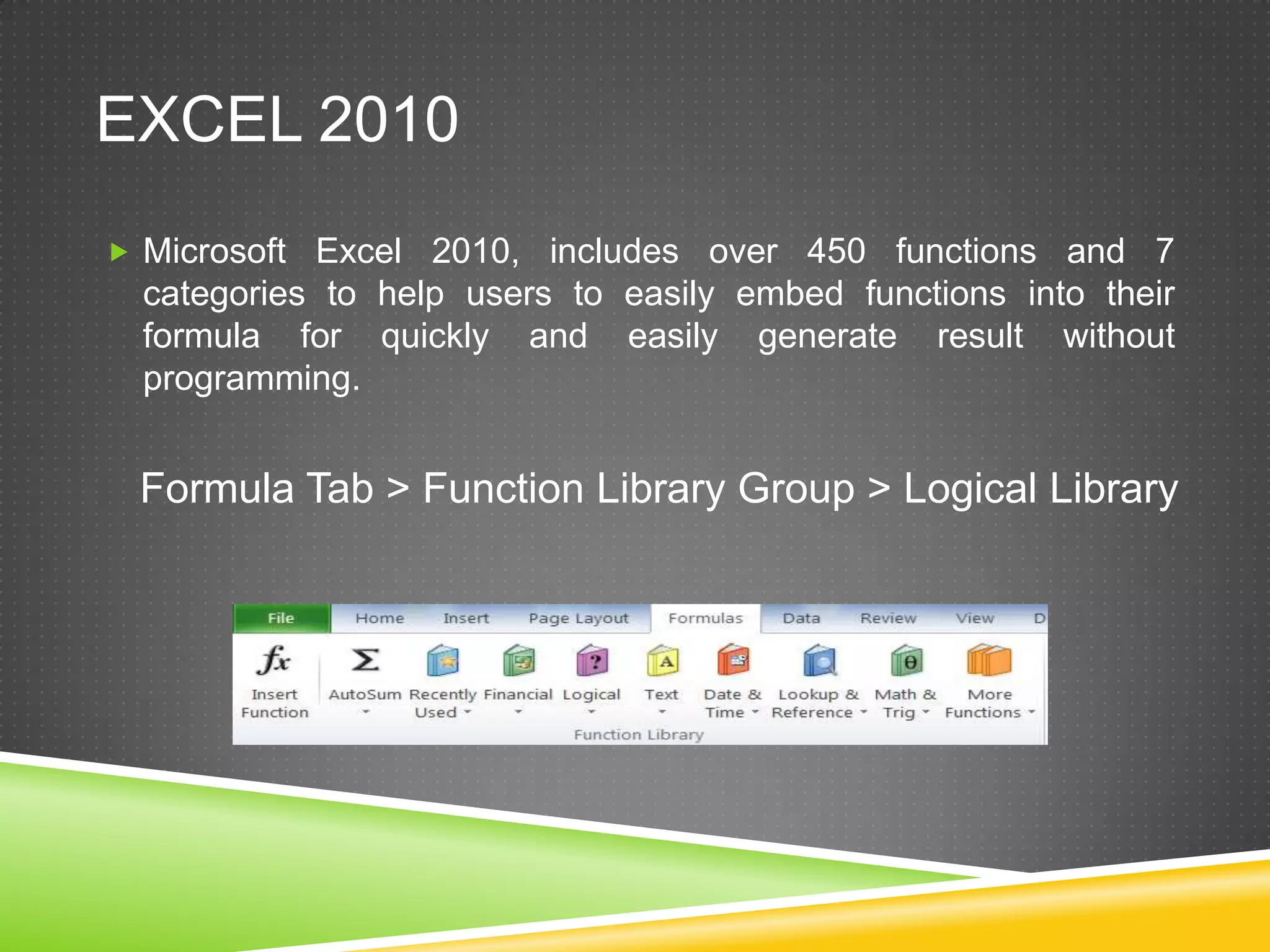
 Microsoft Excel 2010, includes over 450 functions and 7
  categories to help users to easily embed functions into their
  formula for quickly and easily generate result without
  programming.


 Formula Tab > Function Library Group > Logical Library
OBJECTIVE
1.   Formula
2.   Relative vs Absolute Cell Reference
3.   Using AutoFill
4.   Using IF statement
5.   Using Multiplication operator
6.   Using Sum & Sumifs function
7.   Using Pivot Table
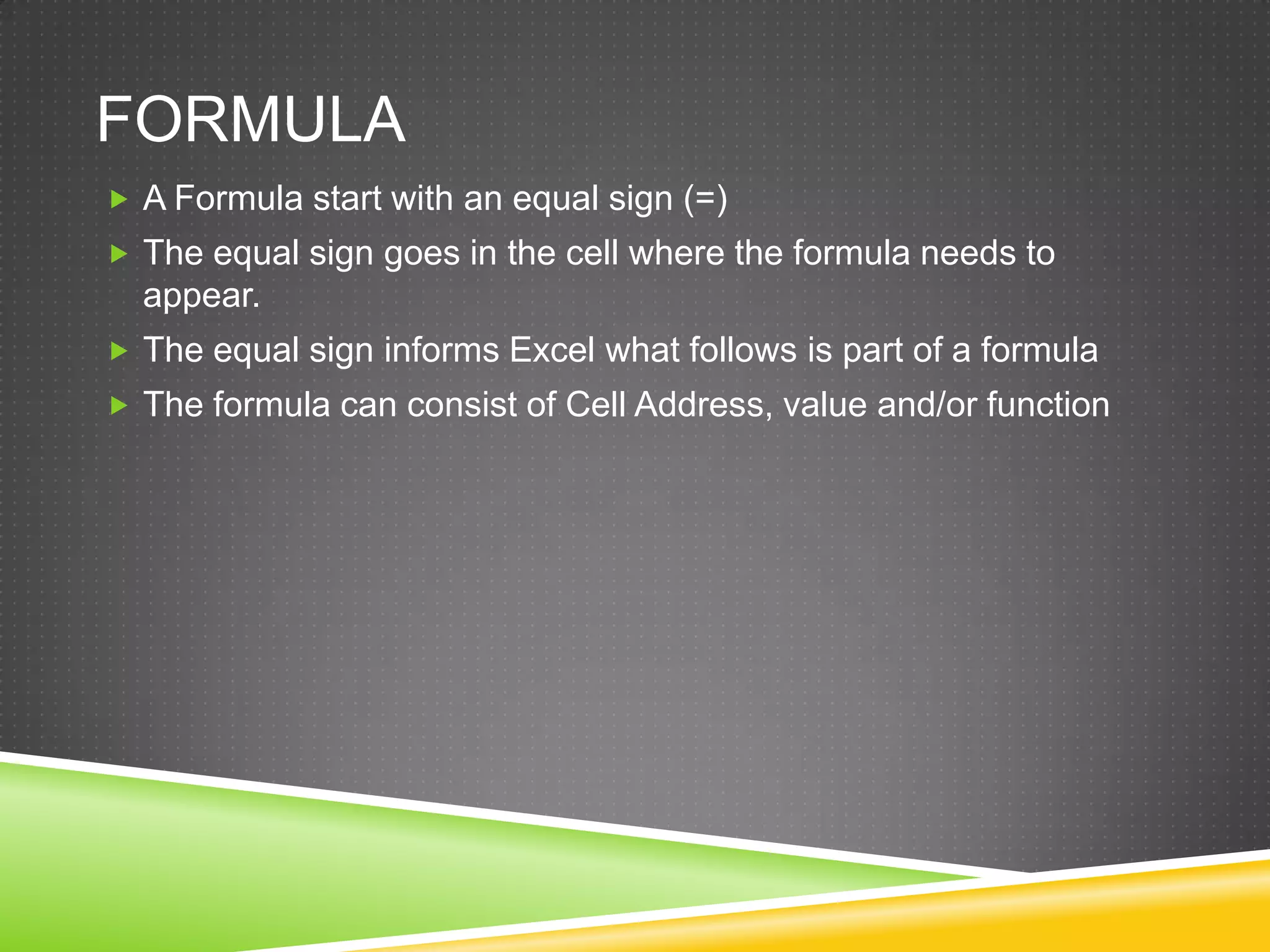
FORMULA
 A Formula start with an equal sign (=)
 The equal sign goes in the cell where the formula needs to
  appear.
 The equal sign informs Excel what follows is part of a formula
 The formula can consist of Cell Address, value and/or function
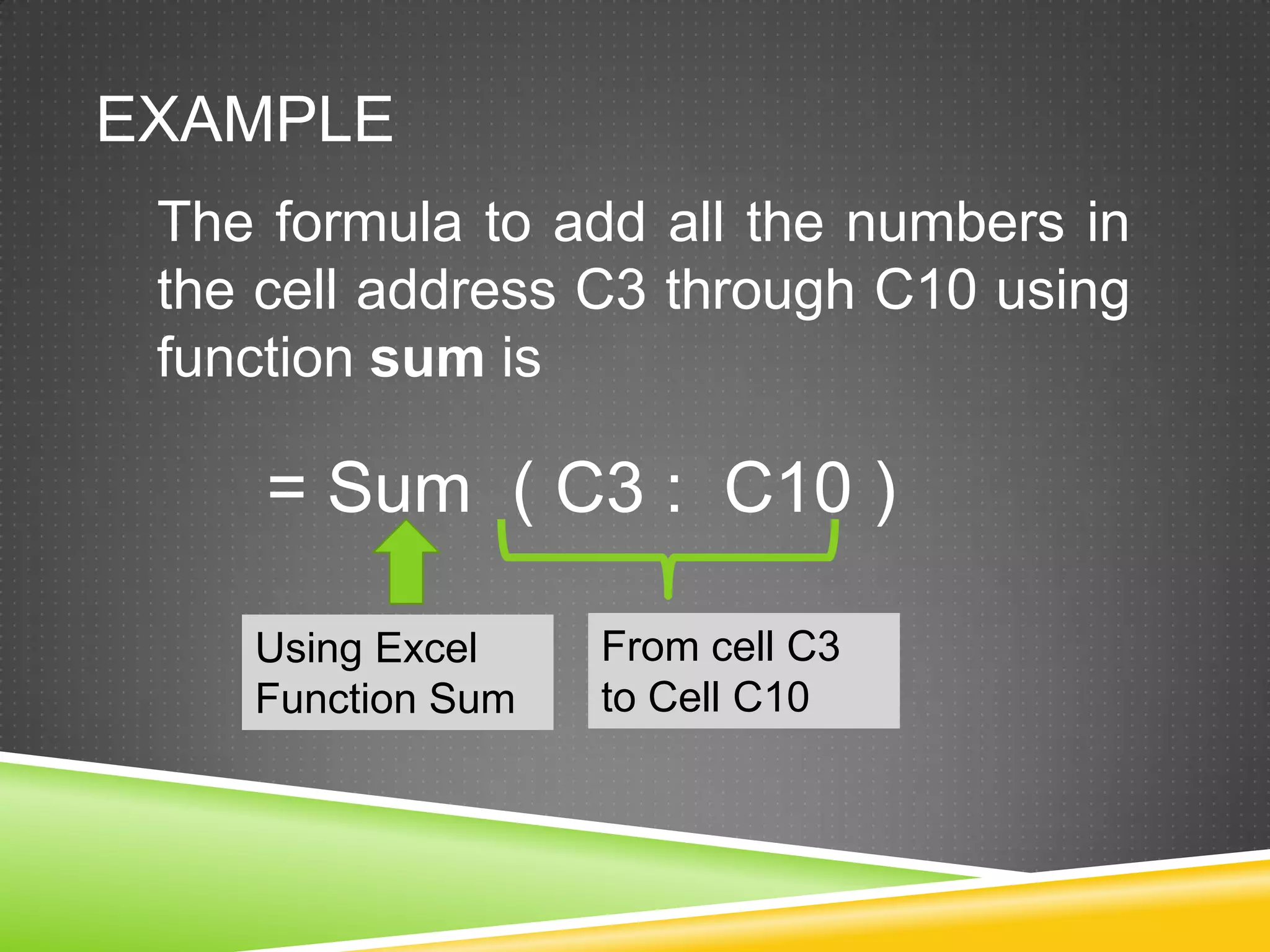
EXAMPLE
 The formula to add all the numbers in
 the cell address C3 through C10 using
 function sum is

     = Sum ( C3 : C10 )

    Using Excel    From cell C3
    Function Sum   to Cell C10
TWO TYPES OF CELL
REFERENCES
A cell address in a formula can be of one of the
following types:
   Relative Cell Reference
   Absolute Cell Reference
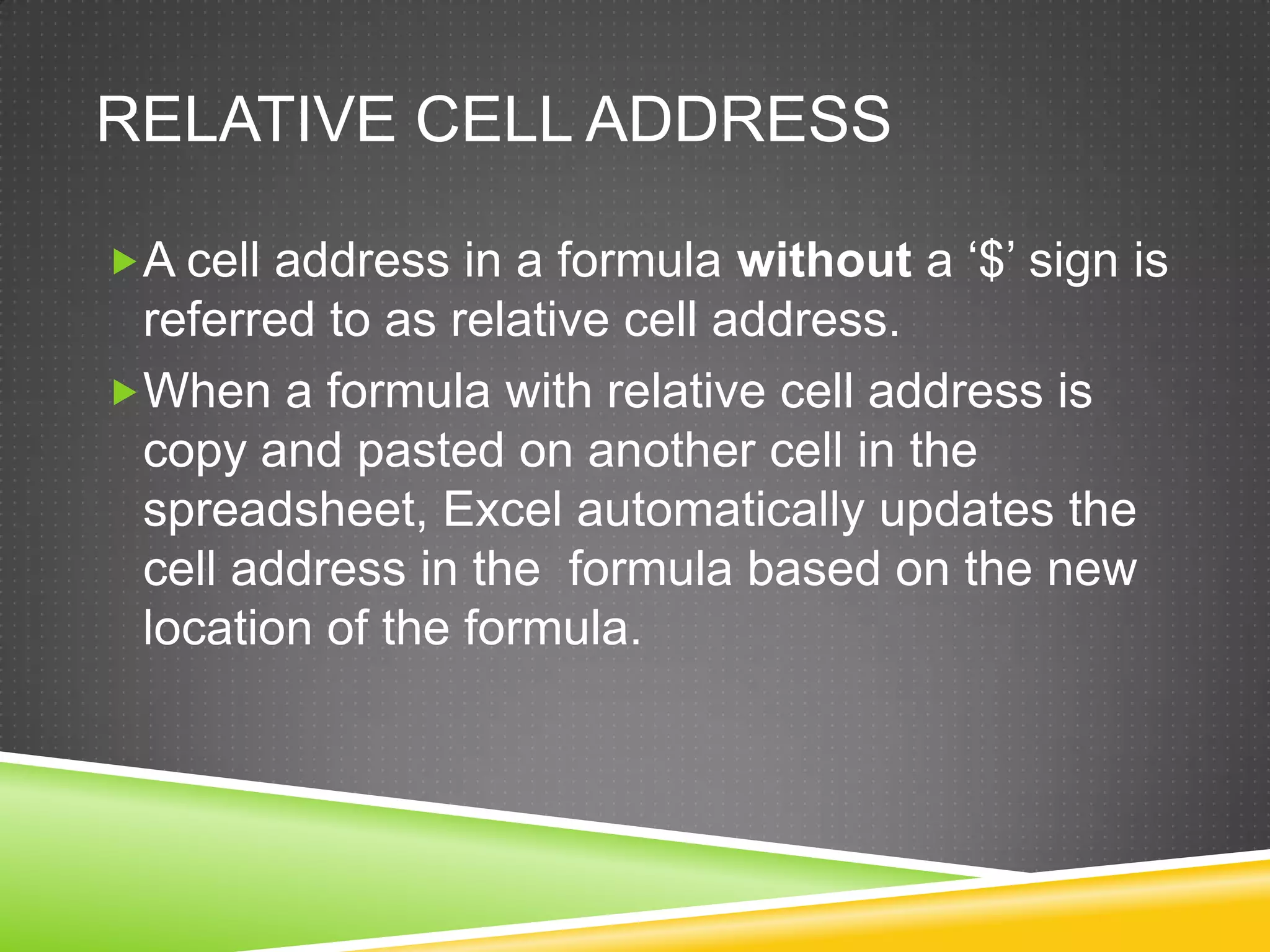
RELATIVE CELL ADDRESS

A cell address in a formula without a ‘$’ sign is
 referred to as relative cell address.
When a formula with relative cell address is
 copy and pasted on another cell in the
 spreadsheet, Excel automatically updates the
 cell address in the formula based on the new
 location of the formula.
ABSOLUTE CELL ADDRESS
A cell address in a formula with a ‘$’ sign is
 referred to as absolute cell address.
An absolute cell address consists of $ symbol
 before column letter, row number or both.
        For example: = $D$5
When a formula with absolute cell address is
 copy and pasted on another cell, Excel does
 not update the cell address in the formula.
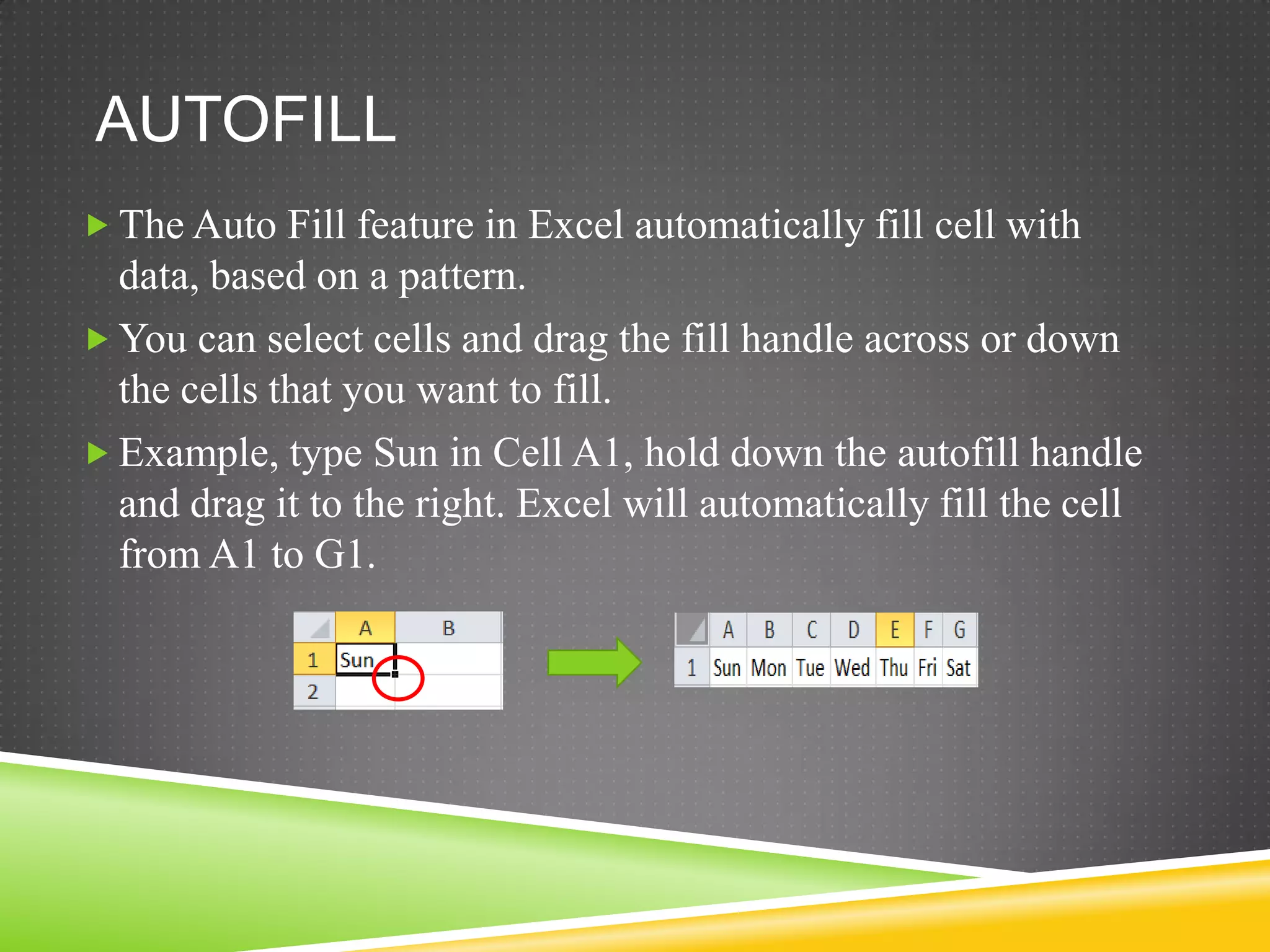
AUTOFILL
 The Auto Fill feature in Excel automatically fill cell with
  data, based on a pattern.
 You can select cells and drag the fill handle across or down
  the cells that you want to fill.
 Example, type Sun in Cell A1, hold down the autofill handle
  and drag it to the right. Excel will automatically fill the cell
  from A1 to G1.
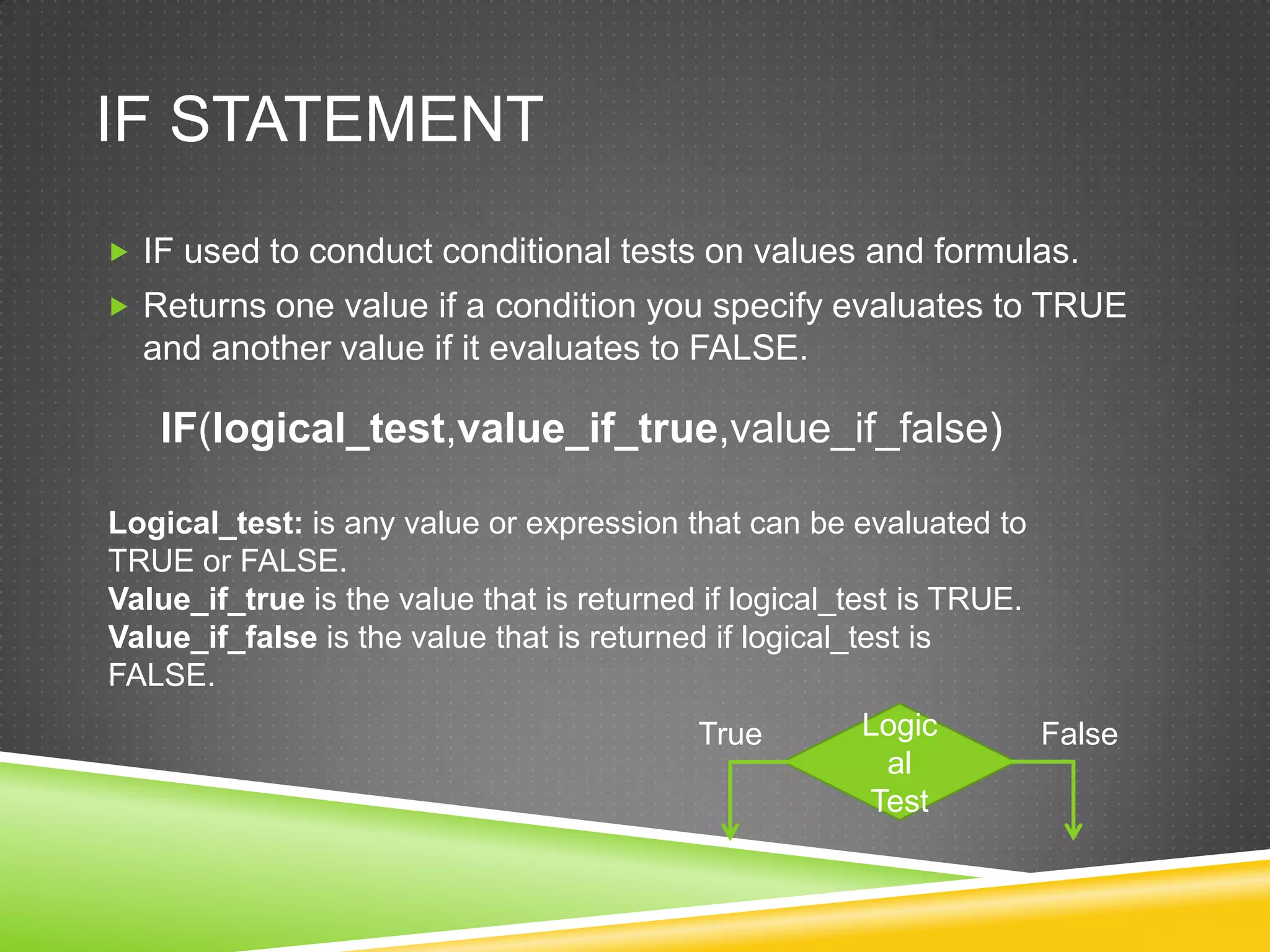
IF STATEMENT
 IF used to conduct conditional tests on values and formulas.
 Returns one value if a condition you specify evaluates to TRUE
  and another value if it evaluates to FALSE.

   IF(logical_test,value_if_true,value_if_false)

Logical_test: is any value or expression that can be evaluated to
TRUE or FALSE.
Value_if_true is the value that is returned if logical_test is TRUE.
Value_if_false is the value that is returned if logical_test is
FALSE.
                                           True        Logic           False
                                                        al
                                                       Test
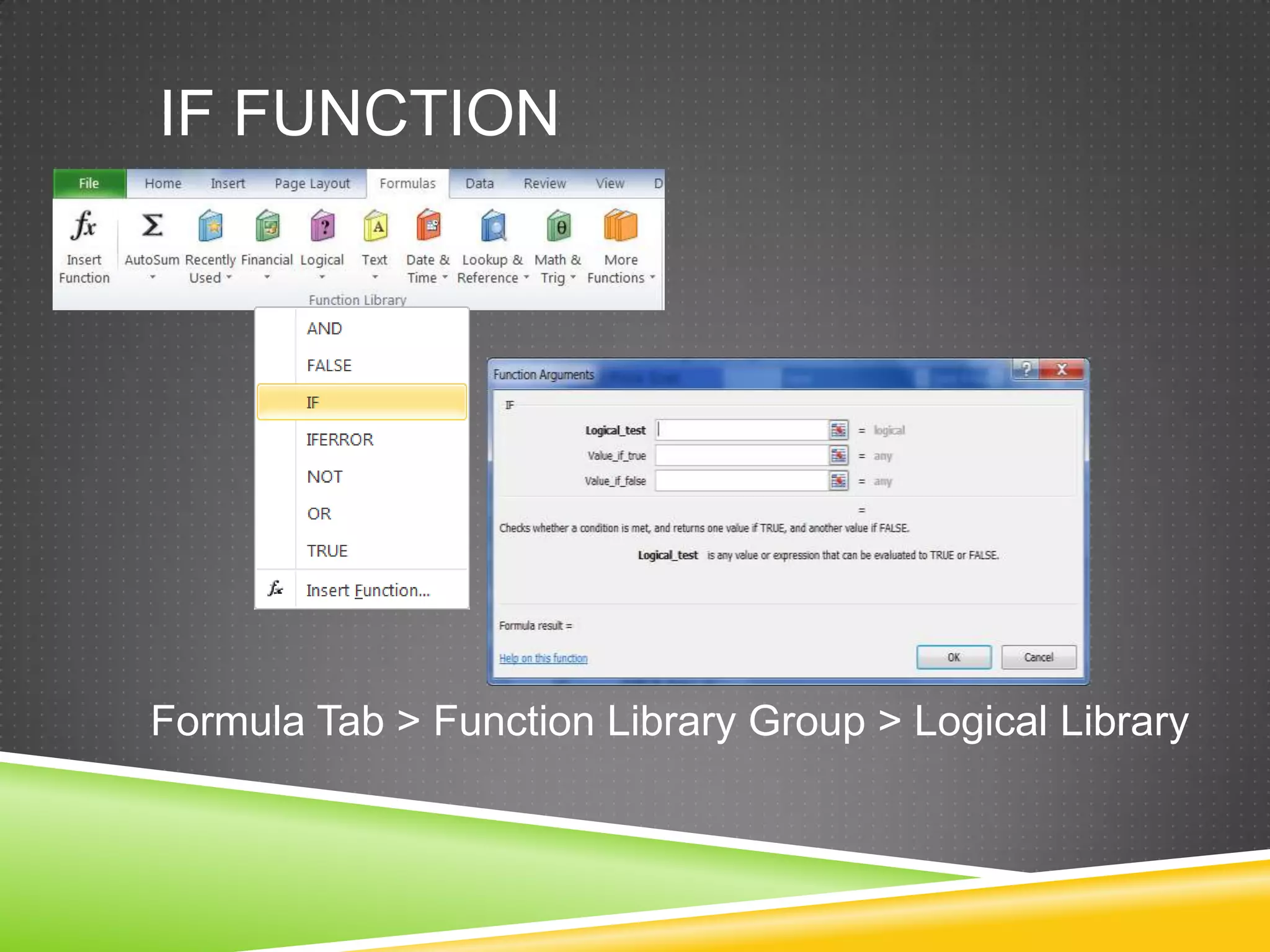
IF FUNCTION


Formula Tab > Function Library Group > Logical Library
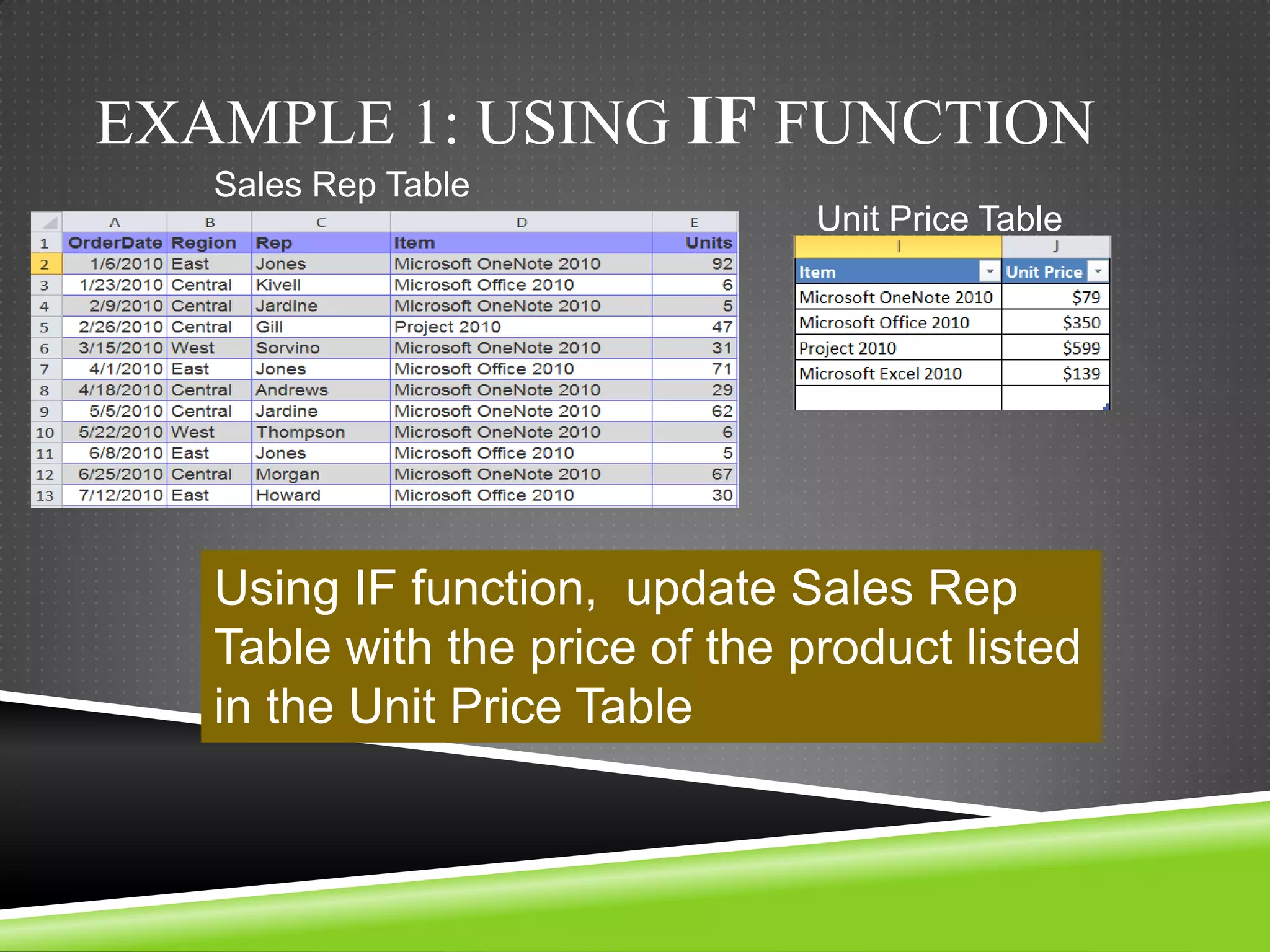
EXAMPLE 1: USING IF FUNCTION
   Sales Rep Table
                                Unit Price Table


   Using IF function, update Sales Rep
   Table with the price of the product listed
   in the Unit Price Table
Sales Rep Table
                                                   Unit Price Table


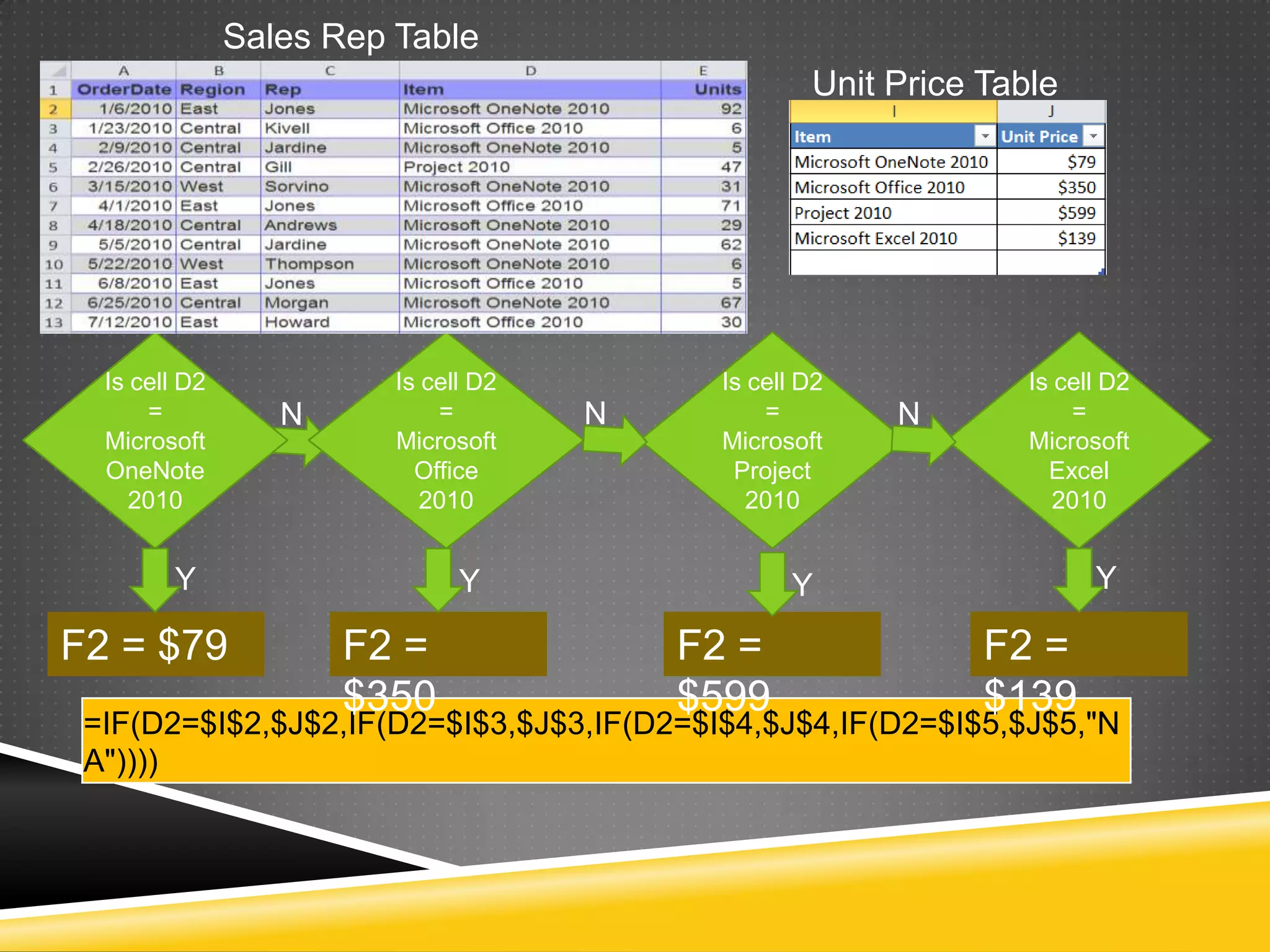
  Is cell D2             Is cell D2        Is cell D2            Is cell D2
      =           N          =        N        =        N            =
  Microsoft              Microsoft         Microsoft             Microsoft
  OneNote                  Office           Project                Excel
     2010                   2010              2010                  2010


        Y                      Y                 Y                     Y

F2 = $79              F2 =                F2 =                F2 =
                      $350                $599                $139
 =IF(D2=$I$2,$J$2,IF(D2=$I$3,$J$3,IF(D2=$I$4,$J$4,IF(D2=$I$5,$J$5,"N
 A"))))
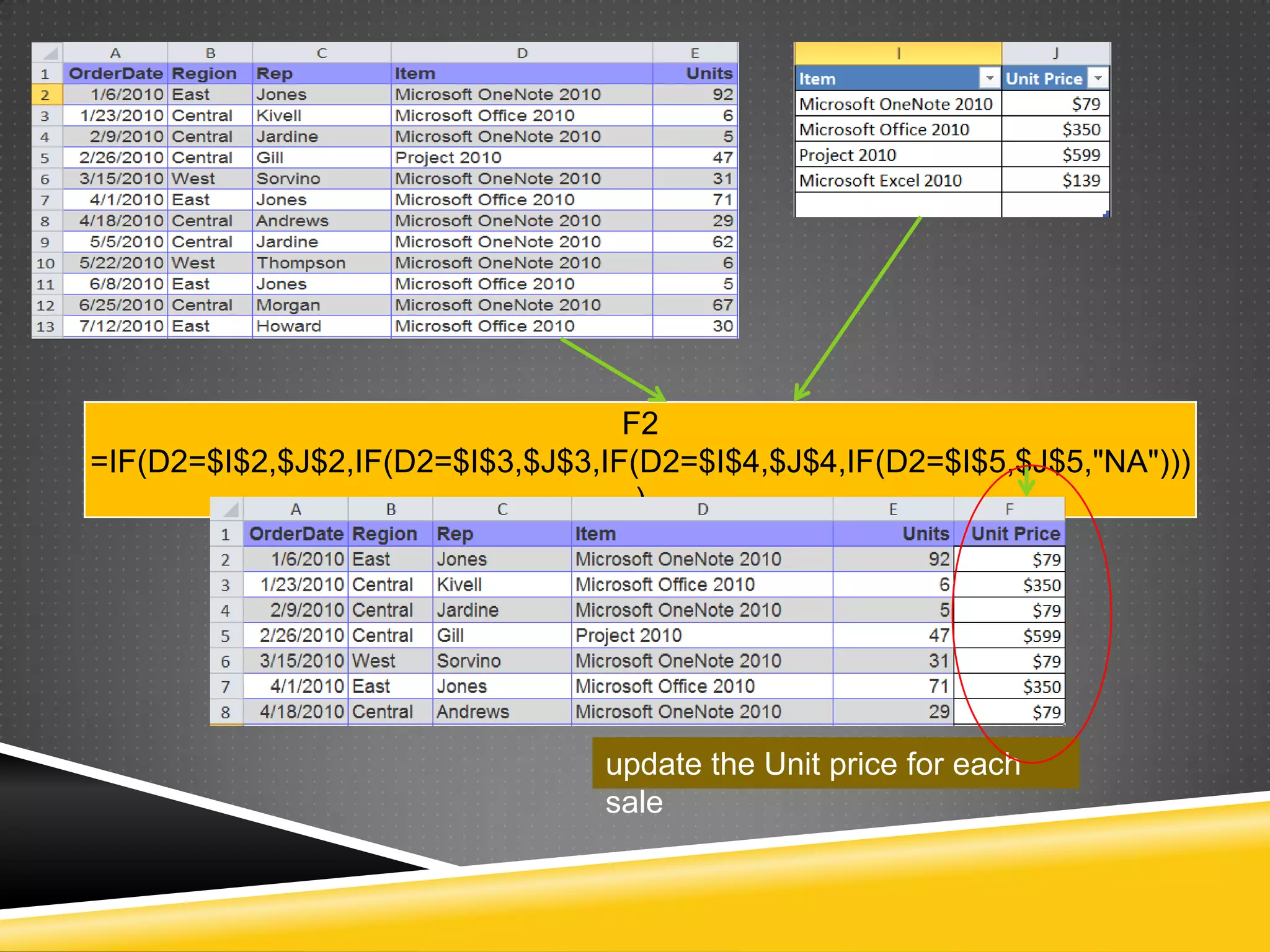
F2
=IF(D2=$I$2,$J$2,IF(D2=$I$3,$J$3,IF(D2=$I$4,$J$4,IF(D2=$I$5,$J$5,"NA")))
                                    )


                                 update the Unit price for each
                                 sale
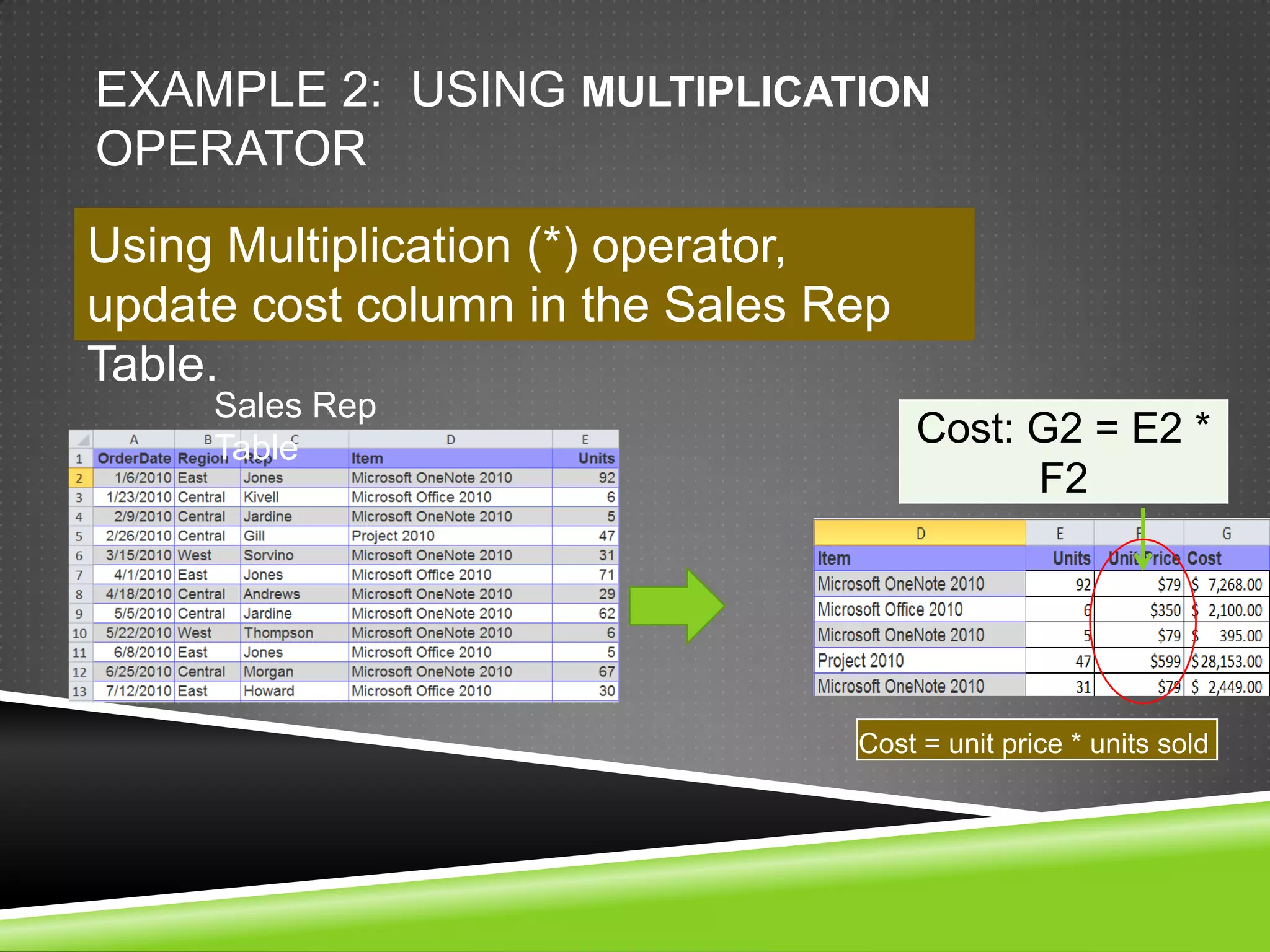
EXAMPLE 2: USING MULTIPLICATION
OPERATOR
Using Multiplication (*) operator,
update cost column in the Sales Rep
Table.
     Sales Rep
     Table                            Cost: G2 = E2 *
                                            F2


                                 Cost = unit price * units sold
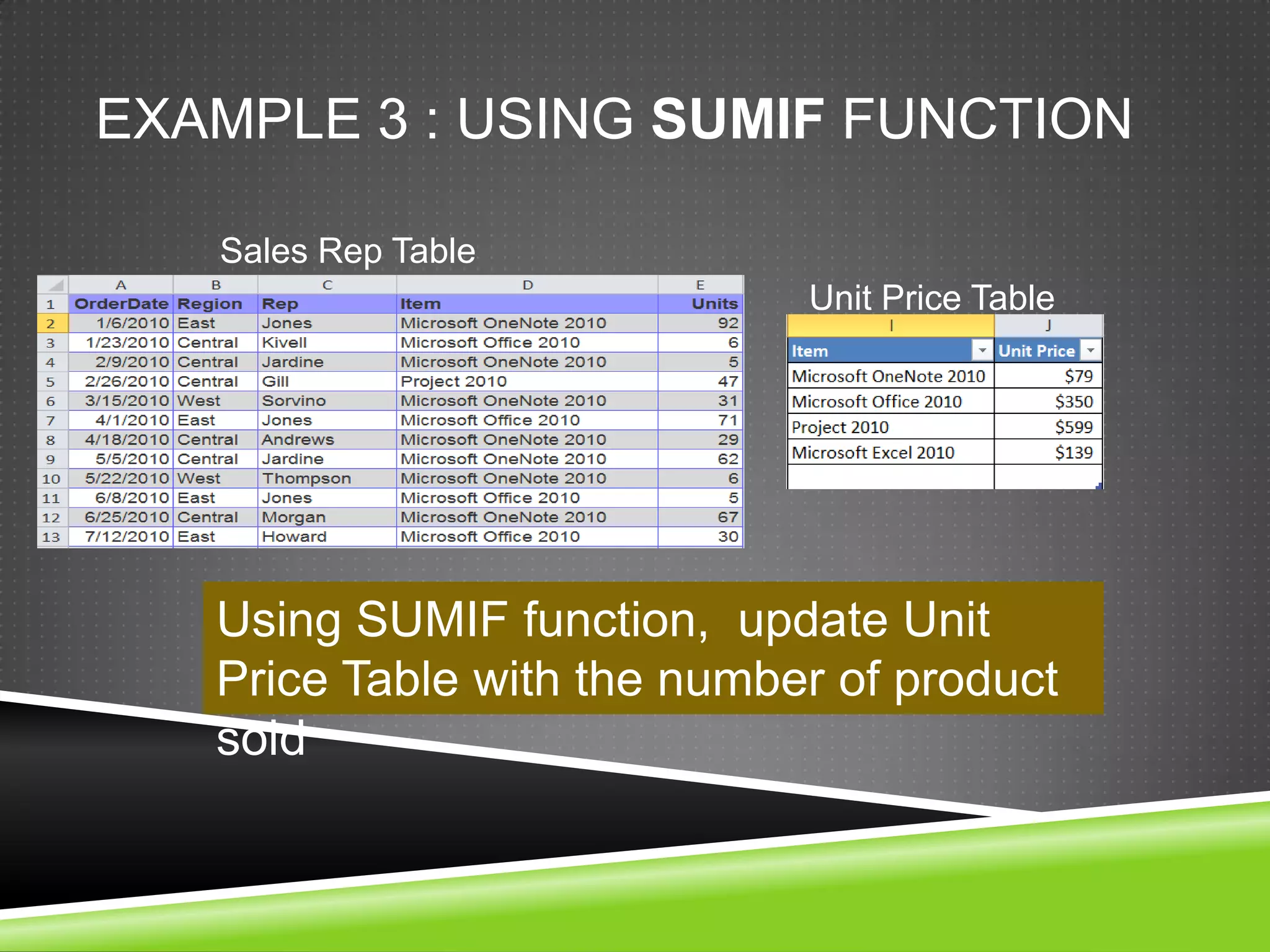
EXAMPLE 3 : USING SUMIF FUNCTION

   Sales Rep Table
                             Unit Price Table


   Using SUMIF function, update Unit
   Price Table with the number of product
   sold
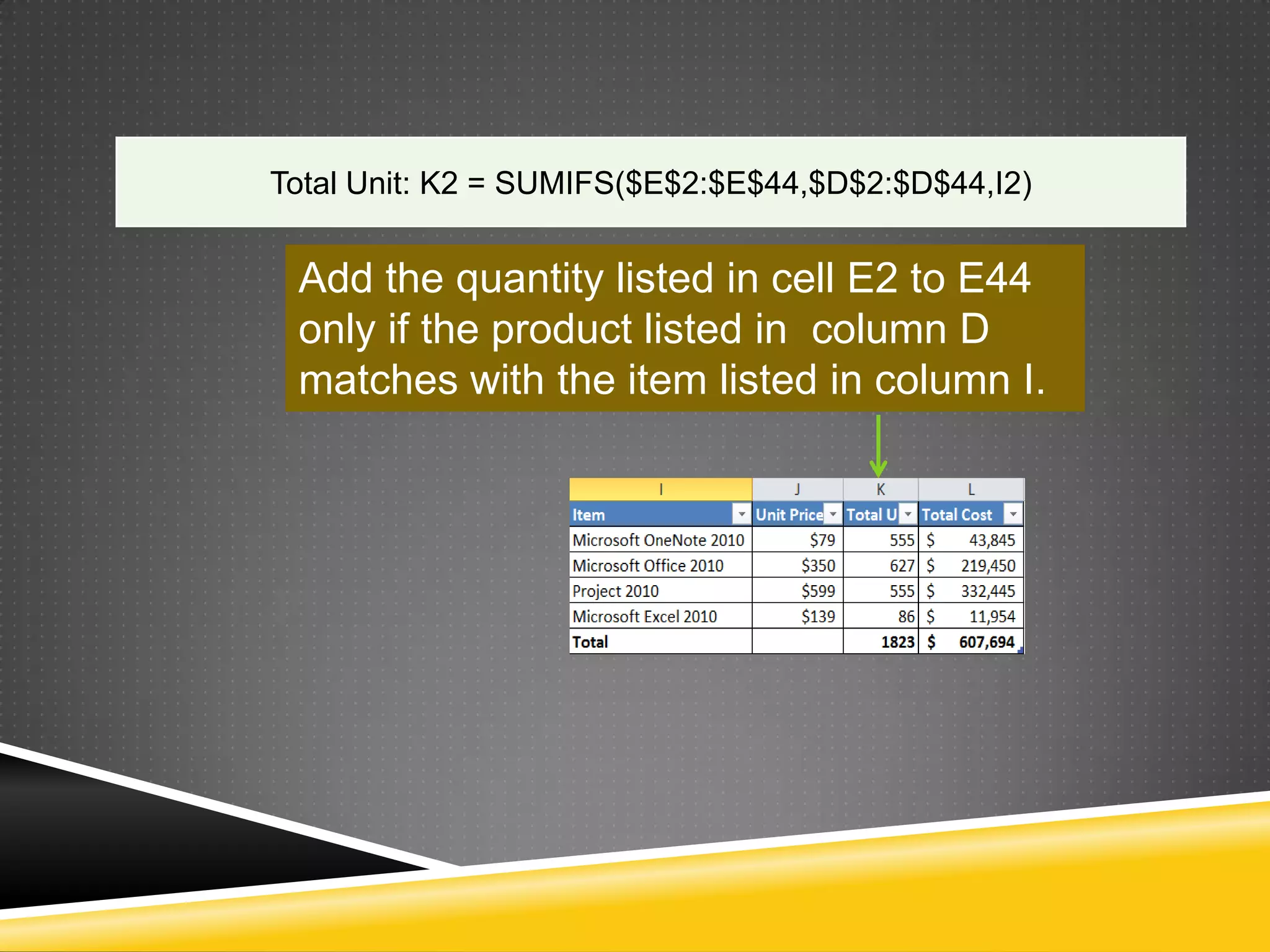
Total Unit: K2 = SUMIFS($E$2:$E$44,$D$2:$D$44,I2)


 Add the quantity listed in cell E2 to E44
 only if the product listed in column D
 matches with the item listed in column I.
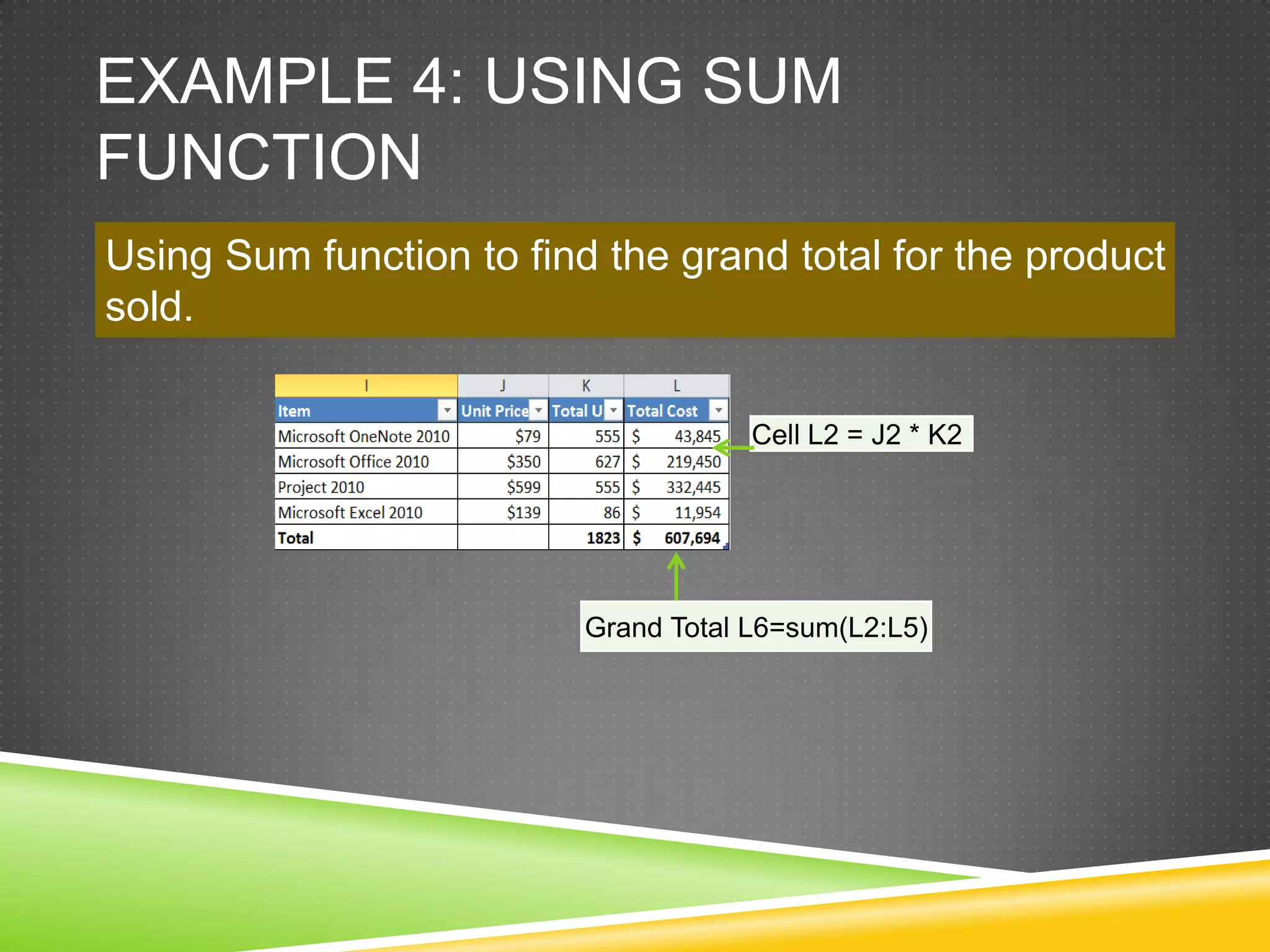
EXAMPLE 4: USING SUM
FUNCTION
Using Sum function to find the grand total for the product
sold.

                                      Cell L2 = J2 * K2


                          Grand Total L6=sum(L2:L5)
PIVOT TABLE

Pivot tables are used for summarizing
 huge amounts of data.
It is also used for analyzing data,
 identifying trends and relationships.
PIVOT TABLE
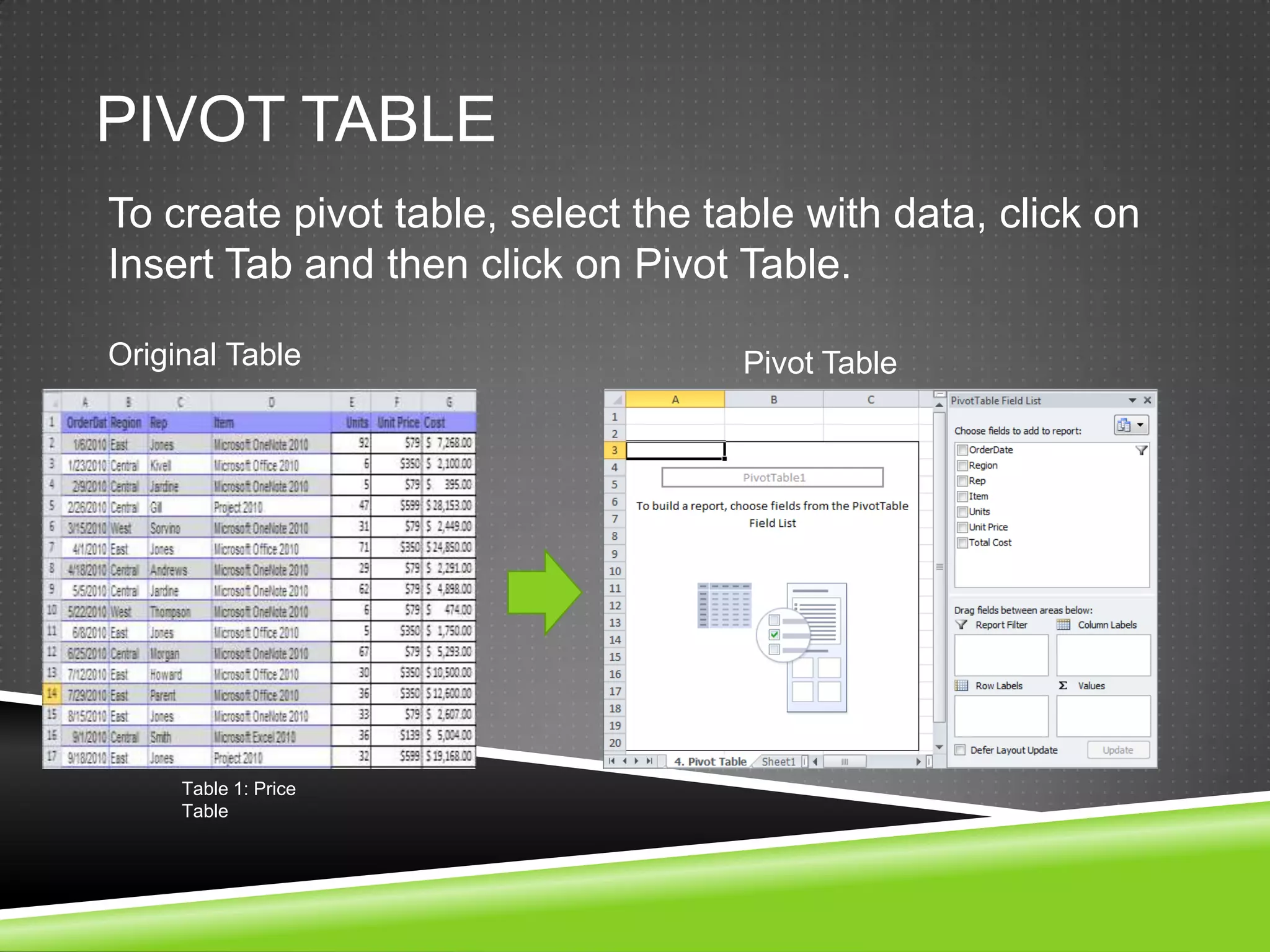
To create pivot table, select the table with data, click on
Insert Tab and then click on Pivot Table.

Original Table                      Pivot Table


     Table 1: Price
     Table
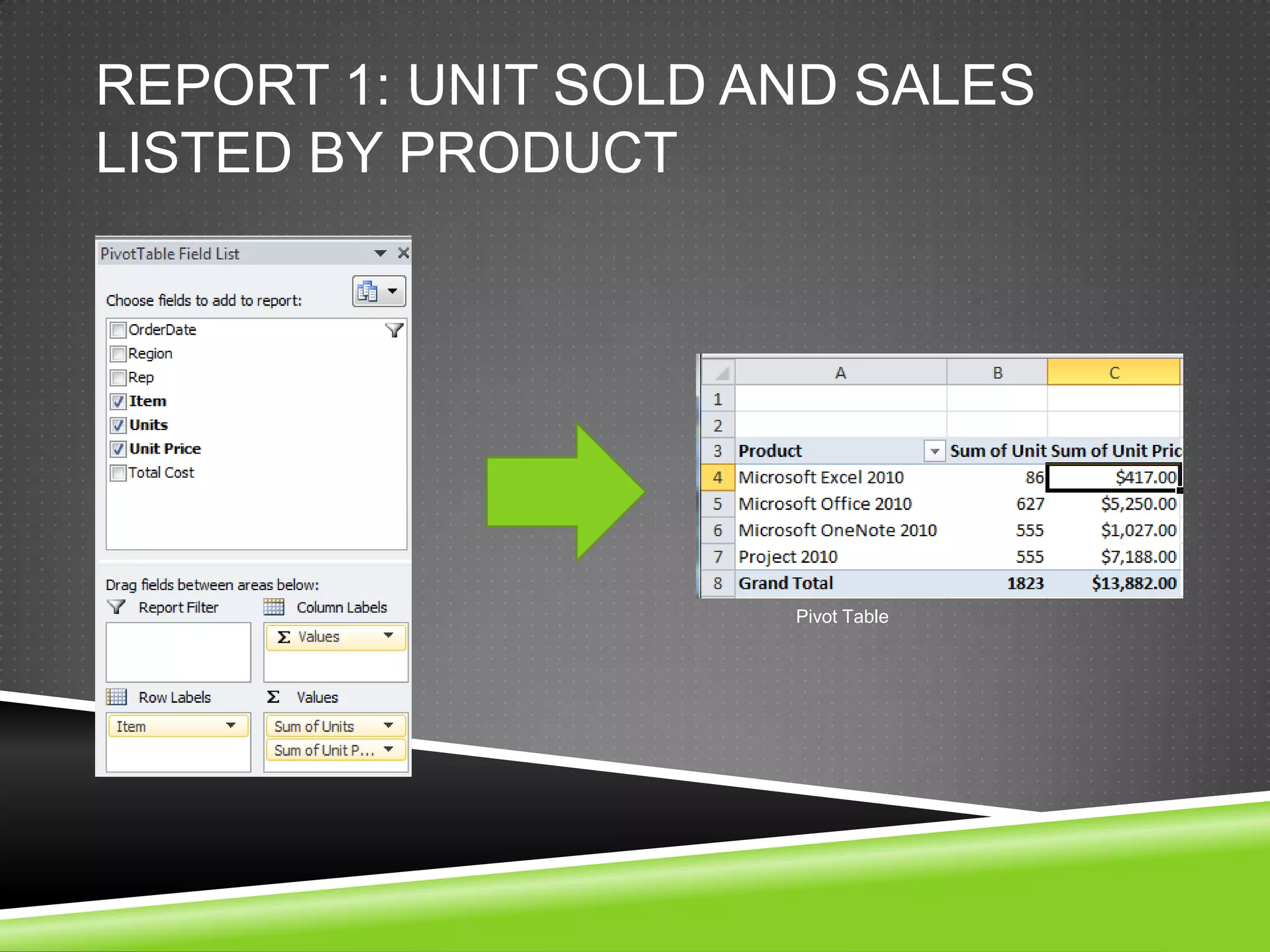
REPORT 1: UNIT SOLD AND SALES
LISTED BY PRODUCT


                     Pivot Table
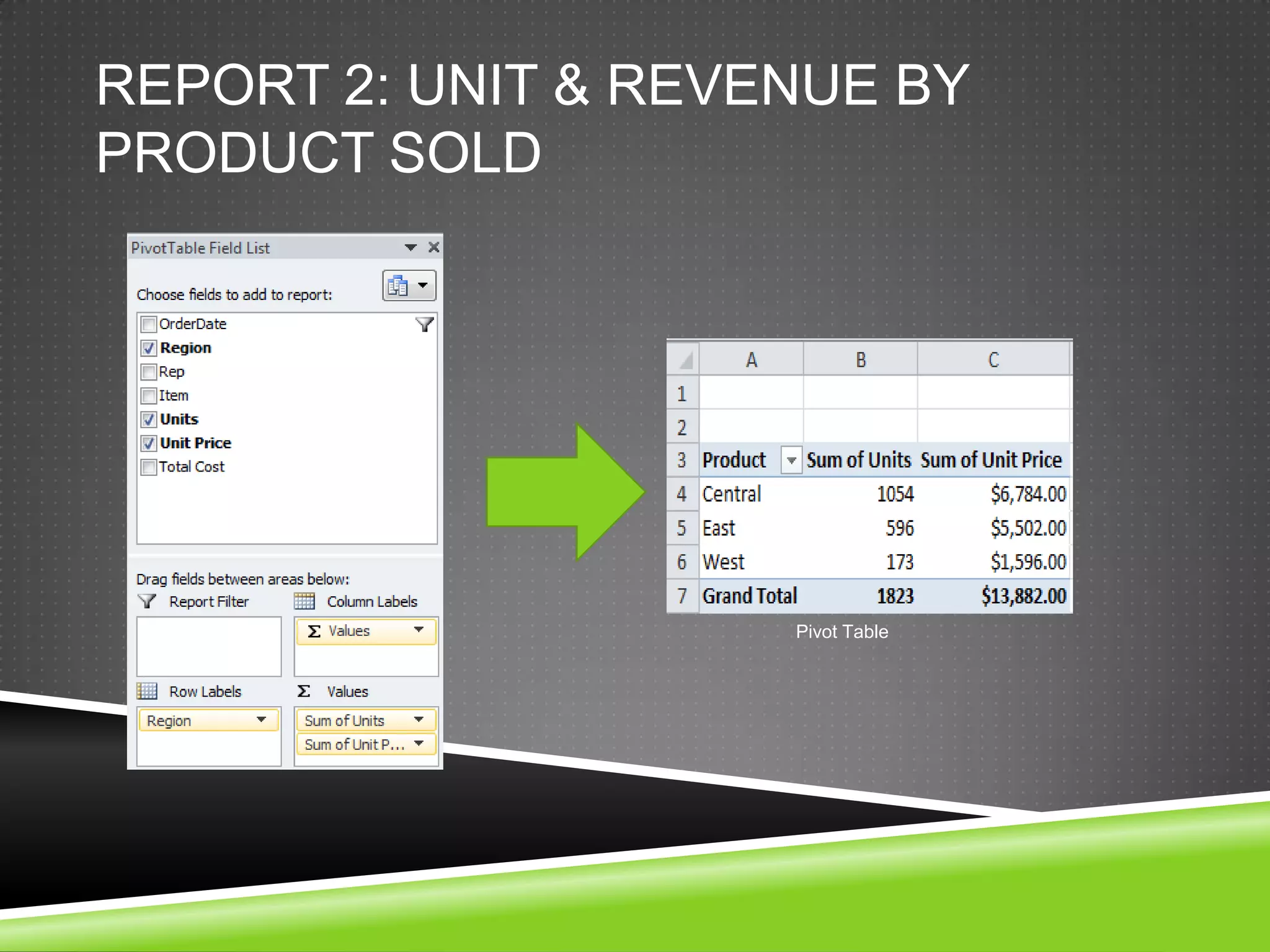
REPORT 2: UNIT & REVENUE BY
PRODUCT SOLD


                     Pivot Table
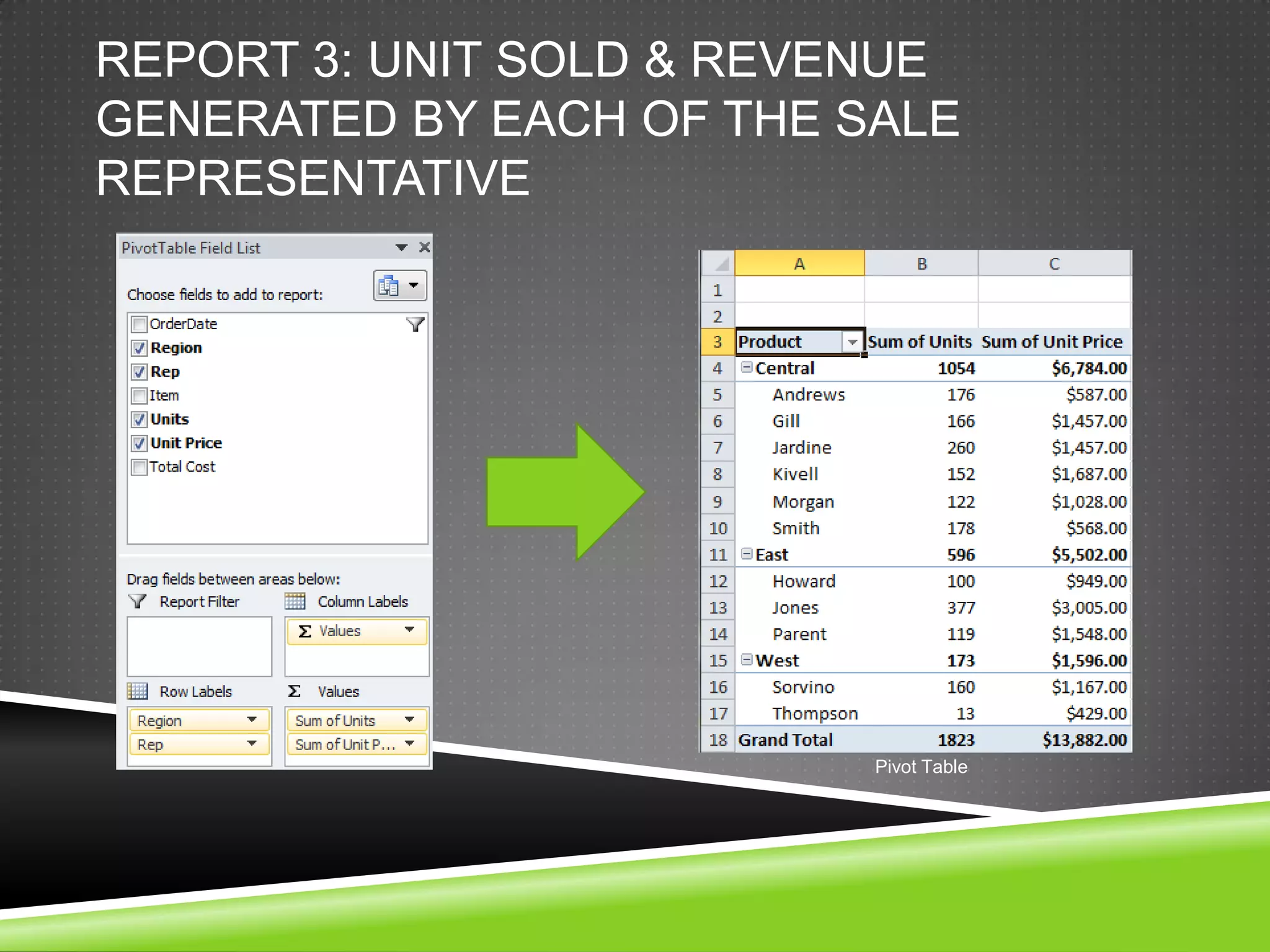
REPORT 3: UNIT SOLD & REVENUE
GENERATED BY EACH OF THE SALE
REPRESENTATIVE


                          Pivot Table
MICROSOFT EXCEL 2010
USEFUL FORMULA & FUNCTIONS
 Microsoft Course #: 50449
 Number of Days: 1
 Format: Instructor-Led
 Prerequisites: Excel 2010 Basic
 Description: Provides students with the knowledge
 and skills in using Formula & Functions in Microsoft
 Excel 2010.

         www.nrclc.com/Excel2010
ADDITIONAL TRAINING OPTIONS
 Instructor-Led Classroom Training (www.nrclc.com)
Online courses (www.nrclc.com/online)
   6 weeks in length
   12 self study lessons

Video (DVD) training
 (www.nrclc.com/elearning)
   Learn on your own time and in the convenience of your own
    home
   Hands-on learning experience

Private training
            www.nrclc.com/Excel2010
CONTACT INFORMATION
NR Computer Learning Center
2100 W. Orangewood, Suite 110
      Orange, CA 92868
        www.nrclc.com
         714-505-3475
       info@nrclc.com


 www.nrclc.com/Excel2010

Microsoft excel 2010 useful formula & functions

  • 2.
    NR COMPUTER LEARNINGCENTER (NRCLC) NR Computer Learning Center (NRCLC), located in Orange, CA, specializes in providing training in using the Microsoft products. NRCLC is a Microsoft Authorized Training partner. Our goal is to help organizations and individuals improve business productivity and efficiency through the use of technology. We provide hands-on training in Excel, Access, Outlook, Visio, SharePoint and Project Management - ranging from basic to advanced topics.
  • 3.
    VAZI OKHANDIAR  MicrosoftCertified Trainer (MCT)  Project Management Professional (PMP)  MBA, MSCS and BSEE  Over 20 years of IT Project Management, Software Development and Training experience.  Worked for EDS (HP), CSC, Toyota
  • 4.
    MICROSOFT EXCEL 2010 Microsoft Excel 2010 is a powerful spreadsheet tool used for analyzing, managing and transforming data in a format that presentable and easy to understand for decision makers.
  • 5.
    EXCEL 2010  MicrosoftExcel 2010, includes over 450 functions and 7 categories to help users to easily embed functions into their formula for quickly and easily generate result without programming. Formula Tab > Function Library Group > Logical Library
  • 6.
    OBJECTIVE 1. Formula 2. Relative vs Absolute Cell Reference 3. Using AutoFill 4. Using IF statement 5. Using Multiplication operator 6. Using Sum & Sumifs function 7. Using Pivot Table
  • 7.
    FORMULA  A Formulastart with an equal sign (=)  The equal sign goes in the cell where the formula needs to appear.  The equal sign informs Excel what follows is part of a formula  The formula can consist of Cell Address, value and/or function
  • 8.
    EXAMPLE The formulato add all the numbers in the cell address C3 through C10 using function sum is = Sum ( C3 : C10 ) Using Excel From cell C3 Function Sum to Cell C10
  • 9.
    TWO TYPES OFCELL REFERENCES A cell address in a formula can be of one of the following types:  Relative Cell Reference  Absolute Cell Reference
  • 10.
    RELATIVE CELL ADDRESS Acell address in a formula without a ‘$’ sign is referred to as relative cell address. When a formula with relative cell address is copy and pasted on another cell in the spreadsheet, Excel automatically updates the cell address in the formula based on the new location of the formula.
  • 11.
    ABSOLUTE CELL ADDRESS Acell address in a formula with a ‘$’ sign is referred to as absolute cell address. An absolute cell address consists of $ symbol before column letter, row number or both. For example: = $D$5 When a formula with absolute cell address is copy and pasted on another cell, Excel does not update the cell address in the formula.
  • 12.
    AUTOFILL  The AutoFill feature in Excel automatically fill cell with data, based on a pattern.  You can select cells and drag the fill handle across or down the cells that you want to fill.  Example, type Sun in Cell A1, hold down the autofill handle and drag it to the right. Excel will automatically fill the cell from A1 to G1.
  • 13.
    IF STATEMENT  IFused to conduct conditional tests on values and formulas.  Returns one value if a condition you specify evaluates to TRUE and another value if it evaluates to FALSE. IF(logical_test,value_if_true,value_if_false) Logical_test: is any value or expression that can be evaluated to TRUE or FALSE. Value_if_true is the value that is returned if logical_test is TRUE. Value_if_false is the value that is returned if logical_test is FALSE. True Logic False al Test
  • 14.
    IF FUNCTION Formula Tab> Function Library Group > Logical Library
  • 15.
    EXAMPLE 1: USINGIF FUNCTION Sales Rep Table Unit Price Table Using IF function, update Sales Rep Table with the price of the product listed in the Unit Price Table
  • 16.
    Sales Rep Table Unit Price Table Is cell D2 Is cell D2 Is cell D2 Is cell D2 = N = N = N = Microsoft Microsoft Microsoft Microsoft OneNote Office Project Excel 2010 2010 2010 2010 Y Y Y Y F2 = $79 F2 = F2 = F2 = $350 $599 $139 =IF(D2=$I$2,$J$2,IF(D2=$I$3,$J$3,IF(D2=$I$4,$J$4,IF(D2=$I$5,$J$5,"N A"))))
  • 17.
  • 18.
    EXAMPLE 2: USINGMULTIPLICATION OPERATOR Using Multiplication (*) operator, update cost column in the Sales Rep Table. Sales Rep Table Cost: G2 = E2 * F2 Cost = unit price * units sold
  • 19.
    EXAMPLE 3 :USING SUMIF FUNCTION Sales Rep Table Unit Price Table Using SUMIF function, update Unit Price Table with the number of product sold
  • 20.
    Total Unit: K2= SUMIFS($E$2:$E$44,$D$2:$D$44,I2) Add the quantity listed in cell E2 to E44 only if the product listed in column D matches with the item listed in column I.
  • 21.
    EXAMPLE 4: USINGSUM FUNCTION Using Sum function to find the grand total for the product sold. Cell L2 = J2 * K2 Grand Total L6=sum(L2:L5)
  • 22.
    PIVOT TABLE Pivot tablesare used for summarizing huge amounts of data. It is also used for analyzing data, identifying trends and relationships.
  • 23.
    PIVOT TABLE To createpivot table, select the table with data, click on Insert Tab and then click on Pivot Table. Original Table Pivot Table Table 1: Price Table
  • 24.
    REPORT 1: UNITSOLD AND SALES LISTED BY PRODUCT Pivot Table
  • 25.
    REPORT 2: UNIT& REVENUE BY PRODUCT SOLD Pivot Table
  • 26.
    REPORT 3: UNITSOLD & REVENUE GENERATED BY EACH OF THE SALE REPRESENTATIVE Pivot Table
  • 27.
    MICROSOFT EXCEL 2010 USEFULFORMULA & FUNCTIONS  Microsoft Course #: 50449  Number of Days: 1  Format: Instructor-Led  Prerequisites: Excel 2010 Basic  Description: Provides students with the knowledge and skills in using Formula & Functions in Microsoft Excel 2010. www.nrclc.com/Excel2010
  • 28.
    ADDITIONAL TRAINING OPTIONS Instructor-Led Classroom Training (www.nrclc.com) Online courses (www.nrclc.com/online)  6 weeks in length  12 self study lessons Video (DVD) training (www.nrclc.com/elearning)  Learn on your own time and in the convenience of your own home  Hands-on learning experience Private training www.nrclc.com/Excel2010
  • 29.
    CONTACT INFORMATION NR ComputerLearning Center 2100 W. Orangewood, Suite 110 Orange, CA 92868 www.nrclc.com 714-505-3475 info@nrclc.com www.nrclc.com/Excel2010

Editor's Notes

  • #24 This spreadsheet contains the information regarding Order date, Region, Rep who sold it, Item that was sold, number of units sold, cost per unit.You can use pivot table to find the list of product sold, total quantity sold and total revenue generated through the sale .You can also see the revune generated by region or sales by sales rep.
  • #25 Or you can drill down and see who sold what in each of the regions.
  • #29 Small groups of students (maximum of 12)One computer per studentTraining MaterialCertified InstructorQuick Reference CardCertificate of completion