D-Link DCS-910/920 User Manual
Table of Contents
Product Overview.........................................................4
Package Contents....................................................4
System Requirements..............................................4
Introduction...............................................................5
Features.
...................................................................6
Hardware Overview..................................................7
Front View...........................................................7
Rear View.
...........................................................8
Hardware Installation................................................9
Installation.
..................................................................11
Wireless Installation Considerations.
......................11
Software Installation...............................................12
Configuration..............................................................17
Setup Wizard..........................................................17
WPS - Push Button Setup................................20
Standard Wireless Settings.
..............................21
Viewing Your Internet Camera................................23
Configuration..........................................................25
Live Video.........................................................25
Setup  Wizard.................................................25
Internet Connection Setup Wizard...............26
Network Setup.............................................28
Setup  Wireless.
..............................................29
Wireless Interface........................................29
Setup  DDNS .................................................30
Setup  Image Setup........................................31
Image Settings.
............................................31
Setup  Video...................................................32
Video Configuration.....................................32
Setup  Mail.
.....................................................33
Email Account.
.............................................33
Time Schedule.
............................................34
Setup  FTP.
.....................................................35
FTP Server..................................................35
Time Schedule.
............................................36
Setup  Time and Date.....................................37
Maintenance  Device Management................38
Maintenance  Backup and Restore.
................39
Maintenance  Firmware Upgrade...................40
Status  System.
...............................................41
Wireless Security.
.......................................................42
What is WEP?.
........................................................42
What is WPA?.........................................................43
Using  Configuring the DCS-910/920...................44
Router Set-Up and Installation...............................47
Troubleshooting.
.........................................................50
Wireless Basics..........................................................52
Table of Contents
D-Link DCS-910/920 User Manual
Table of Contents
Networking Basics.....................................................57
Check your IP address...........................................57
Statically Assign an IP address..............................58
Technical Specifications.
...........................................59
Contacting Technical Support...................................61
Warranty......................................................................62
Registration.
................................................................67
D-Link DCS-910/920 User Manual
Section 1 - Product Overview
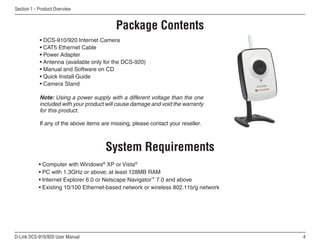
• DCS-910/920 Internet Camera
• CAT5 Ethernet Cable
• Power Adapter
• Antenna (available only for the DCS-920)
• Manual and Software on CD
• Quick Install Guide
• Camera Stand
Note: Using a power supply with a different voltage than the one
included with your product will cause damage and void the warranty
for this product.
If any of the above items are missing, please contact your reseller.
System Requirements
• Computer with Windows®
XP or Vista®
• PC with 1.3GHz or above; at least 128MB RAM
• Internet Explorer 6.0 or Netscape Navigator™
7.0 and above
• Existing 10/100 Ethernet-based network or wireless 802.11b/g network
Product Overview
Package Contents
D-Link DCS-910/920 User Manual
Section 1 - Product Overview
Introduction
Congratulations on your purchase of the DCS-910/920 Internet Camera! The DCS-910/920 is a versatile and
unique solution for your small office or home. Unlike a PC Camera, the DCS-910/920 is a stand-alone system with a
built-in CPU that transmits high quality video images for monitoring. The DCS-910/920 can be remotely accessed,
and controlled using a Web browser over the Intranet or Internet. The simple installation procedure and intuitive
Web-based interface offer easy integration with your Ethernet/Fast Ethernet or 802.11b/g wireless network.
The DCS-910/920 also comes with remote monitoring capability for a complete and cost-effective home security
solution.
D-Link DCS-910/920 User Manual
Section 1 - Product Overview
• Simple to Use: The DCS-910/920 is a stand-alone system with a built-in CPU, requiring no special hardware or
software such as PC frame grabber cards.The DCS-910/920 supports both ActiveX mode for Internet Explorer
and Java mode for Internet Explorer and Netscape Navigator™
.
• Supports a Variety of Platforms: Supporting TCP/IP networking, HTTP, and other Internet related protocols. The
DCS-910/920 can also be integrated easily into other Internet/Intranet applications because of its standards-
based features.
• 802.11b/g Wireless or Ethernet/Fast Ethernet Support: The DCS-910/920 offers wireless 802.11b/g* and Ethernet/
Fast Ethernet connectivities, making the DCS-910/920 easy to integrate into your existing network environment.
The DCS-910/920 works with a 10Mbps Ethernet based network or 100Mbps Fast Ethernet based network for
traditional wired environments, and works with 802.11b/g routers or access points for added flexibility. The Site
Survey feature also allows you to view and connect to any available wireless networks.
• Web Configuration: Using a standard Web browser, administrators can configure and manage the Internet Camera
directly from its own Web page via Intranet or Internet.This means you can access your DCS-910/920 anytime,
anywhere in the world!
• Broad Range of Applications: With today’s high-speed Internet services, the Internet Camera can provide the ideal
solution for delivering live video images over the Intranet and Internet for remote monitoring.The Internet Camera
allows remote access using a Web browser for live image viewing, and allows the administrator to manage and
control the Internet Camera anytime, anywhere in the world. Many applications exist, including industrial and
public monitoring of homes, offices, banks, hospitals, child-care centers, and amusement parks.
Features
D-Link DCS-910/920 User Manual
Section 1 - Product Overview
Hardware Overview
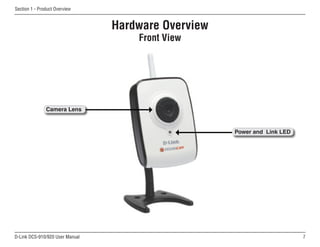
Front View
Power and Link LED
Camera Lens
D-Link DCS-910/920 User Manual
Section 1 - Product Overview
Rear View
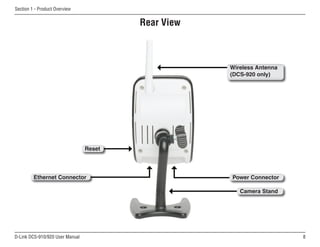
Camera Stand
Power Connector
Reset
Ethernet Connector
Wireless Antenna
(DCS-920 only)
D-Link DCS-910/920 User Manual
Section 1 - Product Overview
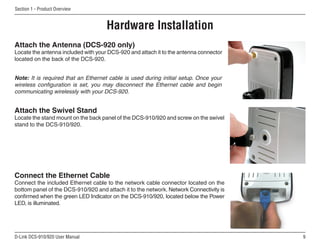
Hardware Installation
Note: It is required that an Ethernet cable is used during initial setup. Once your
wireless configuration is set, you may disconnect the Ethernet cable and begin
communicating wirelessly with your DCS-920.
Connect the Ethernet Cable
Connect the included Ethernet cable to the network cable connector located on the
bottom panel of the DCS-910/920 and attach it to the network. Network Connectivity is
confirmed when the green LED Indicator on the DCS-910/920, located below the Power
LED, is illuminated.
Attach the Swivel Stand
Locate the stand mount on the back panel of the DCS-910/920 and screw on the swivel
stand to the DCS-910/920.
Attach the Antenna (DCS-920 only)
Locate the antenna included with your DCS-920 and attach it to the antenna connector
located on the back of the DCS-920.
10
D-Link DCS-910/920 User Manual
Section 1 - Product Overview
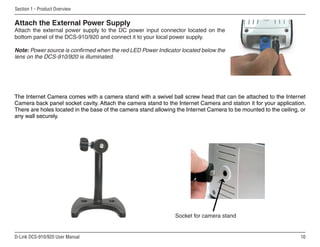
The Internet Camera comes with a camera stand with a swivel ball screw head that can be attached to the Internet
Camera back panel socket cavity. Attach the camera stand to the Internet Camera and station it for your application.
There are holes located in the base of the camera stand allowing the Internet Camera to be mounted to the ceiling, or
any wall securely.
Attach the External Power Supply
Attach the external power supply to the DC power input connector located on the
bottom panel of the DCS-910/920 and connect it to your local power supply.
Note: Power source is confirmed when the red LED Power Indicator located below the
lens on the DCS-910/920 is illuminated.
Socket for camera stand
11
D-Link DCS-910/920 User Manual
Section 2 - Installation
Wireless Installation Considerations
The D-Link Wireless Internet Camera lets you access your network using a wireless connection from anywhere within
the operating range of your wireless network. However, the number, thickness and location of walls, ceilings, or other
objects that the wireless signals must pass through, may limit the range. Typical ranges vary depending on the types
of materials and background RF (radio frequency) noise in your home or business. The key to maximizing wireless
range is to follow these basic guidelines:
1. Minimize the number of walls and ceilings between your adapter and other network devices (such as your
Internet Camera) - each wall or ceiling can reduce your adapter’s range from 3-90 feet (1-30 meters.)
2. Be aware of the direct line between network devices. A wall that is 1.5 feet thick (.5 meters), at a
45-degree angle appears to be almost 3 feet (1 meter) thick. At a 2-degree angle, it looks over 42 feet
(14 meters) thick! Position your devices so that the signal will travel straight through a wall or ceiling
(instead of at an angle) for better reception.
3. Building Materials make a difference. A solid metal door or aluminum studs may weaken the wireless
signal. Try to position your access points, wireless routers, and other networking devices where the
signal passes through drywall or open doorways.Materials and objects such as glass, steel, metal, walls
with insulation, water (fish tanks), mirrors, file cabinets, brick, and concrete will degrade your wireless
signal.
4. Keep your product away (at least 3-6 feet or 1-2 meters) from electrical devices or appliances that
generate RF noise.
5. If you are using 2.4GHz cordless phones or other radio frequency sources (such as microwave ovens),
your wireless connection may degrade dramatically or drop completely. Make sure your 2.4GHz phone
base is as far away from your wireless devices as possible.The base transmits a signal even if the phone
in not in use.
Installation
12
D-Link DCS-910/920 User Manual
Section 2 - Installation
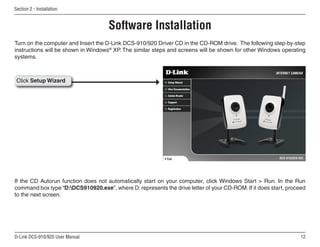
Turn on the computer and Insert the D-Link DCS-910/920 Driver CD in the CD-ROM drive. The following step-by-step
instructions will be shown in Windows®
XP. The similar steps and screens will be shown for other Windows operating
systems.
If the CD Autorun function does not automatically start on your computer, click Windows Start  Run. In the Run
command box type “D:DCS910920.exe”, where D: represents the drive letter of your CD-ROM. If it does start, proceed
to the next screen.
Software Installation
Click Setup Wizard
13
D-Link DCS-910/920 User Manual
Section 2 - Installation
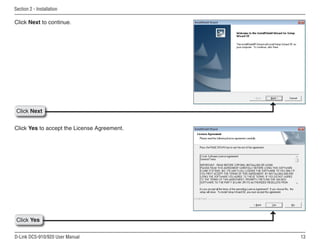
Click Next to continue.
Click Yes
Click Next
Click Yes to accept the License Agreement.
14
D-Link DCS-910/920 User Manual
Section 2 - Installation
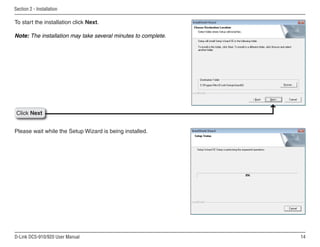
To start the installation click Next.
Note: The installation may take several minutes to complete.
Click Next
Please wait while the Setup Wizard is being installed.
15
D-Link DCS-910/920 User Manual
Section 2 - Installation
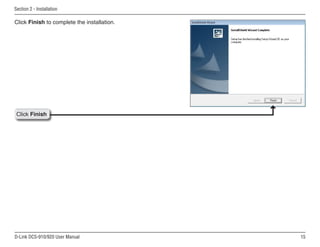
Click Finish to complete the installation.
Click Finish
16
D-Link DCS-910/920 User Manual
Section 2 - Installation
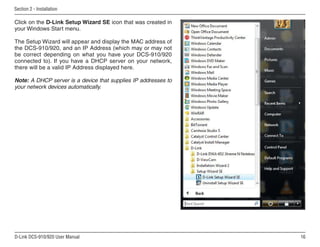
Click on the D-Link Setup Wizard SE icon that was created in
your Windows Start menu.
The Setup Wizard will appear and display the MAC address of
the DCS-910/920, and an IP Address (which may or may not
be correct depending on what you have your DCS-910/920
connected to). If you have a DHCP server on your network,
there will be a valid IP Address displayed here.
Note: A DHCP server is a device that supplies IP addresses to
your network devices automatically.
17
D-Link DCS-910/920 User Manual
Section 3 - Configuration
Setup Wizard
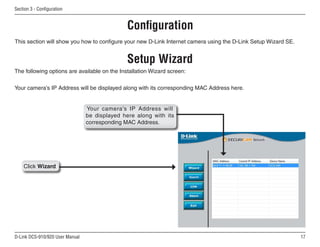
The following options are available on the Installation Wizard screen:
Configuration
This section will show you how to configure your new D-Link Internet camera using the D-Link Setup Wizard SE.
Click Wizard
Your camera’s IP Address will be displayed along with its corresponding MAC Address here.
Your camera’s IP Address will
be displayed here along with its
corresponding MAC Address.
18
D-Link DCS-910/920 User Manual
Section 3 - Configuration
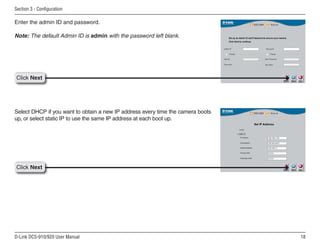
Enter the admin ID and password.
Note: The default Admin ID is admin with the password left blank.
Click Next
Click Next
Select DHCP if you want to obtain a new IP address every time the camera boots
up, or select static IP to use the same IP address at each boot up.
19
D-Link DCS-910/920 User Manual
Section 3 - Configuration
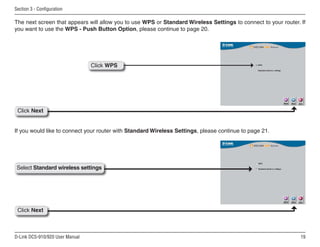
The next screen that appears will allow you to use WPS or Standard Wireless Settings to connect to your router. If
you want to use the WPS - Push Button Option, please continue to page 20.
If you would like to connect your router with Standard Wireless Settings, please continue to page 21.
Click Next
Click WPS
Select Standard wireless settings
Click Next
20
D-Link DCS-910/920 User Manual
Section 3 - Configuration
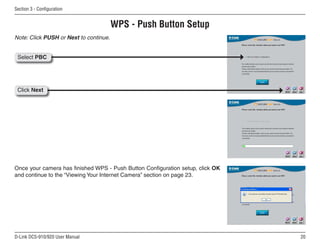
WPS - Push Button Setup
Once your camera has finished WPS - Push Button Configuration setup, click OK
and continue to the “Viewing Your Internet Camera” section on page 23.
Note: Click PUSH or Next to continue.
Select PBC
Click Next
21
D-Link DCS-910/920 User Manual
Section 3 - Configuration
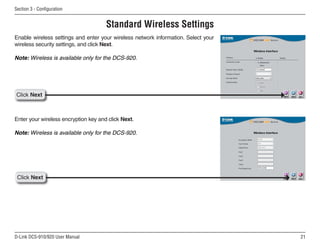
Click Next
Enter your wireless encryption key and click Next.
Note: Wireless is available only for the DCS-920.
Click Next
Enable wireless settings and enter your wireless network information. Select your
wireless security settings, and click Next.
Note: Wireless is available only for the DCS-920.
Standard Wireless Settings
22
D-Link DCS-910/920 User Manual
Section 3 - Configuration
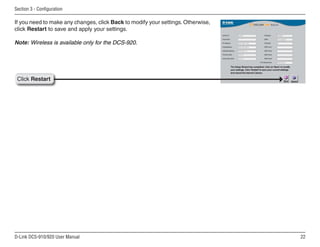
Click Restart
If you need to make any changes, click Back to modify your settings. Otherwise,
click Restart to save and apply your settings.
Note: Wireless is available only for the DCS-920.
23
D-Link DCS-910/920 User Manual
Section 3 - Configuration
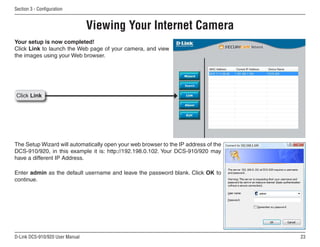
Your setup is now completed!
Click Link to launch the Web page of your camera, and view
the images using your Web browser.
Click Link
Viewing Your Internet Camera
Enter admin as the default username and leave the password blank. Click OK to
continue.
The Setup Wizard will automatically open your web browser to the IP address of the
DCS-910/920, in this example it is: http://192.198.0.102. Your DCS-910/920 may
have a different IP Address.
24
D-Link DCS-910/920 User Manual
Section 3 - Configuration
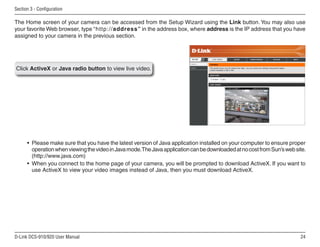
The Home screen of your camera can be accessed from the Setup Wizard using the Link button. You may also use
your favorite Web browser, type “http://address” in the address box, where address is the IP address that you have
assigned to your camera in the previous section.
Click ActiveX or Java radio button to view live video.
• Please make sure that you have the latest version of Java application installed on your computer to ensure proper
operationwhenviewingthevideoinJavamode.TheJavaapplicationcanbedownloadedatnocostfromSun’swebsite.
(http://www.java.com)
• When you connect to the home page of your camera, you will be prompted to download ActiveX. If you want to
use ActiveX to view your video images instead of Java, then you must download ActiveX.
25
D-Link DCS-910/920 User Manual
Section 3 - Configuration
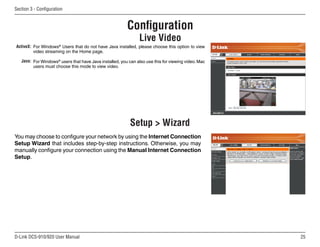
Configuration
Live Video
ActiveX:
Java:
For Windows®
Users that do not have Java installed, please choose this option to view
video streaming on the Home page.
For Windows®
users that have Java installed, you can also use this for viewing video. Mac
users must choose this mode to view video.
Setup  Wizard
You may choose to configure your network by using the Internet Connection
Setup Wizard that includes step-by-step instructions. Otherwise, you may
manually configure your connection using the Manual Internet Connection
Setup.
26
D-Link DCS-910/920 User Manual
Section 3 - Configuration
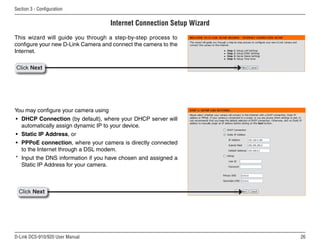
Internet Connection Setup Wizard
This wizard will guide you through a step-by-step process to
configure your new D-Link Camera and connect the camera to the
Internet.
You may configure your camera using
• DHCP Connection (by default), where your DHCP server will
automatically assign dynamic IP to your device.
• Static IP Address, or
• PPPoE connection, where your camera is directly connected
to the Internet through a DSL modem.
* Input the DNS information if you have chosen and assigned a
Static IP Address for your camera.
Click Next
Click Next
27
D-Link DCS-910/920 User Manual
Section 3 - Configuration
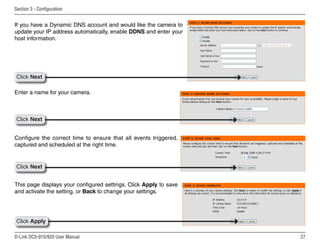
Enter a name for your camera.
Configure the correct time to ensure that all events triggered,
captured and scheduled at the right time.
This page displays your configured settings. Click Apply to save
and activate the setting, or Back to change your settings.
If you have a Dynamic DNS account and would like the camera to
update your IP address automatically, enable DDNS and enter your
host information.
Click Next
Click Next
Click Next
Click Apply
28
D-Link DCS-910/920 User Manual
Section 3 - Configuration
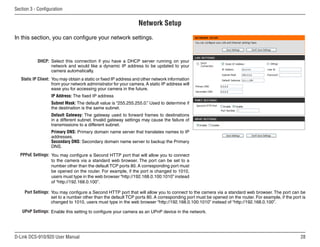
Network Setup
Select this connection if you have a DHCP server running on your
network and would like a dynamic IP address to be updated to your
camera automatically.
You may obtain a static or fixed IP address and other network information
from your network administrator for your camera. A static IP address will
ease you for accessing your camera in the future.
IP Address: The fixed IP address
Subnet Mask: The default value is “255.255.255.0.” Used to determine if
the destination is the same subnet.
Default Gateway: The gateway used to forward frames to destinations
in a different subnet. Invalid gateway settings may cause the failure of
transmissions to a different subnet.
Primary DNS: Primary domain name server that translates names to IP
addresses.
Secondary DNS: Secondary domain name server to backup the Primary
DNS.
You may configure a Second HTTP port that will allow you to connect
to the camera via a standard web browser. The port can be set to a
number other than the default TCP ports 80. A corresponding port must
be opened on the router. For example, if the port is changed to 1010,
users must type in the web browser “http://192.168.0.100:1010” instead
of “http://192.168.0.100”.
You may configure a Second HTTP port that will allow you to connect to the camera via a standard web browser. The port can be
set to a number other than the default TCP ports 80. A corresponding port must be opened on the router. For example, if the port is
changed to 1010, users must type in the web browser “http://192.168.0.100:1010” instead of “http://192.168.0.100”.
Enable this setting to configure your camera as an UPnP device in the network.
Port Settings:
UPnP Settings:
DHCP:
Static IP Client:
PPPoE Settings:
In this section, you can configure your network settings.
29
D-Link DCS-910/920 User Manual
Section 3 - Configuration
Setup  Wireless
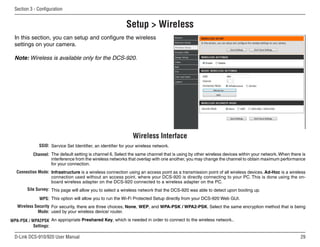
Service Set Identifier, an identifier for your wireless network.
The default setting is channel 6. Select the same channel that is using by other wireless devices within your network. When there is
interference from the wireless networks that overlap with one another, you may change the channel to obtain maximum performance
for your connection.
Infrastructure is a wireless connection using an access point as a transmission point of all wireless devices. Ad-Hoc is a wireless
connection used without an access point, where your DCS-920 is directly connecting to your PC. This is done using the on-
board wireless adapter on the DCS-920 connected to a wireless adapter on the PC.
This page will allow you to select a wireless network that the DCS-920 was able to detect upon booting up.
This option will allow you to run the Wi-Fi Protected Setup directly from your DCS-920 Web GUI.
For security, there are three choices; None, WEP, and WPA-PSK / WPA2-PSK. Select the same encryption method that is being
used by your wireless device/ router.
An appropriate Preshared Key, which is needed in order to connect to the wireless network..
SSID:
Channel:
Connection Mode:
Site Survey:
WPS:
Wireless Security
Mode:
WPA-PSK / WPA2PSK
Settings:
Wireless Interface
In this section, you can setup and configure the wireless
settings on your camera.
Note: Wireless is available only for the DCS-920.
30
D-Link DCS-910/920 User Manual
Section 3 - Configuration
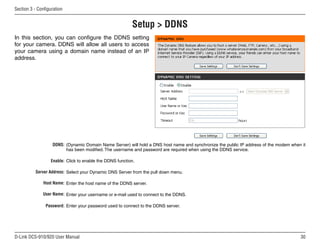
(Dynamic Domain Name Server) will hold a DNS host name and synchronize the public IP address of the modem when it
has been modified. The username and password are required when using the DDNS service.
Click to enable the DDNS function.
Select your Dynamic DNS Server from the pull down menu.
Enter the host name of the DDNS server.
Enter your username or e-mail used to connect to the DDNS.
Enter your password used to connect to the DDNS server.
DDNS:
Enable:
Server Address:
Host Name:
User Name:
Password:
Setup  DDNS
In this section, you can configure the DDNS setting
for your camera. DDNS will allow all users to access
your camera using a domain name instead of an IP
address.
31
D-Link DCS-910/920 User Manual
Section 3 - Configuration
Setup  Image Setup
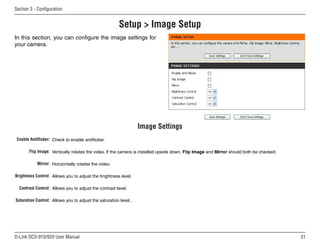
Check to enable antiflicker.
Vertically rotates the video. If the camera is installed upside down, Flip Image and Mirror should both be checked.
Horizontally rotates the video.
Allows you to adjust the brightness level.
Allows you to adjust the contrast level.
Allows you to adjust the saturation level. .
Enable Antiflicker:
Flip Image:
Mirror:
Brightness Control:
Contrast Control:
Saturation Control:
Image Settings
In this section, you can configure the image settings for
your camera.
32
D-Link DCS-910/920 User Manual
Section 3 - Configuration
Setup  Video
Video Profile:
Light Frequency:
Video Configuration
Encode Type:
Resolution:
FPS:
Quality:
The compression format used when viewing your camera.
Select the desired video resolution from three formats: 640x480, 320x240, and 160x120. The higher setting can
obtain better quality. However, it will use more resource within your network.
Select the optimal setting depending on your network status. Please note that the higher setting can obtain better
quality. However, it will use more resource within your network.
Select the desired image quality from five levels: Highest, High, Medium, Low, and Lowest.
Select the proper frequency (50Hz or 60Hz) to reduce image flicker.
In this section, you can configure the video settings for
your camera.
This section allows you to change the Encode Type, Resolution, FPS, and Quality.
33
D-Link DCS-910/920 User Manual
Section 3 - Configuration
Setup  Mail
Email Account
SMTP Server
Address:
Sender e-mail
Address:
Receiver e-mail
Address:
User Name:
Password:
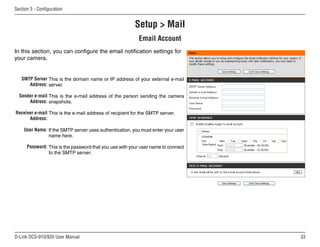
This is the domain name or IP address of your external e-mail
server.
This is the e-mail address of the person sending the camera
snapshots.
This is the e-mail address of recipient for the SMTP server.
If the SMTP server uses authentication, you must enter your user
name here.
This is the password that you use with your user name to connect
to the SMTP server.
In this section, you can configure the email notification settings for
your camera.
34
D-Link DCS-910/920 User Manual
Section 3 - Configuration
Time Schedule
Enable e-mail
image to e-mail
account:
Interval:
Test E-mail
Account:
Choosing Always will start sending snapshots to the recipient’s e-mail account right away. Choosing Schedule will allow you to
schedule when to start and stop the sending of snapshots to the recipient’s e-mail account.
The frequency of the snapshot interval can also be configured from 1 to 65535 seconds.
This will send a snapshot to the e-mail account that you have configured in the E-mail section. If you have configured the SMTP
account correctly, you will be able to send a test file to the e-mail account of the recipient.
35
D-Link DCS-910/920 User Manual
Section 3 - Configuration
Setup  FTP
FTP Server
Host Address:
Port Number:
User Name:
Password:
Directory Path:
Passive Mode:
This is the IP address of the FTP server that you will be connecting to.
Default is port 21. If changed, external FTP client program must change
the server connection port accordingly.
Specifies the user name to access the external FTP server. If you are to
upload snapshots to an FTP server you will need to fill in the Domain name
or IP address of your external FTP server.The following user settings must
be correctly configured for remote access.
Specifies the password to access the external FTP server.
Specifies the destination folder in the external FTP server.
Enabling passive mode will allow access to an external FTP server if your
camera is behind a router protected by a firewall.
In this section, you can configure a FTP server to receive the images.
36
D-Link DCS-910/920 User Manual
Section 3 - Configuration
Time Schedule
Enable upload image to
FTP server:
Always:
Schedule:
Video Frequency:
Base File Name:
File:
Test FTP Server:
Checking this box will enable video upload to the FTP server you have selected.
Selecting this option allows snapshots to be uploaded to your FTP as soon as you click Apply.
Selecting this option allows you to configure the times that you want the snapshots to be uploaded to your FTP server.
User can select in frames per second (1, 2, 3 or auto, in auto this could go to 4).The user can also select how many seconds
for each frame, this is configurable from 1 to 65535 seconds.
This will be the name that precedes the time, for example DCS9202008072116425101.jpg.This means that the camera took
a snapshot in the year 2008, July 21 at 16th hour (4 o’clock), 42 minutes and 51 seconds and it is picture number one.
Select Overwrite and there will only be a few images that are constantly refreshed depending on how many snapshots you
choose to have sent. Select Date/Time Suffix and the pictures will be named with a date and time also. An example of this
can be seen above under the Base file name category. Select Sequence Number Suffix up to 1024 and all the pictures
will be numbered from 1-1024. The total amount of pictures can be configured up to 1024 pictures. Picture number 1025
will be 1 again.
This will send a snapshot to the FTP server that you have configured in the Upload section. If you have configured the FTP
correctly, you will be able to see a test file in your FTP server.
37
D-Link DCS-910/920 User Manual
Section 3 - Configuration
Setup  Time and Date
Test FTP Server:
Synchronize NTP Server:
Copy your Computer’s Time
Settings:
Set the Date and Time
Manually:
Select the time zone for your region from the
pull-down menu.
Network Time Protocol will synchronize your
camera with an Internet time server. Choose
the one that is closest to your camera.
Click to synchronize the time information from
your PC.
Select this to set the time manually.
In this section, you can configure the settings of the internal
system clocks for your camera.
38
D-Link DCS-910/920 User Manual
Section 3 - Configuration
Maintenance  Device Management
In this section, you can change the administrator’s password
and configure the server settings for your camera. You
can also manage the user account(s) that access to your
camera.
39
D-Link DCS-910/920 User Manual
Section 3 - Configuration
Maintenance  Backup and Restore
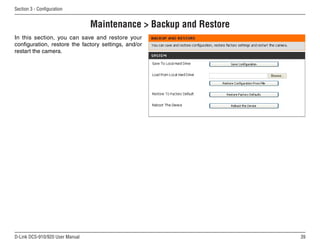
In this section, you can save and restore your
configuration, restore the factory settings, and/or
restart the camera.
40
D-Link DCS-910/920 User Manual
Section 3 - Configuration
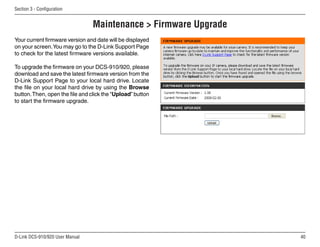
Maintenance  Firmware Upgrade
Your current firmware version and date will be displayed
on your screen.You may go to the D-Link Support Page
to check for the latest firmware versions available.
To upgrade the firmware on your DCS-910/920, please
download and save the latest firmware version from the
D-Link Support Page to your local hard drive. Locate
the file on your local hard drive by using the Browse
button.Then, open the file and click the “Upload” button
to start the firmware upgrade.
41
D-Link DCS-910/920 User Manual
Section 3 - Configuration
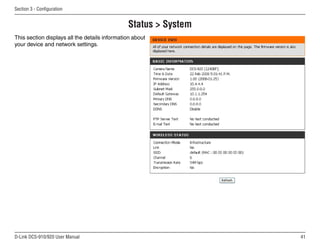
Status  System
This section displays all the details information about
your device and network settings.
42
D-Link DCS-910/920 User Manual
Section 4 - Security
Wireless Security
This section will show you the different levels of security you can use to protect your data from intruders.
The DCS-920 offers the following types of security:
• WPA-PSK (Pre-Shared Key)
• WEP (Wired Equivalent Privacy)
What is WEP?
WEP stands for Wired Equivalent Privacy. It is based on the IEEE 802.11 standard and uses the RC4 encryption
algorithm.WEP provides security by encrypting data over your wireless network so that it is protected as it is transmitted
from one wireless device to another.
To gain access to a WEP network, you must know the key.The key is a string of characters that you create.When using
WEP, you must determine the level of encryption.The type of encryption determines the key length. 128-bit encryption
requires a longer key than 64-bit encryption. Keys are defined by entering in a string in HEX (hexadecimal - using
characters 0-9, A-F) or ASCII (American Standard Code for Information Interchange – alphanumeric characters) format.
ASCII format is provided so you can enter a string that is easier to remember. The ASCII string is converted to HEX
for use over the network. Four keys can be defined so that you can change keys easily.
43
D-Link DCS-910/920 User Manual
Section 4 - Security
What is WPA?
WPA, or Wi-Fi Protected Access, is a Wi-Fi standard that was designed to improve the security features of WEP (Wired
Equivalent Privacy).
The 2 major improvements over WEP:
• Improved data encryption through the Temporal Key Integrity Protocol (TKIP). TKIP scrambles the keys
using a hashing algorithm and, by adding an integrity-checking feature, ensures that the keys haven’t been
tampered with. WPA2 is based on 802.11i and uses Advanced Encryption Standard instead of TKIP.
• User authentication, which is generally missing in WEP, through the extensible authentication protocol
(EAP). WEP regulates access to a wireless network based on a computer’s hardware-specific MAC
address, which is relatively simple to be sniffed out and stolen. EAP is built on a more secure public-key
encryption system to ensure that only authorized network users can access the network.
WPA-PSK/WPA2-PSK uses a passphrase or key to authenticate your wireless connection.The key is an alpha-numeric
password between 8 and 63 characters long. The password can include symbols (!?*_) and spaces. This key must
be the exact same key entered on your wireless router or access point.
44
D-Link DCS-910/920 User Manual
Section 4 - Security
D-Link’s DCS-910/920 is a versatile and cost effective Internet Camera for video monitoring. It can also serve as a
powerful surveillance system in security applications. The DCS-910/920 can be used with any wired or 802.11b/g
wireless router (applicable only for the DCS-920).This section explains how to view the camera from either the Internet
or from inside your internal network.
Materials Needed:
• 1 DCS-910/920 Internet Camera
• 1 Ethernet Cable
• A Wired or Wireless router such as the D-Link DI-624 Wireless Router
• Ethernet based PC for system configuration
Setting Up the DCS-910/920 For Use Behind a Router
Installing a DCS-910/920 Internet Camera on your network is an easy 4–step procedure:
1. Assign a Local IP Address to Your Internet Camera
2. View the Internet Camera Using Your Internet Explorer Web Browser
3. Access the Router with Your Web Browser
4. Open Virtual Server Ports to Enable Remote Image Viewing
This section is designed to walk you through the setup process for installing your camera behind a router and enable
remote video viewing. For the basic setup of the DCS-910/920, follow the steps outlined in the Quick Installation
Guide.
Using  Configuring the DCS-910/920
45
D-Link DCS-910/920 User Manual
Section 4 - Security
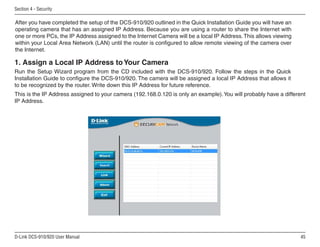
Run the Setup Wizard program from the CD included with the DCS-910/920. Follow the steps in the Quick
Installation Guide to configure the DCS-910/920. The camera will be assigned a local IP Address that allows it
to be recognized by the router. Write down this IP Address for future reference.
1. Assign a Local IP Address to Your Camera
After you have completed the setup of the DCS-910/920 outlined in the Quick Installation Guide you will have an
operating camera that has an assigned IP Address. Because you are using a router to share the Internet with
one or more PCs, the IP Address assigned to the Internet Camera will be a local IP Address.This allows viewing
within your Local Area Network (LAN) until the router is configured to allow remote viewing of the camera over
the Internet.
This is the IP Address assigned to your camera (192.168.0.120 is only an example).You will probably have a different
IP Address.
46
D-Link DCS-910/920 User Manual
Section 4 - Security
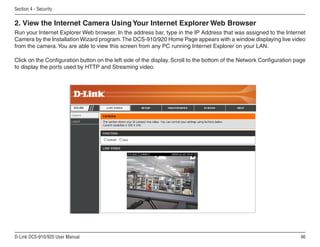
Run your Internet Explorer Web browser. In the address bar, type in the IP Address that was assigned to the Internet
Camera by the Installation Wizard program.The DCS-910/920 Home Page appears with a window displaying live video
from the camera.You are able to view this screen from any PC running Internet Explorer on your LAN.
Click on the Configuration button on the left side of the display. Scroll to the bottom of the Network Configuration page
to display the ports used by HTTP and Streaming video.
2. View the Internet Camera Using Your Internet Explorer Web Browser
47
D-Link DCS-910/920 User Manual
Section 4 - Security
The following steps generally apply to any router that you have on your network. The D-Link DI-624 is used as an
example to clarify the configuration process. Configure the initial settings of the DI-624 by following the steps outlined
in the DI-624 Quick Installation Guide.
3. Access the Router with Your Web Browser
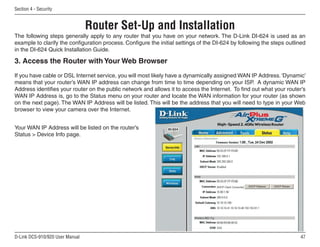
If you have cable or DSL Internet service, you will most likely have a dynamically assigned WAN IP Address.‘Dynamic’
means that your router’s WAN IP address can change from time to time depending on your ISP. A dynamic WAN IP
Address identifies your router on the public network and allows it to access the Internet. To find out what your router’s
WAN IP Address is, go to the Status menu on your router and locate the WAN information for your router (as shown
on the next page). The WAN IP Address will be listed. This will be the address that you will need to type in your Web
browser to view your camera over the Internet.
Router Set-Up and Installation
Your WAN IP Address will be listed on the router’s
Status  Device Info page.
48
D-Link DCS-910/920 User Manual
Section 4 - Security
Note: Because a dynamic WAN IP can change from time to time depending on your ISP, you may want to obtain a
Static IP address from your ISP. A Static IP address is a fixed IP address that will not change over time and will be more
convenient for you to use to access your camera from a remote location. The Static IP Address will also allow you to
access your camera attached to your router over the Internet.
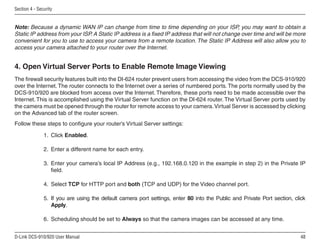
4. Open Virtual Server Ports to Enable Remote Image Viewing
The firewall security features built into the DI-624 router prevent users from accessing the video from the DCS-910/920
over the Internet. The router connects to the Internet over a series of numbered ports. The ports normally used by the
DCS-910/920 are blocked from access over the Internet. Therefore, these ports need to be made accessible over the
Internet. This is accomplished using the Virtual Server function on the DI-624 router. The Virtual Server ports used by
the camera must be opened through the router for remote access to your camera.Virtual Server is accessed by clicking
on the Advanced tab of the router screen.
1. Click Enabled.
2. Enter a different name for each entry.
3. Enter your camera’s local IP Address (e.g., 192.168.0.120 in the example in step 2) in the Private IP
field.
4. Select TCP for HTTP port and both (TCP and UDP) for the Video channel port.
5. If you are using the default camera port settings, enter 80 into the Public and Private Port section, click
Apply.
6. Scheduling should be set to Always so that the camera images can be accessed at any time.
Follow these steps to configure your router’s Virtual Server settings:
49
D-Link DCS-910/920 User Manual
Section 4 - Security
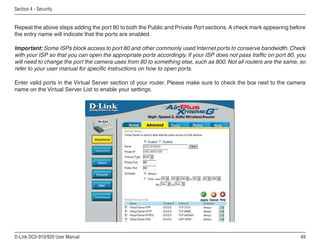
Repeat the above steps adding the port 80 to both the Public and Private Port sections. A check mark appearing before
the entry name will indicate that the ports are enabled.
Important: Some ISPs block access to port 80 and other commonly used Internet ports to conserve bandwidth. Check
with your ISP so that you can open the appropriate ports accordingly. If your ISP does not pass traffic on port 80, you
will need to change the port the camera uses from 80 to something else, such as 800. Not all routers are the same, so
refer to your user manual for specific instructions on how to open ports.
Enter valid ports in the Virtual Server section of your router. Please make sure to check the box next to the camera
name on the Virtual Server List to enable your settings.
50
D-Link DCS-910/920 User Manual
Section 5 - Troubleshooting
Troubleshooting
1. Why does the Power LED not light up constantly?
The power supply used might be at fault. Confirm that you are using the provided power supply, which is DC 5V,
for the Internet Camera. Also verify that the power supply is well connected, and/or the option to turn off the LED is
enabled.
2. Why does the LAN LED not light up properly?
There might be a problem with the network cable.To confirm that the cables are working, PING the address of a known
device on the network. If the cabling is OK and your network is reachable, you should receive a reply similar to the
following (…bytes = 32 time = 2 ms).
Another possible problem may be that the network device utilized by the Internet Camera is not functioning properly,
such as hubs or switches. Confirm the power for the devices are well connected and functioning properly, and/or the
option to turn off the LED is enabled.
3. Why does the Internet Camera work locally but not remotely?
This might be caused by the firewall protection. Check the Internet firewall with your system administrator.The firewall
may need to have some settings changed in order for the Internet Camera to be accessible outside your local LAN.
For more information, please refer to the section about installing your camera behind a router.
Make sure that the Internet Camera isn’t conflicting with any Web server you may have running on your network.
The default router setting might be a possible reason. Check that the configuration of the router settings allow the
Internet Camera to be accessed outside your local LAN.
4. Why does a series of broad vertical white lines appear through out the image?
It could be that the CMOS sensor (a square panel situated behind the lens that measures the light signals and changes
it into a digital format so your computer can present it into an image that you are familiar with) has become overloaded
when it has been exposed to bright lights such as direct exposure to sunlight or halogen lights. Reposition the Internet
Camera into a more shaded area immediately as prolonged exposure to bright lights will damage the CMOS sensor.
51
D-Link DCS-910/920 User Manual
Section 5 - Troubleshooting
5. Noisy images occur. How can I solve the problem?
The video images might be noisy if the Internet Camera is used in a very low light environment.
6.The images are poor quality, how can I improve the image quality?
Make sure that your computers display properties are set to at least 6-bit color.Using 16 or 256 colors on your computer
will produce dithering artifacts in the image, making the image look as if it is of poor quality.
The configuration on the Internet Camera image display is incorrect. Through the Web Configuration Video section
of the Web management you need to adjust the image related parameters for improved images such as: brightness,
contrast, hue and light frequency. Please refer to the Web Configuration section for detailed information.
7. Why are no images available through the Web browser?
The ActiveX might be disabled. If you are viewing the images from Internet Explorer make sure ActiveX has been
enabled in the Internet Options menu.You may also need to change the security settings on your browser to allow the
ActiveX plug-in to be installed.
If you are using Internet Explorer with a version number of lower than 5, then you will need to upgrade your Web browser
software in order to view the streaming video transmitted by the Internet Camera.
52
D-Link DCS-910/920 User Manual
Appendix A - Wireless Basics
D-Link wireless products are based on industry standards to provide easy-to-use and compatible high-speed wireless*
connectivity within your home, business or public access wireless networks. Strictly adhering to the IEEE standard,
the D-Link wireless family of products will allow you to securely access the data you want, when and where you want
it.You will be able to enjoy the freedom that wireless networking delivers.
A wireless local area network (WLAN) is a cellular computer network that transmits and receives data with radio signals
instead of wires. Wireless LANs are used increasingly in both home and office environments, and public areas such
as airports, coffee shops and universities. Innovative ways to utilize WLAN technology are helping people to work and
communicate more efficiently. Increased mobility and the absence of cabling and other fixed infrastructure have proven
to be beneficial for many users.
Under many circumstances, it may be desirable for mobile network devices to link to a conventional Ethernet LAN in
order to use servers, printers or an Internet connection supplied through the wired LAN. A Wireless Router is a device
used to provide this link.
Wireless Basics
53
D-Link DCS-910/920 User Manual
Appendix A - Wireless Basics
What is Wireless?
Wireless or WiFi technology is another way of connecting your computer to the network without using wires.WiFi
uses radio frequency to connect wirelessly, so you have the freedom to connect computers anywhere in your
home or office network.
Why D-Link Wireless?
D-Link is the worldwide leader and award winning designer, developer, and manufacturer of networking
products. D-Link delivers the performance you need at a price you can afford. D-Link has all the products you
need to build your network.
How does wireless work?
Wireless works similar to how cordless phone work, through radio signals to transmit data from one point A
to point B. But wireless technology has restrictions as to how you can access the network. You must be within
the wireless network range area to be able to connect your computer. There are two different types of wireless
networks Wireless Local Area Network (WLAN), and Wireless Personal Area Network (WPAN).
Wireless Local Area Network (WLAN)
In a wireless local area network, a device called an Access Point (AP) connects computers to the network. The
access point has a small antenna attached to it, which allows it to transmit data back and forth over radio signals.
With an indoor access point as seen in the picture, the signal can travel up to 300 feet. With an outdoor access
point the signal can reach out up to 30 miles to serve places like manufacturing plants, industrial locations,
college and high school campuses, airports, golf courses, and many other outdoor venues.
54
D-Link DCS-910/920 User Manual
Appendix A - Wireless Basics
Who uses wireless?
Wireless technology as become so popular in recent years that almost everyone is using it, whether it’s for home, office,
business, D-Link has a wireless solution for it.
Home
• Gives everyone at home broadband access
• Surf the Web, check email, instant message, and etc
• Gets rid of the cables around the house
• Simple and easy to use
Small Office and Home Office
• Stay on top of everything at home as you would at office
• Remotely access your office network from home
• Share Internet connection and printer with multiple computers
• No need to dedicate office space
55
D-Link DCS-910/920 User Manual
Appendix A - Wireless Basics
Where is wireless used?
Wireless technology is expanding everywhere not just at home or office. People like the freedom of mobility
and it’s becoming so popular that more and more public facilities now provide wireless access to attract
people. The wireless connection in public places is usually called “hotspots”.
Using a D-Link Cardbus Adapter with your laptop, you can access the hotspot to connect to Internet from
remote locations like: Airports, Hotels, Coffee Shops, Libraries, Restaurants, and Convention Centers.
Wireless network is easy to setup, but if you’re installing it for the first time it could be quite a task not
knowing where to start. That’s why we’ve put together a few setup steps and tips to help you through the
process of setting up a wireless network.
Tips
Here are a few things to keep in mind, when you install a wireless network.
Centralize your router or Access Point
Make sure you place the router/access point in a centralized location within your network for the best
performance. Try to place the router/access point as high as possible in the room, so the signal gets
dispersed throughout your home. If you have a two-story home, you may need a repeater to boost the
signal to extend the range.
Eliminate Interference
Place home appliances such as cordless telephones, microwaves, and televisions as away as possible
from the router/access point.This would significantly reduce any interfere that the appliances might cause
since they operate on same frequency.
56
D-Link DCS-910/920 User Manual
Appendix A - Wireless Basics
Security
Don’t let you next-door neighbors or intruders connect to your wireless network. Secure your wireless
network by turning on the WPA or WEP security feature on the router. Refer to product manual for detail
information on how to set it up.
There are basically two modes of networking:
• Infrastructure – All wireless clients will connect to an access point or wireless router.
• Ad-Hoc – Directly connecting to another computer, for peer-to-peer communication, using wireless network
adapters on each computer, such as two or more DCS-920 wireless network Cardbus adapters.
An Infrastructure network contains an Access Point or wireless router. All the wireless devices, or clients, will connect
to the wireless router or access point.
An Ad-Hoc network contains only clients, such as laptops with wireless cardbus adapters. All the adapters must be in
Ad-Hoc mode to communicate.
* Applicable only for the DCS-920
Wireless Modes
57
D-Link DCS-910/920 User Manual
Appendix B - Networking Basics
Networking Basics
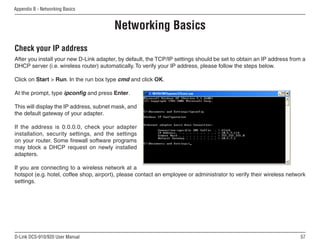
Check your IP address
After you install your new D-Link adapter, by default, the TCP/IP settings should be set to obtain an IP address from a
DHCP server (i.e. wireless router) automatically. To verify your IP address, please follow the steps below.
Click on Start  Run. In the run box type cmd and click OK.
At the prompt, type ipconfig and press Enter.
This will display the IP address, subnet mask, and
the default gateway of your adapter.
If the address is 0.0.0.0, check your adapter
installation, security settings, and the settings
on your router. Some firewall software programs
may block a DHCP request on newly installed
adapters.
If you are connecting to a wireless network at a
hotspot (e.g. hotel, coffee shop, airport), please contact an employee or administrator to verify their wireless network
settings.
58
D-Link DCS-910/920 User Manual
Appendix B - Networking Basics
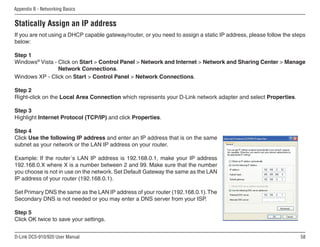
Statically Assign an IP address
If you are not using a DHCP capable gateway/router, or you need to assign a static IP address, please follow the steps
below:
Step 1
Windows®
Vista - Click on Start  Control Panel  Network and Internet  Network and Sharing Center  Manage
			 Network Connections.
Windows XP - Click on Start  Control Panel  Network Connections.
Step 2
Right-click on the Local Area Connection which represents your D-Link network adapter and select Properties.
Step 3
Highlight Internet Protocol (TCP/IP) and click Properties.
Step 4
Click Use the following IP address and enter an IP address that is on the same
subnet as your network or the LAN IP address on your router.
Example: If the router´s LAN IP address is 192.168.0.1, make your IP address
192.168.0.X where X is a number between 2 and 99. Make sure that the number
you choose is not in use on the network. Set Default Gateway the same as the LAN
IP address of your router (192.168.0.1).
Set Primary DNS the same as the LAN IP address of your router (192.168.0.1).The
Secondary DNS is not needed or you may enter a DNS server from your ISP.
Step 5
Click OK twice to save your settings.
59
D-Link DCS-910/920 User Manual
Appendix C - Technical Specifications
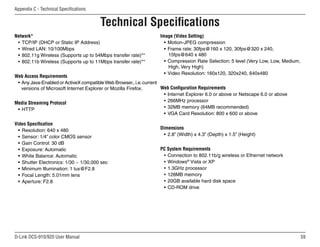
Technical Specifications
Network*
• TCP/IP (DHCP or Static IP Address)
• Wired LAN: 10/100Mbps
• 802.11g Wireless (Supports up to 54Mbps transfer rate)**
• 802.11b Wireless (Supports up to 11Mbps transfer rate)**
Web Access Requirements
• Any Java-Enabled or ActiveX compatibleWeb Browser,.i.e.current
versions of Microsoft Internet Explorer or Mozilla Firefox.
Media Streaming Protocol
• HTTP
Video Specification
• Resolution: 640 x 480
• Sensor: 1/4” color CMOS sensor
• Gain Control: 30 dB
• Exposure: Automatic
• White Balance: Automatic
• Shutter Electronics: 1/30 ~ 1/30,000 sec
• Minimum Illumination: 1 lux@F2.8
• Focal Length: 5.01mm lens
• Aperture: F2.8
Image (Video Setting)
• Motion-JPEG compression
• Frame rate: 30fps@160 x 120, 30fps@320 x 240,
15fps@640 x 480
• Compression Rate Selection: 5 level (Very Low, Low, Medium,
High, Very High)
• Video Resolution: 160x120, 320x240, 640x480
Web Configuration Requirements
• Internet Explorer 6.0 or above or Netscape 6.0 or above
• 266MHz processor
• 32MB memory (64MB recommended)
• VGA Card Resolution: 800 x 600 or above
Dimensions
• 2.8” (Width) x 4.3” (Depth) x 1.5” (Height)
PC System Requirements
• Connection to 802.11b/g wireless or Ethernet network
• Windows®
Vista or XP
• 1.3GHz processor
• 128MB memory
• 20GB available hard disk space
• CD-ROM drive
60
D-Link DCS-910/920 User Manual
Appendix C - Technical Specifications
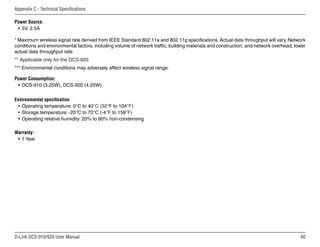
Power Source:
• 5V, 2.5A
* Maximum wireless signal rate derived from IEEE Standard 802.11a and 802.11g specifications. Actual data throughput will vary. Network
conditions and environmental factors, including volume of network traffic, building materials and construction, and network overhead, lower
actual data throughput rate.
** Applicable only for the DCS-920
*** Environmental conditions may adversely affect wireless signal range.
Power Consumption:
• DCS-910 (3.25W), DCS-920 (4.25W)
Environmental specification
• Operating temperature: 0°C to 40°C (32°F to 104°F)
• Storage temperature: -20°C to 70°C (-4°F to 158°F)
• Operating relative humidity: 20% to 80% non-condensing
Warranty:
• 1 Year
You can find software updates and user documentation on the D-Link website.
U.S. and Canadian customers can contact D-Link technical support through our Web site, or by phone.
Tech Support for customers within the United States:
Telephone:
(877) 453-5465
Internet:
http://support.dlink.com
Tech Support for customers within Canada:
Telephone:
(800) 361-5265
Internet:
http://support.dlink.ca
Contacting Technical Support
62
D-Link DCS-910/920 User Manual
Appendix E - Warranty
Warranty
Subject to the terms and conditions set forth herein, D-Link Systems, Inc. (“D-Link”) provides this Limited Warranty:
• Only to the person or entity that originally purchased the product from D-Link or its authorized reseller or distributor, and
• Only for products purchased and delivered within the fifty states of the United States, the District of Columbia, U.S.
Possessions or Protectorates, U.S. Military Installations, or addresses with an APO or FPO.
Limited Warranty:
D-Link warrants that the hardware portion of the D-Link product described below (“Hardware”) will be free from material defects in
workmanship and materials under normal use from the date of original retail purchase of the product, for the period set forth below
(“Warranty Period”), except as otherwise stated herein.
• Hardware (excluding power supplies and fans): One (1) year
• Power supplies and fans: One (1) year
• Spare parts and spare kits: Ninety (90) days
The customer’s sole and exclusive remedy and the entire liability of D-Link and its suppliers under this Limited Warranty will be, at D-Link’s
option, to repair or replace the defective Hardware during the Warranty Period at no charge to the original owner or to refund the actual
purchase price paid. Any repair or replacement will be rendered by D-Link at an Authorized D-Link Service Office.The replacement hardware
need not be new or have an identical make, model or part. D-Link may, at its option, replace the defective Hardware or any part thereof with
any reconditioned product that D-Link reasonably determines is substantially equivalent (or superior) in all material respects to the defective
Hardware.Repaired or replacement hardware will be warranted for the remainder of the originalWarranty Period or ninety (90) days, whichever
is longer, and is subject to the same limitations and exclusions. If a material defect is incapable of correction, or if D-Link determines that it
is not practical to repair or replace the defective Hardware, the actual price paid by the original purchaser for the defective Hardware will be
refunded by D-Link upon return to D-Link of the defective Hardware. All Hardware or part thereof that is replaced by D-Link, or for which the
purchase price is refunded, shall become the property of D-Link upon replacement or refund.
63
D-Link DCS-910/920 User Manual
Appendix E - Warranty
Limited Software Warranty:
D-Link warrants that the software portion of the product (“Software”) will substantially conform to D-Link’s then current functional specifications
for the Software, as set forth in the applicable documentation, from the date of original retail purchase of the Software for a period of ninety
(90) days (“Software Warranty Period”), provided that the Software is properly installed on approved hardware and operated as contemplated
in its documentation. D-Link further warrants that, during the Software Warranty Period, the magnetic media on which D-Link delivers the
Software will be free of physical defects.The customer’s sole and exclusive remedy and the entire liability of D-Link and its suppliers under
this Limited Warranty will be, at D-Link’s option, to replace the non-conforming Software (or defective media) with software that substantially
conforms to D-Link’s functional specifications for the Software or to refund the portion of the actual purchase price paid that is attributable
to the Software. Except as otherwise agreed by DLink in writing, the replacement Software is provided only to the original licensee, and
is subject to the terms and conditions of the license granted by D-Link for the Software. Replacement Software will be warranted for the
remainder of the original Warranty Period and is subject to the same limitations and exclusions. If a material non-conformance is incapable
of correction, or if D-Link determines in its sole discretion that it is not practical to replace the non-conforming Software, the price paid by
the original licensee for the non-conforming Software will be refunded by D-Link; provided that the non-conforming Software (and all copies
thereof) is first returned to D-Link. The license granted respecting any Software for which a refund is given automatically terminates.
Non-Applicability of Warranty:
The Limited Warranty provided hereunder for Hardware and Software portions of D-Link’s products will not be applied to and does not cover
any refurbished product and any product purchased through the inventory clearance or liquidation sale or other sales in which D-Link, the
sellers, or the liquidators expressly disclaim their warranty obligation pertaining to the product and in that case, the product is being sold
“As-Is” without any warranty whatsoever including, without limitation, the Limited Warranty as described herein, notwithstanding anything
stated herein to the contrary.
Submitting A Claim:
The customer shall return the product to the original purchase point based on its return policy. In case the return policy period has expired
and the product is within warranty, the customer shall submit a claim to D-Link as outlined below:
• The customer must submit with the product as part of the claim a written description of the Hardware defect or Software
nonconformance in sufficient detail to allow DLink to confirm the same, along with proof of purchase of the product (such
as a copy of the dated purchase invoice for the product) if the product is not registered.
• The customer must obtain a Case ID Number from D-Link Technical Support at 1-877-453-5465, who will attempt to assist
the customer in resolving any suspected defects with the product. If the product is considered defective, the customer must
obtain a Return Material Authorization (“RMA”) number by completing the RMA form and entering the assigned Case ID
Number at https://rma.dlink.com/.
64
D-Link DCS-910/920 User Manual
Appendix E - Warranty
• After an RMA number is issued, the defective product must be packaged securely in the original or other suitable shipping
package to ensure that it will not be damaged in transit, and the RMA number must be prominently marked on the outside
of the package. Do not include any manuals or accessories in the shipping package. DLink will only replace the defective
portion of the product and will not ship back any accessories.
• The customer is responsible for all in-bound shipping charges to D-Link. No Cash on Delivery (“COD”) is allowed. Products
sent COD will either be rejected by D-Link or become the property of D-Link.Products shall be fully insured by the customer
and shipped to D-Link Systems, Inc., 17595 Mt. Herrmann, Fountain Valley, CA 92708. D-Link will not be held responsible
for any packages that are lost in transit to D-Link. The repaired or replaced packages will be shipped to the customer via
UPS Ground or any common carrier selected by D-Link. Return shipping charges shall be prepaid by D-Link if you use an
address in the United States, otherwise we will ship the product to you freight collect. Expedited shipping is available upon
request and provided shipping charges are prepaid by the customer. D-Link may reject or return any product that is not
packaged and shipped in strict compliance with the foregoing requirements, or for which an RMA number is not visible from
the outside of the package. The product owner agrees to pay D-Link’s reasonable handling and return shipping charges
for any product that is not packaged and shipped in accordance with the foregoing requirements, or that is determined by
D-Link not to be defective or non-conforming.
What Is Not Covered:
The Limited Warranty provided herein by D-Link does not cover:
Products that, in D-Link’s judgment, have been subjected to abuse, accident, alteration, modification, tampering, negligence, misuse, faulty
installation, lack of reasonable care, repair or service in any way that is not contemplated in the documentation for the product, or if the
model or serial number has been altered, tampered with, defaced or removed; Initial installation, installation and removal of the product for
repair, and shipping costs; Operational adjustments covered in the operating manual for the product, and normal maintenance; Damage
that occurs in shipment, due to act of God, failures due to power surge, and cosmetic damage; Any hardware, software, firmware or other
products or services provided by anyone other than D-Link; and Products that have been purchased from inventory clearance or liquidation
sales or other sales in which D-Link, the sellers, or the liquidators expressly disclaim their warranty obligation pertaining to the product.
While necessary maintenance or repairs on your Product can be performed by any company, we recommend that you use only an Authorized
D-Link Service Office. Improper or incorrectly performed maintenance or repair voids this Limited Warranty.
Disclaimer of Other Warranties:
EXCEPT FOR THE LIMITED WARRANTY SPECIFIED HEREIN, THE PRODUCT IS PROVIDED “AS-IS” WITHOUT ANY WARRANTY
OF ANY KIND WHATSOEVER INCLUDING, WITHOUT LIMITATION, ANY WARRANTY OF MERCHANTABILITY, FITNESS FOR A
PARTICULAR PURPOSE AND NONINFRINGEMENT.
65
D-Link DCS-910/920 User Manual
Appendix E - Warranty
IF ANY IMPLIED WARRANTY CANNOT BE DISCLAIMED IN ANY TERRITORY WHERE A PRODUCT IS SOLD, THE DURATION OF
SUCH IMPLIED WARRANTY SHALL BE LIMITEDTOTHE DURATION OFTHE APPLICABLE WARRANTY PERIOD SET FORTH ABOVE.
EXCEPT AS EXPRESSLY COVERED UNDERTHE LIMITED WARRANTY PROVIDED HEREIN,THE ENTIRE RISK ASTOTHE QUALITY,
SELECTION AND PERFORMANCE OF THE PRODUCT IS WITH THE PURCHASER OF THE PRODUCT.
Limitation of Liability:
TOTHE MAXIMUM EXTENT PERMITTED BY LAW, D-LINK IS NOT LIABLE UNDER ANY CONTRACT, NEGLIGENCE, STRICT LIABILITY
OR OTHER LEGAL OR EQUITABLE THEORY FOR ANY LOSS OF USE OF THE PRODUCT, INCONVENIENCE OR DAMAGES OF ANY
CHARACTER,WHETHER DIRECT, SPECIAL, INCIDENTAL OR CONSEQUENTIAL (INCLUDING, BUT NOT LIMITEDTO, DAMAGES FOR
LOSS OF GOODWILL, LOSS OF REVENUE OR PROFIT, WORK STOPPAGE, COMPUTER FAILURE OR MALFUNCTION, FAILURE OF
OTHER EQUIPMENT OR COMPUTER PROGRAMS TO WHICH D-LINK’S PRODUCT IS CONNECTED WITH, LOSS OF INFORMATION
OR DATA CONTAINED IN, STORED ON, OR INTEGRATED WITH ANY PRODUCT RETURNED TO D-LINK FOR WARRANTY SERVICE)
RESULTING FROM THE USE OF THE PRODUCT, RELATING TO WARRANTY SERVICE, OR ARISING OUT OF ANY BREACH OF
THIS LIMITED WARRANTY, EVEN IF D-LINK HAS BEEN ADVISED OF THE POSSIBILITY OF SUCH DAMAGES.THE SOLE REMEDY
FOR A BREACH OF THE FOREGOING LIMITED WARRANTY IS REPAIR, REPLACEMENT OR REFUND OF THE DEFECTIVE OR
NONCONFORMING PRODUCT. THE MAXIMUM LIABILITY OF D-LINK UNDER THIS WARRANTY IS LIMITED TO THE PURCHASE
PRICE OF THE PRODUCT COVERED BY THE WARRANTY.THE FOREGOING EXPRESS WRITTEN WARRANTIES AND REMEDIES
ARE EXCLUSIVE AND ARE IN LIEU OF ANY OTHER WARRANTIES OR REMEDIES, EXPRESS, IMPLIED OR STATUTORY.
Governing Law:
This Limited Warranty shall be governed by the laws of the State of California. Some states do not allow exclusion or limitation of incidental
or consequential damages, or limitations on how long an implied warranty lasts, so the foregoing limitations and exclusions may not apply.
This Limited Warranty provides specific legal rights and you may also have other rights which vary from state to state.
Trademarks:
D-Link is a registered trademark of D-Link Systems, Inc. Other trademarks or registered trademarks are the property of their respective
owners.
Copyright Statement:
No part of this publication or documentation accompanying this product may be reproduced in any form or by any means or used to make
any derivative such as translation, transformation, or adaptation without permission from D-Link Corporation/D-Link Systems, Inc., as
stipulated by the United States Copyright Act of 1976 and any amendments thereto. Contents are subject to change without prior notice.
Copyright 2008-2010 by D-Link Corporation/D-Link Systems, Inc. All rights reserved.
66
D-Link DCS-910/920 User Manual
Appendix E - Warranty
CE Mark Warning:
This is a Class B product. In a domestic environment, this product may cause radio interference, in which case the user may be required
to take adequate measures.
FCC Statement:
This equipment has been tested and found to comply with the limits for a Class B digital device, pursuant to part 15 of the FCC Rules.
These limits are designed to provide reasonable protection against harmful interference in a residential installation. This equipment
generates, uses, and can radiate radio frequency energy and, if not installed and used in accordance with the instructions, may cause
harmful interference to radio communication. However, there is no guarantee that interference will not occur in a particular installation. If
this equipment does cause harmful interference to radio or television reception, which can be determined by turning the equipment off
and on, the user is encouraged to try to correct the interference by one or more of the following measures:
• Reorient or relocate the receiving antenna.
• Increase the separation between the equipment and receiver.
• Connect the equipment into an outlet on a circuit different from that to which the receiver is connected.
• Consult the dealer or an experienced radio/TV technician for help.
For detailed warranty information applicable to products purchased outside the United States, please contact the corresponding local D-
Link office.
67
D-Link DCS-910/920 User Manual
Version 1.3
March 9, 2010
Product registration is entirely voluntary and failure to complete or return this form will not diminish your warranty
rights.
Registration

MANUAL_DCS-910_920_A2_v1.30(B)D-LINK.pdf

  • 2.
    D-Link DCS-910/920 UserManual Table of Contents Product Overview.........................................................4 Package Contents....................................................4 System Requirements..............................................4 Introduction...............................................................5 Features. ...................................................................6 Hardware Overview..................................................7 Front View...........................................................7 Rear View. ...........................................................8 Hardware Installation................................................9 Installation. ..................................................................11 Wireless Installation Considerations. ......................11 Software Installation...............................................12 Configuration..............................................................17 Setup Wizard..........................................................17 WPS - Push Button Setup................................20 Standard Wireless Settings. ..............................21 Viewing Your Internet Camera................................23 Configuration..........................................................25 Live Video.........................................................25 Setup Wizard.................................................25 Internet Connection Setup Wizard...............26 Network Setup.............................................28 Setup Wireless. ..............................................29 Wireless Interface........................................29 Setup DDNS .................................................30 Setup Image Setup........................................31 Image Settings. ............................................31 Setup Video...................................................32 Video Configuration.....................................32 Setup Mail. .....................................................33 Email Account. .............................................33 Time Schedule. ............................................34 Setup FTP. .....................................................35 FTP Server..................................................35 Time Schedule. ............................................36 Setup Time and Date.....................................37 Maintenance Device Management................38 Maintenance Backup and Restore. ................39 Maintenance Firmware Upgrade...................40 Status System. ...............................................41 Wireless Security. .......................................................42 What is WEP?. ........................................................42 What is WPA?.........................................................43 Using Configuring the DCS-910/920...................44 Router Set-Up and Installation...............................47 Troubleshooting. .........................................................50 Wireless Basics..........................................................52 Table of Contents
  • 3.
    D-Link DCS-910/920 UserManual Table of Contents Networking Basics.....................................................57 Check your IP address...........................................57 Statically Assign an IP address..............................58 Technical Specifications. ...........................................59 Contacting Technical Support...................................61 Warranty......................................................................62 Registration. ................................................................67
  • 4.
    D-Link DCS-910/920 UserManual Section 1 - Product Overview • DCS-910/920 Internet Camera • CAT5 Ethernet Cable • Power Adapter • Antenna (available only for the DCS-920) • Manual and Software on CD • Quick Install Guide • Camera Stand Note: Using a power supply with a different voltage than the one included with your product will cause damage and void the warranty for this product. If any of the above items are missing, please contact your reseller. System Requirements • Computer with Windows® XP or Vista® • PC with 1.3GHz or above; at least 128MB RAM • Internet Explorer 6.0 or Netscape Navigator™ 7.0 and above • Existing 10/100 Ethernet-based network or wireless 802.11b/g network Product Overview Package Contents
  • 5.
    D-Link DCS-910/920 UserManual Section 1 - Product Overview Introduction Congratulations on your purchase of the DCS-910/920 Internet Camera! The DCS-910/920 is a versatile and unique solution for your small office or home. Unlike a PC Camera, the DCS-910/920 is a stand-alone system with a built-in CPU that transmits high quality video images for monitoring. The DCS-910/920 can be remotely accessed, and controlled using a Web browser over the Intranet or Internet. The simple installation procedure and intuitive Web-based interface offer easy integration with your Ethernet/Fast Ethernet or 802.11b/g wireless network. The DCS-910/920 also comes with remote monitoring capability for a complete and cost-effective home security solution.
  • 6.
    D-Link DCS-910/920 UserManual Section 1 - Product Overview • Simple to Use: The DCS-910/920 is a stand-alone system with a built-in CPU, requiring no special hardware or software such as PC frame grabber cards.The DCS-910/920 supports both ActiveX mode for Internet Explorer and Java mode for Internet Explorer and Netscape Navigator™ . • Supports a Variety of Platforms: Supporting TCP/IP networking, HTTP, and other Internet related protocols. The DCS-910/920 can also be integrated easily into other Internet/Intranet applications because of its standards- based features. • 802.11b/g Wireless or Ethernet/Fast Ethernet Support: The DCS-910/920 offers wireless 802.11b/g* and Ethernet/ Fast Ethernet connectivities, making the DCS-910/920 easy to integrate into your existing network environment. The DCS-910/920 works with a 10Mbps Ethernet based network or 100Mbps Fast Ethernet based network for traditional wired environments, and works with 802.11b/g routers or access points for added flexibility. The Site Survey feature also allows you to view and connect to any available wireless networks. • Web Configuration: Using a standard Web browser, administrators can configure and manage the Internet Camera directly from its own Web page via Intranet or Internet.This means you can access your DCS-910/920 anytime, anywhere in the world! • Broad Range of Applications: With today’s high-speed Internet services, the Internet Camera can provide the ideal solution for delivering live video images over the Intranet and Internet for remote monitoring.The Internet Camera allows remote access using a Web browser for live image viewing, and allows the administrator to manage and control the Internet Camera anytime, anywhere in the world. Many applications exist, including industrial and public monitoring of homes, offices, banks, hospitals, child-care centers, and amusement parks. Features
  • 7.
    D-Link DCS-910/920 UserManual Section 1 - Product Overview Hardware Overview Front View Power and Link LED Camera Lens
  • 8.
    D-Link DCS-910/920 UserManual Section 1 - Product Overview Rear View Camera Stand Power Connector Reset Ethernet Connector Wireless Antenna (DCS-920 only)
  • 9.
    D-Link DCS-910/920 UserManual Section 1 - Product Overview Hardware Installation Note: It is required that an Ethernet cable is used during initial setup. Once your wireless configuration is set, you may disconnect the Ethernet cable and begin communicating wirelessly with your DCS-920. Connect the Ethernet Cable Connect the included Ethernet cable to the network cable connector located on the bottom panel of the DCS-910/920 and attach it to the network. Network Connectivity is confirmed when the green LED Indicator on the DCS-910/920, located below the Power LED, is illuminated. Attach the Swivel Stand Locate the stand mount on the back panel of the DCS-910/920 and screw on the swivel stand to the DCS-910/920. Attach the Antenna (DCS-920 only) Locate the antenna included with your DCS-920 and attach it to the antenna connector located on the back of the DCS-920.
  • 10.
    10 D-Link DCS-910/920 UserManual Section 1 - Product Overview The Internet Camera comes with a camera stand with a swivel ball screw head that can be attached to the Internet Camera back panel socket cavity. Attach the camera stand to the Internet Camera and station it for your application. There are holes located in the base of the camera stand allowing the Internet Camera to be mounted to the ceiling, or any wall securely. Attach the External Power Supply Attach the external power supply to the DC power input connector located on the bottom panel of the DCS-910/920 and connect it to your local power supply. Note: Power source is confirmed when the red LED Power Indicator located below the lens on the DCS-910/920 is illuminated. Socket for camera stand
  • 11.
    11 D-Link DCS-910/920 UserManual Section 2 - Installation Wireless Installation Considerations The D-Link Wireless Internet Camera lets you access your network using a wireless connection from anywhere within the operating range of your wireless network. However, the number, thickness and location of walls, ceilings, or other objects that the wireless signals must pass through, may limit the range. Typical ranges vary depending on the types of materials and background RF (radio frequency) noise in your home or business. The key to maximizing wireless range is to follow these basic guidelines: 1. Minimize the number of walls and ceilings between your adapter and other network devices (such as your Internet Camera) - each wall or ceiling can reduce your adapter’s range from 3-90 feet (1-30 meters.) 2. Be aware of the direct line between network devices. A wall that is 1.5 feet thick (.5 meters), at a 45-degree angle appears to be almost 3 feet (1 meter) thick. At a 2-degree angle, it looks over 42 feet (14 meters) thick! Position your devices so that the signal will travel straight through a wall or ceiling (instead of at an angle) for better reception. 3. Building Materials make a difference. A solid metal door or aluminum studs may weaken the wireless signal. Try to position your access points, wireless routers, and other networking devices where the signal passes through drywall or open doorways.Materials and objects such as glass, steel, metal, walls with insulation, water (fish tanks), mirrors, file cabinets, brick, and concrete will degrade your wireless signal. 4. Keep your product away (at least 3-6 feet or 1-2 meters) from electrical devices or appliances that generate RF noise. 5. If you are using 2.4GHz cordless phones or other radio frequency sources (such as microwave ovens), your wireless connection may degrade dramatically or drop completely. Make sure your 2.4GHz phone base is as far away from your wireless devices as possible.The base transmits a signal even if the phone in not in use. Installation
  • 12.
    12 D-Link DCS-910/920 UserManual Section 2 - Installation Turn on the computer and Insert the D-Link DCS-910/920 Driver CD in the CD-ROM drive. The following step-by-step instructions will be shown in Windows® XP. The similar steps and screens will be shown for other Windows operating systems. If the CD Autorun function does not automatically start on your computer, click Windows Start Run. In the Run command box type “D:DCS910920.exe”, where D: represents the drive letter of your CD-ROM. If it does start, proceed to the next screen. Software Installation Click Setup Wizard
  • 13.
    13 D-Link DCS-910/920 UserManual Section 2 - Installation Click Next to continue. Click Yes Click Next Click Yes to accept the License Agreement.
  • 14.
    14 D-Link DCS-910/920 UserManual Section 2 - Installation To start the installation click Next. Note: The installation may take several minutes to complete. Click Next Please wait while the Setup Wizard is being installed.
  • 15.
    15 D-Link DCS-910/920 UserManual Section 2 - Installation Click Finish to complete the installation. Click Finish
  • 16.
    16 D-Link DCS-910/920 UserManual Section 2 - Installation Click on the D-Link Setup Wizard SE icon that was created in your Windows Start menu. The Setup Wizard will appear and display the MAC address of the DCS-910/920, and an IP Address (which may or may not be correct depending on what you have your DCS-910/920 connected to). If you have a DHCP server on your network, there will be a valid IP Address displayed here. Note: A DHCP server is a device that supplies IP addresses to your network devices automatically.
  • 17.
    17 D-Link DCS-910/920 UserManual Section 3 - Configuration Setup Wizard The following options are available on the Installation Wizard screen: Configuration This section will show you how to configure your new D-Link Internet camera using the D-Link Setup Wizard SE. Click Wizard Your camera’s IP Address will be displayed along with its corresponding MAC Address here. Your camera’s IP Address will be displayed here along with its corresponding MAC Address.
  • 18.
    18 D-Link DCS-910/920 UserManual Section 3 - Configuration Enter the admin ID and password. Note: The default Admin ID is admin with the password left blank. Click Next Click Next Select DHCP if you want to obtain a new IP address every time the camera boots up, or select static IP to use the same IP address at each boot up.
  • 19.
    19 D-Link DCS-910/920 UserManual Section 3 - Configuration The next screen that appears will allow you to use WPS or Standard Wireless Settings to connect to your router. If you want to use the WPS - Push Button Option, please continue to page 20. If you would like to connect your router with Standard Wireless Settings, please continue to page 21. Click Next Click WPS Select Standard wireless settings Click Next
  • 20.
    20 D-Link DCS-910/920 UserManual Section 3 - Configuration WPS - Push Button Setup Once your camera has finished WPS - Push Button Configuration setup, click OK and continue to the “Viewing Your Internet Camera” section on page 23. Note: Click PUSH or Next to continue. Select PBC Click Next
  • 21.
    21 D-Link DCS-910/920 UserManual Section 3 - Configuration Click Next Enter your wireless encryption key and click Next. Note: Wireless is available only for the DCS-920. Click Next Enable wireless settings and enter your wireless network information. Select your wireless security settings, and click Next. Note: Wireless is available only for the DCS-920. Standard Wireless Settings
  • 22.
    22 D-Link DCS-910/920 UserManual Section 3 - Configuration Click Restart If you need to make any changes, click Back to modify your settings. Otherwise, click Restart to save and apply your settings. Note: Wireless is available only for the DCS-920.
  • 23.
    23 D-Link DCS-910/920 UserManual Section 3 - Configuration Your setup is now completed! Click Link to launch the Web page of your camera, and view the images using your Web browser. Click Link Viewing Your Internet Camera Enter admin as the default username and leave the password blank. Click OK to continue. The Setup Wizard will automatically open your web browser to the IP address of the DCS-910/920, in this example it is: http://192.198.0.102. Your DCS-910/920 may have a different IP Address.
  • 24.
    24 D-Link DCS-910/920 UserManual Section 3 - Configuration The Home screen of your camera can be accessed from the Setup Wizard using the Link button. You may also use your favorite Web browser, type “http://address” in the address box, where address is the IP address that you have assigned to your camera in the previous section. Click ActiveX or Java radio button to view live video. • Please make sure that you have the latest version of Java application installed on your computer to ensure proper operationwhenviewingthevideoinJavamode.TheJavaapplicationcanbedownloadedatnocostfromSun’swebsite. (http://www.java.com) • When you connect to the home page of your camera, you will be prompted to download ActiveX. If you want to use ActiveX to view your video images instead of Java, then you must download ActiveX.
  • 25.
    25 D-Link DCS-910/920 UserManual Section 3 - Configuration Configuration Live Video ActiveX: Java: For Windows® Users that do not have Java installed, please choose this option to view video streaming on the Home page. For Windows® users that have Java installed, you can also use this for viewing video. Mac users must choose this mode to view video. Setup Wizard You may choose to configure your network by using the Internet Connection Setup Wizard that includes step-by-step instructions. Otherwise, you may manually configure your connection using the Manual Internet Connection Setup.
  • 26.
    26 D-Link DCS-910/920 UserManual Section 3 - Configuration Internet Connection Setup Wizard This wizard will guide you through a step-by-step process to configure your new D-Link Camera and connect the camera to the Internet. You may configure your camera using • DHCP Connection (by default), where your DHCP server will automatically assign dynamic IP to your device. • Static IP Address, or • PPPoE connection, where your camera is directly connected to the Internet through a DSL modem. * Input the DNS information if you have chosen and assigned a Static IP Address for your camera. Click Next Click Next
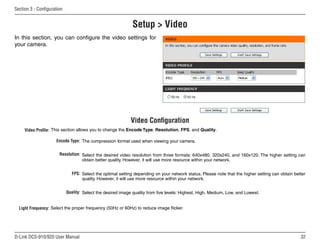
  • 27.
    27 D-Link DCS-910/920 UserManual Section 3 - Configuration Enter a name for your camera. Configure the correct time to ensure that all events triggered, captured and scheduled at the right time. This page displays your configured settings. Click Apply to save and activate the setting, or Back to change your settings. If you have a Dynamic DNS account and would like the camera to update your IP address automatically, enable DDNS and enter your host information. Click Next Click Next Click Next Click Apply
  • 28.
    28 D-Link DCS-910/920 UserManual Section 3 - Configuration Network Setup Select this connection if you have a DHCP server running on your network and would like a dynamic IP address to be updated to your camera automatically. You may obtain a static or fixed IP address and other network information from your network administrator for your camera. A static IP address will ease you for accessing your camera in the future. IP Address: The fixed IP address Subnet Mask: The default value is “255.255.255.0.” Used to determine if the destination is the same subnet. Default Gateway: The gateway used to forward frames to destinations in a different subnet. Invalid gateway settings may cause the failure of transmissions to a different subnet. Primary DNS: Primary domain name server that translates names to IP addresses. Secondary DNS: Secondary domain name server to backup the Primary DNS. You may configure a Second HTTP port that will allow you to connect to the camera via a standard web browser. The port can be set to a number other than the default TCP ports 80. A corresponding port must be opened on the router. For example, if the port is changed to 1010, users must type in the web browser “http://192.168.0.100:1010” instead of “http://192.168.0.100”. You may configure a Second HTTP port that will allow you to connect to the camera via a standard web browser. The port can be set to a number other than the default TCP ports 80. A corresponding port must be opened on the router. For example, if the port is changed to 1010, users must type in the web browser “http://192.168.0.100:1010” instead of “http://192.168.0.100”. Enable this setting to configure your camera as an UPnP device in the network. Port Settings: UPnP Settings: DHCP: Static IP Client: PPPoE Settings: In this section, you can configure your network settings.
  • 29.
    29 D-Link DCS-910/920 UserManual Section 3 - Configuration Setup Wireless Service Set Identifier, an identifier for your wireless network. The default setting is channel 6. Select the same channel that is using by other wireless devices within your network. When there is interference from the wireless networks that overlap with one another, you may change the channel to obtain maximum performance for your connection. Infrastructure is a wireless connection using an access point as a transmission point of all wireless devices. Ad-Hoc is a wireless connection used without an access point, where your DCS-920 is directly connecting to your PC. This is done using the on- board wireless adapter on the DCS-920 connected to a wireless adapter on the PC. This page will allow you to select a wireless network that the DCS-920 was able to detect upon booting up. This option will allow you to run the Wi-Fi Protected Setup directly from your DCS-920 Web GUI. For security, there are three choices; None, WEP, and WPA-PSK / WPA2-PSK. Select the same encryption method that is being used by your wireless device/ router. An appropriate Preshared Key, which is needed in order to connect to the wireless network.. SSID: Channel: Connection Mode: Site Survey: WPS: Wireless Security Mode: WPA-PSK / WPA2PSK Settings: Wireless Interface In this section, you can setup and configure the wireless settings on your camera. Note: Wireless is available only for the DCS-920.
  • 30.
    30 D-Link DCS-910/920 UserManual Section 3 - Configuration (Dynamic Domain Name Server) will hold a DNS host name and synchronize the public IP address of the modem when it has been modified. The username and password are required when using the DDNS service. Click to enable the DDNS function. Select your Dynamic DNS Server from the pull down menu. Enter the host name of the DDNS server. Enter your username or e-mail used to connect to the DDNS. Enter your password used to connect to the DDNS server. DDNS: Enable: Server Address: Host Name: User Name: Password: Setup DDNS In this section, you can configure the DDNS setting for your camera. DDNS will allow all users to access your camera using a domain name instead of an IP address.
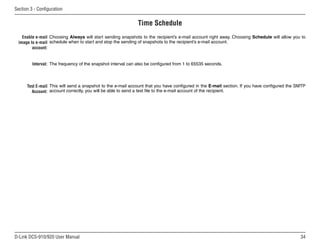
  • 31.
    31 D-Link DCS-910/920 UserManual Section 3 - Configuration Setup Image Setup Check to enable antiflicker. Vertically rotates the video. If the camera is installed upside down, Flip Image and Mirror should both be checked. Horizontally rotates the video. Allows you to adjust the brightness level. Allows you to adjust the contrast level. Allows you to adjust the saturation level. . Enable Antiflicker: Flip Image: Mirror: Brightness Control: Contrast Control: Saturation Control: Image Settings In this section, you can configure the image settings for your camera.
  • 32.
    32 D-Link DCS-910/920 UserManual Section 3 - Configuration Setup Video Video Profile: Light Frequency: Video Configuration Encode Type: Resolution: FPS: Quality: The compression format used when viewing your camera. Select the desired video resolution from three formats: 640x480, 320x240, and 160x120. The higher setting can obtain better quality. However, it will use more resource within your network. Select the optimal setting depending on your network status. Please note that the higher setting can obtain better quality. However, it will use more resource within your network. Select the desired image quality from five levels: Highest, High, Medium, Low, and Lowest. Select the proper frequency (50Hz or 60Hz) to reduce image flicker. In this section, you can configure the video settings for your camera. This section allows you to change the Encode Type, Resolution, FPS, and Quality.
  • 33.
    33 D-Link DCS-910/920 UserManual Section 3 - Configuration Setup Mail Email Account SMTP Server Address: Sender e-mail Address: Receiver e-mail Address: User Name: Password: This is the domain name or IP address of your external e-mail server. This is the e-mail address of the person sending the camera snapshots. This is the e-mail address of recipient for the SMTP server. If the SMTP server uses authentication, you must enter your user name here. This is the password that you use with your user name to connect to the SMTP server. In this section, you can configure the email notification settings for your camera.
  • 34.
    34 D-Link DCS-910/920 UserManual Section 3 - Configuration Time Schedule Enable e-mail image to e-mail account: Interval: Test E-mail Account: Choosing Always will start sending snapshots to the recipient’s e-mail account right away. Choosing Schedule will allow you to schedule when to start and stop the sending of snapshots to the recipient’s e-mail account. The frequency of the snapshot interval can also be configured from 1 to 65535 seconds. This will send a snapshot to the e-mail account that you have configured in the E-mail section. If you have configured the SMTP account correctly, you will be able to send a test file to the e-mail account of the recipient.
  • 35.
    35 D-Link DCS-910/920 UserManual Section 3 - Configuration Setup FTP FTP Server Host Address: Port Number: User Name: Password: Directory Path: Passive Mode: This is the IP address of the FTP server that you will be connecting to. Default is port 21. If changed, external FTP client program must change the server connection port accordingly. Specifies the user name to access the external FTP server. If you are to upload snapshots to an FTP server you will need to fill in the Domain name or IP address of your external FTP server.The following user settings must be correctly configured for remote access. Specifies the password to access the external FTP server. Specifies the destination folder in the external FTP server. Enabling passive mode will allow access to an external FTP server if your camera is behind a router protected by a firewall. In this section, you can configure a FTP server to receive the images.
  • 36.
    36 D-Link DCS-910/920 UserManual Section 3 - Configuration Time Schedule Enable upload image to FTP server: Always: Schedule: Video Frequency: Base File Name: File: Test FTP Server: Checking this box will enable video upload to the FTP server you have selected. Selecting this option allows snapshots to be uploaded to your FTP as soon as you click Apply. Selecting this option allows you to configure the times that you want the snapshots to be uploaded to your FTP server. User can select in frames per second (1, 2, 3 or auto, in auto this could go to 4).The user can also select how many seconds for each frame, this is configurable from 1 to 65535 seconds. This will be the name that precedes the time, for example DCS9202008072116425101.jpg.This means that the camera took a snapshot in the year 2008, July 21 at 16th hour (4 o’clock), 42 minutes and 51 seconds and it is picture number one. Select Overwrite and there will only be a few images that are constantly refreshed depending on how many snapshots you choose to have sent. Select Date/Time Suffix and the pictures will be named with a date and time also. An example of this can be seen above under the Base file name category. Select Sequence Number Suffix up to 1024 and all the pictures will be numbered from 1-1024. The total amount of pictures can be configured up to 1024 pictures. Picture number 1025 will be 1 again. This will send a snapshot to the FTP server that you have configured in the Upload section. If you have configured the FTP correctly, you will be able to see a test file in your FTP server.
  • 37.
    37 D-Link DCS-910/920 UserManual Section 3 - Configuration Setup Time and Date Test FTP Server: Synchronize NTP Server: Copy your Computer’s Time Settings: Set the Date and Time Manually: Select the time zone for your region from the pull-down menu. Network Time Protocol will synchronize your camera with an Internet time server. Choose the one that is closest to your camera. Click to synchronize the time information from your PC. Select this to set the time manually. In this section, you can configure the settings of the internal system clocks for your camera.
  • 38.
    38 D-Link DCS-910/920 UserManual Section 3 - Configuration Maintenance Device Management In this section, you can change the administrator’s password and configure the server settings for your camera. You can also manage the user account(s) that access to your camera.
  • 39.
    39 D-Link DCS-910/920 UserManual Section 3 - Configuration Maintenance Backup and Restore In this section, you can save and restore your configuration, restore the factory settings, and/or restart the camera.
  • 40.
    40 D-Link DCS-910/920 UserManual Section 3 - Configuration Maintenance Firmware Upgrade Your current firmware version and date will be displayed on your screen.You may go to the D-Link Support Page to check for the latest firmware versions available. To upgrade the firmware on your DCS-910/920, please download and save the latest firmware version from the D-Link Support Page to your local hard drive. Locate the file on your local hard drive by using the Browse button.Then, open the file and click the “Upload” button to start the firmware upgrade.
  • 41.
    41 D-Link DCS-910/920 UserManual Section 3 - Configuration Status System This section displays all the details information about your device and network settings.
  • 42.
    42 D-Link DCS-910/920 UserManual Section 4 - Security Wireless Security This section will show you the different levels of security you can use to protect your data from intruders. The DCS-920 offers the following types of security: • WPA-PSK (Pre-Shared Key) • WEP (Wired Equivalent Privacy) What is WEP? WEP stands for Wired Equivalent Privacy. It is based on the IEEE 802.11 standard and uses the RC4 encryption algorithm.WEP provides security by encrypting data over your wireless network so that it is protected as it is transmitted from one wireless device to another. To gain access to a WEP network, you must know the key.The key is a string of characters that you create.When using WEP, you must determine the level of encryption.The type of encryption determines the key length. 128-bit encryption requires a longer key than 64-bit encryption. Keys are defined by entering in a string in HEX (hexadecimal - using characters 0-9, A-F) or ASCII (American Standard Code for Information Interchange – alphanumeric characters) format. ASCII format is provided so you can enter a string that is easier to remember. The ASCII string is converted to HEX for use over the network. Four keys can be defined so that you can change keys easily.
  • 43.
    43 D-Link DCS-910/920 UserManual Section 4 - Security What is WPA? WPA, or Wi-Fi Protected Access, is a Wi-Fi standard that was designed to improve the security features of WEP (Wired Equivalent Privacy). The 2 major improvements over WEP: • Improved data encryption through the Temporal Key Integrity Protocol (TKIP). TKIP scrambles the keys using a hashing algorithm and, by adding an integrity-checking feature, ensures that the keys haven’t been tampered with. WPA2 is based on 802.11i and uses Advanced Encryption Standard instead of TKIP. • User authentication, which is generally missing in WEP, through the extensible authentication protocol (EAP). WEP regulates access to a wireless network based on a computer’s hardware-specific MAC address, which is relatively simple to be sniffed out and stolen. EAP is built on a more secure public-key encryption system to ensure that only authorized network users can access the network. WPA-PSK/WPA2-PSK uses a passphrase or key to authenticate your wireless connection.The key is an alpha-numeric password between 8 and 63 characters long. The password can include symbols (!?*_) and spaces. This key must be the exact same key entered on your wireless router or access point.
  • 44.
    44 D-Link DCS-910/920 UserManual Section 4 - Security D-Link’s DCS-910/920 is a versatile and cost effective Internet Camera for video monitoring. It can also serve as a powerful surveillance system in security applications. The DCS-910/920 can be used with any wired or 802.11b/g wireless router (applicable only for the DCS-920).This section explains how to view the camera from either the Internet or from inside your internal network. Materials Needed: • 1 DCS-910/920 Internet Camera • 1 Ethernet Cable • A Wired or Wireless router such as the D-Link DI-624 Wireless Router • Ethernet based PC for system configuration Setting Up the DCS-910/920 For Use Behind a Router Installing a DCS-910/920 Internet Camera on your network is an easy 4–step procedure: 1. Assign a Local IP Address to Your Internet Camera 2. View the Internet Camera Using Your Internet Explorer Web Browser 3. Access the Router with Your Web Browser 4. Open Virtual Server Ports to Enable Remote Image Viewing This section is designed to walk you through the setup process for installing your camera behind a router and enable remote video viewing. For the basic setup of the DCS-910/920, follow the steps outlined in the Quick Installation Guide. Using Configuring the DCS-910/920
  • 45.
    45 D-Link DCS-910/920 UserManual Section 4 - Security Run the Setup Wizard program from the CD included with the DCS-910/920. Follow the steps in the Quick Installation Guide to configure the DCS-910/920. The camera will be assigned a local IP Address that allows it to be recognized by the router. Write down this IP Address for future reference. 1. Assign a Local IP Address to Your Camera After you have completed the setup of the DCS-910/920 outlined in the Quick Installation Guide you will have an operating camera that has an assigned IP Address. Because you are using a router to share the Internet with one or more PCs, the IP Address assigned to the Internet Camera will be a local IP Address.This allows viewing within your Local Area Network (LAN) until the router is configured to allow remote viewing of the camera over the Internet. This is the IP Address assigned to your camera (192.168.0.120 is only an example).You will probably have a different IP Address.
  • 46.
    46 D-Link DCS-910/920 UserManual Section 4 - Security Run your Internet Explorer Web browser. In the address bar, type in the IP Address that was assigned to the Internet Camera by the Installation Wizard program.The DCS-910/920 Home Page appears with a window displaying live video from the camera.You are able to view this screen from any PC running Internet Explorer on your LAN. Click on the Configuration button on the left side of the display. Scroll to the bottom of the Network Configuration page to display the ports used by HTTP and Streaming video. 2. View the Internet Camera Using Your Internet Explorer Web Browser
  • 47.
    47 D-Link DCS-910/920 UserManual Section 4 - Security The following steps generally apply to any router that you have on your network. The D-Link DI-624 is used as an example to clarify the configuration process. Configure the initial settings of the DI-624 by following the steps outlined in the DI-624 Quick Installation Guide. 3. Access the Router with Your Web Browser If you have cable or DSL Internet service, you will most likely have a dynamically assigned WAN IP Address.‘Dynamic’ means that your router’s WAN IP address can change from time to time depending on your ISP. A dynamic WAN IP Address identifies your router on the public network and allows it to access the Internet. To find out what your router’s WAN IP Address is, go to the Status menu on your router and locate the WAN information for your router (as shown on the next page). The WAN IP Address will be listed. This will be the address that you will need to type in your Web browser to view your camera over the Internet. Router Set-Up and Installation Your WAN IP Address will be listed on the router’s Status Device Info page.
  • 48.
    48 D-Link DCS-910/920 UserManual Section 4 - Security Note: Because a dynamic WAN IP can change from time to time depending on your ISP, you may want to obtain a Static IP address from your ISP. A Static IP address is a fixed IP address that will not change over time and will be more convenient for you to use to access your camera from a remote location. The Static IP Address will also allow you to access your camera attached to your router over the Internet. 4. Open Virtual Server Ports to Enable Remote Image Viewing The firewall security features built into the DI-624 router prevent users from accessing the video from the DCS-910/920 over the Internet. The router connects to the Internet over a series of numbered ports. The ports normally used by the DCS-910/920 are blocked from access over the Internet. Therefore, these ports need to be made accessible over the Internet. This is accomplished using the Virtual Server function on the DI-624 router. The Virtual Server ports used by the camera must be opened through the router for remote access to your camera.Virtual Server is accessed by clicking on the Advanced tab of the router screen. 1. Click Enabled. 2. Enter a different name for each entry. 3. Enter your camera’s local IP Address (e.g., 192.168.0.120 in the example in step 2) in the Private IP field. 4. Select TCP for HTTP port and both (TCP and UDP) for the Video channel port. 5. If you are using the default camera port settings, enter 80 into the Public and Private Port section, click Apply. 6. Scheduling should be set to Always so that the camera images can be accessed at any time. Follow these steps to configure your router’s Virtual Server settings:
  • 49.
    49 D-Link DCS-910/920 UserManual Section 4 - Security Repeat the above steps adding the port 80 to both the Public and Private Port sections. A check mark appearing before the entry name will indicate that the ports are enabled. Important: Some ISPs block access to port 80 and other commonly used Internet ports to conserve bandwidth. Check with your ISP so that you can open the appropriate ports accordingly. If your ISP does not pass traffic on port 80, you will need to change the port the camera uses from 80 to something else, such as 800. Not all routers are the same, so refer to your user manual for specific instructions on how to open ports. Enter valid ports in the Virtual Server section of your router. Please make sure to check the box next to the camera name on the Virtual Server List to enable your settings.
  • 50.
    50 D-Link DCS-910/920 UserManual Section 5 - Troubleshooting Troubleshooting 1. Why does the Power LED not light up constantly? The power supply used might be at fault. Confirm that you are using the provided power supply, which is DC 5V, for the Internet Camera. Also verify that the power supply is well connected, and/or the option to turn off the LED is enabled. 2. Why does the LAN LED not light up properly? There might be a problem with the network cable.To confirm that the cables are working, PING the address of a known device on the network. If the cabling is OK and your network is reachable, you should receive a reply similar to the following (…bytes = 32 time = 2 ms). Another possible problem may be that the network device utilized by the Internet Camera is not functioning properly, such as hubs or switches. Confirm the power for the devices are well connected and functioning properly, and/or the option to turn off the LED is enabled. 3. Why does the Internet Camera work locally but not remotely? This might be caused by the firewall protection. Check the Internet firewall with your system administrator.The firewall may need to have some settings changed in order for the Internet Camera to be accessible outside your local LAN. For more information, please refer to the section about installing your camera behind a router. Make sure that the Internet Camera isn’t conflicting with any Web server you may have running on your network. The default router setting might be a possible reason. Check that the configuration of the router settings allow the Internet Camera to be accessed outside your local LAN. 4. Why does a series of broad vertical white lines appear through out the image? It could be that the CMOS sensor (a square panel situated behind the lens that measures the light signals and changes it into a digital format so your computer can present it into an image that you are familiar with) has become overloaded when it has been exposed to bright lights such as direct exposure to sunlight or halogen lights. Reposition the Internet Camera into a more shaded area immediately as prolonged exposure to bright lights will damage the CMOS sensor.
  • 51.
    51 D-Link DCS-910/920 UserManual Section 5 - Troubleshooting 5. Noisy images occur. How can I solve the problem? The video images might be noisy if the Internet Camera is used in a very low light environment. 6.The images are poor quality, how can I improve the image quality? Make sure that your computers display properties are set to at least 6-bit color.Using 16 or 256 colors on your computer will produce dithering artifacts in the image, making the image look as if it is of poor quality. The configuration on the Internet Camera image display is incorrect. Through the Web Configuration Video section of the Web management you need to adjust the image related parameters for improved images such as: brightness, contrast, hue and light frequency. Please refer to the Web Configuration section for detailed information. 7. Why are no images available through the Web browser? The ActiveX might be disabled. If you are viewing the images from Internet Explorer make sure ActiveX has been enabled in the Internet Options menu.You may also need to change the security settings on your browser to allow the ActiveX plug-in to be installed. If you are using Internet Explorer with a version number of lower than 5, then you will need to upgrade your Web browser software in order to view the streaming video transmitted by the Internet Camera.
  • 52.
    52 D-Link DCS-910/920 UserManual Appendix A - Wireless Basics D-Link wireless products are based on industry standards to provide easy-to-use and compatible high-speed wireless* connectivity within your home, business or public access wireless networks. Strictly adhering to the IEEE standard, the D-Link wireless family of products will allow you to securely access the data you want, when and where you want it.You will be able to enjoy the freedom that wireless networking delivers. A wireless local area network (WLAN) is a cellular computer network that transmits and receives data with radio signals instead of wires. Wireless LANs are used increasingly in both home and office environments, and public areas such as airports, coffee shops and universities. Innovative ways to utilize WLAN technology are helping people to work and communicate more efficiently. Increased mobility and the absence of cabling and other fixed infrastructure have proven to be beneficial for many users. Under many circumstances, it may be desirable for mobile network devices to link to a conventional Ethernet LAN in order to use servers, printers or an Internet connection supplied through the wired LAN. A Wireless Router is a device used to provide this link. Wireless Basics
  • 53.
    53 D-Link DCS-910/920 UserManual Appendix A - Wireless Basics What is Wireless? Wireless or WiFi technology is another way of connecting your computer to the network without using wires.WiFi uses radio frequency to connect wirelessly, so you have the freedom to connect computers anywhere in your home or office network. Why D-Link Wireless? D-Link is the worldwide leader and award winning designer, developer, and manufacturer of networking products. D-Link delivers the performance you need at a price you can afford. D-Link has all the products you need to build your network. How does wireless work? Wireless works similar to how cordless phone work, through radio signals to transmit data from one point A to point B. But wireless technology has restrictions as to how you can access the network. You must be within the wireless network range area to be able to connect your computer. There are two different types of wireless networks Wireless Local Area Network (WLAN), and Wireless Personal Area Network (WPAN). Wireless Local Area Network (WLAN) In a wireless local area network, a device called an Access Point (AP) connects computers to the network. The access point has a small antenna attached to it, which allows it to transmit data back and forth over radio signals. With an indoor access point as seen in the picture, the signal can travel up to 300 feet. With an outdoor access point the signal can reach out up to 30 miles to serve places like manufacturing plants, industrial locations, college and high school campuses, airports, golf courses, and many other outdoor venues.
  • 54.
    54 D-Link DCS-910/920 UserManual Appendix A - Wireless Basics Who uses wireless? Wireless technology as become so popular in recent years that almost everyone is using it, whether it’s for home, office, business, D-Link has a wireless solution for it. Home • Gives everyone at home broadband access • Surf the Web, check email, instant message, and etc • Gets rid of the cables around the house • Simple and easy to use Small Office and Home Office • Stay on top of everything at home as you would at office • Remotely access your office network from home • Share Internet connection and printer with multiple computers • No need to dedicate office space
  • 55.
    55 D-Link DCS-910/920 UserManual Appendix A - Wireless Basics Where is wireless used? Wireless technology is expanding everywhere not just at home or office. People like the freedom of mobility and it’s becoming so popular that more and more public facilities now provide wireless access to attract people. The wireless connection in public places is usually called “hotspots”. Using a D-Link Cardbus Adapter with your laptop, you can access the hotspot to connect to Internet from remote locations like: Airports, Hotels, Coffee Shops, Libraries, Restaurants, and Convention Centers. Wireless network is easy to setup, but if you’re installing it for the first time it could be quite a task not knowing where to start. That’s why we’ve put together a few setup steps and tips to help you through the process of setting up a wireless network. Tips Here are a few things to keep in mind, when you install a wireless network. Centralize your router or Access Point Make sure you place the router/access point in a centralized location within your network for the best performance. Try to place the router/access point as high as possible in the room, so the signal gets dispersed throughout your home. If you have a two-story home, you may need a repeater to boost the signal to extend the range. Eliminate Interference Place home appliances such as cordless telephones, microwaves, and televisions as away as possible from the router/access point.This would significantly reduce any interfere that the appliances might cause since they operate on same frequency.
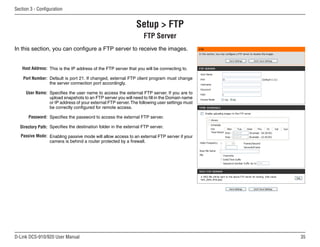
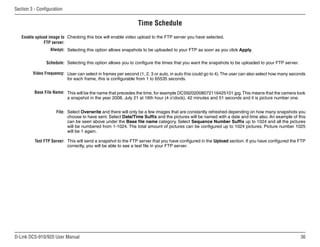
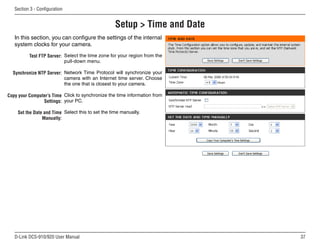
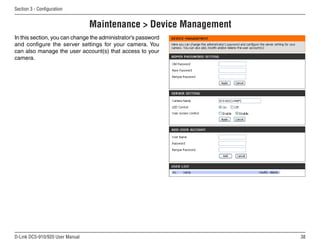
  • 56.
    56 D-Link DCS-910/920 UserManual Appendix A - Wireless Basics Security Don’t let you next-door neighbors or intruders connect to your wireless network. Secure your wireless network by turning on the WPA or WEP security feature on the router. Refer to product manual for detail information on how to set it up. There are basically two modes of networking: • Infrastructure – All wireless clients will connect to an access point or wireless router. • Ad-Hoc – Directly connecting to another computer, for peer-to-peer communication, using wireless network adapters on each computer, such as two or more DCS-920 wireless network Cardbus adapters. An Infrastructure network contains an Access Point or wireless router. All the wireless devices, or clients, will connect to the wireless router or access point. An Ad-Hoc network contains only clients, such as laptops with wireless cardbus adapters. All the adapters must be in Ad-Hoc mode to communicate. * Applicable only for the DCS-920 Wireless Modes
  • 57.
    57 D-Link DCS-910/920 UserManual Appendix B - Networking Basics Networking Basics Check your IP address After you install your new D-Link adapter, by default, the TCP/IP settings should be set to obtain an IP address from a DHCP server (i.e. wireless router) automatically. To verify your IP address, please follow the steps below. Click on Start Run. In the run box type cmd and click OK. At the prompt, type ipconfig and press Enter. This will display the IP address, subnet mask, and the default gateway of your adapter. If the address is 0.0.0.0, check your adapter installation, security settings, and the settings on your router. Some firewall software programs may block a DHCP request on newly installed adapters. If you are connecting to a wireless network at a hotspot (e.g. hotel, coffee shop, airport), please contact an employee or administrator to verify their wireless network settings.
  • 58.
    58 D-Link DCS-910/920 UserManual Appendix B - Networking Basics Statically Assign an IP address If you are not using a DHCP capable gateway/router, or you need to assign a static IP address, please follow the steps below: Step 1 Windows® Vista - Click on Start Control Panel Network and Internet Network and Sharing Center Manage Network Connections. Windows XP - Click on Start Control Panel Network Connections. Step 2 Right-click on the Local Area Connection which represents your D-Link network adapter and select Properties. Step 3 Highlight Internet Protocol (TCP/IP) and click Properties. Step 4 Click Use the following IP address and enter an IP address that is on the same subnet as your network or the LAN IP address on your router. Example: If the router´s LAN IP address is 192.168.0.1, make your IP address 192.168.0.X where X is a number between 2 and 99. Make sure that the number you choose is not in use on the network. Set Default Gateway the same as the LAN IP address of your router (192.168.0.1). Set Primary DNS the same as the LAN IP address of your router (192.168.0.1).The Secondary DNS is not needed or you may enter a DNS server from your ISP. Step 5 Click OK twice to save your settings.
  • 59.
    59 D-Link DCS-910/920 UserManual Appendix C - Technical Specifications Technical Specifications Network* • TCP/IP (DHCP or Static IP Address) • Wired LAN: 10/100Mbps • 802.11g Wireless (Supports up to 54Mbps transfer rate)** • 802.11b Wireless (Supports up to 11Mbps transfer rate)** Web Access Requirements • Any Java-Enabled or ActiveX compatibleWeb Browser,.i.e.current versions of Microsoft Internet Explorer or Mozilla Firefox. Media Streaming Protocol • HTTP Video Specification • Resolution: 640 x 480 • Sensor: 1/4” color CMOS sensor • Gain Control: 30 dB • Exposure: Automatic • White Balance: Automatic • Shutter Electronics: 1/30 ~ 1/30,000 sec • Minimum Illumination: 1 lux@F2.8 • Focal Length: 5.01mm lens • Aperture: F2.8 Image (Video Setting) • Motion-JPEG compression • Frame rate: 30fps@160 x 120, 30fps@320 x 240, 15fps@640 x 480 • Compression Rate Selection: 5 level (Very Low, Low, Medium, High, Very High) • Video Resolution: 160x120, 320x240, 640x480 Web Configuration Requirements • Internet Explorer 6.0 or above or Netscape 6.0 or above • 266MHz processor • 32MB memory (64MB recommended) • VGA Card Resolution: 800 x 600 or above Dimensions • 2.8” (Width) x 4.3” (Depth) x 1.5” (Height) PC System Requirements • Connection to 802.11b/g wireless or Ethernet network • Windows® Vista or XP • 1.3GHz processor • 128MB memory • 20GB available hard disk space • CD-ROM drive
  • 60.
    60 D-Link DCS-910/920 UserManual Appendix C - Technical Specifications Power Source: • 5V, 2.5A * Maximum wireless signal rate derived from IEEE Standard 802.11a and 802.11g specifications. Actual data throughput will vary. Network conditions and environmental factors, including volume of network traffic, building materials and construction, and network overhead, lower actual data throughput rate. ** Applicable only for the DCS-920 *** Environmental conditions may adversely affect wireless signal range. Power Consumption: • DCS-910 (3.25W), DCS-920 (4.25W) Environmental specification • Operating temperature: 0°C to 40°C (32°F to 104°F) • Storage temperature: -20°C to 70°C (-4°F to 158°F) • Operating relative humidity: 20% to 80% non-condensing Warranty: • 1 Year
  • 61.
    You can findsoftware updates and user documentation on the D-Link website. U.S. and Canadian customers can contact D-Link technical support through our Web site, or by phone. Tech Support for customers within the United States: Telephone: (877) 453-5465 Internet: http://support.dlink.com Tech Support for customers within Canada: Telephone: (800) 361-5265 Internet: http://support.dlink.ca Contacting Technical Support
  • 62.
    62 D-Link DCS-910/920 UserManual Appendix E - Warranty Warranty Subject to the terms and conditions set forth herein, D-Link Systems, Inc. (“D-Link”) provides this Limited Warranty: • Only to the person or entity that originally purchased the product from D-Link or its authorized reseller or distributor, and • Only for products purchased and delivered within the fifty states of the United States, the District of Columbia, U.S. Possessions or Protectorates, U.S. Military Installations, or addresses with an APO or FPO. Limited Warranty: D-Link warrants that the hardware portion of the D-Link product described below (“Hardware”) will be free from material defects in workmanship and materials under normal use from the date of original retail purchase of the product, for the period set forth below (“Warranty Period”), except as otherwise stated herein. • Hardware (excluding power supplies and fans): One (1) year • Power supplies and fans: One (1) year • Spare parts and spare kits: Ninety (90) days The customer’s sole and exclusive remedy and the entire liability of D-Link and its suppliers under this Limited Warranty will be, at D-Link’s option, to repair or replace the defective Hardware during the Warranty Period at no charge to the original owner or to refund the actual purchase price paid. Any repair or replacement will be rendered by D-Link at an Authorized D-Link Service Office.The replacement hardware need not be new or have an identical make, model or part. D-Link may, at its option, replace the defective Hardware or any part thereof with any reconditioned product that D-Link reasonably determines is substantially equivalent (or superior) in all material respects to the defective Hardware.Repaired or replacement hardware will be warranted for the remainder of the originalWarranty Period or ninety (90) days, whichever is longer, and is subject to the same limitations and exclusions. If a material defect is incapable of correction, or if D-Link determines that it is not practical to repair or replace the defective Hardware, the actual price paid by the original purchaser for the defective Hardware will be refunded by D-Link upon return to D-Link of the defective Hardware. All Hardware or part thereof that is replaced by D-Link, or for which the purchase price is refunded, shall become the property of D-Link upon replacement or refund.
  • 63.
    63 D-Link DCS-910/920 UserManual Appendix E - Warranty Limited Software Warranty: D-Link warrants that the software portion of the product (“Software”) will substantially conform to D-Link’s then current functional specifications for the Software, as set forth in the applicable documentation, from the date of original retail purchase of the Software for a period of ninety (90) days (“Software Warranty Period”), provided that the Software is properly installed on approved hardware and operated as contemplated in its documentation. D-Link further warrants that, during the Software Warranty Period, the magnetic media on which D-Link delivers the Software will be free of physical defects.The customer’s sole and exclusive remedy and the entire liability of D-Link and its suppliers under this Limited Warranty will be, at D-Link’s option, to replace the non-conforming Software (or defective media) with software that substantially conforms to D-Link’s functional specifications for the Software or to refund the portion of the actual purchase price paid that is attributable to the Software. Except as otherwise agreed by DLink in writing, the replacement Software is provided only to the original licensee, and is subject to the terms and conditions of the license granted by D-Link for the Software. Replacement Software will be warranted for the remainder of the original Warranty Period and is subject to the same limitations and exclusions. If a material non-conformance is incapable of correction, or if D-Link determines in its sole discretion that it is not practical to replace the non-conforming Software, the price paid by the original licensee for the non-conforming Software will be refunded by D-Link; provided that the non-conforming Software (and all copies thereof) is first returned to D-Link. The license granted respecting any Software for which a refund is given automatically terminates. Non-Applicability of Warranty: The Limited Warranty provided hereunder for Hardware and Software portions of D-Link’s products will not be applied to and does not cover any refurbished product and any product purchased through the inventory clearance or liquidation sale or other sales in which D-Link, the sellers, or the liquidators expressly disclaim their warranty obligation pertaining to the product and in that case, the product is being sold “As-Is” without any warranty whatsoever including, without limitation, the Limited Warranty as described herein, notwithstanding anything stated herein to the contrary. Submitting A Claim: The customer shall return the product to the original purchase point based on its return policy. In case the return policy period has expired and the product is within warranty, the customer shall submit a claim to D-Link as outlined below: • The customer must submit with the product as part of the claim a written description of the Hardware defect or Software nonconformance in sufficient detail to allow DLink to confirm the same, along with proof of purchase of the product (such as a copy of the dated purchase invoice for the product) if the product is not registered. • The customer must obtain a Case ID Number from D-Link Technical Support at 1-877-453-5465, who will attempt to assist the customer in resolving any suspected defects with the product. If the product is considered defective, the customer must obtain a Return Material Authorization (“RMA”) number by completing the RMA form and entering the assigned Case ID Number at https://rma.dlink.com/.
  • 64.
    64 D-Link DCS-910/920 UserManual Appendix E - Warranty • After an RMA number is issued, the defective product must be packaged securely in the original or other suitable shipping package to ensure that it will not be damaged in transit, and the RMA number must be prominently marked on the outside of the package. Do not include any manuals or accessories in the shipping package. DLink will only replace the defective portion of the product and will not ship back any accessories. • The customer is responsible for all in-bound shipping charges to D-Link. No Cash on Delivery (“COD”) is allowed. Products sent COD will either be rejected by D-Link or become the property of D-Link.Products shall be fully insured by the customer and shipped to D-Link Systems, Inc., 17595 Mt. Herrmann, Fountain Valley, CA 92708. D-Link will not be held responsible for any packages that are lost in transit to D-Link. The repaired or replaced packages will be shipped to the customer via UPS Ground or any common carrier selected by D-Link. Return shipping charges shall be prepaid by D-Link if you use an address in the United States, otherwise we will ship the product to you freight collect. Expedited shipping is available upon request and provided shipping charges are prepaid by the customer. D-Link may reject or return any product that is not packaged and shipped in strict compliance with the foregoing requirements, or for which an RMA number is not visible from the outside of the package. The product owner agrees to pay D-Link’s reasonable handling and return shipping charges for any product that is not packaged and shipped in accordance with the foregoing requirements, or that is determined by D-Link not to be defective or non-conforming. What Is Not Covered: The Limited Warranty provided herein by D-Link does not cover: Products that, in D-Link’s judgment, have been subjected to abuse, accident, alteration, modification, tampering, negligence, misuse, faulty installation, lack of reasonable care, repair or service in any way that is not contemplated in the documentation for the product, or if the model or serial number has been altered, tampered with, defaced or removed; Initial installation, installation and removal of the product for repair, and shipping costs; Operational adjustments covered in the operating manual for the product, and normal maintenance; Damage that occurs in shipment, due to act of God, failures due to power surge, and cosmetic damage; Any hardware, software, firmware or other products or services provided by anyone other than D-Link; and Products that have been purchased from inventory clearance or liquidation sales or other sales in which D-Link, the sellers, or the liquidators expressly disclaim their warranty obligation pertaining to the product. While necessary maintenance or repairs on your Product can be performed by any company, we recommend that you use only an Authorized D-Link Service Office. Improper or incorrectly performed maintenance or repair voids this Limited Warranty. Disclaimer of Other Warranties: EXCEPT FOR THE LIMITED WARRANTY SPECIFIED HEREIN, THE PRODUCT IS PROVIDED “AS-IS” WITHOUT ANY WARRANTY OF ANY KIND WHATSOEVER INCLUDING, WITHOUT LIMITATION, ANY WARRANTY OF MERCHANTABILITY, FITNESS FOR A PARTICULAR PURPOSE AND NONINFRINGEMENT.
  • 65.
    65 D-Link DCS-910/920 UserManual Appendix E - Warranty IF ANY IMPLIED WARRANTY CANNOT BE DISCLAIMED IN ANY TERRITORY WHERE A PRODUCT IS SOLD, THE DURATION OF SUCH IMPLIED WARRANTY SHALL BE LIMITEDTOTHE DURATION OFTHE APPLICABLE WARRANTY PERIOD SET FORTH ABOVE. EXCEPT AS EXPRESSLY COVERED UNDERTHE LIMITED WARRANTY PROVIDED HEREIN,THE ENTIRE RISK ASTOTHE QUALITY, SELECTION AND PERFORMANCE OF THE PRODUCT IS WITH THE PURCHASER OF THE PRODUCT. Limitation of Liability: TOTHE MAXIMUM EXTENT PERMITTED BY LAW, D-LINK IS NOT LIABLE UNDER ANY CONTRACT, NEGLIGENCE, STRICT LIABILITY OR OTHER LEGAL OR EQUITABLE THEORY FOR ANY LOSS OF USE OF THE PRODUCT, INCONVENIENCE OR DAMAGES OF ANY CHARACTER,WHETHER DIRECT, SPECIAL, INCIDENTAL OR CONSEQUENTIAL (INCLUDING, BUT NOT LIMITEDTO, DAMAGES FOR LOSS OF GOODWILL, LOSS OF REVENUE OR PROFIT, WORK STOPPAGE, COMPUTER FAILURE OR MALFUNCTION, FAILURE OF OTHER EQUIPMENT OR COMPUTER PROGRAMS TO WHICH D-LINK’S PRODUCT IS CONNECTED WITH, LOSS OF INFORMATION OR DATA CONTAINED IN, STORED ON, OR INTEGRATED WITH ANY PRODUCT RETURNED TO D-LINK FOR WARRANTY SERVICE) RESULTING FROM THE USE OF THE PRODUCT, RELATING TO WARRANTY SERVICE, OR ARISING OUT OF ANY BREACH OF THIS LIMITED WARRANTY, EVEN IF D-LINK HAS BEEN ADVISED OF THE POSSIBILITY OF SUCH DAMAGES.THE SOLE REMEDY FOR A BREACH OF THE FOREGOING LIMITED WARRANTY IS REPAIR, REPLACEMENT OR REFUND OF THE DEFECTIVE OR NONCONFORMING PRODUCT. THE MAXIMUM LIABILITY OF D-LINK UNDER THIS WARRANTY IS LIMITED TO THE PURCHASE PRICE OF THE PRODUCT COVERED BY THE WARRANTY.THE FOREGOING EXPRESS WRITTEN WARRANTIES AND REMEDIES ARE EXCLUSIVE AND ARE IN LIEU OF ANY OTHER WARRANTIES OR REMEDIES, EXPRESS, IMPLIED OR STATUTORY. Governing Law: This Limited Warranty shall be governed by the laws of the State of California. Some states do not allow exclusion or limitation of incidental or consequential damages, or limitations on how long an implied warranty lasts, so the foregoing limitations and exclusions may not apply. This Limited Warranty provides specific legal rights and you may also have other rights which vary from state to state. Trademarks: D-Link is a registered trademark of D-Link Systems, Inc. Other trademarks or registered trademarks are the property of their respective owners. Copyright Statement: No part of this publication or documentation accompanying this product may be reproduced in any form or by any means or used to make any derivative such as translation, transformation, or adaptation without permission from D-Link Corporation/D-Link Systems, Inc., as stipulated by the United States Copyright Act of 1976 and any amendments thereto. Contents are subject to change without prior notice. Copyright 2008-2010 by D-Link Corporation/D-Link Systems, Inc. All rights reserved.
  • 66.
    66 D-Link DCS-910/920 UserManual Appendix E - Warranty CE Mark Warning: This is a Class B product. In a domestic environment, this product may cause radio interference, in which case the user may be required to take adequate measures. FCC Statement: This equipment has been tested and found to comply with the limits for a Class B digital device, pursuant to part 15 of the FCC Rules. These limits are designed to provide reasonable protection against harmful interference in a residential installation. This equipment generates, uses, and can radiate radio frequency energy and, if not installed and used in accordance with the instructions, may cause harmful interference to radio communication. However, there is no guarantee that interference will not occur in a particular installation. If this equipment does cause harmful interference to radio or television reception, which can be determined by turning the equipment off and on, the user is encouraged to try to correct the interference by one or more of the following measures: • Reorient or relocate the receiving antenna. • Increase the separation between the equipment and receiver. • Connect the equipment into an outlet on a circuit different from that to which the receiver is connected. • Consult the dealer or an experienced radio/TV technician for help. For detailed warranty information applicable to products purchased outside the United States, please contact the corresponding local D- Link office.
  • 67.
    67 D-Link DCS-910/920 UserManual Version 1.3 March 9, 2010 Product registration is entirely voluntary and failure to complete or return this form will not diminish your warranty rights. Registration