Defense Presets on the Dashboard
Ready to Defend?
Making Defending Presets on the Dashboard
The Dashboard is a great tool and has many features most have not explored.
How many times have you seen an attack coming in with only 30 seconds time to
defend? If you have premade Defense Presets in the dashboard, it is 2 clicks,
troops are ready. Then you can sacrifice, set your guardian, and wait to click the
right Throne room.
Troop Section of the Dashboard
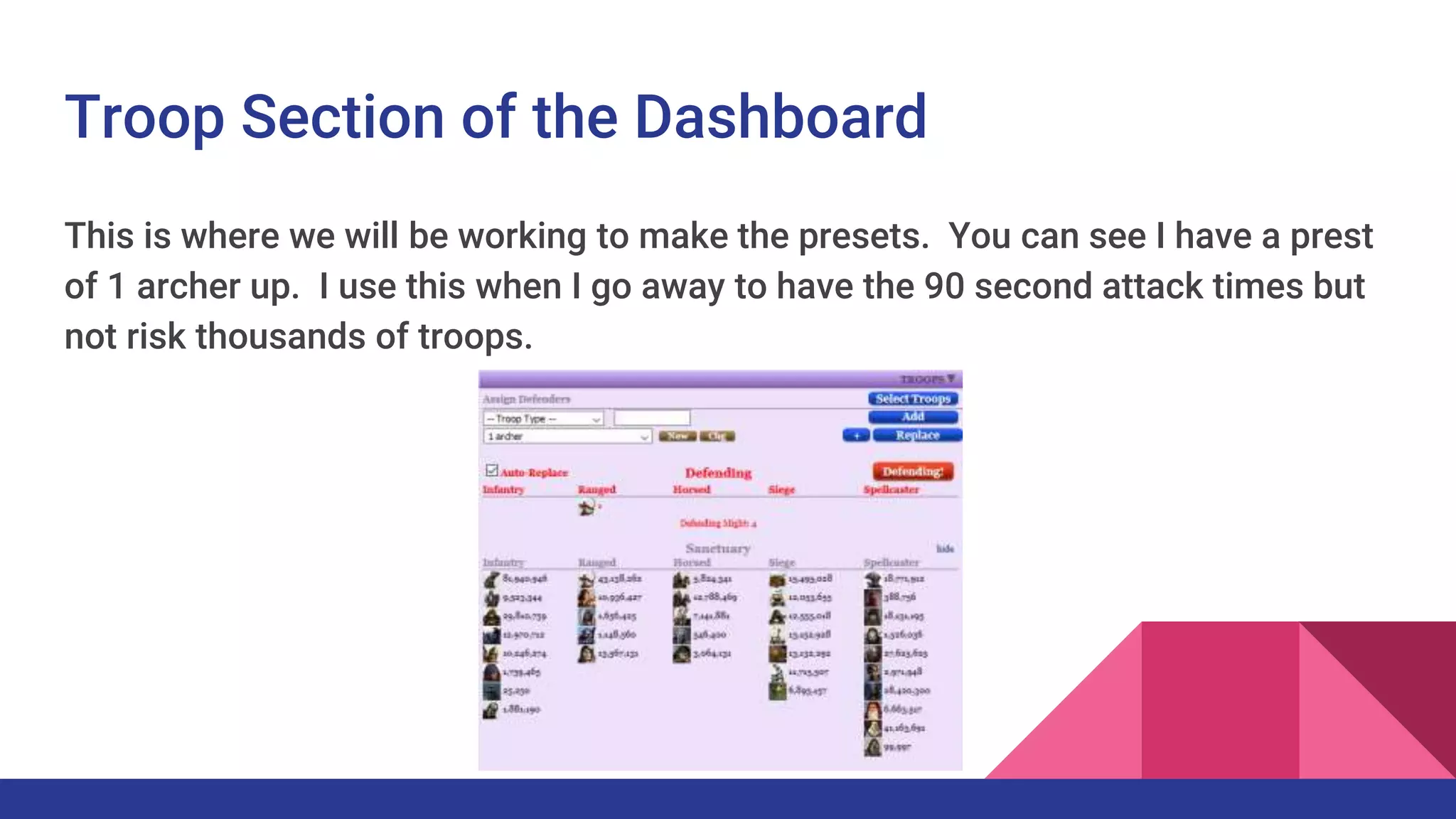
This is where we will be working to make the presets. You can see I have a prest
of 1 archer up. I use this when I go away to have the 90 second attack times but
not risk thousands of troops.
Setting up
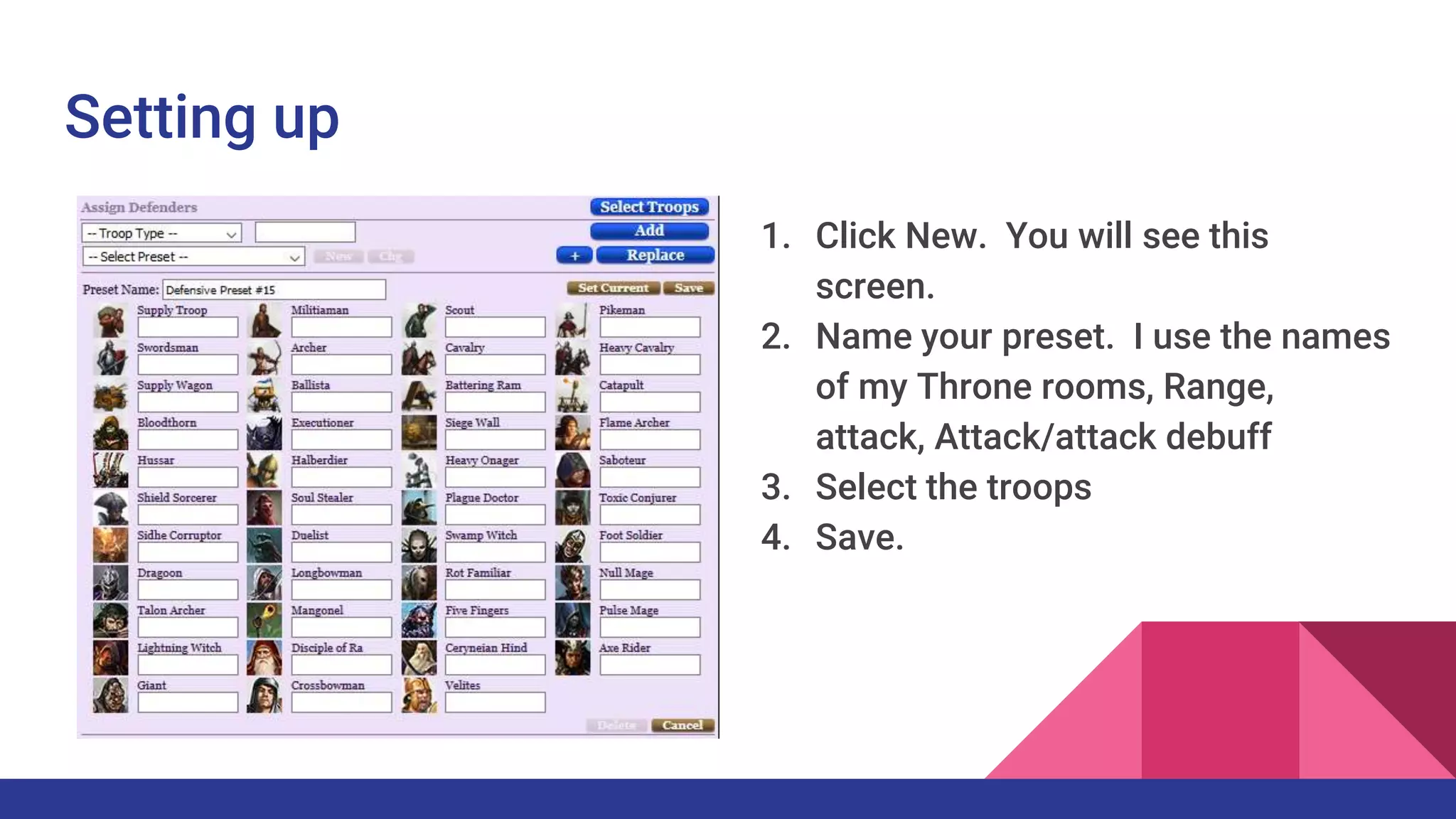
1. Click New. You will see this
screen.
2. Name your preset. I use the names
of my Throne rooms, Range,
attack, Attack/attack debuff
3. Select the troops
4. Save.
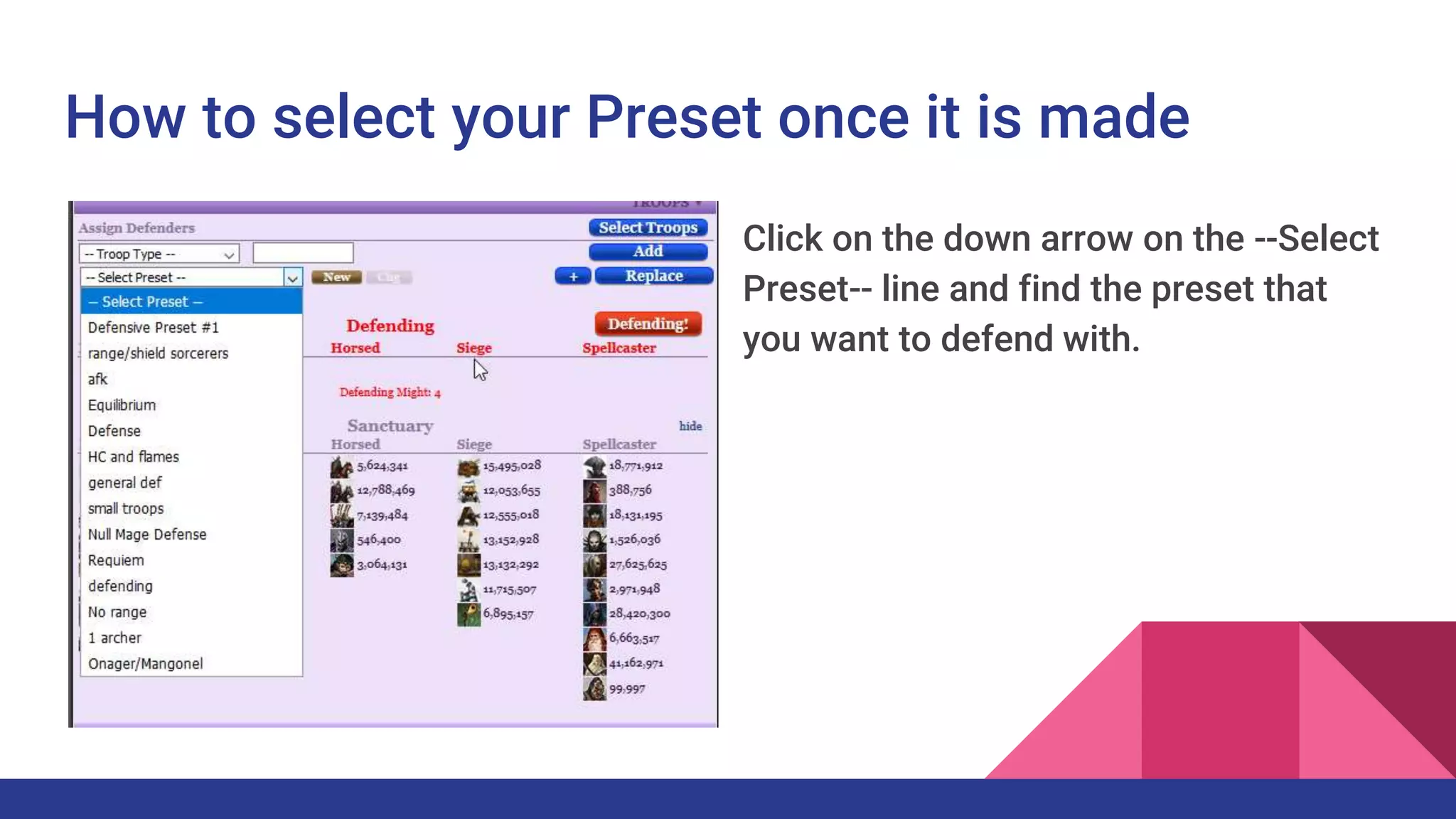
How to select your Preset once it is made
Click on the down arrow on the --Select
Preset-- line and find the preset that
you want to defend with.
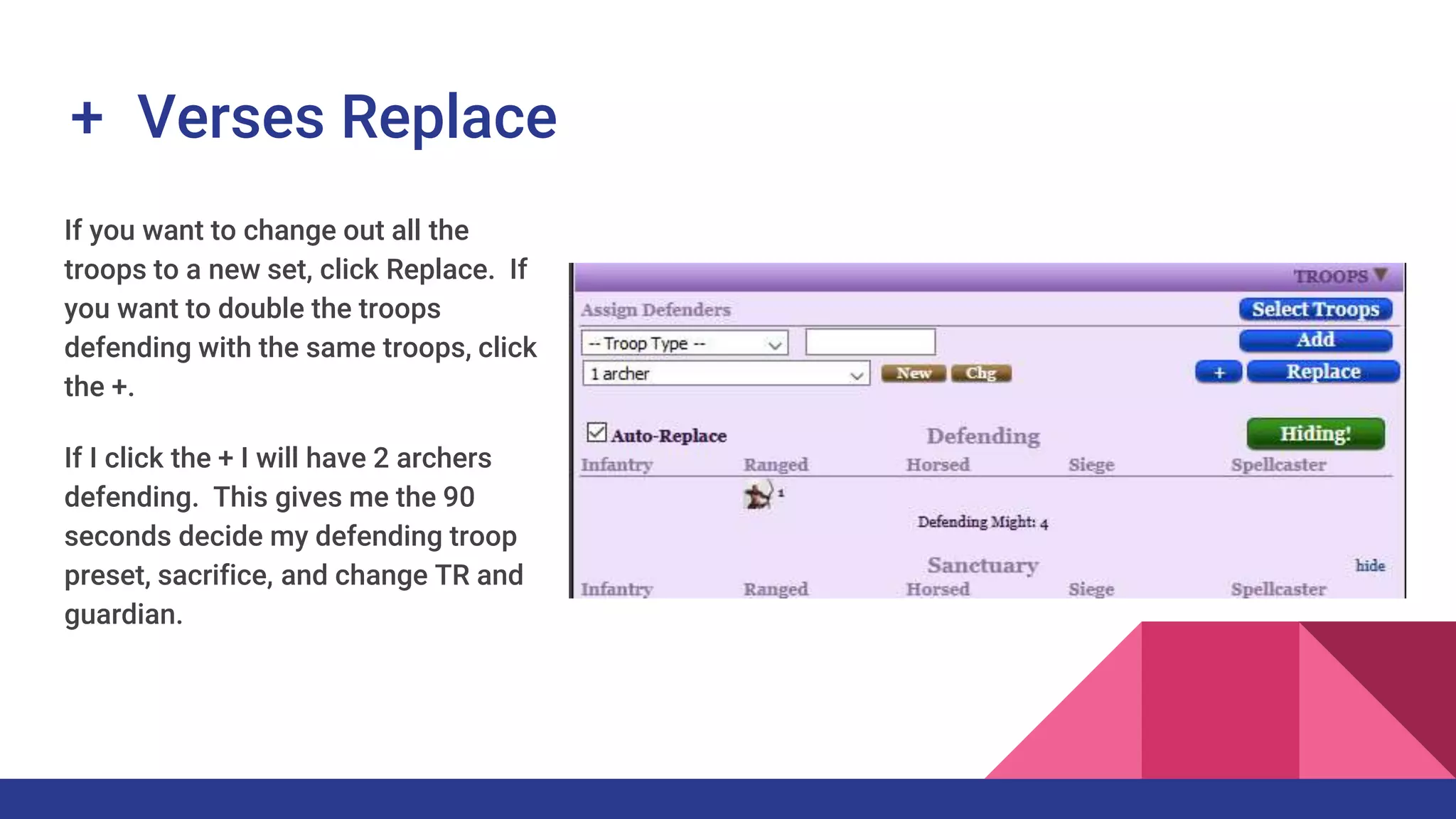
+ Verses Replace
If you want to change out all the
troops to a new set, click Replace. If
you want to double the troops
defending with the same troops, click
the +.
If I click the + I will have 2 archers
defending. This gives me the 90
seconds decide my defending troop
preset, sacrifice, and change TR and
guardian.
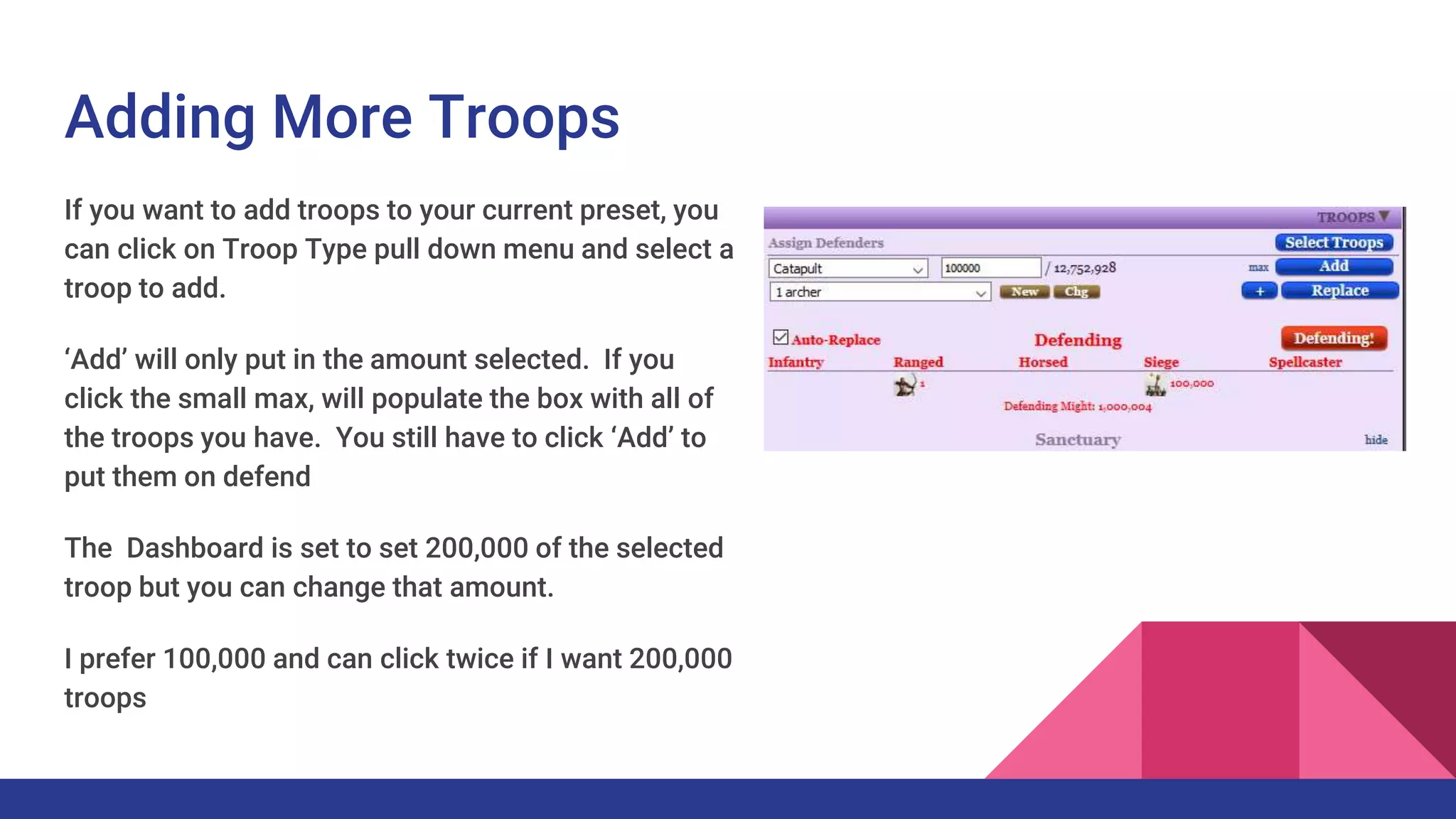
Adding More Troops
If you want to add troops to your current preset, you
can click on Troop Type pull down menu and select a
troop to add.
‘Add’ will only put in the amount selected. If you
click the small max, will populate the box with all of
the troops you have. You still have to click ‘Add’ to
put them on defend
The Dashboard is set to set 200,000 of the selected
troop but you can change that amount.
I prefer 100,000 and can click twice if I want 200,000
troops
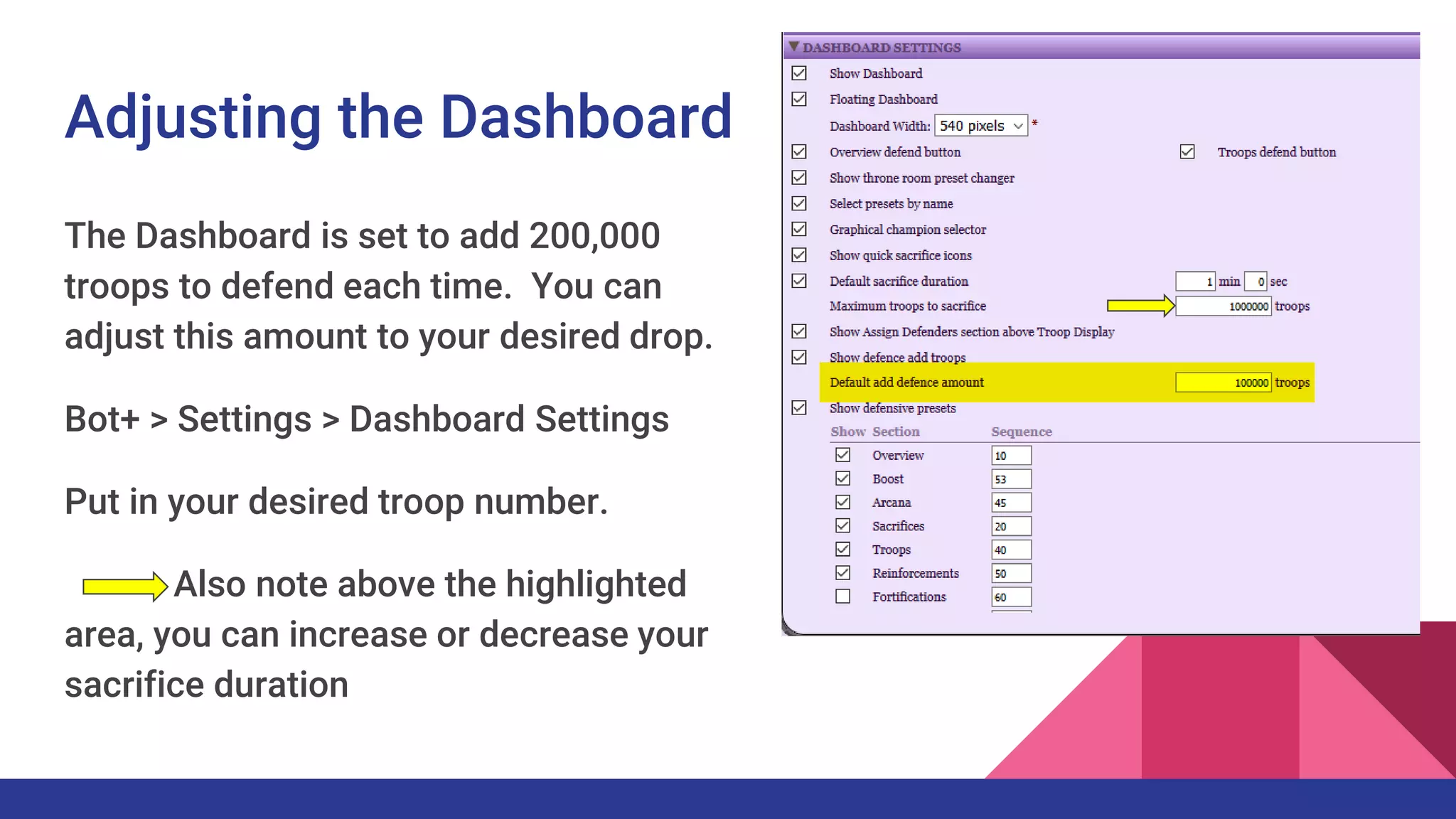
Adjusting the Dashboard
The Dashboard is set to add 200,000
troops to defend each time. You can
adjust this amount to your desired drop.
Bot+ > Settings > Dashboard Settings
Put in your desired troop number.
Also note above the highlighted
area, you can increase or decrease your
sacrifice duration
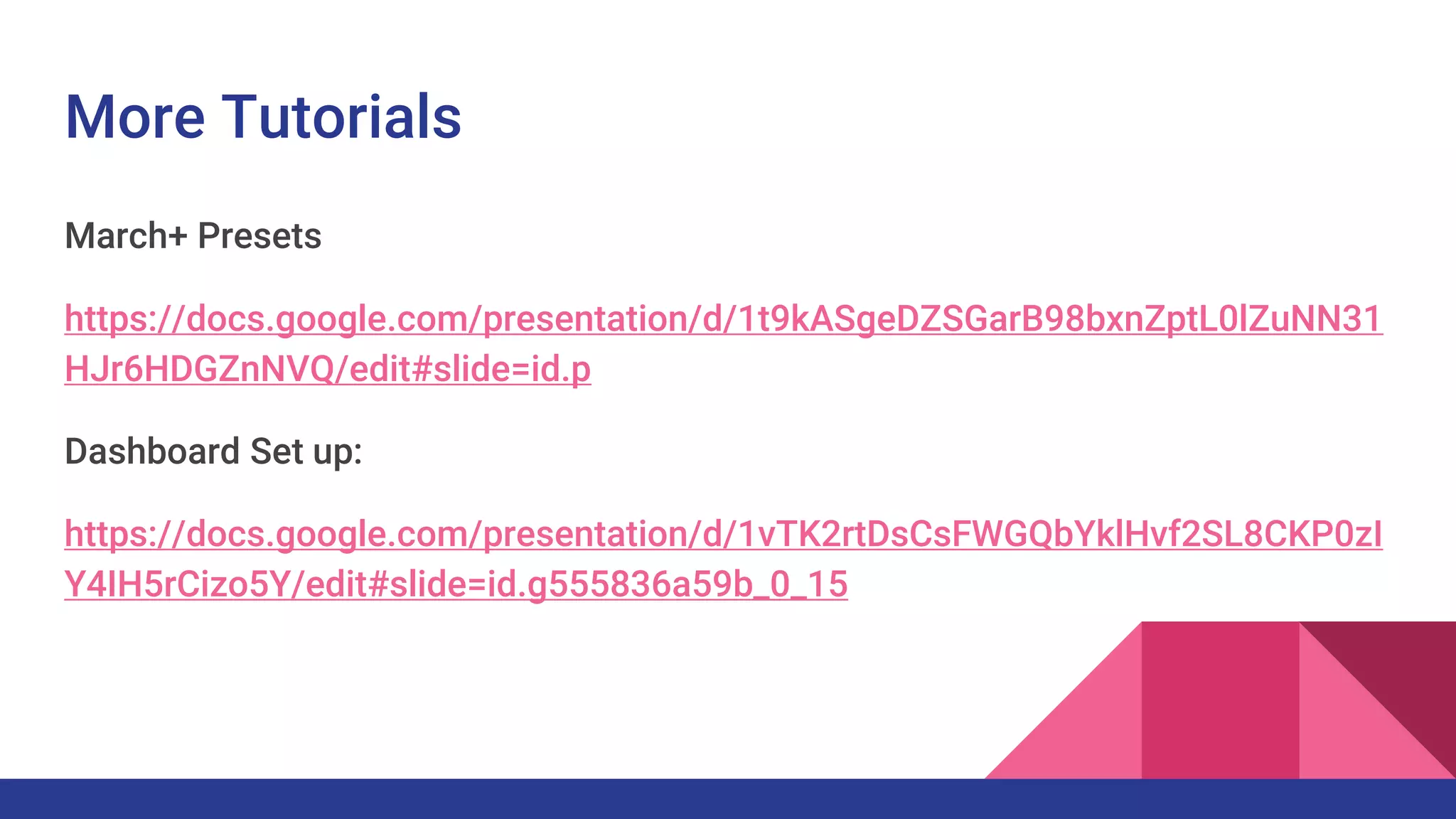
More Tutorials
March+ Presets
https://docs.google.com/presentation/d/1t9kASgeDZSGarB98bxnZptL0lZuNN31
HJr6HDGZnNVQ/edit#slide=id.p
Dashboard Set up:
https://docs.google.com/presentation/d/1vTK2rtDsCsFWGQbYklHvf2SL8CKP0zI
Y4IH5rCizo5Y/edit#slide=id.g555836a59b_0_15

KOC Making defending presets on the dashboard

  • 1.
    Defense Presets onthe Dashboard Ready to Defend?
  • 2.
    Making Defending Presetson the Dashboard The Dashboard is a great tool and has many features most have not explored. How many times have you seen an attack coming in with only 30 seconds time to defend? If you have premade Defense Presets in the dashboard, it is 2 clicks, troops are ready. Then you can sacrifice, set your guardian, and wait to click the right Throne room.
  • 3.
    Troop Section ofthe Dashboard This is where we will be working to make the presets. You can see I have a prest of 1 archer up. I use this when I go away to have the 90 second attack times but not risk thousands of troops.
  • 4.
    Setting up 1. ClickNew. You will see this screen. 2. Name your preset. I use the names of my Throne rooms, Range, attack, Attack/attack debuff 3. Select the troops 4. Save.
  • 5.
    How to selectyour Preset once it is made Click on the down arrow on the --Select Preset-- line and find the preset that you want to defend with.
  • 6.
    + Verses Replace Ifyou want to change out all the troops to a new set, click Replace. If you want to double the troops defending with the same troops, click the +. If I click the + I will have 2 archers defending. This gives me the 90 seconds decide my defending troop preset, sacrifice, and change TR and guardian.
  • 7.
    Adding More Troops Ifyou want to add troops to your current preset, you can click on Troop Type pull down menu and select a troop to add. ‘Add’ will only put in the amount selected. If you click the small max, will populate the box with all of the troops you have. You still have to click ‘Add’ to put them on defend The Dashboard is set to set 200,000 of the selected troop but you can change that amount. I prefer 100,000 and can click twice if I want 200,000 troops
  • 8.
    Adjusting the Dashboard TheDashboard is set to add 200,000 troops to defend each time. You can adjust this amount to your desired drop. Bot+ > Settings > Dashboard Settings Put in your desired troop number. Also note above the highlighted area, you can increase or decrease your sacrifice duration
  • 9.
    More Tutorials March+ Presets https://docs.google.com/presentation/d/1t9kASgeDZSGarB98bxnZptL0lZuNN31 HJr6HDGZnNVQ/edit#slide=id.p DashboardSet up: https://docs.google.com/presentation/d/1vTK2rtDsCsFWGQbYklHvf2SL8CKP0zI Y4IH5rCizo5Y/edit#slide=id.g555836a59b_0_15