Make a portable application with ThinApp
USESFRBR
November 2012

It is now possible to make a portable application with ThinApp. so that it can be accessed on
any platform. ThinApp is a software developed by VMWare that can be used for creating
portable applications. It uses the concepts of application virtualisation and the principles of
sandboxing to make an application run on any platform. It is not complicated to make a
portable application with ThinApp but it is important to start with a clean computer and follow
the instructions carefully. Once done, the application can be used on a portable storage device
and can be accessed from any system without compromising the data.


       Introduction
       How to proceed
       Compilation
       See also: Make portable apps


Introduction
ThinApp is a program that can be used to make some applications portable for the user. But you
should do this only with applications that have not already been installed on your computer.

       Below are instructions for using ThinApp
       ThinApp is supported on Windows Seven since version 4.0.4


How to proceed
       Select "All Programs" from the Start menu and choose VMWARE before double clicking
       the "ThinApp Setup Capture" shortcut.
When the ThinApp Setup Capture window pops up, click "Next"
Close all applications that might affect ThinApp's performance as well as the application
that you want to make portable
Click Next
The application will scan for the files required and may take some time. Do not touch
anything while this process is going on. It will let you know automatically when done
When it has finished, minimize the ThinApp window as indicated on the screen
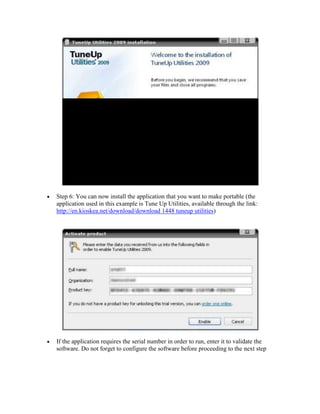
Step 6: You can now install the application that you want to make portable (the
application used in this example is Tune Up Utilities, available through the link:
http://en.kioskea.net/download/download 1448 tuneup utilities)


If the application requires the serial number in order to run, enter it to validate the
software. Do not forget to configure the software before proceeding to the next step
When the installation is done maximize the ThinApp window and click on Next to
analyze your system again
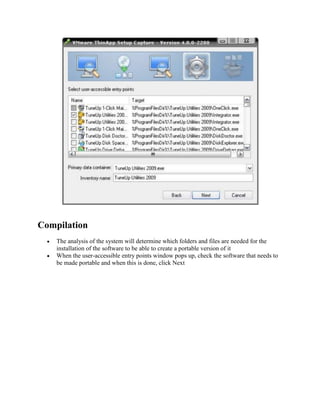
Compilation
    The analysis of the system will determine which folders and files are needed for the
    installation of the software to be able to create a portable version of it
    When the user-accessible entry points window pops up, check the software that needs to
    be made portable and when this is done, click Next
You can now choose the flash disk device where you want the application to run and
click Next when done
Leave the Merged Isolation mode checked and click Next
Choose the Fast Compression option to get the maximum space that will be required on
the flash disk. Click Next
The folders that will be needed by the application will be put in the same directory
Once that process has finished, click Build Now
Choose the Browse Project option to get hold of the folder made specially for the
portable software.
Browse for and open the Bin folder


Finally, copy the executable application to your flash disk

Make a portable application with thin app

  • 1.
    Make a portableapplication with ThinApp USESFRBR November 2012 It is now possible to make a portable application with ThinApp. so that it can be accessed on any platform. ThinApp is a software developed by VMWare that can be used for creating portable applications. It uses the concepts of application virtualisation and the principles of sandboxing to make an application run on any platform. It is not complicated to make a portable application with ThinApp but it is important to start with a clean computer and follow the instructions carefully. Once done, the application can be used on a portable storage device and can be accessed from any system without compromising the data. Introduction How to proceed Compilation See also: Make portable apps Introduction ThinApp is a program that can be used to make some applications portable for the user. But you should do this only with applications that have not already been installed on your computer. Below are instructions for using ThinApp ThinApp is supported on Windows Seven since version 4.0.4 How to proceed Select "All Programs" from the Start menu and choose VMWARE before double clicking the "ThinApp Setup Capture" shortcut.
  • 2.
    When the ThinAppSetup Capture window pops up, click "Next"
  • 3.
    Close all applicationsthat might affect ThinApp's performance as well as the application that you want to make portable Click Next
  • 4.
    The application willscan for the files required and may take some time. Do not touch anything while this process is going on. It will let you know automatically when done
  • 5.
    When it hasfinished, minimize the ThinApp window as indicated on the screen
  • 6.
    Step 6: Youcan now install the application that you want to make portable (the application used in this example is Tune Up Utilities, available through the link: http://en.kioskea.net/download/download 1448 tuneup utilities) If the application requires the serial number in order to run, enter it to validate the software. Do not forget to configure the software before proceeding to the next step
  • 7.
    When the installationis done maximize the ThinApp window and click on Next to analyze your system again
  • 8.
    Compilation The analysis of the system will determine which folders and files are needed for the installation of the software to be able to create a portable version of it When the user-accessible entry points window pops up, check the software that needs to be made portable and when this is done, click Next
  • 9.
    You can nowchoose the flash disk device where you want the application to run and click Next when done
  • 10.
    Leave the MergedIsolation mode checked and click Next
  • 11.
    Choose the FastCompression option to get the maximum space that will be required on the flash disk. Click Next
  • 12.
    The folders thatwill be needed by the application will be put in the same directory
  • 13.
    Once that processhas finished, click Build Now
  • 14.
    Choose the BrowseProject option to get hold of the folder made specially for the portable software.
  • 15.
    Browse for andopen the Bin folder Finally, copy the executable application to your flash disk