MAIL MERGE
WEEK 6
Explore the purpose of
mail merge
Understand the mail
merge process
Formulate a mail merge
AT THE END OF THE LESSON LEARNERS SHOULD BE ABLE TO:
Slido code #3765454
THE purpose of mail merge
•Mail merge allows you to create a batch of
personalized documents for each recipient
•For example, you produce multiple letters,
envelopes, and name tags using information in
a list, database or spreadsheet.
Remember! Your data source can be a text
file, spreadsheet or database
Scenario (A letter to the parents of learners
who did not hand in their pat assignment)
Word document and Spreadsheet with out records
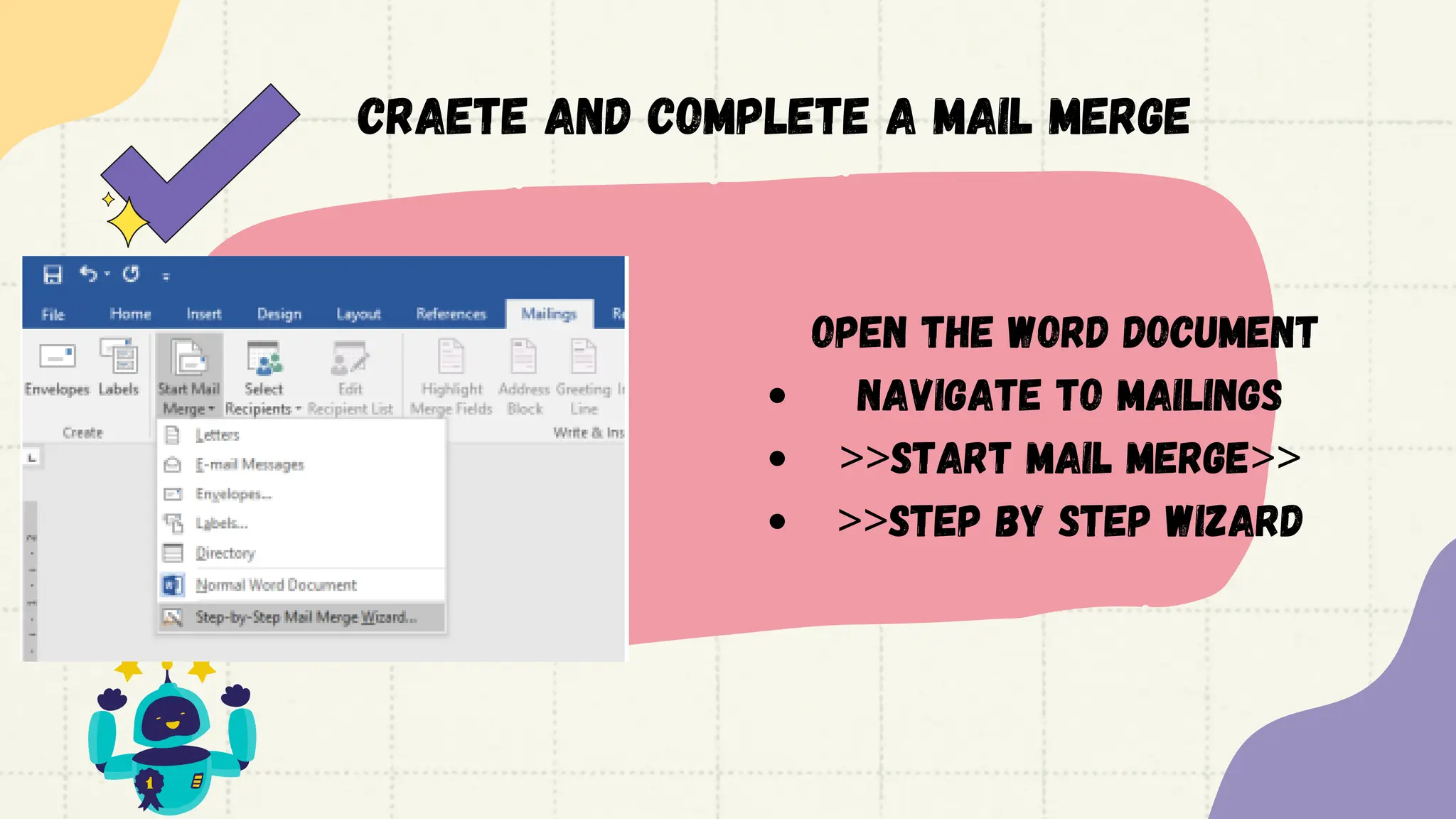
Craete and complete a mail merge
Open the word document
Navigate to MAILINGS
>>START MAIL MERGE>>
>>STEP by STEP WIZARD
ESTABLISHING A CONNECTION
<<Browse (look) for the
source and connect
Notice that the
connection has
been established>>
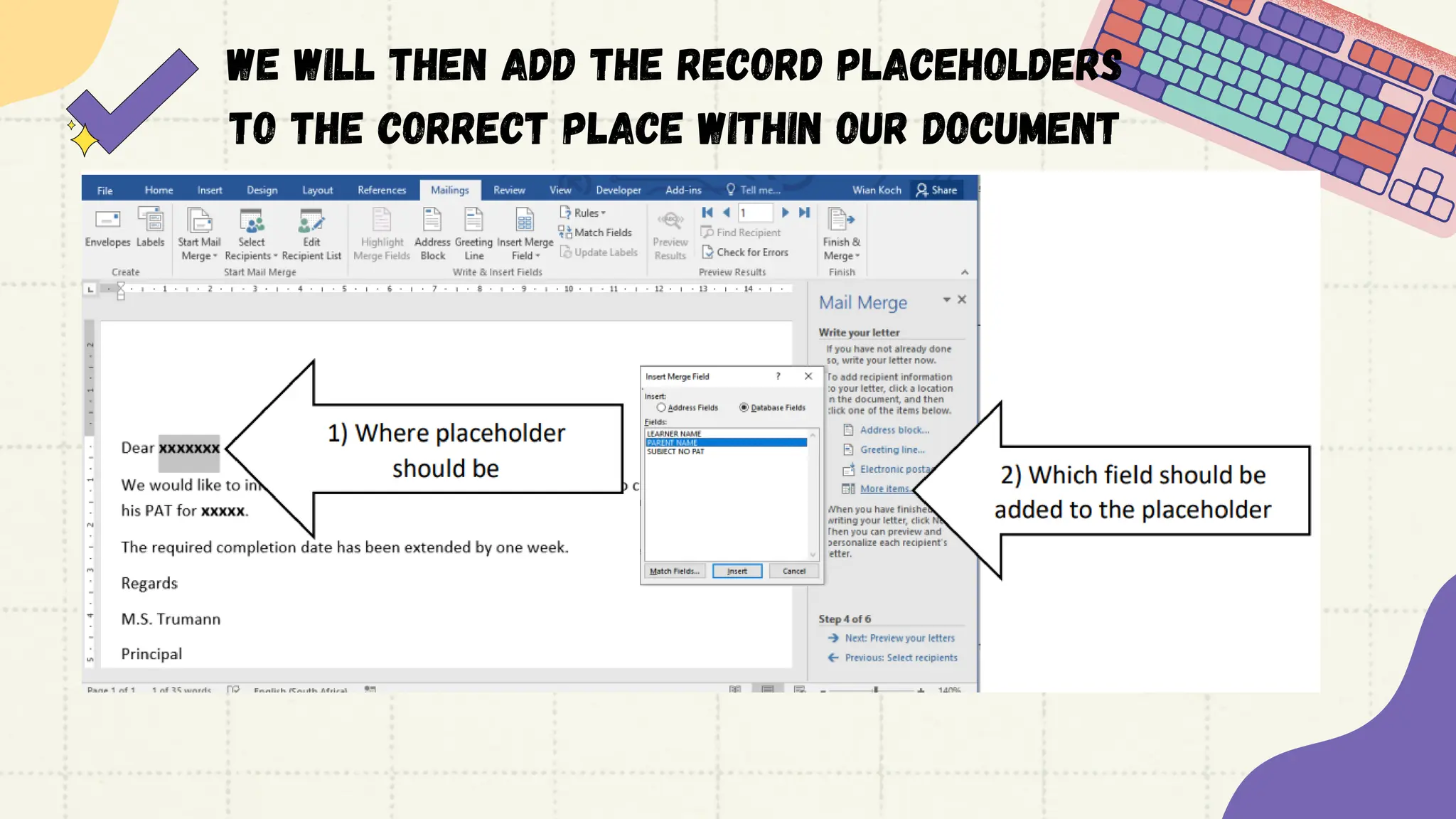
We will then add the record placeholders
to the correct place within our document
Notice the
<<FIELDS/PLACEHOLDERS
after being inserted
A preview of our records
within the document>>
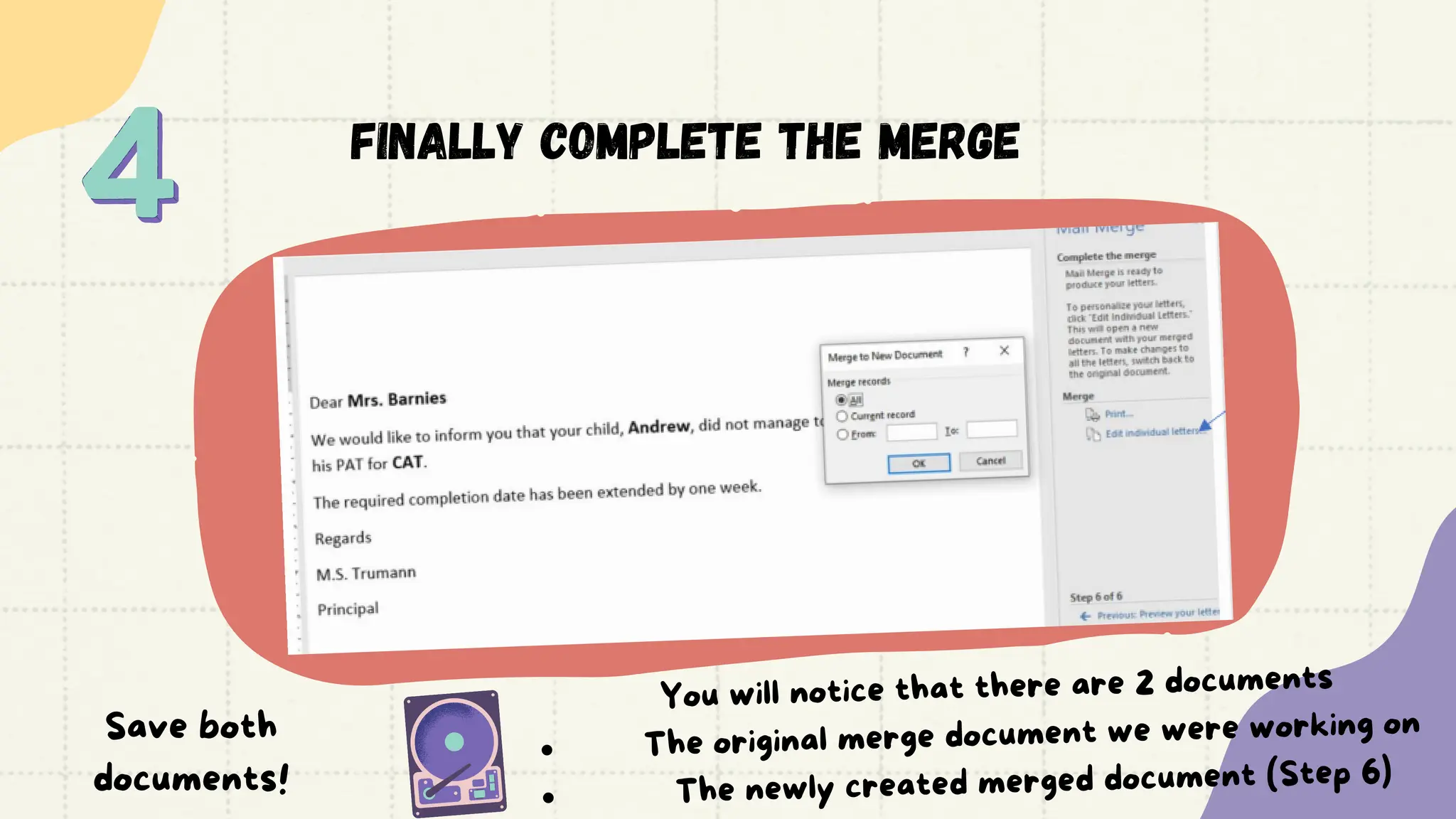
FINALLY COMPLETE THE MERGE
You will notice that there are 2 documents
The original merge document we were working on
The newly created merged document (Step 6)
Save both
documents!
note!
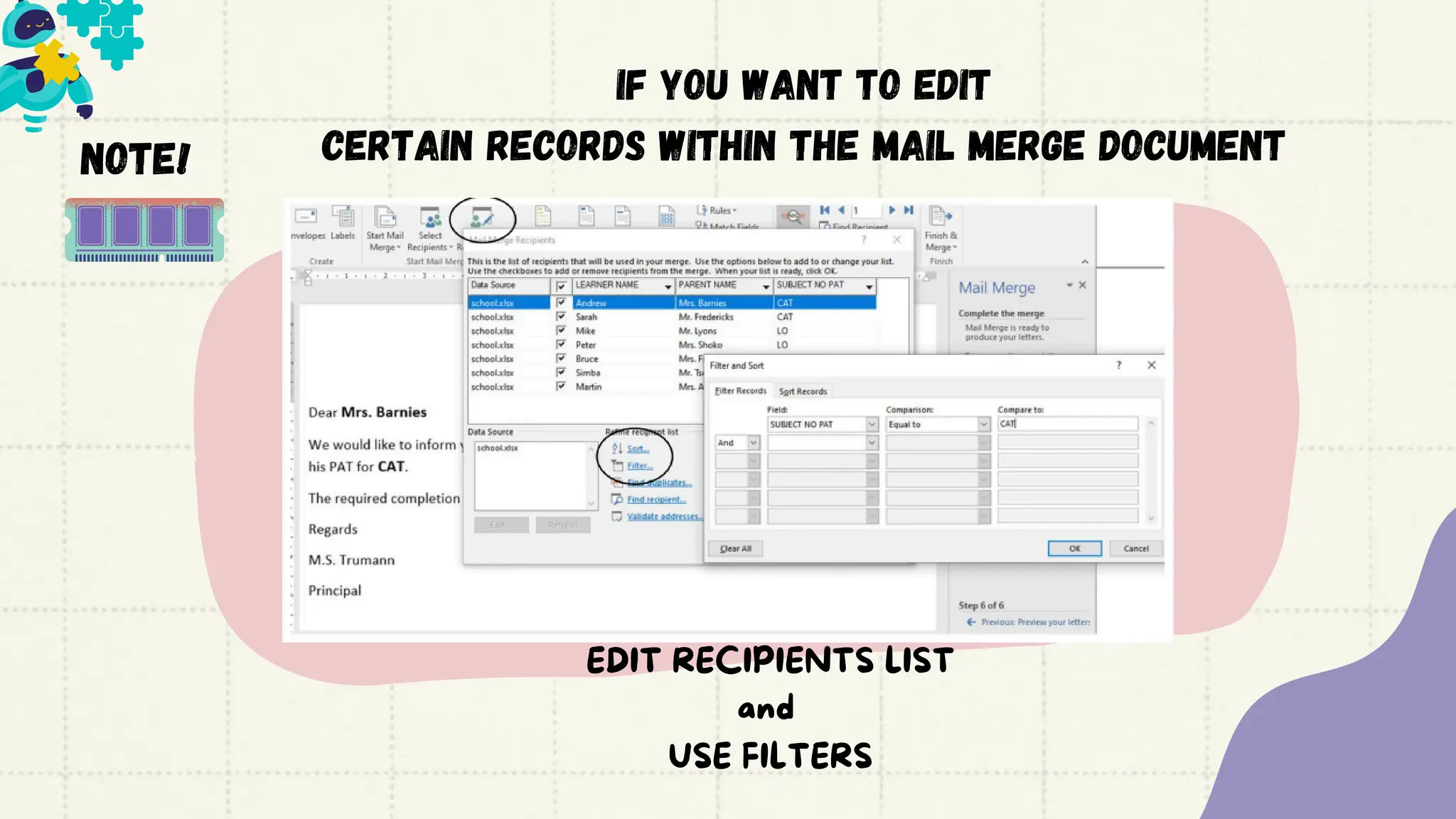
If you want to edit
certain records within the mail merge document
EDIT RECIPIENTS LIST
and
USE FILTERS
questions?

MAIL MERGE - Computer Applications Technology

  • 1.
  • 2.
    Explore the purposeof mail merge Understand the mail merge process Formulate a mail merge AT THE END OF THE LESSON LEARNERS SHOULD BE ABLE TO:
  • 3.
  • 4.
    THE purpose ofmail merge •Mail merge allows you to create a batch of personalized documents for each recipient •For example, you produce multiple letters, envelopes, and name tags using information in a list, database or spreadsheet.
  • 5.
    Remember! Your datasource can be a text file, spreadsheet or database
  • 6.
    Scenario (A letterto the parents of learners who did not hand in their pat assignment) Word document and Spreadsheet with out records
  • 7.
    Craete and completea mail merge Open the word document Navigate to MAILINGS >>START MAIL MERGE>> >>STEP by STEP WIZARD
  • 8.
    ESTABLISHING A CONNECTION <<Browse(look) for the source and connect Notice that the connection has been established>>
  • 9.
    We will thenadd the record placeholders to the correct place within our document
  • 10.
    Notice the <<FIELDS/PLACEHOLDERS after beinginserted A preview of our records within the document>>
  • 11.
    FINALLY COMPLETE THEMERGE You will notice that there are 2 documents The original merge document we were working on The newly created merged document (Step 6) Save both documents!
  • 12.
    note! If you wantto edit certain records within the mail merge document EDIT RECIPIENTS LIST and USE FILTERS
  • 13.