Localization
Submitted By:
Pawan Ramteke
(iOS Developer)
Guided by:
Amol Hirkane
What is Localization?
Localization is the process of rendering the
content of your app into multiple languages.
Before you can localize your app, you have to
internationalize it. Internationalization is the
process of making your app able to adapt to
different languages, regions, and cultures. It
involves 2 parts:
User-Interface (.xib, .storyboard)
Code (.m, .swift)
Internationalizing User-
InterfaceTo Internationalizing project go to:
Project Editor > Project > Info.
Create the Strings File
To create .string file, go to
Project navigator > New file > resource > string file
Localize Your Project
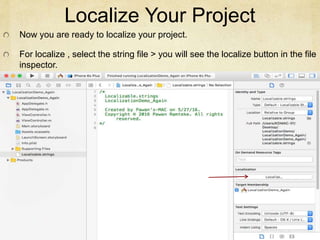
Now you are ready to localize your project.
For localize , select the string file > you will see the localize button in the file
inspector.
Add a New Language
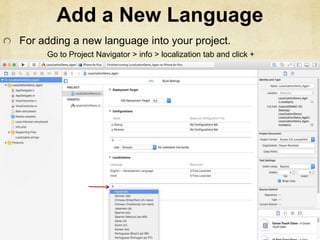
For adding a new language into your project.
Go to Project Navigator > info > localization tab and click +
Add Localized Strings into
String File
The string file has a following syntax to add localized
strings:
“KEY” = “Value”;
Ex : “KEY_HELLO” = “HELLO”; (for English
localization)
The Key should be same in all the localized file.
Add Preferred Languages into
DeviceFor adding preferred languages into device go to:
Device Settings > general > language & region > in
Preferred Language Order Add Language
Get all Preferred
languages
For getting all the preferred languages you add previously ,
NSLocale is use.
NSLocale is a Foundation class that encapsulates all of the
conventions about language and culture for a particular locale.
The following code returns an array if preferred languages
code (en - English)
NSArray *ArrayAllLanguages= [NSLocale
PreferredLanguages]
Thank you!

Localization for iOS

  • 1.
    Localization Submitted By: Pawan Ramteke (iOSDeveloper) Guided by: Amol Hirkane
  • 2.
    What is Localization? Localizationis the process of rendering the content of your app into multiple languages. Before you can localize your app, you have to internationalize it. Internationalization is the process of making your app able to adapt to different languages, regions, and cultures. It involves 2 parts: User-Interface (.xib, .storyboard) Code (.m, .swift)
  • 3.
    Internationalizing User- InterfaceTo Internationalizingproject go to: Project Editor > Project > Info.
  • 4.
    Create the StringsFile To create .string file, go to Project navigator > New file > resource > string file
  • 5.
    Localize Your Project Nowyou are ready to localize your project. For localize , select the string file > you will see the localize button in the file inspector.
  • 6.
    Add a NewLanguage For adding a new language into your project. Go to Project Navigator > info > localization tab and click +
  • 7.
    Add Localized Stringsinto String File The string file has a following syntax to add localized strings: “KEY” = “Value”; Ex : “KEY_HELLO” = “HELLO”; (for English localization) The Key should be same in all the localized file.
  • 8.
    Add Preferred Languagesinto DeviceFor adding preferred languages into device go to: Device Settings > general > language & region > in Preferred Language Order Add Language
  • 9.
    Get all Preferred languages Forgetting all the preferred languages you add previously , NSLocale is use. NSLocale is a Foundation class that encapsulates all of the conventions about language and culture for a particular locale. The following code returns an array if preferred languages code (en - English) NSArray *ArrayAllLanguages= [NSLocale PreferredLanguages]
  • 10.