Introduction to
Game Development with Unity
By Luca Leone
lucaleone@outlook.com
Il gioco
Let’s see a demo
Let’s get started
• Scarica da GitHub:
https://github.com/GameLabRomaTre/Materiale-lezione-6-Aprile
• Lancia una nuova instanza di Unity3D
• Apri il progetto appena scaricato
Unity3D
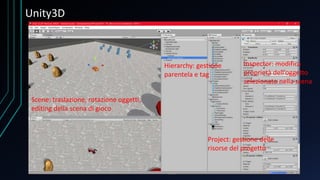
Scene: traslazione, rotazione oggetti,
editing della scena di gioco
Hierarchy: gestione
parentela e tag
Project: gestione delle
risorse del progetto
Inspector: modifica
proprietà dell’oggetto
selezionato nella scena
Creazione campo da gioco
• Right click sul pannello Hierarchy
• Creare Empty (position 0, 0, 0) nominalo ‘’Terrain’’
• Creare cube (size 200, 0.2, 200) dentro a ‘’Terrain’’, nominarlo
‘’base’’
• Nel pannello Project creare cartella Materials, e creare un
materiale, nominarlo ‘’TerrainMat’’, assegnare qusto materiale a
‘’base’’
Creazione elementi di gioco, Ostacolo
• Nella cartella Models selezionare ‘’OstacoloDemo2017’’ e trascinarlo
sulla Hierarchy
• Settare la position Y a 0,69
• Click su Add Component, aggiungere un capsule collider con:
• Center: 0 1 0
• Radius: 1,2
• Height: 0,2
• Direction: Y-Axis
• Click su Add Component, aggiungere un Rigidbody con Mass 5
• Creare in Project una cartella chiamata prefabs, trascinare l’oggetto di
scena nella cartella Prefabs al fine di creare un prefab
Creazione elementi di gioco, Flag
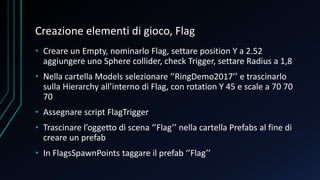
• Creare un Empty, nominarlo Flag, settare position Y a 2.52
aggiungere uno Sphere collider, check Trigger, settare Radius a 1,8
• Nella cartella Models selezionare ‘’RingDemo2017’’ e trascinarlo
sulla Hierarchy all’interno di Flag, con rotation Y 45 e scale a 70 70
70
• Assegnare script FlagTrigger
• Trascinare l’oggetto di scena ‘’Flag’’ nella cartella Prefabs al fine di
creare un prefab
• In FlagsSpawnPoints taggare il prefab ‘’Flag’’
Creazione elementi di gioco, Roccia
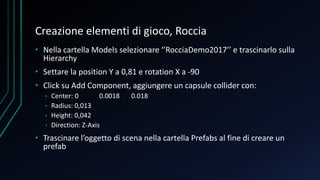
• Nella cartella Models selezionare ‘’RocciaDemo2017’’ e trascinarlo sulla
Hierarchy
• Settare la position Y a 0,81 e rotation X a -90
• Click su Add Component, aggiungere un capsule collider con:
• Center: 0 0.0018 0.018
• Radius: 0,013
• Height: 0,042
• Direction: Z-Axis
• Trascinare l’oggetto di scena nella cartella Prefabs al fine di creare un
prefab
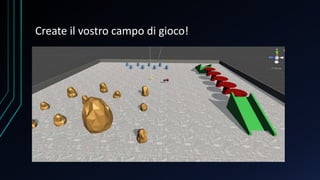
Create il vostro campo di gioco!
Creazione controlli gioco
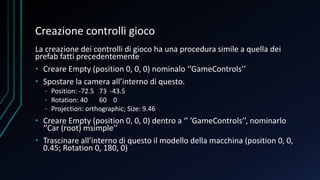
La creazione dei controlli di gioco ha una procedura simile a quella dei
prefab fatti precedentemente
• Creare Empty (position 0, 0, 0) nominalo ‘’GameControls’’
• Spostare la camera all’interno di questo.
• Position: -72.5 73 -43.5
• Rotation: 40 60 0
• Projection: orthographic; Size: 9.46
• Creare Empty (position 0, 0, 0) dentro a ‘’ ’GameControls’’, nominarlo
‘’Car (root) msimple’’
• Trascinare all’interno di questo il modello della macchina (position 0, 0,
0.45; Rotation 0, 180, 0)
Gestione fisica in unity
• Aggiungere i seguenti collider a ‘’Car (root) msimple’’:
• Capsule: Center Z: -1,38; Radius: 0,9; Height 6,2; direction Z-Axis
• Capsule: Center: -1,33 -0,62 -1,44; Radius: 0,5; Height 5,3; direction Z-Axis
• Capsule: Center: 1,33 -0,62 -1,44; Radius: 0,5; Height 5,3; direction Z-Axis
• Sphere: check Trigger; Center: 0 -0,7 -3,63; Radius: 0.78
• Aggiungere un Rigidbody a ‘’Car (root) msimple’’
• In Project creare una cartella ‘Source’, dentro questa creare uno
script ‘MSimpleCarSimulation’ e assegnarlo a ‘’Car (root) msimple’’
The Car script
public class CarSimulator : MonoBehaviour
{
public float Speed = 12f;
public float TurnSpeed = 180f;
public Transform[] FrontWheels;
public Transform[] RearWheels;
public int TriggerCount = 0;
public bool engine;
private Rigidbody m_Rigidbody;
private int maxWheelsRotation = 20; //degree
Definizione membri pubblici e privati classe
The Car script
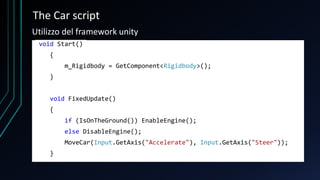
void Start()
{
m_Rigidbody = GetComponent<Rigidbody>();
}
void FixedUpdate()
{
if (IsOnTheGround()) EnableEngine();
else DisableEngine();
MoveCar(Input.GetAxis("Accelerate"), Input.GetAxis("Steer"));
}
Utilizzo del framework unity
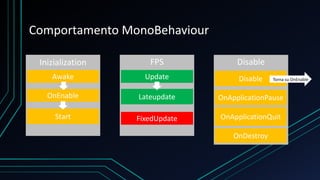
Awake
OnEnable
Start
Update
FixedUpdate
Lateupdate
Inizialization FPS
Disable
OnApplicationPause
OnApplicationQuit
Disable
Torna su OnEnable
OnDestroy
Comportamento MonoBehaviour
The Car script
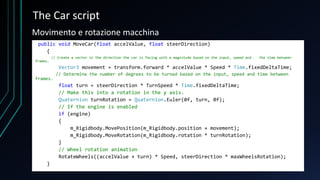
public void MoveCar(float accelValue, float steerDirection)
{
// Create a vector in the direction the car is facing with a magnitude based on the input, speed and the time between
frames.
Vector3 movement = transform.forward * accelValue * Speed * Time.fixedDeltaTime;
// Determine the number of degrees to be turned based on the input, speed and time between
frames.
float turn = steerDirection * TurnSpeed * Time.fixedDeltaTime;
// Make this into a rotation in the y axis.
Quaternion turnRotation = Quaternion.Euler(0f, turn, 0f);
// If the engine is enabled
if (engine)
{
m_Rigidbody.MovePosition(m_Rigidbody.position + movement);
m_Rigidbody.MoveRotation(m_Rigidbody.rotation * turnRotation);
}
// Wheel rotation animation
RotateWheels((accelValue + turn) * Speed, steerDirection * maxWheelsRotation);
}
Movimento e rotazione macchina
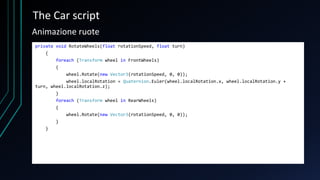
The Car script
private void RotateWheels(float rotationSpeed, float turn)
{
foreach (Transform wheel in FrontWheels)
{
wheel.Rotate(new Vector3(rotationSpeed, 0, 0));
wheel.localRotation = Quaternion.Euler(wheel.localRotation.x, wheel.localRotation.y +
turn, wheel.localRotation.z);
}
foreach (Transform wheel in RearWheels)
{
wheel.Rotate(new Vector3(rotationSpeed, 0, 0));
}
}
Animazione ruote
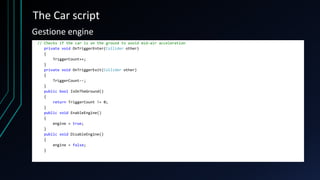
The Car script
// Checks if the car is on the ground to avoid mid-air acceleration
private void OnTriggerEnter(Collider other)
{
TriggerCount++;
}
private void OnTriggerExit(Collider other)
{
TriggerCount--;
}
public bool IsOnTheGround()
{
return TriggerCount != 0;
}
public void EnableEngine()
{
engine = true;
}
public void DisableEngine()
{
engine = false;
}
Gestione engine
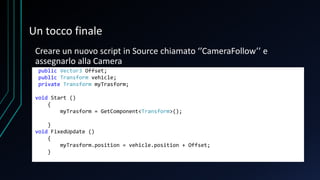
Un tocco finale
Creare un nuovo script in Source chiamato ‘’CameraFollow’’ e
assegnarlo alla Camera
public Vector3 Offset;
public Transform vehicle;
private Transform myTrasform;
void Start ()
{
myTrasform = GetComponent<Transform>();
}
void FixedUpdate ()
{
myTrasform.position = vehicle.position + Offset;
}
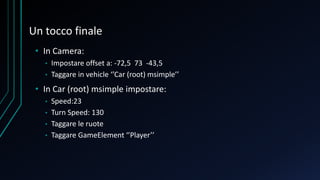
Un tocco finale
• In Camera:
• Impostare offset a: -72,5 73 -43,5
• Taggare in vehicle ‘’Car (root) msimple’’
• In Car (root) msimple impostare:
• Speed:23
• Turn Speed: 130
• Taggare le ruote
• Taggare GameElement ‘’Player’’
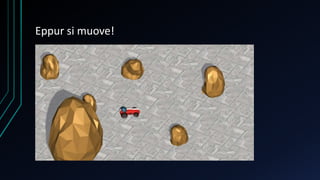
Eppur si muove!
Creazione Game manager
La creazione di un GameManager permette di avere un punto di
riferimento per la gestione della logica di gioco
• Creare Empty (position 0, 0, 0) nominalo ‘’GameManager’’
• Creare uno script ‘’GameManager’’, assegnalo all’oggetto di scena
• Assegnare Tag al gameManager come ‘’GameManager’’
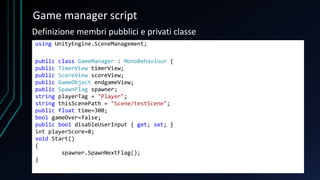
Game manager script
using UnityEngine.SceneManagement;
public class GameManager : MonoBehaviour {
public TimerView timerView;
public ScoreView scoreView;
public GameObject endgameView;
public SpawnFlag spawner;
string playerTag = "Player";
string thisScenePath = "Scene/testScene";
public float time=300;
bool gameOver=false;
public bool disableUserInput { get; set; }
int playerScore=0;
void Start()
{
spawner.SpawnNextFlag();
}
Definizione membri pubblici e privati classe
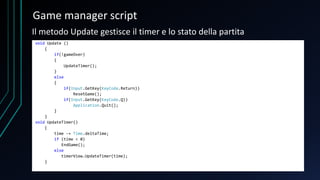
Game manager script
void Update ()
{
if(!gameOver)
{
UpdateTimer();
}
else
{
if(Input.GetKey(KeyCode.Return))
ResetGame();
if(Input.GetKey(KeyCode.Q))
Application.Quit();
}
}
void UpdateTimer()
{
time -= Time.deltaTime;
if (time < 0)
EndGame();
else
timerView.UpdateTimer(time);
}
Il metodo Update gestisce il timer e lo stato della partita
Game manager script
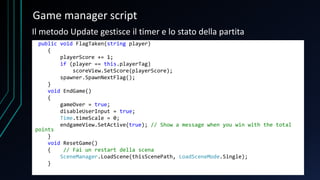
public void FlagTaken(string player)
{
playerScore += 1;
if (player == this.playerTag)
scoreView.SetScore(playerScore);
spawner.SpawnNextFlag();
}
void EndGame()
{
gameOver = true;
disableUserInput = true;
Time.timeScale = 0;
endgameView.SetActive(true); // Show a message when you win with the total
points
}
void ResetGame()
{ // Fai un restart della scena
SceneManager.LoadScene(thisScenePath, LoadSceneMode.Single);
}
Il metodo Update gestisce il timer e lo stato della partita
Un tocco finale
• In GameManager:
• Taggare Timer, Score e EndGamePanel contenuti in Canvas
• Taggare ‘’ FlagsSpawnPoints’’ in Spawner
• In ‘’ FlagTrigger’’ rimuovere commento nella linea 13
Contatti
Luca Emanuele Leone
lucaleone@outlook.com
it.linkedin.com/in/lucaleone93/
GameLab
FanPage
Credits
• Code written by: Andrea salvoni, Gaetano Bonofiglio, Luca Leone
• 3D models by: Luca Leone
• Special thanks to Veronica Iovinella

Lezione 6 aprile GameLab

  • 1.
    Introduction to Game Developmentwith Unity By Luca Leone lucaleone@outlook.com
  • 2.
  • 3.
  • 4.
    Let’s get started •Scarica da GitHub: https://github.com/GameLabRomaTre/Materiale-lezione-6-Aprile • Lancia una nuova instanza di Unity3D • Apri il progetto appena scaricato
  • 5.
    Unity3D Scene: traslazione, rotazioneoggetti, editing della scena di gioco Hierarchy: gestione parentela e tag Project: gestione delle risorse del progetto Inspector: modifica proprietà dell’oggetto selezionato nella scena
  • 6.
    Creazione campo dagioco • Right click sul pannello Hierarchy • Creare Empty (position 0, 0, 0) nominalo ‘’Terrain’’ • Creare cube (size 200, 0.2, 200) dentro a ‘’Terrain’’, nominarlo ‘’base’’ • Nel pannello Project creare cartella Materials, e creare un materiale, nominarlo ‘’TerrainMat’’, assegnare qusto materiale a ‘’base’’
  • 7.
    Creazione elementi digioco, Ostacolo • Nella cartella Models selezionare ‘’OstacoloDemo2017’’ e trascinarlo sulla Hierarchy • Settare la position Y a 0,69 • Click su Add Component, aggiungere un capsule collider con: • Center: 0 1 0 • Radius: 1,2 • Height: 0,2 • Direction: Y-Axis • Click su Add Component, aggiungere un Rigidbody con Mass 5 • Creare in Project una cartella chiamata prefabs, trascinare l’oggetto di scena nella cartella Prefabs al fine di creare un prefab
  • 8.
    Creazione elementi digioco, Flag • Creare un Empty, nominarlo Flag, settare position Y a 2.52 aggiungere uno Sphere collider, check Trigger, settare Radius a 1,8 • Nella cartella Models selezionare ‘’RingDemo2017’’ e trascinarlo sulla Hierarchy all’interno di Flag, con rotation Y 45 e scale a 70 70 70 • Assegnare script FlagTrigger • Trascinare l’oggetto di scena ‘’Flag’’ nella cartella Prefabs al fine di creare un prefab • In FlagsSpawnPoints taggare il prefab ‘’Flag’’
  • 9.
    Creazione elementi digioco, Roccia • Nella cartella Models selezionare ‘’RocciaDemo2017’’ e trascinarlo sulla Hierarchy • Settare la position Y a 0,81 e rotation X a -90 • Click su Add Component, aggiungere un capsule collider con: • Center: 0 0.0018 0.018 • Radius: 0,013 • Height: 0,042 • Direction: Z-Axis • Trascinare l’oggetto di scena nella cartella Prefabs al fine di creare un prefab
  • 10.
    Create il vostrocampo di gioco!
  • 11.
    Creazione controlli gioco Lacreazione dei controlli di gioco ha una procedura simile a quella dei prefab fatti precedentemente • Creare Empty (position 0, 0, 0) nominalo ‘’GameControls’’ • Spostare la camera all’interno di questo. • Position: -72.5 73 -43.5 • Rotation: 40 60 0 • Projection: orthographic; Size: 9.46 • Creare Empty (position 0, 0, 0) dentro a ‘’ ’GameControls’’, nominarlo ‘’Car (root) msimple’’ • Trascinare all’interno di questo il modello della macchina (position 0, 0, 0.45; Rotation 0, 180, 0)
  • 12.
    Gestione fisica inunity • Aggiungere i seguenti collider a ‘’Car (root) msimple’’: • Capsule: Center Z: -1,38; Radius: 0,9; Height 6,2; direction Z-Axis • Capsule: Center: -1,33 -0,62 -1,44; Radius: 0,5; Height 5,3; direction Z-Axis • Capsule: Center: 1,33 -0,62 -1,44; Radius: 0,5; Height 5,3; direction Z-Axis • Sphere: check Trigger; Center: 0 -0,7 -3,63; Radius: 0.78 • Aggiungere un Rigidbody a ‘’Car (root) msimple’’ • In Project creare una cartella ‘Source’, dentro questa creare uno script ‘MSimpleCarSimulation’ e assegnarlo a ‘’Car (root) msimple’’
  • 13.
    The Car script publicclass CarSimulator : MonoBehaviour { public float Speed = 12f; public float TurnSpeed = 180f; public Transform[] FrontWheels; public Transform[] RearWheels; public int TriggerCount = 0; public bool engine; private Rigidbody m_Rigidbody; private int maxWheelsRotation = 20; //degree Definizione membri pubblici e privati classe
  • 14.
    The Car script voidStart() { m_Rigidbody = GetComponent<Rigidbody>(); } void FixedUpdate() { if (IsOnTheGround()) EnableEngine(); else DisableEngine(); MoveCar(Input.GetAxis("Accelerate"), Input.GetAxis("Steer")); } Utilizzo del framework unity
  • 15.
  • 16.
    The Car script publicvoid MoveCar(float accelValue, float steerDirection) { // Create a vector in the direction the car is facing with a magnitude based on the input, speed and the time between frames. Vector3 movement = transform.forward * accelValue * Speed * Time.fixedDeltaTime; // Determine the number of degrees to be turned based on the input, speed and time between frames. float turn = steerDirection * TurnSpeed * Time.fixedDeltaTime; // Make this into a rotation in the y axis. Quaternion turnRotation = Quaternion.Euler(0f, turn, 0f); // If the engine is enabled if (engine) { m_Rigidbody.MovePosition(m_Rigidbody.position + movement); m_Rigidbody.MoveRotation(m_Rigidbody.rotation * turnRotation); } // Wheel rotation animation RotateWheels((accelValue + turn) * Speed, steerDirection * maxWheelsRotation); } Movimento e rotazione macchina
  • 17.
    The Car script privatevoid RotateWheels(float rotationSpeed, float turn) { foreach (Transform wheel in FrontWheels) { wheel.Rotate(new Vector3(rotationSpeed, 0, 0)); wheel.localRotation = Quaternion.Euler(wheel.localRotation.x, wheel.localRotation.y + turn, wheel.localRotation.z); } foreach (Transform wheel in RearWheels) { wheel.Rotate(new Vector3(rotationSpeed, 0, 0)); } } Animazione ruote
  • 18.
    The Car script //Checks if the car is on the ground to avoid mid-air acceleration private void OnTriggerEnter(Collider other) { TriggerCount++; } private void OnTriggerExit(Collider other) { TriggerCount--; } public bool IsOnTheGround() { return TriggerCount != 0; } public void EnableEngine() { engine = true; } public void DisableEngine() { engine = false; } Gestione engine
  • 19.
    Un tocco finale Creareun nuovo script in Source chiamato ‘’CameraFollow’’ e assegnarlo alla Camera public Vector3 Offset; public Transform vehicle; private Transform myTrasform; void Start () { myTrasform = GetComponent<Transform>(); } void FixedUpdate () { myTrasform.position = vehicle.position + Offset; }
  • 20.
    Un tocco finale •In Camera: • Impostare offset a: -72,5 73 -43,5 • Taggare in vehicle ‘’Car (root) msimple’’ • In Car (root) msimple impostare: • Speed:23 • Turn Speed: 130 • Taggare le ruote • Taggare GameElement ‘’Player’’
  • 21.
  • 22.
    Creazione Game manager Lacreazione di un GameManager permette di avere un punto di riferimento per la gestione della logica di gioco • Creare Empty (position 0, 0, 0) nominalo ‘’GameManager’’ • Creare uno script ‘’GameManager’’, assegnalo all’oggetto di scena • Assegnare Tag al gameManager come ‘’GameManager’’
  • 23.
    Game manager script usingUnityEngine.SceneManagement; public class GameManager : MonoBehaviour { public TimerView timerView; public ScoreView scoreView; public GameObject endgameView; public SpawnFlag spawner; string playerTag = "Player"; string thisScenePath = "Scene/testScene"; public float time=300; bool gameOver=false; public bool disableUserInput { get; set; } int playerScore=0; void Start() { spawner.SpawnNextFlag(); } Definizione membri pubblici e privati classe
  • 24.
    Game manager script voidUpdate () { if(!gameOver) { UpdateTimer(); } else { if(Input.GetKey(KeyCode.Return)) ResetGame(); if(Input.GetKey(KeyCode.Q)) Application.Quit(); } } void UpdateTimer() { time -= Time.deltaTime; if (time < 0) EndGame(); else timerView.UpdateTimer(time); } Il metodo Update gestisce il timer e lo stato della partita
  • 25.
    Game manager script publicvoid FlagTaken(string player) { playerScore += 1; if (player == this.playerTag) scoreView.SetScore(playerScore); spawner.SpawnNextFlag(); } void EndGame() { gameOver = true; disableUserInput = true; Time.timeScale = 0; endgameView.SetActive(true); // Show a message when you win with the total points } void ResetGame() { // Fai un restart della scena SceneManager.LoadScene(thisScenePath, LoadSceneMode.Single); } Il metodo Update gestisce il timer e lo stato della partita
  • 26.
    Un tocco finale •In GameManager: • Taggare Timer, Score e EndGamePanel contenuti in Canvas • Taggare ‘’ FlagsSpawnPoints’’ in Spawner • In ‘’ FlagTrigger’’ rimuovere commento nella linea 13
  • 27.
  • 28.
    Credits • Code writtenby: Andrea salvoni, Gaetano Bonofiglio, Luca Leone • 3D models by: Luca Leone • Special thanks to Veronica Iovinella