PYGAME BASICS
GUI vs.CLI
The Python programs that you can write with Python’s built-in functions only deal with text
through the print() and input() functions. Your program can display text on the
screen and let the user type in text from the keyboard. This type of program has a command
line interface, or CLI (which is pronounced like the first part of ―climbǁ and rhymes with
―skyǁ). These programs are somewhat limited because they can’t display graphics, have
colors, or use the mouse. These CLI programs only get input from the keyboard with the
input() function and even then user must press Enter before the program can respond to
the input. This means real-time (that is, continuing to run code without waiting for the user)
action games are impossible to make.
Pygame provides functions for creating programs with a graphical user interface, or GUI
(pronounced, ―gooeyǁ). Instead of a text-based CLI, programs with a graphics-based
GUI can show a window with images and colors.
2.
Remember, do nottype the numbers or the periods at the beginning of each line (that’s
just for reference in this book).
1. import pygame, sys
2.from pygame.locals import *
3.
4. pygame.init()
5. DISPLAYSURF = pygame.display.set_mode((400, 300))
6. pygame.display.set_caption('Hello World!')
7. while True: # main game loop
8. for event in pygame.event.get():
9. if event.type == QUIT:
10. pygame.quit()
11. sys.exit()
12. pygame.display.update()
When you run this program, a black window like this will appear:
Yay! You’ve just made the world’s most boring video game! It’s just a blank window with ―Hello
World!ǁ at the top of the window (in what is called the window’s title bar, which holds the
caption text). But creating a window is the first step to making graphical games. When you click
on the X button in the corner of the window, the program will end and the window will
disappear. Calling the print() function to make text appear in the window won’t work
because print() is a function for CLI programs. The same goes for input() to get keyboard
input from the user. Pygame uses other functions for input and output which are explained later
in this chapter. For now, let’s look at each line in our ―HelloWorldǁ program in more detail.
Setting Up a Pygame Program
The first few lines of code in the Hello World program are lines that will begin almost
every program you write that uses Pygame.
1. import pygame, sys
3.
Line 1 isa simple import statement that imports the pygame and sys modules so that
our program can use the functions in them. All of the Pygame functions dealing with
graphics, sound, and other features that Pygame provides are in the pygame module.
Note that when you import the pygame module you automatically import all the modules
that are in the pygame module as well, such as pygame.images and
pygame.mixer.music. There’s no need to import these modules-inside-modules with
additional import statements.
2. from pygame.locals import *
Line 2 is also an import statement. However, instead of the import modulename
format, it uses the from modulename import * format. Normally if you want to call a
function that is in a module, you must use the modulename.functionname() format
after importing the module. However, with from modulename import *, you can skip
the modulename. portion and simply use functionname() (just like Python’s built-in
functions). The reason we use this form of import statement for pygame.locals is
because pygame.locals contains several constant variables that are easy to identify as
being in the pygame.locals module without pygame.locals. in front of them. For
all other modules, you generally want to use the regular import modulename format.
(There is more information about why you want to do this at http://invpy.com/namespaces.)
4. pygame.init()
Line 4 is the pygame.init() function call, which always needs to be called after
importing the pygame module and before calling any other Pygame function. You don’t
need to know what this function does, you just need to know that it needs to be called first in
order for many Pygame functions to work. If you ever see an error message like
pygame.error: font not initialized, check to see if you forgot to call
pygame.init() at the start of your program.
5. DISPLAYSURF = pygame.display.set_mode((400,
300))
Line 5 is a call to the pygame.display.set_mode() function, which returns the
pygame.Surface object for the window. (Surface objects are described later in this
chapter.)
Notice that we pass a tuple value of two integers to the function: (400, 300). This tuple
tells the set_mode() function how wide and how high to make the window in pixels.
(400, 300) will make a window with a width of 400 pixels and height of 300 pixels.
4.
Remember to passa tuple of two integers to set_mode(), not just two integers themselves. The
correct way to call the function is like this: pygame.display.set_mode((400, 300)). A
function call like pygame.display.set_mode(400, 300) will cause an error that looks like
this: TypeError: argument 1 must be 2-item sequence, not int.
The pygame.Surface object (we will just call them Surface objects for short)
returned is stored in a variable named DISPLAYSURF.
Email questions to the author: al@inventwithpython.com
6. pygame.display.set_caption('Hello World!')
Line 6 sets the caption text that will appear at the top of the window by calling the
pygame.display.set_caption() function. The string value 'Hello World!'
is passed in this function call to make that text appear as the caption:
Game Loops and Game States
7. while True: # main game loop
8. for event in pygame.event.get():
Line 7 is a while loop that has a condition of simply the value True. This means that it
never exits due to its condition evaluating to False. The only way the program execution will
ever exit the loop is if a break statement is executed (which moves execution to the first
line after the loop) or sys.exit() (which terminates the program). If a loop like this was
inside a function, a return statement will also move execution out of the loop (as well as
the function too). The games in this book all have these while True loops in them along
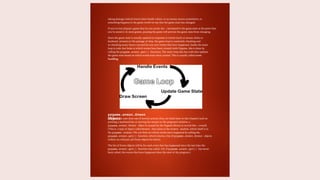
with a comment calling it the ―maingame loopǁ. A game loop (also called a main loop) is a
loop where the code does three things:
1. Handles events.
2. Updates the game state.
3. Draws the game state to the screen.
The game state is simply a way of referring to a set of values for all the variables in a
game program. In many games, the game state includes the values in the variables that
tracks the player’s health and position, the health and position of any enemies, which
marks have been made on a board, the score, or whose turn it is. Whenever something
happens like the player
5.
taking damage (whichlowers their health value), or an enemy moves somewhere, or
something happens in the game world we say that the game state has changed.
If you’ve ever played a game that let you saved, the ―savestateǁ is the game state at the point that
you’ve saved it. In most games, pausing the game will prevent the game state from changing.
Since the game state is usually updated in response to events (such as mouse clicks or
keyboard presses) or the passage of time, the game loop is constantly checking and
re-checking many times a second for any new events that have happened. Inside the main
loop is code that looks at which events have been created (with Pygame, this is done by
calling the pygame.event.get() function). The main loop also has code that updates
the game state based on which events have been created. This is usually called event
handling.
pygame.event.Event
Objects
Any time the user does one of several actions (they are listed later in this chapter) such as
pressing a keyboard key or moving the mouse on the program’s window, a
pygame.event.Event object is created by the Pygame library to record this ―eventǁ.
(This is a type of object called Event that exists in the event module, which itself is in
the pygame module.) We can find out which events have happened by calling the
pygame.event.get() function, which returns a list of pygame.event.Event objects
(which we will just call Event objects for short).
The list of Event objects will be for each event that has happened since the last time the
pygame.event.get() function was called. (Or, if pygame.event.get() has never
been called, the events that have happened since the start of the program.)
6.
12 http://inventwithpython.com/pygame
Email questionsto the author: al@inventwithpython.com
7. while True: # main game loop
8. for event in pygame.event.get():
Line 8 is a for loop that will iterate over the list of Event objects that was returned by
pygame.event.get(). On each iteration through the for loop, a variable named event will be
assigned the value of the next event object in this list. The list of Event objects returned from
pygame.event.get() will be in the order that the events happened. If the user clicked the mouse
and then pressed a keyboard key, the Event object for the mouse click would be the first item in the
list and the Event object for the keyboard press would be second. If no events have happened, then
pygame.event.get() will return a blank list.
The QUIT Event and pygame.quit()
Function
9. if event.type == QUIT:
10. pygame.quit()
11. sys.exit()
Event objects have a member variable (also called attributes or properties) named type
which tells us what kind of event the object represents. Pygame has a constant variable for
each of possible types in the pygame.locals modules. Line 9 checks if the Event object’s
type is equal to the constant QUIT. Remember that since we used the from
pygame.locals import * form of the import statement, we only have to type QUIT
instead of
pygame.locals.QUIT.
If the Event object is a quit event, then the pygame.quit() and sys.exit() functions are called.
The pygame.quit() function is sort of the opposite of the pygame.init() function: it runs code
that deactivates the Pygame library. Your programs should always call pygame.quit() before they
call sys.exit() to terminate the program. Normally it doesn’t really matter since Python closes it
when the program exits anyway. But there is a bug in IDLE that causes IDLE to hang if a Pygame
program terminates before pygame.quit() is called.
Since we have no if statements that run code for other types of Event object, there is no
event-handling code for when the user clicks the mouse, presses keyboard keys, or causes
any other type of Event objects to be created. The user can do things to create these Event
objects but it doesn’t change anything in the program because the program does not have
any event-handling code for these types of Event objects. After the for loop on line 8 is
done handling all the Event objects that have been returned by pygame.event.get(),
the program execution continues to line 12.
12. pygame.display.update()
7.
Line 12 callsthe pygame.display.update() function, which draws the Surface object
returned by pygame.display.set_mode() to the screen (remember we stored this
object in the DISPLAYSURF variable). Since the Surface object hasn’t changed (for
example, by some of the drawing functions that are explained later in this chapter), the same
black image is redrawn to the screen each time pygame.display.update() is called.
That is the entire program. After line 12 is done, the infinite while loop starts again from
the beginning. This program does nothing besides make a black window appear on the
screen, constantly check for a QUIT event, and then redraws the unchanged black window
to the screen over and over again. Let’s learn how to make interesting things appear on this
window instead of just blackness by learning about pixels, Surface objects, Color objects,
Rect objects, and the Pygame drawing functions.
Pixel Coordinates The window that the ―HelloWorldǁ program creates is just
composed of little square dots on your screen called pixels. Each pixel starts off as black but
can be set to a different color. Imagine that instead of a Surface object that is 400 pixels wide
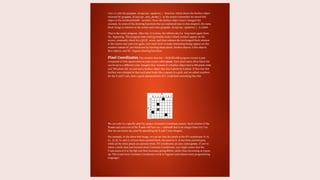
and 300 pixels tall, we just had a Surface object that was 8 pixels by 8 pixels. If that tiny 8x8
Surface was enlarged so that each pixel looks like a square in a grid, and we added numbers
for the X and Y axis, then a good representation of it could look something like this:
We can refer to a specific pixel by using a Cartesian Coordinate system. Each column of the
X-axis and each row of the Y-axis will have an ―addressǁ that is an integer from 0 to 7 so
that we can locate any pixel by specifying the X and Y axis integers.
For example, in the above 8x8 image, we can see that the pixels at the XY coordinates (4, 0),
(2, 2), (0, 5), and (5, 6) have been painted black, the pixel at (2, 4) has been painted gray,
while all the other pixels are painted white. XY coordinates are also called points. If you’ve
taken a math class and learned about Cartesian Coordinates, you might notice that the
Y-axis starts at 0 at the top and then increases going down, rather than increasing as it goes
up. This is just how Cartesian Coordinates work in Pygame (and almost every programming
language).
8.
The Pygame frameworkoften represents Cartesian Coordinates as a tuple of two integers,
such as (4, 0) or (2, 2). The first integer is the X coordinate and the second is the Y coordinate.
(Cartesian Coordinates are covered in more detail in chapter 12 of ―Invent Your Own
Computer Games with Pythonǁ at http://invpy.com/chap12)
A Reminder About Functions, Methods, Constructor Functions, and
Functions in Modules (and the Difference Between Them)
Functions and methods are almost the same thing. They can both be called to execute the code in
them. The difference between a function and a method is that a method will always be attached to
an object. Usually methods change something about that particular object (you can think of the
attached object as a sort of permanent argument passed to the method).
This is a function call of a function named foo():
Email questions to the author: al@inventwithpython.com
foo()
This is a method call of a method also named foo(), which is attached to an object stored
in a variable named duckie:
duckie.foo()
A call to a function inside of a module may look like a method call. To tell the difference,
you need to look at the first name and see if it is the name of a module or the name of a
variable that contains an object. You can tell that sys.exit() is a call to function inside
of a module, because at the top of the program will be an import statement like import
sys. A constructor function is the same thing as a normal function call, except that its
return value is a new object. Just by looking at source code, a function and constructor
function look the same. Constructor functions (also called simply a ―constructorǁ or
sometimes ―ctorǁ (―see-torǁ) for short) are just a name given to functions that return a
new object. But usually ctors start with a capital letter. This is why when you write your own
programs, your function names should only begin with a lowercase letter. For example,
pygame.Rect() and pygame.Surface() are both constructor functions inside the
pygame module that return new Rect and Surface objects. (These objects are described
later.)
Here’s an example of a function call, a method call, and a call to a function inside a module:
import whammy
fizzy()
9.
egg = Wombat()
egg.bluhbluh()
whammy.spam()
Eventhough these names are all made up, you can tell which is a function call, a method
call, and a call to a function inside a method. The name whammy refers to a module, since
you can see it is being imported on the first line. The fizzy name has nothing before it and
parentheses after it, so you know it is a function call.
Wombat() is also a function call, in this case it is a constructor function that returns an
object. (The capital letter that it starts with isn’t a guarantee that it’s a constructor function
rather than a regular function, but it is a safe bet.) The object is stored in a variable named
egg. The egg.bluhbluh() call is a method call, which you can tell because bluhbluh
is attached to a variable with an object in it.
Meanwhile, whammy.spam() is a function call, not a method call. You can tell it is
not a method because the name whammy was imported as a module earlier.
Surface Objects and The Window Surface objects are objects that represent
a rectangular 2D image. The pixels of the Surface object can be changed by calling the
Pygame drawing functions (described later in this chapter) and then displayed on the screen.
The window border, title bar, and buttons are not part of the display
Surface object.
In particular, the Surface object returned by pygame.display.set_mode() is called
the display Surface. Anything that is drawn on the display Surface object will be displayed
on the window when the pygame.display.update() function is called. It is a lot
faster to draw on a Surface object (which only exists in the computer’s memory) than it is
to draw a Surface object to the computer screen. Computer memory is much faster to
change than pixels on a monitor.
Often your program will draw several different things to a Surface object. Once you are
done drawing everything on the display Surface object for this iteration of the game loop
(called a frame, just like a still image on a paused DVD is called) on a Surface object, it can
be drawn to the screen. The computer can draw frames very quickly, and our programs will
often run around 30 frames per second (that is, 30 FPS). This is called the ―framerateǁ and
is explained later in this chapter.
Drawing on Surface objects will be covered in the ―PrimitiveDrawing Functionsǁ and
―Drawing Imagesǁ sections later this chapter.
10.
Colors
There are threeprimary colors of light: red, green and blue. (Red, blue, and yellow are the primary
colors for paints and pigments, but the computer monitor uses light, not paint.) By combining different
amounts of these three colors you can form any other color. In Pygame, we represent colors with tuples
of three integers. The first value in the tuple is how much red is in the color. An integer value of 0
means there is no red in this color, and a value of 255 means there is the maximum amount of red in
the color. The second value is for green and the third value is for blue. These tuples of three integers
used to represent a color are often called RGB values.
Because you can use any combination of 0 to 255 for each of the three primary colors,
this means Pygame can draw 16,777,216 different colors (that is, 256 x 256 x 256 colors).
However, if try to use a number larger than 255 or a negative number, you will get an
error that looks like
―ValueError:invalid color argumentǁ.
For example, we will create the tuple (0, 0, 0) and store it in a variable named BLACK.
With no amount of red, green, or blue, the resulting color is completely black. The color
black is the absence of any color. The tuple (255, 255, 255) for a maximum amount of
red, green, and blue to result in white. The color white is the full combination of red, green,
and blue. The tuple (255, 0, 0) represents the maximum amount of red but no amount
of green and blue, so the resulting color is red. Similarly, (0, 255, 0) is green and (0,
0, 255) is blue. You can mix the amount of red, green, and blue to form other colors. Here
are the RGB values for a few common colors:
Email questions to the author: al@inventwithpython.com
RGB Values
Color
Aqua
Black
Blue
Fuchsia
Gray
Green
Lime
Maroon
Navy Blue
Olive
Purple
Red
Silver
Teal
White
Yellow
( 0, 255,
(
255)
0)
255)
255)
128)
0)
0)
0)
128)
0)
128)
0)
192)
128)
255)
0)
0, 0,
( 0, 0,
(255, 0,
(128, 128,
( 0, 128,
( 0, 255,
(128, 0,
( 0, 0,
(128, 128,
(128, 0,
(255, 0,
(192, 192,
( 0, 128,
(255, 255,
(255, 255,
11.
Transparent Colors
When youlook through a glass window that has a deep red tint, all of the colors behind it
have a red shade added to them. You can mimic this effect by adding a fourth 0 to 255
integer value to your color values.
This value is known as the alpha value. It is a measure of how opaque (that is, not
transparent) a color is. Normally when you draw a pixel onto a surface object, the new color
completely replaces whatever color was already there. But with colors that have an alpha
value, you can instead just add a colored tint to the color that is already there.
For example, this tuple of three integers is for the color green: (0, 255, 0). But if we add a fourth
integer for the alpha value, we can make this a half transparent green color: (0, 255, 0, 128). An
alpha value of 255 is completely opaque (that is, not transparency at all). The colors (0, 255, 0)
and (0, 255, 0, 255) look exactly the same. An alpha value of 0 means the color is completely
transparent. If you draw any color that has an alpha value of 0 to a surface object, it will have no effect,
because this color is completely transparent and invisible.
In order to draw using transparent colors, you must create a Surface object with the
convert_alpha() method. For example, the following code creates a Surface object
that transparent colors can be drawn on:
anotherSurface = DISPLAYSURF.convert_alpha()
Once things have been drawn on the Surface object stored in anotherSurface, then
anotherSurface can be ―blittedǁ (that is, copied) to DISPLAYSURF so it will appear
on the screen. (See the ―DrawingImages with pygame.image.load() and blit()ǁ
section later in this chapter.)
It’s important to note that you cannot use transparent colors on Surface objects not
returned from a convert_alpha() call, including the display Surface that was returned
from pygame.display.set_mode().
If we were to create a color tuple to draw the legendary Invisible Pink Unicorn, we would
use (255, 192, 192, 0), which ends up looking completely invisible just like any
other color that has a 0 for its alpha value. It is, after all, invisible.
12.
Any drawing functionin Pygame (which we will learn about in a bit) that has a parameter
for color can have either the tuple form or Color object form of a color passed for it. Even
though they are different data types, a Color object is equal to a tuple of four integers if they
both represent the same color (just like how 42 == 42.0 will evaluate to True). Now that
you know how to represent colors (as a pygame.Color object or a tuple of three or four
integers for red, green, blue, and optionally alpha) and coordinates (as a tuple of two integers
for X and Y), let’s learn about pygame.Rect objects so we can start using Pygame’s
drawing
functions.
Rect Objects
Pygame has two ways to represent rectangular areas (just like there are two ways to
represent colors). The first is a tuple of four integers:
1. The X coordinate of the top leftcorner.
pygame.Color Objects You need to know how to represent a color because
Pygame’s drawing functions need a way to know what color you want to draw with. A tuple
of three or four integers is one way. Another way is as a pygame.Color object. You can
create Color objects by calling the pygame.Color() constructor function and passing
either three or four integers. You can store this Color object in variables just like you can
store tuples in variables. Try typing the following into the interactive shell:
>>> import pygame
>>> pygame.Color(255, 0, 0)
(255, 0, 0, 255)
>>> myColor = pygame.Color(255, 0, 0, 128)
>>> myColor == (255, 0, 0, 128)
True
>>>
13.
2. The Ycoordinate of the top left corner.
3. The width (in pixels) of the rectangle.
4. Then height (in pixels) of the rectangle.
The second way is as a pygame.Rect object, which we will call Rect objects for short.
For example, the code below creates a Rect object with a top left corner at (10, 20) that is
200 pixels wide and 300 pixels tall:
>>> import pygame
>>> spamRect = pygame.Rect(10, 20, 200, 300)
>>> spamRect == (10, 20, 200, 300)
True
The handy thing about this is that the Rect object automatically calculates the coordinates
for other features of the rectangle. For example, if you need to know the X coordinate of the
right edge of the pygame.Rect object we stored in the spamRect variable, you can just
access the Rect object’s right attribute:
>>> spamRect.right
210
The Pygame code for the Rect object automatically calculated that if the left edge is at
the X coordinate 10 and the rectangle is 200 pixels wide, then the right edge must be at
the X coordinate 210. If you reassign the right attribute, all the other attributes are
automatically recalculated:
>>> spam.right = 350
>>> spam.left
150
Here’s a list of all the attributes that pygame.Rect objects provide (in our example,
the variable where the Rect object is stored in a variable named myRect):