Syllabus
Swing:
• Need for swing components
• Difference between AWT and swing
• Components hierarchy
• Panes
• Swing components: Jlabel, JTextField and
JPasswordField, JTextAres, JButton, JCheckBox,
JRadioButton, JComboBox and JList
JDBC:
• Introduction
• JDBC Architecture
• Types of Drivers
• Statement
• ResultSet
• Read Only ResultSet
• Updatable ResultSet
• Forward Only ResultSet
• Scrollable ResultSet
• PreparedStatement,
• Connection Modes
• SavePoint
• Batch Updations
• CallableStatement,
• BLOB & CLOB
What is Swing?
• The Java Swing provides the multiple platform
independent APIs interfaces for interacting
between the users and GUIs components.
3
All Java Swing
classes are placed
in javax.swing package
Java Foundation Classes (JFC)
• joint effort between SUN & Netscape produced
the original swing set of components as part of
JFC
• JFC contains
swing
cut & paste-(clipboard support)
Accessibility support
desktop features
java 2D
Why Swing?
• offers improved functionality over AWT(new
components, expanded components features, better
event handling & drag & drop)
• Swing components are rendered by java code rather
than native code
• AWT is a part of standard java distribution.
It has limited implementation ,not designed to
provide a serious , main UI.
• AWT component set was not designed for complex
programming needs, has lots of bugs, & takes up lot
of system resources.
Swing uses fewer system resources, adds lots more sophisticated components,
helps to tailor the look & feel of the programs.
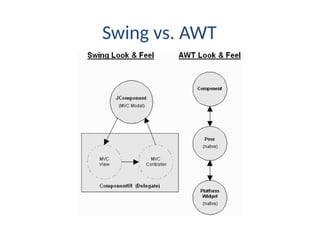
swing development has its root in MVC(Model – View- Controller)
architecture.
MVC allows swing components to be replaced with different data models &
views. Plug gable look & feel is result of MVC architecture.
Since java is platform independent & runs on client machine , the look & feel
of any platform has to be known
Lightweight components:- in swing most of the components have their own
view supported by java look & feel classes ( it can’t rely on native system
classes)
Pluggable look & feel:- supports cross platform look & feel also called java look
& feel that remains same across all platforms wherever the program runs.
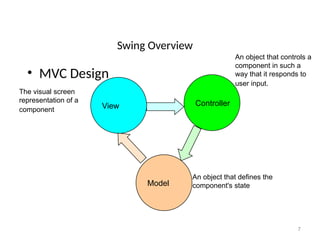
Swing Overview
• MVC Design
7
View
Model
Controller
An object that defines the
component's state
The visual screen
representation of a
component
An object that controls a
component in such a
way that it responds to
user input.
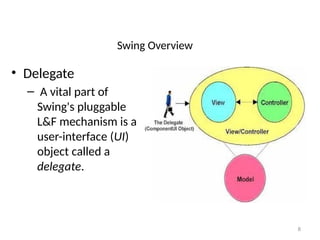
Swing Overview
• Delegate
– A vital part of
Swing's pluggable
L&F mechanism is a
user-interface (UI)
object called a
delegate.
8
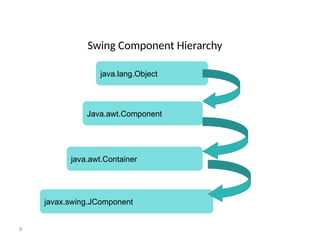
Swing Component Hierarchy
9
java.lang.Object
Java.awt.Component
java.awt.Container
javax.swing.JComponent
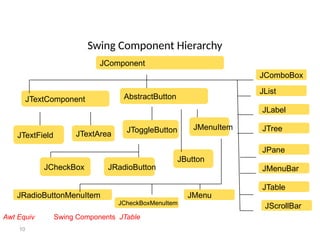
Swing Component Hierarchy
10
Awt Equiv Swing Components JTable
JComponent
JTextComponent
JTextField JTextArea
AbstractButton
JToggleButton
JButton
JMenuItem
JCheckBox JRadioButton
JComboBox
JList
JLabel
JTree
JPane
JMenuBar
JTable
JScrollBar
JRadioButtonMenuItem
JCheckBoxMenuItem
JMenu
SWING V.S AWT
• Components are implemented with absolutely no native code
• More functionality
• Can be shipped as add-on to JDK1.1, JDK1.2
• Lightweight components
• Swing labels & buttons can display images instead of text.
Can add/ change borders drawn around components
components don’t have to be rectangular.
Assertive technologies can read data from swing components.
All swing elements are part of javax.swing package.
Import javax.swing.*;
Swing API is powerful, flexible & immense.
Swing vs. AWT
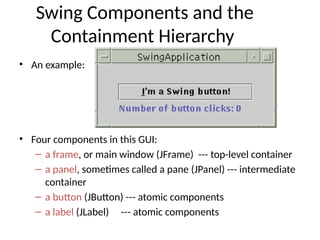
Swing Components and the
Containment Hierarchy
• An example:
• Four components in this GUI:
– a frame, or main window (JFrame) --- top-level container
– a panel, sometimes called a pane (JPanel) --- intermediate
container
– a button (JButton) --- atomic components
– a label (JLabel) --- atomic components
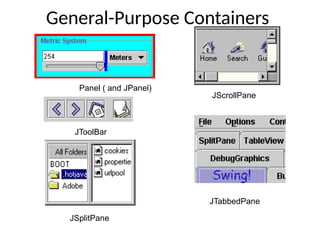
General-Purpose Containers
Panel ( and JPanel)
JToolBar
JScrollPane
JTabbedPane
JSplitPane
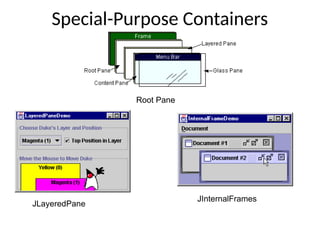
Special-Purpose Containers
JLayeredPane
JInternalFrames
Root Pane
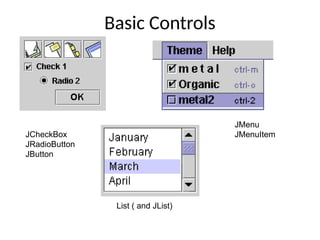
Basic Controls
JCheckBox
JRadioButton
JButton
JMenu
JMenuItem
List ( and JList)
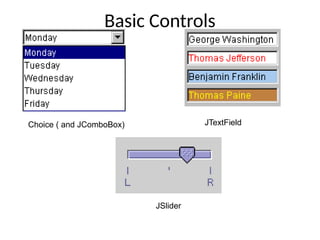
Basic Controls
Choice ( and JComboBox) JTextField
JSlider
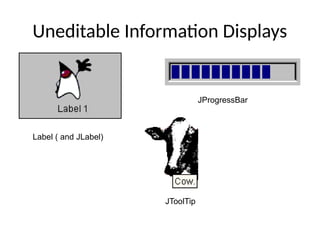
Uneditable Information Displays
Label ( and JLabel)
JProgressBar
JToolTip
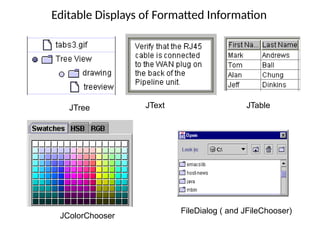
Editable Displays of Formatted Information
JTree JText JTable
FileDialog ( and JFileChooser)
JColorChooser

Java_unit_1_AWTvsSwing.pptxn k , jlnninikkn

  • 1.
    Syllabus Swing: • Need forswing components • Difference between AWT and swing • Components hierarchy • Panes • Swing components: Jlabel, JTextField and JPasswordField, JTextAres, JButton, JCheckBox, JRadioButton, JComboBox and JList
  • 2.
    JDBC: • Introduction • JDBCArchitecture • Types of Drivers • Statement • ResultSet • Read Only ResultSet • Updatable ResultSet • Forward Only ResultSet • Scrollable ResultSet • PreparedStatement, • Connection Modes • SavePoint • Batch Updations • CallableStatement, • BLOB & CLOB
  • 3.
    What is Swing? •The Java Swing provides the multiple platform independent APIs interfaces for interacting between the users and GUIs components. 3 All Java Swing classes are placed in javax.swing package
  • 4.
    Java Foundation Classes(JFC) • joint effort between SUN & Netscape produced the original swing set of components as part of JFC • JFC contains swing cut & paste-(clipboard support) Accessibility support desktop features java 2D
  • 5.
    Why Swing? • offersimproved functionality over AWT(new components, expanded components features, better event handling & drag & drop) • Swing components are rendered by java code rather than native code • AWT is a part of standard java distribution. It has limited implementation ,not designed to provide a serious , main UI. • AWT component set was not designed for complex programming needs, has lots of bugs, & takes up lot of system resources.
  • 6.
    Swing uses fewersystem resources, adds lots more sophisticated components, helps to tailor the look & feel of the programs. swing development has its root in MVC(Model – View- Controller) architecture. MVC allows swing components to be replaced with different data models & views. Plug gable look & feel is result of MVC architecture. Since java is platform independent & runs on client machine , the look & feel of any platform has to be known Lightweight components:- in swing most of the components have their own view supported by java look & feel classes ( it can’t rely on native system classes) Pluggable look & feel:- supports cross platform look & feel also called java look & feel that remains same across all platforms wherever the program runs.
  • 7.
    Swing Overview • MVCDesign 7 View Model Controller An object that defines the component's state The visual screen representation of a component An object that controls a component in such a way that it responds to user input.
  • 8.
    Swing Overview • Delegate –A vital part of Swing's pluggable L&F mechanism is a user-interface (UI) object called a delegate. 8
  • 9.
  • 10.
    Swing Component Hierarchy 10 AwtEquiv Swing Components JTable JComponent JTextComponent JTextField JTextArea AbstractButton JToggleButton JButton JMenuItem JCheckBox JRadioButton JComboBox JList JLabel JTree JPane JMenuBar JTable JScrollBar JRadioButtonMenuItem JCheckBoxMenuItem JMenu
  • 11.
    SWING V.S AWT •Components are implemented with absolutely no native code • More functionality • Can be shipped as add-on to JDK1.1, JDK1.2 • Lightweight components • Swing labels & buttons can display images instead of text. Can add/ change borders drawn around components components don’t have to be rectangular. Assertive technologies can read data from swing components. All swing elements are part of javax.swing package. Import javax.swing.*; Swing API is powerful, flexible & immense.
  • 12.
  • 13.
    Swing Components andthe Containment Hierarchy • An example: • Four components in this GUI: – a frame, or main window (JFrame) --- top-level container – a panel, sometimes called a pane (JPanel) --- intermediate container – a button (JButton) --- atomic components – a label (JLabel) --- atomic components
  • 14.
    General-Purpose Containers Panel (and JPanel) JToolBar JScrollPane JTabbedPane JSplitPane
  • 15.
  • 16.
  • 17.
    Basic Controls Choice (and JComboBox) JTextField JSlider
  • 18.
    Uneditable Information Displays Label( and JLabel) JProgressBar JToolTip
  • 19.
    Editable Displays ofFormatted Information JTree JText JTable FileDialog ( and JFileChooser) JColorChooser

Editor's Notes

  • #1 A pot file is a Design Template file, which provides you the “look” of the presentation You apply a pot file by opening the Task Pane with View > Task Pane and select Slide Design – Design Templates. Click on the word Browse… at bottom of Task Pane and navigate to where you stored BlueOnyx Deluxe.pot (black background) or BluePearl Deluxe.pot (white background) and click on Apply. You can switch between black and white background by navigating to that pot file and click on Apply. Another easier way to switch background is by changing color scheme. Opening the Task Pane, select Slide Design – Color Schemes and click on one of the two schemes. All your existing content (including Business Unit or Product Names) will be switched without any modification to color or wording. Start with Blank Presentation, then switch to the desired Design Template Start a new presentation as Blank Presentation You can switch to Blue Onyx Asterisk.pot by opening the Task Pane with View > Task Pane and select Slide Design – Design Templates. Click on the word Browse… at bottom of Task Pane and navigate to where you stored Blue Onyx Asterisk.pot (black background) and click on Apply. Your existing content will take on Blue Onyx’s black background, and previous black text will turn to white. You should add your Business Unit or Product Name by modifying it on the Slide Master You switch to the Slide Master view by View > Master > Slide Master. Click on the Title Page thumbnail icon on the left, and click on the Business Unit or Product Name field to modify it. Click on the Bullet List Page thumbnail icon on the left, and click on the Business Unit or Product Name field to modify it. Click on Close Master View button on the floating Master View Toolbar You can turn on the optional date and footer fields by View > Header and Footer Suggested footer on all pages including Title Page: Presentation Title | Confidential Date and time field can be fixed, or Update automatically. It appears to the right of the footer. Slide number field can be turned on as well. It appears to the left of the footer.
  • #3 Swing (not an acronym) is the name of a new set of GUI components being developed by JavaSoft. Components in the Swing set are implemented in 100% pure Java code, and are based on the Lightweight UI Framework introduced in JDK 1.1. Swing components include many new features and capabilities that make them more flexible and more powerful than pre-Swing AWT controls. The new features of Swing controls include a modified MVC (model-view-controller) architecture, a new set of new pluggable look-and-feel capabilities, and much more.
  • #7 The architecture of Swing components is based on a well-known object-oriented design structure for GUI components called the model-view-controller, or MVC design. When a GUI component is developed using MVC architecture, it is divided into three parts: Model, View and Controller The model part of an MVC-based component provides information that can be used to specify the component's value, provided the component has any value properties. For example, the current value of a scrollbar or a slider control -- as well as the component's minimum possible value and maximum possible value -- are stored in the component's model part. The controller part of an MVC-based component modifies information maintained by the the component's model part in response to input from the user. For example, the controller part of a menu-item component notifies the component's model part when a mouse click is detected inside a given menu item. The view part of an MVC-based component manages the way in which the object is drawn on the screen.
  • #8 Delegate: This delegate -- the "VC" portion of the MVC design -- is what combines the view part of a Swing component with its controller part. In that important double role, the delegate provides most of the functionality of the view/controller part of every Swing component. In the JFC library, the delegate is instantiated from a class named the ComponentUI class. You can change the look and feel of an individual component by by calling the ComponentUI class's setUI()method. The setUI()method changes component's UI delegate property.