An on-line behaviour recording and analysis facility
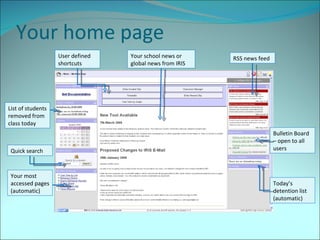
Your home page User defined shortcuts RSS news feed Bulletin Board – open to all users List of students removed from class today Quick search Your most accessed pages (automatic) Your school news or global news from IRIS Today’s detention list (automatic)
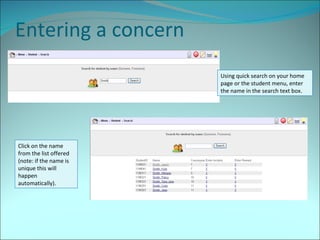
Entering a concern Using quick search on your home page or the student menu, enter the name in the search text box. Click on the name from the list offered (note: if the name is unique this will happen automatically).
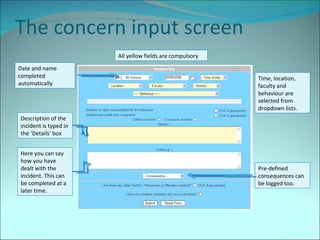
The concern input screen All yellow fields are compulsory Date and name completed automatically Time, location, faculty and behaviour are selected from dropdown lists. Description of the incident is typed in the ‘Details’ box Here you can say how you have dealt with the incident. This can be completed at a later time. Pre-defined consequences can be logged too.
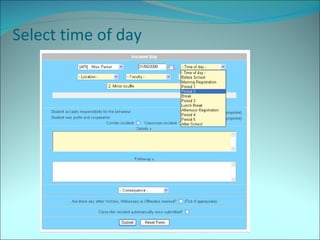
Select time of day
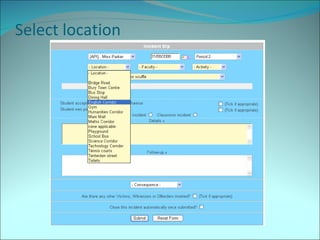
Select location
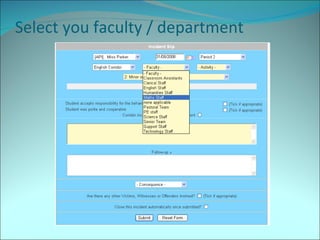
Select you faculty / department
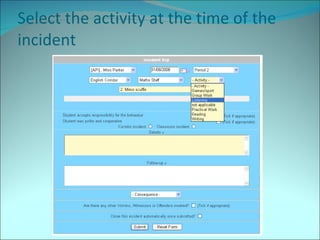
Select the activity at the time of the incident
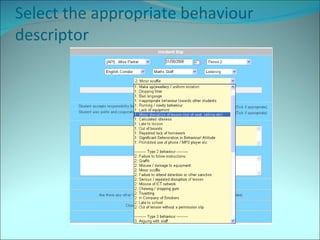
Select the appropriate behaviour descriptor
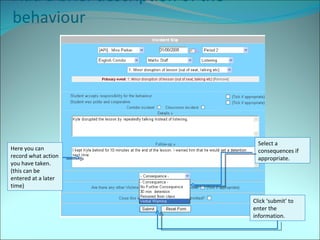
Add a brief description of the behaviour Select a consequences if appropriate. Here you can record what action you have taken. (this can be entered at a later time) Click ‘submit’ to enter the information.
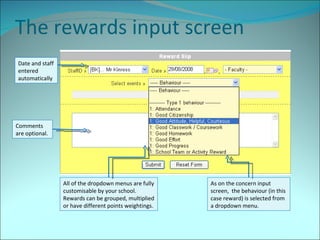
The rewards input screen Comments are optional. As on the concern input screen,  the behaviour (in this case reward) is selected from  a dropdown menu. Date and staff entered automatically All of the dropdown menus are fully customisable by your school. Rewards can be grouped, multiplied or have different points weightings.
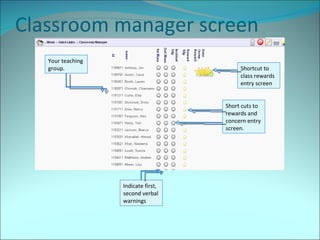
Classroom manager screen Your teaching group. Indicate first, second verbal warnings Short cuts to rewards and concern entry screen. Shortcut to class rewards entry screen
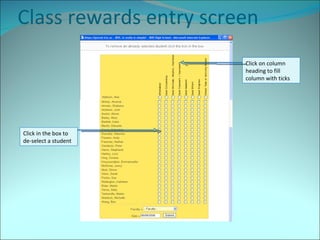
Class rewards entry screen Click on column heading to fill column with ticks Click in the box to de-select a student
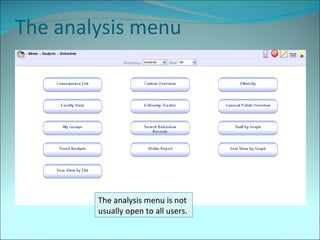
The analysis menu The analysis menu is not usually open to all users.
Examples of some analysis screens The next few slides show screenshots of some of the analysis tool available to heads of year, heads of faculty and managers in the school.
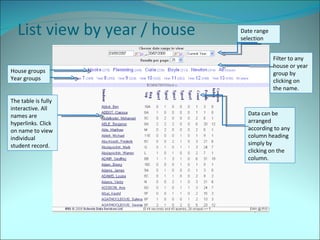
List view by year / house House groups Year groups The table is fully interactive. All names are hyperlinks. Click on name to view individual student record. Data can be arranged according to any column heading simply by clicking on the column. Filter to any house or year group by clicking on the name. Date range selection
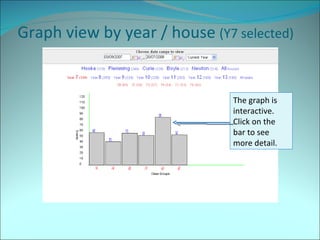
Graph view by year / house  (Y7 selected) The graph is interactive.  Click on the bar to see more detail.
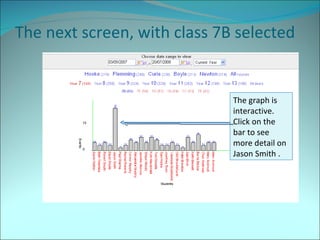
The next screen, with class 7B selected The graph is interactive.  Click on the bar to see more detail on Jason Smith .
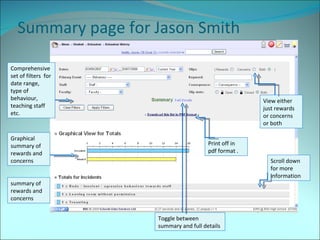
Summary page for Jason Smith View either just rewards or concerns or both Graphical summary of rewards and concerns summary of rewards and concerns Comprehensive set of filters  for date range, type of behaviour, teaching staff etc. Scroll down for more information Print off in pdf format . Toggle between summary and full details
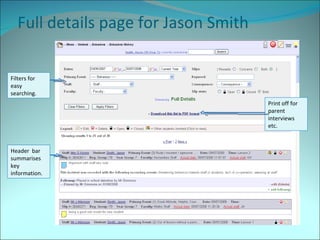
Full details page for Jason Smith Header  bar summarises  key information. Filters for easy searching. Print off for parent interviews etc.
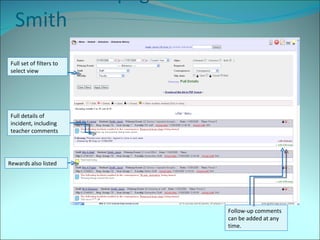
Full details page for Jason Smith Full details of incident, including teacher comments Full set of filters to select view Follow-up comments can be added at any time. Rewards also listed
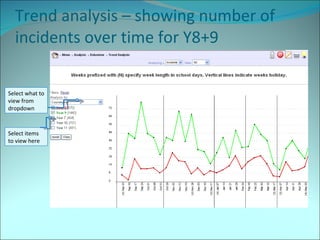
Trend analysis – showing number of incidents over time for Y8+9 Select items to view here Select what to view from dropdown
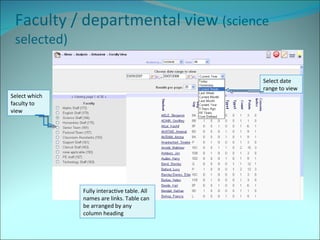
Faculty / departmental view  (science selected) Select which faculty to view Select date range to view Fully interactive table. All names are links. Table can be arranged by any column heading
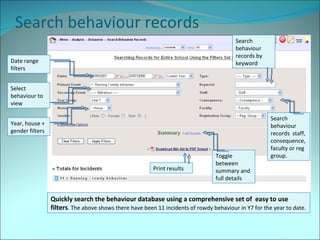
Search behaviour records Quickly search the behaviour database using a comprehensive set of  easy to use filters . The above shows there have been 11 incidents of rowdy behaviour in Y7 for the year to date. Select  behaviour to view Year, house + gender filters Date range filters Search behaviour records by keyword Search behaviour records  staff, consequence, faculty or reg group. Toggle between summary and full details Print results
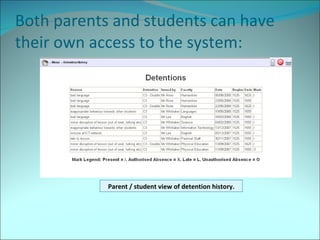
Both parents and students can have their own access to the system: Parent / student view of detention history.
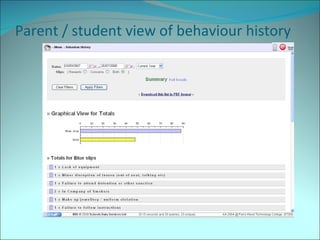
Parent / student view of behaviour history
Other features include: Detention manager  – automatically schedules detentions and produces detention list, detention register and student detention slips. Create personal alerts  – be informed immediately  by email and text when a specified event occurs. Isolation Manager  – schedule and record students in isolation. Track pupils while offsite  – staff at neighbouring colleges can add attendance and behaviour information. And much more!

Iris Overview

  • 1.
    An on-line behaviourrecording and analysis facility
  • 2.
    Your home pageUser defined shortcuts RSS news feed Bulletin Board – open to all users List of students removed from class today Quick search Your most accessed pages (automatic) Your school news or global news from IRIS Today’s detention list (automatic)
  • 3.
    Entering a concernUsing quick search on your home page or the student menu, enter the name in the search text box. Click on the name from the list offered (note: if the name is unique this will happen automatically).
  • 4.
    The concern inputscreen All yellow fields are compulsory Date and name completed automatically Time, location, faculty and behaviour are selected from dropdown lists. Description of the incident is typed in the ‘Details’ box Here you can say how you have dealt with the incident. This can be completed at a later time. Pre-defined consequences can be logged too.
  • 5.
  • 6.
  • 7.
    Select you faculty/ department
  • 8.
    Select the activityat the time of the incident
  • 9.
    Select the appropriatebehaviour descriptor
  • 10.
    Add a briefdescription of the behaviour Select a consequences if appropriate. Here you can record what action you have taken. (this can be entered at a later time) Click ‘submit’ to enter the information.
  • 11.
    The rewards inputscreen Comments are optional. As on the concern input screen, the behaviour (in this case reward) is selected from a dropdown menu. Date and staff entered automatically All of the dropdown menus are fully customisable by your school. Rewards can be grouped, multiplied or have different points weightings.
  • 12.
    Classroom manager screenYour teaching group. Indicate first, second verbal warnings Short cuts to rewards and concern entry screen. Shortcut to class rewards entry screen
  • 13.
    Class rewards entryscreen Click on column heading to fill column with ticks Click in the box to de-select a student
  • 14.
    The analysis menuThe analysis menu is not usually open to all users.
  • 15.
    Examples of someanalysis screens The next few slides show screenshots of some of the analysis tool available to heads of year, heads of faculty and managers in the school.
  • 16.
    List view byyear / house House groups Year groups The table is fully interactive. All names are hyperlinks. Click on name to view individual student record. Data can be arranged according to any column heading simply by clicking on the column. Filter to any house or year group by clicking on the name. Date range selection
  • 17.
    Graph view byyear / house (Y7 selected) The graph is interactive. Click on the bar to see more detail.
  • 18.
    The next screen,with class 7B selected The graph is interactive. Click on the bar to see more detail on Jason Smith .
  • 19.
    Summary page forJason Smith View either just rewards or concerns or both Graphical summary of rewards and concerns summary of rewards and concerns Comprehensive set of filters for date range, type of behaviour, teaching staff etc. Scroll down for more information Print off in pdf format . Toggle between summary and full details
  • 20.
    Full details pagefor Jason Smith Header bar summarises key information. Filters for easy searching. Print off for parent interviews etc.
  • 21.
    Full details pagefor Jason Smith Full details of incident, including teacher comments Full set of filters to select view Follow-up comments can be added at any time. Rewards also listed
  • 22.
    Trend analysis –showing number of incidents over time for Y8+9 Select items to view here Select what to view from dropdown
  • 23.
    Faculty / departmentalview (science selected) Select which faculty to view Select date range to view Fully interactive table. All names are links. Table can be arranged by any column heading
  • 24.
    Search behaviour recordsQuickly search the behaviour database using a comprehensive set of easy to use filters . The above shows there have been 11 incidents of rowdy behaviour in Y7 for the year to date. Select behaviour to view Year, house + gender filters Date range filters Search behaviour records by keyword Search behaviour records staff, consequence, faculty or reg group. Toggle between summary and full details Print results
  • 25.
    Both parents andstudents can have their own access to the system: Parent / student view of detention history.
  • 26.
    Parent / studentview of behaviour history
  • 27.
    Other features include:Detention manager – automatically schedules detentions and produces detention list, detention register and student detention slips. Create personal alerts – be informed immediately by email and text when a specified event occurs. Isolation Manager – schedule and record students in isolation. Track pupils while offsite – staff at neighbouring colleges can add attendance and behaviour information. And much more!