Tutorial 1 Surface Modeling 1
Copyright 2006 JD Mather
Inventor 11 TUTORIAL 1
Lofted Surfaces
Learning Objectives
After completing this tutorial, you will be able to: 
• Construct and use surface features in solid modeling
• Incorporate surface features in part design when appropriate
• Construct Lofted surfaces
• Control point mapping when lofting
Required Competencies
Before starting this tutorial, you should have been able to: 
• Construct, constraint and dimension sketches
• Project geometry on sketch planes
• Extrude sketched profiles
• Revolve sketched profiles
• Loft sketched profiles
• Understand the concepts of work and placed features
• Understand how to manipulate the history tree in the browser
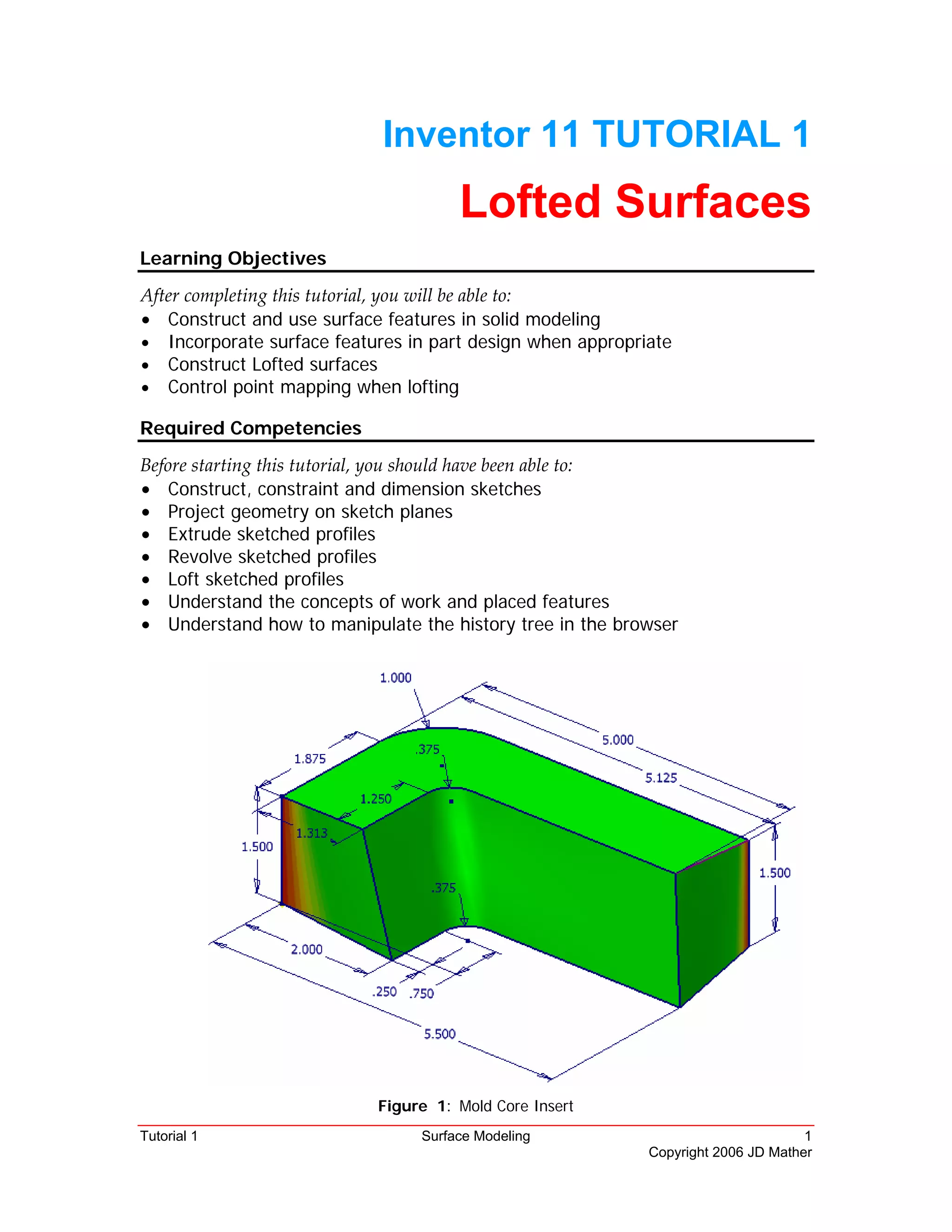
Figure 1: Mold Core Insert
2 Surface Modeling
The model in Figure 1 could be done with only the Inventor solids tools, but we will use 
surfaces to create the solid in order to become more familiar with working with surfaces. 
 
The Design Intent for the part is to use it as a core insert in a plastic injection mold.  
 
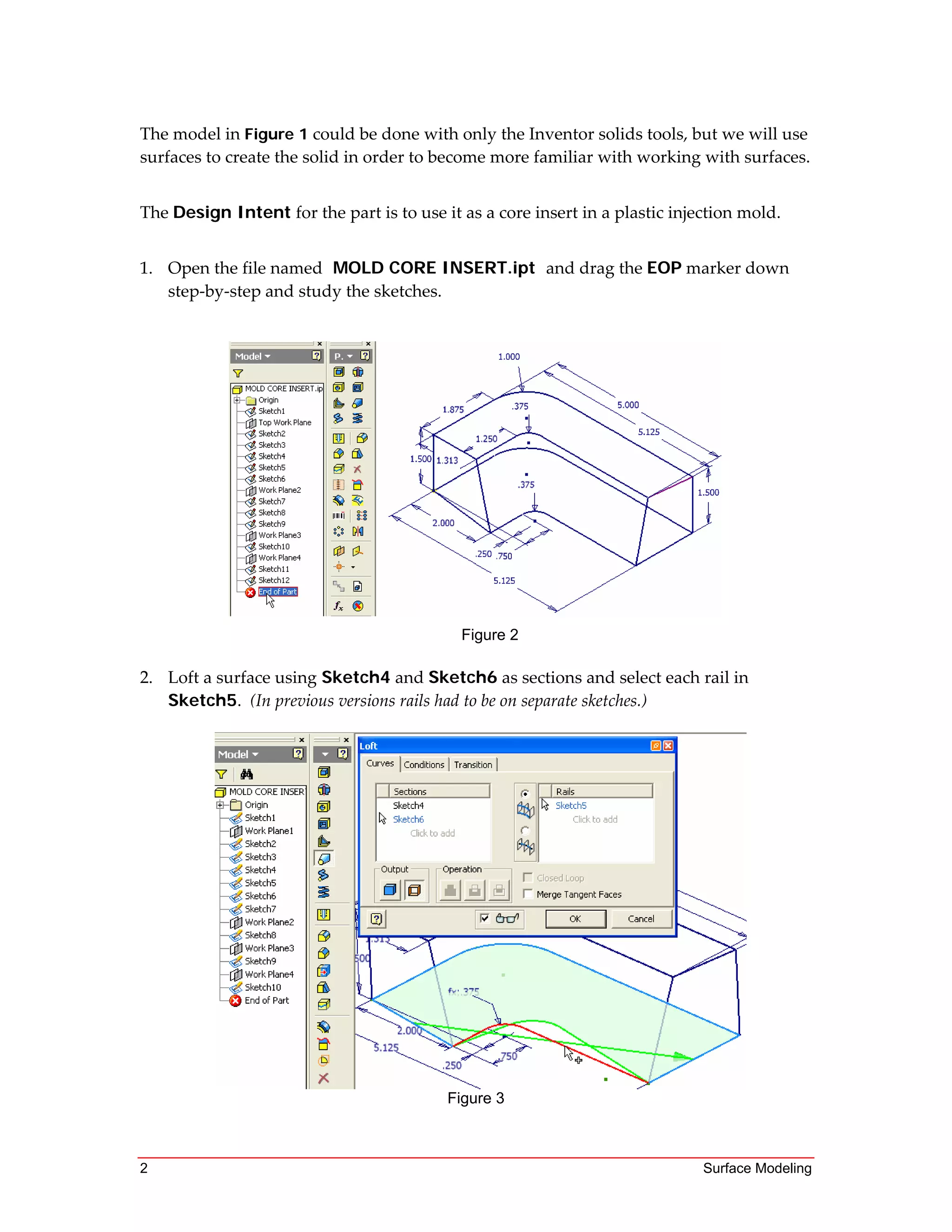
1. Open the file named MOLD CORE INSERT.ipt and drag the EOP marker down 
step‐by‐step and study the sketches.
Figure 2
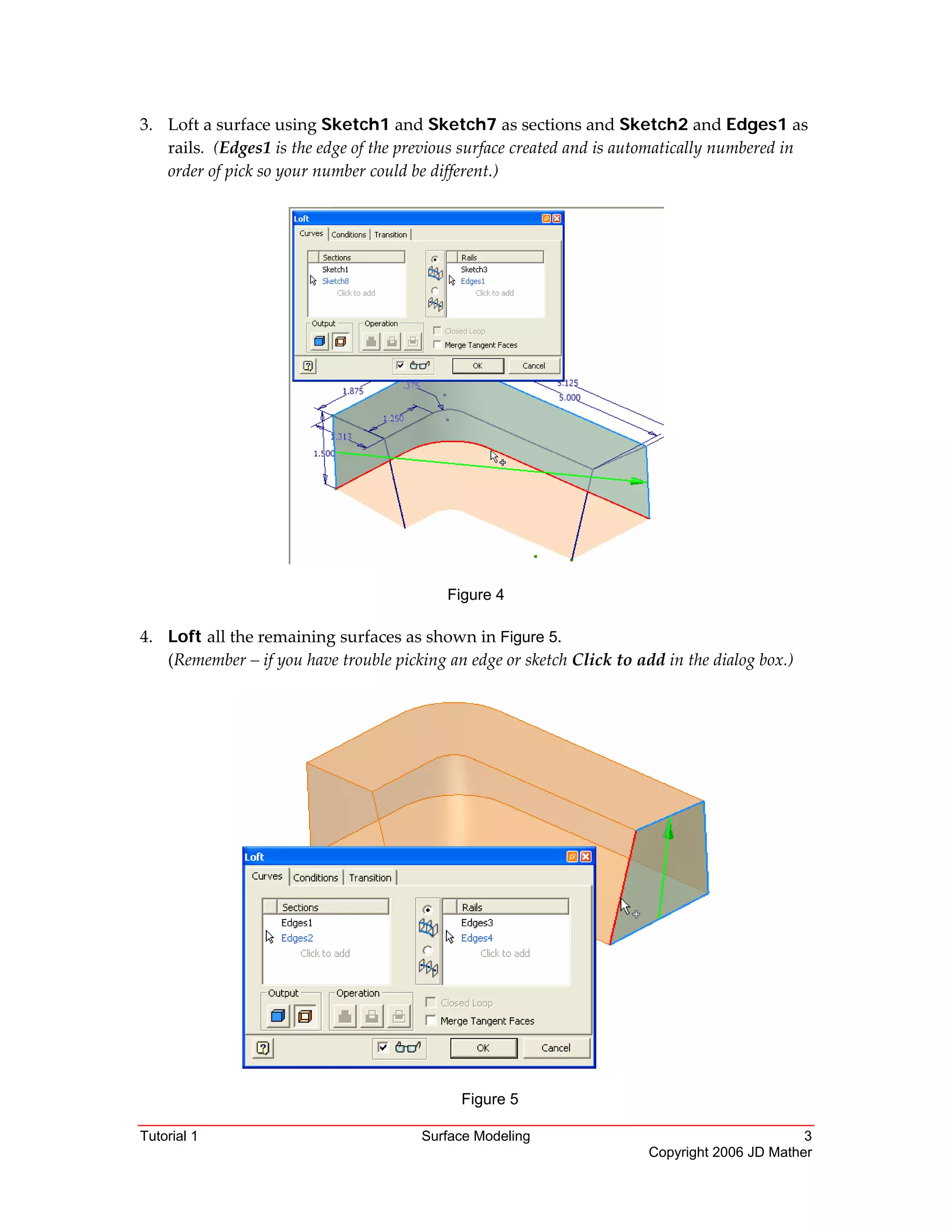
2. Loft a surface using Sketch4 and Sketch6 as sections and select each rail in 
Sketch5.  (In previous versions rails had to be on separate sketches.)
 
Figure 3
Tutorial 1 Surface Modeling 3
Copyright 2006 JD Mather
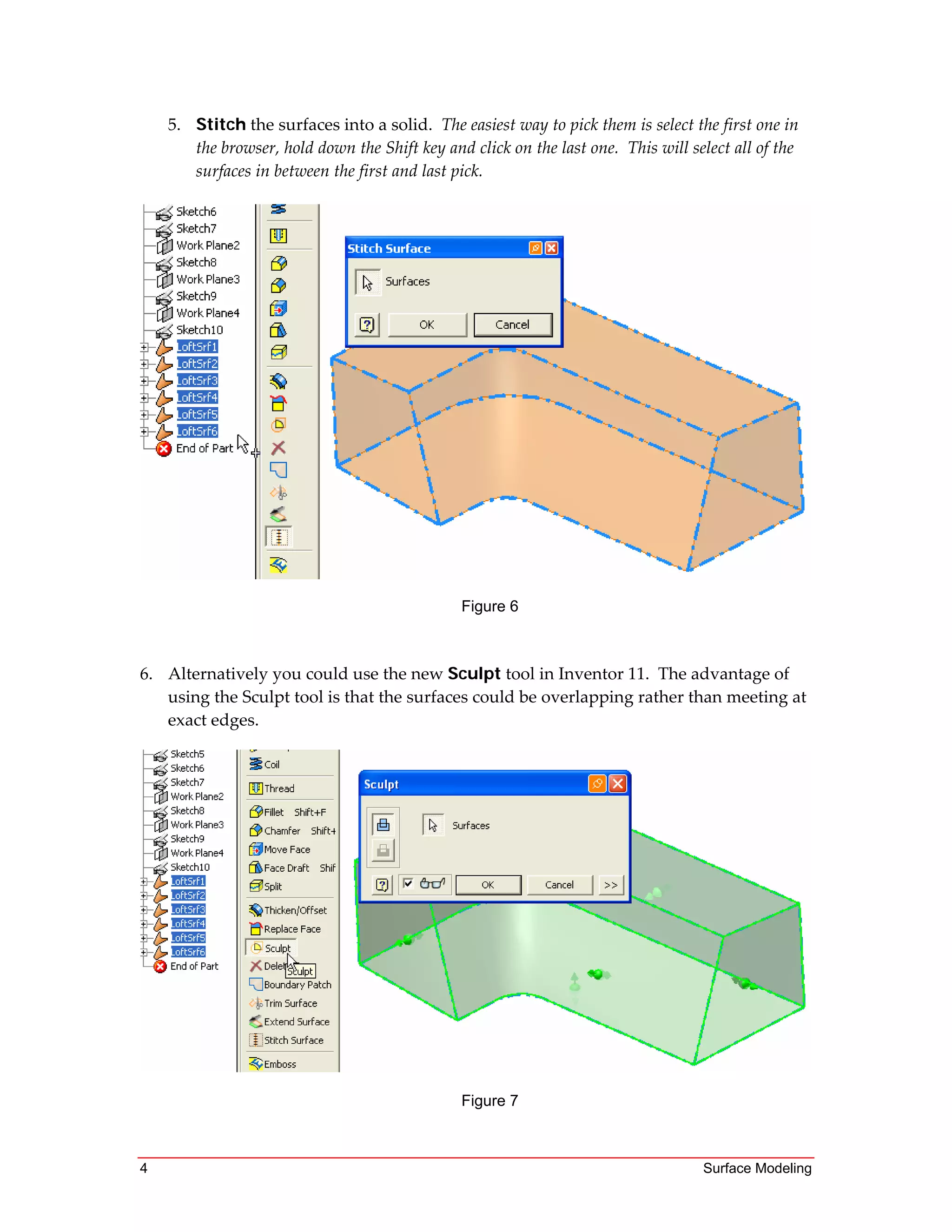
3. Loft a surface using Sketch1 and Sketch7 as sections and Sketch2 and Edges1 as 
rails.  (Edges1 is the edge of the previous surface created and is automatically numbered in 
order of pick so your number could be different.)
 
Figure 4
4. Loft all the remaining surfaces as shown in Figure 5. 
(Remember – if you have trouble picking an edge or sketch Click to add in the dialog box.) 
 
 
Figure 5 
4 Surface Modeling
5. Stitch the surfaces into a solid.  The easiest way to pick them is select the first one in 
the browser, hold down the Shift key and click on the last one.  This will select all of the 
surfaces in between the first and last pick. 
 
 
Figure 6
 
 
6. Alternatively you could use the new Sculpt tool in Inventor 11.  The advantage of 
using the Sculpt tool is that the surfaces could be overlapping rather than meeting at 
exact edges. 
Figure 7
Tutorial 1 Surface Modeling 5
Copyright 2006 JD Mather
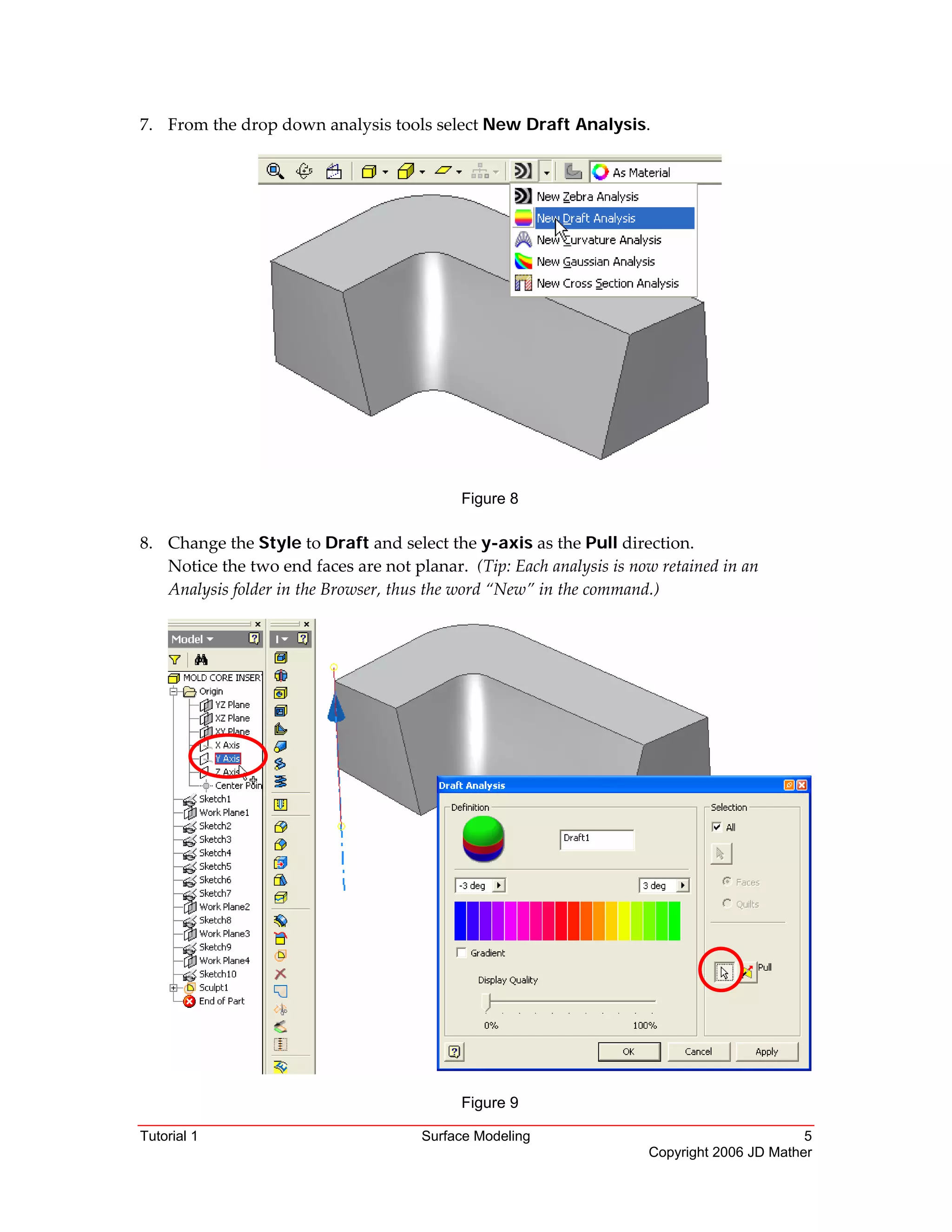
7. From the drop down analysis tools select New Draft Analysis. 
 
 
Figure 8 
 
8. Change the Style to Draft and select the y-axis as the Pull direction. 
Notice the two end faces are not planar.  (Tip: Each analysis is now retained in an 
Analysis folder in the Browser, thus the word “New” in the command.) 
Figure 9
6 Surface Modeling
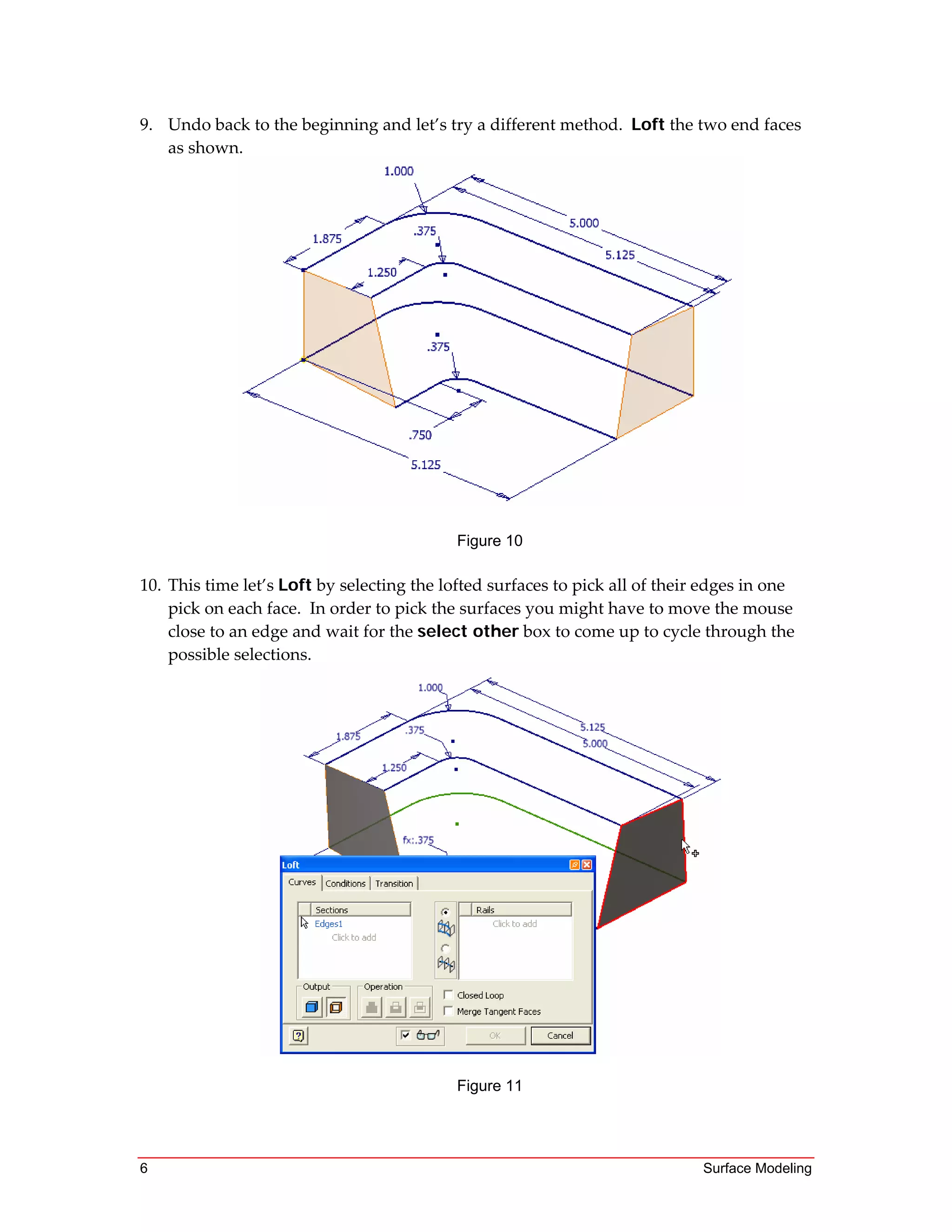
9. Undo back to the beginning and let’s try a different method.  Loft the two end faces 
as shown. 
 
Figure 10
 
10. This time let’s Loft by selecting the lofted surfaces to pick all of their edges in one 
pick on each face.  In order to pick the surfaces you might have to move the mouse 
close to an edge and wait for the select other box to come up to cycle through the 
possible selections. 
Figure 11
Tutorial 1 Surface Modeling 7
Copyright 2006 JD Mather
11. Select the rails and then click OK. 
Figure 12
12. Everything looks fine but occasionally you may have to manually map the point 
transitions? 
Figure 13
8 Surface Modeling
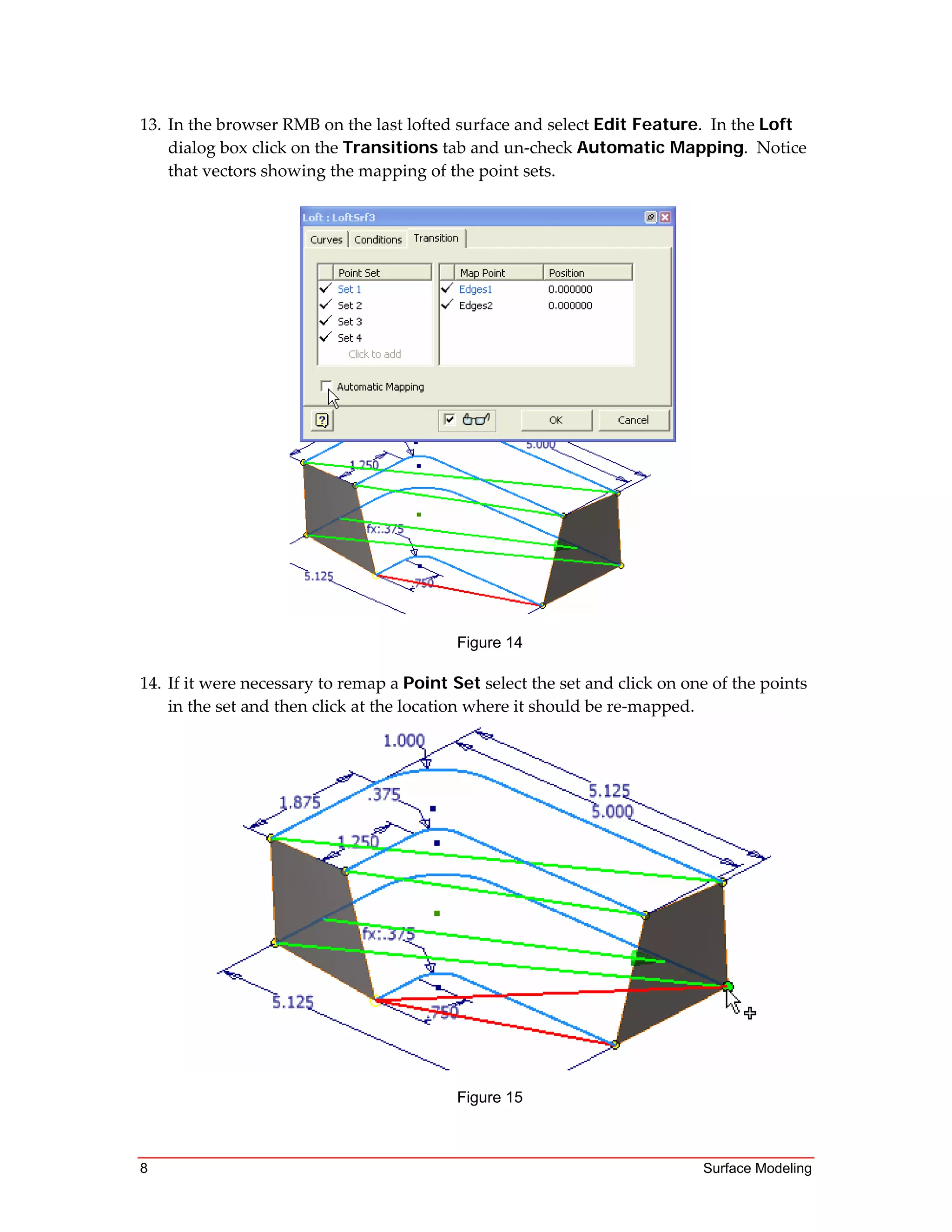
13. In the browser RMB on the last lofted surface and select Edit Feature.  In the Loft 
dialog box click on the Transitions tab and un‐check Automatic Mapping.  Notice 
that vectors showing the mapping of the point sets. 
Figure 14
14. If it were necessary to remap a Point Set select the set and click on one of the points 
in the set and then click at the location where it should be re‐mapped.  
Figure 15
Tutorial 1 Surface Modeling 9
Copyright 2006 JD Mather
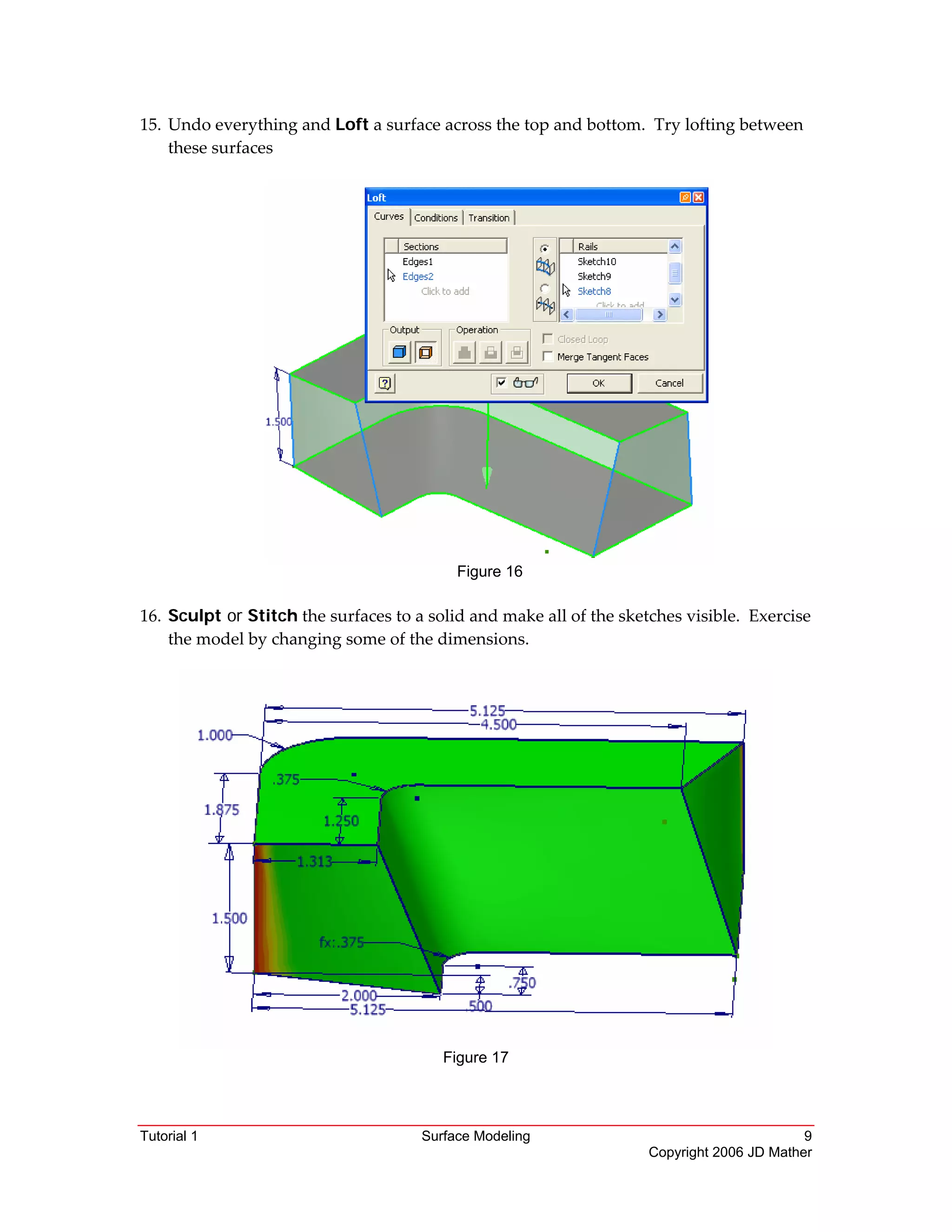
15. Undo everything and Loft a surface across the top and bottom.  Try lofting between 
these surfaces 
 
Figure 16
 
16. Sculpt or Stitch the surfaces to a solid and make all of the sketches visible.  Exercise 
the model by changing some of the dimensions. 
 
 
Figure 17 
10 Surface Modeling
In this tutorial we learned several methods of creating individual lofted surfaces to 
complete a part and how to check and control point mapping.  Also, we could have 
lofted this part as solid rather than using surfaces that then had to be Stitched or 
Sculpted to obtain a solid. 
 
Caution:  When Inventor creates a point map it often creates extra point sets when the sketches 
are complex.  You can un‐check Automatic point mapping and delete these extra point sets.  
When deleting point sets pay attention to the graphics window because it will not be apparent in 
the Loft dialog box that a point set has been deleted.  This is because if you delete for example 
Point Set 3, Point Set 4 is immediately renumbered to Point Set 3 therefore it may appear in the 
dialog box as though nothing has happened.  This frequently confuses beginners who have not 
seen this before. 
 

Inventor 11 tutorial 1