Introduction to
Multimedia
Presentations
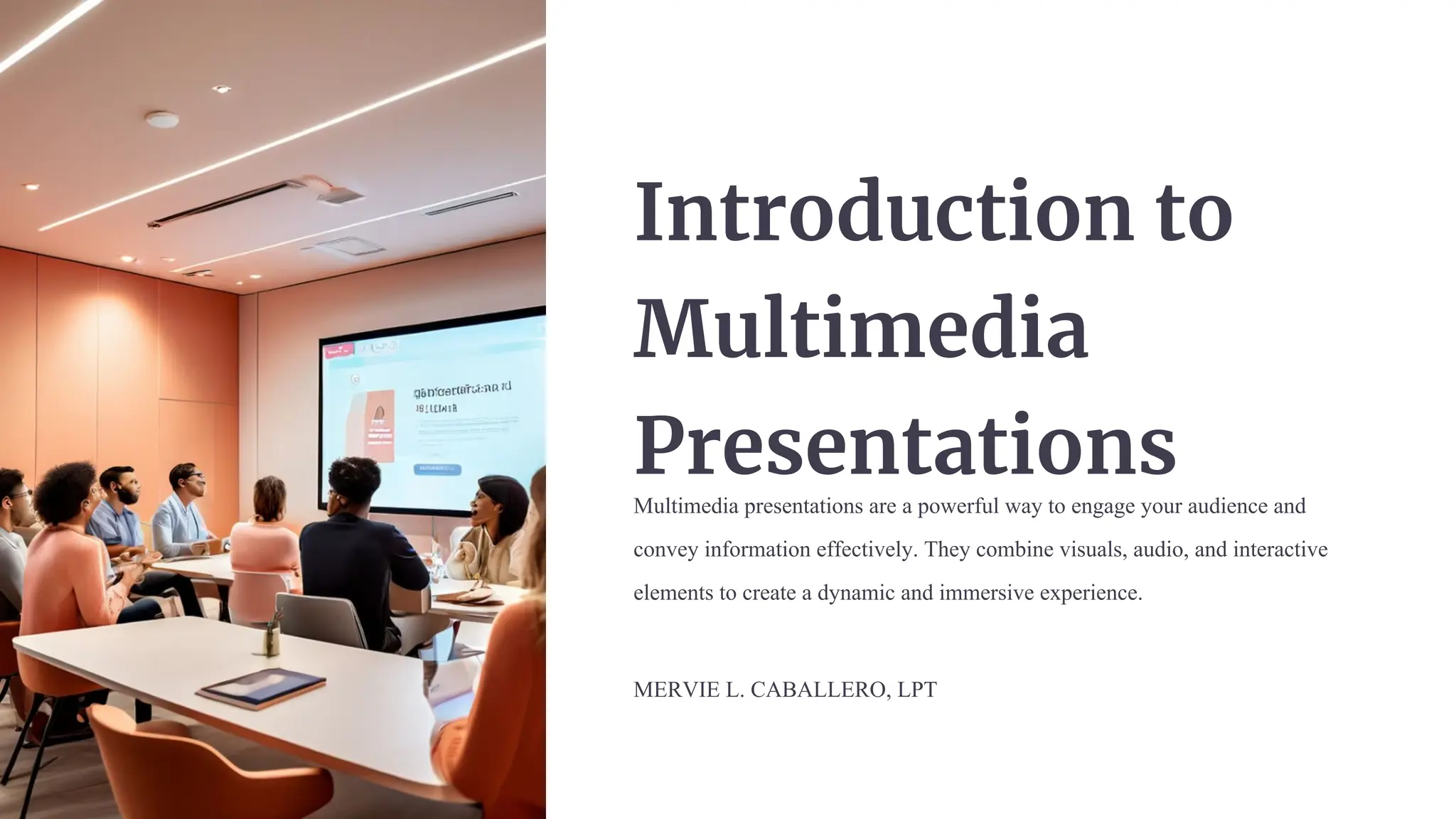
Multimedia presentations are a powerful way to engage your audience and
convey information effectively. They combine visuals, audio, and interactive
elements to create a dynamic and immersive experience.
MERVIE L. CABALLERO, LPT
Choosing the Right Media
Elements
Visual Aids
Select high-quality images, charts, and
graphs that complement your content and
enhance understanding.
Audio
Enhancements
Incorporate relevant sound effects, music,
and narration to add depth and emotion to
your presentation.
Interactive
Components
Utilize interactive elements like polls,
quizzes, and animations to keep your
audience engaged and active.
Designing Visually
Appealing Slides
1 Consistent
Branding
Maintain a cohesive visual
identity throughout your
presentation by using a
consistent color scheme, font
styles, and layout.
2 Balanced
Composition
Arrange text, images, and other
elements on the slides in a way
that creates a visually
harmonious and organized
layout.
3 Legible
Typography
Choose easy-to-read fonts and
font sizes to ensure your
audience can clearly see and
understand the content.
4 Minimalist Design
Avoid cluttering your slides with
too much information, keeping
the design clean and focused on
the key messages.
Incorporating Engaging Audio
and Video
High-Quality
Audio
Ensure your audio recordings are clear, well-balanced, and free of distracting background noise.
Compelling Video
Use video footage that is visually engaging, relevant to your content, and enhances the overall
presentation.
Balanced
Integration
Seamlessly integrate audio and video elements into your presentation to create a cohesive and immersive
experience.
Effective Use of Animations
and Transitions
Enhance
Understanding
Use animations to illustrate complex concepts, visualize data, or guide your
audience through step-by-step processes.
Maintain
Momentum
Incorporate smooth transitions between slides to create a natural flow and keep
your audience engaged.
Avoid Distractions
Use animations and transitions sparingly, ensuring they complement the content
and do not overwhelm the audience.
Optimizing Presentation for Different
Devices
Responsive
Design
Ensure your presentation can adapt to
various screen sizes and orientations,
providing an optimal viewing experience
on smartphones, tablets, and desktops.
Accessibility
Considerations
Incorporate features like alt-text for
images, captions for videos, and
high-contrast color schemes to make your
presentation accessible to all viewers.
Offline
Functionality
Allow your audience to access and navigate
your presentation even when they're not
connected to the internet, ensuring a
seamless experience.
Practicing and Rehearsing the
Presentation
1
Timing and
Pacing
Practice your presentation to ensure you're delivering content at a
comfortable pace and within the allotted time frame.
2 Content Delivery
Rehearse your presentation to refine your speaking style, maintain
eye contact, and convey your message with confidence.
3
Feedback and
Refinement
Seek feedback from colleagues or friends to identify areas for
improvement and make necessary adjustments to your
presentation.
Delivering a Polished and
Professional Presentation
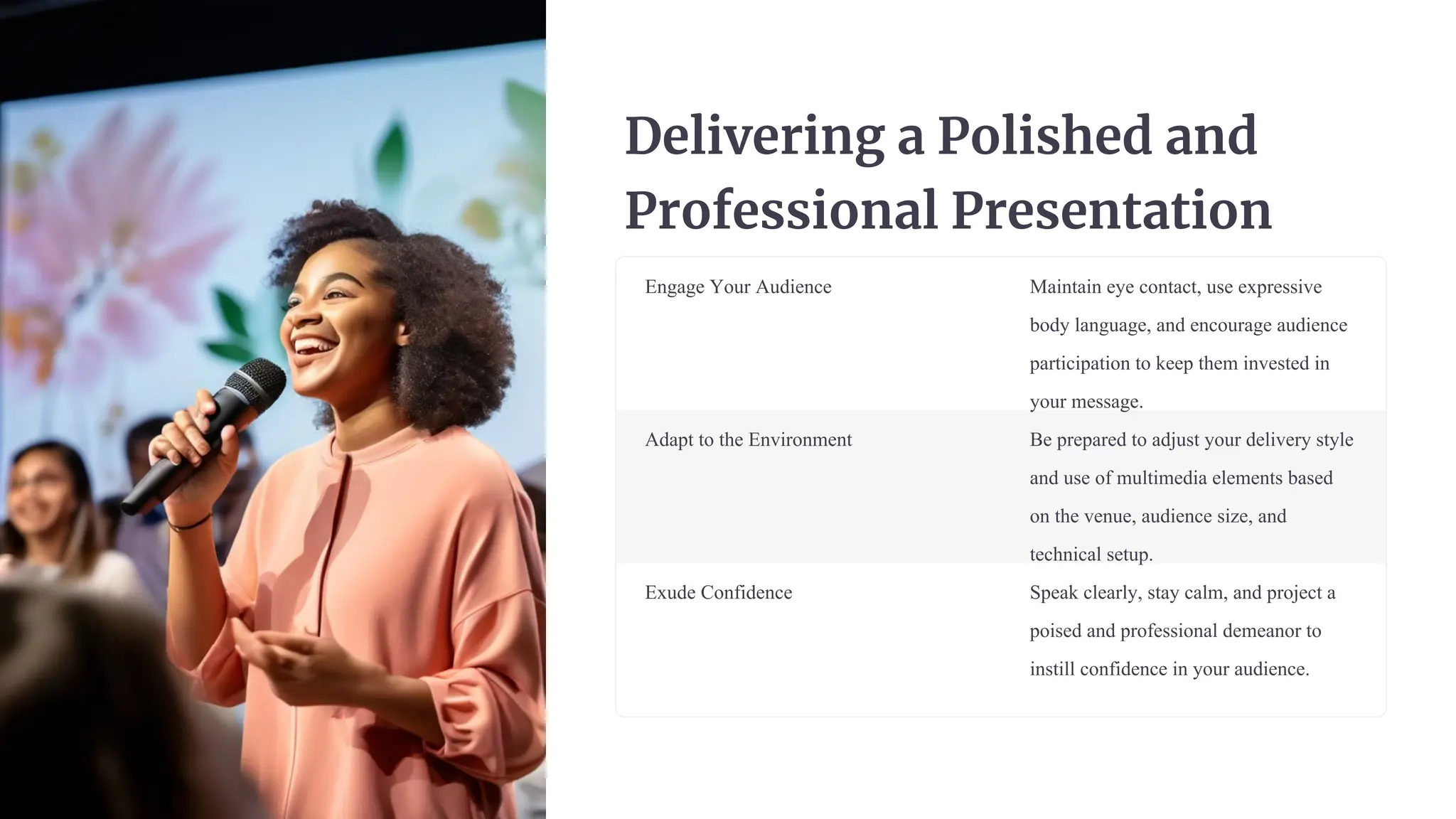
Engage Your Audience Maintain eye contact, use expressive
body language, and encourage audience
participation to keep them invested in
your message.
Adapt to the Environment Be prepared to adjust your delivery style
and use of multimedia elements based
on the venue, audience size, and
technical setup.
Exude Confidence Speak clearly, stay calm, and project a
poised and professional demeanor to
instill confidence in your audience.

Introduction-to-Multimedia-Presentations.pdf

  • 1.
    Introduction to Multimedia Presentations Multimedia presentationsare a powerful way to engage your audience and convey information effectively. They combine visuals, audio, and interactive elements to create a dynamic and immersive experience. MERVIE L. CABALLERO, LPT
  • 2.
    Choosing the RightMedia Elements Visual Aids Select high-quality images, charts, and graphs that complement your content and enhance understanding. Audio Enhancements Incorporate relevant sound effects, music, and narration to add depth and emotion to your presentation. Interactive Components Utilize interactive elements like polls, quizzes, and animations to keep your audience engaged and active.
  • 3.
    Designing Visually Appealing Slides 1Consistent Branding Maintain a cohesive visual identity throughout your presentation by using a consistent color scheme, font styles, and layout. 2 Balanced Composition Arrange text, images, and other elements on the slides in a way that creates a visually harmonious and organized layout. 3 Legible Typography Choose easy-to-read fonts and font sizes to ensure your audience can clearly see and understand the content. 4 Minimalist Design Avoid cluttering your slides with too much information, keeping the design clean and focused on the key messages.
  • 4.
    Incorporating Engaging Audio andVideo High-Quality Audio Ensure your audio recordings are clear, well-balanced, and free of distracting background noise. Compelling Video Use video footage that is visually engaging, relevant to your content, and enhances the overall presentation. Balanced Integration Seamlessly integrate audio and video elements into your presentation to create a cohesive and immersive experience.
  • 5.
    Effective Use ofAnimations and Transitions Enhance Understanding Use animations to illustrate complex concepts, visualize data, or guide your audience through step-by-step processes. Maintain Momentum Incorporate smooth transitions between slides to create a natural flow and keep your audience engaged. Avoid Distractions Use animations and transitions sparingly, ensuring they complement the content and do not overwhelm the audience.
  • 6.
    Optimizing Presentation forDifferent Devices Responsive Design Ensure your presentation can adapt to various screen sizes and orientations, providing an optimal viewing experience on smartphones, tablets, and desktops. Accessibility Considerations Incorporate features like alt-text for images, captions for videos, and high-contrast color schemes to make your presentation accessible to all viewers. Offline Functionality Allow your audience to access and navigate your presentation even when they're not connected to the internet, ensuring a seamless experience.
  • 7.
    Practicing and Rehearsingthe Presentation 1 Timing and Pacing Practice your presentation to ensure you're delivering content at a comfortable pace and within the allotted time frame. 2 Content Delivery Rehearse your presentation to refine your speaking style, maintain eye contact, and convey your message with confidence. 3 Feedback and Refinement Seek feedback from colleagues or friends to identify areas for improvement and make necessary adjustments to your presentation.
  • 8.
    Delivering a Polishedand Professional Presentation Engage Your Audience Maintain eye contact, use expressive body language, and encourage audience participation to keep them invested in your message. Adapt to the Environment Be prepared to adjust your delivery style and use of multimedia elements based on the venue, audience size, and technical setup. Exude Confidence Speak clearly, stay calm, and project a poised and professional demeanor to instill confidence in your audience.