SIUE IRIS
Kayla Hays &
Jessica DeSpain
OMEKA
“Omeka” (pronounced oh-MEH-ka) is a Swahili
word meaning “to display or lay out wares”
 Omeka is a software tool that enables
you to create dynamic online exhibits
that showcase collections of digital
images, text, and other multimedia
formats in one seamless site.
WHAT IS
OMEKA?
 Created at George Mason
University’s Center for History and
New Media.
When it is
 You have a set of things
you want to display on
the web.
 Omeka is at its best
when you have
complete information
about each object.
When it is not
 You want a simple website
 Consider Wordpress
instead
 You want a lot of control
over the way things look
 You want sophisticated,
dynamic queries of your
database
 Consider Drupal instead
 You want to create complex
paths through your
collection
 Consider Scalar instead
IS OMEKA THE RIGHT CHOICE?
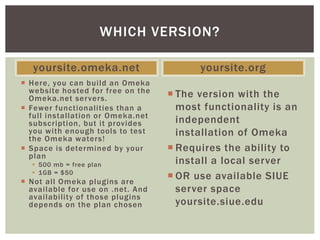
yoursite.omeka.net
 Here, you can build an Omeka
website hosted for free on the
Omeka.net servers.
 Fewer functionalities than a
full installation or Omeka.net
subscription, but it provides
you with enough tools to test
the Omeka waters!
 Space is determined by your
plan
 500 mb = free plan
 1GB = $50
 Not all Omeka plugins are
available for use on .net. And
availability of those plugins
depends on the plan chosen
yoursite.org
 The version with the
most functionality is an
independent
installation of Omeka
 Requires the ability to
install a local server
 OR use available SIUE
server space
yoursite.siue.edu
WHICH VERSION?
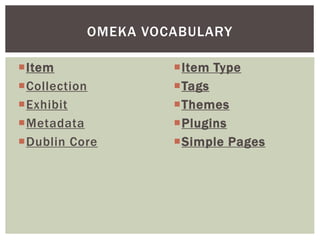
OMEKA VOCABULARY
Item
Collection
Exhibit
Metadata
Dublin Core
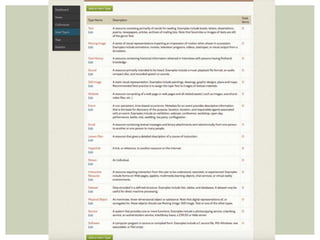
Item Type
Tags
Themes
Plugins
Simple Pages
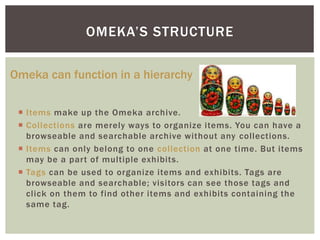
 Items make up the Omeka archive.
 Collections are merely ways to organize items. You can have a
browseable and searchable archive without any collections.
 Items can only belong to one collection at one time. But items
may be a part of multiple exhibits.
 Tags can be used to organize items and exhibits. Tags are
browseable and searchable; visitors can see those tags and
click on them to find other items and exhibits containing the
same tag.
OMEKA’S STRUCTURE
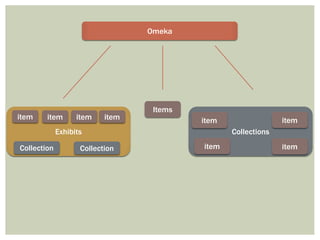
Omeka can function in a hierarchy
Omeka
Collections
item
item
Exhibits
item item item item
Collection Collection
Items
item
item
BUILDING AN
OMEKA SITE
CREATE A PLAN
 Determine how your site will be structured. The process of building a site
requires that you know before hand what the sections and sub-pages of your
exhibit will be. For example, a flowchart to help understand the hierarchy of
items, collections, and exhibit pages in Omeka.
 As you organize your site, think logically about how you want to distribute your
exhibit across this hierarchy.
 Are you describing the item itself or the photo?
 The decision about whether you’re describing the object or the representation
of the object is up to you. But once you’ve decided, be consistent.
Organizing Content
A Tricky Aspect of Item Description
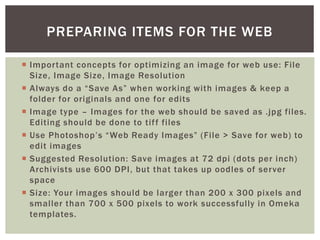
 Important concepts for optimizing an image for web use: File
Size, Image Size, Image Resolution
 Always do a “Save As” when working with images & keep a
folder for originals and one for edits
 Image type – Images for the web should be saved as .jpg files.
Editing should be done to tiff files
 Use Photoshop’s “Web Ready Images” (File > Save for web) to
edit images
 Suggested Resolution: Save images at 72 dpi (dots per inch)
Archivists use 600 DPI, but that takes up oodles of server
space
 Size: Your images should be larger than 200 x 300 pixels and
smaller than 700 x 500 pixels to work successfully in Omeka
templates.
PREPARING ITEMS FOR THE WEB
ADDING AN ITEM
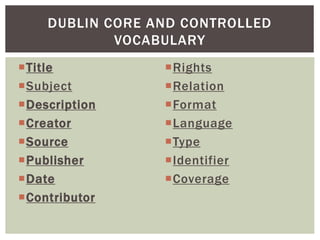
DUBLIN CORE AND CONTROLLED
VOCABULARY
Title
Subject
Description
Creator
Source
Publisher
Date
Contributor
Rights
Relation
Format
Language
Type
Identifier
Coverage
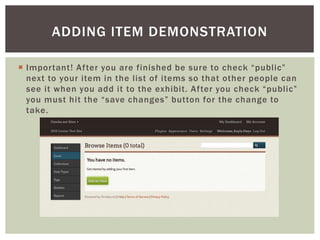
 Important! After you are finished be sure to check “public”
next to your item in the list of items so that other people can
see it when you add it to the exhibit. After you check “public”
you must hit the “save changes” button for the change to
take.
ADDING ITEM DEMONSTRATION
EXHIBIT BUILDING
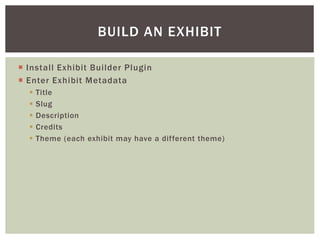
 Install Exhibit Builder Plugin
 Enter Exhibit Metadata
 Title
 Slug
 Description
 Credits
 Theme (each exhibit may have a different theme)
BUILD AN EXHIBIT
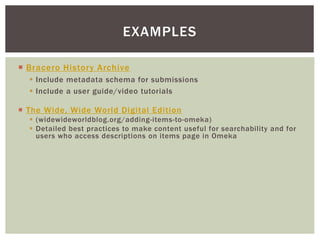
 Bracero History Archive
 Include metadata schema for submissions
 Include a user guide/video tutorials
EXAMPLES
 The Wide, Wide World Digital Edition
 (widewideworldblog.org/adding-items-to-omeka)
 Detailed best practices to make content useful for searchability and for
users who access descriptions on items page in Omeka
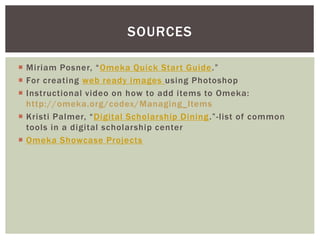
 Miriam Posner, “Omeka Quick Start Guide.”
 For creating web ready images using Photoshop
 Instructional video on how to add items to Omeka:
http://omeka.org/codex/Managing_Items
 Kristi Palmer, “Digital Scholarship Dining.”-list of common
tools in a digital scholarship center
 Omeka Showcase Projects
SOURCES

Introducing Omeka

  • 1.
    SIUE IRIS Kayla Hays& Jessica DeSpain OMEKA “Omeka” (pronounced oh-MEH-ka) is a Swahili word meaning “to display or lay out wares”
  • 2.
     Omeka isa software tool that enables you to create dynamic online exhibits that showcase collections of digital images, text, and other multimedia formats in one seamless site. WHAT IS OMEKA?  Created at George Mason University’s Center for History and New Media.
  • 3.
    When it is You have a set of things you want to display on the web.  Omeka is at its best when you have complete information about each object. When it is not  You want a simple website  Consider Wordpress instead  You want a lot of control over the way things look  You want sophisticated, dynamic queries of your database  Consider Drupal instead  You want to create complex paths through your collection  Consider Scalar instead IS OMEKA THE RIGHT CHOICE?
  • 4.
    yoursite.omeka.net  Here, youcan build an Omeka website hosted for free on the Omeka.net servers.  Fewer functionalities than a full installation or Omeka.net subscription, but it provides you with enough tools to test the Omeka waters!  Space is determined by your plan  500 mb = free plan  1GB = $50  Not all Omeka plugins are available for use on .net. And availability of those plugins depends on the plan chosen yoursite.org  The version with the most functionality is an independent installation of Omeka  Requires the ability to install a local server  OR use available SIUE server space yoursite.siue.edu WHICH VERSION?
  • 5.
  • 7.
     Items makeup the Omeka archive.  Collections are merely ways to organize items. You can have a browseable and searchable archive without any collections.  Items can only belong to one collection at one time. But items may be a part of multiple exhibits.  Tags can be used to organize items and exhibits. Tags are browseable and searchable; visitors can see those tags and click on them to find other items and exhibits containing the same tag. OMEKA’S STRUCTURE Omeka can function in a hierarchy
  • 8.
    Omeka Collections item item Exhibits item item itemitem Collection Collection Items item item
  • 9.
  • 10.
    CREATE A PLAN Determine how your site will be structured. The process of building a site requires that you know before hand what the sections and sub-pages of your exhibit will be. For example, a flowchart to help understand the hierarchy of items, collections, and exhibit pages in Omeka.  As you organize your site, think logically about how you want to distribute your exhibit across this hierarchy.  Are you describing the item itself or the photo?  The decision about whether you’re describing the object or the representation of the object is up to you. But once you’ve decided, be consistent. Organizing Content A Tricky Aspect of Item Description
  • 11.
     Important conceptsfor optimizing an image for web use: File Size, Image Size, Image Resolution  Always do a “Save As” when working with images & keep a folder for originals and one for edits  Image type – Images for the web should be saved as .jpg files. Editing should be done to tiff files  Use Photoshop’s “Web Ready Images” (File > Save for web) to edit images  Suggested Resolution: Save images at 72 dpi (dots per inch) Archivists use 600 DPI, but that takes up oodles of server space  Size: Your images should be larger than 200 x 300 pixels and smaller than 700 x 500 pixels to work successfully in Omeka templates. PREPARING ITEMS FOR THE WEB
  • 12.
  • 13.
    DUBLIN CORE ANDCONTROLLED VOCABULARY Title Subject Description Creator Source Publisher Date Contributor Rights Relation Format Language Type Identifier Coverage
  • 14.
     Important! Afteryou are finished be sure to check “public” next to your item in the list of items so that other people can see it when you add it to the exhibit. After you check “public” you must hit the “save changes” button for the change to take. ADDING ITEM DEMONSTRATION
  • 15.
  • 16.
     Install ExhibitBuilder Plugin  Enter Exhibit Metadata  Title  Slug  Description  Credits  Theme (each exhibit may have a different theme) BUILD AN EXHIBIT
  • 17.
     Bracero HistoryArchive  Include metadata schema for submissions  Include a user guide/video tutorials EXAMPLES  The Wide, Wide World Digital Edition  (widewideworldblog.org/adding-items-to-omeka)  Detailed best practices to make content useful for searchability and for users who access descriptions on items page in Omeka
  • 18.
     Miriam Posner,“Omeka Quick Start Guide.”  For creating web ready images using Photoshop  Instructional video on how to add items to Omeka: http://omeka.org/codex/Managing_Items  Kristi Palmer, “Digital Scholarship Dining.”-list of common tools in a digital scholarship center  Omeka Showcase Projects SOURCES