Introduction to Git and GitHub
Venkat Malladi
Outline
I. Introduction to Git
A. What is Git?
B. Git workflow: Creating a new repo
C. HEAD
D. Basic Git commands
E. Concept of branches
F. Creating a branch/switching between branches
G. Merging branches and resolving conflicts
H. Concept of stashing
II. Introduction to GitHub
A. What is GitHub? Basic GitHub concepts
B. GitHub in practice: Distributed version control
C. Cloning a remote repo
D. Fetching/Pushing to a remote repo
E. Collaborating using Git and GitHub
What is a ‘version control system’?
• a way to manage files and directories
• track changes over time
• recall previous versions
• ‘source control’ is a subset of a VCS.
What is Git?
What is Git?
• created by Linus Torvalds, April 2005
• a command line version control program
• uses checksums to ensure data integrity
• cross-platform
• open source, free
• distributed version control
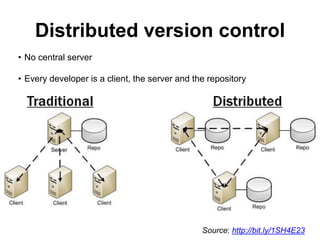
Distributed version control
• No central server
• Every developer is a client, the server and the repository
Source: http://bit.ly/1SH4E23
Git distributed version control
• no need to connect to central server
• can work without internet connection
• no single failure point
• developers can work independently and merge their work later
• every copy of a Git repository can serve either as the server or as a
client and has complete history
• Git tracks changes, not versions
• Bunch of little change sets floating around
What is a repository?
• “repo” = repository
• usually used to organize a single project
• repos can contain folders and files, images, videos,
spreadsheets, and data sets – anything your project needs
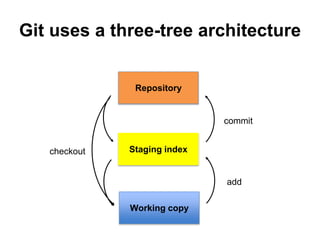
Git uses a three-tree architecture
Staging index
Working copy
Repository
checkout
add
commit
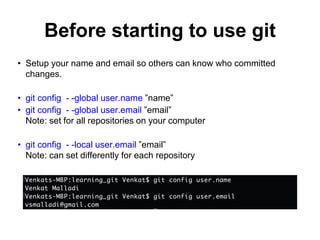
Before starting to use git
• Setup your name and email so others can know who committed
changes.
• git config - -global user.name ”name”
• git config - -global user.email ”email”
Note: set for all repositories on your computer
• git config - -local user.email ”email”
Note: can set differently for each repository
A simple Git workflow
1. Initialize a new project in a directory:
git init
2. Add a file using a text editor to the directory
3. Add every change that has been made to the directory:
git add <filename>.
4. Commit the change to the repo:
git commit –m “important message here”
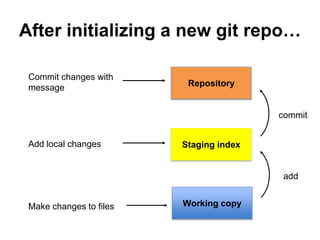
After initializing a new git repo…
add
commit
Make changes to files
Add local changes
Commit changes with
message
Staging index
Working copy
Repository
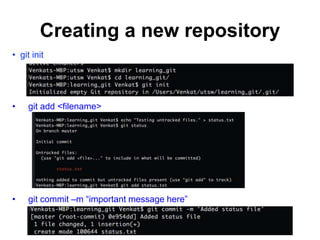
Creating a new repository
• git init
• git add <filename>
• git commit –m “important message here”
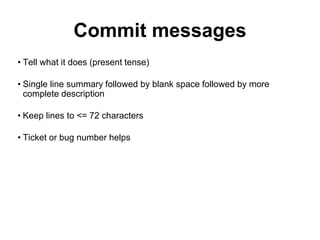
Commit messages
• Tell what it does (present tense)
• Single line summary followed by blank space followed by more
complete description
• Keep lines to <= 72 characters
• Ticket or bug number helps
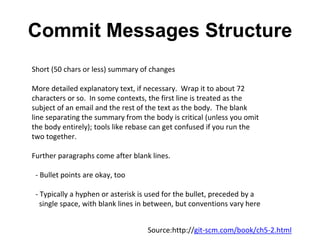
Commit Messages Structure
Short (50 chars or less) summary of changes
More detailed explanatory text, if necessary. Wrap it to about 72
characters or so. In some contexts, the first line is treated as the
subject of an email and the rest of the text as the body. The blank
line separating the summary from the body is critical (unless you omit
the body entirely); tools like rebase can get confused if you run the
two together.
Further paragraphs come after blank lines.
- Bullet points are okay, too
- Typically a hyphen or asterisk is used for the bullet, preceded by a
single space, with blank lines in between, but conventions vary here
Source:http://git-scm.com/book/ch5-2.html
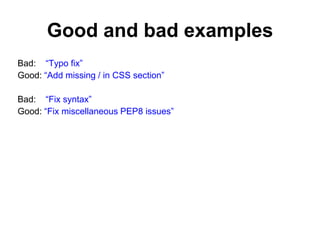
Good and bad examples
Bad: “Typo fix”
Good: “Add missing / in CSS section”
Bad: “Fix syntax”
Good: “Fix miscellaneous PEP8 issues”
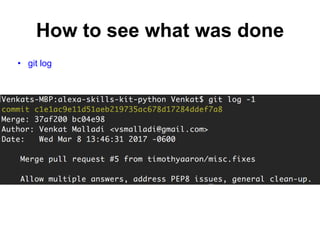
How to see what was done
• git log
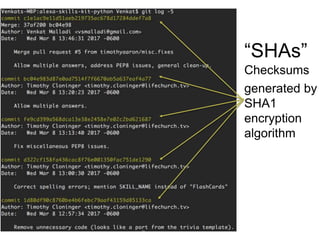
Checksums
generated by
SHA1
encryption
algorithm
“SHAs”
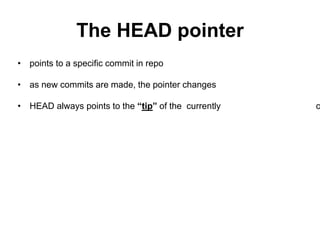
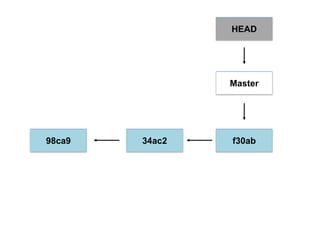
The HEAD pointer
• points to a specific commit in repo
• as new commits are made, the pointer changes
• HEAD always points to the “tip” of the currently c
HEAD
Master
f30ab34ac298ca9
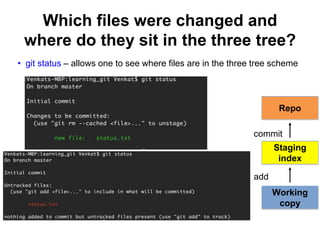
Which files were changed and
where do they sit in the three tree?
• git status – allows one to see where files are in the three tree scheme
Repo
Working
copy
Staging
index
add
commit
Committing and adding message
• git commit -a
• Allows one to add to staging index and commit at the same time
• Grabs everything in working directory
• Files not tracked or being deleted are not included
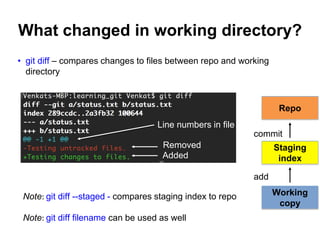
• git diff – compares changes to files between repo and working
directory
What changed in working directory?
Note: git diff --staged - compares staging index to repo
Note: git diff filename can be used as well
Line numbers in file
Removed
Added
Repo
Working
copy
Staging
index
add
commit
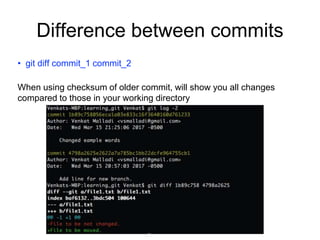
Difference between commits
• git diff commit_1 commit_2
When using checksum of older commit, will show you all changes
compared to those in your working directory
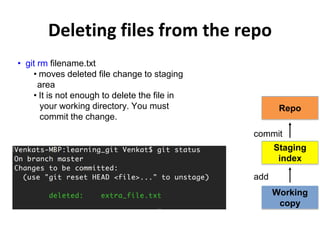
Deleting files from the repo
• git rm filename.txt
• moves deleted file change to staging
area
• It is not enough to delete the file in
your working directory. You must
commit the change.
Repo
Working
copy
Staging
index
add
commit
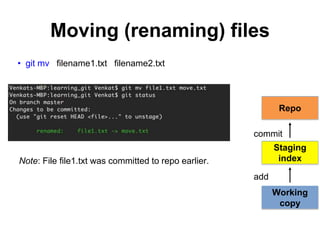
Moving (renaming) files
• git mv filename1.txt filename2.txt
Note: File file1.txt was committed to repo earlier.
Repo
Working
copy
Staging
index
add
commit
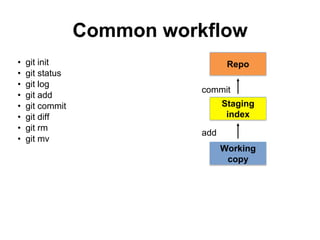
• git init
• git status
• git log
• git add
• git commit
• git diff
• git rm
• git mv
Common workflow
Repo
Working
copy
Staging
index
add
commit
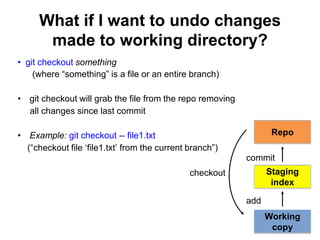
What if I want to undo changes
made to working directory?
• git checkout something
(where “something” is a file or an entire branch)
• git checkout will grab the file from the repo removing
all changes since last commit
• Example: git checkout -- file1.txt
(“checkout file ‘file1.txt’ from the current branch”)
checkout
Repo
Working
copy
Staging
index
add
commit
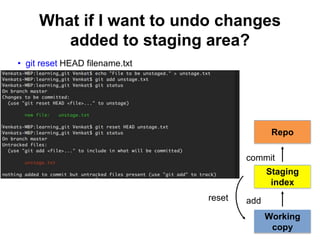
What if I want to undo changes
added to staging area?
• git reset HEAD filename.txt
reset
Repo
Working
copy
Staging
index
add
commit
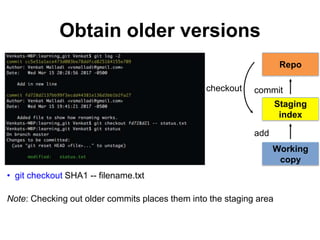
Obtain older versions
• git checkout SHA1 -- filename.txt
Note: Checking out older commits places them into the staging area
checkout
Repo
Working
copy
Staging
index
add
commit
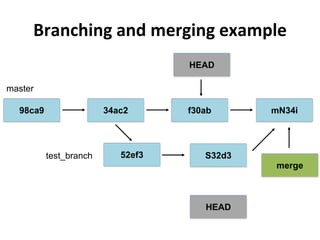
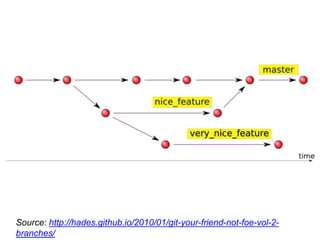
Branches in Git
• allows one to try new ideas
• If an idea doesn’t work, throw away the branch. Don’t have to undo
many changes to master branch
• If it does work, merge ideas into master branch.
• Note: There is only one working directory
Branching and merging example
HEAD
f30ab34ac298ca9
52ef3 S32d3
mN34i
HEAD
master
test_branch
merge
Source: http://hades.github.io/2010/01/git-your-friend-not-foe-vol-2-
branches/
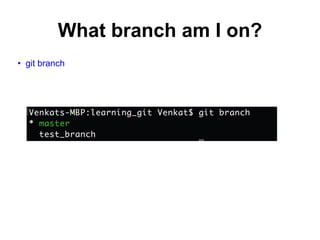
What branch am I on?
• git branch
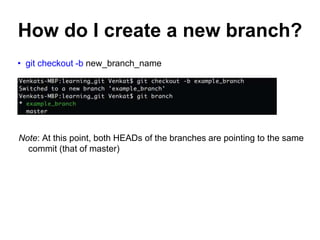
How do I create a new branch?
• git checkout -b new_branch_name
Note: At this point, both HEADs of the branches are pointing to the same
commit (that of master)
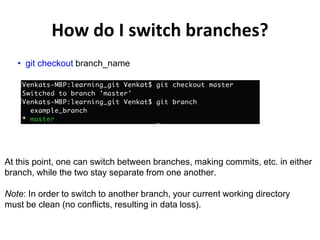
How do I switch branches?
• git checkout branch_name
At this point, one can switch between branches, making commits, etc. in either
branch, while the two stay separate from one another.
Note: In order to switch to another branch, your current working directory
must be clean (no conflicts, resulting in data loss).
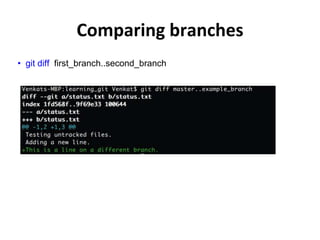
Comparing branches
• git diff first_branch..second_branch
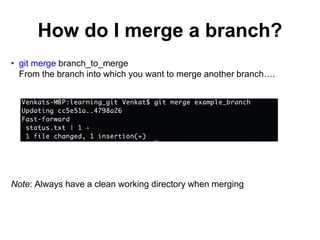
How do I merge a branch?
• git merge branch_to_merge
From the branch into which you want to merge another branch….
Note: Always have a clean working directory when merging
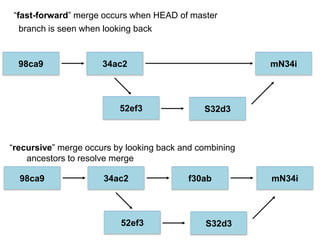
“fast-forward” merge occurs when HEAD of master
branch is seen when looking back
“recursive” merge occurs by looking back and combining
ancestors to resolve merge
34ac298ca9
52ef3 S32d3
mN34i
f30ab34ac298ca9
52ef3 S32d3
mN34i
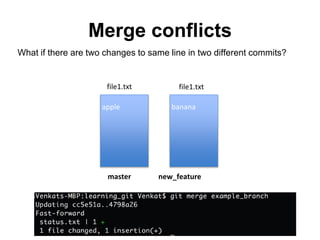
Merge conflicts
What if there are two changes to same line in two different commits?
apple
master new_feature
banana
file1.txt file1.txt
Resolving merge conflicts
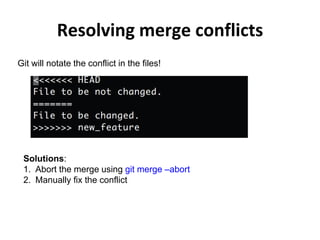
Git will notate the conflict in the files!
Solutions:
1. Abort the merge using git merge –abort
2. Manually fix the conflict
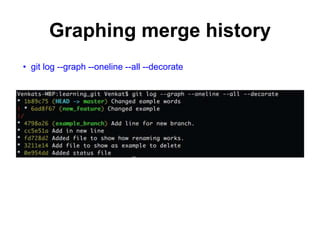
Graphing merge history
• git log --graph --oneline --all --decorate
Tips to reduce merge pain
• merge often
• keep commits small/focused
• bring changes occurring to master into your branch frequently
(“tracking”)
Renaming and deleting branches
• git branch –m/--move old_name new_name
• git branch –d branch_name
Note: Must not be in branch_name
Note: Must not have commits in branch_name unmerged in branch
from which you are deleting
• git branch –D branch_name
Note: If you are really sure that you want to delete branch with
commits
Fast context switching
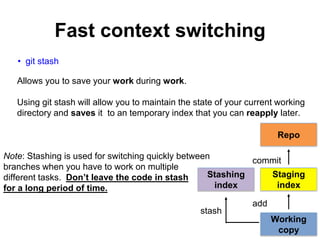
• git stash
Allows you to save your work during work.
Using git stash will allow you to maintain the state of your current working
directory and saves it to an temporary index that you can reapply later.
Repo
Working
copy
Staging
index
add
commit
stash
Stashing
index
Note: Stashing is used for switching quickly between
branches when you have to work on multiple
different tasks. Don’t leave the code in stash
for a long period of time.
Stashing your changes
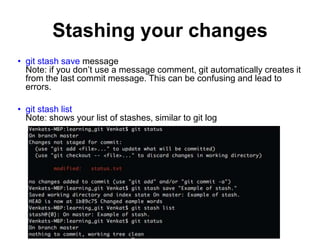
• git stash save message
Note: if you don’t use a message comment, git automatically creates it
from the last commit message. This can be confusing and lead to
errors.
• git stash list
Note: shows your list of stashes, similar to git log
Recovering your changes
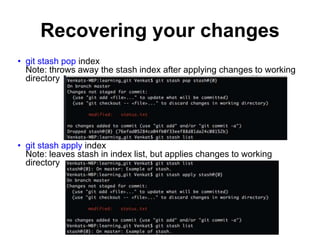
• git stash pop index
Note: throws away the stash index after applying changes to working
directory
• git stash apply index
Note: leaves stash in index list, but applies changes to working
directory
Branching from stash
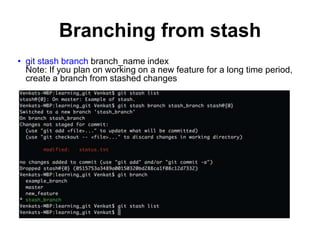
• git stash branch branch_name index
Note: If you plan on working on a new feature for a long time period,
create a branch from stashed changes
What is ?
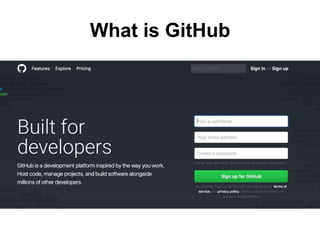
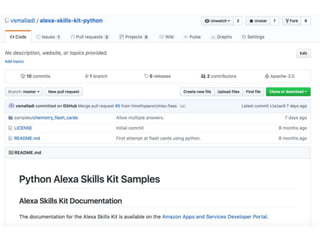
What is GitHub
GitHub
• a platform to host code repositories
• http://github.com
• launched in 2007
• most popular Git host
• allows users to collaborate on projects from anywhere
• GitHub makes git social!
• Free to start (can pay for private repositories and additional
features)
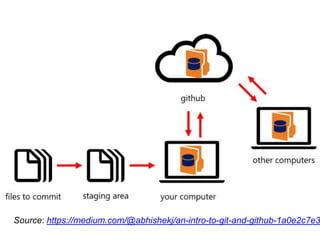
Source: https://medium.com/@abhishekj/an-intro-to-git-and-github-1a0e2c7e3
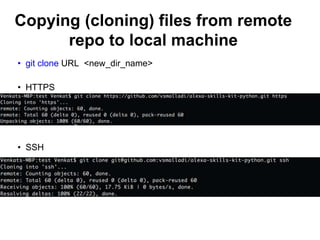
Copying (cloning) files from remote
repo to local machine
• git clone URL <new_dir_name>
• HTTPS
• SSH
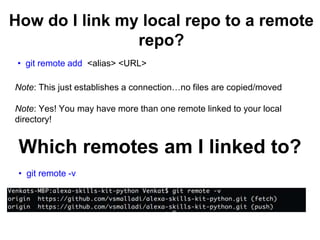
How do I link my local repo to a remote
repo?
• git remote add <alias> <URL>
Note: This just establishes a connection…no files are copied/moved
Note: Yes! You may have more than one remote linked to your local
directory!
Which remotes am I linked to?
• git remote -v
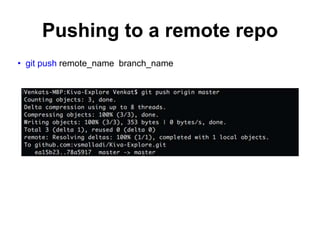
Pushing to a remote repo
• git push remote_name branch_name
Getting changes from a remote repo
• git fetch remote_repo_name
• Fetch in no way changes a your working dir or
any commits that you’ve made.
• git merge must be done to merge fetched changes
into local branch
• git pull remote_repo_name
• Fetch and merge changes to local branch and
working directory
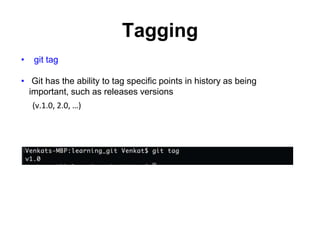
Tagging
• git tag
• Git has the ability to tag specific points in history as being
important, such as releases versions
(v.1.0, 2.0, …)
Types of tags
Two types of tags:
• lightweight – a pointer to a specific comment – basically a SHA
stored in a file
git tag tag_name
• annotated – a full object stored in the Git database –
SHA, tagger name, email, date, message and
can be signed and verified with GNU Privacy Guard (GPG)
git tag –a tag_name –m “message”
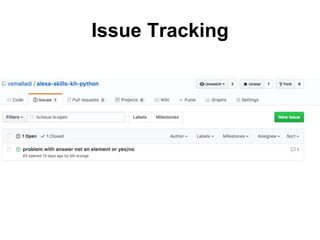
Issue Tracking
Good resources
• Git from Git: https://git-scm.com/book/en/v2
• A number of easy-to-understand guides by the GitHub folks:
https://guides.github.com
• Try Github: https://try.github.io/
• Bitbucket, alternative code hosting: https://bitbucket.org/

Intro to git and git hub

  • 1.
    Introduction to Gitand GitHub Venkat Malladi
  • 2.
    Outline I. Introduction toGit A. What is Git? B. Git workflow: Creating a new repo C. HEAD D. Basic Git commands E. Concept of branches F. Creating a branch/switching between branches G. Merging branches and resolving conflicts H. Concept of stashing II. Introduction to GitHub A. What is GitHub? Basic GitHub concepts B. GitHub in practice: Distributed version control C. Cloning a remote repo D. Fetching/Pushing to a remote repo E. Collaborating using Git and GitHub
  • 3.
    What is a‘version control system’? • a way to manage files and directories • track changes over time • recall previous versions • ‘source control’ is a subset of a VCS.
  • 4.
  • 5.
    What is Git? •created by Linus Torvalds, April 2005 • a command line version control program • uses checksums to ensure data integrity • cross-platform • open source, free • distributed version control
  • 6.
    Distributed version control •No central server • Every developer is a client, the server and the repository Source: http://bit.ly/1SH4E23
  • 7.
    Git distributed versioncontrol • no need to connect to central server • can work without internet connection • no single failure point • developers can work independently and merge their work later • every copy of a Git repository can serve either as the server or as a client and has complete history • Git tracks changes, not versions • Bunch of little change sets floating around
  • 8.
    What is arepository? • “repo” = repository • usually used to organize a single project • repos can contain folders and files, images, videos, spreadsheets, and data sets – anything your project needs
  • 9.
    Git uses athree-tree architecture Staging index Working copy Repository checkout add commit
  • 10.
    Before starting touse git • Setup your name and email so others can know who committed changes. • git config - -global user.name ”name” • git config - -global user.email ”email” Note: set for all repositories on your computer • git config - -local user.email ”email” Note: can set differently for each repository
  • 11.
    A simple Gitworkflow 1. Initialize a new project in a directory: git init 2. Add a file using a text editor to the directory 3. Add every change that has been made to the directory: git add <filename>. 4. Commit the change to the repo: git commit –m “important message here”
  • 12.
    After initializing anew git repo… add commit Make changes to files Add local changes Commit changes with message Staging index Working copy Repository
  • 13.
    Creating a newrepository • git init • git add <filename> • git commit –m “important message here”
  • 14.
    Commit messages • Tellwhat it does (present tense) • Single line summary followed by blank space followed by more complete description • Keep lines to <= 72 characters • Ticket or bug number helps
  • 15.
    Commit Messages Structure Short(50 chars or less) summary of changes More detailed explanatory text, if necessary. Wrap it to about 72 characters or so. In some contexts, the first line is treated as the subject of an email and the rest of the text as the body. The blank line separating the summary from the body is critical (unless you omit the body entirely); tools like rebase can get confused if you run the two together. Further paragraphs come after blank lines. - Bullet points are okay, too - Typically a hyphen or asterisk is used for the bullet, preceded by a single space, with blank lines in between, but conventions vary here Source:http://git-scm.com/book/ch5-2.html
  • 16.
    Good and badexamples Bad: “Typo fix” Good: “Add missing / in CSS section” Bad: “Fix syntax” Good: “Fix miscellaneous PEP8 issues”
  • 17.
    How to seewhat was done • git log
  • 18.
  • 19.
    The HEAD pointer •points to a specific commit in repo • as new commits are made, the pointer changes • HEAD always points to the “tip” of the currently c
  • 20.
  • 21.
    Which files werechanged and where do they sit in the three tree? • git status – allows one to see where files are in the three tree scheme Repo Working copy Staging index add commit
  • 22.
    Committing and addingmessage • git commit -a • Allows one to add to staging index and commit at the same time • Grabs everything in working directory • Files not tracked or being deleted are not included
  • 23.
    • git diff– compares changes to files between repo and working directory What changed in working directory? Note: git diff --staged - compares staging index to repo Note: git diff filename can be used as well Line numbers in file Removed Added Repo Working copy Staging index add commit
  • 24.
    Difference between commits •git diff commit_1 commit_2 When using checksum of older commit, will show you all changes compared to those in your working directory
  • 25.
    Deleting files fromthe repo • git rm filename.txt • moves deleted file change to staging area • It is not enough to delete the file in your working directory. You must commit the change. Repo Working copy Staging index add commit
  • 26.
    Moving (renaming) files •git mv filename1.txt filename2.txt Note: File file1.txt was committed to repo earlier. Repo Working copy Staging index add commit
  • 27.
    • git init •git status • git log • git add • git commit • git diff • git rm • git mv Common workflow Repo Working copy Staging index add commit
  • 28.
    What if Iwant to undo changes made to working directory? • git checkout something (where “something” is a file or an entire branch) • git checkout will grab the file from the repo removing all changes since last commit • Example: git checkout -- file1.txt (“checkout file ‘file1.txt’ from the current branch”) checkout Repo Working copy Staging index add commit
  • 29.
    What if Iwant to undo changes added to staging area? • git reset HEAD filename.txt reset Repo Working copy Staging index add commit
  • 30.
    Obtain older versions •git checkout SHA1 -- filename.txt Note: Checking out older commits places them into the staging area checkout Repo Working copy Staging index add commit
  • 31.
    Branches in Git •allows one to try new ideas • If an idea doesn’t work, throw away the branch. Don’t have to undo many changes to master branch • If it does work, merge ideas into master branch. • Note: There is only one working directory
  • 32.
    Branching and mergingexample HEAD f30ab34ac298ca9 52ef3 S32d3 mN34i HEAD master test_branch merge
  • 33.
  • 34.
    What branch amI on? • git branch
  • 35.
    How do Icreate a new branch? • git checkout -b new_branch_name Note: At this point, both HEADs of the branches are pointing to the same commit (that of master)
  • 36.
    How do Iswitch branches? • git checkout branch_name At this point, one can switch between branches, making commits, etc. in either branch, while the two stay separate from one another. Note: In order to switch to another branch, your current working directory must be clean (no conflicts, resulting in data loss).
  • 37.
    Comparing branches • gitdiff first_branch..second_branch
  • 38.
    How do Imerge a branch? • git merge branch_to_merge From the branch into which you want to merge another branch…. Note: Always have a clean working directory when merging
  • 39.
    “fast-forward” merge occurswhen HEAD of master branch is seen when looking back “recursive” merge occurs by looking back and combining ancestors to resolve merge 34ac298ca9 52ef3 S32d3 mN34i f30ab34ac298ca9 52ef3 S32d3 mN34i
  • 40.
    Merge conflicts What ifthere are two changes to same line in two different commits? apple master new_feature banana file1.txt file1.txt
  • 41.
    Resolving merge conflicts Gitwill notate the conflict in the files! Solutions: 1. Abort the merge using git merge –abort 2. Manually fix the conflict
  • 42.
    Graphing merge history •git log --graph --oneline --all --decorate
  • 43.
    Tips to reducemerge pain • merge often • keep commits small/focused • bring changes occurring to master into your branch frequently (“tracking”)
  • 44.
    Renaming and deletingbranches • git branch –m/--move old_name new_name • git branch –d branch_name Note: Must not be in branch_name Note: Must not have commits in branch_name unmerged in branch from which you are deleting • git branch –D branch_name Note: If you are really sure that you want to delete branch with commits
  • 45.
    Fast context switching •git stash Allows you to save your work during work. Using git stash will allow you to maintain the state of your current working directory and saves it to an temporary index that you can reapply later. Repo Working copy Staging index add commit stash Stashing index Note: Stashing is used for switching quickly between branches when you have to work on multiple different tasks. Don’t leave the code in stash for a long period of time.
  • 46.
    Stashing your changes •git stash save message Note: if you don’t use a message comment, git automatically creates it from the last commit message. This can be confusing and lead to errors. • git stash list Note: shows your list of stashes, similar to git log
  • 47.
    Recovering your changes •git stash pop index Note: throws away the stash index after applying changes to working directory • git stash apply index Note: leaves stash in index list, but applies changes to working directory
  • 48.
    Branching from stash •git stash branch branch_name index Note: If you plan on working on a new feature for a long time period, create a branch from stashed changes
  • 49.
  • 50.
  • 51.
    GitHub • a platformto host code repositories • http://github.com • launched in 2007 • most popular Git host • allows users to collaborate on projects from anywhere • GitHub makes git social! • Free to start (can pay for private repositories and additional features)
  • 52.
  • 54.
    Copying (cloning) filesfrom remote repo to local machine • git clone URL <new_dir_name> • HTTPS • SSH
  • 55.
    How do Ilink my local repo to a remote repo? • git remote add <alias> <URL> Note: This just establishes a connection…no files are copied/moved Note: Yes! You may have more than one remote linked to your local directory! Which remotes am I linked to? • git remote -v
  • 56.
    Pushing to aremote repo • git push remote_name branch_name
  • 57.
    Getting changes froma remote repo • git fetch remote_repo_name • Fetch in no way changes a your working dir or any commits that you’ve made. • git merge must be done to merge fetched changes into local branch • git pull remote_repo_name • Fetch and merge changes to local branch and working directory
  • 58.
    Tagging • git tag •Git has the ability to tag specific points in history as being important, such as releases versions (v.1.0, 2.0, …)
  • 59.
    Types of tags Twotypes of tags: • lightweight – a pointer to a specific comment – basically a SHA stored in a file git tag tag_name • annotated – a full object stored in the Git database – SHA, tagger name, email, date, message and can be signed and verified with GNU Privacy Guard (GPG) git tag –a tag_name –m “message”
  • 60.
  • 61.
    Good resources • Gitfrom Git: https://git-scm.com/book/en/v2 • A number of easy-to-understand guides by the GitHub folks: https://guides.github.com • Try Github: https://try.github.io/ • Bitbucket, alternative code hosting: https://bitbucket.org/

Editor's Notes

  • #19 One can log in in the morning and see what has been done and by who.
  • #21 Cat HEAD file in .git dir to see where HEAD is currently pointing.