



Git & GitHub
Md. Ahsan Habib
Email: habib@cse.green.edu.bd
Cell: 01515626136
Outcomes
• Commit
• Push
• Pull
• Clone
• Fetch
• Merge
• Diff
• Branching
• Git GUI
• Fork
• .gitignore
Theory
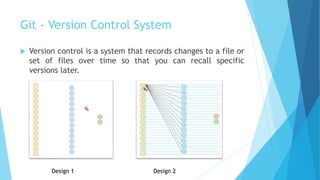
Git - Version Control System
 Version control is a system that records changes to a file or
set of files over time so that you can recall specific
versions later.
Design 1 Design 2
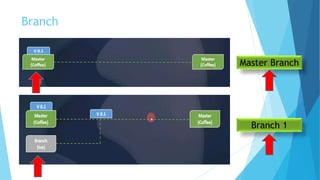
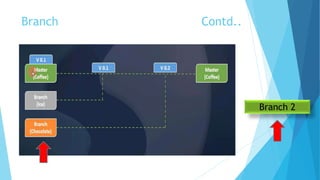
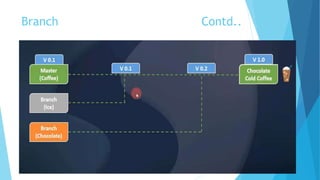
Branch
Master Branch
Branch 1
Branch Contd..
Branch 2
Branch Contd..
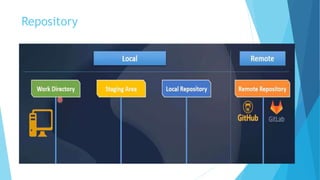
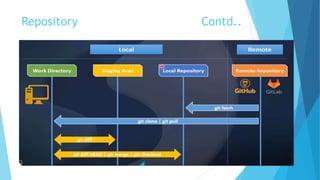
Repository
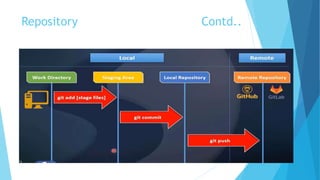
Repository Contd..
Repository Contd..
Practical
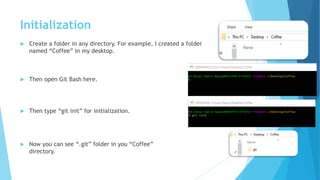
Initialization
 Create a folder in any directory. For example, I created a folder
named “Coffee” in my desktop.
 Then open Git Bash here.
 Then type “git init” for initialization.
 Now you can see “.git” folder in you “Coffee”
directory.
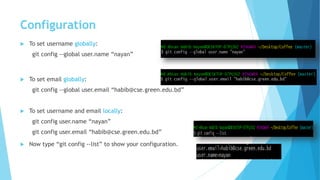
Configuration
 To set username globally:
git config --global user.name “nayan”
 To set email globally:
git config --global user.email “habib@cse.green.edu.bd”
 To set username and email locally:
git config user.name “nayan”
git config user.email “habib@cse.green.edu.bd”
 Now type “git config --list” to show your configuration.
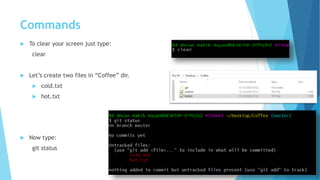
Commands
 To clear your screen just type:
clear
 Let’s create two files in “Coffee” dir.
 cold.txt
 hot.txt
 Now type:
git status
Commands
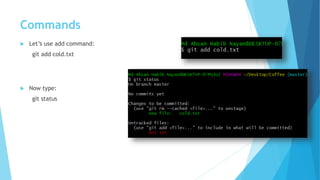
 Let’s use add command:
git add cold.txt
 Now type:
git status
Commands
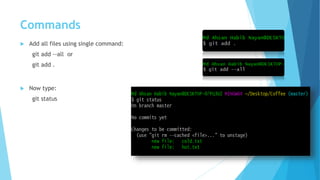
 Add all files using single command:
git add --all or
git add .
 Now type:
git status
Commit
Commit
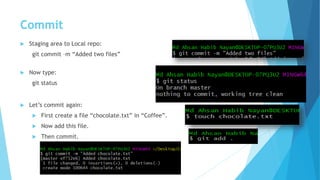
 Staging area to Local repo:
git commit –m “Added two files”
 Now type:
git status
 Let’s commit again:
 First create a file “chocolate.txt” in “Coffee”.
 Now add this file.
 Then commit.
Commit
 To show our commit:
git log
 Another way [Simple]:
git log --oneline
Commit
 Let’s write something in cold.txt file.
 Now type:
git status
 Let’s commit again:
 Add the changed file [cold.txt].
 Then commit.
 Now use git log command to show commits.
Checkout
Checkout
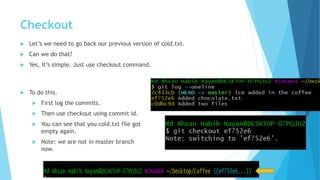
 Let’s we need to go back our previous version of cold.txt.
 Can we do that?
 Yes, It’s simple. Just use checkout command.
 To do this.
 First log the commits.
 Then use checkout using commit id.
 You can see that you cold.txt file got
empty again.
 Note: we are not in master branch
now.
Checkout
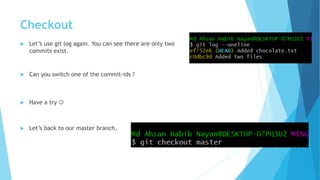
 Let’s use git log again. You can see there are only two
commits exist.
 Can you switch one of the commit-ids ?
 Have a try 
 Let’s back to our master branch.
Diff
Diff
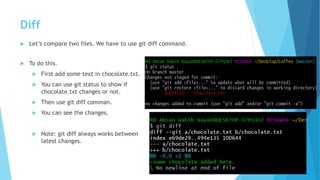
 Let’s compare two files. We have to use git diff command.
 To do this.
 First add some text in chocolate.txt.
 You can use git status to show if
chocolate.txt changes or not.
 Then use git diff comman.
 You can see the changes.
 Note: git diff always works between
latest changes.
Diff
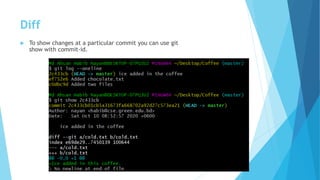
 To show changes at a particular commit you can use git
show with commit-id.
Diff
 We haven’t add the updated chocolate.txt file yet. Just
add this file. Then commit it.
 Now we again added some text in chocolate.txt file. Then
add and commit it.
 Using git log you can see like this.
 Now we want to show differences between
two chocolate.txt files [previous and current].
 To do use use git diff with two commit-ids.
git diff id1 id2
Diff
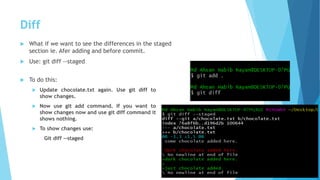
 What if we want to see the differences in the staged
section ie. Afer adding and before commit.
 Use: git diff --staged
 To do this:
 Update chocolate.txt again. Use git diff to
show changes.
 Now use git add command. If you want to
show changes now and use git diff command it
shows nothing.
 To show changes use:
Git diff --staged
Remove
Remove file
 How can we delete a file?
 If you delete from “Coffee” directory then it is
removed from current stage [not all commits].
 What if we want to delete permanently ie.
delete a file from all commits ?
 We have to use: git rm file_name
 It deletes the file from all commits.
 If we run git status then we can see that the
hot.txt file is in staged section. If we want to
delete from staged section then we have to
use: git reset HEAD hot.txt. Now again run git
status command to see the chages.
Let’s Store/Push the files into
Remote Repository!!
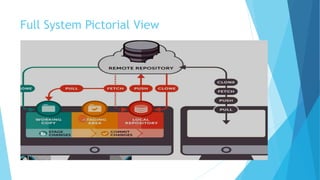
Full System Pictorial View
Push
 How can we push the files into Remote Repo?
 To do this:
 We need to have a github account.
 Now let’s create a Repository.
 Then follow some steps.
 Copy the remote repo link and run in the Bash Terminal.
 Use push command.
 Now refresh your repo.
 Let’s see graphically.
Push
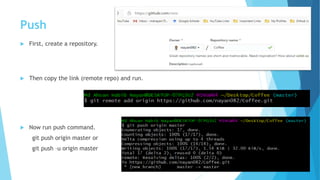
 First, create a repository.
 Then copy the link (remote repo) and run.
 Now run push command.
git push origin master or
git push –u origin master
Repository
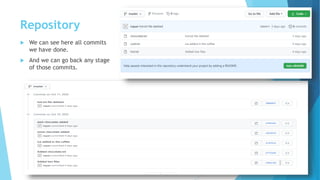
 We can see here all commits
we have done.
 And we can go back any stage
of those commits.
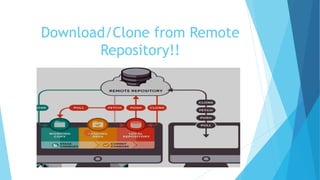
Download/Clone from Remote
Repository!!
Clone
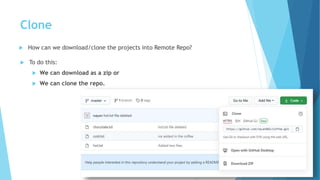
 How can we download/clone the projects into Remote Repo?
 To do this:
 We can download as a zip or
 We can clone the repo.
Clone
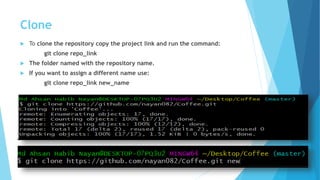
 To clone the repository copy the project link and run the command:
git clone repo_link
 The folder named with the repository name.
 If you want to assign a different name use:
git clone repo_link new_name
Fetch
Fetch
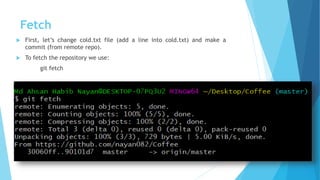
 First, let’s change cold.txt file (add a line into cold.txt) and make a
commit (from remote repo).
 To fetch the repository we use:
git fetch
Fetch
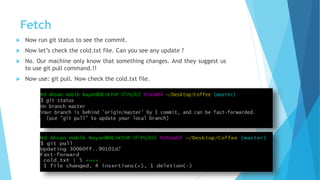
 Now run git status to see the commit.
 Now let’s check the cold.txt file. Can you see any update ?
 No. Our machine only know that something changes. And they suggest us
to use git pull command.!!
 Now use: git pull. Now check the cold.txt file.
Branch
Branch
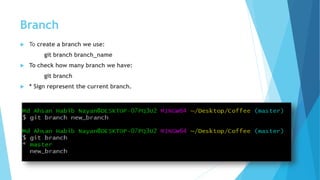
 To create a branch we use:
git branch branch_name
 To check how many branch we have:
git branch
 * Sign represent the current branch.
Branch
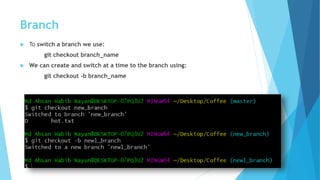
 To switch a branch we use:
git checkout branch_name
 We can create and switch at a time to the branch using:
git checkout -b branch_name
Branch
 Now we are in “new1_branch”. Anything changes in the Coffee
repository, the changes will be happen in the new1_branch not affects
other branches(master, new_branch).
 Let’s create a file in the current branch (new1_branch) and use git add
and commit command.
 If you switch to master branch, you can see the changes in the Coffee
repo.
Merge
Merge
 If you want to merge/add all the changes in the master branch. You can
run:
git merge new1_branch
 By running this you can see the changes happen to the master branch.
Delete a Branch
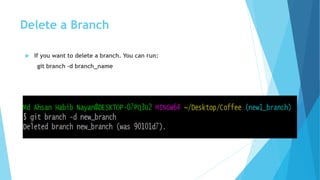
 If you want to delete a branch. You can run:
git branch -d branch_name
GitIgnore
Git Ignore
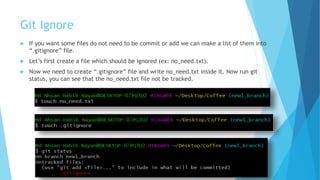
 If you want some files do not need to be commit or add we can make a list of them into
“.gitignore” file.
 Let’s first create a file which should be ignored (ex: no_need.txt).
 Now we need to create “.gitignore” file and write no_need.txt inside it. Now run git
status, you can see that the no_need.txt file not be tracked.

Git and GitHub

  • 1.
    Git & GitHub Md.Ahsan Habib Email: habib@cse.green.edu.bd Cell: 01515626136
  • 2.
    Outcomes • Commit • Push •Pull • Clone • Fetch • Merge • Diff • Branching • Git GUI • Fork • .gitignore
  • 3.
  • 4.
    Git - VersionControl System  Version control is a system that records changes to a file or set of files over time so that you can recall specific versions later. Design 1 Design 2
  • 5.
  • 6.
  • 7.
  • 8.
  • 9.
  • 10.
  • 11.
  • 12.
    Initialization  Create afolder in any directory. For example, I created a folder named “Coffee” in my desktop.  Then open Git Bash here.  Then type “git init” for initialization.  Now you can see “.git” folder in you “Coffee” directory.
  • 13.
    Configuration  To setusername globally: git config --global user.name “nayan”  To set email globally: git config --global user.email “habib@cse.green.edu.bd”  To set username and email locally: git config user.name “nayan” git config user.email “habib@cse.green.edu.bd”  Now type “git config --list” to show your configuration.
  • 14.
    Commands  To clearyour screen just type: clear  Let’s create two files in “Coffee” dir.  cold.txt  hot.txt  Now type: git status
  • 15.
    Commands  Let’s useadd command: git add cold.txt  Now type: git status
  • 16.
    Commands  Add allfiles using single command: git add --all or git add .  Now type: git status
  • 17.
  • 18.
    Commit  Staging areato Local repo: git commit –m “Added two files”  Now type: git status  Let’s commit again:  First create a file “chocolate.txt” in “Coffee”.  Now add this file.  Then commit.
  • 19.
    Commit  To showour commit: git log  Another way [Simple]: git log --oneline
  • 20.
    Commit  Let’s writesomething in cold.txt file.  Now type: git status  Let’s commit again:  Add the changed file [cold.txt].  Then commit.  Now use git log command to show commits.
  • 21.
  • 22.
    Checkout  Let’s weneed to go back our previous version of cold.txt.  Can we do that?  Yes, It’s simple. Just use checkout command.  To do this.  First log the commits.  Then use checkout using commit id.  You can see that you cold.txt file got empty again.  Note: we are not in master branch now.
  • 23.
    Checkout  Let’s usegit log again. You can see there are only two commits exist.  Can you switch one of the commit-ids ?  Have a try   Let’s back to our master branch.
  • 24.
  • 25.
    Diff  Let’s comparetwo files. We have to use git diff command.  To do this.  First add some text in chocolate.txt.  You can use git status to show if chocolate.txt changes or not.  Then use git diff comman.  You can see the changes.  Note: git diff always works between latest changes.
  • 26.
    Diff  To showchanges at a particular commit you can use git show with commit-id.
  • 27.
    Diff  We haven’tadd the updated chocolate.txt file yet. Just add this file. Then commit it.  Now we again added some text in chocolate.txt file. Then add and commit it.  Using git log you can see like this.  Now we want to show differences between two chocolate.txt files [previous and current].  To do use use git diff with two commit-ids. git diff id1 id2
  • 28.
    Diff  What ifwe want to see the differences in the staged section ie. Afer adding and before commit.  Use: git diff --staged  To do this:  Update chocolate.txt again. Use git diff to show changes.  Now use git add command. If you want to show changes now and use git diff command it shows nothing.  To show changes use: Git diff --staged
  • 29.
  • 30.
    Remove file  Howcan we delete a file?  If you delete from “Coffee” directory then it is removed from current stage [not all commits].  What if we want to delete permanently ie. delete a file from all commits ?  We have to use: git rm file_name  It deletes the file from all commits.  If we run git status then we can see that the hot.txt file is in staged section. If we want to delete from staged section then we have to use: git reset HEAD hot.txt. Now again run git status command to see the chages.
  • 31.
    Let’s Store/Push thefiles into Remote Repository!!
  • 32.
  • 33.
    Push  How canwe push the files into Remote Repo?  To do this:  We need to have a github account.  Now let’s create a Repository.  Then follow some steps.  Copy the remote repo link and run in the Bash Terminal.  Use push command.  Now refresh your repo.  Let’s see graphically.
  • 34.
    Push  First, createa repository.  Then copy the link (remote repo) and run.  Now run push command. git push origin master or git push –u origin master
  • 35.
    Repository  We cansee here all commits we have done.  And we can go back any stage of those commits.
  • 36.
  • 37.
    Clone  How canwe download/clone the projects into Remote Repo?  To do this:  We can download as a zip or  We can clone the repo.
  • 38.
    Clone  To clonethe repository copy the project link and run the command: git clone repo_link  The folder named with the repository name.  If you want to assign a different name use: git clone repo_link new_name
  • 39.
  • 40.
    Fetch  First, let’schange cold.txt file (add a line into cold.txt) and make a commit (from remote repo).  To fetch the repository we use: git fetch
  • 41.
    Fetch  Now rungit status to see the commit.  Now let’s check the cold.txt file. Can you see any update ?  No. Our machine only know that something changes. And they suggest us to use git pull command.!!  Now use: git pull. Now check the cold.txt file.
  • 42.
  • 43.
    Branch  To createa branch we use: git branch branch_name  To check how many branch we have: git branch  * Sign represent the current branch.
  • 44.
    Branch  To switcha branch we use: git checkout branch_name  We can create and switch at a time to the branch using: git checkout -b branch_name
  • 45.
    Branch  Now weare in “new1_branch”. Anything changes in the Coffee repository, the changes will be happen in the new1_branch not affects other branches(master, new_branch).  Let’s create a file in the current branch (new1_branch) and use git add and commit command.  If you switch to master branch, you can see the changes in the Coffee repo.
  • 46.
  • 47.
    Merge  If youwant to merge/add all the changes in the master branch. You can run: git merge new1_branch  By running this you can see the changes happen to the master branch.
  • 48.
    Delete a Branch If you want to delete a branch. You can run: git branch -d branch_name
  • 49.
  • 50.
    Git Ignore  Ifyou want some files do not need to be commit or add we can make a list of them into “.gitignore” file.  Let’s first create a file which should be ignored (ex: no_need.txt).  Now we need to create “.gitignore” file and write no_need.txt inside it. Now run git status, you can see that the no_need.txt file not be tracked.