Studocu is not sponsored or endorsed by any college or university
Devops complete notes-2
Devops Package (Delhi Technological University)
Studocu is not sponsored or endorsed by any college or university
Devops complete notes-2
Devops Package (Delhi Technological University)
Downloaded by Robin Rohit (robinrohit@gmail.com)
lOMoARcPSD|3465636
Git Architecture
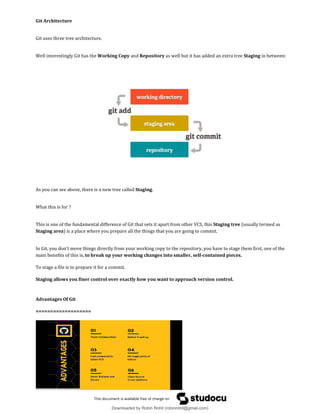
Git uses three tree architecture.
Well interestingly Git has the Working Copy and Repository as well but it has added an extra tree Staging in between:
As you can see above, there is a new tree called Staging.
What this is for ?
This is one of the fundamental difference of Git that sets it apart from other VCS, this Staging tree (usually termed as
Staging area) is a place where you prepare all the things that you are going to commit.
In Git, you don't move things directly from your working copy to the repository, you have to stage them first, one of the
main benefits of this is, to break up your working changes into smaller, self-contained pieces.
To stage a file is to prepare it for a commit.
Staging allows you finer control over exactly how you want to approach version control.
Advantages Of Git
===================
Downloaded by Robin Rohit (robinrohit@gmail.com)
lOMoARcPSD|3465636
Git works on most of OS: Linux, Windows, Solaris and MAC.
Installing Git
● Download Git {git website}
To check if git is available or not use:
# rpm -qa | grep git
# sudo yum install git
# git --version
Setting the Configuration
=======================
# git config --global user.name “Ravi Krishna”
# git config --global user.email “info@gmail.com”
# git config --list
NOTE :: The above info is not the authentication information.
What is the need of git config
===========================
When we setup git and before adding bunch of files, We need to fill up username & email and it’s basically git way of
creating an account.
Working with Git
=================
Getting a Git Repository
# mkdir website
Initialising a repository into directory, to initialize git we use:
# git init
The purpose of Git is to manage a project, or a set of files, as they change over time. Git stores this information in a data
structure called a repository.
# git init is only for when you create your own new repository from scratch.
It turns a directory into an empty git repository.
Downloaded by Robin Rohit (robinrohit@gmail.com)
lOMoARcPSD|3465636
Let’s have some configuration set:
# git config --global user.name “Ravi”
# git config --global user.email “ravi@digital-lync.com”
Taking e-commerce sites as example.
Basic Git Workflow
=============
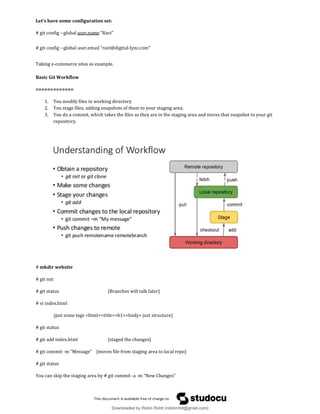
1. You modify files in working directory
2. You stage files, adding snapshots of them to your staging area.
3. You do a commit, which takes the files as they are in the staging area and stores that snapshot to your git
repository.
# mkdir website
# git init
# git status {Branches will talk later}
# vi index.html
{put some tags <html><title><h1><body> just structure}
# git status
# git add index.html {staged the changes}
# git commit -m “Message” {moves file from staging area to local repo}
# git status
You can skip the staging area by # git commit -a -m “New Changes”
Downloaded by Robin Rohit (robinrohit@gmail.com)
lOMoARcPSD|3465636
Commit History - How many Commits have happened ??
To see what commits have been done so far we use a command:
# git log
It gives commit history basically commit number, author info, date and commit message.
Want to see what happend at this commit, zoom in info we use:
# git show <commit number>
Let’s understand this commit number
This is sha1 value randomly generated number which is 40 character hexadecimal number which will be unique.
Let’s change the title in index.html and go with
# git add status commit
# git log {gives the latest commit on top and old will get down}
Git diff
========
Let’s see, the diff command gives the difference b/w two commits.
# git diff xxxxxx..xxxxxx
You can get diff b/w any sha’s like sha1..sha20.
Now our log started increasing, like this the changes keep on adding file is one but there are different versions of this file.
# git log --since YYYY-MM-DD
# git log --author ravi
# git log --grep HTML { commit message }
# git log --oneline
Git Branching
================
In a collaborative environment, it is common for several developers to share and work on the same source code.
Some developers will be fixing bugs while others would be implementing new features.
Therefore, there has got to be a manageable way to maintain different versions of the same code base.
This is where the branch function comes to the rescue. Branch allows each developer to branch out from the original
code base and isolate their work from others. Another good thing about branch is that it helps Git to easily merge the
versions later on.
It is a common practice to create a new branch for each task (eg. bug fixing, new features etc.)
Downloaded by Robin Rohit (robinrohit@gmail.com)
lOMoARcPSD|3465636
Branching means you diverge from the main line(master-working copy of application) of development and
continue to do work without messing with that main line.
Basically, you have your master branch and you don't want to mess anything up on that branch.
In many VCS tools, branching is an expensive process, often requiring you to create a new copy of your source code
directory, which can take a long time for large projects.
Some people refer to Git’s branching model as its “killer feature” and it certainly sets Git apart in the VCS community.
Why is it so special?
The way Git branches is incredibly lightweight, making branching operations nearly instantaneous, and switching back
and forth between branches generally just as fast.
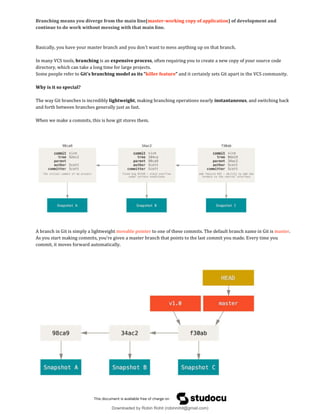
When we make a commits, this is how git stores them.
A branch in Git is simply a lightweight movable pointer to one of these commits. The default branch name in Git is master.
As you start making commits, you’re given a master branch that points to the last commit you made. Every time you
commit, it moves forward automatically.
Downloaded by Robin Rohit (robinrohit@gmail.com)
lOMoARcPSD|3465636
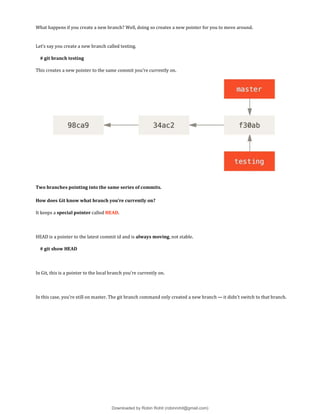
What happens if you create a new branch? Well, doing so creates a new pointer for you to move around.
Let’s say you create a new branch called testing.
# git branch testing
This creates a new pointer to the same commit you’re currently on.
Two branches pointing into the same series of commits.
How does Git know what branch you’re currently on?
It keeps a special pointer called HEAD.
HEAD is a pointer to the latest commit id and is always moving, not stable.
# git show HEAD
In Git, this is a pointer to the local branch you’re currently on.
In this case, you’re still on master. The git branch command only created a new branch — it didn’t switch to that branch.
Downloaded by Robin Rohit (robinrohit@gmail.com)
lOMoARcPSD|3465636
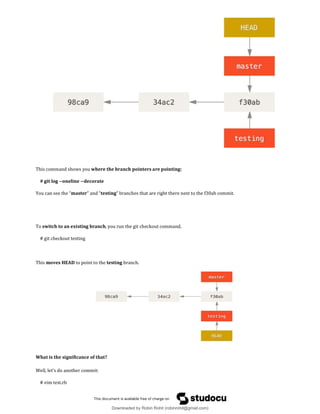
This command shows you where the branch pointers are pointing:
# git log --oneline --decorate
You can see the “master” and “testing” branches that are right there next to the f30ab commit.
To switch to an existing branch, you run the git checkout command.
# git checkout testing
This moves HEAD to point to the testing branch.
What is the significance of that?
Well, let’s do another commit:
# vim test.rb
Downloaded by Robin Rohit (robinrohit@gmail.com)
lOMoARcPSD|3465636
# git commit -a -m 'made a change'
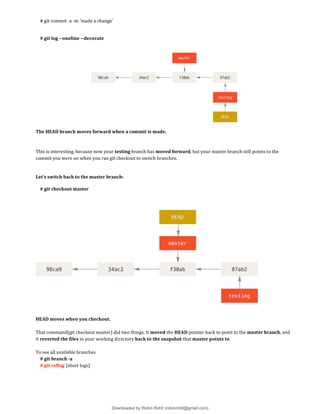
# git log --oneline --decorate
The HEAD branch moves forward when a commit is made.
This is interesting, because now your testing branch has moved forward, but your master branch still points to the
commit you were on when you ran git checkout to switch branches.
Let’s switch back to the master branch:
# git checkout master
HEAD moves when you checkout.
That command(git checkout master) did two things. It moved the HEAD pointer back to point to the master branch, and
it reverted the files in your working directory back to the snapshot that master points to.
To see all available branches
# git branch -a
# git reflog {short logs}
Downloaded by Robin Rohit (robinrohit@gmail.com)
lOMoARcPSD|3465636
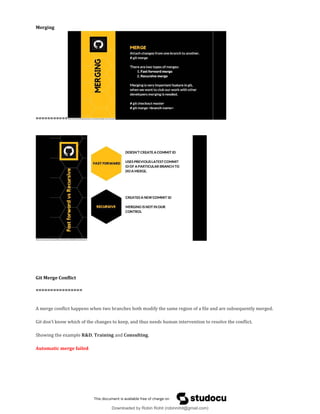
Merging
===========
Git Merge Conflict
================
A merge conflict happens when two branches both modify the same region of a file and are subsequently merged.
Git don’t know which of the changes to keep, and thus needs human intervention to resolve the conflict.
Showing the example R&D, Training and Consulting.
Automatic merge failed
Downloaded by Robin Rohit (robinrohit@gmail.com)
lOMoARcPSD|3465636
Example showing Merge Conflict
============================
# On master branch
# vi services.html { Add Two Dummy services like Research & Development }
# git branch training
# git branch consulting
# git checkout training
# vi services.html { We provide training }
# git add && git commit
# git checkout master
# git merge training
# git checkout consulting
# vi services.html { We provide Consulting add in same line}
# git add && git commit
# git checkout master
# git merge consulting
Automatic merge failed
# we do get a merge conflict here, open the services.html in vi and resolve the conflicts that occurred.
# git add .
# git commit -m “Conflict resolved”
Git ignore
============
It’s a list of files you want git to ignore in your working directory.
It's usually used to avoid committing transient files from your working directory that aren't useful to other collaborators
such as temp files IDE’s create, Compilation files, OS files etc.
A file should be ignored if any of the following is true:
● The file is not used by your project
● The file is not used by anyone else in your team
● The file is generated by another process
Downloaded by Robin Rohit (robinrohit@gmail.com)
lOMoARcPSD|3465636
.gitignore
============
https://www.gitignore.io/
If you want some files to be ignored by git create a file .gitignore
*.bk
*.class
# Ignore all php files
*.php
# but not index.php
!index.php
# Ignore all text files that start with aeiou
[aeiou]*.txt
Stashing
Downloaded by Robin Rohit (robinrohit@gmail.com)
lOMoARcPSD|3465636
=============
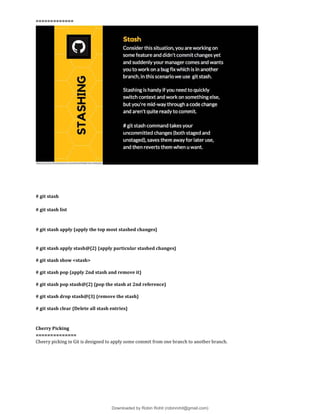
# git stash
# git stash list
# git stash apply {apply the top most stashed changes}
# git stash apply stash@{2} {apply particular stashed changes}
# git stash show <stash>
# git stash pop {apply 2nd stash and remove it}
# git stash pop stash@{2} {pop the stash at 2nd reference}
# git stash drop stash@{3} {remove the stash}
# git stash clear {Delete all stash entries}
Cherry Picking
==============
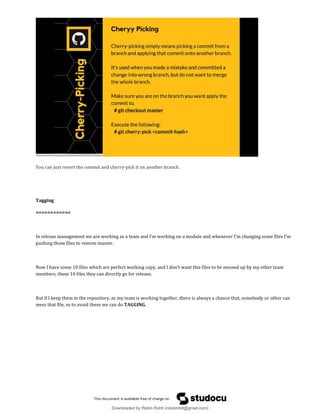
Cheery picking in Git is designed to apply some commit from one branch to another branch.
Downloaded by Robin Rohit (robinrohit@gmail.com)
lOMoARcPSD|3465636
You can just revert the commit and cherry-pick it on another branch.
Tagging
============
In release management we are working as a team and I’m working on a module and whenever I’m changing some files I’m
pushing those files to remote master.
Now I have some 10 files which are perfect working copy, and I don’t want this files to be messed up by my other team
members, these 10 files they can directly go for release.
But if I keep them in the repository, as my team is working together, there is always a chance that, somebody or other can
mess that file, so to avoid these we can do TAGGING.
Downloaded by Robin Rohit (robinrohit@gmail.com)
lOMoARcPSD|3465636

devops-complete-notes-2.pdf

  • 1.
    Studocu is notsponsored or endorsed by any college or university Devops complete notes-2 Devops Package (Delhi Technological University) Studocu is not sponsored or endorsed by any college or university Devops complete notes-2 Devops Package (Delhi Technological University) Downloaded by Robin Rohit (robinrohit@gmail.com) lOMoARcPSD|3465636
  • 2.
    Git Architecture Git usesthree tree architecture. Well interestingly Git has the Working Copy and Repository as well but it has added an extra tree Staging in between: As you can see above, there is a new tree called Staging. What this is for ? This is one of the fundamental difference of Git that sets it apart from other VCS, this Staging tree (usually termed as Staging area) is a place where you prepare all the things that you are going to commit. In Git, you don't move things directly from your working copy to the repository, you have to stage them first, one of the main benefits of this is, to break up your working changes into smaller, self-contained pieces. To stage a file is to prepare it for a commit. Staging allows you finer control over exactly how you want to approach version control. Advantages Of Git =================== Downloaded by Robin Rohit (robinrohit@gmail.com) lOMoARcPSD|3465636
  • 3.
    Git works onmost of OS: Linux, Windows, Solaris and MAC. Installing Git ● Download Git {git website} To check if git is available or not use: # rpm -qa | grep git # sudo yum install git # git --version Setting the Configuration ======================= # git config --global user.name “Ravi Krishna” # git config --global user.email “info@gmail.com” # git config --list NOTE :: The above info is not the authentication information. What is the need of git config =========================== When we setup git and before adding bunch of files, We need to fill up username & email and it’s basically git way of creating an account. Working with Git ================= Getting a Git Repository # mkdir website Initialising a repository into directory, to initialize git we use: # git init The purpose of Git is to manage a project, or a set of files, as they change over time. Git stores this information in a data structure called a repository. # git init is only for when you create your own new repository from scratch. It turns a directory into an empty git repository. Downloaded by Robin Rohit (robinrohit@gmail.com) lOMoARcPSD|3465636
  • 4.
    Let’s have someconfiguration set: # git config --global user.name “Ravi” # git config --global user.email “ravi@digital-lync.com” Taking e-commerce sites as example. Basic Git Workflow ============= 1. You modify files in working directory 2. You stage files, adding snapshots of them to your staging area. 3. You do a commit, which takes the files as they are in the staging area and stores that snapshot to your git repository. # mkdir website # git init # git status {Branches will talk later} # vi index.html {put some tags <html><title><h1><body> just structure} # git status # git add index.html {staged the changes} # git commit -m “Message” {moves file from staging area to local repo} # git status You can skip the staging area by # git commit -a -m “New Changes” Downloaded by Robin Rohit (robinrohit@gmail.com) lOMoARcPSD|3465636
  • 5.
    Commit History -How many Commits have happened ?? To see what commits have been done so far we use a command: # git log It gives commit history basically commit number, author info, date and commit message. Want to see what happend at this commit, zoom in info we use: # git show <commit number> Let’s understand this commit number This is sha1 value randomly generated number which is 40 character hexadecimal number which will be unique. Let’s change the title in index.html and go with # git add status commit # git log {gives the latest commit on top and old will get down} Git diff ======== Let’s see, the diff command gives the difference b/w two commits. # git diff xxxxxx..xxxxxx You can get diff b/w any sha’s like sha1..sha20. Now our log started increasing, like this the changes keep on adding file is one but there are different versions of this file. # git log --since YYYY-MM-DD # git log --author ravi # git log --grep HTML { commit message } # git log --oneline Git Branching ================ In a collaborative environment, it is common for several developers to share and work on the same source code. Some developers will be fixing bugs while others would be implementing new features. Therefore, there has got to be a manageable way to maintain different versions of the same code base. This is where the branch function comes to the rescue. Branch allows each developer to branch out from the original code base and isolate their work from others. Another good thing about branch is that it helps Git to easily merge the versions later on. It is a common practice to create a new branch for each task (eg. bug fixing, new features etc.) Downloaded by Robin Rohit (robinrohit@gmail.com) lOMoARcPSD|3465636
  • 6.
    Branching means youdiverge from the main line(master-working copy of application) of development and continue to do work without messing with that main line. Basically, you have your master branch and you don't want to mess anything up on that branch. In many VCS tools, branching is an expensive process, often requiring you to create a new copy of your source code directory, which can take a long time for large projects. Some people refer to Git’s branching model as its “killer feature” and it certainly sets Git apart in the VCS community. Why is it so special? The way Git branches is incredibly lightweight, making branching operations nearly instantaneous, and switching back and forth between branches generally just as fast. When we make a commits, this is how git stores them. A branch in Git is simply a lightweight movable pointer to one of these commits. The default branch name in Git is master. As you start making commits, you’re given a master branch that points to the last commit you made. Every time you commit, it moves forward automatically. Downloaded by Robin Rohit (robinrohit@gmail.com) lOMoARcPSD|3465636
  • 7.
    What happens ifyou create a new branch? Well, doing so creates a new pointer for you to move around. Let’s say you create a new branch called testing. # git branch testing This creates a new pointer to the same commit you’re currently on. Two branches pointing into the same series of commits. How does Git know what branch you’re currently on? It keeps a special pointer called HEAD. HEAD is a pointer to the latest commit id and is always moving, not stable. # git show HEAD In Git, this is a pointer to the local branch you’re currently on. In this case, you’re still on master. The git branch command only created a new branch — it didn’t switch to that branch. Downloaded by Robin Rohit (robinrohit@gmail.com) lOMoARcPSD|3465636
  • 8.
    This command showsyou where the branch pointers are pointing: # git log --oneline --decorate You can see the “master” and “testing” branches that are right there next to the f30ab commit. To switch to an existing branch, you run the git checkout command. # git checkout testing This moves HEAD to point to the testing branch. What is the significance of that? Well, let’s do another commit: # vim test.rb Downloaded by Robin Rohit (robinrohit@gmail.com) lOMoARcPSD|3465636
  • 9.
    # git commit-a -m 'made a change' # git log --oneline --decorate The HEAD branch moves forward when a commit is made. This is interesting, because now your testing branch has moved forward, but your master branch still points to the commit you were on when you ran git checkout to switch branches. Let’s switch back to the master branch: # git checkout master HEAD moves when you checkout. That command(git checkout master) did two things. It moved the HEAD pointer back to point to the master branch, and it reverted the files in your working directory back to the snapshot that master points to. To see all available branches # git branch -a # git reflog {short logs} Downloaded by Robin Rohit (robinrohit@gmail.com) lOMoARcPSD|3465636
  • 10.
    Merging =========== Git Merge Conflict ================ Amerge conflict happens when two branches both modify the same region of a file and are subsequently merged. Git don’t know which of the changes to keep, and thus needs human intervention to resolve the conflict. Showing the example R&D, Training and Consulting. Automatic merge failed Downloaded by Robin Rohit (robinrohit@gmail.com) lOMoARcPSD|3465636
  • 11.
    Example showing MergeConflict ============================ # On master branch # vi services.html { Add Two Dummy services like Research & Development } # git branch training # git branch consulting # git checkout training # vi services.html { We provide training } # git add && git commit # git checkout master # git merge training # git checkout consulting # vi services.html { We provide Consulting add in same line} # git add && git commit # git checkout master # git merge consulting Automatic merge failed # we do get a merge conflict here, open the services.html in vi and resolve the conflicts that occurred. # git add . # git commit -m “Conflict resolved” Git ignore ============ It’s a list of files you want git to ignore in your working directory. It's usually used to avoid committing transient files from your working directory that aren't useful to other collaborators such as temp files IDE’s create, Compilation files, OS files etc. A file should be ignored if any of the following is true: ● The file is not used by your project ● The file is not used by anyone else in your team ● The file is generated by another process Downloaded by Robin Rohit (robinrohit@gmail.com) lOMoARcPSD|3465636
  • 12.
    .gitignore ============ https://www.gitignore.io/ If you wantsome files to be ignored by git create a file .gitignore *.bk *.class # Ignore all php files *.php # but not index.php !index.php # Ignore all text files that start with aeiou [aeiou]*.txt Stashing Downloaded by Robin Rohit (robinrohit@gmail.com) lOMoARcPSD|3465636
  • 13.
    ============= # git stash #git stash list # git stash apply {apply the top most stashed changes} # git stash apply stash@{2} {apply particular stashed changes} # git stash show <stash> # git stash pop {apply 2nd stash and remove it} # git stash pop stash@{2} {pop the stash at 2nd reference} # git stash drop stash@{3} {remove the stash} # git stash clear {Delete all stash entries} Cherry Picking ============== Cheery picking in Git is designed to apply some commit from one branch to another branch. Downloaded by Robin Rohit (robinrohit@gmail.com) lOMoARcPSD|3465636
  • 14.
    You can justrevert the commit and cherry-pick it on another branch. Tagging ============ In release management we are working as a team and I’m working on a module and whenever I’m changing some files I’m pushing those files to remote master. Now I have some 10 files which are perfect working copy, and I don’t want this files to be messed up by my other team members, these 10 files they can directly go for release. But if I keep them in the repository, as my team is working together, there is always a chance that, somebody or other can mess that file, so to avoid these we can do TAGGING. Downloaded by Robin Rohit (robinrohit@gmail.com) lOMoARcPSD|3465636