Unit - I
Introduction to Internet
Technology
What is Internet Technology?
 Definition:
 Internet technology refers to the technologies, protocols, and systems
that enable the exchange of data and communication over the internet.
 Example:
 Google Search: When you search on Google, the technology behind it
fetches results from thousands of servers across the world.
1. History of Internet Technology
 The history of the internet is a fascinating tale of technological evolution, innovation, and
collaboration. Here's a brief overview of its key developments:
1. Early Beginnings (1960s-1970s)
 Theoretical Foundations: The idea of a global network of computers was first proposed in the
early 1960s. Visionaries like J.C.R. Licklider and Paul Baran laid the groundwork for a
system that could link computers for easy communication and data sharing.
 ARPANET (1969): The United States Department of Defense's Advanced Research Projects
Agency (ARPA) developed the first successful packet-switching network, known as
ARPANET. It allowed researchers to share data between computers, and by the early 1970s,
it connected several universities and research institutions across the U.S.
 Protocols and Technologies: In the early 1970s, key protocols like TCP (Transmission Control
Protocol) and IP (Internet Protocol) were developed by Vinton Cerf and Bob Kahn, forming
the foundational architecture for the internet.
2. Expansion and Evolution (1980s)
 The Birth of the Domain Name System (DNS): The Domain Name System (DNS) was
introduced in 1984, making it easier to access websites by using human-readable domain
names instead of numerical IP addresses.
 Commercialization Begins: In the late 1980s, the National Science Foundation Network
(NSFNET) was created, expanding the network beyond government and academic
institutions and making it accessible to more users.
History of Internet Technology(Cont..)
3. The World Wide Web (1990s)
 Tim Berners-Lee and the Web (1990): The invention of the World Wide Web (WWW) by Tim Berners-Lee at
CERN in Switzerland revolutionized the internet. He developed the first web browser and web server
software, allowing people to access documents, images, and multimedia through hyperlinks.
 Web Browsers: The introduction of web browsers like Mosaic (1993) and Netscape Navigator (1994) brought
graphical web pages to the masses. This allowed users to interact with the internet more easily, leading to
rapid growth in internet adoption.
 The Dot-Com Boom (Late 1990s): The commercial potential of the internet exploded during the late 1990s
with the rise of e-commerce, online advertising, and tech companies like Amazon, eBay, and Yahoo. The dot-
com bubble led to a surge in internet-related startups.
4. The 2000s: Broadband, Social Media, and Web 2.0
 Broadband Internet: The widespread adoption of broadband internet connections replaced dial-up access,
providing faster speeds and enabling the development of richer web experiences.
 Rise of Social Media: In the early 2000s, platforms like Facebook (2004), YouTube (2005), and Twitter (2006)
transformed the internet by creating new ways for people to connect and share content online.
 Web 2.0: This term described the shift toward dynamic, user-generated content, collaboration, and social
interaction on the web. The growth of blogs, wikis, and video-sharing platforms exemplified this change.
History of Internet Technology (Cont..)
5. The 2010s: Mobile, Cloud Computing, and the Internet of Things
 Mobile Internet: The advent of smartphones and tablets, especially with the launch of the
iPhone (2007) and Android devices, brought the internet to users' fingertips. Mobile apps
became a major part of how people accessed the web.
 Cloud Computing: Services like Google Drive, Dropbox, and Amazon Web Services allowed for
data storage and processing over the internet, rather than on local devices, accelerating
business and personal use of online resources.
 Internet of Things (IoT): The IoT began to connect everyday devices like smart thermostats,
refrigerators, and wearable technology to the internet, creating a more interconnected world.
6. The 2020s: AI, 5G, and the Future
 Artificial Intelligence (AI) and Machine Learning: AI-powered tools and applications have
become central to how we interact with the internet, from voice assistants like Alexa and Siri
to personalized recommendations and autonomous vehicles.
 5G Networks: The rollout of 5G networks promises faster internet speeds, lower latency, and
greater connectivity, which will further enhance technologies like IoT, virtual reality, and
remote work.
 Evolving Online Culture: The internet continues to shape modern culture, with a rise in online
communities, gaming, e-learning, telemedicine, and virtual workspaces, accelerating the digital
transformation of many industries.
History of Internet Technology
(Cont..)
5. The 2010s: Mobile, Cloud Computing, and the Internet of Things
 Mobile Internet: The advent of smartphones and tablets, especially with the launch of the iPhone
(2007) and Android devices, brought the internet to users' fingertips. Mobile apps became a major
part of how people accessed the web.
 Cloud Computing: Services like Google Drive, Dropbox, and Amazon Web Services allowed for
data storage and processing over the internet, rather than on local devices, accelerating business
and personal use of online resources.
 Internet of Things (IoT): The IoT began to connect everyday devices like smart thermostats,
refrigerators, and wearable technology to the internet, creating a more interconnected world.
6. The 2020s: AI, 5G, and the Future
 Artificial Intelligence (AI) and Machine Learning: AI-powered tools and applications have
become central to how we interact with the internet, from voice assistants like Alexa and Siri to
personalized recommendations and autonomous vehicles.
 5G Networks: The rollout of 5G networks promises faster internet speeds, lower latency, and
greater connectivity, which will further enhance technologies like IoT, virtual reality, and remote
work.
 Evolving Online Culture: The internet continues to shape modern culture, with a rise in online
communities, gaming, e-learning, telemedicine, and virtual workspaces, accelerating the digital
transformation of many industries.
2. Internet Addressing
 Internet addressing refers to the system that identifies devices and resources on the internet so they can
communicate with each other. There are several components involved in internet addressing, including IP
addresses, domain names, and port numbers. Here's a breakdown of the key concepts:
1. IP Addressing
 An IP address (Internet Protocol address) is a unique identifier for a device (such as a computer, smartphone,
or server) on a network. IP addresses enable devices to send and receive data across the internet. There are
two main versions of IP addresses:
a. IPv4 (Internet Protocol version 4)
 Structure: An IPv4 address is composed of four numbers (called octets), each ranging from 0 to 255, separated
by periods (e.g., 192.168.1.1).
 Format: It looks like this: xxx.xxx.xxx.xxx, where each "xxx" is a number between 0 and 255.
 Total Addresses: IPv4 can support about 4.3 billion unique addresses (2^32), which is now insufficient for the
growing number of devices connected to the internet, leading to the adoption of IPv6.
b. IPv6 (Internet Protocol version 6)
 Structure: IPv6 addresses are 128 bits long, which is much larger than IPv4, allowing for a vastly larger
number of unique addresses. They are written in hexadecimal (base-16), and the address is divided into eight
groups of four hexadecimal digits, separated by colons (e.g., 2001:0db8:85a3:0000:0000:8a2e:0370:7334).
 Format: It looks like this: xxxx:xxxx:xxxx:xxxx:xxxx:xxxx:xxxx:xxxx.
 Total Addresses: IPv6 can support 340 undecillion (3.4 x 10^38) unique addresses, which is more than enough
to accommodate the growing number of internet-connected devices.
Internet Addressing (cont..)
2. Domain Name System (DNS)
 While IP addresses are used by computers to locate each other,
humans prefer easier-to-remember names, such as www.example.com.
The Domain Name System (DNS) is a hierarchical system that maps
human-readable domain names to IP addresses.
 How DNS works: When you enter a domain name into your browser, a
DNS server translates it into the corresponding IP address of the
server hosting the website. This is like a phonebook for the internet,
translating names into numbers.
 Components:
 Top-Level Domain (TLD): The suffix of the domain
(e.g., .com, .org, .net, .edu).
 Second-Level Domain: The name before the TLD (e.g., example in
example.com).
 Subdomain: Subsections of a domain, often used to organize
content (e.g., blog.example.com or shop.example.com).
Internet Addressing (cont..)
3. Subnetting
 Subnetting is the practice of dividing a larger network into smaller, more manageable sub-networks
(subnets). This allows more efficient use of IP addresses and better network performance.
 Subnet Mask: A subnet mask is used to determine which part of an IP address is the network portion
and which part is the host portion. It works with the IP address to define the boundaries of the
subnet.
 Example: In IPv4, a common subnet mask is 255.255.255.0, which means the first three octets
identify the network, and the last octet identifies individual devices within that network.
4. Port Numbers
 In addition to IP addresses, port numbers are used to identify specific services running on a device
(server) to enable proper communication. For example, while an IP address might point to a
particular server, the port number helps direct the request to the appropriate application on that
server.
 Well-Known Ports: Port numbers range from 0 to 65535, with the first 1024 being well-known ports
assigned to common services:
 Port 80: HTTP (web traffic)
 Port 443: HTTPS (secure web traffic)
 Port 25: SMTP (email)
 Port 21: FTP (File Transfer Protocol)
 Dynamic/Private Ports: Ports above 1024 are typically used for dynamic or private purposes, assigned
to client applications for temporary connections.
Internet Addressing (cont..)
5. Private and Public IP Addresses
 Private IP Addresses: These are used within local networks (LANs) and are not routable on the
internet. They are defined in specific ranges for IPv4:
 10.0.0.0 - 10.255.255.255
 172.16.0.0 - 172.31.255.255
 192.168.0.0 - 192.168.255.255
 NAT (Network Address Translation) is often used to allow devices with private IPs to
communicate with the public internet by translating private IP addresses into public IP
addresses when they need to send data outside the local network.
 Public IP Addresses: These are globally unique and routable on the internet. Every device
directly connected to the internet requires a public IP address (or at least one per network, if
using NAT).
6. Dynamic vs. Static IP Addresses
 Static IP Address: An IP address that doesn’t change over time, typically assigned to servers or
other devices that need a consistent address to be accessed reliably.
 Dynamic IP Address: An IP address that is assigned by a DHCP (Dynamic Host Configuration
Protocol) server and can change each time the device connects to the network. Most home
devices and some business systems use dynamic IPs.
3. Protocols
 Protocols are standardized rules and conventions that define how
data is transmitted and received over networks, including the
internet.
 They ensure that devices and applications can communicate with
each other correctly, even if they come from different
manufacturers or use different technologies.
 Protocols cover a wide range of functions, from how data is
formatted to how errors are handled.
3.1 TCP/IP
 TCP/IP was designed and developed by the Department of Defense (DoD) in the
1960s and is based on standard protocols.
 The TCP/IP model is a fundamental framework for computer networking and it is a
concise version of the OSI model.
 It stands for Transmission Control Protocol/Internet Protocol, which are the core
protocols of the Internet.
 This model defines how data is transmitted over networks, ensuring reliable
communication between devices.
 The TCP/IP model is used in the context of the real-world internet, where a wide
range of physical media and network technologies are in use.
 Rather than specifying a particular Physical Layer, the TCP/IP model allows for
flexibility in adapting to different physical implementations.
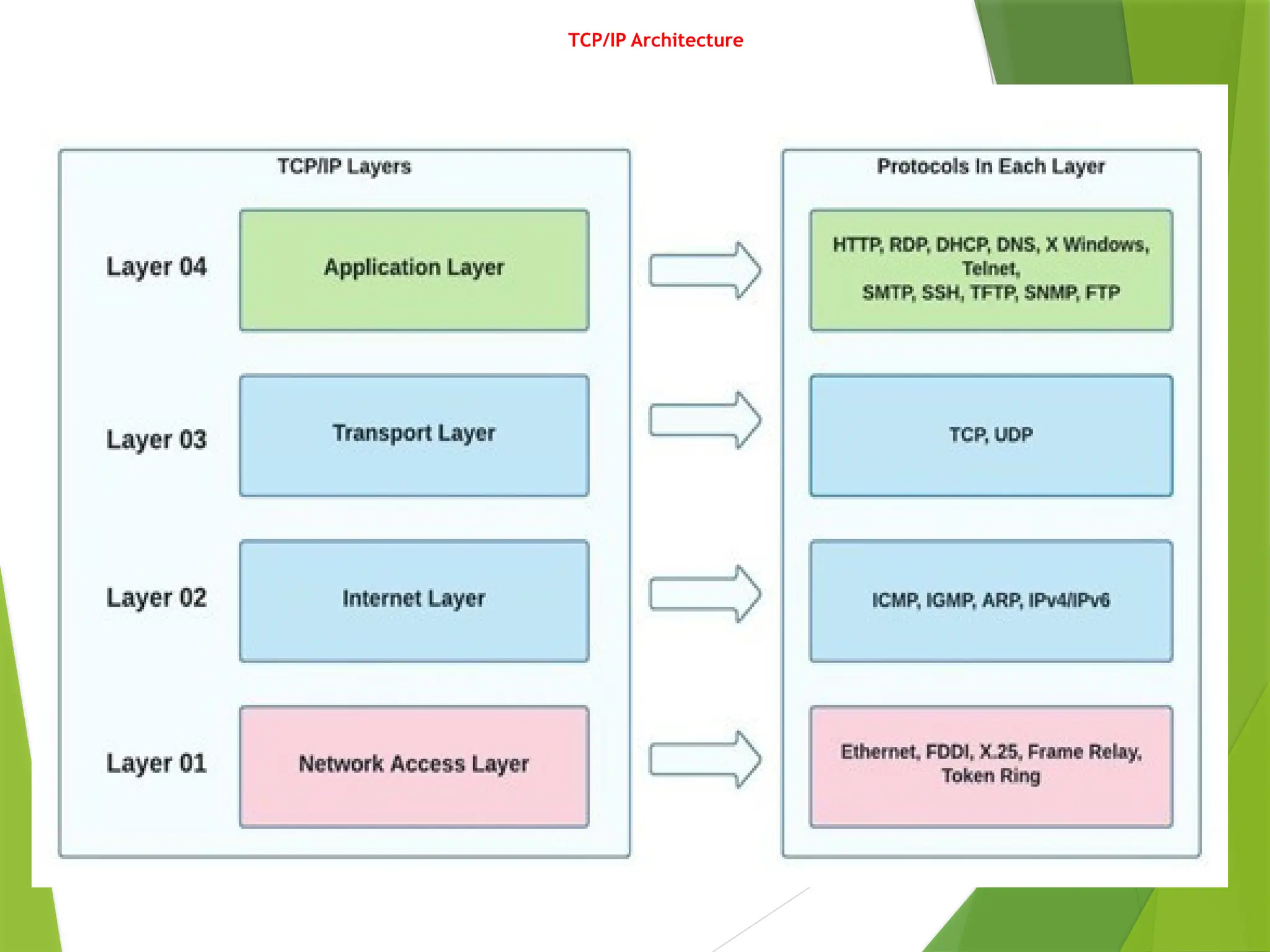
 It consists of four layers: the Data Link Layer, the Internet Layer, the Transport
Layer, and the Application Layer.
 Each layer has specific functions that help manage different aspects of network
communication, making it essential for understanding and working with modern
networks.
TCP/IP Architecture
Application Layer
 An application layer is the topmost layer in the TCP/IP model.
 It is responsible for handling high-level protocols, issues of representation.
 This layer allows the user to interact with the application.
 When one application layer protocol wants to communicate with another
application layer, it forwards its data to the transport layer.
 There is an ambiguity occurs in the application layer. Every application
cannot be placed inside the application layer except those who interact with
the communication system.
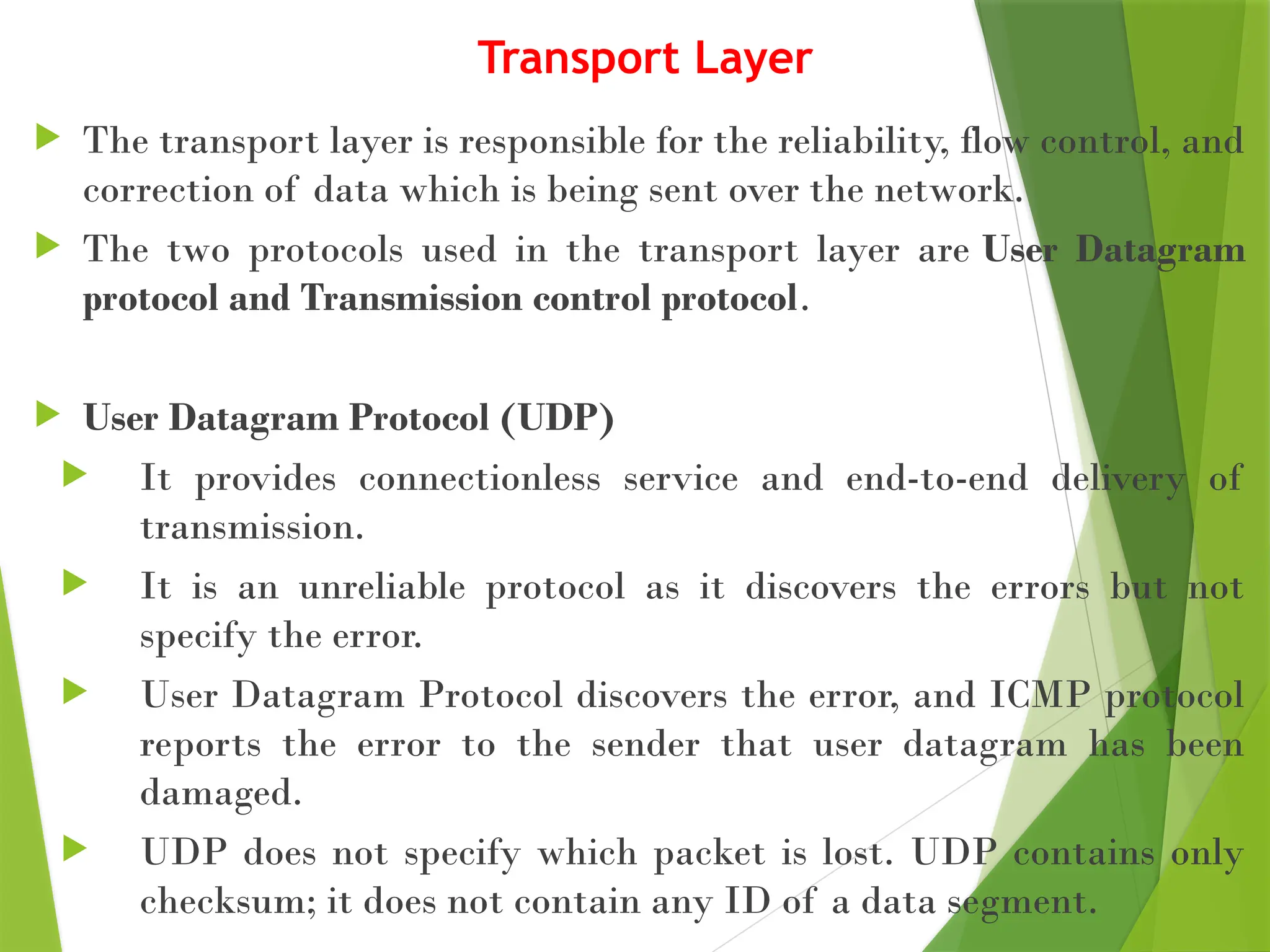
Transport Layer
 The transport layer is responsible for the reliability, flow control, and
correction of data which is being sent over the network.
 The two protocols used in the transport layer are User Datagram
protocol and Transmission control protocol.
 User Datagram Protocol (UDP)
 It provides connectionless service and end-to-end delivery of
transmission.
 It is an unreliable protocol as it discovers the errors but not
specify the error.
 User Datagram Protocol discovers the error, and ICMP protocol
reports the error to the sender that user datagram has been
damaged.
 UDP does not specify which packet is lost. UDP contains only
checksum; it does not contain any ID of a data segment.
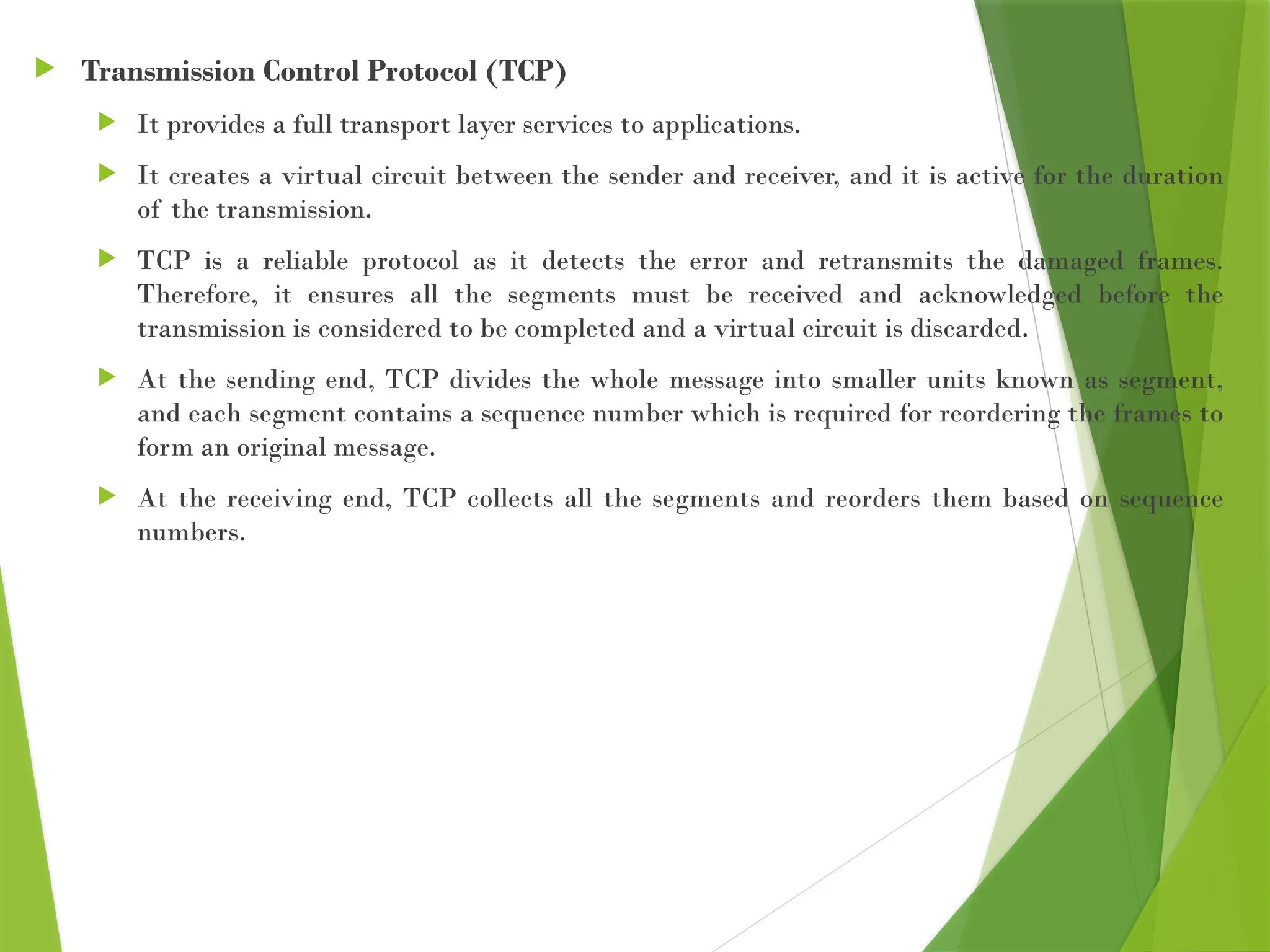
 Transmission Control Protocol (TCP)
 It provides a full transport layer services to applications.
 It creates a virtual circuit between the sender and receiver, and it is active for the duration
of the transmission.
 TCP is a reliable protocol as it detects the error and retransmits the damaged frames.
Therefore, it ensures all the segments must be received and acknowledged before the
transmission is considered to be completed and a virtual circuit is discarded.
 At the sending end, TCP divides the whole message into smaller units known as segment,
and each segment contains a sequence number which is required for reordering the frames to
form an original message.
 At the receiving end, TCP collects all the segments and reorders them based on sequence
numbers.
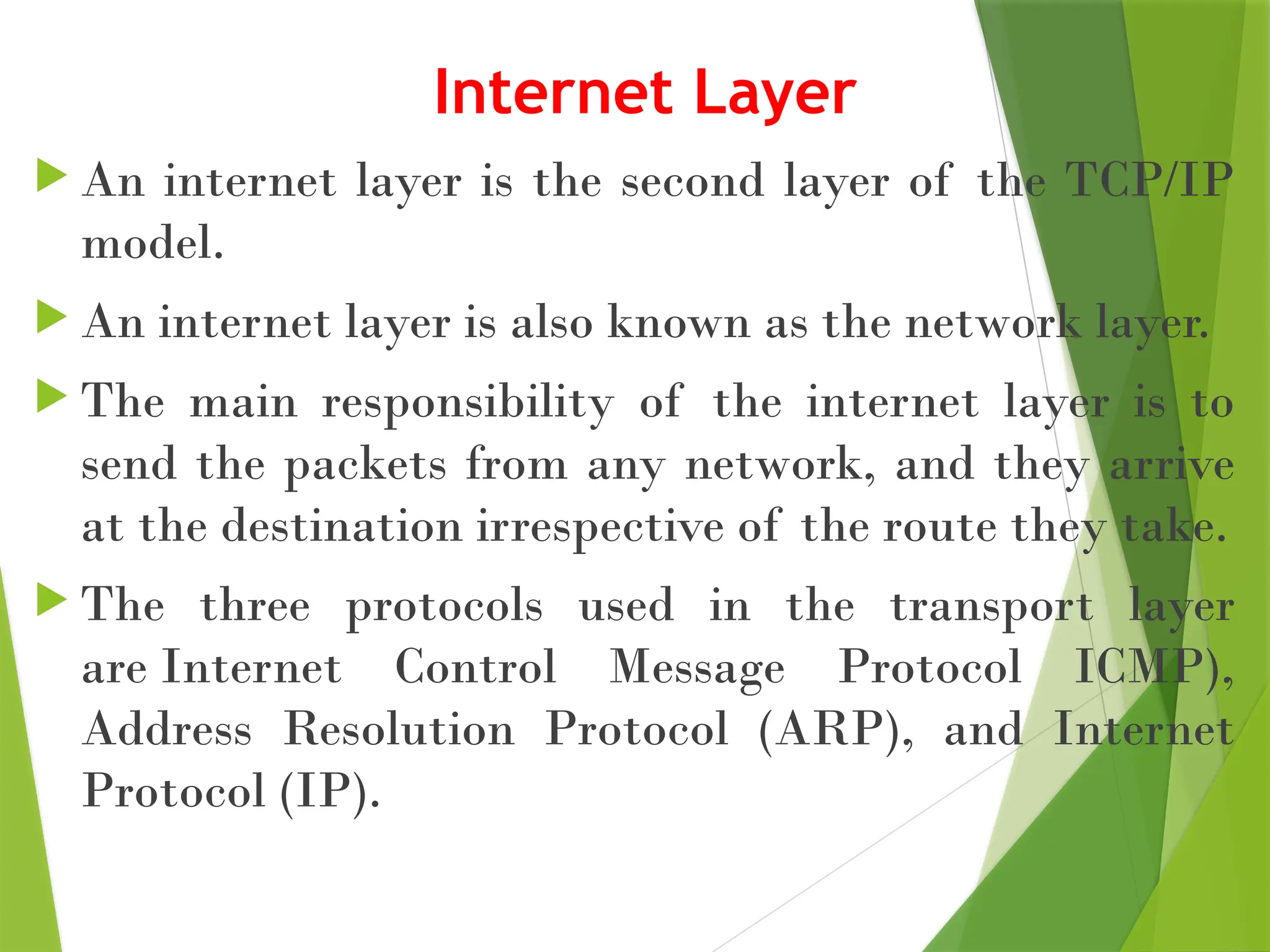
Internet Layer
 An internet layer is the second layer of the TCP/IP
model.
 An internet layer is also known as the network layer.
 The main responsibility of the internet layer is to
send the packets from any network, and they arrive
at the destination irrespective of the route they take.
 The three protocols used in the transport layer
are Internet Control Message Protocol ICMP),
Address Resolution Protocol (ARP), and Internet
Protocol (IP).
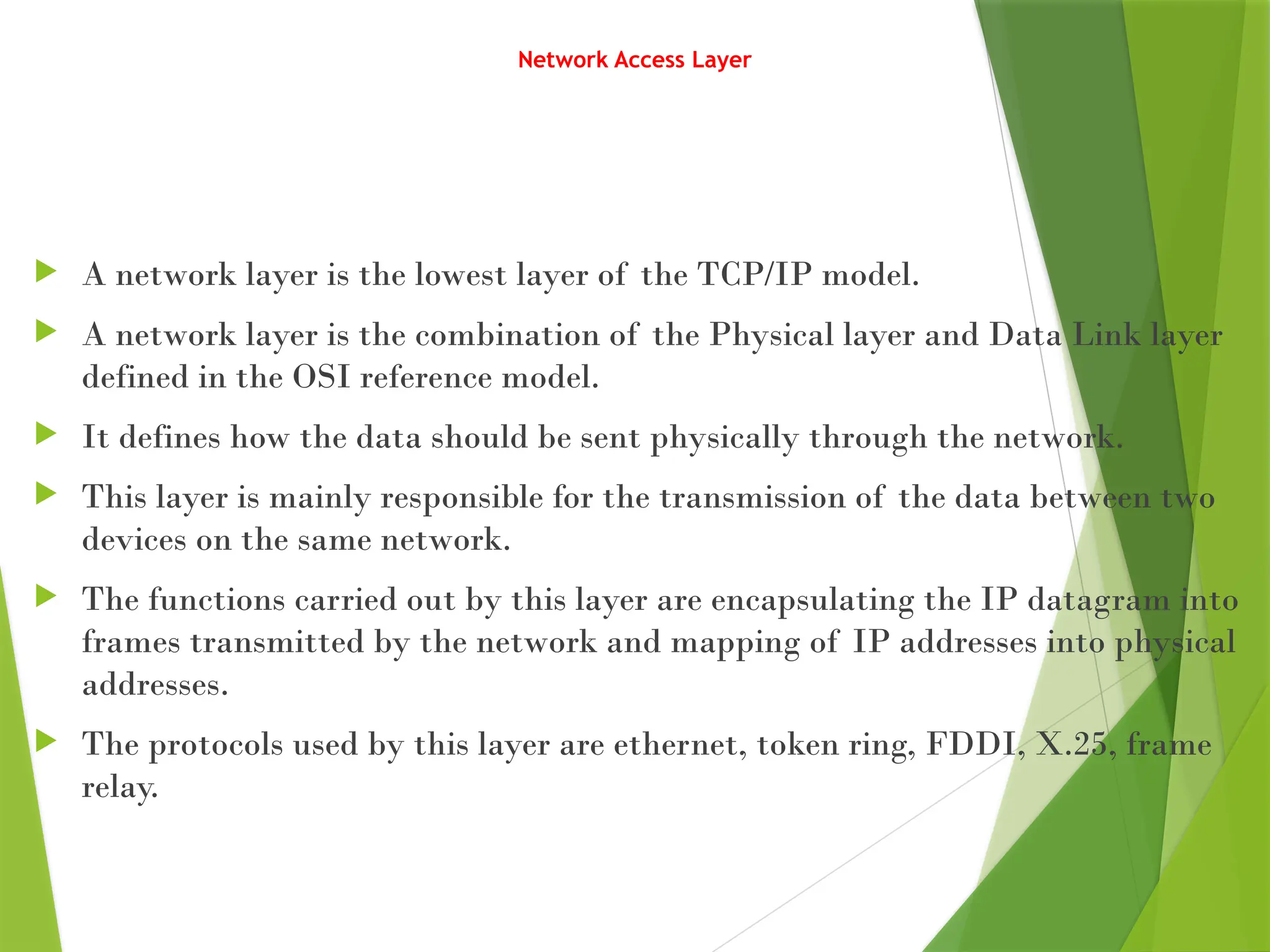
Network Access Layer
 A network layer is the lowest layer of the TCP/IP model.
 A network layer is the combination of the Physical layer and Data Link layer
defined in the OSI reference model.
 It defines how the data should be sent physically through the network.
 This layer is mainly responsible for the transmission of the data between two
devices on the same network.
 The functions carried out by this layer are encapsulating the IP datagram into
frames transmitted by the network and mapping of IP addresses into physical
addresses.
 The protocols used by this layer are ethernet, token ring, FDDI, X.25, frame
relay.
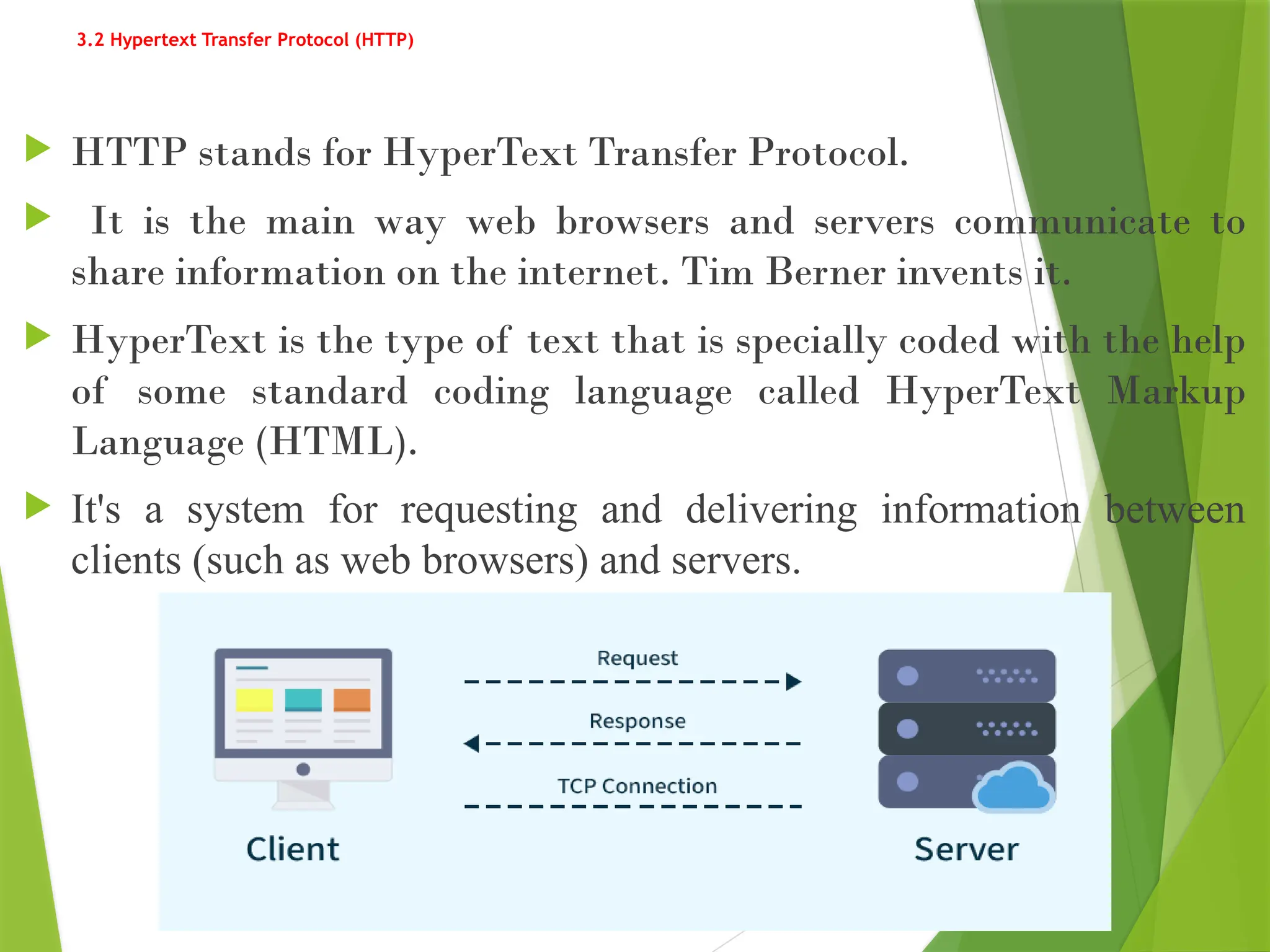
3.2 Hypertext Transfer Protocol (HTTP)
 HTTP stands for HyperText Transfer Protocol.
 It is the main way web browsers and servers communicate to
share information on the internet. Tim Berner invents it.
 HyperText is the type of text that is specially coded with the help
of some standard coding language called HyperText Markup
Language (HTML).
 It's a system for requesting and delivering information between
clients (such as web browsers) and servers.
1. Client-Server Model
 Client: Typically a web browser or application that sends requests for data (e.g., a
webpage).
 Server: The system that hosts the website or web service, which responds to
requests with the requested data, such as HTML pages, images, videos, or other
resources.
2. HTTP Request
 A user interacts with a web page, for example by typing a URL (like
https://example.com).
 The browser (client) sends an HTTP request to the web server, asking for the
resources (HTML, CSS, JavaScript files) associated with that URL.
 The request is typically composed of:
• Method: Specifies the type of action (e.g., GET, POST, PUT).
• URL: The location of the resource (e.g., /home).
• Headers: Provide additional information like browser type, cookies, etc.
• Body (optional): Data sent with the request, such as form input.
3. HTTP Response
 The web server receives the request and processes it.
 The server then sends back an HTTP response, which contains:
 Status Code: Indicates whether the request was successful or if there was an
error (e.g., 200 OK, 404 Not Found).
 Headers: Metadata about the response (e.g., content type, server information).
 Body: The requested resource (e.g., HTML content, images).
4. HTTP Methods
 GET: Requests data from the server. No data is sent in the body.
 POST: Submits data to the server, often used for forms.
 PUT: Updates data on the server.
 DELETE: Deletes data on the server.
 PATCH: Partially updates data on the server.
4. Domain Name System (DNS)
 The Domain Name System (DNS) is like the phonebook of the internet.
 It translates human-readable domain names (like www.example.com) into machine-readable
IP addresses (like 192.0.2.1) that computers use to identify each other on the network.
Key Concepts of DNS:
 Domain Names:
 Domain names are the addresses you type into a browser to visit websites. They are
easier for humans to remember than IP addresses.
 Example: When you type www.google.com, you're using a domain name.
IPAddresses:
 The internet works with IP addresses (e.g., 192.168.1.1) that are used to route data
to the correct location.
 DNS translates the user-friendly domain names into these numerical IP addresses,
so computers can connect to the right servers.
Domain Name System (Cont..)
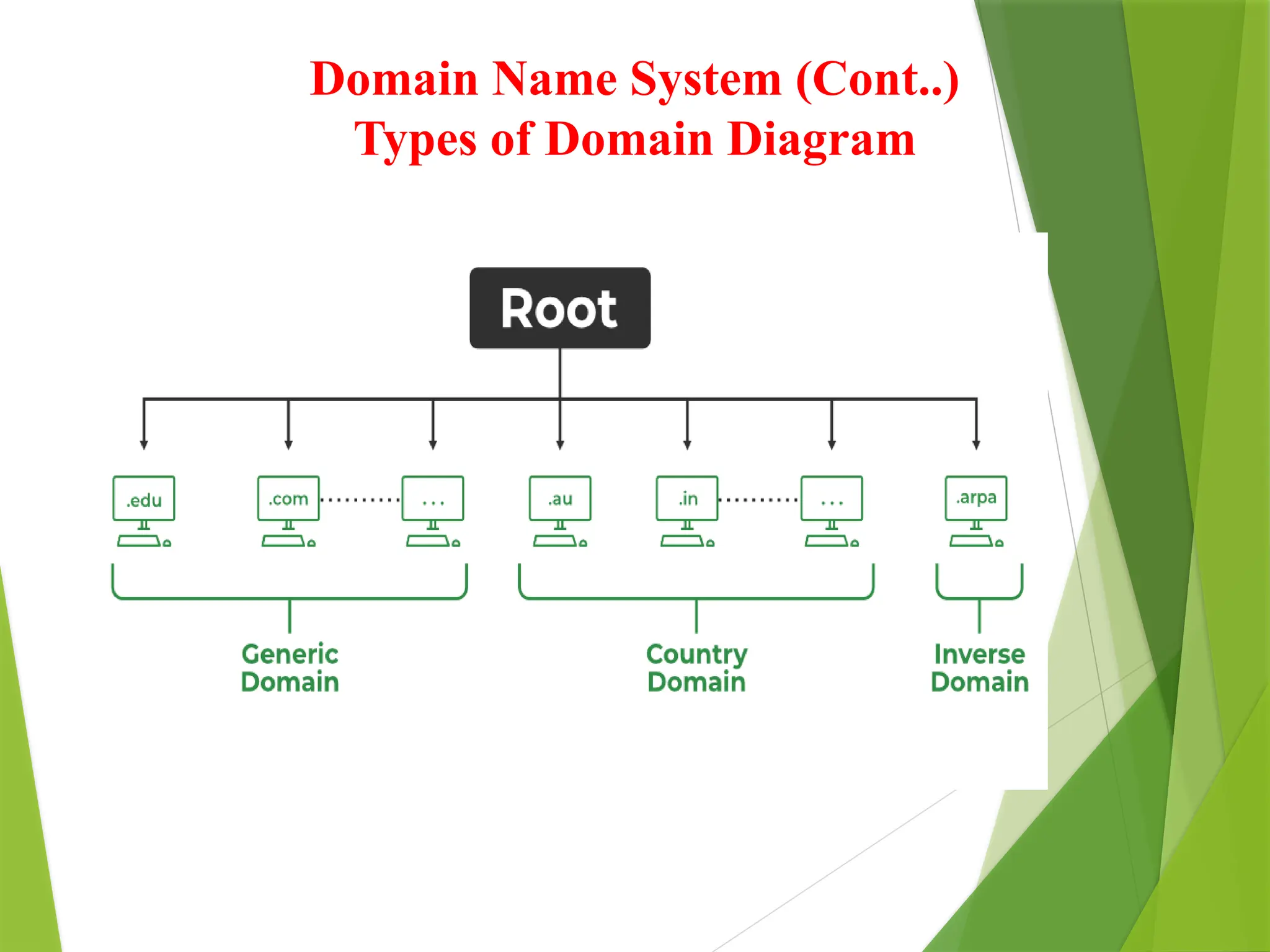
Types of Domain
 There are various kinds of domains:
 Generic Domains: .com(commercial), .edu(educational), .mil(military), .org(nonprofit
organization), .net(similar to commercial) all these are generic domains.
 Country Domain: .in (India) .us .uk
 Inverse Domain: if we want to know what is the domain name of the website. IP to
domain name mapping. So DNS can provide both the mapping for example to find the
IP addresses of geeksforgeeks.org then we have to type
Domain Name System (Cont..)
Types of Domain Diagram
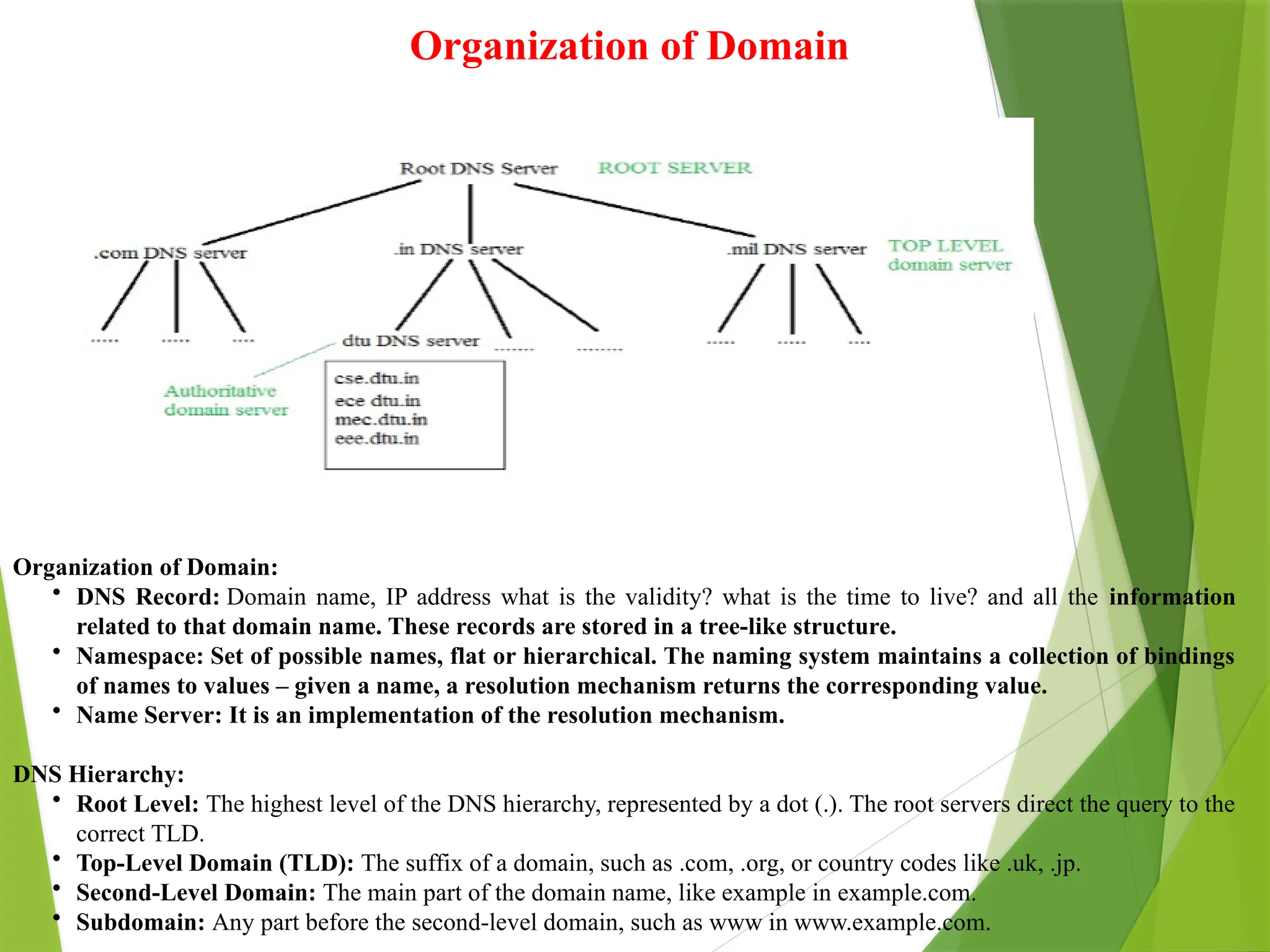
Organization of Domain
Organization of Domain:
• DNS Record: Domain name, IP address what is the validity? what is the time to live? and all the information
related to that domain name. These records are stored in a tree-like structure.
• Namespace: Set of possible names, flat or hierarchical. The naming system maintains a collection of bindings
of names to values – given a name, a resolution mechanism returns the corresponding value.
• Name Server: It is an implementation of the resolution mechanism.
DNS Hierarchy:
• Root Level: The highest level of the DNS hierarchy, represented by a dot (.). The root servers direct the query to the
correct TLD.
• Top-Level Domain (TLD): The suffix of a domain, such as .com, .org, or country codes like .uk, .jp.
• Second-Level Domain: The main part of the domain name, like example in example.com.
• Subdomain: Any part before the second-level domain, such as www in www.example.com.
5. Intranet
 An intranet is a kind of private network. For example, an intranet is
used by different organizations and only members/staff of that
organization have access to this.
 It is a system in which multiple computers of an organization (or the
computers you want to connect) are connected through an intranet.
 As this is a private network, so no one from the outside world can
access this network. So many organizations and companies have their
intranet network and only its members and staff have access to this
network.
 This is also used to protect your data and provide data security to a
particular organization, as it is a private network and does not leak
data to the outside world.
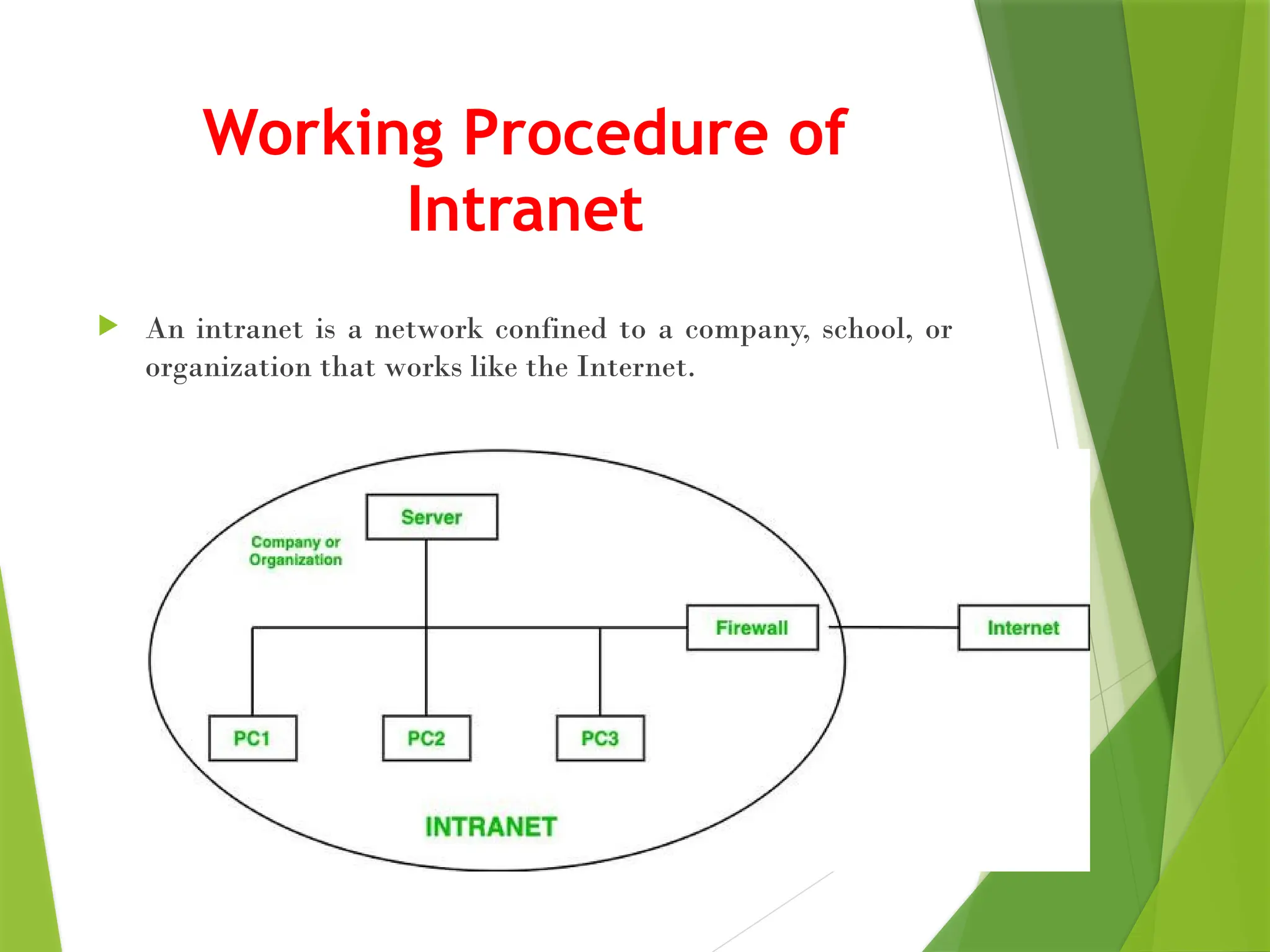
Working Procedure of
Intranet
 An intranet is a network confined to a company, school, or
organization that works like the Internet.
 In this diagram, a company or an organization has created its private network or
intranet for its work(intranet network is under the circle).
 The company or organization has many employees(in this diagram, we have
considered 3).
 So, for their access, they have PC 1, PC 2, and PC 3(In the real world there are many
employees as per the requirements of an organization).
 Also, they have their server for files or data to store, and to protect this private
network, there is a Firewall. This firewall protects and gives security to the intranet
server and its data from getting leaked to any unwanted user.
 So, a user who has access to the intranet can only access this network.
 So, no one from the outside world can access this network.
 Also, an intranet user can access the internet but a person using the internet cannot
access the intranet network.
Importance of Intranet
 Intranets play a crucial role in organizations by providing a centralized platform for seamless internal communication, collaboration, and
knowledge sharing, thereby significantly enhancing productivity, streamlining operations, and fostering a culture of innovation and efficiency.
Here are the reasons that increase its importance:
 Improves internal communication
 Connects employees across locations and time zones
 Boosts recognition and reward
 Simplifies employee onboarding
 Provides organizational clarity
 Encourages knowledge sharing
Features of Intranet
 Document management: The ability to store, organize, and share documents.
 Collaboration tools: The ability to collaborate on projects and tasks.
 News and announcements: The ability to share news and announcements with employees.
 Employee directory: The ability to find contact information for employees.
 Training and development: The ability to provide training and development resources to employees.
 HR resources: The ability to access HR-related information, such as benefits and policies.
 Support services: The ability to submit support tickets and get help from IT.
Advantages of Intranet
 In the intranet, the cost of conveying data utilizing the intranet is very low.
 Using intranet employees can easily get data anytime and anywhere.
 It is easy to learn and use.
 It can be utilized as a correspondence center point where employees can store data at whatever point they need and download files in just a few
seconds.
 It connects employees with each other.
 The documents stored on the intranet are much more secure.
6. Uniform Resource Locator
 A URL (Uniform Resource Locator, also called a web address) is a unique
identifier used to locate a resource on the internet. URLs consist of multiple
parts -- including a protocol and domain name -- that tell web browsers how
and where to retrieve a resource.
 End users use URLs by typing them directly into a browser address bar or by
clicking a hyperlink found on a webpage, bookmark list, email or another
application.
Structure of a URL
 A URL starts with a protocol followed by the name of the resource that has
to be accessed. URL uses the protocols as the primary access medium to
access the domain or subdomain specified after that wherever the resource is
located.
 It uses multiple protocols like HTTP (Hypertext Transfer Protocol), HTTPS
Protocol (Secured HTTP), mailto for emails, FTP (File Transfer Protocol) for
files, and TELNET to access remote computers.
 Mostly the protocol names are specified using the colons and the double
forward slashes, but the mailto protocol is specified using the colons only.
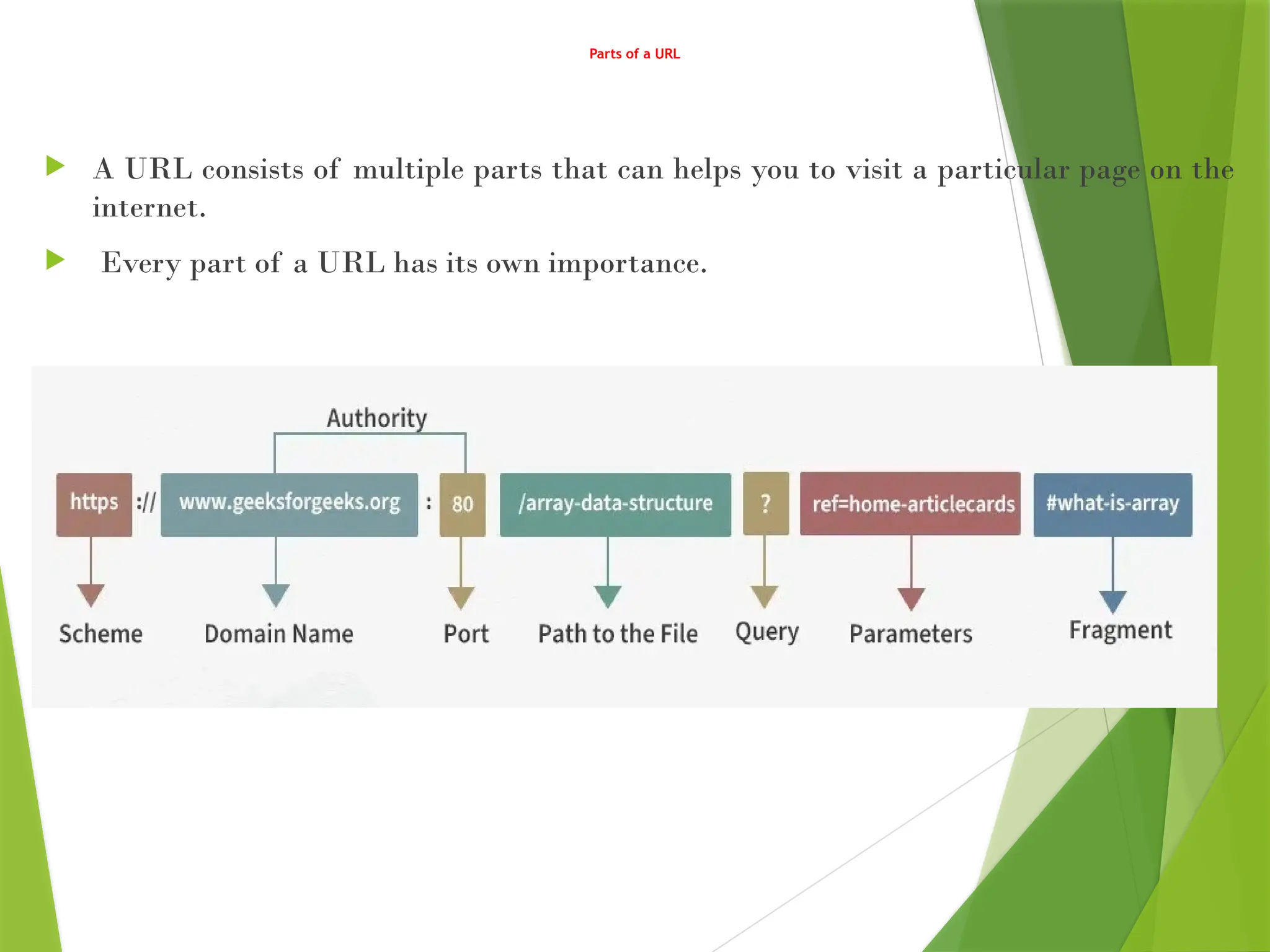
Parts of a URL
 A URL consists of multiple parts that can helps you to visit a particular page on the
internet.
 Every part of a URL has its own importance.
The protocol or scheme:
 A URL starts with a protocol that is used to access the resource on the internet. The resource is
accessed through the Domain Name System or DNS. There are multiple protocols avaiable to use like
HTTP, HTTPS, FTP, mailto, TELNET etc. The protocol used in the above URL is https.
Domain or Host Name:
 It is the reference or name of the page that you are going to access on the internet. In this case, the
domain name is: www.geeksforgeeks.org.
Port Name:
 It is defined just after the domain name by using the colons between itself and the domain name.
Generally, it is not visible in the URL. The domain name and the port ame combinely can be known
as Authority. The default port for web services is port80 (:80).
Path:
 It refers to the path or location of a particular file or page stored on the web server to access the
content of it. The path used here is: array-data-structure.
Query:
 A query mainly found in the dynamic pages. It consists of a question mark(?) followed by the
parameters. In above URL query is: ?.
Parameters:
 These are the pieces of information inside a query string of URL. Multiple parameters can be passed
to a URL by using the ampersand(&) symbol to separate them. The query parameter in above URL
is: ref=home-articlecards.
Fragments:
 The fragments appear at the end of a URL starts with a Hashtag(#) symbol. These are the internal
page references that refers to a specific section within the page. The fragment in the above URL
is: #what-is-array.
7. E-mail
 Email stands for Electronic Mail.
 It is a method to send messages from one computer to another
computer through the Internet.
 It is mostly used in business, education, technical communication,
and document interactions.
 It allows communicating with people all over the world without
bothering them.
 In 1971, a test email was sent Ray Tomlinson to himself
containing text.
 It is the information sent electronically between two or more
people over a network.
 It involves a sender and receiver/s.
Uses of Email
 Email services are used in various sectors, and organizations, either personally, or among a large group of
people. It provides an easy way to communicate with individuals or groups by sending and receiving
documents, images, links, and other files. It also provides the flexibility of communicating with others on
their own schedule.
 Large or small companies can use email services to many employees, and customers. A company can send
emails to many employees at a time. It becomes a professional way to communicate. A newsletters service
is also used to send company advertisements, promotions, and other subscribed content to use
advertisements, promotions.
Types of Email
Newsletters
 It is a type of email sent by an individual or company to the subscriber. It contains an advertisement,
product promotion, updates regarding the organization, and marketing content. It might be upcoming
events, seminars, or webinars from the organization.
Onboarding emails
 It is an email a user receives right after the subscription. These emails are sent to buyers to familiarize and
tell them about using a product. It also contains details about the journey in the new organization.
Transactional
 These types of emails might contain invoices for recent transactions and details about transactions. If
transactions failed then details about when the amount will be reverted. We can say that transaction
emails are confirmation of purchase.
Plain-Text Emails
 These types of emails contain just simple text similar to other text message services. It does not include
images, videos, documents, graphics, or any attachments. Plain-text emails are also used to send casual
chatting like other text message services.
Advantages of Email Services
Easy and Fast:
 Composing an email is very simple and one of the fast ways to communicate. We can
send an email within a minute just by clicking the mouse. It contains a minimum lag
time and can be exchanged quickly.
Secure:
 Email services are a secure and reliable method to receive and send information. The
feature of spam provides more security because a user can easily eliminate malicious
content.
Mass Sending:
 We can easily send a message to many people at a time through email. Suppose, a
company wants to send holiday information to all employees than using email, it can be
done easily. The feature of mail merge in MS Word provides more options to send
messages to many people just by exchanging relevant information.
Multimedia Email:
 Email offers to send multimedia, documents, images, audio files, videos, and various
types of files. We can easily attach the types of files in the original format or
compressed format.
 Popular Email Services are Gmail, Outlook, yahoomail, and rediffmail.
8. Directory Services
 Directory services are specialized systems designed to
store, organize, and provide access to information
about resources within a network.
 They are used to manage and locate data about users,
devices, applications, and services in a networked
environment.
 The most common use of directory services is in
enterprise environments, where they help manage and
authenticate users, define access control policies, and
allow easy searching of network resources.
Key concepts and components of directory services
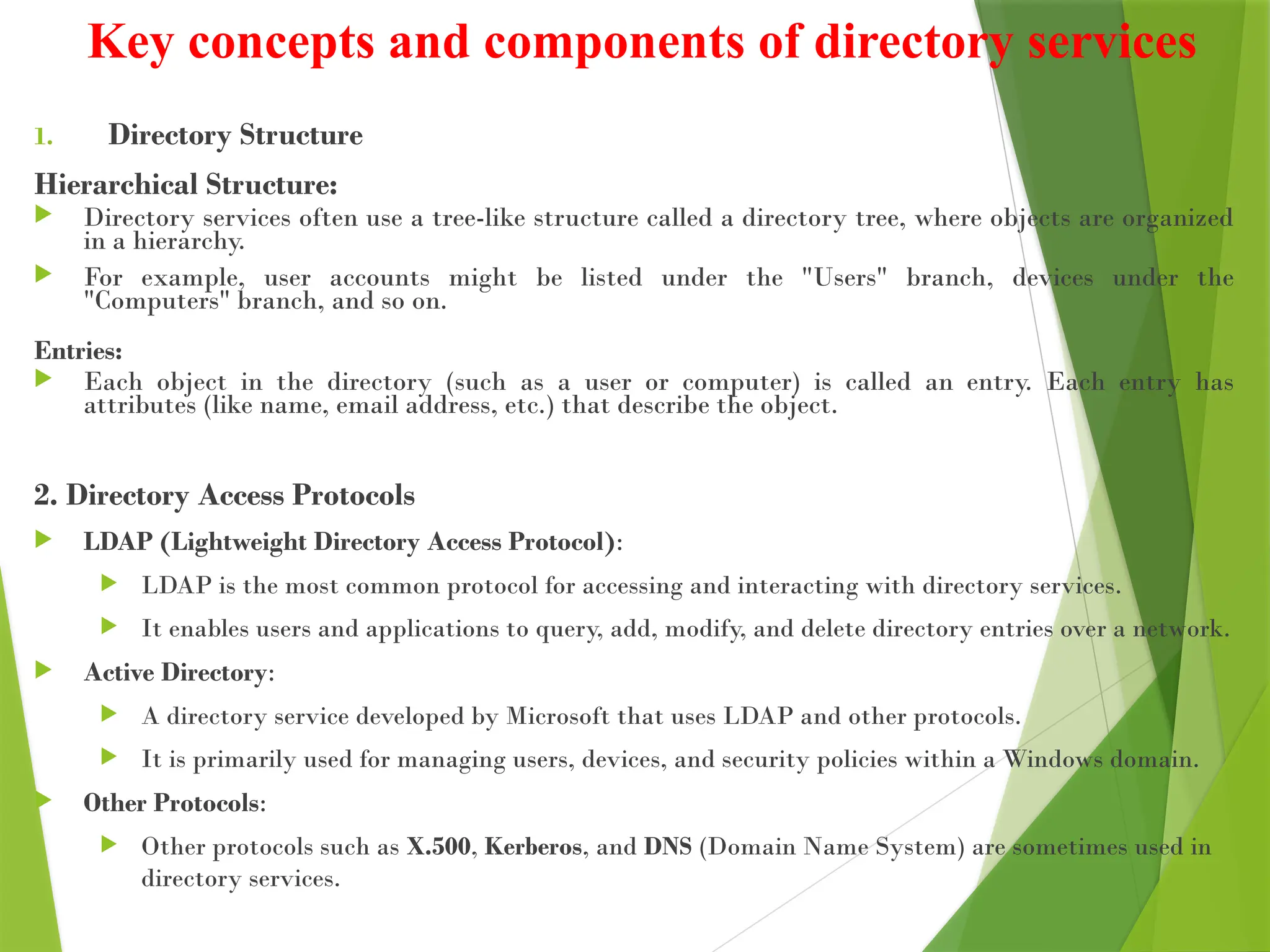
1. Directory Structure
Hierarchical Structure:
 Directory services often use a tree-like structure called a directory tree, where objects are organized
in a hierarchy.
 For example, user accounts might be listed under the "Users" branch, devices under the
"Computers" branch, and so on.
Entries:
 Each object in the directory (such as a user or computer) is called an entry. Each entry has
attributes (like name, email address, etc.) that describe the object.
2. Directory Access Protocols
 LDAP (Lightweight Directory Access Protocol):
 LDAP is the most common protocol for accessing and interacting with directory services.
 It enables users and applications to query, add, modify, and delete directory entries over a network.
 Active Directory:
 A directory service developed by Microsoft that uses LDAP and other protocols.
 It is primarily used for managing users, devices, and security policies within a Windows domain.
 Other Protocols:
 Other protocols such as X.500, Kerberos, and DNS (Domain Name System) are sometimes used in
directory services.
Features of Directory Services
 Centralized Authentication and Authorization: Directory
services are often integrated with authentication protocols
like Kerberos, allowing users to log in once and access all
resources within a domain without needing to authenticate
multiple times.
 Access Control: Directory services allow administrators to
define policies that control who can access what resources
and what actions they can perform (e.g., read, write,
execute).
 Search Capabilities: Directory services provide efficient
searching tools to quickly locate objects, using various
filters like usernames, email addresses, or other attributes.
 Replication: Directory services can replicate directory data
across multiple servers for fault tolerance and load
balancing.
9. News Groups
 Newsgroups refer to online discussion forums or message
boards that allow users to post messages, share content, and
engage in discussions about specific topics.
 These groups are part of Usenet, one of the oldest and most
foundational parts of the internet.
 Usenet is a distributed discussion system that originated in
1980, predating the modern World Wide Web.
 Newsgroups on Usenet are categorized by topic and allow
users to post text-based messages (also known as "articles"
or "posts").
 It’s the best way to share our views on any topic according
to our interests.
 It uses the NNTP (Network News Transfer Protocol).
 Eweka, New hosting, Easynews, Tweaknews, and Giganews
are examples of newsgroups.
Types of newsgroups
Moderated Newsgroups:
 This type of newsgroup is designed to discuss a designated person who decides which
postings should be allowed or removed.
 In this type of group, we can not post directly.
 Out will be sent to the moderator of the newsgroup for approval.
 Once it is approved post will be published.
Unmoderated Newsgroups:
 In this type of newsgroup, everyone is free to post and comment.
 No one is can remove comments and posts. Our posts do not need approval.
 It will be published on the newsgroup without a moderator.
Structure of Newsgroups
Hierarchical structure: Newsgroups are often organized in a hierarchical way, where broader
categories are subdivided into more specific groups.
For example:
 comp.*:- It represents the discussion of computer-related topics
 news.*:- It represents the discussion of Usenet itself
 sci.*:- It represents the discussion of scientific subjects
 rec.*:- It represents the discussion of recreational activities (e.g. games and hobbies)
 soc.*:- It represents the socializing and discussion of social issues.
 talk.*:- It represents the discussion of contentious issues such as religion and
politics.
 misc.*:- It represents the miscellaneous discussion – anything which does not fit in
the other hierarchies.
 alt.*:- It represents controversial or unusual topics
 biz.*:- It represents the discussion of business.
Benefits of Newsgroup
 Some of the benefits of newsgroups are:
 In newsgroups, people can easily join and leave discussions.
 It generally has a FAQ document.
 Data of newsgroups are stored on servers.
 The news on the newsgroups are not email-based, so there
are no unwanted and redundant emails.
10. Search Engines
 A search engine is a software system designed to help users find information
on the internet by entering queries (search terms or keywords).
 It organizes vast amounts of information available on the web and displays
the most relevant results based on the user's search.
 The process of how search engines work involves several key stages:
crawling, indexing, ranking, and retrieving results.
1. Crawling
 Search engines use automated programs called crawlers or spiders to explore
the internet.
 These crawlers visit web pages, follow links from one page to another, and
gather information about those pages.
 Crawling is the first step in understanding the content available on the
internet.
2. Indexing
 Once the search engine's crawlers collect data from websites, it organizes and stores
the information in a database known as the index.
 This index is a massive repository of web content, which includes text, images,
videos, and other types of media.
 The index is optimized so the search engine can quickly retrieve the most relevant
content in response to a query.
3. Ranking
 When a user enters a search query, the search engine uses complex algorithms to
determine which web pages from the index are most relevant to the query. This
process is known as ranking.
Various factors affect how a page is ranked, including:
 Keywords: Words and phrases used in the query must match the content of web pages.
 Page Authority: Web pages that have high-quality content, backlinks, and trust signals are
ranked higher.
 Relevance: The search engine evaluates how well a page answers the user's query.
 User experience: The design, load speed, and mobile-friendliness of a page can influence its
ranking.
4. Retrieving Results
 After determining the relevance and rank of pages, the search engine displays a
list of results in response to the user's query.
These results typically consist of:
 Organic results: The natural search results that come from the ranking process.
 Paid results (ads): Some search engines also include paid advertisements above
or alongside organic results.
 Rich snippets: Additional information like images, reviews, and quick answers
that provide more value to users.
Popular Search Engines
 Google: The most popular search engine globally, known for
its fast, accurate results and powerful algorithms.
 Bing: Microsoft’s search engine, which also powers Yahoo’s
search results.
 Yahoo: A long-established search engine that now uses
Bing’s search technology.
 DuckDuckGo: A privacy-focused search engine that does not
track user behavior.
 Ecosia: A search engine that uses its ad revenue to plant
trees.
Annexure
Applications of Internet Technology
 Web Browsing:
 Real-Time Example: Using a web browser to shop on Etsy or research on
Wikipedia.
 Email Communication:
 Real-Time Example: Sending an email using Outlook or Gmail.
 Social Media:
 Real-Time Example: Interacting with friends on Facebook, sharing photos
on Instagram.
 Online Shopping:
 Real-Time Example: Shopping for electronics on Best Buy or fashion on
Zara.
 Cloud Computing:
 Real-Time Example: Storing documents on Google Drive or photos on
iCloud.
Advantages of Internet Technology
 Connectivity:
 Real-Time Example: Video calling on Zoom to stay connected with family or
colleagues.
 Information Access:
 Real-Time Example: Using Google Search to find the latest news or facts.
 Convenience:
 Real-Time Example: Ordering groceries from Instacart or food delivery via
Uber Eats.
 Business Growth:
 Real-Time Example: A small business using Shopify to set up an online store.
 Slide 11: Challenges in Internet Technology
 Security Risks:
 Real-Time Example: Data breaches like the one at Equifax exposing millions of
users' personal information.
 Digital Divide:
 Real-Time Example: Rural areas having limited access to high-speed internet.
 Privacy Concerns:
 Real-Time Example: Facebook facing scrutiny over data privacy practices.
 Over-reliance on Technology:
 Real-Time Example: The inconvenience caused when Wi-Fi goes down in an
office setting, halting work.
Internet Technology - Unit I- Introduction to Internet Technology.pptx

  • 1.
    Unit - I Introductionto Internet Technology
  • 2.
    What is InternetTechnology?  Definition:  Internet technology refers to the technologies, protocols, and systems that enable the exchange of data and communication over the internet.  Example:  Google Search: When you search on Google, the technology behind it fetches results from thousands of servers across the world.
  • 3.
    1. History ofInternet Technology  The history of the internet is a fascinating tale of technological evolution, innovation, and collaboration. Here's a brief overview of its key developments: 1. Early Beginnings (1960s-1970s)  Theoretical Foundations: The idea of a global network of computers was first proposed in the early 1960s. Visionaries like J.C.R. Licklider and Paul Baran laid the groundwork for a system that could link computers for easy communication and data sharing.  ARPANET (1969): The United States Department of Defense's Advanced Research Projects Agency (ARPA) developed the first successful packet-switching network, known as ARPANET. It allowed researchers to share data between computers, and by the early 1970s, it connected several universities and research institutions across the U.S.  Protocols and Technologies: In the early 1970s, key protocols like TCP (Transmission Control Protocol) and IP (Internet Protocol) were developed by Vinton Cerf and Bob Kahn, forming the foundational architecture for the internet. 2. Expansion and Evolution (1980s)  The Birth of the Domain Name System (DNS): The Domain Name System (DNS) was introduced in 1984, making it easier to access websites by using human-readable domain names instead of numerical IP addresses.  Commercialization Begins: In the late 1980s, the National Science Foundation Network (NSFNET) was created, expanding the network beyond government and academic institutions and making it accessible to more users.
  • 4.
    History of InternetTechnology(Cont..) 3. The World Wide Web (1990s)  Tim Berners-Lee and the Web (1990): The invention of the World Wide Web (WWW) by Tim Berners-Lee at CERN in Switzerland revolutionized the internet. He developed the first web browser and web server software, allowing people to access documents, images, and multimedia through hyperlinks.  Web Browsers: The introduction of web browsers like Mosaic (1993) and Netscape Navigator (1994) brought graphical web pages to the masses. This allowed users to interact with the internet more easily, leading to rapid growth in internet adoption.  The Dot-Com Boom (Late 1990s): The commercial potential of the internet exploded during the late 1990s with the rise of e-commerce, online advertising, and tech companies like Amazon, eBay, and Yahoo. The dot- com bubble led to a surge in internet-related startups. 4. The 2000s: Broadband, Social Media, and Web 2.0  Broadband Internet: The widespread adoption of broadband internet connections replaced dial-up access, providing faster speeds and enabling the development of richer web experiences.  Rise of Social Media: In the early 2000s, platforms like Facebook (2004), YouTube (2005), and Twitter (2006) transformed the internet by creating new ways for people to connect and share content online.  Web 2.0: This term described the shift toward dynamic, user-generated content, collaboration, and social interaction on the web. The growth of blogs, wikis, and video-sharing platforms exemplified this change.
  • 5.
    History of InternetTechnology (Cont..) 5. The 2010s: Mobile, Cloud Computing, and the Internet of Things  Mobile Internet: The advent of smartphones and tablets, especially with the launch of the iPhone (2007) and Android devices, brought the internet to users' fingertips. Mobile apps became a major part of how people accessed the web.  Cloud Computing: Services like Google Drive, Dropbox, and Amazon Web Services allowed for data storage and processing over the internet, rather than on local devices, accelerating business and personal use of online resources.  Internet of Things (IoT): The IoT began to connect everyday devices like smart thermostats, refrigerators, and wearable technology to the internet, creating a more interconnected world. 6. The 2020s: AI, 5G, and the Future  Artificial Intelligence (AI) and Machine Learning: AI-powered tools and applications have become central to how we interact with the internet, from voice assistants like Alexa and Siri to personalized recommendations and autonomous vehicles.  5G Networks: The rollout of 5G networks promises faster internet speeds, lower latency, and greater connectivity, which will further enhance technologies like IoT, virtual reality, and remote work.  Evolving Online Culture: The internet continues to shape modern culture, with a rise in online communities, gaming, e-learning, telemedicine, and virtual workspaces, accelerating the digital transformation of many industries.
  • 6.
    History of InternetTechnology (Cont..) 5. The 2010s: Mobile, Cloud Computing, and the Internet of Things  Mobile Internet: The advent of smartphones and tablets, especially with the launch of the iPhone (2007) and Android devices, brought the internet to users' fingertips. Mobile apps became a major part of how people accessed the web.  Cloud Computing: Services like Google Drive, Dropbox, and Amazon Web Services allowed for data storage and processing over the internet, rather than on local devices, accelerating business and personal use of online resources.  Internet of Things (IoT): The IoT began to connect everyday devices like smart thermostats, refrigerators, and wearable technology to the internet, creating a more interconnected world. 6. The 2020s: AI, 5G, and the Future  Artificial Intelligence (AI) and Machine Learning: AI-powered tools and applications have become central to how we interact with the internet, from voice assistants like Alexa and Siri to personalized recommendations and autonomous vehicles.  5G Networks: The rollout of 5G networks promises faster internet speeds, lower latency, and greater connectivity, which will further enhance technologies like IoT, virtual reality, and remote work.  Evolving Online Culture: The internet continues to shape modern culture, with a rise in online communities, gaming, e-learning, telemedicine, and virtual workspaces, accelerating the digital transformation of many industries.
  • 7.
    2. Internet Addressing Internet addressing refers to the system that identifies devices and resources on the internet so they can communicate with each other. There are several components involved in internet addressing, including IP addresses, domain names, and port numbers. Here's a breakdown of the key concepts: 1. IP Addressing  An IP address (Internet Protocol address) is a unique identifier for a device (such as a computer, smartphone, or server) on a network. IP addresses enable devices to send and receive data across the internet. There are two main versions of IP addresses: a. IPv4 (Internet Protocol version 4)  Structure: An IPv4 address is composed of four numbers (called octets), each ranging from 0 to 255, separated by periods (e.g., 192.168.1.1).  Format: It looks like this: xxx.xxx.xxx.xxx, where each "xxx" is a number between 0 and 255.  Total Addresses: IPv4 can support about 4.3 billion unique addresses (2^32), which is now insufficient for the growing number of devices connected to the internet, leading to the adoption of IPv6. b. IPv6 (Internet Protocol version 6)  Structure: IPv6 addresses are 128 bits long, which is much larger than IPv4, allowing for a vastly larger number of unique addresses. They are written in hexadecimal (base-16), and the address is divided into eight groups of four hexadecimal digits, separated by colons (e.g., 2001:0db8:85a3:0000:0000:8a2e:0370:7334).  Format: It looks like this: xxxx:xxxx:xxxx:xxxx:xxxx:xxxx:xxxx:xxxx.  Total Addresses: IPv6 can support 340 undecillion (3.4 x 10^38) unique addresses, which is more than enough to accommodate the growing number of internet-connected devices.
  • 8.
    Internet Addressing (cont..) 2.Domain Name System (DNS)  While IP addresses are used by computers to locate each other, humans prefer easier-to-remember names, such as www.example.com. The Domain Name System (DNS) is a hierarchical system that maps human-readable domain names to IP addresses.  How DNS works: When you enter a domain name into your browser, a DNS server translates it into the corresponding IP address of the server hosting the website. This is like a phonebook for the internet, translating names into numbers.  Components:  Top-Level Domain (TLD): The suffix of the domain (e.g., .com, .org, .net, .edu).  Second-Level Domain: The name before the TLD (e.g., example in example.com).  Subdomain: Subsections of a domain, often used to organize content (e.g., blog.example.com or shop.example.com).
  • 9.
    Internet Addressing (cont..) 3.Subnetting  Subnetting is the practice of dividing a larger network into smaller, more manageable sub-networks (subnets). This allows more efficient use of IP addresses and better network performance.  Subnet Mask: A subnet mask is used to determine which part of an IP address is the network portion and which part is the host portion. It works with the IP address to define the boundaries of the subnet.  Example: In IPv4, a common subnet mask is 255.255.255.0, which means the first three octets identify the network, and the last octet identifies individual devices within that network. 4. Port Numbers  In addition to IP addresses, port numbers are used to identify specific services running on a device (server) to enable proper communication. For example, while an IP address might point to a particular server, the port number helps direct the request to the appropriate application on that server.  Well-Known Ports: Port numbers range from 0 to 65535, with the first 1024 being well-known ports assigned to common services:  Port 80: HTTP (web traffic)  Port 443: HTTPS (secure web traffic)  Port 25: SMTP (email)  Port 21: FTP (File Transfer Protocol)  Dynamic/Private Ports: Ports above 1024 are typically used for dynamic or private purposes, assigned to client applications for temporary connections.
  • 10.
    Internet Addressing (cont..) 5.Private and Public IP Addresses  Private IP Addresses: These are used within local networks (LANs) and are not routable on the internet. They are defined in specific ranges for IPv4:  10.0.0.0 - 10.255.255.255  172.16.0.0 - 172.31.255.255  192.168.0.0 - 192.168.255.255  NAT (Network Address Translation) is often used to allow devices with private IPs to communicate with the public internet by translating private IP addresses into public IP addresses when they need to send data outside the local network.  Public IP Addresses: These are globally unique and routable on the internet. Every device directly connected to the internet requires a public IP address (or at least one per network, if using NAT). 6. Dynamic vs. Static IP Addresses  Static IP Address: An IP address that doesn’t change over time, typically assigned to servers or other devices that need a consistent address to be accessed reliably.  Dynamic IP Address: An IP address that is assigned by a DHCP (Dynamic Host Configuration Protocol) server and can change each time the device connects to the network. Most home devices and some business systems use dynamic IPs.
  • 11.
    3. Protocols  Protocolsare standardized rules and conventions that define how data is transmitted and received over networks, including the internet.  They ensure that devices and applications can communicate with each other correctly, even if they come from different manufacturers or use different technologies.  Protocols cover a wide range of functions, from how data is formatted to how errors are handled.
  • 12.
    3.1 TCP/IP  TCP/IPwas designed and developed by the Department of Defense (DoD) in the 1960s and is based on standard protocols.  The TCP/IP model is a fundamental framework for computer networking and it is a concise version of the OSI model.  It stands for Transmission Control Protocol/Internet Protocol, which are the core protocols of the Internet.  This model defines how data is transmitted over networks, ensuring reliable communication between devices.  The TCP/IP model is used in the context of the real-world internet, where a wide range of physical media and network technologies are in use.  Rather than specifying a particular Physical Layer, the TCP/IP model allows for flexibility in adapting to different physical implementations.  It consists of four layers: the Data Link Layer, the Internet Layer, the Transport Layer, and the Application Layer.  Each layer has specific functions that help manage different aspects of network communication, making it essential for understanding and working with modern networks.
  • 13.
  • 14.
    Application Layer  Anapplication layer is the topmost layer in the TCP/IP model.  It is responsible for handling high-level protocols, issues of representation.  This layer allows the user to interact with the application.  When one application layer protocol wants to communicate with another application layer, it forwards its data to the transport layer.  There is an ambiguity occurs in the application layer. Every application cannot be placed inside the application layer except those who interact with the communication system.
  • 15.
    Transport Layer  Thetransport layer is responsible for the reliability, flow control, and correction of data which is being sent over the network.  The two protocols used in the transport layer are User Datagram protocol and Transmission control protocol.  User Datagram Protocol (UDP)  It provides connectionless service and end-to-end delivery of transmission.  It is an unreliable protocol as it discovers the errors but not specify the error.  User Datagram Protocol discovers the error, and ICMP protocol reports the error to the sender that user datagram has been damaged.  UDP does not specify which packet is lost. UDP contains only checksum; it does not contain any ID of a data segment.
  • 16.
     Transmission ControlProtocol (TCP)  It provides a full transport layer services to applications.  It creates a virtual circuit between the sender and receiver, and it is active for the duration of the transmission.  TCP is a reliable protocol as it detects the error and retransmits the damaged frames. Therefore, it ensures all the segments must be received and acknowledged before the transmission is considered to be completed and a virtual circuit is discarded.  At the sending end, TCP divides the whole message into smaller units known as segment, and each segment contains a sequence number which is required for reordering the frames to form an original message.  At the receiving end, TCP collects all the segments and reorders them based on sequence numbers.
  • 17.
    Internet Layer  Aninternet layer is the second layer of the TCP/IP model.  An internet layer is also known as the network layer.  The main responsibility of the internet layer is to send the packets from any network, and they arrive at the destination irrespective of the route they take.  The three protocols used in the transport layer are Internet Control Message Protocol ICMP), Address Resolution Protocol (ARP), and Internet Protocol (IP).
  • 18.
    Network Access Layer A network layer is the lowest layer of the TCP/IP model.  A network layer is the combination of the Physical layer and Data Link layer defined in the OSI reference model.  It defines how the data should be sent physically through the network.  This layer is mainly responsible for the transmission of the data between two devices on the same network.  The functions carried out by this layer are encapsulating the IP datagram into frames transmitted by the network and mapping of IP addresses into physical addresses.  The protocols used by this layer are ethernet, token ring, FDDI, X.25, frame relay.
  • 19.
    3.2 Hypertext TransferProtocol (HTTP)  HTTP stands for HyperText Transfer Protocol.  It is the main way web browsers and servers communicate to share information on the internet. Tim Berner invents it.  HyperText is the type of text that is specially coded with the help of some standard coding language called HyperText Markup Language (HTML).  It's a system for requesting and delivering information between clients (such as web browsers) and servers.
  • 20.
    1. Client-Server Model Client: Typically a web browser or application that sends requests for data (e.g., a webpage).  Server: The system that hosts the website or web service, which responds to requests with the requested data, such as HTML pages, images, videos, or other resources. 2. HTTP Request  A user interacts with a web page, for example by typing a URL (like https://example.com).  The browser (client) sends an HTTP request to the web server, asking for the resources (HTML, CSS, JavaScript files) associated with that URL.  The request is typically composed of: • Method: Specifies the type of action (e.g., GET, POST, PUT). • URL: The location of the resource (e.g., /home). • Headers: Provide additional information like browser type, cookies, etc. • Body (optional): Data sent with the request, such as form input.
  • 21.
    3. HTTP Response The web server receives the request and processes it.  The server then sends back an HTTP response, which contains:  Status Code: Indicates whether the request was successful or if there was an error (e.g., 200 OK, 404 Not Found).  Headers: Metadata about the response (e.g., content type, server information).  Body: The requested resource (e.g., HTML content, images). 4. HTTP Methods  GET: Requests data from the server. No data is sent in the body.  POST: Submits data to the server, often used for forms.  PUT: Updates data on the server.  DELETE: Deletes data on the server.  PATCH: Partially updates data on the server.
  • 22.
    4. Domain NameSystem (DNS)  The Domain Name System (DNS) is like the phonebook of the internet.  It translates human-readable domain names (like www.example.com) into machine-readable IP addresses (like 192.0.2.1) that computers use to identify each other on the network. Key Concepts of DNS:  Domain Names:  Domain names are the addresses you type into a browser to visit websites. They are easier for humans to remember than IP addresses.  Example: When you type www.google.com, you're using a domain name. IPAddresses:  The internet works with IP addresses (e.g., 192.168.1.1) that are used to route data to the correct location.  DNS translates the user-friendly domain names into these numerical IP addresses, so computers can connect to the right servers.
  • 23.
    Domain Name System(Cont..) Types of Domain  There are various kinds of domains:  Generic Domains: .com(commercial), .edu(educational), .mil(military), .org(nonprofit organization), .net(similar to commercial) all these are generic domains.  Country Domain: .in (India) .us .uk  Inverse Domain: if we want to know what is the domain name of the website. IP to domain name mapping. So DNS can provide both the mapping for example to find the IP addresses of geeksforgeeks.org then we have to type
  • 24.
    Domain Name System(Cont..) Types of Domain Diagram
  • 25.
    Organization of Domain Organizationof Domain: • DNS Record: Domain name, IP address what is the validity? what is the time to live? and all the information related to that domain name. These records are stored in a tree-like structure. • Namespace: Set of possible names, flat or hierarchical. The naming system maintains a collection of bindings of names to values – given a name, a resolution mechanism returns the corresponding value. • Name Server: It is an implementation of the resolution mechanism. DNS Hierarchy: • Root Level: The highest level of the DNS hierarchy, represented by a dot (.). The root servers direct the query to the correct TLD. • Top-Level Domain (TLD): The suffix of a domain, such as .com, .org, or country codes like .uk, .jp. • Second-Level Domain: The main part of the domain name, like example in example.com. • Subdomain: Any part before the second-level domain, such as www in www.example.com.
  • 26.
    5. Intranet  Anintranet is a kind of private network. For example, an intranet is used by different organizations and only members/staff of that organization have access to this.  It is a system in which multiple computers of an organization (or the computers you want to connect) are connected through an intranet.  As this is a private network, so no one from the outside world can access this network. So many organizations and companies have their intranet network and only its members and staff have access to this network.  This is also used to protect your data and provide data security to a particular organization, as it is a private network and does not leak data to the outside world.
  • 27.
    Working Procedure of Intranet An intranet is a network confined to a company, school, or organization that works like the Internet.
  • 28.
     In thisdiagram, a company or an organization has created its private network or intranet for its work(intranet network is under the circle).  The company or organization has many employees(in this diagram, we have considered 3).  So, for their access, they have PC 1, PC 2, and PC 3(In the real world there are many employees as per the requirements of an organization).  Also, they have their server for files or data to store, and to protect this private network, there is a Firewall. This firewall protects and gives security to the intranet server and its data from getting leaked to any unwanted user.  So, a user who has access to the intranet can only access this network.  So, no one from the outside world can access this network.  Also, an intranet user can access the internet but a person using the internet cannot access the intranet network.
  • 29.
    Importance of Intranet Intranets play a crucial role in organizations by providing a centralized platform for seamless internal communication, collaboration, and knowledge sharing, thereby significantly enhancing productivity, streamlining operations, and fostering a culture of innovation and efficiency. Here are the reasons that increase its importance:  Improves internal communication  Connects employees across locations and time zones  Boosts recognition and reward  Simplifies employee onboarding  Provides organizational clarity  Encourages knowledge sharing Features of Intranet  Document management: The ability to store, organize, and share documents.  Collaboration tools: The ability to collaborate on projects and tasks.  News and announcements: The ability to share news and announcements with employees.  Employee directory: The ability to find contact information for employees.  Training and development: The ability to provide training and development resources to employees.  HR resources: The ability to access HR-related information, such as benefits and policies.  Support services: The ability to submit support tickets and get help from IT. Advantages of Intranet  In the intranet, the cost of conveying data utilizing the intranet is very low.  Using intranet employees can easily get data anytime and anywhere.  It is easy to learn and use.  It can be utilized as a correspondence center point where employees can store data at whatever point they need and download files in just a few seconds.  It connects employees with each other.  The documents stored on the intranet are much more secure.
  • 30.
    6. Uniform ResourceLocator  A URL (Uniform Resource Locator, also called a web address) is a unique identifier used to locate a resource on the internet. URLs consist of multiple parts -- including a protocol and domain name -- that tell web browsers how and where to retrieve a resource.  End users use URLs by typing them directly into a browser address bar or by clicking a hyperlink found on a webpage, bookmark list, email or another application. Structure of a URL  A URL starts with a protocol followed by the name of the resource that has to be accessed. URL uses the protocols as the primary access medium to access the domain or subdomain specified after that wherever the resource is located.  It uses multiple protocols like HTTP (Hypertext Transfer Protocol), HTTPS Protocol (Secured HTTP), mailto for emails, FTP (File Transfer Protocol) for files, and TELNET to access remote computers.  Mostly the protocol names are specified using the colons and the double forward slashes, but the mailto protocol is specified using the colons only.
  • 31.
    Parts of aURL  A URL consists of multiple parts that can helps you to visit a particular page on the internet.  Every part of a URL has its own importance.
  • 32.
    The protocol orscheme:  A URL starts with a protocol that is used to access the resource on the internet. The resource is accessed through the Domain Name System or DNS. There are multiple protocols avaiable to use like HTTP, HTTPS, FTP, mailto, TELNET etc. The protocol used in the above URL is https. Domain or Host Name:  It is the reference or name of the page that you are going to access on the internet. In this case, the domain name is: www.geeksforgeeks.org. Port Name:  It is defined just after the domain name by using the colons between itself and the domain name. Generally, it is not visible in the URL. The domain name and the port ame combinely can be known as Authority. The default port for web services is port80 (:80). Path:  It refers to the path or location of a particular file or page stored on the web server to access the content of it. The path used here is: array-data-structure. Query:  A query mainly found in the dynamic pages. It consists of a question mark(?) followed by the parameters. In above URL query is: ?. Parameters:  These are the pieces of information inside a query string of URL. Multiple parameters can be passed to a URL by using the ampersand(&) symbol to separate them. The query parameter in above URL is: ref=home-articlecards. Fragments:  The fragments appear at the end of a URL starts with a Hashtag(#) symbol. These are the internal page references that refers to a specific section within the page. The fragment in the above URL is: #what-is-array.
  • 33.
    7. E-mail  Emailstands for Electronic Mail.  It is a method to send messages from one computer to another computer through the Internet.  It is mostly used in business, education, technical communication, and document interactions.  It allows communicating with people all over the world without bothering them.  In 1971, a test email was sent Ray Tomlinson to himself containing text.  It is the information sent electronically between two or more people over a network.  It involves a sender and receiver/s.
  • 34.
    Uses of Email Email services are used in various sectors, and organizations, either personally, or among a large group of people. It provides an easy way to communicate with individuals or groups by sending and receiving documents, images, links, and other files. It also provides the flexibility of communicating with others on their own schedule.  Large or small companies can use email services to many employees, and customers. A company can send emails to many employees at a time. It becomes a professional way to communicate. A newsletters service is also used to send company advertisements, promotions, and other subscribed content to use advertisements, promotions. Types of Email Newsletters  It is a type of email sent by an individual or company to the subscriber. It contains an advertisement, product promotion, updates regarding the organization, and marketing content. It might be upcoming events, seminars, or webinars from the organization. Onboarding emails  It is an email a user receives right after the subscription. These emails are sent to buyers to familiarize and tell them about using a product. It also contains details about the journey in the new organization. Transactional  These types of emails might contain invoices for recent transactions and details about transactions. If transactions failed then details about when the amount will be reverted. We can say that transaction emails are confirmation of purchase. Plain-Text Emails  These types of emails contain just simple text similar to other text message services. It does not include images, videos, documents, graphics, or any attachments. Plain-text emails are also used to send casual chatting like other text message services.
  • 35.
    Advantages of EmailServices Easy and Fast:  Composing an email is very simple and one of the fast ways to communicate. We can send an email within a minute just by clicking the mouse. It contains a minimum lag time and can be exchanged quickly. Secure:  Email services are a secure and reliable method to receive and send information. The feature of spam provides more security because a user can easily eliminate malicious content. Mass Sending:  We can easily send a message to many people at a time through email. Suppose, a company wants to send holiday information to all employees than using email, it can be done easily. The feature of mail merge in MS Word provides more options to send messages to many people just by exchanging relevant information. Multimedia Email:  Email offers to send multimedia, documents, images, audio files, videos, and various types of files. We can easily attach the types of files in the original format or compressed format.  Popular Email Services are Gmail, Outlook, yahoomail, and rediffmail.
  • 36.
    8. Directory Services Directory services are specialized systems designed to store, organize, and provide access to information about resources within a network.  They are used to manage and locate data about users, devices, applications, and services in a networked environment.  The most common use of directory services is in enterprise environments, where they help manage and authenticate users, define access control policies, and allow easy searching of network resources.
  • 37.
    Key concepts andcomponents of directory services 1. Directory Structure Hierarchical Structure:  Directory services often use a tree-like structure called a directory tree, where objects are organized in a hierarchy.  For example, user accounts might be listed under the "Users" branch, devices under the "Computers" branch, and so on. Entries:  Each object in the directory (such as a user or computer) is called an entry. Each entry has attributes (like name, email address, etc.) that describe the object. 2. Directory Access Protocols  LDAP (Lightweight Directory Access Protocol):  LDAP is the most common protocol for accessing and interacting with directory services.  It enables users and applications to query, add, modify, and delete directory entries over a network.  Active Directory:  A directory service developed by Microsoft that uses LDAP and other protocols.  It is primarily used for managing users, devices, and security policies within a Windows domain.  Other Protocols:  Other protocols such as X.500, Kerberos, and DNS (Domain Name System) are sometimes used in directory services.
  • 38.
    Features of DirectoryServices  Centralized Authentication and Authorization: Directory services are often integrated with authentication protocols like Kerberos, allowing users to log in once and access all resources within a domain without needing to authenticate multiple times.  Access Control: Directory services allow administrators to define policies that control who can access what resources and what actions they can perform (e.g., read, write, execute).  Search Capabilities: Directory services provide efficient searching tools to quickly locate objects, using various filters like usernames, email addresses, or other attributes.  Replication: Directory services can replicate directory data across multiple servers for fault tolerance and load balancing.
  • 39.
    9. News Groups Newsgroups refer to online discussion forums or message boards that allow users to post messages, share content, and engage in discussions about specific topics.  These groups are part of Usenet, one of the oldest and most foundational parts of the internet.  Usenet is a distributed discussion system that originated in 1980, predating the modern World Wide Web.  Newsgroups on Usenet are categorized by topic and allow users to post text-based messages (also known as "articles" or "posts").  It’s the best way to share our views on any topic according to our interests.  It uses the NNTP (Network News Transfer Protocol).  Eweka, New hosting, Easynews, Tweaknews, and Giganews are examples of newsgroups.
  • 40.
    Types of newsgroups ModeratedNewsgroups:  This type of newsgroup is designed to discuss a designated person who decides which postings should be allowed or removed.  In this type of group, we can not post directly.  Out will be sent to the moderator of the newsgroup for approval.  Once it is approved post will be published. Unmoderated Newsgroups:  In this type of newsgroup, everyone is free to post and comment.  No one is can remove comments and posts. Our posts do not need approval.  It will be published on the newsgroup without a moderator.
  • 41.
    Structure of Newsgroups Hierarchicalstructure: Newsgroups are often organized in a hierarchical way, where broader categories are subdivided into more specific groups. For example:  comp.*:- It represents the discussion of computer-related topics  news.*:- It represents the discussion of Usenet itself  sci.*:- It represents the discussion of scientific subjects  rec.*:- It represents the discussion of recreational activities (e.g. games and hobbies)  soc.*:- It represents the socializing and discussion of social issues.  talk.*:- It represents the discussion of contentious issues such as religion and politics.  misc.*:- It represents the miscellaneous discussion – anything which does not fit in the other hierarchies.  alt.*:- It represents controversial or unusual topics  biz.*:- It represents the discussion of business.
  • 42.
    Benefits of Newsgroup Some of the benefits of newsgroups are:  In newsgroups, people can easily join and leave discussions.  It generally has a FAQ document.  Data of newsgroups are stored on servers.  The news on the newsgroups are not email-based, so there are no unwanted and redundant emails.
  • 43.
    10. Search Engines A search engine is a software system designed to help users find information on the internet by entering queries (search terms or keywords).  It organizes vast amounts of information available on the web and displays the most relevant results based on the user's search.  The process of how search engines work involves several key stages: crawling, indexing, ranking, and retrieving results. 1. Crawling  Search engines use automated programs called crawlers or spiders to explore the internet.  These crawlers visit web pages, follow links from one page to another, and gather information about those pages.  Crawling is the first step in understanding the content available on the internet.
  • 44.
    2. Indexing  Oncethe search engine's crawlers collect data from websites, it organizes and stores the information in a database known as the index.  This index is a massive repository of web content, which includes text, images, videos, and other types of media.  The index is optimized so the search engine can quickly retrieve the most relevant content in response to a query. 3. Ranking  When a user enters a search query, the search engine uses complex algorithms to determine which web pages from the index are most relevant to the query. This process is known as ranking. Various factors affect how a page is ranked, including:  Keywords: Words and phrases used in the query must match the content of web pages.  Page Authority: Web pages that have high-quality content, backlinks, and trust signals are ranked higher.  Relevance: The search engine evaluates how well a page answers the user's query.  User experience: The design, load speed, and mobile-friendliness of a page can influence its ranking.
  • 45.
    4. Retrieving Results After determining the relevance and rank of pages, the search engine displays a list of results in response to the user's query. These results typically consist of:  Organic results: The natural search results that come from the ranking process.  Paid results (ads): Some search engines also include paid advertisements above or alongside organic results.  Rich snippets: Additional information like images, reviews, and quick answers that provide more value to users.
  • 46.
    Popular Search Engines Google: The most popular search engine globally, known for its fast, accurate results and powerful algorithms.  Bing: Microsoft’s search engine, which also powers Yahoo’s search results.  Yahoo: A long-established search engine that now uses Bing’s search technology.  DuckDuckGo: A privacy-focused search engine that does not track user behavior.  Ecosia: A search engine that uses its ad revenue to plant trees.
  • 47.
  • 48.
    Applications of InternetTechnology  Web Browsing:  Real-Time Example: Using a web browser to shop on Etsy or research on Wikipedia.  Email Communication:  Real-Time Example: Sending an email using Outlook or Gmail.  Social Media:  Real-Time Example: Interacting with friends on Facebook, sharing photos on Instagram.  Online Shopping:  Real-Time Example: Shopping for electronics on Best Buy or fashion on Zara.  Cloud Computing:  Real-Time Example: Storing documents on Google Drive or photos on iCloud.
  • 49.
    Advantages of InternetTechnology  Connectivity:  Real-Time Example: Video calling on Zoom to stay connected with family or colleagues.  Information Access:  Real-Time Example: Using Google Search to find the latest news or facts.  Convenience:  Real-Time Example: Ordering groceries from Instacart or food delivery via Uber Eats.  Business Growth:  Real-Time Example: A small business using Shopify to set up an online store.  Slide 11: Challenges in Internet Technology  Security Risks:  Real-Time Example: Data breaches like the one at Equifax exposing millions of users' personal information.  Digital Divide:  Real-Time Example: Rural areas having limited access to high-speed internet.  Privacy Concerns:  Real-Time Example: Facebook facing scrutiny over data privacy practices.  Over-reliance on Technology:  Real-Time Example: The inconvenience caused when Wi-Fi goes down in an office setting, halting work.