April 2006
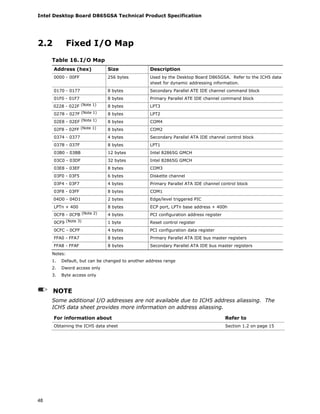
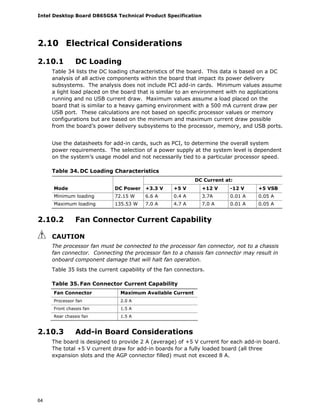
Order Number: D56006-001US
The Intel®
Desktop Board D865GSA may contain design defects or errors known as errata that may cause the product to deviate from published specifications. Current
characterized errata are documented in the Intel Desktop Board D865GSA Specification Update.
Intel® Desktop Board
D865GSA
Technical Product Specification
Revision History
Revision Revision History Date
-001 First release of the Intel®
Desktop Board D865GSA Technical Product
Specification.
April 2006
This product specification applies to only the standard Intel® Desktop Board D865GSA with BIOS
identifier SA86510A.86A.
Changes to this specification will be published in the Intel Desktop Board D865GSA Specification
Update before being incorporated into a revision of this document.
INFORMATION IN THIS DOCUMENT IS PROVIDED IN CONNECTION WITH INTEL®
PRODUCTS. NO LICENSE,
EXPRESS OR IMPLIED, BY ESTOPPEL OR OTHERWISE, TO ANY INTELLECTUAL PROPERTY RIGHTS IS
GRANTED BY THIS DOCUMENT. EXCEPT AS PROVIDED IN INTEL’S TERMS AND CONDITIONS OF SALE FOR
SUCH PRODUCTS, INTEL ASSUMES NO LIABILITY WHATSOEVER, AND INTEL DISCLAIMS ANY EXPRESS OR
IMPLIED WARRANTY, RELATING TO SALE AND/OR USE OF INTEL PRODUCTS INCLUDING LIABILITY OR
WARRANTIES RELATING TO FITNESS FOR A PARTICULAR PURPOSE, MERCHANTABILITY, OR INFRINGEMENT
OF ANY PATENT, COPYRIGHT OR OTHER INTELLECTUAL PROPERTY RIGHT. INTEL PRODUCTS ARE NOT
INTENDED FOR USE IN MEDICAL, LIFE SAVING, OR LIFE SUSTAINING APPLICATIONS.
Intel Corporation may have patents or pending patent applications, trademarks, copyrights, or other
intellectual property rights that relate to the presented subject matter. The furnishing of documents and other
materials and information does not provide any license, express or implied, by estoppel or otherwise, to any
such patents, trademarks, copyrights, or other intellectual property rights.
Intel may make changes to specifications and product descriptions at any time, without notice.
Designers must not rely on the absence or characteristics of any features or instructions marked “reserved”
or “undefined.” Intel reserves these for future definition and shall have no responsibility whatsoever for
conflicts or incompatibilities arising from future changes to them.
Intel® desktop boards may contain design defects or errors known as errata, which may cause the product to
deviate from published specifications. Current characterized errata are available on request.
Contact your local Intel sales office or your distributor to obtain the latest specifications before placing your
product order.
Copies of documents which have an ordering number and are referenced in this document, or other Intel
literature, may be obtained from:
Intel Corporation
P.O. Box 5937
Denver, CO 80217-9808
or call in North America 1-800-548-4725, Europe 44-0-1793-431-155, France 44-0-1793-421-777,
Germany 44-0-1793-421-333, other Countries 708-296-9333.
Intel, Pentium, and Celeron are registered trademarks of Intel Corporation or its subsidiaries in the United
States and other countries.
* Other names and brands may be claimed as the property of others.
Copyright © 2006, Intel Corporation. All rights reserved.
Preface
This Technical Product Specification (TPS) specifies the board layout, components,
connectors, power and environmental requirements, and the BIOS for the Intel®
Desktop Board D865GSA. It describes the standard product and available
manufacturing options.
Intended Audience
The TPS is intended to provide detailed, technical information about the Desktop Board
D865GSA and its components to the vendors, system integrators, and other engineers
and technicians who need this level of information. It is specifically not intended for
general audiences.
What This Document Contains
Chapter Description
1 A description of the hardware used on the board
2 A map of the resources of the bard
3 The features supported by the BIOS Setup program
4 A description of the BIOS error messages, beep codes, and POST codes
Typographical Conventions
This section contains information about the conventions used in this specification. Not
all of these symbols and abbreviations appear in all specifications of this type.
Notes, Cautions, and Warnings
NOTE
Notes call attention to important information.
INTEGRATOR’S NOTES
Integrator’s notes are used to call attention to information that may be useful to
system integrators.
CAUTION
Cautions are included to help you avoid damaging hardware or losing data.
Intel Desktop Board D865GSA Technical Product Specification
iv
Other Common Notation
# Used after a signal name to identify an active-low signal (such as USBP0#)
GB Gigabyte (1,073,741,824 bytes)
GB/sec Gigabytes per second
KB Kilobyte (1024 bytes)
Kbit Kilobit (1024 bits)
kbits/sec 1000 bits per second
MB Megabyte (1,048,576 bytes)
MB/sec Megabytes per second
Mbit Megabit (1,048,576 bits)
Mbit/sec Megabits per second
xxh An address or data value ending with a lowercase h indicates a hexadecimal value.
x.x V Volts. Voltages are DC unless otherwise specified.
* This symbol is used to indicate third-party brands and names that are the property of their
respective owners.
v
Contents
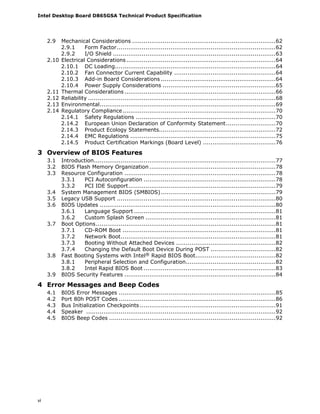
1 Product Description
1.1 Overview...................................................................................................10
1.1.1 Feature Summary ..........................................................................10
1.1.2 Board Layout .................................................................................12
1.1.3 Block Diagram ...............................................................................14
1.2 Online Support...........................................................................................15
1.3 Processor ..................................................................................................15
1.4 System Memory .........................................................................................16
1.4.1 Memory Configurations ...................................................................18
1.5 Intel® 865G Chipset ...................................................................................21
1.5.1 Intel 865G Graphics Subsystem........................................................21
1.5.2 Universal 0.8 V / 1.5 V AGP 3.0 Connector.........................................29
1.5.3 USB..............................................................................................30
1.5.4 IDE Support ..................................................................................30
1.5.5 Real-Time Clock, CMOS SRAM, and Battery........................................32
1.6 Legacy I/O Controller ..................................................................................36
1.6.1 Serial Port .....................................................................................36
1.6.2 Parallel Port...................................................................................36
1.6.3 Diskette Drive Controller .................................................................36
1.6.4 Keyboard and Mouse Interface .........................................................37
1.7 Audio Subsystem........................................................................................37
1.7.1 Audio Subsystem Software ..............................................................37
1.7.2 Audio Connectors ...........................................................................37
1.8 LAN Subsystem..........................................................................................38
1.8.2 LAN Subsystem Software ................................................................38
1.9 Hardware Management Subsystem ...............................................................39
1.9.1 Hardware Monitoring and Fan Control................................................39
1.9.2 Fan Monitoring...............................................................................39
1.9.3 Chassis Intrusion and Detection .......................................................39
1.9.4 Thermal Monitoring.........................................................................40
1.10 Power Management ....................................................................................41
1.10.1 ACPI ............................................................................................41
1.10.2 Hardware Support ..........................................................................43
2 Technical Reference
2.1 Memory Map..............................................................................................47
2.2 Fixed I/O Map ............................................................................................48
2.3 PCI Configuration Space Map .......................................................................49
2.4 Interrupts..................................................................................................50
2.5 DMA Channels............................................................................................51
2.6 PCI Interrupt Routing Map ...........................................................................51
2.7 Connectors ................................................................................................52
2.7.1 Back Panel Connectors ....................................................................53
2.7.2 Component-side Connectors ............................................................54
2.8 Jumper Block .............................................................................................61
Intel Desktop Board D865GSA Technical Product Specification
vi
2.9 Mechanical Considerations ...........................................................................62
2.9.1 Form Factor...................................................................................62
2.9.2 I/O Shield .....................................................................................63
2.10 Electrical Considerations..............................................................................64
2.10.1 DC Loading....................................................................................64
2.10.2 Fan Connector Current Capability .....................................................64
2.10.3 Add-in Board Considerations ............................................................64
2.10.4 Power Supply Considerations ...........................................................65
2.11 Thermal Considerations ...............................................................................66
2.12 Reliability ..................................................................................................68
2.13 Environmental............................................................................................69
2.14 Regulatory Compliance................................................................................70
2.14.1 Safety Regulations .........................................................................70
2.14.2 European Union Declaration of Conformity Statement..........................70
2.14.3 Product Ecology Statements.............................................................72
2.14.4 EMC Regulations ............................................................................75
2.14.5 Product Certification Markings (Board Level) ......................................76
3 Overview of BIOS Features
3.1 Introduction...............................................................................................77
3.2 BIOS Flash Memory Organization ..................................................................78
3.3 Resource Configuration ...............................................................................78
3.3.1 PCI Autoconfiguration .....................................................................78
3.3.2 PCI IDE Support.............................................................................79
3.4 System Management BIOS (SMBIOS)............................................................79
3.5 Legacy USB Support ...................................................................................80
3.6 BIOS Updates ............................................................................................80
3.6.1 Language Support ..........................................................................81
3.6.2 Custom Splash Screen ....................................................................81
3.7 Boot Options..............................................................................................81
3.7.1 CD-ROM Boot ................................................................................81
3.7.2 Network Boot.................................................................................81
3.7.3 Booting Without Attached Devices ....................................................82
3.7.4 Changing the Default Boot Device During POST ..................................82
3.8 Fast Booting Systems with Intel® Rapid BIOS Boot..........................................82
3.8.1 Peripheral Selection and Configuration...............................................82
3.8.2 Intel Rapid BIOS Boot .....................................................................83
3.9 BIOS Security Features ...............................................................................84
4 Error Messages and Beep Codes
4.1 BIOS Error Messages ..................................................................................85
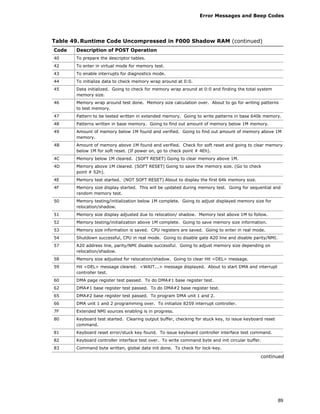
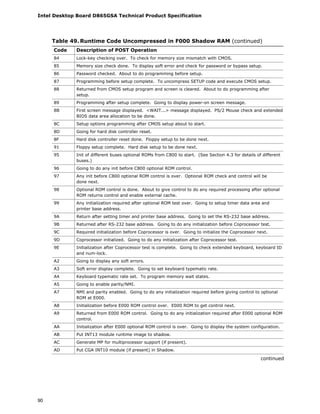
4.2 Port 80h POST Codes ..................................................................................86
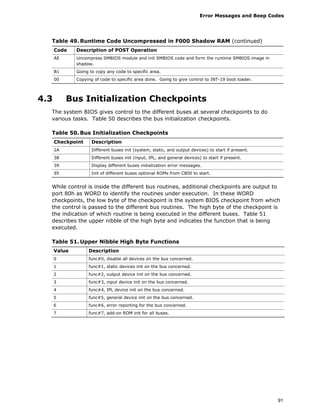
4.3 Bus Initialization Checkpoints .......................................................................91
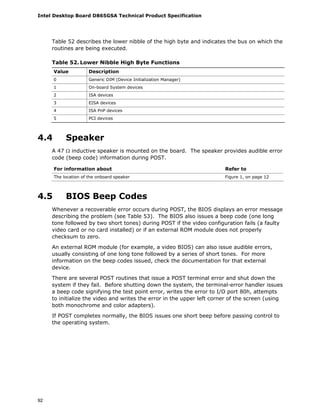
4.4 Speaker ...................................................................................................92
4.5 BIOS Beep Codes .......................................................................................92
Contents
vii
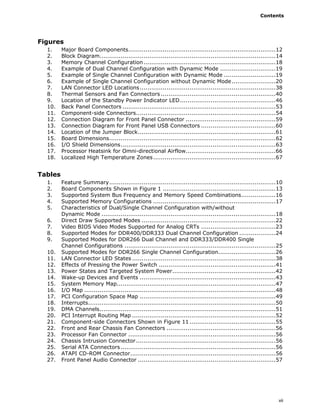
Figures
1. Major Board Components.............................................................................12
2. Block Diagram............................................................................................14
3. Memory Channel Configuration.....................................................................18
4. Example of Dual Channel Configuration with Dynamic Mode .............................19
5. Example of Single Channel Configuration with Dynamic Mode ...........................19
6. Example of Single Channel Configuration without Dynamic Mode.......................20
7. LAN Connector LED Locations.......................................................................38
8. Thermal Sensors and Fan Connectors ............................................................40
9. Location of the Standby Power Indicator LED..................................................46
10. Back Panel Connectors ................................................................................53
11. Component-side Connectors.........................................................................54
12. Connection Diagram for Front Panel Connector ...............................................59
13. Connection Diagram for Front Panel USB Connectors .......................................60
14. Location of the Jumper Block........................................................................61
15. Board Dimensions.......................................................................................62
16. I/O Shield Dimensions.................................................................................63
17. Processor Heatsink for Omni-directional Airflow...............................................66
18. Localized High Temperature Zones................................................................67
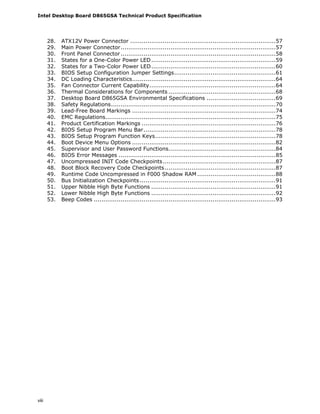
Tables
1. Feature Summary.......................................................................................10
2. Board Components Shown in Figure 1 ...........................................................13
3. Supported System Bus Frequency and Memory Speed Combinations..................16
4. Supported Memory Configurations ................................................................17
5. Characteristics of Dual/Single Channel Configuration with/without
Dynamic Mode ...........................................................................................18
6. Direct Draw Supported Modes ......................................................................22
7. Video BIOS Video Modes Supported for Analog CRTs .......................................23
8. Supported Modes for DDR400/DDR333 Dual Channel Configuration ...................24
9. Supported Modes for DDR266 Dual Channel and DDR333/DDR400 Single
Channel Configurations ...............................................................................25
10. Supported Modes for DDR266 Single Channel Configuration..............................26
11. LAN Connector LED States ...........................................................................38
12. Effects of Pressing the Power Switch .............................................................41
13. Power States and Targeted System Power......................................................42
14. Wake-up Devices and Events .......................................................................43
15. System Memory Map...................................................................................47
16. I/O Map ....................................................................................................48
17. PCI Configuration Space Map .......................................................................49
18. Interrupts..................................................................................................50
19. DMA Channels............................................................................................51
20. PCI Interrupt Routing Map ...........................................................................52
21. Component-side Connectors Shown in Figure 11 .............................................55
22. Front and Rear Chassis Fan Connectors .........................................................56
23. Processor Fan Connector .............................................................................56
24. Chassis Intrusion Connector.........................................................................56
25. Serial ATA Connectors.................................................................................56
26. ATAPI CD-ROM Connector............................................................................56
27. Front Panel Audio Connector ........................................................................57
Intel Desktop Board D865GSA Technical Product Specification
viii
28. ATX12V Power Connector ............................................................................57
29. Main Power Connector.................................................................................57
30. Front Panel Connector.................................................................................58
31. States for a One-Color Power LED.................................................................59
32. States for a Two-Color Power LED.................................................................60
33. BIOS Setup Configuration Jumper Settings.....................................................61
34. DC Loading Characteristics...........................................................................64
35. Fan Connector Current Capability..................................................................64
36. Thermal Considerations for Components ........................................................68
37. Desktop Board D865GSA Environmental Specifications ....................................69
38. Safety Regulations......................................................................................70
39. Lead-Free Board Markings ...........................................................................74
40. EMC Regulations.........................................................................................75
41. Product Certification Markings ......................................................................76
42. BIOS Setup Program Menu Bar.....................................................................78
43. BIOS Setup Program Function Keys...............................................................78
44. Boot Device Menu Options ...........................................................................82
45. Supervisor and User Password Functions........................................................84
46. BIOS Error Messages ..................................................................................85
47. Uncompressed INIT Code Checkpoints...........................................................87
48. Boot Block Recovery Code Checkpoints..........................................................87
49. Runtime Code Uncompressed in F000 Shadow RAM .........................................88
50. Bus Initialization Checkpoints .......................................................................91
51. Upper Nibble High Byte Functions .................................................................91
52. Lower Nibble High Byte Functions .................................................................92
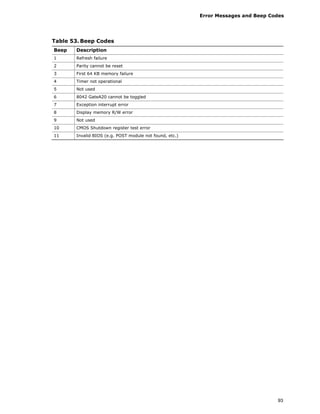
53. Beep Codes ...............................................................................................93
9
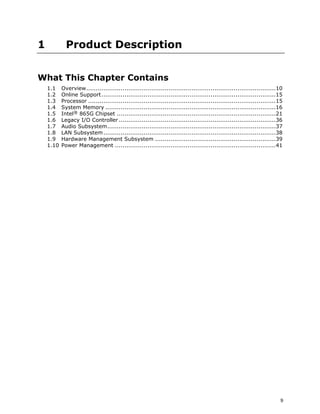
1 Product Description
What This Chapter Contains
1.1 Overview...................................................................................................10
1.2 Online Support...........................................................................................15
1.3 Processor ..................................................................................................15
1.4 System Memory .........................................................................................16
1.5 Intel® 865G Chipset ...................................................................................21
1.6 Legacy I/O Controller ..................................................................................36
1.7 Audio Subsystem........................................................................................37
1.8 LAN Subsystem..........................................................................................38
1.9 Hardware Management Subsystem ...............................................................39
1.10 Power Management ....................................................................................41
Intel Desktop Board D865GSA Technical Product Specification
10
1.1 Overview
1.1.1 Feature Summary
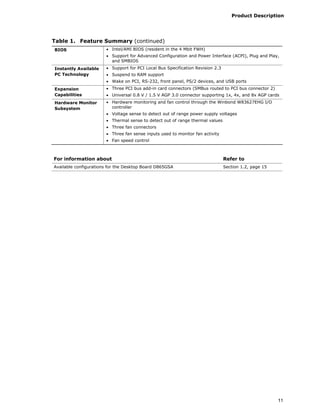
Table 1 summarizes the major features of the Desktop Board D865GSA.
Table 1. Feature Summary
Form Factor microATX (9.60 inches by 8.80 inches [243.84 millimeters by 223.52 millimeters])
Processor Support for the following:
• Intel® Pentium® D processor in an LGA775 socket with an 800 MHz system bus
• Intel® Pentium® 4 processor in an LGA775 socket with an 800 or 533 MHz
system bus
• Intel® Celeron® D processor in an LGA775 socket with a 533 MHz system bus
Memory • Two 184-pin DDR SDRAM Dual Inline Memory Module (DIMM) sockets
• Support for DDR 400, DDR 333, and DDR 266
• Support for up to 2 GB of system memory
Chipset Intel® 865G Chipset, consisting of:
• Intel® 82865G Graphics and Memory Controller Hub (GMCH)
• Intel® 82801EB I/O Controller Hub (ICH5)
• 4 Mbit Firmware Hub (FWH)
Video Intel® Extreme Graphics 2 controller
Audio Audio subsystem for AC ‘97 processing using the Realtek* ALC655 codec
Legacy I/O Control Winbond* W83627EHG LPC Bus I/O controller
USB Support for USB 2.0 devices
Peripheral
Interfaces
• Eight USB ports
• One serial port
• One parallel port
• Two Serial ATA IDE interfaces
• Two Parallel ATA IDE interfaces with UDMA 33, ATA-66/100 support
• One diskette drive interface
• PS/2* keyboard and mouse ports
LAN Support 10/100 Mbits/sec LAN subsystem using the Realtek RTL8100C Ethernet LAN
controller
continued
Product Description
11
Table 1. Feature Summary (continued)
BIOS • Intel/AMI BIOS (resident in the 4 Mbit FWH)
• Support for Advanced Configuration and Power Interface (ACPI), Plug and Play,
and SMBIOS
Instantly Available
PC Technology
• Support for PCI Local Bus Specification Revision 2.3
• Suspend to RAM support
• Wake on PCI, RS-232, front panel, PS/2 devices, and USB ports
Expansion
Capabilities
• Three PCI bus add-in card connectors (SMBus routed to PCI bus connector 2)
• Universal 0.8 V / 1.5 V AGP 3.0 connector supporting 1x, 4x, and 8x AGP cards
Hardware Monitor
Subsystem
• Hardware monitoring and fan control through the Winbond W83627EHG I/O
controller
• Voltage sense to detect out of range power supply voltages
• Thermal sense to detect out of range thermal values
• Three fan connectors
• Three fan sense inputs used to monitor fan activity
• Fan speed control
For information about Refer to
Available configurations for the Desktop Board D865GSA Section 1.2, page 15
Intel Desktop Board D865GSA Technical Product Specification
12
1.1.2 Board Layout
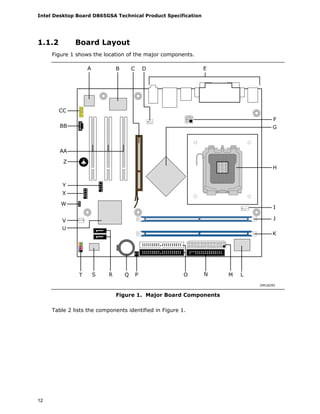
Figure 1 shows the location of the major components.
A
M
B C D
NOPQRST
V
X
Y
BB
CC
F
I
E
L
H
G
J
K
AA
Z
W
U
OM18295
Figure 1. Major Board Components
Table 2 lists the components identified in Figure 1.
Product Description
13
Table 2. Board Components Shown in Figure 1
Item/callout
from Figure 1 Description
A Audio codec
B Ethernet LAN controller
C AGP connector
D Rear chassis fan connector
E Back panel connectors
F +12V power connector (ATX12V)
G Intel 82865G GMCH
H LGA775 processor socket
I Processor fan connector
J DIMM Channel A socket
K DIMM Channel B socket
L Legacy I/O controller
M Main Power connector
N Diskette drive connector
O Parallel ATE IDE connectors [2]
P Chassis intrusion connector
Q Battery
R Serial ATA connectors [2]
S 4 Mbit Firmware Hub (FWH)
T Front panel connector
U Intel 82801EB I/O Controller Hub (ICH5)
V Front chassis fan connector
W BIOS Setup configuration jumper block
X Front panel USB connector
Y Front panel USB connector
Z Speaker
AA PCI Conventional bus add-in card connectors [3]
BB ATAPI CD-ROM connector
CC Front panel audio connector
Intel Desktop Board D865GSA Technical Product Specification
14
1.1.3 Block Diagram
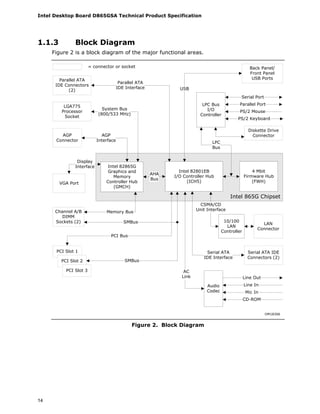
Figure 2 is a block diagram of the major functional areas.
Intel 865G Chipset
Intel 82801EB
I/O Controller Hub
(ICH5)
Intel 82865G
Graphics and
Memory
Controller Hub
(GMCH)
4 Mbit
Firmware Hub
(FWH)
AHA
Bus
System Bus
(800/533 MHz)
LGA775
Processor
Socket
Parallel ATA
IDE Connectors
(2)
Diskette Drive
Connector
LPC Bus
I/O
Controller
PS/2 Keyboard
PS/2 Mouse
Parallel Port
Serial Port
Parallel ATA
IDE Interface
LPC
Bus
OM18306
LAN
Connector
10/100
LAN
Controller
CSMA/CD
Unit Interface
Display
Interface
VGA Port
= connector or socket
PCI Bus
SMBus
Back Panel/
Front Panel
USB Ports
USB
Memory Bus
SMBus
PCI Slot 1
PCI Slot 2
PCI Slot 3
Serial ATA IDE
Connectors (2)
AC
Link
AGP
Connector
AGP
Interface
Channel A/B
DIMM
Sockets (2)
Audio
Codec Mic In
CD-ROM
Line In
Line Out
Serial ATA
IDE Interface
Figure 2. Block Diagram
Product Description
15
1.2 Online Support
To find information about… Visit this World Wide Web site:
Intel Desktop Board D865GSA under
“Desktop Board Products” or “Desktop
Board Support”
http://www.intel.com/design/motherbd
http://support.intel.com/support/motherboards/desktop
Available configurations for the Desktop
Board D865GSA
http://developer.intel.com/design/motherbd/sa/sa_available.htm
Processor data sheets http://www.intel.com/products/index.htm
ICH5 addressing http://developer.intel.com/products/chipsets/index.htm
Audio software and utilities http://www.intel.com/design/motherbd
LAN software and drivers http://www.intel.com/design/motherbd
1.3 Processor
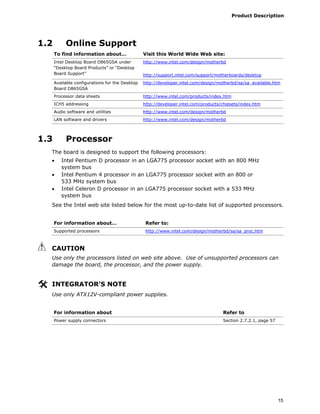
The board is designed to support the following processors:
• Intel Pentium D processor in an LGA775 processor socket with an 800 MHz
system bus
• Intel Pentium 4 processor in an LGA775 processor socket with an 800 or
533 MHz system bus
• Intel Celeron D processor in an LGA775 processor socket with a 533 MHz
system bus
See the Intel web site listed below for the most up-to-date list of supported processors.
For information about… Refer to:
Supported processors http://www.intel.com/design/motherbd/sa/sa_proc.htm
CAUTION
Use only the processors listed on web site above. Use of unsupported processors can
damage the board, the processor, and the power supply.
INTEGRATOR’S NOTE
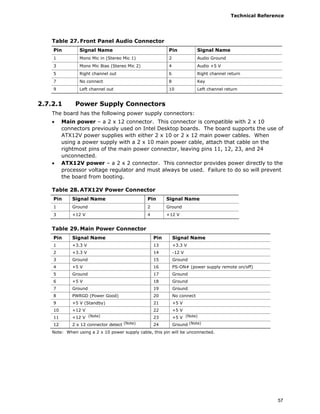
Use only ATX12V-compliant power supplies.
For information about Refer to
Power supply connectors Section 2.7.2.1, page 57
Intel Desktop Board D865GSA Technical Product Specification
16
1.4 System Memory
The board has two DIMM sockets and supports the following memory features:
• 2.6 V (only) 184-pin DDR SDRAM DIMMs with gold-plated contacts
• Unbuffered, single-sided or double-sided DIMMs with the following restriction:
Double-sided DIMMS with x16 organization are not supported.
• 2 GB maximum total system memory.
• Minimum total system memory: 64 MB
• Non-ECC DIMMs
• Serial Presence Detect
• DDR400, DDR333, and DDR266 SDRAM DIMMs
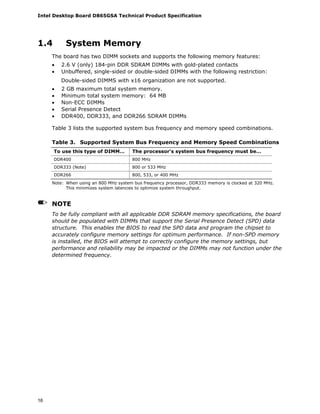
Table 3 lists the supported system bus frequency and memory speed combinations.
Table 3. Supported System Bus Frequency and Memory Speed Combinations
To use this type of DIMM… The processor's system bus frequency must be…
DDR400 800 MHz
DDR333 (Note) 800 or 533 MHz
DDR266 800, 533, or 400 MHz
Note: When using an 800 MHz system bus frequency processor, DDR333 memory is clocked at 320 MHz.
This minimizes system latencies to optimize system throughput.
NOTE
To be fully compliant with all applicable DDR SDRAM memory specifications, the board
should be populated with DIMMs that support the Serial Presence Detect (SPD) data
structure. This enables the BIOS to read the SPD data and program the chipset to
accurately configure memory settings for optimum performance. If non-SPD memory
is installed, the BIOS will attempt to correctly configure the memory settings, but
performance and reliability may be impacted or the DIMMs may not function under the
determined frequency.
Product Description
17
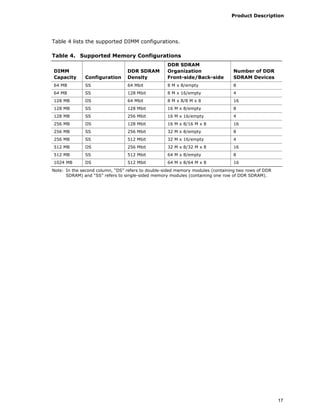
Table 4 lists the supported DIMM configurations.
Table 4. Supported Memory Configurations
DIMM
Capacity Configuration
DDR SDRAM
Density
DDR SDRAM
Organization
Front-side/Back-side
Number of DDR
SDRAM Devices
64 MB SS 64 Mbit 8 M x 8/empty 8
64 MB SS 128 Mbit 8 M x 16/empty 4
128 MB DS 64 Mbit 8 M x 8/8 M x 8 16
128 MB SS 128 Mbit 16 M x 8/empty 8
128 MB SS 256 Mbit 16 M x 16/empty 4
256 MB DS 128 Mbit 16 M x 8/16 M x 8 16
256 MB SS 256 Mbit 32 M x 8/empty 8
256 MB SS 512 Mbit 32 M x 16/empty 4
512 MB DS 256 Mbit 32 M x 8/32 M x 8 16
512 MB SS 512 Mbit 64 M x 8/empty 8
1024 MB DS 512 Mbit 64 M x 8/64 M x 8 16
Note: In the second column, “DS” refers to double-sided memory modules (containing two rows of DDR
SDRAM) and “SS” refers to single-sided memory modules (containing one row of DDR SDRAM).
Intel Desktop Board D865GSA Technical Product Specification
18
1.4.1 Memory Configurations
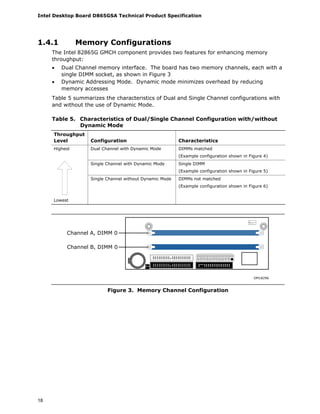
The Intel 82865G GMCH component provides two features for enhancing memory
throughput:
• Dual Channel memory interface. The board has two memory channels, each with a
single DIMM socket, as shown in Figure 3
• Dynamic Addressing Mode. Dynamic mode minimizes overhead by reducing
memory accesses
Table 5 summarizes the characteristics of Dual and Single Channel configurations with
and without the use of Dynamic Mode.
Table 5. Characteristics of Dual/Single Channel Configuration with/without
Dynamic Mode
Throughput
Level Configuration Characteristics
Highest Dual Channel with Dynamic Mode DIMMs matched
(Example configuration shown in Figure 4)
Single Channel with Dynamic Mode Single DIMM
(Example configuration shown in Figure 5)
Lowest
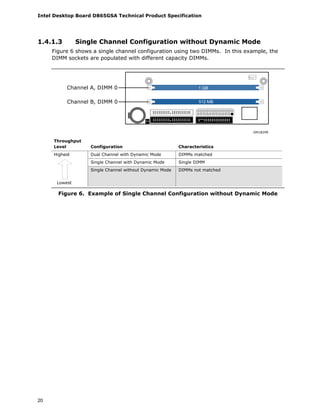
Single Channel without Dynamic Mode DIMMs not matched
(Example configuration shown in Figure 6)
OM18296
Channel A, DIMM 0
Channel B, DIMM 0
Figure 3. Memory Channel Configuration
Product Description
19
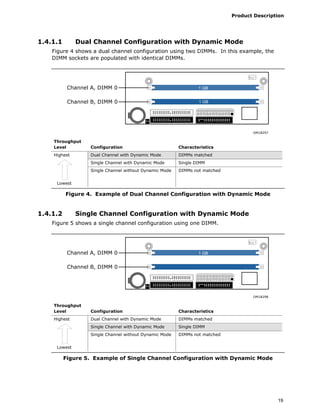
1.4.1.1 Dual Channel Configuration with Dynamic Mode
Figure 4 shows a dual channel configuration using two DIMMs. In this example, the
DIMM sockets are populated with identical DIMMs.
OM18297
Channel A, DIMM 0
Channel B, DIMM 0
1 GB
1 GB
Throughput
Level Configuration Characteristics
Highest Dual Channel with Dynamic Mode DIMMs matched
Single Channel with Dynamic Mode Single DIMM
Lowest
Single Channel without Dynamic Mode DIMMs not matched
Figure 4. Example of Dual Channel Configuration with Dynamic Mode
1.4.1.2 Single Channel Configuration with Dynamic Mode
Figure 5 shows a single channel configuration using one DIMM.
OM18298
Channel A, DIMM 0
Channel B, DIMM 0
1 GB
Throughput
Level Configuration Characteristics
Highest Dual Channel with Dynamic Mode DIMMs matched
Single Channel with Dynamic Mode Single DIMM
Lowest
Single Channel without Dynamic Mode DIMMs not matched
Figure 5. Example of Single Channel Configuration with Dynamic Mode
Intel Desktop Board D865GSA Technical Product Specification
20
1.4.1.3 Single Channel Configuration without Dynamic Mode
Figure 6 shows a single channel configuration using two DIMMs. In this example, the
DIMM sockets are populated with different capacity DIMMs.
OM18299
Channel A, DIMM 0
Channel B, DIMM 0
1 GB
512 MB
Throughput
Level Configuration Characteristics
Highest Dual Channel with Dynamic Mode DIMMs matched
Single Channel with Dynamic Mode Single DIMM
Lowest
Single Channel without Dynamic Mode DIMMs not matched
Figure 6. Example of Single Channel Configuration without Dynamic Mode
Product Description
21
1.5 Intel® 865G Chipset
The Intel 865G chipset consists of the following devices:
• Intel 82865G Graphics and Memory Controller Hub (GMCH) with Accelerated Hub
Architecture (AHA) bus
• Intel 82801EB I/O Controller Hub (ICH5) with AHA bus
• Firmware Hub (FWH)
The GMCH is a centralized controller for the system bus, the memory bus, and the
Accelerated Hub Architecture interface. The ICH5 is a centralized controller for the
board’s I/O paths. The FWH provides the nonvolatile storage of the BIOS.
For information about Refer to
The Intel 865G chipset http://developer.intel.com/
Resources used by the chipset Chapter 2
1.5.1 Intel 865G Graphics Subsystem
The Intel 865G chipset uses the Intel Extreme Graphics 2 controller (contained within
the 82865G GMCH).
1.5.1.1 Intel® Extreme Graphics 2 Controller
The Intel Extreme Graphics 2 controller features the following:
• Integrated graphics controller
⎯ 32 bpp (Bits Per Pixel) graphics engine
⎯ 266 MHz core frequency
⎯ 256-bit 2-D engine
⎯ 32-bit 3-D engine
⎯ Motion video acceleration
• High performance 3-D setup and render engine
• High quality/performance texture engine
• Display
⎯ Integrated 24-bit 350 MHz RAMDAC
⎯ DDC2B compliant interface
• Hardware motion compensation for software MPEG2 decode
• Dynamic Video Memory Technology (DVMT) support up to 64 MB
For information about Refer to
DVMT Section 1.5.1.3, page 27
Obtaining graphics software and utilities Section 1.2, page 15
Intel Desktop Board D865GSA Technical Product Specification
22
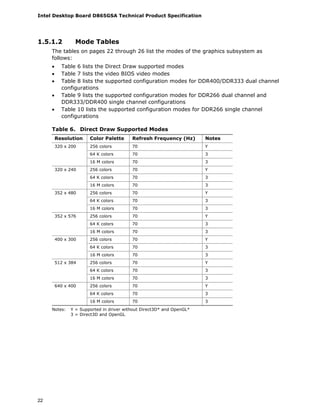
1.5.1.2 Mode Tables
The tables on pages 22 through 26 list the modes of the graphics subsystem as
follows:
• Table 6 lists the Direct Draw supported modes
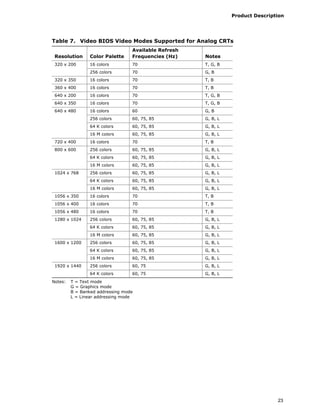
• Table 7 lists the video BIOS video modes
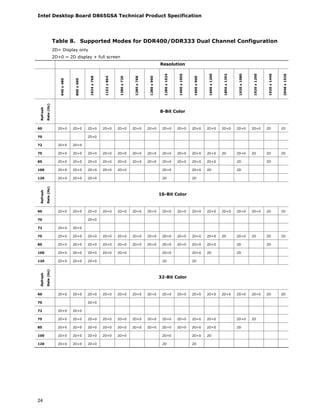
• Table 8 lists the supported configuration modes for DDR400/DDR333 dual channel
configurations
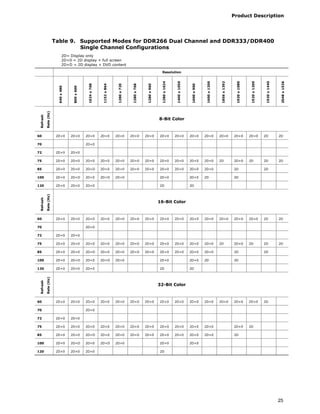
• Table 9 lists the supported configuration modes for DDR266 dual channel and
DDR333/DDR400 single channel configurations
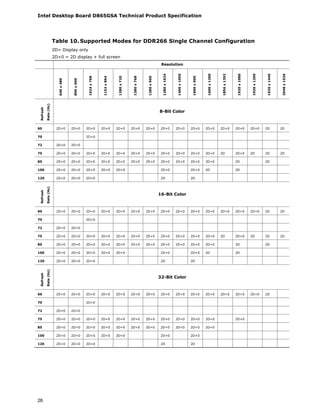
• Table 10 lists the supported configuration modes for DDR266 single channel
configurations
Table 6. Direct Draw Supported Modes
Resolution Color Palette Refresh Frequency (Hz) Notes
256 colors 70 Y
64 K colors 70 3
320 x 200
16 M colors 70 3
256 colors 70 Y
64 K colors 70 3
320 x 240
16 M colors 70 3
256 colors 70 Y
64 K colors 70 3
352 x 480
16 M colors 70 3
256 colors 70 Y
64 K colors 70 3
352 x 576
16 M colors 70 3
256 colors 70 Y
64 K colors 70 3
400 x 300
16 M colors 70 3
256 colors 70 Y
64 K colors 70 3
512 x 384
16 M colors 70 3
256 colors 70 Y
64 K colors 70 3
640 x 400
16 M colors 70 3
Notes: Y = Supported in driver without Direct3D* and OpenGL*
3 = Direct3D and OpenGL
Product Description
23
Table 7. Video BIOS Video Modes Supported for Analog CRTs
Resolution Color Palette
Available Refresh
Frequencies (Hz) Notes
16 colors 70 T, G, B320 x 200
256 colors 70 G, B
320 x 350 16 colors 70 T, B
360 x 400 16 colors 70 T, B
640 x 200 16 colors 70 T, G, B
640 x 350 16 colors 70 T, G, B
16 colors 60 G, B
256 colors 60, 75, 85 G, B, L
64 K colors 60, 75, 85 G, B, L
640 x 480
16 M colors 60, 75, 85 G, B, L
720 x 400 16 colors 70 T, B
256 colors 60, 75, 85 G, B, L
64 K colors 60, 75, 85 G, B, L
800 x 600
16 M colors 60, 75, 85 G, B, L
256 colors 60, 75, 85 G, B, L
64 K colors 60, 75, 85 G, B, L
1024 x 768
16 M colors 60, 75, 85 G, B, L
1056 x 350 16 colors 70 T, B
1056 x 400 16 colors 70 T, B
1056 x 480 16 colors 70 T, B
256 colors 60, 75, 85 G, B, L
64 K colors 60, 75, 85 G, B, L
1280 x 1024
16 M colors 60, 75, 85 G, B, L
256 colors 60, 75, 85 G, B, L
64 K colors 60, 75, 85 G, B, L
1600 x 1200
16 M colors 60, 75, 85 G, B, L
256 colors 60, 75 G, B, L1920 x 1440
64 K colors 60, 75 G, B, L
Notes: T = Text mode
G = Graphics mode
B = Banked addressing mode
L = Linear addressing mode
Intel Desktop Board D865GSA Technical Product Specification
24
Table 8. Supported Modes for DDR400/DDR333 Dual Channel Configuration
2D= Display only
2D+0 = 2D display + full screen
Resolution
640x480
800x600
1024x768
1152x864
1280x720
1280x768
1280x960
1280x1024
1400x1050
1600x900
1600x1200
1856x1392
1920x1080
1920x1200
1920x1440
2048x1536
Refresh
Rate(Hz)
8-Bit Color
60 2D+0 2D+0 2D+0 2D+0 2D+0 2D+0 2D+0 2D+0 2D+0 2D+0 2D+0 2D+0 2D+0 2D+0 2D 2D
70 2D+0
72 2D+0 2D+0
75 2D+0 2D+0 2D+0 2D+0 2D+0 2D+0 2D+0 2D+0 2D+0 2D+0 2D+0 2D 2D+0 2D 2D 2D
85 2D+0 2D+0 2D+0 2D+0 2D+0 2D+0 2D+0 2D+0 2D+0 2D+0 2D+0 2D 2D
100 2D+0 2D+0 2D+0 2D+0 2D+0 2D+0 2D+0 2D 2D
120 2D+0 2D+0 2D+0 2D 2D
Refresh
Rate(Hz)
16-Bit Color
60 2D+0 2D+0 2D+0 2D+0 2D+0 2D+0 2D+0 2D+0 2D+0 2D+0 2D+0 2D+0 2D+0 2D+0 2D 2D
70 2D+0
72 2D+0 2D+0
75 2D+0 2D+0 2D+0 2D+0 2D+0 2D+0 2D+0 2D+0 2D+0 2D+0 2D+0 2D 2D+0 2D 2D 2D
85 2D+0 2D+0 2D+0 2D+0 2D+0 2D+0 2D+0 2D+0 2D+0 2D+0 2D+0 2D 2D
100 2D+0 2D+0 2D+0 2D+0 2D+0 2D+0 2D+0 2D 2D
120 2D+0 2D+0 2D+0 2D 2D
Refresh
Rate(Hz)
32-Bit Color
60 2D+0 2D+0 2D+0 2D+0 2D+0 2D+0 2D+0 2D+0 2D+0 2D+0 2D+0 2D+0 2D+0 2D+0 2D 2D
70 2D+0
72 2D+0 2D+0
75 2D+0 2D+0 2D+0 2D+0 2D+0 2D+0 2D+0 2D+0 2D+0 2D+0 2D+0 2D+0 2D
85 2D+0 2D+0 2D+0 2D+0 2D+0 2D+0 2D+0 2D+0 2D+0 2D+0 2D+0 2D
100 2D+0 2D+0 2D+0 2D+0 2D+0 2D+0 2D+0 2D
120 2D+0 2D+0 2D+0 2D 2D
Product Description
25
Table 9. Supported Modes for DDR266 Dual Channel and DDR333/DDR400
Single Channel Configurations
2D= Display only
2D+0 = 2D display + full screen
2D+D = 2D display + DVD content
Resolution
640x480
800x600
1024x768
1152x864
1280x720
1280x768
1280x960
1280x1024
1400x1050
1600x900
1600x1200
1856x1392
1920x1080
1920x1200
1920x1440
2048x1536
Refresh
Rate(Hz)
8-Bit Color
60 2D+0 2D+0 2D+0 2D+0 2D+0 2D+0 2D+0 2D+0 2D+0 2D+0 2D+0 2D+0 2D+0 2D+0 2D 2D
70 2D+0
72 2D+0 2D+0
75 2D+0 2D+0 2D+0 2D+0 2D+0 2D+0 2D+0 2D+0 2D+0 2D+0 2D+0 2D 2D+0 2D 2D 2D
85 2D+0 2D+0 2D+D 2D+0 2D+0 2D+0 2D+0 2D+0 2D+0 2D+0 2D+0 2D 2D
100 2D+0 2D+D 2D+0 2D+D 2D+0 2D+0 2D+0 2D 2D
120 2D+0 2D+0 2D+0 2D 2D
Refresh
Rate(Hz)
16-Bit Color
60 2D+0 2D+0 2D+0 2D+0 2D+0 2D+0 2D+0 2D+0 2D+0 2D+0 2D+0 2D+0 2D+0 2D+0 2D 2D
70 2D+0
72 2D+0 2D+0
75 2D+0 2D+0 2D+0 2D+0 2D+0 2D+0 2D+0 2D+0 2D+0 2D+0 2D+0 2D 2D+0 2D 2D 2D
85 2D+0 2D+0 2D+D 2D+0 2D+0 2D+0 2D+0 2D+0 2D+0 2D+0 2D+0 2D 2D
100 2D+0 2D+D 2D+0 2D+D 2D+0 2D+0 2D+0 2D 2D
120 2D+0 2D+0 2D+0 2D 2D
Refresh
Rate(Hz)
32-Bit Color
60 2D+0 2D+0 2D+0 2D+0 2D+0 2D+0 2D+0 2D+0 2D+0 2D+0 2D+0 2D+0 2D+0 2D+0 2D
70 2D+0
72 2D+0 2D+0
75 2D+0 2D+0 2D+0 2D+0 2D+0 2D+0 2D+0 2D+0 2D+0 2D+0 2D+0 2D+0 2D
85 2D+0 2D+0 2D+D 2D+0 2D+0 2D+0 2D+0 2D+0 2D+0 2D+0 2D+0 2D
100 2D+0 2D+D 2D+0 2D+D 2D+0 2D+0 2D+0
120 2D+0 2D+0 2D+0 2D
Intel Desktop Board D865GSA Technical Product Specification
26
Table 10. Supported Modes for DDR266 Single Channel Configuration
2D= Display only
2D+0 = 2D display + full screen
Resolution
640x480
800x600
1024x768
1152x864
1280x720
1280x768
1280x960
1280x1024
1400x1050
1600x900
1600x1200
1856x1392
1920x1080
1920x1200
1920x1440
2048x1536
Refresh
Rate(Hz)
8-Bit Color
60 2D+0 2D+0 2D+0 2D+0 2D+0 2D+0 2D+0 2D+0 2D+0 2D+0 2D+0 2D+0 2D+0 2D+0 2D 2D
70 2D+0
72 2D+0 2D+0
75 2D+0 2D+0 2D+0 2D+0 2D+0 2D+0 2D+0 2D+0 2D+0 2D+0 2D+0 2D 2D+0 2D 2D 2D
85 2D+0 2D+0 2D+0 2D+0 2D+0 2D+0 2D+0 2D+0 2D+0 2D+0 2D+0 2D 2D
100 2D+0 2D+0 2D+0 2D+0 2D+0 2D+0 2D+0 2D 2D
120 2D+0 2D+0 2D+0 2D 2D
Refresh
Rate(Hz)
16-Bit Color
60 2D+0 2D+0 2D+0 2D+0 2D+0 2D+0 2D+0 2D+0 2D+0 2D+0 2D+0 2D+0 2D+0 2D+0 2D 2D
70 2D+0
72 2D+0 2D+0
75 2D+0 2D+0 2D+0 2D+0 2D+0 2D+0 2D+0 2D+0 2D+0 2D+0 2D+0 2D 2D+0 2D 2D 2D
85 2D+0 2D+0 2D+0 2D+0 2D+0 2D+0 2D+0 2D+0 2D+0 2D+0 2D+0 2D 2D
100 2D+0 2D+0 2D+0 2D+0 2D+0 2D+0 2D+0 2D 2D
120 2D+0 2D+0 2D+0 2D 2D
Refresh
Rate(Hz)
32-Bit Color
60 2D+0 2D+0 2D+0 2D+0 2D+0 2D+0 2D+0 2D+0 2D+0 2D+0 2D+0 2D+0 2D+0 2D+0 2D
70 2D+0
72 2D+0 2D+0
75 2D+0 2D+0 2D+0 2D+0 2D+0 2D+0 2D+0 2D+0 2D+0 2D+0 2D+0 2D+0
85 2D+0 2D+0 2D+0 2D+0 2D+0 2D+0 2D+0 2D+0 2D+0 2D+0 2D+0
100 2D+0 2D+0 2D+0 2D+0 2D+0 2D+0 2D+0
120 2D+0 2D+0 2D+0 2D 2D
Product Description
27
1.5.1.3 Dynamic Video Memory Technology (DVMT)
DVMT enables enhanced graphics and memory performance through Direct AGP, and
highly efficient memory utilization. DVMT ensures the most efficient use of available
system memory for maximum 2-D/3-D graphics performance. Up to 64 MB of system
memory can be allocated to DVMT on systems that have 256 MB or more of total
system memory installed. Up to 32 MB can be allocated to DVMT on systems that have
128 MB but less than 256 MB of total installed system memory. Up to 8 MB can be
allocated to DVMT when less than 128 MB of system memory is installed. DVMT
returns system memory back to the operating system when the additional system
memory is no longer required by the graphics subsystem.
DVMT will always use a minimal fixed portion of system physical memory (as set in the
BIOS Setup program) for compatibility with legacy applications. An example of this
would be when using VGA graphics under DOS. Once loaded, the operating system
and graphics drivers allocate additional system memory to the graphics buffer as
needed for performing graphics functions.
NOTE
The use of DVMT requires operating system driver support.
1.5.1.4 Zone Rendering Technology (ZRT)
The Intel Extreme Graphics 2 Controller supports Zone Rendering Technology (ZRT).
ZRT is a process by which the screen is divided into several zones. Each zone is
completely cached and rendered on chip before being written to the frame buffer. The
benefits of ZRT include the following:
• Increased memory efficiency via better localization of data
• Increased on-chip processing speed due to decreased wait time for data
• Increased effective pixel fill rates
• Increased headroom for larger resolution and color depth
• Reduced power as a result of decreased memory bandwidth
• Reduction in depth and color bandwidth associated with conventional rendering
1.5.1.5 Rapid Pixel and Text Rendering (RPTR)
The Rapid Pixel and Text Rendering Engine (RPTR) architecture utilizes special pipelines
that allow 2D and 3D operations to overlap. By providing 8X compression, the RPTR
engine reduces the memory bandwidth required to read texture memory, and reduces
the amount of memory required for texture storage.
A dedicated, non-blocking, multi-tier cache is provided for textures, colors, Z and
vertex rendering. With single-pass, quad texture support, the drivers can submit up to
four textures that pass to the graphics engine concurrently. The graphics core can
switch between 2D and 3D operations without having to complete all operations of the
same mode, which minimizes the overhead time required in switching between modes.
Intel Desktop Board D865GSA Technical Product Specification
28
A 2D Block Level Transfer (BLT) in the RPTR engine is extended to 256-bit, which
supports fast blitter fill rate. This enables the blitter sequence of the same addresses
to access the cache and offloads the memory bandwidth required to support blitter fill
rate. Then the cache is emptied automatically when the sequence of operations are
complete.
1.5.1.6 Intelligent Memory Management (IMM)
Intelligent Memory Management (IMM) technology is Intel’s unique UMA memory
manager architecture, consisting of these key elements:
• Tiled memory addressing capability
• Deep display buffer implementation
• Dynamic data management scheme
The memory addressing allows address remapping in the hardware for all graphics
surfaces including textures, frame buffer, Z buffer, and video surfaces. Deep display
buffers and dedicated screen refreshes improve visual performance, while the dynamic
data management scheme manages burst size and page closing policies for memory
accesses.
IMM reduces the aggregate processor latency and allows longer in-page bursts for
higher system performance. IMM also increases page coherency and improves
memory efficiency in texture loads, 2D blitters, color/Z, MPEG2 motion compression,
and other operations.
1.5.1.7 Video Mixing Renderer (VMR)
The Intel Extreme Graphics 2 controller features VMR technology. VMR is a process
where various data types can be blended together before being displayed. VMR allows
applications to bend and twist images such as 3D textures so that special effects such
as wipes, spins, and fades can be achieved.
1.5.1.8 PC/VCR Time Shifted Viewing
PC/VCR requires a TV-tuner add-in card and a third party application. PC/VCR time
shifted viewing allows the user to view and digitally record video pictures on their PC.
Users can view stored images while recording and by using time-shifted viewing they
can pause, resume, replay, and catch up to real time. The Intel Pentium 4 processor in
combination with the Intel 82865G GMCH optimizes performance so that the video
output is smooth without leaving any visual artifacts. Video tearing and corruption is
prevented by the use of multiple buffers within the Intel Extreme Graphics 2 controller.
1.5.1.9 Bi-cubic Filtering
Bi-cubic filtering is a new 4X4 filter that allows images to be generated more smoothly
in the 3D pipeline. The bi-cubic filter can be used to improve image quality for all 3D
texture engine components.
Product Description
29
1.5.1.10 AGP Digital Display (ADD) Card Support
The GMCH routes two 12-bit multiplexed DVO ports that are each capable of driving a
165 MHz pixel clock to the AGP connector. The DVO ports can be paired for dual
channel mode. In dual channel mode, the GMCH is capable of driving a 24-bit 330 MHz
pixel clock. When an AGP add-in card is used, the Intel Extreme Graphics 2 controller
is disabled and the AGP connector operates in AGP mode. When an ADD card is
detected, the Intel Extreme Graphics 2 controller is enabled and the AGP connector is
configured for DVO mode. DVO mode enables the DVO ports to be accessed by an
ADD card. ADD cards can support up to two display devices with the following
configurations:
• TV-Out
• Transition Minimized Differential Signaling (TMDS)
• Low Voltage Differential Signaling (LVDS)
• Single device operating in dual channel mode
INTEGRATOR’S NOTES
• Synchronous display is not supported when one of the display devices is a TV.
• Synchronous display with two digital displays is not supported.
• Digital Visual Interface (DVI) support is present only when an ADD card is installed.
1.5.2 Universal 0.8 V / 1.5 V AGP 3.0 Connector
The AGP connector supports the following:
• 4x, 8x AGP 3.0 add-in cards with 0.8 V I/O
• 1x, 4x AGP 2.0 add-in cards with 1.5 V I/O
• AGP Digital Display (ADD) cards
AGP is a high-performance interface for graphics-intensive applications, such as 3D
applications. While based on the PCI Local Bus Specification, Rev. 2.2, AGP is
independent of the PCI bus and is intended for exclusive use with graphical display
devices. AGP overcomes certain limitations of the PCI bus related to handling large
amounts of graphics data with the following features:
• Pipelined memory read and write operations that hide memory access latency
• Demultiplexing of address and data on the bus for nearly 100 percent efficiency
INTEGRATOR’S NOTES
• AGP 2x operation is not supported.
• Install memory in the DIMM sockets prior to installing the AGP video card to avoid
interference with the memory retention mechanism.
• The AGP connector is keyed for Universal 0.8 V AGP 3.0 cards or 1.5 V AGP 2.0
cards only. Do not attempt to install a legacy 3.3 V AGP card. The AGP connector
is not mechanically compatible with legacy 3.3 V AGP cards.
For information about Refer to
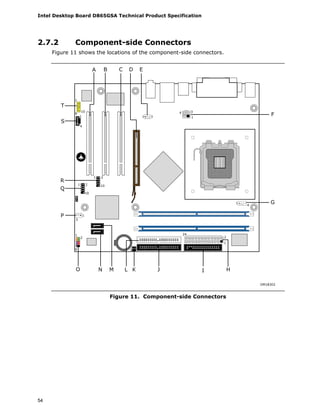
The location of the AGP connector on the D865GSA board Figure 11, page 54
Intel Desktop Board D865GSA Technical Product Specification
30
1.5.3 USB
The board supports up to eight USB 2.0 ports, supports UHCI and EHCI, and uses
UHCI- and EHCI-compatible drivers.
The ICH5 provides the USB controller for all ports. The port arrangement is as follows:
• Four ports are implemented with stacked back panel connectors, adjacent to the
audio connectors
• Four ports are routed to two separate front panel USB connectors
NOTE
Computer systems that have an unshielded cable attached to a USB port may not meet
FCC Class B requirements, even if no device is attached to the cable. Use shielded
cable that meets the requirements for full-speed devices.
For information about Refer to
The location of the USB connectors on the back panel Figure 10, page 53
The location of the front panel USB connectors Figure 11, page 54
1.5.4 IDE Support
The board provides four IDE interface connectors:
• Two Parallel ATA IDE connectors, which support a total of four devices (two per
connector)
• Two Serial ATA IDE connectors, which support one device per connector
1.5.4.1 Parallel ATA IDE Interfaces
The ICH5’s Parallel ATA IDE controller has two independent bus-mastering Parallel ATA
IDE interfaces that can be independently enabled. The Parallel ATA IDE interfaces
support the following modes:
• Programmed I/O (PIO): processor controls data transfer.
• 8237-style DMA: DMA offloads the processor, supporting transfer rates of up to
16 MB/sec.
• Ultra DMA: DMA protocol on IDE bus supporting host and target throttling and
transfer rates of up to 33 MB/sec.
• ATA-66: DMA protocol on IDE bus supporting host and target throttling and
transfer rates of up to 66 MB/sec. ATA-66 protocol is similar to Ultra DMA and is
device driver compatible.
• ATA-100: DMA protocol on IDE bus allows host and target throttling. The ICH5’s
ATA-100 logic can achieve read transfer rates up to 100 MB/sec and write transfer
rates up to 88 MB/sec.
NOTE
ATA-66 and ATA-100 are faster timings and require a specialized cable to reduce
reflections, noise, and inductive coupling.
Product Description
31
The Parallel ATA IDE interfaces also support ATAPI devices (such as CD-ROM drives)
and ATA devices. The BIOS supports Logical Block Addressing (LBA) and Extended
Cylinder Head Sector (ECHS) translation modes. The drive reports the transfer rate
and translation mode to the BIOS.
For information about Refer to
The location of the Parallel ATA IDE connectors Figure 11, page 54
1.5.4.2 Serial ATA Interfaces
The ICH5’s Serial ATA controller offers two independent Serial ATA ports with a
theoretical maximum transfer rate of 150 MB/s per port. One device can be installed
on each port for a maximum of two Serial ATA devices. A point-to-point interface is
used for host to device connections, unlike Parallel ATA IDE which supports a
master/slave configuration and two devices per channel.
For compatibility, the underlying Serial ATA functionality is transparent to the operating
system. The Serial ATA controller can operate in both legacy and native modes. In
legacy mode, standard IDE I/O and IRQ resources are assigned (IRQ 14 and 15). In
Native mode, standard PCI resource steering is used. Native mode is the preferred
mode for configurations using the Windows* XP and Windows 2000 operating systems.
NOTE
Many Serial ATA drives use new low-voltage power connectors and require adaptors or
power supplies equipped with low-voltage power connectors.
For more information, see: http://www.serialata.org/
Intel Desktop Board D865GSA Technical Product Specification
32
1.5.5 Real-Time Clock, CMOS SRAM, and Battery
A coin-cell battery (CR2032) powers the real-time clock and CMOS memory. When the
computer is not plugged into a wall socket, the battery has an estimated life of three
years. When the computer is plugged in, the standby current from the power supply
extends the life of the battery. The clock is accurate to ± 13 minutes/year at 25 ºC
with 3.3 VSB applied.
NOTE
If the battery and AC power fail, custom defaults, if previously saved, will be loaded
into CMOS RAM at power-on.
When the voltage drops below a certain level, the BIOS Setup program settings stored
in CMOS RAM (for example, the date and time) might not be accurate. Replace the
battery with an equivalent one. Figure 1 on page 12 shows the location of the battery.
CAUTION
Risk of explosion if the battery is replaced with an incorrect type. Batteries should be
recycled where possible. Disposal of used batteries must be in accordance with local
environmental regulations.
PRECAUTION
Risque d'explosion si la pile usagée est remplacée par une pile de type incorrect. Les
piles usagées doivent être recyclées dans la mesure du possible. La mise au rebut des
piles usagées doit respecter les réglementations locales en vigueur en matière de
protection de l'environnement.
FORHOLDSREGEL
Eksplosionsfare, hvis batteriet erstattes med et batteri af en forkert type. Batterier bør
om muligt genbruges. Bortskaffelse af brugte batterier bør foregå i overensstemmelse
med gældende miljølovgivning.
OBS!
Det kan oppstå eksplosjonsfare hvis batteriet skiftes ut med feil type. Brukte batterier
bør kastes i henhold til gjeldende miljølovgivning.
VIKTIGT!
Risk för explosion om batteriet ersätts med felaktig batterityp. Batterier ska kasseras
enligt de lokala miljövårdsbestämmelserna.
VARO
Räjähdysvaara, jos pariston tyyppi on väärä. Paristot on kierrätettävä, jos se on
mahdollista. Käytetyt paristot on hävitettävä paikallisten ympäristömääräysten
mukaisesti.
Product Description
33
VORSICHT
Bei falschem Einsetzen einer neuen Batterie besteht Explosionsgefahr. Die Batterie
darf nur durch denselben oder einen entsprechenden, vom Hersteller empfohlenen
Batterietyp ersetzt werden. Entsorgen Sie verbrauchte Batterien den Anweisungen des
Herstellers entsprechend.
AVVERTIMENTO
Esiste il pericolo di un esplosione se la pila non viene sostituita in modo corretto.
Utilizzare solo pile uguali o di tipo equivalente a quelle consigliate dal produttore. Per
disfarsi delle pile usate, seguire le istruzioni del produttore.
PRECAUCIÓN
Existe peligro de explosión si la pila no se cambia de forma adecuada. Utilice
solamente pilas iguales o del mismo tipo que las recomendadas por el fabricante del
equipo. Para deshacerse de las pilas usadas, siga igualmente las instrucciones del
fabricante.
WAARSCHUWING
Er bestaat ontploffingsgevaar als de batterij wordt vervangen door een onjuist type
batterij. Batterijen moeten zoveel mogelijk worden gerecycled. Houd u bij het
weggooien van gebruikte batterijen aan de plaatselijke milieuwetgeving.
ATENÇÃO
Haverá risco de explosão se a bateria for substituída por um tipo de bateria incorreto.
As baterias devem ser recicladas nos locais apropriados. A eliminação de baterias
usadas deve ser feita de acordo com as regulamentações ambientais da região.
AŚCIAROŽZNAŚĆ
Існуе рызыка выбуху, калі заменены акумулятар неправільнага тыпу.
Акумулятары павінны, па магчымасці, перепрацоўвацца. Пазбаўляцца ад старых
акумулятараў патрэбна згодна з мясцовым заканадаўствам па экалогіі.
UPOZORNÌNÍ
V případě výměny baterie za nesprávný druh může dojít k výbuchu. Je-li to možné,
baterie by měly být recyklovány. Baterie je třeba zlikvidovat v souladu s místními
předpisy o životním prostředí.
Προσοχή
Υπάρχει κίνδυνος για έκρηξη σε περίπτωση που η µπαταρία αντικατασταθεί από µία
λανθασµένου τύπου. Οι µπαταρίες θα πρέπει να ανακυκλώνονται όταν κάτι τέτοιο είναι
δυνατό. Η απόρριψη των χρησιµοποιηµένων µπαταριών πρέπει να γίνεται σύµφωνα µε
τους κατά τόπο περιβαλλοντικούς κανονισµούς.
Intel Desktop Board D865GSA Technical Product Specification
34
VIGYAZAT
Ha a telepet nem a megfelelő típusú telepre cseréli, az felrobbanhat. A telepeket
lehetőség szerint újra kell hasznosítani. A használt telepeket a helyi környezetvédelmi
előírásoknak megfelelően kell kiselejtezni.
AWAS
Risiko letupan wujud jika bateri digantikan dengan jenis yang tidak betul. Bateri
sepatutnya dikitar semula jika boleh. Pelupusan bateri terpakai mestilah mematuhi
peraturan alam sekitar tempatan.
OSTRZEŻENIE
Istnieje niebezpieczeństwo wybuchu w przypadku zastosowania niewłaściwego typu
baterii. Zużyte baterie należy w miarę możliwości utylizować zgodnie z odpowiednimi
przepisami ochrony środowiska.
PRECAUŢIE
Risc de explozie, dacă bateria este înlocuită cu un tip de baterie necorespunzător.
Bateriile trebuie reciclate, dacă este posibil. Depozitarea bateriilor uzate trebuie să
respecte reglementările locale privind protecţia mediului.
ВНИМАНИЕ
При использовании батареи несоответствующего типа существует риск ее взрыва.
Батареи должны быть утилизированы по возможности. Утилизация батарей должна
проводится по правилам, соответствующим местным требованиям.
UPOZORNENIE
Ak batériu vymeníte za nesprávny typ, hrozí nebezpečenstvo jej výbuchu.
Batérie by sa mali podľa možnosti vždy recyklovať. Likvidácia použitých batérií sa musí
vykonávať v súlade s miestnymi predpismi na ochranu životného prostredia.
POZOR
Zamenjava baterije z baterijo drugačnega tipa lahko povzroči eksplozijo.
Če je mogoče, baterije reciklirajte. Rabljene baterije zavrzite v skladu z lokalnimi
okoljevarstvenimi predpisi.
.
Product Description
35
UYARI
Yanlış türde pil takıldığında patlama riski vardır. Piller mümkün olduğunda geri
dönüştürülmelidir. Kullanılmış piller, yerel çevre yasalarına uygun olarak atılmalıdır.
OСТОРОГА
Використовуйте батареї правильного типу, інакше існуватиме ризик вибуху.
Якщо можливо, використані батареї слід утилізувати. Утилізація використаних
батарей має бути виконана згідно місцевих норм, що регулюють охорону довкілля.
Intel Desktop Board D865GSA Technical Product Specification
36
1.6 Legacy I/O Controller
The Winbond W83627EHG I/O controller provides the following features:
• One serial port
• One parallel port with Extended Capabilities Port (ECP) and Enhanced Parallel Port
(EPP) support
• Serial IRQ interface compatible with serialized IRQ support for PCI systems
• PS/2-style mouse and keyboard interfaces
• Interface for one 1.44 MB or 2.88 MB diskette drive
• Intelligent power management, including a programmable wake-up event interface
• PCI power management support
The BIOS Setup program provides configuration options for the I/O controller.
For information about Refer to
Winbond W83627EHG I/O controller http://www.winbond.com/e-winbondhtm/index.asp
1.6.1 Serial Port
The board has one serial port connector located on the back panel. The serial port
supports data transfers at speeds up to 115.2 kbits/sec with BIOS support.
For information about Refer to
The location of the serial port A connector Figure 10, page 53
1.6.2 Parallel Port
The 25-pin D-Sub parallel port connector is located on the back panel. Use the BIOS
Setup program to set the parallel port mode.
For information about Refer to
The location of the parallel port connector Figure 10, page 53
1.6.3 Diskette Drive Controller
The I/O controller supports one diskette drive. Use the BIOS Setup program to
configure the diskette drive interface.
For information about Refer to
The location of the diskette drive connector on the D865GSA board Figure 11, page 54
Product Description
37
1.6.4 Keyboard and Mouse Interface
PS/2 keyboard and mouse connectors are located on the back panel.
NOTE
The keyboard is supported in the bottom PS/2 connector and the mouse is supported in
the top PS/2 connector. Power to the computer should be turned off before a keyboard
or mouse is connected or disconnected.
For information about Refer to
The location of the keyboard and mouse connectors Figure 10, page 53
1.7 Audio Subsystem
The audio subsystem consists of the following:
• Intel 82801EB I/O Controller Hub (ICH5)
• Realtek ALC655 AC ’97 2.3 compliant audio codec
• Back panel audio connectors
• Component-side audio connectors
1.7.1 Audio Subsystem Software
Audio software and drivers are available from Intel’s World Wide Web site.
For information about Refer to
Obtaining audio software and drivers Section 1.2, page 15
1.7.2 Audio Connectors
The board contains audio connectors on both the back panel and the component side of
the board. The component side audio connectors include the following:
• Front panel audio (a 2 x 5-pin connector that provides mic in and line out signals
for front panel audio connectors)
• ATAPI CD-ROM (a 1 x 4-pin ATAPI-style connector for connecting an internal ATAPI
CD-ROM drive to the audio mixer)
For information about Refer to
The location of the front panel audio connector Figure 11, page 54
The signal names of the front panel audio connector Table 27, page 57
The location of the ATAPI CD-ROM connector Figure 11, page 54
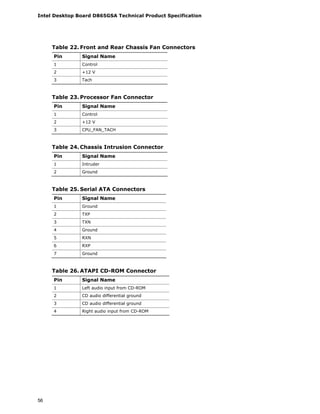
The signal names of the ATAPI CD-ROM connector Table 26, page 56
Intel Desktop Board D865GSA Technical Product Specification
38
1.8 LAN Subsystem
The LAN subsystem consists of the following:
• Realtek RTL8100C 10/100 Mbits/sec Ethernet LAN controller
• RJ-45 LAN connector with integrated status LEDs
• Programmable transit threshold
• Configuration EEPROM that contains the MAC address
• PCI power management
⎯ Supports ACPI technology
⎯ Supports LAN wake capabilities
1.8.1.1 RJ-45 LAN Connector with Integrated LEDs
Two LEDs are built into the RJ-45 LAN connector (shown in Figure 7 below).
Green LED Yellow LED
OM18307
Figure 7. LAN Connector LED Locations
Table 11 describes the LED states when the board is powered up and the
10/100 Mbits/sec LAN subsystem is operating.
Table 11. LAN Connector LED States
LED Color LED State Condition
Off LAN link is not established.
On LAN link is established.
Green
Blinking LAN activity is occurring
Off 10 Mbits/sec data rate is selected.Yellow
On 100 Mbits/sec data rate is selected.
1.8.2 LAN Subsystem Software
LAN software and drivers are available from Intel’s World Wide Web site.
For information about Refer to
Obtaining LAN software and drivers Section 1.2, page 15
Product Description
39
1.9 Hardware Management Subsystem
The hardware management features enable the board to be compatible with the Wired
for Management (WfM) specification. The board has several hardware management
features, including the following:
• Fan monitoring and control (through the legacy I/O controller)
• Thermal and voltage monitoring
• Chassis intrusion detection
1.9.1 Hardware Monitoring and Fan Control
The legacy I/O controller provides the following hardware monitoring and fan control
functions:
• Internal ambient temperature sensor
• Two remote thermal diode sensors for direct monitoring of processor temperature
and ambient temperature sensing
• Power supply monitoring of five voltages (+5 V, +12 V, +3.3 VSB, +1.5 V, and
+VCCP) to detect levels above or below acceptable values
• Thermally monitored closed-loop fan control, for all three fans, that can adjust the
fan speed or switch the fans on or off as needed
• SMBus interface
1.9.2 Fan Monitoring
Fan monitoring can be implemented using Intel Desktop Utilities or third-party
software.
For information about Refer to
The functions of the fan connectors Section 1.10.2.2, page 44
1.9.3 Chassis Intrusion and Detection
The board supports a chassis security feature that detects if the chassis cover is
removed. The security feature uses a mechanical switch on the chassis that attaches
to the chassis intrusion connector. When the chassis cover is removed, the mechanical
switch is in the closed position.
For information about Refer to
The location of the chassis intrusion connector Figure 11, page 54
Intel Desktop Board D865GSA Technical Product Specification
40
1.9.4 Thermal Monitoring
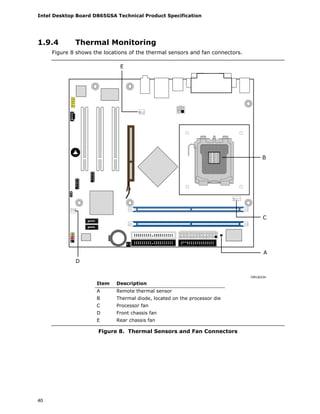
Figure 8 shows the locations of the thermal sensors and fan connectors.
C
B
D
E
OM18334
A
Item Description
A Remote thermal sensor
B Thermal diode, located on the processor die
C Processor fan
D Front chassis fan
E Rear chassis fan
Figure 8. Thermal Sensors and Fan Connectors
Product Description
41
1.10 Power Management
Power management is implemented at several levels, including:
• Software support through Advanced Configuration and Power Interface (ACPI)
• Hardware support:
⎯ Power connector
⎯ Fan connectors
⎯ LAN wake capabilities
⎯ Instantly Available PC technology
⎯ Resume on Ring
⎯ Wake from USB
⎯ Wake from PS/2 devices
⎯ Power Management Event signal (PME#) wake-up support
1.10.1 ACPI
ACPI gives the operating system direct control over the power management and Plug
and Play functions of a computer. The use of ACPI with the board requires an
operating system that provides full ACPI support. ACPI features include:
• Plug and Play (including bus and device enumeration)
• Power management control of individual devices, add-in boards (some add-in
boards may require an ACPI-aware driver), video displays, and hard disk drives
• Methods for achieving less than 15-watt system operation in the power-on/standby
sleeping state
• A Soft-off feature that enables the operating system to power-off the computer
• Support for multiple wake-up events (see Table 14 on page 43)
• Support for a front panel power and sleep mode switch
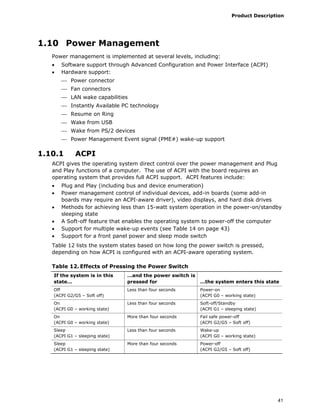
Table 12 lists the system states based on how long the power switch is pressed,
depending on how ACPI is configured with an ACPI-aware operating system.
Table 12. Effects of Pressing the Power Switch
If the system is in this
state…
…and the power switch is
pressed for …the system enters this state
Off
(ACPI G2/G5 – Soft off)
Less than four seconds Power-on
(ACPI G0 – working state)
On
(ACPI G0 – working state)
Less than four seconds Soft-off/Standby
(ACPI G1 – sleeping state)
On
(ACPI G0 – working state)
More than four seconds Fail safe power-off
(ACPI G2/G5 – Soft off)
Sleep
(ACPI G1 – sleeping state)
Less than four seconds Wake-up
(ACPI G0 – working state)
Sleep
(ACPI G1 – sleeping state)
More than four seconds Power-off
(ACPI G2/G5 – Soft off)
Intel Desktop Board D865GSA Technical Product Specification
42
1.10.1.1 System States and Power States
Under ACPI, the operating system directs all system and device power state
transitions. The operating system puts devices in and out of low-power states based
on user preferences and knowledge of how devices are being used by applications.
Devices that are not being used can be turned off. The operating system uses
information from applications and user settings to put the system as a whole into a
low-power state.
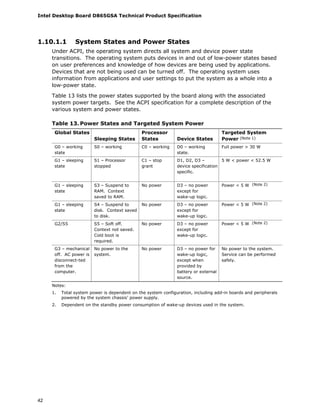
Table 13 lists the power states supported by the board along with the associated
system power targets. See the ACPI specification for a complete description of the
various system and power states.
Table 13. Power States and Targeted System Power
Global States
Sleeping States
Processor
States Device States
Targeted System
Power (Note 1)
G0 – working
state
S0 – working C0 – working D0 – working
state.
Full power > 30 W
G1 – sleeping
state
S1 – Processor
stopped
C1 – stop
grant
D1, D2, D3 –
device specification
specific.
5 W < power < 52.5 W
G1 – sleeping
state
S3 – Suspend to
RAM. Context
saved to RAM.
No power D3 – no power
except for
wake-up logic.
Power < 5 W (Note 2)
G1 – sleeping
state
S4 – Suspend to
disk. Context saved
to disk.
No power D3 – no power
except for
wake-up logic.
Power < 5 W (Note 2)
G2/S5 S5 – Soft off.
Context not saved.
Cold boot is
required.
No power D3 – no power
except for
wake-up logic.
Power < 5 W (Note 2)
G3 – mechanical
off. AC power is
disconnect-ted
from the
computer.
No power to the
system.
No power D3 – no power for
wake-up logic,
except when
provided by
battery or external
source.
No power to the system.
Service can be performed
safely.
Notes:
1. Total system power is dependent on the system configuration, including add-in boards and peripherals
powered by the system chassis’ power supply.
2. Dependent on the standby power consumption of wake-up devices used in the system.
Product Description
43
1.10.1.2 Wake-up Devices and Events
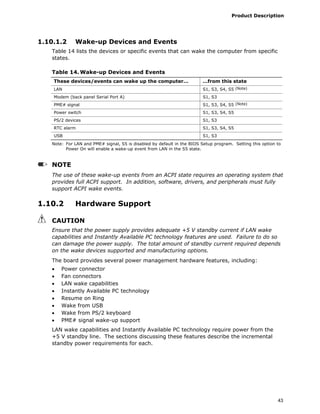
Table 14 lists the devices or specific events that can wake the computer from specific
states.
Table 14. Wake-up Devices and Events
These devices/events can wake up the computer… …from this state
LAN S1, S3, S4, S5 (Note)
Modem (back panel Serial Port A) S1, S3
PME# signal S1, S3, S4, S5 (Note)
Power switch S1, S3, S4, S5
PS/2 devices S1, S3
RTC alarm S1, S3, S4, S5
USB S1, S3
Note: For LAN and PME# signal, S5 is disabled by default in the BIOS Setup program. Setting this option to
Power On will enable a wake-up event from LAN in the S5 state.
NOTE
The use of these wake-up events from an ACPI state requires an operating system that
provides full ACPI support. In addition, software, drivers, and peripherals must fully
support ACPI wake events.
1.10.2 Hardware Support
CAUTION
Ensure that the power supply provides adequate +5 V standby current if LAN wake
capabilities and Instantly Available PC technology features are used. Failure to do so
can damage the power supply. The total amount of standby current required depends
on the wake devices supported and manufacturing options.
The board provides several power management hardware features, including:
• Power connector
• Fan connectors
• LAN wake capabilities
• Instantly Available PC technology
• Resume on Ring
• Wake from USB
• Wake from PS/2 keyboard
• PME# signal wake-up support
LAN wake capabilities and Instantly Available PC technology require power from the
+5 V standby line. The sections discussing these features describe the incremental
standby power requirements for each.
Intel Desktop Board D865GSA Technical Product Specification
44
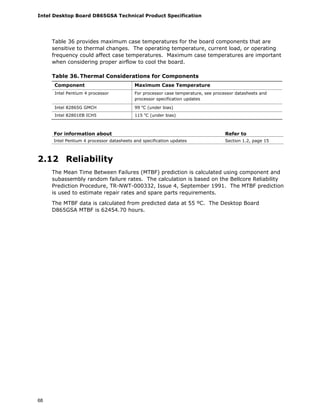
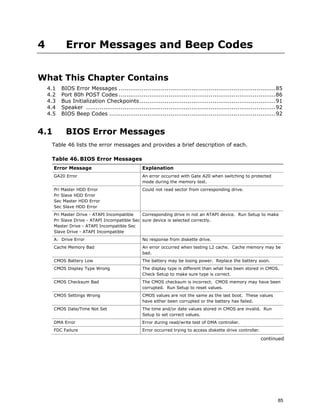
Resume on Ring enables telephony devices to access the computer when it is in a
power-managed state. The method used depends on the type of telephony device
(external or internal).
NOTE
The use of Resume on Ring and Wake from USB technologies from an ACPI state
requires an operating system that provides full ACPI support.
1.10.2.1 Power Connector
ATX12V-compliant power supplies can turn off the system power through system
control. When an ACPI-enabled system receives the correct command, the power
supply removes all non-standby voltages.
When resuming from an AC power failure, the computer returns to the power state it
was in before power was interrupted (on or off). The computer’s response can be set
using the Last Power State feature in the BIOS Setup program’s Boot menu.
For information about Refer to
The location of the power connector Figure 11, page 54
The signal names of the power connector Table 29, page 57
1.10.2.2 Fan Connectors
The function/operation of the fan connectors is as follows:
• The fans are on when the board is in the S0 or S1 state.
• The fans are off when the board is off or in the S3, S4, or S5 state.
• Each fan connector is wired to a fan tachometer input of the hardware monitoring
and fan control ASIC.
• All fan connectors support closed-loop fan control that can adjust the fan speed or
switch the fan on or off as needed.
• All fan connectors have a +12 V DC connection.
For information about Refer to
The location of the fan connectors Figure 11, page 54
The signal names of the processor fan connector Table 23, page 56
The signal names of the chassis fan connectors Table 22, page 56
Product Description
45
1.10.2.3 LAN Wake Capabilities
CAUTION
For LAN wake capabilities, the +5 V standby line for the power supply must be capable
of providing adequate +5 V standby current. Failure to provide adequate standby
current when implementing LAN wake capabilities can damage the power supply.
LAN wake capabilities enable remote wake-up of the computer through a network. The
LAN subsystem PCI bus network adapter monitors network traffic at the Media
Independent Interface. Upon detecting a Magic Packet* frame, the LAN subsystem
asserts a wake-up signal that powers up the computer. Depending on the LAN
implementation, the board supports LAN wake capabilities with ACPI in the following
ways:
• The PCI bus PME# signal for PCI 2.3 compliant LAN designs
• The onboard LAN subsystem
1.10.2.4 Instantly Available PC Technology
CAUTION
For Instantly Available PC technology, the +5 V standby line for the power supply must
be capable of providing adequate +5 V standby current. Failure to provide adequate
standby current when implementing Instantly Available PC technology can damage the
power supply.
Instantly Available PC technology enables the board to enter the ACPI S3 (Suspend-to-
RAM) sleep-state. While in the S3 sleep-state, the computer will appear to be off (the
power supply is off, and the front panel LED is amber if dual colored, or off if single
colored.) When signaled by a wake-up device or event, the system quickly returns to
its last known wake state. Table 14 on page 43 lists the devices and events that can
wake the computer from the S3 state.
The board supports the PCI Bus Power Management Interface Specification. Add-in
boards that also support this specification can participate in power management and
can be used to wake the computer.
The use of Instantly Available PC technology requires operating system support and
PCI 2.3 compliant add-in cards and drivers.
1.10.2.5 Resume on Ring
The operation of Resume on Ring can be summarized as follows:
• Resumes operation from ACPI S1 or S3 states
• Detects incoming call similarly for external and internal modems
• Requires modem interrupt be unmasked for correct operation
1.10.2.6 Wake from USB
USB bus activity wakes the computer from ACPI S1 or S3 states.
Intel Desktop Board D865GSA Technical Product Specification
46
NOTE
Wake from USB requires the use of a USB peripheral that supports Wake from USB.
1.10.2.7 Wake from PS/2 Devices
PS/2 device activity wakes the computer from an ACPI S1 or S3 state.
1.10.2.8 PME# Signal Wake-up Support
When the PME# signal on the PCI bus is asserted, the computer wakes from an ACPI
S1, S3, S4, or S5 state (with Wake on PME enabled in BIOS)
1.10.2.9 +5 V Standby Power Indicator LED
The +5 V standby power indicator LED shows that power is still present even when the
computer appears to be off. Figure 9 shows the location of the standby power
indicator LED.
CAUTION
If AC power has been switched off and the standby power indicator is still lit,
disconnect the power cord before installing or removing any devices connected to the
board. Failure to do so could damage the board and any attached devices.
OM18300
D23
Figure 9. Location of the Standby Power Indicator LED
47
2 Technical Reference
What This Chapter Contains
2.1 Memory Map..............................................................................................47
2.2 Fixed I/O Map ............................................................................................48
2.3 PCI Configuration Space Map .......................................................................49
2.4 Interrupts..................................................................................................50
2.5 DMA Channels............................................................................................51
2.6 PCI Interrupt Routing Map ...........................................................................51
2.7 Connectors ................................................................................................52
2.8 Jumper Block .............................................................................................61
2.9 Mechanical Considerations ...........................................................................62
2.10 Electrical Considerations..............................................................................64
2.11 Thermal Considerations ...............................................................................66
2.12 Reliability ..................................................................................................68
2.13 Environmental............................................................................................69
2.14 Regulatory Compliance................................................................................70
2.1 Memory Map
Table 15 lists the system memory map.
Table 15. System Memory Map
Address Range
(decimal)
Address Range (hex)
Size Description
1024 K - 2097152 K 100000 - 7FFFFFFF 2047 MB Extended memory
960 K - 1024 K F0000 - FFFFF 64 KB Runtime BIOS
896 K - 960 K E0000 - EFFFF 64 KB Reserved
800 K - 896 K C8000 - DFFFF 96 KB Potential available high DOS memory
(open to the PCI bus). Dependent
on video adapter used.
640 K - 800 K A0000 - C7FFF 160 KB Video memory and BIOS
639 K - 640 K 9FC00 - 9FFFF 1 KB Extended BIOS data (movable by
memory manager software)
512 K - 639 K 80000 - 9FBFF 127 KB Extended conventional memory
0 K - 512 K 00000 - 7FFFF 512 KB Conventional memory
Intel Desktop Board D865GSA Technical Product Specification
48
2.2 Fixed I/O Map
Table 16. I/O Map
Address (hex) Size Description
0000 - 00FF 256 bytes Used by the Desktop Board D865GSA. Refer to the ICH5 data
sheet for dynamic addressing information.
0170 - 0177 8 bytes Secondary Parallel ATE IDE channel command block
01F0 - 01F7 8 bytes Primary Parallel ATE IDE channel command block
0228 - 022F (Note 1) 8 bytes LPT3
0278 - 027F (Note 1) 8 bytes LPT2
02E8 - 02EF (Note 1) 8 bytes COM4
02F8 - 02FF (Note 1) 8 bytes COM2
0374 - 0377 4 bytes Secondary Parallel ATA IDE channel control block
0378 - 037F 8 bytes LPT1
03B0 - 03BB 12 bytes Intel 82865G GMCH
03C0 - 03DF 32 bytes Intel 82865G GMCH
03E8 - 03EF 8 bytes COM3
03F0 - 03F5 6 bytes Diskette channel
03F4 - 03F7 4 bytes Primary Parallel ATA IDE channel control block
03F8 - 03FF 8 bytes COM1
04D0 - 04D1 2 bytes Edge/level triggered PIC
LPTn + 400 8 bytes ECP port, LPTn base address + 400h
0CF8 - 0CFB (Note 2) 4 bytes PCI configuration address register
0CF9 (Note 3) 1 byte Reset control register
0CFC - 0CFF 4 bytes PCI configuration data register
FFA0 - FFA7 8 bytes Primary Parallel ATA IDE bus master registers
FFA8 - FFAF 8 bytes Secondary Parallel ATA IDE bus master registers
Notes:
1. Default, but can be changed to another address range
2. Dword access only
3. Byte access only
NOTE
Some additional I/O addresses are not available due to ICH5 address aliassing. The
ICH5 data sheet provides more information on address aliassing.
For information about Refer to
Obtaining the ICH5 data sheet Section 1.2 on page 15
Technical Reference
49
2.3 PCI Configuration Space Map
Table 17. PCI Configuration Space Map
Bus
Number (hex)
Device
Number (hex)
Function
Number (hex) Description
00 00 00 Memory controller of Intel 82865G component
00 02 00 Intel Extreme Graphics 2 controller
00 1E 00 Hub link to PCI bridge
00 1F 00 Intel 82801EB ICH5 PCI to LPC bridge
00 1F 01 Parallel ATA IDE controller
00 1F 02 Serial ATA controller
00 1F 03 SMBus controller
00 1F 05 AC ’97 audio controller
00 1D 00 USB UHCI controller 1
00 1D 01 USB UHCI controller 2
00 1D 02 USB UHCI controller 3
00 1D 03 USB UHCI controller 4
00 1D 07 EHCI controller
01 03 00 Realtek RTL8100C Ethernet Controller
01 02 00 PCI bus connector 1
01 01 00 PCI bus connector 2
01 04 00 PCI bus connector 3
Intel Desktop Board D865GSA Technical Product Specification
50
2.4 Interrupts
The interrupts can be routed through either the Programmable Interrupt Controller
(PIC) or the Advanced Programmable Interrupt Controller (APIC) portion of the ICH5
component. The PIC is supported in Windows 98 SE and Windows ME and uses the
first 16 interrupts. The APIC is supported in Windows 2000 and Windows XP and
supports a total of 24 interrupts.
Table 18. Interrupts
IRQ System Resource
NMI I/O channel check
0 Reserved, interval timer
1 Reserved, keyboard buffer full
2 Reserved, cascade interrupt from slave PIC
3 COM2 (Note 1)
4 COM1 (Note 1)
5 LPT2 (Plug and Play option)/User available
6 Diskette drive
7 LPT1 (Note 1)
8 Real-time clock
9 Reserved for ICH5 system management bus
10 User available
11 User available
12 Onboard mouse port (if present, else user available)
13 Reserved, math coprocessor
14 Primary IDE/Serial ATA (if present, else user available)
15 Secondary IDE/Serial ATA (if present, else user available)
16 (Note 2) USB UHCI controller 1 / USB UHCI controller 4 (through PIRQA)
17 (Note 2) AC ‘97 audio/modem/User available (through PIRQB)
18 (Note 2) ICH5 USB controller 3 (through PIRQC)
19 (Note 2) ICH5 USB controller 2 (through PIRQD)
20 (Note 2) ICH5 LAN (through PIRQE)
21 (Note 2) User available (through PIRQF)
22 (Note 2) User available (through PIRQG)
23 (Note 2) ICH5 USB 2.0 EHCI controller/User available (through PIRQH)
Notes:
1. Default, but can be changed to another IRQ.
2. Available in APIC mode only.
Technical Reference
51
2.5 DMA Channels
Table 19. DMA Channels
DMA Channel Number Data Width System Resource
0 8 or 16 bits Open
1 8 or 16 bits Parallel port
2 8 or 16 bits Diskette drive
3 8 or 16 bits Parallel port (for ECP or EPP)
4 8 or 16 bits DMA controller
5 16 bits Open
6 16 bits Open
7 16 bits Open
2.6 PCI Interrupt Routing Map
This section describes interrupt sharing and how the interrupt signals are connected
between the PCI bus connectors and onboard PCI devices. The PCI specification
specifies how interrupts can be shared between devices attached to the PCI bus. In
most cases, the small amount of latency added by interrupt sharing does not affect the
operation or throughput of the devices. In some special cases where maximum
performance is needed from a device, a PCI device should not share an interrupt with
other PCI devices. Use the following information to avoid sharing an interrupt with a
PCI add-in card.
PCI devices are categorized as follows to specify their interrupt grouping:
• INTA: By default, all add-in cards that require only one interrupt are in this
category. For almost all cards that require more than one interrupt, the first
interrupt on the card is also classified as INTA.
• INTB: Generally, the second interrupt on add-in cards that require two or more
interrupts is classified as INTB. (This is not an absolute requirement.)
• INTC and INTD: Generally, a third interrupt on add-in cards is classified as INTC
and a fourth interrupt is classified as INTD.
The ICH5 has eight Programmable Interrupt Request (PIRQ) input signals. All PCI
interrupt sources either onboard or from a PCI add-in card connect to one of these
PIRQ signals. Some PCI interrupt sources are electrically tied together on the board
and therefore share the same interrupt. Table 20 shows an example of how the
PIRQ signals are routed.
For example, using Table 20 as a reference, assume an add-in card using INTA is
plugged into PCI bus connector 3. In PCI bus connector 3, INTA is connected to
PIRQB, which is already connected to the ICH5 audio controller. The add-in card in PCI
bus connector 3 now shares an interrupt with the onboard interrupt source.
Intel Desktop Board D865GSA Technical Product Specification
52
Table 20. PCI Interrupt Routing Map
ICH5 PIRQ Signal Name
PCI Interrupt Source PIRQA PIRQB PIRQC PIRQD PIRQE PIRQF PIRQG PIRQH
SMBus controller INTB
AC ’97 ICH5 Audio INTB
ICH5 LAN INTA
PCI bus connector 1 INTD INTA INTB INTC
PCI bus connector 2 INTC INTB INTA INTD
PCI bus connector 3 INTD INTA INTB INTC
NOTE
In PIC mode, the ICH5 can connect each PIRQ line internally to one of the IRQ signals
(3, 4, 5, 6, 7, 9, 10, 11, 12, 14, and 15). Typically, a device that does not share a
PIRQ line will have a unique interrupt. However, in certain interrupt-constrained
situations, it is possible for two or more of the PIRQ lines to be connected to the same
IRQ signal. Refer to Table 18 for the allocation of PIRQ lines to IRQ signals in APIC
mode.
PCI interrupt assignments to USB ports and Serial ATA ports are dynamic.
2.7 Connectors
CAUTION
Only the following connectors have overcurrent protection: Back panel and front panel
USB, PS/2, and VGA.
The other internal connectors are not overcurrent protected and should connect only to
devices inside the computer’s chassis, such as fans and internal peripherals. Do not
use these connectors to power devices external to the computer’s chassis. A fault in
the load presented by the external devices could cause damage to the computer, the
power cable, and the external devices themselves.
This section describes the board’s connectors. The connectors can be divided into
these groups:
• Back panel I/O connectors (see page 53)
• Component-side connectors (see page 54)
Technical Reference
53
2.7.1 Back Panel Connectors
Figure 10 shows the location of the back panel connectors. The back panel connectors
are color-coded. The figure legend lists the colors used.
A
B
C
D E F G J K
H I
OM18301
Item Description Color
A PS/2 mouse port Green
B PS/2 keyboard port Purple
C Parallel port Burgundy
D Serial port A Teal
E VGA port Dark blue
F USB ports [2] Black
G USB ports [2] Black
H LAN Black
I Audio line in Light blue
J Mic in Pink
K Audio line out Lime green
Figure 10. Back Panel Connectors
NOTE
The back panel audio line out connector is designed to power headphones or amplified
speakers only. Poor audio quality occurs if passive (non-amplified) speakers are
connected to this output.
Intel Desktop Board D865GSA Technical Product Specification
54
2.7.2 Component-side Connectors
Figure 11 shows the locations of the component-side connectors.
A
H
B C D E
IJLMNO
P
Q
R
S
T
F
G
OM18302
1
9
10
1 31
4
1 2
101 2
10
1
3
1
2
9 1
1
4
1
2
24
1
34
Figure 11. Component-side Connectors
Technical Reference
55
Table 21 lists the component-side connectors identified in Figure 11.
Table 21. Component-side Connectors Shown in Figure 11
Item/callout
from Figure 11 Description
A PCI Conventional bus add-in card connector 3
B PCI Conventional bus add-in card connector 2
C PCI Conventional bus add-in card connector 1
D AGP 3.0 connector
E Rear chassis fan connector
F +12V power connector (ATX12V)
G Processor fan connector
H Main power connector
I Diskette drive connector
J Primary parallel ATA IDE connector [Black]
K Chassis intrusion connector
L Secondary parallel ATA IDE connector [White]
M Serial ATA connector 0
N Serial ATA connector 1
O Front panel connector
P Front chassis fan connector
Q Front panel USB connector
R Front panel USB connector
S ATAPI CD-ROM connector
T Front panel audio connector
Intel Desktop Board D865GSA Technical Product Specification
56
Table 22. Front and Rear Chassis Fan Connectors
Pin Signal Name
1 Control
2 +12 V
3 Tach
Table 23. Processor Fan Connector
Pin Signal Name
1 Control
2 +12 V
3 CPU_FAN_TACH
Table 24. Chassis Intrusion Connector
Pin Signal Name
1 Intruder
2 Ground
Table 25. Serial ATA Connectors
Pin Signal Name
1 Ground
2 TXP
3 TXN
4 Ground
5 RXN
6 RXP
7 Ground
Table 26. ATAPI CD-ROM Connector
Pin Signal Name
1 Left audio input from CD-ROM
2 CD audio differential ground
3 CD audio differential ground
4 Right audio input from CD-ROM
Technical Reference
57
Table 27. Front Panel Audio Connector
Pin Signal Name Pin Signal Name
1 Mono Mic in (Stereo Mic 1) 2 Audio Ground
3 Mono Mic Bias (Stereo Mic 2) 4 Audio +5 V
5 Right channel out 6 Right channel return
7 No connect 8 Key
9 Left channel out 10 Left channel return
2.7.2.1 Power Supply Connectors
The board has the following power supply connectors:
• Main power – a 2 x 12 connector. This connector is compatible with 2 x 10
connectors previously used on Intel Desktop boards. The board supports the use of
ATX12V power supplies with either 2 x 10 or 2 x 12 main power cables. When
using a power supply with a 2 x 10 main power cable, attach that cable on the
rightmost pins of the main power connector, leaving pins 11, 12, 23, and 24
unconnected.
• ATX12V power – a 2 x 2 connector. This connector provides power directly to the
processor voltage regulator and must always be used. Failure to do so will prevent
the board from booting.
Table 28. ATX12V Power Connector
Pin Signal Name Pin Signal Name
1 Ground 2 Ground
3 +12 V 4 +12 V
Table 29. Main Power Connector
Pin Signal Name Pin Signal Name
1 +3.3 V 13 +3.3 V
2 +3.3 V 14 -12 V
3 Ground 15 Ground
4 +5 V 16 PS-ON# (power supply remote on/off)
5 Ground 17 Ground
6 +5 V 18 Ground
7 Ground 19 Ground
8 PWRGD (Power Good) 20 No connect
9 +5 V (Standby) 21 +5 V
10 +12 V 22 +5 V
11 +12 V (Note) 23 +5 V (Note)
12 2 x 12 connector detect (Note) 24 Ground (Note)
Note: When using a 2 x 10 power supply cable, this pin will be unconnected.
Intel Desktop Board D865GSA Technical Product Specification
58
2.7.2.2 Add-in Card Connectors
The board has the following add-in card connectors:
• One Universal 0.8 V / 1.5 V AGP 3.0 connector supporting 1x, 4x, and 8x AGP cards
• Three PCI Conventional (rev 2.3 compliant) bus add-in card connectors. The
SMBus is routed to PCI Conventional bus connector 2 only (ATX expansion slot 6).
PCI Conventional bus add-in cards with SMBus support can access sensor data and
other information residing on the board.
Note the following considerations for the PCI Conventional bus connectors:
• All of the PCI Conventional bus connectors are bus master capable.
• SMBus signals are routed to PCI Conventional bus connector 2. This enables PCI
Conventional bus add-in boards with SMBus support to access sensor data on the
boards. The specific SMBus signals are as follows:
⎯ The SMBus clock line is connected to pin A40.
⎯ The SMBus data line is connected to pin A41.
2.7.2.3 Front Panel Connector
This section describes the functions of the front panel connector. Table 30 lists the
signal names of the front panel connector. Figure 12 is a connection diagram for the
front panel connector.
Table 30. Front Panel Connector
Pin Signal
In/
Out Description Pin Signal
In/
Out Description
Hard Drive Activity LED Power LED
1 HD_PWR Out Hard disk LED
pull-up to +5 V
2 HDR_BLNK_GRN Out Front panel green
LED
3 HDA# Out Hard disk active
LED
4 HDR_BLNK_YEL Out Front panel yellow
LED
Reset Switch On/Off Switch
5 Ground Ground 6 FPBUT_IN In Power switch
7 FP_RESET# In Reset switch 8 Ground Ground
Power Not Connected
9 +5 V Power 10 N/C Not connected
Technical Reference
59
Dual-
colored
Power LED
Single-
colored
Power LED
OM18308
8
6
4
2
9
7
5
3
1
Hard Drive
Activity LED
Reset
Switch
+5 V DC N/C
Power
Switch
+
-
+
- +
-
Figure 12. Connection Diagram for Front Panel Connector
2.7.2.3.1 Hard Drive Activity LED Connector
Pins 1 and 3 can be connected to an LED to provide a visual indicator that data is being
read from or written to a hard drive. Proper LED function requires one of the following:
• A Serial ATA hard drive connected to an onboard Serial ATA connector
• A Parallel ATA IDE hard drive connected to an onboard Parallel ATA IDE connector
2.7.2.3.2 Reset Switch Connector
Pins 5 and 7 can be connected to a momentary single pole, single throw (SPST) type
switch that is normally open. When the switch is closed, the board resets and runs the
POST.
2.7.2.3.3 Power/Sleep LED Connector
Pins 2 and 4 can be connected to a one- or two-color LED. Table 31 shows the possible
states for a one-color LED. Table 32 shows the possible states for a two-color LED.
Table 31. States for a One-Color Power LED
LED State Description
Off Power off/sleeping
Steady Green Running
Intel Desktop Board D865GSA Technical Product Specification
60
Table 32. States for a Two-Color Power LED
LED State Description
Off Power off
Steady Green Running
Steady Yellow Sleeping
NOTE
The colors listed in Table 31 and Table 32 are suggested colors only. Actual LED colors
are product- or customer-specific.
2.7.2.3.4 Power Switch Connector
Pins 6 and 8 can be connected to a front panel momentary-contact power switch. The
switch must pull the SW_ON# pin to ground for at least 50 ms to signal the power
supply to switch on or off. (The time requirement is due to internal debounce circuitry
on the board.) At least two seconds must pass before the power supply will recognize
another on/off signal.
2.7.2.4 Front Panel USB Connectors
Figure 13 is a connection diagram for the front panel USB connectors.
INTEGRATOR’S NOTES
• The +5 V DC power on the USB connector is fused.
• Pins 1, 3, 5, and 7 comprise one USB port.
• Pins 2, 4, 6, and 8 comprise one USB port.
• Use only a front panel USB connector that conforms to the USB 2.0 specification for
high-speed USB devices.
OM18309
8
6
4
2
7
5
3
1
Key (no pin) No connect10
Power
(+5 V DC)
D-
D+
Ground
D+
Ground
D-
Power
(+5 V DC)
One
USB
Port
One
USB
Port
Figure 13. Connection Diagram for Front Panel USB Connectors
Technical Reference
61
2.8 Jumper Block
CAUTION
Do not move the jumper with the power on. Always turn off the power and unplug the
power cord from the computer before changing a jumper setting. Otherwise, the board
could be damaged.
Figure 14 shows the location of the jumper block. The jumper determines the BIOS
Setup program’s mode. Table 33 lists the jumper settings for the three modes: normal,
configure, and recovery. When the jumper is set to configure mode and the computer is
powered-up, the BIOS compares the processor version and the microcode version in the
BIOS and reports if the two match.
OM18303
1
3
2
Figure 14. Location of the Jumper Block
Table 33. BIOS Setup Configuration Jumper Settings
Function/Mode Jumper Setting Configuration
Normal 1-2
1
3
The BIOS uses current configuration information and passwords
for booting.
Configure 2-3
1
3
After the POST runs, Setup runs automatically. The
maintenance menu is displayed.
Recovery None
1
3
The BIOS attempts to recover the BIOS configuration. A
recovery diskette is required.
Intel Desktop Board D865GSA Technical Product Specification
62
2.9 Mechanical Considerations
2.9.1 Form Factor
The board is designed to fit into either a microATX or an ATX-form-factor chassis.
Figure 15 illustrates the mechanical form factor for the board. Dimensions are given in
inches [millimeters]. The outer dimensions are 9.60 inches by 8.80 inches [243.84
millimeters by 223.52 millimeters]. Location of the I/O connectors and mounting holes
are in compliance with the ATX specification.
Figure 15. Board Dimensions
Technical Reference
63
2.9.2 I/O Shield
The back panel I/O shield for the board must meet specific dimension and material
requirements. Systems based on this board need the back panel I/O shield to pass
certification testing. Figure 16 shows the I/O shield. In order to provide the required
dimensions, the figure shows only the metal shield; the plastic face plate is not shown.
Dimensions are given in millimeters. The figure indicates the position of each cutout.
Additional design considerations for I/O shields relative to chassis requirements are
described in the ATX specification.
NOTE
The I/O shield drawing is for reference only.
OM18310
162.58
148.11
126.33
60.44
16.40
42.46
78.55
104.70
159.20 +/- 0.20
48.28
45.00
Figure 16. I/O Shield Dimensions
Intel Desktop Board D865GSA Technical Product Specification
64
2.10 Electrical Considerations
2.10.1 DC Loading
Table 34 lists the DC loading characteristics of the board. This data is based on a DC
analysis of all active components within the board that impact its power delivery
subsystems. The analysis does not include PCI add-in cards. Minimum values assume
a light load placed on the board that is similar to an environment with no applications
running and no USB current draw. Maximum values assume a load placed on the
board that is similar to a heavy gaming environment with a 500 mA current draw per
USB port. These calculations are not based on specific processor values or memory
configurations but are based on the minimum and maximum current draw possible
from the board’s power delivery subsystems to the processor, memory, and USB ports.
Use the datasheets for add-in cards, such as PCI, to determine the overall system
power requirements. The selection of a power supply at the system level is dependent
on the system’s usage model and not necessarily tied to a particular processor speed.
Table 34. DC Loading Characteristics
DC Current at:
Mode DC Power +3.3 V +5 V +12 V -12 V +5 VSB
Minimum loading 72.15 W 6.6 A 0.4 A 3.7A 0.01 A 0.05 A
Maximum loading 135.53 W 7.0 A 4.7 A 7.0 A 0.01 A 0.05 A
2.10.2 Fan Connector Current Capability
CAUTION
The processor fan must be connected to the processor fan connector, not to a chassis
fan connector. Connecting the processor fan to a chassis fan connector may result in
onboard component damage that will halt fan operation.
Table 35 lists the current capability of the fan connectors.
Table 35. Fan Connector Current Capability
Fan Connector Maximum Available Current
Processor fan 2.0 A
Front chassis fan 1.5 A
Rear chassis fan 1.5 A
2.10.3 Add-in Board Considerations
The board is designed to provide 2 A (average) of +5 V current for each add-in board.
The total +5 V current draw for add-in boards for a fully loaded board (all three
expansion slots and the AGP connector filled) must not exceed 8 A.
Technical Reference
65
2.10.4 Power Supply Considerations
CAUTION
The +5 V standby line for the power supply must be capable of providing adequate
+5 V standby current. Failure to do so can damage the power supply. The total
amount of standby current required depends on the wake devices supported and
manufacturing options.
System integrators should refer to the power usage values listed in Table 34 when
selecting a power supply for use with the board.
Additional power required will depend on configurations chosen by the integrator.
The power supply must comply with the indicated sections of the ATX form factor
specification.
• The potential relation between 3.3 VDC and +5 VDC power rails
• The current capability of the +5 VSB line
• All timing parameters
• All voltage tolerances
Intel Desktop Board D865GSA Technical Product Specification
66
2.11 Thermal Considerations
CAUTION
A chassis with a maximum internal ambient temperature of 38 o
C at the processor fan
inlet is a requirement. Use a processor heatsink that provides omni-directional airflow
(similar to the type shown in Figure 17) to maintain required airflow across the
processor voltage regulator area.
OM16996
Figure 17. Processor Heatsink for Omni-directional Airflow
CAUTION
Failure to ensure appropriate airflow may result in reduced performance of both the
processor and/or voltage regulator or, in some instances, damage to the board. For a
list of chassis that have been tested with Intel desktop boards please refer to the
following website:
http://developer.intel.com/design/motherbd/cooling.htm
All responsibility for determining the adequacy of any thermal or system design
remains solely with the reader. Intel makes no warranties or representations that
merely following the instructions presented in this document will result in a system
with adequate thermal performance.
CAUTION
Ensure that the ambient temperature does not exceed the board’s maximum operating
temperature. Failure to do so could cause components to exceed their maximum case
temperature and malfunction. For information about the maximum operating
temperature, see the environmental specifications in Section 2.13.
Technical Reference
67
CAUTION
Ensure that proper airflow is maintained in the processor voltage regulator circuit.
Failure to do so may result in damage to the voltage regulator circuit. The processor
voltage regulator area (item A in Figure 18) can reach a temperature of up to 85 o
C in
an open chassis.
Figure 18 shows the locations of the localized high temperature zones.
B
A
CD
OM18305
Item Description
A Processor voltage regulator area
B Processor
C Intel 82865G GMCH
D Intel 82801EB ICH5
Figure 18. Localized High Temperature Zones
Intel Desktop Board D865GSA Technical Product Specification
68
Table 36 provides maximum case temperatures for the board components that are
sensitive to thermal changes. The operating temperature, current load, or operating
frequency could affect case temperatures. Maximum case temperatures are important
when considering proper airflow to cool the board.
Table 36. Thermal Considerations for Components
Component Maximum Case Temperature
Intel Pentium 4 processor For processor case temperature, see processor datasheets and
processor specification updates
Intel 82865G GMCH 99 o
C (under bias)
Intel 82801EB ICH5 115 o
C (under bias)
For information about Refer to
Intel Pentium 4 processor datasheets and specification updates Section 1.2, page 15
2.12 Reliability
The Mean Time Between Failures (MTBF) prediction is calculated using component and
subassembly random failure rates. The calculation is based on the Bellcore Reliability
Prediction Procedure, TR-NWT-000332, Issue 4, September 1991. The MTBF prediction
is used to estimate repair rates and spare parts requirements.
The MTBF data is calculated from predicted data at 55 ºC. The Desktop Board
D865GSA MTBF is 62454.70 hours.
Technical Reference
69
2.13 Environmental
Table 37 lists the environmental specifications for the board.
Table 37. Desktop Board D865GSA Environmental Specifications
Parameter Specification
Temperature
Non-Operating -40 °C to +70 °C
Operating 0 °C to +55 °C
Shock
Unpackaged 50 g trapezoidal waveform
Velocity change of 170 inches/second²
Packaged Half sine 2 millisecond
Product weight (pounds) Free fall (inches) Velocity change (inches/sec²)
<20 36 167
21-40 30 152
41-80 24 136
81-100 18 118
Vibration
Unpackaged 5 Hz to 20 Hz: 0.01 g² Hz sloping up to 0.02 g² Hz
20 Hz to 500 Hz: 0.02 g² Hz (flat)
Packaged 10 Hz to 40 Hz: 0.015 g² Hz (flat)
40 Hz to 500 Hz: 0.015 g² Hz sloping down to 0.00015 g² Hz
Intel Desktop Board D865GSA Technical Product Specification
70
2.14 Regulatory Compliance
This section contains the following regulatory compliance information for Desktop
Board D865GSA:
• Safety regulations
• European Union Declaration of Conformity statement
• Product Ecology statements
• Electromagnetic Compatibility (EMC) regulations
• Product certification markings
2.14.1 Safety Regulations
Desktop Board D865GSA complies with the safety regulations stated in Table 38 when
correctly installed in a compatible host system.
Table 38. Safety Regulations
Regulation Title
UL 60950-1:2003/
CSA C22.2 No. 60950-1-03
Information Technology Equipment – Safety - Part 1: General
Requirements (USA and Canada)
EN 60950-1:2002 Information Technology Equipment – Safety - Part 1: General
Requirements (European Union)
IEC 60950-1:2001, First Edition Information Technology Equipment – Safety - Part 1: General
Requirements (International)
2.14.2 European Union Declaration of Conformity
Statement
We, Intel Corporation, declare under our sole responsibility that the product Intel®
Desktop Board D865GSA is in conformity with all applicable essential requirements
necessary for CE marking, following the provisions of the European Council Directive
89/336/EEC (EMC Directive) and Council Directive 73/23/EEC (Safety/Low Voltage
Directive).
The product is properly CE marked demonstrating this conformity and is for distribution
within all member states of the EU with no restrictions.
This product follows the provisions of the European Directives 89/336/EEC and
73/23/EEC.
Čeština Tento výrobek odpovídá požadavkům evropských směrnic 89/336/EEC a
73/23/EEC.
Dansk Dette produkt er i overensstemmelse med det europæiske direktiv 89/336/EEC
& 73/23/EEC.
Technical Reference
71
Dutch Dit product is in navolging van de bepalingen van Europees Directief
89/336/EEC & 73/23/EEC.
Eesti Antud toode vastab Euroopa direktiivides 89/336/EEC ja 73/23/EEC kehtestatud
nõuetele.
Suomi Tämä tuote noudattaa EU-direktiivin 89/336/EEC & 73/23/EEC määräyksiä.
Français Ce produit est conforme aux exigences de la Directive Européenne
89/336/EEC & 73/23/EEC.
Deutsch Dieses Produkt entspricht den Bestimmungen der Europäischen Richtlinie
89/336/EEC & 73/23/EEC.
Ελληνικά Το παρόν προϊόν ακολουθεί τις διατάξεις των Ευρωπαϊκών Οδηγιών
89/336/ΕΟΚ και 73/23/ΕΟΚ.
Magyar E termék megfelel a 89/336/EEC és 73/23/EEC Európai Irányelv előírásainak.
Icelandic Þessi vara stenst reglugerð Evrópska Efnahags Bandalagsins númer
89/336/ EEC & 73/23/EEC.
Italiano Questo prodotto è conforme alla Direttiva Europea 89/336/EEC & 73/23/EEC.
Latviešu Šis produkts atbilst Eiropas Direktīvu 89/336/EEC un 73/23/EEC
noteikumiem.
Lietuvių Šis produktas atitinka Europos direktyvų 89/336/EEC ir 73/23/EEC
nuostatas.
Malti Dan il-prodott hu konformi mal-provvedimenti tad-Direttivi Ewropej 89/336/EEC
u 73/23/EEC.
Norsk Dette produktet er i henhold til bestemmelsene i det europeiske direktivet
89/336/ EEC & 73/23/EEC.
Polski Niniejszy produkt jest zgodny z postanowieniami Dyrektyw Unii Europejskiej
89/336/EWG i 73/23/EWG.
Portuguese Este produto cumpre com as normas da Diretiva Européia 89/336/EEC &
73/23/EEC.
Español Este producto cumple con las normas del Directivo Europeo 89/336/EEC &
73/23/EEC.
Slovensky Tento produkt je v súlade s ustanoveniami európskych direktív
89/336/EEC a 73/23/EEC.
Slovenščina Izdelek je skladen z določbami evropskih direktiv 89/336/EGS in
73/23/EGS.
Svenska Denna produkt har tillverkats i enlighet med EG-direktiv 89/336/EEC &
73/23/EEC.
Türkçe Bu ürün, Avrupa Birliği’nin 89/336/EEC ve 73/23/EEC yönergelerine uyar.
Intel Desktop Board D865GSA Technical Product Specification
72
2.14.3 Product Ecology Statements
The following information is provided to address worldwide product ecology concerns
and regulations.
2.14.3.1 Disposal Considerations
This product contains the following materials that may be regulated upon disposal:
lead solder on the printed wiring board assembly.
2.14.3.2 Recycling Considerations
As part of its commitment to environmental responsibility, Intel has implemented the
Intel Product Recycling Program to allow retail consumers of Intel’s branded products
to return used products to select locations for proper recycling.
Please consult the
http://www.intel.com/intel/other/ehs/product_ecology/Recycling_Program.htm for the
details of this program, including the scope of covered products, available locations,
shipping instructions, terms and conditions, etc.
中文
作为其对环境责任之承诺的部分,英特尔已实施 Intel Product Recycling Program
(英特尔产品回收计划),以允许英特尔品牌产品的零售消费者将使用过的产品退还至指定地点作恰
当的重复使用处理。
请参考http://www.intel.com/intel/other/ehs/product_ecology/Recycling_Program.htm
了解此计划的详情,包括涉及产品之范围、回收地点、运送指导、条款和条件等。
Deutsch
Als Teil von Intels Engagement für den Umweltschutz hat das Unternehmen das Intel
Produkt-Recyclingprogramm implementiert, das Einzelhandelskunden von Intel
Markenprodukten ermöglicht, gebrauchte Produkte an ausgewählte Standorte für
ordnungsgemäßes Recycling zurückzugeben.
Details zu diesem Programm, einschließlich der darin eingeschlossenen Produkte,
verfügbaren Standorte, Versandanweisungen, Bedingungen usw., finden Sie auf der
http://www.intel.com/intel/other/ehs/product_ecology/Recycling_Program.htm
Español
Como parte de su compromiso de responsabilidad medioambiental, Intel ha implantado
el programa de reciclaje de productos Intel, que permite que los consumidores al
detalle de los productos Intel devuelvan los productos usados en los lugares
seleccionados para su correspondiente reciclado.
Consulte la
http://www.intel.com/intel/other/ehs/product_ecology/Recycling_Program.htm para
ver los detalles del programa, que incluye los productos que abarca, los lugares
disponibles, instrucciones de envío, términos y condiciones, etc.
Technical Reference
73
Français
Dans le cadre de son engagement pour la protection de l'environnement, Intel a mis en
œuvre le programme Intel Product Recycling Program (Programme de recyclage des
produits Intel) pour permettre aux consommateurs de produits Intel de recycler les
produits usés en les retournant à des adresses spécifiées.
Visitez la page Web
http://www.intel.com/intel/other/ehs/product_ecology/Recycling_Program.htm pour en
savoir plus sur ce programme, à savoir les produits concernés, les adresses
disponibles, les instructions d'expédition, les conditions générales, etc.
日本語
インテルでは、環境保護活動の一環として、使い終えたインテル
ブランド製品を指定の場所へ返送していただき、リサイクルを適切に行えるよう、インテル製品リサイクル
プログラムを発足させました。
対象製品、返送先、返送方法、ご利用規約など、このプログラムの詳細情報は、http://www.intel.com/int
el/other/ehs/product_ecology/Recycling_Program.htm (英語)をご覧ください。
Malay
Sebagai sebahagian daripada komitmennya terhadap tanggungjawab persekitaran,
Intel telah melaksanakan Program Kitar Semula Produk untuk membenarkan
pengguna-pengguna runcit produk jenama Intel memulangkan produk terguna ke
lokasi-lokasi terpilih untuk dikitarkan semula dengan betul.
Sila rujuk
http://www.intel.com/intel/other/ehs/product_ecology/Recycling_Program.htm untuk
mendapatkan butir-butir program ini, termasuklah skop produk yang dirangkumi,
lokasi-lokasi tersedia, arahan penghantaran, terma & syarat, dsb.
Portuguese
Como parte deste compromisso com o respeito ao ambiente, a Intel implementou o
Programa de Reciclagem de Produtos para que os consumidores finais possam enviar
produtos Intel usados para locais selecionados, onde esses produtos são reciclados de
maneira adequada.
Consulte o site
http://www.intel.com/intel/other/ehs/product_ecology/Recycling_Program.htm (em
Inglês) para obter os detalhes sobre este programa, inclusive o escopo dos produtos
cobertos, os locais disponíveis, as instruções de envio, os termos e condições, etc.
Russian
В качестве части своих обязательств к окружающей среде, в Intel создана
программа утилизации продукции Intel (Product Recycling Program) для
предоставления конечным пользователям марок продукции Intel возможности
возврата используемой продукции в специализированные пункты для должной
утилизации.
Пожалуйста, обратитесь на веб-сайт
http://www.intel.com/intel/other/ehs/product_ecology/Recycling_Program.htm за
информацией об этой программе, принимаемых продуктах, местах приема,
инструкциях об отправке, положениях и условиях и т.д.
Intel Desktop Board D865GSA Technical Product Specification
74
Türkçe
Intel, çevre sorumluluğuna bağımlılığının bir parçası olarak, perakende tüketicilerin
Intel markalı kullanılmış ürünlerini belirlenmiş merkezlere iade edip uygun şekilde geri
dönüştürmesini amaçlayan Intel Ürünleri Geri Dönüşüm Programı’nı uygulamaya
koymuştur.
Bu programın ürün kapsamı, ürün iade merkezleri, nakliye talimatları, kayıtlar ve
şartlar v.s dahil bütün ayrıntılarını ögrenmek için lütfen
http://www.intel.com/intel/other/ehs/product_ecology/Recycling_Program.htm
Web sayfasına gidin.
2.14.3.3 Lead Free Desktop Board
This desktop board is lead free although certain discrete components used on the
board contain a small amount of lead which is necessary for component performance
and/or reliability. This desktop board is referred to as “Lead-free second level
interconnect.” The board substrate and the solder connections from the board to the
components (second-level connections) are all lead free. Table 39 shows the various
forms of the “Lead-Free 2nd
Level Interconnect” mark as it appears on the board and
accompanying collateral.
Table 39. Lead-Free Board Markings
Description Mark
Lead-Free 2nd
Level
Interconnect: This symbol is
used to identify electrical and
electronic assemblies and
components in which the lead (Pb)
concentration level in the desktop
board substrate and the solder
connections from the board to the
components (second-level
interconnect) is not greater than
0.1% by weight (1000 ppm).
or
or
Technical Reference
75
2.14.4 EMC Regulations
Desktop Board D865GSA complies with the EMC regulations stated in Table 40 when
correctly installed in a compatible host system.
Table 40. EMC Regulations
Regulation Title
FCC Class B Title 47 of the Code of Federal Regulations, Parts 2 and 15, Subpart B, Radio
Frequency Devices. (USA)
ICES-003 (Class B) Interference-Causing Equipment Standard, Digital Apparatus. (Canada)
EN55022: 1998 (Class B) Limits and methods of measurement of Radio Interference Characteristics of
Information Technology Equipment. (European Union)
EN55024: 1998 Information Technology Equipment – Immunity Characteristics Limits and
methods of measurement. (European Union)
AS/NZS CISPR 22
(Class B)
Australian Communications Authority, Standard for Electromagnetic
Compatibility. (Australia and New Zealand)
CISPR 22, 3rd Edition,
(Class B)
Limits and methods of measurement of Radio Disturbance Characteristics of
Information Technology Equipment. (International)
CISPR 24: 1997 Information Technology Equipment – Immunity Characteristics – Limits and
Methods of Measurement. (International)
VCCI (Class B) Voluntary Control for Interference by Information Technology Equipment.
(Japan)
Japanese Kanji statement translation: this is a Class B product based on the standard
of the Voluntary Control Council for Interference from Information Technology
Equipment (VCCI). If this is used near a radio or television receiver in a domestic
environment, it may cause radio interference. Install and use the equipment according
to the instruction manual.
Intel Desktop Board D865GSA Technical Product Specification
76
Korean Class B statement translation: this is household equipment that is certified to
comply with EMC requirements. You may use this equipment in residential
environments and other non-residential environments.
2.14.5 Product Certification Markings (Board Level)
Desktop Board D865GSA has the product certification markings shown in Table 41:
Table 41. Product Certification Markings
Description Mark
UL joint US/Canada Recognized Component mark. Includes adjacent UL file
number for Intel desktop boards: E210882.
FCC Declaration of Conformity logo mark for Class B equipment. Includes
Intel name and D865GSA model designation.
CE mark. Declaring compliance to European Union (EU) EMC directive
(89/336/EEC) and Low Voltage directive (73/23/EEC).
Australian Communications Authority (ACA) C-tick mark. Includes adjacent
Intel supplier code number, N-232.
Japan VCCI (Voluntary Control Council for Interference) mark.
S. Korea MIC (Ministry of Information and Communication) mark.
Includes adjacent MIC certification number: CPU-D865GSA
For information about MIC certification, go to
http://support.intel.com/support/motherboards/desktop/
Taiwan BSMI (Bureau of Standards, Metrology and Inspections) mark.
Includes adjacent Intel company number, D33025.
Printed wiring board manufacturer’s recognition mark. Consists of a unique UL
recognized manufacturer’s logo, along with a flammability rating (solder side).
V-0
77
3 Overview of BIOS Features
What This Chapter Contains
3.1 Introduction...............................................................................................77
3.2 BIOS Flash Memory Organization ..................................................................78
3.3 Resource Configuration ...............................................................................78
3.4 System Management BIOS (SMBIOS)............................................................79
3.5 Legacy USB Support ...................................................................................80
3.6 BIOS Updates ............................................................................................80
3.7 Boot Options..............................................................................................81
3.8 Fast Booting Systems with Intel® Rapid BIOS Boot..........................................82
3.9 BIOS Security Features ...............................................................................84
3.1 Introduction
The board uses an Intel/AMI BIOS that is stored in the Firmware Hub (FWH) and can
be updated using a disk-based program. The FWH contains the BIOS Setup program,
POST, the PCI auto-configuration utility, and Plug and Play support.
The BIOS displays a message during POST identifying the type of BIOS and a revision
code. The initial production BIOSs are identified as SA86510A.86A.
When the BIOS Setup configuration jumper is set to configure mode and the computer
is powered-up, the BIOS compares the CPU version and the microcode version in the
BIOS and reports if the two match.
The BIOS Setup program can be used to view and change the BIOS settings for the
computer. The BIOS Setup program is accessed by pressing the <F2> key after the
Power-On Self-Test (POST) memory test begins and before the operating system boot
begins. The menu bar is shown below.
Maintenance Main Advanced Security Power Boot Exit
NOTE
The maintenance menu is displayed only when the board is in configure mode.
Section 2.8 on page 61 shows how to put the board in configure mode.
Intel Desktop Board D865GSA Technical Product Specification
78
Table 42 lists the BIOS Setup program menu features.
Table 42. BIOS Setup Program Menu Bar
Maintenance Main Advanced Security Power Boot Exit
Clears
passwords and
displays
processor
information
Displays
processor
and
memory
configura-
tion
Configures
advanced
features
available
through the
chipset
Sets
passwords
and security
features
Configures
power
manage-
ment
features and
power
supply
controls
Selects boot
options
Saves or
discards
changes to
Setup
program
options
Table 43 lists the function keys available for menu screens.
Table 43. BIOS Setup Program Function Keys
BIOS Setup Program
Function Key Description
<←> or <→> Selects a different menu screen (Moves the cursor left or right)
<↑> or <↓> Selects an item (Moves the cursor up or down)
<Tab> Selects a field (Not implemented)
<Enter> Executes command or selects the submenu
<F9> Load the default configuration values for the current menu
<F10> Save the current values and exits the BIOS Setup program
<Esc> Exits the menu
3.2 BIOS Flash Memory Organization
The Firmware Hub (FWH) includes a 4 Mbit (512 KB) symmetrical flash memory device.
3.3 Resource Configuration
3.3.1 PCI Autoconfiguration
The BIOS can automatically configure PCI devices. PCI devices may be onboard or
add-in cards. Autoconfiguration lets a user insert or remove PCI cards without having
to configure the system. When a user turns on the system after adding a PCI card, the
BIOS automatically configures interrupts, the I/O space, and other system resources.
Any interrupts set to Available in Setup are considered to be available for use by the
add-in card.
BIOS Setup Program
79
3.3.2 PCI IDE Support
If you select Auto in the BIOS Setup program, the BIOS automatically sets up the
PCI IDE connector with independent I/O channel support. The IDE interface supports
hard drives up to ATA-66/100 and recognizes any ATAPI compliant devices, including
CD-ROM drives, tape drives, and Ultra DMA drives. The BIOS determines the
capabilities of each drive and configures them to optimize capacity and performance.
To take advantage of the high capacities typically available today, hard drives are
automatically configured for Logical Block Addressing (LBA) and to PIO Mode 3 or 4,
depending on the capability of the drive. You can override the auto-configuration
options by specifying manual configuration in the BIOS Setup program.
To use ATA-66/100 features the following items are required:
• An ATA-66/100 peripheral device
• An ATA-66/100 compatible cable
• ATA-66/100 operating system device drivers
NOTE
Do not connect an ATA device as a slave on the same IDE cable as an ATAPI master
device. For example, do not connect an ATA hard drive as a slave to an ATAPI
CD-ROM drive.
3.4 System Management BIOS (SMBIOS)
SMBIOS is a Desktop Management Interface (DMI) compliant method for managing
computers in a managed network.
The main component of SMBIOS is the Management Information Format (MIF)
database, which contains information about the computing system and its components.
Using SMBIOS, a system administrator can obtain the system types, capabilities,
operational status, and installation dates for system components. The MIF database
defines the data and provides the method for accessing this information. The BIOS
enables applications such as third-party management software to use SMBIOS. The
BIOS stores and reports the following SMBIOS information:
• BIOS data, such as the BIOS revision level
• Fixed-system data, such as peripherals, serial numbers, and asset tags
• Resource data, such as memory size, cache size, and processor speed
• Dynamic data, such as event detection and error logging
Non-Plug and Play operating systems, such as Windows NT*, require an additional
interface for obtaining the SMBIOS information. The BIOS supports an SMBIOS table
interface for such operating systems. Using this support, an SMBIOS service-level
application running on a non-Plug and Play operating system can obtain the SMBIOS
information.
Intel Desktop Board D865GSA Technical Product Specification
80
3.5 Legacy USB Support
Legacy USB support enables USB devices to be used even when the operating system’s
USB drivers are not yet available. Legacy USB support is used to access the BIOS
Setup program, and to install an operating system that supports USB. By default,
Legacy USB support is set to Enabled.
Legacy USB support operates as follows:
1. When you apply power to the computer, legacy support is disabled.
2. POST begins.
3. Legacy USB support is enabled by the BIOS allowing you to use a USB keyboard to
enter and configure the BIOS Setup program and the maintenance menu.
4. POST completes.
5. The operating system loads. While the operating system is loading, USB keyboards
and mice are recognized and may be used to configure the operating system.
(Keyboards and mice are not recognized during this period if Legacy USB support
was set to Disabled in the BIOS Setup program.)
6. After the operating system loads the USB drivers, all legacy and non-legacy USB
devices are recognized by the operating system, and Legacy USB support from the
BIOS is no longer used.
To install an operating system that supports USB, verify that Legacy USB support in
the BIOS Setup program is set to Enabled and follow the operating system’s installation
instructions.
3.6 BIOS Updates
The BIOS can be updated using either of the following utilities, which are available on
the Intel World Wide Web site:
• Intel® Express BIOS Update utility, which enables automated updating while in the
Windows environment. Using this utility, the BIOS can be updated from a file on a
hard disk, a 1.44 MB diskette, or a CD-ROM, or from the file location on the Web.
• Intel® Flash Memory Update Utility, which requires creation of a boot diskette and
manual rebooting of the system. Using this utility, the BIOS can be updated from a
file on a 1.44 MB diskette (from a legacy diskette drive or an LS-120 diskette drive)
or a CD-ROM.
Both utilities verify that the updated BIOS matches the target system to prevent
accidentally installing an incompatible BIOS.
NOTE
Review the instructions distributed with the upgrade utility before attempting a BIOS
update.
For information about Refer to
The Intel World Wide Web site Section 1.2, page 15
BIOS Setup Program
81
3.6.1 Language Support
The BIOS Setup program and help messages are supported in US English. Additional
languages are available in the Integrator’s Toolkit utility. Check the Intel website for
details.
3.6.2 Custom Splash Screen
During POST, an Intel® splash screen is displayed by default. This splash screen can
be augmented with a custom splash screen. The Integrator’s Toolkit that is available
from Intel can be used to create a custom splash screen.
NOTE
If you add a custom splash screen, it will share space with the Intel branded logo.
For information about Refer to
The Intel World Wide Web site Section 1.2, page 15
3.7 Boot Options
In the BIOS Setup program, the user can choose to boot from a diskette drive, hard
drives, CD-ROM, or the network. The default setting is for the diskette drive to be the
first boot device, the hard drive second, and the ATAPI CD-ROM third. The fourth
device is disabled.
3.7.1 CD-ROM Boot
Booting from CD-ROM is supported in compliance to the El Torito bootable CD-ROM
format specification. Under the Boot menu in the BIOS Setup program, ATAPI CD-ROM
is listed as a boot device. Boot devices are defined in priority order. Accordingly, if
there is not a bootable CD in the CD-ROM drive, the system will attempt to boot from
the next defined drive.
3.7.2 Network Boot
The network can be selected as a boot device. This selection allows booting from the
onboard LAN or a network add-in card with a remote boot ROM installed.
Pressing the <F12> key during POST automatically forces booting from the LAN. To
use this key during POST, the User Access Level in the BIOS Setup program's Security
menu must be set to Full.
Intel Desktop Board D865GSA Technical Product Specification
82
3.7.3 Booting Without Attached Devices
For use in embedded applications, the BIOS has been designed so that after passing
the POST, the operating system loader is invoked even if the following devices are not
present:
• Video adapter
• Keyboard
• Mouse
3.7.4 Changing the Default Boot Device During POST
Pressing the <F10> key during POST causes a boot device menu to be displayed. This
menu displays the list of available boot devices (as set in the BIOS setup program’s
Boot Device Priority Submenu). Table 44 lists the boot device menu options.
Table 44. Boot Device Menu Options
Boot Device Menu Function Keys Description
<↑> or <↓> Selects a default boot device
<Enter> Exits the menu, saves changes, and boots from the selected
device
<Esc> Exits the menu without saving changes
3.8 Fast Booting Systems with Intel® Rapid BIOS
Boot
These factors affect system boot speed:
• Selecting and configuring peripherals properly
• Using an optimized BIOS, such as the Intel® Rapid BIOS
3.8.1 Peripheral Selection and Configuration
The following techniques help improve system boot speed:
• Choose a hard drive with parameters such as “power-up to data ready” less than
eight seconds, that minimize hard drive startup delays.
• Select a CD-ROM drive with a fast initialization rate. This rate can influence POST
execution time.
• Eliminate unnecessary add-in adapter features, such as logo displays, screen
repaints, or mode changes in POST. These features may add time to the boot
process.
• Try different monitors. Some monitors initialize and communicate with the BIOS
more quickly, which enables the system to boot more quickly.
BIOS Setup Program
83
3.8.2 Intel Rapid BIOS Boot
Use of the following BIOS Setup program settings reduces the POST execution time.
In the Boot Menu:
• Set the hard disk drive as the first boot device. As a result, the POST does not first
seek a diskette drive, which saves about one second from the POST execution time.
• Disable Quiet Boot, which eliminates display of the logo splash screen. This could
save several seconds of painting complex graphic images and changing video
modes.
• Enable Intel Rapid BIOS Boot. This feature bypasses memory count and the search
for a diskette drive.
In the Peripheral Configuration submenu, disable the LAN device if it will not be used.
This can reduce up to four seconds of option ROM boot time.
NOTE
It is possible to optimize the boot process to the point where the system boots so
quickly that the Intel logo screen (or a custom logo splash screen) will not be seen.
Monitors and hard disk drives with minimum initialization times can also contribute to a
boot time that might be so fast that necessary logo screens and POST messages
cannot be seen.
This boot time may be so fast that some drives might be not be initialized at all. If this
condition should occur, it is possible to introduce a programmable delay ranging from
three to 30 seconds (using the Hard Disk Pre-Delay feature of the Advanced Menu in
the Drive Configuration Submenu of the BIOS Setup program).
Intel Desktop Board D865GSA Technical Product Specification
84
3.9 BIOS Security Features
The BIOS includes security features that restrict access to the BIOS Setup program and
who can boot the computer. A supervisor password and a user password can be set
for the BIOS Setup program and for booting the computer, with the following
restrictions:
• The supervisor password gives unrestricted access to view and change all the Setup
options in the BIOS Setup program. This is the supervisor mode.
• The user password gives restricted access to view and change Setup options in the
BIOS Setup program. This is the user mode.
• If only the supervisor password is set, pressing the <Enter> key at the password
prompt of the BIOS Setup program allows the user restricted access to Setup.
• If both the supervisor and user passwords are set, users can enter either the
supervisor password or the user password to access Setup. Users have access to
Setup respective to which password is entered.
• Setting the user password restricts who can boot the computer. The password
prompt will be displayed before the computer is booted. If only the supervisor
password is set, the computer boots without asking for a password. If both
passwords are set, the user can enter either password to boot the computer.
• For enhanced security, use different passwords for the supervisor and user
passwords.
• Valid password characters are A-Z, a-z, and 0-9. Passwords may be up to
16 characters in length.
Table 45 shows the effects of setting the supervisor password and user password. This
table is for reference only and is not displayed on the screen.
Table 45. Supervisor and User Password Functions
Password
Set
Supervisor
Mode User Mode Setup Options
Password to
Enter Setup
Password
During Boot
Neither Can change all
options (Note)
Can change all
options (Note)
None None None
Supervisor only Can change all
options
Can change a
limited number
of options
Supervisor Password Supervisor None
User only N/A Can change all
options
Enter Password
Clear User Password
User User
Supervisor and
user set
Can change all
options
Can change a
limited number
of options
Supervisor Password
Enter Password
Supervisor or
user
Supervisor or
user
Note: If no password is set, any user can change all Setup options.
85
4 Error Messages and Beep Codes
What This Chapter Contains
4.1 BIOS Error Messages ..................................................................................85
4.2 Port 80h POST Codes ..................................................................................86
4.3 Bus Initialization Checkpoints .......................................................................91
4.4 Speaker ...................................................................................................92
4.5 BIOS Beep Codes .......................................................................................92
4.1 BIOS Error Messages
Table 46 lists the error messages and provides a brief description of each.
Table 46. BIOS Error Messages
Error Message Explanation
GA20 Error An error occurred with Gate A20 when switching to protected
mode during the memory test.
Pri Master HDD Error
Pri Slave HDD Error
Sec Master HDD Error
Sec Slave HDD Error
Could not read sector from corresponding drive.
Pri Master Drive - ATAPI Incompatible
Pri Slave Drive - ATAPI Incompatible Sec
Master Drive - ATAPI Incompatible Sec
Slave Drive - ATAPI Incompatible
Corresponding drive in not an ATAPI device. Run Setup to make
sure device is selected correctly.
A: Drive Error No response from diskette drive.
Cache Memory Bad An error occurred when testing L2 cache. Cache memory may be
bad.
CMOS Battery Low The battery may be losing power. Replace the battery soon.
CMOS Display Type Wrong The display type is different than what has been stored in CMOS.
Check Setup to make sure type is correct.
CMOS Checksum Bad The CMOS checksum is incorrect. CMOS memory may have been
corrupted. Run Setup to reset values.
CMOS Settings Wrong CMOS values are not the same as the last boot. These values
have either been corrupted or the battery has failed.
CMOS Date/Time Not Set The time and/or date values stored in CMOS are invalid. Run
Setup to set correct values.
DMA Error Error during read/write test of DMA controller.
FDC Failure Error occurred trying to access diskette drive controller.
continued
Intel Desktop Board D865GSA Technical Product Specification
86
Table 46. BIOS Error Messages (continued)
Error Message Explanation
HDC Failure Error occurred trying to access hard disk controller.
Checking NVRAM..... NVRAM is being checked to see if it is valid.
Update OK! NVRAM was invalid and has been updated.
Updated Failed NVRAM was invalid but was unable to be updated.
Keyboard Error Error in the keyboard connection. Make sure keyboard is
connected properly.
KB/Interface Error Keyboard interface test failed.
Memory Size Decreased Memory size has decreased since the last boot. If no memory was
removed then memory may be bad.
Memory Size Increased Memory size has increased since the last boot. If no memory was
added there may be a problem with the system.
Memory Size Changed Memory size has changed since the last boot. If no memory was
added or removed then memory may be bad.
No Boot Device Available System did not find a device to boot.
Off Board Parity Error A parity error occurred on an off-board card. This error is
followed by an address.
On Board Parity Error A parity error occurred in onboard memory. This error is followed
by an address.
Parity Error A parity error occurred in onboard memory at an unknown
address.
NVRAM/CMOS/PASSWORD cleared by
Jumper
NVRAM, CMOS, and passwords have been cleared. The system
should be powered down and the jumper removed.
<CTRL_N> Pressed CMOS is ignored and NVRAM is cleared. User must enter Setup.
4.2 Port 80h POST Codes
During the POST, the BIOS generates diagnostic progress codes (POST-codes) to I/O
port 80h. If the POST fails, execution stops and the last POST code generated is left at
port 80h. This code is useful for determining the point where an error occurred.
Displaying the POST-codes requires a PCI bus add-in card, often called a POST card.
The POST card can decode the port and display the contents on a medium such as a
seven-segment display.
NOTE
The POST card must be installed in PCI bus connector 1.
The tables below offer descriptions of the POST codes generated by the BIOS.
Table 47 defines the uncompressed INIT code checkpoints, Table 48 describes the boot
block recovery code checkpoints, and Table 49 lists the runtime code uncompressed in
F000 shadow RAM. Some codes are repeated in the tables because that code applies
to more than one operation.
Error Messages and Beep Codes
87
Table 47. Uncompressed INIT Code Checkpoints
Code Description of POST Operation
D0 NMI is Disabled. Onboard KBC, RTC enabled (if present). Init code Checksum verification
starting.
D1 Keyboard controller BAT test, CPU ID saved, and going to 4 GB flat mode.
D3 Do necessary chipset initialization, start memory refresh, and do memory sizing.
D4 Verify base memory.
D5 Init code to be copied to segment 0 and control to be transferred to segment 0.
D6 Control is in segment 0. To check recovery mode and verify main BIOS checksum. If either it is
recovery mode or main BIOS checksum is bad, go to check point E0 for recovery else go to check
point D7 for giving control to main BIOS.
D7 Find Main BIOS module in ROM image.
D8 Uncompress the main BIOS module.
D9 Copy main BIOS image to F000 shadow RAM and give control to main BIOS in F000
shadow RAM.
Table 48. Boot Block Recovery Code Checkpoints
Code Description of POST Operation
E0 Onboard Floppy Controller (if any) is initialized. Compressed recovery code is uncompressed in
F000:0000 in Shadow RAM and give control to recovery code in F000 Shadow RAM. Initialize
interrupt vector tables, initialize system timer, initialize DMA controller and interrupt controller.
E8 Initialize extra (Intel Recovery) Module.
E9 Initialize floppy drive.
EA Try to boot from floppy. If reading of boot sector is successful, give control to boot sector code.
EB Booting from floppy failed, look for ATAPI (LS-120, Zip) devices.
EC Try to boot from ATAPI. If reading of boot sector is successful, give control to boot sector code.
EF Booting from floppy and ATAPI device failed. Give two beeps. Retry the booting procedure again
(go to check point E9).
Intel Desktop Board D865GSA Technical Product Specification
88
Table 49. Runtime Code Uncompressed in F000 Shadow RAM
Code Description of POST Operation
03 NMI is Disabled. To check soft reset/power-on.
05 BIOS stack set. Going to disable cache if any.
06 POST code to be uncompressed.
07 CPU init and CPU data area init to be done.
08 CMOS checksum calculation to be done next.
0B Any initialization before keyboard BAT to be done next.
0C KB controller I/B free. To issue the BAT command to keyboard controller.
0E Any initialization after KB controller BAT to be done next.
0F Keyboard command byte to be written.
10 Going to issue Pin-23,24 blocking/unblocking command.
11 Going to check pressing of <INS>, <END> key during power-on.
12 To init CMOS if “Init CMOS in every boot” is set or <END> key is pressed. Going to disable DMA
and Interrupt controllers.
13 Video display is disabled and port-B is initialized. Chipset init about to begin.
14 8254 timer test about to start.
19 About to start memory refresh test.
1A Memory Refresh line is toggling. Going to check 15 µs ON/OFF time.
23 To read 8042 input port and disable Megakey GreenPC feature. Make BIOS code segment
writeable.
24 To do any setup before Int vector init.
25 Interrupt vector initialization to begin. To clear password if necessary.
27 Any initialization before setting video mode to be done.
28 Going for monochrome mode and color mode setting.
2A Different buses init (system, static, output devices) to start if present. (See Section 4.3 for
details of different buses.)
2B To give control for any setup required before optional video ROM check.
2C To look for optional video ROM and give control.
2D To give control to do any processing after video ROM returns control.
2E If EGA/VGA not found then do display memory R/W test.
2F EGA/VGA not found. Display memory R/W test about to begin.
30 Display memory R/W test passed. About to look for the retrace checking.
31 Display memory R/W test or retrace checking failed. To do alternate Display memory R/W test.
32 Alternate Display memory R/W test passed. To look for the alternate display retrace checking.
34 Video display checking over. Display mode to be set next.
37 Display mode set. Going to display the power-on message.
38 Different buses init (input, IPL, general devices) to start if present. (See Section 4.3 for details of
different buses.)
39 Display different buses initialization error messages. (See Section 4.3 for details of different
buses.)
3A New cursor position read and saved. To display the Hit <DEL> message.
continued
Error Messages and Beep Codes
89
Table 49. Runtime Code Uncompressed in F000 Shadow RAM (continued)
Code Description of POST Operation
40 To prepare the descriptor tables.
42 To enter in virtual mode for memory test.
43 To enable interrupts for diagnostics mode.
44 To initialize data to check memory wrap around at 0:0.
45 Data initialized. Going to check for memory wrap around at 0:0 and finding the total system
memory size.
46 Memory wrap around test done. Memory size calculation over. About to go for writing patterns
to test memory.
47 Pattern to be tested written in extended memory. Going to write patterns in base 640k memory.
48 Patterns written in base memory. Going to find out amount of memory below 1M memory.
49 Amount of memory below 1M found and verified. Going to find out amount of memory above 1M
memory.
4B Amount of memory above 1M found and verified. Check for soft reset and going to clear memory
below 1M for soft reset. (If power on, go to check point # 4Eh).
4C Memory below 1M cleared. (SOFT RESET) Going to clear memory above 1M.
4D Memory above 1M cleared. (SOFT RESET) Going to save the memory size. (Go to check
point # 52h).
4E Memory test started. (NOT SOFT RESET) About to display the first 64k memory size.
4F Memory size display started. This will be updated during memory test. Going for sequential and
random memory test.
50 Memory testing/initialization below 1M complete. Going to adjust displayed memory size for
relocation/shadow.
51 Memory size display adjusted due to relocation/ shadow. Memory test above 1M to follow.
52 Memory testing/initialization above 1M complete. Going to save memory size information.
53 Memory size information is saved. CPU registers are saved. Going to enter in real mode.
54 Shutdown successful, CPU in real mode. Going to disable gate A20 line and disable parity/NMI.
57 A20 address line, parity/NMI disable successful. Going to adjust memory size depending on
relocation/shadow.
58 Memory size adjusted for relocation/shadow. Going to clear Hit <DEL> message.
59 Hit <DEL> message cleared. <WAIT...> message displayed. About to start DMA and interrupt
controller test.
60 DMA page register test passed. To do DMA#1 base register test.
62 DMA#1 base register test passed. To do DMA#2 base register test.
65 DMA#2 base register test passed. To program DMA unit 1 and 2.
66 DMA unit 1 and 2 programming over. To initialize 8259 interrupt controller.
7F Extended NMI sources enabling is in progress.
80 Keyboard test started. Clearing output buffer, checking for stuck key, to issue keyboard reset
command.
81 Keyboard reset error/stuck key found. To issue keyboard controller interface test command.
82 Keyboard controller interface test over. To write command byte and init circular buffer.
83 Command byte written, global data init done. To check for lock-key.
continued
Intel Desktop Board D865GSA Technical Product Specification
90
Table 49. Runtime Code Uncompressed in F000 Shadow RAM (continued)
Code Description of POST Operation
84 Lock-key checking over. To check for memory size mismatch with CMOS.
85 Memory size check done. To display soft error and check for password or bypass setup.
86 Password checked. About to do programming before setup.
87 Programming before setup complete. To uncompress SETUP code and execute CMOS setup.
88 Returned from CMOS setup program and screen is cleared. About to do programming after
setup.
89 Programming after setup complete. Going to display power-on screen message.
8B First screen message displayed. <WAIT...> message displayed. PS/2 Mouse check and extended
BIOS data area allocation to be done.
8C Setup options programming after CMOS setup about to start.
8D Going for hard disk controller reset.
8F Hard disk controller reset done. Floppy setup to be done next.
91 Floppy setup complete. Hard disk setup to be done next.
95 Init of different buses optional ROMs from C800 to start. (See Section 4.3 for details of different
buses.)
96 Going to do any init before C800 optional ROM control.
97 Any init before C800 optional ROM control is over. Optional ROM check and control will be
done next.
98 Optional ROM control is done. About to give control to do any required processing after optional
ROM returns control and enable external cache.
99 Any initialization required after optional ROM test over. Going to setup timer data area and
printer base address.
9A Return after setting timer and printer base address. Going to set the RS-232 base address.
9B Returned after RS-232 base address. Going to do any initialization before Coprocessor test.
9C Required initialization before Coprocessor is over. Going to initialize the Coprocessor next.
9D Coprocessor initialized. Going to do any initialization after Coprocessor test.
9E Initialization after Coprocessor test is complete. Going to check extended keyboard, keyboard ID
and num-lock.
A2 Going to display any soft errors.
A3 Soft error display complete. Going to set keyboard typematic rate.
A4 Keyboard typematic rate set. To program memory wait states.
A5 Going to enable parity/NMI.
A7 NMI and parity enabled. Going to do any initialization required before giving control to optional
ROM at E000.
A8 Initialization before E000 ROM control over. E000 ROM to get control next.
A9 Returned from E000 ROM control. Going to do any initialization required after E000 optional ROM
control.
AA Initialization after E000 optional ROM control is over. Going to display the system configuration.
AB Put INT13 module runtime image to shadow.
AC Generate MP for multiprocessor support (if present).
AD Put CGA INT10 module (if present) in Shadow.
continued
Error Messages and Beep Codes
91
Table 49. Runtime Code Uncompressed in F000 Shadow RAM (continued)
Code Description of POST Operation
AE Uncompress SMBIOS module and init SMBIOS code and form the runtime SMBIOS image in
shadow.
B1 Going to copy any code to specific area.
00 Copying of code to specific area done. Going to give control to INT-19 boot loader.
4.3 Bus Initialization Checkpoints
The system BIOS gives control to the different buses at several checkpoints to do
various tasks. Table 50 describes the bus initialization checkpoints.
Table 50. Bus Initialization Checkpoints
Checkpoint Description
2A Different buses init (system, static, and output devices) to start if present.
38 Different buses init (input, IPL, and general devices) to start if present.
39 Display different buses initialization error messages.
95 Init of different buses optional ROMs from C800 to start.
While control is inside the different bus routines, additional checkpoints are output to
port 80h as WORD to identify the routines under execution. In these WORD
checkpoints, the low byte of the checkpoint is the system BIOS checkpoint from which
the control is passed to the different bus routines. The high byte of the checkpoint is
the indication of which routine is being executed in the different buses. Table 51
describes the upper nibble of the high byte and indicates the function that is being
executed.
Table 51. Upper Nibble High Byte Functions
Value Description
0 func#0, disable all devices on the bus concerned.
1 func#1, static devices init on the bus concerned.
2 func#2, output device init on the bus concerned.
3 func#3, input device init on the bus concerned.
4 func#4, IPL device init on the bus concerned.
5 func#5, general device init on the bus concerned.
6 func#6, error reporting for the bus concerned.
7 func#7, add-on ROM init for all buses.
Intel Desktop Board D865GSA Technical Product Specification
92
Table 52 describes the lower nibble of the high byte and indicates the bus on which the
routines are being executed.
Table 52. Lower Nibble High Byte Functions
Value Description
0 Generic DIM (Device Initialization Manager)
1 On-board System devices
2 ISA devices
3 EISA devices
4 ISA PnP devices
5 PCI devices
4.4 Speaker
A 47 Ω inductive speaker is mounted on the board. The speaker provides audible error
code (beep code) information during POST.
For information about Refer to
The location of the onboard speaker Figure 1, on page 12
4.5 BIOS Beep Codes
Whenever a recoverable error occurs during POST, the BIOS displays an error message
describing the problem (see Table 53). The BIOS also issues a beep code (one long
tone followed by two short tones) during POST if the video configuration fails (a faulty
video card or no card installed) or if an external ROM module does not properly
checksum to zero.
An external ROM module (for example, a video BIOS) can also issue audible errors,
usually consisting of one long tone followed by a series of short tones. For more
information on the beep codes issued, check the documentation for that external
device.
There are several POST routines that issue a POST terminal error and shut down the
system if they fail. Before shutting down the system, the terminal-error handler issues
a beep code signifying the test point error, writes the error to I/O port 80h, attempts
to initialize the video and writes the error in the upper left corner of the screen (using
both monochrome and color adapters).
If POST completes normally, the BIOS issues one short beep before passing control to
the operating system.
Error Messages and Beep Codes
93
Table 53. Beep Codes
Beep Description
1 Refresh failure
2 Parity cannot be reset
3 First 64 KB memory failure
4 Timer not operational
5 Not used
6 8042 GateA20 cannot be toggled
7 Exception interrupt error
8 Display memory R/W error
9 Not used
10 CMOS Shutdown register test error
11 Invalid BIOS (e.g. POST module not found, etc.)
Intel Desktop Board D865GSA Technical Product Specification
94

Intel® desktop board

  • 1.
    April 2006 Order Number:D56006-001US The Intel® Desktop Board D865GSA may contain design defects or errors known as errata that may cause the product to deviate from published specifications. Current characterized errata are documented in the Intel Desktop Board D865GSA Specification Update. Intel® Desktop Board D865GSA Technical Product Specification
  • 2.
    Revision History Revision RevisionHistory Date -001 First release of the Intel® Desktop Board D865GSA Technical Product Specification. April 2006 This product specification applies to only the standard Intel® Desktop Board D865GSA with BIOS identifier SA86510A.86A. Changes to this specification will be published in the Intel Desktop Board D865GSA Specification Update before being incorporated into a revision of this document. INFORMATION IN THIS DOCUMENT IS PROVIDED IN CONNECTION WITH INTEL® PRODUCTS. NO LICENSE, EXPRESS OR IMPLIED, BY ESTOPPEL OR OTHERWISE, TO ANY INTELLECTUAL PROPERTY RIGHTS IS GRANTED BY THIS DOCUMENT. EXCEPT AS PROVIDED IN INTEL’S TERMS AND CONDITIONS OF SALE FOR SUCH PRODUCTS, INTEL ASSUMES NO LIABILITY WHATSOEVER, AND INTEL DISCLAIMS ANY EXPRESS OR IMPLIED WARRANTY, RELATING TO SALE AND/OR USE OF INTEL PRODUCTS INCLUDING LIABILITY OR WARRANTIES RELATING TO FITNESS FOR A PARTICULAR PURPOSE, MERCHANTABILITY, OR INFRINGEMENT OF ANY PATENT, COPYRIGHT OR OTHER INTELLECTUAL PROPERTY RIGHT. INTEL PRODUCTS ARE NOT INTENDED FOR USE IN MEDICAL, LIFE SAVING, OR LIFE SUSTAINING APPLICATIONS. Intel Corporation may have patents or pending patent applications, trademarks, copyrights, or other intellectual property rights that relate to the presented subject matter. The furnishing of documents and other materials and information does not provide any license, express or implied, by estoppel or otherwise, to any such patents, trademarks, copyrights, or other intellectual property rights. Intel may make changes to specifications and product descriptions at any time, without notice. Designers must not rely on the absence or characteristics of any features or instructions marked “reserved” or “undefined.” Intel reserves these for future definition and shall have no responsibility whatsoever for conflicts or incompatibilities arising from future changes to them. Intel® desktop boards may contain design defects or errors known as errata, which may cause the product to deviate from published specifications. Current characterized errata are available on request. Contact your local Intel sales office or your distributor to obtain the latest specifications before placing your product order. Copies of documents which have an ordering number and are referenced in this document, or other Intel literature, may be obtained from: Intel Corporation P.O. Box 5937 Denver, CO 80217-9808 or call in North America 1-800-548-4725, Europe 44-0-1793-431-155, France 44-0-1793-421-777, Germany 44-0-1793-421-333, other Countries 708-296-9333. Intel, Pentium, and Celeron are registered trademarks of Intel Corporation or its subsidiaries in the United States and other countries. * Other names and brands may be claimed as the property of others. Copyright © 2006, Intel Corporation. All rights reserved.
  • 3.
    Preface This Technical ProductSpecification (TPS) specifies the board layout, components, connectors, power and environmental requirements, and the BIOS for the Intel® Desktop Board D865GSA. It describes the standard product and available manufacturing options. Intended Audience The TPS is intended to provide detailed, technical information about the Desktop Board D865GSA and its components to the vendors, system integrators, and other engineers and technicians who need this level of information. It is specifically not intended for general audiences. What This Document Contains Chapter Description 1 A description of the hardware used on the board 2 A map of the resources of the bard 3 The features supported by the BIOS Setup program 4 A description of the BIOS error messages, beep codes, and POST codes Typographical Conventions This section contains information about the conventions used in this specification. Not all of these symbols and abbreviations appear in all specifications of this type. Notes, Cautions, and Warnings NOTE Notes call attention to important information. INTEGRATOR’S NOTES Integrator’s notes are used to call attention to information that may be useful to system integrators. CAUTION Cautions are included to help you avoid damaging hardware or losing data.
  • 4.
    Intel Desktop BoardD865GSA Technical Product Specification iv Other Common Notation # Used after a signal name to identify an active-low signal (such as USBP0#) GB Gigabyte (1,073,741,824 bytes) GB/sec Gigabytes per second KB Kilobyte (1024 bytes) Kbit Kilobit (1024 bits) kbits/sec 1000 bits per second MB Megabyte (1,048,576 bytes) MB/sec Megabytes per second Mbit Megabit (1,048,576 bits) Mbit/sec Megabits per second xxh An address or data value ending with a lowercase h indicates a hexadecimal value. x.x V Volts. Voltages are DC unless otherwise specified. * This symbol is used to indicate third-party brands and names that are the property of their respective owners.
  • 5.
    v Contents 1 Product Description 1.1Overview...................................................................................................10 1.1.1 Feature Summary ..........................................................................10 1.1.2 Board Layout .................................................................................12 1.1.3 Block Diagram ...............................................................................14 1.2 Online Support...........................................................................................15 1.3 Processor ..................................................................................................15 1.4 System Memory .........................................................................................16 1.4.1 Memory Configurations ...................................................................18 1.5 Intel® 865G Chipset ...................................................................................21 1.5.1 Intel 865G Graphics Subsystem........................................................21 1.5.2 Universal 0.8 V / 1.5 V AGP 3.0 Connector.........................................29 1.5.3 USB..............................................................................................30 1.5.4 IDE Support ..................................................................................30 1.5.5 Real-Time Clock, CMOS SRAM, and Battery........................................32 1.6 Legacy I/O Controller ..................................................................................36 1.6.1 Serial Port .....................................................................................36 1.6.2 Parallel Port...................................................................................36 1.6.3 Diskette Drive Controller .................................................................36 1.6.4 Keyboard and Mouse Interface .........................................................37 1.7 Audio Subsystem........................................................................................37 1.7.1 Audio Subsystem Software ..............................................................37 1.7.2 Audio Connectors ...........................................................................37 1.8 LAN Subsystem..........................................................................................38 1.8.2 LAN Subsystem Software ................................................................38 1.9 Hardware Management Subsystem ...............................................................39 1.9.1 Hardware Monitoring and Fan Control................................................39 1.9.2 Fan Monitoring...............................................................................39 1.9.3 Chassis Intrusion and Detection .......................................................39 1.9.4 Thermal Monitoring.........................................................................40 1.10 Power Management ....................................................................................41 1.10.1 ACPI ............................................................................................41 1.10.2 Hardware Support ..........................................................................43 2 Technical Reference 2.1 Memory Map..............................................................................................47 2.2 Fixed I/O Map ............................................................................................48 2.3 PCI Configuration Space Map .......................................................................49 2.4 Interrupts..................................................................................................50 2.5 DMA Channels............................................................................................51 2.6 PCI Interrupt Routing Map ...........................................................................51 2.7 Connectors ................................................................................................52 2.7.1 Back Panel Connectors ....................................................................53 2.7.2 Component-side Connectors ............................................................54 2.8 Jumper Block .............................................................................................61
  • 6.
    Intel Desktop BoardD865GSA Technical Product Specification vi 2.9 Mechanical Considerations ...........................................................................62 2.9.1 Form Factor...................................................................................62 2.9.2 I/O Shield .....................................................................................63 2.10 Electrical Considerations..............................................................................64 2.10.1 DC Loading....................................................................................64 2.10.2 Fan Connector Current Capability .....................................................64 2.10.3 Add-in Board Considerations ............................................................64 2.10.4 Power Supply Considerations ...........................................................65 2.11 Thermal Considerations ...............................................................................66 2.12 Reliability ..................................................................................................68 2.13 Environmental............................................................................................69 2.14 Regulatory Compliance................................................................................70 2.14.1 Safety Regulations .........................................................................70 2.14.2 European Union Declaration of Conformity Statement..........................70 2.14.3 Product Ecology Statements.............................................................72 2.14.4 EMC Regulations ............................................................................75 2.14.5 Product Certification Markings (Board Level) ......................................76 3 Overview of BIOS Features 3.1 Introduction...............................................................................................77 3.2 BIOS Flash Memory Organization ..................................................................78 3.3 Resource Configuration ...............................................................................78 3.3.1 PCI Autoconfiguration .....................................................................78 3.3.2 PCI IDE Support.............................................................................79 3.4 System Management BIOS (SMBIOS)............................................................79 3.5 Legacy USB Support ...................................................................................80 3.6 BIOS Updates ............................................................................................80 3.6.1 Language Support ..........................................................................81 3.6.2 Custom Splash Screen ....................................................................81 3.7 Boot Options..............................................................................................81 3.7.1 CD-ROM Boot ................................................................................81 3.7.2 Network Boot.................................................................................81 3.7.3 Booting Without Attached Devices ....................................................82 3.7.4 Changing the Default Boot Device During POST ..................................82 3.8 Fast Booting Systems with Intel® Rapid BIOS Boot..........................................82 3.8.1 Peripheral Selection and Configuration...............................................82 3.8.2 Intel Rapid BIOS Boot .....................................................................83 3.9 BIOS Security Features ...............................................................................84 4 Error Messages and Beep Codes 4.1 BIOS Error Messages ..................................................................................85 4.2 Port 80h POST Codes ..................................................................................86 4.3 Bus Initialization Checkpoints .......................................................................91 4.4 Speaker ...................................................................................................92 4.5 BIOS Beep Codes .......................................................................................92
  • 7.
    Contents vii Figures 1. Major BoardComponents.............................................................................12 2. Block Diagram............................................................................................14 3. Memory Channel Configuration.....................................................................18 4. Example of Dual Channel Configuration with Dynamic Mode .............................19 5. Example of Single Channel Configuration with Dynamic Mode ...........................19 6. Example of Single Channel Configuration without Dynamic Mode.......................20 7. LAN Connector LED Locations.......................................................................38 8. Thermal Sensors and Fan Connectors ............................................................40 9. Location of the Standby Power Indicator LED..................................................46 10. Back Panel Connectors ................................................................................53 11. Component-side Connectors.........................................................................54 12. Connection Diagram for Front Panel Connector ...............................................59 13. Connection Diagram for Front Panel USB Connectors .......................................60 14. Location of the Jumper Block........................................................................61 15. Board Dimensions.......................................................................................62 16. I/O Shield Dimensions.................................................................................63 17. Processor Heatsink for Omni-directional Airflow...............................................66 18. Localized High Temperature Zones................................................................67 Tables 1. Feature Summary.......................................................................................10 2. Board Components Shown in Figure 1 ...........................................................13 3. Supported System Bus Frequency and Memory Speed Combinations..................16 4. Supported Memory Configurations ................................................................17 5. Characteristics of Dual/Single Channel Configuration with/without Dynamic Mode ...........................................................................................18 6. Direct Draw Supported Modes ......................................................................22 7. Video BIOS Video Modes Supported for Analog CRTs .......................................23 8. Supported Modes for DDR400/DDR333 Dual Channel Configuration ...................24 9. Supported Modes for DDR266 Dual Channel and DDR333/DDR400 Single Channel Configurations ...............................................................................25 10. Supported Modes for DDR266 Single Channel Configuration..............................26 11. LAN Connector LED States ...........................................................................38 12. Effects of Pressing the Power Switch .............................................................41 13. Power States and Targeted System Power......................................................42 14. Wake-up Devices and Events .......................................................................43 15. System Memory Map...................................................................................47 16. I/O Map ....................................................................................................48 17. PCI Configuration Space Map .......................................................................49 18. Interrupts..................................................................................................50 19. DMA Channels............................................................................................51 20. PCI Interrupt Routing Map ...........................................................................52 21. Component-side Connectors Shown in Figure 11 .............................................55 22. Front and Rear Chassis Fan Connectors .........................................................56 23. Processor Fan Connector .............................................................................56 24. Chassis Intrusion Connector.........................................................................56 25. Serial ATA Connectors.................................................................................56 26. ATAPI CD-ROM Connector............................................................................56 27. Front Panel Audio Connector ........................................................................57
  • 8.
    Intel Desktop BoardD865GSA Technical Product Specification viii 28. ATX12V Power Connector ............................................................................57 29. Main Power Connector.................................................................................57 30. Front Panel Connector.................................................................................58 31. States for a One-Color Power LED.................................................................59 32. States for a Two-Color Power LED.................................................................60 33. BIOS Setup Configuration Jumper Settings.....................................................61 34. DC Loading Characteristics...........................................................................64 35. Fan Connector Current Capability..................................................................64 36. Thermal Considerations for Components ........................................................68 37. Desktop Board D865GSA Environmental Specifications ....................................69 38. Safety Regulations......................................................................................70 39. Lead-Free Board Markings ...........................................................................74 40. EMC Regulations.........................................................................................75 41. Product Certification Markings ......................................................................76 42. BIOS Setup Program Menu Bar.....................................................................78 43. BIOS Setup Program Function Keys...............................................................78 44. Boot Device Menu Options ...........................................................................82 45. Supervisor and User Password Functions........................................................84 46. BIOS Error Messages ..................................................................................85 47. Uncompressed INIT Code Checkpoints...........................................................87 48. Boot Block Recovery Code Checkpoints..........................................................87 49. Runtime Code Uncompressed in F000 Shadow RAM .........................................88 50. Bus Initialization Checkpoints .......................................................................91 51. Upper Nibble High Byte Functions .................................................................91 52. Lower Nibble High Byte Functions .................................................................92 53. Beep Codes ...............................................................................................93
  • 9.
    9 1 Product Description WhatThis Chapter Contains 1.1 Overview...................................................................................................10 1.2 Online Support...........................................................................................15 1.3 Processor ..................................................................................................15 1.4 System Memory .........................................................................................16 1.5 Intel® 865G Chipset ...................................................................................21 1.6 Legacy I/O Controller ..................................................................................36 1.7 Audio Subsystem........................................................................................37 1.8 LAN Subsystem..........................................................................................38 1.9 Hardware Management Subsystem ...............................................................39 1.10 Power Management ....................................................................................41
  • 10.
    Intel Desktop BoardD865GSA Technical Product Specification 10 1.1 Overview 1.1.1 Feature Summary Table 1 summarizes the major features of the Desktop Board D865GSA. Table 1. Feature Summary Form Factor microATX (9.60 inches by 8.80 inches [243.84 millimeters by 223.52 millimeters]) Processor Support for the following: • Intel® Pentium® D processor in an LGA775 socket with an 800 MHz system bus • Intel® Pentium® 4 processor in an LGA775 socket with an 800 or 533 MHz system bus • Intel® Celeron® D processor in an LGA775 socket with a 533 MHz system bus Memory • Two 184-pin DDR SDRAM Dual Inline Memory Module (DIMM) sockets • Support for DDR 400, DDR 333, and DDR 266 • Support for up to 2 GB of system memory Chipset Intel® 865G Chipset, consisting of: • Intel® 82865G Graphics and Memory Controller Hub (GMCH) • Intel® 82801EB I/O Controller Hub (ICH5) • 4 Mbit Firmware Hub (FWH) Video Intel® Extreme Graphics 2 controller Audio Audio subsystem for AC ‘97 processing using the Realtek* ALC655 codec Legacy I/O Control Winbond* W83627EHG LPC Bus I/O controller USB Support for USB 2.0 devices Peripheral Interfaces • Eight USB ports • One serial port • One parallel port • Two Serial ATA IDE interfaces • Two Parallel ATA IDE interfaces with UDMA 33, ATA-66/100 support • One diskette drive interface • PS/2* keyboard and mouse ports LAN Support 10/100 Mbits/sec LAN subsystem using the Realtek RTL8100C Ethernet LAN controller continued
  • 11.
    Product Description 11 Table 1.Feature Summary (continued) BIOS • Intel/AMI BIOS (resident in the 4 Mbit FWH) • Support for Advanced Configuration and Power Interface (ACPI), Plug and Play, and SMBIOS Instantly Available PC Technology • Support for PCI Local Bus Specification Revision 2.3 • Suspend to RAM support • Wake on PCI, RS-232, front panel, PS/2 devices, and USB ports Expansion Capabilities • Three PCI bus add-in card connectors (SMBus routed to PCI bus connector 2) • Universal 0.8 V / 1.5 V AGP 3.0 connector supporting 1x, 4x, and 8x AGP cards Hardware Monitor Subsystem • Hardware monitoring and fan control through the Winbond W83627EHG I/O controller • Voltage sense to detect out of range power supply voltages • Thermal sense to detect out of range thermal values • Three fan connectors • Three fan sense inputs used to monitor fan activity • Fan speed control For information about Refer to Available configurations for the Desktop Board D865GSA Section 1.2, page 15
  • 12.
    Intel Desktop BoardD865GSA Technical Product Specification 12 1.1.2 Board Layout Figure 1 shows the location of the major components. A M B C D NOPQRST V X Y BB CC F I E L H G J K AA Z W U OM18295 Figure 1. Major Board Components Table 2 lists the components identified in Figure 1.
  • 13.
    Product Description 13 Table 2.Board Components Shown in Figure 1 Item/callout from Figure 1 Description A Audio codec B Ethernet LAN controller C AGP connector D Rear chassis fan connector E Back panel connectors F +12V power connector (ATX12V) G Intel 82865G GMCH H LGA775 processor socket I Processor fan connector J DIMM Channel A socket K DIMM Channel B socket L Legacy I/O controller M Main Power connector N Diskette drive connector O Parallel ATE IDE connectors [2] P Chassis intrusion connector Q Battery R Serial ATA connectors [2] S 4 Mbit Firmware Hub (FWH) T Front panel connector U Intel 82801EB I/O Controller Hub (ICH5) V Front chassis fan connector W BIOS Setup configuration jumper block X Front panel USB connector Y Front panel USB connector Z Speaker AA PCI Conventional bus add-in card connectors [3] BB ATAPI CD-ROM connector CC Front panel audio connector
  • 14.
    Intel Desktop BoardD865GSA Technical Product Specification 14 1.1.3 Block Diagram Figure 2 is a block diagram of the major functional areas. Intel 865G Chipset Intel 82801EB I/O Controller Hub (ICH5) Intel 82865G Graphics and Memory Controller Hub (GMCH) 4 Mbit Firmware Hub (FWH) AHA Bus System Bus (800/533 MHz) LGA775 Processor Socket Parallel ATA IDE Connectors (2) Diskette Drive Connector LPC Bus I/O Controller PS/2 Keyboard PS/2 Mouse Parallel Port Serial Port Parallel ATA IDE Interface LPC Bus OM18306 LAN Connector 10/100 LAN Controller CSMA/CD Unit Interface Display Interface VGA Port = connector or socket PCI Bus SMBus Back Panel/ Front Panel USB Ports USB Memory Bus SMBus PCI Slot 1 PCI Slot 2 PCI Slot 3 Serial ATA IDE Connectors (2) AC Link AGP Connector AGP Interface Channel A/B DIMM Sockets (2) Audio Codec Mic In CD-ROM Line In Line Out Serial ATA IDE Interface Figure 2. Block Diagram
  • 15.
    Product Description 15 1.2 OnlineSupport To find information about… Visit this World Wide Web site: Intel Desktop Board D865GSA under “Desktop Board Products” or “Desktop Board Support” http://www.intel.com/design/motherbd http://support.intel.com/support/motherboards/desktop Available configurations for the Desktop Board D865GSA http://developer.intel.com/design/motherbd/sa/sa_available.htm Processor data sheets http://www.intel.com/products/index.htm ICH5 addressing http://developer.intel.com/products/chipsets/index.htm Audio software and utilities http://www.intel.com/design/motherbd LAN software and drivers http://www.intel.com/design/motherbd 1.3 Processor The board is designed to support the following processors: • Intel Pentium D processor in an LGA775 processor socket with an 800 MHz system bus • Intel Pentium 4 processor in an LGA775 processor socket with an 800 or 533 MHz system bus • Intel Celeron D processor in an LGA775 processor socket with a 533 MHz system bus See the Intel web site listed below for the most up-to-date list of supported processors. For information about… Refer to: Supported processors http://www.intel.com/design/motherbd/sa/sa_proc.htm CAUTION Use only the processors listed on web site above. Use of unsupported processors can damage the board, the processor, and the power supply. INTEGRATOR’S NOTE Use only ATX12V-compliant power supplies. For information about Refer to Power supply connectors Section 2.7.2.1, page 57
  • 16.
    Intel Desktop BoardD865GSA Technical Product Specification 16 1.4 System Memory The board has two DIMM sockets and supports the following memory features: • 2.6 V (only) 184-pin DDR SDRAM DIMMs with gold-plated contacts • Unbuffered, single-sided or double-sided DIMMs with the following restriction: Double-sided DIMMS with x16 organization are not supported. • 2 GB maximum total system memory. • Minimum total system memory: 64 MB • Non-ECC DIMMs • Serial Presence Detect • DDR400, DDR333, and DDR266 SDRAM DIMMs Table 3 lists the supported system bus frequency and memory speed combinations. Table 3. Supported System Bus Frequency and Memory Speed Combinations To use this type of DIMM… The processor's system bus frequency must be… DDR400 800 MHz DDR333 (Note) 800 or 533 MHz DDR266 800, 533, or 400 MHz Note: When using an 800 MHz system bus frequency processor, DDR333 memory is clocked at 320 MHz. This minimizes system latencies to optimize system throughput. NOTE To be fully compliant with all applicable DDR SDRAM memory specifications, the board should be populated with DIMMs that support the Serial Presence Detect (SPD) data structure. This enables the BIOS to read the SPD data and program the chipset to accurately configure memory settings for optimum performance. If non-SPD memory is installed, the BIOS will attempt to correctly configure the memory settings, but performance and reliability may be impacted or the DIMMs may not function under the determined frequency.
  • 17.
    Product Description 17 Table 4lists the supported DIMM configurations. Table 4. Supported Memory Configurations DIMM Capacity Configuration DDR SDRAM Density DDR SDRAM Organization Front-side/Back-side Number of DDR SDRAM Devices 64 MB SS 64 Mbit 8 M x 8/empty 8 64 MB SS 128 Mbit 8 M x 16/empty 4 128 MB DS 64 Mbit 8 M x 8/8 M x 8 16 128 MB SS 128 Mbit 16 M x 8/empty 8 128 MB SS 256 Mbit 16 M x 16/empty 4 256 MB DS 128 Mbit 16 M x 8/16 M x 8 16 256 MB SS 256 Mbit 32 M x 8/empty 8 256 MB SS 512 Mbit 32 M x 16/empty 4 512 MB DS 256 Mbit 32 M x 8/32 M x 8 16 512 MB SS 512 Mbit 64 M x 8/empty 8 1024 MB DS 512 Mbit 64 M x 8/64 M x 8 16 Note: In the second column, “DS” refers to double-sided memory modules (containing two rows of DDR SDRAM) and “SS” refers to single-sided memory modules (containing one row of DDR SDRAM).
  • 18.
    Intel Desktop BoardD865GSA Technical Product Specification 18 1.4.1 Memory Configurations The Intel 82865G GMCH component provides two features for enhancing memory throughput: • Dual Channel memory interface. The board has two memory channels, each with a single DIMM socket, as shown in Figure 3 • Dynamic Addressing Mode. Dynamic mode minimizes overhead by reducing memory accesses Table 5 summarizes the characteristics of Dual and Single Channel configurations with and without the use of Dynamic Mode. Table 5. Characteristics of Dual/Single Channel Configuration with/without Dynamic Mode Throughput Level Configuration Characteristics Highest Dual Channel with Dynamic Mode DIMMs matched (Example configuration shown in Figure 4) Single Channel with Dynamic Mode Single DIMM (Example configuration shown in Figure 5) Lowest Single Channel without Dynamic Mode DIMMs not matched (Example configuration shown in Figure 6) OM18296 Channel A, DIMM 0 Channel B, DIMM 0 Figure 3. Memory Channel Configuration
  • 19.
    Product Description 19 1.4.1.1 DualChannel Configuration with Dynamic Mode Figure 4 shows a dual channel configuration using two DIMMs. In this example, the DIMM sockets are populated with identical DIMMs. OM18297 Channel A, DIMM 0 Channel B, DIMM 0 1 GB 1 GB Throughput Level Configuration Characteristics Highest Dual Channel with Dynamic Mode DIMMs matched Single Channel with Dynamic Mode Single DIMM Lowest Single Channel without Dynamic Mode DIMMs not matched Figure 4. Example of Dual Channel Configuration with Dynamic Mode 1.4.1.2 Single Channel Configuration with Dynamic Mode Figure 5 shows a single channel configuration using one DIMM. OM18298 Channel A, DIMM 0 Channel B, DIMM 0 1 GB Throughput Level Configuration Characteristics Highest Dual Channel with Dynamic Mode DIMMs matched Single Channel with Dynamic Mode Single DIMM Lowest Single Channel without Dynamic Mode DIMMs not matched Figure 5. Example of Single Channel Configuration with Dynamic Mode
  • 20.
    Intel Desktop BoardD865GSA Technical Product Specification 20 1.4.1.3 Single Channel Configuration without Dynamic Mode Figure 6 shows a single channel configuration using two DIMMs. In this example, the DIMM sockets are populated with different capacity DIMMs. OM18299 Channel A, DIMM 0 Channel B, DIMM 0 1 GB 512 MB Throughput Level Configuration Characteristics Highest Dual Channel with Dynamic Mode DIMMs matched Single Channel with Dynamic Mode Single DIMM Lowest Single Channel without Dynamic Mode DIMMs not matched Figure 6. Example of Single Channel Configuration without Dynamic Mode
  • 21.
    Product Description 21 1.5 Intel®865G Chipset The Intel 865G chipset consists of the following devices: • Intel 82865G Graphics and Memory Controller Hub (GMCH) with Accelerated Hub Architecture (AHA) bus • Intel 82801EB I/O Controller Hub (ICH5) with AHA bus • Firmware Hub (FWH) The GMCH is a centralized controller for the system bus, the memory bus, and the Accelerated Hub Architecture interface. The ICH5 is a centralized controller for the board’s I/O paths. The FWH provides the nonvolatile storage of the BIOS. For information about Refer to The Intel 865G chipset http://developer.intel.com/ Resources used by the chipset Chapter 2 1.5.1 Intel 865G Graphics Subsystem The Intel 865G chipset uses the Intel Extreme Graphics 2 controller (contained within the 82865G GMCH). 1.5.1.1 Intel® Extreme Graphics 2 Controller The Intel Extreme Graphics 2 controller features the following: • Integrated graphics controller ⎯ 32 bpp (Bits Per Pixel) graphics engine ⎯ 266 MHz core frequency ⎯ 256-bit 2-D engine ⎯ 32-bit 3-D engine ⎯ Motion video acceleration • High performance 3-D setup and render engine • High quality/performance texture engine • Display ⎯ Integrated 24-bit 350 MHz RAMDAC ⎯ DDC2B compliant interface • Hardware motion compensation for software MPEG2 decode • Dynamic Video Memory Technology (DVMT) support up to 64 MB For information about Refer to DVMT Section 1.5.1.3, page 27 Obtaining graphics software and utilities Section 1.2, page 15
  • 22.
    Intel Desktop BoardD865GSA Technical Product Specification 22 1.5.1.2 Mode Tables The tables on pages 22 through 26 list the modes of the graphics subsystem as follows: • Table 6 lists the Direct Draw supported modes • Table 7 lists the video BIOS video modes • Table 8 lists the supported configuration modes for DDR400/DDR333 dual channel configurations • Table 9 lists the supported configuration modes for DDR266 dual channel and DDR333/DDR400 single channel configurations • Table 10 lists the supported configuration modes for DDR266 single channel configurations Table 6. Direct Draw Supported Modes Resolution Color Palette Refresh Frequency (Hz) Notes 256 colors 70 Y 64 K colors 70 3 320 x 200 16 M colors 70 3 256 colors 70 Y 64 K colors 70 3 320 x 240 16 M colors 70 3 256 colors 70 Y 64 K colors 70 3 352 x 480 16 M colors 70 3 256 colors 70 Y 64 K colors 70 3 352 x 576 16 M colors 70 3 256 colors 70 Y 64 K colors 70 3 400 x 300 16 M colors 70 3 256 colors 70 Y 64 K colors 70 3 512 x 384 16 M colors 70 3 256 colors 70 Y 64 K colors 70 3 640 x 400 16 M colors 70 3 Notes: Y = Supported in driver without Direct3D* and OpenGL* 3 = Direct3D and OpenGL
  • 23.
    Product Description 23 Table 7.Video BIOS Video Modes Supported for Analog CRTs Resolution Color Palette Available Refresh Frequencies (Hz) Notes 16 colors 70 T, G, B320 x 200 256 colors 70 G, B 320 x 350 16 colors 70 T, B 360 x 400 16 colors 70 T, B 640 x 200 16 colors 70 T, G, B 640 x 350 16 colors 70 T, G, B 16 colors 60 G, B 256 colors 60, 75, 85 G, B, L 64 K colors 60, 75, 85 G, B, L 640 x 480 16 M colors 60, 75, 85 G, B, L 720 x 400 16 colors 70 T, B 256 colors 60, 75, 85 G, B, L 64 K colors 60, 75, 85 G, B, L 800 x 600 16 M colors 60, 75, 85 G, B, L 256 colors 60, 75, 85 G, B, L 64 K colors 60, 75, 85 G, B, L 1024 x 768 16 M colors 60, 75, 85 G, B, L 1056 x 350 16 colors 70 T, B 1056 x 400 16 colors 70 T, B 1056 x 480 16 colors 70 T, B 256 colors 60, 75, 85 G, B, L 64 K colors 60, 75, 85 G, B, L 1280 x 1024 16 M colors 60, 75, 85 G, B, L 256 colors 60, 75, 85 G, B, L 64 K colors 60, 75, 85 G, B, L 1600 x 1200 16 M colors 60, 75, 85 G, B, L 256 colors 60, 75 G, B, L1920 x 1440 64 K colors 60, 75 G, B, L Notes: T = Text mode G = Graphics mode B = Banked addressing mode L = Linear addressing mode
  • 24.
    Intel Desktop BoardD865GSA Technical Product Specification 24 Table 8. Supported Modes for DDR400/DDR333 Dual Channel Configuration 2D= Display only 2D+0 = 2D display + full screen Resolution 640x480 800x600 1024x768 1152x864 1280x720 1280x768 1280x960 1280x1024 1400x1050 1600x900 1600x1200 1856x1392 1920x1080 1920x1200 1920x1440 2048x1536 Refresh Rate(Hz) 8-Bit Color 60 2D+0 2D+0 2D+0 2D+0 2D+0 2D+0 2D+0 2D+0 2D+0 2D+0 2D+0 2D+0 2D+0 2D+0 2D 2D 70 2D+0 72 2D+0 2D+0 75 2D+0 2D+0 2D+0 2D+0 2D+0 2D+0 2D+0 2D+0 2D+0 2D+0 2D+0 2D 2D+0 2D 2D 2D 85 2D+0 2D+0 2D+0 2D+0 2D+0 2D+0 2D+0 2D+0 2D+0 2D+0 2D+0 2D 2D 100 2D+0 2D+0 2D+0 2D+0 2D+0 2D+0 2D+0 2D 2D 120 2D+0 2D+0 2D+0 2D 2D Refresh Rate(Hz) 16-Bit Color 60 2D+0 2D+0 2D+0 2D+0 2D+0 2D+0 2D+0 2D+0 2D+0 2D+0 2D+0 2D+0 2D+0 2D+0 2D 2D 70 2D+0 72 2D+0 2D+0 75 2D+0 2D+0 2D+0 2D+0 2D+0 2D+0 2D+0 2D+0 2D+0 2D+0 2D+0 2D 2D+0 2D 2D 2D 85 2D+0 2D+0 2D+0 2D+0 2D+0 2D+0 2D+0 2D+0 2D+0 2D+0 2D+0 2D 2D 100 2D+0 2D+0 2D+0 2D+0 2D+0 2D+0 2D+0 2D 2D 120 2D+0 2D+0 2D+0 2D 2D Refresh Rate(Hz) 32-Bit Color 60 2D+0 2D+0 2D+0 2D+0 2D+0 2D+0 2D+0 2D+0 2D+0 2D+0 2D+0 2D+0 2D+0 2D+0 2D 2D 70 2D+0 72 2D+0 2D+0 75 2D+0 2D+0 2D+0 2D+0 2D+0 2D+0 2D+0 2D+0 2D+0 2D+0 2D+0 2D+0 2D 85 2D+0 2D+0 2D+0 2D+0 2D+0 2D+0 2D+0 2D+0 2D+0 2D+0 2D+0 2D 100 2D+0 2D+0 2D+0 2D+0 2D+0 2D+0 2D+0 2D 120 2D+0 2D+0 2D+0 2D 2D
  • 25.
    Product Description 25 Table 9.Supported Modes for DDR266 Dual Channel and DDR333/DDR400 Single Channel Configurations 2D= Display only 2D+0 = 2D display + full screen 2D+D = 2D display + DVD content Resolution 640x480 800x600 1024x768 1152x864 1280x720 1280x768 1280x960 1280x1024 1400x1050 1600x900 1600x1200 1856x1392 1920x1080 1920x1200 1920x1440 2048x1536 Refresh Rate(Hz) 8-Bit Color 60 2D+0 2D+0 2D+0 2D+0 2D+0 2D+0 2D+0 2D+0 2D+0 2D+0 2D+0 2D+0 2D+0 2D+0 2D 2D 70 2D+0 72 2D+0 2D+0 75 2D+0 2D+0 2D+0 2D+0 2D+0 2D+0 2D+0 2D+0 2D+0 2D+0 2D+0 2D 2D+0 2D 2D 2D 85 2D+0 2D+0 2D+D 2D+0 2D+0 2D+0 2D+0 2D+0 2D+0 2D+0 2D+0 2D 2D 100 2D+0 2D+D 2D+0 2D+D 2D+0 2D+0 2D+0 2D 2D 120 2D+0 2D+0 2D+0 2D 2D Refresh Rate(Hz) 16-Bit Color 60 2D+0 2D+0 2D+0 2D+0 2D+0 2D+0 2D+0 2D+0 2D+0 2D+0 2D+0 2D+0 2D+0 2D+0 2D 2D 70 2D+0 72 2D+0 2D+0 75 2D+0 2D+0 2D+0 2D+0 2D+0 2D+0 2D+0 2D+0 2D+0 2D+0 2D+0 2D 2D+0 2D 2D 2D 85 2D+0 2D+0 2D+D 2D+0 2D+0 2D+0 2D+0 2D+0 2D+0 2D+0 2D+0 2D 2D 100 2D+0 2D+D 2D+0 2D+D 2D+0 2D+0 2D+0 2D 2D 120 2D+0 2D+0 2D+0 2D 2D Refresh Rate(Hz) 32-Bit Color 60 2D+0 2D+0 2D+0 2D+0 2D+0 2D+0 2D+0 2D+0 2D+0 2D+0 2D+0 2D+0 2D+0 2D+0 2D 70 2D+0 72 2D+0 2D+0 75 2D+0 2D+0 2D+0 2D+0 2D+0 2D+0 2D+0 2D+0 2D+0 2D+0 2D+0 2D+0 2D 85 2D+0 2D+0 2D+D 2D+0 2D+0 2D+0 2D+0 2D+0 2D+0 2D+0 2D+0 2D 100 2D+0 2D+D 2D+0 2D+D 2D+0 2D+0 2D+0 120 2D+0 2D+0 2D+0 2D
  • 26.
    Intel Desktop BoardD865GSA Technical Product Specification 26 Table 10. Supported Modes for DDR266 Single Channel Configuration 2D= Display only 2D+0 = 2D display + full screen Resolution 640x480 800x600 1024x768 1152x864 1280x720 1280x768 1280x960 1280x1024 1400x1050 1600x900 1600x1200 1856x1392 1920x1080 1920x1200 1920x1440 2048x1536 Refresh Rate(Hz) 8-Bit Color 60 2D+0 2D+0 2D+0 2D+0 2D+0 2D+0 2D+0 2D+0 2D+0 2D+0 2D+0 2D+0 2D+0 2D+0 2D 2D 70 2D+0 72 2D+0 2D+0 75 2D+0 2D+0 2D+0 2D+0 2D+0 2D+0 2D+0 2D+0 2D+0 2D+0 2D+0 2D 2D+0 2D 2D 2D 85 2D+0 2D+0 2D+0 2D+0 2D+0 2D+0 2D+0 2D+0 2D+0 2D+0 2D+0 2D 2D 100 2D+0 2D+0 2D+0 2D+0 2D+0 2D+0 2D+0 2D 2D 120 2D+0 2D+0 2D+0 2D 2D Refresh Rate(Hz) 16-Bit Color 60 2D+0 2D+0 2D+0 2D+0 2D+0 2D+0 2D+0 2D+0 2D+0 2D+0 2D+0 2D+0 2D+0 2D+0 2D 2D 70 2D+0 72 2D+0 2D+0 75 2D+0 2D+0 2D+0 2D+0 2D+0 2D+0 2D+0 2D+0 2D+0 2D+0 2D+0 2D 2D+0 2D 2D 2D 85 2D+0 2D+0 2D+0 2D+0 2D+0 2D+0 2D+0 2D+0 2D+0 2D+0 2D+0 2D 2D 100 2D+0 2D+0 2D+0 2D+0 2D+0 2D+0 2D+0 2D 2D 120 2D+0 2D+0 2D+0 2D 2D Refresh Rate(Hz) 32-Bit Color 60 2D+0 2D+0 2D+0 2D+0 2D+0 2D+0 2D+0 2D+0 2D+0 2D+0 2D+0 2D+0 2D+0 2D+0 2D 70 2D+0 72 2D+0 2D+0 75 2D+0 2D+0 2D+0 2D+0 2D+0 2D+0 2D+0 2D+0 2D+0 2D+0 2D+0 2D+0 85 2D+0 2D+0 2D+0 2D+0 2D+0 2D+0 2D+0 2D+0 2D+0 2D+0 2D+0 100 2D+0 2D+0 2D+0 2D+0 2D+0 2D+0 2D+0 120 2D+0 2D+0 2D+0 2D 2D
  • 27.
    Product Description 27 1.5.1.3 DynamicVideo Memory Technology (DVMT) DVMT enables enhanced graphics and memory performance through Direct AGP, and highly efficient memory utilization. DVMT ensures the most efficient use of available system memory for maximum 2-D/3-D graphics performance. Up to 64 MB of system memory can be allocated to DVMT on systems that have 256 MB or more of total system memory installed. Up to 32 MB can be allocated to DVMT on systems that have 128 MB but less than 256 MB of total installed system memory. Up to 8 MB can be allocated to DVMT when less than 128 MB of system memory is installed. DVMT returns system memory back to the operating system when the additional system memory is no longer required by the graphics subsystem. DVMT will always use a minimal fixed portion of system physical memory (as set in the BIOS Setup program) for compatibility with legacy applications. An example of this would be when using VGA graphics under DOS. Once loaded, the operating system and graphics drivers allocate additional system memory to the graphics buffer as needed for performing graphics functions. NOTE The use of DVMT requires operating system driver support. 1.5.1.4 Zone Rendering Technology (ZRT) The Intel Extreme Graphics 2 Controller supports Zone Rendering Technology (ZRT). ZRT is a process by which the screen is divided into several zones. Each zone is completely cached and rendered on chip before being written to the frame buffer. The benefits of ZRT include the following: • Increased memory efficiency via better localization of data • Increased on-chip processing speed due to decreased wait time for data • Increased effective pixel fill rates • Increased headroom for larger resolution and color depth • Reduced power as a result of decreased memory bandwidth • Reduction in depth and color bandwidth associated with conventional rendering 1.5.1.5 Rapid Pixel and Text Rendering (RPTR) The Rapid Pixel and Text Rendering Engine (RPTR) architecture utilizes special pipelines that allow 2D and 3D operations to overlap. By providing 8X compression, the RPTR engine reduces the memory bandwidth required to read texture memory, and reduces the amount of memory required for texture storage. A dedicated, non-blocking, multi-tier cache is provided for textures, colors, Z and vertex rendering. With single-pass, quad texture support, the drivers can submit up to four textures that pass to the graphics engine concurrently. The graphics core can switch between 2D and 3D operations without having to complete all operations of the same mode, which minimizes the overhead time required in switching between modes.
  • 28.
    Intel Desktop BoardD865GSA Technical Product Specification 28 A 2D Block Level Transfer (BLT) in the RPTR engine is extended to 256-bit, which supports fast blitter fill rate. This enables the blitter sequence of the same addresses to access the cache and offloads the memory bandwidth required to support blitter fill rate. Then the cache is emptied automatically when the sequence of operations are complete. 1.5.1.6 Intelligent Memory Management (IMM) Intelligent Memory Management (IMM) technology is Intel’s unique UMA memory manager architecture, consisting of these key elements: • Tiled memory addressing capability • Deep display buffer implementation • Dynamic data management scheme The memory addressing allows address remapping in the hardware for all graphics surfaces including textures, frame buffer, Z buffer, and video surfaces. Deep display buffers and dedicated screen refreshes improve visual performance, while the dynamic data management scheme manages burst size and page closing policies for memory accesses. IMM reduces the aggregate processor latency and allows longer in-page bursts for higher system performance. IMM also increases page coherency and improves memory efficiency in texture loads, 2D blitters, color/Z, MPEG2 motion compression, and other operations. 1.5.1.7 Video Mixing Renderer (VMR) The Intel Extreme Graphics 2 controller features VMR technology. VMR is a process where various data types can be blended together before being displayed. VMR allows applications to bend and twist images such as 3D textures so that special effects such as wipes, spins, and fades can be achieved. 1.5.1.8 PC/VCR Time Shifted Viewing PC/VCR requires a TV-tuner add-in card and a third party application. PC/VCR time shifted viewing allows the user to view and digitally record video pictures on their PC. Users can view stored images while recording and by using time-shifted viewing they can pause, resume, replay, and catch up to real time. The Intel Pentium 4 processor in combination with the Intel 82865G GMCH optimizes performance so that the video output is smooth without leaving any visual artifacts. Video tearing and corruption is prevented by the use of multiple buffers within the Intel Extreme Graphics 2 controller. 1.5.1.9 Bi-cubic Filtering Bi-cubic filtering is a new 4X4 filter that allows images to be generated more smoothly in the 3D pipeline. The bi-cubic filter can be used to improve image quality for all 3D texture engine components.
  • 29.
    Product Description 29 1.5.1.10 AGPDigital Display (ADD) Card Support The GMCH routes two 12-bit multiplexed DVO ports that are each capable of driving a 165 MHz pixel clock to the AGP connector. The DVO ports can be paired for dual channel mode. In dual channel mode, the GMCH is capable of driving a 24-bit 330 MHz pixel clock. When an AGP add-in card is used, the Intel Extreme Graphics 2 controller is disabled and the AGP connector operates in AGP mode. When an ADD card is detected, the Intel Extreme Graphics 2 controller is enabled and the AGP connector is configured for DVO mode. DVO mode enables the DVO ports to be accessed by an ADD card. ADD cards can support up to two display devices with the following configurations: • TV-Out • Transition Minimized Differential Signaling (TMDS) • Low Voltage Differential Signaling (LVDS) • Single device operating in dual channel mode INTEGRATOR’S NOTES • Synchronous display is not supported when one of the display devices is a TV. • Synchronous display with two digital displays is not supported. • Digital Visual Interface (DVI) support is present only when an ADD card is installed. 1.5.2 Universal 0.8 V / 1.5 V AGP 3.0 Connector The AGP connector supports the following: • 4x, 8x AGP 3.0 add-in cards with 0.8 V I/O • 1x, 4x AGP 2.0 add-in cards with 1.5 V I/O • AGP Digital Display (ADD) cards AGP is a high-performance interface for graphics-intensive applications, such as 3D applications. While based on the PCI Local Bus Specification, Rev. 2.2, AGP is independent of the PCI bus and is intended for exclusive use with graphical display devices. AGP overcomes certain limitations of the PCI bus related to handling large amounts of graphics data with the following features: • Pipelined memory read and write operations that hide memory access latency • Demultiplexing of address and data on the bus for nearly 100 percent efficiency INTEGRATOR’S NOTES • AGP 2x operation is not supported. • Install memory in the DIMM sockets prior to installing the AGP video card to avoid interference with the memory retention mechanism. • The AGP connector is keyed for Universal 0.8 V AGP 3.0 cards or 1.5 V AGP 2.0 cards only. Do not attempt to install a legacy 3.3 V AGP card. The AGP connector is not mechanically compatible with legacy 3.3 V AGP cards. For information about Refer to The location of the AGP connector on the D865GSA board Figure 11, page 54
  • 30.
    Intel Desktop BoardD865GSA Technical Product Specification 30 1.5.3 USB The board supports up to eight USB 2.0 ports, supports UHCI and EHCI, and uses UHCI- and EHCI-compatible drivers. The ICH5 provides the USB controller for all ports. The port arrangement is as follows: • Four ports are implemented with stacked back panel connectors, adjacent to the audio connectors • Four ports are routed to two separate front panel USB connectors NOTE Computer systems that have an unshielded cable attached to a USB port may not meet FCC Class B requirements, even if no device is attached to the cable. Use shielded cable that meets the requirements for full-speed devices. For information about Refer to The location of the USB connectors on the back panel Figure 10, page 53 The location of the front panel USB connectors Figure 11, page 54 1.5.4 IDE Support The board provides four IDE interface connectors: • Two Parallel ATA IDE connectors, which support a total of four devices (two per connector) • Two Serial ATA IDE connectors, which support one device per connector 1.5.4.1 Parallel ATA IDE Interfaces The ICH5’s Parallel ATA IDE controller has two independent bus-mastering Parallel ATA IDE interfaces that can be independently enabled. The Parallel ATA IDE interfaces support the following modes: • Programmed I/O (PIO): processor controls data transfer. • 8237-style DMA: DMA offloads the processor, supporting transfer rates of up to 16 MB/sec. • Ultra DMA: DMA protocol on IDE bus supporting host and target throttling and transfer rates of up to 33 MB/sec. • ATA-66: DMA protocol on IDE bus supporting host and target throttling and transfer rates of up to 66 MB/sec. ATA-66 protocol is similar to Ultra DMA and is device driver compatible. • ATA-100: DMA protocol on IDE bus allows host and target throttling. The ICH5’s ATA-100 logic can achieve read transfer rates up to 100 MB/sec and write transfer rates up to 88 MB/sec. NOTE ATA-66 and ATA-100 are faster timings and require a specialized cable to reduce reflections, noise, and inductive coupling.
  • 31.
    Product Description 31 The ParallelATA IDE interfaces also support ATAPI devices (such as CD-ROM drives) and ATA devices. The BIOS supports Logical Block Addressing (LBA) and Extended Cylinder Head Sector (ECHS) translation modes. The drive reports the transfer rate and translation mode to the BIOS. For information about Refer to The location of the Parallel ATA IDE connectors Figure 11, page 54 1.5.4.2 Serial ATA Interfaces The ICH5’s Serial ATA controller offers two independent Serial ATA ports with a theoretical maximum transfer rate of 150 MB/s per port. One device can be installed on each port for a maximum of two Serial ATA devices. A point-to-point interface is used for host to device connections, unlike Parallel ATA IDE which supports a master/slave configuration and two devices per channel. For compatibility, the underlying Serial ATA functionality is transparent to the operating system. The Serial ATA controller can operate in both legacy and native modes. In legacy mode, standard IDE I/O and IRQ resources are assigned (IRQ 14 and 15). In Native mode, standard PCI resource steering is used. Native mode is the preferred mode for configurations using the Windows* XP and Windows 2000 operating systems. NOTE Many Serial ATA drives use new low-voltage power connectors and require adaptors or power supplies equipped with low-voltage power connectors. For more information, see: http://www.serialata.org/
  • 32.
    Intel Desktop BoardD865GSA Technical Product Specification 32 1.5.5 Real-Time Clock, CMOS SRAM, and Battery A coin-cell battery (CR2032) powers the real-time clock and CMOS memory. When the computer is not plugged into a wall socket, the battery has an estimated life of three years. When the computer is plugged in, the standby current from the power supply extends the life of the battery. The clock is accurate to ± 13 minutes/year at 25 ºC with 3.3 VSB applied. NOTE If the battery and AC power fail, custom defaults, if previously saved, will be loaded into CMOS RAM at power-on. When the voltage drops below a certain level, the BIOS Setup program settings stored in CMOS RAM (for example, the date and time) might not be accurate. Replace the battery with an equivalent one. Figure 1 on page 12 shows the location of the battery. CAUTION Risk of explosion if the battery is replaced with an incorrect type. Batteries should be recycled where possible. Disposal of used batteries must be in accordance with local environmental regulations. PRECAUTION Risque d'explosion si la pile usagée est remplacée par une pile de type incorrect. Les piles usagées doivent être recyclées dans la mesure du possible. La mise au rebut des piles usagées doit respecter les réglementations locales en vigueur en matière de protection de l'environnement. FORHOLDSREGEL Eksplosionsfare, hvis batteriet erstattes med et batteri af en forkert type. Batterier bør om muligt genbruges. Bortskaffelse af brugte batterier bør foregå i overensstemmelse med gældende miljølovgivning. OBS! Det kan oppstå eksplosjonsfare hvis batteriet skiftes ut med feil type. Brukte batterier bør kastes i henhold til gjeldende miljølovgivning. VIKTIGT! Risk för explosion om batteriet ersätts med felaktig batterityp. Batterier ska kasseras enligt de lokala miljövårdsbestämmelserna. VARO Räjähdysvaara, jos pariston tyyppi on väärä. Paristot on kierrätettävä, jos se on mahdollista. Käytetyt paristot on hävitettävä paikallisten ympäristömääräysten mukaisesti.
  • 33.
    Product Description 33 VORSICHT Bei falschemEinsetzen einer neuen Batterie besteht Explosionsgefahr. Die Batterie darf nur durch denselben oder einen entsprechenden, vom Hersteller empfohlenen Batterietyp ersetzt werden. Entsorgen Sie verbrauchte Batterien den Anweisungen des Herstellers entsprechend. AVVERTIMENTO Esiste il pericolo di un esplosione se la pila non viene sostituita in modo corretto. Utilizzare solo pile uguali o di tipo equivalente a quelle consigliate dal produttore. Per disfarsi delle pile usate, seguire le istruzioni del produttore. PRECAUCIÓN Existe peligro de explosión si la pila no se cambia de forma adecuada. Utilice solamente pilas iguales o del mismo tipo que las recomendadas por el fabricante del equipo. Para deshacerse de las pilas usadas, siga igualmente las instrucciones del fabricante. WAARSCHUWING Er bestaat ontploffingsgevaar als de batterij wordt vervangen door een onjuist type batterij. Batterijen moeten zoveel mogelijk worden gerecycled. Houd u bij het weggooien van gebruikte batterijen aan de plaatselijke milieuwetgeving. ATENÇÃO Haverá risco de explosão se a bateria for substituída por um tipo de bateria incorreto. As baterias devem ser recicladas nos locais apropriados. A eliminação de baterias usadas deve ser feita de acordo com as regulamentações ambientais da região. AŚCIAROŽZNAŚĆ Існуе рызыка выбуху, калі заменены акумулятар неправільнага тыпу. Акумулятары павінны, па магчымасці, перепрацоўвацца. Пазбаўляцца ад старых акумулятараў патрэбна згодна з мясцовым заканадаўствам па экалогіі. UPOZORNÌNÍ V případě výměny baterie za nesprávný druh může dojít k výbuchu. Je-li to možné, baterie by měly být recyklovány. Baterie je třeba zlikvidovat v souladu s místními předpisy o životním prostředí. Προσοχή Υπάρχει κίνδυνος για έκρηξη σε περίπτωση που η µπαταρία αντικατασταθεί από µία λανθασµένου τύπου. Οι µπαταρίες θα πρέπει να ανακυκλώνονται όταν κάτι τέτοιο είναι δυνατό. Η απόρριψη των χρησιµοποιηµένων µπαταριών πρέπει να γίνεται σύµφωνα µε τους κατά τόπο περιβαλλοντικούς κανονισµούς.
  • 34.
    Intel Desktop BoardD865GSA Technical Product Specification 34 VIGYAZAT Ha a telepet nem a megfelelő típusú telepre cseréli, az felrobbanhat. A telepeket lehetőség szerint újra kell hasznosítani. A használt telepeket a helyi környezetvédelmi előírásoknak megfelelően kell kiselejtezni. AWAS Risiko letupan wujud jika bateri digantikan dengan jenis yang tidak betul. Bateri sepatutnya dikitar semula jika boleh. Pelupusan bateri terpakai mestilah mematuhi peraturan alam sekitar tempatan. OSTRZEŻENIE Istnieje niebezpieczeństwo wybuchu w przypadku zastosowania niewłaściwego typu baterii. Zużyte baterie należy w miarę możliwości utylizować zgodnie z odpowiednimi przepisami ochrony środowiska. PRECAUŢIE Risc de explozie, dacă bateria este înlocuită cu un tip de baterie necorespunzător. Bateriile trebuie reciclate, dacă este posibil. Depozitarea bateriilor uzate trebuie să respecte reglementările locale privind protecţia mediului. ВНИМАНИЕ При использовании батареи несоответствующего типа существует риск ее взрыва. Батареи должны быть утилизированы по возможности. Утилизация батарей должна проводится по правилам, соответствующим местным требованиям. UPOZORNENIE Ak batériu vymeníte za nesprávny typ, hrozí nebezpečenstvo jej výbuchu. Batérie by sa mali podľa možnosti vždy recyklovať. Likvidácia použitých batérií sa musí vykonávať v súlade s miestnymi predpismi na ochranu životného prostredia. POZOR Zamenjava baterije z baterijo drugačnega tipa lahko povzroči eksplozijo. Če je mogoče, baterije reciklirajte. Rabljene baterije zavrzite v skladu z lokalnimi okoljevarstvenimi predpisi. .
  • 35.
    Product Description 35 UYARI Yanlış türdepil takıldığında patlama riski vardır. Piller mümkün olduğunda geri dönüştürülmelidir. Kullanılmış piller, yerel çevre yasalarına uygun olarak atılmalıdır. OСТОРОГА Використовуйте батареї правильного типу, інакше існуватиме ризик вибуху. Якщо можливо, використані батареї слід утилізувати. Утилізація використаних батарей має бути виконана згідно місцевих норм, що регулюють охорону довкілля.
  • 36.
    Intel Desktop BoardD865GSA Technical Product Specification 36 1.6 Legacy I/O Controller The Winbond W83627EHG I/O controller provides the following features: • One serial port • One parallel port with Extended Capabilities Port (ECP) and Enhanced Parallel Port (EPP) support • Serial IRQ interface compatible with serialized IRQ support for PCI systems • PS/2-style mouse and keyboard interfaces • Interface for one 1.44 MB or 2.88 MB diskette drive • Intelligent power management, including a programmable wake-up event interface • PCI power management support The BIOS Setup program provides configuration options for the I/O controller. For information about Refer to Winbond W83627EHG I/O controller http://www.winbond.com/e-winbondhtm/index.asp 1.6.1 Serial Port The board has one serial port connector located on the back panel. The serial port supports data transfers at speeds up to 115.2 kbits/sec with BIOS support. For information about Refer to The location of the serial port A connector Figure 10, page 53 1.6.2 Parallel Port The 25-pin D-Sub parallel port connector is located on the back panel. Use the BIOS Setup program to set the parallel port mode. For information about Refer to The location of the parallel port connector Figure 10, page 53 1.6.3 Diskette Drive Controller The I/O controller supports one diskette drive. Use the BIOS Setup program to configure the diskette drive interface. For information about Refer to The location of the diskette drive connector on the D865GSA board Figure 11, page 54
  • 37.
    Product Description 37 1.6.4 Keyboardand Mouse Interface PS/2 keyboard and mouse connectors are located on the back panel. NOTE The keyboard is supported in the bottom PS/2 connector and the mouse is supported in the top PS/2 connector. Power to the computer should be turned off before a keyboard or mouse is connected or disconnected. For information about Refer to The location of the keyboard and mouse connectors Figure 10, page 53 1.7 Audio Subsystem The audio subsystem consists of the following: • Intel 82801EB I/O Controller Hub (ICH5) • Realtek ALC655 AC ’97 2.3 compliant audio codec • Back panel audio connectors • Component-side audio connectors 1.7.1 Audio Subsystem Software Audio software and drivers are available from Intel’s World Wide Web site. For information about Refer to Obtaining audio software and drivers Section 1.2, page 15 1.7.2 Audio Connectors The board contains audio connectors on both the back panel and the component side of the board. The component side audio connectors include the following: • Front panel audio (a 2 x 5-pin connector that provides mic in and line out signals for front panel audio connectors) • ATAPI CD-ROM (a 1 x 4-pin ATAPI-style connector for connecting an internal ATAPI CD-ROM drive to the audio mixer) For information about Refer to The location of the front panel audio connector Figure 11, page 54 The signal names of the front panel audio connector Table 27, page 57 The location of the ATAPI CD-ROM connector Figure 11, page 54 The signal names of the ATAPI CD-ROM connector Table 26, page 56
  • 38.
    Intel Desktop BoardD865GSA Technical Product Specification 38 1.8 LAN Subsystem The LAN subsystem consists of the following: • Realtek RTL8100C 10/100 Mbits/sec Ethernet LAN controller • RJ-45 LAN connector with integrated status LEDs • Programmable transit threshold • Configuration EEPROM that contains the MAC address • PCI power management ⎯ Supports ACPI technology ⎯ Supports LAN wake capabilities 1.8.1.1 RJ-45 LAN Connector with Integrated LEDs Two LEDs are built into the RJ-45 LAN connector (shown in Figure 7 below). Green LED Yellow LED OM18307 Figure 7. LAN Connector LED Locations Table 11 describes the LED states when the board is powered up and the 10/100 Mbits/sec LAN subsystem is operating. Table 11. LAN Connector LED States LED Color LED State Condition Off LAN link is not established. On LAN link is established. Green Blinking LAN activity is occurring Off 10 Mbits/sec data rate is selected.Yellow On 100 Mbits/sec data rate is selected. 1.8.2 LAN Subsystem Software LAN software and drivers are available from Intel’s World Wide Web site. For information about Refer to Obtaining LAN software and drivers Section 1.2, page 15
  • 39.
    Product Description 39 1.9 HardwareManagement Subsystem The hardware management features enable the board to be compatible with the Wired for Management (WfM) specification. The board has several hardware management features, including the following: • Fan monitoring and control (through the legacy I/O controller) • Thermal and voltage monitoring • Chassis intrusion detection 1.9.1 Hardware Monitoring and Fan Control The legacy I/O controller provides the following hardware monitoring and fan control functions: • Internal ambient temperature sensor • Two remote thermal diode sensors for direct monitoring of processor temperature and ambient temperature sensing • Power supply monitoring of five voltages (+5 V, +12 V, +3.3 VSB, +1.5 V, and +VCCP) to detect levels above or below acceptable values • Thermally monitored closed-loop fan control, for all three fans, that can adjust the fan speed or switch the fans on or off as needed • SMBus interface 1.9.2 Fan Monitoring Fan monitoring can be implemented using Intel Desktop Utilities or third-party software. For information about Refer to The functions of the fan connectors Section 1.10.2.2, page 44 1.9.3 Chassis Intrusion and Detection The board supports a chassis security feature that detects if the chassis cover is removed. The security feature uses a mechanical switch on the chassis that attaches to the chassis intrusion connector. When the chassis cover is removed, the mechanical switch is in the closed position. For information about Refer to The location of the chassis intrusion connector Figure 11, page 54
  • 40.
    Intel Desktop BoardD865GSA Technical Product Specification 40 1.9.4 Thermal Monitoring Figure 8 shows the locations of the thermal sensors and fan connectors. C B D E OM18334 A Item Description A Remote thermal sensor B Thermal diode, located on the processor die C Processor fan D Front chassis fan E Rear chassis fan Figure 8. Thermal Sensors and Fan Connectors
  • 41.
    Product Description 41 1.10 PowerManagement Power management is implemented at several levels, including: • Software support through Advanced Configuration and Power Interface (ACPI) • Hardware support: ⎯ Power connector ⎯ Fan connectors ⎯ LAN wake capabilities ⎯ Instantly Available PC technology ⎯ Resume on Ring ⎯ Wake from USB ⎯ Wake from PS/2 devices ⎯ Power Management Event signal (PME#) wake-up support 1.10.1 ACPI ACPI gives the operating system direct control over the power management and Plug and Play functions of a computer. The use of ACPI with the board requires an operating system that provides full ACPI support. ACPI features include: • Plug and Play (including bus and device enumeration) • Power management control of individual devices, add-in boards (some add-in boards may require an ACPI-aware driver), video displays, and hard disk drives • Methods for achieving less than 15-watt system operation in the power-on/standby sleeping state • A Soft-off feature that enables the operating system to power-off the computer • Support for multiple wake-up events (see Table 14 on page 43) • Support for a front panel power and sleep mode switch Table 12 lists the system states based on how long the power switch is pressed, depending on how ACPI is configured with an ACPI-aware operating system. Table 12. Effects of Pressing the Power Switch If the system is in this state… …and the power switch is pressed for …the system enters this state Off (ACPI G2/G5 – Soft off) Less than four seconds Power-on (ACPI G0 – working state) On (ACPI G0 – working state) Less than four seconds Soft-off/Standby (ACPI G1 – sleeping state) On (ACPI G0 – working state) More than four seconds Fail safe power-off (ACPI G2/G5 – Soft off) Sleep (ACPI G1 – sleeping state) Less than four seconds Wake-up (ACPI G0 – working state) Sleep (ACPI G1 – sleeping state) More than four seconds Power-off (ACPI G2/G5 – Soft off)
  • 42.
    Intel Desktop BoardD865GSA Technical Product Specification 42 1.10.1.1 System States and Power States Under ACPI, the operating system directs all system and device power state transitions. The operating system puts devices in and out of low-power states based on user preferences and knowledge of how devices are being used by applications. Devices that are not being used can be turned off. The operating system uses information from applications and user settings to put the system as a whole into a low-power state. Table 13 lists the power states supported by the board along with the associated system power targets. See the ACPI specification for a complete description of the various system and power states. Table 13. Power States and Targeted System Power Global States Sleeping States Processor States Device States Targeted System Power (Note 1) G0 – working state S0 – working C0 – working D0 – working state. Full power > 30 W G1 – sleeping state S1 – Processor stopped C1 – stop grant D1, D2, D3 – device specification specific. 5 W < power < 52.5 W G1 – sleeping state S3 – Suspend to RAM. Context saved to RAM. No power D3 – no power except for wake-up logic. Power < 5 W (Note 2) G1 – sleeping state S4 – Suspend to disk. Context saved to disk. No power D3 – no power except for wake-up logic. Power < 5 W (Note 2) G2/S5 S5 – Soft off. Context not saved. Cold boot is required. No power D3 – no power except for wake-up logic. Power < 5 W (Note 2) G3 – mechanical off. AC power is disconnect-ted from the computer. No power to the system. No power D3 – no power for wake-up logic, except when provided by battery or external source. No power to the system. Service can be performed safely. Notes: 1. Total system power is dependent on the system configuration, including add-in boards and peripherals powered by the system chassis’ power supply. 2. Dependent on the standby power consumption of wake-up devices used in the system.
  • 43.
    Product Description 43 1.10.1.2 Wake-upDevices and Events Table 14 lists the devices or specific events that can wake the computer from specific states. Table 14. Wake-up Devices and Events These devices/events can wake up the computer… …from this state LAN S1, S3, S4, S5 (Note) Modem (back panel Serial Port A) S1, S3 PME# signal S1, S3, S4, S5 (Note) Power switch S1, S3, S4, S5 PS/2 devices S1, S3 RTC alarm S1, S3, S4, S5 USB S1, S3 Note: For LAN and PME# signal, S5 is disabled by default in the BIOS Setup program. Setting this option to Power On will enable a wake-up event from LAN in the S5 state. NOTE The use of these wake-up events from an ACPI state requires an operating system that provides full ACPI support. In addition, software, drivers, and peripherals must fully support ACPI wake events. 1.10.2 Hardware Support CAUTION Ensure that the power supply provides adequate +5 V standby current if LAN wake capabilities and Instantly Available PC technology features are used. Failure to do so can damage the power supply. The total amount of standby current required depends on the wake devices supported and manufacturing options. The board provides several power management hardware features, including: • Power connector • Fan connectors • LAN wake capabilities • Instantly Available PC technology • Resume on Ring • Wake from USB • Wake from PS/2 keyboard • PME# signal wake-up support LAN wake capabilities and Instantly Available PC technology require power from the +5 V standby line. The sections discussing these features describe the incremental standby power requirements for each.
  • 44.
    Intel Desktop BoardD865GSA Technical Product Specification 44 Resume on Ring enables telephony devices to access the computer when it is in a power-managed state. The method used depends on the type of telephony device (external or internal). NOTE The use of Resume on Ring and Wake from USB technologies from an ACPI state requires an operating system that provides full ACPI support. 1.10.2.1 Power Connector ATX12V-compliant power supplies can turn off the system power through system control. When an ACPI-enabled system receives the correct command, the power supply removes all non-standby voltages. When resuming from an AC power failure, the computer returns to the power state it was in before power was interrupted (on or off). The computer’s response can be set using the Last Power State feature in the BIOS Setup program’s Boot menu. For information about Refer to The location of the power connector Figure 11, page 54 The signal names of the power connector Table 29, page 57 1.10.2.2 Fan Connectors The function/operation of the fan connectors is as follows: • The fans are on when the board is in the S0 or S1 state. • The fans are off when the board is off or in the S3, S4, or S5 state. • Each fan connector is wired to a fan tachometer input of the hardware monitoring and fan control ASIC. • All fan connectors support closed-loop fan control that can adjust the fan speed or switch the fan on or off as needed. • All fan connectors have a +12 V DC connection. For information about Refer to The location of the fan connectors Figure 11, page 54 The signal names of the processor fan connector Table 23, page 56 The signal names of the chassis fan connectors Table 22, page 56
  • 45.
    Product Description 45 1.10.2.3 LANWake Capabilities CAUTION For LAN wake capabilities, the +5 V standby line for the power supply must be capable of providing adequate +5 V standby current. Failure to provide adequate standby current when implementing LAN wake capabilities can damage the power supply. LAN wake capabilities enable remote wake-up of the computer through a network. The LAN subsystem PCI bus network adapter monitors network traffic at the Media Independent Interface. Upon detecting a Magic Packet* frame, the LAN subsystem asserts a wake-up signal that powers up the computer. Depending on the LAN implementation, the board supports LAN wake capabilities with ACPI in the following ways: • The PCI bus PME# signal for PCI 2.3 compliant LAN designs • The onboard LAN subsystem 1.10.2.4 Instantly Available PC Technology CAUTION For Instantly Available PC technology, the +5 V standby line for the power supply must be capable of providing adequate +5 V standby current. Failure to provide adequate standby current when implementing Instantly Available PC technology can damage the power supply. Instantly Available PC technology enables the board to enter the ACPI S3 (Suspend-to- RAM) sleep-state. While in the S3 sleep-state, the computer will appear to be off (the power supply is off, and the front panel LED is amber if dual colored, or off if single colored.) When signaled by a wake-up device or event, the system quickly returns to its last known wake state. Table 14 on page 43 lists the devices and events that can wake the computer from the S3 state. The board supports the PCI Bus Power Management Interface Specification. Add-in boards that also support this specification can participate in power management and can be used to wake the computer. The use of Instantly Available PC technology requires operating system support and PCI 2.3 compliant add-in cards and drivers. 1.10.2.5 Resume on Ring The operation of Resume on Ring can be summarized as follows: • Resumes operation from ACPI S1 or S3 states • Detects incoming call similarly for external and internal modems • Requires modem interrupt be unmasked for correct operation 1.10.2.6 Wake from USB USB bus activity wakes the computer from ACPI S1 or S3 states.
  • 46.
    Intel Desktop BoardD865GSA Technical Product Specification 46 NOTE Wake from USB requires the use of a USB peripheral that supports Wake from USB. 1.10.2.7 Wake from PS/2 Devices PS/2 device activity wakes the computer from an ACPI S1 or S3 state. 1.10.2.8 PME# Signal Wake-up Support When the PME# signal on the PCI bus is asserted, the computer wakes from an ACPI S1, S3, S4, or S5 state (with Wake on PME enabled in BIOS) 1.10.2.9 +5 V Standby Power Indicator LED The +5 V standby power indicator LED shows that power is still present even when the computer appears to be off. Figure 9 shows the location of the standby power indicator LED. CAUTION If AC power has been switched off and the standby power indicator is still lit, disconnect the power cord before installing or removing any devices connected to the board. Failure to do so could damage the board and any attached devices. OM18300 D23 Figure 9. Location of the Standby Power Indicator LED
  • 47.
    47 2 Technical Reference WhatThis Chapter Contains 2.1 Memory Map..............................................................................................47 2.2 Fixed I/O Map ............................................................................................48 2.3 PCI Configuration Space Map .......................................................................49 2.4 Interrupts..................................................................................................50 2.5 DMA Channels............................................................................................51 2.6 PCI Interrupt Routing Map ...........................................................................51 2.7 Connectors ................................................................................................52 2.8 Jumper Block .............................................................................................61 2.9 Mechanical Considerations ...........................................................................62 2.10 Electrical Considerations..............................................................................64 2.11 Thermal Considerations ...............................................................................66 2.12 Reliability ..................................................................................................68 2.13 Environmental............................................................................................69 2.14 Regulatory Compliance................................................................................70 2.1 Memory Map Table 15 lists the system memory map. Table 15. System Memory Map Address Range (decimal) Address Range (hex) Size Description 1024 K - 2097152 K 100000 - 7FFFFFFF 2047 MB Extended memory 960 K - 1024 K F0000 - FFFFF 64 KB Runtime BIOS 896 K - 960 K E0000 - EFFFF 64 KB Reserved 800 K - 896 K C8000 - DFFFF 96 KB Potential available high DOS memory (open to the PCI bus). Dependent on video adapter used. 640 K - 800 K A0000 - C7FFF 160 KB Video memory and BIOS 639 K - 640 K 9FC00 - 9FFFF 1 KB Extended BIOS data (movable by memory manager software) 512 K - 639 K 80000 - 9FBFF 127 KB Extended conventional memory 0 K - 512 K 00000 - 7FFFF 512 KB Conventional memory
  • 48.
    Intel Desktop BoardD865GSA Technical Product Specification 48 2.2 Fixed I/O Map Table 16. I/O Map Address (hex) Size Description 0000 - 00FF 256 bytes Used by the Desktop Board D865GSA. Refer to the ICH5 data sheet for dynamic addressing information. 0170 - 0177 8 bytes Secondary Parallel ATE IDE channel command block 01F0 - 01F7 8 bytes Primary Parallel ATE IDE channel command block 0228 - 022F (Note 1) 8 bytes LPT3 0278 - 027F (Note 1) 8 bytes LPT2 02E8 - 02EF (Note 1) 8 bytes COM4 02F8 - 02FF (Note 1) 8 bytes COM2 0374 - 0377 4 bytes Secondary Parallel ATA IDE channel control block 0378 - 037F 8 bytes LPT1 03B0 - 03BB 12 bytes Intel 82865G GMCH 03C0 - 03DF 32 bytes Intel 82865G GMCH 03E8 - 03EF 8 bytes COM3 03F0 - 03F5 6 bytes Diskette channel 03F4 - 03F7 4 bytes Primary Parallel ATA IDE channel control block 03F8 - 03FF 8 bytes COM1 04D0 - 04D1 2 bytes Edge/level triggered PIC LPTn + 400 8 bytes ECP port, LPTn base address + 400h 0CF8 - 0CFB (Note 2) 4 bytes PCI configuration address register 0CF9 (Note 3) 1 byte Reset control register 0CFC - 0CFF 4 bytes PCI configuration data register FFA0 - FFA7 8 bytes Primary Parallel ATA IDE bus master registers FFA8 - FFAF 8 bytes Secondary Parallel ATA IDE bus master registers Notes: 1. Default, but can be changed to another address range 2. Dword access only 3. Byte access only NOTE Some additional I/O addresses are not available due to ICH5 address aliassing. The ICH5 data sheet provides more information on address aliassing. For information about Refer to Obtaining the ICH5 data sheet Section 1.2 on page 15
  • 49.
    Technical Reference 49 2.3 PCIConfiguration Space Map Table 17. PCI Configuration Space Map Bus Number (hex) Device Number (hex) Function Number (hex) Description 00 00 00 Memory controller of Intel 82865G component 00 02 00 Intel Extreme Graphics 2 controller 00 1E 00 Hub link to PCI bridge 00 1F 00 Intel 82801EB ICH5 PCI to LPC bridge 00 1F 01 Parallel ATA IDE controller 00 1F 02 Serial ATA controller 00 1F 03 SMBus controller 00 1F 05 AC ’97 audio controller 00 1D 00 USB UHCI controller 1 00 1D 01 USB UHCI controller 2 00 1D 02 USB UHCI controller 3 00 1D 03 USB UHCI controller 4 00 1D 07 EHCI controller 01 03 00 Realtek RTL8100C Ethernet Controller 01 02 00 PCI bus connector 1 01 01 00 PCI bus connector 2 01 04 00 PCI bus connector 3
  • 50.
    Intel Desktop BoardD865GSA Technical Product Specification 50 2.4 Interrupts The interrupts can be routed through either the Programmable Interrupt Controller (PIC) or the Advanced Programmable Interrupt Controller (APIC) portion of the ICH5 component. The PIC is supported in Windows 98 SE and Windows ME and uses the first 16 interrupts. The APIC is supported in Windows 2000 and Windows XP and supports a total of 24 interrupts. Table 18. Interrupts IRQ System Resource NMI I/O channel check 0 Reserved, interval timer 1 Reserved, keyboard buffer full 2 Reserved, cascade interrupt from slave PIC 3 COM2 (Note 1) 4 COM1 (Note 1) 5 LPT2 (Plug and Play option)/User available 6 Diskette drive 7 LPT1 (Note 1) 8 Real-time clock 9 Reserved for ICH5 system management bus 10 User available 11 User available 12 Onboard mouse port (if present, else user available) 13 Reserved, math coprocessor 14 Primary IDE/Serial ATA (if present, else user available) 15 Secondary IDE/Serial ATA (if present, else user available) 16 (Note 2) USB UHCI controller 1 / USB UHCI controller 4 (through PIRQA) 17 (Note 2) AC ‘97 audio/modem/User available (through PIRQB) 18 (Note 2) ICH5 USB controller 3 (through PIRQC) 19 (Note 2) ICH5 USB controller 2 (through PIRQD) 20 (Note 2) ICH5 LAN (through PIRQE) 21 (Note 2) User available (through PIRQF) 22 (Note 2) User available (through PIRQG) 23 (Note 2) ICH5 USB 2.0 EHCI controller/User available (through PIRQH) Notes: 1. Default, but can be changed to another IRQ. 2. Available in APIC mode only.
  • 51.
    Technical Reference 51 2.5 DMAChannels Table 19. DMA Channels DMA Channel Number Data Width System Resource 0 8 or 16 bits Open 1 8 or 16 bits Parallel port 2 8 or 16 bits Diskette drive 3 8 or 16 bits Parallel port (for ECP or EPP) 4 8 or 16 bits DMA controller 5 16 bits Open 6 16 bits Open 7 16 bits Open 2.6 PCI Interrupt Routing Map This section describes interrupt sharing and how the interrupt signals are connected between the PCI bus connectors and onboard PCI devices. The PCI specification specifies how interrupts can be shared between devices attached to the PCI bus. In most cases, the small amount of latency added by interrupt sharing does not affect the operation or throughput of the devices. In some special cases where maximum performance is needed from a device, a PCI device should not share an interrupt with other PCI devices. Use the following information to avoid sharing an interrupt with a PCI add-in card. PCI devices are categorized as follows to specify their interrupt grouping: • INTA: By default, all add-in cards that require only one interrupt are in this category. For almost all cards that require more than one interrupt, the first interrupt on the card is also classified as INTA. • INTB: Generally, the second interrupt on add-in cards that require two or more interrupts is classified as INTB. (This is not an absolute requirement.) • INTC and INTD: Generally, a third interrupt on add-in cards is classified as INTC and a fourth interrupt is classified as INTD. The ICH5 has eight Programmable Interrupt Request (PIRQ) input signals. All PCI interrupt sources either onboard or from a PCI add-in card connect to one of these PIRQ signals. Some PCI interrupt sources are electrically tied together on the board and therefore share the same interrupt. Table 20 shows an example of how the PIRQ signals are routed. For example, using Table 20 as a reference, assume an add-in card using INTA is plugged into PCI bus connector 3. In PCI bus connector 3, INTA is connected to PIRQB, which is already connected to the ICH5 audio controller. The add-in card in PCI bus connector 3 now shares an interrupt with the onboard interrupt source.
  • 52.
    Intel Desktop BoardD865GSA Technical Product Specification 52 Table 20. PCI Interrupt Routing Map ICH5 PIRQ Signal Name PCI Interrupt Source PIRQA PIRQB PIRQC PIRQD PIRQE PIRQF PIRQG PIRQH SMBus controller INTB AC ’97 ICH5 Audio INTB ICH5 LAN INTA PCI bus connector 1 INTD INTA INTB INTC PCI bus connector 2 INTC INTB INTA INTD PCI bus connector 3 INTD INTA INTB INTC NOTE In PIC mode, the ICH5 can connect each PIRQ line internally to one of the IRQ signals (3, 4, 5, 6, 7, 9, 10, 11, 12, 14, and 15). Typically, a device that does not share a PIRQ line will have a unique interrupt. However, in certain interrupt-constrained situations, it is possible for two or more of the PIRQ lines to be connected to the same IRQ signal. Refer to Table 18 for the allocation of PIRQ lines to IRQ signals in APIC mode. PCI interrupt assignments to USB ports and Serial ATA ports are dynamic. 2.7 Connectors CAUTION Only the following connectors have overcurrent protection: Back panel and front panel USB, PS/2, and VGA. The other internal connectors are not overcurrent protected and should connect only to devices inside the computer’s chassis, such as fans and internal peripherals. Do not use these connectors to power devices external to the computer’s chassis. A fault in the load presented by the external devices could cause damage to the computer, the power cable, and the external devices themselves. This section describes the board’s connectors. The connectors can be divided into these groups: • Back panel I/O connectors (see page 53) • Component-side connectors (see page 54)
  • 53.
    Technical Reference 53 2.7.1 BackPanel Connectors Figure 10 shows the location of the back panel connectors. The back panel connectors are color-coded. The figure legend lists the colors used. A B C D E F G J K H I OM18301 Item Description Color A PS/2 mouse port Green B PS/2 keyboard port Purple C Parallel port Burgundy D Serial port A Teal E VGA port Dark blue F USB ports [2] Black G USB ports [2] Black H LAN Black I Audio line in Light blue J Mic in Pink K Audio line out Lime green Figure 10. Back Panel Connectors NOTE The back panel audio line out connector is designed to power headphones or amplified speakers only. Poor audio quality occurs if passive (non-amplified) speakers are connected to this output.
  • 54.
    Intel Desktop BoardD865GSA Technical Product Specification 54 2.7.2 Component-side Connectors Figure 11 shows the locations of the component-side connectors. A H B C D E IJLMNO P Q R S T F G OM18302 1 9 10 1 31 4 1 2 101 2 10 1 3 1 2 9 1 1 4 1 2 24 1 34 Figure 11. Component-side Connectors
  • 55.
    Technical Reference 55 Table 21lists the component-side connectors identified in Figure 11. Table 21. Component-side Connectors Shown in Figure 11 Item/callout from Figure 11 Description A PCI Conventional bus add-in card connector 3 B PCI Conventional bus add-in card connector 2 C PCI Conventional bus add-in card connector 1 D AGP 3.0 connector E Rear chassis fan connector F +12V power connector (ATX12V) G Processor fan connector H Main power connector I Diskette drive connector J Primary parallel ATA IDE connector [Black] K Chassis intrusion connector L Secondary parallel ATA IDE connector [White] M Serial ATA connector 0 N Serial ATA connector 1 O Front panel connector P Front chassis fan connector Q Front panel USB connector R Front panel USB connector S ATAPI CD-ROM connector T Front panel audio connector
  • 56.
    Intel Desktop BoardD865GSA Technical Product Specification 56 Table 22. Front and Rear Chassis Fan Connectors Pin Signal Name 1 Control 2 +12 V 3 Tach Table 23. Processor Fan Connector Pin Signal Name 1 Control 2 +12 V 3 CPU_FAN_TACH Table 24. Chassis Intrusion Connector Pin Signal Name 1 Intruder 2 Ground Table 25. Serial ATA Connectors Pin Signal Name 1 Ground 2 TXP 3 TXN 4 Ground 5 RXN 6 RXP 7 Ground Table 26. ATAPI CD-ROM Connector Pin Signal Name 1 Left audio input from CD-ROM 2 CD audio differential ground 3 CD audio differential ground 4 Right audio input from CD-ROM
  • 57.
    Technical Reference 57 Table 27.Front Panel Audio Connector Pin Signal Name Pin Signal Name 1 Mono Mic in (Stereo Mic 1) 2 Audio Ground 3 Mono Mic Bias (Stereo Mic 2) 4 Audio +5 V 5 Right channel out 6 Right channel return 7 No connect 8 Key 9 Left channel out 10 Left channel return 2.7.2.1 Power Supply Connectors The board has the following power supply connectors: • Main power – a 2 x 12 connector. This connector is compatible with 2 x 10 connectors previously used on Intel Desktop boards. The board supports the use of ATX12V power supplies with either 2 x 10 or 2 x 12 main power cables. When using a power supply with a 2 x 10 main power cable, attach that cable on the rightmost pins of the main power connector, leaving pins 11, 12, 23, and 24 unconnected. • ATX12V power – a 2 x 2 connector. This connector provides power directly to the processor voltage regulator and must always be used. Failure to do so will prevent the board from booting. Table 28. ATX12V Power Connector Pin Signal Name Pin Signal Name 1 Ground 2 Ground 3 +12 V 4 +12 V Table 29. Main Power Connector Pin Signal Name Pin Signal Name 1 +3.3 V 13 +3.3 V 2 +3.3 V 14 -12 V 3 Ground 15 Ground 4 +5 V 16 PS-ON# (power supply remote on/off) 5 Ground 17 Ground 6 +5 V 18 Ground 7 Ground 19 Ground 8 PWRGD (Power Good) 20 No connect 9 +5 V (Standby) 21 +5 V 10 +12 V 22 +5 V 11 +12 V (Note) 23 +5 V (Note) 12 2 x 12 connector detect (Note) 24 Ground (Note) Note: When using a 2 x 10 power supply cable, this pin will be unconnected.
  • 58.
    Intel Desktop BoardD865GSA Technical Product Specification 58 2.7.2.2 Add-in Card Connectors The board has the following add-in card connectors: • One Universal 0.8 V / 1.5 V AGP 3.0 connector supporting 1x, 4x, and 8x AGP cards • Three PCI Conventional (rev 2.3 compliant) bus add-in card connectors. The SMBus is routed to PCI Conventional bus connector 2 only (ATX expansion slot 6). PCI Conventional bus add-in cards with SMBus support can access sensor data and other information residing on the board. Note the following considerations for the PCI Conventional bus connectors: • All of the PCI Conventional bus connectors are bus master capable. • SMBus signals are routed to PCI Conventional bus connector 2. This enables PCI Conventional bus add-in boards with SMBus support to access sensor data on the boards. The specific SMBus signals are as follows: ⎯ The SMBus clock line is connected to pin A40. ⎯ The SMBus data line is connected to pin A41. 2.7.2.3 Front Panel Connector This section describes the functions of the front panel connector. Table 30 lists the signal names of the front panel connector. Figure 12 is a connection diagram for the front panel connector. Table 30. Front Panel Connector Pin Signal In/ Out Description Pin Signal In/ Out Description Hard Drive Activity LED Power LED 1 HD_PWR Out Hard disk LED pull-up to +5 V 2 HDR_BLNK_GRN Out Front panel green LED 3 HDA# Out Hard disk active LED 4 HDR_BLNK_YEL Out Front panel yellow LED Reset Switch On/Off Switch 5 Ground Ground 6 FPBUT_IN In Power switch 7 FP_RESET# In Reset switch 8 Ground Ground Power Not Connected 9 +5 V Power 10 N/C Not connected
  • 59.
    Technical Reference 59 Dual- colored Power LED Single- colored PowerLED OM18308 8 6 4 2 9 7 5 3 1 Hard Drive Activity LED Reset Switch +5 V DC N/C Power Switch + - + - + - Figure 12. Connection Diagram for Front Panel Connector 2.7.2.3.1 Hard Drive Activity LED Connector Pins 1 and 3 can be connected to an LED to provide a visual indicator that data is being read from or written to a hard drive. Proper LED function requires one of the following: • A Serial ATA hard drive connected to an onboard Serial ATA connector • A Parallel ATA IDE hard drive connected to an onboard Parallel ATA IDE connector 2.7.2.3.2 Reset Switch Connector Pins 5 and 7 can be connected to a momentary single pole, single throw (SPST) type switch that is normally open. When the switch is closed, the board resets and runs the POST. 2.7.2.3.3 Power/Sleep LED Connector Pins 2 and 4 can be connected to a one- or two-color LED. Table 31 shows the possible states for a one-color LED. Table 32 shows the possible states for a two-color LED. Table 31. States for a One-Color Power LED LED State Description Off Power off/sleeping Steady Green Running
  • 60.
    Intel Desktop BoardD865GSA Technical Product Specification 60 Table 32. States for a Two-Color Power LED LED State Description Off Power off Steady Green Running Steady Yellow Sleeping NOTE The colors listed in Table 31 and Table 32 are suggested colors only. Actual LED colors are product- or customer-specific. 2.7.2.3.4 Power Switch Connector Pins 6 and 8 can be connected to a front panel momentary-contact power switch. The switch must pull the SW_ON# pin to ground for at least 50 ms to signal the power supply to switch on or off. (The time requirement is due to internal debounce circuitry on the board.) At least two seconds must pass before the power supply will recognize another on/off signal. 2.7.2.4 Front Panel USB Connectors Figure 13 is a connection diagram for the front panel USB connectors. INTEGRATOR’S NOTES • The +5 V DC power on the USB connector is fused. • Pins 1, 3, 5, and 7 comprise one USB port. • Pins 2, 4, 6, and 8 comprise one USB port. • Use only a front panel USB connector that conforms to the USB 2.0 specification for high-speed USB devices. OM18309 8 6 4 2 7 5 3 1 Key (no pin) No connect10 Power (+5 V DC) D- D+ Ground D+ Ground D- Power (+5 V DC) One USB Port One USB Port Figure 13. Connection Diagram for Front Panel USB Connectors
  • 61.
    Technical Reference 61 2.8 JumperBlock CAUTION Do not move the jumper with the power on. Always turn off the power and unplug the power cord from the computer before changing a jumper setting. Otherwise, the board could be damaged. Figure 14 shows the location of the jumper block. The jumper determines the BIOS Setup program’s mode. Table 33 lists the jumper settings for the three modes: normal, configure, and recovery. When the jumper is set to configure mode and the computer is powered-up, the BIOS compares the processor version and the microcode version in the BIOS and reports if the two match. OM18303 1 3 2 Figure 14. Location of the Jumper Block Table 33. BIOS Setup Configuration Jumper Settings Function/Mode Jumper Setting Configuration Normal 1-2 1 3 The BIOS uses current configuration information and passwords for booting. Configure 2-3 1 3 After the POST runs, Setup runs automatically. The maintenance menu is displayed. Recovery None 1 3 The BIOS attempts to recover the BIOS configuration. A recovery diskette is required.
  • 62.
    Intel Desktop BoardD865GSA Technical Product Specification 62 2.9 Mechanical Considerations 2.9.1 Form Factor The board is designed to fit into either a microATX or an ATX-form-factor chassis. Figure 15 illustrates the mechanical form factor for the board. Dimensions are given in inches [millimeters]. The outer dimensions are 9.60 inches by 8.80 inches [243.84 millimeters by 223.52 millimeters]. Location of the I/O connectors and mounting holes are in compliance with the ATX specification. Figure 15. Board Dimensions
  • 63.
    Technical Reference 63 2.9.2 I/OShield The back panel I/O shield for the board must meet specific dimension and material requirements. Systems based on this board need the back panel I/O shield to pass certification testing. Figure 16 shows the I/O shield. In order to provide the required dimensions, the figure shows only the metal shield; the plastic face plate is not shown. Dimensions are given in millimeters. The figure indicates the position of each cutout. Additional design considerations for I/O shields relative to chassis requirements are described in the ATX specification. NOTE The I/O shield drawing is for reference only. OM18310 162.58 148.11 126.33 60.44 16.40 42.46 78.55 104.70 159.20 +/- 0.20 48.28 45.00 Figure 16. I/O Shield Dimensions
  • 64.
    Intel Desktop BoardD865GSA Technical Product Specification 64 2.10 Electrical Considerations 2.10.1 DC Loading Table 34 lists the DC loading characteristics of the board. This data is based on a DC analysis of all active components within the board that impact its power delivery subsystems. The analysis does not include PCI add-in cards. Minimum values assume a light load placed on the board that is similar to an environment with no applications running and no USB current draw. Maximum values assume a load placed on the board that is similar to a heavy gaming environment with a 500 mA current draw per USB port. These calculations are not based on specific processor values or memory configurations but are based on the minimum and maximum current draw possible from the board’s power delivery subsystems to the processor, memory, and USB ports. Use the datasheets for add-in cards, such as PCI, to determine the overall system power requirements. The selection of a power supply at the system level is dependent on the system’s usage model and not necessarily tied to a particular processor speed. Table 34. DC Loading Characteristics DC Current at: Mode DC Power +3.3 V +5 V +12 V -12 V +5 VSB Minimum loading 72.15 W 6.6 A 0.4 A 3.7A 0.01 A 0.05 A Maximum loading 135.53 W 7.0 A 4.7 A 7.0 A 0.01 A 0.05 A 2.10.2 Fan Connector Current Capability CAUTION The processor fan must be connected to the processor fan connector, not to a chassis fan connector. Connecting the processor fan to a chassis fan connector may result in onboard component damage that will halt fan operation. Table 35 lists the current capability of the fan connectors. Table 35. Fan Connector Current Capability Fan Connector Maximum Available Current Processor fan 2.0 A Front chassis fan 1.5 A Rear chassis fan 1.5 A 2.10.3 Add-in Board Considerations The board is designed to provide 2 A (average) of +5 V current for each add-in board. The total +5 V current draw for add-in boards for a fully loaded board (all three expansion slots and the AGP connector filled) must not exceed 8 A.
  • 65.
    Technical Reference 65 2.10.4 PowerSupply Considerations CAUTION The +5 V standby line for the power supply must be capable of providing adequate +5 V standby current. Failure to do so can damage the power supply. The total amount of standby current required depends on the wake devices supported and manufacturing options. System integrators should refer to the power usage values listed in Table 34 when selecting a power supply for use with the board. Additional power required will depend on configurations chosen by the integrator. The power supply must comply with the indicated sections of the ATX form factor specification. • The potential relation between 3.3 VDC and +5 VDC power rails • The current capability of the +5 VSB line • All timing parameters • All voltage tolerances
  • 66.
    Intel Desktop BoardD865GSA Technical Product Specification 66 2.11 Thermal Considerations CAUTION A chassis with a maximum internal ambient temperature of 38 o C at the processor fan inlet is a requirement. Use a processor heatsink that provides omni-directional airflow (similar to the type shown in Figure 17) to maintain required airflow across the processor voltage regulator area. OM16996 Figure 17. Processor Heatsink for Omni-directional Airflow CAUTION Failure to ensure appropriate airflow may result in reduced performance of both the processor and/or voltage regulator or, in some instances, damage to the board. For a list of chassis that have been tested with Intel desktop boards please refer to the following website: http://developer.intel.com/design/motherbd/cooling.htm All responsibility for determining the adequacy of any thermal or system design remains solely with the reader. Intel makes no warranties or representations that merely following the instructions presented in this document will result in a system with adequate thermal performance. CAUTION Ensure that the ambient temperature does not exceed the board’s maximum operating temperature. Failure to do so could cause components to exceed their maximum case temperature and malfunction. For information about the maximum operating temperature, see the environmental specifications in Section 2.13.
  • 67.
    Technical Reference 67 CAUTION Ensure thatproper airflow is maintained in the processor voltage regulator circuit. Failure to do so may result in damage to the voltage regulator circuit. The processor voltage regulator area (item A in Figure 18) can reach a temperature of up to 85 o C in an open chassis. Figure 18 shows the locations of the localized high temperature zones. B A CD OM18305 Item Description A Processor voltage regulator area B Processor C Intel 82865G GMCH D Intel 82801EB ICH5 Figure 18. Localized High Temperature Zones
  • 68.
    Intel Desktop BoardD865GSA Technical Product Specification 68 Table 36 provides maximum case temperatures for the board components that are sensitive to thermal changes. The operating temperature, current load, or operating frequency could affect case temperatures. Maximum case temperatures are important when considering proper airflow to cool the board. Table 36. Thermal Considerations for Components Component Maximum Case Temperature Intel Pentium 4 processor For processor case temperature, see processor datasheets and processor specification updates Intel 82865G GMCH 99 o C (under bias) Intel 82801EB ICH5 115 o C (under bias) For information about Refer to Intel Pentium 4 processor datasheets and specification updates Section 1.2, page 15 2.12 Reliability The Mean Time Between Failures (MTBF) prediction is calculated using component and subassembly random failure rates. The calculation is based on the Bellcore Reliability Prediction Procedure, TR-NWT-000332, Issue 4, September 1991. The MTBF prediction is used to estimate repair rates and spare parts requirements. The MTBF data is calculated from predicted data at 55 ºC. The Desktop Board D865GSA MTBF is 62454.70 hours.
  • 69.
    Technical Reference 69 2.13 Environmental Table37 lists the environmental specifications for the board. Table 37. Desktop Board D865GSA Environmental Specifications Parameter Specification Temperature Non-Operating -40 °C to +70 °C Operating 0 °C to +55 °C Shock Unpackaged 50 g trapezoidal waveform Velocity change of 170 inches/second² Packaged Half sine 2 millisecond Product weight (pounds) Free fall (inches) Velocity change (inches/sec²) <20 36 167 21-40 30 152 41-80 24 136 81-100 18 118 Vibration Unpackaged 5 Hz to 20 Hz: 0.01 g² Hz sloping up to 0.02 g² Hz 20 Hz to 500 Hz: 0.02 g² Hz (flat) Packaged 10 Hz to 40 Hz: 0.015 g² Hz (flat) 40 Hz to 500 Hz: 0.015 g² Hz sloping down to 0.00015 g² Hz
  • 70.
    Intel Desktop BoardD865GSA Technical Product Specification 70 2.14 Regulatory Compliance This section contains the following regulatory compliance information for Desktop Board D865GSA: • Safety regulations • European Union Declaration of Conformity statement • Product Ecology statements • Electromagnetic Compatibility (EMC) regulations • Product certification markings 2.14.1 Safety Regulations Desktop Board D865GSA complies with the safety regulations stated in Table 38 when correctly installed in a compatible host system. Table 38. Safety Regulations Regulation Title UL 60950-1:2003/ CSA C22.2 No. 60950-1-03 Information Technology Equipment – Safety - Part 1: General Requirements (USA and Canada) EN 60950-1:2002 Information Technology Equipment – Safety - Part 1: General Requirements (European Union) IEC 60950-1:2001, First Edition Information Technology Equipment – Safety - Part 1: General Requirements (International) 2.14.2 European Union Declaration of Conformity Statement We, Intel Corporation, declare under our sole responsibility that the product Intel® Desktop Board D865GSA is in conformity with all applicable essential requirements necessary for CE marking, following the provisions of the European Council Directive 89/336/EEC (EMC Directive) and Council Directive 73/23/EEC (Safety/Low Voltage Directive). The product is properly CE marked demonstrating this conformity and is for distribution within all member states of the EU with no restrictions. This product follows the provisions of the European Directives 89/336/EEC and 73/23/EEC. Čeština Tento výrobek odpovídá požadavkům evropských směrnic 89/336/EEC a 73/23/EEC. Dansk Dette produkt er i overensstemmelse med det europæiske direktiv 89/336/EEC & 73/23/EEC.
  • 71.
    Technical Reference 71 Dutch Ditproduct is in navolging van de bepalingen van Europees Directief 89/336/EEC & 73/23/EEC. Eesti Antud toode vastab Euroopa direktiivides 89/336/EEC ja 73/23/EEC kehtestatud nõuetele. Suomi Tämä tuote noudattaa EU-direktiivin 89/336/EEC & 73/23/EEC määräyksiä. Français Ce produit est conforme aux exigences de la Directive Européenne 89/336/EEC & 73/23/EEC. Deutsch Dieses Produkt entspricht den Bestimmungen der Europäischen Richtlinie 89/336/EEC & 73/23/EEC. Ελληνικά Το παρόν προϊόν ακολουθεί τις διατάξεις των Ευρωπαϊκών Οδηγιών 89/336/ΕΟΚ και 73/23/ΕΟΚ. Magyar E termék megfelel a 89/336/EEC és 73/23/EEC Európai Irányelv előírásainak. Icelandic Þessi vara stenst reglugerð Evrópska Efnahags Bandalagsins númer 89/336/ EEC & 73/23/EEC. Italiano Questo prodotto è conforme alla Direttiva Europea 89/336/EEC & 73/23/EEC. Latviešu Šis produkts atbilst Eiropas Direktīvu 89/336/EEC un 73/23/EEC noteikumiem. Lietuvių Šis produktas atitinka Europos direktyvų 89/336/EEC ir 73/23/EEC nuostatas. Malti Dan il-prodott hu konformi mal-provvedimenti tad-Direttivi Ewropej 89/336/EEC u 73/23/EEC. Norsk Dette produktet er i henhold til bestemmelsene i det europeiske direktivet 89/336/ EEC & 73/23/EEC. Polski Niniejszy produkt jest zgodny z postanowieniami Dyrektyw Unii Europejskiej 89/336/EWG i 73/23/EWG. Portuguese Este produto cumpre com as normas da Diretiva Européia 89/336/EEC & 73/23/EEC. Español Este producto cumple con las normas del Directivo Europeo 89/336/EEC & 73/23/EEC. Slovensky Tento produkt je v súlade s ustanoveniami európskych direktív 89/336/EEC a 73/23/EEC. Slovenščina Izdelek je skladen z določbami evropskih direktiv 89/336/EGS in 73/23/EGS. Svenska Denna produkt har tillverkats i enlighet med EG-direktiv 89/336/EEC & 73/23/EEC. Türkçe Bu ürün, Avrupa Birliği’nin 89/336/EEC ve 73/23/EEC yönergelerine uyar.
  • 72.
    Intel Desktop BoardD865GSA Technical Product Specification 72 2.14.3 Product Ecology Statements The following information is provided to address worldwide product ecology concerns and regulations. 2.14.3.1 Disposal Considerations This product contains the following materials that may be regulated upon disposal: lead solder on the printed wiring board assembly. 2.14.3.2 Recycling Considerations As part of its commitment to environmental responsibility, Intel has implemented the Intel Product Recycling Program to allow retail consumers of Intel’s branded products to return used products to select locations for proper recycling. Please consult the http://www.intel.com/intel/other/ehs/product_ecology/Recycling_Program.htm for the details of this program, including the scope of covered products, available locations, shipping instructions, terms and conditions, etc. 中文 作为其对环境责任之承诺的部分,英特尔已实施 Intel Product Recycling Program (英特尔产品回收计划),以允许英特尔品牌产品的零售消费者将使用过的产品退还至指定地点作恰 当的重复使用处理。 请参考http://www.intel.com/intel/other/ehs/product_ecology/Recycling_Program.htm 了解此计划的详情,包括涉及产品之范围、回收地点、运送指导、条款和条件等。 Deutsch Als Teil von Intels Engagement für den Umweltschutz hat das Unternehmen das Intel Produkt-Recyclingprogramm implementiert, das Einzelhandelskunden von Intel Markenprodukten ermöglicht, gebrauchte Produkte an ausgewählte Standorte für ordnungsgemäßes Recycling zurückzugeben. Details zu diesem Programm, einschließlich der darin eingeschlossenen Produkte, verfügbaren Standorte, Versandanweisungen, Bedingungen usw., finden Sie auf der http://www.intel.com/intel/other/ehs/product_ecology/Recycling_Program.htm Español Como parte de su compromiso de responsabilidad medioambiental, Intel ha implantado el programa de reciclaje de productos Intel, que permite que los consumidores al detalle de los productos Intel devuelvan los productos usados en los lugares seleccionados para su correspondiente reciclado. Consulte la http://www.intel.com/intel/other/ehs/product_ecology/Recycling_Program.htm para ver los detalles del programa, que incluye los productos que abarca, los lugares disponibles, instrucciones de envío, términos y condiciones, etc.
  • 73.
    Technical Reference 73 Français Dans lecadre de son engagement pour la protection de l'environnement, Intel a mis en œuvre le programme Intel Product Recycling Program (Programme de recyclage des produits Intel) pour permettre aux consommateurs de produits Intel de recycler les produits usés en les retournant à des adresses spécifiées. Visitez la page Web http://www.intel.com/intel/other/ehs/product_ecology/Recycling_Program.htm pour en savoir plus sur ce programme, à savoir les produits concernés, les adresses disponibles, les instructions d'expédition, les conditions générales, etc. 日本語 インテルでは、環境保護活動の一環として、使い終えたインテル ブランド製品を指定の場所へ返送していただき、リサイクルを適切に行えるよう、インテル製品リサイクル プログラムを発足させました。 対象製品、返送先、返送方法、ご利用規約など、このプログラムの詳細情報は、http://www.intel.com/int el/other/ehs/product_ecology/Recycling_Program.htm (英語)をご覧ください。 Malay Sebagai sebahagian daripada komitmennya terhadap tanggungjawab persekitaran, Intel telah melaksanakan Program Kitar Semula Produk untuk membenarkan pengguna-pengguna runcit produk jenama Intel memulangkan produk terguna ke lokasi-lokasi terpilih untuk dikitarkan semula dengan betul. Sila rujuk http://www.intel.com/intel/other/ehs/product_ecology/Recycling_Program.htm untuk mendapatkan butir-butir program ini, termasuklah skop produk yang dirangkumi, lokasi-lokasi tersedia, arahan penghantaran, terma & syarat, dsb. Portuguese Como parte deste compromisso com o respeito ao ambiente, a Intel implementou o Programa de Reciclagem de Produtos para que os consumidores finais possam enviar produtos Intel usados para locais selecionados, onde esses produtos são reciclados de maneira adequada. Consulte o site http://www.intel.com/intel/other/ehs/product_ecology/Recycling_Program.htm (em Inglês) para obter os detalhes sobre este programa, inclusive o escopo dos produtos cobertos, os locais disponíveis, as instruções de envio, os termos e condições, etc. Russian В качестве части своих обязательств к окружающей среде, в Intel создана программа утилизации продукции Intel (Product Recycling Program) для предоставления конечным пользователям марок продукции Intel возможности возврата используемой продукции в специализированные пункты для должной утилизации. Пожалуйста, обратитесь на веб-сайт http://www.intel.com/intel/other/ehs/product_ecology/Recycling_Program.htm за информацией об этой программе, принимаемых продуктах, местах приема, инструкциях об отправке, положениях и условиях и т.д.
  • 74.
    Intel Desktop BoardD865GSA Technical Product Specification 74 Türkçe Intel, çevre sorumluluğuna bağımlılığının bir parçası olarak, perakende tüketicilerin Intel markalı kullanılmış ürünlerini belirlenmiş merkezlere iade edip uygun şekilde geri dönüştürmesini amaçlayan Intel Ürünleri Geri Dönüşüm Programı’nı uygulamaya koymuştur. Bu programın ürün kapsamı, ürün iade merkezleri, nakliye talimatları, kayıtlar ve şartlar v.s dahil bütün ayrıntılarını ögrenmek için lütfen http://www.intel.com/intel/other/ehs/product_ecology/Recycling_Program.htm Web sayfasına gidin. 2.14.3.3 Lead Free Desktop Board This desktop board is lead free although certain discrete components used on the board contain a small amount of lead which is necessary for component performance and/or reliability. This desktop board is referred to as “Lead-free second level interconnect.” The board substrate and the solder connections from the board to the components (second-level connections) are all lead free. Table 39 shows the various forms of the “Lead-Free 2nd Level Interconnect” mark as it appears on the board and accompanying collateral. Table 39. Lead-Free Board Markings Description Mark Lead-Free 2nd Level Interconnect: This symbol is used to identify electrical and electronic assemblies and components in which the lead (Pb) concentration level in the desktop board substrate and the solder connections from the board to the components (second-level interconnect) is not greater than 0.1% by weight (1000 ppm). or or
  • 75.
    Technical Reference 75 2.14.4 EMCRegulations Desktop Board D865GSA complies with the EMC regulations stated in Table 40 when correctly installed in a compatible host system. Table 40. EMC Regulations Regulation Title FCC Class B Title 47 of the Code of Federal Regulations, Parts 2 and 15, Subpart B, Radio Frequency Devices. (USA) ICES-003 (Class B) Interference-Causing Equipment Standard, Digital Apparatus. (Canada) EN55022: 1998 (Class B) Limits and methods of measurement of Radio Interference Characteristics of Information Technology Equipment. (European Union) EN55024: 1998 Information Technology Equipment – Immunity Characteristics Limits and methods of measurement. (European Union) AS/NZS CISPR 22 (Class B) Australian Communications Authority, Standard for Electromagnetic Compatibility. (Australia and New Zealand) CISPR 22, 3rd Edition, (Class B) Limits and methods of measurement of Radio Disturbance Characteristics of Information Technology Equipment. (International) CISPR 24: 1997 Information Technology Equipment – Immunity Characteristics – Limits and Methods of Measurement. (International) VCCI (Class B) Voluntary Control for Interference by Information Technology Equipment. (Japan) Japanese Kanji statement translation: this is a Class B product based on the standard of the Voluntary Control Council for Interference from Information Technology Equipment (VCCI). If this is used near a radio or television receiver in a domestic environment, it may cause radio interference. Install and use the equipment according to the instruction manual.
  • 76.
    Intel Desktop BoardD865GSA Technical Product Specification 76 Korean Class B statement translation: this is household equipment that is certified to comply with EMC requirements. You may use this equipment in residential environments and other non-residential environments. 2.14.5 Product Certification Markings (Board Level) Desktop Board D865GSA has the product certification markings shown in Table 41: Table 41. Product Certification Markings Description Mark UL joint US/Canada Recognized Component mark. Includes adjacent UL file number for Intel desktop boards: E210882. FCC Declaration of Conformity logo mark for Class B equipment. Includes Intel name and D865GSA model designation. CE mark. Declaring compliance to European Union (EU) EMC directive (89/336/EEC) and Low Voltage directive (73/23/EEC). Australian Communications Authority (ACA) C-tick mark. Includes adjacent Intel supplier code number, N-232. Japan VCCI (Voluntary Control Council for Interference) mark. S. Korea MIC (Ministry of Information and Communication) mark. Includes adjacent MIC certification number: CPU-D865GSA For information about MIC certification, go to http://support.intel.com/support/motherboards/desktop/ Taiwan BSMI (Bureau of Standards, Metrology and Inspections) mark. Includes adjacent Intel company number, D33025. Printed wiring board manufacturer’s recognition mark. Consists of a unique UL recognized manufacturer’s logo, along with a flammability rating (solder side). V-0
  • 77.
    77 3 Overview ofBIOS Features What This Chapter Contains 3.1 Introduction...............................................................................................77 3.2 BIOS Flash Memory Organization ..................................................................78 3.3 Resource Configuration ...............................................................................78 3.4 System Management BIOS (SMBIOS)............................................................79 3.5 Legacy USB Support ...................................................................................80 3.6 BIOS Updates ............................................................................................80 3.7 Boot Options..............................................................................................81 3.8 Fast Booting Systems with Intel® Rapid BIOS Boot..........................................82 3.9 BIOS Security Features ...............................................................................84 3.1 Introduction The board uses an Intel/AMI BIOS that is stored in the Firmware Hub (FWH) and can be updated using a disk-based program. The FWH contains the BIOS Setup program, POST, the PCI auto-configuration utility, and Plug and Play support. The BIOS displays a message during POST identifying the type of BIOS and a revision code. The initial production BIOSs are identified as SA86510A.86A. When the BIOS Setup configuration jumper is set to configure mode and the computer is powered-up, the BIOS compares the CPU version and the microcode version in the BIOS and reports if the two match. The BIOS Setup program can be used to view and change the BIOS settings for the computer. The BIOS Setup program is accessed by pressing the <F2> key after the Power-On Self-Test (POST) memory test begins and before the operating system boot begins. The menu bar is shown below. Maintenance Main Advanced Security Power Boot Exit NOTE The maintenance menu is displayed only when the board is in configure mode. Section 2.8 on page 61 shows how to put the board in configure mode.
  • 78.
    Intel Desktop BoardD865GSA Technical Product Specification 78 Table 42 lists the BIOS Setup program menu features. Table 42. BIOS Setup Program Menu Bar Maintenance Main Advanced Security Power Boot Exit Clears passwords and displays processor information Displays processor and memory configura- tion Configures advanced features available through the chipset Sets passwords and security features Configures power manage- ment features and power supply controls Selects boot options Saves or discards changes to Setup program options Table 43 lists the function keys available for menu screens. Table 43. BIOS Setup Program Function Keys BIOS Setup Program Function Key Description <←> or <→> Selects a different menu screen (Moves the cursor left or right) <↑> or <↓> Selects an item (Moves the cursor up or down) <Tab> Selects a field (Not implemented) <Enter> Executes command or selects the submenu <F9> Load the default configuration values for the current menu <F10> Save the current values and exits the BIOS Setup program <Esc> Exits the menu 3.2 BIOS Flash Memory Organization The Firmware Hub (FWH) includes a 4 Mbit (512 KB) symmetrical flash memory device. 3.3 Resource Configuration 3.3.1 PCI Autoconfiguration The BIOS can automatically configure PCI devices. PCI devices may be onboard or add-in cards. Autoconfiguration lets a user insert or remove PCI cards without having to configure the system. When a user turns on the system after adding a PCI card, the BIOS automatically configures interrupts, the I/O space, and other system resources. Any interrupts set to Available in Setup are considered to be available for use by the add-in card.
  • 79.
    BIOS Setup Program 79 3.3.2PCI IDE Support If you select Auto in the BIOS Setup program, the BIOS automatically sets up the PCI IDE connector with independent I/O channel support. The IDE interface supports hard drives up to ATA-66/100 and recognizes any ATAPI compliant devices, including CD-ROM drives, tape drives, and Ultra DMA drives. The BIOS determines the capabilities of each drive and configures them to optimize capacity and performance. To take advantage of the high capacities typically available today, hard drives are automatically configured for Logical Block Addressing (LBA) and to PIO Mode 3 or 4, depending on the capability of the drive. You can override the auto-configuration options by specifying manual configuration in the BIOS Setup program. To use ATA-66/100 features the following items are required: • An ATA-66/100 peripheral device • An ATA-66/100 compatible cable • ATA-66/100 operating system device drivers NOTE Do not connect an ATA device as a slave on the same IDE cable as an ATAPI master device. For example, do not connect an ATA hard drive as a slave to an ATAPI CD-ROM drive. 3.4 System Management BIOS (SMBIOS) SMBIOS is a Desktop Management Interface (DMI) compliant method for managing computers in a managed network. The main component of SMBIOS is the Management Information Format (MIF) database, which contains information about the computing system and its components. Using SMBIOS, a system administrator can obtain the system types, capabilities, operational status, and installation dates for system components. The MIF database defines the data and provides the method for accessing this information. The BIOS enables applications such as third-party management software to use SMBIOS. The BIOS stores and reports the following SMBIOS information: • BIOS data, such as the BIOS revision level • Fixed-system data, such as peripherals, serial numbers, and asset tags • Resource data, such as memory size, cache size, and processor speed • Dynamic data, such as event detection and error logging Non-Plug and Play operating systems, such as Windows NT*, require an additional interface for obtaining the SMBIOS information. The BIOS supports an SMBIOS table interface for such operating systems. Using this support, an SMBIOS service-level application running on a non-Plug and Play operating system can obtain the SMBIOS information.
  • 80.
    Intel Desktop BoardD865GSA Technical Product Specification 80 3.5 Legacy USB Support Legacy USB support enables USB devices to be used even when the operating system’s USB drivers are not yet available. Legacy USB support is used to access the BIOS Setup program, and to install an operating system that supports USB. By default, Legacy USB support is set to Enabled. Legacy USB support operates as follows: 1. When you apply power to the computer, legacy support is disabled. 2. POST begins. 3. Legacy USB support is enabled by the BIOS allowing you to use a USB keyboard to enter and configure the BIOS Setup program and the maintenance menu. 4. POST completes. 5. The operating system loads. While the operating system is loading, USB keyboards and mice are recognized and may be used to configure the operating system. (Keyboards and mice are not recognized during this period if Legacy USB support was set to Disabled in the BIOS Setup program.) 6. After the operating system loads the USB drivers, all legacy and non-legacy USB devices are recognized by the operating system, and Legacy USB support from the BIOS is no longer used. To install an operating system that supports USB, verify that Legacy USB support in the BIOS Setup program is set to Enabled and follow the operating system’s installation instructions. 3.6 BIOS Updates The BIOS can be updated using either of the following utilities, which are available on the Intel World Wide Web site: • Intel® Express BIOS Update utility, which enables automated updating while in the Windows environment. Using this utility, the BIOS can be updated from a file on a hard disk, a 1.44 MB diskette, or a CD-ROM, or from the file location on the Web. • Intel® Flash Memory Update Utility, which requires creation of a boot diskette and manual rebooting of the system. Using this utility, the BIOS can be updated from a file on a 1.44 MB diskette (from a legacy diskette drive or an LS-120 diskette drive) or a CD-ROM. Both utilities verify that the updated BIOS matches the target system to prevent accidentally installing an incompatible BIOS. NOTE Review the instructions distributed with the upgrade utility before attempting a BIOS update. For information about Refer to The Intel World Wide Web site Section 1.2, page 15
  • 81.
    BIOS Setup Program 81 3.6.1Language Support The BIOS Setup program and help messages are supported in US English. Additional languages are available in the Integrator’s Toolkit utility. Check the Intel website for details. 3.6.2 Custom Splash Screen During POST, an Intel® splash screen is displayed by default. This splash screen can be augmented with a custom splash screen. The Integrator’s Toolkit that is available from Intel can be used to create a custom splash screen. NOTE If you add a custom splash screen, it will share space with the Intel branded logo. For information about Refer to The Intel World Wide Web site Section 1.2, page 15 3.7 Boot Options In the BIOS Setup program, the user can choose to boot from a diskette drive, hard drives, CD-ROM, or the network. The default setting is for the diskette drive to be the first boot device, the hard drive second, and the ATAPI CD-ROM third. The fourth device is disabled. 3.7.1 CD-ROM Boot Booting from CD-ROM is supported in compliance to the El Torito bootable CD-ROM format specification. Under the Boot menu in the BIOS Setup program, ATAPI CD-ROM is listed as a boot device. Boot devices are defined in priority order. Accordingly, if there is not a bootable CD in the CD-ROM drive, the system will attempt to boot from the next defined drive. 3.7.2 Network Boot The network can be selected as a boot device. This selection allows booting from the onboard LAN or a network add-in card with a remote boot ROM installed. Pressing the <F12> key during POST automatically forces booting from the LAN. To use this key during POST, the User Access Level in the BIOS Setup program's Security menu must be set to Full.
  • 82.
    Intel Desktop BoardD865GSA Technical Product Specification 82 3.7.3 Booting Without Attached Devices For use in embedded applications, the BIOS has been designed so that after passing the POST, the operating system loader is invoked even if the following devices are not present: • Video adapter • Keyboard • Mouse 3.7.4 Changing the Default Boot Device During POST Pressing the <F10> key during POST causes a boot device menu to be displayed. This menu displays the list of available boot devices (as set in the BIOS setup program’s Boot Device Priority Submenu). Table 44 lists the boot device menu options. Table 44. Boot Device Menu Options Boot Device Menu Function Keys Description <↑> or <↓> Selects a default boot device <Enter> Exits the menu, saves changes, and boots from the selected device <Esc> Exits the menu without saving changes 3.8 Fast Booting Systems with Intel® Rapid BIOS Boot These factors affect system boot speed: • Selecting and configuring peripherals properly • Using an optimized BIOS, such as the Intel® Rapid BIOS 3.8.1 Peripheral Selection and Configuration The following techniques help improve system boot speed: • Choose a hard drive with parameters such as “power-up to data ready” less than eight seconds, that minimize hard drive startup delays. • Select a CD-ROM drive with a fast initialization rate. This rate can influence POST execution time. • Eliminate unnecessary add-in adapter features, such as logo displays, screen repaints, or mode changes in POST. These features may add time to the boot process. • Try different monitors. Some monitors initialize and communicate with the BIOS more quickly, which enables the system to boot more quickly.
  • 83.
    BIOS Setup Program 83 3.8.2Intel Rapid BIOS Boot Use of the following BIOS Setup program settings reduces the POST execution time. In the Boot Menu: • Set the hard disk drive as the first boot device. As a result, the POST does not first seek a diskette drive, which saves about one second from the POST execution time. • Disable Quiet Boot, which eliminates display of the logo splash screen. This could save several seconds of painting complex graphic images and changing video modes. • Enable Intel Rapid BIOS Boot. This feature bypasses memory count and the search for a diskette drive. In the Peripheral Configuration submenu, disable the LAN device if it will not be used. This can reduce up to four seconds of option ROM boot time. NOTE It is possible to optimize the boot process to the point where the system boots so quickly that the Intel logo screen (or a custom logo splash screen) will not be seen. Monitors and hard disk drives with minimum initialization times can also contribute to a boot time that might be so fast that necessary logo screens and POST messages cannot be seen. This boot time may be so fast that some drives might be not be initialized at all. If this condition should occur, it is possible to introduce a programmable delay ranging from three to 30 seconds (using the Hard Disk Pre-Delay feature of the Advanced Menu in the Drive Configuration Submenu of the BIOS Setup program).
  • 84.
    Intel Desktop BoardD865GSA Technical Product Specification 84 3.9 BIOS Security Features The BIOS includes security features that restrict access to the BIOS Setup program and who can boot the computer. A supervisor password and a user password can be set for the BIOS Setup program and for booting the computer, with the following restrictions: • The supervisor password gives unrestricted access to view and change all the Setup options in the BIOS Setup program. This is the supervisor mode. • The user password gives restricted access to view and change Setup options in the BIOS Setup program. This is the user mode. • If only the supervisor password is set, pressing the <Enter> key at the password prompt of the BIOS Setup program allows the user restricted access to Setup. • If both the supervisor and user passwords are set, users can enter either the supervisor password or the user password to access Setup. Users have access to Setup respective to which password is entered. • Setting the user password restricts who can boot the computer. The password prompt will be displayed before the computer is booted. If only the supervisor password is set, the computer boots without asking for a password. If both passwords are set, the user can enter either password to boot the computer. • For enhanced security, use different passwords for the supervisor and user passwords. • Valid password characters are A-Z, a-z, and 0-9. Passwords may be up to 16 characters in length. Table 45 shows the effects of setting the supervisor password and user password. This table is for reference only and is not displayed on the screen. Table 45. Supervisor and User Password Functions Password Set Supervisor Mode User Mode Setup Options Password to Enter Setup Password During Boot Neither Can change all options (Note) Can change all options (Note) None None None Supervisor only Can change all options Can change a limited number of options Supervisor Password Supervisor None User only N/A Can change all options Enter Password Clear User Password User User Supervisor and user set Can change all options Can change a limited number of options Supervisor Password Enter Password Supervisor or user Supervisor or user Note: If no password is set, any user can change all Setup options.
  • 85.
    85 4 Error Messagesand Beep Codes What This Chapter Contains 4.1 BIOS Error Messages ..................................................................................85 4.2 Port 80h POST Codes ..................................................................................86 4.3 Bus Initialization Checkpoints .......................................................................91 4.4 Speaker ...................................................................................................92 4.5 BIOS Beep Codes .......................................................................................92 4.1 BIOS Error Messages Table 46 lists the error messages and provides a brief description of each. Table 46. BIOS Error Messages Error Message Explanation GA20 Error An error occurred with Gate A20 when switching to protected mode during the memory test. Pri Master HDD Error Pri Slave HDD Error Sec Master HDD Error Sec Slave HDD Error Could not read sector from corresponding drive. Pri Master Drive - ATAPI Incompatible Pri Slave Drive - ATAPI Incompatible Sec Master Drive - ATAPI Incompatible Sec Slave Drive - ATAPI Incompatible Corresponding drive in not an ATAPI device. Run Setup to make sure device is selected correctly. A: Drive Error No response from diskette drive. Cache Memory Bad An error occurred when testing L2 cache. Cache memory may be bad. CMOS Battery Low The battery may be losing power. Replace the battery soon. CMOS Display Type Wrong The display type is different than what has been stored in CMOS. Check Setup to make sure type is correct. CMOS Checksum Bad The CMOS checksum is incorrect. CMOS memory may have been corrupted. Run Setup to reset values. CMOS Settings Wrong CMOS values are not the same as the last boot. These values have either been corrupted or the battery has failed. CMOS Date/Time Not Set The time and/or date values stored in CMOS are invalid. Run Setup to set correct values. DMA Error Error during read/write test of DMA controller. FDC Failure Error occurred trying to access diskette drive controller. continued
  • 86.
    Intel Desktop BoardD865GSA Technical Product Specification 86 Table 46. BIOS Error Messages (continued) Error Message Explanation HDC Failure Error occurred trying to access hard disk controller. Checking NVRAM..... NVRAM is being checked to see if it is valid. Update OK! NVRAM was invalid and has been updated. Updated Failed NVRAM was invalid but was unable to be updated. Keyboard Error Error in the keyboard connection. Make sure keyboard is connected properly. KB/Interface Error Keyboard interface test failed. Memory Size Decreased Memory size has decreased since the last boot. If no memory was removed then memory may be bad. Memory Size Increased Memory size has increased since the last boot. If no memory was added there may be a problem with the system. Memory Size Changed Memory size has changed since the last boot. If no memory was added or removed then memory may be bad. No Boot Device Available System did not find a device to boot. Off Board Parity Error A parity error occurred on an off-board card. This error is followed by an address. On Board Parity Error A parity error occurred in onboard memory. This error is followed by an address. Parity Error A parity error occurred in onboard memory at an unknown address. NVRAM/CMOS/PASSWORD cleared by Jumper NVRAM, CMOS, and passwords have been cleared. The system should be powered down and the jumper removed. <CTRL_N> Pressed CMOS is ignored and NVRAM is cleared. User must enter Setup. 4.2 Port 80h POST Codes During the POST, the BIOS generates diagnostic progress codes (POST-codes) to I/O port 80h. If the POST fails, execution stops and the last POST code generated is left at port 80h. This code is useful for determining the point where an error occurred. Displaying the POST-codes requires a PCI bus add-in card, often called a POST card. The POST card can decode the port and display the contents on a medium such as a seven-segment display. NOTE The POST card must be installed in PCI bus connector 1. The tables below offer descriptions of the POST codes generated by the BIOS. Table 47 defines the uncompressed INIT code checkpoints, Table 48 describes the boot block recovery code checkpoints, and Table 49 lists the runtime code uncompressed in F000 shadow RAM. Some codes are repeated in the tables because that code applies to more than one operation.
  • 87.
    Error Messages andBeep Codes 87 Table 47. Uncompressed INIT Code Checkpoints Code Description of POST Operation D0 NMI is Disabled. Onboard KBC, RTC enabled (if present). Init code Checksum verification starting. D1 Keyboard controller BAT test, CPU ID saved, and going to 4 GB flat mode. D3 Do necessary chipset initialization, start memory refresh, and do memory sizing. D4 Verify base memory. D5 Init code to be copied to segment 0 and control to be transferred to segment 0. D6 Control is in segment 0. To check recovery mode and verify main BIOS checksum. If either it is recovery mode or main BIOS checksum is bad, go to check point E0 for recovery else go to check point D7 for giving control to main BIOS. D7 Find Main BIOS module in ROM image. D8 Uncompress the main BIOS module. D9 Copy main BIOS image to F000 shadow RAM and give control to main BIOS in F000 shadow RAM. Table 48. Boot Block Recovery Code Checkpoints Code Description of POST Operation E0 Onboard Floppy Controller (if any) is initialized. Compressed recovery code is uncompressed in F000:0000 in Shadow RAM and give control to recovery code in F000 Shadow RAM. Initialize interrupt vector tables, initialize system timer, initialize DMA controller and interrupt controller. E8 Initialize extra (Intel Recovery) Module. E9 Initialize floppy drive. EA Try to boot from floppy. If reading of boot sector is successful, give control to boot sector code. EB Booting from floppy failed, look for ATAPI (LS-120, Zip) devices. EC Try to boot from ATAPI. If reading of boot sector is successful, give control to boot sector code. EF Booting from floppy and ATAPI device failed. Give two beeps. Retry the booting procedure again (go to check point E9).
  • 88.
    Intel Desktop BoardD865GSA Technical Product Specification 88 Table 49. Runtime Code Uncompressed in F000 Shadow RAM Code Description of POST Operation 03 NMI is Disabled. To check soft reset/power-on. 05 BIOS stack set. Going to disable cache if any. 06 POST code to be uncompressed. 07 CPU init and CPU data area init to be done. 08 CMOS checksum calculation to be done next. 0B Any initialization before keyboard BAT to be done next. 0C KB controller I/B free. To issue the BAT command to keyboard controller. 0E Any initialization after KB controller BAT to be done next. 0F Keyboard command byte to be written. 10 Going to issue Pin-23,24 blocking/unblocking command. 11 Going to check pressing of <INS>, <END> key during power-on. 12 To init CMOS if “Init CMOS in every boot” is set or <END> key is pressed. Going to disable DMA and Interrupt controllers. 13 Video display is disabled and port-B is initialized. Chipset init about to begin. 14 8254 timer test about to start. 19 About to start memory refresh test. 1A Memory Refresh line is toggling. Going to check 15 µs ON/OFF time. 23 To read 8042 input port and disable Megakey GreenPC feature. Make BIOS code segment writeable. 24 To do any setup before Int vector init. 25 Interrupt vector initialization to begin. To clear password if necessary. 27 Any initialization before setting video mode to be done. 28 Going for monochrome mode and color mode setting. 2A Different buses init (system, static, output devices) to start if present. (See Section 4.3 for details of different buses.) 2B To give control for any setup required before optional video ROM check. 2C To look for optional video ROM and give control. 2D To give control to do any processing after video ROM returns control. 2E If EGA/VGA not found then do display memory R/W test. 2F EGA/VGA not found. Display memory R/W test about to begin. 30 Display memory R/W test passed. About to look for the retrace checking. 31 Display memory R/W test or retrace checking failed. To do alternate Display memory R/W test. 32 Alternate Display memory R/W test passed. To look for the alternate display retrace checking. 34 Video display checking over. Display mode to be set next. 37 Display mode set. Going to display the power-on message. 38 Different buses init (input, IPL, general devices) to start if present. (See Section 4.3 for details of different buses.) 39 Display different buses initialization error messages. (See Section 4.3 for details of different buses.) 3A New cursor position read and saved. To display the Hit <DEL> message. continued
  • 89.
    Error Messages andBeep Codes 89 Table 49. Runtime Code Uncompressed in F000 Shadow RAM (continued) Code Description of POST Operation 40 To prepare the descriptor tables. 42 To enter in virtual mode for memory test. 43 To enable interrupts for diagnostics mode. 44 To initialize data to check memory wrap around at 0:0. 45 Data initialized. Going to check for memory wrap around at 0:0 and finding the total system memory size. 46 Memory wrap around test done. Memory size calculation over. About to go for writing patterns to test memory. 47 Pattern to be tested written in extended memory. Going to write patterns in base 640k memory. 48 Patterns written in base memory. Going to find out amount of memory below 1M memory. 49 Amount of memory below 1M found and verified. Going to find out amount of memory above 1M memory. 4B Amount of memory above 1M found and verified. Check for soft reset and going to clear memory below 1M for soft reset. (If power on, go to check point # 4Eh). 4C Memory below 1M cleared. (SOFT RESET) Going to clear memory above 1M. 4D Memory above 1M cleared. (SOFT RESET) Going to save the memory size. (Go to check point # 52h). 4E Memory test started. (NOT SOFT RESET) About to display the first 64k memory size. 4F Memory size display started. This will be updated during memory test. Going for sequential and random memory test. 50 Memory testing/initialization below 1M complete. Going to adjust displayed memory size for relocation/shadow. 51 Memory size display adjusted due to relocation/ shadow. Memory test above 1M to follow. 52 Memory testing/initialization above 1M complete. Going to save memory size information. 53 Memory size information is saved. CPU registers are saved. Going to enter in real mode. 54 Shutdown successful, CPU in real mode. Going to disable gate A20 line and disable parity/NMI. 57 A20 address line, parity/NMI disable successful. Going to adjust memory size depending on relocation/shadow. 58 Memory size adjusted for relocation/shadow. Going to clear Hit <DEL> message. 59 Hit <DEL> message cleared. <WAIT...> message displayed. About to start DMA and interrupt controller test. 60 DMA page register test passed. To do DMA#1 base register test. 62 DMA#1 base register test passed. To do DMA#2 base register test. 65 DMA#2 base register test passed. To program DMA unit 1 and 2. 66 DMA unit 1 and 2 programming over. To initialize 8259 interrupt controller. 7F Extended NMI sources enabling is in progress. 80 Keyboard test started. Clearing output buffer, checking for stuck key, to issue keyboard reset command. 81 Keyboard reset error/stuck key found. To issue keyboard controller interface test command. 82 Keyboard controller interface test over. To write command byte and init circular buffer. 83 Command byte written, global data init done. To check for lock-key. continued
  • 90.
    Intel Desktop BoardD865GSA Technical Product Specification 90 Table 49. Runtime Code Uncompressed in F000 Shadow RAM (continued) Code Description of POST Operation 84 Lock-key checking over. To check for memory size mismatch with CMOS. 85 Memory size check done. To display soft error and check for password or bypass setup. 86 Password checked. About to do programming before setup. 87 Programming before setup complete. To uncompress SETUP code and execute CMOS setup. 88 Returned from CMOS setup program and screen is cleared. About to do programming after setup. 89 Programming after setup complete. Going to display power-on screen message. 8B First screen message displayed. <WAIT...> message displayed. PS/2 Mouse check and extended BIOS data area allocation to be done. 8C Setup options programming after CMOS setup about to start. 8D Going for hard disk controller reset. 8F Hard disk controller reset done. Floppy setup to be done next. 91 Floppy setup complete. Hard disk setup to be done next. 95 Init of different buses optional ROMs from C800 to start. (See Section 4.3 for details of different buses.) 96 Going to do any init before C800 optional ROM control. 97 Any init before C800 optional ROM control is over. Optional ROM check and control will be done next. 98 Optional ROM control is done. About to give control to do any required processing after optional ROM returns control and enable external cache. 99 Any initialization required after optional ROM test over. Going to setup timer data area and printer base address. 9A Return after setting timer and printer base address. Going to set the RS-232 base address. 9B Returned after RS-232 base address. Going to do any initialization before Coprocessor test. 9C Required initialization before Coprocessor is over. Going to initialize the Coprocessor next. 9D Coprocessor initialized. Going to do any initialization after Coprocessor test. 9E Initialization after Coprocessor test is complete. Going to check extended keyboard, keyboard ID and num-lock. A2 Going to display any soft errors. A3 Soft error display complete. Going to set keyboard typematic rate. A4 Keyboard typematic rate set. To program memory wait states. A5 Going to enable parity/NMI. A7 NMI and parity enabled. Going to do any initialization required before giving control to optional ROM at E000. A8 Initialization before E000 ROM control over. E000 ROM to get control next. A9 Returned from E000 ROM control. Going to do any initialization required after E000 optional ROM control. AA Initialization after E000 optional ROM control is over. Going to display the system configuration. AB Put INT13 module runtime image to shadow. AC Generate MP for multiprocessor support (if present). AD Put CGA INT10 module (if present) in Shadow. continued
  • 91.
    Error Messages andBeep Codes 91 Table 49. Runtime Code Uncompressed in F000 Shadow RAM (continued) Code Description of POST Operation AE Uncompress SMBIOS module and init SMBIOS code and form the runtime SMBIOS image in shadow. B1 Going to copy any code to specific area. 00 Copying of code to specific area done. Going to give control to INT-19 boot loader. 4.3 Bus Initialization Checkpoints The system BIOS gives control to the different buses at several checkpoints to do various tasks. Table 50 describes the bus initialization checkpoints. Table 50. Bus Initialization Checkpoints Checkpoint Description 2A Different buses init (system, static, and output devices) to start if present. 38 Different buses init (input, IPL, and general devices) to start if present. 39 Display different buses initialization error messages. 95 Init of different buses optional ROMs from C800 to start. While control is inside the different bus routines, additional checkpoints are output to port 80h as WORD to identify the routines under execution. In these WORD checkpoints, the low byte of the checkpoint is the system BIOS checkpoint from which the control is passed to the different bus routines. The high byte of the checkpoint is the indication of which routine is being executed in the different buses. Table 51 describes the upper nibble of the high byte and indicates the function that is being executed. Table 51. Upper Nibble High Byte Functions Value Description 0 func#0, disable all devices on the bus concerned. 1 func#1, static devices init on the bus concerned. 2 func#2, output device init on the bus concerned. 3 func#3, input device init on the bus concerned. 4 func#4, IPL device init on the bus concerned. 5 func#5, general device init on the bus concerned. 6 func#6, error reporting for the bus concerned. 7 func#7, add-on ROM init for all buses.
  • 92.
    Intel Desktop BoardD865GSA Technical Product Specification 92 Table 52 describes the lower nibble of the high byte and indicates the bus on which the routines are being executed. Table 52. Lower Nibble High Byte Functions Value Description 0 Generic DIM (Device Initialization Manager) 1 On-board System devices 2 ISA devices 3 EISA devices 4 ISA PnP devices 5 PCI devices 4.4 Speaker A 47 Ω inductive speaker is mounted on the board. The speaker provides audible error code (beep code) information during POST. For information about Refer to The location of the onboard speaker Figure 1, on page 12 4.5 BIOS Beep Codes Whenever a recoverable error occurs during POST, the BIOS displays an error message describing the problem (see Table 53). The BIOS also issues a beep code (one long tone followed by two short tones) during POST if the video configuration fails (a faulty video card or no card installed) or if an external ROM module does not properly checksum to zero. An external ROM module (for example, a video BIOS) can also issue audible errors, usually consisting of one long tone followed by a series of short tones. For more information on the beep codes issued, check the documentation for that external device. There are several POST routines that issue a POST terminal error and shut down the system if they fail. Before shutting down the system, the terminal-error handler issues a beep code signifying the test point error, writes the error to I/O port 80h, attempts to initialize the video and writes the error in the upper left corner of the screen (using both monochrome and color adapters). If POST completes normally, the BIOS issues one short beep before passing control to the operating system.
  • 93.
    Error Messages andBeep Codes 93 Table 53. Beep Codes Beep Description 1 Refresh failure 2 Parity cannot be reset 3 First 64 KB memory failure 4 Timer not operational 5 Not used 6 8042 GateA20 cannot be toggled 7 Exception interrupt error 8 Display memory R/W error 9 Not used 10 CMOS Shutdown register test error 11 Invalid BIOS (e.g. POST module not found, etc.)
  • 94.
    Intel Desktop BoardD865GSA Technical Product Specification 94