Integrating FME with
Python: Tips, Demos, and
Best Practices for
Powerful Automation
Crystal
Fitzpatrick
Technical Support
Specialist, FME Form
Ali
Mokheamer
Technical Support
Specialist, FME Form
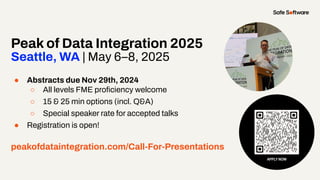
Peak of Data Integration 2025
Seattle, WA | May 6–8, 2025
● Abstracts due Nov 29th, 2024
○ All levels FME proficiency welcome
○ 15 & 25 min options (incl. Q&A)
○ Special speaker rate for accepted talks
● Registration is open!
peakofdataintegration.com
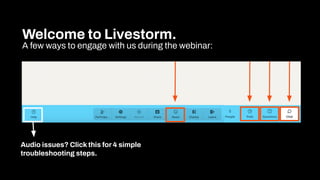
Welcome to Livestorm.
A few ways to engage with us during the webinar:
Audio issues? Click this for 4 simple
troubleshooting steps.
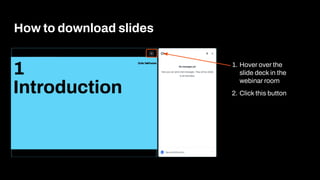
How to download slides
1. Hover over the
slide deck in the
webinar room
2. Click this button
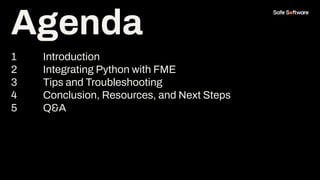
Agenda
1 Introduction
2 Integrating Python with FME
3 Tips and Troubleshooting
4 Conclusion, Resources, and Next Steps
5 Q&A
Agenda
Poll:
How often do you use
Python in FME?
1
Introduction
● Python is a scripting language
What is Python?
Python and FME Basics, Python FME API
documentation
Why is Python attractive?
● Free and open source
● Extensive documentation
● Compatible with many GIS applications
● Cross-platform language
Python can be cumbersome.
When using Python on its own to develop data integration solutions, it can be:
● Time-consuming
● Hard to manage (dependencies, scripts, etc.)
● Slower development time
Python and FME Basics
Integrate Python in FME
to extend functionality.
Reasons for using Python
in FME:
● Performing operations that FME workbench
doesn’t support
● Leverage third party modules and libraries
● Call or run a workspace via script (outside FME
Workbench with an Integrated Development
Environment(IDE))
● Migrate ArcPy or other Python scripts
● Automate data tasks
● And more…
Python and FME Basics
However…
Ref: FME Transformers Documentation
Can it be done using FME
transformers instead of Python?
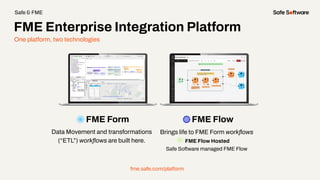
One platform, two technologies
FME Form FME Flow
Data Movement and transformations
(“ETL”) workflows are built here.
Brings life to FME Form workflows
FME Flow Hosted
Safe Software managed FME Flow
fme.safe.com/platform
FME Enterprise Integration Platform
Safe & FME
2
Integrating
Python with FME
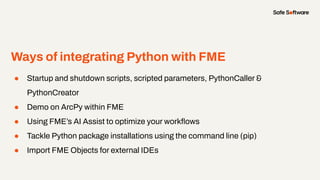
Ways of integrating Python with FME
● Startup and shutdown scripts, scripted parameters, PythonCaller &
PythonCreator
● Demo on ArcPy within FME
● Using FME’s AI Assist to optimize your workflows
● Tackle Python package installations using the command line (pip)
● Import FME Objects for external IDEs
Startup and
Shutdown
Scripts
Startup Scripts
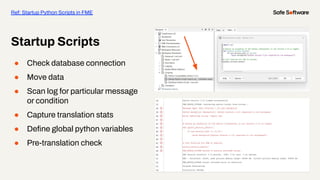
● Check database connection
● Move data
● Scan log for particular message
or condition
● Capture translation stats
● Define global python variables
● Pre-translation check
Ref: Startup Python Scripts in FME
Shutdown Scripts
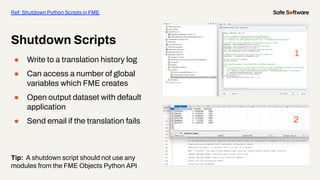
● Write to a translation history log
● Can access a number of global
variables which FME creates
● Open output dataset with default
application
● Send email if the translation fails
Tip: A shutdown script should not use any
modules from the FME Objects Python API
Ref: Shutdown Python Scripts in FME
1
2
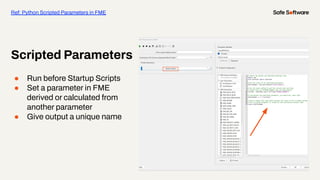
Scripted
Parameters
Scripted Parameters
● Run before Startup Scripts
● Set a parameter in FME
derived or calculated from
another parameter
● Give output a unique name
Ref: Python Scripted Parameters in FME
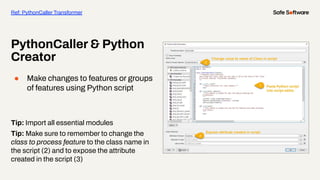
PythonCaller
& Python
Creator
PythonCaller & Python
Creator
● Make changes to features or groups
of features using Python script
Tip: Import all essential modules
Tip: Make sure to remember to change the
class to process feature to the class name in
the script (2) and to expose the attribute
created in the script (3)
Ref: PythonCaller Transformer
ArcPy
Demo
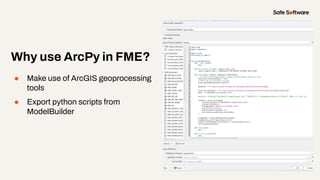
● Make use of ArcGIS geoprocessing
tools
● Export python scripts from
ModelBuilder
Why use ArcPy in FME?
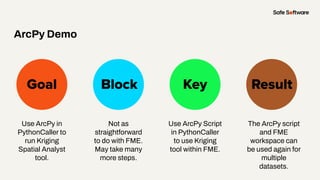
Slide Title
Use ArcPy in
PythonCaller to
run Kriging
Spatial Analyst
tool.
Goal Block Key
ArcPy Demo
Result
Not as
straightforward
to do with FME.
May take many
more steps.
Use ArcPy Script
in PythonCaller
to use Kriging
tool within FME.
The ArcPy script
and FME
workspace can
be used again for
multiple
datasets.
Demo
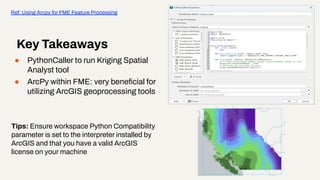
● PythonCaller to run Kriging Spatial
Analyst tool
● ArcPy within FME: very beneficial for
utilizing ArcGIS geoprocessing tools
Tips: Ensure workspace Python Compatibility
parameter is set to the interpreter installed by
ArcGIS and that you have a valid ArcGIS
license on your machine
Key Takeaways
Ref: Using Arcpy for FME Feature Processing
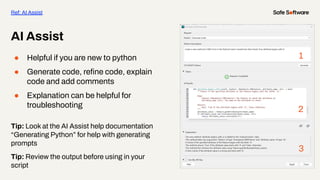
AI Assist
● Helpful if you are new to python
● Generate code, refine code, explain
code and add comments
● Explanation can be helpful for
troubleshooting
Tip: Look at the AI Assist help documentation
“Generating Python” for help with generating
prompts
Tip: Review the output before using in your
script
AI Assist
Ref: AI Assist
1
2
3
Installing
Python
Packages
● FME 2020.1 +
Windows
fme.exe python -m pip install <package_name>
Mac/Linux
./fme python -m pip install <package_name>, ./fme python -m pip install
<package_name> [--system]
● < FME 2020.1
Windows
fme.exe python -m pip install <package_name> --target <package_destination_folder>
Linux/Mac
./fme python -m pip install <package_name> --system --target
<package_destination_folder>
Python Packages
Installing Python Packages to FME Form
FME ships with the Standard Python Library.
● You can use Python module like import os, pathlib, csv etc
Python Standard Library
Third-party modules
● Must be installed via a package and imported (same Python version)
● To upload a module to Flow: EnginePluginspython##[#]
Python Modules
Installing the
pyfiglet package
into an FME
Python directory
Goal Block Key
Installing Packages Demo
Result
It can be
confusing where
particular
packages reside
Using pip (pypi)
via command
prompt to install
packages
Have packages
installed in FME
directories
Demo
● Make sure to place packages in the right
Python version directory (e.g.,
python312 - use 2024.1 fme.exe)
● Make sure to set your compatibility
setting to the correct version before
importing a module (bundled with mac)
Key Takeaways
Using Python with FME Flow
Importing
FME Objects
into an
External IDE
● Make sure to add an interpreter that is not
FME’s (system interpreter)
● The Python interpreter version must be one
that is supported by the FME version used.
The bit-version must also match
Importing modules into PyCharm
Use PyCharm as FMEObjects Python IDE
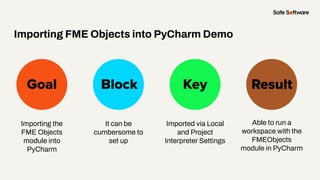
Slide Title
Importing the
FME Objects
module into
PyCharm
Goal Block Key
Importing FME Objects into PyCharm Demo
Result
It can be
cumbersome to
set up
Imported via Local
and Project
Interpreter Settings
Able to run a
workspace with the
FMEObjects
module in PyCharm
Demo
● Make sure to add FME_HOME as an
environment variable
● Test the import to make sure its
readable
● fmebootstrap library was created
to help resolve load-time
dependencies.
Key Takeaways
3
Tips and
Troubleshooting
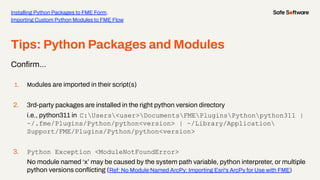
Tips: Python Packages and Modules
Confirm…
1. Modules are imported in their script(s)
2. 3rd-party packages are installed in the right python version directory
i.e., python311 in C:Users<user>DocumentsFMEPluginsPythonpython311 |
~/.fme/Plugins/Python/python<version> | ~/Library/Application
Support/FME/Plugins/Python/python<version>
3. Python Exception <ModuleNotFoundError>
No module named ‘x’ may be caused by the system path variable, python interpreter, or multiple
python versions conflicting (Ref: No Module Named ArcPy: Importing Esri's ArcPy for Use with FME)
Installing Python Packages to FME Form,
Importing Custom Python Modules to FME Flow
Tips: Python Troubleshooting
1. Check version compatibility
2. Check Python Interpreter for Python versioning
3. Ensure system path variables are correct
4. Workspaces authored on one machine may not work on another machine if they depend
on custom Python libraries
Python Troubleshooting
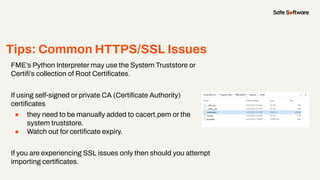
Tips: Common HTTPS/SSL Issues
FME’s Python Interpreter may use the System Truststore or
Certifi’s collection of Root Certificates.
If using self-signed or private CA (Certificate Authority)
certificates
● they need to be manually added to cacert.pem or the
system truststore.
● Watch out for certificate expiry.
If you are experiencing SSL issues only then should you attempt
importing certificates.
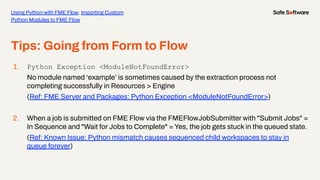
Tips: Going from Form to Flow
1. Python Exception <ModuleNotFoundError>
No module named ‘example’ is sometimes caused by the extraction process not
completing successfully in Resources > Engine
(Ref: FME Server and Packages: Python Exception <ModuleNotFoundError>)
2. When a job is submitted on FME Flow via the FMEFlowJobSubmitter with "Submit Jobs" =
In Sequence and "Wait for Jobs to Complete" = Yes, the job gets stuck in the queued state.
(Ref: Known Issue: Python mismatch causes sequenced child workspaces to stay in
queue forever)
Using Python with FME Flow, Importing Custom
Python Modules to FME Flow
4
Conclusion
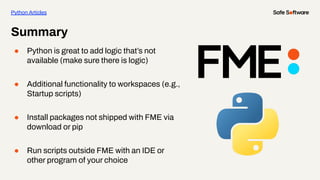
Summary
● Python is great to add logic that’s not
available (make sure there is logic)
● Additional functionality to workspaces (e.g.,
Startup scripts)
● Install packages not shipped with FME via
download or pip
● Run scripts outside FME with an IDE or
other program of your choice
Python Articles
29+
27K+
128
190
20K+
years of solving data
challenges
FME Community
members
countries with
FME customers
organizations worldwide
global partners with
FME services
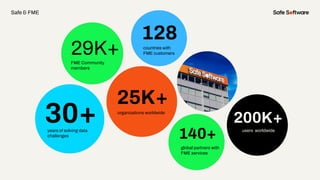
30+
29K+
128
140+
25K+
years of solving data
challenges
FME Community
members
countries with
FME customers
organizations worldwide
global partners with
FME services
200K+
users worldwide
Safe & FME
5
Resources
● Python and FME Basics
● Python Troubleshooting
● AI Assist in FME FAQ
Python Resources
Get our Ebook
Spatial Data for the
Enterprise
fme.ly/gzc
Guided learning
experiences at your
fingertips
academy.safe.com
FME Academy
Resources
Check out how-to’s &
demos in the knowledge
base
support.safe.com
Knowledge Base Webinars
Upcoming &
on-demand webinars
safe.com/webinars
Check out
our podcasts
on-demand.
featuring special guest
speakers over at EM360
Resources
6
Next Steps
We’d love to help you get
started.
Get in touch with us at
info@safe.com
Experience the
FME Accelerator
Contact Us
A world where data is not just a
commodity but a catalyst for
real change.
fme.safe.com/accelerator
Next Steps
ClaimYour Community Badge &
Dive into the new Community!
● Get community badges for watching
webinars
● community.safe.com
● Today’s code: Z7JAJ0
Join the Community today!
Next Steps
Peak of Data Integration 2025
Seattle, WA | May 6–8, 2025
● Abstracts due Nov 29th, 2024
○ All levels FME proficiency welcome
○ 15 & 25 min options (incl. Q&A)
○ Special speaker rate for accepted talks
● Registration is open!
peakofdataintegration.com/Call-For-Presentations
7
Q&A
ThankYou
Recap of Next Steps
1 Follow us on LinkedIn!
2 Contact us
3 Experience the FME Accelerator
Please fill out our
webinar survey

Integrating FME with Python: Tips, Demos, and Best Practices for Powerful Automation

  • 1.
    Integrating FME with Python:Tips, Demos, and Best Practices for Powerful Automation
  • 2.
    Crystal Fitzpatrick Technical Support Specialist, FMEForm Ali Mokheamer Technical Support Specialist, FME Form
  • 3.
    Peak of DataIntegration 2025 Seattle, WA | May 6–8, 2025 ● Abstracts due Nov 29th, 2024 ○ All levels FME proficiency welcome ○ 15 & 25 min options (incl. Q&A) ○ Special speaker rate for accepted talks ● Registration is open! peakofdataintegration.com
  • 4.
    Welcome to Livestorm. Afew ways to engage with us during the webinar: Audio issues? Click this for 4 simple troubleshooting steps.
  • 5.
    How to downloadslides 1. Hover over the slide deck in the webinar room 2. Click this button
  • 6.
    Agenda 1 Introduction 2 IntegratingPython with FME 3 Tips and Troubleshooting 4 Conclusion, Resources, and Next Steps 5 Q&A Agenda
  • 7.
    Poll: How often doyou use Python in FME?
  • 8.
  • 9.
    ● Python isa scripting language What is Python? Python and FME Basics, Python FME API documentation Why is Python attractive? ● Free and open source ● Extensive documentation ● Compatible with many GIS applications ● Cross-platform language
  • 10.
    Python can becumbersome. When using Python on its own to develop data integration solutions, it can be: ● Time-consuming ● Hard to manage (dependencies, scripts, etc.) ● Slower development time Python and FME Basics
  • 11.
    Integrate Python inFME to extend functionality.
  • 12.
    Reasons for usingPython in FME: ● Performing operations that FME workbench doesn’t support ● Leverage third party modules and libraries ● Call or run a workspace via script (outside FME Workbench with an Integrated Development Environment(IDE)) ● Migrate ArcPy or other Python scripts ● Automate data tasks ● And more… Python and FME Basics However…
  • 13.
    Ref: FME TransformersDocumentation Can it be done using FME transformers instead of Python?
  • 14.
    One platform, twotechnologies FME Form FME Flow Data Movement and transformations (“ETL”) workflows are built here. Brings life to FME Form workflows FME Flow Hosted Safe Software managed FME Flow fme.safe.com/platform FME Enterprise Integration Platform Safe & FME
  • 15.
  • 16.
    Ways of integratingPython with FME ● Startup and shutdown scripts, scripted parameters, PythonCaller & PythonCreator ● Demo on ArcPy within FME ● Using FME’s AI Assist to optimize your workflows ● Tackle Python package installations using the command line (pip) ● Import FME Objects for external IDEs
  • 17.
  • 18.
    Startup Scripts ● Checkdatabase connection ● Move data ● Scan log for particular message or condition ● Capture translation stats ● Define global python variables ● Pre-translation check Ref: Startup Python Scripts in FME
  • 19.
    Shutdown Scripts ● Writeto a translation history log ● Can access a number of global variables which FME creates ● Open output dataset with default application ● Send email if the translation fails Tip: A shutdown script should not use any modules from the FME Objects Python API Ref: Shutdown Python Scripts in FME 1 2
  • 20.
  • 21.
    Scripted Parameters ● Runbefore Startup Scripts ● Set a parameter in FME derived or calculated from another parameter ● Give output a unique name Ref: Python Scripted Parameters in FME
  • 22.
  • 23.
    PythonCaller & Python Creator ●Make changes to features or groups of features using Python script Tip: Import all essential modules Tip: Make sure to remember to change the class to process feature to the class name in the script (2) and to expose the attribute created in the script (3) Ref: PythonCaller Transformer
  • 24.
  • 25.
    ● Make useof ArcGIS geoprocessing tools ● Export python scripts from ModelBuilder Why use ArcPy in FME?
  • 26.
    Slide Title Use ArcPyin PythonCaller to run Kriging Spatial Analyst tool. Goal Block Key ArcPy Demo Result Not as straightforward to do with FME. May take many more steps. Use ArcPy Script in PythonCaller to use Kriging tool within FME. The ArcPy script and FME workspace can be used again for multiple datasets.
  • 27.
  • 28.
    ● PythonCaller torun Kriging Spatial Analyst tool ● ArcPy within FME: very beneficial for utilizing ArcGIS geoprocessing tools Tips: Ensure workspace Python Compatibility parameter is set to the interpreter installed by ArcGIS and that you have a valid ArcGIS license on your machine Key Takeaways Ref: Using Arcpy for FME Feature Processing
  • 29.
  • 30.
    ● Helpful ifyou are new to python ● Generate code, refine code, explain code and add comments ● Explanation can be helpful for troubleshooting Tip: Look at the AI Assist help documentation “Generating Python” for help with generating prompts Tip: Review the output before using in your script AI Assist Ref: AI Assist 1 2 3
  • 31.
  • 32.
    ● FME 2020.1+ Windows fme.exe python -m pip install <package_name> Mac/Linux ./fme python -m pip install <package_name>, ./fme python -m pip install <package_name> [--system] ● < FME 2020.1 Windows fme.exe python -m pip install <package_name> --target <package_destination_folder> Linux/Mac ./fme python -m pip install <package_name> --system --target <package_destination_folder> Python Packages Installing Python Packages to FME Form
  • 33.
    FME ships withthe Standard Python Library. ● You can use Python module like import os, pathlib, csv etc Python Standard Library Third-party modules ● Must be installed via a package and imported (same Python version) ● To upload a module to Flow: EnginePluginspython##[#] Python Modules
  • 34.
    Installing the pyfiglet package intoan FME Python directory Goal Block Key Installing Packages Demo Result It can be confusing where particular packages reside Using pip (pypi) via command prompt to install packages Have packages installed in FME directories
  • 35.
  • 36.
    ● Make sureto place packages in the right Python version directory (e.g., python312 - use 2024.1 fme.exe) ● Make sure to set your compatibility setting to the correct version before importing a module (bundled with mac) Key Takeaways Using Python with FME Flow
  • 37.
  • 38.
    ● Make sureto add an interpreter that is not FME’s (system interpreter) ● The Python interpreter version must be one that is supported by the FME version used. The bit-version must also match Importing modules into PyCharm Use PyCharm as FMEObjects Python IDE
  • 39.
    Slide Title Importing the FMEObjects module into PyCharm Goal Block Key Importing FME Objects into PyCharm Demo Result It can be cumbersome to set up Imported via Local and Project Interpreter Settings Able to run a workspace with the FMEObjects module in PyCharm
  • 40.
  • 41.
    ● Make sureto add FME_HOME as an environment variable ● Test the import to make sure its readable ● fmebootstrap library was created to help resolve load-time dependencies. Key Takeaways
  • 42.
  • 43.
    Tips: Python Packagesand Modules Confirm… 1. Modules are imported in their script(s) 2. 3rd-party packages are installed in the right python version directory i.e., python311 in C:Users<user>DocumentsFMEPluginsPythonpython311 | ~/.fme/Plugins/Python/python<version> | ~/Library/Application Support/FME/Plugins/Python/python<version> 3. Python Exception <ModuleNotFoundError> No module named ‘x’ may be caused by the system path variable, python interpreter, or multiple python versions conflicting (Ref: No Module Named ArcPy: Importing Esri's ArcPy for Use with FME) Installing Python Packages to FME Form, Importing Custom Python Modules to FME Flow
  • 44.
    Tips: Python Troubleshooting 1.Check version compatibility 2. Check Python Interpreter for Python versioning 3. Ensure system path variables are correct 4. Workspaces authored on one machine may not work on another machine if they depend on custom Python libraries Python Troubleshooting
  • 45.
    Tips: Common HTTPS/SSLIssues FME’s Python Interpreter may use the System Truststore or Certifi’s collection of Root Certificates. If using self-signed or private CA (Certificate Authority) certificates ● they need to be manually added to cacert.pem or the system truststore. ● Watch out for certificate expiry. If you are experiencing SSL issues only then should you attempt importing certificates.
  • 46.
    Tips: Going fromForm to Flow 1. Python Exception <ModuleNotFoundError> No module named ‘example’ is sometimes caused by the extraction process not completing successfully in Resources > Engine (Ref: FME Server and Packages: Python Exception <ModuleNotFoundError>) 2. When a job is submitted on FME Flow via the FMEFlowJobSubmitter with "Submit Jobs" = In Sequence and "Wait for Jobs to Complete" = Yes, the job gets stuck in the queued state. (Ref: Known Issue: Python mismatch causes sequenced child workspaces to stay in queue forever) Using Python with FME Flow, Importing Custom Python Modules to FME Flow
  • 47.
  • 48.
    Summary ● Python isgreat to add logic that’s not available (make sure there is logic) ● Additional functionality to workspaces (e.g., Startup scripts) ● Install packages not shipped with FME via download or pip ● Run scripts outside FME with an IDE or other program of your choice Python Articles
  • 49.
    29+ 27K+ 128 190 20K+ years of solvingdata challenges FME Community members countries with FME customers organizations worldwide global partners with FME services 30+ 29K+ 128 140+ 25K+ years of solving data challenges FME Community members countries with FME customers organizations worldwide global partners with FME services 200K+ users worldwide Safe & FME
  • 50.
  • 51.
    ● Python andFME Basics ● Python Troubleshooting ● AI Assist in FME FAQ Python Resources
  • 52.
    Get our Ebook SpatialData for the Enterprise fme.ly/gzc Guided learning experiences at your fingertips academy.safe.com FME Academy Resources Check out how-to’s & demos in the knowledge base support.safe.com Knowledge Base Webinars Upcoming & on-demand webinars safe.com/webinars
  • 53.
    Check out our podcasts on-demand. featuringspecial guest speakers over at EM360 Resources
  • 54.
  • 55.
    We’d love tohelp you get started. Get in touch with us at info@safe.com Experience the FME Accelerator Contact Us A world where data is not just a commodity but a catalyst for real change. fme.safe.com/accelerator Next Steps
  • 56.
    ClaimYour Community Badge& Dive into the new Community! ● Get community badges for watching webinars ● community.safe.com ● Today’s code: Z7JAJ0 Join the Community today! Next Steps
  • 57.
    Peak of DataIntegration 2025 Seattle, WA | May 6–8, 2025 ● Abstracts due Nov 29th, 2024 ○ All levels FME proficiency welcome ○ 15 & 25 min options (incl. Q&A) ○ Special speaker rate for accepted talks ● Registration is open! peakofdataintegration.com/Call-For-Presentations
  • 58.
  • 59.
    ThankYou Recap of NextSteps 1 Follow us on LinkedIn! 2 Contact us 3 Experience the FME Accelerator Please fill out our webinar survey