Instructions for Module 3
Assignment
Step-by-Step directions to complete your Module 3 assignment.
The Overall Assignment
1) Create a small PowerPoint presentation of at least 5
slides, or use a presentation you already have.
2) Create a Collaborate session and record at least 2
minutes of a presentation.
3) Share the presentation with your classmates in ANGEL
under module 3.
4) Directions for sharing your presentation are in the
following slides:
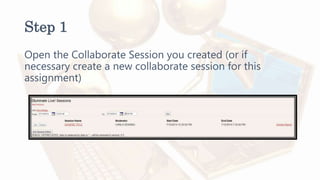
Step 1
Open the Collaborate Session you created (or if
necessary create a new collaborate session for this
assignment)
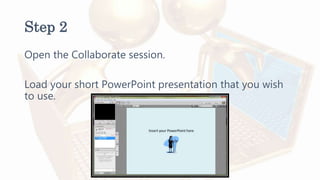
Step 2
Open the Collaborate session.
Load your short PowerPoint presentation that you wish
to use.
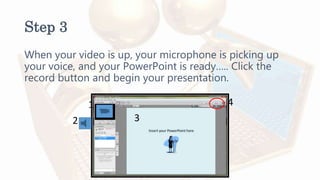
Step 3
When your video is up, your microphone is picking up
your voice, and your PowerPoint is ready….. Click the
record button and begin your presentation.
2
1
3
4
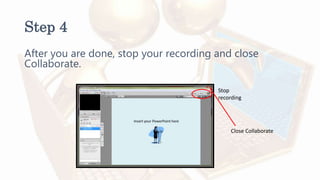
Step 4
After you are done, stop your recording and close
Collaborate.
Stop
recording
Close Collaborate
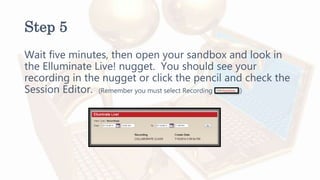
Step 5
Wait five minutes, then open your sandbox and look in
the Elluminate Live! nugget. You should see your
recording in the nugget or click the pencil and check the
Session Editor. (Remember you must select Recording )
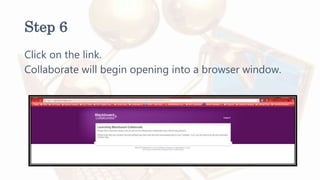
Step 6
Click on the link.
Collaborate will begin opening into a browser window.
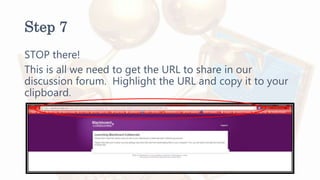
Step 7
STOP there!
This is all we need to get the URL to share in our
discussion forum. Highlight the URL and copy it to your
clipboard.
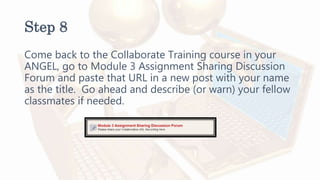
Step 8
Come back to the Collaborate Training course in your
ANGEL, go to Module 3 Assignment Sharing Discussion
Forum and paste that URL in a new post with your name
as the title. Go ahead and describe (or warn) your fellow
classmates if needed.
Step 9
That’s it!
I look forward to seeing your presentation and creativity.

Instructions for module 3 assignment

  • 1.
    Instructions for Module3 Assignment Step-by-Step directions to complete your Module 3 assignment.
  • 2.
    The Overall Assignment 1)Create a small PowerPoint presentation of at least 5 slides, or use a presentation you already have. 2) Create a Collaborate session and record at least 2 minutes of a presentation. 3) Share the presentation with your classmates in ANGEL under module 3. 4) Directions for sharing your presentation are in the following slides:
  • 3.
    Step 1 Open theCollaborate Session you created (or if necessary create a new collaborate session for this assignment)
  • 4.
    Step 2 Open theCollaborate session. Load your short PowerPoint presentation that you wish to use.
  • 5.
    Step 3 When yourvideo is up, your microphone is picking up your voice, and your PowerPoint is ready….. Click the record button and begin your presentation. 2 1 3 4
  • 6.
    Step 4 After youare done, stop your recording and close Collaborate. Stop recording Close Collaborate
  • 7.
    Step 5 Wait fiveminutes, then open your sandbox and look in the Elluminate Live! nugget. You should see your recording in the nugget or click the pencil and check the Session Editor. (Remember you must select Recording )
  • 8.
    Step 6 Click onthe link. Collaborate will begin opening into a browser window.
  • 9.
    Step 7 STOP there! Thisis all we need to get the URL to share in our discussion forum. Highlight the URL and copy it to your clipboard.
  • 10.
    Step 8 Come backto the Collaborate Training course in your ANGEL, go to Module 3 Assignment Sharing Discussion Forum and paste that URL in a new post with your name as the title. Go ahead and describe (or warn) your fellow classmates if needed.
  • 11.
    Step 9 That’s it! Ilook forward to seeing your presentation and creativity.