Chapter 1
Fatima Ashraf
What is Hardware?
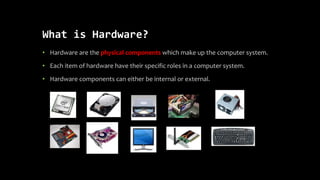
• Hardware are the physical components which make up the computer system.
• Each item of hardware have their specific roles in a computer system.
• Hardware components can either be internal or external.
1.1 Hardware and Software
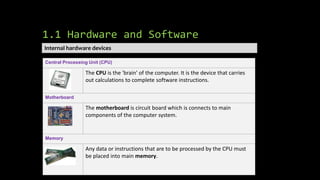
Central Processing Unit (CPU)
The CPU is the 'brain' of the computer. It is the device that carries
out calculations to complete software instructions.
Motherboard
The motherboard is circuit board which is connects to main
components of the computer system.
Memory
Any data or instructions that are to be processed by the CPU must
be placed into main memory.
Internal hardware devices
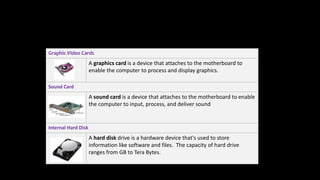
Graphic Video Cards
A graphics card is a device that attaches to the motherboard to
enable the computer to process and display graphics.
Sound Card
A sound card is a device that attaches to the motherboard to enable
the computer to input, process, and deliver sound
Internal Hard Disk
A hard disk drive is a hardware device that's used to store
information like software and files. The capacity of hard drive
ranges from GB to Tera Bytes.
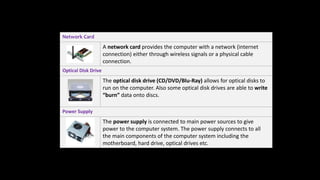
Network Card
A network card provides the computer with a network (internet
connection) either through wireless signals or a physical cable
connection.
Optical Disk Drive
The optical disk drive (CD/DVD/Blu-Ray) allows for optical disks to
run on the computer. Also some optical disk drives are able to write
“burn” data onto discs.
Power Supply
The power supply is connected to main power sources to give
power to the computer system. The power supply connects to all
the main components of the computer system including the
motherboard, hard drive, optical drives etc.
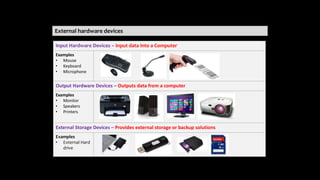
External hardware devices
Input Hardware Devices – Input data into a Computer
Examples
• Mouse
• Keyboard
• Microphone
Output Hardware Devices – Outputs data from a computer
Examples
• Monitor
• Speakers
• Printers
External Storage Devices – Provides external storage or backup solutions
Examples
• External Hard
drive
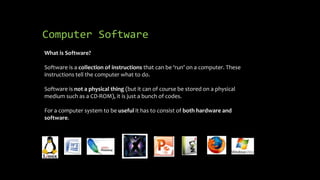
Computer Software
What is Software?
Software is a collection of instructions that can be ‘run’ on a computer. These
instructions tell the computer what to do.
Software is not a physical thing (but it can of course be stored on a physical
medium such as a CD-ROM), it is just a bunch of codes.
For a computer system to be useful it has to consist of both hardware and
software.
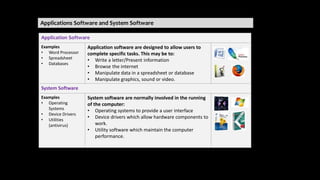
Applications Software and System Software
Application Software
Examples
• Word Processor
• Spreadsheet
• Databases
Application software are designed to allow users to
complete specific tasks. This may be to:
• Write a letter/Present information
• Browse the internet
• Manipulate data in a spreadsheet or database
• Manipulate graphics, sound or video.
System Software
Examples
• Operating
Systems
• Device Drivers
• Utilities
(antivirus)
System software are normally involved in the running
of the computer:
• Operating systems to provide a user interface
• Device drivers which allow hardware components to
work.
• Utility software which maintain the computer
performance.
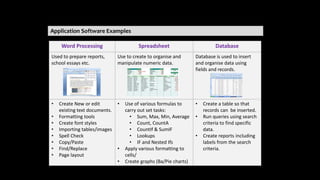
Application Software Examples
Word Processing Spreadsheet Database
Used to prepare reports,
school essays etc.
Use to create to organise and
manipulate numeric data.
Database is used to insert
and organise data using
fields and records.
• Create New or edit
existing text documents.
• Formatting tools
• Create font styles
• Importing tables/images
• Spell Check
• Copy/Paste
• Find/Replace
• Page layout
• Use of various formulas to
carry out set tasks:
• Sum, Max, Min, Average
• Count, CountA
• CountIf & SumIF
• Lookups
• IF and Nested Ifs
• Apply various formatting to
cells/
• Create graphs (Ba/Pie charts)
• Create a table so that
records can be inserted.
• Run queries using search
criteria to find specific
data.
• Create reports including
labels from the search
criteria.
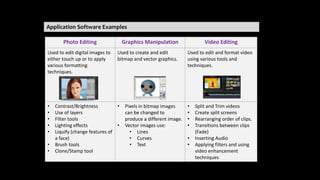
Application Software Examples
Photo Editing Graphics Manipulation Video Editing
Used to edit digital images to
either touch up or to apply
various formatting
techniques.
Used to create and edit
bitmap and vector graphics.
Used to edit and format video
using various tools and
techniques.
• Contrast/Brightness
• Use of layers
• Filter tools
• Lighting effects
• Liquify (change features of
a face)
• Brush tools
• Clone/Stamp tool
• Pixels in bitmap images
can be changed to
produce a different image.
• Vector images use:
• Lines
• Curves
• Text
• Split and Trim videos
• Create split screens
• Rearranging order of clips.
• Transitions between clips
(Fade)
• Inserting Audio
• Applying filters and using
video enhancement
techniques
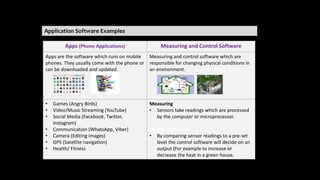
Application Software Examples
Apps (Phone Applications) Measuring and Control Software
Apps are the software which runs on mobile
phones. They usually come with the phone or
can be downloaded and updated.
Measuring and control software which are
responsible for changing physical conditions in
an environment.
• Games (Angry Birds)
• Video/Music Streaming (YouTube)
• Social Media (Facebook, Twitter,
Instagram)
• Communication (WhatsApp, Viber)
• Camera (Editing images)
• GPS (Satellite navigation)
• Health/ Fitness
Measuring
• Sensors take readings which are processed
by the computer or microprocessor.
Control Software
• By comparing sensor readings to a pre-set
level the control software will decide on an
output (For example to increase or
decrease the heat in a green house.
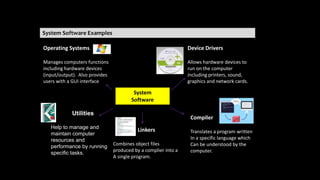
System Software Examples
System
Software
Device Drivers
Allows hardware devices to
run on the computer
including printers, sound,
graphics and network cards.
Linkers
Combines object files
produced by a complier into a
A single program.
Operating Systems
Manages computers functions
including hardware devices
(input/output). Also provides
users with a GUI interface
Compiler
Translates a program written
In a specific language which
Can be understood by the
computer.
Utilities
Help to manage and
maintain computer
resources and
performance by running
specific tasks.
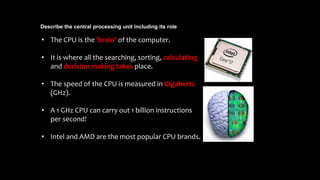
Describe the central processing unit including its role
• The CPU is the 'brain' of the computer.
• It is where all the searching, sorting, calculating
and decision making takes place.
• The speed of the CPU is measured in Gigahertz
(GHz).
• A 1 GHz CPU can carry out 1 billion instructions
per second!
• Intel and AMD are the most popular CPU brands.
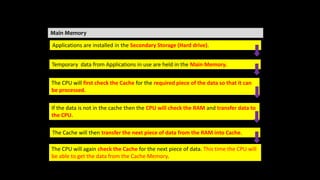
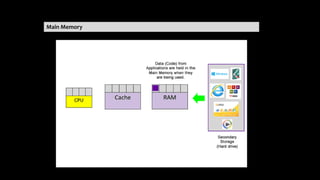
Main Memory
The CPU will again check the Cache for the next piece of data. This time the CPU will
be able to get the data from the Cache Memory.
Temporary data from Applications in use are held in the Main Memory.
Applications are installed in the Secondary Storage (Hard drive).
The CPU will first check the Cache for the required piece of the data so that it can
be processed.
If the data is not in the cache then the CPU will check the RAM and transfer data to
the CPU.
The Cache will then transfer the next piece of data from the RAM into Cache.
Main Memory
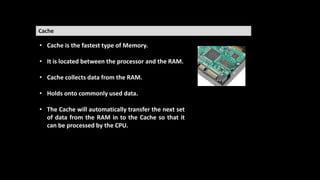
Cache
• Cache is the fastest type of Memory.
• It is located between the processor and the RAM.
• Cache collects data from the RAM.
• Holds onto commonly used data.
• The Cache will automatically transfer the next set
of data from the RAM in to the Cache so that it
can be processed by the CPU.
RAM (Random Access Memory)
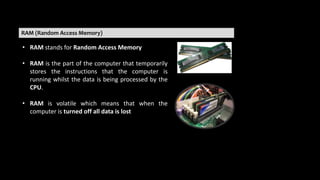
• RAM stands for Random Access Memory
• RAM is the part of the computer that temporarily
stores the instructions that the computer is
running whilst the data is being processed by the
CPU.
• RAM is volatile which means that when the
computer is turned off all data is lost
ROM (Read Only Memory)
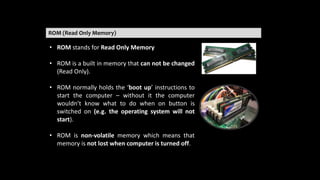
• ROM stands for Read Only Memory
• ROM is a built in memory that can not be changed
(Read Only).
• ROM normally holds the ‘boot up’ instructions to
start the computer – without it the computer
wouldn’t know what to do when on button is
switched on (e.g. the operating system will not
start).
• ROM is non-volatile memory which means that
memory is not lost when computer is turned off.
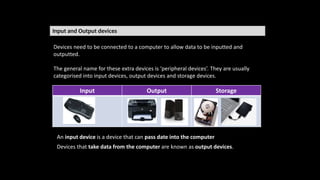
Input and Output devices
Devices need to be connected to a computer to allow data to be inputted and
outputted.
The general name for these extra devices is ‘peripheral devices’. They are usually
categorised into input devices, output devices and storage devices.
Input Output Storage
An input device is a device that can pass date into the computer
Devices that take data from the computer are known as output devices.
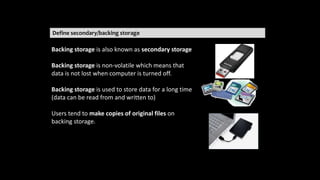
Define secondary/backing storage
Backing storage is also known as secondary storage
Backing storage is non-volatile which means that
data is not lost when computer is turned off.
Backing storage is used to store data for a long time
(data can be read from and written to)
Users tend to make copies of original files on
backing storage.
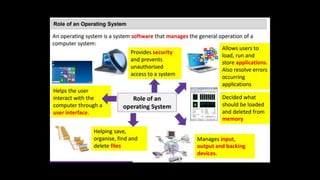
Exam Question
• Describe the main functions of the operating system? Key Words: User Interface,
Security, Files, memory, applications, input/output/storages devices
• The operating system provides the user interface which allows the user to
interact with the system. In addition the operating system provides security and
prevents unauthorized access to a system. Files and folders can be created and
organized. Furthermore the operating system allows users to load, run and store
applications also decides what should be loaded into the computer memory
(RAM). The operating system also manages the input/output/storages devices.
WIMP
Command Line Interface (CLI)
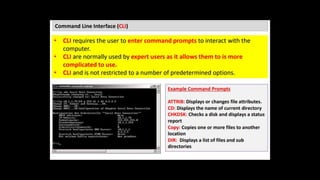
• A command line interface is an older style operating system where
users type in commands using keyboard.
• Command Line Interface's do not make use of images, icons or
graphics. All the user is sees is a plain black screen like the one to the
right.
• Because they use no graphics they require very little computer
power.
• There are over 270 different commands that can be entered at the
command prompt. Commands have to be entered precisely without
spelling mistakes or else the operating system will return an error.
• Remembering commands and the exact way to enter them can be
difficult and so Command Line Interface Operating Systems
are considered hard to use.
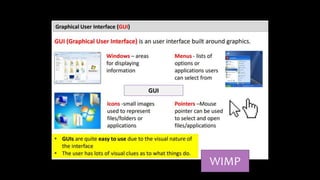
Graphical User Interface (GUI)
• GUI's are visual (graphical) interfaces and they are more popular
than CLI's because they are very easy to use. The graphics do
need more computer power however.
• Instead of typing in commands, the user can use a mouse to point
and click objects on the screen.
• The main features of a GUI
are Windows, Icons, Menus and Pointers. Its called WIMP.
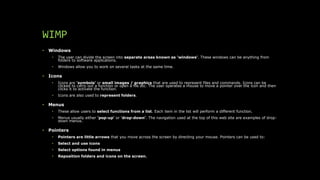
WIMP
• Windows
• The user can divide the screen into separate areas known as 'windows'. These windows can be anything from
folders to software applications.
• Windows allow you to work on several tasks at the same time.
• Icons
• Icons are 'symbols' or small images / graphics that are used to represent files and commands. Icons can be
clicked to carry out a function or open a file etc. The user operates a mouse to move a pointer over the icon and then
clicks it to activate the function.
• Icons are also used to represent folders.
• Menus
• These allow users to select functions from a list. Each item in the list will perform a different function.
• Menus usually either 'pop-up' or 'drop-down'. The navigation used at the top of this web site are examples of drop-
down menus.
• Pointers
• Pointers are little arrows that you move across the screen by directing your mouse. Pointers can be used to:
• Select and use icons
• Select options found in menus
• Reposition folders and icons on the screen.
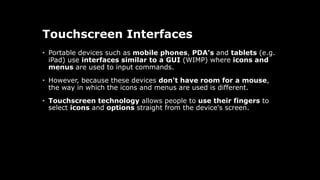
Touchscreen Interfaces
• Portable devices such as mobile phones, PDA's and tablets (e.g.
iPad) use interfaces similar to a GUI (WIMP) where icons and
menus are used to input commands.
• However, because these devices don't have room for a mouse,
the way in which the icons and menus are used is different.
• Touchscreen technology allows people to use their fingers to
select icons and options straight from the device's screen.
Exam Question
• Discuss the difference between a CLI and GUI interface? Key Words: Windows,
Icons, Menus, Pointers, visuals aids, learn, command prompts, pre-determined
options, expert user
• The GUI (Graphical user interface) allows the users to interact with the interface
by using a pointer to select windows, icons and menu options. The GUI will have
visual aids which it make it easier for users to learn how to use the interface. On
the other hand users are required to enter command prompts to interact with
the CLI (Command Line Interface). The command prompts have to be learned by
the user and entered correctly. This would make the CLI interface more
challenging to for the user to learn. However the advantage of using the CLI for
expert users is that you are not restricted to pre-determined options which
would be the case in the GUI. This would allow for greater freedom when using
the CLI.
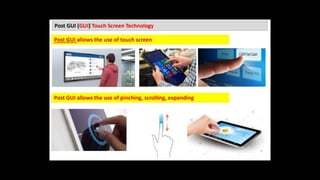
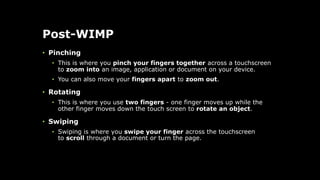
Post-WIMP
• Pinching
• This is where you pinch your fingers together across a touchscreen
to zoom into an image, application or document on your device.
• You can also move your fingers apart to zoom out.
• Rotating
• This is where you use two fingers - one finger moves up while the
other finger moves down the touch screen to rotate an object.
• Swiping
• Swiping is where you swipe your finger across the touchscreen
to scroll through a document or turn the page.
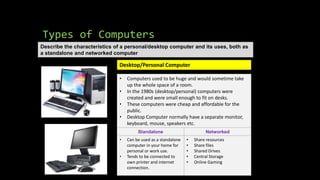
Types of Computers
Describe the characteristics of a personal/desktop computer and its uses, both as
a standalone and networked computer
• Computers used to be huge and would sometime take
up the whole space of a room.
• In the 1980s (desktop/personal) computers were
created and were small enough to fit on desks.
• These computers were cheap and affordable for the
public.
• Desktop Computer normally have a separate monitor,
keyboard, mouse, speakers etc.
Standalone Networked
• Can be used as a standalone
computer in your home for
personal or work use.
• Tends to be connected to
own printer and internet
connection.
• Share resources
• Share files
• Shared Drives
• Central Storage
• Online Gaming
Desktop/Personal Computer
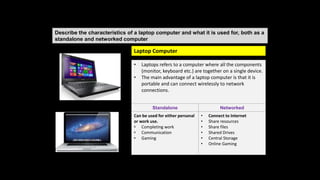
Describe the characteristics of a laptop computer and what it is used for, both as a
standalone and networked computer
• Laptops refers to a computer where all the components
(monitor, keyboard etc.) are together on a single device.
• The main advantage of a laptop computer is that it is
portable and can connect wirelessly to network
connections.
Standalone Networked
Can be used for either personal
or work use.
• Completing work
• Communication
• Gaming
• Connect to Internet
• Share resources
• Share files
• Shared Drives
• Central Storage
• Online Gaming
Laptop Computer
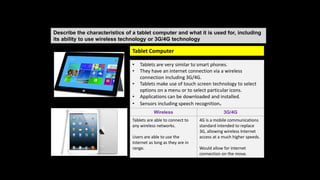
Describe the characteristics of a tablet computer and what it is used for, including
its ability to use wireless technology or 3G/4G technology
• Tablets are very similar to smart phones.
• They have an internet connection via a wireless
connection including 3G/4G.
• Tablets make use of touch screen technology to select
options on a menu or to select particular icons.
• Applications can be downloaded and installed.
• Sensors including speech recognition.
Wireless 3G/4G
Tablets are able to connect to
any wireless networks.
Users are able to use the
internet as long as they are in
range.
4G is a mobile communications
standard intended to replace
3G, allowing wireless Internet
access at a much higher speeds.
Would allow for internet
connection on the move.
Tablet Computer
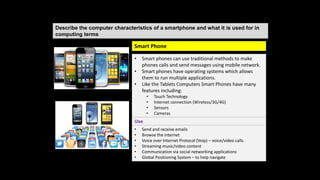
Describe the computer characteristics of a smartphone and what it is used for in
computing terms
• Smart phones can use traditional methods to make
phones calls and send messages using mobile network.
• Smart phones have operating systems which allows
them to run multiple applications.
• Like the Tablets Computers Smart Phones have many
features including:
• Touch Technology
• Internet connection (Wireless/3G/4G)
• Sensors
• Cameras
Use
• Send and receive emails
• Browse the internet
• Voice over Internet Protocol (Voip) – voice/video calls.
• Streaming music/video content
• Communication via social networking applications
• Global Positioning System – to help navigate
Smart Phone
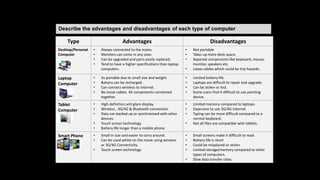
Describe the advantages and disadvantages of each type of computer
Type Advantages Disadvantages
Desktop/Personal
Computer
• Always connected to the mains.
• Monitors can come in any sizes
• Can be upgraded and parts easily replaced.
• Tend to have a higher specifications than laptop
computers.
• Not portable
• Takes up more desk space.
• Separate components like keyboard, mouse,
monitor, speakers etc.
• Loose cables which could be trip hazards.
Laptop
Computer
• Its portable due to small size and weight.
• Battery can be recharged.
• Can connect wireless to internet.
• No loose cables. All components connected
together.
• Limited battery life.
• Laptops are difficult to repair and upgrade.
• Can be stolen or lost.
• Some users find it difficult to use pointing
device.
Tablet
Computer
• High definition anti glare display.
• Wireless , 3G/4G & Bluetooth connection.
• Data can backed up or synchronised with other
devices.
• Touch screen technology
• Battery life longer than a mobile phone.
• Limited memory compared to laptops.
• Expensive to use 3G/4G internet
• Typing can be more difficult compared to a
normal keyboard.
• Not all files are compatible with tablets.
Smart Phone • Small in size and easier to carry around.
• Can be used whilst on the move using wireless
or 3G/4G Connectivity.
• Touch screen technology
• Small screens make it difficult to read.
• Battery life is short
• Could be misplaced or stolen
• Limited storage/memory compared to other
types of computers.
• Slow data transfer rates
Artificial Intelligence (AI)
• This is a computer science that is focused on creating computer
systems that simulate human intelligence.
• The term was first used in 1956 by a computer scientist at the
Massachusetts Institute of Technology (MIT) who was focused on
trying to make computers behave like humans.
Artificial Intelligence (AI)
• AI is being developed in the following areas:
• Game Playing
• Computers developed to play games against human players.
• For example: In 1997 a computer named 'Deep-Blue' defeated a world champion in the game of
chess.
• Expert Systems
• These are computers that have been programmed to make decisions based on information they
are given.
• For example: Medical expert systems can diagnose patient's illnesses based on symptoms
entered.
• Languages
• This type of AI involves computers that can understand different human languages as they are
spoken to them.
• Robotics
• Robotic artificial intelligence is where machines are programmed to imitate a human.
Impacts of AI on everyday life:
• Accurate prediction of weather:
• AI software will soon be used to sift through weather data more accurately that humans can and will be used to predict
approaching storms and automatically issue warnings.
• Increased leisure time
• Robotic vacuum cleaners are becoming more and more popular. These can detect walls and other objects in order to vacuum
around them.
• People can leave them running whilst they enjoy extra spare time.
• Safer transport
• Cars that can self-park already exist and it is predicted that cars that drive themselves will be available soon. These could
drastically reduce road accidents.
• Driverless trains already exist in some countries!
• Increased Personal safety
• Modern home alarm systems use artificial intelligence software that can tell the difference between the home owners and
intruders.
• The software automatically alerts the police when intruders are detected.
• Improved medical care
• Robotic surgery assistants are being used to quickly and accurately pass the correct surgical tools to doctors.
• The few seconds saved in getting the correct tool to the doctor can save patient's lives.
Biometrics
• Biometrics is where parts of a person's body are used for identification
purposes. Examples are shown in the table below:
• Fingerprints
• These are impressions embedded at the end of human fingers and thumbs. Fingerprints
kept in a database can be matched to those left at crime-scenes to help identify the culprit.
• Eye recognition:
• Eye scans analyse the iris which is the coloured ring that surrounds the pupil.
• Face recognition:
• This is where the shapes of individual's faces are analysed.
• Voice recognition:
• Pitch, tone and frequency of voices are unique and can be analysed to identify people.
• All of these parts of the human body are unique from person to person and can
be used to authenticate identity.
• Even identical twins have slightly different fingerprints and voices etc.
Biometrics
• Before biometric methods can be useful, people have to perform a
process known as 'biometric enrolment’.
• This is where body-part data such as fingerprints or voice patterns
are captured and stored within the system so that they can be
used to identify the person later on.
• Biometrics are beginning to be used in place of passwords and
physical locks as a means of security.
• Biometrics have advantages over these older methods as body
parts cannot be lost, forgotten or stolen as can be the case
with passwords and keys.
• Biometrics is still a very new technology and is not yet 100%
accurate.
Impacts of Biometrics on everyday
life
• Better airport security
• Iris recognition is already in use in some airports.
• Travelers have their eyes and iris scanned into a system and this data is later matched
up when the person is performing airport checks.
• Increased building security
• Fingerprint access to buildings have been replacing the older methods of locks and keys.
• This methods ensures that only authorised people can enter restricted buildings or rooms.
• Reduced car theft
• Cars already exist that use fingerprints to only unlock their doors or start the engine for
the fingerprint that is registered.
• More secure mobile phones
• Mobile phones contain our lives. We used our phones for everything from social media to
shopping online. They need to be as secure as possible in order to protect the valuable data
that they contain.
• Apple recently released an iPhone model that uses a fingerprint reader to identify
the true owner of the phone. It will not unlock for a fingerprint that it does not recognize.
Robotics
• Robots are used to perform a wide range of physical tasks.
• They are either automated (controlled by a computer chip)
or manually controlled by a human.
• There are 4 different types of robots:
• Manufacturing robots (used to perform repetitive tasks such as
welding)
• Carrier robots (used by the military to carry heavy loads over
dangerous terrain)
• Domestic robots (used in homes to perform cleaning tasks such as
vacuuming)
• Exploration robots (used to visit and send images from places such as
Mars)
Robotics
• Some more typical tasks that robots can be used for are described below:
• Dangerous jobs:
• E.g. disposing of bombs, spray painting or cleaning up nuclear waste.
• Note: these are all jobs that could harm or kill a human.
• Exploring extreme environments
• E.g. inside volcanoes, planets or the depths of the ocean.
Note: humans cannot visit these environments due to lack of oxygen and high pressure / heat
levels.
• Repetitive manufacturing
jobs
• E.g. production lines, packing and welding etc.
Note: these jobs can also be performed by humans but robots can do them much faster and more
efficiently.
• Moving heavy objects
• E.g. installing large engines, moving pallets of items etc.
Impacts of Robotics on everyday life
• Increased personal time
• If robots can carry out domestic chores, this frees up more time for us to spend as we wish.
This could mean more time spent at work or for more enjoyable activities such as socialising.
• More efficient manufacturing
• Robots can manufacturer products such as cars much faster and cheaper than humans can.
This means that companies can make more products at less cost and this means greater
business profits.
• Loss of jobs
• Due to higher and cheaper productivity, robots are taking over the manufacturing jobs that
used to be carried out by humans.
This means that humans are missing out on employment on assembly lines and factory work.
• Safer working environments
• Robots can safely carry out tasks that are too dangerous for humans.
For example: spraying cars with toxic paint, defusing bombs on battlefields and search and
rescue operations in buildings destroyed by earthquakes.
Quantum Cryptography
• Quantum cryptography (encryption) is an emerging technology that
allows messages and data to be sent with complete privacy.
• Encryption is where digital data and files are scrambled so that
only authorised people are allowed to read it.
Unauthorised people attempting to read the data would
see illegible nonsense instead of the real information.
• Older methods of encryption were based
around mathematics but quantum cryptography uses
physics instead.
This makes the encryption impossible to break.
• In quantum cryptography, messages are encrypted using photons.
These are tiny packets of light.
Impacts of Quantum Encryption on
everyday life
• Completely secure voting
• Citizens of countries have the right to vote-in new governments but history is littered with
examples of where these votes have been tampered with in order to influence election outcomes.
• Securing votes with quantum encryption methods ensures that they cannot be tampered with
or changed.
• Completely secure communication
• Messages sent by the military often include the locations of squadrons or special op's teams. If
enemy forces intercepted these messages it could have severe consequences.
• Using quantum cryptography to secure the messages would eliminate the risk of them
being read or heard by unauthorised ears.
• Completely secure bank transfers
• Any electronic transfer of money, such as at ATM's or buying goods online, will be completely
secure.
Some banks are already using quantum cryptography for the purposes of securing money
transfers.
• Completely secure personal information
• Health records, bank details and other types of personal information will be absolutely secure
from hackers and other people wishing to commit identity theft crimes.
Computer Assisted Translation (CAT)
• CAT is where a human translator uses computer
software to help in the translation process.
• CAT software can reduce the amount of time that the translation
takes.
• Current CAT tools are not always 100% accurate. They need a
human to check for errors.
Computer Assisted Translation (CAT)
• Examples of different types of CAT tools are shown in the table below:
• Spell checkers
• These are usually built-into word processing software and can automatically flag-up spelling
errors and suggest translations of
miss-spelt words.
NOTE: Most word-processors allow the user to select the language in which to spell-check.
• Translation memory software
• Translation memory software are databases which store translated text as the human translator
works through it in order to be reused in the future.
Translated text is built-up in the database's memory and can be accessed by other translators in
order to speed up their translation jobs.
• Language search-engine software
• These are Internet based systems which allow translators to enter any text that they want
translating and also to select which language they want the text translating into.
The software will then search through a large collection of translation memory databases to
try and find a match with the text entered into the search engine.
If a match is found, translated text will be shown on-screen.
Impacts of Computer Aided
Translation on everyday life
• More accurate documents
• Spell checkers can quickly scan your word processed documents and automatically find
spelling errors.
Miss-spelt words can be quickly corrected to produce an error-free document.
• A more multilingual society
• Anyone with an Internet connection can access tools such as Google Translate and the vast
collection of language databases that the tools can search through.
This makes accessing other languages much easier than in the past and makes it easier
for people to learn these new languages.
NOTE: Google's new 'Voice Search' facility allows users to actually speak into a tablet or
mobile phone and Google will automatically translate (and speak) the words or phrase in
almost any language.
• Quicker and more efficient translations
• Foreign visitors to countries can be communicated with much easier through these CAT
tools.
They are especially useful in places like embassies where a wide-range of foreign visitors
may need to communicate with local officials about problems or ask for advice etc.
3D and Holographic Imaging (aka
holograms)
• This is a technique where images are made to appear three-
dimensional and to actually have depth.
• Holograms work by taking two regular two-dimensional images of
the same object and laying one on top of the other.
• The two-dimentional images need to have been shot at different
angles.
• Two different types of laser beams are used to record the two-
dimensional images onto a single photographic plate.
• This creates one single image that incorporates the angles of the
original two-dimensional images. This produces a 3D effect.
• When viewing the image, human eyes see it from slightly different
angles. The brain combines them into a three-dimensional image.
Impacts of 3D Imaging on everyday
life
• Improved security
• Credit cards, ID cards, software and some bank notes include holograms as a way of trying
to prevent forged duplicates being created.
NOTE: Forgeries don't usually include a hologram as they are difficult and expensive to
reproduce.
• Better movie experiences
• Hollywood have been using 3D imaging within the production of movies for many years.
These provide the viewer with a much more immersive experience.
NOTE: 3D movies require the viewer to wear special glasses for the effect to take place. The
glasses project two images shot at different angles (one in each eye) and your brain puts them
together as one 3D image.
• Greater data storage
• It is thought that the technology behind holograms will eventually be used to provide the means
to store large amounts of data.
Companies have already produced discs that use holographic layers that each have the potential to
hold a massive 3.9 terabytes.
NOTE: This is the equivalent of over 150 standard Blu-ray discs.
Virtual Reality
• Virtual reality is where computers are used to create an artificial
environment that users can interact with as if it were real.
• Virtual reality is not really meant for gaming purposes. It is used for
more serious purposes such as:
• Allowing architects to walk around a virtual version of their design (this gives
a better idea of what the finished building will look like)
• Training soldiers in combat (flight simulation, battlefield simulation)
• Training surgeons (virtual patients can be operated on to provide experience to
trainee surgeons).
• As they walk around the virtual environment users will experience things in a
similar way to the real world. For example:
• Objects get smaller as you walk away from them (and bigger as you move
closer)
• The direction of sounds change as you move around
• Objects in the virtual world appear the same dimensions as they would in the
real world (for example dogs are smaller than us but elephants are bigger).
Virtual Reality
• Equipment needed to create the virtual reality experience includes the following:
• Eye Goggles
• These produce the 3D images that make up the artificial world.
The goggles project slightly different views into each eye and this fools your brain into thinking that the scene is 3D. Virtual
chairs look solid and so on.
• Special Gloves
• The gloves detect your hand and finger movements which are input into a computer and processed. As users touch or use
items in the virtual world, the computer can carry out these commands and make them happen.
This allows the user to interact with the virtual world and perform tasks such as moving objects or switching on lights etc.
• Headphones
• These control what users hear in the virtual world.
For example: Distant sounds will be quieter than sounds that are close by.
• Powerful Computer
• A very powerful computer is needed to create the virtual environment and to process/output data sent into the system by the
user's actions.
For example: The computer produces graphics that appear as walls, outdoor scenes and objects such as trees.
• Virtual reality is still a developing technology and graphics produced are not very realistic yet.
However, experiences in the virtual environment can seem very real.
Impacts of Virtual Reality on
everyday life
• Improved medical surgeons
• Surgeons can be trained using virtual patients. This allows them to practice over and over until they have perfected a
particular surgery without risk to a real patient.
For example: Imagine a new surgeon performing surgery on you and accidentally cutting off your leg!!.
• Larger and stronger buildings
• Virtual buildings allow architects to walk around to experience what the building would look like when completed and
check for potential errors before the actual building is constructed.
Virtual buildings will also be able to be tested against factors such as earthquakes to see what effects they would have on
the current design.
This allows architects to modify designs quickly and cheaply and will, potentially, allow for the development of
much larger and safer buildings than we currently have.
• More effective treatment of phobias
• VR is being used to help patients overcome phobias and anxieties.
People can experience a tame, controlled version of what they are afraid of. Slowly the person becomes used to the
situation and can relax.
For example: Someone might be terrified of spiders and so they could be gradually introduced to larger and larger
virtual spiders (the virtual spiders would be controlled by the therapy team as well).
• Training in dangerous situations
• VR can be used for training in dangerous situations where it is impossible to practice the real thing.
For example: A large fire in an office building could never be set up in reality, but it could in a virtual environment. This
will allow workers to practice emergency evacuation in a safe environment.
• More realistic education
• VR can give students the opportunity to learn in a much more interactive way.
For example: Astronomy students can learn about the solar system by engaging with the objects in the virtual
environment. They could look around stars, move planets and track the orbits of comets.
This approach is likely to allow students to retain knowledge much better than reading text out of a book.
IGCSE_ICT_Chapter 1.pptx

IGCSE_ICT_Chapter 1.pptx

  • 1.
  • 2.
    What is Hardware? •Hardware are the physical components which make up the computer system. • Each item of hardware have their specific roles in a computer system. • Hardware components can either be internal or external.
  • 3.
    1.1 Hardware andSoftware Central Processing Unit (CPU) The CPU is the 'brain' of the computer. It is the device that carries out calculations to complete software instructions. Motherboard The motherboard is circuit board which is connects to main components of the computer system. Memory Any data or instructions that are to be processed by the CPU must be placed into main memory. Internal hardware devices
  • 4.
    Graphic Video Cards Agraphics card is a device that attaches to the motherboard to enable the computer to process and display graphics. Sound Card A sound card is a device that attaches to the motherboard to enable the computer to input, process, and deliver sound Internal Hard Disk A hard disk drive is a hardware device that's used to store information like software and files. The capacity of hard drive ranges from GB to Tera Bytes.
  • 5.
    Network Card A networkcard provides the computer with a network (internet connection) either through wireless signals or a physical cable connection. Optical Disk Drive The optical disk drive (CD/DVD/Blu-Ray) allows for optical disks to run on the computer. Also some optical disk drives are able to write “burn” data onto discs. Power Supply The power supply is connected to main power sources to give power to the computer system. The power supply connects to all the main components of the computer system including the motherboard, hard drive, optical drives etc.
  • 6.
    External hardware devices InputHardware Devices – Input data into a Computer Examples • Mouse • Keyboard • Microphone Output Hardware Devices – Outputs data from a computer Examples • Monitor • Speakers • Printers External Storage Devices – Provides external storage or backup solutions Examples • External Hard drive
  • 7.
    Computer Software What isSoftware? Software is a collection of instructions that can be ‘run’ on a computer. These instructions tell the computer what to do. Software is not a physical thing (but it can of course be stored on a physical medium such as a CD-ROM), it is just a bunch of codes. For a computer system to be useful it has to consist of both hardware and software.
  • 8.
    Applications Software andSystem Software Application Software Examples • Word Processor • Spreadsheet • Databases Application software are designed to allow users to complete specific tasks. This may be to: • Write a letter/Present information • Browse the internet • Manipulate data in a spreadsheet or database • Manipulate graphics, sound or video. System Software Examples • Operating Systems • Device Drivers • Utilities (antivirus) System software are normally involved in the running of the computer: • Operating systems to provide a user interface • Device drivers which allow hardware components to work. • Utility software which maintain the computer performance.
  • 9.
    Application Software Examples WordProcessing Spreadsheet Database Used to prepare reports, school essays etc. Use to create to organise and manipulate numeric data. Database is used to insert and organise data using fields and records. • Create New or edit existing text documents. • Formatting tools • Create font styles • Importing tables/images • Spell Check • Copy/Paste • Find/Replace • Page layout • Use of various formulas to carry out set tasks: • Sum, Max, Min, Average • Count, CountA • CountIf & SumIF • Lookups • IF and Nested Ifs • Apply various formatting to cells/ • Create graphs (Ba/Pie charts) • Create a table so that records can be inserted. • Run queries using search criteria to find specific data. • Create reports including labels from the search criteria.
  • 10.
    Application Software Examples PhotoEditing Graphics Manipulation Video Editing Used to edit digital images to either touch up or to apply various formatting techniques. Used to create and edit bitmap and vector graphics. Used to edit and format video using various tools and techniques. • Contrast/Brightness • Use of layers • Filter tools • Lighting effects • Liquify (change features of a face) • Brush tools • Clone/Stamp tool • Pixels in bitmap images can be changed to produce a different image. • Vector images use: • Lines • Curves • Text • Split and Trim videos • Create split screens • Rearranging order of clips. • Transitions between clips (Fade) • Inserting Audio • Applying filters and using video enhancement techniques
  • 11.
    Application Software Examples Apps(Phone Applications) Measuring and Control Software Apps are the software which runs on mobile phones. They usually come with the phone or can be downloaded and updated. Measuring and control software which are responsible for changing physical conditions in an environment. • Games (Angry Birds) • Video/Music Streaming (YouTube) • Social Media (Facebook, Twitter, Instagram) • Communication (WhatsApp, Viber) • Camera (Editing images) • GPS (Satellite navigation) • Health/ Fitness Measuring • Sensors take readings which are processed by the computer or microprocessor. Control Software • By comparing sensor readings to a pre-set level the control software will decide on an output (For example to increase or decrease the heat in a green house.
  • 12.
    System Software Examples System Software DeviceDrivers Allows hardware devices to run on the computer including printers, sound, graphics and network cards. Linkers Combines object files produced by a complier into a A single program. Operating Systems Manages computers functions including hardware devices (input/output). Also provides users with a GUI interface Compiler Translates a program written In a specific language which Can be understood by the computer. Utilities Help to manage and maintain computer resources and performance by running specific tasks.
  • 13.
    Describe the centralprocessing unit including its role • The CPU is the 'brain' of the computer. • It is where all the searching, sorting, calculating and decision making takes place. • The speed of the CPU is measured in Gigahertz (GHz). • A 1 GHz CPU can carry out 1 billion instructions per second! • Intel and AMD are the most popular CPU brands.
  • 14.
    Main Memory The CPUwill again check the Cache for the next piece of data. This time the CPU will be able to get the data from the Cache Memory. Temporary data from Applications in use are held in the Main Memory. Applications are installed in the Secondary Storage (Hard drive). The CPU will first check the Cache for the required piece of the data so that it can be processed. If the data is not in the cache then the CPU will check the RAM and transfer data to the CPU. The Cache will then transfer the next piece of data from the RAM into Cache.
  • 15.
  • 16.
    Cache • Cache isthe fastest type of Memory. • It is located between the processor and the RAM. • Cache collects data from the RAM. • Holds onto commonly used data. • The Cache will automatically transfer the next set of data from the RAM in to the Cache so that it can be processed by the CPU.
  • 17.
    RAM (Random AccessMemory) • RAM stands for Random Access Memory • RAM is the part of the computer that temporarily stores the instructions that the computer is running whilst the data is being processed by the CPU. • RAM is volatile which means that when the computer is turned off all data is lost
  • 18.
    ROM (Read OnlyMemory) • ROM stands for Read Only Memory • ROM is a built in memory that can not be changed (Read Only). • ROM normally holds the ‘boot up’ instructions to start the computer – without it the computer wouldn’t know what to do when on button is switched on (e.g. the operating system will not start). • ROM is non-volatile memory which means that memory is not lost when computer is turned off.
  • 19.
    Input and Outputdevices Devices need to be connected to a computer to allow data to be inputted and outputted. The general name for these extra devices is ‘peripheral devices’. They are usually categorised into input devices, output devices and storage devices. Input Output Storage An input device is a device that can pass date into the computer Devices that take data from the computer are known as output devices.
  • 20.
    Define secondary/backing storage Backingstorage is also known as secondary storage Backing storage is non-volatile which means that data is not lost when computer is turned off. Backing storage is used to store data for a long time (data can be read from and written to) Users tend to make copies of original files on backing storage.
  • 22.
    Exam Question • Describethe main functions of the operating system? Key Words: User Interface, Security, Files, memory, applications, input/output/storages devices • The operating system provides the user interface which allows the user to interact with the system. In addition the operating system provides security and prevents unauthorized access to a system. Files and folders can be created and organized. Furthermore the operating system allows users to load, run and store applications also decides what should be loaded into the computer memory (RAM). The operating system also manages the input/output/storages devices.
  • 24.
  • 27.
    Command Line Interface(CLI) • A command line interface is an older style operating system where users type in commands using keyboard. • Command Line Interface's do not make use of images, icons or graphics. All the user is sees is a plain black screen like the one to the right. • Because they use no graphics they require very little computer power. • There are over 270 different commands that can be entered at the command prompt. Commands have to be entered precisely without spelling mistakes or else the operating system will return an error. • Remembering commands and the exact way to enter them can be difficult and so Command Line Interface Operating Systems are considered hard to use.
  • 28.
    Graphical User Interface(GUI) • GUI's are visual (graphical) interfaces and they are more popular than CLI's because they are very easy to use. The graphics do need more computer power however. • Instead of typing in commands, the user can use a mouse to point and click objects on the screen. • The main features of a GUI are Windows, Icons, Menus and Pointers. Its called WIMP.
  • 29.
    WIMP • Windows • Theuser can divide the screen into separate areas known as 'windows'. These windows can be anything from folders to software applications. • Windows allow you to work on several tasks at the same time. • Icons • Icons are 'symbols' or small images / graphics that are used to represent files and commands. Icons can be clicked to carry out a function or open a file etc. The user operates a mouse to move a pointer over the icon and then clicks it to activate the function. • Icons are also used to represent folders. • Menus • These allow users to select functions from a list. Each item in the list will perform a different function. • Menus usually either 'pop-up' or 'drop-down'. The navigation used at the top of this web site are examples of drop- down menus. • Pointers • Pointers are little arrows that you move across the screen by directing your mouse. Pointers can be used to: • Select and use icons • Select options found in menus • Reposition folders and icons on the screen.
  • 30.
    Touchscreen Interfaces • Portabledevices such as mobile phones, PDA's and tablets (e.g. iPad) use interfaces similar to a GUI (WIMP) where icons and menus are used to input commands. • However, because these devices don't have room for a mouse, the way in which the icons and menus are used is different. • Touchscreen technology allows people to use their fingers to select icons and options straight from the device's screen.
  • 32.
    Exam Question • Discussthe difference between a CLI and GUI interface? Key Words: Windows, Icons, Menus, Pointers, visuals aids, learn, command prompts, pre-determined options, expert user • The GUI (Graphical user interface) allows the users to interact with the interface by using a pointer to select windows, icons and menu options. The GUI will have visual aids which it make it easier for users to learn how to use the interface. On the other hand users are required to enter command prompts to interact with the CLI (Command Line Interface). The command prompts have to be learned by the user and entered correctly. This would make the CLI interface more challenging to for the user to learn. However the advantage of using the CLI for expert users is that you are not restricted to pre-determined options which would be the case in the GUI. This would allow for greater freedom when using the CLI.
  • 33.
    Post-WIMP • Pinching • Thisis where you pinch your fingers together across a touchscreen to zoom into an image, application or document on your device. • You can also move your fingers apart to zoom out. • Rotating • This is where you use two fingers - one finger moves up while the other finger moves down the touch screen to rotate an object. • Swiping • Swiping is where you swipe your finger across the touchscreen to scroll through a document or turn the page.
  • 34.
    Types of Computers Describethe characteristics of a personal/desktop computer and its uses, both as a standalone and networked computer • Computers used to be huge and would sometime take up the whole space of a room. • In the 1980s (desktop/personal) computers were created and were small enough to fit on desks. • These computers were cheap and affordable for the public. • Desktop Computer normally have a separate monitor, keyboard, mouse, speakers etc. Standalone Networked • Can be used as a standalone computer in your home for personal or work use. • Tends to be connected to own printer and internet connection. • Share resources • Share files • Shared Drives • Central Storage • Online Gaming Desktop/Personal Computer
  • 35.
    Describe the characteristicsof a laptop computer and what it is used for, both as a standalone and networked computer • Laptops refers to a computer where all the components (monitor, keyboard etc.) are together on a single device. • The main advantage of a laptop computer is that it is portable and can connect wirelessly to network connections. Standalone Networked Can be used for either personal or work use. • Completing work • Communication • Gaming • Connect to Internet • Share resources • Share files • Shared Drives • Central Storage • Online Gaming Laptop Computer
  • 36.
    Describe the characteristicsof a tablet computer and what it is used for, including its ability to use wireless technology or 3G/4G technology • Tablets are very similar to smart phones. • They have an internet connection via a wireless connection including 3G/4G. • Tablets make use of touch screen technology to select options on a menu or to select particular icons. • Applications can be downloaded and installed. • Sensors including speech recognition. Wireless 3G/4G Tablets are able to connect to any wireless networks. Users are able to use the internet as long as they are in range. 4G is a mobile communications standard intended to replace 3G, allowing wireless Internet access at a much higher speeds. Would allow for internet connection on the move. Tablet Computer
  • 37.
    Describe the computercharacteristics of a smartphone and what it is used for in computing terms • Smart phones can use traditional methods to make phones calls and send messages using mobile network. • Smart phones have operating systems which allows them to run multiple applications. • Like the Tablets Computers Smart Phones have many features including: • Touch Technology • Internet connection (Wireless/3G/4G) • Sensors • Cameras Use • Send and receive emails • Browse the internet • Voice over Internet Protocol (Voip) – voice/video calls. • Streaming music/video content • Communication via social networking applications • Global Positioning System – to help navigate Smart Phone
  • 38.
    Describe the advantagesand disadvantages of each type of computer Type Advantages Disadvantages Desktop/Personal Computer • Always connected to the mains. • Monitors can come in any sizes • Can be upgraded and parts easily replaced. • Tend to have a higher specifications than laptop computers. • Not portable • Takes up more desk space. • Separate components like keyboard, mouse, monitor, speakers etc. • Loose cables which could be trip hazards. Laptop Computer • Its portable due to small size and weight. • Battery can be recharged. • Can connect wireless to internet. • No loose cables. All components connected together. • Limited battery life. • Laptops are difficult to repair and upgrade. • Can be stolen or lost. • Some users find it difficult to use pointing device. Tablet Computer • High definition anti glare display. • Wireless , 3G/4G & Bluetooth connection. • Data can backed up or synchronised with other devices. • Touch screen technology • Battery life longer than a mobile phone. • Limited memory compared to laptops. • Expensive to use 3G/4G internet • Typing can be more difficult compared to a normal keyboard. • Not all files are compatible with tablets. Smart Phone • Small in size and easier to carry around. • Can be used whilst on the move using wireless or 3G/4G Connectivity. • Touch screen technology • Small screens make it difficult to read. • Battery life is short • Could be misplaced or stolen • Limited storage/memory compared to other types of computers. • Slow data transfer rates
  • 39.
    Artificial Intelligence (AI) •This is a computer science that is focused on creating computer systems that simulate human intelligence. • The term was first used in 1956 by a computer scientist at the Massachusetts Institute of Technology (MIT) who was focused on trying to make computers behave like humans.
  • 40.
    Artificial Intelligence (AI) •AI is being developed in the following areas: • Game Playing • Computers developed to play games against human players. • For example: In 1997 a computer named 'Deep-Blue' defeated a world champion in the game of chess. • Expert Systems • These are computers that have been programmed to make decisions based on information they are given. • For example: Medical expert systems can diagnose patient's illnesses based on symptoms entered. • Languages • This type of AI involves computers that can understand different human languages as they are spoken to them. • Robotics • Robotic artificial intelligence is where machines are programmed to imitate a human.
  • 41.
    Impacts of AIon everyday life: • Accurate prediction of weather: • AI software will soon be used to sift through weather data more accurately that humans can and will be used to predict approaching storms and automatically issue warnings. • Increased leisure time • Robotic vacuum cleaners are becoming more and more popular. These can detect walls and other objects in order to vacuum around them. • People can leave them running whilst they enjoy extra spare time. • Safer transport • Cars that can self-park already exist and it is predicted that cars that drive themselves will be available soon. These could drastically reduce road accidents. • Driverless trains already exist in some countries! • Increased Personal safety • Modern home alarm systems use artificial intelligence software that can tell the difference between the home owners and intruders. • The software automatically alerts the police when intruders are detected. • Improved medical care • Robotic surgery assistants are being used to quickly and accurately pass the correct surgical tools to doctors. • The few seconds saved in getting the correct tool to the doctor can save patient's lives.
  • 42.
    Biometrics • Biometrics iswhere parts of a person's body are used for identification purposes. Examples are shown in the table below: • Fingerprints • These are impressions embedded at the end of human fingers and thumbs. Fingerprints kept in a database can be matched to those left at crime-scenes to help identify the culprit. • Eye recognition: • Eye scans analyse the iris which is the coloured ring that surrounds the pupil. • Face recognition: • This is where the shapes of individual's faces are analysed. • Voice recognition: • Pitch, tone and frequency of voices are unique and can be analysed to identify people. • All of these parts of the human body are unique from person to person and can be used to authenticate identity. • Even identical twins have slightly different fingerprints and voices etc.
  • 43.
    Biometrics • Before biometricmethods can be useful, people have to perform a process known as 'biometric enrolment’. • This is where body-part data such as fingerprints or voice patterns are captured and stored within the system so that they can be used to identify the person later on. • Biometrics are beginning to be used in place of passwords and physical locks as a means of security. • Biometrics have advantages over these older methods as body parts cannot be lost, forgotten or stolen as can be the case with passwords and keys. • Biometrics is still a very new technology and is not yet 100% accurate.
  • 44.
    Impacts of Biometricson everyday life • Better airport security • Iris recognition is already in use in some airports. • Travelers have their eyes and iris scanned into a system and this data is later matched up when the person is performing airport checks. • Increased building security • Fingerprint access to buildings have been replacing the older methods of locks and keys. • This methods ensures that only authorised people can enter restricted buildings or rooms. • Reduced car theft • Cars already exist that use fingerprints to only unlock their doors or start the engine for the fingerprint that is registered. • More secure mobile phones • Mobile phones contain our lives. We used our phones for everything from social media to shopping online. They need to be as secure as possible in order to protect the valuable data that they contain. • Apple recently released an iPhone model that uses a fingerprint reader to identify the true owner of the phone. It will not unlock for a fingerprint that it does not recognize.
  • 45.
    Robotics • Robots areused to perform a wide range of physical tasks. • They are either automated (controlled by a computer chip) or manually controlled by a human. • There are 4 different types of robots: • Manufacturing robots (used to perform repetitive tasks such as welding) • Carrier robots (used by the military to carry heavy loads over dangerous terrain) • Domestic robots (used in homes to perform cleaning tasks such as vacuuming) • Exploration robots (used to visit and send images from places such as Mars)
  • 46.
    Robotics • Some moretypical tasks that robots can be used for are described below: • Dangerous jobs: • E.g. disposing of bombs, spray painting or cleaning up nuclear waste. • Note: these are all jobs that could harm or kill a human. • Exploring extreme environments • E.g. inside volcanoes, planets or the depths of the ocean. Note: humans cannot visit these environments due to lack of oxygen and high pressure / heat levels. • Repetitive manufacturing jobs • E.g. production lines, packing and welding etc. Note: these jobs can also be performed by humans but robots can do them much faster and more efficiently. • Moving heavy objects • E.g. installing large engines, moving pallets of items etc.
  • 47.
    Impacts of Roboticson everyday life • Increased personal time • If robots can carry out domestic chores, this frees up more time for us to spend as we wish. This could mean more time spent at work or for more enjoyable activities such as socialising. • More efficient manufacturing • Robots can manufacturer products such as cars much faster and cheaper than humans can. This means that companies can make more products at less cost and this means greater business profits. • Loss of jobs • Due to higher and cheaper productivity, robots are taking over the manufacturing jobs that used to be carried out by humans. This means that humans are missing out on employment on assembly lines and factory work. • Safer working environments • Robots can safely carry out tasks that are too dangerous for humans. For example: spraying cars with toxic paint, defusing bombs on battlefields and search and rescue operations in buildings destroyed by earthquakes.
  • 48.
    Quantum Cryptography • Quantumcryptography (encryption) is an emerging technology that allows messages and data to be sent with complete privacy. • Encryption is where digital data and files are scrambled so that only authorised people are allowed to read it. Unauthorised people attempting to read the data would see illegible nonsense instead of the real information. • Older methods of encryption were based around mathematics but quantum cryptography uses physics instead. This makes the encryption impossible to break. • In quantum cryptography, messages are encrypted using photons. These are tiny packets of light.
  • 49.
    Impacts of QuantumEncryption on everyday life • Completely secure voting • Citizens of countries have the right to vote-in new governments but history is littered with examples of where these votes have been tampered with in order to influence election outcomes. • Securing votes with quantum encryption methods ensures that they cannot be tampered with or changed. • Completely secure communication • Messages sent by the military often include the locations of squadrons or special op's teams. If enemy forces intercepted these messages it could have severe consequences. • Using quantum cryptography to secure the messages would eliminate the risk of them being read or heard by unauthorised ears. • Completely secure bank transfers • Any electronic transfer of money, such as at ATM's or buying goods online, will be completely secure. Some banks are already using quantum cryptography for the purposes of securing money transfers. • Completely secure personal information • Health records, bank details and other types of personal information will be absolutely secure from hackers and other people wishing to commit identity theft crimes.
  • 50.
    Computer Assisted Translation(CAT) • CAT is where a human translator uses computer software to help in the translation process. • CAT software can reduce the amount of time that the translation takes. • Current CAT tools are not always 100% accurate. They need a human to check for errors.
  • 51.
    Computer Assisted Translation(CAT) • Examples of different types of CAT tools are shown in the table below: • Spell checkers • These are usually built-into word processing software and can automatically flag-up spelling errors and suggest translations of miss-spelt words. NOTE: Most word-processors allow the user to select the language in which to spell-check. • Translation memory software • Translation memory software are databases which store translated text as the human translator works through it in order to be reused in the future. Translated text is built-up in the database's memory and can be accessed by other translators in order to speed up their translation jobs. • Language search-engine software • These are Internet based systems which allow translators to enter any text that they want translating and also to select which language they want the text translating into. The software will then search through a large collection of translation memory databases to try and find a match with the text entered into the search engine. If a match is found, translated text will be shown on-screen.
  • 52.
    Impacts of ComputerAided Translation on everyday life • More accurate documents • Spell checkers can quickly scan your word processed documents and automatically find spelling errors. Miss-spelt words can be quickly corrected to produce an error-free document. • A more multilingual society • Anyone with an Internet connection can access tools such as Google Translate and the vast collection of language databases that the tools can search through. This makes accessing other languages much easier than in the past and makes it easier for people to learn these new languages. NOTE: Google's new 'Voice Search' facility allows users to actually speak into a tablet or mobile phone and Google will automatically translate (and speak) the words or phrase in almost any language. • Quicker and more efficient translations • Foreign visitors to countries can be communicated with much easier through these CAT tools. They are especially useful in places like embassies where a wide-range of foreign visitors may need to communicate with local officials about problems or ask for advice etc.
  • 53.
    3D and HolographicImaging (aka holograms) • This is a technique where images are made to appear three- dimensional and to actually have depth. • Holograms work by taking two regular two-dimensional images of the same object and laying one on top of the other. • The two-dimentional images need to have been shot at different angles. • Two different types of laser beams are used to record the two- dimensional images onto a single photographic plate. • This creates one single image that incorporates the angles of the original two-dimensional images. This produces a 3D effect. • When viewing the image, human eyes see it from slightly different angles. The brain combines them into a three-dimensional image.
  • 54.
    Impacts of 3DImaging on everyday life • Improved security • Credit cards, ID cards, software and some bank notes include holograms as a way of trying to prevent forged duplicates being created. NOTE: Forgeries don't usually include a hologram as they are difficult and expensive to reproduce. • Better movie experiences • Hollywood have been using 3D imaging within the production of movies for many years. These provide the viewer with a much more immersive experience. NOTE: 3D movies require the viewer to wear special glasses for the effect to take place. The glasses project two images shot at different angles (one in each eye) and your brain puts them together as one 3D image. • Greater data storage • It is thought that the technology behind holograms will eventually be used to provide the means to store large amounts of data. Companies have already produced discs that use holographic layers that each have the potential to hold a massive 3.9 terabytes. NOTE: This is the equivalent of over 150 standard Blu-ray discs.
  • 55.
    Virtual Reality • Virtualreality is where computers are used to create an artificial environment that users can interact with as if it were real. • Virtual reality is not really meant for gaming purposes. It is used for more serious purposes such as: • Allowing architects to walk around a virtual version of their design (this gives a better idea of what the finished building will look like) • Training soldiers in combat (flight simulation, battlefield simulation) • Training surgeons (virtual patients can be operated on to provide experience to trainee surgeons). • As they walk around the virtual environment users will experience things in a similar way to the real world. For example: • Objects get smaller as you walk away from them (and bigger as you move closer) • The direction of sounds change as you move around • Objects in the virtual world appear the same dimensions as they would in the real world (for example dogs are smaller than us but elephants are bigger).
  • 56.
    Virtual Reality • Equipmentneeded to create the virtual reality experience includes the following: • Eye Goggles • These produce the 3D images that make up the artificial world. The goggles project slightly different views into each eye and this fools your brain into thinking that the scene is 3D. Virtual chairs look solid and so on. • Special Gloves • The gloves detect your hand and finger movements which are input into a computer and processed. As users touch or use items in the virtual world, the computer can carry out these commands and make them happen. This allows the user to interact with the virtual world and perform tasks such as moving objects or switching on lights etc. • Headphones • These control what users hear in the virtual world. For example: Distant sounds will be quieter than sounds that are close by. • Powerful Computer • A very powerful computer is needed to create the virtual environment and to process/output data sent into the system by the user's actions. For example: The computer produces graphics that appear as walls, outdoor scenes and objects such as trees. • Virtual reality is still a developing technology and graphics produced are not very realistic yet. However, experiences in the virtual environment can seem very real.
  • 57.
    Impacts of VirtualReality on everyday life • Improved medical surgeons • Surgeons can be trained using virtual patients. This allows them to practice over and over until they have perfected a particular surgery without risk to a real patient. For example: Imagine a new surgeon performing surgery on you and accidentally cutting off your leg!!. • Larger and stronger buildings • Virtual buildings allow architects to walk around to experience what the building would look like when completed and check for potential errors before the actual building is constructed. Virtual buildings will also be able to be tested against factors such as earthquakes to see what effects they would have on the current design. This allows architects to modify designs quickly and cheaply and will, potentially, allow for the development of much larger and safer buildings than we currently have. • More effective treatment of phobias • VR is being used to help patients overcome phobias and anxieties. People can experience a tame, controlled version of what they are afraid of. Slowly the person becomes used to the situation and can relax. For example: Someone might be terrified of spiders and so they could be gradually introduced to larger and larger virtual spiders (the virtual spiders would be controlled by the therapy team as well).
  • 58.
    • Training indangerous situations • VR can be used for training in dangerous situations where it is impossible to practice the real thing. For example: A large fire in an office building could never be set up in reality, but it could in a virtual environment. This will allow workers to practice emergency evacuation in a safe environment. • More realistic education • VR can give students the opportunity to learn in a much more interactive way. For example: Astronomy students can learn about the solar system by engaging with the objects in the virtual environment. They could look around stars, move planets and track the orbits of comets. This approach is likely to allow students to retain knowledge much better than reading text out of a book.