Huawei SAN Storage – How To 
ISM management application setup 
Huawei SAN Storage – How To : 
ISM management application setup
Huawei SAN Storage – How To 
ISM management application setup 
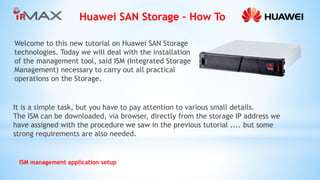
Welcome to this new tutorial on Huawei SAN Storage technologies. Today we will deal with the installation of the management tool, said ISM (Integrated Storage Management) necessary to carry out all practical operations on the Storage. 
It is a simple task, but you have to pay attention to various small details. 
The ISM can be downloaded, via browser, directly from the storage IP address we have assigned with the procedure we saw in the previous tutorial .... but some strong requirements are also needed.
Huawei SAN Storage – How To 
ISM management application setup 
First requirement of all, the availability of the Java engine: in this case, you need a JRE version 1.6.0_20 or more recent. 
Second requirement, a browser approved by Huawei: for examples we will use an Internet Explorer version 8; for later versions, it is suggested to enable compatibility mode. 
Third thing to watch out for: always type in the IP address of the storage, and never use any simple and convenient DNS resolution: it is not supported and it can cause misleading errors.
Huawei SAN Storage – How To 
ISM management application setup 
Now, the practical part. Open the browser and navigate to one of the two IP addresses of the storage (those IPs from the procedure shown in the previous tutorial). 
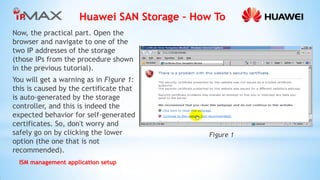
You will get a warning as in Figure 1: this is caused by the certificate that is auto-generated by the storage controller, and this is indeed the expected behavior for self-generated certificates. So, don't worry and safely go on by clicking the lower option (the one that is not recommended). 
Figure 1
Huawei SAN Storage – How To 
ISM management application setup 
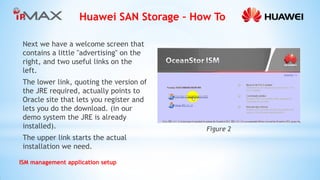
Next we have a welcome screen that contains a little ''advertising'' on the right, and two useful links on the left. 
The lower link, quoting the version of the JRE required, actually points to Oracle site that lets you register and lets you do the download. (in our demo system the JRE is already installed). 
The upper link starts the actual installation we need. 
Figure 2
Huawei SAN Storage – How To 
ISM management application setup 
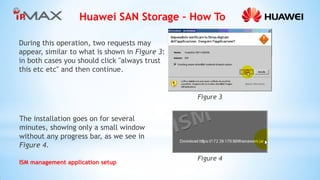
During this operation, two requests may appear, similar to what is shown in Figure 3: in both cases you should click "always trust this etc etc" and then continue. 
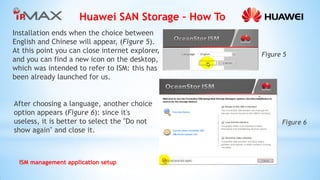
The installation goes on for several minutes, showing only a small window without any progress bar, as we see in Figure 4. 
Figure 4 
Figure 3
Huawei SAN Storage – How To 
ISM management application setup 
Installation ends when the choice between English and Chinese will appear, (Figure 5). At this point you can close internet explorer, and you can find a new icon on the desktop, which was intended to refer to ISM: this has been already launched for us. 
After choosing a language, another choice option appears (Figure 6): since it's useless, it is better to select the "Do not show again" and close it. 
Figure 6 
Figure 5
Huawei SAN Storage – How To 
ISM management application setup 
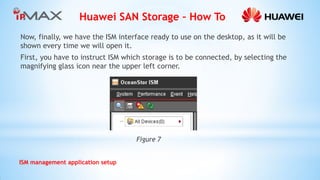
Now, finally, we have the ISM interface ready to use on the desktop, as it will be shown every time we will open it. 
First, you have to instruct ISM which storage is to be connected, by selecting the magnifying glass icon near the upper left corner. 
Figure 7
Huawei SAN Storage – How To 
ISM management application setup 
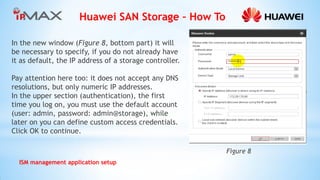
In the new window (Figure 8, bottom part) it will be necessary to specify, if you do not already have it as default, the IP address of a storage controller. 
Pay attention here too: it does not accept any DNS resolutions, but only numeric IP addresses. 
In the upper section (authentication), the first time you log on, you must use the default account (user: admin, password: admin@storage), while later on you can define custom access credentials. Click OK to continue. 
Figure 8
Huawei SAN Storage – How To 
ISM management application setup 
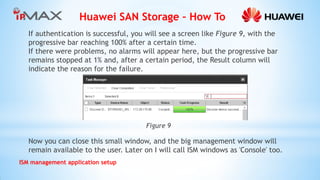
If authentication is successful, you will see a screen like Figure 9, with the progressive bar reaching 100% after a certain time. 
If there were problems, no alarms will appear here, but the progressive bar remains stopped at 1% and, after a certain period, the Result column will indicate the reason for the failure. 
Figure 9 
Now you can close this small window, and the big management window will remain available to the user. Later on I will call ISM windows as 'Console' too.
Huawei SAN Storage – How To 
ISM management application setup 
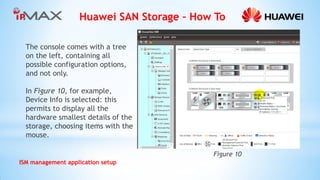
Figure 10 
The console comes with a tree on the left, containing all possible configuration options, and not only. 
In Figure 10, for example, Device Info is selected: this permits to display all the hardware smallest details of the storage, choosing items with the mouse.
Huawei SAN Storage – How To 
ISM management application setup 
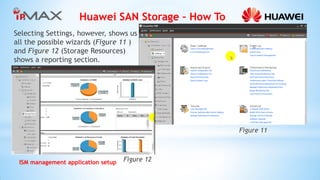
Selecting Settings, however, shows us all the possible wizards (Figure 11 ) and Figure 12 (Storage Resources) shows a reporting section. 
Figure 11 
Figure 12
Huawei SAN Storage – How To 
ISM management application setup 
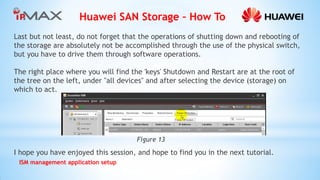
Last but not least, do not forget that the operations of shutting down and rebooting of the storage are absolutely not be accomplished through the use of the physical switch, but you have to drive them through software operations. 
The right place where you will find the 'keys' Shutdown and Restart are at the root of the tree on the left, under "all devices" and after selecting the device (storage) on which to act. 
I hope you have enjoyed this session, and hope to find you in the next tutorial. 
Figure 13
Huawei SAN Storage – How To 
ISM management application setup 
IPMAX is a Huawei Partner in Italy. 
IPMAX is the ideal partner for companies seeking quality in products and services. IPMAX guarantees method and professionalism to support its customers in selecting technologies with the best quality / price ratio, in the design, installation, commissioning and operation. 
IPMAX srl 
Via Ponchielli, 4 
20063 Cernusco sul Naviglio (MI) – Italy 
+39 02 9290 9171

Huawei SAN Storage How To - ISM management application setup

  • 1.
    Huawei SAN Storage– How To ISM management application setup Huawei SAN Storage – How To : ISM management application setup
  • 2.
    Huawei SAN Storage– How To ISM management application setup Welcome to this new tutorial on Huawei SAN Storage technologies. Today we will deal with the installation of the management tool, said ISM (Integrated Storage Management) necessary to carry out all practical operations on the Storage. It is a simple task, but you have to pay attention to various small details. The ISM can be downloaded, via browser, directly from the storage IP address we have assigned with the procedure we saw in the previous tutorial .... but some strong requirements are also needed.
  • 3.
    Huawei SAN Storage– How To ISM management application setup First requirement of all, the availability of the Java engine: in this case, you need a JRE version 1.6.0_20 or more recent. Second requirement, a browser approved by Huawei: for examples we will use an Internet Explorer version 8; for later versions, it is suggested to enable compatibility mode. Third thing to watch out for: always type in the IP address of the storage, and never use any simple and convenient DNS resolution: it is not supported and it can cause misleading errors.
  • 4.
    Huawei SAN Storage– How To ISM management application setup Now, the practical part. Open the browser and navigate to one of the two IP addresses of the storage (those IPs from the procedure shown in the previous tutorial). You will get a warning as in Figure 1: this is caused by the certificate that is auto-generated by the storage controller, and this is indeed the expected behavior for self-generated certificates. So, don't worry and safely go on by clicking the lower option (the one that is not recommended). Figure 1
  • 5.
    Huawei SAN Storage– How To ISM management application setup Next we have a welcome screen that contains a little ''advertising'' on the right, and two useful links on the left. The lower link, quoting the version of the JRE required, actually points to Oracle site that lets you register and lets you do the download. (in our demo system the JRE is already installed). The upper link starts the actual installation we need. Figure 2
  • 6.
    Huawei SAN Storage– How To ISM management application setup During this operation, two requests may appear, similar to what is shown in Figure 3: in both cases you should click "always trust this etc etc" and then continue. The installation goes on for several minutes, showing only a small window without any progress bar, as we see in Figure 4. Figure 4 Figure 3
  • 7.
    Huawei SAN Storage– How To ISM management application setup Installation ends when the choice between English and Chinese will appear, (Figure 5). At this point you can close internet explorer, and you can find a new icon on the desktop, which was intended to refer to ISM: this has been already launched for us. After choosing a language, another choice option appears (Figure 6): since it's useless, it is better to select the "Do not show again" and close it. Figure 6 Figure 5
  • 8.
    Huawei SAN Storage– How To ISM management application setup Now, finally, we have the ISM interface ready to use on the desktop, as it will be shown every time we will open it. First, you have to instruct ISM which storage is to be connected, by selecting the magnifying glass icon near the upper left corner. Figure 7
  • 9.
    Huawei SAN Storage– How To ISM management application setup In the new window (Figure 8, bottom part) it will be necessary to specify, if you do not already have it as default, the IP address of a storage controller. Pay attention here too: it does not accept any DNS resolutions, but only numeric IP addresses. In the upper section (authentication), the first time you log on, you must use the default account (user: admin, password: admin@storage), while later on you can define custom access credentials. Click OK to continue. Figure 8
  • 10.
    Huawei SAN Storage– How To ISM management application setup If authentication is successful, you will see a screen like Figure 9, with the progressive bar reaching 100% after a certain time. If there were problems, no alarms will appear here, but the progressive bar remains stopped at 1% and, after a certain period, the Result column will indicate the reason for the failure. Figure 9 Now you can close this small window, and the big management window will remain available to the user. Later on I will call ISM windows as 'Console' too.
  • 11.
    Huawei SAN Storage– How To ISM management application setup Figure 10 The console comes with a tree on the left, containing all possible configuration options, and not only. In Figure 10, for example, Device Info is selected: this permits to display all the hardware smallest details of the storage, choosing items with the mouse.
  • 12.
    Huawei SAN Storage– How To ISM management application setup Selecting Settings, however, shows us all the possible wizards (Figure 11 ) and Figure 12 (Storage Resources) shows a reporting section. Figure 11 Figure 12
  • 13.
    Huawei SAN Storage– How To ISM management application setup Last but not least, do not forget that the operations of shutting down and rebooting of the storage are absolutely not be accomplished through the use of the physical switch, but you have to drive them through software operations. The right place where you will find the 'keys' Shutdown and Restart are at the root of the tree on the left, under "all devices" and after selecting the device (storage) on which to act. I hope you have enjoyed this session, and hope to find you in the next tutorial. Figure 13
  • 14.
    Huawei SAN Storage– How To ISM management application setup IPMAX is a Huawei Partner in Italy. IPMAX is the ideal partner for companies seeking quality in products and services. IPMAX guarantees method and professionalism to support its customers in selecting technologies with the best quality / price ratio, in the design, installation, commissioning and operation. IPMAX srl Via Ponchielli, 4 20063 Cernusco sul Naviglio (MI) – Italy +39 02 9290 9171