HOW TO USE
VLC media player
Š 2015 sheilamariegodoy.com 1
To start with
Š 2015 sheilamariegodoy.com 2
What is VLC ?
Š 2015 sheilamariegodoy.com 3
VLC is a free and open
source cross-platform
multimedia player
Š 2015 sheilamariegodoy.com 4
and framework that plays
most multimedia files as
well as DVDs, Audio CDs,
Š 2015 sheilamariegodoy.com 5
VCDs, and various streaming
protocols.
Š 2015 sheilamariegodoy.com 6
In simple words..
Š 2015 sheilamariegodoy.com 7
It is a simple, fast and
powerful media player that
plays everything.
Š 2015 sheilamariegodoy.com 8
So, lets start up ..
Š 2015 sheilamariegodoy.com 9
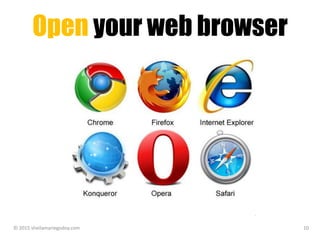
Open your web browser
Š 2015 sheilamariegodoy.com 10
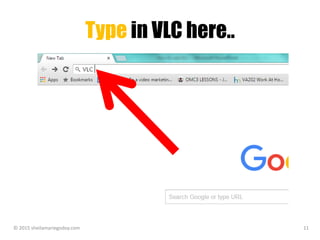
Type in VLC here..
Š 2015 sheilamariegodoy.com 11
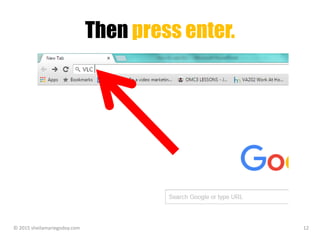
Then press enter.
Š 2015 sheilamariegodoy.com 12
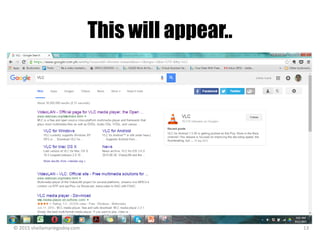
This will appear..
Š 2015 sheilamariegodoy.com 13
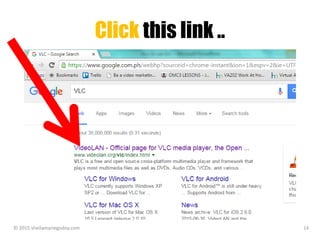
Click this link ..
Š 2015 sheilamariegodoy.com 14
You will be directed to the
VLC site
Š 2015 sheilamariegodoy.com 15
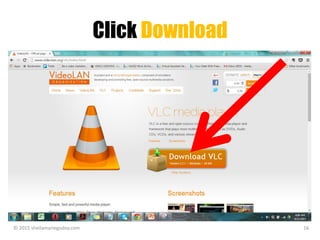
Click Download
Š 2015 sheilamariegodoy.com 16
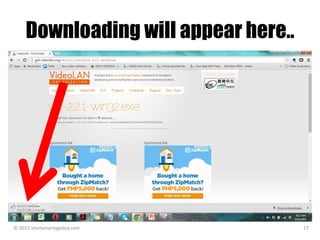
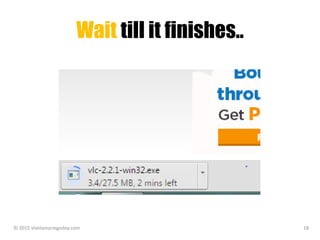
Downloading will appear here..
Š 2015 sheilamariegodoy.com 17
Wait till it finishes..
Š 2015 sheilamariegodoy.com 18
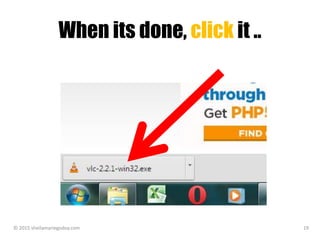
When its done, click it ..
Š 2015 sheilamariegodoy.com 19
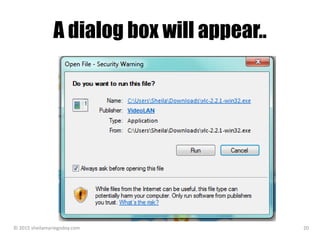
A dialog box will appear..
Š 2015 sheilamariegodoy.com 20
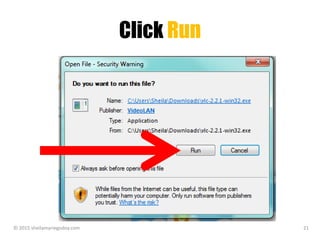
Click Run
Š 2015 sheilamariegodoy.com 21
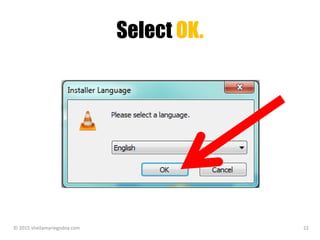
Select OK.
Š 2015 sheilamariegodoy.com 22
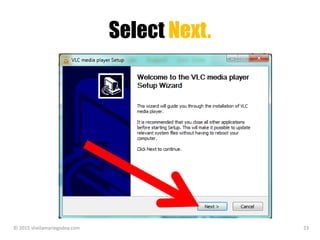
Select Next.
Š 2015 sheilamariegodoy.com 23
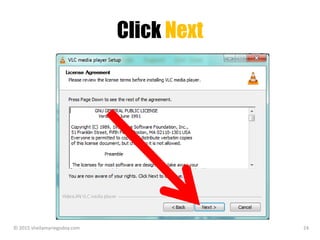
Click Next
Š 2015 sheilamariegodoy.com 24
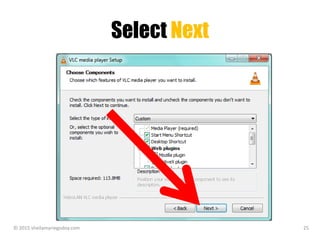
Select Next
Š 2015 sheilamariegodoy.com 25
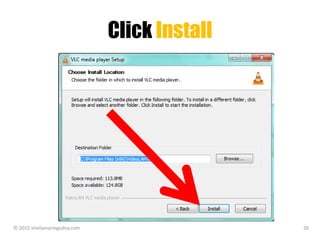
Click Install
Š 2015 sheilamariegodoy.com 26
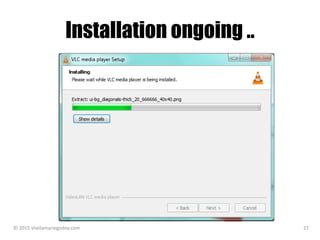
Installation ongoing ..
Š 2015 sheilamariegodoy.com 27
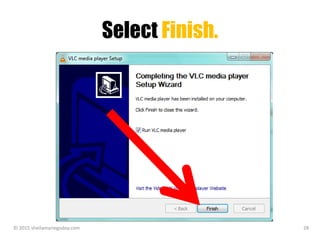
Select Finish.
Š 2015 sheilamariegodoy.com 28
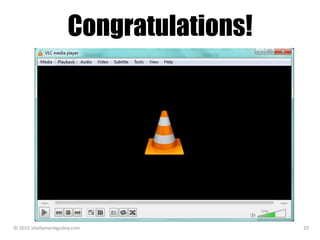
Congratulations!
Š 2015 sheilamariegodoy.com 29
Your VLC is installed!
Š 2015 sheilamariegodoy.com 30
HOW TO play a movie
Š 2015 sheilamariegodoy.com 31
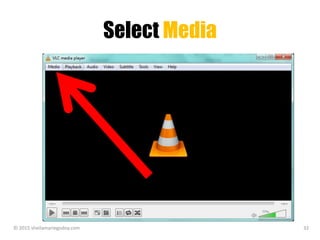
Select Media
Š 2015 sheilamariegodoy.com 32
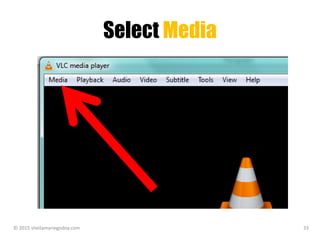
Select Media
Š 2015 sheilamariegodoy.com 33
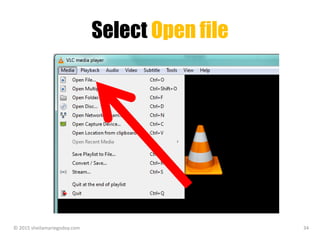
Select Open file
Š 2015 sheilamariegodoy.com 34
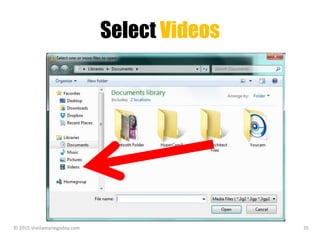
Select Videos
Š 2015 sheilamariegodoy.com 35
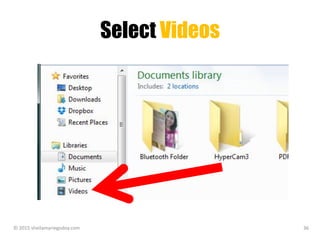
Select Videos
Š 2015 sheilamariegodoy.com 36
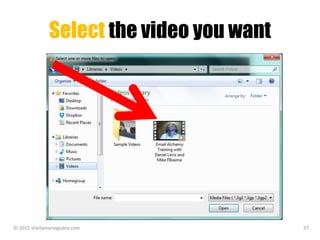
Select the video you want
Š 2015 sheilamariegodoy.com 37
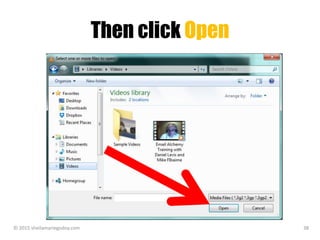
Then click Open
Š 2015 sheilamariegodoy.com 38
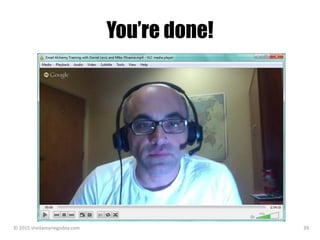
You’re done!
Š 2015 sheilamariegodoy.com 39
There is also another way
Š 2015 sheilamariegodoy.com 40
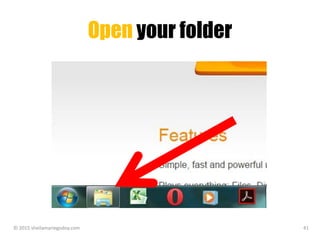
Open your folder
Š 2015 sheilamariegodoy.com 41
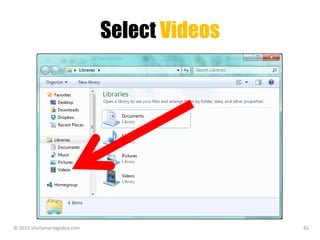
Select Videos
Š 2015 sheilamariegodoy.com 42
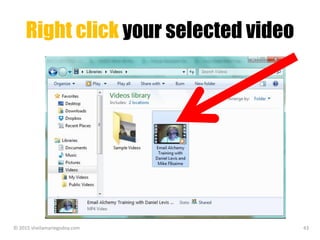
Right click your selected video
Š 2015 sheilamariegodoy.com 43
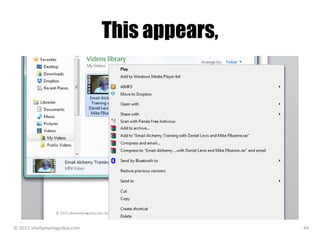
This appears,
Š 2015 sheilamariegodoy.com 44
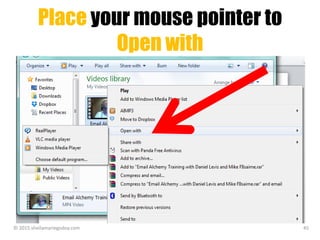
Place your mouse pointer to
Open with
Š 2015 sheilamariegodoy.com 45
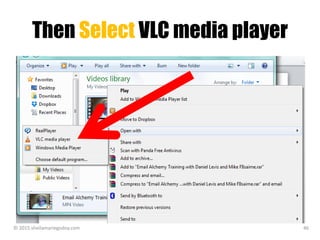
Then Select VLC media player
Š 2015 sheilamariegodoy.com 46
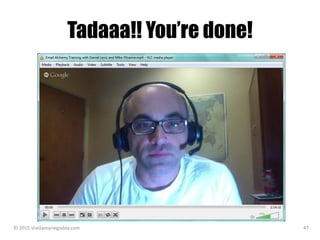
Tadaaa!! You’re done!
Š 2015 sheilamariegodoy.com 47
The same process goes,
Š 2015 sheilamariegodoy.com 48
If you want to play Music
Š 2015 sheilamariegodoy.com 49
HOW TO SET Visualization
for Music
Š 2015 sheilamariegodoy.com 50
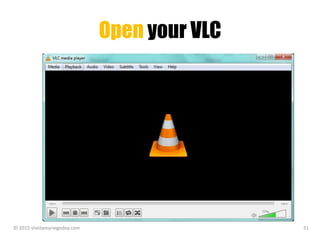
Open your VLC
Š 2015 sheilamariegodoy.com 51
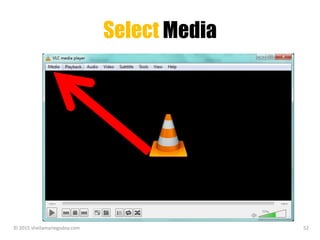
Select Media
Š 2015 sheilamariegodoy.com 52
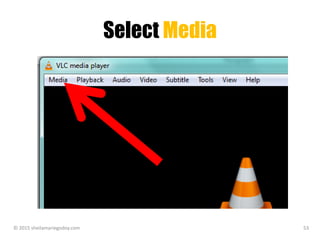
Select Media
Š 2015 sheilamariegodoy.com 53
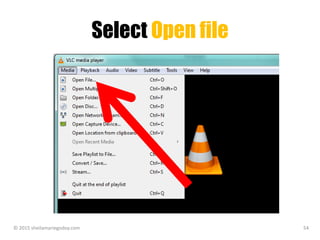
Select Open file
Š 2015 sheilamariegodoy.com 54
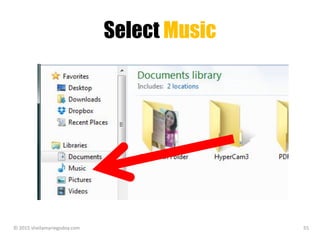
Select Music
Š 2015 sheilamariegodoy.com 55
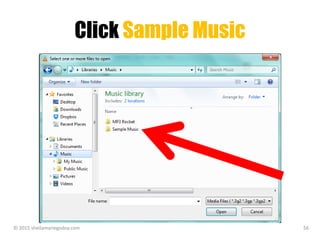
Click Sample Music
Š 2015 sheilamariegodoy.com 56
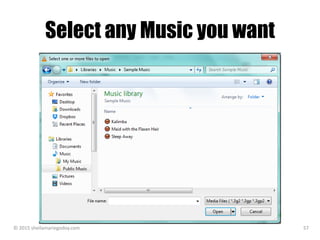
Select any Music you want
Š 2015 sheilamariegodoy.com 57
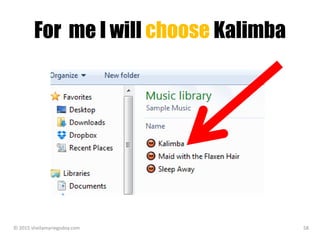
For me I will choose Kalimba
Š 2015 sheilamariegodoy.com 58
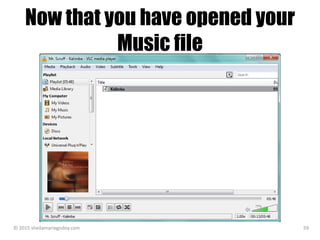
Now that you have opened your
Music file
Š 2015 sheilamariegodoy.com 59
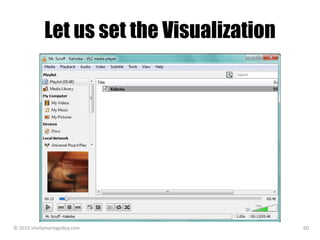
Let us set the Visualization
Š 2015 sheilamariegodoy.com 60
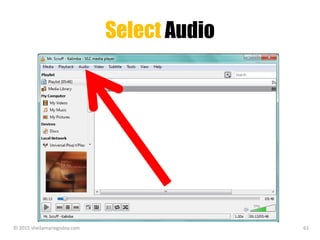
Select Audio
Š 2015 sheilamariegodoy.com 61
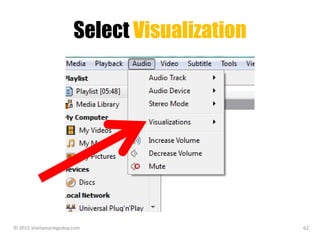
Select Visualization
Š 2015 sheilamariegodoy.com 62
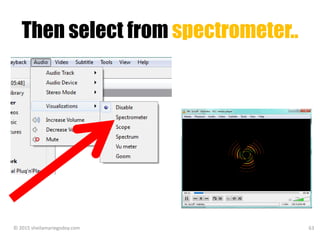
Then select from spectrometer..
Š 2015 sheilamariegodoy.com 63
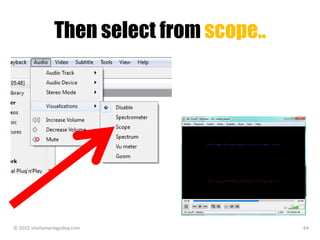
Then select from scope..
Š 2015 sheilamariegodoy.com 64
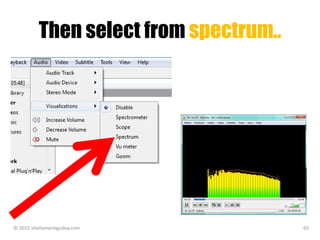
Then select from spectrum..
Š 2015 sheilamariegodoy.com 65
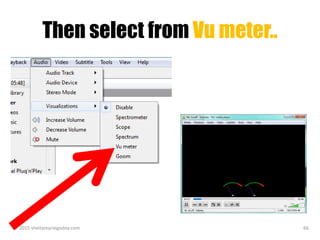
Then select from Vu meter..
Š 2015 sheilamariegodoy.com 66
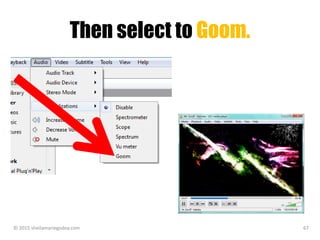
Then select to Goom.
Š 2015 sheilamariegodoy.com 67
HOW TO adjust the speed
of your video
Š 2015 sheilamariegodoy.com 68
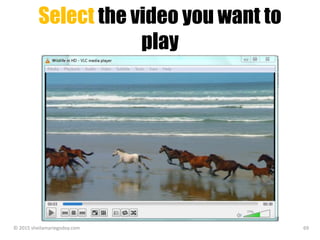
Select the video you want to
play
Š 2015 sheilamariegodoy.com 69
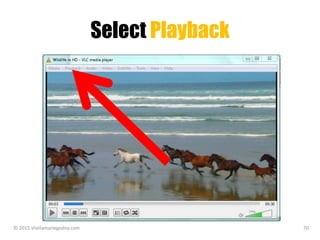
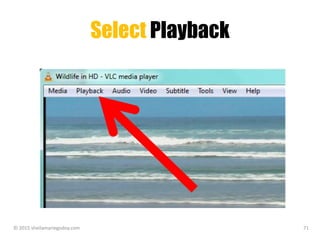
Select Playback
Š 2015 sheilamariegodoy.com 70
Select Playback
Š 2015 sheilamariegodoy.com 71
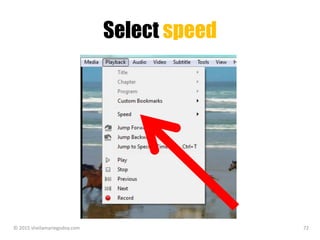
Select speed
Š 2015 sheilamariegodoy.com 72
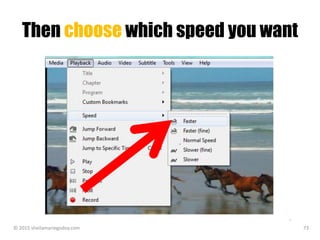
Then choose which speed you want
Š 2015 sheilamariegodoy.com 73
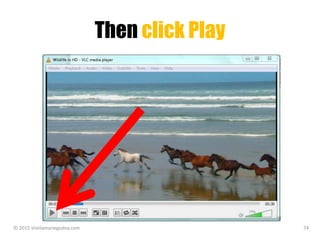
Then click Play
Š 2015 sheilamariegodoy.com 74
To view the current speed
of your video
Š 2015 sheilamariegodoy.com 75
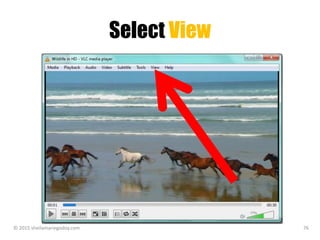
Select View
Š 2015 sheilamariegodoy.com 76
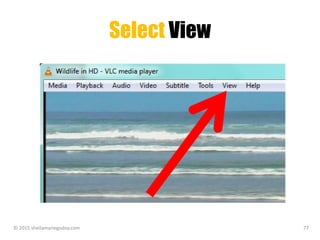
Select View
Š 2015 sheilamariegodoy.com 77
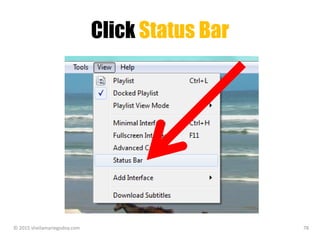
Click Status Bar
Š 2015 sheilamariegodoy.com 78
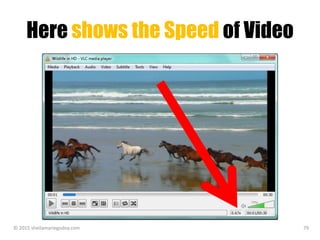
Here shows the Speed of Video
Š 2015 sheilamariegodoy.com 79
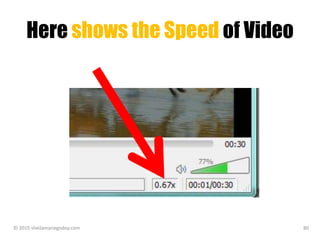
Here shows the Speed of Video
Š 2015 sheilamariegodoy.com 80
HOW TO Fine tune your
Audio and Video
Š 2015 sheilamariegodoy.com 81
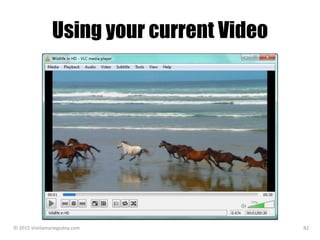
Using your current Video
Š 2015 sheilamariegodoy.com 82
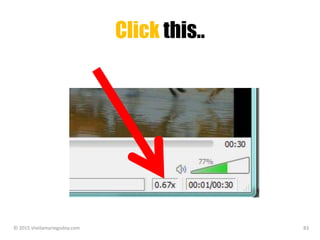
Click this..
Š 2015 sheilamariegodoy.com 83
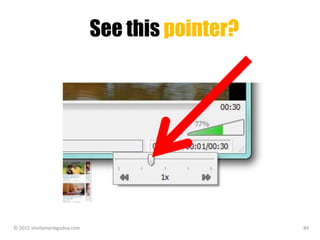
See this pointer?
Š 2015 sheilamariegodoy.com 84
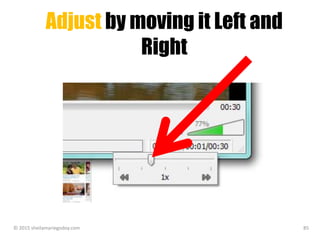
Adjust by moving it Left and
Right
Š 2015 sheilamariegodoy.com 85
HOW TO change sound
effects
Š 2015 sheilamariegodoy.com 86
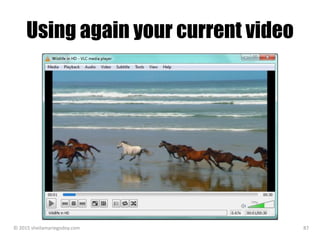
Using again your current video
Š 2015 sheilamariegodoy.com 87
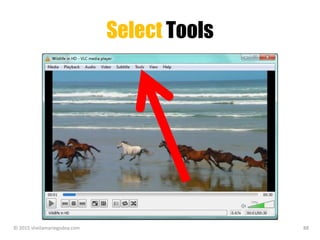
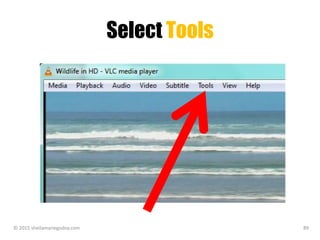
Select Tools
Š 2015 sheilamariegodoy.com 88
Select Tools
Š 2015 sheilamariegodoy.com 89
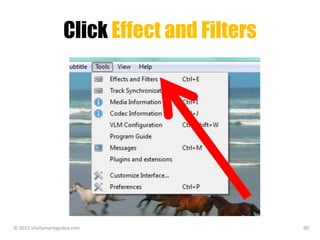
Click Effect and Filters
Š 2015 sheilamariegodoy.com 90
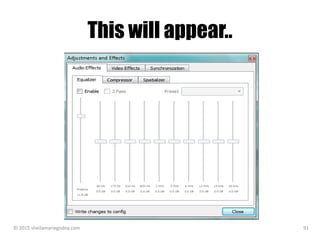
This will appear..
Š 2015 sheilamariegodoy.com 91
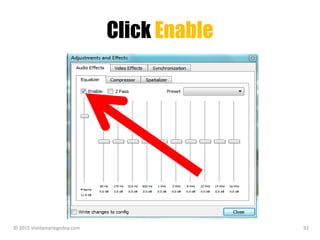
Click Enable
Š 2015 sheilamariegodoy.com 92
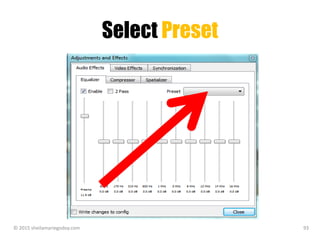
Select Preset
Š 2015 sheilamariegodoy.com 93
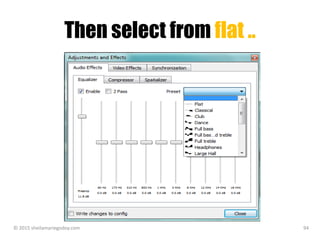
Then select from flat ..
Š 2015 sheilamariegodoy.com 94
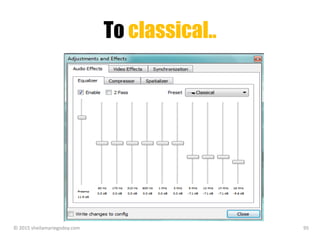
To classical..
Š 2015 sheilamariegodoy.com 95
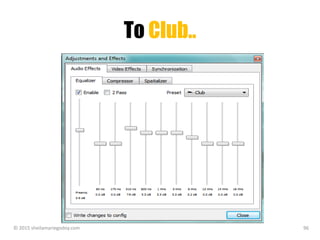
To Club..
Š 2015 sheilamariegodoy.com 96
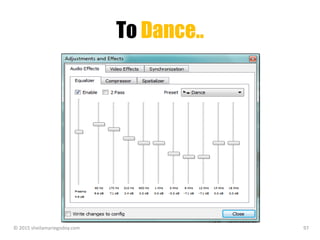
To Dance..
Š 2015 sheilamariegodoy.com 97
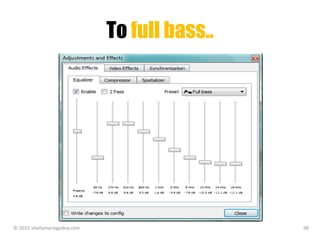
To full bass..
Š 2015 sheilamariegodoy.com 98
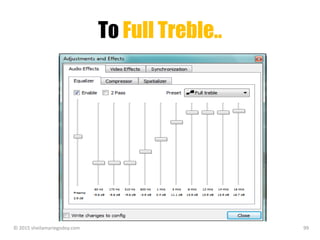
To Full Treble..
Š 2015 sheilamariegodoy.com 99
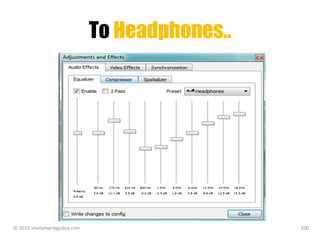
To Headphones..
Š 2015 sheilamariegodoy.com 100
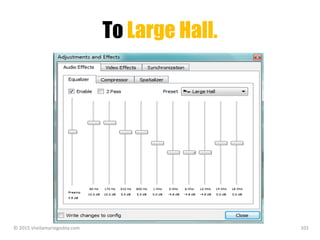
To Large Hall.
Š 2015 sheilamariegodoy.com 101
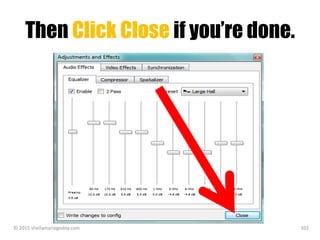
Then Click Close if you’re done.
Š 2015 sheilamariegodoy.com 102
That’s it folks!
Š 2015 sheilamariegodoy.com 103
Hope this easy tutorial
helped you.
Š 2015 sheilamariegodoy.com 104
Till next!
Š 2015 sheilamariegodoy.com 105

How to use VLC