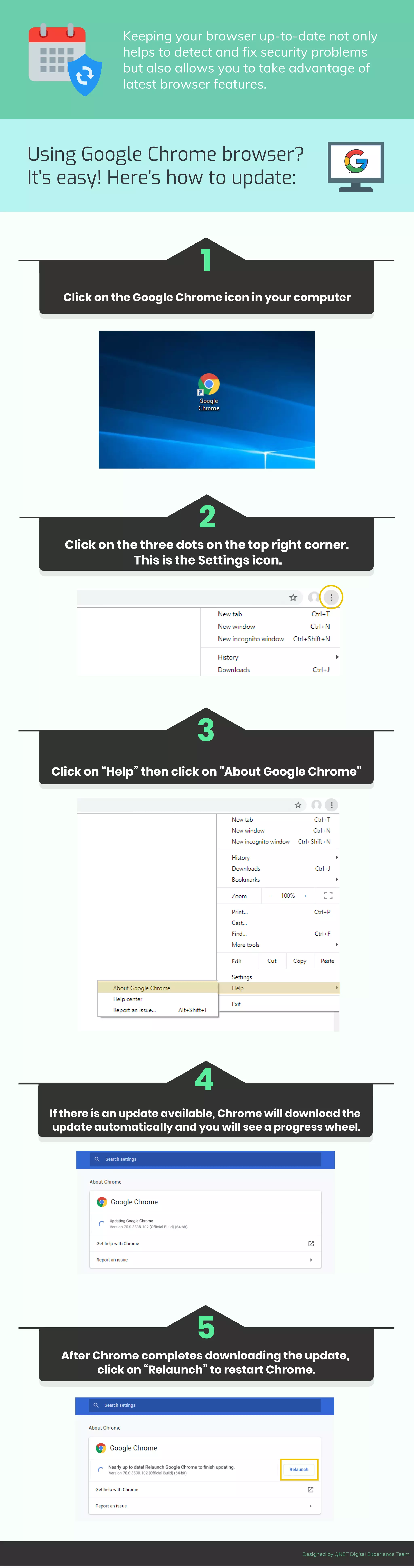
Click on the Google Chrome icon in your computer
1
Click on the three dots on the top right corner.
This is the Settings icon.
2
Click on “Help” then click on "About Google Chrome"
3
4
After Chrome completes downloading the update,
click on “Relaunch” to restart Chrome.
5
Once you have decided on the topic of your
infographic, you can start compiling the data.
Using Google Chrome browser?
It's easy! Here's how to update:
Keeping your browser up-to-date not only
helps to detect and fix security problems
but also allows you to take advantage of
latest browser features.
If there is an update available, Chrome will download the
update automatically and you will see a progress wheel.
Designed by QNET Digital Experience Team

How to update mobile browser - Chrome

  • 1.
    Click on theGoogle Chrome icon in your computer 1 Click on the three dots on the top right corner. This is the Settings icon. 2 Click on “Help” then click on "About Google Chrome" 3 4 After Chrome completes downloading the update, click on “Relaunch” to restart Chrome. 5 Once you have decided on the topic of your infographic, you can start compiling the data. Using Google Chrome browser? It's easy! Here's how to update: Keeping your browser up-to-date not only helps to detect and fix security problems but also allows you to take advantage of latest browser features. If there is an update available, Chrome will download the update automatically and you will see a progress wheel. Designed by QNET Digital Experience Team