How To Protect Your
Mac (macOS)
Steven
Intro
Although Macs are more secure than Windows, it’s still possible to catch malware. Most of its
from torrenting.
Some of these tips can also be applied to other OS’s like Windows.
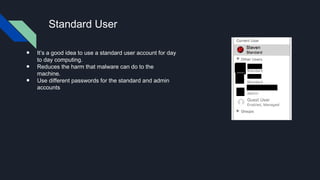
Standard User
● It’s a good idea to use a standard user account for day
to day computing.
● Reduces the harm that malware can do to the
machine.
● Use different passwords for the standard and admin
accounts
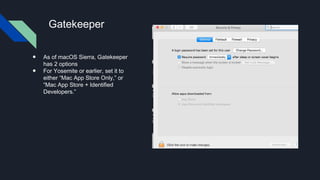
Gatekeeper
● As of macOS Sierra, Gatekeeper
has 2 options
● For Yosemite or earlier, set it to
either “Mac App Store Only,” or
“Mac App Store + Identified
Developers.”
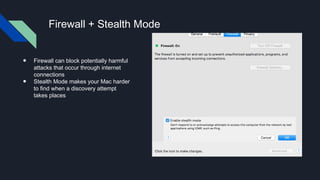
Firewall + Stealth Mode
● Firewall can block potentially harmful
attacks that occur through internet
connections
● Stealth Mode makes your Mac harder
to find when a discovery attempt
takes places
Flash
● Uninstall stand-alone plug-in and install Google Chrome
● I don’t have the stand-alone plug-in on my MacBook Pro
Java
● Uninstall it
● I don’t have it
Don’t Torrent
● Safer alternatives exist
● Can install malware and other things
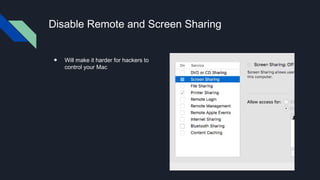
Disable Remote and Screen Sharing
● Will make it harder for hackers to
control your Mac
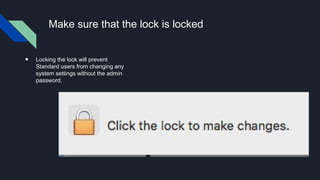
Make sure that the lock is locked
● Locking the lock will prevent
Standard users from changing any
system settings without the admin
password.
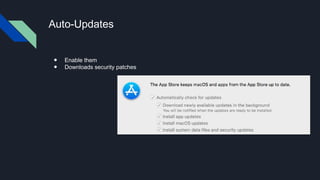
Auto-Updates
● Enable them
● Downloads security patches
Browser Extensions
1. Privacy Badger
2. Ublock Origin
3. HTTPS Everywhere
Back up Your Things
● Backup important/private files to USB or External Drives. Don’t leave it connected to
your Mac all the time
● Back up to the cloud as well
● Students: You can type up your assignments on the cloud
Other tips
● Don’t share personal info
○ (Ex: Addresses, license plate numbers, banking info, etc)
● Use WPA2 or later for Wifi
● Bank & shop from home
● Don’t connect to open hotspots without proxy or VPN
● Make sure that the website has HTTPS or a green lock
● Be careful with posting status updates, photos, videos and other things
● Some of these tips can be implemented on Windows as well
● Be careful with USB drives.
● If your machine was brought online (eBay & Amazon), wipe it clean and reinstall a fresh
copy of the OS.
● Be nice to people while commenting & posting.
Sources
● Screenshots: My Mac
Videos
● Stealth Mode - https://www.youtube.com/watch?v=Y-q4KGkMxyI
● General Protections - https://www.youtube.com/watch?v=crrpuF1O1SI
How to protect your mac (mac os)

How to protect your mac (mac os)

  • 1.
    How To ProtectYour Mac (macOS) Steven
  • 2.
    Intro Although Macs aremore secure than Windows, it’s still possible to catch malware. Most of its from torrenting. Some of these tips can also be applied to other OS’s like Windows.
  • 3.
    Standard User ● It’sa good idea to use a standard user account for day to day computing. ● Reduces the harm that malware can do to the machine. ● Use different passwords for the standard and admin accounts
  • 4.
    Gatekeeper ● As ofmacOS Sierra, Gatekeeper has 2 options ● For Yosemite or earlier, set it to either “Mac App Store Only,” or “Mac App Store + Identified Developers.”
  • 5.
    Firewall + StealthMode ● Firewall can block potentially harmful attacks that occur through internet connections ● Stealth Mode makes your Mac harder to find when a discovery attempt takes places
  • 6.
    Flash ● Uninstall stand-aloneplug-in and install Google Chrome ● I don’t have the stand-alone plug-in on my MacBook Pro
  • 7.
    Java ● Uninstall it ●I don’t have it
  • 8.
    Don’t Torrent ● Saferalternatives exist ● Can install malware and other things
  • 9.
    Disable Remote andScreen Sharing ● Will make it harder for hackers to control your Mac
  • 10.
    Make sure thatthe lock is locked ● Locking the lock will prevent Standard users from changing any system settings without the admin password.
  • 11.
    Auto-Updates ● Enable them ●Downloads security patches
  • 12.
    Browser Extensions 1. PrivacyBadger 2. Ublock Origin 3. HTTPS Everywhere
  • 13.
    Back up YourThings ● Backup important/private files to USB or External Drives. Don’t leave it connected to your Mac all the time ● Back up to the cloud as well ● Students: You can type up your assignments on the cloud
  • 14.
    Other tips ● Don’tshare personal info ○ (Ex: Addresses, license plate numbers, banking info, etc) ● Use WPA2 or later for Wifi ● Bank & shop from home ● Don’t connect to open hotspots without proxy or VPN ● Make sure that the website has HTTPS or a green lock ● Be careful with posting status updates, photos, videos and other things ● Some of these tips can be implemented on Windows as well ● Be careful with USB drives. ● If your machine was brought online (eBay & Amazon), wipe it clean and reinstall a fresh copy of the OS. ● Be nice to people while commenting & posting.
  • 15.
    Sources ● Screenshots: MyMac Videos ● Stealth Mode - https://www.youtube.com/watch?v=Y-q4KGkMxyI ● General Protections - https://www.youtube.com/watch?v=crrpuF1O1SI