How to Manage SLA Policy
in Odoo 17 Helpdesk
Enterprise
Introduction
Enterprise
Service Level Agreements are defined to get an idea about how a service
is provided to our customers. Basically, it is a commitment that a
company makes with its customers while delivering customer services.
SLA Policies play an important role when it comes to the relationship
between the service-providing agent and the consumer who purchases
the service. Defining SLA policies in customer service operations will
help a company to gain the trust of customers by ensuring efficient
customer support. These policies describe how to deliver a service and
to what standard. This will be beneficial to determine the deadlines of
services in an organization.
Enterprise
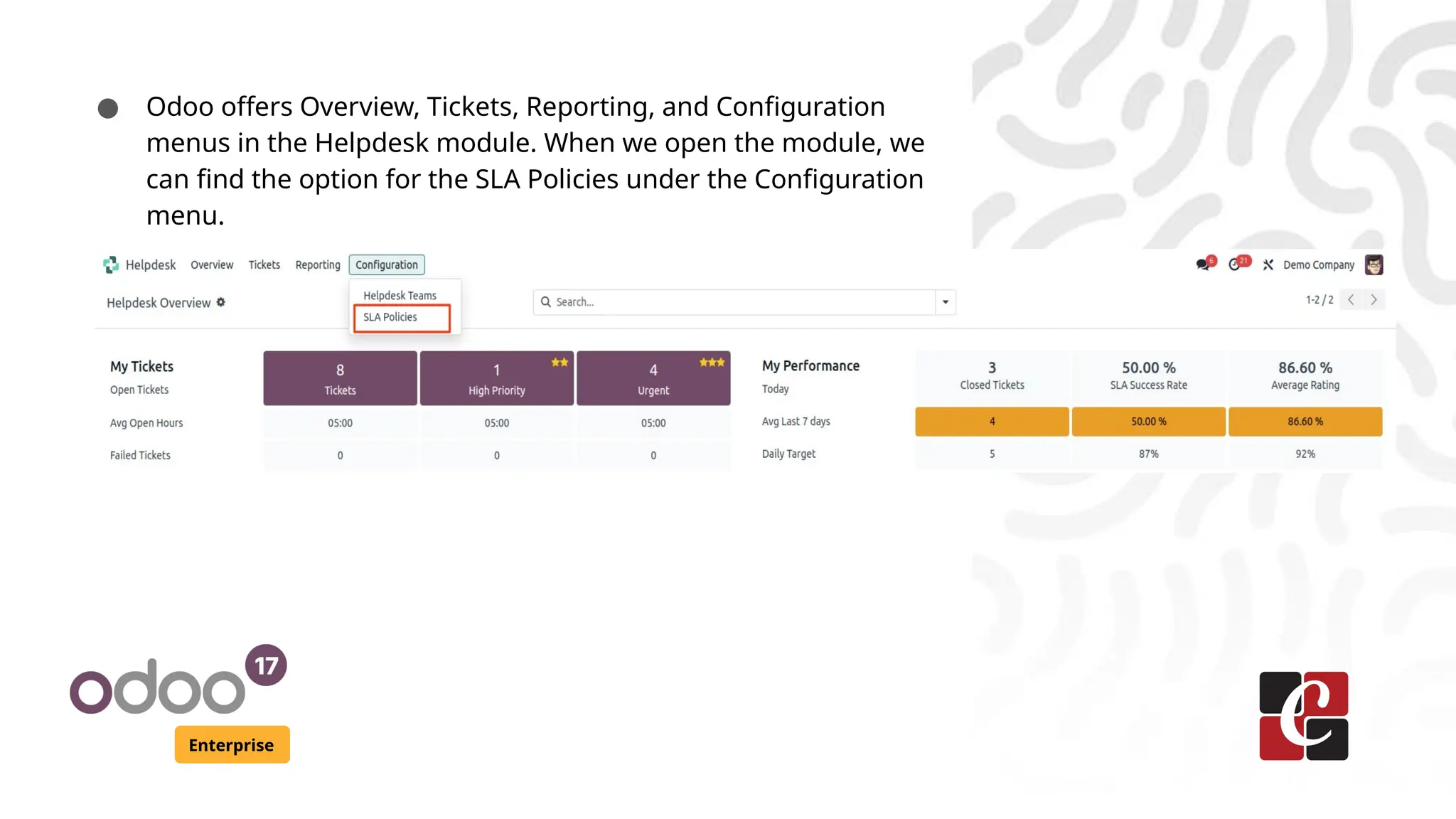
● Odoo offers Overview, Tickets, Reporting, and Configuration
menus in the Helpdesk module. When we open the module, we
can find the option for the SLA Policies under the Configuration
menu.
Enterprise
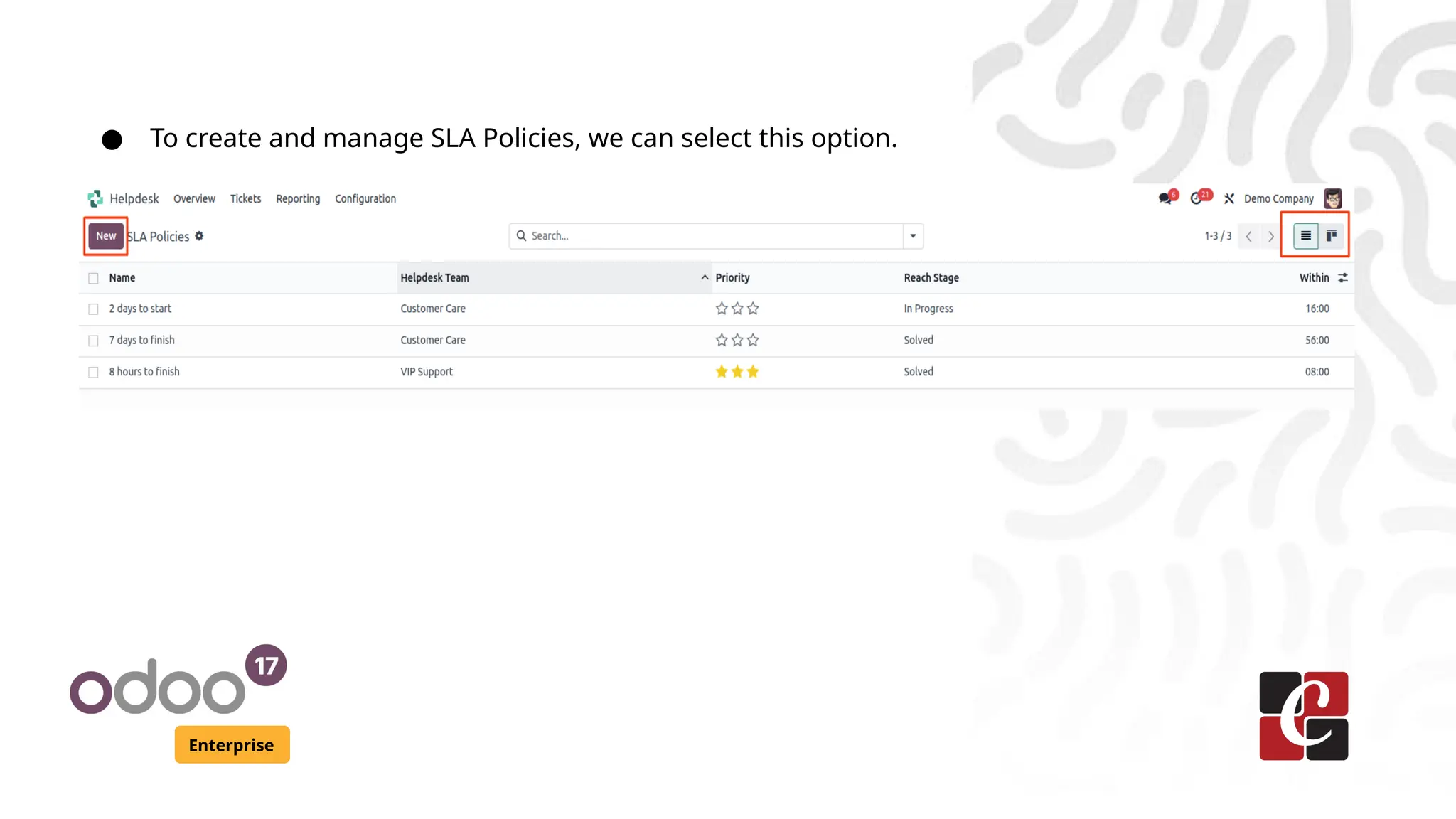
● To create and manage SLA Policies, we can select this option.
Enterprise
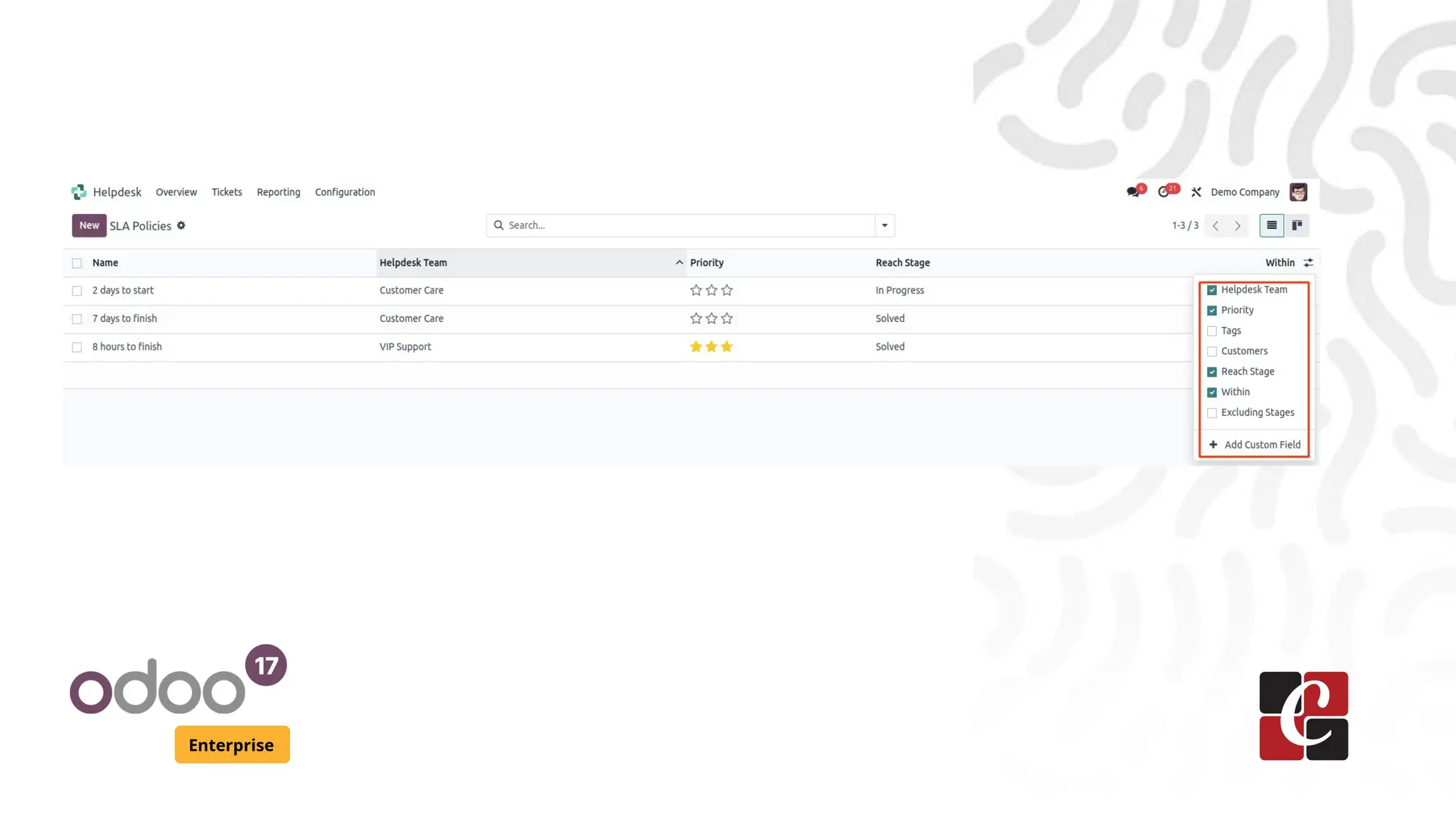
● Clicking on the SLP Policies button will lead us to a new platform
that will give we an insight into the already created policies in the
Helpdesk module. From the list view, we will get the Name, and
Helpdesk Team of each policy along with the details of Minimum
Priority, Type, Reach Stage, and Time Period of tickets to satisfy the
respective policy.
● In the list view of this platform, we can add more fields in the
preview. In order to expand the preview, we can use the three
vertical dots given on the top right corner of the list of policies as
marked in the screenshot below
Enterprise
Enterprise
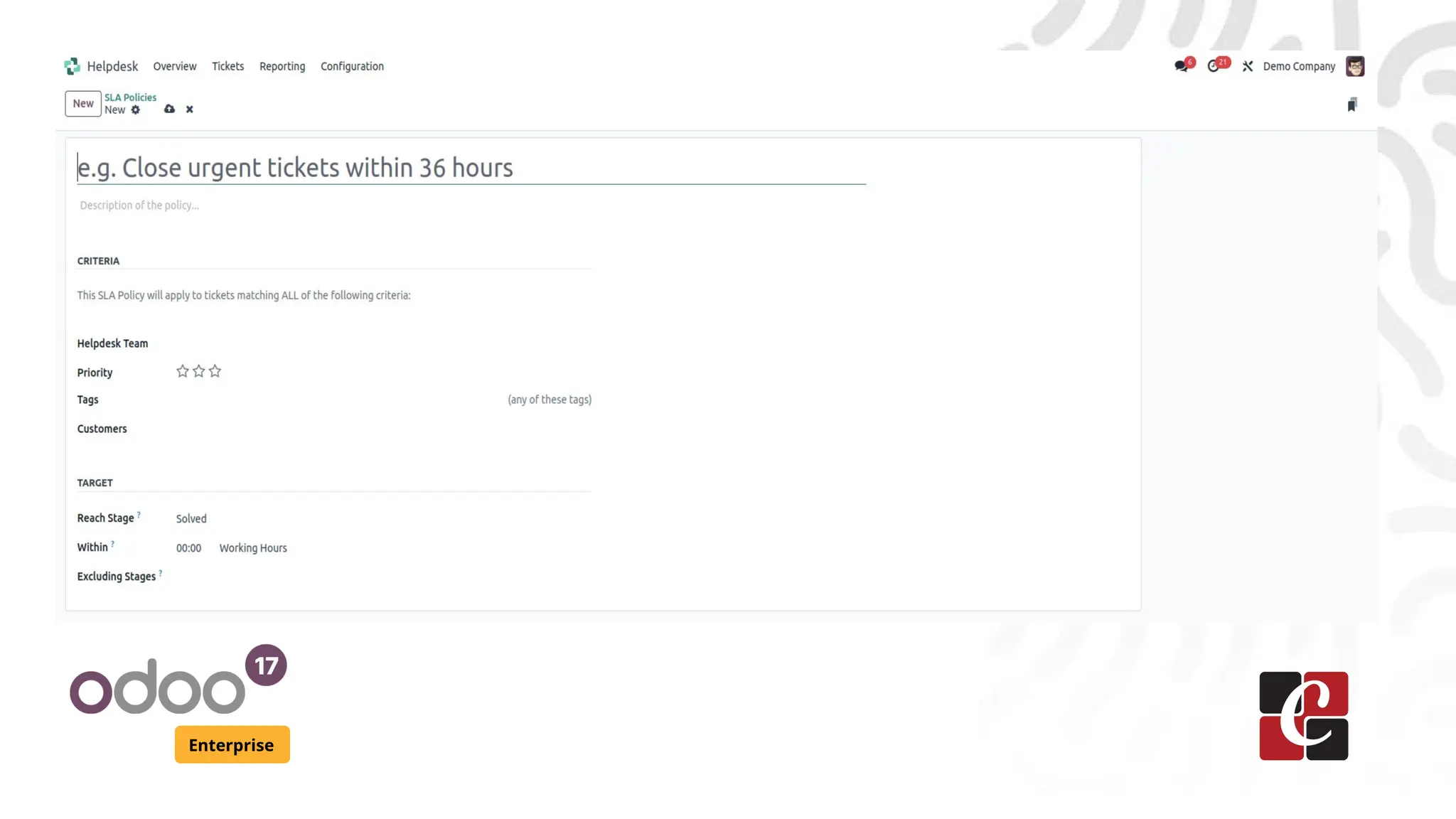
● Now, let’s take a look at the configuration of a new SLA Policy.
For this, the user can use the Create button available in the top
left corner of the screen. As shown in the image below, we will
get a new window to add details about the new SLA policy.
Enterprise
Enterprise
● We can add a title to the policy in the given field. The main
purposes and objectives of the policy can be specified in the
description field. The creation page contains Criteria and Target
tabs to define.
● Under the Criteria tab, we can mention details about Helpdesk
Team, Minimum Priority, Type, Tags, Customers, and Sales Order
Items.
● In the Helpdesk Field, we can specify the teams who will be
assigned to manage the tickets that come under this particular
policy. We can set the Minimum Priority for tickets to satisfy this
SLA policy. The tickets under the specified priority will not be
taken into consideration.
Enterprise
● In Odoo, the user can mark priority using stars. The maximum
number of stars indicates Urgent tickets and the least number of
starts indicates Low Priority tickets. For High Priority tickets, we can
give two stars.
● Odoo will apply this SLA to the tickets submitted by the mentioned
customers. We can also leave the field empty in order to consider all
tickets without any distinction.
● Specifying the Sales Order item will help the user to apply the SLA to
the specified items only.
Enterprise
● The user can select a minimum stage that a ticket should reach in
order to apply this SLA.
● Odoo will check whether the ticket reached the specific Stage or
not within the specified time. In order to satisfy this SLA, the
ticket should reach the mentioned stage before the deadline.
Otherwise, the SLA will be marked as failed for that particular
ticket.
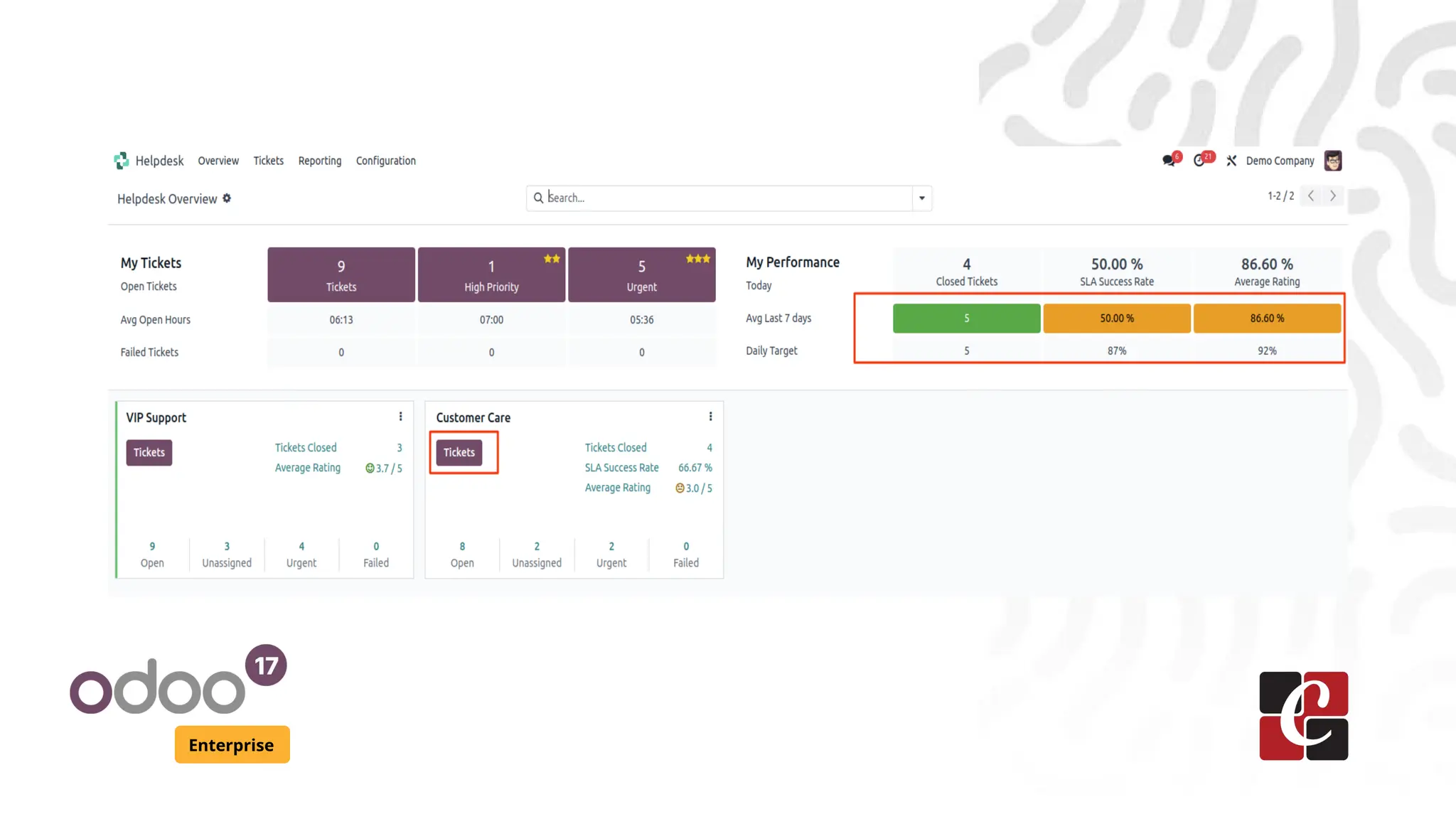
● From the Overview dashboard of the Helpdesk module, we can
see the SLA status of each helpdesk team configured in this
module.
Enterprise
For More Info.
Check our company website for related blogs
and Odoo book.
Check our YouTube channel for
How to Manage SLA Policy in Odoo 17 Help
desk
Enterprise
www.cybrosys.com

How to Manage SLA Policy in Odoo 17 Helpdesk

  • 1.
    How to ManageSLA Policy in Odoo 17 Helpdesk Enterprise
  • 2.
    Introduction Enterprise Service Level Agreementsare defined to get an idea about how a service is provided to our customers. Basically, it is a commitment that a company makes with its customers while delivering customer services. SLA Policies play an important role when it comes to the relationship between the service-providing agent and the consumer who purchases the service. Defining SLA policies in customer service operations will help a company to gain the trust of customers by ensuring efficient customer support. These policies describe how to deliver a service and to what standard. This will be beneficial to determine the deadlines of services in an organization.
  • 3.
    Enterprise ● Odoo offersOverview, Tickets, Reporting, and Configuration menus in the Helpdesk module. When we open the module, we can find the option for the SLA Policies under the Configuration menu.
  • 4.
    Enterprise ● To createand manage SLA Policies, we can select this option.
  • 5.
    Enterprise ● Clicking onthe SLP Policies button will lead us to a new platform that will give we an insight into the already created policies in the Helpdesk module. From the list view, we will get the Name, and Helpdesk Team of each policy along with the details of Minimum Priority, Type, Reach Stage, and Time Period of tickets to satisfy the respective policy. ● In the list view of this platform, we can add more fields in the preview. In order to expand the preview, we can use the three vertical dots given on the top right corner of the list of policies as marked in the screenshot below
  • 6.
  • 7.
    Enterprise ● Now, let’stake a look at the configuration of a new SLA Policy. For this, the user can use the Create button available in the top left corner of the screen. As shown in the image below, we will get a new window to add details about the new SLA policy.
  • 8.
  • 9.
    Enterprise ● We canadd a title to the policy in the given field. The main purposes and objectives of the policy can be specified in the description field. The creation page contains Criteria and Target tabs to define. ● Under the Criteria tab, we can mention details about Helpdesk Team, Minimum Priority, Type, Tags, Customers, and Sales Order Items. ● In the Helpdesk Field, we can specify the teams who will be assigned to manage the tickets that come under this particular policy. We can set the Minimum Priority for tickets to satisfy this SLA policy. The tickets under the specified priority will not be taken into consideration.
  • 10.
    Enterprise ● In Odoo,the user can mark priority using stars. The maximum number of stars indicates Urgent tickets and the least number of starts indicates Low Priority tickets. For High Priority tickets, we can give two stars. ● Odoo will apply this SLA to the tickets submitted by the mentioned customers. We can also leave the field empty in order to consider all tickets without any distinction. ● Specifying the Sales Order item will help the user to apply the SLA to the specified items only.
  • 11.
    Enterprise ● The usercan select a minimum stage that a ticket should reach in order to apply this SLA. ● Odoo will check whether the ticket reached the specific Stage or not within the specified time. In order to satisfy this SLA, the ticket should reach the mentioned stage before the deadline. Otherwise, the SLA will be marked as failed for that particular ticket. ● From the Overview dashboard of the Helpdesk module, we can see the SLA status of each helpdesk team configured in this module.
  • 12.
  • 13.
    For More Info. Checkour company website for related blogs and Odoo book. Check our YouTube channel for How to Manage SLA Policy in Odoo 17 Help desk Enterprise www.cybrosys.com