How To Create Simple Fillable
    Forms Using Word


         By: Mai Thao
What Do You Need?
• Open up Word
• You will need to have the “Developer” tab to
  do this particular type of form.
• To add the Developer tab, do the following
  – Under the File tab, click on Options
  – Word Options screen will pop up, click on
    Customize Ribbon (see next screen for an example)
3. Noticed the Developer box is not
   checked, go ahead and check this box
 (this will allow the Developer tab to appear on your
  ribbon.)
4. Once you have checked the box, click OK at
   the bottom of the screen (this should take you
   back to your Word document.)
Developer tab is now added to the ribbon on top
Let’s Get Started


*The tools within the Controls section are what we

 will be using to create the form.
Creating A Simple Form
• For this tutorial, let’s create a simple
  demographic form.
Adding Fillable Fields
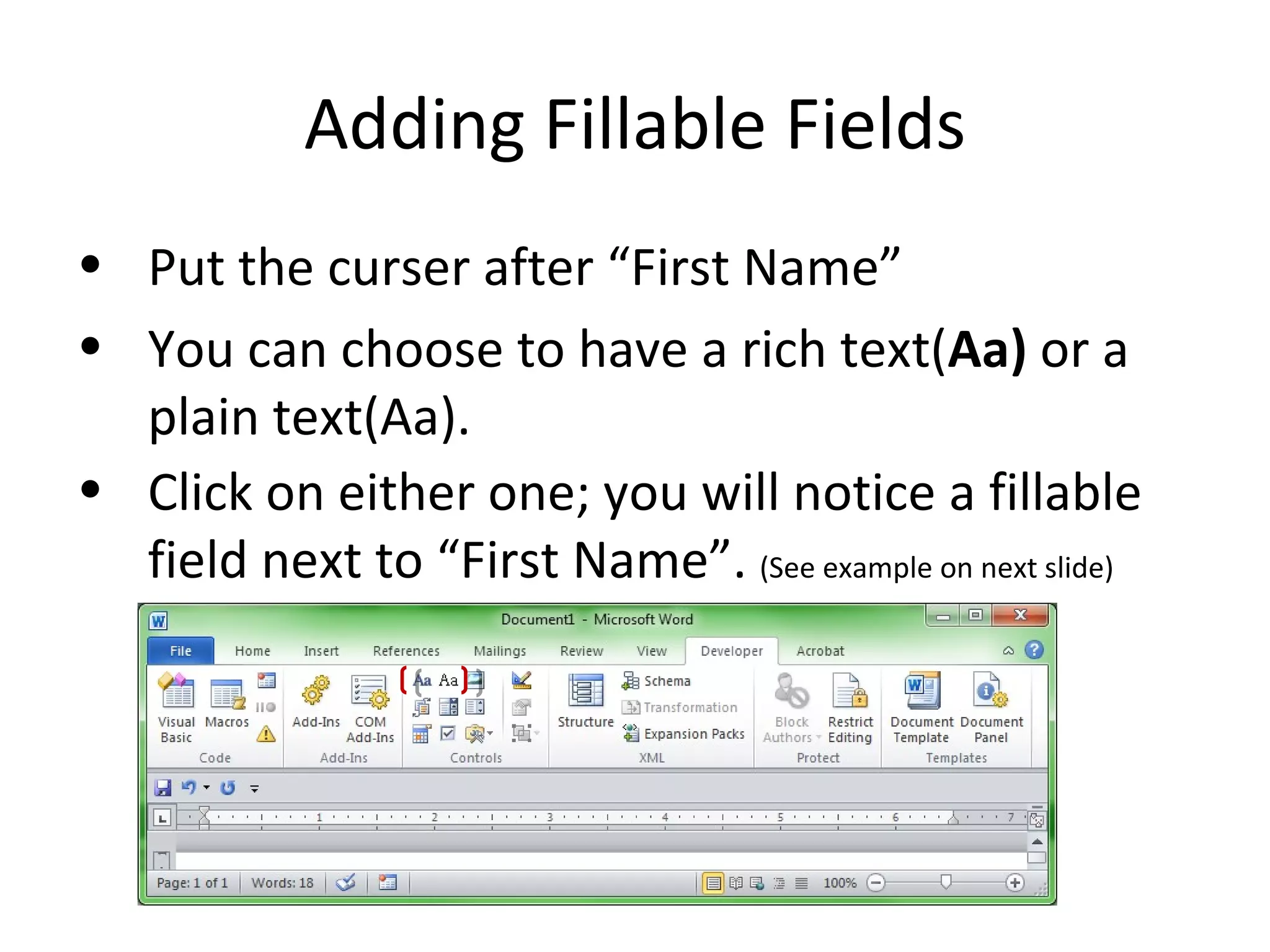
• Put the curser after “First Name”
• You can choose to have a rich text(Aa) or a
  plain text(Aa).
• Click on either one; you will notice a fillable
  field next to “First Name”. (See example on next slide)
4. Repeat steps 2 and 3 for the rest of the fields.
Adding a Pick List
• Lets add a pick list to our demographic form.
• I am going to add one more question to the
  demographic form.
• I want to add a pick list to answer the last
  question. Do the following to add the pick list.
  1. Put your curser after the question
  2. Click on the Drop-Down List Content Control
     option
3. It will give you a field like this, now click on
Properties.
4. Once you clicked on Properties, the Content
   Control Properties screen will pop up.
                  5. Click on Add
                  6. For this particular form,
                      type in “Yes” then click OK
                   7. Repeat steps 5 and 6, but
                       this time, type in “NO”
             8. Click “Okay” at the bottom
                        of the screen.
• Once you are done, it should look like this
  when you click to choose an item.
• If you would like to add check boxes, do the
  following:
  – Put your curser after the question
  – Click on the check box option. (This should insert a check
      box for your question.) (see next screen for an example)
Your Form Should Look Like This

How to create simple fillable forms using word

  • 1.
    How To CreateSimple Fillable Forms Using Word By: Mai Thao
  • 2.
    What Do YouNeed? • Open up Word • You will need to have the “Developer” tab to do this particular type of form. • To add the Developer tab, do the following – Under the File tab, click on Options – Word Options screen will pop up, click on Customize Ribbon (see next screen for an example)
  • 4.
    3. Noticed theDeveloper box is not checked, go ahead and check this box (this will allow the Developer tab to appear on your ribbon.) 4. Once you have checked the box, click OK at the bottom of the screen (this should take you back to your Word document.)
  • 5.
    Developer tab isnow added to the ribbon on top
  • 6.
    Let’s Get Started *Thetools within the Controls section are what we will be using to create the form.
  • 7.
    Creating A SimpleForm • For this tutorial, let’s create a simple demographic form.
  • 8.
    Adding Fillable Fields •Put the curser after “First Name” • You can choose to have a rich text(Aa) or a plain text(Aa). • Click on either one; you will notice a fillable field next to “First Name”. (See example on next slide)
  • 9.
    4. Repeat steps2 and 3 for the rest of the fields.
  • 10.
    Adding a PickList • Lets add a pick list to our demographic form. • I am going to add one more question to the demographic form.
  • 11.
    • I wantto add a pick list to answer the last question. Do the following to add the pick list. 1. Put your curser after the question 2. Click on the Drop-Down List Content Control option
  • 12.
    3. It willgive you a field like this, now click on Properties.
  • 13.
    4. Once youclicked on Properties, the Content Control Properties screen will pop up. 5. Click on Add 6. For this particular form, type in “Yes” then click OK 7. Repeat steps 5 and 6, but this time, type in “NO” 8. Click “Okay” at the bottom of the screen.
  • 14.
    • Once youare done, it should look like this when you click to choose an item. • If you would like to add check boxes, do the following: – Put your curser after the question – Click on the check box option. (This should insert a check box for your question.) (see next screen for an example)
  • 16.
    Your Form ShouldLook Like This