How to create an account
Safelly.com
In this short presentation you will find out how to create an account on Safelly and be ready to protect
your sites.
Whole process will take about 5 minutes.
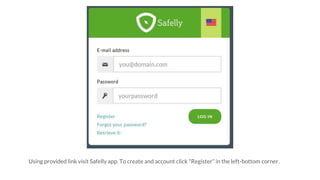
Using provided link visit Safelly app. To create and account click "Register" in the left-bottom corner.
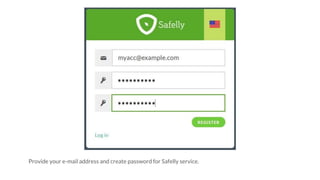
Provide your e-mail address and create password for Safelly service.
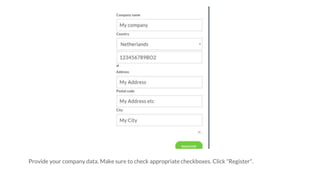
Provide your company data. Make sure to check appropriate checkboxes. Click "Register".
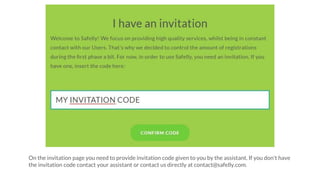
On the invitation page you need to provide invitation code given to you by the assistant. If you don't have
the invitation code contact your assistant or contact us directly at contact@safelly.com.
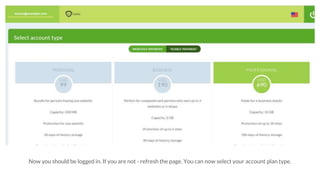
Now you should be logged in. If you are not - refresh the page. You can now select your account plan type.
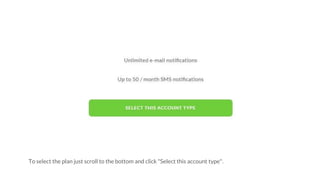
To select the plan just scroll to the bottom and click "Select this account type".
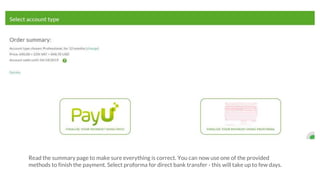
Read the summary page to make sure everything is correct. You can now use one of the provided
methods to finish the payment. Select proforma for direct bank transfer - this will take up to few days.
That's all.
When your payment is processed you will receive confirmation e-mail. You can then log in to your
account.
Read next presentation(s) for the steps required to protect your sites.

How to create Safelly account

  • 1.
    How to createan account Safelly.com
  • 2.
    In this shortpresentation you will find out how to create an account on Safelly and be ready to protect your sites. Whole process will take about 5 minutes.
  • 3.
    Using provided linkvisit Safelly app. To create and account click "Register" in the left-bottom corner.
  • 4.
    Provide your e-mailaddress and create password for Safelly service.
  • 5.
    Provide your companydata. Make sure to check appropriate checkboxes. Click "Register".
  • 6.
    On the invitationpage you need to provide invitation code given to you by the assistant. If you don't have the invitation code contact your assistant or contact us directly at contact@safelly.com.
  • 7.
    Now you shouldbe logged in. If you are not - refresh the page. You can now select your account plan type.
  • 8.
    To select theplan just scroll to the bottom and click "Select this account type".
  • 9.
    Read the summarypage to make sure everything is correct. You can now use one of the provided methods to finish the payment. Select proforma for direct bank transfer - this will take up to few days.
  • 10.
    That's all. When yourpayment is processed you will receive confirmation e-mail. You can then log in to your account. Read next presentation(s) for the steps required to protect your sites.