How to create a SharePoint site-A
Step-by-Step Guide
SharePoint Services
A well-structured intranet is essential for organizations to
enhance communication, foster collaboration among users,
and efficiently manage important documents. Microsoft
offers a powerful and flexible platform called SharePoint,
which enables the creation of exclusive intranets tailored to
an organization's needs using both built-in and
customizable web parts. This guide will walk you through
building a simple intranet using only the out-of-the-box
components available in SharePoint Online.
Step 1: Site Creation
Follow these steps to create your SharePoint intranet:
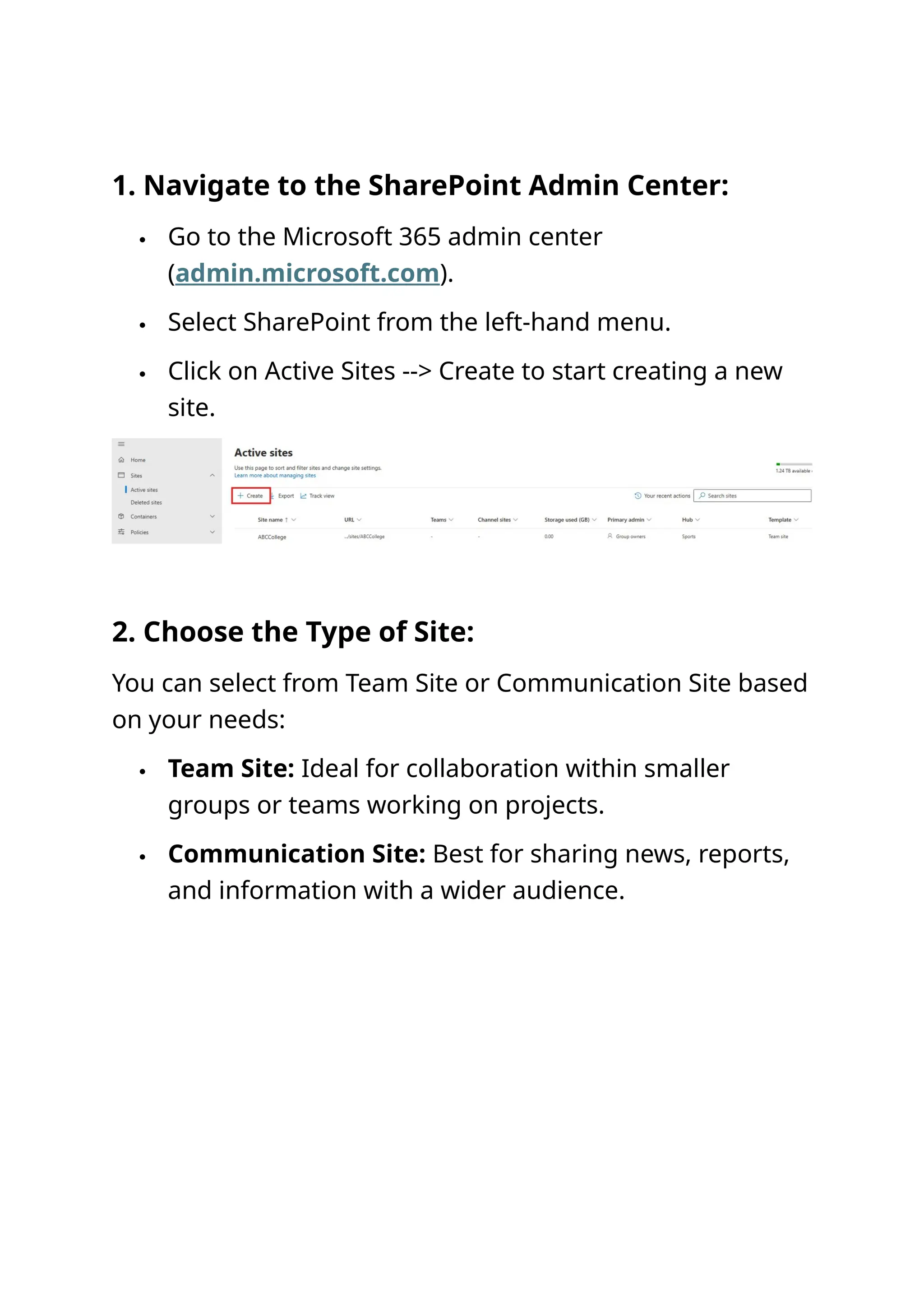
1. Navigate to the SharePoint Admin Center:
 Go to the Microsoft 365 admin center
(admin.microsoft.com).
 Select SharePoint from the left-hand menu.
 Click on Active Sites --> Create to start creating a new
site.
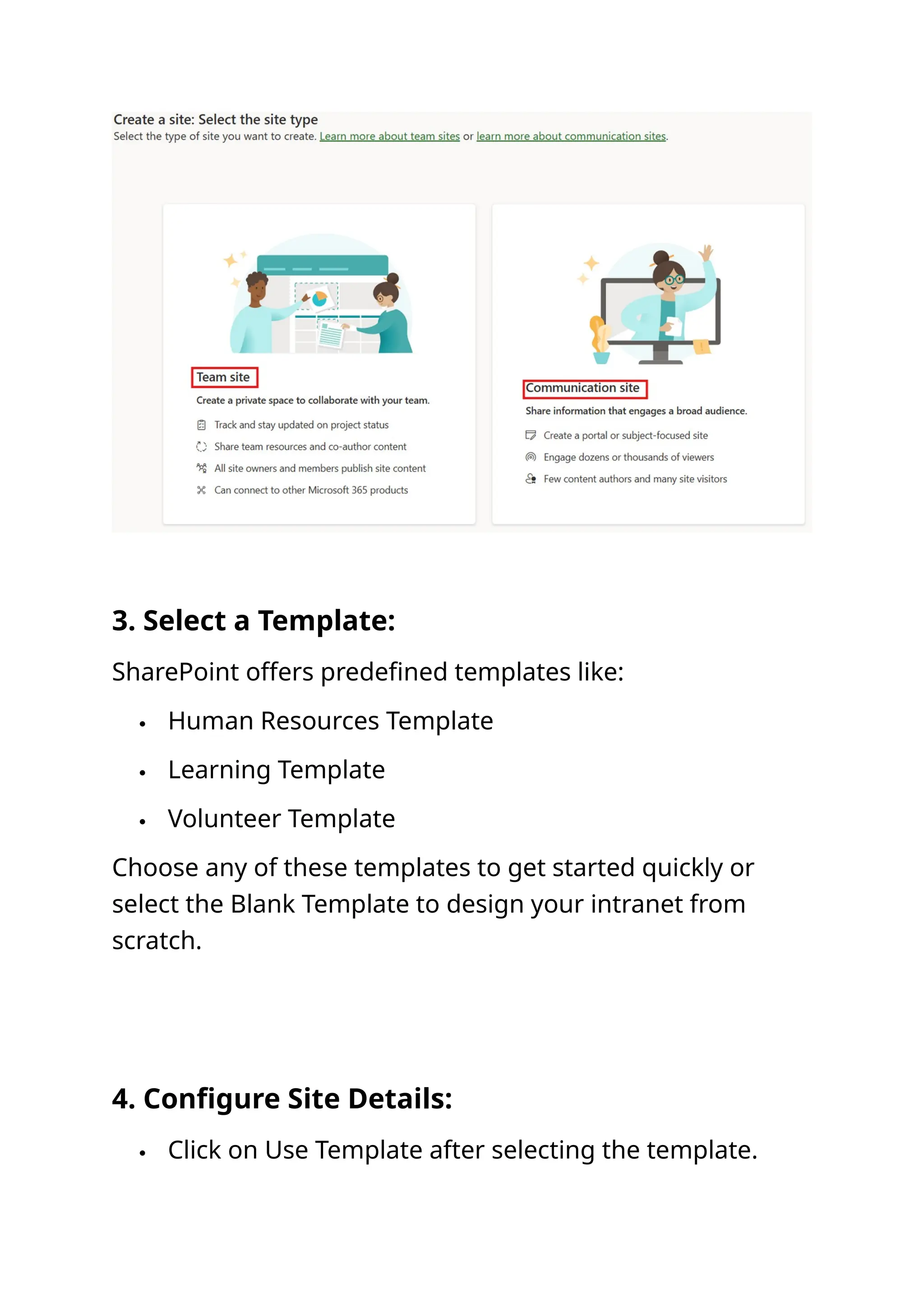
2. Choose the Type of Site:
You can select from Team Site or Communication Site based
on your needs:
 Team Site: Ideal for collaboration within smaller
groups or teams working on projects.
 Communication Site: Best for sharing news, reports,
and information with a wider audience.
3. Select a Template:
SharePoint offers predefined templates like:
 Human Resources Template
 Learning Template
 Volunteer Template
Choose any of these templates to get started quickly or
select the Blank Template to design your intranet from
scratch.
4. Configure Site Details:
 Click on Use Template after selecting the template.
 Provide a Site Name that reflects the purpose of the
intranet.
 Add the Site Owner who will manage permissions and
content.
 Click Next to proceed.
5. Set Language and Timezone:
 Select the preferred Language and Timezone for your
organization.
 Click on Create Site to finalize the site creation.
Step 2: Modifying Site Appearance in SharePoint
 Once the site is created, open it.
 SharePoint allows customization of the Theme, Font,
Header, Navigation, and Footer.
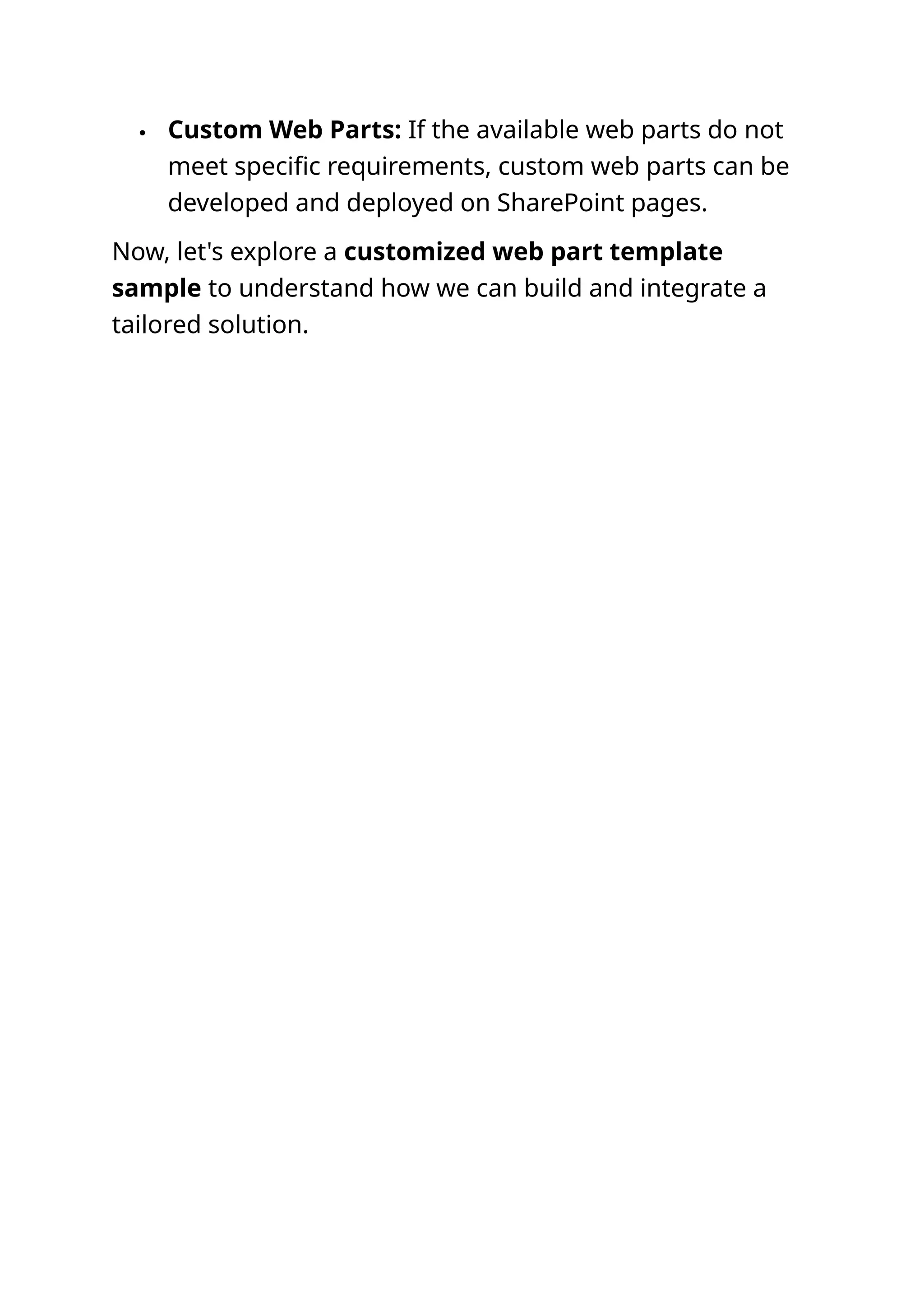
 Click on the gear icon in the top-right corner and
select "Change the look."
 In this section, you can modify various elements,
including Navigation, Header, Theme, and more to
personalize the site's appearance.
Step 3: Adding Web Parts in SharePoint
SharePoint provides the flexibility to add both Out-of-the-
Box (OOTB) Web Parts and custom web parts to enhance
site functionality.
 OOTB Web Parts: These include built-in components
like Banner, Image Gallery, Button, Media,
Weather, Events, Quick Links, Stream, etc.
 Custom Web Parts: If the available web parts do not
meet specific requirements, custom web parts can be
developed and deployed on SharePoint pages.
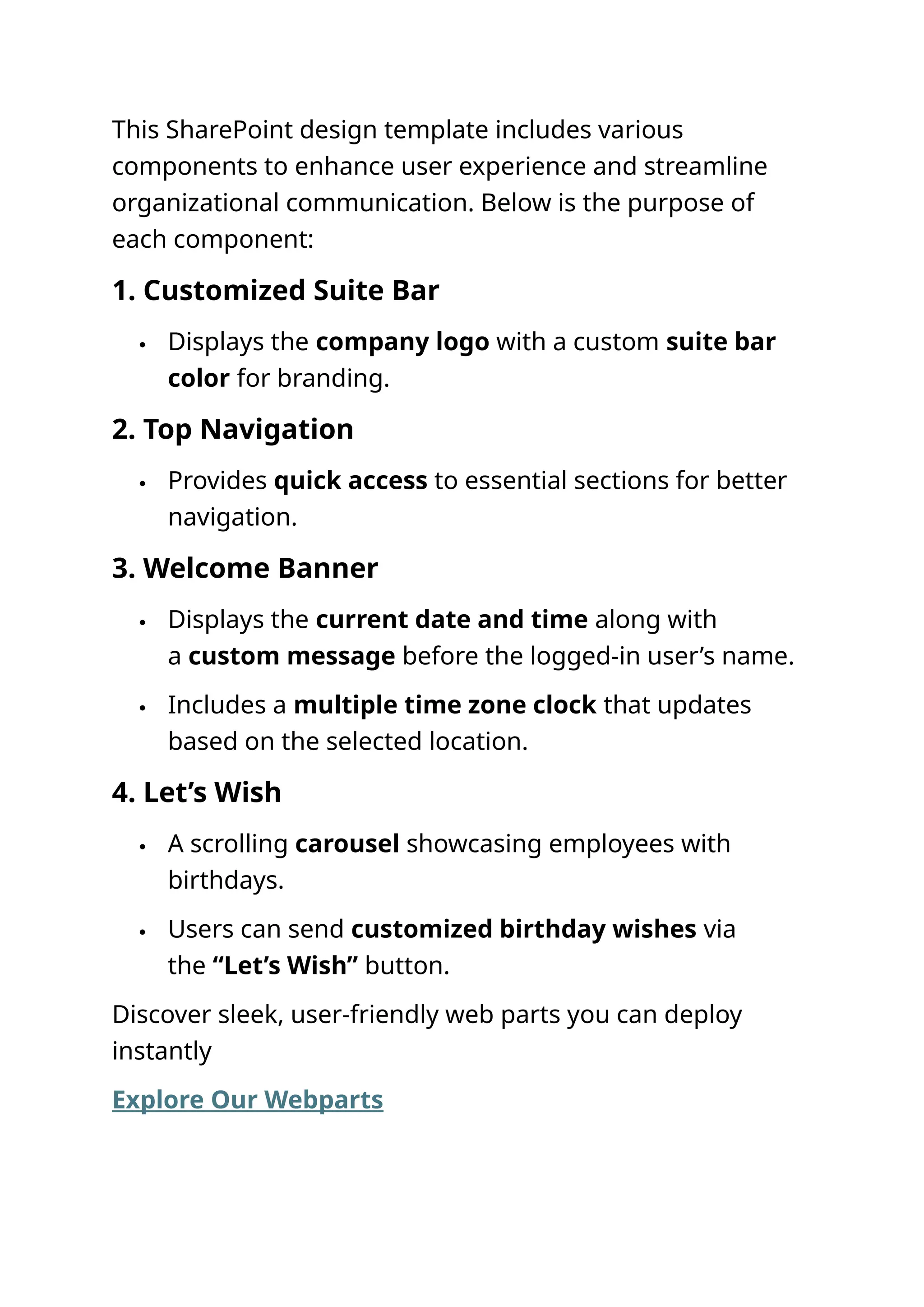
Now, let's explore a customized web part template
sample to understand how we can build and integrate a
tailored solution.
This SharePoint design template includes various
components to enhance user experience and streamline
organizational communication. Below is the purpose of
each component:
1. Customized Suite Bar
 Displays the company logo with a custom suite bar
color for branding.
2. Top Navigation
 Provides quick access to essential sections for better
navigation.
3. Welcome Banner
 Displays the current date and time along with
a custom message before the logged-in user’s name.
 Includes a multiple time zone clock that updates
based on the selected location.
4. Let’s Wish
 A scrolling carousel showcasing employees with
birthdays.
 Users can send customized birthday wishes via
the “Let’s Wish” button.
Discover sleek, user-friendly web parts you can deploy
instantly
Explore Our Webparts
5. Quick Links
 Displays frequently accessed links.
 Supports external links, customized icons, and
allows opening links in a new or same window.
6. News
 Displays news posts created by users.
 Allows tagging news as Company
News or Technology News.
 Users can sort and filter news posts.
7. New Employees
 Lists newly joined employees.
 Users can send greetings via a "Send
Greetings" button.
8. Holiday
 Displays a list of company holidays.
 Users can filter holidays based on location.
9. Calendar
 Shows upcoming events within the organization.
 Users can add events to their Outlook calendar.
10. Footer
 Displays company copyright information for
branding and legal purposes.
To learn more about this template or explore different
SharePoint design templates, Click Here.
Implement Intranet for your Company in just 2 Days!!!
Conclusion
Building an intranet in SharePoint Online is a strategic
move for organizations looking to enhance collaboration,
communication, and document management. By
leveraging out-of-the-box webparts, companies can
quickly create a functional and engaging intranet tailored to
their needs.
From site creation and customization to adding essential
components like news, quick links, and employee
engagement features, SharePoint provides a flexible and
scalable solution. Whether using a predefined template or
designing from scratch, businesses can optimize their
intranet to improve productivity and connectivity across
teams.
With the right setup, your SharePoint intranet can be
come a central hub for information sharing and workplace
engagement.
Ready to transform your organization’s digital workspace?
To Start building your SharePoint intranet today
Contact us
Additional Resources‍
How to create a document library in SharePoint
How to create SharePoint list
SharePoint webparts for modern intranet

How to create a SharePoint site-A Step-by-Step Guide.docx

  • 1.
    How to createa SharePoint site-A Step-by-Step Guide SharePoint Services A well-structured intranet is essential for organizations to enhance communication, foster collaboration among users, and efficiently manage important documents. Microsoft offers a powerful and flexible platform called SharePoint, which enables the creation of exclusive intranets tailored to an organization's needs using both built-in and customizable web parts. This guide will walk you through building a simple intranet using only the out-of-the-box components available in SharePoint Online. Step 1: Site Creation Follow these steps to create your SharePoint intranet:
  • 2.
    1. Navigate tothe SharePoint Admin Center:  Go to the Microsoft 365 admin center (admin.microsoft.com).  Select SharePoint from the left-hand menu.  Click on Active Sites --> Create to start creating a new site. 2. Choose the Type of Site: You can select from Team Site or Communication Site based on your needs:  Team Site: Ideal for collaboration within smaller groups or teams working on projects.  Communication Site: Best for sharing news, reports, and information with a wider audience.
  • 3.
    3. Select aTemplate: SharePoint offers predefined templates like:  Human Resources Template  Learning Template  Volunteer Template Choose any of these templates to get started quickly or select the Blank Template to design your intranet from scratch. 4. Configure Site Details:  Click on Use Template after selecting the template.
  • 4.
     Provide aSite Name that reflects the purpose of the intranet.  Add the Site Owner who will manage permissions and content.  Click Next to proceed. 5. Set Language and Timezone:  Select the preferred Language and Timezone for your organization.  Click on Create Site to finalize the site creation. Step 2: Modifying Site Appearance in SharePoint  Once the site is created, open it.  SharePoint allows customization of the Theme, Font, Header, Navigation, and Footer.  Click on the gear icon in the top-right corner and select "Change the look."
  • 5.
     In thissection, you can modify various elements, including Navigation, Header, Theme, and more to personalize the site's appearance. Step 3: Adding Web Parts in SharePoint SharePoint provides the flexibility to add both Out-of-the- Box (OOTB) Web Parts and custom web parts to enhance site functionality.  OOTB Web Parts: These include built-in components like Banner, Image Gallery, Button, Media, Weather, Events, Quick Links, Stream, etc.
  • 6.
     Custom WebParts: If the available web parts do not meet specific requirements, custom web parts can be developed and deployed on SharePoint pages. Now, let's explore a customized web part template sample to understand how we can build and integrate a tailored solution.
  • 8.
    This SharePoint designtemplate includes various components to enhance user experience and streamline organizational communication. Below is the purpose of each component: 1. Customized Suite Bar  Displays the company logo with a custom suite bar color for branding. 2. Top Navigation  Provides quick access to essential sections for better navigation. 3. Welcome Banner  Displays the current date and time along with a custom message before the logged-in user’s name.  Includes a multiple time zone clock that updates based on the selected location. 4. Let’s Wish  A scrolling carousel showcasing employees with birthdays.  Users can send customized birthday wishes via the “Let’s Wish” button. Discover sleek, user-friendly web parts you can deploy instantly Explore Our Webparts
  • 9.
    5. Quick Links Displays frequently accessed links.  Supports external links, customized icons, and allows opening links in a new or same window. 6. News  Displays news posts created by users.  Allows tagging news as Company News or Technology News.  Users can sort and filter news posts. 7. New Employees  Lists newly joined employees.  Users can send greetings via a "Send Greetings" button. 8. Holiday  Displays a list of company holidays.  Users can filter holidays based on location.
  • 10.
    9. Calendar  Showsupcoming events within the organization.  Users can add events to their Outlook calendar. 10. Footer  Displays company copyright information for branding and legal purposes. To learn more about this template or explore different SharePoint design templates, Click Here. Implement Intranet for your Company in just 2 Days!!! Conclusion Building an intranet in SharePoint Online is a strategic move for organizations looking to enhance collaboration, communication, and document management. By leveraging out-of-the-box webparts, companies can quickly create a functional and engaging intranet tailored to their needs. From site creation and customization to adding essential components like news, quick links, and employee engagement features, SharePoint provides a flexible and scalable solution. Whether using a predefined template or designing from scratch, businesses can optimize their intranet to improve productivity and connectivity across teams.
  • 11.
    With the rightsetup, your SharePoint intranet can be come a central hub for information sharing and workplace engagement. Ready to transform your organization’s digital workspace? To Start building your SharePoint intranet today Contact us Additional Resources‍ How to create a document library in SharePoint How to create SharePoint list SharePoint webparts for modern intranet