Step-by-step Guide for
Processing Your DTS Travel
Voucher
23 CPTS TRAVEL CELL, MOODY AFB, 23CPTS.DTS.TRAVEL@US.AF.MIL
A1C GREINER, SRA MUCKER, SRA WEST, MARIAH WYAND
Table of Contents
Required Documents:
- How to Obtain GTC Statements: 3
- Airfare Receipts: 6
- Lodging Receipts: 7
Travel Voucher:
- How to Create Your Travel Voucher: 8
- Updating Itinerary: 10
- Updating Per Diem and Lodging: 13
- Adding Receipts: 19
- Attaching Lodging Receipts: 20
- Substantiating Documents: 21
- Adding Receipts and Other Expenses: 24
- Airfare Receipts and CTO Fees: 27
- Ensuring Your Profile is Correct: 30
- Completing Your Pre-Audits: 32
- Submitting Your Voucher: 33
Conclusion: 35
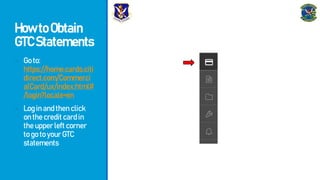
HowtoObtain
GTCStatements
- Goto:
https://home.cards.citi
direct.com/Commerci
alCard/ux/index.html#
/login?locale=en
- Loginandthenclick
onthecreditcardin
theupperleftcorner
togotoyourGTC
statements
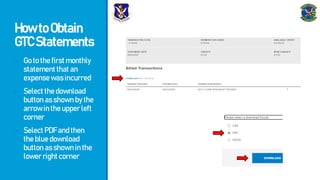
HowtoObtain
GTCStatements
- Gotothefirstmonthly
statementthatan
expensewasincurred
- Selectthedownload
buttonasshownbythe
arrowintheupperleft
corner
- SelectPDFandthen
thebluedownload
buttonasshowninthe
lowerrightcorner
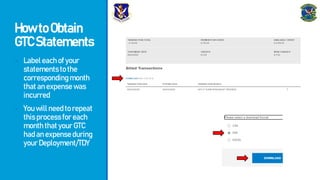
HowtoObtain
GTCStatements
- Labeleachofyour
statementstothe
correspondingmonth
thatanexpensewas
incurred
- Youwillneedtorepeat
thisprocessforeach
monththatyourGTC
hadanexpenseduring
yourDeployment/TDY
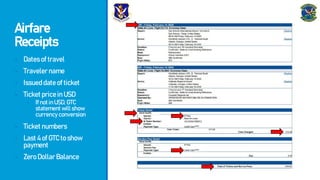
Airfare
Receipts
- Datesoftravel
- Travelername
- Issueddateofticket
- TicketpriceinUSD
- IfnotinUSD,GTC
statementwillshow
currencyconversion
- Ticketnumbers
- Last4ofGTCtoshow
payment
- ZeroDollarBalance
Steve Snuffy
Steve Snuffy
vxxxx
xxxx
0123456789012
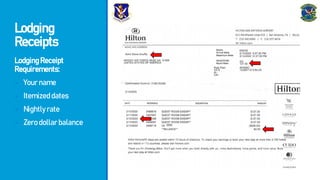
Lodging
Receipts
LodgingReceipt
Requirements:
- Yourname
- Itemizeddates
- Nightlyrate
- Zerodollarbalance
g
XXXX
Amn Steve Snuffy
HowtoCreate
YourTravel
Voucher
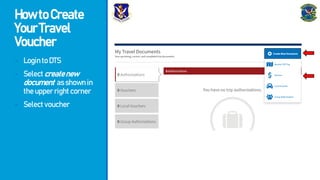
- LogintoDTS
- Selectcreatenew
document asshownin
theupperrightcorner
- Selectvoucher
HowtoCreate
YourTravel
Voucher
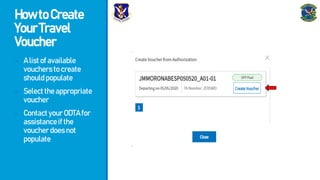
- Alistofavailable
voucherstocreate
shouldpopulate
- Selecttheappropriate
voucher
- ContactyourODTAfor
assistanceifthe
voucherdoesnot
populate
Updating
Itinerary
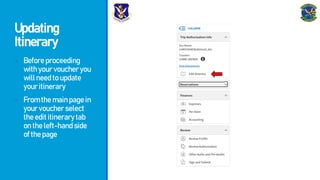
- Beforeproceeding
withyourvoucheryou
willneedtoupdate
youritinerary
- Fromthemainpagein
yourvoucherselect
theedititinerarytab
ontheleft-handside
ofthepage
Updating
Itinerary
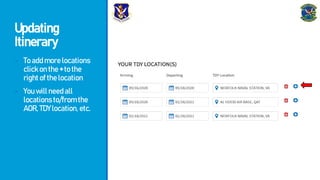
- Toaddmorelocations
clickonthe+tothe
rightofthelocation
- Youwillneedall
locationsto/fromthe
AOR,TDYlocation,etc.
Updating
Itinerary
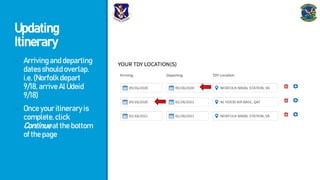
- Arrivinganddeparting
datesshouldoverlap.
i.e.(Norfolkdepart
9/18,arriveAlUdeid
9/18)
- Onceyouritineraryis
complete,click
Continueatthebottom
ofthepage
UpdatingPer
Diemand
Lodging
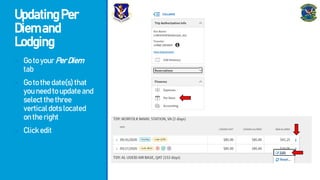
- GotoyourPerDiem
tab
- Gotothedate(s)that
youneedtoupdateand
selectthethree
verticaldotslocated
ontheright
- Clickedit
UpdatingPer
Diemand
Lodging
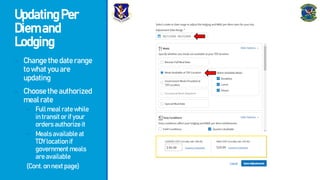
- Changethedaterange
towhatyouare
updating
- Choosetheauthorized
mealrate
- Fullmealratewhile
intransitorifyour
ordersauthorizeit
- Mealsavailableat
TDYlocationif
governmentmeals
areavailable
(Cont.onnextpage)
UpdatingPer
Diemand
Lodging
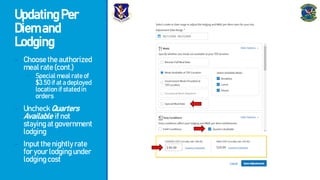
- Choosetheauthorized
mealrate(cont.)
- Specialmealrateof
$3.50ifatadeployed
locationifstatedin
orders
- UncheckQuarters
Available ifnot
stayingatgovernment
lodging
- Inputthenightlyrate
foryourlodgingunder
lodgingcost
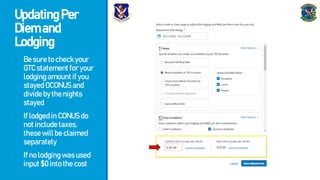
UpdatingPer
Diemand
Lodging
- Besuretocheckyour
GTCstatementforyour
lodgingamountifyou
stayedOCONUSand
dividebythenights
stayed
- IflodgedinCONUSdo
notincludetaxes,
thesewillbeclaimed
separately
- Ifnolodgingwasused
input$0intothecost
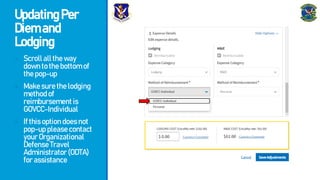
UpdatingPer
Diemand
Lodging
- Scrollalltheway
downtothebottomof
thepop-up
- Makesurethelodging
methodof
reimbursementis
GOVCC-Individual
- Ifthisoptiondoesnot
pop-uppleasecontact
yourOrganizational
DefenseTravel
Administrator(ODTA)
forassistance
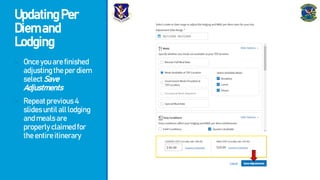
UpdatingPer
Diemand
Lodging
- Onceyouarefinished
adjustingtheperdiem
selectSave
Adjustments
- Repeatprevious4
slidesuntilalllodging
andmealsare
properlyclaimedfor
theentireitinerary
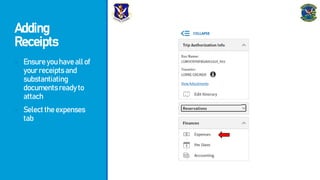
Adding
Receipts
- Ensureyouhaveallof
yourreceiptsand
substantiating
documentsreadyto
attach
- Selecttheexpenses
tab
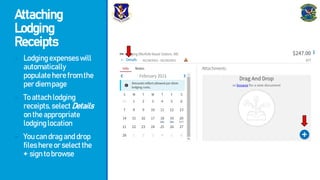
Attaching
Lodging
Receipts
- Lodgingexpenseswill
automatically
populateherefromthe
perdiempage
- Toattachlodging
receipts,selectDetails
ontheappropriate
lodginglocation
- Youcandraganddrop
fileshereorselectthe
+ signtobrowse
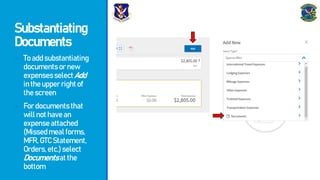
Substantiating
Documents
- Toaddsubstantiating
documentsornew
expensesselectAdd
intheupperrightof
thescreen
- Fordocumentsthat
willnothavean
expenseattached
(Missedmealforms,
MFR,GTCStatement,
Orders,etc.)select
Documentsatthe
bottom
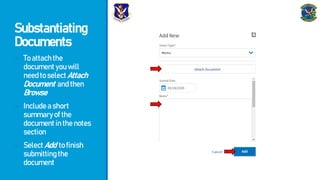
Substantiating
Documents
- Toattachthe
documentyouwill
needtoselectAttach
Document andthen
Browse
- Includeashort
summaryofthe
documentinthenotes
section
- SelectAdd tofinish
submittingthe
document
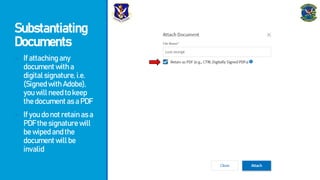
Substantiating
Documents
- Ifattachingany
documentwitha
digitalsignature,i.e.
(SignedwithAdobe),
youwillneedtokeep
thedocumentasaPDF
- Ifyoudonotretainasa
PDFthesignaturewill
bewipedandthe
documentwillbe
invalid
Adding
Receiptsand
OtherExpenses
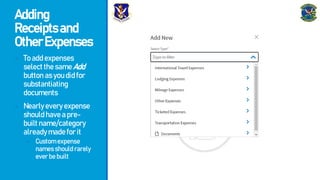
- Toaddexpenses
selectthesameAdd
buttonasyoudidfor
substantiating
documents
- Nearlyeveryexpense
shouldhaveapre-
builtname/category
alreadymadeforit
- Customexpense
namesshouldrarely
everbebuilt
Adding
Receiptsand
OtherExpenses
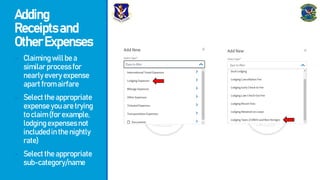
- Claimingwillbea
similarprocessfor
nearlyeveryexpense
apartfromairfare
- Selecttheappropriate
expenseyouaretrying
toclaim(forexample,
lodgingexpensesnot
includedinthenightly
rate)
- Selecttheappropriate
sub-category/name
Adding
Receiptsand
OtherExpenses
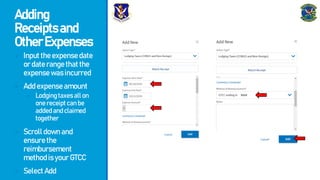
- Inputtheexpensedate
ordaterangethatthe
expensewasincurred
- Addexpenseamount
- Lodgingtaxesallon
onereceiptcanbe
addedandclaimed
together
- Scrolldownand
ensurethe
reimbursement
methodisyourGTCC
- SelectAdd
xxxx
Airfare
Receiptsand
CTOFees
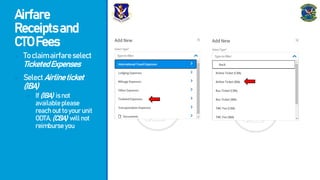
- Toclaimairfareselect
TicketedExpenses
- SelectAirlineticket
(IBA)
- If(IBA) isnot
availableplease
reachouttoyourunit
ODTA,(CBA) willnot
reimburseyou
Airfare
Receiptsand
CTOFees
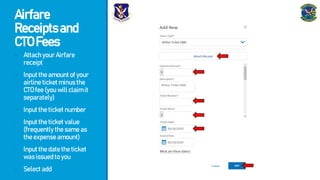
- AttachyourAirfare
receipt
- Inputtheamountofyour
airlineticketminusthe
CTOfee(youwillclaimit
separately)
- Inputtheticketnumber
- Inputtheticketvalue
(frequentlythesameas
theexpenseamount)
- Inputthedatetheticket
wasissuedtoyou
- Selectadd
Airfare
Receiptsand
CTOFees
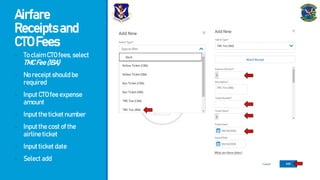
- ToclaimCTOfees,select
TMCFee(IBA)
- Noreceiptshouldbe
required
- InputCTOfeeexpense
amount
- Inputtheticketnumber
- Inputthecostofthe
airlineticket
- Inputticketdate
- Selectadd
EnsuringYour
Profileis
Correct
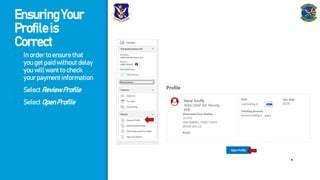
- Inordertoensurethat
yougetpaidwithoutdelay
youwillwanttocheck
yourpaymentinformation
- SelectReviewProfile
- SelectOpenProfile Steve Snuffy
3044 USAF Rd, Moody
AFB
xxxx
EnsuringYour
Profileis
Correct
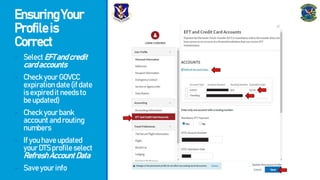
- SelectEFTandcredit
cardaccounts
- CheckyourGOVCC
expirationdate(ifdate
isexpireditneedsto
beupdated)
- Checkyourbank
accountandrouting
numbers
- Ifyouhaveupdated
yourDTSprofileselect
RefreshAccountData
- Saveyourinfo
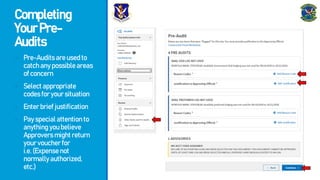
Completing
YourPre-
Audits
- Pre-Auditsareusedto
catchanypossibleareas
ofconcern
- Selectappropriate
codesforyoursituation
- Enterbriefjustification
- Payspecialattentionto
anythingyoubelieve
Approversmightreturn
yourvoucherfor
i.e.(Expensenot
normallyauthorized,
etc.)
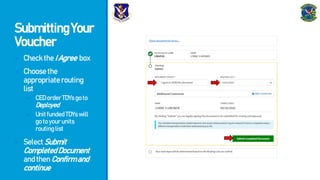
SubmittingYour
Voucher
- ChecktheIAgree box
- Choosethe
appropriaterouting
list
- CEDorderTDYsgoto
Deployed
- UnitfundedTDYswill
gotoyourunits
routinglist
- SelectSubmit
CompletedDocument
andthenConfirmand
continue
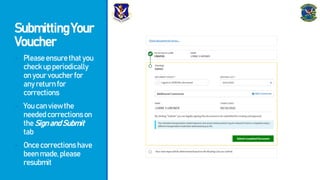
SubmittingYour
Voucher
- Pleaseensurethatyou
checkupperiodically
onyourvoucherfor
anyreturnfor
corrections
- Youcanviewthe
neededcorrectionson
theSignandSubmit
tab
- Oncecorrectionshave
beenmade,please
resubmit
Conclusion
If at any point you are having trouble with your
voucher, please reach out to your unit ODTA
Submit any further questions or concerns to the
Comptroller Services Portal (CSP)
You can access the CSP by going to:
https://usaf.dps.mil/teams/SAFFMCSP/portal/SitePages/Home.aspx

How To Complete a DTS Voucher_1.pdf