Settore dottorato di ricerca e scuole di specializzazione
Guide for the enrollment
confirmation to the PhD Courses
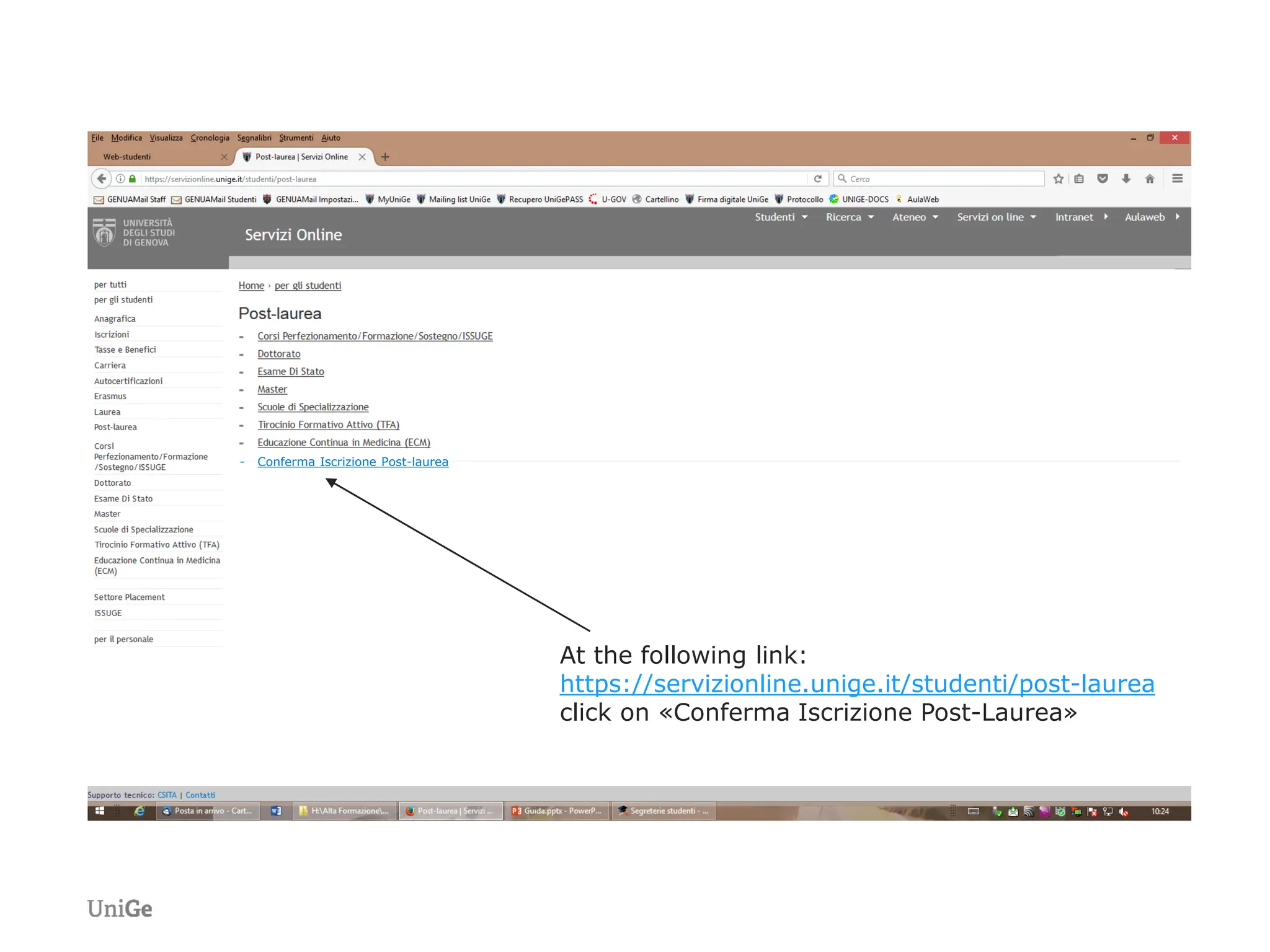
At the following link:
https://servizionline.unige.it/studenti/post-laurea
click on «Conferma Iscrizione Post-Laurea»
- Conferma Iscrizione Post-laurea
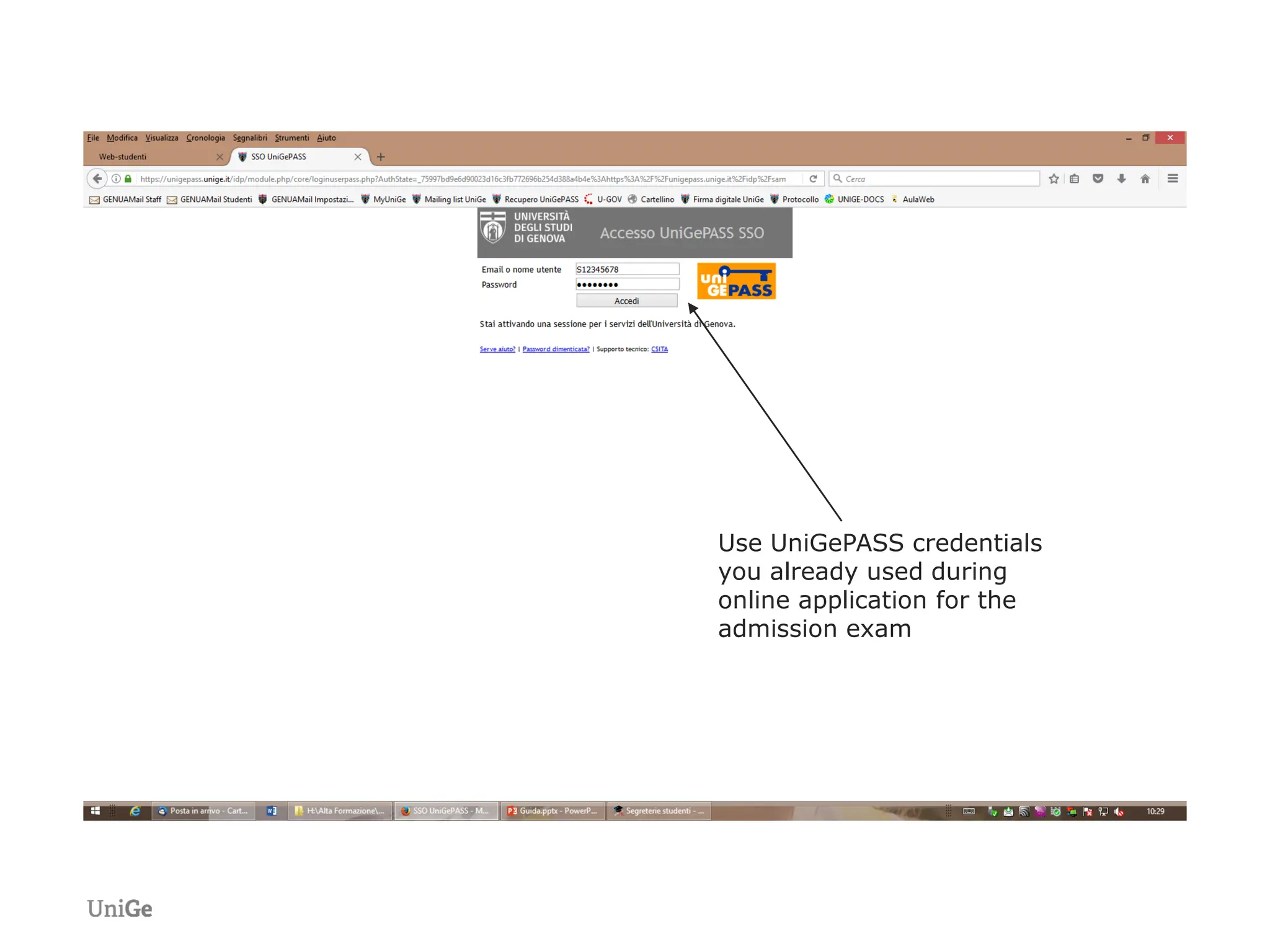
Use UniGePASS credentials
you already used during
online application for the
admission exam
― N.B.
1) If you are on the ranking list of more than one PhD course,
choosing one of them implies that you formally resign the others.
2) Once the enrollment request is confirmed, it will not be possible
to modify its content, you therefore check all the entered data
before clicking on the confirmation button
3) Once every section is correctly filled in, the given declarations
will become green-coloured and titles will become light-blue-
coloured
4) If you quit the enrollment confirmation procedure, only the
uploaded files will be saved. All the declarations will have to be
fulfilled again
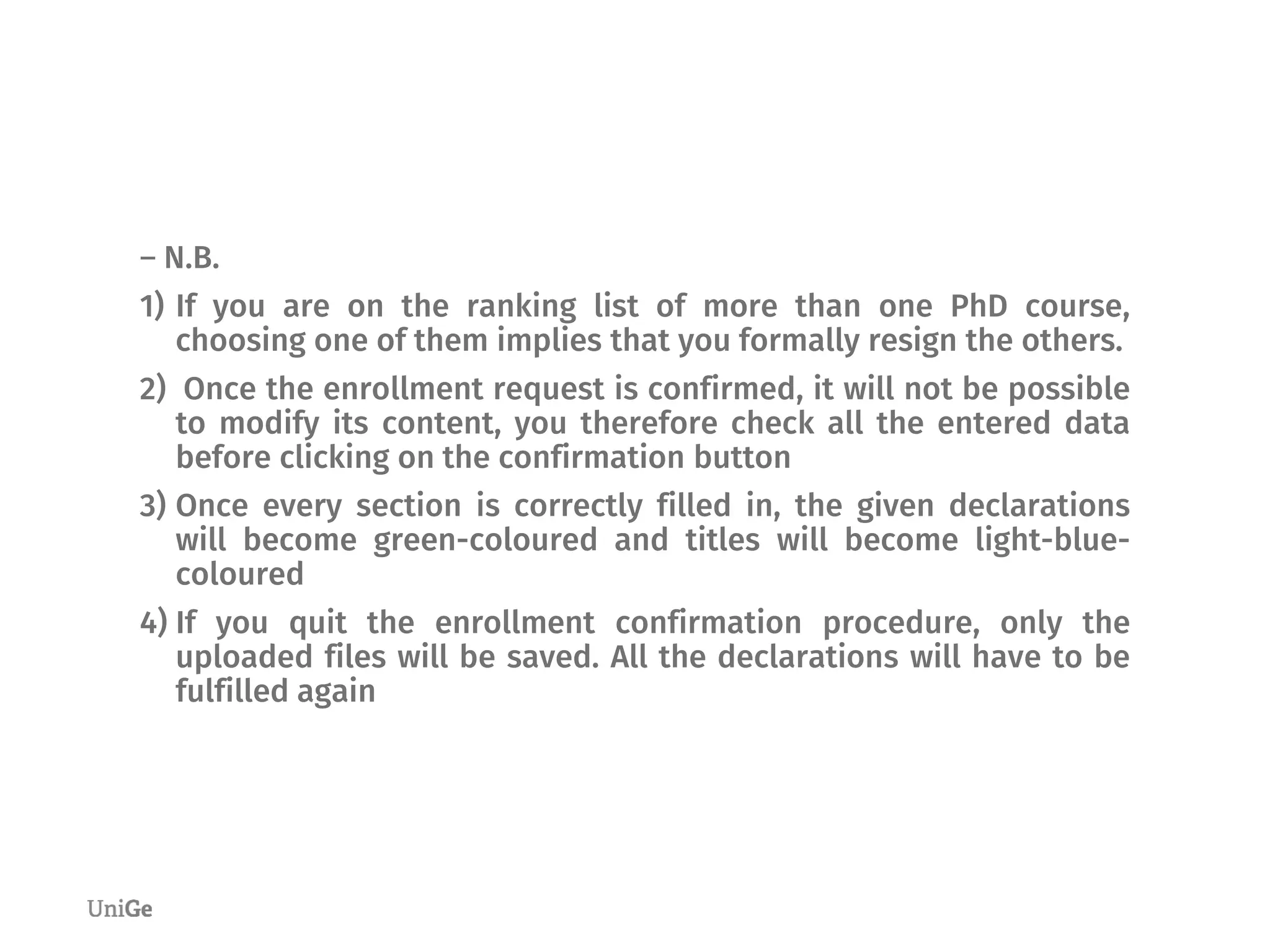
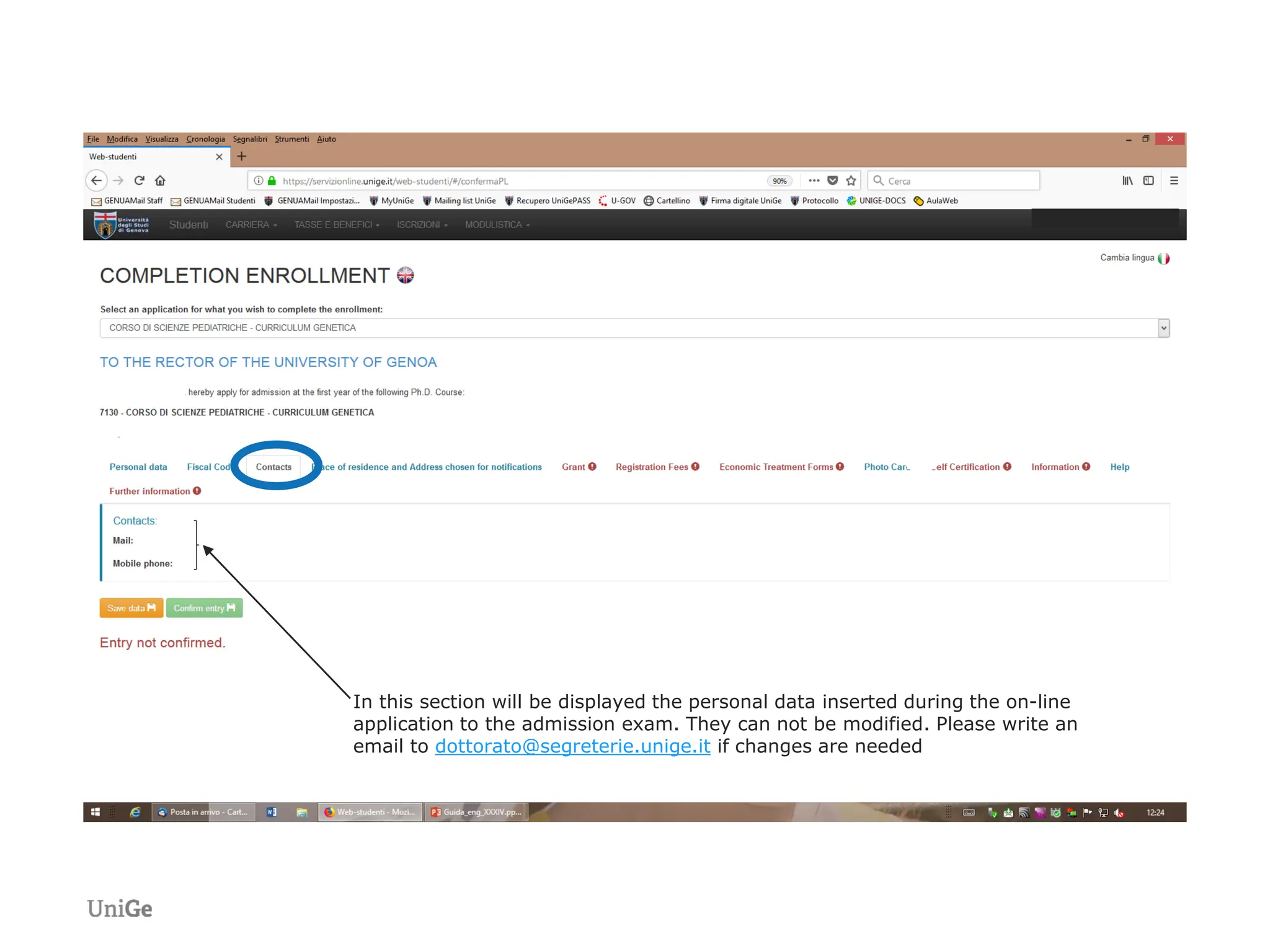
In this section will be displayed the personal data inserted during the on-line
application to the admission exam. They can not be modified. Please write an email to
dottorato@segreterie.unige.it if changes are needed
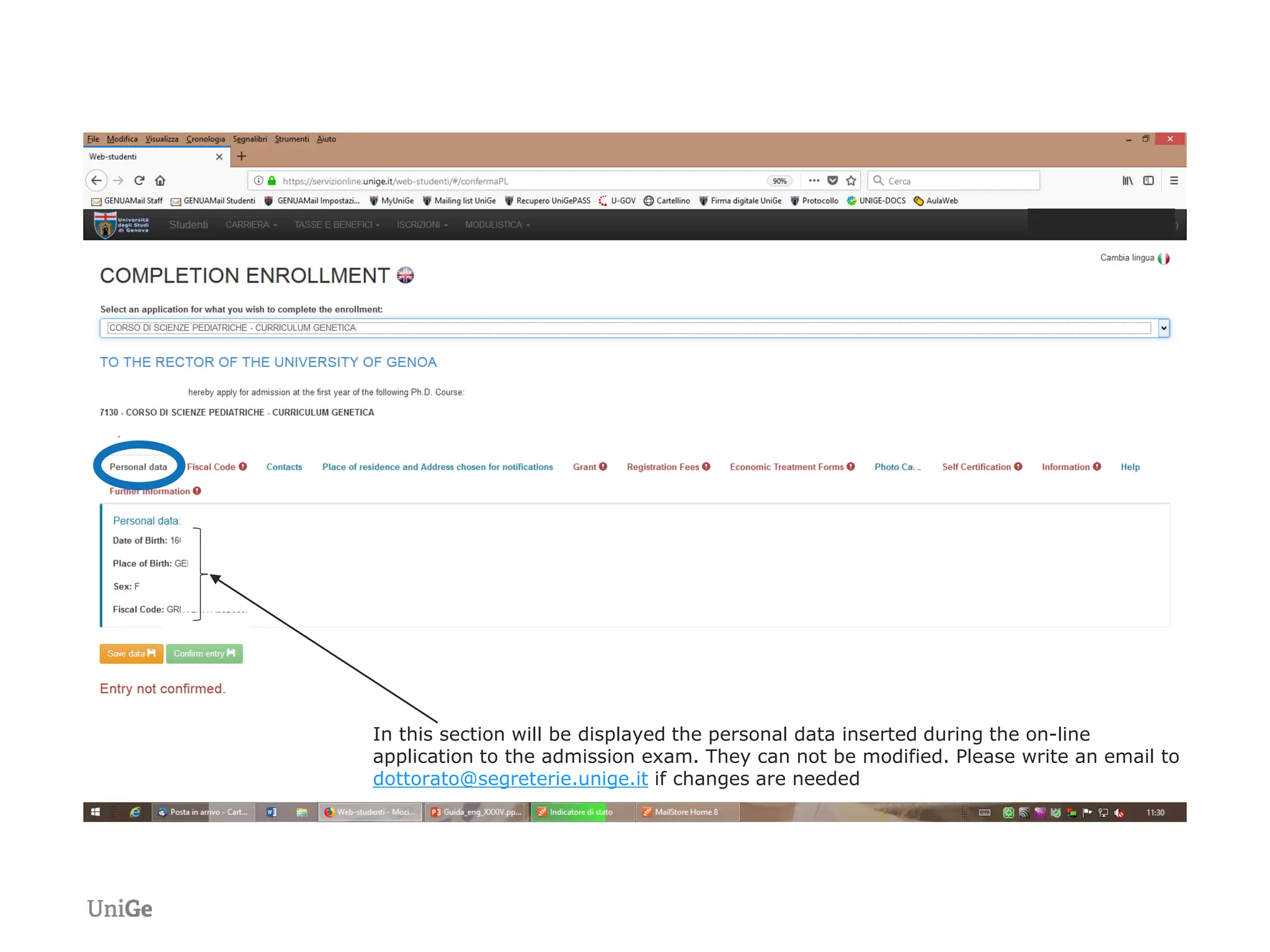
N.B.: Information notes will be displayed only by those who, during on-line
application for the admission exam, declared to be waiting to award the
degree
dottorato@segreterie.unige.it entro il 21/10/2022
email at dottorato@segreterie.unige,it within the deadline indicated in art. “Admission requirements” of the notice of competition under penalty of invalidation
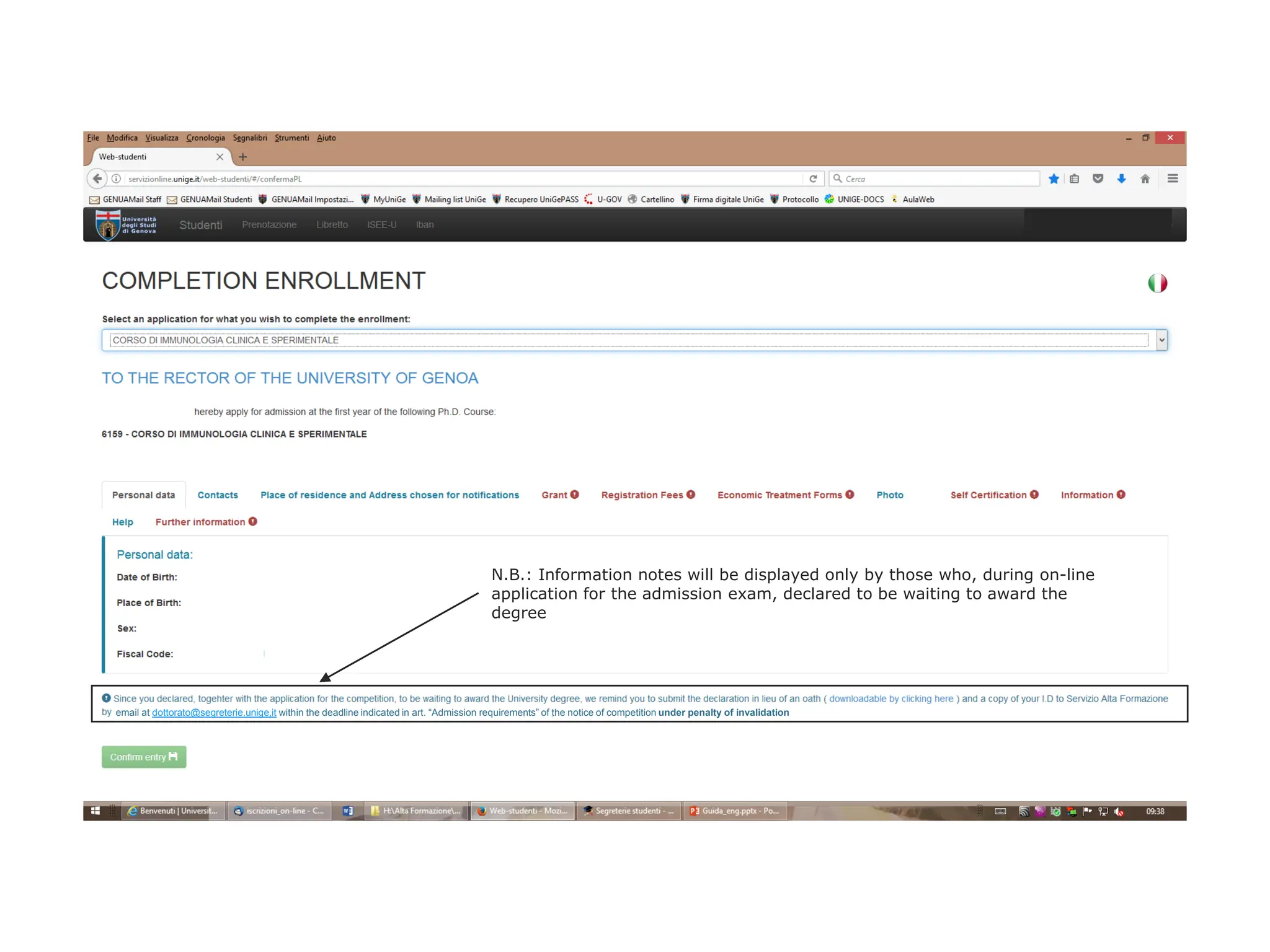
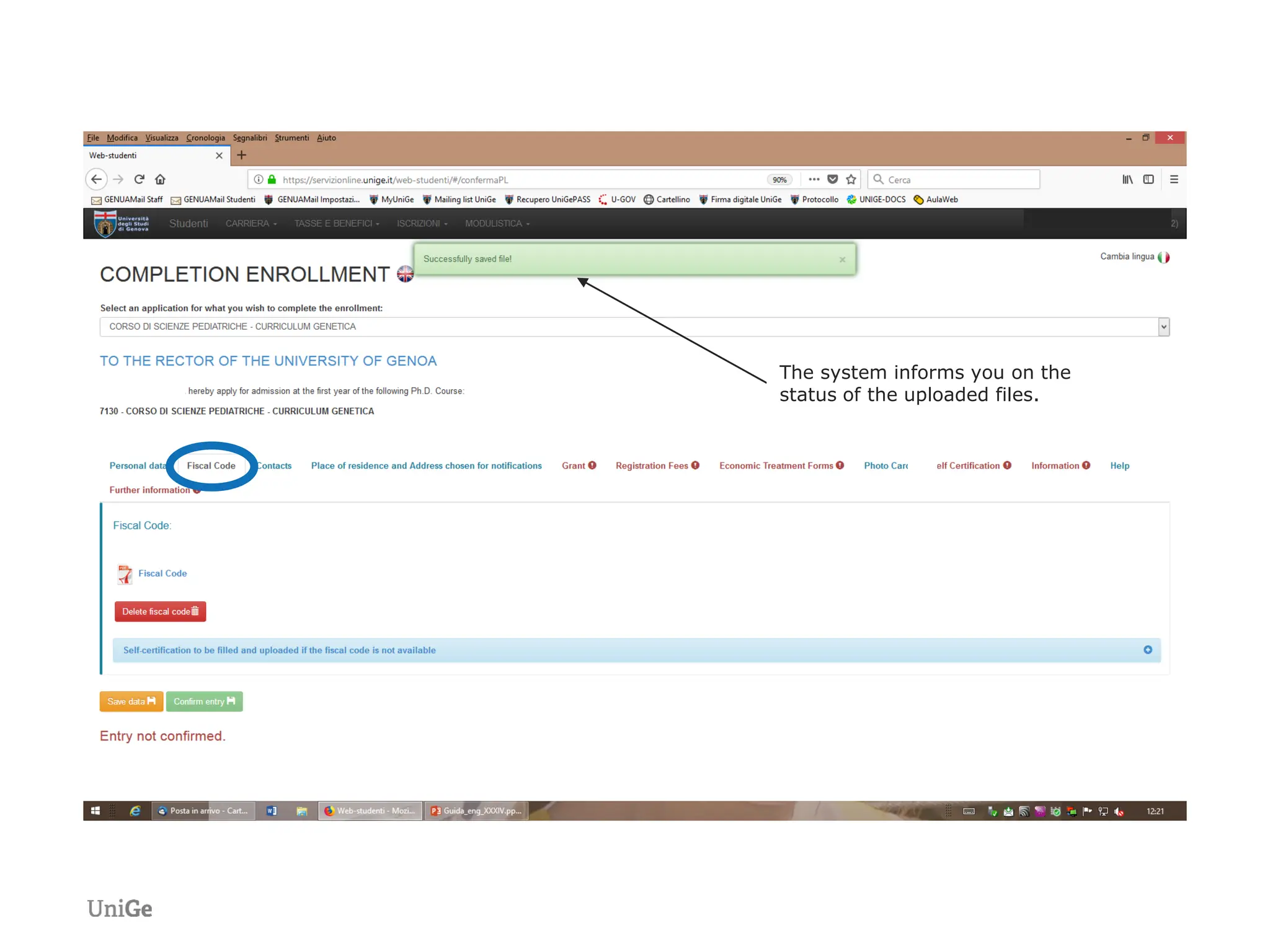
Upload the copy of your fiscal code issued by the Italian Agenzia delle Entrate in pdf
format. In case you don’t have it, please download the self-certification form and
upload it duly filled in and signed.
The system informs you on the
status of the uploaded files.
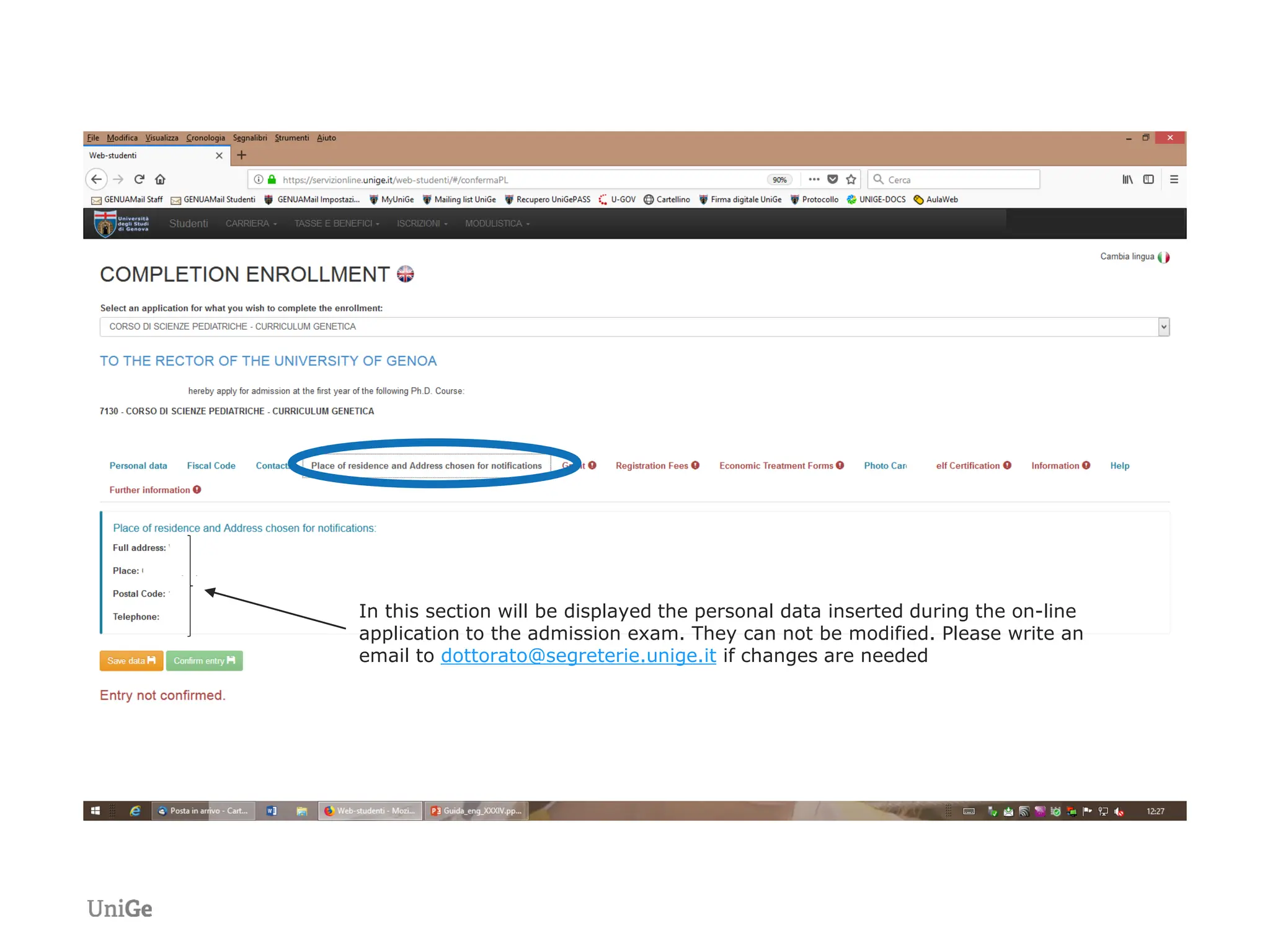
In this section will be displayed the personal data inserted during the on-line
application to the admission exam. They can not be modified. Please write an
email to dottorato@segreterie.unige.it if changes are needed
In this section will be displayed the personal data inserted during the on-line
application to the admission exam. They can not be modified. Please write an
email to dottorato@segreterie.unige.it if changes are needed
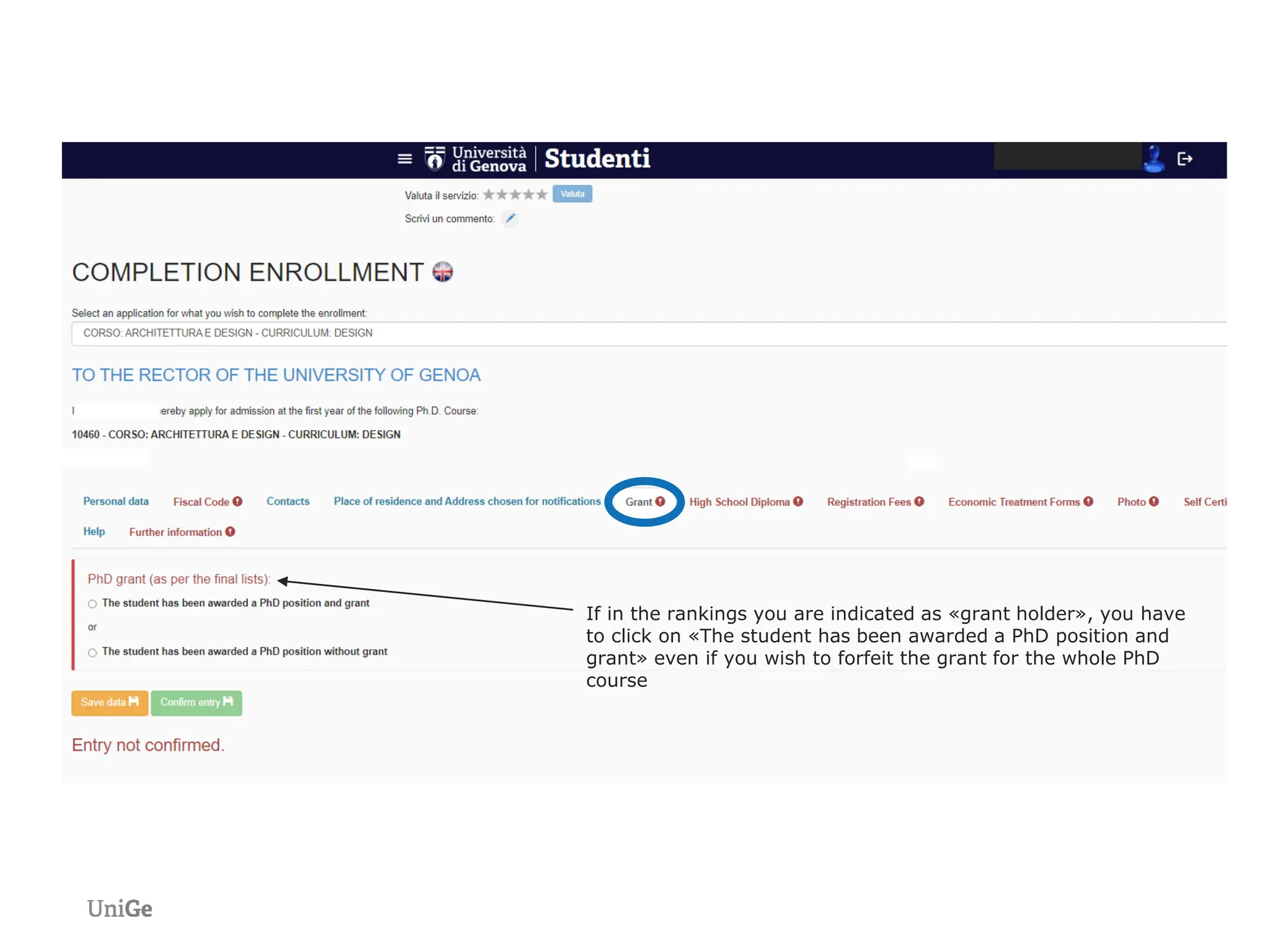
If in the rankings you are indicated as «grant holder», you have
to click on «The student has been awarded a PhD position and
grant» even if you wish to forfeit the grant for the whole PhD
course
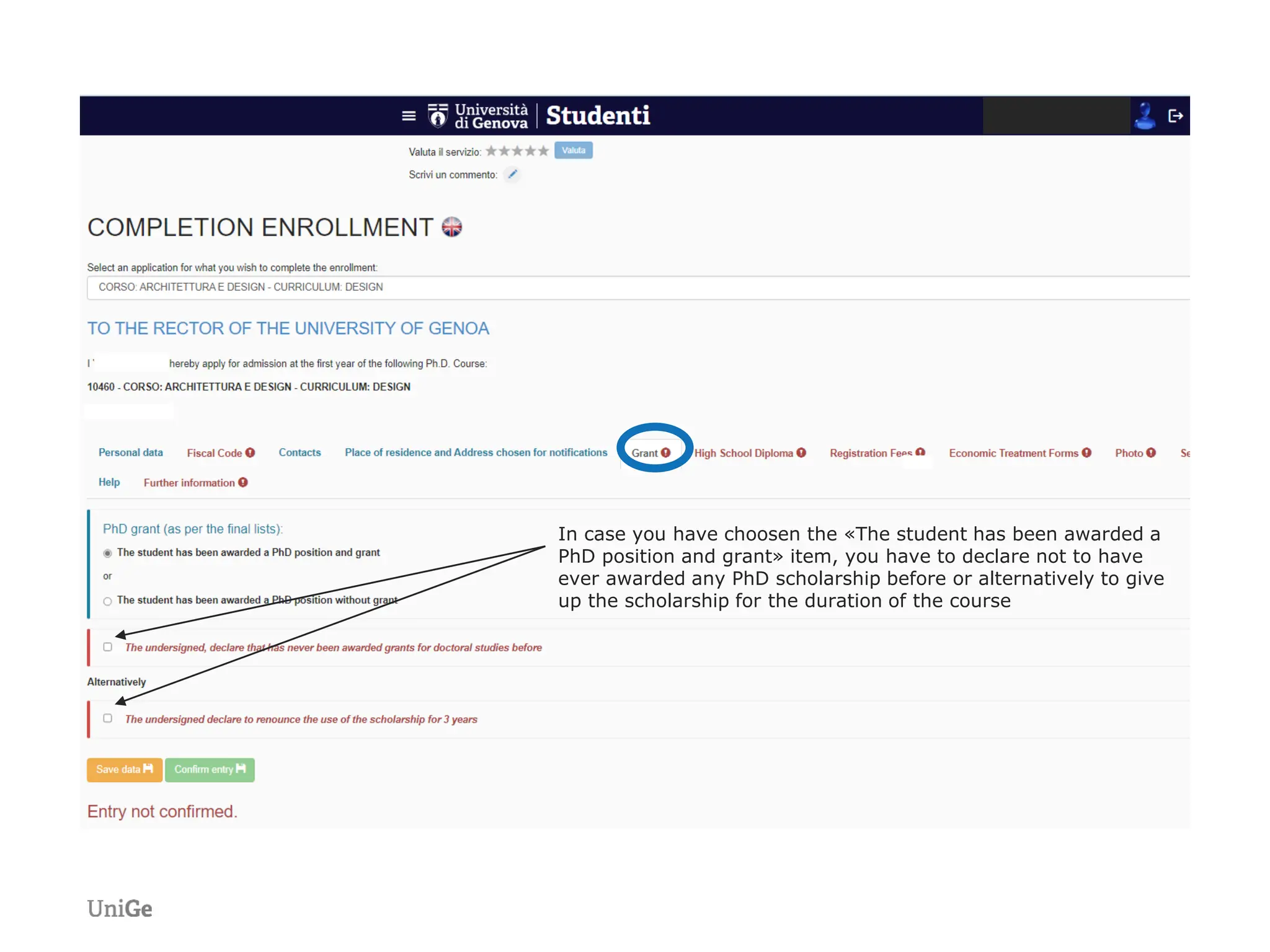
In case you have choosen the «The student has been awarded a
PhD position and grant» item, you have to declare not to have
ever awarded any PhD scholarship before or alternatively to give
up the scholarship for the duration of the course
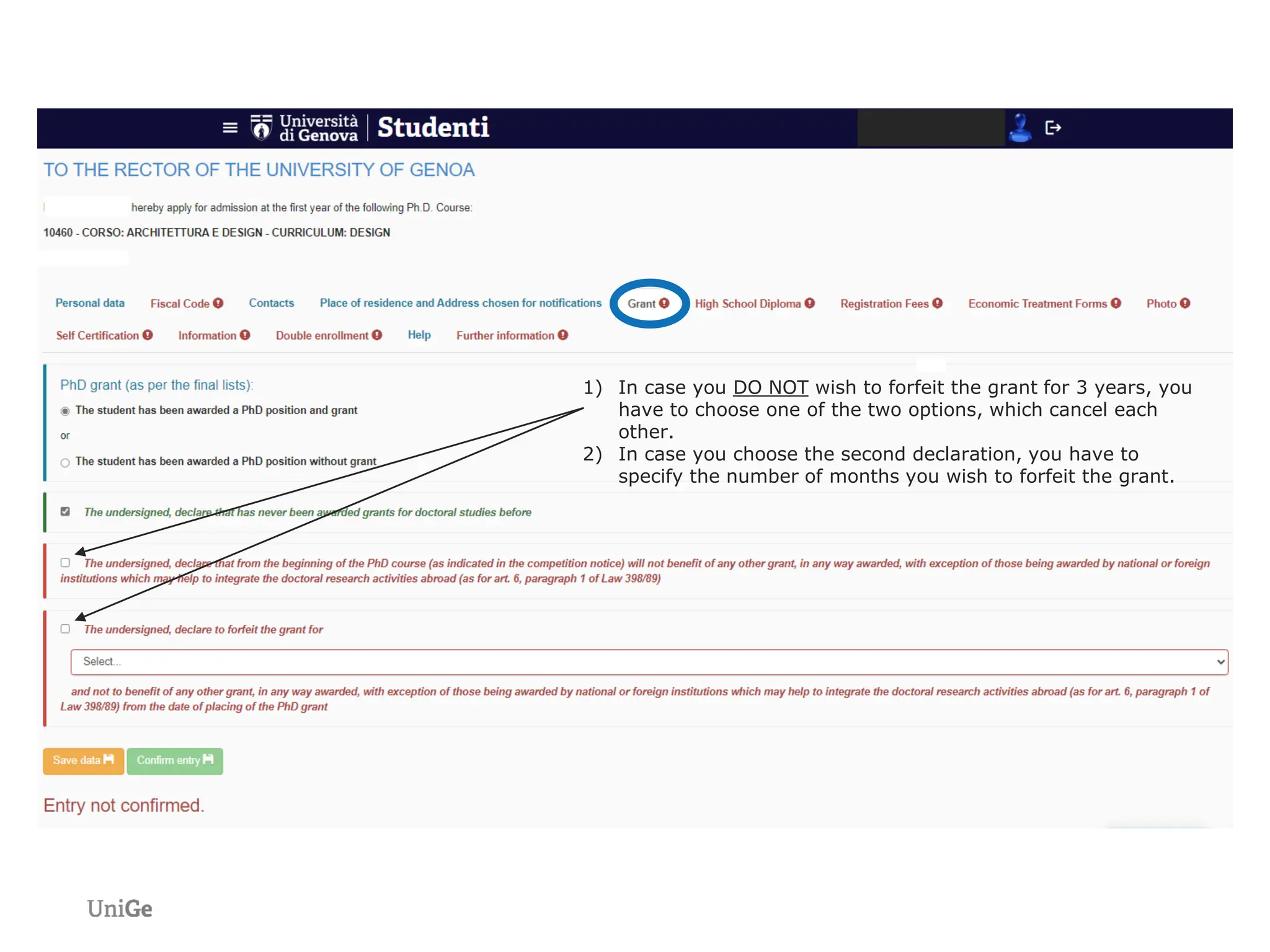
1) In case you DO NOT wish to forfeit the grant for 3 years, you
have to choose one of the two options, which cancel each
other.
2) In case you choose the second declaration, you have to
specify the number of months you wish to forfeit the grant.
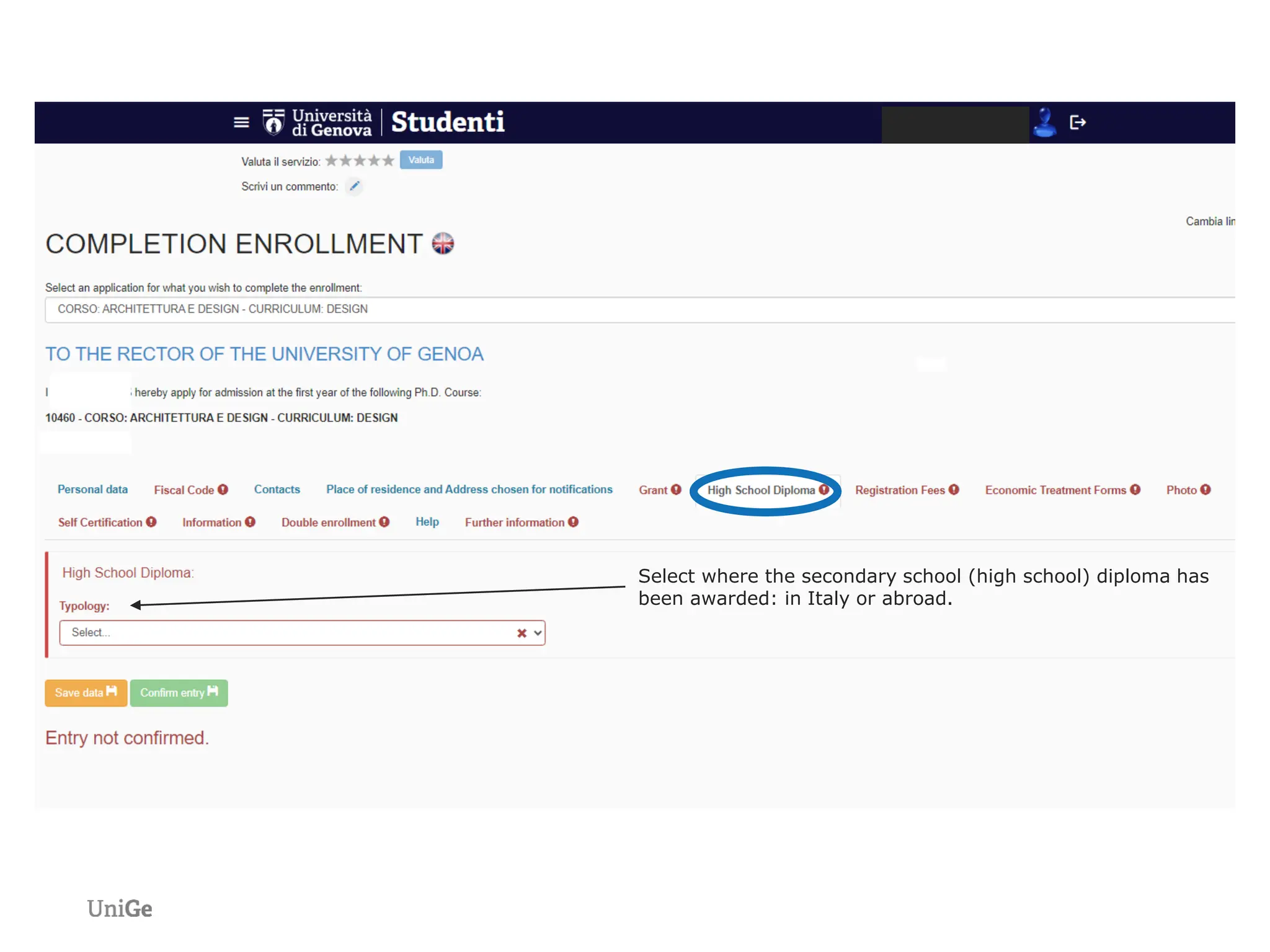
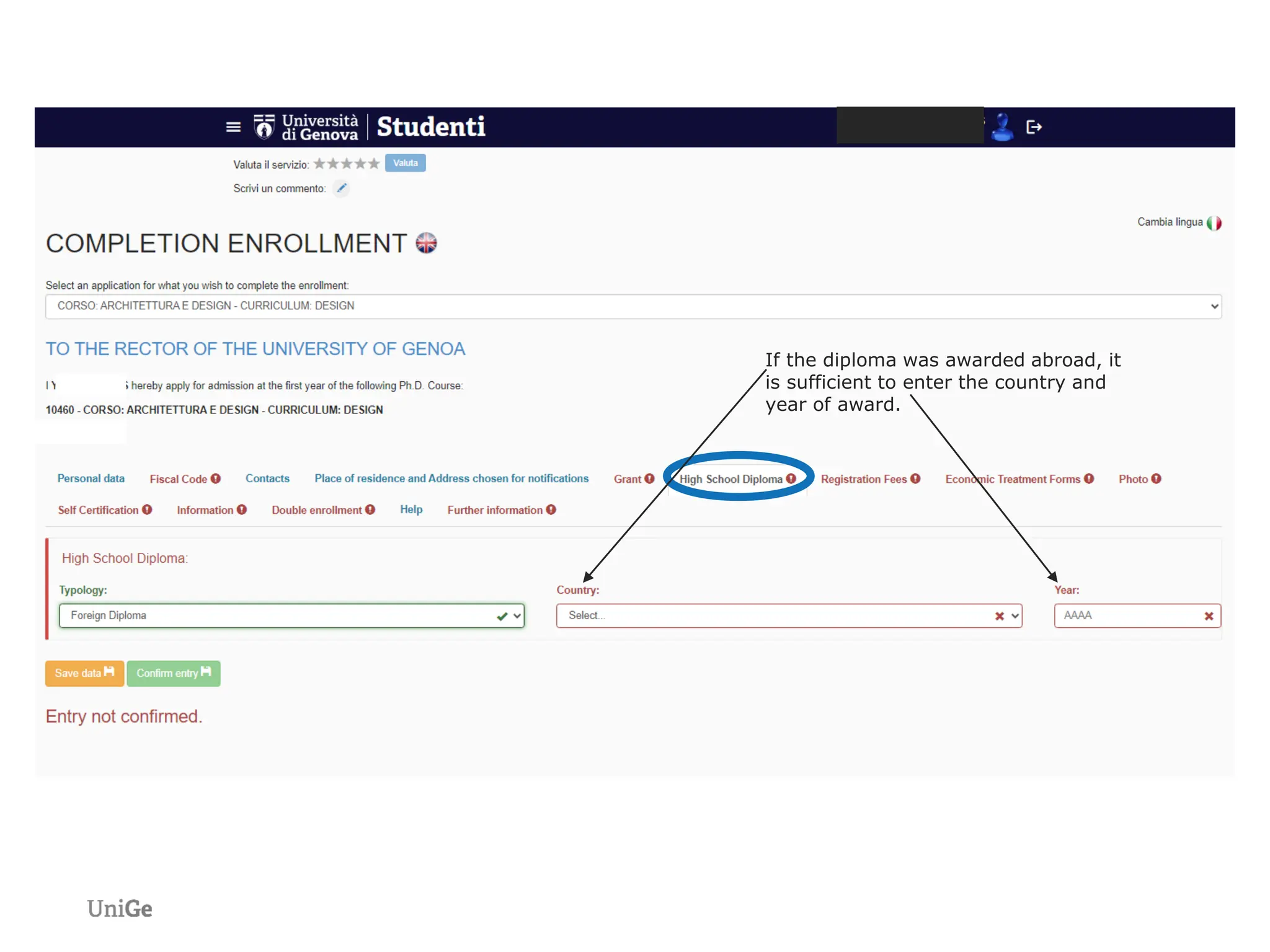
Select where the secondary school (high school) diploma has
been awarded: in Italy or abroad.
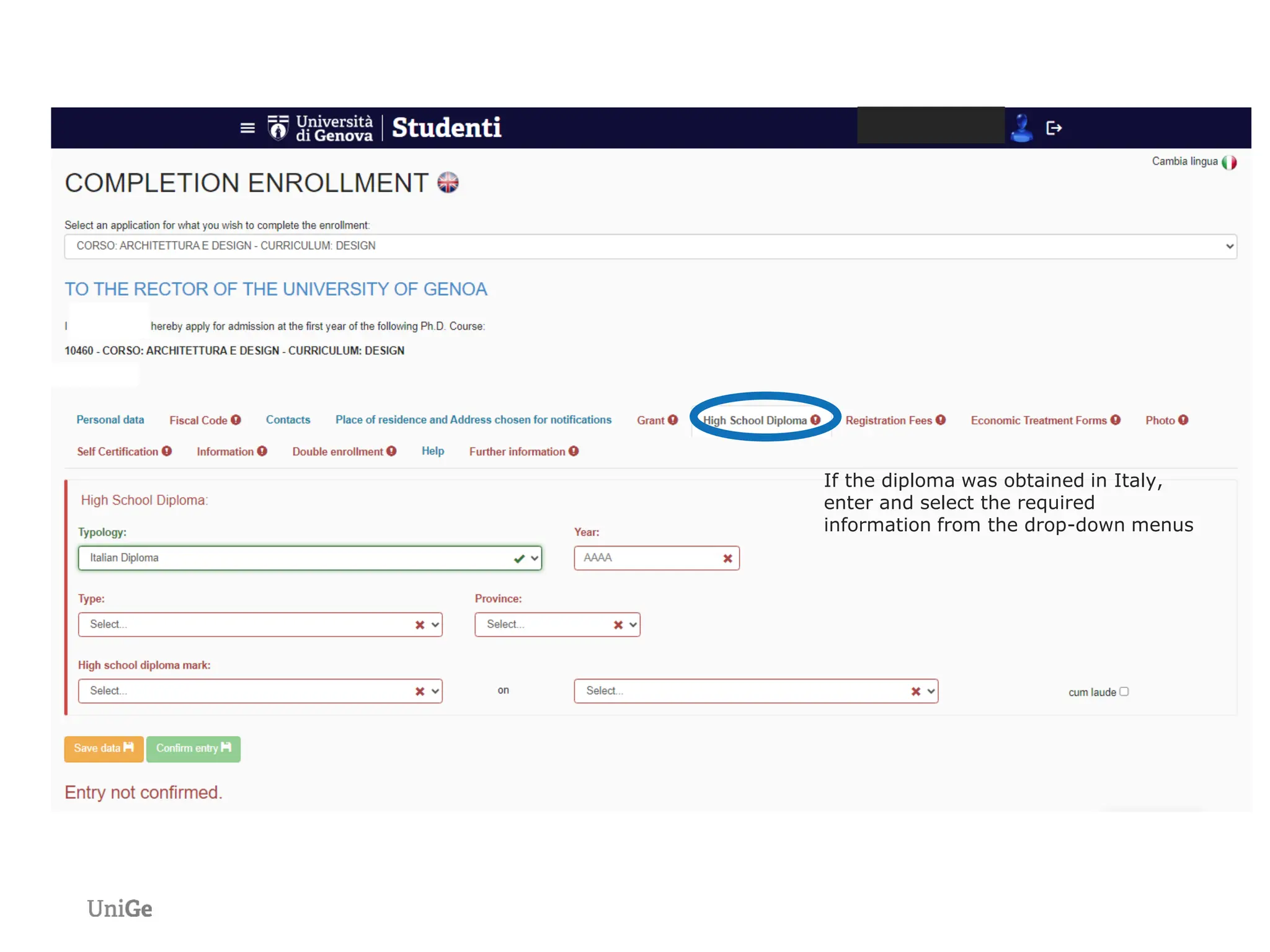
If the diploma was obtained in Italy,
enter and select the required
information from the drop-down menus
If the diploma was awarded abroad, it
is sufficient to enter the country and
year of award.
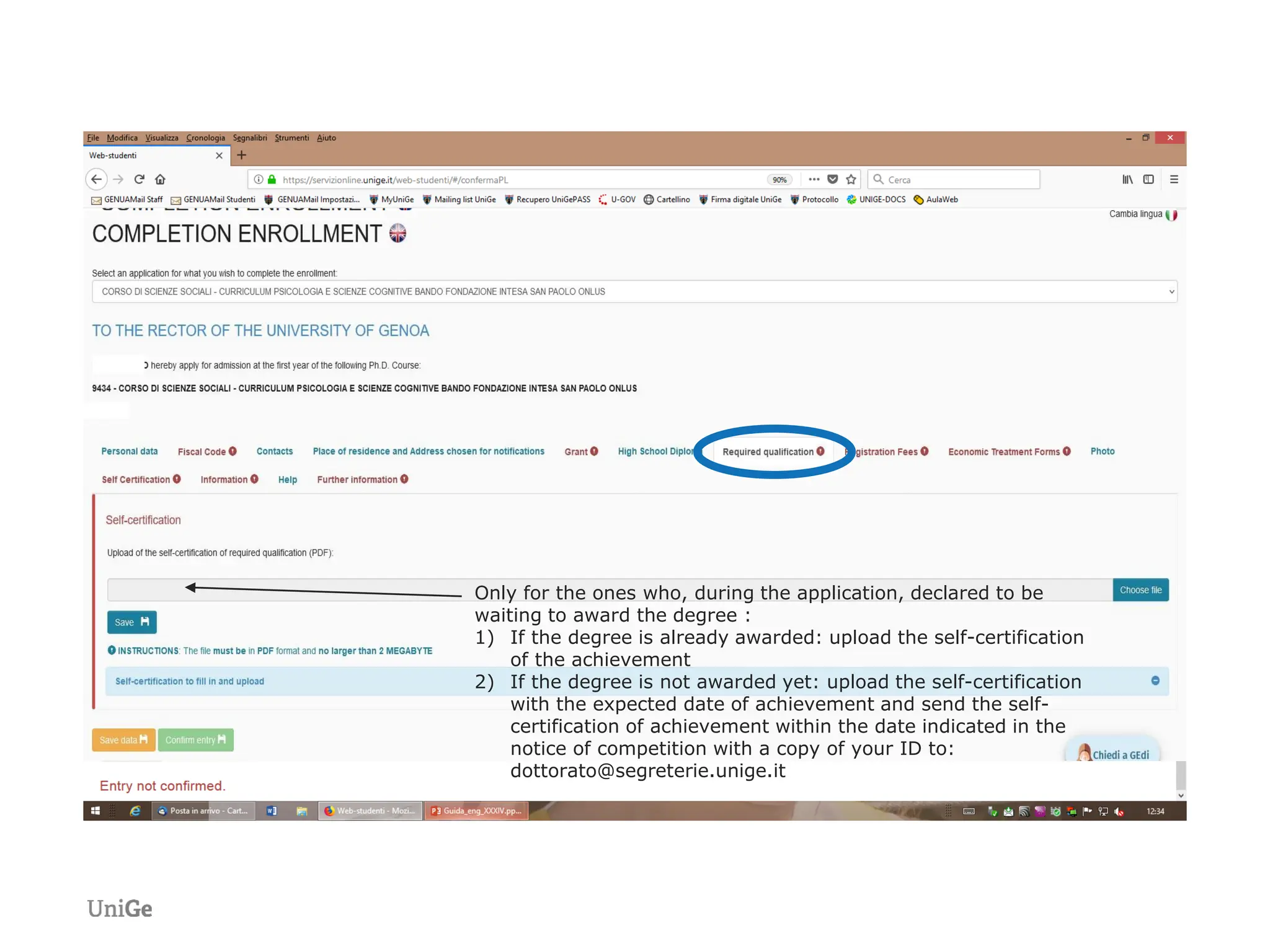
Only for the ones who, during the application, declared to be
waiting to award the degree :
1) If the degree is already awarded: upload the self-certification
of the achievement
2) If the degree is not awarded yet: upload the self-certification
with the expected date of achievement and send the self-
certification of achievement within the date indicated in the
notice of competition with a copy of your ID to:
dottorato@segreterie.unige.it
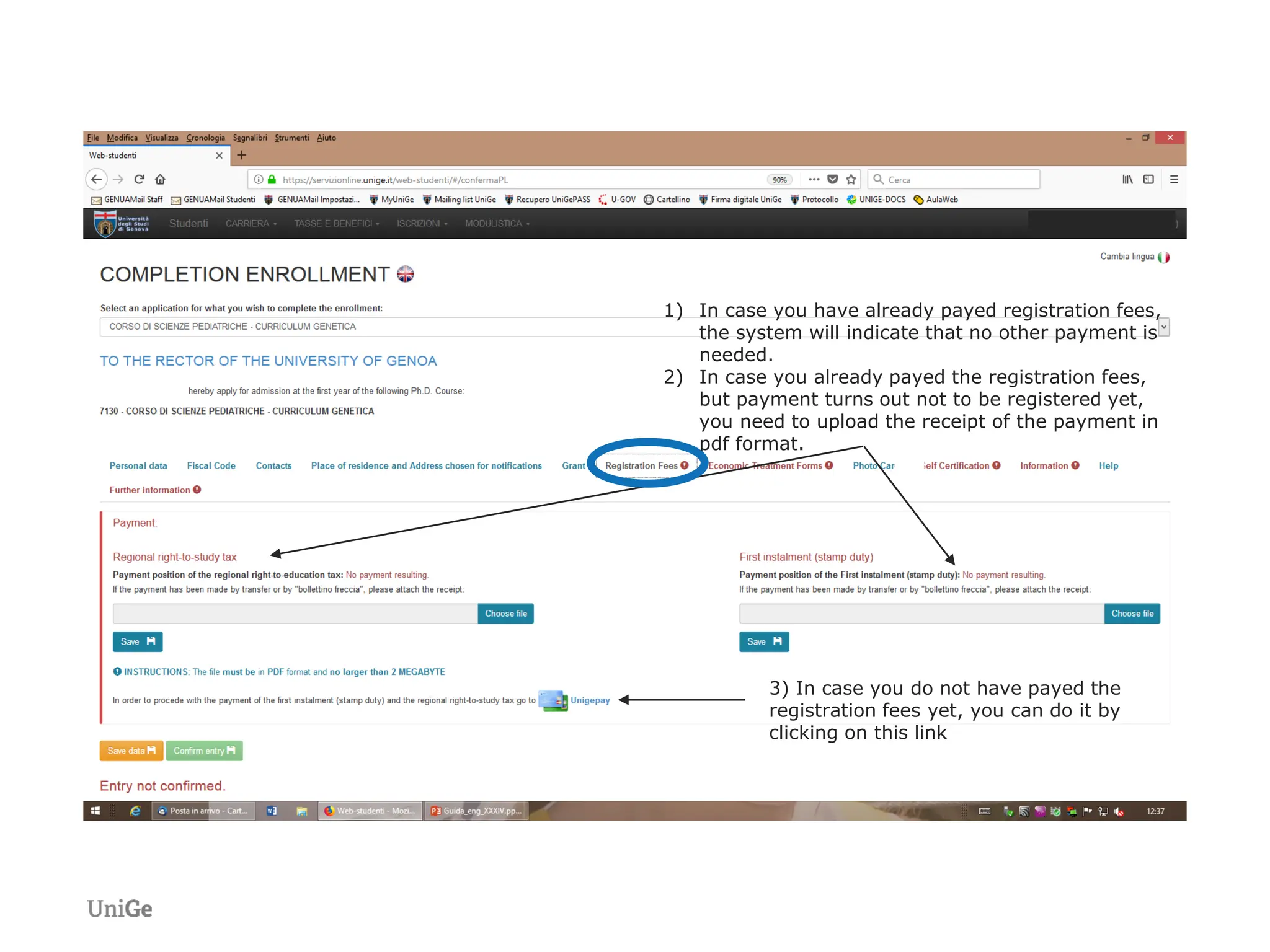
1) In case you have already payed registration fees,
the system will indicate that no other payment is
needed.
2) In case you already payed the registration fees,
but payment turns out not to be registered yet,
you need to upload the receipt of the payment in
pdf format.
3) In case you do not have payed the
registration fees yet, you can do it by
clicking on this link
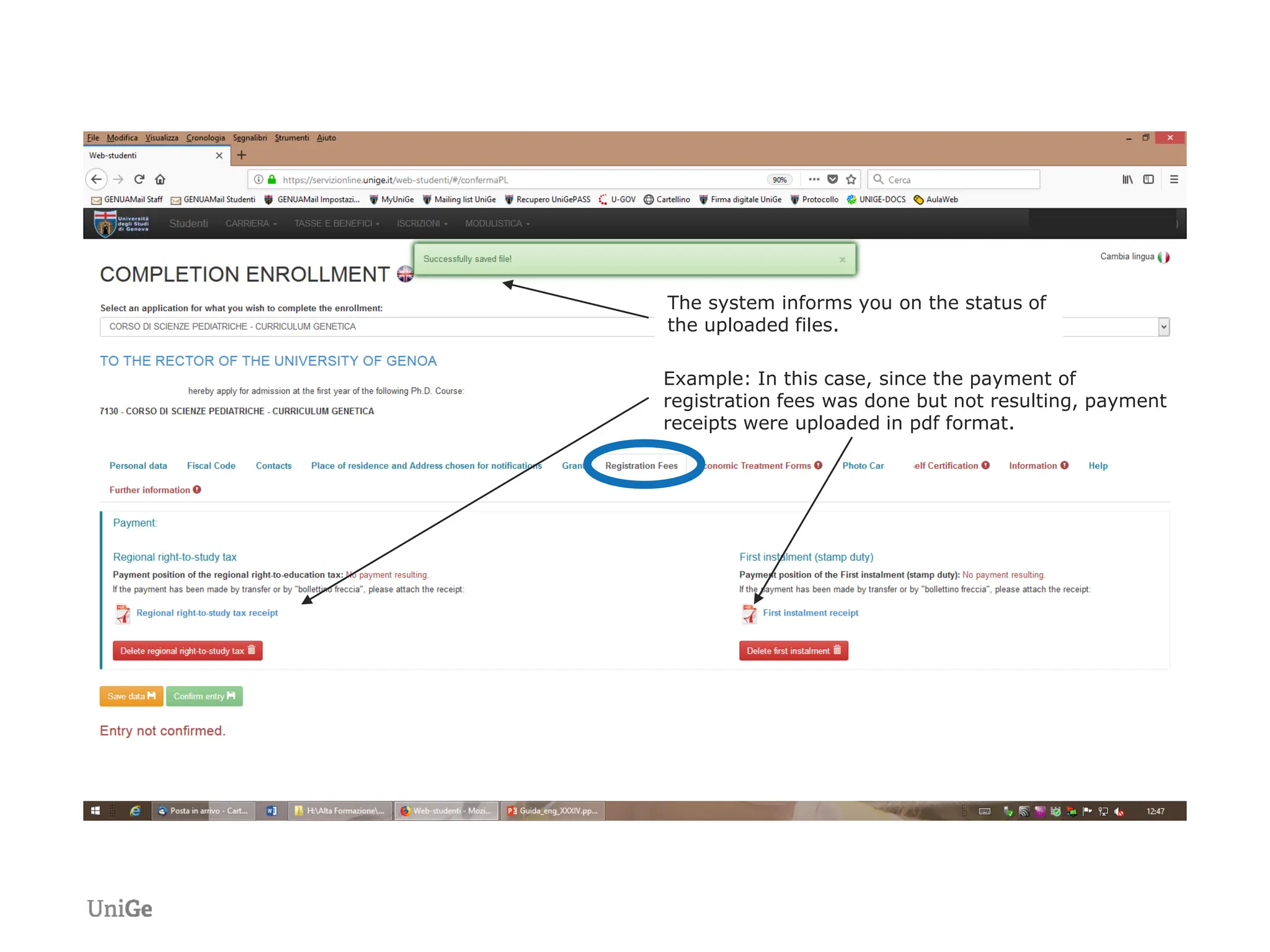
Example: In this case, since the payment of
registration fees was done but not resulting, payment
receipts were uploaded in pdf format.
The system informs you on the status of
the uploaded files.
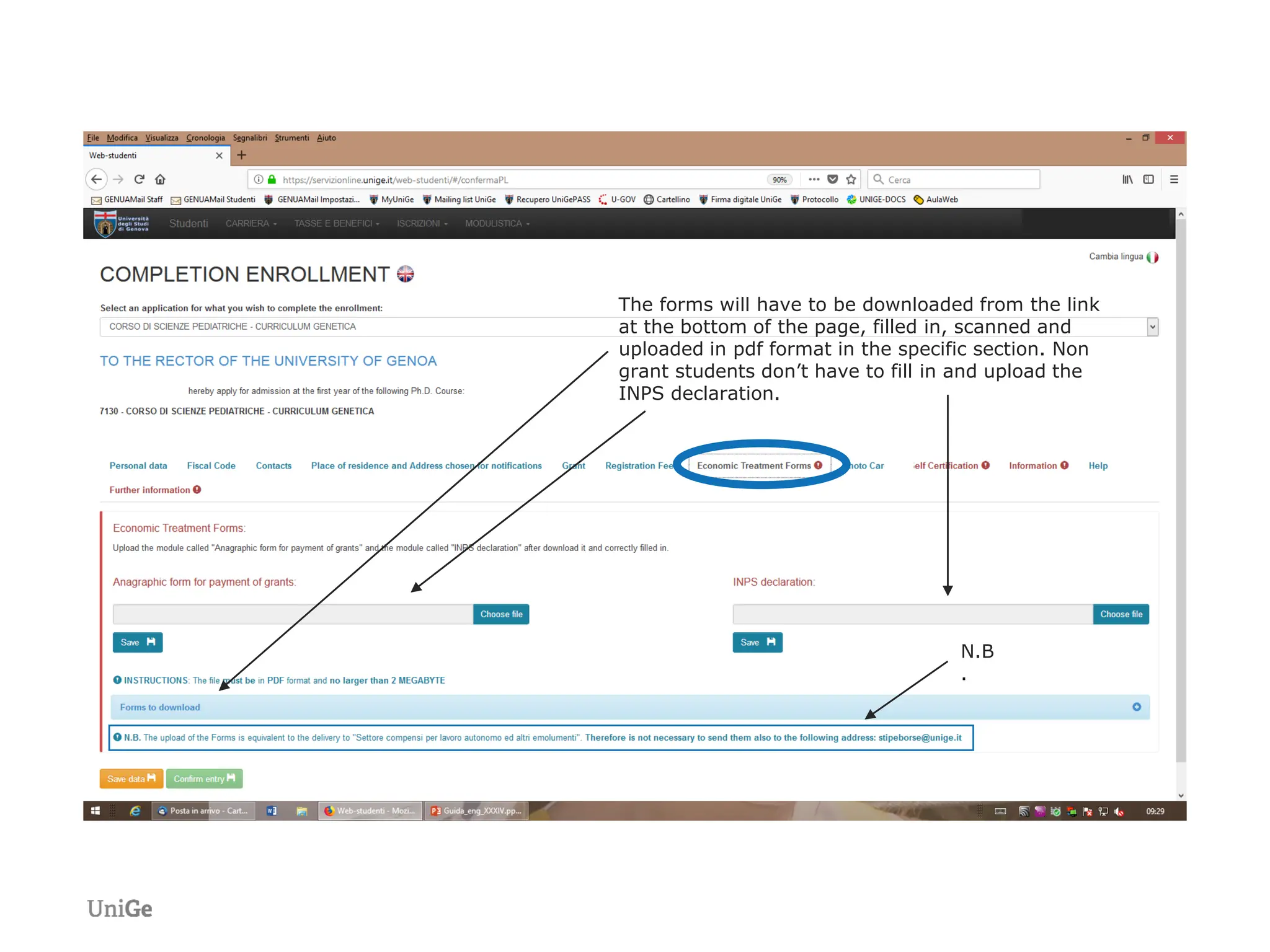
The forms will have to be downloaded from the link
at the bottom of the page, filled in, scanned and
uploaded in pdf format in the specific section. Non
grant students don’t have to fill in and upload the
INPS declaration.
N.B
.
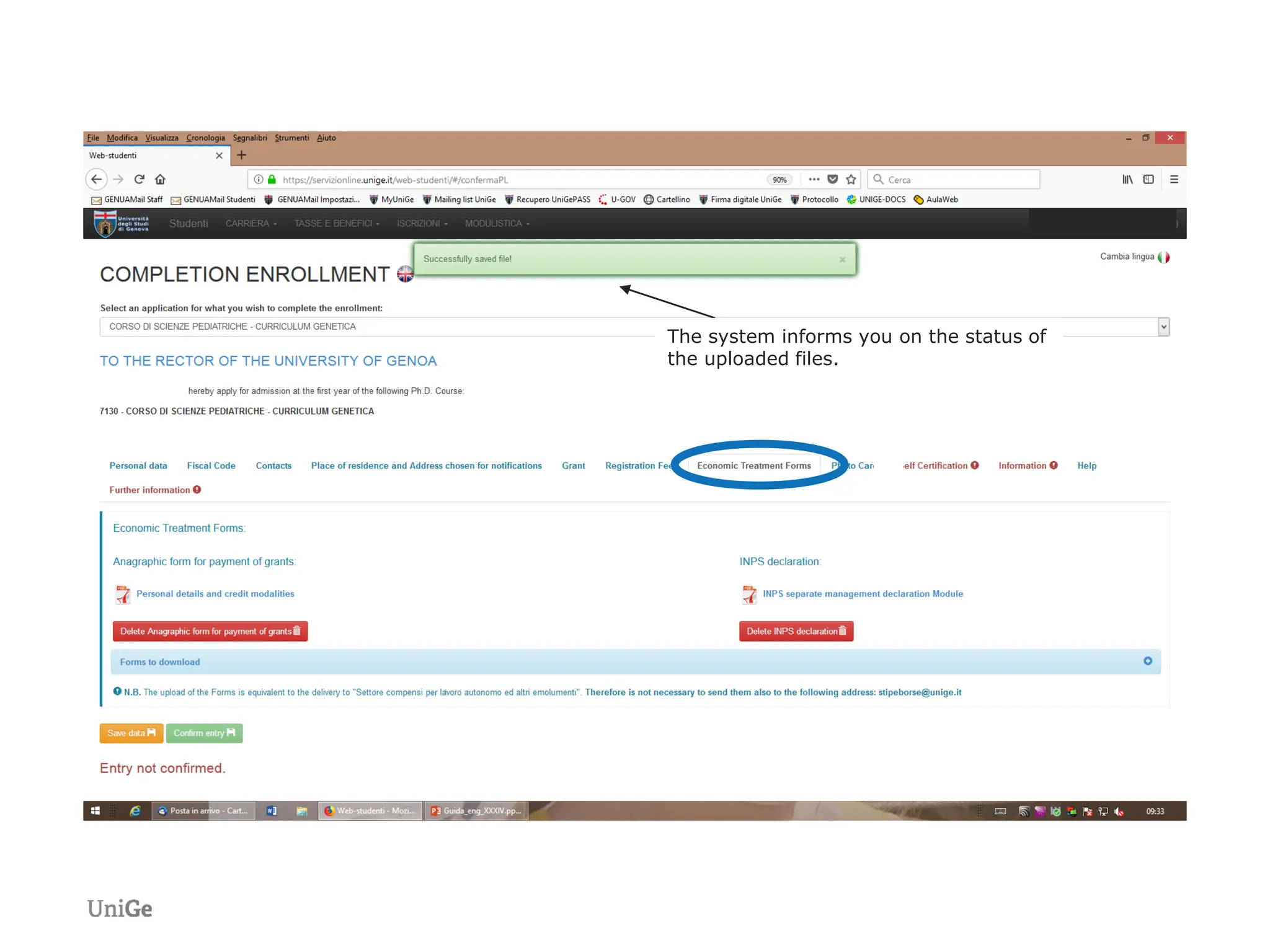
The system informs you on the status of
the uploaded files.
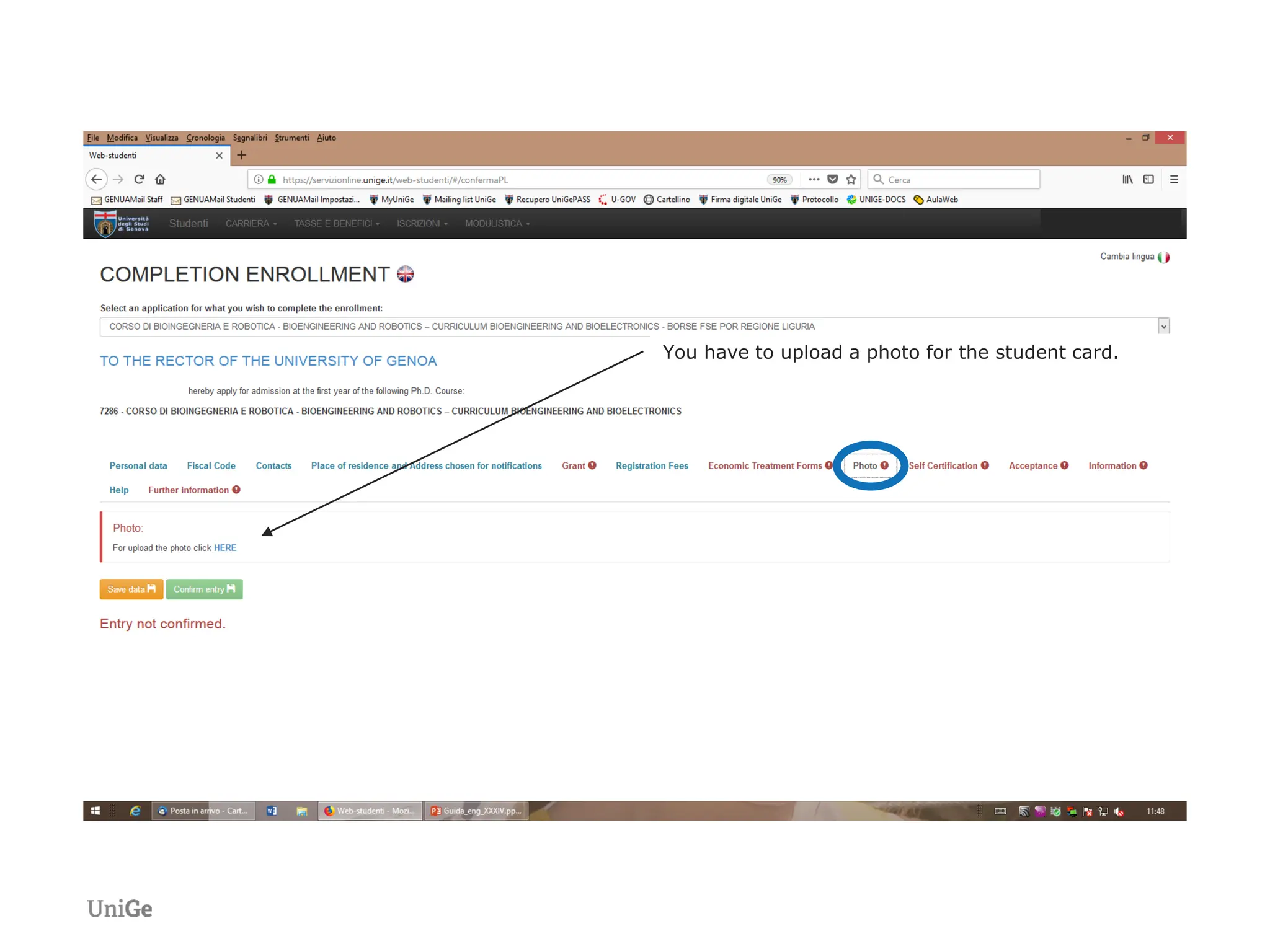
You have to upload a photo for the student card.
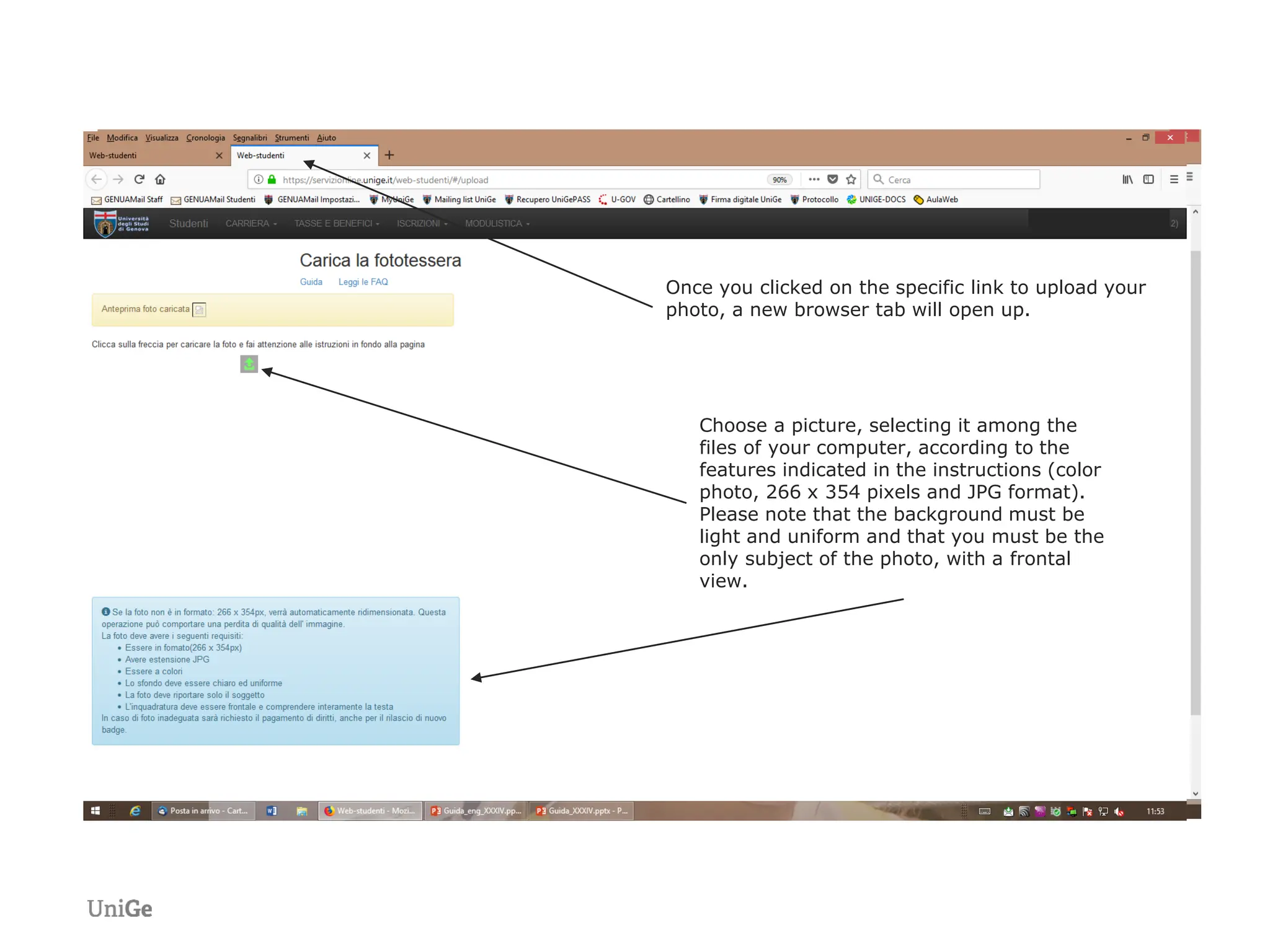
Once you clicked on the specific link to upload your
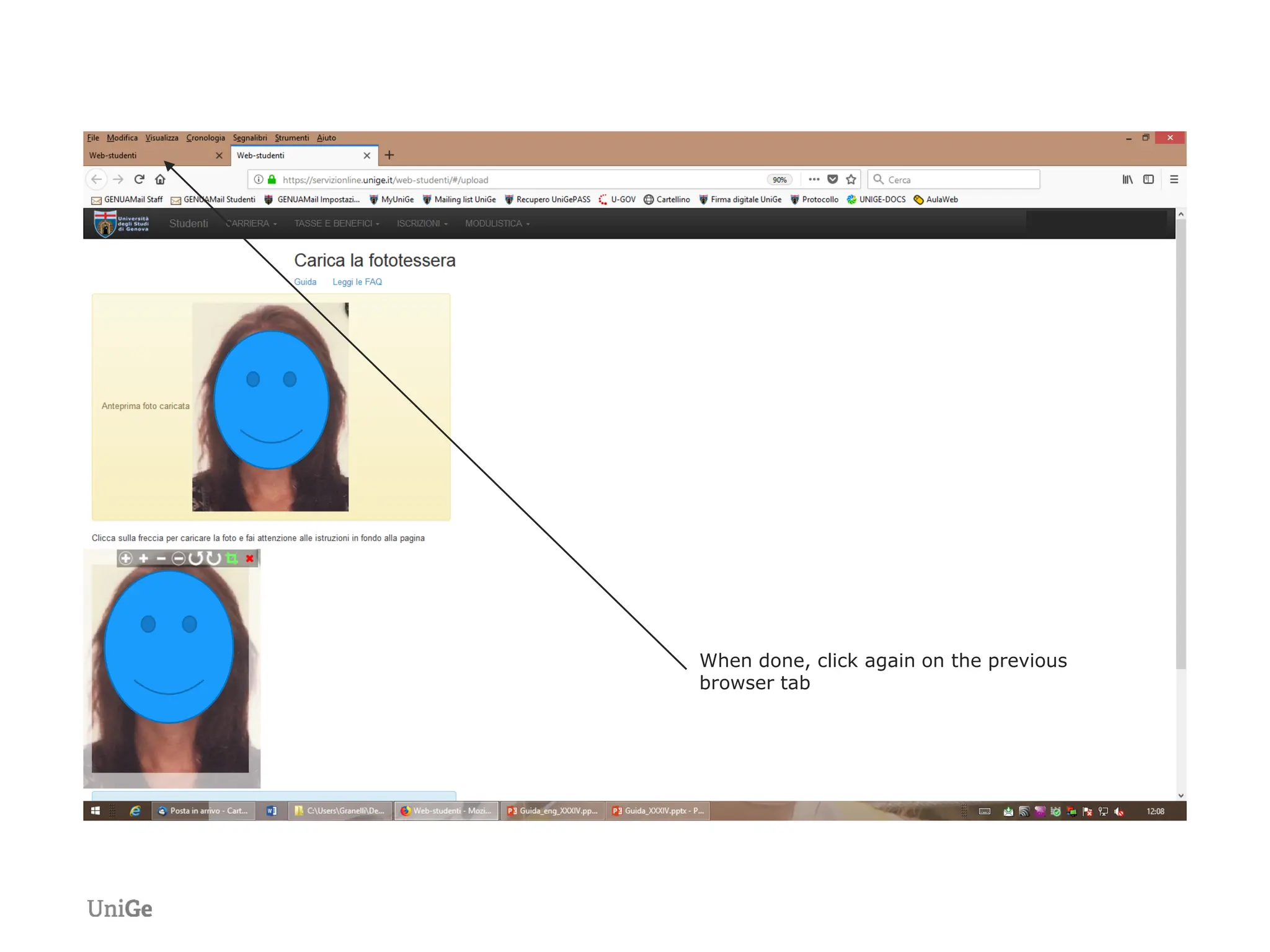
photo, a new browser tab will open up.
Choose a picture, selecting it among the
files of your computer, according to the
features indicated in the instructions (color
photo, 266 x 354 pixels and JPG format).
Please note that the background must be
light and uniform and that you must be the
only subject of the photo, with a frontal
view.
When done, click again on the previous
browser tab
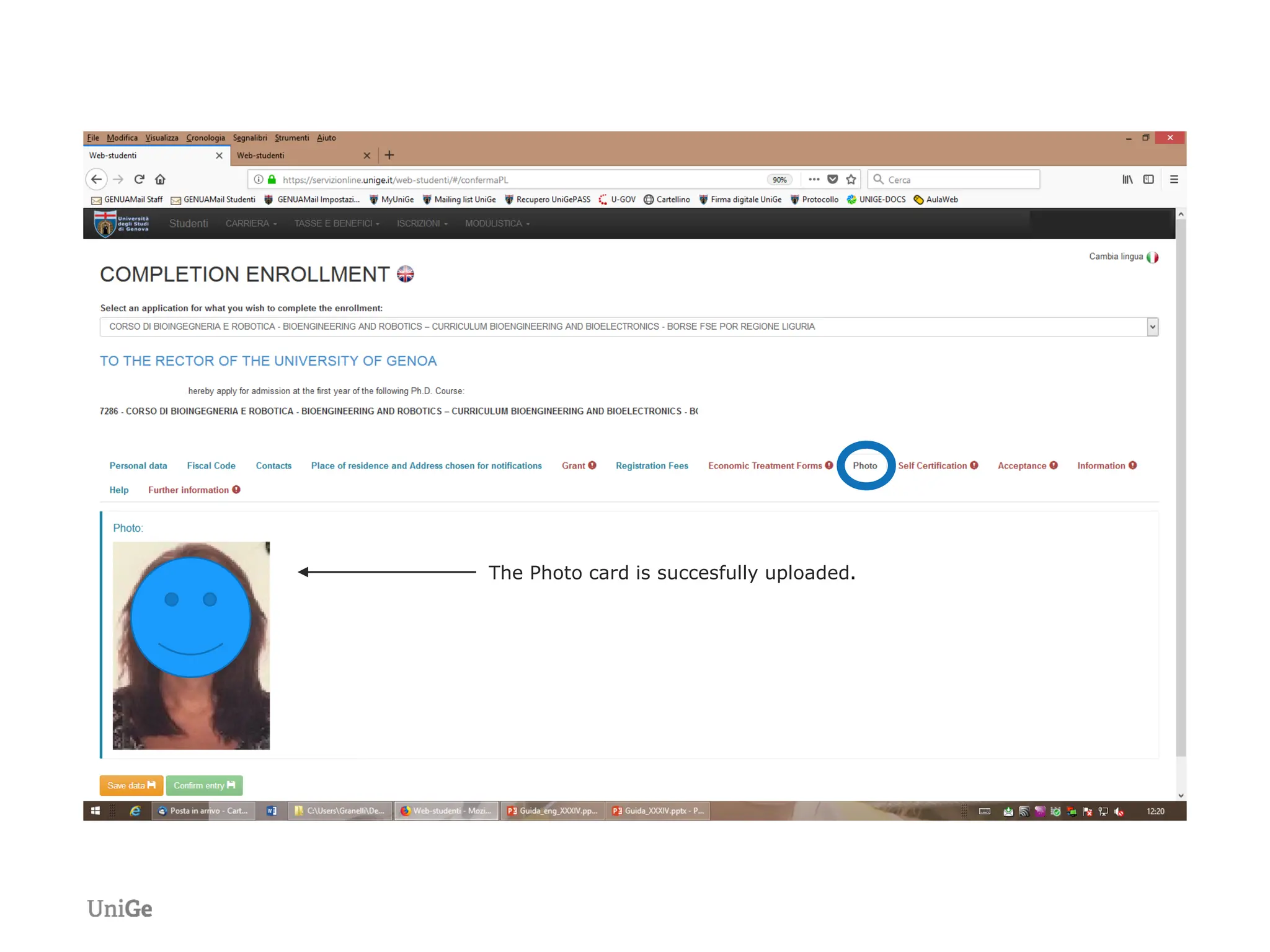
The Photo card is succesfully uploaded.
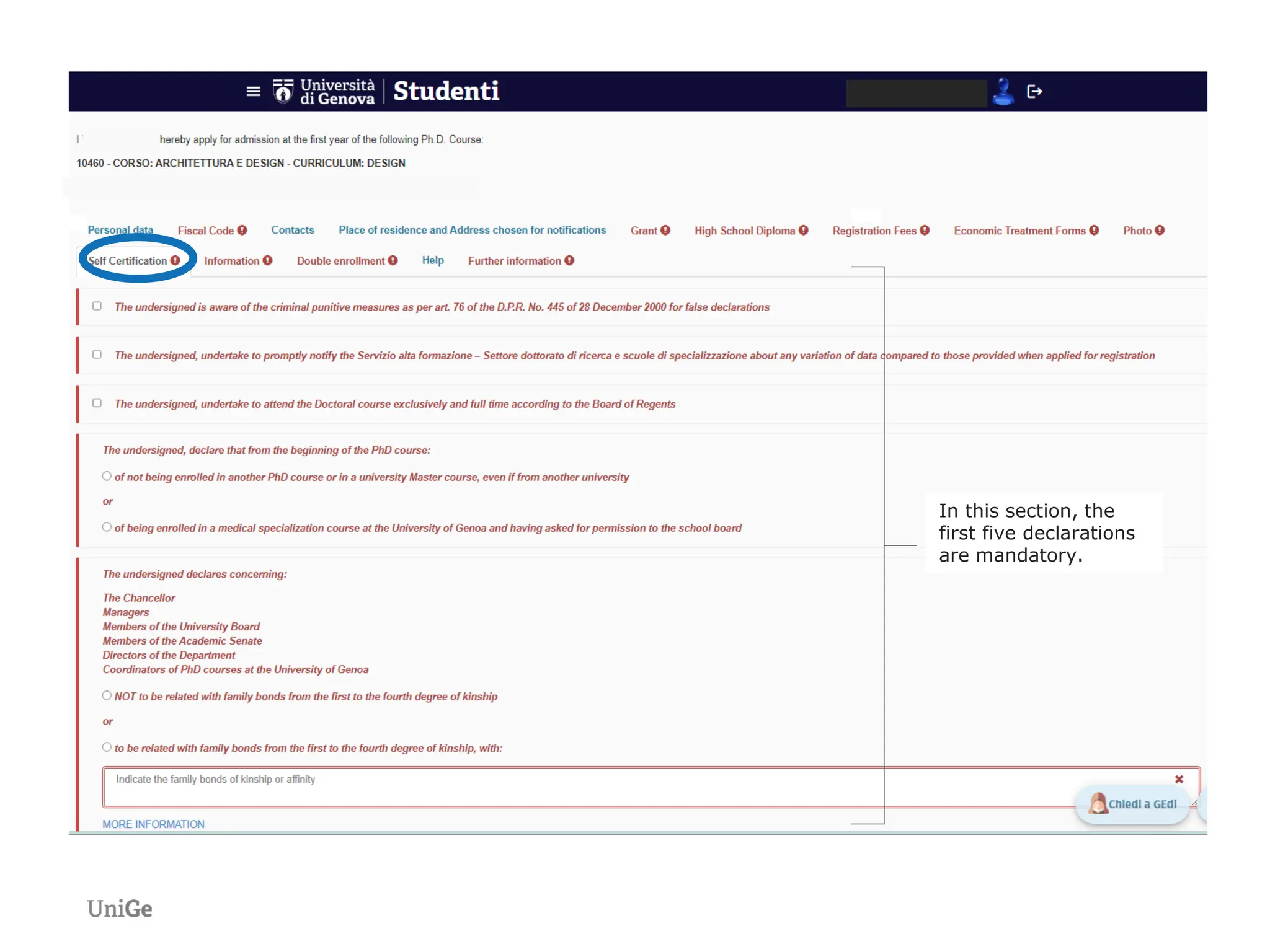
In this section, the
first five declarations
are mandatory.
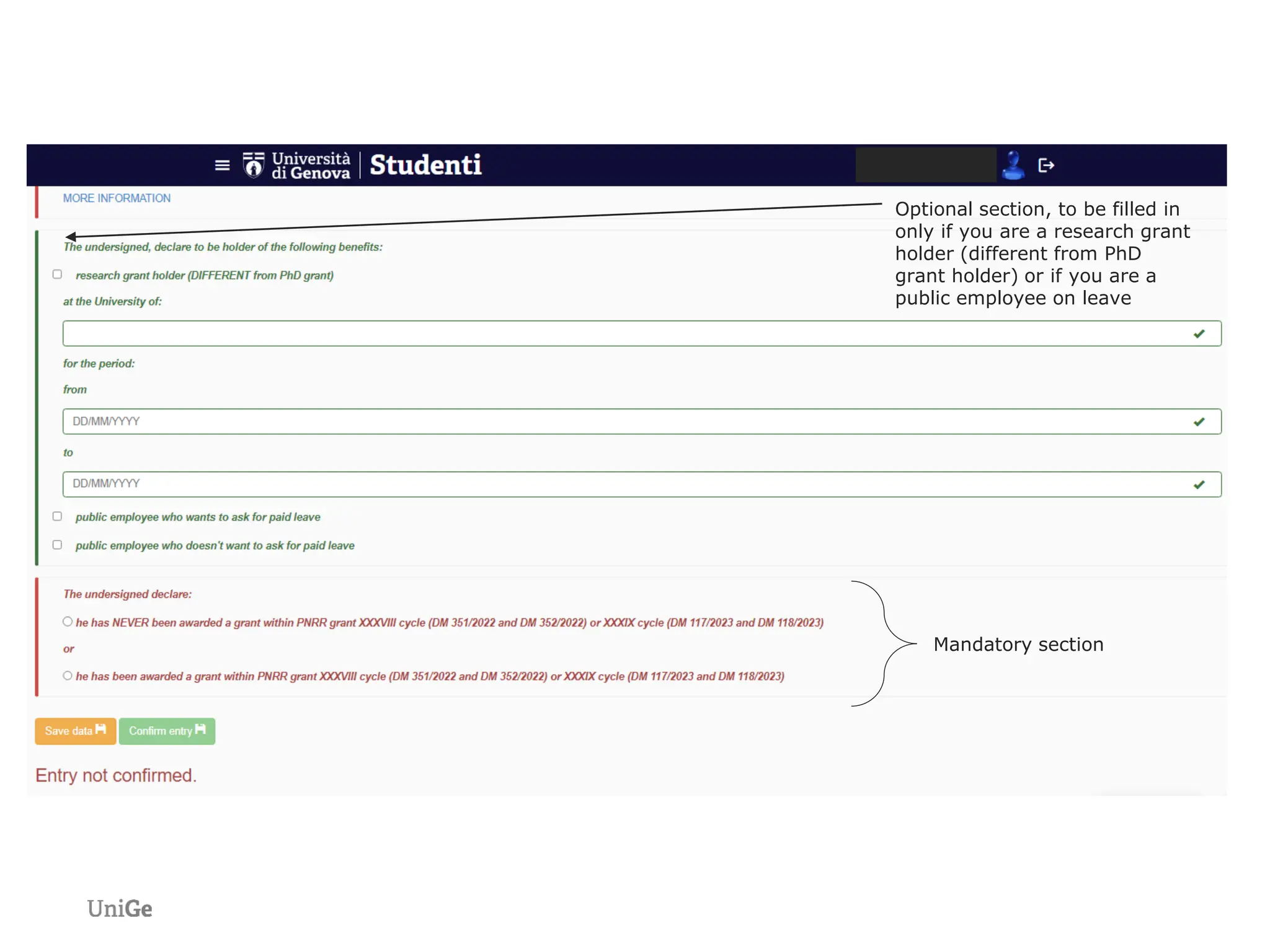
Optional section, to be filled in
only if you are a research grant
holder (different from PhD
grant holder) or if you are a
public employee on leave
Mandatory section
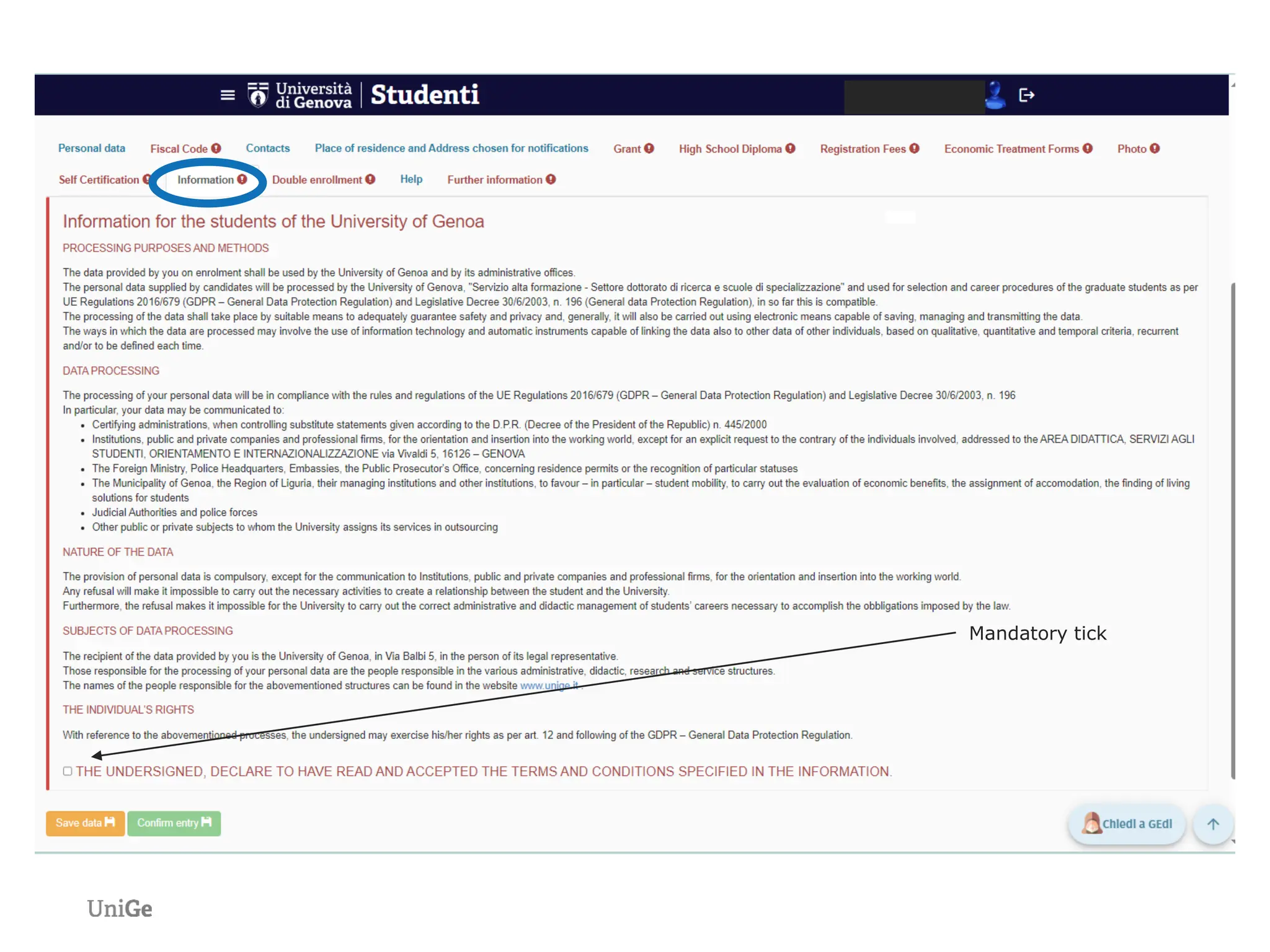
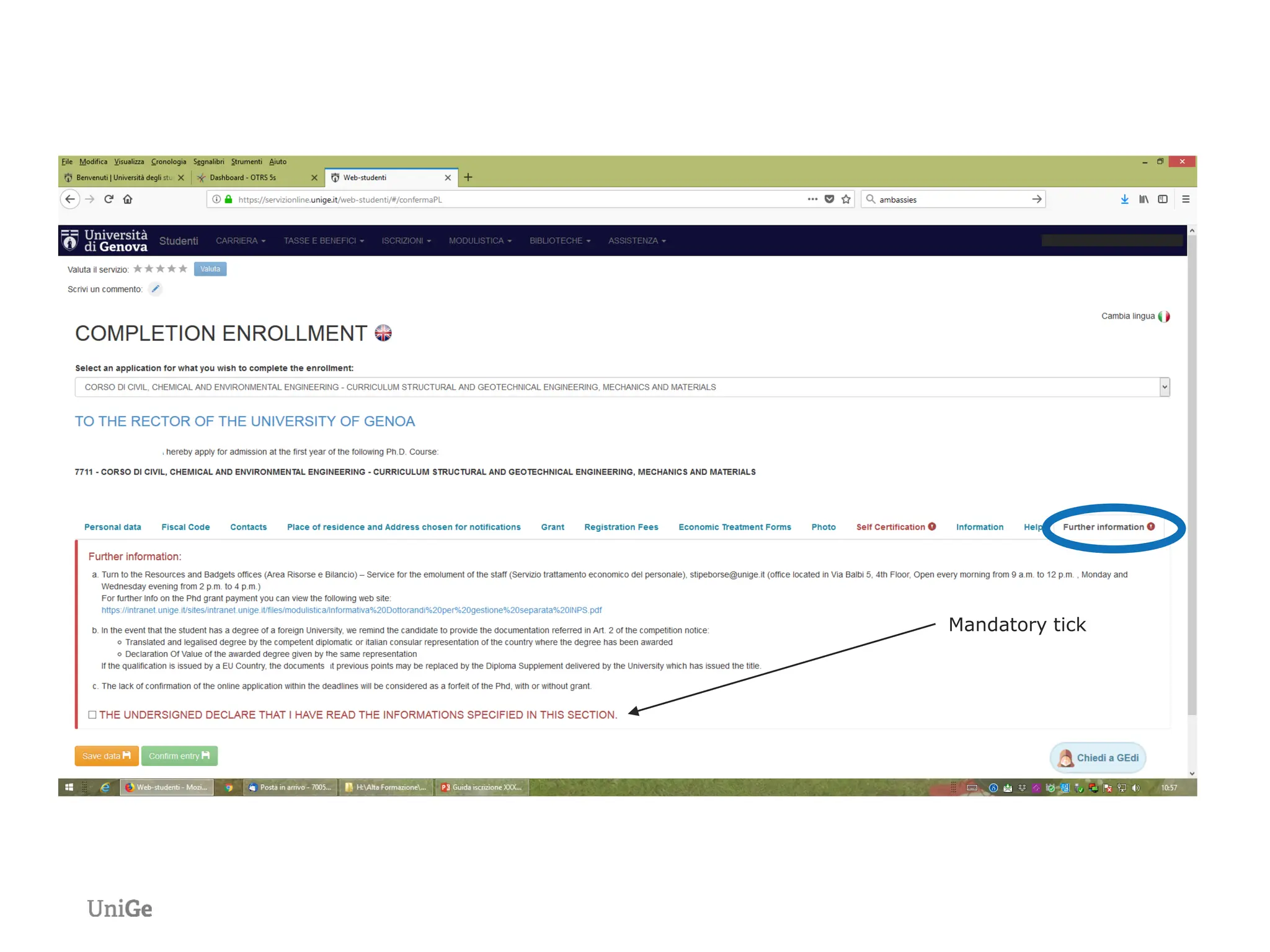
Mandatory tick
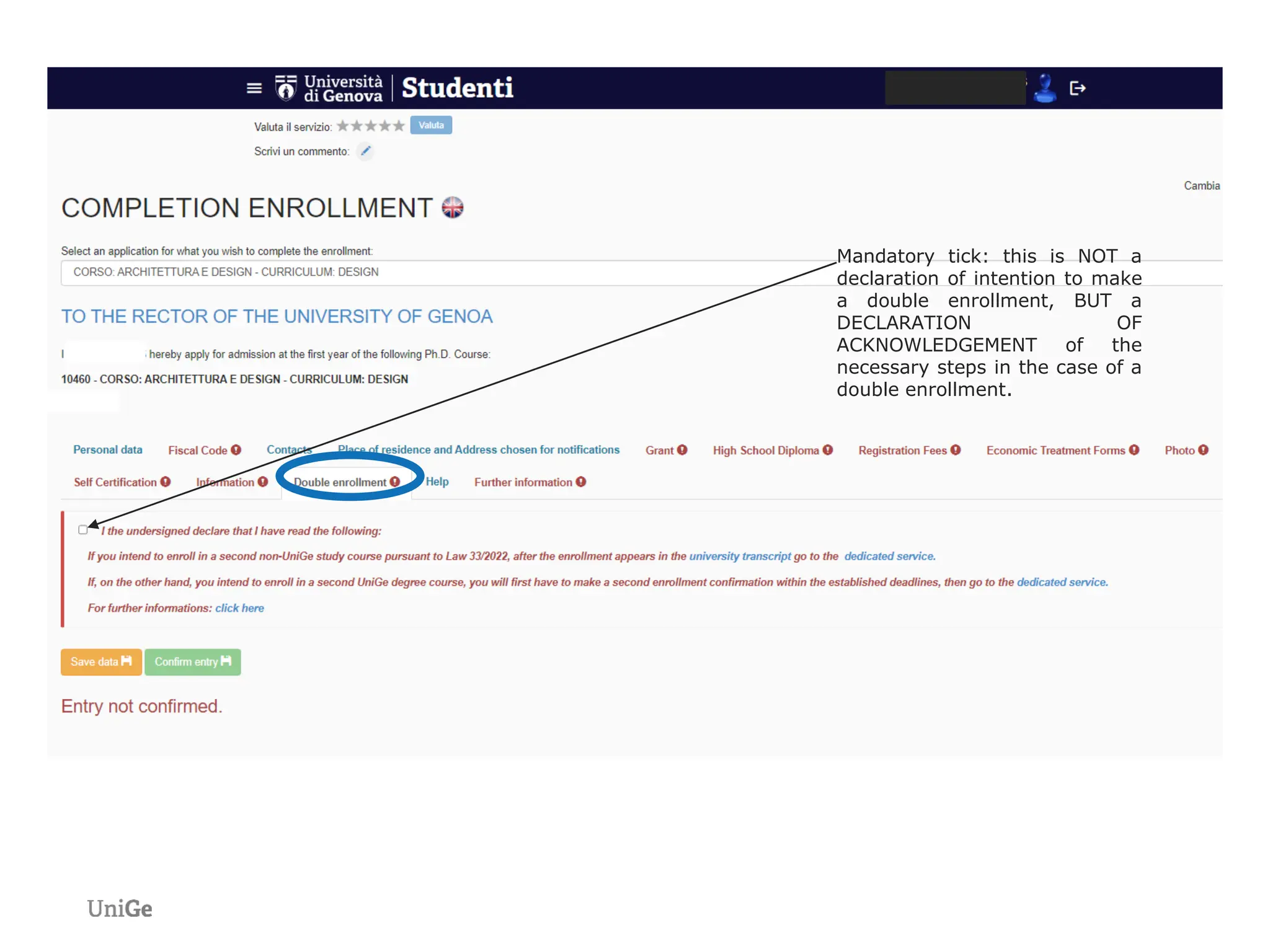
Mandatory tick: this is NOT a
declaration of intention to make
a double enrollment, BUT a
DECLARATION OF
ACKNOWLEDGEMENT of the
necessary steps in the case of a
double enrollment.
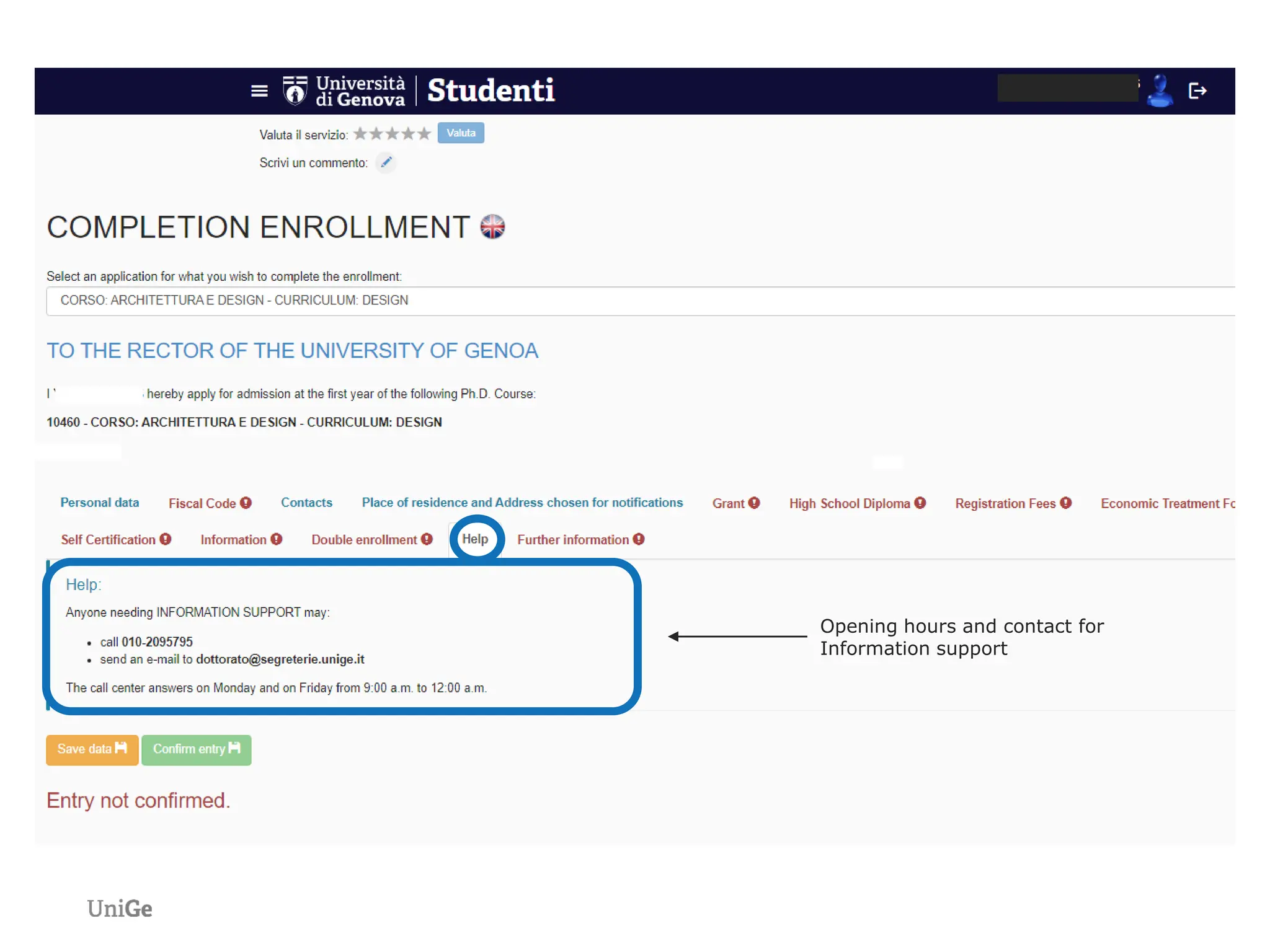
Opening hours and contact for
Information support
Mandatory tick
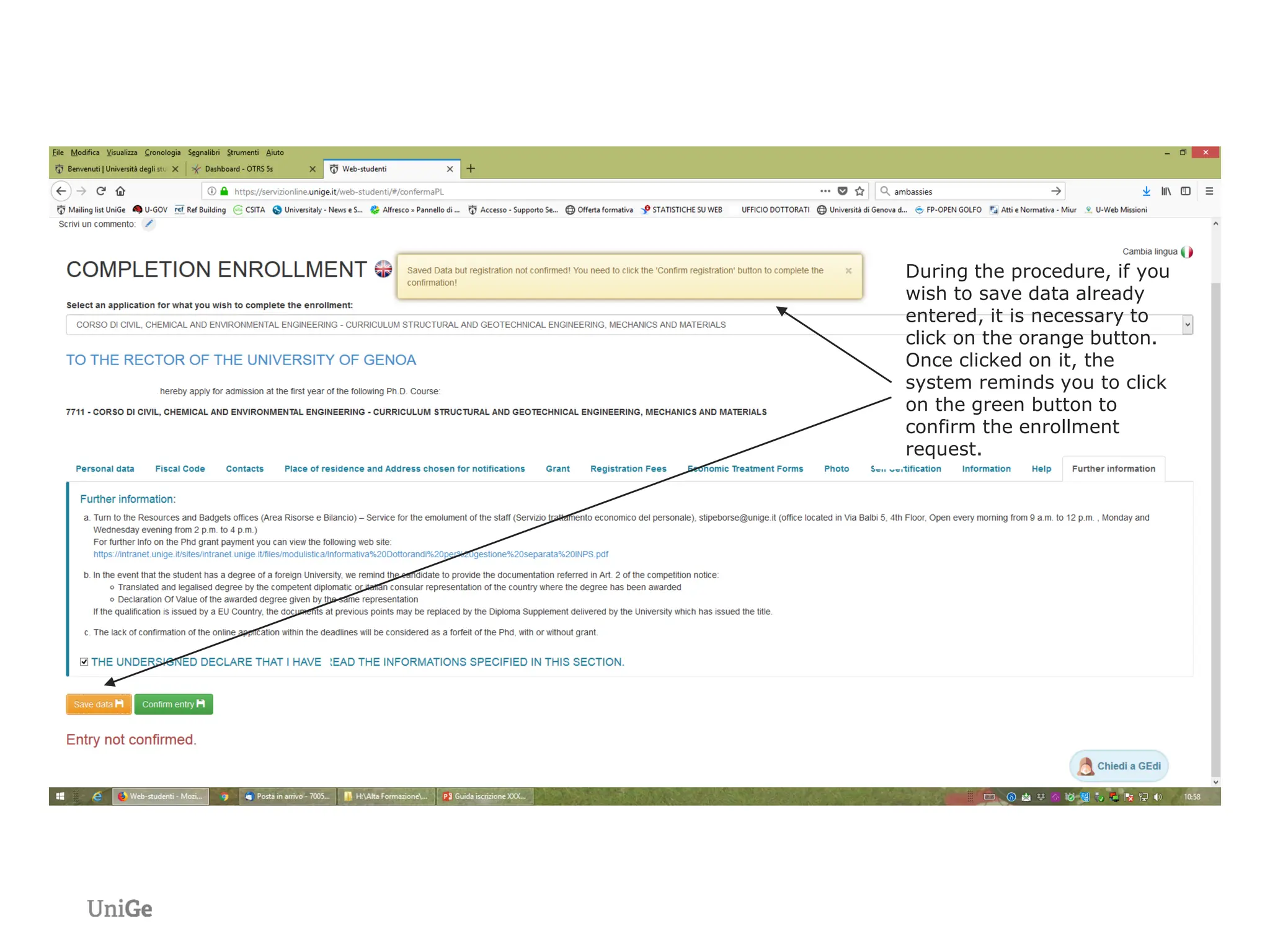
During the procedure, if you
wish to save data already
entered, it is necessary to
click on the orange button.
Once clicked on it, the
system reminds you to click
on the green button to
confirm the enrollment
request.
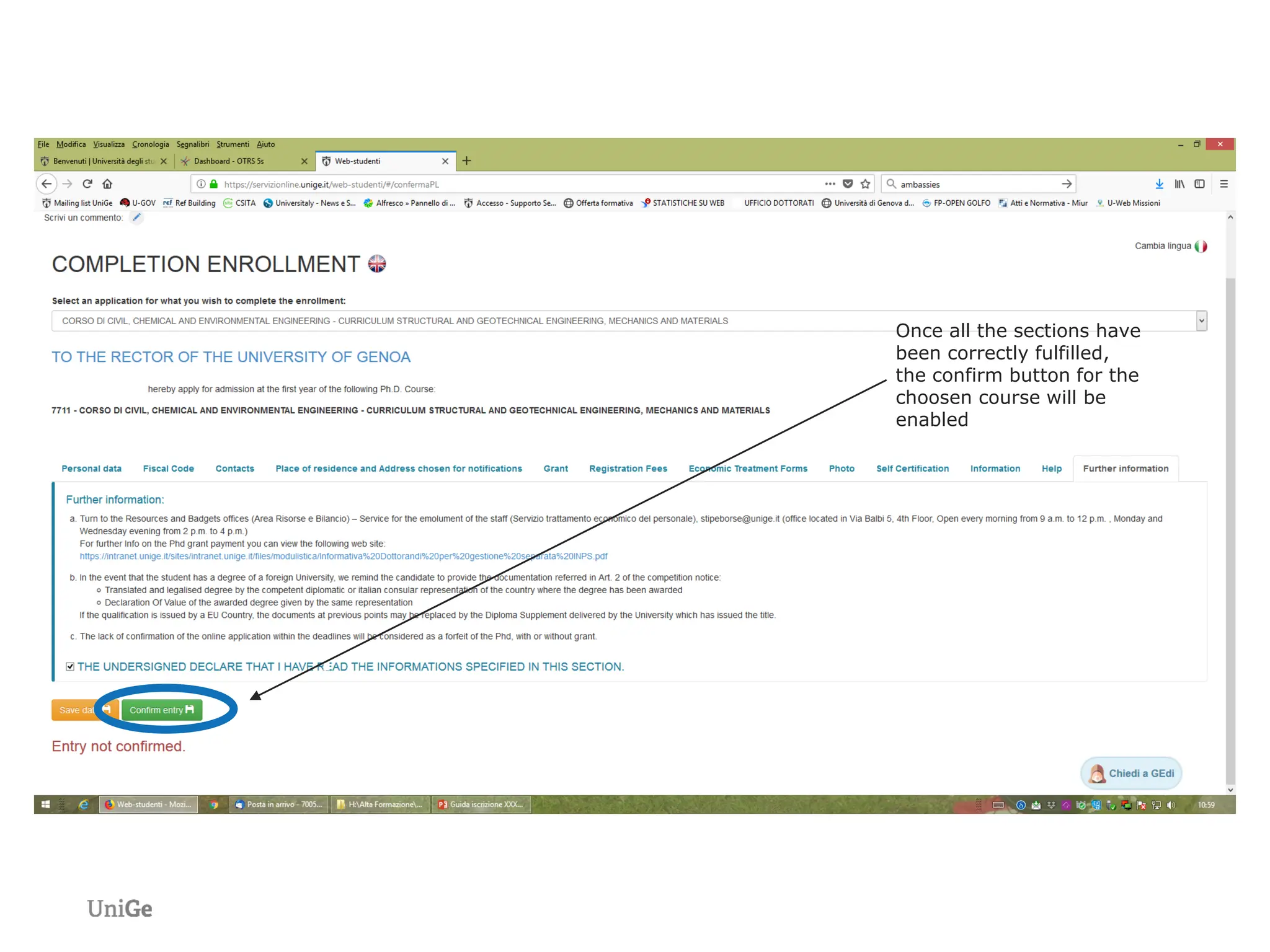
Once all the sections have
been correctly fulfilled,
the confirm button for the
choosen course will be
enabled
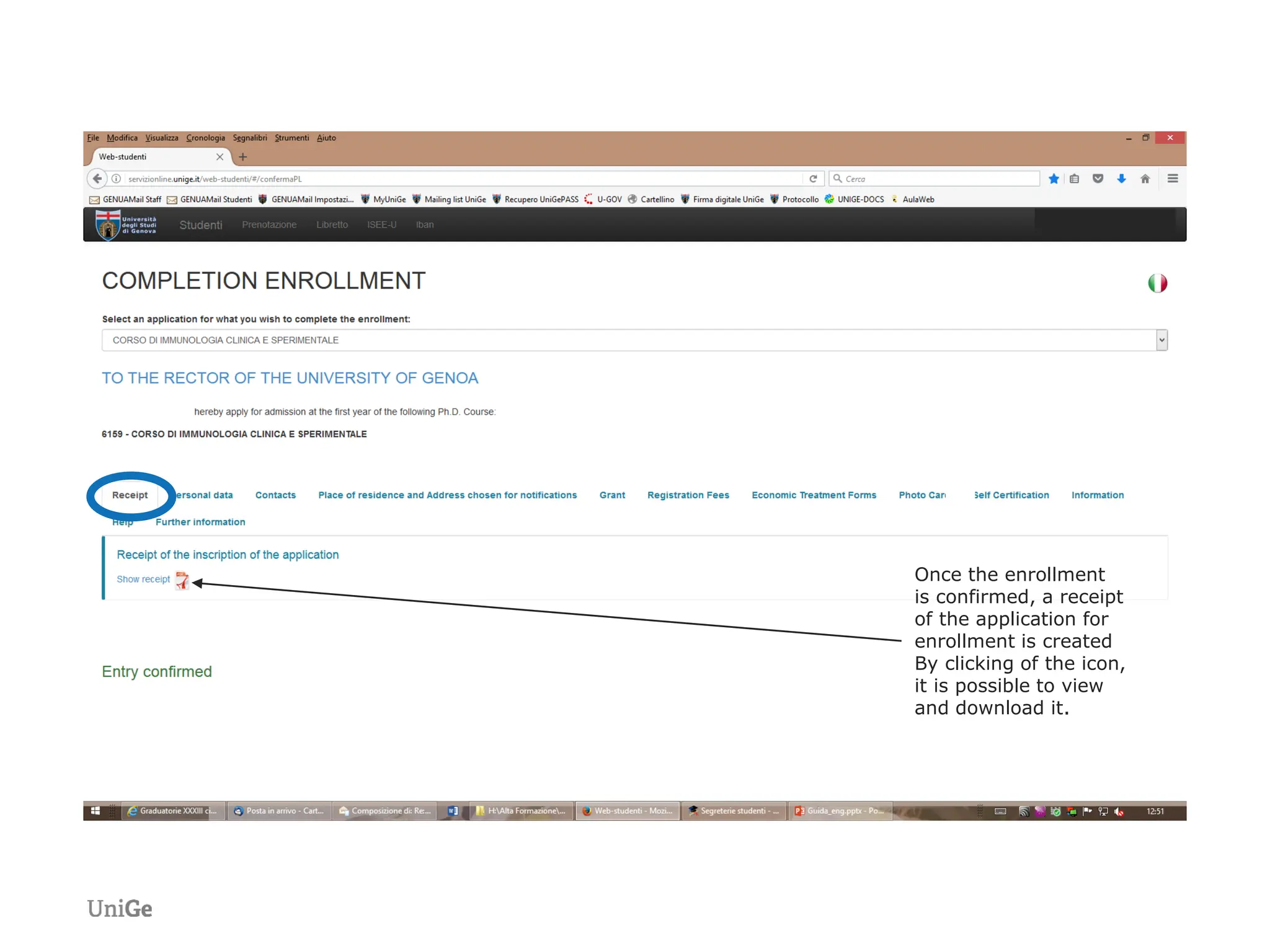
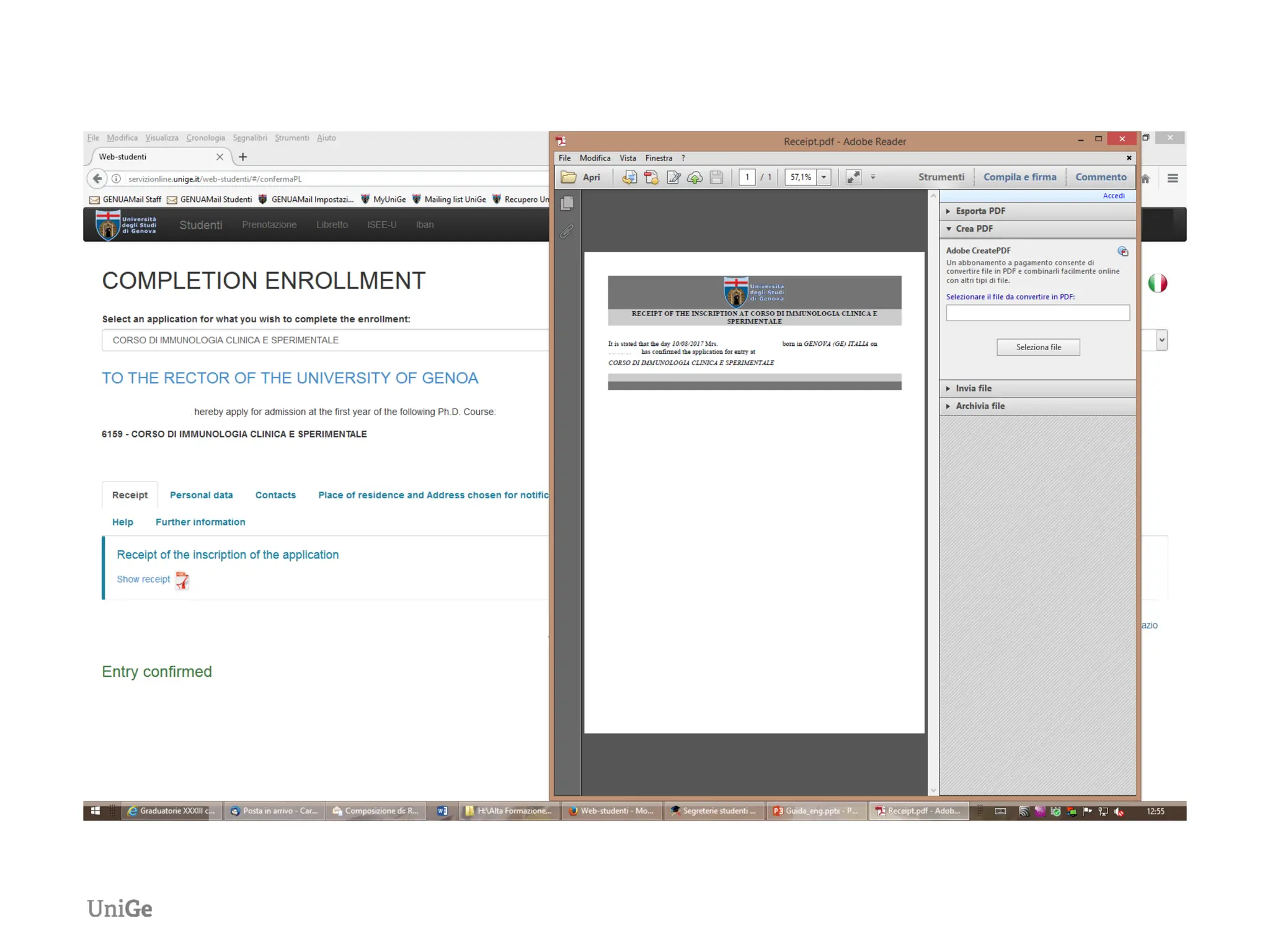
Once the enrollment
is confirmed, a receipt
of the application for
enrollment is created
By clicking of the icon,
it is possible to view
and download it.
Guide for the enrollment confirmation.pdf

Guide for the enrollment confirmation.pdf

  • 1.
    Settore dottorato diricerca e scuole di specializzazione Guide for the enrollment confirmation to the PhD Courses
  • 2.
    At the followinglink: https://servizionline.unige.it/studenti/post-laurea click on «Conferma Iscrizione Post-Laurea» - Conferma Iscrizione Post-laurea
  • 3.
    Use UniGePASS credentials youalready used during online application for the admission exam
  • 5.
    ― N.B. 1) Ifyou are on the ranking list of more than one PhD course, choosing one of them implies that you formally resign the others. 2) Once the enrollment request is confirmed, it will not be possible to modify its content, you therefore check all the entered data before clicking on the confirmation button 3) Once every section is correctly filled in, the given declarations will become green-coloured and titles will become light-blue- coloured 4) If you quit the enrollment confirmation procedure, only the uploaded files will be saved. All the declarations will have to be fulfilled again
  • 6.
    In this sectionwill be displayed the personal data inserted during the on-line application to the admission exam. They can not be modified. Please write an email to dottorato@segreterie.unige.it if changes are needed
  • 7.
    N.B.: Information noteswill be displayed only by those who, during on-line application for the admission exam, declared to be waiting to award the degree dottorato@segreterie.unige.it entro il 21/10/2022 email at dottorato@segreterie.unige,it within the deadline indicated in art. “Admission requirements” of the notice of competition under penalty of invalidation
  • 8.
    Upload the copyof your fiscal code issued by the Italian Agenzia delle Entrate in pdf format. In case you don’t have it, please download the self-certification form and upload it duly filled in and signed.
  • 9.
    The system informsyou on the status of the uploaded files.
  • 10.
    In this sectionwill be displayed the personal data inserted during the on-line application to the admission exam. They can not be modified. Please write an email to dottorato@segreterie.unige.it if changes are needed
  • 11.
    In this sectionwill be displayed the personal data inserted during the on-line application to the admission exam. They can not be modified. Please write an email to dottorato@segreterie.unige.it if changes are needed
  • 12.
    If in therankings you are indicated as «grant holder», you have to click on «The student has been awarded a PhD position and grant» even if you wish to forfeit the grant for the whole PhD course
  • 13.
    In case youhave choosen the «The student has been awarded a PhD position and grant» item, you have to declare not to have ever awarded any PhD scholarship before or alternatively to give up the scholarship for the duration of the course
  • 14.
    1) In caseyou DO NOT wish to forfeit the grant for 3 years, you have to choose one of the two options, which cancel each other. 2) In case you choose the second declaration, you have to specify the number of months you wish to forfeit the grant.
  • 15.
    Select where thesecondary school (high school) diploma has been awarded: in Italy or abroad.
  • 16.
    If the diplomawas obtained in Italy, enter and select the required information from the drop-down menus
  • 17.
    If the diplomawas awarded abroad, it is sufficient to enter the country and year of award.

  • 18.
    Only for theones who, during the application, declared to be waiting to award the degree : 1) If the degree is already awarded: upload the self-certification of the achievement 2) If the degree is not awarded yet: upload the self-certification with the expected date of achievement and send the self- certification of achievement within the date indicated in the notice of competition with a copy of your ID to: dottorato@segreterie.unige.it
  • 19.
    1) In caseyou have already payed registration fees, the system will indicate that no other payment is needed. 2) In case you already payed the registration fees, but payment turns out not to be registered yet, you need to upload the receipt of the payment in pdf format. 3) In case you do not have payed the registration fees yet, you can do it by clicking on this link
  • 20.
    Example: In thiscase, since the payment of registration fees was done but not resulting, payment receipts were uploaded in pdf format. The system informs you on the status of the uploaded files.
  • 21.
    The forms willhave to be downloaded from the link at the bottom of the page, filled in, scanned and uploaded in pdf format in the specific section. Non grant students don’t have to fill in and upload the INPS declaration. N.B .
  • 22.
    The system informsyou on the status of the uploaded files.
  • 23.
    You have toupload a photo for the student card.
  • 24.
    Once you clickedon the specific link to upload your photo, a new browser tab will open up. Choose a picture, selecting it among the files of your computer, according to the features indicated in the instructions (color photo, 266 x 354 pixels and JPG format). Please note that the background must be light and uniform and that you must be the only subject of the photo, with a frontal view.
  • 25.
    When done, clickagain on the previous browser tab
  • 26.
    The Photo cardis succesfully uploaded.
  • 27.
    In this section,the first five declarations are mandatory.
  • 28.
    Optional section, tobe filled in only if you are a research grant holder (different from PhD grant holder) or if you are a public employee on leave Mandatory section
  • 29.
  • 30.
    Mandatory tick: thisis NOT a declaration of intention to make a double enrollment, BUT a DECLARATION OF ACKNOWLEDGEMENT of the necessary steps in the case of a double enrollment.
  • 31.
    Opening hours andcontact for Information support
  • 32.
  • 33.
    During the procedure,if you wish to save data already entered, it is necessary to click on the orange button. Once clicked on it, the system reminds you to click on the green button to confirm the enrollment request.
  • 34.
    Once all thesections have been correctly fulfilled, the confirm button for the choosen course will be enabled
  • 35.
    Once the enrollment isconfirmed, a receipt of the application for enrollment is created By clicking of the icon, it is possible to view and download it.