C riticality
GuiXT

For SAP GUI
What is GuiXT

    Client–server system that provides user interface
    customization to SAP solutions.

    Completely integrated with SAP, GuiXT solutions
    operate independently of SAP solutions.

    GuiXT Solutions users report greatly improved
    productivity and accuracy.

    Reduces training and support costs.
Purpose of GuiXT


    With GuiXT you can add comfort, speed and
    intuition to your use of the SAP system.

    Writing only a few lines, you can integrate
    images and texts into the SAP form.

    Rearranging fields, offer radio buttons instead of
    coded input.

    Create on screen push buttons for selected
    functions with desired functionality.
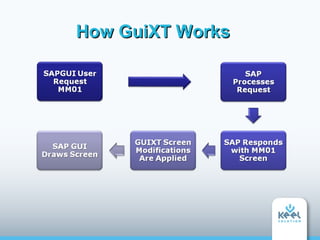
How GuiXT Works
Technology


    GuiXT is based on a simple scripting
    language.

    Screen layout changes does not affect your
    ABAP program code.

    You define the layout of an SAP screen in the
    form of a series of commands.
Create and edit a GuiXT script


  How do I create and edit a
       GuiXT script?
Activate GuiXT


    Log on to SAP

    Go to the SAP screen that you wish to modify

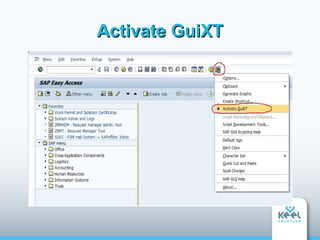
    Click on Customize Local Layout (Alt+F12)

    Put a check box on Activate GuiXT element
Activate GuiXT
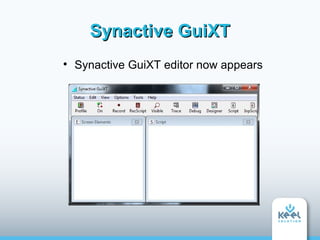
Synactive GuiXT

    Synactive GuiXT editor now appears
Next Steps of Action


    Go to the SAP screen that you wish to modify

    Click on Edit->Script in the GuiXT Menu.

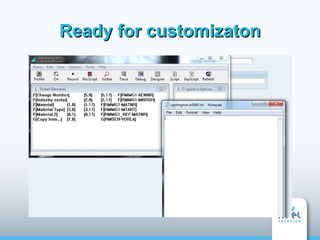
    Now the text editor (Notepad) for the
    corresponding script is started.
Ready for customizaton
Additional Synactive products

    GuiXT is provided free, bundled with SAP GUI.
    There are three optional add-on components:

       Designer

       InputAssistant

       Viewer
Designer


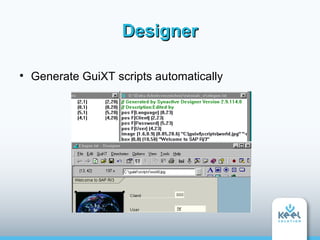
    Generate GuiXT scripts automatically
Designer


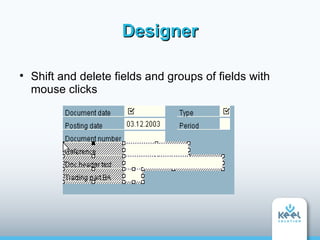
    Shift and delete fields and groups of fields with
    mouse clicks
Designer


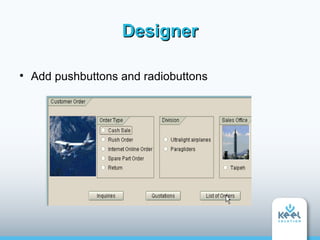
    Add pushbuttons and radiobuttons
Designer


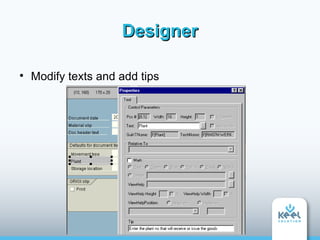
    Modify texts and add tips
InputAssistant

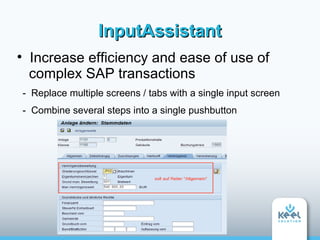
     Increase efficiency and ease of use of
     complex SAP transactions
    - Replace multiple screens / tabs with a single input screen
    - Combine several steps into a single pushbutton
InputAssistant


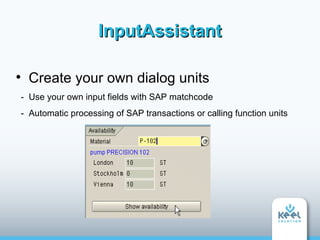
     Create your own dialog units
    - Use your own input fields with SAP matchcode
    - Automatic processing of SAP transactions or calling function units
InputAssistant


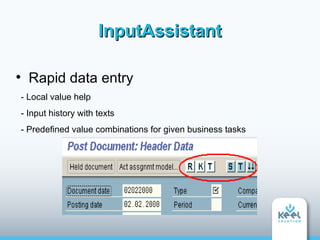
      Rapid data entry
    - Local value help
    - Input history with texts
    - Predefined value combinations for given business tasks
Viewer


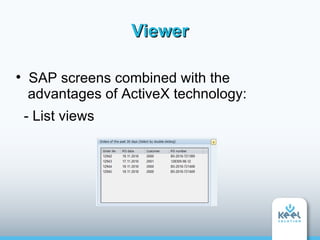
    SAP screens combined with the
    advantages of ActiveX technology:
    - List views
Viewer


    SAP screens combined with the
    advantages of ActiveX technology:
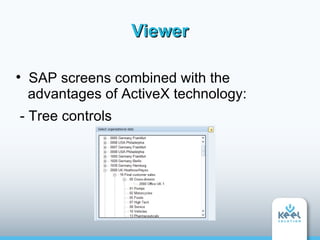
- Tree controls
Viewer


    SAP screens combined with the
    advantages of ActiveX technology:
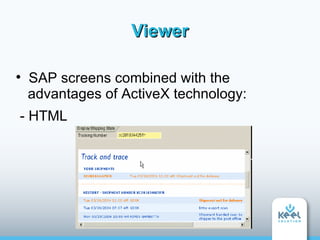
- HTML
Thank you!

Gui xt(edited)

  • 1.
  • 2.
  • 3.
    What is GuiXT  Client–server system that provides user interface customization to SAP solutions.  Completely integrated with SAP, GuiXT solutions operate independently of SAP solutions.  GuiXT Solutions users report greatly improved productivity and accuracy.  Reduces training and support costs.
  • 4.
    Purpose of GuiXT  With GuiXT you can add comfort, speed and intuition to your use of the SAP system.  Writing only a few lines, you can integrate images and texts into the SAP form.  Rearranging fields, offer radio buttons instead of coded input.  Create on screen push buttons for selected functions with desired functionality.
  • 5.
  • 6.
    Technology  GuiXT is based on a simple scripting language.  Screen layout changes does not affect your ABAP program code.  You define the layout of an SAP screen in the form of a series of commands.
  • 7.
    Create and edita GuiXT script How do I create and edit a GuiXT script?
  • 8.
    Activate GuiXT  Log on to SAP  Go to the SAP screen that you wish to modify  Click on Customize Local Layout (Alt+F12)  Put a check box on Activate GuiXT element
  • 9.
  • 10.
    Synactive GuiXT  Synactive GuiXT editor now appears
  • 11.
    Next Steps ofAction  Go to the SAP screen that you wish to modify  Click on Edit->Script in the GuiXT Menu.  Now the text editor (Notepad) for the corresponding script is started.
  • 12.
  • 13.
    Additional Synactive products GuiXT is provided free, bundled with SAP GUI. There are three optional add-on components:  Designer  InputAssistant  Viewer
  • 14.
    Designer  Generate GuiXT scripts automatically
  • 15.
    Designer  Shift and delete fields and groups of fields with mouse clicks
  • 16.
    Designer  Add pushbuttons and radiobuttons
  • 17.
    Designer  Modify texts and add tips
  • 18.
    InputAssistant  Increase efficiency and ease of use of complex SAP transactions - Replace multiple screens / tabs with a single input screen - Combine several steps into a single pushbutton
  • 19.
    InputAssistant  Create your own dialog units - Use your own input fields with SAP matchcode - Automatic processing of SAP transactions or calling function units
  • 20.
    InputAssistant  Rapid data entry - Local value help - Input history with texts - Predefined value combinations for given business tasks
  • 21.
    Viewer  SAP screens combined with the advantages of ActiveX technology: - List views
  • 22.
    Viewer  SAP screens combined with the advantages of ActiveX technology: - Tree controls
  • 23.
    Viewer  SAP screens combined with the advantages of ActiveX technology: - HTML
  • 24.