Git with the Flow
By Dana White
Who is Dana White?
● This guy
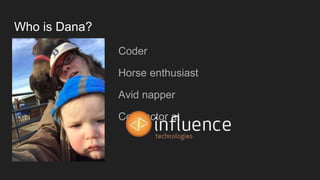
Who is Dana?
● Coder
● Horse enthusiast
● Avid napper
● Contractor at
What is Git?
● Git is a version control system
What is a version control system?
● “Version control is a system that records changes to a file
or set of files over time so that you can recall specific
versions later.” - git-scm
● VCSs allow you to collaborate easily with other
developers, designers, etc
● VCSs allow you to blame others for issues in the code and
mock them
Why is Git different?
● Git is a Distributed Version Control System
● Git is not a Centralized Version Control System
Centralized Version Control System
● A single server has the full repository
● Clients check out latest snapshot
● Must be connected to server checkout and commit code
● SINGLE POINT OF FAILURE
● Popular (?) CVCSs: CVS, SVN
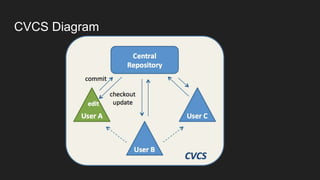
CVCS Diagram
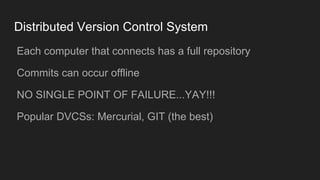
Distributed Version Control System
● Each computer that connects has a full repository
● Commits can occur offline
● NO SINGLE POINT OF FAILURE...YAY!!!
● Popular DVCSs: Mercurial, GIT (the best)
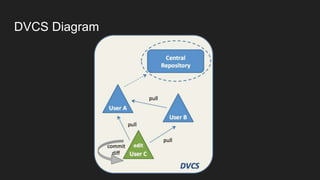
DVCS Diagram
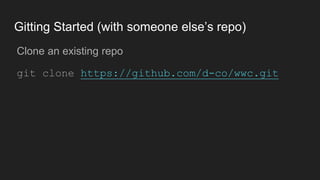
Gitting Started (with someone else’s repo)
● Clone an existing repo
● git clone https://github.com/d-co/wwc.git
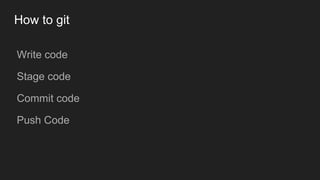
How to git
● Write code
● Stage code
● Commit code
● Push Code
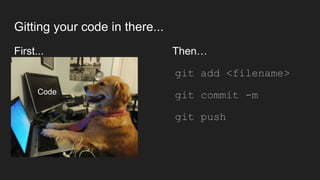
Gitting your code in there...
First... Then…
● git add <filename>
● git commit -m
● git push
Code
A quick word about “git add”
● The git add command stages a file for commit
● Adds and stages a previously un-revisioned file
● Stages a modified file for commit
● You could use git commit -a
○ but you’d be wrong
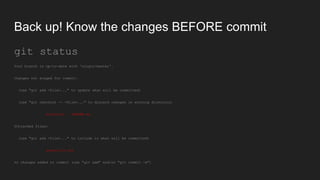
Back up! Know the changes BEFORE commit
git status
Your branch is up-to-date with 'origin/master'.
Changes not staged for commit:
(use "git add <file>..." to update what will be committed)
(use "git checkout -- <file>..." to discard changes in working directory)
modified: README.md
Untracked files:
(use "git add <file>..." to include in what will be committed)
atextfile.txt
no changes added to commit (use "git add" and/or "git commit -a")
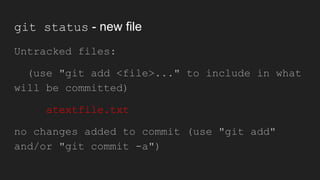
git status - new file
Untracked files:
(use "git add <file>..." to include in what
will be committed)
atextfile.txt
no changes added to commit (use "git add"
and/or "git commit -a")
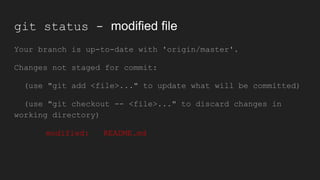
git status - modified file
Your branch is up-to-date with 'origin/master'.
Changes not staged for commit:
(use "git add <file>..." to update what will be committed)
(use "git checkout -- <file>..." to discard changes in
working directory)
modified: README.md
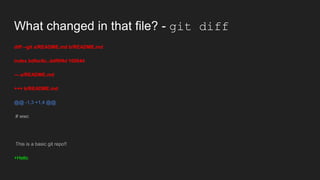
What changed in that file? - git diff
diff --git a/README.md b/README.md
index bdfac6c..ddf9f4d 100644
--- a/README.md
+++ b/README.md
@@ -1,3 +1,4 @@
# wwc
This is a basic git repo!!
+Hello
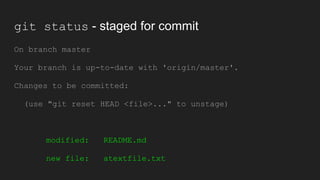
git status - staged for commit
On branch master
Your branch is up-to-date with 'origin/master'.
Changes to be committed:
(use "git reset HEAD <file>..." to unstage)
modified: README.md
new file: atextfile.txt
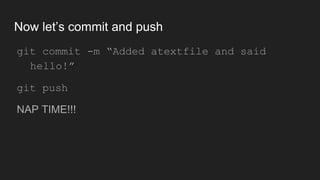
Now let’s commit and push
● git commit -m “Added atextfile and said
hello!”
● git push
● NAP TIME!!!
Gitting changes from others
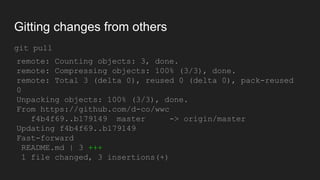
git pull
remote: Counting objects: 3, done.
remote: Compressing objects: 100% (3/3), done.
remote: Total 3 (delta 0), reused 0 (delta 0),
pack-reused 0
Unpacking objects: 100% (3/3), done.
From https://github.com/d-co/wwc
f4b4f69..b179149 master -> origin/master
Updating f4b4f69..b179149
Fast-forward
README.md | 3 +++
1 file changed, 3 insertions(+)
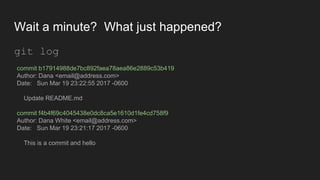
Wait a minute? What just happened?
git log
commit b17914988de7bc892faea78aea86e2889c53b419
Author: Dana <email@address.com>
Date: Sun Mar 19 23:22:55 2017 -0600
Update README.md
commit f4b4f69c4045438e0dc8ca5e1610d1fe4cd758f9
Author: Dana White <email@address.com>
Date: Sun Mar 19 23:21:17 2017 -0600
This is a commit and hello
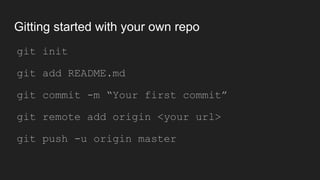
Gitting started with your own repo
● git init
● git add README.md
● git commit -m “Your first commit”
● git remote add origin <your url>
● git push -u origin master
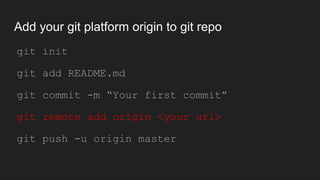
Add your git platform origin to git repo
● git init
● git add README.md
● git commit -m “Your first commit”
● git remote add origin <your url>
● git push -u origin master
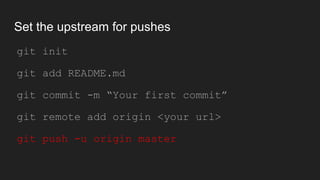
Set the upstream for pushes
● git init
● git add README.md
● git commit -m “Your first commit”
● git remote add origin <your url>
● git push -u origin master
Branches
● Independent line of development
● Represents brand new dev, staging environment and
project history
● I stole this from
https://www.atlassian.com/git/tutorials/using-branches
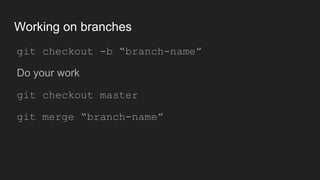
Working on branches
● git checkout -b “branch-name”
● Do your work
● git checkout master
● git merge “branch-name”
And that’s all you need to know about git!!!
Provided nothing goes wrong….
Or you need to collaborate
Or maintain releases
Or just follow some best
practices so you’re not
constantly overwriting
what’s in production with no
way of easily going back
Git into trouble?
Something comes up
● Doing work
● Oh no, quick pivot!!
● Follow these steps
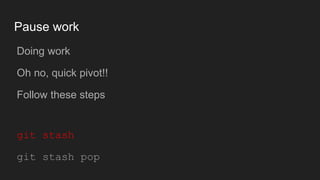
Pause work
● Doing work
● Oh no, quick pivot!!
● Follow these steps
● git stash
● git stash pop
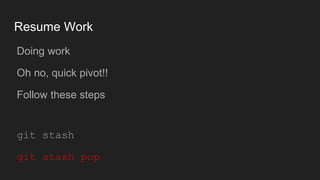
Resume Work
● Doing work
● Oh no, quick pivot!!
● Follow these steps
● git stash
● git stash pop
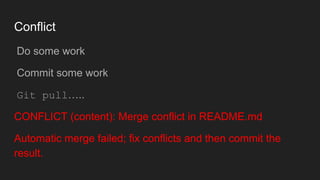
Conflict
● Do some work
● Commit some work
● Git pull…..
CONFLICT (content): Merge conflict in README.md
Automatic merge failed; fix conflicts and then commit the
result.
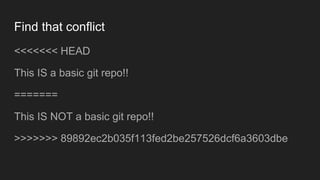
Find that conflict
<<<<<<< HEAD
This IS a basic git repo!!
=======
This IS NOT a basic git repo!!
>>>>>>> 89892ec2b035f113fed2be257526dcf6a3603dbe
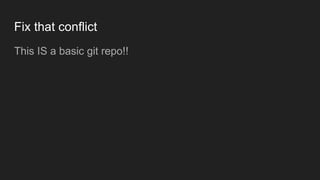
Fix that conflict
This IS a basic git repo!!
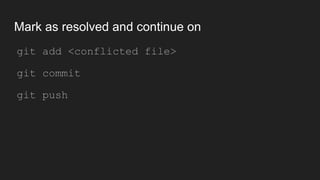
Mark as resolved and continue on
● git add <conflicted file>
● git commit
● git push
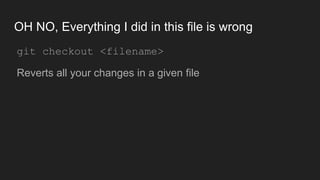
OH NO, Everything I did in this file is wrong
● git checkout <filename>
● Reverts all your changes in a given file
OH NO, Everything I did in this whole repo is wrong
● git reset --hard
● Reverts all your changes back to HEAD
OH NO, I forgot <insert thing> with that commit
● git commit --amend
● Allows you to add a file
● Change a commit message
● All around just fix what you forgot in the last commit
OH NO, Revert that commit
● git revert <commit>
● Creates a new commit
● Doesn’t overwrite history
● SAFE
OH NO, I need to kill everything about that
● git rebase/git rebase -i
● Re-writes history
● Use with CAUTION
● UNSAFE
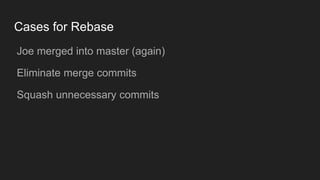
Cases for Rebase
● Joe merged into master (again)
● Eliminate merge commits
● Squash unnecessary commits
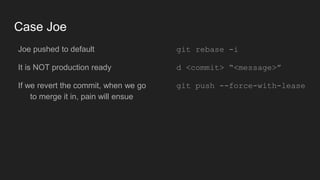
Case Joe
● Joe pushed to default
● It is NOT production ready
● If we revert the commit, when we
go to merge it in, pain will ensue
● git rebase -i
● d <commit> “<message>”
● git push
--force-with-lease
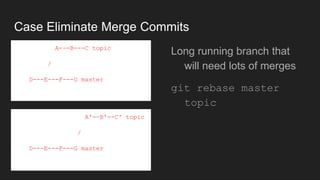
Case Eliminate Merge Commits
A---B---C topic
/
D---E---F---G master
● Long running branch
that will need lots of
merges
● git rebase master
topic
A'--B'--C' topic
/
D---E---F---G master
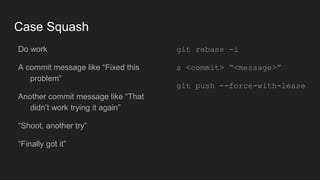
Case Squash
● Do work
● A commit message like “Fixed
this problem”
● Another commit message like
“That didn’t work trying it again”
● “Shoot, another try”
● “Finally got it”
● git rebase -i
● s <commit> “<message>”
● git push
--force-with-lease
The Flow
What is Git Flow?
● A strategy for branching
● Creates an environment for independent, concurrent
development
● Maintains release branches and versions
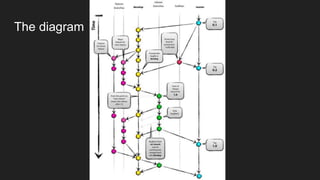
The diagram
The branches
● master
● develop
● feature branches
● hotfix branches
● release branches
Master Branch
● Should mirror production
● Or be just about to be pushed to production
● Tagged with release numbers
Develop Branch
● Represents what’s currently be developed
● Branched from master
Feature Branches
● Represents a new feature
● Corresponds to one ticket in bug tracking (that’s just me)
● Typically worked on individually or by small team
● Branched off of develop
● Merged into develop
● Naming convention feature/<what’s-my-feature>
Hotfix branches
● Production emergency releases
● Outside of “normal” release
● Branched directly from master
● Merged back into master
● Naming convention: hotfix/<summary-of-hotfix>
Release branches
● The next batch of features to go into production
● Represents a sprint/cycle, whatever flow you’re using
● Branched off of develop
● Merges back into develop and master
● Naming convention: release/<version>
Why flow?
● Features are independent
● Master is always ready for a hotfix
● Allows for lots of different things with minimal toe-stepping
● Great for development with release cycles
Some Advanced Git
Git bisect -- Finding a broken commit
1. Find a commit where things are working
2. Find a commit where things aren’t working
3. Start git bisect
4. Git keeps finding middle point of a bisect and you tell it
what’s good and bad until you’ve traced it down
Git bisect - cont’d
● git bisect start
● git bisect good <commit>
● git bisect bad <commit>
● Mark each commit as good or bad until you find the first
bad commit
Git cherry-pick -- I just need that one thing
● There’s only one commit you need from a branch
● git cherry-pick <commit>
● Merge that one in
Gitignore
● Add a .gitignore file to your repo
● It tells git what to ignore when checking in
● Removes noise about un-revisioned IDE files
Git blame -- who screwed this up
● Traces file changes by username
● One of the few times I prefer a visual client
● git blame <filename>
Resources
Online repos
● BitBucket https://bitbucket.org/product
● GitHub https://github.com/
● Gitlab https://about.gitlab.com/
Git clients...why don’t you like command line???
● SourceTree https://www.sourcetreeapp.com/
● Tortoise (Windows) https://tortoisegit.org/
● Magit https://magit.vc/ -- I don’t know why you need a
client for Emacs, you should just suck it up and do
command line already
● Your IDE - probably
Git HELP!!!
● Git page https://git-scm.com/docs
● StackOverflow https://stackoverflow.com/
● The google (which will probably take you to one of the two
above)
Git with the flow

Git with the flow

  • 1.
    Git with theFlow By Dana White
  • 2.
    Who is DanaWhite? ● This guy
  • 3.
    Who is Dana? ●Coder ● Horse enthusiast ● Avid napper ● Contractor at
  • 4.
    What is Git? ●Git is a version control system
  • 5.
    What is aversion control system? ● “Version control is a system that records changes to a file or set of files over time so that you can recall specific versions later.” - git-scm ● VCSs allow you to collaborate easily with other developers, designers, etc ● VCSs allow you to blame others for issues in the code and mock them
  • 6.
    Why is Gitdifferent? ● Git is a Distributed Version Control System ● Git is not a Centralized Version Control System
  • 7.
    Centralized Version ControlSystem ● A single server has the full repository ● Clients check out latest snapshot ● Must be connected to server checkout and commit code ● SINGLE POINT OF FAILURE ● Popular (?) CVCSs: CVS, SVN
  • 8.
  • 9.
    Distributed Version ControlSystem ● Each computer that connects has a full repository ● Commits can occur offline ● NO SINGLE POINT OF FAILURE...YAY!!! ● Popular DVCSs: Mercurial, GIT (the best)
  • 10.
  • 11.
    Gitting Started (withsomeone else’s repo) ● Clone an existing repo ● git clone https://github.com/d-co/wwc.git
  • 12.
    How to git ●Write code ● Stage code ● Commit code ● Push Code
  • 13.
    Gitting your codein there... First... Then… ● git add <filename> ● git commit -m ● git push Code
  • 14.
    A quick wordabout “git add” ● The git add command stages a file for commit ● Adds and stages a previously un-revisioned file ● Stages a modified file for commit ● You could use git commit -a ○ but you’d be wrong
  • 15.
    Back up! Knowthe changes BEFORE commit git status Your branch is up-to-date with 'origin/master'. Changes not staged for commit: (use "git add <file>..." to update what will be committed) (use "git checkout -- <file>..." to discard changes in working directory) modified: README.md Untracked files: (use "git add <file>..." to include in what will be committed) atextfile.txt no changes added to commit (use "git add" and/or "git commit -a")
  • 16.
    git status -new file Untracked files: (use "git add <file>..." to include in what will be committed) atextfile.txt no changes added to commit (use "git add" and/or "git commit -a")
  • 17.
    git status -modified file Your branch is up-to-date with 'origin/master'. Changes not staged for commit: (use "git add <file>..." to update what will be committed) (use "git checkout -- <file>..." to discard changes in working directory) modified: README.md
  • 18.
    What changed inthat file? - git diff diff --git a/README.md b/README.md index bdfac6c..ddf9f4d 100644 --- a/README.md +++ b/README.md @@ -1,3 +1,4 @@ # wwc This is a basic git repo!! +Hello
  • 19.
    git status -staged for commit On branch master Your branch is up-to-date with 'origin/master'. Changes to be committed: (use "git reset HEAD <file>..." to unstage) modified: README.md new file: atextfile.txt
  • 20.
    Now let’s commitand push ● git commit -m “Added atextfile and said hello!” ● git push ● NAP TIME!!!
  • 21.
    Gitting changes fromothers git pull remote: Counting objects: 3, done. remote: Compressing objects: 100% (3/3), done. remote: Total 3 (delta 0), reused 0 (delta 0), pack-reused 0 Unpacking objects: 100% (3/3), done. From https://github.com/d-co/wwc f4b4f69..b179149 master -> origin/master Updating f4b4f69..b179149 Fast-forward README.md | 3 +++ 1 file changed, 3 insertions(+)
  • 22.
    Wait a minute?What just happened? git log commit b17914988de7bc892faea78aea86e2889c53b419 Author: Dana <email@address.com> Date: Sun Mar 19 23:22:55 2017 -0600 Update README.md commit f4b4f69c4045438e0dc8ca5e1610d1fe4cd758f9 Author: Dana White <email@address.com> Date: Sun Mar 19 23:21:17 2017 -0600 This is a commit and hello
  • 23.
    Gitting started withyour own repo ● git init ● git add README.md ● git commit -m “Your first commit” ● git remote add origin <your url> ● git push -u origin master
  • 24.
    Add your gitplatform origin to git repo ● git init ● git add README.md ● git commit -m “Your first commit” ● git remote add origin <your url> ● git push -u origin master
  • 25.
    Set the upstreamfor pushes ● git init ● git add README.md ● git commit -m “Your first commit” ● git remote add origin <your url> ● git push -u origin master
  • 26.
    Branches ● Independent lineof development ● Represents brand new dev, staging environment and project history ● I stole this from https://www.atlassian.com/git/tutorials/using-branches
  • 27.
    Working on branches ●git checkout -b “branch-name” ● Do your work ● git checkout master ● git merge “branch-name”
  • 28.
    And that’s allyou need to know about git!!!
  • 29.
    Provided nothing goeswrong…. Or you need to collaborate Or maintain releases Or just follow some best practices so you’re not constantly overwriting what’s in production with no way of easily going back
  • 30.
  • 31.
    Something comes up ●Doing work ● Oh no, quick pivot!! ● Follow these steps
  • 32.
    Pause work ● Doingwork ● Oh no, quick pivot!! ● Follow these steps ● git stash ● git stash pop
  • 33.
    Resume Work ● Doingwork ● Oh no, quick pivot!! ● Follow these steps ● git stash ● git stash pop
  • 34.
    Conflict ● Do somework ● Commit some work ● Git pull….. CONFLICT (content): Merge conflict in README.md Automatic merge failed; fix conflicts and then commit the result.
  • 35.
    Find that conflict <<<<<<<HEAD This IS a basic git repo!! ======= This IS NOT a basic git repo!! >>>>>>> 89892ec2b035f113fed2be257526dcf6a3603dbe
  • 36.
    Fix that conflict ThisIS a basic git repo!!
  • 37.
    Mark as resolvedand continue on ● git add <conflicted file> ● git commit ● git push
  • 38.
    OH NO, EverythingI did in this file is wrong ● git checkout <filename> ● Reverts all your changes in a given file
  • 39.
    OH NO, EverythingI did in this whole repo is wrong ● git reset --hard ● Reverts all your changes back to HEAD
  • 40.
    OH NO, Iforgot <insert thing> with that commit ● git commit --amend ● Allows you to add a file ● Change a commit message ● All around just fix what you forgot in the last commit
  • 41.
    OH NO, Revertthat commit ● git revert <commit> ● Creates a new commit ● Doesn’t overwrite history ● SAFE
  • 42.
    OH NO, Ineed to kill everything about that ● git rebase/git rebase -i ● Re-writes history ● Use with CAUTION ● UNSAFE
  • 43.
    Cases for Rebase ●Joe merged into master (again) ● Eliminate merge commits ● Squash unnecessary commits
  • 44.
    Case Joe ● Joepushed to default ● It is NOT production ready ● If we revert the commit, when we go to merge it in, pain will ensue ● git rebase -i ● d <commit> “<message>” ● git push --force-with-lease
  • 45.
    Case Eliminate MergeCommits A---B---C topic / D---E---F---G master ● Long running branch that will need lots of merges ● git rebase master topic A'--B'--C' topic / D---E---F---G master
  • 46.
    Case Squash ● Dowork ● A commit message like “Fixed this problem” ● Another commit message like “That didn’t work trying it again” ● “Shoot, another try” ● “Finally got it” ● git rebase -i ● s <commit> “<message>” ● git push --force-with-lease
  • 47.
  • 48.
    What is GitFlow? ● A strategy for branching ● Creates an environment for independent, concurrent development ● Maintains release branches and versions
  • 49.
  • 50.
    The branches ● master ●develop ● feature branches ● hotfix branches ● release branches
  • 51.
    Master Branch ● Shouldmirror production ● Or be just about to be pushed to production ● Tagged with release numbers
  • 52.
    Develop Branch ● Representswhat’s currently be developed ● Branched from master
  • 53.
    Feature Branches ● Representsa new feature ● Corresponds to one ticket in bug tracking (that’s just me) ● Typically worked on individually or by small team ● Branched off of develop ● Merged into develop ● Naming convention feature/<what’s-my-feature>
  • 54.
    Hotfix branches ● Productionemergency releases ● Outside of “normal” release ● Branched directly from master ● Merged back into master ● Naming convention: hotfix/<summary-of-hotfix>
  • 55.
    Release branches ● Thenext batch of features to go into production ● Represents a sprint/cycle, whatever flow you’re using ● Branched off of develop ● Merges back into develop and master ● Naming convention: release/<version>
  • 56.
    Why flow? ● Featuresare independent ● Master is always ready for a hotfix ● Allows for lots of different things with minimal toe-stepping ● Great for development with release cycles
  • 57.
  • 58.
    Git bisect --Finding a broken commit 1. Find a commit where things are working 2. Find a commit where things aren’t working 3. Start git bisect 4. Git keeps finding middle point of a bisect and you tell it what’s good and bad until you’ve traced it down
  • 59.
    Git bisect -cont’d ● git bisect start ● git bisect good <commit> ● git bisect bad <commit> ● Mark each commit as good or bad until you find the first bad commit
  • 60.
    Git cherry-pick --I just need that one thing ● There’s only one commit you need from a branch ● git cherry-pick <commit> ● Merge that one in
  • 61.
    Gitignore ● Add a.gitignore file to your repo ● It tells git what to ignore when checking in ● Removes noise about un-revisioned IDE files
  • 62.
    Git blame --who screwed this up ● Traces file changes by username ● One of the few times I prefer a visual client ● git blame <filename>
  • 63.
  • 64.
    Online repos ● BitBuckethttps://bitbucket.org/product ● GitHub https://github.com/ ● Gitlab https://about.gitlab.com/
  • 65.
    Git clients...why don’tyou like command line??? ● SourceTree https://www.sourcetreeapp.com/ ● Tortoise (Windows) https://tortoisegit.org/ ● Magit https://magit.vc/ -- I don’t know why you need a client for Emacs, you should just suck it up and do command line already ● Your IDE - probably
  • 66.
    Git HELP!!! ● Gitpage https://git-scm.com/docs ● StackOverflow https://stackoverflow.com/ ● The google (which will probably take you to one of the two above)