
Getting Started with Oracle SoA
Oracle SOA Working with Fault Policies Lab#10

Description:
BISP is committed to provide BEST learning material to the beginners
and advance learners. In the same series, we have prepared a complete
end-to end Hands-on Beginner’s Guide for Oracle SoA. The document
focuses on Project on fault policies. Join our professional training program
and learn from experts.

History:
Version
0.1
0.1

Description Change
Initial Draft
Review#1

www.bispsolutions.com

Author
Shiva Kant Pandey
Amit Sharma

www.bisptrainigs.com

Publish Date
21st Aug 2012
29th Aug 2012

www.hyperionguru.com

Page 1
Contents
Contents....................................................................................................................................... 2
Project on fault policies................................................................................................................ 3
Stepwise procedure to study faultpolicies file :............................................................................4
Step wise procedure of project on topper student project with fault handling (fault policies):...11
.................................................................................................................................................. 80

www.bispsolutions.com

www.bisptrainigs.com

www.hyperionguru.com

Page 2
Project on fault policies
Overview
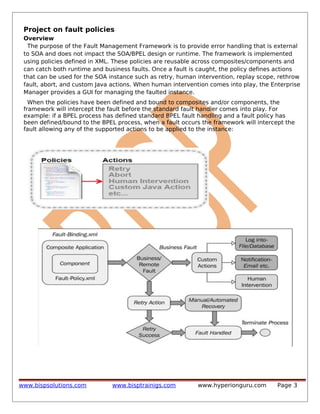
The purpose of the Fault Management Framework is to provide error handling that is external
to SOA and does not impact the SOA/BPEL design or runtime. The framework is implemented
using policies defined in XML. These policies are reusable across composites/components and
can catch both runtime and business faults. Once a fault is caught, the policy defines actions
that can be used for the SOA instance such as retry, human intervention, replay scope, rethrow
fault, abort, and custom Java actions. When human intervention comes into play, the Enterprise
Manager provides a GUI for managing the faulted instance.
When the policies have been defined and bound to composites and/or components, the
framework will intercept the fault before the standard fault handler comes into play. For
example: if a BPEL process has defined standard BPEL fault handling and a fault policy has
been defined/bound to the BPEL process, when a fault occurs the framework will intercept the
fault allowing any of the supported actions to be applied to the instance:

www.bispsolutions.com

www.bisptrainigs.com

www.hyperionguru.com

Page 3
Stepwise procedure to study faultpolicies file :
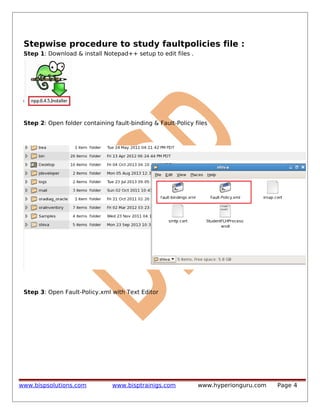
Step 1: Download & install Notepad++ setup to edit files .

Step 2: Open folder containing fault-binding & Fault-Policy files

Step 3: Open Fault-Policy.xml with Text Editor

www.bispsolutions.com

www.bisptrainigs.com

www.hyperionguru.com

Page 4
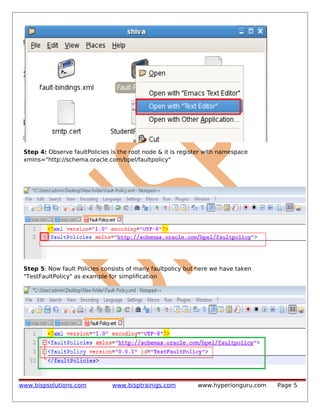
Step 4: Observe faultPolicies is the root node & it is register with namespace
xmlns="http://schema.oracle.com/bpel/faultpolicy"

Step 5: Now fault Policies consists of many faultpolicy but here we have taken
"TestFaultPolicy" as example for simplification

www.bispsolutions.com

www.bisptrainigs.com

www.hyperionguru.com

Page 5
www.bispsolutions.com

www.bisptrainigs.com

www.hyperionguru.com

Page 6
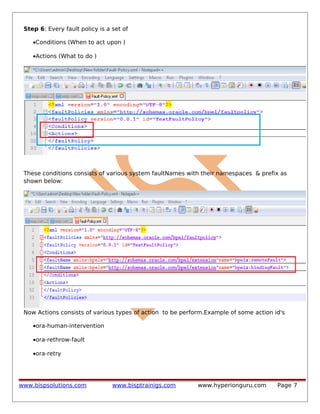
Step 6: Every fault policy is a set of
•Conditions (When to act upon )
•Actions (What to do )

These conditions consists of various system faultNames with their namespaces & prefix as
shown below:

Now Actions consists of various types of action to be perform.Example of some action id's
•ora-human-intervention
•ora-rethrow-fault
•ora-retry

www.bispsolutions.com

www.bisptrainigs.com

www.hyperionguru.com

Page 7
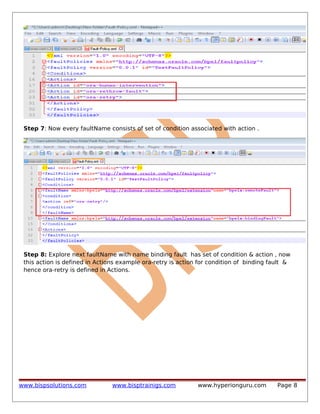
Step 7: Now every faultName consists of set of condition associated with action .

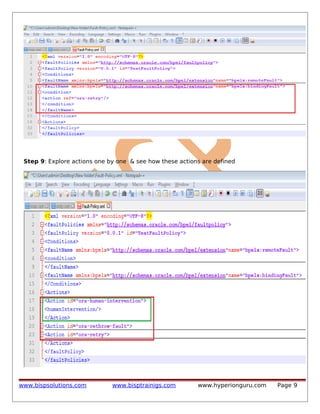
Step 8: Explore next faultName with name binding fault has set of condition & action , now
this action is defined in Actions example ora-retry is action for condition of binding fault &
hence ora-retry is defined in Actions.

www.bispsolutions.com

www.bisptrainigs.com

www.hyperionguru.com

Page 8
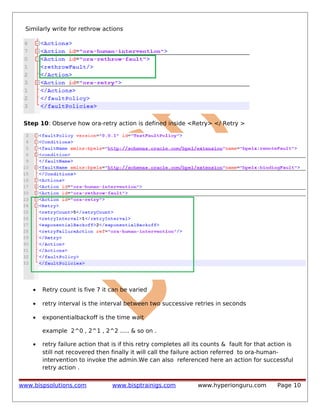
Step 9: Explore actions one by one & see how these actions are defined

www.bispsolutions.com

www.bisptrainigs.com

www.hyperionguru.com

Page 9
Similarly write for rethrow actions

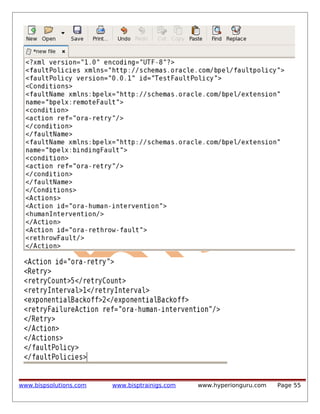
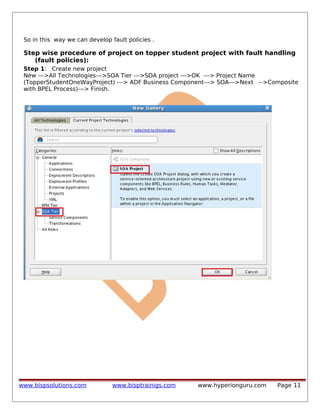
Step 10: Observe how ora-retry action is defined inside <Retry> </ Retry >

•

Retry count is five 7 it can be varied

•

retry interval is the interval between two successive retries in seconds

•

exponentialbackoff is the time wait
example 2^0 , 2^1 , 2^2 ..... & so on .

•

retry failure action that is if this retry completes all its counts & fault for that action is
still not recovered then finally it will call the failure action referred to ora-humanintervention to invoke the admin.We can also referenced here an action for successful
retry action .

www.bispsolutions.com

www.bisptrainigs.com

www.hyperionguru.com

Page 10
So in this way we can develop fault policies .

Step wise procedure of project on topper student project with fault handling
(fault policies):
Step 1: Create new project
New --->All Technologies--->SOA Tier --->SOA project --->OK ---> Project Name
(TopperStudentOneWayProject) ---> ADF Business Component---> SOA--->Next -->Composite
with BPEL Process)---> Finish.

www.bispsolutions.com

www.bisptrainigs.com

www.hyperionguru.com

Page 11
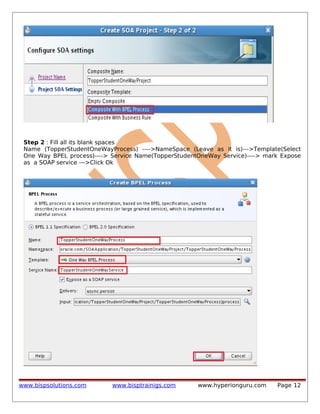
Step 2 : Fill all its blank spaces
Name (TopperStudentOneWayProcess) ---->NameSpace (Leave as it is)--->Template(Select
One Way BPEL process)----> Service Name(TopperStudentOneWay Service)----> mark Expose
as a SOAP service --->Click Ok

www.bispsolutions.com

www.bisptrainigs.com

www.hyperionguru.com

Page 12
Step 3: Open Composite.xml & observe BPEL Process

Step 4: Click on TopperStudentOnewayProcess.xsd & it is automatically generated xsd for one
way bpel process .

Step 5: Go to Home ---> open jdeveloper ---> my work ----> SOAApplication --->
TopperStudentproject---> xsd----> copy [Error.xsd, Student.xsd,StudentList.xsd]

www.bispsolutions.com

www.bisptrainigs.com

www.hyperionguru.com

Page 13
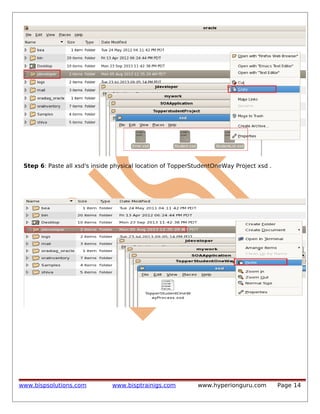
Step 6: Paste all xsd's inside physical location of TopperStudentOneWay Project xsd .

www.bispsolutions.com

www.bisptrainigs.com

www.hyperionguru.com

Page 14
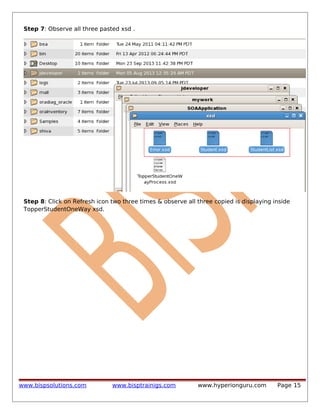
Step 7: Observe all three pasted xsd .

Step 8: Click on Refresh icon two three times & observe all three copied is displaying inside
TopperStudentOneWay xsd.

www.bispsolutions.com

www.bisptrainigs.com

www.hyperionguru.com

Page 15
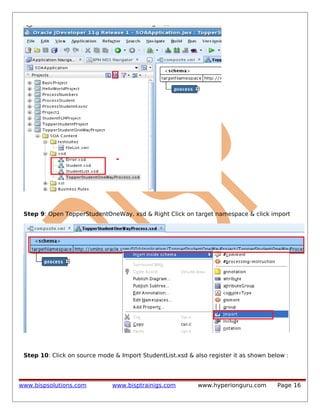
Step 9: Open TopperStudentOneWay. xsd & Right Click on target namespace & click import

Step 10: Click on source mode & Import StudentList.xsd & also register it as shown below :

www.bispsolutions.com

www.bisptrainigs.com

www.hyperionguru.com

Page 16
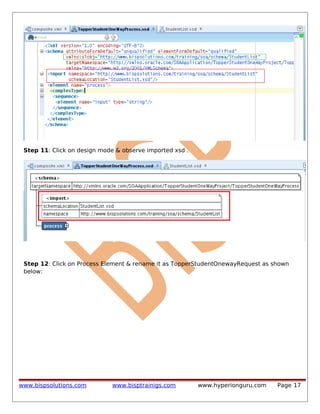
Step 11: Click on design mode & observe imported xsd .

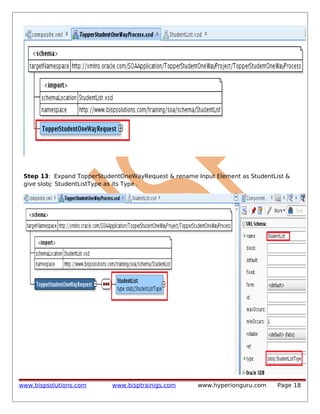
Step 12: Click on Process Element & rename it as TopperStudentOnewayRequest as shown
below:

www.bispsolutions.com

www.bisptrainigs.com

www.hyperionguru.com

Page 17
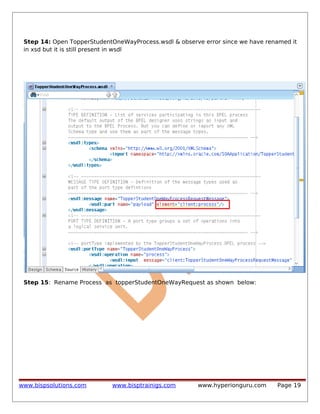
Step 13: Expand TopperStudentOneWayRequest & rename Input Element as StudentList &
give slobj: StudentListType as its Type .

www.bispsolutions.com

www.bisptrainigs.com

www.hyperionguru.com

Page 18
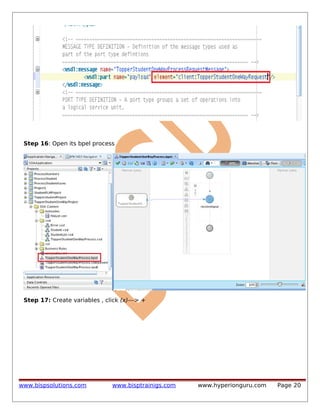
Step 14: Open TopperStudentOneWayProcess.wsdl & observe error since we have renamed it
in xsd but it is still present in wsdl

Step 15: Rename Process as topperStudentOneWayRequest as shown below:

www.bispsolutions.com

www.bisptrainigs.com

www.hyperionguru.com

Page 19
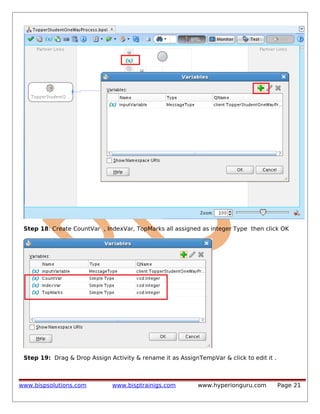
Step 16: Open its bpel process

Step 17: Create variables , click (x)---> +

www.bispsolutions.com

www.bisptrainigs.com

www.hyperionguru.com

Page 20
Step 18: Create CountVar , IndexVar, TopMarks all assigned as integer Type then click OK

Step 19: Drag & Drop Assign Activity & rename it as AssignTempVar & click to edit it .

www.bispsolutions.com

www.bisptrainigs.com

www.hyperionguru.com

Page 21
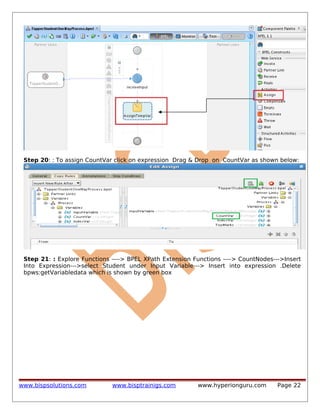
Step 20: : To assign CountVar click on expression Drag & Drop on CountVar as shown below:

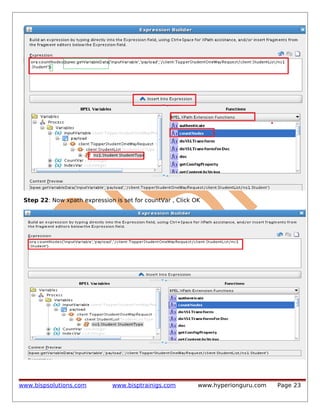
Step 21: : Explore Functions ----> BPEL XPath Extension Functions ----> CountNodes--->Insert
Into Expression--->select Student under Input Variable---> Insert into expression .Delete
bpws:getVariabledata which is shown by green box

www.bispsolutions.com

www.bisptrainigs.com

www.hyperionguru.com

Page 22
Step 22: Now xpath expression is set for countVar , Click OK

www.bispsolutions.com

www.bisptrainigs.com

www.hyperionguru.com

Page 23
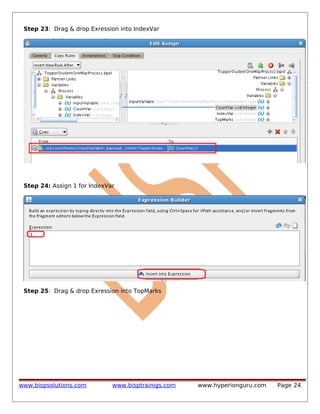
Step 23: Drag & drop Exression into IndexVar

Step 24: Assign 1 for IndexVar

Step 25: Drag & drop Exression into TopMarks

www.bispsolutions.com

www.bisptrainigs.com

www.hyperionguru.com

Page 24
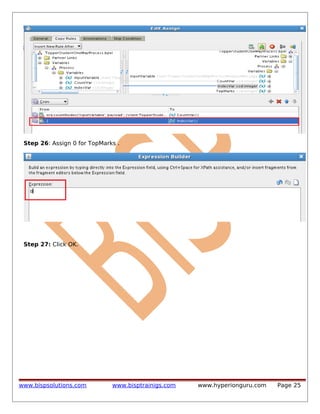
Step 26: Assign 0 for TopMarks .

Step 27: Click OK.

www.bispsolutions.com

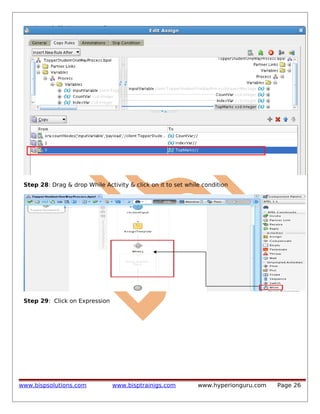
www.bisptrainigs.com

www.hyperionguru.com

Page 25
Step 28: Drag & drop While Activity & click on it to set while condition

Step 29: Click on Expression

www.bispsolutions.com

www.bisptrainigs.com

www.hyperionguru.com

Page 26
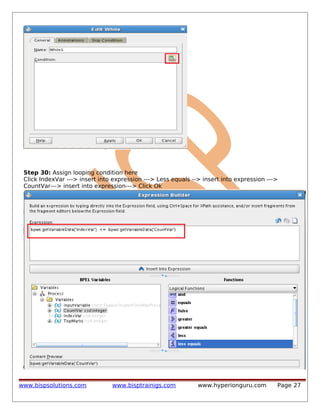
Step 30: Assign looping condition here
Click IndexVar ---> insert into expression ---> Less equals --> insert into expression --->
CountVar---> insert into expression---> Click Ok

www.bispsolutions.com

www.bisptrainigs.com

www.hyperionguru.com

Page 27
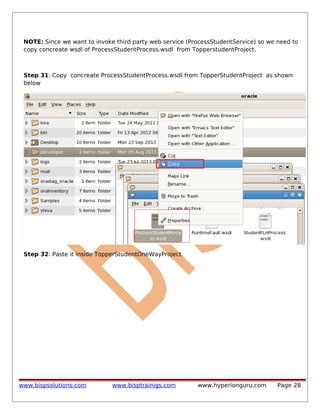
NOTE: Since we want to invoke third party web service (ProcessStudentService) so we need to
copy concreate wsdl of ProcessStudentProcess.wsdl from TopperstudentProject.

Step 31: Copy concreate ProcessStudentProcess.wsdl from TopperStudentProject as shown
below

Step 32: Paste it inside TopperStudentOneWayProject

www.bispsolutions.com

www.bisptrainigs.com

www.hyperionguru.com

Page 28
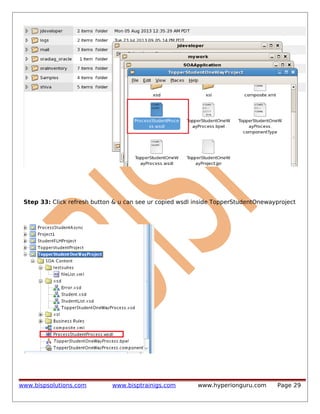
Step 33: Click refresh button & u can see ur copied wsdl inside TopperStudentOnewayproject

www.bispsolutions.com

www.bisptrainigs.com

www.hyperionguru.com

Page 29
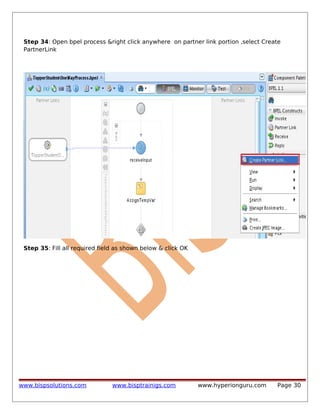
Step 34: Open bpel process &right click anywhere on partner link portion ,select Create
PartnerLink

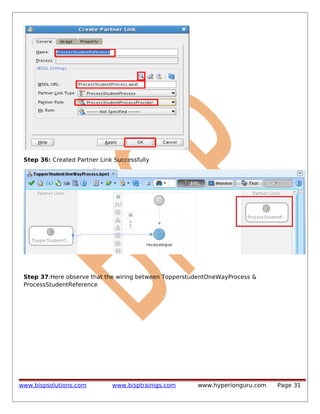
Step 35: Fill all required field as shown below & click OK

www.bispsolutions.com

www.bisptrainigs.com

www.hyperionguru.com

Page 30
Step 36: Created Partner Link Successfully

Step 37:Here observe that the wiring between TopperstudentOneWayProcess &
ProcessStudentReference

www.bispsolutions.com

www.bisptrainigs.com

www.hyperionguru.com

Page 31
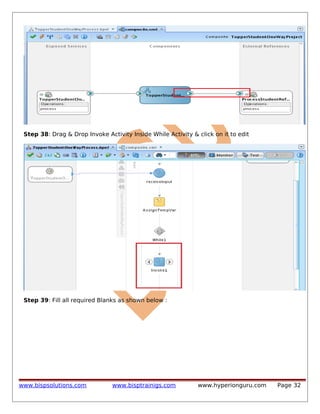
Step 38: Drag & Drop Invoke Activity Inside While Activity & click on it to edit

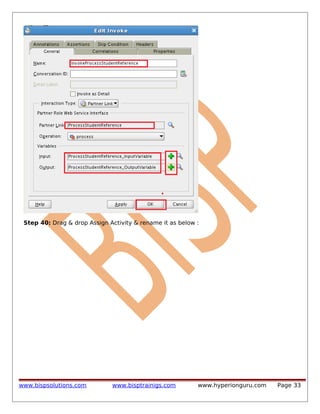
Step 39: Fill all required Blanks as shown below :

www.bispsolutions.com

www.bisptrainigs.com

www.hyperionguru.com

Page 32
Step 40: Drag & drop Assign Activity & rename it as below :

www.bispsolutions.com

www.bisptrainigs.com

www.hyperionguru.com

Page 33
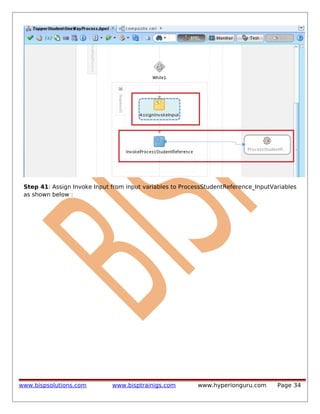
Step 41: Assign Invoke Input from input variables to ProcessStudentReference_InputVariables
as shown below :

www.bispsolutions.com

www.bisptrainigs.com

www.hyperionguru.com

Page 34
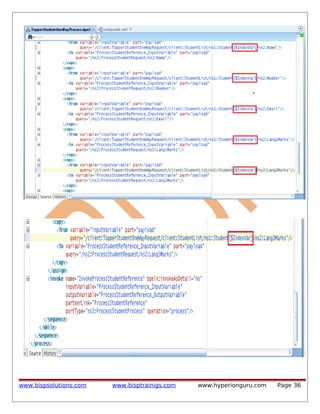
Step 42: Also make changes on TopperStudentOneWayProcess.bpel in source mode & add
[$IndexVar] after Student everywhere as shown below :

www.bispsolutions.com

www.bisptrainigs.com

www.hyperionguru.com

Page 35
www.bispsolutions.com

www.bisptrainigs.com

www.hyperionguru.com

Page 36
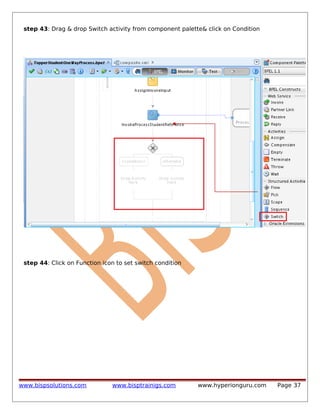
step 43: Drag & drop Switch activity from component palette& click on Condition

step 44: Click on Function icon to set switch condition

www.bispsolutions.com

www.bisptrainigs.com

www.hyperionguru.com

Page 37
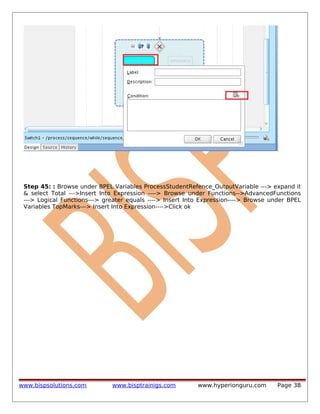
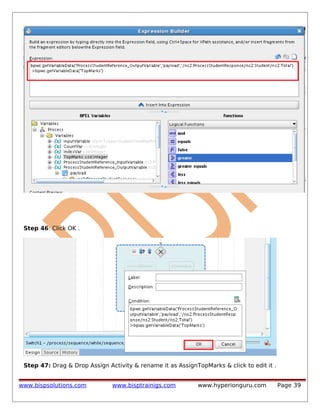
Step 45: : Browse under BPEL Variables ProcessStudentRefence_OutputVariable ---> expand it
& select Total --->Insert Into Expression ----> Browse under Functions-->AdvancedFunctions
---> Logical Functions---> greater equals ----> Insert Into Expression----> Browse under BPEL
Variables TopMarks---> Insert Into Expression---->Click ok

www.bispsolutions.com

www.bisptrainigs.com

www.hyperionguru.com

Page 38
Step 46: Click OK .

Step 47: Drag & Drop Assign Activity & rename it as AssignTopMarks & click to edit it .
www.bispsolutions.com

www.bisptrainigs.com

www.hyperionguru.com

Page 39
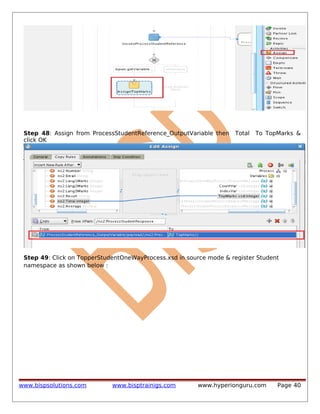
Step 48: Assign from ProcessStudentReference_OutputVariable then
click OK

Total

To TopMarks &

Step 49: Click on TopperStudentOneWayProcess.xsd in source mode & register Student
namespace as shown below :

www.bispsolutions.com

www.bisptrainigs.com

www.hyperionguru.com

Page 40
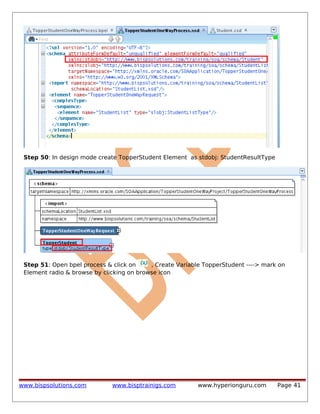
Step 50: In design mode create TopperStudent Element as stdobj: StudentResultType

Step 51: Open bpel process & click on
, Create Variable TopperStudent ----> mark on
Element radio & browse by clicking on browse icon

www.bispsolutions.com

www.bisptrainigs.com

www.hyperionguru.com

Page 41
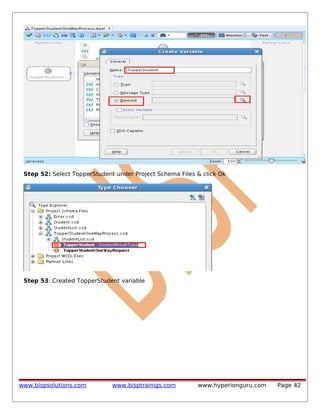
Step 52: Select TopperStudent under Project Schema Files & click Ok

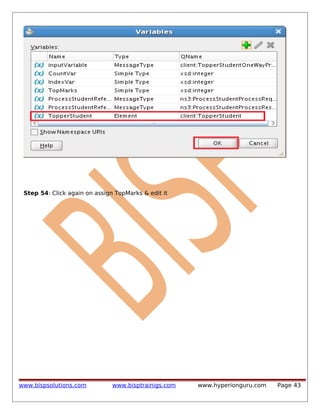
Step 53: Created TopperStudent variable

www.bispsolutions.com

www.bisptrainigs.com

www.hyperionguru.com

Page 42
Step 54: Click again on assign TopMarks & edit it

www.bispsolutions.com

www.bisptrainigs.com

www.hyperionguru.com

Page 43
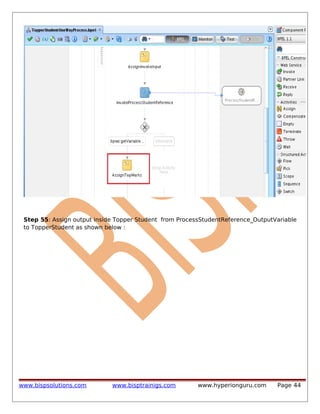
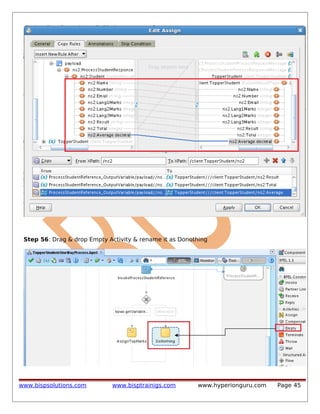
Step 55: Assign output inside Topper Student from ProcessStudentReference_OutputVariable
to TopperStudent as shown below :

www.bispsolutions.com

www.bisptrainigs.com

www.hyperionguru.com

Page 44
Step 56: Drag & drop Empty Activity & rename it as Donothing

www.bispsolutions.com

www.bisptrainigs.com

www.hyperionguru.com

Page 45
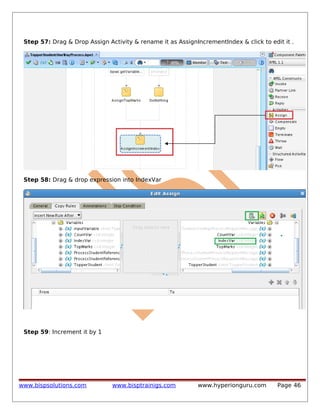
Step 57: Drag & Drop Assign Activity & rename it as AssignIncrementIndex & click to edit it .

Step 58: Drag & drop expression into IndexVar

Step 59: Increment it by 1

www.bispsolutions.com

www.bisptrainigs.com

www.hyperionguru.com

Page 46
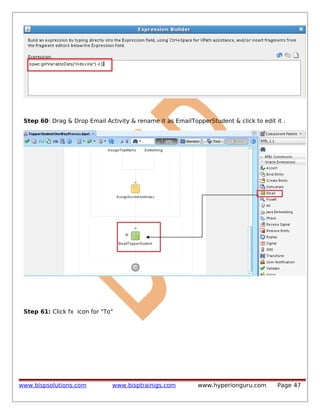
Step 60: Drag & Drop Email Activity & rename it as EmailTopperStudent & click to edit it .

Step 61: Click fx icon for "To"

www.bispsolutions.com

www.bisptrainigs.com

www.hyperionguru.com

Page 47
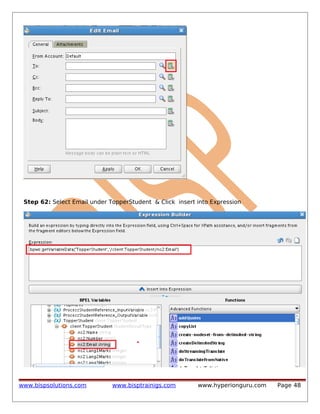
Step 62: Select Email under TopperStudent & Click insert into Expression

www.bispsolutions.com

www.bisptrainigs.com

www.hyperionguru.com

Page 48
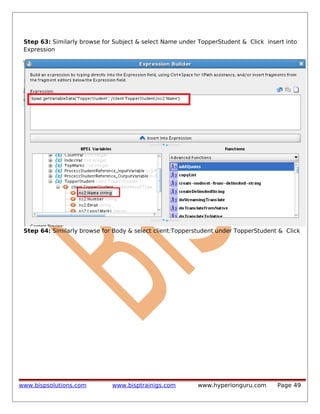
Step 63: Similarly browse for Subject & select Name under TopperStudent & Click insert into
Expression

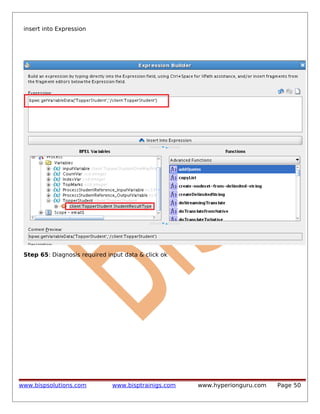
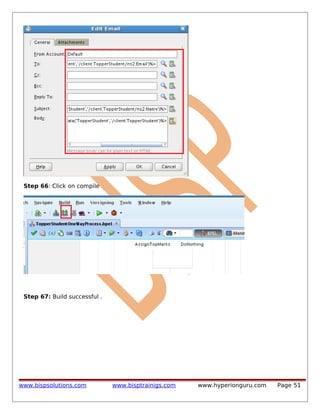
Step 64: Similarly browse for Body & select client:Topperstudent under TopperStudent & Click

www.bispsolutions.com

www.bisptrainigs.com

www.hyperionguru.com

Page 49
insert into Expression

Step 65: Diagnosis required input data & click ok

www.bispsolutions.com

www.bisptrainigs.com

www.hyperionguru.com

Page 50
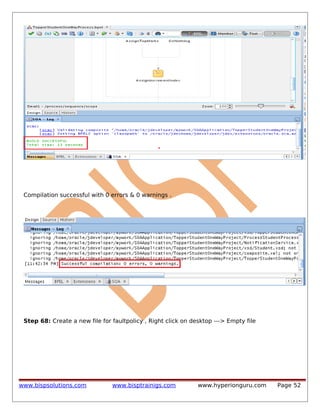
Step 66: Click on compile

Step 67: Build successful .

www.bispsolutions.com

www.bisptrainigs.com

www.hyperionguru.com

Page 51
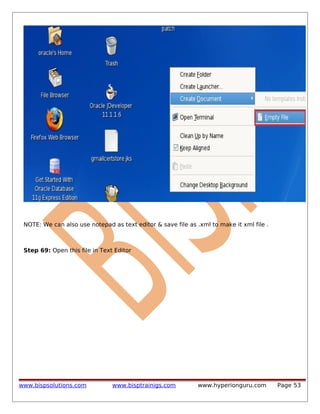
Compilation successful with 0 errors & 0 warnings .

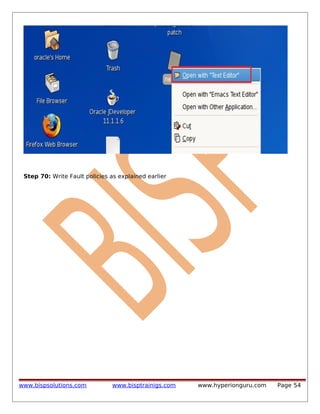
Step 68: Create a new file for faultpolicy , Right click on desktop ---> Empty file

www.bispsolutions.com

www.bisptrainigs.com

www.hyperionguru.com

Page 52
NOTE: We can also use notepad as text editor & save file as .xml to make it xml file .

Step 69: Open this file in Text Editor

www.bispsolutions.com

www.bisptrainigs.com

www.hyperionguru.com

Page 53
Step 70: Write Fault policies as explained earlier

www.bispsolutions.com

www.bisptrainigs.com

www.hyperionguru.com

Page 54
www.bispsolutions.com

www.bisptrainigs.com

www.hyperionguru.com

Page 55
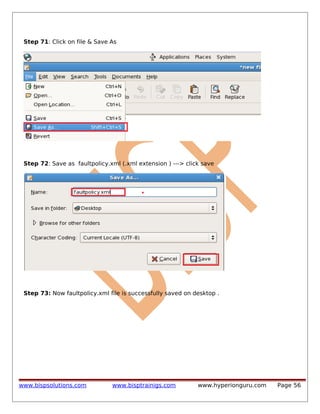
Step 71: Click on file & Save As

Step 72: Save as faultpolicy.xml (.xml extension ) ---> click save

Step 73: Now faultpolicy.xml file is successfully saved on desktop .

www.bispsolutions.com

www.bisptrainigs.com

www.hyperionguru.com

Page 56
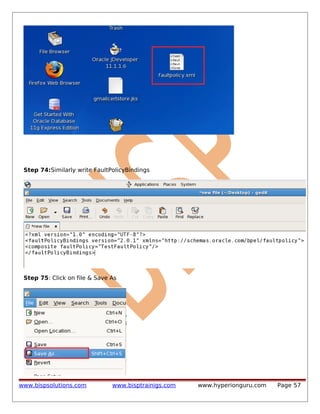
Step 74:Similarly write FaultPolicyBindings

Step 75: Click on file & Save As

www.bispsolutions.com

www.bisptrainigs.com

www.hyperionguru.com

Page 57
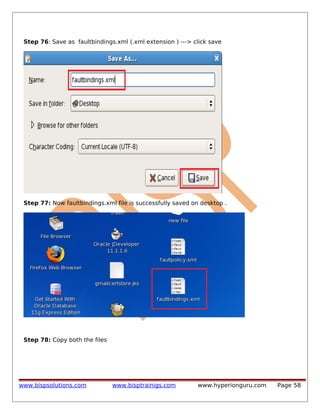
Step 76: Save as faultbindings.xml (.xml extension ) ---> click save

Step 77: Now faultbindings.xml file is successfully saved on desktop .

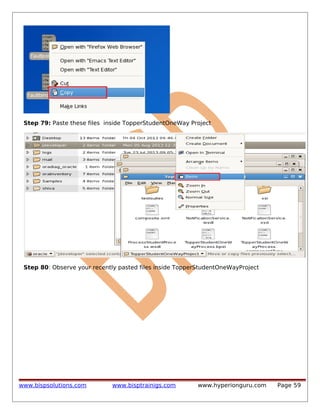
Step 78: Copy both the files

www.bispsolutions.com

www.bisptrainigs.com

www.hyperionguru.com

Page 58
Step 79: Paste these files inside TopperStudentOneWay Project

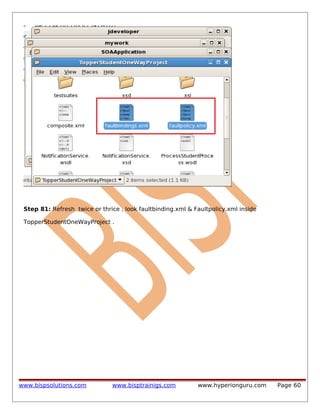
Step 80: Observe your recently pasted files inside TopperStudentOneWayProject

www.bispsolutions.com

www.bisptrainigs.com

www.hyperionguru.com

Page 59
Step 81: Refresh twice or thrice , look faultbinding.xml & Faultpolicy.xml inside
TopperStudentOneWayProject .

www.bispsolutions.com

www.bisptrainigs.com

www.hyperionguru.com

Page 60
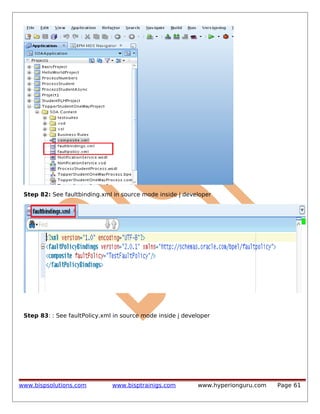
Step 82: See faultbinding.xml in source mode inside j developer

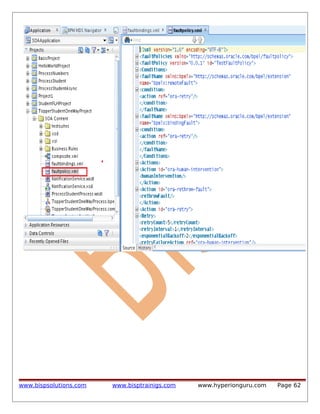
Step 83: : See faultPolicy.xml in source mode inside j developer

www.bispsolutions.com

www.bisptrainigs.com

www.hyperionguru.com

Page 61
www.bispsolutions.com

www.bisptrainigs.com

www.hyperionguru.com

Page 62
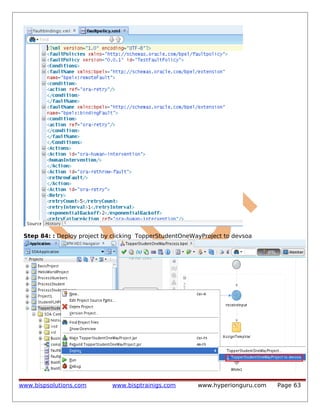
Step 84: : Deploy project by clicking TopperStudentOneWayProject to devsoa

www.bispsolutions.com

www.bisptrainigs.com

www.hyperionguru.com

Page 63
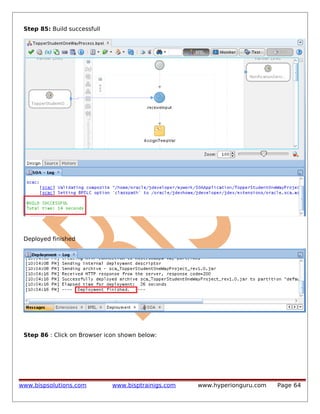
Step 85: Build successfull

Deployed finished

Step 86 : Click on Browser icon shown below:

www.bispsolutions.com

www.bisptrainigs.com

www.hyperionguru.com

Page 64
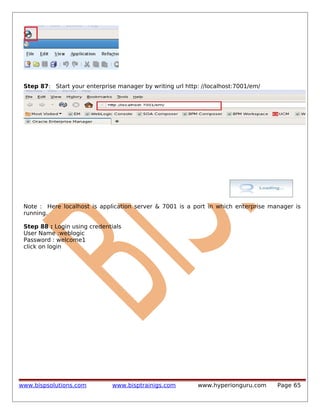
Step 87: Start your enterprise manager by writing url http: //localhost:7001/em/

Note : Here localhost is application server & 7001 is a port in which enterprise manager is
running.
Step 88 : Login using credentials
User Name :weblogic
Password : welcome1
click on login

www.bispsolutions.com

www.bisptrainigs.com

www.hyperionguru.com

Page 65
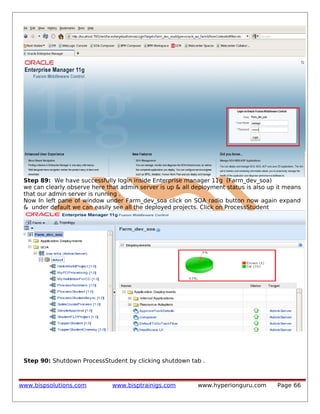
Step 89: We have successfully login inside Enterprise manager 11g (Farm_dev_soa)
we can clearly observe here that admin server is up & all deployment status is also up it means
that our admin server is running .
Now In left pane of window under Farm_dev_soa click on SOA radio button now again expand
& under default we can easily see all the deployed projects. Click on ProcessStudent

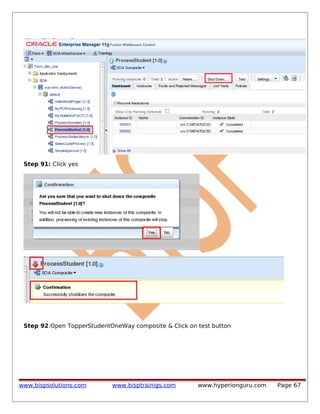
Step 90: Shutdown ProcessStudent by clicking shutdown tab .

www.bispsolutions.com

www.bisptrainigs.com

www.hyperionguru.com

Page 66
Step 91: Click yes

Step 92:Open TopperStudentOneWay composite & Click on test button

www.bispsolutions.com

www.bisptrainigs.com

www.hyperionguru.com

Page 67
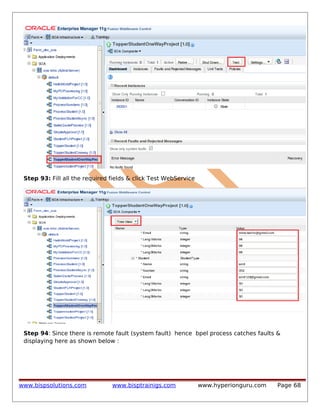
Step 93: Fill all the required fields & click Test WebService

Step 94: Since there is remote fault (system fault) hence bpel process catches faults &
displaying here as shown below :

www.bispsolutions.com

www.bisptrainigs.com

www.hyperionguru.com

Page 68
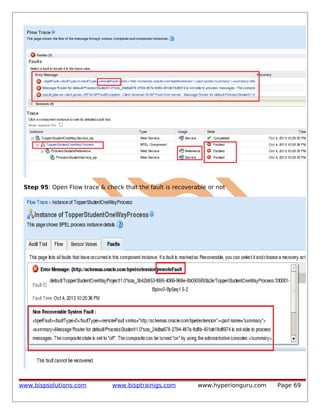
Step 95: Open Flow trace & check that the fault is recoverable or not

www.bispsolutions.com

www.bisptrainigs.com

www.hyperionguru.com

Page 69
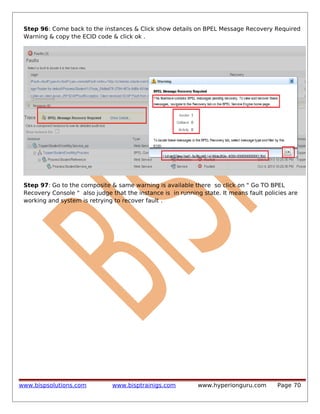
Step 96: Come back to the instances & Click show details on BPEL Message Recovery Required
Warning & copy the ECID code & click ok .

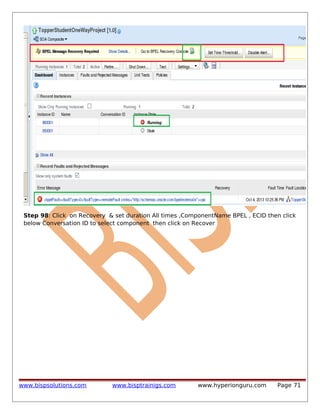
Step 97: Go to the composite & same warning is available there so click on " Go TO BPEL
Recovery Console " also judge that the instance is in running state. It means fault policies are
working and system is retrying to recover fault .

www.bispsolutions.com

www.bisptrainigs.com

www.hyperionguru.com

Page 70
Step 98: Click on Recovery & set duration All times ,ComponentName BPEL , ECID then click
below Conversation ID to select component then click on Recover

www.bispsolutions.com

www.bisptrainigs.com

www.hyperionguru.com

Page 71
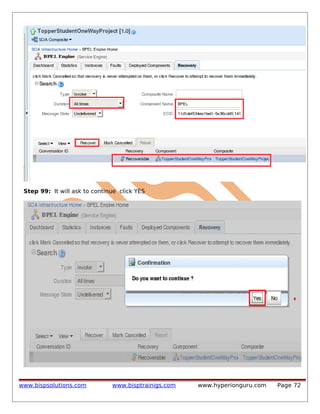
Step 99: It will ask to continue click YES

www.bispsolutions.com

www.bisptrainigs.com

www.hyperionguru.com

Page 72
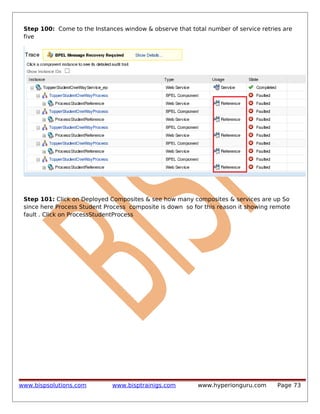
Step 100: Come to the Instances window & observe that total number of service retries are
five

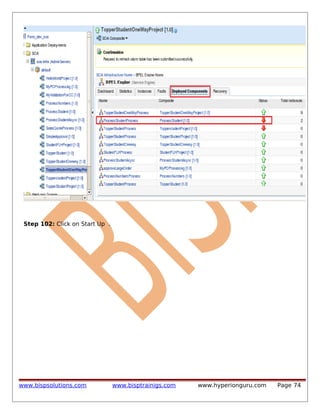
Step 101: Click on Deployed Composites & see how many composites & services are up So
since here Process Student Process composite is down so for this reason it showing remote
fault . Click on ProcessStudentProcess

www.bispsolutions.com

www.bisptrainigs.com

www.hyperionguru.com

Page 73
Step 102: Click on Start Up .

www.bispsolutions.com

www.bisptrainigs.com

www.hyperionguru.com

Page 74
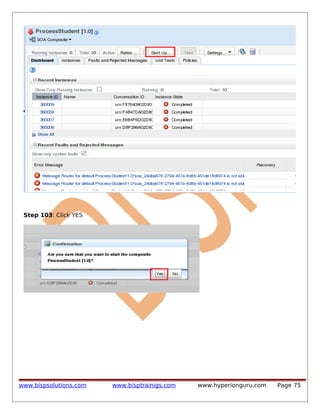
Step 103: Click YES

www.bispsolutions.com

www.bisptrainigs.com

www.hyperionguru.com

Page 75
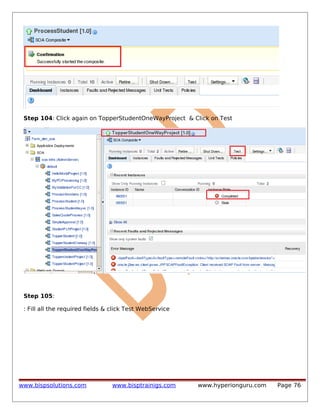
Step 104: Click again on TopperStudentOneWayProject & Click on Test

Step 105:
: Fill all the required fields & click Test WebService

www.bispsolutions.com

www.bisptrainigs.com

www.hyperionguru.com

Page 76
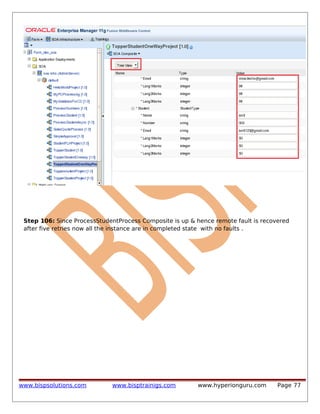
Step 106: Since ProcessStudentProcess Composite is up & hence remote fault is recovered
after five retries now all the instance are in completed state with no faults .

www.bispsolutions.com

www.bisptrainigs.com

www.hyperionguru.com

Page 77
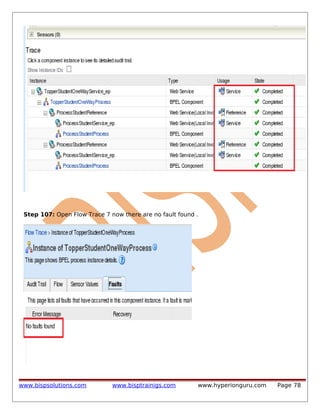
Step 107: Open Flow Trace 7 now there are no fault found .

www.bispsolutions.com

www.bisptrainigs.com

www.hyperionguru.com

Page 78
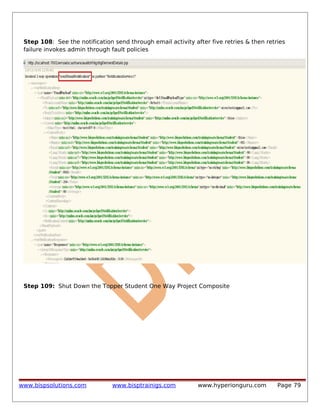
Step 108: See the notification send through email activity after five retries & then retries
failure invokes admin through fault policies

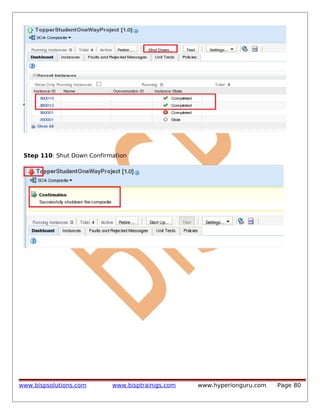
Step 109: Shut Down the Topper Student One Way Project Composite

www.bispsolutions.com

www.bisptrainigs.com

www.hyperionguru.com

Page 79
Step 110: Shut Down Confirmation

www.bispsolutions.com

www.bisptrainigs.com

www.hyperionguru.com

Page 80

Getting started-with-oracle-so a-10

  • 1.
    Getting Started withOracle SoA Oracle SOA Working with Fault Policies Lab#10 Description: BISP is committed to provide BEST learning material to the beginners and advance learners. In the same series, we have prepared a complete end-to end Hands-on Beginner’s Guide for Oracle SoA. The document focuses on Project on fault policies. Join our professional training program and learn from experts. History: Version 0.1 0.1 Description Change Initial Draft Review#1 www.bispsolutions.com Author Shiva Kant Pandey Amit Sharma www.bisptrainigs.com Publish Date 21st Aug 2012 29th Aug 2012 www.hyperionguru.com Page 1
  • 2.
    Contents Contents....................................................................................................................................... 2 Project onfault policies................................................................................................................ 3 Stepwise procedure to study faultpolicies file :............................................................................4 Step wise procedure of project on topper student project with fault handling (fault policies):...11 .................................................................................................................................................. 80 www.bispsolutions.com www.bisptrainigs.com www.hyperionguru.com Page 2
  • 3.
    Project on faultpolicies Overview The purpose of the Fault Management Framework is to provide error handling that is external to SOA and does not impact the SOA/BPEL design or runtime. The framework is implemented using policies defined in XML. These policies are reusable across composites/components and can catch both runtime and business faults. Once a fault is caught, the policy defines actions that can be used for the SOA instance such as retry, human intervention, replay scope, rethrow fault, abort, and custom Java actions. When human intervention comes into play, the Enterprise Manager provides a GUI for managing the faulted instance. When the policies have been defined and bound to composites and/or components, the framework will intercept the fault before the standard fault handler comes into play. For example: if a BPEL process has defined standard BPEL fault handling and a fault policy has been defined/bound to the BPEL process, when a fault occurs the framework will intercept the fault allowing any of the supported actions to be applied to the instance: www.bispsolutions.com www.bisptrainigs.com www.hyperionguru.com Page 3
  • 4.
    Stepwise procedure tostudy faultpolicies file : Step 1: Download & install Notepad++ setup to edit files . Step 2: Open folder containing fault-binding & Fault-Policy files Step 3: Open Fault-Policy.xml with Text Editor www.bispsolutions.com www.bisptrainigs.com www.hyperionguru.com Page 4
  • 5.
    Step 4: ObservefaultPolicies is the root node & it is register with namespace xmlns="http://schema.oracle.com/bpel/faultpolicy" Step 5: Now fault Policies consists of many faultpolicy but here we have taken "TestFaultPolicy" as example for simplification www.bispsolutions.com www.bisptrainigs.com www.hyperionguru.com Page 5
  • 6.
  • 7.
    Step 6: Everyfault policy is a set of •Conditions (When to act upon ) •Actions (What to do ) These conditions consists of various system faultNames with their namespaces & prefix as shown below: Now Actions consists of various types of action to be perform.Example of some action id's •ora-human-intervention •ora-rethrow-fault •ora-retry www.bispsolutions.com www.bisptrainigs.com www.hyperionguru.com Page 7
  • 8.
    Step 7: Nowevery faultName consists of set of condition associated with action . Step 8: Explore next faultName with name binding fault has set of condition & action , now this action is defined in Actions example ora-retry is action for condition of binding fault & hence ora-retry is defined in Actions. www.bispsolutions.com www.bisptrainigs.com www.hyperionguru.com Page 8
  • 9.
    Step 9: Exploreactions one by one & see how these actions are defined www.bispsolutions.com www.bisptrainigs.com www.hyperionguru.com Page 9
  • 10.
    Similarly write forrethrow actions Step 10: Observe how ora-retry action is defined inside <Retry> </ Retry > • Retry count is five 7 it can be varied • retry interval is the interval between two successive retries in seconds • exponentialbackoff is the time wait example 2^0 , 2^1 , 2^2 ..... & so on . • retry failure action that is if this retry completes all its counts & fault for that action is still not recovered then finally it will call the failure action referred to ora-humanintervention to invoke the admin.We can also referenced here an action for successful retry action . www.bispsolutions.com www.bisptrainigs.com www.hyperionguru.com Page 10
  • 11.
    So in thisway we can develop fault policies . Step wise procedure of project on topper student project with fault handling (fault policies): Step 1: Create new project New --->All Technologies--->SOA Tier --->SOA project --->OK ---> Project Name (TopperStudentOneWayProject) ---> ADF Business Component---> SOA--->Next -->Composite with BPEL Process)---> Finish. www.bispsolutions.com www.bisptrainigs.com www.hyperionguru.com Page 11
  • 12.
    Step 2 :Fill all its blank spaces Name (TopperStudentOneWayProcess) ---->NameSpace (Leave as it is)--->Template(Select One Way BPEL process)----> Service Name(TopperStudentOneWay Service)----> mark Expose as a SOAP service --->Click Ok www.bispsolutions.com www.bisptrainigs.com www.hyperionguru.com Page 12
  • 13.
    Step 3: OpenComposite.xml & observe BPEL Process Step 4: Click on TopperStudentOnewayProcess.xsd & it is automatically generated xsd for one way bpel process . Step 5: Go to Home ---> open jdeveloper ---> my work ----> SOAApplication ---> TopperStudentproject---> xsd----> copy [Error.xsd, Student.xsd,StudentList.xsd] www.bispsolutions.com www.bisptrainigs.com www.hyperionguru.com Page 13
  • 14.
    Step 6: Pasteall xsd's inside physical location of TopperStudentOneWay Project xsd . www.bispsolutions.com www.bisptrainigs.com www.hyperionguru.com Page 14
  • 15.
    Step 7: Observeall three pasted xsd . Step 8: Click on Refresh icon two three times & observe all three copied is displaying inside TopperStudentOneWay xsd. www.bispsolutions.com www.bisptrainigs.com www.hyperionguru.com Page 15
  • 16.
    Step 9: OpenTopperStudentOneWay. xsd & Right Click on target namespace & click import Step 10: Click on source mode & Import StudentList.xsd & also register it as shown below : www.bispsolutions.com www.bisptrainigs.com www.hyperionguru.com Page 16
  • 17.
    Step 11: Clickon design mode & observe imported xsd . Step 12: Click on Process Element & rename it as TopperStudentOnewayRequest as shown below: www.bispsolutions.com www.bisptrainigs.com www.hyperionguru.com Page 17
  • 18.
    Step 13: ExpandTopperStudentOneWayRequest & rename Input Element as StudentList & give slobj: StudentListType as its Type . www.bispsolutions.com www.bisptrainigs.com www.hyperionguru.com Page 18
  • 19.
    Step 14: OpenTopperStudentOneWayProcess.wsdl & observe error since we have renamed it in xsd but it is still present in wsdl Step 15: Rename Process as topperStudentOneWayRequest as shown below: www.bispsolutions.com www.bisptrainigs.com www.hyperionguru.com Page 19
  • 20.
    Step 16: Openits bpel process Step 17: Create variables , click (x)---> + www.bispsolutions.com www.bisptrainigs.com www.hyperionguru.com Page 20
  • 21.
    Step 18: CreateCountVar , IndexVar, TopMarks all assigned as integer Type then click OK Step 19: Drag & Drop Assign Activity & rename it as AssignTempVar & click to edit it . www.bispsolutions.com www.bisptrainigs.com www.hyperionguru.com Page 21
  • 22.
    Step 20: :To assign CountVar click on expression Drag & Drop on CountVar as shown below: Step 21: : Explore Functions ----> BPEL XPath Extension Functions ----> CountNodes--->Insert Into Expression--->select Student under Input Variable---> Insert into expression .Delete bpws:getVariabledata which is shown by green box www.bispsolutions.com www.bisptrainigs.com www.hyperionguru.com Page 22
  • 23.
    Step 22: Nowxpath expression is set for countVar , Click OK www.bispsolutions.com www.bisptrainigs.com www.hyperionguru.com Page 23
  • 24.
    Step 23: Drag& drop Exression into IndexVar Step 24: Assign 1 for IndexVar Step 25: Drag & drop Exression into TopMarks www.bispsolutions.com www.bisptrainigs.com www.hyperionguru.com Page 24
  • 25.
    Step 26: Assign0 for TopMarks . Step 27: Click OK. www.bispsolutions.com www.bisptrainigs.com www.hyperionguru.com Page 25
  • 26.
    Step 28: Drag& drop While Activity & click on it to set while condition Step 29: Click on Expression www.bispsolutions.com www.bisptrainigs.com www.hyperionguru.com Page 26
  • 27.
    Step 30: Assignlooping condition here Click IndexVar ---> insert into expression ---> Less equals --> insert into expression ---> CountVar---> insert into expression---> Click Ok www.bispsolutions.com www.bisptrainigs.com www.hyperionguru.com Page 27
  • 28.
    NOTE: Since wewant to invoke third party web service (ProcessStudentService) so we need to copy concreate wsdl of ProcessStudentProcess.wsdl from TopperstudentProject. Step 31: Copy concreate ProcessStudentProcess.wsdl from TopperStudentProject as shown below Step 32: Paste it inside TopperStudentOneWayProject www.bispsolutions.com www.bisptrainigs.com www.hyperionguru.com Page 28
  • 29.
    Step 33: Clickrefresh button & u can see ur copied wsdl inside TopperStudentOnewayproject www.bispsolutions.com www.bisptrainigs.com www.hyperionguru.com Page 29
  • 30.
    Step 34: Openbpel process &right click anywhere on partner link portion ,select Create PartnerLink Step 35: Fill all required field as shown below & click OK www.bispsolutions.com www.bisptrainigs.com www.hyperionguru.com Page 30
  • 31.
    Step 36: CreatedPartner Link Successfully Step 37:Here observe that the wiring between TopperstudentOneWayProcess & ProcessStudentReference www.bispsolutions.com www.bisptrainigs.com www.hyperionguru.com Page 31
  • 32.
    Step 38: Drag& Drop Invoke Activity Inside While Activity & click on it to edit Step 39: Fill all required Blanks as shown below : www.bispsolutions.com www.bisptrainigs.com www.hyperionguru.com Page 32
  • 33.
    Step 40: Drag& drop Assign Activity & rename it as below : www.bispsolutions.com www.bisptrainigs.com www.hyperionguru.com Page 33
  • 34.
    Step 41: AssignInvoke Input from input variables to ProcessStudentReference_InputVariables as shown below : www.bispsolutions.com www.bisptrainigs.com www.hyperionguru.com Page 34
  • 35.
    Step 42: Alsomake changes on TopperStudentOneWayProcess.bpel in source mode & add [$IndexVar] after Student everywhere as shown below : www.bispsolutions.com www.bisptrainigs.com www.hyperionguru.com Page 35
  • 36.
  • 37.
    step 43: Drag& drop Switch activity from component palette& click on Condition step 44: Click on Function icon to set switch condition www.bispsolutions.com www.bisptrainigs.com www.hyperionguru.com Page 37
  • 38.
    Step 45: :Browse under BPEL Variables ProcessStudentRefence_OutputVariable ---> expand it & select Total --->Insert Into Expression ----> Browse under Functions-->AdvancedFunctions ---> Logical Functions---> greater equals ----> Insert Into Expression----> Browse under BPEL Variables TopMarks---> Insert Into Expression---->Click ok www.bispsolutions.com www.bisptrainigs.com www.hyperionguru.com Page 38
  • 39.
    Step 46: ClickOK . Step 47: Drag & Drop Assign Activity & rename it as AssignTopMarks & click to edit it . www.bispsolutions.com www.bisptrainigs.com www.hyperionguru.com Page 39
  • 40.
    Step 48: Assignfrom ProcessStudentReference_OutputVariable then click OK Total To TopMarks & Step 49: Click on TopperStudentOneWayProcess.xsd in source mode & register Student namespace as shown below : www.bispsolutions.com www.bisptrainigs.com www.hyperionguru.com Page 40
  • 41.
    Step 50: Indesign mode create TopperStudent Element as stdobj: StudentResultType Step 51: Open bpel process & click on , Create Variable TopperStudent ----> mark on Element radio & browse by clicking on browse icon www.bispsolutions.com www.bisptrainigs.com www.hyperionguru.com Page 41
  • 42.
    Step 52: SelectTopperStudent under Project Schema Files & click Ok Step 53: Created TopperStudent variable www.bispsolutions.com www.bisptrainigs.com www.hyperionguru.com Page 42
  • 43.
    Step 54: Clickagain on assign TopMarks & edit it www.bispsolutions.com www.bisptrainigs.com www.hyperionguru.com Page 43
  • 44.
    Step 55: Assignoutput inside Topper Student from ProcessStudentReference_OutputVariable to TopperStudent as shown below : www.bispsolutions.com www.bisptrainigs.com www.hyperionguru.com Page 44
  • 45.
    Step 56: Drag& drop Empty Activity & rename it as Donothing www.bispsolutions.com www.bisptrainigs.com www.hyperionguru.com Page 45
  • 46.
    Step 57: Drag& Drop Assign Activity & rename it as AssignIncrementIndex & click to edit it . Step 58: Drag & drop expression into IndexVar Step 59: Increment it by 1 www.bispsolutions.com www.bisptrainigs.com www.hyperionguru.com Page 46
  • 47.
    Step 60: Drag& Drop Email Activity & rename it as EmailTopperStudent & click to edit it . Step 61: Click fx icon for "To" www.bispsolutions.com www.bisptrainigs.com www.hyperionguru.com Page 47
  • 48.
    Step 62: SelectEmail under TopperStudent & Click insert into Expression www.bispsolutions.com www.bisptrainigs.com www.hyperionguru.com Page 48
  • 49.
    Step 63: Similarlybrowse for Subject & select Name under TopperStudent & Click insert into Expression Step 64: Similarly browse for Body & select client:Topperstudent under TopperStudent & Click www.bispsolutions.com www.bisptrainigs.com www.hyperionguru.com Page 49
  • 50.
    insert into Expression Step65: Diagnosis required input data & click ok www.bispsolutions.com www.bisptrainigs.com www.hyperionguru.com Page 50
  • 51.
    Step 66: Clickon compile Step 67: Build successful . www.bispsolutions.com www.bisptrainigs.com www.hyperionguru.com Page 51
  • 52.
    Compilation successful with0 errors & 0 warnings . Step 68: Create a new file for faultpolicy , Right click on desktop ---> Empty file www.bispsolutions.com www.bisptrainigs.com www.hyperionguru.com Page 52
  • 53.
    NOTE: We canalso use notepad as text editor & save file as .xml to make it xml file . Step 69: Open this file in Text Editor www.bispsolutions.com www.bisptrainigs.com www.hyperionguru.com Page 53
  • 54.
    Step 70: WriteFault policies as explained earlier www.bispsolutions.com www.bisptrainigs.com www.hyperionguru.com Page 54
  • 55.
  • 56.
    Step 71: Clickon file & Save As Step 72: Save as faultpolicy.xml (.xml extension ) ---> click save Step 73: Now faultpolicy.xml file is successfully saved on desktop . www.bispsolutions.com www.bisptrainigs.com www.hyperionguru.com Page 56
  • 57.
    Step 74:Similarly writeFaultPolicyBindings Step 75: Click on file & Save As www.bispsolutions.com www.bisptrainigs.com www.hyperionguru.com Page 57
  • 58.
    Step 76: Saveas faultbindings.xml (.xml extension ) ---> click save Step 77: Now faultbindings.xml file is successfully saved on desktop . Step 78: Copy both the files www.bispsolutions.com www.bisptrainigs.com www.hyperionguru.com Page 58
  • 59.
    Step 79: Pastethese files inside TopperStudentOneWay Project Step 80: Observe your recently pasted files inside TopperStudentOneWayProject www.bispsolutions.com www.bisptrainigs.com www.hyperionguru.com Page 59
  • 60.
    Step 81: Refreshtwice or thrice , look faultbinding.xml & Faultpolicy.xml inside TopperStudentOneWayProject . www.bispsolutions.com www.bisptrainigs.com www.hyperionguru.com Page 60
  • 61.
    Step 82: Seefaultbinding.xml in source mode inside j developer Step 83: : See faultPolicy.xml in source mode inside j developer www.bispsolutions.com www.bisptrainigs.com www.hyperionguru.com Page 61
  • 62.
  • 63.
    Step 84: :Deploy project by clicking TopperStudentOneWayProject to devsoa www.bispsolutions.com www.bisptrainigs.com www.hyperionguru.com Page 63
  • 64.
    Step 85: Buildsuccessfull Deployed finished Step 86 : Click on Browser icon shown below: www.bispsolutions.com www.bisptrainigs.com www.hyperionguru.com Page 64
  • 65.
    Step 87: Startyour enterprise manager by writing url http: //localhost:7001/em/ Note : Here localhost is application server & 7001 is a port in which enterprise manager is running. Step 88 : Login using credentials User Name :weblogic Password : welcome1 click on login www.bispsolutions.com www.bisptrainigs.com www.hyperionguru.com Page 65
  • 66.
    Step 89: Wehave successfully login inside Enterprise manager 11g (Farm_dev_soa) we can clearly observe here that admin server is up & all deployment status is also up it means that our admin server is running . Now In left pane of window under Farm_dev_soa click on SOA radio button now again expand & under default we can easily see all the deployed projects. Click on ProcessStudent Step 90: Shutdown ProcessStudent by clicking shutdown tab . www.bispsolutions.com www.bisptrainigs.com www.hyperionguru.com Page 66
  • 67.
    Step 91: Clickyes Step 92:Open TopperStudentOneWay composite & Click on test button www.bispsolutions.com www.bisptrainigs.com www.hyperionguru.com Page 67
  • 68.
    Step 93: Fillall the required fields & click Test WebService Step 94: Since there is remote fault (system fault) hence bpel process catches faults & displaying here as shown below : www.bispsolutions.com www.bisptrainigs.com www.hyperionguru.com Page 68
  • 69.
    Step 95: OpenFlow trace & check that the fault is recoverable or not www.bispsolutions.com www.bisptrainigs.com www.hyperionguru.com Page 69
  • 70.
    Step 96: Comeback to the instances & Click show details on BPEL Message Recovery Required Warning & copy the ECID code & click ok . Step 97: Go to the composite & same warning is available there so click on " Go TO BPEL Recovery Console " also judge that the instance is in running state. It means fault policies are working and system is retrying to recover fault . www.bispsolutions.com www.bisptrainigs.com www.hyperionguru.com Page 70
  • 71.
    Step 98: Clickon Recovery & set duration All times ,ComponentName BPEL , ECID then click below Conversation ID to select component then click on Recover www.bispsolutions.com www.bisptrainigs.com www.hyperionguru.com Page 71
  • 72.
    Step 99: Itwill ask to continue click YES www.bispsolutions.com www.bisptrainigs.com www.hyperionguru.com Page 72
  • 73.
    Step 100: Cometo the Instances window & observe that total number of service retries are five Step 101: Click on Deployed Composites & see how many composites & services are up So since here Process Student Process composite is down so for this reason it showing remote fault . Click on ProcessStudentProcess www.bispsolutions.com www.bisptrainigs.com www.hyperionguru.com Page 73
  • 74.
    Step 102: Clickon Start Up . www.bispsolutions.com www.bisptrainigs.com www.hyperionguru.com Page 74
  • 75.
    Step 103: ClickYES www.bispsolutions.com www.bisptrainigs.com www.hyperionguru.com Page 75
  • 76.
    Step 104: Clickagain on TopperStudentOneWayProject & Click on Test Step 105: : Fill all the required fields & click Test WebService www.bispsolutions.com www.bisptrainigs.com www.hyperionguru.com Page 76
  • 77.
    Step 106: SinceProcessStudentProcess Composite is up & hence remote fault is recovered after five retries now all the instance are in completed state with no faults . www.bispsolutions.com www.bisptrainigs.com www.hyperionguru.com Page 77
  • 78.
    Step 107: OpenFlow Trace 7 now there are no fault found . www.bispsolutions.com www.bisptrainigs.com www.hyperionguru.com Page 78
  • 79.
    Step 108: Seethe notification send through email activity after five retries & then retries failure invokes admin through fault policies Step 109: Shut Down the Topper Student One Way Project Composite www.bispsolutions.com www.bisptrainigs.com www.hyperionguru.com Page 79
  • 80.
    Step 110: ShutDown Confirmation www.bispsolutions.com www.bisptrainigs.com www.hyperionguru.com Page 80