Convert PowerPoint to Web and Video with Superior Quality
iSpring Converter Pro
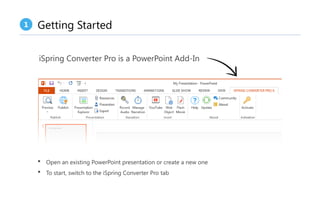
 Open an existing PowerPoint presentation or create a new one
 To start, switch to the iSpring Converter Pro tab
Getting Started
1
iSpring Converter Pro is a PowerPoint Add-In
Create Your Content in PowerPoint
2
iSpring Converter Pro accurately preserves virtually all PowerPoint elements:
Animations
Fonts & Styles Shapes Pictures Audio & Video
Triggers Transition Effects
Hyperlinks
Styles
Fonts &
Set Up Presentation Structure
3
 Create a hierarchical outline
 Use branching scenarios
Add Audio Narration
4
Record/import a voice-over and sync it with slides and animations.
Saturate Your Presentation with Rich Media
5
 YouTube Videos
 Web Objects
 Flash Movies
Publish Your Content Fast and Easy
6
Destinations:
 Web (Desktop, Mobile, Combined)
 CD / DVD (EXE)
 Learning Management System
(SCORM, AICC, Experience API)
Publish your content to multiple
formats to reach more learners.
Customize Your Player Design
7
Click the Customize button
to fine-tune the look of the Player
 Templates
 Layout
 Colors
 Presenter Info
 Text Labels
 Company Logo
Customize Your Player Design
8
Use the Multi-Device Preview Option
9
iSpring’s preview mode
allows you to see exactly
how your content will look
on different devices:
 Desktops
 Tablets
 Smartphones
Have a great time with
Would like to learn more?
Check out iSpring’s helpful resources
Video Tutorials Community Knowledge Base

Getting started with iSpring technology.pptx

  • 1.
    Convert PowerPoint toWeb and Video with Superior Quality iSpring Converter Pro
  • 2.
     Open anexisting PowerPoint presentation or create a new one  To start, switch to the iSpring Converter Pro tab Getting Started 1 iSpring Converter Pro is a PowerPoint Add-In
  • 3.
    Create Your Contentin PowerPoint 2 iSpring Converter Pro accurately preserves virtually all PowerPoint elements: Animations Fonts & Styles Shapes Pictures Audio & Video Triggers Transition Effects Hyperlinks Styles Fonts &
  • 4.
    Set Up PresentationStructure 3  Create a hierarchical outline  Use branching scenarios
  • 5.
    Add Audio Narration 4 Record/importa voice-over and sync it with slides and animations.
  • 6.
    Saturate Your Presentationwith Rich Media 5  YouTube Videos  Web Objects  Flash Movies
  • 7.
    Publish Your ContentFast and Easy 6 Destinations:  Web (Desktop, Mobile, Combined)  CD / DVD (EXE)  Learning Management System (SCORM, AICC, Experience API) Publish your content to multiple formats to reach more learners.
  • 8.
    Customize Your PlayerDesign 7 Click the Customize button to fine-tune the look of the Player
  • 9.
     Templates  Layout Colors  Presenter Info  Text Labels  Company Logo Customize Your Player Design 8
  • 10.
    Use the Multi-DevicePreview Option 9 iSpring’s preview mode allows you to see exactly how your content will look on different devices:  Desktops  Tablets  Smartphones
  • 11.
    Have a greattime with Would like to learn more? Check out iSpring’s helpful resources Video Tutorials Community Knowledge Base