Fundamental of
Website Development
by
Paul Umoren
Introduction
This tutorial address the detail of website design
and development which comprises of the following
programming tools; HTML, XHTML, HTML5, CSS,
Fundamentals of JavaScript, Intro to Bootstrap
Framework for responsive web design, version
control(Setting up of Git and Github),introduction to
algorithm and more as well as prepare you for your
ICT career in web development.
If you are not a computer science student and want
to venture into the art of web programming, get
involve to lay a great foundation in your new
adventurous journey in the fantastic world of web
programming.
Web Related Terms
The Internet : Internet is a worldwide collection of
computer networks of networks sharing digital
information via a common set of networking and
software protocols - Internet protocol suite
(Transmission Control Protocols (TCP)/Internet
Protocols (IPs)) to link devices across the globe.
WWW: stands for World Wide Web, it is a network
of computers able to exchange text, graphics, and
multimedia information via the Internet. It uses
Hypertext Transfer Protocol (HTTP), which allows
for the retrieval of linked resources from across
the web, invented by Tim Berners-Lee in 1989.
Web Related Terms
The World Wide Web Consortium(W3C): formed with
the charter to define the standards for HTML, XHTML
and, later, HTML5 and other web technologies.
Members are responsible for drafting, circulating for
review, and modifying the standard based on cross-
Internet feedback to best meet the needs of using the
Internet. Visit W3C at http://www.w3.org.
Hypertext: Hypertext is a type of text that contains
hyperlinks (or just links for short), which enable the reader
to jump from one hypertext page to another. You may also
hear the word hypermedia. A hypermedia system works
just like hypertext, except that it includes graphics, sounds,
videos, and animation as well as text.
Web Related Terms
ISP: Internet Service Provider (ISP) is a company that
provides internet access (connection) and related
services for a monthly fee, ISP comes with a software
package, username, and password and access
phone number. With a modem, Mifi or Router, one
can then log on to the Internet and browse the World
Wide.
BROWSER: A browser is a software that decodes
everything so that what you see is an attractive page
rather than a lot of coding. Most people use the
Microsoft Internet Edge browser, which comes with all
Windows 10 O/S. Take a browser to be an interface
between your computer and the Internet.
Web Related Terms
URL: Uniform Resource Locator (URL) allows all
resources on the Internet to be located in a uniform
(unique) manner. It is a website address that has all
the pertinent information for finding the exact location
attached to it.
ADDRESS BAR: The white bar towards the top of the
web browser installed on your computer browser. This
is where you type in the address of a website that you
want to visit, example: http://www.eresearchplace.com
BANDWIDTH: Bandwidth is the amount of data that
can be transmitted in a fixed amount of time.
When a website gets many visitors, it uses a lot of
bandwidth.
Web Related Terms
CACHE: Every time you do anything on your computer,
it stores this in memory so that the next time you try to
do the same thing, it happens quicker than having to
wait from scratch. The place where it stores all this is
called the "cache".
DOMAIN/ DOMAIN NAME: A domain is the name of
website on the Internet that is identified by number
assigned to its unique space.
The number assigned to its unique space identifies a
domain. To make it easier to use however, the number is
given the name of your choice and this name is
assigned to the number. In this way, people do not need
to remember the number (IP) in order to visit a website,
but can use the easier-to-remember domain name.
Tools for Web Designer
Text editor: This is an environment you do your
programming and save your file with file extension
depending on the application you are building. . Other
examples of text editors are notepad++, Edit plus,
komodoedit, sublime, atom, visual studio, etc. As you
advance in your programming skills, you will be
introduced to Integrated Development Environment
(IDE) such as Netbeans, Spring source, Eclipse, etc.
Web browser: Web Browser is the primary software used by
designers and site visitors to access web pages. You need
a browser to always test your work and modify it. Please
note that when you save your file with .html or .htm, it
automatically takes the icon of the browser that is set as a
default browser in your system.
Tools for Web Designer CONT.
Internet Connectivity (optional): This is for you to
make references and researches in areas that you do
not really understand. However, this is optional; but is
necessary for the validation of your web pages
according the W3C Standards.
The Overall Structure
HTML, Head, and Body
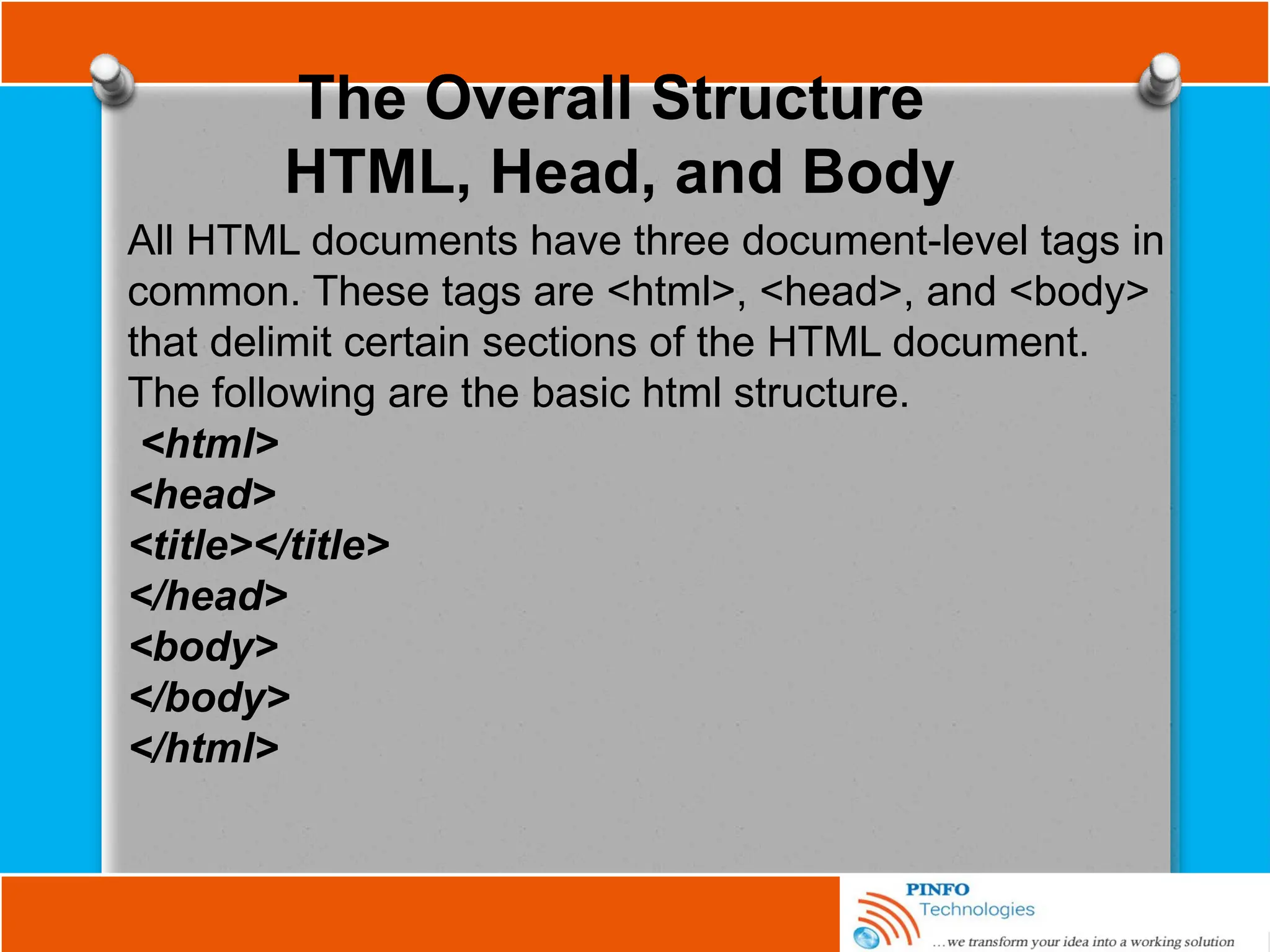
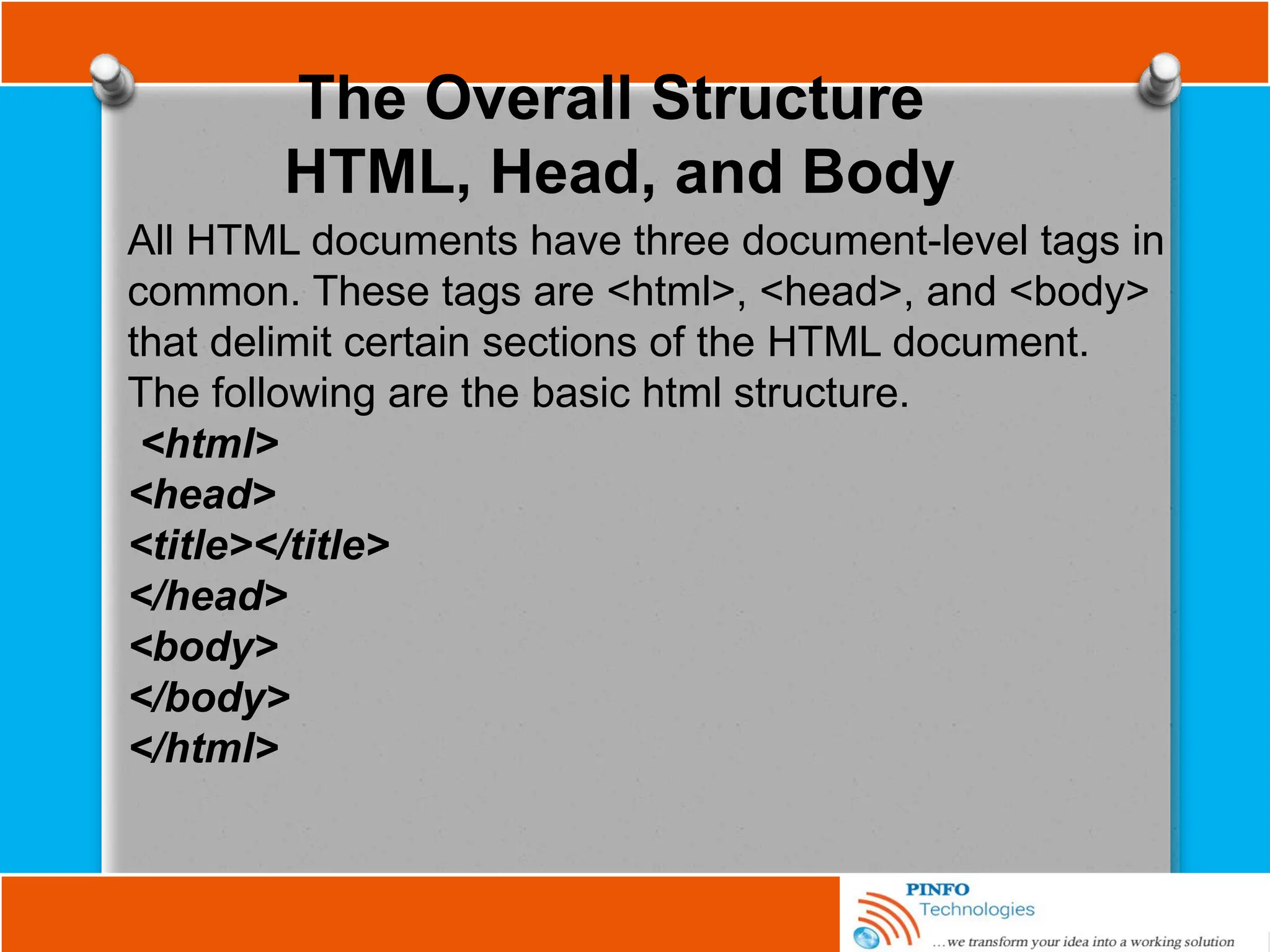
All HTML documents have three document-level tags in
common. These tags are <html>, <head>, and <body>
that delimit certain sections of the HTML document.
The following are the basic html structure.
<html>
<head>
<title></title>
</head>
<body>
</body>
</html>
The Overall Structure
HTML, Head, and Body
All HTML documents have three document-level tags in
common. These tags are <html>, <head>, and <body>
that delimit certain sections of the HTML document.
The following are the basic html structure.
<html>
<head>
<title></title>
</head>
<body>
</body>
</html>
HTML TAGS
The <html> tag
The <html> tag surrounds the entire HTML document.
This tag tells the client browser where the document
begins and ends.
<html>
... document contents ...
</html>
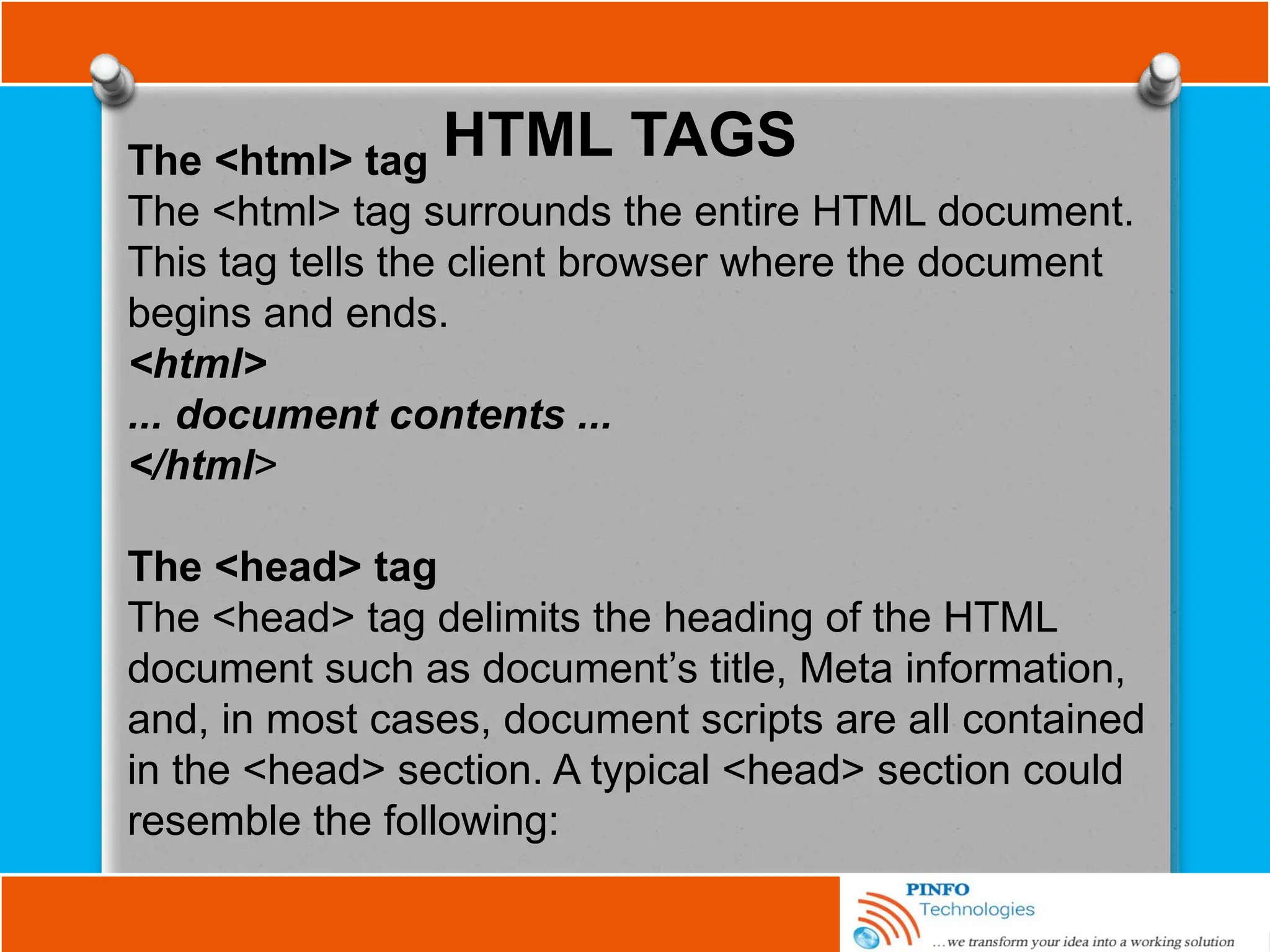
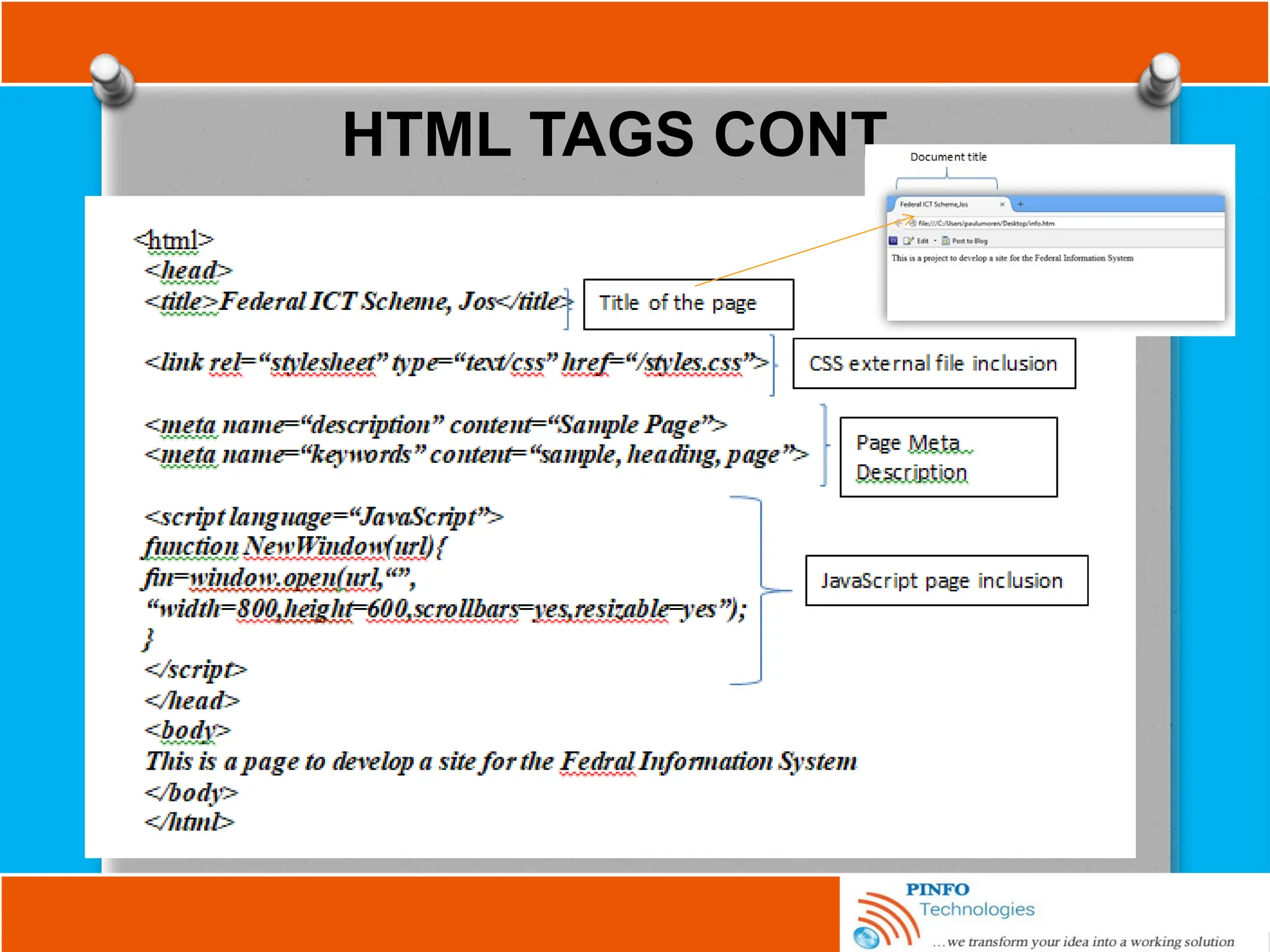
The <head> tag
The <head> tag delimits the heading of the HTML
document such as document’s title, Meta information,
and, in most cases, document scripts are all contained
in the <head> section. A typical <head> section could
resemble the following:
HTML TAGS CONT.
HTML TAGS
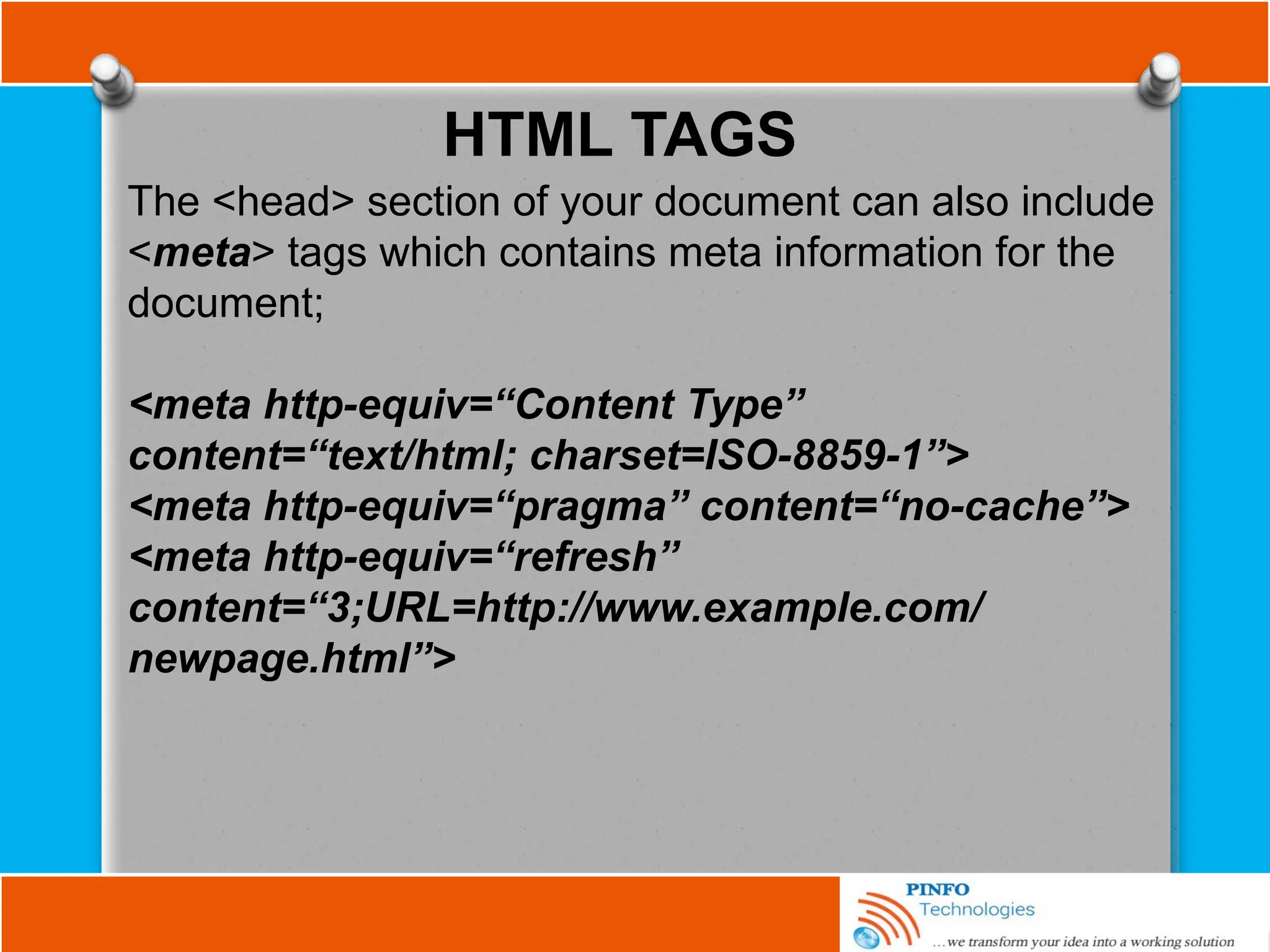
The <head> section of your document can also include
<meta> tags which contains meta information for the
document;
<meta http-equiv=“Content Type”
content=“text/html; charset=ISO-8859-1”>
<meta http-equiv=“pragma” content=“no-cache”>
<meta http-equiv=“refresh”
content=“3;URL=http://www.example.com/
newpage.html”>
HTML Elements
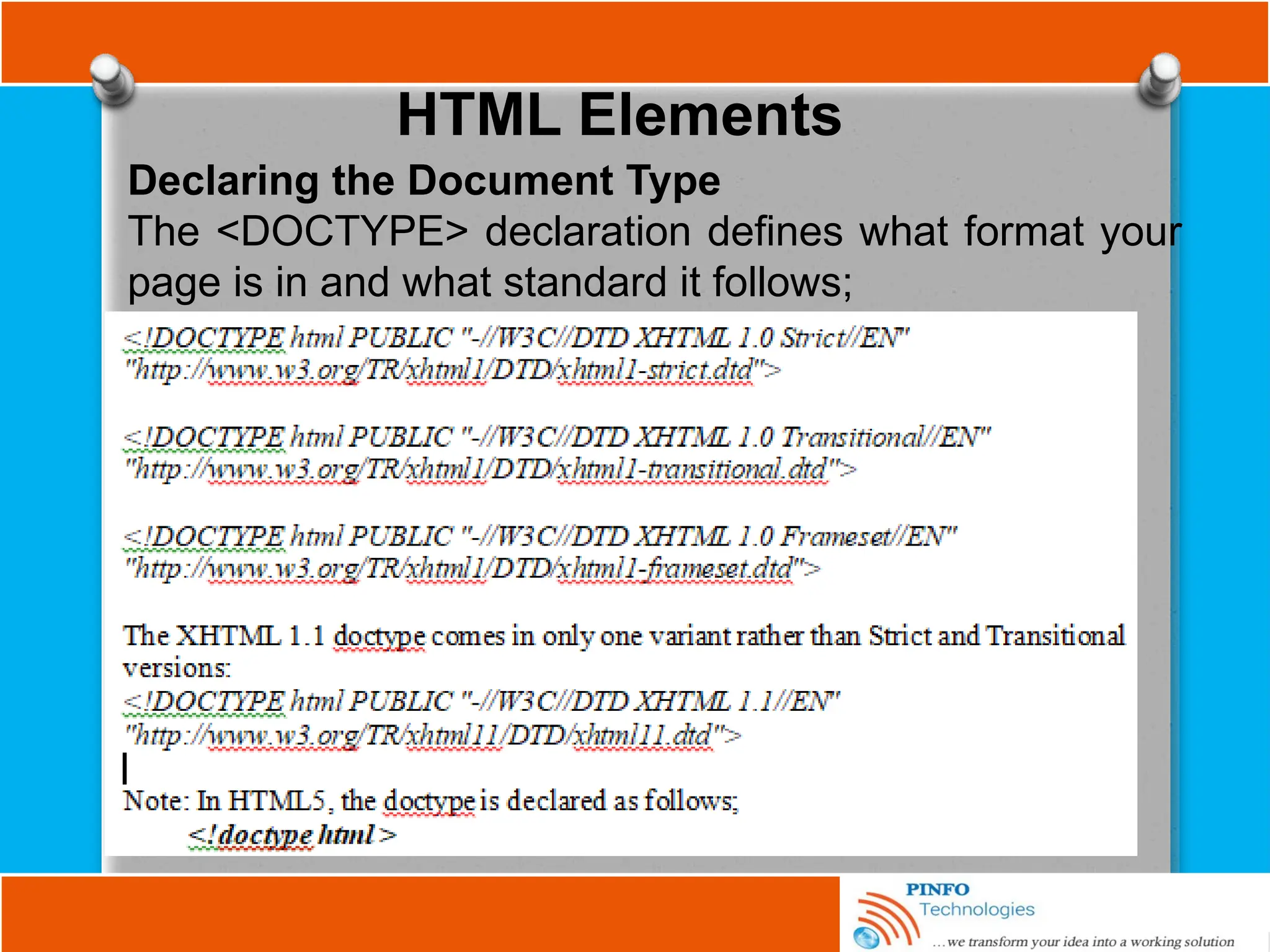
Declaring the Document Type
The <DOCTYPE> declaration defines what format your
page is in and what standard it follows;
Basic HTML Tags/Attributes
The most important tags in HTML are tags that define
headings, paragraphs and line breaks while attributes
provide additional information about html tags on your
document page;
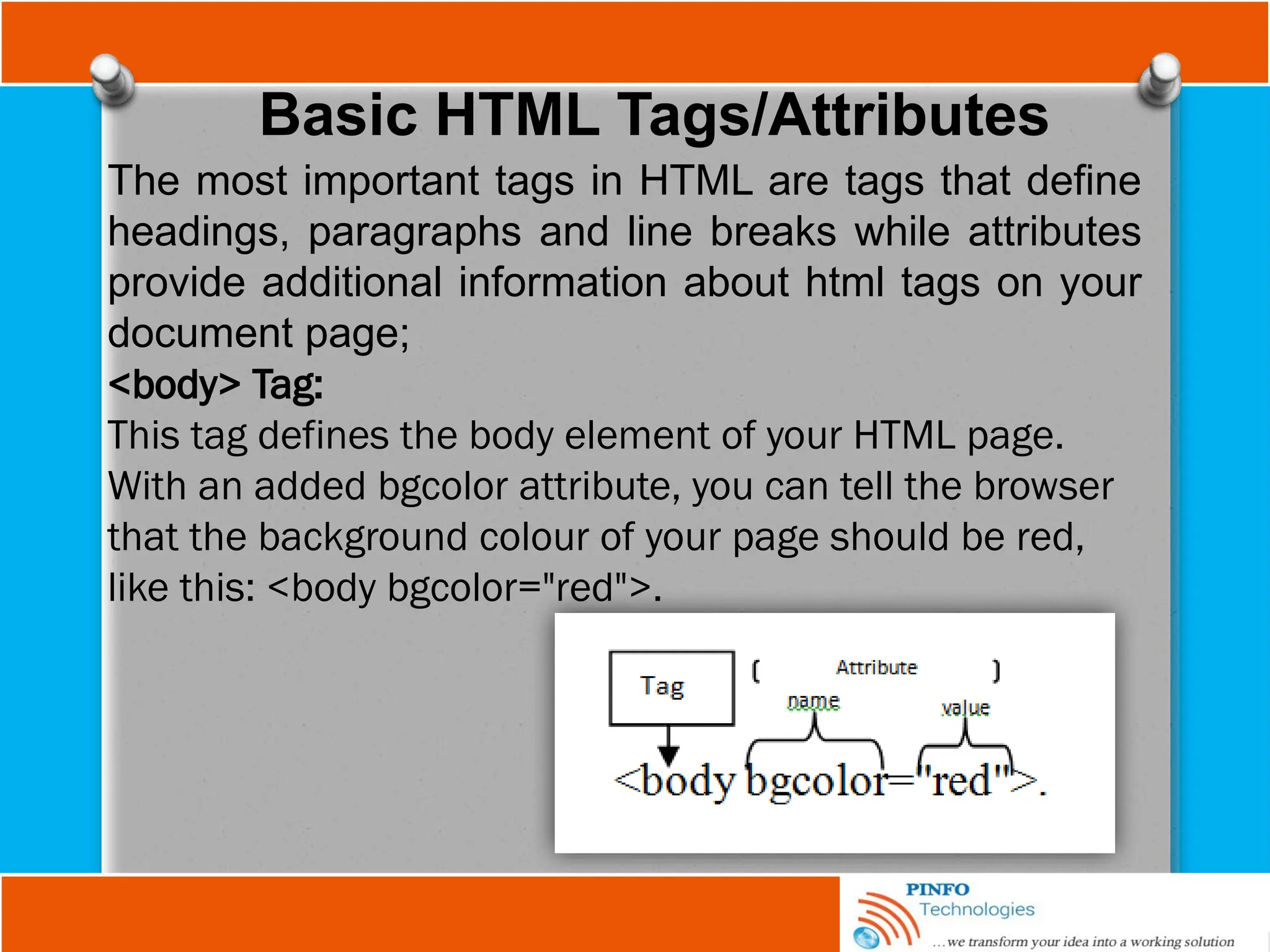
<body> Tag:
This tag defines the body element of your HTML page.
With an added bgcolor attribute, you can tell the browser
that the background colour of your page should be red,
like this: <body bgcolor="red">.
Basic HTML Tags/Attributes
<table> Tag:
This tag defines an HTML table. With an added border
attribute, you can tell the browser that the table should
have no borders: <table border="0">. Attributes always
come in name/value pairs like this: - name="value".
Heading Tags:
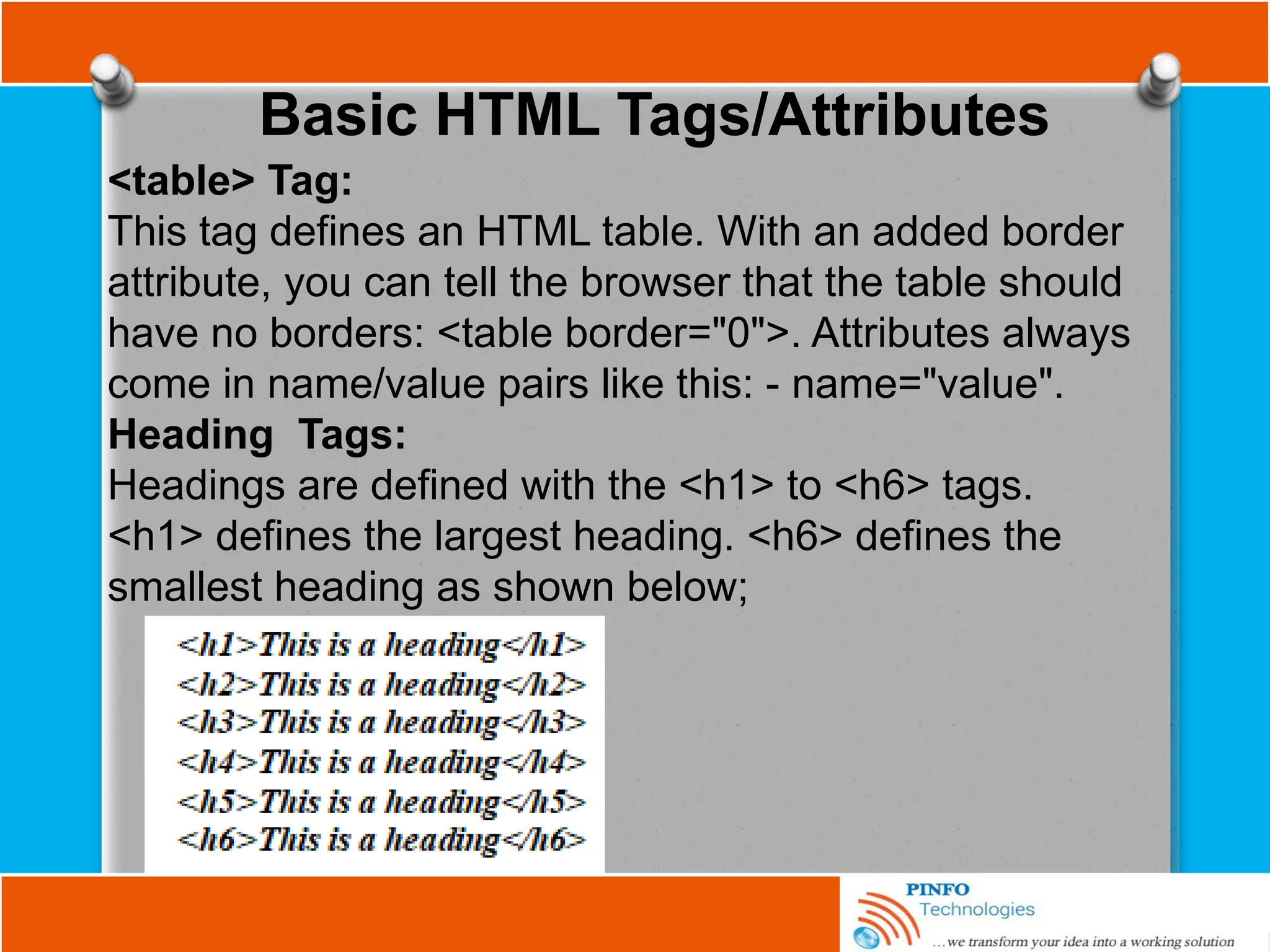
Headings are defined with the <h1> to <h6> tags.
<h1> defines the largest heading. <h6> defines the
smallest heading as shown below;
Basic HTML Tags/Attributes
Paragraphs
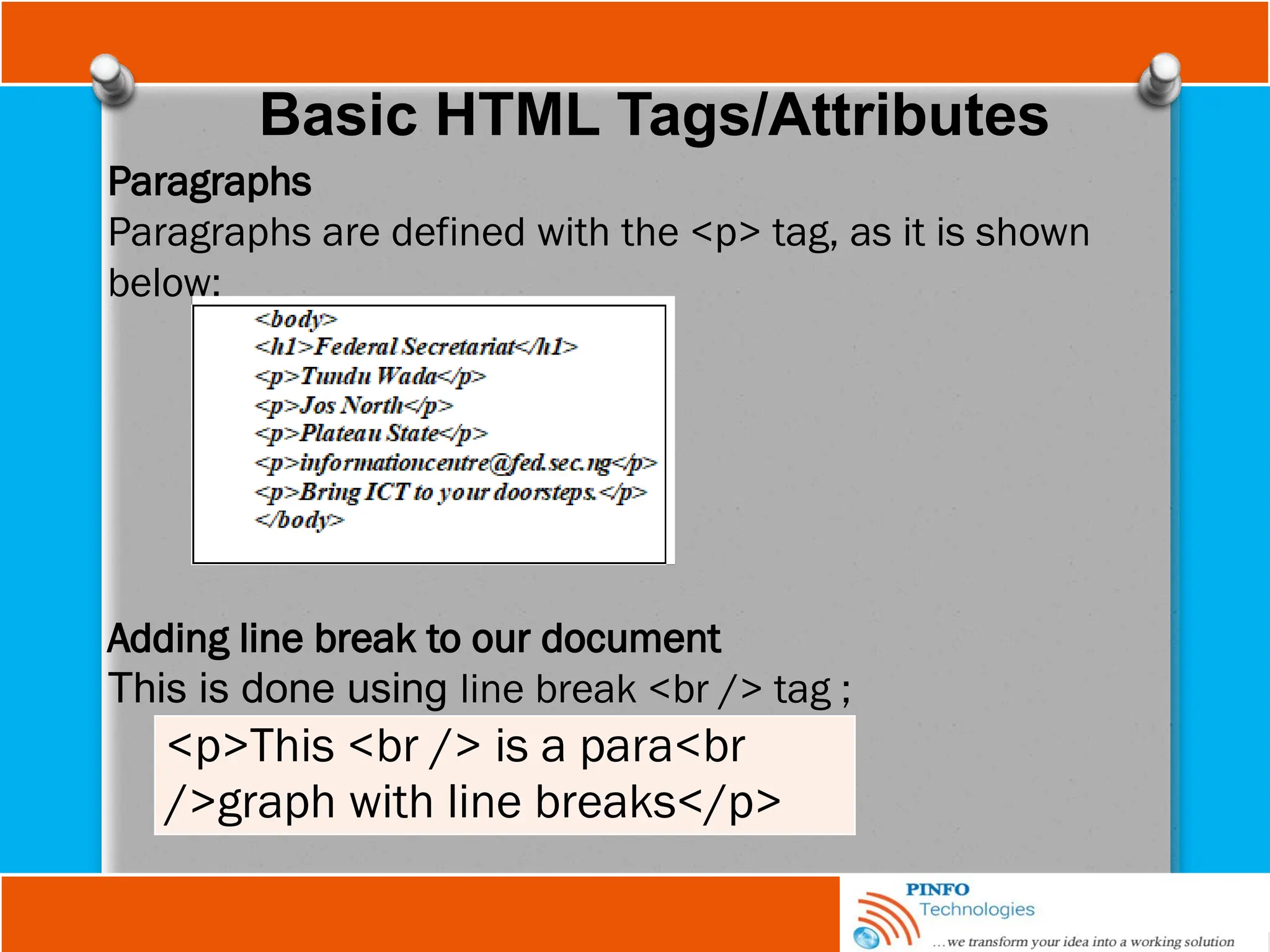
Paragraphs are defined with the <p> tag, as it is shown
below;
Adding line break to our document
This is done using line break <br /> tag ;
<p>This <br /> is a para<br
/>graph with line breaks</p>
Basic HTML Tags/Attributes
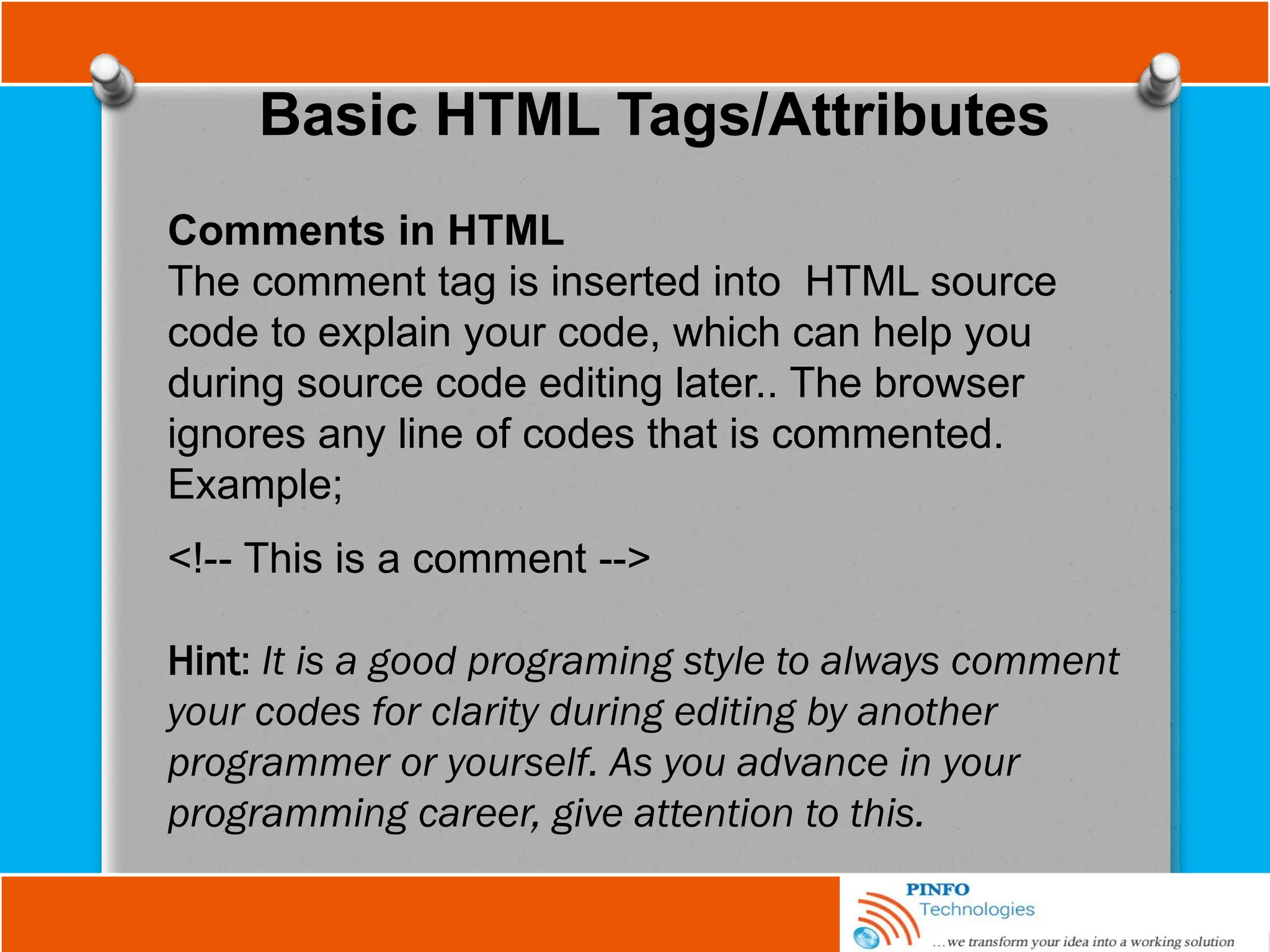
Comments in HTML
The comment tag is inserted into HTML source
code to explain your code, which can help you
during source code editing later.. The browser
ignores any line of codes that is commented.
Example;
<!-- This is a comment -->
Hint: It is a good programing style to always comment
your codes for clarity during editing by another
programmer or yourself. As you advance in your
programming career, give attention to this.
Basic HTML Tags/Attributes
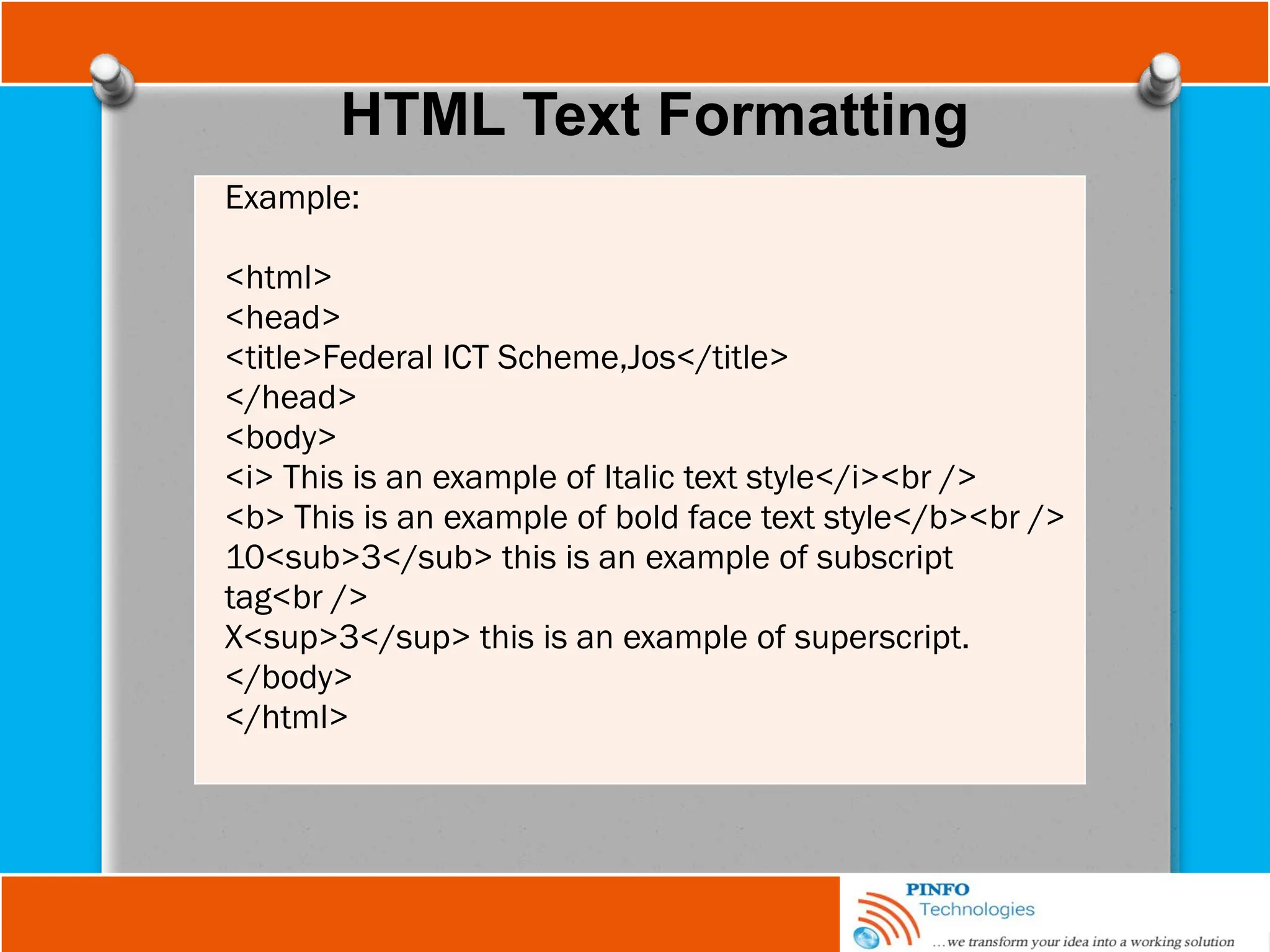
HTML Text Formatting
Examples of tags we apply formatting attributes to
are bold, italic, superscripted, and subscripted text;
The <b> Tag: This tag boldfaces a character or
segment of text that is enclosed between it<b> and
its corresponding end tag (</b>).
The <i> Tag: This tag is like the <em>, it tells the
browser to render the enclosed text in italic font
style.it is accompany with its corresponding end
tag</i>.
The <sub>/<sup> Tag: The text contained
between the tags and it corresponding end tags
displays half a character's height lower or above, in
the same font and size as the current text flow.
HTML Text Formatting
Example:
<html>
<head>
<title>Federal ICT Scheme,Jos</title>
</head>
<body>
<i> This is an example of Italic text style</i><br />
<b> This is an example of bold face text style</b><br />
10<sub>3</sub> this is an example of subscript
tag<br />
X<sup>3</sup> this is an example of superscript.
</body>
</html>
Basic HTML Tags/Attributes CONT.
The <pre> Tag
The HTML standards' <pre> tag and its
required end tag (</pre>) defines a
segment inside which the browser
renders text in exactly the character
and
line spacing written in the source
document.
The <center> Tag (deprecated)
This tag is used to centered web page
contents such as text, graphics, tables,
and so on inside the browser's window.
The <center> alignment remains in
effect until it is cancelled with its
corresponding end tag </center>
<body>
The processing program is:
<pre>
main(int argc, char **argv)
{
FILE *f;
int i;
if (argc != 2)
fprintf(stderr, "usage: %s &lt;file&gt;n",
argv[0]);
<a
href="http:process.c">process</a>(argv[1]);
exit(0);
}
</pre>
</body>
Basic HTML Tags/Attributes CONT.
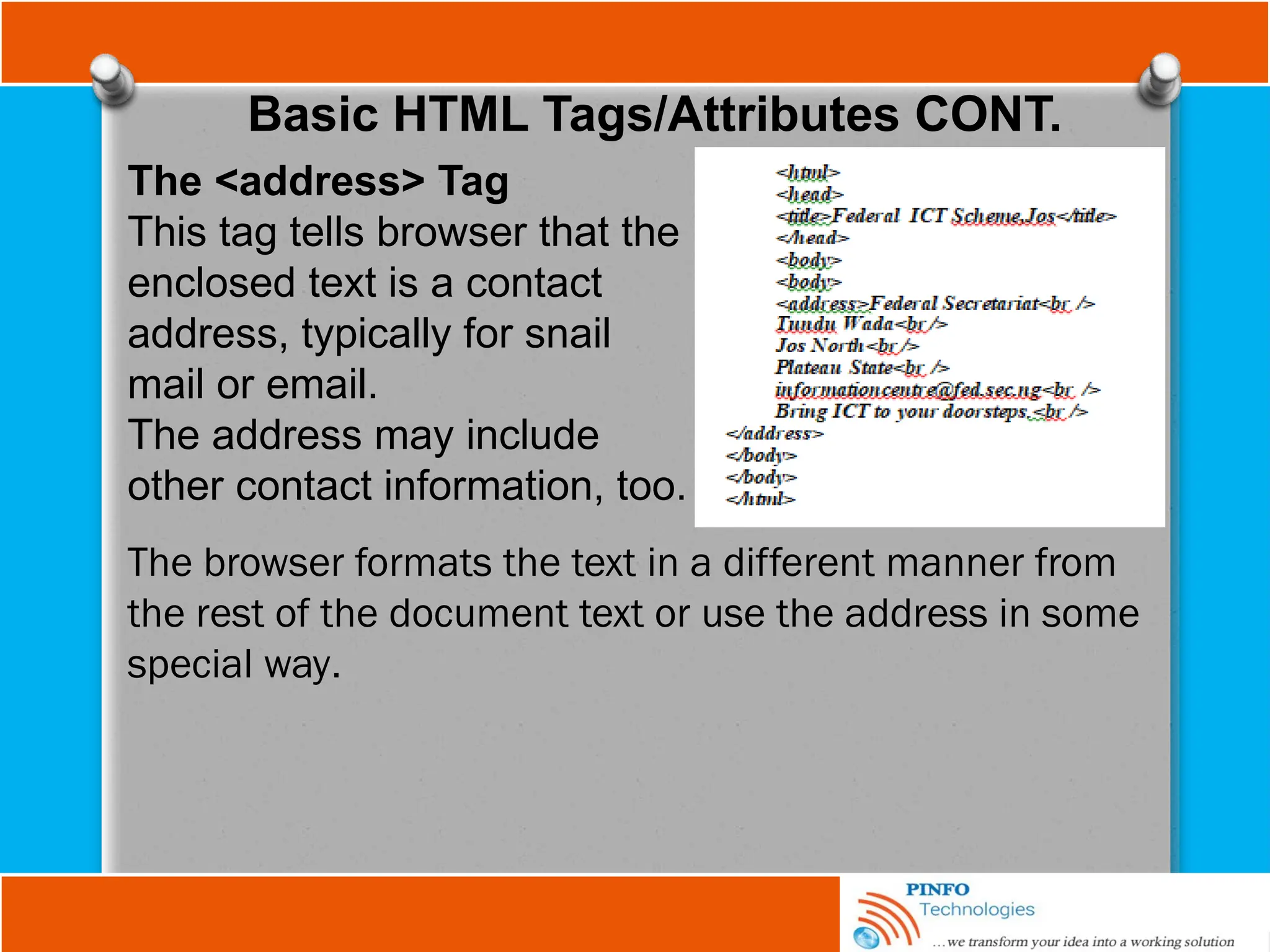
The <address> Tag
This tag tells browser that the
enclosed text is a contact
address, typically for snail
mail or email.
The address may include
other contact information, too.
The browser formats the text in a different manner from
the rest of the document text or use the address in some
special way.
Working with Lists
Listing
In the case of lists, HTML defines three different types
of lists: ordered, commonly known as numbered lists,
unordered, commonly known as bulleted lists, and
definition lists for term and definition pairs.
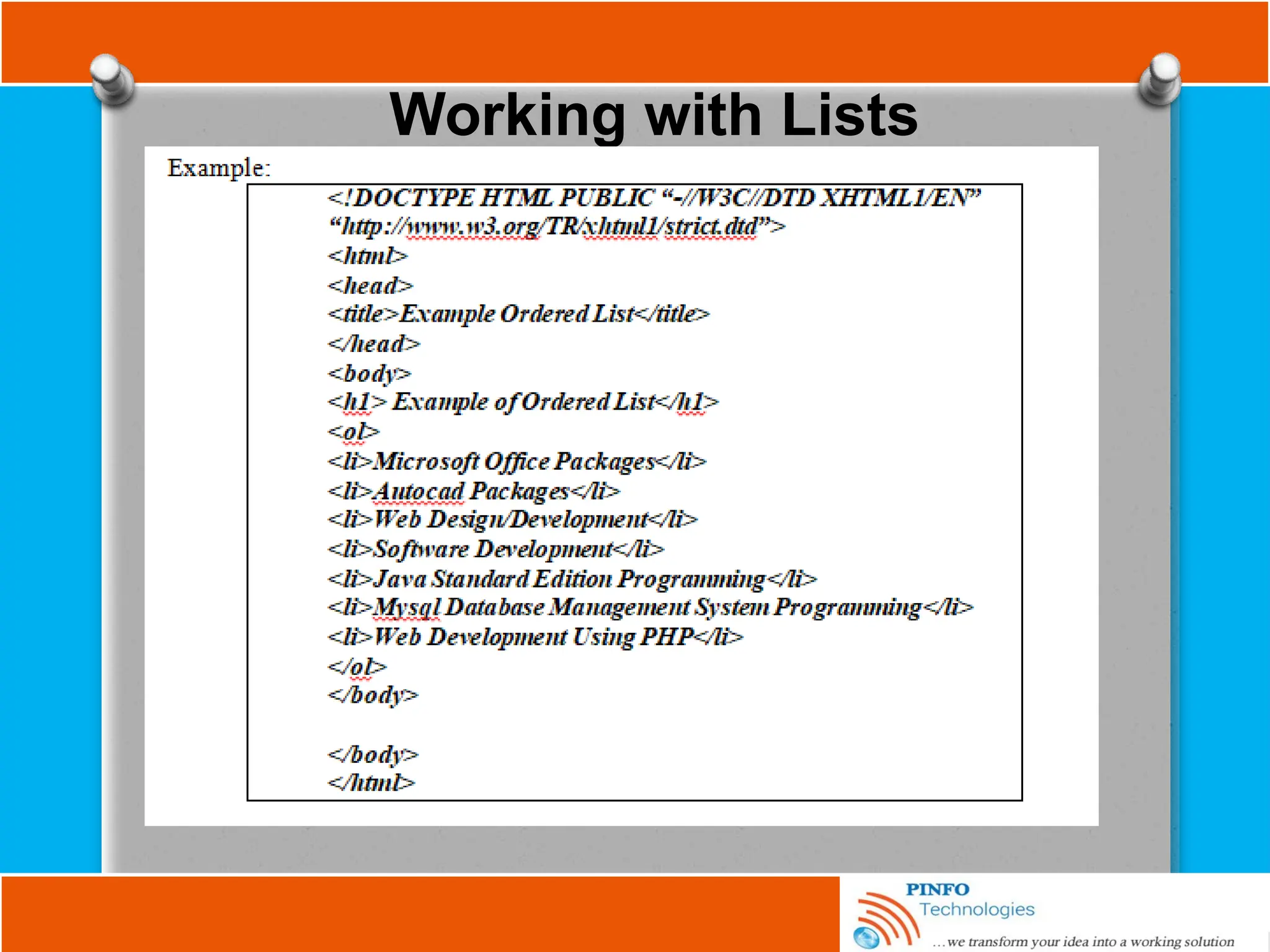
Ordered Lists
Ordered lists use the ordered list tag (<ol>) to delimits
the entire list and the list item tag (<li>) to delimits each
individual list item. Ordered list displays items using
number format.
Working with Lists
Working with Lists
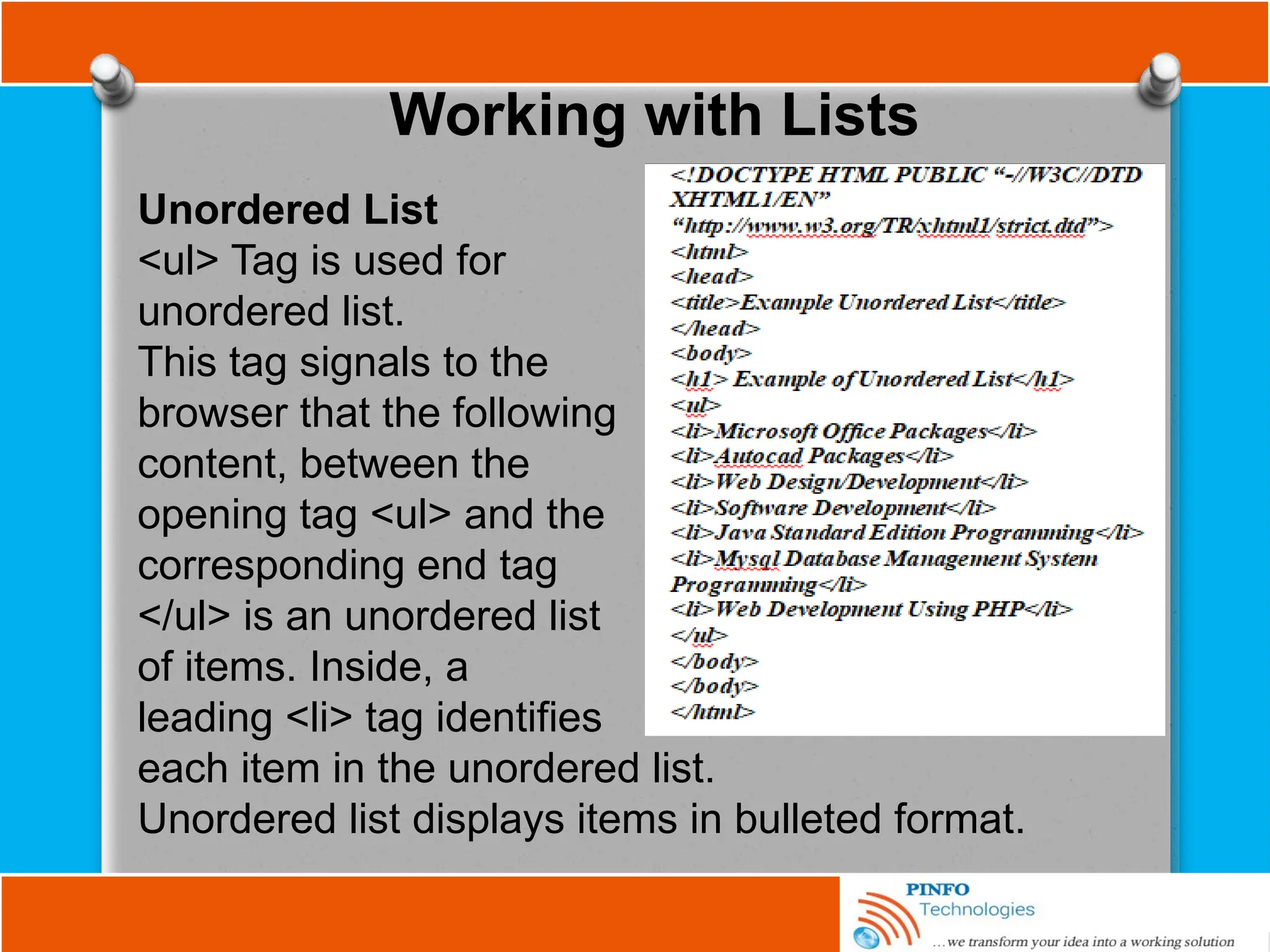
Unordered List
<ul> Tag is used for
unordered list.
This tag signals to the
browser that the following
content, between the
opening tag <ul> and the
corresponding end tag
</ul> is an unordered list
of items. Inside, a
leading <li> tag identifies
each item in the unordered list.
Unordered list displays items in bulleted format.
Working with Lists
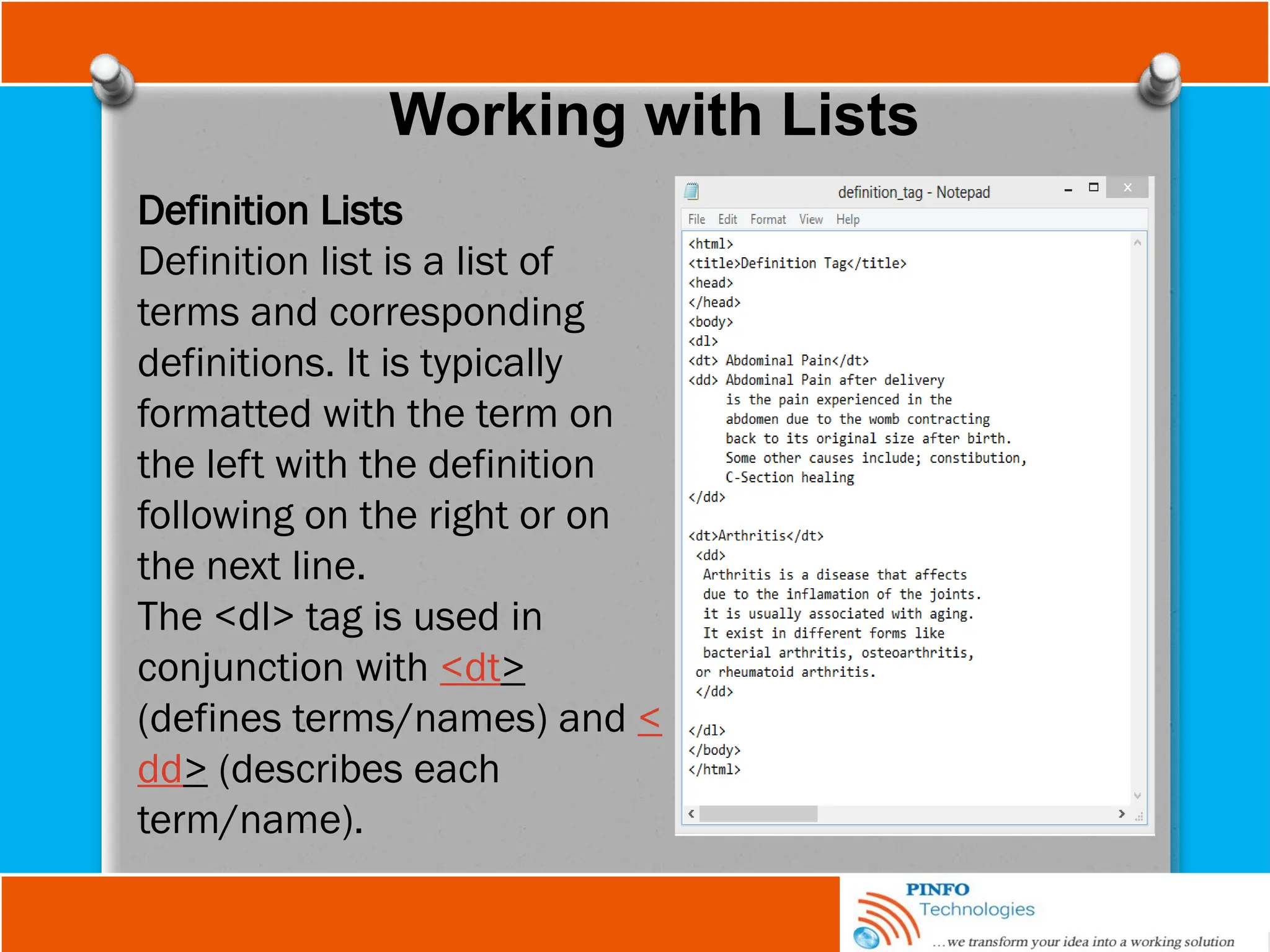
Definition Lists
Definition list is a list of
terms and corresponding
definitions. It is typically
formatted with the term on
the left with the definition
following on the right or on
the next line.
The <dl> tag is used in
conjunction with <dt>
(defines terms/names) and <
dd> (describes each
term/name).
Working with Division(<div>) tag
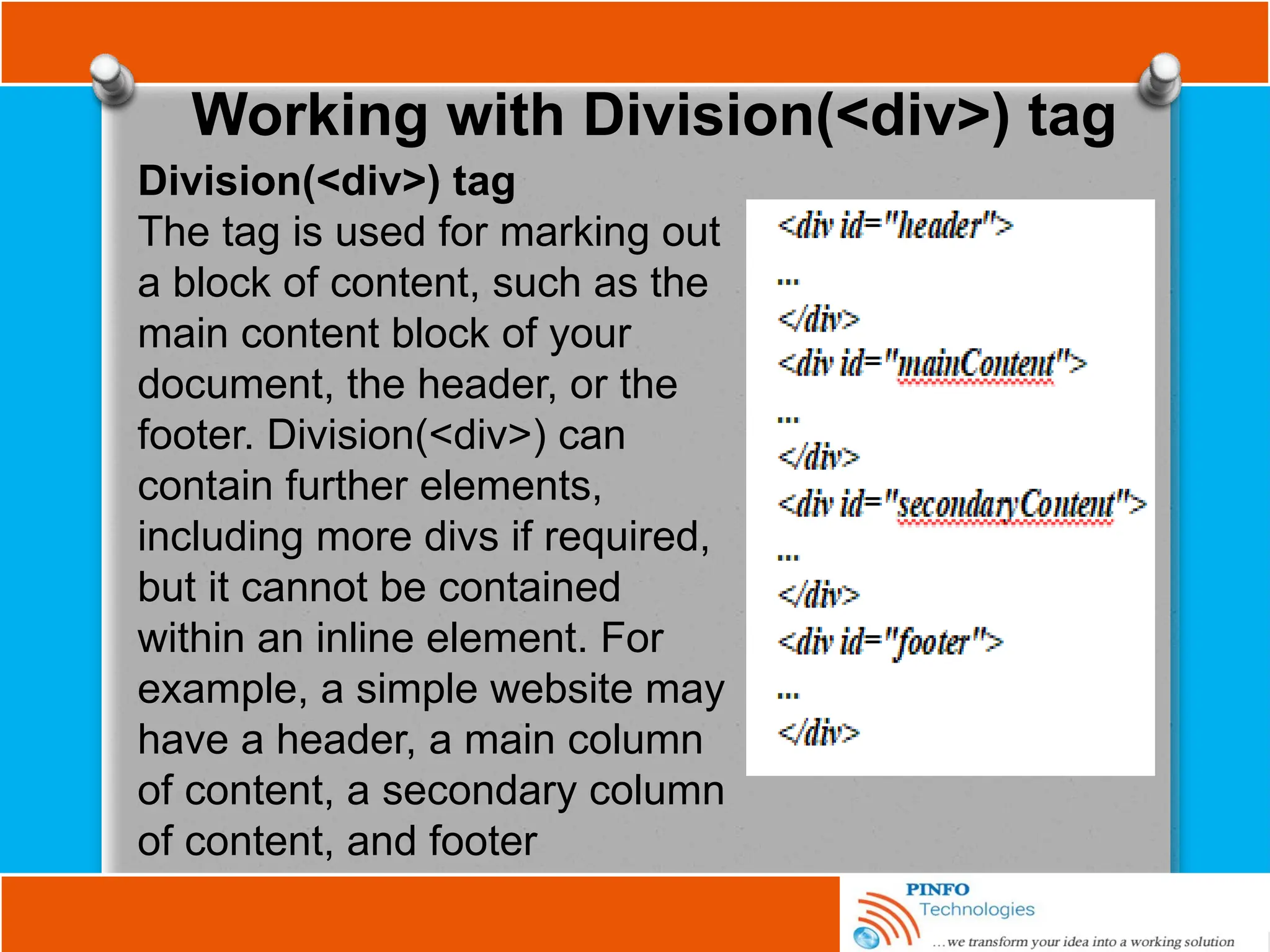
Division(<div>) tag
The tag is used for marking out
a block of content, such as the
main content block of your
document, the header, or the
footer. Division(<div>) can
contain further elements,
including more divs if required,
but it cannot be contained
within an inline element. For
example, a simple website may
have a header, a main column
of content, a secondary column
of content, and footer
Working with Division(<div>) tag
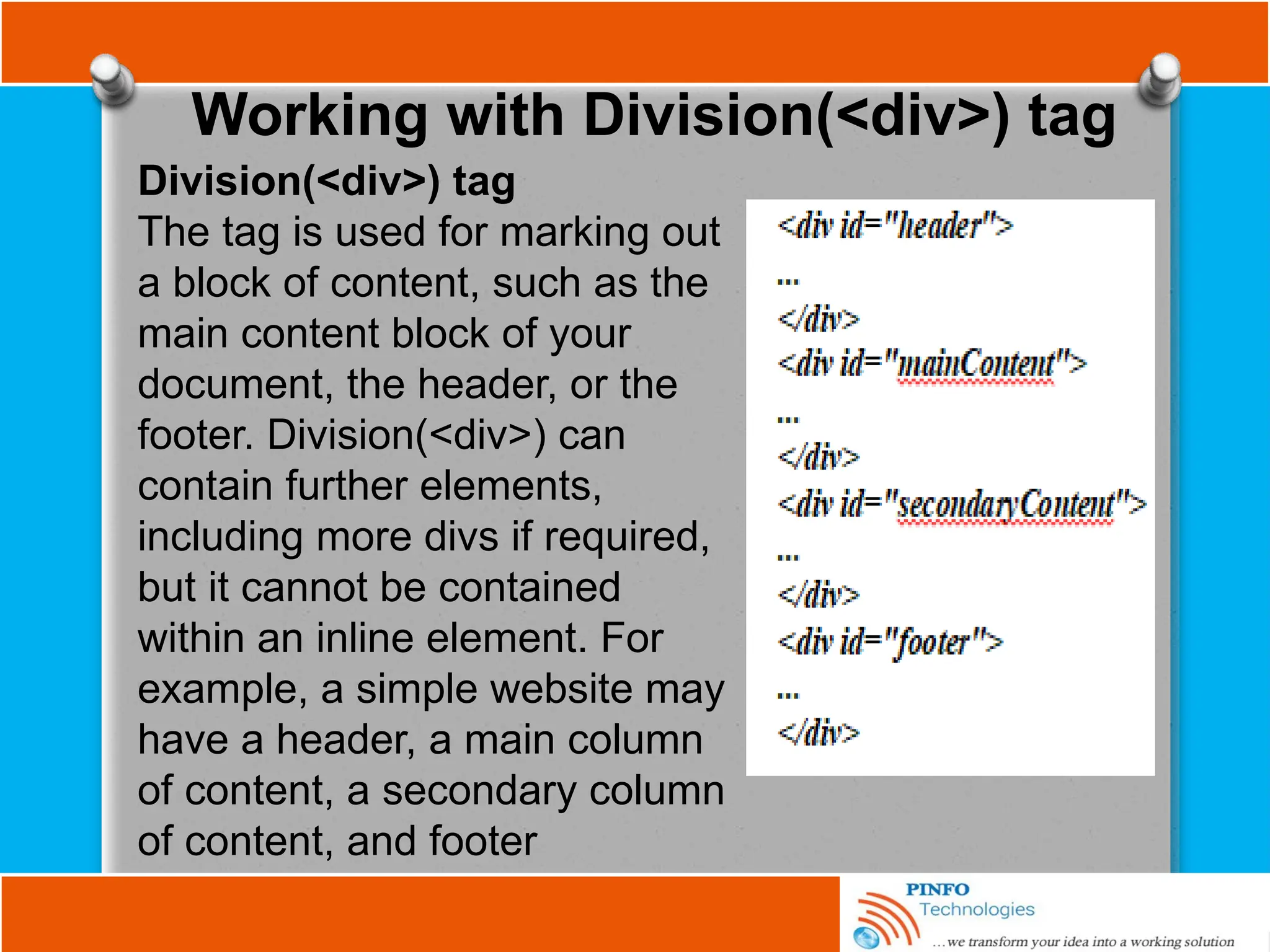
Division(<div>) tag
The tag is used for marking out
a block of content, such as the
main content block of your
document, the header, or the
footer. Division(<div>) can
contain further elements,
including more divs if required,
but it cannot be contained
within an inline element. For
example, a simple website may
have a header, a main column
of content, a secondary column
of content, and footer
Working with Span <span> tag
Span <span> tag
This tag is used for marking out sections within a
block element and sometimes inside another inline
element. It is an inline element, just the same as
<em>, <strong>, or <a>, except without any semantic
meaning; it is simply a generic container
Working with Span <span> tag
Span <span> tag
This tag is used for marking out sections within a
block element and sometimes inside another inline
element. It is an inline element, just the same as
<em>, <strong>, or <a>, except without any semantic
meaning; it is simply a generic container
Working with Rules, Images
and Multimedia
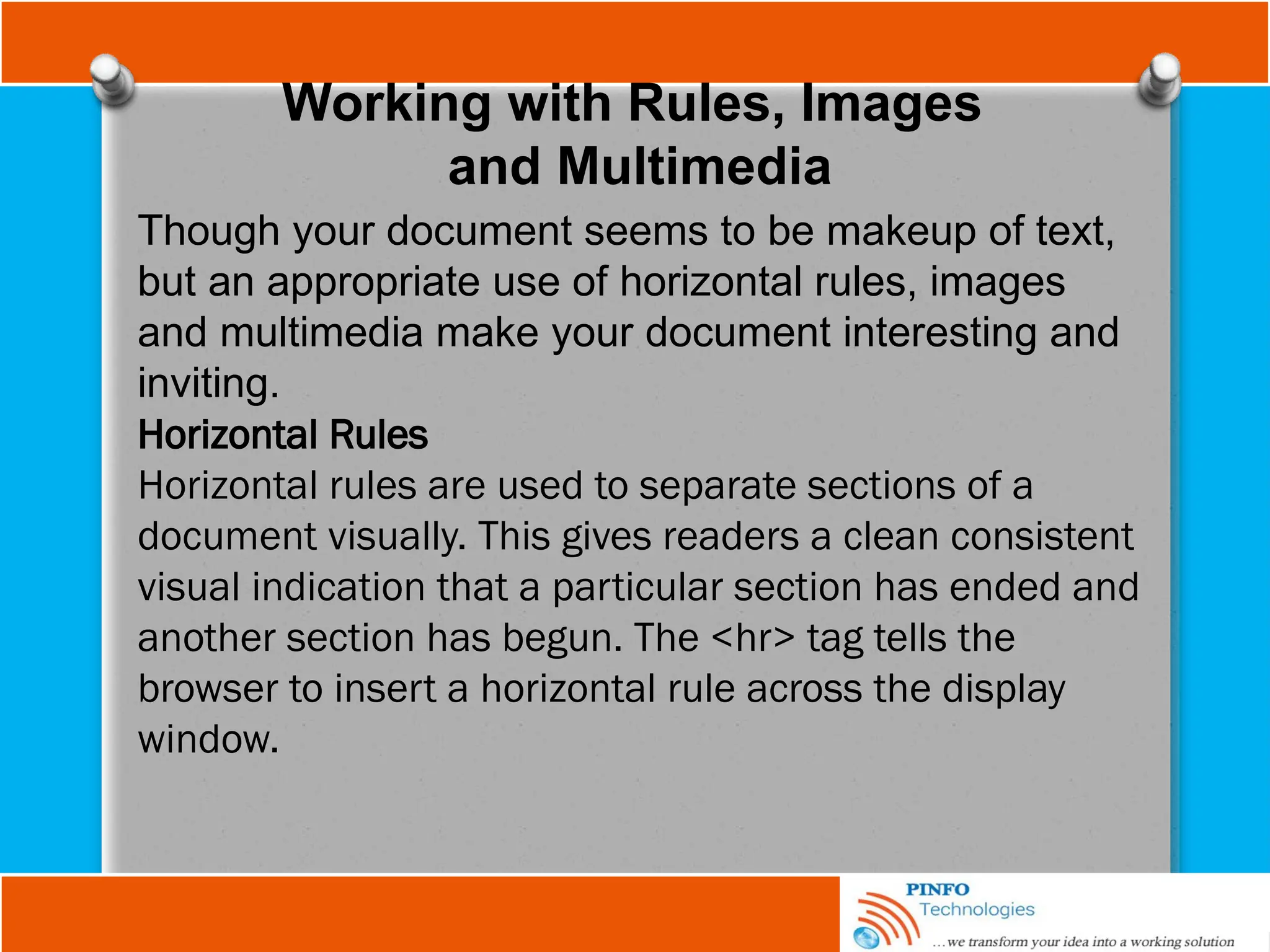
Though your document seems to be makeup of text,
but an appropriate use of horizontal rules, images
and multimedia make your document interesting and
inviting.
Horizontal Rules
Horizontal rules are used to separate sections of a
document visually. This gives readers a clean consistent
visual indication that a particular section has ended and
another section has begun. The <hr> tag tells the
browser to insert a horizontal rule across the display
window.
Working with Rules, Images
and Multimedia
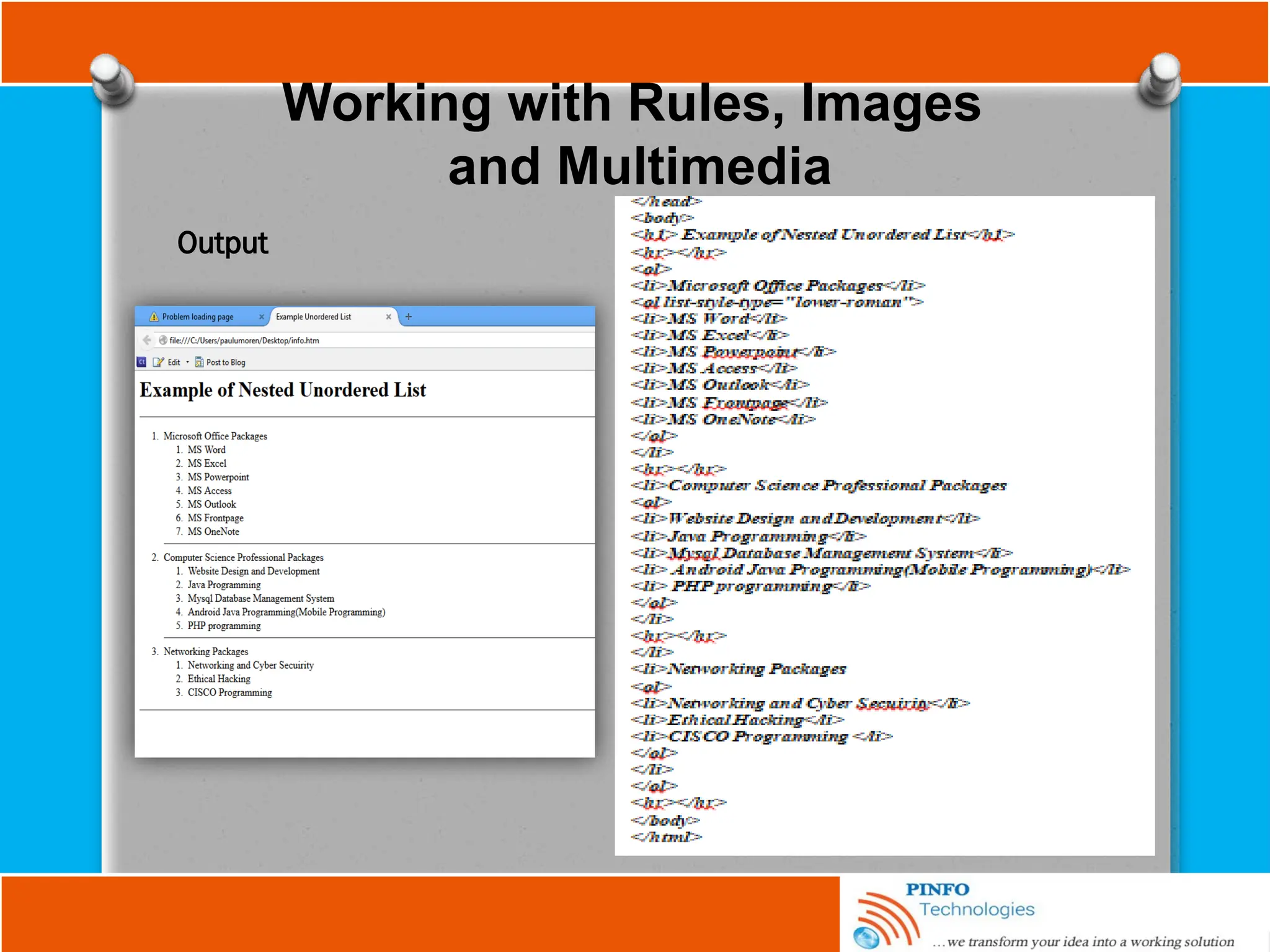
Output
Working with Rules, Images
and Multimedia
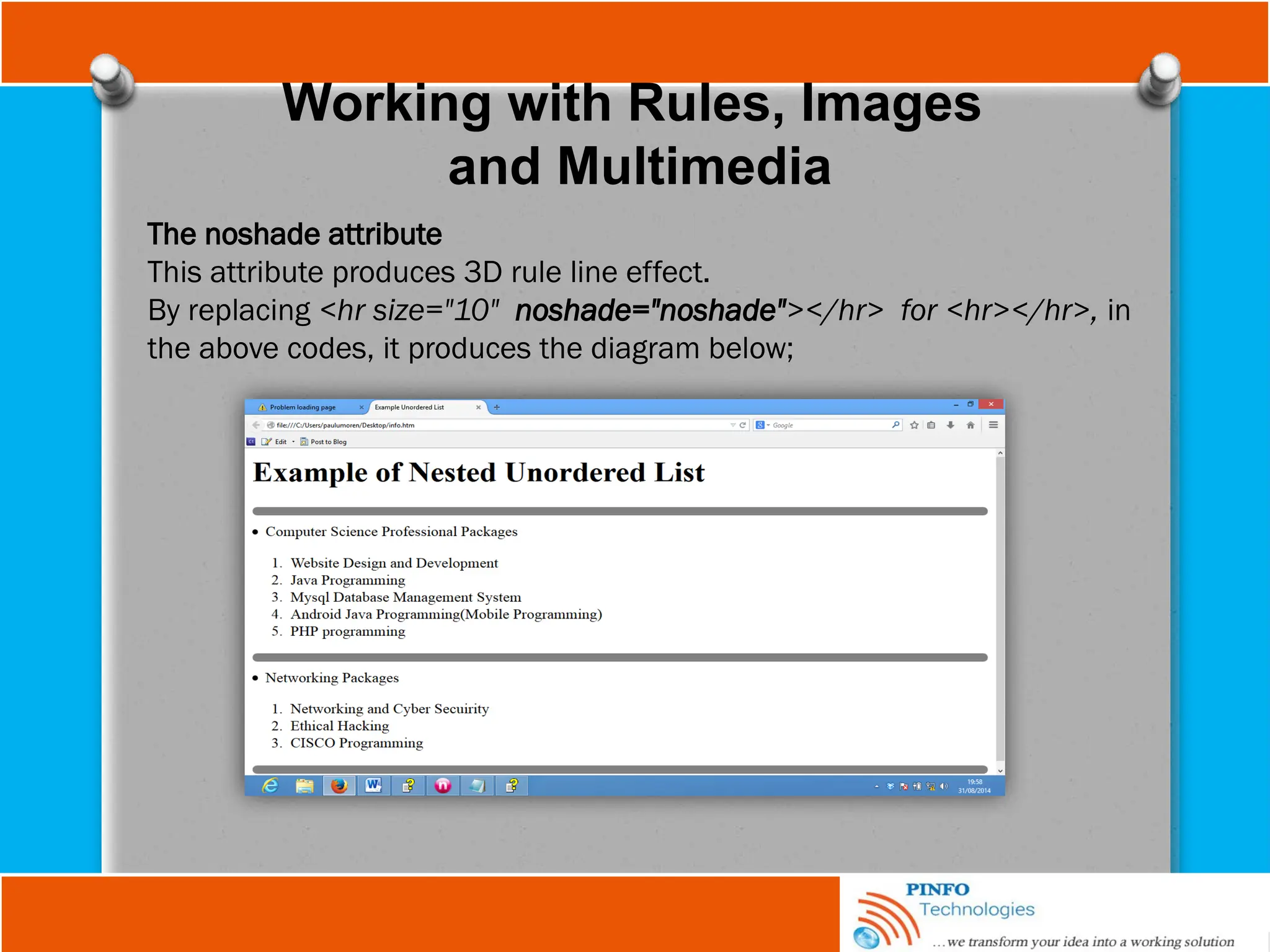
The noshade attribute
This attribute produces 3D rule line effect.
By replacing <hr size="10" noshade="noshade"></hr> for <hr></hr>, in
the above codes, it produces the diagram below;
Working with Rules, Images
and Multimedia
Images
Images are very important in web designing; they give
professional look to your websites.
The three major formats of image that are commonly
used; JPEG (Joint Photographers Experts Group),
GIF(Graphical Interchange Format) and PNG(Portable
Network Graphics)
Inserting Images on a Page using <img> tag and
src attribute:
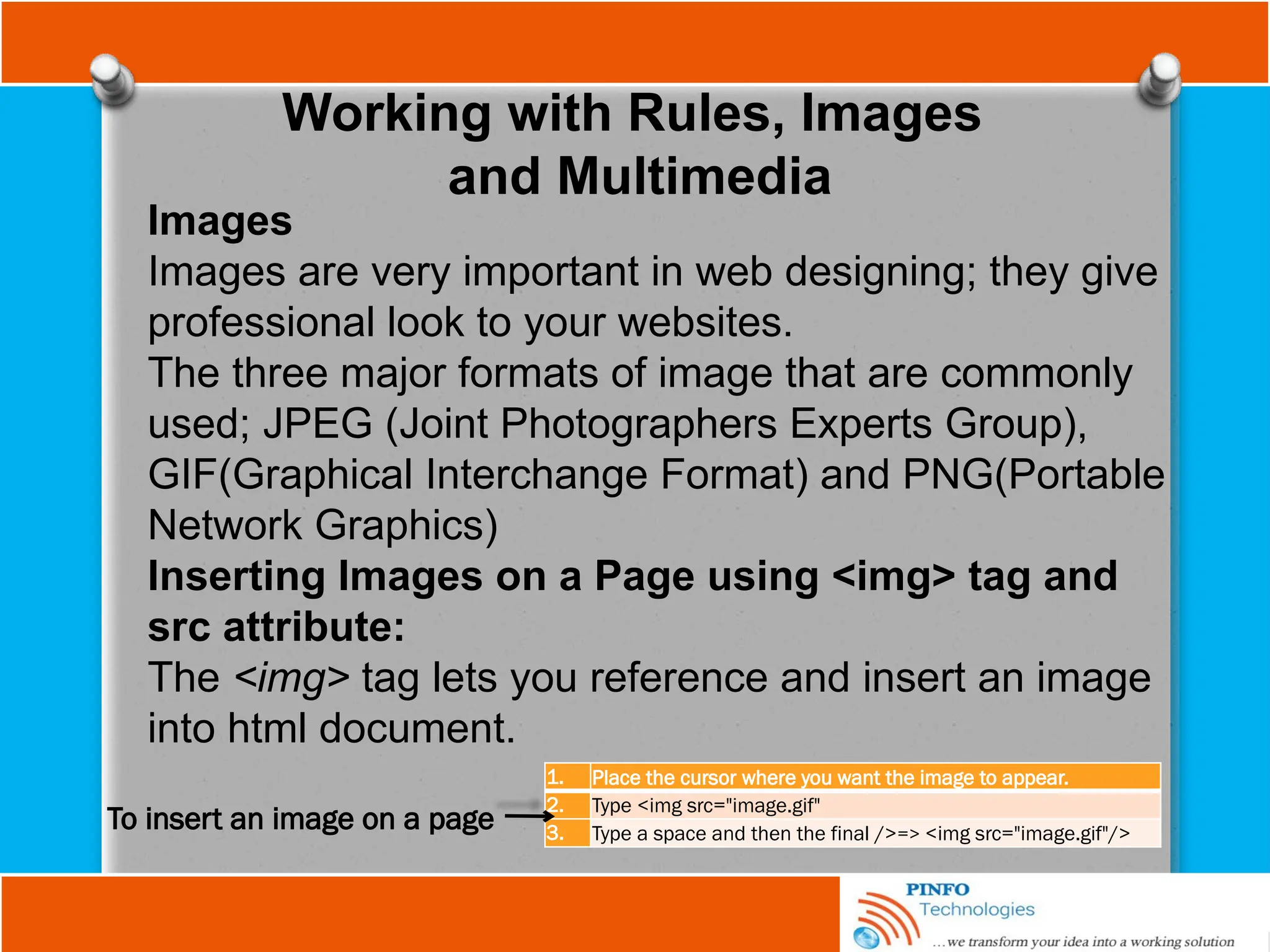
The <img> tag lets you reference and insert an image
into html document.
1. Place the cursor where you want the image to appear.
2. Type <img src="image.gif"
3. Type a space and then the final />=> <img src="image.gif"/>
To insert an image on a page
Working with Rules, Images
and Multimedia
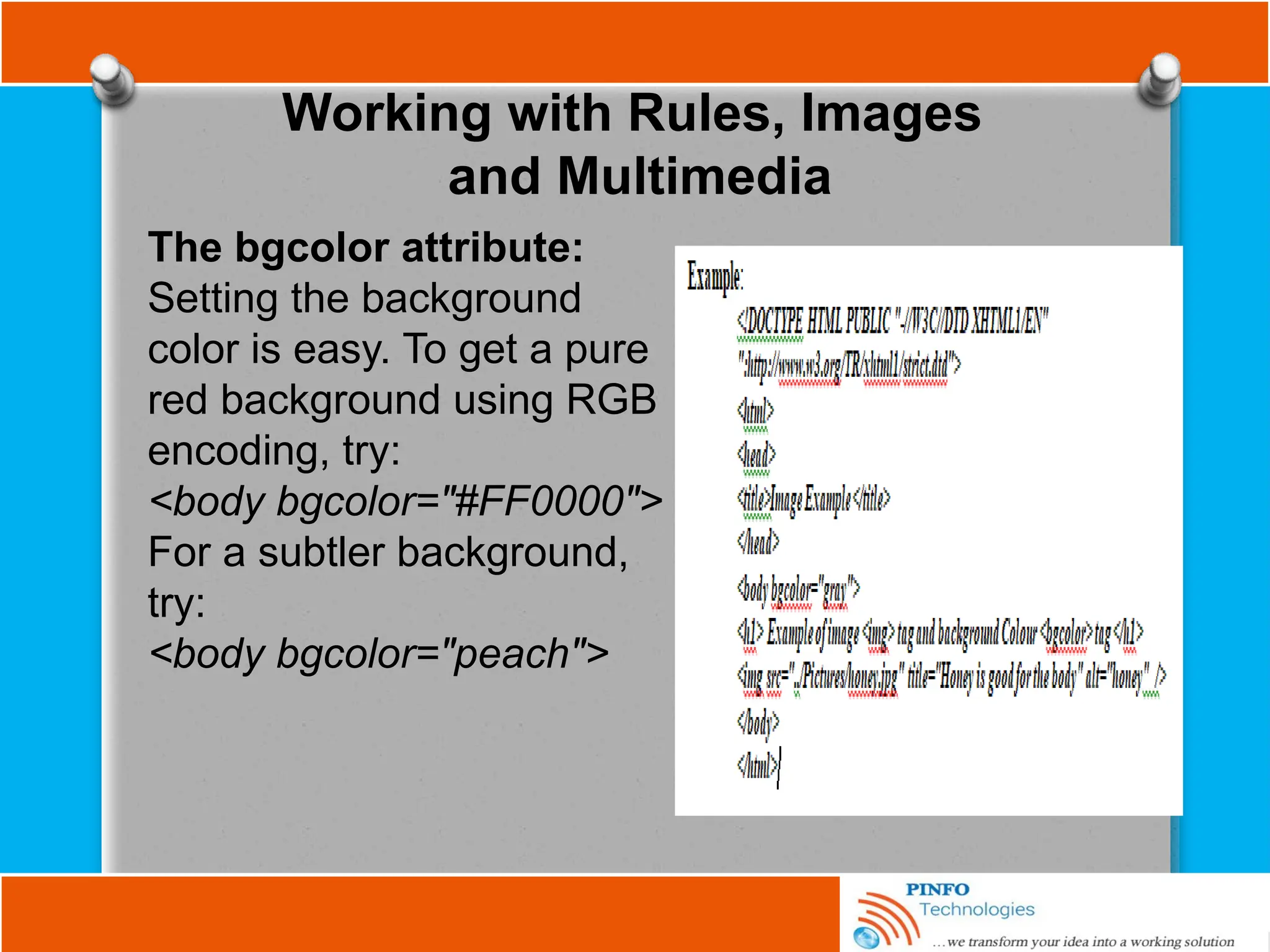
The bgcolor attribute:
Setting the background
color is easy. To get a pure
red background using RGB
encoding, try:
<body bgcolor="#FF0000">
For a subtler background,
try:
<body bgcolor="peach">
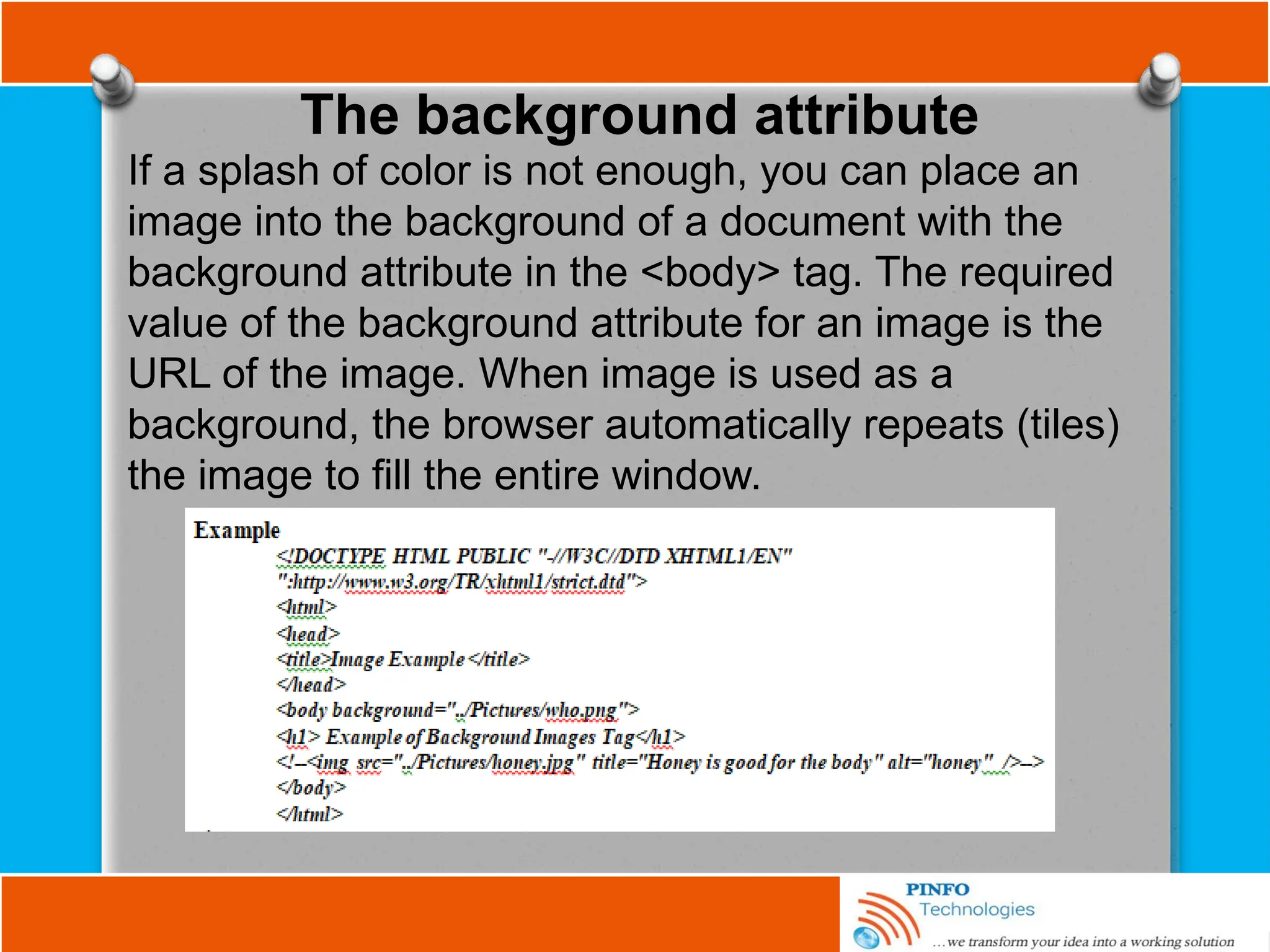
The background attribute
If a splash of color is not enough, you can place an
image into the background of a document with the
background attribute in the <body> tag. The required
value of the background attribute for an image is the
URL of the image. When image is used as a
background, the browser automatically repeats (tiles)
the image to fill the entire window.
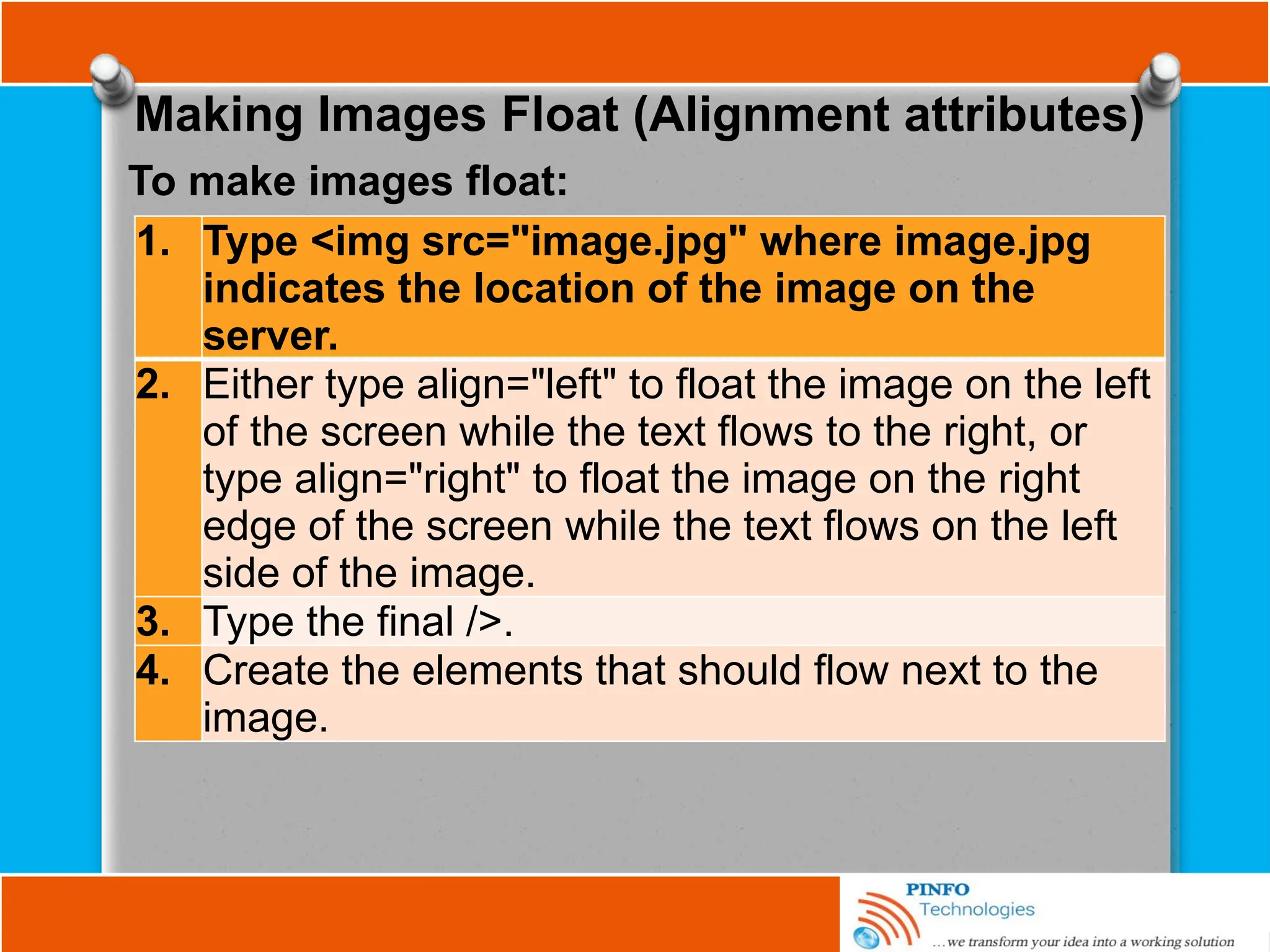
Making Images Float (Alignment attributes)
1. Type <img src="image.jpg" where image.jpg
indicates the location of the image on the
server.
2. Either type align="left" to float the image on the left
of the screen while the text flows to the right, or
type align="right" to float the image on the right
edge of the screen while the text flows on the left
side of the image.
3. Type the final />.
4. Create the elements that should flow next to the
image.
To make images float:
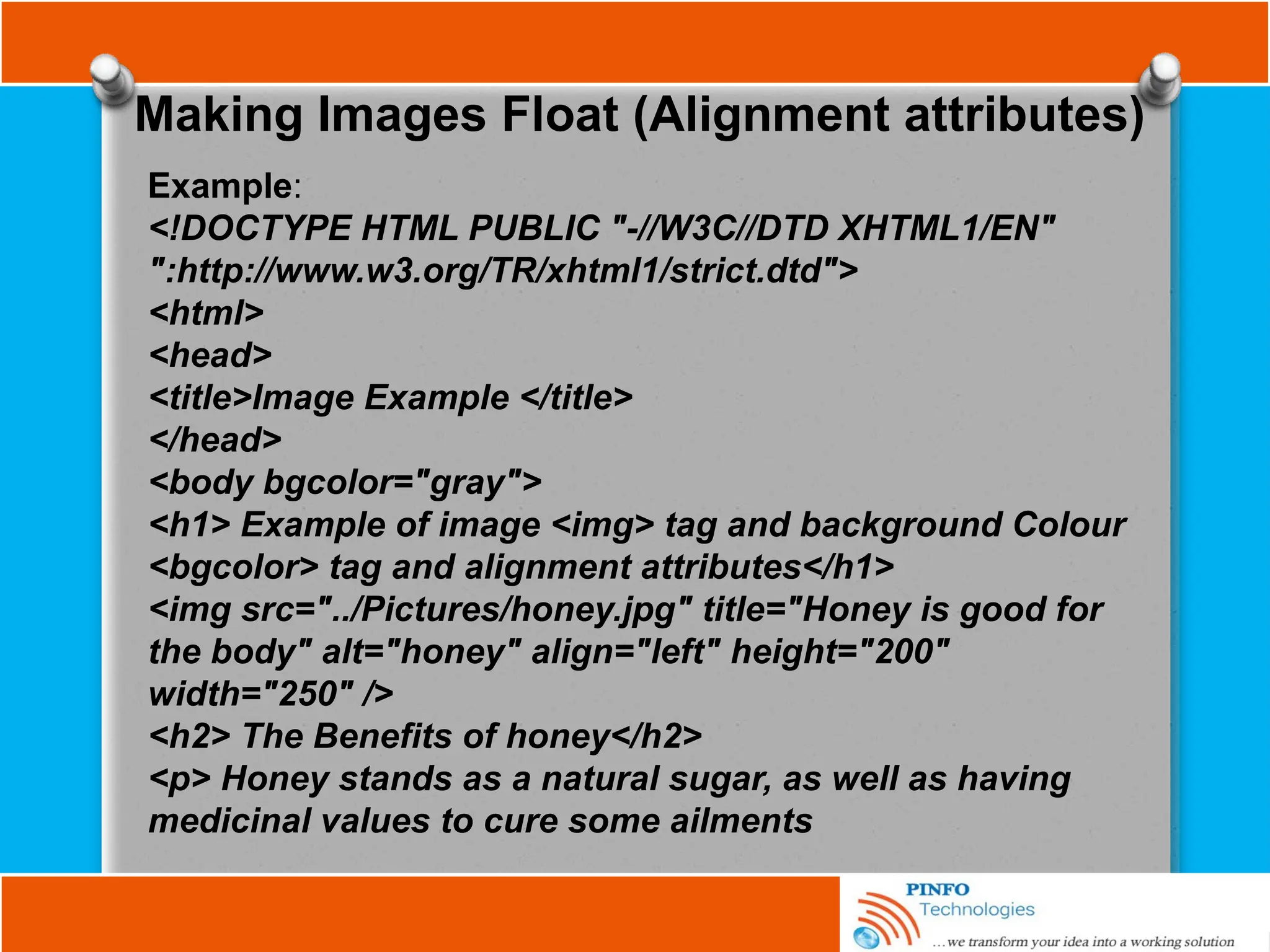
Making Images Float (Alignment attributes)
Example:
<!DOCTYPE HTML PUBLIC "-//W3C//DTD XHTML1/EN"
":http://www.w3.org/TR/xhtml1/strict.dtd">
<html>
<head>
<title>Image Example </title>
</head>
<body bgcolor="gray">
<h1> Example of image <img> tag and background Colour
<bgcolor> tag and alignment attributes</h1>
<img src="../Pictures/honey.jpg" title="Honey is good for
the body" alt="honey" align="left" height="200"
width="250" />
<h2> The Benefits of honey</h2>
<p> Honey stands as a natural sugar, as well as having
medicinal values to cure some ailments
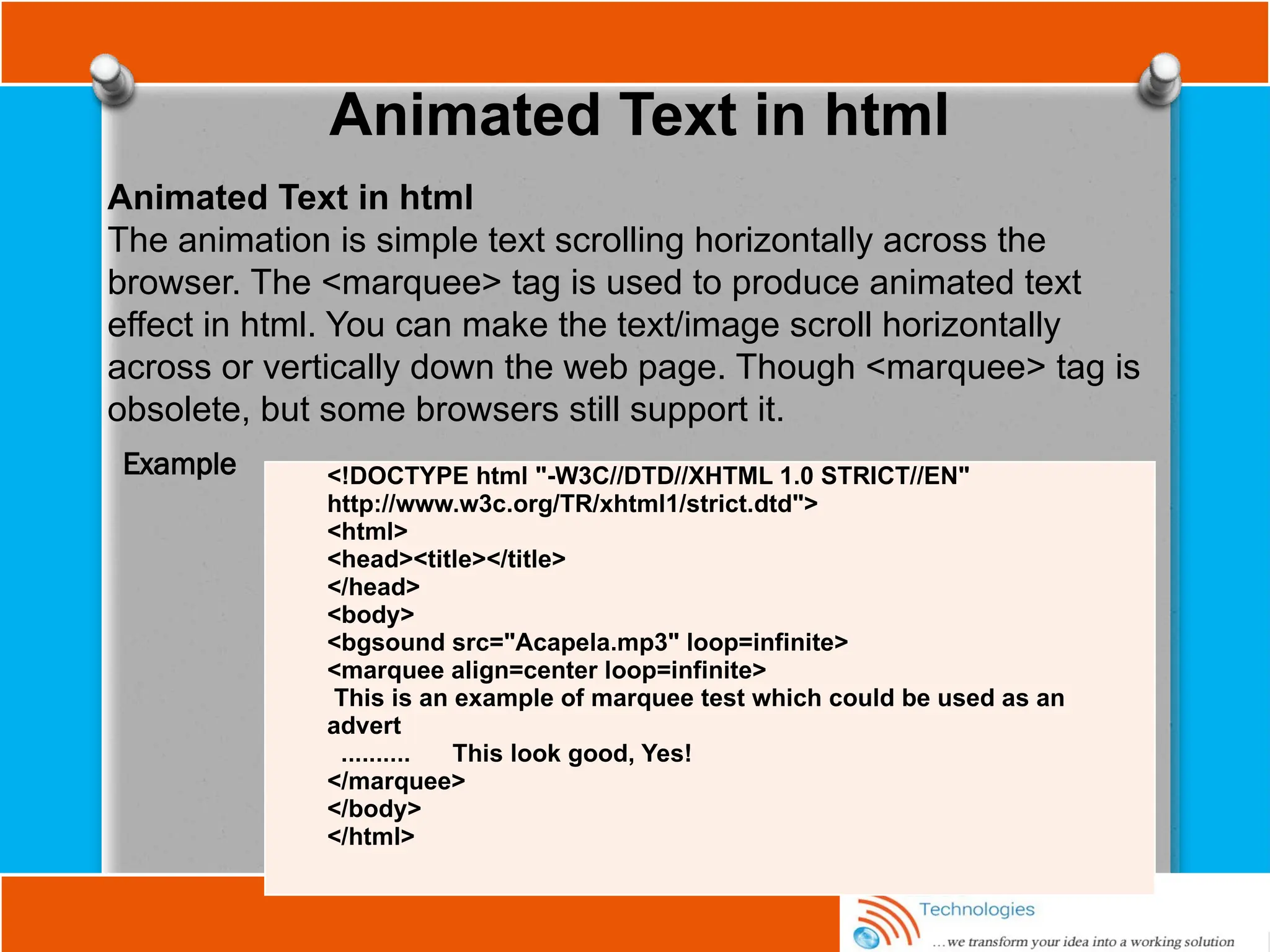
Animated Text in html
The animation is simple text scrolling horizontally across the
browser. The <marquee> tag is used to produce animated text
effect in html. You can make the text/image scroll horizontally
across or vertically down the web page. Though <marquee> tag is
obsolete, but some browsers still support it.
<!DOCTYPE html "-W3C//DTD//XHTML 1.0 STRICT//EN"
http://www.w3c.org/TR/xhtml1/strict.dtd">
<html>
<head><title></title>
</head>
<body>
<bgsound src="Acapela.mp3" loop=infinite>
<marquee align=center loop=infinite>
This is an example of marquee test which could be used as an
advert
.......... This look good, Yes!
</marquee>
</body>
</html>
Example
Referencing Audio, Video, &Images
You reference any external document, regardless of type or
format, via a conventional anchor (<a>) link:
<a href="sounds/anthem.mp3">National Anthem</a>
Embedding Other Document Types
The Web can deliver nearly any type of electronic document,
not just graphics, sound, and video files. To display them,
however, the client browser needs a helper application installed
and referenced. Recent browsers also support plug-in
accessory software. For example, consider a company whose
extensive product documentation was prepared and stored in
some popular layout application such as Adobe Acrobat,
FrameMaker, QuarkXPress, Microsoft Excel or CorelDraw. The
Web offers an excellent way for distributing that documentation
over a worldwide network, but converting to HTML would be
too costly at this time.
Working Tables
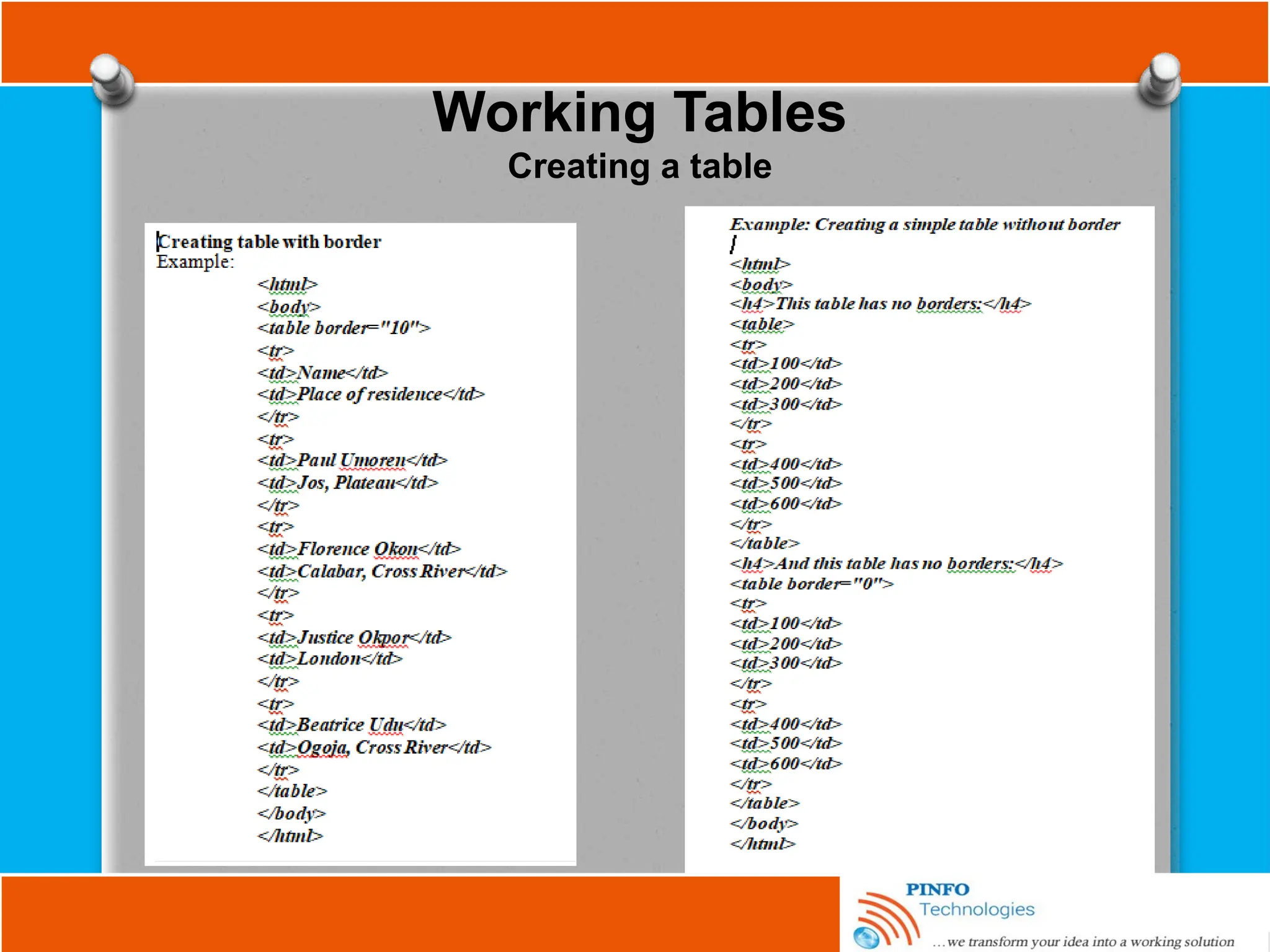
Tables are defined with the <table> tag. A table is divided
into rows (with the <tr> tag), and each row is divided into
data cells (with the <td> tag). The letters td stands for "table
data," which is the content of a data cell. A data cell can
contain text, images, lists, paragraphs, forms, horizontal
rules, tables, etc.
Basic Table Tags
You can create a wide variety of tables with only five tags:
the <table> tag; the <tr> tag, which defines a table row; the
<th> and <td> tags, which define the table's headers and
data cells; and the <caption> tag, which defines a title or
caption for the table. Beyond these core tags, you may also
define and control whole sections of tables, including adding
running headers and footers, with the <colgroup>, <col>,
<tbody>, <thead>, and <tfoot> tags.
Working Tables
The bgcolor, border & background image attributes
You can make the background of a table with a different colour
than the document's background using bgcolor attribute for the
<table>tag, as well as the background image.
These mark-ups control the display of background colour and
image of a table:
<table background="../images/logo.jpg"> for background image
<table bgcolor= “gray”> for background colour
The border attribute
The optional border attribute for the <table> tag-<table
border="10"> tells the browser to draw lines around the table,
the rows and cells within it. The default is no borders at all. The
border attribute carries integer value which equals to 3D
chiselled-edge lines that surround the outside of the table and
make it appear to be embossed onto the page.
Working Tables
The cellspacing attribute
The cellspacing attribute controls the amount of space placed
between adjacent cells in a table and along the outer edges of
cells through the edges of a table.
By including the cellspacing attribute, you can widen or reduce
the interior cell borders. For instance, to make the thinnest
possible interior cell borders, include the border and
cellspacing=0 attributes in the table's tag.
The cellpadding attribute of <table> tag
The cellpadding attribute controls the amount of space
between the edge of a cell and its contents, which by default is
1 pixel. You may make all the cell contents in a table touch
their respective cell borders by including cellpadding=0 in the
table tag. You may also increase the cellpadding space by
making its value greater than 1.
Working Tables
The width and height attributes of <table> tag
Browsers automatically make a table only as wide as
needed to display all of the cell contents. If necessary,
you can make a table wider with the width attribute.
The value of the width attribute is either an integer
number of pixels or a relative percentage of the screen
width, including values greater than 100 percent. For
example:
<table width=400> or <table width="50 %">
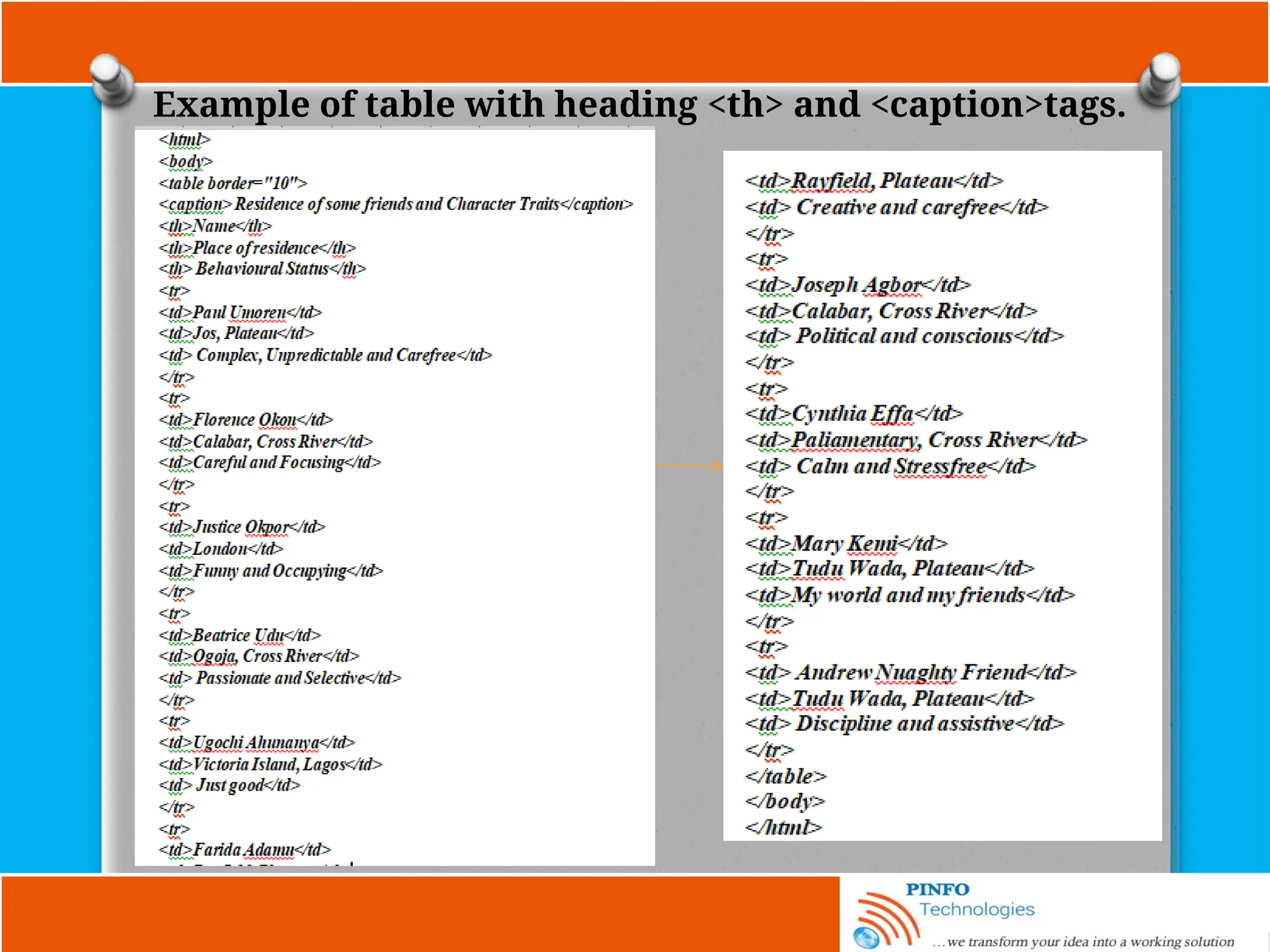
The <caption> Tag
A table commonly needs a caption to explain its contents,
so the popular browsers provide a table-caption tag. The
<caption> tag and its contents are typically immediately
after the <table> tag. Example
Working Tables
Creating a table
Example of table with heading <th> and <caption>tags.
Form Fundamentals
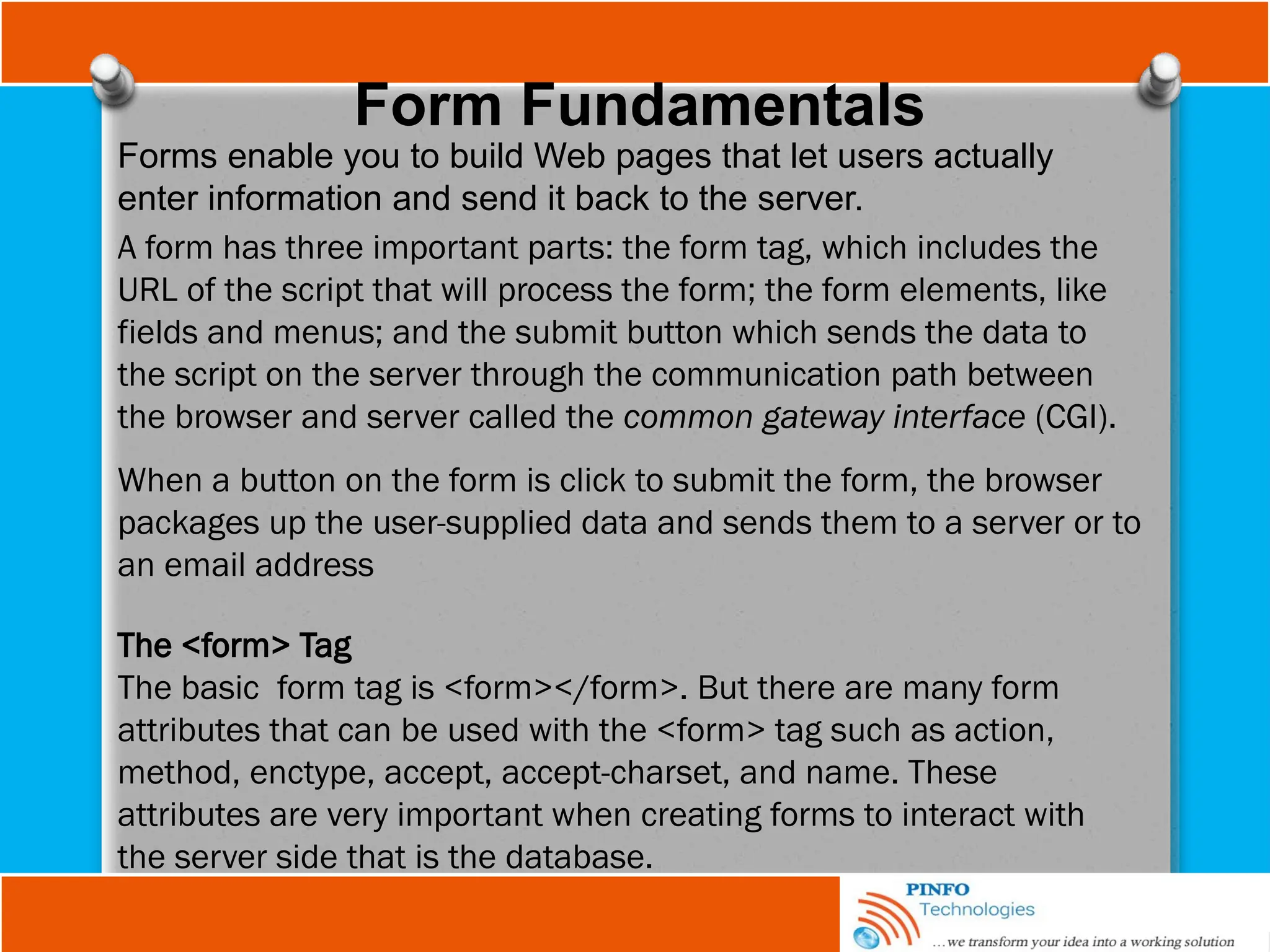
Forms enable you to build Web pages that let users actually
enter information and send it back to the server.
A form has three important parts: the form tag, which includes the
URL of the script that will process the form; the form elements, like
fields and menus; and the submit button which sends the data to
the script on the server through the communication path between
the browser and server called the common gateway interface (CGI).
When a button on the form is click to submit the form, the browser
packages up the user-supplied data and sends them to a server or to
an email address
The <form> Tag
The basic form tag is <form></form>. But there are many form
attributes that can be used with the <form> tag such as action,
method, enctype, accept, accept-charset, and name. These
attributes are very important when creating forms to interact with
the server side that is the database.
Form Attributes
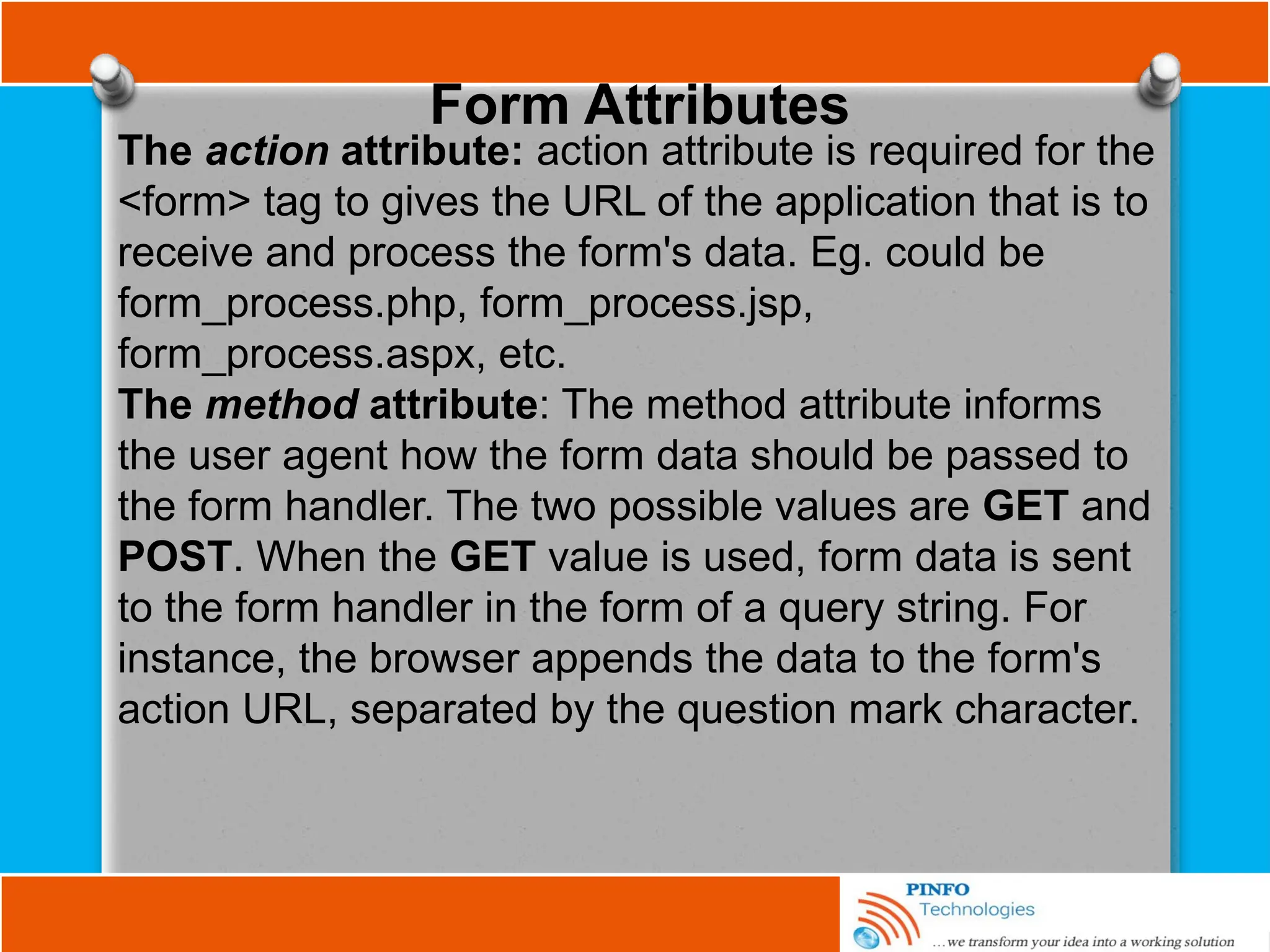
The action attribute: action attribute is required for the
<form> tag to gives the URL of the application that is to
receive and process the form's data. Eg. could be
form_process.php, form_process.jsp,
form_process.aspx, etc.
The method attribute: The method attribute informs
the user agent how the form data should be passed to
the form handler. The two possible values are GET and
POST. When the GET value is used, form data is sent
to the form handler in the form of a query string. For
instance, the browser appends the data to the form's
action URL, separated by the question mark character.
Form Attributes
The enctype Attribute: Enctype attribute is used to control file
selection control depending on the type of file to be uploaded to
the server. If this attribute is left out of the markup, then the form
will default to a MIME type of application/x-www-form-urlencoded,
which should be suitable for most forms, unless the form is using a
file input element in which case this attribute should contain a
value of multipart/form-data, allowing it to cope with processing
binary code. Example;
<form enctype="multipart/form-data" method=”post”
action="cgi_bin/save_file.php">
The name Attribute: This attribute is used to send data collected
from the form to the server-side. The data/information entered in
the forms are stored in the name attribute and posted to the server
programming script when the form is submitted. Example;
<input name="fullname" type="text" value="" />.
Form Attributes
The enctype Attribute: Enctype attribute is used to control file
selection control depending on the type of file to be uploaded to
the server. If this attribute is left out of the markup, then the form
will default to a MIME type of application/x-www-form-urlencoded,
which should be suitable for most forms, unless the form is using a
file input element in which case this attribute should contain a
value of multipart/form-data, allowing it to cope with processing
binary code. Example;
<form enctype="multipart/form-data" method=”post”
action="cgi_bin/save_file.php">
The name Attribute: This attribute is used to send data collected
from the form to the server-side. The data/information entered in
the forms are stored in the name attribute and posted to the server
programming script when the form is submitted. Example;
<input name="fullname" type="text" value="" />. - The full
name that a user entered is stored in the name attribute “fullname
and posted to the scripting file that connect the form to the database.
Form Input Element
The <input> element is a self-closing inline element, like an
image or a line break, so if you are writing XHTML, remember to
include the closing forward-slash, and remember to enclose the
element within a block element such as a paragraph:
<p><input /></p>
How the <input> element behaves and displays is dictated by
the type attribute, which can take values of text, password, file,
checkbox, radio, hidden, reset, submit, hidden and button. If no
type is specified, current web browsers assume it to be a text
input. Example of input element with type attribute;
<input type=”text” />
Text Input Element
A text input is used for typing text into the field. This is a single-line
control and normally appears in the form of a rectangular box with
an inset border.
<input type="text" value="Insert text here" /> for value
<input type="text" placeholder="Insert text here" /> for placeholder
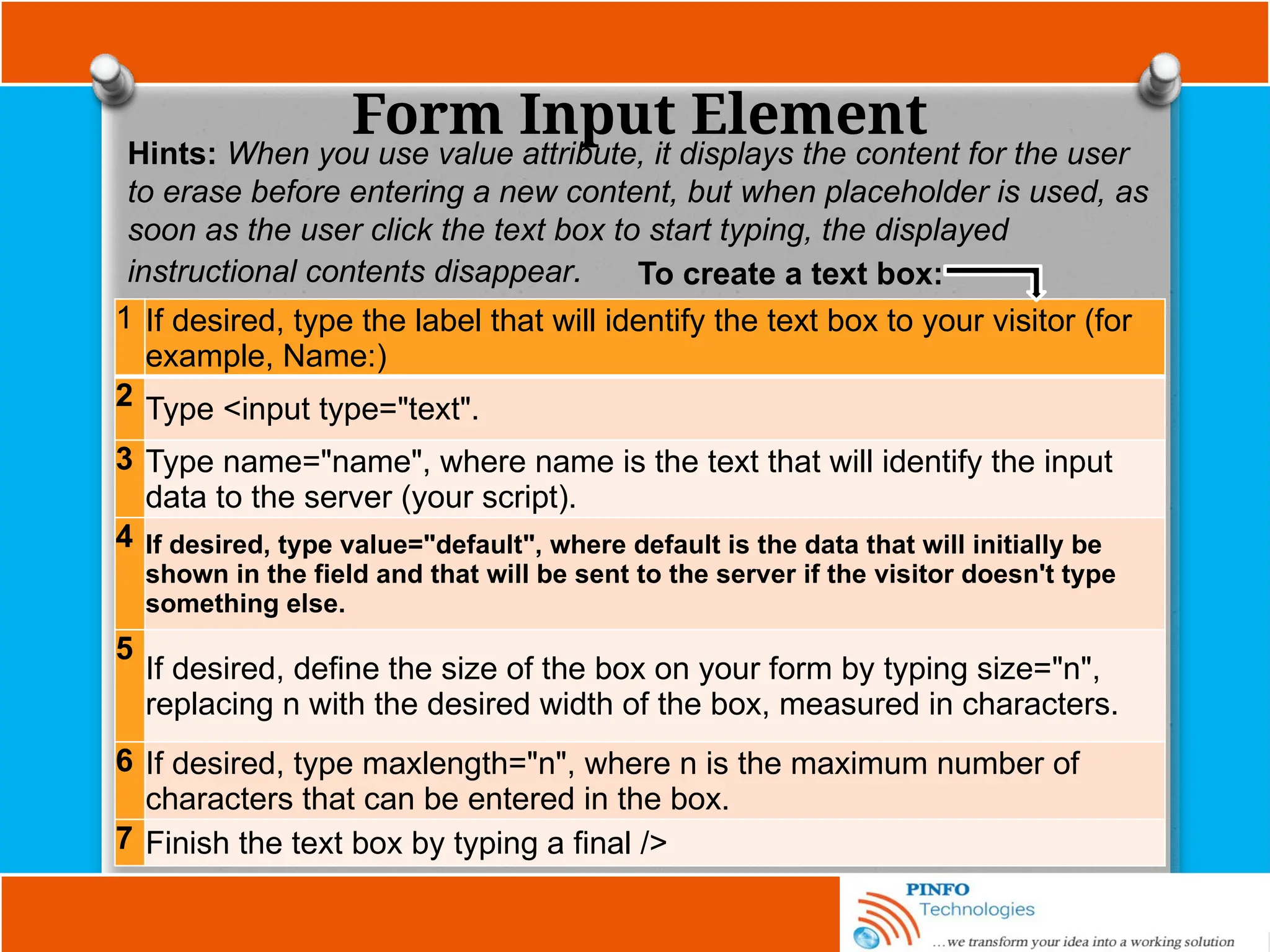
Form Input Element
Hints: When you use value attribute, it displays the content for the user
to erase before entering a new content, but when placeholder is used, as
soon as the user click the text box to start typing, the displayed
instructional contents disappear.
1 If desired, type the label that will identify the text box to your visitor (for
example, Name:)
2 Type <input type="text".
3 Type name="name", where name is the text that will identify the input
data to the server (your script).
4 If desired, type value="default", where default is the data that will initially be
shown in the field and that will be sent to the server if the visitor doesn't type
something else.
5
If desired, define the size of the box on your form by typing size="n",
replacing n with the desired width of the box, measured in characters.
6 If desired, type maxlength="n", where n is the maximum number of
characters that can be entered in the box.
7 Finish the text box by typing a final />
To create a text box:
Form Input Element
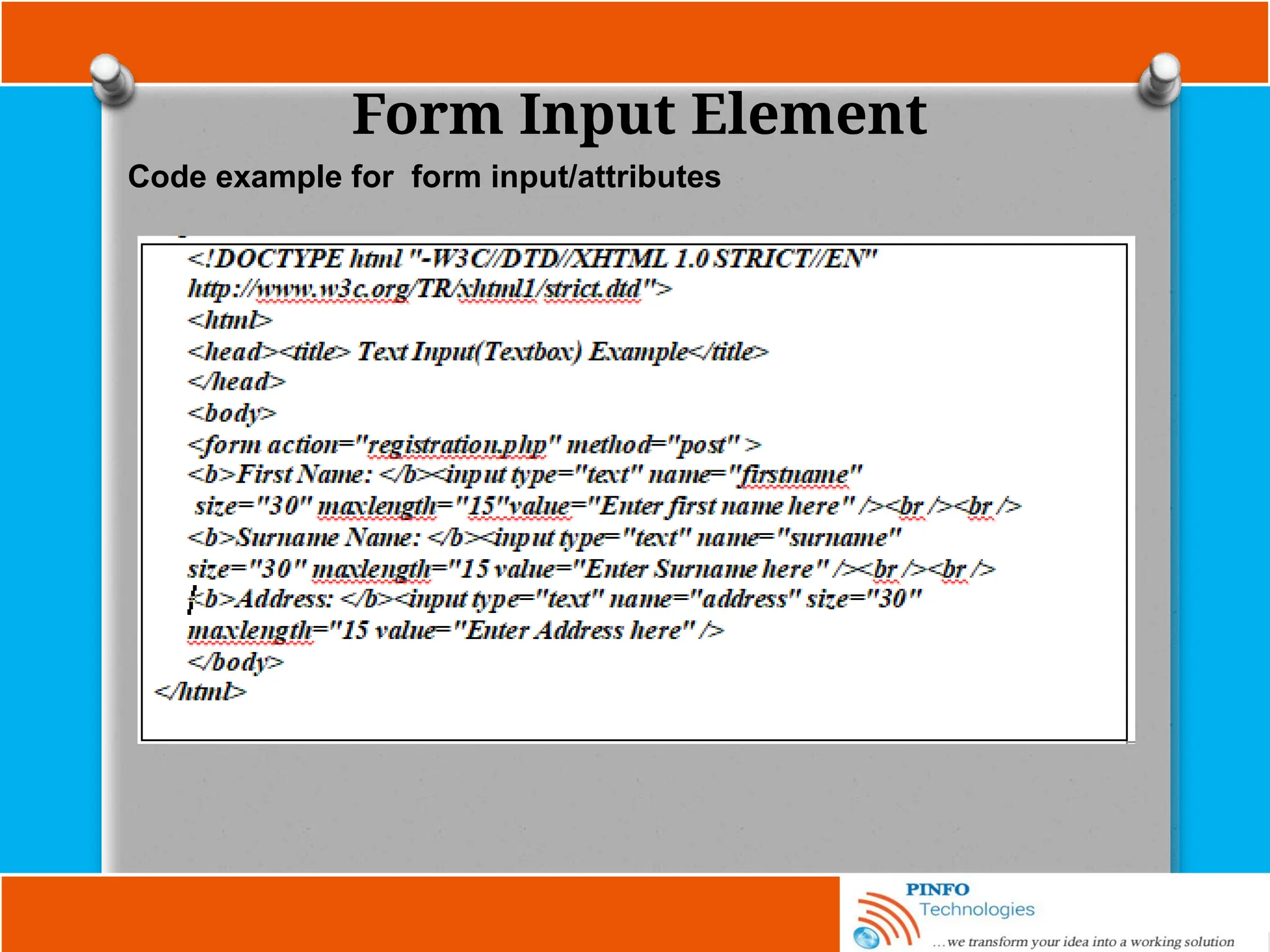
Code example for form input/attributes
Form Input Element
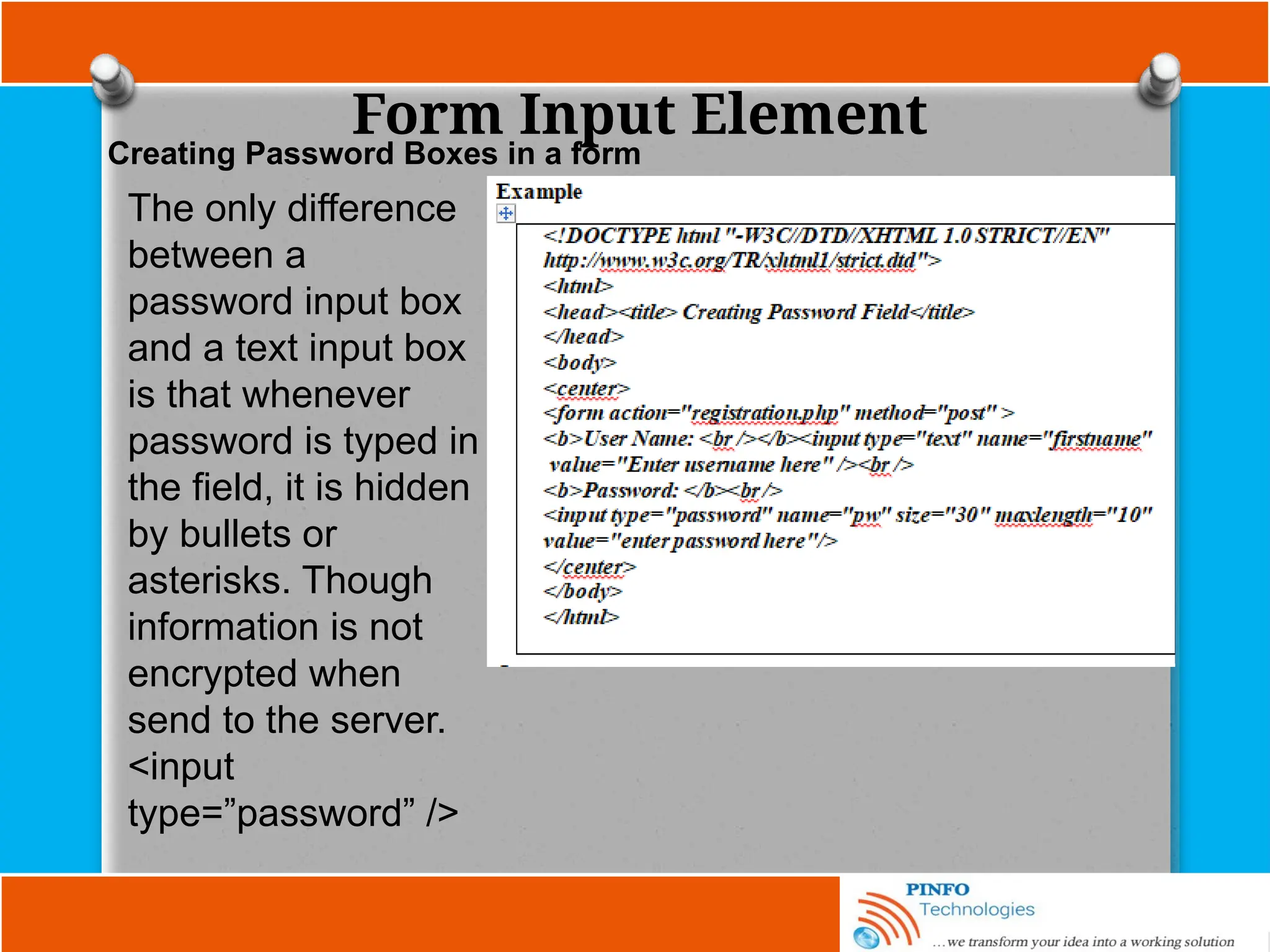
The only difference
between a
password input box
and a text input box
is that whenever
password is typed in
the field, it is hidden
by bullets or
asterisks. Though
information is not
encrypted when
send to the server.
<input
type=”password” />
Creating Password Boxes in a form
Form Input Element
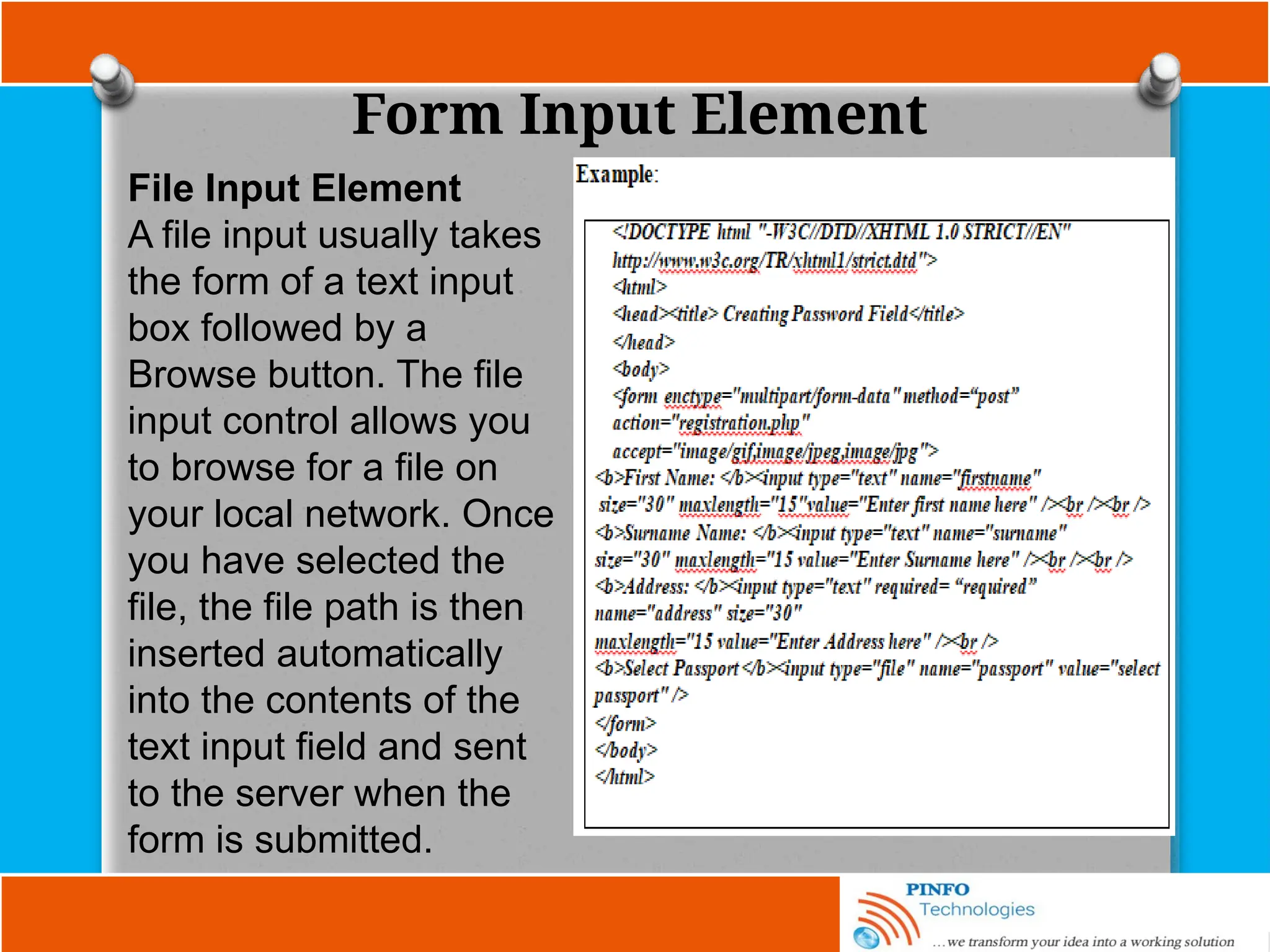
File Input Element
A file input usually takes
the form of a text input
box followed by a
Browse button. The file
input control allows you
to browse for a file on
your local network. Once
you have selected the
file, the file path is then
inserted automatically
into the contents of the
text input field and sent
to the server when the
form is submitted.
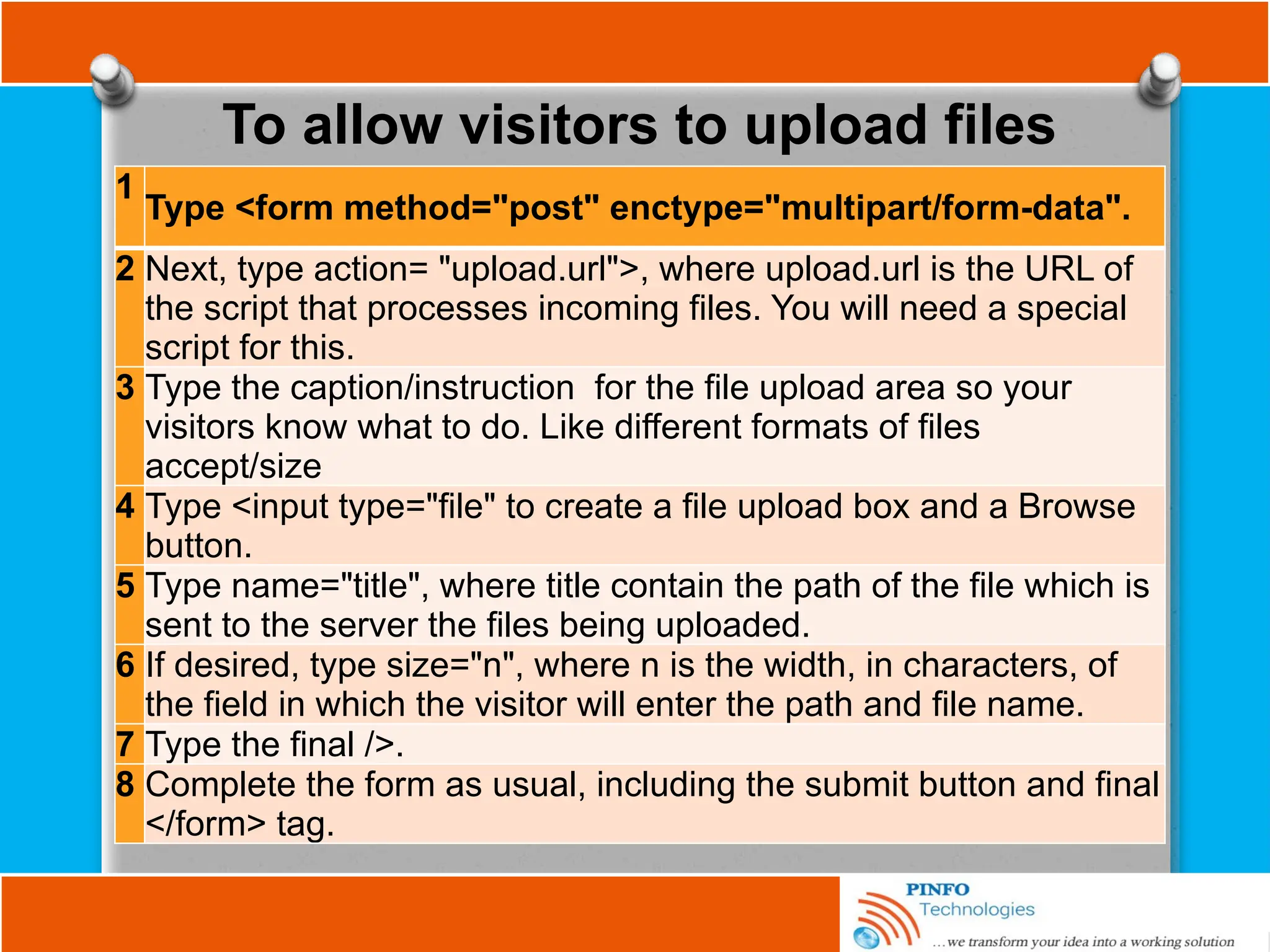
To allow visitors to upload files
1
Type <form method="post" enctype="multipart/form-data".
2 Next, type action= "upload.url">, where upload.url is the URL of
the script that processes incoming files. You will need a special
script for this.
3 Type the caption/instruction for the file upload area so your
visitors know what to do. Like different formats of files
accept/size
4 Type <input type="file" to create a file upload box and a Browse
button.
5 Type name="title", where title contain the path of the file which is
sent to the server the files being uploaded.
6 If desired, type size="n", where n is the width, in characters, of
the field in which the visitor will enter the path and file name.
7 Type the final />.
8 Complete the form as usual, including the submit button and final
</form> tag.
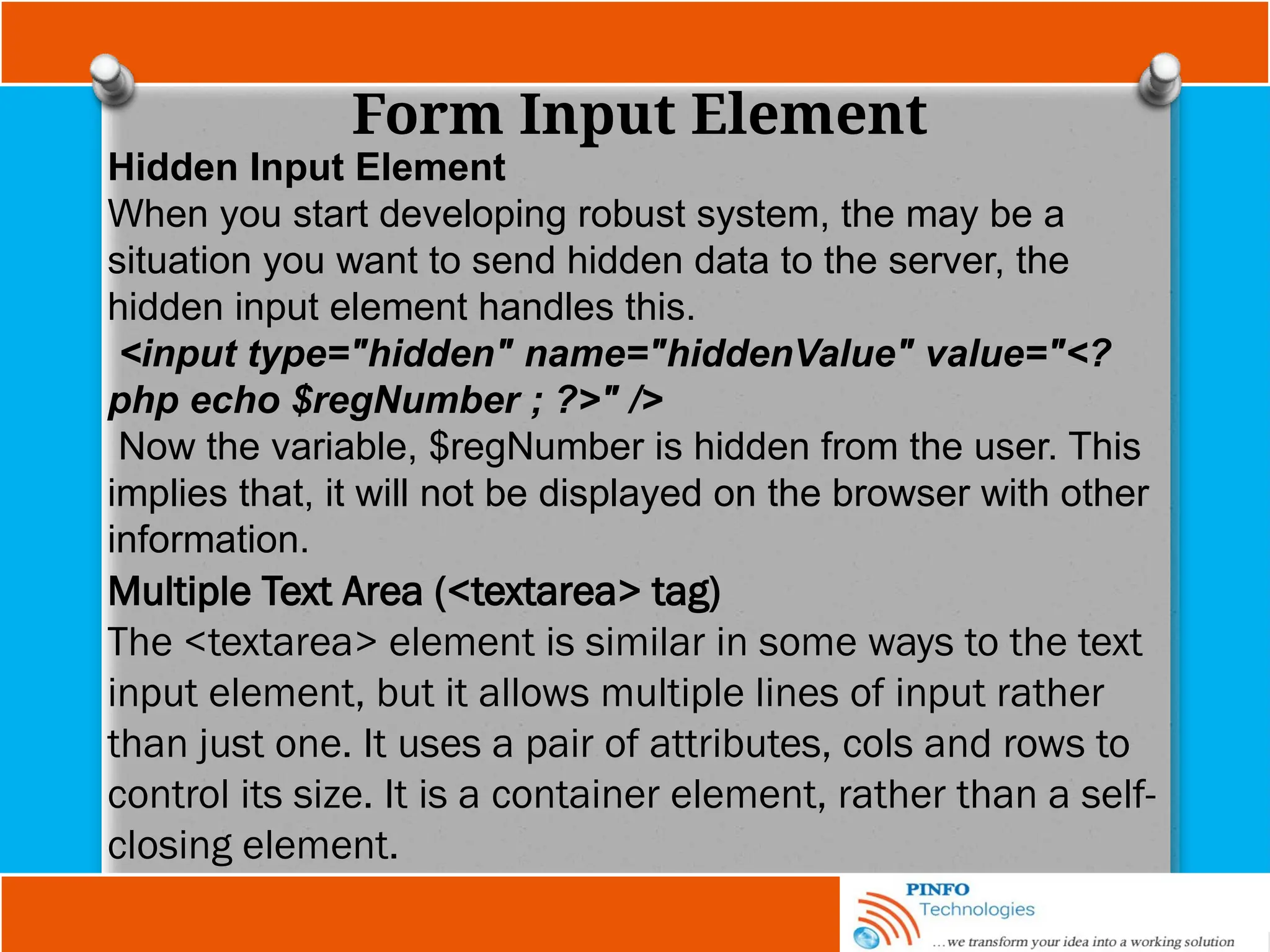
Form Input Element
Hidden Input Element
When you start developing robust system, the may be a
situation you want to send hidden data to the server, the
hidden input element handles this.
<input type="hidden" name="hiddenValue" value="<?
php echo $regNumber ; ?>" />
Now the variable, $regNumber is hidden from the user. This
implies that, it will not be displayed on the browser with other
information.
Multiple Text Area (<textarea> tag)
The <textarea> element is similar in some ways to the text
input element, but it allows multiple lines of input rather
than just one. It uses a pair of attributes, cols and rows to
control its size. It is a container element, rather than a self-
closing element.
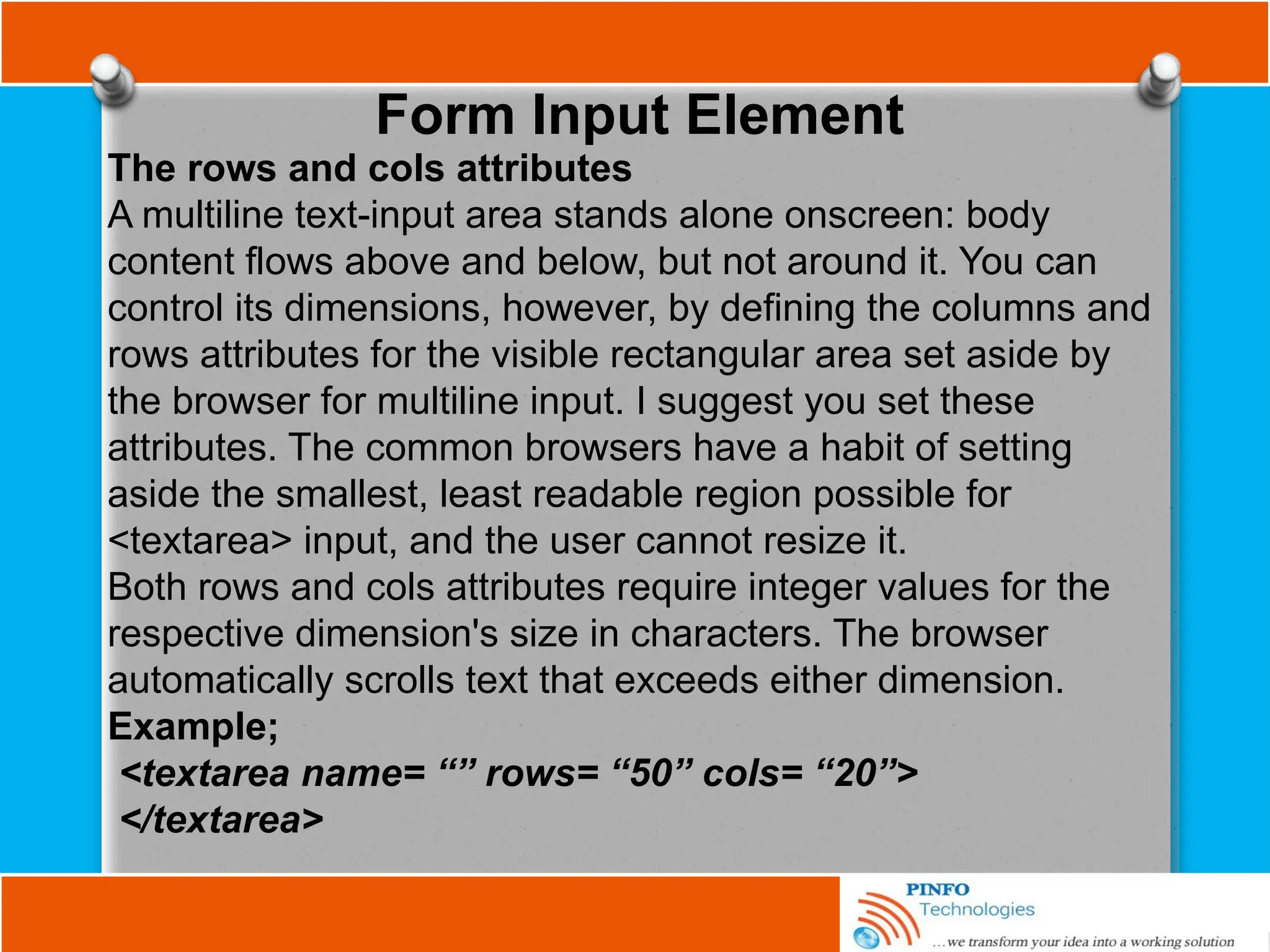
Form Input Element
The rows and cols attributes
A multiline text-input area stands alone onscreen: body
content flows above and below, but not around it. You can
control its dimensions, however, by defining the columns and
rows attributes for the visible rectangular area set aside by
the browser for multiline input. I suggest you set these
attributes. The common browsers have a habit of setting
aside the smallest, least readable region possible for
<textarea> input, and the user cannot resize it.
Both rows and cols attributes require integer values for the
respective dimension's size in characters. The browser
automatically scrolls text that exceeds either dimension.
Example;
<textarea name= “” rows= “50” cols= “20”>
</textarea>
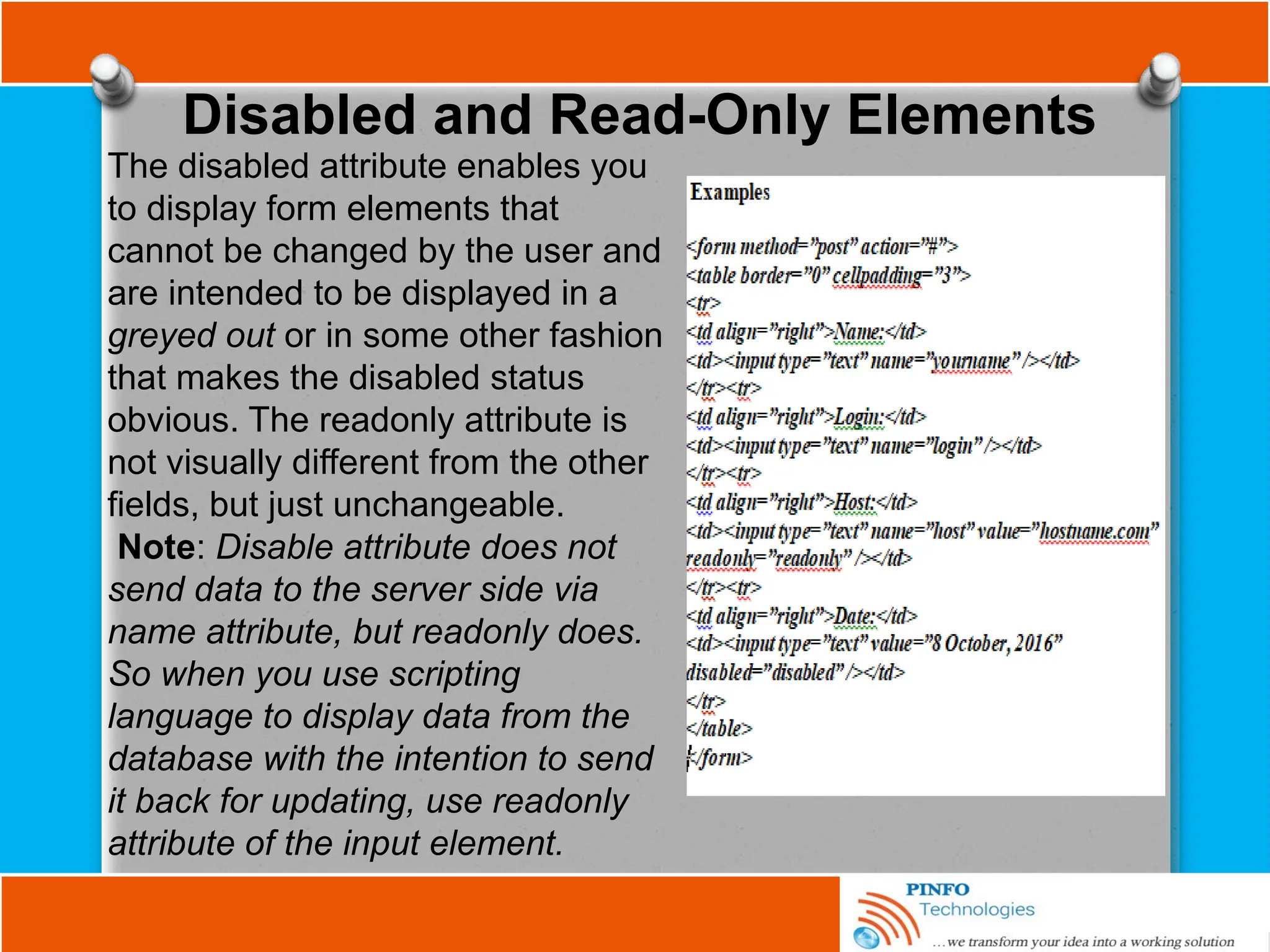
Disabled and Read-Only Elements
The disabled attribute enables you
to display form elements that
cannot be changed by the user and
are intended to be displayed in a
greyed out or in some other fashion
that makes the disabled status
obvious. The readonly attribute is
not visually different from the other
fields, but just unchangeable.
Note: Disable attribute does not
send data to the server side via
name attribute, but readonly does.
So when you use scripting
language to display data from the
database with the intention to send
it back for updating, use readonly
attribute of the input element.
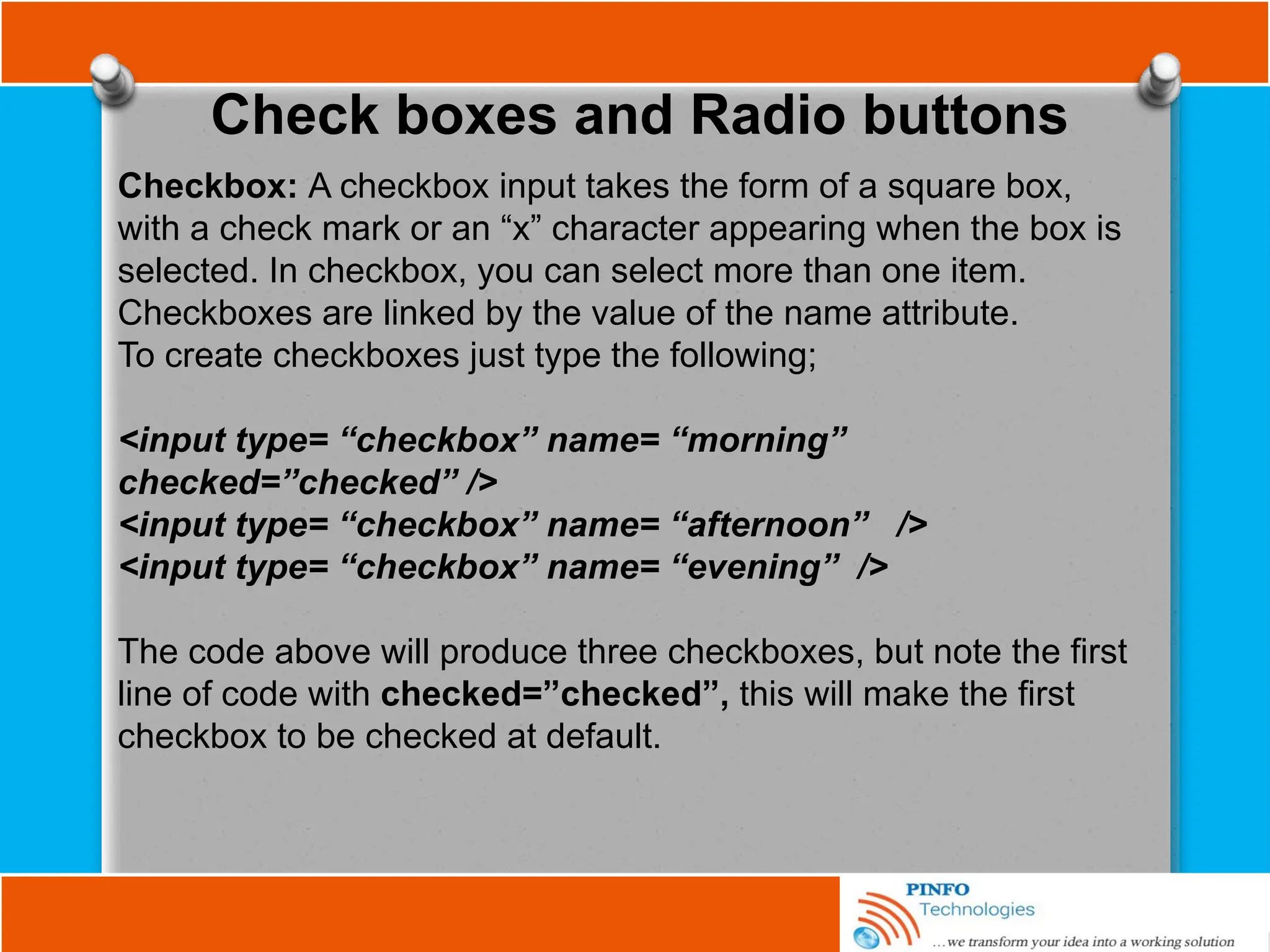
Check boxes and Radio buttons
Checkbox: A checkbox input takes the form of a square box,
with a check mark or an “x” character appearing when the box is
selected. In checkbox, you can select more than one item.
Checkboxes are linked by the value of the name attribute.
To create checkboxes just type the following;
<input type= “checkbox” name= “morning”
checked=”checked” />
<input type= “checkbox” name= “afternoon” />
<input type= “checkbox” name= “evening” />
The code above will produce three checkboxes, but note the first
line of code with checked=”checked”, this will make the first
checkbox to be checked at default.
Check boxes and Radio buttons
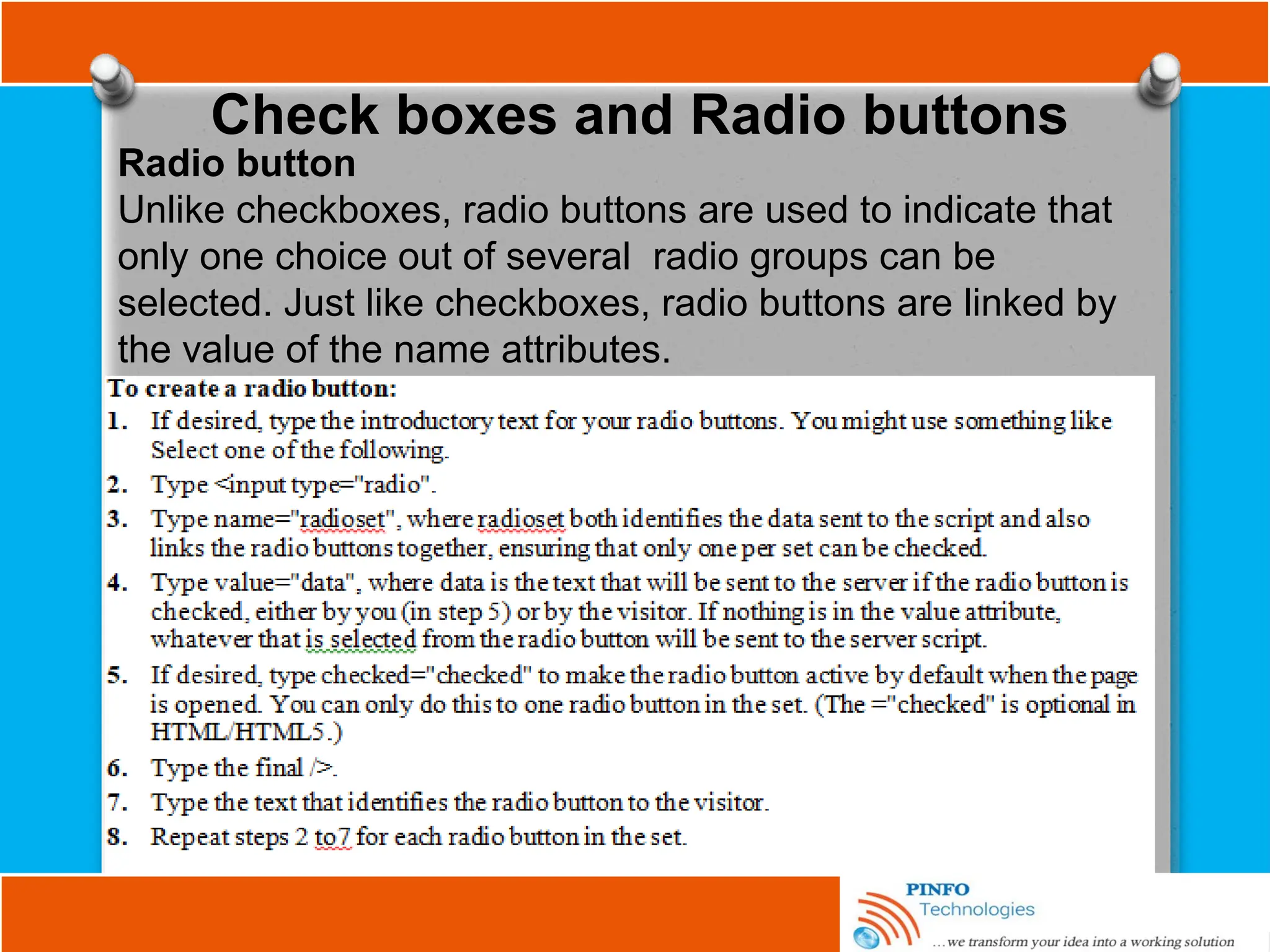
Radio button
Unlike checkboxes, radio buttons are used to indicate that
only one choice out of several radio groups can be
selected. Just like checkboxes, radio buttons are linked by
the value of the name attributes.
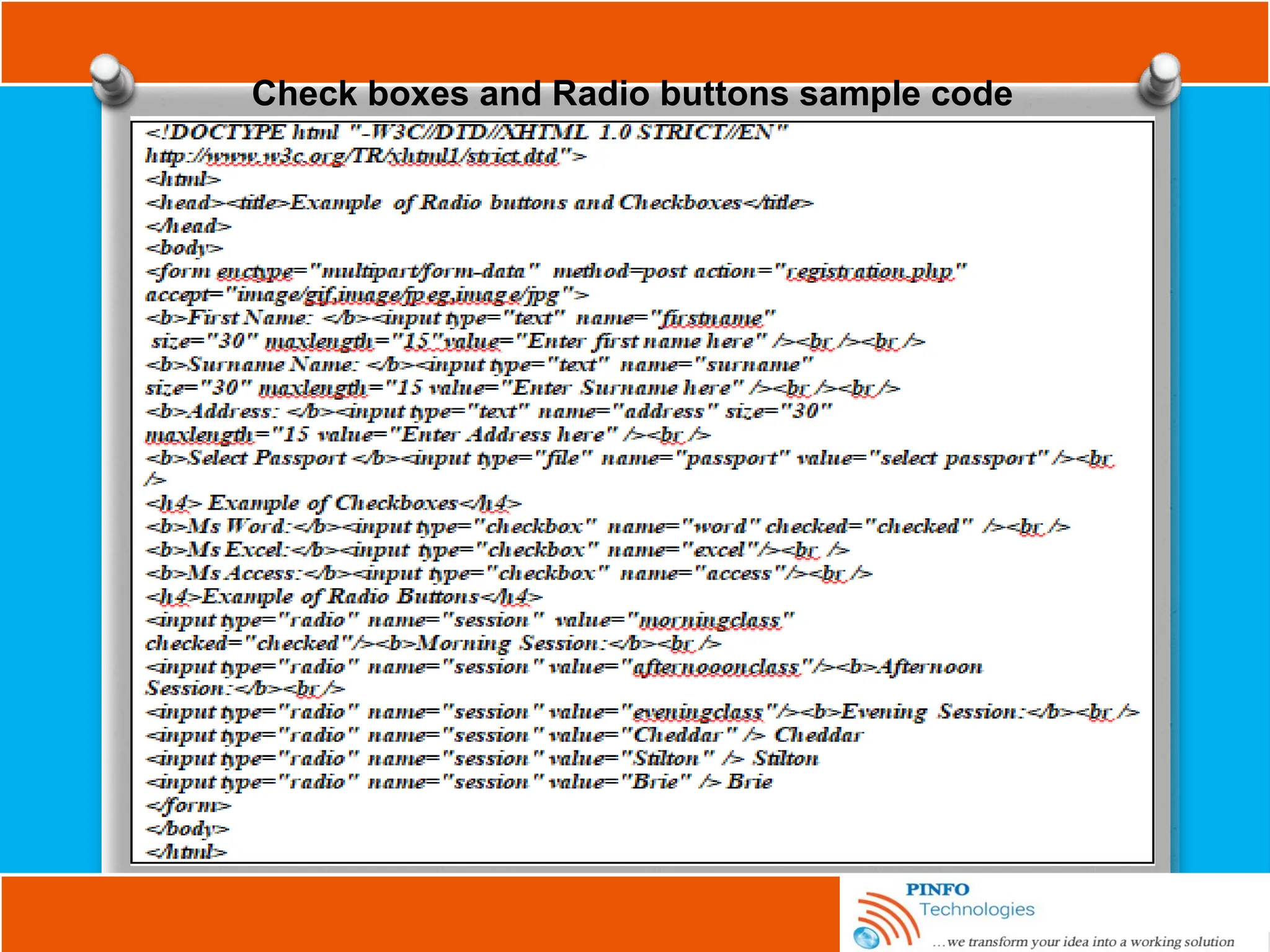
Check boxes and Radio buttons sample code
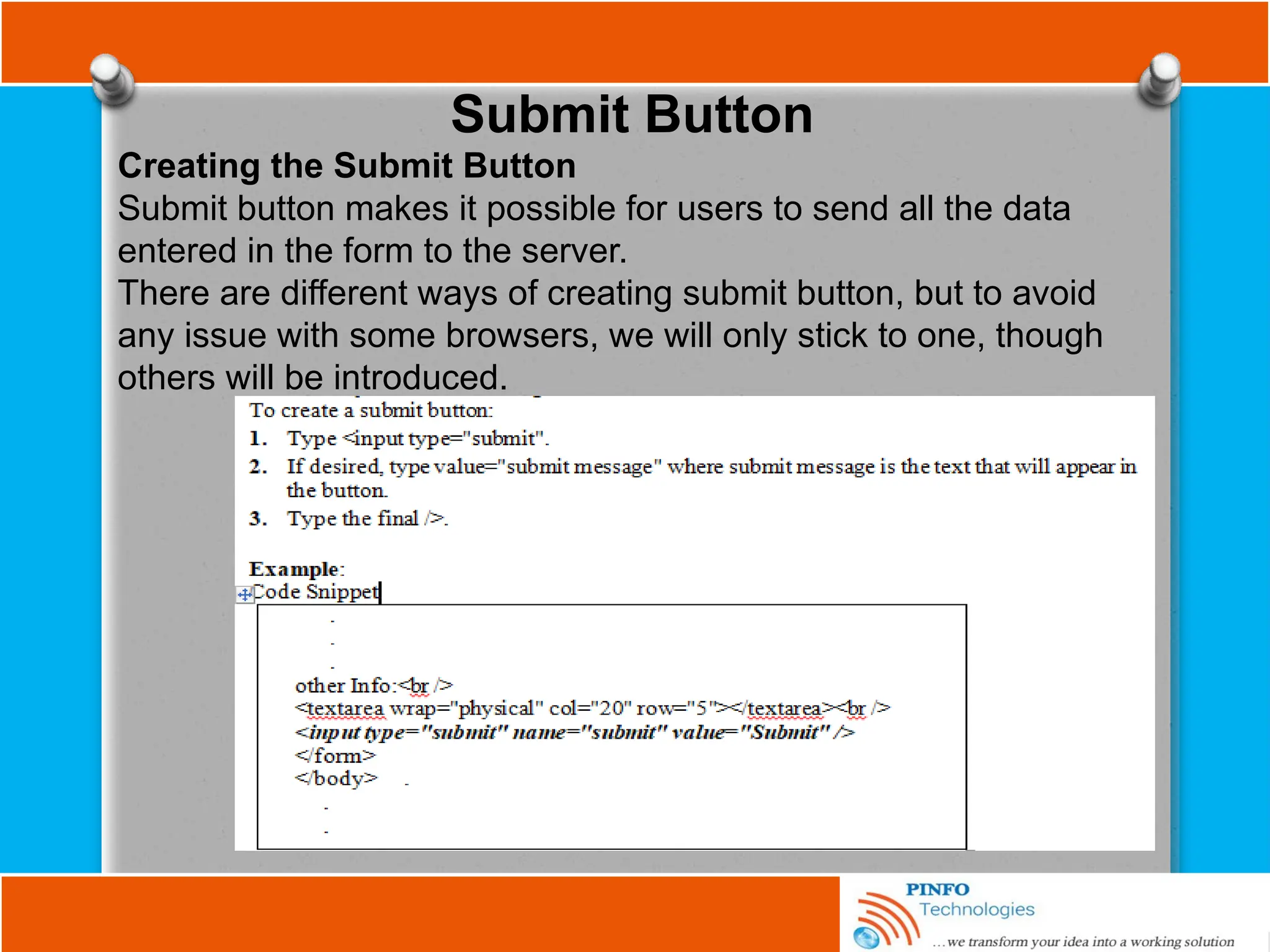
Submit Button
Creating the Submit Button
Submit button makes it possible for users to send all the data
entered in the form to the server.
There are different ways of creating submit button, but to avoid
any issue with some browsers, we will only stick to one, though
others will be introduced.
Pull-down Menus
Creating Pull-down Menus
Menus are perfect for offering web visitors options of choice
to choose from. The <select> tag is used for menus, which
give two compact alternatives: pull-down menus and
scrolling lists. This element has only three specific attributes:
name, size, and multiple. The name attribute is used here to
identify the data collected from the menu when it is sent to
the server, and it is not optional when interacting with the
database— every <select> must have a name attribute. The
size and multiple attributes are related, it is used to select
multiple options from the drop-down list. The multiple
attribute is set (multiple="multiple" if you are writing XHTML;
otherwise, just multiple will do the size attribute, which
accepts a numerical value, determines how many rows of
options are displayed.
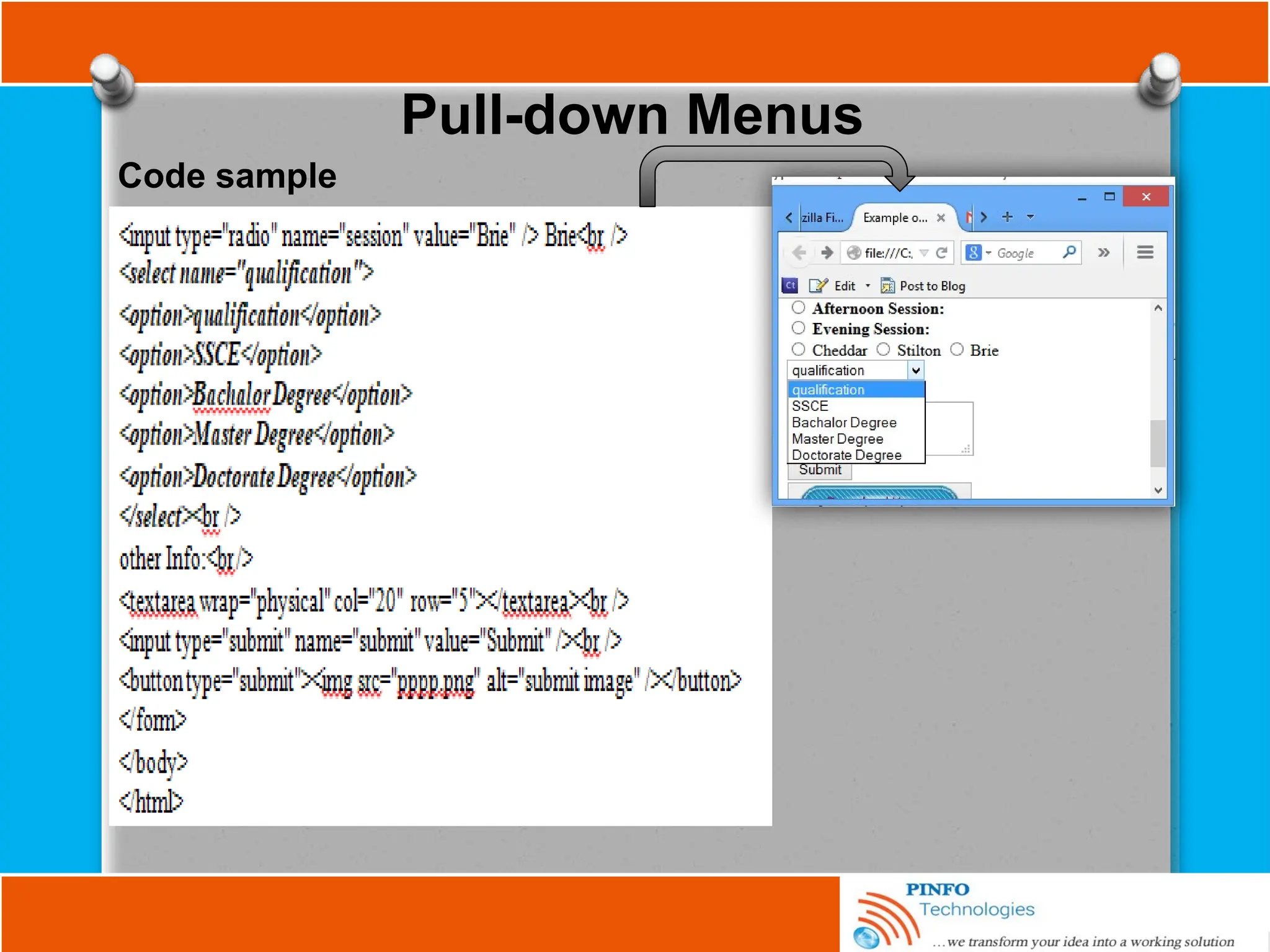
Pull-down Menus
Code sample
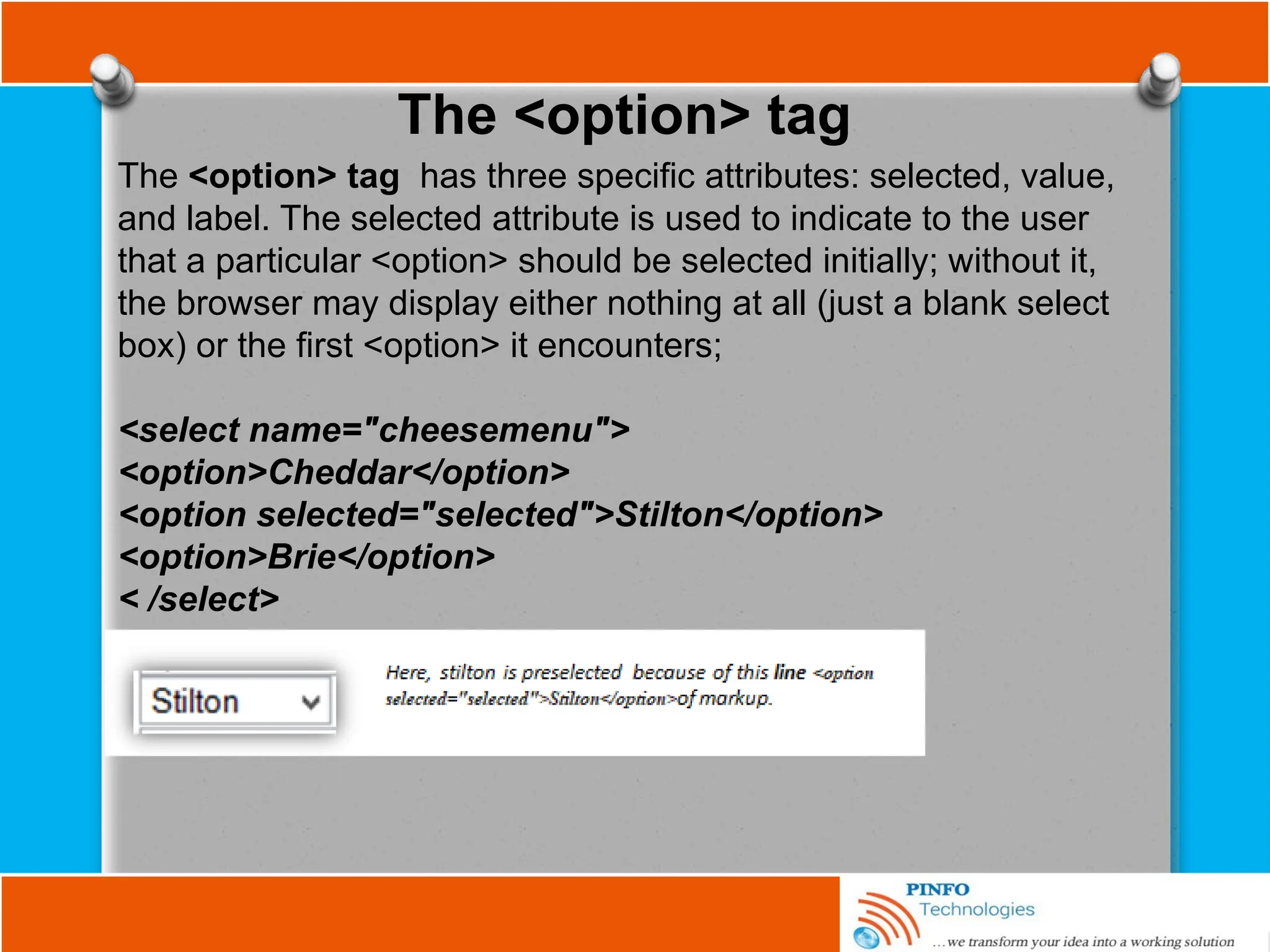
The <option> tag
The <option> tag has three specific attributes: selected, value,
and label. The selected attribute is used to indicate to the user
that a particular <option> should be selected initially; without it,
the browser may display either nothing at all (just a blank select
box) or the first <option> it encounters;
<select name="cheesemenu">
<option>Cheddar</option>
<option selected="selected">Stilton</option>
<option>Brie</option>
< /select>
The <option> tag
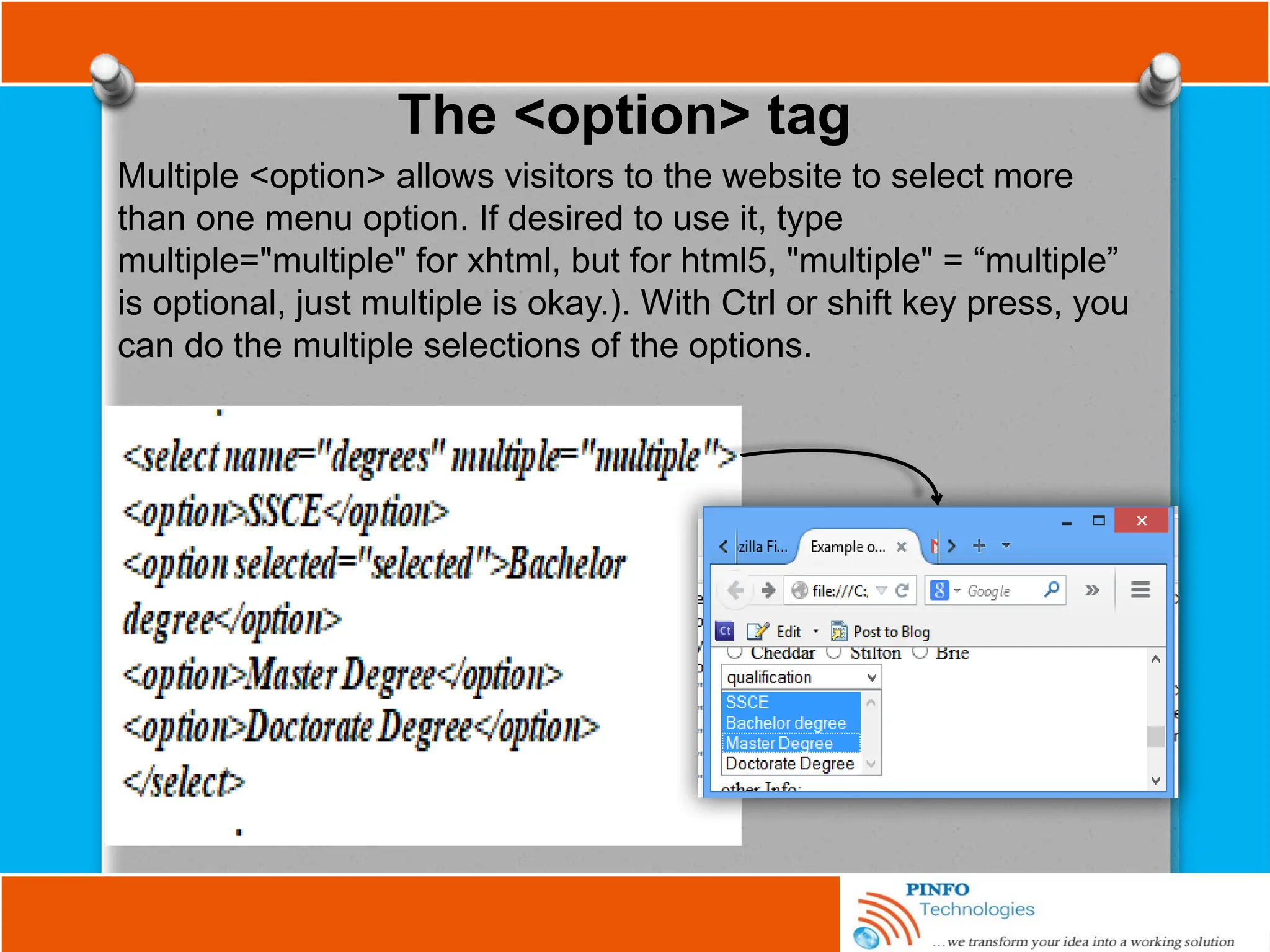
Multiple <option> allows visitors to the website to select more
than one menu option. If desired to use it, type
multiple="multiple" for xhtml, but for html5, "multiple" = “multiple”
is optional, just multiple is okay.). With Ctrl or shift key press, you
can do the multiple selections of the options.
The <optgroup> tag
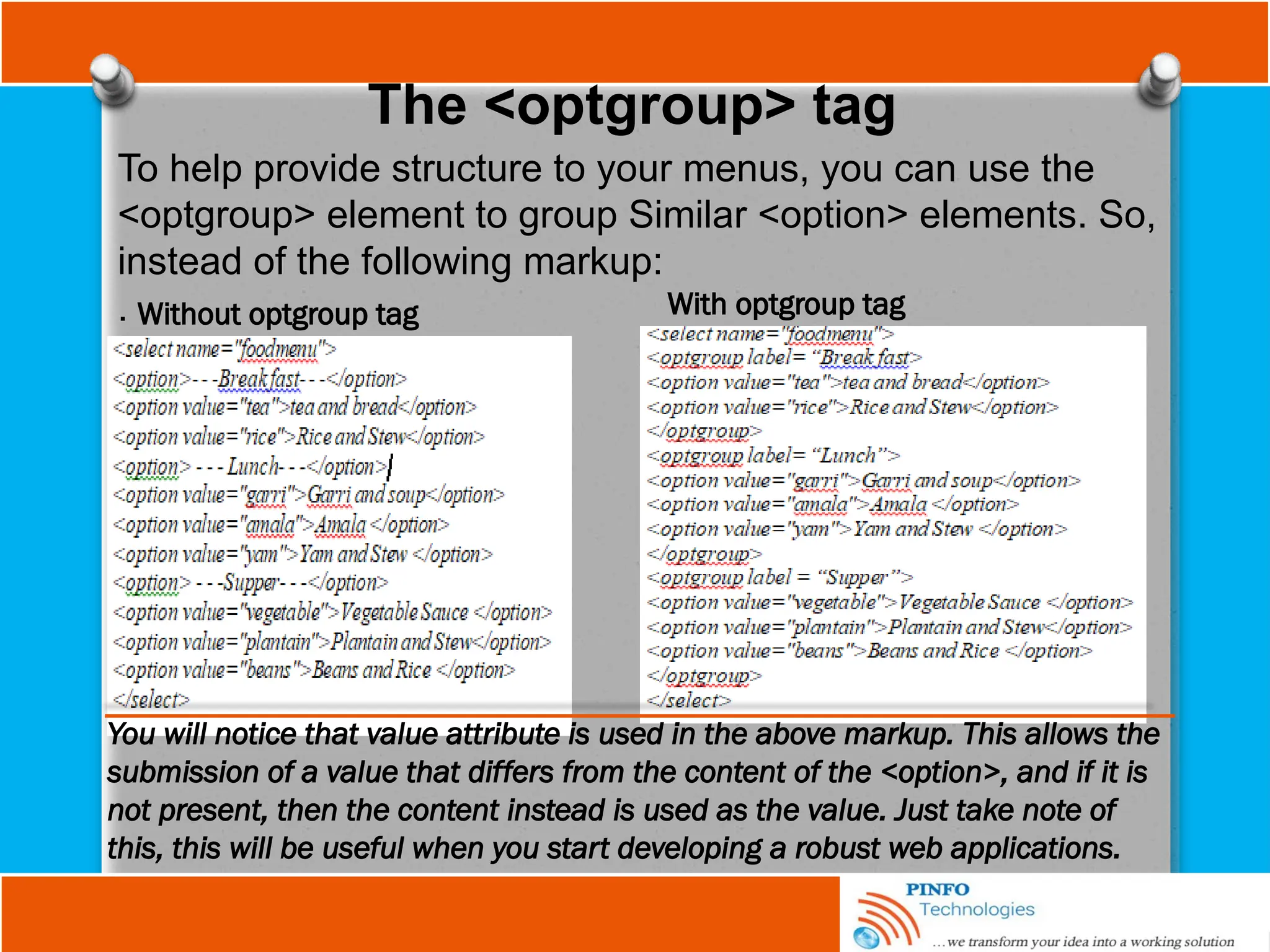
To help provide structure to your menus, you can use the
<optgroup> element to group Similar <option> elements. So,
instead of the following markup:
. Without optgroup tag With optgroup tag
You will notice that value attribute is used in the above markup. This allows the
submission of a value that differs from the content of the <option>, and if it is
not present, then the content instead is used as the value. Just take note of
this, this will be useful when you start developing a robust web applications.
Fieldset Element
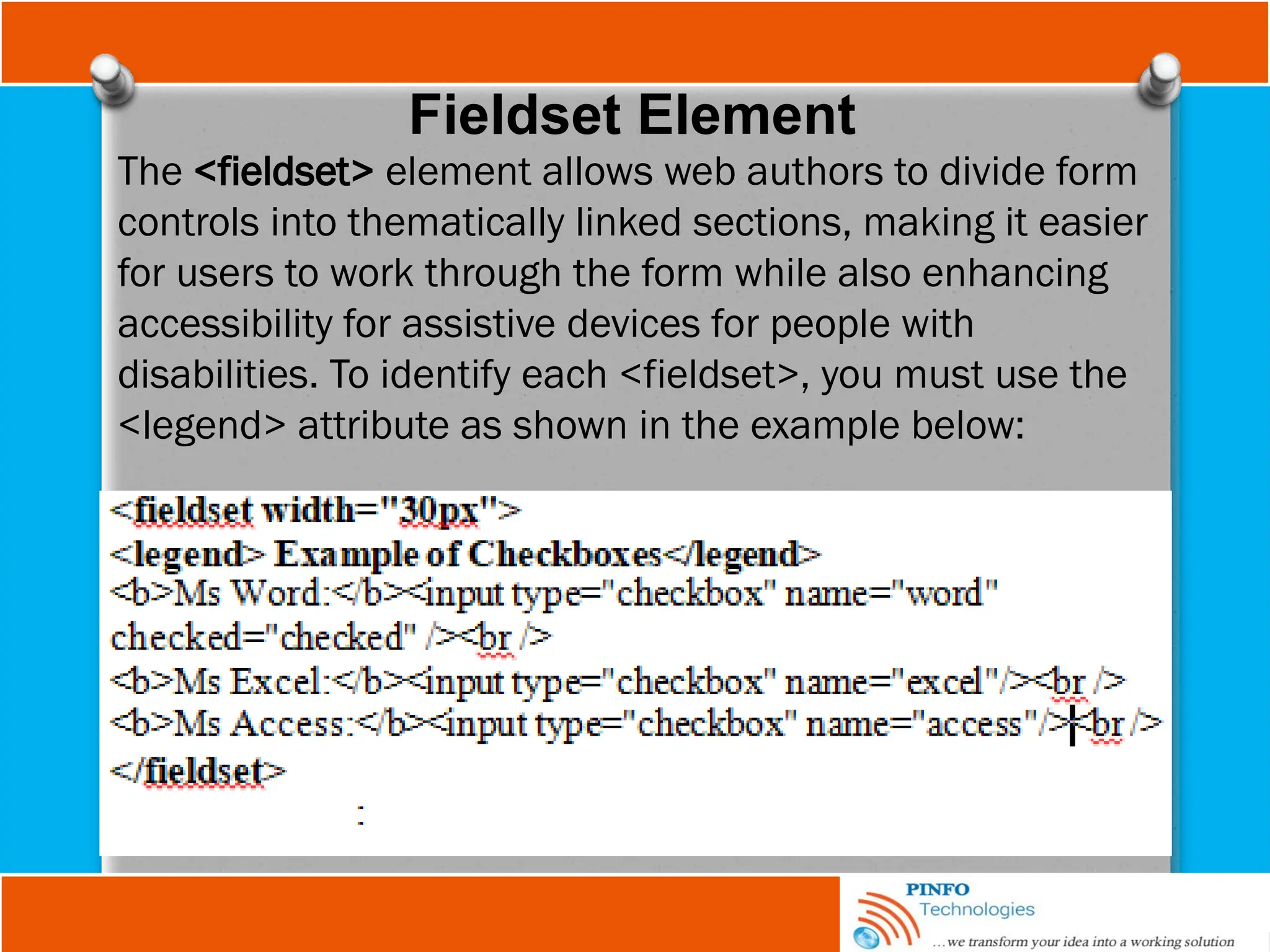
The <fieldset> element allows web authors to divide form
controls into thematically linked sections, making it easier
for users to work through the form while also enhancing
accessibility for assistive devices for people with
disabilities. To identify each <fieldset>, you must use the
<legend> attribute as shown in the example below:
The Anchor Tag and the href Attribute
<a href="url">Text to be displayed</a>
HTML uses the <a> (anchor) tag to create a link to another
document.
An anchor tag can point to any resource on the Web: an HTML
page, an image, a sound file, a movie, etc.
The syntax of creating an anchor:
The <a> tag creates an anchor to link from, the href attribute is
used to address the document to link to, and the words between
the open and close of the anchor tag is displayed as a
hyperlink.
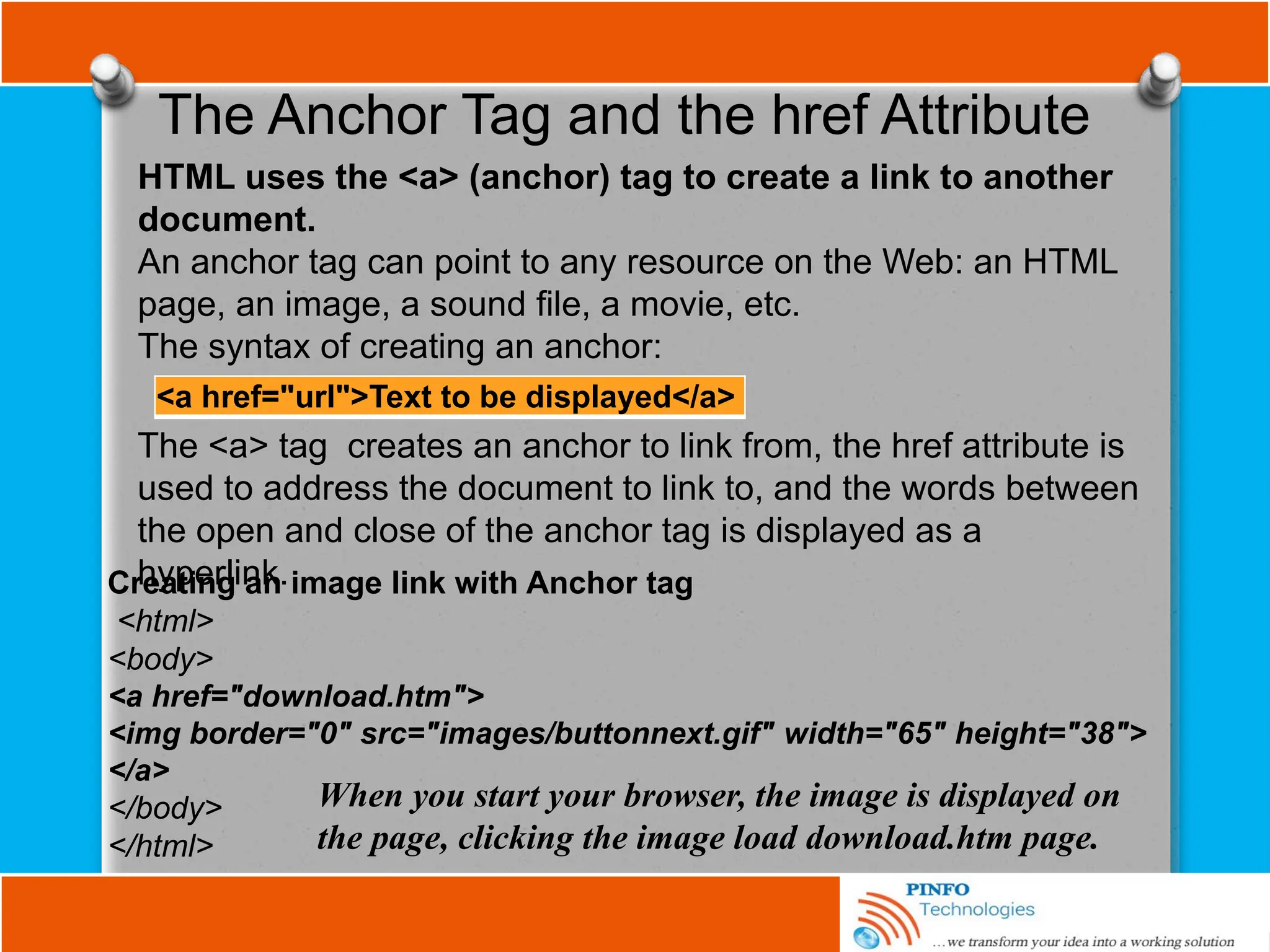
Creating an image link with Anchor tag
<html>
<body>
<a href="download.htm">
<img border="0" src="images/buttonnext.gif" width="65" height="38">
</a>
</body>
</html>
When you start your browser, the image is displayed on
the page, clicking the image load download.htm page.
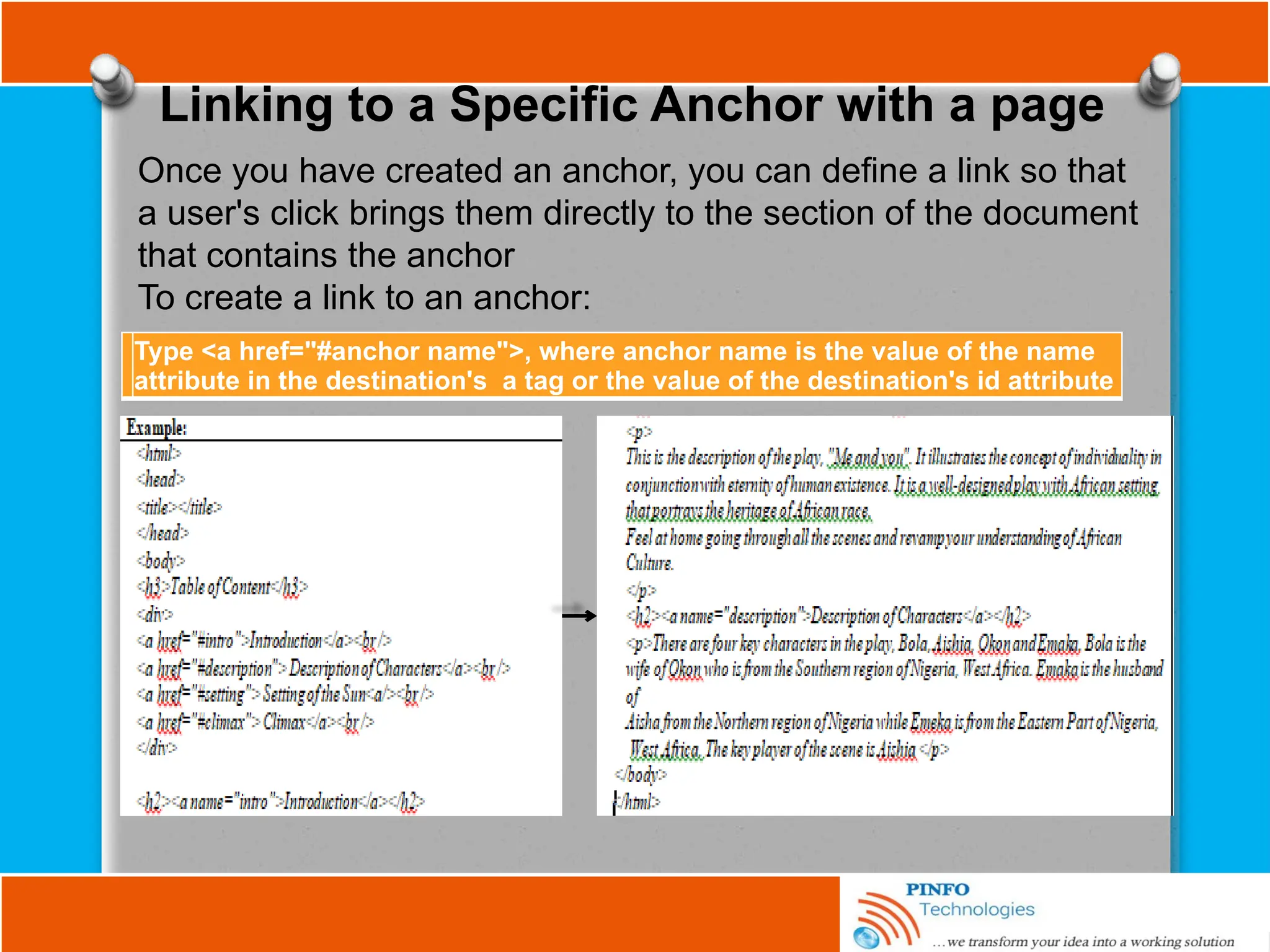
Linking to a Specific Anchor with a page
Once you have created an anchor, you can define a link so that
a user's click brings them directly to the section of the document
that contains the anchor
To create a link to an anchor:
Type <a href="#anchor name">, where anchor name is the value of the name
attribute in the destination's a tag or the value of the destination's id attribute
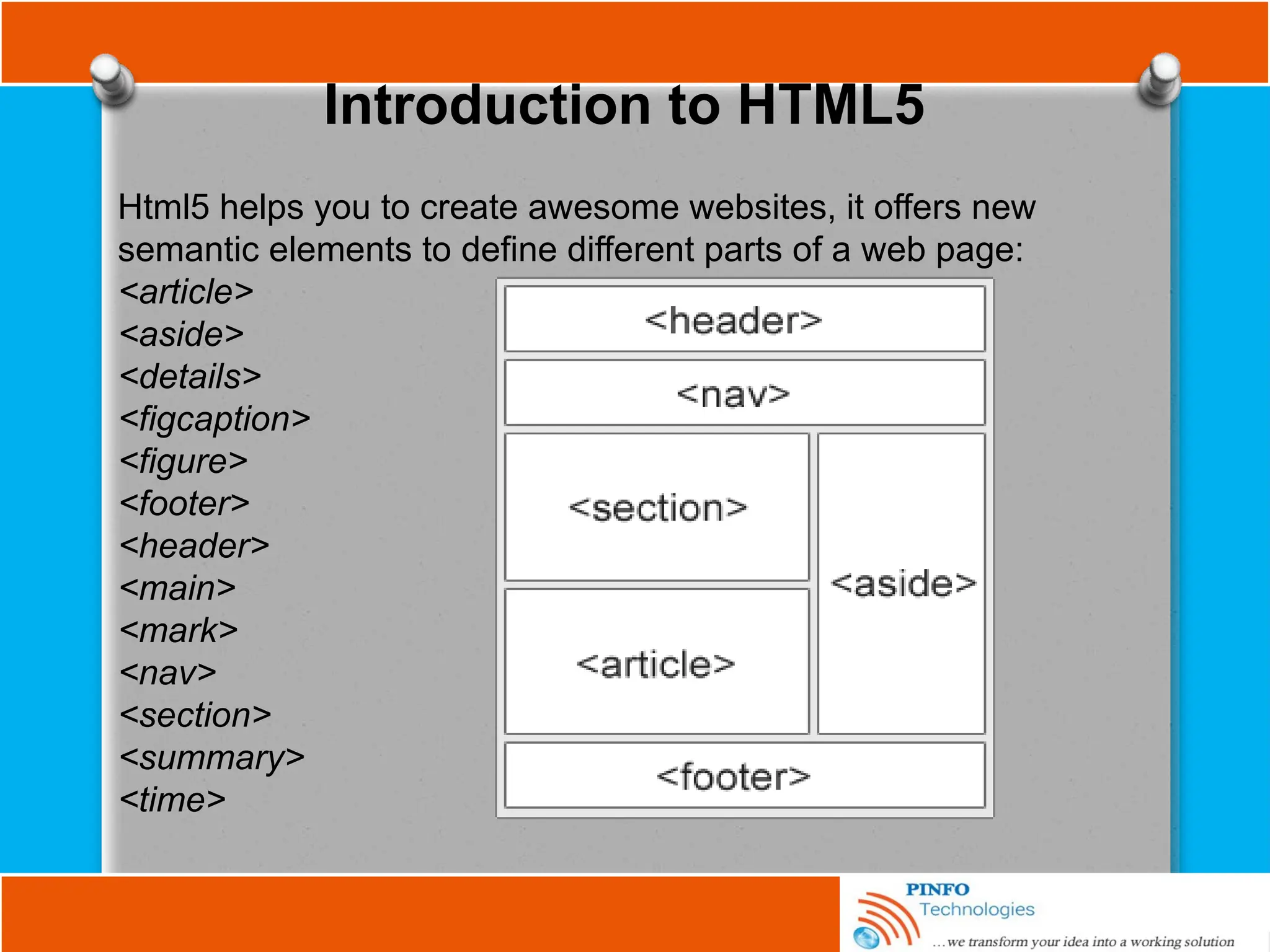
Introduction to HTML5
Html5 helps you to create awesome websites, it offers new
semantic elements to define different parts of a web page:
<article>
<aside>
<details>
<figcaption>
<figure>
<footer>
<header>
<main>
<mark>
<nav>
<section>
<summary>
<time>
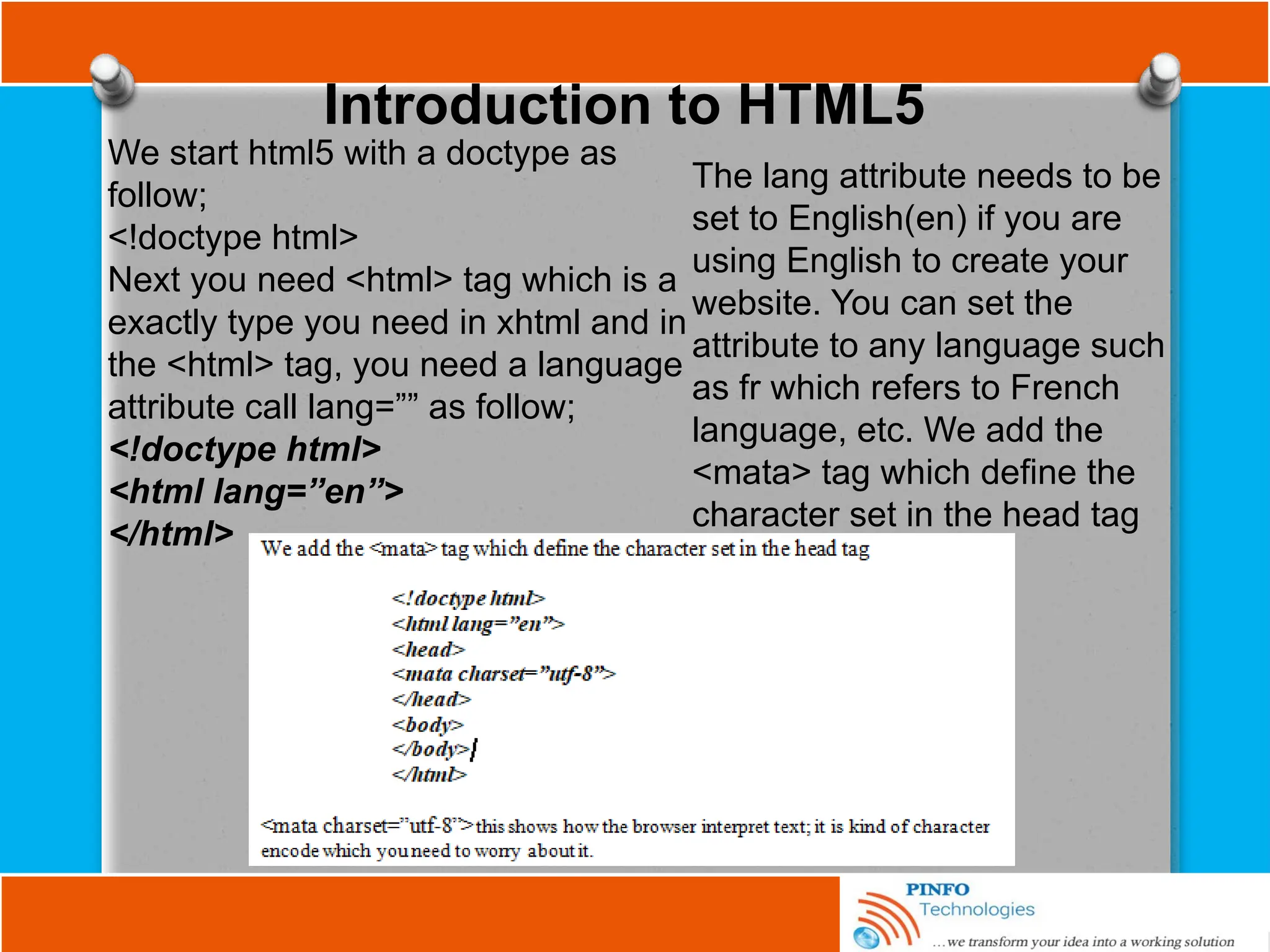
Introduction to HTML5
We start html5 with a doctype as
follow;
<!doctype html>
Next you need <html> tag which is a
exactly type you need in xhtml and in
the <html> tag, you need a language
attribute call lang=”” as follow;
<!doctype html>
<html lang=”en”>
</html>
The lang attribute needs to be
set to English(en) if you are
using English to create your
website. You can set the
attribute to any language such
as fr which refers to French
language, etc. We add the
<mata> tag which define the
character set in the head tag
HTML5 Elements
Html 5 helps you to identify the different part of your body. Tags
have been made for each of the pieces, and now your browser
know where each tag belongs to.
<header> Element
The <header> element specifies a header for a document or
section. The <header> element should be used as a container for
introductory content such as the logo and the title of your website.
You can have several <header> elements in one document.
Example
<article>
<header>
<h1>What Does WWF Do?</h1>
<p>WWF's mission:</p>
</header>
<p>WWF's mission is to stop the degradation of our planet's
natural environment,
and build a future in which humans live in harmony with nature.</p>
</article>
HTML5 Elements
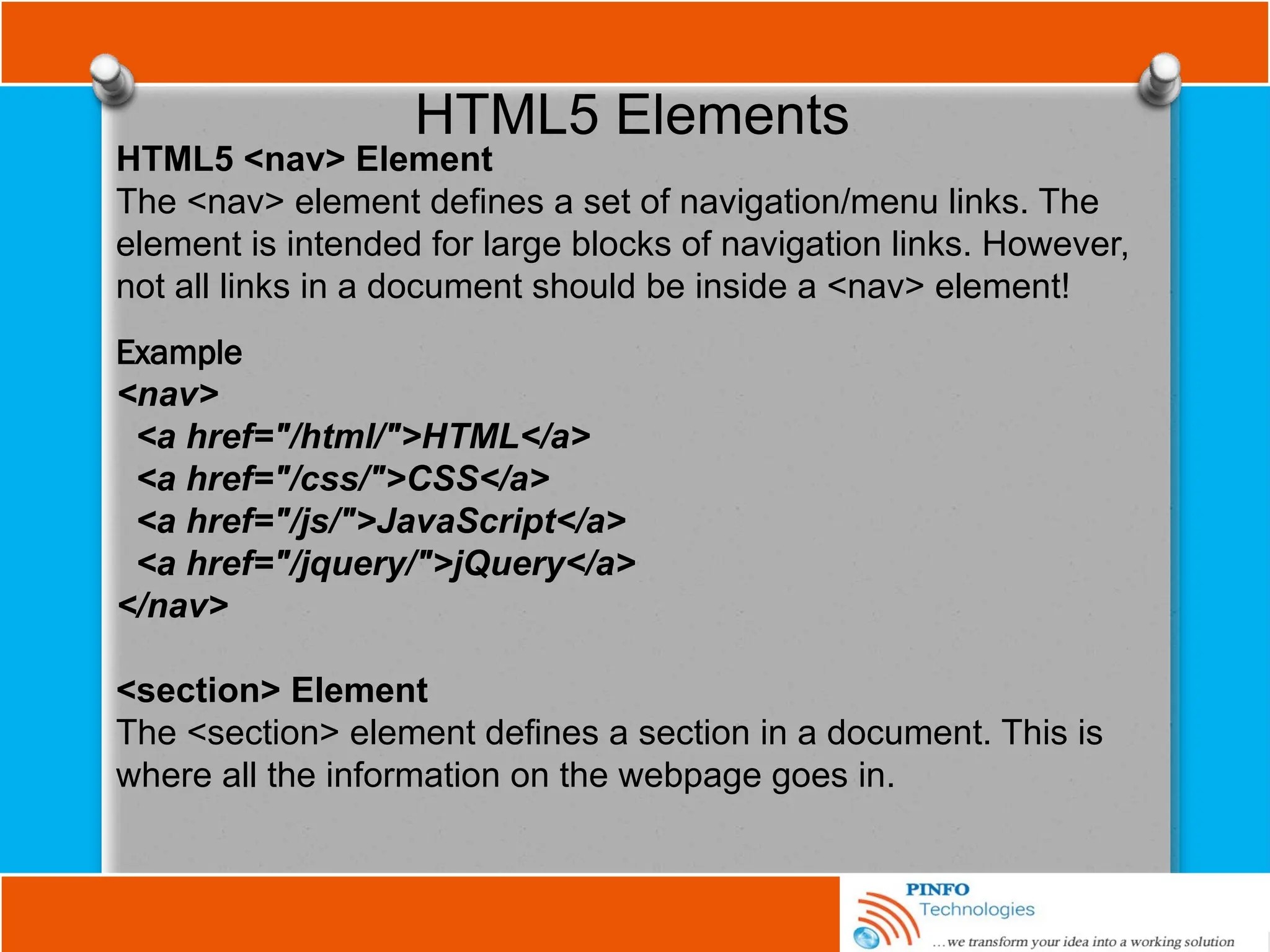
HTML5 <nav> Element
The <nav> element defines a set of navigation/menu links. The
element is intended for large blocks of navigation links. However,
not all links in a document should be inside a <nav> element!
Example
<nav>
<a href="/html/">HTML</a>
<a href="/css/">CSS</a>
<a href="/js/">JavaScript</a>
<a href="/jquery/">jQuery</a>
</nav>
<section> Element
The <section> element defines a section in a document. This is
where all the information on the webpage goes in.
HTML5 Elements
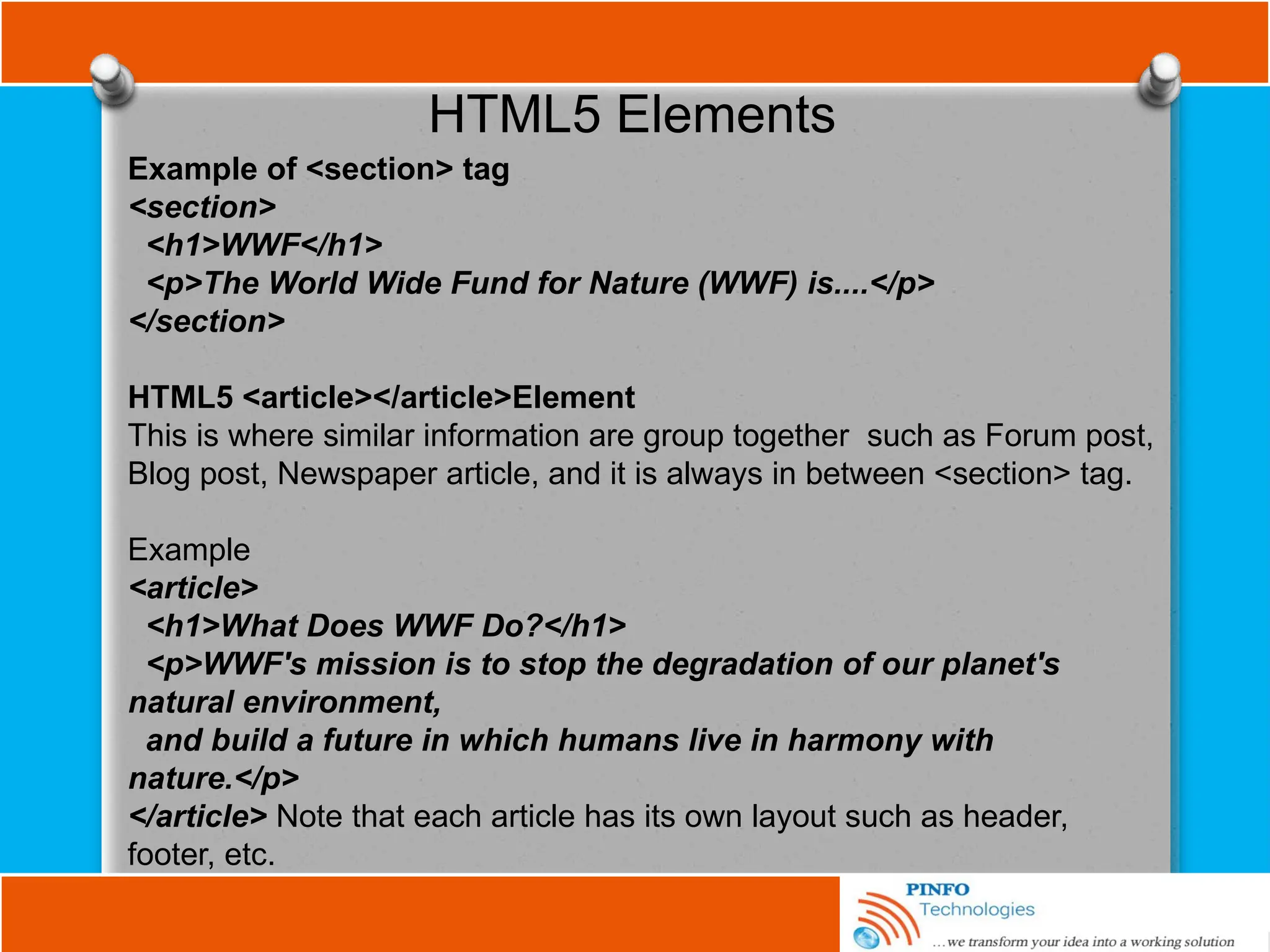
Example of <section> tag
<section>
<h1>WWF</h1>
<p>The World Wide Fund for Nature (WWF) is....</p>
</section>
HTML5 <article></article>Element
This is where similar information are group together such as Forum post,
Blog post, Newspaper article, and it is always in between <section> tag.
Example
<article>
<h1>What Does WWF Do?</h1>
<p>WWF's mission is to stop the degradation of our planet's
natural environment,
and build a future in which humans live in harmony with
nature.</p>
</article> Note that each article has its own layout such as header,
footer, etc.
HTML5 Elements
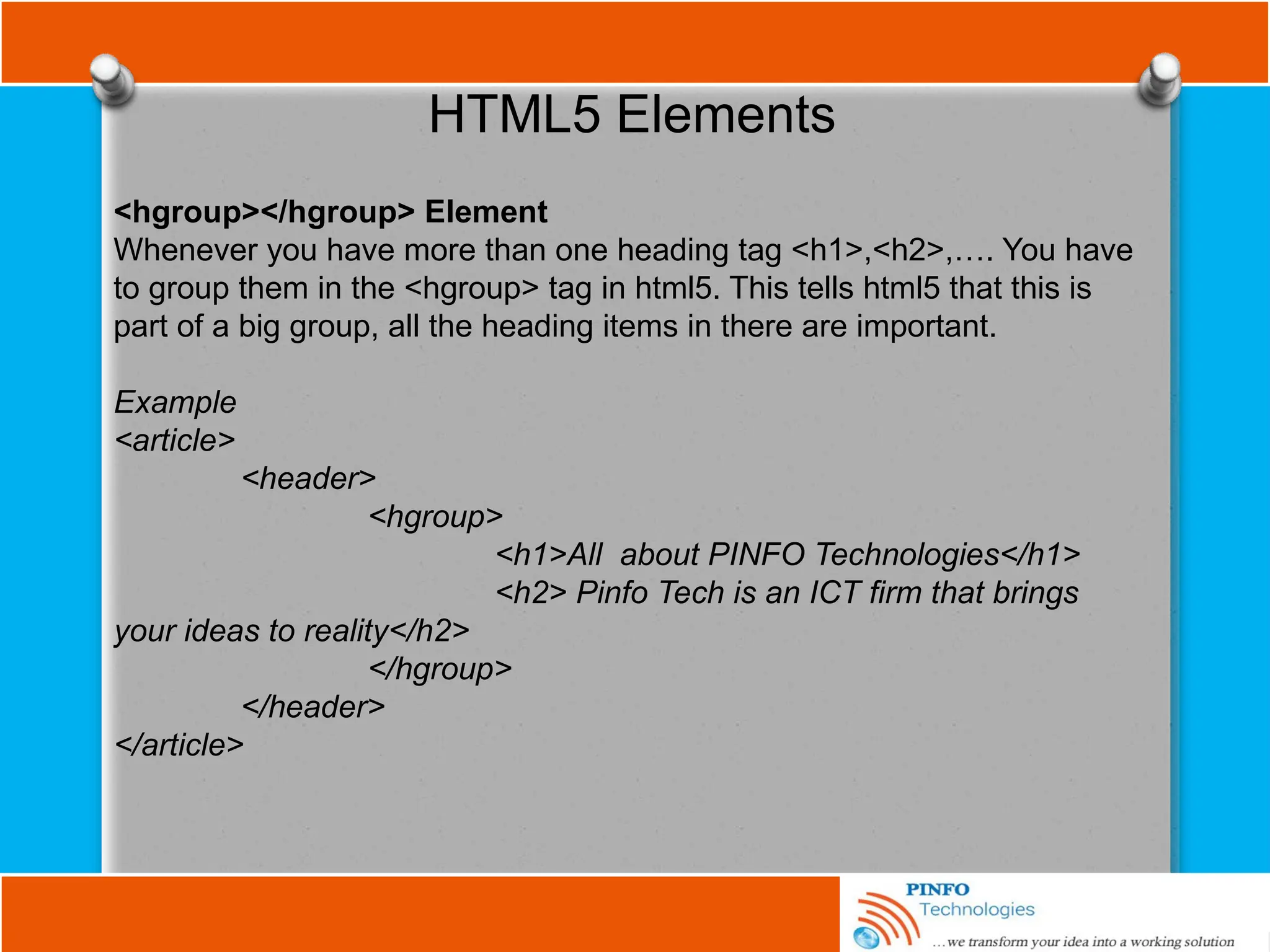
<hgroup></hgroup> Element
Whenever you have more than one heading tag <h1>,<h2>,…. You have
to group them in the <hgroup> tag in html5. This tells html5 that this is
part of a big group, all the heading items in there are important.
Example
<article>
<header>
<hgroup>
<h1>All about PINFO Technologies</h1>
<h2> Pinfo Tech is an ICT firm that brings
your ideas to reality</h2>
</hgroup>
</header>
</article>
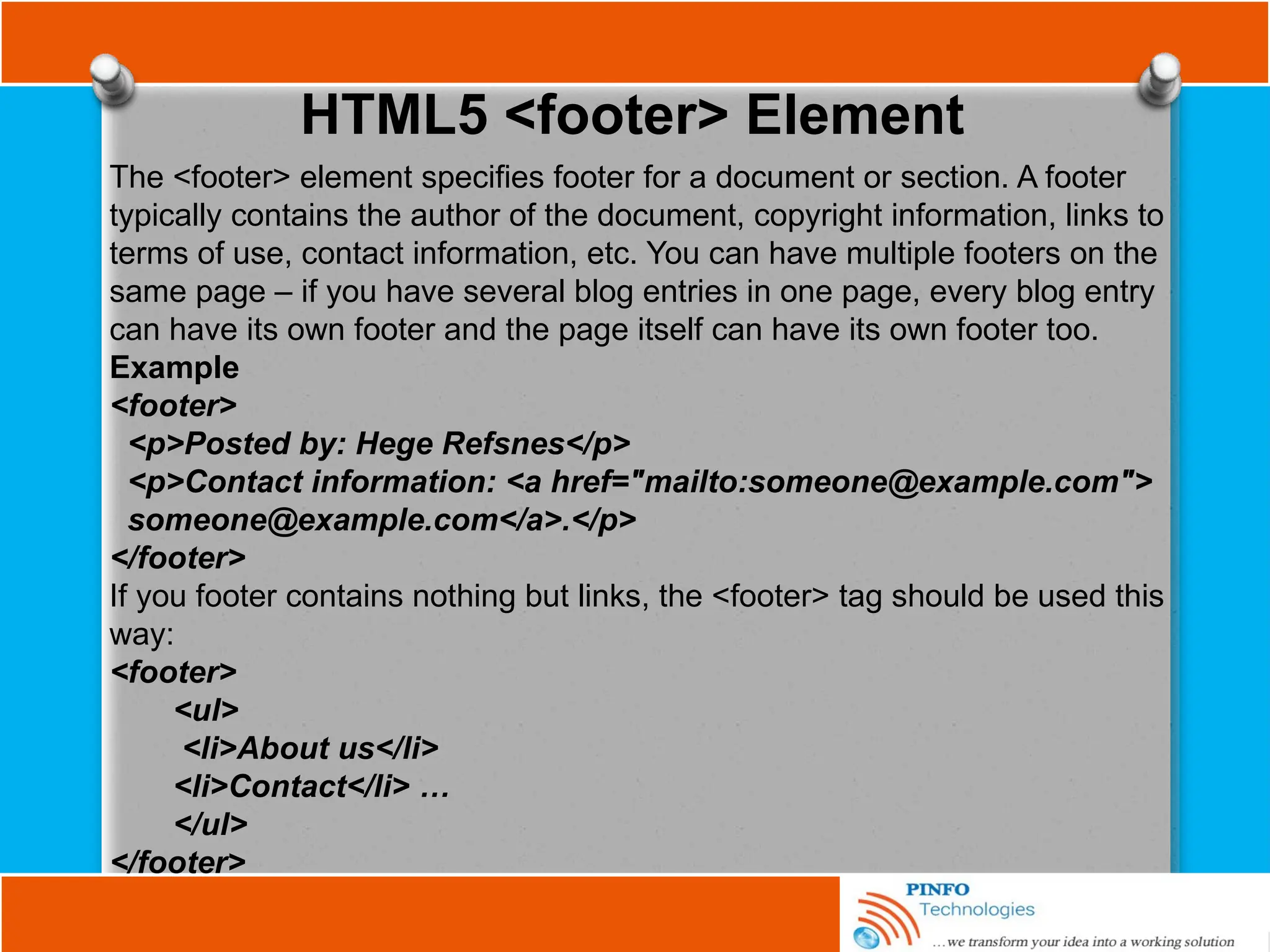
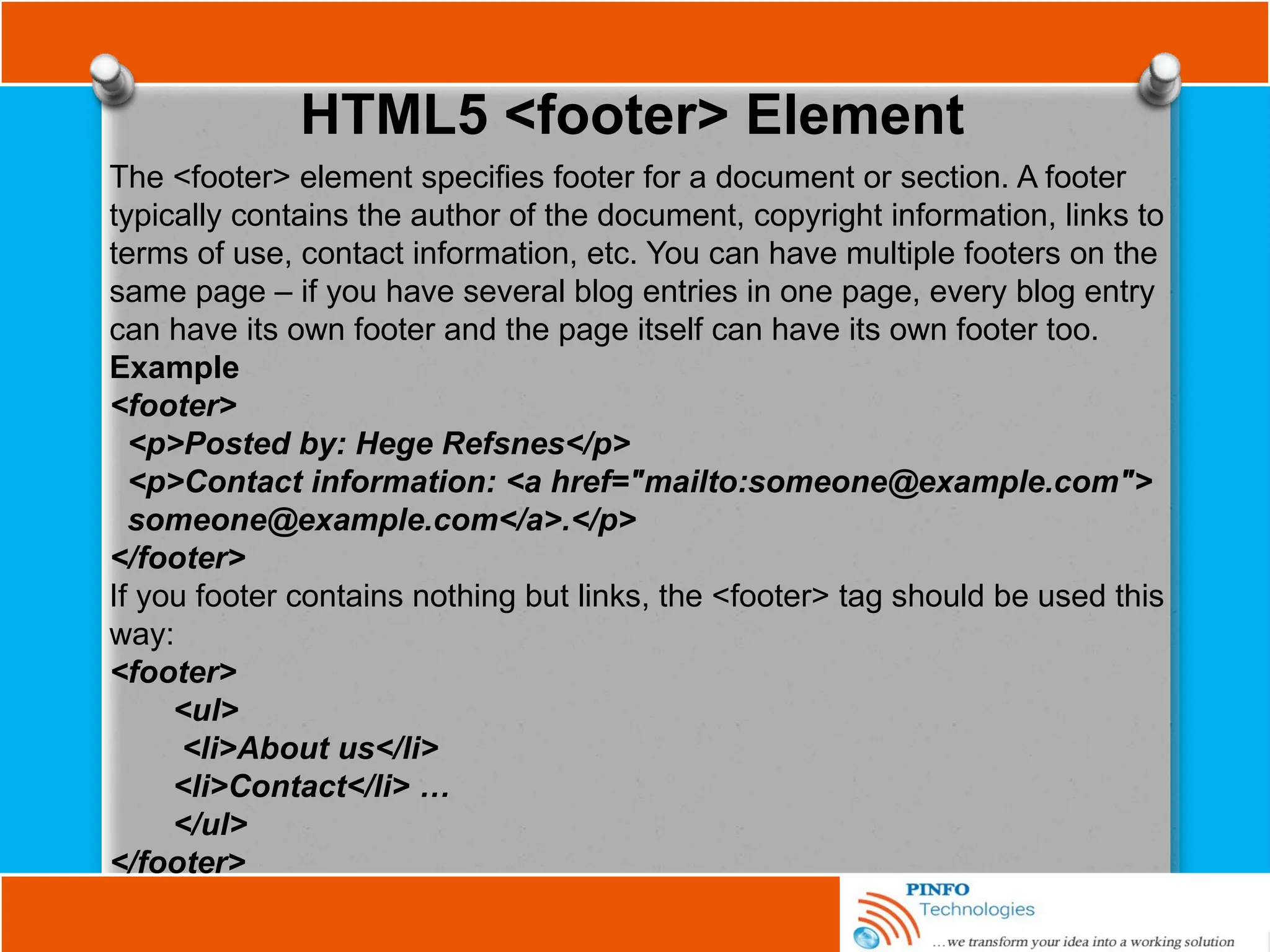
HTML5 <footer> Element
The <footer> element specifies footer for a document or section. A footer
typically contains the author of the document, copyright information, links to
terms of use, contact information, etc. You can have multiple footers on the
same page – if you have several blog entries in one page, every blog entry
can have its own footer and the page itself can have its own footer too.
Example
<footer>
<p>Posted by: Hege Refsnes</p>
<p>Contact information: <a href="mailto:someone@example.com">
someone@example.com</a>.</p>
</footer>
If you footer contains nothing but links, the <footer> tag should be used this
way:
<footer>
<ul>
<li>About us</li>
<li>Contact</li> …
</ul>
</footer>
HTML5 <footer> Element
The <footer> element specifies footer for a document or section. A footer
typically contains the author of the document, copyright information, links to
terms of use, contact information, etc. You can have multiple footers on the
same page – if you have several blog entries in one page, every blog entry
can have its own footer and the page itself can have its own footer too.
Example
<footer>
<p>Posted by: Hege Refsnes</p>
<p>Contact information: <a href="mailto:someone@example.com">
someone@example.com</a>.</p>
</footer>
If you footer contains nothing but links, the <footer> tag should be used this
way:
<footer>
<ul>
<li>About us</li>
<li>Contact</li> …
</ul>
</footer>
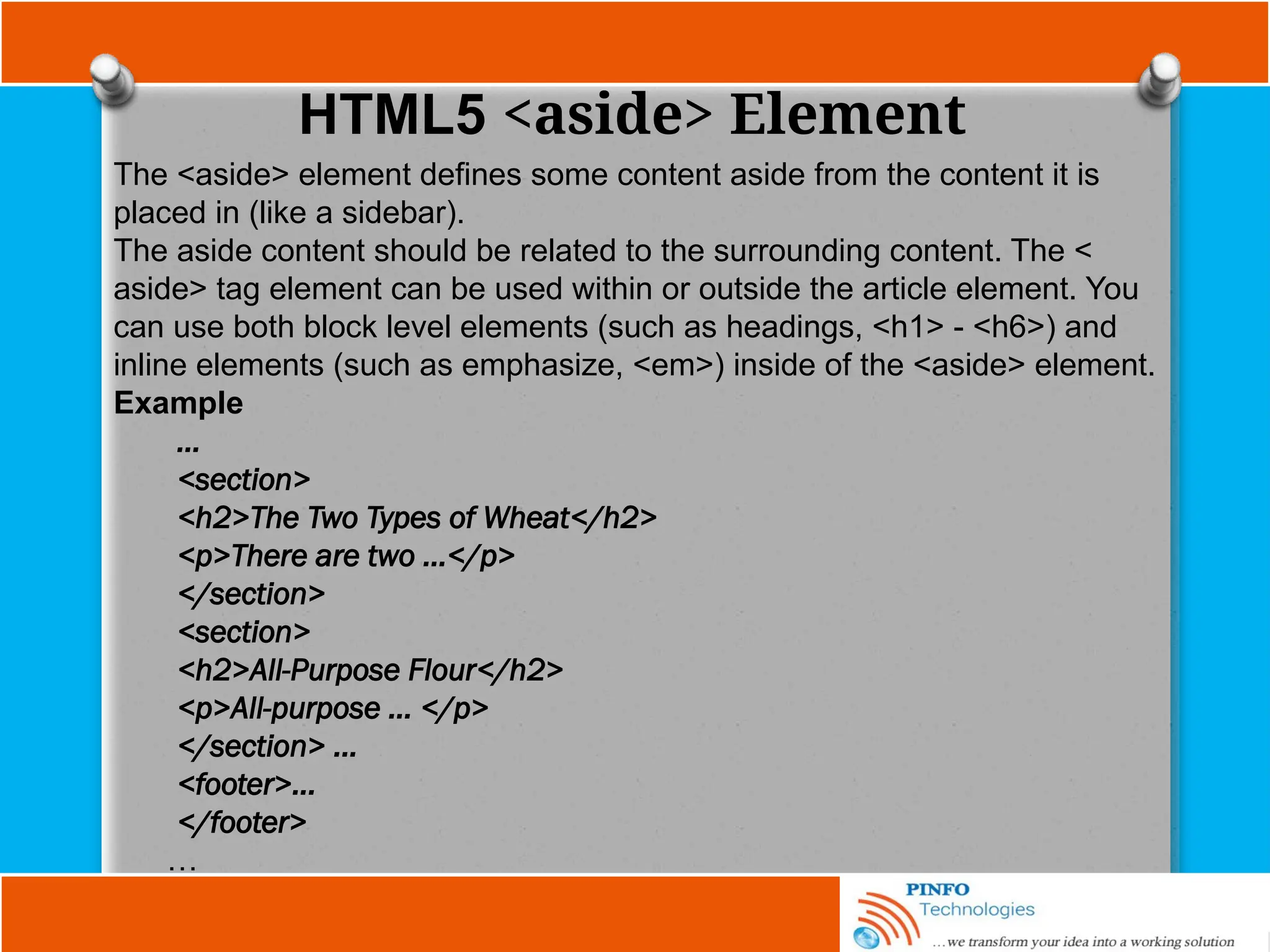
HTML5 <aside> Element
The <aside> element defines some content aside from the content it is
placed in (like a sidebar).
The aside content should be related to the surrounding content. The <
aside> tag element can be used within or outside the article element. You
can use both block level elements (such as headings, <h1> - <h6>) and
inline elements (such as emphasize, <em>) inside of the <aside> element.
Example
…
<section>
<h2>The Two Types of Wheat</h2>
<p>There are two …</p>
</section>
<section>
<h2>All-Purpose Flour</h2>
<p>All-purpose … </p>
</section> ...
<footer>...
</footer>
…
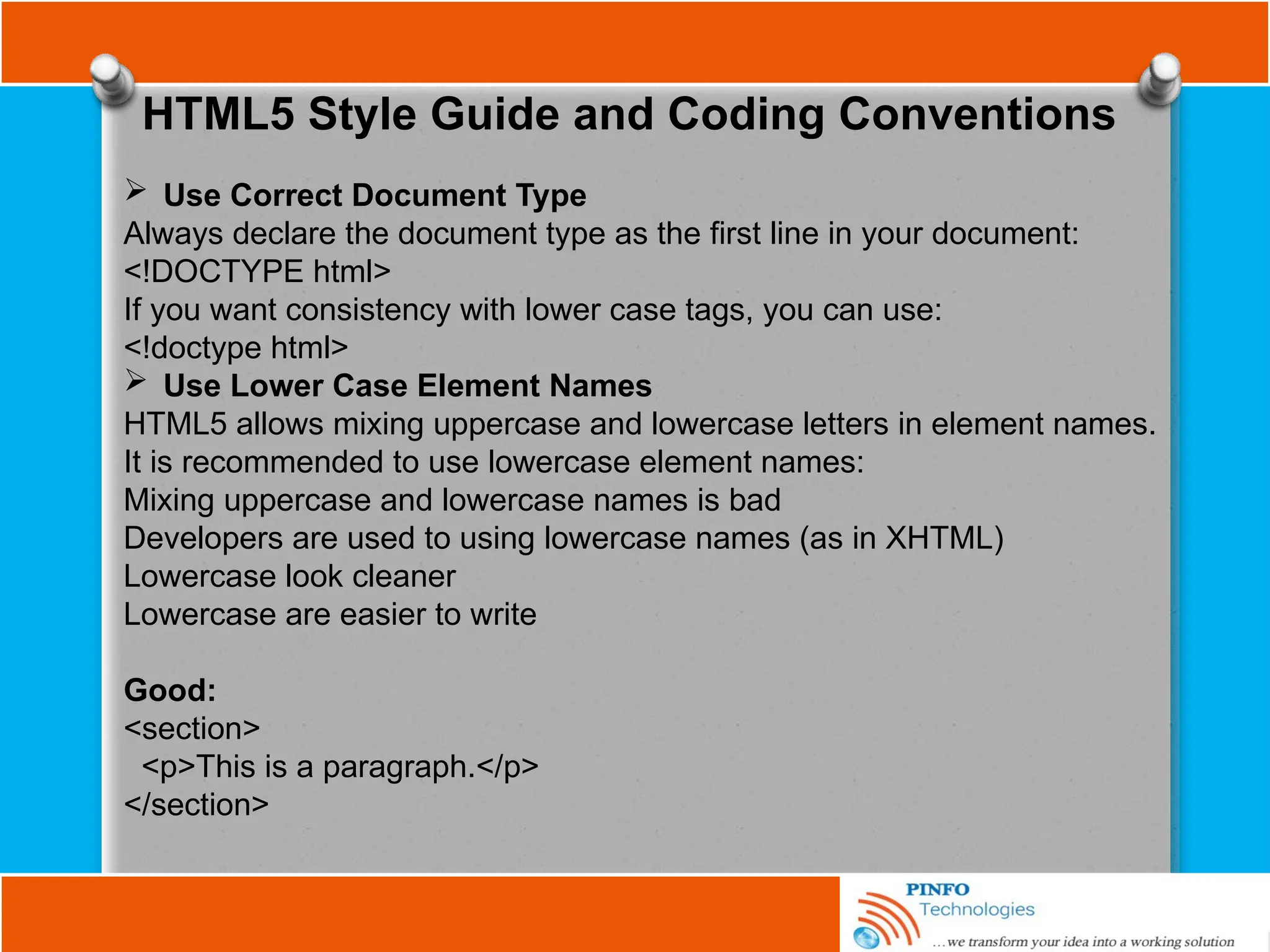
HTML5 Style Guide and Coding Conventions
 Use Correct Document Type
Always declare the document type as the first line in your document:
<!DOCTYPE html>
If you want consistency with lower case tags, you can use:
<!doctype html>
 Use Lower Case Element Names
HTML5 allows mixing uppercase and lowercase letters in element names.
It is recommended to use lowercase element names:
Mixing uppercase and lowercase names is bad
Developers are used to using lowercase names (as in XHTML)
Lowercase look cleaner
Lowercase are easier to write
Good:
<section>
<p>This is a paragraph.</p>
</section>
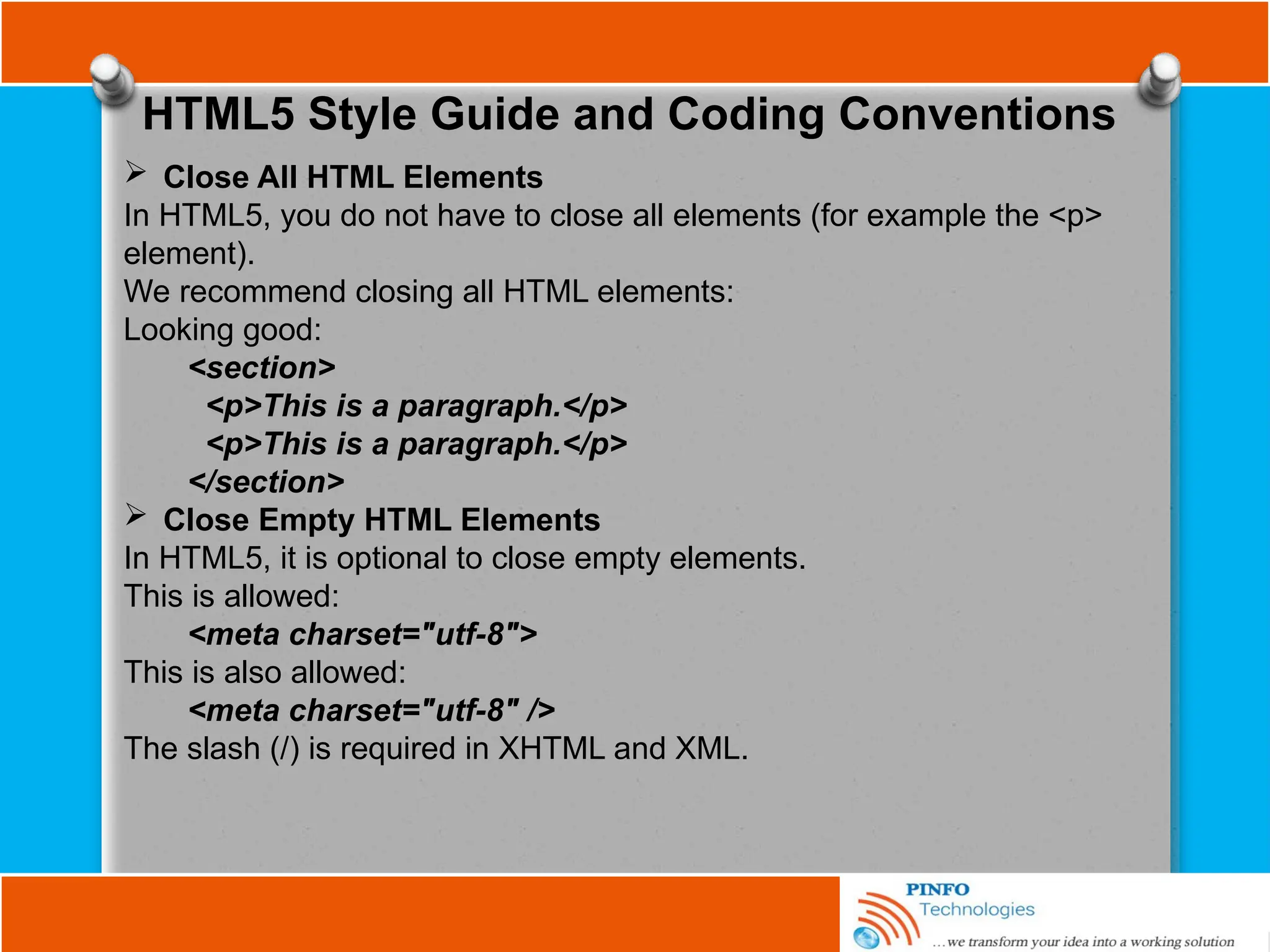
HTML5 Style Guide and Coding Conventions
 Close All HTML Elements
In HTML5, you do not have to close all elements (for example the <p>
element).
We recommend closing all HTML elements:
Looking good:
<section>
<p>This is a paragraph.</p>
</section>
 Close Empty HTML Elements
In HTML5, it is optional to close empty elements.
This is allowed:
<meta charset="utf-8">
This is also allowed:
<meta charset="utf-8" />
The slash (/) is required in XHTML and XML.
HTML5 Style Guide and Coding Conventions
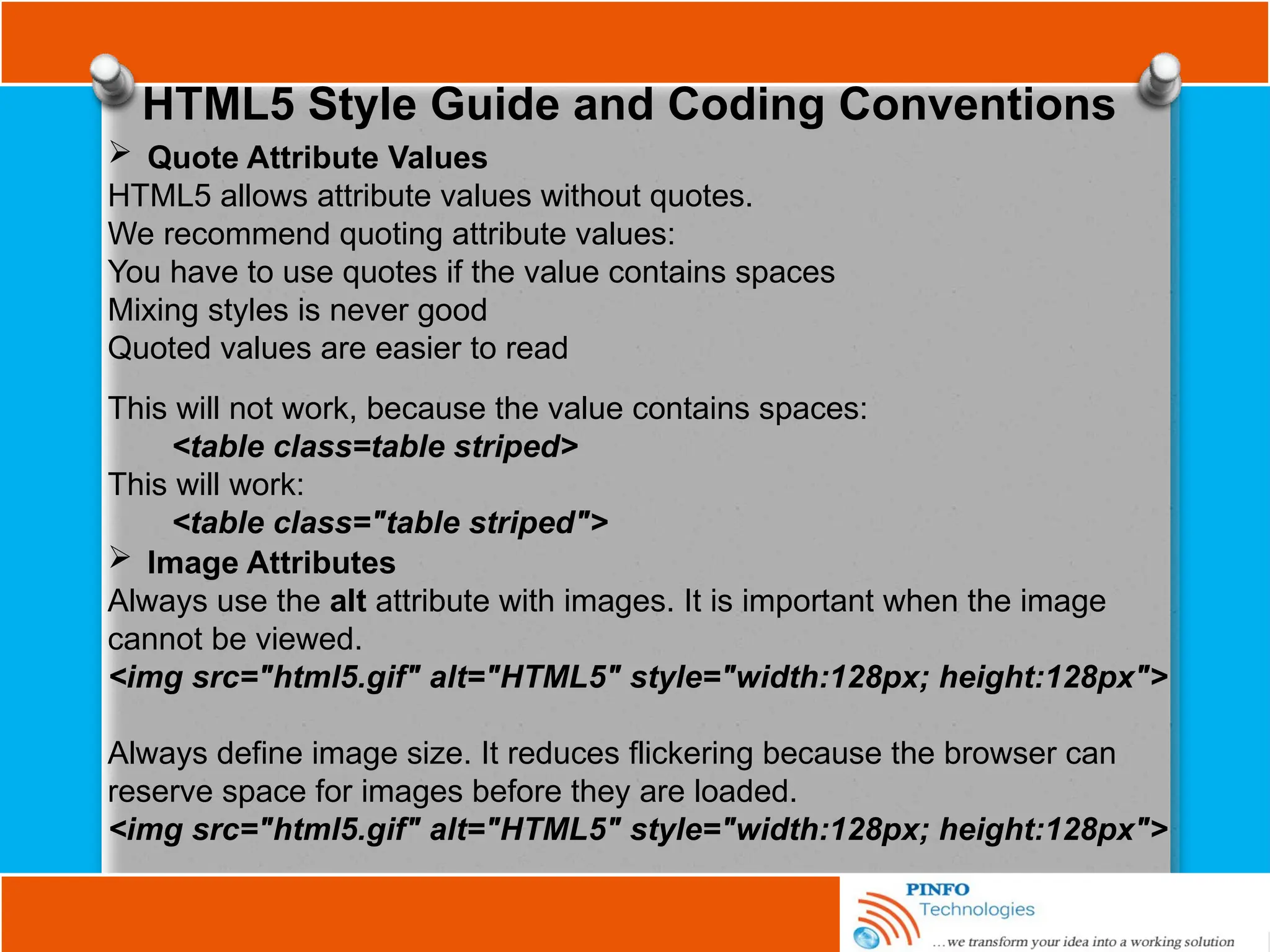
 Quote Attribute Values
HTML5 allows attribute values without quotes.
We recommend quoting attribute values:
You have to use quotes if the value contains spaces
Mixing styles is never good
Quoted values are easier to read
This will not work, because the value contains spaces:
<table class=table striped>
This will work:
<table class="table striped">
 Image Attributes
Always use the alt attribute with images. It is important when the image
cannot be viewed.
<img src="html5.gif" alt="HTML5" style="width:128px; height:128px">
Always define image size. It reduces flickering because the browser can
reserve space for images before they are loaded.
<img src="html5.gif" alt="HTML5" style="width:128px; height:128px">
HTML5 Style Guide and Coding Conventions
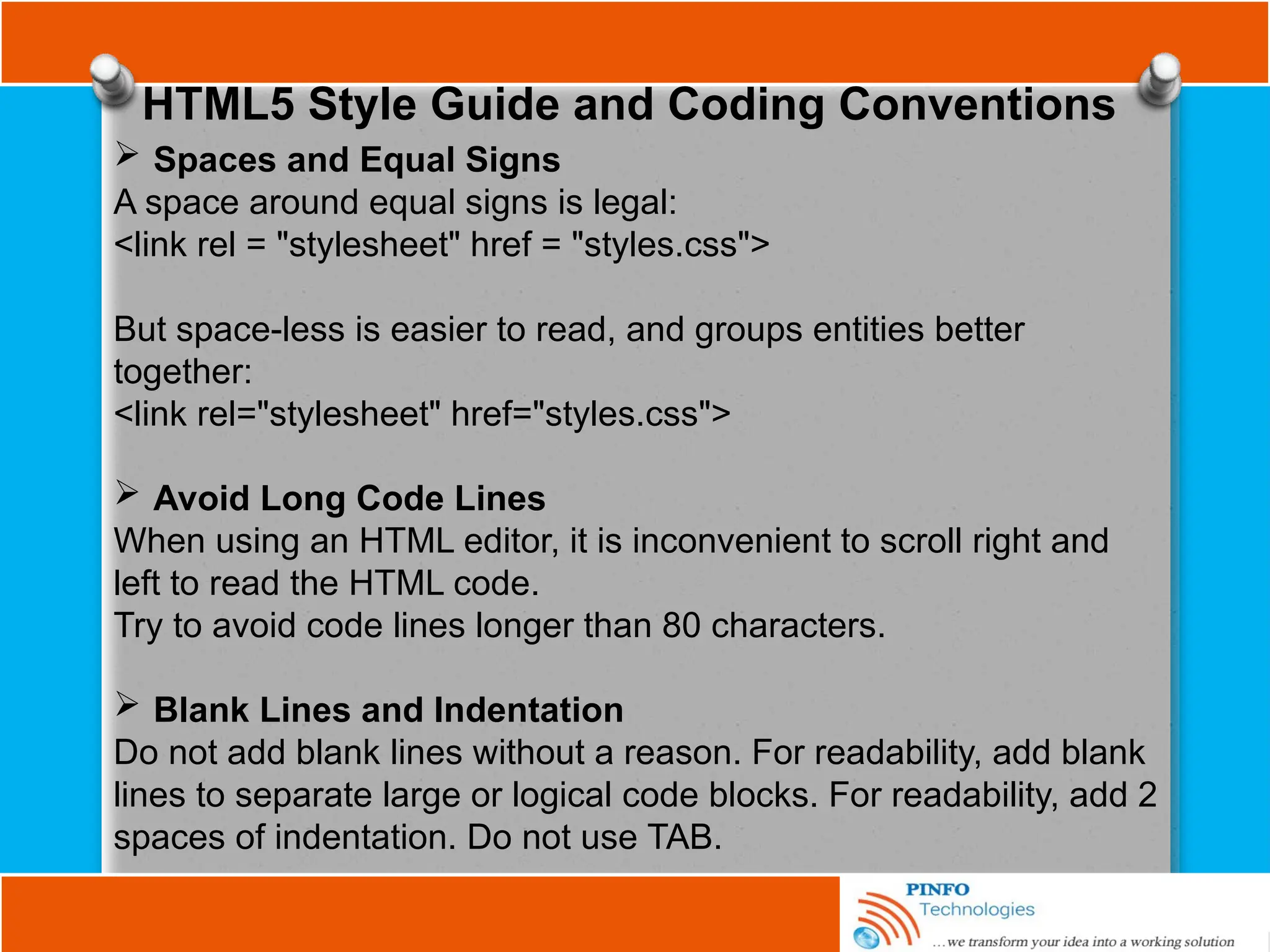
 Spaces and Equal Signs
A space around equal signs is legal:
<link rel = "stylesheet" href = "styles.css">
But space-less is easier to read, and groups entities better
together:
<link rel="stylesheet" href="styles.css">
 Avoid Long Code Lines
When using an HTML editor, it is inconvenient to scroll right and
left to read the HTML code.
Try to avoid code lines longer than 80 characters.
 Blank Lines and Indentation
Do not add blank lines without a reason. For readability, add blank
lines to separate large or logical code blocks. For readability, add 2
spaces of indentation. Do not use TAB.
HTML5 Style Guide and Coding Conventions
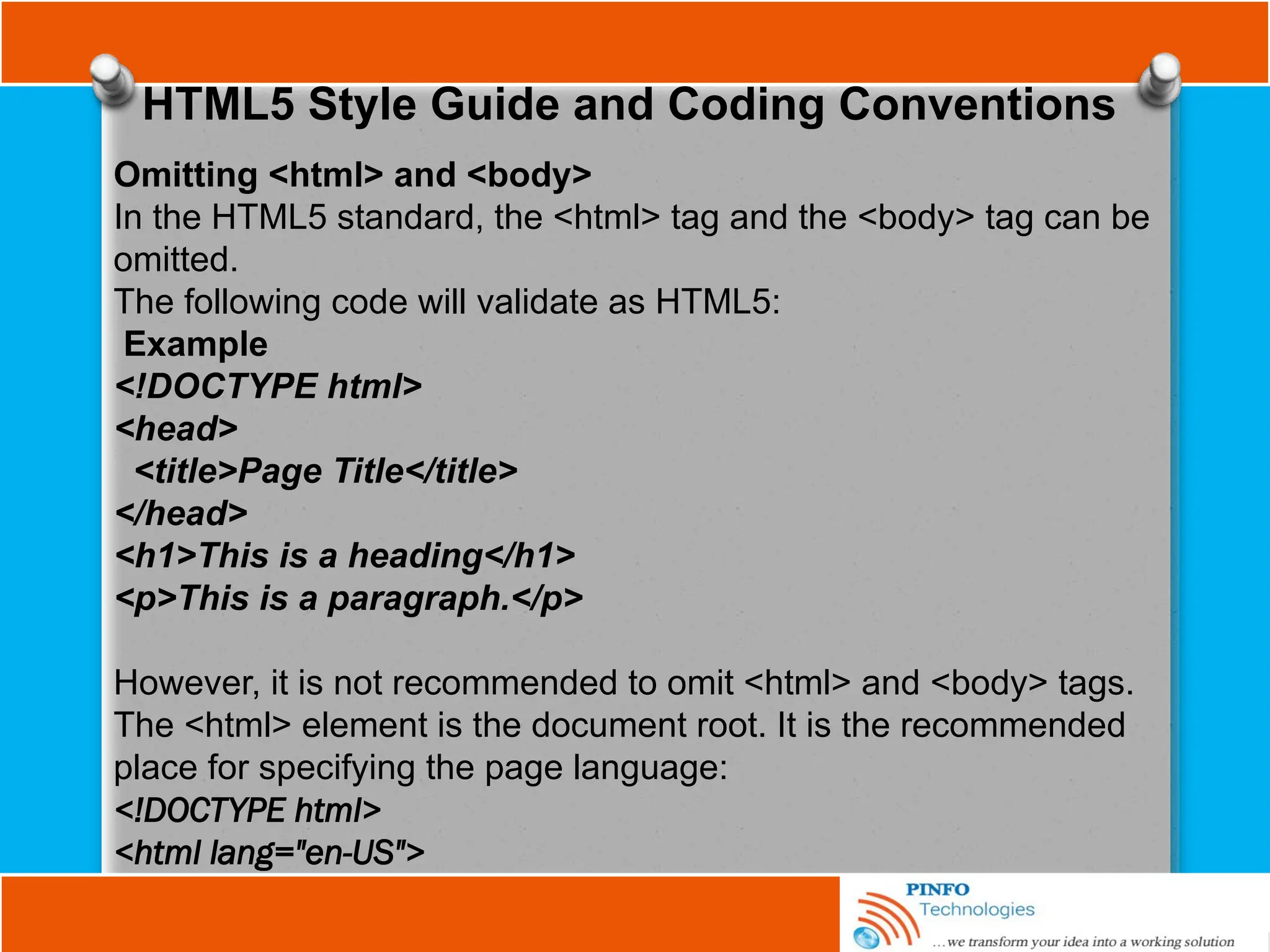
Omitting <html> and <body>
In the HTML5 standard, the <html> tag and the <body> tag can be
omitted.
The following code will validate as HTML5:
Example
<!DOCTYPE html>
<head>
<title>Page Title</title>
</head>
<h1>This is a heading</h1>
<p>This is a paragraph.</p>
However, it is not recommended to omit <html> and <body> tags.
The <html> element is the document root. It is the recommended
place for specifying the page language:
<!DOCTYPE html>
<html lang="en-US">
HTML5 Style Guide and Coding Conventions
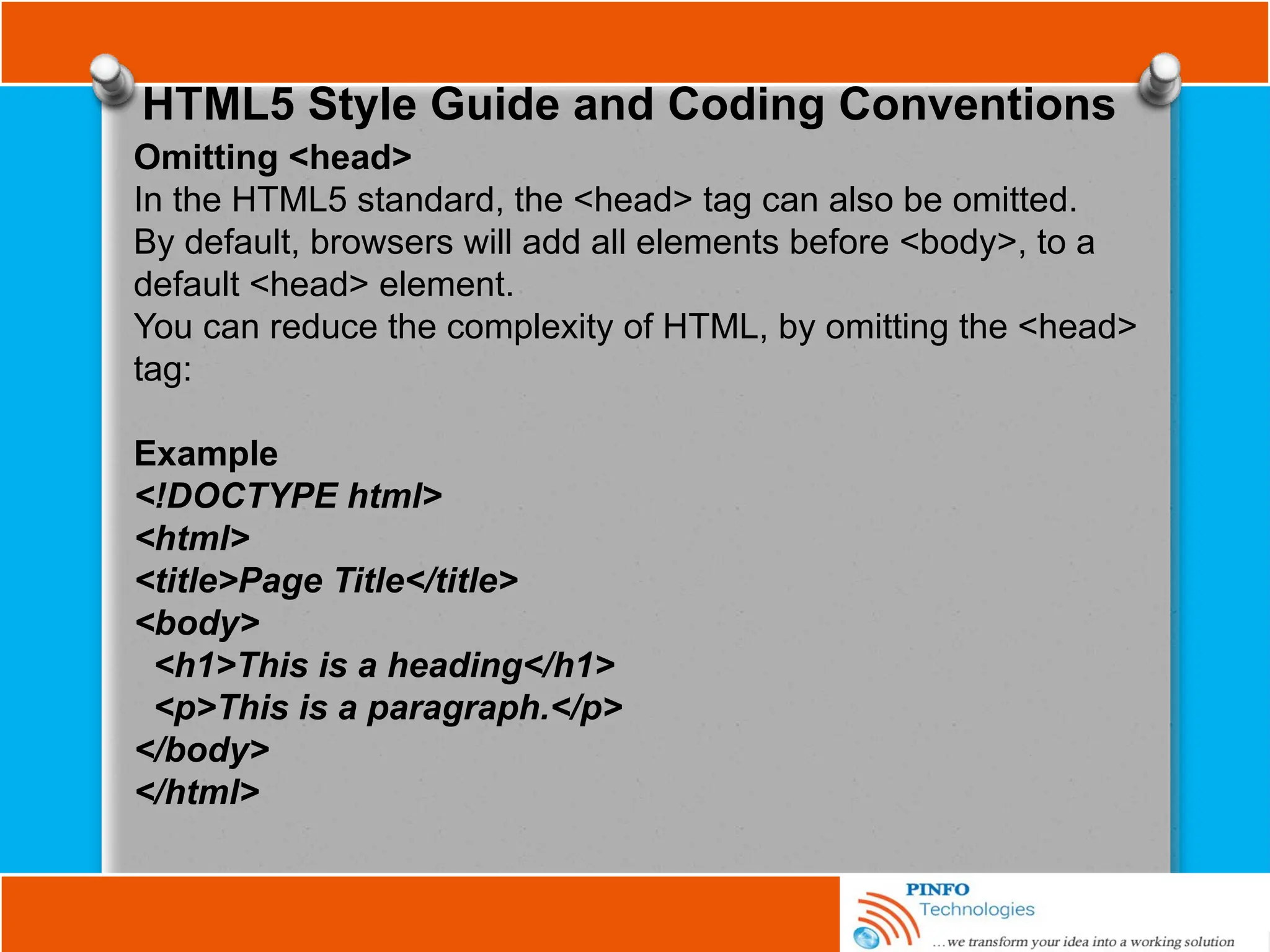
Omitting <head>
In the HTML5 standard, the <head> tag can also be omitted.
By default, browsers will add all elements before <body>, to a
default <head> element.
You can reduce the complexity of HTML, by omitting the <head>
tag:
Example
<!DOCTYPE html>
<html>
<title>Page Title</title>
<body>
<h1>This is a heading</h1>
<p>This is a paragraph.</p>
</body>
</html>
HTML5 Style Guide and Coding Conventions
Meta Data in HTML5
The <title> element is required in HTML5. Make the title as
meaningful as possible:
<title>HTML5 Syntax and Coding Style</title>
To ensure proper interpretation, and correct search engine
indexing, both the language and the character encoding should be
defined as early as possible in a document:
<!DOCTYPE html>
<html lang="en-US">
<head>
<meta charset="UTF-8">
<title>HTML5 Syntax and Coding Style</title>
HTML5 Style Guide and Coding Conventions
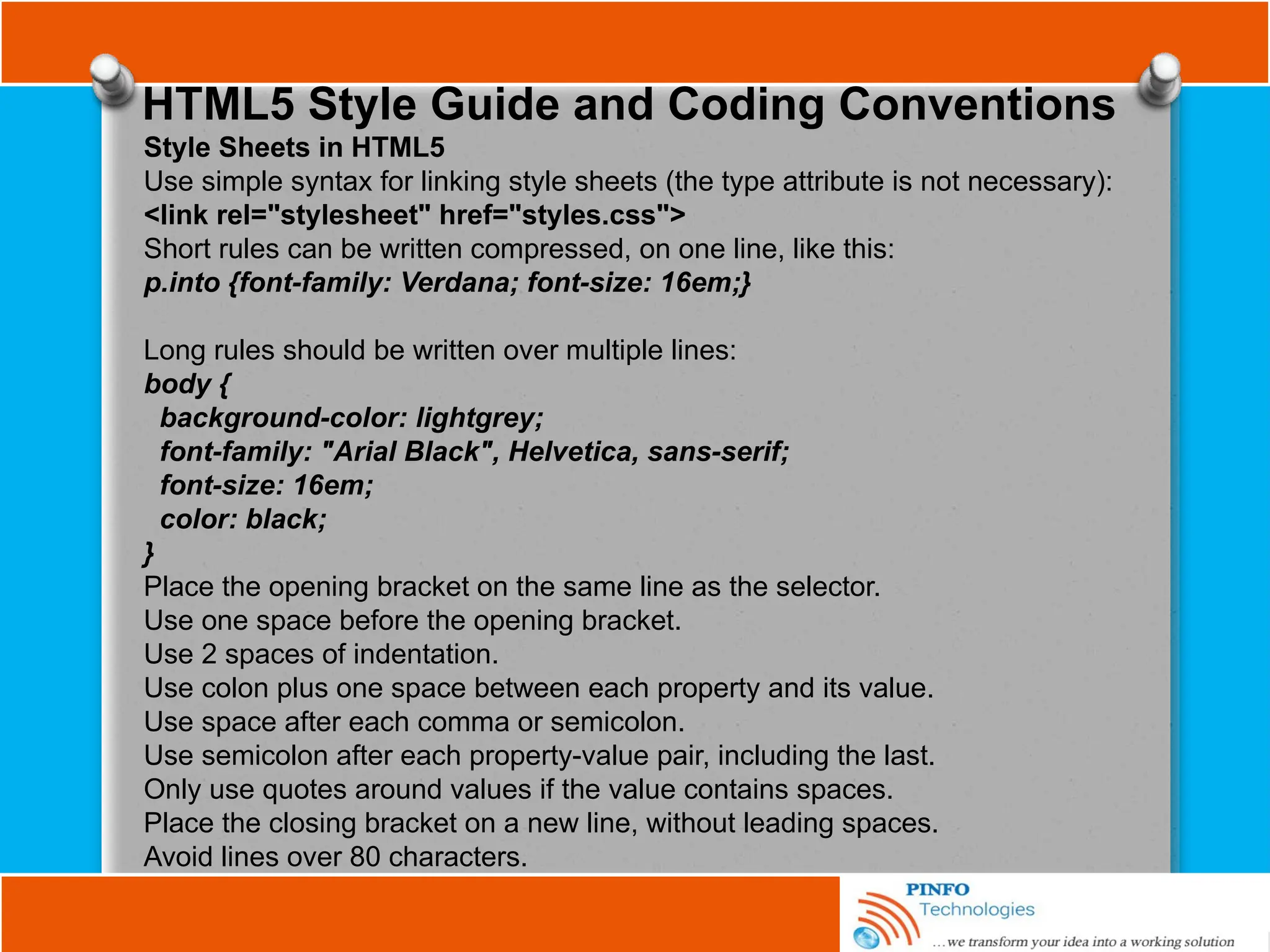
Style Sheets in HTML5
Use simple syntax for linking style sheets (the type attribute is not necessary):
<link rel="stylesheet" href="styles.css">
Short rules can be written compressed, on one line, like this:
p.into {font-family: Verdana; font-size: 16em;}
Long rules should be written over multiple lines:
body {
background-color: lightgrey;
font-family: "Arial Black", Helvetica, sans-serif;
font-size: 16em;
color: black;
}
Place the opening bracket on the same line as the selector.
Use one space before the opening bracket.
Use 2 spaces of indentation.
Use colon plus one space between each property and its value.
Use space after each comma or semicolon.
Use semicolon after each property-value pair, including the last.
Only use quotes around values if the value contains spaces.
Place the closing bracket on a new line, without leading spaces.
Avoid lines over 80 characters.
Cascading Style Sheet(CSS)

Fundamental of Web Development Tutorials by PINFO Technologies.pptx

  • 1.
  • 3.
    Introduction This tutorial addressthe detail of website design and development which comprises of the following programming tools; HTML, XHTML, HTML5, CSS, Fundamentals of JavaScript, Intro to Bootstrap Framework for responsive web design, version control(Setting up of Git and Github),introduction to algorithm and more as well as prepare you for your ICT career in web development. If you are not a computer science student and want to venture into the art of web programming, get involve to lay a great foundation in your new adventurous journey in the fantastic world of web programming.
  • 4.
    Web Related Terms TheInternet : Internet is a worldwide collection of computer networks of networks sharing digital information via a common set of networking and software protocols - Internet protocol suite (Transmission Control Protocols (TCP)/Internet Protocols (IPs)) to link devices across the globe. WWW: stands for World Wide Web, it is a network of computers able to exchange text, graphics, and multimedia information via the Internet. It uses Hypertext Transfer Protocol (HTTP), which allows for the retrieval of linked resources from across the web, invented by Tim Berners-Lee in 1989.
  • 5.
    Web Related Terms TheWorld Wide Web Consortium(W3C): formed with the charter to define the standards for HTML, XHTML and, later, HTML5 and other web technologies. Members are responsible for drafting, circulating for review, and modifying the standard based on cross- Internet feedback to best meet the needs of using the Internet. Visit W3C at http://www.w3.org. Hypertext: Hypertext is a type of text that contains hyperlinks (or just links for short), which enable the reader to jump from one hypertext page to another. You may also hear the word hypermedia. A hypermedia system works just like hypertext, except that it includes graphics, sounds, videos, and animation as well as text.
  • 6.
    Web Related Terms ISP:Internet Service Provider (ISP) is a company that provides internet access (connection) and related services for a monthly fee, ISP comes with a software package, username, and password and access phone number. With a modem, Mifi or Router, one can then log on to the Internet and browse the World Wide. BROWSER: A browser is a software that decodes everything so that what you see is an attractive page rather than a lot of coding. Most people use the Microsoft Internet Edge browser, which comes with all Windows 10 O/S. Take a browser to be an interface between your computer and the Internet.
  • 7.
    Web Related Terms URL:Uniform Resource Locator (URL) allows all resources on the Internet to be located in a uniform (unique) manner. It is a website address that has all the pertinent information for finding the exact location attached to it. ADDRESS BAR: The white bar towards the top of the web browser installed on your computer browser. This is where you type in the address of a website that you want to visit, example: http://www.eresearchplace.com BANDWIDTH: Bandwidth is the amount of data that can be transmitted in a fixed amount of time. When a website gets many visitors, it uses a lot of bandwidth.
  • 8.
    Web Related Terms CACHE:Every time you do anything on your computer, it stores this in memory so that the next time you try to do the same thing, it happens quicker than having to wait from scratch. The place where it stores all this is called the "cache". DOMAIN/ DOMAIN NAME: A domain is the name of website on the Internet that is identified by number assigned to its unique space. The number assigned to its unique space identifies a domain. To make it easier to use however, the number is given the name of your choice and this name is assigned to the number. In this way, people do not need to remember the number (IP) in order to visit a website, but can use the easier-to-remember domain name.
  • 9.
    Tools for WebDesigner Text editor: This is an environment you do your programming and save your file with file extension depending on the application you are building. . Other examples of text editors are notepad++, Edit plus, komodoedit, sublime, atom, visual studio, etc. As you advance in your programming skills, you will be introduced to Integrated Development Environment (IDE) such as Netbeans, Spring source, Eclipse, etc. Web browser: Web Browser is the primary software used by designers and site visitors to access web pages. You need a browser to always test your work and modify it. Please note that when you save your file with .html or .htm, it automatically takes the icon of the browser that is set as a default browser in your system.
  • 10.
    Tools for WebDesigner CONT. Internet Connectivity (optional): This is for you to make references and researches in areas that you do not really understand. However, this is optional; but is necessary for the validation of your web pages according the W3C Standards.
  • 11.
    The Overall Structure HTML,Head, and Body All HTML documents have three document-level tags in common. These tags are <html>, <head>, and <body> that delimit certain sections of the HTML document. The following are the basic html structure. <html> <head> <title></title> </head> <body> </body> </html>
  • 12.
    The Overall Structure HTML,Head, and Body All HTML documents have three document-level tags in common. These tags are <html>, <head>, and <body> that delimit certain sections of the HTML document. The following are the basic html structure. <html> <head> <title></title> </head> <body> </body> </html>
  • 13.
    HTML TAGS The <html>tag The <html> tag surrounds the entire HTML document. This tag tells the client browser where the document begins and ends. <html> ... document contents ... </html> The <head> tag The <head> tag delimits the heading of the HTML document such as document’s title, Meta information, and, in most cases, document scripts are all contained in the <head> section. A typical <head> section could resemble the following:
  • 14.
  • 15.
    HTML TAGS The <head>section of your document can also include <meta> tags which contains meta information for the document; <meta http-equiv=“Content Type” content=“text/html; charset=ISO-8859-1”> <meta http-equiv=“pragma” content=“no-cache”> <meta http-equiv=“refresh” content=“3;URL=http://www.example.com/ newpage.html”>
  • 16.
    HTML Elements Declaring theDocument Type The <DOCTYPE> declaration defines what format your page is in and what standard it follows;
  • 17.
    Basic HTML Tags/Attributes Themost important tags in HTML are tags that define headings, paragraphs and line breaks while attributes provide additional information about html tags on your document page; <body> Tag: This tag defines the body element of your HTML page. With an added bgcolor attribute, you can tell the browser that the background colour of your page should be red, like this: <body bgcolor="red">.
  • 18.
    Basic HTML Tags/Attributes <table>Tag: This tag defines an HTML table. With an added border attribute, you can tell the browser that the table should have no borders: <table border="0">. Attributes always come in name/value pairs like this: - name="value". Heading Tags: Headings are defined with the <h1> to <h6> tags. <h1> defines the largest heading. <h6> defines the smallest heading as shown below;
  • 19.
    Basic HTML Tags/Attributes Paragraphs Paragraphsare defined with the <p> tag, as it is shown below; Adding line break to our document This is done using line break <br /> tag ; <p>This <br /> is a para<br />graph with line breaks</p>
  • 20.
    Basic HTML Tags/Attributes Commentsin HTML The comment tag is inserted into HTML source code to explain your code, which can help you during source code editing later.. The browser ignores any line of codes that is commented. Example; <!-- This is a comment --> Hint: It is a good programing style to always comment your codes for clarity during editing by another programmer or yourself. As you advance in your programming career, give attention to this.
  • 21.
    Basic HTML Tags/Attributes HTMLText Formatting Examples of tags we apply formatting attributes to are bold, italic, superscripted, and subscripted text; The <b> Tag: This tag boldfaces a character or segment of text that is enclosed between it<b> and its corresponding end tag (</b>). The <i> Tag: This tag is like the <em>, it tells the browser to render the enclosed text in italic font style.it is accompany with its corresponding end tag</i>. The <sub>/<sup> Tag: The text contained between the tags and it corresponding end tags displays half a character's height lower or above, in the same font and size as the current text flow.
  • 22.
    HTML Text Formatting Example: <html> <head> <title>FederalICT Scheme,Jos</title> </head> <body> <i> This is an example of Italic text style</i><br /> <b> This is an example of bold face text style</b><br /> 10<sub>3</sub> this is an example of subscript tag<br /> X<sup>3</sup> this is an example of superscript. </body> </html>
  • 23.
    Basic HTML Tags/AttributesCONT. The <pre> Tag The HTML standards' <pre> tag and its required end tag (</pre>) defines a segment inside which the browser renders text in exactly the character and line spacing written in the source document. The <center> Tag (deprecated) This tag is used to centered web page contents such as text, graphics, tables, and so on inside the browser's window. The <center> alignment remains in effect until it is cancelled with its corresponding end tag </center> <body> The processing program is: <pre> main(int argc, char **argv) { FILE *f; int i; if (argc != 2) fprintf(stderr, "usage: %s &lt;file&gt;n", argv[0]); <a href="http:process.c">process</a>(argv[1]); exit(0); } </pre> </body>
  • 24.
    Basic HTML Tags/AttributesCONT. The <address> Tag This tag tells browser that the enclosed text is a contact address, typically for snail mail or email. The address may include other contact information, too. The browser formats the text in a different manner from the rest of the document text or use the address in some special way.
  • 25.
    Working with Lists Listing Inthe case of lists, HTML defines three different types of lists: ordered, commonly known as numbered lists, unordered, commonly known as bulleted lists, and definition lists for term and definition pairs. Ordered Lists Ordered lists use the ordered list tag (<ol>) to delimits the entire list and the list item tag (<li>) to delimits each individual list item. Ordered list displays items using number format.
  • 26.
  • 27.
    Working with Lists UnorderedList <ul> Tag is used for unordered list. This tag signals to the browser that the following content, between the opening tag <ul> and the corresponding end tag </ul> is an unordered list of items. Inside, a leading <li> tag identifies each item in the unordered list. Unordered list displays items in bulleted format.
  • 28.
    Working with Lists DefinitionLists Definition list is a list of terms and corresponding definitions. It is typically formatted with the term on the left with the definition following on the right or on the next line. The <dl> tag is used in conjunction with <dt> (defines terms/names) and < dd> (describes each term/name).
  • 29.
    Working with Division(<div>)tag Division(<div>) tag The tag is used for marking out a block of content, such as the main content block of your document, the header, or the footer. Division(<div>) can contain further elements, including more divs if required, but it cannot be contained within an inline element. For example, a simple website may have a header, a main column of content, a secondary column of content, and footer
  • 30.
    Working with Division(<div>)tag Division(<div>) tag The tag is used for marking out a block of content, such as the main content block of your document, the header, or the footer. Division(<div>) can contain further elements, including more divs if required, but it cannot be contained within an inline element. For example, a simple website may have a header, a main column of content, a secondary column of content, and footer
  • 31.
    Working with Span<span> tag Span <span> tag This tag is used for marking out sections within a block element and sometimes inside another inline element. It is an inline element, just the same as <em>, <strong>, or <a>, except without any semantic meaning; it is simply a generic container
  • 32.
    Working with Span<span> tag Span <span> tag This tag is used for marking out sections within a block element and sometimes inside another inline element. It is an inline element, just the same as <em>, <strong>, or <a>, except without any semantic meaning; it is simply a generic container
  • 33.
    Working with Rules,Images and Multimedia Though your document seems to be makeup of text, but an appropriate use of horizontal rules, images and multimedia make your document interesting and inviting. Horizontal Rules Horizontal rules are used to separate sections of a document visually. This gives readers a clean consistent visual indication that a particular section has ended and another section has begun. The <hr> tag tells the browser to insert a horizontal rule across the display window.
  • 34.
    Working with Rules,Images and Multimedia Output
  • 35.
    Working with Rules,Images and Multimedia The noshade attribute This attribute produces 3D rule line effect. By replacing <hr size="10" noshade="noshade"></hr> for <hr></hr>, in the above codes, it produces the diagram below;
  • 36.
    Working with Rules,Images and Multimedia Images Images are very important in web designing; they give professional look to your websites. The three major formats of image that are commonly used; JPEG (Joint Photographers Experts Group), GIF(Graphical Interchange Format) and PNG(Portable Network Graphics) Inserting Images on a Page using <img> tag and src attribute: The <img> tag lets you reference and insert an image into html document. 1. Place the cursor where you want the image to appear. 2. Type <img src="image.gif" 3. Type a space and then the final />=> <img src="image.gif"/> To insert an image on a page
  • 37.
    Working with Rules,Images and Multimedia The bgcolor attribute: Setting the background color is easy. To get a pure red background using RGB encoding, try: <body bgcolor="#FF0000"> For a subtler background, try: <body bgcolor="peach">
  • 38.
    The background attribute Ifa splash of color is not enough, you can place an image into the background of a document with the background attribute in the <body> tag. The required value of the background attribute for an image is the URL of the image. When image is used as a background, the browser automatically repeats (tiles) the image to fill the entire window.
  • 39.
    Making Images Float(Alignment attributes) 1. Type <img src="image.jpg" where image.jpg indicates the location of the image on the server. 2. Either type align="left" to float the image on the left of the screen while the text flows to the right, or type align="right" to float the image on the right edge of the screen while the text flows on the left side of the image. 3. Type the final />. 4. Create the elements that should flow next to the image. To make images float:
  • 40.
    Making Images Float(Alignment attributes) Example: <!DOCTYPE HTML PUBLIC "-//W3C//DTD XHTML1/EN" ":http://www.w3.org/TR/xhtml1/strict.dtd"> <html> <head> <title>Image Example </title> </head> <body bgcolor="gray"> <h1> Example of image <img> tag and background Colour <bgcolor> tag and alignment attributes</h1> <img src="../Pictures/honey.jpg" title="Honey is good for the body" alt="honey" align="left" height="200" width="250" /> <h2> The Benefits of honey</h2> <p> Honey stands as a natural sugar, as well as having medicinal values to cure some ailments
  • 41.
    Animated Text inhtml Animated Text in html The animation is simple text scrolling horizontally across the browser. The <marquee> tag is used to produce animated text effect in html. You can make the text/image scroll horizontally across or vertically down the web page. Though <marquee> tag is obsolete, but some browsers still support it. <!DOCTYPE html "-W3C//DTD//XHTML 1.0 STRICT//EN" http://www.w3c.org/TR/xhtml1/strict.dtd"> <html> <head><title></title> </head> <body> <bgsound src="Acapela.mp3" loop=infinite> <marquee align=center loop=infinite> This is an example of marquee test which could be used as an advert .......... This look good, Yes! </marquee> </body> </html> Example
  • 42.
    Referencing Audio, Video,&Images You reference any external document, regardless of type or format, via a conventional anchor (<a>) link: <a href="sounds/anthem.mp3">National Anthem</a> Embedding Other Document Types The Web can deliver nearly any type of electronic document, not just graphics, sound, and video files. To display them, however, the client browser needs a helper application installed and referenced. Recent browsers also support plug-in accessory software. For example, consider a company whose extensive product documentation was prepared and stored in some popular layout application such as Adobe Acrobat, FrameMaker, QuarkXPress, Microsoft Excel or CorelDraw. The Web offers an excellent way for distributing that documentation over a worldwide network, but converting to HTML would be too costly at this time.
  • 43.
    Working Tables Tables aredefined with the <table> tag. A table is divided into rows (with the <tr> tag), and each row is divided into data cells (with the <td> tag). The letters td stands for "table data," which is the content of a data cell. A data cell can contain text, images, lists, paragraphs, forms, horizontal rules, tables, etc. Basic Table Tags You can create a wide variety of tables with only five tags: the <table> tag; the <tr> tag, which defines a table row; the <th> and <td> tags, which define the table's headers and data cells; and the <caption> tag, which defines a title or caption for the table. Beyond these core tags, you may also define and control whole sections of tables, including adding running headers and footers, with the <colgroup>, <col>, <tbody>, <thead>, and <tfoot> tags.
  • 44.
    Working Tables The bgcolor,border & background image attributes You can make the background of a table with a different colour than the document's background using bgcolor attribute for the <table>tag, as well as the background image. These mark-ups control the display of background colour and image of a table: <table background="../images/logo.jpg"> for background image <table bgcolor= “gray”> for background colour The border attribute The optional border attribute for the <table> tag-<table border="10"> tells the browser to draw lines around the table, the rows and cells within it. The default is no borders at all. The border attribute carries integer value which equals to 3D chiselled-edge lines that surround the outside of the table and make it appear to be embossed onto the page.
  • 45.
    Working Tables The cellspacingattribute The cellspacing attribute controls the amount of space placed between adjacent cells in a table and along the outer edges of cells through the edges of a table. By including the cellspacing attribute, you can widen or reduce the interior cell borders. For instance, to make the thinnest possible interior cell borders, include the border and cellspacing=0 attributes in the table's tag. The cellpadding attribute of <table> tag The cellpadding attribute controls the amount of space between the edge of a cell and its contents, which by default is 1 pixel. You may make all the cell contents in a table touch their respective cell borders by including cellpadding=0 in the table tag. You may also increase the cellpadding space by making its value greater than 1.
  • 46.
    Working Tables The widthand height attributes of <table> tag Browsers automatically make a table only as wide as needed to display all of the cell contents. If necessary, you can make a table wider with the width attribute. The value of the width attribute is either an integer number of pixels or a relative percentage of the screen width, including values greater than 100 percent. For example: <table width=400> or <table width="50 %"> The <caption> Tag A table commonly needs a caption to explain its contents, so the popular browsers provide a table-caption tag. The <caption> tag and its contents are typically immediately after the <table> tag. Example
  • 47.
  • 48.
    Example of tablewith heading <th> and <caption>tags.
  • 49.
    Form Fundamentals Forms enableyou to build Web pages that let users actually enter information and send it back to the server. A form has three important parts: the form tag, which includes the URL of the script that will process the form; the form elements, like fields and menus; and the submit button which sends the data to the script on the server through the communication path between the browser and server called the common gateway interface (CGI). When a button on the form is click to submit the form, the browser packages up the user-supplied data and sends them to a server or to an email address The <form> Tag The basic form tag is <form></form>. But there are many form attributes that can be used with the <form> tag such as action, method, enctype, accept, accept-charset, and name. These attributes are very important when creating forms to interact with the server side that is the database.
  • 50.
    Form Attributes The actionattribute: action attribute is required for the <form> tag to gives the URL of the application that is to receive and process the form's data. Eg. could be form_process.php, form_process.jsp, form_process.aspx, etc. The method attribute: The method attribute informs the user agent how the form data should be passed to the form handler. The two possible values are GET and POST. When the GET value is used, form data is sent to the form handler in the form of a query string. For instance, the browser appends the data to the form's action URL, separated by the question mark character.
  • 51.
    Form Attributes The enctypeAttribute: Enctype attribute is used to control file selection control depending on the type of file to be uploaded to the server. If this attribute is left out of the markup, then the form will default to a MIME type of application/x-www-form-urlencoded, which should be suitable for most forms, unless the form is using a file input element in which case this attribute should contain a value of multipart/form-data, allowing it to cope with processing binary code. Example; <form enctype="multipart/form-data" method=”post” action="cgi_bin/save_file.php"> The name Attribute: This attribute is used to send data collected from the form to the server-side. The data/information entered in the forms are stored in the name attribute and posted to the server programming script when the form is submitted. Example; <input name="fullname" type="text" value="" />.
  • 52.
    Form Attributes The enctypeAttribute: Enctype attribute is used to control file selection control depending on the type of file to be uploaded to the server. If this attribute is left out of the markup, then the form will default to a MIME type of application/x-www-form-urlencoded, which should be suitable for most forms, unless the form is using a file input element in which case this attribute should contain a value of multipart/form-data, allowing it to cope with processing binary code. Example; <form enctype="multipart/form-data" method=”post” action="cgi_bin/save_file.php"> The name Attribute: This attribute is used to send data collected from the form to the server-side. The data/information entered in the forms are stored in the name attribute and posted to the server programming script when the form is submitted. Example; <input name="fullname" type="text" value="" />. - The full name that a user entered is stored in the name attribute “fullname and posted to the scripting file that connect the form to the database.
  • 53.
    Form Input Element The<input> element is a self-closing inline element, like an image or a line break, so if you are writing XHTML, remember to include the closing forward-slash, and remember to enclose the element within a block element such as a paragraph: <p><input /></p> How the <input> element behaves and displays is dictated by the type attribute, which can take values of text, password, file, checkbox, radio, hidden, reset, submit, hidden and button. If no type is specified, current web browsers assume it to be a text input. Example of input element with type attribute; <input type=”text” /> Text Input Element A text input is used for typing text into the field. This is a single-line control and normally appears in the form of a rectangular box with an inset border. <input type="text" value="Insert text here" /> for value <input type="text" placeholder="Insert text here" /> for placeholder
  • 54.
    Form Input Element Hints:When you use value attribute, it displays the content for the user to erase before entering a new content, but when placeholder is used, as soon as the user click the text box to start typing, the displayed instructional contents disappear. 1 If desired, type the label that will identify the text box to your visitor (for example, Name:) 2 Type <input type="text". 3 Type name="name", where name is the text that will identify the input data to the server (your script). 4 If desired, type value="default", where default is the data that will initially be shown in the field and that will be sent to the server if the visitor doesn't type something else. 5 If desired, define the size of the box on your form by typing size="n", replacing n with the desired width of the box, measured in characters. 6 If desired, type maxlength="n", where n is the maximum number of characters that can be entered in the box. 7 Finish the text box by typing a final /> To create a text box:
  • 55.
    Form Input Element Codeexample for form input/attributes
  • 56.
    Form Input Element Theonly difference between a password input box and a text input box is that whenever password is typed in the field, it is hidden by bullets or asterisks. Though information is not encrypted when send to the server. <input type=”password” /> Creating Password Boxes in a form
  • 57.
    Form Input Element FileInput Element A file input usually takes the form of a text input box followed by a Browse button. The file input control allows you to browse for a file on your local network. Once you have selected the file, the file path is then inserted automatically into the contents of the text input field and sent to the server when the form is submitted.
  • 58.
    To allow visitorsto upload files 1 Type <form method="post" enctype="multipart/form-data". 2 Next, type action= "upload.url">, where upload.url is the URL of the script that processes incoming files. You will need a special script for this. 3 Type the caption/instruction for the file upload area so your visitors know what to do. Like different formats of files accept/size 4 Type <input type="file" to create a file upload box and a Browse button. 5 Type name="title", where title contain the path of the file which is sent to the server the files being uploaded. 6 If desired, type size="n", where n is the width, in characters, of the field in which the visitor will enter the path and file name. 7 Type the final />. 8 Complete the form as usual, including the submit button and final </form> tag.
  • 59.
    Form Input Element HiddenInput Element When you start developing robust system, the may be a situation you want to send hidden data to the server, the hidden input element handles this. <input type="hidden" name="hiddenValue" value="<? php echo $regNumber ; ?>" /> Now the variable, $regNumber is hidden from the user. This implies that, it will not be displayed on the browser with other information. Multiple Text Area (<textarea> tag) The <textarea> element is similar in some ways to the text input element, but it allows multiple lines of input rather than just one. It uses a pair of attributes, cols and rows to control its size. It is a container element, rather than a self- closing element.
  • 60.
    Form Input Element Therows and cols attributes A multiline text-input area stands alone onscreen: body content flows above and below, but not around it. You can control its dimensions, however, by defining the columns and rows attributes for the visible rectangular area set aside by the browser for multiline input. I suggest you set these attributes. The common browsers have a habit of setting aside the smallest, least readable region possible for <textarea> input, and the user cannot resize it. Both rows and cols attributes require integer values for the respective dimension's size in characters. The browser automatically scrolls text that exceeds either dimension. Example; <textarea name= “” rows= “50” cols= “20”> </textarea>
  • 61.
    Disabled and Read-OnlyElements The disabled attribute enables you to display form elements that cannot be changed by the user and are intended to be displayed in a greyed out or in some other fashion that makes the disabled status obvious. The readonly attribute is not visually different from the other fields, but just unchangeable. Note: Disable attribute does not send data to the server side via name attribute, but readonly does. So when you use scripting language to display data from the database with the intention to send it back for updating, use readonly attribute of the input element.
  • 62.
    Check boxes andRadio buttons Checkbox: A checkbox input takes the form of a square box, with a check mark or an “x” character appearing when the box is selected. In checkbox, you can select more than one item. Checkboxes are linked by the value of the name attribute. To create checkboxes just type the following; <input type= “checkbox” name= “morning” checked=”checked” /> <input type= “checkbox” name= “afternoon” /> <input type= “checkbox” name= “evening” /> The code above will produce three checkboxes, but note the first line of code with checked=”checked”, this will make the first checkbox to be checked at default.
  • 63.
    Check boxes andRadio buttons Radio button Unlike checkboxes, radio buttons are used to indicate that only one choice out of several radio groups can be selected. Just like checkboxes, radio buttons are linked by the value of the name attributes.
  • 64.
    Check boxes andRadio buttons sample code
  • 65.
    Submit Button Creating theSubmit Button Submit button makes it possible for users to send all the data entered in the form to the server. There are different ways of creating submit button, but to avoid any issue with some browsers, we will only stick to one, though others will be introduced.
  • 66.
    Pull-down Menus Creating Pull-downMenus Menus are perfect for offering web visitors options of choice to choose from. The <select> tag is used for menus, which give two compact alternatives: pull-down menus and scrolling lists. This element has only three specific attributes: name, size, and multiple. The name attribute is used here to identify the data collected from the menu when it is sent to the server, and it is not optional when interacting with the database— every <select> must have a name attribute. The size and multiple attributes are related, it is used to select multiple options from the drop-down list. The multiple attribute is set (multiple="multiple" if you are writing XHTML; otherwise, just multiple will do the size attribute, which accepts a numerical value, determines how many rows of options are displayed.
  • 67.
  • 68.
    The <option> tag The<option> tag has three specific attributes: selected, value, and label. The selected attribute is used to indicate to the user that a particular <option> should be selected initially; without it, the browser may display either nothing at all (just a blank select box) or the first <option> it encounters; <select name="cheesemenu"> <option>Cheddar</option> <option selected="selected">Stilton</option> <option>Brie</option> < /select>
  • 69.
    The <option> tag Multiple<option> allows visitors to the website to select more than one menu option. If desired to use it, type multiple="multiple" for xhtml, but for html5, "multiple" = “multiple” is optional, just multiple is okay.). With Ctrl or shift key press, you can do the multiple selections of the options.
  • 70.
    The <optgroup> tag Tohelp provide structure to your menus, you can use the <optgroup> element to group Similar <option> elements. So, instead of the following markup: . Without optgroup tag With optgroup tag You will notice that value attribute is used in the above markup. This allows the submission of a value that differs from the content of the <option>, and if it is not present, then the content instead is used as the value. Just take note of this, this will be useful when you start developing a robust web applications.
  • 71.
    Fieldset Element The <fieldset>element allows web authors to divide form controls into thematically linked sections, making it easier for users to work through the form while also enhancing accessibility for assistive devices for people with disabilities. To identify each <fieldset>, you must use the <legend> attribute as shown in the example below:
  • 72.
    The Anchor Tagand the href Attribute <a href="url">Text to be displayed</a> HTML uses the <a> (anchor) tag to create a link to another document. An anchor tag can point to any resource on the Web: an HTML page, an image, a sound file, a movie, etc. The syntax of creating an anchor: The <a> tag creates an anchor to link from, the href attribute is used to address the document to link to, and the words between the open and close of the anchor tag is displayed as a hyperlink. Creating an image link with Anchor tag <html> <body> <a href="download.htm"> <img border="0" src="images/buttonnext.gif" width="65" height="38"> </a> </body> </html> When you start your browser, the image is displayed on the page, clicking the image load download.htm page.
  • 73.
    Linking to aSpecific Anchor with a page Once you have created an anchor, you can define a link so that a user's click brings them directly to the section of the document that contains the anchor To create a link to an anchor: Type <a href="#anchor name">, where anchor name is the value of the name attribute in the destination's a tag or the value of the destination's id attribute
  • 74.
    Introduction to HTML5 Html5helps you to create awesome websites, it offers new semantic elements to define different parts of a web page: <article> <aside> <details> <figcaption> <figure> <footer> <header> <main> <mark> <nav> <section> <summary> <time>
  • 75.
    Introduction to HTML5 Westart html5 with a doctype as follow; <!doctype html> Next you need <html> tag which is a exactly type you need in xhtml and in the <html> tag, you need a language attribute call lang=”” as follow; <!doctype html> <html lang=”en”> </html> The lang attribute needs to be set to English(en) if you are using English to create your website. You can set the attribute to any language such as fr which refers to French language, etc. We add the <mata> tag which define the character set in the head tag
  • 76.
    HTML5 Elements Html 5helps you to identify the different part of your body. Tags have been made for each of the pieces, and now your browser know where each tag belongs to. <header> Element The <header> element specifies a header for a document or section. The <header> element should be used as a container for introductory content such as the logo and the title of your website. You can have several <header> elements in one document. Example <article> <header> <h1>What Does WWF Do?</h1> <p>WWF's mission:</p> </header> <p>WWF's mission is to stop the degradation of our planet's natural environment, and build a future in which humans live in harmony with nature.</p> </article>
  • 77.
    HTML5 Elements HTML5 <nav>Element The <nav> element defines a set of navigation/menu links. The element is intended for large blocks of navigation links. However, not all links in a document should be inside a <nav> element! Example <nav> <a href="/html/">HTML</a> <a href="/css/">CSS</a> <a href="/js/">JavaScript</a> <a href="/jquery/">jQuery</a> </nav> <section> Element The <section> element defines a section in a document. This is where all the information on the webpage goes in.
  • 78.
    HTML5 Elements Example of<section> tag <section> <h1>WWF</h1> <p>The World Wide Fund for Nature (WWF) is....</p> </section> HTML5 <article></article>Element This is where similar information are group together such as Forum post, Blog post, Newspaper article, and it is always in between <section> tag. Example <article> <h1>What Does WWF Do?</h1> <p>WWF's mission is to stop the degradation of our planet's natural environment, and build a future in which humans live in harmony with nature.</p> </article> Note that each article has its own layout such as header, footer, etc.
  • 79.
    HTML5 Elements <hgroup></hgroup> Element Wheneveryou have more than one heading tag <h1>,<h2>,…. You have to group them in the <hgroup> tag in html5. This tells html5 that this is part of a big group, all the heading items in there are important. Example <article> <header> <hgroup> <h1>All about PINFO Technologies</h1> <h2> Pinfo Tech is an ICT firm that brings your ideas to reality</h2> </hgroup> </header> </article>
  • 80.
    HTML5 <footer> Element The<footer> element specifies footer for a document or section. A footer typically contains the author of the document, copyright information, links to terms of use, contact information, etc. You can have multiple footers on the same page – if you have several blog entries in one page, every blog entry can have its own footer and the page itself can have its own footer too. Example <footer> <p>Posted by: Hege Refsnes</p> <p>Contact information: <a href="mailto:someone@example.com"> someone@example.com</a>.</p> </footer> If you footer contains nothing but links, the <footer> tag should be used this way: <footer> <ul> <li>About us</li> <li>Contact</li> … </ul> </footer>
  • 81.
    HTML5 <footer> Element The<footer> element specifies footer for a document or section. A footer typically contains the author of the document, copyright information, links to terms of use, contact information, etc. You can have multiple footers on the same page – if you have several blog entries in one page, every blog entry can have its own footer and the page itself can have its own footer too. Example <footer> <p>Posted by: Hege Refsnes</p> <p>Contact information: <a href="mailto:someone@example.com"> someone@example.com</a>.</p> </footer> If you footer contains nothing but links, the <footer> tag should be used this way: <footer> <ul> <li>About us</li> <li>Contact</li> … </ul> </footer>
  • 82.
    HTML5 <aside> Element The<aside> element defines some content aside from the content it is placed in (like a sidebar). The aside content should be related to the surrounding content. The < aside> tag element can be used within or outside the article element. You can use both block level elements (such as headings, <h1> - <h6>) and inline elements (such as emphasize, <em>) inside of the <aside> element. Example … <section> <h2>The Two Types of Wheat</h2> <p>There are two …</p> </section> <section> <h2>All-Purpose Flour</h2> <p>All-purpose … </p> </section> ... <footer>... </footer> …
  • 83.
    HTML5 Style Guideand Coding Conventions  Use Correct Document Type Always declare the document type as the first line in your document: <!DOCTYPE html> If you want consistency with lower case tags, you can use: <!doctype html>  Use Lower Case Element Names HTML5 allows mixing uppercase and lowercase letters in element names. It is recommended to use lowercase element names: Mixing uppercase and lowercase names is bad Developers are used to using lowercase names (as in XHTML) Lowercase look cleaner Lowercase are easier to write Good: <section> <p>This is a paragraph.</p> </section>
  • 84.
    HTML5 Style Guideand Coding Conventions  Close All HTML Elements In HTML5, you do not have to close all elements (for example the <p> element). We recommend closing all HTML elements: Looking good: <section> <p>This is a paragraph.</p> <p>This is a paragraph.</p> </section>  Close Empty HTML Elements In HTML5, it is optional to close empty elements. This is allowed: <meta charset="utf-8"> This is also allowed: <meta charset="utf-8" /> The slash (/) is required in XHTML and XML.
  • 85.
    HTML5 Style Guideand Coding Conventions  Quote Attribute Values HTML5 allows attribute values without quotes. We recommend quoting attribute values: You have to use quotes if the value contains spaces Mixing styles is never good Quoted values are easier to read This will not work, because the value contains spaces: <table class=table striped> This will work: <table class="table striped">  Image Attributes Always use the alt attribute with images. It is important when the image cannot be viewed. <img src="html5.gif" alt="HTML5" style="width:128px; height:128px"> Always define image size. It reduces flickering because the browser can reserve space for images before they are loaded. <img src="html5.gif" alt="HTML5" style="width:128px; height:128px">
  • 86.
    HTML5 Style Guideand Coding Conventions  Spaces and Equal Signs A space around equal signs is legal: <link rel = "stylesheet" href = "styles.css"> But space-less is easier to read, and groups entities better together: <link rel="stylesheet" href="styles.css">  Avoid Long Code Lines When using an HTML editor, it is inconvenient to scroll right and left to read the HTML code. Try to avoid code lines longer than 80 characters.  Blank Lines and Indentation Do not add blank lines without a reason. For readability, add blank lines to separate large or logical code blocks. For readability, add 2 spaces of indentation. Do not use TAB.
  • 87.
    HTML5 Style Guideand Coding Conventions Omitting <html> and <body> In the HTML5 standard, the <html> tag and the <body> tag can be omitted. The following code will validate as HTML5: Example <!DOCTYPE html> <head> <title>Page Title</title> </head> <h1>This is a heading</h1> <p>This is a paragraph.</p> However, it is not recommended to omit <html> and <body> tags. The <html> element is the document root. It is the recommended place for specifying the page language: <!DOCTYPE html> <html lang="en-US">
  • 88.
    HTML5 Style Guideand Coding Conventions Omitting <head> In the HTML5 standard, the <head> tag can also be omitted. By default, browsers will add all elements before <body>, to a default <head> element. You can reduce the complexity of HTML, by omitting the <head> tag: Example <!DOCTYPE html> <html> <title>Page Title</title> <body> <h1>This is a heading</h1> <p>This is a paragraph.</p> </body> </html>
  • 89.
    HTML5 Style Guideand Coding Conventions Meta Data in HTML5 The <title> element is required in HTML5. Make the title as meaningful as possible: <title>HTML5 Syntax and Coding Style</title> To ensure proper interpretation, and correct search engine indexing, both the language and the character encoding should be defined as early as possible in a document: <!DOCTYPE html> <html lang="en-US"> <head> <meta charset="UTF-8"> <title>HTML5 Syntax and Coding Style</title>
  • 90.
    HTML5 Style Guideand Coding Conventions Style Sheets in HTML5 Use simple syntax for linking style sheets (the type attribute is not necessary): <link rel="stylesheet" href="styles.css"> Short rules can be written compressed, on one line, like this: p.into {font-family: Verdana; font-size: 16em;} Long rules should be written over multiple lines: body { background-color: lightgrey; font-family: "Arial Black", Helvetica, sans-serif; font-size: 16em; color: black; } Place the opening bracket on the same line as the selector. Use one space before the opening bracket. Use 2 spaces of indentation. Use colon plus one space between each property and its value. Use space after each comma or semicolon. Use semicolon after each property-value pair, including the last. Only use quotes around values if the value contains spaces. Place the closing bracket on a new line, without leading spaces. Avoid lines over 80 characters.
  • 91.