Abstract
Software Information:
Operating System:
Author Information:
<Logo & Company_Name>,
Copyright © 1999 by <Company_Nmae>.
Generic Document
FrameMaker Style Files/Template
Version 1.1
6th February 1999
[This are the FrameMaker V5.5x style files/template for a generic
document for Windows NT4/98. FM can read/write Word files and
can be exported in RTF, PDF, or HTML format with little loss of
formatting. As a true DTP program, it is the best tool for the cre-
ation of long, complex documents.]
This document describes...
<XYZ Application Vx.y>
Windows NT <4/SP5 W98>
Greg Turnbull, Office, Tel, Email,
[Drive:DirectoryFilename]
<Group>-<Name>, Zürich.
ii XYZ Document
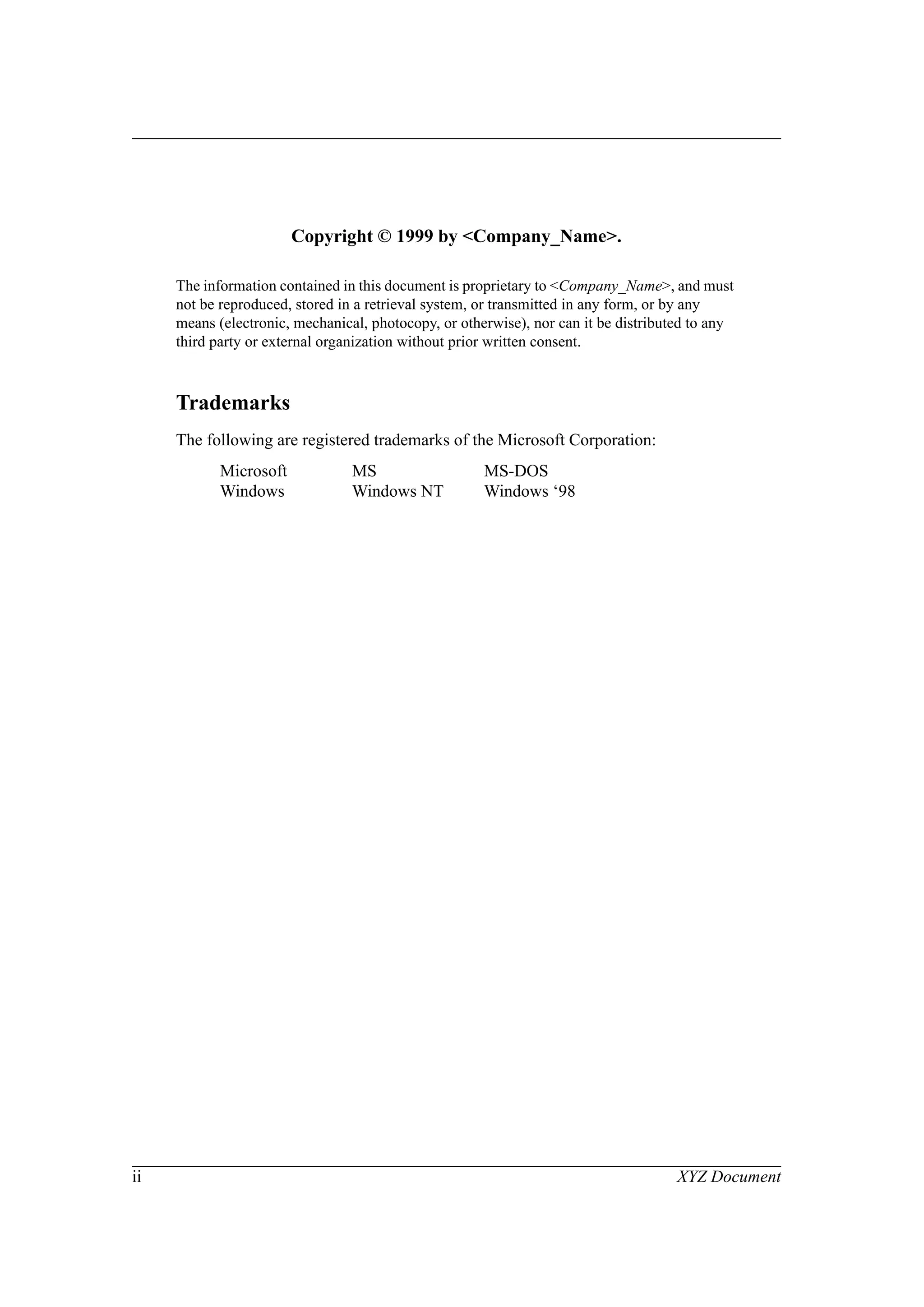
Copyright © 1999 by <Company_Name>.
The information contained in this document is proprietary to <Company_Name>, and must
not be reproduced, stored in a retrieval system, or transmitted in any form, or by any
means (electronic, mechanical, photocopy, or otherwise), nor can it be distributed to any
third party or external organization without prior written consent.
Trademarks
The following are registered trademarks of the Microsoft Corporation:
Microsoft MS MS-DOS
Windows Windows NT Windows ‘98
XYZ Document iii
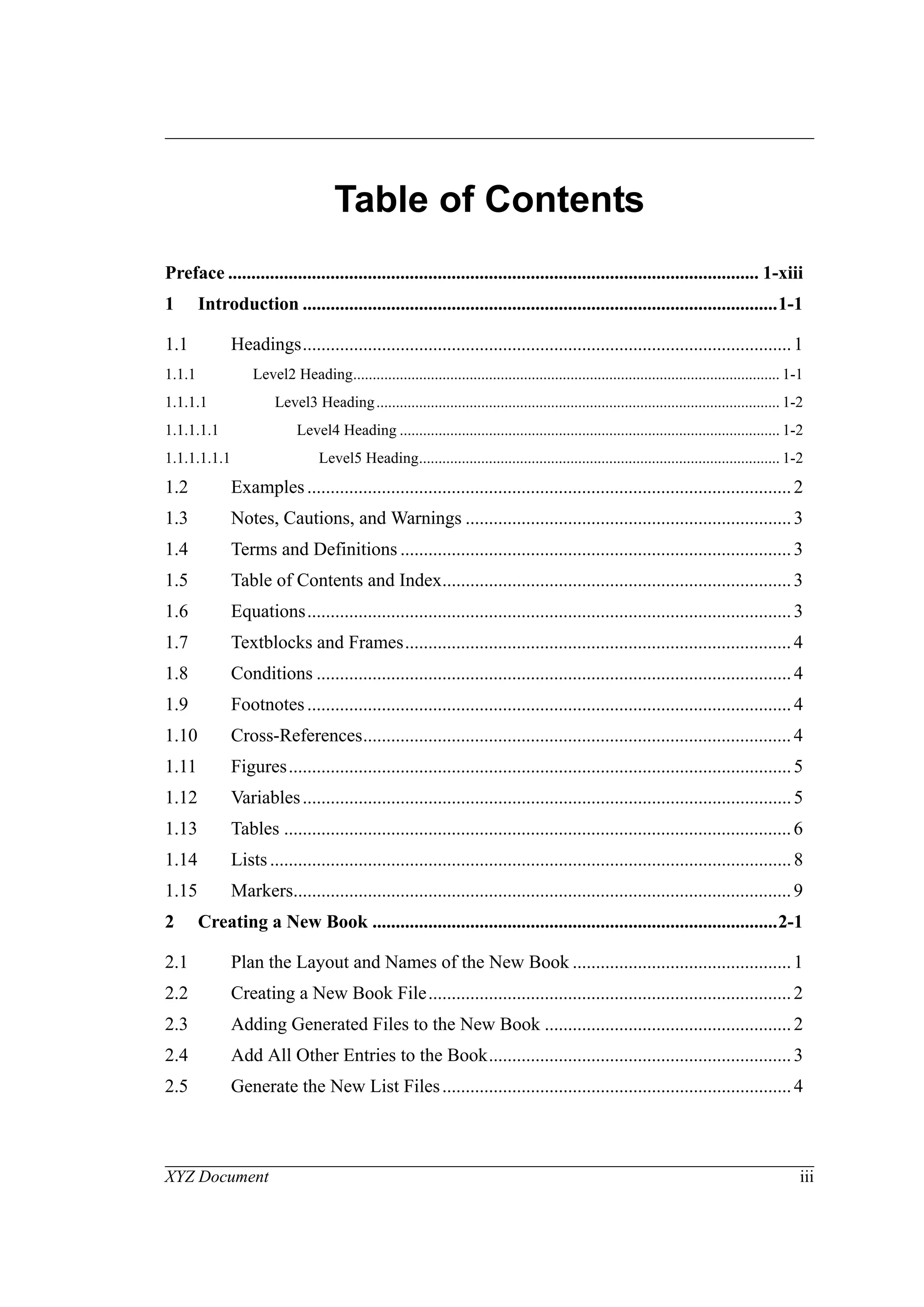
Table of Contents
Preface .................................................................................................................. 1-xiii
1 Introduction ......................................................................................................1-1
1.1 Headings.........................................................................................................1
1.1.1 Level2 Heading.............................................................................................................. 1-1
1.1.1.1 Level3 Heading........................................................................................................ 1-2
1.1.1.1.1 Level4 Heading .................................................................................................. 1-2
1.1.1.1.1.1 Level5 Heading............................................................................................. 1-2
1.2 Examples........................................................................................................2
1.3 Notes, Cautions, and Warnings ......................................................................3
1.4 Terms and Definitions ....................................................................................3
1.5 Table of Contents and Index...........................................................................3
1.6 Equations........................................................................................................3
1.7 Textblocks and Frames...................................................................................4
1.8 Conditions ......................................................................................................4
1.9 Footnotes........................................................................................................4
1.10 Cross-References............................................................................................4
1.11 Figures............................................................................................................5
1.12 Variables.........................................................................................................5
1.13 Tables .............................................................................................................6
1.14 Lists................................................................................................................8
1.15 Markers...........................................................................................................9
2 Creating a New Book .......................................................................................2-1
2.1 Plan the Layout and Names of the New Book ...............................................1
2.2 Creating a New Book File..............................................................................2
2.3 Adding Generated Files to the New Book .....................................................2
2.4 Add All Other Entries to the Book.................................................................3
2.5 Generate the New List Files...........................................................................4
Table of Contents
iv XYZ Document
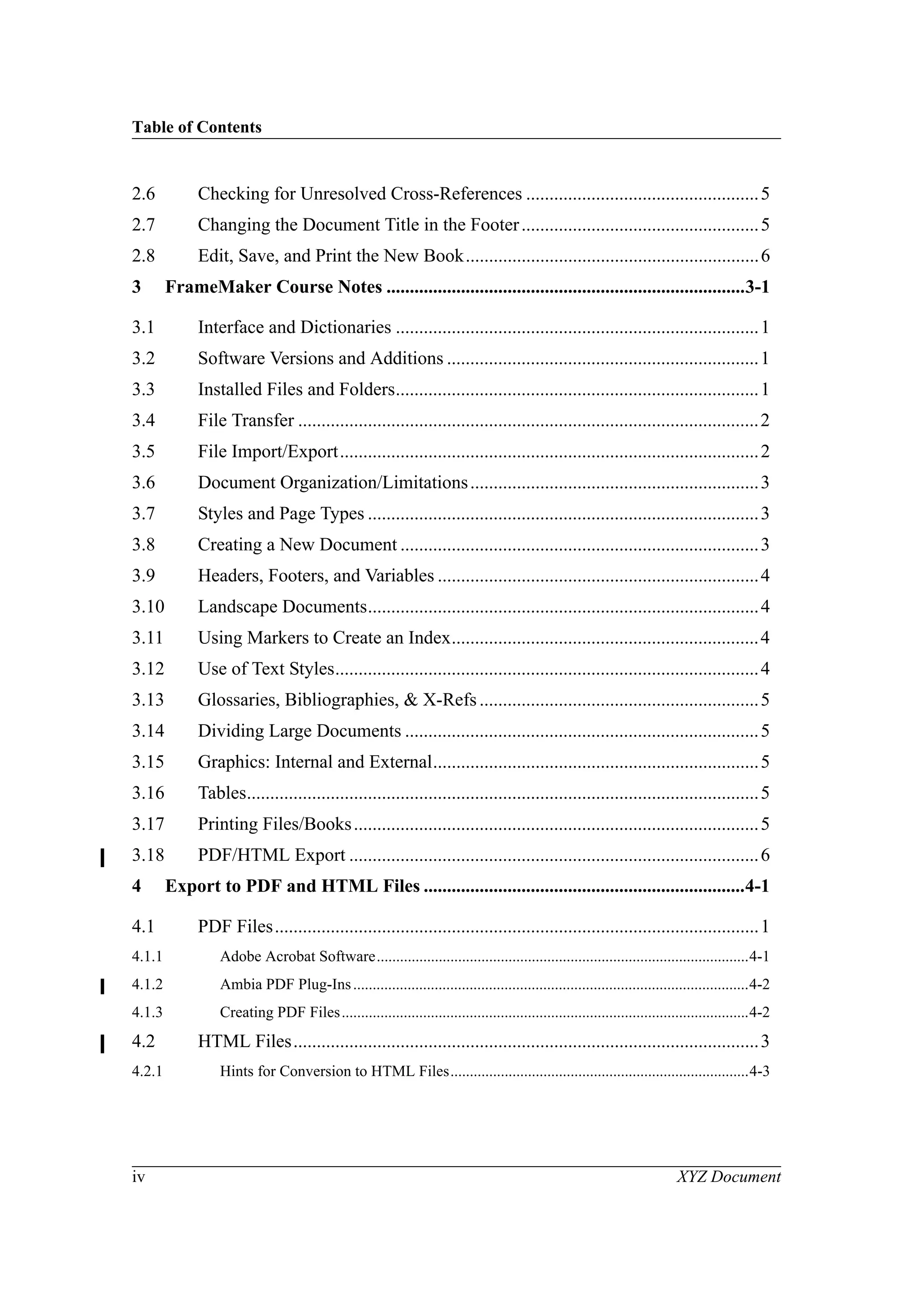
2.6 Checking for Unresolved Cross-References ..................................................5
2.7 Changing the Document Title in the Footer...................................................5
2.8 Edit, Save, and Print the New Book...............................................................6
3 FrameMaker Course Notes .............................................................................3-1
3.1 Interface and Dictionaries ..............................................................................1
3.2 Software Versions and Additions ...................................................................1
3.3 Installed Files and Folders..............................................................................1
3.4 File Transfer ...................................................................................................2
3.5 File Import/Export..........................................................................................2
3.6 Document Organization/Limitations..............................................................3
3.7 Styles and Page Types ....................................................................................3
3.8 Creating a New Document .............................................................................3
3.9 Headers, Footers, and Variables .....................................................................4
3.10 Landscape Documents....................................................................................4
3.11 Using Markers to Create an Index..................................................................4
3.12 Use of Text Styles...........................................................................................4
3.13 Glossaries, Bibliographies, & X-Refs............................................................5
3.14 Dividing Large Documents ............................................................................5
3.15 Graphics: Internal and External......................................................................5
3.16 Tables..............................................................................................................5
3.17 Printing Files/Books.......................................................................................5
3.18 PDF/HTML Export ........................................................................................6
4 Export to PDF and HTML Files .....................................................................4-1
4.1 PDF Files........................................................................................................1
4.1.1 Adobe Acrobat Software................................................................................................4-1
4.1.2 Ambia PDF Plug-Ins......................................................................................................4-2
4.1.3 Creating PDF Files.........................................................................................................4-2
4.2 HTML Files....................................................................................................3
4.2.1 Hints for Conversion to HTML Files.............................................................................4-3
Table of Contents
XYZ Document v
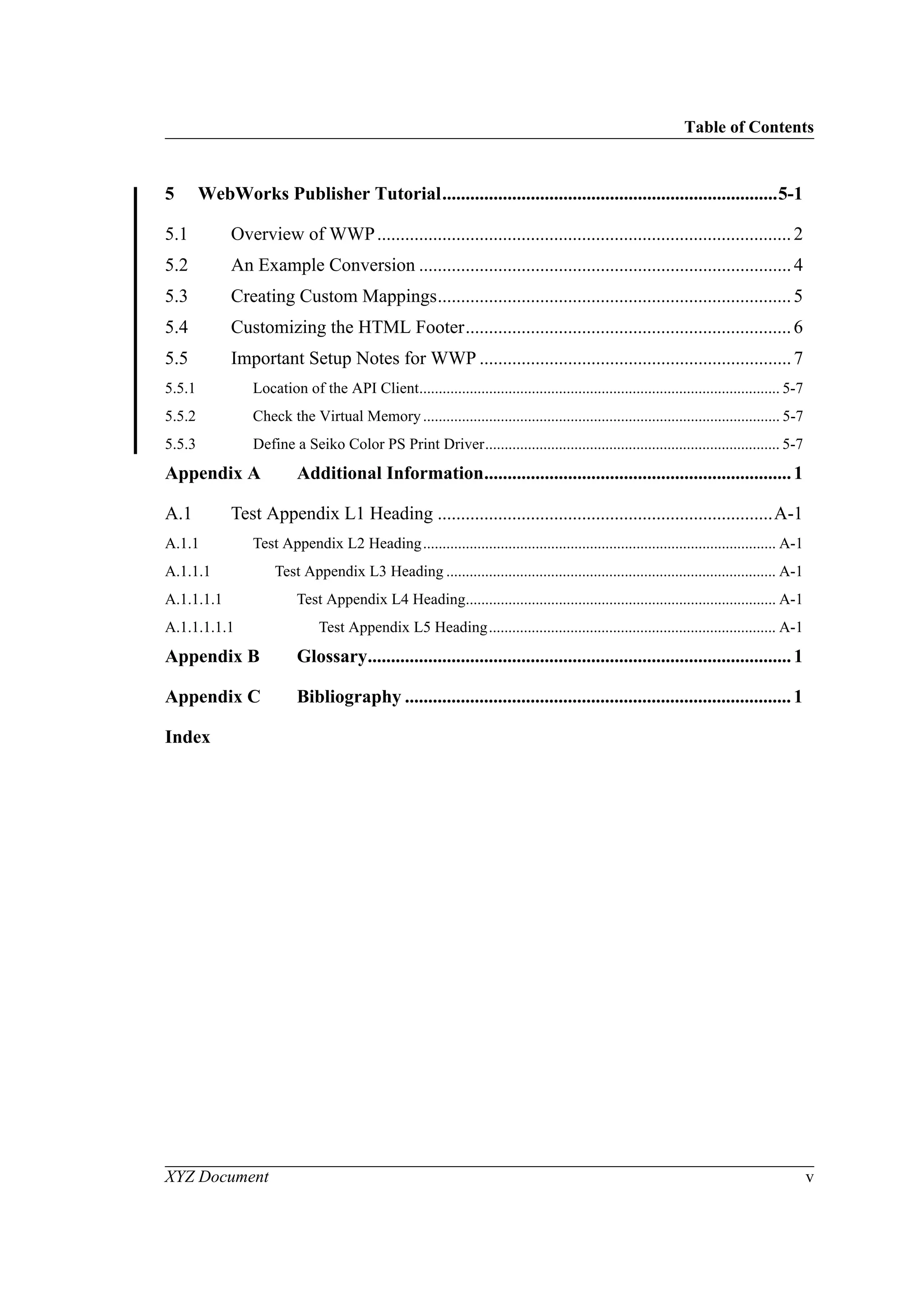
5 WebWorks Publisher Tutorial........................................................................5-1
5.1 Overview of WWP.........................................................................................2
5.2 An Example Conversion ................................................................................4
5.3 Creating Custom Mappings............................................................................5
5.4 Customizing the HTML Footer......................................................................6
5.5 Important Setup Notes for WWP ...................................................................7
5.5.1 Location of the API Client............................................................................................. 5-7
5.5.2 Check the Virtual Memory............................................................................................ 5-7
5.5.3 Define a Seiko Color PS Print Driver............................................................................ 5-7
Appendix A Additional Information..................................................................1
A.1 Test Appendix L1 Heading ........................................................................A-1
A.1.1 Test Appendix L2 Heading........................................................................................... A-1
A.1.1.1 Test Appendix L3 Heading ..................................................................................... A-1
A.1.1.1.1 Test Appendix L4 Heading................................................................................ A-1
A.1.1.1.1.1 Test Appendix L5 Heading.......................................................................... A-1
Appendix B Glossary...........................................................................................1
Appendix C Bibliography ...................................................................................1
Index
Table of Contents
vi XYZ Document
XYZ Document vii
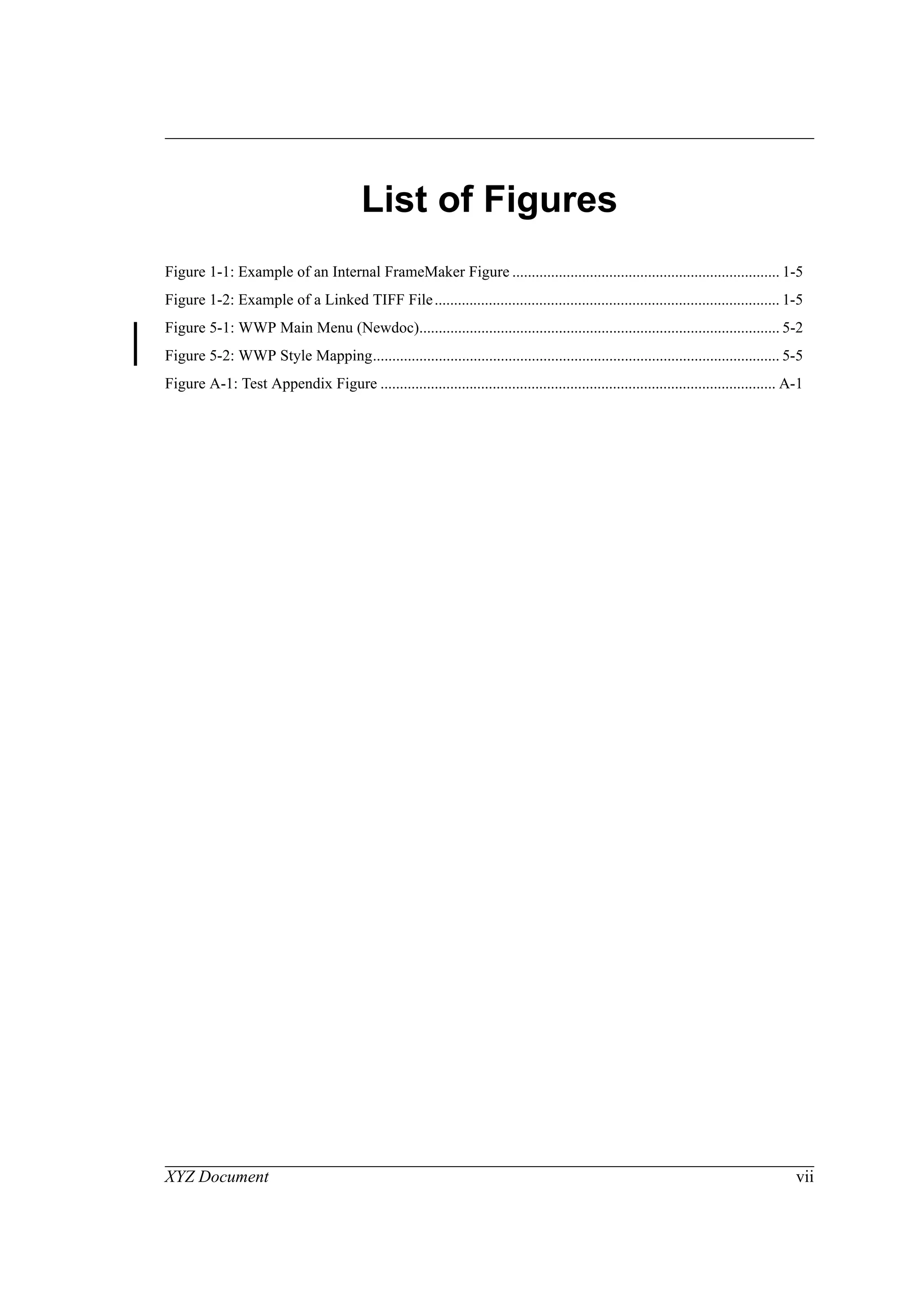
List of Figures
Figure 1-1: Example of an Internal FrameMaker Figure ..................................................................... 1-5
Figure 1-2: Example of a Linked TIFF File......................................................................................... 1-5
Figure 5-1: WWP Main Menu (Newdoc)............................................................................................. 5-2
Figure 5-2: WWP Style Mapping......................................................................................................... 5-5
Figure A-1: Test Appendix Figure ...................................................................................................... A-1
Table of Contents
viii XYZ Document
XYZ Document ix
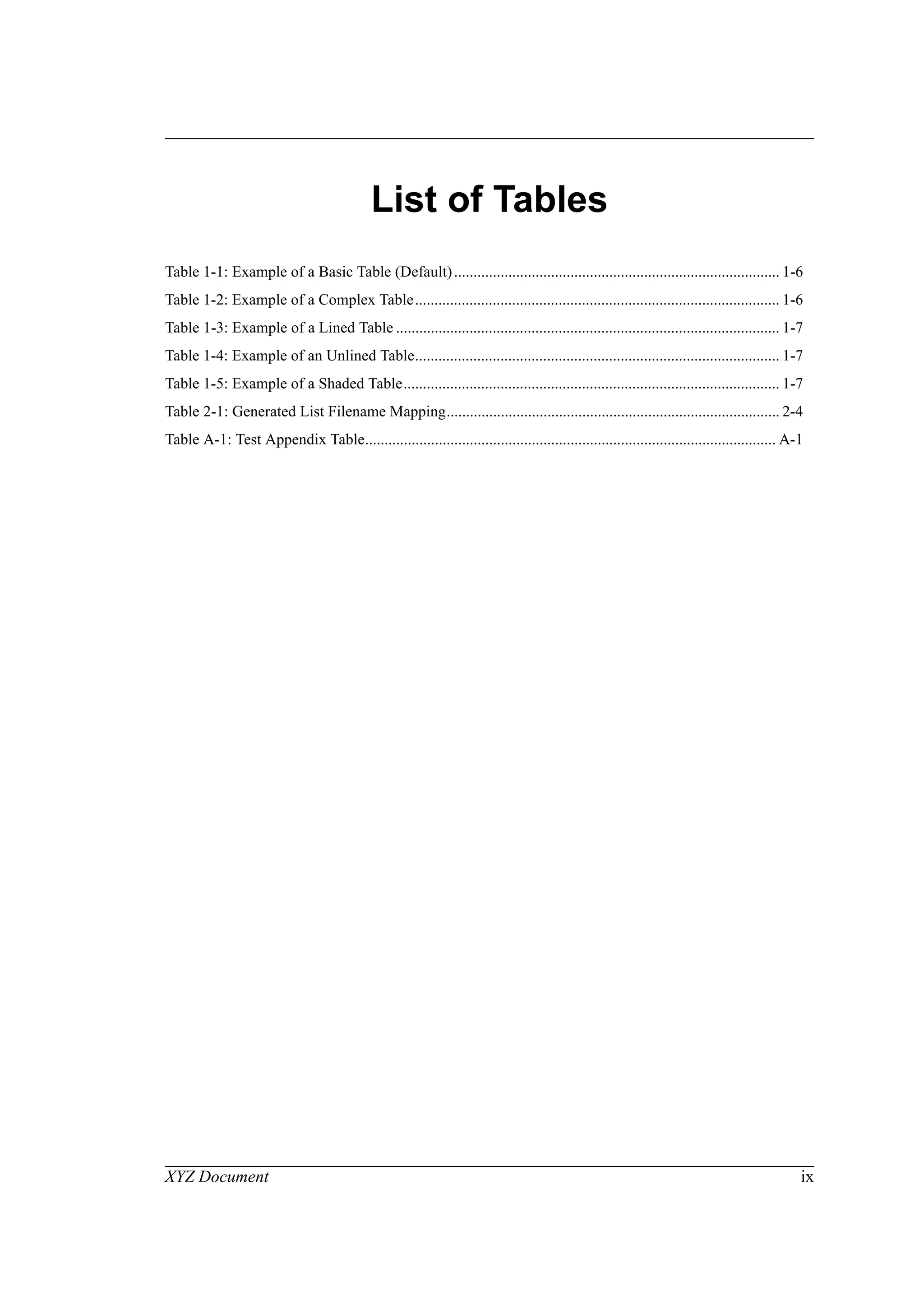
List of Tables
Table 1-1: Example of a Basic Table (Default).................................................................................... 1-6
Table 1-2: Example of a Complex Table.............................................................................................. 1-6
Table 1-3: Example of a Lined Table ................................................................................................... 1-7
Table 1-4: Example of an Unlined Table.............................................................................................. 1-7
Table 1-5: Example of a Shaded Table................................................................................................. 1-7
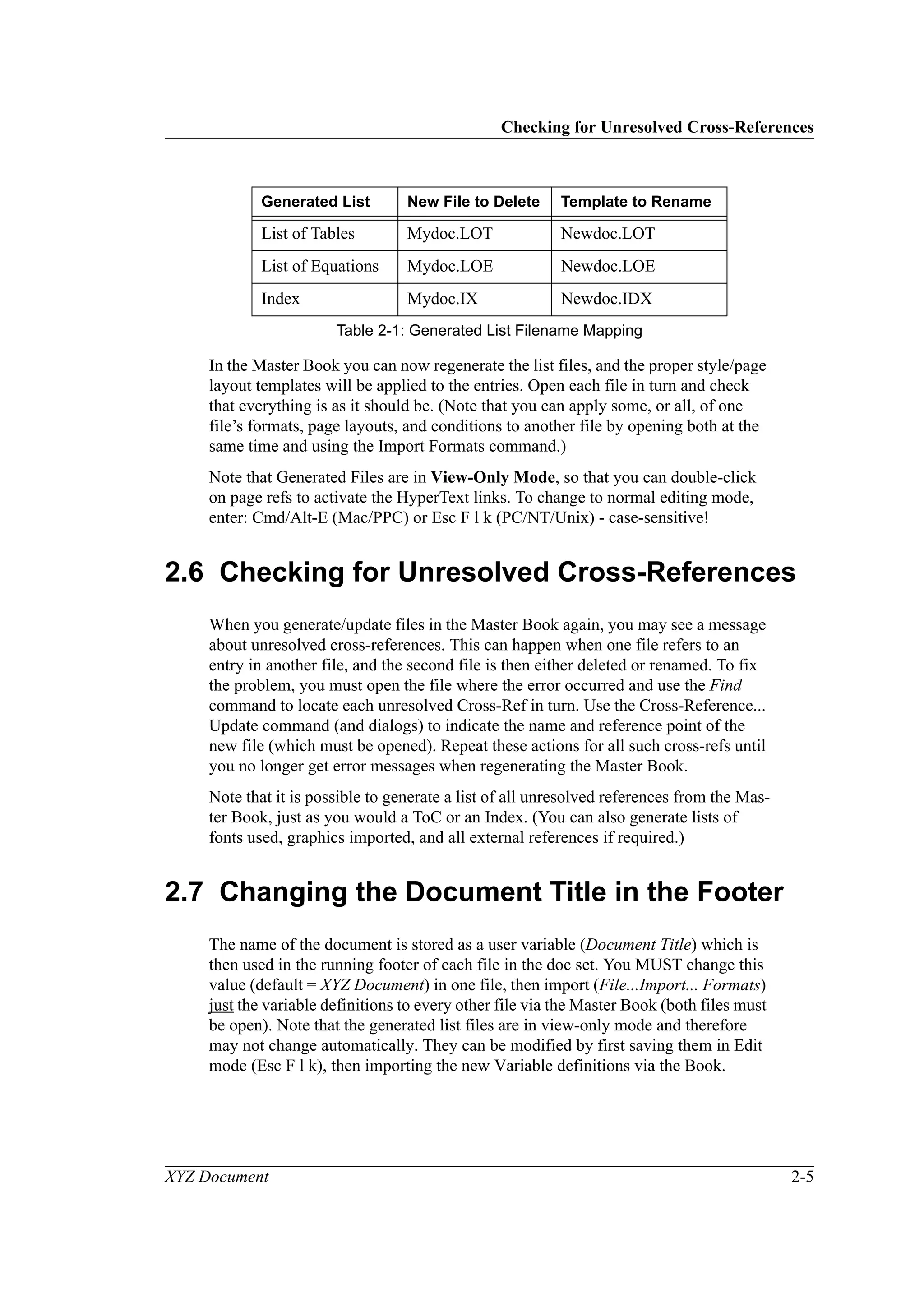
Table 2-1: Generated List Filename Mapping...................................................................................... 2-4
Table A-1: Test Appendix Table.......................................................................................................... A-1
Table of Contents
x XYZ Document
XYZ Document xi
List of Equations
Equation 1: Example FrameMaker Equation ...................................................................................... 1-3
Table of Contents
xii XYZ Document
XYZ Document xiii
Preface
This document describes...
Intended Audience
This document is intended for:
• System Managers
• Users
• Etc...
Prerequisite Knowledge
This document assumes knowledge of the following topics:
• Windows <NT4/SP5 W98>
• <Project Title>
• Etc...
Associated Documents
The following guides are referenced in this document:
• <XYZ> User’s Guide
• <XYZ> Technical Reference Guide
• Etc...
Organization of this Document
This document is organized as follows:
• Chapter 1 introduces ABC...
• Chapter 2 describes...
• Chapter 3 describes...
• Appendix A contains additional information about XYZ...
• Etc...
Preface
xiv XYZ Document
Terms and Conventions
The following terms and conventions are used throughout this document:
Change History
The first version of this document (V1.0) was created and released in April ‘94.
Version 1.1 was last updated by G. Turnbull in Feb. ‘99 for generic terminology.
Term/Convention Meaning in this Document
<Return> A three– to six-character abbreviation enclosed in angled
brackets indicates that you should press a particular key.
Unless otherwise stated, use the <Return> key to end all key-
board entries.
<Ctrl/Y> This combination indicates that you should hold down the key
marked <Ctrl>, and simultaneously press the key marked <Y>.
KEYWORDS Keywords, such as command names, always appear in upper-
case letters and are spelled out in full.
Ellipses... Ellipses indicate that the preceding item may be repeated, for
example:
$COPY input_file,... output_file
[Square Brackets] Square brackets enclose optional parts of a command, for
example:
$TYPE filename.ext [/qualifiers]
User Input In detailed command examples, user input is shown in bold-
face, and system responses in normal type. For example:
$copy
_From: oldfilename.ext
_To: newfilename.ext
File Specifications Full file specifications are indicated as follows:
device:[dir.subdir,...]filename.ext
XYZ Document 1-1
1 Introduction
This is the Generic Document Style File/Template for FrameMaker V5.5.x on
Windows NT (and will also work under Unix & Mac). It is intended for docu-
ments for Windows NT4. Note: FM files can be transferred to another platform
either directly (via file transfer - FTP), or in MIF (Maker Interchange Format).
This style file was last updated by Greg Turnbull, in Feb. ‘99 (for terminology).
General settings: Paper Size is A4 (Landscape or Portrait), Custom 1” Margins,
Double-Sided Pages with 0.5” binding gutter (see Master Pages for details). Note
that FrameMaker V5.1.x can read Word, RTF, and other file formats as direct
input. Graphics should either be internal, or platform-independent, e.g., TIFF or
EPS in anchored frames (or GIF files for HTML conversion). FM V5.5 can read/
write Word ‘97 & RTF documents, as well as export files to PDF/HTML formats.
FrameMaker V5.x files can be saved (printed) as PostScript (PS) files with Hyper-
Text info for ‘distillation’ to Adobe PDF (Portable Document Format) files for
use in Lotus Notes with Acrobat Reader, or for use on the World-Wide Web
(WWW) in Netscape/IE. NB: FM V5.5 allows direct creation of PDF files (Save
as), and Acrobat V4 allows for drag & drop PDF creation from any application.
In FM V5.1.x, use WebWorks Publisher V3.5x or V4 for conversion (via a Map-
ping file) to HTML/GIF format for use in Netscape/IE or Front Page ‘98 - see
Chapters 5 and 6 for details. NB: FM V5.5 includes a (limited) function to map
FM styles into HTML tags, and automatically create Cascading Style Sheets.
1.1 Headings
Use this Chapter Template to create all the chapters of a book. Put each chapter in
a separate file to maintain the correct page numbering (note that subdividing a
large chapter into several files may need literal starting page numbers). For Land-
scape pages, use the special Landscape Chapter Template, not the Rotate Page
command. Use the Preface Template to create a Preface for your document – if
required. Do not use the Chapter Template to create appendices.
1.1.1 Level2 Heading
Use the Appendix Template to create all the appendices (except the Glossary &
Bibliography), and list all the files, in the correct order, in a Master Book to gen-
erate the Table of Contents (ToC/LoF/LoT/[LoE]) and Index (optional) – make
sure that the “Generate HyperText Links” options are set to On; then use the for-
mats from the ToC/Index templates (see Chapter 2 for details). Note that some
components of the Master Book need their page numbers specially defined (e.g.,
Appendix A: restart from 1; suffix A–).
Examples
1-2 XYZ Document
1.1.1.1 Level3 Heading
Create Bibliographies and Glossaries as special appendices using the templates
provided. (Note that Glossary lists and Bibliography items can be indicated via
Cross-References).
Subheading Text
This is normal Body Text (Times New Roman: 11pt, plain, spelling: US English;
although may map to plain Times in HTML). Create headings with Head x styles
(Apdx HeadX for appendices); for unnumbered headings, use the Subheading
style. In Webworks Publisher V3.5, each Head1 will cause the creation of a new
HTML file.
1.1.1.1.1 Level4 Heading
Note that the Appendix Template uses Apdx HeadX instead of Head x styles for
proper section numbering, Flow B not A, which must be included in a generated
ToC (& HTML mapping file), and separate files for proper page numbering. NB:
Heading fonts have been changed from Helvetica (not standard on PCs) to Arial.
(Heading fonts are sans-serif, and body text fonts are serif for ease of reading.)
1.1.1.1.1.1 Level5 Heading
Use character styles from the f [Character] Catalog for bold, emphasis, change
bars, strikethrough, underlining, etc. Note that there is no HTML equivalent of
some of these styles. Do not use the menu bar icons to do this, or these effects will
be lost in HTML (unless manually mapped). Use (unruled) tables or term/defini-
tion lists for tabbed/indented text if you want to convert files to HTML. (Avoid
‘soft’ carriage returns to indicate line breaks in body text for HTML.)
1.2 Examples
Enter examples, computer interaction for instance, as follows:
This is an Example paragraph (Courier 9pt, plain, indented,
unhyphenated, no spell check, etc.). This is an example para.
This is a Code paragraph (Courier 8pt, plain, unhyphenated, no indent, no
spell check, 80 chars/line, etc.). This is a Computer Code example:
12345678901234567890123456789012345678901234567890123456789012345678901234567890
(Note that these styles have the language attribute set to None to bypass spell
checking.) In HTML, code will be converted to Preformatted text so that soft or
hard carriage returns MUST be added to indicate line breaks (otherwise the line
will not wrap at the screen margin). Do NOT use Tabs, Hard Spaces, etc. for
indentation; use normal spaces instead, and switch off “Smart Spaces” in the For-
mat..Document..Text Options menu to allow multiple blank spaces.
Notes, Cautions, and Warnings
XYZ Document 1-3
1.3 Notes, Cautions, and Warnings
Use the Note Title style to create the header of a note; press return and enter the
text, then create (or apply) a Body Text style to return to the document. For exam-
ple:
Note/Caution/Warning
This is the text of a Note, Caution, or Warning. This is the text of a note.
This is the text of a note...
NB: FM V5.5 has a HyperText function that can be used to create Notes in PDF
files.
1.4 Terms and Definitions
Term (Technical Term)
Definition (Definition of that term). This is the Definition style...
See also the Glossary of Terms.
1.5 Table of Contents and Index
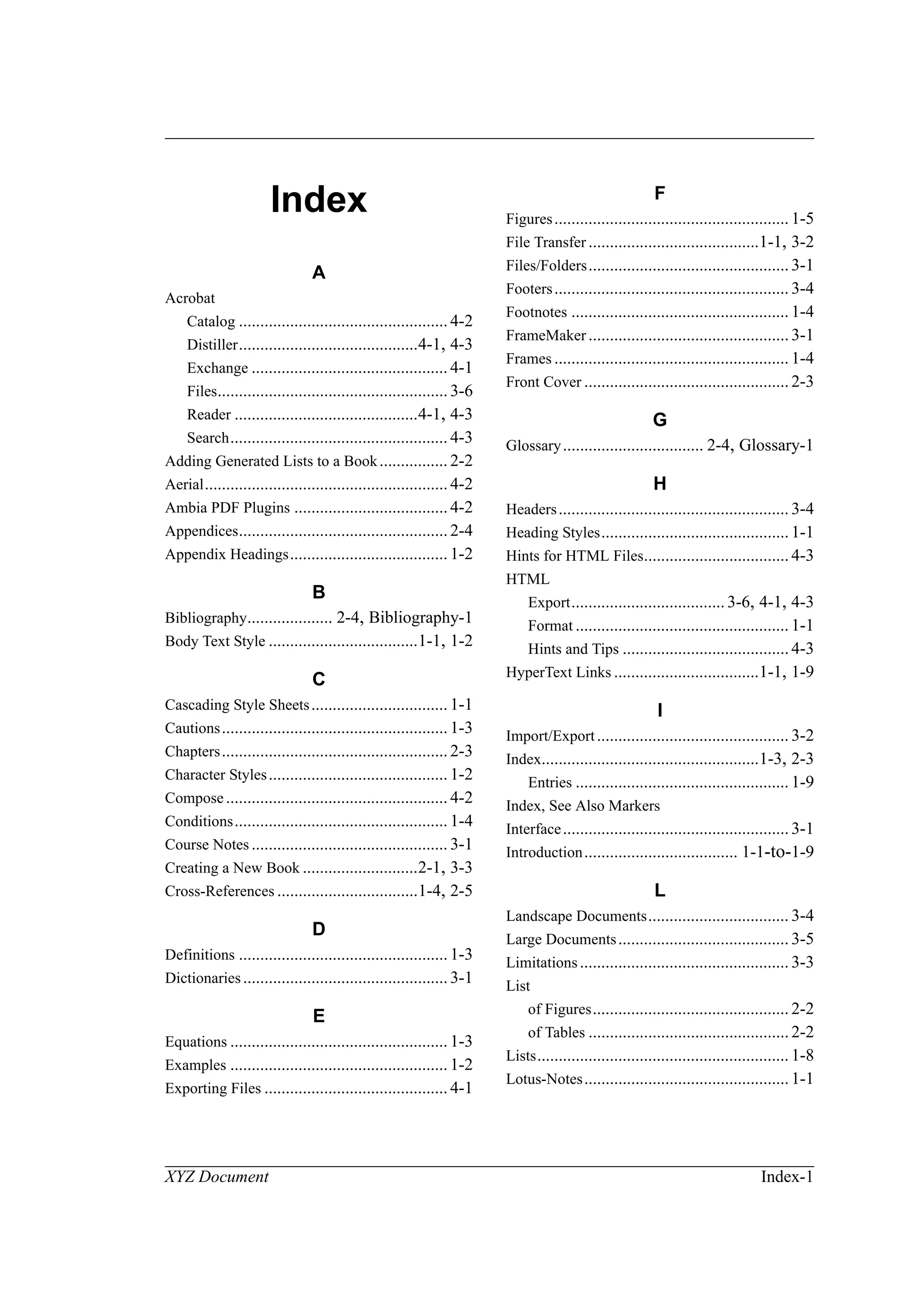
The Table of Contents (ToC), List of Figures (LoF), List of Tables (LoT), List of
Equations (LoE), and Index are generated from the Master Book (NB: the Index
needs marker tags in the text, and special page numbers which restart from 1).
They use specially designed page layouts and styles (at least for the initial pages);
see examples in this template series, and the on-line help or documentation.
Always use the templates as provided (or at least apply the layouts/catalogs to
your own files). Note that in HTML conversion, URLs (links) are automatically
created by Webworks Publisher from FrameMaker files. HyperText links in the
ToC, Index, & Cross-Refs are also active in PDF files created from FM V5.x.
1.6 Equations
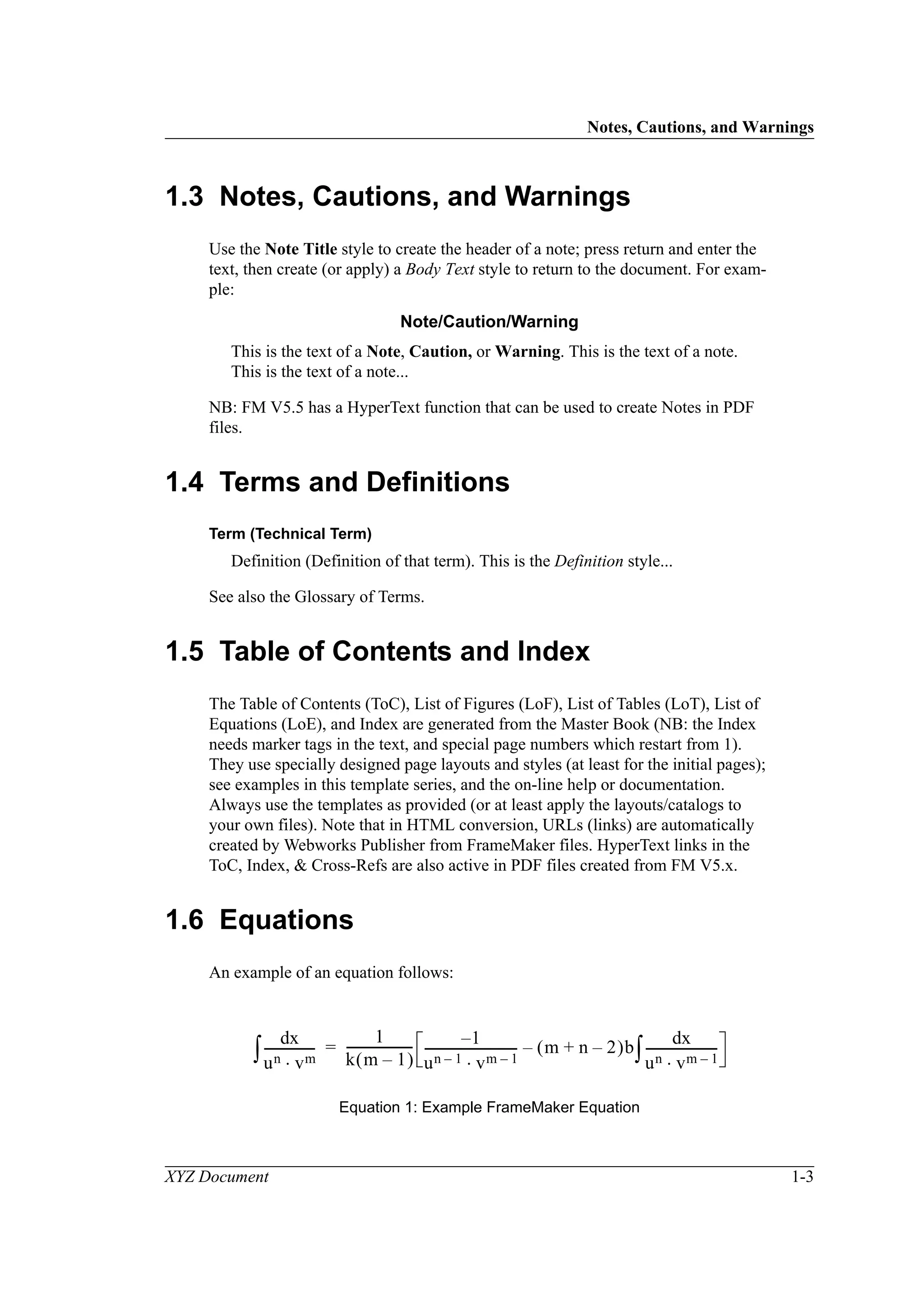
An example of an equation follows:
Equation 1: Example FrameMaker Equation
xd
un vm⋅
----------------∫
1
k m 1–( )
--------------------- 1–
un 1– vm 1–⋅
------------------------------ m n 2–+( )b
xd
un vm 1–⋅
-----------------------∫–=
Textblocks and Frames
1-4 XYZ Document
Always use an Anchored Frame on its own line for Equations (see also Figures
below). In HTML you can convert equations either to HTML or GIF graphics.
1.7 Textblocks and Frames
Frames can either be anchored or floating on a page (use only anchored frames for
HTML). Refer to the Master (and Reference) Pages for layout details, and see
examples above and below.
1.8 Conditions
Conditions can be created and applied to portions of the text. When a condition is
set, only general portions of text and those marked with the condition will be dis-
played. Watch out for cross-refs to sections which are inside a condition; try to
keep the Cross-Ref marker out of the condition area. Conditions can be applied to
all chapters of a book via Import Formats in the Master Book. Conditions may be
needed for HTML versions of graphics (75 dpi instead of 150 or 300) which are
converted to GIF format via Webworks Publisher. Note that you can set global
conditions from within WWP.
1.9 Footnotes
This is an example of Footnote1
. See also the FrameMaker Documentation. In
HTML, footnotes (even from Tables) will appear at the end of the file (no matter
how large).
1.10 Cross-References
This is an example of a full internal cross-reference: Chapter 1, “Introduction”,
on page 1-1; other (shorter) formats can also be used. Watch out for unresolved
cross-refs when files are moved, deleted, or renamed. Note that all cross-refs can
be automatically updated from the Master Book file. Cross-refs can also be used
for Bibliography entries (e.g., see Chapter 1 of [1]), and page numbers: see page 1-
1 (not recommended for HTML). In HTML, internal cross-refs will be converted
1. This is the text of the Footnote.
75 DPI
Figures
XYZ Document 1-5
to URLs. In PDF only true HyperText links will be maintained (newlink xyz,
gotolink xyz, etc.), Web URLs require special markers – see Chapter 5 for details.
1.11 Figures
FrameMaker provides anchored frames to locate graphics on the page, clipart files
to create simple line art (such as flowcharts, symbols, arrows, etc.), and import
functions to place TIFF/EPS files into your doc. FrameMaker provides many pow-
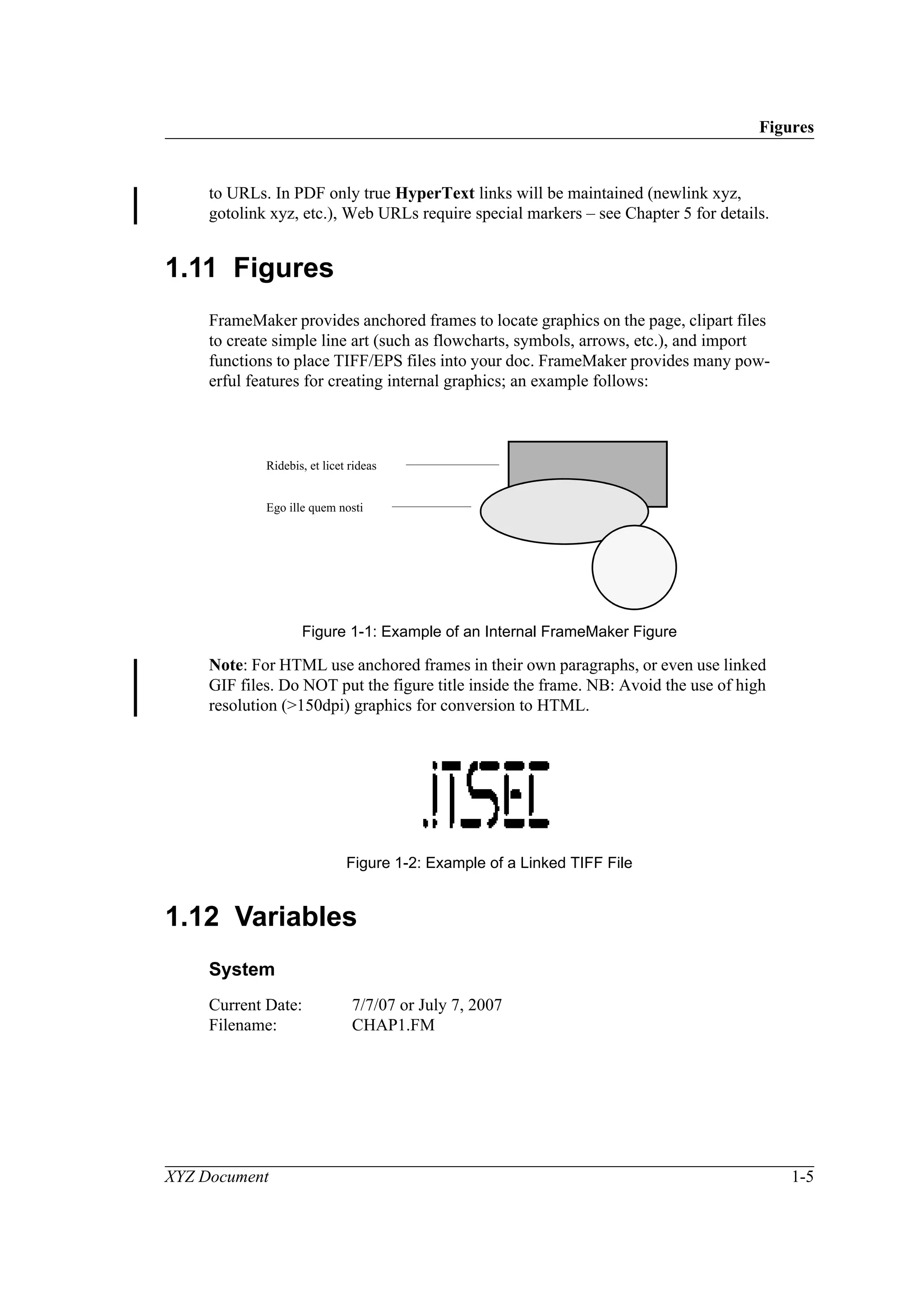
erful features for creating internal graphics; an example follows:
Figure 1-1: Example of an Internal FrameMaker Figure
Note: For HTML use anchored frames in their own paragraphs, or even use linked
GIF files. Do NOT put the figure title inside the frame. NB: Avoid the use of high
resolution (>150dpi) graphics for conversion to HTML.
Figure 1-2: Example of a Linked TIFF File
1.12 Variables
System
Current Date: 7/7/07 or July 7, 2007
Filename: CHAP1.FM
Ridebis, et licet rideas
Ego ille quem nosti
Tables
1-6 XYZ Document
User
Project/Doc Title: XYZ Document
O/S Version No: NT 4.0
Author: Greg Turnbull
You can also define other variables such as Project Name, Author Name, etc. NB:
You MUST customize the Document Title variable for a new file set and import
just the variables into all other files via the Master Book (see Chapter 2).
1.13 Tables
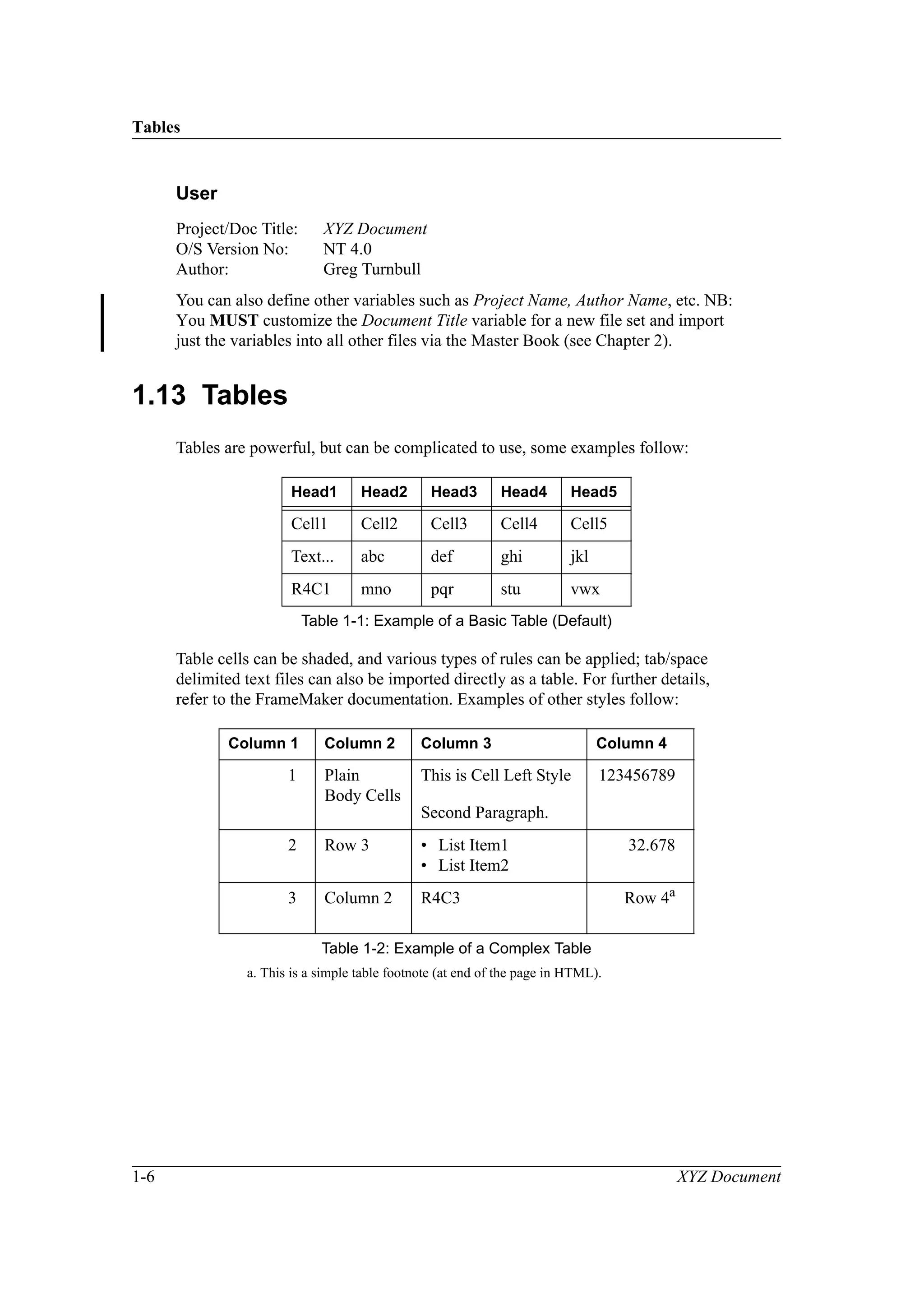
Tables are powerful, but can be complicated to use, some examples follow:
Table cells can be shaded, and various types of rules can be applied; tab/space
delimited text files can also be imported directly as a table. For further details,
refer to the FrameMaker documentation. Examples of other styles follow:
Head1 Head2 Head3 Head4 Head5
Cell1 Cell2 Cell3 Cell4 Cell5
Text... abc def ghi jkl
R4C1 mno pqr stu vwx
Table 1-1: Example of a Basic Table (Default)
Column 1 Column 2 Column 3 Column 4
1 Plain
Body Cells
This is Cell Left Style
Second Paragraph.
123456789
2 Row 3 • List Item1
• List Item2
32.678
3 Column 2 R4C3 Row 4a
a. This is a simple table footnote (at end of the page in HTML).
Table 1-2: Example of a Complex Table
Tables
XYZ Document 1-7
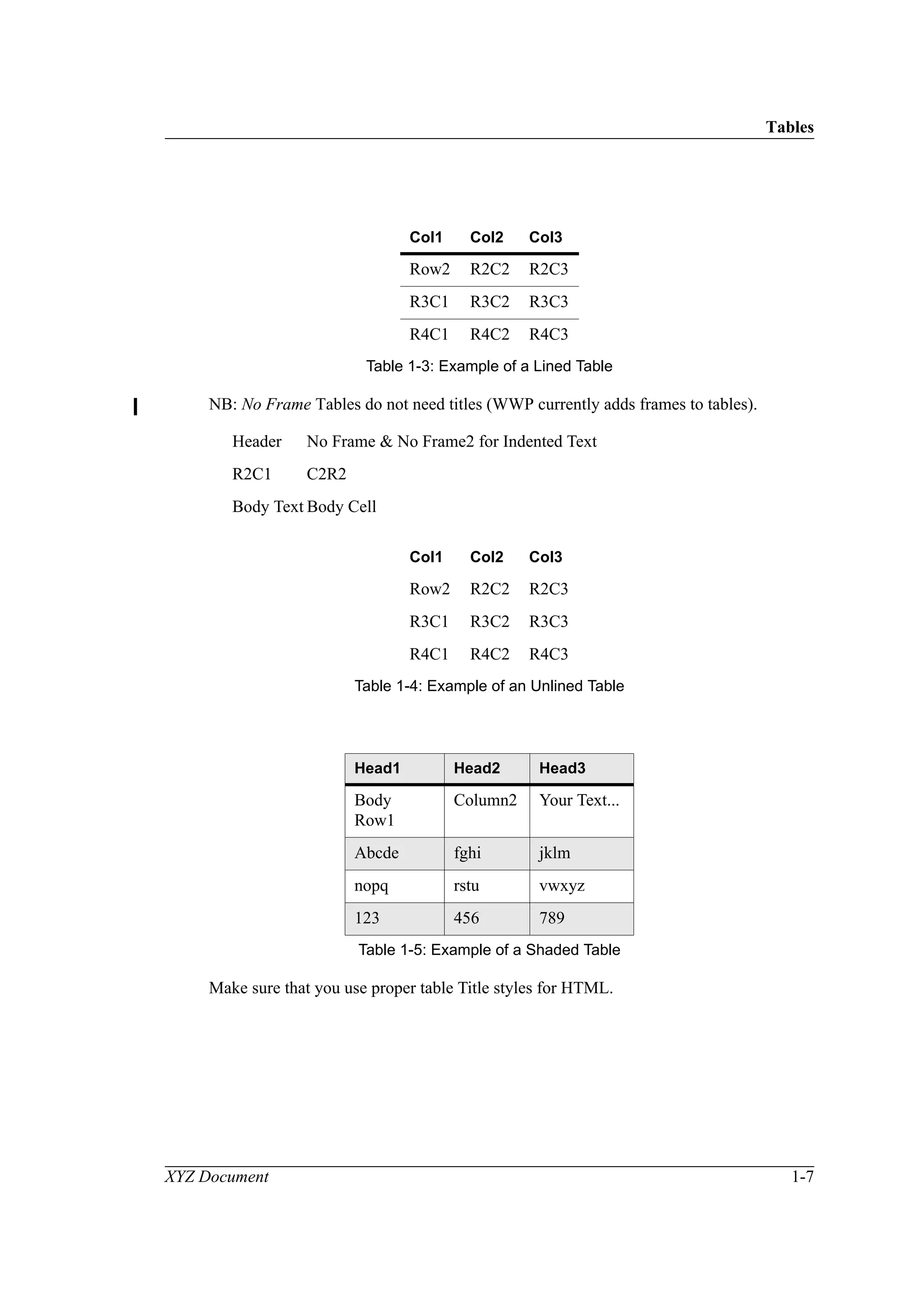
NB: No Frame Tables do not need titles (WWP currently adds frames to tables).
Make sure that you use proper table Title styles for HTML.
Col1 Col2 Col3
Row2 R2C2 R2C3
R3C1 R3C2 R3C3
R4C1 R4C2 R4C3
Table 1-3: Example of a Lined Table
Header No Frame & No Frame2 for Indented Text
R2C1 C2R2
Body Text Body Cell
Col1 Col2 Col3
Row2 R2C2 R2C3
R3C1 R3C2 R3C3
R4C1 R4C2 R4C3
Table 1-4: Example of an Unlined Table
Head1 Head2 Head3
Body
Row1
Column2 Your Text...
Abcde fghi jklm
nopq rstu vwxyz
123 456 789
Table 1-5: Example of a Shaded Table
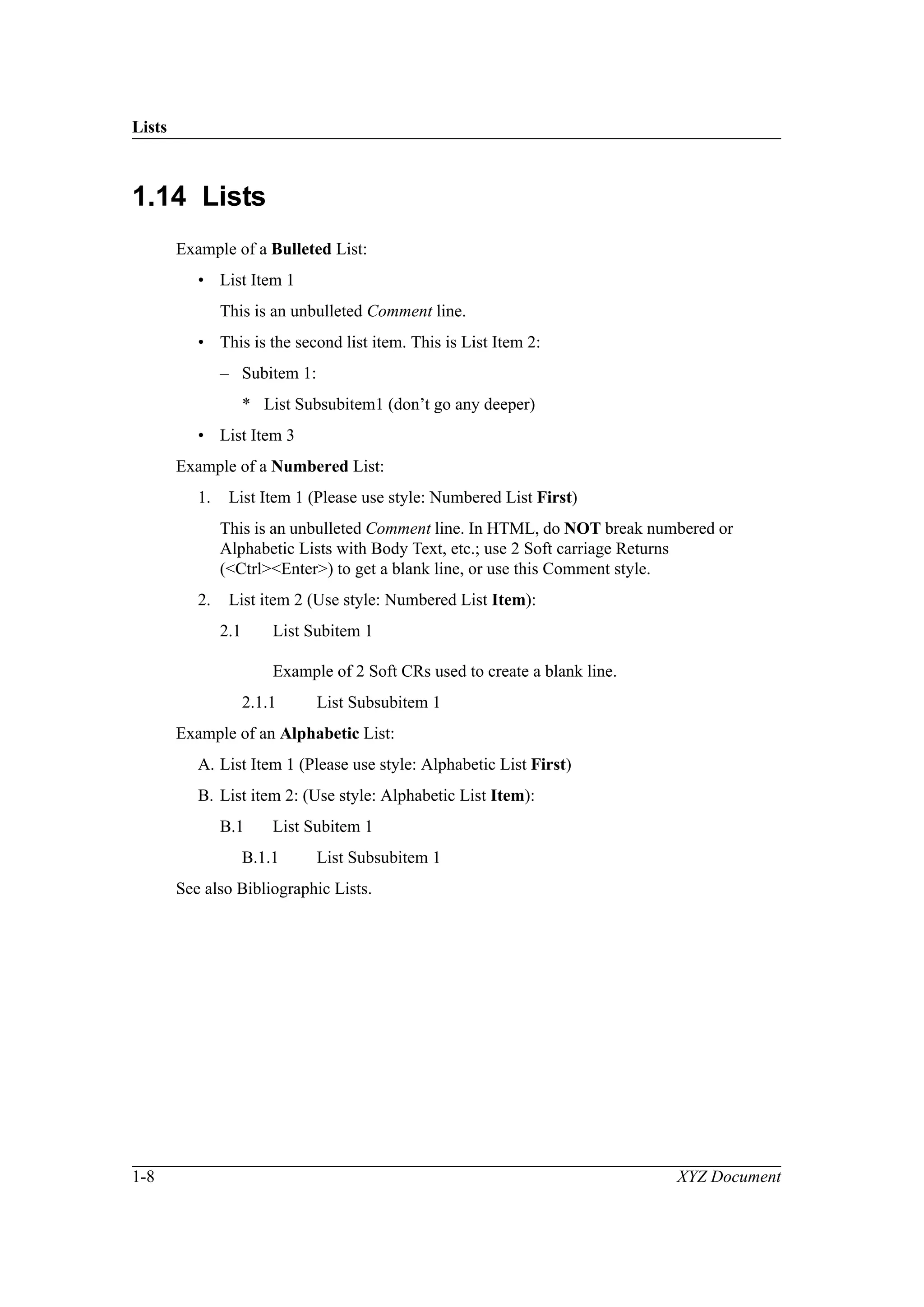
Lists
1-8 XYZ Document
1.14 Lists
Example of a Bulleted List:
• List Item 1
This is an unbulleted Comment line.
• This is the second list item. This is List Item 2:
– Subitem 1:
* List Subsubitem1 (don’t go any deeper)
• List Item 3
Example of a Numbered List:
1. List Item 1 (Please use style: Numbered List First)
This is an unbulleted Comment line. In HTML, do NOT break numbered or
Alphabetic Lists with Body Text, etc.; use 2 Soft carriage Returns
(<Ctrl><Enter>) to get a blank line, or use this Comment style.
2. List item 2 (Use style: Numbered List Item):
2.1 List Subitem 1
Example of 2 Soft CRs used to create a blank line.
2.1.1 List Subsubitem 1
Example of an Alphabetic List:
A. List Item 1 (Please use style: Alphabetic List First)
B. List item 2: (Use style: Alphabetic List Item):
B.1 List Subitem 1
B.1.1 List Subsubitem 1
See also Bibliographic Lists.
Markers
XYZ Document 1-9
1.15 Markers
Markers are used to insert special items in the text, such as:
• Index Entries:
– Main Index Entry:Subindex Entry
– Index Entry<$startrange>
– Index Entry<$endrange>
– Index Entry<$nopage> (used for See, See Also entries)
• HyperText Links:
– newlink yourlinkname
– gotolink yourlinkname
– External URL for WWP: Netscape; format: [Marker Type 13: <URL>]
Link_Text [Marker Type 14: <Blank>]
• Non-printing Comments & Conditions (for selective printing or HTML);
Definition of Cross-References, etc.
Markers
1-10 XYZ Document
XYZ Document 2-1
2 Creating a New Book
This chapter describes how to create a ‘Master’ series of files for a new document
using the Newdoc templates for FrameMaker V5.5.x (on Mac, PC, NT, or Unix).
Note that both USA and UK dictionaries should be installed. Files from other sys-
tems should be opened and resaved (if necessary) to remove any font problems
prior to regenerating the book.
2.1 Plan the Layout and Names of the New Book
The process of creating and setting up a new book from FrameMaker templates is
complicated, and difficult to change later, so it is highly recommended that you
plan the organization and naming of your book carefully in advance. (Frame-
Maker’s own special template for a Pagination Sheet can help with this process.)
A typical organization for a full document is as follows:
Newdoc (Choose a short meaningful name for the Book):
• Cover (includes trademarks, acknowledgments, etc.)
• Newdoc.TOC1 (Table of Contents)
• [Newdoc.LOF/LOT/LOE]1 (Optional Lists of Figures/Tables/Equations)
• Preface (if required)
• Chap1 (Introduction/Overview)
• Chap2
• ChapN (last chapter)
• ApdxA (optional)
• ApdxN (last of the optional appendices)
• [Glossary] (Optional appendices)
• [Bibliog]
• Newdoc.IDX1 (Index - sometimes optional)
You should avoid spaces and other special characters in filenames if you want to
maintain Unix compatibility. Keep filenames short for PC/Windows use. Exten-
sions, if required, could be .fm or .fm5 which should then be associated with the
FrameMaker application.
1. These are generated files whose names are based on the book name and which cannot be changed.
Creating a New Book File
2-2 XYZ Document
Note: the simplest way to create a new document set is just to copy all the files,
change the folder &/or book name, and accept the filenames inside; adding or
removing files as required. This means that no ToC/Index swapping is required (or
should be done). Note that you might want to change the variable Document Title
(XYZ Document) in one file and import this into all the other files via the master
book (careful: no undo).
2.2 Creating a New Book File
Create a folder with a meaningful name for your new document.
Copy all the Newdoc templates from the appropriate file server or web page into
the new folder. (Contact the author if the files are unavailable.)
If necessary, rename the Book Template (Newdoc1) to the name defined in your
plan. (Note: do not rename the generated files just yet.)
Open the new Book file and use the Rearrange Files command to delete the old,
automatically generated lists (indicated by a + symbol at the end).
2.3 Adding Generated Files to the New Book
Use the Add File command to include new generated list files in the correct order:
Table of Contents, List of Figures, List of Tables, [Equations], & Index:
Table of Contents
Include the following paragraph types: Appendix, Apdx Head 1–5, Chapter, Head
1–5, Preface, and Index Title. Make sure that Generate HyperText Links is set to
ON. Note that no special page prefix or numbering is required.
List of Figures
Include the following paragraph types: Figure Title and Figure Apdx Title. Note
that no special page prefix or numbering is required.
List of Tables
Include the following paragraph types: Table Title and Table Apdx Title.
Note that no special page prefix or numbering is required.
[List of Equations]
Optional: include the following paragraph types: Equation (no special Apdx style).
Note that no special page prefix or numbering is required. (This file is based on a
List of Figures and is not normally present in FM V5.)
1. Note that we recommend keeping the names as they are.
Add All Other Entries to the Book
XYZ Document 2-3
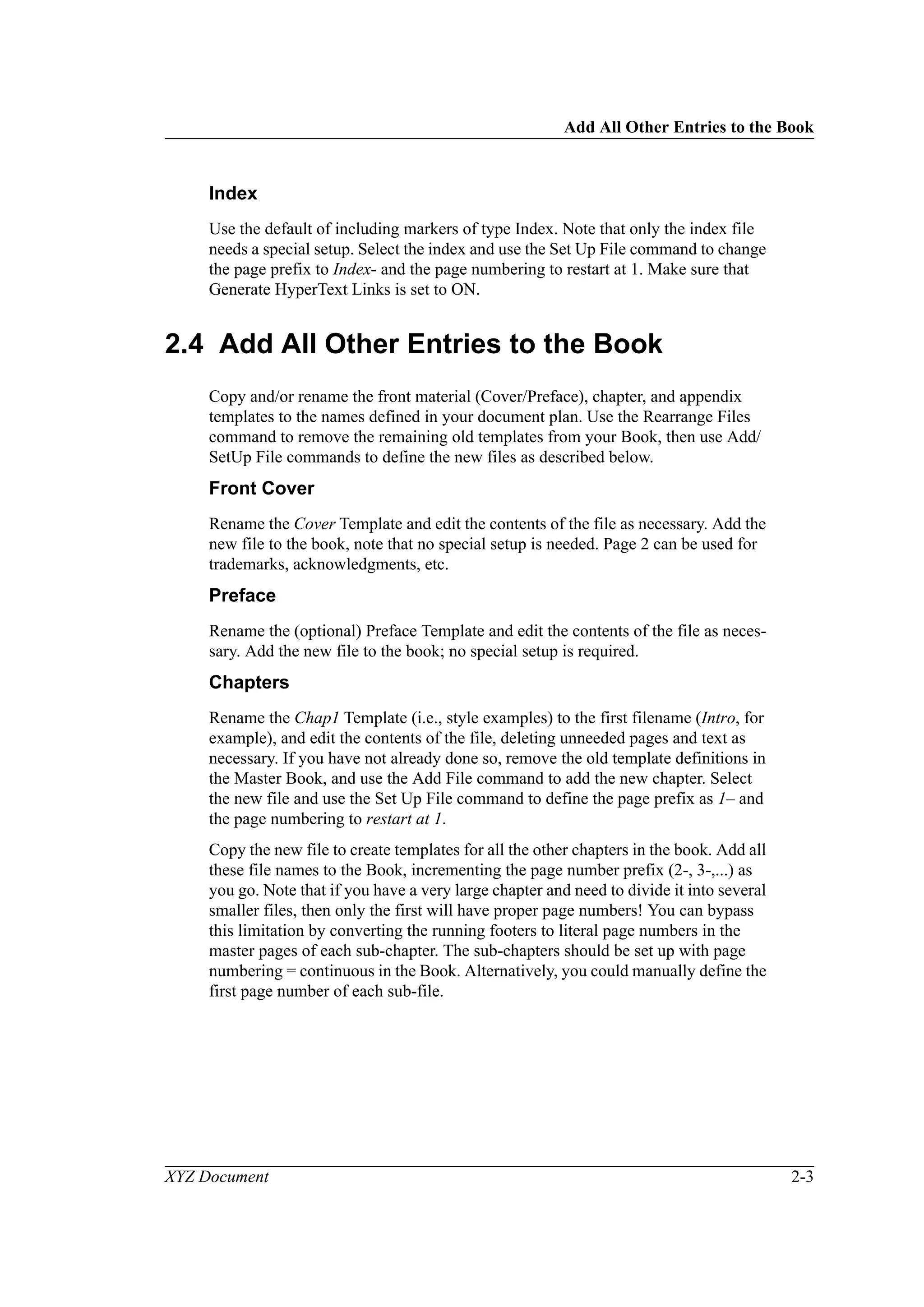
Index
Use the default of including markers of type Index. Note that only the index file
needs a special setup. Select the index and use the Set Up File command to change
the page prefix to Index- and the page numbering to restart at 1. Make sure that
Generate HyperText Links is set to ON.
2.4 Add All Other Entries to the Book
Copy and/or rename the front material (Cover/Preface), chapter, and appendix
templates to the names defined in your document plan. Use the Rearrange Files
command to remove the remaining old templates from your Book, then use Add/
SetUp File commands to define the new files as described below.
Front Cover
Rename the Cover Template and edit the contents of the file as necessary. Add the
new file to the book, note that no special setup is needed. Page 2 can be used for
trademarks, acknowledgments, etc.
Preface
Rename the (optional) Preface Template and edit the contents of the file as neces-
sary. Add the new file to the book; no special setup is required.
Chapters
Rename the Chap1 Template (i.e., style examples) to the first filename (Intro, for
example), and edit the contents of the file, deleting unneeded pages and text as
necessary. If you have not already done so, remove the old template definitions in
the Master Book, and use the Add File command to add the new chapter. Select
the new file and use the Set Up File command to define the page prefix as 1– and
the page numbering to restart at 1.
Copy the new file to create templates for all the other chapters in the book. Add all
these file names to the Book, incrementing the page number prefix (2-, 3-,...) as
you go. Note that if you have a very large chapter and need to divide it into several
smaller files, then only the first will have proper page numbers! You can bypass
this limitation by converting the running footers to literal page numbers in the
master pages of each sub-chapter. The sub-chapters should be set up with page
numbering = continuous in the Book. Alternatively, you could manually define the
first page number of each sub-file.
Generate the New List Files
2-4 XYZ Document
Appendices
Rename the ApdxA Template to a new name and edit the contents of the file, delet-
ing unneeded pages and text as necessary. Use the Add File command to add the
new appendix to the Book. Note that you should NOT use the chapter template to
create appendices (or vice-versa). Select the new file and use the Set Up File com-
mand to define the page prefix as A– and the page numbering to restart at 1.
Copy the new file to create templates for all the other appendices in the book. Add
all these file names to the Book, incrementing the page letter prefix (B-, C-,...) as
you go. Note that a Glossary of Terms and a Bibliography are special appendices
with their own templates.
Glossary
If you need a glossary of terms, rename the Glossary Template to a new filename
and edit the contents. Use the Add File command to add the new file to the Book.
Note that you should NOT use the appendix template to create a glossary. Select
the new file and use the Set Up File command to define the page prefix as
Glossary- and the page numbering to restart at 1.
Bibliography
If you need a bibliography (list of associated documents), rename the Bibliog
Template to a new filename and edit it. Use the Add File command to add the new
file to the Book. Note that you should NOT use the appendix template to create a
bibliography. Select the new file and use the Set Up File command to define the
page prefix as Bibliography– and the page numbering to restart at 1. Note that
renaming (or moving) this file later may cause unresolved cross-references in
other documents, so choose the filename carefully. Use Cross-Refs (Biblio Item
short or Long) to refer to Bibliographic list items.
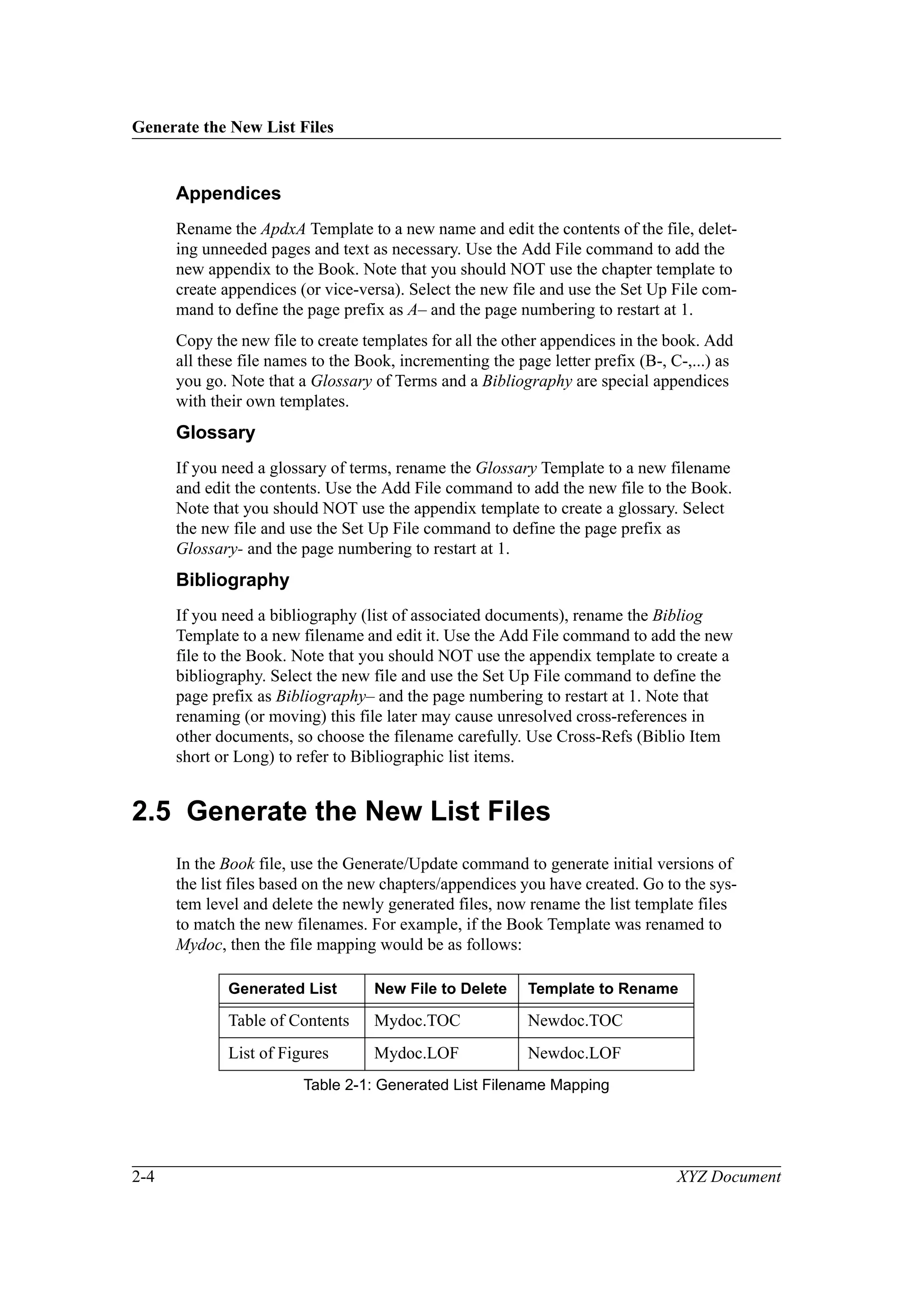
2.5 Generate the New List Files
In the Book file, use the Generate/Update command to generate initial versions of
the list files based on the new chapters/appendices you have created. Go to the sys-
tem level and delete the newly generated files, now rename the list template files
to match the new filenames. For example, if the Book Template was renamed to
Mydoc, then the file mapping would be as follows:
Generated List New File to Delete Template to Rename
Table of Contents Mydoc.TOC Newdoc.TOC
List of Figures Mydoc.LOF Newdoc.LOF
Table 2-1: Generated List Filename Mapping
Checking for Unresolved Cross-References
XYZ Document 2-5
In the Master Book you can now regenerate the list files, and the proper style/page
layout templates will be applied to the entries. Open each file in turn and check
that everything is as it should be. (Note that you can apply some, or all, of one
file’s formats, page layouts, and conditions to another file by opening both at the
same time and using the Import Formats command.)
Note that Generated Files are in View-Only Mode, so that you can double-click
on page refs to activate the HyperText links. To change to normal editing mode,
enter: Cmd/Alt-E (Mac/PPC) or Esc F l k (PC/NT/Unix) - case-sensitive!
2.6 Checking for Unresolved Cross-References
When you generate/update files in the Master Book again, you may see a message
about unresolved cross-references. This can happen when one file refers to an
entry in another file, and the second file is then either deleted or renamed. To fix
the problem, you must open the file where the error occurred and use the Find
command to locate each unresolved Cross-Ref in turn. Use the Cross-Reference...
Update command (and dialogs) to indicate the name and reference point of the
new file (which must be opened). Repeat these actions for all such cross-refs until
you no longer get error messages when regenerating the Master Book.
Note that it is possible to generate a list of all unresolved references from the Mas-
ter Book, just as you would a ToC or an Index. (You can also generate lists of
fonts used, graphics imported, and all external references if required.)
2.7 Changing the Document Title in the Footer
The name of the document is stored as a user variable (Document Title) which is
then used in the running footer of each file in the doc set. You MUST change this
value (default = XYZ Document) in one file, then import (File...Import... Formats)
just the variable definitions to every other file via the Master Book (both files must
be open). Note that the generated list files are in view-only mode and therefore
may not change automatically. They can be modified by first saving them in Edit
mode (Esc F l k), then importing the new Variable definitions via the Book.
List of Tables Mydoc.LOT Newdoc.LOT
List of Equations Mydoc.LOE Newdoc.LOE
Index Mydoc.IX Newdoc.IDX
Generated List New File to Delete Template to Rename
Table 2-1: Generated List Filename Mapping
Edit, Save, and Print the New Book
2-6 XYZ Document
2.8 Edit, Save, and Print the New Book
You can now edit, save and print all the files of the new book as normal. Note that
graphics should either be copied directly into the FM files, or linked and kept in a
folder in the same location as the Master Book. See Chapter 5 for details of how to
create PDF and HTML files from the Book file.
Note: If you import an existing document or file from another location, make sure
that the file is stored local to the document if linked (only recommended for
HTML or very large files). If the file is copied into the document, check that the
correct styles are applied to the new text (FM documents will bring their own
styles with them).
XYZ Document 3-1
3 FrameMaker Course Notes
This chapter contains old notes for a 1/2-day FrameMaker V5.x (Mac/PC) course
given by the author. The topics covered include: FrameMaker basics, how to use
the generic Style Files/Templates, and FrameMaker Hints and Tips. Users of
FrameMaker (FM) on other platforms: NT, Unix, etc., can also benefit from the
course and these notes. (Note that some basic PC knowledge is assumed!)
3.1 Interface and Dictionaries
The FM ‘interface’ can be either US (A4-Letter, Inches), UK-International (A4,
cm/mm), or both (check via File...Prefs...Interface), but make sure you get both
sets of dictionaries (for files from other users/systems); if FM is already installed,
copy the other dictionaries from the appropriate server or CD. Foreign dictionar-
ies, e.g., French, German, etc., can be obtained by special request from Frame-
Maker Support. Remember that dictionaries are required for hyphenation as well
as spelling/thesaurus. (Note that if you get a series of book-based files from
another location, you will not be able to regenerate the ToC/Index if there are any
font or dictionary problems; open & save each file first.)
3.2 Software Versions and Additions
Demo/read-only versions of FM can be used without a licence (no save & print-
out has background DEMO pattern) for on-line documentation using HyperText
(see below). Special Developer’s Kit and SGML versions are available for API
access, e.g., Db query, automatic document creation, etc. The SGML version of
FM is not backwardly compatible, unfortunately.
The current version (check via Get Info) on the Mac is V5.x (68K or PowerPC);
V5.5.x is also available for Unix (Sun/Solaris) machines, PC/Windows, and Win-
dows-NT. Software kits, documentation, licences, and other generic templates
(memo, letter, concept, etc.) can be obtained from the FrameMaker Support Staff,
and certain web sites - details to be defined. Standard templates (Fax Cover Sheet,
Memo, Letter) are also available.
3.3 Installed Files and Folders
FrameMaker (Mac) organization (depending on installation options):
• Clipart (for various simple drawing symbols)
• Dictionaries (add the 7 files per set here; interface goes in Modules)
File Transfer
3-2 XYZ Document
• Filters (MML1
, Word, RTF, MIF WordPerfect; also uses Claris XTND)
• Help (On-Line Help)
• Modules (Interfaces, Internal Code, & Plug-Ins - not many as yet)
• Templates (Book, Outline, Report, Business, Special, Personal - add your
own here, e.g., customized templates)
• Others (Personal Dictionary, On-Line Docs, Fonts, Samples, Tutorial, and
WebWorks Lite Converter for HTML?)
FrameMaker Menus:
• Check Preferences (auto backup/save, interface type, leave cross-platform
set to Mac, etc.) – O/S-specific!
• Utilities (Document Report = word count; 3rd party: e.g., Cumulus (uses
graphics Db plug-in for extra menu option; HTML, not many others...)
3.4 File Transfer
FrameMaker V5.5 (binary) source files are directly interchangeable from one sys-
tem to another, but watch for filename and special character differences (espe-
cially with Book files). Also, some fonts may not be available, or may be called
something else, on other systems. If problems occur, export to MIF (Maker Inter-
change Format) files, which like EPS are ASCII self-contained files, and mail/
copy. Use FTP, NFS/share, or Anarchie via TCP/IP for Unix file transfer. For
graphics, use EPS or TIFF format (PICT is Mac-specific and won’t print on a PC).
If you still have problems with graphics, you can also try setting the Save Frame-
Image option to On in the File...Preferences.
3.5 File Import/Export
Import: Word (Mac/PC), RTF (Microsoft), WordPerfect, ASCII Text (direct to
table if tab-delimited), or via Claris Translators/MacLink Pro (not always a reli-
able method). For graphics use EPS/TIFF via cut/paste or direct file import. Watch
out for picture size for HTML export (GIF format).
Export: MIF (Maker Interchange Format) or RTF for use with MS-Word or
DECwrite (via Pathworks file transfer to VAX), otherwise only export option is
[Encapsulated] PostScript via print menu (see below) – used for Acrobat PDF
files (see Chapter 5 for details).
1. Maker Markup Language
Document Organization/Limitations
XYZ Document 3-3
3.6 Document Organization/Limitations
FrameMaker docs are organized in Flows: A, B, C,... This is often used for multi-
column text, where text jumps from the end of one column to another on a differ-
ent page, but can cause problems if styles have unconnected flows. FM’s
numbering system is poor, it uses a few simple counters and has no concept of a
chapter, section, etc. This is why a master book is required to reset the starting
page number of each chapter/appendix, why so many styles are required for num-
bered lists, and why separate styles are required for chapters (flow A) and appen-
dices (flow B). This also effectively prevents you from splitting large chapters into
several subfiles. Lists also have no predefined levels so multiple styles are
required for indentation! There is also no sort command.
3.7 Styles and Page Types
Unlike DECwrite (VAX/VMS), you cannot group style types into Titles, Para-
graphs, Lists, etc. There are three types of Page: Body Pages (like this one), Mas-
ter Pages (which define the page layouts), and Reference Pages (for graphic lines,
ToC/Index layouts, etc.). Also, unlike DECwrite, changes in the ‘master’ style
files are not automatically reflected in old documents. You should therefore copy
the template files from the file server or web for each new document.
3.8 Creating a New Document
Chapter 2, describes how to create a new document using the templates supplied
from a server or on the web. To create other types of generic document, use the
templates provided by FrameMaker Support (the read-only versions contain
instructions on how to do this).
• Book Concept, Naming Conventions, Page Numbering (Make a Plan!)
• Deleting/Reorganizing Files (Note Cross-Ref Effects!)
• Adding Files and Setting Them up Correctly
• Generating/Updating Lists (ToC, Index, LoF/T, etc.)
• Printing Documents (Dialogs)
Note that the update/generate command does NOT work if any of the listed files
has a problem (invalid font, unknown dictionary, etc.; often found in files coming
from other systems). You must fix these problems by opening and saving the
invalid files first. When creating a new doc, you should always copy the templates
from the Server or web to ensure that any recent changes are incorporated into
your new documents (this is not automatic).
Headers, Footers, and Variables
3-4 XYZ Document
Note
The simplest way to create a new doc is just to copy the templates folder to
a local disk, change the folder &/or master-book name, and accept the file-
names inside; adding or removing files as required. This means that no
ToC/Index swapping is required (or indeed is recommended).
3.9 Headers, Footers, and Variables
Note that you will need to update the Document Title variable for the Running
Footer (“Document Title”), then globally apply this change to all files via the Mas-
ter Book (import only the variables; there is no undo!). Headers come from run-
ning titles, but can be added to (or modified) on the 3 master pages (First, Left,
Right).
3.10 Landscape Documents
Show how to create a landscape chapter or appendix using the special templates
and page styles. Try to keep portrait and landscape files separate to avoid pagina-
tion problems. Note that you can also rotate a portrait page but specify ‘no rotate’
for the header/footer; see the FM Documentation for details.
3.11 Using Markers to Create an Index
Show the use of Markers: New/Edit/Find. Also, use of on-line Help to locate index
marker syntax, etc. Other types of marker include non-printing Comments, Hyper-
text (complex), Conditional Text, and so on.
3.12 Use of Text Styles
Chapter 1 contains full examples of the title and paragraph styles, tables, figures,
frames, etc. Note problems with lists, especially numbered lists! Watch out for text
which breaks the flow of a long numbered list. Show how to break pages, pagina-
tion (blank end-pages), use of master style pages, tabs, etc.
Glossaries, Bibliographies, & X-Refs
XYZ Document 3-5
3.13 Glossaries, Bibliographies, & X-Refs
Show how to create a Glossary of Terms and Bibliography using special appendix
templates. Note use of cross-references for Bibliography items, etc. Watch out for
deleting or renaming files which may result in unresolved cross-refs. Show how to
locate and fix (or update) these.
3.14 Dividing Large Documents
Adding a lot of linked figures or tables will cause your file to grow very large.
You can reduce the size of graphics by using gray-scale (LZW) compressed TIFF
files instead of (E)PS or other files. However, if you have a very large chapter and
need to subdivide it into several smaller files, then only the first one will have
proper page numbers! You can bypass this FM limitation by converting the L/R
running footers to literal page numbers in the master pages of each sub-chapter
(make sure the chapter order is correct). The sub-chapters should be set up with
the usual prefix, but page numbering set to continuous in the Master Book. Link-
ing to local figures may be better than including them in the doc, but can cause
problems if you move the files later.
3.15 Graphics: Internal and External
Show how to use Anchored Frames; use of Internal Drawing Tools; how to link/
import external files; etc. Use only EPS or TIFF graphics for cross-platform com-
patibility. GIF files could be linked via Conditions for HTML export.
3.16 Tables
Show how to create, modify tables, etc.; convert/import text into tables; convert
tables back to text. Add/remove rows/columns, shading, etc.
3.17 Printing Files/Books
Notes on Printing Docs: Using the Print Dialog Box; Skip Blank Pages, Color ver-
sus B/W, printing to (E)PS files, etc. Watch for Linked Graphics when printing on
slow printers. On a PC you should use a PostScript printer and driver if possible
(essential when creating a PS file for PDF export). Note use of View-Only, book-
based documents for HyperText (links from ToC & Index in Master Book) & on-
line documentation.
PDF/HTML Export
3-6 XYZ Document
3.18 PDF/HTML Export
FM V5.x can create advanced PostScript files for use with Adobe Acrobat. Select
a PS printer (e.g., Distiller Assistant) in the print setup, then go to the print menu,
set “Generate Acrobat Data”, and print the file (or book) to a PS file (include all
the font info if on a Mac). The use Acrobat Distiller to turn the PS file into Acro-
bat Reader (PDF) format, all HyperText (X-ref) links in the ToC, List of Figures/
Tables, Index, etc., will be retained. Note: FM V5.5x has a Save as PDF option.
FM files can be converted to HTML via a third-party product such as WebWorks
Publisher V3.5. This requires that the Newdoc style files/templates are used cor-
rectly, and are not modified in any significant way. The conversion is done via a
mapping file (Newdoc.wdt), and the results can be loaded into an MS FrontPage
‘98 web for use on the web. See Chapter 6 for details. NB: FM V5.5x has a save as
HTML option.
XYZ Document 4-1
4 Export to PDF and HTML Files
This chapter describes how to export/convert FrameMaker V5.x1 documents into
PDF and HTML formats:
• PDF (Portable Document Format) is Adobe’s compact method for dis-
playing, searching, cutting/pasting, and printing documents via their free
Acrobat Reader program. This software is available for Mac/PPC, PC/Win-
dows, NT, and some Unix systems (with a shareware version for VMS).
PDF files can be generated either directly (via a PDF print driver) or by
printing to a PostScript (PS) file and then ‘distilling’ this into PDF via Acro-
bat.
• HTML (HyperText Markup Language) is a subset of the SGML docu-
mentation standard, and is an ASCII document format which can be dis-
played in browsers such as Netscape or Internet Explorer. HTML files can
either be created directly or via conversion using third-party applications.
4.1 PDF Files
Assuming that you use a Master Book to list the components of your FM docu-
ment, as you should, and that “Generate HyperText Links” is set to ON in the
setup of the generated files (ToC, Index, etc.), then ToC titles and Index page
numbers will be clickable in your PDF file. Note that you can even add HyperText
links to the text of your document via the HyperText Markers:
• Anchor point: newlink your_linkname
• HyperText jump: gotolink your_linkname
4.1.1 Adobe Acrobat Software
Note that the creation of PDF files requires at least an Adobe Acrobat 3.0 licence
(free with FM V5.5), including the installation of the following software:
– Acrobat Exchange (used to modify PDF files, e.g., add thumbnails or
notes, rotate pages, etc.)
– Acrobat Distiller (used to convert PS files - from any source - into PDF
form)
– PDFwriter (print driver to create non-graphic PDF files from any appli-
cation)
1. Note: FM V5.5.x also includes built-in functions to create either PDF or HTML/GIF files directly.
PDF Files
4-2 XYZ Document
– Acrobat Reader (used to view PDF files) free, multi-platform software
– Acrobat Catalog (optional, used to create searchable indexes of a group
of PDF files, e.g., on a CD-ROM)
– Acrobat Capture (optional, PC/NT only, used to scan pages or whole
documents direct into PDF format in Exchange)
Note that Adobe Acrobat V4.0 combines the functions of some of these compo-
nents, and also allows drag & drop PDF creation.
4.1.2 Ambia PDF Plug-Ins
Note that Ambia Corp. (www.ambia.com) provide Adobe Acrobat V3.x plug-ins
which can be used to further enhance PDF files, but at additional cost on the PDF
creation side:
• Aerial ($50) end-user tool to provide access to ‘real’ page numbers (1-1,
A-1, etc.), bookmark/go-to pages, tag frequently used pages independent of
their PDF files, export PDF files in RTF format for use in Word, export/
print large tables or portions of text, index PDF files based on internal con-
tents for quick access to information, and so on.
• Compose ($500) master tool used after Distiller to create some of the fea-
tures for future use in Aerial; can be run in batch mode to add/check internal
HyperText links, add document info (via an external file), add bookmarks
by selecting examples from the text, create a master table of contents for
many PDF files (for CD-ROM), add a running header/footer, create thumb-
nails for navigation, set the file open & security options, create automatic
HyperText links from selected words in the file; also used to build compos-
ite documents from several PDF files, etc.
• Remark ($130) tool used by end-users to mark-up PDF files (in Exchange)
with comments, pop-up boxes, notes, external files, sounds, etc., and by
authors to review/incorporate such comments from multiple end-users.
Note: This tool is included in Acrobat V4.0.
• Signet ($???) tool to add extra security features (in Compose) to PDF files.
Contact the author, or see Ambia’s website, for further details, demos, etc.
4.1.3 Creating PDF Files
In the Master Book (on a Mac/PPC), check that the Smooth Graphics option of the
Page Setup is set to Off. Go to the Print menu as if you were going to print the file.
Select the option “Generate Acrobat Data” which changes the print command to
Save to File. Click Save, which brings up an additional dialog box: select ASCII
Level I PS with all fonts included. Choose an appropriate filename and location
HTML Files
XYZ Document 4-3
and save the PS file to disk. Note that on a Windows NT machine, you should first
select a PS Printer (& Driver), e.g., Distiller Assistant, via the Print Setup com-
mand.
Now drag and drop the PS file onto Acrobat Distiller (you might want to check the
Job Options in this application so that page thumbnails are created automatically,
graphics are compressed correctly, and so on). This program can work in the back-
ground, and can be configured to check a folder at regular intervals for the appear-
ance of new PS files to convert. Refer to the Acrobat on-line documentation (Help
files) for details.
You now have a PDF version of the original document with functional HyperText
links in the ToC, Index, etc. If necessary, you can modify the PDF file in Acrobat
Exchange, for example: you may want to rotate landscape pages so that they are
easier to read, and regenerate the thumbnails, or even add post-it notes to certain
pages. Ambia’s Compose could also be used to add further navigation aids at this
point.
The PDF file itself is based on PostScript and is highly compressed in comparison
with the PS version. PDF files can be distributed via mail, CD-ROM, web, etc.,
and can be viewed in the free Acrobat Reader V3 program. If Adobe Catalog has
been used to generate an index of related PDF files, you may be able to query this
index from one of the PDF files via the (free) Acrobat “Search” plug-in (NB:
access to the appropriate server will be needed). Some web search engines (&
Lotus Notes V4.6x) can also make searchable indexes of PDF files.
4.2 HTML Files
We use WebWorks Publisher V3.5x for Windows NT, which works very well if
you use the generic FM style files/templates as intended, with the proper mapping
file (Newdoc.WDT). Refer to the WWP tutorial in Chapter 6 for details. Once the
MIF files have been converted into HTML format (+/- linked GIFs), they can be
viewed in Netscape. HTML files are ASCII and so can be automatically indexed
via all search engines.
4.2.1 Hints for Conversion to HTML Files
Always keep graphics in anchored frames, and make sure that each anchor is in
its own (Body Text) paragraph, and not attached to the end of the previous para-
graph. Note that text in FM graphics may not look as good in an HTML file.
If your graphics are high-resolution: either 150 (or more) dpi for laser printing,
then use Conditions to include 75 dpi (screen) files which will generate smaller
GIFs on conversion to HTML. (Conditions from one chapter can be set for a
whole book via Importing Formats in the master book.) See Chapter 1 for an
example. Note that WWP can be used to set conditions on a global level.
HTML Files
4-4 XYZ Document
Avoid the use of cross-references to literal page numbers, as these have no mean-
ing in HTML (even though they will work).
Do not use graphical text, e.g., on Master Pages, as this will be lost.
Make sure you always use Character Styles to apply bold, italics, etc., to text,
otherwise such changes may be lost in HTML (unless specifically mapped in
WWP).
Make sure that Table Titles are separate paragraphs, i.e., not part of the table
itself, otherwise they will be lost. (Remove the automatic title (below) in the table
styles and apply the Table Title style to a separate text string.) It is also be best to
have the table anchor in its own paragraph.
Equations will be converted to graphics, but may not appear exactly the same as
in your document. Remember that they too should be in anchored frames on new
lines.
Tables with custom ruling, or no rules at all, will be converted to standard HTML
tables. Cell shading and autonumbering will be lost; joined cells may become
split. Table Footnotes appear at the end of the HTML page (even if very long).
Multi-column pages (such as the Index) will be converted to a single column.
As Level1 Headings will create new HTML files, try to always have some intro-
ductory text between the Chapter/Appendix Title and the first L1 Head. Note that
new files can be created (by modifying the WWP mapping) for Level2 Heads for
very large sections.
Always use the standard paragraph styles; custom styles will not be mapped and
will therefore lose their formatting. Contact the author if you require new styles/
templates or special web mapping. See also Chapter 6.
Note: Landscape pages become portrait again, so the text may look wrong.
External URLs in WWP1 are added via Type 13/14 Marker tags, for example:
[Marker Type 13: <URL>] Link_Text [Marker Type 14: <Blank>]
Avoid the use of ‘soft’ carriage returns in Body text, as browser windows can be
any size, and may therefore make your text look strange. The exceptions are Code
and Example styles which become Preformatted HTML and therefore MUST
have hard &/or soft returns (<Ctrl><Enter>) to indicate line breaks!
Similarly, avoid the use of tabbed or indented text, as this will not display prop-
erly in Netscape; consider using tables (e.g., No Frame or No Frame 2) without
rules/borders, or term/definition lists instead.
If you have many figures, consider using linked GIF files to speed up the process
of conversion to HTML. You may need to use Conditions here. See also Chapter 6
on switching off WWP graphic conversion.
1. HTML Transit uses Type 25 Markers.
HTML Files
XYZ Document 4-5
Do not use Tabs or ‘Hard’ spaces in the Example or Code styles for indentation,
use blank spaces which will be properly mapped to HTML. Note: you must turn
off “Smart Spaces” for the whole document via Format..Document..Text Options.
Do not interrupt Numbered or Alphabetic Lists with Body text, etc., as this will
cause the numbering in WWP to reset to 1. Use two Soft CRs to indicate a blank
line, or the Comment style instead.
You must add your own ‘soft’ or hard carriage returns in the Code and Example
styles, as Preformatted HTML output will not wrap properly at the screen margins
(especially important when screens are printed).
Don’t forget to customize the Document Title variable, then import this (by
importing just the variable formats) to all other files via the Master Book. Also
remember to run the spell checker and update the automatic (ToC/Index) files reg-
ularly.
For proper graphics conversion in WWP, you should set up and select a Seiko
Color Printer in the Printers Control Panel (contact your system manger for help
with this).
HTML Files
4-6 XYZ Document
XYZ Document 5-1
5 WebWorks Publisher Tutorial
This chapter describes how to convert FrameMaker V5.5x documents into HTML/
GIF format (for use in Netscape/IE or FrontPage ‘98) via WebWorks Publisher
V3.5x (under NT or Unix). HTML has the advantage over PDF files, in that it is
smaller, and therefore quicker to view, and is in ASCII format, which means that it
is easier to search and index. The disadvantage of the current version of HTML is
that it is limited in controlling page layout - this may improve with the use of Cas-
cading Style Sheets (CSS). It is possible that you may need to provide both for-
mats: HTML for display, searching, etc., and PDF for down-loading, printing, etc.
WWP V3.5x uses FM V5.5x to convert docs to HTML format (via MIF), and uses
Netscape to display the results. It automatically handles internal or linked graphics
(converting them to GIF format if necessary), equations, cross-refs, variables,
HyperText links, Table of Contents, Lists of Figures/Tables, Indexes, tables, file
division, conditions, external URLs, and so on. It is a very powerful tool, provid-
ing that you use the FM style files properly, and unmodified. Note that HTML has
some limitations which mean that some FM formatting (such as indents or tabbed
text) cannot be converted; refer to Chapter 5 for information on how to optimize
your document for WWP. Note that for good quality graphics, you should set up
and select a Seiko Color Printer Driver in the Printer Control Panel.
WWP uses a mapping file (NEWDOC.WDT) to define the appearance of HTML tags
in Netscape, and also which FM styles are converted to which HTML tags. WWP
handles both paragraph- and character-based styles (although it ignores everything
on the master pages). Note that it is good practice to apply character styles (bold,
italics, underline, etc.) via the character menu, rather than directly via the icon bar.
(Note: you could do things this way, but would then have to check that all such
attributes were properly mapped in WWP.)
Headers and footers are not converted by WWP, instead it adds automatic naviga-
tion features (prev/next, first/last), and allows you to customize the footer of each
HTML page (via user macros). In this quick tutorial you will learn how mapping
works, how to convert FM files to HTML for use in Netscape, customize the user
macros, and how to map customized styles.
Remember that if you add or change any of the default character or paragraph
styles, you should check that the WWP mapping file will convert them properly.
[NB: WWP V4/2000 supports on-line HTML Help files (via the MS HTML Help
Workshop V1.x).]
Overview of WWP
5-2 XYZ Document
5.1 Overview of WWP
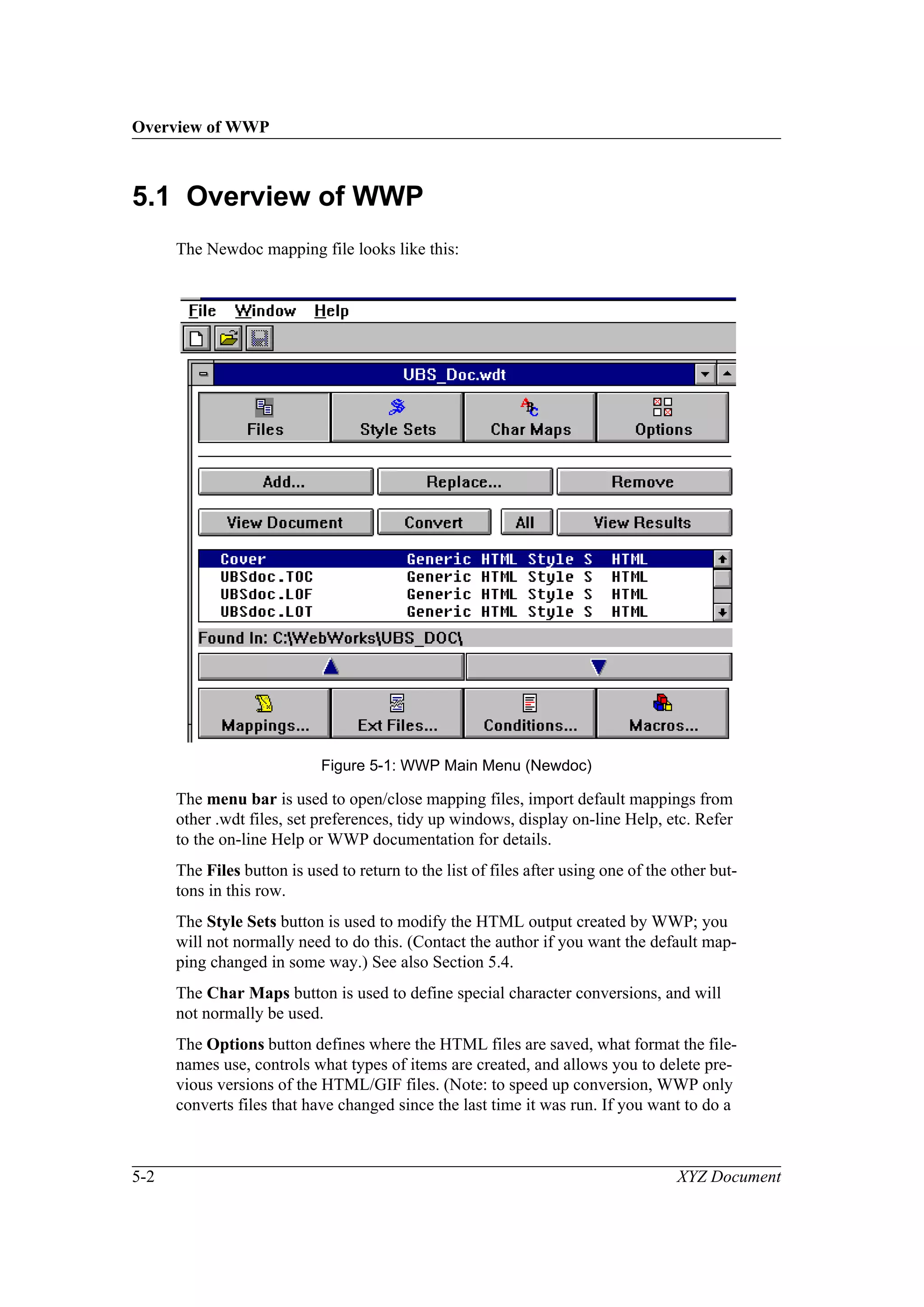
The Newdoc mapping file looks like this:
Figure 5-1: WWP Main Menu (Newdoc)
The menu bar is used to open/close mapping files, import default mappings from
other .wdt files, set preferences, tidy up windows, display on-line Help, etc. Refer
to the on-line Help or WWP documentation for details.
The Files button is used to return to the list of files after using one of the other but-
tons in this row.
The Style Sets button is used to modify the HTML output created by WWP; you
will not normally need to do this. (Contact the author if you want the default map-
ping changed in some way.) See also Section 5.4.
The Char Maps button is used to define special character conversions, and will
not normally be used.
The Options button defines where the HTML files are saved, what format the file-
names use, controls what types of items are created, and allows you to delete pre-
vious versions of the HTML/GIF files. (Note: to speed up conversion, WWP only
converts files that have changed since the last time it was run. If you want to do a
Overview of WWP
XYZ Document 5-3
quick conversion, i.e., just see how the mapping looks, then switch off the creation
of graphics via Generate Files of Type: Anchored Frames.)
The Add button is used to add a FM Master Book to the list of files. Note that you
do not need to add each file in the book manually, just add the Master Book, and
WWP will do the rest. Unfortunately, WWP does not convert the Master Book
itself in order to create an INDEX.HTM which lists all the other files. With WWP,
the first file (usually COVER.HTM) becomes the ‘master’ file; this is the file
which should be referenced on a web page.
The Replace button is used to replace one or more files in the central list.
The Remove button is used to delete files from the list. When you copy the
Newdoc mapping file, you will need to use this to remove the files already in the
list prior to adding a new master book (see below).
The View Document button is used to display the currently selected FM docu-
ment. This is useful if you want to make quick changes to your source file, then re-
convert it to see how it will look in Netscape.
The Convert button is used to convert the currently selected FM file. (Note that
FM V5.5x is required to create the intermediate MIF files used during the conver-
sion.) This button is often used if you change the mapping, and want to see what
the results look like without having to convert all the other files. For a fast conver-
sion, switch off the creation of graphics in Options before using this.
The All button is used to convert the entire document into HTML once you are
satisfied with the mapping (note that the default mappings for Newdoc are nor-
mally fine unless you have any customized or new styles). Remember to switch
the creation of graphics back on in Options before using this command. Only those
files changed since the last conversion are processed.
The View Results button is used to view the HTML (and linked GIF) files in
Netscape. (Note that Netscape should be running before you use this command.) If
you are experimenting with mappings, you can change a file in FM, convert it,
then view the results in Netscape to see what affect your change had; just hold
down the Shift key as you reload the file in the browser.
The central scrolling area lists the files that will be converted when you click the
All button. The initial default file should not be removed, as this defines the
default mappings for this set of files.
The Mappings button is used to define the mapping of FM paragraph and charac-
ter styles to HTML tags. This will be discussed in more detail later.
The Ext(ernal) Files button is used to work on the files created during the conver-
sion (by default, WWP divides FM files by file and level 1 heading, but can be
easily modified to create separate HTML files for any heading level).
An Example Conversion
5-4 XYZ Document
The Conditions button is used to set any defined FM condition on a global level.
This is useful if, for example, you have conditions defined to select graphics for
either the world-wide web/screen (72 dpi) or printing (150-300 dpi).
The Macros button is used to define items such as background color and reply
Email address. Note that other macros are defined via the Mappings button, as
described in Section 5.3.
5.2 An Example Conversion
This section leads you through the steps required to convert a generic document,
i.e., one which uses unmodified char/para styles, and takes into account the guide-
lines for creating FM documents intended for HTML:
1. Download or Copy the WWP mapping file Newdoc.wdt to a new filename
and location which refers to your document.
2. Open the new mapping file in WWP and delete the existing FM files (if
any) with the Remove button.
3. Locate the correct output directory with the Browse button in Options.
(Make sure that all 3 generated output types, and DOS 8.3 format filena-
mes, are selected.)
4. Add the master book of your FM document to the list of files (all the files
listed in the master book will be displayed).
5. [If you want a customized running footer, then see Section 5.4.]
6. If you are sure that there are no new or modified styles in your document,
click All and WWP will convert your files into HTML, with linked GIFs
as appropriate. (Note that if you have large files, or lots or equations or
graphics, then this process may take some time.)
7. Start Netscape, select the first file (usually Cover), & View Results.
8. Use the Navigation buttons in the HTML headers and footers, as well as
the Table of Contents and Index (if available) to move through your docu-
ment. Check that the conversion looks OK. If you have used FM features
(such as tabbed or indented text) which do not map to HTML, consider
changing these to (unruled) tables or term/definition lists.
9. Save your mapping file from the File menu.
10. You can now view the first file (cover.htm) in Netscape. Alternatively, if
you are using FrontPage ‘98, or only have HTML files, then you can
import the files directly into a new web (FTP, WCRM, or Web Publisher).
Link the first file (cover.htm) into any other web which needs to refer to
this document.
Creating Custom Mappings
XYZ Document 5-5
That’s all there is to it; simple really. If you want to customize the WWP mapping
process, or the text in the Footer area of each HTML page, then read on.
5.3 Creating Custom Mappings
As previously mentioned, if you have large FM files with many subheadings, then
you may want to have a new HTML file created for each level 2 heading. If so,
then follow these steps:
1. Select a file which uses several levels, Chap1 for example.
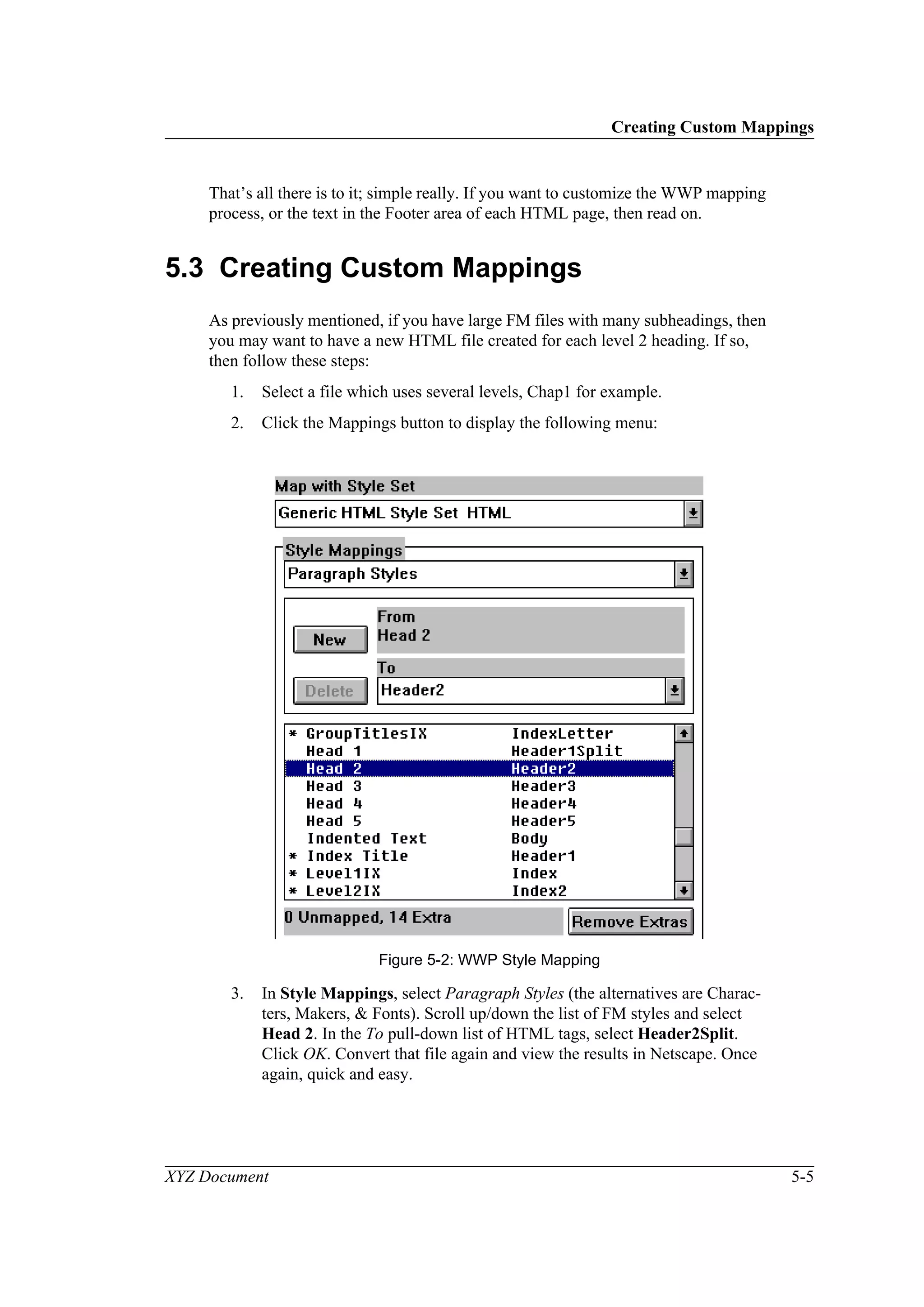
2. Click the Mappings button to display the following menu:
Figure 5-2: WWP Style Mapping
3. In Style Mappings, select Paragraph Styles (the alternatives are Charac-
ters, Makers, & Fonts). Scroll up/down the list of FM styles and select
Head 2. In the To pull-down list of HTML tags, select Header2Split.
Click OK. Convert that file again and view the results in Netscape. Once
again, quick and easy.
Customizing the HTML Footer
5-6 XYZ Document
This menu is also where you would look if you had either modified the default
Newdoc para/char styles, or created/imported new ones of your own. Select the
appropriate Style Mappings, and scroll up/down the list of FM styles until you see
one without an HTML definition. Select the closest HTML tag from the To list.
You can speed up this process by clicking on Remove Extras, which will leave
only those styles specific to this file.
Note that any definitions you make here will become global for the whole docu-
ment, so you only need map each new style once. Repeat this process for all other
unmapped FM styles. Convert All the files to view the results, make further
changes as necessary, then save your mapping file. The other style mappings refer
to fonts and markers (Index, HyperText, etc.), which are advanced features of the
conversion which you will not normally need to change.
Remember that if you find you need a new style often, then you should request
that someone adds it to the master FM style files. If you notice that the WWP map-
pings are incorrect, or the HTML results do not seem as good as they might be,
then you should also report this, so that the default mapping file can be improved.
(For this reason, you should re-copy the templates and map file from the web at
regular intervals so that you are always up-to-date with the latest changes.)
5.4 Customizing the HTML Footer
You can add whatever text you like to the footer of each HTML page created by
WWP. This might be the current name and version of the document, your group
and Email address for comments, or anything you like. Here’s how:
1. Click the Style Sets button, then Edit the Generic HTML Style Set.
2. Select UserMacros in the Style Groups pull-down menu.
3. Customize the UserEmail1 address
(e.g., FirstName.LastName @address.com).
(Note that the slash () before the @ character is required syntax.)
4. Customize the Footer text via the NewFileClose macro. (Note that a little
knowledge of HTML coding might be useful here, but if you compare the
output with the definitions, it should be obvious what to do.)
This menu is also the location where you can define what each WWP HTML tag
does. You can copy existing definitions to create your own HTML tags for
unmapped FM styles, or modify existing definitions to affect the way the HTML
appears in your Browser window. Warning: It is very easy to make a mess of both
your output files and the mapping file by changing definitions here. Do not change
anything unless you are familiar with both HTML code and the way in which
WWP creates it - refer to the WWP on-line Help and documentation for details.
1. This can also be done via the Macros button on the main menu.
Important Setup Notes for WWP
XYZ Document 5-7
5.5 Important Setup Notes for WWP
5.5.1 Location of the API Client
Please note that if you upgrade FrameMaker V5.0 to 5.1.x (or above), then it will
be installed in a different default directory, and will use relative references in its
initialization (INI) file to locate other components. This means that communica-
tion via the WWP API Client will be lost (i.e., WWP will not work), and that the
WWP Installation Text file is incorrect. Note: this situation might also occur if you
move an earlier version of FM, as the location of the API Client is hard-coded in
the FM Ini file.
To fix the link, open the FM Ini file (maker.ini) in a text editor, and locate the
WWP line in the API Clients section. For FM V5.1.2, it should look like this:
WWPublishComm=Standard,Publisher - Frame Communication
Client,fminitwwpcom32.dll
(Previous versions may have something like: c:maker5wwpcom32.dll.)
5.5.2 Check the Virtual Memory
There is also a note that virtual memory should be set to about twice actual RAM
for performance reasons. Presumably, this is more applicable to low memory set-
ups, such as 48MB RAM, but I don’t suppose it hurts to check via: Control Panels,
System, Virtual Memory. Note that you will need local admin privilege, and have
to reboot to make VM changes effective. Defragmenting the boot disk before
doing this is also a good idea.
5.5.3 Define a Seiko Color PS Print Driver
Finally, you (or more likely, your system manager) should define a “Seiko Color-
point PS Printer model 14” printer in Control Panels, Printers, which should be
used as the *default* printer whenever using WWP to convert FM files with
graphics! Failure to do so will result in missing or poor quality GIF files in your
output. Note that defining such a printer will probably require access to the Win-
dows CD-ROM to locate the appropriate print driver. Note: Leave the page setup
as “A4 Letter”, do not change it to A4 - as you would normally do for a real
printer. (Note that WWP 2000 uses a different color PS print driver.)
Important Setup Notes for WWP
5-8 XYZ Document
XYZ Document Appendix A-1
Appendix A Additional Information
This is a test appendix.
A.1 Test Appendix L1 Heading
This is the Appendix template for the generic style files/templates for Frame-
Maker V5.5x (Mac, Unix, or NT); it should NOT be used to create chapters (use
the Chapter Template instead). Neither should it be used to create a Glossary or a
Bibliography; both of these are special appendices with their own templates. (Note
that a landscape appendix is slightly complex and also has its own special template
& page styles.) Some example styles follow...
A.1.1 Test Appendix L2 Heading
A.1.1.1 Test Appendix L3 Heading
A.1.1.1.1 Test Appendix L4 Heading
A.1.1.1.1.1 Test Appendix L5 Heading
Figure A-1: Test Appendix Figure
Table A-1: Test Appendix Table
Test Appendix L1 Heading
Appendix A-2 XYZ Document
XYZ Document Glossary-1
Appendix B Glossary
This is an example of a Glossary (explanation of technical, unusual, or complex
terms used throughout a document.) It was created from the AppendixA Template
file; however, it has different headers and footers, and so should be considered as a
separate template in its own right!
IIS
Microsoft’s Internet Information Server.
Term2
Definition of term2.
Glossary-2 XYZ Document
XYZ Document Bibliography-1
Appendix C Bibliography
This is an example of a Bibliography (list of associated documents). It was created
from the AppendixA Template file; however, it uses different headers and footers,
and so should be considered as a separate template in its own right.
Use a separate file for each appendix to maintain the page numbering, and list
them all (in the correct order: appendixes, glossary, & then bibliography) in the
Master Book (edit the setup of each file to define the correct page prefixes and set
the page numbering to restart at 1).
[1] Guide to Using DECwrite V2.x, V2.1, December 1994, G. Turnbull.
[2] Document Title, Version Number, Print Date, Author, Etc.
[3] And so on...
Usage
To create the first item of a bibliographic list, use the Bibliog List First style, then
press return for the second, and subsequent, list items (which use the Bibliog List
Item style).
You can then refer to list items in the text using either the Bibliog Short or Long
cross-reference formats (and selecting the appropriate Bibliog List Item in this
file). Note that both files have to be open at the same time.
For example: for basic details refer to [2], for further information see [1] Guide to
Using DECwrite V2.x, V2.1, December 1994, G. Turnbull.
N.B.: Full document references should be shown in italics.
Bibliography-2 XYZ Document
XYZ Document Index-1
Index
A
Acrobat
Catalog .................................................4-2
Distiller..........................................4-1, 4-3
Exchange .............................................. 4-1
Files......................................................3-6
Reader ...........................................4-1, 4-3
Search................................................... 4-3
Adding Generated Lists to a Book................ 2-2
Aerial.........................................................4-2
Ambia PDF Plugins ....................................4-2
Appendices.................................................2-4
Appendix Headings..................................... 1-2
B
Bibliography.................... 2-4, Bibliography-1
Body Text Style ...................................1-1, 1-2
C
Cascading Style Sheets................................ 1-1
Cautions.....................................................1-3
Chapters.....................................................2-3
Character Styles.......................................... 1-2
Compose.................................................... 4-2
Conditions.................................................. 1-4
Course Notes .............................................. 3-1
Creating a New Book ...........................2-1, 3-3
Cross-References .................................1-4, 2-5
D
Definitions .................................................1-3
Dictionaries................................................3-1
E
Equations ................................................... 1-3
Examples ................................................... 1-2
Exporting Files ........................................... 4-1
F
Figures....................................................... 1-5
File Transfer ........................................1-1, 3-2
Files/Folders...............................................3-1
Footers....................................................... 3-4
Footnotes ................................................... 1-4
FrameMaker...............................................3-1
Frames ....................................................... 1-4
Front Cover ................................................2-3
G
Glossary................................. 2-4, Glossary-1
H
Headers...................................................... 3-4
Heading Styles............................................1-1
Hints for HTML Files..................................4-3
HTML
Export....................................3-6, 4-1, 4-3
Format .................................................. 1-1
Hints and Tips .......................................4-3
HyperText Links ..................................1-1, 1-9
I
Import/Export............................................. 3-2
Index...................................................1-3, 2-3
Entries .................................................. 1-9
Index, See Also Markers
Interface.....................................................3-1
Introduction.................................... 1-1-to-1-9
L
Landscape Documents................................. 3-4
Large Documents........................................ 3-5
Limitations................................................. 3-3
List
of Figures.............................................. 2-2
of Tables ...............................................2-2
Lists........................................................... 1-8
Lotus-Notes................................................1-1
Index
Index-2 XYZ Document
M
Markers ..............................................1-9, 3-4
MIF Files ................................................... 4-3
N
Netscape ..............................1-1, 4-1, 4-3, 5-3
Notes......................................................... 1-3
O
Other FM Features...................................... 1-9
P
Page
Layout .................................................. 1-1
Margins ................................................ 1-1
Size ...................................................... 1-1
Types.................................................... 3-3
Paragraph Styles......................................... 1-2
PDF Files.................................... 1-1, 3-6, 4-1
PDFwriter .................................................. 4-1
Planning a New Book ................................. 2-1
Platforms ................................................... 1-1
Portable Document Format.......................... 4-1
Preface....................................................... 2-3
R
Reader ....................................................... 1-1
Remark...................................................... 4-2
S
Sectioning.................................................. 1-1
Style Files .................................................. 1-2
Styles..................................................1-2, 3-3
Subheadings............................................... 1-2
T
Table of Contents.................................1-3, 2-2
Tables .................................................1-6, 3-5
Technical Terms ......................................... 1-2
templates.................................................... 3-3
Terms ........................................................ 1-3
Textblocks.................................................. 1-4
V
Variables.................................................... 3-4
System.................................................. 1-5
User...................................................... 1-5
Versions..................................................... 3-1
W
Warnings.................................................... 1-3
Web Crawler .............................................. 4-3
WebWorks Publisher............................4-3, 5-1

FrameMaker StyleFile Template

  • 1.
    Abstract Software Information: Operating System: AuthorInformation: <Logo & Company_Name>, Copyright © 1999 by <Company_Nmae>. Generic Document FrameMaker Style Files/Template Version 1.1 6th February 1999 [This are the FrameMaker V5.5x style files/template for a generic document for Windows NT4/98. FM can read/write Word files and can be exported in RTF, PDF, or HTML format with little loss of formatting. As a true DTP program, it is the best tool for the cre- ation of long, complex documents.] This document describes... <XYZ Application Vx.y> Windows NT <4/SP5 W98> Greg Turnbull, Office, Tel, Email, [Drive:DirectoryFilename] <Group>-<Name>, Zürich.
  • 2.
    ii XYZ Document Copyright© 1999 by <Company_Name>. The information contained in this document is proprietary to <Company_Name>, and must not be reproduced, stored in a retrieval system, or transmitted in any form, or by any means (electronic, mechanical, photocopy, or otherwise), nor can it be distributed to any third party or external organization without prior written consent. Trademarks The following are registered trademarks of the Microsoft Corporation: Microsoft MS MS-DOS Windows Windows NT Windows ‘98
  • 3.
    XYZ Document iii Tableof Contents Preface .................................................................................................................. 1-xiii 1 Introduction ......................................................................................................1-1 1.1 Headings.........................................................................................................1 1.1.1 Level2 Heading.............................................................................................................. 1-1 1.1.1.1 Level3 Heading........................................................................................................ 1-2 1.1.1.1.1 Level4 Heading .................................................................................................. 1-2 1.1.1.1.1.1 Level5 Heading............................................................................................. 1-2 1.2 Examples........................................................................................................2 1.3 Notes, Cautions, and Warnings ......................................................................3 1.4 Terms and Definitions ....................................................................................3 1.5 Table of Contents and Index...........................................................................3 1.6 Equations........................................................................................................3 1.7 Textblocks and Frames...................................................................................4 1.8 Conditions ......................................................................................................4 1.9 Footnotes........................................................................................................4 1.10 Cross-References............................................................................................4 1.11 Figures............................................................................................................5 1.12 Variables.........................................................................................................5 1.13 Tables .............................................................................................................6 1.14 Lists................................................................................................................8 1.15 Markers...........................................................................................................9 2 Creating a New Book .......................................................................................2-1 2.1 Plan the Layout and Names of the New Book ...............................................1 2.2 Creating a New Book File..............................................................................2 2.3 Adding Generated Files to the New Book .....................................................2 2.4 Add All Other Entries to the Book.................................................................3 2.5 Generate the New List Files...........................................................................4
  • 4.
    Table of Contents ivXYZ Document 2.6 Checking for Unresolved Cross-References ..................................................5 2.7 Changing the Document Title in the Footer...................................................5 2.8 Edit, Save, and Print the New Book...............................................................6 3 FrameMaker Course Notes .............................................................................3-1 3.1 Interface and Dictionaries ..............................................................................1 3.2 Software Versions and Additions ...................................................................1 3.3 Installed Files and Folders..............................................................................1 3.4 File Transfer ...................................................................................................2 3.5 File Import/Export..........................................................................................2 3.6 Document Organization/Limitations..............................................................3 3.7 Styles and Page Types ....................................................................................3 3.8 Creating a New Document .............................................................................3 3.9 Headers, Footers, and Variables .....................................................................4 3.10 Landscape Documents....................................................................................4 3.11 Using Markers to Create an Index..................................................................4 3.12 Use of Text Styles...........................................................................................4 3.13 Glossaries, Bibliographies, & X-Refs............................................................5 3.14 Dividing Large Documents ............................................................................5 3.15 Graphics: Internal and External......................................................................5 3.16 Tables..............................................................................................................5 3.17 Printing Files/Books.......................................................................................5 3.18 PDF/HTML Export ........................................................................................6 4 Export to PDF and HTML Files .....................................................................4-1 4.1 PDF Files........................................................................................................1 4.1.1 Adobe Acrobat Software................................................................................................4-1 4.1.2 Ambia PDF Plug-Ins......................................................................................................4-2 4.1.3 Creating PDF Files.........................................................................................................4-2 4.2 HTML Files....................................................................................................3 4.2.1 Hints for Conversion to HTML Files.............................................................................4-3
  • 5.
    Table of Contents XYZDocument v 5 WebWorks Publisher Tutorial........................................................................5-1 5.1 Overview of WWP.........................................................................................2 5.2 An Example Conversion ................................................................................4 5.3 Creating Custom Mappings............................................................................5 5.4 Customizing the HTML Footer......................................................................6 5.5 Important Setup Notes for WWP ...................................................................7 5.5.1 Location of the API Client............................................................................................. 5-7 5.5.2 Check the Virtual Memory............................................................................................ 5-7 5.5.3 Define a Seiko Color PS Print Driver............................................................................ 5-7 Appendix A Additional Information..................................................................1 A.1 Test Appendix L1 Heading ........................................................................A-1 A.1.1 Test Appendix L2 Heading........................................................................................... A-1 A.1.1.1 Test Appendix L3 Heading ..................................................................................... A-1 A.1.1.1.1 Test Appendix L4 Heading................................................................................ A-1 A.1.1.1.1.1 Test Appendix L5 Heading.......................................................................... A-1 Appendix B Glossary...........................................................................................1 Appendix C Bibliography ...................................................................................1 Index
  • 6.
  • 7.
    XYZ Document vii Listof Figures Figure 1-1: Example of an Internal FrameMaker Figure ..................................................................... 1-5 Figure 1-2: Example of a Linked TIFF File......................................................................................... 1-5 Figure 5-1: WWP Main Menu (Newdoc)............................................................................................. 5-2 Figure 5-2: WWP Style Mapping......................................................................................................... 5-5 Figure A-1: Test Appendix Figure ...................................................................................................... A-1
  • 8.
  • 9.
    XYZ Document ix Listof Tables Table 1-1: Example of a Basic Table (Default).................................................................................... 1-6 Table 1-2: Example of a Complex Table.............................................................................................. 1-6 Table 1-3: Example of a Lined Table ................................................................................................... 1-7 Table 1-4: Example of an Unlined Table.............................................................................................. 1-7 Table 1-5: Example of a Shaded Table................................................................................................. 1-7 Table 2-1: Generated List Filename Mapping...................................................................................... 2-4 Table A-1: Test Appendix Table.......................................................................................................... A-1
  • 10.
    Table of Contents xXYZ Document
  • 11.
    XYZ Document xi Listof Equations Equation 1: Example FrameMaker Equation ...................................................................................... 1-3
  • 12.
  • 13.
    XYZ Document xiii Preface Thisdocument describes... Intended Audience This document is intended for: • System Managers • Users • Etc... Prerequisite Knowledge This document assumes knowledge of the following topics: • Windows <NT4/SP5 W98> • <Project Title> • Etc... Associated Documents The following guides are referenced in this document: • <XYZ> User’s Guide • <XYZ> Technical Reference Guide • Etc... Organization of this Document This document is organized as follows: • Chapter 1 introduces ABC... • Chapter 2 describes... • Chapter 3 describes... • Appendix A contains additional information about XYZ... • Etc...
  • 14.
    Preface xiv XYZ Document Termsand Conventions The following terms and conventions are used throughout this document: Change History The first version of this document (V1.0) was created and released in April ‘94. Version 1.1 was last updated by G. Turnbull in Feb. ‘99 for generic terminology. Term/Convention Meaning in this Document <Return> A three– to six-character abbreviation enclosed in angled brackets indicates that you should press a particular key. Unless otherwise stated, use the <Return> key to end all key- board entries. <Ctrl/Y> This combination indicates that you should hold down the key marked <Ctrl>, and simultaneously press the key marked <Y>. KEYWORDS Keywords, such as command names, always appear in upper- case letters and are spelled out in full. Ellipses... Ellipses indicate that the preceding item may be repeated, for example: $COPY input_file,... output_file [Square Brackets] Square brackets enclose optional parts of a command, for example: $TYPE filename.ext [/qualifiers] User Input In detailed command examples, user input is shown in bold- face, and system responses in normal type. For example: $copy _From: oldfilename.ext _To: newfilename.ext File Specifications Full file specifications are indicated as follows: device:[dir.subdir,...]filename.ext
  • 15.
    XYZ Document 1-1 1Introduction This is the Generic Document Style File/Template for FrameMaker V5.5.x on Windows NT (and will also work under Unix & Mac). It is intended for docu- ments for Windows NT4. Note: FM files can be transferred to another platform either directly (via file transfer - FTP), or in MIF (Maker Interchange Format). This style file was last updated by Greg Turnbull, in Feb. ‘99 (for terminology). General settings: Paper Size is A4 (Landscape or Portrait), Custom 1” Margins, Double-Sided Pages with 0.5” binding gutter (see Master Pages for details). Note that FrameMaker V5.1.x can read Word, RTF, and other file formats as direct input. Graphics should either be internal, or platform-independent, e.g., TIFF or EPS in anchored frames (or GIF files for HTML conversion). FM V5.5 can read/ write Word ‘97 & RTF documents, as well as export files to PDF/HTML formats. FrameMaker V5.x files can be saved (printed) as PostScript (PS) files with Hyper- Text info for ‘distillation’ to Adobe PDF (Portable Document Format) files for use in Lotus Notes with Acrobat Reader, or for use on the World-Wide Web (WWW) in Netscape/IE. NB: FM V5.5 allows direct creation of PDF files (Save as), and Acrobat V4 allows for drag & drop PDF creation from any application. In FM V5.1.x, use WebWorks Publisher V3.5x or V4 for conversion (via a Map- ping file) to HTML/GIF format for use in Netscape/IE or Front Page ‘98 - see Chapters 5 and 6 for details. NB: FM V5.5 includes a (limited) function to map FM styles into HTML tags, and automatically create Cascading Style Sheets. 1.1 Headings Use this Chapter Template to create all the chapters of a book. Put each chapter in a separate file to maintain the correct page numbering (note that subdividing a large chapter into several files may need literal starting page numbers). For Land- scape pages, use the special Landscape Chapter Template, not the Rotate Page command. Use the Preface Template to create a Preface for your document – if required. Do not use the Chapter Template to create appendices. 1.1.1 Level2 Heading Use the Appendix Template to create all the appendices (except the Glossary & Bibliography), and list all the files, in the correct order, in a Master Book to gen- erate the Table of Contents (ToC/LoF/LoT/[LoE]) and Index (optional) – make sure that the “Generate HyperText Links” options are set to On; then use the for- mats from the ToC/Index templates (see Chapter 2 for details). Note that some components of the Master Book need their page numbers specially defined (e.g., Appendix A: restart from 1; suffix A–).
  • 16.
    Examples 1-2 XYZ Document 1.1.1.1Level3 Heading Create Bibliographies and Glossaries as special appendices using the templates provided. (Note that Glossary lists and Bibliography items can be indicated via Cross-References). Subheading Text This is normal Body Text (Times New Roman: 11pt, plain, spelling: US English; although may map to plain Times in HTML). Create headings with Head x styles (Apdx HeadX for appendices); for unnumbered headings, use the Subheading style. In Webworks Publisher V3.5, each Head1 will cause the creation of a new HTML file. 1.1.1.1.1 Level4 Heading Note that the Appendix Template uses Apdx HeadX instead of Head x styles for proper section numbering, Flow B not A, which must be included in a generated ToC (& HTML mapping file), and separate files for proper page numbering. NB: Heading fonts have been changed from Helvetica (not standard on PCs) to Arial. (Heading fonts are sans-serif, and body text fonts are serif for ease of reading.) 1.1.1.1.1.1 Level5 Heading Use character styles from the f [Character] Catalog for bold, emphasis, change bars, strikethrough, underlining, etc. Note that there is no HTML equivalent of some of these styles. Do not use the menu bar icons to do this, or these effects will be lost in HTML (unless manually mapped). Use (unruled) tables or term/defini- tion lists for tabbed/indented text if you want to convert files to HTML. (Avoid ‘soft’ carriage returns to indicate line breaks in body text for HTML.) 1.2 Examples Enter examples, computer interaction for instance, as follows: This is an Example paragraph (Courier 9pt, plain, indented, unhyphenated, no spell check, etc.). This is an example para. This is a Code paragraph (Courier 8pt, plain, unhyphenated, no indent, no spell check, 80 chars/line, etc.). This is a Computer Code example: 12345678901234567890123456789012345678901234567890123456789012345678901234567890 (Note that these styles have the language attribute set to None to bypass spell checking.) In HTML, code will be converted to Preformatted text so that soft or hard carriage returns MUST be added to indicate line breaks (otherwise the line will not wrap at the screen margin). Do NOT use Tabs, Hard Spaces, etc. for indentation; use normal spaces instead, and switch off “Smart Spaces” in the For- mat..Document..Text Options menu to allow multiple blank spaces.
  • 17.
    Notes, Cautions, andWarnings XYZ Document 1-3 1.3 Notes, Cautions, and Warnings Use the Note Title style to create the header of a note; press return and enter the text, then create (or apply) a Body Text style to return to the document. For exam- ple: Note/Caution/Warning This is the text of a Note, Caution, or Warning. This is the text of a note. This is the text of a note... NB: FM V5.5 has a HyperText function that can be used to create Notes in PDF files. 1.4 Terms and Definitions Term (Technical Term) Definition (Definition of that term). This is the Definition style... See also the Glossary of Terms. 1.5 Table of Contents and Index The Table of Contents (ToC), List of Figures (LoF), List of Tables (LoT), List of Equations (LoE), and Index are generated from the Master Book (NB: the Index needs marker tags in the text, and special page numbers which restart from 1). They use specially designed page layouts and styles (at least for the initial pages); see examples in this template series, and the on-line help or documentation. Always use the templates as provided (or at least apply the layouts/catalogs to your own files). Note that in HTML conversion, URLs (links) are automatically created by Webworks Publisher from FrameMaker files. HyperText links in the ToC, Index, & Cross-Refs are also active in PDF files created from FM V5.x. 1.6 Equations An example of an equation follows: Equation 1: Example FrameMaker Equation xd un vm⋅ ----------------∫ 1 k m 1–( ) --------------------- 1– un 1– vm 1–⋅ ------------------------------ m n 2–+( )b xd un vm 1–⋅ -----------------------∫–=
  • 18.
    Textblocks and Frames 1-4XYZ Document Always use an Anchored Frame on its own line for Equations (see also Figures below). In HTML you can convert equations either to HTML or GIF graphics. 1.7 Textblocks and Frames Frames can either be anchored or floating on a page (use only anchored frames for HTML). Refer to the Master (and Reference) Pages for layout details, and see examples above and below. 1.8 Conditions Conditions can be created and applied to portions of the text. When a condition is set, only general portions of text and those marked with the condition will be dis- played. Watch out for cross-refs to sections which are inside a condition; try to keep the Cross-Ref marker out of the condition area. Conditions can be applied to all chapters of a book via Import Formats in the Master Book. Conditions may be needed for HTML versions of graphics (75 dpi instead of 150 or 300) which are converted to GIF format via Webworks Publisher. Note that you can set global conditions from within WWP. 1.9 Footnotes This is an example of Footnote1 . See also the FrameMaker Documentation. In HTML, footnotes (even from Tables) will appear at the end of the file (no matter how large). 1.10 Cross-References This is an example of a full internal cross-reference: Chapter 1, “Introduction”, on page 1-1; other (shorter) formats can also be used. Watch out for unresolved cross-refs when files are moved, deleted, or renamed. Note that all cross-refs can be automatically updated from the Master Book file. Cross-refs can also be used for Bibliography entries (e.g., see Chapter 1 of [1]), and page numbers: see page 1- 1 (not recommended for HTML). In HTML, internal cross-refs will be converted 1. This is the text of the Footnote. 75 DPI
  • 19.
    Figures XYZ Document 1-5 toURLs. In PDF only true HyperText links will be maintained (newlink xyz, gotolink xyz, etc.), Web URLs require special markers – see Chapter 5 for details. 1.11 Figures FrameMaker provides anchored frames to locate graphics on the page, clipart files to create simple line art (such as flowcharts, symbols, arrows, etc.), and import functions to place TIFF/EPS files into your doc. FrameMaker provides many pow- erful features for creating internal graphics; an example follows: Figure 1-1: Example of an Internal FrameMaker Figure Note: For HTML use anchored frames in their own paragraphs, or even use linked GIF files. Do NOT put the figure title inside the frame. NB: Avoid the use of high resolution (>150dpi) graphics for conversion to HTML. Figure 1-2: Example of a Linked TIFF File 1.12 Variables System Current Date: 7/7/07 or July 7, 2007 Filename: CHAP1.FM Ridebis, et licet rideas Ego ille quem nosti
  • 20.
    Tables 1-6 XYZ Document User Project/DocTitle: XYZ Document O/S Version No: NT 4.0 Author: Greg Turnbull You can also define other variables such as Project Name, Author Name, etc. NB: You MUST customize the Document Title variable for a new file set and import just the variables into all other files via the Master Book (see Chapter 2). 1.13 Tables Tables are powerful, but can be complicated to use, some examples follow: Table cells can be shaded, and various types of rules can be applied; tab/space delimited text files can also be imported directly as a table. For further details, refer to the FrameMaker documentation. Examples of other styles follow: Head1 Head2 Head3 Head4 Head5 Cell1 Cell2 Cell3 Cell4 Cell5 Text... abc def ghi jkl R4C1 mno pqr stu vwx Table 1-1: Example of a Basic Table (Default) Column 1 Column 2 Column 3 Column 4 1 Plain Body Cells This is Cell Left Style Second Paragraph. 123456789 2 Row 3 • List Item1 • List Item2 32.678 3 Column 2 R4C3 Row 4a a. This is a simple table footnote (at end of the page in HTML). Table 1-2: Example of a Complex Table
  • 21.
    Tables XYZ Document 1-7 NB:No Frame Tables do not need titles (WWP currently adds frames to tables). Make sure that you use proper table Title styles for HTML. Col1 Col2 Col3 Row2 R2C2 R2C3 R3C1 R3C2 R3C3 R4C1 R4C2 R4C3 Table 1-3: Example of a Lined Table Header No Frame & No Frame2 for Indented Text R2C1 C2R2 Body Text Body Cell Col1 Col2 Col3 Row2 R2C2 R2C3 R3C1 R3C2 R3C3 R4C1 R4C2 R4C3 Table 1-4: Example of an Unlined Table Head1 Head2 Head3 Body Row1 Column2 Your Text... Abcde fghi jklm nopq rstu vwxyz 123 456 789 Table 1-5: Example of a Shaded Table
  • 22.
    Lists 1-8 XYZ Document 1.14Lists Example of a Bulleted List: • List Item 1 This is an unbulleted Comment line. • This is the second list item. This is List Item 2: – Subitem 1: * List Subsubitem1 (don’t go any deeper) • List Item 3 Example of a Numbered List: 1. List Item 1 (Please use style: Numbered List First) This is an unbulleted Comment line. In HTML, do NOT break numbered or Alphabetic Lists with Body Text, etc.; use 2 Soft carriage Returns (<Ctrl><Enter>) to get a blank line, or use this Comment style. 2. List item 2 (Use style: Numbered List Item): 2.1 List Subitem 1 Example of 2 Soft CRs used to create a blank line. 2.1.1 List Subsubitem 1 Example of an Alphabetic List: A. List Item 1 (Please use style: Alphabetic List First) B. List item 2: (Use style: Alphabetic List Item): B.1 List Subitem 1 B.1.1 List Subsubitem 1 See also Bibliographic Lists.
  • 23.
    Markers XYZ Document 1-9 1.15Markers Markers are used to insert special items in the text, such as: • Index Entries: – Main Index Entry:Subindex Entry – Index Entry<$startrange> – Index Entry<$endrange> – Index Entry<$nopage> (used for See, See Also entries) • HyperText Links: – newlink yourlinkname – gotolink yourlinkname – External URL for WWP: Netscape; format: [Marker Type 13: <URL>] Link_Text [Marker Type 14: <Blank>] • Non-printing Comments & Conditions (for selective printing or HTML); Definition of Cross-References, etc.
  • 24.
  • 25.
    XYZ Document 2-1 2Creating a New Book This chapter describes how to create a ‘Master’ series of files for a new document using the Newdoc templates for FrameMaker V5.5.x (on Mac, PC, NT, or Unix). Note that both USA and UK dictionaries should be installed. Files from other sys- tems should be opened and resaved (if necessary) to remove any font problems prior to regenerating the book. 2.1 Plan the Layout and Names of the New Book The process of creating and setting up a new book from FrameMaker templates is complicated, and difficult to change later, so it is highly recommended that you plan the organization and naming of your book carefully in advance. (Frame- Maker’s own special template for a Pagination Sheet can help with this process.) A typical organization for a full document is as follows: Newdoc (Choose a short meaningful name for the Book): • Cover (includes trademarks, acknowledgments, etc.) • Newdoc.TOC1 (Table of Contents) • [Newdoc.LOF/LOT/LOE]1 (Optional Lists of Figures/Tables/Equations) • Preface (if required) • Chap1 (Introduction/Overview) • Chap2 • ChapN (last chapter) • ApdxA (optional) • ApdxN (last of the optional appendices) • [Glossary] (Optional appendices) • [Bibliog] • Newdoc.IDX1 (Index - sometimes optional) You should avoid spaces and other special characters in filenames if you want to maintain Unix compatibility. Keep filenames short for PC/Windows use. Exten- sions, if required, could be .fm or .fm5 which should then be associated with the FrameMaker application. 1. These are generated files whose names are based on the book name and which cannot be changed.
  • 26.
    Creating a NewBook File 2-2 XYZ Document Note: the simplest way to create a new document set is just to copy all the files, change the folder &/or book name, and accept the filenames inside; adding or removing files as required. This means that no ToC/Index swapping is required (or should be done). Note that you might want to change the variable Document Title (XYZ Document) in one file and import this into all the other files via the master book (careful: no undo). 2.2 Creating a New Book File Create a folder with a meaningful name for your new document. Copy all the Newdoc templates from the appropriate file server or web page into the new folder. (Contact the author if the files are unavailable.) If necessary, rename the Book Template (Newdoc1) to the name defined in your plan. (Note: do not rename the generated files just yet.) Open the new Book file and use the Rearrange Files command to delete the old, automatically generated lists (indicated by a + symbol at the end). 2.3 Adding Generated Files to the New Book Use the Add File command to include new generated list files in the correct order: Table of Contents, List of Figures, List of Tables, [Equations], & Index: Table of Contents Include the following paragraph types: Appendix, Apdx Head 1–5, Chapter, Head 1–5, Preface, and Index Title. Make sure that Generate HyperText Links is set to ON. Note that no special page prefix or numbering is required. List of Figures Include the following paragraph types: Figure Title and Figure Apdx Title. Note that no special page prefix or numbering is required. List of Tables Include the following paragraph types: Table Title and Table Apdx Title. Note that no special page prefix or numbering is required. [List of Equations] Optional: include the following paragraph types: Equation (no special Apdx style). Note that no special page prefix or numbering is required. (This file is based on a List of Figures and is not normally present in FM V5.) 1. Note that we recommend keeping the names as they are.
  • 27.
    Add All OtherEntries to the Book XYZ Document 2-3 Index Use the default of including markers of type Index. Note that only the index file needs a special setup. Select the index and use the Set Up File command to change the page prefix to Index- and the page numbering to restart at 1. Make sure that Generate HyperText Links is set to ON. 2.4 Add All Other Entries to the Book Copy and/or rename the front material (Cover/Preface), chapter, and appendix templates to the names defined in your document plan. Use the Rearrange Files command to remove the remaining old templates from your Book, then use Add/ SetUp File commands to define the new files as described below. Front Cover Rename the Cover Template and edit the contents of the file as necessary. Add the new file to the book, note that no special setup is needed. Page 2 can be used for trademarks, acknowledgments, etc. Preface Rename the (optional) Preface Template and edit the contents of the file as neces- sary. Add the new file to the book; no special setup is required. Chapters Rename the Chap1 Template (i.e., style examples) to the first filename (Intro, for example), and edit the contents of the file, deleting unneeded pages and text as necessary. If you have not already done so, remove the old template definitions in the Master Book, and use the Add File command to add the new chapter. Select the new file and use the Set Up File command to define the page prefix as 1– and the page numbering to restart at 1. Copy the new file to create templates for all the other chapters in the book. Add all these file names to the Book, incrementing the page number prefix (2-, 3-,...) as you go. Note that if you have a very large chapter and need to divide it into several smaller files, then only the first will have proper page numbers! You can bypass this limitation by converting the running footers to literal page numbers in the master pages of each sub-chapter. The sub-chapters should be set up with page numbering = continuous in the Book. Alternatively, you could manually define the first page number of each sub-file.
  • 28.
    Generate the NewList Files 2-4 XYZ Document Appendices Rename the ApdxA Template to a new name and edit the contents of the file, delet- ing unneeded pages and text as necessary. Use the Add File command to add the new appendix to the Book. Note that you should NOT use the chapter template to create appendices (or vice-versa). Select the new file and use the Set Up File com- mand to define the page prefix as A– and the page numbering to restart at 1. Copy the new file to create templates for all the other appendices in the book. Add all these file names to the Book, incrementing the page letter prefix (B-, C-,...) as you go. Note that a Glossary of Terms and a Bibliography are special appendices with their own templates. Glossary If you need a glossary of terms, rename the Glossary Template to a new filename and edit the contents. Use the Add File command to add the new file to the Book. Note that you should NOT use the appendix template to create a glossary. Select the new file and use the Set Up File command to define the page prefix as Glossary- and the page numbering to restart at 1. Bibliography If you need a bibliography (list of associated documents), rename the Bibliog Template to a new filename and edit it. Use the Add File command to add the new file to the Book. Note that you should NOT use the appendix template to create a bibliography. Select the new file and use the Set Up File command to define the page prefix as Bibliography– and the page numbering to restart at 1. Note that renaming (or moving) this file later may cause unresolved cross-references in other documents, so choose the filename carefully. Use Cross-Refs (Biblio Item short or Long) to refer to Bibliographic list items. 2.5 Generate the New List Files In the Book file, use the Generate/Update command to generate initial versions of the list files based on the new chapters/appendices you have created. Go to the sys- tem level and delete the newly generated files, now rename the list template files to match the new filenames. For example, if the Book Template was renamed to Mydoc, then the file mapping would be as follows: Generated List New File to Delete Template to Rename Table of Contents Mydoc.TOC Newdoc.TOC List of Figures Mydoc.LOF Newdoc.LOF Table 2-1: Generated List Filename Mapping
  • 29.
    Checking for UnresolvedCross-References XYZ Document 2-5 In the Master Book you can now regenerate the list files, and the proper style/page layout templates will be applied to the entries. Open each file in turn and check that everything is as it should be. (Note that you can apply some, or all, of one file’s formats, page layouts, and conditions to another file by opening both at the same time and using the Import Formats command.) Note that Generated Files are in View-Only Mode, so that you can double-click on page refs to activate the HyperText links. To change to normal editing mode, enter: Cmd/Alt-E (Mac/PPC) or Esc F l k (PC/NT/Unix) - case-sensitive! 2.6 Checking for Unresolved Cross-References When you generate/update files in the Master Book again, you may see a message about unresolved cross-references. This can happen when one file refers to an entry in another file, and the second file is then either deleted or renamed. To fix the problem, you must open the file where the error occurred and use the Find command to locate each unresolved Cross-Ref in turn. Use the Cross-Reference... Update command (and dialogs) to indicate the name and reference point of the new file (which must be opened). Repeat these actions for all such cross-refs until you no longer get error messages when regenerating the Master Book. Note that it is possible to generate a list of all unresolved references from the Mas- ter Book, just as you would a ToC or an Index. (You can also generate lists of fonts used, graphics imported, and all external references if required.) 2.7 Changing the Document Title in the Footer The name of the document is stored as a user variable (Document Title) which is then used in the running footer of each file in the doc set. You MUST change this value (default = XYZ Document) in one file, then import (File...Import... Formats) just the variable definitions to every other file via the Master Book (both files must be open). Note that the generated list files are in view-only mode and therefore may not change automatically. They can be modified by first saving them in Edit mode (Esc F l k), then importing the new Variable definitions via the Book. List of Tables Mydoc.LOT Newdoc.LOT List of Equations Mydoc.LOE Newdoc.LOE Index Mydoc.IX Newdoc.IDX Generated List New File to Delete Template to Rename Table 2-1: Generated List Filename Mapping
  • 30.
    Edit, Save, andPrint the New Book 2-6 XYZ Document 2.8 Edit, Save, and Print the New Book You can now edit, save and print all the files of the new book as normal. Note that graphics should either be copied directly into the FM files, or linked and kept in a folder in the same location as the Master Book. See Chapter 5 for details of how to create PDF and HTML files from the Book file. Note: If you import an existing document or file from another location, make sure that the file is stored local to the document if linked (only recommended for HTML or very large files). If the file is copied into the document, check that the correct styles are applied to the new text (FM documents will bring their own styles with them).
  • 31.
    XYZ Document 3-1 3FrameMaker Course Notes This chapter contains old notes for a 1/2-day FrameMaker V5.x (Mac/PC) course given by the author. The topics covered include: FrameMaker basics, how to use the generic Style Files/Templates, and FrameMaker Hints and Tips. Users of FrameMaker (FM) on other platforms: NT, Unix, etc., can also benefit from the course and these notes. (Note that some basic PC knowledge is assumed!) 3.1 Interface and Dictionaries The FM ‘interface’ can be either US (A4-Letter, Inches), UK-International (A4, cm/mm), or both (check via File...Prefs...Interface), but make sure you get both sets of dictionaries (for files from other users/systems); if FM is already installed, copy the other dictionaries from the appropriate server or CD. Foreign dictionar- ies, e.g., French, German, etc., can be obtained by special request from Frame- Maker Support. Remember that dictionaries are required for hyphenation as well as spelling/thesaurus. (Note that if you get a series of book-based files from another location, you will not be able to regenerate the ToC/Index if there are any font or dictionary problems; open & save each file first.) 3.2 Software Versions and Additions Demo/read-only versions of FM can be used without a licence (no save & print- out has background DEMO pattern) for on-line documentation using HyperText (see below). Special Developer’s Kit and SGML versions are available for API access, e.g., Db query, automatic document creation, etc. The SGML version of FM is not backwardly compatible, unfortunately. The current version (check via Get Info) on the Mac is V5.x (68K or PowerPC); V5.5.x is also available for Unix (Sun/Solaris) machines, PC/Windows, and Win- dows-NT. Software kits, documentation, licences, and other generic templates (memo, letter, concept, etc.) can be obtained from the FrameMaker Support Staff, and certain web sites - details to be defined. Standard templates (Fax Cover Sheet, Memo, Letter) are also available. 3.3 Installed Files and Folders FrameMaker (Mac) organization (depending on installation options): • Clipart (for various simple drawing symbols) • Dictionaries (add the 7 files per set here; interface goes in Modules)
  • 32.
    File Transfer 3-2 XYZDocument • Filters (MML1 , Word, RTF, MIF WordPerfect; also uses Claris XTND) • Help (On-Line Help) • Modules (Interfaces, Internal Code, & Plug-Ins - not many as yet) • Templates (Book, Outline, Report, Business, Special, Personal - add your own here, e.g., customized templates) • Others (Personal Dictionary, On-Line Docs, Fonts, Samples, Tutorial, and WebWorks Lite Converter for HTML?) FrameMaker Menus: • Check Preferences (auto backup/save, interface type, leave cross-platform set to Mac, etc.) – O/S-specific! • Utilities (Document Report = word count; 3rd party: e.g., Cumulus (uses graphics Db plug-in for extra menu option; HTML, not many others...) 3.4 File Transfer FrameMaker V5.5 (binary) source files are directly interchangeable from one sys- tem to another, but watch for filename and special character differences (espe- cially with Book files). Also, some fonts may not be available, or may be called something else, on other systems. If problems occur, export to MIF (Maker Inter- change Format) files, which like EPS are ASCII self-contained files, and mail/ copy. Use FTP, NFS/share, or Anarchie via TCP/IP for Unix file transfer. For graphics, use EPS or TIFF format (PICT is Mac-specific and won’t print on a PC). If you still have problems with graphics, you can also try setting the Save Frame- Image option to On in the File...Preferences. 3.5 File Import/Export Import: Word (Mac/PC), RTF (Microsoft), WordPerfect, ASCII Text (direct to table if tab-delimited), or via Claris Translators/MacLink Pro (not always a reli- able method). For graphics use EPS/TIFF via cut/paste or direct file import. Watch out for picture size for HTML export (GIF format). Export: MIF (Maker Interchange Format) or RTF for use with MS-Word or DECwrite (via Pathworks file transfer to VAX), otherwise only export option is [Encapsulated] PostScript via print menu (see below) – used for Acrobat PDF files (see Chapter 5 for details). 1. Maker Markup Language
  • 33.
    Document Organization/Limitations XYZ Document3-3 3.6 Document Organization/Limitations FrameMaker docs are organized in Flows: A, B, C,... This is often used for multi- column text, where text jumps from the end of one column to another on a differ- ent page, but can cause problems if styles have unconnected flows. FM’s numbering system is poor, it uses a few simple counters and has no concept of a chapter, section, etc. This is why a master book is required to reset the starting page number of each chapter/appendix, why so many styles are required for num- bered lists, and why separate styles are required for chapters (flow A) and appen- dices (flow B). This also effectively prevents you from splitting large chapters into several subfiles. Lists also have no predefined levels so multiple styles are required for indentation! There is also no sort command. 3.7 Styles and Page Types Unlike DECwrite (VAX/VMS), you cannot group style types into Titles, Para- graphs, Lists, etc. There are three types of Page: Body Pages (like this one), Mas- ter Pages (which define the page layouts), and Reference Pages (for graphic lines, ToC/Index layouts, etc.). Also, unlike DECwrite, changes in the ‘master’ style files are not automatically reflected in old documents. You should therefore copy the template files from the file server or web for each new document. 3.8 Creating a New Document Chapter 2, describes how to create a new document using the templates supplied from a server or on the web. To create other types of generic document, use the templates provided by FrameMaker Support (the read-only versions contain instructions on how to do this). • Book Concept, Naming Conventions, Page Numbering (Make a Plan!) • Deleting/Reorganizing Files (Note Cross-Ref Effects!) • Adding Files and Setting Them up Correctly • Generating/Updating Lists (ToC, Index, LoF/T, etc.) • Printing Documents (Dialogs) Note that the update/generate command does NOT work if any of the listed files has a problem (invalid font, unknown dictionary, etc.; often found in files coming from other systems). You must fix these problems by opening and saving the invalid files first. When creating a new doc, you should always copy the templates from the Server or web to ensure that any recent changes are incorporated into your new documents (this is not automatic).
  • 34.
    Headers, Footers, andVariables 3-4 XYZ Document Note The simplest way to create a new doc is just to copy the templates folder to a local disk, change the folder &/or master-book name, and accept the file- names inside; adding or removing files as required. This means that no ToC/Index swapping is required (or indeed is recommended). 3.9 Headers, Footers, and Variables Note that you will need to update the Document Title variable for the Running Footer (“Document Title”), then globally apply this change to all files via the Mas- ter Book (import only the variables; there is no undo!). Headers come from run- ning titles, but can be added to (or modified) on the 3 master pages (First, Left, Right). 3.10 Landscape Documents Show how to create a landscape chapter or appendix using the special templates and page styles. Try to keep portrait and landscape files separate to avoid pagina- tion problems. Note that you can also rotate a portrait page but specify ‘no rotate’ for the header/footer; see the FM Documentation for details. 3.11 Using Markers to Create an Index Show the use of Markers: New/Edit/Find. Also, use of on-line Help to locate index marker syntax, etc. Other types of marker include non-printing Comments, Hyper- text (complex), Conditional Text, and so on. 3.12 Use of Text Styles Chapter 1 contains full examples of the title and paragraph styles, tables, figures, frames, etc. Note problems with lists, especially numbered lists! Watch out for text which breaks the flow of a long numbered list. Show how to break pages, pagina- tion (blank end-pages), use of master style pages, tabs, etc.
  • 35.
    Glossaries, Bibliographies, &X-Refs XYZ Document 3-5 3.13 Glossaries, Bibliographies, & X-Refs Show how to create a Glossary of Terms and Bibliography using special appendix templates. Note use of cross-references for Bibliography items, etc. Watch out for deleting or renaming files which may result in unresolved cross-refs. Show how to locate and fix (or update) these. 3.14 Dividing Large Documents Adding a lot of linked figures or tables will cause your file to grow very large. You can reduce the size of graphics by using gray-scale (LZW) compressed TIFF files instead of (E)PS or other files. However, if you have a very large chapter and need to subdivide it into several smaller files, then only the first one will have proper page numbers! You can bypass this FM limitation by converting the L/R running footers to literal page numbers in the master pages of each sub-chapter (make sure the chapter order is correct). The sub-chapters should be set up with the usual prefix, but page numbering set to continuous in the Master Book. Link- ing to local figures may be better than including them in the doc, but can cause problems if you move the files later. 3.15 Graphics: Internal and External Show how to use Anchored Frames; use of Internal Drawing Tools; how to link/ import external files; etc. Use only EPS or TIFF graphics for cross-platform com- patibility. GIF files could be linked via Conditions for HTML export. 3.16 Tables Show how to create, modify tables, etc.; convert/import text into tables; convert tables back to text. Add/remove rows/columns, shading, etc. 3.17 Printing Files/Books Notes on Printing Docs: Using the Print Dialog Box; Skip Blank Pages, Color ver- sus B/W, printing to (E)PS files, etc. Watch for Linked Graphics when printing on slow printers. On a PC you should use a PostScript printer and driver if possible (essential when creating a PS file for PDF export). Note use of View-Only, book- based documents for HyperText (links from ToC & Index in Master Book) & on- line documentation.
  • 36.
    PDF/HTML Export 3-6 XYZDocument 3.18 PDF/HTML Export FM V5.x can create advanced PostScript files for use with Adobe Acrobat. Select a PS printer (e.g., Distiller Assistant) in the print setup, then go to the print menu, set “Generate Acrobat Data”, and print the file (or book) to a PS file (include all the font info if on a Mac). The use Acrobat Distiller to turn the PS file into Acro- bat Reader (PDF) format, all HyperText (X-ref) links in the ToC, List of Figures/ Tables, Index, etc., will be retained. Note: FM V5.5x has a Save as PDF option. FM files can be converted to HTML via a third-party product such as WebWorks Publisher V3.5. This requires that the Newdoc style files/templates are used cor- rectly, and are not modified in any significant way. The conversion is done via a mapping file (Newdoc.wdt), and the results can be loaded into an MS FrontPage ‘98 web for use on the web. See Chapter 6 for details. NB: FM V5.5x has a save as HTML option.
  • 37.
    XYZ Document 4-1 4Export to PDF and HTML Files This chapter describes how to export/convert FrameMaker V5.x1 documents into PDF and HTML formats: • PDF (Portable Document Format) is Adobe’s compact method for dis- playing, searching, cutting/pasting, and printing documents via their free Acrobat Reader program. This software is available for Mac/PPC, PC/Win- dows, NT, and some Unix systems (with a shareware version for VMS). PDF files can be generated either directly (via a PDF print driver) or by printing to a PostScript (PS) file and then ‘distilling’ this into PDF via Acro- bat. • HTML (HyperText Markup Language) is a subset of the SGML docu- mentation standard, and is an ASCII document format which can be dis- played in browsers such as Netscape or Internet Explorer. HTML files can either be created directly or via conversion using third-party applications. 4.1 PDF Files Assuming that you use a Master Book to list the components of your FM docu- ment, as you should, and that “Generate HyperText Links” is set to ON in the setup of the generated files (ToC, Index, etc.), then ToC titles and Index page numbers will be clickable in your PDF file. Note that you can even add HyperText links to the text of your document via the HyperText Markers: • Anchor point: newlink your_linkname • HyperText jump: gotolink your_linkname 4.1.1 Adobe Acrobat Software Note that the creation of PDF files requires at least an Adobe Acrobat 3.0 licence (free with FM V5.5), including the installation of the following software: – Acrobat Exchange (used to modify PDF files, e.g., add thumbnails or notes, rotate pages, etc.) – Acrobat Distiller (used to convert PS files - from any source - into PDF form) – PDFwriter (print driver to create non-graphic PDF files from any appli- cation) 1. Note: FM V5.5.x also includes built-in functions to create either PDF or HTML/GIF files directly.
  • 38.
    PDF Files 4-2 XYZDocument – Acrobat Reader (used to view PDF files) free, multi-platform software – Acrobat Catalog (optional, used to create searchable indexes of a group of PDF files, e.g., on a CD-ROM) – Acrobat Capture (optional, PC/NT only, used to scan pages or whole documents direct into PDF format in Exchange) Note that Adobe Acrobat V4.0 combines the functions of some of these compo- nents, and also allows drag & drop PDF creation. 4.1.2 Ambia PDF Plug-Ins Note that Ambia Corp. (www.ambia.com) provide Adobe Acrobat V3.x plug-ins which can be used to further enhance PDF files, but at additional cost on the PDF creation side: • Aerial ($50) end-user tool to provide access to ‘real’ page numbers (1-1, A-1, etc.), bookmark/go-to pages, tag frequently used pages independent of their PDF files, export PDF files in RTF format for use in Word, export/ print large tables or portions of text, index PDF files based on internal con- tents for quick access to information, and so on. • Compose ($500) master tool used after Distiller to create some of the fea- tures for future use in Aerial; can be run in batch mode to add/check internal HyperText links, add document info (via an external file), add bookmarks by selecting examples from the text, create a master table of contents for many PDF files (for CD-ROM), add a running header/footer, create thumb- nails for navigation, set the file open & security options, create automatic HyperText links from selected words in the file; also used to build compos- ite documents from several PDF files, etc. • Remark ($130) tool used by end-users to mark-up PDF files (in Exchange) with comments, pop-up boxes, notes, external files, sounds, etc., and by authors to review/incorporate such comments from multiple end-users. Note: This tool is included in Acrobat V4.0. • Signet ($???) tool to add extra security features (in Compose) to PDF files. Contact the author, or see Ambia’s website, for further details, demos, etc. 4.1.3 Creating PDF Files In the Master Book (on a Mac/PPC), check that the Smooth Graphics option of the Page Setup is set to Off. Go to the Print menu as if you were going to print the file. Select the option “Generate Acrobat Data” which changes the print command to Save to File. Click Save, which brings up an additional dialog box: select ASCII Level I PS with all fonts included. Choose an appropriate filename and location
  • 39.
    HTML Files XYZ Document4-3 and save the PS file to disk. Note that on a Windows NT machine, you should first select a PS Printer (& Driver), e.g., Distiller Assistant, via the Print Setup com- mand. Now drag and drop the PS file onto Acrobat Distiller (you might want to check the Job Options in this application so that page thumbnails are created automatically, graphics are compressed correctly, and so on). This program can work in the back- ground, and can be configured to check a folder at regular intervals for the appear- ance of new PS files to convert. Refer to the Acrobat on-line documentation (Help files) for details. You now have a PDF version of the original document with functional HyperText links in the ToC, Index, etc. If necessary, you can modify the PDF file in Acrobat Exchange, for example: you may want to rotate landscape pages so that they are easier to read, and regenerate the thumbnails, or even add post-it notes to certain pages. Ambia’s Compose could also be used to add further navigation aids at this point. The PDF file itself is based on PostScript and is highly compressed in comparison with the PS version. PDF files can be distributed via mail, CD-ROM, web, etc., and can be viewed in the free Acrobat Reader V3 program. If Adobe Catalog has been used to generate an index of related PDF files, you may be able to query this index from one of the PDF files via the (free) Acrobat “Search” plug-in (NB: access to the appropriate server will be needed). Some web search engines (& Lotus Notes V4.6x) can also make searchable indexes of PDF files. 4.2 HTML Files We use WebWorks Publisher V3.5x for Windows NT, which works very well if you use the generic FM style files/templates as intended, with the proper mapping file (Newdoc.WDT). Refer to the WWP tutorial in Chapter 6 for details. Once the MIF files have been converted into HTML format (+/- linked GIFs), they can be viewed in Netscape. HTML files are ASCII and so can be automatically indexed via all search engines. 4.2.1 Hints for Conversion to HTML Files Always keep graphics in anchored frames, and make sure that each anchor is in its own (Body Text) paragraph, and not attached to the end of the previous para- graph. Note that text in FM graphics may not look as good in an HTML file. If your graphics are high-resolution: either 150 (or more) dpi for laser printing, then use Conditions to include 75 dpi (screen) files which will generate smaller GIFs on conversion to HTML. (Conditions from one chapter can be set for a whole book via Importing Formats in the master book.) See Chapter 1 for an example. Note that WWP can be used to set conditions on a global level.
  • 40.
    HTML Files 4-4 XYZDocument Avoid the use of cross-references to literal page numbers, as these have no mean- ing in HTML (even though they will work). Do not use graphical text, e.g., on Master Pages, as this will be lost. Make sure you always use Character Styles to apply bold, italics, etc., to text, otherwise such changes may be lost in HTML (unless specifically mapped in WWP). Make sure that Table Titles are separate paragraphs, i.e., not part of the table itself, otherwise they will be lost. (Remove the automatic title (below) in the table styles and apply the Table Title style to a separate text string.) It is also be best to have the table anchor in its own paragraph. Equations will be converted to graphics, but may not appear exactly the same as in your document. Remember that they too should be in anchored frames on new lines. Tables with custom ruling, or no rules at all, will be converted to standard HTML tables. Cell shading and autonumbering will be lost; joined cells may become split. Table Footnotes appear at the end of the HTML page (even if very long). Multi-column pages (such as the Index) will be converted to a single column. As Level1 Headings will create new HTML files, try to always have some intro- ductory text between the Chapter/Appendix Title and the first L1 Head. Note that new files can be created (by modifying the WWP mapping) for Level2 Heads for very large sections. Always use the standard paragraph styles; custom styles will not be mapped and will therefore lose their formatting. Contact the author if you require new styles/ templates or special web mapping. See also Chapter 6. Note: Landscape pages become portrait again, so the text may look wrong. External URLs in WWP1 are added via Type 13/14 Marker tags, for example: [Marker Type 13: <URL>] Link_Text [Marker Type 14: <Blank>] Avoid the use of ‘soft’ carriage returns in Body text, as browser windows can be any size, and may therefore make your text look strange. The exceptions are Code and Example styles which become Preformatted HTML and therefore MUST have hard &/or soft returns (<Ctrl><Enter>) to indicate line breaks! Similarly, avoid the use of tabbed or indented text, as this will not display prop- erly in Netscape; consider using tables (e.g., No Frame or No Frame 2) without rules/borders, or term/definition lists instead. If you have many figures, consider using linked GIF files to speed up the process of conversion to HTML. You may need to use Conditions here. See also Chapter 6 on switching off WWP graphic conversion. 1. HTML Transit uses Type 25 Markers.
  • 41.
    HTML Files XYZ Document4-5 Do not use Tabs or ‘Hard’ spaces in the Example or Code styles for indentation, use blank spaces which will be properly mapped to HTML. Note: you must turn off “Smart Spaces” for the whole document via Format..Document..Text Options. Do not interrupt Numbered or Alphabetic Lists with Body text, etc., as this will cause the numbering in WWP to reset to 1. Use two Soft CRs to indicate a blank line, or the Comment style instead. You must add your own ‘soft’ or hard carriage returns in the Code and Example styles, as Preformatted HTML output will not wrap properly at the screen margins (especially important when screens are printed). Don’t forget to customize the Document Title variable, then import this (by importing just the variable formats) to all other files via the Master Book. Also remember to run the spell checker and update the automatic (ToC/Index) files reg- ularly. For proper graphics conversion in WWP, you should set up and select a Seiko Color Printer in the Printers Control Panel (contact your system manger for help with this).
  • 42.
  • 43.
    XYZ Document 5-1 5WebWorks Publisher Tutorial This chapter describes how to convert FrameMaker V5.5x documents into HTML/ GIF format (for use in Netscape/IE or FrontPage ‘98) via WebWorks Publisher V3.5x (under NT or Unix). HTML has the advantage over PDF files, in that it is smaller, and therefore quicker to view, and is in ASCII format, which means that it is easier to search and index. The disadvantage of the current version of HTML is that it is limited in controlling page layout - this may improve with the use of Cas- cading Style Sheets (CSS). It is possible that you may need to provide both for- mats: HTML for display, searching, etc., and PDF for down-loading, printing, etc. WWP V3.5x uses FM V5.5x to convert docs to HTML format (via MIF), and uses Netscape to display the results. It automatically handles internal or linked graphics (converting them to GIF format if necessary), equations, cross-refs, variables, HyperText links, Table of Contents, Lists of Figures/Tables, Indexes, tables, file division, conditions, external URLs, and so on. It is a very powerful tool, provid- ing that you use the FM style files properly, and unmodified. Note that HTML has some limitations which mean that some FM formatting (such as indents or tabbed text) cannot be converted; refer to Chapter 5 for information on how to optimize your document for WWP. Note that for good quality graphics, you should set up and select a Seiko Color Printer Driver in the Printer Control Panel. WWP uses a mapping file (NEWDOC.WDT) to define the appearance of HTML tags in Netscape, and also which FM styles are converted to which HTML tags. WWP handles both paragraph- and character-based styles (although it ignores everything on the master pages). Note that it is good practice to apply character styles (bold, italics, underline, etc.) via the character menu, rather than directly via the icon bar. (Note: you could do things this way, but would then have to check that all such attributes were properly mapped in WWP.) Headers and footers are not converted by WWP, instead it adds automatic naviga- tion features (prev/next, first/last), and allows you to customize the footer of each HTML page (via user macros). In this quick tutorial you will learn how mapping works, how to convert FM files to HTML for use in Netscape, customize the user macros, and how to map customized styles. Remember that if you add or change any of the default character or paragraph styles, you should check that the WWP mapping file will convert them properly. [NB: WWP V4/2000 supports on-line HTML Help files (via the MS HTML Help Workshop V1.x).]
  • 44.
    Overview of WWP 5-2XYZ Document 5.1 Overview of WWP The Newdoc mapping file looks like this: Figure 5-1: WWP Main Menu (Newdoc) The menu bar is used to open/close mapping files, import default mappings from other .wdt files, set preferences, tidy up windows, display on-line Help, etc. Refer to the on-line Help or WWP documentation for details. The Files button is used to return to the list of files after using one of the other but- tons in this row. The Style Sets button is used to modify the HTML output created by WWP; you will not normally need to do this. (Contact the author if you want the default map- ping changed in some way.) See also Section 5.4. The Char Maps button is used to define special character conversions, and will not normally be used. The Options button defines where the HTML files are saved, what format the file- names use, controls what types of items are created, and allows you to delete pre- vious versions of the HTML/GIF files. (Note: to speed up conversion, WWP only converts files that have changed since the last time it was run. If you want to do a
  • 45.
    Overview of WWP XYZDocument 5-3 quick conversion, i.e., just see how the mapping looks, then switch off the creation of graphics via Generate Files of Type: Anchored Frames.) The Add button is used to add a FM Master Book to the list of files. Note that you do not need to add each file in the book manually, just add the Master Book, and WWP will do the rest. Unfortunately, WWP does not convert the Master Book itself in order to create an INDEX.HTM which lists all the other files. With WWP, the first file (usually COVER.HTM) becomes the ‘master’ file; this is the file which should be referenced on a web page. The Replace button is used to replace one or more files in the central list. The Remove button is used to delete files from the list. When you copy the Newdoc mapping file, you will need to use this to remove the files already in the list prior to adding a new master book (see below). The View Document button is used to display the currently selected FM docu- ment. This is useful if you want to make quick changes to your source file, then re- convert it to see how it will look in Netscape. The Convert button is used to convert the currently selected FM file. (Note that FM V5.5x is required to create the intermediate MIF files used during the conver- sion.) This button is often used if you change the mapping, and want to see what the results look like without having to convert all the other files. For a fast conver- sion, switch off the creation of graphics in Options before using this. The All button is used to convert the entire document into HTML once you are satisfied with the mapping (note that the default mappings for Newdoc are nor- mally fine unless you have any customized or new styles). Remember to switch the creation of graphics back on in Options before using this command. Only those files changed since the last conversion are processed. The View Results button is used to view the HTML (and linked GIF) files in Netscape. (Note that Netscape should be running before you use this command.) If you are experimenting with mappings, you can change a file in FM, convert it, then view the results in Netscape to see what affect your change had; just hold down the Shift key as you reload the file in the browser. The central scrolling area lists the files that will be converted when you click the All button. The initial default file should not be removed, as this defines the default mappings for this set of files. The Mappings button is used to define the mapping of FM paragraph and charac- ter styles to HTML tags. This will be discussed in more detail later. The Ext(ernal) Files button is used to work on the files created during the conver- sion (by default, WWP divides FM files by file and level 1 heading, but can be easily modified to create separate HTML files for any heading level).
  • 46.
    An Example Conversion 5-4XYZ Document The Conditions button is used to set any defined FM condition on a global level. This is useful if, for example, you have conditions defined to select graphics for either the world-wide web/screen (72 dpi) or printing (150-300 dpi). The Macros button is used to define items such as background color and reply Email address. Note that other macros are defined via the Mappings button, as described in Section 5.3. 5.2 An Example Conversion This section leads you through the steps required to convert a generic document, i.e., one which uses unmodified char/para styles, and takes into account the guide- lines for creating FM documents intended for HTML: 1. Download or Copy the WWP mapping file Newdoc.wdt to a new filename and location which refers to your document. 2. Open the new mapping file in WWP and delete the existing FM files (if any) with the Remove button. 3. Locate the correct output directory with the Browse button in Options. (Make sure that all 3 generated output types, and DOS 8.3 format filena- mes, are selected.) 4. Add the master book of your FM document to the list of files (all the files listed in the master book will be displayed). 5. [If you want a customized running footer, then see Section 5.4.] 6. If you are sure that there are no new or modified styles in your document, click All and WWP will convert your files into HTML, with linked GIFs as appropriate. (Note that if you have large files, or lots or equations or graphics, then this process may take some time.) 7. Start Netscape, select the first file (usually Cover), & View Results. 8. Use the Navigation buttons in the HTML headers and footers, as well as the Table of Contents and Index (if available) to move through your docu- ment. Check that the conversion looks OK. If you have used FM features (such as tabbed or indented text) which do not map to HTML, consider changing these to (unruled) tables or term/definition lists. 9. Save your mapping file from the File menu. 10. You can now view the first file (cover.htm) in Netscape. Alternatively, if you are using FrontPage ‘98, or only have HTML files, then you can import the files directly into a new web (FTP, WCRM, or Web Publisher). Link the first file (cover.htm) into any other web which needs to refer to this document.
  • 47.
    Creating Custom Mappings XYZDocument 5-5 That’s all there is to it; simple really. If you want to customize the WWP mapping process, or the text in the Footer area of each HTML page, then read on. 5.3 Creating Custom Mappings As previously mentioned, if you have large FM files with many subheadings, then you may want to have a new HTML file created for each level 2 heading. If so, then follow these steps: 1. Select a file which uses several levels, Chap1 for example. 2. Click the Mappings button to display the following menu: Figure 5-2: WWP Style Mapping 3. In Style Mappings, select Paragraph Styles (the alternatives are Charac- ters, Makers, & Fonts). Scroll up/down the list of FM styles and select Head 2. In the To pull-down list of HTML tags, select Header2Split. Click OK. Convert that file again and view the results in Netscape. Once again, quick and easy.
  • 48.
    Customizing the HTMLFooter 5-6 XYZ Document This menu is also where you would look if you had either modified the default Newdoc para/char styles, or created/imported new ones of your own. Select the appropriate Style Mappings, and scroll up/down the list of FM styles until you see one without an HTML definition. Select the closest HTML tag from the To list. You can speed up this process by clicking on Remove Extras, which will leave only those styles specific to this file. Note that any definitions you make here will become global for the whole docu- ment, so you only need map each new style once. Repeat this process for all other unmapped FM styles. Convert All the files to view the results, make further changes as necessary, then save your mapping file. The other style mappings refer to fonts and markers (Index, HyperText, etc.), which are advanced features of the conversion which you will not normally need to change. Remember that if you find you need a new style often, then you should request that someone adds it to the master FM style files. If you notice that the WWP map- pings are incorrect, or the HTML results do not seem as good as they might be, then you should also report this, so that the default mapping file can be improved. (For this reason, you should re-copy the templates and map file from the web at regular intervals so that you are always up-to-date with the latest changes.) 5.4 Customizing the HTML Footer You can add whatever text you like to the footer of each HTML page created by WWP. This might be the current name and version of the document, your group and Email address for comments, or anything you like. Here’s how: 1. Click the Style Sets button, then Edit the Generic HTML Style Set. 2. Select UserMacros in the Style Groups pull-down menu. 3. Customize the UserEmail1 address (e.g., FirstName.LastName @address.com). (Note that the slash () before the @ character is required syntax.) 4. Customize the Footer text via the NewFileClose macro. (Note that a little knowledge of HTML coding might be useful here, but if you compare the output with the definitions, it should be obvious what to do.) This menu is also the location where you can define what each WWP HTML tag does. You can copy existing definitions to create your own HTML tags for unmapped FM styles, or modify existing definitions to affect the way the HTML appears in your Browser window. Warning: It is very easy to make a mess of both your output files and the mapping file by changing definitions here. Do not change anything unless you are familiar with both HTML code and the way in which WWP creates it - refer to the WWP on-line Help and documentation for details. 1. This can also be done via the Macros button on the main menu.
  • 49.
    Important Setup Notesfor WWP XYZ Document 5-7 5.5 Important Setup Notes for WWP 5.5.1 Location of the API Client Please note that if you upgrade FrameMaker V5.0 to 5.1.x (or above), then it will be installed in a different default directory, and will use relative references in its initialization (INI) file to locate other components. This means that communica- tion via the WWP API Client will be lost (i.e., WWP will not work), and that the WWP Installation Text file is incorrect. Note: this situation might also occur if you move an earlier version of FM, as the location of the API Client is hard-coded in the FM Ini file. To fix the link, open the FM Ini file (maker.ini) in a text editor, and locate the WWP line in the API Clients section. For FM V5.1.2, it should look like this: WWPublishComm=Standard,Publisher - Frame Communication Client,fminitwwpcom32.dll (Previous versions may have something like: c:maker5wwpcom32.dll.) 5.5.2 Check the Virtual Memory There is also a note that virtual memory should be set to about twice actual RAM for performance reasons. Presumably, this is more applicable to low memory set- ups, such as 48MB RAM, but I don’t suppose it hurts to check via: Control Panels, System, Virtual Memory. Note that you will need local admin privilege, and have to reboot to make VM changes effective. Defragmenting the boot disk before doing this is also a good idea. 5.5.3 Define a Seiko Color PS Print Driver Finally, you (or more likely, your system manager) should define a “Seiko Color- point PS Printer model 14” printer in Control Panels, Printers, which should be used as the *default* printer whenever using WWP to convert FM files with graphics! Failure to do so will result in missing or poor quality GIF files in your output. Note that defining such a printer will probably require access to the Win- dows CD-ROM to locate the appropriate print driver. Note: Leave the page setup as “A4 Letter”, do not change it to A4 - as you would normally do for a real printer. (Note that WWP 2000 uses a different color PS print driver.)
  • 50.
    Important Setup Notesfor WWP 5-8 XYZ Document
  • 51.
    XYZ Document AppendixA-1 Appendix A Additional Information This is a test appendix. A.1 Test Appendix L1 Heading This is the Appendix template for the generic style files/templates for Frame- Maker V5.5x (Mac, Unix, or NT); it should NOT be used to create chapters (use the Chapter Template instead). Neither should it be used to create a Glossary or a Bibliography; both of these are special appendices with their own templates. (Note that a landscape appendix is slightly complex and also has its own special template & page styles.) Some example styles follow... A.1.1 Test Appendix L2 Heading A.1.1.1 Test Appendix L3 Heading A.1.1.1.1 Test Appendix L4 Heading A.1.1.1.1.1 Test Appendix L5 Heading Figure A-1: Test Appendix Figure Table A-1: Test Appendix Table
  • 52.
    Test Appendix L1Heading Appendix A-2 XYZ Document
  • 53.
    XYZ Document Glossary-1 AppendixB Glossary This is an example of a Glossary (explanation of technical, unusual, or complex terms used throughout a document.) It was created from the AppendixA Template file; however, it has different headers and footers, and so should be considered as a separate template in its own right! IIS Microsoft’s Internet Information Server. Term2 Definition of term2.
  • 54.
  • 55.
    XYZ Document Bibliography-1 AppendixC Bibliography This is an example of a Bibliography (list of associated documents). It was created from the AppendixA Template file; however, it uses different headers and footers, and so should be considered as a separate template in its own right. Use a separate file for each appendix to maintain the page numbering, and list them all (in the correct order: appendixes, glossary, & then bibliography) in the Master Book (edit the setup of each file to define the correct page prefixes and set the page numbering to restart at 1). [1] Guide to Using DECwrite V2.x, V2.1, December 1994, G. Turnbull. [2] Document Title, Version Number, Print Date, Author, Etc. [3] And so on... Usage To create the first item of a bibliographic list, use the Bibliog List First style, then press return for the second, and subsequent, list items (which use the Bibliog List Item style). You can then refer to list items in the text using either the Bibliog Short or Long cross-reference formats (and selecting the appropriate Bibliog List Item in this file). Note that both files have to be open at the same time. For example: for basic details refer to [2], for further information see [1] Guide to Using DECwrite V2.x, V2.1, December 1994, G. Turnbull. N.B.: Full document references should be shown in italics.
  • 56.
  • 57.
    XYZ Document Index-1 Index A Acrobat Catalog.................................................4-2 Distiller..........................................4-1, 4-3 Exchange .............................................. 4-1 Files......................................................3-6 Reader ...........................................4-1, 4-3 Search................................................... 4-3 Adding Generated Lists to a Book................ 2-2 Aerial.........................................................4-2 Ambia PDF Plugins ....................................4-2 Appendices.................................................2-4 Appendix Headings..................................... 1-2 B Bibliography.................... 2-4, Bibliography-1 Body Text Style ...................................1-1, 1-2 C Cascading Style Sheets................................ 1-1 Cautions.....................................................1-3 Chapters.....................................................2-3 Character Styles.......................................... 1-2 Compose.................................................... 4-2 Conditions.................................................. 1-4 Course Notes .............................................. 3-1 Creating a New Book ...........................2-1, 3-3 Cross-References .................................1-4, 2-5 D Definitions .................................................1-3 Dictionaries................................................3-1 E Equations ................................................... 1-3 Examples ................................................... 1-2 Exporting Files ........................................... 4-1 F Figures....................................................... 1-5 File Transfer ........................................1-1, 3-2 Files/Folders...............................................3-1 Footers....................................................... 3-4 Footnotes ................................................... 1-4 FrameMaker...............................................3-1 Frames ....................................................... 1-4 Front Cover ................................................2-3 G Glossary................................. 2-4, Glossary-1 H Headers...................................................... 3-4 Heading Styles............................................1-1 Hints for HTML Files..................................4-3 HTML Export....................................3-6, 4-1, 4-3 Format .................................................. 1-1 Hints and Tips .......................................4-3 HyperText Links ..................................1-1, 1-9 I Import/Export............................................. 3-2 Index...................................................1-3, 2-3 Entries .................................................. 1-9 Index, See Also Markers Interface.....................................................3-1 Introduction.................................... 1-1-to-1-9 L Landscape Documents................................. 3-4 Large Documents........................................ 3-5 Limitations................................................. 3-3 List of Figures.............................................. 2-2 of Tables ...............................................2-2 Lists........................................................... 1-8 Lotus-Notes................................................1-1
  • 58.
    Index Index-2 XYZ Document M Markers..............................................1-9, 3-4 MIF Files ................................................... 4-3 N Netscape ..............................1-1, 4-1, 4-3, 5-3 Notes......................................................... 1-3 O Other FM Features...................................... 1-9 P Page Layout .................................................. 1-1 Margins ................................................ 1-1 Size ...................................................... 1-1 Types.................................................... 3-3 Paragraph Styles......................................... 1-2 PDF Files.................................... 1-1, 3-6, 4-1 PDFwriter .................................................. 4-1 Planning a New Book ................................. 2-1 Platforms ................................................... 1-1 Portable Document Format.......................... 4-1 Preface....................................................... 2-3 R Reader ....................................................... 1-1 Remark...................................................... 4-2 S Sectioning.................................................. 1-1 Style Files .................................................. 1-2 Styles..................................................1-2, 3-3 Subheadings............................................... 1-2 T Table of Contents.................................1-3, 2-2 Tables .................................................1-6, 3-5 Technical Terms ......................................... 1-2 templates.................................................... 3-3 Terms ........................................................ 1-3 Textblocks.................................................. 1-4 V Variables.................................................... 3-4 System.................................................. 1-5 User...................................................... 1-5 Versions..................................................... 3-1 W Warnings.................................................... 1-3 Web Crawler .............................................. 4-3 WebWorks Publisher............................4-3, 5-1