www.sharexxx.net - free books & magazines
by Andrew Watt
Microsoft®
SQL Server
™
2005
Programming
FOR
DUMmIES
‰
by Andrew Watt
Microsoft®
SQL Server
™
2005
Programming
FOR
DUMmIES
‰
Microsoft®
SQL Server™ 2005 Programming For Dummies®
Published by
Wiley Publishing, Inc.
111 River Street
Hoboken, NJ 07030-5774
www.wiley.com
Copyright © 2007 by Wiley Publishing, Inc., Indianapolis, Indiana
Published by Wiley Publishing, Inc., Indianapolis, Indiana
Published simultaneously in Canada
No part of this publication may be reproduced, stored in a retrieval system or transmitted in any form or
by any means, electronic, mechanical, photocopying, recording, scanning or otherwise, except as permit-
ted under Sections 107 or 108 of the 1976 United States Copyright Act, without either the prior written
permission of the Publisher, or authorization through payment of the appropriate per-copy fee to the
Copyright Clearance Center, 222 Rosewood Drive, Danvers, MA 01923, (978) 750-8400, fax (978) 646-8600.
Requests to the Publisher for permission should be addressed to the Legal Department, Wiley Publishing,
Inc., 10475 Crosspoint Blvd., Indianapolis, IN 46256, (317) 572-3447, fax (317) 572-4355, or online at
http://www.wiley.com/go/permissions.
Trademarks: Wiley, the Wiley Publishing logo, For Dummies, the Dummies Man logo, A Reference for the
Rest of Us!, The Dummies Way, Dummies Daily, The Fun and Easy Way, Dummies.com, and related trade
dress are trademarks or registered trademarks of John Wiley & Sons, Inc. and/or its affiliates in the United
States and other countries, and may not be used without written permission. Microsoft and SQL Server
are trademarks or registered trademarks of Microsoft Corporation in the United States and/or other coun-
tries. All other trademarks are the property of their respective owners. Wiley Publishing, Inc., is not asso-
ciated with any product or vendor mentioned in this book.
LIMIT OF LIABILITY/DISCLAIMER OF WARRANTY: THE PUBLISHER AND THE AUTHOR MAKE NO REP-
RESENTATIONS OR WARRANTIES WITH RESPECT TO THE ACCURACY OR COMPLETENESS OF THE CON-
TENTS OF THIS WORK AND SPECIFICALLY DISCLAIM ALL WARRANTIES, INCLUDING WITHOUT
LIMITATION WARRANTIES OF FITNESS FOR A PARTICULAR PURPOSE. NO WARRANTY MAY BE CRE-
ATED OR EXTENDED BY SALES OR PROMOTIONAL MATERIALS. THE ADVICE AND STRATEGIES CON-
TAINED HEREIN MAY NOT BE SUITABLE FOR EVERY SITUATION. THIS WORK IS SOLD WITH THE
UNDERSTANDING THAT THE PUBLISHER IS NOT ENGAGED IN RENDERING LEGAL, ACCOUNTING, OR
OTHER PROFESSIONAL SERVICES. IF PROFESSIONAL ASSISTANCE IS REQUIRED, THE SERVICES OF A
COMPETENT PROFESSIONAL PERSON SHOULD BE SOUGHT. NEITHER THE PUBLISHER NOR THE
AUTHOR SHALL BE LIABLE FOR DAMAGES ARISING HEREFROM. THE FACT THAT AN ORGANIZATION
OR WEBSITE IS REFERRED TO IN THIS WORK AS A CITATION AND/OR A POTENTIAL SOURCE OF FUR-
THER INFORMATION DOES NOT MEAN THAT THE AUTHOR OR THE PUBLISHER ENDORSES THE INFOR-
MATION THE ORGANIZATION OR WEBSITE MAY PROVIDE OR RECOMMENDATIONS IT MAY MAKE.
FURTHER, READERS SHOULD BE AWARE THAT INTERNET WEBSITES LISTED IN THIS WORK MAY HAVE
CHANGED OR DISAPPEARED BETWEEN WHEN THIS WORK WAS WRITTEN AND WHEN IT IS READ.
For general information on our other products and services, please contact our Customer Care
Department within the U.S. at 800-762-2974, outside the U.S. at 317-572-3993, or fax 317-572-4002.
For technical support, please visit www.wiley.com/techsupport.
Wiley also publishes its books in a variety of electronic formats. Some content that appears in print may
not be available in electronic books.
Library of Congress Control Number: 2006929469
ISBN: 978-0-471-77422-8
Manufactured in the United States of America
10 9 8 7 6 5 4 3 2 1
About the Author
Andrew Watt wrote his first computer programs back in 1985. He is an inde-
pendent consultant, experienced author, and Microsoft MVP (Most Valuable
Professional) for SQL Server. His areas of interest and expertise include SQL
Server 2005, Windows PowerShell, XML, and Microsoft InfoPath.
Andrew first used SQL Server in version 7.0 and was an active participant in
the SQL Server 2005 beta program from August 2003.
Among the books Andrew has written, or co-written, are SQL Server 2005
For Dummies, Beginning Regular Expressions, Beginning XML (3rd edition),
Beginning RSS & Atom Programming, Professional XML (2nd edition), and
Designing SVG Web Graphics.
Andrew is often seen answering questions in Microsoft’s SQL Server and
other newsgroups. Feel free to get involved in the community there. He can
be contacted direct at SVGDeveloper@aol.com. Due to the volume of e-mail
he receives, he can’t guarantee to respond to every e-mail.
Dedication
To Jonathan, Stephen, Hannah, Jeremy, Peter, and Naomi. Each a very special
human being to me.
Author’s Acknowledgments
Every technical book is the product of teamwork, and this book is no excep-
tion. I particularly want to thank the technical editor, Damir Bersinic, who
came up with many useful comments and good suggestions for additional
material, but unfortunately, there wasn’t space to accept more than a few of
them. It would be nice if somebody invented elastic paper. Until then, books
are limited to being of a fixed size.
My thanks to Gavin Powell, who helped out with author review when other
authoring commitments for Wiley meant I couldn’t slice myself in half.
I would also like to thank my acquisitions editor on this book, Kyle Looper.
Thanks are particularly due to Kyle for his patience as time slipped. Isn’t that
supposed to happen only in science fiction books?
It’s been great working with Kim Darosett, my project editor, who has done so
much to move the project forward to a successful conclusion. I would also
like to thank Heidi Unger, copy editor, whose attention to detail picked up
some of those little errors that the rest of us had missed.
Thanks to all the team. It has been a good experience for me working with
you all.
Publisher’s Acknowledgments
We’re proud of this book; please send us your comments through our online registration form
located at www.dummies.com/register/.
Some of the people who helped bring this book to market include the following:
Acquisitions, Editorial, and
Media Development
Project Editor: Kim Darosett
Senior Acquisitions Editor: Steven Hayes
Copy Editor: Heidi Unger
Technical Editor: Damir Bersinic
Editorial Manager: Leah Cameron
Media Development Manager:
Laura VanWinkle
Editorial Assistant: Amanda Foxworth
Sr. Editorial Assistant: Cherie Case
Cartoons: Rich Tennant (www.the5thwave.com)
Composition Services
Project Coordinator: Patrick Redmond
Layout and Graphics: Claudia Bell,
Stephanie D. Jumper, Barbara Moore,
Ronald Terry
Proofreaders: Aptara, Christy Pingleton
Indexer: Aptara
Anniversary Logo Design: Richard Pacifico
Publishing and Editorial for Technology Dummies
Richard Swadley, Vice President and Executive Group Publisher
Andy Cummings, Vice President and Publisher
Mary Bednarek, Executive Acquisitions Director
Mary C. Corder, Editorial Director
Publishing for Consumer Dummies
Diane Graves Steele, Vice President and Publisher
Joyce Pepple, Acquisitions Director
Composition Services
Gerry Fahey, Vice President of Production Services
Debbie Stailey, Director of Composition Services
Contents at a Glance
Introduction .................................................................1
Part I: Get Started Using the SQL Server 2005
Development Environment .............................................7
Chapter 1: The Joy of SQL Server 2005 Programming...................................................9
Chapter 2: Understanding Database Fundamentals ....................................................15
Chapter 3: Getting to Know the SQL Server Toolset....................................................25
Part II: Retrieving Data Using Transact-SQL.................45
Chapter 4: Retrieving Data Using the SELECT Statement ...........................................47
Chapter 5: Creating Joins ................................................................................................69
Chapter 6: Creating Advanced Queries .........................................................................91
Chapter 7: Manipulating Data .......................................................................................105
Part III: Creating Databases and Database
Objects with Transact-SQL ........................................123
Chapter 8: Designing, Creating, and Altering Database Objects ..............................125
Chapter 9: Designing, Creating, and Changing Tables...............................................141
Chapter 10: Applying Constraints ................................................................................163
Chapter 11: Creating Views ...........................................................................................181
Chapter 12: Using Stored Procedures..........................................................................193
Chapter 13: Using Triggers............................................................................................209
Chapter 14: Creating Functions ....................................................................................227
Chapter 15: Creating Indexes........................................................................................255
Chapter 16: Handling Errors Using TRY . . . CATCH...................................................267
Part IV: Programming SQL Server Security .................281
Chapter 17: Adding Logins and Users..........................................................................283
Chapter 18: Creating Database-Level Security............................................................297
Chapter 19: Securing Data Using Encryption..............................................................307
Part V: Beyond Transact-SQL Programming ................319
Chapter 20: Working with XML.....................................................................................321
Chapter 21: Working with the Common Language Runtime .....................................341
Chapter 22: Using Visual Studio 2005 ..........................................................................351
Chapter 23: Working with SQL Server Management Objects....................................373
Part VI: The Part of Tens ...........................................389
Chapter 24: Ten Tips to Program Like a Pro ...............................................................391
Chapter 25: Ten Sources for More Information on SQL Server 2005 .......................395
Index .......................................................................399
Table of Contents
Introduction..................................................................1
About SQL Server 2005 Programming For Dummies...................................1
Foolish Assumptions .......................................................................................2
Conventions Used in This Book .....................................................................2
What You Don’t Have to Read ........................................................................3
How This Book Is Organized...........................................................................3
Part I: Get Started Using the SQL Server 2005
Development Environment................................................................3
Part II: Retrieving Data Using Transact-SQL........................................4
Part III: Creating Databases and Database Objects
with Transact-SQL ..............................................................................4
Part IV: Programming SQL Server Security.........................................4
Part V: Beyond Transact-SQL Programming.......................................4
Part VI: The Part of Tens .......................................................................5
Icons Used in This Book..................................................................................5
Where to Go from Here....................................................................................5
Part I: Get Started Using the SQL Server 2005
Development Environment ..............................................7
Chapter 1: The Joy of SQL Server 2005 Programming . . . . . . . . . . . . . . .9
Deciding Which Version of SQL Server 2005 to Use ..................................10
Gathering and Manipulating Data ................................................................11
Enforcing Business Rules for Your Database..............................................12
Ensuring SQL Server Security.......................................................................12
When Transact-SQL Isn’t Enough.................................................................13
Chapter 2: Understanding Database Fundamentals . . . . . . . . . . . . . . .15
Getting to Know the Database Engine.........................................................15
Discovering Database Objects......................................................................17
Introducing SQL Server Data Types.............................................................20
Getting Familiar with SQL Server Naming Rules........................................21
Talking Transact-SQL.....................................................................................24
Chapter 3: Getting to Know the SQL Server Toolset . . . . . . . . . . . . . . .25
Exploring SQL Server Management Studio.................................................26
Launching SQL Server Management Studio......................................26
Discovering what types of queries you can create..........................29
Creating a simple query with the Code Editor .................................30
Working with templates.......................................................................31
Creating a query with the Query Designer .......................................33
Evaluating the execution plan of a query..........................................35
Using the SQLCMD Utility .............................................................................36
Getting to Know the SQL Server Configuration Manager .........................37
Using Other SQL Server Programming Tools .............................................38
Visual Studio 2005 ................................................................................39
The Business Intelligence Development Studio ...............................39
Accessing SQL Server Books Online (BOL) ................................................39
Installing the SQL Server Sample Databases..............................................42
AdventureWorks...................................................................................43
Northwind and pubs ............................................................................44
Part II: Retrieving Data Using Transact-SQL .................45
Chapter 4: Retrieving Data Using the SELECT Statement . . . . . . . . . . .47
Exploring Your Database’s Objects..............................................................48
Introducing the SELECT Statement..............................................................52
Using the FROM Clause .................................................................................53
The WHERE Clause ........................................................................................55
Using comparison operators ..............................................................56
Combining comparison operators with AND, OR, or NOT .............57
Using other keywords with the WHERE clause ................................59
The ORDER BY Clause...................................................................................64
The GROUP BY Clause...................................................................................65
Chapter 5: Creating Joins . . . . . . . . . . . . . . . . . . . . . . . . . . . . . . . . . . . . . .69
Understanding the Need for Joins ...............................................................70
Creating an Inner Join....................................................................................73
Using aliases for table names .............................................................76
Creating an inner join with SQL Server Management Studio..........77
Joining more than two tables..............................................................80
Creating an Outer Join...................................................................................84
Creating a Cross Join .....................................................................................88
Chapter 6: Creating Advanced Queries . . . . . . . . . . . . . . . . . . . . . . . . . .91
Using Subqueries............................................................................................91
Examining the EXISTS Keyword ...................................................................94
Using the CAST and CONVERT Functions...................................................96
Working with Common Table Expressions ...............................................100
SQL Server 2005 Programming For Dummies
x
Chapter 7: Manipulating Data . . . . . . . . . . . . . . . . . . . . . . . . . . . . . . . . .105
Copying a Database .....................................................................................105
Adding Data Using INSERT..........................................................................111
Writing a basic INSERT statement....................................................111
Inserting data from another table ....................................................113
Inserting data into a table with an identity column.......................114
Removing Data Using DELETE....................................................................116
Changing Data Using UPDATE ....................................................................120
Transactional Control..................................................................................122
Part III: Creating Databases and Database
Objects with Transact-SQL .........................................123
Chapter 8: Designing, Creating, and Altering
Database Objects . . . . . . . . . . . . . . . . . . . . . . . . . . . . . . . . . . . . . . . . . . .125
Examining the Key Phases to Designing a Database ...............................125
Definition .............................................................................................126
Requirements......................................................................................127
Evaluation............................................................................................127
Design ..................................................................................................127
Implementation...................................................................................130
Documentation and testing...............................................................131
Delivery................................................................................................131
Maintenance........................................................................................131
Normalizing Data..........................................................................................131
First normal form................................................................................132
Second normal form...........................................................................134
Third normal form..............................................................................135
Designing Relationships..............................................................................136
Creating Databases ......................................................................................136
Altering Databases.......................................................................................139
Dropping Databases.....................................................................................140
Chapter 9: Designing, Creating, and Changing Tables . . . . . . . . . . . .141
Choosing a Naming Scheme for Tables and Columns .............................141
Choosing Data Types for Columns.............................................................143
Exact numeric data types..................................................................143
Approximate numeric data types.....................................................145
Date- and time-related data types ....................................................146
Non-Unicode character data types ..................................................146
Unicode character data types ..........................................................147
Binary data types ...............................................................................147
Miscellaneous data types..................................................................148
xi
Table of Contents
The CREATE TABLE statement ...................................................................149
Creating Relationships Using Transact-SQL .............................................151
Creating Tables Using SQL Server Management Studio..........................154
Creating the database........................................................................155
Creating the tables .............................................................................156
The ALTER TABLE Statement......................................................................161
Chapter 10: Applying Constraints . . . . . . . . . . . . . . . . . . . . . . . . . . . . . .163
Understanding the Types of Constraints ..................................................163
Creating NOT NULL Constraints ................................................................164
Creating DEFAULT Constraints ...................................................................168
Creating UNIQUE Constraints.....................................................................170
Creating CHECK Constraints.......................................................................173
Removing Constraints .................................................................................178
Using Advanced Constraints ......................................................................179
Chapter 11: Creating Views . . . . . . . . . . . . . . . . . . . . . . . . . . . . . . . . . . .181
What Is a View?.............................................................................................181
Understanding the Need for Views............................................................182
Creating a View.............................................................................................183
Using Views for Security .............................................................................190
Updating through Views..............................................................................191
Indexing a View.............................................................................................192
Chapter 12: Using Stored Procedures . . . . . . . . . . . . . . . . . . . . . . . . . .193
Getting to Know Stored Procedures ..........................................................193
Why Use Stored Procedures? .....................................................................199
Creating a Stored Procedure.......................................................................200
Using ALTER to Change a Stored Procedure.............................................204
Using Parameters with Stored Procedures...............................................206
Chapter 13: Using Triggers . . . . . . . . . . . . . . . . . . . . . . . . . . . . . . . . . . . .209
Using Events That Execute Triggers..........................................................210
Understanding Where and When to Use Triggers ...................................211
Using AFTER Triggers..................................................................................213
Using INSTEAD OF Triggers ........................................................................220
Using DDL Triggers ......................................................................................223
Debugging Triggers......................................................................................224
Chapter 14: Creating Functions . . . . . . . . . . . . . . . . . . . . . . . . . . . . . . . .227
What Is a Transact-SQL Function? .............................................................227
Creating User-Defined Functions ...............................................................228
Altering and Dropping Functions...............................................................233
Using System Functions ..............................................................................234
SQL Server 2005 Programming For Dummies
xii
Chapter 15: Creating Indexes . . . . . . . . . . . . . . . . . . . . . . . . . . . . . . . . .255
Getting a Handle on Why You Might Need Indexes .................................256
Considering the Types of Indexes..............................................................258
Creating an Index .........................................................................................260
Altering an Index ..........................................................................................264
Dropping an Index........................................................................................266
Chapter 16: Handling Errors Using TRY . . . CATCH . . . . . . . . . . . . . . .267
Error Handling in Transact-SQL .................................................................268
Using the @@ERROR Function....................................................................269
Using RAISERROR.........................................................................................272
Using TRY . . . CATCH...................................................................................274
Nesting TRY . . . CATCH Statements...........................................................279
Part IV: Programming SQL Server Security ..................281
Chapter 17: Adding Logins and Users . . . . . . . . . . . . . . . . . . . . . . . . . .283
Introducing SQL Server 2005 Security.......................................................284
Understanding Logins and Users...............................................................287
Adding Logins...............................................................................................288
Understanding Schemas and Users ...........................................................290
Using Schemas..............................................................................................291
Adding Users.................................................................................................293
Chapter 18: Creating Database-Level Security . . . . . . . . . . . . . . . . . .297
Assigning Permissions on Database Objects............................................297
Using Roles....................................................................................................302
Using Application Roles ..............................................................................303
Using Security Functions.............................................................................304
Chapter 19: Securing Data Using Encryption . . . . . . . . . . . . . . . . . . . .307
Introducing Encryption ...............................................................................307
Working with Asymmetric and Symmetric Encryption...........................314
Using Certificates.........................................................................................316
Encrypting Data............................................................................................317
Part V: Beyond Transact-SQL Programming.................319
Chapter 20: Working with XML . . . . . . . . . . . . . . . . . . . . . . . . . . . . . . . .321
XML in SQL Server 2005 ..............................................................................322
Using Typed and Untyped XML..................................................................323
xiii
Table of Contents
Querying XML Data......................................................................................330
DML on XML data.........................................................................................332
Indexing XML................................................................................................335
Exposing Relational Data as XML...............................................................336
Chapter 21: Working with the Common Language Runtime . . . . . . .341
Introducing the CLR.....................................................................................341
Understanding CLR Permissions................................................................344
Configuring SQL Server for the CLR ..........................................................345
Creating an Assembly..................................................................................348
Chapter 22: Using Visual Studio 2005 . . . . . . . . . . . . . . . . . . . . . . . . . . .351
Using Server Explorer..................................................................................352
Using the Visual Designers..........................................................................356
Using Solution Explorer...............................................................................362
Creating a Project.........................................................................................364
Chapter 23: Working with SQL Server Management Objects . . . . . .373
Getting Started with SQL-SMO....................................................................373
Discovering the SQL-SMO Object Model...................................................374
Creating a SQL-SMO Program .....................................................................381
Part VI: The Part of Tens............................................389
Chapter 24: Ten Tips to Program Like a Pro . . . . . . . . . . . . . . . . . . . . .391
Listen to Your Clients’ Needs .....................................................................391
Document the Project..................................................................................391
Budget Enough Time for the Project .........................................................392
Think about Long-Term Needs ...................................................................392
Think Carefully about Relations in the Database.....................................392
Handle Many-to-Many Relationships Appropriately ...............................393
Think about Performance ...........................................................................393
Design and Test on Development Hardware ............................................393
Test Your Application Carefully .................................................................394
Think about Which Edition of SQL Server to Use....................................394
Think about the Hardware You Need ........................................................394
Chapter 25: Ten Sources for More Information
on SQL Server 2005 . . . . . . . . . . . . . . . . . . . . . . . . . . . . . . . . . . . . . . . . . .395
Books Online.................................................................................................395
The Public Newsgroups...............................................................................396
The Public Fora ............................................................................................396
SQL Server 2005 Programming For Dummies
xiv
The SQL Server 2005 Web Site....................................................................397
The SQL Server Developer Center.............................................................397
The SQL Server 2005 TechCenter ..............................................................397
The Business Intelligence Site....................................................................397
The Integration Services Developer Center..............................................397
The Reporting Services Web Site...............................................................398
Channel 9.......................................................................................................398
Other Web Sites............................................................................................398
Index........................................................................399
xv
Table of Contents
SQL Server 2005 Programming For Dummies
xvi
Introduction
SQL Server 2005 is Microsoft’s premier relational database product. It’s
the big brother of Microsoft Access — and is designed for serious busi-
ness or enterprise database use, depending on the edition of SQL Server 2005
that you choose. SQL Server offers you enormous flexibility when creating
applications based on a SQL Server database. Unless your application
requirements are unusually demanding, you can probably find an edition of
SQL Server 2005 that allows you to create the application that you want.
About SQL Server 2005 Programming
For Dummies
SQL Server 2005 is an immensely powerful and flexible database program,
which means it’s almost certain that it can do what you want it to do. But to
make it perform as you want it to, you need to get up to speed in the lan-
guage Transact-SQL that is used primarily in SQL Server 2005 to manipulate
data.
The Transact-SQL language is enormously flexible. It allows you to manipu-
late data in a vast number of ways. In this book, I introduce you to many of
the core techniques that you need to begin programming SQL Server 2005.
Here are some of the things you can do with this book:
⻬ Discover how to use the SQL Server Management Studio and the
SQLCMD utility to write Transact-SQL code.
⻬ Create databases and tables using the CREATE DATABASE and CREATE
TABLE statements.
⻬ Retrieve data from a single SQL Server table using the SELECT statement.
⻬ Retrieve data from multiple SQL Server tables using joins.
⻬ Insert data into SQL Server using the INSERT statement.
⻬ Apply constraints to limit values that can be inserted into a column, in
order to ensure that your business rules are respected.
⻬ Create stored procedures using the CREATE PROCEDURE statement.
⻬ Create DML and DDL triggers.
⻬ Create functions to modularize custom code.
⻬ Create indexes to improve performance of queries.
⻬ Handle errors using the new (to Transact-SQL) TRY . . . CATCH
construct.
⻬ Add logins and users.
⻬ Specify permissions for logins and users.
⻬ Encrypt sensitive data.
⻬ Work with the new XML data type.
⻬ Work with CLR languages.
⻬ Create a Windows Forms application in Visual Studio 2005.
Foolish Assumptions
I have to cover a lot of ground in this book to get you up to speed with the
basic programming tools and techniques in SQL Server 2005. Therefore, to
make the best use of space, I assume that you’ve already installed SQL Server
2005. There are so many installation permutations for SQL Server 2005 that I
could have spent much of this book on that topic alone. If you haven’t
already installed SQL Server 2005, visit http://msdn2.microsoft.com/
en-us/library/ms143516.aspx to find installation instructions.
When you install SQL Server 2005, I assume that you install the database
engine. If you don’t, you won’t be able to do much with the Transact-SQL
examples shown in this book.
I also assume that either you or a colleague knows how to administer SQL
Server 2005, or at least knows the basics. Failing that, I assume that you have
access to somebody who can bail you out if the administrative going gets
tough.
Conventions Used in This Book
In this book, all code is set off in a block and appears in a special font, like
this:
2 SQL Server 2005 Programming For Dummies
USE pubs
SELECT title, type, pub_id
FROM titles
WHERE pub_id = ‘1389’
New terms are italicized. Any text that you need to type appears in bold. In
addition, many programming terms such as functions, keywords, statements,
and the like, as well as URLs, appear in a special monospaced font, like this:
www.dummies.com.
What You Don’t Have to Read
In much of this book, you can simply dip in and read what you need. For that
to work well, you need some basic knowledge of Transact-SQL. If you’re com-
pletely new to Transact-SQL, I suggest that you read at least Chapter 3 (which
describes the toolset) and Chapters 4 through 7, which tell you how to retrieve
and manipulate data.
How This Book Is Organized
SQL Server 2005 Programming For Dummies is split into six parts. You don’t
have to read the chapters sequentially, and you don’t even have to read all the
sections in any particular chapter. You can use the Table of Contents and the
Index to find the information you need and quickly get your answer. In this
section, I briefly describe what you’ll find in each part.
If you’re new to Transact-SQL, I suggest that you make sure to read Chapters
4 through 7, which cover core data retrieval and manipulation techniques.
Part I: Get Started Using the SQL Server
2005 Development Environment
This part explores some fundamental issues you need to know about data-
bases. In addition, I introduce you to the tools, particularly SQL Server
Management Studio, that you use frequently in later chapters of this book.
3
Introduction
Part II: Retrieving Data
Using Transact-SQL
In this part, you discover the SELECT statement, which you use to retrieve
data from a SQL Server 2005 database. You also find out how to use the FROM,
WHERE, ORDER BY, and GROUP BY clauses.
This part also delves into the topics of inserting, updating, and deleting data
with the INSERT, UPDATE, and DELETE statements.
Part III: Creating Databases and Database
Objects with Transact-SQL
This part focuses primarily on creating databases, tables, and views. You find
out how to create constraints on a column in a specified table, create a stored
procedure, and create DML and DDL triggers. Additionally, I give you the low-
down on creating functions, indexes, and handle errors in your Transact-SQL
code.
Part IV: Programming SQL Server Security
In this part, I introduce you to SQL Server logins and users. You discover how
to grant and deny permissions on database objects to logins and to users, as
well as how to encrypt particularly sensitive data so that a casual user can’t
view it.
Part V: Beyond Transact-SQL
Programming
This part goes into detail about how to use the new XML data type to store
XML data in SQL Server 2005. You discover how to create an assembly to run
on the Common Language Runtime inside the SQL Server 2005 database
engine.
4 SQL Server 2005 Programming For Dummies
Additionally, I show you how to create a simple Windows Forms application
based on SQL Server 2005 data in Visual Studio 2005. Finally, I introduce you
to SQL Server Management Objects (SMO), a new object model that allows
you to create applications to manage SQL Server.
Part VI: The Part of Tens
Chapter 24 focuses on some issues that, if you master them, help you to
program like a pro. Chapter 25 points you to additional resources that you
can use to build on what you discover in this book about SQL Server 2005
programming.
Icons Used in This Book
What’s a Dummies book without icons pointing you in the direction of really
great information that’s sure to help you along your way? In this section, I
briefly describe each icon I use in this book.
The Tip icon points out helpful information that is likely to make your job
easier.
This icon marks a general interesting and useful fact — something that you
might want to remember for later use.
The Warning icon highlights lurking danger. With this icon, we’re telling you
to pay attention and proceed with caution.
When you see this icon, you know that there’s techie stuff nearby. If you’re
not feeling very techie, you can skip this info.
Where to Go from Here
To find out how to use SQL Server Management Studio to create Transact-
SQL code, go to Chapter 3.
5
Introduction
To discover how to retrieve data from SQL Server 2005, go to Chapter 4 and
then follow on through Chapters 5 through 6 to find out about additional data
retrieval techniques.
To find out how to insert, update, and delete relational data, go to Chapter 7.
To create databases, go to Chapter 8. To create tables, go to Chapter 9.
To find out how to create a simple Windows Forms application, go to
Chapter 22.
6 SQL Server 2005 Programming For Dummies
Part I
Get Started Using
the SQL Server
2005 Development
Environment
In this part . . .
You get to discover the sheer joy of writing pro-
grams in SQL Server 2005. The fundamentals of SQL
Server 2005 are presented to you in a manner typical of a
For Dummies book, making it easy for you to absorb the
basics of using the SQL Server 2005 database software.
Before beginning an in-earnest study of SQL Server 2005,
you need a basic grounding of various introductory topics
and essential tools you can use to work with SQL Server
2005 easily. The most significant tool in SQL Server 2005 is
the Management Studio. The Management Studio orga-
nizes many tools into a single Graphical User Interface
(GUI). In terms of usability, SQL Server 2005 has come of
age with the inclusion and centralization of the new
Management Studio software. Almost everything can be
managed, monitored, investigated, and maintained from
the SQL Server 2005 Management Studio interface.
Chapter 1
TheJoyofSQLServer
2005Programming
In This Chapter
䊳 Choosing the right SQL Server edition for your programming goals
䊳 Gathering and manipulating data
䊳 Enforcing business rules for your database
䊳 Ensuring SQL Server security
䊳 When Transact-SQL isn’t enough
SQL Server 2005 builds on the existing strengths of SQL Server 2000 to
help you build applications that retrieve and manipulate data to suit
your business needs. SQL Server 2005 continues to support Transact-SQL
(T-SQL) as the primary language for the manipulation of relational data but
has also added new functionality to allow you to work better with XML and
to use .NET languages in your applications.
SQL Server 2005 allows you to flexibly create powerful applications based
on its relational tables. Traditionally, you had to use Transact-SQL for those
applications, and often that remains the programming language of choice.
When you create applications based on SQL Server 2005, you need to con-
sider the goals of your programming before you do any coding. In this chap-
ter, I discuss how you can define your programming goals and gather and
manipulate data in SQL Server 2005. A well-designed SQL Server 2005 applica-
tion enforces the business rules that your company has defined. If your data
is automatically checked for conformity to those rules, you can have increased
confidence that the application supports your business objectives.
One of the tasks that many applications carry out frequently is retrieval
of data from SQL Server 2005. This process is based on the Transact-SQL
SELECT statement. In Chapter 4, I show you the basics of using the SELECT
statement. In Chapter 5, you discover how to use joins that select data from
multiple SQL Server tables to create a result set for a query.
Security of your data is enormously important. You want to make sure that
authorized users have access to the data they need and ensure that unautho-
rized people do not have access to your data. I discuss security in detail in
Part IV.
At times, the conventional approach of using Transact-SQL with relational
data isn’t enough. Sometimes you want to use a .NET programming language
to carry out calculations that Transact-SQL isn’t well-suited for. I introduce
you to using the Common Language Runtime in SQL Server 2005 in Chapter
21 and show you some techniques you can use in Visual Studio 2005 in
Chapter 22. You may also want to store XML (Extensible Markup Language)
data, which SQL Server 2005 supports; see Chapter 20 for details.
Deciding Which Version of
SQL Server 2005 to Use
When you program with SQL Server 2005, you need to decide early on what
you want your application to do. This book can’t tell you what the functional-
ity of your application ought to be; you need to decide who will use the appli-
cation you create and what they need to be able to do with it. Your goals can
determine which edition of SQL Server 2005 you need to buy. They can also
influence which version of the Windows operating system you need: Not all
editions of SQL Server 2005 run on all current Windows operating systems.
If you need detailed installation information about SQL Server 2005, check
out SQL Server 2005 Books Online at http://msdn2.microsoft.com/
en-us/library/ms130214.aspx. Detailed information about installing
SQL Server 2005, including which editions to install on which operating-
system versions, is also available at http://msdn2.microsoft.com/
en-us/library/ms143516.aspx and related pages.
10 Part I: Getting Started Using the SQL Server 2005 Development Environment
Here is a brief rundown of the various SQL Server 2005 editions:
⻬ Express: If you want to simply teach yourself the basics of Transact-SQL
and explore the basics of how you can use Visual Basic.NET or Visual C#
in SQL Server 2005, you can use the Express Edition of SQL Server 2005.
SQL Server 2005 Express Edition has some features that are not included
in other editions of SQL Server 2005. In this book, I don’t cover features
that are present only in Express Edition.
For production use, you can use SQL Server 2005 Express Edition if your
application will run adequately on the limited specification and functional-
ity of Express Edition. Check the Features Comparison Web page at www.
microsoft.com/sql/prodinfo/features/compare-features.mspx
to see if Express Edition meets your needs.
⻬ Developer: The Developer Edition of SQL Server 2005 allows you to
explore all the features of any edition of SQL Server 2005. The Developer
Edition, which is modestly priced, is technically the same as the Enter-
prise Edition except that it is not licensed for production use. You can
work through the example techniques shown in this book using the
Developer Edition.
Installing the Developer Edition on Windows XP Professional is a cost-
effective way to learn SQL Server 2005 programming. It enables you to
avoid the much larger licensing costs of Workgroup, Standard, and
Enterprise Editions, while allowing you to carry out any SQL Server 2005
programming task.
⻬ Workgroup, Standard, and Enterprise: If Express Edition doesn’t meet
your production needs, you have a choice of Workgroup, Standard, and
Enterprise Editions. Again, a detailed feature-by-feature comparison
is available at www.microsoft.com/sql/prodinfo/features/
compare-features.mspx.
Gathering and Manipulating Data
In most SQL Server–based applications, you use a custom interface for data
entry. Because you can create such an input application only after you know
how to use Transact-SQL and have some understanding of creating applica-
tions with Visual Studio 2005, I often use SQL Server Management Studio’s
functionality to input data in the chapters of this book.
11
Chapter 1: The Joy of SQL Server 2005 Programming
When it comes to manipulating data in practice, you will use custom applica-
tions. However, SQL Server Management Studio is a good teaching tool to
help you find out more about the individual parts of Transact-SQL. I have
written the chapters in this book in such a way that you can follow the exam-
ples by simply reading the text and looking at the figures. However, you learn
much more if you open SQL Server Management Studio and run each exam-
ple. By typing in the Transact-SQL or other code yourself, you are forced to
pay much more careful attention to the exact syntax of each command. There
is no substitute for actually coding.
Enforcing Business Rules
for Your Database
SQL Server 2005 provides several ways for you to enforce the rules that you
use when running your business. Constraints provide one way of enforcing
some classes of business rules. A constraint, as the name suggests, constrains
the values that can be inserted into a column. If, for example, you are running
a club that allows members of 18 or more, you might constrain an age or
date-of-birth column to reflect that rule. I show you how to use constraints in
Chapter 10.
Another approach to enforcing business rules is the use of triggers. Typically,
these are Data Modification Language (DML) triggers. A DML trigger fires in
response to some specified event in a SQL Server database. For example, if
somebody changes the data in a particular table, the trigger you have defined
may automatically audit who made the changes and when. Having this trigger
provides an audit trail that tells you who did what to your database. You find
out how to use triggers in Chapter 13.
Ensuring SQL Server Security
Keeping your SQL Server data secure is hugely important. In a worst-case
scenario, unauthorized access to your data could cripple your business if
stored data is maliciously damaged or competitors are allowed access to con-
fidential information.
12 Part I: Getting Started Using the SQL Server 2005 Development Environment
SQL Server 2005 security is based on logins (at the SQL Server instance level)
and users (at the database level). The permissions you grant or deny to a
specified login or user can be applied in a very granular way. I introduce you
to logins and users in Chapter 17.
In addition, schemas group database objects in ways that are convenient
to allow change of ownership; for example, when an employee leaves the
company.
One security concern for Web-facing database applications is SQL injection. A
malicious user can shape the data entered in a Web form so that SQL Server
treats it like Transact-SQL code. One way of minimizing that risk is to use
stored procedures to process data entered into Web forms — and treat the
data entered by a user as parameters to such stored procedures. If a mali-
cious user attempts to enter malicious input, it likely won’t take the form
required of a stored procedure parameter, and an error will result. The bonus
is that the malicious code isn’t executed in a way that may damage your data
or compromise its future security. I show you how to create stored proce-
dures in Chapter 12.
When Transact-SQL Isn’t Enough
Transact-SQL is an immensely powerful and flexible language for data retrieval
and manipulation. But in some situations, you may want to do things with
your data that traditional Transact-SQL isn’t suited to doing.
In SQL Server 2000, if you wanted to carry out complex calculations, you
quite possibly used extended stored procedures that had potential reliability
and security concerns. In SQL Server 2005, you can use Visual Basic.NET or
Visual C# to create software modules that carry out complex calculations (or
any other suitable task) in ways where SQL Server security is more specifi-
cally controlled.
SQL Server 2005 provides new functionality that allows you to store XML
data directly in a column in a SQL Server 2005 table by using the new xml
data type. This functionality complements the existing XML-related function-
ality where you could break XML into relational data for storage and manipu-
late retrieved relational data into an XML form.
13
Chapter 1: The Joy of SQL Server 2005 Programming
14 Part I: Getting Started Using the SQL Server 2005 Development Environment
Chapter 2
UnderstandingDatabase
Fundamentals
In This Chapter
䊳 The database engine: Storing and managing data
䊳 Working with database objects
䊳 Avoiding errors with SQL Server data types
䊳 Understanding SQL Server naming rules
䊳 Talking Transact-SQL
In this chapter, I cover some essential aspects of the SQL Server 2005 data-
base management system. Because this is a book about SQL Server pro-
gramming, I focus primarily on things that are relevant to programming SQL
Server rather than aspects of the database engine that are relevant to admin-
istration tasks. However, you need to have some basic understanding of how
SQL Server 2005 works to be able to write Transact-SQL code effectively.
Getting to Know the Database Engine
SQL Server 2005 is really a suite of products. The part of the suite that han-
dles the storage and management of data — and that controls security for
your data — is the database engine. To be able to run the Transact-SQL code
that you create later in this book, you must install the database engine when
you install SQL Server 2005.
In SQL Server 2005, the database engine supports the traditional storage of
data in tables (also called relations) and (new to SQL Server 2005) also sup-
ports the storage of XML data in a column that uses the new xml data type.
In most of this book, I focus on using Transact-SQL to create structures for
the storage of relational data and for manipulation of relational data; for
example, retrieving data from a database. In Chapter 20, I describe how to
use SQL Server to work with XML data.
When you store data in SQL Server 2005 and create an application (or appli-
cations) based on that data, you need to carry out several tasks that depend
on the database engine:
⻬ Create a database or databases.
⻬ Add data to the database or change or delete existing data. Typically,
you create a Windows Forms application or an ASP.NET application to
carry out the insertion, updating, and deletion operations, depending on
your business needs.
⻬ Deploy the application or applications in ways that allow colleagues or
customers to access data relevant to their needs.
⻬ Assess the performance of the database.
The practical behavior and acceptability of an application based on SQL
Server 2005 depends on several administrative activities that are beyond the
scope of this book:
⻬ Backing up your data regularly to minimize the possibility of losing
important business data. You need to consider issues such as hardware
failure (for example, a hard drive that fails) or external events such as a
fire in the building that houses your database server(s).
⻬ Verifying that data has backed up successfully. Storing backups in a
remote location (or locations) ensures that no single disaster can
destroy your business while you attempt to get SQL Server up and
running again.
⻬ Ensuring that you can restore backed up data.
⻬ Replicating data between business sites if it’s important that both sites
have access to synchronized data.
⻬ Selecting hardware that supports scalability or high performance; for
example, hard-drive size and configuration, and clustering of SQL Server
machines.
⻬ Using database mirroring (new in SQL Server 2005) to allow rapid
failover from a failing SQL Server machine to another SQL Server
machine that has the database in the same state. That allows your appli-
cation to continue on the other machine with little or no appearance of a
problem to users or customers.
16 Part I: Getting Started Using the SQL Server 2005 Development Environment
The database engine in SQL Server 2005 is designed to support robust, reli-
able processing of data. In addition, it’s designed to support configurations
that ensure high availability and scalability. If you’re going to design database
applications that support your business’s interaction with its customers, the
database must be accessible when customers need it. It’s bad business to
lose orders simply because the database isn’t available when your customer
wants to place an order. If you have large numbers of customers, SQL Server
2005, in its varied editions, allows you to scale the application across suitable
hardware to support very large numbers of users.
Discovering Database Objects
You can think of all the things in a SQL Server installation as objects. More
formally, the Server object is the highest-level object in the SQL Server
Management Objects (SMO) hierarchy. The Server object corresponds to a
SQL Server 2005 or SQL Server 2000 instance. SQL Server Management
Studio, the management tool that is new in SQL Server 2005, uses SMO to
manage SQL Server 2005 and SQL Server 2000 instances and all their con-
tained objects. I describe how you can create a SQL Server Management
Objects application in Chapter 23.
Among the objects that are descendants of the Server object are the
following:
⻬ Database objects: Each Database object represents a database in a
SQL Server 2005, or SQL Server 2000 instance.
⻬ Login objects: Each Login object corresponds to a login on a SQL
Server instance.
Each Database object has a hierarchy of objects that relate to it, including
⻬ Table objects: Each Table object represents a table in the database.
⻬ User objects: Each User object represents a user of the database.
Just as there are objects that are descendants of the Server object, there are
objects that are descendants of the Database object. When programming for
SQL Server 2005, you will likely affect some or all of the following database
objects. For each, I mention the SMO object and collection names in Table 2-1.
17
Chapter 2: Understanding Database Fundamentals
Table 2-1 SMO Objects
Collection Type Object Description
Assembly Each SqlAssembly object represents an
assembly that has been created in the database.
Certificate Each Certificate object represents a
certificate for the database.
CompatibilityLevel The CompatibilityLevel property allows
you to get or set the compatibility level for the
database.
DefaultFileGroup Gets the default file group used by the database.
Default Each Default object represents a default that
you have defined on the database.
DefaultSchema Gets the default schema for a user.
LogFile Each LogFile object represents a log file
defined on the database.
Owner Gets information about the database principal
that is the owner of the database.
Role Each DatabaseRole object represents a role
that you have defined on the database.
Schema Each Schema object represents a schema that
you have defined in the database.
StoredProcedure Each StoredProcedure object represents a
stored procedure in the database.
Table Each Table object represents a table that you
created in the database.
Trigger Each DatabaseDdlTrigger object repre-
sents a DDL trigger that you have defined in the
database.
View Each View object represents a view in the
database.
When you create a new database, some of the preceding properties and col-
lections are empty; for example, the Tables collection. Others, for example,
the Owner property, are defined when the database is created (although you
18 Part I: Getting Started Using the SQL Server 2005 Development Environment
can also change it later). When you add a table to a database, for example, a
new Table object is added to the Tables collection. You can access and
manipulate that table either using Transact-SQL code or using the new SQL
Server Management Objects.
On a new install of SQL Server 2005, you have four system databases that you
can access:
⻬ master The master database contains system tables that define the
behavior of your SQL Server 2005 system. For example, each database
that you add is recorded in a system table, and you can access informa-
tion about those databases by executing a SELECT statement on the
sys.databases catalog view. Similarly, information about all system
stored procedures is stored in the master database.
⻬ model Each time you create a new database, the model database is
used as the template for the database you’re creating. It’s possible, if
you’re planning to create multiple databases with the same customiza-
tions, to make those customizations once in the model database.
⻬ msdb SQL Agent uses the msdb database to store information about
tasks.
⻬ tempdb The tempdb database is the scratch pad for the SQL Server
system. A new tempdb database is created each time you start SQL
Server 2005. Similarly, the tempdb database is discarded when you shut
SQL Server down, so if you use the tempdb database to store temporary
data, be aware that the data is lost when you shut down SQL Server. If
you might need the data at a later time, store it in some other database.
In addition, in SQL Server 2005 there is a new resource system database
that you cannot access. The resource database is used when you, for exam-
ple, update SQL Server 2005 and apply a service pack.
You might want to explore the master database to improve your understand-
ing of how SQL Server works. Be very careful that you don’t make changes
that could affect whether your SQL Server installation works. To be on the
safe side, be sure that you have a backup that you know how to restore.
In the examples in this book, I suggest that you use three sample databases
that you can install with SQL Server 2005 or download separately:
⻬ AdventureWorks The AdventureWorks database replaces the
AdventureWorks2000 sample database that you could install with SQL
Server 2000. This is a fairly complex sample database with lots of data
that is similar to real-life data. It purports to hold data from a cycle
company.
19
Chapter 2: Understanding Database Fundamentals
⻬ pubs The pubs database is a SQL Server 2000 sample database that I
use for some examples. Its simplicity makes it a good teaching tool. The
pubs database holds data about books and their authors and publishers.
⻬ Northwind The Northwind database is a SQL Server 2000 sample
database that I use in some examples. It’s a convenient teaching tool
that holds data about a fictional trading company.
See Chapter 3 for details on installing these sample databases.
Introducing SQL Server Data Types
In SQL Server tables, it’s crucially important that you store like data with
other similar data. For example, never store a name in a column that is
intended to store a date.
Setting a column to a value of an inappropriate data type can cause an error.
Efficient running of the database engine depends on avoiding such errors.
The use of SQL Server data types for each column of data in a SQL Server
table is one of the mechanisms available to you to avoid inappropriate data
being entered into a column.
The precise details on data types are covered in Chapter 9 where you find out
about creating tables. In general, data types are divided into categories,
based on their content value:
⻬ Numeric data types: Can be anything from very small to extremely large
numbers. Also included are specific formats such as monetary amounts,
float point numbers, numbers with a known number of decimal points,
whole numbers, and so on.
⻬ Date and time data types: Allows the direct input of date and time values.
This is usually in a default format, such as mm/dd/yyyy hh:mm, or
something similar.
⻬ String data types: Can be fixed length strings, variable length strings, or
even very large text objects. Text objects may or may not be stored in
binary format. Strings normally accept alphanumeric data. Alphanumeric
characters are letters, numbers, and special characters (anything on
your keyboard that is not a letter or a number).
⻬ Binary data types: Typically used to store large objects, including
images, sound files, video, even very large textual values like docu-
ments. SQL Server 2005 allows storage of similarly related Microsoft
product types, such as directly interpretable storage of Word and Excel
documents.
20 Part I: Getting Started Using the SQL Server 2005 Development Environment
⻬ Unicode data types: Unicode data simply allows for a lot more available
characters. So, using Unicode standards, you can store characters for
other languages such as Chinese and Cyrillic characters.
⻬ Other data types: There are a few other very interesting data types used
for specific purposes. These include things like cursors, variant data
types, XML, and others:
• A cursor is used to programmatically access the results of a SQL
statement (a query).
• A variant (sql_variant) allows you to store any data type, effec-
tively allowing for an unknown data type.
• XML allows direct storage and access as a native XML document. In
other words, you can execute standard XML functionality against
the stored XML document.
Getting Familiar with SQL
Server Naming Rules
SQL Server has rules for how you can name objects in a SQL Server database.
The exact rules for identifiers depend on the compatibility level you choose
for SQL Server. The compatibility level indicates the oldest version of SQL
Server that you expect your code to work with.
To change the compatibility level of a database, use the sp_dbcmptlevel
system stored procedure if you have sufficient permissions.
The name of a SQL Server database object is called its identifier. SQL Server
has two types of identifiers — regular identifiers and delimited identifiers. A
regular identifier follows all the rules in the following list. In SQL Server 2005
(compatibility level is 90), the following rules apply for regular identifiers:
⻬ A name begins with lowercase a through z or uppercase A through Z (or
in languages other than English, other letters can be used) or the under-
score character (_), the “at” character (@) or the hash character (#).
⻬ Subsequent characters can be letters (as described in the preceding
bullet point), numeric digits, or the at sign, underscore character, hash
character, or dollar sign ($).
⻬ The identifier must not be a Transact-SQL reserved word.
⻬ The identifier must not contain embedded spaces or special characters
(that is, any character other than those previously listed).
21
Chapter 2: Understanding Database Fundamentals
A regular identifier for a table name might be like this:
MyMessages
The identifier begins with a letter and all the subsequent characters are let-
ters, so it meets the criteria for a regular identifier.
You must use regular identifiers for the names of variables and of stored pro-
cedure parameters.
A delimited identifier need not follow the rules for regular identifiers.
However, the identifier must be enclosed in paired double quotes:
“My Messages”
or paired square brackets:
[My Messages]
I suggest you avoid using delimited identifiers, if at all possible. The longer
the code you write, the easier it becomes to incorrectly pair delimiters some-
where in the code with unpredictable error messages, which can be difficult
to track down.
The following sample Transact-SQL, Identifiers.sql, shows the differ-
ences in how you have to write names with no spaces and names that include
a space character. The first command creates a new database named
Chapter02.
CREATE DATABASE Chapter02
USE Chapter02
CREATE TABLE MyMessages
(MessageNumber Int Primary Key,
Message varchar(500))
CREATE TABLE [My Messages]
([Message Number] Int Primary Key,
Message varchar(500))
SELECT *
FROM [My Messages]
SELECT *
FROM My Messages
22 Part I: Getting Started Using the SQL Server 2005 Development Environment
The USE statement ensures that the subsequent statements run in the cor-
rect database. When I create the table MyMessages, there is no space charac-
ter in the table’s name, so I don’t have to use delimiters. However, if I call a
table My Messages (with a space character), I have to delimit the table name
to avoid an error message. Similarly, when I name a column Message
Number (with a space character), I need to delimit that name too.
When I retrieve data from the My Messages (with a space) table, I must
delimit the table name if I want the SELECT statement to run correctly. If you
omit the delimiters, as in the second select statement, you see the following
error message:
Msg 208, Level 16, State 1, Line 1
Invalid object name ‘My’.
There are no delimiters in the statement. However, because the name has a
space character, the name needs to be delimited to be a legal name. So you
can rewrite the query as
SELECT *
FROM [My Messages]
or
SELECT *
FROM “My Messages”
23
Chapter 2: Understanding Database Fundamentals
Other naming conventions
The company you work for might have its own
naming conventions. SQL Server naming con-
ventionsshouldworkwithoutproblemswithmost
company naming conventions. If you’re starting
from scratch, you might want to apply conven-
tions that help to remind you or your colleagues
whateachdatabaseobjectis,suchaspreceding
atablenamewithtblsothat theMyMessages
tableisnamedtblMyMessages. Similarly, you
might prefix a view with vw so that a view of
employees might be named vwEmployees.
Talking Transact-SQL
Relational database management systems, including SQL Server 2005, treat
data as sets. The language for manipulating sets is specialized for manipulat-
ing data. A specialized, data-oriented language doesn’t have to interact with
all the functions of the operating system, for example, so limitations in such
functionality aren’t, generally speaking, a problem.
The Transact-SQL language is the core of programming data in SQL Server
2005. But the world of data is changing. Other languages and approaches are
edging into the picture. In particular, in SQL Server 2005, new functionality
enables developers to work with XML and with the .NET languages that run
on the Common Language Runtime. I introduce programming with the
Common Language Runtime in Chapter 21.
More and more data is exchanged between people and between machines.
One increasingly used data format for data exchange (among other uses) is
XML, the eXtensible Markup Language. I introduce working with XML data in
Chapter 20.
24 Part I: Getting Started Using the SQL Server 2005 Development Environment
Chapter 3
GettingtoKnowthe
SQLServerToolset
In This Chapter
䊳 Getting to know SQL Server Management Studio
䊳 Working with the SQLCMD utility
䊳 Using the SQL Server Configuration Manager
䊳 Introducing Visual Studio 2005 and the Business Intelligence Development Studio
䊳 Exploring SQL Server Books Online (BOL)
䊳 Installing the SQL Server sample databases
To be able to program SQL Server successfully, you need to be able to use
the available programming tools effectively. To help you achieve that, this
chapter introduces SQL Server Management Studio and the SQLCMD utility,
which you can use to write and execute Transact-SQL code. In later chapters
of this book, I focus on using Transact-SQL with these tools. For other pro-
gramming tasks related to SQL Server 2005, you might need to use Visual
Studio 2005 or the Business Intelligence Development Studio, which I also
introduce very briefly in this chapter.
Note: If you’re familiar with SQL Server 2000 tools, please don’t skip this
chapter. The SQL Server 2005 toolset has undergone major changes.
In addition, you need to be able to configure the SQL Server system so that
the code you write will run successfully. For example, the default configura-
tion of SQL Server 2005 does not allow you to connect from a remote client
machine to the server machine that is running SQL Server 2005. That’s great
for security but not for allowing your code to run successfully.
Much of SQL Server 2005 programming is retrieving and manipulating exist-
ing data. To that end, you need to install the SQL Server sample databases
so that you can work with significantly sized data sets. In the final section of
this chapter, I explain how to install the sample databases I reference in later
chapters of this book.
Exploring SQL Server Management Studio
SQL Server Management Studio is the main graphical tool for the administra-
tion of SQL Server. It’s also the tool you use to write Transact-SQL code and
scripts.
As an important administrative and programming tool for SQL Server 2005
(and any connected instances of SQL Server 2000), SQL Server Management
Studio allows you to carry out the following tasks:
⻬ Manage existing databases and their contained objects.
⻬ Create and modify databases.
⻬ Manage security, such as logins and roles.
⻬ Review SQL Server logs.
⻬ Create and manage replication (publication or subscription).
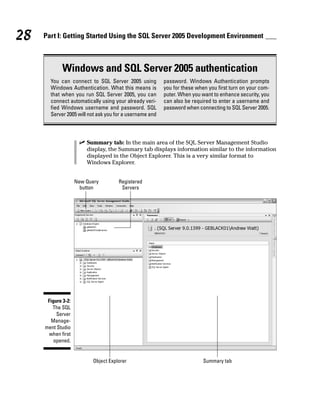
Launching SQL Server Management Studio
To launch SQL Server Management Studio, follow these steps:
1. Choose Start➪Microsoft SQL Server 2005➪SQL Server Management
Studio. For SQL Server Management Studio Express, select that prod-
uct on the final step.
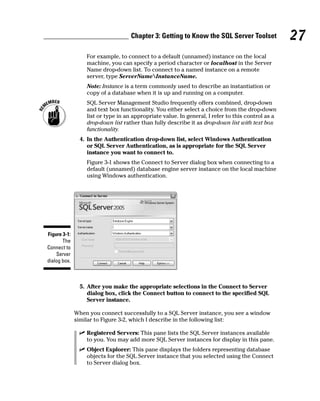
After you select a version of SQL Server Management Studio, you see a
prompt in the Connect to Server dialog box. (See Figure 3-1.)
2. In the Server Type drop-down list, select Database Engine.
3. In the Server Name drop-down list, select the name of the server
(plus the instance name, if appropriate).
26 Part I: Getting Started Using the SQL Server 2005 Development Environment
SQL Server 2005 tools and variants
For several of the tools I describe in this chap-
ter, Microsoft offers variants of the product for
sale or download. For example, SQL Server
Management Studio has a variant named SQL
Server Management Studio Express, which
is intended primarily for use with SQL Server
2005 Express Edition. Several variants of Visual
Studio 2005 are also for sale or for download. As
a result of that variation and the many possible
display configurations for those tools, what you
see on-screen may differ slightly from the
appearance in screenshots in this chapter.
For example, to connect to a default (unnamed) instance on the local
machine, you can specify a period character or localhost in the Server
Name drop-down list. To connect to a named instance on a remote
server, type ServerNameInstanceName.
Note: Instance is a term commonly used to describe an instantiation or
copy of a database when it is up and running on a computer.
SQL Server Management Studio frequently offers combined, drop-down
and text box functionality. You either select a choice from the drop-down
list or type in an appropriate value. In general, I refer to this control as a
drop-down list rather than fully describe it as drop-down list with text box
functionality.
4. In the Authentication drop-down list, select Windows Authentication
or SQL Server Authentication, as is appropriate for the SQL Server
instance you want to connect to.
Figure 3-1 shows the Connect to Server dialog box when connecting to a
default (unnamed) database engine server instance on the local machine
using Windows authentication.
5. After you make the appropriate selections in the Connect to Server
dialog box, click the Connect button to connect to the specified SQL
Server instance.
When you connect successfully to a SQL Server instance, you see a window
similar to Figure 3-2, which I describe in the following list:
⻬ Registered Servers: This pane lists the SQL Server instances available
to you. You may add more SQL Server instances for display in this pane.
⻬ Object Explorer: This pane displays the folders representing database
objects for the SQL Server instance that you selected using the Connect
to Server dialog box.
Figure 3-1:
The
Connect to
Server
dialog box.
27
Chapter 3: Getting to Know the SQL Server Toolset
⻬ Summary tab: In the main area of the SQL Server Management Studio
display, the Summary tab displays information similar to the information
displayed in the Object Explorer. This is a very similar format to
Windows Explorer.
New Query
button
Registered
Servers
Summary tab
Object Explorer
Figure 3-2:
The SQL
Server
Manage-
ment Studio
when first
opened.
28 Part I: Getting Started Using the SQL Server 2005 Development Environment
Windows and SQL Server 2005 authentication
You can connect to SQL Server 2005 using
Windows Authentication. What this means is
that when you run SQL Server 2005, you can
connect automatically using your already veri-
fied Windows username and password. SQL
Server 2005 will not ask you for a username and
password. Windows Authentication prompts
you for these when you first turn on your com-
puter. When you want to enhance security, you
can also be required to enter a username and
password when connecting to SQL Server 2005.
If there is a problem connecting to the specified server, you see an error
message similar to the one shown in Figure 3-3. If you receive an error, here
are some troubleshooting tips to try:
⻬ Make sure that you typed the machine name and instance name
(if there is one) correctly.
⻬ Make sure that you used the authentication appropriate for that SQL
Server instance. If the creator of an instance specified that only
Windows Authentication can be used, you see an error if you attempt
to connect to the server instance using SQL authentication.
⻬ Check the Services Console to make sure the SQL Server instance is run-
ning. The SQL Server instance might not be configured to accept remote
connections. In SQL Server Configuration Manager, described later in
this chapter, check that the relevant communication protocols have
been enabled.
(You can find the Services Console in the Control Panel under the
Administrative Tools section.)
Discovering what types of
queries you can create
When you launch SQL Server Management Studio, by default you see the
Standard toolbar shown in Figure 3-4. If the Standard toolbar is not visible,
choose View➪Toolbars➪Standard.
Standard toolbar
Figure 3-4:
The
Standard
toolbar.
Figure 3-3:
An error
message
appears
when
connection
to a SQL
Server
instance
fails.
29
Chapter 3: Getting to Know the SQL Server Toolset
To create a new Transact-SQL query, click the New Query button on the
Standard toolbar. The buttons to the right of the New Query button (refer to
Figure 3-4), enable you to perform the following specialized queries:
⻬ Database Engine Query: Create a database engine query.
⻬ Analysis Services MDX Query: Create an Analysis Services
Multidimensional Expressions (MDX) query.
⻬ Analysis Services DMX Queries: Create an Analysis Services Data
Mining Expressions (DMX query).
⻬ Analysis Services XMLA Query: Create an Analysis Services XMLA
query.
⻬ SQL Server Mobile Query: Create a SQL Server 2005 Mobile Edition
query.
If you hover the mouse pointer over these buttons, a tooltip tells you the pur-
pose of each button.
This book focuses on creating Transact-SQL scripts only. If the Code Editor
(described in the next section) opens with an unfamiliar interface, you likely
clicked one of the buttons for specialized queries in the SQL Server
Management Studio. (Refer to Figure 3-4.)
In addition to supporting creating queries, the Standard toolbar contains
buttons to display the Registered Servers pane, the Object Explorer, the
Template Explorer, and the Properties pane.
From many places in SQL Server Management Studio, you can press F4 and
the Properties pane for the currently selected database or other object
appears.
Creating a simple query
with the Code Editor
The Code Editor (sometimes called the Query Pane) is the area in SQL Server
Management Studio where you type Transact-SQL code or customize a
Transact-SQL template (which I describe in the next section).
When you click the New Query button to create a new Transact-SQL query,
the Summary tab is hidden behind the new query pane. The name for the
first query you create is, by default, SQLQuery1.sql. It appears on the page
tab toward the top of the screen. You can rename the query before you type
its content or when you save the query.
30 Part I: Getting Started Using the SQL Server 2005 Development Environment
Type the following code to create a simple Transact-SQL query, as shown in
Figure 3-5:
USE master
SELECT SERVERPROPERTY(‘Edition’)
This query returns information about the edition of SQL Server 2005 (or SQL
Server 2000) for the SQL Server instance that you’ve connected to. The first
line of the query specifies that SQL Server connects to the master database,
just prior to executing the query. The SERVERPROPERTY() function is used
to return information about the edition of SQL Server you’re using. Be careful
to enclose the argument to the function in paired apostrophes.
To execute the Transact-SQL query, press F5 or click the Execute button on
the SQL Editor toolbar. Figure 3-5 shows the result on a Developer Edition
machine.
Results appear either in a grid (refer to Figure 3-5) or as text. In addition, you
see information about the number of rows affected on the Messages tab.
In Chapter 4, I show you how to use many other aspects of the SELECT
statement used in this example.
Working with templates
Much of the time you spend writing Transact-SQL code you write your own
code from scratch. However, SQL Server Management Studio gives you many
prewritten pieces of code where, in effect, you can fill in the blanks. These
code templates are located in the Template Explorer tool.
Figure 3-5:
When you
execute a
Transact-
SQL query,
the results
appear
in a grid.
31
Chapter 3: Getting to Know the SQL Server Toolset
The Template Explorer might not be visible when you first open SQL Server
Management Studio. To open the Template Explorer, choose View➪Template
Explorer. The Template Explorer opens, by default, on the right side of the
SQL Server Management Studio.
To keep the Template Explorer open, click the horizontal pin that is located
toward the top right of the Template Explorer. When the pin is vertical, the
Template Explorer stays open.
The Template Explorer provides you with a broad range of templates, as you
can see in Figure 3-6. The icons at the top of Template Explorer select tem-
plates for the Database Engine (called, simply, SQL Server in the tooltip),
Analysis Services, and SQL Server Mobile.
To use a template, double-click it in the Template Explorer. The template
opens in the Query Pane, as shown in Figure 3-7 for the Create Database
template.
SQL Mobile
Analysis Services
SQL Server
Figure 3-6:
Create code
templates
using the
Template
Explorer.
32 Part I: Getting Started Using the SQL Server 2005 Development Environment
To specify values for a template parameter, choose Query➪Specify Values for
Template Parameters to open the Specify Values for Template Parameters
dialog box. Click in the Value column for the parameter that you want to
specify. In the Value column, type the desired value for the parameter. For
example, in Figure 3-7, you would type the name of a database you want to
create.
Creating a query with the Query Designer
In most of this book, I show you how to write code directly using the
Transact-SQL language. If at any time you’re struggling to get the syntax for a
query correct, one option you can use is the Query Designer in SQL Server
Management Studio. The Query Designer allows you to build a query graphi-
cally, using the tables as pictures. It also includes links between the tables,
based on keys linking tables together.
To open the Query Designer, click the Query Designer button on the SQL
Editor toolbar in Management Studio. If the SQL Editor toolbar is not visible,
choose View➪Toolbars➪SQL Editor.
Figure 3-7:
Specify
values for
a template
parameter.
33
Chapter 3: Getting to Know the SQL Server Toolset
Follow these steps to create a query using the Query Designer:
1. Click the New Query button to open a new query.
2. Select the AdventureWorks database in the drop-down list on the
toolbar and then click the Design Query in Editor button (shown in
Figure 3-8).
The Query Designer opens, as shown in Figure 3-9.
For more on the AdventureWorks sample database, see “Installing the
SQL Server Sample Databases,” later in this chapter.
Figure 3-9:
Using the
Query
Designer.
Figure 3-8:
The SQL
Editor
toolbar and
the button
to open
the Query
Designer.
34 Part I: Getting Started Using the SQL Server 2005 Development Environment
3. Select one or more tables and views from the Add Table dialog box.
You then select columns in one or more tables and views.
Figure 3-10 shows three tables added to the design surface. Their rela-
tionships appear visually. Notice, in the lower part of the figure, that the
Transact-SQL code has been created for you.
4. Click OK to close the Query Designer.
5. Click the Execute button on the SQL Editor toolbar to execute the
query.
Evaluating the execution plan of a query
To see the estimated execution plan of a query, right-click the Query Editor
surface and select Display Estimated Execution Plan. Figure 3-11 shows the
estimated execution plan for a query similar to the one created in the Query
Designer in Figure 3-10.
Figure 3-10:
A join
designed
using the
Query
Designer.
35
Chapter 3: Getting to Know the SQL Server Toolset
If a query is not performing well, or you simply want to ensure good perfor-
mance, inspect the various parts of the execution plan. Pay particular
attention to actions that have a high percentage showing. Of course, the
percentages add to 100. If, for example, a table scan is present and takes up
a significant percentage of the estimated execution plan, this condition
strongly suggests that you need to create an index.
Using the SQLCMD Utility
The SQLCMD utility is a new command line tool in SQL Server 2005 that
allows you to execute Transact-SQL statements interactively or to execute
prewritten Transact-SQL scripts. How useful you find SQLCMD depends on
how good your understanding of Transact-SQL is. Everything you do with
SQLCMD depends on the correct crafting of Transact-SQL statements. You
can either write the code yourself or execute Transact-SQL scripts that some-
body else has written.
To check whether SQLCMD is installed, follow these steps:
1. Open a command shell by choosing Start➪All Programs➪Accessories➪
Command Prompt.
2. If you’re connecting to a local default instance of SQL Server 2005,
simply type
SQLCMD
at the command line. Alternatively, when connecting to a named
instance on a remote server type, type
SQLCMD –S serverNameinstanceName
If you connect successfully to a SQL Server instance, the prompt in the
command shell changes to 1>. This means that the SQLCMD utility is
ready to accept Transact-SQL commands.
Figure 3-11:
An
estimated
execution
plan.
36 Part I: Getting Started Using the SQL Server 2005 Development Environment
To signal that you have finished entering Transact-SQL statements, type GO
on the command line. When you press the Enter key, the Transact-SQL com-
mands are executed:
USE master
SELECT * FROM Information_schema.tables
GO
The switches you use when starting the SQLCMD utility are case-sensitive.
To display help for the SQLCMD utility, type
sqlcmd -?
Getting to Know the SQL Server
Configuration Manager
Strictly speaking, SQL Server Configuration Manager is an administrator’s
tool. But the default settings of SQL Server 2005 after installation might stop
your code from working at all, so it’s important that you have some under-
standing of how to use it, at least in a development setting. In this section, I
briefly describe the SQL Server Configuration Manager and show you how to
make some frequently needed configuration tweaks.
To start SQL Server Configuration Manager, choose Start➪All Programs➪
Microsoft SQL Server 2005➪Configuration Tools➪SQL Server Configuration
Manager. Figure 3-12 shows SQL Server Configuration Manager with the
nodes (the + signs) in the left pane expanded.
You use SQL Server Configuration Manager to manage services related to SQL
Server. In Figure 3-12, the SQL Server 2005 Services node is selected. In the
right pane, you can see information about each of the services associated
with the instance of SQL Server 2005.
Right-clicking a service displays options to Start, Stop, or Restart a service,
as appropriate to the existing state of the service. If you select Properties
when right-clicking a service, the Properties dialog box appears. You can con-
figure the behavior of the service, including whether it starts automatically.
To configure network protocols, select a SQL Server instance under the SQL
Server 2005 Network Configuration node in the left pane. You see the current
configuration in the right pane, as shown in Figure 3-13. To connect remotely
to the chosen SQL Server 2005 instance, you need to enable TCP/IP or Named
Pipes, depending on your situation.
37
Chapter 3: Getting to Know the SQL Server Toolset
To change the setting for a network protocol, right-click the network protocol
of interest and select Enable or Disable, as appropriate.
Using Other SQL Server
Programming Tools
In this section, I briefly describe two more specialized programming tools
that you may use when programming SQL Server 2005.
Figure 3-13:
Configuring
network
protocols.
Figure 3-12:
Open SQL
Server
Configu-
ration
Manager to
view
information
about
associated
services.
38 Part I: Getting Started Using the SQL Server 2005 Development Environment
Part I: Getting Started Using the SQL Server 2005 Development Environment
Visual Studio 2005
The addition of the Common Language Runtime to the SQL Server 2005 data-
base engine means that developers who use Visual Studio can develop or
make use of database objects using .NET languages such as Visual C# and
Visual Basic 2005.
I show you how to use Visual Studio 2005 to create a database project in
Chapter 22.
The Business Intelligence
Development Studio
The Business Intelligence Development Studio (BIDS) is a powerful developer
tool for SQL Server 2005, but most of its capabilities lie outside the scope of
this book. Using BIDS, you can create projects for SQL Server Integration
Services, SQL Server Analysis Services, and SQL Server Reporting Services.
The SQL Server business intelligence paradigm is as follows:
⻬ Integrate (using Integration Services)
⻬ Analyze (using Analysis Services)
⻬ Report (using Reporting Services)
I cover using the Business Intelligence Development Studio in the next
section.
Accessing SQL Server
Books Online (BOL)
SQL Server 2005 is, really, a suite of programs whose scope is enormous.
There is no way that a printed book of this size can cover every nuance of
every aspect of SQL Server. Even a single aspect, such as SQL Server pro-
gramming, has so many possible uses and constraints that you need access
to comprehensive information.
SQL Server 2005 Books Online, often abbreviated to BOL, is the main, instal-
lable, official documentation portal for information about SQL Server 2005.
Specifically, BOL offers a great deal of useful reference information and fur-
ther detail on the Transact-SQL language and many other topics covered in
this book.
39
Chapter 3: Getting to Know the SQL Server Toolset
There is also a version of Books Online available online. At the time of writ-
ing, the current version is located at http://msdn2.microsoft.com/
en-us/library/ms130214.aspx.
If you want to install SQL Server 2005 Books Online, you must make an
explicit choice when installing SQL Server. If you want to install only SQL
Server 2005 Books Online, select the Advanced option for feature installation
and navigate the tree of installation options to specify that you want to install
BOL. If you don’t install BOL initially, you can run the Setup utility again and
elect to install BOL at that time.
To start SQL Server Books Online, choose Start➪All Programs➪Microsoft
SQL Server 2005➪Documentation and Tutorials➪SQL Server Books Online.
Figure 3-14 shows the initial appearance when you launch Books Online.
The exact appearance might vary slightly. In Figure 3-14, notice the buttons
for Contents, Index, and Help Favorites. When you click the Contents button,
you see a hierarchy of nodes arranged by topic, as shown in Figure 3-15.
Figure 3-14:
Find
additional
information
about SQL
Server 2005
in Books
Online.
40 Part I: Getting Started Using the SQL Server 2005 Development Environment
Part I: Getting Started Using the SQL Server 2005 Development Environment
A drop-down list near the top of the Contents pane allows you to filter the
displayed information by SQL Server component technology. The available
filter options are
⻬ SQL Server 2005
⻬ SQL Server Analysis Services
⻬ SQL Server Data Mining
⻬ SQL Server Database Engine
⻬ SQL Server Express
⻬ SQL Server Integration Services
⻬ SQL Server Mobile
⻬ SQL Server Notification Services
⻬ SQL Server Replication
⻬ SQL Server Reporting Services
For the purposes of this book, the SQL Server Database Engine filter is the
one you’re most likely to find useful. If you’re using this book to program
SQL Server Express Edition, you might find the SQL Server Express option
helpful, too.
Figure 3-15:
View the
Contents of
SQL Server
Books
Online.
41
Chapter 3: Getting to Know the SQL Server Toolset
Buttons on the Standard toolbar, shown in Figure 3-16, allow you to carry out
several, useful tasks. Here are a few you might find particularly useful:
⻬ How Do I: This button allows you to access help topics written specifi-
cally to answer frequently asked questions. The Database Services
option is particularly relevant to the topic of this book.
⻬ Search: Use this button to search the contents of SQL Server Books
Online. You can filter the search by selecting one or more topic areas.
Particularly relevant to the topics of this book are the SQL Server Data-
base Engine and Transact-SQL filter options in the Technology drop-
down list.
⻬ Sync with Table of Contents: The button to the left of the Ask a Question
button allows you to synchronize with the Contents pane. This can be
very useful when you find an interesting help page after carrying out a
search and want to view related help pages. This button is grayed out if
you have not selected a Help topic.
Installing the SQL Server
Sample Databases
There is no perfect substitute for working with real data. But because real
data is often commercially confidential data, you might find it necessary to
work with sample data. The SQL Server 2005 installation discs come with a
new, sample database, AdventureWorks, which is much more like real-life
data than the sample databases that were used with SQL Server 2000 — the
Northwind and pubs databases.
I use all three Microsoft sample databases in this book. If you have already
installed the AdventureWorks, Northwind, and pubs sample databases,
you can skip the rest of this section.
Standard toolbar
Figure 3-16:
The
Standard
toolbar in
SQL Server
Books
Online.
42 Part I: Getting Started Using the SQL Server 2005 Development Environment
Part I: Getting Started Using the SQL Server 2005 Development Environment
AdventureWorks
To install the AdventureWorks database, select the Advanced button when
running Setup. Navigate down the tree of installation options and select the
AdventureWorks sample databases for installation.
You also need to carry out a second step to be able to use the sample data-
bases. Choose Start➪All Programs➪Microsoft SQL Server 2005➪Documentation
and Tutorials➪Samples➪Microsoft SQL Server 2005 Samples. When the
installer starts, follow the on-screen instructions.
If you follow along with the example Transact-SQL code in this book, you can
potentially be making various changes to the AdventureWorks database. I
suggest that you make a copy of the AdventureWorks database to work on.
To do that using SQL Server Management Studio, follow these steps:
1. Open Object Explorer, if necessary, in SQL Server Management Studio
by choosing View➪Object Explorer.
2. Expand the node for the relevant SQL Server 2005 instance and then
expand the Databases node.
3. Right-click the AdventureWorks node and choose Tasks➪Copy
Database.
The Copy Database Wizard runs.
4. Click Next.
5. On the Select a Source Server screen, specify the location of the
server and the authentication method to use. Click Next.
6. Select a destination server and click Next.
7. On the Select a Transfer Method screen, select a method to use to
copy the database. (Because this is only sample data, you can use the
faster detach and attach method.) Click Next.
8. On the Select Databases screen, enable the check box for the
AdventureWorks database. Click Next.
9. On the Configure Destination Database screen, name the copy
AdventureWorks_new. Click Next, click Next, and click Finish.
The package you create using the Copy Database Wizard runs and creates a
copy of the AdventureWorks database. Use the copy of the database when
trying out Transact-SQL code so that the original stays intact.
43
Chapter 3: Getting to Know the SQL Server Toolset
Northwind and pubs
The Northwind and pubs databases, unlike the AdventureWorks database,
aren’t on the SQL Server 2005 discs. To download the installers for the
Northwind and pubs databases, go here:
www.microsoft.com/downloads/details.aspx?FamilyID=06616212-0356-46A0-8DA2-
EEBC53A68034&displaylang=en
The file you want is SQL2000SampleDb.msi.
Run the installer to install the Northwind and pubs databases in your SQL
Server 2005 installation.
After you successfully install the sample databases, you’re ready to try out
the various forms of the SELECT statement that I describe in Chapter 4.
44 Part I: Getting Started Using the SQL Server 2005 Development Environment
Part I: Getting Started Using the SQL Server 2005 Development Environment
Part II
Retrieving
Data Using
Transact-SQL
In this part . . .
This part discusses how to read and change data in a
database. Reading data from a database is called
querying. A query quite literally queries the data, asking a
question of the database. Changing data in a database
uses specialized statements for adding new data, or
changing and deleting existing data.
A query is made up of various parts, the principal parts
being the SELECT clause and the FROM clause. In other
words, you SELECT columns FROM tables. You can refine
queries using a WHERE clause to filter out data, an ORDER
BY clause to sort data, and a GROUP BY clause to summa-
rize data. You can also merge data by reading from more
than one table at once. This is known as a join because it
joins data from two tables into a single query. Other more
advanced types of queries include subqueries, which are
queries called from other queries. You can change data
in the database using the INSERT, UPDATE, and DELETE
statements.
Chapter 4
RetrievingDataUsing
theSELECTStatement
In This Chapter
䊳 Knowing your database’s objects
䊳 Selecting columns with the SELECT statement
䊳 Reading tables with the FROM clause
䊳 Filtering with the WHERE clause
䊳 Sorting with the ORDER BY clause
䊳 Aggregating with the GROUP BY clause
The most common action on a database is retrieving data. Retrieving data
from a database is why you store data in the first place. You want to make
use of the data in different ways, and storing it in a relational database man-
agement system such as SQL Server 2005 allows you to access your data in
many useful ways.
The Transact-SQL SELECT statement is the statement you use to retrieve
data. The SELECT statement is powerful and flexible. In this chapter, I show
you how to use the SELECT statement and show you several commonly used
clauses — the FROM clause, the WHERE clause, the GROUP BY clause, and the
ORDER BY clause.
The simplest use of the SELECT statement is to retrieve data from a single
table. In real life, you don’t do that very often from a relational database, but
it’s a useful way to explore the clauses that you can use in the SELECT state-
ment. To retrieve data from multiple tables using the SELECT statement means
you have to use joins. A join is the term for selecting data from two (or more)
tables based on some specified criterion. I show you how to use joins in
Chapter 5.
I use Transact-SQL keywords, such as SELECT, in uppercase letters. You
don’t need to do that, but I find it convenient because it helps me easily see
the structure of a complex query.
Exploring Your Database’s Objects
To work with any Transact-SQL statement, you need to understand the char-
acteristics of objects in your databases. You need to know which database
contains the data you want to access. You also need to know which table or
view contains the desired data. In addition, to focus data retrieval on relevant
columns, you also need to know the column names so that you can specify
them when you create a SELECT query.
To view the databases on a SQL Server 2000 or 2005 instance using SQL
Server Management Studio, follow these steps:
1. Open SQL Server Management Studio.
Choose Start➪All Programs➪Microsoft SQL Server 2005➪SQL Server
Management Studio.
2. If the Registered Servers pane isn’t visible, choose View➪Registered
Servers to display it.
3. Click the Database Engine icon on the toolbar in the Registered
Servers pane.
4. If the desired SQL Server instance is displayed in the Registered
Servers pane, skip to Step 10. If not, right-click Database Engine to
register a new SQL Server instance. In the context menu, choose
New➪Server Registration, as shown in Figure 4-1.
The New Server Registration dialog box, shown in Figure 4-2, opens.
5. Enter the name for the SQL Server instance in the Server name drop-
down list.
To connect to the default instance on the local machine, type a single .
(period character). To connect to a named instance on the local machine,
type .InstanceName. To connect to a default instance on a remote
machine, type the server name. To connect to a named instance on a
remote machine, type ServerNameInstanceName.
6. Specify the authentication method in the Authentication drop-down
list.
7. If desired, edit the text automatically entered in the Registered Server
Name text box.
48 Part II: Retrieving Data Using Transact-SQL
8. Click the Test button to check that you can connect to the desired SQL
Server instance.
If you get an error message, check to make sure that you have typed the
server name and/or instance name correctly.
Figure 4-2:
Specifying
information
about a new
registered
server.
Database Engine
Figure 4-1:
Registering
a new SQL
Server
instance
in the
Registered
Servers
pane.
49
Chapter 4: Retrieving Data Using the SELECT Statement
If you’re trying to connect to a newly installed SQL Server instance and
you’re having problems, open SQL Server Configuration Manager. Verify
that the network protocols for the instance are enabled using SQL Server
Configuration Manager on the server where you installed the instance.
9. When you can connect successfully to the desired SQL Server
instance, click the Save button.
The SQL Server instance is then displayed in the Registered Servers
pane.
10. Right-click the desired instance name in the Registered Servers pane
and choose Connect➪Object Explorer in the context menu, as shown
in Figure 4-3.
The Object Explorer opens. The initial appearance is shown in Figure 4-4.
Figure 4-4:
The initial
appearance
of the
Object
Explorer.
Figure 4-3:
Choosing to
open a
registered
server in
Object
Explorer.
50 Part II: Retrieving Data Using Transact-SQL
11. To explore the database objects, navigate to the column names by
expanding the nodes (the + signs) in the following order: Databases➪
[database name]➪Tables➪[table name]. Explore the table objects as
desired.
For example, for the pubs database, follow this path to explore the columns
in the Publishers table: Databases➪Pubs➪Tables➪dbo.publishers folder➪
Columns. You should see an appearance similar to Figure 4-5. You might need
to scroll up or down in the Object Explorer to see all the information shown
in Figure 4-5.
In the example in the next section, the aim is to retrieve the name and coun-
try of the publishers in the pubs database. Before you can do this retrieval,
you need to inspect the information about columns in the dbo.publishers
table to determine the names of the relevant columns.
This technique is also useful when you come to insert, update, or delete
information from SQL Server 2005 databases. In that case, you often need to
know the data type of the data in the columns you work with.
Figure 4-5:
Displaying
information
about the
columns
of the
Publishers
table in
the pubs
database.
51
Chapter 4: Retrieving Data Using the SELECT Statement
Introducing the SELECT Statement
The SELECT statement is the Transact-SQL statement that retrieves, or
selects, data from a SQL Server database.
The following summarizes the forms that the SELECT statement can take:
SELECT [ALL | DISTINCT]
[TOP expression]
[<select_list>]
[FROM <table_source>]
[WHERE <search_condition>]
[GROUP BY group_by_expression]
[HAVING search_condition]
[ORDER BY order_by_expression]
The paired square brackets ([ ]) contain optional clauses. As you can see in
the preceding partial definition, almost everything, apart from the SELECT
statement itself, is optional. This illustrates how flexible the SELECT state-
ment can be. It also shows you that you need to think carefully about how you
use the SELECT statement because you have so many options available to
you. Table 4-1 describes the function of each part of the SELECT statement.
Table 4-1 SELECT Statement Clauses
Clause What It Does
FROM Specifies one or more tables to read data from.
WHERE Applies one or more filters rows accessed, retrieving only wanted
rows (or removing unwanted rows).
ORDER BY Resorts rows into a specific order.
GROUP BY Summarizes (or aggregates) rows into fewer rows, based on
some aggregate, such as a SUM function to add rows together for
duplicated values.
HAVING Works similar to the WHERE clause, applying a filtering mecha-
nism to rows. The HAVING clause applies to aggregated rows
returned from the GROUP BY clause. The WHERE clause applies
to rows returned from SELECT and FROM clauses.
In the remainder of the chapter, I explain in detail how to use the FROM, WHERE,
ORDER BY, GROUP BY, HAVING and WITH clauses, in tandem with the SELECT
statement.
52 Part II: Retrieving Data Using Transact-SQL
Using the FROM Clause
A simple use of the SELECT statement is to select one or more columns from
a single SQL Server table. The following Transact-SQL code retrieves the name
and country of publishers stored in the dbo.publishers table of the pubs
database:
USE pubs
SELECT pub_name, country
FROM dbo.publishers
In the first line, the USE statement specifies which database the following
Transact-SQL code is to execute relative to. If you don’t specify a database in
a USE statement, the code executes against the most recently used database
or the default database. If you include a USE statement in your Transact-SQL
code, it removes any ambiguity about the database that it will execute against.
Unless you want to create a general-purpose Transact-SQL script, I suggest
you use the USE statement routinely.
Using a USE statement regularly makes sure that your Transact-SQL code
runs against the specified database.
The next line of code
SELECT pub_name, country
specifies that you select two, named columns, pub_name and country. All
other columns are ignored.
The FROM clause
FROM dbo.publishers
specifies that the columns selected in the select list of the SELECT statement
come from the dbo.publishers table.
To execute the code, press the F5 key or click the Execute button. Figure 4-6
shows the results of executing the code.
In Figure 4-6, the results are displayed in a grid. If you prefer the results to be
displayed as text, choose Tools➪Options, and the Options dialog box opens.
Choose Query Results➪SQL Server and select Results to Text in the Default
Destination for Results drop-down list shown in Figure 4-7.
53
Chapter 4: Retrieving Data Using the SELECT Statement
To select all the columns in a table, use the * wildcard as the value of the
select list. The following code displays all columns in the dbo.publishers
table:
USE pubs
SELECT *
FROM dbo.publishers
Using the * wildcard allows you to quickly display all columns from a table.
Once you see what columns are available, you can choose a more specific
select list.
Figure 4-7:
Modifying
the
destination
for query
results.
Figure 4-6:
Using the
SELECT
statement
to select
specified
columns
from a
single table.
54 Part II: Retrieving Data Using Transact-SQL
The select list can be any of the following:
⻬ Database table
⻬ Database view
⻬ Derived table
⻬ Joined table
I show you how to use joins in Chapter 5.
In many situations, using the FROM clause as the only clause in a SELECT
statement returns potentially enormous amounts of unwanted data. You
often need to filter the data returned from a query. That’s when you use the
WHERE clause, which I describe in the next section.
The WHERE Clause
The WHERE clause filters data returned by a SELECT statement. The WHERE
clause allows you to use many comparison operators, logical operators, and
other keywords to filter data in a wide range of ways.
To filter data on publishers so that only publishers based in the USA are dis-
played, add a WHERE clause:
USE pubs
SELECT pub_name, country
FROM dbo.publishers
WHERE country = ‘USA’
Figure 4-8 shows the results returned by the query. Notice that only USA-
based publishers are displayed.
The value of the WHERE clause tests the value of the country column for
equality. For each publisher, the value of the country column is tested
against the value ‘USA’. If it equals ‘USA’, the row is included in the
resultset.
By default, SQL Server ignores case in WHERE clause filters. However, this
can be changed. This is not the case for other relational databases, and
ignoring case could cause serious confusion in many circumstances. For
example, US could mean United States or us, as in a group of people talking
about themselves.
55
Chapter 4: Retrieving Data Using the SELECT Statement
The following sections explain how you use operators and keywords to filter
data in a WHERE clause.
Using comparison operators
Table 4-2 lists which comparison operators you can use in a WHERE clause.
Table 4-2 Comparison Operators
Operator What It Tests For
= Equality
<> Inequality
!= Inequality (an alternative way of writing <>). Inequality is extremely
inefficient because searching for what is not there requires scanning
through everything.
> The left expression being greater than the right expression.
< The left expression being less than the right expression.
>= The left expression being greater than or equal to the right
expression.
<= The left expression being less than or equal to the right expression.
Figure 4-8:
Filtering
results
using a
simple
WHERE
clause.
56 Part II: Retrieving Data Using Transact-SQL
The operators that test for some type of inequality can be used with character-
or numeric-value data types. For example, to display publishers for which the
country comes alphabetically before H, use the following command:
USE pubs
SELECT pub_name, country
FROM dbo.publishers
WHERE country < ‘H’
To retrieve information about publishers for whom the pub_id is greater
than 9000, use the following query:
USE pubs
SELECT *
FROM dbo.publishers
WHERE pub_id > 9000
Figure 4-9 shows the results of executing the two preceding queries.
Combining comparison operators
with AND, OR, or NOT
You can combine comparison operators using the logical operators in Table 4-3.
Figure 4-9:
Using
comparison
operators
other than
for equality.
57
Chapter 4: Retrieving Data Using the SELECT Statement
Table 4-3 Logical Operators
Operator What It Does
AND Returns a row only if both conditions are true.
OR Returns a row if either condition is true.
NOT Negates the tested condition.
To retrieve information on publishers where the value in the country column
is either USA or Germany, you can use the OR operator in the following query:
USE pubs
SELECT *
FROM dbo.publishers
WHERE country = ‘USA’ OR country = ‘Germany’
Figure 4-10 shows the results of executing the preceding query.
I use the AND logical operator in the following example. To retrieve informa-
tion about publishers whose pub_id is greater than 1000 and whose state is
greater than N, use the following command:
USE pubs
SELECT *
FROM dbo.publishers
WHERE pub_id > 1000 AND state > ‘N’
Figure 4-10:
Using an OR
operator in
a WHERE
clause.
58 Part II: Retrieving Data Using Transact-SQL
Figure 4-11 shows the results of executing the preceding query with and with-
out the WHERE clause, to illustrate the effect of using the WHERE clause and
including the AND logical operator.
In Figure 4-11, each row in the resultset has a value greater than 1000 in
the pub_id column and a value greater than N in the state column. In the
second row, the value NY in the state column is greater than N because it
would follow N in an alphabetically sorted list. If the WHERE clause is removed
from the query, a lot more rows would be returned because the restricting
filter is removed.
Using other keywords with
the WHERE clause
In addition to the operators already described in this section, you can use
other keywords in the FROM clause, as shown in Table 4-4.
Figure 4-11:
Using
the AND
operator in
a WHERE
clause.
59
Chapter 4: Retrieving Data Using the SELECT Statement
Table 4-4 Other Keywords
Keyword What It Does
BETWEEN Tests whether the value in a column lies between two, specified
values. The range is inclusive.
CONTAINS Tests whether the value in a column contains a specified
sequence of characters.
ESCAPE Escapes a wildcard character, enabling you to search for a literal
occurrence of a wildcard character.
FREETEXT Tests for meaning — rather than a literal match — in a character-
based column.
LIKE Uses wildcards to test similarity to a column value.
The CONTAINS and FREETEXT keywords depend on a table being full-text
indexed. I show you how to do that after the next example.
BETWEEN
The following example illustrates use of the BETWEEN keyword. Notice that
the resultset contains values that are exact matches for the values speci-
fied. In other words, the range is inclusive.
USE pubs
SELECT *
FROM dbo.publishers
WHERE pub_id BETWEEN 9901 AND 9999
60 Part II: Retrieving Data Using Transact-SQL
What is an escape character?
Some specialized characters are interpreted as
commands. For example, an asterisk (*) char-
acter is often used to represent any character.
So, a * character is called a wildcard character.
If a string in a column contains a * character,
you don’t want the database engine to interpret
the * in your string as a wildcard, but to simply
return*asapartofthestring.Thewaytoprevent
interpretation is to escape the wildcard char-
acter, which prevents database engine inter-
pretation and simply treats the * character as a
literal value. The term escape sequence is
applied to multiple characters when they are all
escaped at once, such as three consecutive
asterisks (***).
Figure 4-12 illustrates the results of running the preceding query.
CONTAINS
The following example returns information about publishers whose country
contains the character sequence ‘USA’.
USE pubs
SELECT *
FROM dbo.publishers
WHERE CONTAINS (country, ‘USA’)
In the dbo.publishers tables, this means that rows for publishers from the
United States are returned, as shown in Figure 4-13.
Before you can run the preceding query, you must enable full-text searching
for the table. To do that, follow these steps:
1. In Object Explorer, right-click the dbo.publishers table. Choose
Full-Text Index➪Define Full-Text Index.
The Full-Text Indexing Wizard opens.
Figure 4-13:
Using
CONTAINS
in a WHERE
clause.
Figure 4-12:
Using the
BETWEEN
keyword in
a WHERE
clause.
61
Chapter 4: Retrieving Data Using the SELECT Statement
2. Click Next on the splash screen. Click Next on the Select and Index
screen.
3. On the Select Table Columns screen, enable the check box for the
country column, as shown in Figure 4-14. Click Next.
The aim is to be able to use full-text search in the country column.
4. Click Next on the Select Change Tracking screen.
5. On the Select a Catalog screen, type Chapter4 in the Name text box.
Click Next.
6. Click the New Catalog Schedule button on the Define Population
Schedules screen.
7. Click OK on the New Full-Text Indexing Catalog Schedule screen.
8. Click Next on the Define Population Schedules screen.
9. On the Full-Text Indexing Wizard Descriptions screen, click Finish.
10. When the Full-Text Indexing Wizard Progress dialog box completes
successfully, click Close.
Now, execute the preceding query. You should see a resultset, as shown in
Figure 4-13.
LIKE
Another option in the WHERE clause is to use the LIKE keyword, which allows
you to look for values using wildcard matching. The available wildcards are
listed in Table 4-5.
Figure 4-14:
Select the
column(s) to
create a
full-text
index on.
62 Part II: Retrieving Data Using Transact-SQL
Table 4-5 Wildcards
Wildcard What It Matches
% A string of zero or more characters
_ A single character
[] One of the characters inside the square brackets — characters
inside the square brackets are a character class
* [^] Any character not inside the square brackets
The following query matches publishers where the city begins with B. The
LIKE keyword is used, and B% means B followed by zero or more other char-
acters. In other words, words that begin with B.
USE pubs
SELECT *
FROM dbo.publishers
WHERE city LIKE ‘B%’
Figure 4-15 shows the results of executing the preceding query.
The following query finds publishers where the state begins with M or N.
USE pubs
SELECT *
FROM dbo.publishers
WHERE state LIKE ‘[MN]%’
Figure 4-16 shows the results of executing the preceding query.
Figure 4-15:
Using
the LIKE
keyword to
find cities
that begin
with B.
63
Chapter 4: Retrieving Data Using the SELECT Statement
So far, I have accepted a resultset in the order that SQL Server happens to
return it. Often, you will want to take some control over how rows are ordered
in a resultset. The ORDER BY clause, which I describe next, gives you con-
trol over that.
The ORDER BY Clause
The ORDER BY clause specifies how you want results ordered in a resultset.
The following query specifies that the resultset is to be ordered by the
value of the pub_id column. The default ordering is ascending.
USE pubs
SELECT *
FROM dbo.publishers
ORDER BY pub_name
Figure 4-17 shows the results of executing the preceding query. Notice that
the rows are ordered alphabetically by the value of the publisher name.
Figure 4-17:
Using
ORDER BY
to order a
resultset.
Figure 4-16:
Using a
character
class in the
WHERE
clause.
64 Part II: Retrieving Data Using Transact-SQL
To display a resultset in descending order, use the following query:
USE pubs
SELECT *
FROM dbo.publishers
ORDER BY pub_name DESC
You can specify multiple columns by which you want a resultset ordered.
The GROUP BY Clause
The GROUP BY clause specifies how data in a resultset is to be grouped.
The GROUP BY statement is used together with aggregates in Table 4-6.
Table 4-6 Aggregates
Aggregate What It Does
AVG The average (arithmetic mean) of values in a column
MAX The maximum value in a column
MIN The minimum value in a column
SUM The sum of values in a column
To explore how to use aggregates, use the AdventureWorks database. The
following query returns information about two specified order numbers (for
convenience of display) whose sales order ID is specified in the WHERE
clause. It doesn’t use either an aggregate function or the GROUP BY clause. I
show you that in the following example.
USE AdventureWorks
SELECT SalesOrderID AS “Order Number”, LineTotal AS “Line
Total”
FROM Sales.SalesOrderDetail
WHERE SalesOrderID BETWEEN 43660 AND 43661
Figure 4-18 shows the results of executing the preceding query.
I chose to display the column titles in English rather than just use the column
names. The AS keyword supports that user convenience.
65
Chapter 4: Retrieving Data Using the SELECT Statement
In the following query, I use the SUM() function and the GROUP BY clause to
add the line totals together for the specified orders.
USE AdventureWorks
SELECT SalesOrderID AS “Order Number”, SUM(LineTotal) AS
“Sub Total”
FROM Sales.SalesOrderDetail
WHERE SalesOrderID BETWEEN 43660 AND 43661
GROUP BY SalesOrderID
ORDER BY SalesOrderID
Notice the SUM() function in the SELECT line. Notice that the GROUP BY and
ORDER BY clauses each use the SalesOrderID. Figure 4-19 shows the
results returned by the preceding query.
Figure 4-19:
Using the
SUM()
function and
the GROUP
BY clause.
Figure 4-18:
Displaying
line totals
for two
specified
orders.
66 Part II: Retrieving Data Using Transact-SQL
A HAVING clause can be used to restrict the results of the preceding query
based on the resulting SUM function. This is a different filtering mechanism to
that of the WHERE clause filter:
USE AdventureWorks
SELECT SalesOrderID AS “Order Number”, SUM(LineTotal) AS
“Sub Total”
FROM Sales.SalesOrderDetail
WHERE SalesOrderID BETWEEN 43660 AND 43661
GROUP BY SalesOrderID HAVING SUM(LineTotal) > 10000
ORDER BY SalesOrderID
I don’t cover all options of the SELECT statement in this chapter. There are
options including those for creating multi-dimensional analytical reports and
returning XML. XML is covered in Chapter 20. Multi-dimensional queries are
too detailed for this book and can be found be reading about the Analysis
Service. In Chapter 5, I show you how to use the syntax for creating joins in
SELECT statements.
67
Chapter 4: Retrieving Data Using the SELECT Statement
68 Part II: Retrieving Data Using Transact-SQL
Chapter 5
CreatingJoins
In This Chapter
䊳 Retrieving data from multiple tables
䊳 Joining with code or a GUI interface: Transact-SQL or SQL Server Management Studio
䊳 Streamlining the code with aliases
䊳 Exploring one-to-many and many-to-many relationships
䊳 Working with outer joins and cross joins
The simple use of SELECT statements on columns in a single table that you
see in Chapter 4 is pretty limited in its usefulness for retrieving real-world
data from a relational database. By definition, all but the simplest relational
databases contain data with relationships between data in two or more
tables. This circumstance means that in most queries you need to retrieve
and display data from two or more tables. The simple form of the SELECT
statement you see in Chapter 4 doesn’t solve that need.
The need to retrieve data from multiple tables is due to the design of rela-
tional database tables. When designing a table, you do it in a way that avoids
repeating data. That’s a good thing because if some data changes (say, a cus-
tomer address), you don’t have to dive into every place that the address
occurs to change it. That would be a maintenance nightmare if you held all
the data about orders in a single table and that customer had made dozens of
orders. You would have to make multiple changes of the same data, with the
risk of introducing data inconsistencies.
To avoid such problems, a database in a relational database management
system uses relations between tables. A relation in relational database termi-
nology is, in actuality, a table. But in the context of relational database model-
ing, it means the table and how it relates to other tables, using relationships
between those tables.
To retrieve data from multiple tables, you use a join, which is a SQL standard
term used to describe various methods of merging rows from two tables. This
chapter describes three broad types of joins:
⻬ Inner join: An intersection between two tables where only matching
rows are returned.
⻬ Outer join: Includes an intersection plus rows in one table, which are
not present in both tables.
⻬ Cross join: A Cartesian product merging rows from two tables, regard-
less of any matching values. A Cartesian product joins every row in one
table to every other row in the second table, regardless of any matching
values.
Understanding the Need for Joins
A relational database is used to store data in separate tables. For example, in
the pubs database, information about publishers and book titles is stored in
the dbo.publisher and dbo.titles tables. Figure 5-1 shows the columns
contained in the dbo.publishers table. Notice the key symbol beside the
name of the pub_id column and the PK inside the parentheses to the right
of the column name. Together, these visual cues indicate that the pub_id
column is the primary key for the dbo.publishers table. A primary key is
a column, or group of columns, that uniquely identifies a row in a table.
In Figure 5-2, you see the data from the dbo.publishers table. Notice that
each value in the pub_id column is different. If you attempt to add a row
with a duplicate value in the pub_id column using the INSERT statement
(which I tell you about in Chapter 7), SQL Server displays an error. You’re not
allowed to add a duplicate value to that column because it is the primary key.
A primary key is a special constraint placed on a table for two reasons:
Figure 5-1:
The
columns
of the dbo.
publishers
table.
70 Part II: Retrieving Data Using Transact-SQL
⻬ A primary key must be unique. It ensures that every row can be uniquely
identified and found individually, later on. If you have a table of cus-
tomers with two customers of the same name in two separate cities,
then neither could be uniquely identified, and you wouldn’t know who
to bill.
⻬ A primary key is used to validate relationships between relations
(tables). This is called referential integrity, which ensures that all rows in
all tables in a database are valid.
As you can see in Figure 5-2, the dbo.publishers table contains informa-
tion about different publishers, but it doesn’t list any of the titles that they
publish. To find information about titles, you need to examine the dbo.
titles table. Figure 5-3 shows the columns in the dbo.titles table. Notice
that the title_id column has the visual cues that tell you that the title_
id column is the primary key for the dbo.titles table. Notice, too, the pub_
id column in the dbo.titles table. It has a key symbol to the left of the
column name and has FK inside the parentheses to the right of the column
name. These visual cues indicate that the pub_id column is a foreign key.
A foreign key is, quite literally, foreign to the table it is created in. Like a pri-
mary key, a foreign key is also a referential integrity constraint. However, a
foreign key is placed on the child table of a parent-child relationship. A for-
eign key is thus used to identify a row in a table, as being directly related to
the primary key, of a row in another table. The dbo.publishers table
uniquely identifies each row by its pub_id column. So, a table of titles will
have a foreign key pub_id, which relates each title back to its respective
publisher.
Figure 5-2:
The data
in the dbo.
publishers
table.
71
Chapter 5: Creating Joins
Figure 5-4 shows some of the data contained in the dbo.titles table. Pay
particular attention to the values in the pub_id column. Notice, for example,
that in several rows from the dbo.titles table, the value in the pub_id
column is 1389, which is the same value you find in the pub_id column in
the dbo.publishers table for the publisher Algodata Infosystems.
The presence of the value 1389 in the pub_id column in the dbo.titles
table indicates that the publisher for each of those titles is Algodata
Infosystems.
If you want to ask a question such as, “Which titles are published by Algodata
Infosystems?” you know from your understanding of the dbo.publishers
and dbo.titles tables that you can execute a simple SELECT statement like
this:
USE pubs
SELECT title, type, pub_id
FROM titles
WHERE pub_id = ‘1389’
The results from this query show the title and type for each book published
by Algodata Infosystems, as shown in Figure 5-5.
Figure 5-4:
The data
in the
dbo.titles
table.
Figure 5-3:
The
columns
of the
dbo.titles
table.
72 Part II: Retrieving Data Using Transact-SQL
The data in the pub_id column isn’t in a user-friendly form. If you include
the preceding query in an application, an end user doesn’t know what a pub_
id of 1389 means. The data that would be meaningful to her — the name of
the publisher — is in another table, in this case the dbo.publishers table.
To present information in a way that makes sense to an end user, you need to
retrieve and display data from the two tables you have looked at. You can do
this by creating a join between the two tables.
You can create joins in the FROM clause or in the WHERE clause of a SELECT
statement. Microsoft recommends that you use the technique that uses the
FROM clause. That is the syntax I show you for each type of join that I demon-
strate in this chapter.
Creating an Inner Join
Inner joins are the kinds of joins that you’re likely to use most often. An inner
join is an intersection between two tables where rows are joined based on one
or more matching column values. Inner joins allow you to answer questions
like, “Which books does Algodata Infosystems publish and what categories are
they in?” You need to retrieve information from the dbo.publishers and
dbo.titles tables to answer those questions. The publisher name is con-
tained in the pub_name column of the dbo.publishers table. You can
retrieve that information using a SELECT statement like this:
SELECT pub_name
FROM dbo.publishers
Similarly, to retrieve the book title and category information, you need data
from the title and type columns in the dbo.titles table. You can also
retrieve that information with a SELECT statement:
Figure 5-5:
Data on
titles
published by
Algodata
Infosystems.
73
Chapter 5: Creating Joins
SELECT title, type
FROM dbo.titles
Now, you need to find a way to combine these two SELECT statements so
that only the information about titles published by Algodata Infosystems is
displayed. To do that, you can modify the preceding code by adding a WHERE
clause so that the code reads as follows:
SELECT pub_name
FROM dbo.publishers
WHERE pub_id = ‘1389’
and
SELECT title, type
FROM dbo.titles
WHERE pub_id = ‘1389’
If you combine these to form the following query, you get close to a solution,
but a new problem arises.
USE pubs
SELECT pub_name, title, type
FROM publishers, titles
WHERE pub_id = ‘1389’
As you can see in Figure 5-6, the column name pub_id is ambiguous because
it occurs in both the dbo.publishers and dbo.titles tables.
To remove that ambiguity, you need to identify which table the pub_id
column is in. You do that by adding the table name and a period (.) before
the column name. You have to disambiguate the pub_id column. It’s also a
good idea to disambiguate the columns that you want to display, although in
this example, the column names are enough. Apart from the pub_id column,
no other column name is used in both tables. The following code gets the
answer to your question, as you can see in Figure 5-7.
Figure 5-6:
An attempt
to retrieve
data from
two tables.
74 Part II: Retrieving Data Using Transact-SQL
USE pubs
SELECT publishers.pub_name, titles.title, titles.type
FROM publishers, titles
WHERE publishers.pub_id = ‘1389’
AND publishers.pub_id = titles.pub_id
The code supplies the answer to the question, but unfortunately, it uses
the deprecated (no longer supported) syntax for a join: a WHERE clause. The
recommended method is to use the FROM clause, as I describe next. However,
I think it’s useful to see the WHERE clause syntax because it shows you the
logic that you use to create a join.
Now, look at the syntax needed to answer the original question, “Which titles
does Algodata Infosystems publish and what categories are they in?”
USE pubs
SELECT publishers.pub_name, titles.title, titles.type
FROM publishers
INNER JOIN titles
ON publishers.pub_id = titles.pub_id
WHERE publishers.pub_id = ‘1389’
Notice the inner join with the titles table in the fourth line. That, taken
together with the FROM clause on the third line, specifies the two tables in
this inner join. The ON clause in the fifth line specifies the criterion for the
join. In this case, the value of publishers.pub_id equals titles.pub_id.
Figure 5-8 shows the result of executing the preceding code.
The join based on a WHERE clause works and produces in the example the
same results as the recommended FROM clause syntax, as you have just seen.
So why is the other method, using the FROM clause, the recommended syntax?
Figure 5-7:
A join
using the
deprecated
WHERE
clause
syntax.
75
Chapter 5: Creating Joins
The method using the FROM clause is more portable, if you need to write
code that isn’t confined to SQL Server 2005. Also, there have been hints from
Microsoft that the old syntax (the WHERE clause syntax) might be dropped in
a future version of SQL Server. The choice of which syntax to use is yours in
SQL Server 2005. However, I suggest that you use the inner join syntax.
Using aliases for table names
Before going on to look at more complex inner joins, I want to point out a
syntax convention that you’re likely to find frequently in other developers’
code and that you might prefer to the code I show earlier in the chapter.
Compare this version of the code (which you see in the preceding section):
USE pubs
SELECT publishers.pub_name, titles.title, titles.type
FROM publishers
INNER JOIN titles
ON publishers.pub_id = titles.pub_id
WHERE publishers.pub_id = ‘1389’
with the following version:
USE pubs
SELECT p.pub_name, t.title, t.type
FROM publishers AS p
INNER JOIN titles AS t
ON p.pub_id = t.pub_id
WHERE p.pub_id = ‘1389’
If you run the code, you get the same results because the two versions of the
code mean the same. Notice that instead of using the name of the table I use
Figure 5-8:
Creating an
inner join
using the
recom-
mended
FROM
clause
syntax.
76 Part II: Retrieving Data Using Transact-SQL
an alias for each table name, which is simply a shorthand way of referring to
a database object. The alias for the publishers table is defined in this line:
FROM publishers AS p
And the alias for the titles table is defined on this line:
INNER JOIN titles AS t
You can choose any alias you like to replace table names — provided you
stick to legal SQL Server names and avoid using a Transact-SQL keyword as
an alias.
Notice in the two preceding lines of code that I use the AS keyword. SQL
Server allows you to omit that. So an alternative way to specify the alias for
the publishers table is
FROM publishers p
My personal preference is to include the AS keyword, but either syntax is
supported in SQL Server.
The choice of whether to use aliases is yours. Using aliases can be helpful
when you write complex queries. The alias makes the code shorter and
(hopefully) easier to read.
Creating an inner join with SQL
Server Management Studio
You can create a join using Transact-SQL just as I showed you in the preced-
ing examples. SQL Server Management Studio also allows you to graphically
create a query, which includes an inner join.
With SQL Server Management Studio open, follow these steps:
1. Click the Design Query in Editor button shown in Figure 5-9 to open
the Query Designer.
When the Query Designer opens, the Add Table dialog box appears, as
shown in Figure 5-10.
2. In the Add Table dialog box, select the publishers table and then
click Add.
3. Select the titles table and click Add.
77
Chapter 5: Creating Joins
4. Click the Close button to close the Add Table dialog box.
The Query Designer now looks similar to Figure 5-11. I moved the
table graphics in the design area to show the relationship between the
publishers table and the titles table. You can see in Figure 5-11
that the relationship between the publishers and titles tables
uses the pub_id column. Notice that on the publishers table end of
the connector, there is a key symbol, and on the titles table end of the
connector, there is a ∞ symbol. The ∞ symbol represents the fact that
one publisher is likely to have published multiple titles.
Notice in the lower part of Figure 5-11 that the Query Designer has
created the basic syntax for an inner join.
Figure 5-10:
The
appearance
of the Query
Designer
when it first
opens.
Figure 5-9:
Clicking to
launch the
Query
Designer.
78 Part II: Retrieving Data Using Transact-SQL
5. Now you need to select which columns to include from each table.
Select the pub_name check box in the publishers table graphic and
select the title and type check boxes in the titles table graphic.
You might realize that you’re selecting the same columns as you
selected using Transact-SQL when you created the example using code.
The Query Designer creates the following code for you:
SELECT publishers.pub_name, titles.title, titles.type
FROM publishers INNER JOIN
titles ON publishers.pub_id = titles.pub_id
Notice that the code the Query Designer creates for you doesn’t use
aliases.
At this point, if you execute the code, the titles published by all publish-
ers will be returned. You need, in effect, to add a WHERE clause to the T-
SQL that the Query Designer created for you. You can add that clause
manually if you wish, by editing the code or using the Query Designer, as
instructed in the following step.
Figure 5-11:
The
publishers
and titles
tables
added to the
design
surface in
Query
Designer.
79
Chapter 5: Creating Joins
6. To add a filter using the Query Designer, select the pub_id check
box in either the publishers table graphic, or select the pub_id
check box in the titles table graphic. (You can select both, but it
is unnecessary.)
7. In the grid part of the Query Designer, type ‘1389’ in the Filter
column for the pub_id row.
8. Deselect the Output columns for both pub_id rows because you don’t
want to display the values of the pub_id columns in the output.
The Query Designer produces the following code:
SELECT publishers.pub_name, titles.title, titles.
type
FROM publishers INNER JOIN
titles ON publishers.pub_id = titles.
pub_id
WHERE (publishers.pub_id = ‘1389’)
If you filtered on both tables, your WHERE clause will look like the next
piece of code. You don’t have to filter both tables; it is allowed but is
unnecessary and inefficient:
WHERE (publishers.pub_id = ‘1389’) AND (titles.pub_id
= ‘1389’)
The round brackets are also unnecessary for this particular query, but
the Query Designer adds them anyway.
See Figure 5-12 for what you should see when you have completed
designing the query.
9. Click the OK button.
The query now appears in the query window in SQL Server Management
Studio.
10. Click the Execute button to execute the code.
As you can see in Figure 5-13 the code produces the same results as the
Transact-SQL code that you coded by hand earlier in this chapter.
The choice is yours — using Transact-SQL code throughout, using only the
Query Designer, or using the Query Designer to produce code that you then
edit by hand. Any of the three approaches can give you syntactically correct
queries.
Joining more than two tables
Strictly speaking, any single join involves two tables, but there can be more
than one JOIN statement in a FROM clause so that, effectively, you can join
more than two tables. This capability allows you to use inner joins to answer
more complex questions that involve retrieving data from multiple tables.
80 Part II: Retrieving Data Using Transact-SQL
Figure 5-13:
The results
returned by
the query
you created
in the Query
Designer.
Figure 5-12:
The
completed
query in the
Query
Designer.
81
Chapter 5: Creating Joins
Think about how you would find out which authors wrote which books. This
is more complicated than the question about which publishers published
which titles. A title has only one publisher, and a publisher has many titles.
This is a one-to-many relationship (one publisher to many titles). But one
author can write many books, and a book can have more than one author.
This is a many-to-many relationship. You can’t directly represent that in two
SQL Server 2005 tables. You need to add another table.
To create a join of more than two tables, open the Query Designer and follow
these steps:
1. In the Add Table dialog box, select the authors option and click Add,
then select the titleauthor option and click Add, and finally, select the
titles option and click Add.
2. Click Close to close the Add Table dialog box.
The Query Designer now looks like Figure 5-14.
Figure 5-14:
The
relationships
among the
authors,
titleauthors,
and titles
tables
shown in
the Query
Designer.
82 Part II: Retrieving Data Using Transact-SQL
Figure 5-14 shows a one-to-many relationship between the authors
and titleauthor tables, using the au_id columns in each table.
Additionally, there is another one-to-many relationship the titles and
titleauthor tables. Both one-to-many relationships together repre-
sent a many-to-many relationship between authors and titles. So you can
create a three-table join (a join of two table joins), for the three related
tables depicted in Figure 5-14.
Notice in the lower part of Figure 5-14 that the Query Designer has cre-
ated nested INNER JOIN statements for you:
SELECT
FROM authors
INNER JOIN titleauthor
ON authors.au_id = titleauthor.au_id
INNER JOIN titles
ON titleauthor.title_id = titles.title_id
3. You now need to specify which columns in the tables you want to dis-
play. Select the au_lname and au_fname columns in the authors
table (they represent author last name and author first name) and
select the title and pubdate columns in the titles table.
The columns you select depend on the question you want to answer. For
this example, you want to display all authors and titles together with the
publication dates.
Figure 5-15 shows the selections made and the automatically generated
code.
4. Click OK to close the Query Designer.
5. In the query window in SQL Server Management Studio click Execute
to run the code.
As you can see in Figure 5-16, the query displays author information
with their titles and the publication dates of those titles.
When you create an inner join, the “side” doesn’t matter. The first table is the
“left” table, and the second table is the “right” table. The following code,
which reverses the left and right tables, produces the same results:
SELECT titles.title, titles.pubdate, authors.au_lname,
authors.au_fname
FROM authors
INNER JOIN titleauthor
ON authors.au_id = titleauthor.au_id
INNER JOIN titles
ON titleauthor.title_id = titles.title_id
Side isn’t important for inner joins, but it is important for outer joins, which I
describe next.
83
Chapter 5: Creating Joins
Creating an Outer Join
An outer join finds rows in one table of a join that are not in the other table —
in addition to the intersecting rows from both tables. There is an exception to
this rule called a full outer join, which finds the intersection, plus rows in
both tables not in the other. A full outer join is not the same as a Cartesian
product because any outer join still includes at least the intersection.
Side is important when you create an outer join. The table whose name comes
before the JOIN keyword is the left table. The table whose name comes after
the JOIN keyword is the right table.
In a left outer join, all values in selected columns in the left table are displayed.
If the right table has a corresponding value, it’s displayed too. If there is no
corresponding value, a NULL value is displayed in the results.
In a right outer join, all values in the selected column(s) in the right table
are displayed. If the selected column(s) has a corresponding value(s) in the
left table, it’s displayed. If there is no corresponding value, a NULL value is
displayed.
Figure 5-15:
A nested
inner join to
retrieve
authors
and titles
information.
84 Part II: Retrieving Data Using Transact-SQL
To show you how outer joins work, I use the stores and discounts tables
from the pubs database. First, look at the data in each table. Execute the fol-
lowing two Transact-SQL commands:
SELECT *
FROM stores
SELECT *
FROM discounts
Figure 5-17 shows the results of executing the two preceding commands.
Before creating an outer join, create an inner join to see what is returned.
(See the preceding section for more on inner joins.) Open the Query
Designer, add the stores and discounts tables to the design surface.
Check the stor_name column in the stores table and the discount
column in the discounts table.
The following code is created for you:
SELECT stores.stor_name, discounts.discount
FROM discounts
INNER JOIN stores
ON discounts.stor_id = stores.stor_id
Figure 5-16:
Displaying
information
about
authors,
titles, and
publication
dates.
85
Chapter 5: Creating Joins
When you run the preceding code, only one row is returned, as shown in
Figure 5-18.
Notice that the discounts table is mentioned before the INNER JOIN key-
words in the preceding code. This is important when you look at the outer
join in a moment.
You can see in Figure 5-17 that there are five stores and three levels of dis-
count, but in Figure 5-18, only one row is displayed. The inner join returns
only one row. That row is the only row that has both a store name and a
discount. One way of describing this is that an inner join is exclusive — it
excludes all rows that don’t have both necessary pieces of data, in this case
a store name (stored in stores.stor_name) and a discount (specified in
discounts.discount).
Figure 5-18:
Only one
row is
returned by
an inner
join.
Figure 5-17:
The data
in the
stores and
discounts
tables.
86 Part II: Retrieving Data Using Transact-SQL
Edit the code in the SQL Server Management Studio query window so that it
reads like this:
SELECT stores.stor_name, discounts.discount
FROM discounts
LEFT OUTER JOIN stores
ON discounts.stor_id = stores.stor_id
The preceding code answers the question, “Which stores have each of the
specified discount levels?”
Execute the code in SQL Server Management Studio. Figure 5-19 shows the
results. Notice that the discount column has a value in each row. Remember,
the discounts table is on the left, so all rows are populated with a value
from that table. Two of the three rows have NULL values for the stor_name
column.
The results tell you that only the 5.00 discount has a store that benefits from
it. The other two discount levels have no corresponding stores.
If you change the left outer join to a right outer join, you can answer the
question, “Which stores have a discount?” or in other words, “What discount,
if any, does each store have?”
Simply change LEFT to RIGHT and you create a right outer join.
SELECT stores.stor_name, discounts.discount
FROM discounts
RIGHT OUTER JOIN stores
ON discounts.stor_id = stores.stor_id
Execute the code in the query window in SQL Server Management Studio.
The results are shown in Figure 5-20.
Figure 5-19:
Discount
levels that
have stores
where they
are applied.
87
Chapter 5: Creating Joins
If you reverse the order of the table names, you find that the results change
for both the left outer join and the right outer join.
Creating a Cross Join
A cross join creates a Cartesian product or multiplication of all rows in one
table, with all rows in another. So, for example, if one table has 10 rows and
another 100 rows, a cross-join query produces the product of 10 and 100,
which is 1,000 rows. The data from each table is not necessarily related in all
query row results. As a result, a cross join isn’t something you use often.
Cross joins are often used for generating test data — and sometimes for
data-warehouse analytics.
A cross join generates more rows than are in either table used in the cross
join. To create a cross join on the stores and discounts tables, use this
syntax:
SELECT stores.stor_name, discounts.discount
FROM discounts
CROSS JOIN stores
When you execute the code in the query window in SQL Server Management
Studio, you see results similar to Figure 5-21.
Figure 5-20:
Finding
what
discount
stores have.
88 Part II: Retrieving Data Using Transact-SQL
As you can see in Figure 5-21, there are 18 rows returned. Look back at Figure
5-17 and you see that there are six rows in the stores table and three rows
in the discounts table. It is no coincidence that 18 = 3 * 6. A cross join dis-
plays every combination of the values in a row in one table with every combi-
nation of the value(s) in a row in the other table. This is also known as a
Cartesian product.
You can use a cross join to create large quantities of test data by creating rel-
atively small amounts of data in two tables. The cross join creates all possi-
ble combinations of rows from each table. Cross joins can cause serious
performance problems and are best avoided.
Figure 5-21:
A cross join
on the
stores and
discounts
tables.
89
Chapter 5: Creating Joins
90 Part II: Retrieving Data Using Transact-SQL
Chapter 6
CreatingAdvancedQueries
In This Chapter
䊳 Nesting queries with subqueries
䊳 Specifying a condition with the EXISTS keyword
䊳 Type casting data types with CAST
䊳 Converting data types with CONVERT
䊳 Expressing temporary results with common table expressions
In Chapters 4 and 5, I show you how to use the Transact-SQL SELECT state-
ment to retrieve data from one or more tables in a SQL Server database.
In this chapter, I show you how to use nested subqueries to allow you to
answer questions that you couldn’t easily answer using the techniques in
earlier chapters.
I also describe converting data types and type casting of data types. Con-
verting a data type changes a value from one data type to another — if it is
possible. A typecast is where you express one data type as another.
Finally, I show you how to use a common table expression using the WITH
clause. A common table expression effectively creates a temporary table in
memory as an expression (a SELECT statement contained within a WITH
clause).
Using Subqueries
A subquery is a Transact-SQL query that is nested inside another Transact-
SQL query. To identify the nested subquery, you enclose that Transact-SQL
statement inside paired parentheses.
You can write many subqueries as joins — and vice versa. Substituting sub-
queries for joins can sometimes help to alleviate the complexity in joins with
many more than two tables. This practice is recommended only in highly nor-
malized, highly granular, and extremely active OLTP database environments.
Utilizing subqueries in multiple table joins can make the overall join query
easier to write and easier to decipher when a problem is encountered. How-
ever, execution performance may not necessarily be a benefit.
This example uses the Northwind database. Suppose you want to find out
which items were ordered on the last day that an order was placed. If you
know the date of the last order, you can put that date into the query as a lit-
eral value. If you don’t know when the last order was placed, you can find it
simply by using the MAX() function with the order date, assuming that the
Northwind database is the current database.
SELECT Max(OrderDate) FROM Orders
Figure 6-1 shows the result of executing the preceding statement.
After you find the most recent date that has an order, you can edit the date
into the query:
SELECT DISTINCT [Order Details].ProductID,
Orders.OrderDate
FROM Orders
JOIN [Order Details]
ON Orders.OrderID = [Order Details].OrderID
WHERE Orders.OrderDate = ‘1998-05-06’
ORDER BY ProductID
Notice that the name of the Order Details table has a space in it, so you
must delimit the table name when you use it in the query. You should see
that 27 rows are returned, indicating that 27 products were ordered on the
date of the most recent order.
In practice, it isn’t convenient to hand-edit code before running it. You saw
earlier that the MAX() function allows you to find the most recent order date.
Using a subquery, you can find the date of the most recent order and use that
value in the WHERE clause of the SELECT statement:
Figure 6-1:
Finding the
date of the
most recent
order in the
Orders table.
92 Part II: Retrieving Data Using Transact-SQL
SELECT DISTINCT [Order Details].ProductID,
Orders.OrderDate
FROM Orders
JOIN [Order Details]
ON Orders.OrderID = [Order Details].OrderID
WHERE Orders.OrderDate = (SELECT MAX(OrderDate) FROM
Orders)
ORDER BY Orders.OrderDate
When you execute the preceding code, you get the same results as you see
when you hand code the date in the WHERE clause. Figure 6-2 shows part of
the results.
Suppose you want to identify the products ordered in the last seven days.
Modify the query as follows. Now, the subquery is used in an expression
inside the SELECT statement.
SELECT DISTINCT [Order Details].ProductID,
Orders.OrderDate
FROM Orders
JOIN [Order Details]
ON Orders.OrderID = [Order Details].OrderID
WHERE Orders.OrderDate > ((SELECT MAX(OrderDate) FROM
Orders) - 7)
ORDER BY [Order Details].ProductID
Notice the nested parentheses in the WHERE clause. The outer parentheses
ensure that the expression
(SELECT MAX(OrderDate) FROM Orders) – 7
Figure 6-2:
Using a
nested
subquery to
find the
most recent
order date.
93
Chapter 6: Creating Advanced Queries
is treated as an expression to be evaluated as a whole. It finds the date seven
days before the most recent order date. If the value of the OrderDate column
is greater than that date, the date is in the last seven days. Figure 6-3 shows
the results.
Examining the EXISTS Keyword
The EXISTS keyword allows you to specify a condition that depends on a
subquery. The syntax is
EXISTS subquery
and returns TRUE if the subquery contains any rows.
One use of the EXISTS keyword is in the WHERE clause of a SELECT state-
ment. If you want the subquery always to return at least one row (which
means that EXISTS returns TRUE), you can use a literal value in the SELECT
statement in a subquery. Statements such as
SELECT 1
or
SELECT NULL
always cause EXISTS to return TRUE.
For example, the following code returns TRUE from the EXISTS keyword, so
the outer SELECT statement returns data about department IDs and names.
Figure 6-3:
Using a
nested
subquery
inside an
expression.
94 Part II: Retrieving Data Using Transact-SQL
USE AdventureWorks_New
GO
SELECT DepartmentID, Name
FROM HumanResources.Department
WHERE EXISTS (SELECT 1)
ORDER BY DepartmentID ASC
The preceding code assumes that you’ve created a copy of the
AdventureWorks database called AdventureWorks_New.
You can also use the EXISTS keyword to apply a test in a WHERE clause to a
column that you don’t want to be returned. You can use the EXISTS keyword
to answer questions such as which customers have placed any order. To find
out which customers of AdventureWorks Cycles have placed an order, you
can execute the following code (it assumes that AdventureWorks_New is
the current database):
SELECT CustomerID,TerritoryID
FROM Sales.Customer
WHERE EXISTS
(SELECT SalesOrderID
FROM Sales.SalesOrderHeader
WHERE Sales.SalesOrderHeader.CustomerID =
Sales.Customer.CustomerID)
Figure 6-4 shows the results of executing the preceding code.
If a customer ID doesn’t appear in the Sales.SalesOrderHeader table, the
customer hasn’t placed an order. To find customers who’ve never placed an
order, simply use the NOT keyword before the EXISTS keyword:
Figure 6-4:
Finding
which
customers
have placed
an order.
95
Chapter 6: Creating Advanced Queries
SELECT CustomerID,TerritoryID
FROM Sales.Customer
WHERE NOT EXISTS
(SELECT SalesOrderID
FROM Sales.SalesOrderHeader
WHERE Sales.SalesOrderHeader.CustomerID =
Sales.Customer.CustomerID)
Many times, when you use the EXISTS keyword, you can retrieve the same
data using a join. For example, the following join finds all customers who
have placed an order:
SELECT DISTINCT Sales.Customer.CustomerID,
Sales.Customer.TerritoryID
FROM Sales.Customer
JOIN Sales.SalesOrderHeader
ON Sales.Customer.CustomerID =
Sales.SalesOrderHeader.CustomerID
ORDER BY Sales.Customer.CustomerID
Because you can retrieve the same data using a pretty straightforward join,
why bother learning how to use the EXISTS keyword? The answer is that the
EXISTS keyword is likely to give better performance than the join. On large
queries or a heavily loaded SQL Server instance, the improved performance
can be important.
Using the CAST and CONVERT Functions
Inevitably, when you write Transact-SQL code, you find that the data type
retrieved from a column isn’t the required data type for an operation that you
want to perform. Unfortunately, SQL Server 2005 doesn’t always carry out
data type conversions for you automatically. To explicitly convert or type
cast a data type, you need to use the CAST() and/or CONVERT() functions.
The two functions behave similarly; however, the CONVERT() function has
some datetime conversion functionality that CAST() doesn’t have.
The CONVERT() function is not ANSI-compliant. If you need to write code
that can be used on more than SQL Server, use the ANSI-compliant CAST()
function.
To use the CAST() function, use this general syntax form:
CAST (expression AS datatype)
To use the CONVERT() function, use this general syntax form:
96 Part II: Retrieving Data Using Transact-SQL
CONVERT(datatype, expression)
You can specify a maximum length for the data type and specify a style for an
output date (if applicable) using the following form:
CONVERT(datatype [length], expression [, style])
If you don’t specify a value for length, the CONVERT() function assumes a
length of 30 characters.
As an example, try to output the contact ID for a contact using the following
code:
USE AdventureWorks_New
SELECT ‘The first contact has a contact ID of ‘ +
ContactID
FROM Person.Contact
WHERE ContactID = 1
When you execute the code, SQL Server attempts to automatically convert the
literal string in the first line of the code to the int data type. Not surprisingly,
that attempted data-type conversion fails. The error message displayed is
Msg 245, Level 16, State 1, Line 3
Conversion failed when converting the varchar value ‘The
first contact has a contact ID of ‘ to data
type int.
Notice that the failed automatic data type conversion is trying to do some-
thing appropriate — convert a string to an integer. To get the code to do what
you want, you need to convert the int data type of the ContactID column
to a varchar data type. To do that using the CAST() function, use the fol-
lowing code:
SELECT ‘The first contact has a contact ID of ‘ +
CAST(ContactID AS varchar(30) )
FROM Person.Contact
WHERE ContactID = 1
Figure 6-5 shows the results of executing the preceding code.
To achieve the same using the CONVERT() function, execute the following
code:
SELECT ‘The first contact has a contact ID of ‘ +
CONVERT(varchar(30), ContactID)
FROM Person.Contact
WHERE ContactID = 1
97
Chapter 6: Creating Advanced Queries
If you execute the preceding code, you see the same result as shown in
Figure 6-5.
When you use dates with text messages, you see error messages due to data-
type conversion issues. If you want to retrieve some data on a specific order
in the SalesOrderHeader table in AdventureWorks, you can do that using
the following code:
SELECT OrderDate, SalesOrderID
FROM Sales.SalesOrderHeader
WHERE Sales.SalesOrderHeader.SalesOrderID = 44000
You can also display the order date with some explanatory text; for example,
using the following code, you see an error message:
SELECT ‘The order date for order 44000 is ‘ + OrderDate
FROM Sales.SalesOrderHeader
WHERE Sales.SalesOrderHeader.SalesOrderID = 44000
SQL Server’s attempt at automatic data-type conversion tries to convert the
explanatory string to the data type of the OrderDate column, which is
datetime. That attempted data-type conversion fails, and the following error
message appears:
Msg 241, Level 16, State 1, Line 1
Conversion failed when converting datetime from character
string.
If you use the CAST() function to display the datetime with a message, you
can use the following code:
SELECT ‘The order date for order 44000 is ‘ +
CAST(OrderDate AS varchar(30))
FROM Sales.SalesOrderHeader
WHERE Sales.SalesOrderHeader.SalesOrderID = 44000
Figure 6-5:
Using the
CAST()
function
gives you
the desired
result.
98 Part II: Retrieving Data Using Transact-SQL
Alternatively, you can use the basic form of the CONVERT() function:
SELECT ‘The order date for order 44000 is ‘ +
CONVERT(varchar(30), OrderDate)
FROM Sales.SalesOrderHeader
WHERE Sales.SalesOrderHeader.SalesOrderID = 44000
As you can see in Figure 6-6, both the CAST() and CONVERT() functions dis-
play the same results.
For some purposes, the default display format for a date might be acceptable
to you. In some situations, however (for example, if you’re displaying dates
for customers in the United Kingdom or Japan), the default display format
will probably not be acceptable to them. The CONVERT() function gives you
control over how the date is displayed, but the CAST() function doesn’t.
To customize how the date and time are displayed, you use the style codes as
the final argument to the CONVERT() function. When you execute the follow-
ing code, you see styles 103 and 113, which are European-style date display
formats:
SELECT ‘The order date for order 44000 is ‘ +
CONVERT(varchar(30), OrderDate, 103)
FROM Sales.SalesOrderHeader
WHERE Sales.SalesOrderHeader.SalesOrderID = 44000
SELECT ‘The order date for order 44000 is ‘ +
CONVERT(varchar(30), OrderDate, 113)
FROM Sales.SalesOrderHeader
WHERE Sales.SalesOrderHeader.SalesOrderID = 44000
Figure 6-6:
Casting a
datetime
value to the
default
format.
99
Chapter 6: Creating Advanced Queries
Figure 6-7 shows the results of executing the preceding SELECT statements.
The full list of style codes is shown in SQL Server Books Online (http://
msdn2.microsoft.com/en-us/library/ms130214.aspx).
Working with Common Table Expressions
A new feature in SQL Server 2005 is support for common table expressions. A
common table expression is a temporary result set that is used for some pur-
pose and is written as a WITH clause. To write a common table expression,
use this general form of syntax:
WITH expression_name [(column_names)]
AS
(common_table_expression_definition)
The preceding statement is then followed by, for example, a SELECT state-
ment that selects data from the temporary result set created using the WITH
statement.
The following code shows a simple use of a common table expression. The
code assumes that the AdventureWorks database is the current database.
WITH DirReps(ManagerID, DirectReports) AS
(
SELECT ManagerID, COUNT(*)
FROM HumanResources.Employee AS e
Figure 6-7:
European-
style
formatting
for a date
with and
without
time data.
100 Part II: Retrieving Data Using Transact-SQL
WHERE ManagerID IS NOT NULL
GROUP BY ManagerID
)
SELECT ManagerID, DirectReports
FROM DirReps
ORDER BY ManagerID
Figure 6-8 shows some of the data returned when the preceding code is
executed.
Notice in the WITH clause that two columns, ManagerID and DirectReports,
are defined in the CTE (Common Table Expression) named DirReps. In effect,
you create a temporary table called DirReps, which has two columns, named
ManagerID and DirectReports.
The definition of the common table expression is contained inside parentheses:
SELECT ManagerID, COUNT(*)
FROM HumanResources.Employee AS e
WHERE ManagerID IS NOT NULL
GROUP BY ManagerID
The data from the ManagerID column of the HumanResources.Employee
table goes in the ManagerID column of DirReps. The data in the
DirectReports column of DirReps is a count of employees that have a
particular manager.
Figure 6-8:
The results
of executing
a simple,
common
table
expression.
101
Chapter 6: Creating Advanced Queries
Now that you have a temporary table called DirReps, you can select data
from it using a SELECT statement as you would from any ordinary table.
SELECT ManagerID, DirectReports
FROM DirReps
ORDER BY ManagerID
The preceding code simply selects the data in the two columns in the
DirReps table.
One useful aspect of common table expressions is that you can use them
recursively; that is, the definition of a common table expression can refer to
the common table expression itself. One example is to find hierarchies in tab-
ular information. For example, in the HumanResources.Employee table,
you can look for the direct reports of a particular manager using the follow-
ing code:
WITH DirectReports(ManagerID, EmployeeID, EmployeeLevel)
AS
(
SELECT ManagerID, EmployeeID, 0 AS EmployeeLevel
FROM HumanResources.Employee
WHERE ManagerID IS NULL
UNION ALL
SELECT e.ManagerID, e.EmployeeID, EmployeeLevel + 1
FROM HumanResources.Employee e
INNER JOIN DirectReports d
ON e.ManagerID = d.EmployeeID
)
SELECT ManagerID, EmployeeID, EmployeeLevel
FROM DirectReports
ORDER BY ManagerID
When you execute the preceding code, you see results similar to those
shown in Figure 6-9. Notice in Figure 6-9 that employee 109 has a NULL value
for his manager’s ID. The value is NULL because employee 109 is the boss
and has no manager.
The WITH clause defines a temporary table, named DirectReports, that
has three columns: ManagerID, EmployeeID, and EmployeeLevel. Notice
that the literal number 0 is the initial value for EmployeeLevel.
The definition for the DirectReports table is a little more complex than
previously and includes two SELECT statements and a reference to the
DirectReports table in a join:
102 Part II: Retrieving Data Using Transact-SQL
SELECT ManagerID, EmployeeID, 0 AS EmployeeLevel
FROM HumanResources.Employee
WHERE ManagerID IS NULL
UNION ALL
SELECT e.ManagerID, e.EmployeeID, EmployeeLevel + 1
FROM HumanResources.Employee e
INNER JOIN DirectReports d
ON e.ManagerID = d.EmployeeID
Notice the WHERE clause that specifies that the initial value of ManagerID
is NULL. In the second SELECT statement, notice that the value of
EmployeeLevel is incremented by 1 and that the INNER JOIN references
DirectReports recursively. The result is that a table containing all employ-
ees and their manager IDs is created.
You can use the DirectReports table defined in the common table expres-
sion to explore the hierarchical organization structure. For example, if you
want to know which employees are on employee level 2 (that is, their man-
ager reports directly to employee 109), you can do that easily using the fol-
lowing code:
WITH DirectReports(ManagerID, EmployeeID, EmployeeLevel)
AS
(
SELECT ManagerID, EmployeeID, 0 AS EmployeeLevel
Figure 6-9:
Using a
common
table
expression
to show a
hierarchy.
103
Chapter 6: Creating Advanced Queries
FROM HumanResources.Employee
WHERE ManagerID IS NULL
UNION ALL
SELECT e.ManagerID, e.EmployeeID, EmployeeLevel + 1
FROM HumanResources.Employee e
INNER JOIN DirectReports d
ON e.ManagerID = d.EmployeeID
)
SELECT ManagerID, EmployeeID, EmployeeLevel
FROM DirectReports
WHERE EmployeeLevel = 2
ORDER BY ManagerID
When you create the definition of common table expressions, it’s possible to
potentially create infinite loops. When writing common table expression defi-
nitions, you have an option to limit the maximum number of times recursion
takes place. It’s used in the following form:
SELECT columns_from_CTE
FROM CTE
OPTION (MAXRECURSION 3)
The preceding code limits the maximum number of recursions to three.
104 Part II: Retrieving Data Using Transact-SQL
Chapter 7
ManipulatingData
In This Chapter
䊳 Making a copy of a database
䊳 Adding data using INSERT
䊳 Deleting data using DELETE
䊳 Changing data using UPDATE
In Chapter 4, I show you how to retrieve data from a single table using a
SELECT statement. In Chapter 5, I show you how to retrieve data from mul-
tiple tables using joins. In this Chapter, I show you how to modify data con-
tained in a table.
Part of Transact-SQL is called the Data Modification Language, DML, because
you can use certain Transact-SQL statements to modify data. The Data Modi-
fication Language consists of the INSERT, DELETE, and UPDATE statements,
which are covered in detail in this chapter.
Copying a Database
I use the pubs database in this chapter to illustrate the use of the INSERT,
DELETE, and UPDATE statements. Because you might later use the pubs data-
base to test results from chapters in this book, I suggest you first make a
copy of the pubs database and work on it. By working on a copy you can
always go back to an unchanged original.
To copy a database (such as the pubs database), open SQL Server Manage-
ment Studio and follow these steps to use the Copy Database Wizard:
1. In the Object Explorer, right-click the pubs database and choose
Tasks➪Copy Database, as shown in Figure 7-1.
The Copy Database Wizard opens.
2. Click Next.
The Select a Source Server screen appears, as shown in Figure 7-2.
3. Select the server containing the database you want to copy.
If you’re already connected to a SQL Server 2005 instance, you might
simply need to click Next on the Select a Source Server screen. If the
desired SQL Server instance isn’t displayed, click the button with an
ellipsis (...) to the right of the Source Server text box. Then in the SQL
Servers dialog box, choose the desired server instance and click OK to
return to the Select a Source Server screen.
Figure 7-2:
The Select
a Source
Server
screen in
the Copy
Database
Wizard.
Figure 7-1:
In Object
Explorer,
navigate to
the Copy
Database
option on
the pubs
database.
106 Part II: Retrieving Data Using Transact-SQL
Alternatively, you can type the desired SQL Server instance name in the
Source Server text box. For a default instance, type the name of the
server. For a named instance, type the server name followed by a back
slash followed by the instance name.
Figure 7-2 shows the default instance where I’ve selected the server
name GEBlack01.
4. Click Next.
The Select a Destination Server screen opens, as shown in Figure 7-3.
5. In the Destination Server text box, select a destination for the copy of
the database and click Next.
By default, if you’re connected locally to a SQL Server instance, the
(local) option is offered. If that isn’t the destination you want either, type
in the name of the desired SQL Server instance or click the ellipsis
button and make a selection from the available SQL Server instances
that are listed in the SQL Servers dialog box.
The Select the Transfer Method screen appears, as shown in Figure 7-4.
6. Choose one of the following options for transferring the data:
• Use the Detach and Attach Method: This is the faster option of the
two. Because you’re using a test database for the example, select
this option.
• Use the SQL Management Object Method: If you copy a produc-
tion database that must stay online, use this method.
Figure 7-3:
The Select a
Destination
Server
screen in
the Copy
Database
Wizard.
107
Chapter 7: Manipulating Data
If you elect to use the Detach and Attach method, the SQL Server Agent
service must be running.
You can find out if the SQL Server Agent service is running using the SQL
Server Configuration Manager. To open the SQL Server Configuration
Manager, choose Start➪All Programs➪Microsoft SQL Server 2005➪SQL
Server Configuration Tools➪SQL Server Configuration Manager. After
SQL Server Configuration Manager starts, select SQL Server 2005 Services
in the left pane. The status of the SQL Server Agent service appears in
the right pane, with the status of other SQL Server services. You can
also check a service in the Windows operating system using various
methods. One of those methods is the Services icon, which is located in
the Control Panel under Administrative Tools.
7. After you select a transfer method, click Next.
The Select Databases screen appears.
8. Make sure that the database is selected in the Copy column and click
Next.
The Configure Destination Database screen appears, as shown in
Figure 7-5.
9. The default options are likely to be acceptable. Review these and
make any changes, if you wish. Click Next.
For the example, I accept the default name for the copy of pubs_new.
The Configure the Package screen opens.
Figure 7-4:
The Select
the Transfer
Method
screen in
the Copy
Database
Wizard.
108 Part II: Retrieving Data Using Transact-SQL
10. Accept the default options and click Next.
The Schedule the Package screen opens.
11. Make sure that the Run immediately option is selected and click Next.
The Complete the Wizard screen appears.
12. Review the information in that screen, which shows the intended
operation, and then click Finish to begin the copy operation.
The Performing Operation screen appears.
If the copy completes successfully, you see the screen shown in
Figure 7-6.
If the SQL Server Agent service is not running, you will see the error
shown in Figure 7-7.
If the error occurs, first ensure that you start the SQL Server Agent ser-
vice. Then click the Back button in the Performing Operation screen.
The Complete the Wizard screen appears. Click Finish to retry the copy
operation.
13. Click the Close button to dismiss the Performing Operation screen.
14. Confirm that the database is available in SQL Server Management
Studio. In the Object Explorer, right-click the Databases node and
select Refresh from the context menu.
The pubs_new database appears. If you chose a different name, check
that the name you chose is displayed.
Figure 7-5:
The
Configure
Destination
Database
screen in
the Copy
Database
Wizard.
109
Chapter 7: Manipulating Data
You’re now ready to try out the Data Modification Language Transact-SQL
statements on the copy of the pubs database.
Figure 7-7:
The error
you see if
the SQL
Server
Agent
service isn’t
running.
Figure 7-6:
The screen
you see if
copy of the
database is
successful.
110 Part II: Retrieving Data Using Transact-SQL
Adding Data Using INSERT
You use the INSERT statement to put new data into a table. Specifically, the
INSERT statement adds a row to a table.
The INSERT statement takes the following general form:
INSERT [<columnName> [, <columnName2>]
VALUES (<value> [, <value2>])
When you insert data into a table, you need to match data types for the
columns in the tables that you want to insert data into. In other words, you
can’t try to add a string into an integer data type because the string can’t be
converted to a number. You can, however, add a number into a string because
a number can be interpreted as a sequence of alphanumeric characters.
You can review column information in the Object Explorer by expanding the
Databases node, then expanding the node for the database of interest (in this
case, the pubs_new database, which is a copy of the pubs database), expand
the Tables node, and then expand the node(s) for the individual tables that
you want to add data to.
Writing a basic INSERT statement
The INSERT statements I show you next add a listing for this book to the
pubs database. You need to add data to the authors, publishers,
titleauthor, and titles tables. You can’t add data first to the titles table
because its pub_id column is a column key. If you try it, you see the follow-
ing error message:
Msg 547, Level 16, State 0, Line 2
The INSERT statement conflicted with the FOREIGN KEY
constraint “FK__titles__pub_id__07020F21”. The conflict
occurred in database “pubs_new”, table
“dbo.publishers”, column ‘pub_id’.
The statement has been terminated.
This error happens because there is no value in the pub_id column in the
publishers database. You can’t specify a row that contains a column that is
a foreign key if the relevant primary key hasn’t been defined. See Chapter 5
for explanations of primary and foreign keys.
To add information about Wiley Publishing to the publishers table, use this
code in SQL Server Management Studio query pane:
111
Chapter 7: Manipulating Data
INSERT
INTO publishers
VALUES (‘9945’, ‘Wiley Publishing’, ‘Foster City’, ‘CA’,
‘USA’)
When you run the code, you see this message:
(1 row(s) affected)
Notice that the values are enclosed in paired apostrophes and separated by
commas. Optionally, after the name of the table, you can list the columns that
you want to insert data into. In this case, you inserted data into all columns,
so you didn’t need to specify the column names. Data is inserted into columns
in the order that they’re displayed in Object Explorer. So for example, the
value 9945 is inserted into the pub_id column because it’s the first column
specified.
There is a check constraint (I describe constraints in Chapter 10) on the pub-
lishers table. You must use a value that has four digits and begins with 99. To
see the constraint, expand the Constraints node in the pubs_new database in
Object Explorer.
To insert a new title into the titles table, type and execute this command in
the query pane, which adds some real and some fictional data about this book:
USE pubs_new
INSERT
INTO titles
VALUES(‘WI234’, ‘SQL Server 2005 Programming for Dummies’,
‘business’, ‘9945’, ‘29.99’, ‘5000.00’, ‘10’,
NULL, ‘Not yet published.’, ‘2006-10-16’)
You can confirm successful inserts into both tables using an inner join. (See
Chapter 5 if you need information on using inner joins.) The code looks like
this:
SELECT publishers.pub_name, titles.title, titles.price
FROM publishers
INNER JOIN titles
ON publishers.pub_id = titles.pub_id
WHERE publishers.pub_name = ‘Wiley Publishing’
As you can see in Figure 7-8, you have successfully inserted data about an
additional publisher and title.
112 Part II: Retrieving Data Using Transact-SQL
Inserting data from another table
There is a form of the INSERT statement that allows you to load data in bulk
from another table. The command takes the general form:
INSERT [<columnList>]
INTO <sometable>
SELECT <some_columns>
FROM <another_table>
The values to insert are retrieved from another table using a SELECT state-
ment. Again, the column list for the INSERT statement is optional. If it is omit-
ted, then the SELECT statement must match the sequence of column names
and data types for all columns in the INSERT targeted table.
The following example shows how to add multiple rows from a table in
another database:
USE pubs_new
INSERT INTO titles
SELECT *
FROM TitleData.dbo.TitlesToAdd
Figure 7-8:
Retrieving
information
on the
newly
added title
using an
inner join.
113
Chapter 7: Manipulating Data
SQL Server identity columns
A SQL Server identify column is a specialized
sequence counter, sometimes known as an
auto counter. These types of columns are typi-
cally used to contain surrogate keys. It’s called
a surrogate key because it replaces the primary
key on a table. One of the reasons for using sur-
rogate keys is for better performance because
integer surrogate keys perform better than
strings. Another reason repeats an example
mentioned earlier in this book. What happens
when you have two customers with the same
name? You have to be able to tell them apart.
One solution is a surrogate key.
Figure 7-9 contains three Transact-SQL statements and two sets of results.
The first SELECT statement displays the single value in the titles table in
the pubs_new database before the preceding INSERT statement is executed.
The INSERT statement is executed, and the SELECT statement is executed
again. Notice in Figure 7-9 that there are now three new rows in the titles
table whose results are displayed in the grid.
Inserting data into a table
with an identity column
If you want to insert data into a row where one column is an identity column,
you typically allow SQL Server to automatically provide a value for the iden-
tity column.
The following code creates a simple table, MessageTable, that contains an
ID column and a Message column:
USE master
CREATE DATABASE Messages
CREATE TABLE MessageTable(
ID int identity,
Message varchar(100)
)
The preceding script creates a table with an identity column called ID. The
table has just been created, so it doesn’t have any rows yet.
Figure 7-9:
Using a
SELECT
statement
to INSERT
data from
another
table.
114 Part II: Retrieving Data Using Transact-SQL
In the following INSERT statements, two techniques are demonstrated, both
allowing you to insert a row into the new table. The first INSERT statement
does not specify a column name because there is only one column that is not
an identity column. In the second use of the INSERT statement, you explicitly
provide the name of the column that doesn’t take an identity value.
INSERT
INTO MessageTable
VALUES (‘Hello World’)
INSERT
INTO MessageTable (Message)
VALUES(‘Roses are red.’)
SELECT *
FROM MessageTable
Figure 7-10 shows the results of executing the preceding code. Notice in the
lower grid that two rows have been added to the MessageTable table, one
row by each of the INSERT statements.
By default, you can’t insert a value into an identity column. If you attempt it,
you get the following error message:
Msg 544, Level 16, State 1, Line 4
Cannot insert explicit value for identity column in table
‘MessageTable’ when IDENTITY_INSERT is set to
OFF.
Figure 7-10:
Inserting
data into a
table with
an identity
column.
115
Chapter 7: Manipulating Data
To allow inserting data into the ID column of the MessageTable table, run
this Transact-SQL code:
SET IDENTITY_INSERT Messages.dbo.MessageTable ON
After you run the code, you can insert an explicit value into the identity column:
INSERT
INTO MessageTable (ID, Message)
VALUES (‘-50’, ‘Inserted the ID value from T-SQL.’)
Figure 7-11 shows that the preceding code adds a row to the MessageTable
table.
At times, you might want to disallow any inserts on a table. If you want to
prevent anyone adding data to a table, you can use an INSTEAD OF trigger
to prevent the INSERT operation. I describe INSTEAD OF triggers in
Chapter 13.
Removing Data Using DELETE
A DELETE statement, as its name implies, removes one or more rows from a
table. To delete rows from a table, you must have delete permissions on the
table. If the DELETE statement has a WHERE clause, you also need select per-
missions on the table.
Figure 7-11:
Setting
IDENTITY_
INSERT to
ON to allow
insert into
an identity
column.
116 Part II: Retrieving Data Using Transact-SQL
Be careful when trying out the DELETE statement. If you’re working with a
database that you haven’t backed up, you’re risking losing data! I suggest you
make a copy of a database (as described in the earlier section, “Copying a
Database”) when you’re trying out the DELETE statement. Or you can create
a table that contains data of no lasting value.
The simplest form of the DELETE statement has a FROM clause, which speci-
fies the table that data is to be deleted from. The following Transact-SQL
code deletes all rows from the MessageTable table:
USE Messages
DELETE
FROM MessageTable
SELECT *
FROM MessageTable
Figure 7-12 shows that all data has been deleted from the MessageTable table.
Typically, you won’t want to delete all data in a table. More likely, you’ll want
to delete data about a specific employee, order, and so on. To make selective
deletions, use the WHERE clause with a DELETE statement.
To add three rows to the MessageTable table, use the following Transact-
SQL code. Notice that I turn IDENTITY_INSERT off (see the SET ... OFF
command that follows), before executing three INSERT statements, each of
which relies on SQL Server 2005 to create the value in the ID column.
SET IDENTITY_INSERT Messages.dbo.MessageTable OFF
INSERT
INTO MessageTable
VALUES (‘Hello World’)
INSERT
INTO MessageTable (Message)
VALUES(‘Roses are red.’)
INSERT
INTO MessageTable (Message)
VALUES (‘Inserted the ID value from T-SQL.’)
Figure 7-12:
Deleting all
data from
a table.
117
Chapter 7: Manipulating Data
In the preceding script, the SET command can be used to change general set-
tings. Now, you have three rows in the MessageTable table. Figure 7-13
shows the data.
If you run the data on your own machine, check the values in the ID column.
Depending on which previous operations you carried out on the table, the
values might differ from those shown in Figure 7-13. Modify the following
code accordingly, if necessary.
To delete the row with the message Hello World, use the following code:
DELETE
FROM MessageTable
WHERE ID = 6
Notice in the final line of the code that you don’t enclose the value in paired
apostrophes because it’s an int value. Figure 7-14 shows the data in the
MessageTable before and after the preceding code is executed.
You can delete a set of rows by using a comparison operator other than = in
the WHERE clause. The next example uses the > operator in the WHERE clause.
Run the following statement to add a third row back into the MessageTable
table:
INSERT
INTO MessageTable
VALUES (‘Hello World’)
Check the values you see in the ID column. On my machine, the values are 7,
8, and 9. Delete two rows using the following Transact-SQL code:
DELETE
FROM MessageTable
WHERE ID > 7
Figure 7-13:
Data in the
Message-
Table table
after the
three
INSERT
statements
are run.
118 Part II: Retrieving Data Using Transact-SQL
Figure 7-15 shows the data in the MessageTable table before and after run-
ning the preceding code.
Most real-life databases have references between tables. You can’t delete a
row containing a primary key if a foreign key in another table references it.
For example, in the pubs_new database, the titles table contains a pub_id
column that references the pub_id column of the publishers table. If you
attempt to delete the information about Wiley Publishing using the command
USE pubs_new
DELETE
FROM Publishers
WHERE pub_id = ‘9945’
you see the following error message:
Msg 547, Level 16, State 0, Line 2
The DELETE statement conflicted with the REFERENCE
constraint “FK__titles__pub_id__07020F21”. The conflict
occurred in database “pubs_new”, table “dbo.titles”,
column ‘pub_id’.
The statement has been terminated.
If you want to delete data about Wiley Publishing from the publishers
table, you must first delete rows in other tables, in this case the titles
table, which contains a foreign key that references that pub_id in the
publishers table.
Figure 7-14:
Using a
WHERE
clause in a
DELETE
statement.
119
Chapter 7: Manipulating Data
Changing Data Using UPDATE
An UPDATE statement allows you to change existing data. To execute an
UPDATE statement, you need update permissions on the table. If the UPDATE
statement contains a WHERE clause, you also need select permissions on the
table.
The UPDATE statement takes the following general form:
UPDATE <tableName>
SET <columnName> = <value> , [<columnName2> = <value2>]
[FROM <sourceTableName>]
[WHERE <condition>]
If you’ve been running all the examples in this chapter, there is only a single
row in the MessageTable table with the message Roses are red. To
change the message so it reads Roses are very red., execute the follow-
ing code.
UPDATE MessageTable
SET Message = ‘Roses are very red.’
WHERE ID = ‘7’
Figure 7-16 shows the data before and after running the preceding code.
You can update multiple columns at once. For example, take a look at the title
highlighted in Figure 7-17. To begin with, the type of this book is set to busi-
ness, and the year-to-date sales are NULL. The following UPDATE statement
changes two column values:
Figure 7-15:
Using the
WHERE
clause to
delete a set
of rows.
120 Part II: Retrieving Data Using Transact-SQL
UPDATE titles
SET type = ‘programming’, ytd_sales = 1000
WHERE title = ‘Microsoft SQL Server 2005 for Dummies’
The change performed by this UPDATE statement is also shown in Figure 7-17,
by the inclusion of both the before and after images of the query result.
Figure 7-17:
Using an
UPDATE
statement
to change
values in
multiple
columns.
Figure 7-16:
Changing
the value of
a message
using an
UPDATE
statement.
121
Chapter 7: Manipulating Data
Transactional Control
SQL Server database is a little unusual in that database changes are automati-
cally committed unless otherwise forced. Other relational databases do not
have automated commit of database changes as the default, but SQL Server
does.
All SQL Server database changes are automatically committed until a BEGIN
TRANSACTION command is issued. At that point, only COMMIT TRANSACTION
or ROLLBACK TRANSACTION commands can terminate the transaction cleanly.
Essentially, three commands are involved with SQL Server transactional
control:
⻬ BEGIN TRANSACTION Begins a transaction.
⻬ COMMIT TRANSACTION Terminates a transaction by permanently
storing any pending changes to the database. A pending change is a
change that has not as yet been committed, either automatically or
explicitly.
⻬ ROLLBACK TRANSACTION Terminates a transaction by undoing a
change to the database by applying stored rollback records to quite lit-
erally “undo” what has just been changed.
The preceding commands allow for creation of explicit transactional control,
or explicit transactions, explicitly controlled by programming code in
sequences of Transact-SQL commands. Without the preceding commands,
all DML or DDL commands, changing data in the database or metadata
respectively, will automatically commit database changes.
If any errors are encountered during a transaction containing one or more
changes to the database, then all changes at and after the error will be
rolled back, depending on the locations of commit and rollback operations.
In the following simple script, the row is not added because the ROLLBACK
TRANSACTION command terminates the transaction, undoing the change just
made by the INSERT statement:
BEGIN TRANSACTION
INSERT INTO REGION(REGION_ID, REGION)
VALUES(100, ‘A New Region’)
ROLLBACK TRANSACTION
122 Part II: Retrieving Data Using Transact-SQL
Part III
Creating
Databases and
Database Objects
with Transact-SQL
In this part . . .
This part covers the fundamentals of database model
design, plus various database objects, including
embedding programs into a database.
Database modeling uses a technique called normalization
to design tables and the relationships between those
tables. In general, the purpose of normalization is to
reduce repetitive data, thereby saving space, and also to
ensure that the integrity of data is maintained. A database
with good data integrity is one with no data errors.
A database consists of two different types of data. The
first type is the data consisting of information like cus-
tomer names and addresses. The other type of data is the
metadata (the data about the data). Metadata forms the
storage structures for storing and manipulating data —
the most obvious of those structures being the tables in a
database. All other things in a database are also by defini-
tion database objects, no matter what their role in the
grand scheme of things with respect to data and meta-
data. In fact, the most basic and important of all database
objects is the database itself, which contains all other
database objects, such as tables, indexes, views, stored
procedures, and so on.
Constraints restrict values entered and enforce the valid-
ity of relationships between tables. They are not essen-
tially independent objects but rather parts of table
objects. A view stores a query that can be read just like a
table. An index is a physical copy of a small part of a
table’s data. An index is organized in a way that promotes
very rapid searching into a database’s tables.
Different types of procedural objects are used to embed
programming into a database. These procedural database
objects are stored procedures, functions, and triggers, all
of which are discussed in this part.
In addition to stored database programs, SQL Server 2005
has added programming functionality allowing for auto-
mated trapping and response when an error occurs in an
embedded piece of program code.
Chapter 8
Designing,Creating,andAltering
DatabaseObjects
In This Chapter
䊳 Designing a database
䊳 Normalizing data
䊳 Designing relationships between tables
䊳 Creating, modifying, and deleting a database
To efficiently retrieve data from a database, you need to design it appropri-
ately and create it to reflect the high-quality design that you define. In
this chapter, I discuss how you should approach the design of a relational
database and how to use T-SQL statements that allow you to create a data-
base and modify its structure.
A database that’s a good business tool results when you carefully consider its
purpose and who uses it. It’s far better to create a database properly at the
beginning than to throw something together that you keep tinkering with and
that’s never really what you want or need.
Examining the Key Phases
to Designing a Database
To work effectively with a relational database, you first have to design it
effectively. To design an effective and efficient database, you need to plan
carefully. The level of detail of planning and design varies according to the
size and complexity of the project, as well as client requirements. This sec-
tion gives a brief summary of some of the important tasks that you’re likely
to need to think about.
A full-blown database design and development process can include the
following phases:
⻬ Definition
⻬ Requirements
⻬ Evaluation
⻬ Design
⻬ Implementation
⻬ Documentation and testing
⻬ Delivery
⻬ Maintenance
Each of these phases is described in detail in the following sections.
Definition
In this phase, you begin to define the purpose and scope of a database pro-
ject. This is a key phase. Getting it right can save you a lot of time and money
later. At the end of this phase you should have a document that defines the
problem that a database is intended to solve, defines the purpose of the data-
base, and estimates the resources needed to execute the project successfully.
In the definition phase, an important fundamental question is “What is the
database for?” You can break that fundamental question down into the follow-
ing subquestions, each of which is important for you to consider carefully:
⻬ What is the business aim of the database?
⻬ Who will use the database?
⻬ What information will users need to retrieve in order to carry out their
business tasks?
When you design a fairly simple database, you might be able to hold the key
points in your head, but I strongly recommend that you document your think-
ing right from the beginning, even when you’re designing a fairly simple data-
base system. Creating documentation for a simple system gives you useful
experience of approaching questions systematically that you can later apply
to the planning and design of a more extensive system. Often, as you actually
write the documentation, you become aware of gaps or ambiguities. The ear-
lier you identify those, the less costly they are.
126 Part III: Creating Databases and Database Objects with Transact-SQL
Requirements
In this phase, you need people skills and time. You, or a colleague, need to
spend time with users who represent all likely users of the proposed system.
You need to understand how they work and what their specific information
needs are. You need to document these needs and define a data model that
allows you to meet those needs.
Meeting with prospective users of the system during the requirements phase
can be time consuming, and sometimes, frustrating. It’s not uncommon for
people to already be very busy throughout their working day, and finding
time to meet with the designers and developers of a new database system is
often low on their priority list. Current users also often just use the current
system without having thought much about how it can be improved and how
their needs for information change as the business changes.
Finding the right people to talk to is a good investment of your time. Make
sure that you speak to power users and ordinary users. Make sure that you
identify and document the order that pieces of information become available
to users. Knowing that can be important for how you design the user inter-
face. Also, keep in mind the varying levels of computers skills of different
groups of users. An approach that seems straightforward to a power user
might add a lot of hassle later in the project if ordinary users find it clumsy.
Evaluation
If the company you’re working for hasn’t chosen a database management
system, you need to make that decision based on the needs and user model
defined in the requirements phase. Review the project scope and feasibility.
Create job descriptions for team members for all but small projects. Document
choices made about software and project scope, resources, and how long you
have to complete a project (the timescale).
Design
In the design phase, you map a model of user requirements into a model
that you can later implement in a relational database management system. A
commonly used approach creates an entity-relationship model. An entity-
relationship model is depicted in an entity-relationship diagram (ERD), which
is graphical representation of a relational database. An ERD shows all the
tables in a database, plus relationships between all those tables. When you
create an entity-relationship model, you need to consider the following
aspects:
127
Chapter 8: Designing, Creating, and Altering Database Objects
⻬ Entities
⻬ Attributes
⻬ Identifiers
⻬ Relationships
Entities
An entity in the context of the entity-relationship model is something or some-
one that the user needs to know about or keep track of. For example, in a
sales order system, it is obvious that you need to keep track of each order. So
an order is almost certainly one entity that you need to include in the entity-
relationship model. In effect, an entity is the same as a table.
Attributes
For each entity that you identify, you also need to decide which attributes of
the entity you need to record data about. An attribute is simply a column or
field in a table (or entity). For example, a first attempt at identifying the
attributes of an order might include the following attributes:
⻬ Order date
⻬ Customer name
⻬ Customer address
⻬ Items ordered
As you list the attributes of entities that you’ve provisionally identified, you
might find that some attributes of an existing entity would be better repre-
sented as new entities. For example, in the preceding list of attributes, you
notice that you need information about customers. So customer is added to
the list of entities that you have identified. Similarly, you might recognize that
you need information about items ordered and create additional entities such
as order details or line items.
You need to consider whether an attribute that you identify is sufficiently
atomic (broken down into its simplest form), to be appropriate. In the preced-
ing list, if customers are individuals, you might want to split the customer
name into two attributes: customer first name and customer last name.
Similarly, the customer address probably should be broken out into multiple
attributes such as customer street, customer city, customer state, customer
postal code, and customer country.
You need to think about attributes in the light of business processes that you
identify in the requirements phase. For example, for a retail store that doesn’t
deliver goods, storing customer address information as a single address
might work fine. For an online or mail order retailer, almost certainly you’ll
128 Part III: Creating Databases and Database Objects with Transact-SQL
need to record a billing address and a delivery address. Sometimes, the infor-
mation might be the same in each, but often it will differ. You need to allow for
all likely scenarios when deciding on the entities and attributes you specify.
Identifiers
In a relational database, each row must have a unique identifier. That identi-
fier is used to distinguish a particular row from all other rows. In some situa-
tions, some characteristic or characteristics of an entity might be enough to
provide a unique identifier. In many situations, there’s no obvious combina-
tion of columns that can form a unique identifier, and you need to create an
additional column (or, occasionally, columns) to specify a unique identifier.
For example, in the list of attributes of an order shown earlier, there’s no
obvious unique identifier. So, you need to add another attribute, typically
an order ID.
Relationships
In an entity-relationship model, you need to think carefully about the relation-
ships between entities. The kinds of relationships determine how you will
design relationships between tables when you come to implement the entity-
relationship model.
The following kinds of relationships exist:
⻬ One-to-one: A one-to-one relationship exists when one entity relates to
a defined other entity, such as a book and a publisher. In other words, a
book has a single publisher. Sometimes, as in this example, you need to
think carefully about what you mean by an entity such as a book. For
example, the hard cover edition of a book might be published by one
publisher and the paperback edition by a different one. Similarly, the
publisher for the United States edition of a book might be different from
the publisher of the same content in the United Kingdom. In effect, a
“book” is actually an edition of a book. Another example of a one-to-one
relationship is the relationship between an individual U.S. citizen and
the corresponding Social Security number.
⻬ One-to-many: A one-to-many relationship exists when one entity relates
to many entities of another kind. For example, a publisher is likely to
publish many books, or an author is likely to write many books.
⻬ Many-to-many: A many-to-many relationship is common and exists when
many instances of one entity might relate to many instances of a differ-
ent entity. For example, a book might have multiple authors, and an
author might have written multiple books.
When a many-to-many relationship exists, you can’t implement that rela-
tionship between two tables in a relational database. You need to add an
additional table, which often contains two keys that express a relation-
ship with the two tables that represent the two entities between which a
many-to-many relationship exists.
129
Chapter 8: Designing, Creating, and Altering Database Objects
Chapter 5 shows how the pubs database implemented a many-to-many
relationship. Information about each author is stored in the authors
table of the pubs database, and information about each title is stored in
the titles table. The titleauthor table contains two columns, one
that expresses a relationship to the authors table and the other the
relationship to the titles table. Figure 8-1 shows the relationship
between these tables in the SQL Server Management Studio Query
Designer.
An entity-relationship model is often represented as a set of diagrams where
entities are represented as rectangles and relationships as lines between the
relevant entities. If you’re interested in finding out more about creating
entity-relationship diagrams, check out Beginning Database Design by Gavin
Powell (Wiley).
Be careful that you don’t become confused by the terms relation and relation-
ship. The term relation is often used to refer to a table in a relational data-
base. The term relationship is used to refer to the logical connection between
two entities, tables, or relations.
Implementation
In this phase, you create a database and table structure that implements the
model you created in the design phase. You create tables to correspond to
the relations with columns that correspond to the attributes. If you’re creating
a database application on top of the database and table structure, you might
be able to create the program code in parallel with the process of creating
the database structure.
Figure 8-1:
The
relationship
between the
authors,
titleauthor,
and titles
tables in
the pubs
database.
130 Part III: Creating Databases and Database Objects with Transact-SQL
It is a poor decision to attempt to omit the preceding phases and start with
implementation. Implementation is coding your software. Design is figuring
out how to build your coding. So implementing first is akin to trying to put
the cart before the horse.
In the implementation phase, you’re dealing with how you create databases
and, principally, how you create tables, define the data they’re to contain,
and define how they’re related to each other. I show you how to create a data-
base later in this chapter. In Chapter 9, I show you how to create tables.
Documentation and testing
Once you’ve built the database and table structure and, if appropriate, the
database application, you need to test that the behavior corresponds to the
design. Also, test that all the requirements defined earlier have been imple-
mented. Testers not on the development team need to put the application
through its paces. Often, subtle, or not-so-subtle, mistaken assumptions
come to light during user testing. These problems might require you to
revisit earlier phases to refine requirements or implementation. In addition,
you’ll probably create documentation to be used by end users of a database
application — for example, online help or printed documentation.
Delivery
You install the database application in preparation for it to go live. This,
too, might need careful planning. For example, if you’re replacing a current
business-critical process, consider whether a staged process of going live
might be best and how much user training is needed before going live and
in the days or weeks after the new application is installed.
Maintenance
You might need to correct bugs that come to light during real-world use that
you didn’t notice during predelivery testing. The client might need additional
functionality. Depending on the scope of desired change, you might need to
treat the updates as a new project using all of the phases listed here.
Normalizing Data
Unless you have knowledge of relational databases, you’re likely to instinc-
tively create data structures (entities, tables, and relationships) that differ
131
Chapter 8: Designing, Creating, and Altering Database Objects
significantly from the normalized forms generally found in a well-designed
relational database management system.
There are three kinds of normal form that you’re likely to use frequently when
designing your databases:
⻬ First normal form
⻬ Second normal form
⻬ Third normal form
Descriptions of what each of these normal forms require are often wordy and
difficult to understand if the concepts are new to you. I find it is easiest to
explain these concepts by providing an example and showing how you can
normalize the database structure in order to ensure the integrity of data.
What does that mean? It means you break your data structures down into the
simplest parts so that errors can’t be caused.
Normal forms are denoted in a number of ways, including First Normal Form,
First normal form, 1st Normal Form, 1st normal form, 1NF, and probably a few
other methods as well. Do not be alarmed or confused. This terminology all
means the same thing.
First normal form
Suppose you’re running a help desk and you want to log information about
calls. Your first attempt at the design of a simple logging system has a single
entity with the following attributes:
⻬ CallID
⻬ CallDate
⻬ CallSubject
⻬ Company
⻬ CompanyAddress
⻬ CompanyPhone
⻬ ContactName
The CallID column is used to hold a unique identifier for each call. The
CallDate and CallSubject are straightforward. However, if you use a
single table to express this entity and you receive many calls from a single
company, you will end up with multiple copies of the data containing the
company address. That can cause problems with data consistency if different
help desk staff enter the address in different ways. In other words, you always
want the company details to be the same. Different data entry staff could
132 Part III: Creating Databases and Database Objects with Transact-SQL
spell a company’s name differently or type a phone with or without hyphens
and brackets. To a database, the phone numbers would be different, and thus
you have two companies when in fact there is only one company. That is a
data integrity problem. It’s an error!
For a relation to be in first normal form, the following criteria must be satisfied:
⻬ Each cell must contain a single value or be empty.
⻬ All the cells in one column must be of the same kind.
⻬ Each column must have a unique name.
⻬ The ordering of columns doesn’t matter. (It does matter, for example,
when using the INSERT statement.)
⻬ The ordering of rows doesn’t matter.
⻬ No two rows are permitted to be identical.
The requirement for unique column names is needed to avoid ambiguity.
Think about what would happen if you had two identically named columns. A
SELECT statement that included the duplicated name might mean that data
was to be retrieved from one column or the other, maybe both. There would
be no way to remove the ambiguity.
Table 8-1 shows what data in different columns might look like for the exam-
ple call logging system.
Table 8-1 Sample Column Values
CallID Call Call Company Company Contact
Date Subject Name Address
377777 20061128 Using ABCD 234 Any Jane
XQuery Company Street, Allwood
in Anycity,
T-SQL Anystate,
12345,
USA
The sample values for the CompanyAddress and ContactName columns are
not atomic, so they don’t satisfy the requirements of first normal form. Each
value is better split into two or more parts:
⻬ CompanyAddress The value in the CompanyAddress column has
street, city, state, postal code, and country components. To be able to
select or search effectively on those components of the current value,
you need to split the CompanyAddress into the following columns:
133
Chapter 8: Designing, Creating, and Altering Database Objects
• CompanyStreet
• CompanyCity
• CompanyState
• CompanyPostalCode
• CompanyCountry
⻬ ContactName The value in the ContactName column consists of two
parts — the first name and last name of the contact. So, split that infor-
mation into two columns:
• ContactFirstName
• ContactLastName
Suppose you also want to be able to track who handles each call and whether
the problem has been resolved. You need to add information about the
employee and about call status. The revised draft of the table now looks
like this:
⻬ CallID
⻬ CallDate
⻬ CallStatus
⻬ CallSubject
⻬ Company
⻬ CompanyStreet
⻬ CompanyCity
⻬ CompanyState
⻬ CompanyPostalCode
⻬ CompanyCountry
⻬ CompanyPhone
⻬ ContactFirstName
⻬ ContactLastName
⻬ EmployeeLastName
⻬ EmployeeFirstName
Second normal form
To be in second normal form, a relation needs to satisfy all the criteria of first
normal form (see the preceding section), and each nonkey attribute must
134 Part III: Creating Databases and Database Objects with Transact-SQL
depend on the primary key. In the preceding list, several of the attributes
depend on nonkeys. For example, CompanyStreet depends on the company,
not the CallID, which is the unique identifier for a call.
To achieve second normal form, you can split the attributes across several
tables (relations). The Call table contains the following attributes:
⻬ CallID
⻬ CallDate
⻬ CallStatus
⻬ CompanyID
⻬ ContactFirstName
⻬ ContactLastName
⻬ EmployeeFirstName
⻬ EmployeeLastName
Each of the columns in the Call table depends on the CallID, which is the
primary key. The CompanyID is a foreign key that relates to a primary key,
CompanyID, in the Company table shown following.
The Company table contains the following attributes:
⻬ CompanyID
⻬ Company
⻬ CompanyStreet
⻬ CompanyCity
⻬ CompanyState
⻬ CompanyPostalCode
⻬ CompanyCountry
⻬ CompanyPhone
Third normal form
A relation is in third normal form if it satisfies all the requirements of second
normal form and, in addition, has no transitive dependencies.
A transitive dependency happens when some object depends on another
object, which, in turn, depends on something else. So for example, if A
depends on B and B depends on C, then A indirectly depends on C, or is tran-
sitively dependent on C.
135
Chapter 8: Designing, Creating, and Altering Database Objects
In the Company table, the CompanyCity, CompanyState, CompanyPostalCode,
and CompanyCountry are interdependent. If you want to ensure third
normal form for the company and address data, you can split the attributes
into two tables. In practical terms, you might well want to keep the company
name and address data in a single table. It’s a judgment call with no
absolutely right or wrong answer.
Designing Relationships
Once you’ve decided to put related data in separate tables in order to
achieve normalization (as described in the preceding section), you have to
specify the kind of relationship that exists between tables.
There are three essential types of relationships that you need to consider:
⻬ One-to-one
⻬ One-to-many
⻬ Many-to-many
You express relationships using keys. There are two types of keys — primary
key and foreign key. A primary key is used in a row to uniquely identify that
row in that table. A foreign key has the same set of values as a primary key in
another table.
I discuss primary keys and secondary keys in more detail in Chapter 5.
Creating Databases
Creating a database in SQL Server 2005 is pretty straightforward. You can use
the T-SQL CREATE DATABASE statement or you can design a new database in
SQL Server Management Studio.
The most basic form of the CREATE DATABASE statement is
CREATE DATABASE <database name>
The database name used in the CREATE DATABASE statement must be
unique in the SQL Server instance and must obey the rules for SQL Server
identifiers. I introduce the rules for SQL Server identifiers in Chapter 2.
The optional arguments to the CREATE DATABASE statement are listed in
Table 8-2.
136 Part III: Creating Databases and Database Objects with Transact-SQL
Table 8-2 Optional Arguments for CREATE DATABASE
Argument What It Specifies
ON The location of the files that will be used to
create the database.
PRIMARY The location of the primary file(s).
LOG ON The location of the database log files.
COLLATE The default collation for the database.
FOR ATTACH Use existing files to create the database.
FOR ATTACH_REBUILD_LOG Use existing files to create the database and
rebuild any missing logs.
NAME A logical name for the database files
FILENAME The physical name (the drive location) for
the database files.
SIZE The initial size of the file. If absent, the size
of the new database is the size of the model
database for that SQL Server instance.
MAXSIZE The maximum size to which the database
files are allowed to grow.
UNLIMITED The file can grow until the hard drive is full
or until a 2TB limit is reached for log files or
16TB limit is reached for database files.
Every database you create in SQL Server 2005 has a primary (database) file
and a transaction log file.
If you simply create a database without specifying any of the options
described in Table 8-2, then default characteristics, names and, locations are
supplied. To view the default size in MB of a database, execute the following
code:
USE master
CREATE DATABASE SimpleTest
SELECT name, size, size*1.0/128 AS [Size in MBs]
FROM sys.master_files
WHERE name = N’SimpleTest’;
Figure 8-2 shows the results on one SQL Server 2005 instance. Depending on
the size of the data model database in the SQL Server instance where you
create a new database, the default size might vary from that shown. Any new
137
Chapter 8: Designing, Creating, and Altering Database Objects
database you create is based on the model database in that SQL Server
instance.
Several characteristics of a new database are also defined by default. You can
view these characteristics by right-clicking the Databases node in Object
Explorer and selecting Refresh. Right-click the newly created database and
select Properties. In the Database Properties dialog box, you can view the
properties of the newly created database. Figure 8-3 shows several options
that have been defined by default.
Figure 8-3:
Default
settings in a
newly
created
database.
Figure 8-2:
The default
size of a
new
database.
138 Part III: Creating Databases and Database Objects with Transact-SQL
Altering Databases
The ALTER DATABASE statement allows you to alter characteristics of a
database whether it’s newly created or contains large amounts of data.
When you intend to alter the characteristics of a database, I strongly recom-
mend that you back up the database before you start. See Chapter 7 for
details.
To execute the ALTER DATABASE statement on a database, you must have
ALTER permissions on that database.
The general form of the ALTER DATABASE statement is
ALTER DATABASE <database name>
Followed by one or more arguments that specify which characteristic(s) of
the database are to be altered. Available arguments are listed in Table 8-3.
Table 8-3 Optional Arguments for ALTER DATABASE
Argument What It Specifies
MODIFY NAME A new name for the database.
COLLATE The collation for the database.
ADD FILE Adds a file to the database.
ADD LOG FILE Adds a log file to the database.
REMOVE FILE Removes a file from the database.
MODIFY FILE Modifies a file.
SIZE The initial size of a new file or the new size of an existing
file. (The new size must be larger than the existing size.)
MAXSIZE The maximum size to which a file can grow.
OFFLINE The file is offline, and all objects in the file group aren’t
accessible.
139
Chapter 8: Designing, Creating, and Altering Database Objects
Dropping Databases
Dropping a database is something you ought to need to do very infrequently.
When you do want to drop a database, you must be very sure that you really
mean to delete the database. If you don’t have relevant backups when you
execute the DROP DATABASE statement, the database is deleted, and you
can’t expect to be able to recover the data. There is no Undo option. So, at
the risk of belaboring the point, use this command with great care.
The following T-SQL commands create a new database called Disposable:
USE master
CREATE DATABASE Disposable
Confirm that the Disposable database has been created by opening Object
Explorer. Expand the Databases node, right-click, and select Refresh. The
Disposable database should be visible among any other databases on the
relevant SQL Server instance.
To delete the database you have just created, run the following command:
DROP DATABASE Disposable
140 Part III: Creating Databases and Database Objects with Transact-SQL
Chapter 9
Designing,Creating,and
ChangingTables
In This Chapter
䊳 Naming tables and columns
䊳 Choosing data types for columns
䊳 Using the CREATE TABLE statement
䊳 Creating relationships using Transact-SQL
䊳 Creating tables using SQL Server Management Studio
䊳 Using the ALTER TABLE statement
In this chapter, I show you an approach to the design of database tables
and show you how to create tables using the T-SQL CREATE TABLE state-
ment. In addition, I show you how to alter the structure of a SQL Server table
using the ALTER TABLE statement.
You must carry out tasks such as naming tables and columns and selecting
data types for those columns before you start coding. It’s important that
you make these decisions, particularly decisions on selection of data types,
carefully.
Choosing a Naming Scheme
for Tables and Columns
In Chapter 8, I discuss the phases that are useful when designing databases.
In this section, I look more closely at issues relating to table design.
It’s helpful to choose a consistent naming scheme both for tables and
columns. A consistent naming scheme in all tables in a database makes it
easier to write queries because table names and column names are easier to
remember.
When you name tables, use one of the approaches in the bullet list that fol-
lows for column names. Generally, I find that naming tables is straightforward
because I can use a single noun rather than a compound of two or more
nouns as the table name. So table names such as Orders and Customers
leave little cause for debate, although some designers prefer orders and
customers (that is, they use all lowercase letters).
SQL Server by default, does not care about case (it is case insensitive), so the
convention matters more than anything else. And convention is often a per-
sonal preference or a standard within a specific end-user organization.
Naming columns can be a negotiable, if not problematic exercise. My per-
sonal preference is to avoid abbreviations in column names — except for
obvious ones like ID in a CallID column, for example — and to use an initial
uppercase letter for each word in a column name that contains more than
one word.
Commonly used naming conventions include the following:
⻬ Use lowercase letters for all column names. Some column names in the
pubs database use this approach. It does have the advantage of consis-
tency, but one disadvantage is that long column names can become
difficult to read.
⻬ Use lowercase letters for the first word in a column name, but start each
later word using an uppercase letter — for example, lastName.
⻬ Use an uppercase letter to begin each word in a column name — for
example, LastName. This is the approach I prefer. This approach is
widely used in the AdventureWorks database.
⻬ Use underscore characters to separate words in a column name — for
example last_name or Last_Name. This is used in several column
names in the pubs database.
⻬ Abbreviate one or more of the words in a column name. I suggest you
avoid this approach because many such abbreviations are nonstandard
and make it more difficult to remember column names. Abbreviations
are used in several column names in the pubs database.
In some situations, you choose the naming scheme that is an enterprise stan-
dard. In other projects, you have complete freedom to choose one of the
options listed here. Whatever approach you choose, it helps later writing of
queries if you adopt one approach and stick to it in all column names. In
other words, be consistent throughout the naming of your database objects.
142 Part III: Creating Databases and Database Objects with Transact-SQL
I recommend that you avoid the use of space characters in a compound
name. If you use space characters, you need to use paired square brackets to
delimit the name in Transact-SQL queries. Writing complex T-SQL queries can
be difficult enough without adding an extra burden of ensuring the correct
use of multiple pairs of square brackets. Make life easy for yourself.
Choosing Data Types for Columns
Choosing a data type for each column can be straightforward in many situa-
tions. However, carefully consider the possible values that are in use now and
how future business changes might impact on values that you’ll need to store
at some future date. It’s good practice to give careful thought to the data type
of each column when you create the table.
As described in Chapter 2, a data type is a way of forcing data in a specific
column to be of a specific kind and format. For example, a numeric data type
only accepts numbers, whereas a string data type accepts alphanumeric
characters. Alphnumeric characters include both numbers and letters.
SQL Server 2005 supports an extensive range of data types that you can use
in the tables that you create. Specifying a data type for each column in a SQL
Server table is mandatory. It avoids the possibility that the wrong type of data
is inserted into a column. For example, if one column of a table should accept
only numeric values, but all columns in a database consist of varchar(30),
you have no way to prevent character data being entered into the column.
When some later processing expects numeric data in that column, errors are
likely.
When choosing the correct data type for a column, avoid, for example, trun-
cating data where you specify a data type of varchar(30) but some values
are greater than 30 characters in length.
I briefly describe the data types available for use in SQL Server 2005 in the
following sections.
Exact numeric data types
Table 9-1 briefly describes exact numeric data types.
143
Chapter 9: Designing, Creating, and Changing Tables
Table 9-1 Exact Numeric Data Types
Data Type Size in Bytes Description
bigint 8 Includes the range –263
(–9,223,372,036,854,775,808) to
263
–1 (9,223,372,036,854,775,807).
bit 1 byte can store An integer value that stores the values
from 1 to 8 bit values. 0, 1, or null. SQL Server 2005 optimizes
storage of bit data types by storing
each group of up to 8-bit columns as a
single byte.
decimal Depends on the scale Stores numeric values with and preci-
sion of the fixed precision and scale. The precision
number. is the total number of decimal digits that
can be stored (both to the left and right
of the decimal point). The scale is the
maximum number of decimal digits that
can be stored to the right of the decimal
point. The precision must be in the range
1 to 38. Possible values when maximum
precision is used is in the range –1038
+1
through 1038
– 1. I list in a following table
the storage needs for values of the
decimal data type of varying precision.
The decimal data type is functionally
equivalent to the numeric data type.
int 4 Includes the range –231
(–2,147,483,648)
to 231
–1 (2,147,483,647).
money 8 Used to represent currency. Values in
the range –922,337,203,685,477.5808
to 922,337,203,685,477.5807 can be
represented.
numeric Depends on the scale Possible values when maximum preci-
and precision of the sion is used are in the range 1038
+1
number. through 1038
– 1. The numeric data
type is functionally equivalent to the
decimal data type. In other words, the
numeric data type is a synonym for the
decimal data type.
smallint 2 Includes the range –215
(–32,768) to 215
–
1 (32,767).
144 Part III: Creating Databases and Database Objects with Transact-SQL
Data Type Size in Bytes Description
smallmoney 4 Used to represent currency. Values in
the range –214,748.3648 to 214,748.3647
can be represented.
tinyint 1 Includes the range 0 to 255.
The number of bytes used by each value of decimal data type are shown in
Table 9-2.
Table 9-2 Storage Requirements of Approximate
Numeric Data Types
Precision Bytes for Storage
1–9 5
10–19 9
20–28 13
29–38 17
Approximate numeric data types
Table 9-3 briefly describes approximate numerics. An approximate numeric
data type stores a value to base 2 that is a close approximation, in most cir-
cumstances, to the desired number to base 10.
Table 9-3 Approximate Numeric Data Types
Data Type Size in Bytes Description
float 4 or 8 Represents floating point numbers in the
range –1.79E+308 to –2.23E–308, 0 and
2.23E–308 to 1.79E+308. A float value
has a mantissa in the range 1 to 53.
That is equivalent to a precision of 7 or
15 digits.
real 4 Represents floating point numbers in the
range –3.40E + 38 to –1.18E – 38, 0 and
1.18E – 38 to 3.40E + 38. A real value is
equivalent to float(24).
145
Chapter 9: Designing, Creating, and Changing Tables
Values of the float data type use either 4 bytes or 8 bytes for the storage of
each value. The number of bytes used for storage depends on the number of
digits in the mantissa of the floating point value which is to be stored. The
mantissa is the part of the floating point number after the decimal point.
Where the number of bits used to store the mantissa is in the range 1 through
24, a float value can represent 7 digits and uses 4 bytes. When the number
of bits used to store the mantissa is in the range 25 through 53, a float value
can represent 15 digits and uses 8 bytes of storage.
Date- and time-related data types
Table 9-4 briefly describes data types relating to the representation of date
and time. The data type you choose depends on the range of dates that you
need to represent and the size of the smallest time interval that you need to
represent.
Table 9-4 Data and Time Data Types
Data Type Size in Bytes Description
datetime 4 Represents a date and time of day in
the range January 1, 1753, through
December 31, 9999, to an accuracy of
3.33 milliseconds.
smalldatetime 2 Represents a date and time of day in the
range January 1, 1900, through June 6,
2079, to an accuracy of 1 minute. Values
entered are rounded to the nearest minute.
Non-Unicode character data types
Table 9-5 briefly describes data types available for the storage of character
data.
Table 9-5 Character Data Types
Data Type Description
char(n) Stores fixed-length character data. The value in parenthe-
ses specifies the number of characters that can be stored
and the number of bytes used to store each value. The
value in parentheses is in the range 1 through 8,000.
146 Part III: Creating Databases and Database Objects with Transact-SQL
Data Type Description
text Deprecated in SQL Server 2005. Use varchar(max)
instead for storage of variable-length, non-unicode data.
varchar(n) Stores variable-length character data. The value in parenthe-
ses specifies the maximum number of characters that can be
stored and the number of bytes used to store each value. The
value in parentheses is in the range 1 through 8,000 and max.
Where the value in parentheses is max, the maximum
number of characters that can be stored is 231
–1.
Unicode character data types
Table 9-6 briefly describes data types available for the storage of Unicode
character data.
Table 9-6 Unicode Character Data Types
Data Type Description
nchar(n) Stores fixed-length character data. The value in parentheses
specifies the number of bytes used to store each value,
which is twice the number of characters that can be stored
because each Unicode character requires 2 bytes for stor-
age. The value in parentheses is in the range 1 through 8,000.
ntext Deprecated in SQL Server 2005. Use nvarchar(max)
instead for storing variable-length, Unicode character
strings.
nvarchar(n) Stores variable-length character data. The value in parenthe-
ses specifies the number of bytes used to store each value
which is twice the numberß of characters that can be stored
because each Unicode character requires 2 bytes for stor-
age The value in parentheses is in the range 1 through 8,000
and max. Where the value in parentheses is max the maxi-
mum number of characters that can be stored is 231
–1 / 2.
Binary data types
Table 9-7 briefly describes the data types available for storage of binary data.
147
Chapter 9: Designing, Creating, and Changing Tables
Table 9-7 Binary Data Types
Data Type Description
binary(n) Stores fixed-length binary data. The values allowed in
parentheses are in the range 1 through 8,000 and rep-
resent the number of bytes that can be stored.
Image Deprecated in SQL Server 2005. Use varbinary
(max) instead.
varbinary(n) Stores variable-length binary data. The values allowed
in parentheses are in the range 1 through 8,000 and
max. When the value in parentheses is in the range
1 through 8,000, that’s the number of bytes used to
store each value. When the value in parentheses is
max, up to 231
–1 bytes can be stored.
Miscellaneous data types
In Table 9-8, I briefly describe some miscellaneous data types available for
use in SQL Server 2005.
Table 9-8 Miscellaneous Data Types
Data Type Description
cursor A data type for storage of variables or stored proce-
dure OUTPUT parameters that contain a reference to a
cursor.
sql_variant A data type for storage of values of various SQL Server
2005-supported data types, except text, ntext,
image, timestamp, and sql_variant. The data
type of the value stored in each row may differ. Also,
because the maximum storage for a sql_variant
value is 8,016 bytes, storage of varchar(max),
nvarchar(max), and varbinary(max) values
is not supported, but varchar(n), nvarchar(n),
and varbinary(n) are supported.
table A special data type used to store a result set for later
processing. A result set is the result of execution of a
query.
timestamp Stores an automatically generated binary number often
used to time stamp rows. Each value requires 8 bytes
of storage.
148 Part III: Creating Databases and Database Objects with Transact-SQL
Data Type Description
uniqueidentifier Stores a 16-byte GUID (Globally Unique Identifier).
xml Stores XML data in Native XML format, Native implying
the stored xml column is directly interpretable as an
XML document. This is new in SQL Server 2005. The
stored binary representation cannot exceed 2GB in
size.
The CREATE TABLE statement
Use the CREATE TABLE statement to create a table and define the structure of
its columns. You see in Chapter 8 that when you use the CREATE DATABASE
statement, several characteristics of a new database are specified because
the model database is used to create the new database. There is no such
facility for the CREATE TABLE statement, so you need to specify the columns
in the table and specify the data type for each column.
As an alternative to the CREATE TABLE statement, you can create a table
using the graphical user interface in SQL Server Management Studio’s Object
Explorer. It’s important that you understand the CREATE TABLE statement
because you might sometimes need to define aspects of a table that aren’t
easily specified using the graphical user interface. In addition, in larger
projects, you’ll likely use or edit CREATE TABLE statements.
A simple use of the CREATE TABLE statement is
CREATE TABLE <table_name>
( <column_definitions>
)
The table name must adhere to the naming rules for identifiers. Each column
definition consists, at a minimum of the column name followed by the data
type of the column. Column definitions are separated by a comma. I suggest
you define each column on a separate line, which aids readability of your
code.
When using the CREATE TABLE statement, precede it by a USE <database_
name> statement to ensure that the table is created in the intended database.
Failing to include the USE statement will, in time, lead to you creating one or
more tables in the wrong database, often the master database.
To create a database Chapter9Test and create a Messages table in it, exe-
cute the following code:
149
Chapter 9: Designing, Creating, and Changing Tables
USE master
CREATE DATABASE Chapter9Test
GO
USE Chapter9Test
CREATE TABLE Messages
( MessageID int,
Message varchar(100)
)
Figure 9-1 shows the appearance in Object Explorer after creating the
Chapter9Test database and adding the Messages table to it. I have
expanded several nodes to aid clarity. Notice that the column definitions you
specified in the T-SQL code are expressed in Object Explorer.
Optionally, you can specify a database name and a schema name when creat-
ing a table using the CREATE TABLE statement. So, for example, if you’re in
the dbo role, you can omit the code
USE Chapter9Test
in the preceding example and write the CREATE TABLE statement as
CREATE TABLE Chapter9Test.dbo.Messages
( MessageID int,
Message varchar(100)
)
Typically, when creating a table, you need to express a relationship between
two tables using primary key and foreign key constraints. I describe how to
create these in the next section. Often, you want to specify additional con-
straints when creating tables. I describe more about constraints in Chapter 10.
I describe later in this chapter how to create tables using SQL Server
Management Studio.
Figure 9-1:
The newly
created
Chapter9-
Test
database
shown in
Object
Explorer.
150 Part III: Creating Databases and Database Objects with Transact-SQL
Creating Relationships
Using Transact-SQL
In a real-life relational database, you almost always have relationships
between tables. In the design phase of your database project, you should
define the tables you want to create, for example, using an entity-relationship
model. When doing this, you should recognize which columns (attributes)
you plan to use as primary keys or foreign keys.
To illustrate how to create two tables that have a relationship between them,
I show you how to create tables for publishers and their titles. You can repre-
sent the needed data in two tables, Publishers and Titles. To create a
simple version of a Publishers table, execute the following code:
USE Chapter9Test
CREATE TABLE Publishers (
PublisherID int identity PRIMARY KEY Not Null,
PublisherName varchar(50) Not Null,
PublisherCity varchar (40) Not Null
)
Figure 9-2 shows the appearance you should see in Object Explorer, after
you’ve expanded the relevant nodes.
Notice, in Figure 9-2, the key symbol to the left of the PublisherID column.
That indicates that the PublisherID column is the primary key for each
row in the Publishers table.
Notice that when defining the PublisherID column, it’s defined both as
identity and as PRIMARY KEY. The identity keyword specifies that the
value in the PublisherID column is to be generated automatically. The
Figure 9-2:
The newly
created
Publishers
table.
151
Chapter 9: Designing, Creating, and Changing Tables
PRIMARY KEY keyword specifies that the PublisherID column is to be the
primary key for each row in the Publishers table. You can demonstrate
that the values in the PublisherID column are generated automatically by
executing the following code:
INSERT INTO Publishers
VALUES (‘Sample Publisher’, ‘New York’)
then selecting the data you just added by executing this code:
SELECT *
FROM Publishers
Figure 9-3 shows the results.
Now that you’ve created the Publishers table, you can create a Titles
table that references a publisher ID. For the purposes of this example, I
assume that each book has a single author. To do that, run the following
code:
USE Chapter9Test
CREATE TABLE Titles
(
TitleID int PRIMARY KEY Not Null,
Title varchar (100) Not Null,
PublisherID int FOREIGN KEY REFERENCES dbo.Publishers,
Author varchar(100) Not Null
)
Figure 9-4 shows the appearance of the newly created Titles table in
Object Explorer. Notice the key symbol to the left of the TitleID column.
Also, notice PK in parentheses indicating that the TitleID column is the
primary key.
Notice, too, the key symbol to the left of the PublisherID column and the
FK in parentheses indicating that the PublisherID column is a foreign key.
Figure 9-3:
The value of
an identity
column is
generated
automat-
ically.
152 Part III: Creating Databases and Database Objects with Transact-SQL
You can demonstrate in a couple of ways that the PublisherID column in
the Titles table that you’ve just created is working correctly. One way is to
add a value to the Titles table and then use a join to retrieve the relevant
data. First, insert a row in the Titles table:
INSERT
INTO Titles
VALUES (‘001’, ‘Some sample title’, 1, ‘John Smith’)
Then, confirm successful insertion of the row:
SELECT *
FROM Titles
Next, execute the INNER JOIN:
SELECT Publishers.PublisherName, Titles.Title,
Titles.Author
FROM Publishers
INNER JOIN Titles
ON
Publishers.PublisherID = Titles.PublisherID
Figure 9-5 shows the results of executing the two preceding SELECT
statements.
If the relationship between the Titles and Publishers tables has been
implemented correctly, you’re unable to insert a value for the PublishersID
column in the Titles table that isn’t present in the PublishersID column
of the Publishers table. Remember that the Publishers column has a
single row with the value in the PublisherID column of 1. Execute the fol-
lowing statement to attempt to insert a row in the Titles table that contains
an invalid value in the PublisherID column:
Figure 9-4:
The newly
created
Tiles table in
Object
Explorer
showing the
definitions
of the
primary
key and
foreign key
columns.
153
Chapter 9: Designing, Creating, and Changing Tables
INSERT
INTO Titles
VALUES (
‘2’, ‘A second title’, 2, ‘Jane Doe’N
)
When you attempt to run that code, the following error message is displayed,
indicating that the primary key-foreign key relationship was successfully
implemented when you created the Titles table.
Msg 547, Level 16, State 0, Line 1
The INSERT statement conflicted with the FOREIGN KEY
constraint “FK__Titles__Publishe__0BC6C43E”.
The conflict occurred in database
“Chapter9Test”, table “dbo.Publishers”, column
‘PublisherID’.
The statement has been terminated.
Creating Tables Using SQL
Server Management Studio
You can use the graphical tools in SQL Server Management Studio to create
databases and tables. In this example, I show you how to create a database,
Chapter9Test2, and create Publishers and Titles tables in it, which
implement the primary key-foreign key relationship shown in the preceding
section.
Figure 9-5:
Confirming
successful
creation
of the
relationship.
154 Part III: Creating Databases and Database Objects with Transact-SQL
The choice of whether you use the graphical tools or Transact-SQL to create
database objects is yours in many situations. In practice, if you’re working
frequently with SQL Server 2005, it’s likely that you need to master both
techniques.
Creating the database
To create the Chapter9Test2 database in SQL Server Management Studio,
follow these steps:
1. Open SQL Server Management Studio.
Choose Start➪All Programs➪SQL Server 2005➪SQL Server Management
Studio.
2. If Object Explorer isn’t visible, choose View➪Object Explorer.
3. Right-click the Databases node. From the context menu, select the
New Database option.
The New Database dialog box shown in Figure 9-6 opens.
4. In the Database Name text box, type Chapter9Test2. Click OK.
To verify that the database has been created successfully, right-click the
Databases node in Object Explorer and select Refresh. The Chapter9Test2
database should be among the databases displayed.
Figure 9-6:
The New
Database
dialog box.
155
Chapter 9: Designing, Creating, and Changing Tables
Creating the tables
To create the Publishers table, follow these steps:
1. Expand the Chapter9Test2 database node in Object Explorer and
expand the Tables node inside it.
2. Right-click the Tables node and select the New Table option.
3. In the dialog box that opens, enter values in the Column Name and
Data Type columns as you see in the minitable that follows. (Keep in
mind that this minitable is not how it looks on your screen, as shown
in Figure 9-7.)
Column Name Data Type
PublisherID Int
PublisherName varchar(50)
PublisherCity varchar(40)
To toggle the check box in the Allow Nulls column, press the spacebar.
4. Right-click the tab of the table design pane and select the Save option,
as shown in Figure 9-8.
The Choose Name dialog box opens, as shown in Figure 9-9.
5. In the Enter a Name for the Table text box, type Publishers. Click OK.
Figure 9-8:
Selecting
to save
the table
design.
Figure 9-7:
Defining the
columns
in the
Publishers
table.
156 Part III: Creating Databases and Database Objects with Transact-SQL
6. Right-click the Tables node in Object Explorer and select Refresh.
The Publishers table is displayed.
7. Right-click the Publishers node and select Modify.
8. Right-click the arrow button at the top left of the table designer.
(See the position of the cursor in Figure 9-10.)
9. Select the Set Primary Key option.
The PublisherID column should now have a key symbol to the left of
its name in the table designer, as shown in Figure 9-11.
10. Right-click the tab for the table designer and select Save.
In Object Explorer, right-click the Tables node in Chapter9Test2.
Expand the Columns node and confirm that the PublisherID column
is now the primary key, as shown in Figure 9-12.
Figure 9-11:
The key
symbol
identifies
the primary
key column.
Figure 9-10:
Making a
column the
primary key.
Figure 9-9:
The Choose
Name
dialog box.
157
Chapter 9: Designing, Creating, and Changing Tables
To create the Titles table, follow these steps:
1. Right-click the Tables node and select New Table.
2. In the table designer, enter data as it is in the minitable that follows.
(Keep in mind that this minitable is not how it looks on your screen,
as shown in Figure 9-13.)
Column Name Data Type
TitleID Int
Title Varchar(100)
PublisherID Int
Author Varchar(100)
3. Right-click the arrow to the left of the TitleID row and select the
Set Primary Key option.
4. Right-click the arrow to the left of the PublisherID row and select
the Relationships option.
The Foreign Key Relationships dialog box, shown in Figure 9-14.
5. Click the ellipsis ( . . . ) to the right of the Tables and Columns
Specification node, shown by the cursor position in Figure 9-14.
The Tables and Columns dialog box opens.
6. Click the Primary Key Table drop-down list and select the Publishers
table, as shown in Figure 9-15.
Figure 9-13:
The
definition
of the Titles
Table in
the table
designer.
Figure 9-12:
The column
definitions
in Object
Explorer.
158 Part III: Creating Databases and Database Objects with Transact-SQL
7. Select the PublisherID column in the two drop-down lists shown in
Figure 9-16 and click OK.
Figure 9-16:
Specifying
columns.
Figure 9-15:
Select the
Publishers
table as
the primary
key table.
Figure 9-14:
Click the
ellipsis to
the right
of the
Tables and
Columns
Specifica-
tion node.
159
Chapter 9: Designing, Creating, and Changing Tables
8. Click Close to close the Foreign Key Relationships dialog box.
9. Right-click the tab for the table designer. Select the Save option.
The Choose Name dialog box opens.
10. Specify Titles as the table name and then click OK.
11. In Object Explorer, right-click the Tables node and select Refresh.
The Titles table is visible.
12. Expand the Titles node and the Columns node inside it. The appear-
ance should resemble Figure 9-17.
Notice that the TitleID column is the primary key and that the
PublisherID column is the foreign key.
In the next section, you can verify the relationship between the Publishers
and Titles tables. The next sequence of commands inserts a single row into
each of the Publishers and Titles tables. Also, remember that for this
example, you’re using the Chapter9Test2 database:
USE Chapter9Test2
INSERT
INTO Publishers
VALUES (
1, ‘A publisher’, ‘New York’)
INSERT
INTO Titles
VALUES(
‘1’, ‘A title’, 1, ‘Janice James’)
The foreign key constraint prevents you from adding the following invalid
row to the Titles table:
INSERT
INTO Titles
VALUES(
‘2’, ‘A second title’, 2, ‘James Caroll’)
When you see the following error message, you know that you correctly
defined the relationship.
Figure 9-17:
Specifying
the foreign
key column.
160 Part III: Creating Databases and Database Objects with Transact-SQL
Msg 547, Level 16, State 0, Line 1
The INSERT statement conflicted with the FOREIGN KEY
constraint “FK_Titles_Publishers”. The conflict
occurred in database “Chapter9Test2”, table
“dbo.Publishers”, column ‘PublisherID’.
The statement has been terminated.
The ALTER TABLE Statement
So far in this chapter, you have seen tables created with the called CREATE
TABLE statement. You have also seen creation of tables in the SQL Server
Management Studio. Altering a table in SQL Server Management Studio is just
as easy as creating a new one. To alter a table in the Management Studio, you
simply right-click the table name in the Object Explorer and then select the
Modify option.
The ALTER TABLE statement allows you to change tables from the command
line, as a new query in the query window, or even using a tool such as SQLCMD
(which is described briefly in Chapter 3).
What specifically does the ALTER TABLE statement let you do?
⻬ Change default column settings.
⻬ Set a new identity column or alter an existing identity column.
⻬ Add one or more new columns.
⻬ Define, add, and drop constraints for a column or the entire table, or
both (see Chapter 10).
Speaking of changing constraints, the ALTER TABLE statement also allows
you to add and change primary and foreign key settings. From a metadata
perspective, referential integrity keys are in fact constraints. The very basic
syntax for the ALTER TABLE statement is of one of the following forms:
⻬ You can change an existing column:
ALTER TABLE <table_name>
(
ALTER COLUMN <column name>
<default or identity settings>
)
⻬ You can add one or more columns where the [, ... ] means that
one or more new columns can be added in the same ALTER TABLE
statement:
161
Chapter 9: Designing, Creating, and Changing Tables
ALTER TABLE <table_name>
(
ADD <column name> <optional constraint>
[, ... ]
)
⻬ You can drop an existing column:
ALTER TABLE <table_name>
(
DROP COLUMN <column name>
)
⻬ You can drop a constraint from an existing column without dropping the
column itself:
ALTER TABLE <table_name>
(
DROP CONSTRAINT <constraint name>
)
⻬ One of the most important things is that you can change a data type,
default values, NULL settings, and again-identity columns. Obviously, if a
column contains values, such as strings, you will not be allowed to
change the column to a numeric data type unless all string values are
numbers:
ALTER TABLE <table_name>
(
<column name> <data type>
DEFAULT <value>
NULL
NOT NULL
IDENTITY ...
)
⻬ And lastly, you can change referential integrity:
ALTER TABLE <table_name>
(
<column name> <data type> PRIMARY KEY
<column name> <data type> UNIQUE
<column name> <data type> REFERENCES
<table name> <optional column list>
)
In short, you can change a great deal using the ALTER TABLE statement. You
see some use of the ALTER TABLE statement in Chapter 10. However, when
doing this kind of thing yourself, I strongly recommend creating and changing
tables using the GUI tools in the Management Studio. It’s there to make your
life easier.
162 Part III: Creating Databases and Database Objects with Transact-SQL
Chapter 10
ApplyingConstraints
In This Chapter
䊳 Classifying constraints
䊳 Constraining NULL values
䊳 Setting up default values
䊳 Requiring unique data
䊳 Constraining data to a range of values
䊳 Removing constraints
䊳 Examining some multiple-column, table-level constraints
Aconstraint constrains or restricts the values that a column can be set to.
Beyond building of tables, defining columns, and data types, applying
constraints creates another way to ensure the integrity of the data in your
database. Constraints help to expand the implementation of business logic
into a database model.
In general, a constraint can be classified as either table level or column level.
A table-level constraint applies to a table as a whole, usually because it has to
be applied at the table level. A column-level constraint is applied to a specific
column.
First, I discuss the different types of constraints in general, when using SQL
Server 2005. Then I go into detail about how to use them.
Understanding the Types of Constraints
Several types of constraints assist in achieving data integrity:
⻬ NOT NULL Specifies that a column can’t contain a NULL value. If NOT
NULL is omitted for a column, then the default setting is NULL. Even so, a
column can be explicitly set as NOT NULL or NULL.
⻬ UNIQUE Restricts a column value to be unique across all rows in a
table. UNIQUE does allow NULL values and will default to NULL.
However, only one row can have a NULL value because more than one
NULL column, in more than one row, is no longer unique and violates the
constraint.
⻬ PRIMARY KEY A primary key is a special type of unique constraint in
that it can be linked to one or more foreign key columns, in one or more
tables, and even a foreign key in the same table. Primary keys implement
referential integrity. Unique keys are just that — unique! Also, a primary
key can span multiple columns when a primary key is a composite of
more than one column in a table. In this case, it becomes a table-level
constraint. See Chapter 9 for more details on primary keys.
⻬ REFERENCES This is a foreign key constraint, which helps to enforce
referential integrity. A foreign key can also be a composite column
(table-level) constraint, when its referenced primary key is a composite
key. See Chapter 9 for more details on foreign keys.
⻬ CHECK Specifies a condition that values in a column must satisfy.
Check constraints can even be applied to enforce expressions, which
span multiple columns. In some database engines, check constraints can
even span multiple tables, which is excessive.
⻬ DEFAULT Specifies a default value for a column when the column is
not specified in an INSERT statement.
I introduce PRIMARY KEY constraints in Chapter 9, where I show you how to
create them using Transact-SQL and using the table designer in SQL Server
Management Studio.
Creating NOT NULL Constraints
One of the simplest forms of constraint is the NOT NULL constraint. It is a
type of a check constraint because it checks that a column value is set to
something and not specifically set to NULL. The NOT NULL constraint speci-
fies whether a column can contain NULL values. Whether a NOT NULL con-
straint is appropriate depends on the business setting for the data. For
example, if you have an Employee database, it is likely that a valid value in
the DepartmentID column is required. For such a database, a NULL value is
inappropriate. In other settings, for example, a call center, you’re likely to
want to record as much information as possible about a caller, but because
you can’t guarantee that every caller will give every potentially relevant
piece of data, it might make good business sense to allow NULL values where
it simply isn’t possible to get data.
You can create a NOT NULL constraint using Transact-SQL or using the table
designer in SQL Server Management Studio.
164 Part III: Creating Databases and Database Objects with Transact-SQL
Assume you’ve already created a database called Chapter10Test using the
following Transact-SQL statements:
USE master
CREATE DATABASE Chapter10Test
To create a simple Employee table with a DepartmentID column that doesn’t
allow NULL values, use the following Transact-SQL code:
USE Chapter10Test
CREATE TABLE Employee
(EmployeeID int identity,
DepartmentID int NOT NULL,
LastName varchar(30),
FirstName varchar(30)
)
Notice that the definition of the DepartmentID column is that the data type
is an int, and there is a NOT NULL constraint specified.
If you attempt to insert a row into the Employee table with no value speci-
fied for the DepartmentID column, an error is raised. The following code
attempts to insert such a row into the Employee table:
INSERT
INTO Employee
(LastName, FirstName)
VALUES (‘Smith’, ‘John’)
When you execute the code, you expect to see an error message like the
following:
Msg 515, Level 16, State 2, Line 1
Cannot insert the value NULL into column ‘DepartmentID’,
table ‘Chapter10Test.dbo.Employee’; column does
not allow nulls. INSERT fails.
The statement has been terminated.
Each time the INSERT statement for a row fails due to the NOT NULL con-
straint, the next successfully inserted row skips a value for the identity
column EmployeeID.
Figure 10-1 shows the column definitions for the Employee table in Object
Explorer in SQL Server Management Studio. Notice that both the EmployeeID
and DepartmentID columns have a NOT NULL constraint specified.
165
Chapter 10: Applying Constraints
The NOT NULL constraints for the EmployeeID and DepartmentID columns
were created using different syntax:
CREATE TABLE Employee
(EmployeeID int identity,
DepartmentID int NOT NULL,
The EmployeeID column is set as IDENTITY column, whose value is sup-
plied by SQL Server 2005. Its value is an INT data type. The column can’t con-
tain a NULL value, although you don’t explicitly express that in the column
definition. In the definition of the DepartmentID column, you explicitly
specify a NOT NULL constraint on the column.
Alternatively, you can create an Employee2 table containing NOT NULL
constraints using the table designer in SQL Server Management Studio. To
create the table, right-click the Tables node in the Chapter10Test data-
base node in Object Explorer. From the context menu, select New Table. The
table designer opens. Create column definitions in the table designer with the
data in the minitable that follows. See Figure 10-2 for an idea of what your
screen should look like when you’re done.
Column Name Data Type Allow Nulls
EmployeeID Int No
DepartmentID Int No
LastName varchar(30) Yes
FirstName varchar(30) Yes
Notice that the Allow Nulls check boxes for the EmployeeID and
DepartmentID columns are not checked. In other words, a NOT NULL
constraint is applied to those columns, meaning that NULL values are not
allowed in those columns. To specify the EmployeeID column as IDENTITY,
use the (Is Identity) drop-down list shown in the lower part of Figure 10-2.
Figure 10-1:
The column
definitions
in the
Employee
table
showing two
NOT NULL
constraints.
166 Part III: Creating Databases and Database Objects with Transact-SQL
The preceding examples show you how to apply a NOT NULL constraint
when first creating a table, but sometimes you might want to add a NOT
NULL constraint to a column in a table after you create the table.
In Transact-SQL, you use the ALTER TABLE statement to add a NOT NULL
constraint to an existing table. The following statement applies a NOT NULL
constraint to the LastName column in the Employee table you create earlier
in this section. See the end of Chapter 9 for syntax details of the ALTER
TABLE statement.
USE Chapter10Test
ALTER TABLE Employee
ALTER COLUMN LastName varchar(30) NOT NULL
Notice that you use both the ALTER TABLE and ALTER COLUMN statements.
In the ALTER COLUMN statement, although you don’t change the column data
type, varchar(30), you specify it again before adding the NOT NULL con-
straint. Figure 10-3 shows that the NOT NULL constraint now applies to the
LastName column.
Figure 10-3:
Adding a
NOT NULL
constraint
to the
LastName
column.
Figure 10-2:
Creating a
table in
the table
designer.
167
Chapter 10: Applying Constraints
To add a NOT NULL constraint to the Employee2 table, right-click the
Employee2 node in Object Explorer and select Modify in the context menu,
as shown in Figure 10-4.
Click the Allow Nulls check box for the LastName column. That deselects
the check box so that NULL values are no longer allowed. Save the table by
right-clicking the tab and selecting Save Employee2 from the context menu.
Confirm that there’s now a NOT NULL constraint on the LastName column by
clicking the Employee2 table and its Columns table to display the column
definitions.
Creating DEFAULT Constraints
A DEFAULT constraint provides a value for a column in an INSERT statement
when no value for that column is specified. For example, when adding new
employees to an Employees database, you might want to default to specify-
ing their start dates as the current date. You can use a DEFAULT constraint to
do that.
The following statements specify a new Employees database in which you
create an Employees table.
USE master
CREATE DATABASE Employees
Then, create the Employees table. Notice the use of the keyword DEFAULT in
the definition of the StartDate column in the Employees table.
USE Employees
CREATE TABLE Employees
(EmployeeID int IDENTITY,
LastName varchar(30),
FirstName varchar(30),
StartDate datetime
DEFAULT GetDate())
Figure 10-4:
Choosing to
modify an
existing
table.
168 Part III: Creating Databases and Database Objects with Transact-SQL
If you examine the column definitions in Object Explorer, you’ll see no indica-
tion that a DEFAULT constraint exists, as shown in Figure 10-5. The GetDate()
function returns the current date and time.
You can confirm the existence of a DEFAULT constraint by showing that a
default value is supplied when you execute an INSERT statement. The follow-
ing statements insert two rows into the Employees table. In the first row,
you specify the value for the StartDate column explicitly. In the second
row, you use the DEFAULT constraint to supply the value in the StartDate
column.
Figure 10-6 shows the successful use of the DEFAULT constraint.
If you want to directly examine the constraints specified on the Employees
table, run the statement
sp_helpconstraint Employees
Figure 10-6:
Successful
use of a
DEFAULT
constraint.
Figure 10-5:
The column
definitions
don’t show
a DEFAULT
constraint.
169
Chapter 10: Applying Constraints
which executes the sp_helpconstraint system stored procedure. It
returns a list of all constraint types, their names (whether user-defined or
system-supplied), the columns on which they’ve been defined, and an expres-
sion that defines the constraint. Figure 10-7 shows the result of executing the
preceding statement.
In SQL Server 2005, the syntax that uses sys.default_constraints is
preferable. The following code displays the same results as those shown in
Figure 10-7:
USE Employees
SELECT *
FROM sys.default_constraints
Creating UNIQUE Constraints
A UNIQUE constraint is an entity constraint that specifies that the value in a
column on which a UNIQUE constraint has been created can’t be inserted
into a table if the value in the constrained column matches a value in the
same column for any existing row in that table. In other words, the value
must be unique.
A UNIQUE constraint differs from a PRIMARY KEY constraint in the following
ways:
⻬ A table may have more than one UNIQUE constraint. Only one PRIMARY
KEY is allowed per table.
⻬ If there’s no NOT NULL constraint, a column with a UNIQUE constraint
may contain a NULL value.
Figure 10-7:
Using the
sp_help-
constraint
stored
procedure
to display
constraints
defined for
a table.
170 Part III: Creating Databases and Database Objects with Transact-SQL
⻬ The column to which a UNIQUE constraint is applied isn’t considered to
be the unique identifier for the table. A column to which a UNIQUE con-
straint is applied is an alternative identifier for the table.
To specify a UNIQUE constraint on a column, use the UNIQUE keyword
when defining the column. The following example shows a simple Contacts
table that includes a MobilePhone column on which you define a UNIQUE
constraint.
USE Chapter10Test
CREATE TABLE Contacts(
ContactID int IDENTITY,
LastName varchar(30),
FirstName varchar(30),
Company varchar(50),
MobilePhone varchar(14) UNIQUE
)
You can’t directly verify the existence of the UNIQUE constraint from the
column definitions in Object Explorer. Use the sp_helpconstraint stored
procedure to display the constraints defined for the Contacts table using
this command:
sp_helpconstraint Contacts
Figure 10-8 shows the UNIQUE constraint defined on the Contacts table.
You can also demonstrate the existence of the UNIQUE constraint by attempt-
ing to add duplicate data to the Contacts table. The following command
adds a row to the Contacts table with a value for the MobilePhone column
of 1234567890.
USE Chapter10Test
INSERT INTO Contacts
VALUES (‘Jones’, ‘Alfred’, ‘Acme Consulting’,
‘1234567890’)
Figure 10-8:
Using the
sp_help-
constraint
stored
procedure
to reveal a
UNIQUE
constraint.
171
Chapter 10: Applying Constraints
Because this is the first row inserted into the Contacts database, it inserts
correctly. If you attempt to insert another row with the same value in the
MobilePhone column, it fails.
INSERT INTO Contacts
VALUES (‘Clark’, ‘Aloysia’, ‘Example Consulting’,
‘1234567890’)
The UNIQUE constraint prevents the row from being inserted. The following
error message is displayed.
Msg 2627, Level 14, State 1, Line 1
Violation of UNIQUE KEY constraint
‘UQ__Contacts__0425A276’. Cannot insert
duplicate key in object ‘dbo.Contacts’.
The statement has been terminated.
You might see several naming conventions for UNIQUE constraints. The pre-
ceding error message uses UQ as a prefix. You might also see AK, meaning
alternative key.
To add a UNIQUE constraint to an existing table, use the ALTER TABLE state-
ment. The following statements add a database called AddUnique.
USE master
CREATE DATABASE AddUnique
The following statements create a table, Contacts, in the AddUnique data-
base. Notice that there’s no constraint applied to the MobilePhone column.
USE AddUnique
CREATE TABLE Contacts(
ContactID int IDENTITY PRIMARY KEY,
LastName varchar(30),
FirstName varchar(30),
MobilePhone char(14)
)
However, there is a constraint — a PRIMARY KEY constraint — on the
ContactID column. If you execute
sp_helpconstraint Contacts
the information about the PRIMARY KEY constraint is displayed. To add the
UNIQUE constraint, execute the following code:
USE AddUnique
ALTER TABLE CONTACTS
ADD CONSTRAINT UQ_ContactsMobPhone
UNIQUE (MobilePhone)
172 Part III: Creating Databases and Database Objects with Transact-SQL
Once you execute the code, you can check that the UNIQUE constraint has
been added by again executing this statement:
sp_helpconstraint Contacts
Figure 10-9 displays the information returned by the sp_helpconstraint
stored procedure.
In SQL Server 2005, the newer syntax is preferable:
SELECT *
FROM sys.key_constraints
Figure 10-10 shows the results.
Creating CHECK Constraints
The CHECK constraint allows you to limit the values that can be inserted into
a column. CHECK constraints can be used to implement a wide range of busi-
ness or other rules to limit the range of values that can be inserted into a
Figure 10-10:
Using
sys.key_
constraints
to display
information
about
UNIQUE
constraints.
Figure 10-9:
The UNIQUE
constraint
added to the
previous
PRIMARY
KEY
constraint.
173
Chapter 10: Applying Constraints
column. For example, if you choose to design a table that contains informa-
tion about events, you might want to store dates in separate columns, such
as EventYear, EventMonth, and EventDay. Each of those columns has a
range of values that are meaningful, and any value outside such a range can
safely be excluded from insertion into the Events table.
First, create a database, Events, by executing the following code:
USE master
CREATE DATABASE Events
Next, create a table, Events, in the Events database. The EventYear and
EventMonth columns have CHECK constraints applied.
USE Events
CREATE TABLE Events(
EventID int IDENTITY PRIMARY KEY,
EventTitle varchar(50),
EventYear int
CONSTRAINT ck_Year CHECK (EventYear BETWEEN 2000 AND
2050),
EventMonth int
CONSTRAINT ck_Month CHECK (EventMonth BETWEEN 1 AND 12),
EventDay int
)
Notice that the data type for the EventYear column is specified in the
normal way:
EventYear int
The CONSTRAINT clause specifies the constraint. First, the name of the con-
straint is specified, ck_Year. Then, inside parentheses, an expression is cre-
ated that constrains the int values allowed in the EventYear column. In
this example, the values in the EventYear column are constrained to be
between 2000 and 2050.
CONSTRAINT ck_Year CHECK (EventYear BETWEEN 2000 AND
2050),
You can confirm that the CHECK constraints have been added using the fol-
lowing code:
SELECT *
FROM sys.check_constraints
Figure 10-11 shows the results of executing the preceding code.
174 Part III: Creating Databases and Database Objects with Transact-SQL
Notice that I didn’t add a CHECK constraint to the EventDay column. The
allowed values for that column must lie between 1 and 31.
To add a CHECK constraint to the EventDay column, execute the following
code:
USE Events
ALTER TABLE Events
ADD CONSTRAINT ck_Day
CHECK (EventDay BETWEEN 1 AND 31)
Notice that the ALTER TABLE statement is used to specify the table where
the alteration is to be made. The ADD CONSTRAINT statement specifies the
constraint to be added. First, the name of the constraint, ck_Day, is speci-
fied. Then, the constraint is specified to be a CHECK constraint. Finally, the
expression in parentheses specifies that the values of the EventDay column
must be between 1 and 31.
To confirm that a new CHECK constraint has been successfully added, exe-
cute the following command:
SELECT *
FROM sys.check_constraints
Figure 10-12 shows that the ck_Day CHECK constraint has been added to the
ck_Year and ck_Month CHECK constraints that already existed.
You can also create CHECK constraints using the table designer in SQL Server
Management Studio.
To create a table, Events2, that is the same as the Events table created
using Transact-SQL, follow these steps:
1. Open SQL Server Management Studio.
2. Open Object Explorer and navigate to the node for the Events data-
base, created earlier using Transact-SQL.
3. Right-click the Tables node and select New Table from the context
menu that appears.
Figure 10-11:
Confirming
that CHECK
constraints
have been
created.
175
Chapter 10: Applying Constraints
4. In the table designer, create definitions for the columns so that the
appearance is the same as shown in Figure 10-12.
5. Right-click the tab and select the Save option. Name the table
Events2.
6. At this stage, no CHECK constraints are defined. Right-click the arrow
to the left of EventYear in the table designer, as indicated by the
position of the mouse cursor in Figure 10-13.
7. Select the Check Constraints option in the context menu that appears.
The Check Constraints dialog box, shown in Figure 10-14, appears.
8. In the Check Constraints dialog box, click Add.
The Check Constraints dialog box now looks like Figure 10-15.
9. Click the ellipsis ( . . . ) in the Expression text box. The ellipsis appears
once you click in the text box in the Expression row.
The Check Constraint Expression dialog box shown in Figure 10-16
appears.
Figure 10-13:
The context
menu for
EventYear.
Figure 10-12:
Specifying
the columns
in the
Events2
table.
176 Part III: Creating Databases and Database Objects with Transact-SQL
10. Create the CHECK constraint expression like this:
EventYear BETWEEN 2000 AND 2050
Type the preceding code into the Check Constraint Expression editor, as
shown in Figure 10-16. Click OK to close the Check Constraint Expression
dialog box.
Figure 10-16:
The Check
Constraint
Expression
dialog box.
Figure 10-15:
The Check
Constraints
dialog box
allows you
to define
the CHECK
constraint.
Figure 10-14:
The Check
Constraints
dialog box.
177
Chapter 10: Applying Constraints
11. Edit the name of the CHECK constraint to ck_Year.
12. Click Close to close the Check Constraints dialog box.
The newly created CHECK constraint ck_EventYear is saved.
To confirm successful creation of the ck_EventYear CHECK constraint, exe-
cute the following code:
USE Events
SELECT *
FROM sys.check_constraints
Figure 10-17 shows that the ck_EventYear CHECK constraint has been suc-
cessfully added.
To add the ck_EventMonth and ck_EventDay CHECK constraints, follow
the steps listed for the creation of the ck_EventYear CHECK constraint.
You can’t repeat the name of an existing CHECK constraint in a table.
Removing Constraints
To remove an existing constraint, use the ALTER TABLE statement. The fol-
lowing statement deletes the ck_EventYear CHECK constraint in the
Events database:
ALTER TABLE Events2
DROP CONSTRAINT ck_EventYear
You can confirm the deletion of the CHECK constraint by executing the follow-
ing code:
Figure 10-17:
The ck_
EventYear
CHECK
constraint
has been
successfully
added.
178 Part III: Creating Databases and Database Objects with Transact-SQL
USE Events
SELECT *
FROM sys.check_constraints
Figure 10-18 shows the results.
Using Advanced Constraints
So far in this chapter, and when covering referential integrity constraints in
Chapter 9, you have seen only column-level constraints. There are one or two
slightly more complex constraints to examine.
Earlier in this chapter, you find out how to create a table called Employees.
You can use the ALTER TABLE statement to add a column to that table:
USE Employees
ALTER TABLE Employees
ADD
(
TermDate datetime
CHECK (TermDate IS NULL OR TermDate >= StartDate)
)
If you try to execute the preceding statement, it won’t work because the
check constraint accesses two separate columns in the same table and is
therefore a table-level constraint. It is not a column-level constraint because
it is not applicable to a single column.
So you can add the new column first:
ALTER TABLE Employees ADD TermDate datetime
Figure 10-18:
The ck_
EventYear
CHECK
constraint
has been
successfully
deleted.
179
Chapter 10: Applying Constraints
And then add the constraint at the table level (for the entire table):
ALTER TABLE Employees ADD CHECK
(TermDate IS NULL OR TermDate >= StartDate)
If you add a new employee, then the termination date must either be NULL or
greater than or equal to the starting date.
Now examine another type of table-level-only constraint and add a department
number to the table:
ALTER TABLE Employees ADD DepartmentID int NOT NULL
Now you have a table with column that looks like this:
DepartmentID int NOT NULL,
EmployeeID int IDENTITY,
LastName varchar(30),
FirstName varchar(30),
StartDate datetime DEFAULT GetDate()
TermDate datetime
Each row in the table is now identified uniquely (as the primary key), by the
composite of the DepartmentID and EmployeeID columns. You can re-create
the table like this:
DROP TABLE Employees
CREATE TABLE Employees
(
DepartmentID int NOT NULL,
EmployeeID int NOT NULL,
LastName varchar(30),
FirstName varchar(30),
StartDate datetime DEFAULT GetDate(),
TermDate datetime,
CHECK(TermDate IS NULL OR TermDate >= StartDate),
PRIMARY KEY(DepartmentID, EmployeeID)
)
180 Part III: Creating Databases and Database Objects with Transact-SQL
Chapter 11
CreatingViews
In This Chapter
䊳 Getting a handle on what a view is
䊳 Understanding the need for views
䊳 Creating a view
䊳 Using views for security
䊳 Updating through views
䊳 Indexing a view
In this chapter, I show you how to create views. I discuss scenarios in
which creating views is helpful, either to provide customized views for dif-
fering groups of users, or to provide a simpler way for, say, power users to
work with table data.
You create views for several reasons. Certain groups of users might like to
see only part of an extensive data set. Security considerations might require
that some data is available to only certain users, for example, depending on
their job role or security clearance.
Views allow you to provide an interface that might be significantly simpler
than the structure of underlying tables. Views enable you to provide a simple
view that allows non-experts to make use of the data without having to spend
time figuring out how to manipulate data in multiple tables by using joins, for
example.
What Is a View?
A view stores a query and does not store data. It has the following
characteristics:
⻬ A view allows reuse of an existing query where the underlying data may
not remain the same because it is stored in tables.
⻬ A view allows access to data to be restricted to certain user groups.
⻬ A view can even read data from tables in multiple databases, with some
restrictions.
⻬ A view takes data from heterogeneous data sources, such as different
database vendor software using an ODBC driver.
One way of looking at a view is that it’s a way of storing a query so that you
can use it again easily. Another way of looking at a view is that it’s a filter
on the underlying data in the table or tables from which the view’s data is
retrieved. The filter might be of columns (if you select only some of the
columns in the original tables) or of rows (if you use a WHERE clause to filter
rows by a specified criterion or multiple criteria).
Understanding the Need for Views
In earlier chapters, I cover several techniques that allow you to select data
from one or more tables. As you apply queries to your business data, you’ll
likely find that some queries are appropriate for reuse. Creating a view is one
option that allows you to reuse a query. You simply refer to the view by name
and retrieve all its data, or filter in some way the data that the view repre-
sents. In effect, executing a SELECT statement on a view also runs the origi-
nal SELECT query used in the view definition.
You might want to create a view for any of the following reasons:
⻬ To focus on specific data, perhaps for security reasons.
⻬ To simplify manipulation of data for some users, such as power users.
⻬ To provide backward compatibility.
⻬ To export data.
A view allows you to control the display of data so that selected columns in
the underlying table aren’t displayed. In the next section titled “Creating a
View,” I show you an example of how you might use a view to display confi-
dential data only to selected users.
Some power user might be comfortable working with simple Transact-SQL
queries. Suppose you create a view using the following code:
CREATE VIEW VistaCardholders
AS
SELECT Person.Contact.LastName,
Person.Contact.FirstName,
Person.Contact.MiddleName,
Sales.CreditCard.CardType,
Sales.CreditCard.CardNumber,
Sales.CreditCard.ExpYear
182 Part III: Creating Databases and Database Objects with Transact-SQL
FROM Sales.CreditCard INNER JOIN
Sales.ContactCreditCard ON
Sales.CreditCard.CreditCardID =
Sales.ContactCreditCard.CreditCardID INNER JOIN
Person.Contact ON
Sales.ContactCreditCard.ContactID =
Person.Contact.ContactID
WHERE CardType = ‘Vista’
A power user interested in Vista credit card information could create simple
queries, such as
SELECT *
FROM VistaCardHolders
WHERE ExpYear = 2006
without having to work with joins, which might be beyond the capabilities of
a nonspecialist. The power user can find focused information by the simple
use of WHERE and ORDER BY clauses.
If you have legacy applications that access data assuming a particular schema,
you might want to create a view that uses the old schema. One example is
where you have normalized data previously held in a single table. A view can
use a join to display the data as if it still was stored in a single table. Taking
that approach minimizes the changes that you need to make to keep your
application working correctly.
If you want to export data to, say, Microsoft Excel, a view can contain exactly
the data you want to export. Use the bcp utility to export the data contained
in the view.
One of the considerations that you might need to take into account is perfor-
mance. Views are always a little more inefficient than the SELECT statement
that exists in the view definition. In simple situations, the difference in perfor-
mance is likely to be negligible. When a view contains calculated columns or
aggregates, a view might be significantly slower. In that scenario, you might
consider creating an index on the view. I describe creating an index on a view
later in this chapter.
Creating a View
To create a view, you use the CREATE VIEW statement to create a named
version of a query. The view is stored in SQL Server, and you can access
information about a view’s characteristics in SQL Server Management
Studio’s Object Explorer.
183
Chapter 11: Creating Views
You can name a view in such a way that it’s clear that it’s a view. Or you could
name it as if it were a table. From an end-user perspective, reading a view
appears and behaves just as a table would. For clarity, it can be useful to indi-
cate in the view’s name that it’s a view. You might see conventions such as
vMyView, vwMyView, or MyView_vw to indicate that the object is a view.
The CREATE VIEW statement creates a new view. The general form of simple
use of the CREATE VIEW statement is as follows:
CREATE VIEW <view_name>
AS
SELECT <select_statement>
The SELECT statement part of the CREATE VIEW statement can be any T-SQL
query. Suppose that the human resources department of a company wants to
identify all employees who are at least 60 years old in 2007.
In the AdventureWorks_new database (this is a copy of the AdventureWorks
database so that I can, for example, INSERT or UPDATE data), I can find the
desired employees using the following SELECT statement:
USE AdventureWorks_new
SELECT EmployeeID, NationalIDNumber, BirthDate
FROM HumanResources.Employee
WHERE BirthDate < ‘1948-01-01’ AND BirthDate >
‘1946-12-31’
In the AdventureWorks_new database, there is only one such employee, as
you can see in Figure 11-1.
You can create a view, SixtyIn2007, which uses the preceding SELECT
statement, as in the following statements.
USE AdventureWorks_new
CREATE VIEW SixtyIn2007
AS
SELECT EmployeeID, NationalIDNumber, BirthDate
FROM HumanResources.Employee
WHERE BirthDate < ‘1948-01-01’ AND BirthDate >
‘1946-12-31’
Figure 11-1:
Finding
employees
who become
60 in 2007.
184 Part III: Creating Databases and Database Objects with Transact-SQL
To see the data in the newly created view, execute this statement:
SELECT *
FROM SixtyIn2007
Figure 11-2 shows that the same data is returned as when you execute the
SELECT statement that is used in view definition in the CREATE VIEW
statement.
You can access information about the view in Object Explorer in SQL Server
Management Studio. Expand the AdventureWorks_new node (or relevant
node if you named your copy of AdventureWorks differently), and then
expand the Views node. The dbo.SixtyIn2007 node should be visible.
Expand that and expand the Columns node it contains. The appearance
should be similar to Figure 11-3.
Notice that the three columns in the SixtyIn2007 view are the columns
specified in the CREATE VIEW statement that created the view. Notice, too,
that the metadata for those columns is the same as the metadata for the cor-
responding columns in the HumanResources.Employee table in the
AdventureWorks_new database.
You can use a join when creating a view definition. Suppose you want to create
a list of contacts who hold Vista credit cards. Creating this list requires that
you use a join that involves three tables. To use the Query Designer in SQL
Server Management Studio to create the query, follow these steps:
Figure 11-3:
The columns
in the
SixtyIn2007
view in
Object
Explorer.
Figure 11-2:
Selecting
data from
a view.
185
Chapter 11: Creating Views
1. Click the New Query button in SQL Server Management Studio and
connect to the relevant SQL Server instance.
2. In the query pane that opens, right-click and select Design Query in
Editor from the context menu.
The Add Table dialog box opens.
3. In the Add Table dialog box, add the Contact, ContactCreditCard,
and CreditCard tables to the design surface by clicking each table in
the list of tables and then clicking the Add button.
4. When you have added the three tables, click the Close button in the
Add Table dialog box.
5. Select the LastName, MiddleName, and FirstName columns from the
Person.Contact table.
6. Select the CardType, CardNumber, ExpYear, and ExpMonth columns
from the Sales.CreditCard table.
You don’t select any columns from the Sales.ContactCreditCard
table. You simply make use of the ContactID and CreditCardID
columns to express the many-to-many relationship between the Person.
Contact and Sales.CreditCard tables.
7. Click in the Sort Order column opposite ExpYear and choose 1.
8. Click in the Sort Order column opposite ExpMonth and choose 2.
9. Click in the Filter column opposite ExpYear and type =2007.
10. Click in the Filter column opposite CardType and type =Vista. Click in
a blank cell.
The appearance should now resemble Figure 11-4. You type =Vista,
but because it’s treated as Unicode characters, SQL Server displays
=N’Vista’.
11. Click OK to close the Query Builder.
12. In the query pane, you see the completed query.
Press F5 to execute the query you created. Figure 11-5 shows part of the
results of executing the query.
The query you created in Query Builder is shown here.
SELECT Person.Contact.LastName,
Person.Contact.MiddleName,
Person.Contact.FirstName,
Sales.CreditCard.CardType,
Sales.CreditCard.CardNumber,
Sales.CreditCard.ExpYear,
Sales.CreditCard.ExpMonth
186 Part III: Creating Databases and Database Objects with Transact-SQL
FROM Person.Contact INNER JOIN
Sales.ContactCreditCard ON
Person.Contact.ContactID =
Sales.ContactCreditCard.ContactID INNER JOIN
Sales.CreditCard ON
Sales.ContactCreditCard.CreditCardID =
Sales.CreditCard.CreditCardID
WHERE (Sales.CreditCard.ExpYear = 2007) AND
(Sales.CreditCard.CardType = N’Vista’)
ORDER BY Sales.CreditCard.ExpYear,
Sales.CreditCard.ExpMonth
A power user might want to work with information on Vista credit cards that
expire in 2007. A convenient way is to create a view VistaExpireIn2007.
The following CREATE VIEW statement does that:
USE AdventureWorks_new
GO
CREATE VIEW VistaExpireIn2007
AS
SELECT Person.Contact.LastName,
Person.Contact.MiddleName,
Person.Contact.FirstName,
Sales.CreditCard.CardType,
Sales.CreditCard.CardNumber,
Sales.CreditCard.ExpYear,
Sales.CreditCard.ExpMonth
FROM Person.Contact INNER JOIN
Sales.ContactCreditCard ON
Person.Contact.ContactID =
Sales.ContactCreditCard.ContactID INNER JOIN
Sales.CreditCard ON
Sales.ContactCreditCard.CreditCardID =
Sales.CreditCard.CreditCardID
WHERE (Sales.CreditCard.ExpYear = 2007) AND
(Sales.CreditCard.CardType = N’Vista’)
ORDER BY Sales.CreditCard.ExpYear,
Sales.CreditCard.ExpMonth
You think you’ve created a view that works nicely because you know from
Figure 11-4 that the SELECT statement works. However, when you run the
preceding code, you see the following error message:
Msg 1033, Level 15, State 1, Procedure VistaExpireIn2007,
Line 9
The ORDER BY clause is invalid in views, inline functions,
derived tables, subqueries, and common table
expressions, unless TOP or FOR XML is also
specified.
187
Chapter 11: Creating Views
The error message indicates that you can’t use an ORDER BY clause in a view
definition. If you comment out the ORDER BY clause, you can successfully
create the VistaExpireIn2007 view by executing the following CREATE
VIEW statement:
Figure 11-5:
Information
on Vista
cards
expiring in
2007.
Figure 11-4:
The final
appearance
of the Query
Builder.
188 Part III: Creating Databases and Database Objects with Transact-SQL
USE AdventureWorks_new
GO
CREATE VIEW VistaExpireIn2007
AS
SELECT Person.Contact.LastName,
Person.Contact.MiddleName,
Person.Contact.FirstName,
Sales.CreditCard.CardType,
Sales.CreditCard.CardNumber,
Sales.CreditCard.ExpYear,
Sales.CreditCard.ExpMonth
FROM Person.Contact INNER JOIN
Sales.ContactCreditCard ON
Person.Contact.ContactID =
Sales.ContactCreditCard.ContactID INNER JOIN
Sales.CreditCard ON
Sales.ContactCreditCard.CreditCardID =
Sales.CreditCard.CreditCardID
WHERE (Sales.CreditCard.ExpYear = 2007) AND
(Sales.CreditCard.CardType = N’Vista’)
Confirm the successful creation of the VistaExpireIn2007 view in Object
Explorer by right-clicking Views and selecting Refresh. You should see an
appearance similar to Figure 11-6.
If you can’t use an ORDER BY clause in a view definition, how can you order
the results? You must use an ORDER BY clause when you select from the
view. You need to avoid simply using the original table names:
ORDER BY Sales.CreditCard.ExpYear,
Sales.CreditCard.ExpMonth
The ExpYear and ExpMonth columns are now columns of the VistaExpire
In2007 view so you can order columns using the following code:
Figure 11-6:
The column
metadata
for the
columns in
the Vista-
ExpireIn2007
view.
189
Chapter 11: Creating Views
SELECT *
FROM VistaExpireIn2007
ORDER BY ExpYear, ExpMonth
The limitation on using an ORDER BY clause is one of several criteria that you
must consider when creating a view. Also consider the following:
⻬ You can create a view only in the current database. The view can, how-
ever, reference data in other databases.
⻬ The name for the view must obey SQL Server rules for naming identifiers.
⻬ The name of a view must be unique in a schema.
⻬ You can associate INSTEAD OF triggers with a view but not AFTER
triggers.
⻬ The query that defines the view can’t include the ORDER BY clause
unless you use the TOP keyword in the SELECT statement.
⻬ You can’t create a full-text index on a view or issue a full-text query
against a view. However, a view definition can include a full-text query
on an underlying table.
⻬ You can’t create a view on a temporary table.
I describe triggers in Chapter 13.
The requirement for uniqueness of a view’s name means that it must be dif-
ferent from the names of all existing tables and views. You can’t give a view
the name of an existing table.
Using Views for Security
SQL Server allows you to specify an access control list for individual columns,
but management of that is very difficult. This can be problematic where confi-
dential data is held in a table with some data that is legitimately public.
Views are convenient for controlling access to data. For example, if you have
a table that contains data about employees, their departments, and salaries,
the names of staff and their departments are likely to be generally available.
However, you want to ensure that display of salary data is carefully con-
trolled. By using a view to allow access to, say, an employee directory with
information about department and contact information, but that contains no
salary information, the chances of confidential information being inappropri-
ately disseminated is reduced.
190 Part III: Creating Databases and Database Objects with Transact-SQL
Suppose you use the following commands to create a single table of
Employee information. In reality, the data (and more) is likely to be spread
across multiple tables:
Use Chapter11Test
CREATE TABLE Employee
(EmployeeID int identity PRIMARY KEY,
LastName varchar(30),
FirstName varchar(30),
Department varchar(30),
Salary money)
The answer to the problem is to create a view from which users can retrieve
widely accessible data.
CREATE VIEW PublicEmployeeData
AS
SELECT LastName, FirstName, Department
FROM Employee
Access to that view can be made available to all employees. A query such as
this one doesn’t cause security problems because there’s no confidential
data in the view:
CREATE VIEW PublicEmployeeData
AS
SELECT LastName, FirstName, Department
FROM Employee
At the same time, you grant permissions on the Employee table only to, for
example, human resources staff and senior managers, so those who need
access to confidential salary data can have it:
SELECT *
FROM Employee
In some business reporting scenarios, the salaries of some staff are intended
to be public, at least for shareholders. You might need to add a column to the
Employee table and create two views to accommodate that kind of scenario.
Updating through Views
Views allow you to retrieve data from single or multiple database tables.
Views also allow you to run inserts or updates on those tables in some situa-
tions. In practice, you can safely assume that you can insert data into a view
or update data in a view when it is drawn from a single table. However, if a
191
Chapter 11: Creating Views
view contains only some of the columns in the underlying table, you might be
able to insert data only if default values are specified for the columns not
included in the view.
If you want to insert data or update data in a view created from multiple tables,
you can’t insert data into the underlying tables. To carry out an INSERT or
UPDATE, you need to use an INSTEAD OF trigger. I describe INSTEAD OF
triggers in Chapter 13. For the moment, it’s enough that you realize that an
INSTEAD OF trigger is a piece of code that runs instead of the code that you
try to execute.
Indexing a View
When a view isn’t indexed, it exists as a list of column names and data types.
Therefore, when you create a SELECT statement to retrieve information from
the view, the SELECT statement used in the view definition is run again
against the underlying tables. If the original SELECT statement is complex —
for example, using calculated columns or aggregates — retrieving data from a
view might be slow and not produce the performance that you desire.
An index can significantly improve the speed of some categories of query.
However, the existence of an index means that if updates or inserts are fre-
quent, inserts and updates will be slower because the index also has to be
updated to reflect changes in the data.
To index a view, you create a unique clustered index on it. Creating an index
on a view has several criteria that you must meet in addition to the criteria
that apply to creating any index:
⻬ The user who executes the CREATE INDEX statement is the view owner.
⻬ Several SET options must be ON when the CREATE INDEX statement is
executed. (ANSI_NULLS, ANSI_PADDING, ANSI_WARNINGS, CONCAT_
NULL_YIELDS_NULL, QUOTED_IDENTIFIER)
⻬ The NUMERIC_ROUNDABORT option must be OFF (the default).
⻬ The IGNORE_DUP_KEY option must be OFF.
⻬ The view can’t contain columns of the text, ntext, or image data types.
⻬ If the SELECT statement in the view definition specifies a GROUP BY
clause, the key of the unique clustered index can reference only columns
specified in the GROUP BY clause.
I describe how to create indexes in Chapter 15.
192 Part III: Creating Databases and Database Objects with Transact-SQL
Chapter 12
UsingStoredProcedures
In This Chapter
䊳 Getting a handle on when to use stored procedures
䊳 Creating a stored procedure
䊳 Using ALTER to change a stored procedure
䊳 Using parameters with stored procedures
Stored procedures allow you to create routines that can be executed in
SQL Server 2005. Stored procedures also enable you to carry out tasks
related to administering a SQL Server database, and they can provide a more
secure way of executing Transact-SQL in response to user input in, for exam-
ple, a Web application. You can write stored procedures in Transact-SQL and
in .NET languages.
A view, which I introduce in Chapter 11, is a named reusable SELECT state-
ment. A stored procedure, like a view, is a named piece of code that runs in
SQL Server. However, a stored procedure is much more flexible because it
can contain any Transact-SQL statements, or it can be written in a .NET
language, such as Visual Basic .NET.
Getting to Know Stored Procedures
A stored procedure is a routine that allows you to reuse a code module in a
SQL Server context. Anything you can do with Transact-SQL or with a .NET
language, you can use in a stored procedure. Some limitations exist, however.
For example, you can use only .NET code that is relevant to the SQL Server
context that you’re executing in.
A stored procedure can
⻬ Accept input parameters.
⻬ Return one or more output parameters.
⻬ Call other stored procedures.
⻬ Perform operations in a database.
⻬ Return a status value to a calling procedure or batch to indicate whether
the operation is successful.
SQL Server 2005 supports two broad kinds of stored procedures:
⻬ System stored procedures
⻬ User-defined stored procedures
System stored procedures are stored in the resource database. The
resource database is new in SQL Server 2005. It isn’t displayed in the
System Databases node of Object Explorer in SQL Server Management
Studio. Instead, the objects that are physically persisted in the resource
database are displayed as system objects in all SQL Server databases. If you
installed SQL Server 2005 on drive C:, the resource database is located at
C:Program FilesMicrosoft SQL ServerMSSQL.1MSSQLData
Mssqlsystemresource.mdf.
To get access to system stored procedures for which you have permissions,
you can use any system or user-defined database in the Object Explorer in
SQL Server Management Studio. To view information about system stored
procedures by using the Northwind database, follow these steps:
1. In Object Explorer in SQL Server Management Studio, expand the
Databases node and then expand the Northwind node.
2. Expand the Programmability node and then expand the Stored
Procedures node.
You see a folder for System Stored Procedures and several user-defined
stored procedures, as shown in Figure 12-1.
Figure 12-1:
Stored
procedures
in the
Northwind
database.
194 Part III: Creating Databases and Database Objects with Transact-SQL
3. To view system stored procedures, expand the System Stored
Procedures node, as shown in Figure 12-1.
An extensive list of stored procedures is displayed.
SQL Server Management Studio allows you to filter system stored procedures
to make finding system stored procedures easier. To filter stored procedures,
follow these steps:
1. Right-click System Stored Procedures. In the context menu that
appears, choose Filter➪Filter Settings, as shown in Figure 12-2.
The Object Explorer Filter Settings dialog box, as shown in Figure 12-3,
opens.
Figure 12-3:
The Object
Explorer
Filter
Settings
dialog box.
Figure 12-2:
Choosing
Filter
Settings
from the
context
menu of the
System
Stored
Procedures
node.
195
Chapter 12: Using Stored Procedures
2. To specify a filter on a system stored procedure Name row, choose an
operator, as shown in Figure 12-4, and then type in a sequence of
characters in the Value column.
The operator choices are Contains (the default), Equals, and Does Not
Contain.
3. To specify a filter on the Schema row of a stored procedure, specify
an operator in the drop-down list and then type a sequence of charac-
ters in the Value column.
4. To specify a filter on date, specify an operator in the Creation Date
row drop-down list and then type a date in the Value column.
5. After completing Steps 4, 5 and 6 (if they’re relevant to your choice),
click OK.
Figure 12-5 shows the system stored procedures, which have the charac-
ter sequence login in their names.
Notice in Figure 12-5, to the right of the System Stored Procedures node,
the text (filtered) appears, indicating that the system stored procedures
have been filtered before display.
You can use the same technique to define a filter on user-defined stored-
procedures. In that case, in Step 1, right-click the Stored Procedures
(rather than the System Stored Procedures) node.
Figure 12-4:
Specifying
an operator
for the
stored
procedure
name.
196 Part III: Creating Databases and Database Objects with Transact-SQL
A user-defined stored procedure can
⻬ Accept input parameters.
⻬ Return tabular or scalar values.
⻬ Return messages to a client machine.
⻬ Invoke DML (Data Modification Language) or DDL (Data Definition
Language) statements.
⻬ Return output parameters.
Three types of user-defined stored procedures are supported in SQL Server
2005, one of which is deprecated:
⻬ Transact-SQL stored procedures
⻬ CLR stored procedures
⻬ Extended stored procedures (this is deprecated but still supported)
Transact-SQL stored procedures are enormously flexible. You can use a Transact-
SQL stored procedure to, for example, insert a row in a table or to execute a
SELECT statement. You can use many Transact-SQL constructs in a stored
procedure, but you can’t use the following constructs in a Transact-SQL
stored procedure:
⻬ CREATE AGGREGATE
⻬ CREATE DEFAULT
⻬ CREATE FUNCTION
Figure 12-5:
System
stored
procedures
that include
login in
their names.
197
Chapter 12: Using Stored Procedures
⻬ ALTER FUNCTION
⻬ CREATE PROCEDURE
⻬ ALTER PROCEDURE
⻬ CREATE RULE
⻬ CREATE SCHEMA
⻬ CREATE TRIGGER
⻬ ALTER TRIGGER
⻬ CREATE VIEW
⻬ ALTER VIEW
⻬ SET PARSEONLY
⻬ SET SHOWPLAN_ALL
⻬ SET SHOWPLAN_TEXT
⻬ SET SHOWPLAN_XML
⻬ USE databaseName
To use a database object in a stored procedure, you must create it (assuming
it doesn’t already exist) in the stored procedure before you use it.
Other Transact-SQL stored procedure factors to keep in mind are
⻬ If you create a temporary table in a stored procedure, the temporary
table is deleted when you exit the stored procedure.
⻬ If a stored procedure calls another stored procedure, the called
stored procedure can access any objects created in the calling stored
procedure.
⻬ If you execute a remote stored procedure, it can’t take part in a transac-
tion, so it can’t be rolled back.
⻬ The maximum number of parameters for a stored procedure is 2100.
⻬ Available memory is the only limit on the maximum number of local
variables used in a stored procedure.
⻬ The maximum size of a stored procedure is 128MB, assuming available
memory.
CLR stored procedures let you create routines in managed code by using lan-
guages, such as Visual Basic .NET or Visual C#. CLR stored procedures offer
security and reliability advantages compared to extended stored procedures,
which they’re intended to replace.
198 Part III: Creating Databases and Database Objects with Transact-SQL
Extended stored procedures let you create reusable external routines in a
language, such as C. Avoid using extended stored procedures in new code.
Support for extended stored procedures will be removed in a future version
of SQL Server. Use CLR stored procedures instead of extended stored
procedures.
To run a stored procedure, use the EXECUTE statement. To run a stored
procedure named spGetCustomers, use this command:
EXECUTE spGetCustomers
You can use EXEC as an abbreviation for EXECUTE, so typing
EXEC spGetCustomers
also executes the spGetCustomers stored procedure.
Functions are another type of code routine that can execute in SQL Server.
(Functions are described in detail in Chapter 14.) A stored procedure differs
from a function in these aspects:
⻬ Stored procedures don’t return values in place of their name.
⻬ Stored procedures can’t be used directly in an expression.
Why Use Stored Procedures?
A stored procedure allows you to save a piece of Transact-SQL code for
re-use. Modularizing code in that way is efficient and assists in code
maintenance.
A stored procedure offers the following advantages compared with storing
Transact-SQL code on client machines:
⻬ Stored procedures are registered at the server.
⻬ Stored procedures can have permissions assigned to them.
⻬ Stored procedures can have certificates associated with them.
⻬ Stored procedures can reduce network traffic.
⻬ Maintenance of stored procedures is more efficient because any changes
have to be made only on the server, rather than by distributing updated
code to multiple client machines.
199
Chapter 12: Using Stored Procedures
You can assign permissions on a stored procedure to a user without giving
that user any permissions on the objects on which the stored procedure acts
(depending on how data inside the stored procedure is accessed). Therefore,
you have tight security control over what such users can do in the database.
Parameterized stored procedures offer protection against SQL injection
attacks. A SQL injection attack occurs when an end user substitutes malicious
code for dynamic Transact-SQL code.
Creating a Stored Procedure
You create a stored procedure by using the CREATE PROCEDURE statement.
The general form of a CREATE PROCEDURE statement is as follows:
CREATE PROCEDURE <stored_procedure_name>
AS
<Transact-SQL statement(s)>
You can use PROC as an abbreviation for PROCEDURE, as in:
CREATE PROC <stored_procedure_name>
AS
<Transact-SQL statement(s)>
You may see either of the preceding forms in existing code that creates
stored procedures.
In order to successfully create a stored procedure, you need to be sure
several criteria are satisfied:
⻬ The CREATE PROCEDURE statement must be the only statement in a
batch.
⻬ You must have CREATE PROCEDURE permissions on the database.
⻬ You must have ALTER permissions on the schema in which the stored
procedure is going to be created.
⻬ The name of a procedure must follow the SQL Server rules for naming
of identifiers.
⻬ You can create a stored procedure only in the current database.
In the first bullet point in the preceding list, I mention that the CREATE
PROCEDURE statement must be the only statement in a batch. If you attempt
to execute the following code, you see an error message.
200 Part III: Creating Databases and Database Objects with Transact-SQL
USE Chapter12
CREATE PROCEDURE spGetCustomers
AS
SELECT CompanyName, City, Region, Country
FROM Northwind.dbo.Customers
The following is the error message you will receive:
Msg 111, Level 15, State 1, Procedure spGetCustomers, Line
5
‘CREATE/ALTER PROCEDURE’ must be the first statement in a
query batch.
To enable successful execution of the CREATE PROCEDURE statement, add a
GO keyword, which signals the end of a batch. Therefore in the following com-
mands, the CREATE PROCEDURE statement is the first statement in a new
batch that follows the GO keyword.
USE Chapter12
GO
CREATE PROCEDURE spGetCustomers
AS
SELECT CompanyName, City, Region, Country
FROM Northwind.dbo.Customers
To check that you successfully created the stored procedure spGetCustomers,
expand the Stored Procedures node in the Chapter12 database in Object
Explorer. Figure 12-6 shows the appearance you should see if you success-
fully created the spGetCustomers stored procedure.
Notice in Figure 12-6 that a folder displays for any parameters that the
stored procedure may take. A leaf also shows the return value of the stored
procedure.
Figure 12-6:
Confirm-
ation
that you
successfully
created
the spGet
Customers
stored
procedure.
201
Chapter 12: Using Stored Procedures
To execute the spGetCustomers stored procedure, type
EXECUTE spGetCustomers
or
EXEC spGetCustomers
Figure 12-7 shows the results of executing the spGetCustomers stored
procedure.
To run the spGetCustomers stored procedure from Object Explorer in SQL
Server Management Studio, follows these steps:
1. Expand the Stored Procedures node in the Chapter12 database.
2. Right-click the dbo.spGetCustomers stored procedure.
3. From the context menu, choose Execute Stored Procedure.
The Execute Procedure dialog box opens.
4. In the Execute Procedure dialog box, click OK.
Figure 12-7:
Using
the spGet
Customers
stored
procedure
to retrieve
customer
data.
202 Part III: Creating Databases and Database Objects with Transact-SQL
In the query pane of SQL Server Management Studio, a new query is
created with, assuming the grid is chosen for displaying results, the
result of the query in one grid, and the value returned by the stored
procedure in a separate grid. Figure 12-8 shows the appearance.
Don’t name a stored procedure with the sp_ prefix used in naming system
stored procedures. If you happen to create a user-defined stored procedure
that has the same name as a system stored procedure, it will never be exe-
cuted if it is in the dbo schema or if an application uses non-schema qualified
name references.
To illustrate the issue referred to in the preceding paragraph, create a stored
procedure named sp_who, as in the following code:
CREATE PROCEDURE sp_who
AS
SELECT CompanyName, City, Region, Country
FROM Northwind.dbo.Customers
Notice that the preceding code is a simple SELECT statement of the same
customer data used in the spGetCustomers stored procedure. If the stored
procedure runs, you should see customer data, as shown in Figure 12-7.
Figure 12-8:
Executing
a stored
procedure
from Object
Explorer.
203
Chapter 12: Using Stored Procedures
A system stored procedure sys.sp_who can return information on
processes. Type
EXEC sp_who
and inspect the results. As you can see in Figure 12-9, the expected customer
data isn’t displayed. Instead, data about current processes returned by the
sys.sp_who stored procedure is displayed.
For user-defined stored procedures, I use sp (with no underscore) as a prefix
for user-defined stored procedures. I then use an uppercase character as the
next character in the name, as in spGetCustomers.
Using ALTER to Change
a Stored Procedure
You can change an existing stored procedure in two ways. The less desirable
option is to drop the stored procedure and then create a new stored proce-
dure with the name of the stored procedure you just deleted. A significant
disadvantage of that approach is that any permissions for the stored
procedure are also deleted and need to be re-created from scratch.
Figure 12-9:
The sys.sp_
who stored
procedure
executes,
not the
dbo.sp_who
stored
procedure.
204 Part III: Creating Databases and Database Objects with Transact-SQL
To drop the spGetCustomers stored procedure, type
DROP spGetCustomers
You can then create a new stored procedure, spGetCustomers, with a
different procedure definition.
The other option is to use an ALTER PROCEDURE statement. For example, to
add the PostalCode column to the displayed customer information, use the
following statement to alter the procedure:
ALTER PROCEDURE spGetCustomers
AS
SELECT CompanyName, City, Region, Country, PostalCode
FROM Northwind.dbo.Customers
To execute the stored procedure, type the following code:
EXECUTE spGetCustomers
Figure 12-10 shows that the PostalCode column is now included in the
results.
In the preceding example, I made only a minor alteration to the Transact-SQL
statement in the procedure definition. You can make any arbitrary change
you wish in that code, bearing in mind the constraints on the Transact-SQL
you can use in a stored procedure.
Figure 12-10:
The results
of the stored
procedure,
including
the Postal
Code
column.
205
Chapter 12: Using Stored Procedures
Using Parameters with Stored Procedures
Stored procedures that have no parameters can be useful. However, adding
parameters to a stored procedure makes the stored procedure much more
flexible.
The following stored procedure with no parameters retrieves credit card data
for 2007 for the Vista credit card company from the AdventureWorks_new
database:
USE AdventureWorks_new
GO
CREATE PROCEDURE VistaIn2007
AS
SELECT Person.Contact.LastName,
Person.Contact.MiddleName,
Person.Contact.FirstName,
Sales.CreditCard.CardType,
Sales.CreditCard.CardNumber,
Sales.CreditCard.ExpYear,
Sales.CreditCard.ExpMonth
FROM Person.Contact INNER JOIN
Sales.ContactCreditCard ON
Person.Contact.ContactID =
Sales.ContactCreditCard.ContactID INNER JOIN
Sales.CreditCard ON
Sales.ContactCreditCard.CreditCardID =
Sales.CreditCard.CreditCardID
WHERE (Sales.CreditCard.ExpYear = 2007) AND
(Sales.CreditCard.CardType = N’Vista’)
ORDER BY Sales.CreditCard.ExpYear,
Sales.CreditCard.ExpMonth
That stored procedure is useful, but it can be made much more flexible by
adding @Year and @CardType parameters, as in the following statement:
206 Part III: Creating Databases and Database Objects with Transact-SQL
CREATE PROCEDURE CardByYearAndType
@Year int,
@CardType varchar(10)
AS
SELECT Person.Contact.LastName,
Person.Contact.MiddleName,
Person.Contact.FirstName,
Sales.CreditCard.CardType,
Sales.CreditCard.CardNumber,
Sales.CreditCard.ExpYear,
Sales.CreditCard.ExpMonth
FROM Person.Contact INNER JOIN
Sales.ContactCreditCard ON
Person.Contact.ContactID =
Sales.ContactCreditCard.ContactID INNER JOIN
Sales.CreditCard ON
Sales.ContactCreditCard.CreditCardID =
Sales.CreditCard.CreditCardID
WHERE (Sales.CreditCard.ExpYear = @Year) AND
(Sales.CreditCard.CardType = @CardType)
ORDER BY Sales.CreditCard.ExpYear,
Sales.CreditCard.ExpMonth
The CardByYearAndType stored procedure is much more flexible than the
preceding VistaIn2007 stored procedure. You can substitute values for the
parameters when executing the stored procedure.
The following command executes the stored procedure so that Vista cards
expiring in 2008 are returned:
EXEC CardByYearAndType @Year = 2008, @CardType = ‘Vista’
Figure 12-11 shows the results. Notice that the values in the ExpYear column
are all 2008, and the values in the CardType column are all Vista.
Parameterized stored procedures offer protection against SQL injection
attacks. If the value entered by a user contains malicious Transact-SQL code,
it is highly unlikely that it is a valid value for a parameter for the underlying
stored procedure. An error, therefore, occurs, and the malicious code does
not execute on SQL Server.
207
Chapter 12: Using Stored Procedures
Figure 12-11:
Using
parameter
values
when
executing
a stored
procedure.
208 Part III: Creating Databases and Database Objects with Transact-SQL
Chapter 13
UsingTriggers
In This Chapter
䊳 Using events that execute triggers
䊳 Understanding the where and when of using triggers
䊳 Defining AFTER triggers
䊳 Defining INSTEAD OF triggers
䊳 Making triggers secure
䊳 Getting rid of bugs (debugging)
Atrigger is one way to enforce business rules and protect data integrity.
(Triggers aren’t the only way in which SQL Server 2005 enforces busi-
ness rules and data integrity. Contraints, which I describe in Chapter 10, also
provide an alternative way to enforce business rules and protect data
integrity.)
Using triggers requires more thought than using constraints, but triggers also
have capabilities that constraints lack. In this chapter, I discuss when you
should use constraints and when you should consider using triggers. I also
describe the different types of triggers that are available for you to use and
show you how to create each type of trigger.
SQL Server 2005 provides support for two types of trigger — DML (Data
Modification Language) and DDL (Data Definition Language). A DML
trigger executes in response to INSERT, UPDATE, or DELETE events. A
DDL trigger executes in response to a change in the structure of a database
or table.
SQL Server 2005 allows you to create triggers that run after an event, and
triggers that run instead of the intended Transact-SQL code. Not surprisingly,
these kinds of triggers are called AFTER triggers and INSTEAD OF triggers,
after the keywords that you use when you define the trigger.
Using Events That Execute Triggers
DML triggers execute in response to changes in data held in a table. Triggers
can be also be created to fire on the execution of DDL (Data Definition
Language) events. A DML trigger responds to the following events:
⻬ INSERT
⻬ DELETE
⻬ UPDATE
⻬ Any combination of the above
The preceding events can occur in a table or in a view. A DML trigger can be
an AFTER trigger or an INSTEAD OF trigger. Earlier in this chapter, I show
you how to create an AFTER DML trigger and an INSTEAD OF DML trigger.
Before creating a DML trigger, consider the following:
⻬ The CREATE TRIGGER statement must be the first statement in a batch.
All other statements in the batch are interpreted as the definition of the
trigger.
⻬ Permission to create a trigger defaults to a table owner.
⻬ The names of DML triggers must follow the rules for identifiers because
triggers are database objects.
⻬ You can create a DML trigger in the current database only. The trigger
can, however, reference another database.
⻬ You can’t create a trigger on a temporary table.
⻬ A TRUNCATE TABLE doesn’t cause a DELETE trigger to execute.
DML triggers were supported in SQL Server 2000, so you can create a DML
trigger to run on a SQL Server 2000 database if you use the FOR version of
the CREATE TRIGGER syntax. The AFTER version of the CREATE TRIGGER
syntax is new in SQL Server 2005, so you can execute such a trigger only on a
SQL Server 2005 database.
As already stated, triggers can also be created to fire on the execution of
DDL (Data Definition Language) events. DDL triggers are new to SQL Server
2005. A DDL trigger responds to events that occur when metadata is changed.
A DDL trigger responds to the following events:
210 Part III: Creating Databases and Database Objects with Transact-SQL
⻬ CREATE
⻬ ALTER
⻬ DROP
DDL triggers can also fire in response to some system stored procedures. In
order to understand the behavior of your DDL triggers, you should test them
against potentially relevant system stored procedures to see if the trigger is
executed in response to running the stored procedure(s).
Both DDL and DML triggers can execute a managed code assembly loaded
into SQL Server. I describe using managed code in Chapter 21.
Understanding Where and
When to Use Triggers
A trigger is a specialized stored procedure that runs in response to an event
in SQL Server. The event can be a change in data or a change in database
structure. When the event is a change in data, a DML trigger runs, if you’ve
created one to respond to the DML event. If the event is a change in the data-
base structure, a DDL trigger runs, if you’ve created one to respond to the
particular change in database structure.
A trigger differs from a stored procedure in that a trigger can be executed
only in response to an event. No Transact-SQL statement executes a trigger
equivalent to
EXECUTE <procedure_name>
To execute a trigger, you have to execute a Transact-SQL statement that
causes an event to be fired for the trigger to respond to. The only way to
execute a stored procedure, by contrast, is in response to an EXECUTE
statement.
A trigger differs from a stored procedure in these respects:
⻬ A trigger fires in response to an event. It can’t be executed directly
using a Transact-SQL statement. By contrast, a stored procedure is
executed using a Transact-SQL EXECUTE statement and can’t respond
to a database event.
211
Chapter 13: Using Triggers
⻬ A stored procedure may have one or more parameters. A trigger can’t
have parameters.
⻬ A stored procedure has a return value. A trigger has no return value.
A trigger, although it responds to database engine events, isn’t the same as
an event notification. Event notifications execute in response to DDL events
and some SQL Trace events by sending information about the events to a
SQL Server Service Broker service. Service Broker is outside the scope of
this book.
A trigger and its triggering statement are part of a single implicit transaction.
That means that if the trigger contains a ROLLBACK TRANSACTION statement,
not only the code in the trigger is rolled back, but the triggering Transact-SQL
statement is also rolled back. The ability of triggers to rollback a transaction
means that you need to give careful thought as to how to test conditions that
determine the rollback. The later in the transaction process that the rollback
occurs, the more provisional processing has to be undone. Particularly, if the
processing is complex, this rollback can be time-consuming and lead to poor
database performance.
Triggers are immensely flexible because you can write almost any arbitrary
Transact-SQL code as part of the trigger. That means that a trigger can do
anything that constraints can do and more. I described constraints in
Chapter 10. A trigger is often not the best or most efficient tool to enforce
data integrity. Unless you have strong reasons to consider a trigger in a
particular situation, the following rules of thumb apply:
⻬ To enforce domain integrity, use a CHECK constraint.
⻬ To enforce entity integrity, use UNIQUE or PRIMARY KEY constraints.
⻬ To enforce referential integrity, use FOREIGN KEY constraints.
Triggers can respond to the following situations that constraints can’t
handle:
⻬ Unlike CHECK constraints, a trigger can reference data in another table.
This allows you to, for example, compare inserted data to data in
another table and perform an action, depending on the results of that
comparison.
⻬ Constraints use standard SQL Server 2005 error handling. If you require
custom error messages, use a trigger.
⻬ Triggers can evaluate values in a table before and after modification and
respond, depending on that comparison.
212 Part III: Creating Databases and Database Objects with Transact-SQL
If you decide that one of the preceding constraints isn’t appropriate, you
have two types of triggers available to you in SQL Server 2005. Triggers in
SQL Server 2005 execute in response to two kinds of changes:
⻬ Changes in the database structure: Data Definition Language, DDL,
triggers
⻬ Changes in the database content: Data Modification Language,
DML, triggers
Triggers in SQL Server 2005 can occur at one of two times, relative to their
triggering action:
⻬ An AFTER trigger occurs after the triggering action.
⻬ An INSTEAD OF trigger occurs instead of the triggering action. In other
words, the triggering action isn’t executed in the normal way, but it’s
substituted by the INSTEAD OF trigger.
In the following sections, I describe AFTER triggers, INSTEAD OF triggers,
DDL triggers, and DML triggers and show you how you can use them.
Some triggers use internal SQL Server 2005 tables. When you INSERT a
row into an existing table, SQL Server inserts a copy of that row into the
Inserted table. If you DELETE a row from an existing table, SQL Server
inserts a copy of the deleted row into the Deleted table. If you UPDATE a
row in an existing table, SQL Server inserts a copy of that row into both the
Inserted and Deleted tables.
Using AFTER Triggers
An AFTER trigger executes after a triggering action. A triggering action is the
Transact-SQL statement, or statements, that produces the event to which the
trigger responds. You can create one, or more than one, trigger to execute in
response to a particular triggering action. For example, you can create multi-
ple triggers that respond to a DELETE event, just at different points in time.
More specifically, an AFTER trigger after the event has occurred, and an
INSTEAD OF trigger executes in lieu of the triggering event. However, this
is not a particularly sensible practice because it is easy to lose track of the
execution path of too many triggers.
213
Chapter 13: Using Triggers
An AFTER trigger executes after the following:
⻬ Constraint processing
⻬ Declarative referential actions
⻬ Creation of the Inserted and Deleted tables
⻬ The triggering action
An AFTER trigger never executes if there’s a constraint violation. An AFTER
trigger can reference the Inserted and Deleted tables to execute, so an
AFTER trigger with multiple triggering actions can execute differently for
each triggering action.
You can create an AFTER trigger only on a table.
The syntax for an AFTER trigger is similar whether the trigger executes in
response to an INSERT, a DELETE, or an UPDATE or a combination of those
events.
The basic syntax to create an AFTER trigger is as follows:
CREATE TRIGGER <trigger_name>
ON <table_name>
AFTER <operation(s)>
AS
<define what the trigger does>
An alternate syntax using FOR, which works the same as AFTER, is shown
here:
CREATE TRIGGER <trigger_name>
ON <table_name>
FOR <operation(s)>
AS
<define what the trigger does>
The name of the trigger follows the usual SQL Server 2005 naming rules.
The operation(s) in the AFTER clause is either a single value or a comma-
separated list. So to create a trigger that responds only to an INSERT event,
use this form:
CREATE TRIGGER <trigger_name>
ON <table_name>
AFTER INSERT
AS
<define what the trigger does>
214 Part III: Creating Databases and Database Objects with Transact-SQL
To create a trigger that responds to both INSERT and UPDATE events, use
this form:
CREATE TRIGGER <trigger_name>
ON <table_name>
AFTER INSERT, UPDATE
AS
<define what the trigger does>
A common use of AFTER triggers that are also DML triggers is to audit
who changed data in a database. The changes can be insertions, updates,
or deletions. To create an AFTER trigger that responds to an INSERT
statement, for example, follow these steps:
1. Open a new query in SQL Server Management Studio.
2. Create a database, Chapter13, by executing this command:
CREATE DATABASE Chapter13
3. Create a table, AuditedTable, that you want to audit for INSERT
events:
USE Chapter13
CREATE TABLE AuditedTable(
MessageID int PRIMARY KEY IDENTITY,
Message varchar(200)
)
4. Insert an example row into the AuditedTable table.
At this stage, there is no trigger, so you see only one message that one
row is affected.
INSERT INTO AuditedTable
VALUES (‘Hello trigger world!’)
5. Create the table that you store audit information in using the
following command.
The Changed column contains a timestamp value that shows the order
in which audit information is added to the AuditTable table. The
WhenChanged column stores information about when the change was
made. The TableName column stores data showing the table that was
changed. The UserName column stores data about the user who made
the change in the AuditedTable table. The Operation column stores
data about what kind of operation was audited.
215
Chapter 13: Using Triggers
CREATE TABLE AuditTable
(
Changed TIMESTAMP,
WhenChanged DateTime,
TableName char(40),
UserName varchar(40),
Operation char(6)
)
6. Confirm that you created the AuditTable table using the following
command:
SELECT *
FROM AuditTable
7. Insert a sample row into the AuditTable table:
INSERT INTO AuditTable
( WhenChanged, TableName, UserName, Operation)
VALUES(
GetDate(), ‘AuditedTable’, ‘John Smith’, ‘INSERT’
)
8. Create the trigger, AuditInserts, using the following command:
CREATE TRIGGER AuditInserts
ON dbo.AuditedTable
AFTER INSERT
AS
INSERT INTO dbo.AuditTable (WhenChanged, TableName,
UserName, Operation)
SELECT GetDate(), ‘AuditedTable’, suser_name(),
‘INSERT’
Notice that the trigger executes only in response to an INSERT opera-
tion. Notice that there’s nothing to insert data into the Changed column
because that’s a timestamp column. The GetDate() function is used
to populate the WhenChanged column with the current date and time.
The suser_name() function populates the UserName column with the
name of the user who caused the INSERT operation to be executed. The
string INSERT is supplied literally. That’s possible because the trigger
runs only in response to an INSERT operation. (See the AFTER clause.)
9. Now that you’ve created the trigger, you can test that it works by
inserting a row into the AuditedTable table:
INSERT INTO AuditedTable
VALUES (‘This should fire an INSERT trigger.’)
216 Part III: Creating Databases and Database Objects with Transact-SQL
Figure 13-1 shows that two rows have been affected when the preceding
command executed. That is expected. The first message indicates a suc-
cessful INSERT operation into the AuditedTable, as per the preceding
command. The second message indicates that the AuditInserts
trigger has executed and inserted a row into the AuditTable table.
10. You can test that the row in Step 9 inserted successfully and that
the trigger executed successfully (and inserted a row into the
AuditTable table) by using these commands:
SELECT *
FROM AuditedTable
SELECT *
FROM AuditTable
Figure 13-2 shows the results of executing the commands in Step 10.
Figure 13-2:
Successful
execution
of the
AuditInserts
trigger.
Figure 13-1:
A message
for each
of two
inserts,
the second
insert
produced by
the trigger.
217
Chapter 13: Using Triggers
When you want to create a trigger that responds to more than one event, you
need to add some logic to correctly add data to the Operation column. To
modify the trigger so that it responds to both INSERT and UPDATE events,
follow these steps:
1. Delete the AuditInserts trigger using this command:
DROP TRIGGER AuditInserts
2. Create a new AFTER trigger, AuditInsertsUpdates, which executes
in response to INSERT and UPDATE events:
CREATE TRIGGER AuditInsertsUpdates
ON dbo.AuditedTable
AFTER INSERT, UPDATE
AS
DECLARE @Operation char(6)
IF EXISTS (SELECT * FROM DELETED)
SET @OPERATION = ‘UPDATE’
ELSE
SET @OPERATION = ‘INSERT’
INSERT INTO dbo.AuditTable (WhenChanged, TableName,
UserName, Operation)
SELECT GetDate(), ‘AuditedTable’, suser_name(),
@Operation
Notice the code I added to correctly insert a value into the Operation
column. First, I declare a variable @Operation:
DECLARE @Operation char(6)
Next, I use an IF statement to test whether a row exists in an internal
SQL Server table called Deleted. If a row is present in the Deleted
table, an UPDATE operation must have taken place (an update can be
considered to be a deletion combined with an insertion). The AFTER
clause of the CREATE TRIGGER statement
AFTER INSERT, UPDATE
tells you that the trigger only executes in response to INSERT opera-
tions or UPDATE operations. Only an UPDATE operation adds a row to
the Deleted table, so if a row exists in the Deleted table, the operation
was an UPDATE operation. If no row is present in the Deleted table, the
operation is an INSERT operation.
IF EXISTS (SELECT * FROM DELETED)
SET @OPERATION = ‘UPDATE’
ELSE
SET @OPERATION = ‘INSERT’
218 Part III: Creating Databases and Database Objects with Transact-SQL
The @Operation variable is used to populate the Operation column:
INSERT INTO dbo.AuditTable (WhenChanged, TableName,
UserName, Operation)
SELECT GetDate(), ‘AuditedTable’, suser_name(),
@Operation
3. Now that the AuditInsertsUpdates trigger has been created, test
that it works by inserting a row into the AuditedTable table and
then updating an existing row in the AuditedTable table.
INSERT INTO AuditedTable
VALUES (‘This is an INSERTed message.’)
UPDATE AuditedTable
SET Message = ‘This row was updated’
WHERE MessageID = 1
Figure 13-3 shows the results when executing the preceding commands.
Notice that there are four messages indicating that one row was
affected. Two of those messages are due to successful execution of the
preceding INSERT and UPDATE statements. Two of the messages are due
to the AuditInsertsUpdates trigger executing, once for the INSERT
statement and once for the UPDATE statement.
4. Confirm that two rows have been inserted into the AuditTable table
using these commands:
SELECT *
FROM AuditedTable
SELECT *
FROM AuditTable
Figure 13-3:
Four
messages
due to
execution
of two
statements
and two
executions
of the
trigger.
219
Chapter 13: Using Triggers
Figure 13-4 shows the result of executing the preceding commands. In the
upper results, row 4 is the row inserted most recently. Notice too that row
has the message created using the UPDATE statement in Step 3. In the lower
part of the results, row 4 is the result of executing the INSERT statement in
Step 3. Notice that the value in the Operation column is INSERT. Row 5 is
the result of executing the UPDATE statement in Step 3. Notice that the value
in the Operation column is UPDATE. Thus the @Operation variable has
worked to correctly identify the operation that was audited.
You can create a CLR AFTER trigger using a .NET language of your choice.
I introduce Common Language Runtime, CLR, programming in SQL Server
2005 in Chapter 21.
Using INSTEAD OF Triggers
An INSTEAD OF trigger executes instead of the operation that was otherwise
going to happen when a piece of Transact-SQL code executed. You can define
only one INSTEAD OF trigger for any given triggering action, unlike AFTER
triggers, where you can define multiple triggers for a single triggering action.
An INSTEAD OF trigger executes
⻬ Before constraint processing.
⻬ Instead of the triggering action.
⻬ After creation of the Inserted and Deleted tables.
Figure 13-4:
Two rows
inserted
into the
AuditTable
table.
220 Part III: Creating Databases and Database Objects with Transact-SQL
To update a view that references more than one table, you must use an
INSTEAD OF trigger.
The following example shows you how you can use an INSTEAD OF trigger to
prevent the data in a table being changed. Follow these steps:
1. Create a table, CantChangeMe, for which you will create an INSTEAD
OF trigger.
USE Chapter13
CREATE TABLE CantChangeMe
(MessageID int PRIMARY KEY IDENTITY,
Message varchar(200))
2. Insert a test row into the CantChangeMe table before you create
the trigger:
INSERT
INTO CantChangeMe
VALUES (‘This was inserted before the trigger was
created.’)
3. Confirm successful insertion of the row.
SELECT *
FROM CantChangeMe
4. Create the INSTEAD OF trigger, PreventChanges, using this CREATE
TRIGGER statement.
This statement prints a simple message telling the user that he or she
can’t change the database.
CREATE TRIGGER PreventChanges
ON CantChangeMe
INSTEAD OF INSERT, UPDATE, DELETE
AS
Print ‘You cannot change this table. Do not even try!’
5. Attempt to insert a row into the CantChangeMe table.
This insert will now fail because you created the PreventChanges
trigger in the preceding step.
INSERT
INTO CantChangeMe
VALUES (‘This INSERT will fail.’)
221
Chapter 13: Using Triggers
Figure 13-5 shows the results of executing the preceding INSERT state-
ment. Notice that the message from the PreventChanges trigger is
displayed. Don’t be misled by the
(1 row(s) affected)
message into thinking that the INSERT operation was successful. At
least it wasn’t successful in the normal sense. The trigger code ran
instead of the INSERT statement. It was the trigger code that ran
successfully.
6. Confirm that the INSERT operation into the CantChangeMe table
didn’t work.
SELECT *
FROM CantChangeMe
Figure 13-6 shows that only the row inserted before the trigger was
created is present in the CantChangeMe table.
7. Confirm also that you can’t delete a row from the CantChangeMe
table:
DELETE
FROM CantChangeMe
WHERE MessageID = 1
Figure 13-6:
The INSERT
statement in
Step 5 didn’t
insert a row.
Figure 13-5:
An INSERT
operation
causes the
trigger’s
message
to be
displayed.
222 Part III: Creating Databases and Database Objects with Transact-SQL
You see the same messages as in Figure 13-5. The INSTEAD OF trigger
prevented you deleting a row.
8. Confirm that the row wasn’t deleted:
SELECT *
FROM CantChangeMe
You see the same row as you saw in Figure 13-6 confirming that the DELETE
statement did not affect the CantChangeMe table. The INSTEAD OF trigger
prevented the row from being deleted.
Another use of INSTEAD OF triggers is to respond to DML statements
attempted on a view that you created using a join from two or more base
tables. The trigger definition can include Transact-SQL statements to insert
or update rows in relevant tables that were used in the join that created the
view. Successful execution of such an INSTEAD OF trigger depends on
having enough data to successfully INSERT into or UPDATE each table. If you
have no data to insert into a column in a base table that doesn’t allow NULLs,
has no defined default, and isn’t an identity column, inserting the row fails.
Triggers and the Transact-SQL statement that fires them are part of a single
transaction, so it is possible to rollback the trigger and the firing statement.
You can create a CLR INSTEAD OF trigger using a .NET language of your
choice. I introduce Common Language Runtime, CLR, programming in SQL
Server 2005 in Chapter 21.
Using DDL Triggers
DDL triggers are new to SQL Server 2005. The scope can be database or
server level (all databases created for a particular SQL Server installation).
DDL triggers are fired when a change occurs to a schema object.
For example, you can use a DDL trigger to prevent a user from executing
CREATE TABLE, DROP TABLE, and DROP TABLE statements on a table.
Effectively, you can use DDL triggers to prevent users from creating, drop-
ping, or changing tables.
More specifically, a trigger executes in the security context of the user who
executes the triggering action. This has potential for malicious use. Suppose
a user, Fred, creates the following trigger:
223
Chapter 13: Using Triggers
CREATE TRIGGER ElevateFred
ON DATABASE
FOR ALTER_TABLE
AS
GRANT CONTROL SERVER Fred
If a sysadmin executes a Transact-SQL statement, the ElevateFred trigger
executes as if the following statement were executed by a sysadmin:
GRANT CONTROL SERVER Fred
A sysadmin has permissions to grant this permission but almost certainly
didn’t intend to grant such extensive permissions to Fred. This kind of secu-
rity problem can occur with AFTER triggers and INSTEAD OF triggers.
A primary way to avoid such malicious code is to be discerning in who you
grant permissions on a database that would allow them to create triggers.
Know your staff. Give permissions to staff on a need-to-have basis only.
Another level of protection is to review all existing triggers. The following
code allows you to see all DML triggers in the Chapter13 database:
USE Chapter13
SELECT *
FROM sys.triggers
To see DDL triggers, execute the following code:
SELECT *
FROM sys.server_triggers
To disable all database-level DDL triggers in the current database, execute
this code:
DISABLE TRIGGER ALL ON DATABASE
To disable all server-level DDL triggers in the current SQL Server instance,
execute this code:
DISABLE TRIGGER ALL ON SERVER
Debugging Triggers
As I mention earlier in the chapter, the code in a trigger executes in response
to an event. This creates issues when you want to test the code in the trigger
because only the relevant event, or events, causes the code in the trigger to
execute.
224 Part III: Creating Databases and Database Objects with Transact-SQL
One way to approach debugging is to create a stored procedure that contains
a statement, or statements, that you know will fire the trigger. For example,
the following stored procedure fires the AFTER trigger on the AuditedTable
table that you create earlier in this chapter.
CREATE PROCEDURE TestInsertTrigger
AS
INSERT
INTO AuditedTable
VALUES (‘This is from the test stored procedure.’)
To run the stored procedure, execute this command:
EXEC TestInsertTrigger
You see two messages that one row has been affected. To confirm that the
trigger has executed, execute these commands:
SELECT *
FROM AuditedTable
SELECT *
FROM AuditTable
Notice in Figure 13-7 that row 5 in the upper part of the results grid is the
row inserted by the TestInsertTrigger stored procedure. Row 6 in the
lower part of the results grid is the row inserted by the trigger into the
AuditTable table.
Figure 13-7:
Confirming
that the
TestInsert
Trigger
stored
procedure
fires the
trigger
for an
INSERT
event.
225
Chapter 13: Using Triggers
226 Part III: Creating Databases and Database Objects with Transact-SQL
Chapter 14
CreatingFunctions
In This Chapter
䊳 Introducing Transact-SQL functions
䊳 Forming user-defined functions
䊳 Changing and dropping functions
䊳 Using system functions
In this chapter, I introduce you to SQL Server functions. I explain what a
SQL Server function is, and I discuss the two types of user-defined func-
tions supported in SQL Server 2005: a Transact-SQL function or a CLR func-
tion created by a user who is using the CREATE FUNCTION statement.
I show you how to create user-defined functions with Transact-SQL and show
you how they can be used in your Transact-SQL code. I don’t discuss CLR
user-defined functions in this chapter, however, I discuss CLR programming
in SQL Server 2005 in Chapter 21.
I also introduce you to the built-in system functions available in SQL Server
2005. I show you examples of how you can use system functions in your own
Transact-SQL code.
In SQL Server 2005, you can create user-defined functions using .NET lan-
guages, which run on the Common Language Runtime built into SQL Server.
What Is a Transact-SQL Function?
A Transact-SQL function resembles many other programming language func-
tions. A function is a software module that can accept one or more parame-
ters, performs some processing, and returns a value.
SQL Server has two types of functions:
⻬ Functions that return scalar values. A scalar-valued function can return
any scalar SQL Server 2005 value data type except text, ntext, image,
cursor, or timestamp.
⻬ Table-valued functions. A table-valued function returns a table data
type. You can use table-valued functions in place of views.
A Transact-SQL scalar function can contain one or more Transact-SQL state-
ments. If the code contains multiple statements, those statements are con-
tained in a BEGIN . . . END block.
A function differs from a stored procedure in these respects:
⻬ The value returned by a stored procedure indicates success or failure of
execution of the function. The value returned by a function can be used
in your Transact-SQL statements.
⻬ A stored procedure cannot be used inline in, say, a SELECT statement.
By contrast, you can use a function inline in a SELECT statement and
other Transact-SQL statements.
Creating User-Defined Functions
As already stated, a user-defined function is a Transact-SQL or CLR function
created by a user who is using the CREATE FUNCTION statement.
Several characteristics of a user-defined function determine whether SQL
Server can index the results of a function:
⻬ Determinism is whether the function always returns the same value
given a particular state of the database.
⻬ Precision is when a function is said to be precise if it doesn’t use float-
ing point arithmetic.
⻬ Data access is when the SQL Server database engine can determine
automatically whether a Transact-SQL user-defined function accesses
data with the SQL Server in-process provider.
⻬ System Metadata Access is whether the function accesses metadata
held by SQL Server.
⻬ IsSystemVerified is whether the function can be established by
SQL Server to be deterministic. A deterministic function always pro-
duces the same result for given input. If the function accesses any func-
tion for which IsSystemVerified = false, the same value is set for
IsSystemVerified for the current function.
228 Part III: Creating Databases and Database Objects with Transact-SQL
A user-defined function can be used in the following ways:
⻬ In a Transact-SQL statement, for example, a SELECT statement
⻬ In an application that calls the function
⻬ In the definition of another user-defined function
⻬ To define a column in a table
⻬ To define a CHECK constraint on a column
⻬ To replace a stored procedure
In SQL Server 2005, you can create user-defined functions in the following
languages:
⻬ Transact-SQL
⻬ Languages that create code that runs on the Common Language Runtime
(CLR), such as Visual Basic .NET or Visual C#
Creating user-defined functions in your Transact-SQL code offers the follow-
ing advantages:
⻬ They let you code in a modular way and reuse your code. Store these
functions in the database once and then call them as needed from your
Transact-SQL code.
⻬ Execution speed is improved. User-defined functions are parsed and the
execution plan is cached. When called more than once, this saves pars-
ing time and speeds up execution.
⻬ Functions can reduce network traffic. For example, by using a user-
defined function in a WHERE clause, you can significantly reduce the
number of rows sent to a client.
A user-defined function consists of the following parts:
⻬ The Head
⻬ The Body
The head consists of the following parts:
⻬ The function name, which might include a schema name
⻬ The name(s) of input parameter(s) and their data types
⻬ Any options that apply to the input parameter(s)
⻬ The data type of the value returned by the function
⻬ Any options that apply to the return value
229
Chapter 14: Creating Functions
The body of a function consists of one of the following parts:
⻬ One or more Transact-SQL statements when the function is a Transact-
SQL function
⻬ A reference to a .NET assembly when the function is a CLR function
The following is a simple form of the syntax of the CREATE FUNCTION state-
ment to return a scalar value. Notice that this form of the syntax doesn’t take
any parameters:
CREATE FUNCTION [schemaName.]<function_name>
RETURNS <return_datatype>
AS
BEGIN
<Transact-SQL_statements>
RETURNS <scalar_datatype>
END
The following example creates a user-defined function that returns the aver-
age price of products in the dbo.Products table in the Northwind database.
The following instructions assume that you have the Northwind sample data-
base installed:
1. Create a new query in SQL Server Management Studio.
2. Execute the following command to ensure that you’re working with
the Northwind database:
USE Northwind
3. Create the user-defined function dbo.FindAveragePrice() by exe-
cuting the following code:
CREATE FUNCTION dbo.FindAveragePrice()
RETURNS money
WITH SCHEMABINDING
AS
BEGIN
RETURN (SELECT avg(UnitPrice) FROM dbo.Products)
END
4. Use the function to display the average price for products in the
table. Execute the following code. Notice that you use the dbo.
FindAveragePrice() function inline in a SELECT statement:
SELECT dbo.FindAveragePrice() AS “Average Price”
5. Display products with prices greater than the average price by using
the following code:
SELECT ProductName, UnitPrice
FROM dbo.Products
WHERE UnitPrice > dbo.FindAveragePrice()
ORDER BY UnitPrice
230 Part III: Creating Databases and Database Objects with Transact-SQL
Figure 14-1 shows the results of executing this code.
User-defined functions can take parameters. The following function,
dbo.AmountAboveAverage(), uses the result of the dbo.
FindAveragePrice() function as part of its definition.
The following code creates the dbo.AmountAboveAverage() function.
Notice that the parameter (single in this function) is passed in the
parentheses that follow the function name. Notice too, that the dbo.
FindAveragePrice() function is used in calculating the value to be
returned by the dbo.AmountAboveAverage() function.
CREATE FUNCTION dbo.AmountAboveAverage(@Price money)
RETURNS money
AS
BEGIN
RETURN @Price - dbo.FindAveragePrice()
END
You can incorporate the values returned by both functions to display how
much the unit price of each product differs from the average.
SELECT ProductName, UnitPrice, dbo.FindAveragePrice() AS
“Average Price”,
dbo.AmountAboveAverage(UnitPrice) AS “Above
Average”
FROM dbo.Products
WHERE UnitPrice > dbo.FindAveragePrice()
ORDER BY UnitPrice
Figure 14-1:
Displaying
products
with an
average
price that is
greater than
the average
for all
products.
231
Chapter 14: Creating Functions
Figure 14-2 displays the list of products, the average price, and the difference
from the average of each unit price.
To create a function that returns a table, use this form of the syntax of the
CREATE FUNCTION statement:
CREATE FUNCTION [schemaName.]<functionname>()
RETURNS TABLE
AS
RETURN (<statement(s)_to_define_table)
The following function retrieves customers for a specified country:
CREATE FUNCTION dbo.GetCustomersByCountry(@Country
nvarchar(15))
RETURNS TABLE
RETURN (
SELECT CompanyName, ContactName, City, Country
FROM dbo.Customers
WHERE Country = @Country
)
Notice that the dbo.GetCustomersByCountry() function takes a parame-
ter, @Country, which is an nvarchar(15). You select the data type of the
parameter based on the data type of the Country column in the Customers
table. Notice that the @Country parameter is used in the WHERE clause in the
SELECT statement that defines the table to be returned.
Figure 14-2:
Use two
functions to
display the
average
price and
the
difference
from the
average.
232 Part III: Creating Databases and Database Objects with Transact-SQL
You can use the table-valued function as you would an ordinary table. For
example, you can retrieve data from it by using a SELECT statement:
SELECT *
FROM dbo.GetCustomersByCountry(‘France’)
Notice that the literal value, France, is supplied as a parameter to the func-
tion in the preceding code. Figure 14-3 shows the results of executing the pre-
ceding statement.
Altering and Dropping Functions
To alter a user-defined function, use the ALTER FUNCTION statement. To
delete a user-defined function, use the DROP FUNCTION statement.
Altering a function has the advantages that permissions aren’t changed and
that any dependent stored procedures, functions, or triggers are unaffected.
If you delete a function and create it again, you have to grant any necessary
permissions and make any necessary alterations to dependent stored proce-
dures, functions, or triggers. To alter a scalar-valued function, use the ALTER
FUNCTION statement as follows.
ALTER FUNCTION [<schema_name>.]<function_name>
<parameter_name> [AS] <parameter_datatype>
RETURNS <return_datatype>
BEGIN
<Transact-SQL statement(s)>
RETURN <scalar_expression>
END
Figure 14-3:
Selecting
data from a
table-valued
function
with a
SELECT
statement.
233
Chapter 14: Creating Functions
To delete a function, use the DROP FUNCTION statement with the function
name:
DROP FUNCTION [<schema_name>.]<function_name>
Using System Functions
The built-in system functions in SQL Server 2005 provide a great range of
functionality that you can use in your Transact-SQL code. However, that func-
tionality, although very useful, is fixed. You cannot modify system functions,
for example, by using the ALTER FUNCTION statement. SQL Server system
functions are either deterministic or non-deterministic. A deterministic func-
tion always returns the same value when the function is called with the same
input values, whatever the other circumstances (for example, the state of the
database) at the time of the function call. For example, the command
SELECT Sum (1 + 1)
uses the Sum() function to add two integers. The command always returns
the same result and is, therefore, deterministic. However, the command
SELECT GetDate()
uses the GetDate() function to return the current date and time and then
returns a different time every time you run it (assuming that you don’t run it
twice in the same millisecond). Clearly, the date and time returned by
GetDate() doesn’t depend on database state. Therefore, the Sum() function
is deterministic, and the GetDate() function is non-deterministic.
SQL Server 2005 provides an extensive range of system functions that you
can use in your code. To explore the system functions available to you in any
particular database, follow these steps:
1. Start SQL Server Management Studio and open the Object Explorer if
it isn’t already visible by choosing View➪Object Explorer.
2. Expand the Databases node and then expand the Northwind node.
3. Expand the Programmability, Functions, and System Functions
nodes.
The appearance is similar to Figure 14-4.
234 Part III: Creating Databases and Database Objects with Transact-SQL
System functions are grouped under the following headings in Object
Explorer:
⻬ Aggregate functions
⻬ Configuration functions
⻬ Cursor functions
⻬ Date and time functions
⻬ Mathematical functions
⻬ Metadata functions
⻬ Other functions
⻬ Rowset functions
⻬ Security functions
⻬ String functions
⻬ System statistical functions
⻬ Text and image functions
Aggregate functions perform a calculation of some kind on a set of values and
return a single value. The aggregate functions supported in SQL Server 2005
are described in Table 14-1. Assume that column is a generic column name or
expression, and that table is a generic table name.
Figure 14-4:
Viewing
system
functions in
Object
Explorer.
235
Chapter 14: Creating Functions
Table 14-1 Aggregate Functions
Function Description Syntax/Example
avg() Returns the average of a SELECT AVG(column)
groupof values. FROM table
binary_ Returns the binary check- SELECT BINARY_
checksum() sum over a row of a table CHECKSUM(*) FROM
or a list of expressions. table
checksum() Returns the checksum over SELECT
a row of a table or a list of CHECKSUM(column) FROM
expressions. table
checksum_ Returns the checksum of SELECT CHECKSUM_
agg() the values in a group. AGG(CAST(column))
FROM table
count() Returns an int, which is SELECT COUNT(*) FROM
the number of values in table
a group.
count_ Returns a bigint, which SELECT COUNT_BIG(*)
big() is the number of values in FROM table
a group.
max() Returns the maximum value SELECT MAX(column)
in an expression. FROM table
min() Returns the minimum value SELECT MIN(column)
in an expression. FROM table
stdev() Returns the standard devi- SELECT STDDEV(column)
ation of the values in an FROM table
expression.
sum() Returns the sum of the SELECT SUM(column)
values in an expression FROM table
(optionally, the DISTINCT
values).
var() Returns the variance of the SELECT VAR(column)
values in an expression. FROM table
varp() Returns the variance for a SELECT VARP(column)
population of values. FROM table
Table 14-2 lists the configuration functions that are supported in SQL Server
2005.
236 Part III: Creating Databases and Database Objects with Transact-SQL
Table 14-2 Configuration Functions
Function Description Syntax/Example
@@DateFirst Specifies the currently set SELECT @@DATEFIRST
first day of the week.
@@Dbts Returns the value of the SELECT @@DBTS
current timestamp for the
database.
@@LangId Returns the language identi- SELECT @@LANGID
fier of the language currently
in use.
@@Language Returns the name of the SELECT @@LANGUAGE
language currently in use.
@@Lock_ Returns the lock timeout, in SELECT @@LOCKTIMEOUT
Timeout milliseconds, for the current
session.
@@Max_ Returns the maximum SELECT @@MAX_
Connections permitted number of user CONNECTIONS
connections.
@@Max_ Returns the precision level SELECT @@MAX_
Precision of numeric and decimal PRECISION
data types.
@@NestLevel Returns the nesting level of SELECT @@NESTLEVEL
the execution of the current
stored procedure.
@@Options Returns information about SELECT @@OPTIONS
currently set options.
@@RemServer Returns the name of a SELECT @@REMSERV
remote SQL Server.
@@Servername Returns the name of the SELECT @@SERVERNAME
local SQL Server.
@@Servicename Returns the name under SELECT @@SERVICENAME
which SQL Server is running.
@@id Returns the process identifi- SELECT @@SPID
er of the current user process.
@@Textsize Returns the current value SELECT @@TEXTSIZE
of TEXTSIZE.
@@Version Returns the version, date and SELECT @@VERSION
processor of SQL Server.
237
Chapter 14: Creating Functions
SQL Server 2005 supports the cursor functions listed in Table 14-3.
Table 14-3 Cursor Functions
Function Description Syntax/Example
@@Cursor_Rows Returns the number of SELECT
qualifying rows in the most @@CURSOR_ROWS
recently opened cursor on
a connection.
@@Cursor_Status Returns a scalar value that SELECT
allows the caller of a stored @@CURSOR_STATUS
procedure to determine
whether a cursor was
returned.
@@Fetch_Status Returns the status of the SELECT
most recent cursor FETCH @@FETCH_STATUS
statement.
SQL Server 2005 supports the date and time functions listed in Table 14-4.
Table 14-4 Date and Time Functions
Function Description Syntax/Example
Dateadd() Returns a new datetime SELECT (day, 5,
value after adding an interval column) FROM table
to a datetime value. The
example adds 5 days to the
column in table.
Datediff() Returns the number of date SELECT (day,
and time boundaries crossed date1, date2)
between two dates. The exam-
ple finds the difference between
the two dates, in days.
Datename() Returns a string representing a SELECT DATENAME(
specified part of a specified day, GETDATE())
datetime value. The example
finds the name of the day, for
today’s date, such as Monday,
Tuesday, Wednesday, and so on.
238 Part III: Creating Databases and Database Objects with Transact-SQL
Function Description Syntax/Example
Day() Returns an integer that repre- SELECT DAY
sents the day part of a specified (GETDATE())
datetime value. The example
finds the day of the month for
today’s date.
Getdate() Returns the current date and SELECT GETDATE()
time. The example returns
today’s date.
Getutcdate() Returns the current date and SELECT
time in Universal Coordinated GETUTCDATE()
Time (UTC). The example
returns the current date and
time, as per Greenwich Mean
Time.
Month() Returns the month part of a SELECT MONTH
specified date. The example (GETDATE())
returns the month number,
between 1 and 12, of today’s
date.
Year() Returns the year part of a SELECT YEAR
specified date. Returns just (GETDATE())
the year for the current date.
Table 14-5 lists the mathematical functions that are supported in SQL Server
2005.
Table 14-5 Mathematical Functions
Function Description Syntax/Example
Abs() Returns the absolute, positive SELECT ABS(-1),
value of an expression. The ABS(0),ABS(1)
example returns 1, 0, and 1.
Acos() Returns an angle, in radians, SELECT ACOS(0)
whose cosine is the given
expression. The example
returns 1.
Asin() Returns an angle, in radians, SELECT ASIN(0)
whose sine is the given expres-
sion. The example returns 0.
239
Chapter 14: Creating Functions
(continued)
Table 14-5 (continued)
Function Description Syntax/Example
Atan() Returns an angle, in radians, SELECT ATAN(0)
whose tangent is the given
expression. The example
returns 0.
Atn2() Returns an angle, in radians, SELECT ATN2(0,1)
whose tangent is the quotient
of two given expressions. The
example returns 0.
Ceiling() Rounds up to the nearest inte- SELECT CEILING(2.1)
ger regardless of decimal value.
The example returns 3.
Cos() Returns the cosine of a speci- SELECT COS(0)
fied angle. The example returns 1.
Cot() Returns the cotangent of a SELECT COT(1)
specified angle. The example
returns 0.642.
Degrees() Returns an angle expressed SELECT DEGREES
in degrees, given an angle (3.142)
specified in radians. The
example returns an angle very
close to 180 degrees.
Exp() Returns the exponent value SELECT EXP(0)
of a given expression. The
example returns 1.
Floor() Rounds down to the nearest SELECT FLOOR(2.9)
integer regardless of decimal
value. The example returns 2.
Log() Returns the natural logarithm SELECT LOG(100)
of a given expression. The
example returns the number
that the constant is raised to,
to get 100.
Log10() Returns the base 10 logarithm SELECT LOG10(100)
of a given expression. The
example returns 2, where 10
raised to the power of 2
equals 100.
240 Part III: Creating Databases and Database Objects with Transact-SQL
Function Description Syntax/Example
Pi() Returns the constant pi. The SELECT PI()
example returns the value of pi,
which is approximately 3.142.
Power() Returns the value of a given SELECT POWER(2,3)
expression to a specified power.
The example returns of 8 (2
raised to the power of 3).
Radians() Returns a value, in radians, SELECT RADIANS(90)
for an angle expressed in
degrees. The example returns
1 radian.
Rand() Returns a random value SELECT RAND()
between 0 and 1.
Round() Returns a value that repre- SELECT ROUND
sents an expression rounded (2.455,2)
to a specified precision. The
example returns 2.46.
Sign() Returns the sign of an SELECT SIGN(-5),
expression. The example SIGN(0),SIGN(5)
returns –1, 0, and 1.
Sin() Returns the sine of an angle. SELECT SIN(0)
The example returns 0.
Sqrt() Returns the square root of an SELECT COS(0)
expression. The example
returns 1.
Square() Returns the square of a given SELECT SQUARE(4)
expression. The example returns
16 (4 raised to the power of 2).
Tan() Returns the tangent of an SELECT TAN(0)
angle. The example returns 0.
The metadata functions listed in Table 14-6 are supported in SQL Server 2005.
241
Chapter 14: Creating Functions
Table 14-6 Metadata Functions
Function Description Syntax/Example
Col_Length() Returns the length of SELECT COL_LENGTH
a column in bytes. (table,column)
Col_Name() Returns the name of SELECT COL_NAME
a column. (table_id,column_
id)
ColumnProperty() Returns a property SELECT
value for a column or COLUMNPROPERTY
procedure parameter. (ID,column,property)
DatabaseProperty() Returns the value of SELECT
a database property. DATABASEPROPERTY
(database,property)
Db_Id() Returns the identifi- SELECT DB_ID
cation number of a (database)
database.
Db_Name() Returns the name SELECT DB_NAME
of a database. (database_id)
File_Id() Returns the file iden- SELECT FILE_ID
tification number (file)
for a given logical file
name in the current
database.
File_Name() Returns the filename SELECT FILE_NAME
for a given file identi- (file_id)
fication number in the
current database.
Filegroup_Id() Returns the filegroup SELECT FILEGROUP_ID
identification number (filegroup)
for a given filegroup
name.
Filegroup_Name() Returns a filegroup SELECT FILEGROUP_
name for a given file- NAME(filegroup_id)
group identification
number.
Filegroup Returns the value of SELECT
property() a specified filegroup FILEGROUPPROPERTY
property. (filegroup,property)
242 Part III: Creating Databases and Database Objects with Transact-SQL
Function Description Syntax/Example
Fileproperty() Returns the value of SELECT FILEPROPERTY
a specified file (file,property)
property.
Fulltextcatalog Returns the value of SELECT FULLTEXT
property() a specified full text CATALOGPROPERTY
catalog property. (catalog,property)
Fulltextservice Returns information SELECT FULLTEXT
property() about full-text service SERVICEPROPERTY
properties. (property)
Index_Col() Returns an indexed SELECT INDEX_COL
column name. (database.schema.
table, index, key)
Indexkey_ Returns a property SELECT INDEXKEY_
Property() value given a table PROPERTY(object,
identification number, index_id, key_id,
key identification property)
number, and index
identification number.
Indexproperty() Returns a property SELECT (object_id,
value, given a table index, property)
and index.
Object_Id() Returns the identifi- SELECT (database.
cation number of schema,object,
an object. object_type)
Object_Name() Returns the name of SELECT OBJECT_NAME
an object, given the (object_id)
object identification
number.
Objectproperty() Returns the value of SELECT OBJECT
a specified object PROPERTY(id,
property. property)
Objectproperty Returns information SELECT OBJECT
ex() about properties of PROPERTYEX(id,
a schema-scoped property)
object.
243
Chapter 14: Creating Functions
(continued)
Table 14-6 (continued)
Function Description Syntax/Example
@@Procid() Returns the stored SELECT @@PROCID
procedure identifica-
tion number of the
current stored
procedure.
Sql_Variant_ Returns the values SELECT SQL_VARIANT_
Property() of the properties of PROPERTY
a Sql_variant ( expression ,
value. property )
Typeproperty() Returns the value of SELECT TYPEPROPERTY
a property of a data (type , property)
type.
The “other” functions (Object Explorer terminology) in Table 14-7 are sup-
ported in SQL Server 2005.
Table 14-7 “Other” Functions
Function Description Syntax/Example
App_Name() Returns the application name SELECT APP_NAME()
of the current session.
Cast() Explicitly converts an expres- SELECT (expression
sion from one data type to AS datatype)
another.
Coalesce() Returns the first not NULL SELECT COALESCE
expression in its arguments. (expression,
[, ... ])
Collation Returns the value of a SELECT COLLATION
Property() specified property of a PROPERTY(collation,
collation. property)
Columns_ Returns a varbinary bit SELECT COLUMNS_
Update() pattern, which indicates UPDATED()
which columns of a table or
view were inserted or
updated.
Convert() Explicitly converts an expres- SELECT CONVERT
sion from one data type (datatype,
to another. expression)
244 Part III: Creating Databases and Database Objects with Transact-SQL
Function Description Syntax/Example
Current_ Returns the current date and SELECT CURRENT_
Timestamp time. This is an ANSI equiva- TIMESTAMP
lent to the GetDate()
function.
Current_User Returns the name of the SELECT CURRENT_
current user. USER
Datalength() Returns the number of bytes SELECT DATALENGTH
used to represent an (expression)
expression.
@@Error Returns the error number for SELECT @@ERROR
the last Transact-SQL state-
ment that was executed.
fn_Help Returns a list of supported SELECT * FROM FN_
collations() collations. HELPCOLLATIONS()
::fn_Server Returns the names of shared SELECT * FROM FN_
shared drives used by a clustered SERVERSHARED
drives() server. DRIVES()
::fn_Virtual Returns a list of nodes on SELECT * FROM FN_
server which a virtual server VIRTUALSERVER
nodes() can run. NODES()
Format Returns a formatted message SELECT FORMAT
message() from an existing message in MESSAGE(message#,
sys.messages. parameters_list)
Getansinull() Returns the default nullability SELECT GETANSINULL
of the database. (database)
Host_id() Returns the identification SELECT HOST_ID()
number of a computer.
Host_name() Returns the name of a SELECT HOST_NAME()
computer.
Ident_ Returns the last identity value SELECT IDENT_
Current() generated for a table. CURRENT(table)
Ident_Incr() Returns the increment values SELECT IDENT_
specified for a column. INCR(table)
Ident_Seed() Returns the seed value used SELECT IDENT_
during creation of an identity SEED(table)
column.
245
Chapter 14: Creating Functions
(continued)
Table 14-7 (continued)
Function Description Syntax/Example
@@Identity Returns the last inserted SELECT @@IDENTITY
identity value.
Isdate() Finds out if an input expres- SELECT ISDATE
sion is a valid date. (expression)
Isnull() Replaces NULL with a SELECT ISNULL
specified value. (expression)
Isnumeric() Finds out if an input expres- SELECT ISNUMBERIC
sion is a valid numeric type. (expression)
Newid() Creates a new value of type SELECT NEWID()
unique identifier.
Nullif() Returns a NULL value if the SELECT NULLIF
two specified expressions (expression1,
are equivalent. expression2)
Parsename() Returns a specified part of SELECT PARSENAME
an object name. (object_name,
object_piece)
Permissions() Returns a bitmap, represen- SELECT PERMISSIONS
ting the permissions of the (object_id,
current user. column)
@@Rowcount() Returns the number of rows SELECT @@ROWCOUNT
affected by the preceding
statement.
Rowcount_ Returns a bigint value, SELECT ROWCOUNT_
big() representing the number of BIG()
rows affected by the pre-
ceding statement.
Scope_ Returns the last IDENTITY SELECT SCOPE_
Identity() value inserted into an IDENTITY()
IDENTITY column in the
same scope.
Server Returns the values of prop- SELECT SERVER
property() erties of a SQL Server PROPERTY(property)
instance.
Session Returns the options for a SELECT SESSION
property() session. PROPERTY(option)
246 Part III: Creating Databases and Database Objects with Transact-SQL
Function Description Syntax/Example
Session_ Returns the name of the user SELECT SESSION_
User in the current session. USER
Stats_Date() Returns the date when SELECT STATS_DATE
statistics for an index were (table_id,
last updated. index_id)
System_User Returns the name of the SELECT SYSTEM_USER
current login in the session.
@@Trancount Returns the number of active SELECT @@TRANCOUNT
transactions for a connection.
Update() Returns a boolean value SELECT UPDATE
that indicates whether an (column)
INSERT or UPDATE was
made on a specified column.
User_Name() Returns a username for a SELECT
specified identification number. USER_NAME(id)
Table 14-8 lists the rowset functions that are supported in SQL Server 2005.
Table 14-8 Rowset Functions
Function Description Syntax/Example
Contains Returns a table of zero or SELECT CONTAINSTABLE
table() more rows, which contain (table, column_list)
character-based data
types that satisfy specified
matching criteria.
Freetexttable() Returns a table of zero or SELECT FREETEXTTABLE
more rows, which contain (table, column_list)
character-based data
types that satisfy specified
meanings.
Opendata Returns connection SELECT OPENDATA
source() information. SOURCE(provider,
init_string)
Openquery() Executes a specified SELECT OPENQUERY
query on a linked server. (linked_server,
query)
247
Chapter 14: Creating Functions
(continued)
Table 14-8 (continued)
Function Description Syntax/Example
Openrowset() Contains connection SELECT * FROM
information sufficient to OPENROWSET
connect to remote data (parameters ...)
via an OLE DB source.
Openxml() Provides a rowset view SELECT * FROM
of an XML document. OPENXML
(parameters ...)
Table 14-9 describes the security functions that are supported in SQL Server
2005.
Table 14-9 Security Functions
Function Description Syntax/Example
fn_Trace_Get Returns a table contain- SELECT FN_TRACE_
eventinfo ing data about traced GETEVENTINFO
events. (trace_id)
fn_Trace_Get Returns a table of the SELECT FN_TRACE_
filterinfo filters used in a specified GETFILTERINFO
trace. (trace_id)
fn_Trace_Get Returns the values of SELECT FN_TRACE_
info() – properties of a specified GETINFO(trace_id)
trace or traces.
fn_Trace_Get Returns a table containing SELECT FN_TRACE_
table() trace file information. GETTABLE(file,
number of files)
Has_Dbaccess() Returns a value indica- SELECT HAS_DBACCESS
ting whether the current (database)
user has access to a
specified database.
Is_Member() Indicates whether the SELECT IS_MEMBER
current user is a member (group, role)
of a SQL Server role or a
specified Windows group.
Is_Srvrole Indicates whether a SELECT IS_SERVROLE
member() login is a member of a MEMBER(role, login)
specified server role.
248 Part III: Creating Databases and Database Objects with Transact-SQL
Function Description Syntax/Example
Suser_Sid() Returns the security SELECT SUSER_SID
identification number for (login)
a specified login.
Suser_Sname() Returns the login name SELECT SUSER_SNAME
for a specified security (server_user_sid)
identification number.
User() Returns a user’s data- SELECT USER
basename.
User_Id() Returns a user’s identifi- SELECT USER_ID(user)
cation number.
User_Name() Returns a user’s SELECT USER(id)
username.
Table 14-10 lists which string functions are supported in SQL Server 2005.
Table 14-10 String Functions
Function Description Syntax/Example
Ascii() Returns the ASCII code SELECT ASCII
for the leftmost character (expression)
in an expression.
Char() Converts an integer SELECT ASCII
ASCII code to a (integer)
character.
Charindex() Returns the starting posi- SELECT CHARINDEX
tion of an expression in (expression1,
a string. expression2
[,start])
Difference() Returns the difference in SELECT DIFFERENCE
Soundex values of two (expression,
expressions as an integer. expression)
Left() Returns the leftmost speci- SELECT LEFT
fied number of characters (expression,
from an expression. integer)
Len() Returns the number of SELECT LEN
characters in a string. (expression)
249
Chapter 14: Creating Functions
(continued)
Table 14-10 (continued)
Function Description Syntax/Example
Lower() Returns a string expres- SELECT LOWER
sion with characters (expression)
converted to lowercase.
Ltrim() Returns a string with SELECT LTRIM
leading spaces trimmed. (expression)
Nchar() Returns the Unicode char- SELECT NCHAR
acter for a specified integer. (integer)
Patindex() Returns the start position of SELECT PATINDEX
the first occurrence of a (pattern,
pattern in a specified expression)
expression.
Quotename() Returns a Unicode string SELECT QUOTENAME
with delimiters added in (string, quote)
order to make a legal SQL
Server delimited identifier.
Replace() Returns a string with all SELECT REPLACE
occurrences of a specified (expression1,
sequence of characters expression2,
replaced by the replace- expression3)
ment sequence of
characters.
Replicate() Returns a character SELECT REPLICATE
expression repeated a (expression,
specified number of times. integer)
Reverse() Returns a string with the SELECT REVERSE
character order reversed. (expression)
Right() Returns the rightmost SELECT RIGHT
specified number of char- (expression,
acters from a string integer)
expression.
Rtrim() Returns a character expres- SELECT RTRIM
sion with any trailing (expression)
spaces removed.
Soundex() Returns a 4-character SELECT SOUNDEX
Soundex code for a (expression)
specified string.
250 Part III: Creating Databases and Database Objects with Transact-SQL
Function Description Syntax/Example
Space() Returns a string of a speci- SELECT SPACE
fied number of space (integer)
characters.
Str() Converts a numeric SELECT STR
expression to a string (expression, length)
expression.
Stuff() Returns a string in which SELECT STUFF
a specified number of (expression1, start,
characters is replaced by length, expression2)
another set of characters
at a specified starting point.
Substring() Returns part of a string. SELECT SUBSTRING
(expression, start,
length)
Unicode() Returns an integer, repre- SELECT UNICODE
senting the Unicode (expression)
value of the first character
of a string.
Upper() Returns a string expres- SELECT UPPER
sion with characters con- (expression)
verted to uppercase.
SQL Server 2005 supports the system statistical functions in Table 14-11.
Table 14-11 System Statistical Functions
Function Description Syntax/Example
@@Connections Returns the number of SELECT @@CONNECTIONS
attempted connections
since SQL Server was
most recently started.
@@Cpu_Busy Returns the number of SELECT @@CPU_BUSY
milliseconds of CPU
usage since SQL Server
was most recently
started.
251
Chapter 14: Creating Functions
(continued)
Table 14-11 (continued)
Function Description Syntax/Example
::fn_Virtual Returns I/O (input/ SELECT FN_VIRTUAL
filestats() output) statistics for FILESTATS(database_
data and log files. id, file_id)
@@Idle Returns the number of SELECT @@IDLE
milliseconds that SQL
Server has been idle
since SQL Server was
most recently started.
@@Io_Busy Returns the number of SELECT @@IO_BUSY
milliseconds that SQL
Server has spent carrying
out I/O operations since it
was most recently started.
@@Pack_ Returns the number of SELECT @@PACK_
Received network packet errors RECEIVED
since SQL Server was
most recently started.
@@Pack_Sent Returns the number of SELECT @@PACK_SENT
packets sent to the net-
work since SQL Server
was most recently started.
@@Packet_ Returns the number of SELECT @@PACKET_
Errors packet errors since SQL ERRORS
Server was most recently
started.
@@Timeticks Returns the number of SELECT @@TIMETICKS
microseconds per time
tick.
@@Total_Errors Returns the number of SELECT @@TOTAL_
disk read/write errors ERRORS
since SQL Server was
most recently started.
@@Total_Read Returns the number of SELECT @@TOTAL_READ
disk reads since SQL
Server was most recently
started.
@@Total_Write Returns the number of SELECT @@TOTAL_WRITE
disk writes since SQL Server
was most recently started.
252 Part III: Creating Databases and Database Objects with Transact-SQL
SQL Server 2005 supports the text and image functions described in
Table 14-12.
Table 14-12 Text and Image Functions
Function Description Syntax/Example
Patindex() Returns the starting posi- SELECT PATINDEX
tion of a specified pattern (pattern,
in a given expression. expression)
Textptr() Returns the text-pointer SELECT TEXTPTR
value that corresponds to a (column)
text, ntext, or image
column.
Textvalid() Tests whether a text pointer SELECT TEXTVAL
is valid. (table.column,
text_ptr)
You use the system functions in your T-SQL code where it makes sense. Often
that will be in a SELECT statement. For example, in the pubs database the
dbo.sales table has a qty column. Suppose you want to find the average quan-
tity of books and the total quantity of books. You can use the avg() and
sum() functions, using the column name as the argument for the function.
The following code displays the average number of each book in an order
and the total number of books ordered.
USE PUBS
SELECT avg(qty) “Average Sales”
FROM dbo.sales
SELECT sum(qty) “Total Sales”
FROM dbo.sales
Figure 14-5 shows the results of the queries. Notice that I have supplied a
meaningful name for the results from each function.
253
Chapter 14: Creating Functions
Figure 14-5:
Using the
avg() and
sum()
functions.
254 Part III: Creating Databases and Database Objects with Transact-SQL
Chapter 15
CreatingIndexes
In This Chapter
䊳 Improving database performance with indexes
䊳 Choosing an index type
䊳 Using the CREATE INDEX statement
䊳 Altering an index
䊳 Deleting an index you don’t need
In this chapter, I introduce you to SQL Server indexes. An index in a data-
base is just like an index in a book. A database index contains a sorted list
of relevant items in a table, is much smaller, and is much easier to find some-
thing of relevance in, compared to scanning an entire table of rows. Indexes
can help you achieve better performance from queries you execute against a
database. However, creating a good combination of indexes for a particular
table or tables isn’t always straightforward. Creating the most useful indexes
requires that you give significant thought to the indexes you create — and
spend a good deal of time testing them.
SQL Server 2005 supports several types of index. I introduce these to you and
discuss the clustered and nonclustered types of index in more detail.
I show you how to create an index using the CREATE INDEX statement.
However, I emphasize that you need to think carefully about what indexes are
appropriate for your database and how the database is used. In addition, you
need to monitor how indexes are used in queries.
Getting a Handle on Why
You Might Need Indexes
One of the most important characteristics you should aim for in a SQL Server
application is that it runs quickly. Users, not surprisingly, dislike slow perfor-
mance from an application. So, developers of database applications pay a lot
of attention to trying to improve performance. You need to carefully consider
the need for indexes for your database and how it is used.
A well-designed index reduces disk I/O operations. I/O operations are particu-
larly costly in terms of time and have a particularly deleterious effect on per-
formance. The more you can reduce disk access, the more likely it is that
your database application will perform well. Then again, the more indexes
you build on a table, the slower DML activity can become. Why? Every
update to a row in a table must also update all indexes as well.
When introducing indexes, I find it helpful to compare SQL Server indexes
with indexes in books. There are, obviously, differences in detail, but the
analogy still works for a complex topic.
Think about how indexes are used — or not used — for books and other
printed material, and you begin to see some of the issues that arise when you
consider whether to create indexes for a SQL Server table or tables. In the fol-
lowing paragraphs, I walk you through a couple of scenarios that help shed
some light on how SQL Server looks for data in a table or view.
Consider two printed publications, one 8-pages long and the other 1,000-
pages long. If you were asked to find specific data in either publication, would
you prefer to reference an index or quickly look over each page until you find
the data? Assuming that each page contains topic headings, it might be sim-
plest and possibly quickest to just scan the 8-page publication from begin-
ning to end rather than go to the trouble of requesting that the author create
an index. But if you’re looking for specific data in the thousand-page book,
you’re going to want to look at an index rather than take the time to look at
each page.
The SQL Server equivalent of scanning the document from beginning to end
is the table scan. Essentially, SQL Server looks at every row in a table, one
after the other, to find the data needed in, for example, a SELECT query.
In retrieving data from a small table, a table scan might be the most effective
and speedy way to retrieve the data. On the other hand, for the 1,000-
page book, scanning headings on each page quickly becomes tedious and
256 Part III: Creating Databases and Database Objects with Transact-SQL
time-consuming. If you’re going to need to find specific information from the
book, a well-constructed index is clearly a good idea. The index contains a
pointer (or pointers) to the location(s) where the desired information is
stored. A SQL Server nonclustered index works in a similar way, containing a
pointer to each desired piece of data. Once the pointer to desired data has
been located, SQL Server knows where to retrieve the actual data from.
Consider the scenario of two publications, each 500-pages long. In one, the
topics are ordered randomly. In the other, topics are arranged alphabetically.
Suppose you want to find all topics that begin with C. This is like the follow-
ing T-SQL query:
SELECT *
FROM Dictionary
WHERE Topic LIKE ‘C%’
In the first book, topics are organized randomly, so without an index, the only
way to find all the topics that begin with C is to look at every page of the
book, which is obviously slow and time-consuming. By analogy, a table scan
is also time-consuming in this scenario. In the longer book, however, when
you find any topic beginning with C, you can look backwards or forwards to
find other topics that begin with C. A clustered index resembles a dictionary.
The data is ordered in the book. Likewise, in a clustered index, the data is
ordered. A clustered index also resembles the dictionary in that once you
find the desired topic, you also have found the data. Contrast that with the
nonclustered index, where you find only a pointer to the data and then have
to retrieve the desired data.
Both clustered and nonclustered indexes use an approach that makes use of
B-trees, binary tree indexes. A binary tree index looks a little like an upside
tree, with a single root node, connected to branches (intermediate), which in
turn are connected to other branches or leaves. Each page in an index B-tree
is called an index node. The three types of index nodes are
⻬ Root node: The root node is the entry point for the tree.
⻬ Intermediate node: Nodes between the root node and the leaf nodes.
⻬ Leaf node: This is the node that either contains the desired data
(in a clustered index) or has a pointer to the desired data (nonclustered
index).
In a clustered index, the root node and intermediate nodes contain index
rows. Each index row contains a key value and a pointer to an intermediate
node or to a data row in a leaf node of the index.
257
Chapter 15: Creating Indexes
You can store the data rows in a clustered index in only one order, as deter-
mined by the key columns. As a result, a table can have only a single clus-
tered index because, for any given key columns, data rows can be ordered in
only one way.
When you create a PRIMARY KEY constraint on a column, you, by default,
create a clustered index on the column or columns that define the pri-
mary key.
When you create a PRIMARY KEY constraint or a UNIQUE constraint on a
column, there is, by definition, a unique value or combination of values for
each row. If a table has no PRIMARY KEY or UNIQUE constraint, SQL Server
adds a 4-byte, unique identifier to each data row to ensure that each row can
be distinguished from all other data rows in the table. That value is stored in
a uniqueifier column for internal use only.
If no index exists on a table and you want to retrieve a row (or multiple rows)
of data from that table, SQL Server is likely to carry out a table scan to find
the data.
A table scan can be the most efficient approach when
⻬ The number of rows in a table is small.
⻬ A large percentage of the rows in a table are retrieved to satisfy a query.
On larger tables, a table scan is likely to be slower than using an index.
However, if the table is frequently updated, having the table unindexed
improves the performance of INSERT and UPDATE operations compared to
an indexed table.
Considering the Types of Indexes
In this section, I introduce you to the different types of index that SQL Server
2005 supports. Later in this section, I examine a fuller list of the index types.
SQL Server 2005 supports the following types of index:
⻬ Clustered: Creates an index from all columns in a table.
⻬ Nonclustered: Indexes one or more specified columns in a table.
⻬ Unique: Enforces uniqueness for an index.
258 Part III: Creating Databases and Database Objects with Transact-SQL
⻬ Indexed views: Views can be indexed, as well as tables.
⻬ Full-text index: Used to create textual searching indexes into large text
documents.
⻬ XML index: Indexes the XML data type.
As well as deciding what type of index is appropriate for you to create, you
also need to consider whether an index is appropriate for the tables that you
want to query. There is an unavoidable trade-off between the potential for
improved query performance when you create a well-designed index and the
cost in terms of more time-consuming updates: Not only the table, but the
index (or indexes) needs to be updated as well.
If the database is an online transaction processing (OLTP) database with fre-
quent inserts and updates, the impact of creating multiple indexes on insert
and update performance can be significant. On the other hand, if you’re
querying a data warehouse or decision support system where the data is
effectively read-only — or almost read-only — the issue of increased time for
inserts and updates is much less important.
Clustered indexes are particularly appropriate for these situations:
⻬ The query includes a WHERE clause with operators such as BETWEEN,
>, >=, <, and <=.
⻬ The query returns large result sets.
⻬ The query uses JOIN clauses.
⻬ The query accesses values in a column sequentially. For example, a
query on OrderIDs between 920 and 940 or OrderDates between
2006/01/01 and 2006/01/31.
⻬ The query uses an ORDER BY clause or a GROUP BY clause. The index
might remove the need to sort the data because the data is already
ordered.
Clustered indexes should use as few columns as possible. Ideally, you should
create a clustered index on columns that have the following characteristics:
⻬ Contain unique values or, failing that, contain mostly distinct values.
⻬ Are defined as IDENTITY. Each value in the column is known to be
unique.
⻬ Are often used to sort data returned by a query. Having data in a clus-
tered index that is already sorted in a desired order can save the cost of
sorts during the query.
259
Chapter 15: Creating Indexes
Clustered indexes aren’t well-suited for the following situations:
⻬ There is a wide key for each data row.
⻬ Values in the key columns undergo frequent changes. Because data in a
clustered index is sorted on key column values, a change in those values
means that data rows have to be moved into their correctly sorted posi-
tions after any changes.
You can create multiple, nonclustered indexes on a table or indexed view.
A nonclustered index is similar to an index in a book. The index contains a
pointer to the data but doesn’t contain the data itself. Use nonclustered
indexes to support frequently executed queries not supported by the clus-
tered index on the table.
Multiple, nonclustered indexes are useful on tables that are infrequently
updated but that contain large volumes of data. When tables are frequently
updated, be careful to keep indexes to a minimum and keep the columns as
narrow as practicable.
Creating an Index
You create an index using the CREATE INDEX statement. However, before
creating an index, you need to think carefully about these issues:
⻬ The characteristics of your database and its tables
⻬ The types of query that are executed against the database
⻬ The data columns that are accessed in queries
Indexes on small tables might reduce rather than improve performance.
Traversing an index might take more time than doing a simple table scan if
the table is small. If you need to execute inserts or updates on the table, you
might get the worst of both worlds with potentially slower queries and
inserts, which are slower due to the need to update the index or indexes
when an insert or update is executed. In general, however, queries on small
tables are not likely to be particularly time-consuming.
If you create a clustered index on a very large table, consider using the
ONLINE option in the CREATE INDEX statement if you’re using the
Enterprise Edition of SQL Server 2005. The ONLINE option allows users to
access data in the table during the time that the index is being created. So, if
you have a table that is accessed online or is used by branch offices around
260 Part III: Creating Databases and Database Objects with Transact-SQL
the world, it might need to be in use almost continuously. In that kind of situ-
ation where you cannot afford for the table to be unavailable, the ONLINE
option is likely the way to go.
You cannot create an index on columns of the following data types as
key columns:
⻬ ntext
⻬ text
⻬ image
⻬ varchar(max)
⻬ nvarchar(max)
⻬ varbinary(max)
You can use an xml data type as a key only in an XML index. I discuss XML
programming in Chapter 20.
The CREATE INDEX statement looks like the following:
CREATE [ UNIQUE ] [ CLUSTERED | NONCLUSTERED ] INDEX
<index_name>
ON <table_or_view> ( <column_list> )
[ INCLUDE ( <column_list>) ]
[ WITH ( <relational_index_options> ) ]
[ ON { partition_scheme_name ( column_name ) |
filegroup_name
| default
The CREATE INDEX statement supports several options, as described in
Table 15-1.
Table 15-1 Options Supported by CREATE INDEX
Option Description
PAD_INDEX Sets the percentage of free space in intermediate-level
pages during index creation.
FILLFACTOR Sets the percentage of free space in leaf-level pages
during index creation.
SORT_IN_TEMPDB Specifies whether intermediate search results generated
during index creation are stored in the tempdb database.
(continued)
261
Chapter 15: Creating Indexes
Table 15-1 (continued)
Option Description
IGNORE_DUP_KEY Specifies the error response to duplicate key
values in a multiple-row INSERT transaction
on a unique clustered or a unique nonclus-
tered index.
STATISTICS_NORECOMPUTE Specifies whether out-of-date index statistics
should be automatically recomputed.
DROP_EXISTING Specifies that an existing index should be
deleted and recreated.
ONLINE Specifies whether users can access data
while the index is being created. The ONLINE
option is available only in SQL Server 2005
Enterprise Edition.
ALLOW_ROW_LOCKS Specifies whether row locks are used when
accessing data.
ALLOW_PAGE_LOCKS Specifies whether page locks are used when
accessing data.
MAXDOP Specifies the maximum number of CPUs that
can be used in the indexing operation. Use of
multiple CPUs is available only in SQL Server
2005 Enterprise Edition.
The maximum number of bytes in key columns in an index is 900. Columns
with Unicode characters, such as an nvarchar column, use two bytes per
character. There are a couple of ways that you can find out the number of
bytes in each column you use in a key. Suppose you want to find out the
number of bytes used by each column in the dbo.Employees table in the
Northwind database. You can expand the nodes in Object Explorer so that
you can see the data types in each column in the dbo.Employees table.
Remember that Unicode data uses two bytes per character when you calcu-
late the total number of bytes used by your key columns. Alternatively, run
the following code in the query pane in SQL Server Management Studio, when
Northwind is the current database.
SELECT name, max_length
FROM sys.columns
WHERE Object_ID = OBJECT_ID(‘dbo.Employees’)
262 Part III: Creating Databases and Database Objects with Transact-SQL
Figure 15-1 shows the appearance after executing the preceding code. Notice
that the column data types in Object Explorer are shown in the left part of
the figure.
The code displays the name and number of bytes used by each column in the
Employees table. The OBJECT_ID() system function takes the name of a
table or view as its argument and returns its object_id. The sys.columns
catalog view contains information about columns in the database. The WHERE
clause filters the results so that only information about columns in the
desired table is returned.
You can have SQL Server calculate the number of bytes for you using the
following approach. The following example finds the number of bytes used
when the LastName and FirstName columns in the dbo.Employees table
in the Northwind database are being considered for use in key columns in
an index.
USE Northwind
GO
SELECT SUM(Max_Length) As TotalIndexKeySize
FROM sys.columns
WHERE name IN (N’LastName’, N’FirstName’)
Figure 15-2 shows the result of running the preceding statement. Notice that a
number of bytes used is displayed.
Figure 15-1:
Finding the
number of
bytes used
by a column
in a table.
263
Chapter 15: Creating Indexes
You can create indexes with included columns. An included column is a
column that is part of a nonclustered index and is not a key column. An
included column is created using the INCLUDE keyword in the CREATE
INDEX statement. The CREATE INDEX statement to create an index that has
an included column has this general form:
CREATE INDEX <index_name>
ON <table_name> (<column_list>)
INCLUDE (<included_column_name>)
When you consider creating an index with one or more included columns,
the following considerations apply:
⻬ You can define an included column on a nonclustered index for a table
or for an indexed view. You cannot define an included column in a
clustered index.
⻬ The text, ntext, and image data types are not allowed. An included
column can be of any other SQL Server 2005 data type.
⻬ If a computed column is deterministic, it can be an included column.
⻬ A column cannot be both a key column and an included column.
Altering an Index
To alter an index, use the ALTER INDEX statement. To execute the ALTER
INDEX statement, you must have at least ALTER permissions on the table or
view whose index is to be altered.
ALTER INDEX { <index_name> | ALL }
ON <table_name>
REBUILD
[ WITH ( <rebuild_index_options> ) ]
Figure 15-2:
Finding the
number of
bytes used
by key
columns.
264 Part III: Creating Databases and Database Objects with Transact-SQL
Rebuilding an index deletes and recreates the index. This can be beneficial by
removing fragmentation and reordering index rows so that they’re in contigu-
ous pages. You can expect improved performance compared to the preceding
fragmented index state.
To rebuild the PK_Employees index on the dbo.Employees table in the
Northwind database, use these commands:
USE Northwind
GO
ALTER INDEX PK_Employees
ON dbo.Employees
REBUILD
To rebuild all indexes on the dbo.Employees table in the Northwind data-
base, use these commands:
USE Northwind
GO
ALTER INDEX ALL
ON dbo.Employees
REBUILD
You can use the ALTER INDEX statement to disable an index. When used
with that intention, the ALTER INDEX statement takes the following form:
ALTER INDEX <index_name> ON <table_name>
DISABLE
You can use the ALTER INDEX statement to disable a PRIMARY KEY
constraint. When used to do that, the ALTER INDEX statement takes the
following form:
ALTER INDEX <PK_index_name> ON <table_name>
DISABLE
When you use the ALTER INDEX statement to disable a PRIMARY KEY
constraint, you see an error message like the following:
Warning: Foreign key <foreign_key_name> on table
<table_name> referencing table
<other_table_name> was disabled as a result of
disabling the index <PK_index_name>.
265
Chapter 15: Creating Indexes
Dropping an Index
If you invest time and effort to find an optimal combination of indexes for a
table, it’s likely that you will, during that exploration, create indexes that
aren’t very useful. However, even if those indexes aren’t used in queries, they
still add a cost for each INSERT or UPDATE operation on the table on which
you created the index. So, make a point of looking at each of the indexes you
create and ask yourself if all the indexes are necessary. Sometimes, perhaps
often, you’ll find at least one index that you can usefully delete.
To delete an index, use the DROP INDEX statement. To drop an index, you
often use the DROP INDEX statement as follows:
USE <database_name>
GO
DROP INDEX <index_name>
ON <table_name>
You can drop multiple indexes in a single statement. For example, to drop
two indexes on different tables, you can use a statement of the following
form:
DROP INDEX
<index1_name> ON <table1_name>,
<index2_name> ON <table2_name>
266 Part III: Creating Databases and Database Objects with Transact-SQL
Chapter 16
HandlingErrorsUsing
TRY...CATCH
In This Chapter
䊳 Understanding Transact-SQL error handling
䊳 Capturing error information with @@ERROR
䊳 Raising custom error messages with RAISERROR
䊳 Trapping errors with new tools
䊳 Producing complex error-handling routines
Inevitably, if you work extensively with SQL Server, you’ll need to be able
to handle errors. Errors can arise from several sources. If you write
enough Transact-SQL code, you make mistakes. And, if you work with
Transact-SQL code written by other developers, you find that they make mis-
takes, too. In addition, users do things that you don’t anticipate that cause
your code not to work, or not to work in the way you expect. Any of these
possibilities can occur and mean that errors can adversely affect the user
experience if you don’t take steps to handle such errors effectively.
In this chapter, I review error-handling techniques available to you in SQL
Server 2000. I do that because you’re likely to find code written for SQL Server
2000 that you might have to review or adapt. These techniques are based on
the @@ERROR function.
In addition, I introduce you to the TRY...CATCH construct, which is new in
SQL Server 2005. The TRY...CATCH construct allows you to process certain
types of errors in ways similar to those available in other programming lan-
guages. In addition, within the context of a TRY...CATCH construct, you can
use several new system functions that return information about errors.
Error Handling in Transact-SQL
Error severity in SQL Server is ranked on a scale from 0 to 24. You can write
code to handle errors in the range 10 through 16. Errors of severity 17 or
above can’t be handled by the developer. Errors of severity 20 or above are
fatal errors. The following list briefly describes each error severity and some
likely causes of errors:
⻬ 0–9: When the severity is in this range, SQL Server produces information
messages or indicates that a minor error has occurred.
⻬ 10: SQL Server displays informational messages containing status infor-
mation or reporting errors that aren’t severe.
⻬ 11: Indicates that an object or entity doesn’t exist.
⻬ 12: Relates to errors occurring during queries that rely on query hints
and that don’t apply locking.
⻬ 13: Indicates transaction deadlock errors.
⻬ 14: Indicates security-related errors.
⻬ 15: Indicates Transact-SQL syntax errors.
⻬ 16: Indicates other errors that the developer can correct.
⻬ 17: Indicates that SQL Server ran out of resources or exceeded some
limit set by an administrator.
⻬ 18: Indicates a problem in the database engine, but execution of the
Transact-SQL statement completes, and the connection to the database
is maintained.
⻬ 19: Indicates that a nonconfigurable limit in the database engine has
been exceeded, and the current batch has been terminated.
⻬ 20: Indicates that a Transact-SQL statement has encountered a problem.
It’s unlikely that the underlying database has been damaged.
⻬ 21: Indicates that all current tasks have been affected. However, it’s
unlikely that the database has been damaged.
⻬ 22: Indicates that a table or index specified in the relevant error
message has been damaged.
⻬ 23: Indicates that the integrity of the entire database is in question.
⻬ 24: Indicates a media failure.
Errors of severity 22 through 24 are uncommon. However, they can occur.
When a table or database has been damaged, your backup and restore
strategy is tested.
268 Part III: Creating Databases and Database Objects with Transact-SQL
Using the @@ERROR Function
The @@ERROR system function is the system function that you would have
used in SQL Server 2000 to capture information about an error. The value
returned by the @@ERROR function changes after the execution of each
Transact-SQL statement. If the Transact-SQL statement executes without
error, the value returned by @@ERROR is 0. If an error occurs during execution
of the Transact-SQL statement, @@ERROR contains the relevant error number.
The fact that the value returned by @@ERROR changes after each Transact-
SQL statement means that you need to add a lot of error-handling code to
your Transact-SQL scripts if you want your code to respond to the occur-
rence of an error throughout the code.
Look at how you can use @@ERROR. Suppose you divide 1 by 0. You get an
error. But that error number is accessible only from @@ERROR on the next line
of Transact-SQL code, as you can see by running the following code:
SELECT 1/0
PRINT ‘The value of @@ERROR is ‘ + CAST(@@ERROR AS
NVARCHAR(8))
PRINT ‘The value of @@ERROR is ‘ + CAST(@@ERROR AS
NVARCHAR(8))
The value of @@ERROR is an INT. In the PRINT statements, I cast it to an
NVARCHAR(8) for display. Notice in Figure 16-1 that the system error mes-
sage is displayed in the first line on the Messages tab. The result of the first
PRINT statement is displayed in the second line in the figure, and the value of
@@ERROR is 8134. However, in the second PRINT statement, shown in the
third line in the figure, the value of @@ERROR is 0 because the previous
Transact-SQL statement (the first PRINT statement) ran without error.
The temporary nature of the value stored in @@ERROR means that you must
use one of two strategies if you want to create error-handling code that’s
compatible with SQL Server 2000:
Figure 16-1:
The value in
@@ERROR
can change
after each
Transact-
SQL
statement.
269
Chapter 16: Handling Errors Using TRY . . . CATCH
⻬ Test or use @@ERROR immediately after a Transact-SQL statement
completes.
⻬ Save the value of @@ERROR in a variable and use that variable later.
The IF statement allows you to test the value returned by @@ERROR. Often,
you use a simple IF statement with no ELSE clause, but you can use the
ELSE clause, if you like. The following code tests the value of @@ERROR after
dividing 1 by 0 and after dividing 1 by 2.
SELECT 1/0
IF @@ERROR <> 0
PRINT ‘There was an error. The error number was ‘ +
CAST(@@ERROR AS NVARCHAR(8))
ELSE
PRINT ‘The statement executed successfully.’
SELECT 1/2
IF @@ERROR <> 0
PRINT ‘There was an error. The error number was ‘ +
CAST(@@ERROR AS NVARCHAR(8))
ELSE
PRINT ‘The statement executed successfully.’
Figure 16-2 shows the result of executing the preceding commands. Notice
that when 1 is divided by 0, the custom error message that uses @@ERROR is
displayed. Importantly, notice that the value returned by @@ERROR has been
reset to 0. When no error occurs, the PRINT statement in the ELSE clause is
executed.
A widely used approach to get around the temporary nature of @@ERROR is to
add multiple assignment statements where the value contained in @@ERROR
at any point during the code is assigned to another variable. You can then
use that variable in your code to retrieve the error number at a later time.
Figure 16-2:
Using IF
statements
to test
the value
returned by
@@ERROR.
270 Part III: Creating Databases and Database Objects with Transact-SQL
In the following code, I declare a variable @ERROR (one at sign) before
attempting to divide by zero. In the statement after the attempt to divide
by zero, I assign the value of @@ERROR to @ERROR. Notice that the PRINT
statements now refer to @ERROR (not @@ERROR).
DECLARE @ERROR INT
SELECT 1/0
SET @ERROR = @@ERROR
PRINT ‘The value of @ERROR is ‘ + CAST(@ERROR AS
NVARCHAR(8))
PRINT ‘The value of @ERROR is ‘ + CAST(@ERROR AS
NVARCHAR(8))
Figure 16-3 shows the result of executing the preceding code.
Often, you’ll use the value of the variable you create in an IF statement
because the value of the variable is stable, unlike the value of @@ERROR.
You can use @@ERROR together with the TRY . . . CATCH construct that
I discuss later in this chapter. Again, the value of @@ERROR is available only
in the first line of the CATCH block. The following code illustrates that.
BEGIN TRY
SELECT 1/0
END TRY
BEGIN CATCH
PRINT ‘The value of @@ERROR is ‘ + CAST(@@ERROR AS
NVARCHAR(8))
PRINT ‘You shouldn’’t have done that!’
PRINT ‘The value of @@ERROR is now ‘ + CAST(@@ERROR AS
NVARCHAR(8))
END CATCH
Figure 16-4 illustrates the results of running the preceding code.
Figure 16-3:
Assigning
the value
returned by
@@ERROR
to a
variable.
271
Chapter 16: Handling Errors Using TRY . . . CATCH
Using RAISERROR
RAISERROR returns a message to an application using the same format as a
system error or warning message. It lets you create custom error messages to
complement system error messages and warnings. RAISERROR is also a
useful tool to generate errors of different severities to test your application
code.
There is only one E in RAISERROR. If you spell it with two Es, you’ll see an
error message.
Use RAISERROR for the following:
⻬ Debugging and troubleshooting your Transact-SQL code.
⻬ Returning error messages with custom text.
⻬ Making execution jump from a TRY block to the corresponding CATCH
block.
⻬ Returning error information from a CATCH block.
There are two syntax forms for using RAISERROR in your Transact-SQL code.
⻬ Create a new message using the sp_addmessage system stored
procedure and reference that using RAISERROR.
⻬ Specify a message in the RAISERROR statement.
The following code illustrates the first syntax form. First, add a new message
using the sp_addmessage system stored procedure.
Figure 16-4:
Using
@@ERROR
in a TRY . . .
CATCH
block.
272 Part III: Creating Databases and Database Objects with Transact-SQL
sp_addmessage @msgnum = 88888,
@Severity = 16,
@msgtext = ‘You cannot divide by zero. It is
not allowed.’
The value of the @msgnum parameter must be 50000 or greater. The message
to be returned to an application is the value of the @msgtext parameter. In
the following code, the value of the @Numerator variable is tested before the
division is carried out, thereby avoiding the system error message.
DECLARE @Numerator INT
SET @Numerator = 0
IF @Numerator = 0
RAISERROR (88888, 16, 1)
ELSE
SELECT 1 / @Numerator AS RESULT
Figure 16-5 shows the result of executing the preceding commands.
The other syntax form for RAISERROR specifies an error text in the
RAISERROR statement:
DECLARE @Numerator INT
SET @Numerator = 0
IF @Numerator = 0
RAISERROR (‘This is different message.’, 16, 1)
ELSE
SELECT 1 / @Numerator AS RESULT
Notice in the preceding code that the first argument to RAISERROR is the
message text. As before, you can specify an error severity. By default, the
message number is 50000, as you can see in Figure 16-6.
Figure 16-5:
Using
RAISERROR
to produce
a custom
error
message.
273
Chapter 16: Handling Errors Using TRY . . . CATCH
I show you how to use RAISERROR in a TRY...CATCH block in the next sec-
tion after I introduce TRY...CATCH and the error functions new in SQL
Server 2005.
Using TRY . . . CATCH
Prior to SQL Server 2005, error-handling in SQL Server was a pretty clumsy
process involving the extensive use of @@ERROR using the techniques I show
you earlier in this chapter. In SQL Server 2005, you have two new tools that
help you write more succinct and more easily maintained error-handling
code:
⻬ The TRY...CATCH construct
⻬ New, error-related functions
The TRY...CATCH construct has similarities to exception-handling tech-
niques in other programming languages. The TRY...CATCH construct takes
the following general form:
BEGIN TRY
<Transact-SQL_statement_or_statement_block>
END TRY
BEGIN CATCH
<Transact-SQL_statement_or_statement_block>
END CATCH
The CATCH block must immediately follow the TRY block to which it corre-
sponds. However, one, or more, blank line between the END TRY and
BEGIN CATCH lines is allowed.
When an error occurs in the TRY block — that is, after the BEGIN TRY line
and before the END TRY line — control passes to the CATCH block. If no error
occurs in the TRY block, the code in the CATCH block isn’t executed.
Figure 16-6:
Specifying
an error
message
in the
RAISERROR
statement.
274 Part III: Creating Databases and Database Objects with Transact-SQL
The following code shows a very simple TRY...CATCH construct with no
error in the TRY block. The code in the CATCH block never executes.
BEGIN TRY
PRINT ‘Hello’
END TRY
BEGIN CATCH
PRINT ‘CATCH entered.’
END CATCH
In the following code, an attempt to divide by zero takes place in the
TRY block, so control passes to the CATCH block and the code there is
executed — in this case, a simple PRINT statement.
BEGIN TRY
PRINT ‘Hello’
SELECT 1/0
END TRY
BEGIN CATCH
PRINT ‘CATCH entered.’
END CATCH
Figure 16-7 shows the results of executing the preceding two pieces of
code. The first Hello in the Messages tab is from execution of the first
TRY...CATCH block. The code in the CATCH block isn’t executed. The
second Hello comes from the PRINT statement in the second TRY block.
When the attempt to divide by zero occurs, control passes to the CATCH
block, and the PRINT statement there is executed.
In the CATCH block, you can find and display additional information about
errors that occur using the following new functions:
Figure 16-7:
Simple
TRY . . .
CATCH
constructs.
275
Chapter 16: Handling Errors Using TRY . . . CATCH
⻬ ERROR_LINE Returns the line number at which an error occurs. If
the error occurs in the TRY block, the line number in the TRY block is
returned. If the error occurs in a stored procedure or trigger, the line
number in the stored procedure or trigger is returned. It returns NULL
if it’s used outside a CATCH block. The return type is int.
⻬ ERROR_MESSAGE Contains information about the occurrence of the
error. It returns NULL if it’s used outside a CATCH block. The return type
is nvarchar(4000).
⻬ ERROR_NUMBER Each SQL Server error message has its own number.
The ERROR_NUMBER() function returns the error number that occurs
in a TRY block. It returns NULL if it’s used outside a CATCH block. The
return type is int.
⻬ ERROR_PROCEDURE Returns the name of the stored procedure or
trigger in which an error occurs, if the stored procedure or trigger exe-
cutes from inside a TRY block and ERROR_PROCEDURE() is executed in
the corresponding CATCH block. It returns NULL if it’s used outside a
CATCH block or if the error in the TRY block doesn’t occur in a stored
procedure or trigger. The return type is nvarchar(126).
⻬ ERROR_SEVERITY Indicates how severe the error is that occurs in
the TRY block. It returns NULL if it’s used outside a CATCH block. The
return type is int.
⻬ ERROR_STATE Returns the state number of an error that occurs in a
TRY block if ERROR_STATE() is executed in the corresponding CATCH
block. It returns NULL if it’s used outside a CATCH block. The return type
is int.
All of the preceding functions return the relevant error information wherever
you use them in a CATCH block. You’re no longer constrained as you were with
@@ERROR to find the error information in the first line of the CATCH block.
The following example shows how you can use all the error-related functions
in a CATCH block.
BEGIN TRY
PRINT ‘The error is going to occur on Line 2.’
SELECT 1/0
PRINT ‘This line is never reached.’
END TRY
BEGIN CATCH
PRINT ‘The error occurred on line ‘ + CAST(ERROR_LINE() AS
NVARCHAR(8))
PRINT ‘The error message is ‘ + CAST(ERROR_MESSAGE() AS
NVARCHAR(80))
PRINT ‘The error number is ‘ + CAST(ERROR_NUMBER() AS
NVARCHAR(8))
276 Part III: Creating Databases and Database Objects with Transact-SQL
PRINT ‘The error procedure is ‘ + CAST(ERROR_PROCEDURE()
AS NVARCHAR(8))
PRINT ‘The error severity is ‘ + CAST(ERROR_SEVERITY() AS
NVARCHAR(8))
PRINT ‘The error state is ‘ + CAST(ERROR_STATE() AS
NVARCHAR(8))
END CATCH
Figure 16-8 shows the results on the Messages tab of executing the preceding
code. Notice that int values are type cast to nvarchar(8) data types for
display. Notice too that the line,
PRINT ‘The error procedure is ‘ + CAST(ERROR_PROCEDURE()
AS NVARCHAR(8))
is blank. Because the error doesn’t occur in a stored procedure or trigger, the
value returned by ERROR_PROCEDURE() is NULL. Adding anything to NULL is
NULL. So the PRINT statement prints NULL on the line. You see a blank line.
The following example shows how the ERROR_LINE() and ERROR_
PROCEDURE() functions work when the error arises in a stored
procedure. First, create a stored procedure, procDivideByZero,
using the following code:
CREATE PROCEDURE procDivideByZero
AS
SELECT 1/0
GO
Figure 16-8:
Displaying
the values
returned
by the
new, error-
related
functions.
277
Chapter 16: Handling Errors Using TRY . . . CATCH
Then, execute the stored procedure in a TRY...CATCH construct.
BEGIN TRY
EXECUTE procDivideByZero
END TRY
BEGIN CATCH
PRINT ‘The error occurred on line ‘ + CAST(ERROR_LINE()
AS NVARCHAR(3))
PRINT ‘The error occurred in this stored procedure: ‘ +
ERROR_PROCEDURE()
END CATCH
Notice in Figure 16-9 that the value returned by ERROR_LINE() is 3.
This is because in the CREATE PROCEDURE statement, the SELECT state-
ment that contains the divide by zero error is on line 3 (including the
CREATE PROCEDURE line and the AS line).
In the previous example, I show error information on the Messages tab in
SQL Server Management Studio. The following code, which uses the SELECT
statement, allows you to display the error information on the Results tab in
SQL Server Management Studio.
BEGIN TRY
SELECT 1/0;
END TRY
BEGIN CATCH
SELECT ERROR_NUMBER() AS ErrorNumber,
ERROR_SEVERITY() AS ErrorSeverity,
ERROR_STATE() AS ErrorState,
ERROR_PROCEDURE() AS ErrorProcedure,
ERROR_LINE() AS ErrorLine,
ERROR_MESSAGE() AS ErrorMessage
END CATCH
Figure 16-9:
Displaying
the line
number and
procedure
when a
stored
procedure
gives an
error.
278 Part III: Creating Databases and Database Objects with Transact-SQL
Figure 16-10 shows the results of executing the preceding code. Notice that
the value in the ErrorProcedure column is NULL.
The Transact-SQL code in the CATCH block can be of arbitrary complexity,
making use of the new, error-related functions and if you choose, the
@@ERROR function, too.
Nesting TRY . . . CATCH Statements
You can nest TRY...CATCH statements to produce error-handling routines of
significant complexity. A nested TRY...CATCH construct is situated inside
the TRY block of the outer TRY...CATCH construct.
The following example illustrates how to construct nested TRY...CATCH con-
structs and shows error information from each TRY...CATCH construct. The
nested (inner) TRY...CATCH construct attempts a divide by zero operation.
The outer TRY...CATCH construct attempts to cast a string to a datetime
value.
BEGIN TRY
BEGIN TRY
SELECT 1/0
END TRY
BEGIN CATCH
PRINT ‘Inner TRY error number: ‘ + CAST(ERROR_NUMBER()
AS NVARCHAR(8))
PRINT ‘The Inner TRY error occurred on line: ‘ +
CAST(ERROR_LINE() AS NVARCHAR(8))
Figure 16-10:
Displaying
error
information
in the
Results tab.
279
Chapter 16: Handling Errors Using TRY . . . CATCH
PRINT ‘The Inner TRY error message is ‘ +
ERROR_MESSAGE()
END CATCH
SELECT CAST(‘This is not a datetime value.’ AS datetime)
END TRY
BEGIN CATCH
PRINT ‘Outer TRY error number: ‘ + CAST(ERROR_NUMBER() AS
NVARCHAR(8))
PRINT ‘The Outer TRY error occurred on line: ‘ +
CAST(ERROR_LINE() AS NVARCHAR(8))
PRINT ‘The Outer TRY error message is ‘ + ERROR_MESSAGE()
END CATCH
Figure 16-11 shows the results of executing the preceding code.
Figure 16-11:
Using
nested
TRY . . .
CATCH
constructs.
280 Part III: Creating Databases and Database Objects with Transact-SQL
Part IV
Programming SQL
Server Security
In this part . . .
This part introduces you to SQL Server 2005 security.
A database uses certain specialized features to ensure
that data in your database can be made secure from
prying eyes. Security features include logins, users, per-
missions, roles, and encryption.
Database security comprises various parts and layers.
The top layer is the login or user. A user is an access
portal into a database, validated by the name of a user
(or login), and password. The database is protected from
the outside world because nobody knows what the login
names are. You can’t even connect to a database without
knowing a user’s name. Additionally, users cannot log in
to each other’s accounts because they don’t have each
other’s passwords.
The next layer is the permissions layer, where a logged-in
user is granted permission (or not granted permission) to
be able to read and change a specific object, such as a
table owned by another user. Permissions can also be allo-
cated for specific functions, such as the ability to create a
new table, allowing or prohibiting a user to create tables.
A role is a grouping mechanism containing one or more
permissions. Granting a role to a user grants all permis-
sions contained within a role to the granted user, in a
single statement.
Modern databases commonly contain encryption mecha-
nisms allowing various levels of automating encryption
and decryption of data. This means that when data is
stored in a database, it is stored in encrypted form. The
only way to make sense of data as it is read is to decrypt it
just before reading.
Chapter 17
AddingLoginsandUsers
In This Chapter
䊳 Considering security for SQL Server 2005
䊳 Understanding logins and users
䊳 Creating, editing, and deleting logins
䊳 Understanding users and schemas
䊳 Using schemas
䊳 Adding users
Keeping your data secure is one of the most important tasks that you
have to carry out as a SQL Server administrator or developer. The tasks
you need to carry out depend, in part, on how you use SQL Server in your
organization. Inside the organization, you’re likely to principally be con-
cerned with ensuring that users get access to data which they legitimately
have a right to access. Of course, you also want to ensure that internal users
don’t get access to data they’re not authorized to see. Although, in general
terms, fellow employees should be trustworthy, you need to assume that
they’re not.
After you open access to your database(s) to users outside your organiza-
tion, you need to give even more careful thought to security. Someone out
there will, in time, try to access data that he has no right to see or try to
damage your data. An understanding of how SQL Server 2005 security works
helps you design your applications to minimize the chances of a successful
malicious attack.
In this chapter, I first give an overview of security in SQL Server 2005. I review
the information you can retrieve from security catalog views to show you
how security is currently configured. I also examine the differences between
the concepts of logins and users.
Introducing SQL Server 2005 Security
Microsoft has made significant changes to security in SQL Server 2005 com-
pared to SQL Server 2000. Therefore, even if you’re familiar with SQL Server
2000 security, you need to get up to speed on security features and how to
achieve an appropriate security configuration in SQL Server 2005.
SQL Server 2005 security works only in a setting where you have carefully
considered other security issues and features. Among the factors outside
SQL Server that you should consider are
⻬ Reviewing physical security of your server(s).
⻬ Using firewalls between SQL Server and the Internet and separating your
intranet into appropriate security zones.
⻬ Isolating services. For example, don’t run SQL Server on a domain con-
troller. Run separate SQL Server services under separate accounts. Then
again, separation may not always be possible. Unless network services
access is required, execute as LocalSystem.
⻬ Creating service accounts that have the minimum necessary privileges.
If those accounts are compromised, the damage a hacker can do is
minimal.
⻬ Disabling unnecessary protocols. For example, disable NetBIOS in a
server in a perimeter network.
Other general security measures you should consider for SQL Server are
⻬ Associating SQL Server services with Windows accounts.
⻬ Where possible, requiring Windows authentication for connections to
SQL Server.
⻬ Assigning a strong password for the sysadmin SQL Server account.
⻬ Enabling password policy for SQL Server logins.
⻬ Requiring strong passwords for SQL Server logins.
After you install SQL Server 2005, you can configure many general security
settings using the SQL Server Surface Area Configuration tool. To run the
SQL Server Surface Configuration tool, choose Start➪All Programs➪
Microsoft SQL Server 2005➪Configuration Tools➪SQL Server Surface
Area Configuration. Figure 17-1 shows the SQL Server 2005 Surface Area
Configuration initial window.
284 Part IV: Programming SQL Server Security
In the SQL Server 2005 Surface Area Configuration initial window, you have
options to
⻬ Link to the Books Online information about how to use the tool.
⻬ Link to the Surface Area Configuration dialog box for Services and
Connections.
⻬ Link to the Surface Area Configuration dialog box for Features.
Each of the latter two configuration dialog boxes gives you an extensive
range of aspects of SQL Server 2005 database engine that you can configure.
Figure 17-2 shows the dialog box that allows you to specify whether remote
connections are accepted and which protocol(s) are used.
Remote connections are disabled by default and must be explicitly enabled in
a fresh installation of SQL Server 2005. On the other hand, when performing
an upgrade from SQL Server 2000 to SQL Server 2005, remote connections are
left enabled as they were. In other words, when upgrading the underlying
configuration files are left intact.
With a new install of SQL Server 2005, many features are turned off by default.
However, if you upgrade from SQL Server 2000, more features might be
enabled (either because SQL Server 2000 defaults were retained or features
were turned on). As a result, an upgraded install of SQL Server 2005 might
have more potential security vulnerabilities than a new install.
Figure 17-1:
The initial
screen
for SQL
Server 2005
Surface
Area Config-
uration.
285
Chapter 17: Adding Logins and Users
Catalog views allow you to retrieve and display metadata about many aspects
of SQL Server 2005. Among the catalog views are several that allow you to
access information relevant to security. You can access server-level and data-
base-level security catalog views in SQL Server 2005.
In the rest of this section, I present a compressed summary of information
about permissions and other security data available from catalog views. If
you’re unfamiliar with SQL Server security, you might need to refer to SQL
Server Books Online (http://msdn2.microsoft.com/en-us/library/
ms130214.aspx) or other documentation for complementary information.
The server-level security catalog views are
⻬ sys.server_permissions A list of server-level permissions
⻬ sys.server_principals A list of server-level principals
⻬ sys.server_role_members A list of members for each server role
⻬ sys.sql_logins A list of SQL logins
⻬ sys.system_components_surface_area_configuration
A list of the system objects whose configuration can be changed from a
Surface Area Configuration component
The security catalog views allow you easily to find out many of the current
security settings for a server or database.
Figure 17-2:
The Surface
Area Config-
uration for
Services
and
Connections
dialog box,
showing
where you
can specify
whether
remote
connections
are allowed.
286 Part IV: Programming SQL Server Security
Understanding Logins and Users
In SQL Server 2005, a login and a user are two distinct things. A login is a
server-level security principal. A user is a database-level principal.
To view logins on an instance of SQL Server 2005, open Object Explorer
in SQL Server Management Studio. Expand the node for the instance of inter-
est and then expand the Security node for the instance. Expand the
Logins node.
You won’t find logins in the Security nodes under each database in Object
Explorer. Logins are server-level (that is, instance-level) principals.
To retrieve information about existing logins for a SQL Server 2005 instance,
use the sys.sql_logins catalog view. The following command displays all
logins on an instance of SQL Server 2005:
SELECT *
FROM sys.sql_logins
The following information is available for each SQL Server login:
⻬ name The name of the principal — for example, sa — or the roles
available in each server.
⻬ principal_id The unique identification number for the principal.
The ID is unique for any principal in that server.
⻬ type The type of principal. The data type is char(1). Allowed values
are S (SQL Server login), U (Windows login), G (Windows group), R
(server role), C (login mapped to a certificate), and K (login mapped to
an asymmetric key).
⻬ type_desc A short description of the type of the principal.
The data type is nvarchar(60). Allowed values are SQL_LOGIN,
WINDOWS_LOGIN, WINDOWS_GROUP, SERVER_ROLE, CERTIFICATE_
MAPPED_LOGIN, and ASYMMETRIC_KEY_MAPPED_LOGIN.
⻬ is_disabled Indicates whether the principal is disabled. The data
type is int. A value of 1 indicates that the principal is disabled.
⻬ create_date Indicates the date and time when the principal was
created. The data type is datetime.
⻬ modify_date Indicates the date and time when the principal was
last modified. The data type is datetime.
287
Chapter 17: Adding Logins and Users
⻬ default_database_name The default database for the principal.
The data type is sysname.
⻬ default_language-name The default language for the principal.
The data type is sysname.
⻬ credential_id The ID of any credential associated with the
principal. The data type is int. If no credential is associated with the
principal, the value is NULL.
⻬ is_policy_checked Specifies whether the password policy is
checked. The data type is bit.
⻬ is_expiration_checked Specifies whether expiration of the
password is checked. The data type is bit.
⻬ password_hash A hash of the password for the SQL Server login.
I discuss users in more detail in Chapter 19.
Adding Logins
To add a login to a SQL Server 2005 instance, use the CREATE LOGIN
statement or use Object Explorer in SQL Server Management Studio.
The simplest form of the CREATE LOGIN statement supplies the login name
and a password:
CREATE LOGIN <login_name>
WITH PASSWORD = ‘somePassword’
For example, to create a login, Alan, with a password, execute the following
command:
CREATE LOGIN Alan
WITH PASSWORD = ‘abc123!”’
To specify that the login must change the password when first logging in, add
MUST CHANGE:
CREATE LOGIN Alan
WITH PASSWORD = ‘abc123!”’ MUST_CHANGE
To create a login from a Windows domain account, use this form:
CREATE LOGIN [DomainNameUserName]
FROM WINDOWS
288 Part IV: Programming SQL Server Security
To create a login using Object Explorer in SQL Server Management Studio,
follow these steps:
1. Open Object Explorer in SQL Server Management Studio and choose
View➪Object Explorer.
2. Expand the node for the relevant SQL Server 2005 instance and
expand the Security node under the node for the server instance.
3. Right-click the Logins node and select New Login from the context
menu.
The Login – New dialog box shown in Figure 17-3 opens.
4. Specify a name for the login in the Login Name text box.
5. Specify whether Windows authentication or SQL Server is to be used.
SQL Server authentication in reality applies a mix of both Windows
and SQL Server security. This is called mixed-mode. Mixed-mode is more
secure because it utilizes both Windows logins and SQL Server database
logins. You have to know both login-password combinations to connect
to a SQL Server database.
If mixed-mode authentication is to be used, specify a password for the
login. Also, decide whether the Enforce Password Policy, Enforce
Password Expiration, and User Must Change Password at Next login
check boxes are selected.
Figure 17-3:
The Login –
New dialog
box.
289
Chapter 17: Adding Logins and Users
6. Optionally, specify a default database and default language for the
login. Click OK to close the dialog box.
The Login – New dialog box contains a check box called User Must Change
Password at Next Login. Microsoft uses the word user in the name of this
check box, but they mean login, in my view. The term login refers to the
mixed-mode login through Windows, SQL Server, or both.
To alter a login, use the ALTER LOGIN statement or use the Properties dialog
box accessible from Object Explorer for an existing login. The ALTER LOGIN
statement can be used to change login properties, as shown in the following
syntax. For example, you can disable a login to prevent the person from log-
ging in to SQL Server:
ALTER LOGIN <login_name> DISABLE
And you can reenable that disabled login at a later date:
ALTER LOGIN <login_name> ENABLE
You can also change the login’s password and specify the new password
against the old password:
ALTER LOGIN WITH PASSWORD = ‘password’
[OLD PASSWORD = ‘oldpassword’]
You can even change the name of the login you are altering:
ALTER LOGIN WITH NAME = <login_name>
To delete a login, use the DROP LOGIN statement or right-click an existing
login in Object Explorer. Then select the Delete option in the context menu.
The DROP LOGIN statement has very simple syntax:
DROP LOGIN <login_name>
Understanding Schemas and Users
Schemas and users are both database-level principals. In SQL Server 2005,
there is a significant change from SQL Server 2000 — schemas and users are
no longer interchangeable. In SQL Server 2005, a schema is a namespace that
exists independently of the user who created it. A schema is, essentially, a
container for objects in a database.
290 Part IV: Programming SQL Server Security
The separation of schemas from users has the following characteristics:
⻬ The owner of a schema can be changed.
⻬ Objects can be moved between schemas.
⻬ One schema can contain objects owned by multiple users.
⻬ Multiple users can share a single default schema.
⻬ A schema can be owned by any database principal.
⻬ A user can be dropped without dropping objects in the corresponding
schema.
The user who creates a schema is the initial owner of the schema. However,
ownership of the schema can be transferred to another user. This helps avoid
the awkward scenarios in SQL Server 2000, where a user created a schema
and then left the company. Before, when objects in the schema were used in
several applications, you couldn’t transfer ownership of the schema from the
defunct user. With the separation of schemas and users in SQL Server 2005, if
a user who owns a schema leaves the company, all that you need to do is
transfer that ownership of the schema to a current user.
Beware of the following potential problems if you use code from SQL
Server 2000:
⻬ If code assumes that a user and schema are synonymous, incorrect
results may be returned.
⻬ Catalog views designed for SQL Server 2000, such as sysobjects, can
return incorrect results.
The sys.database_principals and sys.schemas catalog views in
SQL Server 2005 replace the sys.users system table in SQL Server 2000.
Similarly, use the sys.server_principals catalog view in SQL Server 2005
instead of the syslogins system table in SQL Server 2000.
Using Schemas
Schemas are a new security feature in SQL Server 2005. Schemas are name-
spaces that distinguish database objects from similarly named objects in
another schema.
291
Chapter 17: Adding Logins and Users
The dot notation is used when referring to a table in a specific schema. For
example, the TestTable table in the dbo schema is referred to as
dbo.TestTable, as shown here:
SELECT *
FROM dbo.TestTable
To create a schema in the current database, use the CREATE SCHEMA
statement, as follows:
CREATE SCHEMA <schema_name>
To create a schema in the current database and specify its owner by using
the CREATE SCHEMA statement, use the following form:
CREATE SCHEMA <schema_name> AUTHORIZATION <owner_name>
Each user has a default schema. Objects referred to are assumed to be in the
default schema for a user unless the name of another schema is explicit. For
example, if the user, FredUser, has a default schema, accounts, a reference
to a table name that exists in the accounts schema and another schema is
assumed to come from the accounts schema. For example, if the accounts
schema and purchases schema both had tables named orders, the follow-
ing code is assumed by SQL Server 2005 to refer to accounts.orders (if
FredUser is the relevant user):
SELECT *
FROM orders
To select data from the orders table in the purchases schema, the code is:
SELECT *
FROM purchases.orders
To change the default schema of an existing user, use the ALTER USER state-
ment, as in the following command:
ALTER USER
FredUser WITH DEFAULT_SCHEMA = TestSchema
To execute the preceding command, you need to create a schema called
TestSchema by using this command:
CREATE SCHEMA TestSchema
292 Part IV: Programming SQL Server Security
If you worked through the examples earlier in this chapter and see the error
message,
Msg 15151, Level 16, State 1, Line 1
Cannot alter the user ‘FredUser’, because it does not
exist or you do not have permission.
you need to execute the REVOKE statement to execute as a user with
appropriate permissions.
To change the ownership of a schema, use the ALTER AUTHORIZATION
statement. The general form of the ALTER AUTHORIZATION statement to
change ownership of a schema is
ALTER AUTHORIZATION
ON SCHEMA::<schema_name>
TO <user_name>
Use the DROP SCHEMA statement to delete a schema from a database. To
remove the TestSchema schema from the current database, use the follow-
ing command:
DROP SCHEMA TestSchema
You can’t drop a schema that contains objects. To drop a schema that con-
tains objects, you must first drop the objects. For example, to drop the
TestSchema schema that contains a TestTable table, use the following
commands:
DROP TABLE TestSchema.TestTable
DROP SCHEMA TestSchema
Adding Users
In SQL Server 2005, a user is a database-level principal. If no permissions were
explicitly granted or denied to a user, that user has the permissions of the
public database role. In general, a role is a grouping of privileges and per-
missions, allowing a user to connect to a database, see things like tables,
create tables, change tables, and so on. The public database role simply
groups these permissions and privileges, making it easier to grant essential
privileges such as the permission to connect to a SQL Server database.
(Roles are discussed in more detail in Chapter 18.)
293
Chapter 17: Adding Logins and Users
To create a new user in the current database, use the CREATE USER com-
mand or use the Object Explorer in SQL Server Management Studio.
The sp_adduser system stored procedure is deprecated in SQL Server 2005.
Use the CREATE USER statement instead.
To create a new user with Object Explorer in SQL Server Management Studio,
follow these steps:
1. Open SQL Server Management Studio.
If the Object Explorer isn’t visible, choose View➪Object Explorer.
2. Expand the node for the database of interest; for example, the
Chapter17 database.
3. Expand the Security node for the database.
4. Right-click the Users node and choose New User from the context
menu.
The Database User – New dialog box, as shown in Figure 17-4, opens.
5. Type a name for the new user in the User Name text box.
Figure 17-4:
The
Database
User – New
dialog box.
294 Part IV: Programming SQL Server Security
6. If you know the login that you want to associate the new user with,
type a login name in the Login Name text box.
If you’re unsure of the login name, click the ellipsis button to the right of
the Login Name text box. The Select Login dialog box opens.
7. (Optional) In the Select Login dialog box, click the Browse button.
The Browse for Objects dialog box, as shown in Figure 17-5, opens.
8. If necessary, scroll down the list of logins displayed in the Browse for
Objects dialog box and then select the desired login to associate with
the user by selecting the check box beside the name of the login, and
then click OK.
9. Click OK in the Select Logins dialog box.
You return to the Database User – New dialog box.
10. If you know the schema that you want as the default schema for the
user, type the schema name in the Default Schema text box.
If you need to find the name of the desired schema, click the ellipsis
button to the right of the Default Schema text box. The Select Schema
dialog box opens. Click the Browse button to open the Browse for
Objects dialog box.
11. In the Browse for Objects dialog box, scroll down, if necessary, to
locate the desired schema name. Select the desired schema by select-
ing the check box next to the schema name. Click OK to close the
Browse for Objects dialog box.
12. In the Select Schema dialog box, click OK to close it and return to the
Database User – New dialog box.
Figure 17-5:
The Browse
for Objects
dialog box.
295
Chapter 17: Adding Logins and Users
13. (Optional) Specify any schemas to be owned by the new user by
selecting one or more check boxes in the Schemas Owned by This
User area of the Database User – New dialog box.
14. (Optional) Specify any database roles to which the new user is to be a
new member by selecting one or more check boxes in the Database
Role Membership area of the Database User – New dialog box.
15. Review your selections. If satisfied, click OK to create the new user
and close the Database User – New dialog box.
To alter the properties of an existing user by using Object Explorer, follow
these steps:
1. If necessary, open Object Explorer by choosing View➪Object Explorer
in SQL Server Management Studio.
2. Expand the node for the database of interest, and then expand its
Security node and the contained Users node.
3. Right-click the user name of interest and then choose Properties from
the context menu.
The Database User – User Name dialog box opens. You can’t change the
user’s name or the name of the associated login from the dialog box.
4. On the General pane, you can alter the user’s default schema, specify
schemas owned by the user, and specify which roles the user is a
member of.
296 Part IV: Programming SQL Server Security
Chapter 18
CreatingDatabase-LevelSecurity
In This Chapter
䊳 Assigning database object permissions
䊳 Using roles
䊳 Working with application roles
䊳 Using security functions
In SQL Server 2005, you can consider security at the server and database
levels. In this chapter, I discuss the database-level principals — schemas,
users, and roles.
In addition, I discuss application roles and available security functions in
SQL Server 2005.
Assigning Permissions
on Database Objects
In SQL Server 2005, three statements allow you to GRANT, REVOKE, or DENY
permissions on SQL Server objects.
A complete description of the GRANT statement syntax is beyond the scope
of this chapter. However, the following description illustrates how you can
use the GRANT statement.
The GRANT statement grants permission(s) on a securable (an object such as
a table) to a user (a principal). To GRANT an extensive range of permissions,
use the ALL argument:
GRANT ALL
ON <securable>
TO <principal>
The GRANT ALL statement doesn’t grant all possible permissions. The
permissions granted depend on the securable. The GRANT ALL statement
grants the following permissions:
⻬ When the securable is a database, the BACKUP DATABASE, BACKUP
LOG, CREATE DATABASE, CREATE DEFAULT, CREATE FUNCTION,
CREATE PROCEDURE, CREATE RULE, CREATE TABLE, and CREATE
VIEW permissions are granted.
⻬ When the securable is a scalar function, the EXECUTE and REFERENCES
permissions are granted.
⻬ When the securable is a table-valued function, the DELETE, INSERT,
REFERENCES, SELECT, and UPDATE permissions are granted.
⻬ When the securable is a stored procedure, the EXECUTE permission
is granted.
⻬ When the securable is a table, the DELETE, INSERT, REFERENCES,
SELECT, and UPDATE permissions are granted.
⻬ When the securable is a view, the DELETE, INSERT, REFERENCES,
SELECT, and UPDATE permissions are granted.
The GRANT ALL statement has a synonym, GRANT ALL PRIVILEGES,
which has the same semantics.
The principals you can grant privileges to vary, depending on the securable
in the ON clause. When the securable is a table, you can grant a permission to
the following principals:
⻬ Database user mapped to a SQL Server login
⻬ Database role
⻬ Application role
⻬ Database user mapped to a Windows user
⻬ Database user mapped to a Windows group
⻬ Database user mapped to an asymmetric key
⻬ Database user mapped to a certificate
⻬ Database user with no login
Add the WITH GRANT OPTION to the GRANT ALL statement to allow the
grantee to grant the specified permissions:
GRANT ALL
ON <securable>
TO <principal>
WITH GRANT OPTION
298 Part IV: Programming SQL Server Security
The following examples assume the existence of a database, Chapter18, a
login, FredLogin, and a user, FredUser. Execute the following statements
to set up the desired database, login, and user. Depending on how your SQL
Server instance treats password policy, you may need to provide a more
complex password.
CREATE DATABASE Chapter18
GO
USE Chapter18
GO
CREATE LOGIN FredLogin
WITH PASSWORD = ‘abc123’
GO
CREATE USER FredUser
FOR LOGIN FredLogin
Confirm in Object Explorer that the login and user were created successfully.
You may need to choose Refresh on the context menu to display the newly
created principal. If you’ve followed along to this point, the user, FredUser,
has only the public role permissions on the Chapter18 database.
Create a table, TestTable, and populate one row by using the following
commands:
CREATE TABLE TestTable
(MessageID int IDENTITY,
Message varchar(200))
GO
INSERT
INTO TestTable
VALUES(‘This is a test message.’)
Confirm that your current user can execute a SELECT statement from the
TestTable table with this command:
SELECT *
FROM TestTable
To execute Transact-SQL commands as the user, FredUser, use the following
command:
EXECUTE AS USER = ‘FredUser’
To attempt to execute a SELECT statement, use the following statement:
SELECT *
FROM TestTable
299
Chapter 18: Creating Database-Level Security
The following error message displays:
Msg 229, Level 14, State 5, Line 1
SELECT permission denied on object ‘TestTable’, database
‘Chapter18’, schema ‘dbo’.
The user, FredUser, has no permissions on the TestTable table. To allow
FredUser to SELECT data from the TestTable table, GRANT at least
SELECT permission to the user.
If you attempt to execute the following statement,
GRANT SELECT ON dbo.TestTable TO FredUser
you see the following error message:
Cannot grant, deny, or revoke permissions to sa, dbo,
information_schema, sys, or yourself.
This error occurs because you’re executing as FredUser. To grant a
permission to FredUser, REVERT to the dbo or other role with relevant
permissions. Execute this statement:
REVERT
You can grant a SELECT permission to FredUser by executing the following
statement:
GRANT SELECT
ON OBJECT::dbo.TestTable
TO FredUser
Figure 18-1 shows the successful execution of a SELECT statement.
Figure 18-1:
Successful
execution of
a SELECT
statement
after the
SELECT
permission
is granted.
300 Part IV: Programming SQL Server Security
If you’re running as dbo or another user with appropriate permissions, you
can grant INSERT permission to FredUser by using the following statement:
GRANT INSERT
ON OBJECT::dbo.TestTable
TO FredUser
The REVOKE statement is used to revoke previously granted permissions. To
revoke the SELECT permission from FredUser, you need to revert to dbo.
REVERT
GO
REVOKE SELECT
ON OBJECT::dbo.TestTable
To FredUser
If you then execute as FredUser and attempt to execute a SELECT statement
on the TestTable table, you see an error message:
Msg 229, Level 14, State 5, Line 1
SELECT permission denied on object ‘TestTable’, database
‘Chapter18’, schema ‘dbo’.
The DENY statement prevents a principal being granted a permission on a
securable. However, denying access to a user should be an exceptional cir-
cumstance because tracking down an error at a later stage could be awk-
ward. The DENY statement operates on the following securables, which are
members of the OBJECT class:
⻬ Tables
⻬ Views
⻬ Table-valued functions
⻬ Stored procedures
⻬ Extended stored procedures
⻬ Scalar functions
⻬ Aggregate functions
⻬ Service queues
⻬ Synonyms
The following example explores how the DENY statement works with the
SELECT permission for FredUser. First, revert to dbo (or user with equiva-
lent permissions) because FredUser can’t grant or deny a permission to
himself:
REVERT
301
Chapter 18: Creating Database-Level Security
Grant the SELECT permission again to the user FredUser:
GRANT SELECT
ON OBJECT::dbo.TestTable
TO FredUser
Execute as FredUser and then confirm that he can now execute a SELECT
statement successfully. Then revert to dbo.
Execute the following DENY statement for FredUser:
DENY SELECT
ON OBJECT::dbo.TestTable
TO FredUser
Execute as FredUser and then confirm that he now can’t execute a SELECT
statement successfully. This is because the previous denial using the DENY
statement takes priority. The error message is as follows:
Msg 229, Level 14, State 5, Line 1
SELECT permission denied on object ‘TestTable’, database
‘Chapter18’, schema ‘dbo’.
Using Roles
A role is a grouping of permissions and privileges. Rather than granting a
gazillion and one different privileges to lots and lots of users, why not use a
role? A role allows you to assign all the myriad of permissions and privileges
to a role, which groups all of those privileges. Then all you have to do is to
assign the role to a user.
Roles are granted and revoked to and from users, just like any other permis-
sion or privilege — that is, by using the GRANT and REVOKE statements.
Each SQL Server 2005 database has the following fixed database roles:
⻬ db_accessadmin Members can add or remove access for Windows
logins, Windows groups, and SQL Server logins.
⻬ db_backupoperator Members can back up the database.
⻬ db_datareader Members can read all data from all user tables in
the database.
⻬ db_datawriter Members can add, delete, or update all data in all
user tables in the database.
⻬ db_ddladmin Members can execute any Data Definition Language
(DDL) command in the database.
302 Part IV: Programming SQL Server Security
⻬ db_denydatareader Members can’t read any data in user tables in
the database.
⻬ db_denydatawriter Members can’t add, delete, or update data in
any user table in the database.
⻬ db_owner Members can execute any configuration or maintenance
action on the database.
⻬ db_securityadmin Members can manage permissions for the
database, including modifying membership of roles.
To create a user-defined role, use the CREATE ROLE statement. To create a
role called MyReadOnlyRole, use this command:
CREATE ROLE MyReadOnlyRole
Use the ALTER ROLE command to modify the name of a role. The statement
takes the following form:
ALTER ROLE <existing_name_of_role>
WITH NAME = <new_name_of_role>
Changing the name of a role doesn’t change its ID number, its owner, or its
permissions.
To drop a role for the current database, use the DROP ROLE statement in the
following form:
DROP ROLE <role_name>
Using Application Roles
An application role is a database-level principal. An application role enables
an application to run as if it is a user of a database. As for a normal user, you
can GRANT, REVOKE, or DENY permissions for an application by using an
application role.
The existence of an application role enables users of the associated applica-
tion to connect to a predefined set of data. For example, if the Human
Resources department had a need to connect to specific, sensitive employee
information, you could create an appropriate application role to allow users
of that Human Resources application to connect to the sensitive data. Of
course, in parallel, you or an administrator colleague need to ensure that
access to the Human Resources application is available only to properly
authorized users.
303
Chapter 18: Creating Database-Level Security
To create an application role, use the CREATE APPLICATION ROLE
statement.
CREATE APPLICATION ROLE <application_role_name>
WITH PASSWORD = ‘password’
(Optional) You can specify a default schema as follows:
CREATE APPLICATION ROLE <application_role_name>
WITH PASSWORD = ‘password’, DEFAULT SCHEMA =
<default_schema_name>
When you create an application role, it has no members and is inactivated by
default. Enable the application role with the sp_setapprole system stored
procedure.
The sp_setapprole stored procedure activates permissions associated
with an application role in the current database.
Using Security Functions
SQL Server 2005 provides several functions that return useful information
when you manage SQL Server security. The security functions are
⻬ CURRENT_USER Returns the name of the current user. This function is
equivalent to USER_NAME().
⻬ Has_Perms_By_Name Returns the effective permissions of a user on
a securable.
⻬ IS_MEMBER Tests whether the current user is a member of a specified
Windows group or SQL Server database role.
⻬ IS_SRVROLEMEMBER Tests whether a SQL Server 2005 login is a
member of a specified fixed server role.
⻬ PERMISSIONS Returns a bitmap, indicating the permissions of the
current user.
⻬ SCHEMA_ID Returns the ID of a schema given the schema name.
⻬ SCHEMA_NAME Returns the name of a schema, given its identifier.
⻬ SESSION_USER Returns the user name of the current context in the
current database.
304 Part IV: Programming SQL Server Security
⻬ SETUSER Allows a member of the sysadmin fixed server role or the
db_owner fixed database role to impersonate another user. You can use
the SETUSER function with SQL Server users but not with Windows
users. The SETUSER function is deprecated in SQL Server 2005, but you
may see legacy code using it. In SQL Server 2005, use the EXECUTE_AS
function instead.
⻬ SUSER_ID Returns the login ID of the user. In SQL Server 2005,
the value returned is the value of principal_id in the catalog view
sys.server_principals.
⻬ SUSER_NAME Returns the name of the login.
⻬ SUSER_SNAME Returns the name of the login associated with a
specified security ID.
⻬ SUSER_SID Returns the security ID of the specified login.
⻬ sys.fn_builtin_permissions Returns data about the hierarchy
of permissions on a SQL Server server instance.
⻬ SYSTEM_USER Returns the currently executing context. Returns the
login name if the name of the user and login are different.
⻬ USER_ID Returns the identification number for a database user.
⻬ USER_NAME Returns the name of a database user, given the
identification number.
Detailed descriptions of all these functions are beyond the scope of this
chapter. The following examples illustrate the kind of things you can do with
such functions.
The Has_Perms_By_Name function has several uses. For example, to find out
if you have permissions on the current database, use this command:
SELECT has_perms_by_name(db_name(), ‘DATABASE’, ‘ANY’)
Use the SUSER_ID function by supplying the login of a user. To find the login
ID of the user, Fred, use the following command:
SELECT SUSER_ID(‘Fred’)
The sys.fn_builtin_permissions function returns the following
information for each permission:
⻬ class_desc A brief description of the type of securable. The data
type is nvarchar(60).
⻬ permission The name of the permission. The data type is sysname.
305
Chapter 18: Creating Database-Level Security
⻬ type The code for the compact permission type. The data type is
char(4). Several dozen codes exist, which you can look up in SQL
Server 2005 documentation, either in your SQL Server 2005 software
installation or online on the Microsoft Developer Network Web site at
msdn.com.
⻬ covering_permission_name If not NULL, the name of the permis-
sion on this class that implies the other permissions on the class. The
data type is sysname.
⻬ parent_class_desc If not NULL, the name of the parent class of the
current class. The data type is sysname.
⻬ parent_covering_permission_name If not NULL, the name of the
permission on the parent class that implies the other permissions on
that parent class.
You can use the CURRENT_USER function to discover which user carried out
a certain action in relation to data. The following example shows how you
can use the CURRENT_USER function to capture information about which
operative handled a particular call at a call center. Create a simple
CallCenter table by using the following code:
USE Chapter18
CREATE TABLE CallCenter
(CallID int IDENTITY NOT NULL,
CustomerLastName varchar(30),
CustomerFirstName varchar(30),
CallInformation varchar(200),
CallOperative varchar(50) NOT NULL DEFAULT CURRENT_USER
)
Insert a sample row of data with the following code.
INSERT
INTO CallCenter (CustomerLastName, CustomerFirstName,
CallInformation)
VALUES (‘Smith’, ‘John’, ‘Problem with recently purchased
widget.’)
Because a DEFAULT was specified for the CallOperative column in the
CREATE TABLE statement, you capture that information automatically by
executing the following command:
SELECT *
FROM CallCenter
306 Part IV: Programming SQL Server Security
Chapter 19
SecuringDataUsingEncryption
In This Chapter
䊳 Looking at the encryption hierarchy
䊳 Using asymmetric and symmetric encryption
䊳 Using certificates
䊳 Encrypting data
Security in SQL Server 2005, as in other contexts, depends on several
components. In Chapters 17 and 18, I discuss features such as logins,
users, and roles, which are designed to allow legitimate users to access data
they’re entitled to and prevent illegitimate users from having access to data.
Using such mechanisms well gives you a high degree of confidence that unau-
thorized access to data is unlikely.
For some types of highly confidential data, an additional layer of security
makes good sense. Consider a scenario where a bank or other financial insti-
tution holds credit card and other sensitive financial data on large numbers
of individuals. Encryption essentially can be used to turn sensitive informa-
tion into something that can’t be read by prying eyes. Those prying would
have to have the decryption algorithm to read the encrypted data, adding
that extra layer of security.
Introducing Encryption
Encryption is useful because it adds an additional layer of security. When
it comes down to the details, there really isn’t much that can be added.
Encryption is just like military coding of sensitive signals: It gets encrypted at
one end, transmitted, and decrypted at the other end. The coding algorithm
is just that — either you know it or you don’t. All encryption does is to pre-
vent people from reading something, be it a secret military message or credit
card numbers in your database (unless of course someone has the time and
energy to crack the code, which is possible but very difficult).
In this section, I introduce you to several ways of looking at encryption as it
relates to SQL Server 2005.
You can look at encryption in SQL Server 2005 as a hierarchy at the following
levels:
⻬ Windows level
⻬ SQL Server 2005 level
⻬ Database level
At a Windows level, the data protection API (DPAPI) is used to encrypt the
service master key. The DPAPI has two methods, CryptProtectData and
CryptUnprotectData. The DPAPI generates a key from the user’s creden-
tials (for example, a password). It then generates a master key, which it
encrypts using the key generated from the user’s credentials. In addition, a
session key is generated for each call to CryptProtectData. The session
key is then used to carry out encryption.
The master key expires every few months. This, in effect, compartmentalizes
encryption from different time periods. This adds to security because break-
ing encryption for one time period (itself an unlikely event) doesn’t allow
encryption from other time periods to be unencrypted.
The output from CryptProtectData is a binary large object (BLOB). It con-
tains information including the encrypted data, the GUID for the master key,
and an HMAC signature of the BLOB to allow any tampering to be detected.
For most practical purposes, treat the output from CryptProtectData to
be input for CryptUnprotectData.
At the SQL Server 2005 level, the service master key is stored. The service
master key is generated automatically the first time that it’s needed to
encrypt another (lower, that is, database level) key or generate a key for a
linked server. By default, the service master key is generated using the DPAPI
and the local machine key. The service master key can be opened by using
the service account used to create it or using a principal that has access
to the service account name and its password.
Regenerating or restoring the service master key is a resource-intensive oper-
ation. If the service master key has been compromised, it’s urgent that you
take remedial action. Otherwise, it’s sensible to carry out regenerating or
restoring the service master key at a time of low resource demand.
The service master key is a crucial item in encryption for that SQL Server
instance. Back it up and store the backup copy in a secure location offsite.
Storing a backup offsite makes sense to allow for disaster scenarios where
the machine itself is destroyed by fire, for example, but backup copies of data
308 Part IV: Programming SQL Server Security
including important encrypted data exist offsite. With both pieces of data,
you can access the encrypted data after successful restoration of data from
the offsite backups.
To alter the service master key, use the ALTER SERVICE MASTER KEY
statement.
To regenerate the service master key, use this command:
ALTER SERVICE MASTER KEY REGENERATE
If you change the service account under which SQL Server 2005 runs without
using SQL Server Configuration Manager, you need to enable decryption of
the service master key that is encrypted with the credentials of the old
account.
To enable decryption of the service master key by the new account
while still running SQL Server under the old account, use this form of the
ALTER SERVICE MASTER KEY statement:
ALTER SERVICE MASTER KEY
WITH NEW_ACCOUNT = ‘someAccount’,
NEW_PASSWORD = ‘somePassword’
Don’t use the preceding form if the new service account is network service,
local service, or localsystem.
To enable decryption of the service master key by the new account
while running SQL Server under the new account, use this form of the
ALTER SERVICE MASTER KEY statement:
ALTER SERVICE MASTER KEY
WITH OLD_ACCOUNT = ‘someAccount’,
OLD_PASSWORD = ‘somePassword’
Use the preceding form if the new service account is network service,
local service, or localsystem.
If you change the service account for SQL Server 2005, use the SQL Server
Configuration Manager. Using SQL Server Configuration Manager carries out
any necessary encryptions and decryptions.
To back up the service master key, use the BACKUP SERVICE MASTER KEY
statement of the following form:
BACKUP SERVICE MASTER KEY
TO FILE = ‘pathToFile’
ENCRYPTION BY PASSWORD = ‘somePassword’
309
Chapter 19: Securing Data Using Encryption
The password is used to encrypt the service master key in the backup. The
password should — due to the importance of the service master key — be a
complex one. A note of the password should be stored carefully in a secure
place offsite.
Given the importance of the service master key for encrypted data, you
should carry out backing it up soon after you install SQL Server 2005.
To restore the service master key, use the RESTORE SERVICE MASTER KEY
statement of the following form:
RESTORE SERVICE MASTER KEY
FROM FILE = ‘pathToFile’
DECRYPTION BY PASSWORD = ‘somePassword’
When the service master key is restored, SQL Server 2005 decrypts all the
keys that had been encrypted with the current service master key. SQL
Server then encrypts the keys using the copy of the service master key from
the backup file. If any of the decryption operations fail, the restore fails.
However, you can use the option that follows to force the service master key
to be replaced during restoration, even at the risk of data loss:
RESTORE SERVICE MASTER KEY
FROM FILE = ‘pathToFile’
DECRYPTION BY PASSWORD = ‘somePassword’ FORCE
Data whose key cannot be decrypted will be lost if you use the FORCE option.
At the database level, encryption relies on a database master key. The
database master key is a symmetric key that is used to protect the private
keys of certificates and asymmetric keys in a database. Once created, the
database master key is encrypted using the Triple DES algorithm and a user-
specified password. To enable automatic decryption, a copy of the key is
encrypted using the service master key and stored in the current database
and in the master database.
You create a database master key manually using the CREATE MASTER KEY
statement.
Ensure that you’re in the correct database by executing the following
command:
USE <database_name>
Then, execute the following statement to create the database master key in
the current database:
CREATE MASTER KEY
ENCRYPTION BY PASSWORD = ‘somePassword’
310 Part IV: Programming SQL Server Security
Once you create the database master key, ensure that you back it up securely
at an offsite location. If the database master key is deleted or corrupted, SQL
Server will probably be unable to decrypt the other keys and certificates in
the database. As a result, the data encrypted using those keys or certificates
won’t be accessible.
Choose a password to use when the copy of the database master key is
stored on the backup media. That password should be different from the
password used when you created the database master key.
If you have multiple databases with encrypted data in a SQL Server instance,
be sure that you accurately note the passwords used to encrypt the database
master key and to encrypt the backup. Be sure that you know which pass-
word is used for which purpose.
Backup the database master key using the following command:
BACKUP MASTER KEY
TO FILE = ‘pathToFile’
ENCRYPTION BY PASSWORD = ‘somePassword’
Store the backup file in a folder with very restrictive Access Control Lists on
an appropriate hard disk. After you create the backup file, copy it to remov-
able media. Verify the copy and store it offsite in a secure place.
Use the ALTER MASTER KEY statement to alter the properties of a database
master key. One form of the ALTER MASTER KEY statement is used to regen-
erate the database master key:
ALTER MASTER KEY
REGENERATE WITH ENCRYPTION BY PASSWORD = ‘somePassword’
Also, you can use the ALTER MASTER KEY statement to change how the
encryption of the database master key is carried out.
If the encryption is currently by password, use the following statement to
drop the password encryption:
ALTER MASTER KEY
DROP ENCRYPTION BY PASSWORD = ‘somePassword’
Alternatively, you can drop encryption by the service master key by
executing this statement:
ALTER MASTER KEY
DROP ENCRYPTION BY SERVICE MASTER KEY
311
Chapter 19: Securing Data Using Encryption
To alter the database master key, use one of the following statements.
To encrypt using a password, use this form:
ALTER MASTER KEY
ADD ENCRYPTION BY PASSWORD = ‘somePassword’
To encrypt using the service master key, use this form:
ALTER MASTER KEY
ADD ENCRYPTION BY SERVICE MASTER KEY
If the database master key is encrypted using the service master key,
encryption and decryption are carried out automatically.
Use the OPEN MASTER KEY statement to open the database master key of
the current database:
OPEN MASTER KEY
DECRYPTION BY PASSWORD = ‘somePassword’
To close the database master key of the current database, execute the
following statement:
CLOSE MASTER KEY
SQL Server 2005 supports the following mechanisms for encryption:
⻬ Certificates: A certificate associates a value with a particular person,
computer, or service. When two endpoints communicate with each
other, they match the certificate to ensure that the two same endpoints
are talking to each other, as they were when the certificate was first
established. The benefit of using certificates is in their simplicity, estab-
lishing a level of trust between two endpoints in a communication.
⻬ Symmetric keys: This method utilizes a single key for both encryption
and decryption of communications. Only a single key is used, so this
method is a little faster than asymmetric keys, but slightly less secure.
⻬ Asymmetric keys: This is the most secure form of key in that there are
two keys: a private key and a public key. Both keys can decrypt what is
encrypted by the other key, but they can only encrypt using the private
key. So each endpoint in a communication can encrypt its own originat-
ing data, but not the data from any other person or computer. As a
result, asymmetric keys create more work than symmetric keys, and
thus increase demand on resources. However, slightly more security is
enabled. One of the best uses for an asymmetric key is for encrypting a
symmetric key.
312 Part IV: Programming SQL Server Security
SQL Server 2005 supports the following security catalog views:
⻬ sys.asymmetric_keys Returns a row for each asymmetric key.
⻬ sys.certificates Returns a row for each certificate in the
database.
⻬ sys.credentials Returns a row for each credential.
⻬ sys.crypt_properties Returns a row for each cryptographic
property associated with a securable.
⻬ sys.key_encryptions Returns a row for each symmetric key speci-
fied using the ENCRYPTION BY clause of the CREATE SYMMETRIC KEY
statement.
⻬ sys.symmetric_keys Returns a row for each symmetric key
created using the CREATE SYMMETRIC KEY statement.
You can retrieve information about each asymmetric key from the
sys.asymmetric_keys catalog view using the following statement:
SELECT *
FROM sys.asymmetric_keys
The following information is available about each asymmetric key:
⻬ name The name of the asymmetric key. It’s unique in a database. The
data type is sysname.
⻬ principal_id The ID of the database principal that owns the key.
⻬ asymmetric_key_id The ID of the asymmetric key. It’s unique in the
database.
⻬ pvt_key_encryption_type Specifies how the key is encrypted.
The data type is char(2). Allowed values are NA (not encrypted), MK
(key is encrypted by the master key), PW (the key is encrypted using a
user-defined password), and SK (the key is encrypted using the service
master key).
⻬ pvt_key_encryption_type_desc A brief description
of the encryption type. The data type is nvarchar(60). Allowed
values are NO_PRIVATE_KEY, ENCRYPTED_BY_MASTER_KEY,
ENCRYPTED_BY_PASSWORD, and ENCRYPTED_BY_SERVICE_MASTER_KEY.
⻬ thumbprint A SHA-1 hash of the key. The data type is
varbinary(32).
⻬ algorithm The algorithm used with the key. The data type is
char(2). Allowed values are 1R (512-bit RSA), 2R (1024-bit RSA), and
3R (2048-bit RSA).
313
Chapter 19: Securing Data Using Encryption
⻬ algorithm_desc A brief description of the algorithm used with the
key. Allowed values are RSA_512, RSA_1024, and RSA_2048.
⻬ key_length The length of the key in bits. The data type is int.
⻬ sid The login security identifier for this key. The data type is
varbinary(85).
⻬ string_sid A string representation of the login security identifier
for the key. The data type is nvarchar(128).
⻬ public_key The public key. The data type is varbinary(max).
⻬ attested_by For system use.
To display database certificates, use this command:
SELECT *
FROM sys.certificates
To display the cryptographic properties, use this command:
SELECT *
FROM sys.crypt_properties
Working with Asymmetric and
Symmetric Encryption
SQL Server 2005 supports two types of key — asymmetric and symmetric. An
asymmetric key includes a private key and the corresponding public key.
An asymmetric key’s private key is 512-, 1024-, or 2048-bits long. By default,
the database master key is used to protect the asymmetric key, assuming
that a database master key exists for that database. Otherwise, a password
is used.
To create an asymmetric key, use the CREATE ASYMMETRIC KEY statement:
CREATE ASYMMETRIC KEY <asymmetric_key_name>
FROM <asymmetric_key_source>
ENCRYPTION BY PASSWORD = ‘somePassword’
or
CREATE ASYMMETRIC KEY <asymmetric_key_name>
WITH ALGORITHM = <algorithm_name>
ENCRYPTION BY PASSWORD = ‘somePassword’
314 Part IV: Programming SQL Server Security
The allowed key sources are
⻬ A strong name file (FILE = ‘pathToStrongNameFile’)
⻬ An executable file (EXECUTABLE FILE = ‘pathToExecutableFile’)
⻬ An assembly (ASSEMBLY <assemblyName>)
To alter an asymmetric key, use the ALTER ASYMMETRIC KEY statement.
There are several ways to use the ALTER ASYMMETRIC KEY statement.
For example, to change the password for the private key, use this form:
ALTER ASYMMETRIC KEY <asymmetric_key_name>
WITH PRIVATE KEY (
DECRYPTION BY PASSWORD = ‘oldPassword’,
ENCRYPTION BY PASSWORD = ‘newPassword’)
To drop an asymmetric key, use the DROP ASYMMETRIC KEY statement:
DROP ASYMMETRIC KEY <asymmetric_key_name>
To create a symmetric key, use the CREATE SYMMETRIC KEY statement:
CREATE SYMMETRIC KEY
WITH <key_options>
ENCRYPTION BY <encrypting_mechanism>
The key options are
⻬ KEY_SOURCE = ‘somePassword’
⻬ ALGORITHM = <some_supported_Algorithm>
⻬ IDENTITY VALUE = <identity_phrase>
The encrypting mechanisms are
⻬ CERTIFICATE <certificate_name>
⻬ PASSWORD = ‘somePassword’
⻬ SYMMETRIC_KEY <symmetric_key_name>
⻬ ASYMMETRIC_KEY <asymmetric_key_name>
The supported algorithms are
⻬ DES
⻬ Triple DES
⻬ RC2
315
Chapter 19: Securing Data Using Encryption
⻬ RC4
⻬ RC4_128
⻬ DESX
⻬ AES_128
⻬ AES_192
⻬ AES_256
To drop a symmetric key, use the DROP SYMMETRIC KEY statement:
DROP SYMMETRIC KEY <symmetric_key_name>
Using Certificates
Certificates are created in order to establish a level of trust between two end-
points in a communication. When you visit a new Web site on the Internet
and try to download a new goodie, sometimes your browser asks you if you
really trust the content from that site. That means that there is no certificate
established between your computer (or your computer’s browser) and the
site in question.
To create a certificate, use the CREATE CERTIFICATE statement.
The following example shows how to create a self-signed certificate called
Test:
CREATE CERTIFICATE Test
ENCRYPTION BY PASSWORD = ‘abc123’
WITH SUBJECT = ‘A self-signed certificate’,
EXPIRY_DATE = ‘12/31/2007’
To confirm that you’ve successfully created the certificate called Test, exe-
cute the following statement:
SELECT *
FROM sys.certificates
WHERE name = ‘Test’
Figure 19-1 shows the result of executing the preceding statement.
316 Part IV: Programming SQL Server Security
Encrypting Data
The following example illustrates how you can encrypt data in a specified
column. First, create a database called Chapter19.
USE master
CREATE DATABASE Chapter19
Make Chapter19 the current database.
USE Chapter19
Create a database master key.
CREATE MASTER KEY ENCRYPTION BY
PASSWORD = ‘abcd1234DEFG??’
Create a certificate called Chapter19TestCertificate.
CREATE CERTIFICATE Chapter19TestCertificate
WITH SUBJECT = ‘Test for Chapter 19’
Create a symmetric key called TestSymmetricKey to be encrypted by the
newly created certificate Chapter19TestCertificate.
CREATE SYMMETRIC KEY TestSymmetricKey
WITH ALGORITHM = DES
ENCRYPTION BY CERTIFICATE Chapter19TestCertificate
Create a table called WithEncryptedColumn that contains unencrypted and
encrypted messages.
Figure 19-1:
Retrieving
information
from
sys.certifi-
cates about
the Test
certificate.
317
Chapter 19: Securing Data Using Encryption
CREATE TABLE WithEncryptedColumn
(MessageID int IDENTITY,
OpenMessage varchar(200),
EncryptedMessage varbinary (256)
)
Open the symmetric key.
OPEN SYMMETRIC KEY TestSymmetricKey
DECRYPTION BY CERTIFICATE Chapter19TestCertificate
Insert unencrypted data into the OpenMessage column.
INSERT
INTO WithEncryptedColumn (OpenMessage)
VALUES (‘Hello world.’)
Update the WithEncryptedColumn table so that the value stored
in the OpenMessage column is stored, in an encrypted form, in the
EncryptedMessage column.
UPDATE WithEncryptedColumn
SET EncryptedMessage =
EncryptByKey(Key_GUID(‘TestSymmetricKey’),
OpenMessage)
Confirm that the data has been successfully inserted into the
EncryptedMessage column in an encrypted form.
SELECT *
FROM WithEncryptedColumn
Figure 19-2 shows the result of executing the preceding command. Notice that
the simple message is shown unencrypted in the OpenMessage column but
is encrypted in the EncryptedMessage column.
Figure 19-2:
Unencryp-
ted and
encrypted
data.
318 Part IV: Programming SQL Server Security
Part V
Beyond
Transact-SQL
Programming
In this part . . .
This part introduces some programming features that
you can take advantage of, including XML, the
Common Language Runtime (CLR), Visual Studio, and SQL
Server Management Objects (SQL-SMO).
XML is an acronym for the eXtensible Markup Language.
XML is essentially a data file, which contains both data
and metadata. A single XML document can act just like a
database and, in fact, is a database in itself (because it
contains both data and metadata — it’s self-descriptive).
Additionally, XML documents are a universal standard
that can be automatically interpreted and displayed in an
Internet Web browser, such as Internet Explorer. SQL
Server 2005 allows storage of embedded and executable
XML documents inside SQL Server databases. This means
you can execute standardized XML functionality directly
on an XML document, which is stored in a database.
The CLR is essentially the .NET Framework inside SQL
Server 2005. The .NET Framework allows programming of
executable objects in any compatible programming lan-
guage. Those compiled executables can then be executed
from within SQL Server 2005 as .NET Framework objects.
In other words, you can write stored procedures in any
compatible programming language.
Microsoft Visual Studio is a Microsoft Software
Development Kit (SDK), which, like many Microsoft
products, is well integrated with SQL Server 2005. The
Management Server is entirely constructed using the
SQL-SMO. SQL Server 2005 programming gives you
access to the SQL-SMO.
Chapter 20
WorkingwithXML
In This Chapter
䊳 Using XML in SQL Server 2005
䊳 Using typed and untyped XML
䊳 Querying XML data
䊳 DML on XML data
䊳 Indexing XML
䊳 Exposing relational data as XML
In previous editions of SQL Server, the only way to store data was in rela-
tional form. XML data had to be shredded into a relational form for storage
and had to be reassembled for display or other uses. With the increasing
interchange of data using XML, creating relational structures for the XML
data isn’t always easy. In addition, converting data from XML to relational
data for storage in SQL Server and converting it back again to XML for dis-
play or other output can be resource intensive. As a result of such considera-
tions, SQL Server 2005 supports the storage of XML documents as XML.
In this chapter, I introduce the approach to storing and manipulating XML
data taken in SQL Server 2005. I show you how to store and retrieve untyped
and typed XML data and discuss how to use XML schema documents.
I introduce the XML Query Language, XQuery, which you can use in SQL
Server 2005 to retrieve XML data when it’s stored using the xml data type.
SQL Server 2005 also supports extensions to XQuery that allow you to carry
out insert, update, and delete operations on data stored as the xml data type.
I show you how to create an index on an XML column. I also discuss how you
can expose relational data as XML using the FOR XML clause.
XML in SQL Server 2005
You might wonder why XML should be stored in a relational database. After
all, there are specialized XML databases. Several reasons support the storage
of XML in relational databases, including the following:
⻬ Relational databases have the capacity to back up data manually or on a
schedule.
⻬ In a relational database, you can break data into file groups or partitions.
⻬ Relational databases have well-tested security mechanisms.
⻬ Relational databases can index data.
⻬ Relational databases that can store XML provide a “one-stop shop” for
storing all your data.
In SQL Server 2005, Microsoft has made several improvements in the support
for XML, compared to SQL Server 2000. The new or improved features are
⻬ An xml data type to allow you to store XML documents and fragments
⻬ Support of a subset of the XQuery (XML Query) language under develop-
ment at the W3C (World Wide Web Consortium)
⻬ Support of an XML Data Modification Language to allow you to insert,
update, or delete XML data
⻬ Support of the indexing of XML data
⻬ Extension of the FOR XML clause
⻬ The introduction of XML Web Services, which is outside the scope of
this book
You can use the xml data type to store XML documents in a column in a rela-
tional table or as a Transact-SQL variable. In addition, you can use the xml
data type for parameters of stored procedures or functions. You can store
XML documents as complete documents (that is, well-formed XML documents)
or document fragments. A well-formed XML document has a single document
element with all other elements in the document being descendants of that
element (as well as satisfying other technical criteria). An XML document
fragment may have multiple document elements and strictly speaking, isn’t a
well-formed XML document.
You can store XML fragments only if the XML is typed. I describe how to store
typed XML later in this chapter.
The following document is a well-formed XML document. It has a single docu-
ment element, books, with all other elements in the document (in this case,
book elements) being descendants of the books element.
322 Part V: Beyond Transact-SQL Programming
<books>
<book>
<title>SQL Server 2005 for Dummies</title>
<author>Andrew Watt</author>
</book>
<book>
<title>SQL Server 2005 Programming for Dummies</title>
<author>Andrew Watt</author>
</book>
</books>
The following is an XML fragment. There are two book elements that are not
enclosed in a single document element. An XML parser would not accept the
fragment as a well-formed XML document.
<book>
<title>SQL Server 2005 for Dummies</title>
<author>Andrew Watt</author>
</book>
<book>
<title>SQL Server 2005 Programming for Dummies</title>
<author>Andrew Watt</author>
</book>
One of the characteristics of an XML fragment is that if you wrap it in a single
document element, the result is well-formed XML.
XQuery was designed by the World Wide Web Consortium as a general-
purpose query language for XML. In SQL Server 2005, XQuery is incorpo-
rated into the Transact-SQL language to allow you to query data stored using
the xml data type.
The FOR XML clause is used with the Transact-SQL SELECT statement to
generate XML output.
Using Typed and Untyped XML
When you use the XML data type in a table column, you can store the XML as
typed or untyped XML. Typed XML is XML that conforms to an XML schema
document in a collection of XML schema documents. Untyped XML need not
conform to a schema.
The stored representation of an XML document, whether typed or untyped,
must not exceed 2GB.
323
Chapter 20: Working with XML
The examples in this chapter use the Chapter20 database. Execute the fol-
lowing commands to create the Chapter20 database and set it as the cur-
rent database:
USE master
CREATE DATABASE Chapter20
USE Chapter20
To store XML data in an untyped XML column, you use the CREATE TABLE
statement in the usual way and specify the data type of the column as xml.
The following CREATE TABLE statement for the Books table creates a
column, BookInfo, of data type xml:
CREATE TABLE Books
(
BookID int IDENTITY PRIMARY KEY,
BookInfo xml
)
Then insert two rows into the Books table using the following statements:
INSERT
INTO Books
VALUES (‘<book>
<title>SQL Server 2005 for Dummies</title>
<author>Andrew Watt</author>
</book>’)
INSERT
INTO Books
VALUES (‘<book>
<title>SQL Server 2005 Programming for Dummies</title>
<author>Andrew Watt</author>
</book>’)
Notice that the XML content is shown as a string inside paired apostrophes in
the VALUES clause, as with any other string value.
Confirm that the two rows have been successfully inserted using the follow-
ing command:
SELECT *
FROM Books
Figure 20-1 shows the results.
324 Part V: Beyond Transact-SQL Programming
The XML returned from the BookInfo column is a hyperlink. You can click
on the data returned in each row and open the XML document in a separate
tab in SQL Server Management Studio. Figure 20-2 shows the XML data from
the first row in Figure 20-1. As you can see, even with a short XML document,
the display in a separate tab makes it easier to see the structure and content
of an XML document, as compared to the display in Figure 20-1.
The XML that you insert into the BookInfo column is checked for well-
formedness. (In other words, it’s checked to ensure that it’s actually techni-
cally correct XML.) But it isn’t checked for whether it conforms to an XML
schema document because it’s untyped XML.
If you attempt to insert a string that looks like XML but isn’t well-formed, an
error message is displayed. The following statement attempts to insert a
document that superficially looks like XML but isn’t well-formed. Notice in
the last line of the code the <book> start tag that should be </book>
(an end tag).
INSERT
INTO Books
VALUES (‘<book>
<title>SQL Server 2005 Express Edition for
Dummies</title>
<author>Robert Schneider</author>
<book>’)
Figure 20-2:
Displaying
an XML
document
from the
BookInfo
column in a
separate
tab.
Figure 20-1:
Reading
XML data
from a
string.
325
Chapter 20: Working with XML
If you execute the preceding code, the following error message appears:
Msg 9400, Level 16, State 1, Line 1
XML parsing: line 4, character 8, unexpected end of input
If you’re unfamiliar with XML, the error message might be surprising. From
the XML parser’s point of view, you have two <book> start tags but no end
tag. So it’s unexpected that the document ends without the two end tags to
correspond to the two <book> start tags that are present. If you correct the
preceding code so that it reads:
INSERT
INTO Books
VALUES (‘<book>
<title>SQL Server 2005 Express Edition for
Dummies</title>
<author>Robert Schneider</author>
</book>’)
it will insert correctly into the Books table.
When you work with typed XML, you need to specify the XML schema docu-
ment (or documents) that data has to conform to. An XML schema document
can contain information about the structure of XML elements and can specify
the data type for data in specific elements in an XML document.
To create an XML schema collection, you need to have created a W3C schema
document — sometimes called an XSD schema document — because the file
extension is .xsd. You either need to have an understanding of the W3C XML
Schema standard or use a tool or colleague who can create a schema docu-
ment for you.
To create an XML schema collection, use the CREATE XML SCHEMA COL-
LECTION statement. The following statement creates an XML schema collec-
tion, SingleBookSchemaCollection. After you paste the schema from
Visual Studio 2005, you need to change the encoding from utf-8 to utf-16.
If you don’t do that, you will see an error message.
CREATE XML SCHEMA COLLECTION SingleBookSchemaCollection AS
N’<?xml version=”1.0” encoding=”utf-16”?>
<xs:schema attributeFormDefault=”unqualified”
elementFormDefault=”qualified”
xmlns:xs=”http://www.w3.org/2001/XMLSchema”>
<xs:element name=”book”>
<xs:complexType>
326 Part V: Beyond Transact-SQL Programming
<xs:sequence>
<xs:element name=”title” type=”xs:string” />
<xs:element name=”author” type=”xs:string” />
</xs:sequence>
</xs:complexType>
</xs:element>
</xs:schema>’
The schema document specifies that the XML document contains a book
element with two child elements, title and author.
Be careful that the first characters in the schema are <?xml. In the following
code, a newline character is at the end of the second line before the <?xml,
and an error message is displayed.
CREATE XML SCHEMA COLLECTION SingleBookSchemaCollection AS
N’
<?xml version=”1.0” encoding=”utf-8”?>
<xs:schema attributeFormDefault=”unqualified”
elementFormDefault=”qualified”
xmlns:xs=”http://www.w3.org/2001/XMLSchema”>
<xs:element name=”book”>
<xs:complexType>
<xs:sequence>
<xs:element name=”title” type=”xs:string” />
<xs:element name=”author” type=”xs:string” />
</xs:sequence>
</xs:complexType>
</xs:element>
</xs:schema>’
To view the XML Schema collection that you created, use the following
SELECT statement:
SELECT
xml_schema_namespace(N’dbo’,N’SingleBookSchemaC
ollection’)
Figure 20-3 shows the result when there is a single XML schema document in
the collection.
327
Chapter 20: Working with XML
An alternative way to view XML schema collection information is to execute
SELECT *
FROM sys.xml_schema_collections
You need to associate the XML schema collection with a column (or variable)
of xml data type. The following statement creates a table, BooksTyped,
where the BookInfo column is the xml data type, which is typed according
to the SingleBookSchemaCollection XML schema collection.
CREATE TABLE BooksTyped
(
BookID int IDENTITY PRIMARY KEY,
BookInfo xml (dbo.SingleBookSchemaCollection)
)
To insert a row, use the same syntax as for untyped XML data:
INSERT
INTO BOOKS
VALUES (‘<book>
<title>SQL Server 2005 for Dummies</title>
<author>Andrew Watt</author>
</book>’)
If you attempt to insert a row that doesn’t conform to the schema document,
an error message is displayed. The following statement attempts to insert an
XML document that contains a publisher element not specified in the
schema document:
INSERT
INTO BooksTyped
VALUES (‘<book>
<title>SQL Server 2005 Programming for Dummies</title>
<author>Andrew Watt</author>
<publisher>Wiley Publishing</publisher>
</book>’)
Figure 20-3:
Viewing the
document(s)
in an XML
schema
collection.
328 Part V: Beyond Transact-SQL Programming
The following error message is displayed. The Location indicates that a
publisher element is present and wasn’t expected, according to the
schema. The final line of the error message is an XPath (XML Path language)
location path, which specifies where the unexpected element occurs.
Msg 6923, Level 16, State 1, Line 1
XML Validation: Unexpected element(s): publisher.
Location: /*:book[1]/*:publisher[1]
If you remove the publisher element, the XML document inserts as
expected. However, you might want to accept XML documents that also
have a publisher element.
One approach is to add another XML schema collection, by executing the
following code:
CREATE XML SCHEMA COLLECTION SingleBookSchemaCollection2
AS
N’<?xml version=”1.0” encoding=”utf-16”?>
<xs:schema attributeFormDefault=”unqualified”
elementFormDefault=”qualified”
xmlns:xs=”http://www.w3.org/2001/XMLSchema”>
<xs:element name=”book”>
<xs:complexType>
<xs:sequence>
<xs:element name=”title” type=”xs:string” />
<xs:element name=”author” type=”xs:string” />
<xs:element name=”publisher”
type=”xs:string” minOccurs=”0” maxOccurs=”1” />
</xs:sequence>
</xs:complexType>
</xs:element>
</xs:schema>’
Notice in the xs:element element the minOccurs and maxOccurs attrib-
utes that define the minimum and maximum allowed occurrences of the
publisher element.
You then use the ALTER TABLE statement to alter the BookInfo column to
use the SingleBookSchemaCollection2 XML schema collection:
ALTER TABLE BooksTyped
ALTER COLUMN BookInfo xml(SingleBookSchemaCollection2)
329
Chapter 20: Working with XML
You can then insert the row that includes a publisher element by executing
the following code:
INSERT
INTO BooksTyped
VALUES (‘<book>
<title>SQL Server 2005 Programming for Dummies</title>
<author>Andrew Watt</author>
<publisher>Wiley Publishing</publisher>
</book>’)
In addition, you can insert a row that has no publisher element in the XML
document:
INSERT
INTO BooksTyped
VALUES (‘<book>
<title>SQL Server 2005 Express Edition for
Dummies</title>
<author>Robert Schneider</author>
</book>’)
To alter an XML schema collection, use the ALTER XML SCHEMA COLLECTION
statement. The ALTER XML SCHEMA COLLECTION statement allows you to
add new schema components to an existing XML schema collection.
To delete an XML schema collection, use the DROP XML SCHEMA COLLECTION
statement. For example, execute this command if you want to delete the
SingleBookSchemaCollection XML schema collection:
DROP XML SCHEMA COLLECTION SingleBookSchemaCollection
Querying XML Data
SQL Server 2005 includes a subset of the XQuery language, which is under
development by the World Wide Web Consortium (W3C). The syntax of
XQuery is based on a nonfinal draft of the XQuery specification. However, it’s
hoped that the final XQuery syntax and the syntax in the subset used in SQL
Server 2005 will be the same.
In the context of SQL Server 2005, XQuery is a language for querying data
stored using the xml data type. The full syntax of XQuery is complex.
Detailed consideration of its syntax is beyond the scope of this chapter.
330 Part V: Beyond Transact-SQL Programming
To retrieve data from a column of xml data type, you append query to a
column name using dot notation. So, to retrieve information from the
BookInfo column in the BooksTyped table, use the following query:
USE Chapter20
SELECT BookInfo.query(‘/book’)
FROM dbo.BooksTyped
Figure 20-4 shows the result of executing the preceding command in SQL
Server Management Studio. The content of the paired parentheses is an
XQuery expression. In this case, it’s also an XPath 2.0 expression, meaning
start at the root node (indicated by the forward slash) and find a book
element.
You can combine data from relational columns and XML columns in a single
SELECT statement. For example, the following statement retrieves both the
ID of a book and the data from the BookInfo column.
USE Chapter20
SELECT BookID, BookInfo.query(‘/book’)
FROM dbo.BooksTyped
The XQuery expression inside the parentheses can focus the query. For
example, the following query retrieves the author element and its content.
USE Chapter20
SELECT BookID, BookInfo.query(‘/book/author’)
FROM dbo.BooksTyped
Figure 20-5 shows the results of executing the preceding code.
Figure 20-4:
Retrieving
data from
an XML
column.
331
Chapter 20: Working with XML
You can combine an XQuery query with other clauses in the SELECT
statement. For example, the following statement uses the WHERE clause to
filter the results returned by the SELECT statement.
USE Chapter20
SELECT BookID, BookInfo.query(‘/book’)
FROM dbo.BooksTyped
WHERE BookID = 3
DML on XML data
The official version of XQuery available at the time that SQL Server 2005 was
being designed had no support for operations such as INSERT, UPDATE, and
DELETE. Microsoft added proprietary extensions to the XQuery language to
allow data to be inserted, updated, and deleted.
The DML supports three operations:
⻬ insert
⻬ delete
⻬ replace value of
When inserting into an xml data type, you have the following options:
⻬ as first
⻬ as last
⻬ into
⻬ after
⻬ before
Figure 20-5:
Retrieving
information
in the author
element.
332 Part V: Beyond Transact-SQL Programming
The following UPDATE statement shows how to add a publisher element
as last.
UPDATE Books
SET BookInfo.modify(‘insert <publisher>Wiley
Publishing</publisher>
as last
into (/book)[1]’)
Execute the following statement to show the modified rows in the Books
table.
SELECT *
FROM Books
Figure 20-6 shows the XML document returned for one row in the results.
To insert an ISBN element after the author element, use the following
command:
UPDATE Books
SET BookInfo.modify(‘insert <ISBN>Not yet known.</ISBN>
after (/book/author)[1]
‘)
Confirm the successful inserts using the following command:
SELECT *
FROM Books
Figure 20-7 shows the XML document with an ISBN element added.
Figure 20-6:
A publisher
element
added to
an XML
document.
333
Chapter 20: Working with XML
To delete the publisher element, use the following statement:
UPDATE Books
SET BookInfo.modify(‘delete /book/publisher’)
Confirm the successful deletion by executing the following code:
SELECT *
FROM Books
Click the XML document in the second row. Figure 20-8 shows that the
publisher element has been deleted.
To replace the value of the ISBN element for all rows in the Books table,
execute this statement:
UPDATE Books
SET BookInfo.modify(‘replace value of
(/book/ISBN/text())[1]
with “07645774227” ‘)
Execute the following statement to confirm that the data has changed:
SELECT *
FROM Books
Figure 20-8:
The
publisher
element
has been
deleted.
Figure 20-7:
An ISBN
element has
been added
after the
author
element.
334 Part V: Beyond Transact-SQL Programming
Click on the XML document in the second row. Figure 20-9 shows that the
value of the ISBN element has been changed.
These examples give you an example of how you can insert, delete, and
replace the values of parts of an XML document in a column of xml data type.
XQuery provides control structures to let you apply, for example, conditional
logic to modify() operations.
Indexing XML
XML data stored as the xml data type is stored internally as binary large
objects (BLOBs). These BLOBs are allowed to be up to 2GB in size. In the
absence of an index, the relevant BLOBs are shredded at runtime to evaluate
a query. There are similarities to a table scan on relational data. If the BLOB
is large, the query can be slow. If an index has been created on a column of
data type xml, associated queries execute more quickly.
As with all indexes, consider the potential trade-off of improving query
speed when an index exists, compared to the additional processing overhead
each time that data is added to the table that contains the column of data
type xml.
On a column of data type xml, SQL Server 2005 supports the following
indexes:
⻬ Primary XML index: Indexes an XML column
⻬ Secondary XML index: Indexes values within an XML document
To create a primary XML index, BookInfoIndex, on the BookInfo column
in the Books table, use this command:
USE Chapter20
CREATE PRIMARY XML INDEX BookInfoIndex
ON dbo.Books (BookInfo)
Figure 20-9:
The value of
the ISBN
element
has been
changed.
335
Chapter 20: Working with XML
To confirm the successful creation of the primary XML index, execute the
following command:
SELECT *
FROM sys.indexes
WHERE name = ‘BookInfoIndex’
SQL Server 2005 supports the following types of secondary XML indexes:
⻬ PATH If your queries frequently use XPath paths
⻬ VALUE If your queries use values
⻬ PROPERTY If your queries frequently use the values() method of
the xml data type
Exposing Relational Data as XML
SQL Server 2005 provides a lot of support for storing data as XML using the
XML data type. An alternative approach is to store data as relational data and
to expose that relational data, when appropriate, as XML.
You can use the following modes in a FOR XML clause in SQL Server 2005:
⻬ RAW The RAW mode returns a single row element for each rowset
returned. To generate an element hierarchy, use nested SELECT
statements.
⻬ AUTO The AUTO mode produces hierarchical XML automatically, as
the mode’s name suggests. You have little control over the structure
produced.
⻬ EXPLICIT The EXPLICT mode is extremely complex to use. I suggest
you avoid it unless no other mode can give you the results you want.
⻬ PATH You can use the PATH mode with nested FOR XML clauses to
flexibly produce XML structures.
Exposing relational data as XML means that you can use simple queries to
read tables and produce XML documents. The following query uses RAW
mode to return the rows of a single table as XML data:
USE AdventureWorks
SELECT * FROM Person.CountryRegion FOR XML RAW
336 Part V: Beyond Transact-SQL Programming
This is a partial result, showing each row converted to a single XML element:
<row CountryRegionCode=”AD” Name=”Andorra” ModifiedDate=”1998-06-01T00:00:00” />
<row CountryRegionCode=”AE” Name=”United Arab Emirates”
ModifiedDate=”1998-06-01T00:00:00” />
<row CountryRegionCode=”AF” Name=”Afghanistan”
ModifiedDate=”1998-06-01T00:00:00” />
<row CountryRegionCode=”AG” Name=”Antigua and Barbuda”
ModifiedDate=”1998-06-01T00:00:00” />
<row CountryRegionCode=”AI” Name=”Anguilla” ModifiedDate=”1998-06-01T00:00:00”
/>
And you can change the name of the element using this query:
SELECT * FROM Person.CountryRegion FOR XML RAW(‘region’)
And this is another partial result, with the element name now set to region:
<region CountryRegionCode=”AD” Name=”Andorra” ModifiedDate=”1998-06-01T00:00:00”
/>
<region CountryRegionCode=”AE” Name=”United Arab Emirates”
ModifiedDate=”1998-06-01T00:00:00” />
<region CountryRegionCode=”AF” Name=”Afghanistan”
ModifiedDate=”1998-06-01T00:00:00” />
<region CountryRegionCode=”AG” Name=”Antigua and Barbuda”
ModifiedDate=”1998-06-01T00:00:00” />
<region CountryRegionCode=”AI” Name=”Anguilla”
ModifiedDate=”1998-06-01T00:00:00” />
The next example uses the ELEMENTS clause to convert all attributes into
child elements:
SELECT * FROM Person.CountryRegion FOR XML RAW(‘region’), ELEMENTS
Now as you can see, the region element contains elements of what were
attributes in the previous example:
<region>
<CountryRegionCode>AD</CountryRegionCode>
<Name>Andorra</Name>
<ModifiedDate>1998-06-01T00:00:00</ModifiedDate>
</region>
<region>
<CountryRegionCode>AE</CountryRegionCode>
<Name>United Arab Emirates</Name>
<ModifiedDate>1998-06-01T00:00:00</ModifiedDate>
</region>
337
Chapter 20: Working with XML
Now to make things interesting, join two tables together:
SELECT * FROM Person.CountryRegion c
INNER JOIN Person.StateProvince s
ON(c.CountryRegionCode=s.CountryRegionCode)
FOR XML RAW(‘region’), ELEMENTS
This is a partial result, showing both country and state elements, all
contained within the region element, as elements themselves:
<region>
<CountryRegionCode>AS</CountryRegionCode>
<Name>American Samoa</Name>
<ModifiedDate>1998-06-01T00:00:00</ModifiedDate>
<StateProvinceID>5</StateProvinceID>
<StateProvinceCode>AS </StateProvinceCode>
<CountryRegionCode>AS</CountryRegionCode>
<IsOnlyStateProvinceFlag>1</IsOnlyStateProvinceFlag>
<Name>American Samoa</Name>
<TerritoryID>1</TerritoryID>
<rowguid>255D15E1-9F6E-4CF8-9E5F-6B3858AD9B6A</rowguid>
<ModifiedDate>2004-03-11T10:17:21.587</ModifiedDate>
</region>
So that’s RAW mode. Now I’ll discuss AUTO mode, which is a little more
sophisticated than RAW mode. Here’s the join again but this time in AUTO
mode:
SELECT * FROM Person.CountryRegion c
INNER JOIN Person.StateProvince s
ON(c.CountryRegionCode=s.CountryRegionCode)
FOR XML AUTO
This is another partial result, showing that AUTO mode has produced a
hierarchically structured XML document:
<c CountryRegionCode=”AS” Name=”American Samoa”
ModifiedDate=”1998-06-01T00:00:00”>
<s StateProvinceID=”5” StateProvinceCode=”AS “ CountryRegionCode=”AS”
IsOnlyStateProvinceFlag=”1” Name=”American Samoa” TerritoryID=”1”
rowguid=”255D15E1-9F6E-4CF8-9E5F-6B3858AD9B6A”
ModifiedDate=”2004-03-11T10:17:21.587” />
</c>
<c CountryRegionCode=”AU” Name=”Australia” ModifiedDate=”1998-06-01T00:00:00”>
<s StateProvinceID=”50” StateProvinceCode=”NSW” CountryRegionCode=”AU”
IsOnlyStateProvinceFlag=”0” Name=”New South Wales” TerritoryID=”9”
rowguid=”9910DD7E-A4C5-4599-86F5-9F581B53A92D”
ModifiedDate=”2004-03-11T10:17:21.587” />
338 Part V: Beyond Transact-SQL Programming
<s StateProvinceID=”64” StateProvinceCode=”QLD” CountryRegionCode=”AU”
IsOnlyStateProvinceFlag=”0” Name=”Queensland” TerritoryID=”9”
rowguid=”152658FA-AD59-4FA0-82A6-F76980F0183F”
ModifiedDate=”2004-03-11T10:17:21.587” />
<s StateProvinceID=”66” StateProvinceCode=”SA “ CountryRegionCode=”AU”
IsOnlyStateProvinceFlag=”0” Name=”South Australia” TerritoryID=”9”
rowguid=”DCAE37CD-FD8D-41FE-90ED-EDAD22B63DC8”
ModifiedDate=”2004-03-11T10:17:21.587” />
<s StateProvinceID=”71” StateProvinceCode=”TAS” CountryRegionCode=”AU”
IsOnlyStateProvinceFlag=”0” Name=”Tasmania” TerritoryID=”9”
rowguid=”2DB59B03-9F19-4D12-ACEF-974016827BE1”
ModifiedDate=”2004-03-11T10:17:21.587” />
<s StateProvinceID=”77” StateProvinceCode=”VIC” CountryRegionCode=”AU”
IsOnlyStateProvinceFlag=”0” Name=”Victoria” TerritoryID=”9”
rowguid=”6A683928-8F1F-4369-A64A-60979E216824”
ModifiedDate=”2004-03-11T10:17:21.587” />
</c>
Next add the ROOT and ELEMENTS clauses as follows:
SELECT * FROM Person.CountryRegion c
INNER JOIN Person.StateProvince s
ON(c.CountryRegionCode=s.CountryRegionCode)
FOR XML AUTO,ROOT,ELEMENTS
You get further improvement as a result:
<root>
<c>
<CountryRegionCode>AS</CountryRegionCode>
<Name>American Samoa</Name>
<ModifiedDate>1998-06-01T00:00:00</ModifiedDate>
<s>
<StateProvinceID>5</StateProvinceID>
<StateProvinceCode>AS </StateProvinceCode>
<CountryRegionCode>AS</CountryRegionCode>
<IsOnlyStateProvinceFlag>1</IsOnlyStateProvinceFlag>
<Name>American Samoa</Name>
<TerritoryID>1</TerritoryID>
<rowguid>255D15E1-9F6E-4CF8-9E5F-6B3858AD9B6A</rowguid>
<ModifiedDate>2004-03-11T10:17:21.587</ModifiedDate>
</s>
</c>
And here’s XML PATH in a query:
SELECT CountryRegionCode, Name, ModifiedDate
FROM Person.CountryRegion
FOR XML PATH(‘country’),ROOT
339
Chapter 20: Working with XML
This example changes the region element into a country element. This is once
again, a partial result:
<root>
<country>
<CountryRegionCode>AD</CountryRegionCode>
<Name>Andorra</Name>
<ModifiedDate>1998-06-01T00:00:00</ModifiedDate>
</country>
<country>
<CountryRegionCode>AE</CountryRegionCode>
<Name>United Arab Emirates</Name>
<ModifiedDate>1998-06-01T00:00:00</ModifiedDate>
</country>
...
</root>
340 Part V: Beyond Transact-SQL Programming
Chapter 21
WorkingwiththeCommon
LanguageRuntime
In This Chapter
䊳 Introducing the CLR
䊳 Understanding CLR permissions
䊳 Configuring SQL Server for the CLR
䊳 Creating an assembly
Microsoft invested a lot in the .NET Framework as its fundamental pro-
gramming model and platform. The .NET Framework provides numer-
ous classes that support a broad range of programming tasks, which can
allow you to program applications that would be difficult, time-consuming,
or even impossible to code in Transact-SQL.
In this chapter, I introduce the Common Language Runtime (CLR) and
describe some of its characteristics.
I also discuss how security is implemented in the Common Language Runtime
and how this can improve on the security of existing approaches, such as
extended stored procedures.
I show you how to configure SQL Server 2005 to enable the Common Language
Runtime. I also show you how to create an assembly and execute it inside the
SQL Server 2005 database engine.
Introducing the CLR
SQL Server 2005 is the first version of SQL Server to include the .NET
Framework and its Common Language Runtime inside the database engine.
The Transact-SQL language is a very powerful data access and data manipula-
tion language, but it lacks constructs and facilities that are present in many
general-purpose programming languages, including those languages you can
use to write code for the CLR.
The Common Language Runtime is the execution environment for managed
code. It has similarities to the Java Virtual Machine on which Java runs. The
CLR provides various services to managed code, such as just-in-time compila-
tion, memory management, handling of exceptions, enforcing type safety, and
security. Executing well-written managed code on the CLR provides robust,
scalable code execution.
The CLR offers the following potential advantages:
⻬ CLR languages have a greater range of general-purpose programming
constructs — such as arrays, collections, and FOR EACH loops — than
does Transact-SQL.
⻬ The .NET Framework class library offers an extensive range of high-
quality, pre-written code that you can use in your own code.
⻬ The .NET Framework supports string handling and the use of regular
expressions.
⻬ Managed code is object-oriented, so you can take advantage of function-
ality such as encapsulation, inheritance, and polymorphism. Creating a
namespace and class hierarchy can help to organize the large amounts
of code used in large projects.
⻬ Safety of coding is improved because you no longer need to use
extended stored procedures where code safety is potentially
problematic.
⻬ You can use a standardized development environment, Visual Studio
2005, for database application development and for other application
development.
⻬ The CLR languages can provide improved performance in some,
nondata-access uses, as compared to Transact-SQL.
Not all classes of the .NET Framework are supported in SQL Server 2005,
because some classes aren’t appropriate to server-based code execution.
The following .NET Framework libraries or namespaces are supported in
SQL Server 2005:
⻬ CustomMarshalers
⻬ Microsoft.VisualBasic
⻬ Microsoft.VisualC
⻬ mscorlib
⻬ System
⻬ System.Configuration
⻬ System.Data
⻬ System.Data.OracleClient
342 Part V: Beyond Transact-SQL Programming
⻬ System.Data.SqlXml
⻬ System.Deployment
⻬ System.Security
⻬ System.Transactions
⻬ System.Web.Services
⻬ System.Xml
It’s possible, using the CREATE ASSEMBLY statement, to incorporate code
from unsupported namespaces in your SQL Server 2005 programming.
However, you should carefully review the security and reliability of including
such code with SQL Server 2005.
To get the most benefit from CLR programming, install the .NET Framework
2.0 SDK, which includes copious documentation of the classes in the .NET
Framework class library.
You can use the CLR (as an alternative to Transact-SQL) when creating the
following SQL Server objects:
⻬ Stored procedures
⻬ Triggers
⻬ User-defined types
⻬ User-defined functions (both scalar and table-valued)
⻬ User-defined aggregates
You must use one of the many versions of Visual Studio 2005 to write
applications that use version 2.0 of the .NET Framework in SQL Server 2005.
You can’t use Visual Studio 2003.
When creating CLR managed code, you write the source code in a high-level
language such as Visual Basic.NET. Often, you’ll write that code in the Visual
Studio 2005 environment although you can write it in any text editor and
compile it separately. The Visual Studio 2005 environment is designed to sup-
port writing and debugging code written in Visual Basic.NET and Visual C#
(and other languages). This can make coding in the Visual Studio 2005 envi-
ronment the easiest way to create managed code, although—for newcomers
to the Visual Studio environment—the complexity and the flexibility of the
interface can initially be daunting.
The source code is likely to contain several classes, each of which might
have multiple properties and methods. When you compile the source code, a
file called an assembly is produced. The assembly contains the compiled
code, plus a manifest that contains references to dependent assemblies. In
addition, the manifest contains metadata about the assembly, including the
permissions required for the assembly to run correctly.
343
Chapter 21: Working with the Common Language Runtime
The compiled code is MSIL (Microsoft Intermediate Language), whether the
source code is Visual Basic.NET, Visual C#, or some other language. The
Common Language Runtime can execute MSIL. When it executes MSIL code,
the CLR automatically carries out type checking, memory management, secu-
rity, and other support services.
The following rules of thumb suggest when to use .NET Framework code and
when to use Transact-SQL. Use .NET code when you want to carry out inten-
sive computation or use programming logic not easily expressed or not
expressible in Transact-SQL. Also, use managed code to replace extended
stored procedures to improve safety and security. Use Transact-SQL when
data access or data manipulation is dominant.
Understanding CLR Permissions
The Common Language Runtime supports a security model called Code
Access Security.
Code Access Security is defined in three places:
⻬ Machine policy: The policy for all managed code on the machine.
⻬ User policy: For SQL Server 2005, this is the policy for the account on
which the SQL Server service is running.
⻬ Host policy: The policy set up for the CLR by its host, in this case,
SQL Server 2005.
An assembly is accessed only if the relevant permissions are present in all
three policies.
The host policy levels set by SQL Server 2005 are
⻬ Safe: Only internal computation and local data access by the assembly
are allowed. An assembly with SAFE permissions cannot access the file
system, the network, the registry, or environment variables. This is the
safest of the three permission sets.
⻬ External access: The permissions granted by SAFE permissions plus
access to the file system, the network, the Registry, and environment
variables.
⻬ Unsafe: Allows access to all resources, both inside and outside SQL
Server 2005. This is the least safe of the three permission sets.
344 Part V: Beyond Transact-SQL Programming
Configuring SQL Server for the CLR
By default, the Common Language Runtime is disabled when you install SQL
Server 2005. In order to run managed code, you need to enable the CLR, using
either Transact-SQL code or the Surface Area Configuration tool.
To enable the CLR using Transact-SQL, follow these steps:
1. Open SQL Server Management Studio by choosing Start➪
All Programs➪Microsoft SQL Server 2005➪SQL Server
Management Studio.
2. In SQL Server Management Studio, click the New Query button.
3. Execute the following code:
sp_configure ‘show advanced options’, 1;
GO
RECONFIGURE;
GO
sp_configure ‘clr enabled’, 1;
GO
RECONFIGURE;
GO
If the code executes successfully, you should see the following messages:
Configuration option ‘show advanced options’ changed from
1 to 1. Run the RECONFIGURE statement to
install.
Configuration option ‘clr enabled’ changed from 0 to 1.
Run the RECONFIGURE statement to install.
Because you include the RECONFIGURE statement in the code, you don’t
need to do any more to configure the option. You can confirm that the CLR
has been enabled by executing the following code:
sp_configure
Figure 21-1 shows the result. Notice, in row 9 of the results, that the value in
the config_value for clr enabled is 1.
345
Chapter 21: Working with the Common Language Runtime
When you use the sp_configure stored procedure to enable CLR integra-
tion, you don’t need to restart SQL Server. The new setting takes effect
immediately.
If, at some later time, you want to disable the CLR, execute the following code:
sp_configure ‘show advanced options’, 1;
GO
RECONFIGURE;
GO
sp_configure ‘clr enabled’, 0;
GO
RECONFIGURE;
GO
To enable or disable CLR integration as I have just described, you need
ALTER SETTINGS permissions at the server level. Members of the sysadmin
and serveradmin roles have those permissions.
To enable CLR integration using the Surface Area Configuration tool,
follow these steps:
1. Open the Surface Area Configuration tool by choosing Start➪All
Programs➪Microsoft SQL Server 2005➪Configuration Tools➪SQL
Server Surface Area Configuration.
2. Click Surface Area Configuration for Features.
The Surface Area Configuration for Features dialog box, shown in
Figure 21-2, opens.
Figure 21-1:
Confirming
that the CLR
has been
enabled.
346 Part V: Beyond Transact-SQL Programming
3. Click the CLR Integration option in the left pane of the Surface Area
Configuration for Features dialog window.
If CLR integration is already enabled, the check box on the CLR
Integration screen is selected, as shown in Figure 21-3.
4. If you checked the CLR Integration check box, click Apply and then
click OK.
Figure 21-3:
The Enable
CLR
Integration
option
selected.
Figure 21-2:
The Surface
Area Config-
uration for
Features
window.
347
Chapter 21: Working with the Common Language Runtime
Creating an Assembly
To create and be able to execute an assembly, you need to carry out
several steps.
The following namespaces are required when you create CLR-targeted code
in SQL Server 2005:
⻬ System.Data
⻬ System.Data.Sql
⻬ Microsoft.SqlServer.Server
⻬ System.Data.SqlTypes
To create a simple assembly that contains a stored procedure, follow these
steps:
1. In a text editor, type the following source code:
Imports System
Imports System.Data
Imports Microsoft.SqlServer.Server
Imports System.Data.SqlTypes
Public Class ShowMessageProcedure
<Microsoft.SqlServer.Server.SqlProcedure> _
Public Shared Sub ShowMessage()
SqlContext.Pipe.Send(“A simple CLR stored
procedure has executed.n”)
End Sub
End Class
2. Save the code as SimpleAssembly.vb.
I saved the file in the directory C:SQL 2005 Prog for
DummiesChapter 21. Because the folder names include spaces,
you need to enclose them in paired quotes in later steps.
3. Open a Command Prompt window by selecting Start➪All Programs➪
Accessories➪Command Prompt.
4. In the Command Prompt window, navigate to the directory that
contains the .NET Framework version 2.0.
The original release of version 2.0 of the .NET Framework is located in
C:WINDOWSMicrosoft.NETFrameworkv2.0.50727, assuming
that drive C: is your system drive.
348 Part V: Beyond Transact-SQL Programming
5. Type the following command to compile Visual Basic code.
vbc /target:library “C:SQL 2005 Prog for
DummiesChapter 21SimpleAssembly.vb”
If you stored the Visual Basic source file in a different directory, modify
the command accordingly.
If you want to compile C# code, use the csc.exe C# compiler that’s
located in the same directory as vbc.exe.
6. If the code compiles correctly, you see a response similar to
Figure 21-4.
If you see an error message about a missing Sub Main, check to make
sure that you used the /target:library switch in the command.
7. In Windows Explorer, navigate to the folder you stored the
Visual Basic source code file in and confirm that a new file
SimpleAssembly.dll has been added there by the Visual Basic
compiler.
You now need to load the assembly into SQL Server 2005. To do that,
you use the CREATE ASSEMBLY statement.
8. In SQL Server Management Studio, create a new query by clicking the
New Query button. Type the following code:
CREATE ASSEMBLY showMessage from ‘C:SQL 2005 Prog for
DummiesChapter 21SimpleAssembly.dll’
WITH PERMISSION_SET = SAFE
If the code executes correctly, the assembly now exists in SQL Server
2005.
Figure 21-4:
Compiling
the Visual
Basic
source.
349
Chapter 21: Working with the Common Language Runtime
9. Now use the CREATE PROCEDURE statement to create a stored proce-
dure called showMyMessage.
CREATE PROCEDURE showMyMessage
AS
EXTERNAL NAME
showMessage.ShowMessageProcedure.ShowMessage
10. Execute the showMyMessage stored procedure using the following
command:
EXEC showMyMessage
If you omitted enabling the CLR integration, you see the following error
message:
Msg 6263, Level 16, State 1, Line 1
Execution of user code in the .NET Framework is
disabled. Enable “clr enabled” configuration
option.
11. To enable CLR integration (if it isn’t already enabled), execute
this code:
sp_configure ‘show advanced options’, 1;
GO
RECONFIGURE;
GO
sp_configure ‘clr enabled’, 1;
GO
RECONFIGURE;
GO
If you want to modify the message (or otherwise alter the Visual Basic source
code), you need to recompile the source and add the assembly to SQL Server
2005 again. If you want to use the same assembly name, you need to execute
the following two statements before you can execute the CREATE ASSEMBLY
statement again:
DROP PROCEDURE showMyMessage
DROP ASSEMBLY showMessage
350 Part V: Beyond Transact-SQL Programming
Chapter 22
UsingVisualStudio2005
In This Chapter
䊳 Completing database-related tasks with Server Explorer
䊳 Using the visual designers
䊳 Creating a database reference in Solution Explorer
䊳 Creating a project
Visual Studio 2005 is Microsoft’s premier general application development
environment for version 2.0 of the .NET Framework and for SQL Server
2005. In addition to using Visual Studio 2005 to develop general .NET 2.0
applications, you can use the Business Intelligence Development Studio
(BIDS) to develop SQL Server 2005 business intelligence applications based
on SQL Server Analysis Services, SQL Server Integration Services, and SQL
Server Reporting Services. BIDS is, in effect, a version of Visual Studio 2005
focused only on business intelligence projects.
A great place to access downloads of Visual Studio 2005 and find further
information is http://msdn2.microsoft.com/en-us/vstudio/
default.aspx.
If you install Visual Studio 2005 and Business Intelligence Development Studio
on one machine, the features of the two products are merged so that both
general programming project templates and SQL Server 2005 business intelli-
gence project templates are available when you start to create a new project.
Visual Studio 2005 has several features that support developers in creating
applications that are based on relational databases. Microsoft describes
these parts of Visual Studio 2005 as visual database tools. The visual database
tools are the parts of Visual Studio 2005 that help you create relational data-
bases, maintain those databases, and create parts of your applications that
manipulate data.
Visual Studio 2005 supports the following visual designers:
⻬ Database Diagram Designer: Allows you to visually create, edit, and
display the tables and relationships in a database. It works with SQL
Server 2005 and SQL Server 2000 databases.
⻬ Table Designer: Allows you to design an individual table.
⻬ Query and View Designers: Allow you to SELECT (View Designer) or
SELECT, INSERT, UPDATE and DELETE data (Query Designer).
There are several editions of Visual Studio 2005 and multiple configuration
options that you can set. As a result, the appearance you see in your own
edition of a Visual Studio 2005 product might differ from the appearance
shown in some of the figures in this chapter.
The available versions of Visual Studio 2005 include the following:
⻬ Visual Studio 2005 Professional
⻬ Visual Studio 2005 Standard
⻬ Visual Basic Express
⻬ Visual C# Express
⻬ Visual Web Developer
For a detailed feature comparison of these versions, visit http://msdn2.
microsoft.com/en-us/vstudio/aa700921.aspx.
In addition, some versions of Visual Studio are designed specifically for
enterprise architects: these include functionality to facilitate the design of
complex enterprise applications.
Using Server Explorer
Server Explorer allows you to work with database connections. These data-
base connections allow you to read and write data and create objects in the
database.
Solution Explorer, which I introduce in the next section, lets you work with
database references. Be careful not to confuse Server Explorer and Solution
Explorer.
Server Explorer allows you to carry out several database-related tasks during
application development.
In the Express Editions of Visual Studio 2005, Server Explorer is called
Database Explorer.
The following assumes that you created a database called Chapter22 by
executing the following statements in SQL Server Management Studio:
352 Part V: Beyond Transact-SQL Programming
USE master
CREATE DATABASE Chapter22
To connect to an existing database, in this case the Chapter22 database,
follow these steps:
1. Open Server Explorer by choosing View➪Server Explorer.
Figure 22-1 shows the initial appearance in Server Explorer.
2. In Server Explorer, right-click the Data Connections node. From the
context menu, choose Add Connection.
The Add Connection dialog box shown in Figure 22-2 opens.
Figure 22-2:
The Add
Connection
dialog box.
Figure 22-1:
The initial
appearance
of Server
Explorer.
353
Chapter 22: Using Visual Studio 2005
The default setting for the data source is Microsoft SQL Server (SqlClient).
If you need, on occasion, to connect to a different type of database, click
the Change button and make an appropriate choice from the Change
Data Source dialog box.
3. Type a name for the SQL Server instance in the Server Name text box
or use the drop-down list to make a selection from the available SQL
Server instances.
Use . (the period character) to connect to a local default SQL Server
instance. To connect to a different instance of SQL Server, use the
MachineNameInstanceName form for a named instance and the
MachineName form for a default instance of SQL Server on a remote
machine.
4. Once you enter a valid name for a server instance, the Select or
Enter a Database Name drop-down list becomes available. Select the
Chapter22 database, as shown in Figure 22-3.
5. Click the Test Connection button to test that the connection to the
Chapter22 database is working correctly.
If it’s working, a dialog box with the message Test connection
succeeded. appears. Click OK to dismiss that dialog box.
6. If you want to set or inspect advanced properties for the connection to
the database, click the Advanced button. If not, skip ahead to Step 7.
Figure 22-3:
Select a
database to
connect to.
354 Part V: Beyond Transact-SQL Programming
The Advanced Properties dialog box shown in Figure 22-4 appears.
7. Make any changes you want in the Advanced Properties dialog box.
Click OK to confirm your changes.
8. Click OK to confirm your selections from the Add Connection
dialog box.
A new data connection to the Chapter22 database is displayed in the
Server Explorer, as shown in Figure 22-5.
9. Click the node for the Chapter22 database and you see additional
nodes, as shown in Figure 22-6.
The available nodes are similar to those you’ve seen earlier in this book in
SQL Server Management Studio’s Object Explorer. They give you access to
the visual designers that I describe in the next section.
Some database connection features of Visual Studio Express editions and
Visual Web Developer Express edition operate with local connections only.
Figure 22-5:
The new
connection
is added to
the data
connections
in Server
Explorer.
Figure 22-4:
The
Advanced
Properties
dialog box.
355
Chapter 22: Using Visual Studio 2005
Using the Visual Designers
Visual Studio 2005 supports three visual designers that allow you to carry
out tasks relevant to working with databases. As already stated, the three
designer tools are the Database Diagram Designer, the Table Designer, and
the Query and View Designer.
The Database Diagram Designer allows you to display the tables, with their
relationships, as they exist in a database.
The following example uses the pubs database, which already has multiple
tables with suitable relationships. To create a connection to the pubs data-
base, follow the steps described in the previous section. To access the
Database Diagram Designer, follow these steps:
1. In Server Explorer, right-click the Database Diagrams node for the
connection to the pubs database and choose the Add New Diagram
option in the context menu, as shown in Figure 22-7.
Figure 22-7:
Launching
the
Database
Diagram
Designer.
Figure 22-6:
The
available
nodes for a
database
connection
in Server
Explorer.
356 Part V: Beyond Transact-SQL Programming
The Add Table dialog box opens.
2. Select the titles table and click Add. Select the authors table and
click Add. Select the titleauthors table and click Add. Click Close
to close the Add Table dialog box.
After moving the table shapes in the Database Diagram Designer, you
see an appearance like Figure 22-8. It allows you to visualize the relation-
ships between the authors, titleauthor, and titles tables in the
pubs database.
You can, for complex databases, create multiple diagrams to help you under-
stand how tables in the database are related and what the relevant keys are.
The Table Designer allows you, from Visual Studio 2005, to design a new
table in a SQL Server database. To add a Messages table to the Chapter22
database, follow these steps.
1. In Server Explorer, right-click the Tables node in the Chapter22
database. From the context menu, choose the Add New Table option.
The Table Designer opens, looking like Figure 22-9.
2. In the Column Name column, type MessageID.
3. In the Data Type column, type int. In the Column Properties tab,
which appears automatically after you specify a data type, scroll down
until you see the Identity Specification node. Expand that node.
In the right column for the (Is Identity) property, select Yes, as
shown in Figure 22-10.
Figure 22-8:
A database
diagram for
the
titles,
title
author,
and
authors
tables.
357
Chapter 22: Using Visual Studio 2005
4. Ensure that the check box in the Allow Nulls column is not selected.
5. In the second row of the Table Designer, type Message in the
Column Name column.
6. In the Data Type column, type varchar(200).
7. Ensure that the check box in the Allow Nulls column is not selected.
The appearance should be like Figure 22-11.
8. Press Ctrl+S to save the new table. In the Choose Name dialog box,
name the table Messages and click OK to save the Messages table.
9. Expand the Tables node in Server Explorer and confirm that the
Messages table is displayed. Expand the Messages node and confirm
that the MessageID and Message columns are displayed.
Figure 22-11:
Specifying
the columns
in the
Messages
table.
Figure 22-10:
Specifying
that the
MessageID
column is
an identity
column.
Figure 22-9:
The initial
appearance
of the Table
Designer.
358 Part V: Beyond Transact-SQL Programming
After you’ve created a table — or using another existing table — you can
view its data from Server Explorer. To view the data in the Messages table,
follow these steps:
1. In Server Explorer, expand the Chapter22 node and expand the
Tables node.
2. Right-click the Messages node and choose the Show Table Data
option in the context menu.
The appearance should be like Figure 22-12. Because you haven’t yet
added data to the Messages table, no data appears.
3. Increase the width of the Message column and type Hello world!.
Don’t type anything in the MessageID column. Because that’s an
identity column, SQL Server provides a value automatically.
4. Click the Message column in the second row. Notice that the value 1
has been automatically supplied for the first row. Type This is a
second message.
The appearance should be like Figure 22-13. Notice that MessageID in
the second row currently doesn’t have a value. If you click in the third
row or close the table, that value is added.
Figure 22-13:
Adding
data to the
Messages
table.
Figure 22-12:
Viewing
the data
for a newly
created
table.
359
Chapter 22: Using Visual Studio 2005
To delete a table from a database, follow these steps:
1. Expand the node for the database in Server Explorer.
2. Expand the Tables node.
3. Select the table you want to delete. Right-click and choose Delete from
the context menu.
To create a new query on the Messages table from Server Explorer, follow
these steps:
1. Right-click the Chapter22 node.
2. Choose the New Query option from the context menu.
The Query Designer opens, initially displaying the Add Table dialog box,
shown in Figure 22-14.
The Messages table is already highlighted.
3. Click the Add button to add the Messages table to the design surface.
Click Close to close the Add Table dialog box.
Your screen should look like Figure 22-15.
4. To select all columns in the Messages table, select the check box with
* (All columns) beside it.
5. The Transact-SQL for the query is automatically generated:
SELECT Messages.*
FROM Messages
6. To execute the code inside the Query Designer, choose Query
Designer➪Execute SQL.
The results are displayed in the results pane, shown in Figure 22-16.
Figure 22-14:
The
Add Table
dialog box.
360 Part V: Beyond Transact-SQL Programming
7. Right-click the tab for the query and select Close from the context
menu to close it.
A Query Designer toolbar is usually visible by default. If it isn’t visible,
choose View➪Toolbars➪Query Designer. The Query Designer toolbar is
shown in Figure 22-17.
The Query Designer toolbar has the following buttons (from left to right in
Figure 22-17):
⻬ Show Diagram Pane
⻬ Show Criteria Pane
Figure 22-17:
The Query
Designer
toolbar.
Figure 22-16:
Executing
Transact-
SQL inside
the Query
Designer.
Figure 22-15:
The initial
appearance
of the Query
Designer.
361
Chapter 22: Using Visual Studio 2005
⻬ Show SQL Pane
⻬ Show Results Pane
⻬ The Change Type drop-down list (shown in Figure 22-18)
⻬ Execute SQL (shows as a !)
⻬ Verify SQL Syntax
⻬ Add Group By
⻬ Add Table
⻬ Add New Derived Table
Using Solution Explorer
In Solution Explorer, you can work with databases using database references.
These database references differ a little from the database connections that
you work with using Server Explorer/Database Explorer. In Solution Explorer,
you can’t expand a database reference and work with objects in the database,
which (as you saw in the previous section) is something you can do if you
expand a database connection in Server Explorer.
In Solution Explorer, you can have database references to multiple databases
used during the development of a project. For example, you might initially
use only a database reference to a test database situated locally on your
client computer (the computer you perform development on).
When you create a database reference in Solution Explorer, you also create a
database connection in Server Explorer. You can create a database reference
using a connection that already exists in Server Explorer or create a new con-
nection. Either way, a database reference in Solution Explorer must have a
corresponding database connection in Server Explorer.
To create a database reference in Solution Explorer for a new database
project, follow these steps:
Figure 22-18:
The Change
Type drop-
down list in
the Query
Designer
toolbar.
362 Part V: Beyond Transact-SQL Programming
1. Open Visual Studio 2005 by choosing Start➪All Programs➪
Microsoft Visual Studio 2005➪Microsoft Visual Studio 2005.
2. To create a new project, choose File➪New➪Project.
The New Project dialog box opens.
3. In the New Project dialog box, choose Other Project Types➪Database
in the left pane.
4. Choose the Database Project option in the right pane.
5. In the Name text box, type Chapter22DatabaseProject. If you want,
alter the path in the Location text box.
The New Project Dialog box should look like Figure 22-19.
6. Click the OK button to create the new project.
The New Database Reference dialog box appears.
7. Select the server instance in the New Database Reference dialog box.
Select the Chapter22 database from the drop-down list shown in
Figure 22-20.
8. Click OK to create the database reference to the Chapter22 database.
9. Choose View➪Solution Explorer to confirm that a database reference
to the Chapter22 database has been added to the project. The appear-
ance will be similar to Figure 22-21.
The database project isn’t the type of project template that you’ll use most
often if you create custom applications as front ends for SQL Server data-
bases. In the next section, I show you how to create a simple Windows Forms
application.
Figure 22-19:
The
completed
New Project
dialog box.
363
Chapter 22: Using Visual Studio 2005
Creating a Project
In Visual Studio 2005, you create applications as solutions or projects. You
can create a project using either Visual Basic.NET or Visual C#. Including
access to a SQL Server database is, of course, not part of every Visual Studio
2005 project, but accessing relational data is certainly a common use of a
Windows Forms project.
Visual Studio 2005 supports the following forms controls that relate specifi-
cally to the display of data. Other forms controls, such as labels, might also
be data-bound but often display literal data rather than data dynamically
retrieved from a database.
Figure 22-21:
The
database
reference in
Solution
Explorer.
Figure 22-20:
The New
Database
Reference
dialog box.
364 Part V: Beyond Transact-SQL Programming
⻬ DataGridView Replaces and improves on the DataGrid control.
It displays data in rows and columns. You can customize the appearance
and behavior of the control.
⻬ DataGrid Still available in Visual Studio 2005, although it’s been
replaced by the DataGridView.
⻬ DataSet Provides temporary storage for your application’s data.
If you’re programming in ASP.NET rather than Windows Forms, the broadly
equivalent control to the DataGridView control is the GridView control.
To create a new Visual Basic Windows Forms project that uses a data-bound
DataGridView control, follow these steps:
1. To start Visual Studio 2005, choose Start➪All Programs➪
Visual Studio 2005➪Visual Studio 2005.
2. To create a new project, choose File➪New➪Project.
The New Project dialog box (refer to Figure 22-19) appears.
3. Choose Visual Basic➪Windows in the left pane. Select Windows
Application in the right pane. In the Name text box, type the project
name Chapter22WinFormsProject.
If you want to, you can change the location for the project by editing the
path in the Location text box. Your screen should resemble Figure 22-22.
4. Click OK to create the new Windows Forms project.
The appearance is similar to Figure 22-23, but it might vary depending
on the edition of Visual Studio 2005 and your configuration settings. If
necessary, to display Server Explorer, choose View➪Server Explorer. If
necessary, to display Solution Explorer, choose View➪Solution Explorer.
Figure 22-22:
The New
Project
dialog box
completed
for the
Chapter22
WinForms
Project
project.
365
Chapter 22: Using Visual Studio 2005
In Server Explorer (Database Explorer), you can see the connection to
the Chapter22 database created earlier in this chapter.
5. To create a data set, right-click the project name, Chapter22Win
FormsProject, in Solution Explorer. From the context menu, choose
Add➪New Item.
The Add New Item dialog box, shown in Figure 22-24, appears.
Figure 22-24:
The Add
New Item
dialog box.
Figure 22-23:
A newly
created
Windows
Forms
project.
366 Part V: Beyond Transact-SQL Programming
6. Click the DataSet option in the Add New Item dialog box. Name the
data set MessagesDataSet and click OK to close the Add New Item
dialog box.
A new item, MessagesDataSet.xsd, is added to Solution Explorer.
A design interface for you to design the data set is displayed in the
main part of the Visual Studio design surface.
7. In Server Explorer, expand the nodes for the Chapter22 database
and the Tables node. Hover the mouse pointer over the node for the
Messages table (as shown in Figure 22-25).
8. Drag the table to the design surface for the data set. On the data
set design surface, you should see a shape like the one shown in
Figure 22-26.
9. Click the tab labeled Form1.vb[Design] to return to the Windows
Form design surface.
10. Click the Windows Form, if necessary, to display the handles on the
outer edge of the form. Drag the handle on the right edge of the form
to the right.
Figure 22-26:
The data
set and the
data table
adapter on
the data
set design
surface.
Figure 22-25:
Mouse the
Messages
table prior
to dragging
it to the data
set design
surface.
367
Chapter 22: Using Visual Studio 2005
11. From the Toolbox (choose View➪Toolbox to make it visible, if neces-
sary), drag a DataGridView control to the Windows Form.
The appearance should resemble Figure 22-27. Notice that, by default,
the check boxes that specify support for inserting (Enable Adding),
updating (Enable Editing), and deleting (Enable Deleting) are selected.
12. To specify where the data to be displayed in the DataGridView
comes from, you need to specify a data source. One way to do that is
to press F4 to display the Properties window and scroll down until
the DataSource property is displayed.
Figure 22-28 shows the dialog box that appears when you click the
drop-down list for the DataSource property.
Figure 22-28:
The dialog
box for
selecting a
value for the
DataSource
property.
Figure 22-27:
A Data
GridView
control
added to the
Windows
Form.
368 Part V: Beyond Transact-SQL Programming
13. Expand the nodes for Other Data Sources, Project Data Sources,
and MessagesDataSet as shown in Figure 22-29. Select the Messages
table.
The form now looks like Figure 22-30.
14. Click the form to show its handles. Drag the right handle to the right
to increase the width of the form. Click the DataGridView control to
display its handles. Drag the right handle to the right to increase the
width of the DataGridView control.
15. Change the width of the Messages column. Click the arrow button,
as shown in Figure 22-31.
16. Click the Edit Columns option in the DataGridView Tasks dialog box.
The Edit Columns dialog box shown in Figure 22-32 appears.
Figure 22-30:
The Data
GridView
added to the
Windows
Form.
Figure 22-29:
The nodes
in the dialog
box expand
to allow
you to
choose the
Messages
table.
369
Chapter 22: Using Visual Studio 2005
17. Select the Message column in the Selected Columns pane toward the
left side of the Edit Columns dialog box.
18. Scroll down in the right column so that the Width property appears.
Change the value of the Width property to 240.
You might need to adjust that value, depending on how much you
increased the width of the form and DataGridView control in Step 15.
19. Click OK to close the Edit Columns dialog box and apply the change in
width of the Message column.
The form now looks like Figure 22-33.
20. Before testing the form, save everything by choosing File➪Save All.
21. Press F5 to test the form in debug mode. If the Windows Form
executes correctly, you should see a result like Figure 22-34.
To be able to edit data in the data source, you need to take a couple of
steps.
Figure 22-32:
The Edit
Columns
dialog box.
Figure 22-31:
Displaying
the Data
GridView
Tasks
dialog box.
370 Part V: Beyond Transact-SQL Programming
22. In Solution Explorer, right-click Form1.vb and choose View Code
from the context menu. Edit the Visual Basic code so that it reads as
shown in this step.
Notice the two Imports statements for relevant namespaces. Save your
changes by choosing File➪Save All.
Imports System
Imports System.Windows.Forms
Public Class Form1
Private Sub Form1_Load(ByVal sender As
System.Object, ByVal e As System.EventArgs)
Handles MyBase.Load
‘TODO: This line of code loads data into the
‘MessagesDataSet.Messages’ table. You can
move, or remove it, as needed.
Figure 22-34:
Displaying
live data
from the
Messages
table in
the Data
GridView
control.
Figure 22-33:
The width
of the
Message
column
in the Data
GridView
control
has been
increased.
371
Chapter 22: Using Visual Studio 2005
Me.MessagesTableAdapter.Fill(Me.MessagesDataSe
t.Messages)
Me.DataGridView1.EditMode =
DataGridViewEditMode.EditOnEnter
End Sub
End Class
23. To check to make sure that editing has been enabled, in the Windows
Form, click the DataGridView control. Press F4 to display the
Properties pane. Scroll down so you can inspect the EditMode and
Enabled properties, as shown in Figure 22-35.
If you find that you can’t edit values in the form, check to be sure that you
didn’t disable editing on the DataGridView control or on the Message
column.
The preceding example gives you an indication of how you can use the
DataGridView control in a Windows Form project. In Visual Studio 2005,
you have tons of flexibility to create Windows Forms or ASP.NET applications,
depending on which edition of Visual Studio 2005 you have. Binding a control
to a data source is straightforward.
Figure 22-35:
Inspect the
EditMode
and Enabled
properties
of the Data
GridView
control.
372 Part V: Beyond Transact-SQL Programming
Chapter 23
WorkingwithSQLServer
ManagementObjects
In This Chapter
䊳 Using SQL-SMO
䊳 Comparing SQL-SMO to SQL-DMO
䊳 Creating a SQL-SMO program
One of the uses for SQL Server programming is to create applications that
allow you, or administrator colleagues, to carry out administrative tasks
in a way that’s customized for your business needs. SQL Server Management
Objects (SMO) is the SQL Server 2005 object model that you use to create
applications for administering SQL Server.
In this chapter, I introduce you to SQL Server Management Objects and show
you the basics of using them to create administration-oriented applications.
A full description of SMO would be about the length of this entire book;
therefore, the following description serves only to introduce the topic.
Getting Started with SQL-SMO
SQL Server Management Objects, SMO, is new in SQL Server 2005. SMO
replaces SQL-DMO (SQL Server Distributed Management Objects), which
was the object programming model used in SQL Server 2000 for management
of SQL Server. Unlike SQL-DMO, SMO is a managed code object model.
An SMO application is created in Visual Studio 2005. You can use either Visual
Basic.NET or Visual C# to create applications that use SMO. In addition, you
can use any other language that’s supported on version 2.0 of the Common
Language Runtime.
To create an SMO application, you need to import at least some of the follow-
ing namespaces. Which namespaces you need to import depends on the func-
tionality you want from your application.
⻬ Microsoft.SqlServer.Management.Smo contains objects that
represent core SMO objects such as instances and utility classes.
The Server object is a member of this namespace.
⻬ Microsoft.SqlServer.Management.Common contains classes that
are common to SQL Server Management Objects (SMO) and Replication
Management Objects (RMO).
⻬ Microsoft.SqlServer.Management.Smo.Agent contains classes
that represent SQL Server Agent.
⻬ Microsoft.SqlServer.Management.Smo.Wmi contains classes that
represent the WMI (Windows Management Instrumentation) provider.
⻬ Microsoft.SqlServer.Management.Smo.RegisteredServers
contains classes that represent registered servers.
⻬ Microsoft.SqlServer.Management.Smo.Mail contains classes
that represent Database Mail.
⻬ Microsoft.SqlServer.Management.Smo.Broker contains classes
that represent SQL Server Service Broker.
⻬ Microsoft.SqlServer.Management.Nmo contains classes that
represent SQL Server Notification Services.
I don’t cover Replication Management Objects in this book.
Discovering the SQL-SMO Object Model
In this section, I introduce the SMO object model and briefly compare its
characteristics to those of its predecessor, SQL-DMO. I then look at part of
the hierarchy of objects in the SMO object model.
The SMO model provides several improvements, compared to SQL-DMO:
⻬ SMO improves performance by loading objects only when they are
specifically referenced.
⻬ Transact-SQL statements can be captured and sent over the network as
a batch.
⻬ You can manage the SQL Server services using a WMI provider. This
feature allows you to start, stop, or pause SQL Server–related services
programmatically.
374 Part V: Beyond Transact-SQL Programming
⻬ Transact-SQL scripts can be generated to recreate objects and their
relationships.
⻬ Use of Unique Resource Names (URNs) that allow objects to be uniquely
identified.
The top-level object in the SMO object model that represents an instance of
SQL Server is the Server object. All other instances of class objects are
descendants of the Server object. The Server object represents an
instance of SQL Server and is a member of the Microsoft.SqlServer.
Management.Smo namespace. When you create a Server object variable,
you establish a connection to an instance of SQL Server 2005 or 2000. If you
don’t specify a name for the instance, the connection is to the local, default
instance of SQL Server.
The top-level object is called the Server object. This object might better
be called the Instance object because the Server object relates to a
SQL Server instance.
Using the Server object, you can carry out the following tasks:
⻬ Create a connection to a SQL Server instance.
⻬ Modify settings for a connection to a SQL Server instance.
⻬ Execute Transact-SQL statements.
⻬ Capture Transact-SQL output from an SMO program.
⻬ Manage transactions.
⻬ View information about the operating system.
⻬ View and modify SQL Server settings, user options, and configuration
options.
⻬ Register the SQL Server instance in a Windows Active Directory service.
⻬ Reference databases, endpoints, credentials, logins, linked servers,
system messages, DDL triggers, system data types, and user-defined
messages.
⻬ Regenerate the service master key.
⻬ Detach and attach databases.
⻬ Stop processes.
⻬ Grant, deny, or revoke permissions.
⻬ Read the error log.
⻬ Create endpoints.
375
Chapter 23: Working with SQL Server Management Objects
Also, a ManagedComputer object with a separate object hierarchy repre-
sents SQL Server services and network settings available through a Windows
Management Instrumentation (WMI) provider. I don’t describe the
ManagedComputer object in this book.
The values of Server object properties can be retrieved by members of the
public fixed server role. To set values of Server object properties (where
that is possible), you need to be a member of the sysadmin fixed server role.
Table 23-1 lists the properties for the Server object.
Table 23-1 Server Object Properties
Property Description
ActiveDirectory The Register() method allows a SQL Server
instance to be registered in the Active Directory
directory service.
BackupDevices Represents a collection of BackupDevice objects.
Each BackupDevice object represents a backup
device associated with the SQL Server instance.
Configuration Gets or sets configuration information on a SQL
Server instance. Modifying a Configuration
object is equivalent to executing the
sp_configure system stored procedure.
ConnectionContext Gets the current server connection information for a
SQL Server instance.
Credentials Represents a collection of Credential objects.
Each Credential object represents a credential
associated with a SQL Server instance.
Databases Represents a collection of Database objects. Each
Database object represents a database associated
with a SQL Server instance.
DefaultTextMode Gets or sets a Boolean value, which determines
whether or not the default text mode is set for an
instance of SQL Server.
Endpoints Represents a collection of Endpoint objects. Each
Endpoint object represents an endpoint defined
on a SQL Server instance.
Events Gets the server events associated with an instance
of SQL Server.
FullTextService Allows access to the full-text search settings for an
instance of SQL Server.
376 Part V: Beyond Transact-SQL Programming
Property Description
Information Allows access to read-only properties of an
instance of SQL Server, such as the operating
system or SQL Server version.
InstanceName Gets the instance name of an instance of SQL
Server.
JobServer Gets the SQL Server Agent associated with an
instance of SQL Server.
Languages Represents a collection of Language objects,
which represent the languages associated with
an instance of SQL Server.
LinkedServers Represents a collection of LinkedServer
objects. Each LinkedServer object repre-
sents a linked server associated with an
instance of SQL Server.
Logins Represents a collection of Login objects. Each
Login object represents a login associated
with an instance of SQL Server.
Mail Gets the Microsoft SQL Mail service associated
with an instance of SQL Server.
Name Gets the name of an instance of SQL Server.
NotificationServices Gets the Notification Services associated with
an instance of SQL Server.
Properties Gets a collection of Property objects.
ProxyAccount Gets the proxy account associated with an
instance of SQL Server.
ReplicationServer Gets the replication service associated with an
instance of SQL Server.
Roles Represents a collection of ServerRole
objects. Each ServerRole object represents
a role associated with an instance of SQL
Server.
ServiceMasterKey Gets the Service Master Key associated with an
instance of SQL Server.
Settings Gets modifiable settings associated with an
instance of SQL Server.
State Gets the state of a referenced object.
(continued)
377
Chapter 23: Working with SQL Server Management Objects
Table 23-1 (continued)
Property Description
SystemDataTypes Represents a collection of SystemDataType
objects. Each SystemDataType object rep-
resents a system data type associated with an
instance of SQL Server.
SystemMessages Represents a collection of SystemMessage
objects. Each SystemMessage object repre-
sents a system message associated with an
instance of SQL Server.
Triggers Represents a collection of ServerDdl
Trigger objects. Each ServerDdl
Trigger object represents a DDL (Data
Definition Language) trigger associated with an
instance of SQL Server.
Urn Gets the Uniform Resource Name that uniquely
identifies an instance of SQL Server.
UserData Gets or sets user-defined data.
UserDefinedMessages Represents a collection of UserDefined
Message objects. Each UserDefined
Message object represents a user-defined
message associated with an instance of SQL
Server.
UserOptions Gets user options for the connection to an
instance of SQL Server.
The Server object has the public methods listed in Table 23-2.
Table 23-2 Server Object Public Methods
Public Method Description
Alter() Updates any Server object property changes
on an instance of SQL Server
AttachDatabase() Attaches an existing database to an instance of
SQL Server
CompareUrn() Compares two URNs
DeleteBackupHistory() Deletes the backup history for an instance of
SQL Server up to a specified date and time
378 Part V: Beyond Transact-SQL Programming
Public Method Description
Deny() Denies specified permissions to specified
grantee(s) for an instance of SQL Server
DetachDatabase() Detaches a database from an instance of
SQL Server
DetachedDatabaseInfo() Gets information about a detached data-
base file
EnumAvailableMedia() Gets an enumeration of media available
on the local network to an instance of
SQL Server
EnumCollations() Gets an enumeration of the collations
available on an instance of SQL Server
EnumDatabaseMirror Gets an enumeration of database witness
WitnessRoles() roles associated with an instance of
SQL Server
EnumDetachedDatabase Gets an enumeration of detached data-
Files() base files
EnumDetachedLogFiles() Gets an enumeration of detached log files
EnumDirectories() Gets an enumeration of directories
relative to a specified path
EnumErrorLogs() Gets an enumeration of error log files
associated with an instance of SQL Server
EnumLocks() Gets an enumeration of current locks on
an instance of SQL Server
EnumMembers() Gets an enumeration of server roles and
database roles associated with an
instance of SQL Server
EnumObjectPermissions() Gets an enumeration of permissions on
objects associated with an instance of
SQL Server
EnumPerformanceCounters() Gets an enumeration of performance
counters supported by an instance of
SQL Server
EnumProcesses() Gets an enumeration of running processes
associated with an instance of SQL Server
EnumServerAttributes() Gets an enumeration of server attributes
for an instance of SQL Server
(continued)
379
Chapter 23: Working with SQL Server Management Objects
Table 23-2 (continued)
Public Method Description
EnumServerPermissions() Gets an enumeration of server permis-
sions associated with an instance of
SQL Server
EnumStartupProcedures() Gets an enumeration of startup proce-
dures associated with an instance of
SQL Server
EnumWindowsDomainGroups() Gets an enumeration of Windows group
accounts defined on a domain
EnumWindowsGroupInfo() Gets an enumeration of Windows groups
that have been granted access to an
instance of SQL Server
EnumWindowsUserInfo() Gets an enumeration of Windows users
that have been granted access to an
instance of SQL Server
Equals() Tests whether two objects are equal
GetActiveDBConnection Gets a count of the current number of
Count() active connections for a database
GetDefaultInitFields() Returns property types initialized by
default
GetHashCode() Serves as a hash function
GetPropertyNames() Returns the names of initialized properties
for a specified object type
GetSmoObject() Returns an object specified by a URN
(Uniform Resource Name) address
GetType() Gets the type of the current instance
Grant() Grants specified permission(s) to a speci-
fied grantee(s) on an instance of SQL
Server
Initialize() Initializes an object and forces its proper-
ties to be loaded
IsDetachedPrimaryFile() Tests whether a specified file is or is not a
primary database file (.mdf file extension)
IsWindowsGroupMember() Tests whether a specified Windows user
account is a member of a specified
Windows group
380 Part V: Beyond Transact-SQL Programming
Public Method Description
KillAllProcesses() Stops all processes associated with a specified
database
KillDatabase() Deletes a specified database and drops any
active connections to it
KillProcess() Stops a specified process
PingSqlServerVersion() Retrieves the version number of an instance of
SQL Server
ReadErrorLog() Reads information from a SQL Server instance’s
error log
ReferenceEquals() Tests whether two instances of the Object
object are equal
Refresh() Refreshes the objects and properties of the
Server object
Revoke() Revokes previously granted permission(s) from
a specified grantee(s) on an instance of SQL
Server
SetDefaultInitFields() Specifies whether or not all properties are
fetched when an object is initialized
ToString() Returns a string that represents a specified
object
There are several dozen other classes in the Microsoft.SqlServer.
Management.Smo namespace — for example, an asymmetric key, a column
in a database, a certificate, a foreign key, or an index. To take your SMO pro-
gramming beyond the basics described in this chapter, you need to familiar-
ize yourself with the objects in the Microsoft.SqlServer.Management.
Smo namespace.
If you want to work programmatically directly with databases, you need to
understand the properties and methods of the Database object. It has sev-
eral dozen properties and methods.
Creating a SQL-SMO Program
In this section, I show you how to create a basic, console-based, SMO
application. You can use similar techniques to create a Windows Forms–
based SMO application.
381
Chapter 23: Working with SQL Server Management Objects
The instructions refer to a Visual Basic.NET application. If you want to
program in Visual C#, substitute Visual C# for Visual Basic in Step 3 of the
instructions. Where the Visual Basic instructions mention Imports state-
ments, replace those with Using statements when you program in Visual C#.
In addition, you need to edit the code to reflect the differences in syntax
between Visual Basic and C#.
To create a console-based Visual Basic SMO application, follow these steps:
1. Start Visual Studio 2005 by choosing Start➪All Programs➪
Visual Studio 2005➪Visual Studio 2005.
2. To create a new project, choose File➪New➪Project.
3. In the left pane of the New Project dialog box, choose Visual
Basic➪Windows. In the right pane of the New Project dialog box,
select Console Application. Name the project SMOConsoleApp.
The New Project dialog box should look like Figure 23-1.
4. Click OK.
Visual Studio creates a project from the Console Application project
template.
5. To add references to the SMO assemblies, choose Project➪
Add Reference, as shown in Figure 23-2.
The Add Reference dialog box opens.
6. Click the Browse tab. Navigate to the folder
C:Program FilesMicrosoft SQL
Server90SDKAssemblies
Figure 23-1:
The New
Project
dialog box
to create a
Visual Basic
console
application.
382 Part V: Beyond Transact-SQL Programming
7. Select the following assemblies by holding down the Ctrl key and
clicking each of the assemblies.
• Microsoft.SqlServer.ConnectionInfo.dll
• Microsoft.SqlServer.ServiceBrokerEnum.dll
• Microsoft.SqlServer.Smo.dll
• Microsoft.SqlServer.SmoEnum.dll
• Microsoft.SqlServer.OlapEnum.dll
• Microsoft.SqlServer.SqlEnum.dll
• Microsoft.SqlServer.WmiEnum.dll
The appearance should be similar to Figure 23-3 when you’ve selected
the assemblies.
8. Click OK to add the references.
9. Verify that you’ve successfully added the references. Choose View➪
Solution Explorer to display the Solution Explorer. Click the Show
All Files button near the top of Solution Explorer. Expand the
References node.
All the assemblies are visible under the References node, as shown in
Figure 23-4.
Figure 23-2:
Adding
a reference
to the newly
created
project.
383
Chapter 23: Working with SQL Server Management Objects
10. If the coding window for Module1.vb isn’t displayed, choose View➪
Code.
11. On the first lines of the code for Module1.vb, add the following
Imports statements:
Imports Microsoft.SqlServer.Management.Smo
Imports Microsoft.SqlServer.Management.Common
12. Add the following code, which connects to the local default instance
of SQL Server:
Dim srv As Server
srv = New Server
Figure 23-4:
Confirm
that you
successfully
added the
references.
Figure 23-3:
Selecting
assemblies
to add as
references
to the
project.
384 Part V: Beyond Transact-SQL Programming
13. Add the following code to display the version number of the default
instance of SQL Server to which you’ve just connected.
The final line simply acts to keep the console open until you press the
Enter key.
Console.Write(“The SQL Server version is: “)
Console.WriteLine(srv.Information.Version)
Console.ReadLine()
The full code is
Imports Microsoft.SqlServer.Management.Smo
Imports Microsoft.SqlServer.Management.Common
Module Module1
Sub Main()
Dim srv As Server
srv = New Server
Console.Write(“The SQL Server version is: “)
Console.WriteLine(srv.Information.Version)
Console.ReadLine()
End Sub
End Module
14. Choose File➪Save All to save the project.
15. Press F5 to execute the code in debug mode.
Figure 23-5 shows the result of executing the code in the Visual Basic
module. If you wish, you can confirm the version number for the local
default instance in Object Explorer in SQL Server Management Studio.
Figure 23-5:
A simple
console
application
that displays
the version
of the local
instance of
SQL Server.
385
Chapter 23: Working with SQL Server Management Objects
16. Press the Enter key to close the console application’s window.
17. Add the following code to display information about a configuration
setting of the SQL Server instance (whether the CLR is enabled) and
how many logins there are for the instance.
Console.Write(“Is CLR enabled?: “)
Console.WriteLine(srv.Configuration.IsSqlClrEnabled.Co
nfigValue)
Console.Write(“The number of Logins is: “)
Console.WriteLine(srv.Logins.Count.ToString)
18. Press F5 to execute the code in debug mode.
Figure 23-6 shows the results. As you can see in the SQL Server instance
on my machine, the CLR is enabled, and there are 11 logins.
The following example allows you to enumerate databases in a SQL Server
instance. Follow these steps:
1. Start Visual Studio 2005 by choosing Start➪All Programs➪
Visual Studio 2005➪Visual Studio 2005.
2. To create a new project, choose File➪New➪Project.
3. In the left pane of the New Project dialog box, choose Visual Basic➪
Windows. In the right pane of the New Project dialog select Console
Application. Name the project SMOConsoleApp2.
4. Click OK.
Visual Studio creates a project from the Console Application project
template.
5. To add references to the SMO assemblies, choose Project➪
Add Reference.
Figure 23-6:
Displaying
information
about CLR
configuratio
n and logins
for the SQL
Server
instance.
386 Part V: Beyond Transact-SQL Programming
6. If you created the preceding example, in the Add Reference dialog
box, select the Recent tab and add the references I listed on the
Recent tab. Hold down Ctrl and select each namespace.
Your screen should look like Figure 23-7.
7. Click OK in the Add Reference dialog box to add the references.
8. If the coding window for Module1.vb isn’t displayed, choose View➪
Code.
9. Edit the code to read as follows:
(Notice that you add an additional namespace, Imports Microsoft.
SqlServer.Management.SqlEnum. The For each loop iterates
through Database objects. The name of each database is output on a
separate line.)
Imports Microsoft.SqlServer.Management.Smo
Imports Microsoft.SqlServer.Management.SqlEnum
Imports Microsoft.SqlServer.Management.Common
Module Module1
Sub Main()
Dim srv As Server
srv = New Server
Dim DBs As DatabaseCollection
DBs = srv.Databases
Dim DB As New Database
Figure 23-7:
Using
name-
spaces on
the Recent
tab in
the Add
Reference
dialog box.
387
Chapter 23: Working with SQL Server Management Objects
Console.Write(“The SQL Server version is: “)
Console.WriteLine(srv.Information.Version)
For Each DB In DBs
Console.WriteLine(DB.Name)
Next DB
Console.ReadLine()
End Sub
End Module
10. Press F5 to execute the code in debug mode.
The appearance should resemble the one shown in Figure 23-8, depend-
ing on what databases you’ve created on your local instance of SQL
Server.
11. Press the Enter key to close the console window.
You can create SMO applications using Visual Basic or Visual C#. To create a
Windows Forms SMO application, use the Windows Application project
template in Visual Studio 2005.
Figure 23-8:
Displaying
databases
in a SQL
Server
instance.
388 Part V: Beyond Transact-SQL Programming
Part VI
The Part of Tens
In this part . . .
This book focuses on programming tasks directly rele-
vant to Transact-SQL and numerous other related pro-
gramming tasks. Chapter 24 reminds you of some broader
issues that, if you master them, can help you to program
like a pro. Chapter 25 gives you a list of further reading
resources.
Listening is very important. If you don’t listen to what a
client wants out of a computer system, you have very
little chance of getting it right. You have to have some
understanding of a potential client’s business in order
to build not only a robust computer system but also a
usable one.
You can find a plethora of information on the Internet and
in other books on all sorts of topics. Computer topics, and
specifically Microsoft products and SQL Server database,
are not excluded from this list. The best source of infor-
mation for SQL Server 2005 is the Microsoft documenta-
tion, both with the software and on Microsoft Web sites.
However, a simple text string search in an Internet search
engine can often yield fruitful results.
Chapter 24
TenTipstoProgramLikeaPro
In this book, I introduce you to many techniques you can use to program
SQL Server 2005 using Transact-SQL. A good understanding of how to use
the Transact-SQL language is essential to create complex, real-life applica-
tions based on SQL Server. However, you need a range of other skills and
accomplishments to program like a pro.
In this chapter, I describe ten (plus one) approaches that help you program
like a pro.
Listen to Your Clients’ Needs
You might be great at designing a database, but if that database doesn’t meet
the needs of your clients and how they work (or would prefer to work), the
database you design won’t be much good to them.
One of the most difficult and time-consuming phases of creating an applica-
tion based on a SQL Server database (or databases) can be the phase where
you spend time listening to clients. In part, this phase can be lengthy because
the clients aren’t technically literate and don’t know what would help them
work more efficiently.
Listening to your clients helps you design a better database. The reason why is
because your clients know their business a lot better than you do. You’re the
computer person. You have to interpret how your clients express their needs,
into some form of computer program. It is prudent and in your best interest to
assume your own ignorance of client needs before beginning the process of
design. That way you are more likely to pay attention to small details.
Document the Project
Even on small database projects, take the time to document what you’re
doing. Even the simple act of writing down the aims of the project—and what
the client needs the application for—can help you think more clearly.
Document the client’s needs and get the client to sign off on the project.
That’s important whether the client is another department or group in your
own company or you’re writing applications commercially. Making sure that
everybody wants the same things from the project can avoid a lot of hassle
later in the project and avoid disagreements about cost and time overruns.
Budget Enough Time for the Project
To successfully create a database project, you’ll invest a lot of time in the
various phases of the project. Make sure that you make realistic estimates
of the time you need to do the necessary work. If the client’s timescale
makes achieving the project impossible (in your judgment), either increase
the number of appropriately skilled staff or discuss with the client which
aspects of the application can be put off to a later version of the application.
Agreeing to a schedule that you can’t deliver can get you a bad reputation for
failing to deliver on time—and can be costly if there are penalty clauses in
any contract for the project.
Think about Long-Term Needs
We live in a rapidly changing world. Your client’s business needs next year
might be very different from her current needs. Don’t design an application
that won’t scale or can’t be adapted to take into account changes in business
practices.
Think Carefully about Relations
in the Database
Take time to determine how you should create the tables of the database and
their relationships. Aim to create a data model that keeps a single idea to a
single table.
What you really need to do is to break down the business you are modeling
from a business perspective (how the business operates). This is a little like
a data warehouse design. If you are building an Internet (OLTP) database and
it needs extensive normalization, you take that step after you have a clear
picture in your mind, or on paper, of how your client’s business functions.
392 Part VI: The Part of Tens
Handle Many-to-Many Relationships
Appropriately
Some real-life relationships are many-to-many. For example, in the pubs
database, you see how the fact that a title can have multiple authors and an
author can write (at least part of) multiple books means that an additional
table is needed to express the notion of a many-to-many relationship as two
one-to-many relationships.
Think about Performance
Your clients will want your application to perform well. You might need to
denormalize some relations to improve performance. Denormalization is the
opposite of normalization. Normalization is the approach to relational data-
base design, unless you are building a data warehouse. Normalization sacri-
fices performance for data integrity by dividing all your data into the most
granular (smallest) pieces possible.
When running things like reports, a highly granular structure requires lots of
join queries, which can take a long time to run. Denormalization can be nec-
essary after normalization in order to speed up reporting functionality if a
client is dissatisfied with over performance or the performance of specific
things such as time-critical reports.
Creating indexes can enable queries to retrieve data more quickly. But be
careful about the cost for updating, inserting, and deleting operations.
Take time to find an appropriate balance for your clients’ needs.
Design and Test on Development
Hardware
You should develop your application on a developer machine that is entirely
separate from your production databases. Attempting to develop an applica-
tion that, at an early stage, accesses production data is asking for trouble. It’s
more than asking for trouble. A production server provides software that your
client’s clients are using — right at this moment! Software development makes
sweeping changes, requires constant down time, and even when tested is very
unpredictable. If you want to keep your clients happy, avoid anything but pro-
duction software in a production environment. If your client insists otherwise,
either get him or her to sign off on liability or just run for the hills.
393
Chapter 24: Ten Tips to Program Like a Pro
Test Your Application Carefully
Take time to test the application you create. Users can try to do odd things
when working with an unfamiliar application. To anticipate this, try to break
the application by clicking at potentially silly places in the interface.
Sometimes you will be surprised by the effect of what you do.
Think about Which Edition
of SQL Server to Use
Think about the edition of SQL Server 2005 you need to deliver the perfor-
mance and throughput that your client wants.
How will the database be loaded? Will there be clear times of peak demand?
Will there be times when the database can be taken offline?
Questions like these determine whether, at one end of the scale, you might
need only SQL Server 2005 Express Edition or whether, to scale to enterprise
levels, you need the much more costly Enterprise Edition.
Do you need to create business intelligence applications that relate to the
database? If so, you need to check whether the functionality in Integration
Services, Analysis Services, and Reporting Services is available in the edition
of SQL Server 2005 that you initially plan to use.
Think about the Hardware You Need
The hardware that you use for your production server is important. Think
carefully about demands on the application and things that can go wrong.
What’s the peak demand on the application? Can your hardware handle that?
If it can’t, where’s the bottleneck?
In real life, a huge number of things can go wrong. Plan for things to go
wrong. If the hard drive crashes on your production machine, do you have a
recent, full backup of your data? If the server room burns down, will all your
backups go up in smoke with it? You need to think about these and other
questions for every business application. The data is, for many modern busi-
nesses, critical for survival of the business.
Think about the time to get up and running after a disaster. If you take days to
get up and running after, say, a hardware failure, will your business survive?
394 Part VI: The Part of Tens
Chapter 25
TenSourcesforMoreInformation
onSQLServer2005
In this book, I introduce you to many topics relevant to programming SQL
Server 2005. Inevitably, because of its sheer size, I can’t cover everything
that you might need to know to program SQL Server. There are several com-
ponents of SQL Server 2005, each of which is itself enormous. In this book,
I focus primarily on programming the database engine. But, depending on
your business needs, you might also need to program SQL Server Integration
Services and SQL Server Analysis Services.
In this chapter, I list and describe ten (plus one) sources where you can find
additional information about SQL Server 2005.
Books Online
Books Online (http://msdn2.microsoft.com/en-us/library/
ms130214.aspx) is the official Microsoft documentation for SQL Server
2005. It is affectionately referred to as BOL. Despite its name, you will very
likely use it mostly offline.
Microsoft is now issuing downloadable updates to Books Online. Be sure to
visit the Microsoft site to find out if there are updates for BOL that supersede
the version you installed when you installed SQL Server 2005. Do a Google
search of SQL Server Books Online site:microsoft.com and you have a good
chance of finding any updates that might be available.
If you’ve used SQL Server 2000 Books Online, you’ll notice huge changes in
Books Online for SQL Server 2005. The interface has been completely
redesigned—which can, at first, make finding information difficult.
You can install Books Online separately from the rest of SQL Server 2005 or
install it together with other SQL Server components, such as the database
engine, on a development machine.
In the Index pane and Contents pane of BOL, you can filter content by major
topics such as Integration Services and Reporting Services. Filtering makes it
very much easier to find the information that you want.
The Search functionality has been redesigned. There is a Search button in the
toolbar. You can filter searches by technology and content type.
If you also install Visual Studio 2005 and MSDN, you’ll find all BOL content
is added to MSDN. Using the filters mentioned in the preceding paragraphs is
a huge help if you want to reduce the chance of being overwhelmed with
information.
The Public Newsgroups
The public SQL Server newsgroups are a great place to get help with specific
problems.
SQL Server has a broad range of public newsgroups where you can get sup-
port from Microsoft MVPs, Microsoft staff, and other users of SQL Server.
The news server is msnews.microsoft.com. Use a newsreader
such as Outlook Express, Thunderbird, or Agent to access the SQL
Server newsgroups. The SQL Server newsgroups are in the stack
microsoft.public.sqlserver.*. You don’t need a password to
access the public newsgroups.
Newsgroups you might want to look at specifically include microsoft.
public.sqlserver.newusers and microsoft.public.sqlserver.
programming.
The Public Fora
Microsoft has created several fora (forums) that allow users to ask questions
about SQL Server 2005. To access them, go to http://forums.microsoft.
com/msdn/default.aspx?ForumGroupID=19.
If the link has changed at the time you read this, try http://forums.
microsoft.com/msdn/default.aspx or http://forums.microsoft.
com. It’s likely that you’ll find a link from there to the SQL Server fora.
To get full benefit from the public fora, you’ll need to have a Passport or
Live identity.
396 Part VI: The Part of Tens
The SQL Server 2005 Web Site
Microsoft’s main Web site for information about SQL Server 2005 is located at
http://www.microsoft.com/sql/2005/default.mspx. This provides
overview information with links to many sources of more detailed informa-
tion, including technical white papers.
If the preceding URL doesn’t work when you read this, try http://www.
microsoft.com/sql/. You should be able to find links to SQL Server 2005
information from there.
The SQL Server Developer Center
The SQL Server Developer Center, located at http://msdn.microsoft.com/
sql/, contains a lot of useful information for anyone carrying out develop-
ment tasks on SQL Server 2005.
The SQL Server 2005 TechCenter
The SQL Server 2005 TechCenter located at http://www.microsoft.com/
technet/prodtechnol/sql/default.mspx has information about
administration of SQL Server 2005.
The Business Intelligence Site
A dedicated SQL Server 2005 Business Intelligence Web site is located at
http://www.microsoft.com/sql/bi/default.mspx. Here you can find
useful information about SQL Server Integration Services, SQL Server
Analysis Services, and SQL Server Reporting Services.
The Integration Services Developer Center
As I mention earlier, SQL Server Integration Services is an extensive program
that is outside the scope of this book. However, you can do lots of things to
program Integration Services, and it has its own Developer Center located at
http://msdn2.microsoft.com/en-us/sql/aa336312.aspx. Here you
can find technical white papers, information about webcasts, blogs, and a
host of other information to help you with Integration Services development.
397
Chapter 25: Ten Sources for More Information on SQL Server 2005
The Reporting Services Web Site
The Reporting Services Web site has information about SQL Server 2000
Reporting Services and SQL Server 2005 Reporting Services. It’s located at
http://www.microsoft.com/sql/reporting/default.mspx.
You can find downloads of sample reports, service packs, white papers, and a
range of other relevant information.
Channel 9
Channel 9, http://channel9.msdn.com, has a host of interesting informa-
tion on a range of Microsoft products. A few videos include interviews with
SQL Server 2005 team members.
It can be difficult to find content on Channel 9. Often, the best way to find
specific topics is to use the tool I suggest in the final section of this chapter.
Other Web Sites
A huge number of additional Web sites are available on SQL Server 2005.
I could attempt to list some here. Instead, I am going to recommend one of
the best tools for finding additional information about SQL Server 2005 —
Google (www.google.com).
If you want to find information on any SQL Server 2005 topic, a Google search
of the form SQL Server 2005 topic words site:microsoft.com (replace the
phrase topic words with the top you’re interested in) is often the quickest and
most effective way to find any information about SQL Server 2005 on the
Microsoft site.
Of course, a simple SQL Server 2005 Integration Services search term in
Google can turn up some very interesting material on sites other than the
Microsoft ones.
If you’re not familiar with Google syntax for searches, use the Advanced
Search option, which you can access (at the time of this writing) from the
Google home page.
Remember you can use Google to search Usenet newsgroups by clicking the
Groups link above the Search text box in the Google interface.
398 Part VI: The Part of Tens
• Symbols •
* (asterisk) wildcard character, 54, 60, 63
[^] (caret inside square brackets) wildcard
character, 63
= (equality) comparison operator, 56
> (greater than) comparison operator, 56
>= (greater than or equal to) comparison
operator, 56
!= (inequality) comparison operator, 56
<> (inequality) comparison operator, 56
< (less than) comparison operator, 56
<= (less than or equal to) comparison
operator, 56
% (percent sign) wildcard character, 63
[ ] (square brackets)
SELECT statement, 52
wildcard characters, 63
_ (underscore) wildcard character, 63
• A •
Abs() function, 239
accessing system stored procedures, 194–195
Acos() function, 239
adding
logins, 288–290
users, 293–296
administration, 16
AdventureWorks database, 19, 43
AFTER trigger, 209–210, 213–220
aggregate functions, 236
aggregates, 65
aliases for table names, 76–77
ALLOW_PAGE_LOCKS option (CREATE INDEX
statement), 262
ALLOW_ROW_LOCKS option (CREATE INDEX
statement), 262
ALTER ASYMMETRIC KEY statement, 315
ALTER AUTHORIZATION statement, 293
ALTER DATABASE statement, 139
ALTER FUNCTION statement, 233
ALTER INDEX statement, 264–265
ALTER LOGIN statement, 290
ALTER MASTER KEY statement, 311–312
Alter() method, 378
ALTER PROCEDURE statement, 205
ALTER ROLE statement, 303
ALTER SERVICE MASTER KEY statement, 309
ALTER SETTINGS permissions, 346
ALTER TABLE statement, 161–162
ALTER USER statement, 292
alternatives to Transact-SQL (T-SQL), 24
Analysis Services Data Mining Expressions
(DMX query), 30
Analysis Services Multidimensional
Expressions (MDX) query, 30
Analysis Services XMLA query, 30
AND logical operator, 58–59
application roles, 303–304
App_Name() function, 244
approximate numeric data types, 20, 145–146
AS keyword, 65, 77
Ascii() function, 249
Asin() function, 239
assembly, 343, 348–350
assigning
permissions, 297–300
privileges, 298
roles, 302–303
associating users with logins, 295–296
asterisk (*) wildcard character, 54, 60, 63
asymmetric keys, 312–315
Atan() function, 240
Atn2() function, 240
AttachDatabase() method, 378
attributes, 128–129
authentication, 27–28, 289
auto counter, 113
AVG aggregate, 65
avg() function, 236, 253–254
• B •
BACKUP DATABASE permission, 298
BACKUP LOG permission, 298
BACKUP MASTER KEY statement, 311
BACKUP SERVICE MASTER KEY statement,
309–310
BEGIN TRANSACTION statement, 122
BETWEEN keyword, 60–61
bigint data type, 144
Index
binary data types, 20, 148
binary_checksum() function, 236
binary(n) data type, 148
bit data type, 144
Books Online, 10, 39–42, 100, 395–396
B-tree (binary tree), 257
budgeting time, 392
Business Intelligence Development Studio,
39, 351
Business Intelligence Web site, 397
business rules
constraints, 12, 163–178
CREATE RULE permission, 298
triggers, 11, 209–223
• C •
caret inside square brackets ([^]) wildcard
character, 63
cartesian product, 89
case sensitivity, 142
Cast() function, 96–100, 244
catalog views, 286, 313–314
causes of errors, 267–268
Ceiling() function, 240
Certificate object, 18
certificates, 312–314, 316–317
changing
default schema for a user, 292
ownership of a schema, 293
Channel 9 Web site, 398
Char() function, 249
character data types, 21, 146–147
Charindex() function, 249
char(n) data type, 146
CHECK constraint, 164, 173–178
checking installation status of SQLCMD
utility, 36
checksum() function, 236
checksum_agg() function, 236
CLOSE MASTER KEY statement, 312
CLR (Common Language Runtime). See
Common Language Runtime (CLR)
clustered index, 257–260
Coalesce() function, 244
Code Access Security, 344
Code Editor, 30
code templates, 31–33
Collation_Property() function, 244
Col_Length() function, 242
Col_Name() function, 242
column-level constraints, 179–180
ColumnProperty() function, 242
columns
creating, 149, 156
data types, 143
identity column, 113–116, 151–152
maximum number of bytes in key columns,
262–264
modifying, 161–162
naming, 142–143
Columns_Update() function, 244
combining comparison operators, 57–58
COMMIT TRANSACTION statement, 122
Common Language Runtime (CLR)
advantages of using, 342–343
Code Access Security, 344
configuring SQL Server 2005 for CLR,
345–347
defined, 341–342
enabling, 345–347
functions, 227–228
Microsoft Intermediate Language
(MSIL), 344
security, 344
stored procedures, 198
common table expressions, 100–104
CompareUrn() method, 378
comparison operators, 56–58
Compatibility Level object, 18
compatibility levels, 21
configuration functions, 237
configuring
network protocols, 37–38
security settings, 284–286
SQL Server 2005 for CLR, 345–347
connecting, 27–29, 285
@@Connections function, 251
constraints
CHECK, 164, 173–178
column-level, 179–180
DEFAULT, 164, 168–170
defined, 12, 163
deleting, 178–179
integrity of data, 163
NOT NULL, 163–168
PRIMARY KEY, 70–71, 164
REFERENCES, 164
table-level, 179–180
UNIQUE, 163–164, 170–173
CONTAINS keyword, 60–62
Containstable() function, 247
controlling transactions, 122
Convert() function, 96–100, 244
400 SQL Server 2005 Programming For Dummies
converting data types, 96–100
Copy Database Wizard, 105–110
copying databases, 105–110
Cos() function, 240
Cot() function, 240
count() function, 236
count_big() function, 236
@@Cpu_Busy function, 251
CREATE APPLICATION ROLE statement, 304
CREATE ASSEMBLY statement, 343, 348–350
CREATE ASYMMETRIC KEY statement,
314–315
CREATE CERTIFICATE statement, 316–317
CREATE DATABASE permission, 298–299
CREATE DATABASE statement, 136–137
CREATE DEFAULT permission, 298
CREATE FUNCTION permission, 298
CREATE FUNCTION statement, 227–232
CREATE INDEX statement, 192, 255, 260–261
CREATE LOGIN statement, 288–289
CREATE MASTER KEY statement, 310
CREATE PROCEDURE permission, 298
CREATE PROCEDURE statement, 200–201
CREATE ROLE statement, 303
CREATE RULE permission, 298
CREATE SCHEMA statement, 292–293
CREATE SYMMETRIC KEY statement, 313,
315–316
CREATE TABLE permission, 298–299
CREATE TABLE statement, 149–150
CREATE TRIGGER statement, 210, 214–215
CREATE USER statement, 294
CREATE VIEW permission, 298
CREATE VIEW statement, 182–190
CREATE XML SCHEMA COLLECTION
statement, 326–327
creating
assembly, 343, 348–350
asymmetric key, 314–315
certificates, 316–317
columns, 149, 156
cross join, 88–89
database master key, 310–311
database references, 363–364
databases, 136–138, 154–155
functions, 227–232
indexes, 192, 255, 260–261
inner join, 73–84
logins, 288–290
outer join, 84–88
projects, 363–372
queries, 30–31, 33–35
relationships, 151–154, 157–161
roles, 303–304
schemas, 292–293
SMO applications, 381–388
stored procedures, 200–201
symmetric keys, 315–316
tables, 149–150, 154–158
triggers, 209–210, 214–215
users, 293–296
views, 181–190
cross join, 70, 88–89
cryptographic properties, 313–314
CryptProtectData method, 308
CryptUnprotectData method, 308
Current_Timestamp function, 245
Current_User function, 245, 304, 306
cursor data type, 21, 148
cursor functions, 238
@@Cursor_Rows function, 238
@@Cursor_Status function, 238
• D •
data entry, 11–12
data integrity, 163, 209, 212
data protection API (DPAPI), 308
data rows (indexes), 257–258
data transfers, 107–108
data types
bigint, 144
binary, 20, 148
binary(n), 148
bit, 144
character (non-Unicode), 146–147
char(n), 146
columns, 143
converting, 96–100
cursor, 21, 148
date-related, 20, 146
datetime, 146
decimal, 144
float, 145–146
Image, 148
int, 144
money, 144
nchar(n), 147
ntext, 147
numeric, 20, 143–145
numeric, 144
nvarchar(n), 147
real, 145
smalldatetime, 146
smallint, 144
smallmoney, 145
401
Index
data types (continued)
sql_variant, 148
string, 20
table, 148
text, 147
time-related, 20, 146
timestamp, 148
tinyint, 145
typecasting, 96–100
Unicode, 21, 147
uniqueidentifier, 149
varbinary(n), 148
varchar(n), 147
variants, 21, 148
xml, 13, 15, 21, 149, 322
database design
definition phase, 126
delivery phase, 131
design phase, 127–130
documentation phase, 131
entity-relationship diagram (ERD), 127–130
evaluation phase, 127
implementation phase, 130–131
importance of, 125
maintenance phase, 131
requirements phase, 127
testing phase, 131
Database Diagram Designer (Visual Studio
2005), 351, 356–357
database engine, 2, 15–17
database engine queries, 30
Database Explorer (Visual Studio 2005), 352
database indexes. See indexes
database level encryption, 308, 310–312
database master key, 310–312
Database object, 17
database references, 363–364
database roles, 302–303
DatabaseProperty() function, 242
databases
compatibility levels, 21
copying, 105–110
CREATE DATABASE permission, 298–299
creating, 136–138, 154–155
default size, 137–138
deleting, 140
dropping, 140
instances, 27
modifying, 139
normal forms, 131–136
pending changes, 122
permissions, 297–302
planning, 125
privileges, 298
properties, 137–138
sample databases, 19–20, 42–44
system databases, 19, 194
viewing, 48–50
views, 181–182, 184–191, 193
Datalength function, 245
date and time functions, 238–239
Dateadd() function, 238
Datediff() function, 238
@@DateFirst function, 237
Datename() function, 238
date-related data types, 20, 146
datetime data type, 146
Day() function, 239
db_accessadmin role, 302
db_backupoperator role, 302
db_datareader role, 302
db_datawriter role, 302
db_ddladmin role, 302
db_denydatareader role, 303
db_denydatawriter role, 303
Db_Id() function, 242
Db_Name() function, 242
db_owner role, 303
db_securityadmin role, 303
DDL triggers, 209–213, 223–224
debugging triggers, 224–225
decimal data type, 144
decryption, 309–311
DEFAULT constraint, 164, 168–170
Default object, 18
default schema, 292
default size of databases, 137–138
DefaultFileGroup object, 18
DefaultSchema object, 18
definition phase of database design, 126
Degrees() function, 240
DELETE permission, 298
DELETE statement, 116–120
DeleteBackupHistory() method, 378
deleting
assembly, 350
asymmetric key, 315
constraints, 178–179
databases, 140
functions, 233–234
indexes, 266
logins, 290
roles, 303
rows from a table, 116–120
schemas, 293
stored procedures, 204–205
symmetric keys, 316
XML data, 334–335
402 SQL Server 2005 Programming For Dummies
delimited identifiers, 21–22
delivery phase of database design, 131
Deny() method, 379
DENY statement, 301–302
denying permissions, 301–302
dependencies, 135
designing and testing on development
hardware, 393
designing databases. See database design
designing relationships, 136
Detach and Attach method of transferring
data, 107–108
DetachDatabase() method, 379
DetachedDatabaseInfo() method, 379
deterministic functions, 234
Developer edition, 11
development hardware, 393
Difference() function, 249
disk I/O operations, 256
DML triggers 209–213
documentation, 131, 391–392
downloads for Visual Studio 2005, 351
DPAPI (data protection API), 308
DROP ASSEMBLY statement, 350
DROP ASYMMETRIC KEY statement, 315
DROP DATABASE statement, 140
DROP FUNCTION statement, 233–234
DROP INDEX statement, 266
DROP LOGIN statement, 290
DROP ROLE statement, 303
DROP SCHEMA statement, 293
DROP SYMMETRIC KEY statement, 316
DROP_EXISTING option (CREATE INDEX
statement), 262
dropping. See deleting
• E •
editing. See modifying
editions of SQL Server, 11, 394
enabling Common Language Runtime
(CLR), 345–347
encryption
asymmetric keys, 312–315
catalog views, 313
certificates, 312–314, 316–317
cryptographic properties, 313–314
data protection API (DPAPI), 308
database level, 308, 310–312
database master key, 310–312
decryption, 309–311
defined, 307
service master key, 308–310
session key, 308
SQL Server 2005 level, 308–309
step-by-step example, 317–318
symmetric keys, 312–313, 315–316
Windows level, 308
entering data, 11–12
Enterprise edition, 11
entities, 127–130
EnumAvailableMedia() method, 379
EnumCollations() method, 379
EnumDatabaseMirrorWitnessRoles()
method, 379
EnumDetachedDatabaseFiles() method,
379
EnumDetachedLogFiles() method, 379
EnumDirectories() method, 379
EnumErrorLogs() method, 379
EnumLocks() method, 379
EnumMembers() method, 379
EnumObjectPermissions() method, 379
EnumPerformanceCounters() method, 379
EnumProcesses() method, 379
EnumServerAttributes() method, 379
EnumServerPermissions() method, 380
EnumStartupProcedures() method, 380
EnumWindowsDomainGroups() method, 380
EnumWindowsGroupInfo() method, 380
EnumWindowsUserInfo() method, 380
equality (=) comparison operator, 56
Equals() method, 380
ERD (entity-relationship diagram), 127–130
error handling. See handling errors
@@ERROR system function, 245, 267, 269–272
ERROR_LINE function, 276–278
ERROR_MESSAGE function, 276
ERROR_NUMBER function, 276
ERROR_PROCEDURE function, 276–279
errors
causes of, 267–268
severity of, 268
transactions, 122
ERROR_SEVERITY function, 276–277
ERROR_STATE function, 276–277
ESCAPE keyword, 60
escaping wildcard characters, 60
establishing hardware requirements, 394
estimated execution plan of a query, 35–36
evaluation phase of database design, 127
event notifications, 212
exact numeric data types, 20, 143–145
exclusive inner join, 86
EXEC statement, 199
EXECUTE permission, 298
EXECUTE statement, 199
403
Index
executing
queries, 31
stored procedures, 199, 202–204
triggers, 211
execution plan of a query, 35–36
EXISTS keyword, 94–96
Exp() function, 240
Express edition, 11
extended stored procedures, 199
• F •
@@Fetch_Status function, 238
Filegroup_Id() function, 242
Filegroup_Name() function, 242
Filegroupproperty() function, 242
File_Id() function, 242
File_Name() function, 242
Fileproperty() function, 243
FILLFACTOR option (CREATE INDEX
statement), 261
filtering stored procedures, 195–197
first normal form, 132–134
flexibility of Transact-SQL, 1
float data type, 145–146
Floor() function, 240
fn_Helpcollations() function, 245
::fn_Servershareddrives()
function, 245
fn_Trace_Geteventinfo function, 248
fn_Trace_Getfilterinfo function, 248
fn_Trace_Getinfo() function, 248
fn_Trace_Gettable() function, 248
::fn_Virtualfilestats() function, 252
::fn_Virtualservernodes()
function, 245
FOR XML clause, 323, 336–340
fora (forums), 396
foreign key
defined, 136
joins, 71
REFERENCES constraint, 164
table relationships, 152–154, 158, 160–161
Formatmessage() function, 245
FREETEXT keyword, 60
Freetexttable() function, 247
FROM clause
CREATE VIEW statement, 183
DELETE statement, 117–119
joins, 75–76
SELECT statement, 52–55
full outer join, 84
full-text index, 259
Fulltextcatalogproperty() function, 243
Fulltextserviceproperty() function, 243
functions (system)
Abs(), 239
Acos(), 239
aggregate functions, 236
App_Name(), 244
Ascii(), 249
Asin(), 239
Atan(), 240
Atn2(), 240
avg(), 236, 253–254
binary_checksum(), 236
Cast(), 96–100, 244
Ceiling(), 240
Char(), 249
Charindex(), 249
checksum(), 236
checksum_agg(), 236
Coalesce(), 244
Collation_Property(), 244
Col_Length(), 242
Col_Name(), 242
ColumnProperty(), 242
Columns_Update(), 244
configuration functions, 237
@@Connections, 251
Containstable(), 247
Convert(), 96–100, 244
Cos(), 240
Cot(), 240
count(), 236
count_big(), 236
@@Cpu_Busy, 251
Current_Timestamp, 245
Current_User, 245, 304, 306
cursor functions, 238
@@Cursor_Rows, 238
@@Cursor_Status, 238
DatabaseProperty(), 242
Datalength, 245
date and time functions, 238–239
Dateadd(), 238
Datediff(), 238
@@DateFirst function, 237
Datename(), 238
Day(), 239
Db_Id(), 242
Db_Name(), 242
@@Dbts, 237
defined, 227, 234
Degrees(), 240
deterministic, 234
Difference(), 249
404 SQL Server 2005 Programming For Dummies
@@ERROR, 245, 267, 269–272
ERROR_LINE, 276–278
ERROR_MESSAGE, 276
ERROR_NUMBER, 276
ERROR_PROCEDURE, 276–279
ERROR_SEVERITY, 276–277
ERROR_STATE, 276–277
Exp(), 240
@@Fetch_Status, 238
Filegroup_Id(), 242
Filegroup_Name(), 242
Filegroupproperty(), 242
File_Id(), 242
File_Name(), 242
Fileproperty(), 243
Floor(), 240
fn_Helpcollations(), 245
::fn_Servershareddrives(), 245
fn_Trace_Geteventinfo, 248
fn_Trace_Getfilterinfo, 248
fn_Trace_Getinfo(), 248
fn_Trace_Gettable(), 248
::fn_Virtualfilestats(), 252
::fn_Virtualservernodes(), 245
Formatmessage(), 245
Freetexttable(), 247
Fulltextcatalogproperty(), 243
Fulltextserviceproperty(), 243
Getansinull(), 245
Getdate(), 239
Getutcdate(), 239
Has_Dbaccess(), 248
Has_Perms_By_Name, 304–305
Host_id(), 245
Host_name(), 245
‘id, 237
Ident_Current(), 245
Ident_Incr(), 245
@@Identity, 246
Ident_Seed(), 245
@@Idle, 252
image functions, 253
Index_Col(), 243
Indexkey_Property(), 243
Indexproperty(), 243
@@Io_Busy, 252
Isdate(), 246
IS_MEMBER, 304
Is_Member(), 248
Isnull(), 246
Isnumeric(), 246
IS_SRVROLEMEMBER, 304
Is_Srvrolemember(), 248
@@LangId, 237
@@Language, 237
Left(), 249
Len(), 249
@@Lock_Timeout, 237
Log(), 240
Log10(), 240
Lower(), 250
Ltrim(), 250
mathematical functions, 239–241
max(), 236
@@Max_Connections, 237
@@Max_Precision, 237
metadata functions, 242–244
min(), 236
Month(), 239
Nchar(), 250
@@NestLevel, 237
Newid(), 246
non-deterministic, 234
Nullif(), 246
Object_Id(), 243
Object_Name(), 243
Objectproperty(), 243
Objectpropertyex(), 243
Opendatasource(), 247
Openquery(), 247
Openrowset(), 248
Openxml(), 248
@@Options, 237
@@Packet_Errors, 252
@@Pack_Received, 252
@@Pack_Sent, 252
Parsename(), 246
Patindex(), 250, 253
Permissions(), 246, 304
Pi(), 241
Power(), 241
@@Procid(), 244
Quotename(), 250
Radians(), 241
Rand(), 241
@@RemServer, 237
Replace(), 250
Replicate(), 250
Reverse(), 250
Right(), 250
Round(), 241
@@Rowcount(), 246
Rowcount_big(), 246
rowset functions, 247–248
Rtrim(), 250
SCHEMA_ID, 304
SCHEMA_NAME, 304
Scope_Identity(), 246
405
Index
functions (system) (continued)
security functions, 248–249, 304–305
@@Servername, 237
SERVERPROPERTY(), 31
Server_property(), 246
@@Servicename, 237
Sessionproperty(), 246
Session_User(), 247, 304
SETUSER, 305
Sign(), 241
Sin(), 241
Soundex(), 250
Space(), 251
Sql_Variant_Property(), 244
Sqrt(), 241
Square(), 241
Stats_Date(), 247
stdev(), 236
Str(), 251
string functions, 249–251
Stuff(), 251
Substring(), 251
sum(), 236, 253–254
Suser_Id, 305
Suser_Name, 305
Suser_Sid(), 249, 305
Suser_Sname(), 249, 305
sys.fn_builtin_permissions, 305–306
system statistical functions, 251–252
SYSTEM_USER, 305
System_User, 247
Tan(), 241
text functions, 253
Textptr(), 253
@@Textsize, 237
Textvalid(), 253
@@Timeticks, 252
@@Total_Errors, 252
@@Total_Read, 252
@@Total_Write, 252
@@Trancount, 247
Typeproperty(), 244
Unicode(), 251
Update(), 247
Upper(), 251
User(), 249
USER_ID, 305
User_Id(), 249
User_Name(), 247, 249, 305
var(), 236
varp(), 236
@@Version, 237
viewing list of available system functions,
234–235
Year(), 239
functions (user-defined)
Common Language Runtime (CLR), 227–228
CREATE FUNCTION permission, 298
creating, 227–233
defined, 227
deleting, 233–234
differences from stored procedures,
199, 228
dropping, 233–234
modifying, 233
scalar-valued function, 228
table-valued function, 228
Transact-SQL, 227–228
• G •
GetActiveDBConnectionCount()
method, 380
Getansinull() function, 245
Getdate() function, 239
GetDefaultInitFields() method, 380
GetHashCode() method, 380
GetPropertyNames() method, 380
GetSmoObject() method, 380
GetType() method, 380
Getutcdate() function, 239
Globally Unique Identifier (GUID), 149
GO keyword, 201
goals for programming, 9–10
Google, 398
GRANT ALL PRIVILEGES statement, 298
GRANT ALL statement, 298
Grant() method, 380
GRANT statement, 297, 300–301
greater than (>) comparison operator, 56
greater than or equal to (>=) comparison
operator, 56
GROUP BY clause in a SELECT statement,
52, 65–67
GUID (Globally Unique Identifier), 149
• H •
handling errors
@@ERROR system function, 267, 269–272
RAISERROR statement, 272–274
Transact-SQL (T-SQL), 268
TRY...CATCH construct, 267, 271–272,
274–280
hardware requirements, 394
406 SQL Server 2005 Programming For Dummies
Has_Dbaccess() function, 248
Has_Perms_By_Name function, 304–305
HAVING clause in a SELECT statement, 52, 67
help, 37, 40
Host_id() function, 245
Host_name() function, 245
I
‘id function, 237
Ident_Current() function, 245
identifiers
defined, 21, 129
delimited, 21–22
regular, 21–23
Ident_Incr() function, 245
identity column, 113–116, 151–152
@@Identity function, 246
identity keyword, 151
Ident_Seed() function, 245
@@Idle function, 252
IGNORE_DUP_KEY option (CREATE INDEX
statement), 262
Image data type, 148
image functions, 253
implementation phase, 130–131
improving performance, 393
INCLUDE keyword, 264
included columns in indexes, 264
Index_Col() function, 243
indexes
binary tree (B-tree), 257
clustered, 257–260
creating, 192, 255, 260–261
data rows, 257–258
defined, 255
deleting, 266
dropping, 266
full-text, 259
included columns, 264
index nodes, 257
index rows, 257
inserts, 192
I/O operations, 256
maximum number of bytes in key columns,
262–264
modifying, 264–265
nonclustered, 257–258, 260
primary key, 258
unique, 258
updates, 192
uses of, 255–256
views, 192, 259
XML data, 259, 335–336
Indexkey_Property() function, 243
Indexproperty() function, 243
inequality (<> or !=) comparison operator, 56
Initialize() method, 380
inner join
creating, 73–84
defined, 70
exclusive inner join, 86
INSERT permission, 298, 301
INSERT statement, 111–116
inserting rows into tables, 111–116
inserts
indexes, 192
INSERT statement, 111–116
views, 191–192
XML data, 333–334
installing
sample databases, 42–44
SQL Server Books Online, 40, 395
SQL Server 2005, 2, 10, 15
Visual Studio 2005, 351
instances of databases, 27
INSTEAD OF trigger, 209–210, 213, 220–223
int data type, 144
Integration Services Developer Center Web
site, 397
intermediate node, 257
I/O operations, 256
@@Io_Busy function, 252
Isdate() function, 246
IsDetachedPrimaryFile() method, 380
IS_MEMBER function, 304
Is_Member() function, 248
Isnull() function, 246
Isnumeric() function, 246
IS_SRVROLEMEMBER function, 304
Is_Srvrolemember() function, 248
IsWindowsGroupMember() method, 380
• J •
JOIN keyword, 84
joins
cross join, 70, 88–89
defined, 47, 70
FROM clause, 75–76
inner join, 70, 73–84, 86
outer join, 70, 84–88
SELECT statement, 73–89
subqueries, 91–94
uses of, 70–73
views, 185–188
WHERE clause, 75–76
407
Index
• K •
keys
defined, 136
foreign key, 71, 136, 152–154, 158,
160–161, 164
primary key, 70–71, 136, 151–154,
157–159, 258
surrogate keys, 113
keywords
AS, 65, 77
BETWEEN, 60–61
CONTAINS, 60–62
ESCAPE, 60
EXISTS, 94–96
FREETEXT, 60
GO, 201
identity, 151
JOIN, 84
LIKE, 60, 62–64
PRIMARY KEY, 151–152
KillAllProcesses() method, 381
KillDatabase() method, 381
KillProcess() method, 381
• L •
@@LangId function, 237
@@Language function, 237
leaf node, 257
Left() function, 249
left outer join, 84, 87
Len() function, 249
less than (<) comparison operator, 56
less than or equal to (<=) comparison
operator, 56
libraries, 342–343
LIKE keyword, 60, 62–64
listening to clients’ needs, 391
@@Lock_Timeout function, 237
Log() function, 240
Log10() function, 240
LogFile object, 18
logical operators, 57–59
Login object, 17
logins
adding, 288–290
associating with users, 295–296
creating, 288–290
defined, 287
deleting, 290
dropping, 290
modifying, 290
security, 13
viewing, 287
viewing information about, 287–288
Lower() function, 250
Ltrim() function, 250
• M •
maintenance phase of database design, 131
malicious code, 13
managing services, 37–38
manifest, 343
mantissa, 146
many-to-many relationship, 82–83,
129–130, 393
master database, 19
master keys
database master key, 310–312
service master key, 308–310
mathematical functions, 239–241
MAX aggregate, 65
max() function, 236
@@Max_Connections function, 237
MAXDOP option (CREATE INDEX
statement), 262
maximum number of bytes in
key columns, 262–264
@@Max_Precision function, 237
metadata functions, 242–244
methods
Alter(), 378
AttachDatabase(), 378
CompareUrn(), 378
CryptProtectData, 308
CryptUnprotectData, 308
DeleteBackupHistory(), 378
Deny(), 379
DetachDatabase(), 379
DetachedDatabaseInfo(), 379
EnumAvailableMedia(), 379
EnumCollations(), 379
EnumDatabaseMirrorWitnessRoles(),
379
EnumDetachedDatabaseFiles(), 379
EnumDetachedLogFiles(), 379
EnumDirectories(), 379
EnumErrorLogs(), 379
EnumLocks(), 379
EnumMembers(), 379
EnumObjectPermissions(), 379
EnumPerformanceCounters(), 379
EnumProcesses(), 379
408 SQL Server 2005 Programming For Dummies
EnumServerAttributes(), 379
EnumServerPermissions(), 380
EnumStartupProcedures(), 380
EnumWindowsDomainGroups(), 380
EnumWindowsGroupInfo(), 380
EnumWindowsUserInfo(), 380
Equals(), 380
GetActiveDBConnectionCount(), 380
GetDefaultInitFields(), 380
GetHashCode(), 380
GetPropertyNames(), 380
GetSmoObject(), 380
GetType(), 380
Grant(), 380
Initialize(), 380
IsDetachedPrimaryFile(), 380
IsWindowsGroupMember(), 380
KillAllProcesses(), 381
KillDatabase(), 381
KillProcess(), 381
PingSqlServerVersion(), 381
ReadErrorLog(), 381
ReferenceEquals(), 381
Refresh(), 381
Revoke(), 381
SetDefaultInitFields(), 381
ToString(), 381
Microsoft
fora (forums), 396
.NET Framework, 341–343
SQL Server 2005 Web Site, 397
Microsoft Intermediate Language (MSIL), 344
Microsoft SQL Server 2000, 9
Microsoft SQL Server 2005
editions, 1, 11
installing, 2, 10, 15
MIN aggregate, 65
min() function, 236
mixed-mode authentication, 289
model database, 19
modifying
asymmetric keys, 315
columns, 161–162
database master key, 311
databases, 139
functions, 233
indexes, 264–265
logins, 290
roles, 303
service master key, 309
stored procedures, 204–206
tables, 161–162
users, 296
money data type, 144
Month() function, 239
msdb database, 19
MSIL (Microsoft Intermediate Language), 344
• N •
namespaces, 342–343, 374
naming
case sensitivity, 142
columns (tables), 142–143
projects, 363
queries, 30
stored procedures, 203–204
tables, 142–143, 156–157
views, 189–190
naming conventions, 21–23, 142–143
navigating objects, 51
Nchar() function, 250
nchar(n) data type, 147
nested queries, 91–96
nested TRY...CATCH statements, 279–280
@@NestLevel function, 237
.NET Framework, 341–343
network protocols, 37–38
Newid() function, 246
newsgroups, 396
nonclustered index, 257–258, 260
non-deterministic functions, 234
non-Unicode character data types, 146–147
normal forms, 131–136
Northwind database, 20, 44
NOT logical operator, 58
NOT NULL constraint, 163–168
ntext data type, 147
Nullif() function, 246
numeric data type, 144
numeric data types
approximate, 20, 145–146
exact, 20, 143–145
nvarchar(n) data type, 147
• O •
Object Explorer pane, 27–28, 50
object models, 374–375
Object_Id() function, 243
Object_Name() function, 243
Objectproperty() function, 243
Objectpropertyex() function, 243
objects. See SMO (Server Management
Objects)
409
Index
one-to-many relationship, 82–83, 129
one-to-one relationship, 129
ONLINE option (CREATE INDEX statement),
260–262
OPEN MASTER KEY statement, 312
Opendatasource() function, 247
opening
database master key, 312
Query Designer, 33
SQL Server Configuration Manager, 108
Openquery() function, 247
Openrowset() function, 248
Openxml() function, 248
operators
comparison operators, 56–58
logical operators, 57–59
@@Options function, 237
OR logical operator, 58
ORDER BY clause
CREATE VIEW statement, 188–190
SELECT statement, 52, 64–65
outer join
creating, 84–88
defined, 70
full outer join, 84
left outer join, 84, 87
right outer join, 84, 87
Owner object, 18
• P •
@@Packet_Errors function, 252
@@Pack_Received function, 252
@@Pack_Sent function, 252
PAD_INDEX option (CREATE INDEX
statement), 261
Parsename() function, 246
Patindex() function, 250, 253
pending changes, 122
percent sign (%) wildcard character, 63
performance improvements, 393
permissions
ALTER SETTINGS, 346
assigning, 297–300
BACKUP DATABASE, 298
BACKUP LOG, 298
CREATE DATABASE, 298–299
CREATE DEFAULT, 298
CREATE FUNCTION, 298
CREATE PROCEDURE, 298
CREATE RULE, 298
CREATE TABLE, 298
CREATE VIEW, 298
DELETE, 298
denying, 301–302
EXECUTE, 298
granting, 297–300
INSERT, 298, 301
REFERENCES, 298
revoking, 301
roles, 302–304
SELECT, 298–300
stored procedures, 200
UPDATE, 298
Permissions() function, 246, 304
Pi() function, 241
PingSqlServerVersion() method, 381
primary key
defined, 136
indexes, 258
joins, 70–71
PRIMARY KEY constraint, 70–71, 164
table relationships, 151–154, 157–159
PRIMARY KEY keyword, 151–152
privileges, 298, 302
procedures. See stored procedures
@@Procid() function, 244
programming goals, 9–10
programming skills
budgeting time, 392
choosing the right edition of SQL Server,
394
designing and testing on development
hardware, 393
documenting projects, 391–392
establishing the correct hardware
requirements, 394
handling many-to-many relationships, 393
improving performance, 393
listening to clients’ needs, 391
testing, 393–394
thinking about long-term needs, 392
understanding relations, 392
properties
databases, 137–138
Server object, 376–378
public fora and newsgroups, 396
pubs database, 20, 44
• Q •
queries
Analysis Services Data Mining Expressions
(DMX query), 30
Analysis Services Multidimensional
Expressions (MDX) query, 30
410 SQL Server 2005 Programming For Dummies
Analysis Services XMLA query, 30
creating, 30–31, 33–35
database engine queries, 30
estimated execution plan, 35–36
executing, 31
naming, 30
nested queries, 91–96
renaming, 30
SQL Server Mobile query, 30
subqueries, 91–96
XML data, 330–332
Query Designer (SQL Server
Management Studio)
joins, 77–83
opening, 33
query creation, 33–35
Query Designer (Visual Studio 2005), 352,
356, 360–362
Query Pane, 30
Quotename() function, 250
• R •
Radians() function, 241
RAISERROR statement, 272–274
Rand() function, 241
ReadErrorLog() method, 381
real data type, 145
RECONFIGURE statement, 345–346
recursion, 102–104
ReferenceEquals() method, 381
REFERENCES constraint, 164
REFERENCES permission, 298
referential integrity, 71, 162
Refresh() method, 381
regenerating service master key, 309
Registered Servers pane, 27–28
regular identifiers, 21–23
relations between tables
defined, 15, 69
importance of understanding, 392
referential integrity, 71
relationships
creating, 151–154, 157–161
designing, 136
entity-relationship diagram, 129–130
many-to-many, 82–83, 129–130, 393
one-to-many, 82–83, 129
one-to-one, 129
remote connections, 285
removing. See deleting
@@RemServer function, 237
Replace() function, 250
Replicate() function, 250
Reporting Services Web site, 398
requirements phase, 127
resource database, 19, 194
RESTORE SERVICE MASTER KEY
statement, 310
restoring service master key, 310
Reverse() function, 250
Revoke() method, 381
REVOKE statement, 301
revoking permissions, 301
Right() function, 250
right outer join, 84, 87
Role object, 18
roles
application roles, 303–304
assigning, 302–303
creating, 303–304
database roles, 302–303
defined, 302
deleting, 303
dropping, 303
modifying, 303
ROLLBACK TRANSACTION statement, 122
root node, 257
Round() function, 241
@@Rowcount() function, 246
Rowcount_big() function, 246
rows
deleting, 116–120
identifiers, 129
inserting, 111–116
table scan, 256, 258
timestamps, 148
rowset functions, 247–248
Rtrim() function, 250
rules. See business rules
running. See executing
• S •
sample databases
AdventureWorks database, 19, 43
installing, 42–44
Northwind database, 20, 44
pubs database, 20, 44
scalar-valued function, 228
Schema object, 18
SCHEMA_ID function, 304
SCHEMA_NAME function, 304
411
Index
schemas
changing ownership of, 293
creating, 292–293
default schema, 292
defined, 290–291
deleting, 293
dropping, 293
separation from users, 290–291
XML schema collections, 326–330
Scope_Identity() function, 246
searching
SQL Server Books Online, 42
stored procedures, 195–197
second normal form, 134–135
security
catalog views, 286
Common Language Runtime (CLR), 344
configuring security settings, 284–286
encryption, 307–317
importance of, 10, 12–13
logins, 13
malicious code, 13
permissions, 297–302
privileges, 298, 302
SQL injection attacks, 13, 200, 207
SQL Server Surface Area Configuration tool,
284–286
stored procedures, 200, 207
suggested security measures, 284
users, 13
viewing information about, 286
views, 190–191
Windows Authentication, 28
security functions, 248–249, 304–305
SELECT permission, 298–300
SELECT statement
asterisk (*) wildcard, 54
forms of, 52
FROM clause, 52–55
GROUP BY clause, 52, 65–67
HAVING clause, 52, 67
joins, 73–89
optional clauses, 52
ORDER BY clause, 52, 64–65
square brackets ([ ]), 52
uses of, 10, 47
WHERE clause, 52, 55–64
selecting
servers, 106–107
templates, 32
sequence counter, 113
Server Explorer (Visual Studio 2005), 352–356
Server Management Objects (SMO). See SMO
(Server Management Objects)
Server object, 17, 375–381
server-level security catalog views, 286
@@Servername function, 237
SERVERPROPERTY() function, 31
Server_property() function, 246
servers
connecting to, 27–29
selecting, 106–107
service master key, 308–310
@@Servicename function, 237
services
managing, 37–38
SQL Server Agent service, 108–110
session key, 308
Sessionproperty() function, 246
Session_User function, 247, 304
SetDefaultInitFields() method, 381
SETUSER function, 305
severity of errors, 268
Sign() function, 241
Sin() function, 241
smalldatetime data type, 146
smallint data type, 144
smallmoney data type, 145
SMO (Server Management Objects)
Certificate object, 18
Compatibility Level object, 18
Database object, 17
Default object, 18
DefaultFileGroup object, 18
DefaultSchema object, 18
defined, 17–18
LogFile object, 18
Login object, 17
namespaces, 374
navigating, 51
object model, 374–375
Owner object, 18
Role object, 18
Schema object, 18
Server object, 17, 375–381
SMO applications, 381–388
SqlAssembly object, 18
SQL-DMO (SQL Server Distributed
Management Objects), 373
StoredProcedure object, 18
Table object, 17–19
Trigger object, 18
User object, 17
View object, 18
Visual Basic.NET, 373
Visual C#, 373
Solution Explorer (Visual Studio 2005),
362–364
412 SQL Server 2005 Programming For Dummies
SORT_IN_TEMPDB option (CREATE INDEX
statement), 261
Soundex() function, 250
Space() function, 251
sp_addmessage system stored
procedure, 272
sp_adduser system stored procedure, 294
sp_configure system stored
procedure, 345–346
specifying template parameter values, 33
sp_setapprole system stored
procedure, 304
SQL Editor toolbar, 33–34
SQL injection attacks, 13, 200, 207
SQL Management Object method of
transferring data, 107
SQL Server Agent service, 108–110
SQL Server Authentication, 27
SQL Server Books Online, 10, 39–42, 100,
395–396
SQL Server Configuration Manager, 37–38,
50, 108
SQL Server Developer Center Web site, 397
SQL Server Distributed Management Objects
(SQL-DMO), 373
SQL Server Management Studio
Code Editor, 30
Copy Database Wizard, 105–110
launching, 26–27
New Query button, 30
Object Explorer pane, 27–28, 50
Query Designer, 33–35, 77–83
Query Pane, 30
Registered Servers pane, 27–28
SQL Editor toolbar, 33–34
Standard toolbar, 29–30
starting, 26–27
Summary tab, 28
Template Explorer tool, 31–32
Transact-SQL (T-SQL), 12, 25–26
versions, 26
SQL Server Management Studio Express, 26
SQL Server Mobile query, 30
SQL Server Surface Area Configuration tool,
284–286, 346–347
SQL Server 2000, 9
SQL Server 2005
editions, 11, 394
installing, 2, 10, 15
SQL Server 2005 level encryption, 308–309
SQL Server 2005 TechCenter Web site, 397
SQL Server 2005 Web Site, 397
SqlAssembly object, 18
SQLCMD utility
checking installation status, 36
help, 37
launching, 36–37
starting, 36–37
Transact-SQL (T-SQL), 25
SQL-DMO (SQL Server Distributed
Management Objects), 373
SQL-SMO. See SMO (Server Management
Objects)
sql_variant data type, 148
Sql_Variant_Property() function, 244
Sqrt() function, 241
square brackets ([ ])
SELECT statement, 52
wildcard characters, 63
Square() function, 241
Standard edition, 11
starting
SQL Server Books Online, 40
SQL Server Configuration Manager, 37
SQL Server Management Studio, 26–27
SQLCMD utility, 36–37
STATISTICS_NORECOMPUTE option (CREATE
INDEX statement), 262
Stats_Date() function, 247
stdev() function, 236
stored procedures
Common Language Runtime, 198–199
CREATE PROCEDURE permission, 298
creating, 200–201
defined, 193
deleting, 204–205
differences from functions, 199, 228
differences from triggers, 211–212
dropping, 204–205
executing, 199, 202–204
extended, 199
filtering, 195–197
modifying, 204–206
naming, 203–204
parameters, 200, 206–207
permissions, 200
searching, 195–197
security, 200, 207
sp_addmessage, 272
sp_adduser, 294
sp_configure, 345–346
sp_setapprole, 304
system, 194–197
Transact-SQL (T-SQL), 197–198
user-defined, 194, 197–199
uses of, 193–194, 199–200
viewing, 194–195
413
Index
StoredProcedure object, 18
Str() function, 251
string data types, 20
string functions, 249–251
Stuff() function, 251
subqueries, 91–96
Substring() function, 251
SUM aggregate, 65
sum() function, 236, 253–254
supported libraries, 342–343
supported namespaces, 342–343
Surface Area Configuration tool,
284–286, 346–347
surrogate keys, 113
Suser_Id function, 305
Suser_Name function, 305
Suser_Sid() function, 249, 305
Suser_Sname() function, 249, 305
symmetric keys, 312–313, 315–316
sys.asymmetric_keys catalog view, 313
sys.certificates catalog view, 313–314
sys.credentials catalog view, 313
sys.crypt_properties catalog
view, 313–314
sys.fn_builtin_permissions
function, 305–306
sys.key_encryptions catalog view, 313
sys.symmetric_keys catalog view, 313
system databases, 19, 194
system functions. See functions (system)
system statistical functions, 251–252
system stored procedures
accessing, 194–195
defined, 194
filtering, 195–197
sp_addmessage, 272
sp_adduser, 294
sp_configure, 345–346
sp_setapprole, 304
SYSTEM_USER function, 305
System_User function, 247
• T •
table columns. See columns
table data type, 148
Table Designer (Visual Studio 2005),
352, 356–360
Table object, 17–19
table rows. See rows
table scan, 256, 258
table-level constraints, 179–180
tables
aliases, 76–77
CREATE TABLE permission, 298–299
creating, 149–150, 154–158
modifying, 161–162
naming, 142–143, 156–157
referential integrity, 71
relations, 15, 69, 392
relationships, 136, 151–154, 157–161
table-valued function, 228
Tan() function, 241
tempdb database, 19
Template Explorer tool, 31–32
templates, 31–33
terminating transactions, 122
testing
database design, 131
development hardware, 393
importance of, 394
text data type, 147
text functions, 253
Textptr() function, 253
@@Textsize function, 237
Textvalid() function, 253
third normal form, 135–136
time and date functions, 238–239
time-related data types, 20, 146
timestamp data type, 148
@@Timeticks function, 252
tinyint data type, 145
ToString() method, 381
@@Total_Errors function, 252
@@Total_Read function, 252
@@Total_Write function, 252
@@Trancount function, 247
transactions, 122
Transact-SQL (T-SQL)
alternatives, 24
error-handling, 268
flexibility of, 1
functions, 227–228
limitations of, 13
SQL Server Management Studio, 12, 25–26
SQLCMD utility, 25
stored procedures, 197–198
transferring data, 107–108
transitive dependency, 135
Trigger object, 18
triggers
AFTER trigger, 209–210, 213–220
creating, 209–210, 214–215
data integrity, 209, 212
DDL triggers, 209–213, 223–224
414 SQL Server 2005 Programming For Dummies
debugging, 224–225
defined, 11, 209
differences from stored procedures,
211–212
DML triggers, 209–213
executing, 211
INSTEAD OF trigger, 209–210, 213, 220–223
triggering action, 213
uses of, 209, 212
troubleshooting server connection
problems, 29
TRY...CATCH construct, 267, 271–272,
274–280
T-SQL (Transact-SQL). See Transact-SQL
(T-SQL)
typecasting data types, 96–100
typed XML, 323–326
Typeproperty() function, 244
types of data. See data types
• U •
underscore (_) wildcard character, 63
Unicode character data types, 21, 147
Unicode() function, 251
UNIQUE constraint, 163–164, 170–173
unique index, 258
uniqueidentifier data type, 149
unsupported namespaces, 343
untyped XML, 323–326
Update() function, 247
UPDATE permission, 298
UPDATE statement, 120–121
updates
indexes, 192
UPDATE statement, 120–121
views, 191–192
XML data, 333–334
Upper() function, 251
USE statement, 53, 149–150
User() function, 249
User object, 17
user-defined functions
Common Language Runtime, 227–228
CREATE FUNCTION permission, 298
creating, 227–233
defined, 227
deleting, 233–234
differences from stored procedures, 199,
228
dropping, 233–234
modifying, 233
scalar-valued function, 228
table-valued function, 228
Transact-SQL, 227–228
user-defined procedures, 194, 197–199
USER_ID function, 305
User_Id() function, 249
User_Name() function, 247, 249, 305
users
adding, 293–296
associating with logins, 295–296
changing the default schema, 292
creating, 293–296
defined, 287, 290, 293
modifying, 296
permissions, 297–302
privileges, 298
roles, 302–304
security, 13
separation from schemas, 290–291
• V •
var() function, 236
varbinary(n) data type, 148
varchar(n) data type, 147
variants, 21, 148
varp() function, 236
@@Version function, 237
versions
SQL Server Management Studio, 26
Visual Studio 2005, 352
View Designer (Visual Studio 2005), 352, 356
View object, 18
viewing
databases, 48–50
list of system functions, 234–235
login information, 288
logins, 287
security information, 286
stored procedures, 194–195
views
CREATE VIEW permission, 298
creating, 181–190
defined, 181–182, 193
indexed, 192, 259
inserts, 191–192
joins, 185–188
naming, 189–190
security, 190–191
updates, 191–192
uses of, 181–182
Visual Basic.NET, 343–344, 373
415
Index
Visual C#, 343–344, 373
Visual Studio 2005
Business Intelligence Development Studio
(BIDS), 351
Database Diagram Designer, 351, 356–357
Database Explorer, 352
downloads, 351
installing, 351
projects, 363–372
Query Designer, 352, 356, 360–362
Server Explorer, 352–356
Solution Explorer, 362–364
Table Designer, 352, 356–360
uses for, 39, 351
variants, 26
versions, 352
View Designer, 352, 356
visual database tools, 351–352, 356–362
• W •
well-formed XML document, 322–323
WHERE clause
CREATE VIEW statement, 183
DELETE statement, 116–120
joins, 75–76
SELECT statement, 52, 55–64
UPDATE statement, 120–121
wildcard characters
* (asterisk), 54, 60, 63
[^] (caret inside square brackets), 63
escaping, 60
% (percent sign), 63
[ ] (square brackets), 63
_ (underscore), 63
Windows Authentication, 27–28
Windows Forms project, 364–372
Windows level encryption, 308
Workgroup edition, 11
• X •
XML
deleting, 334–335
FOR XML clause, 323, 336–340
indexes, 335–336
inserts, 333–334
queries, 330–332
typed XML, 323–326
untyped XML, 323–326
updates, 333–334
uses of, 322
well-formed XML document, 322–323
xml data type, 13, 15, 21, 149, 322
XML index, 259
XML schema collections, 326–330
XPath (XML Path language), 329
XQuery language, 323, 330–335
XSD schema document, 326–328
• Y •
Year() function, 239
416 SQL Server 2005 Programming For Dummies

For.Dummies.Microsoft.SQL.Server.2005.Programming.For.Dummies.Apr.2007.pdf

  • 1.
    www.sharexxx.net - freebooks & magazines
  • 2.
    by Andrew Watt Microsoft® SQLServer ™ 2005 Programming FOR DUMmIES ‰
  • 4.
    by Andrew Watt Microsoft® SQLServer ™ 2005 Programming FOR DUMmIES ‰
  • 5.
    Microsoft® SQL Server™ 2005Programming For Dummies® Published by Wiley Publishing, Inc. 111 River Street Hoboken, NJ 07030-5774 www.wiley.com Copyright © 2007 by Wiley Publishing, Inc., Indianapolis, Indiana Published by Wiley Publishing, Inc., Indianapolis, Indiana Published simultaneously in Canada No part of this publication may be reproduced, stored in a retrieval system or transmitted in any form or by any means, electronic, mechanical, photocopying, recording, scanning or otherwise, except as permit- ted under Sections 107 or 108 of the 1976 United States Copyright Act, without either the prior written permission of the Publisher, or authorization through payment of the appropriate per-copy fee to the Copyright Clearance Center, 222 Rosewood Drive, Danvers, MA 01923, (978) 750-8400, fax (978) 646-8600. Requests to the Publisher for permission should be addressed to the Legal Department, Wiley Publishing, Inc., 10475 Crosspoint Blvd., Indianapolis, IN 46256, (317) 572-3447, fax (317) 572-4355, or online at http://www.wiley.com/go/permissions. Trademarks: Wiley, the Wiley Publishing logo, For Dummies, the Dummies Man logo, A Reference for the Rest of Us!, The Dummies Way, Dummies Daily, The Fun and Easy Way, Dummies.com, and related trade dress are trademarks or registered trademarks of John Wiley & Sons, Inc. and/or its affiliates in the United States and other countries, and may not be used without written permission. Microsoft and SQL Server are trademarks or registered trademarks of Microsoft Corporation in the United States and/or other coun- tries. All other trademarks are the property of their respective owners. Wiley Publishing, Inc., is not asso- ciated with any product or vendor mentioned in this book. LIMIT OF LIABILITY/DISCLAIMER OF WARRANTY: THE PUBLISHER AND THE AUTHOR MAKE NO REP- RESENTATIONS OR WARRANTIES WITH RESPECT TO THE ACCURACY OR COMPLETENESS OF THE CON- TENTS OF THIS WORK AND SPECIFICALLY DISCLAIM ALL WARRANTIES, INCLUDING WITHOUT LIMITATION WARRANTIES OF FITNESS FOR A PARTICULAR PURPOSE. NO WARRANTY MAY BE CRE- ATED OR EXTENDED BY SALES OR PROMOTIONAL MATERIALS. THE ADVICE AND STRATEGIES CON- TAINED HEREIN MAY NOT BE SUITABLE FOR EVERY SITUATION. THIS WORK IS SOLD WITH THE UNDERSTANDING THAT THE PUBLISHER IS NOT ENGAGED IN RENDERING LEGAL, ACCOUNTING, OR OTHER PROFESSIONAL SERVICES. IF PROFESSIONAL ASSISTANCE IS REQUIRED, THE SERVICES OF A COMPETENT PROFESSIONAL PERSON SHOULD BE SOUGHT. NEITHER THE PUBLISHER NOR THE AUTHOR SHALL BE LIABLE FOR DAMAGES ARISING HEREFROM. THE FACT THAT AN ORGANIZATION OR WEBSITE IS REFERRED TO IN THIS WORK AS A CITATION AND/OR A POTENTIAL SOURCE OF FUR- THER INFORMATION DOES NOT MEAN THAT THE AUTHOR OR THE PUBLISHER ENDORSES THE INFOR- MATION THE ORGANIZATION OR WEBSITE MAY PROVIDE OR RECOMMENDATIONS IT MAY MAKE. FURTHER, READERS SHOULD BE AWARE THAT INTERNET WEBSITES LISTED IN THIS WORK MAY HAVE CHANGED OR DISAPPEARED BETWEEN WHEN THIS WORK WAS WRITTEN AND WHEN IT IS READ. For general information on our other products and services, please contact our Customer Care Department within the U.S. at 800-762-2974, outside the U.S. at 317-572-3993, or fax 317-572-4002. For technical support, please visit www.wiley.com/techsupport. Wiley also publishes its books in a variety of electronic formats. Some content that appears in print may not be available in electronic books. Library of Congress Control Number: 2006929469 ISBN: 978-0-471-77422-8 Manufactured in the United States of America 10 9 8 7 6 5 4 3 2 1
  • 6.
    About the Author AndrewWatt wrote his first computer programs back in 1985. He is an inde- pendent consultant, experienced author, and Microsoft MVP (Most Valuable Professional) for SQL Server. His areas of interest and expertise include SQL Server 2005, Windows PowerShell, XML, and Microsoft InfoPath. Andrew first used SQL Server in version 7.0 and was an active participant in the SQL Server 2005 beta program from August 2003. Among the books Andrew has written, or co-written, are SQL Server 2005 For Dummies, Beginning Regular Expressions, Beginning XML (3rd edition), Beginning RSS & Atom Programming, Professional XML (2nd edition), and Designing SVG Web Graphics. Andrew is often seen answering questions in Microsoft’s SQL Server and other newsgroups. Feel free to get involved in the community there. He can be contacted direct at SVGDeveloper@aol.com. Due to the volume of e-mail he receives, he can’t guarantee to respond to every e-mail.
  • 8.
    Dedication To Jonathan, Stephen,Hannah, Jeremy, Peter, and Naomi. Each a very special human being to me. Author’s Acknowledgments Every technical book is the product of teamwork, and this book is no excep- tion. I particularly want to thank the technical editor, Damir Bersinic, who came up with many useful comments and good suggestions for additional material, but unfortunately, there wasn’t space to accept more than a few of them. It would be nice if somebody invented elastic paper. Until then, books are limited to being of a fixed size. My thanks to Gavin Powell, who helped out with author review when other authoring commitments for Wiley meant I couldn’t slice myself in half. I would also like to thank my acquisitions editor on this book, Kyle Looper. Thanks are particularly due to Kyle for his patience as time slipped. Isn’t that supposed to happen only in science fiction books? It’s been great working with Kim Darosett, my project editor, who has done so much to move the project forward to a successful conclusion. I would also like to thank Heidi Unger, copy editor, whose attention to detail picked up some of those little errors that the rest of us had missed. Thanks to all the team. It has been a good experience for me working with you all.
  • 9.
    Publisher’s Acknowledgments We’re proudof this book; please send us your comments through our online registration form located at www.dummies.com/register/. Some of the people who helped bring this book to market include the following: Acquisitions, Editorial, and Media Development Project Editor: Kim Darosett Senior Acquisitions Editor: Steven Hayes Copy Editor: Heidi Unger Technical Editor: Damir Bersinic Editorial Manager: Leah Cameron Media Development Manager: Laura VanWinkle Editorial Assistant: Amanda Foxworth Sr. Editorial Assistant: Cherie Case Cartoons: Rich Tennant (www.the5thwave.com) Composition Services Project Coordinator: Patrick Redmond Layout and Graphics: Claudia Bell, Stephanie D. Jumper, Barbara Moore, Ronald Terry Proofreaders: Aptara, Christy Pingleton Indexer: Aptara Anniversary Logo Design: Richard Pacifico Publishing and Editorial for Technology Dummies Richard Swadley, Vice President and Executive Group Publisher Andy Cummings, Vice President and Publisher Mary Bednarek, Executive Acquisitions Director Mary C. Corder, Editorial Director Publishing for Consumer Dummies Diane Graves Steele, Vice President and Publisher Joyce Pepple, Acquisitions Director Composition Services Gerry Fahey, Vice President of Production Services Debbie Stailey, Director of Composition Services
  • 10.
    Contents at aGlance Introduction .................................................................1 Part I: Get Started Using the SQL Server 2005 Development Environment .............................................7 Chapter 1: The Joy of SQL Server 2005 Programming...................................................9 Chapter 2: Understanding Database Fundamentals ....................................................15 Chapter 3: Getting to Know the SQL Server Toolset....................................................25 Part II: Retrieving Data Using Transact-SQL.................45 Chapter 4: Retrieving Data Using the SELECT Statement ...........................................47 Chapter 5: Creating Joins ................................................................................................69 Chapter 6: Creating Advanced Queries .........................................................................91 Chapter 7: Manipulating Data .......................................................................................105 Part III: Creating Databases and Database Objects with Transact-SQL ........................................123 Chapter 8: Designing, Creating, and Altering Database Objects ..............................125 Chapter 9: Designing, Creating, and Changing Tables...............................................141 Chapter 10: Applying Constraints ................................................................................163 Chapter 11: Creating Views ...........................................................................................181 Chapter 12: Using Stored Procedures..........................................................................193 Chapter 13: Using Triggers............................................................................................209 Chapter 14: Creating Functions ....................................................................................227 Chapter 15: Creating Indexes........................................................................................255 Chapter 16: Handling Errors Using TRY . . . CATCH...................................................267 Part IV: Programming SQL Server Security .................281 Chapter 17: Adding Logins and Users..........................................................................283 Chapter 18: Creating Database-Level Security............................................................297 Chapter 19: Securing Data Using Encryption..............................................................307
  • 11.
    Part V: BeyondTransact-SQL Programming ................319 Chapter 20: Working with XML.....................................................................................321 Chapter 21: Working with the Common Language Runtime .....................................341 Chapter 22: Using Visual Studio 2005 ..........................................................................351 Chapter 23: Working with SQL Server Management Objects....................................373 Part VI: The Part of Tens ...........................................389 Chapter 24: Ten Tips to Program Like a Pro ...............................................................391 Chapter 25: Ten Sources for More Information on SQL Server 2005 .......................395 Index .......................................................................399
  • 12.
    Table of Contents Introduction..................................................................1 AboutSQL Server 2005 Programming For Dummies...................................1 Foolish Assumptions .......................................................................................2 Conventions Used in This Book .....................................................................2 What You Don’t Have to Read ........................................................................3 How This Book Is Organized...........................................................................3 Part I: Get Started Using the SQL Server 2005 Development Environment................................................................3 Part II: Retrieving Data Using Transact-SQL........................................4 Part III: Creating Databases and Database Objects with Transact-SQL ..............................................................................4 Part IV: Programming SQL Server Security.........................................4 Part V: Beyond Transact-SQL Programming.......................................4 Part VI: The Part of Tens .......................................................................5 Icons Used in This Book..................................................................................5 Where to Go from Here....................................................................................5 Part I: Get Started Using the SQL Server 2005 Development Environment ..............................................7 Chapter 1: The Joy of SQL Server 2005 Programming . . . . . . . . . . . . . . .9 Deciding Which Version of SQL Server 2005 to Use ..................................10 Gathering and Manipulating Data ................................................................11 Enforcing Business Rules for Your Database..............................................12 Ensuring SQL Server Security.......................................................................12 When Transact-SQL Isn’t Enough.................................................................13 Chapter 2: Understanding Database Fundamentals . . . . . . . . . . . . . . .15 Getting to Know the Database Engine.........................................................15 Discovering Database Objects......................................................................17 Introducing SQL Server Data Types.............................................................20 Getting Familiar with SQL Server Naming Rules........................................21 Talking Transact-SQL.....................................................................................24 Chapter 3: Getting to Know the SQL Server Toolset . . . . . . . . . . . . . . .25 Exploring SQL Server Management Studio.................................................26 Launching SQL Server Management Studio......................................26 Discovering what types of queries you can create..........................29
  • 13.
    Creating a simplequery with the Code Editor .................................30 Working with templates.......................................................................31 Creating a query with the Query Designer .......................................33 Evaluating the execution plan of a query..........................................35 Using the SQLCMD Utility .............................................................................36 Getting to Know the SQL Server Configuration Manager .........................37 Using Other SQL Server Programming Tools .............................................38 Visual Studio 2005 ................................................................................39 The Business Intelligence Development Studio ...............................39 Accessing SQL Server Books Online (BOL) ................................................39 Installing the SQL Server Sample Databases..............................................42 AdventureWorks...................................................................................43 Northwind and pubs ............................................................................44 Part II: Retrieving Data Using Transact-SQL .................45 Chapter 4: Retrieving Data Using the SELECT Statement . . . . . . . . . . .47 Exploring Your Database’s Objects..............................................................48 Introducing the SELECT Statement..............................................................52 Using the FROM Clause .................................................................................53 The WHERE Clause ........................................................................................55 Using comparison operators ..............................................................56 Combining comparison operators with AND, OR, or NOT .............57 Using other keywords with the WHERE clause ................................59 The ORDER BY Clause...................................................................................64 The GROUP BY Clause...................................................................................65 Chapter 5: Creating Joins . . . . . . . . . . . . . . . . . . . . . . . . . . . . . . . . . . . . . .69 Understanding the Need for Joins ...............................................................70 Creating an Inner Join....................................................................................73 Using aliases for table names .............................................................76 Creating an inner join with SQL Server Management Studio..........77 Joining more than two tables..............................................................80 Creating an Outer Join...................................................................................84 Creating a Cross Join .....................................................................................88 Chapter 6: Creating Advanced Queries . . . . . . . . . . . . . . . . . . . . . . . . . .91 Using Subqueries............................................................................................91 Examining the EXISTS Keyword ...................................................................94 Using the CAST and CONVERT Functions...................................................96 Working with Common Table Expressions ...............................................100 SQL Server 2005 Programming For Dummies x
  • 14.
    Chapter 7: ManipulatingData . . . . . . . . . . . . . . . . . . . . . . . . . . . . . . . . .105 Copying a Database .....................................................................................105 Adding Data Using INSERT..........................................................................111 Writing a basic INSERT statement....................................................111 Inserting data from another table ....................................................113 Inserting data into a table with an identity column.......................114 Removing Data Using DELETE....................................................................116 Changing Data Using UPDATE ....................................................................120 Transactional Control..................................................................................122 Part III: Creating Databases and Database Objects with Transact-SQL .........................................123 Chapter 8: Designing, Creating, and Altering Database Objects . . . . . . . . . . . . . . . . . . . . . . . . . . . . . . . . . . . . . . . . . . .125 Examining the Key Phases to Designing a Database ...............................125 Definition .............................................................................................126 Requirements......................................................................................127 Evaluation............................................................................................127 Design ..................................................................................................127 Implementation...................................................................................130 Documentation and testing...............................................................131 Delivery................................................................................................131 Maintenance........................................................................................131 Normalizing Data..........................................................................................131 First normal form................................................................................132 Second normal form...........................................................................134 Third normal form..............................................................................135 Designing Relationships..............................................................................136 Creating Databases ......................................................................................136 Altering Databases.......................................................................................139 Dropping Databases.....................................................................................140 Chapter 9: Designing, Creating, and Changing Tables . . . . . . . . . . . .141 Choosing a Naming Scheme for Tables and Columns .............................141 Choosing Data Types for Columns.............................................................143 Exact numeric data types..................................................................143 Approximate numeric data types.....................................................145 Date- and time-related data types ....................................................146 Non-Unicode character data types ..................................................146 Unicode character data types ..........................................................147 Binary data types ...............................................................................147 Miscellaneous data types..................................................................148 xi Table of Contents
  • 15.
    The CREATE TABLEstatement ...................................................................149 Creating Relationships Using Transact-SQL .............................................151 Creating Tables Using SQL Server Management Studio..........................154 Creating the database........................................................................155 Creating the tables .............................................................................156 The ALTER TABLE Statement......................................................................161 Chapter 10: Applying Constraints . . . . . . . . . . . . . . . . . . . . . . . . . . . . . .163 Understanding the Types of Constraints ..................................................163 Creating NOT NULL Constraints ................................................................164 Creating DEFAULT Constraints ...................................................................168 Creating UNIQUE Constraints.....................................................................170 Creating CHECK Constraints.......................................................................173 Removing Constraints .................................................................................178 Using Advanced Constraints ......................................................................179 Chapter 11: Creating Views . . . . . . . . . . . . . . . . . . . . . . . . . . . . . . . . . . .181 What Is a View?.............................................................................................181 Understanding the Need for Views............................................................182 Creating a View.............................................................................................183 Using Views for Security .............................................................................190 Updating through Views..............................................................................191 Indexing a View.............................................................................................192 Chapter 12: Using Stored Procedures . . . . . . . . . . . . . . . . . . . . . . . . . .193 Getting to Know Stored Procedures ..........................................................193 Why Use Stored Procedures? .....................................................................199 Creating a Stored Procedure.......................................................................200 Using ALTER to Change a Stored Procedure.............................................204 Using Parameters with Stored Procedures...............................................206 Chapter 13: Using Triggers . . . . . . . . . . . . . . . . . . . . . . . . . . . . . . . . . . . .209 Using Events That Execute Triggers..........................................................210 Understanding Where and When to Use Triggers ...................................211 Using AFTER Triggers..................................................................................213 Using INSTEAD OF Triggers ........................................................................220 Using DDL Triggers ......................................................................................223 Debugging Triggers......................................................................................224 Chapter 14: Creating Functions . . . . . . . . . . . . . . . . . . . . . . . . . . . . . . . .227 What Is a Transact-SQL Function? .............................................................227 Creating User-Defined Functions ...............................................................228 Altering and Dropping Functions...............................................................233 Using System Functions ..............................................................................234 SQL Server 2005 Programming For Dummies xii
  • 16.
    Chapter 15: CreatingIndexes . . . . . . . . . . . . . . . . . . . . . . . . . . . . . . . . .255 Getting a Handle on Why You Might Need Indexes .................................256 Considering the Types of Indexes..............................................................258 Creating an Index .........................................................................................260 Altering an Index ..........................................................................................264 Dropping an Index........................................................................................266 Chapter 16: Handling Errors Using TRY . . . CATCH . . . . . . . . . . . . . . .267 Error Handling in Transact-SQL .................................................................268 Using the @@ERROR Function....................................................................269 Using RAISERROR.........................................................................................272 Using TRY . . . CATCH...................................................................................274 Nesting TRY . . . CATCH Statements...........................................................279 Part IV: Programming SQL Server Security ..................281 Chapter 17: Adding Logins and Users . . . . . . . . . . . . . . . . . . . . . . . . . .283 Introducing SQL Server 2005 Security.......................................................284 Understanding Logins and Users...............................................................287 Adding Logins...............................................................................................288 Understanding Schemas and Users ...........................................................290 Using Schemas..............................................................................................291 Adding Users.................................................................................................293 Chapter 18: Creating Database-Level Security . . . . . . . . . . . . . . . . . .297 Assigning Permissions on Database Objects............................................297 Using Roles....................................................................................................302 Using Application Roles ..............................................................................303 Using Security Functions.............................................................................304 Chapter 19: Securing Data Using Encryption . . . . . . . . . . . . . . . . . . . .307 Introducing Encryption ...............................................................................307 Working with Asymmetric and Symmetric Encryption...........................314 Using Certificates.........................................................................................316 Encrypting Data............................................................................................317 Part V: Beyond Transact-SQL Programming.................319 Chapter 20: Working with XML . . . . . . . . . . . . . . . . . . . . . . . . . . . . . . . .321 XML in SQL Server 2005 ..............................................................................322 Using Typed and Untyped XML..................................................................323 xiii Table of Contents
  • 17.
    Querying XML Data......................................................................................330 DMLon XML data.........................................................................................332 Indexing XML................................................................................................335 Exposing Relational Data as XML...............................................................336 Chapter 21: Working with the Common Language Runtime . . . . . . .341 Introducing the CLR.....................................................................................341 Understanding CLR Permissions................................................................344 Configuring SQL Server for the CLR ..........................................................345 Creating an Assembly..................................................................................348 Chapter 22: Using Visual Studio 2005 . . . . . . . . . . . . . . . . . . . . . . . . . . .351 Using Server Explorer..................................................................................352 Using the Visual Designers..........................................................................356 Using Solution Explorer...............................................................................362 Creating a Project.........................................................................................364 Chapter 23: Working with SQL Server Management Objects . . . . . .373 Getting Started with SQL-SMO....................................................................373 Discovering the SQL-SMO Object Model...................................................374 Creating a SQL-SMO Program .....................................................................381 Part VI: The Part of Tens............................................389 Chapter 24: Ten Tips to Program Like a Pro . . . . . . . . . . . . . . . . . . . . .391 Listen to Your Clients’ Needs .....................................................................391 Document the Project..................................................................................391 Budget Enough Time for the Project .........................................................392 Think about Long-Term Needs ...................................................................392 Think Carefully about Relations in the Database.....................................392 Handle Many-to-Many Relationships Appropriately ...............................393 Think about Performance ...........................................................................393 Design and Test on Development Hardware ............................................393 Test Your Application Carefully .................................................................394 Think about Which Edition of SQL Server to Use....................................394 Think about the Hardware You Need ........................................................394 Chapter 25: Ten Sources for More Information on SQL Server 2005 . . . . . . . . . . . . . . . . . . . . . . . . . . . . . . . . . . . . . . . . . .395 Books Online.................................................................................................395 The Public Newsgroups...............................................................................396 The Public Fora ............................................................................................396 SQL Server 2005 Programming For Dummies xiv
  • 18.
    The SQL Server2005 Web Site....................................................................397 The SQL Server Developer Center.............................................................397 The SQL Server 2005 TechCenter ..............................................................397 The Business Intelligence Site....................................................................397 The Integration Services Developer Center..............................................397 The Reporting Services Web Site...............................................................398 Channel 9.......................................................................................................398 Other Web Sites............................................................................................398 Index........................................................................399 xv Table of Contents
  • 19.
    SQL Server 2005Programming For Dummies xvi
  • 20.
    Introduction SQL Server 2005is Microsoft’s premier relational database product. It’s the big brother of Microsoft Access — and is designed for serious busi- ness or enterprise database use, depending on the edition of SQL Server 2005 that you choose. SQL Server offers you enormous flexibility when creating applications based on a SQL Server database. Unless your application requirements are unusually demanding, you can probably find an edition of SQL Server 2005 that allows you to create the application that you want. About SQL Server 2005 Programming For Dummies SQL Server 2005 is an immensely powerful and flexible database program, which means it’s almost certain that it can do what you want it to do. But to make it perform as you want it to, you need to get up to speed in the lan- guage Transact-SQL that is used primarily in SQL Server 2005 to manipulate data. The Transact-SQL language is enormously flexible. It allows you to manipu- late data in a vast number of ways. In this book, I introduce you to many of the core techniques that you need to begin programming SQL Server 2005. Here are some of the things you can do with this book: ⻬ Discover how to use the SQL Server Management Studio and the SQLCMD utility to write Transact-SQL code. ⻬ Create databases and tables using the CREATE DATABASE and CREATE TABLE statements. ⻬ Retrieve data from a single SQL Server table using the SELECT statement. ⻬ Retrieve data from multiple SQL Server tables using joins. ⻬ Insert data into SQL Server using the INSERT statement. ⻬ Apply constraints to limit values that can be inserted into a column, in order to ensure that your business rules are respected.
  • 21.
    ⻬ Create storedprocedures using the CREATE PROCEDURE statement. ⻬ Create DML and DDL triggers. ⻬ Create functions to modularize custom code. ⻬ Create indexes to improve performance of queries. ⻬ Handle errors using the new (to Transact-SQL) TRY . . . CATCH construct. ⻬ Add logins and users. ⻬ Specify permissions for logins and users. ⻬ Encrypt sensitive data. ⻬ Work with the new XML data type. ⻬ Work with CLR languages. ⻬ Create a Windows Forms application in Visual Studio 2005. Foolish Assumptions I have to cover a lot of ground in this book to get you up to speed with the basic programming tools and techniques in SQL Server 2005. Therefore, to make the best use of space, I assume that you’ve already installed SQL Server 2005. There are so many installation permutations for SQL Server 2005 that I could have spent much of this book on that topic alone. If you haven’t already installed SQL Server 2005, visit http://msdn2.microsoft.com/ en-us/library/ms143516.aspx to find installation instructions. When you install SQL Server 2005, I assume that you install the database engine. If you don’t, you won’t be able to do much with the Transact-SQL examples shown in this book. I also assume that either you or a colleague knows how to administer SQL Server 2005, or at least knows the basics. Failing that, I assume that you have access to somebody who can bail you out if the administrative going gets tough. Conventions Used in This Book In this book, all code is set off in a block and appears in a special font, like this: 2 SQL Server 2005 Programming For Dummies
  • 22.
    USE pubs SELECT title,type, pub_id FROM titles WHERE pub_id = ‘1389’ New terms are italicized. Any text that you need to type appears in bold. In addition, many programming terms such as functions, keywords, statements, and the like, as well as URLs, appear in a special monospaced font, like this: www.dummies.com. What You Don’t Have to Read In much of this book, you can simply dip in and read what you need. For that to work well, you need some basic knowledge of Transact-SQL. If you’re com- pletely new to Transact-SQL, I suggest that you read at least Chapter 3 (which describes the toolset) and Chapters 4 through 7, which tell you how to retrieve and manipulate data. How This Book Is Organized SQL Server 2005 Programming For Dummies is split into six parts. You don’t have to read the chapters sequentially, and you don’t even have to read all the sections in any particular chapter. You can use the Table of Contents and the Index to find the information you need and quickly get your answer. In this section, I briefly describe what you’ll find in each part. If you’re new to Transact-SQL, I suggest that you make sure to read Chapters 4 through 7, which cover core data retrieval and manipulation techniques. Part I: Get Started Using the SQL Server 2005 Development Environment This part explores some fundamental issues you need to know about data- bases. In addition, I introduce you to the tools, particularly SQL Server Management Studio, that you use frequently in later chapters of this book. 3 Introduction
  • 23.
    Part II: RetrievingData Using Transact-SQL In this part, you discover the SELECT statement, which you use to retrieve data from a SQL Server 2005 database. You also find out how to use the FROM, WHERE, ORDER BY, and GROUP BY clauses. This part also delves into the topics of inserting, updating, and deleting data with the INSERT, UPDATE, and DELETE statements. Part III: Creating Databases and Database Objects with Transact-SQL This part focuses primarily on creating databases, tables, and views. You find out how to create constraints on a column in a specified table, create a stored procedure, and create DML and DDL triggers. Additionally, I give you the low- down on creating functions, indexes, and handle errors in your Transact-SQL code. Part IV: Programming SQL Server Security In this part, I introduce you to SQL Server logins and users. You discover how to grant and deny permissions on database objects to logins and to users, as well as how to encrypt particularly sensitive data so that a casual user can’t view it. Part V: Beyond Transact-SQL Programming This part goes into detail about how to use the new XML data type to store XML data in SQL Server 2005. You discover how to create an assembly to run on the Common Language Runtime inside the SQL Server 2005 database engine. 4 SQL Server 2005 Programming For Dummies
  • 24.
    Additionally, I showyou how to create a simple Windows Forms application based on SQL Server 2005 data in Visual Studio 2005. Finally, I introduce you to SQL Server Management Objects (SMO), a new object model that allows you to create applications to manage SQL Server. Part VI: The Part of Tens Chapter 24 focuses on some issues that, if you master them, help you to program like a pro. Chapter 25 points you to additional resources that you can use to build on what you discover in this book about SQL Server 2005 programming. Icons Used in This Book What’s a Dummies book without icons pointing you in the direction of really great information that’s sure to help you along your way? In this section, I briefly describe each icon I use in this book. The Tip icon points out helpful information that is likely to make your job easier. This icon marks a general interesting and useful fact — something that you might want to remember for later use. The Warning icon highlights lurking danger. With this icon, we’re telling you to pay attention and proceed with caution. When you see this icon, you know that there’s techie stuff nearby. If you’re not feeling very techie, you can skip this info. Where to Go from Here To find out how to use SQL Server Management Studio to create Transact- SQL code, go to Chapter 3. 5 Introduction
  • 25.
    To discover howto retrieve data from SQL Server 2005, go to Chapter 4 and then follow on through Chapters 5 through 6 to find out about additional data retrieval techniques. To find out how to insert, update, and delete relational data, go to Chapter 7. To create databases, go to Chapter 8. To create tables, go to Chapter 9. To find out how to create a simple Windows Forms application, go to Chapter 22. 6 SQL Server 2005 Programming For Dummies
  • 26.
    Part I Get StartedUsing the SQL Server 2005 Development Environment
  • 27.
    In this part. . . You get to discover the sheer joy of writing pro- grams in SQL Server 2005. The fundamentals of SQL Server 2005 are presented to you in a manner typical of a For Dummies book, making it easy for you to absorb the basics of using the SQL Server 2005 database software. Before beginning an in-earnest study of SQL Server 2005, you need a basic grounding of various introductory topics and essential tools you can use to work with SQL Server 2005 easily. The most significant tool in SQL Server 2005 is the Management Studio. The Management Studio orga- nizes many tools into a single Graphical User Interface (GUI). In terms of usability, SQL Server 2005 has come of age with the inclusion and centralization of the new Management Studio software. Almost everything can be managed, monitored, investigated, and maintained from the SQL Server 2005 Management Studio interface.
  • 28.
    Chapter 1 TheJoyofSQLServer 2005Programming In ThisChapter 䊳 Choosing the right SQL Server edition for your programming goals 䊳 Gathering and manipulating data 䊳 Enforcing business rules for your database 䊳 Ensuring SQL Server security 䊳 When Transact-SQL isn’t enough SQL Server 2005 builds on the existing strengths of SQL Server 2000 to help you build applications that retrieve and manipulate data to suit your business needs. SQL Server 2005 continues to support Transact-SQL (T-SQL) as the primary language for the manipulation of relational data but has also added new functionality to allow you to work better with XML and to use .NET languages in your applications. SQL Server 2005 allows you to flexibly create powerful applications based on its relational tables. Traditionally, you had to use Transact-SQL for those applications, and often that remains the programming language of choice. When you create applications based on SQL Server 2005, you need to con- sider the goals of your programming before you do any coding. In this chap- ter, I discuss how you can define your programming goals and gather and manipulate data in SQL Server 2005. A well-designed SQL Server 2005 applica- tion enforces the business rules that your company has defined. If your data is automatically checked for conformity to those rules, you can have increased confidence that the application supports your business objectives.
  • 29.
    One of thetasks that many applications carry out frequently is retrieval of data from SQL Server 2005. This process is based on the Transact-SQL SELECT statement. In Chapter 4, I show you the basics of using the SELECT statement. In Chapter 5, you discover how to use joins that select data from multiple SQL Server tables to create a result set for a query. Security of your data is enormously important. You want to make sure that authorized users have access to the data they need and ensure that unautho- rized people do not have access to your data. I discuss security in detail in Part IV. At times, the conventional approach of using Transact-SQL with relational data isn’t enough. Sometimes you want to use a .NET programming language to carry out calculations that Transact-SQL isn’t well-suited for. I introduce you to using the Common Language Runtime in SQL Server 2005 in Chapter 21 and show you some techniques you can use in Visual Studio 2005 in Chapter 22. You may also want to store XML (Extensible Markup Language) data, which SQL Server 2005 supports; see Chapter 20 for details. Deciding Which Version of SQL Server 2005 to Use When you program with SQL Server 2005, you need to decide early on what you want your application to do. This book can’t tell you what the functional- ity of your application ought to be; you need to decide who will use the appli- cation you create and what they need to be able to do with it. Your goals can determine which edition of SQL Server 2005 you need to buy. They can also influence which version of the Windows operating system you need: Not all editions of SQL Server 2005 run on all current Windows operating systems. If you need detailed installation information about SQL Server 2005, check out SQL Server 2005 Books Online at http://msdn2.microsoft.com/ en-us/library/ms130214.aspx. Detailed information about installing SQL Server 2005, including which editions to install on which operating- system versions, is also available at http://msdn2.microsoft.com/ en-us/library/ms143516.aspx and related pages. 10 Part I: Getting Started Using the SQL Server 2005 Development Environment
  • 30.
    Here is abrief rundown of the various SQL Server 2005 editions: ⻬ Express: If you want to simply teach yourself the basics of Transact-SQL and explore the basics of how you can use Visual Basic.NET or Visual C# in SQL Server 2005, you can use the Express Edition of SQL Server 2005. SQL Server 2005 Express Edition has some features that are not included in other editions of SQL Server 2005. In this book, I don’t cover features that are present only in Express Edition. For production use, you can use SQL Server 2005 Express Edition if your application will run adequately on the limited specification and functional- ity of Express Edition. Check the Features Comparison Web page at www. microsoft.com/sql/prodinfo/features/compare-features.mspx to see if Express Edition meets your needs. ⻬ Developer: The Developer Edition of SQL Server 2005 allows you to explore all the features of any edition of SQL Server 2005. The Developer Edition, which is modestly priced, is technically the same as the Enter- prise Edition except that it is not licensed for production use. You can work through the example techniques shown in this book using the Developer Edition. Installing the Developer Edition on Windows XP Professional is a cost- effective way to learn SQL Server 2005 programming. It enables you to avoid the much larger licensing costs of Workgroup, Standard, and Enterprise Editions, while allowing you to carry out any SQL Server 2005 programming task. ⻬ Workgroup, Standard, and Enterprise: If Express Edition doesn’t meet your production needs, you have a choice of Workgroup, Standard, and Enterprise Editions. Again, a detailed feature-by-feature comparison is available at www.microsoft.com/sql/prodinfo/features/ compare-features.mspx. Gathering and Manipulating Data In most SQL Server–based applications, you use a custom interface for data entry. Because you can create such an input application only after you know how to use Transact-SQL and have some understanding of creating applica- tions with Visual Studio 2005, I often use SQL Server Management Studio’s functionality to input data in the chapters of this book. 11 Chapter 1: The Joy of SQL Server 2005 Programming
  • 31.
    When it comesto manipulating data in practice, you will use custom applica- tions. However, SQL Server Management Studio is a good teaching tool to help you find out more about the individual parts of Transact-SQL. I have written the chapters in this book in such a way that you can follow the exam- ples by simply reading the text and looking at the figures. However, you learn much more if you open SQL Server Management Studio and run each exam- ple. By typing in the Transact-SQL or other code yourself, you are forced to pay much more careful attention to the exact syntax of each command. There is no substitute for actually coding. Enforcing Business Rules for Your Database SQL Server 2005 provides several ways for you to enforce the rules that you use when running your business. Constraints provide one way of enforcing some classes of business rules. A constraint, as the name suggests, constrains the values that can be inserted into a column. If, for example, you are running a club that allows members of 18 or more, you might constrain an age or date-of-birth column to reflect that rule. I show you how to use constraints in Chapter 10. Another approach to enforcing business rules is the use of triggers. Typically, these are Data Modification Language (DML) triggers. A DML trigger fires in response to some specified event in a SQL Server database. For example, if somebody changes the data in a particular table, the trigger you have defined may automatically audit who made the changes and when. Having this trigger provides an audit trail that tells you who did what to your database. You find out how to use triggers in Chapter 13. Ensuring SQL Server Security Keeping your SQL Server data secure is hugely important. In a worst-case scenario, unauthorized access to your data could cripple your business if stored data is maliciously damaged or competitors are allowed access to con- fidential information. 12 Part I: Getting Started Using the SQL Server 2005 Development Environment
  • 32.
    SQL Server 2005security is based on logins (at the SQL Server instance level) and users (at the database level). The permissions you grant or deny to a specified login or user can be applied in a very granular way. I introduce you to logins and users in Chapter 17. In addition, schemas group database objects in ways that are convenient to allow change of ownership; for example, when an employee leaves the company. One security concern for Web-facing database applications is SQL injection. A malicious user can shape the data entered in a Web form so that SQL Server treats it like Transact-SQL code. One way of minimizing that risk is to use stored procedures to process data entered into Web forms — and treat the data entered by a user as parameters to such stored procedures. If a mali- cious user attempts to enter malicious input, it likely won’t take the form required of a stored procedure parameter, and an error will result. The bonus is that the malicious code isn’t executed in a way that may damage your data or compromise its future security. I show you how to create stored proce- dures in Chapter 12. When Transact-SQL Isn’t Enough Transact-SQL is an immensely powerful and flexible language for data retrieval and manipulation. But in some situations, you may want to do things with your data that traditional Transact-SQL isn’t suited to doing. In SQL Server 2000, if you wanted to carry out complex calculations, you quite possibly used extended stored procedures that had potential reliability and security concerns. In SQL Server 2005, you can use Visual Basic.NET or Visual C# to create software modules that carry out complex calculations (or any other suitable task) in ways where SQL Server security is more specifi- cally controlled. SQL Server 2005 provides new functionality that allows you to store XML data directly in a column in a SQL Server 2005 table by using the new xml data type. This functionality complements the existing XML-related function- ality where you could break XML into relational data for storage and manipu- late retrieved relational data into an XML form. 13 Chapter 1: The Joy of SQL Server 2005 Programming
  • 33.
    14 Part I:Getting Started Using the SQL Server 2005 Development Environment
  • 34.
    Chapter 2 UnderstandingDatabase Fundamentals In ThisChapter 䊳 The database engine: Storing and managing data 䊳 Working with database objects 䊳 Avoiding errors with SQL Server data types 䊳 Understanding SQL Server naming rules 䊳 Talking Transact-SQL In this chapter, I cover some essential aspects of the SQL Server 2005 data- base management system. Because this is a book about SQL Server pro- gramming, I focus primarily on things that are relevant to programming SQL Server rather than aspects of the database engine that are relevant to admin- istration tasks. However, you need to have some basic understanding of how SQL Server 2005 works to be able to write Transact-SQL code effectively. Getting to Know the Database Engine SQL Server 2005 is really a suite of products. The part of the suite that han- dles the storage and management of data — and that controls security for your data — is the database engine. To be able to run the Transact-SQL code that you create later in this book, you must install the database engine when you install SQL Server 2005. In SQL Server 2005, the database engine supports the traditional storage of data in tables (also called relations) and (new to SQL Server 2005) also sup- ports the storage of XML data in a column that uses the new xml data type. In most of this book, I focus on using Transact-SQL to create structures for
  • 35.
    the storage ofrelational data and for manipulation of relational data; for example, retrieving data from a database. In Chapter 20, I describe how to use SQL Server to work with XML data. When you store data in SQL Server 2005 and create an application (or appli- cations) based on that data, you need to carry out several tasks that depend on the database engine: ⻬ Create a database or databases. ⻬ Add data to the database or change or delete existing data. Typically, you create a Windows Forms application or an ASP.NET application to carry out the insertion, updating, and deletion operations, depending on your business needs. ⻬ Deploy the application or applications in ways that allow colleagues or customers to access data relevant to their needs. ⻬ Assess the performance of the database. The practical behavior and acceptability of an application based on SQL Server 2005 depends on several administrative activities that are beyond the scope of this book: ⻬ Backing up your data regularly to minimize the possibility of losing important business data. You need to consider issues such as hardware failure (for example, a hard drive that fails) or external events such as a fire in the building that houses your database server(s). ⻬ Verifying that data has backed up successfully. Storing backups in a remote location (or locations) ensures that no single disaster can destroy your business while you attempt to get SQL Server up and running again. ⻬ Ensuring that you can restore backed up data. ⻬ Replicating data between business sites if it’s important that both sites have access to synchronized data. ⻬ Selecting hardware that supports scalability or high performance; for example, hard-drive size and configuration, and clustering of SQL Server machines. ⻬ Using database mirroring (new in SQL Server 2005) to allow rapid failover from a failing SQL Server machine to another SQL Server machine that has the database in the same state. That allows your appli- cation to continue on the other machine with little or no appearance of a problem to users or customers. 16 Part I: Getting Started Using the SQL Server 2005 Development Environment
  • 36.
    The database enginein SQL Server 2005 is designed to support robust, reli- able processing of data. In addition, it’s designed to support configurations that ensure high availability and scalability. If you’re going to design database applications that support your business’s interaction with its customers, the database must be accessible when customers need it. It’s bad business to lose orders simply because the database isn’t available when your customer wants to place an order. If you have large numbers of customers, SQL Server 2005, in its varied editions, allows you to scale the application across suitable hardware to support very large numbers of users. Discovering Database Objects You can think of all the things in a SQL Server installation as objects. More formally, the Server object is the highest-level object in the SQL Server Management Objects (SMO) hierarchy. The Server object corresponds to a SQL Server 2005 or SQL Server 2000 instance. SQL Server Management Studio, the management tool that is new in SQL Server 2005, uses SMO to manage SQL Server 2005 and SQL Server 2000 instances and all their con- tained objects. I describe how you can create a SQL Server Management Objects application in Chapter 23. Among the objects that are descendants of the Server object are the following: ⻬ Database objects: Each Database object represents a database in a SQL Server 2005, or SQL Server 2000 instance. ⻬ Login objects: Each Login object corresponds to a login on a SQL Server instance. Each Database object has a hierarchy of objects that relate to it, including ⻬ Table objects: Each Table object represents a table in the database. ⻬ User objects: Each User object represents a user of the database. Just as there are objects that are descendants of the Server object, there are objects that are descendants of the Database object. When programming for SQL Server 2005, you will likely affect some or all of the following database objects. For each, I mention the SMO object and collection names in Table 2-1. 17 Chapter 2: Understanding Database Fundamentals
  • 37.
    Table 2-1 SMOObjects Collection Type Object Description Assembly Each SqlAssembly object represents an assembly that has been created in the database. Certificate Each Certificate object represents a certificate for the database. CompatibilityLevel The CompatibilityLevel property allows you to get or set the compatibility level for the database. DefaultFileGroup Gets the default file group used by the database. Default Each Default object represents a default that you have defined on the database. DefaultSchema Gets the default schema for a user. LogFile Each LogFile object represents a log file defined on the database. Owner Gets information about the database principal that is the owner of the database. Role Each DatabaseRole object represents a role that you have defined on the database. Schema Each Schema object represents a schema that you have defined in the database. StoredProcedure Each StoredProcedure object represents a stored procedure in the database. Table Each Table object represents a table that you created in the database. Trigger Each DatabaseDdlTrigger object repre- sents a DDL trigger that you have defined in the database. View Each View object represents a view in the database. When you create a new database, some of the preceding properties and col- lections are empty; for example, the Tables collection. Others, for example, the Owner property, are defined when the database is created (although you 18 Part I: Getting Started Using the SQL Server 2005 Development Environment
  • 38.
    can also changeit later). When you add a table to a database, for example, a new Table object is added to the Tables collection. You can access and manipulate that table either using Transact-SQL code or using the new SQL Server Management Objects. On a new install of SQL Server 2005, you have four system databases that you can access: ⻬ master The master database contains system tables that define the behavior of your SQL Server 2005 system. For example, each database that you add is recorded in a system table, and you can access informa- tion about those databases by executing a SELECT statement on the sys.databases catalog view. Similarly, information about all system stored procedures is stored in the master database. ⻬ model Each time you create a new database, the model database is used as the template for the database you’re creating. It’s possible, if you’re planning to create multiple databases with the same customiza- tions, to make those customizations once in the model database. ⻬ msdb SQL Agent uses the msdb database to store information about tasks. ⻬ tempdb The tempdb database is the scratch pad for the SQL Server system. A new tempdb database is created each time you start SQL Server 2005. Similarly, the tempdb database is discarded when you shut SQL Server down, so if you use the tempdb database to store temporary data, be aware that the data is lost when you shut down SQL Server. If you might need the data at a later time, store it in some other database. In addition, in SQL Server 2005 there is a new resource system database that you cannot access. The resource database is used when you, for exam- ple, update SQL Server 2005 and apply a service pack. You might want to explore the master database to improve your understand- ing of how SQL Server works. Be very careful that you don’t make changes that could affect whether your SQL Server installation works. To be on the safe side, be sure that you have a backup that you know how to restore. In the examples in this book, I suggest that you use three sample databases that you can install with SQL Server 2005 or download separately: ⻬ AdventureWorks The AdventureWorks database replaces the AdventureWorks2000 sample database that you could install with SQL Server 2000. This is a fairly complex sample database with lots of data that is similar to real-life data. It purports to hold data from a cycle company. 19 Chapter 2: Understanding Database Fundamentals
  • 39.
    ⻬ pubs Thepubs database is a SQL Server 2000 sample database that I use for some examples. Its simplicity makes it a good teaching tool. The pubs database holds data about books and their authors and publishers. ⻬ Northwind The Northwind database is a SQL Server 2000 sample database that I use in some examples. It’s a convenient teaching tool that holds data about a fictional trading company. See Chapter 3 for details on installing these sample databases. Introducing SQL Server Data Types In SQL Server tables, it’s crucially important that you store like data with other similar data. For example, never store a name in a column that is intended to store a date. Setting a column to a value of an inappropriate data type can cause an error. Efficient running of the database engine depends on avoiding such errors. The use of SQL Server data types for each column of data in a SQL Server table is one of the mechanisms available to you to avoid inappropriate data being entered into a column. The precise details on data types are covered in Chapter 9 where you find out about creating tables. In general, data types are divided into categories, based on their content value: ⻬ Numeric data types: Can be anything from very small to extremely large numbers. Also included are specific formats such as monetary amounts, float point numbers, numbers with a known number of decimal points, whole numbers, and so on. ⻬ Date and time data types: Allows the direct input of date and time values. This is usually in a default format, such as mm/dd/yyyy hh:mm, or something similar. ⻬ String data types: Can be fixed length strings, variable length strings, or even very large text objects. Text objects may or may not be stored in binary format. Strings normally accept alphanumeric data. Alphanumeric characters are letters, numbers, and special characters (anything on your keyboard that is not a letter or a number). ⻬ Binary data types: Typically used to store large objects, including images, sound files, video, even very large textual values like docu- ments. SQL Server 2005 allows storage of similarly related Microsoft product types, such as directly interpretable storage of Word and Excel documents. 20 Part I: Getting Started Using the SQL Server 2005 Development Environment
  • 40.
    ⻬ Unicode datatypes: Unicode data simply allows for a lot more available characters. So, using Unicode standards, you can store characters for other languages such as Chinese and Cyrillic characters. ⻬ Other data types: There are a few other very interesting data types used for specific purposes. These include things like cursors, variant data types, XML, and others: • A cursor is used to programmatically access the results of a SQL statement (a query). • A variant (sql_variant) allows you to store any data type, effec- tively allowing for an unknown data type. • XML allows direct storage and access as a native XML document. In other words, you can execute standard XML functionality against the stored XML document. Getting Familiar with SQL Server Naming Rules SQL Server has rules for how you can name objects in a SQL Server database. The exact rules for identifiers depend on the compatibility level you choose for SQL Server. The compatibility level indicates the oldest version of SQL Server that you expect your code to work with. To change the compatibility level of a database, use the sp_dbcmptlevel system stored procedure if you have sufficient permissions. The name of a SQL Server database object is called its identifier. SQL Server has two types of identifiers — regular identifiers and delimited identifiers. A regular identifier follows all the rules in the following list. In SQL Server 2005 (compatibility level is 90), the following rules apply for regular identifiers: ⻬ A name begins with lowercase a through z or uppercase A through Z (or in languages other than English, other letters can be used) or the under- score character (_), the “at” character (@) or the hash character (#). ⻬ Subsequent characters can be letters (as described in the preceding bullet point), numeric digits, or the at sign, underscore character, hash character, or dollar sign ($). ⻬ The identifier must not be a Transact-SQL reserved word. ⻬ The identifier must not contain embedded spaces or special characters (that is, any character other than those previously listed). 21 Chapter 2: Understanding Database Fundamentals
  • 41.
    A regular identifierfor a table name might be like this: MyMessages The identifier begins with a letter and all the subsequent characters are let- ters, so it meets the criteria for a regular identifier. You must use regular identifiers for the names of variables and of stored pro- cedure parameters. A delimited identifier need not follow the rules for regular identifiers. However, the identifier must be enclosed in paired double quotes: “My Messages” or paired square brackets: [My Messages] I suggest you avoid using delimited identifiers, if at all possible. The longer the code you write, the easier it becomes to incorrectly pair delimiters some- where in the code with unpredictable error messages, which can be difficult to track down. The following sample Transact-SQL, Identifiers.sql, shows the differ- ences in how you have to write names with no spaces and names that include a space character. The first command creates a new database named Chapter02. CREATE DATABASE Chapter02 USE Chapter02 CREATE TABLE MyMessages (MessageNumber Int Primary Key, Message varchar(500)) CREATE TABLE [My Messages] ([Message Number] Int Primary Key, Message varchar(500)) SELECT * FROM [My Messages] SELECT * FROM My Messages 22 Part I: Getting Started Using the SQL Server 2005 Development Environment
  • 42.
    The USE statementensures that the subsequent statements run in the cor- rect database. When I create the table MyMessages, there is no space charac- ter in the table’s name, so I don’t have to use delimiters. However, if I call a table My Messages (with a space character), I have to delimit the table name to avoid an error message. Similarly, when I name a column Message Number (with a space character), I need to delimit that name too. When I retrieve data from the My Messages (with a space) table, I must delimit the table name if I want the SELECT statement to run correctly. If you omit the delimiters, as in the second select statement, you see the following error message: Msg 208, Level 16, State 1, Line 1 Invalid object name ‘My’. There are no delimiters in the statement. However, because the name has a space character, the name needs to be delimited to be a legal name. So you can rewrite the query as SELECT * FROM [My Messages] or SELECT * FROM “My Messages” 23 Chapter 2: Understanding Database Fundamentals Other naming conventions The company you work for might have its own naming conventions. SQL Server naming con- ventionsshouldworkwithoutproblemswithmost company naming conventions. If you’re starting from scratch, you might want to apply conven- tions that help to remind you or your colleagues whateachdatabaseobjectis,suchaspreceding atablenamewithtblsothat theMyMessages tableisnamedtblMyMessages. Similarly, you might prefix a view with vw so that a view of employees might be named vwEmployees.
  • 43.
    Talking Transact-SQL Relational databasemanagement systems, including SQL Server 2005, treat data as sets. The language for manipulating sets is specialized for manipulat- ing data. A specialized, data-oriented language doesn’t have to interact with all the functions of the operating system, for example, so limitations in such functionality aren’t, generally speaking, a problem. The Transact-SQL language is the core of programming data in SQL Server 2005. But the world of data is changing. Other languages and approaches are edging into the picture. In particular, in SQL Server 2005, new functionality enables developers to work with XML and with the .NET languages that run on the Common Language Runtime. I introduce programming with the Common Language Runtime in Chapter 21. More and more data is exchanged between people and between machines. One increasingly used data format for data exchange (among other uses) is XML, the eXtensible Markup Language. I introduce working with XML data in Chapter 20. 24 Part I: Getting Started Using the SQL Server 2005 Development Environment
  • 44.
    Chapter 3 GettingtoKnowthe SQLServerToolset In ThisChapter 䊳 Getting to know SQL Server Management Studio 䊳 Working with the SQLCMD utility 䊳 Using the SQL Server Configuration Manager 䊳 Introducing Visual Studio 2005 and the Business Intelligence Development Studio 䊳 Exploring SQL Server Books Online (BOL) 䊳 Installing the SQL Server sample databases To be able to program SQL Server successfully, you need to be able to use the available programming tools effectively. To help you achieve that, this chapter introduces SQL Server Management Studio and the SQLCMD utility, which you can use to write and execute Transact-SQL code. In later chapters of this book, I focus on using Transact-SQL with these tools. For other pro- gramming tasks related to SQL Server 2005, you might need to use Visual Studio 2005 or the Business Intelligence Development Studio, which I also introduce very briefly in this chapter. Note: If you’re familiar with SQL Server 2000 tools, please don’t skip this chapter. The SQL Server 2005 toolset has undergone major changes. In addition, you need to be able to configure the SQL Server system so that the code you write will run successfully. For example, the default configura- tion of SQL Server 2005 does not allow you to connect from a remote client machine to the server machine that is running SQL Server 2005. That’s great for security but not for allowing your code to run successfully. Much of SQL Server 2005 programming is retrieving and manipulating exist- ing data. To that end, you need to install the SQL Server sample databases so that you can work with significantly sized data sets. In the final section of this chapter, I explain how to install the sample databases I reference in later chapters of this book.
  • 45.
    Exploring SQL ServerManagement Studio SQL Server Management Studio is the main graphical tool for the administra- tion of SQL Server. It’s also the tool you use to write Transact-SQL code and scripts. As an important administrative and programming tool for SQL Server 2005 (and any connected instances of SQL Server 2000), SQL Server Management Studio allows you to carry out the following tasks: ⻬ Manage existing databases and their contained objects. ⻬ Create and modify databases. ⻬ Manage security, such as logins and roles. ⻬ Review SQL Server logs. ⻬ Create and manage replication (publication or subscription). Launching SQL Server Management Studio To launch SQL Server Management Studio, follow these steps: 1. Choose Start➪Microsoft SQL Server 2005➪SQL Server Management Studio. For SQL Server Management Studio Express, select that prod- uct on the final step. After you select a version of SQL Server Management Studio, you see a prompt in the Connect to Server dialog box. (See Figure 3-1.) 2. In the Server Type drop-down list, select Database Engine. 3. In the Server Name drop-down list, select the name of the server (plus the instance name, if appropriate). 26 Part I: Getting Started Using the SQL Server 2005 Development Environment SQL Server 2005 tools and variants For several of the tools I describe in this chap- ter, Microsoft offers variants of the product for sale or download. For example, SQL Server Management Studio has a variant named SQL Server Management Studio Express, which is intended primarily for use with SQL Server 2005 Express Edition. Several variants of Visual Studio 2005 are also for sale or for download. As a result of that variation and the many possible display configurations for those tools, what you see on-screen may differ slightly from the appearance in screenshots in this chapter.
  • 46.
    For example, toconnect to a default (unnamed) instance on the local machine, you can specify a period character or localhost in the Server Name drop-down list. To connect to a named instance on a remote server, type ServerNameInstanceName. Note: Instance is a term commonly used to describe an instantiation or copy of a database when it is up and running on a computer. SQL Server Management Studio frequently offers combined, drop-down and text box functionality. You either select a choice from the drop-down list or type in an appropriate value. In general, I refer to this control as a drop-down list rather than fully describe it as drop-down list with text box functionality. 4. In the Authentication drop-down list, select Windows Authentication or SQL Server Authentication, as is appropriate for the SQL Server instance you want to connect to. Figure 3-1 shows the Connect to Server dialog box when connecting to a default (unnamed) database engine server instance on the local machine using Windows authentication. 5. After you make the appropriate selections in the Connect to Server dialog box, click the Connect button to connect to the specified SQL Server instance. When you connect successfully to a SQL Server instance, you see a window similar to Figure 3-2, which I describe in the following list: ⻬ Registered Servers: This pane lists the SQL Server instances available to you. You may add more SQL Server instances for display in this pane. ⻬ Object Explorer: This pane displays the folders representing database objects for the SQL Server instance that you selected using the Connect to Server dialog box. Figure 3-1: The Connect to Server dialog box. 27 Chapter 3: Getting to Know the SQL Server Toolset
  • 47.
    ⻬ Summary tab:In the main area of the SQL Server Management Studio display, the Summary tab displays information similar to the information displayed in the Object Explorer. This is a very similar format to Windows Explorer. New Query button Registered Servers Summary tab Object Explorer Figure 3-2: The SQL Server Manage- ment Studio when first opened. 28 Part I: Getting Started Using the SQL Server 2005 Development Environment Windows and SQL Server 2005 authentication You can connect to SQL Server 2005 using Windows Authentication. What this means is that when you run SQL Server 2005, you can connect automatically using your already veri- fied Windows username and password. SQL Server 2005 will not ask you for a username and password. Windows Authentication prompts you for these when you first turn on your com- puter. When you want to enhance security, you can also be required to enter a username and password when connecting to SQL Server 2005.
  • 48.
    If there isa problem connecting to the specified server, you see an error message similar to the one shown in Figure 3-3. If you receive an error, here are some troubleshooting tips to try: ⻬ Make sure that you typed the machine name and instance name (if there is one) correctly. ⻬ Make sure that you used the authentication appropriate for that SQL Server instance. If the creator of an instance specified that only Windows Authentication can be used, you see an error if you attempt to connect to the server instance using SQL authentication. ⻬ Check the Services Console to make sure the SQL Server instance is run- ning. The SQL Server instance might not be configured to accept remote connections. In SQL Server Configuration Manager, described later in this chapter, check that the relevant communication protocols have been enabled. (You can find the Services Console in the Control Panel under the Administrative Tools section.) Discovering what types of queries you can create When you launch SQL Server Management Studio, by default you see the Standard toolbar shown in Figure 3-4. If the Standard toolbar is not visible, choose View➪Toolbars➪Standard. Standard toolbar Figure 3-4: The Standard toolbar. Figure 3-3: An error message appears when connection to a SQL Server instance fails. 29 Chapter 3: Getting to Know the SQL Server Toolset
  • 49.
    To create anew Transact-SQL query, click the New Query button on the Standard toolbar. The buttons to the right of the New Query button (refer to Figure 3-4), enable you to perform the following specialized queries: ⻬ Database Engine Query: Create a database engine query. ⻬ Analysis Services MDX Query: Create an Analysis Services Multidimensional Expressions (MDX) query. ⻬ Analysis Services DMX Queries: Create an Analysis Services Data Mining Expressions (DMX query). ⻬ Analysis Services XMLA Query: Create an Analysis Services XMLA query. ⻬ SQL Server Mobile Query: Create a SQL Server 2005 Mobile Edition query. If you hover the mouse pointer over these buttons, a tooltip tells you the pur- pose of each button. This book focuses on creating Transact-SQL scripts only. If the Code Editor (described in the next section) opens with an unfamiliar interface, you likely clicked one of the buttons for specialized queries in the SQL Server Management Studio. (Refer to Figure 3-4.) In addition to supporting creating queries, the Standard toolbar contains buttons to display the Registered Servers pane, the Object Explorer, the Template Explorer, and the Properties pane. From many places in SQL Server Management Studio, you can press F4 and the Properties pane for the currently selected database or other object appears. Creating a simple query with the Code Editor The Code Editor (sometimes called the Query Pane) is the area in SQL Server Management Studio where you type Transact-SQL code or customize a Transact-SQL template (which I describe in the next section). When you click the New Query button to create a new Transact-SQL query, the Summary tab is hidden behind the new query pane. The name for the first query you create is, by default, SQLQuery1.sql. It appears on the page tab toward the top of the screen. You can rename the query before you type its content or when you save the query. 30 Part I: Getting Started Using the SQL Server 2005 Development Environment
  • 50.
    Type the followingcode to create a simple Transact-SQL query, as shown in Figure 3-5: USE master SELECT SERVERPROPERTY(‘Edition’) This query returns information about the edition of SQL Server 2005 (or SQL Server 2000) for the SQL Server instance that you’ve connected to. The first line of the query specifies that SQL Server connects to the master database, just prior to executing the query. The SERVERPROPERTY() function is used to return information about the edition of SQL Server you’re using. Be careful to enclose the argument to the function in paired apostrophes. To execute the Transact-SQL query, press F5 or click the Execute button on the SQL Editor toolbar. Figure 3-5 shows the result on a Developer Edition machine. Results appear either in a grid (refer to Figure 3-5) or as text. In addition, you see information about the number of rows affected on the Messages tab. In Chapter 4, I show you how to use many other aspects of the SELECT statement used in this example. Working with templates Much of the time you spend writing Transact-SQL code you write your own code from scratch. However, SQL Server Management Studio gives you many prewritten pieces of code where, in effect, you can fill in the blanks. These code templates are located in the Template Explorer tool. Figure 3-5: When you execute a Transact- SQL query, the results appear in a grid. 31 Chapter 3: Getting to Know the SQL Server Toolset
  • 51.
    The Template Explorermight not be visible when you first open SQL Server Management Studio. To open the Template Explorer, choose View➪Template Explorer. The Template Explorer opens, by default, on the right side of the SQL Server Management Studio. To keep the Template Explorer open, click the horizontal pin that is located toward the top right of the Template Explorer. When the pin is vertical, the Template Explorer stays open. The Template Explorer provides you with a broad range of templates, as you can see in Figure 3-6. The icons at the top of Template Explorer select tem- plates for the Database Engine (called, simply, SQL Server in the tooltip), Analysis Services, and SQL Server Mobile. To use a template, double-click it in the Template Explorer. The template opens in the Query Pane, as shown in Figure 3-7 for the Create Database template. SQL Mobile Analysis Services SQL Server Figure 3-6: Create code templates using the Template Explorer. 32 Part I: Getting Started Using the SQL Server 2005 Development Environment
  • 52.
    To specify valuesfor a template parameter, choose Query➪Specify Values for Template Parameters to open the Specify Values for Template Parameters dialog box. Click in the Value column for the parameter that you want to specify. In the Value column, type the desired value for the parameter. For example, in Figure 3-7, you would type the name of a database you want to create. Creating a query with the Query Designer In most of this book, I show you how to write code directly using the Transact-SQL language. If at any time you’re struggling to get the syntax for a query correct, one option you can use is the Query Designer in SQL Server Management Studio. The Query Designer allows you to build a query graphi- cally, using the tables as pictures. It also includes links between the tables, based on keys linking tables together. To open the Query Designer, click the Query Designer button on the SQL Editor toolbar in Management Studio. If the SQL Editor toolbar is not visible, choose View➪Toolbars➪SQL Editor. Figure 3-7: Specify values for a template parameter. 33 Chapter 3: Getting to Know the SQL Server Toolset
  • 53.
    Follow these stepsto create a query using the Query Designer: 1. Click the New Query button to open a new query. 2. Select the AdventureWorks database in the drop-down list on the toolbar and then click the Design Query in Editor button (shown in Figure 3-8). The Query Designer opens, as shown in Figure 3-9. For more on the AdventureWorks sample database, see “Installing the SQL Server Sample Databases,” later in this chapter. Figure 3-9: Using the Query Designer. Figure 3-8: The SQL Editor toolbar and the button to open the Query Designer. 34 Part I: Getting Started Using the SQL Server 2005 Development Environment
  • 54.
    3. Select oneor more tables and views from the Add Table dialog box. You then select columns in one or more tables and views. Figure 3-10 shows three tables added to the design surface. Their rela- tionships appear visually. Notice, in the lower part of the figure, that the Transact-SQL code has been created for you. 4. Click OK to close the Query Designer. 5. Click the Execute button on the SQL Editor toolbar to execute the query. Evaluating the execution plan of a query To see the estimated execution plan of a query, right-click the Query Editor surface and select Display Estimated Execution Plan. Figure 3-11 shows the estimated execution plan for a query similar to the one created in the Query Designer in Figure 3-10. Figure 3-10: A join designed using the Query Designer. 35 Chapter 3: Getting to Know the SQL Server Toolset
  • 55.
    If a queryis not performing well, or you simply want to ensure good perfor- mance, inspect the various parts of the execution plan. Pay particular attention to actions that have a high percentage showing. Of course, the percentages add to 100. If, for example, a table scan is present and takes up a significant percentage of the estimated execution plan, this condition strongly suggests that you need to create an index. Using the SQLCMD Utility The SQLCMD utility is a new command line tool in SQL Server 2005 that allows you to execute Transact-SQL statements interactively or to execute prewritten Transact-SQL scripts. How useful you find SQLCMD depends on how good your understanding of Transact-SQL is. Everything you do with SQLCMD depends on the correct crafting of Transact-SQL statements. You can either write the code yourself or execute Transact-SQL scripts that some- body else has written. To check whether SQLCMD is installed, follow these steps: 1. Open a command shell by choosing Start➪All Programs➪Accessories➪ Command Prompt. 2. If you’re connecting to a local default instance of SQL Server 2005, simply type SQLCMD at the command line. Alternatively, when connecting to a named instance on a remote server type, type SQLCMD –S serverNameinstanceName If you connect successfully to a SQL Server instance, the prompt in the command shell changes to 1>. This means that the SQLCMD utility is ready to accept Transact-SQL commands. Figure 3-11: An estimated execution plan. 36 Part I: Getting Started Using the SQL Server 2005 Development Environment
  • 56.
    To signal thatyou have finished entering Transact-SQL statements, type GO on the command line. When you press the Enter key, the Transact-SQL com- mands are executed: USE master SELECT * FROM Information_schema.tables GO The switches you use when starting the SQLCMD utility are case-sensitive. To display help for the SQLCMD utility, type sqlcmd -? Getting to Know the SQL Server Configuration Manager Strictly speaking, SQL Server Configuration Manager is an administrator’s tool. But the default settings of SQL Server 2005 after installation might stop your code from working at all, so it’s important that you have some under- standing of how to use it, at least in a development setting. In this section, I briefly describe the SQL Server Configuration Manager and show you how to make some frequently needed configuration tweaks. To start SQL Server Configuration Manager, choose Start➪All Programs➪ Microsoft SQL Server 2005➪Configuration Tools➪SQL Server Configuration Manager. Figure 3-12 shows SQL Server Configuration Manager with the nodes (the + signs) in the left pane expanded. You use SQL Server Configuration Manager to manage services related to SQL Server. In Figure 3-12, the SQL Server 2005 Services node is selected. In the right pane, you can see information about each of the services associated with the instance of SQL Server 2005. Right-clicking a service displays options to Start, Stop, or Restart a service, as appropriate to the existing state of the service. If you select Properties when right-clicking a service, the Properties dialog box appears. You can con- figure the behavior of the service, including whether it starts automatically. To configure network protocols, select a SQL Server instance under the SQL Server 2005 Network Configuration node in the left pane. You see the current configuration in the right pane, as shown in Figure 3-13. To connect remotely to the chosen SQL Server 2005 instance, you need to enable TCP/IP or Named Pipes, depending on your situation. 37 Chapter 3: Getting to Know the SQL Server Toolset
  • 57.
    To change thesetting for a network protocol, right-click the network protocol of interest and select Enable or Disable, as appropriate. Using Other SQL Server Programming Tools In this section, I briefly describe two more specialized programming tools that you may use when programming SQL Server 2005. Figure 3-13: Configuring network protocols. Figure 3-12: Open SQL Server Configu- ration Manager to view information about associated services. 38 Part I: Getting Started Using the SQL Server 2005 Development Environment Part I: Getting Started Using the SQL Server 2005 Development Environment
  • 58.
    Visual Studio 2005 Theaddition of the Common Language Runtime to the SQL Server 2005 data- base engine means that developers who use Visual Studio can develop or make use of database objects using .NET languages such as Visual C# and Visual Basic 2005. I show you how to use Visual Studio 2005 to create a database project in Chapter 22. The Business Intelligence Development Studio The Business Intelligence Development Studio (BIDS) is a powerful developer tool for SQL Server 2005, but most of its capabilities lie outside the scope of this book. Using BIDS, you can create projects for SQL Server Integration Services, SQL Server Analysis Services, and SQL Server Reporting Services. The SQL Server business intelligence paradigm is as follows: ⻬ Integrate (using Integration Services) ⻬ Analyze (using Analysis Services) ⻬ Report (using Reporting Services) I cover using the Business Intelligence Development Studio in the next section. Accessing SQL Server Books Online (BOL) SQL Server 2005 is, really, a suite of programs whose scope is enormous. There is no way that a printed book of this size can cover every nuance of every aspect of SQL Server. Even a single aspect, such as SQL Server pro- gramming, has so many possible uses and constraints that you need access to comprehensive information. SQL Server 2005 Books Online, often abbreviated to BOL, is the main, instal- lable, official documentation portal for information about SQL Server 2005. Specifically, BOL offers a great deal of useful reference information and fur- ther detail on the Transact-SQL language and many other topics covered in this book. 39 Chapter 3: Getting to Know the SQL Server Toolset
  • 59.
    There is alsoa version of Books Online available online. At the time of writ- ing, the current version is located at http://msdn2.microsoft.com/ en-us/library/ms130214.aspx. If you want to install SQL Server 2005 Books Online, you must make an explicit choice when installing SQL Server. If you want to install only SQL Server 2005 Books Online, select the Advanced option for feature installation and navigate the tree of installation options to specify that you want to install BOL. If you don’t install BOL initially, you can run the Setup utility again and elect to install BOL at that time. To start SQL Server Books Online, choose Start➪All Programs➪Microsoft SQL Server 2005➪Documentation and Tutorials➪SQL Server Books Online. Figure 3-14 shows the initial appearance when you launch Books Online. The exact appearance might vary slightly. In Figure 3-14, notice the buttons for Contents, Index, and Help Favorites. When you click the Contents button, you see a hierarchy of nodes arranged by topic, as shown in Figure 3-15. Figure 3-14: Find additional information about SQL Server 2005 in Books Online. 40 Part I: Getting Started Using the SQL Server 2005 Development Environment Part I: Getting Started Using the SQL Server 2005 Development Environment
  • 60.
    A drop-down listnear the top of the Contents pane allows you to filter the displayed information by SQL Server component technology. The available filter options are ⻬ SQL Server 2005 ⻬ SQL Server Analysis Services ⻬ SQL Server Data Mining ⻬ SQL Server Database Engine ⻬ SQL Server Express ⻬ SQL Server Integration Services ⻬ SQL Server Mobile ⻬ SQL Server Notification Services ⻬ SQL Server Replication ⻬ SQL Server Reporting Services For the purposes of this book, the SQL Server Database Engine filter is the one you’re most likely to find useful. If you’re using this book to program SQL Server Express Edition, you might find the SQL Server Express option helpful, too. Figure 3-15: View the Contents of SQL Server Books Online. 41 Chapter 3: Getting to Know the SQL Server Toolset
  • 61.
    Buttons on theStandard toolbar, shown in Figure 3-16, allow you to carry out several, useful tasks. Here are a few you might find particularly useful: ⻬ How Do I: This button allows you to access help topics written specifi- cally to answer frequently asked questions. The Database Services option is particularly relevant to the topic of this book. ⻬ Search: Use this button to search the contents of SQL Server Books Online. You can filter the search by selecting one or more topic areas. Particularly relevant to the topics of this book are the SQL Server Data- base Engine and Transact-SQL filter options in the Technology drop- down list. ⻬ Sync with Table of Contents: The button to the left of the Ask a Question button allows you to synchronize with the Contents pane. This can be very useful when you find an interesting help page after carrying out a search and want to view related help pages. This button is grayed out if you have not selected a Help topic. Installing the SQL Server Sample Databases There is no perfect substitute for working with real data. But because real data is often commercially confidential data, you might find it necessary to work with sample data. The SQL Server 2005 installation discs come with a new, sample database, AdventureWorks, which is much more like real-life data than the sample databases that were used with SQL Server 2000 — the Northwind and pubs databases. I use all three Microsoft sample databases in this book. If you have already installed the AdventureWorks, Northwind, and pubs sample databases, you can skip the rest of this section. Standard toolbar Figure 3-16: The Standard toolbar in SQL Server Books Online. 42 Part I: Getting Started Using the SQL Server 2005 Development Environment Part I: Getting Started Using the SQL Server 2005 Development Environment
  • 62.
    AdventureWorks To install theAdventureWorks database, select the Advanced button when running Setup. Navigate down the tree of installation options and select the AdventureWorks sample databases for installation. You also need to carry out a second step to be able to use the sample data- bases. Choose Start➪All Programs➪Microsoft SQL Server 2005➪Documentation and Tutorials➪Samples➪Microsoft SQL Server 2005 Samples. When the installer starts, follow the on-screen instructions. If you follow along with the example Transact-SQL code in this book, you can potentially be making various changes to the AdventureWorks database. I suggest that you make a copy of the AdventureWorks database to work on. To do that using SQL Server Management Studio, follow these steps: 1. Open Object Explorer, if necessary, in SQL Server Management Studio by choosing View➪Object Explorer. 2. Expand the node for the relevant SQL Server 2005 instance and then expand the Databases node. 3. Right-click the AdventureWorks node and choose Tasks➪Copy Database. The Copy Database Wizard runs. 4. Click Next. 5. On the Select a Source Server screen, specify the location of the server and the authentication method to use. Click Next. 6. Select a destination server and click Next. 7. On the Select a Transfer Method screen, select a method to use to copy the database. (Because this is only sample data, you can use the faster detach and attach method.) Click Next. 8. On the Select Databases screen, enable the check box for the AdventureWorks database. Click Next. 9. On the Configure Destination Database screen, name the copy AdventureWorks_new. Click Next, click Next, and click Finish. The package you create using the Copy Database Wizard runs and creates a copy of the AdventureWorks database. Use the copy of the database when trying out Transact-SQL code so that the original stays intact. 43 Chapter 3: Getting to Know the SQL Server Toolset
  • 63.
    Northwind and pubs TheNorthwind and pubs databases, unlike the AdventureWorks database, aren’t on the SQL Server 2005 discs. To download the installers for the Northwind and pubs databases, go here: www.microsoft.com/downloads/details.aspx?FamilyID=06616212-0356-46A0-8DA2- EEBC53A68034&displaylang=en The file you want is SQL2000SampleDb.msi. Run the installer to install the Northwind and pubs databases in your SQL Server 2005 installation. After you successfully install the sample databases, you’re ready to try out the various forms of the SELECT statement that I describe in Chapter 4. 44 Part I: Getting Started Using the SQL Server 2005 Development Environment Part I: Getting Started Using the SQL Server 2005 Development Environment
  • 64.
  • 65.
    In this part. . . This part discusses how to read and change data in a database. Reading data from a database is called querying. A query quite literally queries the data, asking a question of the database. Changing data in a database uses specialized statements for adding new data, or changing and deleting existing data. A query is made up of various parts, the principal parts being the SELECT clause and the FROM clause. In other words, you SELECT columns FROM tables. You can refine queries using a WHERE clause to filter out data, an ORDER BY clause to sort data, and a GROUP BY clause to summa- rize data. You can also merge data by reading from more than one table at once. This is known as a join because it joins data from two tables into a single query. Other more advanced types of queries include subqueries, which are queries called from other queries. You can change data in the database using the INSERT, UPDATE, and DELETE statements.
  • 66.
    Chapter 4 RetrievingDataUsing theSELECTStatement In ThisChapter 䊳 Knowing your database’s objects 䊳 Selecting columns with the SELECT statement 䊳 Reading tables with the FROM clause 䊳 Filtering with the WHERE clause 䊳 Sorting with the ORDER BY clause 䊳 Aggregating with the GROUP BY clause The most common action on a database is retrieving data. Retrieving data from a database is why you store data in the first place. You want to make use of the data in different ways, and storing it in a relational database man- agement system such as SQL Server 2005 allows you to access your data in many useful ways. The Transact-SQL SELECT statement is the statement you use to retrieve data. The SELECT statement is powerful and flexible. In this chapter, I show you how to use the SELECT statement and show you several commonly used clauses — the FROM clause, the WHERE clause, the GROUP BY clause, and the ORDER BY clause. The simplest use of the SELECT statement is to retrieve data from a single table. In real life, you don’t do that very often from a relational database, but it’s a useful way to explore the clauses that you can use in the SELECT state- ment. To retrieve data from multiple tables using the SELECT statement means you have to use joins. A join is the term for selecting data from two (or more) tables based on some specified criterion. I show you how to use joins in Chapter 5.
  • 67.
    I use Transact-SQLkeywords, such as SELECT, in uppercase letters. You don’t need to do that, but I find it convenient because it helps me easily see the structure of a complex query. Exploring Your Database’s Objects To work with any Transact-SQL statement, you need to understand the char- acteristics of objects in your databases. You need to know which database contains the data you want to access. You also need to know which table or view contains the desired data. In addition, to focus data retrieval on relevant columns, you also need to know the column names so that you can specify them when you create a SELECT query. To view the databases on a SQL Server 2000 or 2005 instance using SQL Server Management Studio, follow these steps: 1. Open SQL Server Management Studio. Choose Start➪All Programs➪Microsoft SQL Server 2005➪SQL Server Management Studio. 2. If the Registered Servers pane isn’t visible, choose View➪Registered Servers to display it. 3. Click the Database Engine icon on the toolbar in the Registered Servers pane. 4. If the desired SQL Server instance is displayed in the Registered Servers pane, skip to Step 10. If not, right-click Database Engine to register a new SQL Server instance. In the context menu, choose New➪Server Registration, as shown in Figure 4-1. The New Server Registration dialog box, shown in Figure 4-2, opens. 5. Enter the name for the SQL Server instance in the Server name drop- down list. To connect to the default instance on the local machine, type a single . (period character). To connect to a named instance on the local machine, type .InstanceName. To connect to a default instance on a remote machine, type the server name. To connect to a named instance on a remote machine, type ServerNameInstanceName. 6. Specify the authentication method in the Authentication drop-down list. 7. If desired, edit the text automatically entered in the Registered Server Name text box. 48 Part II: Retrieving Data Using Transact-SQL
  • 68.
    8. Click theTest button to check that you can connect to the desired SQL Server instance. If you get an error message, check to make sure that you have typed the server name and/or instance name correctly. Figure 4-2: Specifying information about a new registered server. Database Engine Figure 4-1: Registering a new SQL Server instance in the Registered Servers pane. 49 Chapter 4: Retrieving Data Using the SELECT Statement
  • 69.
    If you’re tryingto connect to a newly installed SQL Server instance and you’re having problems, open SQL Server Configuration Manager. Verify that the network protocols for the instance are enabled using SQL Server Configuration Manager on the server where you installed the instance. 9. When you can connect successfully to the desired SQL Server instance, click the Save button. The SQL Server instance is then displayed in the Registered Servers pane. 10. Right-click the desired instance name in the Registered Servers pane and choose Connect➪Object Explorer in the context menu, as shown in Figure 4-3. The Object Explorer opens. The initial appearance is shown in Figure 4-4. Figure 4-4: The initial appearance of the Object Explorer. Figure 4-3: Choosing to open a registered server in Object Explorer. 50 Part II: Retrieving Data Using Transact-SQL
  • 70.
    11. To explorethe database objects, navigate to the column names by expanding the nodes (the + signs) in the following order: Databases➪ [database name]➪Tables➪[table name]. Explore the table objects as desired. For example, for the pubs database, follow this path to explore the columns in the Publishers table: Databases➪Pubs➪Tables➪dbo.publishers folder➪ Columns. You should see an appearance similar to Figure 4-5. You might need to scroll up or down in the Object Explorer to see all the information shown in Figure 4-5. In the example in the next section, the aim is to retrieve the name and coun- try of the publishers in the pubs database. Before you can do this retrieval, you need to inspect the information about columns in the dbo.publishers table to determine the names of the relevant columns. This technique is also useful when you come to insert, update, or delete information from SQL Server 2005 databases. In that case, you often need to know the data type of the data in the columns you work with. Figure 4-5: Displaying information about the columns of the Publishers table in the pubs database. 51 Chapter 4: Retrieving Data Using the SELECT Statement
  • 71.
    Introducing the SELECTStatement The SELECT statement is the Transact-SQL statement that retrieves, or selects, data from a SQL Server database. The following summarizes the forms that the SELECT statement can take: SELECT [ALL | DISTINCT] [TOP expression] [<select_list>] [FROM <table_source>] [WHERE <search_condition>] [GROUP BY group_by_expression] [HAVING search_condition] [ORDER BY order_by_expression] The paired square brackets ([ ]) contain optional clauses. As you can see in the preceding partial definition, almost everything, apart from the SELECT statement itself, is optional. This illustrates how flexible the SELECT state- ment can be. It also shows you that you need to think carefully about how you use the SELECT statement because you have so many options available to you. Table 4-1 describes the function of each part of the SELECT statement. Table 4-1 SELECT Statement Clauses Clause What It Does FROM Specifies one or more tables to read data from. WHERE Applies one or more filters rows accessed, retrieving only wanted rows (or removing unwanted rows). ORDER BY Resorts rows into a specific order. GROUP BY Summarizes (or aggregates) rows into fewer rows, based on some aggregate, such as a SUM function to add rows together for duplicated values. HAVING Works similar to the WHERE clause, applying a filtering mecha- nism to rows. The HAVING clause applies to aggregated rows returned from the GROUP BY clause. The WHERE clause applies to rows returned from SELECT and FROM clauses. In the remainder of the chapter, I explain in detail how to use the FROM, WHERE, ORDER BY, GROUP BY, HAVING and WITH clauses, in tandem with the SELECT statement. 52 Part II: Retrieving Data Using Transact-SQL
  • 72.
    Using the FROMClause A simple use of the SELECT statement is to select one or more columns from a single SQL Server table. The following Transact-SQL code retrieves the name and country of publishers stored in the dbo.publishers table of the pubs database: USE pubs SELECT pub_name, country FROM dbo.publishers In the first line, the USE statement specifies which database the following Transact-SQL code is to execute relative to. If you don’t specify a database in a USE statement, the code executes against the most recently used database or the default database. If you include a USE statement in your Transact-SQL code, it removes any ambiguity about the database that it will execute against. Unless you want to create a general-purpose Transact-SQL script, I suggest you use the USE statement routinely. Using a USE statement regularly makes sure that your Transact-SQL code runs against the specified database. The next line of code SELECT pub_name, country specifies that you select two, named columns, pub_name and country. All other columns are ignored. The FROM clause FROM dbo.publishers specifies that the columns selected in the select list of the SELECT statement come from the dbo.publishers table. To execute the code, press the F5 key or click the Execute button. Figure 4-6 shows the results of executing the code. In Figure 4-6, the results are displayed in a grid. If you prefer the results to be displayed as text, choose Tools➪Options, and the Options dialog box opens. Choose Query Results➪SQL Server and select Results to Text in the Default Destination for Results drop-down list shown in Figure 4-7. 53 Chapter 4: Retrieving Data Using the SELECT Statement
  • 73.
    To select allthe columns in a table, use the * wildcard as the value of the select list. The following code displays all columns in the dbo.publishers table: USE pubs SELECT * FROM dbo.publishers Using the * wildcard allows you to quickly display all columns from a table. Once you see what columns are available, you can choose a more specific select list. Figure 4-7: Modifying the destination for query results. Figure 4-6: Using the SELECT statement to select specified columns from a single table. 54 Part II: Retrieving Data Using Transact-SQL
  • 74.
    The select listcan be any of the following: ⻬ Database table ⻬ Database view ⻬ Derived table ⻬ Joined table I show you how to use joins in Chapter 5. In many situations, using the FROM clause as the only clause in a SELECT statement returns potentially enormous amounts of unwanted data. You often need to filter the data returned from a query. That’s when you use the WHERE clause, which I describe in the next section. The WHERE Clause The WHERE clause filters data returned by a SELECT statement. The WHERE clause allows you to use many comparison operators, logical operators, and other keywords to filter data in a wide range of ways. To filter data on publishers so that only publishers based in the USA are dis- played, add a WHERE clause: USE pubs SELECT pub_name, country FROM dbo.publishers WHERE country = ‘USA’ Figure 4-8 shows the results returned by the query. Notice that only USA- based publishers are displayed. The value of the WHERE clause tests the value of the country column for equality. For each publisher, the value of the country column is tested against the value ‘USA’. If it equals ‘USA’, the row is included in the resultset. By default, SQL Server ignores case in WHERE clause filters. However, this can be changed. This is not the case for other relational databases, and ignoring case could cause serious confusion in many circumstances. For example, US could mean United States or us, as in a group of people talking about themselves. 55 Chapter 4: Retrieving Data Using the SELECT Statement
  • 75.
    The following sectionsexplain how you use operators and keywords to filter data in a WHERE clause. Using comparison operators Table 4-2 lists which comparison operators you can use in a WHERE clause. Table 4-2 Comparison Operators Operator What It Tests For = Equality <> Inequality != Inequality (an alternative way of writing <>). Inequality is extremely inefficient because searching for what is not there requires scanning through everything. > The left expression being greater than the right expression. < The left expression being less than the right expression. >= The left expression being greater than or equal to the right expression. <= The left expression being less than or equal to the right expression. Figure 4-8: Filtering results using a simple WHERE clause. 56 Part II: Retrieving Data Using Transact-SQL
  • 76.
    The operators thattest for some type of inequality can be used with character- or numeric-value data types. For example, to display publishers for which the country comes alphabetically before H, use the following command: USE pubs SELECT pub_name, country FROM dbo.publishers WHERE country < ‘H’ To retrieve information about publishers for whom the pub_id is greater than 9000, use the following query: USE pubs SELECT * FROM dbo.publishers WHERE pub_id > 9000 Figure 4-9 shows the results of executing the two preceding queries. Combining comparison operators with AND, OR, or NOT You can combine comparison operators using the logical operators in Table 4-3. Figure 4-9: Using comparison operators other than for equality. 57 Chapter 4: Retrieving Data Using the SELECT Statement
  • 77.
    Table 4-3 LogicalOperators Operator What It Does AND Returns a row only if both conditions are true. OR Returns a row if either condition is true. NOT Negates the tested condition. To retrieve information on publishers where the value in the country column is either USA or Germany, you can use the OR operator in the following query: USE pubs SELECT * FROM dbo.publishers WHERE country = ‘USA’ OR country = ‘Germany’ Figure 4-10 shows the results of executing the preceding query. I use the AND logical operator in the following example. To retrieve informa- tion about publishers whose pub_id is greater than 1000 and whose state is greater than N, use the following command: USE pubs SELECT * FROM dbo.publishers WHERE pub_id > 1000 AND state > ‘N’ Figure 4-10: Using an OR operator in a WHERE clause. 58 Part II: Retrieving Data Using Transact-SQL
  • 78.
    Figure 4-11 showsthe results of executing the preceding query with and with- out the WHERE clause, to illustrate the effect of using the WHERE clause and including the AND logical operator. In Figure 4-11, each row in the resultset has a value greater than 1000 in the pub_id column and a value greater than N in the state column. In the second row, the value NY in the state column is greater than N because it would follow N in an alphabetically sorted list. If the WHERE clause is removed from the query, a lot more rows would be returned because the restricting filter is removed. Using other keywords with the WHERE clause In addition to the operators already described in this section, you can use other keywords in the FROM clause, as shown in Table 4-4. Figure 4-11: Using the AND operator in a WHERE clause. 59 Chapter 4: Retrieving Data Using the SELECT Statement
  • 79.
    Table 4-4 OtherKeywords Keyword What It Does BETWEEN Tests whether the value in a column lies between two, specified values. The range is inclusive. CONTAINS Tests whether the value in a column contains a specified sequence of characters. ESCAPE Escapes a wildcard character, enabling you to search for a literal occurrence of a wildcard character. FREETEXT Tests for meaning — rather than a literal match — in a character- based column. LIKE Uses wildcards to test similarity to a column value. The CONTAINS and FREETEXT keywords depend on a table being full-text indexed. I show you how to do that after the next example. BETWEEN The following example illustrates use of the BETWEEN keyword. Notice that the resultset contains values that are exact matches for the values speci- fied. In other words, the range is inclusive. USE pubs SELECT * FROM dbo.publishers WHERE pub_id BETWEEN 9901 AND 9999 60 Part II: Retrieving Data Using Transact-SQL What is an escape character? Some specialized characters are interpreted as commands. For example, an asterisk (*) char- acter is often used to represent any character. So, a * character is called a wildcard character. If a string in a column contains a * character, you don’t want the database engine to interpret the * in your string as a wildcard, but to simply return*asapartofthestring.Thewaytoprevent interpretation is to escape the wildcard char- acter, which prevents database engine inter- pretation and simply treats the * character as a literal value. The term escape sequence is applied to multiple characters when they are all escaped at once, such as three consecutive asterisks (***).
  • 80.
    Figure 4-12 illustratesthe results of running the preceding query. CONTAINS The following example returns information about publishers whose country contains the character sequence ‘USA’. USE pubs SELECT * FROM dbo.publishers WHERE CONTAINS (country, ‘USA’) In the dbo.publishers tables, this means that rows for publishers from the United States are returned, as shown in Figure 4-13. Before you can run the preceding query, you must enable full-text searching for the table. To do that, follow these steps: 1. In Object Explorer, right-click the dbo.publishers table. Choose Full-Text Index➪Define Full-Text Index. The Full-Text Indexing Wizard opens. Figure 4-13: Using CONTAINS in a WHERE clause. Figure 4-12: Using the BETWEEN keyword in a WHERE clause. 61 Chapter 4: Retrieving Data Using the SELECT Statement
  • 81.
    2. Click Nexton the splash screen. Click Next on the Select and Index screen. 3. On the Select Table Columns screen, enable the check box for the country column, as shown in Figure 4-14. Click Next. The aim is to be able to use full-text search in the country column. 4. Click Next on the Select Change Tracking screen. 5. On the Select a Catalog screen, type Chapter4 in the Name text box. Click Next. 6. Click the New Catalog Schedule button on the Define Population Schedules screen. 7. Click OK on the New Full-Text Indexing Catalog Schedule screen. 8. Click Next on the Define Population Schedules screen. 9. On the Full-Text Indexing Wizard Descriptions screen, click Finish. 10. When the Full-Text Indexing Wizard Progress dialog box completes successfully, click Close. Now, execute the preceding query. You should see a resultset, as shown in Figure 4-13. LIKE Another option in the WHERE clause is to use the LIKE keyword, which allows you to look for values using wildcard matching. The available wildcards are listed in Table 4-5. Figure 4-14: Select the column(s) to create a full-text index on. 62 Part II: Retrieving Data Using Transact-SQL
  • 82.
    Table 4-5 Wildcards WildcardWhat It Matches % A string of zero or more characters _ A single character [] One of the characters inside the square brackets — characters inside the square brackets are a character class * [^] Any character not inside the square brackets The following query matches publishers where the city begins with B. The LIKE keyword is used, and B% means B followed by zero or more other char- acters. In other words, words that begin with B. USE pubs SELECT * FROM dbo.publishers WHERE city LIKE ‘B%’ Figure 4-15 shows the results of executing the preceding query. The following query finds publishers where the state begins with M or N. USE pubs SELECT * FROM dbo.publishers WHERE state LIKE ‘[MN]%’ Figure 4-16 shows the results of executing the preceding query. Figure 4-15: Using the LIKE keyword to find cities that begin with B. 63 Chapter 4: Retrieving Data Using the SELECT Statement
  • 83.
    So far, Ihave accepted a resultset in the order that SQL Server happens to return it. Often, you will want to take some control over how rows are ordered in a resultset. The ORDER BY clause, which I describe next, gives you con- trol over that. The ORDER BY Clause The ORDER BY clause specifies how you want results ordered in a resultset. The following query specifies that the resultset is to be ordered by the value of the pub_id column. The default ordering is ascending. USE pubs SELECT * FROM dbo.publishers ORDER BY pub_name Figure 4-17 shows the results of executing the preceding query. Notice that the rows are ordered alphabetically by the value of the publisher name. Figure 4-17: Using ORDER BY to order a resultset. Figure 4-16: Using a character class in the WHERE clause. 64 Part II: Retrieving Data Using Transact-SQL
  • 84.
    To display aresultset in descending order, use the following query: USE pubs SELECT * FROM dbo.publishers ORDER BY pub_name DESC You can specify multiple columns by which you want a resultset ordered. The GROUP BY Clause The GROUP BY clause specifies how data in a resultset is to be grouped. The GROUP BY statement is used together with aggregates in Table 4-6. Table 4-6 Aggregates Aggregate What It Does AVG The average (arithmetic mean) of values in a column MAX The maximum value in a column MIN The minimum value in a column SUM The sum of values in a column To explore how to use aggregates, use the AdventureWorks database. The following query returns information about two specified order numbers (for convenience of display) whose sales order ID is specified in the WHERE clause. It doesn’t use either an aggregate function or the GROUP BY clause. I show you that in the following example. USE AdventureWorks SELECT SalesOrderID AS “Order Number”, LineTotal AS “Line Total” FROM Sales.SalesOrderDetail WHERE SalesOrderID BETWEEN 43660 AND 43661 Figure 4-18 shows the results of executing the preceding query. I chose to display the column titles in English rather than just use the column names. The AS keyword supports that user convenience. 65 Chapter 4: Retrieving Data Using the SELECT Statement
  • 85.
    In the followingquery, I use the SUM() function and the GROUP BY clause to add the line totals together for the specified orders. USE AdventureWorks SELECT SalesOrderID AS “Order Number”, SUM(LineTotal) AS “Sub Total” FROM Sales.SalesOrderDetail WHERE SalesOrderID BETWEEN 43660 AND 43661 GROUP BY SalesOrderID ORDER BY SalesOrderID Notice the SUM() function in the SELECT line. Notice that the GROUP BY and ORDER BY clauses each use the SalesOrderID. Figure 4-19 shows the results returned by the preceding query. Figure 4-19: Using the SUM() function and the GROUP BY clause. Figure 4-18: Displaying line totals for two specified orders. 66 Part II: Retrieving Data Using Transact-SQL
  • 86.
    A HAVING clausecan be used to restrict the results of the preceding query based on the resulting SUM function. This is a different filtering mechanism to that of the WHERE clause filter: USE AdventureWorks SELECT SalesOrderID AS “Order Number”, SUM(LineTotal) AS “Sub Total” FROM Sales.SalesOrderDetail WHERE SalesOrderID BETWEEN 43660 AND 43661 GROUP BY SalesOrderID HAVING SUM(LineTotal) > 10000 ORDER BY SalesOrderID I don’t cover all options of the SELECT statement in this chapter. There are options including those for creating multi-dimensional analytical reports and returning XML. XML is covered in Chapter 20. Multi-dimensional queries are too detailed for this book and can be found be reading about the Analysis Service. In Chapter 5, I show you how to use the syntax for creating joins in SELECT statements. 67 Chapter 4: Retrieving Data Using the SELECT Statement
  • 87.
    68 Part II:Retrieving Data Using Transact-SQL
  • 88.
    Chapter 5 CreatingJoins In ThisChapter 䊳 Retrieving data from multiple tables 䊳 Joining with code or a GUI interface: Transact-SQL or SQL Server Management Studio 䊳 Streamlining the code with aliases 䊳 Exploring one-to-many and many-to-many relationships 䊳 Working with outer joins and cross joins The simple use of SELECT statements on columns in a single table that you see in Chapter 4 is pretty limited in its usefulness for retrieving real-world data from a relational database. By definition, all but the simplest relational databases contain data with relationships between data in two or more tables. This circumstance means that in most queries you need to retrieve and display data from two or more tables. The simple form of the SELECT statement you see in Chapter 4 doesn’t solve that need. The need to retrieve data from multiple tables is due to the design of rela- tional database tables. When designing a table, you do it in a way that avoids repeating data. That’s a good thing because if some data changes (say, a cus- tomer address), you don’t have to dive into every place that the address occurs to change it. That would be a maintenance nightmare if you held all the data about orders in a single table and that customer had made dozens of orders. You would have to make multiple changes of the same data, with the risk of introducing data inconsistencies. To avoid such problems, a database in a relational database management system uses relations between tables. A relation in relational database termi- nology is, in actuality, a table. But in the context of relational database model- ing, it means the table and how it relates to other tables, using relationships between those tables.
  • 89.
    To retrieve datafrom multiple tables, you use a join, which is a SQL standard term used to describe various methods of merging rows from two tables. This chapter describes three broad types of joins: ⻬ Inner join: An intersection between two tables where only matching rows are returned. ⻬ Outer join: Includes an intersection plus rows in one table, which are not present in both tables. ⻬ Cross join: A Cartesian product merging rows from two tables, regard- less of any matching values. A Cartesian product joins every row in one table to every other row in the second table, regardless of any matching values. Understanding the Need for Joins A relational database is used to store data in separate tables. For example, in the pubs database, information about publishers and book titles is stored in the dbo.publisher and dbo.titles tables. Figure 5-1 shows the columns contained in the dbo.publishers table. Notice the key symbol beside the name of the pub_id column and the PK inside the parentheses to the right of the column name. Together, these visual cues indicate that the pub_id column is the primary key for the dbo.publishers table. A primary key is a column, or group of columns, that uniquely identifies a row in a table. In Figure 5-2, you see the data from the dbo.publishers table. Notice that each value in the pub_id column is different. If you attempt to add a row with a duplicate value in the pub_id column using the INSERT statement (which I tell you about in Chapter 7), SQL Server displays an error. You’re not allowed to add a duplicate value to that column because it is the primary key. A primary key is a special constraint placed on a table for two reasons: Figure 5-1: The columns of the dbo. publishers table. 70 Part II: Retrieving Data Using Transact-SQL
  • 90.
    ⻬ A primarykey must be unique. It ensures that every row can be uniquely identified and found individually, later on. If you have a table of cus- tomers with two customers of the same name in two separate cities, then neither could be uniquely identified, and you wouldn’t know who to bill. ⻬ A primary key is used to validate relationships between relations (tables). This is called referential integrity, which ensures that all rows in all tables in a database are valid. As you can see in Figure 5-2, the dbo.publishers table contains informa- tion about different publishers, but it doesn’t list any of the titles that they publish. To find information about titles, you need to examine the dbo. titles table. Figure 5-3 shows the columns in the dbo.titles table. Notice that the title_id column has the visual cues that tell you that the title_ id column is the primary key for the dbo.titles table. Notice, too, the pub_ id column in the dbo.titles table. It has a key symbol to the left of the column name and has FK inside the parentheses to the right of the column name. These visual cues indicate that the pub_id column is a foreign key. A foreign key is, quite literally, foreign to the table it is created in. Like a pri- mary key, a foreign key is also a referential integrity constraint. However, a foreign key is placed on the child table of a parent-child relationship. A for- eign key is thus used to identify a row in a table, as being directly related to the primary key, of a row in another table. The dbo.publishers table uniquely identifies each row by its pub_id column. So, a table of titles will have a foreign key pub_id, which relates each title back to its respective publisher. Figure 5-2: The data in the dbo. publishers table. 71 Chapter 5: Creating Joins
  • 91.
    Figure 5-4 showssome of the data contained in the dbo.titles table. Pay particular attention to the values in the pub_id column. Notice, for example, that in several rows from the dbo.titles table, the value in the pub_id column is 1389, which is the same value you find in the pub_id column in the dbo.publishers table for the publisher Algodata Infosystems. The presence of the value 1389 in the pub_id column in the dbo.titles table indicates that the publisher for each of those titles is Algodata Infosystems. If you want to ask a question such as, “Which titles are published by Algodata Infosystems?” you know from your understanding of the dbo.publishers and dbo.titles tables that you can execute a simple SELECT statement like this: USE pubs SELECT title, type, pub_id FROM titles WHERE pub_id = ‘1389’ The results from this query show the title and type for each book published by Algodata Infosystems, as shown in Figure 5-5. Figure 5-4: The data in the dbo.titles table. Figure 5-3: The columns of the dbo.titles table. 72 Part II: Retrieving Data Using Transact-SQL
  • 92.
    The data inthe pub_id column isn’t in a user-friendly form. If you include the preceding query in an application, an end user doesn’t know what a pub_ id of 1389 means. The data that would be meaningful to her — the name of the publisher — is in another table, in this case the dbo.publishers table. To present information in a way that makes sense to an end user, you need to retrieve and display data from the two tables you have looked at. You can do this by creating a join between the two tables. You can create joins in the FROM clause or in the WHERE clause of a SELECT statement. Microsoft recommends that you use the technique that uses the FROM clause. That is the syntax I show you for each type of join that I demon- strate in this chapter. Creating an Inner Join Inner joins are the kinds of joins that you’re likely to use most often. An inner join is an intersection between two tables where rows are joined based on one or more matching column values. Inner joins allow you to answer questions like, “Which books does Algodata Infosystems publish and what categories are they in?” You need to retrieve information from the dbo.publishers and dbo.titles tables to answer those questions. The publisher name is con- tained in the pub_name column of the dbo.publishers table. You can retrieve that information using a SELECT statement like this: SELECT pub_name FROM dbo.publishers Similarly, to retrieve the book title and category information, you need data from the title and type columns in the dbo.titles table. You can also retrieve that information with a SELECT statement: Figure 5-5: Data on titles published by Algodata Infosystems. 73 Chapter 5: Creating Joins
  • 93.
    SELECT title, type FROMdbo.titles Now, you need to find a way to combine these two SELECT statements so that only the information about titles published by Algodata Infosystems is displayed. To do that, you can modify the preceding code by adding a WHERE clause so that the code reads as follows: SELECT pub_name FROM dbo.publishers WHERE pub_id = ‘1389’ and SELECT title, type FROM dbo.titles WHERE pub_id = ‘1389’ If you combine these to form the following query, you get close to a solution, but a new problem arises. USE pubs SELECT pub_name, title, type FROM publishers, titles WHERE pub_id = ‘1389’ As you can see in Figure 5-6, the column name pub_id is ambiguous because it occurs in both the dbo.publishers and dbo.titles tables. To remove that ambiguity, you need to identify which table the pub_id column is in. You do that by adding the table name and a period (.) before the column name. You have to disambiguate the pub_id column. It’s also a good idea to disambiguate the columns that you want to display, although in this example, the column names are enough. Apart from the pub_id column, no other column name is used in both tables. The following code gets the answer to your question, as you can see in Figure 5-7. Figure 5-6: An attempt to retrieve data from two tables. 74 Part II: Retrieving Data Using Transact-SQL
  • 94.
    USE pubs SELECT publishers.pub_name,titles.title, titles.type FROM publishers, titles WHERE publishers.pub_id = ‘1389’ AND publishers.pub_id = titles.pub_id The code supplies the answer to the question, but unfortunately, it uses the deprecated (no longer supported) syntax for a join: a WHERE clause. The recommended method is to use the FROM clause, as I describe next. However, I think it’s useful to see the WHERE clause syntax because it shows you the logic that you use to create a join. Now, look at the syntax needed to answer the original question, “Which titles does Algodata Infosystems publish and what categories are they in?” USE pubs SELECT publishers.pub_name, titles.title, titles.type FROM publishers INNER JOIN titles ON publishers.pub_id = titles.pub_id WHERE publishers.pub_id = ‘1389’ Notice the inner join with the titles table in the fourth line. That, taken together with the FROM clause on the third line, specifies the two tables in this inner join. The ON clause in the fifth line specifies the criterion for the join. In this case, the value of publishers.pub_id equals titles.pub_id. Figure 5-8 shows the result of executing the preceding code. The join based on a WHERE clause works and produces in the example the same results as the recommended FROM clause syntax, as you have just seen. So why is the other method, using the FROM clause, the recommended syntax? Figure 5-7: A join using the deprecated WHERE clause syntax. 75 Chapter 5: Creating Joins
  • 95.
    The method usingthe FROM clause is more portable, if you need to write code that isn’t confined to SQL Server 2005. Also, there have been hints from Microsoft that the old syntax (the WHERE clause syntax) might be dropped in a future version of SQL Server. The choice of which syntax to use is yours in SQL Server 2005. However, I suggest that you use the inner join syntax. Using aliases for table names Before going on to look at more complex inner joins, I want to point out a syntax convention that you’re likely to find frequently in other developers’ code and that you might prefer to the code I show earlier in the chapter. Compare this version of the code (which you see in the preceding section): USE pubs SELECT publishers.pub_name, titles.title, titles.type FROM publishers INNER JOIN titles ON publishers.pub_id = titles.pub_id WHERE publishers.pub_id = ‘1389’ with the following version: USE pubs SELECT p.pub_name, t.title, t.type FROM publishers AS p INNER JOIN titles AS t ON p.pub_id = t.pub_id WHERE p.pub_id = ‘1389’ If you run the code, you get the same results because the two versions of the code mean the same. Notice that instead of using the name of the table I use Figure 5-8: Creating an inner join using the recom- mended FROM clause syntax. 76 Part II: Retrieving Data Using Transact-SQL
  • 96.
    an alias foreach table name, which is simply a shorthand way of referring to a database object. The alias for the publishers table is defined in this line: FROM publishers AS p And the alias for the titles table is defined on this line: INNER JOIN titles AS t You can choose any alias you like to replace table names — provided you stick to legal SQL Server names and avoid using a Transact-SQL keyword as an alias. Notice in the two preceding lines of code that I use the AS keyword. SQL Server allows you to omit that. So an alternative way to specify the alias for the publishers table is FROM publishers p My personal preference is to include the AS keyword, but either syntax is supported in SQL Server. The choice of whether to use aliases is yours. Using aliases can be helpful when you write complex queries. The alias makes the code shorter and (hopefully) easier to read. Creating an inner join with SQL Server Management Studio You can create a join using Transact-SQL just as I showed you in the preced- ing examples. SQL Server Management Studio also allows you to graphically create a query, which includes an inner join. With SQL Server Management Studio open, follow these steps: 1. Click the Design Query in Editor button shown in Figure 5-9 to open the Query Designer. When the Query Designer opens, the Add Table dialog box appears, as shown in Figure 5-10. 2. In the Add Table dialog box, select the publishers table and then click Add. 3. Select the titles table and click Add. 77 Chapter 5: Creating Joins
  • 97.
    4. Click theClose button to close the Add Table dialog box. The Query Designer now looks similar to Figure 5-11. I moved the table graphics in the design area to show the relationship between the publishers table and the titles table. You can see in Figure 5-11 that the relationship between the publishers and titles tables uses the pub_id column. Notice that on the publishers table end of the connector, there is a key symbol, and on the titles table end of the connector, there is a ∞ symbol. The ∞ symbol represents the fact that one publisher is likely to have published multiple titles. Notice in the lower part of Figure 5-11 that the Query Designer has created the basic syntax for an inner join. Figure 5-10: The appearance of the Query Designer when it first opens. Figure 5-9: Clicking to launch the Query Designer. 78 Part II: Retrieving Data Using Transact-SQL
  • 98.
    5. Now youneed to select which columns to include from each table. Select the pub_name check box in the publishers table graphic and select the title and type check boxes in the titles table graphic. You might realize that you’re selecting the same columns as you selected using Transact-SQL when you created the example using code. The Query Designer creates the following code for you: SELECT publishers.pub_name, titles.title, titles.type FROM publishers INNER JOIN titles ON publishers.pub_id = titles.pub_id Notice that the code the Query Designer creates for you doesn’t use aliases. At this point, if you execute the code, the titles published by all publish- ers will be returned. You need, in effect, to add a WHERE clause to the T- SQL that the Query Designer created for you. You can add that clause manually if you wish, by editing the code or using the Query Designer, as instructed in the following step. Figure 5-11: The publishers and titles tables added to the design surface in Query Designer. 79 Chapter 5: Creating Joins
  • 99.
    6. To adda filter using the Query Designer, select the pub_id check box in either the publishers table graphic, or select the pub_id check box in the titles table graphic. (You can select both, but it is unnecessary.) 7. In the grid part of the Query Designer, type ‘1389’ in the Filter column for the pub_id row. 8. Deselect the Output columns for both pub_id rows because you don’t want to display the values of the pub_id columns in the output. The Query Designer produces the following code: SELECT publishers.pub_name, titles.title, titles. type FROM publishers INNER JOIN titles ON publishers.pub_id = titles. pub_id WHERE (publishers.pub_id = ‘1389’) If you filtered on both tables, your WHERE clause will look like the next piece of code. You don’t have to filter both tables; it is allowed but is unnecessary and inefficient: WHERE (publishers.pub_id = ‘1389’) AND (titles.pub_id = ‘1389’) The round brackets are also unnecessary for this particular query, but the Query Designer adds them anyway. See Figure 5-12 for what you should see when you have completed designing the query. 9. Click the OK button. The query now appears in the query window in SQL Server Management Studio. 10. Click the Execute button to execute the code. As you can see in Figure 5-13 the code produces the same results as the Transact-SQL code that you coded by hand earlier in this chapter. The choice is yours — using Transact-SQL code throughout, using only the Query Designer, or using the Query Designer to produce code that you then edit by hand. Any of the three approaches can give you syntactically correct queries. Joining more than two tables Strictly speaking, any single join involves two tables, but there can be more than one JOIN statement in a FROM clause so that, effectively, you can join more than two tables. This capability allows you to use inner joins to answer more complex questions that involve retrieving data from multiple tables. 80 Part II: Retrieving Data Using Transact-SQL
  • 100.
    Figure 5-13: The results returnedby the query you created in the Query Designer. Figure 5-12: The completed query in the Query Designer. 81 Chapter 5: Creating Joins
  • 101.
    Think about howyou would find out which authors wrote which books. This is more complicated than the question about which publishers published which titles. A title has only one publisher, and a publisher has many titles. This is a one-to-many relationship (one publisher to many titles). But one author can write many books, and a book can have more than one author. This is a many-to-many relationship. You can’t directly represent that in two SQL Server 2005 tables. You need to add another table. To create a join of more than two tables, open the Query Designer and follow these steps: 1. In the Add Table dialog box, select the authors option and click Add, then select the titleauthor option and click Add, and finally, select the titles option and click Add. 2. Click Close to close the Add Table dialog box. The Query Designer now looks like Figure 5-14. Figure 5-14: The relationships among the authors, titleauthors, and titles tables shown in the Query Designer. 82 Part II: Retrieving Data Using Transact-SQL
  • 102.
    Figure 5-14 showsa one-to-many relationship between the authors and titleauthor tables, using the au_id columns in each table. Additionally, there is another one-to-many relationship the titles and titleauthor tables. Both one-to-many relationships together repre- sent a many-to-many relationship between authors and titles. So you can create a three-table join (a join of two table joins), for the three related tables depicted in Figure 5-14. Notice in the lower part of Figure 5-14 that the Query Designer has cre- ated nested INNER JOIN statements for you: SELECT FROM authors INNER JOIN titleauthor ON authors.au_id = titleauthor.au_id INNER JOIN titles ON titleauthor.title_id = titles.title_id 3. You now need to specify which columns in the tables you want to dis- play. Select the au_lname and au_fname columns in the authors table (they represent author last name and author first name) and select the title and pubdate columns in the titles table. The columns you select depend on the question you want to answer. For this example, you want to display all authors and titles together with the publication dates. Figure 5-15 shows the selections made and the automatically generated code. 4. Click OK to close the Query Designer. 5. In the query window in SQL Server Management Studio click Execute to run the code. As you can see in Figure 5-16, the query displays author information with their titles and the publication dates of those titles. When you create an inner join, the “side” doesn’t matter. The first table is the “left” table, and the second table is the “right” table. The following code, which reverses the left and right tables, produces the same results: SELECT titles.title, titles.pubdate, authors.au_lname, authors.au_fname FROM authors INNER JOIN titleauthor ON authors.au_id = titleauthor.au_id INNER JOIN titles ON titleauthor.title_id = titles.title_id Side isn’t important for inner joins, but it is important for outer joins, which I describe next. 83 Chapter 5: Creating Joins
  • 103.
    Creating an OuterJoin An outer join finds rows in one table of a join that are not in the other table — in addition to the intersecting rows from both tables. There is an exception to this rule called a full outer join, which finds the intersection, plus rows in both tables not in the other. A full outer join is not the same as a Cartesian product because any outer join still includes at least the intersection. Side is important when you create an outer join. The table whose name comes before the JOIN keyword is the left table. The table whose name comes after the JOIN keyword is the right table. In a left outer join, all values in selected columns in the left table are displayed. If the right table has a corresponding value, it’s displayed too. If there is no corresponding value, a NULL value is displayed in the results. In a right outer join, all values in the selected column(s) in the right table are displayed. If the selected column(s) has a corresponding value(s) in the left table, it’s displayed. If there is no corresponding value, a NULL value is displayed. Figure 5-15: A nested inner join to retrieve authors and titles information. 84 Part II: Retrieving Data Using Transact-SQL
  • 104.
    To show youhow outer joins work, I use the stores and discounts tables from the pubs database. First, look at the data in each table. Execute the fol- lowing two Transact-SQL commands: SELECT * FROM stores SELECT * FROM discounts Figure 5-17 shows the results of executing the two preceding commands. Before creating an outer join, create an inner join to see what is returned. (See the preceding section for more on inner joins.) Open the Query Designer, add the stores and discounts tables to the design surface. Check the stor_name column in the stores table and the discount column in the discounts table. The following code is created for you: SELECT stores.stor_name, discounts.discount FROM discounts INNER JOIN stores ON discounts.stor_id = stores.stor_id Figure 5-16: Displaying information about authors, titles, and publication dates. 85 Chapter 5: Creating Joins
  • 105.
    When you runthe preceding code, only one row is returned, as shown in Figure 5-18. Notice that the discounts table is mentioned before the INNER JOIN key- words in the preceding code. This is important when you look at the outer join in a moment. You can see in Figure 5-17 that there are five stores and three levels of dis- count, but in Figure 5-18, only one row is displayed. The inner join returns only one row. That row is the only row that has both a store name and a discount. One way of describing this is that an inner join is exclusive — it excludes all rows that don’t have both necessary pieces of data, in this case a store name (stored in stores.stor_name) and a discount (specified in discounts.discount). Figure 5-18: Only one row is returned by an inner join. Figure 5-17: The data in the stores and discounts tables. 86 Part II: Retrieving Data Using Transact-SQL
  • 106.
    Edit the codein the SQL Server Management Studio query window so that it reads like this: SELECT stores.stor_name, discounts.discount FROM discounts LEFT OUTER JOIN stores ON discounts.stor_id = stores.stor_id The preceding code answers the question, “Which stores have each of the specified discount levels?” Execute the code in SQL Server Management Studio. Figure 5-19 shows the results. Notice that the discount column has a value in each row. Remember, the discounts table is on the left, so all rows are populated with a value from that table. Two of the three rows have NULL values for the stor_name column. The results tell you that only the 5.00 discount has a store that benefits from it. The other two discount levels have no corresponding stores. If you change the left outer join to a right outer join, you can answer the question, “Which stores have a discount?” or in other words, “What discount, if any, does each store have?” Simply change LEFT to RIGHT and you create a right outer join. SELECT stores.stor_name, discounts.discount FROM discounts RIGHT OUTER JOIN stores ON discounts.stor_id = stores.stor_id Execute the code in the query window in SQL Server Management Studio. The results are shown in Figure 5-20. Figure 5-19: Discount levels that have stores where they are applied. 87 Chapter 5: Creating Joins
  • 107.
    If you reversethe order of the table names, you find that the results change for both the left outer join and the right outer join. Creating a Cross Join A cross join creates a Cartesian product or multiplication of all rows in one table, with all rows in another. So, for example, if one table has 10 rows and another 100 rows, a cross-join query produces the product of 10 and 100, which is 1,000 rows. The data from each table is not necessarily related in all query row results. As a result, a cross join isn’t something you use often. Cross joins are often used for generating test data — and sometimes for data-warehouse analytics. A cross join generates more rows than are in either table used in the cross join. To create a cross join on the stores and discounts tables, use this syntax: SELECT stores.stor_name, discounts.discount FROM discounts CROSS JOIN stores When you execute the code in the query window in SQL Server Management Studio, you see results similar to Figure 5-21. Figure 5-20: Finding what discount stores have. 88 Part II: Retrieving Data Using Transact-SQL
  • 108.
    As you cansee in Figure 5-21, there are 18 rows returned. Look back at Figure 5-17 and you see that there are six rows in the stores table and three rows in the discounts table. It is no coincidence that 18 = 3 * 6. A cross join dis- plays every combination of the values in a row in one table with every combi- nation of the value(s) in a row in the other table. This is also known as a Cartesian product. You can use a cross join to create large quantities of test data by creating rel- atively small amounts of data in two tables. The cross join creates all possi- ble combinations of rows from each table. Cross joins can cause serious performance problems and are best avoided. Figure 5-21: A cross join on the stores and discounts tables. 89 Chapter 5: Creating Joins
  • 109.
    90 Part II:Retrieving Data Using Transact-SQL
  • 110.
    Chapter 6 CreatingAdvancedQueries In ThisChapter 䊳 Nesting queries with subqueries 䊳 Specifying a condition with the EXISTS keyword 䊳 Type casting data types with CAST 䊳 Converting data types with CONVERT 䊳 Expressing temporary results with common table expressions In Chapters 4 and 5, I show you how to use the Transact-SQL SELECT state- ment to retrieve data from one or more tables in a SQL Server database. In this chapter, I show you how to use nested subqueries to allow you to answer questions that you couldn’t easily answer using the techniques in earlier chapters. I also describe converting data types and type casting of data types. Con- verting a data type changes a value from one data type to another — if it is possible. A typecast is where you express one data type as another. Finally, I show you how to use a common table expression using the WITH clause. A common table expression effectively creates a temporary table in memory as an expression (a SELECT statement contained within a WITH clause). Using Subqueries A subquery is a Transact-SQL query that is nested inside another Transact- SQL query. To identify the nested subquery, you enclose that Transact-SQL statement inside paired parentheses. You can write many subqueries as joins — and vice versa. Substituting sub- queries for joins can sometimes help to alleviate the complexity in joins with many more than two tables. This practice is recommended only in highly nor- malized, highly granular, and extremely active OLTP database environments.
  • 111.
    Utilizing subqueries inmultiple table joins can make the overall join query easier to write and easier to decipher when a problem is encountered. How- ever, execution performance may not necessarily be a benefit. This example uses the Northwind database. Suppose you want to find out which items were ordered on the last day that an order was placed. If you know the date of the last order, you can put that date into the query as a lit- eral value. If you don’t know when the last order was placed, you can find it simply by using the MAX() function with the order date, assuming that the Northwind database is the current database. SELECT Max(OrderDate) FROM Orders Figure 6-1 shows the result of executing the preceding statement. After you find the most recent date that has an order, you can edit the date into the query: SELECT DISTINCT [Order Details].ProductID, Orders.OrderDate FROM Orders JOIN [Order Details] ON Orders.OrderID = [Order Details].OrderID WHERE Orders.OrderDate = ‘1998-05-06’ ORDER BY ProductID Notice that the name of the Order Details table has a space in it, so you must delimit the table name when you use it in the query. You should see that 27 rows are returned, indicating that 27 products were ordered on the date of the most recent order. In practice, it isn’t convenient to hand-edit code before running it. You saw earlier that the MAX() function allows you to find the most recent order date. Using a subquery, you can find the date of the most recent order and use that value in the WHERE clause of the SELECT statement: Figure 6-1: Finding the date of the most recent order in the Orders table. 92 Part II: Retrieving Data Using Transact-SQL
  • 112.
    SELECT DISTINCT [OrderDetails].ProductID, Orders.OrderDate FROM Orders JOIN [Order Details] ON Orders.OrderID = [Order Details].OrderID WHERE Orders.OrderDate = (SELECT MAX(OrderDate) FROM Orders) ORDER BY Orders.OrderDate When you execute the preceding code, you get the same results as you see when you hand code the date in the WHERE clause. Figure 6-2 shows part of the results. Suppose you want to identify the products ordered in the last seven days. Modify the query as follows. Now, the subquery is used in an expression inside the SELECT statement. SELECT DISTINCT [Order Details].ProductID, Orders.OrderDate FROM Orders JOIN [Order Details] ON Orders.OrderID = [Order Details].OrderID WHERE Orders.OrderDate > ((SELECT MAX(OrderDate) FROM Orders) - 7) ORDER BY [Order Details].ProductID Notice the nested parentheses in the WHERE clause. The outer parentheses ensure that the expression (SELECT MAX(OrderDate) FROM Orders) – 7 Figure 6-2: Using a nested subquery to find the most recent order date. 93 Chapter 6: Creating Advanced Queries
  • 113.
    is treated asan expression to be evaluated as a whole. It finds the date seven days before the most recent order date. If the value of the OrderDate column is greater than that date, the date is in the last seven days. Figure 6-3 shows the results. Examining the EXISTS Keyword The EXISTS keyword allows you to specify a condition that depends on a subquery. The syntax is EXISTS subquery and returns TRUE if the subquery contains any rows. One use of the EXISTS keyword is in the WHERE clause of a SELECT state- ment. If you want the subquery always to return at least one row (which means that EXISTS returns TRUE), you can use a literal value in the SELECT statement in a subquery. Statements such as SELECT 1 or SELECT NULL always cause EXISTS to return TRUE. For example, the following code returns TRUE from the EXISTS keyword, so the outer SELECT statement returns data about department IDs and names. Figure 6-3: Using a nested subquery inside an expression. 94 Part II: Retrieving Data Using Transact-SQL
  • 114.
    USE AdventureWorks_New GO SELECT DepartmentID,Name FROM HumanResources.Department WHERE EXISTS (SELECT 1) ORDER BY DepartmentID ASC The preceding code assumes that you’ve created a copy of the AdventureWorks database called AdventureWorks_New. You can also use the EXISTS keyword to apply a test in a WHERE clause to a column that you don’t want to be returned. You can use the EXISTS keyword to answer questions such as which customers have placed any order. To find out which customers of AdventureWorks Cycles have placed an order, you can execute the following code (it assumes that AdventureWorks_New is the current database): SELECT CustomerID,TerritoryID FROM Sales.Customer WHERE EXISTS (SELECT SalesOrderID FROM Sales.SalesOrderHeader WHERE Sales.SalesOrderHeader.CustomerID = Sales.Customer.CustomerID) Figure 6-4 shows the results of executing the preceding code. If a customer ID doesn’t appear in the Sales.SalesOrderHeader table, the customer hasn’t placed an order. To find customers who’ve never placed an order, simply use the NOT keyword before the EXISTS keyword: Figure 6-4: Finding which customers have placed an order. 95 Chapter 6: Creating Advanced Queries
  • 115.
    SELECT CustomerID,TerritoryID FROM Sales.Customer WHERENOT EXISTS (SELECT SalesOrderID FROM Sales.SalesOrderHeader WHERE Sales.SalesOrderHeader.CustomerID = Sales.Customer.CustomerID) Many times, when you use the EXISTS keyword, you can retrieve the same data using a join. For example, the following join finds all customers who have placed an order: SELECT DISTINCT Sales.Customer.CustomerID, Sales.Customer.TerritoryID FROM Sales.Customer JOIN Sales.SalesOrderHeader ON Sales.Customer.CustomerID = Sales.SalesOrderHeader.CustomerID ORDER BY Sales.Customer.CustomerID Because you can retrieve the same data using a pretty straightforward join, why bother learning how to use the EXISTS keyword? The answer is that the EXISTS keyword is likely to give better performance than the join. On large queries or a heavily loaded SQL Server instance, the improved performance can be important. Using the CAST and CONVERT Functions Inevitably, when you write Transact-SQL code, you find that the data type retrieved from a column isn’t the required data type for an operation that you want to perform. Unfortunately, SQL Server 2005 doesn’t always carry out data type conversions for you automatically. To explicitly convert or type cast a data type, you need to use the CAST() and/or CONVERT() functions. The two functions behave similarly; however, the CONVERT() function has some datetime conversion functionality that CAST() doesn’t have. The CONVERT() function is not ANSI-compliant. If you need to write code that can be used on more than SQL Server, use the ANSI-compliant CAST() function. To use the CAST() function, use this general syntax form: CAST (expression AS datatype) To use the CONVERT() function, use this general syntax form: 96 Part II: Retrieving Data Using Transact-SQL
  • 116.
    CONVERT(datatype, expression) You canspecify a maximum length for the data type and specify a style for an output date (if applicable) using the following form: CONVERT(datatype [length], expression [, style]) If you don’t specify a value for length, the CONVERT() function assumes a length of 30 characters. As an example, try to output the contact ID for a contact using the following code: USE AdventureWorks_New SELECT ‘The first contact has a contact ID of ‘ + ContactID FROM Person.Contact WHERE ContactID = 1 When you execute the code, SQL Server attempts to automatically convert the literal string in the first line of the code to the int data type. Not surprisingly, that attempted data-type conversion fails. The error message displayed is Msg 245, Level 16, State 1, Line 3 Conversion failed when converting the varchar value ‘The first contact has a contact ID of ‘ to data type int. Notice that the failed automatic data type conversion is trying to do some- thing appropriate — convert a string to an integer. To get the code to do what you want, you need to convert the int data type of the ContactID column to a varchar data type. To do that using the CAST() function, use the fol- lowing code: SELECT ‘The first contact has a contact ID of ‘ + CAST(ContactID AS varchar(30) ) FROM Person.Contact WHERE ContactID = 1 Figure 6-5 shows the results of executing the preceding code. To achieve the same using the CONVERT() function, execute the following code: SELECT ‘The first contact has a contact ID of ‘ + CONVERT(varchar(30), ContactID) FROM Person.Contact WHERE ContactID = 1 97 Chapter 6: Creating Advanced Queries
  • 117.
    If you executethe preceding code, you see the same result as shown in Figure 6-5. When you use dates with text messages, you see error messages due to data- type conversion issues. If you want to retrieve some data on a specific order in the SalesOrderHeader table in AdventureWorks, you can do that using the following code: SELECT OrderDate, SalesOrderID FROM Sales.SalesOrderHeader WHERE Sales.SalesOrderHeader.SalesOrderID = 44000 You can also display the order date with some explanatory text; for example, using the following code, you see an error message: SELECT ‘The order date for order 44000 is ‘ + OrderDate FROM Sales.SalesOrderHeader WHERE Sales.SalesOrderHeader.SalesOrderID = 44000 SQL Server’s attempt at automatic data-type conversion tries to convert the explanatory string to the data type of the OrderDate column, which is datetime. That attempted data-type conversion fails, and the following error message appears: Msg 241, Level 16, State 1, Line 1 Conversion failed when converting datetime from character string. If you use the CAST() function to display the datetime with a message, you can use the following code: SELECT ‘The order date for order 44000 is ‘ + CAST(OrderDate AS varchar(30)) FROM Sales.SalesOrderHeader WHERE Sales.SalesOrderHeader.SalesOrderID = 44000 Figure 6-5: Using the CAST() function gives you the desired result. 98 Part II: Retrieving Data Using Transact-SQL
  • 118.
    Alternatively, you canuse the basic form of the CONVERT() function: SELECT ‘The order date for order 44000 is ‘ + CONVERT(varchar(30), OrderDate) FROM Sales.SalesOrderHeader WHERE Sales.SalesOrderHeader.SalesOrderID = 44000 As you can see in Figure 6-6, both the CAST() and CONVERT() functions dis- play the same results. For some purposes, the default display format for a date might be acceptable to you. In some situations, however (for example, if you’re displaying dates for customers in the United Kingdom or Japan), the default display format will probably not be acceptable to them. The CONVERT() function gives you control over how the date is displayed, but the CAST() function doesn’t. To customize how the date and time are displayed, you use the style codes as the final argument to the CONVERT() function. When you execute the follow- ing code, you see styles 103 and 113, which are European-style date display formats: SELECT ‘The order date for order 44000 is ‘ + CONVERT(varchar(30), OrderDate, 103) FROM Sales.SalesOrderHeader WHERE Sales.SalesOrderHeader.SalesOrderID = 44000 SELECT ‘The order date for order 44000 is ‘ + CONVERT(varchar(30), OrderDate, 113) FROM Sales.SalesOrderHeader WHERE Sales.SalesOrderHeader.SalesOrderID = 44000 Figure 6-6: Casting a datetime value to the default format. 99 Chapter 6: Creating Advanced Queries
  • 119.
    Figure 6-7 showsthe results of executing the preceding SELECT statements. The full list of style codes is shown in SQL Server Books Online (http:// msdn2.microsoft.com/en-us/library/ms130214.aspx). Working with Common Table Expressions A new feature in SQL Server 2005 is support for common table expressions. A common table expression is a temporary result set that is used for some pur- pose and is written as a WITH clause. To write a common table expression, use this general form of syntax: WITH expression_name [(column_names)] AS (common_table_expression_definition) The preceding statement is then followed by, for example, a SELECT state- ment that selects data from the temporary result set created using the WITH statement. The following code shows a simple use of a common table expression. The code assumes that the AdventureWorks database is the current database. WITH DirReps(ManagerID, DirectReports) AS ( SELECT ManagerID, COUNT(*) FROM HumanResources.Employee AS e Figure 6-7: European- style formatting for a date with and without time data. 100 Part II: Retrieving Data Using Transact-SQL
  • 120.
    WHERE ManagerID ISNOT NULL GROUP BY ManagerID ) SELECT ManagerID, DirectReports FROM DirReps ORDER BY ManagerID Figure 6-8 shows some of the data returned when the preceding code is executed. Notice in the WITH clause that two columns, ManagerID and DirectReports, are defined in the CTE (Common Table Expression) named DirReps. In effect, you create a temporary table called DirReps, which has two columns, named ManagerID and DirectReports. The definition of the common table expression is contained inside parentheses: SELECT ManagerID, COUNT(*) FROM HumanResources.Employee AS e WHERE ManagerID IS NOT NULL GROUP BY ManagerID The data from the ManagerID column of the HumanResources.Employee table goes in the ManagerID column of DirReps. The data in the DirectReports column of DirReps is a count of employees that have a particular manager. Figure 6-8: The results of executing a simple, common table expression. 101 Chapter 6: Creating Advanced Queries
  • 121.
    Now that youhave a temporary table called DirReps, you can select data from it using a SELECT statement as you would from any ordinary table. SELECT ManagerID, DirectReports FROM DirReps ORDER BY ManagerID The preceding code simply selects the data in the two columns in the DirReps table. One useful aspect of common table expressions is that you can use them recursively; that is, the definition of a common table expression can refer to the common table expression itself. One example is to find hierarchies in tab- ular information. For example, in the HumanResources.Employee table, you can look for the direct reports of a particular manager using the follow- ing code: WITH DirectReports(ManagerID, EmployeeID, EmployeeLevel) AS ( SELECT ManagerID, EmployeeID, 0 AS EmployeeLevel FROM HumanResources.Employee WHERE ManagerID IS NULL UNION ALL SELECT e.ManagerID, e.EmployeeID, EmployeeLevel + 1 FROM HumanResources.Employee e INNER JOIN DirectReports d ON e.ManagerID = d.EmployeeID ) SELECT ManagerID, EmployeeID, EmployeeLevel FROM DirectReports ORDER BY ManagerID When you execute the preceding code, you see results similar to those shown in Figure 6-9. Notice in Figure 6-9 that employee 109 has a NULL value for his manager’s ID. The value is NULL because employee 109 is the boss and has no manager. The WITH clause defines a temporary table, named DirectReports, that has three columns: ManagerID, EmployeeID, and EmployeeLevel. Notice that the literal number 0 is the initial value for EmployeeLevel. The definition for the DirectReports table is a little more complex than previously and includes two SELECT statements and a reference to the DirectReports table in a join: 102 Part II: Retrieving Data Using Transact-SQL
  • 122.
    SELECT ManagerID, EmployeeID,0 AS EmployeeLevel FROM HumanResources.Employee WHERE ManagerID IS NULL UNION ALL SELECT e.ManagerID, e.EmployeeID, EmployeeLevel + 1 FROM HumanResources.Employee e INNER JOIN DirectReports d ON e.ManagerID = d.EmployeeID Notice the WHERE clause that specifies that the initial value of ManagerID is NULL. In the second SELECT statement, notice that the value of EmployeeLevel is incremented by 1 and that the INNER JOIN references DirectReports recursively. The result is that a table containing all employ- ees and their manager IDs is created. You can use the DirectReports table defined in the common table expres- sion to explore the hierarchical organization structure. For example, if you want to know which employees are on employee level 2 (that is, their man- ager reports directly to employee 109), you can do that easily using the fol- lowing code: WITH DirectReports(ManagerID, EmployeeID, EmployeeLevel) AS ( SELECT ManagerID, EmployeeID, 0 AS EmployeeLevel Figure 6-9: Using a common table expression to show a hierarchy. 103 Chapter 6: Creating Advanced Queries
  • 123.
    FROM HumanResources.Employee WHERE ManagerIDIS NULL UNION ALL SELECT e.ManagerID, e.EmployeeID, EmployeeLevel + 1 FROM HumanResources.Employee e INNER JOIN DirectReports d ON e.ManagerID = d.EmployeeID ) SELECT ManagerID, EmployeeID, EmployeeLevel FROM DirectReports WHERE EmployeeLevel = 2 ORDER BY ManagerID When you create the definition of common table expressions, it’s possible to potentially create infinite loops. When writing common table expression defi- nitions, you have an option to limit the maximum number of times recursion takes place. It’s used in the following form: SELECT columns_from_CTE FROM CTE OPTION (MAXRECURSION 3) The preceding code limits the maximum number of recursions to three. 104 Part II: Retrieving Data Using Transact-SQL
  • 124.
    Chapter 7 ManipulatingData In ThisChapter 䊳 Making a copy of a database 䊳 Adding data using INSERT 䊳 Deleting data using DELETE 䊳 Changing data using UPDATE In Chapter 4, I show you how to retrieve data from a single table using a SELECT statement. In Chapter 5, I show you how to retrieve data from mul- tiple tables using joins. In this Chapter, I show you how to modify data con- tained in a table. Part of Transact-SQL is called the Data Modification Language, DML, because you can use certain Transact-SQL statements to modify data. The Data Modi- fication Language consists of the INSERT, DELETE, and UPDATE statements, which are covered in detail in this chapter. Copying a Database I use the pubs database in this chapter to illustrate the use of the INSERT, DELETE, and UPDATE statements. Because you might later use the pubs data- base to test results from chapters in this book, I suggest you first make a copy of the pubs database and work on it. By working on a copy you can always go back to an unchanged original. To copy a database (such as the pubs database), open SQL Server Manage- ment Studio and follow these steps to use the Copy Database Wizard: 1. In the Object Explorer, right-click the pubs database and choose Tasks➪Copy Database, as shown in Figure 7-1. The Copy Database Wizard opens.
  • 125.
    2. Click Next. TheSelect a Source Server screen appears, as shown in Figure 7-2. 3. Select the server containing the database you want to copy. If you’re already connected to a SQL Server 2005 instance, you might simply need to click Next on the Select a Source Server screen. If the desired SQL Server instance isn’t displayed, click the button with an ellipsis (...) to the right of the Source Server text box. Then in the SQL Servers dialog box, choose the desired server instance and click OK to return to the Select a Source Server screen. Figure 7-2: The Select a Source Server screen in the Copy Database Wizard. Figure 7-1: In Object Explorer, navigate to the Copy Database option on the pubs database. 106 Part II: Retrieving Data Using Transact-SQL
  • 126.
    Alternatively, you cantype the desired SQL Server instance name in the Source Server text box. For a default instance, type the name of the server. For a named instance, type the server name followed by a back slash followed by the instance name. Figure 7-2 shows the default instance where I’ve selected the server name GEBlack01. 4. Click Next. The Select a Destination Server screen opens, as shown in Figure 7-3. 5. In the Destination Server text box, select a destination for the copy of the database and click Next. By default, if you’re connected locally to a SQL Server instance, the (local) option is offered. If that isn’t the destination you want either, type in the name of the desired SQL Server instance or click the ellipsis button and make a selection from the available SQL Server instances that are listed in the SQL Servers dialog box. The Select the Transfer Method screen appears, as shown in Figure 7-4. 6. Choose one of the following options for transferring the data: • Use the Detach and Attach Method: This is the faster option of the two. Because you’re using a test database for the example, select this option. • Use the SQL Management Object Method: If you copy a produc- tion database that must stay online, use this method. Figure 7-3: The Select a Destination Server screen in the Copy Database Wizard. 107 Chapter 7: Manipulating Data
  • 127.
    If you electto use the Detach and Attach method, the SQL Server Agent service must be running. You can find out if the SQL Server Agent service is running using the SQL Server Configuration Manager. To open the SQL Server Configuration Manager, choose Start➪All Programs➪Microsoft SQL Server 2005➪SQL Server Configuration Tools➪SQL Server Configuration Manager. After SQL Server Configuration Manager starts, select SQL Server 2005 Services in the left pane. The status of the SQL Server Agent service appears in the right pane, with the status of other SQL Server services. You can also check a service in the Windows operating system using various methods. One of those methods is the Services icon, which is located in the Control Panel under Administrative Tools. 7. After you select a transfer method, click Next. The Select Databases screen appears. 8. Make sure that the database is selected in the Copy column and click Next. The Configure Destination Database screen appears, as shown in Figure 7-5. 9. The default options are likely to be acceptable. Review these and make any changes, if you wish. Click Next. For the example, I accept the default name for the copy of pubs_new. The Configure the Package screen opens. Figure 7-4: The Select the Transfer Method screen in the Copy Database Wizard. 108 Part II: Retrieving Data Using Transact-SQL
  • 128.
    10. Accept thedefault options and click Next. The Schedule the Package screen opens. 11. Make sure that the Run immediately option is selected and click Next. The Complete the Wizard screen appears. 12. Review the information in that screen, which shows the intended operation, and then click Finish to begin the copy operation. The Performing Operation screen appears. If the copy completes successfully, you see the screen shown in Figure 7-6. If the SQL Server Agent service is not running, you will see the error shown in Figure 7-7. If the error occurs, first ensure that you start the SQL Server Agent ser- vice. Then click the Back button in the Performing Operation screen. The Complete the Wizard screen appears. Click Finish to retry the copy operation. 13. Click the Close button to dismiss the Performing Operation screen. 14. Confirm that the database is available in SQL Server Management Studio. In the Object Explorer, right-click the Databases node and select Refresh from the context menu. The pubs_new database appears. If you chose a different name, check that the name you chose is displayed. Figure 7-5: The Configure Destination Database screen in the Copy Database Wizard. 109 Chapter 7: Manipulating Data
  • 129.
    You’re now readyto try out the Data Modification Language Transact-SQL statements on the copy of the pubs database. Figure 7-7: The error you see if the SQL Server Agent service isn’t running. Figure 7-6: The screen you see if copy of the database is successful. 110 Part II: Retrieving Data Using Transact-SQL
  • 130.
    Adding Data UsingINSERT You use the INSERT statement to put new data into a table. Specifically, the INSERT statement adds a row to a table. The INSERT statement takes the following general form: INSERT [<columnName> [, <columnName2>] VALUES (<value> [, <value2>]) When you insert data into a table, you need to match data types for the columns in the tables that you want to insert data into. In other words, you can’t try to add a string into an integer data type because the string can’t be converted to a number. You can, however, add a number into a string because a number can be interpreted as a sequence of alphanumeric characters. You can review column information in the Object Explorer by expanding the Databases node, then expanding the node for the database of interest (in this case, the pubs_new database, which is a copy of the pubs database), expand the Tables node, and then expand the node(s) for the individual tables that you want to add data to. Writing a basic INSERT statement The INSERT statements I show you next add a listing for this book to the pubs database. You need to add data to the authors, publishers, titleauthor, and titles tables. You can’t add data first to the titles table because its pub_id column is a column key. If you try it, you see the follow- ing error message: Msg 547, Level 16, State 0, Line 2 The INSERT statement conflicted with the FOREIGN KEY constraint “FK__titles__pub_id__07020F21”. The conflict occurred in database “pubs_new”, table “dbo.publishers”, column ‘pub_id’. The statement has been terminated. This error happens because there is no value in the pub_id column in the publishers database. You can’t specify a row that contains a column that is a foreign key if the relevant primary key hasn’t been defined. See Chapter 5 for explanations of primary and foreign keys. To add information about Wiley Publishing to the publishers table, use this code in SQL Server Management Studio query pane: 111 Chapter 7: Manipulating Data
  • 131.
    INSERT INTO publishers VALUES (‘9945’,‘Wiley Publishing’, ‘Foster City’, ‘CA’, ‘USA’) When you run the code, you see this message: (1 row(s) affected) Notice that the values are enclosed in paired apostrophes and separated by commas. Optionally, after the name of the table, you can list the columns that you want to insert data into. In this case, you inserted data into all columns, so you didn’t need to specify the column names. Data is inserted into columns in the order that they’re displayed in Object Explorer. So for example, the value 9945 is inserted into the pub_id column because it’s the first column specified. There is a check constraint (I describe constraints in Chapter 10) on the pub- lishers table. You must use a value that has four digits and begins with 99. To see the constraint, expand the Constraints node in the pubs_new database in Object Explorer. To insert a new title into the titles table, type and execute this command in the query pane, which adds some real and some fictional data about this book: USE pubs_new INSERT INTO titles VALUES(‘WI234’, ‘SQL Server 2005 Programming for Dummies’, ‘business’, ‘9945’, ‘29.99’, ‘5000.00’, ‘10’, NULL, ‘Not yet published.’, ‘2006-10-16’) You can confirm successful inserts into both tables using an inner join. (See Chapter 5 if you need information on using inner joins.) The code looks like this: SELECT publishers.pub_name, titles.title, titles.price FROM publishers INNER JOIN titles ON publishers.pub_id = titles.pub_id WHERE publishers.pub_name = ‘Wiley Publishing’ As you can see in Figure 7-8, you have successfully inserted data about an additional publisher and title. 112 Part II: Retrieving Data Using Transact-SQL
  • 132.
    Inserting data fromanother table There is a form of the INSERT statement that allows you to load data in bulk from another table. The command takes the general form: INSERT [<columnList>] INTO <sometable> SELECT <some_columns> FROM <another_table> The values to insert are retrieved from another table using a SELECT state- ment. Again, the column list for the INSERT statement is optional. If it is omit- ted, then the SELECT statement must match the sequence of column names and data types for all columns in the INSERT targeted table. The following example shows how to add multiple rows from a table in another database: USE pubs_new INSERT INTO titles SELECT * FROM TitleData.dbo.TitlesToAdd Figure 7-8: Retrieving information on the newly added title using an inner join. 113 Chapter 7: Manipulating Data SQL Server identity columns A SQL Server identify column is a specialized sequence counter, sometimes known as an auto counter. These types of columns are typi- cally used to contain surrogate keys. It’s called a surrogate key because it replaces the primary key on a table. One of the reasons for using sur- rogate keys is for better performance because integer surrogate keys perform better than strings. Another reason repeats an example mentioned earlier in this book. What happens when you have two customers with the same name? You have to be able to tell them apart. One solution is a surrogate key.
  • 133.
    Figure 7-9 containsthree Transact-SQL statements and two sets of results. The first SELECT statement displays the single value in the titles table in the pubs_new database before the preceding INSERT statement is executed. The INSERT statement is executed, and the SELECT statement is executed again. Notice in Figure 7-9 that there are now three new rows in the titles table whose results are displayed in the grid. Inserting data into a table with an identity column If you want to insert data into a row where one column is an identity column, you typically allow SQL Server to automatically provide a value for the iden- tity column. The following code creates a simple table, MessageTable, that contains an ID column and a Message column: USE master CREATE DATABASE Messages CREATE TABLE MessageTable( ID int identity, Message varchar(100) ) The preceding script creates a table with an identity column called ID. The table has just been created, so it doesn’t have any rows yet. Figure 7-9: Using a SELECT statement to INSERT data from another table. 114 Part II: Retrieving Data Using Transact-SQL
  • 134.
    In the followingINSERT statements, two techniques are demonstrated, both allowing you to insert a row into the new table. The first INSERT statement does not specify a column name because there is only one column that is not an identity column. In the second use of the INSERT statement, you explicitly provide the name of the column that doesn’t take an identity value. INSERT INTO MessageTable VALUES (‘Hello World’) INSERT INTO MessageTable (Message) VALUES(‘Roses are red.’) SELECT * FROM MessageTable Figure 7-10 shows the results of executing the preceding code. Notice in the lower grid that two rows have been added to the MessageTable table, one row by each of the INSERT statements. By default, you can’t insert a value into an identity column. If you attempt it, you get the following error message: Msg 544, Level 16, State 1, Line 4 Cannot insert explicit value for identity column in table ‘MessageTable’ when IDENTITY_INSERT is set to OFF. Figure 7-10: Inserting data into a table with an identity column. 115 Chapter 7: Manipulating Data
  • 135.
    To allow insertingdata into the ID column of the MessageTable table, run this Transact-SQL code: SET IDENTITY_INSERT Messages.dbo.MessageTable ON After you run the code, you can insert an explicit value into the identity column: INSERT INTO MessageTable (ID, Message) VALUES (‘-50’, ‘Inserted the ID value from T-SQL.’) Figure 7-11 shows that the preceding code adds a row to the MessageTable table. At times, you might want to disallow any inserts on a table. If you want to prevent anyone adding data to a table, you can use an INSTEAD OF trigger to prevent the INSERT operation. I describe INSTEAD OF triggers in Chapter 13. Removing Data Using DELETE A DELETE statement, as its name implies, removes one or more rows from a table. To delete rows from a table, you must have delete permissions on the table. If the DELETE statement has a WHERE clause, you also need select per- missions on the table. Figure 7-11: Setting IDENTITY_ INSERT to ON to allow insert into an identity column. 116 Part II: Retrieving Data Using Transact-SQL
  • 136.
    Be careful whentrying out the DELETE statement. If you’re working with a database that you haven’t backed up, you’re risking losing data! I suggest you make a copy of a database (as described in the earlier section, “Copying a Database”) when you’re trying out the DELETE statement. Or you can create a table that contains data of no lasting value. The simplest form of the DELETE statement has a FROM clause, which speci- fies the table that data is to be deleted from. The following Transact-SQL code deletes all rows from the MessageTable table: USE Messages DELETE FROM MessageTable SELECT * FROM MessageTable Figure 7-12 shows that all data has been deleted from the MessageTable table. Typically, you won’t want to delete all data in a table. More likely, you’ll want to delete data about a specific employee, order, and so on. To make selective deletions, use the WHERE clause with a DELETE statement. To add three rows to the MessageTable table, use the following Transact- SQL code. Notice that I turn IDENTITY_INSERT off (see the SET ... OFF command that follows), before executing three INSERT statements, each of which relies on SQL Server 2005 to create the value in the ID column. SET IDENTITY_INSERT Messages.dbo.MessageTable OFF INSERT INTO MessageTable VALUES (‘Hello World’) INSERT INTO MessageTable (Message) VALUES(‘Roses are red.’) INSERT INTO MessageTable (Message) VALUES (‘Inserted the ID value from T-SQL.’) Figure 7-12: Deleting all data from a table. 117 Chapter 7: Manipulating Data
  • 137.
    In the precedingscript, the SET command can be used to change general set- tings. Now, you have three rows in the MessageTable table. Figure 7-13 shows the data. If you run the data on your own machine, check the values in the ID column. Depending on which previous operations you carried out on the table, the values might differ from those shown in Figure 7-13. Modify the following code accordingly, if necessary. To delete the row with the message Hello World, use the following code: DELETE FROM MessageTable WHERE ID = 6 Notice in the final line of the code that you don’t enclose the value in paired apostrophes because it’s an int value. Figure 7-14 shows the data in the MessageTable before and after the preceding code is executed. You can delete a set of rows by using a comparison operator other than = in the WHERE clause. The next example uses the > operator in the WHERE clause. Run the following statement to add a third row back into the MessageTable table: INSERT INTO MessageTable VALUES (‘Hello World’) Check the values you see in the ID column. On my machine, the values are 7, 8, and 9. Delete two rows using the following Transact-SQL code: DELETE FROM MessageTable WHERE ID > 7 Figure 7-13: Data in the Message- Table table after the three INSERT statements are run. 118 Part II: Retrieving Data Using Transact-SQL
  • 138.
    Figure 7-15 showsthe data in the MessageTable table before and after run- ning the preceding code. Most real-life databases have references between tables. You can’t delete a row containing a primary key if a foreign key in another table references it. For example, in the pubs_new database, the titles table contains a pub_id column that references the pub_id column of the publishers table. If you attempt to delete the information about Wiley Publishing using the command USE pubs_new DELETE FROM Publishers WHERE pub_id = ‘9945’ you see the following error message: Msg 547, Level 16, State 0, Line 2 The DELETE statement conflicted with the REFERENCE constraint “FK__titles__pub_id__07020F21”. The conflict occurred in database “pubs_new”, table “dbo.titles”, column ‘pub_id’. The statement has been terminated. If you want to delete data about Wiley Publishing from the publishers table, you must first delete rows in other tables, in this case the titles table, which contains a foreign key that references that pub_id in the publishers table. Figure 7-14: Using a WHERE clause in a DELETE statement. 119 Chapter 7: Manipulating Data
  • 139.
    Changing Data UsingUPDATE An UPDATE statement allows you to change existing data. To execute an UPDATE statement, you need update permissions on the table. If the UPDATE statement contains a WHERE clause, you also need select permissions on the table. The UPDATE statement takes the following general form: UPDATE <tableName> SET <columnName> = <value> , [<columnName2> = <value2>] [FROM <sourceTableName>] [WHERE <condition>] If you’ve been running all the examples in this chapter, there is only a single row in the MessageTable table with the message Roses are red. To change the message so it reads Roses are very red., execute the follow- ing code. UPDATE MessageTable SET Message = ‘Roses are very red.’ WHERE ID = ‘7’ Figure 7-16 shows the data before and after running the preceding code. You can update multiple columns at once. For example, take a look at the title highlighted in Figure 7-17. To begin with, the type of this book is set to busi- ness, and the year-to-date sales are NULL. The following UPDATE statement changes two column values: Figure 7-15: Using the WHERE clause to delete a set of rows. 120 Part II: Retrieving Data Using Transact-SQL
  • 140.
    UPDATE titles SET type= ‘programming’, ytd_sales = 1000 WHERE title = ‘Microsoft SQL Server 2005 for Dummies’ The change performed by this UPDATE statement is also shown in Figure 7-17, by the inclusion of both the before and after images of the query result. Figure 7-17: Using an UPDATE statement to change values in multiple columns. Figure 7-16: Changing the value of a message using an UPDATE statement. 121 Chapter 7: Manipulating Data
  • 141.
    Transactional Control SQL Serverdatabase is a little unusual in that database changes are automati- cally committed unless otherwise forced. Other relational databases do not have automated commit of database changes as the default, but SQL Server does. All SQL Server database changes are automatically committed until a BEGIN TRANSACTION command is issued. At that point, only COMMIT TRANSACTION or ROLLBACK TRANSACTION commands can terminate the transaction cleanly. Essentially, three commands are involved with SQL Server transactional control: ⻬ BEGIN TRANSACTION Begins a transaction. ⻬ COMMIT TRANSACTION Terminates a transaction by permanently storing any pending changes to the database. A pending change is a change that has not as yet been committed, either automatically or explicitly. ⻬ ROLLBACK TRANSACTION Terminates a transaction by undoing a change to the database by applying stored rollback records to quite lit- erally “undo” what has just been changed. The preceding commands allow for creation of explicit transactional control, or explicit transactions, explicitly controlled by programming code in sequences of Transact-SQL commands. Without the preceding commands, all DML or DDL commands, changing data in the database or metadata respectively, will automatically commit database changes. If any errors are encountered during a transaction containing one or more changes to the database, then all changes at and after the error will be rolled back, depending on the locations of commit and rollback operations. In the following simple script, the row is not added because the ROLLBACK TRANSACTION command terminates the transaction, undoing the change just made by the INSERT statement: BEGIN TRANSACTION INSERT INTO REGION(REGION_ID, REGION) VALUES(100, ‘A New Region’) ROLLBACK TRANSACTION 122 Part II: Retrieving Data Using Transact-SQL
  • 142.
  • 143.
    In this part. . . This part covers the fundamentals of database model design, plus various database objects, including embedding programs into a database. Database modeling uses a technique called normalization to design tables and the relationships between those tables. In general, the purpose of normalization is to reduce repetitive data, thereby saving space, and also to ensure that the integrity of data is maintained. A database with good data integrity is one with no data errors. A database consists of two different types of data. The first type is the data consisting of information like cus- tomer names and addresses. The other type of data is the metadata (the data about the data). Metadata forms the storage structures for storing and manipulating data — the most obvious of those structures being the tables in a database. All other things in a database are also by defini- tion database objects, no matter what their role in the grand scheme of things with respect to data and meta- data. In fact, the most basic and important of all database objects is the database itself, which contains all other database objects, such as tables, indexes, views, stored procedures, and so on. Constraints restrict values entered and enforce the valid- ity of relationships between tables. They are not essen- tially independent objects but rather parts of table objects. A view stores a query that can be read just like a table. An index is a physical copy of a small part of a table’s data. An index is organized in a way that promotes very rapid searching into a database’s tables. Different types of procedural objects are used to embed programming into a database. These procedural database objects are stored procedures, functions, and triggers, all of which are discussed in this part. In addition to stored database programs, SQL Server 2005 has added programming functionality allowing for auto- mated trapping and response when an error occurs in an embedded piece of program code.
  • 144.
    Chapter 8 Designing,Creating,andAltering DatabaseObjects In ThisChapter 䊳 Designing a database 䊳 Normalizing data 䊳 Designing relationships between tables 䊳 Creating, modifying, and deleting a database To efficiently retrieve data from a database, you need to design it appropri- ately and create it to reflect the high-quality design that you define. In this chapter, I discuss how you should approach the design of a relational database and how to use T-SQL statements that allow you to create a data- base and modify its structure. A database that’s a good business tool results when you carefully consider its purpose and who uses it. It’s far better to create a database properly at the beginning than to throw something together that you keep tinkering with and that’s never really what you want or need. Examining the Key Phases to Designing a Database To work effectively with a relational database, you first have to design it effectively. To design an effective and efficient database, you need to plan carefully. The level of detail of planning and design varies according to the size and complexity of the project, as well as client requirements. This sec- tion gives a brief summary of some of the important tasks that you’re likely to need to think about.
  • 145.
    A full-blown databasedesign and development process can include the following phases: ⻬ Definition ⻬ Requirements ⻬ Evaluation ⻬ Design ⻬ Implementation ⻬ Documentation and testing ⻬ Delivery ⻬ Maintenance Each of these phases is described in detail in the following sections. Definition In this phase, you begin to define the purpose and scope of a database pro- ject. This is a key phase. Getting it right can save you a lot of time and money later. At the end of this phase you should have a document that defines the problem that a database is intended to solve, defines the purpose of the data- base, and estimates the resources needed to execute the project successfully. In the definition phase, an important fundamental question is “What is the database for?” You can break that fundamental question down into the follow- ing subquestions, each of which is important for you to consider carefully: ⻬ What is the business aim of the database? ⻬ Who will use the database? ⻬ What information will users need to retrieve in order to carry out their business tasks? When you design a fairly simple database, you might be able to hold the key points in your head, but I strongly recommend that you document your think- ing right from the beginning, even when you’re designing a fairly simple data- base system. Creating documentation for a simple system gives you useful experience of approaching questions systematically that you can later apply to the planning and design of a more extensive system. Often, as you actually write the documentation, you become aware of gaps or ambiguities. The ear- lier you identify those, the less costly they are. 126 Part III: Creating Databases and Database Objects with Transact-SQL
  • 146.
    Requirements In this phase,you need people skills and time. You, or a colleague, need to spend time with users who represent all likely users of the proposed system. You need to understand how they work and what their specific information needs are. You need to document these needs and define a data model that allows you to meet those needs. Meeting with prospective users of the system during the requirements phase can be time consuming, and sometimes, frustrating. It’s not uncommon for people to already be very busy throughout their working day, and finding time to meet with the designers and developers of a new database system is often low on their priority list. Current users also often just use the current system without having thought much about how it can be improved and how their needs for information change as the business changes. Finding the right people to talk to is a good investment of your time. Make sure that you speak to power users and ordinary users. Make sure that you identify and document the order that pieces of information become available to users. Knowing that can be important for how you design the user inter- face. Also, keep in mind the varying levels of computers skills of different groups of users. An approach that seems straightforward to a power user might add a lot of hassle later in the project if ordinary users find it clumsy. Evaluation If the company you’re working for hasn’t chosen a database management system, you need to make that decision based on the needs and user model defined in the requirements phase. Review the project scope and feasibility. Create job descriptions for team members for all but small projects. Document choices made about software and project scope, resources, and how long you have to complete a project (the timescale). Design In the design phase, you map a model of user requirements into a model that you can later implement in a relational database management system. A commonly used approach creates an entity-relationship model. An entity- relationship model is depicted in an entity-relationship diagram (ERD), which is graphical representation of a relational database. An ERD shows all the tables in a database, plus relationships between all those tables. When you create an entity-relationship model, you need to consider the following aspects: 127 Chapter 8: Designing, Creating, and Altering Database Objects
  • 147.
    ⻬ Entities ⻬ Attributes ⻬Identifiers ⻬ Relationships Entities An entity in the context of the entity-relationship model is something or some- one that the user needs to know about or keep track of. For example, in a sales order system, it is obvious that you need to keep track of each order. So an order is almost certainly one entity that you need to include in the entity- relationship model. In effect, an entity is the same as a table. Attributes For each entity that you identify, you also need to decide which attributes of the entity you need to record data about. An attribute is simply a column or field in a table (or entity). For example, a first attempt at identifying the attributes of an order might include the following attributes: ⻬ Order date ⻬ Customer name ⻬ Customer address ⻬ Items ordered As you list the attributes of entities that you’ve provisionally identified, you might find that some attributes of an existing entity would be better repre- sented as new entities. For example, in the preceding list of attributes, you notice that you need information about customers. So customer is added to the list of entities that you have identified. Similarly, you might recognize that you need information about items ordered and create additional entities such as order details or line items. You need to consider whether an attribute that you identify is sufficiently atomic (broken down into its simplest form), to be appropriate. In the preced- ing list, if customers are individuals, you might want to split the customer name into two attributes: customer first name and customer last name. Similarly, the customer address probably should be broken out into multiple attributes such as customer street, customer city, customer state, customer postal code, and customer country. You need to think about attributes in the light of business processes that you identify in the requirements phase. For example, for a retail store that doesn’t deliver goods, storing customer address information as a single address might work fine. For an online or mail order retailer, almost certainly you’ll 128 Part III: Creating Databases and Database Objects with Transact-SQL
  • 148.
    need to recorda billing address and a delivery address. Sometimes, the infor- mation might be the same in each, but often it will differ. You need to allow for all likely scenarios when deciding on the entities and attributes you specify. Identifiers In a relational database, each row must have a unique identifier. That identi- fier is used to distinguish a particular row from all other rows. In some situa- tions, some characteristic or characteristics of an entity might be enough to provide a unique identifier. In many situations, there’s no obvious combina- tion of columns that can form a unique identifier, and you need to create an additional column (or, occasionally, columns) to specify a unique identifier. For example, in the list of attributes of an order shown earlier, there’s no obvious unique identifier. So, you need to add another attribute, typically an order ID. Relationships In an entity-relationship model, you need to think carefully about the relation- ships between entities. The kinds of relationships determine how you will design relationships between tables when you come to implement the entity- relationship model. The following kinds of relationships exist: ⻬ One-to-one: A one-to-one relationship exists when one entity relates to a defined other entity, such as a book and a publisher. In other words, a book has a single publisher. Sometimes, as in this example, you need to think carefully about what you mean by an entity such as a book. For example, the hard cover edition of a book might be published by one publisher and the paperback edition by a different one. Similarly, the publisher for the United States edition of a book might be different from the publisher of the same content in the United Kingdom. In effect, a “book” is actually an edition of a book. Another example of a one-to-one relationship is the relationship between an individual U.S. citizen and the corresponding Social Security number. ⻬ One-to-many: A one-to-many relationship exists when one entity relates to many entities of another kind. For example, a publisher is likely to publish many books, or an author is likely to write many books. ⻬ Many-to-many: A many-to-many relationship is common and exists when many instances of one entity might relate to many instances of a differ- ent entity. For example, a book might have multiple authors, and an author might have written multiple books. When a many-to-many relationship exists, you can’t implement that rela- tionship between two tables in a relational database. You need to add an additional table, which often contains two keys that express a relation- ship with the two tables that represent the two entities between which a many-to-many relationship exists. 129 Chapter 8: Designing, Creating, and Altering Database Objects
  • 149.
    Chapter 5 showshow the pubs database implemented a many-to-many relationship. Information about each author is stored in the authors table of the pubs database, and information about each title is stored in the titles table. The titleauthor table contains two columns, one that expresses a relationship to the authors table and the other the relationship to the titles table. Figure 8-1 shows the relationship between these tables in the SQL Server Management Studio Query Designer. An entity-relationship model is often represented as a set of diagrams where entities are represented as rectangles and relationships as lines between the relevant entities. If you’re interested in finding out more about creating entity-relationship diagrams, check out Beginning Database Design by Gavin Powell (Wiley). Be careful that you don’t become confused by the terms relation and relation- ship. The term relation is often used to refer to a table in a relational data- base. The term relationship is used to refer to the logical connection between two entities, tables, or relations. Implementation In this phase, you create a database and table structure that implements the model you created in the design phase. You create tables to correspond to the relations with columns that correspond to the attributes. If you’re creating a database application on top of the database and table structure, you might be able to create the program code in parallel with the process of creating the database structure. Figure 8-1: The relationship between the authors, titleauthor, and titles tables in the pubs database. 130 Part III: Creating Databases and Database Objects with Transact-SQL
  • 150.
    It is apoor decision to attempt to omit the preceding phases and start with implementation. Implementation is coding your software. Design is figuring out how to build your coding. So implementing first is akin to trying to put the cart before the horse. In the implementation phase, you’re dealing with how you create databases and, principally, how you create tables, define the data they’re to contain, and define how they’re related to each other. I show you how to create a data- base later in this chapter. In Chapter 9, I show you how to create tables. Documentation and testing Once you’ve built the database and table structure and, if appropriate, the database application, you need to test that the behavior corresponds to the design. Also, test that all the requirements defined earlier have been imple- mented. Testers not on the development team need to put the application through its paces. Often, subtle, or not-so-subtle, mistaken assumptions come to light during user testing. These problems might require you to revisit earlier phases to refine requirements or implementation. In addition, you’ll probably create documentation to be used by end users of a database application — for example, online help or printed documentation. Delivery You install the database application in preparation for it to go live. This, too, might need careful planning. For example, if you’re replacing a current business-critical process, consider whether a staged process of going live might be best and how much user training is needed before going live and in the days or weeks after the new application is installed. Maintenance You might need to correct bugs that come to light during real-world use that you didn’t notice during predelivery testing. The client might need additional functionality. Depending on the scope of desired change, you might need to treat the updates as a new project using all of the phases listed here. Normalizing Data Unless you have knowledge of relational databases, you’re likely to instinc- tively create data structures (entities, tables, and relationships) that differ 131 Chapter 8: Designing, Creating, and Altering Database Objects
  • 151.
    significantly from thenormalized forms generally found in a well-designed relational database management system. There are three kinds of normal form that you’re likely to use frequently when designing your databases: ⻬ First normal form ⻬ Second normal form ⻬ Third normal form Descriptions of what each of these normal forms require are often wordy and difficult to understand if the concepts are new to you. I find it is easiest to explain these concepts by providing an example and showing how you can normalize the database structure in order to ensure the integrity of data. What does that mean? It means you break your data structures down into the simplest parts so that errors can’t be caused. Normal forms are denoted in a number of ways, including First Normal Form, First normal form, 1st Normal Form, 1st normal form, 1NF, and probably a few other methods as well. Do not be alarmed or confused. This terminology all means the same thing. First normal form Suppose you’re running a help desk and you want to log information about calls. Your first attempt at the design of a simple logging system has a single entity with the following attributes: ⻬ CallID ⻬ CallDate ⻬ CallSubject ⻬ Company ⻬ CompanyAddress ⻬ CompanyPhone ⻬ ContactName The CallID column is used to hold a unique identifier for each call. The CallDate and CallSubject are straightforward. However, if you use a single table to express this entity and you receive many calls from a single company, you will end up with multiple copies of the data containing the company address. That can cause problems with data consistency if different help desk staff enter the address in different ways. In other words, you always want the company details to be the same. Different data entry staff could 132 Part III: Creating Databases and Database Objects with Transact-SQL
  • 152.
    spell a company’sname differently or type a phone with or without hyphens and brackets. To a database, the phone numbers would be different, and thus you have two companies when in fact there is only one company. That is a data integrity problem. It’s an error! For a relation to be in first normal form, the following criteria must be satisfied: ⻬ Each cell must contain a single value or be empty. ⻬ All the cells in one column must be of the same kind. ⻬ Each column must have a unique name. ⻬ The ordering of columns doesn’t matter. (It does matter, for example, when using the INSERT statement.) ⻬ The ordering of rows doesn’t matter. ⻬ No two rows are permitted to be identical. The requirement for unique column names is needed to avoid ambiguity. Think about what would happen if you had two identically named columns. A SELECT statement that included the duplicated name might mean that data was to be retrieved from one column or the other, maybe both. There would be no way to remove the ambiguity. Table 8-1 shows what data in different columns might look like for the exam- ple call logging system. Table 8-1 Sample Column Values CallID Call Call Company Company Contact Date Subject Name Address 377777 20061128 Using ABCD 234 Any Jane XQuery Company Street, Allwood in Anycity, T-SQL Anystate, 12345, USA The sample values for the CompanyAddress and ContactName columns are not atomic, so they don’t satisfy the requirements of first normal form. Each value is better split into two or more parts: ⻬ CompanyAddress The value in the CompanyAddress column has street, city, state, postal code, and country components. To be able to select or search effectively on those components of the current value, you need to split the CompanyAddress into the following columns: 133 Chapter 8: Designing, Creating, and Altering Database Objects
  • 153.
    • CompanyStreet • CompanyCity •CompanyState • CompanyPostalCode • CompanyCountry ⻬ ContactName The value in the ContactName column consists of two parts — the first name and last name of the contact. So, split that infor- mation into two columns: • ContactFirstName • ContactLastName Suppose you also want to be able to track who handles each call and whether the problem has been resolved. You need to add information about the employee and about call status. The revised draft of the table now looks like this: ⻬ CallID ⻬ CallDate ⻬ CallStatus ⻬ CallSubject ⻬ Company ⻬ CompanyStreet ⻬ CompanyCity ⻬ CompanyState ⻬ CompanyPostalCode ⻬ CompanyCountry ⻬ CompanyPhone ⻬ ContactFirstName ⻬ ContactLastName ⻬ EmployeeLastName ⻬ EmployeeFirstName Second normal form To be in second normal form, a relation needs to satisfy all the criteria of first normal form (see the preceding section), and each nonkey attribute must 134 Part III: Creating Databases and Database Objects with Transact-SQL
  • 154.
    depend on theprimary key. In the preceding list, several of the attributes depend on nonkeys. For example, CompanyStreet depends on the company, not the CallID, which is the unique identifier for a call. To achieve second normal form, you can split the attributes across several tables (relations). The Call table contains the following attributes: ⻬ CallID ⻬ CallDate ⻬ CallStatus ⻬ CompanyID ⻬ ContactFirstName ⻬ ContactLastName ⻬ EmployeeFirstName ⻬ EmployeeLastName Each of the columns in the Call table depends on the CallID, which is the primary key. The CompanyID is a foreign key that relates to a primary key, CompanyID, in the Company table shown following. The Company table contains the following attributes: ⻬ CompanyID ⻬ Company ⻬ CompanyStreet ⻬ CompanyCity ⻬ CompanyState ⻬ CompanyPostalCode ⻬ CompanyCountry ⻬ CompanyPhone Third normal form A relation is in third normal form if it satisfies all the requirements of second normal form and, in addition, has no transitive dependencies. A transitive dependency happens when some object depends on another object, which, in turn, depends on something else. So for example, if A depends on B and B depends on C, then A indirectly depends on C, or is tran- sitively dependent on C. 135 Chapter 8: Designing, Creating, and Altering Database Objects
  • 155.
    In the Companytable, the CompanyCity, CompanyState, CompanyPostalCode, and CompanyCountry are interdependent. If you want to ensure third normal form for the company and address data, you can split the attributes into two tables. In practical terms, you might well want to keep the company name and address data in a single table. It’s a judgment call with no absolutely right or wrong answer. Designing Relationships Once you’ve decided to put related data in separate tables in order to achieve normalization (as described in the preceding section), you have to specify the kind of relationship that exists between tables. There are three essential types of relationships that you need to consider: ⻬ One-to-one ⻬ One-to-many ⻬ Many-to-many You express relationships using keys. There are two types of keys — primary key and foreign key. A primary key is used in a row to uniquely identify that row in that table. A foreign key has the same set of values as a primary key in another table. I discuss primary keys and secondary keys in more detail in Chapter 5. Creating Databases Creating a database in SQL Server 2005 is pretty straightforward. You can use the T-SQL CREATE DATABASE statement or you can design a new database in SQL Server Management Studio. The most basic form of the CREATE DATABASE statement is CREATE DATABASE <database name> The database name used in the CREATE DATABASE statement must be unique in the SQL Server instance and must obey the rules for SQL Server identifiers. I introduce the rules for SQL Server identifiers in Chapter 2. The optional arguments to the CREATE DATABASE statement are listed in Table 8-2. 136 Part III: Creating Databases and Database Objects with Transact-SQL
  • 156.
    Table 8-2 OptionalArguments for CREATE DATABASE Argument What It Specifies ON The location of the files that will be used to create the database. PRIMARY The location of the primary file(s). LOG ON The location of the database log files. COLLATE The default collation for the database. FOR ATTACH Use existing files to create the database. FOR ATTACH_REBUILD_LOG Use existing files to create the database and rebuild any missing logs. NAME A logical name for the database files FILENAME The physical name (the drive location) for the database files. SIZE The initial size of the file. If absent, the size of the new database is the size of the model database for that SQL Server instance. MAXSIZE The maximum size to which the database files are allowed to grow. UNLIMITED The file can grow until the hard drive is full or until a 2TB limit is reached for log files or 16TB limit is reached for database files. Every database you create in SQL Server 2005 has a primary (database) file and a transaction log file. If you simply create a database without specifying any of the options described in Table 8-2, then default characteristics, names and, locations are supplied. To view the default size in MB of a database, execute the following code: USE master CREATE DATABASE SimpleTest SELECT name, size, size*1.0/128 AS [Size in MBs] FROM sys.master_files WHERE name = N’SimpleTest’; Figure 8-2 shows the results on one SQL Server 2005 instance. Depending on the size of the data model database in the SQL Server instance where you create a new database, the default size might vary from that shown. Any new 137 Chapter 8: Designing, Creating, and Altering Database Objects
  • 157.
    database you createis based on the model database in that SQL Server instance. Several characteristics of a new database are also defined by default. You can view these characteristics by right-clicking the Databases node in Object Explorer and selecting Refresh. Right-click the newly created database and select Properties. In the Database Properties dialog box, you can view the properties of the newly created database. Figure 8-3 shows several options that have been defined by default. Figure 8-3: Default settings in a newly created database. Figure 8-2: The default size of a new database. 138 Part III: Creating Databases and Database Objects with Transact-SQL
  • 158.
    Altering Databases The ALTERDATABASE statement allows you to alter characteristics of a database whether it’s newly created or contains large amounts of data. When you intend to alter the characteristics of a database, I strongly recom- mend that you back up the database before you start. See Chapter 7 for details. To execute the ALTER DATABASE statement on a database, you must have ALTER permissions on that database. The general form of the ALTER DATABASE statement is ALTER DATABASE <database name> Followed by one or more arguments that specify which characteristic(s) of the database are to be altered. Available arguments are listed in Table 8-3. Table 8-3 Optional Arguments for ALTER DATABASE Argument What It Specifies MODIFY NAME A new name for the database. COLLATE The collation for the database. ADD FILE Adds a file to the database. ADD LOG FILE Adds a log file to the database. REMOVE FILE Removes a file from the database. MODIFY FILE Modifies a file. SIZE The initial size of a new file or the new size of an existing file. (The new size must be larger than the existing size.) MAXSIZE The maximum size to which a file can grow. OFFLINE The file is offline, and all objects in the file group aren’t accessible. 139 Chapter 8: Designing, Creating, and Altering Database Objects
  • 159.
    Dropping Databases Dropping adatabase is something you ought to need to do very infrequently. When you do want to drop a database, you must be very sure that you really mean to delete the database. If you don’t have relevant backups when you execute the DROP DATABASE statement, the database is deleted, and you can’t expect to be able to recover the data. There is no Undo option. So, at the risk of belaboring the point, use this command with great care. The following T-SQL commands create a new database called Disposable: USE master CREATE DATABASE Disposable Confirm that the Disposable database has been created by opening Object Explorer. Expand the Databases node, right-click, and select Refresh. The Disposable database should be visible among any other databases on the relevant SQL Server instance. To delete the database you have just created, run the following command: DROP DATABASE Disposable 140 Part III: Creating Databases and Database Objects with Transact-SQL
  • 160.
    Chapter 9 Designing,Creating,and ChangingTables In ThisChapter 䊳 Naming tables and columns 䊳 Choosing data types for columns 䊳 Using the CREATE TABLE statement 䊳 Creating relationships using Transact-SQL 䊳 Creating tables using SQL Server Management Studio 䊳 Using the ALTER TABLE statement In this chapter, I show you an approach to the design of database tables and show you how to create tables using the T-SQL CREATE TABLE state- ment. In addition, I show you how to alter the structure of a SQL Server table using the ALTER TABLE statement. You must carry out tasks such as naming tables and columns and selecting data types for those columns before you start coding. It’s important that you make these decisions, particularly decisions on selection of data types, carefully. Choosing a Naming Scheme for Tables and Columns In Chapter 8, I discuss the phases that are useful when designing databases. In this section, I look more closely at issues relating to table design.
  • 161.
    It’s helpful tochoose a consistent naming scheme both for tables and columns. A consistent naming scheme in all tables in a database makes it easier to write queries because table names and column names are easier to remember. When you name tables, use one of the approaches in the bullet list that fol- lows for column names. Generally, I find that naming tables is straightforward because I can use a single noun rather than a compound of two or more nouns as the table name. So table names such as Orders and Customers leave little cause for debate, although some designers prefer orders and customers (that is, they use all lowercase letters). SQL Server by default, does not care about case (it is case insensitive), so the convention matters more than anything else. And convention is often a per- sonal preference or a standard within a specific end-user organization. Naming columns can be a negotiable, if not problematic exercise. My per- sonal preference is to avoid abbreviations in column names — except for obvious ones like ID in a CallID column, for example — and to use an initial uppercase letter for each word in a column name that contains more than one word. Commonly used naming conventions include the following: ⻬ Use lowercase letters for all column names. Some column names in the pubs database use this approach. It does have the advantage of consis- tency, but one disadvantage is that long column names can become difficult to read. ⻬ Use lowercase letters for the first word in a column name, but start each later word using an uppercase letter — for example, lastName. ⻬ Use an uppercase letter to begin each word in a column name — for example, LastName. This is the approach I prefer. This approach is widely used in the AdventureWorks database. ⻬ Use underscore characters to separate words in a column name — for example last_name or Last_Name. This is used in several column names in the pubs database. ⻬ Abbreviate one or more of the words in a column name. I suggest you avoid this approach because many such abbreviations are nonstandard and make it more difficult to remember column names. Abbreviations are used in several column names in the pubs database. In some situations, you choose the naming scheme that is an enterprise stan- dard. In other projects, you have complete freedom to choose one of the options listed here. Whatever approach you choose, it helps later writing of queries if you adopt one approach and stick to it in all column names. In other words, be consistent throughout the naming of your database objects. 142 Part III: Creating Databases and Database Objects with Transact-SQL
  • 162.
    I recommend thatyou avoid the use of space characters in a compound name. If you use space characters, you need to use paired square brackets to delimit the name in Transact-SQL queries. Writing complex T-SQL queries can be difficult enough without adding an extra burden of ensuring the correct use of multiple pairs of square brackets. Make life easy for yourself. Choosing Data Types for Columns Choosing a data type for each column can be straightforward in many situa- tions. However, carefully consider the possible values that are in use now and how future business changes might impact on values that you’ll need to store at some future date. It’s good practice to give careful thought to the data type of each column when you create the table. As described in Chapter 2, a data type is a way of forcing data in a specific column to be of a specific kind and format. For example, a numeric data type only accepts numbers, whereas a string data type accepts alphanumeric characters. Alphnumeric characters include both numbers and letters. SQL Server 2005 supports an extensive range of data types that you can use in the tables that you create. Specifying a data type for each column in a SQL Server table is mandatory. It avoids the possibility that the wrong type of data is inserted into a column. For example, if one column of a table should accept only numeric values, but all columns in a database consist of varchar(30), you have no way to prevent character data being entered into the column. When some later processing expects numeric data in that column, errors are likely. When choosing the correct data type for a column, avoid, for example, trun- cating data where you specify a data type of varchar(30) but some values are greater than 30 characters in length. I briefly describe the data types available for use in SQL Server 2005 in the following sections. Exact numeric data types Table 9-1 briefly describes exact numeric data types. 143 Chapter 9: Designing, Creating, and Changing Tables
  • 163.
    Table 9-1 ExactNumeric Data Types Data Type Size in Bytes Description bigint 8 Includes the range –263 (–9,223,372,036,854,775,808) to 263 –1 (9,223,372,036,854,775,807). bit 1 byte can store An integer value that stores the values from 1 to 8 bit values. 0, 1, or null. SQL Server 2005 optimizes storage of bit data types by storing each group of up to 8-bit columns as a single byte. decimal Depends on the scale Stores numeric values with and preci- sion of the fixed precision and scale. The precision number. is the total number of decimal digits that can be stored (both to the left and right of the decimal point). The scale is the maximum number of decimal digits that can be stored to the right of the decimal point. The precision must be in the range 1 to 38. Possible values when maximum precision is used is in the range –1038 +1 through 1038 – 1. I list in a following table the storage needs for values of the decimal data type of varying precision. The decimal data type is functionally equivalent to the numeric data type. int 4 Includes the range –231 (–2,147,483,648) to 231 –1 (2,147,483,647). money 8 Used to represent currency. Values in the range –922,337,203,685,477.5808 to 922,337,203,685,477.5807 can be represented. numeric Depends on the scale Possible values when maximum preci- and precision of the sion is used are in the range 1038 +1 number. through 1038 – 1. The numeric data type is functionally equivalent to the decimal data type. In other words, the numeric data type is a synonym for the decimal data type. smallint 2 Includes the range –215 (–32,768) to 215 – 1 (32,767). 144 Part III: Creating Databases and Database Objects with Transact-SQL
  • 164.
    Data Type Sizein Bytes Description smallmoney 4 Used to represent currency. Values in the range –214,748.3648 to 214,748.3647 can be represented. tinyint 1 Includes the range 0 to 255. The number of bytes used by each value of decimal data type are shown in Table 9-2. Table 9-2 Storage Requirements of Approximate Numeric Data Types Precision Bytes for Storage 1–9 5 10–19 9 20–28 13 29–38 17 Approximate numeric data types Table 9-3 briefly describes approximate numerics. An approximate numeric data type stores a value to base 2 that is a close approximation, in most cir- cumstances, to the desired number to base 10. Table 9-3 Approximate Numeric Data Types Data Type Size in Bytes Description float 4 or 8 Represents floating point numbers in the range –1.79E+308 to –2.23E–308, 0 and 2.23E–308 to 1.79E+308. A float value has a mantissa in the range 1 to 53. That is equivalent to a precision of 7 or 15 digits. real 4 Represents floating point numbers in the range –3.40E + 38 to –1.18E – 38, 0 and 1.18E – 38 to 3.40E + 38. A real value is equivalent to float(24). 145 Chapter 9: Designing, Creating, and Changing Tables
  • 165.
    Values of thefloat data type use either 4 bytes or 8 bytes for the storage of each value. The number of bytes used for storage depends on the number of digits in the mantissa of the floating point value which is to be stored. The mantissa is the part of the floating point number after the decimal point. Where the number of bits used to store the mantissa is in the range 1 through 24, a float value can represent 7 digits and uses 4 bytes. When the number of bits used to store the mantissa is in the range 25 through 53, a float value can represent 15 digits and uses 8 bytes of storage. Date- and time-related data types Table 9-4 briefly describes data types relating to the representation of date and time. The data type you choose depends on the range of dates that you need to represent and the size of the smallest time interval that you need to represent. Table 9-4 Data and Time Data Types Data Type Size in Bytes Description datetime 4 Represents a date and time of day in the range January 1, 1753, through December 31, 9999, to an accuracy of 3.33 milliseconds. smalldatetime 2 Represents a date and time of day in the range January 1, 1900, through June 6, 2079, to an accuracy of 1 minute. Values entered are rounded to the nearest minute. Non-Unicode character data types Table 9-5 briefly describes data types available for the storage of character data. Table 9-5 Character Data Types Data Type Description char(n) Stores fixed-length character data. The value in parenthe- ses specifies the number of characters that can be stored and the number of bytes used to store each value. The value in parentheses is in the range 1 through 8,000. 146 Part III: Creating Databases and Database Objects with Transact-SQL
  • 166.
    Data Type Description textDeprecated in SQL Server 2005. Use varchar(max) instead for storage of variable-length, non-unicode data. varchar(n) Stores variable-length character data. The value in parenthe- ses specifies the maximum number of characters that can be stored and the number of bytes used to store each value. The value in parentheses is in the range 1 through 8,000 and max. Where the value in parentheses is max, the maximum number of characters that can be stored is 231 –1. Unicode character data types Table 9-6 briefly describes data types available for the storage of Unicode character data. Table 9-6 Unicode Character Data Types Data Type Description nchar(n) Stores fixed-length character data. The value in parentheses specifies the number of bytes used to store each value, which is twice the number of characters that can be stored because each Unicode character requires 2 bytes for stor- age. The value in parentheses is in the range 1 through 8,000. ntext Deprecated in SQL Server 2005. Use nvarchar(max) instead for storing variable-length, Unicode character strings. nvarchar(n) Stores variable-length character data. The value in parenthe- ses specifies the number of bytes used to store each value which is twice the numberß of characters that can be stored because each Unicode character requires 2 bytes for stor- age The value in parentheses is in the range 1 through 8,000 and max. Where the value in parentheses is max the maxi- mum number of characters that can be stored is 231 –1 / 2. Binary data types Table 9-7 briefly describes the data types available for storage of binary data. 147 Chapter 9: Designing, Creating, and Changing Tables
  • 167.
    Table 9-7 BinaryData Types Data Type Description binary(n) Stores fixed-length binary data. The values allowed in parentheses are in the range 1 through 8,000 and rep- resent the number of bytes that can be stored. Image Deprecated in SQL Server 2005. Use varbinary (max) instead. varbinary(n) Stores variable-length binary data. The values allowed in parentheses are in the range 1 through 8,000 and max. When the value in parentheses is in the range 1 through 8,000, that’s the number of bytes used to store each value. When the value in parentheses is max, up to 231 –1 bytes can be stored. Miscellaneous data types In Table 9-8, I briefly describe some miscellaneous data types available for use in SQL Server 2005. Table 9-8 Miscellaneous Data Types Data Type Description cursor A data type for storage of variables or stored proce- dure OUTPUT parameters that contain a reference to a cursor. sql_variant A data type for storage of values of various SQL Server 2005-supported data types, except text, ntext, image, timestamp, and sql_variant. The data type of the value stored in each row may differ. Also, because the maximum storage for a sql_variant value is 8,016 bytes, storage of varchar(max), nvarchar(max), and varbinary(max) values is not supported, but varchar(n), nvarchar(n), and varbinary(n) are supported. table A special data type used to store a result set for later processing. A result set is the result of execution of a query. timestamp Stores an automatically generated binary number often used to time stamp rows. Each value requires 8 bytes of storage. 148 Part III: Creating Databases and Database Objects with Transact-SQL
  • 168.
    Data Type Description uniqueidentifierStores a 16-byte GUID (Globally Unique Identifier). xml Stores XML data in Native XML format, Native implying the stored xml column is directly interpretable as an XML document. This is new in SQL Server 2005. The stored binary representation cannot exceed 2GB in size. The CREATE TABLE statement Use the CREATE TABLE statement to create a table and define the structure of its columns. You see in Chapter 8 that when you use the CREATE DATABASE statement, several characteristics of a new database are specified because the model database is used to create the new database. There is no such facility for the CREATE TABLE statement, so you need to specify the columns in the table and specify the data type for each column. As an alternative to the CREATE TABLE statement, you can create a table using the graphical user interface in SQL Server Management Studio’s Object Explorer. It’s important that you understand the CREATE TABLE statement because you might sometimes need to define aspects of a table that aren’t easily specified using the graphical user interface. In addition, in larger projects, you’ll likely use or edit CREATE TABLE statements. A simple use of the CREATE TABLE statement is CREATE TABLE <table_name> ( <column_definitions> ) The table name must adhere to the naming rules for identifiers. Each column definition consists, at a minimum of the column name followed by the data type of the column. Column definitions are separated by a comma. I suggest you define each column on a separate line, which aids readability of your code. When using the CREATE TABLE statement, precede it by a USE <database_ name> statement to ensure that the table is created in the intended database. Failing to include the USE statement will, in time, lead to you creating one or more tables in the wrong database, often the master database. To create a database Chapter9Test and create a Messages table in it, exe- cute the following code: 149 Chapter 9: Designing, Creating, and Changing Tables
  • 169.
    USE master CREATE DATABASEChapter9Test GO USE Chapter9Test CREATE TABLE Messages ( MessageID int, Message varchar(100) ) Figure 9-1 shows the appearance in Object Explorer after creating the Chapter9Test database and adding the Messages table to it. I have expanded several nodes to aid clarity. Notice that the column definitions you specified in the T-SQL code are expressed in Object Explorer. Optionally, you can specify a database name and a schema name when creat- ing a table using the CREATE TABLE statement. So, for example, if you’re in the dbo role, you can omit the code USE Chapter9Test in the preceding example and write the CREATE TABLE statement as CREATE TABLE Chapter9Test.dbo.Messages ( MessageID int, Message varchar(100) ) Typically, when creating a table, you need to express a relationship between two tables using primary key and foreign key constraints. I describe how to create these in the next section. Often, you want to specify additional con- straints when creating tables. I describe more about constraints in Chapter 10. I describe later in this chapter how to create tables using SQL Server Management Studio. Figure 9-1: The newly created Chapter9- Test database shown in Object Explorer. 150 Part III: Creating Databases and Database Objects with Transact-SQL
  • 170.
    Creating Relationships Using Transact-SQL Ina real-life relational database, you almost always have relationships between tables. In the design phase of your database project, you should define the tables you want to create, for example, using an entity-relationship model. When doing this, you should recognize which columns (attributes) you plan to use as primary keys or foreign keys. To illustrate how to create two tables that have a relationship between them, I show you how to create tables for publishers and their titles. You can repre- sent the needed data in two tables, Publishers and Titles. To create a simple version of a Publishers table, execute the following code: USE Chapter9Test CREATE TABLE Publishers ( PublisherID int identity PRIMARY KEY Not Null, PublisherName varchar(50) Not Null, PublisherCity varchar (40) Not Null ) Figure 9-2 shows the appearance you should see in Object Explorer, after you’ve expanded the relevant nodes. Notice, in Figure 9-2, the key symbol to the left of the PublisherID column. That indicates that the PublisherID column is the primary key for each row in the Publishers table. Notice that when defining the PublisherID column, it’s defined both as identity and as PRIMARY KEY. The identity keyword specifies that the value in the PublisherID column is to be generated automatically. The Figure 9-2: The newly created Publishers table. 151 Chapter 9: Designing, Creating, and Changing Tables
  • 171.
    PRIMARY KEY keywordspecifies that the PublisherID column is to be the primary key for each row in the Publishers table. You can demonstrate that the values in the PublisherID column are generated automatically by executing the following code: INSERT INTO Publishers VALUES (‘Sample Publisher’, ‘New York’) then selecting the data you just added by executing this code: SELECT * FROM Publishers Figure 9-3 shows the results. Now that you’ve created the Publishers table, you can create a Titles table that references a publisher ID. For the purposes of this example, I assume that each book has a single author. To do that, run the following code: USE Chapter9Test CREATE TABLE Titles ( TitleID int PRIMARY KEY Not Null, Title varchar (100) Not Null, PublisherID int FOREIGN KEY REFERENCES dbo.Publishers, Author varchar(100) Not Null ) Figure 9-4 shows the appearance of the newly created Titles table in Object Explorer. Notice the key symbol to the left of the TitleID column. Also, notice PK in parentheses indicating that the TitleID column is the primary key. Notice, too, the key symbol to the left of the PublisherID column and the FK in parentheses indicating that the PublisherID column is a foreign key. Figure 9-3: The value of an identity column is generated automat- ically. 152 Part III: Creating Databases and Database Objects with Transact-SQL
  • 172.
    You can demonstratein a couple of ways that the PublisherID column in the Titles table that you’ve just created is working correctly. One way is to add a value to the Titles table and then use a join to retrieve the relevant data. First, insert a row in the Titles table: INSERT INTO Titles VALUES (‘001’, ‘Some sample title’, 1, ‘John Smith’) Then, confirm successful insertion of the row: SELECT * FROM Titles Next, execute the INNER JOIN: SELECT Publishers.PublisherName, Titles.Title, Titles.Author FROM Publishers INNER JOIN Titles ON Publishers.PublisherID = Titles.PublisherID Figure 9-5 shows the results of executing the two preceding SELECT statements. If the relationship between the Titles and Publishers tables has been implemented correctly, you’re unable to insert a value for the PublishersID column in the Titles table that isn’t present in the PublishersID column of the Publishers table. Remember that the Publishers column has a single row with the value in the PublisherID column of 1. Execute the fol- lowing statement to attempt to insert a row in the Titles table that contains an invalid value in the PublisherID column: Figure 9-4: The newly created Tiles table in Object Explorer showing the definitions of the primary key and foreign key columns. 153 Chapter 9: Designing, Creating, and Changing Tables
  • 173.
    INSERT INTO Titles VALUES ( ‘2’,‘A second title’, 2, ‘Jane Doe’N ) When you attempt to run that code, the following error message is displayed, indicating that the primary key-foreign key relationship was successfully implemented when you created the Titles table. Msg 547, Level 16, State 0, Line 1 The INSERT statement conflicted with the FOREIGN KEY constraint “FK__Titles__Publishe__0BC6C43E”. The conflict occurred in database “Chapter9Test”, table “dbo.Publishers”, column ‘PublisherID’. The statement has been terminated. Creating Tables Using SQL Server Management Studio You can use the graphical tools in SQL Server Management Studio to create databases and tables. In this example, I show you how to create a database, Chapter9Test2, and create Publishers and Titles tables in it, which implement the primary key-foreign key relationship shown in the preceding section. Figure 9-5: Confirming successful creation of the relationship. 154 Part III: Creating Databases and Database Objects with Transact-SQL
  • 174.
    The choice ofwhether you use the graphical tools or Transact-SQL to create database objects is yours in many situations. In practice, if you’re working frequently with SQL Server 2005, it’s likely that you need to master both techniques. Creating the database To create the Chapter9Test2 database in SQL Server Management Studio, follow these steps: 1. Open SQL Server Management Studio. Choose Start➪All Programs➪SQL Server 2005➪SQL Server Management Studio. 2. If Object Explorer isn’t visible, choose View➪Object Explorer. 3. Right-click the Databases node. From the context menu, select the New Database option. The New Database dialog box shown in Figure 9-6 opens. 4. In the Database Name text box, type Chapter9Test2. Click OK. To verify that the database has been created successfully, right-click the Databases node in Object Explorer and select Refresh. The Chapter9Test2 database should be among the databases displayed. Figure 9-6: The New Database dialog box. 155 Chapter 9: Designing, Creating, and Changing Tables
  • 175.
    Creating the tables Tocreate the Publishers table, follow these steps: 1. Expand the Chapter9Test2 database node in Object Explorer and expand the Tables node inside it. 2. Right-click the Tables node and select the New Table option. 3. In the dialog box that opens, enter values in the Column Name and Data Type columns as you see in the minitable that follows. (Keep in mind that this minitable is not how it looks on your screen, as shown in Figure 9-7.) Column Name Data Type PublisherID Int PublisherName varchar(50) PublisherCity varchar(40) To toggle the check box in the Allow Nulls column, press the spacebar. 4. Right-click the tab of the table design pane and select the Save option, as shown in Figure 9-8. The Choose Name dialog box opens, as shown in Figure 9-9. 5. In the Enter a Name for the Table text box, type Publishers. Click OK. Figure 9-8: Selecting to save the table design. Figure 9-7: Defining the columns in the Publishers table. 156 Part III: Creating Databases and Database Objects with Transact-SQL
  • 176.
    6. Right-click theTables node in Object Explorer and select Refresh. The Publishers table is displayed. 7. Right-click the Publishers node and select Modify. 8. Right-click the arrow button at the top left of the table designer. (See the position of the cursor in Figure 9-10.) 9. Select the Set Primary Key option. The PublisherID column should now have a key symbol to the left of its name in the table designer, as shown in Figure 9-11. 10. Right-click the tab for the table designer and select Save. In Object Explorer, right-click the Tables node in Chapter9Test2. Expand the Columns node and confirm that the PublisherID column is now the primary key, as shown in Figure 9-12. Figure 9-11: The key symbol identifies the primary key column. Figure 9-10: Making a column the primary key. Figure 9-9: The Choose Name dialog box. 157 Chapter 9: Designing, Creating, and Changing Tables
  • 177.
    To create theTitles table, follow these steps: 1. Right-click the Tables node and select New Table. 2. In the table designer, enter data as it is in the minitable that follows. (Keep in mind that this minitable is not how it looks on your screen, as shown in Figure 9-13.) Column Name Data Type TitleID Int Title Varchar(100) PublisherID Int Author Varchar(100) 3. Right-click the arrow to the left of the TitleID row and select the Set Primary Key option. 4. Right-click the arrow to the left of the PublisherID row and select the Relationships option. The Foreign Key Relationships dialog box, shown in Figure 9-14. 5. Click the ellipsis ( . . . ) to the right of the Tables and Columns Specification node, shown by the cursor position in Figure 9-14. The Tables and Columns dialog box opens. 6. Click the Primary Key Table drop-down list and select the Publishers table, as shown in Figure 9-15. Figure 9-13: The definition of the Titles Table in the table designer. Figure 9-12: The column definitions in Object Explorer. 158 Part III: Creating Databases and Database Objects with Transact-SQL
  • 178.
    7. Select thePublisherID column in the two drop-down lists shown in Figure 9-16 and click OK. Figure 9-16: Specifying columns. Figure 9-15: Select the Publishers table as the primary key table. Figure 9-14: Click the ellipsis to the right of the Tables and Columns Specifica- tion node. 159 Chapter 9: Designing, Creating, and Changing Tables
  • 179.
    8. Click Closeto close the Foreign Key Relationships dialog box. 9. Right-click the tab for the table designer. Select the Save option. The Choose Name dialog box opens. 10. Specify Titles as the table name and then click OK. 11. In Object Explorer, right-click the Tables node and select Refresh. The Titles table is visible. 12. Expand the Titles node and the Columns node inside it. The appear- ance should resemble Figure 9-17. Notice that the TitleID column is the primary key and that the PublisherID column is the foreign key. In the next section, you can verify the relationship between the Publishers and Titles tables. The next sequence of commands inserts a single row into each of the Publishers and Titles tables. Also, remember that for this example, you’re using the Chapter9Test2 database: USE Chapter9Test2 INSERT INTO Publishers VALUES ( 1, ‘A publisher’, ‘New York’) INSERT INTO Titles VALUES( ‘1’, ‘A title’, 1, ‘Janice James’) The foreign key constraint prevents you from adding the following invalid row to the Titles table: INSERT INTO Titles VALUES( ‘2’, ‘A second title’, 2, ‘James Caroll’) When you see the following error message, you know that you correctly defined the relationship. Figure 9-17: Specifying the foreign key column. 160 Part III: Creating Databases and Database Objects with Transact-SQL
  • 180.
    Msg 547, Level16, State 0, Line 1 The INSERT statement conflicted with the FOREIGN KEY constraint “FK_Titles_Publishers”. The conflict occurred in database “Chapter9Test2”, table “dbo.Publishers”, column ‘PublisherID’. The statement has been terminated. The ALTER TABLE Statement So far in this chapter, you have seen tables created with the called CREATE TABLE statement. You have also seen creation of tables in the SQL Server Management Studio. Altering a table in SQL Server Management Studio is just as easy as creating a new one. To alter a table in the Management Studio, you simply right-click the table name in the Object Explorer and then select the Modify option. The ALTER TABLE statement allows you to change tables from the command line, as a new query in the query window, or even using a tool such as SQLCMD (which is described briefly in Chapter 3). What specifically does the ALTER TABLE statement let you do? ⻬ Change default column settings. ⻬ Set a new identity column or alter an existing identity column. ⻬ Add one or more new columns. ⻬ Define, add, and drop constraints for a column or the entire table, or both (see Chapter 10). Speaking of changing constraints, the ALTER TABLE statement also allows you to add and change primary and foreign key settings. From a metadata perspective, referential integrity keys are in fact constraints. The very basic syntax for the ALTER TABLE statement is of one of the following forms: ⻬ You can change an existing column: ALTER TABLE <table_name> ( ALTER COLUMN <column name> <default or identity settings> ) ⻬ You can add one or more columns where the [, ... ] means that one or more new columns can be added in the same ALTER TABLE statement: 161 Chapter 9: Designing, Creating, and Changing Tables
  • 181.
    ALTER TABLE <table_name> ( ADD<column name> <optional constraint> [, ... ] ) ⻬ You can drop an existing column: ALTER TABLE <table_name> ( DROP COLUMN <column name> ) ⻬ You can drop a constraint from an existing column without dropping the column itself: ALTER TABLE <table_name> ( DROP CONSTRAINT <constraint name> ) ⻬ One of the most important things is that you can change a data type, default values, NULL settings, and again-identity columns. Obviously, if a column contains values, such as strings, you will not be allowed to change the column to a numeric data type unless all string values are numbers: ALTER TABLE <table_name> ( <column name> <data type> DEFAULT <value> NULL NOT NULL IDENTITY ... ) ⻬ And lastly, you can change referential integrity: ALTER TABLE <table_name> ( <column name> <data type> PRIMARY KEY <column name> <data type> UNIQUE <column name> <data type> REFERENCES <table name> <optional column list> ) In short, you can change a great deal using the ALTER TABLE statement. You see some use of the ALTER TABLE statement in Chapter 10. However, when doing this kind of thing yourself, I strongly recommend creating and changing tables using the GUI tools in the Management Studio. It’s there to make your life easier. 162 Part III: Creating Databases and Database Objects with Transact-SQL
  • 182.
    Chapter 10 ApplyingConstraints In ThisChapter 䊳 Classifying constraints 䊳 Constraining NULL values 䊳 Setting up default values 䊳 Requiring unique data 䊳 Constraining data to a range of values 䊳 Removing constraints 䊳 Examining some multiple-column, table-level constraints Aconstraint constrains or restricts the values that a column can be set to. Beyond building of tables, defining columns, and data types, applying constraints creates another way to ensure the integrity of the data in your database. Constraints help to expand the implementation of business logic into a database model. In general, a constraint can be classified as either table level or column level. A table-level constraint applies to a table as a whole, usually because it has to be applied at the table level. A column-level constraint is applied to a specific column. First, I discuss the different types of constraints in general, when using SQL Server 2005. Then I go into detail about how to use them. Understanding the Types of Constraints Several types of constraints assist in achieving data integrity: ⻬ NOT NULL Specifies that a column can’t contain a NULL value. If NOT NULL is omitted for a column, then the default setting is NULL. Even so, a column can be explicitly set as NOT NULL or NULL. ⻬ UNIQUE Restricts a column value to be unique across all rows in a table. UNIQUE does allow NULL values and will default to NULL.
  • 183.
    However, only onerow can have a NULL value because more than one NULL column, in more than one row, is no longer unique and violates the constraint. ⻬ PRIMARY KEY A primary key is a special type of unique constraint in that it can be linked to one or more foreign key columns, in one or more tables, and even a foreign key in the same table. Primary keys implement referential integrity. Unique keys are just that — unique! Also, a primary key can span multiple columns when a primary key is a composite of more than one column in a table. In this case, it becomes a table-level constraint. See Chapter 9 for more details on primary keys. ⻬ REFERENCES This is a foreign key constraint, which helps to enforce referential integrity. A foreign key can also be a composite column (table-level) constraint, when its referenced primary key is a composite key. See Chapter 9 for more details on foreign keys. ⻬ CHECK Specifies a condition that values in a column must satisfy. Check constraints can even be applied to enforce expressions, which span multiple columns. In some database engines, check constraints can even span multiple tables, which is excessive. ⻬ DEFAULT Specifies a default value for a column when the column is not specified in an INSERT statement. I introduce PRIMARY KEY constraints in Chapter 9, where I show you how to create them using Transact-SQL and using the table designer in SQL Server Management Studio. Creating NOT NULL Constraints One of the simplest forms of constraint is the NOT NULL constraint. It is a type of a check constraint because it checks that a column value is set to something and not specifically set to NULL. The NOT NULL constraint speci- fies whether a column can contain NULL values. Whether a NOT NULL con- straint is appropriate depends on the business setting for the data. For example, if you have an Employee database, it is likely that a valid value in the DepartmentID column is required. For such a database, a NULL value is inappropriate. In other settings, for example, a call center, you’re likely to want to record as much information as possible about a caller, but because you can’t guarantee that every caller will give every potentially relevant piece of data, it might make good business sense to allow NULL values where it simply isn’t possible to get data. You can create a NOT NULL constraint using Transact-SQL or using the table designer in SQL Server Management Studio. 164 Part III: Creating Databases and Database Objects with Transact-SQL
  • 184.
    Assume you’ve alreadycreated a database called Chapter10Test using the following Transact-SQL statements: USE master CREATE DATABASE Chapter10Test To create a simple Employee table with a DepartmentID column that doesn’t allow NULL values, use the following Transact-SQL code: USE Chapter10Test CREATE TABLE Employee (EmployeeID int identity, DepartmentID int NOT NULL, LastName varchar(30), FirstName varchar(30) ) Notice that the definition of the DepartmentID column is that the data type is an int, and there is a NOT NULL constraint specified. If you attempt to insert a row into the Employee table with no value speci- fied for the DepartmentID column, an error is raised. The following code attempts to insert such a row into the Employee table: INSERT INTO Employee (LastName, FirstName) VALUES (‘Smith’, ‘John’) When you execute the code, you expect to see an error message like the following: Msg 515, Level 16, State 2, Line 1 Cannot insert the value NULL into column ‘DepartmentID’, table ‘Chapter10Test.dbo.Employee’; column does not allow nulls. INSERT fails. The statement has been terminated. Each time the INSERT statement for a row fails due to the NOT NULL con- straint, the next successfully inserted row skips a value for the identity column EmployeeID. Figure 10-1 shows the column definitions for the Employee table in Object Explorer in SQL Server Management Studio. Notice that both the EmployeeID and DepartmentID columns have a NOT NULL constraint specified. 165 Chapter 10: Applying Constraints
  • 185.
    The NOT NULLconstraints for the EmployeeID and DepartmentID columns were created using different syntax: CREATE TABLE Employee (EmployeeID int identity, DepartmentID int NOT NULL, The EmployeeID column is set as IDENTITY column, whose value is sup- plied by SQL Server 2005. Its value is an INT data type. The column can’t con- tain a NULL value, although you don’t explicitly express that in the column definition. In the definition of the DepartmentID column, you explicitly specify a NOT NULL constraint on the column. Alternatively, you can create an Employee2 table containing NOT NULL constraints using the table designer in SQL Server Management Studio. To create the table, right-click the Tables node in the Chapter10Test data- base node in Object Explorer. From the context menu, select New Table. The table designer opens. Create column definitions in the table designer with the data in the minitable that follows. See Figure 10-2 for an idea of what your screen should look like when you’re done. Column Name Data Type Allow Nulls EmployeeID Int No DepartmentID Int No LastName varchar(30) Yes FirstName varchar(30) Yes Notice that the Allow Nulls check boxes for the EmployeeID and DepartmentID columns are not checked. In other words, a NOT NULL constraint is applied to those columns, meaning that NULL values are not allowed in those columns. To specify the EmployeeID column as IDENTITY, use the (Is Identity) drop-down list shown in the lower part of Figure 10-2. Figure 10-1: The column definitions in the Employee table showing two NOT NULL constraints. 166 Part III: Creating Databases and Database Objects with Transact-SQL
  • 186.
    The preceding examplesshow you how to apply a NOT NULL constraint when first creating a table, but sometimes you might want to add a NOT NULL constraint to a column in a table after you create the table. In Transact-SQL, you use the ALTER TABLE statement to add a NOT NULL constraint to an existing table. The following statement applies a NOT NULL constraint to the LastName column in the Employee table you create earlier in this section. See the end of Chapter 9 for syntax details of the ALTER TABLE statement. USE Chapter10Test ALTER TABLE Employee ALTER COLUMN LastName varchar(30) NOT NULL Notice that you use both the ALTER TABLE and ALTER COLUMN statements. In the ALTER COLUMN statement, although you don’t change the column data type, varchar(30), you specify it again before adding the NOT NULL con- straint. Figure 10-3 shows that the NOT NULL constraint now applies to the LastName column. Figure 10-3: Adding a NOT NULL constraint to the LastName column. Figure 10-2: Creating a table in the table designer. 167 Chapter 10: Applying Constraints
  • 187.
    To add aNOT NULL constraint to the Employee2 table, right-click the Employee2 node in Object Explorer and select Modify in the context menu, as shown in Figure 10-4. Click the Allow Nulls check box for the LastName column. That deselects the check box so that NULL values are no longer allowed. Save the table by right-clicking the tab and selecting Save Employee2 from the context menu. Confirm that there’s now a NOT NULL constraint on the LastName column by clicking the Employee2 table and its Columns table to display the column definitions. Creating DEFAULT Constraints A DEFAULT constraint provides a value for a column in an INSERT statement when no value for that column is specified. For example, when adding new employees to an Employees database, you might want to default to specify- ing their start dates as the current date. You can use a DEFAULT constraint to do that. The following statements specify a new Employees database in which you create an Employees table. USE master CREATE DATABASE Employees Then, create the Employees table. Notice the use of the keyword DEFAULT in the definition of the StartDate column in the Employees table. USE Employees CREATE TABLE Employees (EmployeeID int IDENTITY, LastName varchar(30), FirstName varchar(30), StartDate datetime DEFAULT GetDate()) Figure 10-4: Choosing to modify an existing table. 168 Part III: Creating Databases and Database Objects with Transact-SQL
  • 188.
    If you examinethe column definitions in Object Explorer, you’ll see no indica- tion that a DEFAULT constraint exists, as shown in Figure 10-5. The GetDate() function returns the current date and time. You can confirm the existence of a DEFAULT constraint by showing that a default value is supplied when you execute an INSERT statement. The follow- ing statements insert two rows into the Employees table. In the first row, you specify the value for the StartDate column explicitly. In the second row, you use the DEFAULT constraint to supply the value in the StartDate column. Figure 10-6 shows the successful use of the DEFAULT constraint. If you want to directly examine the constraints specified on the Employees table, run the statement sp_helpconstraint Employees Figure 10-6: Successful use of a DEFAULT constraint. Figure 10-5: The column definitions don’t show a DEFAULT constraint. 169 Chapter 10: Applying Constraints
  • 189.
    which executes thesp_helpconstraint system stored procedure. It returns a list of all constraint types, their names (whether user-defined or system-supplied), the columns on which they’ve been defined, and an expres- sion that defines the constraint. Figure 10-7 shows the result of executing the preceding statement. In SQL Server 2005, the syntax that uses sys.default_constraints is preferable. The following code displays the same results as those shown in Figure 10-7: USE Employees SELECT * FROM sys.default_constraints Creating UNIQUE Constraints A UNIQUE constraint is an entity constraint that specifies that the value in a column on which a UNIQUE constraint has been created can’t be inserted into a table if the value in the constrained column matches a value in the same column for any existing row in that table. In other words, the value must be unique. A UNIQUE constraint differs from a PRIMARY KEY constraint in the following ways: ⻬ A table may have more than one UNIQUE constraint. Only one PRIMARY KEY is allowed per table. ⻬ If there’s no NOT NULL constraint, a column with a UNIQUE constraint may contain a NULL value. Figure 10-7: Using the sp_help- constraint stored procedure to display constraints defined for a table. 170 Part III: Creating Databases and Database Objects with Transact-SQL
  • 190.
    ⻬ The columnto which a UNIQUE constraint is applied isn’t considered to be the unique identifier for the table. A column to which a UNIQUE con- straint is applied is an alternative identifier for the table. To specify a UNIQUE constraint on a column, use the UNIQUE keyword when defining the column. The following example shows a simple Contacts table that includes a MobilePhone column on which you define a UNIQUE constraint. USE Chapter10Test CREATE TABLE Contacts( ContactID int IDENTITY, LastName varchar(30), FirstName varchar(30), Company varchar(50), MobilePhone varchar(14) UNIQUE ) You can’t directly verify the existence of the UNIQUE constraint from the column definitions in Object Explorer. Use the sp_helpconstraint stored procedure to display the constraints defined for the Contacts table using this command: sp_helpconstraint Contacts Figure 10-8 shows the UNIQUE constraint defined on the Contacts table. You can also demonstrate the existence of the UNIQUE constraint by attempt- ing to add duplicate data to the Contacts table. The following command adds a row to the Contacts table with a value for the MobilePhone column of 1234567890. USE Chapter10Test INSERT INTO Contacts VALUES (‘Jones’, ‘Alfred’, ‘Acme Consulting’, ‘1234567890’) Figure 10-8: Using the sp_help- constraint stored procedure to reveal a UNIQUE constraint. 171 Chapter 10: Applying Constraints
  • 191.
    Because this isthe first row inserted into the Contacts database, it inserts correctly. If you attempt to insert another row with the same value in the MobilePhone column, it fails. INSERT INTO Contacts VALUES (‘Clark’, ‘Aloysia’, ‘Example Consulting’, ‘1234567890’) The UNIQUE constraint prevents the row from being inserted. The following error message is displayed. Msg 2627, Level 14, State 1, Line 1 Violation of UNIQUE KEY constraint ‘UQ__Contacts__0425A276’. Cannot insert duplicate key in object ‘dbo.Contacts’. The statement has been terminated. You might see several naming conventions for UNIQUE constraints. The pre- ceding error message uses UQ as a prefix. You might also see AK, meaning alternative key. To add a UNIQUE constraint to an existing table, use the ALTER TABLE state- ment. The following statements add a database called AddUnique. USE master CREATE DATABASE AddUnique The following statements create a table, Contacts, in the AddUnique data- base. Notice that there’s no constraint applied to the MobilePhone column. USE AddUnique CREATE TABLE Contacts( ContactID int IDENTITY PRIMARY KEY, LastName varchar(30), FirstName varchar(30), MobilePhone char(14) ) However, there is a constraint — a PRIMARY KEY constraint — on the ContactID column. If you execute sp_helpconstraint Contacts the information about the PRIMARY KEY constraint is displayed. To add the UNIQUE constraint, execute the following code: USE AddUnique ALTER TABLE CONTACTS ADD CONSTRAINT UQ_ContactsMobPhone UNIQUE (MobilePhone) 172 Part III: Creating Databases and Database Objects with Transact-SQL
  • 192.
    Once you executethe code, you can check that the UNIQUE constraint has been added by again executing this statement: sp_helpconstraint Contacts Figure 10-9 displays the information returned by the sp_helpconstraint stored procedure. In SQL Server 2005, the newer syntax is preferable: SELECT * FROM sys.key_constraints Figure 10-10 shows the results. Creating CHECK Constraints The CHECK constraint allows you to limit the values that can be inserted into a column. CHECK constraints can be used to implement a wide range of busi- ness or other rules to limit the range of values that can be inserted into a Figure 10-10: Using sys.key_ constraints to display information about UNIQUE constraints. Figure 10-9: The UNIQUE constraint added to the previous PRIMARY KEY constraint. 173 Chapter 10: Applying Constraints
  • 193.
    column. For example,if you choose to design a table that contains informa- tion about events, you might want to store dates in separate columns, such as EventYear, EventMonth, and EventDay. Each of those columns has a range of values that are meaningful, and any value outside such a range can safely be excluded from insertion into the Events table. First, create a database, Events, by executing the following code: USE master CREATE DATABASE Events Next, create a table, Events, in the Events database. The EventYear and EventMonth columns have CHECK constraints applied. USE Events CREATE TABLE Events( EventID int IDENTITY PRIMARY KEY, EventTitle varchar(50), EventYear int CONSTRAINT ck_Year CHECK (EventYear BETWEEN 2000 AND 2050), EventMonth int CONSTRAINT ck_Month CHECK (EventMonth BETWEEN 1 AND 12), EventDay int ) Notice that the data type for the EventYear column is specified in the normal way: EventYear int The CONSTRAINT clause specifies the constraint. First, the name of the con- straint is specified, ck_Year. Then, inside parentheses, an expression is cre- ated that constrains the int values allowed in the EventYear column. In this example, the values in the EventYear column are constrained to be between 2000 and 2050. CONSTRAINT ck_Year CHECK (EventYear BETWEEN 2000 AND 2050), You can confirm that the CHECK constraints have been added using the fol- lowing code: SELECT * FROM sys.check_constraints Figure 10-11 shows the results of executing the preceding code. 174 Part III: Creating Databases and Database Objects with Transact-SQL
  • 194.
    Notice that Ididn’t add a CHECK constraint to the EventDay column. The allowed values for that column must lie between 1 and 31. To add a CHECK constraint to the EventDay column, execute the following code: USE Events ALTER TABLE Events ADD CONSTRAINT ck_Day CHECK (EventDay BETWEEN 1 AND 31) Notice that the ALTER TABLE statement is used to specify the table where the alteration is to be made. The ADD CONSTRAINT statement specifies the constraint to be added. First, the name of the constraint, ck_Day, is speci- fied. Then, the constraint is specified to be a CHECK constraint. Finally, the expression in parentheses specifies that the values of the EventDay column must be between 1 and 31. To confirm that a new CHECK constraint has been successfully added, exe- cute the following command: SELECT * FROM sys.check_constraints Figure 10-12 shows that the ck_Day CHECK constraint has been added to the ck_Year and ck_Month CHECK constraints that already existed. You can also create CHECK constraints using the table designer in SQL Server Management Studio. To create a table, Events2, that is the same as the Events table created using Transact-SQL, follow these steps: 1. Open SQL Server Management Studio. 2. Open Object Explorer and navigate to the node for the Events data- base, created earlier using Transact-SQL. 3. Right-click the Tables node and select New Table from the context menu that appears. Figure 10-11: Confirming that CHECK constraints have been created. 175 Chapter 10: Applying Constraints
  • 195.
    4. In thetable designer, create definitions for the columns so that the appearance is the same as shown in Figure 10-12. 5. Right-click the tab and select the Save option. Name the table Events2. 6. At this stage, no CHECK constraints are defined. Right-click the arrow to the left of EventYear in the table designer, as indicated by the position of the mouse cursor in Figure 10-13. 7. Select the Check Constraints option in the context menu that appears. The Check Constraints dialog box, shown in Figure 10-14, appears. 8. In the Check Constraints dialog box, click Add. The Check Constraints dialog box now looks like Figure 10-15. 9. Click the ellipsis ( . . . ) in the Expression text box. The ellipsis appears once you click in the text box in the Expression row. The Check Constraint Expression dialog box shown in Figure 10-16 appears. Figure 10-13: The context menu for EventYear. Figure 10-12: Specifying the columns in the Events2 table. 176 Part III: Creating Databases and Database Objects with Transact-SQL
  • 196.
    10. Create theCHECK constraint expression like this: EventYear BETWEEN 2000 AND 2050 Type the preceding code into the Check Constraint Expression editor, as shown in Figure 10-16. Click OK to close the Check Constraint Expression dialog box. Figure 10-16: The Check Constraint Expression dialog box. Figure 10-15: The Check Constraints dialog box allows you to define the CHECK constraint. Figure 10-14: The Check Constraints dialog box. 177 Chapter 10: Applying Constraints
  • 197.
    11. Edit thename of the CHECK constraint to ck_Year. 12. Click Close to close the Check Constraints dialog box. The newly created CHECK constraint ck_EventYear is saved. To confirm successful creation of the ck_EventYear CHECK constraint, exe- cute the following code: USE Events SELECT * FROM sys.check_constraints Figure 10-17 shows that the ck_EventYear CHECK constraint has been suc- cessfully added. To add the ck_EventMonth and ck_EventDay CHECK constraints, follow the steps listed for the creation of the ck_EventYear CHECK constraint. You can’t repeat the name of an existing CHECK constraint in a table. Removing Constraints To remove an existing constraint, use the ALTER TABLE statement. The fol- lowing statement deletes the ck_EventYear CHECK constraint in the Events database: ALTER TABLE Events2 DROP CONSTRAINT ck_EventYear You can confirm the deletion of the CHECK constraint by executing the follow- ing code: Figure 10-17: The ck_ EventYear CHECK constraint has been successfully added. 178 Part III: Creating Databases and Database Objects with Transact-SQL
  • 198.
    USE Events SELECT * FROMsys.check_constraints Figure 10-18 shows the results. Using Advanced Constraints So far in this chapter, and when covering referential integrity constraints in Chapter 9, you have seen only column-level constraints. There are one or two slightly more complex constraints to examine. Earlier in this chapter, you find out how to create a table called Employees. You can use the ALTER TABLE statement to add a column to that table: USE Employees ALTER TABLE Employees ADD ( TermDate datetime CHECK (TermDate IS NULL OR TermDate >= StartDate) ) If you try to execute the preceding statement, it won’t work because the check constraint accesses two separate columns in the same table and is therefore a table-level constraint. It is not a column-level constraint because it is not applicable to a single column. So you can add the new column first: ALTER TABLE Employees ADD TermDate datetime Figure 10-18: The ck_ EventYear CHECK constraint has been successfully deleted. 179 Chapter 10: Applying Constraints
  • 199.
    And then addthe constraint at the table level (for the entire table): ALTER TABLE Employees ADD CHECK (TermDate IS NULL OR TermDate >= StartDate) If you add a new employee, then the termination date must either be NULL or greater than or equal to the starting date. Now examine another type of table-level-only constraint and add a department number to the table: ALTER TABLE Employees ADD DepartmentID int NOT NULL Now you have a table with column that looks like this: DepartmentID int NOT NULL, EmployeeID int IDENTITY, LastName varchar(30), FirstName varchar(30), StartDate datetime DEFAULT GetDate() TermDate datetime Each row in the table is now identified uniquely (as the primary key), by the composite of the DepartmentID and EmployeeID columns. You can re-create the table like this: DROP TABLE Employees CREATE TABLE Employees ( DepartmentID int NOT NULL, EmployeeID int NOT NULL, LastName varchar(30), FirstName varchar(30), StartDate datetime DEFAULT GetDate(), TermDate datetime, CHECK(TermDate IS NULL OR TermDate >= StartDate), PRIMARY KEY(DepartmentID, EmployeeID) ) 180 Part III: Creating Databases and Database Objects with Transact-SQL
  • 200.
    Chapter 11 CreatingViews In ThisChapter 䊳 Getting a handle on what a view is 䊳 Understanding the need for views 䊳 Creating a view 䊳 Using views for security 䊳 Updating through views 䊳 Indexing a view In this chapter, I show you how to create views. I discuss scenarios in which creating views is helpful, either to provide customized views for dif- fering groups of users, or to provide a simpler way for, say, power users to work with table data. You create views for several reasons. Certain groups of users might like to see only part of an extensive data set. Security considerations might require that some data is available to only certain users, for example, depending on their job role or security clearance. Views allow you to provide an interface that might be significantly simpler than the structure of underlying tables. Views enable you to provide a simple view that allows non-experts to make use of the data without having to spend time figuring out how to manipulate data in multiple tables by using joins, for example. What Is a View? A view stores a query and does not store data. It has the following characteristics: ⻬ A view allows reuse of an existing query where the underlying data may not remain the same because it is stored in tables. ⻬ A view allows access to data to be restricted to certain user groups.
  • 201.
    ⻬ A viewcan even read data from tables in multiple databases, with some restrictions. ⻬ A view takes data from heterogeneous data sources, such as different database vendor software using an ODBC driver. One way of looking at a view is that it’s a way of storing a query so that you can use it again easily. Another way of looking at a view is that it’s a filter on the underlying data in the table or tables from which the view’s data is retrieved. The filter might be of columns (if you select only some of the columns in the original tables) or of rows (if you use a WHERE clause to filter rows by a specified criterion or multiple criteria). Understanding the Need for Views In earlier chapters, I cover several techniques that allow you to select data from one or more tables. As you apply queries to your business data, you’ll likely find that some queries are appropriate for reuse. Creating a view is one option that allows you to reuse a query. You simply refer to the view by name and retrieve all its data, or filter in some way the data that the view repre- sents. In effect, executing a SELECT statement on a view also runs the origi- nal SELECT query used in the view definition. You might want to create a view for any of the following reasons: ⻬ To focus on specific data, perhaps for security reasons. ⻬ To simplify manipulation of data for some users, such as power users. ⻬ To provide backward compatibility. ⻬ To export data. A view allows you to control the display of data so that selected columns in the underlying table aren’t displayed. In the next section titled “Creating a View,” I show you an example of how you might use a view to display confi- dential data only to selected users. Some power user might be comfortable working with simple Transact-SQL queries. Suppose you create a view using the following code: CREATE VIEW VistaCardholders AS SELECT Person.Contact.LastName, Person.Contact.FirstName, Person.Contact.MiddleName, Sales.CreditCard.CardType, Sales.CreditCard.CardNumber, Sales.CreditCard.ExpYear 182 Part III: Creating Databases and Database Objects with Transact-SQL
  • 202.
    FROM Sales.CreditCard INNERJOIN Sales.ContactCreditCard ON Sales.CreditCard.CreditCardID = Sales.ContactCreditCard.CreditCardID INNER JOIN Person.Contact ON Sales.ContactCreditCard.ContactID = Person.Contact.ContactID WHERE CardType = ‘Vista’ A power user interested in Vista credit card information could create simple queries, such as SELECT * FROM VistaCardHolders WHERE ExpYear = 2006 without having to work with joins, which might be beyond the capabilities of a nonspecialist. The power user can find focused information by the simple use of WHERE and ORDER BY clauses. If you have legacy applications that access data assuming a particular schema, you might want to create a view that uses the old schema. One example is where you have normalized data previously held in a single table. A view can use a join to display the data as if it still was stored in a single table. Taking that approach minimizes the changes that you need to make to keep your application working correctly. If you want to export data to, say, Microsoft Excel, a view can contain exactly the data you want to export. Use the bcp utility to export the data contained in the view. One of the considerations that you might need to take into account is perfor- mance. Views are always a little more inefficient than the SELECT statement that exists in the view definition. In simple situations, the difference in perfor- mance is likely to be negligible. When a view contains calculated columns or aggregates, a view might be significantly slower. In that scenario, you might consider creating an index on the view. I describe creating an index on a view later in this chapter. Creating a View To create a view, you use the CREATE VIEW statement to create a named version of a query. The view is stored in SQL Server, and you can access information about a view’s characteristics in SQL Server Management Studio’s Object Explorer. 183 Chapter 11: Creating Views
  • 203.
    You can namea view in such a way that it’s clear that it’s a view. Or you could name it as if it were a table. From an end-user perspective, reading a view appears and behaves just as a table would. For clarity, it can be useful to indi- cate in the view’s name that it’s a view. You might see conventions such as vMyView, vwMyView, or MyView_vw to indicate that the object is a view. The CREATE VIEW statement creates a new view. The general form of simple use of the CREATE VIEW statement is as follows: CREATE VIEW <view_name> AS SELECT <select_statement> The SELECT statement part of the CREATE VIEW statement can be any T-SQL query. Suppose that the human resources department of a company wants to identify all employees who are at least 60 years old in 2007. In the AdventureWorks_new database (this is a copy of the AdventureWorks database so that I can, for example, INSERT or UPDATE data), I can find the desired employees using the following SELECT statement: USE AdventureWorks_new SELECT EmployeeID, NationalIDNumber, BirthDate FROM HumanResources.Employee WHERE BirthDate < ‘1948-01-01’ AND BirthDate > ‘1946-12-31’ In the AdventureWorks_new database, there is only one such employee, as you can see in Figure 11-1. You can create a view, SixtyIn2007, which uses the preceding SELECT statement, as in the following statements. USE AdventureWorks_new CREATE VIEW SixtyIn2007 AS SELECT EmployeeID, NationalIDNumber, BirthDate FROM HumanResources.Employee WHERE BirthDate < ‘1948-01-01’ AND BirthDate > ‘1946-12-31’ Figure 11-1: Finding employees who become 60 in 2007. 184 Part III: Creating Databases and Database Objects with Transact-SQL
  • 204.
    To see thedata in the newly created view, execute this statement: SELECT * FROM SixtyIn2007 Figure 11-2 shows that the same data is returned as when you execute the SELECT statement that is used in view definition in the CREATE VIEW statement. You can access information about the view in Object Explorer in SQL Server Management Studio. Expand the AdventureWorks_new node (or relevant node if you named your copy of AdventureWorks differently), and then expand the Views node. The dbo.SixtyIn2007 node should be visible. Expand that and expand the Columns node it contains. The appearance should be similar to Figure 11-3. Notice that the three columns in the SixtyIn2007 view are the columns specified in the CREATE VIEW statement that created the view. Notice, too, that the metadata for those columns is the same as the metadata for the cor- responding columns in the HumanResources.Employee table in the AdventureWorks_new database. You can use a join when creating a view definition. Suppose you want to create a list of contacts who hold Vista credit cards. Creating this list requires that you use a join that involves three tables. To use the Query Designer in SQL Server Management Studio to create the query, follow these steps: Figure 11-3: The columns in the SixtyIn2007 view in Object Explorer. Figure 11-2: Selecting data from a view. 185 Chapter 11: Creating Views
  • 205.
    1. Click theNew Query button in SQL Server Management Studio and connect to the relevant SQL Server instance. 2. In the query pane that opens, right-click and select Design Query in Editor from the context menu. The Add Table dialog box opens. 3. In the Add Table dialog box, add the Contact, ContactCreditCard, and CreditCard tables to the design surface by clicking each table in the list of tables and then clicking the Add button. 4. When you have added the three tables, click the Close button in the Add Table dialog box. 5. Select the LastName, MiddleName, and FirstName columns from the Person.Contact table. 6. Select the CardType, CardNumber, ExpYear, and ExpMonth columns from the Sales.CreditCard table. You don’t select any columns from the Sales.ContactCreditCard table. You simply make use of the ContactID and CreditCardID columns to express the many-to-many relationship between the Person. Contact and Sales.CreditCard tables. 7. Click in the Sort Order column opposite ExpYear and choose 1. 8. Click in the Sort Order column opposite ExpMonth and choose 2. 9. Click in the Filter column opposite ExpYear and type =2007. 10. Click in the Filter column opposite CardType and type =Vista. Click in a blank cell. The appearance should now resemble Figure 11-4. You type =Vista, but because it’s treated as Unicode characters, SQL Server displays =N’Vista’. 11. Click OK to close the Query Builder. 12. In the query pane, you see the completed query. Press F5 to execute the query you created. Figure 11-5 shows part of the results of executing the query. The query you created in Query Builder is shown here. SELECT Person.Contact.LastName, Person.Contact.MiddleName, Person.Contact.FirstName, Sales.CreditCard.CardType, Sales.CreditCard.CardNumber, Sales.CreditCard.ExpYear, Sales.CreditCard.ExpMonth 186 Part III: Creating Databases and Database Objects with Transact-SQL
  • 206.
    FROM Person.Contact INNERJOIN Sales.ContactCreditCard ON Person.Contact.ContactID = Sales.ContactCreditCard.ContactID INNER JOIN Sales.CreditCard ON Sales.ContactCreditCard.CreditCardID = Sales.CreditCard.CreditCardID WHERE (Sales.CreditCard.ExpYear = 2007) AND (Sales.CreditCard.CardType = N’Vista’) ORDER BY Sales.CreditCard.ExpYear, Sales.CreditCard.ExpMonth A power user might want to work with information on Vista credit cards that expire in 2007. A convenient way is to create a view VistaExpireIn2007. The following CREATE VIEW statement does that: USE AdventureWorks_new GO CREATE VIEW VistaExpireIn2007 AS SELECT Person.Contact.LastName, Person.Contact.MiddleName, Person.Contact.FirstName, Sales.CreditCard.CardType, Sales.CreditCard.CardNumber, Sales.CreditCard.ExpYear, Sales.CreditCard.ExpMonth FROM Person.Contact INNER JOIN Sales.ContactCreditCard ON Person.Contact.ContactID = Sales.ContactCreditCard.ContactID INNER JOIN Sales.CreditCard ON Sales.ContactCreditCard.CreditCardID = Sales.CreditCard.CreditCardID WHERE (Sales.CreditCard.ExpYear = 2007) AND (Sales.CreditCard.CardType = N’Vista’) ORDER BY Sales.CreditCard.ExpYear, Sales.CreditCard.ExpMonth You think you’ve created a view that works nicely because you know from Figure 11-4 that the SELECT statement works. However, when you run the preceding code, you see the following error message: Msg 1033, Level 15, State 1, Procedure VistaExpireIn2007, Line 9 The ORDER BY clause is invalid in views, inline functions, derived tables, subqueries, and common table expressions, unless TOP or FOR XML is also specified. 187 Chapter 11: Creating Views
  • 207.
    The error messageindicates that you can’t use an ORDER BY clause in a view definition. If you comment out the ORDER BY clause, you can successfully create the VistaExpireIn2007 view by executing the following CREATE VIEW statement: Figure 11-5: Information on Vista cards expiring in 2007. Figure 11-4: The final appearance of the Query Builder. 188 Part III: Creating Databases and Database Objects with Transact-SQL
  • 208.
    USE AdventureWorks_new GO CREATE VIEWVistaExpireIn2007 AS SELECT Person.Contact.LastName, Person.Contact.MiddleName, Person.Contact.FirstName, Sales.CreditCard.CardType, Sales.CreditCard.CardNumber, Sales.CreditCard.ExpYear, Sales.CreditCard.ExpMonth FROM Person.Contact INNER JOIN Sales.ContactCreditCard ON Person.Contact.ContactID = Sales.ContactCreditCard.ContactID INNER JOIN Sales.CreditCard ON Sales.ContactCreditCard.CreditCardID = Sales.CreditCard.CreditCardID WHERE (Sales.CreditCard.ExpYear = 2007) AND (Sales.CreditCard.CardType = N’Vista’) Confirm the successful creation of the VistaExpireIn2007 view in Object Explorer by right-clicking Views and selecting Refresh. You should see an appearance similar to Figure 11-6. If you can’t use an ORDER BY clause in a view definition, how can you order the results? You must use an ORDER BY clause when you select from the view. You need to avoid simply using the original table names: ORDER BY Sales.CreditCard.ExpYear, Sales.CreditCard.ExpMonth The ExpYear and ExpMonth columns are now columns of the VistaExpire In2007 view so you can order columns using the following code: Figure 11-6: The column metadata for the columns in the Vista- ExpireIn2007 view. 189 Chapter 11: Creating Views
  • 209.
    SELECT * FROM VistaExpireIn2007 ORDERBY ExpYear, ExpMonth The limitation on using an ORDER BY clause is one of several criteria that you must consider when creating a view. Also consider the following: ⻬ You can create a view only in the current database. The view can, how- ever, reference data in other databases. ⻬ The name for the view must obey SQL Server rules for naming identifiers. ⻬ The name of a view must be unique in a schema. ⻬ You can associate INSTEAD OF triggers with a view but not AFTER triggers. ⻬ The query that defines the view can’t include the ORDER BY clause unless you use the TOP keyword in the SELECT statement. ⻬ You can’t create a full-text index on a view or issue a full-text query against a view. However, a view definition can include a full-text query on an underlying table. ⻬ You can’t create a view on a temporary table. I describe triggers in Chapter 13. The requirement for uniqueness of a view’s name means that it must be dif- ferent from the names of all existing tables and views. You can’t give a view the name of an existing table. Using Views for Security SQL Server allows you to specify an access control list for individual columns, but management of that is very difficult. This can be problematic where confi- dential data is held in a table with some data that is legitimately public. Views are convenient for controlling access to data. For example, if you have a table that contains data about employees, their departments, and salaries, the names of staff and their departments are likely to be generally available. However, you want to ensure that display of salary data is carefully con- trolled. By using a view to allow access to, say, an employee directory with information about department and contact information, but that contains no salary information, the chances of confidential information being inappropri- ately disseminated is reduced. 190 Part III: Creating Databases and Database Objects with Transact-SQL
  • 210.
    Suppose you usethe following commands to create a single table of Employee information. In reality, the data (and more) is likely to be spread across multiple tables: Use Chapter11Test CREATE TABLE Employee (EmployeeID int identity PRIMARY KEY, LastName varchar(30), FirstName varchar(30), Department varchar(30), Salary money) The answer to the problem is to create a view from which users can retrieve widely accessible data. CREATE VIEW PublicEmployeeData AS SELECT LastName, FirstName, Department FROM Employee Access to that view can be made available to all employees. A query such as this one doesn’t cause security problems because there’s no confidential data in the view: CREATE VIEW PublicEmployeeData AS SELECT LastName, FirstName, Department FROM Employee At the same time, you grant permissions on the Employee table only to, for example, human resources staff and senior managers, so those who need access to confidential salary data can have it: SELECT * FROM Employee In some business reporting scenarios, the salaries of some staff are intended to be public, at least for shareholders. You might need to add a column to the Employee table and create two views to accommodate that kind of scenario. Updating through Views Views allow you to retrieve data from single or multiple database tables. Views also allow you to run inserts or updates on those tables in some situa- tions. In practice, you can safely assume that you can insert data into a view or update data in a view when it is drawn from a single table. However, if a 191 Chapter 11: Creating Views
  • 211.
    view contains onlysome of the columns in the underlying table, you might be able to insert data only if default values are specified for the columns not included in the view. If you want to insert data or update data in a view created from multiple tables, you can’t insert data into the underlying tables. To carry out an INSERT or UPDATE, you need to use an INSTEAD OF trigger. I describe INSTEAD OF triggers in Chapter 13. For the moment, it’s enough that you realize that an INSTEAD OF trigger is a piece of code that runs instead of the code that you try to execute. Indexing a View When a view isn’t indexed, it exists as a list of column names and data types. Therefore, when you create a SELECT statement to retrieve information from the view, the SELECT statement used in the view definition is run again against the underlying tables. If the original SELECT statement is complex — for example, using calculated columns or aggregates — retrieving data from a view might be slow and not produce the performance that you desire. An index can significantly improve the speed of some categories of query. However, the existence of an index means that if updates or inserts are fre- quent, inserts and updates will be slower because the index also has to be updated to reflect changes in the data. To index a view, you create a unique clustered index on it. Creating an index on a view has several criteria that you must meet in addition to the criteria that apply to creating any index: ⻬ The user who executes the CREATE INDEX statement is the view owner. ⻬ Several SET options must be ON when the CREATE INDEX statement is executed. (ANSI_NULLS, ANSI_PADDING, ANSI_WARNINGS, CONCAT_ NULL_YIELDS_NULL, QUOTED_IDENTIFIER) ⻬ The NUMERIC_ROUNDABORT option must be OFF (the default). ⻬ The IGNORE_DUP_KEY option must be OFF. ⻬ The view can’t contain columns of the text, ntext, or image data types. ⻬ If the SELECT statement in the view definition specifies a GROUP BY clause, the key of the unique clustered index can reference only columns specified in the GROUP BY clause. I describe how to create indexes in Chapter 15. 192 Part III: Creating Databases and Database Objects with Transact-SQL
  • 212.
    Chapter 12 UsingStoredProcedures In ThisChapter 䊳 Getting a handle on when to use stored procedures 䊳 Creating a stored procedure 䊳 Using ALTER to change a stored procedure 䊳 Using parameters with stored procedures Stored procedures allow you to create routines that can be executed in SQL Server 2005. Stored procedures also enable you to carry out tasks related to administering a SQL Server database, and they can provide a more secure way of executing Transact-SQL in response to user input in, for exam- ple, a Web application. You can write stored procedures in Transact-SQL and in .NET languages. A view, which I introduce in Chapter 11, is a named reusable SELECT state- ment. A stored procedure, like a view, is a named piece of code that runs in SQL Server. However, a stored procedure is much more flexible because it can contain any Transact-SQL statements, or it can be written in a .NET language, such as Visual Basic .NET. Getting to Know Stored Procedures A stored procedure is a routine that allows you to reuse a code module in a SQL Server context. Anything you can do with Transact-SQL or with a .NET language, you can use in a stored procedure. Some limitations exist, however. For example, you can use only .NET code that is relevant to the SQL Server context that you’re executing in. A stored procedure can ⻬ Accept input parameters. ⻬ Return one or more output parameters. ⻬ Call other stored procedures.
  • 213.
    ⻬ Perform operationsin a database. ⻬ Return a status value to a calling procedure or batch to indicate whether the operation is successful. SQL Server 2005 supports two broad kinds of stored procedures: ⻬ System stored procedures ⻬ User-defined stored procedures System stored procedures are stored in the resource database. The resource database is new in SQL Server 2005. It isn’t displayed in the System Databases node of Object Explorer in SQL Server Management Studio. Instead, the objects that are physically persisted in the resource database are displayed as system objects in all SQL Server databases. If you installed SQL Server 2005 on drive C:, the resource database is located at C:Program FilesMicrosoft SQL ServerMSSQL.1MSSQLData Mssqlsystemresource.mdf. To get access to system stored procedures for which you have permissions, you can use any system or user-defined database in the Object Explorer in SQL Server Management Studio. To view information about system stored procedures by using the Northwind database, follow these steps: 1. In Object Explorer in SQL Server Management Studio, expand the Databases node and then expand the Northwind node. 2. Expand the Programmability node and then expand the Stored Procedures node. You see a folder for System Stored Procedures and several user-defined stored procedures, as shown in Figure 12-1. Figure 12-1: Stored procedures in the Northwind database. 194 Part III: Creating Databases and Database Objects with Transact-SQL
  • 214.
    3. To viewsystem stored procedures, expand the System Stored Procedures node, as shown in Figure 12-1. An extensive list of stored procedures is displayed. SQL Server Management Studio allows you to filter system stored procedures to make finding system stored procedures easier. To filter stored procedures, follow these steps: 1. Right-click System Stored Procedures. In the context menu that appears, choose Filter➪Filter Settings, as shown in Figure 12-2. The Object Explorer Filter Settings dialog box, as shown in Figure 12-3, opens. Figure 12-3: The Object Explorer Filter Settings dialog box. Figure 12-2: Choosing Filter Settings from the context menu of the System Stored Procedures node. 195 Chapter 12: Using Stored Procedures
  • 215.
    2. To specifya filter on a system stored procedure Name row, choose an operator, as shown in Figure 12-4, and then type in a sequence of characters in the Value column. The operator choices are Contains (the default), Equals, and Does Not Contain. 3. To specify a filter on the Schema row of a stored procedure, specify an operator in the drop-down list and then type a sequence of charac- ters in the Value column. 4. To specify a filter on date, specify an operator in the Creation Date row drop-down list and then type a date in the Value column. 5. After completing Steps 4, 5 and 6 (if they’re relevant to your choice), click OK. Figure 12-5 shows the system stored procedures, which have the charac- ter sequence login in their names. Notice in Figure 12-5, to the right of the System Stored Procedures node, the text (filtered) appears, indicating that the system stored procedures have been filtered before display. You can use the same technique to define a filter on user-defined stored- procedures. In that case, in Step 1, right-click the Stored Procedures (rather than the System Stored Procedures) node. Figure 12-4: Specifying an operator for the stored procedure name. 196 Part III: Creating Databases and Database Objects with Transact-SQL
  • 216.
    A user-defined storedprocedure can ⻬ Accept input parameters. ⻬ Return tabular or scalar values. ⻬ Return messages to a client machine. ⻬ Invoke DML (Data Modification Language) or DDL (Data Definition Language) statements. ⻬ Return output parameters. Three types of user-defined stored procedures are supported in SQL Server 2005, one of which is deprecated: ⻬ Transact-SQL stored procedures ⻬ CLR stored procedures ⻬ Extended stored procedures (this is deprecated but still supported) Transact-SQL stored procedures are enormously flexible. You can use a Transact- SQL stored procedure to, for example, insert a row in a table or to execute a SELECT statement. You can use many Transact-SQL constructs in a stored procedure, but you can’t use the following constructs in a Transact-SQL stored procedure: ⻬ CREATE AGGREGATE ⻬ CREATE DEFAULT ⻬ CREATE FUNCTION Figure 12-5: System stored procedures that include login in their names. 197 Chapter 12: Using Stored Procedures
  • 217.
    ⻬ ALTER FUNCTION ⻬CREATE PROCEDURE ⻬ ALTER PROCEDURE ⻬ CREATE RULE ⻬ CREATE SCHEMA ⻬ CREATE TRIGGER ⻬ ALTER TRIGGER ⻬ CREATE VIEW ⻬ ALTER VIEW ⻬ SET PARSEONLY ⻬ SET SHOWPLAN_ALL ⻬ SET SHOWPLAN_TEXT ⻬ SET SHOWPLAN_XML ⻬ USE databaseName To use a database object in a stored procedure, you must create it (assuming it doesn’t already exist) in the stored procedure before you use it. Other Transact-SQL stored procedure factors to keep in mind are ⻬ If you create a temporary table in a stored procedure, the temporary table is deleted when you exit the stored procedure. ⻬ If a stored procedure calls another stored procedure, the called stored procedure can access any objects created in the calling stored procedure. ⻬ If you execute a remote stored procedure, it can’t take part in a transac- tion, so it can’t be rolled back. ⻬ The maximum number of parameters for a stored procedure is 2100. ⻬ Available memory is the only limit on the maximum number of local variables used in a stored procedure. ⻬ The maximum size of a stored procedure is 128MB, assuming available memory. CLR stored procedures let you create routines in managed code by using lan- guages, such as Visual Basic .NET or Visual C#. CLR stored procedures offer security and reliability advantages compared to extended stored procedures, which they’re intended to replace. 198 Part III: Creating Databases and Database Objects with Transact-SQL
  • 218.
    Extended stored procedureslet you create reusable external routines in a language, such as C. Avoid using extended stored procedures in new code. Support for extended stored procedures will be removed in a future version of SQL Server. Use CLR stored procedures instead of extended stored procedures. To run a stored procedure, use the EXECUTE statement. To run a stored procedure named spGetCustomers, use this command: EXECUTE spGetCustomers You can use EXEC as an abbreviation for EXECUTE, so typing EXEC spGetCustomers also executes the spGetCustomers stored procedure. Functions are another type of code routine that can execute in SQL Server. (Functions are described in detail in Chapter 14.) A stored procedure differs from a function in these aspects: ⻬ Stored procedures don’t return values in place of their name. ⻬ Stored procedures can’t be used directly in an expression. Why Use Stored Procedures? A stored procedure allows you to save a piece of Transact-SQL code for re-use. Modularizing code in that way is efficient and assists in code maintenance. A stored procedure offers the following advantages compared with storing Transact-SQL code on client machines: ⻬ Stored procedures are registered at the server. ⻬ Stored procedures can have permissions assigned to them. ⻬ Stored procedures can have certificates associated with them. ⻬ Stored procedures can reduce network traffic. ⻬ Maintenance of stored procedures is more efficient because any changes have to be made only on the server, rather than by distributing updated code to multiple client machines. 199 Chapter 12: Using Stored Procedures
  • 219.
    You can assignpermissions on a stored procedure to a user without giving that user any permissions on the objects on which the stored procedure acts (depending on how data inside the stored procedure is accessed). Therefore, you have tight security control over what such users can do in the database. Parameterized stored procedures offer protection against SQL injection attacks. A SQL injection attack occurs when an end user substitutes malicious code for dynamic Transact-SQL code. Creating a Stored Procedure You create a stored procedure by using the CREATE PROCEDURE statement. The general form of a CREATE PROCEDURE statement is as follows: CREATE PROCEDURE <stored_procedure_name> AS <Transact-SQL statement(s)> You can use PROC as an abbreviation for PROCEDURE, as in: CREATE PROC <stored_procedure_name> AS <Transact-SQL statement(s)> You may see either of the preceding forms in existing code that creates stored procedures. In order to successfully create a stored procedure, you need to be sure several criteria are satisfied: ⻬ The CREATE PROCEDURE statement must be the only statement in a batch. ⻬ You must have CREATE PROCEDURE permissions on the database. ⻬ You must have ALTER permissions on the schema in which the stored procedure is going to be created. ⻬ The name of a procedure must follow the SQL Server rules for naming of identifiers. ⻬ You can create a stored procedure only in the current database. In the first bullet point in the preceding list, I mention that the CREATE PROCEDURE statement must be the only statement in a batch. If you attempt to execute the following code, you see an error message. 200 Part III: Creating Databases and Database Objects with Transact-SQL
  • 220.
    USE Chapter12 CREATE PROCEDUREspGetCustomers AS SELECT CompanyName, City, Region, Country FROM Northwind.dbo.Customers The following is the error message you will receive: Msg 111, Level 15, State 1, Procedure spGetCustomers, Line 5 ‘CREATE/ALTER PROCEDURE’ must be the first statement in a query batch. To enable successful execution of the CREATE PROCEDURE statement, add a GO keyword, which signals the end of a batch. Therefore in the following com- mands, the CREATE PROCEDURE statement is the first statement in a new batch that follows the GO keyword. USE Chapter12 GO CREATE PROCEDURE spGetCustomers AS SELECT CompanyName, City, Region, Country FROM Northwind.dbo.Customers To check that you successfully created the stored procedure spGetCustomers, expand the Stored Procedures node in the Chapter12 database in Object Explorer. Figure 12-6 shows the appearance you should see if you success- fully created the spGetCustomers stored procedure. Notice in Figure 12-6 that a folder displays for any parameters that the stored procedure may take. A leaf also shows the return value of the stored procedure. Figure 12-6: Confirm- ation that you successfully created the spGet Customers stored procedure. 201 Chapter 12: Using Stored Procedures
  • 221.
    To execute thespGetCustomers stored procedure, type EXECUTE spGetCustomers or EXEC spGetCustomers Figure 12-7 shows the results of executing the spGetCustomers stored procedure. To run the spGetCustomers stored procedure from Object Explorer in SQL Server Management Studio, follows these steps: 1. Expand the Stored Procedures node in the Chapter12 database. 2. Right-click the dbo.spGetCustomers stored procedure. 3. From the context menu, choose Execute Stored Procedure. The Execute Procedure dialog box opens. 4. In the Execute Procedure dialog box, click OK. Figure 12-7: Using the spGet Customers stored procedure to retrieve customer data. 202 Part III: Creating Databases and Database Objects with Transact-SQL
  • 222.
    In the querypane of SQL Server Management Studio, a new query is created with, assuming the grid is chosen for displaying results, the result of the query in one grid, and the value returned by the stored procedure in a separate grid. Figure 12-8 shows the appearance. Don’t name a stored procedure with the sp_ prefix used in naming system stored procedures. If you happen to create a user-defined stored procedure that has the same name as a system stored procedure, it will never be exe- cuted if it is in the dbo schema or if an application uses non-schema qualified name references. To illustrate the issue referred to in the preceding paragraph, create a stored procedure named sp_who, as in the following code: CREATE PROCEDURE sp_who AS SELECT CompanyName, City, Region, Country FROM Northwind.dbo.Customers Notice that the preceding code is a simple SELECT statement of the same customer data used in the spGetCustomers stored procedure. If the stored procedure runs, you should see customer data, as shown in Figure 12-7. Figure 12-8: Executing a stored procedure from Object Explorer. 203 Chapter 12: Using Stored Procedures
  • 223.
    A system storedprocedure sys.sp_who can return information on processes. Type EXEC sp_who and inspect the results. As you can see in Figure 12-9, the expected customer data isn’t displayed. Instead, data about current processes returned by the sys.sp_who stored procedure is displayed. For user-defined stored procedures, I use sp (with no underscore) as a prefix for user-defined stored procedures. I then use an uppercase character as the next character in the name, as in spGetCustomers. Using ALTER to Change a Stored Procedure You can change an existing stored procedure in two ways. The less desirable option is to drop the stored procedure and then create a new stored proce- dure with the name of the stored procedure you just deleted. A significant disadvantage of that approach is that any permissions for the stored procedure are also deleted and need to be re-created from scratch. Figure 12-9: The sys.sp_ who stored procedure executes, not the dbo.sp_who stored procedure. 204 Part III: Creating Databases and Database Objects with Transact-SQL
  • 224.
    To drop thespGetCustomers stored procedure, type DROP spGetCustomers You can then create a new stored procedure, spGetCustomers, with a different procedure definition. The other option is to use an ALTER PROCEDURE statement. For example, to add the PostalCode column to the displayed customer information, use the following statement to alter the procedure: ALTER PROCEDURE spGetCustomers AS SELECT CompanyName, City, Region, Country, PostalCode FROM Northwind.dbo.Customers To execute the stored procedure, type the following code: EXECUTE spGetCustomers Figure 12-10 shows that the PostalCode column is now included in the results. In the preceding example, I made only a minor alteration to the Transact-SQL statement in the procedure definition. You can make any arbitrary change you wish in that code, bearing in mind the constraints on the Transact-SQL you can use in a stored procedure. Figure 12-10: The results of the stored procedure, including the Postal Code column. 205 Chapter 12: Using Stored Procedures
  • 225.
    Using Parameters withStored Procedures Stored procedures that have no parameters can be useful. However, adding parameters to a stored procedure makes the stored procedure much more flexible. The following stored procedure with no parameters retrieves credit card data for 2007 for the Vista credit card company from the AdventureWorks_new database: USE AdventureWorks_new GO CREATE PROCEDURE VistaIn2007 AS SELECT Person.Contact.LastName, Person.Contact.MiddleName, Person.Contact.FirstName, Sales.CreditCard.CardType, Sales.CreditCard.CardNumber, Sales.CreditCard.ExpYear, Sales.CreditCard.ExpMonth FROM Person.Contact INNER JOIN Sales.ContactCreditCard ON Person.Contact.ContactID = Sales.ContactCreditCard.ContactID INNER JOIN Sales.CreditCard ON Sales.ContactCreditCard.CreditCardID = Sales.CreditCard.CreditCardID WHERE (Sales.CreditCard.ExpYear = 2007) AND (Sales.CreditCard.CardType = N’Vista’) ORDER BY Sales.CreditCard.ExpYear, Sales.CreditCard.ExpMonth That stored procedure is useful, but it can be made much more flexible by adding @Year and @CardType parameters, as in the following statement: 206 Part III: Creating Databases and Database Objects with Transact-SQL
  • 226.
    CREATE PROCEDURE CardByYearAndType @Yearint, @CardType varchar(10) AS SELECT Person.Contact.LastName, Person.Contact.MiddleName, Person.Contact.FirstName, Sales.CreditCard.CardType, Sales.CreditCard.CardNumber, Sales.CreditCard.ExpYear, Sales.CreditCard.ExpMonth FROM Person.Contact INNER JOIN Sales.ContactCreditCard ON Person.Contact.ContactID = Sales.ContactCreditCard.ContactID INNER JOIN Sales.CreditCard ON Sales.ContactCreditCard.CreditCardID = Sales.CreditCard.CreditCardID WHERE (Sales.CreditCard.ExpYear = @Year) AND (Sales.CreditCard.CardType = @CardType) ORDER BY Sales.CreditCard.ExpYear, Sales.CreditCard.ExpMonth The CardByYearAndType stored procedure is much more flexible than the preceding VistaIn2007 stored procedure. You can substitute values for the parameters when executing the stored procedure. The following command executes the stored procedure so that Vista cards expiring in 2008 are returned: EXEC CardByYearAndType @Year = 2008, @CardType = ‘Vista’ Figure 12-11 shows the results. Notice that the values in the ExpYear column are all 2008, and the values in the CardType column are all Vista. Parameterized stored procedures offer protection against SQL injection attacks. If the value entered by a user contains malicious Transact-SQL code, it is highly unlikely that it is a valid value for a parameter for the underlying stored procedure. An error, therefore, occurs, and the malicious code does not execute on SQL Server. 207 Chapter 12: Using Stored Procedures
  • 227.
    Figure 12-11: Using parameter values when executing a stored procedure. 208Part III: Creating Databases and Database Objects with Transact-SQL
  • 228.
    Chapter 13 UsingTriggers In ThisChapter 䊳 Using events that execute triggers 䊳 Understanding the where and when of using triggers 䊳 Defining AFTER triggers 䊳 Defining INSTEAD OF triggers 䊳 Making triggers secure 䊳 Getting rid of bugs (debugging) Atrigger is one way to enforce business rules and protect data integrity. (Triggers aren’t the only way in which SQL Server 2005 enforces busi- ness rules and data integrity. Contraints, which I describe in Chapter 10, also provide an alternative way to enforce business rules and protect data integrity.) Using triggers requires more thought than using constraints, but triggers also have capabilities that constraints lack. In this chapter, I discuss when you should use constraints and when you should consider using triggers. I also describe the different types of triggers that are available for you to use and show you how to create each type of trigger. SQL Server 2005 provides support for two types of trigger — DML (Data Modification Language) and DDL (Data Definition Language). A DML trigger executes in response to INSERT, UPDATE, or DELETE events. A DDL trigger executes in response to a change in the structure of a database or table. SQL Server 2005 allows you to create triggers that run after an event, and triggers that run instead of the intended Transact-SQL code. Not surprisingly, these kinds of triggers are called AFTER triggers and INSTEAD OF triggers, after the keywords that you use when you define the trigger.
  • 229.
    Using Events ThatExecute Triggers DML triggers execute in response to changes in data held in a table. Triggers can be also be created to fire on the execution of DDL (Data Definition Language) events. A DML trigger responds to the following events: ⻬ INSERT ⻬ DELETE ⻬ UPDATE ⻬ Any combination of the above The preceding events can occur in a table or in a view. A DML trigger can be an AFTER trigger or an INSTEAD OF trigger. Earlier in this chapter, I show you how to create an AFTER DML trigger and an INSTEAD OF DML trigger. Before creating a DML trigger, consider the following: ⻬ The CREATE TRIGGER statement must be the first statement in a batch. All other statements in the batch are interpreted as the definition of the trigger. ⻬ Permission to create a trigger defaults to a table owner. ⻬ The names of DML triggers must follow the rules for identifiers because triggers are database objects. ⻬ You can create a DML trigger in the current database only. The trigger can, however, reference another database. ⻬ You can’t create a trigger on a temporary table. ⻬ A TRUNCATE TABLE doesn’t cause a DELETE trigger to execute. DML triggers were supported in SQL Server 2000, so you can create a DML trigger to run on a SQL Server 2000 database if you use the FOR version of the CREATE TRIGGER syntax. The AFTER version of the CREATE TRIGGER syntax is new in SQL Server 2005, so you can execute such a trigger only on a SQL Server 2005 database. As already stated, triggers can also be created to fire on the execution of DDL (Data Definition Language) events. DDL triggers are new to SQL Server 2005. A DDL trigger responds to events that occur when metadata is changed. A DDL trigger responds to the following events: 210 Part III: Creating Databases and Database Objects with Transact-SQL
  • 230.
    ⻬ CREATE ⻬ ALTER ⻬DROP DDL triggers can also fire in response to some system stored procedures. In order to understand the behavior of your DDL triggers, you should test them against potentially relevant system stored procedures to see if the trigger is executed in response to running the stored procedure(s). Both DDL and DML triggers can execute a managed code assembly loaded into SQL Server. I describe using managed code in Chapter 21. Understanding Where and When to Use Triggers A trigger is a specialized stored procedure that runs in response to an event in SQL Server. The event can be a change in data or a change in database structure. When the event is a change in data, a DML trigger runs, if you’ve created one to respond to the DML event. If the event is a change in the data- base structure, a DDL trigger runs, if you’ve created one to respond to the particular change in database structure. A trigger differs from a stored procedure in that a trigger can be executed only in response to an event. No Transact-SQL statement executes a trigger equivalent to EXECUTE <procedure_name> To execute a trigger, you have to execute a Transact-SQL statement that causes an event to be fired for the trigger to respond to. The only way to execute a stored procedure, by contrast, is in response to an EXECUTE statement. A trigger differs from a stored procedure in these respects: ⻬ A trigger fires in response to an event. It can’t be executed directly using a Transact-SQL statement. By contrast, a stored procedure is executed using a Transact-SQL EXECUTE statement and can’t respond to a database event. 211 Chapter 13: Using Triggers
  • 231.
    ⻬ A storedprocedure may have one or more parameters. A trigger can’t have parameters. ⻬ A stored procedure has a return value. A trigger has no return value. A trigger, although it responds to database engine events, isn’t the same as an event notification. Event notifications execute in response to DDL events and some SQL Trace events by sending information about the events to a SQL Server Service Broker service. Service Broker is outside the scope of this book. A trigger and its triggering statement are part of a single implicit transaction. That means that if the trigger contains a ROLLBACK TRANSACTION statement, not only the code in the trigger is rolled back, but the triggering Transact-SQL statement is also rolled back. The ability of triggers to rollback a transaction means that you need to give careful thought as to how to test conditions that determine the rollback. The later in the transaction process that the rollback occurs, the more provisional processing has to be undone. Particularly, if the processing is complex, this rollback can be time-consuming and lead to poor database performance. Triggers are immensely flexible because you can write almost any arbitrary Transact-SQL code as part of the trigger. That means that a trigger can do anything that constraints can do and more. I described constraints in Chapter 10. A trigger is often not the best or most efficient tool to enforce data integrity. Unless you have strong reasons to consider a trigger in a particular situation, the following rules of thumb apply: ⻬ To enforce domain integrity, use a CHECK constraint. ⻬ To enforce entity integrity, use UNIQUE or PRIMARY KEY constraints. ⻬ To enforce referential integrity, use FOREIGN KEY constraints. Triggers can respond to the following situations that constraints can’t handle: ⻬ Unlike CHECK constraints, a trigger can reference data in another table. This allows you to, for example, compare inserted data to data in another table and perform an action, depending on the results of that comparison. ⻬ Constraints use standard SQL Server 2005 error handling. If you require custom error messages, use a trigger. ⻬ Triggers can evaluate values in a table before and after modification and respond, depending on that comparison. 212 Part III: Creating Databases and Database Objects with Transact-SQL
  • 232.
    If you decidethat one of the preceding constraints isn’t appropriate, you have two types of triggers available to you in SQL Server 2005. Triggers in SQL Server 2005 execute in response to two kinds of changes: ⻬ Changes in the database structure: Data Definition Language, DDL, triggers ⻬ Changes in the database content: Data Modification Language, DML, triggers Triggers in SQL Server 2005 can occur at one of two times, relative to their triggering action: ⻬ An AFTER trigger occurs after the triggering action. ⻬ An INSTEAD OF trigger occurs instead of the triggering action. In other words, the triggering action isn’t executed in the normal way, but it’s substituted by the INSTEAD OF trigger. In the following sections, I describe AFTER triggers, INSTEAD OF triggers, DDL triggers, and DML triggers and show you how you can use them. Some triggers use internal SQL Server 2005 tables. When you INSERT a row into an existing table, SQL Server inserts a copy of that row into the Inserted table. If you DELETE a row from an existing table, SQL Server inserts a copy of the deleted row into the Deleted table. If you UPDATE a row in an existing table, SQL Server inserts a copy of that row into both the Inserted and Deleted tables. Using AFTER Triggers An AFTER trigger executes after a triggering action. A triggering action is the Transact-SQL statement, or statements, that produces the event to which the trigger responds. You can create one, or more than one, trigger to execute in response to a particular triggering action. For example, you can create multi- ple triggers that respond to a DELETE event, just at different points in time. More specifically, an AFTER trigger after the event has occurred, and an INSTEAD OF trigger executes in lieu of the triggering event. However, this is not a particularly sensible practice because it is easy to lose track of the execution path of too many triggers. 213 Chapter 13: Using Triggers
  • 233.
    An AFTER triggerexecutes after the following: ⻬ Constraint processing ⻬ Declarative referential actions ⻬ Creation of the Inserted and Deleted tables ⻬ The triggering action An AFTER trigger never executes if there’s a constraint violation. An AFTER trigger can reference the Inserted and Deleted tables to execute, so an AFTER trigger with multiple triggering actions can execute differently for each triggering action. You can create an AFTER trigger only on a table. The syntax for an AFTER trigger is similar whether the trigger executes in response to an INSERT, a DELETE, or an UPDATE or a combination of those events. The basic syntax to create an AFTER trigger is as follows: CREATE TRIGGER <trigger_name> ON <table_name> AFTER <operation(s)> AS <define what the trigger does> An alternate syntax using FOR, which works the same as AFTER, is shown here: CREATE TRIGGER <trigger_name> ON <table_name> FOR <operation(s)> AS <define what the trigger does> The name of the trigger follows the usual SQL Server 2005 naming rules. The operation(s) in the AFTER clause is either a single value or a comma- separated list. So to create a trigger that responds only to an INSERT event, use this form: CREATE TRIGGER <trigger_name> ON <table_name> AFTER INSERT AS <define what the trigger does> 214 Part III: Creating Databases and Database Objects with Transact-SQL
  • 234.
    To create atrigger that responds to both INSERT and UPDATE events, use this form: CREATE TRIGGER <trigger_name> ON <table_name> AFTER INSERT, UPDATE AS <define what the trigger does> A common use of AFTER triggers that are also DML triggers is to audit who changed data in a database. The changes can be insertions, updates, or deletions. To create an AFTER trigger that responds to an INSERT statement, for example, follow these steps: 1. Open a new query in SQL Server Management Studio. 2. Create a database, Chapter13, by executing this command: CREATE DATABASE Chapter13 3. Create a table, AuditedTable, that you want to audit for INSERT events: USE Chapter13 CREATE TABLE AuditedTable( MessageID int PRIMARY KEY IDENTITY, Message varchar(200) ) 4. Insert an example row into the AuditedTable table. At this stage, there is no trigger, so you see only one message that one row is affected. INSERT INTO AuditedTable VALUES (‘Hello trigger world!’) 5. Create the table that you store audit information in using the following command. The Changed column contains a timestamp value that shows the order in which audit information is added to the AuditTable table. The WhenChanged column stores information about when the change was made. The TableName column stores data showing the table that was changed. The UserName column stores data about the user who made the change in the AuditedTable table. The Operation column stores data about what kind of operation was audited. 215 Chapter 13: Using Triggers
  • 235.
    CREATE TABLE AuditTable ( ChangedTIMESTAMP, WhenChanged DateTime, TableName char(40), UserName varchar(40), Operation char(6) ) 6. Confirm that you created the AuditTable table using the following command: SELECT * FROM AuditTable 7. Insert a sample row into the AuditTable table: INSERT INTO AuditTable ( WhenChanged, TableName, UserName, Operation) VALUES( GetDate(), ‘AuditedTable’, ‘John Smith’, ‘INSERT’ ) 8. Create the trigger, AuditInserts, using the following command: CREATE TRIGGER AuditInserts ON dbo.AuditedTable AFTER INSERT AS INSERT INTO dbo.AuditTable (WhenChanged, TableName, UserName, Operation) SELECT GetDate(), ‘AuditedTable’, suser_name(), ‘INSERT’ Notice that the trigger executes only in response to an INSERT opera- tion. Notice that there’s nothing to insert data into the Changed column because that’s a timestamp column. The GetDate() function is used to populate the WhenChanged column with the current date and time. The suser_name() function populates the UserName column with the name of the user who caused the INSERT operation to be executed. The string INSERT is supplied literally. That’s possible because the trigger runs only in response to an INSERT operation. (See the AFTER clause.) 9. Now that you’ve created the trigger, you can test that it works by inserting a row into the AuditedTable table: INSERT INTO AuditedTable VALUES (‘This should fire an INSERT trigger.’) 216 Part III: Creating Databases and Database Objects with Transact-SQL
  • 236.
    Figure 13-1 showsthat two rows have been affected when the preceding command executed. That is expected. The first message indicates a suc- cessful INSERT operation into the AuditedTable, as per the preceding command. The second message indicates that the AuditInserts trigger has executed and inserted a row into the AuditTable table. 10. You can test that the row in Step 9 inserted successfully and that the trigger executed successfully (and inserted a row into the AuditTable table) by using these commands: SELECT * FROM AuditedTable SELECT * FROM AuditTable Figure 13-2 shows the results of executing the commands in Step 10. Figure 13-2: Successful execution of the AuditInserts trigger. Figure 13-1: A message for each of two inserts, the second insert produced by the trigger. 217 Chapter 13: Using Triggers
  • 237.
    When you wantto create a trigger that responds to more than one event, you need to add some logic to correctly add data to the Operation column. To modify the trigger so that it responds to both INSERT and UPDATE events, follow these steps: 1. Delete the AuditInserts trigger using this command: DROP TRIGGER AuditInserts 2. Create a new AFTER trigger, AuditInsertsUpdates, which executes in response to INSERT and UPDATE events: CREATE TRIGGER AuditInsertsUpdates ON dbo.AuditedTable AFTER INSERT, UPDATE AS DECLARE @Operation char(6) IF EXISTS (SELECT * FROM DELETED) SET @OPERATION = ‘UPDATE’ ELSE SET @OPERATION = ‘INSERT’ INSERT INTO dbo.AuditTable (WhenChanged, TableName, UserName, Operation) SELECT GetDate(), ‘AuditedTable’, suser_name(), @Operation Notice the code I added to correctly insert a value into the Operation column. First, I declare a variable @Operation: DECLARE @Operation char(6) Next, I use an IF statement to test whether a row exists in an internal SQL Server table called Deleted. If a row is present in the Deleted table, an UPDATE operation must have taken place (an update can be considered to be a deletion combined with an insertion). The AFTER clause of the CREATE TRIGGER statement AFTER INSERT, UPDATE tells you that the trigger only executes in response to INSERT opera- tions or UPDATE operations. Only an UPDATE operation adds a row to the Deleted table, so if a row exists in the Deleted table, the operation was an UPDATE operation. If no row is present in the Deleted table, the operation is an INSERT operation. IF EXISTS (SELECT * FROM DELETED) SET @OPERATION = ‘UPDATE’ ELSE SET @OPERATION = ‘INSERT’ 218 Part III: Creating Databases and Database Objects with Transact-SQL
  • 238.
    The @Operation variableis used to populate the Operation column: INSERT INTO dbo.AuditTable (WhenChanged, TableName, UserName, Operation) SELECT GetDate(), ‘AuditedTable’, suser_name(), @Operation 3. Now that the AuditInsertsUpdates trigger has been created, test that it works by inserting a row into the AuditedTable table and then updating an existing row in the AuditedTable table. INSERT INTO AuditedTable VALUES (‘This is an INSERTed message.’) UPDATE AuditedTable SET Message = ‘This row was updated’ WHERE MessageID = 1 Figure 13-3 shows the results when executing the preceding commands. Notice that there are four messages indicating that one row was affected. Two of those messages are due to successful execution of the preceding INSERT and UPDATE statements. Two of the messages are due to the AuditInsertsUpdates trigger executing, once for the INSERT statement and once for the UPDATE statement. 4. Confirm that two rows have been inserted into the AuditTable table using these commands: SELECT * FROM AuditedTable SELECT * FROM AuditTable Figure 13-3: Four messages due to execution of two statements and two executions of the trigger. 219 Chapter 13: Using Triggers
  • 239.
    Figure 13-4 showsthe result of executing the preceding commands. In the upper results, row 4 is the row inserted most recently. Notice too that row has the message created using the UPDATE statement in Step 3. In the lower part of the results, row 4 is the result of executing the INSERT statement in Step 3. Notice that the value in the Operation column is INSERT. Row 5 is the result of executing the UPDATE statement in Step 3. Notice that the value in the Operation column is UPDATE. Thus the @Operation variable has worked to correctly identify the operation that was audited. You can create a CLR AFTER trigger using a .NET language of your choice. I introduce Common Language Runtime, CLR, programming in SQL Server 2005 in Chapter 21. Using INSTEAD OF Triggers An INSTEAD OF trigger executes instead of the operation that was otherwise going to happen when a piece of Transact-SQL code executed. You can define only one INSTEAD OF trigger for any given triggering action, unlike AFTER triggers, where you can define multiple triggers for a single triggering action. An INSTEAD OF trigger executes ⻬ Before constraint processing. ⻬ Instead of the triggering action. ⻬ After creation of the Inserted and Deleted tables. Figure 13-4: Two rows inserted into the AuditTable table. 220 Part III: Creating Databases and Database Objects with Transact-SQL
  • 240.
    To update aview that references more than one table, you must use an INSTEAD OF trigger. The following example shows you how you can use an INSTEAD OF trigger to prevent the data in a table being changed. Follow these steps: 1. Create a table, CantChangeMe, for which you will create an INSTEAD OF trigger. USE Chapter13 CREATE TABLE CantChangeMe (MessageID int PRIMARY KEY IDENTITY, Message varchar(200)) 2. Insert a test row into the CantChangeMe table before you create the trigger: INSERT INTO CantChangeMe VALUES (‘This was inserted before the trigger was created.’) 3. Confirm successful insertion of the row. SELECT * FROM CantChangeMe 4. Create the INSTEAD OF trigger, PreventChanges, using this CREATE TRIGGER statement. This statement prints a simple message telling the user that he or she can’t change the database. CREATE TRIGGER PreventChanges ON CantChangeMe INSTEAD OF INSERT, UPDATE, DELETE AS Print ‘You cannot change this table. Do not even try!’ 5. Attempt to insert a row into the CantChangeMe table. This insert will now fail because you created the PreventChanges trigger in the preceding step. INSERT INTO CantChangeMe VALUES (‘This INSERT will fail.’) 221 Chapter 13: Using Triggers
  • 241.
    Figure 13-5 showsthe results of executing the preceding INSERT state- ment. Notice that the message from the PreventChanges trigger is displayed. Don’t be misled by the (1 row(s) affected) message into thinking that the INSERT operation was successful. At least it wasn’t successful in the normal sense. The trigger code ran instead of the INSERT statement. It was the trigger code that ran successfully. 6. Confirm that the INSERT operation into the CantChangeMe table didn’t work. SELECT * FROM CantChangeMe Figure 13-6 shows that only the row inserted before the trigger was created is present in the CantChangeMe table. 7. Confirm also that you can’t delete a row from the CantChangeMe table: DELETE FROM CantChangeMe WHERE MessageID = 1 Figure 13-6: The INSERT statement in Step 5 didn’t insert a row. Figure 13-5: An INSERT operation causes the trigger’s message to be displayed. 222 Part III: Creating Databases and Database Objects with Transact-SQL
  • 242.
    You see thesame messages as in Figure 13-5. The INSTEAD OF trigger prevented you deleting a row. 8. Confirm that the row wasn’t deleted: SELECT * FROM CantChangeMe You see the same row as you saw in Figure 13-6 confirming that the DELETE statement did not affect the CantChangeMe table. The INSTEAD OF trigger prevented the row from being deleted. Another use of INSTEAD OF triggers is to respond to DML statements attempted on a view that you created using a join from two or more base tables. The trigger definition can include Transact-SQL statements to insert or update rows in relevant tables that were used in the join that created the view. Successful execution of such an INSTEAD OF trigger depends on having enough data to successfully INSERT into or UPDATE each table. If you have no data to insert into a column in a base table that doesn’t allow NULLs, has no defined default, and isn’t an identity column, inserting the row fails. Triggers and the Transact-SQL statement that fires them are part of a single transaction, so it is possible to rollback the trigger and the firing statement. You can create a CLR INSTEAD OF trigger using a .NET language of your choice. I introduce Common Language Runtime, CLR, programming in SQL Server 2005 in Chapter 21. Using DDL Triggers DDL triggers are new to SQL Server 2005. The scope can be database or server level (all databases created for a particular SQL Server installation). DDL triggers are fired when a change occurs to a schema object. For example, you can use a DDL trigger to prevent a user from executing CREATE TABLE, DROP TABLE, and DROP TABLE statements on a table. Effectively, you can use DDL triggers to prevent users from creating, drop- ping, or changing tables. More specifically, a trigger executes in the security context of the user who executes the triggering action. This has potential for malicious use. Suppose a user, Fred, creates the following trigger: 223 Chapter 13: Using Triggers
  • 243.
    CREATE TRIGGER ElevateFred ONDATABASE FOR ALTER_TABLE AS GRANT CONTROL SERVER Fred If a sysadmin executes a Transact-SQL statement, the ElevateFred trigger executes as if the following statement were executed by a sysadmin: GRANT CONTROL SERVER Fred A sysadmin has permissions to grant this permission but almost certainly didn’t intend to grant such extensive permissions to Fred. This kind of secu- rity problem can occur with AFTER triggers and INSTEAD OF triggers. A primary way to avoid such malicious code is to be discerning in who you grant permissions on a database that would allow them to create triggers. Know your staff. Give permissions to staff on a need-to-have basis only. Another level of protection is to review all existing triggers. The following code allows you to see all DML triggers in the Chapter13 database: USE Chapter13 SELECT * FROM sys.triggers To see DDL triggers, execute the following code: SELECT * FROM sys.server_triggers To disable all database-level DDL triggers in the current database, execute this code: DISABLE TRIGGER ALL ON DATABASE To disable all server-level DDL triggers in the current SQL Server instance, execute this code: DISABLE TRIGGER ALL ON SERVER Debugging Triggers As I mention earlier in the chapter, the code in a trigger executes in response to an event. This creates issues when you want to test the code in the trigger because only the relevant event, or events, causes the code in the trigger to execute. 224 Part III: Creating Databases and Database Objects with Transact-SQL
  • 244.
    One way toapproach debugging is to create a stored procedure that contains a statement, or statements, that you know will fire the trigger. For example, the following stored procedure fires the AFTER trigger on the AuditedTable table that you create earlier in this chapter. CREATE PROCEDURE TestInsertTrigger AS INSERT INTO AuditedTable VALUES (‘This is from the test stored procedure.’) To run the stored procedure, execute this command: EXEC TestInsertTrigger You see two messages that one row has been affected. To confirm that the trigger has executed, execute these commands: SELECT * FROM AuditedTable SELECT * FROM AuditTable Notice in Figure 13-7 that row 5 in the upper part of the results grid is the row inserted by the TestInsertTrigger stored procedure. Row 6 in the lower part of the results grid is the row inserted by the trigger into the AuditTable table. Figure 13-7: Confirming that the TestInsert Trigger stored procedure fires the trigger for an INSERT event. 225 Chapter 13: Using Triggers
  • 245.
    226 Part III:Creating Databases and Database Objects with Transact-SQL
  • 246.
    Chapter 14 CreatingFunctions In ThisChapter 䊳 Introducing Transact-SQL functions 䊳 Forming user-defined functions 䊳 Changing and dropping functions 䊳 Using system functions In this chapter, I introduce you to SQL Server functions. I explain what a SQL Server function is, and I discuss the two types of user-defined func- tions supported in SQL Server 2005: a Transact-SQL function or a CLR func- tion created by a user who is using the CREATE FUNCTION statement. I show you how to create user-defined functions with Transact-SQL and show you how they can be used in your Transact-SQL code. I don’t discuss CLR user-defined functions in this chapter, however, I discuss CLR programming in SQL Server 2005 in Chapter 21. I also introduce you to the built-in system functions available in SQL Server 2005. I show you examples of how you can use system functions in your own Transact-SQL code. In SQL Server 2005, you can create user-defined functions using .NET lan- guages, which run on the Common Language Runtime built into SQL Server. What Is a Transact-SQL Function? A Transact-SQL function resembles many other programming language func- tions. A function is a software module that can accept one or more parame- ters, performs some processing, and returns a value.
  • 247.
    SQL Server hastwo types of functions: ⻬ Functions that return scalar values. A scalar-valued function can return any scalar SQL Server 2005 value data type except text, ntext, image, cursor, or timestamp. ⻬ Table-valued functions. A table-valued function returns a table data type. You can use table-valued functions in place of views. A Transact-SQL scalar function can contain one or more Transact-SQL state- ments. If the code contains multiple statements, those statements are con- tained in a BEGIN . . . END block. A function differs from a stored procedure in these respects: ⻬ The value returned by a stored procedure indicates success or failure of execution of the function. The value returned by a function can be used in your Transact-SQL statements. ⻬ A stored procedure cannot be used inline in, say, a SELECT statement. By contrast, you can use a function inline in a SELECT statement and other Transact-SQL statements. Creating User-Defined Functions As already stated, a user-defined function is a Transact-SQL or CLR function created by a user who is using the CREATE FUNCTION statement. Several characteristics of a user-defined function determine whether SQL Server can index the results of a function: ⻬ Determinism is whether the function always returns the same value given a particular state of the database. ⻬ Precision is when a function is said to be precise if it doesn’t use float- ing point arithmetic. ⻬ Data access is when the SQL Server database engine can determine automatically whether a Transact-SQL user-defined function accesses data with the SQL Server in-process provider. ⻬ System Metadata Access is whether the function accesses metadata held by SQL Server. ⻬ IsSystemVerified is whether the function can be established by SQL Server to be deterministic. A deterministic function always pro- duces the same result for given input. If the function accesses any func- tion for which IsSystemVerified = false, the same value is set for IsSystemVerified for the current function. 228 Part III: Creating Databases and Database Objects with Transact-SQL
  • 248.
    A user-defined functioncan be used in the following ways: ⻬ In a Transact-SQL statement, for example, a SELECT statement ⻬ In an application that calls the function ⻬ In the definition of another user-defined function ⻬ To define a column in a table ⻬ To define a CHECK constraint on a column ⻬ To replace a stored procedure In SQL Server 2005, you can create user-defined functions in the following languages: ⻬ Transact-SQL ⻬ Languages that create code that runs on the Common Language Runtime (CLR), such as Visual Basic .NET or Visual C# Creating user-defined functions in your Transact-SQL code offers the follow- ing advantages: ⻬ They let you code in a modular way and reuse your code. Store these functions in the database once and then call them as needed from your Transact-SQL code. ⻬ Execution speed is improved. User-defined functions are parsed and the execution plan is cached. When called more than once, this saves pars- ing time and speeds up execution. ⻬ Functions can reduce network traffic. For example, by using a user- defined function in a WHERE clause, you can significantly reduce the number of rows sent to a client. A user-defined function consists of the following parts: ⻬ The Head ⻬ The Body The head consists of the following parts: ⻬ The function name, which might include a schema name ⻬ The name(s) of input parameter(s) and their data types ⻬ Any options that apply to the input parameter(s) ⻬ The data type of the value returned by the function ⻬ Any options that apply to the return value 229 Chapter 14: Creating Functions
  • 249.
    The body ofa function consists of one of the following parts: ⻬ One or more Transact-SQL statements when the function is a Transact- SQL function ⻬ A reference to a .NET assembly when the function is a CLR function The following is a simple form of the syntax of the CREATE FUNCTION state- ment to return a scalar value. Notice that this form of the syntax doesn’t take any parameters: CREATE FUNCTION [schemaName.]<function_name> RETURNS <return_datatype> AS BEGIN <Transact-SQL_statements> RETURNS <scalar_datatype> END The following example creates a user-defined function that returns the aver- age price of products in the dbo.Products table in the Northwind database. The following instructions assume that you have the Northwind sample data- base installed: 1. Create a new query in SQL Server Management Studio. 2. Execute the following command to ensure that you’re working with the Northwind database: USE Northwind 3. Create the user-defined function dbo.FindAveragePrice() by exe- cuting the following code: CREATE FUNCTION dbo.FindAveragePrice() RETURNS money WITH SCHEMABINDING AS BEGIN RETURN (SELECT avg(UnitPrice) FROM dbo.Products) END 4. Use the function to display the average price for products in the table. Execute the following code. Notice that you use the dbo. FindAveragePrice() function inline in a SELECT statement: SELECT dbo.FindAveragePrice() AS “Average Price” 5. Display products with prices greater than the average price by using the following code: SELECT ProductName, UnitPrice FROM dbo.Products WHERE UnitPrice > dbo.FindAveragePrice() ORDER BY UnitPrice 230 Part III: Creating Databases and Database Objects with Transact-SQL
  • 250.
    Figure 14-1 showsthe results of executing this code. User-defined functions can take parameters. The following function, dbo.AmountAboveAverage(), uses the result of the dbo. FindAveragePrice() function as part of its definition. The following code creates the dbo.AmountAboveAverage() function. Notice that the parameter (single in this function) is passed in the parentheses that follow the function name. Notice too, that the dbo. FindAveragePrice() function is used in calculating the value to be returned by the dbo.AmountAboveAverage() function. CREATE FUNCTION dbo.AmountAboveAverage(@Price money) RETURNS money AS BEGIN RETURN @Price - dbo.FindAveragePrice() END You can incorporate the values returned by both functions to display how much the unit price of each product differs from the average. SELECT ProductName, UnitPrice, dbo.FindAveragePrice() AS “Average Price”, dbo.AmountAboveAverage(UnitPrice) AS “Above Average” FROM dbo.Products WHERE UnitPrice > dbo.FindAveragePrice() ORDER BY UnitPrice Figure 14-1: Displaying products with an average price that is greater than the average for all products. 231 Chapter 14: Creating Functions
  • 251.
    Figure 14-2 displaysthe list of products, the average price, and the difference from the average of each unit price. To create a function that returns a table, use this form of the syntax of the CREATE FUNCTION statement: CREATE FUNCTION [schemaName.]<functionname>() RETURNS TABLE AS RETURN (<statement(s)_to_define_table) The following function retrieves customers for a specified country: CREATE FUNCTION dbo.GetCustomersByCountry(@Country nvarchar(15)) RETURNS TABLE RETURN ( SELECT CompanyName, ContactName, City, Country FROM dbo.Customers WHERE Country = @Country ) Notice that the dbo.GetCustomersByCountry() function takes a parame- ter, @Country, which is an nvarchar(15). You select the data type of the parameter based on the data type of the Country column in the Customers table. Notice that the @Country parameter is used in the WHERE clause in the SELECT statement that defines the table to be returned. Figure 14-2: Use two functions to display the average price and the difference from the average. 232 Part III: Creating Databases and Database Objects with Transact-SQL
  • 252.
    You can usethe table-valued function as you would an ordinary table. For example, you can retrieve data from it by using a SELECT statement: SELECT * FROM dbo.GetCustomersByCountry(‘France’) Notice that the literal value, France, is supplied as a parameter to the func- tion in the preceding code. Figure 14-3 shows the results of executing the pre- ceding statement. Altering and Dropping Functions To alter a user-defined function, use the ALTER FUNCTION statement. To delete a user-defined function, use the DROP FUNCTION statement. Altering a function has the advantages that permissions aren’t changed and that any dependent stored procedures, functions, or triggers are unaffected. If you delete a function and create it again, you have to grant any necessary permissions and make any necessary alterations to dependent stored proce- dures, functions, or triggers. To alter a scalar-valued function, use the ALTER FUNCTION statement as follows. ALTER FUNCTION [<schema_name>.]<function_name> <parameter_name> [AS] <parameter_datatype> RETURNS <return_datatype> BEGIN <Transact-SQL statement(s)> RETURN <scalar_expression> END Figure 14-3: Selecting data from a table-valued function with a SELECT statement. 233 Chapter 14: Creating Functions
  • 253.
    To delete afunction, use the DROP FUNCTION statement with the function name: DROP FUNCTION [<schema_name>.]<function_name> Using System Functions The built-in system functions in SQL Server 2005 provide a great range of functionality that you can use in your Transact-SQL code. However, that func- tionality, although very useful, is fixed. You cannot modify system functions, for example, by using the ALTER FUNCTION statement. SQL Server system functions are either deterministic or non-deterministic. A deterministic func- tion always returns the same value when the function is called with the same input values, whatever the other circumstances (for example, the state of the database) at the time of the function call. For example, the command SELECT Sum (1 + 1) uses the Sum() function to add two integers. The command always returns the same result and is, therefore, deterministic. However, the command SELECT GetDate() uses the GetDate() function to return the current date and time and then returns a different time every time you run it (assuming that you don’t run it twice in the same millisecond). Clearly, the date and time returned by GetDate() doesn’t depend on database state. Therefore, the Sum() function is deterministic, and the GetDate() function is non-deterministic. SQL Server 2005 provides an extensive range of system functions that you can use in your code. To explore the system functions available to you in any particular database, follow these steps: 1. Start SQL Server Management Studio and open the Object Explorer if it isn’t already visible by choosing View➪Object Explorer. 2. Expand the Databases node and then expand the Northwind node. 3. Expand the Programmability, Functions, and System Functions nodes. The appearance is similar to Figure 14-4. 234 Part III: Creating Databases and Database Objects with Transact-SQL
  • 254.
    System functions aregrouped under the following headings in Object Explorer: ⻬ Aggregate functions ⻬ Configuration functions ⻬ Cursor functions ⻬ Date and time functions ⻬ Mathematical functions ⻬ Metadata functions ⻬ Other functions ⻬ Rowset functions ⻬ Security functions ⻬ String functions ⻬ System statistical functions ⻬ Text and image functions Aggregate functions perform a calculation of some kind on a set of values and return a single value. The aggregate functions supported in SQL Server 2005 are described in Table 14-1. Assume that column is a generic column name or expression, and that table is a generic table name. Figure 14-4: Viewing system functions in Object Explorer. 235 Chapter 14: Creating Functions
  • 255.
    Table 14-1 AggregateFunctions Function Description Syntax/Example avg() Returns the average of a SELECT AVG(column) groupof values. FROM table binary_ Returns the binary check- SELECT BINARY_ checksum() sum over a row of a table CHECKSUM(*) FROM or a list of expressions. table checksum() Returns the checksum over SELECT a row of a table or a list of CHECKSUM(column) FROM expressions. table checksum_ Returns the checksum of SELECT CHECKSUM_ agg() the values in a group. AGG(CAST(column)) FROM table count() Returns an int, which is SELECT COUNT(*) FROM the number of values in table a group. count_ Returns a bigint, which SELECT COUNT_BIG(*) big() is the number of values in FROM table a group. max() Returns the maximum value SELECT MAX(column) in an expression. FROM table min() Returns the minimum value SELECT MIN(column) in an expression. FROM table stdev() Returns the standard devi- SELECT STDDEV(column) ation of the values in an FROM table expression. sum() Returns the sum of the SELECT SUM(column) values in an expression FROM table (optionally, the DISTINCT values). var() Returns the variance of the SELECT VAR(column) values in an expression. FROM table varp() Returns the variance for a SELECT VARP(column) population of values. FROM table Table 14-2 lists the configuration functions that are supported in SQL Server 2005. 236 Part III: Creating Databases and Database Objects with Transact-SQL
  • 256.
    Table 14-2 ConfigurationFunctions Function Description Syntax/Example @@DateFirst Specifies the currently set SELECT @@DATEFIRST first day of the week. @@Dbts Returns the value of the SELECT @@DBTS current timestamp for the database. @@LangId Returns the language identi- SELECT @@LANGID fier of the language currently in use. @@Language Returns the name of the SELECT @@LANGUAGE language currently in use. @@Lock_ Returns the lock timeout, in SELECT @@LOCKTIMEOUT Timeout milliseconds, for the current session. @@Max_ Returns the maximum SELECT @@MAX_ Connections permitted number of user CONNECTIONS connections. @@Max_ Returns the precision level SELECT @@MAX_ Precision of numeric and decimal PRECISION data types. @@NestLevel Returns the nesting level of SELECT @@NESTLEVEL the execution of the current stored procedure. @@Options Returns information about SELECT @@OPTIONS currently set options. @@RemServer Returns the name of a SELECT @@REMSERV remote SQL Server. @@Servername Returns the name of the SELECT @@SERVERNAME local SQL Server. @@Servicename Returns the name under SELECT @@SERVICENAME which SQL Server is running. @@id Returns the process identifi- SELECT @@SPID er of the current user process. @@Textsize Returns the current value SELECT @@TEXTSIZE of TEXTSIZE. @@Version Returns the version, date and SELECT @@VERSION processor of SQL Server. 237 Chapter 14: Creating Functions
  • 257.
    SQL Server 2005supports the cursor functions listed in Table 14-3. Table 14-3 Cursor Functions Function Description Syntax/Example @@Cursor_Rows Returns the number of SELECT qualifying rows in the most @@CURSOR_ROWS recently opened cursor on a connection. @@Cursor_Status Returns a scalar value that SELECT allows the caller of a stored @@CURSOR_STATUS procedure to determine whether a cursor was returned. @@Fetch_Status Returns the status of the SELECT most recent cursor FETCH @@FETCH_STATUS statement. SQL Server 2005 supports the date and time functions listed in Table 14-4. Table 14-4 Date and Time Functions Function Description Syntax/Example Dateadd() Returns a new datetime SELECT (day, 5, value after adding an interval column) FROM table to a datetime value. The example adds 5 days to the column in table. Datediff() Returns the number of date SELECT (day, and time boundaries crossed date1, date2) between two dates. The exam- ple finds the difference between the two dates, in days. Datename() Returns a string representing a SELECT DATENAME( specified part of a specified day, GETDATE()) datetime value. The example finds the name of the day, for today’s date, such as Monday, Tuesday, Wednesday, and so on. 238 Part III: Creating Databases and Database Objects with Transact-SQL
  • 258.
    Function Description Syntax/Example Day()Returns an integer that repre- SELECT DAY sents the day part of a specified (GETDATE()) datetime value. The example finds the day of the month for today’s date. Getdate() Returns the current date and SELECT GETDATE() time. The example returns today’s date. Getutcdate() Returns the current date and SELECT time in Universal Coordinated GETUTCDATE() Time (UTC). The example returns the current date and time, as per Greenwich Mean Time. Month() Returns the month part of a SELECT MONTH specified date. The example (GETDATE()) returns the month number, between 1 and 12, of today’s date. Year() Returns the year part of a SELECT YEAR specified date. Returns just (GETDATE()) the year for the current date. Table 14-5 lists the mathematical functions that are supported in SQL Server 2005. Table 14-5 Mathematical Functions Function Description Syntax/Example Abs() Returns the absolute, positive SELECT ABS(-1), value of an expression. The ABS(0),ABS(1) example returns 1, 0, and 1. Acos() Returns an angle, in radians, SELECT ACOS(0) whose cosine is the given expression. The example returns 1. Asin() Returns an angle, in radians, SELECT ASIN(0) whose sine is the given expres- sion. The example returns 0. 239 Chapter 14: Creating Functions (continued)
  • 259.
    Table 14-5 (continued) FunctionDescription Syntax/Example Atan() Returns an angle, in radians, SELECT ATAN(0) whose tangent is the given expression. The example returns 0. Atn2() Returns an angle, in radians, SELECT ATN2(0,1) whose tangent is the quotient of two given expressions. The example returns 0. Ceiling() Rounds up to the nearest inte- SELECT CEILING(2.1) ger regardless of decimal value. The example returns 3. Cos() Returns the cosine of a speci- SELECT COS(0) fied angle. The example returns 1. Cot() Returns the cotangent of a SELECT COT(1) specified angle. The example returns 0.642. Degrees() Returns an angle expressed SELECT DEGREES in degrees, given an angle (3.142) specified in radians. The example returns an angle very close to 180 degrees. Exp() Returns the exponent value SELECT EXP(0) of a given expression. The example returns 1. Floor() Rounds down to the nearest SELECT FLOOR(2.9) integer regardless of decimal value. The example returns 2. Log() Returns the natural logarithm SELECT LOG(100) of a given expression. The example returns the number that the constant is raised to, to get 100. Log10() Returns the base 10 logarithm SELECT LOG10(100) of a given expression. The example returns 2, where 10 raised to the power of 2 equals 100. 240 Part III: Creating Databases and Database Objects with Transact-SQL
  • 260.
    Function Description Syntax/Example Pi()Returns the constant pi. The SELECT PI() example returns the value of pi, which is approximately 3.142. Power() Returns the value of a given SELECT POWER(2,3) expression to a specified power. The example returns of 8 (2 raised to the power of 3). Radians() Returns a value, in radians, SELECT RADIANS(90) for an angle expressed in degrees. The example returns 1 radian. Rand() Returns a random value SELECT RAND() between 0 and 1. Round() Returns a value that repre- SELECT ROUND sents an expression rounded (2.455,2) to a specified precision. The example returns 2.46. Sign() Returns the sign of an SELECT SIGN(-5), expression. The example SIGN(0),SIGN(5) returns –1, 0, and 1. Sin() Returns the sine of an angle. SELECT SIN(0) The example returns 0. Sqrt() Returns the square root of an SELECT COS(0) expression. The example returns 1. Square() Returns the square of a given SELECT SQUARE(4) expression. The example returns 16 (4 raised to the power of 2). Tan() Returns the tangent of an SELECT TAN(0) angle. The example returns 0. The metadata functions listed in Table 14-6 are supported in SQL Server 2005. 241 Chapter 14: Creating Functions
  • 261.
    Table 14-6 MetadataFunctions Function Description Syntax/Example Col_Length() Returns the length of SELECT COL_LENGTH a column in bytes. (table,column) Col_Name() Returns the name of SELECT COL_NAME a column. (table_id,column_ id) ColumnProperty() Returns a property SELECT value for a column or COLUMNPROPERTY procedure parameter. (ID,column,property) DatabaseProperty() Returns the value of SELECT a database property. DATABASEPROPERTY (database,property) Db_Id() Returns the identifi- SELECT DB_ID cation number of a (database) database. Db_Name() Returns the name SELECT DB_NAME of a database. (database_id) File_Id() Returns the file iden- SELECT FILE_ID tification number (file) for a given logical file name in the current database. File_Name() Returns the filename SELECT FILE_NAME for a given file identi- (file_id) fication number in the current database. Filegroup_Id() Returns the filegroup SELECT FILEGROUP_ID identification number (filegroup) for a given filegroup name. Filegroup_Name() Returns a filegroup SELECT FILEGROUP_ name for a given file- NAME(filegroup_id) group identification number. Filegroup Returns the value of SELECT property() a specified filegroup FILEGROUPPROPERTY property. (filegroup,property) 242 Part III: Creating Databases and Database Objects with Transact-SQL
  • 262.
    Function Description Syntax/Example Fileproperty()Returns the value of SELECT FILEPROPERTY a specified file (file,property) property. Fulltextcatalog Returns the value of SELECT FULLTEXT property() a specified full text CATALOGPROPERTY catalog property. (catalog,property) Fulltextservice Returns information SELECT FULLTEXT property() about full-text service SERVICEPROPERTY properties. (property) Index_Col() Returns an indexed SELECT INDEX_COL column name. (database.schema. table, index, key) Indexkey_ Returns a property SELECT INDEXKEY_ Property() value given a table PROPERTY(object, identification number, index_id, key_id, key identification property) number, and index identification number. Indexproperty() Returns a property SELECT (object_id, value, given a table index, property) and index. Object_Id() Returns the identifi- SELECT (database. cation number of schema,object, an object. object_type) Object_Name() Returns the name of SELECT OBJECT_NAME an object, given the (object_id) object identification number. Objectproperty() Returns the value of SELECT OBJECT a specified object PROPERTY(id, property. property) Objectproperty Returns information SELECT OBJECT ex() about properties of PROPERTYEX(id, a schema-scoped property) object. 243 Chapter 14: Creating Functions (continued)
  • 263.
    Table 14-6 (continued) FunctionDescription Syntax/Example @@Procid() Returns the stored SELECT @@PROCID procedure identifica- tion number of the current stored procedure. Sql_Variant_ Returns the values SELECT SQL_VARIANT_ Property() of the properties of PROPERTY a Sql_variant ( expression , value. property ) Typeproperty() Returns the value of SELECT TYPEPROPERTY a property of a data (type , property) type. The “other” functions (Object Explorer terminology) in Table 14-7 are sup- ported in SQL Server 2005. Table 14-7 “Other” Functions Function Description Syntax/Example App_Name() Returns the application name SELECT APP_NAME() of the current session. Cast() Explicitly converts an expres- SELECT (expression sion from one data type to AS datatype) another. Coalesce() Returns the first not NULL SELECT COALESCE expression in its arguments. (expression, [, ... ]) Collation Returns the value of a SELECT COLLATION Property() specified property of a PROPERTY(collation, collation. property) Columns_ Returns a varbinary bit SELECT COLUMNS_ Update() pattern, which indicates UPDATED() which columns of a table or view were inserted or updated. Convert() Explicitly converts an expres- SELECT CONVERT sion from one data type (datatype, to another. expression) 244 Part III: Creating Databases and Database Objects with Transact-SQL
  • 264.
    Function Description Syntax/Example Current_Returns the current date and SELECT CURRENT_ Timestamp time. This is an ANSI equiva- TIMESTAMP lent to the GetDate() function. Current_User Returns the name of the SELECT CURRENT_ current user. USER Datalength() Returns the number of bytes SELECT DATALENGTH used to represent an (expression) expression. @@Error Returns the error number for SELECT @@ERROR the last Transact-SQL state- ment that was executed. fn_Help Returns a list of supported SELECT * FROM FN_ collations() collations. HELPCOLLATIONS() ::fn_Server Returns the names of shared SELECT * FROM FN_ shared drives used by a clustered SERVERSHARED drives() server. DRIVES() ::fn_Virtual Returns a list of nodes on SELECT * FROM FN_ server which a virtual server VIRTUALSERVER nodes() can run. NODES() Format Returns a formatted message SELECT FORMAT message() from an existing message in MESSAGE(message#, sys.messages. parameters_list) Getansinull() Returns the default nullability SELECT GETANSINULL of the database. (database) Host_id() Returns the identification SELECT HOST_ID() number of a computer. Host_name() Returns the name of a SELECT HOST_NAME() computer. Ident_ Returns the last identity value SELECT IDENT_ Current() generated for a table. CURRENT(table) Ident_Incr() Returns the increment values SELECT IDENT_ specified for a column. INCR(table) Ident_Seed() Returns the seed value used SELECT IDENT_ during creation of an identity SEED(table) column. 245 Chapter 14: Creating Functions (continued)
  • 265.
    Table 14-7 (continued) FunctionDescription Syntax/Example @@Identity Returns the last inserted SELECT @@IDENTITY identity value. Isdate() Finds out if an input expres- SELECT ISDATE sion is a valid date. (expression) Isnull() Replaces NULL with a SELECT ISNULL specified value. (expression) Isnumeric() Finds out if an input expres- SELECT ISNUMBERIC sion is a valid numeric type. (expression) Newid() Creates a new value of type SELECT NEWID() unique identifier. Nullif() Returns a NULL value if the SELECT NULLIF two specified expressions (expression1, are equivalent. expression2) Parsename() Returns a specified part of SELECT PARSENAME an object name. (object_name, object_piece) Permissions() Returns a bitmap, represen- SELECT PERMISSIONS ting the permissions of the (object_id, current user. column) @@Rowcount() Returns the number of rows SELECT @@ROWCOUNT affected by the preceding statement. Rowcount_ Returns a bigint value, SELECT ROWCOUNT_ big() representing the number of BIG() rows affected by the pre- ceding statement. Scope_ Returns the last IDENTITY SELECT SCOPE_ Identity() value inserted into an IDENTITY() IDENTITY column in the same scope. Server Returns the values of prop- SELECT SERVER property() erties of a SQL Server PROPERTY(property) instance. Session Returns the options for a SELECT SESSION property() session. PROPERTY(option) 246 Part III: Creating Databases and Database Objects with Transact-SQL
  • 266.
    Function Description Syntax/Example Session_Returns the name of the user SELECT SESSION_ User in the current session. USER Stats_Date() Returns the date when SELECT STATS_DATE statistics for an index were (table_id, last updated. index_id) System_User Returns the name of the SELECT SYSTEM_USER current login in the session. @@Trancount Returns the number of active SELECT @@TRANCOUNT transactions for a connection. Update() Returns a boolean value SELECT UPDATE that indicates whether an (column) INSERT or UPDATE was made on a specified column. User_Name() Returns a username for a SELECT specified identification number. USER_NAME(id) Table 14-8 lists the rowset functions that are supported in SQL Server 2005. Table 14-8 Rowset Functions Function Description Syntax/Example Contains Returns a table of zero or SELECT CONTAINSTABLE table() more rows, which contain (table, column_list) character-based data types that satisfy specified matching criteria. Freetexttable() Returns a table of zero or SELECT FREETEXTTABLE more rows, which contain (table, column_list) character-based data types that satisfy specified meanings. Opendata Returns connection SELECT OPENDATA source() information. SOURCE(provider, init_string) Openquery() Executes a specified SELECT OPENQUERY query on a linked server. (linked_server, query) 247 Chapter 14: Creating Functions (continued)
  • 267.
    Table 14-8 (continued) FunctionDescription Syntax/Example Openrowset() Contains connection SELECT * FROM information sufficient to OPENROWSET connect to remote data (parameters ...) via an OLE DB source. Openxml() Provides a rowset view SELECT * FROM of an XML document. OPENXML (parameters ...) Table 14-9 describes the security functions that are supported in SQL Server 2005. Table 14-9 Security Functions Function Description Syntax/Example fn_Trace_Get Returns a table contain- SELECT FN_TRACE_ eventinfo ing data about traced GETEVENTINFO events. (trace_id) fn_Trace_Get Returns a table of the SELECT FN_TRACE_ filterinfo filters used in a specified GETFILTERINFO trace. (trace_id) fn_Trace_Get Returns the values of SELECT FN_TRACE_ info() – properties of a specified GETINFO(trace_id) trace or traces. fn_Trace_Get Returns a table containing SELECT FN_TRACE_ table() trace file information. GETTABLE(file, number of files) Has_Dbaccess() Returns a value indica- SELECT HAS_DBACCESS ting whether the current (database) user has access to a specified database. Is_Member() Indicates whether the SELECT IS_MEMBER current user is a member (group, role) of a SQL Server role or a specified Windows group. Is_Srvrole Indicates whether a SELECT IS_SERVROLE member() login is a member of a MEMBER(role, login) specified server role. 248 Part III: Creating Databases and Database Objects with Transact-SQL
  • 268.
    Function Description Syntax/Example Suser_Sid()Returns the security SELECT SUSER_SID identification number for (login) a specified login. Suser_Sname() Returns the login name SELECT SUSER_SNAME for a specified security (server_user_sid) identification number. User() Returns a user’s data- SELECT USER basename. User_Id() Returns a user’s identifi- SELECT USER_ID(user) cation number. User_Name() Returns a user’s SELECT USER(id) username. Table 14-10 lists which string functions are supported in SQL Server 2005. Table 14-10 String Functions Function Description Syntax/Example Ascii() Returns the ASCII code SELECT ASCII for the leftmost character (expression) in an expression. Char() Converts an integer SELECT ASCII ASCII code to a (integer) character. Charindex() Returns the starting posi- SELECT CHARINDEX tion of an expression in (expression1, a string. expression2 [,start]) Difference() Returns the difference in SELECT DIFFERENCE Soundex values of two (expression, expressions as an integer. expression) Left() Returns the leftmost speci- SELECT LEFT fied number of characters (expression, from an expression. integer) Len() Returns the number of SELECT LEN characters in a string. (expression) 249 Chapter 14: Creating Functions (continued)
  • 269.
    Table 14-10 (continued) FunctionDescription Syntax/Example Lower() Returns a string expres- SELECT LOWER sion with characters (expression) converted to lowercase. Ltrim() Returns a string with SELECT LTRIM leading spaces trimmed. (expression) Nchar() Returns the Unicode char- SELECT NCHAR acter for a specified integer. (integer) Patindex() Returns the start position of SELECT PATINDEX the first occurrence of a (pattern, pattern in a specified expression) expression. Quotename() Returns a Unicode string SELECT QUOTENAME with delimiters added in (string, quote) order to make a legal SQL Server delimited identifier. Replace() Returns a string with all SELECT REPLACE occurrences of a specified (expression1, sequence of characters expression2, replaced by the replace- expression3) ment sequence of characters. Replicate() Returns a character SELECT REPLICATE expression repeated a (expression, specified number of times. integer) Reverse() Returns a string with the SELECT REVERSE character order reversed. (expression) Right() Returns the rightmost SELECT RIGHT specified number of char- (expression, acters from a string integer) expression. Rtrim() Returns a character expres- SELECT RTRIM sion with any trailing (expression) spaces removed. Soundex() Returns a 4-character SELECT SOUNDEX Soundex code for a (expression) specified string. 250 Part III: Creating Databases and Database Objects with Transact-SQL
  • 270.
    Function Description Syntax/Example Space()Returns a string of a speci- SELECT SPACE fied number of space (integer) characters. Str() Converts a numeric SELECT STR expression to a string (expression, length) expression. Stuff() Returns a string in which SELECT STUFF a specified number of (expression1, start, characters is replaced by length, expression2) another set of characters at a specified starting point. Substring() Returns part of a string. SELECT SUBSTRING (expression, start, length) Unicode() Returns an integer, repre- SELECT UNICODE senting the Unicode (expression) value of the first character of a string. Upper() Returns a string expres- SELECT UPPER sion with characters con- (expression) verted to uppercase. SQL Server 2005 supports the system statistical functions in Table 14-11. Table 14-11 System Statistical Functions Function Description Syntax/Example @@Connections Returns the number of SELECT @@CONNECTIONS attempted connections since SQL Server was most recently started. @@Cpu_Busy Returns the number of SELECT @@CPU_BUSY milliseconds of CPU usage since SQL Server was most recently started. 251 Chapter 14: Creating Functions (continued)
  • 271.
    Table 14-11 (continued) FunctionDescription Syntax/Example ::fn_Virtual Returns I/O (input/ SELECT FN_VIRTUAL filestats() output) statistics for FILESTATS(database_ data and log files. id, file_id) @@Idle Returns the number of SELECT @@IDLE milliseconds that SQL Server has been idle since SQL Server was most recently started. @@Io_Busy Returns the number of SELECT @@IO_BUSY milliseconds that SQL Server has spent carrying out I/O operations since it was most recently started. @@Pack_ Returns the number of SELECT @@PACK_ Received network packet errors RECEIVED since SQL Server was most recently started. @@Pack_Sent Returns the number of SELECT @@PACK_SENT packets sent to the net- work since SQL Server was most recently started. @@Packet_ Returns the number of SELECT @@PACKET_ Errors packet errors since SQL ERRORS Server was most recently started. @@Timeticks Returns the number of SELECT @@TIMETICKS microseconds per time tick. @@Total_Errors Returns the number of SELECT @@TOTAL_ disk read/write errors ERRORS since SQL Server was most recently started. @@Total_Read Returns the number of SELECT @@TOTAL_READ disk reads since SQL Server was most recently started. @@Total_Write Returns the number of SELECT @@TOTAL_WRITE disk writes since SQL Server was most recently started. 252 Part III: Creating Databases and Database Objects with Transact-SQL
  • 272.
    SQL Server 2005supports the text and image functions described in Table 14-12. Table 14-12 Text and Image Functions Function Description Syntax/Example Patindex() Returns the starting posi- SELECT PATINDEX tion of a specified pattern (pattern, in a given expression. expression) Textptr() Returns the text-pointer SELECT TEXTPTR value that corresponds to a (column) text, ntext, or image column. Textvalid() Tests whether a text pointer SELECT TEXTVAL is valid. (table.column, text_ptr) You use the system functions in your T-SQL code where it makes sense. Often that will be in a SELECT statement. For example, in the pubs database the dbo.sales table has a qty column. Suppose you want to find the average quan- tity of books and the total quantity of books. You can use the avg() and sum() functions, using the column name as the argument for the function. The following code displays the average number of each book in an order and the total number of books ordered. USE PUBS SELECT avg(qty) “Average Sales” FROM dbo.sales SELECT sum(qty) “Total Sales” FROM dbo.sales Figure 14-5 shows the results of the queries. Notice that I have supplied a meaningful name for the results from each function. 253 Chapter 14: Creating Functions
  • 273.
    Figure 14-5: Using the avg()and sum() functions. 254 Part III: Creating Databases and Database Objects with Transact-SQL
  • 274.
    Chapter 15 CreatingIndexes In ThisChapter 䊳 Improving database performance with indexes 䊳 Choosing an index type 䊳 Using the CREATE INDEX statement 䊳 Altering an index 䊳 Deleting an index you don’t need In this chapter, I introduce you to SQL Server indexes. An index in a data- base is just like an index in a book. A database index contains a sorted list of relevant items in a table, is much smaller, and is much easier to find some- thing of relevance in, compared to scanning an entire table of rows. Indexes can help you achieve better performance from queries you execute against a database. However, creating a good combination of indexes for a particular table or tables isn’t always straightforward. Creating the most useful indexes requires that you give significant thought to the indexes you create — and spend a good deal of time testing them. SQL Server 2005 supports several types of index. I introduce these to you and discuss the clustered and nonclustered types of index in more detail. I show you how to create an index using the CREATE INDEX statement. However, I emphasize that you need to think carefully about what indexes are appropriate for your database and how the database is used. In addition, you need to monitor how indexes are used in queries.
  • 275.
    Getting a Handleon Why You Might Need Indexes One of the most important characteristics you should aim for in a SQL Server application is that it runs quickly. Users, not surprisingly, dislike slow perfor- mance from an application. So, developers of database applications pay a lot of attention to trying to improve performance. You need to carefully consider the need for indexes for your database and how it is used. A well-designed index reduces disk I/O operations. I/O operations are particu- larly costly in terms of time and have a particularly deleterious effect on per- formance. The more you can reduce disk access, the more likely it is that your database application will perform well. Then again, the more indexes you build on a table, the slower DML activity can become. Why? Every update to a row in a table must also update all indexes as well. When introducing indexes, I find it helpful to compare SQL Server indexes with indexes in books. There are, obviously, differences in detail, but the analogy still works for a complex topic. Think about how indexes are used — or not used — for books and other printed material, and you begin to see some of the issues that arise when you consider whether to create indexes for a SQL Server table or tables. In the fol- lowing paragraphs, I walk you through a couple of scenarios that help shed some light on how SQL Server looks for data in a table or view. Consider two printed publications, one 8-pages long and the other 1,000- pages long. If you were asked to find specific data in either publication, would you prefer to reference an index or quickly look over each page until you find the data? Assuming that each page contains topic headings, it might be sim- plest and possibly quickest to just scan the 8-page publication from begin- ning to end rather than go to the trouble of requesting that the author create an index. But if you’re looking for specific data in the thousand-page book, you’re going to want to look at an index rather than take the time to look at each page. The SQL Server equivalent of scanning the document from beginning to end is the table scan. Essentially, SQL Server looks at every row in a table, one after the other, to find the data needed in, for example, a SELECT query. In retrieving data from a small table, a table scan might be the most effective and speedy way to retrieve the data. On the other hand, for the 1,000- page book, scanning headings on each page quickly becomes tedious and 256 Part III: Creating Databases and Database Objects with Transact-SQL
  • 276.
    time-consuming. If you’regoing to need to find specific information from the book, a well-constructed index is clearly a good idea. The index contains a pointer (or pointers) to the location(s) where the desired information is stored. A SQL Server nonclustered index works in a similar way, containing a pointer to each desired piece of data. Once the pointer to desired data has been located, SQL Server knows where to retrieve the actual data from. Consider the scenario of two publications, each 500-pages long. In one, the topics are ordered randomly. In the other, topics are arranged alphabetically. Suppose you want to find all topics that begin with C. This is like the follow- ing T-SQL query: SELECT * FROM Dictionary WHERE Topic LIKE ‘C%’ In the first book, topics are organized randomly, so without an index, the only way to find all the topics that begin with C is to look at every page of the book, which is obviously slow and time-consuming. By analogy, a table scan is also time-consuming in this scenario. In the longer book, however, when you find any topic beginning with C, you can look backwards or forwards to find other topics that begin with C. A clustered index resembles a dictionary. The data is ordered in the book. Likewise, in a clustered index, the data is ordered. A clustered index also resembles the dictionary in that once you find the desired topic, you also have found the data. Contrast that with the nonclustered index, where you find only a pointer to the data and then have to retrieve the desired data. Both clustered and nonclustered indexes use an approach that makes use of B-trees, binary tree indexes. A binary tree index looks a little like an upside tree, with a single root node, connected to branches (intermediate), which in turn are connected to other branches or leaves. Each page in an index B-tree is called an index node. The three types of index nodes are ⻬ Root node: The root node is the entry point for the tree. ⻬ Intermediate node: Nodes between the root node and the leaf nodes. ⻬ Leaf node: This is the node that either contains the desired data (in a clustered index) or has a pointer to the desired data (nonclustered index). In a clustered index, the root node and intermediate nodes contain index rows. Each index row contains a key value and a pointer to an intermediate node or to a data row in a leaf node of the index. 257 Chapter 15: Creating Indexes
  • 277.
    You can storethe data rows in a clustered index in only one order, as deter- mined by the key columns. As a result, a table can have only a single clus- tered index because, for any given key columns, data rows can be ordered in only one way. When you create a PRIMARY KEY constraint on a column, you, by default, create a clustered index on the column or columns that define the pri- mary key. When you create a PRIMARY KEY constraint or a UNIQUE constraint on a column, there is, by definition, a unique value or combination of values for each row. If a table has no PRIMARY KEY or UNIQUE constraint, SQL Server adds a 4-byte, unique identifier to each data row to ensure that each row can be distinguished from all other data rows in the table. That value is stored in a uniqueifier column for internal use only. If no index exists on a table and you want to retrieve a row (or multiple rows) of data from that table, SQL Server is likely to carry out a table scan to find the data. A table scan can be the most efficient approach when ⻬ The number of rows in a table is small. ⻬ A large percentage of the rows in a table are retrieved to satisfy a query. On larger tables, a table scan is likely to be slower than using an index. However, if the table is frequently updated, having the table unindexed improves the performance of INSERT and UPDATE operations compared to an indexed table. Considering the Types of Indexes In this section, I introduce you to the different types of index that SQL Server 2005 supports. Later in this section, I examine a fuller list of the index types. SQL Server 2005 supports the following types of index: ⻬ Clustered: Creates an index from all columns in a table. ⻬ Nonclustered: Indexes one or more specified columns in a table. ⻬ Unique: Enforces uniqueness for an index. 258 Part III: Creating Databases and Database Objects with Transact-SQL
  • 278.
    ⻬ Indexed views:Views can be indexed, as well as tables. ⻬ Full-text index: Used to create textual searching indexes into large text documents. ⻬ XML index: Indexes the XML data type. As well as deciding what type of index is appropriate for you to create, you also need to consider whether an index is appropriate for the tables that you want to query. There is an unavoidable trade-off between the potential for improved query performance when you create a well-designed index and the cost in terms of more time-consuming updates: Not only the table, but the index (or indexes) needs to be updated as well. If the database is an online transaction processing (OLTP) database with fre- quent inserts and updates, the impact of creating multiple indexes on insert and update performance can be significant. On the other hand, if you’re querying a data warehouse or decision support system where the data is effectively read-only — or almost read-only — the issue of increased time for inserts and updates is much less important. Clustered indexes are particularly appropriate for these situations: ⻬ The query includes a WHERE clause with operators such as BETWEEN, >, >=, <, and <=. ⻬ The query returns large result sets. ⻬ The query uses JOIN clauses. ⻬ The query accesses values in a column sequentially. For example, a query on OrderIDs between 920 and 940 or OrderDates between 2006/01/01 and 2006/01/31. ⻬ The query uses an ORDER BY clause or a GROUP BY clause. The index might remove the need to sort the data because the data is already ordered. Clustered indexes should use as few columns as possible. Ideally, you should create a clustered index on columns that have the following characteristics: ⻬ Contain unique values or, failing that, contain mostly distinct values. ⻬ Are defined as IDENTITY. Each value in the column is known to be unique. ⻬ Are often used to sort data returned by a query. Having data in a clus- tered index that is already sorted in a desired order can save the cost of sorts during the query. 259 Chapter 15: Creating Indexes
  • 279.
    Clustered indexes aren’twell-suited for the following situations: ⻬ There is a wide key for each data row. ⻬ Values in the key columns undergo frequent changes. Because data in a clustered index is sorted on key column values, a change in those values means that data rows have to be moved into their correctly sorted posi- tions after any changes. You can create multiple, nonclustered indexes on a table or indexed view. A nonclustered index is similar to an index in a book. The index contains a pointer to the data but doesn’t contain the data itself. Use nonclustered indexes to support frequently executed queries not supported by the clus- tered index on the table. Multiple, nonclustered indexes are useful on tables that are infrequently updated but that contain large volumes of data. When tables are frequently updated, be careful to keep indexes to a minimum and keep the columns as narrow as practicable. Creating an Index You create an index using the CREATE INDEX statement. However, before creating an index, you need to think carefully about these issues: ⻬ The characteristics of your database and its tables ⻬ The types of query that are executed against the database ⻬ The data columns that are accessed in queries Indexes on small tables might reduce rather than improve performance. Traversing an index might take more time than doing a simple table scan if the table is small. If you need to execute inserts or updates on the table, you might get the worst of both worlds with potentially slower queries and inserts, which are slower due to the need to update the index or indexes when an insert or update is executed. In general, however, queries on small tables are not likely to be particularly time-consuming. If you create a clustered index on a very large table, consider using the ONLINE option in the CREATE INDEX statement if you’re using the Enterprise Edition of SQL Server 2005. The ONLINE option allows users to access data in the table during the time that the index is being created. So, if you have a table that is accessed online or is used by branch offices around 260 Part III: Creating Databases and Database Objects with Transact-SQL
  • 280.
    the world, itmight need to be in use almost continuously. In that kind of situ- ation where you cannot afford for the table to be unavailable, the ONLINE option is likely the way to go. You cannot create an index on columns of the following data types as key columns: ⻬ ntext ⻬ text ⻬ image ⻬ varchar(max) ⻬ nvarchar(max) ⻬ varbinary(max) You can use an xml data type as a key only in an XML index. I discuss XML programming in Chapter 20. The CREATE INDEX statement looks like the following: CREATE [ UNIQUE ] [ CLUSTERED | NONCLUSTERED ] INDEX <index_name> ON <table_or_view> ( <column_list> ) [ INCLUDE ( <column_list>) ] [ WITH ( <relational_index_options> ) ] [ ON { partition_scheme_name ( column_name ) | filegroup_name | default The CREATE INDEX statement supports several options, as described in Table 15-1. Table 15-1 Options Supported by CREATE INDEX Option Description PAD_INDEX Sets the percentage of free space in intermediate-level pages during index creation. FILLFACTOR Sets the percentage of free space in leaf-level pages during index creation. SORT_IN_TEMPDB Specifies whether intermediate search results generated during index creation are stored in the tempdb database. (continued) 261 Chapter 15: Creating Indexes
  • 281.
    Table 15-1 (continued) OptionDescription IGNORE_DUP_KEY Specifies the error response to duplicate key values in a multiple-row INSERT transaction on a unique clustered or a unique nonclus- tered index. STATISTICS_NORECOMPUTE Specifies whether out-of-date index statistics should be automatically recomputed. DROP_EXISTING Specifies that an existing index should be deleted and recreated. ONLINE Specifies whether users can access data while the index is being created. The ONLINE option is available only in SQL Server 2005 Enterprise Edition. ALLOW_ROW_LOCKS Specifies whether row locks are used when accessing data. ALLOW_PAGE_LOCKS Specifies whether page locks are used when accessing data. MAXDOP Specifies the maximum number of CPUs that can be used in the indexing operation. Use of multiple CPUs is available only in SQL Server 2005 Enterprise Edition. The maximum number of bytes in key columns in an index is 900. Columns with Unicode characters, such as an nvarchar column, use two bytes per character. There are a couple of ways that you can find out the number of bytes in each column you use in a key. Suppose you want to find out the number of bytes used by each column in the dbo.Employees table in the Northwind database. You can expand the nodes in Object Explorer so that you can see the data types in each column in the dbo.Employees table. Remember that Unicode data uses two bytes per character when you calcu- late the total number of bytes used by your key columns. Alternatively, run the following code in the query pane in SQL Server Management Studio, when Northwind is the current database. SELECT name, max_length FROM sys.columns WHERE Object_ID = OBJECT_ID(‘dbo.Employees’) 262 Part III: Creating Databases and Database Objects with Transact-SQL
  • 282.
    Figure 15-1 showsthe appearance after executing the preceding code. Notice that the column data types in Object Explorer are shown in the left part of the figure. The code displays the name and number of bytes used by each column in the Employees table. The OBJECT_ID() system function takes the name of a table or view as its argument and returns its object_id. The sys.columns catalog view contains information about columns in the database. The WHERE clause filters the results so that only information about columns in the desired table is returned. You can have SQL Server calculate the number of bytes for you using the following approach. The following example finds the number of bytes used when the LastName and FirstName columns in the dbo.Employees table in the Northwind database are being considered for use in key columns in an index. USE Northwind GO SELECT SUM(Max_Length) As TotalIndexKeySize FROM sys.columns WHERE name IN (N’LastName’, N’FirstName’) Figure 15-2 shows the result of running the preceding statement. Notice that a number of bytes used is displayed. Figure 15-1: Finding the number of bytes used by a column in a table. 263 Chapter 15: Creating Indexes
  • 283.
    You can createindexes with included columns. An included column is a column that is part of a nonclustered index and is not a key column. An included column is created using the INCLUDE keyword in the CREATE INDEX statement. The CREATE INDEX statement to create an index that has an included column has this general form: CREATE INDEX <index_name> ON <table_name> (<column_list>) INCLUDE (<included_column_name>) When you consider creating an index with one or more included columns, the following considerations apply: ⻬ You can define an included column on a nonclustered index for a table or for an indexed view. You cannot define an included column in a clustered index. ⻬ The text, ntext, and image data types are not allowed. An included column can be of any other SQL Server 2005 data type. ⻬ If a computed column is deterministic, it can be an included column. ⻬ A column cannot be both a key column and an included column. Altering an Index To alter an index, use the ALTER INDEX statement. To execute the ALTER INDEX statement, you must have at least ALTER permissions on the table or view whose index is to be altered. ALTER INDEX { <index_name> | ALL } ON <table_name> REBUILD [ WITH ( <rebuild_index_options> ) ] Figure 15-2: Finding the number of bytes used by key columns. 264 Part III: Creating Databases and Database Objects with Transact-SQL
  • 284.
    Rebuilding an indexdeletes and recreates the index. This can be beneficial by removing fragmentation and reordering index rows so that they’re in contigu- ous pages. You can expect improved performance compared to the preceding fragmented index state. To rebuild the PK_Employees index on the dbo.Employees table in the Northwind database, use these commands: USE Northwind GO ALTER INDEX PK_Employees ON dbo.Employees REBUILD To rebuild all indexes on the dbo.Employees table in the Northwind data- base, use these commands: USE Northwind GO ALTER INDEX ALL ON dbo.Employees REBUILD You can use the ALTER INDEX statement to disable an index. When used with that intention, the ALTER INDEX statement takes the following form: ALTER INDEX <index_name> ON <table_name> DISABLE You can use the ALTER INDEX statement to disable a PRIMARY KEY constraint. When used to do that, the ALTER INDEX statement takes the following form: ALTER INDEX <PK_index_name> ON <table_name> DISABLE When you use the ALTER INDEX statement to disable a PRIMARY KEY constraint, you see an error message like the following: Warning: Foreign key <foreign_key_name> on table <table_name> referencing table <other_table_name> was disabled as a result of disabling the index <PK_index_name>. 265 Chapter 15: Creating Indexes
  • 285.
    Dropping an Index Ifyou invest time and effort to find an optimal combination of indexes for a table, it’s likely that you will, during that exploration, create indexes that aren’t very useful. However, even if those indexes aren’t used in queries, they still add a cost for each INSERT or UPDATE operation on the table on which you created the index. So, make a point of looking at each of the indexes you create and ask yourself if all the indexes are necessary. Sometimes, perhaps often, you’ll find at least one index that you can usefully delete. To delete an index, use the DROP INDEX statement. To drop an index, you often use the DROP INDEX statement as follows: USE <database_name> GO DROP INDEX <index_name> ON <table_name> You can drop multiple indexes in a single statement. For example, to drop two indexes on different tables, you can use a statement of the following form: DROP INDEX <index1_name> ON <table1_name>, <index2_name> ON <table2_name> 266 Part III: Creating Databases and Database Objects with Transact-SQL
  • 286.
    Chapter 16 HandlingErrorsUsing TRY...CATCH In ThisChapter 䊳 Understanding Transact-SQL error handling 䊳 Capturing error information with @@ERROR 䊳 Raising custom error messages with RAISERROR 䊳 Trapping errors with new tools 䊳 Producing complex error-handling routines Inevitably, if you work extensively with SQL Server, you’ll need to be able to handle errors. Errors can arise from several sources. If you write enough Transact-SQL code, you make mistakes. And, if you work with Transact-SQL code written by other developers, you find that they make mis- takes, too. In addition, users do things that you don’t anticipate that cause your code not to work, or not to work in the way you expect. Any of these possibilities can occur and mean that errors can adversely affect the user experience if you don’t take steps to handle such errors effectively. In this chapter, I review error-handling techniques available to you in SQL Server 2000. I do that because you’re likely to find code written for SQL Server 2000 that you might have to review or adapt. These techniques are based on the @@ERROR function. In addition, I introduce you to the TRY...CATCH construct, which is new in SQL Server 2005. The TRY...CATCH construct allows you to process certain types of errors in ways similar to those available in other programming lan- guages. In addition, within the context of a TRY...CATCH construct, you can use several new system functions that return information about errors.
  • 287.
    Error Handling inTransact-SQL Error severity in SQL Server is ranked on a scale from 0 to 24. You can write code to handle errors in the range 10 through 16. Errors of severity 17 or above can’t be handled by the developer. Errors of severity 20 or above are fatal errors. The following list briefly describes each error severity and some likely causes of errors: ⻬ 0–9: When the severity is in this range, SQL Server produces information messages or indicates that a minor error has occurred. ⻬ 10: SQL Server displays informational messages containing status infor- mation or reporting errors that aren’t severe. ⻬ 11: Indicates that an object or entity doesn’t exist. ⻬ 12: Relates to errors occurring during queries that rely on query hints and that don’t apply locking. ⻬ 13: Indicates transaction deadlock errors. ⻬ 14: Indicates security-related errors. ⻬ 15: Indicates Transact-SQL syntax errors. ⻬ 16: Indicates other errors that the developer can correct. ⻬ 17: Indicates that SQL Server ran out of resources or exceeded some limit set by an administrator. ⻬ 18: Indicates a problem in the database engine, but execution of the Transact-SQL statement completes, and the connection to the database is maintained. ⻬ 19: Indicates that a nonconfigurable limit in the database engine has been exceeded, and the current batch has been terminated. ⻬ 20: Indicates that a Transact-SQL statement has encountered a problem. It’s unlikely that the underlying database has been damaged. ⻬ 21: Indicates that all current tasks have been affected. However, it’s unlikely that the database has been damaged. ⻬ 22: Indicates that a table or index specified in the relevant error message has been damaged. ⻬ 23: Indicates that the integrity of the entire database is in question. ⻬ 24: Indicates a media failure. Errors of severity 22 through 24 are uncommon. However, they can occur. When a table or database has been damaged, your backup and restore strategy is tested. 268 Part III: Creating Databases and Database Objects with Transact-SQL
  • 288.
    Using the @@ERRORFunction The @@ERROR system function is the system function that you would have used in SQL Server 2000 to capture information about an error. The value returned by the @@ERROR function changes after the execution of each Transact-SQL statement. If the Transact-SQL statement executes without error, the value returned by @@ERROR is 0. If an error occurs during execution of the Transact-SQL statement, @@ERROR contains the relevant error number. The fact that the value returned by @@ERROR changes after each Transact- SQL statement means that you need to add a lot of error-handling code to your Transact-SQL scripts if you want your code to respond to the occur- rence of an error throughout the code. Look at how you can use @@ERROR. Suppose you divide 1 by 0. You get an error. But that error number is accessible only from @@ERROR on the next line of Transact-SQL code, as you can see by running the following code: SELECT 1/0 PRINT ‘The value of @@ERROR is ‘ + CAST(@@ERROR AS NVARCHAR(8)) PRINT ‘The value of @@ERROR is ‘ + CAST(@@ERROR AS NVARCHAR(8)) The value of @@ERROR is an INT. In the PRINT statements, I cast it to an NVARCHAR(8) for display. Notice in Figure 16-1 that the system error mes- sage is displayed in the first line on the Messages tab. The result of the first PRINT statement is displayed in the second line in the figure, and the value of @@ERROR is 8134. However, in the second PRINT statement, shown in the third line in the figure, the value of @@ERROR is 0 because the previous Transact-SQL statement (the first PRINT statement) ran without error. The temporary nature of the value stored in @@ERROR means that you must use one of two strategies if you want to create error-handling code that’s compatible with SQL Server 2000: Figure 16-1: The value in @@ERROR can change after each Transact- SQL statement. 269 Chapter 16: Handling Errors Using TRY . . . CATCH
  • 289.
    ⻬ Test oruse @@ERROR immediately after a Transact-SQL statement completes. ⻬ Save the value of @@ERROR in a variable and use that variable later. The IF statement allows you to test the value returned by @@ERROR. Often, you use a simple IF statement with no ELSE clause, but you can use the ELSE clause, if you like. The following code tests the value of @@ERROR after dividing 1 by 0 and after dividing 1 by 2. SELECT 1/0 IF @@ERROR <> 0 PRINT ‘There was an error. The error number was ‘ + CAST(@@ERROR AS NVARCHAR(8)) ELSE PRINT ‘The statement executed successfully.’ SELECT 1/2 IF @@ERROR <> 0 PRINT ‘There was an error. The error number was ‘ + CAST(@@ERROR AS NVARCHAR(8)) ELSE PRINT ‘The statement executed successfully.’ Figure 16-2 shows the result of executing the preceding commands. Notice that when 1 is divided by 0, the custom error message that uses @@ERROR is displayed. Importantly, notice that the value returned by @@ERROR has been reset to 0. When no error occurs, the PRINT statement in the ELSE clause is executed. A widely used approach to get around the temporary nature of @@ERROR is to add multiple assignment statements where the value contained in @@ERROR at any point during the code is assigned to another variable. You can then use that variable in your code to retrieve the error number at a later time. Figure 16-2: Using IF statements to test the value returned by @@ERROR. 270 Part III: Creating Databases and Database Objects with Transact-SQL
  • 290.
    In the followingcode, I declare a variable @ERROR (one at sign) before attempting to divide by zero. In the statement after the attempt to divide by zero, I assign the value of @@ERROR to @ERROR. Notice that the PRINT statements now refer to @ERROR (not @@ERROR). DECLARE @ERROR INT SELECT 1/0 SET @ERROR = @@ERROR PRINT ‘The value of @ERROR is ‘ + CAST(@ERROR AS NVARCHAR(8)) PRINT ‘The value of @ERROR is ‘ + CAST(@ERROR AS NVARCHAR(8)) Figure 16-3 shows the result of executing the preceding code. Often, you’ll use the value of the variable you create in an IF statement because the value of the variable is stable, unlike the value of @@ERROR. You can use @@ERROR together with the TRY . . . CATCH construct that I discuss later in this chapter. Again, the value of @@ERROR is available only in the first line of the CATCH block. The following code illustrates that. BEGIN TRY SELECT 1/0 END TRY BEGIN CATCH PRINT ‘The value of @@ERROR is ‘ + CAST(@@ERROR AS NVARCHAR(8)) PRINT ‘You shouldn’’t have done that!’ PRINT ‘The value of @@ERROR is now ‘ + CAST(@@ERROR AS NVARCHAR(8)) END CATCH Figure 16-4 illustrates the results of running the preceding code. Figure 16-3: Assigning the value returned by @@ERROR to a variable. 271 Chapter 16: Handling Errors Using TRY . . . CATCH
  • 291.
    Using RAISERROR RAISERROR returnsa message to an application using the same format as a system error or warning message. It lets you create custom error messages to complement system error messages and warnings. RAISERROR is also a useful tool to generate errors of different severities to test your application code. There is only one E in RAISERROR. If you spell it with two Es, you’ll see an error message. Use RAISERROR for the following: ⻬ Debugging and troubleshooting your Transact-SQL code. ⻬ Returning error messages with custom text. ⻬ Making execution jump from a TRY block to the corresponding CATCH block. ⻬ Returning error information from a CATCH block. There are two syntax forms for using RAISERROR in your Transact-SQL code. ⻬ Create a new message using the sp_addmessage system stored procedure and reference that using RAISERROR. ⻬ Specify a message in the RAISERROR statement. The following code illustrates the first syntax form. First, add a new message using the sp_addmessage system stored procedure. Figure 16-4: Using @@ERROR in a TRY . . . CATCH block. 272 Part III: Creating Databases and Database Objects with Transact-SQL
  • 292.
    sp_addmessage @msgnum =88888, @Severity = 16, @msgtext = ‘You cannot divide by zero. It is not allowed.’ The value of the @msgnum parameter must be 50000 or greater. The message to be returned to an application is the value of the @msgtext parameter. In the following code, the value of the @Numerator variable is tested before the division is carried out, thereby avoiding the system error message. DECLARE @Numerator INT SET @Numerator = 0 IF @Numerator = 0 RAISERROR (88888, 16, 1) ELSE SELECT 1 / @Numerator AS RESULT Figure 16-5 shows the result of executing the preceding commands. The other syntax form for RAISERROR specifies an error text in the RAISERROR statement: DECLARE @Numerator INT SET @Numerator = 0 IF @Numerator = 0 RAISERROR (‘This is different message.’, 16, 1) ELSE SELECT 1 / @Numerator AS RESULT Notice in the preceding code that the first argument to RAISERROR is the message text. As before, you can specify an error severity. By default, the message number is 50000, as you can see in Figure 16-6. Figure 16-5: Using RAISERROR to produce a custom error message. 273 Chapter 16: Handling Errors Using TRY . . . CATCH
  • 293.
    I show youhow to use RAISERROR in a TRY...CATCH block in the next sec- tion after I introduce TRY...CATCH and the error functions new in SQL Server 2005. Using TRY . . . CATCH Prior to SQL Server 2005, error-handling in SQL Server was a pretty clumsy process involving the extensive use of @@ERROR using the techniques I show you earlier in this chapter. In SQL Server 2005, you have two new tools that help you write more succinct and more easily maintained error-handling code: ⻬ The TRY...CATCH construct ⻬ New, error-related functions The TRY...CATCH construct has similarities to exception-handling tech- niques in other programming languages. The TRY...CATCH construct takes the following general form: BEGIN TRY <Transact-SQL_statement_or_statement_block> END TRY BEGIN CATCH <Transact-SQL_statement_or_statement_block> END CATCH The CATCH block must immediately follow the TRY block to which it corre- sponds. However, one, or more, blank line between the END TRY and BEGIN CATCH lines is allowed. When an error occurs in the TRY block — that is, after the BEGIN TRY line and before the END TRY line — control passes to the CATCH block. If no error occurs in the TRY block, the code in the CATCH block isn’t executed. Figure 16-6: Specifying an error message in the RAISERROR statement. 274 Part III: Creating Databases and Database Objects with Transact-SQL
  • 294.
    The following codeshows a very simple TRY...CATCH construct with no error in the TRY block. The code in the CATCH block never executes. BEGIN TRY PRINT ‘Hello’ END TRY BEGIN CATCH PRINT ‘CATCH entered.’ END CATCH In the following code, an attempt to divide by zero takes place in the TRY block, so control passes to the CATCH block and the code there is executed — in this case, a simple PRINT statement. BEGIN TRY PRINT ‘Hello’ SELECT 1/0 END TRY BEGIN CATCH PRINT ‘CATCH entered.’ END CATCH Figure 16-7 shows the results of executing the preceding two pieces of code. The first Hello in the Messages tab is from execution of the first TRY...CATCH block. The code in the CATCH block isn’t executed. The second Hello comes from the PRINT statement in the second TRY block. When the attempt to divide by zero occurs, control passes to the CATCH block, and the PRINT statement there is executed. In the CATCH block, you can find and display additional information about errors that occur using the following new functions: Figure 16-7: Simple TRY . . . CATCH constructs. 275 Chapter 16: Handling Errors Using TRY . . . CATCH
  • 295.
    ⻬ ERROR_LINE Returnsthe line number at which an error occurs. If the error occurs in the TRY block, the line number in the TRY block is returned. If the error occurs in a stored procedure or trigger, the line number in the stored procedure or trigger is returned. It returns NULL if it’s used outside a CATCH block. The return type is int. ⻬ ERROR_MESSAGE Contains information about the occurrence of the error. It returns NULL if it’s used outside a CATCH block. The return type is nvarchar(4000). ⻬ ERROR_NUMBER Each SQL Server error message has its own number. The ERROR_NUMBER() function returns the error number that occurs in a TRY block. It returns NULL if it’s used outside a CATCH block. The return type is int. ⻬ ERROR_PROCEDURE Returns the name of the stored procedure or trigger in which an error occurs, if the stored procedure or trigger exe- cutes from inside a TRY block and ERROR_PROCEDURE() is executed in the corresponding CATCH block. It returns NULL if it’s used outside a CATCH block or if the error in the TRY block doesn’t occur in a stored procedure or trigger. The return type is nvarchar(126). ⻬ ERROR_SEVERITY Indicates how severe the error is that occurs in the TRY block. It returns NULL if it’s used outside a CATCH block. The return type is int. ⻬ ERROR_STATE Returns the state number of an error that occurs in a TRY block if ERROR_STATE() is executed in the corresponding CATCH block. It returns NULL if it’s used outside a CATCH block. The return type is int. All of the preceding functions return the relevant error information wherever you use them in a CATCH block. You’re no longer constrained as you were with @@ERROR to find the error information in the first line of the CATCH block. The following example shows how you can use all the error-related functions in a CATCH block. BEGIN TRY PRINT ‘The error is going to occur on Line 2.’ SELECT 1/0 PRINT ‘This line is never reached.’ END TRY BEGIN CATCH PRINT ‘The error occurred on line ‘ + CAST(ERROR_LINE() AS NVARCHAR(8)) PRINT ‘The error message is ‘ + CAST(ERROR_MESSAGE() AS NVARCHAR(80)) PRINT ‘The error number is ‘ + CAST(ERROR_NUMBER() AS NVARCHAR(8)) 276 Part III: Creating Databases and Database Objects with Transact-SQL
  • 296.
    PRINT ‘The errorprocedure is ‘ + CAST(ERROR_PROCEDURE() AS NVARCHAR(8)) PRINT ‘The error severity is ‘ + CAST(ERROR_SEVERITY() AS NVARCHAR(8)) PRINT ‘The error state is ‘ + CAST(ERROR_STATE() AS NVARCHAR(8)) END CATCH Figure 16-8 shows the results on the Messages tab of executing the preceding code. Notice that int values are type cast to nvarchar(8) data types for display. Notice too that the line, PRINT ‘The error procedure is ‘ + CAST(ERROR_PROCEDURE() AS NVARCHAR(8)) is blank. Because the error doesn’t occur in a stored procedure or trigger, the value returned by ERROR_PROCEDURE() is NULL. Adding anything to NULL is NULL. So the PRINT statement prints NULL on the line. You see a blank line. The following example shows how the ERROR_LINE() and ERROR_ PROCEDURE() functions work when the error arises in a stored procedure. First, create a stored procedure, procDivideByZero, using the following code: CREATE PROCEDURE procDivideByZero AS SELECT 1/0 GO Figure 16-8: Displaying the values returned by the new, error- related functions. 277 Chapter 16: Handling Errors Using TRY . . . CATCH
  • 297.
    Then, execute thestored procedure in a TRY...CATCH construct. BEGIN TRY EXECUTE procDivideByZero END TRY BEGIN CATCH PRINT ‘The error occurred on line ‘ + CAST(ERROR_LINE() AS NVARCHAR(3)) PRINT ‘The error occurred in this stored procedure: ‘ + ERROR_PROCEDURE() END CATCH Notice in Figure 16-9 that the value returned by ERROR_LINE() is 3. This is because in the CREATE PROCEDURE statement, the SELECT state- ment that contains the divide by zero error is on line 3 (including the CREATE PROCEDURE line and the AS line). In the previous example, I show error information on the Messages tab in SQL Server Management Studio. The following code, which uses the SELECT statement, allows you to display the error information on the Results tab in SQL Server Management Studio. BEGIN TRY SELECT 1/0; END TRY BEGIN CATCH SELECT ERROR_NUMBER() AS ErrorNumber, ERROR_SEVERITY() AS ErrorSeverity, ERROR_STATE() AS ErrorState, ERROR_PROCEDURE() AS ErrorProcedure, ERROR_LINE() AS ErrorLine, ERROR_MESSAGE() AS ErrorMessage END CATCH Figure 16-9: Displaying the line number and procedure when a stored procedure gives an error. 278 Part III: Creating Databases and Database Objects with Transact-SQL
  • 298.
    Figure 16-10 showsthe results of executing the preceding code. Notice that the value in the ErrorProcedure column is NULL. The Transact-SQL code in the CATCH block can be of arbitrary complexity, making use of the new, error-related functions and if you choose, the @@ERROR function, too. Nesting TRY . . . CATCH Statements You can nest TRY...CATCH statements to produce error-handling routines of significant complexity. A nested TRY...CATCH construct is situated inside the TRY block of the outer TRY...CATCH construct. The following example illustrates how to construct nested TRY...CATCH con- structs and shows error information from each TRY...CATCH construct. The nested (inner) TRY...CATCH construct attempts a divide by zero operation. The outer TRY...CATCH construct attempts to cast a string to a datetime value. BEGIN TRY BEGIN TRY SELECT 1/0 END TRY BEGIN CATCH PRINT ‘Inner TRY error number: ‘ + CAST(ERROR_NUMBER() AS NVARCHAR(8)) PRINT ‘The Inner TRY error occurred on line: ‘ + CAST(ERROR_LINE() AS NVARCHAR(8)) Figure 16-10: Displaying error information in the Results tab. 279 Chapter 16: Handling Errors Using TRY . . . CATCH
  • 299.
    PRINT ‘The InnerTRY error message is ‘ + ERROR_MESSAGE() END CATCH SELECT CAST(‘This is not a datetime value.’ AS datetime) END TRY BEGIN CATCH PRINT ‘Outer TRY error number: ‘ + CAST(ERROR_NUMBER() AS NVARCHAR(8)) PRINT ‘The Outer TRY error occurred on line: ‘ + CAST(ERROR_LINE() AS NVARCHAR(8)) PRINT ‘The Outer TRY error message is ‘ + ERROR_MESSAGE() END CATCH Figure 16-11 shows the results of executing the preceding code. Figure 16-11: Using nested TRY . . . CATCH constructs. 280 Part III: Creating Databases and Database Objects with Transact-SQL
  • 300.
  • 301.
    In this part. . . This part introduces you to SQL Server 2005 security. A database uses certain specialized features to ensure that data in your database can be made secure from prying eyes. Security features include logins, users, per- missions, roles, and encryption. Database security comprises various parts and layers. The top layer is the login or user. A user is an access portal into a database, validated by the name of a user (or login), and password. The database is protected from the outside world because nobody knows what the login names are. You can’t even connect to a database without knowing a user’s name. Additionally, users cannot log in to each other’s accounts because they don’t have each other’s passwords. The next layer is the permissions layer, where a logged-in user is granted permission (or not granted permission) to be able to read and change a specific object, such as a table owned by another user. Permissions can also be allo- cated for specific functions, such as the ability to create a new table, allowing or prohibiting a user to create tables. A role is a grouping mechanism containing one or more permissions. Granting a role to a user grants all permis- sions contained within a role to the granted user, in a single statement. Modern databases commonly contain encryption mecha- nisms allowing various levels of automating encryption and decryption of data. This means that when data is stored in a database, it is stored in encrypted form. The only way to make sense of data as it is read is to decrypt it just before reading.
  • 302.
    Chapter 17 AddingLoginsandUsers In ThisChapter 䊳 Considering security for SQL Server 2005 䊳 Understanding logins and users 䊳 Creating, editing, and deleting logins 䊳 Understanding users and schemas 䊳 Using schemas 䊳 Adding users Keeping your data secure is one of the most important tasks that you have to carry out as a SQL Server administrator or developer. The tasks you need to carry out depend, in part, on how you use SQL Server in your organization. Inside the organization, you’re likely to principally be con- cerned with ensuring that users get access to data which they legitimately have a right to access. Of course, you also want to ensure that internal users don’t get access to data they’re not authorized to see. Although, in general terms, fellow employees should be trustworthy, you need to assume that they’re not. After you open access to your database(s) to users outside your organiza- tion, you need to give even more careful thought to security. Someone out there will, in time, try to access data that he has no right to see or try to damage your data. An understanding of how SQL Server 2005 security works helps you design your applications to minimize the chances of a successful malicious attack. In this chapter, I first give an overview of security in SQL Server 2005. I review the information you can retrieve from security catalog views to show you how security is currently configured. I also examine the differences between the concepts of logins and users.
  • 303.
    Introducing SQL Server2005 Security Microsoft has made significant changes to security in SQL Server 2005 com- pared to SQL Server 2000. Therefore, even if you’re familiar with SQL Server 2000 security, you need to get up to speed on security features and how to achieve an appropriate security configuration in SQL Server 2005. SQL Server 2005 security works only in a setting where you have carefully considered other security issues and features. Among the factors outside SQL Server that you should consider are ⻬ Reviewing physical security of your server(s). ⻬ Using firewalls between SQL Server and the Internet and separating your intranet into appropriate security zones. ⻬ Isolating services. For example, don’t run SQL Server on a domain con- troller. Run separate SQL Server services under separate accounts. Then again, separation may not always be possible. Unless network services access is required, execute as LocalSystem. ⻬ Creating service accounts that have the minimum necessary privileges. If those accounts are compromised, the damage a hacker can do is minimal. ⻬ Disabling unnecessary protocols. For example, disable NetBIOS in a server in a perimeter network. Other general security measures you should consider for SQL Server are ⻬ Associating SQL Server services with Windows accounts. ⻬ Where possible, requiring Windows authentication for connections to SQL Server. ⻬ Assigning a strong password for the sysadmin SQL Server account. ⻬ Enabling password policy for SQL Server logins. ⻬ Requiring strong passwords for SQL Server logins. After you install SQL Server 2005, you can configure many general security settings using the SQL Server Surface Area Configuration tool. To run the SQL Server Surface Configuration tool, choose Start➪All Programs➪ Microsoft SQL Server 2005➪Configuration Tools➪SQL Server Surface Area Configuration. Figure 17-1 shows the SQL Server 2005 Surface Area Configuration initial window. 284 Part IV: Programming SQL Server Security
  • 304.
    In the SQLServer 2005 Surface Area Configuration initial window, you have options to ⻬ Link to the Books Online information about how to use the tool. ⻬ Link to the Surface Area Configuration dialog box for Services and Connections. ⻬ Link to the Surface Area Configuration dialog box for Features. Each of the latter two configuration dialog boxes gives you an extensive range of aspects of SQL Server 2005 database engine that you can configure. Figure 17-2 shows the dialog box that allows you to specify whether remote connections are accepted and which protocol(s) are used. Remote connections are disabled by default and must be explicitly enabled in a fresh installation of SQL Server 2005. On the other hand, when performing an upgrade from SQL Server 2000 to SQL Server 2005, remote connections are left enabled as they were. In other words, when upgrading the underlying configuration files are left intact. With a new install of SQL Server 2005, many features are turned off by default. However, if you upgrade from SQL Server 2000, more features might be enabled (either because SQL Server 2000 defaults were retained or features were turned on). As a result, an upgraded install of SQL Server 2005 might have more potential security vulnerabilities than a new install. Figure 17-1: The initial screen for SQL Server 2005 Surface Area Config- uration. 285 Chapter 17: Adding Logins and Users
  • 305.
    Catalog views allowyou to retrieve and display metadata about many aspects of SQL Server 2005. Among the catalog views are several that allow you to access information relevant to security. You can access server-level and data- base-level security catalog views in SQL Server 2005. In the rest of this section, I present a compressed summary of information about permissions and other security data available from catalog views. If you’re unfamiliar with SQL Server security, you might need to refer to SQL Server Books Online (http://msdn2.microsoft.com/en-us/library/ ms130214.aspx) or other documentation for complementary information. The server-level security catalog views are ⻬ sys.server_permissions A list of server-level permissions ⻬ sys.server_principals A list of server-level principals ⻬ sys.server_role_members A list of members for each server role ⻬ sys.sql_logins A list of SQL logins ⻬ sys.system_components_surface_area_configuration A list of the system objects whose configuration can be changed from a Surface Area Configuration component The security catalog views allow you easily to find out many of the current security settings for a server or database. Figure 17-2: The Surface Area Config- uration for Services and Connections dialog box, showing where you can specify whether remote connections are allowed. 286 Part IV: Programming SQL Server Security
  • 306.
    Understanding Logins andUsers In SQL Server 2005, a login and a user are two distinct things. A login is a server-level security principal. A user is a database-level principal. To view logins on an instance of SQL Server 2005, open Object Explorer in SQL Server Management Studio. Expand the node for the instance of inter- est and then expand the Security node for the instance. Expand the Logins node. You won’t find logins in the Security nodes under each database in Object Explorer. Logins are server-level (that is, instance-level) principals. To retrieve information about existing logins for a SQL Server 2005 instance, use the sys.sql_logins catalog view. The following command displays all logins on an instance of SQL Server 2005: SELECT * FROM sys.sql_logins The following information is available for each SQL Server login: ⻬ name The name of the principal — for example, sa — or the roles available in each server. ⻬ principal_id The unique identification number for the principal. The ID is unique for any principal in that server. ⻬ type The type of principal. The data type is char(1). Allowed values are S (SQL Server login), U (Windows login), G (Windows group), R (server role), C (login mapped to a certificate), and K (login mapped to an asymmetric key). ⻬ type_desc A short description of the type of the principal. The data type is nvarchar(60). Allowed values are SQL_LOGIN, WINDOWS_LOGIN, WINDOWS_GROUP, SERVER_ROLE, CERTIFICATE_ MAPPED_LOGIN, and ASYMMETRIC_KEY_MAPPED_LOGIN. ⻬ is_disabled Indicates whether the principal is disabled. The data type is int. A value of 1 indicates that the principal is disabled. ⻬ create_date Indicates the date and time when the principal was created. The data type is datetime. ⻬ modify_date Indicates the date and time when the principal was last modified. The data type is datetime. 287 Chapter 17: Adding Logins and Users
  • 307.
    ⻬ default_database_name Thedefault database for the principal. The data type is sysname. ⻬ default_language-name The default language for the principal. The data type is sysname. ⻬ credential_id The ID of any credential associated with the principal. The data type is int. If no credential is associated with the principal, the value is NULL. ⻬ is_policy_checked Specifies whether the password policy is checked. The data type is bit. ⻬ is_expiration_checked Specifies whether expiration of the password is checked. The data type is bit. ⻬ password_hash A hash of the password for the SQL Server login. I discuss users in more detail in Chapter 19. Adding Logins To add a login to a SQL Server 2005 instance, use the CREATE LOGIN statement or use Object Explorer in SQL Server Management Studio. The simplest form of the CREATE LOGIN statement supplies the login name and a password: CREATE LOGIN <login_name> WITH PASSWORD = ‘somePassword’ For example, to create a login, Alan, with a password, execute the following command: CREATE LOGIN Alan WITH PASSWORD = ‘abc123!”’ To specify that the login must change the password when first logging in, add MUST CHANGE: CREATE LOGIN Alan WITH PASSWORD = ‘abc123!”’ MUST_CHANGE To create a login from a Windows domain account, use this form: CREATE LOGIN [DomainNameUserName] FROM WINDOWS 288 Part IV: Programming SQL Server Security
  • 308.
    To create alogin using Object Explorer in SQL Server Management Studio, follow these steps: 1. Open Object Explorer in SQL Server Management Studio and choose View➪Object Explorer. 2. Expand the node for the relevant SQL Server 2005 instance and expand the Security node under the node for the server instance. 3. Right-click the Logins node and select New Login from the context menu. The Login – New dialog box shown in Figure 17-3 opens. 4. Specify a name for the login in the Login Name text box. 5. Specify whether Windows authentication or SQL Server is to be used. SQL Server authentication in reality applies a mix of both Windows and SQL Server security. This is called mixed-mode. Mixed-mode is more secure because it utilizes both Windows logins and SQL Server database logins. You have to know both login-password combinations to connect to a SQL Server database. If mixed-mode authentication is to be used, specify a password for the login. Also, decide whether the Enforce Password Policy, Enforce Password Expiration, and User Must Change Password at Next login check boxes are selected. Figure 17-3: The Login – New dialog box. 289 Chapter 17: Adding Logins and Users
  • 309.
    6. Optionally, specifya default database and default language for the login. Click OK to close the dialog box. The Login – New dialog box contains a check box called User Must Change Password at Next Login. Microsoft uses the word user in the name of this check box, but they mean login, in my view. The term login refers to the mixed-mode login through Windows, SQL Server, or both. To alter a login, use the ALTER LOGIN statement or use the Properties dialog box accessible from Object Explorer for an existing login. The ALTER LOGIN statement can be used to change login properties, as shown in the following syntax. For example, you can disable a login to prevent the person from log- ging in to SQL Server: ALTER LOGIN <login_name> DISABLE And you can reenable that disabled login at a later date: ALTER LOGIN <login_name> ENABLE You can also change the login’s password and specify the new password against the old password: ALTER LOGIN WITH PASSWORD = ‘password’ [OLD PASSWORD = ‘oldpassword’] You can even change the name of the login you are altering: ALTER LOGIN WITH NAME = <login_name> To delete a login, use the DROP LOGIN statement or right-click an existing login in Object Explorer. Then select the Delete option in the context menu. The DROP LOGIN statement has very simple syntax: DROP LOGIN <login_name> Understanding Schemas and Users Schemas and users are both database-level principals. In SQL Server 2005, there is a significant change from SQL Server 2000 — schemas and users are no longer interchangeable. In SQL Server 2005, a schema is a namespace that exists independently of the user who created it. A schema is, essentially, a container for objects in a database. 290 Part IV: Programming SQL Server Security
  • 310.
    The separation ofschemas from users has the following characteristics: ⻬ The owner of a schema can be changed. ⻬ Objects can be moved between schemas. ⻬ One schema can contain objects owned by multiple users. ⻬ Multiple users can share a single default schema. ⻬ A schema can be owned by any database principal. ⻬ A user can be dropped without dropping objects in the corresponding schema. The user who creates a schema is the initial owner of the schema. However, ownership of the schema can be transferred to another user. This helps avoid the awkward scenarios in SQL Server 2000, where a user created a schema and then left the company. Before, when objects in the schema were used in several applications, you couldn’t transfer ownership of the schema from the defunct user. With the separation of schemas and users in SQL Server 2005, if a user who owns a schema leaves the company, all that you need to do is transfer that ownership of the schema to a current user. Beware of the following potential problems if you use code from SQL Server 2000: ⻬ If code assumes that a user and schema are synonymous, incorrect results may be returned. ⻬ Catalog views designed for SQL Server 2000, such as sysobjects, can return incorrect results. The sys.database_principals and sys.schemas catalog views in SQL Server 2005 replace the sys.users system table in SQL Server 2000. Similarly, use the sys.server_principals catalog view in SQL Server 2005 instead of the syslogins system table in SQL Server 2000. Using Schemas Schemas are a new security feature in SQL Server 2005. Schemas are name- spaces that distinguish database objects from similarly named objects in another schema. 291 Chapter 17: Adding Logins and Users
  • 311.
    The dot notationis used when referring to a table in a specific schema. For example, the TestTable table in the dbo schema is referred to as dbo.TestTable, as shown here: SELECT * FROM dbo.TestTable To create a schema in the current database, use the CREATE SCHEMA statement, as follows: CREATE SCHEMA <schema_name> To create a schema in the current database and specify its owner by using the CREATE SCHEMA statement, use the following form: CREATE SCHEMA <schema_name> AUTHORIZATION <owner_name> Each user has a default schema. Objects referred to are assumed to be in the default schema for a user unless the name of another schema is explicit. For example, if the user, FredUser, has a default schema, accounts, a reference to a table name that exists in the accounts schema and another schema is assumed to come from the accounts schema. For example, if the accounts schema and purchases schema both had tables named orders, the follow- ing code is assumed by SQL Server 2005 to refer to accounts.orders (if FredUser is the relevant user): SELECT * FROM orders To select data from the orders table in the purchases schema, the code is: SELECT * FROM purchases.orders To change the default schema of an existing user, use the ALTER USER state- ment, as in the following command: ALTER USER FredUser WITH DEFAULT_SCHEMA = TestSchema To execute the preceding command, you need to create a schema called TestSchema by using this command: CREATE SCHEMA TestSchema 292 Part IV: Programming SQL Server Security
  • 312.
    If you workedthrough the examples earlier in this chapter and see the error message, Msg 15151, Level 16, State 1, Line 1 Cannot alter the user ‘FredUser’, because it does not exist or you do not have permission. you need to execute the REVOKE statement to execute as a user with appropriate permissions. To change the ownership of a schema, use the ALTER AUTHORIZATION statement. The general form of the ALTER AUTHORIZATION statement to change ownership of a schema is ALTER AUTHORIZATION ON SCHEMA::<schema_name> TO <user_name> Use the DROP SCHEMA statement to delete a schema from a database. To remove the TestSchema schema from the current database, use the follow- ing command: DROP SCHEMA TestSchema You can’t drop a schema that contains objects. To drop a schema that con- tains objects, you must first drop the objects. For example, to drop the TestSchema schema that contains a TestTable table, use the following commands: DROP TABLE TestSchema.TestTable DROP SCHEMA TestSchema Adding Users In SQL Server 2005, a user is a database-level principal. If no permissions were explicitly granted or denied to a user, that user has the permissions of the public database role. In general, a role is a grouping of privileges and per- missions, allowing a user to connect to a database, see things like tables, create tables, change tables, and so on. The public database role simply groups these permissions and privileges, making it easier to grant essential privileges such as the permission to connect to a SQL Server database. (Roles are discussed in more detail in Chapter 18.) 293 Chapter 17: Adding Logins and Users
  • 313.
    To create anew user in the current database, use the CREATE USER com- mand or use the Object Explorer in SQL Server Management Studio. The sp_adduser system stored procedure is deprecated in SQL Server 2005. Use the CREATE USER statement instead. To create a new user with Object Explorer in SQL Server Management Studio, follow these steps: 1. Open SQL Server Management Studio. If the Object Explorer isn’t visible, choose View➪Object Explorer. 2. Expand the node for the database of interest; for example, the Chapter17 database. 3. Expand the Security node for the database. 4. Right-click the Users node and choose New User from the context menu. The Database User – New dialog box, as shown in Figure 17-4, opens. 5. Type a name for the new user in the User Name text box. Figure 17-4: The Database User – New dialog box. 294 Part IV: Programming SQL Server Security
  • 314.
    6. If youknow the login that you want to associate the new user with, type a login name in the Login Name text box. If you’re unsure of the login name, click the ellipsis button to the right of the Login Name text box. The Select Login dialog box opens. 7. (Optional) In the Select Login dialog box, click the Browse button. The Browse for Objects dialog box, as shown in Figure 17-5, opens. 8. If necessary, scroll down the list of logins displayed in the Browse for Objects dialog box and then select the desired login to associate with the user by selecting the check box beside the name of the login, and then click OK. 9. Click OK in the Select Logins dialog box. You return to the Database User – New dialog box. 10. If you know the schema that you want as the default schema for the user, type the schema name in the Default Schema text box. If you need to find the name of the desired schema, click the ellipsis button to the right of the Default Schema text box. The Select Schema dialog box opens. Click the Browse button to open the Browse for Objects dialog box. 11. In the Browse for Objects dialog box, scroll down, if necessary, to locate the desired schema name. Select the desired schema by select- ing the check box next to the schema name. Click OK to close the Browse for Objects dialog box. 12. In the Select Schema dialog box, click OK to close it and return to the Database User – New dialog box. Figure 17-5: The Browse for Objects dialog box. 295 Chapter 17: Adding Logins and Users
  • 315.
    13. (Optional) Specifyany schemas to be owned by the new user by selecting one or more check boxes in the Schemas Owned by This User area of the Database User – New dialog box. 14. (Optional) Specify any database roles to which the new user is to be a new member by selecting one or more check boxes in the Database Role Membership area of the Database User – New dialog box. 15. Review your selections. If satisfied, click OK to create the new user and close the Database User – New dialog box. To alter the properties of an existing user by using Object Explorer, follow these steps: 1. If necessary, open Object Explorer by choosing View➪Object Explorer in SQL Server Management Studio. 2. Expand the node for the database of interest, and then expand its Security node and the contained Users node. 3. Right-click the user name of interest and then choose Properties from the context menu. The Database User – User Name dialog box opens. You can’t change the user’s name or the name of the associated login from the dialog box. 4. On the General pane, you can alter the user’s default schema, specify schemas owned by the user, and specify which roles the user is a member of. 296 Part IV: Programming SQL Server Security
  • 316.
    Chapter 18 CreatingDatabase-LevelSecurity In ThisChapter 䊳 Assigning database object permissions 䊳 Using roles 䊳 Working with application roles 䊳 Using security functions In SQL Server 2005, you can consider security at the server and database levels. In this chapter, I discuss the database-level principals — schemas, users, and roles. In addition, I discuss application roles and available security functions in SQL Server 2005. Assigning Permissions on Database Objects In SQL Server 2005, three statements allow you to GRANT, REVOKE, or DENY permissions on SQL Server objects. A complete description of the GRANT statement syntax is beyond the scope of this chapter. However, the following description illustrates how you can use the GRANT statement. The GRANT statement grants permission(s) on a securable (an object such as a table) to a user (a principal). To GRANT an extensive range of permissions, use the ALL argument: GRANT ALL ON <securable> TO <principal>
  • 317.
    The GRANT ALLstatement doesn’t grant all possible permissions. The permissions granted depend on the securable. The GRANT ALL statement grants the following permissions: ⻬ When the securable is a database, the BACKUP DATABASE, BACKUP LOG, CREATE DATABASE, CREATE DEFAULT, CREATE FUNCTION, CREATE PROCEDURE, CREATE RULE, CREATE TABLE, and CREATE VIEW permissions are granted. ⻬ When the securable is a scalar function, the EXECUTE and REFERENCES permissions are granted. ⻬ When the securable is a table-valued function, the DELETE, INSERT, REFERENCES, SELECT, and UPDATE permissions are granted. ⻬ When the securable is a stored procedure, the EXECUTE permission is granted. ⻬ When the securable is a table, the DELETE, INSERT, REFERENCES, SELECT, and UPDATE permissions are granted. ⻬ When the securable is a view, the DELETE, INSERT, REFERENCES, SELECT, and UPDATE permissions are granted. The GRANT ALL statement has a synonym, GRANT ALL PRIVILEGES, which has the same semantics. The principals you can grant privileges to vary, depending on the securable in the ON clause. When the securable is a table, you can grant a permission to the following principals: ⻬ Database user mapped to a SQL Server login ⻬ Database role ⻬ Application role ⻬ Database user mapped to a Windows user ⻬ Database user mapped to a Windows group ⻬ Database user mapped to an asymmetric key ⻬ Database user mapped to a certificate ⻬ Database user with no login Add the WITH GRANT OPTION to the GRANT ALL statement to allow the grantee to grant the specified permissions: GRANT ALL ON <securable> TO <principal> WITH GRANT OPTION 298 Part IV: Programming SQL Server Security
  • 318.
    The following examplesassume the existence of a database, Chapter18, a login, FredLogin, and a user, FredUser. Execute the following statements to set up the desired database, login, and user. Depending on how your SQL Server instance treats password policy, you may need to provide a more complex password. CREATE DATABASE Chapter18 GO USE Chapter18 GO CREATE LOGIN FredLogin WITH PASSWORD = ‘abc123’ GO CREATE USER FredUser FOR LOGIN FredLogin Confirm in Object Explorer that the login and user were created successfully. You may need to choose Refresh on the context menu to display the newly created principal. If you’ve followed along to this point, the user, FredUser, has only the public role permissions on the Chapter18 database. Create a table, TestTable, and populate one row by using the following commands: CREATE TABLE TestTable (MessageID int IDENTITY, Message varchar(200)) GO INSERT INTO TestTable VALUES(‘This is a test message.’) Confirm that your current user can execute a SELECT statement from the TestTable table with this command: SELECT * FROM TestTable To execute Transact-SQL commands as the user, FredUser, use the following command: EXECUTE AS USER = ‘FredUser’ To attempt to execute a SELECT statement, use the following statement: SELECT * FROM TestTable 299 Chapter 18: Creating Database-Level Security
  • 319.
    The following errormessage displays: Msg 229, Level 14, State 5, Line 1 SELECT permission denied on object ‘TestTable’, database ‘Chapter18’, schema ‘dbo’. The user, FredUser, has no permissions on the TestTable table. To allow FredUser to SELECT data from the TestTable table, GRANT at least SELECT permission to the user. If you attempt to execute the following statement, GRANT SELECT ON dbo.TestTable TO FredUser you see the following error message: Cannot grant, deny, or revoke permissions to sa, dbo, information_schema, sys, or yourself. This error occurs because you’re executing as FredUser. To grant a permission to FredUser, REVERT to the dbo or other role with relevant permissions. Execute this statement: REVERT You can grant a SELECT permission to FredUser by executing the following statement: GRANT SELECT ON OBJECT::dbo.TestTable TO FredUser Figure 18-1 shows the successful execution of a SELECT statement. Figure 18-1: Successful execution of a SELECT statement after the SELECT permission is granted. 300 Part IV: Programming SQL Server Security
  • 320.
    If you’re runningas dbo or another user with appropriate permissions, you can grant INSERT permission to FredUser by using the following statement: GRANT INSERT ON OBJECT::dbo.TestTable TO FredUser The REVOKE statement is used to revoke previously granted permissions. To revoke the SELECT permission from FredUser, you need to revert to dbo. REVERT GO REVOKE SELECT ON OBJECT::dbo.TestTable To FredUser If you then execute as FredUser and attempt to execute a SELECT statement on the TestTable table, you see an error message: Msg 229, Level 14, State 5, Line 1 SELECT permission denied on object ‘TestTable’, database ‘Chapter18’, schema ‘dbo’. The DENY statement prevents a principal being granted a permission on a securable. However, denying access to a user should be an exceptional cir- cumstance because tracking down an error at a later stage could be awk- ward. The DENY statement operates on the following securables, which are members of the OBJECT class: ⻬ Tables ⻬ Views ⻬ Table-valued functions ⻬ Stored procedures ⻬ Extended stored procedures ⻬ Scalar functions ⻬ Aggregate functions ⻬ Service queues ⻬ Synonyms The following example explores how the DENY statement works with the SELECT permission for FredUser. First, revert to dbo (or user with equiva- lent permissions) because FredUser can’t grant or deny a permission to himself: REVERT 301 Chapter 18: Creating Database-Level Security
  • 321.
    Grant the SELECTpermission again to the user FredUser: GRANT SELECT ON OBJECT::dbo.TestTable TO FredUser Execute as FredUser and then confirm that he can now execute a SELECT statement successfully. Then revert to dbo. Execute the following DENY statement for FredUser: DENY SELECT ON OBJECT::dbo.TestTable TO FredUser Execute as FredUser and then confirm that he now can’t execute a SELECT statement successfully. This is because the previous denial using the DENY statement takes priority. The error message is as follows: Msg 229, Level 14, State 5, Line 1 SELECT permission denied on object ‘TestTable’, database ‘Chapter18’, schema ‘dbo’. Using Roles A role is a grouping of permissions and privileges. Rather than granting a gazillion and one different privileges to lots and lots of users, why not use a role? A role allows you to assign all the myriad of permissions and privileges to a role, which groups all of those privileges. Then all you have to do is to assign the role to a user. Roles are granted and revoked to and from users, just like any other permis- sion or privilege — that is, by using the GRANT and REVOKE statements. Each SQL Server 2005 database has the following fixed database roles: ⻬ db_accessadmin Members can add or remove access for Windows logins, Windows groups, and SQL Server logins. ⻬ db_backupoperator Members can back up the database. ⻬ db_datareader Members can read all data from all user tables in the database. ⻬ db_datawriter Members can add, delete, or update all data in all user tables in the database. ⻬ db_ddladmin Members can execute any Data Definition Language (DDL) command in the database. 302 Part IV: Programming SQL Server Security
  • 322.
    ⻬ db_denydatareader Memberscan’t read any data in user tables in the database. ⻬ db_denydatawriter Members can’t add, delete, or update data in any user table in the database. ⻬ db_owner Members can execute any configuration or maintenance action on the database. ⻬ db_securityadmin Members can manage permissions for the database, including modifying membership of roles. To create a user-defined role, use the CREATE ROLE statement. To create a role called MyReadOnlyRole, use this command: CREATE ROLE MyReadOnlyRole Use the ALTER ROLE command to modify the name of a role. The statement takes the following form: ALTER ROLE <existing_name_of_role> WITH NAME = <new_name_of_role> Changing the name of a role doesn’t change its ID number, its owner, or its permissions. To drop a role for the current database, use the DROP ROLE statement in the following form: DROP ROLE <role_name> Using Application Roles An application role is a database-level principal. An application role enables an application to run as if it is a user of a database. As for a normal user, you can GRANT, REVOKE, or DENY permissions for an application by using an application role. The existence of an application role enables users of the associated applica- tion to connect to a predefined set of data. For example, if the Human Resources department had a need to connect to specific, sensitive employee information, you could create an appropriate application role to allow users of that Human Resources application to connect to the sensitive data. Of course, in parallel, you or an administrator colleague need to ensure that access to the Human Resources application is available only to properly authorized users. 303 Chapter 18: Creating Database-Level Security
  • 323.
    To create anapplication role, use the CREATE APPLICATION ROLE statement. CREATE APPLICATION ROLE <application_role_name> WITH PASSWORD = ‘password’ (Optional) You can specify a default schema as follows: CREATE APPLICATION ROLE <application_role_name> WITH PASSWORD = ‘password’, DEFAULT SCHEMA = <default_schema_name> When you create an application role, it has no members and is inactivated by default. Enable the application role with the sp_setapprole system stored procedure. The sp_setapprole stored procedure activates permissions associated with an application role in the current database. Using Security Functions SQL Server 2005 provides several functions that return useful information when you manage SQL Server security. The security functions are ⻬ CURRENT_USER Returns the name of the current user. This function is equivalent to USER_NAME(). ⻬ Has_Perms_By_Name Returns the effective permissions of a user on a securable. ⻬ IS_MEMBER Tests whether the current user is a member of a specified Windows group or SQL Server database role. ⻬ IS_SRVROLEMEMBER Tests whether a SQL Server 2005 login is a member of a specified fixed server role. ⻬ PERMISSIONS Returns a bitmap, indicating the permissions of the current user. ⻬ SCHEMA_ID Returns the ID of a schema given the schema name. ⻬ SCHEMA_NAME Returns the name of a schema, given its identifier. ⻬ SESSION_USER Returns the user name of the current context in the current database. 304 Part IV: Programming SQL Server Security
  • 324.
    ⻬ SETUSER Allowsa member of the sysadmin fixed server role or the db_owner fixed database role to impersonate another user. You can use the SETUSER function with SQL Server users but not with Windows users. The SETUSER function is deprecated in SQL Server 2005, but you may see legacy code using it. In SQL Server 2005, use the EXECUTE_AS function instead. ⻬ SUSER_ID Returns the login ID of the user. In SQL Server 2005, the value returned is the value of principal_id in the catalog view sys.server_principals. ⻬ SUSER_NAME Returns the name of the login. ⻬ SUSER_SNAME Returns the name of the login associated with a specified security ID. ⻬ SUSER_SID Returns the security ID of the specified login. ⻬ sys.fn_builtin_permissions Returns data about the hierarchy of permissions on a SQL Server server instance. ⻬ SYSTEM_USER Returns the currently executing context. Returns the login name if the name of the user and login are different. ⻬ USER_ID Returns the identification number for a database user. ⻬ USER_NAME Returns the name of a database user, given the identification number. Detailed descriptions of all these functions are beyond the scope of this chapter. The following examples illustrate the kind of things you can do with such functions. The Has_Perms_By_Name function has several uses. For example, to find out if you have permissions on the current database, use this command: SELECT has_perms_by_name(db_name(), ‘DATABASE’, ‘ANY’) Use the SUSER_ID function by supplying the login of a user. To find the login ID of the user, Fred, use the following command: SELECT SUSER_ID(‘Fred’) The sys.fn_builtin_permissions function returns the following information for each permission: ⻬ class_desc A brief description of the type of securable. The data type is nvarchar(60). ⻬ permission The name of the permission. The data type is sysname. 305 Chapter 18: Creating Database-Level Security
  • 325.
    ⻬ type Thecode for the compact permission type. The data type is char(4). Several dozen codes exist, which you can look up in SQL Server 2005 documentation, either in your SQL Server 2005 software installation or online on the Microsoft Developer Network Web site at msdn.com. ⻬ covering_permission_name If not NULL, the name of the permis- sion on this class that implies the other permissions on the class. The data type is sysname. ⻬ parent_class_desc If not NULL, the name of the parent class of the current class. The data type is sysname. ⻬ parent_covering_permission_name If not NULL, the name of the permission on the parent class that implies the other permissions on that parent class. You can use the CURRENT_USER function to discover which user carried out a certain action in relation to data. The following example shows how you can use the CURRENT_USER function to capture information about which operative handled a particular call at a call center. Create a simple CallCenter table by using the following code: USE Chapter18 CREATE TABLE CallCenter (CallID int IDENTITY NOT NULL, CustomerLastName varchar(30), CustomerFirstName varchar(30), CallInformation varchar(200), CallOperative varchar(50) NOT NULL DEFAULT CURRENT_USER ) Insert a sample row of data with the following code. INSERT INTO CallCenter (CustomerLastName, CustomerFirstName, CallInformation) VALUES (‘Smith’, ‘John’, ‘Problem with recently purchased widget.’) Because a DEFAULT was specified for the CallOperative column in the CREATE TABLE statement, you capture that information automatically by executing the following command: SELECT * FROM CallCenter 306 Part IV: Programming SQL Server Security
  • 326.
    Chapter 19 SecuringDataUsingEncryption In ThisChapter 䊳 Looking at the encryption hierarchy 䊳 Using asymmetric and symmetric encryption 䊳 Using certificates 䊳 Encrypting data Security in SQL Server 2005, as in other contexts, depends on several components. In Chapters 17 and 18, I discuss features such as logins, users, and roles, which are designed to allow legitimate users to access data they’re entitled to and prevent illegitimate users from having access to data. Using such mechanisms well gives you a high degree of confidence that unau- thorized access to data is unlikely. For some types of highly confidential data, an additional layer of security makes good sense. Consider a scenario where a bank or other financial insti- tution holds credit card and other sensitive financial data on large numbers of individuals. Encryption essentially can be used to turn sensitive informa- tion into something that can’t be read by prying eyes. Those prying would have to have the decryption algorithm to read the encrypted data, adding that extra layer of security. Introducing Encryption Encryption is useful because it adds an additional layer of security. When it comes down to the details, there really isn’t much that can be added. Encryption is just like military coding of sensitive signals: It gets encrypted at one end, transmitted, and decrypted at the other end. The coding algorithm is just that — either you know it or you don’t. All encryption does is to pre- vent people from reading something, be it a secret military message or credit card numbers in your database (unless of course someone has the time and energy to crack the code, which is possible but very difficult).
  • 327.
    In this section,I introduce you to several ways of looking at encryption as it relates to SQL Server 2005. You can look at encryption in SQL Server 2005 as a hierarchy at the following levels: ⻬ Windows level ⻬ SQL Server 2005 level ⻬ Database level At a Windows level, the data protection API (DPAPI) is used to encrypt the service master key. The DPAPI has two methods, CryptProtectData and CryptUnprotectData. The DPAPI generates a key from the user’s creden- tials (for example, a password). It then generates a master key, which it encrypts using the key generated from the user’s credentials. In addition, a session key is generated for each call to CryptProtectData. The session key is then used to carry out encryption. The master key expires every few months. This, in effect, compartmentalizes encryption from different time periods. This adds to security because break- ing encryption for one time period (itself an unlikely event) doesn’t allow encryption from other time periods to be unencrypted. The output from CryptProtectData is a binary large object (BLOB). It con- tains information including the encrypted data, the GUID for the master key, and an HMAC signature of the BLOB to allow any tampering to be detected. For most practical purposes, treat the output from CryptProtectData to be input for CryptUnprotectData. At the SQL Server 2005 level, the service master key is stored. The service master key is generated automatically the first time that it’s needed to encrypt another (lower, that is, database level) key or generate a key for a linked server. By default, the service master key is generated using the DPAPI and the local machine key. The service master key can be opened by using the service account used to create it or using a principal that has access to the service account name and its password. Regenerating or restoring the service master key is a resource-intensive oper- ation. If the service master key has been compromised, it’s urgent that you take remedial action. Otherwise, it’s sensible to carry out regenerating or restoring the service master key at a time of low resource demand. The service master key is a crucial item in encryption for that SQL Server instance. Back it up and store the backup copy in a secure location offsite. Storing a backup offsite makes sense to allow for disaster scenarios where the machine itself is destroyed by fire, for example, but backup copies of data 308 Part IV: Programming SQL Server Security
  • 328.
    including important encrypteddata exist offsite. With both pieces of data, you can access the encrypted data after successful restoration of data from the offsite backups. To alter the service master key, use the ALTER SERVICE MASTER KEY statement. To regenerate the service master key, use this command: ALTER SERVICE MASTER KEY REGENERATE If you change the service account under which SQL Server 2005 runs without using SQL Server Configuration Manager, you need to enable decryption of the service master key that is encrypted with the credentials of the old account. To enable decryption of the service master key by the new account while still running SQL Server under the old account, use this form of the ALTER SERVICE MASTER KEY statement: ALTER SERVICE MASTER KEY WITH NEW_ACCOUNT = ‘someAccount’, NEW_PASSWORD = ‘somePassword’ Don’t use the preceding form if the new service account is network service, local service, or localsystem. To enable decryption of the service master key by the new account while running SQL Server under the new account, use this form of the ALTER SERVICE MASTER KEY statement: ALTER SERVICE MASTER KEY WITH OLD_ACCOUNT = ‘someAccount’, OLD_PASSWORD = ‘somePassword’ Use the preceding form if the new service account is network service, local service, or localsystem. If you change the service account for SQL Server 2005, use the SQL Server Configuration Manager. Using SQL Server Configuration Manager carries out any necessary encryptions and decryptions. To back up the service master key, use the BACKUP SERVICE MASTER KEY statement of the following form: BACKUP SERVICE MASTER KEY TO FILE = ‘pathToFile’ ENCRYPTION BY PASSWORD = ‘somePassword’ 309 Chapter 19: Securing Data Using Encryption
  • 329.
    The password isused to encrypt the service master key in the backup. The password should — due to the importance of the service master key — be a complex one. A note of the password should be stored carefully in a secure place offsite. Given the importance of the service master key for encrypted data, you should carry out backing it up soon after you install SQL Server 2005. To restore the service master key, use the RESTORE SERVICE MASTER KEY statement of the following form: RESTORE SERVICE MASTER KEY FROM FILE = ‘pathToFile’ DECRYPTION BY PASSWORD = ‘somePassword’ When the service master key is restored, SQL Server 2005 decrypts all the keys that had been encrypted with the current service master key. SQL Server then encrypts the keys using the copy of the service master key from the backup file. If any of the decryption operations fail, the restore fails. However, you can use the option that follows to force the service master key to be replaced during restoration, even at the risk of data loss: RESTORE SERVICE MASTER KEY FROM FILE = ‘pathToFile’ DECRYPTION BY PASSWORD = ‘somePassword’ FORCE Data whose key cannot be decrypted will be lost if you use the FORCE option. At the database level, encryption relies on a database master key. The database master key is a symmetric key that is used to protect the private keys of certificates and asymmetric keys in a database. Once created, the database master key is encrypted using the Triple DES algorithm and a user- specified password. To enable automatic decryption, a copy of the key is encrypted using the service master key and stored in the current database and in the master database. You create a database master key manually using the CREATE MASTER KEY statement. Ensure that you’re in the correct database by executing the following command: USE <database_name> Then, execute the following statement to create the database master key in the current database: CREATE MASTER KEY ENCRYPTION BY PASSWORD = ‘somePassword’ 310 Part IV: Programming SQL Server Security
  • 330.
    Once you createthe database master key, ensure that you back it up securely at an offsite location. If the database master key is deleted or corrupted, SQL Server will probably be unable to decrypt the other keys and certificates in the database. As a result, the data encrypted using those keys or certificates won’t be accessible. Choose a password to use when the copy of the database master key is stored on the backup media. That password should be different from the password used when you created the database master key. If you have multiple databases with encrypted data in a SQL Server instance, be sure that you accurately note the passwords used to encrypt the database master key and to encrypt the backup. Be sure that you know which pass- word is used for which purpose. Backup the database master key using the following command: BACKUP MASTER KEY TO FILE = ‘pathToFile’ ENCRYPTION BY PASSWORD = ‘somePassword’ Store the backup file in a folder with very restrictive Access Control Lists on an appropriate hard disk. After you create the backup file, copy it to remov- able media. Verify the copy and store it offsite in a secure place. Use the ALTER MASTER KEY statement to alter the properties of a database master key. One form of the ALTER MASTER KEY statement is used to regen- erate the database master key: ALTER MASTER KEY REGENERATE WITH ENCRYPTION BY PASSWORD = ‘somePassword’ Also, you can use the ALTER MASTER KEY statement to change how the encryption of the database master key is carried out. If the encryption is currently by password, use the following statement to drop the password encryption: ALTER MASTER KEY DROP ENCRYPTION BY PASSWORD = ‘somePassword’ Alternatively, you can drop encryption by the service master key by executing this statement: ALTER MASTER KEY DROP ENCRYPTION BY SERVICE MASTER KEY 311 Chapter 19: Securing Data Using Encryption
  • 331.
    To alter thedatabase master key, use one of the following statements. To encrypt using a password, use this form: ALTER MASTER KEY ADD ENCRYPTION BY PASSWORD = ‘somePassword’ To encrypt using the service master key, use this form: ALTER MASTER KEY ADD ENCRYPTION BY SERVICE MASTER KEY If the database master key is encrypted using the service master key, encryption and decryption are carried out automatically. Use the OPEN MASTER KEY statement to open the database master key of the current database: OPEN MASTER KEY DECRYPTION BY PASSWORD = ‘somePassword’ To close the database master key of the current database, execute the following statement: CLOSE MASTER KEY SQL Server 2005 supports the following mechanisms for encryption: ⻬ Certificates: A certificate associates a value with a particular person, computer, or service. When two endpoints communicate with each other, they match the certificate to ensure that the two same endpoints are talking to each other, as they were when the certificate was first established. The benefit of using certificates is in their simplicity, estab- lishing a level of trust between two endpoints in a communication. ⻬ Symmetric keys: This method utilizes a single key for both encryption and decryption of communications. Only a single key is used, so this method is a little faster than asymmetric keys, but slightly less secure. ⻬ Asymmetric keys: This is the most secure form of key in that there are two keys: a private key and a public key. Both keys can decrypt what is encrypted by the other key, but they can only encrypt using the private key. So each endpoint in a communication can encrypt its own originat- ing data, but not the data from any other person or computer. As a result, asymmetric keys create more work than symmetric keys, and thus increase demand on resources. However, slightly more security is enabled. One of the best uses for an asymmetric key is for encrypting a symmetric key. 312 Part IV: Programming SQL Server Security
  • 332.
    SQL Server 2005supports the following security catalog views: ⻬ sys.asymmetric_keys Returns a row for each asymmetric key. ⻬ sys.certificates Returns a row for each certificate in the database. ⻬ sys.credentials Returns a row for each credential. ⻬ sys.crypt_properties Returns a row for each cryptographic property associated with a securable. ⻬ sys.key_encryptions Returns a row for each symmetric key speci- fied using the ENCRYPTION BY clause of the CREATE SYMMETRIC KEY statement. ⻬ sys.symmetric_keys Returns a row for each symmetric key created using the CREATE SYMMETRIC KEY statement. You can retrieve information about each asymmetric key from the sys.asymmetric_keys catalog view using the following statement: SELECT * FROM sys.asymmetric_keys The following information is available about each asymmetric key: ⻬ name The name of the asymmetric key. It’s unique in a database. The data type is sysname. ⻬ principal_id The ID of the database principal that owns the key. ⻬ asymmetric_key_id The ID of the asymmetric key. It’s unique in the database. ⻬ pvt_key_encryption_type Specifies how the key is encrypted. The data type is char(2). Allowed values are NA (not encrypted), MK (key is encrypted by the master key), PW (the key is encrypted using a user-defined password), and SK (the key is encrypted using the service master key). ⻬ pvt_key_encryption_type_desc A brief description of the encryption type. The data type is nvarchar(60). Allowed values are NO_PRIVATE_KEY, ENCRYPTED_BY_MASTER_KEY, ENCRYPTED_BY_PASSWORD, and ENCRYPTED_BY_SERVICE_MASTER_KEY. ⻬ thumbprint A SHA-1 hash of the key. The data type is varbinary(32). ⻬ algorithm The algorithm used with the key. The data type is char(2). Allowed values are 1R (512-bit RSA), 2R (1024-bit RSA), and 3R (2048-bit RSA). 313 Chapter 19: Securing Data Using Encryption
  • 333.
    ⻬ algorithm_desc Abrief description of the algorithm used with the key. Allowed values are RSA_512, RSA_1024, and RSA_2048. ⻬ key_length The length of the key in bits. The data type is int. ⻬ sid The login security identifier for this key. The data type is varbinary(85). ⻬ string_sid A string representation of the login security identifier for the key. The data type is nvarchar(128). ⻬ public_key The public key. The data type is varbinary(max). ⻬ attested_by For system use. To display database certificates, use this command: SELECT * FROM sys.certificates To display the cryptographic properties, use this command: SELECT * FROM sys.crypt_properties Working with Asymmetric and Symmetric Encryption SQL Server 2005 supports two types of key — asymmetric and symmetric. An asymmetric key includes a private key and the corresponding public key. An asymmetric key’s private key is 512-, 1024-, or 2048-bits long. By default, the database master key is used to protect the asymmetric key, assuming that a database master key exists for that database. Otherwise, a password is used. To create an asymmetric key, use the CREATE ASYMMETRIC KEY statement: CREATE ASYMMETRIC KEY <asymmetric_key_name> FROM <asymmetric_key_source> ENCRYPTION BY PASSWORD = ‘somePassword’ or CREATE ASYMMETRIC KEY <asymmetric_key_name> WITH ALGORITHM = <algorithm_name> ENCRYPTION BY PASSWORD = ‘somePassword’ 314 Part IV: Programming SQL Server Security
  • 334.
    The allowed keysources are ⻬ A strong name file (FILE = ‘pathToStrongNameFile’) ⻬ An executable file (EXECUTABLE FILE = ‘pathToExecutableFile’) ⻬ An assembly (ASSEMBLY <assemblyName>) To alter an asymmetric key, use the ALTER ASYMMETRIC KEY statement. There are several ways to use the ALTER ASYMMETRIC KEY statement. For example, to change the password for the private key, use this form: ALTER ASYMMETRIC KEY <asymmetric_key_name> WITH PRIVATE KEY ( DECRYPTION BY PASSWORD = ‘oldPassword’, ENCRYPTION BY PASSWORD = ‘newPassword’) To drop an asymmetric key, use the DROP ASYMMETRIC KEY statement: DROP ASYMMETRIC KEY <asymmetric_key_name> To create a symmetric key, use the CREATE SYMMETRIC KEY statement: CREATE SYMMETRIC KEY WITH <key_options> ENCRYPTION BY <encrypting_mechanism> The key options are ⻬ KEY_SOURCE = ‘somePassword’ ⻬ ALGORITHM = <some_supported_Algorithm> ⻬ IDENTITY VALUE = <identity_phrase> The encrypting mechanisms are ⻬ CERTIFICATE <certificate_name> ⻬ PASSWORD = ‘somePassword’ ⻬ SYMMETRIC_KEY <symmetric_key_name> ⻬ ASYMMETRIC_KEY <asymmetric_key_name> The supported algorithms are ⻬ DES ⻬ Triple DES ⻬ RC2 315 Chapter 19: Securing Data Using Encryption
  • 335.
    ⻬ RC4 ⻬ RC4_128 ⻬DESX ⻬ AES_128 ⻬ AES_192 ⻬ AES_256 To drop a symmetric key, use the DROP SYMMETRIC KEY statement: DROP SYMMETRIC KEY <symmetric_key_name> Using Certificates Certificates are created in order to establish a level of trust between two end- points in a communication. When you visit a new Web site on the Internet and try to download a new goodie, sometimes your browser asks you if you really trust the content from that site. That means that there is no certificate established between your computer (or your computer’s browser) and the site in question. To create a certificate, use the CREATE CERTIFICATE statement. The following example shows how to create a self-signed certificate called Test: CREATE CERTIFICATE Test ENCRYPTION BY PASSWORD = ‘abc123’ WITH SUBJECT = ‘A self-signed certificate’, EXPIRY_DATE = ‘12/31/2007’ To confirm that you’ve successfully created the certificate called Test, exe- cute the following statement: SELECT * FROM sys.certificates WHERE name = ‘Test’ Figure 19-1 shows the result of executing the preceding statement. 316 Part IV: Programming SQL Server Security
  • 336.
    Encrypting Data The followingexample illustrates how you can encrypt data in a specified column. First, create a database called Chapter19. USE master CREATE DATABASE Chapter19 Make Chapter19 the current database. USE Chapter19 Create a database master key. CREATE MASTER KEY ENCRYPTION BY PASSWORD = ‘abcd1234DEFG??’ Create a certificate called Chapter19TestCertificate. CREATE CERTIFICATE Chapter19TestCertificate WITH SUBJECT = ‘Test for Chapter 19’ Create a symmetric key called TestSymmetricKey to be encrypted by the newly created certificate Chapter19TestCertificate. CREATE SYMMETRIC KEY TestSymmetricKey WITH ALGORITHM = DES ENCRYPTION BY CERTIFICATE Chapter19TestCertificate Create a table called WithEncryptedColumn that contains unencrypted and encrypted messages. Figure 19-1: Retrieving information from sys.certifi- cates about the Test certificate. 317 Chapter 19: Securing Data Using Encryption
  • 337.
    CREATE TABLE WithEncryptedColumn (MessageIDint IDENTITY, OpenMessage varchar(200), EncryptedMessage varbinary (256) ) Open the symmetric key. OPEN SYMMETRIC KEY TestSymmetricKey DECRYPTION BY CERTIFICATE Chapter19TestCertificate Insert unencrypted data into the OpenMessage column. INSERT INTO WithEncryptedColumn (OpenMessage) VALUES (‘Hello world.’) Update the WithEncryptedColumn table so that the value stored in the OpenMessage column is stored, in an encrypted form, in the EncryptedMessage column. UPDATE WithEncryptedColumn SET EncryptedMessage = EncryptByKey(Key_GUID(‘TestSymmetricKey’), OpenMessage) Confirm that the data has been successfully inserted into the EncryptedMessage column in an encrypted form. SELECT * FROM WithEncryptedColumn Figure 19-2 shows the result of executing the preceding command. Notice that the simple message is shown unencrypted in the OpenMessage column but is encrypted in the EncryptedMessage column. Figure 19-2: Unencryp- ted and encrypted data. 318 Part IV: Programming SQL Server Security
  • 338.
  • 339.
    In this part. . . This part introduces some programming features that you can take advantage of, including XML, the Common Language Runtime (CLR), Visual Studio, and SQL Server Management Objects (SQL-SMO). XML is an acronym for the eXtensible Markup Language. XML is essentially a data file, which contains both data and metadata. A single XML document can act just like a database and, in fact, is a database in itself (because it contains both data and metadata — it’s self-descriptive). Additionally, XML documents are a universal standard that can be automatically interpreted and displayed in an Internet Web browser, such as Internet Explorer. SQL Server 2005 allows storage of embedded and executable XML documents inside SQL Server databases. This means you can execute standardized XML functionality directly on an XML document, which is stored in a database. The CLR is essentially the .NET Framework inside SQL Server 2005. The .NET Framework allows programming of executable objects in any compatible programming lan- guage. Those compiled executables can then be executed from within SQL Server 2005 as .NET Framework objects. In other words, you can write stored procedures in any compatible programming language. Microsoft Visual Studio is a Microsoft Software Development Kit (SDK), which, like many Microsoft products, is well integrated with SQL Server 2005. The Management Server is entirely constructed using the SQL-SMO. SQL Server 2005 programming gives you access to the SQL-SMO.
  • 340.
    Chapter 20 WorkingwithXML In ThisChapter 䊳 Using XML in SQL Server 2005 䊳 Using typed and untyped XML 䊳 Querying XML data 䊳 DML on XML data 䊳 Indexing XML 䊳 Exposing relational data as XML In previous editions of SQL Server, the only way to store data was in rela- tional form. XML data had to be shredded into a relational form for storage and had to be reassembled for display or other uses. With the increasing interchange of data using XML, creating relational structures for the XML data isn’t always easy. In addition, converting data from XML to relational data for storage in SQL Server and converting it back again to XML for dis- play or other output can be resource intensive. As a result of such considera- tions, SQL Server 2005 supports the storage of XML documents as XML. In this chapter, I introduce the approach to storing and manipulating XML data taken in SQL Server 2005. I show you how to store and retrieve untyped and typed XML data and discuss how to use XML schema documents. I introduce the XML Query Language, XQuery, which you can use in SQL Server 2005 to retrieve XML data when it’s stored using the xml data type. SQL Server 2005 also supports extensions to XQuery that allow you to carry out insert, update, and delete operations on data stored as the xml data type. I show you how to create an index on an XML column. I also discuss how you can expose relational data as XML using the FOR XML clause.
  • 341.
    XML in SQLServer 2005 You might wonder why XML should be stored in a relational database. After all, there are specialized XML databases. Several reasons support the storage of XML in relational databases, including the following: ⻬ Relational databases have the capacity to back up data manually or on a schedule. ⻬ In a relational database, you can break data into file groups or partitions. ⻬ Relational databases have well-tested security mechanisms. ⻬ Relational databases can index data. ⻬ Relational databases that can store XML provide a “one-stop shop” for storing all your data. In SQL Server 2005, Microsoft has made several improvements in the support for XML, compared to SQL Server 2000. The new or improved features are ⻬ An xml data type to allow you to store XML documents and fragments ⻬ Support of a subset of the XQuery (XML Query) language under develop- ment at the W3C (World Wide Web Consortium) ⻬ Support of an XML Data Modification Language to allow you to insert, update, or delete XML data ⻬ Support of the indexing of XML data ⻬ Extension of the FOR XML clause ⻬ The introduction of XML Web Services, which is outside the scope of this book You can use the xml data type to store XML documents in a column in a rela- tional table or as a Transact-SQL variable. In addition, you can use the xml data type for parameters of stored procedures or functions. You can store XML documents as complete documents (that is, well-formed XML documents) or document fragments. A well-formed XML document has a single document element with all other elements in the document being descendants of that element (as well as satisfying other technical criteria). An XML document fragment may have multiple document elements and strictly speaking, isn’t a well-formed XML document. You can store XML fragments only if the XML is typed. I describe how to store typed XML later in this chapter. The following document is a well-formed XML document. It has a single docu- ment element, books, with all other elements in the document (in this case, book elements) being descendants of the books element. 322 Part V: Beyond Transact-SQL Programming
  • 342.
    <books> <book> <title>SQL Server 2005for Dummies</title> <author>Andrew Watt</author> </book> <book> <title>SQL Server 2005 Programming for Dummies</title> <author>Andrew Watt</author> </book> </books> The following is an XML fragment. There are two book elements that are not enclosed in a single document element. An XML parser would not accept the fragment as a well-formed XML document. <book> <title>SQL Server 2005 for Dummies</title> <author>Andrew Watt</author> </book> <book> <title>SQL Server 2005 Programming for Dummies</title> <author>Andrew Watt</author> </book> One of the characteristics of an XML fragment is that if you wrap it in a single document element, the result is well-formed XML. XQuery was designed by the World Wide Web Consortium as a general- purpose query language for XML. In SQL Server 2005, XQuery is incorpo- rated into the Transact-SQL language to allow you to query data stored using the xml data type. The FOR XML clause is used with the Transact-SQL SELECT statement to generate XML output. Using Typed and Untyped XML When you use the XML data type in a table column, you can store the XML as typed or untyped XML. Typed XML is XML that conforms to an XML schema document in a collection of XML schema documents. Untyped XML need not conform to a schema. The stored representation of an XML document, whether typed or untyped, must not exceed 2GB. 323 Chapter 20: Working with XML
  • 343.
    The examples inthis chapter use the Chapter20 database. Execute the fol- lowing commands to create the Chapter20 database and set it as the cur- rent database: USE master CREATE DATABASE Chapter20 USE Chapter20 To store XML data in an untyped XML column, you use the CREATE TABLE statement in the usual way and specify the data type of the column as xml. The following CREATE TABLE statement for the Books table creates a column, BookInfo, of data type xml: CREATE TABLE Books ( BookID int IDENTITY PRIMARY KEY, BookInfo xml ) Then insert two rows into the Books table using the following statements: INSERT INTO Books VALUES (‘<book> <title>SQL Server 2005 for Dummies</title> <author>Andrew Watt</author> </book>’) INSERT INTO Books VALUES (‘<book> <title>SQL Server 2005 Programming for Dummies</title> <author>Andrew Watt</author> </book>’) Notice that the XML content is shown as a string inside paired apostrophes in the VALUES clause, as with any other string value. Confirm that the two rows have been successfully inserted using the follow- ing command: SELECT * FROM Books Figure 20-1 shows the results. 324 Part V: Beyond Transact-SQL Programming
  • 344.
    The XML returnedfrom the BookInfo column is a hyperlink. You can click on the data returned in each row and open the XML document in a separate tab in SQL Server Management Studio. Figure 20-2 shows the XML data from the first row in Figure 20-1. As you can see, even with a short XML document, the display in a separate tab makes it easier to see the structure and content of an XML document, as compared to the display in Figure 20-1. The XML that you insert into the BookInfo column is checked for well- formedness. (In other words, it’s checked to ensure that it’s actually techni- cally correct XML.) But it isn’t checked for whether it conforms to an XML schema document because it’s untyped XML. If you attempt to insert a string that looks like XML but isn’t well-formed, an error message is displayed. The following statement attempts to insert a document that superficially looks like XML but isn’t well-formed. Notice in the last line of the code the <book> start tag that should be </book> (an end tag). INSERT INTO Books VALUES (‘<book> <title>SQL Server 2005 Express Edition for Dummies</title> <author>Robert Schneider</author> <book>’) Figure 20-2: Displaying an XML document from the BookInfo column in a separate tab. Figure 20-1: Reading XML data from a string. 325 Chapter 20: Working with XML
  • 345.
    If you executethe preceding code, the following error message appears: Msg 9400, Level 16, State 1, Line 1 XML parsing: line 4, character 8, unexpected end of input If you’re unfamiliar with XML, the error message might be surprising. From the XML parser’s point of view, you have two <book> start tags but no end tag. So it’s unexpected that the document ends without the two end tags to correspond to the two <book> start tags that are present. If you correct the preceding code so that it reads: INSERT INTO Books VALUES (‘<book> <title>SQL Server 2005 Express Edition for Dummies</title> <author>Robert Schneider</author> </book>’) it will insert correctly into the Books table. When you work with typed XML, you need to specify the XML schema docu- ment (or documents) that data has to conform to. An XML schema document can contain information about the structure of XML elements and can specify the data type for data in specific elements in an XML document. To create an XML schema collection, you need to have created a W3C schema document — sometimes called an XSD schema document — because the file extension is .xsd. You either need to have an understanding of the W3C XML Schema standard or use a tool or colleague who can create a schema docu- ment for you. To create an XML schema collection, use the CREATE XML SCHEMA COL- LECTION statement. The following statement creates an XML schema collec- tion, SingleBookSchemaCollection. After you paste the schema from Visual Studio 2005, you need to change the encoding from utf-8 to utf-16. If you don’t do that, you will see an error message. CREATE XML SCHEMA COLLECTION SingleBookSchemaCollection AS N’<?xml version=”1.0” encoding=”utf-16”?> <xs:schema attributeFormDefault=”unqualified” elementFormDefault=”qualified” xmlns:xs=”http://www.w3.org/2001/XMLSchema”> <xs:element name=”book”> <xs:complexType> 326 Part V: Beyond Transact-SQL Programming
  • 346.
    <xs:sequence> <xs:element name=”title” type=”xs:string”/> <xs:element name=”author” type=”xs:string” /> </xs:sequence> </xs:complexType> </xs:element> </xs:schema>’ The schema document specifies that the XML document contains a book element with two child elements, title and author. Be careful that the first characters in the schema are <?xml. In the following code, a newline character is at the end of the second line before the <?xml, and an error message is displayed. CREATE XML SCHEMA COLLECTION SingleBookSchemaCollection AS N’ <?xml version=”1.0” encoding=”utf-8”?> <xs:schema attributeFormDefault=”unqualified” elementFormDefault=”qualified” xmlns:xs=”http://www.w3.org/2001/XMLSchema”> <xs:element name=”book”> <xs:complexType> <xs:sequence> <xs:element name=”title” type=”xs:string” /> <xs:element name=”author” type=”xs:string” /> </xs:sequence> </xs:complexType> </xs:element> </xs:schema>’ To view the XML Schema collection that you created, use the following SELECT statement: SELECT xml_schema_namespace(N’dbo’,N’SingleBookSchemaC ollection’) Figure 20-3 shows the result when there is a single XML schema document in the collection. 327 Chapter 20: Working with XML
  • 347.
    An alternative wayto view XML schema collection information is to execute SELECT * FROM sys.xml_schema_collections You need to associate the XML schema collection with a column (or variable) of xml data type. The following statement creates a table, BooksTyped, where the BookInfo column is the xml data type, which is typed according to the SingleBookSchemaCollection XML schema collection. CREATE TABLE BooksTyped ( BookID int IDENTITY PRIMARY KEY, BookInfo xml (dbo.SingleBookSchemaCollection) ) To insert a row, use the same syntax as for untyped XML data: INSERT INTO BOOKS VALUES (‘<book> <title>SQL Server 2005 for Dummies</title> <author>Andrew Watt</author> </book>’) If you attempt to insert a row that doesn’t conform to the schema document, an error message is displayed. The following statement attempts to insert an XML document that contains a publisher element not specified in the schema document: INSERT INTO BooksTyped VALUES (‘<book> <title>SQL Server 2005 Programming for Dummies</title> <author>Andrew Watt</author> <publisher>Wiley Publishing</publisher> </book>’) Figure 20-3: Viewing the document(s) in an XML schema collection. 328 Part V: Beyond Transact-SQL Programming
  • 348.
    The following errormessage is displayed. The Location indicates that a publisher element is present and wasn’t expected, according to the schema. The final line of the error message is an XPath (XML Path language) location path, which specifies where the unexpected element occurs. Msg 6923, Level 16, State 1, Line 1 XML Validation: Unexpected element(s): publisher. Location: /*:book[1]/*:publisher[1] If you remove the publisher element, the XML document inserts as expected. However, you might want to accept XML documents that also have a publisher element. One approach is to add another XML schema collection, by executing the following code: CREATE XML SCHEMA COLLECTION SingleBookSchemaCollection2 AS N’<?xml version=”1.0” encoding=”utf-16”?> <xs:schema attributeFormDefault=”unqualified” elementFormDefault=”qualified” xmlns:xs=”http://www.w3.org/2001/XMLSchema”> <xs:element name=”book”> <xs:complexType> <xs:sequence> <xs:element name=”title” type=”xs:string” /> <xs:element name=”author” type=”xs:string” /> <xs:element name=”publisher” type=”xs:string” minOccurs=”0” maxOccurs=”1” /> </xs:sequence> </xs:complexType> </xs:element> </xs:schema>’ Notice in the xs:element element the minOccurs and maxOccurs attrib- utes that define the minimum and maximum allowed occurrences of the publisher element. You then use the ALTER TABLE statement to alter the BookInfo column to use the SingleBookSchemaCollection2 XML schema collection: ALTER TABLE BooksTyped ALTER COLUMN BookInfo xml(SingleBookSchemaCollection2) 329 Chapter 20: Working with XML
  • 349.
    You can theninsert the row that includes a publisher element by executing the following code: INSERT INTO BooksTyped VALUES (‘<book> <title>SQL Server 2005 Programming for Dummies</title> <author>Andrew Watt</author> <publisher>Wiley Publishing</publisher> </book>’) In addition, you can insert a row that has no publisher element in the XML document: INSERT INTO BooksTyped VALUES (‘<book> <title>SQL Server 2005 Express Edition for Dummies</title> <author>Robert Schneider</author> </book>’) To alter an XML schema collection, use the ALTER XML SCHEMA COLLECTION statement. The ALTER XML SCHEMA COLLECTION statement allows you to add new schema components to an existing XML schema collection. To delete an XML schema collection, use the DROP XML SCHEMA COLLECTION statement. For example, execute this command if you want to delete the SingleBookSchemaCollection XML schema collection: DROP XML SCHEMA COLLECTION SingleBookSchemaCollection Querying XML Data SQL Server 2005 includes a subset of the XQuery language, which is under development by the World Wide Web Consortium (W3C). The syntax of XQuery is based on a nonfinal draft of the XQuery specification. However, it’s hoped that the final XQuery syntax and the syntax in the subset used in SQL Server 2005 will be the same. In the context of SQL Server 2005, XQuery is a language for querying data stored using the xml data type. The full syntax of XQuery is complex. Detailed consideration of its syntax is beyond the scope of this chapter. 330 Part V: Beyond Transact-SQL Programming
  • 350.
    To retrieve datafrom a column of xml data type, you append query to a column name using dot notation. So, to retrieve information from the BookInfo column in the BooksTyped table, use the following query: USE Chapter20 SELECT BookInfo.query(‘/book’) FROM dbo.BooksTyped Figure 20-4 shows the result of executing the preceding command in SQL Server Management Studio. The content of the paired parentheses is an XQuery expression. In this case, it’s also an XPath 2.0 expression, meaning start at the root node (indicated by the forward slash) and find a book element. You can combine data from relational columns and XML columns in a single SELECT statement. For example, the following statement retrieves both the ID of a book and the data from the BookInfo column. USE Chapter20 SELECT BookID, BookInfo.query(‘/book’) FROM dbo.BooksTyped The XQuery expression inside the parentheses can focus the query. For example, the following query retrieves the author element and its content. USE Chapter20 SELECT BookID, BookInfo.query(‘/book/author’) FROM dbo.BooksTyped Figure 20-5 shows the results of executing the preceding code. Figure 20-4: Retrieving data from an XML column. 331 Chapter 20: Working with XML
  • 351.
    You can combinean XQuery query with other clauses in the SELECT statement. For example, the following statement uses the WHERE clause to filter the results returned by the SELECT statement. USE Chapter20 SELECT BookID, BookInfo.query(‘/book’) FROM dbo.BooksTyped WHERE BookID = 3 DML on XML data The official version of XQuery available at the time that SQL Server 2005 was being designed had no support for operations such as INSERT, UPDATE, and DELETE. Microsoft added proprietary extensions to the XQuery language to allow data to be inserted, updated, and deleted. The DML supports three operations: ⻬ insert ⻬ delete ⻬ replace value of When inserting into an xml data type, you have the following options: ⻬ as first ⻬ as last ⻬ into ⻬ after ⻬ before Figure 20-5: Retrieving information in the author element. 332 Part V: Beyond Transact-SQL Programming
  • 352.
    The following UPDATEstatement shows how to add a publisher element as last. UPDATE Books SET BookInfo.modify(‘insert <publisher>Wiley Publishing</publisher> as last into (/book)[1]’) Execute the following statement to show the modified rows in the Books table. SELECT * FROM Books Figure 20-6 shows the XML document returned for one row in the results. To insert an ISBN element after the author element, use the following command: UPDATE Books SET BookInfo.modify(‘insert <ISBN>Not yet known.</ISBN> after (/book/author)[1] ‘) Confirm the successful inserts using the following command: SELECT * FROM Books Figure 20-7 shows the XML document with an ISBN element added. Figure 20-6: A publisher element added to an XML document. 333 Chapter 20: Working with XML
  • 353.
    To delete thepublisher element, use the following statement: UPDATE Books SET BookInfo.modify(‘delete /book/publisher’) Confirm the successful deletion by executing the following code: SELECT * FROM Books Click the XML document in the second row. Figure 20-8 shows that the publisher element has been deleted. To replace the value of the ISBN element for all rows in the Books table, execute this statement: UPDATE Books SET BookInfo.modify(‘replace value of (/book/ISBN/text())[1] with “07645774227” ‘) Execute the following statement to confirm that the data has changed: SELECT * FROM Books Figure 20-8: The publisher element has been deleted. Figure 20-7: An ISBN element has been added after the author element. 334 Part V: Beyond Transact-SQL Programming
  • 354.
    Click on theXML document in the second row. Figure 20-9 shows that the value of the ISBN element has been changed. These examples give you an example of how you can insert, delete, and replace the values of parts of an XML document in a column of xml data type. XQuery provides control structures to let you apply, for example, conditional logic to modify() operations. Indexing XML XML data stored as the xml data type is stored internally as binary large objects (BLOBs). These BLOBs are allowed to be up to 2GB in size. In the absence of an index, the relevant BLOBs are shredded at runtime to evaluate a query. There are similarities to a table scan on relational data. If the BLOB is large, the query can be slow. If an index has been created on a column of data type xml, associated queries execute more quickly. As with all indexes, consider the potential trade-off of improving query speed when an index exists, compared to the additional processing overhead each time that data is added to the table that contains the column of data type xml. On a column of data type xml, SQL Server 2005 supports the following indexes: ⻬ Primary XML index: Indexes an XML column ⻬ Secondary XML index: Indexes values within an XML document To create a primary XML index, BookInfoIndex, on the BookInfo column in the Books table, use this command: USE Chapter20 CREATE PRIMARY XML INDEX BookInfoIndex ON dbo.Books (BookInfo) Figure 20-9: The value of the ISBN element has been changed. 335 Chapter 20: Working with XML
  • 355.
    To confirm thesuccessful creation of the primary XML index, execute the following command: SELECT * FROM sys.indexes WHERE name = ‘BookInfoIndex’ SQL Server 2005 supports the following types of secondary XML indexes: ⻬ PATH If your queries frequently use XPath paths ⻬ VALUE If your queries use values ⻬ PROPERTY If your queries frequently use the values() method of the xml data type Exposing Relational Data as XML SQL Server 2005 provides a lot of support for storing data as XML using the XML data type. An alternative approach is to store data as relational data and to expose that relational data, when appropriate, as XML. You can use the following modes in a FOR XML clause in SQL Server 2005: ⻬ RAW The RAW mode returns a single row element for each rowset returned. To generate an element hierarchy, use nested SELECT statements. ⻬ AUTO The AUTO mode produces hierarchical XML automatically, as the mode’s name suggests. You have little control over the structure produced. ⻬ EXPLICIT The EXPLICT mode is extremely complex to use. I suggest you avoid it unless no other mode can give you the results you want. ⻬ PATH You can use the PATH mode with nested FOR XML clauses to flexibly produce XML structures. Exposing relational data as XML means that you can use simple queries to read tables and produce XML documents. The following query uses RAW mode to return the rows of a single table as XML data: USE AdventureWorks SELECT * FROM Person.CountryRegion FOR XML RAW 336 Part V: Beyond Transact-SQL Programming
  • 356.
    This is apartial result, showing each row converted to a single XML element: <row CountryRegionCode=”AD” Name=”Andorra” ModifiedDate=”1998-06-01T00:00:00” /> <row CountryRegionCode=”AE” Name=”United Arab Emirates” ModifiedDate=”1998-06-01T00:00:00” /> <row CountryRegionCode=”AF” Name=”Afghanistan” ModifiedDate=”1998-06-01T00:00:00” /> <row CountryRegionCode=”AG” Name=”Antigua and Barbuda” ModifiedDate=”1998-06-01T00:00:00” /> <row CountryRegionCode=”AI” Name=”Anguilla” ModifiedDate=”1998-06-01T00:00:00” /> And you can change the name of the element using this query: SELECT * FROM Person.CountryRegion FOR XML RAW(‘region’) And this is another partial result, with the element name now set to region: <region CountryRegionCode=”AD” Name=”Andorra” ModifiedDate=”1998-06-01T00:00:00” /> <region CountryRegionCode=”AE” Name=”United Arab Emirates” ModifiedDate=”1998-06-01T00:00:00” /> <region CountryRegionCode=”AF” Name=”Afghanistan” ModifiedDate=”1998-06-01T00:00:00” /> <region CountryRegionCode=”AG” Name=”Antigua and Barbuda” ModifiedDate=”1998-06-01T00:00:00” /> <region CountryRegionCode=”AI” Name=”Anguilla” ModifiedDate=”1998-06-01T00:00:00” /> The next example uses the ELEMENTS clause to convert all attributes into child elements: SELECT * FROM Person.CountryRegion FOR XML RAW(‘region’), ELEMENTS Now as you can see, the region element contains elements of what were attributes in the previous example: <region> <CountryRegionCode>AD</CountryRegionCode> <Name>Andorra</Name> <ModifiedDate>1998-06-01T00:00:00</ModifiedDate> </region> <region> <CountryRegionCode>AE</CountryRegionCode> <Name>United Arab Emirates</Name> <ModifiedDate>1998-06-01T00:00:00</ModifiedDate> </region> 337 Chapter 20: Working with XML
  • 357.
    Now to makethings interesting, join two tables together: SELECT * FROM Person.CountryRegion c INNER JOIN Person.StateProvince s ON(c.CountryRegionCode=s.CountryRegionCode) FOR XML RAW(‘region’), ELEMENTS This is a partial result, showing both country and state elements, all contained within the region element, as elements themselves: <region> <CountryRegionCode>AS</CountryRegionCode> <Name>American Samoa</Name> <ModifiedDate>1998-06-01T00:00:00</ModifiedDate> <StateProvinceID>5</StateProvinceID> <StateProvinceCode>AS </StateProvinceCode> <CountryRegionCode>AS</CountryRegionCode> <IsOnlyStateProvinceFlag>1</IsOnlyStateProvinceFlag> <Name>American Samoa</Name> <TerritoryID>1</TerritoryID> <rowguid>255D15E1-9F6E-4CF8-9E5F-6B3858AD9B6A</rowguid> <ModifiedDate>2004-03-11T10:17:21.587</ModifiedDate> </region> So that’s RAW mode. Now I’ll discuss AUTO mode, which is a little more sophisticated than RAW mode. Here’s the join again but this time in AUTO mode: SELECT * FROM Person.CountryRegion c INNER JOIN Person.StateProvince s ON(c.CountryRegionCode=s.CountryRegionCode) FOR XML AUTO This is another partial result, showing that AUTO mode has produced a hierarchically structured XML document: <c CountryRegionCode=”AS” Name=”American Samoa” ModifiedDate=”1998-06-01T00:00:00”> <s StateProvinceID=”5” StateProvinceCode=”AS “ CountryRegionCode=”AS” IsOnlyStateProvinceFlag=”1” Name=”American Samoa” TerritoryID=”1” rowguid=”255D15E1-9F6E-4CF8-9E5F-6B3858AD9B6A” ModifiedDate=”2004-03-11T10:17:21.587” /> </c> <c CountryRegionCode=”AU” Name=”Australia” ModifiedDate=”1998-06-01T00:00:00”> <s StateProvinceID=”50” StateProvinceCode=”NSW” CountryRegionCode=”AU” IsOnlyStateProvinceFlag=”0” Name=”New South Wales” TerritoryID=”9” rowguid=”9910DD7E-A4C5-4599-86F5-9F581B53A92D” ModifiedDate=”2004-03-11T10:17:21.587” /> 338 Part V: Beyond Transact-SQL Programming
  • 358.
    <s StateProvinceID=”64” StateProvinceCode=”QLD”CountryRegionCode=”AU” IsOnlyStateProvinceFlag=”0” Name=”Queensland” TerritoryID=”9” rowguid=”152658FA-AD59-4FA0-82A6-F76980F0183F” ModifiedDate=”2004-03-11T10:17:21.587” /> <s StateProvinceID=”66” StateProvinceCode=”SA “ CountryRegionCode=”AU” IsOnlyStateProvinceFlag=”0” Name=”South Australia” TerritoryID=”9” rowguid=”DCAE37CD-FD8D-41FE-90ED-EDAD22B63DC8” ModifiedDate=”2004-03-11T10:17:21.587” /> <s StateProvinceID=”71” StateProvinceCode=”TAS” CountryRegionCode=”AU” IsOnlyStateProvinceFlag=”0” Name=”Tasmania” TerritoryID=”9” rowguid=”2DB59B03-9F19-4D12-ACEF-974016827BE1” ModifiedDate=”2004-03-11T10:17:21.587” /> <s StateProvinceID=”77” StateProvinceCode=”VIC” CountryRegionCode=”AU” IsOnlyStateProvinceFlag=”0” Name=”Victoria” TerritoryID=”9” rowguid=”6A683928-8F1F-4369-A64A-60979E216824” ModifiedDate=”2004-03-11T10:17:21.587” /> </c> Next add the ROOT and ELEMENTS clauses as follows: SELECT * FROM Person.CountryRegion c INNER JOIN Person.StateProvince s ON(c.CountryRegionCode=s.CountryRegionCode) FOR XML AUTO,ROOT,ELEMENTS You get further improvement as a result: <root> <c> <CountryRegionCode>AS</CountryRegionCode> <Name>American Samoa</Name> <ModifiedDate>1998-06-01T00:00:00</ModifiedDate> <s> <StateProvinceID>5</StateProvinceID> <StateProvinceCode>AS </StateProvinceCode> <CountryRegionCode>AS</CountryRegionCode> <IsOnlyStateProvinceFlag>1</IsOnlyStateProvinceFlag> <Name>American Samoa</Name> <TerritoryID>1</TerritoryID> <rowguid>255D15E1-9F6E-4CF8-9E5F-6B3858AD9B6A</rowguid> <ModifiedDate>2004-03-11T10:17:21.587</ModifiedDate> </s> </c> And here’s XML PATH in a query: SELECT CountryRegionCode, Name, ModifiedDate FROM Person.CountryRegion FOR XML PATH(‘country’),ROOT 339 Chapter 20: Working with XML
  • 359.
    This example changesthe region element into a country element. This is once again, a partial result: <root> <country> <CountryRegionCode>AD</CountryRegionCode> <Name>Andorra</Name> <ModifiedDate>1998-06-01T00:00:00</ModifiedDate> </country> <country> <CountryRegionCode>AE</CountryRegionCode> <Name>United Arab Emirates</Name> <ModifiedDate>1998-06-01T00:00:00</ModifiedDate> </country> ... </root> 340 Part V: Beyond Transact-SQL Programming
  • 360.
    Chapter 21 WorkingwiththeCommon LanguageRuntime In ThisChapter 䊳 Introducing the CLR 䊳 Understanding CLR permissions 䊳 Configuring SQL Server for the CLR 䊳 Creating an assembly Microsoft invested a lot in the .NET Framework as its fundamental pro- gramming model and platform. The .NET Framework provides numer- ous classes that support a broad range of programming tasks, which can allow you to program applications that would be difficult, time-consuming, or even impossible to code in Transact-SQL. In this chapter, I introduce the Common Language Runtime (CLR) and describe some of its characteristics. I also discuss how security is implemented in the Common Language Runtime and how this can improve on the security of existing approaches, such as extended stored procedures. I show you how to configure SQL Server 2005 to enable the Common Language Runtime. I also show you how to create an assembly and execute it inside the SQL Server 2005 database engine. Introducing the CLR SQL Server 2005 is the first version of SQL Server to include the .NET Framework and its Common Language Runtime inside the database engine. The Transact-SQL language is a very powerful data access and data manipula- tion language, but it lacks constructs and facilities that are present in many general-purpose programming languages, including those languages you can use to write code for the CLR.
  • 361.
    The Common LanguageRuntime is the execution environment for managed code. It has similarities to the Java Virtual Machine on which Java runs. The CLR provides various services to managed code, such as just-in-time compila- tion, memory management, handling of exceptions, enforcing type safety, and security. Executing well-written managed code on the CLR provides robust, scalable code execution. The CLR offers the following potential advantages: ⻬ CLR languages have a greater range of general-purpose programming constructs — such as arrays, collections, and FOR EACH loops — than does Transact-SQL. ⻬ The .NET Framework class library offers an extensive range of high- quality, pre-written code that you can use in your own code. ⻬ The .NET Framework supports string handling and the use of regular expressions. ⻬ Managed code is object-oriented, so you can take advantage of function- ality such as encapsulation, inheritance, and polymorphism. Creating a namespace and class hierarchy can help to organize the large amounts of code used in large projects. ⻬ Safety of coding is improved because you no longer need to use extended stored procedures where code safety is potentially problematic. ⻬ You can use a standardized development environment, Visual Studio 2005, for database application development and for other application development. ⻬ The CLR languages can provide improved performance in some, nondata-access uses, as compared to Transact-SQL. Not all classes of the .NET Framework are supported in SQL Server 2005, because some classes aren’t appropriate to server-based code execution. The following .NET Framework libraries or namespaces are supported in SQL Server 2005: ⻬ CustomMarshalers ⻬ Microsoft.VisualBasic ⻬ Microsoft.VisualC ⻬ mscorlib ⻬ System ⻬ System.Configuration ⻬ System.Data ⻬ System.Data.OracleClient 342 Part V: Beyond Transact-SQL Programming
  • 362.
    ⻬ System.Data.SqlXml ⻬ System.Deployment ⻬System.Security ⻬ System.Transactions ⻬ System.Web.Services ⻬ System.Xml It’s possible, using the CREATE ASSEMBLY statement, to incorporate code from unsupported namespaces in your SQL Server 2005 programming. However, you should carefully review the security and reliability of including such code with SQL Server 2005. To get the most benefit from CLR programming, install the .NET Framework 2.0 SDK, which includes copious documentation of the classes in the .NET Framework class library. You can use the CLR (as an alternative to Transact-SQL) when creating the following SQL Server objects: ⻬ Stored procedures ⻬ Triggers ⻬ User-defined types ⻬ User-defined functions (both scalar and table-valued) ⻬ User-defined aggregates You must use one of the many versions of Visual Studio 2005 to write applications that use version 2.0 of the .NET Framework in SQL Server 2005. You can’t use Visual Studio 2003. When creating CLR managed code, you write the source code in a high-level language such as Visual Basic.NET. Often, you’ll write that code in the Visual Studio 2005 environment although you can write it in any text editor and compile it separately. The Visual Studio 2005 environment is designed to sup- port writing and debugging code written in Visual Basic.NET and Visual C# (and other languages). This can make coding in the Visual Studio 2005 envi- ronment the easiest way to create managed code, although—for newcomers to the Visual Studio environment—the complexity and the flexibility of the interface can initially be daunting. The source code is likely to contain several classes, each of which might have multiple properties and methods. When you compile the source code, a file called an assembly is produced. The assembly contains the compiled code, plus a manifest that contains references to dependent assemblies. In addition, the manifest contains metadata about the assembly, including the permissions required for the assembly to run correctly. 343 Chapter 21: Working with the Common Language Runtime
  • 363.
    The compiled codeis MSIL (Microsoft Intermediate Language), whether the source code is Visual Basic.NET, Visual C#, or some other language. The Common Language Runtime can execute MSIL. When it executes MSIL code, the CLR automatically carries out type checking, memory management, secu- rity, and other support services. The following rules of thumb suggest when to use .NET Framework code and when to use Transact-SQL. Use .NET code when you want to carry out inten- sive computation or use programming logic not easily expressed or not expressible in Transact-SQL. Also, use managed code to replace extended stored procedures to improve safety and security. Use Transact-SQL when data access or data manipulation is dominant. Understanding CLR Permissions The Common Language Runtime supports a security model called Code Access Security. Code Access Security is defined in three places: ⻬ Machine policy: The policy for all managed code on the machine. ⻬ User policy: For SQL Server 2005, this is the policy for the account on which the SQL Server service is running. ⻬ Host policy: The policy set up for the CLR by its host, in this case, SQL Server 2005. An assembly is accessed only if the relevant permissions are present in all three policies. The host policy levels set by SQL Server 2005 are ⻬ Safe: Only internal computation and local data access by the assembly are allowed. An assembly with SAFE permissions cannot access the file system, the network, the registry, or environment variables. This is the safest of the three permission sets. ⻬ External access: The permissions granted by SAFE permissions plus access to the file system, the network, the Registry, and environment variables. ⻬ Unsafe: Allows access to all resources, both inside and outside SQL Server 2005. This is the least safe of the three permission sets. 344 Part V: Beyond Transact-SQL Programming
  • 364.
    Configuring SQL Serverfor the CLR By default, the Common Language Runtime is disabled when you install SQL Server 2005. In order to run managed code, you need to enable the CLR, using either Transact-SQL code or the Surface Area Configuration tool. To enable the CLR using Transact-SQL, follow these steps: 1. Open SQL Server Management Studio by choosing Start➪ All Programs➪Microsoft SQL Server 2005➪SQL Server Management Studio. 2. In SQL Server Management Studio, click the New Query button. 3. Execute the following code: sp_configure ‘show advanced options’, 1; GO RECONFIGURE; GO sp_configure ‘clr enabled’, 1; GO RECONFIGURE; GO If the code executes successfully, you should see the following messages: Configuration option ‘show advanced options’ changed from 1 to 1. Run the RECONFIGURE statement to install. Configuration option ‘clr enabled’ changed from 0 to 1. Run the RECONFIGURE statement to install. Because you include the RECONFIGURE statement in the code, you don’t need to do any more to configure the option. You can confirm that the CLR has been enabled by executing the following code: sp_configure Figure 21-1 shows the result. Notice, in row 9 of the results, that the value in the config_value for clr enabled is 1. 345 Chapter 21: Working with the Common Language Runtime
  • 365.
    When you usethe sp_configure stored procedure to enable CLR integra- tion, you don’t need to restart SQL Server. The new setting takes effect immediately. If, at some later time, you want to disable the CLR, execute the following code: sp_configure ‘show advanced options’, 1; GO RECONFIGURE; GO sp_configure ‘clr enabled’, 0; GO RECONFIGURE; GO To enable or disable CLR integration as I have just described, you need ALTER SETTINGS permissions at the server level. Members of the sysadmin and serveradmin roles have those permissions. To enable CLR integration using the Surface Area Configuration tool, follow these steps: 1. Open the Surface Area Configuration tool by choosing Start➪All Programs➪Microsoft SQL Server 2005➪Configuration Tools➪SQL Server Surface Area Configuration. 2. Click Surface Area Configuration for Features. The Surface Area Configuration for Features dialog box, shown in Figure 21-2, opens. Figure 21-1: Confirming that the CLR has been enabled. 346 Part V: Beyond Transact-SQL Programming
  • 366.
    3. Click theCLR Integration option in the left pane of the Surface Area Configuration for Features dialog window. If CLR integration is already enabled, the check box on the CLR Integration screen is selected, as shown in Figure 21-3. 4. If you checked the CLR Integration check box, click Apply and then click OK. Figure 21-3: The Enable CLR Integration option selected. Figure 21-2: The Surface Area Config- uration for Features window. 347 Chapter 21: Working with the Common Language Runtime
  • 367.
    Creating an Assembly Tocreate and be able to execute an assembly, you need to carry out several steps. The following namespaces are required when you create CLR-targeted code in SQL Server 2005: ⻬ System.Data ⻬ System.Data.Sql ⻬ Microsoft.SqlServer.Server ⻬ System.Data.SqlTypes To create a simple assembly that contains a stored procedure, follow these steps: 1. In a text editor, type the following source code: Imports System Imports System.Data Imports Microsoft.SqlServer.Server Imports System.Data.SqlTypes Public Class ShowMessageProcedure <Microsoft.SqlServer.Server.SqlProcedure> _ Public Shared Sub ShowMessage() SqlContext.Pipe.Send(“A simple CLR stored procedure has executed.n”) End Sub End Class 2. Save the code as SimpleAssembly.vb. I saved the file in the directory C:SQL 2005 Prog for DummiesChapter 21. Because the folder names include spaces, you need to enclose them in paired quotes in later steps. 3. Open a Command Prompt window by selecting Start➪All Programs➪ Accessories➪Command Prompt. 4. In the Command Prompt window, navigate to the directory that contains the .NET Framework version 2.0. The original release of version 2.0 of the .NET Framework is located in C:WINDOWSMicrosoft.NETFrameworkv2.0.50727, assuming that drive C: is your system drive. 348 Part V: Beyond Transact-SQL Programming
  • 368.
    5. Type thefollowing command to compile Visual Basic code. vbc /target:library “C:SQL 2005 Prog for DummiesChapter 21SimpleAssembly.vb” If you stored the Visual Basic source file in a different directory, modify the command accordingly. If you want to compile C# code, use the csc.exe C# compiler that’s located in the same directory as vbc.exe. 6. If the code compiles correctly, you see a response similar to Figure 21-4. If you see an error message about a missing Sub Main, check to make sure that you used the /target:library switch in the command. 7. In Windows Explorer, navigate to the folder you stored the Visual Basic source code file in and confirm that a new file SimpleAssembly.dll has been added there by the Visual Basic compiler. You now need to load the assembly into SQL Server 2005. To do that, you use the CREATE ASSEMBLY statement. 8. In SQL Server Management Studio, create a new query by clicking the New Query button. Type the following code: CREATE ASSEMBLY showMessage from ‘C:SQL 2005 Prog for DummiesChapter 21SimpleAssembly.dll’ WITH PERMISSION_SET = SAFE If the code executes correctly, the assembly now exists in SQL Server 2005. Figure 21-4: Compiling the Visual Basic source. 349 Chapter 21: Working with the Common Language Runtime
  • 369.
    9. Now usethe CREATE PROCEDURE statement to create a stored proce- dure called showMyMessage. CREATE PROCEDURE showMyMessage AS EXTERNAL NAME showMessage.ShowMessageProcedure.ShowMessage 10. Execute the showMyMessage stored procedure using the following command: EXEC showMyMessage If you omitted enabling the CLR integration, you see the following error message: Msg 6263, Level 16, State 1, Line 1 Execution of user code in the .NET Framework is disabled. Enable “clr enabled” configuration option. 11. To enable CLR integration (if it isn’t already enabled), execute this code: sp_configure ‘show advanced options’, 1; GO RECONFIGURE; GO sp_configure ‘clr enabled’, 1; GO RECONFIGURE; GO If you want to modify the message (or otherwise alter the Visual Basic source code), you need to recompile the source and add the assembly to SQL Server 2005 again. If you want to use the same assembly name, you need to execute the following two statements before you can execute the CREATE ASSEMBLY statement again: DROP PROCEDURE showMyMessage DROP ASSEMBLY showMessage 350 Part V: Beyond Transact-SQL Programming
  • 370.
    Chapter 22 UsingVisualStudio2005 In ThisChapter 䊳 Completing database-related tasks with Server Explorer 䊳 Using the visual designers 䊳 Creating a database reference in Solution Explorer 䊳 Creating a project Visual Studio 2005 is Microsoft’s premier general application development environment for version 2.0 of the .NET Framework and for SQL Server 2005. In addition to using Visual Studio 2005 to develop general .NET 2.0 applications, you can use the Business Intelligence Development Studio (BIDS) to develop SQL Server 2005 business intelligence applications based on SQL Server Analysis Services, SQL Server Integration Services, and SQL Server Reporting Services. BIDS is, in effect, a version of Visual Studio 2005 focused only on business intelligence projects. A great place to access downloads of Visual Studio 2005 and find further information is http://msdn2.microsoft.com/en-us/vstudio/ default.aspx. If you install Visual Studio 2005 and Business Intelligence Development Studio on one machine, the features of the two products are merged so that both general programming project templates and SQL Server 2005 business intelli- gence project templates are available when you start to create a new project. Visual Studio 2005 has several features that support developers in creating applications that are based on relational databases. Microsoft describes these parts of Visual Studio 2005 as visual database tools. The visual database tools are the parts of Visual Studio 2005 that help you create relational data- bases, maintain those databases, and create parts of your applications that manipulate data. Visual Studio 2005 supports the following visual designers: ⻬ Database Diagram Designer: Allows you to visually create, edit, and display the tables and relationships in a database. It works with SQL Server 2005 and SQL Server 2000 databases.
  • 371.
    ⻬ Table Designer:Allows you to design an individual table. ⻬ Query and View Designers: Allow you to SELECT (View Designer) or SELECT, INSERT, UPDATE and DELETE data (Query Designer). There are several editions of Visual Studio 2005 and multiple configuration options that you can set. As a result, the appearance you see in your own edition of a Visual Studio 2005 product might differ from the appearance shown in some of the figures in this chapter. The available versions of Visual Studio 2005 include the following: ⻬ Visual Studio 2005 Professional ⻬ Visual Studio 2005 Standard ⻬ Visual Basic Express ⻬ Visual C# Express ⻬ Visual Web Developer For a detailed feature comparison of these versions, visit http://msdn2. microsoft.com/en-us/vstudio/aa700921.aspx. In addition, some versions of Visual Studio are designed specifically for enterprise architects: these include functionality to facilitate the design of complex enterprise applications. Using Server Explorer Server Explorer allows you to work with database connections. These data- base connections allow you to read and write data and create objects in the database. Solution Explorer, which I introduce in the next section, lets you work with database references. Be careful not to confuse Server Explorer and Solution Explorer. Server Explorer allows you to carry out several database-related tasks during application development. In the Express Editions of Visual Studio 2005, Server Explorer is called Database Explorer. The following assumes that you created a database called Chapter22 by executing the following statements in SQL Server Management Studio: 352 Part V: Beyond Transact-SQL Programming
  • 372.
    USE master CREATE DATABASEChapter22 To connect to an existing database, in this case the Chapter22 database, follow these steps: 1. Open Server Explorer by choosing View➪Server Explorer. Figure 22-1 shows the initial appearance in Server Explorer. 2. In Server Explorer, right-click the Data Connections node. From the context menu, choose Add Connection. The Add Connection dialog box shown in Figure 22-2 opens. Figure 22-2: The Add Connection dialog box. Figure 22-1: The initial appearance of Server Explorer. 353 Chapter 22: Using Visual Studio 2005
  • 373.
    The default settingfor the data source is Microsoft SQL Server (SqlClient). If you need, on occasion, to connect to a different type of database, click the Change button and make an appropriate choice from the Change Data Source dialog box. 3. Type a name for the SQL Server instance in the Server Name text box or use the drop-down list to make a selection from the available SQL Server instances. Use . (the period character) to connect to a local default SQL Server instance. To connect to a different instance of SQL Server, use the MachineNameInstanceName form for a named instance and the MachineName form for a default instance of SQL Server on a remote machine. 4. Once you enter a valid name for a server instance, the Select or Enter a Database Name drop-down list becomes available. Select the Chapter22 database, as shown in Figure 22-3. 5. Click the Test Connection button to test that the connection to the Chapter22 database is working correctly. If it’s working, a dialog box with the message Test connection succeeded. appears. Click OK to dismiss that dialog box. 6. If you want to set or inspect advanced properties for the connection to the database, click the Advanced button. If not, skip ahead to Step 7. Figure 22-3: Select a database to connect to. 354 Part V: Beyond Transact-SQL Programming
  • 374.
    The Advanced Propertiesdialog box shown in Figure 22-4 appears. 7. Make any changes you want in the Advanced Properties dialog box. Click OK to confirm your changes. 8. Click OK to confirm your selections from the Add Connection dialog box. A new data connection to the Chapter22 database is displayed in the Server Explorer, as shown in Figure 22-5. 9. Click the node for the Chapter22 database and you see additional nodes, as shown in Figure 22-6. The available nodes are similar to those you’ve seen earlier in this book in SQL Server Management Studio’s Object Explorer. They give you access to the visual designers that I describe in the next section. Some database connection features of Visual Studio Express editions and Visual Web Developer Express edition operate with local connections only. Figure 22-5: The new connection is added to the data connections in Server Explorer. Figure 22-4: The Advanced Properties dialog box. 355 Chapter 22: Using Visual Studio 2005
  • 375.
    Using the VisualDesigners Visual Studio 2005 supports three visual designers that allow you to carry out tasks relevant to working with databases. As already stated, the three designer tools are the Database Diagram Designer, the Table Designer, and the Query and View Designer. The Database Diagram Designer allows you to display the tables, with their relationships, as they exist in a database. The following example uses the pubs database, which already has multiple tables with suitable relationships. To create a connection to the pubs data- base, follow the steps described in the previous section. To access the Database Diagram Designer, follow these steps: 1. In Server Explorer, right-click the Database Diagrams node for the connection to the pubs database and choose the Add New Diagram option in the context menu, as shown in Figure 22-7. Figure 22-7: Launching the Database Diagram Designer. Figure 22-6: The available nodes for a database connection in Server Explorer. 356 Part V: Beyond Transact-SQL Programming
  • 376.
    The Add Tabledialog box opens. 2. Select the titles table and click Add. Select the authors table and click Add. Select the titleauthors table and click Add. Click Close to close the Add Table dialog box. After moving the table shapes in the Database Diagram Designer, you see an appearance like Figure 22-8. It allows you to visualize the relation- ships between the authors, titleauthor, and titles tables in the pubs database. You can, for complex databases, create multiple diagrams to help you under- stand how tables in the database are related and what the relevant keys are. The Table Designer allows you, from Visual Studio 2005, to design a new table in a SQL Server database. To add a Messages table to the Chapter22 database, follow these steps. 1. In Server Explorer, right-click the Tables node in the Chapter22 database. From the context menu, choose the Add New Table option. The Table Designer opens, looking like Figure 22-9. 2. In the Column Name column, type MessageID. 3. In the Data Type column, type int. In the Column Properties tab, which appears automatically after you specify a data type, scroll down until you see the Identity Specification node. Expand that node. In the right column for the (Is Identity) property, select Yes, as shown in Figure 22-10. Figure 22-8: A database diagram for the titles, title author, and authors tables. 357 Chapter 22: Using Visual Studio 2005
  • 377.
    4. Ensure thatthe check box in the Allow Nulls column is not selected. 5. In the second row of the Table Designer, type Message in the Column Name column. 6. In the Data Type column, type varchar(200). 7. Ensure that the check box in the Allow Nulls column is not selected. The appearance should be like Figure 22-11. 8. Press Ctrl+S to save the new table. In the Choose Name dialog box, name the table Messages and click OK to save the Messages table. 9. Expand the Tables node in Server Explorer and confirm that the Messages table is displayed. Expand the Messages node and confirm that the MessageID and Message columns are displayed. Figure 22-11: Specifying the columns in the Messages table. Figure 22-10: Specifying that the MessageID column is an identity column. Figure 22-9: The initial appearance of the Table Designer. 358 Part V: Beyond Transact-SQL Programming
  • 378.
    After you’ve createda table — or using another existing table — you can view its data from Server Explorer. To view the data in the Messages table, follow these steps: 1. In Server Explorer, expand the Chapter22 node and expand the Tables node. 2. Right-click the Messages node and choose the Show Table Data option in the context menu. The appearance should be like Figure 22-12. Because you haven’t yet added data to the Messages table, no data appears. 3. Increase the width of the Message column and type Hello world!. Don’t type anything in the MessageID column. Because that’s an identity column, SQL Server provides a value automatically. 4. Click the Message column in the second row. Notice that the value 1 has been automatically supplied for the first row. Type This is a second message. The appearance should be like Figure 22-13. Notice that MessageID in the second row currently doesn’t have a value. If you click in the third row or close the table, that value is added. Figure 22-13: Adding data to the Messages table. Figure 22-12: Viewing the data for a newly created table. 359 Chapter 22: Using Visual Studio 2005
  • 379.
    To delete atable from a database, follow these steps: 1. Expand the node for the database in Server Explorer. 2. Expand the Tables node. 3. Select the table you want to delete. Right-click and choose Delete from the context menu. To create a new query on the Messages table from Server Explorer, follow these steps: 1. Right-click the Chapter22 node. 2. Choose the New Query option from the context menu. The Query Designer opens, initially displaying the Add Table dialog box, shown in Figure 22-14. The Messages table is already highlighted. 3. Click the Add button to add the Messages table to the design surface. Click Close to close the Add Table dialog box. Your screen should look like Figure 22-15. 4. To select all columns in the Messages table, select the check box with * (All columns) beside it. 5. The Transact-SQL for the query is automatically generated: SELECT Messages.* FROM Messages 6. To execute the code inside the Query Designer, choose Query Designer➪Execute SQL. The results are displayed in the results pane, shown in Figure 22-16. Figure 22-14: The Add Table dialog box. 360 Part V: Beyond Transact-SQL Programming
  • 380.
    7. Right-click thetab for the query and select Close from the context menu to close it. A Query Designer toolbar is usually visible by default. If it isn’t visible, choose View➪Toolbars➪Query Designer. The Query Designer toolbar is shown in Figure 22-17. The Query Designer toolbar has the following buttons (from left to right in Figure 22-17): ⻬ Show Diagram Pane ⻬ Show Criteria Pane Figure 22-17: The Query Designer toolbar. Figure 22-16: Executing Transact- SQL inside the Query Designer. Figure 22-15: The initial appearance of the Query Designer. 361 Chapter 22: Using Visual Studio 2005
  • 381.
    ⻬ Show SQLPane ⻬ Show Results Pane ⻬ The Change Type drop-down list (shown in Figure 22-18) ⻬ Execute SQL (shows as a !) ⻬ Verify SQL Syntax ⻬ Add Group By ⻬ Add Table ⻬ Add New Derived Table Using Solution Explorer In Solution Explorer, you can work with databases using database references. These database references differ a little from the database connections that you work with using Server Explorer/Database Explorer. In Solution Explorer, you can’t expand a database reference and work with objects in the database, which (as you saw in the previous section) is something you can do if you expand a database connection in Server Explorer. In Solution Explorer, you can have database references to multiple databases used during the development of a project. For example, you might initially use only a database reference to a test database situated locally on your client computer (the computer you perform development on). When you create a database reference in Solution Explorer, you also create a database connection in Server Explorer. You can create a database reference using a connection that already exists in Server Explorer or create a new con- nection. Either way, a database reference in Solution Explorer must have a corresponding database connection in Server Explorer. To create a database reference in Solution Explorer for a new database project, follow these steps: Figure 22-18: The Change Type drop- down list in the Query Designer toolbar. 362 Part V: Beyond Transact-SQL Programming
  • 382.
    1. Open VisualStudio 2005 by choosing Start➪All Programs➪ Microsoft Visual Studio 2005➪Microsoft Visual Studio 2005. 2. To create a new project, choose File➪New➪Project. The New Project dialog box opens. 3. In the New Project dialog box, choose Other Project Types➪Database in the left pane. 4. Choose the Database Project option in the right pane. 5. In the Name text box, type Chapter22DatabaseProject. If you want, alter the path in the Location text box. The New Project Dialog box should look like Figure 22-19. 6. Click the OK button to create the new project. The New Database Reference dialog box appears. 7. Select the server instance in the New Database Reference dialog box. Select the Chapter22 database from the drop-down list shown in Figure 22-20. 8. Click OK to create the database reference to the Chapter22 database. 9. Choose View➪Solution Explorer to confirm that a database reference to the Chapter22 database has been added to the project. The appear- ance will be similar to Figure 22-21. The database project isn’t the type of project template that you’ll use most often if you create custom applications as front ends for SQL Server data- bases. In the next section, I show you how to create a simple Windows Forms application. Figure 22-19: The completed New Project dialog box. 363 Chapter 22: Using Visual Studio 2005
  • 383.
    Creating a Project InVisual Studio 2005, you create applications as solutions or projects. You can create a project using either Visual Basic.NET or Visual C#. Including access to a SQL Server database is, of course, not part of every Visual Studio 2005 project, but accessing relational data is certainly a common use of a Windows Forms project. Visual Studio 2005 supports the following forms controls that relate specifi- cally to the display of data. Other forms controls, such as labels, might also be data-bound but often display literal data rather than data dynamically retrieved from a database. Figure 22-21: The database reference in Solution Explorer. Figure 22-20: The New Database Reference dialog box. 364 Part V: Beyond Transact-SQL Programming
  • 384.
    ⻬ DataGridView Replacesand improves on the DataGrid control. It displays data in rows and columns. You can customize the appearance and behavior of the control. ⻬ DataGrid Still available in Visual Studio 2005, although it’s been replaced by the DataGridView. ⻬ DataSet Provides temporary storage for your application’s data. If you’re programming in ASP.NET rather than Windows Forms, the broadly equivalent control to the DataGridView control is the GridView control. To create a new Visual Basic Windows Forms project that uses a data-bound DataGridView control, follow these steps: 1. To start Visual Studio 2005, choose Start➪All Programs➪ Visual Studio 2005➪Visual Studio 2005. 2. To create a new project, choose File➪New➪Project. The New Project dialog box (refer to Figure 22-19) appears. 3. Choose Visual Basic➪Windows in the left pane. Select Windows Application in the right pane. In the Name text box, type the project name Chapter22WinFormsProject. If you want to, you can change the location for the project by editing the path in the Location text box. Your screen should resemble Figure 22-22. 4. Click OK to create the new Windows Forms project. The appearance is similar to Figure 22-23, but it might vary depending on the edition of Visual Studio 2005 and your configuration settings. If necessary, to display Server Explorer, choose View➪Server Explorer. If necessary, to display Solution Explorer, choose View➪Solution Explorer. Figure 22-22: The New Project dialog box completed for the Chapter22 WinForms Project project. 365 Chapter 22: Using Visual Studio 2005
  • 385.
    In Server Explorer(Database Explorer), you can see the connection to the Chapter22 database created earlier in this chapter. 5. To create a data set, right-click the project name, Chapter22Win FormsProject, in Solution Explorer. From the context menu, choose Add➪New Item. The Add New Item dialog box, shown in Figure 22-24, appears. Figure 22-24: The Add New Item dialog box. Figure 22-23: A newly created Windows Forms project. 366 Part V: Beyond Transact-SQL Programming
  • 386.
    6. Click theDataSet option in the Add New Item dialog box. Name the data set MessagesDataSet and click OK to close the Add New Item dialog box. A new item, MessagesDataSet.xsd, is added to Solution Explorer. A design interface for you to design the data set is displayed in the main part of the Visual Studio design surface. 7. In Server Explorer, expand the nodes for the Chapter22 database and the Tables node. Hover the mouse pointer over the node for the Messages table (as shown in Figure 22-25). 8. Drag the table to the design surface for the data set. On the data set design surface, you should see a shape like the one shown in Figure 22-26. 9. Click the tab labeled Form1.vb[Design] to return to the Windows Form design surface. 10. Click the Windows Form, if necessary, to display the handles on the outer edge of the form. Drag the handle on the right edge of the form to the right. Figure 22-26: The data set and the data table adapter on the data set design surface. Figure 22-25: Mouse the Messages table prior to dragging it to the data set design surface. 367 Chapter 22: Using Visual Studio 2005
  • 387.
    11. From theToolbox (choose View➪Toolbox to make it visible, if neces- sary), drag a DataGridView control to the Windows Form. The appearance should resemble Figure 22-27. Notice that, by default, the check boxes that specify support for inserting (Enable Adding), updating (Enable Editing), and deleting (Enable Deleting) are selected. 12. To specify where the data to be displayed in the DataGridView comes from, you need to specify a data source. One way to do that is to press F4 to display the Properties window and scroll down until the DataSource property is displayed. Figure 22-28 shows the dialog box that appears when you click the drop-down list for the DataSource property. Figure 22-28: The dialog box for selecting a value for the DataSource property. Figure 22-27: A Data GridView control added to the Windows Form. 368 Part V: Beyond Transact-SQL Programming
  • 388.
    13. Expand thenodes for Other Data Sources, Project Data Sources, and MessagesDataSet as shown in Figure 22-29. Select the Messages table. The form now looks like Figure 22-30. 14. Click the form to show its handles. Drag the right handle to the right to increase the width of the form. Click the DataGridView control to display its handles. Drag the right handle to the right to increase the width of the DataGridView control. 15. Change the width of the Messages column. Click the arrow button, as shown in Figure 22-31. 16. Click the Edit Columns option in the DataGridView Tasks dialog box. The Edit Columns dialog box shown in Figure 22-32 appears. Figure 22-30: The Data GridView added to the Windows Form. Figure 22-29: The nodes in the dialog box expand to allow you to choose the Messages table. 369 Chapter 22: Using Visual Studio 2005
  • 389.
    17. Select theMessage column in the Selected Columns pane toward the left side of the Edit Columns dialog box. 18. Scroll down in the right column so that the Width property appears. Change the value of the Width property to 240. You might need to adjust that value, depending on how much you increased the width of the form and DataGridView control in Step 15. 19. Click OK to close the Edit Columns dialog box and apply the change in width of the Message column. The form now looks like Figure 22-33. 20. Before testing the form, save everything by choosing File➪Save All. 21. Press F5 to test the form in debug mode. If the Windows Form executes correctly, you should see a result like Figure 22-34. To be able to edit data in the data source, you need to take a couple of steps. Figure 22-32: The Edit Columns dialog box. Figure 22-31: Displaying the Data GridView Tasks dialog box. 370 Part V: Beyond Transact-SQL Programming
  • 390.
    22. In SolutionExplorer, right-click Form1.vb and choose View Code from the context menu. Edit the Visual Basic code so that it reads as shown in this step. Notice the two Imports statements for relevant namespaces. Save your changes by choosing File➪Save All. Imports System Imports System.Windows.Forms Public Class Form1 Private Sub Form1_Load(ByVal sender As System.Object, ByVal e As System.EventArgs) Handles MyBase.Load ‘TODO: This line of code loads data into the ‘MessagesDataSet.Messages’ table. You can move, or remove it, as needed. Figure 22-34: Displaying live data from the Messages table in the Data GridView control. Figure 22-33: The width of the Message column in the Data GridView control has been increased. 371 Chapter 22: Using Visual Studio 2005
  • 391.
    Me.MessagesTableAdapter.Fill(Me.MessagesDataSe t.Messages) Me.DataGridView1.EditMode = DataGridViewEditMode.EditOnEnter End Sub EndClass 23. To check to make sure that editing has been enabled, in the Windows Form, click the DataGridView control. Press F4 to display the Properties pane. Scroll down so you can inspect the EditMode and Enabled properties, as shown in Figure 22-35. If you find that you can’t edit values in the form, check to be sure that you didn’t disable editing on the DataGridView control or on the Message column. The preceding example gives you an indication of how you can use the DataGridView control in a Windows Form project. In Visual Studio 2005, you have tons of flexibility to create Windows Forms or ASP.NET applications, depending on which edition of Visual Studio 2005 you have. Binding a control to a data source is straightforward. Figure 22-35: Inspect the EditMode and Enabled properties of the Data GridView control. 372 Part V: Beyond Transact-SQL Programming
  • 392.
    Chapter 23 WorkingwithSQLServer ManagementObjects In ThisChapter 䊳 Using SQL-SMO 䊳 Comparing SQL-SMO to SQL-DMO 䊳 Creating a SQL-SMO program One of the uses for SQL Server programming is to create applications that allow you, or administrator colleagues, to carry out administrative tasks in a way that’s customized for your business needs. SQL Server Management Objects (SMO) is the SQL Server 2005 object model that you use to create applications for administering SQL Server. In this chapter, I introduce you to SQL Server Management Objects and show you the basics of using them to create administration-oriented applications. A full description of SMO would be about the length of this entire book; therefore, the following description serves only to introduce the topic. Getting Started with SQL-SMO SQL Server Management Objects, SMO, is new in SQL Server 2005. SMO replaces SQL-DMO (SQL Server Distributed Management Objects), which was the object programming model used in SQL Server 2000 for management of SQL Server. Unlike SQL-DMO, SMO is a managed code object model. An SMO application is created in Visual Studio 2005. You can use either Visual Basic.NET or Visual C# to create applications that use SMO. In addition, you can use any other language that’s supported on version 2.0 of the Common Language Runtime.
  • 393.
    To create anSMO application, you need to import at least some of the follow- ing namespaces. Which namespaces you need to import depends on the func- tionality you want from your application. ⻬ Microsoft.SqlServer.Management.Smo contains objects that represent core SMO objects such as instances and utility classes. The Server object is a member of this namespace. ⻬ Microsoft.SqlServer.Management.Common contains classes that are common to SQL Server Management Objects (SMO) and Replication Management Objects (RMO). ⻬ Microsoft.SqlServer.Management.Smo.Agent contains classes that represent SQL Server Agent. ⻬ Microsoft.SqlServer.Management.Smo.Wmi contains classes that represent the WMI (Windows Management Instrumentation) provider. ⻬ Microsoft.SqlServer.Management.Smo.RegisteredServers contains classes that represent registered servers. ⻬ Microsoft.SqlServer.Management.Smo.Mail contains classes that represent Database Mail. ⻬ Microsoft.SqlServer.Management.Smo.Broker contains classes that represent SQL Server Service Broker. ⻬ Microsoft.SqlServer.Management.Nmo contains classes that represent SQL Server Notification Services. I don’t cover Replication Management Objects in this book. Discovering the SQL-SMO Object Model In this section, I introduce the SMO object model and briefly compare its characteristics to those of its predecessor, SQL-DMO. I then look at part of the hierarchy of objects in the SMO object model. The SMO model provides several improvements, compared to SQL-DMO: ⻬ SMO improves performance by loading objects only when they are specifically referenced. ⻬ Transact-SQL statements can be captured and sent over the network as a batch. ⻬ You can manage the SQL Server services using a WMI provider. This feature allows you to start, stop, or pause SQL Server–related services programmatically. 374 Part V: Beyond Transact-SQL Programming
  • 394.
    ⻬ Transact-SQL scriptscan be generated to recreate objects and their relationships. ⻬ Use of Unique Resource Names (URNs) that allow objects to be uniquely identified. The top-level object in the SMO object model that represents an instance of SQL Server is the Server object. All other instances of class objects are descendants of the Server object. The Server object represents an instance of SQL Server and is a member of the Microsoft.SqlServer. Management.Smo namespace. When you create a Server object variable, you establish a connection to an instance of SQL Server 2005 or 2000. If you don’t specify a name for the instance, the connection is to the local, default instance of SQL Server. The top-level object is called the Server object. This object might better be called the Instance object because the Server object relates to a SQL Server instance. Using the Server object, you can carry out the following tasks: ⻬ Create a connection to a SQL Server instance. ⻬ Modify settings for a connection to a SQL Server instance. ⻬ Execute Transact-SQL statements. ⻬ Capture Transact-SQL output from an SMO program. ⻬ Manage transactions. ⻬ View information about the operating system. ⻬ View and modify SQL Server settings, user options, and configuration options. ⻬ Register the SQL Server instance in a Windows Active Directory service. ⻬ Reference databases, endpoints, credentials, logins, linked servers, system messages, DDL triggers, system data types, and user-defined messages. ⻬ Regenerate the service master key. ⻬ Detach and attach databases. ⻬ Stop processes. ⻬ Grant, deny, or revoke permissions. ⻬ Read the error log. ⻬ Create endpoints. 375 Chapter 23: Working with SQL Server Management Objects
  • 395.
    Also, a ManagedComputerobject with a separate object hierarchy repre- sents SQL Server services and network settings available through a Windows Management Instrumentation (WMI) provider. I don’t describe the ManagedComputer object in this book. The values of Server object properties can be retrieved by members of the public fixed server role. To set values of Server object properties (where that is possible), you need to be a member of the sysadmin fixed server role. Table 23-1 lists the properties for the Server object. Table 23-1 Server Object Properties Property Description ActiveDirectory The Register() method allows a SQL Server instance to be registered in the Active Directory directory service. BackupDevices Represents a collection of BackupDevice objects. Each BackupDevice object represents a backup device associated with the SQL Server instance. Configuration Gets or sets configuration information on a SQL Server instance. Modifying a Configuration object is equivalent to executing the sp_configure system stored procedure. ConnectionContext Gets the current server connection information for a SQL Server instance. Credentials Represents a collection of Credential objects. Each Credential object represents a credential associated with a SQL Server instance. Databases Represents a collection of Database objects. Each Database object represents a database associated with a SQL Server instance. DefaultTextMode Gets or sets a Boolean value, which determines whether or not the default text mode is set for an instance of SQL Server. Endpoints Represents a collection of Endpoint objects. Each Endpoint object represents an endpoint defined on a SQL Server instance. Events Gets the server events associated with an instance of SQL Server. FullTextService Allows access to the full-text search settings for an instance of SQL Server. 376 Part V: Beyond Transact-SQL Programming
  • 396.
    Property Description Information Allowsaccess to read-only properties of an instance of SQL Server, such as the operating system or SQL Server version. InstanceName Gets the instance name of an instance of SQL Server. JobServer Gets the SQL Server Agent associated with an instance of SQL Server. Languages Represents a collection of Language objects, which represent the languages associated with an instance of SQL Server. LinkedServers Represents a collection of LinkedServer objects. Each LinkedServer object repre- sents a linked server associated with an instance of SQL Server. Logins Represents a collection of Login objects. Each Login object represents a login associated with an instance of SQL Server. Mail Gets the Microsoft SQL Mail service associated with an instance of SQL Server. Name Gets the name of an instance of SQL Server. NotificationServices Gets the Notification Services associated with an instance of SQL Server. Properties Gets a collection of Property objects. ProxyAccount Gets the proxy account associated with an instance of SQL Server. ReplicationServer Gets the replication service associated with an instance of SQL Server. Roles Represents a collection of ServerRole objects. Each ServerRole object represents a role associated with an instance of SQL Server. ServiceMasterKey Gets the Service Master Key associated with an instance of SQL Server. Settings Gets modifiable settings associated with an instance of SQL Server. State Gets the state of a referenced object. (continued) 377 Chapter 23: Working with SQL Server Management Objects
  • 397.
    Table 23-1 (continued) PropertyDescription SystemDataTypes Represents a collection of SystemDataType objects. Each SystemDataType object rep- resents a system data type associated with an instance of SQL Server. SystemMessages Represents a collection of SystemMessage objects. Each SystemMessage object repre- sents a system message associated with an instance of SQL Server. Triggers Represents a collection of ServerDdl Trigger objects. Each ServerDdl Trigger object represents a DDL (Data Definition Language) trigger associated with an instance of SQL Server. Urn Gets the Uniform Resource Name that uniquely identifies an instance of SQL Server. UserData Gets or sets user-defined data. UserDefinedMessages Represents a collection of UserDefined Message objects. Each UserDefined Message object represents a user-defined message associated with an instance of SQL Server. UserOptions Gets user options for the connection to an instance of SQL Server. The Server object has the public methods listed in Table 23-2. Table 23-2 Server Object Public Methods Public Method Description Alter() Updates any Server object property changes on an instance of SQL Server AttachDatabase() Attaches an existing database to an instance of SQL Server CompareUrn() Compares two URNs DeleteBackupHistory() Deletes the backup history for an instance of SQL Server up to a specified date and time 378 Part V: Beyond Transact-SQL Programming
  • 398.
    Public Method Description Deny()Denies specified permissions to specified grantee(s) for an instance of SQL Server DetachDatabase() Detaches a database from an instance of SQL Server DetachedDatabaseInfo() Gets information about a detached data- base file EnumAvailableMedia() Gets an enumeration of media available on the local network to an instance of SQL Server EnumCollations() Gets an enumeration of the collations available on an instance of SQL Server EnumDatabaseMirror Gets an enumeration of database witness WitnessRoles() roles associated with an instance of SQL Server EnumDetachedDatabase Gets an enumeration of detached data- Files() base files EnumDetachedLogFiles() Gets an enumeration of detached log files EnumDirectories() Gets an enumeration of directories relative to a specified path EnumErrorLogs() Gets an enumeration of error log files associated with an instance of SQL Server EnumLocks() Gets an enumeration of current locks on an instance of SQL Server EnumMembers() Gets an enumeration of server roles and database roles associated with an instance of SQL Server EnumObjectPermissions() Gets an enumeration of permissions on objects associated with an instance of SQL Server EnumPerformanceCounters() Gets an enumeration of performance counters supported by an instance of SQL Server EnumProcesses() Gets an enumeration of running processes associated with an instance of SQL Server EnumServerAttributes() Gets an enumeration of server attributes for an instance of SQL Server (continued) 379 Chapter 23: Working with SQL Server Management Objects
  • 399.
    Table 23-2 (continued) PublicMethod Description EnumServerPermissions() Gets an enumeration of server permis- sions associated with an instance of SQL Server EnumStartupProcedures() Gets an enumeration of startup proce- dures associated with an instance of SQL Server EnumWindowsDomainGroups() Gets an enumeration of Windows group accounts defined on a domain EnumWindowsGroupInfo() Gets an enumeration of Windows groups that have been granted access to an instance of SQL Server EnumWindowsUserInfo() Gets an enumeration of Windows users that have been granted access to an instance of SQL Server Equals() Tests whether two objects are equal GetActiveDBConnection Gets a count of the current number of Count() active connections for a database GetDefaultInitFields() Returns property types initialized by default GetHashCode() Serves as a hash function GetPropertyNames() Returns the names of initialized properties for a specified object type GetSmoObject() Returns an object specified by a URN (Uniform Resource Name) address GetType() Gets the type of the current instance Grant() Grants specified permission(s) to a speci- fied grantee(s) on an instance of SQL Server Initialize() Initializes an object and forces its proper- ties to be loaded IsDetachedPrimaryFile() Tests whether a specified file is or is not a primary database file (.mdf file extension) IsWindowsGroupMember() Tests whether a specified Windows user account is a member of a specified Windows group 380 Part V: Beyond Transact-SQL Programming
  • 400.
    Public Method Description KillAllProcesses()Stops all processes associated with a specified database KillDatabase() Deletes a specified database and drops any active connections to it KillProcess() Stops a specified process PingSqlServerVersion() Retrieves the version number of an instance of SQL Server ReadErrorLog() Reads information from a SQL Server instance’s error log ReferenceEquals() Tests whether two instances of the Object object are equal Refresh() Refreshes the objects and properties of the Server object Revoke() Revokes previously granted permission(s) from a specified grantee(s) on an instance of SQL Server SetDefaultInitFields() Specifies whether or not all properties are fetched when an object is initialized ToString() Returns a string that represents a specified object There are several dozen other classes in the Microsoft.SqlServer. Management.Smo namespace — for example, an asymmetric key, a column in a database, a certificate, a foreign key, or an index. To take your SMO pro- gramming beyond the basics described in this chapter, you need to familiar- ize yourself with the objects in the Microsoft.SqlServer.Management. Smo namespace. If you want to work programmatically directly with databases, you need to understand the properties and methods of the Database object. It has sev- eral dozen properties and methods. Creating a SQL-SMO Program In this section, I show you how to create a basic, console-based, SMO application. You can use similar techniques to create a Windows Forms– based SMO application. 381 Chapter 23: Working with SQL Server Management Objects
  • 401.
    The instructions referto a Visual Basic.NET application. If you want to program in Visual C#, substitute Visual C# for Visual Basic in Step 3 of the instructions. Where the Visual Basic instructions mention Imports state- ments, replace those with Using statements when you program in Visual C#. In addition, you need to edit the code to reflect the differences in syntax between Visual Basic and C#. To create a console-based Visual Basic SMO application, follow these steps: 1. Start Visual Studio 2005 by choosing Start➪All Programs➪ Visual Studio 2005➪Visual Studio 2005. 2. To create a new project, choose File➪New➪Project. 3. In the left pane of the New Project dialog box, choose Visual Basic➪Windows. In the right pane of the New Project dialog box, select Console Application. Name the project SMOConsoleApp. The New Project dialog box should look like Figure 23-1. 4. Click OK. Visual Studio creates a project from the Console Application project template. 5. To add references to the SMO assemblies, choose Project➪ Add Reference, as shown in Figure 23-2. The Add Reference dialog box opens. 6. Click the Browse tab. Navigate to the folder C:Program FilesMicrosoft SQL Server90SDKAssemblies Figure 23-1: The New Project dialog box to create a Visual Basic console application. 382 Part V: Beyond Transact-SQL Programming
  • 402.
    7. Select thefollowing assemblies by holding down the Ctrl key and clicking each of the assemblies. • Microsoft.SqlServer.ConnectionInfo.dll • Microsoft.SqlServer.ServiceBrokerEnum.dll • Microsoft.SqlServer.Smo.dll • Microsoft.SqlServer.SmoEnum.dll • Microsoft.SqlServer.OlapEnum.dll • Microsoft.SqlServer.SqlEnum.dll • Microsoft.SqlServer.WmiEnum.dll The appearance should be similar to Figure 23-3 when you’ve selected the assemblies. 8. Click OK to add the references. 9. Verify that you’ve successfully added the references. Choose View➪ Solution Explorer to display the Solution Explorer. Click the Show All Files button near the top of Solution Explorer. Expand the References node. All the assemblies are visible under the References node, as shown in Figure 23-4. Figure 23-2: Adding a reference to the newly created project. 383 Chapter 23: Working with SQL Server Management Objects
  • 403.
    10. If thecoding window for Module1.vb isn’t displayed, choose View➪ Code. 11. On the first lines of the code for Module1.vb, add the following Imports statements: Imports Microsoft.SqlServer.Management.Smo Imports Microsoft.SqlServer.Management.Common 12. Add the following code, which connects to the local default instance of SQL Server: Dim srv As Server srv = New Server Figure 23-4: Confirm that you successfully added the references. Figure 23-3: Selecting assemblies to add as references to the project. 384 Part V: Beyond Transact-SQL Programming
  • 404.
    13. Add thefollowing code to display the version number of the default instance of SQL Server to which you’ve just connected. The final line simply acts to keep the console open until you press the Enter key. Console.Write(“The SQL Server version is: “) Console.WriteLine(srv.Information.Version) Console.ReadLine() The full code is Imports Microsoft.SqlServer.Management.Smo Imports Microsoft.SqlServer.Management.Common Module Module1 Sub Main() Dim srv As Server srv = New Server Console.Write(“The SQL Server version is: “) Console.WriteLine(srv.Information.Version) Console.ReadLine() End Sub End Module 14. Choose File➪Save All to save the project. 15. Press F5 to execute the code in debug mode. Figure 23-5 shows the result of executing the code in the Visual Basic module. If you wish, you can confirm the version number for the local default instance in Object Explorer in SQL Server Management Studio. Figure 23-5: A simple console application that displays the version of the local instance of SQL Server. 385 Chapter 23: Working with SQL Server Management Objects
  • 405.
    16. Press theEnter key to close the console application’s window. 17. Add the following code to display information about a configuration setting of the SQL Server instance (whether the CLR is enabled) and how many logins there are for the instance. Console.Write(“Is CLR enabled?: “) Console.WriteLine(srv.Configuration.IsSqlClrEnabled.Co nfigValue) Console.Write(“The number of Logins is: “) Console.WriteLine(srv.Logins.Count.ToString) 18. Press F5 to execute the code in debug mode. Figure 23-6 shows the results. As you can see in the SQL Server instance on my machine, the CLR is enabled, and there are 11 logins. The following example allows you to enumerate databases in a SQL Server instance. Follow these steps: 1. Start Visual Studio 2005 by choosing Start➪All Programs➪ Visual Studio 2005➪Visual Studio 2005. 2. To create a new project, choose File➪New➪Project. 3. In the left pane of the New Project dialog box, choose Visual Basic➪ Windows. In the right pane of the New Project dialog select Console Application. Name the project SMOConsoleApp2. 4. Click OK. Visual Studio creates a project from the Console Application project template. 5. To add references to the SMO assemblies, choose Project➪ Add Reference. Figure 23-6: Displaying information about CLR configuratio n and logins for the SQL Server instance. 386 Part V: Beyond Transact-SQL Programming
  • 406.
    6. If youcreated the preceding example, in the Add Reference dialog box, select the Recent tab and add the references I listed on the Recent tab. Hold down Ctrl and select each namespace. Your screen should look like Figure 23-7. 7. Click OK in the Add Reference dialog box to add the references. 8. If the coding window for Module1.vb isn’t displayed, choose View➪ Code. 9. Edit the code to read as follows: (Notice that you add an additional namespace, Imports Microsoft. SqlServer.Management.SqlEnum. The For each loop iterates through Database objects. The name of each database is output on a separate line.) Imports Microsoft.SqlServer.Management.Smo Imports Microsoft.SqlServer.Management.SqlEnum Imports Microsoft.SqlServer.Management.Common Module Module1 Sub Main() Dim srv As Server srv = New Server Dim DBs As DatabaseCollection DBs = srv.Databases Dim DB As New Database Figure 23-7: Using name- spaces on the Recent tab in the Add Reference dialog box. 387 Chapter 23: Working with SQL Server Management Objects
  • 407.
    Console.Write(“The SQL Serverversion is: “) Console.WriteLine(srv.Information.Version) For Each DB In DBs Console.WriteLine(DB.Name) Next DB Console.ReadLine() End Sub End Module 10. Press F5 to execute the code in debug mode. The appearance should resemble the one shown in Figure 23-8, depend- ing on what databases you’ve created on your local instance of SQL Server. 11. Press the Enter key to close the console window. You can create SMO applications using Visual Basic or Visual C#. To create a Windows Forms SMO application, use the Windows Application project template in Visual Studio 2005. Figure 23-8: Displaying databases in a SQL Server instance. 388 Part V: Beyond Transact-SQL Programming
  • 408.
  • 409.
    In this part. . . This book focuses on programming tasks directly rele- vant to Transact-SQL and numerous other related pro- gramming tasks. Chapter 24 reminds you of some broader issues that, if you master them, can help you to program like a pro. Chapter 25 gives you a list of further reading resources. Listening is very important. If you don’t listen to what a client wants out of a computer system, you have very little chance of getting it right. You have to have some understanding of a potential client’s business in order to build not only a robust computer system but also a usable one. You can find a plethora of information on the Internet and in other books on all sorts of topics. Computer topics, and specifically Microsoft products and SQL Server database, are not excluded from this list. The best source of infor- mation for SQL Server 2005 is the Microsoft documenta- tion, both with the software and on Microsoft Web sites. However, a simple text string search in an Internet search engine can often yield fruitful results.
  • 410.
    Chapter 24 TenTipstoProgramLikeaPro In thisbook, I introduce you to many techniques you can use to program SQL Server 2005 using Transact-SQL. A good understanding of how to use the Transact-SQL language is essential to create complex, real-life applica- tions based on SQL Server. However, you need a range of other skills and accomplishments to program like a pro. In this chapter, I describe ten (plus one) approaches that help you program like a pro. Listen to Your Clients’ Needs You might be great at designing a database, but if that database doesn’t meet the needs of your clients and how they work (or would prefer to work), the database you design won’t be much good to them. One of the most difficult and time-consuming phases of creating an applica- tion based on a SQL Server database (or databases) can be the phase where you spend time listening to clients. In part, this phase can be lengthy because the clients aren’t technically literate and don’t know what would help them work more efficiently. Listening to your clients helps you design a better database. The reason why is because your clients know their business a lot better than you do. You’re the computer person. You have to interpret how your clients express their needs, into some form of computer program. It is prudent and in your best interest to assume your own ignorance of client needs before beginning the process of design. That way you are more likely to pay attention to small details. Document the Project Even on small database projects, take the time to document what you’re doing. Even the simple act of writing down the aims of the project—and what the client needs the application for—can help you think more clearly.
  • 411.
    Document the client’sneeds and get the client to sign off on the project. That’s important whether the client is another department or group in your own company or you’re writing applications commercially. Making sure that everybody wants the same things from the project can avoid a lot of hassle later in the project and avoid disagreements about cost and time overruns. Budget Enough Time for the Project To successfully create a database project, you’ll invest a lot of time in the various phases of the project. Make sure that you make realistic estimates of the time you need to do the necessary work. If the client’s timescale makes achieving the project impossible (in your judgment), either increase the number of appropriately skilled staff or discuss with the client which aspects of the application can be put off to a later version of the application. Agreeing to a schedule that you can’t deliver can get you a bad reputation for failing to deliver on time—and can be costly if there are penalty clauses in any contract for the project. Think about Long-Term Needs We live in a rapidly changing world. Your client’s business needs next year might be very different from her current needs. Don’t design an application that won’t scale or can’t be adapted to take into account changes in business practices. Think Carefully about Relations in the Database Take time to determine how you should create the tables of the database and their relationships. Aim to create a data model that keeps a single idea to a single table. What you really need to do is to break down the business you are modeling from a business perspective (how the business operates). This is a little like a data warehouse design. If you are building an Internet (OLTP) database and it needs extensive normalization, you take that step after you have a clear picture in your mind, or on paper, of how your client’s business functions. 392 Part VI: The Part of Tens
  • 412.
    Handle Many-to-Many Relationships Appropriately Somereal-life relationships are many-to-many. For example, in the pubs database, you see how the fact that a title can have multiple authors and an author can write (at least part of) multiple books means that an additional table is needed to express the notion of a many-to-many relationship as two one-to-many relationships. Think about Performance Your clients will want your application to perform well. You might need to denormalize some relations to improve performance. Denormalization is the opposite of normalization. Normalization is the approach to relational data- base design, unless you are building a data warehouse. Normalization sacri- fices performance for data integrity by dividing all your data into the most granular (smallest) pieces possible. When running things like reports, a highly granular structure requires lots of join queries, which can take a long time to run. Denormalization can be nec- essary after normalization in order to speed up reporting functionality if a client is dissatisfied with over performance or the performance of specific things such as time-critical reports. Creating indexes can enable queries to retrieve data more quickly. But be careful about the cost for updating, inserting, and deleting operations. Take time to find an appropriate balance for your clients’ needs. Design and Test on Development Hardware You should develop your application on a developer machine that is entirely separate from your production databases. Attempting to develop an applica- tion that, at an early stage, accesses production data is asking for trouble. It’s more than asking for trouble. A production server provides software that your client’s clients are using — right at this moment! Software development makes sweeping changes, requires constant down time, and even when tested is very unpredictable. If you want to keep your clients happy, avoid anything but pro- duction software in a production environment. If your client insists otherwise, either get him or her to sign off on liability or just run for the hills. 393 Chapter 24: Ten Tips to Program Like a Pro
  • 413.
    Test Your ApplicationCarefully Take time to test the application you create. Users can try to do odd things when working with an unfamiliar application. To anticipate this, try to break the application by clicking at potentially silly places in the interface. Sometimes you will be surprised by the effect of what you do. Think about Which Edition of SQL Server to Use Think about the edition of SQL Server 2005 you need to deliver the perfor- mance and throughput that your client wants. How will the database be loaded? Will there be clear times of peak demand? Will there be times when the database can be taken offline? Questions like these determine whether, at one end of the scale, you might need only SQL Server 2005 Express Edition or whether, to scale to enterprise levels, you need the much more costly Enterprise Edition. Do you need to create business intelligence applications that relate to the database? If so, you need to check whether the functionality in Integration Services, Analysis Services, and Reporting Services is available in the edition of SQL Server 2005 that you initially plan to use. Think about the Hardware You Need The hardware that you use for your production server is important. Think carefully about demands on the application and things that can go wrong. What’s the peak demand on the application? Can your hardware handle that? If it can’t, where’s the bottleneck? In real life, a huge number of things can go wrong. Plan for things to go wrong. If the hard drive crashes on your production machine, do you have a recent, full backup of your data? If the server room burns down, will all your backups go up in smoke with it? You need to think about these and other questions for every business application. The data is, for many modern busi- nesses, critical for survival of the business. Think about the time to get up and running after a disaster. If you take days to get up and running after, say, a hardware failure, will your business survive? 394 Part VI: The Part of Tens
  • 414.
    Chapter 25 TenSourcesforMoreInformation onSQLServer2005 In thisbook, I introduce you to many topics relevant to programming SQL Server 2005. Inevitably, because of its sheer size, I can’t cover everything that you might need to know to program SQL Server. There are several com- ponents of SQL Server 2005, each of which is itself enormous. In this book, I focus primarily on programming the database engine. But, depending on your business needs, you might also need to program SQL Server Integration Services and SQL Server Analysis Services. In this chapter, I list and describe ten (plus one) sources where you can find additional information about SQL Server 2005. Books Online Books Online (http://msdn2.microsoft.com/en-us/library/ ms130214.aspx) is the official Microsoft documentation for SQL Server 2005. It is affectionately referred to as BOL. Despite its name, you will very likely use it mostly offline. Microsoft is now issuing downloadable updates to Books Online. Be sure to visit the Microsoft site to find out if there are updates for BOL that supersede the version you installed when you installed SQL Server 2005. Do a Google search of SQL Server Books Online site:microsoft.com and you have a good chance of finding any updates that might be available. If you’ve used SQL Server 2000 Books Online, you’ll notice huge changes in Books Online for SQL Server 2005. The interface has been completely redesigned—which can, at first, make finding information difficult. You can install Books Online separately from the rest of SQL Server 2005 or install it together with other SQL Server components, such as the database engine, on a development machine.
  • 415.
    In the Indexpane and Contents pane of BOL, you can filter content by major topics such as Integration Services and Reporting Services. Filtering makes it very much easier to find the information that you want. The Search functionality has been redesigned. There is a Search button in the toolbar. You can filter searches by technology and content type. If you also install Visual Studio 2005 and MSDN, you’ll find all BOL content is added to MSDN. Using the filters mentioned in the preceding paragraphs is a huge help if you want to reduce the chance of being overwhelmed with information. The Public Newsgroups The public SQL Server newsgroups are a great place to get help with specific problems. SQL Server has a broad range of public newsgroups where you can get sup- port from Microsoft MVPs, Microsoft staff, and other users of SQL Server. The news server is msnews.microsoft.com. Use a newsreader such as Outlook Express, Thunderbird, or Agent to access the SQL Server newsgroups. The SQL Server newsgroups are in the stack microsoft.public.sqlserver.*. You don’t need a password to access the public newsgroups. Newsgroups you might want to look at specifically include microsoft. public.sqlserver.newusers and microsoft.public.sqlserver. programming. The Public Fora Microsoft has created several fora (forums) that allow users to ask questions about SQL Server 2005. To access them, go to http://forums.microsoft. com/msdn/default.aspx?ForumGroupID=19. If the link has changed at the time you read this, try http://forums. microsoft.com/msdn/default.aspx or http://forums.microsoft. com. It’s likely that you’ll find a link from there to the SQL Server fora. To get full benefit from the public fora, you’ll need to have a Passport or Live identity. 396 Part VI: The Part of Tens
  • 416.
    The SQL Server2005 Web Site Microsoft’s main Web site for information about SQL Server 2005 is located at http://www.microsoft.com/sql/2005/default.mspx. This provides overview information with links to many sources of more detailed informa- tion, including technical white papers. If the preceding URL doesn’t work when you read this, try http://www. microsoft.com/sql/. You should be able to find links to SQL Server 2005 information from there. The SQL Server Developer Center The SQL Server Developer Center, located at http://msdn.microsoft.com/ sql/, contains a lot of useful information for anyone carrying out develop- ment tasks on SQL Server 2005. The SQL Server 2005 TechCenter The SQL Server 2005 TechCenter located at http://www.microsoft.com/ technet/prodtechnol/sql/default.mspx has information about administration of SQL Server 2005. The Business Intelligence Site A dedicated SQL Server 2005 Business Intelligence Web site is located at http://www.microsoft.com/sql/bi/default.mspx. Here you can find useful information about SQL Server Integration Services, SQL Server Analysis Services, and SQL Server Reporting Services. The Integration Services Developer Center As I mention earlier, SQL Server Integration Services is an extensive program that is outside the scope of this book. However, you can do lots of things to program Integration Services, and it has its own Developer Center located at http://msdn2.microsoft.com/en-us/sql/aa336312.aspx. Here you can find technical white papers, information about webcasts, blogs, and a host of other information to help you with Integration Services development. 397 Chapter 25: Ten Sources for More Information on SQL Server 2005
  • 417.
    The Reporting ServicesWeb Site The Reporting Services Web site has information about SQL Server 2000 Reporting Services and SQL Server 2005 Reporting Services. It’s located at http://www.microsoft.com/sql/reporting/default.mspx. You can find downloads of sample reports, service packs, white papers, and a range of other relevant information. Channel 9 Channel 9, http://channel9.msdn.com, has a host of interesting informa- tion on a range of Microsoft products. A few videos include interviews with SQL Server 2005 team members. It can be difficult to find content on Channel 9. Often, the best way to find specific topics is to use the tool I suggest in the final section of this chapter. Other Web Sites A huge number of additional Web sites are available on SQL Server 2005. I could attempt to list some here. Instead, I am going to recommend one of the best tools for finding additional information about SQL Server 2005 — Google (www.google.com). If you want to find information on any SQL Server 2005 topic, a Google search of the form SQL Server 2005 topic words site:microsoft.com (replace the phrase topic words with the top you’re interested in) is often the quickest and most effective way to find any information about SQL Server 2005 on the Microsoft site. Of course, a simple SQL Server 2005 Integration Services search term in Google can turn up some very interesting material on sites other than the Microsoft ones. If you’re not familiar with Google syntax for searches, use the Advanced Search option, which you can access (at the time of this writing) from the Google home page. Remember you can use Google to search Usenet newsgroups by clicking the Groups link above the Search text box in the Google interface. 398 Part VI: The Part of Tens
  • 418.
    • Symbols • *(asterisk) wildcard character, 54, 60, 63 [^] (caret inside square brackets) wildcard character, 63 = (equality) comparison operator, 56 > (greater than) comparison operator, 56 >= (greater than or equal to) comparison operator, 56 != (inequality) comparison operator, 56 <> (inequality) comparison operator, 56 < (less than) comparison operator, 56 <= (less than or equal to) comparison operator, 56 % (percent sign) wildcard character, 63 [ ] (square brackets) SELECT statement, 52 wildcard characters, 63 _ (underscore) wildcard character, 63 • A • Abs() function, 239 accessing system stored procedures, 194–195 Acos() function, 239 adding logins, 288–290 users, 293–296 administration, 16 AdventureWorks database, 19, 43 AFTER trigger, 209–210, 213–220 aggregate functions, 236 aggregates, 65 aliases for table names, 76–77 ALLOW_PAGE_LOCKS option (CREATE INDEX statement), 262 ALLOW_ROW_LOCKS option (CREATE INDEX statement), 262 ALTER ASYMMETRIC KEY statement, 315 ALTER AUTHORIZATION statement, 293 ALTER DATABASE statement, 139 ALTER FUNCTION statement, 233 ALTER INDEX statement, 264–265 ALTER LOGIN statement, 290 ALTER MASTER KEY statement, 311–312 Alter() method, 378 ALTER PROCEDURE statement, 205 ALTER ROLE statement, 303 ALTER SERVICE MASTER KEY statement, 309 ALTER SETTINGS permissions, 346 ALTER TABLE statement, 161–162 ALTER USER statement, 292 alternatives to Transact-SQL (T-SQL), 24 Analysis Services Data Mining Expressions (DMX query), 30 Analysis Services Multidimensional Expressions (MDX) query, 30 Analysis Services XMLA query, 30 AND logical operator, 58–59 application roles, 303–304 App_Name() function, 244 approximate numeric data types, 20, 145–146 AS keyword, 65, 77 Ascii() function, 249 Asin() function, 239 assembly, 343, 348–350 assigning permissions, 297–300 privileges, 298 roles, 302–303 associating users with logins, 295–296 asterisk (*) wildcard character, 54, 60, 63 asymmetric keys, 312–315 Atan() function, 240 Atn2() function, 240 AttachDatabase() method, 378 attributes, 128–129 authentication, 27–28, 289 auto counter, 113 AVG aggregate, 65 avg() function, 236, 253–254 • B • BACKUP DATABASE permission, 298 BACKUP LOG permission, 298 BACKUP MASTER KEY statement, 311 BACKUP SERVICE MASTER KEY statement, 309–310 BEGIN TRANSACTION statement, 122 BETWEEN keyword, 60–61 bigint data type, 144 Index
  • 419.
    binary data types,20, 148 binary_checksum() function, 236 binary(n) data type, 148 bit data type, 144 Books Online, 10, 39–42, 100, 395–396 B-tree (binary tree), 257 budgeting time, 392 Business Intelligence Development Studio, 39, 351 Business Intelligence Web site, 397 business rules constraints, 12, 163–178 CREATE RULE permission, 298 triggers, 11, 209–223 • C • caret inside square brackets ([^]) wildcard character, 63 cartesian product, 89 case sensitivity, 142 Cast() function, 96–100, 244 catalog views, 286, 313–314 causes of errors, 267–268 Ceiling() function, 240 Certificate object, 18 certificates, 312–314, 316–317 changing default schema for a user, 292 ownership of a schema, 293 Channel 9 Web site, 398 Char() function, 249 character data types, 21, 146–147 Charindex() function, 249 char(n) data type, 146 CHECK constraint, 164, 173–178 checking installation status of SQLCMD utility, 36 checksum() function, 236 checksum_agg() function, 236 CLOSE MASTER KEY statement, 312 CLR (Common Language Runtime). See Common Language Runtime (CLR) clustered index, 257–260 Coalesce() function, 244 Code Access Security, 344 Code Editor, 30 code templates, 31–33 Collation_Property() function, 244 Col_Length() function, 242 Col_Name() function, 242 column-level constraints, 179–180 ColumnProperty() function, 242 columns creating, 149, 156 data types, 143 identity column, 113–116, 151–152 maximum number of bytes in key columns, 262–264 modifying, 161–162 naming, 142–143 Columns_Update() function, 244 combining comparison operators, 57–58 COMMIT TRANSACTION statement, 122 Common Language Runtime (CLR) advantages of using, 342–343 Code Access Security, 344 configuring SQL Server 2005 for CLR, 345–347 defined, 341–342 enabling, 345–347 functions, 227–228 Microsoft Intermediate Language (MSIL), 344 security, 344 stored procedures, 198 common table expressions, 100–104 CompareUrn() method, 378 comparison operators, 56–58 Compatibility Level object, 18 compatibility levels, 21 configuration functions, 237 configuring network protocols, 37–38 security settings, 284–286 SQL Server 2005 for CLR, 345–347 connecting, 27–29, 285 @@Connections function, 251 constraints CHECK, 164, 173–178 column-level, 179–180 DEFAULT, 164, 168–170 defined, 12, 163 deleting, 178–179 integrity of data, 163 NOT NULL, 163–168 PRIMARY KEY, 70–71, 164 REFERENCES, 164 table-level, 179–180 UNIQUE, 163–164, 170–173 CONTAINS keyword, 60–62 Containstable() function, 247 controlling transactions, 122 Convert() function, 96–100, 244 400 SQL Server 2005 Programming For Dummies
  • 420.
    converting data types,96–100 Copy Database Wizard, 105–110 copying databases, 105–110 Cos() function, 240 Cot() function, 240 count() function, 236 count_big() function, 236 @@Cpu_Busy function, 251 CREATE APPLICATION ROLE statement, 304 CREATE ASSEMBLY statement, 343, 348–350 CREATE ASYMMETRIC KEY statement, 314–315 CREATE CERTIFICATE statement, 316–317 CREATE DATABASE permission, 298–299 CREATE DATABASE statement, 136–137 CREATE DEFAULT permission, 298 CREATE FUNCTION permission, 298 CREATE FUNCTION statement, 227–232 CREATE INDEX statement, 192, 255, 260–261 CREATE LOGIN statement, 288–289 CREATE MASTER KEY statement, 310 CREATE PROCEDURE permission, 298 CREATE PROCEDURE statement, 200–201 CREATE ROLE statement, 303 CREATE RULE permission, 298 CREATE SCHEMA statement, 292–293 CREATE SYMMETRIC KEY statement, 313, 315–316 CREATE TABLE permission, 298–299 CREATE TABLE statement, 149–150 CREATE TRIGGER statement, 210, 214–215 CREATE USER statement, 294 CREATE VIEW permission, 298 CREATE VIEW statement, 182–190 CREATE XML SCHEMA COLLECTION statement, 326–327 creating assembly, 343, 348–350 asymmetric key, 314–315 certificates, 316–317 columns, 149, 156 cross join, 88–89 database master key, 310–311 database references, 363–364 databases, 136–138, 154–155 functions, 227–232 indexes, 192, 255, 260–261 inner join, 73–84 logins, 288–290 outer join, 84–88 projects, 363–372 queries, 30–31, 33–35 relationships, 151–154, 157–161 roles, 303–304 schemas, 292–293 SMO applications, 381–388 stored procedures, 200–201 symmetric keys, 315–316 tables, 149–150, 154–158 triggers, 209–210, 214–215 users, 293–296 views, 181–190 cross join, 70, 88–89 cryptographic properties, 313–314 CryptProtectData method, 308 CryptUnprotectData method, 308 Current_Timestamp function, 245 Current_User function, 245, 304, 306 cursor data type, 21, 148 cursor functions, 238 @@Cursor_Rows function, 238 @@Cursor_Status function, 238 • D • data entry, 11–12 data integrity, 163, 209, 212 data protection API (DPAPI), 308 data rows (indexes), 257–258 data transfers, 107–108 data types bigint, 144 binary, 20, 148 binary(n), 148 bit, 144 character (non-Unicode), 146–147 char(n), 146 columns, 143 converting, 96–100 cursor, 21, 148 date-related, 20, 146 datetime, 146 decimal, 144 float, 145–146 Image, 148 int, 144 money, 144 nchar(n), 147 ntext, 147 numeric, 20, 143–145 numeric, 144 nvarchar(n), 147 real, 145 smalldatetime, 146 smallint, 144 smallmoney, 145 401 Index
  • 421.
    data types (continued) sql_variant,148 string, 20 table, 148 text, 147 time-related, 20, 146 timestamp, 148 tinyint, 145 typecasting, 96–100 Unicode, 21, 147 uniqueidentifier, 149 varbinary(n), 148 varchar(n), 147 variants, 21, 148 xml, 13, 15, 21, 149, 322 database design definition phase, 126 delivery phase, 131 design phase, 127–130 documentation phase, 131 entity-relationship diagram (ERD), 127–130 evaluation phase, 127 implementation phase, 130–131 importance of, 125 maintenance phase, 131 requirements phase, 127 testing phase, 131 Database Diagram Designer (Visual Studio 2005), 351, 356–357 database engine, 2, 15–17 database engine queries, 30 Database Explorer (Visual Studio 2005), 352 database indexes. See indexes database level encryption, 308, 310–312 database master key, 310–312 Database object, 17 database references, 363–364 database roles, 302–303 DatabaseProperty() function, 242 databases compatibility levels, 21 copying, 105–110 CREATE DATABASE permission, 298–299 creating, 136–138, 154–155 default size, 137–138 deleting, 140 dropping, 140 instances, 27 modifying, 139 normal forms, 131–136 pending changes, 122 permissions, 297–302 planning, 125 privileges, 298 properties, 137–138 sample databases, 19–20, 42–44 system databases, 19, 194 viewing, 48–50 views, 181–182, 184–191, 193 Datalength function, 245 date and time functions, 238–239 Dateadd() function, 238 Datediff() function, 238 @@DateFirst function, 237 Datename() function, 238 date-related data types, 20, 146 datetime data type, 146 Day() function, 239 db_accessadmin role, 302 db_backupoperator role, 302 db_datareader role, 302 db_datawriter role, 302 db_ddladmin role, 302 db_denydatareader role, 303 db_denydatawriter role, 303 Db_Id() function, 242 Db_Name() function, 242 db_owner role, 303 db_securityadmin role, 303 DDL triggers, 209–213, 223–224 debugging triggers, 224–225 decimal data type, 144 decryption, 309–311 DEFAULT constraint, 164, 168–170 Default object, 18 default schema, 292 default size of databases, 137–138 DefaultFileGroup object, 18 DefaultSchema object, 18 definition phase of database design, 126 Degrees() function, 240 DELETE permission, 298 DELETE statement, 116–120 DeleteBackupHistory() method, 378 deleting assembly, 350 asymmetric key, 315 constraints, 178–179 databases, 140 functions, 233–234 indexes, 266 logins, 290 roles, 303 rows from a table, 116–120 schemas, 293 stored procedures, 204–205 symmetric keys, 316 XML data, 334–335 402 SQL Server 2005 Programming For Dummies
  • 422.
    delimited identifiers, 21–22 deliveryphase of database design, 131 Deny() method, 379 DENY statement, 301–302 denying permissions, 301–302 dependencies, 135 designing and testing on development hardware, 393 designing databases. See database design designing relationships, 136 Detach and Attach method of transferring data, 107–108 DetachDatabase() method, 379 DetachedDatabaseInfo() method, 379 deterministic functions, 234 Developer edition, 11 development hardware, 393 Difference() function, 249 disk I/O operations, 256 DML triggers 209–213 documentation, 131, 391–392 downloads for Visual Studio 2005, 351 DPAPI (data protection API), 308 DROP ASSEMBLY statement, 350 DROP ASYMMETRIC KEY statement, 315 DROP DATABASE statement, 140 DROP FUNCTION statement, 233–234 DROP INDEX statement, 266 DROP LOGIN statement, 290 DROP ROLE statement, 303 DROP SCHEMA statement, 293 DROP SYMMETRIC KEY statement, 316 DROP_EXISTING option (CREATE INDEX statement), 262 dropping. See deleting • E • editing. See modifying editions of SQL Server, 11, 394 enabling Common Language Runtime (CLR), 345–347 encryption asymmetric keys, 312–315 catalog views, 313 certificates, 312–314, 316–317 cryptographic properties, 313–314 data protection API (DPAPI), 308 database level, 308, 310–312 database master key, 310–312 decryption, 309–311 defined, 307 service master key, 308–310 session key, 308 SQL Server 2005 level, 308–309 step-by-step example, 317–318 symmetric keys, 312–313, 315–316 Windows level, 308 entering data, 11–12 Enterprise edition, 11 entities, 127–130 EnumAvailableMedia() method, 379 EnumCollations() method, 379 EnumDatabaseMirrorWitnessRoles() method, 379 EnumDetachedDatabaseFiles() method, 379 EnumDetachedLogFiles() method, 379 EnumDirectories() method, 379 EnumErrorLogs() method, 379 EnumLocks() method, 379 EnumMembers() method, 379 EnumObjectPermissions() method, 379 EnumPerformanceCounters() method, 379 EnumProcesses() method, 379 EnumServerAttributes() method, 379 EnumServerPermissions() method, 380 EnumStartupProcedures() method, 380 EnumWindowsDomainGroups() method, 380 EnumWindowsGroupInfo() method, 380 EnumWindowsUserInfo() method, 380 equality (=) comparison operator, 56 Equals() method, 380 ERD (entity-relationship diagram), 127–130 error handling. See handling errors @@ERROR system function, 245, 267, 269–272 ERROR_LINE function, 276–278 ERROR_MESSAGE function, 276 ERROR_NUMBER function, 276 ERROR_PROCEDURE function, 276–279 errors causes of, 267–268 severity of, 268 transactions, 122 ERROR_SEVERITY function, 276–277 ERROR_STATE function, 276–277 ESCAPE keyword, 60 escaping wildcard characters, 60 establishing hardware requirements, 394 estimated execution plan of a query, 35–36 evaluation phase of database design, 127 event notifications, 212 exact numeric data types, 20, 143–145 exclusive inner join, 86 EXEC statement, 199 EXECUTE permission, 298 EXECUTE statement, 199 403 Index
  • 423.
    executing queries, 31 stored procedures,199, 202–204 triggers, 211 execution plan of a query, 35–36 EXISTS keyword, 94–96 Exp() function, 240 Express edition, 11 extended stored procedures, 199 • F • @@Fetch_Status function, 238 Filegroup_Id() function, 242 Filegroup_Name() function, 242 Filegroupproperty() function, 242 File_Id() function, 242 File_Name() function, 242 Fileproperty() function, 243 FILLFACTOR option (CREATE INDEX statement), 261 filtering stored procedures, 195–197 first normal form, 132–134 flexibility of Transact-SQL, 1 float data type, 145–146 Floor() function, 240 fn_Helpcollations() function, 245 ::fn_Servershareddrives() function, 245 fn_Trace_Geteventinfo function, 248 fn_Trace_Getfilterinfo function, 248 fn_Trace_Getinfo() function, 248 fn_Trace_Gettable() function, 248 ::fn_Virtualfilestats() function, 252 ::fn_Virtualservernodes() function, 245 FOR XML clause, 323, 336–340 fora (forums), 396 foreign key defined, 136 joins, 71 REFERENCES constraint, 164 table relationships, 152–154, 158, 160–161 Formatmessage() function, 245 FREETEXT keyword, 60 Freetexttable() function, 247 FROM clause CREATE VIEW statement, 183 DELETE statement, 117–119 joins, 75–76 SELECT statement, 52–55 full outer join, 84 full-text index, 259 Fulltextcatalogproperty() function, 243 Fulltextserviceproperty() function, 243 functions (system) Abs(), 239 Acos(), 239 aggregate functions, 236 App_Name(), 244 Ascii(), 249 Asin(), 239 Atan(), 240 Atn2(), 240 avg(), 236, 253–254 binary_checksum(), 236 Cast(), 96–100, 244 Ceiling(), 240 Char(), 249 Charindex(), 249 checksum(), 236 checksum_agg(), 236 Coalesce(), 244 Collation_Property(), 244 Col_Length(), 242 Col_Name(), 242 ColumnProperty(), 242 Columns_Update(), 244 configuration functions, 237 @@Connections, 251 Containstable(), 247 Convert(), 96–100, 244 Cos(), 240 Cot(), 240 count(), 236 count_big(), 236 @@Cpu_Busy, 251 Current_Timestamp, 245 Current_User, 245, 304, 306 cursor functions, 238 @@Cursor_Rows, 238 @@Cursor_Status, 238 DatabaseProperty(), 242 Datalength, 245 date and time functions, 238–239 Dateadd(), 238 Datediff(), 238 @@DateFirst function, 237 Datename(), 238 Day(), 239 Db_Id(), 242 Db_Name(), 242 @@Dbts, 237 defined, 227, 234 Degrees(), 240 deterministic, 234 Difference(), 249 404 SQL Server 2005 Programming For Dummies
  • 424.
    @@ERROR, 245, 267,269–272 ERROR_LINE, 276–278 ERROR_MESSAGE, 276 ERROR_NUMBER, 276 ERROR_PROCEDURE, 276–279 ERROR_SEVERITY, 276–277 ERROR_STATE, 276–277 Exp(), 240 @@Fetch_Status, 238 Filegroup_Id(), 242 Filegroup_Name(), 242 Filegroupproperty(), 242 File_Id(), 242 File_Name(), 242 Fileproperty(), 243 Floor(), 240 fn_Helpcollations(), 245 ::fn_Servershareddrives(), 245 fn_Trace_Geteventinfo, 248 fn_Trace_Getfilterinfo, 248 fn_Trace_Getinfo(), 248 fn_Trace_Gettable(), 248 ::fn_Virtualfilestats(), 252 ::fn_Virtualservernodes(), 245 Formatmessage(), 245 Freetexttable(), 247 Fulltextcatalogproperty(), 243 Fulltextserviceproperty(), 243 Getansinull(), 245 Getdate(), 239 Getutcdate(), 239 Has_Dbaccess(), 248 Has_Perms_By_Name, 304–305 Host_id(), 245 Host_name(), 245 ‘id, 237 Ident_Current(), 245 Ident_Incr(), 245 @@Identity, 246 Ident_Seed(), 245 @@Idle, 252 image functions, 253 Index_Col(), 243 Indexkey_Property(), 243 Indexproperty(), 243 @@Io_Busy, 252 Isdate(), 246 IS_MEMBER, 304 Is_Member(), 248 Isnull(), 246 Isnumeric(), 246 IS_SRVROLEMEMBER, 304 Is_Srvrolemember(), 248 @@LangId, 237 @@Language, 237 Left(), 249 Len(), 249 @@Lock_Timeout, 237 Log(), 240 Log10(), 240 Lower(), 250 Ltrim(), 250 mathematical functions, 239–241 max(), 236 @@Max_Connections, 237 @@Max_Precision, 237 metadata functions, 242–244 min(), 236 Month(), 239 Nchar(), 250 @@NestLevel, 237 Newid(), 246 non-deterministic, 234 Nullif(), 246 Object_Id(), 243 Object_Name(), 243 Objectproperty(), 243 Objectpropertyex(), 243 Opendatasource(), 247 Openquery(), 247 Openrowset(), 248 Openxml(), 248 @@Options, 237 @@Packet_Errors, 252 @@Pack_Received, 252 @@Pack_Sent, 252 Parsename(), 246 Patindex(), 250, 253 Permissions(), 246, 304 Pi(), 241 Power(), 241 @@Procid(), 244 Quotename(), 250 Radians(), 241 Rand(), 241 @@RemServer, 237 Replace(), 250 Replicate(), 250 Reverse(), 250 Right(), 250 Round(), 241 @@Rowcount(), 246 Rowcount_big(), 246 rowset functions, 247–248 Rtrim(), 250 SCHEMA_ID, 304 SCHEMA_NAME, 304 Scope_Identity(), 246 405 Index
  • 425.
    functions (system) (continued) securityfunctions, 248–249, 304–305 @@Servername, 237 SERVERPROPERTY(), 31 Server_property(), 246 @@Servicename, 237 Sessionproperty(), 246 Session_User(), 247, 304 SETUSER, 305 Sign(), 241 Sin(), 241 Soundex(), 250 Space(), 251 Sql_Variant_Property(), 244 Sqrt(), 241 Square(), 241 Stats_Date(), 247 stdev(), 236 Str(), 251 string functions, 249–251 Stuff(), 251 Substring(), 251 sum(), 236, 253–254 Suser_Id, 305 Suser_Name, 305 Suser_Sid(), 249, 305 Suser_Sname(), 249, 305 sys.fn_builtin_permissions, 305–306 system statistical functions, 251–252 SYSTEM_USER, 305 System_User, 247 Tan(), 241 text functions, 253 Textptr(), 253 @@Textsize, 237 Textvalid(), 253 @@Timeticks, 252 @@Total_Errors, 252 @@Total_Read, 252 @@Total_Write, 252 @@Trancount, 247 Typeproperty(), 244 Unicode(), 251 Update(), 247 Upper(), 251 User(), 249 USER_ID, 305 User_Id(), 249 User_Name(), 247, 249, 305 var(), 236 varp(), 236 @@Version, 237 viewing list of available system functions, 234–235 Year(), 239 functions (user-defined) Common Language Runtime (CLR), 227–228 CREATE FUNCTION permission, 298 creating, 227–233 defined, 227 deleting, 233–234 differences from stored procedures, 199, 228 dropping, 233–234 modifying, 233 scalar-valued function, 228 table-valued function, 228 Transact-SQL, 227–228 • G • GetActiveDBConnectionCount() method, 380 Getansinull() function, 245 Getdate() function, 239 GetDefaultInitFields() method, 380 GetHashCode() method, 380 GetPropertyNames() method, 380 GetSmoObject() method, 380 GetType() method, 380 Getutcdate() function, 239 Globally Unique Identifier (GUID), 149 GO keyword, 201 goals for programming, 9–10 Google, 398 GRANT ALL PRIVILEGES statement, 298 GRANT ALL statement, 298 Grant() method, 380 GRANT statement, 297, 300–301 greater than (>) comparison operator, 56 greater than or equal to (>=) comparison operator, 56 GROUP BY clause in a SELECT statement, 52, 65–67 GUID (Globally Unique Identifier), 149 • H • handling errors @@ERROR system function, 267, 269–272 RAISERROR statement, 272–274 Transact-SQL (T-SQL), 268 TRY...CATCH construct, 267, 271–272, 274–280 hardware requirements, 394 406 SQL Server 2005 Programming For Dummies
  • 426.
    Has_Dbaccess() function, 248 Has_Perms_By_Namefunction, 304–305 HAVING clause in a SELECT statement, 52, 67 help, 37, 40 Host_id() function, 245 Host_name() function, 245 I ‘id function, 237 Ident_Current() function, 245 identifiers defined, 21, 129 delimited, 21–22 regular, 21–23 Ident_Incr() function, 245 identity column, 113–116, 151–152 @@Identity function, 246 identity keyword, 151 Ident_Seed() function, 245 @@Idle function, 252 IGNORE_DUP_KEY option (CREATE INDEX statement), 262 Image data type, 148 image functions, 253 implementation phase, 130–131 improving performance, 393 INCLUDE keyword, 264 included columns in indexes, 264 Index_Col() function, 243 indexes binary tree (B-tree), 257 clustered, 257–260 creating, 192, 255, 260–261 data rows, 257–258 defined, 255 deleting, 266 dropping, 266 full-text, 259 included columns, 264 index nodes, 257 index rows, 257 inserts, 192 I/O operations, 256 maximum number of bytes in key columns, 262–264 modifying, 264–265 nonclustered, 257–258, 260 primary key, 258 unique, 258 updates, 192 uses of, 255–256 views, 192, 259 XML data, 259, 335–336 Indexkey_Property() function, 243 Indexproperty() function, 243 inequality (<> or !=) comparison operator, 56 Initialize() method, 380 inner join creating, 73–84 defined, 70 exclusive inner join, 86 INSERT permission, 298, 301 INSERT statement, 111–116 inserting rows into tables, 111–116 inserts indexes, 192 INSERT statement, 111–116 views, 191–192 XML data, 333–334 installing sample databases, 42–44 SQL Server Books Online, 40, 395 SQL Server 2005, 2, 10, 15 Visual Studio 2005, 351 instances of databases, 27 INSTEAD OF trigger, 209–210, 213, 220–223 int data type, 144 Integration Services Developer Center Web site, 397 intermediate node, 257 I/O operations, 256 @@Io_Busy function, 252 Isdate() function, 246 IsDetachedPrimaryFile() method, 380 IS_MEMBER function, 304 Is_Member() function, 248 Isnull() function, 246 Isnumeric() function, 246 IS_SRVROLEMEMBER function, 304 Is_Srvrolemember() function, 248 IsWindowsGroupMember() method, 380 • J • JOIN keyword, 84 joins cross join, 70, 88–89 defined, 47, 70 FROM clause, 75–76 inner join, 70, 73–84, 86 outer join, 70, 84–88 SELECT statement, 73–89 subqueries, 91–94 uses of, 70–73 views, 185–188 WHERE clause, 75–76 407 Index
  • 427.
    • K • keys defined,136 foreign key, 71, 136, 152–154, 158, 160–161, 164 primary key, 70–71, 136, 151–154, 157–159, 258 surrogate keys, 113 keywords AS, 65, 77 BETWEEN, 60–61 CONTAINS, 60–62 ESCAPE, 60 EXISTS, 94–96 FREETEXT, 60 GO, 201 identity, 151 JOIN, 84 LIKE, 60, 62–64 PRIMARY KEY, 151–152 KillAllProcesses() method, 381 KillDatabase() method, 381 KillProcess() method, 381 • L • @@LangId function, 237 @@Language function, 237 leaf node, 257 Left() function, 249 left outer join, 84, 87 Len() function, 249 less than (<) comparison operator, 56 less than or equal to (<=) comparison operator, 56 libraries, 342–343 LIKE keyword, 60, 62–64 listening to clients’ needs, 391 @@Lock_Timeout function, 237 Log() function, 240 Log10() function, 240 LogFile object, 18 logical operators, 57–59 Login object, 17 logins adding, 288–290 associating with users, 295–296 creating, 288–290 defined, 287 deleting, 290 dropping, 290 modifying, 290 security, 13 viewing, 287 viewing information about, 287–288 Lower() function, 250 Ltrim() function, 250 • M • maintenance phase of database design, 131 malicious code, 13 managing services, 37–38 manifest, 343 mantissa, 146 many-to-many relationship, 82–83, 129–130, 393 master database, 19 master keys database master key, 310–312 service master key, 308–310 mathematical functions, 239–241 MAX aggregate, 65 max() function, 236 @@Max_Connections function, 237 MAXDOP option (CREATE INDEX statement), 262 maximum number of bytes in key columns, 262–264 @@Max_Precision function, 237 metadata functions, 242–244 methods Alter(), 378 AttachDatabase(), 378 CompareUrn(), 378 CryptProtectData, 308 CryptUnprotectData, 308 DeleteBackupHistory(), 378 Deny(), 379 DetachDatabase(), 379 DetachedDatabaseInfo(), 379 EnumAvailableMedia(), 379 EnumCollations(), 379 EnumDatabaseMirrorWitnessRoles(), 379 EnumDetachedDatabaseFiles(), 379 EnumDetachedLogFiles(), 379 EnumDirectories(), 379 EnumErrorLogs(), 379 EnumLocks(), 379 EnumMembers(), 379 EnumObjectPermissions(), 379 EnumPerformanceCounters(), 379 EnumProcesses(), 379 408 SQL Server 2005 Programming For Dummies
  • 428.
    EnumServerAttributes(), 379 EnumServerPermissions(), 380 EnumStartupProcedures(),380 EnumWindowsDomainGroups(), 380 EnumWindowsGroupInfo(), 380 EnumWindowsUserInfo(), 380 Equals(), 380 GetActiveDBConnectionCount(), 380 GetDefaultInitFields(), 380 GetHashCode(), 380 GetPropertyNames(), 380 GetSmoObject(), 380 GetType(), 380 Grant(), 380 Initialize(), 380 IsDetachedPrimaryFile(), 380 IsWindowsGroupMember(), 380 KillAllProcesses(), 381 KillDatabase(), 381 KillProcess(), 381 PingSqlServerVersion(), 381 ReadErrorLog(), 381 ReferenceEquals(), 381 Refresh(), 381 Revoke(), 381 SetDefaultInitFields(), 381 ToString(), 381 Microsoft fora (forums), 396 .NET Framework, 341–343 SQL Server 2005 Web Site, 397 Microsoft Intermediate Language (MSIL), 344 Microsoft SQL Server 2000, 9 Microsoft SQL Server 2005 editions, 1, 11 installing, 2, 10, 15 MIN aggregate, 65 min() function, 236 mixed-mode authentication, 289 model database, 19 modifying asymmetric keys, 315 columns, 161–162 database master key, 311 databases, 139 functions, 233 indexes, 264–265 logins, 290 roles, 303 service master key, 309 stored procedures, 204–206 tables, 161–162 users, 296 money data type, 144 Month() function, 239 msdb database, 19 MSIL (Microsoft Intermediate Language), 344 • N • namespaces, 342–343, 374 naming case sensitivity, 142 columns (tables), 142–143 projects, 363 queries, 30 stored procedures, 203–204 tables, 142–143, 156–157 views, 189–190 naming conventions, 21–23, 142–143 navigating objects, 51 Nchar() function, 250 nchar(n) data type, 147 nested queries, 91–96 nested TRY...CATCH statements, 279–280 @@NestLevel function, 237 .NET Framework, 341–343 network protocols, 37–38 Newid() function, 246 newsgroups, 396 nonclustered index, 257–258, 260 non-deterministic functions, 234 non-Unicode character data types, 146–147 normal forms, 131–136 Northwind database, 20, 44 NOT logical operator, 58 NOT NULL constraint, 163–168 ntext data type, 147 Nullif() function, 246 numeric data type, 144 numeric data types approximate, 20, 145–146 exact, 20, 143–145 nvarchar(n) data type, 147 • O • Object Explorer pane, 27–28, 50 object models, 374–375 Object_Id() function, 243 Object_Name() function, 243 Objectproperty() function, 243 Objectpropertyex() function, 243 objects. See SMO (Server Management Objects) 409 Index
  • 429.
    one-to-many relationship, 82–83,129 one-to-one relationship, 129 ONLINE option (CREATE INDEX statement), 260–262 OPEN MASTER KEY statement, 312 Opendatasource() function, 247 opening database master key, 312 Query Designer, 33 SQL Server Configuration Manager, 108 Openquery() function, 247 Openrowset() function, 248 Openxml() function, 248 operators comparison operators, 56–58 logical operators, 57–59 @@Options function, 237 OR logical operator, 58 ORDER BY clause CREATE VIEW statement, 188–190 SELECT statement, 52, 64–65 outer join creating, 84–88 defined, 70 full outer join, 84 left outer join, 84, 87 right outer join, 84, 87 Owner object, 18 • P • @@Packet_Errors function, 252 @@Pack_Received function, 252 @@Pack_Sent function, 252 PAD_INDEX option (CREATE INDEX statement), 261 Parsename() function, 246 Patindex() function, 250, 253 pending changes, 122 percent sign (%) wildcard character, 63 performance improvements, 393 permissions ALTER SETTINGS, 346 assigning, 297–300 BACKUP DATABASE, 298 BACKUP LOG, 298 CREATE DATABASE, 298–299 CREATE DEFAULT, 298 CREATE FUNCTION, 298 CREATE PROCEDURE, 298 CREATE RULE, 298 CREATE TABLE, 298 CREATE VIEW, 298 DELETE, 298 denying, 301–302 EXECUTE, 298 granting, 297–300 INSERT, 298, 301 REFERENCES, 298 revoking, 301 roles, 302–304 SELECT, 298–300 stored procedures, 200 UPDATE, 298 Permissions() function, 246, 304 Pi() function, 241 PingSqlServerVersion() method, 381 primary key defined, 136 indexes, 258 joins, 70–71 PRIMARY KEY constraint, 70–71, 164 table relationships, 151–154, 157–159 PRIMARY KEY keyword, 151–152 privileges, 298, 302 procedures. See stored procedures @@Procid() function, 244 programming goals, 9–10 programming skills budgeting time, 392 choosing the right edition of SQL Server, 394 designing and testing on development hardware, 393 documenting projects, 391–392 establishing the correct hardware requirements, 394 handling many-to-many relationships, 393 improving performance, 393 listening to clients’ needs, 391 testing, 393–394 thinking about long-term needs, 392 understanding relations, 392 properties databases, 137–138 Server object, 376–378 public fora and newsgroups, 396 pubs database, 20, 44 • Q • queries Analysis Services Data Mining Expressions (DMX query), 30 Analysis Services Multidimensional Expressions (MDX) query, 30 410 SQL Server 2005 Programming For Dummies
  • 430.
    Analysis Services XMLAquery, 30 creating, 30–31, 33–35 database engine queries, 30 estimated execution plan, 35–36 executing, 31 naming, 30 nested queries, 91–96 renaming, 30 SQL Server Mobile query, 30 subqueries, 91–96 XML data, 330–332 Query Designer (SQL Server Management Studio) joins, 77–83 opening, 33 query creation, 33–35 Query Designer (Visual Studio 2005), 352, 356, 360–362 Query Pane, 30 Quotename() function, 250 • R • Radians() function, 241 RAISERROR statement, 272–274 Rand() function, 241 ReadErrorLog() method, 381 real data type, 145 RECONFIGURE statement, 345–346 recursion, 102–104 ReferenceEquals() method, 381 REFERENCES constraint, 164 REFERENCES permission, 298 referential integrity, 71, 162 Refresh() method, 381 regenerating service master key, 309 Registered Servers pane, 27–28 regular identifiers, 21–23 relations between tables defined, 15, 69 importance of understanding, 392 referential integrity, 71 relationships creating, 151–154, 157–161 designing, 136 entity-relationship diagram, 129–130 many-to-many, 82–83, 129–130, 393 one-to-many, 82–83, 129 one-to-one, 129 remote connections, 285 removing. See deleting @@RemServer function, 237 Replace() function, 250 Replicate() function, 250 Reporting Services Web site, 398 requirements phase, 127 resource database, 19, 194 RESTORE SERVICE MASTER KEY statement, 310 restoring service master key, 310 Reverse() function, 250 Revoke() method, 381 REVOKE statement, 301 revoking permissions, 301 Right() function, 250 right outer join, 84, 87 Role object, 18 roles application roles, 303–304 assigning, 302–303 creating, 303–304 database roles, 302–303 defined, 302 deleting, 303 dropping, 303 modifying, 303 ROLLBACK TRANSACTION statement, 122 root node, 257 Round() function, 241 @@Rowcount() function, 246 Rowcount_big() function, 246 rows deleting, 116–120 identifiers, 129 inserting, 111–116 table scan, 256, 258 timestamps, 148 rowset functions, 247–248 Rtrim() function, 250 rules. See business rules running. See executing • S • sample databases AdventureWorks database, 19, 43 installing, 42–44 Northwind database, 20, 44 pubs database, 20, 44 scalar-valued function, 228 Schema object, 18 SCHEMA_ID function, 304 SCHEMA_NAME function, 304 411 Index
  • 431.
    schemas changing ownership of,293 creating, 292–293 default schema, 292 defined, 290–291 deleting, 293 dropping, 293 separation from users, 290–291 XML schema collections, 326–330 Scope_Identity() function, 246 searching SQL Server Books Online, 42 stored procedures, 195–197 second normal form, 134–135 security catalog views, 286 Common Language Runtime (CLR), 344 configuring security settings, 284–286 encryption, 307–317 importance of, 10, 12–13 logins, 13 malicious code, 13 permissions, 297–302 privileges, 298, 302 SQL injection attacks, 13, 200, 207 SQL Server Surface Area Configuration tool, 284–286 stored procedures, 200, 207 suggested security measures, 284 users, 13 viewing information about, 286 views, 190–191 Windows Authentication, 28 security functions, 248–249, 304–305 SELECT permission, 298–300 SELECT statement asterisk (*) wildcard, 54 forms of, 52 FROM clause, 52–55 GROUP BY clause, 52, 65–67 HAVING clause, 52, 67 joins, 73–89 optional clauses, 52 ORDER BY clause, 52, 64–65 square brackets ([ ]), 52 uses of, 10, 47 WHERE clause, 52, 55–64 selecting servers, 106–107 templates, 32 sequence counter, 113 Server Explorer (Visual Studio 2005), 352–356 Server Management Objects (SMO). See SMO (Server Management Objects) Server object, 17, 375–381 server-level security catalog views, 286 @@Servername function, 237 SERVERPROPERTY() function, 31 Server_property() function, 246 servers connecting to, 27–29 selecting, 106–107 service master key, 308–310 @@Servicename function, 237 services managing, 37–38 SQL Server Agent service, 108–110 session key, 308 Sessionproperty() function, 246 Session_User function, 247, 304 SetDefaultInitFields() method, 381 SETUSER function, 305 severity of errors, 268 Sign() function, 241 Sin() function, 241 smalldatetime data type, 146 smallint data type, 144 smallmoney data type, 145 SMO (Server Management Objects) Certificate object, 18 Compatibility Level object, 18 Database object, 17 Default object, 18 DefaultFileGroup object, 18 DefaultSchema object, 18 defined, 17–18 LogFile object, 18 Login object, 17 namespaces, 374 navigating, 51 object model, 374–375 Owner object, 18 Role object, 18 Schema object, 18 Server object, 17, 375–381 SMO applications, 381–388 SqlAssembly object, 18 SQL-DMO (SQL Server Distributed Management Objects), 373 StoredProcedure object, 18 Table object, 17–19 Trigger object, 18 User object, 17 View object, 18 Visual Basic.NET, 373 Visual C#, 373 Solution Explorer (Visual Studio 2005), 362–364 412 SQL Server 2005 Programming For Dummies
  • 432.
    SORT_IN_TEMPDB option (CREATEINDEX statement), 261 Soundex() function, 250 Space() function, 251 sp_addmessage system stored procedure, 272 sp_adduser system stored procedure, 294 sp_configure system stored procedure, 345–346 specifying template parameter values, 33 sp_setapprole system stored procedure, 304 SQL Editor toolbar, 33–34 SQL injection attacks, 13, 200, 207 SQL Management Object method of transferring data, 107 SQL Server Agent service, 108–110 SQL Server Authentication, 27 SQL Server Books Online, 10, 39–42, 100, 395–396 SQL Server Configuration Manager, 37–38, 50, 108 SQL Server Developer Center Web site, 397 SQL Server Distributed Management Objects (SQL-DMO), 373 SQL Server Management Studio Code Editor, 30 Copy Database Wizard, 105–110 launching, 26–27 New Query button, 30 Object Explorer pane, 27–28, 50 Query Designer, 33–35, 77–83 Query Pane, 30 Registered Servers pane, 27–28 SQL Editor toolbar, 33–34 Standard toolbar, 29–30 starting, 26–27 Summary tab, 28 Template Explorer tool, 31–32 Transact-SQL (T-SQL), 12, 25–26 versions, 26 SQL Server Management Studio Express, 26 SQL Server Mobile query, 30 SQL Server Surface Area Configuration tool, 284–286, 346–347 SQL Server 2000, 9 SQL Server 2005 editions, 11, 394 installing, 2, 10, 15 SQL Server 2005 level encryption, 308–309 SQL Server 2005 TechCenter Web site, 397 SQL Server 2005 Web Site, 397 SqlAssembly object, 18 SQLCMD utility checking installation status, 36 help, 37 launching, 36–37 starting, 36–37 Transact-SQL (T-SQL), 25 SQL-DMO (SQL Server Distributed Management Objects), 373 SQL-SMO. See SMO (Server Management Objects) sql_variant data type, 148 Sql_Variant_Property() function, 244 Sqrt() function, 241 square brackets ([ ]) SELECT statement, 52 wildcard characters, 63 Square() function, 241 Standard edition, 11 starting SQL Server Books Online, 40 SQL Server Configuration Manager, 37 SQL Server Management Studio, 26–27 SQLCMD utility, 36–37 STATISTICS_NORECOMPUTE option (CREATE INDEX statement), 262 Stats_Date() function, 247 stdev() function, 236 stored procedures Common Language Runtime, 198–199 CREATE PROCEDURE permission, 298 creating, 200–201 defined, 193 deleting, 204–205 differences from functions, 199, 228 differences from triggers, 211–212 dropping, 204–205 executing, 199, 202–204 extended, 199 filtering, 195–197 modifying, 204–206 naming, 203–204 parameters, 200, 206–207 permissions, 200 searching, 195–197 security, 200, 207 sp_addmessage, 272 sp_adduser, 294 sp_configure, 345–346 sp_setapprole, 304 system, 194–197 Transact-SQL (T-SQL), 197–198 user-defined, 194, 197–199 uses of, 193–194, 199–200 viewing, 194–195 413 Index
  • 433.
    StoredProcedure object, 18 Str()function, 251 string data types, 20 string functions, 249–251 Stuff() function, 251 subqueries, 91–96 Substring() function, 251 SUM aggregate, 65 sum() function, 236, 253–254 supported libraries, 342–343 supported namespaces, 342–343 Surface Area Configuration tool, 284–286, 346–347 surrogate keys, 113 Suser_Id function, 305 Suser_Name function, 305 Suser_Sid() function, 249, 305 Suser_Sname() function, 249, 305 symmetric keys, 312–313, 315–316 sys.asymmetric_keys catalog view, 313 sys.certificates catalog view, 313–314 sys.credentials catalog view, 313 sys.crypt_properties catalog view, 313–314 sys.fn_builtin_permissions function, 305–306 sys.key_encryptions catalog view, 313 sys.symmetric_keys catalog view, 313 system databases, 19, 194 system functions. See functions (system) system statistical functions, 251–252 system stored procedures accessing, 194–195 defined, 194 filtering, 195–197 sp_addmessage, 272 sp_adduser, 294 sp_configure, 345–346 sp_setapprole, 304 SYSTEM_USER function, 305 System_User function, 247 • T • table columns. See columns table data type, 148 Table Designer (Visual Studio 2005), 352, 356–360 Table object, 17–19 table rows. See rows table scan, 256, 258 table-level constraints, 179–180 tables aliases, 76–77 CREATE TABLE permission, 298–299 creating, 149–150, 154–158 modifying, 161–162 naming, 142–143, 156–157 referential integrity, 71 relations, 15, 69, 392 relationships, 136, 151–154, 157–161 table-valued function, 228 Tan() function, 241 tempdb database, 19 Template Explorer tool, 31–32 templates, 31–33 terminating transactions, 122 testing database design, 131 development hardware, 393 importance of, 394 text data type, 147 text functions, 253 Textptr() function, 253 @@Textsize function, 237 Textvalid() function, 253 third normal form, 135–136 time and date functions, 238–239 time-related data types, 20, 146 timestamp data type, 148 @@Timeticks function, 252 tinyint data type, 145 ToString() method, 381 @@Total_Errors function, 252 @@Total_Read function, 252 @@Total_Write function, 252 @@Trancount function, 247 transactions, 122 Transact-SQL (T-SQL) alternatives, 24 error-handling, 268 flexibility of, 1 functions, 227–228 limitations of, 13 SQL Server Management Studio, 12, 25–26 SQLCMD utility, 25 stored procedures, 197–198 transferring data, 107–108 transitive dependency, 135 Trigger object, 18 triggers AFTER trigger, 209–210, 213–220 creating, 209–210, 214–215 data integrity, 209, 212 DDL triggers, 209–213, 223–224 414 SQL Server 2005 Programming For Dummies
  • 434.
    debugging, 224–225 defined, 11,209 differences from stored procedures, 211–212 DML triggers, 209–213 executing, 211 INSTEAD OF trigger, 209–210, 213, 220–223 triggering action, 213 uses of, 209, 212 troubleshooting server connection problems, 29 TRY...CATCH construct, 267, 271–272, 274–280 T-SQL (Transact-SQL). See Transact-SQL (T-SQL) typecasting data types, 96–100 typed XML, 323–326 Typeproperty() function, 244 types of data. See data types • U • underscore (_) wildcard character, 63 Unicode character data types, 21, 147 Unicode() function, 251 UNIQUE constraint, 163–164, 170–173 unique index, 258 uniqueidentifier data type, 149 unsupported namespaces, 343 untyped XML, 323–326 Update() function, 247 UPDATE permission, 298 UPDATE statement, 120–121 updates indexes, 192 UPDATE statement, 120–121 views, 191–192 XML data, 333–334 Upper() function, 251 USE statement, 53, 149–150 User() function, 249 User object, 17 user-defined functions Common Language Runtime, 227–228 CREATE FUNCTION permission, 298 creating, 227–233 defined, 227 deleting, 233–234 differences from stored procedures, 199, 228 dropping, 233–234 modifying, 233 scalar-valued function, 228 table-valued function, 228 Transact-SQL, 227–228 user-defined procedures, 194, 197–199 USER_ID function, 305 User_Id() function, 249 User_Name() function, 247, 249, 305 users adding, 293–296 associating with logins, 295–296 changing the default schema, 292 creating, 293–296 defined, 287, 290, 293 modifying, 296 permissions, 297–302 privileges, 298 roles, 302–304 security, 13 separation from schemas, 290–291 • V • var() function, 236 varbinary(n) data type, 148 varchar(n) data type, 147 variants, 21, 148 varp() function, 236 @@Version function, 237 versions SQL Server Management Studio, 26 Visual Studio 2005, 352 View Designer (Visual Studio 2005), 352, 356 View object, 18 viewing databases, 48–50 list of system functions, 234–235 login information, 288 logins, 287 security information, 286 stored procedures, 194–195 views CREATE VIEW permission, 298 creating, 181–190 defined, 181–182, 193 indexed, 192, 259 inserts, 191–192 joins, 185–188 naming, 189–190 security, 190–191 updates, 191–192 uses of, 181–182 Visual Basic.NET, 343–344, 373 415 Index
  • 435.
    Visual C#, 343–344,373 Visual Studio 2005 Business Intelligence Development Studio (BIDS), 351 Database Diagram Designer, 351, 356–357 Database Explorer, 352 downloads, 351 installing, 351 projects, 363–372 Query Designer, 352, 356, 360–362 Server Explorer, 352–356 Solution Explorer, 362–364 Table Designer, 352, 356–360 uses for, 39, 351 variants, 26 versions, 352 View Designer, 352, 356 visual database tools, 351–352, 356–362 • W • well-formed XML document, 322–323 WHERE clause CREATE VIEW statement, 183 DELETE statement, 116–120 joins, 75–76 SELECT statement, 52, 55–64 UPDATE statement, 120–121 wildcard characters * (asterisk), 54, 60, 63 [^] (caret inside square brackets), 63 escaping, 60 % (percent sign), 63 [ ] (square brackets), 63 _ (underscore), 63 Windows Authentication, 27–28 Windows Forms project, 364–372 Windows level encryption, 308 Workgroup edition, 11 • X • XML deleting, 334–335 FOR XML clause, 323, 336–340 indexes, 335–336 inserts, 333–334 queries, 330–332 typed XML, 323–326 untyped XML, 323–326 updates, 333–334 uses of, 322 well-formed XML document, 322–323 xml data type, 13, 15, 21, 149, 322 XML index, 259 XML schema collections, 326–330 XPath (XML Path language), 329 XQuery language, 323, 330–335 XSD schema document, 326–328 • Y • Year() function, 239 416 SQL Server 2005 Programming For Dummies