Install FLTK on Windows
10 with Visual Studio
2017,2019
Made by Alejandro Colomer
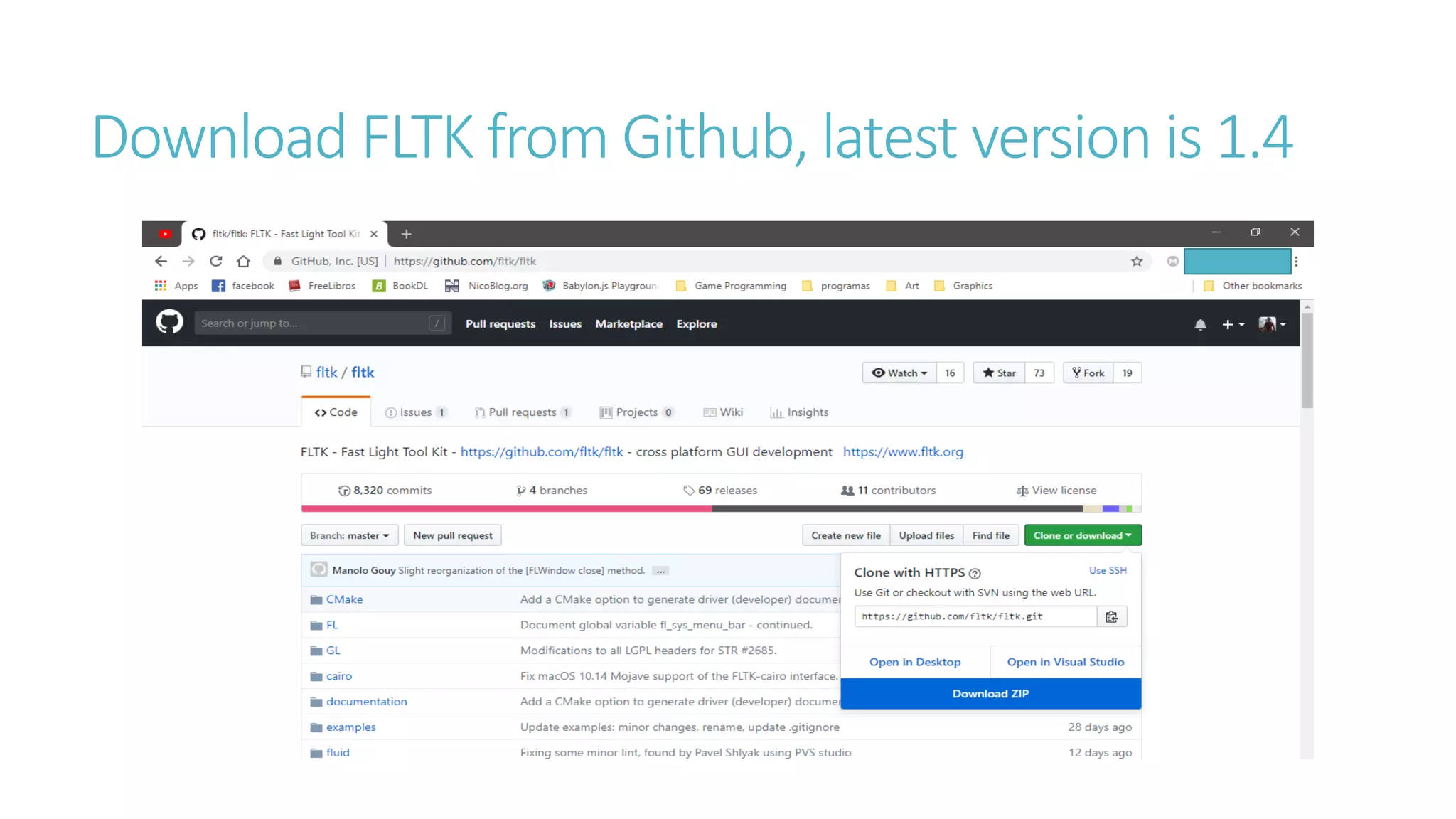
Download FLTK from Github, latest version is 1.4
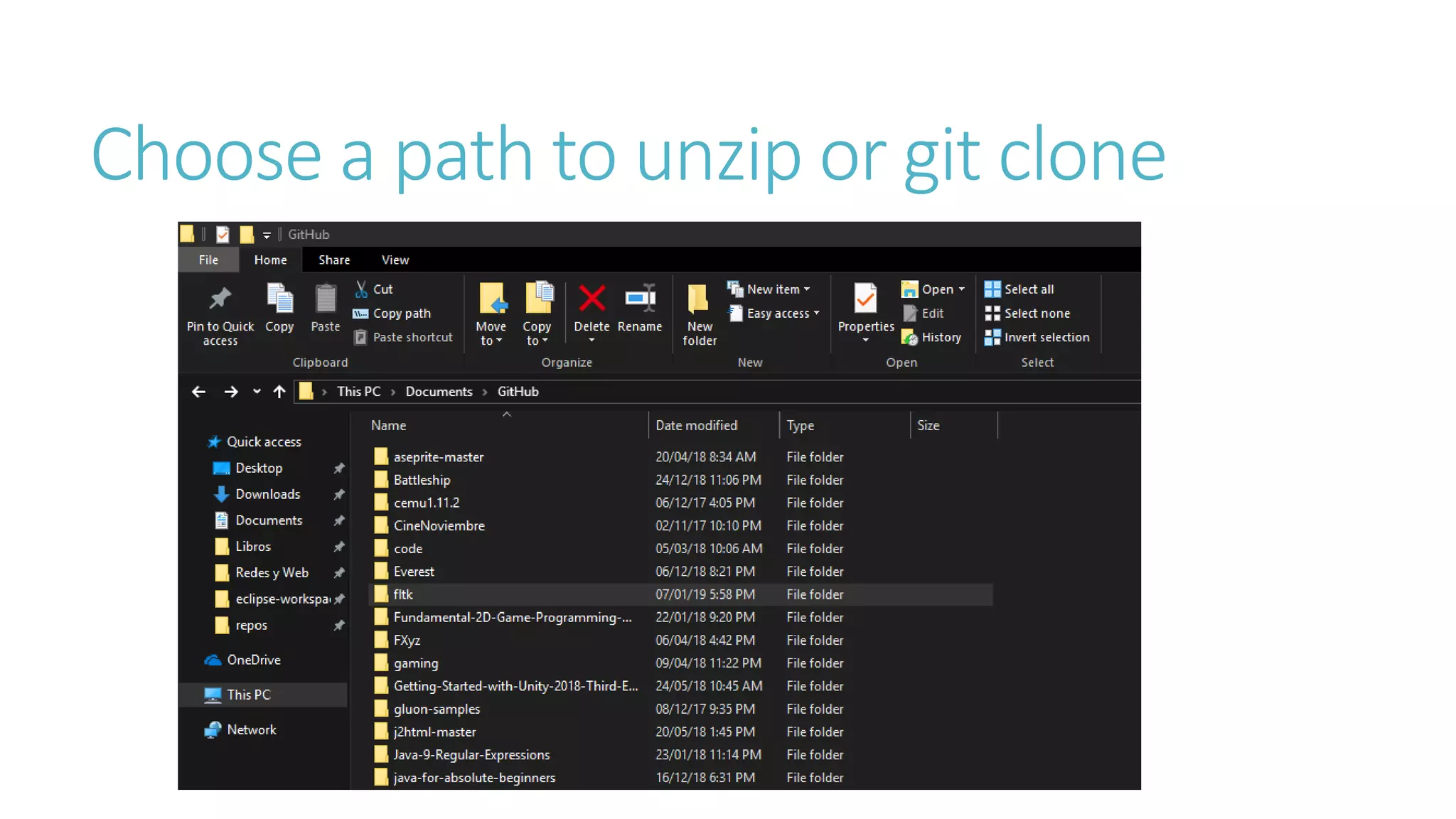
Choose a path to unzip or git clone
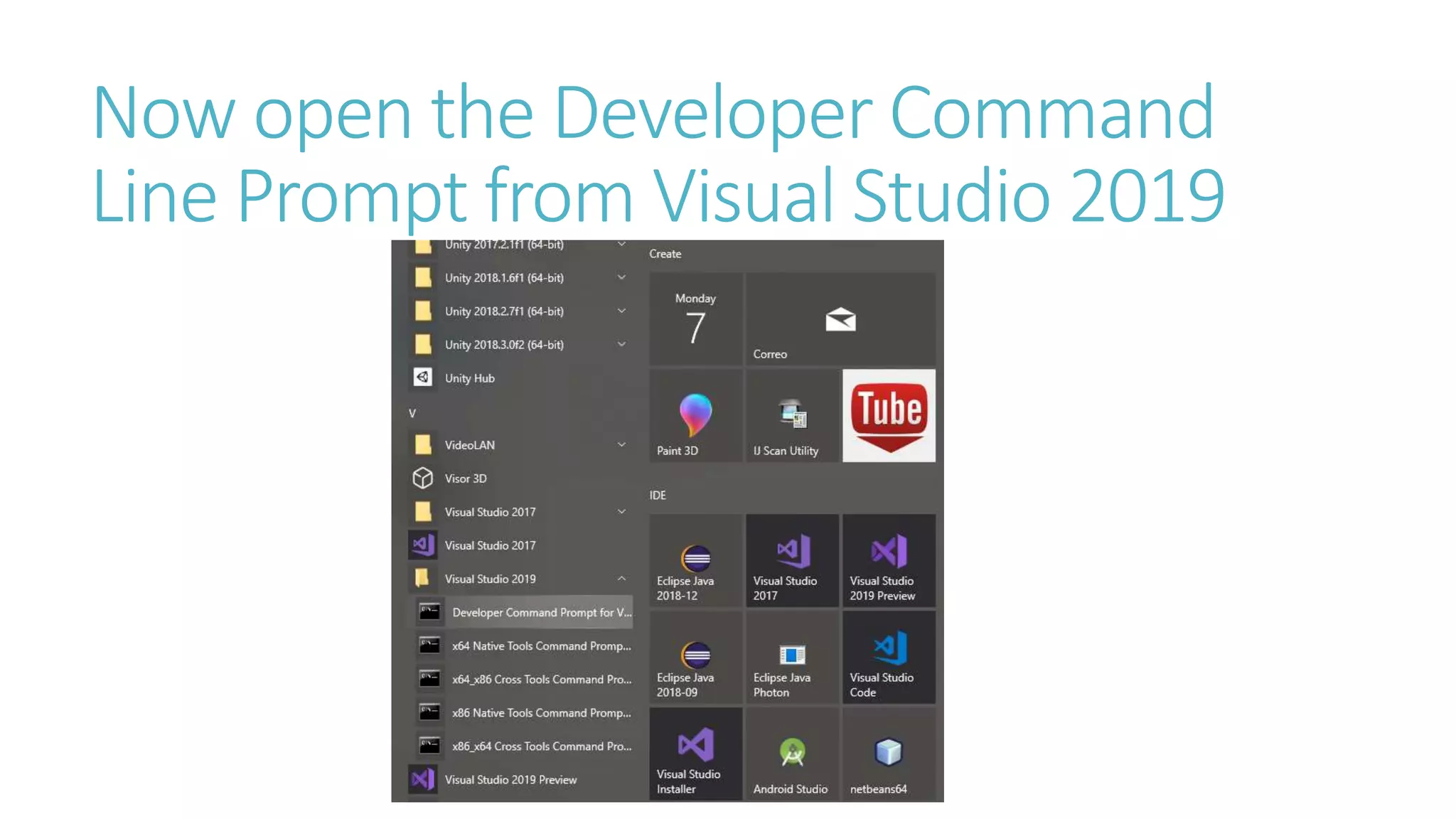
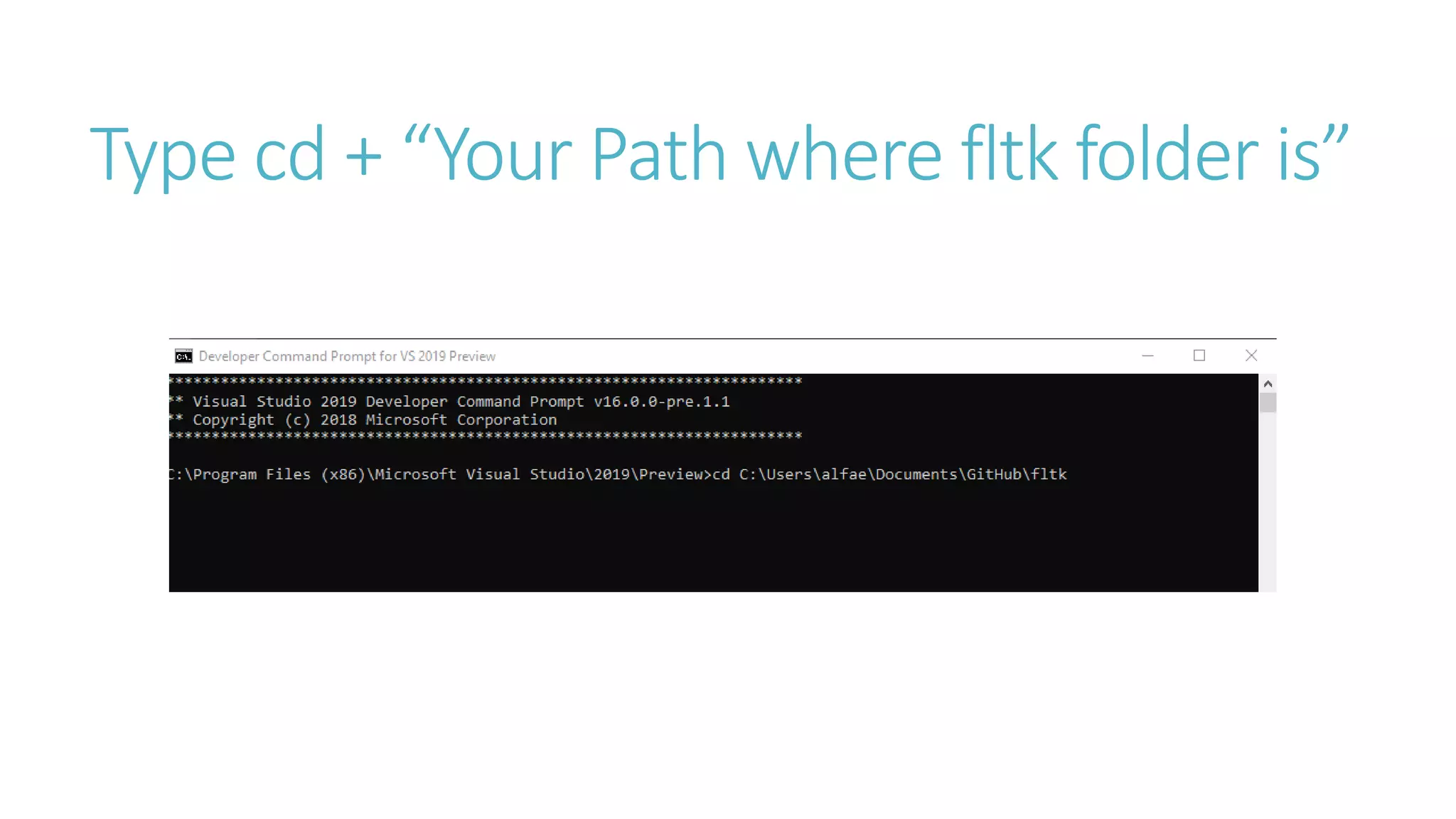
Now open the Developer Command
Line Prompt from Visual Studio 2019
Type cd + “Your Path where fltk folder is”
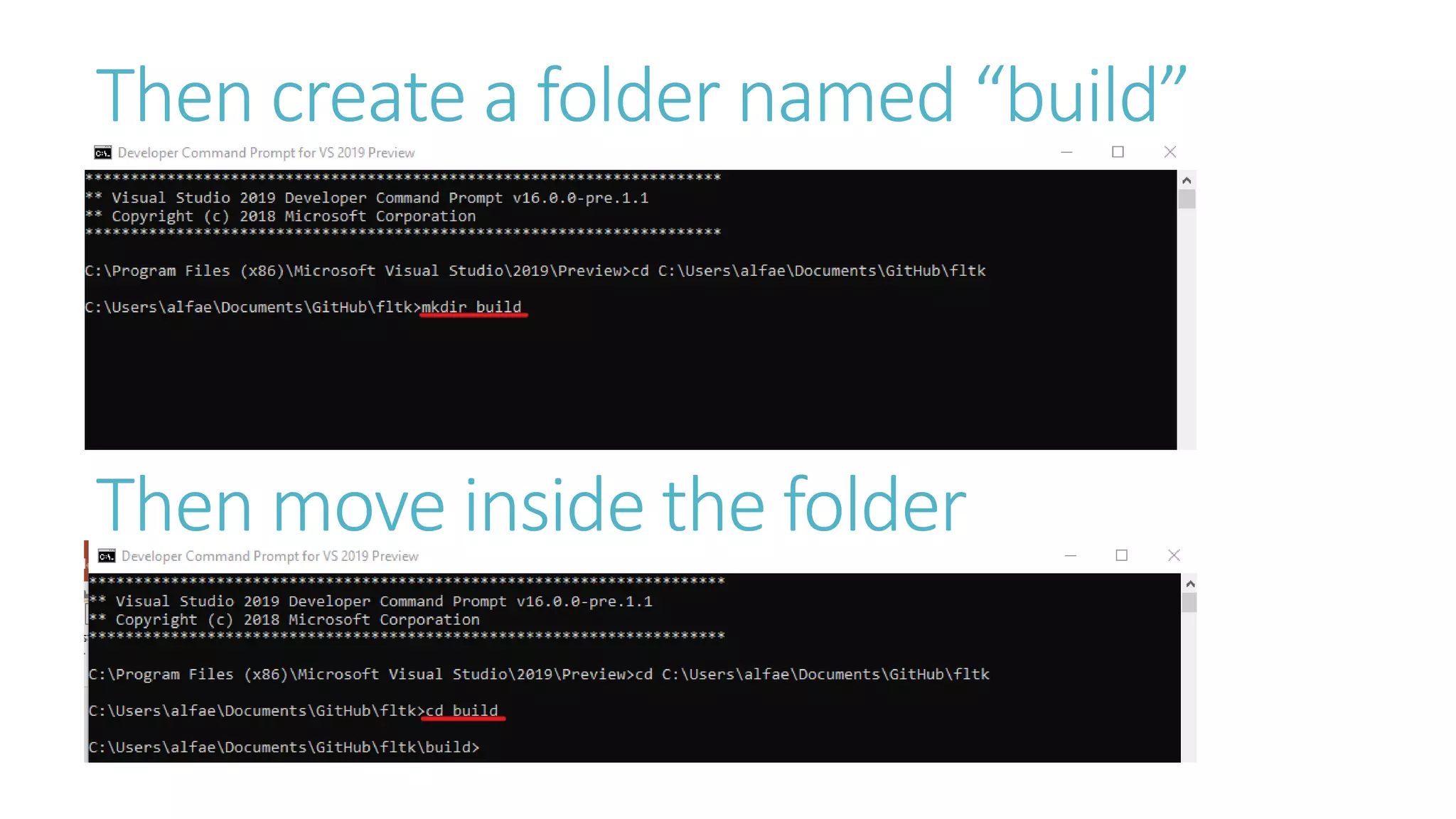
Then create a folder named “build”
Then move inside the folder
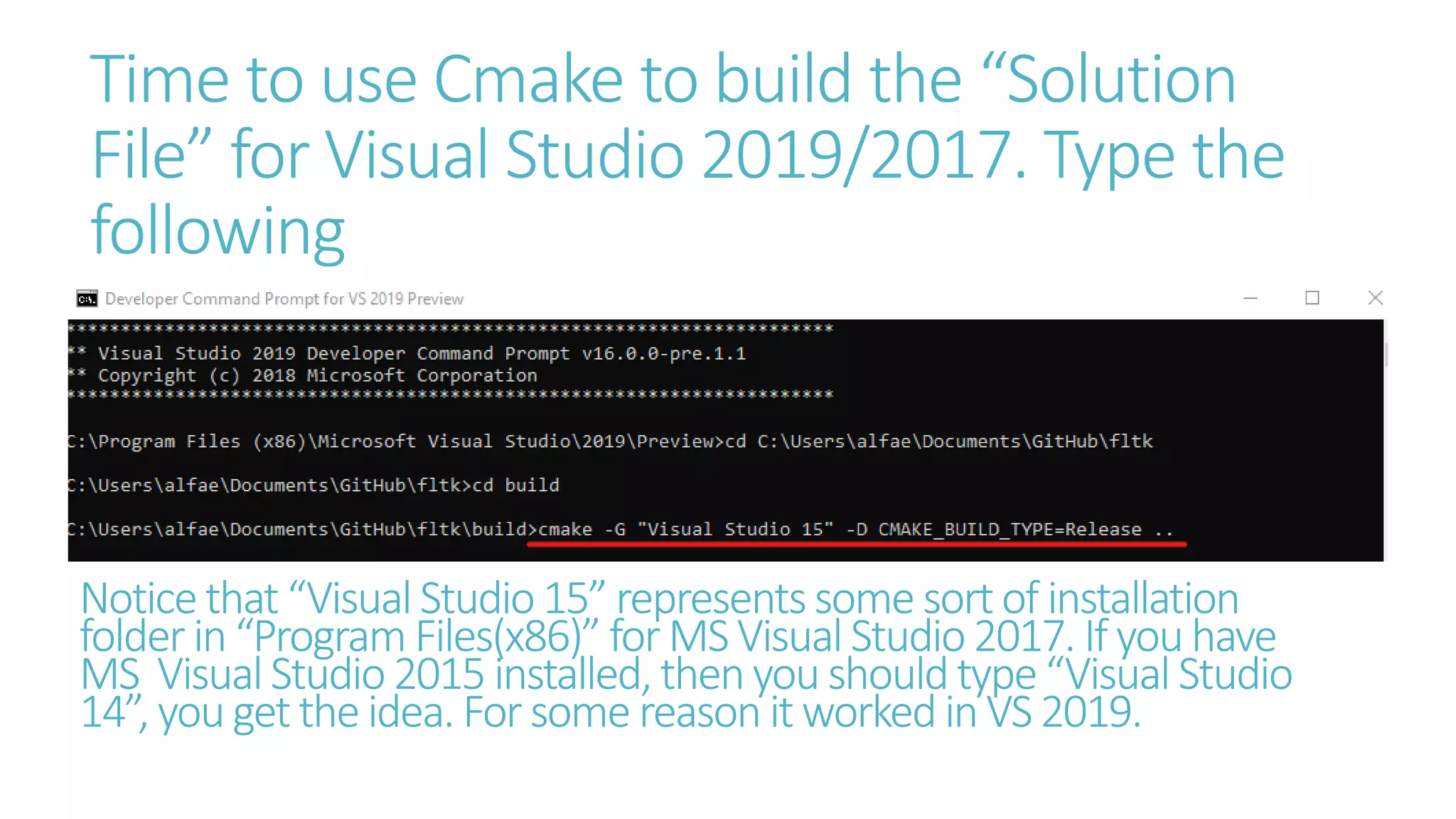
Time to use Cmake to build the “Solution
File” for Visual Studio 2019/2017. Type the
following
Noticethat “Visual Studio15” representssome sortof installation
folder in“Program Files(x86)” forMS Visual Studio2017. If youhave
MS VisualStudio2015 installed, then you shouldtype“Visual Studio
14”, you get the idea. For some reason it worked inVS2019.
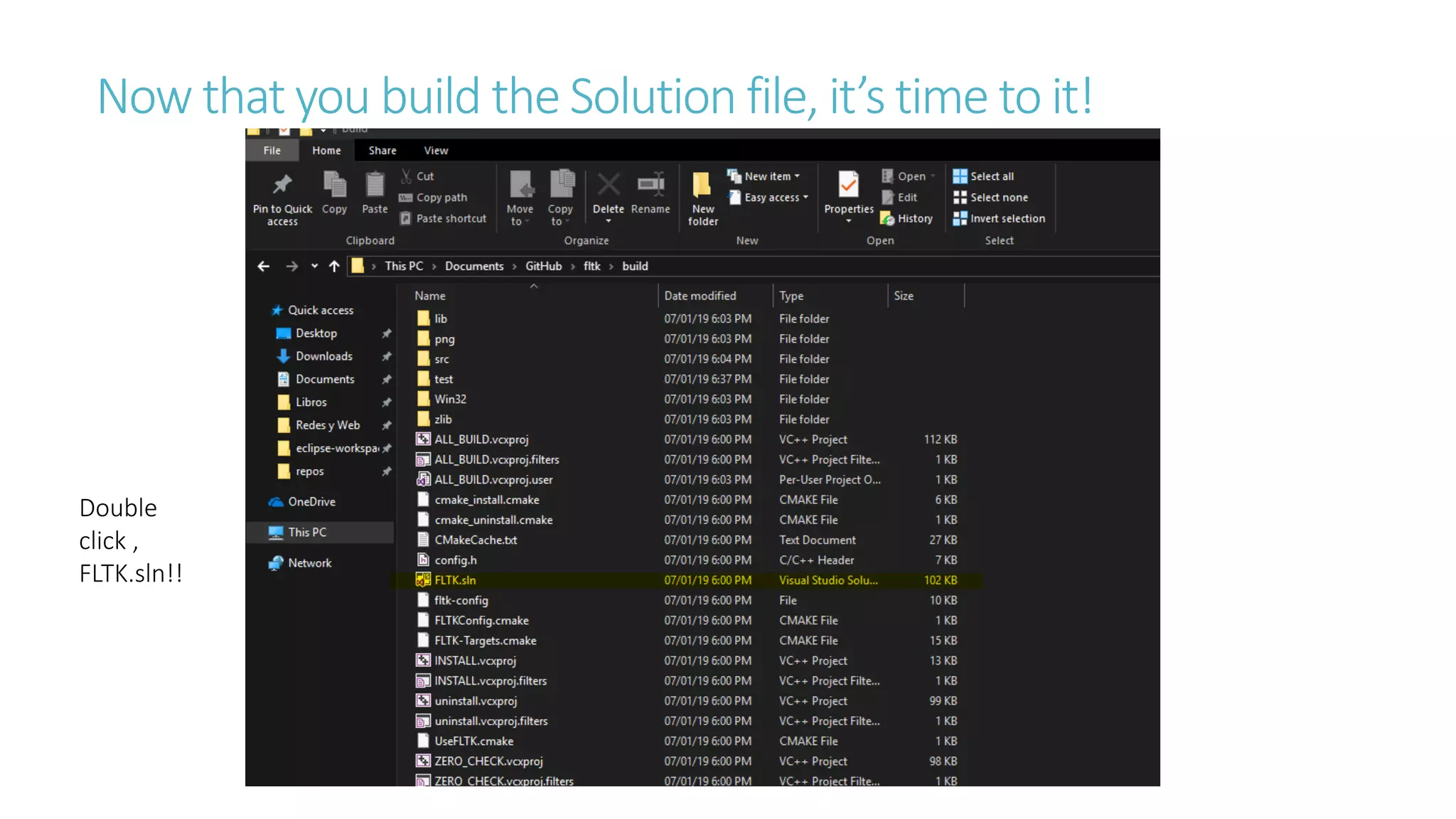
Now that you build the Solution file, it’s time to it!
Double
click ,
FLTK.sln!!
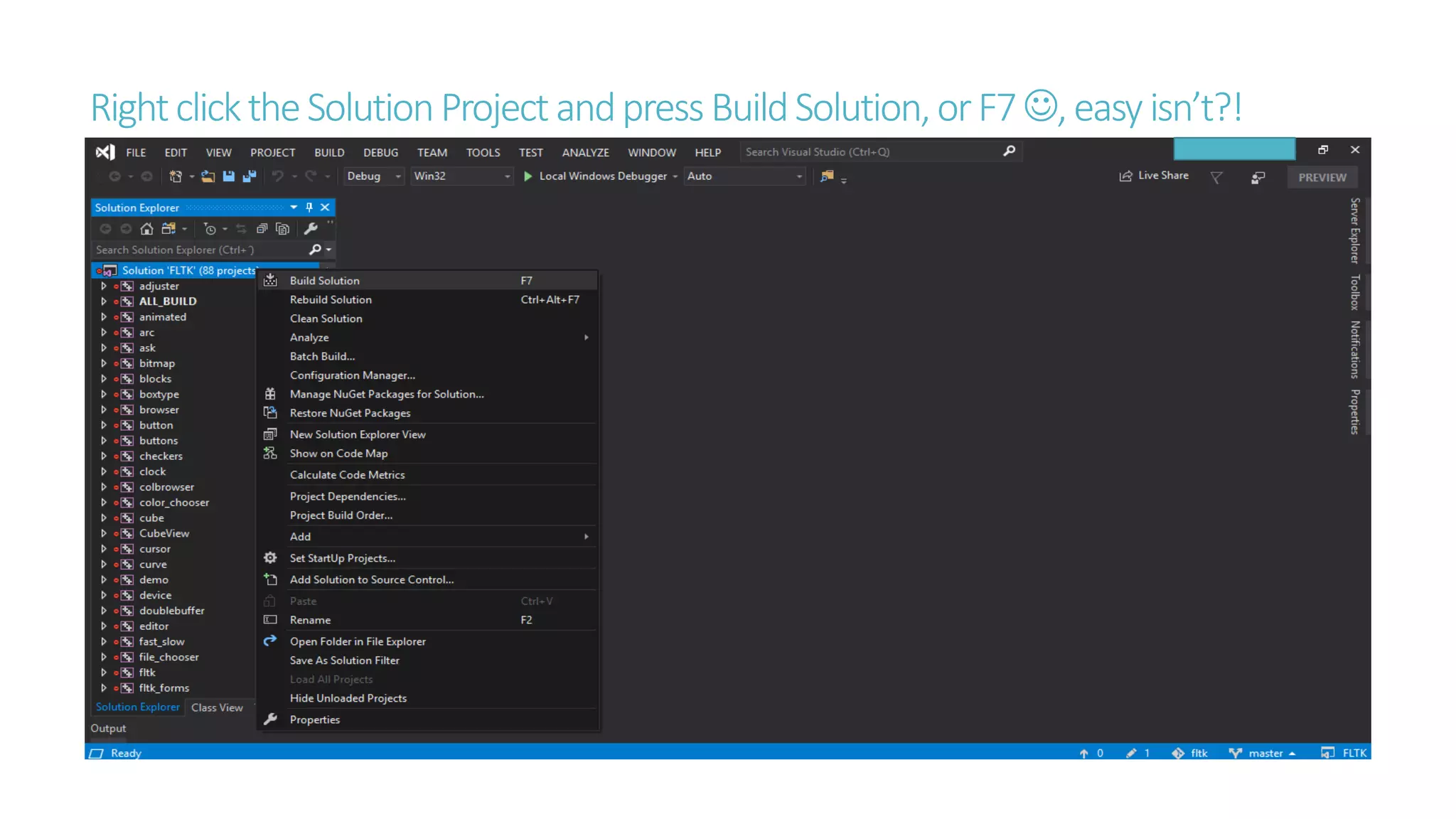
RightclicktheSolutionProject andpressBuildSolution,orF7,easy isn’t?!
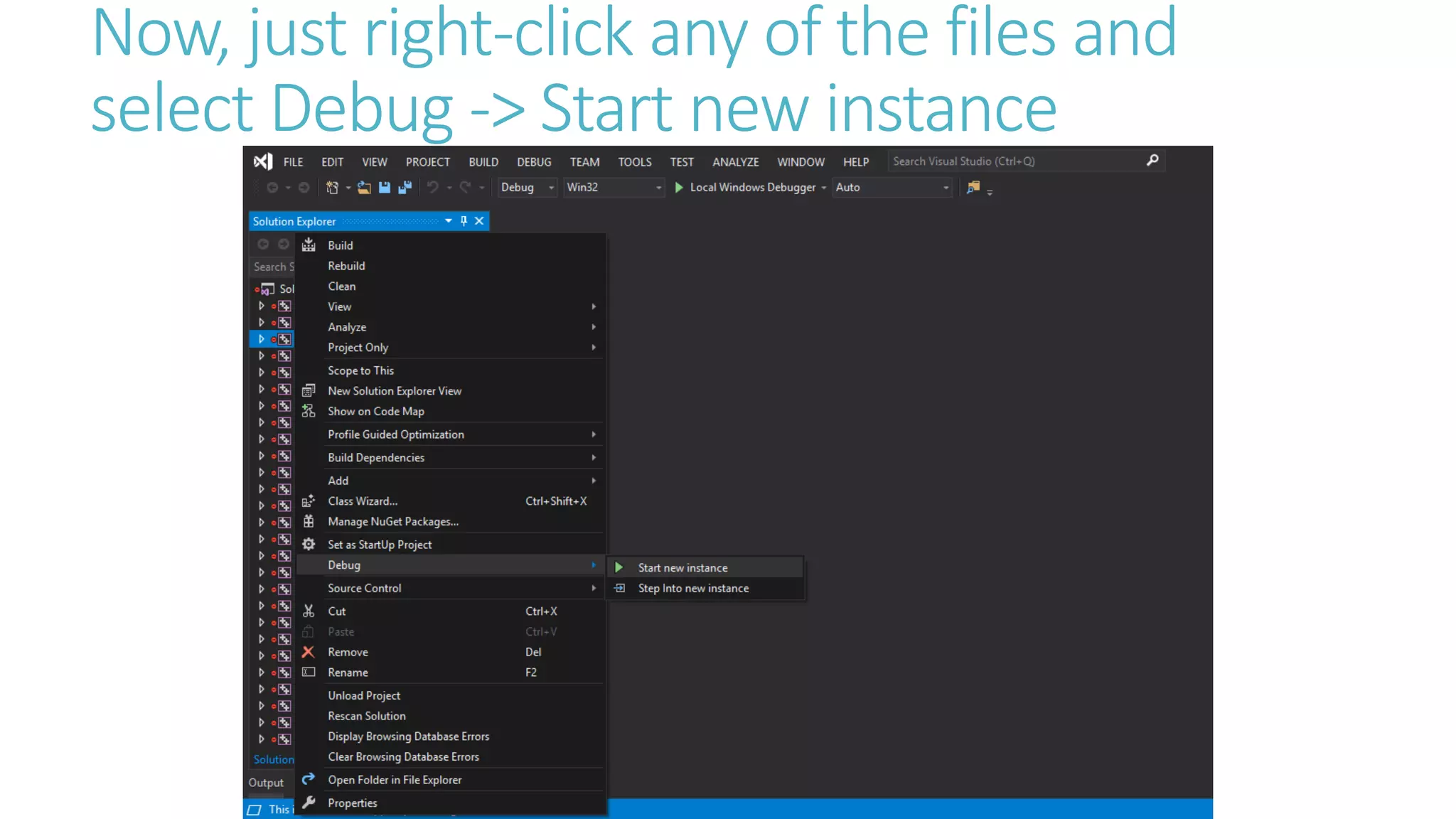
Now, just right-click any of the files and
select Debug -> Start new instance
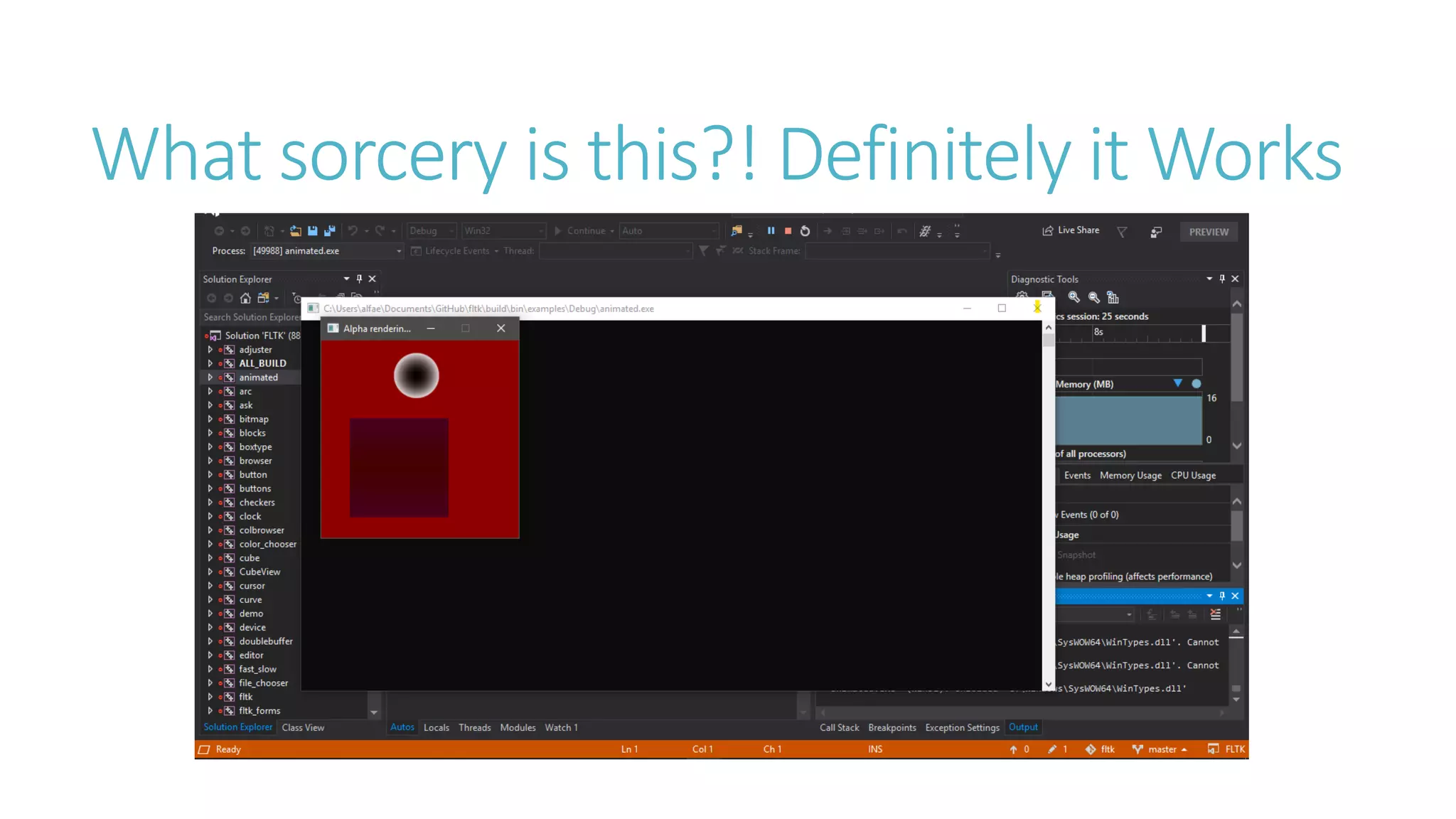
What sorcery is this?! Definitely it Works
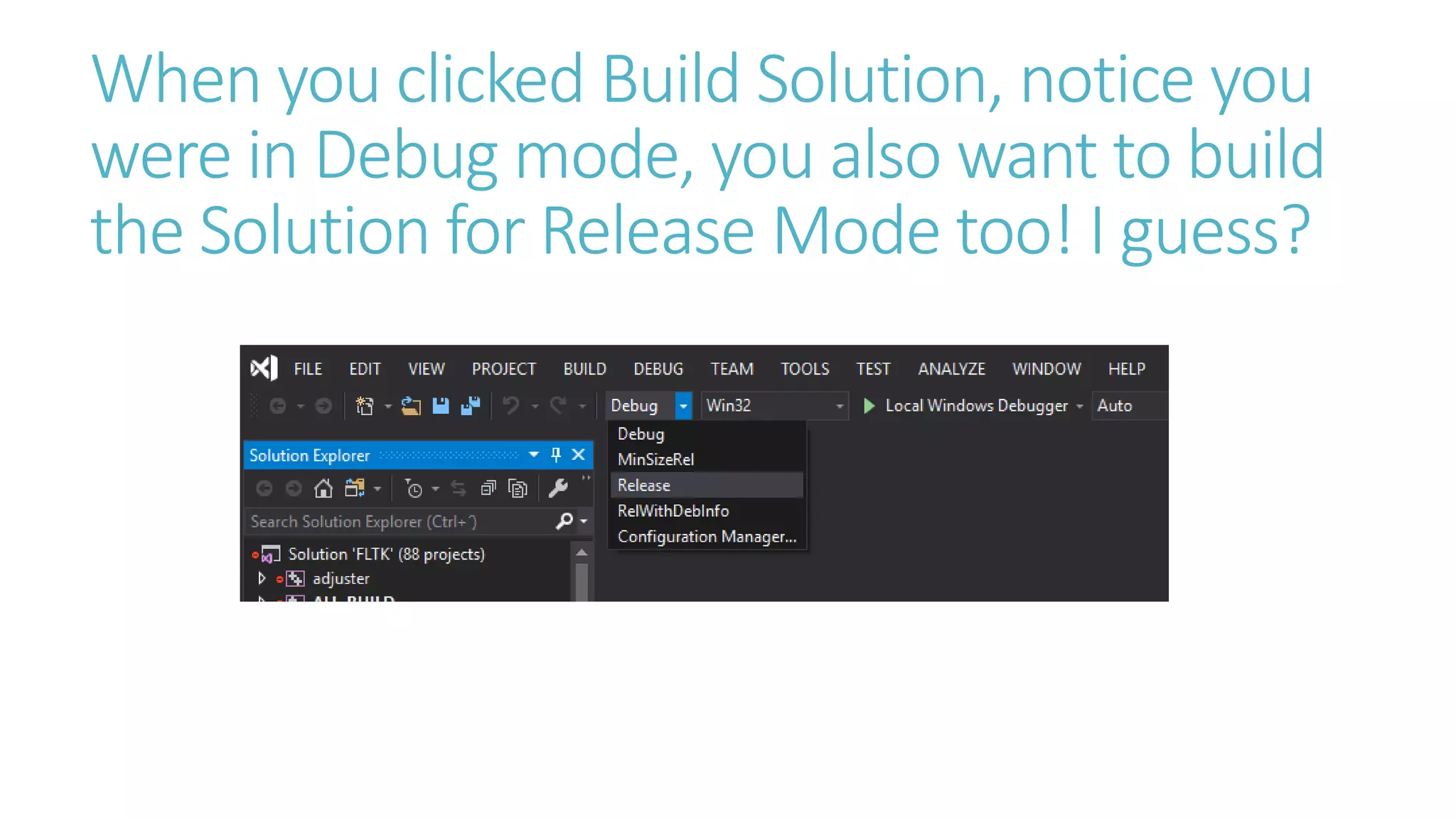
When you clicked Build Solution, notice you
were in Debug mode, you also want to build
the Solution for Release Mode too! I guess?
I guess I’ll make a part 2 later on…
•Thanks for following up till now.
•After building your Solution folder you might to copy the useful folders to your MS
Visual Studio 2017/2019 installation folders in C:Program Files(x86)Microsoft Visual
Studio2019etc…
•I haven´t done the step above because it’s kind of confusing for me since I’m not a
Visual Studio guy, I’m more of Java related developer.
•In part 2 I’ll show what to include in Visual Studio path for ease of access to create
GUI using the book of Bjarn Stroup, Principles and Practicess of Cpp 2nd Edition.
•Farewell!!

Fltk on win10 with visual studio

  • 1.
    Install FLTK onWindows 10 with Visual Studio 2017,2019 Made by Alejandro Colomer
  • 2.
    Download FLTK fromGithub, latest version is 1.4
  • 3.
    Choose a pathto unzip or git clone
  • 4.
    Now open theDeveloper Command Line Prompt from Visual Studio 2019
  • 5.
    Type cd +“Your Path where fltk folder is”
  • 6.
    Then create afolder named “build” Then move inside the folder
  • 7.
    Time to useCmake to build the “Solution File” for Visual Studio 2019/2017. Type the following Noticethat “Visual Studio15” representssome sortof installation folder in“Program Files(x86)” forMS Visual Studio2017. If youhave MS VisualStudio2015 installed, then you shouldtype“Visual Studio 14”, you get the idea. For some reason it worked inVS2019.
  • 8.
    Now that youbuild the Solution file, it’s time to it! Double click , FLTK.sln!!
  • 9.
  • 10.
    Now, just right-clickany of the files and select Debug -> Start new instance
  • 11.
    What sorcery isthis?! Definitely it Works
  • 12.
    When you clickedBuild Solution, notice you were in Debug mode, you also want to build the Solution for Release Mode too! I guess?
  • 13.
    I guess I’llmake a part 2 later on… •Thanks for following up till now. •After building your Solution folder you might to copy the useful folders to your MS Visual Studio 2017/2019 installation folders in C:Program Files(x86)Microsoft Visual Studio2019etc… •I haven´t done the step above because it’s kind of confusing for me since I’m not a Visual Studio guy, I’m more of Java related developer. •In part 2 I’ll show what to include in Visual Studio path for ease of access to create GUI using the book of Bjarn Stroup, Principles and Practicess of Cpp 2nd Edition. •Farewell!!