EverythingYou NeedTo
KnowAboutSAP
Instance &SAPSID
The intricacies of using SAP have confused many people for a very
long time.While it might seem complicated, we are here to teach
you how to work on SAP and be an expert at it. One of the most
common questions while working on SAP ERP is “What are SAP
Instance and SID?”
Read on to have these questions answered and learn more about
using SAP with ease!
If you want to learn about how to use SAP like an expert, check out
S20’s SAP course in Ahmedabad.We are sure that you will come
out as a pro at SAP.
What Is SAP SID?
SAP System Identification is known as SID. Every installation of the
SAP R/3 system has a unique system identification, or SID.The SAP
SID is a three-digit server-specific unique identification code.
There are no specific guidelines for naming the SID other than the
fact that it should be three letters and all capital. By using its SID,
each system may be identified uniquely. SID may consist entirely of
letters or at least one letter, then digits, and then letters. However,
there are some guidelines that can help you name and identify
different systems.
Logical System Names
Each system within a network must be easily distinguishable in
order for data to be distributed across them.This problem is
addressed by the “logical system.”
An application system known as a logical system consists of
multiple apps that collaborate on a single database.The logical
system is referred to as a client in SAP.
Two systems cannot share the same name if they are connected to
each other as source systems or BW systems, or if there are plans to
connect them in any other way.This is because the logical system
name is used to uniquely identify a system within the network.
What is SAP Instance?
The time frame created while installing and configuring the SAP
system is know as SAP Instance.A shared instance memory
allocation and one or more concurrently running processes make up
an instance. Basically, a group of system resources, including
memory, processes, dispatchers, and many more, usually for a
single application or database server within a SAP R/3 client-server
environment.The resources that are mentioned can be used and
shared with other instances.
SAP Instances have three types –
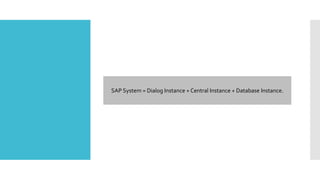
SAP System = Dialog Instance + Central Instance + Database Instance.
1. Dialogue Instance
There is a dialogue instance in the application layer. For a given
system, the application layer can have a greater number of dialogue
instances. It is used to maintain and distribute the server’s load.
There may be a dialogue instance on a different host. Hardware
resources, a dispatcher, and work processes make up a dialogue
instance. If the number of dialogue instances rises, so do hardware
resources, dispatchers, work processes, and the number of
concurrent user logins.
2. Central Instance
With some additional duties, the central instance can serve as the
dialogue instance. Enqueue process will identify central and
dialogue instances. Enqueue process is only present in the central
instance.
Enqueue and message servers can be found in the central instance.
Before accessing a database through a message server, all Dialog
instances first connect with the central instance.When an instance
is started, the dispatcher process tries to connect to the message
server. in order to announce the services (DIA, BTC, SPO, UPD, etc.).
Using the enqueue service, the locking table can be handled
centrally. For a single SAP system, there will only be one instance.
3. Database Instance
The database instance responds to the central instance’s requests.
Based on the user’s demands, the central instance delivers the
requests to the database instance. Users are served by the database
instance just as the enqueue server offers the lock management
system.
HowTo Create Instance?
If you follow along with the steps given below, you can easily create
a SAP Instance –
1.The first step in creating an instance is to define the operating
mode.
2.To create an instance, go to CCMS -> Configuration or RZ04.
3. Select “Instance/operation modes”.
4.You can either press F6 or click on the “Create New Instance” icon.
5.When prompted, type the hostname and select Current Settings.
SAP System No.: The system number given during installation is
the SAP system number.
Instance Profile: The name of the profile should be chosen from the
list of options before running the instance.To view the profile
information, click the “Input Help” button.
The system presents all pertinent information about the instance if
the application server is already up and running. Use input help to
display the potential entries to display the values if the application
server is not active.
Changing An Instance Definition
Follow these steps to change an Instance definition.
1.To maintain an instance, go to RZ04 or CCMS -> Configuration.
2. Select “Instance/operation modes” as seen below.
3. From the “productive instances list”, select an entry.
4. Click on “Save” after you have changed the data that is required
to be modified.
Deleting An Instance
Lastly, you can follow along the steps given below in case you want
to delete and instance.
1.To maintain an instance, go to RZ04 or CCMS -> Configuration.
2. Select “Instance/operation modes” as seen below.
3. From the “productive instances list”, select an entry.
4.To delete an operation mode, select it specifically and then
choose “operation mode -> delete.”
5.This eliminates the operating mode together with all instances
and associated work processes.
6.We hope this helps you understand the intricacies of SAP Instance
and SAP SID. If you want to be an expert in operating SAP, enroll
into our SAP Course in Ahmedabad and be unbeatable at it. Head
over to our website to learn more!
Article Source: https://s20.in/blog/sap-instance-sap-sid-complete-
guide/
Super 20 Training Institute
www.s20.in
+91 7069 646028
Address
205, Narayankrupa Square,
Opp. H K Commerce College,
Gandhigram Railway Crossing,
Ashram Road,
Ahmedabad – 380009

Everything You Need To Know About SAP Instance & SAP SID

  • 1.
  • 2.
    The intricacies ofusing SAP have confused many people for a very long time.While it might seem complicated, we are here to teach you how to work on SAP and be an expert at it. One of the most common questions while working on SAP ERP is “What are SAP Instance and SID?” Read on to have these questions answered and learn more about using SAP with ease! If you want to learn about how to use SAP like an expert, check out S20’s SAP course in Ahmedabad.We are sure that you will come out as a pro at SAP.
  • 3.
  • 4.
    SAP System Identificationis known as SID. Every installation of the SAP R/3 system has a unique system identification, or SID.The SAP SID is a three-digit server-specific unique identification code. There are no specific guidelines for naming the SID other than the fact that it should be three letters and all capital. By using its SID, each system may be identified uniquely. SID may consist entirely of letters or at least one letter, then digits, and then letters. However, there are some guidelines that can help you name and identify different systems.
  • 5.
  • 6.
    Each system withina network must be easily distinguishable in order for data to be distributed across them.This problem is addressed by the “logical system.” An application system known as a logical system consists of multiple apps that collaborate on a single database.The logical system is referred to as a client in SAP. Two systems cannot share the same name if they are connected to each other as source systems or BW systems, or if there are plans to connect them in any other way.This is because the logical system name is used to uniquely identify a system within the network.
  • 7.
    What is SAPInstance?
  • 8.
    The time framecreated while installing and configuring the SAP system is know as SAP Instance.A shared instance memory allocation and one or more concurrently running processes make up an instance. Basically, a group of system resources, including memory, processes, dispatchers, and many more, usually for a single application or database server within a SAP R/3 client-server environment.The resources that are mentioned can be used and shared with other instances.
  • 9.
    SAP Instances havethree types –
  • 10.
    SAP System =Dialog Instance + Central Instance + Database Instance.
  • 11.
  • 12.
    There is adialogue instance in the application layer. For a given system, the application layer can have a greater number of dialogue instances. It is used to maintain and distribute the server’s load. There may be a dialogue instance on a different host. Hardware resources, a dispatcher, and work processes make up a dialogue instance. If the number of dialogue instances rises, so do hardware resources, dispatchers, work processes, and the number of concurrent user logins.
  • 13.
  • 14.
    With some additionalduties, the central instance can serve as the dialogue instance. Enqueue process will identify central and dialogue instances. Enqueue process is only present in the central instance. Enqueue and message servers can be found in the central instance. Before accessing a database through a message server, all Dialog instances first connect with the central instance.When an instance is started, the dispatcher process tries to connect to the message server. in order to announce the services (DIA, BTC, SPO, UPD, etc.). Using the enqueue service, the locking table can be handled centrally. For a single SAP system, there will only be one instance.
  • 15.
  • 16.
    The database instanceresponds to the central instance’s requests. Based on the user’s demands, the central instance delivers the requests to the database instance. Users are served by the database instance just as the enqueue server offers the lock management system.
  • 17.
    HowTo Create Instance? Ifyou follow along with the steps given below, you can easily create a SAP Instance – 1.The first step in creating an instance is to define the operating mode. 2.To create an instance, go to CCMS -> Configuration or RZ04. 3. Select “Instance/operation modes”. 4.You can either press F6 or click on the “Create New Instance” icon. 5.When prompted, type the hostname and select Current Settings.
  • 18.
    SAP System No.:The system number given during installation is the SAP system number. Instance Profile: The name of the profile should be chosen from the list of options before running the instance.To view the profile information, click the “Input Help” button. The system presents all pertinent information about the instance if the application server is already up and running. Use input help to display the potential entries to display the values if the application server is not active.
  • 19.
    Changing An InstanceDefinition Follow these steps to change an Instance definition. 1.To maintain an instance, go to RZ04 or CCMS -> Configuration. 2. Select “Instance/operation modes” as seen below. 3. From the “productive instances list”, select an entry. 4. Click on “Save” after you have changed the data that is required to be modified.
  • 20.
    Deleting An Instance Lastly,you can follow along the steps given below in case you want to delete and instance. 1.To maintain an instance, go to RZ04 or CCMS -> Configuration. 2. Select “Instance/operation modes” as seen below. 3. From the “productive instances list”, select an entry.
  • 21.
    4.To delete anoperation mode, select it specifically and then choose “operation mode -> delete.” 5.This eliminates the operating mode together with all instances and associated work processes. 6.We hope this helps you understand the intricacies of SAP Instance and SAP SID. If you want to be an expert in operating SAP, enroll into our SAP Course in Ahmedabad and be unbeatable at it. Head over to our website to learn more! Article Source: https://s20.in/blog/sap-instance-sap-sid-complete- guide/
  • 22.
    Super 20 TrainingInstitute www.s20.in +91 7069 646028 Address 205, Narayankrupa Square, Opp. H K Commerce College, Gandhigram Railway Crossing, Ashram Road, Ahmedabad – 380009