

Epsilon Programmer’s Editor
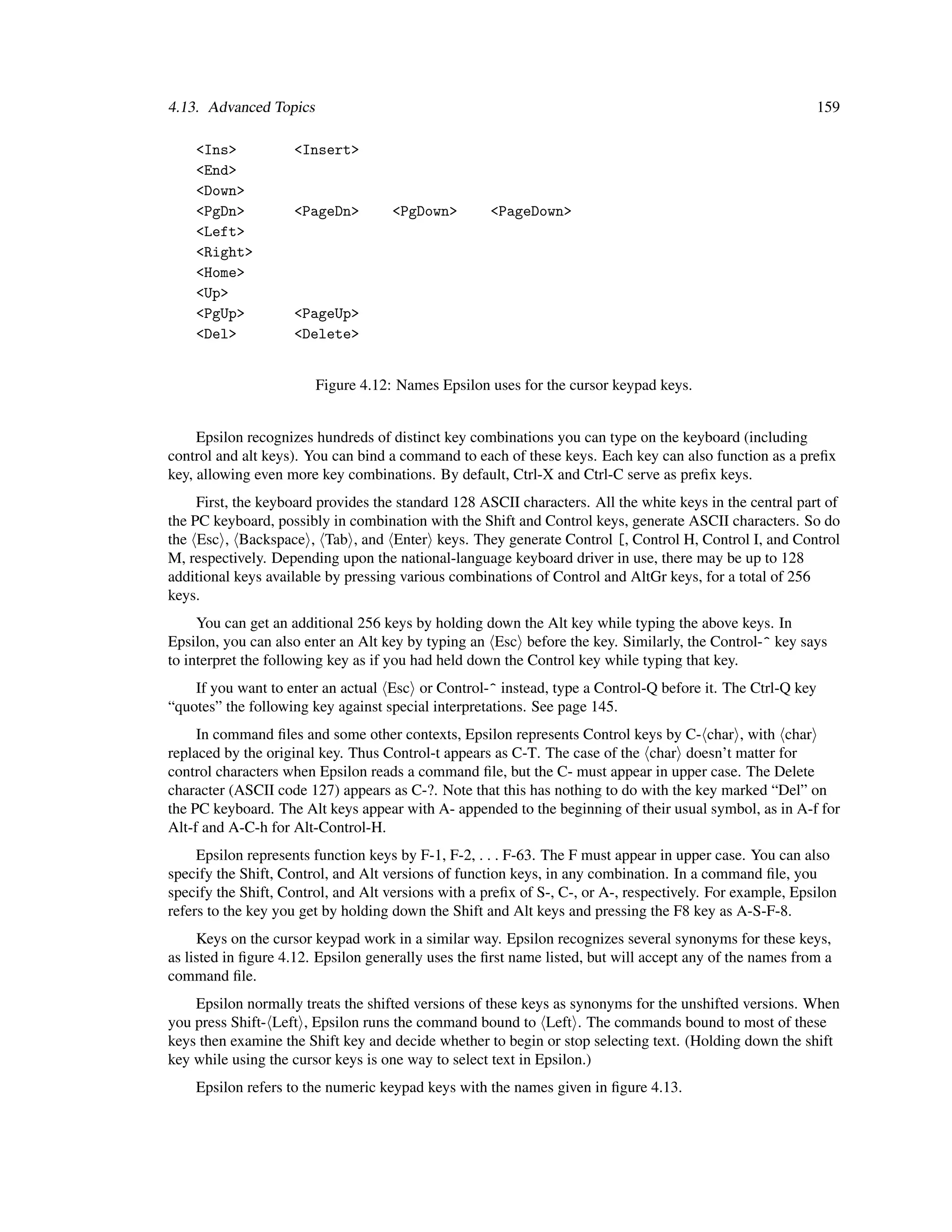
User’s Manual and Reference
Version 13.12 - Reference Edition


This is revision 13.12a of the manual.
It describes version 13.12 of Epsilon and EEL.

Copyright © 1984, 2011 by Lugaru Software Ltd.
All rights reserved.


Lugaru Software Ltd.
1645 Shady Avenue
Pittsburgh, PA 15217

TEL: (412) 421-5911
E-mail: support@lugaru.com or sales@lugaru.com
ii

                                              LIMITED WARRANTY
    THERE ARE NO WARRANTIES, EXPRESS OR IMPLIED, INCLUDING BUT NOT LIMITED TO
WARRANTIES OF MERCHANTABILITY OR FITNESS FOR A PARTICULAR PURPOSE FOR EITHER THE
INSTRUCTION MANUAL, OR FOR THE EPSILON PROGRAMMER’S EDITOR AND THE EEL SOFTWARE
(COLLECTIVELY, THE “SOFTWARE”).
     Lugaru warrants the medium on which the Software is furnished to be free from defects in material under normal
use for ninety (90) days from the original date of purchase, provided that the limited warranty has been registered by
mailing in the registration form accompanying the Software.

                                 LIMITED LIABILITY AND RETURN POLICY

     Lugaru will be liable only for the replacement of defective media, as warranted above, which are returned shipping
prepaid to Lugaru within the warranty period. Because Lugaru cannot anticipate the intended use to which its Software
may be applied, it does not warrant the performance of the Software. LUGARU WILL NOT BE LIABLE FOR ANY
SPECIAL, INDIRECT, CONSEQUENTIAL OR OTHER DAMAGES WHATSOEVER. However, Lugaru wants you to
be completely satisfied with the Software. Therefore, THE ORIGINAL PURCHASER OF THIS SOFTWARE MAY
RETURN IT UNCONDITIONALLY TO LUGARU FOR A FULL REFUND FOR ANY REASON WITHIN SIXTY
DAYS OF PURCHASE, PROVIDED THAT THE PRODUCT WAS PURCHASED DIRECTLY FROM LUGARU
SOFTWARE LTD.

                                               COPYRIGHT NOTICE

                         Copyright © 1984, 2011 by Lugaru Software Ltd. All rights reserved.

    Lugaru Software Ltd. recognizes that users of Epsilon may wish to alter the EEL implementations of various editor
commands and circulate their changes to other users of Epsilon. Limited permission is hereby granted to reproduce and
modify the EEL source code to the commands provided that the resulting code is used only in conjunction with Lugaru
products and that this notice is retained in any such reproduction or modification.

                                                   TRADEMARKS

    “Lugaru” and “EEL” are trademarks of Lugaru Software, Ltd. “Epsilon” is a registered trademark of Epsilon Data
Management, Inc. Lugaru Software Ltd. is licensed by Epsilon Data Management, Inc. to use the “Epsilon” mark in
connection with computer programming software. There is no other affiliation or association between Epsilon Data
Management, Inc. and Lugaru Software Ltd. “Brief” is a registered trademark of Borland International.

                                                   SUBMISSIONS

     Lugaru Software Ltd. encourages the submission of comments and suggestions concerning its products. All
suggestions will be given serious technical consideration. By submitting material to Lugaru, you are granting Lugaru the
right, at its own discretion and without liability to you, to make any use of the material it deems appropriate.
iii

                                             Note to Our Users

    Individual copies of Epsilon aren’t protected with a formal license agreement, but by copyright law. In
addition to the copying for backup permitted under copyright law, Lugaru grants you, the end-user, certain
other rights, as explained on this page.
     It describes the rules for installing a single purchased copy of Epsilon on multiple computers, and
related matters. These rules apply to all copies of Epsilon purchased by an end-user and not subject to a
written license agreement.

   Each copy of Epsilon includes packages for various operating systems or distributions, such as a
Windows package, a Debian Linux package, and a Macintosh package.
     You may install a single purchased copy of Epsilon on up to four computers under your control, either
installing the same package on each, or a different package on each, or any combination, as long as you’re
the only one using any of these packages. Two individuals may not share a single copy of Epsilon if there is
any chance both individuals might use that copy of Epsilon at the same time, even by using separate
packages on separate computers.
    You may not split a single purchased copy of Epsilon into its separate packages and sell them separately.
    If you purchase an update to Epsilon, it becomes part of the same copy. You may not (for example) buy
Epsilon 10, update to Epsilon 11, and then sell Epsilon 10 while retaining Epsilon 11. The update does not
count as a separate copy and must accompany the original version if sold.
    We hope that you will respect our efforts, and the law, and not allow illegal copying of Epsilon.

    We wish to thank all of our users who have made Epsilon successful, and extend our welcome to all
new users.
                                                                                         Steven Doerfler
                                                                                    Lugaru Software, Ltd.


   We produced this manual using the Epsilon Programmer’s Editor and the TEX typesetting system.
Duane Bibby did the illustrations.
iv
Contents

1 Welcome                                                                                                                                                          1
  1.1 Introduction . . . . . . . . . . . . . . . . . . . . . . . . . . . . . . . . . . . . . . . . . . .                                                           1
  1.2 Features . . . . . . . . . . . . . . . . . . . . . . . . . . . . . . . . . . . . . . . . . . . . .                                                           1

2 Getting Started                                                                                                                                                  5
  2.1 Installing Epsilon for Windows . . . . . . . . . . . . . . . .                          .   .   .   .   .   .   .   .   .   .   .   .   .   .   .   .   .    5
  2.2 Installing Epsilon for Unix . . . . . . . . . . . . . . . . . .                         .   .   .   .   .   .   .   .   .   .   .   .   .   .   .   .   .    5
  2.3 Installing Epsilon for Mac OS X . . . . . . . . . . . . . . .                           .   .   .   .   .   .   .   .   .   .   .   .   .   .   .   .   .    7
       2.3.1 Using Epsilon under Mac OS X . . . . . . . . . . .                               .   .   .   .   .   .   .   .   .   .   .   .   .   .   .   .   .    7
  2.4 Installing Epsilon for DOS . . . . . . . . . . . . . . . . . .                          .   .   .   .   .   .   .   .   .   .   .   .   .   .   .   .   .    8
  2.5 Installing Epsilon for OS/2 . . . . . . . . . . . . . . . . . .                         .   .   .   .   .   .   .   .   .   .   .   .   .   .   .   .   .    9
  2.6 Tutorial . . . . . . . . . . . . . . . . . . . . . . . . . . . .                        .   .   .   .   .   .   .   .   .   .   .   .   .   .   .   .   .    9
  2.7 Invoking Epsilon . . . . . . . . . . . . . . . . . . . . . . .                          .   .   .   .   .   .   .   .   .   .   .   .   .   .   .   .   .    9
  2.8 Configuration Variables: The Environment and The Registry                                .   .   .   .   .   .   .   .   .   .   .   .   .   .   .   .   .   10
       2.8.1 How Epsilon Finds its Files . . . . . . . . . . . . .                            .   .   .   .   .   .   .   .   .   .   .   .   .   .   .   .   .   12
       2.8.2 The Customization Directory . . . . . . . . . . . . .                            .   .   .   .   .   .   .   .   .   .   .   .   .   .   .   .   .   13
  2.9 Epsilon Command Line Flags . . . . . . . . . . . . . . . .                              .   .   .   .   .   .   .   .   .   .   .   .   .   .   .   .   .   13
  2.10 File Inventory . . . . . . . . . . . . . . . . . . . . . . . . .                       .   .   .   .   .   .   .   .   .   .   .   .   .   .   .   .   .   17

3 General Concepts                                                                                                                                                21
  3.1 Buffers . . . . . . . . . . . . . . . . . .    .    .   .   .   .   .   .   .   .   .   .   .   .   .   .   .   .   .   .   .   .   .   .   .   .   .   .   21
  3.2 Windows . . . . . . . . . . . . . . . . .      .    .   .   .   .   .   .   .   .   .   .   .   .   .   .   .   .   .   .   .   .   .   .   .   .   .   .   21
  3.3 Epsilon’s Screen Layout . . . . . . . . .      .    .   .   .   .   .   .   .   .   .   .   .   .   .   .   .   .   .   .   .   .   .   .   .   .   .   .   21
  3.4 Different Keys for Different Uses: Modes       .    .   .   .   .   .   .   .   .   .   .   .   .   .   .   .   .   .   .   .   .   .   .   .   .   .   .   23
  3.5 Keystrokes and Commands: Bindings . .          .    .   .   .   .   .   .   .   .   .   .   .   .   .   .   .   .   .   .   .   .   .   .   .   .   .   .   24
  3.6 Repeating: Numeric Arguments . . . . .         .    .   .   .   .   .   .   .   .   .   .   .   .   .   .   .   .   .   .   .   .   .   .   .   .   .   .   25
  3.7 Viewing Lists . . . . . . . . . . . . . . .    .    .   .   .   .   .   .   .   .   .   .   .   .   .   .   .   .   .   .   .   .   .   .   .   .   .   .   25
  3.8 Typing Less: Completion & Defaults . . .       .    .   .   .   .   .   .   .   .   .   .   .   .   .   .   .   .   .   .   .   .   .   .   .   .   .   .   26
  3.9 Command History . . . . . . . . . . . . .      .    .   .   .   .   .   .   .   .   .   .   .   .   .   .   .   .   .   .   .   .   .   .   .   .   .   .   28
  3.10 Mouse Support . . . . . . . . . . . . . .     .    .   .   .   .   .   .   .   .   .   .   .   .   .   .   .   .   .   .   .   .   .   .   .   .   .   .   29
  3.11 The Menu Bar . . . . . . . . . . . . . . .    .    .   .   .   .   .   .   .   .   .   .   .   .   .   .   .   .   .   .   .   .   .   .   .   .   .   .   30

4 Commands by Topic                                                                                                                                               33
  4.1 Getting Help . . . . . . . . . . . . . . . . .      .   .   .   .   .   .   .   .   .   .   .   .   .   .   .   .   .   .   .   .   .   .   .   .   .   .   33
      4.1.1 Info Mode . . . . . . . . . . . . . .         .   .   .   .   .   .   .   .   .   .   .   .   .   .   .   .   .   .   .   .   .   .   .   .   .   .   35
      4.1.2 Web-based Epsilon Documentation               .   .   .   .   .   .   .   .   .   .   .   .   .   .   .   .   .   .   .   .   .   .   .   .   .   .   37
  4.2 Moving Around . . . . . . . . . . . . . . .         .   .   .   .   .   .   .   .   .   .   .   .   .   .   .   .   .   .   .   .   .   .   .   .   .   .   38
      4.2.1 Simple Movement Commands . . .                .   .   .   .   .   .   .   .   .   .   .   .   .   .   .   .   .   .   .   .   .   .   .   .   .   .   38
      4.2.2 Moving in Larger Units . . . . . . .          .   .   .   .   .   .   .   .   .   .   .   .   .   .   .   .   .   .   .   .   .   .   .   .   .   .   38

                                                      v
vi                                                                                                                                                   CONTENTS

           4.2.3 Searching . . . . . . . . . . . . .     .   .   .   .   .   .   .   .   .   .   .   .   .   .   .   .   .   .   .   .   .   .   .   .   .   .   . 41
           4.2.4 Bookmarks . . . . . . . . . . . .       .   .   .   .   .   .   .   .   .   .   .   .   .   .   .   .   .   .   .   .   .   .   .   .   .   .   . 45
           4.2.5 Tags . . . . . . . . . . . . . . . .    .   .   .   .   .   .   .   .   .   .   .   .   .   .   .   .   .   .   .   .   .   .   .   .   .   .   . 46
           4.2.6 Source Code Browsing Interface .        .   .   .   .   .   .   .   .   .   .   .   .   .   .   .   .   .   .   .   .   .   .   .   .   .   .   . 48
           4.2.7 Comparing . . . . . . . . . . . .       .   .   .   .   .   .   .   .   .   .   .   .   .   .   .   .   .   .   .   .   .   .   .   .   .   .   . 50
     4.3   Changing Text . . . . . . . . . . . . . . .   .   .   .   .   .   .   .   .   .   .   .   .   .   .   .   .   .   .   .   .   .   .   .   .   .   .   . 52
           4.3.1 Inserting and Deleting . . . . . .      .   .   .   .   .   .   .   .   .   .   .   .   .   .   .   .   .   .   .   .   .   .   .   .   .   .   . 52
           4.3.2 The Region, the Mark, and Killing       .   .   .   .   .   .   .   .   .   .   .   .   .   .   .   .   .   .   .   .   .   .   .   .   .   .   . 54
           4.3.3 Clipboard Access . . . . . . . . .      .   .   .   .   .   .   .   .   .   .   .   .   .   .   .   .   .   .   .   .   .   .   .   .   .   .   . 56
           4.3.4 Rectangle Commands . . . . . .          .   .   .   .   .   .   .   .   .   .   .   .   .   .   .   .   .   .   .   .   .   .   .   .   .   .   . 57
           4.3.5 Capitalization . . . . . . . . . . .    .   .   .   .   .   .   .   .   .   .   .   .   .   .   .   .   .   .   .   .   .   .   .   .   .   .   . 58
           4.3.6 Replacing . . . . . . . . . . . . .     .   .   .   .   .   .   .   .   .   .   .   .   .   .   .   .   .   .   .   .   .   .   .   .   .   .   . 59
           4.3.7 Regular Expressions . . . . . . .       .   .   .   .   .   .   .   .   .   .   .   .   .   .   .   .   .   .   .   .   .   .   .   .   .   .   . 61
           4.3.8 Rearranging . . . . . . . . . . . .     .   .   .   .   .   .   .   .   .   .   .   .   .   .   .   .   .   .   .   .   .   .   .   .   .   .   . 70
           4.3.9 Indenting Commands . . . . . . .        .   .   .   .   .   .   .   .   .   .   .   .   .   .   .   .   .   .   .   .   .   .   .   .   .   .   . 72
           4.3.10 Aligning . . . . . . . . . . . . .     .   .   .   .   .   .   .   .   .   .   .   .   .   .   .   .   .   .   .   .   .   .   .   .   .   .   . 74
           4.3.11 Automatically Generated Text . .       .   .   .   .   .   .   .   .   .   .   .   .   .   .   .   .   .   .   .   .   .   .   .   .   .   .   . 75
           4.3.12 Spell Checking . . . . . . . . . .     .   .   .   .   .   .   .   .   .   .   .   .   .   .   .   .   .   .   .   .   .   .   .   .   .   .   . 75
           4.3.13 Hex Mode . . . . . . . . . . . . .     .   .   .   .   .   .   .   .   .   .   .   .   .   .   .   .   .   .   .   .   .   .   .   .   .   .   . 77
     4.4   Language Modes . . . . . . . . . . . . .      .   .   .   .   .   .   .   .   .   .   .   .   .   .   .   .   .   .   .   .   .   .   .   .   .   .   . 78
           4.4.1 Asm Mode . . . . . . . . . . . .        .   .   .   .   .   .   .   .   .   .   .   .   .   .   .   .   .   .   .   .   .   .   .   .   .   .   . 79
           4.4.2 Batch Mode . . . . . . . . . . . .      .   .   .   .   .   .   .   .   .   .   .   .   .   .   .   .   .   .   .   .   .   .   .   .   .   .   . 79
           4.4.3 C Mode . . . . . . . . . . . . . .      .   .   .   .   .   .   .   .   .   .   .   .   .   .   .   .   .   .   .   .   .   .   .   .   .   .   . 79
           4.4.4 Configuration File Mode . . . . .        .   .   .   .   .   .   .   .   .   .   .   .   .   .   .   .   .   .   .   .   .   .   .   .   .   .   . 84
           4.4.5 GAMS Mode . . . . . . . . . . .         .   .   .   .   .   .   .   .   .   .   .   .   .   .   .   .   .   .   .   .   .   .   .   .   .   .   . 84
           4.4.6 HTML, XML, and CSS Modes .              .   .   .   .   .   .   .   .   .   .   .   .   .   .   .   .   .   .   .   .   .   .   .   .   .   .   . 84
           4.4.7 Ini File Mode . . . . . . . . . . .     .   .   .   .   .   .   .   .   .   .   .   .   .   .   .   .   .   .   .   .   .   .   .   .   .   .   . 86
           4.4.8 Makefile Mode . . . . . . . . . .        .   .   .   .   .   .   .   .   .   .   .   .   .   .   .   .   .   .   .   .   .   .   .   .   .   .   . 86
           4.4.9 Perl Mode . . . . . . . . . . . . .     .   .   .   .   .   .   .   .   .   .   .   .   .   .   .   .   .   .   .   .   .   .   .   .   .   .   . 87
           4.4.10 PHP Mode . . . . . . . . . . . .       .   .   .   .   .   .   .   .   .   .   .   .   .   .   .   .   .   .   .   .   .   .   .   .   .   .   . 88
           4.4.11 PostScript Mode . . . . . . . . .      .   .   .   .   .   .   .   .   .   .   .   .   .   .   .   .   .   .   .   .   .   .   .   .   .   .   . 88
           4.4.12 Python Mode . . . . . . . . . . .      .   .   .   .   .   .   .   .   .   .   .   .   .   .   .   .   .   .   .   .   .   .   .   .   .   .   . 88
           4.4.13 Shell Mode . . . . . . . . . . . .     .   .   .   .   .   .   .   .   .   .   .   .   .   .   .   .   .   .   .   .   .   .   .   .   .   .   . 89
           4.4.14 Tcl Mode . . . . . . . . . . . . .     .   .   .   .   .   .   .   .   .   .   .   .   .   .   .   .   .   .   .   .   .   .   .   .   .   .   . 89
           4.4.15 TeX and LaTeX Modes . . . . . .        .   .   .   .   .   .   .   .   .   .   .   .   .   .   .   .   .   .   .   .   .   .   .   .   .   .   . 89
           4.4.16 VHDL Mode . . . . . . . . . . .        .   .   .   .   .   .   .   .   .   .   .   .   .   .   .   .   .   .   .   .   .   .   .   .   .   .   . 91
           4.4.17 Visual Basic Mode . . . . . . . .      .   .   .   .   .   .   .   .   .   .   .   .   .   .   .   .   .   .   .   .   .   .   .   .   .   .   . 91
     4.5   More Programming Features . . . . . . .       .   .   .   .   .   .   .   .   .   .   .   .   .   .   .   .   .   .   .   .   .   .   .   .   .   .   . 92
           4.5.1 Navigating in Source Code . . . .       .   .   .   .   .   .   .   .   .   .   .   .   .   .   .   .   .   .   .   .   .   .   .   .   .   .   . 92
           4.5.2 Pulling Words . . . . . . . . . . .     .   .   .   .   .   .   .   .   .   .   .   .   .   .   .   .   .   .   .   .   .   .   .   .   .   .   . 92
           4.5.3 Accessing Help . . . . . . . . . .      .   .   .   .   .   .   .   .   .   .   .   .   .   .   .   .   .   .   .   .   .   .   .   .   .   .   . 93
           4.5.4 Context-Sensitive Help . . . . . .      .   .   .   .   .   .   .   .   .   .   .   .   .   .   .   .   .   .   .   .   .   .   .   .   .   .   . 94
           4.5.5 Commenting Commands . . . . .           .   .   .   .   .   .   .   .   .   .   .   .   .   .   .   .   .   .   .   .   .   .   .   .   .   .   . 95
     4.6   Fixing Mistakes . . . . . . . . . . . . . .   .   .   .   .   .   .   .   .   .   .   .   .   .   .   .   .   .   .   .   .   .   .   .   .   .   .   . 96
           4.6.1 Undoing . . . . . . . . . . . . .       .   .   .   .   .   .   .   .   .   .   .   .   .   .   .   .   .   .   .   .   .   .   .   .   .   .   . 96
           4.6.2 Interrupting a Command . . . . .        .   .   .   .   .   .   .   .   .   .   .   .   .   .   .   .   .   .   .   .   .   .   .   .   .   .   . 97
     4.7   The Screen . . . . . . . . . . . . . . . .    .   .   .   .   .   .   .   .   .   .   .   .   .   .   .   .   .   .   .   .   .   .   .   .   .   .   . 97
           4.7.1 Display Commands . . . . . . . .        .   .   .   .   .   .   .   .   .   .   .   .   .   .   .   .   .   .   .   .   .   .   .   .   .   .   . 97
           4.7.2 Horizontal Scrolling . . . . . . .      .   .   .   .   .   .   .   .   .   .   .   .   .   .   .   .   .   .   .   .   .   .   .   .   .   .   . 99
           4.7.3 Windows . . . . . . . . . . . . .       .   .   .   .   .   .   .   .   .   .   .   .   .   .   .   .   .   .   .   .   .   .   .   .   .   .   . 99
           4.7.4 Customizing the Screen . . . . .        .   .   .   .   .   .   .   .   .   .   .   .   .   .   .   .   .   .   .   .   .   .   .   .   .   .   . 101
CONTENTS                                                                                                                                                  vii

          4.7.5 Fonts . . . . . . . . . . . . . . . . . . . .     .   .   .   .   .   .   .   .   .   .   .   .   .   .   .   .   .   .   .   .   .   .   104
          4.7.6 Setting Colors . . . . . . . . . . . . . . .      .   .   .   .   .   .   .   .   .   .   .   .   .   .   .   .   .   .   .   .   .   .   104
          4.7.7 Code Coloring . . . . . . . . . . . . . . .       .   .   .   .   .   .   .   .   .   .   .   .   .   .   .   .   .   .   .   .   .   .   106
          4.7.8 Window Borders . . . . . . . . . . . . . .        .   .   .   .   .   .   .   .   .   .   .   .   .   .   .   .   .   .   .   .   .   .   106
          4.7.9 The Bell . . . . . . . . . . . . . . . . . . .    .   .   .   .   .   .   .   .   .   .   .   .   .   .   .   .   .   .   .   .   .   .   107
   4.8    Buffers and Files . . . . . . . . . . . . . . . . . .   .   .   .   .   .   .   .   .   .   .   .   .   .   .   .   .   .   .   .   .   .   .   108
          4.8.1 Buffers . . . . . . . . . . . . . . . . . . .     .   .   .   .   .   .   .   .   .   .   .   .   .   .   .   .   .   .   .   .   .   .   108
          4.8.2 Files . . . . . . . . . . . . . . . . . . . . .   .   .   .   .   .   .   .   .   .   .   .   .   .   .   .   .   .   .   .   .   .   .   109
          4.8.3 File Variables . . . . . . . . . . . . . . . .    .   .   .   .   .   .   .   .   .   .   .   .   .   .   .   .   .   .   .   .   .   .   117
          4.8.4 Internet Support . . . . . . . . . . . . . .      .   .   .   .   .   .   .   .   .   .   .   .   .   .   .   .   .   .   .   .   .   .   120
          4.8.5 Unicode Features . . . . . . . . . . . . . .      .   .   .   .   .   .   .   .   .   .   .   .   .   .   .   .   .   .   .   .   .   .   124
          4.8.6 Printing . . . . . . . . . . . . . . . . . . .    .   .   .   .   .   .   .   .   .   .   .   .   .   .   .   .   .   .   .   .   .   .   125
          4.8.7 Extended file patterns . . . . . . . . . . . .     .   .   .   .   .   .   .   .   .   .   .   .   .   .   .   .   .   .   .   .   .   .   126
          4.8.8 Directory Editing . . . . . . . . . . . . . .     .   .   .   .   .   .   .   .   .   .   .   .   .   .   .   .   .   .   .   .   .   .   127
          4.8.9 Buffer List Editing . . . . . . . . . . . . .     .   .   .   .   .   .   .   .   .   .   .   .   .   .   .   .   .   .   .   .   .   .   130
   4.9    Starting and Stopping Epsilon . . . . . . . . . . .     .   .   .   .   .   .   .   .   .   .   .   .   .   .   .   .   .   .   .   .   .   .   131
          4.9.1 Session Files . . . . . . . . . . . . . . . .     .   .   .   .   .   .   .   .   .   .   .   .   .   .   .   .   .   .   .   .   .   .   132
          4.9.2 File Associations . . . . . . . . . . . . . .     .   .   .   .   .   .   .   .   .   .   .   .   .   .   .   .   .   .   .   .   .   .   133
          4.9.3 Sending Files to a Prior Instance . . . . . .     .   .   .   .   .   .   .   .   .   .   .   .   .   .   .   .   .   .   .   .   .   .   133
          4.9.4 MS-Windows Integration Features . . . . .         .   .   .   .   .   .   .   .   .   .   .   .   .   .   .   .   .   .   .   .   .   .   134
   4.10   Running Other Programs . . . . . . . . . . . . . .      .   .   .   .   .   .   .   .   .   .   .   .   .   .   .   .   .   .   .   .   .   .   136
          4.10.1 The Concurrent Process . . . . . . . . . .       .   .   .   .   .   .   .   .   .   .   .   .   .   .   .   .   .   .   .   .   .   .   137
          4.10.2 Compiling From Epsilon . . . . . . . . . .       .   .   .   .   .   .   .   .   .   .   .   .   .   .   .   .   .   .   .   .   .   .   140
   4.11   Repeating Commands . . . . . . . . . . . . . . . .      .   .   .   .   .   .   .   .   .   .   .   .   .   .   .   .   .   .   .   .   .   .   142
          4.11.1 Repeating a Single Command . . . . . . .         .   .   .   .   .   .   .   .   .   .   .   .   .   .   .   .   .   .   .   .   .   .   142
          4.11.2 Keyboard Macros . . . . . . . . . . . . . .      .   .   .   .   .   .   .   .   .   .   .   .   .   .   .   .   .   .   .   .   .   .   143
   4.12   Simple Customizing . . . . . . . . . . . . . . . . .    .   .   .   .   .   .   .   .   .   .   .   .   .   .   .   .   .   .   .   .   .   .   144
          4.12.1 Bindings . . . . . . . . . . . . . . . . . .     .   .   .   .   .   .   .   .   .   .   .   .   .   .   .   .   .   .   .   .   .   .   144
          4.12.2 Brief Emulation . . . . . . . . . . . . . . .    .   .   .   .   .   .   .   .   .   .   .   .   .   .   .   .   .   .   .   .   .   .   145
          4.12.3 CUA Keyboard . . . . . . . . . . . . . . .       .   .   .   .   .   .   .   .   .   .   .   .   .   .   .   .   .   .   .   .   .   .   145
          4.12.4 Variables . . . . . . . . . . . . . . . . . .    .   .   .   .   .   .   .   .   .   .   .   .   .   .   .   .   .   .   .   .   .   .   147
          4.12.5 Saving Changes to Bindings and Variables         .   .   .   .   .   .   .   .   .   .   .   .   .   .   .   .   .   .   .   .   .   .   149
          4.12.6 Command Files . . . . . . . . . . . . . . .      .   .   .   .   .   .   .   .   .   .   .   .   .   .   .   .   .   .   .   .   .   .   150
   4.13   Advanced Topics . . . . . . . . . . . . . . . . . .     .   .   .   .   .   .   .   .   .   .   .   .   .   .   .   .   .   .   .   .   .   .   155
          4.13.1 Changing Commands with EEL . . . . . .           .   .   .   .   .   .   .   .   .   .   .   .   .   .   .   .   .   .   .   .   .   .   155
          4.13.2 Updating from an Old Version . . . . . . .       .   .   .   .   .   .   .   .   .   .   .   .   .   .   .   .   .   .   .   .   .   .   156
          4.13.3 Keys and their Representation . . . . . . .      .   .   .   .   .   .   .   .   .   .   .   .   .   .   .   .   .   .   .   .   .   .   158
          4.13.4 Customizing the Mouse . . . . . . . . . .        .   .   .   .   .   .   .   .   .   .   .   .   .   .   .   .   .   .   .   .   .   .   161
   4.14   Miscellaneous . . . . . . . . . . . . . . . . . . . .   .   .   .   .   .   .   .   .   .   .   .   .   .   .   .   .   .   .   .   .   .   .   162

5 Alphabetical Command List                                                                                                                               165

6 Variables                                                                                                                                               249

7 Changing Epsilon                                                                                                                                        365

8 Introduction to EEL                                                                                  369
  8.1 Epsilon Extension Language . . . . . . . . . . . . . . . . . . . . . . . . . . . . . . . . . . 369
  8.2 EEL Tutorial . . . . . . . . . . . . . . . . . . . . . . . . . . . . . . . . . . . . . . . . . . 369

9 Epsilon Extension Language                                                                       375
  9.1 EEL Command Line Flags . . . . . . . . . . . . . . . . . . . . . . . . . . . . . . . . . . . 375
viii                                                                                                                                                   CONTENTS

       9.2    The EEL Preprocessor . . . . . . . . . . . .         .   .   .   .   .   .   .   .   .   .   .   .   .   .   .   .   .   .   .   .   .   .   .   .   .   376
       9.3    Lexical Rules . . . . . . . . . . . . . . . . .      .   .   .   .   .   .   .   .   .   .   .   .   .   .   .   .   .   .   .   .   .   .   .   .   .   379
              9.3.1 Identifiers . . . . . . . . . . . . . . .       .   .   .   .   .   .   .   .   .   .   .   .   .   .   .   .   .   .   .   .   .   .   .   .   .   379
              9.3.2 Numeric Constants . . . . . . . . . .          .   .   .   .   .   .   .   .   .   .   .   .   .   .   .   .   .   .   .   .   .   .   .   .   .   379
              9.3.3 Character Constants . . . . . . . . .          .   .   .   .   .   .   .   .   .   .   .   .   .   .   .   .   .   .   .   .   .   .   .   .   .   379
              9.3.4 String Constants . . . . . . . . . . .         .   .   .   .   .   .   .   .   .   .   .   .   .   .   .   .   .   .   .   .   .   .   .   .   .   380
       9.4    Scope of Variables . . . . . . . . . . . . . .       .   .   .   .   .   .   .   .   .   .   .   .   .   .   .   .   .   .   .   .   .   .   .   .   .   380
       9.5    Data Types . . . . . . . . . . . . . . . . . .       .   .   .   .   .   .   .   .   .   .   .   .   .   .   .   .   .   .   .   .   .   .   .   .   .   381
              9.5.1 Declarations . . . . . . . . . . . . .         .   .   .   .   .   .   .   .   .   .   .   .   .   .   .   .   .   .   .   .   .   .   .   .   .   382
              9.5.2 Simple Declarators . . . . . . . . . .         .   .   .   .   .   .   .   .   .   .   .   .   .   .   .   .   .   .   .   .   .   .   .   .   .   383
              9.5.3 Pointer Declarators . . . . . . . . . .        .   .   .   .   .   .   .   .   .   .   .   .   .   .   .   .   .   .   .   .   .   .   .   .   .   383
              9.5.4 Array Declarators . . . . . . . . . . .        .   .   .   .   .   .   .   .   .   .   .   .   .   .   .   .   .   .   .   .   .   .   .   .   .   384
              9.5.5 Function Declarators . . . . . . . . .         .   .   .   .   .   .   .   .   .   .   .   .   .   .   .   .   .   .   .   .   .   .   .   .   .   384
              9.5.6 Structure and Union Declarations . .           .   .   .   .   .   .   .   .   .   .   .   .   .   .   .   .   .   .   .   .   .   .   .   .   .   385
              9.5.7 Complex Declarators . . . . . . . . .          .   .   .   .   .   .   .   .   .   .   .   .   .   .   .   .   .   .   .   .   .   .   .   .   .   386
              9.5.8 Typedefs . . . . . . . . . . . . . . .         .   .   .   .   .   .   .   .   .   .   .   .   .   .   .   .   .   .   .   .   .   .   .   .   .   387
              9.5.9 Type Names . . . . . . . . . . . . .           .   .   .   .   .   .   .   .   .   .   .   .   .   .   .   .   .   .   .   .   .   .   .   .   .   387
       9.6    Initialization . . . . . . . . . . . . . . . . . .   .   .   .   .   .   .   .   .   .   .   .   .   .   .   .   .   .   .   .   .   .   .   .   .   .   388
       9.7    Statements . . . . . . . . . . . . . . . . . . .     .   .   .   .   .   .   .   .   .   .   .   .   .   .   .   .   .   .   .   .   .   .   .   .   .   390
              9.7.1 Expression Statement . . . . . . . . .         .   .   .   .   .   .   .   .   .   .   .   .   .   .   .   .   .   .   .   .   .   .   .   .   .   390
              9.7.2 If Statement . . . . . . . . . . . . . .       .   .   .   .   .   .   .   .   .   .   .   .   .   .   .   .   .   .   .   .   .   .   .   .   .   390
              9.7.3 While, Do While, and For Statements            .   .   .   .   .   .   .   .   .   .   .   .   .   .   .   .   .   .   .   .   .   .   .   .   .   391
              9.7.4 Switch, Case, and Default Statements           .   .   .   .   .   .   .   .   .   .   .   .   .   .   .   .   .   .   .   .   .   .   .   .   .   391
              9.7.5 Break and Continue Statements . . .            .   .   .   .   .   .   .   .   .   .   .   .   .   .   .   .   .   .   .   .   .   .   .   .   .   392
              9.7.6 Return Statement . . . . . . . . . . .         .   .   .   .   .   .   .   .   .   .   .   .   .   .   .   .   .   .   .   .   .   .   .   .   .   392
              9.7.7 Save_var and Save_spot Statements .            .   .   .   .   .   .   .   .   .   .   .   .   .   .   .   .   .   .   .   .   .   .   .   .   .   392
              9.7.8 On_exit Statement . . . . . . . . . .          .   .   .   .   .   .   .   .   .   .   .   .   .   .   .   .   .   .   .   .   .   .   .   .   .   393
              9.7.9 Goto and Empty Statements . . . . .            .   .   .   .   .   .   .   .   .   .   .   .   .   .   .   .   .   .   .   .   .   .   .   .   .   393
              9.7.10 Block . . . . . . . . . . . . . . . . .       .   .   .   .   .   .   .   .   .   .   .   .   .   .   .   .   .   .   .   .   .   .   .   .   .   394
       9.8    Conversions . . . . . . . . . . . . . . . . . .      .   .   .   .   .   .   .   .   .   .   .   .   .   .   .   .   .   .   .   .   .   .   .   .   .   394
       9.9    Operator Grouping . . . . . . . . . . . . . .        .   .   .   .   .   .   .   .   .   .   .   .   .   .   .   .   .   .   .   .   .   .   .   .   .   394
       9.10   Order of Evaluation . . . . . . . . . . . . . .      .   .   .   .   .   .   .   .   .   .   .   .   .   .   .   .   .   .   .   .   .   .   .   .   .   395
       9.11   Expressions . . . . . . . . . . . . . . . . . .      .   .   .   .   .   .   .   .   .   .   .   .   .   .   .   .   .   .   .   .   .   .   .   .   .   396
              9.11.1 Constants and Identifiers . . . . . . .        .   .   .   .   .   .   .   .   .   .   .   .   .   .   .   .   .   .   .   .   .   .   .   .   .   396
              9.11.2 Unary Operators . . . . . . . . . . .         .   .   .   .   .   .   .   .   .   .   .   .   .   .   .   .   .   .   .   .   .   .   .   .   .   397
              9.11.3 Simple Binary Operators . . . . . . .         .   .   .   .   .   .   .   .   .   .   .   .   .   .   .   .   .   .   .   .   .   .   .   .   .   397
              9.11.4 Assignment Operators . . . . . . . .          .   .   .   .   .   .   .   .   .   .   .   .   .   .   .   .   .   .   .   .   .   .   .   .   .   399
              9.11.5 Function Calls . . . . . . . . . . . .        .   .   .   .   .   .   .   .   .   .   .   .   .   .   .   .   .   .   .   .   .   .   .   .   .   400
              9.11.6 Miscellaneous Operators . . . . . . .         .   .   .   .   .   .   .   .   .   .   .   .   .   .   .   .   .   .   .   .   .   .   .   .   .   400
       9.12   Constant Expressions . . . . . . . . . . . . .       .   .   .   .   .   .   .   .   .   .   .   .   .   .   .   .   .   .   .   .   .   .   .   .   .   401
       9.13   Global Definitions . . . . . . . . . . . . . . .      .   .   .   .   .   .   .   .   .   .   .   .   .   .   .   .   .   .   .   .   .   .   .   .   .   401
              9.13.1 Key Tables . . . . . . . . . . . . . .        .   .   .   .   .   .   .   .   .   .   .   .   .   .   .   .   .   .   .   .   .   .   .   .   .   402
              9.13.2 Color Classes . . . . . . . . . . . . .       .   .   .   .   .   .   .   .   .   .   .   .   .   .   .   .   .   .   .   .   .   .   .   .   .   402
              9.13.3 Function Definitions . . . . . . . . .         .   .   .   .   .   .   .   .   .   .   .   .   .   .   .   .   .   .   .   .   .   .   .   .   .   405
       9.14   Differences Between EEL And C . . . . . . .          .   .   .   .   .   .   .   .   .   .   .   .   .   .   .   .   .   .   .   .   .   .   .   .   .   407
       9.15   Syntax Summary . . . . . . . . . . . . . . .         .   .   .   .   .   .   .   .   .   .   .   .   .   .   .   .   .   .   .   .   .   .   .   .   .   408

10 Primitives and EEL Subroutines                                                                         417
   10.1 Buffer Primitives . . . . . . . . . . . . . . . . . . . . . . . . . . . . . . . . . . . . . . . . 417
        10.1.1 Changing Buffer Contents . . . . . . . . . . . . . . . . . . . . . . . . . . . . . . . 417
        10.1.2 Moving Text Between Buffers . . . . . . . . . . . . . . . . . . . . . . . . . . . . . 418
CONTENTS                                                                                                                                                              ix

         10.1.3 Getting Text from a Buffer . . . .       .   .   .   .   .   .   .   .   .   .   .   .   .   .   .   .   .   .   .   .   .   .   .   .   .   .   .   419
         10.1.4 Spots . . . . . . . . . . . . . . .      .   .   .   .   .   .   .   .   .   .   .   .   .   .   .   .   .   .   .   .   .   .   .   .   .   .   .   420
         10.1.5 Narrowing . . . . . . . . . . . .        .   .   .   .   .   .   .   .   .   .   .   .   .   .   .   .   .   .   .   .   .   .   .   .   .   .   .   422
         10.1.6 Undo . . . . . . . . . . . . . . .       .   .   .   .   .   .   .   .   .   .   .   .   .   .   .   .   .   .   .   .   .   .   .   .   .   .   .   422
         10.1.7 Searching Primitives . . . . . . .       .   .   .   .   .   .   .   .   .   .   .   .   .   .   .   .   .   .   .   .   .   .   .   .   .   .   .   423
         10.1.8 Moving by Lines . . . . . . . . .        .   .   .   .   .   .   .   .   .   .   .   .   .   .   .   .   .   .   .   .   .   .   .   .   .   .   .   428
         10.1.9 Other Movement Functions . . .           .   .   .   .   .   .   .   .   .   .   .   .   .   .   .   .   .   .   .   .   .   .   .   .   .   .   .   429
         10.1.10 Sorting Primitives . . . . . . . .      .   .   .   .   .   .   .   .   .   .   .   .   .   .   .   .   .   .   .   .   .   .   .   .   .   .   .   430
         10.1.11 Other Formatting Functions . . .        .   .   .   .   .   .   .   .   .   .   .   .   .   .   .   .   .   .   .   .   .   .   .   .   .   .   .   431
         10.1.12 Comparing . . . . . . . . . . . .       .   .   .   .   .   .   .   .   .   .   .   .   .   .   .   .   .   .   .   .   .   .   .   .   .   .   .   431
         10.1.13 Managing Buffers . . . . . . . .        .   .   .   .   .   .   .   .   .   .   .   .   .   .   .   .   .   .   .   .   .   .   .   .   .   .   .   433
         10.1.14 Catching Buffer Changes . . . . .       .   .   .   .   .   .   .   .   .   .   .   .   .   .   .   .   .   .   .   .   .   .   .   .   .   .   .   434
         10.1.15 Listing Buffers . . . . . . . . . .     .   .   .   .   .   .   .   .   .   .   .   .   .   .   .   .   .   .   .   .   .   .   .   .   .   .   .   436
  10.2   Display Primitives . . . . . . . . . . . . .    .   .   .   .   .   .   .   .   .   .   .   .   .   .   .   .   .   .   .   .   .   .   .   .   .   .   .   436
         10.2.1 Creating & Destroying Windows .          .   .   .   .   .   .   .   .   .   .   .   .   .   .   .   .   .   .   .   .   .   .   .   .   .   .   .   436
         10.2.2 Window Resizing Primitives . . .         .   .   .   .   .   .   .   .   .   .   .   .   .   .   .   .   .   .   .   .   .   .   .   .   .   .   .   438
         10.2.3 Preserving Window Arrangements           .   .   .   .   .   .   .   .   .   .   .   .   .   .   .   .   .   .   .   .   .   .   .   .   .   .   .   438
         10.2.4 Pop-up Windows . . . . . . . . .         .   .   .   .   .   .   .   .   .   .   .   .   .   .   .   .   .   .   .   .   .   .   .   .   .   .   .   440
         10.2.5 Pop-up Window Subroutines . . .          .   .   .   .   .   .   .   .   .   .   .   .   .   .   .   .   .   .   .   .   .   .   .   .   .   .   .   441
         10.2.6 Window Attributes . . . . . . . .        .   .   .   .   .   .   .   .   .   .   .   .   .   .   .   .   .   .   .   .   .   .   .   .   .   .   .   442
         10.2.7 Buffer Text in Windows . . . . .         .   .   .   .   .   .   .   .   .   .   .   .   .   .   .   .   .   .   .   .   .   .   .   .   .   .   .   443
         10.2.8 Window Titles and Mode Lines .           .   .   .   .   .   .   .   .   .   .   .   .   .   .   .   .   .   .   .   .   .   .   .   .   .   .   .   445
         10.2.9 Normal Buffer Display . . . . . .        .   .   .   .   .   .   .   .   .   .   .   .   .   .   .   .   .   .   .   .   .   .   .   .   .   .   .   448
         10.2.10 Displaying Status Messages . . .        .   .   .   .   .   .   .   .   .   .   .   .   .   .   .   .   .   .   .   .   .   .   .   .   .   .   .   454
         10.2.11 Printf-style Format Strings . . . .     .   .   .   .   .   .   .   .   .   .   .   .   .   .   .   .   .   .   .   .   .   .   .   .   .   .   .   456
         10.2.12 Other Display Primitives . . . . .      .   .   .   .   .   .   .   .   .   .   .   .   .   .   .   .   .   .   .   .   .   .   .   .   .   .   .   458
         10.2.13 Highlighted Regions . . . . . . .       .   .   .   .   .   .   .   .   .   .   .   .   .   .   .   .   .   .   .   .   .   .   .   .   .   .   .   459
         10.2.14 Character Coloring . . . . . . . .      .   .   .   .   .   .   .   .   .   .   .   .   .   .   .   .   .   .   .   .   .   .   .   .   .   .   .   463
         10.2.15 Code Coloring Internals . . . . .       .   .   .   .   .   .   .   .   .   .   .   .   .   .   .   .   .   .   .   .   .   .   .   .   .   .   .   465
         10.2.16 Colors . . . . . . . . . . . . . . .    .   .   .   .   .   .   .   .   .   .   .   .   .   .   .   .   .   .   .   .   .   .   .   .   .   .   .   468
  10.3   File Primitives . . . . . . . . . . . . . . .   .   .   .   .   .   .   .   .   .   .   .   .   .   .   .   .   .   .   .   .   .   .   .   .   .   .   .   471
         10.3.1 Reading Files . . . . . . . . . . .      .   .   .   .   .   .   .   .   .   .   .   .   .   .   .   .   .   .   .   .   .   .   .   .   .   .   .   471
         10.3.2 Writing Files . . . . . . . . . . .      .   .   .   .   .   .   .   .   .   .   .   .   .   .   .   .   .   .   .   .   .   .   .   .   .   .   .   473
         10.3.3 Line Translation . . . . . . . . .       .   .   .   .   .   .   .   .   .   .   .   .   .   .   .   .   .   .   .   .   .   .   .   .   .   .   .   474
         10.3.4 Character Encoding Conversions .         .   .   .   .   .   .   .   .   .   .   .   .   .   .   .   .   .   .   .   .   .   .   .   .   .   .   .   476
         10.3.5 More File Primitives . . . . . . .       .   .   .   .   .   .   .   .   .   .   .   .   .   .   .   .   .   .   .   .   .   .   .   .   .   .   .   478
         10.3.6 File Properties . . . . . . . . . .      .   .   .   .   .   .   .   .   .   .   .   .   .   .   .   .   .   .   .   .   .   .   .   .   .   .   .   481
         10.3.7 Low-level File Primitives . . . . .      .   .   .   .   .   .   .   .   .   .   .   .   .   .   .   .   .   .   .   .   .   .   .   .   .   .   .   483
         10.3.8 Directories . . . . . . . . . . . .      .   .   .   .   .   .   .   .   .   .   .   .   .   .   .   .   .   .   .   .   .   .   .   .   .   .   .   483
         10.3.9 Manipulating File Names . . . . .        .   .   .   .   .   .   .   .   .   .   .   .   .   .   .   .   .   .   .   .   .   .   .   .   .   .   .   486
         10.3.10 Internet Primitives . . . . . . . .     .   .   .   .   .   .   .   .   .   .   .   .   .   .   .   .   .   .   .   .   .   .   .   .   .   .   .   490
         10.3.11 Tagging Internals . . . . . . . . .     .   .   .   .   .   .   .   .   .   .   .   .   .   .   .   .   .   .   .   .   .   .   .   .   .   .   .   495
  10.4   Operating System Primitives . . . . . . .       .   .   .   .   .   .   .   .   .   .   .   .   .   .   .   .   .   .   .   .   .   .   .   .   .   .   .   495
         10.4.1 System Primitives . . . . . . . .        .   .   .   .   .   .   .   .   .   .   .   .   .   .   .   .   .   .   .   .   .   .   .   .   .   .   .   495
         10.4.2 Window System Primitives . . . .         .   .   .   .   .   .   .   .   .   .   .   .   .   .   .   .   .   .   .   .   .   .   .   .   .   .   .   498
         10.4.3 Timing . . . . . . . . . . . . . .       .   .   .   .   .   .   .   .   .   .   .   .   .   .   .   .   .   .   .   .   .   .   .   .   .   .   .   503
         10.4.4 Calling DLLs (Windows Only) . .          .   .   .   .   .   .   .   .   .   .   .   .   .   .   .   .   .   .   .   .   .   .   .   .   .   .   .   504
         10.4.5 Running a Process . . . . . . . .        .   .   .   .   .   .   .   .   .   .   .   .   .   .   .   .   .   .   .   .   .   .   .   .   .   .   .   505
  10.5   Control Primitives . . . . . . . . . . . . .    .   .   .   .   .   .   .   .   .   .   .   .   .   .   .   .   .   .   .   .   .   .   .   .   .   .   .   509
         10.5.1 Control Flow . . . . . . . . . . .       .   .   .   .   .   .   .   .   .   .   .   .   .   .   .   .   .   .   .   .   .   .   .   .   .   .   .   509
         10.5.2 Character Types . . . . . . . . .        .   .   .   .   .   .   .   .   .   .   .   .   .   .   .   .   .   .   .   .   .   .   .   .   .   .   .   512
x                                                                                                                                     CONTENTS

         10.5.3 Examining Strings . . . . . . . . . . . . . . .       .   .   .   .   .   .   .   .   .   .   .   .   .   .   .   .   .   .   .   .   514
         10.5.4 Modifying Strings . . . . . . . . . . . . . . .       .   .   .   .   .   .   .   .   .   .   .   .   .   .   .   .   .   .   .   .   515
         10.5.5 Byte Arrays . . . . . . . . . . . . . . . . . . .     .   .   .   .   .   .   .   .   .   .   .   .   .   .   .   .   .   .   .   .   517
         10.5.6 Memory Allocation . . . . . . . . . . . . . . .       .   .   .   .   .   .   .   .   .   .   .   .   .   .   .   .   .   .   .   .   517
         10.5.7 The Name Table . . . . . . . . . . . . . . . .        .   .   .   .   .   .   .   .   .   .   .   .   .   .   .   .   .   .   .   .   518
         10.5.8 Built-in and User Variables . . . . . . . . . . .     .   .   .   .   .   .   .   .   .   .   .   .   .   .   .   .   .   .   .   .   520
         10.5.9 Buffer-specific and Window-specific Variables           .   .   .   .   .   .   .   .   .   .   .   .   .   .   .   .   .   .   .   .   522
         10.5.10 Bytecode Files . . . . . . . . . . . . . . . . .     .   .   .   .   .   .   .   .   .   .   .   .   .   .   .   .   .   .   .   .   523
         10.5.11 Starting and Finishing . . . . . . . . . . . . .     .   .   .   .   .   .   .   .   .   .   .   .   .   .   .   .   .   .   .   .   525
         10.5.12 EEL Debugging and Profiling . . . . . . . . .         .   .   .   .   .   .   .   .   .   .   .   .   .   .   .   .   .   .   .   .   526
         10.5.13 Help Subroutines . . . . . . . . . . . . . . . .     .   .   .   .   .   .   .   .   .   .   .   .   .   .   .   .   .   .   .   .   528
    10.6 Input Primitives . . . . . . . . . . . . . . . . . . . . .   .   .   .   .   .   .   .   .   .   .   .   .   .   .   .   .   .   .   .   .   529
         10.6.1 Keys . . . . . . . . . . . . . . . . . . . . . .      .   .   .   .   .   .   .   .   .   .   .   .   .   .   .   .   .   .   .   .   529
         10.6.2 The Mouse . . . . . . . . . . . . . . . . . . .       .   .   .   .   .   .   .   .   .   .   .   .   .   .   .   .   .   .   .   .   533
         10.6.3 Window Events . . . . . . . . . . . . . . . . .       .   .   .   .   .   .   .   .   .   .   .   .   .   .   .   .   .   .   .   .   539
         10.6.4 Completion . . . . . . . . . . . . . . . . . . .      .   .   .   .   .   .   .   .   .   .   .   .   .   .   .   .   .   .   .   .   540
         10.6.5 Other Input Functions . . . . . . . . . . . . .       .   .   .   .   .   .   .   .   .   .   .   .   .   .   .   .   .   .   .   .   545
         10.6.6 Dialogs . . . . . . . . . . . . . . . . . . . . .     .   .   .   .   .   .   .   .   .   .   .   .   .   .   .   .   .   .   .   .   547
         10.6.7 The Main Loop . . . . . . . . . . . . . . . . .       .   .   .   .   .   .   .   .   .   .   .   .   .   .   .   .   .   .   .   .   551
         10.6.8 Bindings . . . . . . . . . . . . . . . . . . . .      .   .   .   .   .   .   .   .   .   .   .   .   .   .   .   .   .   .   .   .   553
    10.7 Defining Language Modes . . . . . . . . . . . . . . .         .   .   .   .   .   .   .   .   .   .   .   .   .   .   .   .   .   .   .   .   557
         10.7.1 Language-specific Subroutines . . . . . . . . .        .   .   .   .   .   .   .   .   .   .   .   .   .   .   .   .   .   .   .   .   562

11 Error Messages                                                                                                                                     565

A Index                                                                                                                                               567
CONTENTS   xi
Chapter 1

            Welcome
1

1.1 Introduction

Welcome! We hope you enjoy using Epsilon. We think you’ll find that Epsilon provides power and
flexibility unmatched by any other editor for a personal computer.
     Epsilon has a command set and general philosophy similar to the EMACS-style editors used on many
different kinds of computers. If you’ve used an EMACS-style editor before, you will find Epsilon’s most
commonly used commands and keys familiar. If you haven’t used an EMACS-style editor before, you can
use Epsilon’s tutorial program. Chapter 2 tells you how to install Epsilon and how to use the tutorial
program.


1.2 Features

   • Full screen editing with an EMACS-style command set.

   • An exceptionally powerful embedded programming language, called EEL, that lets you customize or
     extend the editor. EEL provides most of the expressive power of the C programming language.

   • You can invoke your compiler or “make” program from within Epsilon, then have Epsilon scan the
     output for error messages, then position you at the offending line in your source file. See page 140.

   • An undo command that lets you “take back” your last command, or take back a sequence of
     commands. The undo facility works on both simple and complicated commands. Epsilon has a redo
     command as well, so you can even undo your undo’s. See page 96.

   • Very fast redisplay. We designed Epsilon specifically for the personal computer, so it takes advantage
     of the high available display bandwidth.

   • Epsilon can dynamically syntax-highlight source code files written in many different languages,
     showing keywords in one color, functions in another, string constants in a third, and so forth.

   • Epsilon can finish typing long identifier names for you.

   • You can interactively rearrange the keyboard to suit your preferences, and save the layout so that
     Epsilon uses it the next time. Epsilon can also emulate the Brief text editor’s commands, or use a
     CUA-style keyboard (like various Windows programs).

   • You can edit a virtually unlimited number of files simultaneously.

   • Epsilon understands Internet URLs and can asynchronously retrieve and send files via FTP. It also
     includes support for Telnet, SSH, SCP, and various other protocols.

   • Epsilon provides a multi-windowed editing environment, so you can view several files simultaneously.
     You can use as many windows as will fit on the display. See page 99.

   • Under Windows, Epsilon provides a customizable tool bar.

   • The ability to run other programs from within Epsilon in various ways. See page 136.

   • The ability to run some classes of programs concurrently with the output going to a window. Details
     begin on page 137.

   • An extensive on-line help system. You can get help on what any command does, what any key does,
     and on what the command executing at the moment does. And Epsilon’s help system will
     automatically know about any rearrangement you make to the keyboard. See page 33.
2                                                                                        Chapter 1. Welcome

    • An extensible “tags” system for many programming languages that remembers the locations of
      subroutine and variable definitions. You provide a subroutine name, for instance, and Epsilon takes
      you to the place that defines that subroutine. Alternatively, you can position the cursor on a function
      call, hit a key, and jump right to the definition of that function. See page 46.

    • Completion on file names and command names. Epsilon will help you type the names of files and
      commands, and display lists of names that match a pattern that you specify. You can complete on
      many other classes of names too. This saves you a lot of typing. See page 26.

    • Support for Unicode files and files using a variety of other character sets.
    • Under Windows, you can drag and drop files or directories onto Epsilon’s window, and Epsilon will
      open them.

    • Commands to manipulate words, sentences, paragraphs, and parenthetic expressions. See the
      commands starting on page 38.

    • Indenting and formatting commands. Details start on page 71.

    • A kill ring to store text you’ve previously deleted. You can set the number of such items to save. See
      page 54.

    • A convenient incremental search command (described on page 41), as well as regular searching
      commands, and search-and-replace commands.
    • Regular expression searches. With regular expressions you can search for complex patterns, using
      such things as wildcards, character classes, alternation, and repeating. You can even search based on
      syntax highlighting, finding only matches in a programming language comment or string, or using
      Unicode property names.
    • A fast grep command that lets you search across a set of files. See page 44. You can also replace text
      in a set of files.

    • Extended file patterns that let you easily search out files on a disk.

    • A directory editing command that lets you navigate among directories, copying, moving, and deleting
      files as needed. It even works on remote directories via FTP or SCP.

    • Fast sort commands that let you quickly sort a buffer. See page 70.

    • A powerful keyboard macro facility (see page 143), that allows you to execute sequences of
      keystrokes as a unit, and to extend the command set of the editor. You’ll find Epsilon’s keyboard
      macros very easy to define and use.
    • Commands to compare two files and find the differences between them. You can compare
      character-by-character or line-by-line, displaying results in a variety of formats. See page 50.

    • You can choose from a variety of built-in screen layouts, making Epsilon’s screen look like those of
      other editors, or customize your own look for the editor.
1.2. Features   3
Chapter 2

            Getting Started
5

This chapter tells you how to install Epsilon on your system and explains how to invoke Epsilon. We also
describe how to run the tutorial, and list the files in an Epsilon distribution.


2.1 Installing Epsilon for Windows

Epsilon for Windows is provided as a self-installing Windows executable. Run the program

    r:setup.exe

where r represents your CD-ROM drive.
     The installation program installs the GUI version of Epsilon for Windows, and the Win32 console
version. We named the Windows GUI version epsilon.exe and the console version epsilonc.exe.
    The installation program creates program items to run Epsilon. You can recreate them, set up file
associations, change the registration information shown in Epsilon’s About box, and do similar
reconfiguration tasks by running Epsilon’s configure-epsilon command.
     The installer also sets the registry entry SoftwareLugaruEpsilonEpsPathversion in the
HKEY_CURRENT_USER hierarchy to include the name of the directory in which you installed Epsilon (where
version represents Epsilon’s version number).
     Under Windows 95/98/ME, the installation program directs the system to install Epsilon’s VxD each
time it starts, by creating the registry entry
SystemCurrentControlSetServicesVxDEpsilonversionStaticVxD in the HKEY_LOCAL_MACHINE
hierarchy. If you’re running Windows 95/98/ME, the program will warn that you must restart Windows
before the concurrent process will work.
    You can uninstall Epsilon by using the “Programs and Features” Control Panel (called “Add/Remove
Programs” prior to Windows Vista).


2.2 Installing Epsilon for Unix

Epsilon includes a version for Linux and a separate version for FreeBSD. We describe them collectively as
the “Unix” version of Epsilon. To install either one, mount the CD-ROM, typically by typing

    mount -o exec /cdrom

    or for FreeBSD and some Linux systems

    mount /cdrom

Then, as root, run the appropriate shell script. For Linux, use

    /cdrom/linux/einstall

and for FreeBSD use

    /cdrom/freebsd/einstall

The installation script will prompt you for any necessary information.
    If for some reason that doesn’t work, you can manually perform the few steps needed to install Epsilon.
For Epsilon for Linux, you would type, as root:
6                                                                                   Chapter 2. Getting Started

    cd /usr/local
    tar xjf /cdrom/linux/epsilon13.12.tar.bz2
    cd epsilon13.12
    ./esetup

For FreeBSD, substitute freebsd for linux in the second command.
     You can also install Epsilon in a private directory, if you don’t have root access. If you do this on some
systems, you might have to define an environment variable to ensure Epsilon can locate its files, such as

    EPSPATH1312=~/.epsilon:/home/bob/epsilon13.12

    If needed, the esetup command will display an appropriate environment variable definition.
    Some versions of Epsilon use a helper program to access certain shared library files from the glibc 2.1
NSS subsystem. If necessary, the installation script will compile a helper program to provide Epsilon with
these services.
     Epsilon runs as an X11 program when run under the X11 windowing system, and as a text program
outside of X. Epsilon knows to use X when it inherits a DISPLAY environment variable. You can override
Epsilon’s determination by providing a -vt flag to make Epsilon run as a text program, or an appropriate
-display flag to make Epsilon connect to a given X server. On platforms where Epsilon uses shared libraries,
you can run the program terminal-epsilon instead of epsilon; it will run as a text program even where
X11 shared libraries are not installed.
    Epsilon also recognizes these standard X11 flags:

-bw pixels or -borderwidth pixels This flag sets the width of the window border in pixels. An
     Epsilon.borderWidth resource may be used instead.
-display disp This flag makes Epsilon use disp as the display instead of the one indicated by the DISPLAY
      environment variable. It follows the standard X11 syntax.
-fn font or -font font This flag specifies the font to use. The Alt-x set-font command can select a different
      font from within Epsilon. Epsilon will remember any font you select with set-font and use it in future
      sessions; this flag overrides any remembered font.
-geometry geometry This flag sets the window size and position, using the standard X11 syntax. Without
     this flag, Epsilon looks for an Epsilon.geometry resource.
-name resname This flag tells Epsilon to look for X11 resources using a name other than “Epsilon”.
-title title This flag sets the title Epsilon displays while starting. An Epsilon.title resource may be used
       instead.
-xrm resourcestring This flag specifies a specific resource name and value, overriding any defaults.

    Epsilon uses various X11 resources. You can set them from the command line with a flag like -xrm
Epsilon.cursorstyle:1 or put a line like Epsilon.cursorstyle:1 in your X resources file, which is
usually named ~/.Xresources or ~/.Xdefaults:
    Epsilon.cursorstyle: 1
   You’ll need to tell X to reread the file after making such a change, using a command like xrdb -merge
~/.Xresources.
    Epsilon uses these X resources:
2.3. Installing Epsilon for Mac OS X                                                                          7

Epsilon.borderWidth This sets the width of the border around Epsilon’s window.

Epsilon.cursorstyle Under X11, Epsilon displays a block cursor whose shape does not change. Define a
      cursorstyle resource with value 1 and Epsilon will use a line-style cursor, sized to reflect overwrite
      mode or virtual space mode. Note this cursor style does not display correctly on some older X11
      servers.

Epsilon.font This resource sets Epsilon’s font. It must be a fixed-width font. If you set a font from within
      Epsilon, it remembers your selection in a file ~/.epsilon/Xresources and uses it in future
      sessions. Epsilon uses this resource if there’s no font setting in that file.

Epsilon.geometry This resource provides a geometry setting for Epsilon. See the -geometry flag above.

Epsilon.title This resource sets the title Epsilon displays while starting.


2.3 Installing Epsilon for Mac OS X

Epsilon for Mac OS X supports drag and drop installation. Simply open the disk image in the “macos”
folder on the CD-ROM and drag the Epsilon application inside to your Applications folder. Epsilon supports
Mac OS X version 10.4 and later on Intel-based Macs. A legacy package in the “powerpc” folder supports
old PowerPC-based Macs running OS X 10.3.9 through 10.6.8.
     Epsilon includes a setup script, and there are some advantages to running it, though it’s optional. The
setup script will install Epsilon and its EEL compiler on your path, so you can run them from the command
line more conveniently. And it will link Epsilon’s Info documentation into the main Info tree, so other
Info-reading programs can locate it. To run Epsilon’s setup script from a shell prompt, type

    sudo "/Applications/Epsilon.app/Contents/esetup"

    assuming /Applications is where you installed Epsilon.
    Epsilon for Mac OS X can run as an X11 program or as a curses-based console program. Normally it
automatically chooses the best way: as an X11 program if there’s a DISPLAY environment variable or if
X11 is installed, otherwise as a console program. Older versions of OS X require installing X11 from your
Mac OS X installation disks. This is highly recommended, since Epsilon for OS X works best as an X11
program. Recent OS X versions have X11 preinstalled.
     Any time Epsilon documentation mentions the “Unix version” of Epsilon, this also includes the Mac
OS X version. In particular, Epsilon for Mac OS X recognizes all the X11 flags described in the previous
section, and all the X11 resource names documented there.


2.3.1   Using Epsilon under Mac OS X

When you run Epsilon for Mac OS X as an application bundle, the Finder runs a shell script named
MacOS/start-epsilon within the bundle. This script picks the best method to invoke Epsilon. If there’s a
DISPLAY environment variable, indicating X11 is already running, it simply executes bin/epsilon.
Otherwise, if X11 is installed, it uses X11’s open-x11 program to start X11 and run bin/epsilon within it.
Finally, if X11 is not installed, it runs the bin/terminal-epsilon program, which can run without X11.
    If you want to create a link to Epsilon in a common bin directory for executables and retain this
behavior, create a symbolic link to its MacOS/start-epsilon script.
     When the MacOS/start-epsilon shell script uses open-x11 to run Epsilon, the Epsilon process
created may or may not be a child of MacOS/start-epsilon. So passing special ulimit or environment
variable settings to it can’t be done by simply wrapping this script in another. The MacOS/start-epsilon
8                                                                                 Chapter 2. Getting Started

script sources a script file named ~/.epsilon/start-epsilon.rc, if it exists, which can set up any
special environment or ulimit setting you want, and loads any resources defined in your ~/.Xresources
file.
     When Epsilon runs under Mac OS X, certain keyboard issues arise. This section explains how to
resolve them.

    • Mac OS X normally reserves the function keys F9 through F12 for its own use. Epsilon also uses
      these keys for various functions. You can set Mac OS X to use different keys for these four functions,
      system-wide, but the simplest approach is to use alternative keys in Epsilon.
      For the undo and redo commands on F9 and F10, the undo-changes and redo-changes commands on
      Ctrl-F9 and Ctrl-F10 make fine replacements. Or you can run undo and redo using their alternative
      key bindings Ctrl-X u and Ctrl-X r, respectively.
      For the previous-buffer and next-buffer commands on F11 and F12, you can use their alternative key
      bindings, Ctrl-X < and Ctrl-X >, respectively.
    • Under X11, Epsilon uses the Command key as its Alt modifier key. X11’s Preferences should be set
      so the “Enable Keyboard Shortcuts” option is disabled; otherwise the X11 system will reserve for
      itself many key combinations that use the Command key. Alternatively, you can substitute multi-key
      sequences like Escape f for the key combination Alt-f. See the alt-prefix command.
    • When Epsilon for Mac OS X runs as a console program, it uses the TERM environment variable and
      the terminfo database of terminal characteristics. If you run Epsilon under a terminal program like
      Terminal and the TERM setting doesn’t match the terminal program’s actual behavior, some things
      won’t work right. As of Mac OS X version 10.4, it appears that no setting for TERM exactly matches
      Terminal’s default behavior, but the “xterm-color” setting comes closest. Select this option from
      Terminal’s Preferences.
      With the xterm-color setting, function keys F1-F4 may not work right; the commands on these keys
      almost all have alternative bindings you can use instead: For F1 (the help command), use the key
      labeled “Help” on Mac keyboards that have one, or type Alt-? or Ctrl-_. For F2 (the named-command
      command), use the Alt-x key combination instead. For F3 (the pull-word command), use the Ctrl- Up
      key. For F4 (the bind-to-key command), type Alt-x bind-to-key. Or you can change Terminal’s settings
      for these keys, or the terminfo database, so they match. But the best way to avoid these issues entirely
      is to install X11 so Epsilon can run as an X11 program, as above.


2.4 Installing Epsilon for DOS
An older version of Epsilon for DOS is also provided on the CD-ROM, for users who must use DOS.
     The Win32 console version, described previously, and the DOS version have a similar appearance, and
both will run in Windows, but of the two, only the Win32 console version can use long file names or the
clipboard in all 32-bit versions of Windows. The DOS version also lacks a number of other features in the
Win32 console version. If you wish to run Epsilon from a command line prompt (a DOS box) within any
32-bit version of Windows, use the Win32 console version, not the DOS version, for the best performance
and feature set.
     To install Epsilon for DOS, cd to the DOS directory on the Epsilon CD-ROM. Run Epsilon’s
installation program by typing:
    install
    Follow the directions on the screen to install Epsilon. The installation program will ask before it
modifies or replaces any system files. The DOS executable is named epsdos.exe. A list of files provided
with Epsilon starts on page 17.
2.5. Installing Epsilon for OS/2                                                                              9

2.5 Installing Epsilon for OS/2

An older version of Epsilon for OS/2 is also provided on the CD-ROM. To install Epsilon for OS/2, start a
command prompt and cd to the OS2 directory on the Epsilon CD-ROM. Run Epsilon’s installation program
by typing:

    install

    Follow the directions on the screen to install Epsilon. The installation program will ask before it
modifies or replaces any system files. The OS/2 executable is named epsilon.exe. A list of files provided
with Epsilon starts on page 17.


2.6 Tutorial

Once you install Epsilon, put the distribution medium away. If you’ve never used Epsilon or EMACS
before, you should run the tutorial to become acquainted with some of Epsilon’s simpler commands.
    The easiest way to run the tutorial is to start Epsilon and select Epsilon Tutorial from the Help menu. (If
you’re running a version of Epsilon without a menu bar, you can instead press the F2 key in Epsilon and
type the command name tutorial. Or you can start Epsilon with the -teach flag.)
     The tutorial will tell you everything else you need to know to use the tutorial, including how to exit the
tutorial.


2.7 Invoking Epsilon

You can start Epsilon for Windows using the icon created by the installer. Under other operating systems,
you can run Epsilon by simply typing “epsilon”.
    Depending on your installation options, you can also run Epsilon for Windows from the command line.
Under Windows, type “epsilon” to run the more graphical version of Epsilon, or “epsilonc” to run the Win32
console version of Epsilon. “Epsdos” runs the DOS version, if one is installed.
     The first time you run Epsilon, you will get a single window containing an empty document. You can
give Epsilon the name of a file to edit on the command line. For example, if you type

    epsilon sample.c

then Epsilon will start up and read in the file sample.c. If the file name contains spaces, surround the entire
name with double-quote characters.

    epsilon "a sample file.c"

    When you name several files on the command line, Epsilon reads each one in, but puts only up to three
in windows (so as not to clutter the screen with tiny windows). You can set this number by modifying the
max-initial-windows variable.
     If you specify files on the command line with wild cards, Epsilon will show you a list of the files that
match the pattern in dired mode. See page 127 for more information on how dired works. File names that
contain only extended wildcard characters like , ; [ or ], and no standard wildcard characters like * or ?, will
be interpreted as file names, not file patterns. (If you set the variable expand-wildcards to 1, Epsilon will
instead read in each file that matches the pattern, as if you had listed them explicitly. Epsilon for Unix does
this too unless you quote the file pattern.)
10                                                                                 Chapter 2. Getting Started

     Epsilon normally shows you the beginning of each file you name on the command line. If you want to
start at a different line, put “+number” before the file’s name, where number indicates the line number to go
to. You can follow the line number with a :column number too. For example, if you typed

     epsilon +26 file.one +144:20 file.two

then you would get file.one with the cursor at the start of line 26, and file.two with the cursor at line 144,
column 20. You can instead specify a character offset using the syntax “+pnumber” to go to character offset
number in the buffer.
     Windows users running the Cygwin environment may wish to configure Epsilon to accept Cygwin-style
file names on the command line. See the cygwin-filenames variable for details.
     By default, Epsilon will also read any files you were editing in your previous editing session, in addition
to those you name on the command line. See page 132 for details.
    If you’re running an evaluation version of Epsilon or a beta test version, you may receive a warning
message at startup indicating that soon your copy of Epsilon will expire. You can disable or delay this
warning message (though not the expiration itself). Create a file named no-expiration-warning in
Epsilon’s main directory. Put in it the maximum number of days warning you want before expiration.


2.8 Configuration Variables: The Environment and The Registry

Epsilon for Unix uses several environment variables to set options and say where to look for files. Epsilon
for Windows stores such settings in the System Registry, under the key
HKEY_CURRENT_USERSOFTWARELugaruEpsilon. Epsilon’s setup program will generally create all
necessary registry keys automatically.
     We use the term configuration variable to refer to any setting that appears as an environment variable
under Unix, or a registry entry under Windows. There are a small number of settings that are stored in
environment variables on all platforms; these are generally settings that are provided by the operating
system. These include COMSPEC, TMP or TEMP, EPSRUNS, and MIXEDCASEDRIVES.
     Under Windows, the installation program creates a registry entry similar to this:

     HKEY_CURRENT_USERSOFTWARELugaruEpsilonEpsPath=~;c:epsilon

     Of course, the actual entry, whether it’s an environment variable setting or an entry in the system
registry, would contain whatever directory Epsilon was actually installed in, not c:epsilon.
     If you have more than one version of Epsilon on your computer, you may want each to use a different
set of options. You can override many of the configuration variables listed below by using a configuration
variable whose name includes the specific version of Epsilon in use. For example, when Epsilon needs to
locate its help file, it normally uses a configuration variable named EPSPATH. Epsilon version 6.01 would
first check to see if a configuration variable named EPSPATH601 existed. If so, it would use that variable. If
not, it would then try EPSPATH60, then EPSPATH6, and finally EPSPATH. Epsilon does the same sort of
thing with all the configuration variables it uses, with the exception of DISPLAY, EPSRUNS, TEMP, and
TMP.
    Epsilon uses a similar procedure to distinguish registry entries for the Win32 console mode version
from registry entries for the Win32 GUI version of Epsilon. For the console version, it checks registry
names with an -NTCON suffix before the actual names; for the GUI version it checks for a -WIN suffix. So
Epsilon 10.2 for Win32 console would seek an EPSPATH configuration variable using the names
EPSPATH102-NTCON, EPSPATH102, EPSPATH10-NTCON, EPSPATH10, EPSPATH-NTCON, and
finally EPSPATH, using the first one it finds.
2.8. Configuration Variables: The Environment and The Registry                                               11

    For example, the Windows installation program for Epsilon doesn’t actually add the EPSPATH entry
shown above to the system registry. It really uses an entry like

    HKEY_CURRENT_USERSOFTWARELugaruEpsilonEpsPath80=c:epsilon

where EpsPath80 indicates that the entry should be used by version 8.0 of Epsilon, or version 8.01, or 8.02,
but not by version 8.5. In this way, multiple versions of Epsilon can be installed at once, without overwriting
each other’s settings. This can be helpful when upgrading Epsilon from one version to the next.
     Here we list all the configuration variables that Epsilon can use. Remember, under Windows, most of
these names refer to entries in the registry, as described above. Under Unix, these are all environment
variables.

CMDCONCURSHELLFLAGS If defined, Epsilon puts the contents of this variable before the command
   line when you use the start-process command with a numeric argument. It overrides
   CMDSHELLFLAGS. See page 137.

CMDSHELLFLAGS If defined, Epsilon puts the contents of this variable before the command line when
   it runs a subshell that should execute a single command and exit.

COMSPEC Epsilon for Windows needs a valid COMSPEC environment variable in order to run another
   program. Normally, the operating system automatically sets up this variable to give the file name of
   your command processor. If you change the variable manually, remember that the file must actually
   exist. Don’t include command line options for your command processor in the COMSPEC variable. If
   a configuration variable called EPSCOMSPEC exists, Epsilon will use that instead of COMSPEC.
   (For Unix, see SHELL below.)

DISPLAY Epsilon for Unix tries to run as an X11 program if this environment variable is defined, using the
    X server display it specifies.

EEL The EEL compiler looks for a configuration variable named EEL before examining its command line,
    then “types in” the contents of that variable before the compiler’s real command line. See page 375.

EPSCOMSPEC See COMSPEC above.

EPSCONCURCOMSPEC If defined, Epsilon for Windows runs the shell command processor named by
    this variable instead of the one named by the EPSCOMSPEC or COMSPEC variables, when it starts a
    concurrent process. See page 137.

EPSCONCURSHELL If defined, Epsilon for Unix runs the shell command processor named by this
    variable instead of the one named by the EPSSHELL or SHELL variables, when it starts a concurrent
    process. See page 137.

EPSCUSTDIR Epsilon uses the directory named here as its customization directory (see page 13) instead
    of the usual one (under Users or Documents and Settings, for Windows, or at ~/.epsilon,
    for Unix). The directory must already exist, or Epsilon will ignore this variable.

EPSILON Before examining the command line, Epsilon looks for a configuration variable named
    EPSILON and “types in” the value of that variable to the command line before the real command line.
    See page 13.

EPSMIXEDCASEDRIVES This variable can contain a list of drive letters. If the variable exists, Epsilon
    doesn’t change the case of file names on the listed drives. See page 117 for details.

EPSPATH Epsilon uses this configuration variable to locate its files. See page 12.
12                                                                                  Chapter 2. Getting Started

EPSRUNS When Epsilon runs another program, it sets this environment variable to indicate to the other
    program that it’s running within Epsilon. A setting of C indicates the subprocess is running within
    Epsilon’s concurrent process. A setting of P indicates the subprocess is running via the filter-region
    command or similar. A setting of Y indicates Epsilon ran the process in some other way, such as via
    the shell command.
EPSSHELL See SHELL below.
ESESSION Epsilon uses this variable as the name of its session file. See page 132.
INTERCONCURSHELLFLAGS If defined, Epsilon uses the contents of this variable as the command
    line to the shell command processor it starts when you use the start-process command without a
    numeric argument. It overrides INTERSHELLFLAGS. See page 137.
INTERSHELLFLAGS If defined, Epsilon uses the contents of this variable as a subshell command line
    when it runs a subshell that should prompt for a series of commands to execute. See page 137.
MIXEDCASEDRIVES This variable can contain a list of drive letters. If the variable exists, Epsilon
    doesn’t change the case of file names on the listed drives. See page 117 for details.
PATH The operating system uses this variable to find executable programs such as epsilon.exe. Make sure
    this variable includes the directory containing Epsilon’s executable files if you want to conveniently
    run Epsilon from the command line.
SHELL Epsilon for Unix needs a valid SHELL environment variable in order to run another program. If a
    configuration variable called EPSSHELL exists, Epsilon will use that instead of SHELL. (See
    COMSPEC above for the non-Unix equivalent.)
TEMP Epsilon puts any temporary files it creates in this directory, unless a TMP environment variable
   exists. See the description of the -fs flag on page 14.
TMP Epsilon puts any temporary files it creates in this directory. See the description of the -fs flag on page
    14.

2.8.1   How Epsilon Finds its Files

Sometimes Epsilon needs to locate one of its files. For example, Epsilon needs to read an .mnu file like
gui.mnu or epsilon.mnu to determine what commands go in its menu bar.
    Epsilon searches for the file in each directory named by the EPSPATH configuration variable. This
configuration variable should contain a list of directories, separated by semicolons (or for Unix, colons).
Epsilon will then look for the file in each of these directories. Under Windows, a directory named ~ in an
EPSPATH variable has a special meaning. It refers to the current user’s customization directory. See the
next section.
     If there is no EPSPATH configuration variable, Epsilon constructs a default one. It consists of the user’s
customization directory, then the parent of the directory containing Epsilon’s executable. For Unix, the
default EPSPATH also contains the directory /usr/local/epsilonVER (where VER indicates the current
version, such as 10.01).
     If the name of the directory with Epsilon’s executable doesn’t start with bin, or its parent doesn’t start
with eps (they do, in a normal installation), Epsilon uses the directory containing Epsilon’s executable, not
its parent, in the default EPSPATH.
     Some flags can change the above behavior. The -w32 flag makes Epsilon look for files in the directory
containing the Epsilon executable before trying the EPSPATH. The -w8 flag keeps Epsilon from including
the executable’s directory or its parent in the default EPSPATH.
     The EEL compiler also uses the EPSPATH environment variable. See page 375.
2.9. Epsilon Command Line Flags                                                                              13

2.8.2   The Customization Directory

Epsilon searches for some files in a user-specific customization directory. It also creates files like its
initialization file einit.ecm there.
   To locate your customization directory, switch to Epsilon’s #messages# buffer. Epsilon writes the
name of its customization directory to this buffer when it starts up.
    Under Linux, FreeBSD, and Mac OS X, the customization directory is ~/.epsilon.
     Under Windows, the customization directory is located in the LugaruEpsilon subdirectory within the
current user’s Application Data directory, which varies by version of Windows. Here are some typical
locations:
    For Windows Vista and later:

    UsersusernameAppDataRoamingLugaruEpsilon

    For Windows 2000/XP:

    Documents and SettingsusernameApplication DataLugaruEpsilon

    For Windows NT:

    WinntProfilesusernameApplication DataLugaruEpsilon

    For Windows 95/98/ME, when user login is enabled:

    WindowsProfilesusernameApplication DataLugaruEpsilon

    For Windows 95/98/ME, when user login is disabled:

    WindowsApplication DataLugaruEpsilon

   You can force Epsilon to use a different customization directory by defining a configuration variable
named EPSCUSTDIR. See page 10 for more on configuration variables.


2.9 Epsilon Command Line Flags

When you start Epsilon, you may specify a sequence of command line flags (also known as command-line
options, or switches) to alter Epsilon’s behavior. Flags must go before any file name.
    Each flag consists of a minus sign (“-”), a letter, and sometimes a parameter. You can use the special
flag -- to mark the end of the flags; anything that follows will be interpreted as a file name even if it starts
with a - like a flag.
     If a parameter is required, you can include a space before it or not. If a parameter is optional (-b, -m,
-p) it must immediately follow the flag, with no space.
     Before examining the command line, Epsilon looks for a configuration variable (see page 10) named
EPSILON and “types in” the value of that variable to the command line before the real command line. Thus,
if you define a Unix environment variable:

    export EPSILON=-m250000 -smine

then Epsilon would behave as if you had typed

    epsilon -m250000 -smine myfile
14                                                                                    Chapter 2. Getting Started

when you actually type

     epsilon myfile

     Here we list all of the flags, and what they do:

+number Epsilon normally shows you the beginning of each file you name on the command line. If you
    want to start at a different line, put “+number” before the file’s name, where number indicates the line
    number to go to. You can follow the line number with a colon and a column number if you wish.

-add This flag tells Epsilon to locate an existing instance of Epsilon, pass it the rest of the command line,
     and exit. Epsilon ignores the flag if there’s no prior instance. If you want to configure another
     program to run Epsilon to edit a file, but use an existing instance of Epsilon if there is one, just include
     this flag in the Epsilon command line. See page 133 for details on Epsilon’s server support.

-bfilename Epsilon normally reads all its commands from a state file at startup. (See the -s flag below.)
     Alternately, you can have Epsilon start up from a file generated directly by the EEL compiler. These
     bytecode files end with a “.b” extension. This flag says to use the bytecode file with name filename, or
     “epsilon” if you leave out the filename. You may omit the extension in filename. You would rarely use
     this flag, except when building a new version of Epsilon from scratch. Compare the -l flag.

-dvariable!value You can use this flag to set the values of string and integer variables from the command
     line. The indicated variable must already exist at startup. You can also use the syntax
     -dvariable=value, but beware: if you run Epsilon for Windows via a .BAT or .CMD file, the system
     will replace any =’s with spaces, and Epsilon will not correctly interpret the flag.

-dir dirname Epsilon interprets any file names that follow on the command line relative to this directory.

-fdfilename This flag tells Epsilon where to look for the on-line documentation file. Normally, Epsilon
      looks for a file named edoc. This flag tells Epsilon to use filename for the documentation file. If you
      provide a relative name for filename, then Epsilon will search for it; see page 12. Use a file name, not
      a directory name, for filename.

-fsdirnames This switch tells Epsilon what directories to use for temporary files, such as Epsilon’s swap
      file, which it uses when you edit files too big for available memory, or the eshell file it creates in some
      environments to help capture the output of a process. Dirnames should indicate a list of one or more
      directories, separated by semicolons (colons under Unix). Epsilon will use the first directory named as
      long as there is space on its device; then it will switch to the second directory, and so forth. If it cannot
      find any available space, it will ask you for another directory name.
      If you don’t use this switch, Epsilon will create any temporary files it needs in the directory named by
      the TMP environment variable. If TMP doesn’t exist, Epsilon tries TEMP, then picks a fallback
      location. Epsilon calls its swap file eswap, but it will use another name (like eswap0, eswap1, etc.) to
      avoid a conflict with another Epsilon using this file.

-geometry When Epsilon for Unix runs as an X program, it recognizes this standard X11 flag. It specifies
     the size and position of Epsilon’s window, using the format WIDTHxHEIGHT+XOFF+YOFF. The WIDTH
     and HEIGHT values are in characters. The XOFF and YOFF values are in pixels, measured from the top
     left corner of the screen. You can use - instead of + as the offset separator to positon relative to the
     right or bottom edge of the screen instead. You may omit trailing values (for instance, just specify
     width and height).

-kanumber This switch turns off certain keyboard functions to help diagnose problems. It’s followed by a
     number, a bit pattern made by summing the bit values that follow.
2.9. Epsilon Command Line Flags                                                                              15

      For Windows, the value 1 tells Epsilon not to translate the Ctrl-2 key combination to Ctrl-@.
      (Ctrl-Shift-2 always produces Ctrl-@.) The value 8 tells Epsilon to be more conservative when
      writing text on the screen, at the price of some performance; it may help with fonts that use
      inconsistent character sizes, or with display driver compatibility issues. The value 16 makes text a
      little darker, and sometimes helps with display driver compatibility too.
      A value of 128 tells Epsilon for Windows not to apply the Ctrl key to those ASCII characters that
      have no Control version in ASCII. For instance, the ASCII code includes characters Ctrl-A and Ctrl-,
      but not Ctrl-9 or Ctrl-(. Epsilon for Windows will construct a non-ASCII key code for the latter pair
      unless you use this bit. (Under X11, Epsilon always does this.)
      For Unix, bits in this flag can set which X11 modifier keys indicate an Alt key. By default, Epsilon
      chooses an appropriate key, but you can use 1 or 2 to force modifier key 1 or 2, respectively. The
      number is a bit pattern specifying which of the five possible X11 modifier keys will be used as an Alt
      key, using the values 1, 2, 4, 8, and 16. The value 32 tells Epsilon under X11 not to translate the Ctrl-2
      key combination to NUL (as 1 for Windows does).
      Both Windows and X11 GUI versions recognize the 64 bit, which tells Epsilon not to translate the
      Ctrl-6 combination into Ctrl-^, or Ctrl- Minus on the main keyboard into Ctrl-_.
-ksnumber This flag lets you adjust the emphasis Epsilon puts on speed during long operations versus
     responsiveness to the abort key. Higher numbers make Epsilon slightly faster overall, but when you
     press the abort key, Epsilon may not respond as quickly. Lower numbers make Epsilon respond more
     quickly to the abort key, but with a performance penalty. The default setting is -ks100.
-lbytecode Giving this switch makes Epsilon load a bytecode file named bytecode.b after loading the state
      file. If you give more than one -l flag on the command line, the files load in the order they appear.
      Compare the -b flag.
-mbytes This switch controls how much memory Epsilon uses for the text of buffers. Epsilon interprets a
     number less than 1000 as a number of kilobytes, otherwise, as bytes. You may explicitly specify
     kilobytes by ending bytes with ‘k’, or megabytes by ending bytes with ‘m’. Specify -m0 to use as
     little memory as possible, and -m to put no limit on memory use.
      If you read in more files than will fit in the specified amount of memory, or if despite a high limit, the
      operating system refuses Epsilon’s requests for more memory, Epsilon will swap portions of the files
      to disk. By default, Epsilon puts no limits on its own memory usage.
-noinit This flag tells Epsilon not to read any einit.ecm customization file.
-nologo In some environments Epsilon prints a short copyright message when it starts. This flag makes it
     skip displaying that message.
-noserver This flag tells Epsilon for Windows or Unix that it should not register itself as a server so as to
     accept messages from other instances of Epsilon. By default, Epsilon will receive messages from
     future instances of Epsilon that are started with the -add flag, or (for Windows) sent via file
     associations or DDE. See page 133 for details. The flag -nodde is a synonym.
-pfilename This overrides the ESESSION configuration variable to control the name of the session file that
     Epsilon uses. When you specify a file name, Epsilon uses that for the session file, just as with
     ESESSION. Because the -p0 and -p1 flags enable and disable sessions (see the next item), the given
     filename must not begin with a digit.
-pnumber This flag controls whether or not Epsilon restores your previous session when it starts up. By
     default, Epsilon will try to restore your previous window and buffer configuration. The -p flag with
     no number toggles whether Epsilon restores the session. Give the -p0 flag to disable session restoring
     and saving, and the -p1 flag to enable session restoring and saving. This flag understands the same
     values as the preserve-session variable; see its description for other options.
16                                                                                 Chapter 2. Getting Started

-quickup Epsilon uses this flag to help perform certain updates. It searches for and loads a bytecode file
     named quickup.b. This flag is similar to the -l flag above, but the -quickup flag doesn’t require any
     EEL functions to run. For that reason, it can replace and update any EEL function.

-rcommand Giving this switch makes Epsilon try to run a command or keyboard macro named command at
     startup. If the command doesn’t exist, nothing happens. If you specify more than one -r flag on the
     command line, they execute in the order they appear. Use the syntax -rcmdname=param or
     -rcmdname!param to run an EEL subroutine and pass it a value; the subroutine must be defined to
     accept a single parameter of char * type.

-sfilename When Epsilon starts up, it looks for a state file named epsilon-v13.sta. The state file contains
      definitions for all of Epsilon’s commands. You can create your own state file by using the write-state
      command. This switch says to use the state file with the name filename. Epsilon will add the
      appropriate extension if you omit it. Specify a file name for filename, not a directory name. Of course,
      the file name may include a directory or drive prefix. If you specify a relative file name, Epsilon will
      search for it. See page 12. See also the -b flag, described above.

-sendonly The startup script in Epsilon for Mac OS X uses this flag in combination with the -add flag. It
     makes Epsilon exit with an error code whenever no prior instance was found to receive the -add
     command line.

-server:servername The command line flag -server may be used to alter the server name for an instance of
     Epsilon. An instance of Epsilon started with -server:somename -add will only pass its command line
     to a previous instance started with the same -server:somename flag. See page 133. The flag -dde is a
     synonym.

-teach This flag tells Epsilon to load the on-line tutorial file at startup. See page 9.

-vcx x indicates the number of columns you want displayed while in Epsilon. For example, use “-vc132”
     for 132 columns. See the -vl flag, described below. See the -geometry flag for the equivalent in
     Epsilon for Unix.

-vcolor Epsilon normally tries to determine whether to use a monochrome color scheme or a full-color one
      based on the type of display in use and its mode. This flag forces Epsilon to use a full-color color
      scheme, regardless of the type of the display.

-vlx x indicates the number of screen lines you want to use while in Epsilon. Also See the -vc switch,
      described above. See -geometry for the equivalent in Epsilon for Unix.

-vmono Epsilon normally tries to determine whether to use a monochrome color scheme or a full-color one
    based on the type of display in use and its mode. This flag forces Epsilon to use its monochrome color
    scheme, regardless of the type of the display.

-vt (Unix only) This flag forces Epsilon to run as a curses-style terminal program, not an X11 program. By
     default Epsilon for Unix runs as an X program whenever an X display is specified (either through a
     DISPLAY environment variable or a -display flag), and a terminal program otherwise.

-vv This flag instructs Epsilon to split the screen vertically, not horizontally, when more than one file is
     specified on the command line.

-vx and -vy These flags let you specify the position of Epsilon’s window in Epsilon for Windows. For
     example, -vx20 -vy30 positions the upper left corner of Epsilon’s window at pixel coordinates
     20x30. See -geometry for the equivalent in Epsilon for Unix.
2.10. File Inventory                                                                                         17

-wnumber This flag controls several directory-related settings. Follow it with a number.
      The -w1 flag tells Epsilon to remember the current directory from session to session. Without this
      flag, Epsilon will remain in whatever current directory it was started from. Epsilon always records the
      current directory when it writes a session file; this flag only affects whether or not Epsilon uses this
      information when reading a session file.
      The -w2 and -w4 flags have no effect in this version of Epsilon.
      The -w8 flag tells Epsilon not to look for its own files in the parent of the directory containing the
      Epsilon executable. See page 12.
      The -w16 flag tells Epsilon to set its current directory to the directory containing the first file named
      on its command line. If you edit files by dragging and dropping them onto a shortcut to Epsilon, you
      may wish to use this flag in the shortcut.
      The -w32 flag tells Epsilon to look for its own files in the directory containing the Epsilon executable
      before searching the EPSPATH. See page 12.
      You can combine -w flags by adding their values together. For example, -w9 makes Epsilon
      remember the current directory and exclude its executable’s parent directory from the default
      EPSPATH. These -w flags are cumulative, so -w1 -w8 works the same as -w9. Omitting the number
      discards all prior -w flags on the command line, so -w9 -w -w32 acts like just -w32.
      All Windows program icons for Epsilon invoke it with -w1 so that Epsilon remembers the current
      directory.

-wait This flag tells Epsilon to locate an existing instance of Epsilon, pass it the rest of the command line,
     and wait for the user in that instance to invoke the resume-client command. (Epsilon ignores the flag if
     there’s no prior instance.) If you want to configure another program to run Epsilon to edit a file, but
     use an existing instance of Epsilon, just include this flag in the Epsilon command line. See page 133
     for details on Epsilon’s server support.


2.10 File Inventory

Epsilon consists of the following files:

setup.exe, setup.w02 (Windows only) Epsilon’s installation program.

epsilon.exe The 32-bit Epsilon for Windows executable program.

epsilonc.exe The Epsilon executable program for Win32 console mode.

epsdos.exe The Epsilon executable program for DOS-only systems.

epsdos.ico and epsdos.pif These files help the DOS version of Epsilon to run under Windows.

eel.exe Epsilon’s compiler. You need this program if you wish to add new commands to Epsilon or modify
      existing ones.

eel_lib.dll Under Windows, Epsilon’s compiler eel.exe requires this file. Epsilon itself also uses this file
      when you compile from within the editor.

icudt*.dat, eunicode.dll These files help provide Unicode support.

conagent.pif, concur16.exe, concur16.ico, and concur16.pif Epsilon for Windows requires these files to
     provide its concurrent process feature.
18                                                                                  Chapter 2. Getting Started

lugeps1.386 Epsilon for Windows requires this file under Windows 95/98/ME to provide its concurrent
     process feature. It’s normally installed in your Windows System directory.
inherit.exe and inherit.pif Epsilon for Windows uses these files to execute another program and capture its
      output.
sheller.exe and sheller.pif Epsilon for Windows 95/98/ME uses these files as well to execute another
      program and capture its output.
edoc.hlp This Windows help file provides help on Epsilon.
epshlp.dll Epsilon’s help file communicates with a running copy of Epsilon so it can display current key
     bindings or variable values and let you modify variables from the help file. It uses this file to do that.
sendeps.exe Epsilon for Windows uses this file to help create desktop shortcuts to Epsilon, or Send To
     menu entries.
VisEpsil.dll Epsilon for Windows includes this Developer Studio extension that lets Developer Studio pass
     all file-opening requests to Epsilon.
mspellcmd.exe Epsilon’s speller uses this helper program to get suggestions from the MicroSpell speller.
winpty.exe and win-askpass.exe The secure shell (ssh) and secure file transfer (scp) features in Epsilon for
     Windows use these helper programs to interact with Cygwin’s ssh program.

     The installation program puts the following files in the main Epsilon directory, normally Program
FilesEps13 under Windows and /usr/local/epsilon13.12 under Unix.

epsilon-v13.sta This file contains all of Epsilon’s commands. Epsilon needs this file in order to run. If you
      customize Epsilon, this file changes. The name includes Epsilon’s major version.
original.sta This file contains a copy of the original version of epsilon-v13.sta at the time of installation.
edoc Epsilon’s on-line documentation file. Without this file, Epsilon can’t provide basic help on commands
     and variables.
infoepsilon.inf Epsilon’s on-line manual, in Info format.
infodir A default top-level Info directory, for non-Unix systems that may lack one. See Info mode for
      details.
lhelp* This directory contains files for the HTML version of Epsilon’s documentation. The lhelp helper
      program reads them.
epswhlp.hlp and epswhlp.cnt Epsilon uses these files to provide its search-all-help-files command under
     Windows.
eteach Epsilon’s tutorial. Epsilon needs this file to give the tutorial (see page 9). Otherwise, Epsilon does
      not need this file to run.
colclass.txt One-line descriptions of each of the different color classes in Epsilon. The set-color command
      reads this file.
brief.kbd The brief-keyboard command loads this file. It contains the bindings of all the keys used in Brief
      emulation, written in Epsilon’s command file format.
epsilon.kbd The epsilon-keyboard command loads this file. It contains the standard Epsilon key bindings
      for all the keys that are different under Brief emulation, written in Epsilon’s command file format.
2.10. File Inventory                                                                                         19

epsilon.mnu Epsilon for Unix uses this file to construct its menu bar, except in Brief mode.

brief.mnu In Brief mode, Epsilon for Unix uses this file to construct its menu bar.

gui.mnu Epsilon for Windows uses this file to construct its menu bar.

latex.env The tex-environment command in LaTeX mode (Alt-Shift-E) gets its list of environments from
      this file. You can add new environments by editing this file.

lugaru.url This file contains a link to Lugaru’s World Wide Web site. If you have an Internet browser
     installed under Windows, you can open this file via its file association and connect to Lugaru’s Web
     site. The view-lugaru-web-site command uses this file.

readme.txt This file contains miscellaneous notes, and describes any features or files we added after we
     printed this manual. You can use the Alt-x release-notes command to read it.

unwise.exe, unwise.ini If you used the Windows-based installer, you can uninstall Epsilon by running this
     program.

install.log The Windows-based installer creates this file to indicate which files it installed. Uninstalling
       Epsilon requires this file.
*.h The installation program copies a number of “include files” to the subdirectory “include” within
     Epsilon’s main directory. These header files are used if you decide to compile an Epsilon extension or
     add-on written in its EEL extension language.

eel.h Epsilon’s standard header file, for use with the EEL compiler.

codes.h Another standard header file, with numeric codes. The eel.h file includes this one automatically.

filter.h A header file defining the contents of Epsilon’s Common File Open/Save dialogs under Windows.

*.e These files contain source code in EEL to all Epsilon’s commands. The installation program copies
     them to the subdirectory “source” within Epsilon’s main directory.

epsilon.e This file loads all the other files and sets up Epsilon.

makefile You can use this file, along with a “make” utility program, to help recompile the above Epsilon
    source files. It lists the source files and provides command lines to compile them.

     The directory “changes” within Epsilon’s main directory contains files that document new features
added in Epsilon 9 and earlier versions. See the online documentation for details on changes in more recent
versions. Other files in this directory may be used to help incorporate old customizations, when updating
from Epsilon 7 or earlier. See page 156 for information on updating to a new version of Epsilon.
Chapter 3

            General Concepts
21

This chapter describes the framework within which the commands operate. The chapter entitled
“Commands by Topic”, which starts on page 33, goes into detail about every Epsilon command.
    If you have never used Epsilon before, you should run the tutorial now. This chapter discusses some
general facilities and concepts used throughout Epsilon by many of the commands. You will find the
discussion much clearer if you’ve used the tutorial, and have become accustomed to Epsilon’s general style.
     To run the tutorial, start Epsilon and select Epsilon Tutorial from the Help menu. (You can also press
the F2 key in Epsilon and type the command name tutorial, or start Epsilon with the -teach flag.)


3.1 Buffers

In Epsilon’s terminology, a buffer contains text that you can edit. You can think of a buffer as Epsilon’s copy
of a file that you have open for editing. Actually, a buffer may contain a copy of a file, or it may contain a
new “file” that you’ve created but have not yet saved to disk.
     To edit a file, you read the file into a buffer, modify the text of the buffer, and write the buffer to the file.
A buffer need not necessarily correspond to a file, however. Imagine you want to write a short program from
scratch. You fire up Epsilon, type the text of the program into a buffer, then save the buffer to a file.
     Epsilon does not place any limitation on the number of active buffers during an editing session. You can
edit as many buffers at the same time as you want. This implies that you can edit as many files, or create as
many files, or both, as you desire. Each document or program or file appears in its own buffer.


3.2 Windows

Epsilon displays your buffers to you in windows. You can have one window or many windows. You can
change the number and size of windows at any time. You may size a window to occupy the entire display, or
to occupy as little space as one character wide by one character high.
     Each window can display any buffer. You decide what a window displays. You can always get rid of a
window without worrying about losing the information the window displays: deleting a window does not
delete the buffer it displays.
     Each window displays some buffer, and several windows can each display the same buffer. This comes
in handy if you want to look at different parts of a buffer at the same time, say the beginning and end of a
large file.
    A buffer exists whether or not it appears in some window. Suppose a window displays a buffer, and you
decide to refer to another file. You can read that file into the current window without disturbing the old
buffer. You peruse the new buffer, then return to the old buffer.
     You may find this scheme quite convenient. You have flexibility to arrange your buffers however you
like on the screen. You can make many windows on the screen to show any of your buffer(s), and delete
windows as appropriate to facilitate your editing. You never have to worry about losing your buffers by
deleting or changing your windows.
     Epsilon has many commands to deal with buffers and windows, such as creating, deleting, and changing
the size of windows, reading files into a buffer, writing buffers out to files, creating and deleting buffers, and
much more. We describe these in detail in the chapter “Commands by Topic”, which starts on page 33.


3.3 Epsilon’s Screen Layout

To see what buffers and windows look like, refer to figure 3.1. This shows what the screen looks like with
only one window. It shows what the screen looks like when you edit a file named screen.1.
22                                                                                Chapter 3. General Concepts


                            Figure 3.1: What Epsilon looks like with one window.


    The top section of the screen displays some of the text of the window’s buffer. Below that appears the
mode line. The mode line begins with the name of the file shown in that buffer. If the buffer isn’t associated
with any file, Epsilon substitutes the buffer name, in parentheses.
    Next comes the name of the current major mode, followed by any minor modes, all surrounded by
square brackets. (See page 23.)
     Then Epsilon shows the current column and line numbers (the first counting from zero, the second
counting from 1), and the percentage of the buffer before the cursor. A star (*) at the end of the line means
that you have changed the buffer since the last time you saved it to disk. (See the mode-format variable for
information on customizing the contents of the mode line.) The text area and the mode line collectively
constitute the window.
    Below the mode line, on the last line of the screen, appears the echo area. Epsilon uses this area to
prompt you for information or to display messages (in the figure it’s empty). For example, the command to
read a file into a buffer uses the echo area to ask you for the file name. Regardless of how many windows
you have on the screen, the echo area always occupies the bottommost screen line.
    When Epsilon displays a message in the echo area, it also records the message in the #messages#
buffer (except for certain transient messages). See the message-history-size variable to set how Epsilon
keeps the buffer from excessive size by dropping old messages.
     Epsilon has an important concept called the editing point, or simply point. While editing a buffer, the
editing point refers to the place that editing “happens”, as indicated by the cursor. Point refers not to a
character position, but rather to a character boundary, a place between characters. You can think of point as,
roughly, the leftmost edge of the cursor. Defining the editing point as a position between characters rather
than at a particular character avoids certain ambiguities inherent in the latter definition.
     Consider, for example, the command that goes to the end of a word, forward-word. Since point always
refers to a position between characters, point moves right after the last letter in the word. So the cursor itself
would appear underneath the first character after the word. The command that moves to the beginning of the
word, backward-word, positions point right before the first character in the word. In this case, the cursor
itself would appear under the first character in the word.
    When you want to specify a region, this definition for point avoids whether characters near each end
belong to the region, since the ends do not represent characters themselves, but rather character boundaries.
    Figure 3.2 shows Epsilon with 3 windows. The top window and bottom window each show the buffer
“main”. Notice that although these two windows display the same buffer, they show different parts of the
3.4. Different Keys for Different Uses: Modes                                                                23


                                   Figure 3.2: Epsilon with three windows.


buffer. The mode line of the top window says 0%, but the mode line of the bottom window says 58%. The
middle window displays a different buffer, named “other”. If the cursor appears in the middle window and
you type regular letters (the letters of your name, for example), they go into the buffer named “other” shown
in that window. As you type the letters, the point (and so the cursor) stays to the right of the letters.
    In general, the current window refers to the window with the cursor, or the window where the “editing
happens”. The current buffer refers to the buffer displayed by the current window.


3.4 Different Keys for Different Uses: Modes

When you edit a C program, your editor should behave somewhat differently than when you write a letter, or
edit a Lisp program, or edit some other kind of file.
    For example, you might want the third function key to search forward for a comment in the current
buffer. Naturally, what the editor should search for depends on the programming language in use. In fact,
you might have PHP in the top window and C++ in the bottom window.
    To get the same key (in our example, the third function key) to do the right thing in either window,
Epsilon allows each buffer to have its own interpretation of the keyboard.
    We call such an interpretation a mode. Epsilon comes with several useful modes built in, and you can
add your own using the Epsilon Extension Language (otherwise known as EEL, pronounced like the aquatic
animal).
    Epsilon uses the mode facility to provide the dired command, which stands for “directory edit”. The
dired command displays a directory listing in a buffer, and puts that buffer in dired mode. Whenever the
current window displays that buffer, several special keys do things specific to dired mode. For example, the
‘e’ key displays the file listed on the current line of the directory listing, and the ‘n’ key moves down to the
next line of the listing. See page 127 for a full description of dired mode.
     Epsilon also provides C mode, which knows about several C indenting styles (see page 79) and is used
for all C-like languages. Fundamental mode is a general-purpose editing mode used for scratch buffers and
plain text files. And there are many other modes, some associated with specific commands (like hex mode,
diff mode, or grep mode) and many more supporting individual programming languages or other file types.
See the section starting on page 78.
24                                                                             Chapter 3. General Concepts

     Almost every mode has an associated command, named after the mode, that puts the current buffer in
that mode. The c-mode and fundamental-mode commands put the current buffer into those modes, for
instance.
     Press F1 m to display help on the current buffer’s major mode.
     The mode name that appears in a mode line suggests the keyboard interpretation active for the buffer
displayed by that window. When you start Epsilon with no particular file to edit, Epsilon uses Fundamental
mode, so the word “Fundamental” appears in the mode line. Other words may appear after the mode name
to signal changes, often changes particular to that buffer. We call these minor modes.
     For example, the auto-fill-mode command sets up a minor mode that automatically types a Return for
you when you type near the end of a line. (See page 71.) It displays “Fill” in the mode line, after the name
of the major mode. A read-only buffer display “RO” to indicate that you won’t be able to modify it. There is
always exactly one major mode in effect for a buffer, but any number of minor modes may be active.
Epsilon lists all active minor modes after the major mode’s name.
     Here are some common minor modes:

Fill indicates auto-filling is in effect for the current buffer. See page 71.
RO indicates the buffer is read-only. See page 110.
Pager is similar to RO, indicating the buffer is read-only and that Space and Backspace page forward
     and back, but this behavior isn’t conditioned on the readonly-pages variable as read-only mode’s is.
Def indicates Epsilon is defining a keyboard macro. See page 143.
Susp indicates defining or running a keyboard macro has been suspended. See page 143.
Narrow indicates only a section of the buffer is being displayed, and the rest has been hidden. See page
     162.
Sp indicates Epsilon will highlight misspelled words in the current buffer. See page 75.

    Along with any minor modes, Epsilon will sometimes also display the name of a type of file translation
(one of DOS, Binary, Unix, or Mac). See page 114. It may also display the name of an encoding, such as
UTF-8, OEM, or windows-1258. See page 124.


3.5 Keystrokes and Commands: Bindings

Epsilon lets you redefine the function of nearly all the keys on the keyboard. We call the connection between
a key and the command that runs when you type it a binding.
    For example, when you type the Down key, Epsilon runs the down-line command. The down-line
command, as the name suggests, moves the point down by one line. So when you type the Down key,
point moves down by one line.
    You can change a key’s binding using the bind-to-key command. The command asks for the name of a
command, and for a key. Thereafter, typing that key causes the indicated command to run. Using
bind-to-key, you could, for example, configure Epsilon so that typing Down would run the
forward-sentence command instead of the down-line command.
    This key-binding mechanism provides a great deal of flexibility. Epsilon uses it even to handle the
alphabetic and number keys that appear in the buffer when you type them. Most of the alphabetic and
number keys run the command normal-character, which simply inserts the character that invoked it into the
buffer.
3.6. Repeating: Numeric Arguments                                                                              25

     Out of the box, Epsilon comes with a particular set of key bindings that make it resemble the EMACS
text editor that runs on many kinds of computers. Using the key-binding mechanism and the bind-to-key
command, you could rearrange the keyboard to make it resemble another editor’s keyboard layout. That is
exactly what the brief-keyboard command does; it rearranges the keyboard commands to make Epsilon work
like the Brief text editor. See page 145.
   Epsilon provides over 400 commands that you can bind to keys, and you can write brand new
commands to do almost anything you want, and assign them to whatever keys you choose. See page 144 for
more information on the bind-to-key command.
    Some commands have no default binding. You can invoke any command, bound or not, by giving its
name. The command named-command, normally bound to Alt-X, prompts for a command name and
executes that command. For example, if you type

    Alt-X down-line

followed by pressing the Enter key, the cursor moves down one line. Of course, you would find it easier in
this example to simply type the Down key.


3.6 Repeating: Numeric Arguments

You can prefix a numeric argument, or simply an argument, to a command. This numeric argument
generally functions as a repeat count for that command. You may enter a numeric argument in several ways.
You may type Ctrl-U and then the number. You can also enter a numeric argument by holding down the Alt
key and typing the number using the number keys across the top of the keyboard. Then you invoke a
command, and that command generally repeats that number of times.
     For example, suppose you type the four characters Ctrl-U 2 6 Ctrl-N. The Ctrl-N key runs the command
named down-line, which moves point down one line. But given a numeric argument of 26, the command
moves point down 26 lines instead of 1 line. If you give a numeric argument of -26 by typing a minus key
while typing the 26, the down-line command would move point up 26 lines. You can get the same effect as
Ctrl-U 2 6 Ctrl-N by holding down the Alt key and typing 26 on the main keyboard, then typing Ctrl-N.
(Remember to release the Alt key first; otherwise you’d get Alt-Ctrl-N.)
     You can give a numeric argument to any Epsilon command. Most commands will repeat, as our
example did above. But some commands use the numeric argument in some other way, which can vary from
command to command. Some commands ignore the numeric argument. We describe all the commands in
the chapter titled “Commands by Topic”, which starts on page 33.


3.7 Viewing Lists

Sometimes Epsilon needs to show you a list of information. For example, when it asks you for the name of a
file to edit, you might request a list of possible files to edit (see the next section). In such cases, Epsilon will
display the list of items in a pop-up window. While in a pop-up window, one line will stand out in a different
color. If you press Enter , you select that item. To select another item, you can use normal Epsilon
commands such as Up and Down to move to the next and previous items, or PageDown and PageUp
to go to the next or previous windowful of items. You can even use Epsilon’s searching commands to find
the item you want. If you don’t want any item on the list, you can simply type another response instead.
     If you want to select one of the items and then edit it, press Alt-E. Epsilon will copy the highlighted line
out of the list so can edit it.
26                                                                             Chapter 3. General Concepts

3.8 Typing Less: Completion & Defaults

Whenever Epsilon asks you for some information (for instance, the name of a file you want to edit), you can
use normal Epsilon commands to edit your response. For example, Control-A moves to the beginning of the
response line. Most commands will work here, as long as the command itself doesn’t need to prompt you for
more information.
     At many prompts, Epsilon will automatically type a default response for you, and highlight it. Editing
the response will remove the highlight, while typing a new response will replace the default response. You
can set the variable insert-default-response to zero if you don’t want Epsilon to type in a response at
prompts.
     If you type a Control-R or Control-S, Epsilon will type in the default text. This is especially useful if
you’ve told Epsilon not to automatically insert the default response, but it can also come in handy when
you’ve mistakenly deleted or edited the default response, and you want to get it back. It’s also convenient at
prompts where Epsilon doesn’t automatically type the default response, such as search prompts. Epsilon
keeps separate defaults for the regular expression and non-regular expression replace commands, and for the
regular expression and non-regular expression search commands. Epsilon will never overwrite what you
actually type with a default, and indeed will only supply a default if you haven’t yet specified any input for
the response.
     Another way to retrieve a previous response is to type Alt-E. While Ctrl-R and Ctrl-S provide a
“suggested response” in many commands, Alt-E always types in exactly what you typed to that prompt last
time. For example, at the prompt of the write-file command, Ctrl-S types in the name of the directory
associated with the file shown in the current window, while Alt-E types in the last file name you typed at a
write-file prompt. See page 28.
    Alt-G provides yet another suggested response; it’s often the name of the “current thing” for this
prompt; in a search-and-replace command, for instance, Alt-G when typing the replacement text inserts the
search text. In the write-file example, Alt-G inserts the current name of the file.
     Sometimes Epsilon shows you the default in square brackets [ ]. This means that if you just press
 Enter without entering anything, Epsilon will use the value between the square brackets. Often you can
use the Ctrl-S or Alt-E keys to pull in that value, perhaps so that you can use regular Epsilon commands to
edit the response string.
     Epsilon can also retrieve text from the buffer at any prompt. Press the Alt- Down key or Alt-Ctrl-N to
grab the next word from the buffer and insert it in your response. Press the key again to retrieve successive
words. This is handy if there’s a file name in the buffer that you now want to edit, for example. The keys
Alt- PageDown or Alt-Ctrl-V behave similarly, but retrieve from the current position to the end of the line.
     You can also use pull completion to retrieve text at a prompt that isn’t at the current position, but
elsewhere in the buffer. Begin typing the word you want to retrieve; then press Ctrl- Up (or Ctrl- Down )
to grab the previous (or next) word in the buffer that starts with what you’ve typed. F3 is the same as
Ctrl- Up . See page 92 for details.
      Whenever Epsilon asks for the name of something (like the name of a command, file, buffer, or tag),
you can save keystrokes by performing completion on what you type. For example, suppose you type Alt-X
to invoke a command by name, then type the letter ‘v’. Only one command begins with the letter ‘v’, the
visit-file command. Epsilon determines that you mean the visit-file command by examining its list of
commands, and fills in the rest of the name. We call this process completion.
    To use completion, type a Space and Epsilon will fill in as much of the name as possible. The letters
Epsilon adds will appear as if you had typed them yourself. You can enter them by typing Enter , edit them
with normal editing commands, or add more letters. If Epsilon cannot add any letters when you ask for
completion, it will pop up a list of items that match what you’ve typed so far. To disable automatic pop-ups
on completion, set the completion-pops-up variable to zero.
3.8. Typing Less: Completion & Defaults                                                                      27


                          Figure 3.3: Typing ‘?’ shows all of Epsilon’s commands.


    For example, four commands begin with the letters “go”, goto-beginning, goto-end, goto-line, and
goto-tag. If you type “go”, and then press Space , Epsilon fills in “goto-” and waits for you to type more.
Type ‘b’ and another Space , to see “goto-beginning”. Epsilon moves the cursor one space to the right of
the last letter, to indicate a match. Press Enter to execute the goto-beginning command.
     The Esc key works just like the Space key, except that if a single match results from the completion,
Epsilon takes that as your response. This saves you a keystroke, but you don’t have the opportunity to check
the name before continuing. The Tab key does the same thing. However, inside a dialog under Windows,
these two keys perform their usual Windows functions of canceling the dialog, and moving around in the
dialog, respectively. They aren’t used for completion.
     Typing a question mark during completion causes Epsilon to display a list of choices in a pop-up
window. Recall that completion works with buffer and file names, as well as with command names. For
example, you can get a quick directory listing by giving any file command and typing a question mark when
asked for the file name. Press the Ctrl-G key to abort the command, when you’ve read the listing. (See the
dired command on page 127 for a more general facility.)
     Figure 3.3 shows you what Epsilon looks like when you type Alt-X (the named-command command),
and then press ‘?’ to see a list of the possible commands. Epsilon shows you all its commands in a pop-up
window. Epsilon provides many more commands than could fit in the window, so Epsilon shows you the first
window-full. At this point, you could press Space or PgDn to see the next window-full of commands, or
use searching or other Epsilon commands to go to the item you desire. If you want the highlighted item,
simply press Enter to accept it. If you type Alt-E, Epsilon types in the current item and allows you to edit
it. Type any normal character to leave the pop-up window and begin entering a response by hand.
    Figure 3.4 shows what the screen looks like if you type ‘w’ after the Alt-X, then type ‘?’ to see the list
of possible completions. Epsilon lists the commands that start with ‘w’.
     You can set variables to alter Epsilon’s behavior. The menu-width variable contains the width of the
pop-up window of matches that Epsilon creates when you press ‘?’. (Unix only. In Windows, drag the
dialog’s border to change its size.) The search-in-menu variable controls what Epsilon does when you
press ‘?’ and then continue typing a response. If it has a value of zero, as it does by default, Epsilon moves
from the pop-up window back to the response area, and editing keys like Left navigate in the response. If
28                                                                              Chapter 3. General Concepts


                     Figure 3.4: Typing “w?” shows all commands that start with ‘w’.


search-in-menu has a nonzero value, Epsilon moves in the pop-up menu of names to the first name that
matches what you’ve typed, and stays in the pop-up window. (If it can’t find a match, Epsilon moves back to
the prompt as before.)
    During file name completion, Epsilon can ignore files with certain extensions. The
ignore-file-extensions variable contains a list of extensions to ignore. By default, this variable has the
value ‘|.obj|.exe|.o|.b|’, which makes file completion ignore files that end with .obj, .exe, .o, and .b.
Each extension must appear between ‘|’ characters. You can augment this list using the set-variable
command, described on page 147.
     Similarly, the only-file-extensions variable makes completion look only for files with certain
extensions. It uses the same format as ignore-file-extensions, a list of extensions surrounded by |
characters. If the variable holds a null pointer, Epsilon uses ignore-file-extensions as above.
Completion also restricts its matches using the ignore-file-basename and ignore-file-pattern
variables, which use patterns to match the names of files to be excluded. When the pattern the user types
doesn’t match any files due to such exclusions, Epsilon temporarily removes exclusions and lists matching
files again.


3.9 Command History

Epsilon maintains a list of your previous responses to all prompts. To select a prompt from the list, press the
Alt- Up key or Alt-Ctrl-P. Then use the arrow keys or the mouse to choose a previous response, and press
 Enter . If you want to edit the response first, press Alt-E.
     For example, when you use the grep command to search in files for a pattern, you can press Alt- Up to
see a list of file patterns you’ve used before. If the pattern windowssystem*.inf appeared on the list,
you could position the cursor on it and then press Alt-E. Epsilon would copy the pattern out of the list so
you can edit it, perhaps replacing *.inf with *.ini. Both patterns would then appear in the history list
next time. Or you could just press Enter in the list of previous responses to use the same pattern.
     You can also use Alt-E at any prompt to retrieve the last response without showing a list of responses
3.10. Mouse Support                                                                                            29

first. For example, Ctrl-X Ctrl-F Alt-E will insert the full name of the last file you edited with the find-file
command.
     Except in certain searching commands, you can press Up or Ctrl-P instead of Alt- Up key or
Alt-Ctrl-P. These normally behave the same, but you can set the recall-prior-response-options
variable to make the non-Alt versions of the keys select older command history responses without
displaying a list of all of them.


3.10 Mouse Support

Epsilon supports a mouse under Windows and under X11 in Unix. You can use the left button to position
point, or drag to select text. Double-clicking selects full words. (When a pop-up list of choices appears on
the screen, double-clicking on a choice selects it.) Use shift-clicking to extend or contract the current
selection by repositioning the end of the selection. Holding down the Alt key while selecting produces a
rectangle selection.
     Once you’ve selected a highlighted region, you can drag it to another part of the buffer. Move the mouse
inside the highlighted region, hold down a mouse button and move the mouse to another part of the buffer
while holding down the button. The mouse cursor changes to indicate that you’re dragging text. Release the
mouse button and the text will move to the new location. To make a copy of the text instead of moving it,
hold down the Control key while dropping the text.
     Dragging text with the mouse also copies the text to a kill buffer, just as if you had used the
corresponding keyboard commands to kill the text and yank it somewhere else. When you drag a
highlighted rectangular region of text, Epsilon’s behavior depends upon the whether or not the buffer is in
overwrite mode. In overwrite mode, Epsilon removes the text from its original location, replacing it with
spaces. Then it puts the text in its new location, overwriting whatever text might be there before. In insert
mode, Epsilon removes the text from its original location and shifts text to its right leftwards to fill the space
it occupied. Then it shifts text to the right in the new location, making room for the text.
    You can use the left button to resize windows by dragging window corners or borders. For pop-up
windows only, dragging the title bar moves the window.
     A pop-up window usually has a scroll bar on its right border. Drag the box or diamond up and down to
scroll the window. Click on the arrows at the top or bottom to scroll by one line. Click elsewhere in the
scroll bar to scroll by a page. In some environments, ordinary tiled windows have a scroll bar that pops up
when you move the mouse over the window’s right-hand border, or (for windows that extend to the right
edge of the screen), when you move the mouse past the right edge. The toggle-scroll-bar command toggles
whether tiled windows have pop-up scroll bars or permanent scroll bars.
     Under X11, you can adjust the speed at which Epsilon scrolls due to mouse movements by setting the
scroll-rate variable. It contains the number of lines to scroll per second. The scroll-init-delay
variable contains the delay in hundredths of a second from the time the mouse button goes down and Epsilon
scrolls the first time, to the time Epsilon begins scrolling repeatedly.
     In Epsilon for Windows, the right button displays a context menu (which you can modify by editing the
file gui.mnu). In other versions, the right mouse button acts much like the left button, but with a few
differences: On window borders, the right button always resizes windows, rather than scrolling or moving
them. When you double-click with the right mouse button on a subroutine name in a buffer in C mode,
Epsilon goes to the definition of that subroutine using the pluck-tag command (see page 46). To turn off this
behavior in a particular buffer, set the buffer-specific variable mouse-goes-to-tag to zero. To make the
right button jump to a subroutine’s definition when you double-click in any buffer, not just C mode buffers,
set the default value of this variable to one. If you don’t want C mode to automatically set this variable
nonzero, set the variable c-mode-mouse-to-tag to zero.
30                                                                             Chapter 3. General Concepts

     You can click (or hold) the middle mouse button and drag the mouse to pan or auto-scroll—the speed
and direction of scrolling varies as you move the mouse. This works on wheeled mice or on any mouse with
three buttons. When you click the middle mouse button while holding down the Shift key, Epsilon pastes
text instead. See the mouse-center-yanks variable to change its behavior.
     Epsilon for Windows or Unix (under X11) also recognizes wheel rolling on wheeled mice, and scrolls
the current window when you roll the wheel. See the wheel-click-lines variable for more details.
    Under X11, some programs automatically make any text you select using the mouse available to be
pasted in other programs. See the variable mouse-selection-copies to turn on this behavior for Epsilon.


3.11 The Menu Bar

The Windows GUI version of Epsilon provides a customizable menu bar and tool bar. To modify the menu
bar, edit the file gui.mnu. Comments in the file describe its format. To modify the tool bar, you can redefine
the EEL command standard-toolbar in the file menu.e.


                                Figure 3.5: Epsilon’s text-based menu bar.

    Other versions of Epsilon provide a text-based menu bar, which is hidden by default. Most of the
customization variables described below only apply to the text-based menu bar.
    You can have Epsilon display a menu bar all the time with the toggle-menu-bar command, or press
Alt-F2 (the show-menu command) to display it at any time, and hide it again after you select a command.
When you use the menu bar to invoke a command that needs additional input, Epsilon automatically brings
up a list of options (as if you typed ‘?’) so that you can select one without using the keyboard.
    You can change the contents of the menu bar by editing the file epsilon.mnu. Comments in the file
describe its format. Epsilon stores the name of its menu file in the variable menu-file. Set this variable to
make Epsilon use a different menu file. During Brief emulation, Epsilon uses the menu file brief.mnu.
Epsilon for Windows uses the variable gui-menu-file instead, and the file gui.mnu by default.
3.11. The Menu Bar                                                                                       31

    If you hold down the Shift or Ctrl keys while selecting a menu bar command, Epsilon will run the
command with a numeric argument of 1. This is handy for commands that behave differently when given a
numeric argument. When you select an item on the text-based menu bar, Epsilon flashes the selected item.
The menu-bar-flashes variable holds the number of flashes (default two).
    By default, Epsilon displays key bindings for menu items. Set the variable menu-bindings to zero to
disable this feature. (Epsilon for Windows ignores this variable and always displays such bindings.) Epsilon
computes bindings dynamically the first time it displays a particular menu column. (For several commands
with multiple bindings, the epsilon.mnu file selects a particular binding to display.) The rebuild-menu
command makes Epsilon reconstruct its menus: use this command after setting menu-bindings.
     By default, when you click on the text-based menu bar but release the mouse without selecting a
command, Epsilon leaves the menu displayed until you click again. Set the menu-stays-after-click
variable to zero if you want Epsilon to remove the menu when this happens.
Chapter 4

            Commands by Topic
33

This chapter lists all the Epsilon commands, grouped by topic. Each section ends with a summary of the
keys, and the names you would use to invoke the commands by name, or to rebind them to other keys.


4.1 Getting Help

You can get help on Epsilon by typing F1, the help key. The help key will provide help at any time. If you
type it during another command, help simply pops up a description of that command. Otherwise, the help
command asks you to type an additional key to indicate what sort of help you want. Many of these options
are also available directly from Epsilon’s Help menu item, in versions with a menu bar.
    The help command actually uses various commands which you can invoke individually. Here are the
keys you can use at the help prompt.
    Pressing A invokes the apropos command, which asks for a string, looks through the one-line
descriptions of all the commands and variables, then pops up a list of commands or variables (and their
descriptions) that contain the string, along with their key bindings. Highlighted words are links to the full
documentation.
    (The Info, HTML-based, and WinHelp formats of Epsilon’s full manual each include their own search
function. These will perform full-text searches throughout Epsilon’s manual, often finding many more
matches than apropos finds by searching one-line descriptions.)
    Help’s K option invokes the describe-key command. It prompts for a key and provides full
documentation on what that key does.
   The C option invokes the command describe-command, which provides full documentation on the
command whose name you specify, and also tells which keys invoke that command.
    The B option invokes the command show-bindings, which asks for a command name and gives you the
keys that run that command.
    The I option invokes the command info, which starts Info mode. Info mode lets you read the entire
Epsilon manual, as well as any other documentation you may have in Info format. See page 35.
     The F option is a shortcut into Epsilon’s manual in Info mode. It prompts for some text, then looks up
that text in the index of Epsilon’s online manual. Just press Enter to go to the top of the manual. This
option invokes the command epsilon-info-look-up; the command epsilon-manual-info goes to the top of
Epsilon’s documentation without prompting.
    The Ctrl-C option prompts for the name of an Epsilon command, then displays an Info page from
Epsilon’s online manual that describes the command.
    The Ctrl-K option prompts for a key, then displays an Info page from Epsilon’s online manual that
describes the command it runs.
     The Ctrl-V option prompts for an Epsilon variable’s name, then displays an Info page from Epsilon’s
online manual that describes that variable.
     The H option displays Epsilon’s manual in HTML format, by running a web browser. It prompts for a
topic, which can be a command or variable name, or any other text. (The browser will try to find an exact
match for what you type; if not, it will search for web pages containing that word.) When you’re looking at
Epsilon’s manual in Info mode, using one of the previous commands, this command will default to showing
the same topic in a browser.
    The W option, in Epsilon for Windows versions prior to Vista, displays Epsilon’s WinHelp help file.
Like the Info-format manual, it contains the complete text of the Epsilon manual. (Windows Vista no longer
supports WinHelp natively, so Vista users should select HTML or Info help formats instead.)
     The Q option invokes the command what-is, which asks for a key and tells you what command would
run if you typed that key.
34                                                                          Chapter 4. Commands by Topic

    The R option invokes the describe-variable command, which asks for a variable name and displays the
help on that variable.
    The L option invokes the show-last-keys command, which pops up a window that displays the last 60
keystrokes you typed.
    The M option displays help on the major mode of the current buffer. For example, when you’re editing
a C file, this command displays help on C mode.
    The T option shows context-sensitive help on the word at point. The help source varies based on the
buffer’s mode. See page 94.
     The V command displays Epsilon’s version number and similar information.
    The ? option displays information on the help command itself, including its options, just as typing the
help key again would.
    The B and Q options tell you about bindings without showing you the associated documentation on the
command. In contrast to the first three options, these two display their information in the echo area, instead
of popping up a window.
     The wall-chart command creates a table showing the commands invoked by all the keys. It builds a chart
in a buffer named “wall”. The wall chart includes any changes you may have made to the normal key
bindings. You can print it and attach it to any convenient wall using the print-buffer command.
     Epsilon’s help system keeps track of any changes that you make to Epsilon. For example, if you
completely remap the keyboard, Epsilon’s help system will know about it and still give you correct key
binding information. And Epsilon’s help system will also keep track of any commands or keyboard macros
that you write and add to Epsilon.
     The release-notes command reads and displays the release notes for this version of Epsilon.
    Some of Epsilon’s help commands use the on-line documentation file, edoc. This file contains
descriptions for each of Epsilon’s commands and variables. See the description of the -fd flag on page 14.
    While some help commands provide help using a specific format like WinHelp or HTML help, others
change their format based on the current platform. For instance, pressing the help key at a prompt shows
help using WinHelp on earlier Windows systems, using HTML help on Vista and later Windows version
(which don’t support WinHelp) and on Unix under X11, and using popup help windows on Unix systems in
console mode. You can select a different preferred help format by setting the variables
epsilon-help-format-win-gui, epsilon-help-format-win-console, and
epsilon-help-format-unix-gui.

Summary:            F1, Alt-?, Ctrl-_                      help
                    F1 A                                   apropos
                    F1 K                                   describe-key
                    F1 C                                   describe-command
                    F1 R                                   describe-variable
                    F1 L                                   show-last-keys
                    F1 Q, F6                               what-is
                    F1 B, F5                               show-bindings
                    F1 Ctrl-C                              info-goto-epsilon-command
                    F1 Ctrl-K                              info-goto-epsilon-key
                    F1 Ctrl-V                              info-goto-epsilon-variable
                    F1 V                                   about-epsilon
                    F1 F                                   epsilon-info-look-up
                                                           wall-chart
4.1. Getting Help                                                                                           35

                                                              release-notes
                                                              epsilon-manual
                                                              epsilon-manual-info


4.1.1     Info Mode

Epsilon’s Info mode lets you read documentation in Info format. You can press F1 i to start Info mode. One
example of documentation available in Info format is Epsilon’s manual.
     An Info document is divided into nodes. Each node describes a specific topic. Nodes are normally
linked together into a tree structure.
        Every node has a name, which appears on the very first line of the node. The first line might look like
this:

        File: cp,     Node: Files,      Next: More Options,         Prev: Flags,      Up: Top

     That line also indicates that the node named “More Options” comes next after this “Files” node. And it
says which node comes before it, and which node is its parent. (Some nodes don’t have a “Next” or a “Prev”
or an “Up” node.) In Info mode, the keys N, P, and U move to the current node’s Next node, its Prev node,
or its Up node (its parent node).
     You can scroll through a node with the usual Epsilon commands, but Info mode also lets you use
 Space to page forward and Backspace to page back. When you’re at the end of a node, the Space key
goes on to the next one, walking the tree structure so you can read through an entire Info file. The
 Backspace key does the reverse; it goes to the previous node when you press it and you’re already at the
top of a node. (The keys ] and [ move ahead and back similarly, but don’t page; use them when you don’t
want to see any more of the current node.)
        Some nodes have menus. They look like this:

          * Menu:

          * Buffers::
          * Flags::
          * Switches: Flags.

    Press the M key to select an item from a menu, then type the name of the item (the part before the :
character). You can press Space to complete the name, or type just part of the name. The first two menu
items let you type Buffers or Flags and go to a node with that same name; the last item lets you type
Switches but Epsilon will go to a node named Flags.
     You can also press a digit like 1, 2, 3 to go to the corresponding node in the current node’s menu. Press
0 to go to the last node, whatever its number. So in the menu above, either 3 or 0 would go to the Flags node.
Typically when you select a node from a menu, that node’s Up will lead back to the node with the menu.
    A node can also have cross-references. A cross-reference looks like this: *Note: Command History::.
Use the F key to follow a cross reference; it completes like M does.
    Instead of typing M or F followed by a node name, you can use Tab and Backtab to move around in
a node to the next or previous menu item or cross-reference, then press Enter to follow it. Or you can
double-click with the mouse to follow one.
36                                                                           Chapter 4. Commands by Topic

     Epsilon keeps a history of the Info nodes you’ve visited, so you can retrace your steps. Press L to go to
the last Info node you were at before this one. Press L repeatedly to revisit earlier nodes. When you’re done
looking at Info documentation, press Q to exit Info mode.
     Info documentation is tree-structured. Normally each separate program has its own file of
documentation, and the nodes within form a tree. Each Info file normally has a node named “top” that’s the
top node in its tree. Then all the trees are linked together in a directory file named “dir”, which contains a
menu listing all the available files. The T key goes to the top node in the current file. The D key goes to the
top node in the directory file. The wrap-info-mode variable controls how long lines display.
     When a node name reference contains a word in parentheses, like (epsilon)Language Modes, it
indicates the node is in a file whose name is inside the parentheses. (Otherwise the node must be in the
current file.) If you omit the node name and just say (epsilon), the Top node is implied.
     When a complete path to an Info file isn’t specified (as is usually the case), Epsilon looks along an Info
path. First it looks in each directory of the colon-separated list in the variable info-path-unix (or, in
non-Unix versions of Epsilon, the semicolon-separated list in info-path-non-unix). These paths may use
%x to indicate the directory containing Epsilon’s executable. If the Info file still isn’t found, Epsilon tries
directories listed in any INFOPATH environment variable.
     Press S to search in an Info file. You can use the same keys as in other Epsilon search commands to
perform a regular expression search, word search, or control case folding. This command will jump from
node to node if necessary to find the next match. If you use normal searching keys like Ctrl-S or Ctrl-R, they
will report a failing search if there are no more matches in the current node. Press Ctrl-S or Ctrl-R again to
have Epsilon continue the search into other nodes.
     Press I to use an Info file’s index. I Enter simply moves to the first index node in a file. Or you can
type some text, and Epsilon will display each of the nodes in the file that have an index entry containing that
text. Use Comma to advance to the next such entry.
     There are a few more Info commands. B goes to the beginning of the current node, like Alt-<. > goes to
the last node of the file, viewed as a hierarchy. G prompts for the name of a node, then goes there. (You can
use it to reach files that might not be linked into the Info hierarchy.) H displays this documentation. And ?
displays a short list of Info commands.
    You can navigate to Epsilon’s manual using Info commands, as explained above, but Epsilon also
provides some shortcut commands. Press F1 Ctrl-C to look up an Epsilon command’s full documentation by
command name. Press F1 Ctrl-K, then press any key and Epsilon will show the documentation for whatever
command it runs. Press F1 Ctrl-V to look up a variable. Press F1 f Enter to go to the top of Epsilon’s
documentation tree, or type a topic name before the Enter and Epsilon will look up that word in the index
to Epsilon’s online documentation.
     If you write you own Info file, Epsilon provides some commands that help. The info-validate command
checks an Info file for errors (such as using a nonexistent node name). The info-tagify command builds or
updates an Info file’s tag table. (Info readers like Epsilon can find nodes more quickly when a file’s tag table
is up to date, so run this after you modify an Info file.)

Summary:            Info mode only:   N                     info-next
                    Info mode only:   P                     info-previous
                    Info mode only:   U                     info-up
                    Info mode only:    Space                info-next-page
                    Info mode only:    Backspace            info-previous-page
                    Info mode only:   [                     info-backward-node
                    Info mode only:   ]                     info-forward-node
                    Info mode only:   M                     info-menu
4.1. Getting Help                                                                                                37

                     Info mode only:   0, 1, 2, ...          info-nth-menu-item
                     Info mode only:   F                     info-follow-reference
                     Info mode only:     Tab                 info-next-reference
                     Info mode only:   Shift- Tab            info-previous-reference
                     Info mode only:     Enter               info-follow-nearest-reference
                     Info mode only:   L                     info-last
                     Info mode only:   Q                     info-quit
                     Info mode only:   T                     info-top
                     Info mode only:   D                     info-directory-node
                     Info mode only:   S                     info-search
                     Info mode only:   I                     info-index
                     Info mode only:     Comma               info-index-next
                     Info mode only:   >                     info-last-node
                     Info mode only:   G                     info-goto
                                                             info
                                                             info-mode
                                                             info-validate
                                                             info-tagify


4.1.2   Web-based Epsilon Documentation

Epsilon’s online manual is available in three formats:


    • You can read the manual in an Epsilon buffer using Info mode by pressing F1 f. See page 35.

    • Users running Microsoft Windows versions prior to Windows Vista can access the WinHelp version
      of the manual by pressing F1 w. See page 33 for more information.

    • You can view the HTML version of the manual using a web browser by pressing F1 h.


     To display the HTML manual, Epsilon starts a documentation server program. This is named lhelp.exe
(or lhelpd in Unix). The documentation server runs in the background, hiding itself from view, and your web
browser communicates with it on a special “port”, as if it were a web server.
     The documentation server must be running in order to serve documentation, so a bookmark to a page in
the documentation will only work if the documentation server is running. You can press F1 h in Epsilon to
ensure it’s running. To force an instance of the documentation server to exit, invoke it again with the -q flag.
     If your browser is configured to use a proxy, you will typically need to tell it not to use proxy settings
for addresses starting with 127.0.0.1 so that it may connect to the local documentation server.
     Epsilon for Unix uses a shell script named goto_url to run a browser. You can edit it if you prefer a
different browser. Epsilon will first look for a customized copy of goto_url in your ~/.epsilon directory.
If there is none, it will search for and invoke any customized copy of goto_url it finds on your path.
Failing that, it will use the standard copy installed in Epsilon’s bin directory. Epsilon for Windows uses the
system’s default browser.
38                                                                          Chapter 4. Commands by Topic

4.2 Moving Around

4.2.1   Simple Movement Commands

The most basic commands involve moving point around. Recall from page 22 that point refers to the place
where editing happens.
    The Ctrl-F command moves point forward one character, and Ctrl-B moves it back. Ctrl-A moves to the
beginning of the line, and Ctrl-E moves to its end.
    Ctrl-N and Ctrl-P move point to the next and previous lines, respectively. They will try to stay in the
same column in the new line, but will never expand a line in order to maintain the column; instead they will
move to the end of the line (but see below). The key Alt-< moves point before the first character in the
buffer, and Alt-> moves point after the last character in the buffer.
     You can use the arrow keys if you prefer: the Right key moves forward a character, Left moves back
a character, Down moves down a line, and Up moves up a line. Most commands bound to keys on the
numeric keypad also have bindings on some control or alt key for those who prefer not to use the keypad.
Throughout the rest of this chapter, the explanatory text will only mention one of the bindings in such cases;
the other bindings will appear in the summary at the end of each section.
     By default, pressing Right at the end of the line moves to the start of the next line. When you press
 Down at the end of a 60-character line, and the next line only has 10 characters, Epsilon moves the cursor
back to column 10. You can change this by setting the buffer-specific virtual-space variable (by default
zero). If you set it to one, the Up and Down keys will stay in the same column, even if no text exists
there. If you set it to two, in addition to Up and Down , the Right and Left keys will move into places
where no text exists, always remaining on the same line of the buffer. Setting virtual-space to two only
works correctly on lines longer than the window when Epsilon has been set to scroll long lines (the default),
rather than wrapping them (see page 99). Some commands behave unexpectedly on wrapped lines when
virtual-space is two.
    When you move past the bottom or top of the screen using Up or Down , Epsilon scrolls the window
by one line, so that point remains at the edge of the window. If you set the variable scroll-at-end
(normally 1) to a positive number, Epsilon will scroll by that many lines when Up or Down would leave
the window. Set the variable to 0 if you want Epsilon to instead center the current line in the window.

Summary:             Ctrl-A, Alt- Left                     beginning-of-line
                     Ctrl-E, Alt- Right                    end-of-line
                     Ctrl-N, Down                          down-line
                     Ctrl-P, Up                            up-line
                     Ctrl-F, Right                         forward-character
                     Ctrl-B, Left                          backward-character
                     Alt-<, Ctrl- Home                     goto-beginning
                     Alt->, Ctrl- End                      goto-end


4.2.2   Moving in Larger Units

Words

Epsilon has several commands that operate on words. A word usually consists of a sequence of letters,
numbers, and underscores. The Alt-F and Alt-B commands move forward and backward by words, and the
Alt-D and Alt- Backspace commands kill forward and backward by words, respectively. Like all killing
4.2. Moving Around                                                                                           39

commands, they save away what they erase (see page 54 for a discussion on the killing commands).
Epsilon’s word commands work by moving in the appropriate direction until they encounter a word edge.
     The word commands use a regular expression to define the current notion of a word. They use the
buffer-specific variable word-pattern. This allows different modes to have different notions of what
constitutes a word. Most built-in modes, however, make word-pattern refer to the variable
default-word, which you can modify. See page 61 for information on regular expressions, and page 147
for information on setting this variable.
    You can set the forward-word-to-start variable nonzero if you want Epsilon to stop at the start of a
word instead of at its end when moving forward.

Summary:             Alt-F, Ctrl- Right                     forward-word
                     Alt-B, Ctrl- Left                      backward-word
                     Alt- Backspace                         backward-kill-word
                     Alt-D                                  kill-word


Sentences

For sentences, Epsilon has the Alt-E and Alt-A keys, which move forward and backward by sentences, and
the Alt-K key, which deletes forward to the end of the current sentence. A sentence ends with one of the
characters period, !, or ?, followed by any number of the characters ", ’, ), ], followed by two spaces or a
newline. A sentence also ends at the end of a paragraph. The next section describes Epsilon’s notion of a
paragraph.
    You can set the sentence-end-double-space variable to change Epsilon’s notion of a sentence. The
commands in this section will require only one space at the end of a sentence, and paragraph filling
commands will use one space as well. Note that Epsilon won’t be able to distinguish abbreviations from the
ends of sentences with this style.

Summary:             Alt-E                                  forward-sentence
                     Alt-A                                  backward-sentence
                     Alt-K                                  kill-sentence


Paragraphs

For paragraphs, the keys Alt-] and Alt-[ move forward and back, and the key Alt-H puts point and mark
around the current paragraph. Blank lines (containing only spaces and tabs) always separate paragraphs, and
so does the form-feed character ^L.
    You can control what Epsilon considers a paragraph using two variables.
     If the buffer-specific variable indents-separate-paragraphs has a nonzero value, then a paragraph
also begins with a nonblank line that starts with a tab or a space.
     If the buffer-specific variable tex-paragraphs has a nonzero value, then Epsilon will not consider as
part of a paragraph any sequence of lines that each start with at sign or period, if that sequence appears next
to a blank line. And lines starting with begin or end, or with %, [, ], or $$, or ending with , will also
delimit paragraphs.
40                                                                             Chapter 4. Commands by Topic

Summary:             Alt-], Alt- Down                        forward-paragraph
                     Alt-[, Alt- Up                          backward-paragraph
                     Alt-H                                   mark-paragraph


Parenthetic Expressions


Epsilon has commands to deal with matching parentheses, square brackets, curly braces, and similar
delimiters. We call a pair of these characters with text between them a level. You can use these level
commands to manipulate expressions in many programming languages, such as Lisp, C, and Epsilon’s own
embedded programming language, EEL.
     A level can contain other levels, and Epsilon won’t get confused by the inner levels. For example, in the
text “one (two (three) four) five” the string “(two (three) four)” constitutes a level. Epsilon recognizes that
“(three)” also constitutes a level, and so avoids the mistake of perhaps calling “(two (three)” a level. In each
level, the text inside the delimiters must contain matched pairs of that delimiter. In many modes, Epsilon
knows to ignore delimiters inside strings or comments, when appropriate.
      Epsilon typically recognizes the following pairs of enclosures: ‘(’ and ‘)’, ‘[’ and ‘]’, ‘{’ and ‘}’. The
command Ctrl-Alt-F moves forward to the end of the next level, by looking forward until it sees the start of
a level, and moving to its end. The command Ctrl-Alt-B moves backward by looking back for the end of a
level and going to its beginning. The Ctrl-Alt-K command kills the next level by moving over text like
Ctrl-Alt-F and killing as it travels, and the Alt- Del command moves backward like Ctrl-Alt-B and kills as
it travels. A mode may define a different set of grouping characters, such as < and > for HTML mode.
     The Alt-) key runs the find-delimiter command. Use it to temporarily display a matching delimiter. The
command moves backward like Ctrl-Alt-B and pauses for a moment, showing the screen, then restores the
screen as before. The pause normally lasts one half of a second, or one second if the command must
temporarily reposition the window to show the matching delimiter. You can specify the number of
hundredths of a second to pause by setting the variables near-pause and far-pause. Also, typing any key
will immediately restore the original window context, without further pause.
    The show-matching-delimiter command inserts the key that invoked it by calling normal-character and
then invokes find-delimiter to show its match. The maybe-show-matching-delimiter command is similar, but
only invokes find-delimiter if the Matchdelim variable is nonzero. In Fundamental mode, the ‘)’, ‘]’ and ‘}’
keys run maybe-show-matching-delimiter.
    In some modes, when the cursor is over or next to a delimiter, Epsilon will automatically seek out its
matching delimiter and highlight them both. (The auto-show-adjacent-delimiter variable controls
whether highlighting occurs when next to a delimiter, not on it.) See the descriptions of the individual
modes for more information.


Summary:             Alt-)                                   find-delimiter
                     Ctrl-Alt-F                              forward-level
                     Ctrl-Alt-B                              backward-level
                     Ctrl-Alt-K                              kill-level
                     Alt- Del                                backward-kill-level
                                                             show-matching-delimiter
4.2. Moving Around                                                                                            41

4.2.3   Searching

Epsilon provides a set of flexible searching commands that incorporate incremental search. In the
incremental-search command, Epsilon searches as you type the search string. Ctrl-S begins an incremental
search forward, and Ctrl-R starts one in reverse. Any character that normally inserts itself into the buffer
becomes part of the search string. In an incremental search, Ctrl-S and Ctrl-R find the next occurrence of the
string in the forward and reverse directions, respectively. With an empty search string, Ctrl-S or Ctrl-R will
either reverse the direction of the search, or bring in the previously used search string. (To retrieve older
search strings, see page 28.)
     You can use Backspace to remove characters from the search string, and enter control characters and
meta characters (characters with the eighth bit set) in the search string by quoting them with Ctrl-Q. (Type
Ctrl-Q Ctrl-J to search for a Newline character.) Use the Ctrl-G abort command to stop a long search in
progress.
    Typing Enter or Esc exits from an incremental search, makes Epsilon remember the search string,
and leaves point at the match in the buffer.
    While typing characters into the search string for incremental-search, a Ctrl-G quits and moves point
back to the place the search started, without changing the default search string. During a failing search,
however, Ctrl-G simply removes the part of the string that did not match.
    If you type an editing key not mentioned in this section, Epsilon exits the incremental search, then
executes the command bound to the key.
     You can make Epsilon copy search text from the current buffer by typing Alt- Down . Epsilon will
append the next word from the buffer to the current search string. This is especially convenient when you see
a long variable name, and you want to search for other references to it. (It’s similar to setting the mark and
moving forward one word with Alt-F, then copying the text to a kill buffer and yanking it into the current
search string.) Similarly, Alt- PageDown appends the next line from the current buffer to the search string.
These two keys are actually available at almost any Epsilon prompt, though they’re especially useful when
searching. Alt-Ctrl-N and Alt-Ctrl-V are synonyms for Alt- Down and Alt- PageDown , respectively.
    While Alt- Down and Alt- PageDown copy text from the buffer at point, using the word pulling keys
F3, Ctrl- Up or Ctrl- Down copies text into the search string from other parts of the buffer; see page 92.
    You can change how Epsilon interprets the search string by pressing certain keys when you type in the
search string. Pressing the key a second time restores the original interpretation of the search string.

    • Pressing Ctrl-C toggles the state of case folding. While case folding, Epsilon considers upper case and
      lower case the same when searching, so a search string of “Word” would match “word” and “WORD”
      as well.
        Epsilon remembers the state of case folding for each buffer separately, using the buffer-specific
        variable case-fold. When you start to search, Epsilon sets its default for case folding based on that
        variable’s value for the current buffer. Toggling case folding with Ctrl-C won’t affect the default. Use
        the toggle-case-fold command to do this, or set the case-fold variable using the set-variable
        command described on page 147 to change the default for case folding.

    • Pressing Ctrl-W toggles word searching. During word searching, Epsilon only looks for matches
      consisting of complete words. For instance, word searching for ‘a’ in this paragraph finds only one
      match (the one in quotes), but eleven when not doing word searching. You can type multiple words
      separated by spaces, and Epsilon will recognize them no matter what whitespace characters separate
      them (for instance, if they’re on successive lines).

    • Pressing Ctrl-T makes Epsilon interpret the search string as a regular expression search pattern, as
      described on page 61. Another Ctrl-T turns off this interpretation. If the current search string denotes
42                                                                             Chapter 4. Commands by Topic

       an invalid regular expression, Epsilon displays “Bad R-E Search: <string>” instead of its usual
       message “R-E Search: <string>” (where <string> refers to the search string).
     • Pressing Ctrl-O toggles incremental searching. In an incremental search, most editing commands will
       exit the search, as described above. But you may want to edit the search string itself. If you turn off
       the “incremental” part of incremental search with the Ctrl-O key, Epsilon will let you use the normal
       editing keys to modify the search string.
       In non-incremental mode, Epsilon won’t automatically search after you type each character, but you
       can tell it to find the next match by typing Ctrl-S or Ctrl-R (depending on the direction). This
       performs the search but leaves you in search mode, so you can find the next occurrence of the search
       string by typing Ctrl-S or Ctrl-R again. When you press Enter to exit from the search, Epsilon will
       search for the string you’ve entered, unless you’ve just searched with Ctrl-S or Ctrl-R. (In general, the
        Enter key causes a search if the cursor appears in the echo area. If, on the other hand, the cursor
       appears in a window showing you a successful search, then typing the Enter key simply stops the
       search.) A numeric argument of n to a non-incremental search will force Epsilon to find the nth
       occurrence of the indicated string.

     Epsilon interprets the first character you type after starting a search with Ctrl-S or Ctrl-R a little
differently. Normally, Ctrl-S starts an incremental search, with regular expression searching and word
searching both disabled. If you type Ctrl-T or Ctrl-W to turn one of these modes on, Epsilon will also turn
off incremental searching. Epsilon also pulls in a default search string differently if you do it immediately. It
will always provide the search string from the last search, interpreting the string as it did for that search. If
you retrieve a default search string at any other time, Epsilon will provide the last one consistent with the
state of regular expression mode (in other words, the last regular expression pattern, if in regular expression
mode, or the last non-regular-expression string otherwise).
     There are other ways besides Ctrl-S or Ctrl-R to retrieve previous search strings. You can press Alt- Up
or Ctrl-Alt-P to display a list of previous search patterns. Press Enter to select one. Or you can press Alt-g
at a search prompt to retrieve the search string from your last search in the current buffer only. This can
differ from the default search string you get when you use Ctrl-S or Ctrl-R, since those are not per-buffer.
     The Ctrl-Alt-S and Ctrl-Alt-R commands function like Ctrl-S and Ctrl-R, but they start in
regular-expression, non-incremental mode. You can also start a plain string search in non-incremental mode
using the string-search and reverse-string-search commands. Some people like to bind these commands to
Ctrl-S and Ctrl-R, respectively. Also see the search-positions-at-start variable.
     Keep in mind that you can get from any type of search to any other type of search by typing the
appropriate subcommands to a search. For example, if you meant to do a regex-search but instead typed
Ctrl-S to do an incremental search, you could enter regex mode by typing Ctrl-T. Figure 4.1 summarizes the
search subcommands.
    When you’re at the last match of some text in a buffer, and tell incremental search to search again by
pressing Ctrl-S, Epsilon displays “Failing” to indicate no more matches. If you press Ctrl-S once more,
Epsilon will wrap to the beginning of the buffer and continue searching from there. It will display
“Wrapped” to indicate it’s done this. If you keep on search, eventually you’ll pass your starting point again;
then Epsilon will display “Overwrapped” to indicate that it’s showing you a match you’ve already seen. A
reverse search works similarly; Epsilon will wrap to the end of the buffer when you keep searching after a
search has failed. (You can set the search-wraps variable to zero to disable wrapping.)
    In some modes like Info mode, where a buffer displays a single part of some larger collection of text,
pressing Ctrl-S at a failing search results in a continued search, instead of wrapping. Epsilon displays
“Continued” to indicate (in the case of Info mode) that it’s searching through other nodes.
     The forward-search-again and reverse-search-again commands search forward and backward
(respectively) for the last-searched-for search string, without prompting. The search-again command
searches in the same direction as before for the same search string.
4.2. Moving Around                                                                                              43

      Ctrl-S or Ctrl-R Switch to a new direction, or find the next occurrence in the same direction,
           or pull in the previous search string.
      normal key Add that character to the search string.
       Backspace Remove the last character from the search string.
      Ctrl-G Stop a running search, or (in incremental mode) delete characters until the search suc-
           ceeds, or abort the search, returning to the starting point.
      Ctrl-O Toggle incremental searching.
      Ctrl-T Toggle regular expression searching.
      Ctrl-W Toggle word searching. Matches must consist of complete words.
      Ctrl-C Toggle case folding.
       Enter Exit the search.
      Ctrl-D or Del Delete the current match                 and    exit   the    search   (but    see   the
           search-delete-match variable).
      Ctrl-Q Quote the following key, entering it into the search string even if it would normally run
           a command.
      help key Show the list of search subcommands.
      other keys If in incremental mode, exit the search, then execute the key normally. If not incre-
           mental mode, edit the search string.


               Figure 4.1: The search subcommands work in all search and replace commands.


     The search-region command restricts searching to the current region, which will be highlighted during
the search command.
     If you highlight a region before searching, Epsilon uses it as an initial search string if it’s not very long.
Set the search-in-region variable to make Epsilon instead restrict matches it finds to the highlighted
region, like the search-region command. Also see the search-defaults-from variable.
     You can change the function of most keys in Epsilon by rebinding them (see page 144). But Epsilon
doesn’t implement the searching command keys listed above with the normal binding mechanism. The EEL
code for searching refers directly to the keys Ctrl-C, Ctrl-W, Ctrl-T, Ctrl-O, Ctrl-Q, Enter , and Esc , so to
change the function of these keys within searching you must modify the EEL code in the file search.e.
Epsilon looks at your current bindings to determine which keys to use as the help key and backspace key. It
looks at the abort_key variable to determine what to use as your abort key, instead of Ctrl-G. (See page
97.) Epsilon always recognizes Ctrl-S and Ctrl-R as direction keys, but you can set two variables
fwd-search-key and rev-search-key to key codes. These will then act as “synonyms” to Ctrl-S and
Ctrl-R, respectively.
     When you select a searching command from the menu or tool bar (rather than via a command’s
keyboard binding), Epsilon for Windows runs the dialog-search or dialog-reverse-search command, to
display a search dialog.
     Most of the keys described above also work in dialog-based searching. However, dialog searching is
never incremental, so Ctrl-O doesn’t toggle incremental searching in a dialog. And Ctrl-Q doesn’t quote the
following character, because dialog searching doesn’t support directly entering special characters.
    To match special characters in dialog-based searching, you can enable regular expression searching, and
44                                                                          Chapter 4. Commands by Topic

then enter them using syntax like <Tab> or <#13>. See page 62. In replacement text, add a # first, as in
#<Newline> or #<#13>. See page 70.


Summary:               Ctrl-S                              incremental-search
                       Ctrl-R                              reverse-incremental-search
                       Ctrl-Alt-S                          regex-search
                       Ctrl-Alt-R                          reverse-regex-search
                                                           string-search
                                                           reverse-string-search
                                                           search-again
                                                           forward-search-again
                                                           reverse-search-again
                                                           search-region
                                                           dialog-search
                                                           dialog-reverse-search
                                                           toggle-case-fold


Searching Multiple Files

Epsilon provides a convenient grep command that lets you search a set of files. The command prompts you
for a search string (all of the search options described above apply) and for a file pattern. By default, the
grep interprets the search string as a regular expression (see page 61). To toggle regular expression mode,
press Ctrl-T at any time while typing the search string. The command then scans the indicated files, puts a
list of matching lines in the grep buffer, then displays the grep buffer in the current window. Each line
indicates the file it came from.
     With a numeric argument, this command searches through buffers instead of files. Instead of prompting
for a file name pattern, Epsilon prompts for a buffer name pattern, and only operates on those buffers whose
names match that pattern. Buffer name patterns use a simplified file name pattern syntax: * matches zero or
more characters, ? matches any single character, and character classes like [a-z] may be used too. The
buffer-grep command is an equivalent way to search buffers, handy if you want to bind it to its own key.

     When grep prompts for a file pattern, it shows you the last file pattern you searched inside square
brackets. You can press Enter to conveniently search through the same files again. (See the
grep-default-directory variable to control how Epsilon interprets this default pattern when the current
directory has changed.)
     By default file patterns you type are interpreted relative to the current buffer’s file; see
grep-prompt-with-buffer-directory to change this. To repeat a file pattern from before, press
Alt- Up or Ctrl-Alt-P. (See page 28 for details.) You can use extended file patterns to search in multiple
directories; see page 126.
     Epsilon skips over any file with an extension listed in grep-ignore-file-extensions; by default
some binary file types are excluded. It also skips over files matched by the grep-ignore-file-pattern
or grep-ignore-file-basename variables (the latter matched against just the base name of the file, not
its path, the former matched against the entire file name). The grep-ignore-file-types variable makes
grep skip over files that refer to devices, named pipes, or other sorts of special files. You can set the
use-grep-ignore-file-variables variable to zero temporarily to have Epsilon ignore all these
variables and search every matching file.
4.2. Moving Around                                                                                           45

     In a grep buffer, you can move around by using the normal movement commands. Most alphabetic keys
run special grep commands. The ‘N’ and ‘P’ keys move to the next and previous matches. The Alt-N and
Alt-P keys move to the next and previous files. Alt-] and Alt-[ move to the next and previous searches.
     You can easily go from the grep buffer to the corresponding locations in the original files. To do this,
simply position point on the copy of the line, then press Space , Enter , or ‘E’. The file appears in the
current window, with point positioned at the beginning of the matching line. Typing ‘1’ brings up the file in
a window that occupies the entire screen. Typing ‘2’ splits the window horizontally, then brings up the file in
the lower window. Typing ‘5’ splits the window vertically, then brings up the file. Typing the letter ’O’
shows the file in the next window on the screen, without splitting windows any further. Typing ‘Z’ runs the
zoom-window command, then brings up the file.
     When Epsilon wants to search a particular file as a result of a grep command, it first scans the buffers to
see if one of them contains the given file. If so, it uses that buffer. If the file doesn’t appear in any buffer,
Epsilon reads the file into a temporary buffer, does the search, then discards the buffer.
     If you want Epsilon to always keep the files around in such cases, set the variable grep-keeps-files
to a nonzero value. In that case, grep will simply use the find-file command to get any file it needs to search.
    By default, each invocation of grep appends its results to the grep buffer. If you set the variable
grep-empties-buffer to a nonzero value, grep will clear the grep buffer at the start of each invocation.
Also see the grep-show-absolute-path variable to control the format of file names in the grep buffer,
and the wrap-grep variable to control whether grepping sets the current window to wrap long lines.
     You can move from match to match without returning to the grep buffer. The Ctrl-X Ctrl-N command
moves directly to the next match. It does the same thing as switching to the grep buffer, moving down one
line, then pressing Space to select that match. Similarly, Ctrl-X Ctrl-P backs up to the previous match.
     Actually, Ctrl-X Ctrl-N runs the next-position command. After a grep command, this command simply
calls next-match, which moves to the next match as described above. If you run a compiler in a subprocess,
however, next-position calls next-error instead, to move to the next compiler error message. If you use the
grep command again, or press Space in the grep buffer to select a match, or run next-match explicitly, then
next-position will again call next-match to move to the next match.
    Similarly, Ctrl-X Ctrl-P actually runs previous-position, which calls either previous-error or
previous-match, depending upon whether you last ran a compiler or searched across files.

Summary:            Alt-F7                                  grep
                    Ctrl-X Ctrl-N                           next-position
                    Ctrl-X Ctrl-P                           previous-position
                                                            next-match
                                                            previous-match


4.2.4   Bookmarks

Epsilon’s bookmark commands let you store the current editing position, so that you can easily return to it
later. To drop a bookmark at point, use the Alt-/ key. For each bookmark, Epsilon remembers the buffer and
the place within that buffer. Later, when you want to jump to that place, press Alt-J. Epsilon remembers the
last 10 bookmarks that you set with Alt-/. To cycle through the last 10 bookmarks, you can press Alt-J and
keep pressing it until you arrive at the desired bookmark.
     You can set a named bookmark with the Ctrl-X / key. The command prompts you for a letter, then
associates the current buffer and position with that letter. To jump to a named bookmark, use the Ctrl-X J
key. It prompts you for the letter, then jumps to that bookmark.
46                                                                           Chapter 4. Commands by Topic

    Instead of a letter, you can specify a digit (0 to 9). In that case, the number refers to one of the
temporary bookmarks that you set with the Alt-/ key. Zero refers to the last temporary bookmark, 1 to the
one before that, and so on.
     Whenever one of these commands asks you to specify a character for a bookmark, you can get a list by
pressing ‘?’. Epsilon then pops up a list of the bookmarks you’ve defined, along with a copy of the line that
contains the bookmark. You can simply move to one of the lines and press Enter to select that bookmark.
In a list of bookmarks, press D to delete the highlighted bookmark.
    The command list-bookmarks works like the Ctrl-X J key, but automatically pops up the list of
bookmarks to choose from. If you like, you can bind it to Ctrl-X J to get that behavior.

Summary:            Alt-/                                   set-bookmark
                    Alt-J                                   jump-to-last-bookmark
                    Ctrl-X /                                set-named-bookmark
                    Ctrl-X J                                jump-to-named-bookmark
                                                            list-bookmarks


4.2.5   Tags

Epsilon provides a facility to remember which file defines a particular subroutine or procedure. This can
come in handy if your program consists of several source files. Epsilon can remember this kind of
information for you by using “tags”. A tag instructs Epsilon to look for a particular function at a certain
position in a certain file.
     The goto-tag command on Ctrl-X Period prompts for the name of a function and jumps immediately
to the definition of the routine. You can use completion (see page 26) while typing the tag name, or press ‘?’
to select from a list of tags. (Epsilon also shows the defining file of each tag.)
     If you don’t give a name, goto-tag goes to the next tag with the same name as the last tag you gave it. If
the same tag occurs several times (for example, if you tag several separate files that each define a main()
function), use this to get to the other tag references, or press ‘?’ after typing the tag name to select the
correct file from a list. If you give goto-tag a nonzero numeric argument, it goes to the next tag without even
asking for a name. When there are several instances of a single tag, you can also use Ctrl- NumPlus and
Ctrl- NumMinus to move among them.
    The pluck-tag command on Ctrl-X Comma first retrieves the routine name adjacent to or to the right
of point, then jumps to that routine’s definition.
     If the file containing the definition appears in a window already, Epsilon will change to that window.
Otherwise, Epsilon uses the find-file command to read the file into a buffer and displays it in the current
window. Then Epsilon jumps to the definition, positioning its first line near the top of the window. You can
set the window line to receive the first line of the definition via the show-tag-line variable. It says how
many lines down the definition should go.
     You can tell Epsilon to display the definition in a particular window, instead of letting Epsilon decide,
by running goto-tag or pluck-tag with a numeric prefix argument of zero. Then these commands will prompt
for a key to indicate the window. Press an arrow key to display the definition in the next window in that
direction. Press n or p to display the definition in the next or previous window in the window order. Type the
period character . to force the definition to appear in the current window. Press 2 or 5 to split the current
window horizontally or vertically, respectively, and display the definition in the new window, or 1 to delete
all windows but the current one, or z to run the zoom-window command first.
4.2. Moving Around                                                                                              47

    Before Epsilon moves to the tag, it sets a temporary bookmark at your old position, just like the
set-bookmark command on Alt-/. After goto-tag or pluck-tag, press Alt-J or Ctrl- NumStar to move back to
your previous position.
     Normally, you have to tell Epsilon beforehand which files to look in. The tag-files command on Ctrl-X
Alt- Period prompts for a file name or file pattern such as *.c and makes a tag for each routine in the file. It
knows how to recognize routines in C, C++, Java, Perl, Visual Basic, Python, PHP and many other
languages. (Using EEL, you can teach Epsilon to tag additional languages. See page 495.) If you tag a
previously tagged file, the new tags replace all the old tags for that file. You can use extended file patterns to
tag files in multiple directories; see page 126. To easily tag just the current file, press Alt-g at the prompt.
When Epsilon can’t find a tag, it tries retagging the current file before giving up; that means if your program
is confined to one file, you don’t have to tag it first. Set tag-ask-before-retagging nonzero if you want
Epsilon to ask first.
     In Perl, PHP, Visual Basic, and Python, Epsilon tags subroutine definitions. In C, C++, Java, EEL and
other C-like languages, tag-files normally tags subroutine and variable definitions, typedef definitions,
structure and union member and tag definitions, enum constants, and #define constants. But it doesn’t tag
declarations (variables that use extern, function declarations without a body). With a numeric prefix
argument, Epsilon includes these too. (Typically you’d do this for header files when you don’t have source
code for the function definitions—system files and library files, for instance.)
     You can also set up tag-files to include declarations by default, by setting the tag-declarations
variable. If zero (the default), tag-files only tags definitions. If one, Epsilon tags function declarations as
well. If two, Epsilon tags variable declarations (which use the extern keyword). If three, Epsilon tags both
types of declarations. Using a prefix argument with tag-files temporarily sets tag-declarations to three,
so it tags everything it can. You can also set the tag-which-items variable to make tagging skip certain
types of items, such as structure tag names or #define constants. Set tag-c-preprocessor-skip-pat to
make Epsilon skip certain #if blocks when tagging C mode files.
     Set tag-case-sensitive nonzero if you want tagging to consider MAIN, Main and main to be
distinct tags. By default, typing “main” will find any of these.
     Epsilon can maintain separate groups of tags, each in a separate file. The select-tag-file command on
Ctrl-X Alt- Comma prompts for the name of a tag file, and uses that file for tag definitions.
     When Epsilon needs to find a tag file, it searches for a file in the current directory, then in its parent
directory, then in that directory’s parent, and so forth, until it reaches the root directory or finds a file
“default.tag”. If Epsilon finds no file with that name, it creates a new tag file in the current directory. To
force Epsilon to create a new tag file in the current directory, even if a tag file exists in a parent directory, use
the select-tag-file command. Once Epsilon loads a tag file, it continues to use that tag file until you use the
select-tag-file command to select a new one, or delete the buffer named “-tags” (causing Epsilon to search
again the next time you use a tagging command).
     You can set the variable initial-tag-file to a relative pathname like “myfile.tag”, if you want
Epsilon to search for that file, or you can set it to an absolute pathname if you want Epsilon to use the same
tag file no matter which directory you use.
     The tag system can also use .bsc files from Microsoft Visual Studio 4.1 and later. To use .bsc files, you
must set your compiler to generate them, then use the Alt-x configure-epsilon command to download and
install the DLL file that matches your compiler version. See page 48 for details. Finally, use the
select-tag-file command on Ctrl-X Alt- Comma to select your .bsc file.
    When Epsilon uses a .bsc file, the commands tag-files, retag-files, clear-tags, sort-tags, and the variables
tag-case-sensitive, tag-relative, want-sorted-tags, and tag-by-text do not apply. See
Microsoft compiler documentation for information on generating .bsc and .sbr files.
    The retag-files command makes Epsilon rescan all the files represented in the current tag file and
generate a new set of tags for each, replacing any prior tags. The clear-tags command makes Epsilon forget
48                                                                              Chapter 4. Commands by Topic

about all the tags in the current tag file. See the tag-options variable if you want the tag-files command to
clear old tags automatically. The untag-files command displays a list of all files mentioned in the current tag
file; you can edit the list by deleting any file names that shouldn’t be included, and when you press Ctrl-X
Ctrl-Z, Epsilon will forget all tags that refer to the file names you deleted.
     When Epsilon records a tag, it stores the character position and the text of the line at the tag position. If
the tag doesn’t appear at the remembered character offset, Epsilon searches for the defining line. And if that
doesn’t work (perhaps because its defining line has changed) Epsilon retags the file and tries again. This
means that once you tag a file, it should rarely prove necessary to retag it, even if you edit the file. To save
space in the tag file, you can have Epsilon record only the character offset, by setting the variable
tag-by-text to zero. Because this makes Epsilon’s tagging mechanism faster, it’s a good idea to turn off
tag-by-text before tagging any very large set of files that rarely changes.
     By default, Epsilon sorts the tag list whenever it needs to display a list of tag names for you to choose
from. Although Epsilon tries to minimize the time taken to sort this list, you may find it objectionable if you
have many tags. Instead, you can set the want-sorted-tags variable to 0, and sort the tags manually,
whenever you want, using the sort-tags command. You can also tell Epsilon not to automatically save its tag
file by setting the auto-save-tags variable to zero.
    Epsilon normally stores file names in its tag file in relative format, when possible. This means if you
rename or copy a directory that contains some source files and a tag file for them, the tag file will still work
fine. If you set the variable tag-relative to 0, Epsilon will record each file name with an absolute
pathname instead.

Summary:             Ctrl-X Period                            goto-tag
                     Ctrl-X Comma                             pluck-tag
                     Ctrl-X Alt- Period                       tag-files
                     Ctrl-X Alt- Comma                        select-tag-file
                     Ctrl- NumPlus                            next-tag
                     Ctrl- NumMinus                           previous-tag
                                                              retag-files
                                                              clear-tags
                                                              untag-files
                                                              sort-tags


4.2.6   Source Code Browsing Interface

Epsilon can access source code browsing data generated by Microsoft compilers.
     To set this up, first you must make sure your compiler generates such data, in the form of a .bsc file.
From Visual Studio, ensure the “Generate browse info” option (Project/Settings, on the C/C++ tab in the
General category) and the “Build browse info file” option (Project/Settings, on the Browse Info tab are both
enabled. Or if you build from the command line, compile with the /FR or /Fr flag to generate .sbr files, then
use the bscmake utility to combine the .sbr files into a .bsc file.
     Next, set up Epsilon to use the generated browser file. To do this, run the Alt-x configure-epsilon
command and select the option to install source code browser support. This retrieves a DLL file from
Microsoft’s web site and installs it. Or you can install the necessary DLL manually; see
http://www.lugaru.com/links.html#bsc for details.
    You can use the browser database only for source code browsing, or you can tell Epsilon to use it for
tagging as well, instead of using its own tagging methods. To have Epsilon use the same browser database
4.2. Moving Around                                                                                            49

file for both purposes, use the select-tag-file command on Ctrl-X Alt- Comma to select your .bsc file. To
use Epsilon’s built-in tagging, and utilize the browser database only for source code browsing, select your
.bsc file with the select-browse-file command, which sets the browser-file variable.
     Once you’ve set up source code browsing, press Ctrl- NumSlash (using the / key on the numeric
keypad) to run the browse-symbol command. It will prompt for the name of a symbol (the name of a
function, variable, macro, class, or similar), using the symbol at point as the default. Then it will set a
temporary bookmark at your old position, just like the set-bookmark command on Alt-/. (After using
browse-symbol to navigate to a different part of your code, you can use Alt-J or Ctrl- NumStar to move
back to your original location.) Finally, it builds a #symbols# buffer showing all available information on
the symbol.
   The #symbols# buffer contains a header section, followed by one section for each distinct use of the
symbol. For instance, if you use the name “cost” for a function, and also use it elsewhere as a local variable
name, and as a structure name somewhere else, there will be three sections, one for each use.

Browser File: c:Projectproject.bsc
Symbol: qsort
Filter all but: Var Func Macro Type Class
Filter all Uses/UsedBy but: Var Func Macro Type Class

qsort (public function) is defined at:
qsort (public function) is used at:
-    C:Program FilesMicrosoft Visual StudioVC98includestdlib.h(302):
--     _CRTIMP void   __cdecl qsort(void *, size_t, size_t, int (__cdecl *)
-    prep_env.c(79): qsort(order, cnt, sizeof(char *), env_compare);
-    token.cpp(174): qsort(le, sizeX + sizeY, sizeof(line_entry), hash_cmp);
qsort (public function) is used by:
- make_proc_env (public function)
- tokenize(int *,int *) (static function)

     The header section displays the name of the .bsc file used to generate the listing and the symbol being
displayed. It also shows the current filters, which may be used to hide certain uses of a symbol.
    Next you will see a list of those lines in your source code that define the specified symbol, followed by
those lines that reference it. In the example above, qsort(), a library function, isn’t defined within the
project source code, so its “is defined at” section is empty. It’s defined in a standard header file, and called
from two places in the project source code. You can position to any of these source code lines and press
 Enter , or double-click the line, and Epsilon will go to the corresponding source file and line.
     In the following section, you will see a list of functions that use the qsort() function. You can look up
any one of these symbol names with Enter or double-clicking, and Epsilon will display the symbol listing
for that symbol, replacing the current listing. Afterwards, press the L key to return to viewing the original
symbol. Repeated presses go to earlier symbols. With a numeric argument, the L key displays a list of
recently-viewed symbols; you can select one and have it displayed again.
     If the symbol has a definition within the current project, the next section will show the functions and
variables it uses in its definition.
     You can set filters, as shown in the header section, to skip over certain kinds of definitions and uses. For
instance, if qsort were the name of a macro as well as a function, you could use the first filter to see only
the macro uses by pressing f. The second filter controls which symbols appear in the uses/used-by section;
press b to set it. You can also set the filters by pressing Enter while on the corresponding “Filter:” line in
the browser buffer. These set the browser-filter and browser-filter-usedby variables.
50                                                                             Chapter 4. Commands by Topic

     The browser-options variable lets you omit some of the above sections, or simplify the data shown
in other ways, to make browsing quicker. The browse-current-symbol command is a variation on
browse-symbol that doesn’t prompt for a symbol name, but uses the name at point without prompting.


Summary:             Ctrl- NumSlash                          browse-symbol
                                                             browse-current-symbol
                     Browse mode only: f                     browse-set-filter
                     Browse mode only: b                     browse-set-usedby-filter
                                                             select-browse-file


4.2.7   Comparing

The compare-windows command on Ctrl-F2 finds differences between the contents of the current buffer and
that displayed in the next window on the screen. If called while in the last window, it compares that window
with the first window. The comparison begins at point in each window. Epsilon finds the first difference
between the buffers and moves the point to just before the differing characters, or to the ends of the buffers if
it finds no difference. It then displays a message in the echo area reporting whether or not it found a
difference.
     If you invoke compare-windows again immediately after it has found a difference, the command will try
to resynchronize the windows by moving forward in each window until it finds a match of at least
resynch-match-chars characters. It doesn’t necessarily move each window by the same amount, but
instead finds a match that minimizes the movement in the window that it moves the most. It then reports the
number of characters in each window it skipped past.
     Normally compare-windows treats one run of space and tab characters the same as any other run, so it
skips over differences in horizontal whitespace. You can set the compare-windows-ignores-space
variable to change this.
    The diff command works like compare-windows, but it will compare and resynchronize over and over
from the beginning to the end of each buffer, producing a report that lists all differences between the two
buffers. It operates line-by-line rather than character-by-character.
      When resynchronizing, diff believes it has found another match when diff-match-lines lines in a
row match, and gives up if it cannot find a match within diff-mismatch-lines lines. By default, diff
resynchronizes when it encounters three lines in a row that match. Normally Epsilon uses a smarter
algorithm that’s better at finding a minimum set of differences. With this algorithm,
diff-mismatch-lines isn’t used. But because this algorithm becomes very slow when buffers are large,
it’s only used when at least one of the buffers contains fewer than diff-precise-limit bytes (by default
4 MB).
     The diff command reports each difference with a summary line and then the text of the differing lines.
The summary line consists of two line number ranges with a letter between them indicating the type of
change: ‘a’ indicates lines to add to the first buffer to match the second, ‘d’ indicates lines to delete, and ‘c’
indicates lines to change. For example, a summary line in the diff listing of “20,30c23,29” means to remove
lines 20 through 30 from the first buffer and replace them with a copy of lines 23 through 29 from the
second buffer. “11a12” means that adding line 12 from the second buffer right after line 11 in the first buffer
would make them identical. “11,13d10” means that deleting lines 11, 12 and 13 from the first buffer (which
would appear just after line 10 in the second) would make them identical.
     After each summary line, diff puts the lines to which the summary refers. The diff command prefixes
lines to delete from the first buffer by “<” and lines to add by “>”.
4.2. Moving Around                                                                                           51

     The visual-diff command is like diff but uses colors to show differences. It constructs a new buffer that
contains all the lines of the two buffers. Lines from the first buffer that don’t appear in the second are
displayed with a red background. Lines in the second buffer that don’t appear in the first have a yellow
background. Lines that are the same in both buffers are colored normally.
     This command also does character-by-character highlighting for each group of changed lines. Instead
of simply indicating that one group of lines was replaced by another, it shows which portions of the lines
changed and which did not, by omitting the red or yellow background from those characters. You can set the
variables diff-match-characters and diff-match-characters-limit to alter or turn off this
behavior.
     In a visual-diff buffer, the keys Alt- Down and Alt-] move to the start of the next changed or common
section. The keys Alt- Up and Alt-[ move to the previous change or common section.
      The merge-diff command is another variation on diff that’s useful with buffers in C mode. It marks
differences by surrounding them with #ifdef preprocessor lines, first prompting for the #ifdef variable name
to use. The resulting buffer receives the mode and settings of the first of the original buffers. The marking is
mechanical, and doesn’t parse the text being marked off, so it may produce invalid code. For example, if an
#if statement differs between the two buffers, the result will contain improperly nested #if statements like
this:

    #ifndef DIFFVAR
         #if DOSVERSION
    #else // DIFFVAR
         #if MSDOSVERSION
    #endif // DIFFVAR

    Therefore, you should examine the output of merge-diff before trying to compile it.
   The commands diff, visual-diff, and merge-diff all produce their output in a buffer named #diff#. With a
numeric argument, they prompt instead for the destination buffer name.
     The compare-to-prior-version command uses visual-diff to show the differences between the current
version of a buffer and the one saved on disk. It can also compare the current version with the version prior
to a certain number of editing operations. It prompts for the number of editing operations; entering zero
makes it compare the current buffer to the version of it on disk. The command can display its results using
merge-diff or diff instead of visual-diff; see the compare-to-prior-version-style variable.
      Like compare-windows and diff, the compare-sorted-windows command compares the contents of the
current buffer with that displayed in the next window on the screen. Use it when you have (for example) two
lists of variable names, and you want to find out which variables appear on only one or the other list, and
which appear on both. This command assumes that you sorted both the buffers. It copies all lines appearing
in both buffers to a buffer named “inboth”. It copies all lines that appear only in the first buffer to a buffer
named “only1”, and lines that appear only in the second to a buffer named “only2”.
    The uniq command goes through the current buffer and looks for adjacent identical lines, deleting the
duplicate copies of each repeated line and leaving just one. It doesn’t modify any lines that only occur once.
This command behaves the same as the Unix command of the same name.
    The keep-unique-lines command deletes all copies of any duplicated lines. This command acts like the
Unix command “uniq -u”.
    The keep-duplicate-lines command deletes all lines that only occur once, and leaves one copy of each
duplicated line. This command acts like the Unix command “uniq -d”.
    The following table shows how sample text would be modified by each of the above commands.
52                                                                            Chapter 4. Commands by Topic

                      Sample text    Uniq     Keep-duplicate-lines     Keep-unique-lines
                      dog            dog      dog                      cat
                      dog            cat      horse                    rabbit
                      cat            horse                             dog
                      horse          rabbit
                      horse          dog
                      horse
                      rabbit
                      dog

Summary:             Ctrl-F2, Ctrl-X C                       compare-windows
                                                             compare-sorted-windows
                                                             diff
                                                             visual-diff
                                                             visual-diff-mode
                                                             merge-diff
                                                             compare-to-prior-version
                                                             uniq
                                                             keep-unique-lines
                                                             keep-duplicate-lines
                     Visual Diff only: Alt-], Alt- Down      next-difference
                     Visual Diff only: Alt-[, Alt- Up        previous-difference


4.3 Changing Text

4.3.1   Inserting and Deleting

When you type most alphabetic or numeric keys, they appear in the buffer before point. Typing one of these
keys runs the command normal-character, which simply inserts the character that invoked it into the buffer.
     When you type a character bound to the normal-character command, Epsilon inserts the character
before point, so that the cursor moves forward as you type characters. Epsilon can also overwrite as you
type. The overwrite-mode command, bound to the Ins key, toggles overwriting for the current buffer. If
you give it a nonzero numeric argument (for example, by typing Ctrl-U before invoking the command, see
page 25), it doesn’t toggle overwriting, but turns it on. Similarly, a numeric argument of zero always turns
off overwriting. Overwriting will occur for all characters except newline, and overwriting never occurs at the
end of a line. In these cases the usual insertion will happen. The buffer-specific variable over-mode
controls overwriting.
    The Ctrl-Q key inserts special characters, such as control characters, into the current buffer. It waits for
you to type a character, then inserts it. This command ignores keys that don’t represent characters, such as
 Home or F3. If you “quote” an Alt key in this way, Epsilon inserts the corresponding character with its
high bit on. You can use this command for inserting characters like Ctrl-Z that would normally execute a
command when typed.
     Sometimes you may want to insert a character whose numeric ASCII value you know, but you may not
know which keystroke that character corresponds to. Epsilon provides an insert-ascii command on Alt-# for
this purpose. It prompts you for a numeric value, then inserts the character with that value into the buffer.
By default, the command interprets the value in base 10. You can specify a hexadecimal value by prefixing
4.3. Changing Text                                                                                            53

the characters “0x” to the number, or an octal value by prefixing the character “0o” to the number, or a
binary value by prefixing “0b”. For example, the numbers “87”, “0x57”, “0o127”, and “0b1010111” all
refer to the same number, and they all would insert a “W” character if given to the insert-ascii command.
    You can also use the name of a Unicode character inside angle brackets, like “<square root>”, with
Alt-#. Press ? to see a list of characters with their Unicode names. You can use completion on character
names like this, and search in the list of names as usual.
    In most environments you can type graphics characters by holding down the Alt key and typing the
character’s value on the numeric keypad, but see the alt-numpad-keys variable. In some environments,
Epsilon will automatically quote the character so that it’s inserted in the buffer and not interpreted as a
command. (You may need to type a Ctrl-Q first to quote the character in other environments.)
    The Ctrl-O command inserts a newline after point (or, to put it another way, inserts a newline before
point as usual, then backs up over it). Use this command to break a line when you want to insert new text in
the middle, or to “open” up some space after point.
    The Backspace key deletes the character before point, and the Del key deletes the character after
point. In other words, Backspace deletes backwards, and Del deletes forwards. These commands usually
do not save deleted characters in the kill ring (see the next section).
     If you prefix these commands with a numeric argument of n, they will delete n characters instead of
one. In that case, you can retrieve the deleted text from the kill ring with the Ctrl-Y key (see the next
section).
     If Backspace or Del follows one of the kill commands, the deleted character becomes part of the
text removed by the kill command. See the following section for information on the kill commands, and the
delete-options variable to change this behavior.
     The buffer-specific variable delete-hacking-tabs makes Backspace operate differently when
deleting tabs or spaces. If 1, when Backspace deletes a tab, it first turns the tab into the number of spaces
necessary to keep the cursor in the same column, then deletes one of the spaces. If 2, when Backspace
deletes a space, it deletes additional spaces and tabs until it reaches the previous tab column. The first setting
makes Backspace treat tabs more like spaces; the second makes it treats spaces more like tabs. Other bits
in the variable limit the circumstances where Backspace does this; see the variable’s documentation for
details.
    The key Alt- deletes spaces and tabs surrounding point.
     The Ctrl-X Ctrl-O command deletes empty lines adjacent to point, or lines that contain only spaces and
tabs, turning two or more such blank lines into a single blank line. Ctrl-X Ctrl-O deletes a lone blank line. If
you prefix a numeric argument of n, exactly n blank lines appear regardless of the number of blank lines
present originally. With a highlighted region, the command does this at every sequence of one or more blank
lines throughout the region.

Summary:             Ctrl-Q                                  quoted-insert
                     Alt-#                                   insert-ascii
                     Ctrl-O                                  open-line
                     Ctrl-H, Backspace                       backward-delete-character
                     Ctrl-D, Del                             delete-character
                     Alt-                                   delete-horizontal-space
                     Ctrl-X Ctrl-O                           delete-blank-lines
                     “normal keys”                           normal-character
                      Ins                                    overwrite-mode
54                                                                              Chapter 4. Commands by Topic

4.3.2   The Region, the Mark, and Killing

Epsilon has many commands to erase characters from a buffer. Some of these commands save the erased
characters away in a special group of buffers called kill buffers, and some do not.
     In Epsilon’s terminology, to kill means to delete text and save it away in a kill buffer, and to delete
means simply to remove the text and not save it away. Any consecutive sequence of killing commands will
produce a single block of saved text. The Ctrl-Y command then yanks back the entire block of text, inserting
it before point. (Even when Epsilon deletes text and doesn’t save it, you can usually use the undo command
to recover the text. See page 96.)
     The Ctrl-K command kills to the end of the line, but does not remove the line separator. At the end of a
line, though, it kills just the line separator. Thus, use two Ctrl-K’s to completely remove a nonempty line.
Give this command a numeric argument of n to kill exactly n lines, including the line separators. If you give
the Ctrl-K command a negative numeric argument, −n, the command kills from the beginning of the
previous nth line to point.
     The kill-current-line command is an alternative to Ctrl-K. It kills the entire line in one step, including the
line separator. The kill-to-end-of-line command kills the rest of the line. If point is at the end of the line, it
does nothing. In Brief mode Epsilon uses these two commands in place of the kill-line command that’s
normally bound to Ctrl-K.
    The commands to delete single characters will also save the characters if you give them a numeric
argument (to delete that number of characters) or if they follow a command which itself kills text.
     Several Epsilon commands operate on a region of text. To specify a region, move to either end of the
region and press the Ctrl-@ key or the Ctrl- Space key. This sets the mark to the current value of point.
Then move point to the other end of the region. The text between the mark and point specifies the region.
     When you set the mark with Ctrl-@, Epsilon turns on highlighting for the region. As you move point
away from the mark, the region appears in a highlighted color. This allows you to see exactly what text a
region-sensitive command would operate upon. To turn the highlighting off, type Ctrl-X Ctrl-H. The Ctrl-X
Ctrl-H command toggles highlighting for the region. If you prefix a nonzero numeric argument, it turns
highlighting on; a numeric argument of zero turns highlighting off.
     You can also check the ends of the region with the Ctrl-X Ctrl-X command. This switches point and
mark, to let you see the other end of the region. Most commands do not care whether point (or mark) refers
to the beginning or the end of the region.
     The mark-whole-buffer command on Ctrl-X H provides a quick way to set point and mark around the
entire buffer.
    Another way to select text is to hold down the Shift key and move around using the arrow keys, or the
keys Home , End , PageUp , or PageDown . Epsilon will select the text you move through. The
shift-selects variable controls this feature.
     The Ctrl-W command kills the region, saving it in a kill buffer. The Ctrl-Y command then yanks back
the text you’ve just killed, whether by the Ctrl-W command or any other command that kills text. It sets the
region around the yanked text, so you can kill it again with a Ctrl-W, perhaps after adjusting the region at
either end. The Alt-W command works like Ctrl-W, except that it does not remove any text from the buffer;
it simply copies the text between point and mark to a kill buffer.
     Each time you issue a sequence of killing commands, Epsilon saves the entire block of deleted text as a
unit in one of its kill buffers. The Ctrl-Y command yanks back the last of these blocks. To access the other
blocks of killed text, use the Alt-Y command. It follows a Ctrl-Y or Alt-Y command, and replaces the
retrieved text with an earlier block of killed text. Each time you press Alt-Y, Epsilon substitutes a block
from another kill buffer, cycling from most recent back through the oldest, and then around to the most
recent again.
4.3. Changing Text                                                                                            55

     In normal use, you go to the place you want to insert the text and issue the Ctrl-Y command. If this
doesn’t provide the right text, give the Alt-Y command repeatedly until you see the text you want. If the text
you want does not appear in any of the killed blocks, you can get rid of the block with Ctrl-W, since both
Ctrl-Y and Alt-Y always place point and mark around the retrieved block.
     By default, Epsilon provides ten kill buffers. You can set the variable kill-buffers if you want a
different number of kill buffers. Setting this variable to a new value makes Epsilon throw away the contents
of all the kill buffers the next time you execute a command that uses kill buffers.
    The Alt-Y command doesn’t do anything if the region changed since the last Ctrl-Y or Alt-Y, so you
can’t lose text with a misplaced Alt-Y. Neither of these commands changes the kill buffers themselves. The
Alt-Y command uses the undo facility, so if you’ve disabled undo, it won’t work.
     Epsilon can automatically reindent yanked text. By default it does this in C mode buffers. See page 73
for details. If you invoke Ctrl-Y or Alt-Y with a negative numeric prefix argument, by typing Alt- Minus
Ctrl-Y for example, the command won’t reindent the yanked text, and will insert one copy. (Providing a
positive numeric prefix argument makes Epsilon yank that many copies of the text. See page 142.)
     Each time you issue a sequence of killing commands, all the killed text goes into one kill buffer. When
a killing command follows a non-killing command, the text goes into a new kill buffer (assuming you
haven’t set up Epsilon to have only one kill buffer). You may sometimes want to append a new kill to the
current kill buffer, rather than using the next kill buffer. That would let you yank all the text back at once.
The Ctrl-Alt-W command makes an immediately following kill command append to a kill buffer instead of
moving to a new one.
     The Ctrl-Y command can come in handy when entering text for another command. For example,
suppose the current buffer contains a line with “report.txt” on it, and you now want to read in the file with
that name. Simply kill the line with Ctrl-K and yank it back (so as not to change the buffer) then give the
Ctrl-X Ctrl-F command (see page 109) to read in a file. When prompted for the file name, press Ctrl-Y and
the text “report.txt” appears as if you typed it yourself.
     Pressing a self-inserting key like ‘j’ while text is highlighted normally deletes the highlighted selection,
replacing it with the key. Pressing Backspace simply deletes the text. You can disable this behavior by
setting the variable typing-deletes-highlight to zero. If you turn off this feature, you may also wish to
set the variable insert-default-response to zero. At many prompts Epsilon will insert a highlighted
default response before you start typing, if this variable is nonzero. You may also wish to set
typing-hides-highlight if you’ve disabled typing-deletes-highlight, so pressing a self-inserting
key turns off highlighting but doesn’t delete anything.
     You can use the delete-region command to delete the current region without saving it in a kill buffer;
this is especially useful if you’ve set Backspace so it doesn’t delete highlighted text.
     In addition to the above commands which put the text into temporary kill buffers, Epsilon provides
commands to make more permanent copies of text. The Ctrl-X X key copies the text in the region between
point and mark to a permanent buffer. The command prompts you for a letter (or number), then associates
the text with that letter. Thereafter, you can retrieve the text using the Ctrl-X Y key. That command asks you
for the letter, then inserts the corresponding text before point.

Summary:             Ctrl-@, Alt-@                           set-mark
                     Ctrl-X Ctrl-H                           highlight-region
                     Ctrl-X Ctrl-X                           exchange-point-and-mark
                     Ctrl-K                                  kill-line
                     Ctrl-W                                  kill-region
                     Alt-W                                   copy-region
                     Ctrl-Y                                  yank
56                                                                              Chapter 4. Commands by Topic

                     Alt-Y                                    yank-pop
                     Ctrl-Alt-W                               append-next-kill
                     Ctrl-X X                                 copy-to-scratch
                     Ctrl-X Y                                 insert-scratch
                     Ctrl-X H                                 mark-whole-buffer
                                                              kill-current-line
                                                              kill-to-end-of-line
                                                              delete-region


4.3.3   Clipboard Access

In Windows, Epsilon’s killing commands interact with the Windows clipboard. Similarly, Epsilon for Unix
interacts with the X11 clipboard when running as an X program. You can kill text in Epsilon and paste it
into another application, or copy text from an application and bring it into Epsilon with the yank command.
      All commands that put text on the kill ring will also try to copy the text to the clipboard, if the variable
clipboard-access is non-zero. You can copy the current region to the clipboard without putting it on the
kill ring using the command copy-to-clipboard.
     The yank command copies new text from the clipboard to the top of the kill ring. It does this only when
the clipboard’s contents have changed since the last time Epsilon accessed it, the clipboard contains text, and
clipboard-access is non-zero. Epsilon looks at the size of the clipboard to determine if the text on it is
new, so it may not always notice new text. You can force Epsilon to retrieve text from the clipboard by using
the insert-clipboard command, which inserts the text on the clipboard at point in the current buffer.
     If you prefer to have Epsilon ignore the clipboard except when you explicitly tell it otherwise, set
clipboard-access to zero. You can still use the commands copy-to-clipboard and insert-clipboard to work
with the clipboard. Unlike the transparent clipboard support provided by clipboard-access, these
commands will report any errors that occur while trying to access the clipboard. If transparent clipboard
support cannot access the clipboard for any reason, it won’t report an error, but will simply ignore the
clipboard. Epsilon also disables transparent clipboard support when running a keyboard macro, unless
clipboard-access is 2.
    When the buffer contains syntax-highlighted text, or other text with colors applied to it, you can have
Epsilon construct an HTML version of the text that preserves the coloring. You can then use it in a web
page, or further convert it using an external converter. Run the copy-formatting-as-html command to copy the
current region to the clipboard in HTML format.
     By default, when the Win32 Console version of Epsilon puts characters on the clipboard, it lets
Windows translate the characters from the OEM character set to Windows ANSI, so that national characters
display correctly. Epsilon for Windows uses Windows ANSI like other Windows programs, so no translation
is needed. See the description of the clipboard-format variable to change this.
    When retrieving text from the clipboard, Epsilon sometimes performs conversions to similar but more
basic characters. For instance, if you paste Unicode U+02DC SMALL TILDE, Epsilon replaces it with the
ASCII tilde character ˜. It performs the opposite conversion when placing text on the clipboard, but only for
characters in the range 128–159. See the clipboard-convert-unicode variable for details.
    On Mac OS X systems, Epsilon converts from Mac line termination conventions when you paste text.
The clipboard-convert-mac-lines variable controls this.
     X11 has two different methods of transferring text between programs. The more modern method uses
the clipboard, and explicit commands for cutting and pasting text. This is what Epsilon’s commands for
killing and yanking use.
4.3. Changing Text                                                                                            57

    But an older method uses the “primary selection” to transfer text. Traditionally, selecting text with a
mouse sets the text as the primary selection, and the middle mouse button pastes that text into another
program.
     The middle mouse button provides panning by default, but when you hold down Shift, it inserts the
primary selection instead. You can set the mouse-center-yanks variable to make the middle mouse button
always insert. Or you can use the yank-x-selection command to yank X’s primary selection explicitly. Set
the mouse-selection-copies variable to make selecting text with the mouse set the primary selection.
This also puts the text into one of Epsilon’s kill buffers.
     If you mostly use programs that follow the older X11 convention, you can set Epsilon to do so as well.
Set the clipboard-format variable to 1. Then Epsilon’s cutting and pasting commands will use the
primary selection instead of the clipboard selection.

Summary:                                                      copy-to-clipboard
                                                              insert-clipboard
                                                              copy-formatting-as-html
                                                              yank-x-selection


4.3.4   Rectangle Commands

Epsilon regions actually come in four distinct types. Each type has a corresponding Epsilon command that
begins defining a region of that type.

                                     Region Type      Command
                                     Normal           mark-normal-region
                                     Line             mark-line-region
                                     Inclusive        mark-inclusive-region
                                     Rectangular      mark-rectangle


     The commands are otherwise very similar. Each command starts defining a region of the specified type,
setting the mark equal to point and turning on highlighting. If Epsilon is already highlighting a region of a
different type, these commands change the type. If Epsilon is already highlighting a region of the same type,
these commands start defining a new region by setting mark to point again. (You can set the variable
mark-unhighlights to make the commands turn off the highlighting and leave the mark alone in this
case.)
     The mark-normal-region command defines the same kind of region as the set-mark command described
in section 4.3.2. (The commands differ in that set-mark always begins defining a new region, even if another
type of region is highlighted on the screen. The mark-normal-region command converts the old region, as
described above.)
    A line region always contains entire lines of text. It consists of the line containing point, the line
containing mark, and all lines between the two.
     An inclusive region is very similar to a normal region, but an inclusive region contains one additional
character at the end of the region. A normal region contains all characters between point and mark, if you
think of point and mark as being positioned between characters. But if you think of point and mark as
character positions, then an inclusive region contains the character at point, the character at the mark, and all
characters between the two. An inclusive region always contains at least one character (unless point and
mark are both at the end of the buffer).
58                                                                             Chapter 4. Commands by Topic

     A rectangular region consists of all columns between those of point and mark, on all lines in the buffer
between those of point and mark. The mark-rectangle command on Ctrl-X # begins defining a rectangular
region. In a rectangular region, point can specify any of the four corners of this rectangle.
     Some commands operate differently when the current region is rectangular. Killing a rectangular region
by pressing the Ctrl-W key runs the command kill-rectangle. It saves the current rectangle in a kill buffer,
and replaces the rectangle with spaces, so as not to shift any text that appears to the right of the rectangle. To
remove the rectangle and the space it occupied, press Ctrl-U Ctrl-W. This shifts columns of text that
followed the rectangle to the left. (Also see the kill-rectangle-removes variable.)
    The Alt-W key runs the command copy-rectangle. It also saves the current rectangle, but doesn’t
modify the buffer. (Actually, it may insert spaces at the ends of lines, or convert tabs to spaces, if that’s
necessary to reach the starting or ending column on one of the lines in the region. But the buffer won’t look
any different as a result of these changes. Most rectangle commands do this.)
     The Ctrl-Alt-W key runs the command delete-rectangle. It removes the current rectangle, shifting any
text after it to the left. It doesn’t save the rectangle.
     When you use the Ctrl-Y key to yank a kill buffer that contains a rectangle, Epsilon inserts the last
killed rectangle into the buffer at the current column, on the current and successive lines. It shifts existing
text to the right. If you’ve enabled overwrite mode, however, the rectangle replaces any existing text in those
columns. See the yank-rectangle-to-corner variable to set how Epsilon positions point and mark
around the yanked rectangle. You can use the Alt-Y key to cycle through previous kills as usual.
    When yanking line regions, the yank-line-retains-position variable serves a similar purpose,
influencing where Epsilon positions the cursor.
     The width of a tab character depends upon the column it occurs in. For this reason, if you use the
rectangle commands to kill or copy text containing tabs, and you move the tabs to a different column, text
after the tabs may shift columns. (For example, a tab at column 0 occupies 8 columns, but a tab at column 6
occupies only 2 columns.) You can avoid this problem by using spaces instead of tabs with the rectangle
commands.
    The buffer-specific variable indent-with-tabs controls whether Epsilon does indenting with tabs or
only with spaces. Set it to 0 to make Epsilon always use spaces. This variable affects only future indenting
you may do; it doesn’t change your file. To replace the tabs in your file, use the untabify-buffer command.
   Note that the bindings shown below for kill-rectangle, copy-rectangle, and delete-rectangle only apply
when there’s a highlighted rectangle.

Summary:                 Ctrl-X #                            mark-rectangle
                         Ctrl-W                              kill-rectangle
                         Alt-W                               copy-rectangle
                         Ctrl-Alt-W                          delete-rectangle
                                                             mark-line-region
                                                             mark-inclusive-region


4.3.5   Capitalization

Epsilon has commands that allow you to change the case of words. Each travels forward, looking for the end
of a word, and changes the case of the letters it travels past. Thus, if you give these commands while inside a
word, only the rest of the word potentially changes case.
    The Alt-L key, lowercase-word, turns all the characters it passes to lower case. The Alt-U key,
uppercase-word, turns them all to upper case. The Alt-C key, capitalize-word, capitalizes a word by making
4.3. Changing Text                                                                                            59

the first letter it travels past upper case, and all the rest lower case. All these commands position point after
the word operated upon.
     For example, the Alt-L command would turn “wOrd” into “word”. The Alt-U command would turn it
into “WORD”, and the Alt-C command would turn it into “Word”.
    These commands operate on the highlighted region, if there is one. If there is no highlighted region, the
commands operate on the next word and move past it, as described above. The commands work on both
conventional and rectangular regions.

Summary:             Alt-C                                   capitalize-word
                     Alt-L                                   lowercase-word
                     Alt-U                                   uppercase-word


4.3.6   Replacing

The key Alt-& runs the command replace-string, and allows you to change all occurrences of a string in the
rest of your document to another string. Epsilon prompts for the string to replace, and what to replace it with.
Terminate the strings with Enter . After you enter both strings, Epsilon replaces all occurrences of the first
string after point with instances of the second string (but respecting any narrowing restriction; see page 162).
     When entering the string to search for, you can use any of the searching subcommands described on
page 41: Ctrl-C toggles case-folding, Ctrl-W toggles word searching, and Ctrl-T toggles interpreting the
string as a regular expression.
     To enter special characters in either the search or replace strings, use Ctrl-Q before each. Type Ctrl-Q
Ctrl-C to include a Ctrl-C character. Type Ctrl-Q Ctrl-J to include a Newline character in a search string or
replacement text. Press Alt-g when entering the replacement string to copy the search string.
    The key Alt-R runs the command query-replace, which works like replace-string. Instead of replacing
everything automatically, however, the command positions point after each occurrence of the old string and
waits for you to press a key. You may choose whether to replace this occurrence or not:

y or Y or Space Replace it, go on to next occurrence.

n or N or Backspace Don’t replace it, go on to next occurrence.

! Replace all remaining occurrences. The replace-string command works like the query-replace command
     followed by pressing ‘!’ when it shows you the first match.

 Esc Exit and leave point at the match in the buffer.

^ Back up to the previous match.

 Period Replace this occurrence and then exit.

 Comma Replace and wait for another command option without going on to the next match.

Ctrl-R Enter a recursive edit. Point and mark go around the match. You may edit arbitrarily. When you exit
      the recursive edit with Ctrl-X Ctrl-Z, Epsilon restores the old mark, and the query-replace continues
      from the current location.

Ctrl-G Exit and restore point to its original location.

Ctrl-T Toggle regular expression searching. See the next section for an explanation of regular expressions.
60                                                                               Chapter 4. Commands by Topic

Ctrl-W Toggle word searching.
Ctrl-C Toggle case folding.
? or help key Provide help, including a list of these options.
anything else Exit the replacement, staying at the current location, and execute this key as a command.

    The command regex-replace operates like query-replace, but starts up in regular expression mode. See
page 69.
     The command reverse-replace operates like query-replace, but moves backwards. You can also trigger
a reverse replacement by pressing Ctrl-R while entering the search text for any of the replacing commands.
    If you invoke any of the replacing commands above with a numeric argument, Epsilon will use word
searching.
     If you highlight a region before replacing, Epsilon uses it as an initial search string if it’s not very long.
Set the replace-in-region variable to make Epsilon instead restrict its replacements to the highlighted
region. Also see the search-defaults-from variable.
     Replace commands preserve case. Epsilon examines the case of each match. If a match is entirely upper
case, or all words are capitalized, Epsilon makes the replacement text entirely upper case or capitalized, as
appropriate. Epsilon only does this when searching is case-insensitive, and neither the search string nor the
replace string contain upper case letters. For example, if you search for the regular expression
welcome|hello and replace it with greetings, Epsilon replaces HELLO with GREETINGS and
Welcome with Greetings. See the replace-by-case variable to alter the rules Epsilon uses. With a regular
expression replace, you can force parts of the replacement to a particular case; see page 70.
     The file-query-replace command on Shift-F7 replaces text in multiple files. It prompts for the search
text, replacement text, and a file name which may contain wildcards. You can use extended file patterns to
replace in files from multiple directories; see page 126. Epsilon skips over any file with an extension listed
in grep-ignore-file-extensions or meeting other criteria, just like the grep command. See page 44 for
details. To search without replacing, see the grep command on page 44.
     With a numeric argument, this command searches through buffers instead of files. Instead of prompting
for a file name pattern, Epsilon prompts for a buffer name pattern, and only operates on those buffers whose
names match that pattern. Buffer name patterns use a simplified file name pattern syntax: * matches zero or
more characters, ? matches any single character, and character classes like [a-z] may be used too.
      The command delete-matching-lines prompts for a regular expression pattern. It then deletes all lines
after point in the current buffer that contain the pattern. The similar command keep-matching-lines deletes
all lines except those that contain the pattern. As with any searching command, you can press Ctrl-T, Ctrl-W,
or Ctrl-C while typing the pattern to toggle regular expression mode, word mode, or case folding
(respectively).
     When you select a replacing command from the menu or tool bar (rather than via a command’s
keyboard binding), Epsilon for Windows runs the dialog-replace or dialog-regex-replace command, to
display a replace dialog. Controls on the dialog replace many of the keys described above.

Summary:             Alt-&                                     replace-string
                     Alt-R, Alt-%                              query-replace
                     Shift-F7                                  file-query-replace
                     Alt-*                                     regex-replace
                                                               reverse-replace
                                                               delete-matching-lines
                                                               keep-matching-lines
4.3. Changing Text                                                                                            61

4.3.7     Regular Expressions

Most of Epsilon’s searching commands, described on page 41, take a simple string to search for. Epsilon
provides a more powerful regular expression search facility, and a regular expression replace facility.
     Instead of a simple search string, you provide a pattern, which describes a set of strings. Epsilon
searches the buffer for an occurrence of one of the strings contained in the set. You can think of the pattern
as generating a (possibly infinite) set of strings, and the regex search commands as looking in the buffer for
the first occurrence of one of those strings.
    The following characters have special meaning in a regex search: vertical bar, parentheses, plus, star,
question mark, square brackets, period, dollar, percent sign, left angle bracket (‘<’), and caret (‘^’). To
match them literally, they must be quoted; see page 62. See the following sections for syntax details and
additional examples.

    abc|def                          Finds either abc or def.
    (abc)                            Finds abc.
    abc+                             Finds abc or abcc or abccc or . . . .
    abc*                             Finds ab or abc or abcc or abccc or . . . .
    abc?                             Finds ab or abc.
    [abcx-z]                         Finds any single character of a, b, c, x, y, or z.
    [^abcx-z]                        Finds any single character except a, b, c, x, y, or z.
    .                                Finds any single character except Newline .
    abc$                             Finds abc that occurs at the end of a line.
    ^abc                             Finds abc that occurs at the beginning of a line.
    %^abc                            Finds a literal ^abc.
    <Tab>                            Finds a Tab character.
    <#123>                           Finds the character with ASCII code 123.
    <p:cyrillic>                     Finds any character with that Unicode property.
    <alpha|1-5&!x-z>                 Finds any alpha character except x, y or z or digit 1–5.
    <^c:*comment>printf              Finds uses of printf that aren’t commented out.
    <h:0d 0a 45>                     Finds char sequence with those hexadecimal codes.


                            Figure 4.2: Summary of regular expression characters.

        P LAIN PATTERNS .
     In a regular expression, a string that does not contain any of the above characters denotes the set that
contains precisely that one string. For example, the regular expression abc denotes the set that contains, as
its only member, the string ‘abc’. If you search for this regular expression, Epsilon will search for the string
‘abc’, just as in a normal search.
        A LTERNATION .
     To include more than one string in the set, you can use the vertical bar character. For example, the
regular expression abc|xyz denotes the set that contains the strings ‘abc’ and ‘xyz’. If you search for that
pattern, Epsilon will find the first occurrence of either ‘abc’ or ‘xyz’. The alternation operator (|) always
applies as widely as possible, limited only by grouping parentheses.
        G ROUPING .
    You can enclose any regular expression in parentheses, and the resulting expression refers to the same
62                                                                           Chapter 4. Commands by Topic

set. So searching for (abc|xyz) has the same effect as searching for abc|xyz, which works as in the
previous paragraph. You would use parentheses for grouping purposes in conjunction with some of the
operators described below.
     Parentheses are also used for retrieving specific portions of the match. A regular expression
replacement uses the syntax #3 to refer to the third parenthesized group, for instance. The find_group()
function provides a similar function for EEL programmers. The special syntax (?: ) provides grouping
just like ( ), but isn’t counted as a group when retrieving parts of the match in these ways.

     C ONCATENATION .
     You can concatenate two regular expressions to form a new regular expression. Suppose the regular
expressions p and q denote sets P and Q, respectively. Then the regular expression pq denotes the set of
strings that you can make by concatenating, to members of P, strings from the set Q. For example, suppose
you concatenate the regular expressions (abc|xyz) and (def|ghi) to yield (abc|xyz)(def|ghi). From
the previous paragraph, we know that (abc|xyz) denotes the set that contains ‘abc’ and ‘xyz’; the
expression (def|ghi) denotes the set that contains ‘def’ and ‘ghi’. Applying the rule, we see that
(abc|xyz)(def|ghi) denotes the set that contains the following four strings: ‘abcdef’, ‘abcghi’, ‘xyzdef’,
‘xyzghi’.

     C LOSURE .
     Clearly, any regular expression must have finite length; otherwise you couldn’t type it in. But because
of the closure operators, the set to which the regular expression refers may contain an infinite number of
strings. If you append plus to a parenthesized regular expression, the resulting expression denotes the set of
one or more repetitions of that string. For example, the regular expression (ab)+ refers to the set that
contains ‘ab’, ‘abab’, ‘ababab’, ‘abababab’, and so on. Star works similarly, except it denotes the set of zero
or more repetitions of the indicated string.

     O PTIONALITY.
     You can specify the question operator in the same place you might put a star or a plus. If you append a
question mark to a parenthesized regular expression, the resulting expression denotes the set that contains
that string, and the empty string. You would typically use the question operator to specify an optional
subpart of the search string.

     You can also use the plus, star, and question-mark operators with subexpressions, and with
non-parenthesized things. These operators always apply to the smallest possible substring to their left. For
example, the regular expression abc+ refers to the set that contains ‘abc’, ‘abcc’, ‘abccc’, ‘abcccc’, and so
on. The expression a(bc)*d refers to the set that contains ‘ad’, ‘abcd’, ‘abcbcd’, ‘abcbcbcd’, and so on.
The expression a(b?c)*d denotes the set that contains all strings that start with ‘a’ and end with ‘d’, with
the inside consisting of any number of the letter ‘c’, each optionally preceded by ‘b’. The set includes such
strings as ‘ad’, ‘acd’, ‘abcd’, ‘abccccbcd’.


Entering Special Characters

In a regular expression, the percent (‘%’) character quotes the next character, removing any special meaning
that character may have. For example, the expression x%+ refers to the string ‘x+’, whereas the pattern x+
refers to the set that contains ‘x’, ‘xx’, ‘xxx’, and so on.
     You can also quote characters by enclosing them in angle brackets. The expression x<+> refers to the
string ‘x+’, the same as x%+. In place of the character itself, you can provide the name of the character
inside the angle brackets. Figure 4.3 lists some of the character names Epsilon recognizes; you can also use
any character name in the Unicode standard, such as <Superscript two>.
4.3. Changing Text                                                                                             63

    <Comma>          ,            <Nul>            ^@          <Period>            .
    <Space>                       <Star>           *           <Plus>              +
    <Enter>          ^M           <Percent>        %           <Vbar>              |
    <Return>         ^M           <Lparen>         (           <Question>          ?
    <Newline>        ^J           <Rparen>         )           <Query>             ?
    <Linefeed>       ^J           <Langle>         <           <Caret>             ^
    <Tab>            ^I           <Rangle>         >           <Dollar>            $
    <Bell>           ^G           <LSquare>        [           <Bang>              !
    <Backspace>      ^H           <RSquare>        ]           <Exclamation>       !
    <FormFeed>       ^L           <Lbracket>       [           <Quote>             '
    <Esc>            ^[           <Rbracket>       ]           <SQuote>            '
    <Escape>         ^[           <Dot>            .           <DQuote>            "
    <Null>           ^@           <Backslash>                 <Tilde>             ˜


                          Figure 4.3: Character mnemonics in regular expressions.


    To search for the NUL character (the character with ASCII code 0), use the expression <Nul>, because
an actual NUL character may not appear in a regular expression.
     Instead of the character’s name, you can provide its numeric value using the notation <#number>. The
sequence <#number> denotes the character with ASCII code number. For example, the pattern <#0>
provides another way to specify the NUL character, and the pattern abc<#10>+ specifies the set of strings
that begin with ‘abc’ and end with one or more newline characters (newline has ASCII value 10). You can
enter the value in hexadecimal, octal, or binary by prefixing the number with ‘0x’, ‘0o’, or ‘0b’, respectively.
For example, <#32>, <#0x20>, <#0o40>, and <#0b100000> all yield a Space character (ASCII code 32).


Character Classes

In place of any letter, you can specify a character class. A character class consists of a sequence of
characters between square brackets. For example, the character class [adef] stands for any of the following
characters: ‘a’, ‘d’, ‘e’, or ‘f’.
     In place of a letter in a character class, you can specify a range of characters using a hyphen: the
character class [a-m] stands for the characters ‘a’ through ‘m’, inclusively. The class [ae-gr] stands for
the characters ‘a’, ‘e’, ‘f’, ‘g’, or ‘r’. The class [a-zA-Z0-9] stands for any alphanumeric character.
    To specify the complement of a character class, put a caret as the first character in the class. Using the
above examples, the class [^a-m] stands for any character other than ‘a’ through ‘m’, and the class
[^a-zA-Z0-9] stands for any non-alphanumeric character. Inside a character class, only ^ and - have
special meaning. All other characters stand for themselves, including plus, star, question mark, etc.
    If you need to put a right square bracket character in a character class, put it immediately after the
opening left square bracket, or in the case of an inverted character class, immediately after the caret. For
example, the class []x] stands for the characters ‘]’ or ‘x’, and the class [^]x] stands for any character
other than ‘]’ or ‘x’.
     To include the hyphen character - in a character class, it must be the first character in the class, except
for ^ and ]. For example, the pattern [^]-q] matches any character except ], -, or q.
     Any regular expression you can write with character classes you can also write without character
classes. But character classes sometimes let you write much shorter regular expressions.
64                                                                             Chapter 4. Commands by Topic

     The period character (outside a character class) represents any character except a Newline . For
example, the pattern a.c matches any three-character sequence on a single line where the first character is
‘a’ and the last is ‘c’.

    You can also specify a character class using a variant of the angle bracket syntax described in the
previous section for entering special characters. The expression <Comma|Period|Question> represents
any one of those three punctuation characters. The expression <a-z|A-Z|?> represents either a letter or a
question mark, the same as [a-zA-Z]|<?>, for example. The expression <^Newline> represents any
character except newline, just as the period character by itself does.
     You can also use a few character class names that match some common sets of characters.

                      Class            Meaning
                      <digit>          A digit, 0 to 9.
                      <alpha>          A letter, according to isalpha().
                      <alphanum>       Either of the above.
                      <word>           All of the above, plus the _ character.
                      <hspace>         The same as <Space|Tab>.
                      <wspace>         The same as <Space|Tab|Newline>.
                      <ascii>          An ASCII character, one with a code below 128.
                      <any>            Any character including <Newline>.

                                      Figure 4.4: Character Class Names


     You can match all characters with a particular Unicode property, using the syntax <p:hex-digit>.
After the p: part, you can put the name of a binary property as in p:ASCIIHexDigit, a script name as in
p:Cyrillic, or a category name as in p:Zs or p:L. Or you can put the name of an enumerated property, an
equal sign, and a value for that property, like p:block=Dingbats or p:Line_break=Alphabetic. Case
isn’t significant in these names, and certain characters like hyphen and underscore are ignored in property
names.
     You can combine character classes using addition, subtraction, or intersection. Addition means a
matching character can be in either of two classes, as in <alpha|digit> to match either alphabetic
characters or digits. Intersection means a matching character must be a member of both classes, as in
<p:HexDigit&p:numeric-type=decimal>, which matches characters with the HexDigit binary Unicode
property that also have a Numeric-Type property of Decimal. Subtraction means a matching character must
be a member of one class but not another, as in <p:currency-symbol&!dollar sign&!cent sign>
which matches all characters with the Currency-Symbol property except for the dollar sign and cent sign
characters.
     More precisely, we can say that inside the angle brackets you can put one or more character “rules”,
each separated from the next by either a vertical bar | to add the rules together or & to intersect the rules.
Any rule may have a ! before it to invert that one rule, or you can put a ^ just after the opening < to invert
the entire expression and match its complement.
    Each character rule may be a character specification or a range, a character class name from the table
above, or a Unicode property specification using the p: syntax above. A range means two character
specifications with a hyphen between them. And a character specification means either the name of a
character, or # and the numeric code for a character, or the character itself (for any character except >, |, -,
or Nul ).
    Separately, Epsilon recognizes the syntax <h:0d 0a 45> as a shorthand to search for a series of
characters by their hexadecimal codes. This example is equivalent to the pattern <#0x0d><#0x0a><#0x45>.
4.3. Changing Text                                                                                               65

Regular Expression Examples

    • The pattern if|else|for|do|while|switch specifies the set of statement keywords in C and EEL.

    • The pattern c[ad]+r specifies strings like ‘car’, ‘cdr’, ‘caadr’, ‘caaadar’. These correspond to
      compositions of the car and cdr Lisp operations.

    • The pattern c[ad][ad]?[ad]?[ad]?r specifies the strings that represent up to four compositions of
      car and cdr in Lisp.

    • The pattern [a-zA-Z]+ specifies the set of all sequences of 1 or more letters. The character class part
      denotes any upper- or lower-case letter, and the plus operator specifies one or more of those.
      Epsilon’s commands to move by words accomplish their task by performing a regular expression
      search. They use a pattern similar to [a-zA-Z0-9_]+, which specifies one or more letters, digits, or
      underscore characters. (The actual pattern includes national characters as well.)

    • The pattern (<Newline>|<Return>|<Tab>|<Space>)+ specifies nonempty sequences of the
      whitespace characters newline, return, tab, and space. You could also write this pattern as
      <Newline|Return|Tab|Space>+ or as <Wspace|Return>+, using a character class name.

    • The pattern /%*.*%*/ specifies a set that includes all 1-line C-language comments. The percent
      character quotes the first and third stars, so they refer to the star character itself. The middle star
      applies to the period, denoting zero or more occurrences of any character other than newline. Taken
      together then, the pattern denotes the set of strings that begin with “slash star”, followed by any
      number of non-newline characters, followed by “star slash”. You can also write this pattern as
      /<Star>.*<Star>/.

    • The pattern /%*(.|<Newline>)*%*/ looks like the previous pattern, except that instead of ‘.’, we
      have (.|<Newline>). So instead of “any character except newline”, we have “any character except
      newline, or newline”, or more simply, “any character at all”. This set includes all C comments, with or
      without newlines in them. You could also write this as /%*<Any>*%*/ instead.

    • The pattern <^digit|a-f> matches any character except of one these: 0123456789abcdef.

    • The pattern <alpha&!r&!x-z&!p:softdotted> matches all Latin letters except R, X, Y, Z, I and J
      (the latter two because the Unicode property SoftDotted, indicating a character with a dot that can be
      replaced by an accent, matches I and J). It also matches all non-Latin Unicode letters that don’t have
      this property.


    A N ADVANCED EXAMPLE .
    Let’s build a regular expression that includes precisely the set of legal strings in the C programming
language. All C strings begin and end with double quote characters. The inside of the string denotes a
sequence of characters. Most characters stand for themselves, but newline, double quote, and backslash
must appear after a “quoting” backslash. Any other character may appear after a backslash as well.
     We want to construct a pattern that generates the set of all possible C strings. To capture the idea that
the pattern must begin and end with a double quote, we begin by writing

    "something"

We still have to write the something part, to generate the inside of the C strings. We said that the inside of a
C string consists of a sequence of characters. The star operator means “zero or more of something”. That
looks promising, so we write
66                                                                              Chapter 4. Commands by Topic

     "(something)*"

Now we need to come up with a something part that stands for an individual character in a C string. Recall
that characters other than newline, double quote, and backslash stand for themselves. The pattern
<^Newline|"|> captures precisely those characters. In a C string, a “quoting” backslash must precede the
special characters (newline, double quote, and backslash). In fact, a backslash may precede any character in
a C string. The pattern (.|<Newline>) means, precisely “backslash followed by any character”. Putting
those together with the alternation operator (|), we get the pattern <^Newline|"|>|(.|<Newline>)
which generates either a single “normal” character or any character preceded by a backslash. Substituting
this pattern for the something yields

     "(<^Newline|"|>|(.|<Newline>))*"

which represents precisely the set of legal C strings. In fact, if you type this pattern into a regex-search
command (described below), Epsilon will find the next C string in the buffer.


Searching Rules

Thus far, we have described regular expressions in terms of the abstract set of strings they generate. In this
section, we discuss how Epsilon uses this abstract set when it does a regular expression search.
     When you tell Epsilon to perform a forward regex search, it looks forward through the buffer for the
first occurrence in the buffer of a string contained in the generated set. If no such string exists in the buffer,
the search fails.
     There may exist several strings in the buffer that match a string in the generated set. Which one
qualifies as the first one? By default, Epsilon picks the string in the buffer that begins before any of the
others. If there exist two or more matches in the buffer that begin at the same place, Epsilon by default picks
the longest one. We call this a first-beginning, longest match. For example, suppose you position point at the
beginning of the following line,

     When to the sessions of sweet silent thought

then do a regex search for the pattern s[a-z]*. That pattern describes the set of strings that start with ‘s’,
followed by zero or more letters. We can find quite a few strings on this line that match that description.
Among them:


     When   to    the   sessions   of   sweet   silent   thought
     When   to    the   sessions   of   sweet   silent   thought
     When   to    the   sessions   of   sweet   silent   thought
     When   to    the   sessions   of   sweet   silent   thought
     When   to    the   sessions   of   sweet   silent   thought
     When   to    the   sessions   of   sweet   silent   thought


Here, the underlined sections indicate portions of the buffer that match the description “s followed by a
sequence of letters”. We could identify 31 different occurrences of such strings on this line. Epsilon picks a
match that begins first, and among those, a match that has maximum length. In our example, then, Epsilon
would pick the following match:

     When to the sessions of sweet silent thought
4.3. Changing Text                                                                                            67

since it begins as soon as possible, and goes on for as long as possible. The search would position point after
the final ‘s’ in ‘sessions’.
    In addition to the default first-beginning, longest match searching, Epsilon provides three other regex
search modes. You can specify first-beginning or first-ending searches. For each of these, you can specify
shortest or longest match matches. Suppose, with point positioned at the beginning of the following line

    I summon up remembrance of things past,

you did a regex search with the pattern m.*c|I.*t. Depending on which regex mode you chose, you would
get one of the four following matches:

    I   summon   up   remembrance    of   things   past,              (first-ending shortest)
    I   summon   up   remembrance    of   things   past,              (first-ending longest)
    I   summon   up   remembrance    of   things   past,              (first-beginning shortest)
    I   summon   up   remembrance    of   things   past,              (first-beginning longest)

     By default, Epsilon uses first-beginning, longest matching. You can include directives in the pattern
itself to tell Epsilon to use one of the other techniques. If you include the directive <Min> anywhere in the
pattern, Epsilon will use shortest-matching instead of longest-matching. Putting <FirstEnd> selects
first-ending instead of first-beginning. You can also put <Max> for longest-matching, and <FirstBegin>
for first-beginning. These last two might come in handy if you’ve changed Epsilon’s default regex mode.
The sequences <FE> and <FB> provide shorthand equivalents for <FirstEnd> and <FirstBegin>,
respectively. As an example, you could use the following patterns to select each of the matches listed in the
previous example:

    <FE><Min>m.*c|I.*t                                                (first-ending shortest)
    <FE><Max>m.*c|I.*t               or      <FE>m.*c|I.*t            (first-ending longest)
    <FB><Min>m.*c|I.*t               or      <Min>m.*c|I.*t           (first-beginning shortest)
    <FB><Max>m.*c|I.*t               or      m.*c|I.*t                (first-beginning longest)

     You can change Epsilon’s default regex searching mode. To make Epsilon use, by default, first-ending
searches, set the variable regex-shortest to a nonzero value. To specify first-ending searches, set the
variable regex-first-end to a nonzero value. (Examples of regular expression searching in this
documentation assume the default settings.)
    When Epsilon finds a regex match, it sets point to the end of the match. It also sets the variables
matchstart and matchend to the beginning and end, respectively, of the match. You can change what
Epsilon considers the end of the match using the ‘!’ directive. For example, if you searched for ‘I
s!ought’ in the following line, Epsilon would match the underlined section:

    I sigh the lack of many a thing I sought,

Without the ‘!’ directive, the match would consist of the letters “I sought”, but because of the ‘!’ directive,
the match consists of only the indicated section of the line. Notice that the first three characters of the line
also consist of ‘I s’, but Epsilon does not count that as a match. There must first exist a complete match in
the buffer. If so, Epsilon will then set point and matchend according to any ‘!’ directive.
    OVERGENERATING REGEX SETS .
     You can use Epsilon’s regex search modes to simplify patterns that you write. You can sometimes write
a pattern that includes more strings than you really want, and rely on a regex search mode to cut out strings
that you don’t want.
68                                                                               Chapter 4. Commands by Topic

      For example, recall the earlier example of /%*(.|<Newline>)*%*/. This pattern generates the set of
all strings that begin with /* and end with */. This set includes all the C-language comments, but it includes
some additional strings as well. It includes, for example, the following illegal C comment:

     /* inside /* still inside */ outside */

     In C, a comment begins with /* and ends with the very next occurrence of */. You can effectively get
that by modifying the above pattern to specify a first-ending, longest match, with
<FE><Max>/%*(.|<Newline>)*%*/. It would match:

     /* inside /* still inside */ outside */

     In this example, you could have written a more complicated regular expression that generated precisely
the set of legal C comments, but this pattern proves easier to write.


Regular Expression Assertions

You can force Epsilon to reject any potential match that does not line up appropriately with a line boundary,
by using the ‘^’ and ‘$’ assertions. A ‘^’ assertion specifies a beginning-of-line match, and a ‘$’ assertion
specifies an end-of-line match. For example, if you search for ^new|waste in the following line, it would
match the indicated section:

     And with old woes new wail my dear times’s waste;

Even though the word ‘new’ occurs before ‘waste’, it does not appear at the beginning of the line, so Epsilon
rejects it.
    Other assertions use Epsilon’s angle-bracket syntax. Like the assertions ^ and $, these don’t match any
specific characters, but a potential match will be rejected if the assertion isn’t true at that point in the pattern.

                                  Assertion            Meaning
                                  ^                    At the start of a line.
                                  $                    At the end of a line.
                                  <bob> or <bof>       At the start of the buffer.
                                  <eob> or <eof>       At the end of the buffer.

    For example, searching for <bob>sometext<eob> won’t succeed unless the buffer contains only the
eight character string sometext.
     You can create new assertions from character classes specified with the angle bracket syntax by adding
[, ] or / at the start of the pattern.

                  Assertion     Meaning
                  <[class>      The next character matches class, the previous one does not.
                  <]class>      The previous character matches class, the next one does not.
                  </class>      Either of the above.

    The class in the above syntax is a |-separated or &-separated list of one or more single characters,
character names like Space or Tab, character numbers like #32 or #9, ranges of any of these, character class
names like Word or Digit, or Unicode property specifications. See page 64 for details on character classes.
     For example, </word> matches at a word boundary, and <]word> matches at the end of a word. The
pattern <]0-9|a-f> matches at the end of a run of hexadecimal digits. The pattern
4.3. Changing Text                                                                                            69

(cat|[0-9])</digit>(dog|[0-9]) matches cat3 or 4dog, but not catdog or 42. The pattern
<[p:cyrillic> matches at the start of a run of Cyrillic characters.

       C OLOR C LASS A SSERTIONS .
     Another type of assertion matches based on the next character’s color class for syntax highlighting.
<^c:*comment>printf finds uses of printf that aren’t commented out. <[c:c-string>" finds "
characters that start a string in C mode, ignoring those that end it, or appear quoted inside it, or in comments
or other places.
     The text after the c: is a simple filename-style pattern that will be matched against the name of the
color class: * matches zero or more characters, ? matches any single character, and simple ranges with []
are allowed. A character with no syntax highlighting applied will match the name “none”. This type of
assertion may start with ^ to invert the matching rules, or with /, [ or ] to match color boundaries.
   To apply more than one assertion to a character, put them in sequence.
<^c:c-string><^c:*comment>printf finds instances of printf that are in neither strings nor comments.
       You can use the set-color command to see the color class names Epsilon uses.
    In extension language code, use the do_color_searching() subroutine if your regular expression
might include syntax highlighting assertions, which ensures the buffer’s syntax highlighting is up to date.


Regular Expression Commands

You can invoke a forward regex search with the Ctrl-Alt-S key, which runs the command regex-search. The
Ctrl-Alt-R key invokes a reverse incremental search. You can also enter regular expression mode from any
search prompt by typing Ctrl-T to that prompt. For example, if you press Ctrl-S to invoke
incremental-search, pressing Ctrl-T causes it to enter regular expression mode. See page 41 for a description
of the searching commands.
     The key Alt-* runs the command regex-replace. This command works like the command query-replace,
but interprets its search string as a regular expression.
     In the replacement text of a regex replace, the # character followed by a digit n has a special meaning in
the replacement text. Epsilon finds the nth parenthesized expression in the pattern, counting left parentheses
from 1. It then substitutes the match of this subpattern for the #n in the replacement text. For example,
replacing

       ([a-zA-Z0-9_]+) = ([a-zA-Z0-9_]+)

with

       #2 := #1

changes

       variable = value;

to

       value := variable;

     If #0 appears in the replacement text, Epsilon substitutes the entire match for the search string. To
include the actual character # in a replacement text, use ##. In a search pattern, you can follow the open
parenthesis with ?: to tell Epsilon not to count it for replacement purposes; that pair of parentheses will
only be used for grouping.
70                                                                            Chapter 4. Commands by Topic

     The replacement text can use the syntax #U to force the rest of the replacement to uppercase (including
text substituted from the match using #1 syntax). Using #L or #C forces the remaining text to lowercase, or
capitalizes it, respectively. Using #E marks the end of such case modifications; the following replacement
text will be substituted as-is. For instance, searching for “(<word>+) by (<word>+)” and replacing it
with “#L#2#E By #U#1” will change the match “Two by Four” into “four By TWO”.
    When the search string consists of multiple words of literal text separated by the | character, you can
use #S in the replacement text to swap them. For instance, if you search for dog|cat and replace it with #S,
Epsilon replaces instances of dog with cat, and instances of cat with dog. If you have more than two
choices, each choice will be replaced by the next choice in the list.
     When you don’t use the above syntax, replacing preserves the case of each match according to specific
rules. See the replace-by-case variable for details.
    Characters other than # in the replacement text have no special meaning. To enter special characters,
type a Ctrl-Q before each. Type Ctrl-Q Ctrl-J to include a Newline character in the replacement text. Or
specific characters in the replacement text by name, using the syntax #<Newline>, or by number, such as
#<#0x221a> for the Unicode square root character.

Summary:                Ctrl-Alt-S                          regex-search
                        Ctrl-Alt-R                          reverse-regex-search
                        Alt-*                               regex-replace


4.3.8     Rearranging

Sorting

Epsilon provides several commands to sort buffers, or parts of buffers.
     The sort-buffer command lets you sort the lines of the current buffer. The command asks for the name
of a buffer in which to place the sorted output. The sort-region command sorts the part of the current buffer
between point and mark, in place. The commands reverse-sort-buffer and reverse-sort-region operate like
the above commands, but reverse the sorting order.
    By default, all the sorting commands sort the lines by considering all the characters in the line. If you
prefix a numeric argument of n to any of these commands, they will compare lines starting at column n.
    When comparing lines of text during sorting, Epsilon normally folds lower case letters to upper case
before comparison, if the case-fold variable has a nonzero value. If the case-fold variable has a value of
0, Epsilon compares characters as-is. However, setting the buffer-specific sort-case-fold variable to 0 or
1 overrides the case-fold variable, for sorting purposes. By default, sort-case-fold has a value of 2,
which means to defer to case-fold.

Summary:                                                    sort-buffer
                                                            sort-region
                                                            reverse-sort-buffer
                                                            reverse-sort-region


Transposing

Epsilon has commands to transpose characters, words, and lines. To transpose the words before and after
point, use the Alt-T command. This command leaves undisturbed any non-word characters between the
4.3. Changing Text                                                                                              71

words. Point moves between the words. The Ctrl-X Ctrl-T command transposes the current and previous
lines and moves point between them.
     The Ctrl-T command normally transposes the characters before and after point. However, at the start of
a line it transposes the first two characters on the line, and at the end of a line it transposes the last two. On a
line with one or no characters, it does nothing.

Summary:             Ctrl-T                                   transpose-characters
                     Alt-T                                    transpose-words
                     Ctrl-X Ctrl-T                            transpose-lines


Formatting Text

Epsilon has some commands that make typing manuscript text easier.
     You can change the right margin, or fill column, using the Ctrl-X F command. By default, it has a value
of 70. With a numeric argument, the command sets the fill column to that column number. Otherwise, this
command tells you the current value of the fill column and asks you for a new value. If you don’t provide a
new value but instead press the Enter key, Epsilon will use the value of point’s current column. For
example, you can set the fill column to column 55 by typing Ctrl-U 55 Ctrl-X F. Alternatively, you can set
the fill column to point’s column by typing Ctrl-X F Enter . The buffer-specific variable margin-right
stores the value of the fill column. To set the default value for new buffers you create, use the set-variable
command on F8 to set the default value of the margin-right variable. (See the c-fill-column variable
for the C mode equivalent.) A file’s contents can specify a particular fill column; see page 117.
     In auto fill mode, you don’t have to worry about typing Enter ’s to go to the next line. Whenever a line
gets too long, Epsilon breaks the line at the appropriate place if needed. The auto-fill-mode command
enables or disables auto filling (word wrap) for the current buffer. With a numeric argument of zero, it turns
auto filling off; with a nonzero numeric argument, it turns auto filling on. With no numeric argument, it
toggles auto filling. During auto fill mode, Epsilon shows the word “Fill” in the mode line. The
buffer-specific variable fill-mode controls filling. If it has a nonzero value, filling occurs. To make Epsilon
always use auto fill mode, you can use the set-variable command to set the default value of fill-mode.
     In some language modes, Epsilon uses a special version of auto-fill mode that typically only fills text in
certain types of comments. See page 96 for details.
     Epsilon normally indents new lines it inserts via auto fill mode so they match the previous line. The
buffer-specific variable auto-fill-indents controls whether or not Epsilon does this. Epsilon indents
these new lines only if auto-fill-indents has a nonzero value. Set the variable to 0 if you don’t want
this behavior.
    During auto filling, the normal-character command first checks to see if the line extends past the fill
column. If so, the extra words automatically move down to the next line.
    The Enter key runs the command enter-key, which behaves like normal-character, but inserts a
newline instead of the character that invoked it. Epsilon binds this command to the Enter key, because
Epsilon uses the convention that Ctrl-J’s separate lines, but the keyboard has the Enter key yield a Ctrl-M.
In overwrite mode, the Enter key simply moves to the beginning of the next line.
     The Alt-Q command fills the current paragraph. The command fills each line by moving words between
lines as necessary, so the lines but the last become as long as possible without extending past the fill column.
If the screen shows a highlighted region, the command fills all paragraphs in the region. The fill-region
command fills all paragraphs in the region between point and mark, whether or not the region is highlighted.
72                                                                             Chapter 4. Commands by Topic

     If you give a numeric prefix argument of five or less to the above filling commands, they unwrap lines in
a paragraph, removing all line breaks. Alt-2 Alt-Q is one quick way to unwrap the current paragraph. With a
numeric argument greater than 5, the paragraph is filled using that value as a temporary right margin. (Note
that C mode places a different fill command on Alt-Q, and it interprets an argument to mean “fill using the
current column as a right margin”.)
     Alt-Shift-Q runs the prefix-fill-paragraph command. It fills the current paragraph while preserving any
run of spaces, punctuation, and other non-alphanumeric characters that appears before each of the lines in
the paragraph. Highlight a region first and it will fill all the paragraphs within in this manner. With a
numeric argument, it fills the paragraph using the current column as the right margin, instead of the
margin-right variable.
    The fill-indented-paragraph command is similar; it fills the current paragraph as above, but tries to
preserve only indentation before each line of the paragraph. It’s better than prefix-fill-paragraph when the
paragraph to be filled contains punctuation characters and similar that should be filled as part of the
paragraph, not considered part of the prefix.
     The mail-fill-paragraph command on Ctrl-C Alt-Q is similar to prefix-fill-paragraph, but specialized for
the quoting rules of email that put > or # before each line. It preserves email quoting characters at the starts
of lines, treating other characters as part of the paragraph.
     Press Ctrl-C > to add email-style quoting to the current paragraph (or highlighted region). Press Ctrl-C
< to remove such quoting.
   These mail-formatting commands use the mail-quote-pattern, mail-quote-skip, and
mail-quote-text variables.

Summary:             Ctrl-X F                                set-fill-column
                     Alt-q                                   fill-paragraph
                     Alt-Shift-Q                             prefix-fill-paragraph
                     Ctrl-C Alt-Q                            mail-fill-paragraph
                     Ctrl-C >                                mail-quote-region
                     Ctrl-C <                                mail-unquote
                                                             fill-indented-paragraph
                                                             fill-region
                                                             auto-fill-mode
                      Enter                                  enter-key


4.3.9   Indenting Commands

Epsilon can help with indenting your program or other text. The Tab key runs the indent-previous
command, which makes the current line start at the same column as the previous non-blank line.
Specifically, if you invoke this command with point in or adjacent to a line’s indentation, indent-previous
replaces that indentation with the indentation of the previous non-blank line. If point’s indentation exceeds
that of the previous non-blank line, or if you invoke this command with point outside of the line’s
indentation, this command simply inserts a Tab . See page 101 for information on changing the width of a
tab.
    Epsilon can automatically indent for you when you press Enter . Setting the buffer-specific variable
auto-indent nonzero makes Epsilon do this. The way Epsilon indents depends on the current mode. For
example, C mode knows how to indent for C programs. In Epsilon’s default mode, fundamental mode,
Epsilon indents like indent-previous if you set auto-indent nonzero.
4.3. Changing Text                                                                                             73

    In some modes Epsilon not only indents the newly inserted line, but also reindents the existing line.
Variables named after their modes, like c-reindent-previous-line, control this. The
default-reindent-previous-line variable controls this for modes that don’t have their own variable.
    When Epsilon automatically inserts new lines for you in auto fill mode, it looks at a different variable to
determine whether to indent these new lines. Epsilon indents in this case only if the buffer-specific variable
auto-fill-indents has a nonzero value.
    The Alt-M key moves point to the beginning of the text on the current line, just past the indentation.
      The indent-under command functions like indent-previous, but each time you invoke it, it indents more,
to align with the next word in the line above. In detail, it goes to the same column in the previous non-blank
line, and looks to the right for the end of the next region of spaces and tabs. It indents the rest of the current
line to that column after removing spaces and tabs from around point. With a highlighted region, it indents
all lines in the region to that same column.
     With a numeric prefix argument, indent-under goes to a different run of non-spaces. For instance, with
an argument of 3, it goes to the previous line and finds the third word after the original column, then aligns
the original line there.
     The indent-rigidly command, bound to Ctrl-X Ctrl-I (or Ctrl-X Tab ), changes the indentation of each
line between point and mark by a fixed amount provided as a numeric argument. For instance, Ctrl-U 8
Ctrl-X Ctrl-I moves all the lines to the right by eight spaces. With no numeric argument, lines move to the
right by the buffer’s tab size (default 8; see page 101), and with a negative numeric argument, lines move to
the left. So, for example, Ctrl-U -1000 Ctrl-X Ctrl-I should remove all the indentation from the lines
between point and mark.
    If you highlight a region before pressing Tab (or any key that runs one of the commands
indent-previous or do-c-indent), Epsilon indents all lines in the region by one tab stop, by calling the
indent-rigidly command. You can provide a numeric argument to specify how much indentation you want.

     The Shift- Tab key moves the cursor back to the previous tab stop. But if you highlight a region before
pressing it, it will remove one tab stop’s worth of indentation. (See the resize-rectangle-on-tab
variable if you want these keys to instead change the region’s shape without moving text.)
    The indent-region command, bound to Ctrl-Alt-, works similarly. It goes to the start of each line
between point and mark and invokes the command bound to Tab . If the resulting line then contains only
spaces and tabs, Epsilon removes them.
    You can set up Epsilon to automatically reindent text when you yank it. Epsilon will indent like
indent-region. By default, Epsilon does this only for C mode (see the reindent-after-c-yank variable).

     To determine whether to reindent yanked text, the yank command first looks for a variable whose name
is derived from the buffer’s mode as it appears in the mode line: reindent-after-c-yank for C mode
buffers, reindent-after-html-yank for HTML mode buffers, and so forth. If there’s no variable by that
name, Epsilon uses the reindent-after-yank variable instead. Instead of a variable, you can write an
EEL function with the same name; Epsilon will call it and use its return value. See the description of
reindent-after-yank for details on what different values do.
    The Alt-S command horizontally centers the current line between the first column and the fill column
by padding the left with spaces and tabs as necessary. Before centering the line, the command removes
spaces and tabs from the beginning and end of the line.
     With any of these commands, Epsilon indents by inserting as many tabs as possible without going past
the desired column, and then inserting spaces as necessary to reach the column. You can set the size of a tab
by setting the tab-size variable. Set the soft-tab-size variable if you want Epsilon to use one setting
for displaying existing tab characters, and a different one for indenting.
74                                                                           Chapter 4. Commands by Topic

   If you prefer, you can make Epsilon indent using only spaces. The buffer-specific variable
indent-with-tabs controls this behavior. Set it to 0 using set-variable to make Epsilon use only spaces
when inserting indentation.
     If you want Tab to simply indent to the next tab stop, you can bind the indent-to-tab-stop command to
it. To disable smart indenting in a particular language mode, you can bind this command to Tab only in
that mode.
     The untabify-region command on Ctrl-X Alt-I changes all tab characters between point and mark to the
number of spaces necessary to make the buffer look the same. The tabify-region command on Ctrl-X
Alt- Tab does the reverse. It looks at all runs of spaces and tabs, and replaces each with tabs and spaces to
occupy the same number of columns. The commands tabify-buffer and untabify-buffer are similar, but operate
on the entire buffer, instead of just the region.

Summary:             Alt-M                                  to-indentation
                      Tab                                   indent-previous
                     Shift- Tab                             back-to-tab-stop
                     Ctrl-Alt-I                             indent-under
                     Ctrl-X Tab                             indent-rigidly
                     Ctrl-Alt-                             indent-region
                     Alt-S                                  center-line
                     Ctrl-X Alt- Tab                        tabify-region
                     Ctrl-X Alt-I                           untabify-region
                                                            tabify-buffer
                                                            untabify-buffer
                                                            indent-to-tab-stop


4.3.10   Aligning

The align-region command on Ctrl-C Ctrl-A aligns elements on lines within the current region. It changes
the spacing just before each element, so it starts at the same column on every line where it occurs.
    It uses alignment rules specialized for the current mode. By default, it aligns the first “=” character on
each line, and any comments on the lines.
    For C mode, Epsilon additionally aligns the names of variables being defined (in simple definitions), the
definitions of macros in #define lines, and the backslash character at the end of preprocessor commands. It
can change

     int hour = 3;       // The hour.
     short int minute = 22; // The minute.
     int second = 14;                 // The second.

     #define GET_HOUR() hour                   // Get the hour.
     #define GET_MINUTE() minute             // Get the minute.
     #define GET_SECOND() second                   // Get the second.

     into

     int            hour   = 3;              // The hour.
     short int      minute = 22;             // The minute.
4.3. Changing Text                                                                                           75

    int            second = 14;              // The second.

    #define GET_HOUR()              hour     // Get the hour.
    #define GET_MINUTE()            minute   // Get the minute.
    #define GET_SECOND()            second   // Get the second.

    You can disable individual alignment rules by setting the align-region-rules variable, or increase
the minimum spacing used by all automatic rules by setting the align-region-extra-space variable.
    The command can also perform alignments specified manually. Run it with a numeric prefix argument,
and it will prompt for a regular expression pattern that defines the alignment rule. It must consist of two
parenthesized patterns, such that in a regular expression replacement, #1 and #2 would substitute their text.
Alignment will alter the spacing between these two elements. Manual alignment will also prompt for the
amount of additional spacing to be added between the two elements.
     To use the built-in mode-based rules, but add extra space, run align-region with a numeric prefix, but
enter nothing for the search pattern. The command will prompt for the amount of additional space and apply
it using the mode’s default alignment rules, as if you had temporarily modified the
align-region-extra-space variable.

Summary:             Ctrl-C Ctrl-A                         align-region


4.3.11   Automatically Generated Text

The copy-file-name command on Ctrl-C Alt-n is a convenient way to put the current buffer’s filename onto
the clipboard. In a dired buffer, it copies the current line’s absolute pathname.
    The similar copy-include-file-name on Ctrl-C Alt-i formats the current file’s name as an #include
command for C mode buffers, and similarly for other languages. It looks for a variable with a name of the
form copy-include-file-name-mode, where mode is the current mode name. The variable holds a file
name template (see page 112) which is used to format the current file’s name. If there’s a function by that
name, not a variable, Epsilon simply calls it. The function can call the copy_line_to_clipboard()
subroutine after preparing a suitable line.
    The insert-date command on Ctrl-C Alt-d inserts the current time and/or date, according to the format
specified by the date-format variable.

Summary:             Ctrl-C Alt-n                          copy-file-name
                     Ctrl-C Alt-i                          copy-include-file-name
                     Ctrl-C Alt-d                          insert-date


4.3.12   Spell Checking

The Spell minor mode makes Epsilon highlight misspelled words as you edit.
     First configure spell checking by running the spell-configure command. The first time you run it, it will
download and install a set of dictionary files into the “spell” subdirectory of your customization directory.
(See http://www.lugaru.com/spell.html if you need to download it manually.) Then it will ask your region
(American, Canadian, British, or British with -ize spellings preferred) and other questions like dictionary
size. (A larger dictionary means rarer words won’t be marked as potential misspellings, but it will miss those
misspellings that happen to result in rare words.) To start, just choose default options for each question.
76                                                                            Chapter 4. Commands by Topic

    Use the spell-mode command to make Epsilon highlight misspelled words in the current mode. The
command toggles highlighting; a numeric prefix argument forces it on (if nonzero) or off (if zero). “Sp” in
the mode line indicates Spell minor mode is on. Use the buffer-spell-mode command instead if you want
Epsilon to only highlight misspelled words in the current buffer.
     Epsilon remembers whether you want spell checking in a particular mode using a variable like
html-spell-options, whose name is derived from the mode name. If a mode has no associated variable,
Epsilon uses the default-spell-options variable. Each variable contains bits to further customize
spelling rules for that mode. The 0x1 bit says whether misspelled words should be highlighted at all;
spell-mode toggles it. The following table shows the meaning of the other bits in each variable.

                    Bit        Meaning
                    0x1        Highlight misspelled words.
                    0x2        Skip words containing an underscore.
                    0x4        Skip MixedCaseWords (those with internal capitalization).
                    0x8        Skip uppercase words (those with no lowercase letters).
                    0x10       Skip words following a digit, like 14th.
                    0x20       Skip words before a digit, like gr8.
                    0x200      Don’t remove 's when checking words.
                    0x1000     Provide faster but less accurate built-in suggestions.
                    0x2000     Don’t copy the case of the original in built-in suggestions.
                    0x4000     Add globally ignored words to spell helper’s list.

     The spell-correct command can suggest replacements for a misspelled word. It can also record a word
in an ignore list so Epsilon no longer highlights it as a misspelling. Epsilon maintains a global ignore list
named ignore.lst in your customizations directory. That directory also contains its main word list
dictionary espell.lst (which is ordered so that more common words appear closer to the top of the file)
and espell.srt, a (case-sensitively) sorted version of espell.lst.
     Epsilon also checks directory-specific, file-specific, and mode-specific ignore lists. When checking a
file named file.html, for example, Epsilon looks for an ignore list file named .file.html.espell in
that same directory, and a directory-specific ignore list file in that directory named .directory.espell. A
mode-specific ignore list file is named ignore.modename.mode.lst, where modename is the current mode
name, and appears in your customization directory.
     All these files contain one word per line. Epsilon automatically sorts ignore list files when it uses them.
(Epsilon can optionally use extension-specific ignore lists too. By default this is disabled for simplicity. See
the global-spell-options variable.)
     The spell-buffer-or-region command performs spell checking for the current buffer, going to each
misspelled word in turn and asking if you want to correct it or ignore it. With a highlighted region it checks
just that region.
     The spell-grep command writes a copy of all lines with spelling errors to the grep buffer, where you can
use the usual grep commands to navigate among them. See page 44 for details.
     M AKING S UGGESTIONS
    The spell-correct command presents a list of suggestions. Epsilon can generate these in several different
ways. The default method uses the installed dictionary files. A faster, less accurate, but still self-contained
method is available by setting a bit in the current -spell-options variable.
     Epsilon can also run an external program to provide suggestions; this is generally very fast and
produces the best suggestions. The spell-configure command configures this. It sets up Epsilon to use aspell
or the older ispell, two free command line spelling programs often installed on Unix systems. It can also set
4.3. Changing Text                                                                                         77

up Epsilon to use MicroSpell, a commercial spell checking program for Windows systems available from
http://www.microspell.com, by installing a helper program mspellcmd.exe into its directory. In Epsilon for
Mac OS X, it can also use the Mac’s native spelling engine, though this is not available when you run
Epsilon for Mac OS X over a network connection from another computer.
    C USTOMIZING S PELL C HECKING
    Epsilon looks for words to be checked using a regular expression pattern. In modes without syntax
highlighting, it uses the pattern in the default-spell-word-pattern variable. In modes with syntax
highlighting, it uses default-color-spell-word-pattern.
    This latter pattern makes Epsilon ignore words based on their syntax highlighting color class, so that it
skips over language keywords, variable names, and so forth. It checks words only if the mode colors them
using a color class whose name ends in -text, -comment, or -string. It uses a color class assertion (see
page 69) to do this.
    You can define a replacement spell check pattern for any mode by creating a variable whose name is the
mode name followed by -spell-word-pattern. Then Epsilon will use that variable instead of one of the
default variables. For instance, if you want XML mode to check attributes as well as text but not comments,
you could define a variable xml-spell-word-pattern and copy its value from the
default-color-spell-word-pattern variable, changing the color class assertion to
<c:*-text|*-attributes>.
     A mode can make the speller ignore words based on adjacent text, in addition to using color class
assertions. Create a variable whose name is the mode’s name followed by
-spell-ignore-pattern-prefix. If it exists, and the regular expression pattern it contains matches the
text just before a word, the speller will skip it. For instance, if in Sample mode a # at the start of a line
indicates a comment, define a variable sample-spell-ignore-pattern-prefix and set it to ^#.*.
Similarly, a variable ending in -spell-ignore-pattern-suffix that matches just after a word will make
the speller ignore the word.
    A mode can define an alternative set of dictionaries and ignore files by setting the buffer-specific
spell_language_prefix variable. Set it to a suffix like “-fr” and Epsilon will look for alternative files,
which the mode must supply, ending with that suffix.

Summary:                                                    spell-mode
                                                            buffer-spell-mode
                                                            spell-configure
                                                            spell-buffer-or-region
                                                            spell-grep
                     Ctrl-C Ctrl-O                          spell-correct


4.3.13   Hex Mode

The hex-mode command creates a second buffer that shows a hex listing of the original buffer. You can edit
this buffer, as explained below. Press q when you’re done, and Epsilon will return to the original buffer,
offering to apply your changes.

A hex digit (0-9, a-f) in the left-hand column area moves in the hex listing to the new location.
A hex digit (0-9, a-f) elsewhere in the hex listing modifies the listing.
q quits hex mode, removing the hex mode buffer and returning to the original buffer. Epsilon will first offer
      to apply your editing changes to the original buffer.
78                                                                          Chapter 4. Commands by Topic

Tab moves between the columns of the hex listing.

s or r searches by hex bytes. Type a series of hex bytes, like 0a 0d 65, and Epsilon will search for them. S
      searches forward, R in reverse.

Ctrl-S and Ctrl-R temporarily toggle to the original buffer so you can search for literal text. When the
      search ends, they move to the corresponding place in the hex listing.

t toggles between the original buffer and the hex mode buffer, going to the corresponding position.

# prompts for a new character value and overwrites the current character with it. You can use any of these
     formats: ’A’, 65, 0x41 (hex), 0b1100101 (binary), 0o145 (octal).

n or p move to the next or previous line.

g prompts for an offset in hexadecimal, then goes there.

o toggles the hex overwrite submode, which changes how Epsilon interprets keys you type in the rightmost
     column of the hex listing. In overwrite mode, printable characters you type in the rightmost column
     overwrite the text there, instead of acting as hex digits or commands.
      For instance, typing “3as” in the last column while in overwrite mode replaces the next three
      characters with the characters 3, a, and s. Outside overwrite mode, they replace the current character
      with one whose hex code is 3a, and then begin a search.
      To use hex mode commands from overwrite mode, prefix them with a Ctrl-C character, such as Ctrl-C
      o to exit overwrite mode. Or move out of the rightmost column with Tab or other movement keys.

? shows help on hex mode.

Summary:                                                   hex-mode


4.4 Language Modes

When you use the find-file command to read in a file, Epsilon looks at the file’s extension to see if it has a
mode appropriate for editing that type of file. For example, when you read a .h file, Epsilon goes into C
mode. Specifically, whenever you use find-file and give it a file name “foo.ext”, after find-file reads in the file,
it executes a command named “suffix_ext”, if such a command exists. The find-file command constructs a
subroutine name from the file extension to allow you to customize what happens when you begin editing a
file with that extension.
     For example, if you want to enter C mode automatically whenever you use find-file on a “.x” file, you
simply create a command (a keyboard macro would do) called “suffix_x”, and have that command call
c-mode, or even better, an existing suffix_ function. One way is to add a line like this to your einit.ecm file
(see page 150):

     (define-macro "suffix-x" "<!suffix-c>")

    For another example, you can easily stop Epsilon from automatically entering C mode on a “.h” file by
using the delete-name command to delete the subroutine “suffix-h”. (You can interchange the - and _
characters in Epsilon command names.) Or define a suffix-h macro so it calls the fundamental-mode
command in your einit.ecm file, as above.
     Epsilon also has various features that are useful in many different language modes. See the description
of tagging on page 46 and the section starting on page 92.
4.4. Language Modes                                                                                        79

     In addition to the language-specific modes described in the following sections, Epsilon includes modes
that support various Epsilon features. For example, the buffer listing generated by the bufed command on
Ctrl-X Ctrl-B is actually in an Epsilon buffer, and that buffer is in Bufed mode. Press F1 m to display help
on the current mode.
     Many language modes will call a hook function if you’ve defined one. For example, C mode tries to call
a function named c_mode_hook(). A hook function is a good place to customize a mode by setting
buffer-specific variables. It can be a keyboard macro or a function written in EEL, and it will be called
whenever Epsilon loads a file that should be in the specified mode.
    To customize a mode’s key bindings, see the example for C mode on page 82.
    The fundamental-mode command removes changes to key bindings made by modes such as C mode,
Dired mode, or Bufed mode. You can configure Epsilon to highlight matching parentheses and other
delimiters in fundamental mode; see the fundamental-auto-show-delim-chars variable.
    Also see page 116 to customize the list of file types shown in File/Open and similar dialogs in Epsilon
for Windows.

Summary:                                                   fundamental-mode


4.4.1   Asm Mode

Epsilon automatically enters Asm mode when you read a file with an extension of .asm, .inc, .al, .mac, .ah,
or .asi. In Asm mode, Epsilon does appropriate syntax highlighting, tagging, and commenting. The
compile-buffer command uses the compile-asm-cmd variable in this mode.

Summary:                                                   asm-mode


4.4.2   Batch Mode

Epsilon automatically enters Batch mode when you read a file with an extension of .bat, .cmd, or .btm. In
Batch mode, Epsilon does appropriate syntax highlighting, and provides delimiter highlighting using the
auto-show-batch-delimiters and batch-auto-show-delim-chars variables.

Summary:                                                   batch-mode


4.4.3   C Mode

The c-mode command puts the current buffer in C mode. C mode provides smart indenting for programs
written in C, C++, C#, Java, Epsilon’s extension language EEL, Objective-C, and other C-like languages.
Pressing Enter or Tab examines previous lines to find the correct indentation. Epsilon supports several
common styles of indentation, controlled by some extension language variables.
    The Closeback variable controls the position of the closing brace:
    Closeback = 0;                             Closeback = 1;

    if (foo){                                  if (foo){
        bar();                                     bar();
        baz();                                     baz();
        }                                      }
80                                                                            Chapter 4. Commands by Topic

     By placing the opening brace on the following line, you may also use these styles:

     Closeback = 0;                              Closeback = 1;

     if (foo)                                    if (foo)
         {                                       {
         bar();                                      bar();
         baz();                                      baz();
         }                                       }

     Closeback by default has a value of 1.
     Use the Topindent variable to control the indentation of top-level statements in a function:

     Topindent = 0;                              Topindent = 1;

     foo()                                       foo()
     {                                           {
     if (bar)                                        if (bar)
         baz();                                          baz();
     }                                           }

     Topindent by default has a value of 1.
     The Matchdelim variable controls whether typing ), ], or } displays the corresponding (, [, or { using
the show-matching-delimiter command. The Matchdelim variable normally has a value of 1, which means
that Epsilon shows matching delimiters. You can change these variables as described on page 147.
    In C mode, the Tab key reindents the current line if pressed with point in the current line’s indentation.
 Tab just inserts a tab if pressed with point somewhere else, or if pressed two or more times successively. If
you set the variable c-tab-always-indents to 1, then the Tab key will reindent the current line,
regardless of your position on the line. If you press it again, it will insert another tab. The Enter key
indents the line it inserts, as well as the current line (but see the c-reindent-previous-line variable).
    When you yank text into a buffer in C mode, Epsilon automatically reindents it. This is similar to the
“smart paste” feature in some other editors. You can set the variable reindent-after-c-yank to zero to
disable this behavior. Epsilon doesn’t normally reindent comments when yanking; set the
reindent-c-comments and reindent-one-line-c-comments variables to change that. Also see the
reindent-c-preprocessor-lines variable.
    By default, Epsilon uses the value of the buffer-specific tab-size variable to determine how far to
indent. For example, if the tab size has a value of 5, Epsilon will indent the line following an if statement
five additional columns.
     If you want the width of a tab character in C mode buffers to be different than in other buffers, set the
variable c-tab-override to the desired value. C mode will change the buffer’s tab size to the specified
number of columns. The eel-tab-override variable does the same in EEL buffers (which use a variation
of C mode). Also see the description of file variables on page 117 for a way in which individual files can
indicate they should use a particular tab size.
     If you want to use one value for the tab size and a different one for C indentation, set the buffer-specific
c-indent variable to the desired indentation using the set-variable command. When c-indent has a value
of zero, as it has by default, Epsilon uses the tab-size variable for its indentation. (Actually, the Tab key
in C mode doesn’t necessarily insert a tab when you press it two or more times in succession. Instead, it
indents according to c-indent. If the tab size differs from the C indent, it may have to insert spaces to
reach the proper column.)
4.4. Language Modes                                                                                             81

    In Java files, Epsilon uses the similar variable java-indent to set the column width of one level of
indentation.
     The c-case-offset variable controls the indentation of case statements. Normally, Epsilon indents
them one level more than their controlling switch statements. Epsilon adds the value of this variable to its
normal indentation, though. If you normally indent by 8 spaces, for example, and want case statements to
line up with their surrounding switch statements, set c-case-offset to −8.
   Similarly, the c-access-spec-offset variable controls the indentation of public:, private:,
protected: (and, for C#, internal:) access specifiers.
   The c-label-indent variable provides the indentation of lines starting with labels. Normally, Epsilon
moves labels to the left margin.
   Epsilon offsets the indentation of a left brace on its own line by the value of the variable
c-brace-offset. For example, with a tab size of eight and default settings for other variables, a
c-brace-offset of 2 produces:

          if (a)
            {
                     b();
             }

     The variable c-top-braces controls how much Epsilon indents the braces of the top-level block of a
function. By default, Epsilon puts these braces at the left margin. Epsilon indents pre-ANSI K&R-style
parameter declarations according to the variable c-param-decl. Epsilon indents parts of a top-level
structure or union according to c-top-struct, and indents continuation lines outside of any function body
according to c-top-contin. Continuation lines for classes and functions that use C++ inheritance syntax
may be indented according to c-align-inherit.
   Additional C mode indentation variables that may be customized include c-indent-after-extern-c,
c-align-break-with-case, c-indent-after-namespace, and reindent-c-preprocessor-lines.
     By default, the C indenter tries to align continuation lines under parentheses and other syntactic items
on prior lines. If Epsilon can’t find anything on prior lines to align under, it indents continuation lines two
levels more than the original line. (With default settings, Epsilon indents unalignable continuation lines 8
positions to the right of the original line.) Epsilon adds the value of the variable c-contin-offset to this
indentation, though. If you want Epsilon to indent unalignable continuation lines ten columns less, set
c-contin-offset to −10 (it’s 0 by default).
     If aligning the continuation line would make it start in a column greater than the value of the variable
c-align-contin-lines (default 48), Epsilon won’t align the continuation line. It will indent by two
levels plus the value of c-contin-offset, as described above. Also see the c-align-extra-space
variable for an adjustment Epsilon makes for continuation lines that would be indented exactly one level.
    As a special case, setting the c-align-contin-lines to zero makes Epsilon never try to align
continuation lines under syntactic features on prior lines. Epsilon will then indent all continuation lines by
one level more than the original line (one extra tab, normally), plus the value of the variable
c-contin-offset.
     If the continuation line contains only a left parenthesis character (ignoring comments), Epsilon can
align it with the start of the current statement if you set c-align-open-paren nonzero. If the variable is
zero, it’s aligned like other continuation lines.
    You can also have Epsilon use less indentation when a line is very wide. The variable
c-align-contin-max-width sets a maximum line width for continuation lines, when nonzero. Set it to
-1 to use the current window’s width.
82                                                                            Chapter 4. Commands by Topic

     When a continuation line is wider than that many columns, the c-align-contin-max-offset
variable says what to do about it. If greater than zero, Epsilon indents by that amount past the base line
(similar to how c-contin-offset works). If zero, Epsilon right-aligns the wide line to
c-align-contin-max-width. If negative, it right-aligns but with that amount of extra space.
    These “max” variables, unlike c-align-contin-lines, look at the total width of the line, not just the
width of its indentation.
    C mode also provides special indenting logic for various macros used in Microsoft development
environments that function syntactically like braces, such as BEGIN_ADO_BINDING(). See the
use-c-macro-rules variable.
    In Objective-C code, Epsilon right-aligns the selectors (argument labels) of multi-line messages,
according to the c-align-selectors variable.
     In C mode, you can use the find-linked-file command on Ctrl-X Ctrl-L to read the header file included
with a #include or #import statement on the current line, or use the copy-include-file-name on Ctrl-C Alt-i
in a header file to create a suitable #include statement. See the include-directories variable, and the
mac-framework-dirs variable for includes that depend on Macintosh framework search paths.

     D ISABLING C M ODE I NDENTING
     If you prefer manual indenting, various aspects of C mode’s automatic indentation can be disabled. If
you don’t want keys like # or : or curly braces to reindent the current line, just bind those keys in C mode to
normal-character. Set reindent-after-c-yank and c-reindent-previous-line to zero to disable
reindenting when yanking, and keep indenting commands from fixing up earlier lines. If you want the
 Enter key to go to the next line without indenting, while Ctrl-J still does both, you can define a keyboard
macro for the former key. Similarly, if you want smart indenting from the Tab key but a plainer indent
from Ctrl-I, you can define that by binding do-c-indent to the former and one of indent-previous,
indent-under, indent-like-tab, or normal-character to Ctrl-I.
     (In a Unix terminal environment, Epsilon can’t distinguish keys like Enter and Tab from Ctrl-M and
Ctrl-I, respectively, so you’d need to pick different keys.)
     Here is an exmaple of the changes to accomplish this.

     ~c-tab "#": normal-character
     ~c-tab ")": normal-character
     ~c-tab ":": normal-character
     ~c-tab "]": normal-character
     ~c-tab "{": normal-character
     ~c-tab "}": normal-character
     (set-variable "reindent-after-c-yank" 0)
     (set-variable "c-reindent-previous-line" 0)
     (define-macro "plain-enter" "C-QC-J")
     ~c-tab "<EnterKey>": plain-enter
     ~c-tab "<TabKey>": do-c-indent
     ~c-tab "C-I": indent-previous

    Pick the customizations you want, modify them as appropriate, and copy them to your einit.ecm
customization file (see page 150). Epsilon will begin using the changes the next time it starts up (or use
load-buffer to load them immediately).
   A useful technique when customizing language mode bindings like the above is to run the list-all
command, then copy the particular lines you want to change into your einit.ecm file and modify them.
4.4. Language Modes                                                                                               83

Summary:                                                       c-mode
                        C Mode only:     Tab                   do-c-indent
                        C Mode only:   {                       c-open
                        C Mode only:   }                       c-close
                        C Mode only:   :                       c-colon
                        C Mode only:   #                       c-hash-mark
                        C Mode only:   ), ]                    show-matching-delimiter


Other C mode Features

In C mode, the Alt- Down and Alt- Up keys move to the next or previous #if/#else/#endif preprocessor
line. When starting from such a line, Epsilon finds the next/previous matching one, skipping over inner
nested preprocessor lines. Alt-] and Alt-[ do the same. Press Alt-i to display a list of the preprocessor
conditionals that are in effect for the current line.
    When the cursor is on a brace, bracket, or parenthesis, Epsilon will try to locate its matching brace,
bracket, or parenthesis, and highlight them both. If the current character has no match, Epsilon will not
highlight it. Set the variable auto-show-c-delimiters to zero to disable this feature.
    Press Alt-' to display a list of all functions and global variables defined in the current file. You can
move to a definition in the list and press Enter and Epsilon will go to that definition, or press Ctrl-G to
remain at the starting point. By default, this command skips over external declarations. With a prefix
numeric argument, it includes those too. Also see the list-which-definitions variable.
     Epsilon normally auto-fills text in block comments as you type, breaking overly long lines. See the
c-auto-fill-mode variable. As with normal auto-fill mode (see page 71), use Ctrl-X F to set the right
margin for filling. Set the c-fill-column variable to change the default right margin in C mode buffers.
Set fill-c-comment-plain nonzero if you want block comments to use only spaces instead of a * on
successive lines.
     You can manually refill the current paragraph in a block comment (or in a comment that follows a line
of code) by pressing Alt-q. If you provide a numeric prefix argument to Alt-q, say by typing Alt-2 Alt-q, it
will fill using the current column as the right margin.
    Epsilon’s tagging facility isn’t specific to C mode, so it’s described elsewhere (see page 46). But it’s one
of Epsilon’s most useful software development features, so we mention it here too.
     Whenever you use the find-file command to read in a file with one of the extensions .c, .h, .e, .y, .cpp,
.cxx, .java, .inl, .hpp, .idl, .acf, .cs, .i, .ii, .m, .mi, .mm., .mmi, or .hxx, Epsilon automatically enters C mode.
See page 78 for information on adding new extensions to this list, or preventing Epsilon from automatically
entering C mode. For file names without a suffix, Epsilon examines their contents and guesses whether the
file is C++, Perl, some other known type, or unrecognizable.


Summary:                C Mode only: Alt-], Alt- Down          forward-ifdef
                        C Mode only: Alt-[, Alt- Up            backward-ifdef
                        C Mode only: Alt-q                     fill-comment
                        Alt-'                                  list-definitions
                        Alt-i                                  list-preprocessor-conditionals
84                                                                               Chapter 4. Commands by Topic

4.4.4   Configuration File Mode

Epsilon automatically enters Conf mode when you read a file with an extension of .conf, or (under Unix
only) when you read a non-binary file in the /etc directory. In Conf mode, Epsilon does some generic syntax
highlighting, recognizing # and ; as commenting characters, and highlighting name=value assignments. It
also breaks and fills comments, and provides delimiter highlighting using the
auto-show-conf-delimiters and conf-auto-show-delim-chars variables.

Summary:                                                       conf-mode


4.4.5   GAMS Mode

Epsilon automatically enters GAMS mode when you read a file with an extension of .gms or .set. In
addition, if you set the gams-files variable nonzero, it recognizes .inc, .map, and .dat extensions. Epsilon
also uses GAMS mode for files with an unrecognized extension that start with a GAMS $title directive.
The GAMS language is used for mathematical programming.
    In GAMS mode, Epsilon does syntax highlighting, recognizing GAMS strings and comments. The
GAMS language permits a file to define its own additional comment character sequences, besides the
standard * and $ontext and $offtext, and Epsilon recognizes most common settings for these.
     When the cursor is on a bracket or parenthesis, Epsilon will try to locate its matching bracket or
parenthesis, and highlight them both. If the current character has no match, Epsilon will not highlight it. Set
the variable auto-show-gams-delimiters to zero to disable this feature.
      If you use the compile-buffer command to compile a GAMS file, Epsilon will automatically look for the
.lst file produced by GAMS software and translate its format so that the commands next-error and
previous-error work.

Summary:                                                       gams-mode


4.4.6   HTML, XML, and CSS Modes

Epsilon automatically enters HTML mode when you read a file with an extension of .htm, .html, .shtml,
.cfml, .cfm, .htx, .asp, .asa, .htt, .jsp, .prx, .cfc, .asx, .ascx, or .aspx. It uses XML mode when you read a file
with an extension of .xml, .cdf, .osd, .wml, .xsl, .xst, .xsd, .xmp, .rdf, .svg, .rss, .xsdconfig, .ui, .xaml,, .sgml,
or .sgm, or when a file identified as HTML has contents that suggest XML. Everything about HTML mode
below also applies to XML mode.
    In HTML mode, Epsilon does appropriate syntax highlighting (including embedded JavaScript,
VBScript, Python, and PHP scripting), smart indenting, and brace-matching. The commenting commands
and find-linked-file work too. The html-auto-fill-mode variable controls whether Epsilon automatically
breaks long lines as you type. One bit disables this entirely, while others let you customize which lines
Epsilon can split (along with the html-auto-fill-combine variable). The html-auto-indent variable
controls when Epsilon indents these new lines (as well as lines you create by pressing Enter ).
   For XML mode, Epsilon uses the xml-auto-fill-mode, xml-auto-fill-combine, and
xml-auto-indent variables instead.
   The html-indenting-rules variable controls whether and how Epsilon does smart indenting. The
html-indent variable sets the width of each level of indentation in HTML text; xml-indent is used for
XML.
4.4. Language Modes                                                                                             85

     The html-no-indent-elements variable lists HTML elements whose contents shouldn’t receive
additional indentation, and the html-paragraph-is-container buffer-specific variable helps Epsilon
indent <p> tags correctly. Epsilon uses the html-empty-elements and coldfusion-empty-elements
variables to decide which elements never use end tags. The html-style-rules variable can be set to
require that all empty elements use self-terminating tags.
    The html-reindent-previous-line variable, or for XML mode, the
xml-reindent-previous-line variable, controls whether those modes reindent the current line when
you press Enter .
     When an HTML or XML file contains embedded scripting, Epsilon must determine its language. If the
file itself doesn’t specify a language (using a syntax like <script language=jscript> or <?php ?>,
for instance), then Epsilon consults one of several variables to choose a default script language. Each of the
variables in figure 4.5 may be set to 1 for Javascript-style coloring, 2 for VBScript-style coloring, 3 for
PHP-style coloring, 4 for Python, 5 for CSS, 10 to ignore those block start delimiters, or 0 for plain coloring
of the block.

    Variable                       Default         Embedding Syntax

    html-asp-coloring              JavaScript      <% %> (in HTML mode)
    html-php-coloring              PHP             <? ?> (in HTML mode)
    xml-asp-coloring               Ignore          <% %> (in XML mode)
    xml-php-coloring               Ignore          <? ?> (in XML mode)
    html-other-coloring            JavaScript      <script language=unknown>


                Figure 4.5: Variables that control how Epsilon interprets embedded scripting

    You can disable coloring of embedded scripting in cases where the script language is explicitly
specified by setting the html-prevent-coloring variable.
     As you move about in an HTML or XML buffer, on the mode line Epsilon displays the innermost tags
in effect for the start of the current line. (The html-display-nesting-width variable influences how
many tags will be shown.) It shows an open < to indicate the line begins inside a tag, or ? to indicate a
syntax problem with the tag such as a missing >. Within embedded scripting, it displays the current
function’s name, or the type of scripting. Set the html-display-definition variable to customize this.
     When the cursor is on a < or > character, Epsilon will try to locate its matching > or < and highlight
them both. If the current character has no match, Epsilon will not highlight it. Within a start tag or end tag,
Epsilon will use color to highlight it and its matching tag, using a different color to indicate a mismatched
tag. Set the variable auto-show-html-delimiters to customize this.
    Press Alt-Shift-L to display a list of all mismatched start or end tags in the current buffer. The list
appears in a grep buffer. See the grep-mode command for navigation details.
     When the cursor is at a start tag, you can press Alt-= to have Epsilon move to its matching end tag, and
vice versa.
     Press Alt-Shift-F to move to the end of the current tag. If the tag is a start tag, Epsilon moves to the end
of its matching end tag. Press Alt-Shift-B to move to the start of the current tag. On an end tag, it moves to
the beginning of its matching start tag. Outside a tag, both commands move by words.
    Press Alt-Shift-D to delete the current tag, and if it has a matching end or start tag, that tag as well.
Alt-Shift-E inserts an end tag for the most recent start tag without one.
     Mainly useful for XML, the Alt-Shift-R key sorts the attributes of the current tag alphabetically by
attribute name. With a highlighted region, it sorts the attributes of each tag in the region, then aligns
86                                                                             Chapter 4. Commands by Topic

corresponding attributes so they start at the same column in each tag.
     Press Alt-i to display the element nesting in effect at point. This is similar to the information Epsilon
displays in the mode line, but more complete. One difference: while the automatic mode line display shows
nesting in effect at the beginning of the current line, and doesn’t change as you move around within a line,
this command uses the current position within the line.
     Epsilon can create an HTML version of syntax-highlighted text that preserves its colors. See the
copy-formatting-as-html command.
    See page 88 for the similar PHP mode. Also see page 120 for information on viewing http:// URLs with
Epsilon.
   Epsilon enters CSS mode when you read a file with a .css extension. It also uses a flavor of CSS mode
when cascading style sheet code is embedded in an HTML file. CSS mode provides syntax highlighting,
commenting, smart indenting using the css-indent variable, and delimiter highlighting using the
auto-show-css-delimiters variable.

Summary:                                                     html-mode
                                                             xml-mode
                                                             css-mode
                        HTML/XML only:    Alt-=              html-find-matching-tag
                        HTML/XML only:    Alt-i              html-list-element-nesting
                        HTML/XML only:    Alt-Shift-F        html-forward-tag
                        HTML/XML only:    Alt-Shift-B        html-backward-tag
                        HTML/XML only:    Alt-Shift-D        html-delete-tag
                        HTML/XML only:    Alt-Shift-E        html-close-last-tag
                        HTML/XML only:    Alt-Shift-L        html-list-mismatched-tags
                        HTML/XML only:    Alt-Shift-R        xml-sort-by-attribute-name


4.4.7   Ini File Mode

Epsilon automatically enters Ini mode when you read a file with an extension of .ini or .ecm, and with some
files using a .sys or .inf extension. In Ini mode, Epsilon does appropriate syntax highlighting and comment
filling (controlled by a bit in the misc-language-fill-mode variable).

Summary:                                                     ini-mode


4.4.8   Makefile Mode

Epsilon automatically enters Makefile mode when you read a file named makefile (or Makefile, etc.) or with
an extension of .mak or .mk. In Makefile mode, Epsilon does appropriate syntax highlighting, and can break
and fill comments. The compile-buffer command uses the compile-makefile-cmd variable in this mode.
Press Alt-i to display a list of the preprocessor conditionals that are in effect for the current line. (For this
command, Epsilon assumes that a makefile uses Gnu Make syntax under Unix, and Microsoft or MKS
makefile syntax elsewhere.)

Summary:                                                     makefile-mode
                        Makefile mode only: Alt-i             list-make-preprocessor-conditionals
4.4. Language Modes                                                                                           87

4.4.9   Perl Mode

Epsilon automatically enters Perl mode when you read a file with an extension of .perl, .pm, .al, .ph, or .pl
(or when you read a file with no extension that starts with a #! line mentioning Perl). The compile-buffer
command uses the compile-perl-cmd variable in this mode.
     Epsilon includes a perldoc command that you can use to read Perl documentation. It runs the command
of the same name and displays the result in a buffer. You can double-click on a reference to another perldoc
page, or press Enter to follow a reference at point, or press m to be prompted for another perldoc topic
name.
   Epsilon’s syntax highlighting uses the perl-comment color for comments and POD documentation, the
perl-function color for function names, and the perl-variable color for variable names.
    Epsilon uses the perl-constant color for numbers, labels, the simple argument of an angle operator
such as <INPUT>, names of imported packages, buffer text after __END__ or __DATA__, here documents,
format specifications (apart from any variables and comments within), and the operators my and local.
    A here document can indicate that its contents should be syntax highlighted in a different language, by
specifying a terminating string with an extension. At the moment the extensions .tex and .html are
recognized. So for example a here document that begins with <<"end.html" will be colored as HTML.
     Epsilon uses the perl-string color for string literals of all types (including regular expression
arguments to s///, for instance). Interpolated variables and comments are colored appropriately whenever
the string’s context permits interpolation.
    Epsilon uses the perl-keyword color for selected Perl operators (mostly those involved in flow
control, like foreach or goto, or with special syntax rules, like tr or format), and modifiers like /x after
regular expressions.
     Perl mode’s automatic indentation features use a modified version of C mode. See page 79 for
information on customizing indentation. Perl uses a different set of customization variables whose names all
start with perl- instead of c- but work the same as their C mode cousins. These include
perl-align-contin-lines, perl-brace-offset, perl-closeback, perl-contin-offset,
perl-label-indent, perl-top-braces, perl-top-contin, perl-top-struct, and
perl-topindent. Set perl-tab-override if you want Epsilon to assume that tab characters in Perl files
aren’t always 8 characters wide. Set perl-indent if you want to use an indentation in Perl files that’s not
equal to one tab stop. Set reindent-perl-comments to keep indent-region from reindenting comments.
    When the cursor is on a brace, bracket, or parenthesis, Epsilon will try to locate its matching brace,
bracket, or parenthesis, and highlight them both. If the current character has no match, Epsilon will not
highlight it. Set the variable auto-show-perl-delimiters to zero to disable this feature.
     When you yank blocks of text into a buffer in Perl mode, Epsilon can automatically reindent it. See the
variable reindent-after-perl-yank to enable this behavior. Some Perl syntax is sensitive to
indentation, and Epsilon’s indenter may change the indentation, so you should examine yanked text to make
sure it hasn’t changed.
     If you run Perl’s debugger inside Epsilon’s process buffer under Windows, the following environment
variable settings are recommended:

    set PERLDB_OPTS=ReadLine=0 ornaments=’’
    set EMACS=yes

Summary:                                                     perl-mode
                                                             perldoc
88                                                                            Chapter 4. Commands by Topic

4.4.10   PHP Mode

Epsilon automatically enters PHP mode when you read a file with an extension of .php, .php3, .php4, or
.sphp. In PHP mode, Epsilon does appropriate syntax highlighting, tagging, and similar tasks. PHP mode is
almost identical to HTML mode. (See page 84.) In both, codes such as <? ?> mark PHP scripting, and
text outside of these markers is treated as HTML.
    When the cursor is on a brace, bracket, or parenthesis in PHP code, Epsilon will try to locate its
matching brace, bracket, or parenthesis, and highlight them both. If the current character has no match,
Epsilon will not highlight it. Set the variable auto-show-php-delimiters to zero to disable this feature.
     When you use the indent-for-comment command to insert a comment, the php-comment-style
variable controls which type of comment Epsilon inserts. The value 1 (the default) inserts #, the value 2
inserts //, and any other value inserts /*.
      PHP mode’s automatic indentation features use a modified version of C mode. See page 79 for
information on customizing indentation. PHP uses a different set of customization variables whose names
all start with php- instead of c- but work the same as their C mode cousins. These include
php-align-contin-lines, php-brace-offset, php-closeback, php-contin-offset,
php-label-indent, php-top-braces, php-top-contin, php-top-struct, and php-topindent. Set
php-indent if you want to use an indentation in PHP files that’s not equal to one tab stop. The
php-top-level-indent variable sets the indentation of PHP code outside any function definition.
     PHP’s syntax highlighting shares its color classes with Perl mode. The color class perl-comment, for
instance, defines the color of comments in both languages.

Summary:                                                    php-mode


4.4.11   PostScript Mode

Epsilon automatically enters PostScript mode when you read a file with an extension of .ps or .eps, or if it
contains a PostScript marker on its first line. In PostScript mode, Epsilon does appropriate syntax
highlighting, recognizing text strings, comments, and literals like /Name. It also breaks and fills comment
lines.
    When the cursor is on a brace, bracket, or parenthesis, Epsilon will try to locate its matching brace,
bracket, or parenthesis, and highlight them both. If the current character has no match, Epsilon will not
highlight it. Set the variable auto-show-postscript-delimiters to zero to disable this feature.

Summary:                                                    postscript-mode


4.4.12   Python Mode

Epsilon automatically enters Python mode when you read a file with an extension of .py or .jy. In Python
mode, Epsilon does appropriate syntax highlighting. Tagging, comment filling, and other commenting
commands are also available. Auto-indenting adds an extra level of indentation after a line ending with “:”,
a continuation line, or one with an open delimiter, and repeats the previous indentation otherwise.
     Set the python-indent variable to alter the level of indentation Epsilon uses. Tab widths in Python
files are normally set to 8, as required by Python language syntax rules, but you can set the
python-tab-override variable to change this, or python-indent-with-tabs to change whether
Python mode uses tabs for indenting, not purely spaces.
4.4. Language Modes                                                                                             89

   Pressing Backspace to delete a space can delete multiple spaces, as specified by the
python-delete-hacking-tabs variable.
    When the cursor is on a brace, bracket, or parenthesis, Epsilon will try to locate its matching brace,
bracket, or parenthesis, and highlight them both. If the current character has no match, Epsilon will not
highlight it. Set the variable auto-show-python-delimiters to zero to disable this feature.
    Set compile-python-cmd to modify the command line used by the compile-buffer command for
Python buffer. Set python-language-level to change the list of keywords for syntax highlighting.

Summary:                                                     python-mode


4.4.13   Shell Mode

Epsilon automatically enters shell mode when you read a file with an extension of .sh, .csh, .ksh, .bash, .tcsh,
or .zsh, or when you read a file with no extension that starts with a #! line and uses one of these shell names.
In Shell mode, Epsilon does appropriate syntax highlighting, recognizing comments, variables and strings.
    In Shell mode, Epsilon uses a tab size setting specified by the shell-tab-override variable.
    When the cursor is on a brace, bracket, or parenthesis, Epsilon will try to locate its matching brace,
bracket, or parenthesis, and highlight them both. If the current character has no match, Epsilon will not
highlight it. Set the variable auto-show-shell-delimiters to zero to disable this feature.

Summary:                                                     shell-mode


4.4.14   Tcl Mode

Epsilon automatically enters Tcl mode when you read a file with an extension of .tcl or .ttml. In Tcl mode,
Epsilon does appropriate syntax highlighting and smart indenting. Indenting uses the indentation level
specified by the tcl-indent variable. The mode also breaks and fills comment lines.
    When the cursor is on a brace, bracket, or parenthesis, Epsilon will try to locate its matching brace,
bracket, or parenthesis, and highlight them both. If the current character has no match, Epsilon will not
highlight it. Set the variable auto-show-tcl-delimiters to zero to disable this feature.

Summary:                                                     tcl-mode


4.4.15   TeX and LaTeX Modes

Epsilon automatically enters either TeX or LaTeX mode when you read a file with an extension of .tex, .ltx,
.sty, or (in most cases) .cls. (By default it enters LaTeX mode, but see the tex-force-latex command
below.) TeX and LaTeX modes are almost identical, and will be described together.
    Keys in TeX/LaTeX mode include Alt-i for italic text, Alt-Shift-I for slanted text, Alt-Shift-T for
typewriter, Alt-Shift-B for boldface, Alt-Shift-C for small caps, Alt-Shift-F for a footnote, and Alt-s for a
centered line.
     Alt-Shift-E prompts for the name of a LaTeX environment, then inserts begin{env} and end{env}
lines for the one you select. You can press ? to select an environment from a list. (The list of environments
90                                                                            Chapter 4. Commands by Topic

comes from the file latex.env, which you can edit.) Alt-Shift-Z searches backwards for the last
begin{env} directive without a matching end{env} directive. Then it inserts the correct end{env}
directive at point.
      For most of these commands, you can highlight a block of text first and Epsilon will insert formatting
commands to make the text italic, slanted, etc. or you can use the command and then type the text to be
italic, slanted, etc.
     By default, Epsilon inserts the appropriate LaTeX 2e/3 command (such as textit for italic text). Set the
variable latex-2e-or-3 to 0 if you want Epsilon to use the LaTeX 2.09 equivalent. (In the case of italic
text, this would be it.)
    The keys ‘{’ and ‘$’ insert matched pairs of characters (either {} or $$). When you type ( or [,
TeX/LaTeX mode will insert a matching ) or ], respectively. But if you type ‘{’ just before a
non-whitespace character, it inserts only a ‘{’. This makes it easier to surround existing text with braces.
    The keys Comma and Period remove a preceding italic correction /, the " key inserts the
appropriate kind of doublequote sequence like ‘‘ or '', and Alt-" inserts an actual " character.
     Some TeX mode commands are slightly different in LaTeX than in pure TeX. Set tex-force-latex to
1 if all your documents are LaTeX, 0 if all your documents are TeX, or 2 if Epsilon should determine this on
a document-by-document basis. In that case, Epsilon will assume a document is LaTeX if it contains a
begin{document} statement or if it’s in a file with an .ltx, .sty, or .cls extension. By default, Epsilon
assumes all documents use LaTeX.
     When the cursor is on a curly brace or square bracket character like {, }, [, or ], Epsilon will try to
locate its matching character and highlight them both. If the current character has no match, Epsilon will not
highlight it. Set the variable auto-show-tex-delimiters to zero to disable this feature.
    Set the variable tex-look-back to a bigger number if you want TeX mode to more accurately syntax
highlight very large paragraphs but be slower, or a smaller number if you want recoloring to be faster but
perhaps miscolor large paragraphs. You can customize syntax highlighting using the variables
latex-display-math-env-pat, latex-math-env-pat, and latex-non-text-argument.
    The compile-buffer command uses the compile-tex-cmd variable in TeX mode and the
compile-latex-cmd variable in LaTeX mode. You may need to set these if the version of TeX or LaTeX
you use takes some different flags. The MiKTeX version of TeX and LaTeX for Windows, for instance,
works well with Epsilon if you use the flags “-c-style-errors -interaction=nonstopmode”.
     If your TeX system uses a compatible DVI previewer, then you can use Epsilon’s jump-to-dvi command
to see the DVI output resulting from the current line of TeX or LaTeX. This requires some setup so that the
DVI file contains TeX source file line number data. See the jump-to-dvi command for details. With such
setup, you can also configure your DVI viewer to run Epsilon, showing the source file and line
corresponding to a certain spot in your DVI file. The details depend on your DVI viewer, but a command
line like epsilon -add +%l %f is typical.
    You can use the list-definitions command to see a list of LaTeX labels in the current file and move to
one. The tagging commands (see page 46) also work on labels. See the latex-tag-keywords variable if
you want to make these work on cite tags too, or make other tagging customizations.
   In LaTeX mode, the spell checker uses the latex-spell-options variable. Also see the
latex-non-text-argument variable to control how the spell checker treats the parameter of LaTeX
commands like begin that can take keywords. In TeX mode, the spell checker uses the
tex-spell-options variable.

Summary:             Alt-i                                  tex-italic
                     Alt-Shift-I                            tex-slant
                     Alt-Shift-T                            tex-typewriter
4.4. Language Modes                                                                                           91

                     Alt-Shift-B                            tex-boldface
                     Alt-Shift-C                            tex-small-caps
                     Alt-Shift-F                            tex-footnote
                     Alt-s                                  tex-center-line
                     Alt-Shift-E                            tex-environment
                     Alt-Shift-Z                            tex-close-environment
                     {                                      tex-left-brace
                     $                                      tex-math-escape
                      Comma , Period                        tex-rm-correction
                     "                                      tex-quote
                     Alt-"                                  tex-force-quote
                     (                                     tex-inline-math
                     [                                     tex-display-math
                                                            tex-mode
                                                            latex-mode
                     Alt-Shift-J                            jump-to-dvi


4.4.16   VHDL Mode

Epsilon automatically enters VHDL mode when you read a file with an extension of .vhdl or .vhd. In VHDL
mode, Epsilon does appropriate syntax highlighting. It also breaks and fills comment lines.
    When the cursor is on a parenthesis, Epsilon will try to locate its matching parenthesis, and highlight
them both. If the current character has no match, Epsilon will not highlight it. Set the variable
auto-show-vhdl-delimiters to zero to disable this feature.

Summary:                                                    vhdl-mode


4.4.17   Visual Basic Mode

Epsilon automatically enters Visual Basic mode when you read a file with an extension of .vb, .bas, .frm,
.vbs, .ctl, or .dsr (plus certain .cls files as well). In Visual Basic mode, Epsilon does appropriate syntax
highlighting, smart indenting, tagging, and comment filling.
    When the cursor is on a brace, bracket, or parenthesis, Epsilon will try to locate its matching brace,
bracket, or parenthesis, and highlight them both. If the current character has no match, Epsilon will not
highlight it. Set the variable auto-show-vbasic-delimiters to zero to disable this feature.
     Set the vbasic-indent variable to alter the level of indentation Epsilon uses. Set
vbasic-indent-subroutines to change Epsilon’s indenting style. Set the vbasic-indent-with-tabs
variable nonzero if you want Epsilon to indent using a mix of tab characters and spaces, instead of just
spaces.
     When you yank blocks of text into a buffer in Visual Basic mode, Epsilon can automatically reindent it.
See the variable reindent-after-vbasic-yank to enable this behavior. The
vbasic-reindent-previous-line variable controls whether pressing Enter to insert and indent a new
line also reindents the existing one.
    The vbasic-language-level variable lets you customize which Visual Basic keywords Epsilon
colors.
92                                                                            Chapter 4. Commands by Topic

Summary:                                                    vbasic-mode


4.5 More Programming Features

Epsilon has a number of features that are useful when programming, but work similarly regardless of the
programming language. These are described in the following sections. Also see the language-specific
commands described in previous sections, the tagging commands on page 46, and the align-region command
described on page 74.


4.5.1   Navigating in Source Code

In most language modes, you can press Alt-' to display a list of all functions and global variables defined in
the current file. You can move to a definition in the list and press Enter and Epsilon will go to that
definition, or press Ctrl-G to remain at the starting point.
    By default, this command skips over external declarations. With a prefix numeric argument, it includes
those too (if the current language has such a notion and the mode supports this). The
list-which-definitions variable lets you customize which types of definitions are shown (in those
modes that can show more than one type). The list-definitions-live-update variable lets you keep
Epsilon from repositioning in the source file window as you navigate in the definitions window or include
source file line numbers in the window title.
    Also see Epsilon’s tagging features on page 46, and its interface to Microsoft’s source code browsing
database on page 48.

Summary:             Alt-'                                  list-definitions


4.5.2   Pulling Words

The pull-word command bound to the Ctrl- Up key (as well as the F3 key) scans the buffer before point, and
copies the previous word to the location at point. If you type the key again, it pulls in the word before that,
and so forth. Whenever Epsilon pulls in a word, it replaces any previously pulled-in word. If you like the
word that has been pulled in, you do not need to do anything special to accept it–Epsilon resumes normal
editing when you type any key except for the few special keys reserved by this command. You can type
Ctrl- Down (the pull-word-fwd command) to go in the other direction. Type Ctrl-G to erase the pulled-in
word and abort this command.
    If a portion of a word immediately precedes point, that subword becomes a filter for pulled-in words.
For example, suppose you start to type a word that begins WM, then you notice that the word
WM_QUERYENDSESSION appears a few lines above. Just type Ctrl- Up and Epsilon fills in the rest of this
word.
     The command provides various visual clues that tell you exactly from which point in the buffer Epsilon
is pulling in the word. If the source is close enough to be visible in the window, it is simply highlighted. If
the pulled-in word comes from farther away, Epsilon shows the context in the echo area, or in a context
window that it pops up (out of the way of your typing).
    When there are no more matches before point in the current buffer, Epsilon loads a tag file (see page 46)
and looks for matches there. The pull-word-from-tags variable controls this behavior. In this way, you
4.5. More Programming Features                                                                                93

can complete on any tagged identifier by typing part of it and pressing F3 or Ctrl- Up until the identifier
you want appears.
     You can also pull words from the buffer at most prompts. For instance, you can retrieve a long file name
that appears in the buffer into a find-file prompt, or look for other instances of an identifier in a program
without typing the whole identifier. Type the first few characters at a search or grep prompt and press F3 or
Ctrl- Up to pull the rest.

Summary:             Ctrl- Up , F3                           pull-word
                     Ctrl- Down                              pull-word-fwd


4.5.3   Accessing Help

This section describes how Epsilon can help you access compiler help files and similar external
documentation. See page 33 for directions on obtaining help on Epsilon itself.
     To get help on the word at point, press Shift-F1 to run the context-help command. It provides help on
the keyword at point, selecting the appropriate type of help based on the current mode. See page 94 for
details. In some modes, it uses commands explained in this section.
     Epsilon for Unix provides a man command for reading man pages. At its prompt, type anything you
would normally type to the man command, such as -k open to get a list of man pages related to the
keyword “open”. If you don’t use any flags or section names, Epsilon will provide completion on available
topics. For example, type “?” to see all man page topics available. Within man page output, you can
double-click on a reference to another man page, such as echo(1), or press Enter to follow it, or press m
to be prompted for another man page topic. The man command also works with the Cygwin environment
under Windows, if its man program is installed.
      The search-man-pages command generates a list of man pages that contain some specified text, putting
its results in the grep buffer. (See page 44.) It first prompts for the search string. You can use Ctrl-T, Ctrl-C,
or Ctrl-W to toggle regular expression, case folding, or word searching behavior, as with grep and other
searching commands.
     Then it asks if you want to restrict searching to particular man page sections, such as 1 for commands or
3 for subroutines. Use * to search all sections. Finally, it asks if you want to restrict the search to man page
entries matching a certain file pattern, such as *file* to search only pages whose names contain “file”.
    For speed reasons, it searches each man page without processing it through the man command,
searching the man page in source format. By default, it shows only the first match in each page; set the
search-man-pages-shows-all variable to see all matches. The result appears in the grep buffer; when
you view a match from there, Epsilon will then use the man command to display its processed form.
     Epsilon also includes a perldoc command for reading Perl documentation. Just like man, it works by
running an external program, in this case the perldoc program that comes with Perl. Run perldoc on the
topic perldoc to see the flags you can use with it, such as -f to locate the documentation for a specific Perl
function.
     You can set up Epsilon for Windows to search for help on a programming language construct (like an
API function or a C++ keyword) in a series of help files. Epsilon can link to both .hlp and .chm (HtmlHelp)
files. Run the Select Help Files... command on the help menu to select the help files you want to use. This
command adds help files to the Help menu, to the context menu that the secondary mouse button displays,
and to the list of files searched by the Search All Help Files... command on the help menu. The last
command is only available under Windows. Edit the file gui.mnu to further modify the contents of Epsilon’s
menus. Edit the file epswhlp.cnt to modify the list of files searched by Search All Help Files.
94                                                                           Chapter 4. Commands by Topic

     If you highlight a word in the buffer before running a help command, Epsilon will search for help on
that keyword. Otherwise Epsilon will display either a list of available keywords or the table of contents for
the help file you selected.

Summary:                                                    man
                                                            perldoc
                                                            search-man-pages
                                                            select-help-files
                                                            search-all-help-files


4.5.4   Context-Sensitive Help

Pressing Shift-F1 provides help on the keyword at point, using a help rule specific to the current mode.
Some modes have rules that consult compiler documentation, man or Info pages, or search on the web at an
API reference site. You can change the rules by setting variables.
    Each mode has an associated variable whose name is formed by adding the mode name to the end of
context-help-rule-. (Characters in the mode name that aren’t valid in EEL identifier names are
removed first; the rest are changed to lowercase.) So HTML mode, for instance, uses a rule variable named
context-help-rule-html.
    A mode can define separate rules for Windows and Unix. If a mode named m defines a variable
context-help-rule-m-windows or context-help-rule-m-unix, Epsilon will use it instead of the
usual variable on that platform.
     If there’s no variable for the current mode, Epsilon uses the rule in the context-help-default-rule
variable.
     Instead of, or in addition to, providing a rule variable, a mode can define an EEL function to force a
different rule variable. Epsilon calls a function named context_help_override_modename for a mode
named modename, if one is defined. That function must fill in its single char * parameter with a
replacement mode name; then Epsilon will look up the corresponding variable, as above. C mode uses this
to provide a different help rule for EEL buffers than for Java or C++ buffers, even though they all use C
mode. HTML mode uses this to provide a different help rule within embedded JavaScript (or other scripting
languages) than it does in plain HTML text.
    Each rule variable consists of a rule type, which is a single punctuation character, followed by a
parameter such as a file name or URL. Here are the rule types:

>infofiles looks up the keyword at point in the index of the Info file specified by its parameter. You can list
      multiple comma-separated Info file names, and Epsilon will use the first one that contains the
      keyword in its index.
+func runs the specified EEL function func. See below for useful rule functions.
!cmdline runs an external program, using the specified command line. It appends the keyword at point to
     the end of the command line. But if the command line contains a * character, Epsilon instead
     substitutes the keyword at that position. If the program file name contains spaces, quote it with ". A &
     character at the end of the command line makes the command run asynchronously; use it to run a
     Windows GUI program. Without &, Epsilon will run the program synchronously, collect its output in a
     buffer, and display any output it produces.
=url runs a web browser on the specified URL. A * character in the URL substitutes the keyword at point at
      that position; otherwise it’s added to the end of the URL.
4.5. More Programming Features                                                                               95

$helpfile looks up the keyword at point in a .hlp, .chm, or .col file. These are Windows help file formats,
      and this rule type is only available under Windows.

   Here are some functions designed to be used in a context rule. To use one in a rule, put a + before its
name in the rule variable.
     The context_help_man() subroutine runs Epsilon’s man command on the word at point. (The _ and
- characters are interchangeable in these rules, so you can set a rule to +context-help-man, for instance,
to use this subroutine.)
    The context_help_perldoc() subroutine runs Epsilon’s perldoc command on the word at point.
     Under Windows, you can set a mode to use help provided by Microsoft’s development environment by
setting its rule to call the context_help_windows_compilers() subroutine. The subroutine tries to
locate the appropriate compiler help system automatically. With certain help systems that have multiple help
collections, it uses the mshelp2-collection variable.

Summary:            Shift-F1, F1 t                         context-help


4.5.5   Commenting Commands

The Alt-; command creates a comment on the current line, using the commenting style of the current
language mode. The comment begins at the column specified by the comment-column variable (by default
40). (However, if the comment is the first thing on the line and indent-comment-as-code is nonzero, it
indents to the column specified by the buffer’s language-specific indentation function.) If the line already
has a comment, this command moves the comment to the comment column. (Also see the align-region
command described on page 74 to align all comments in a region to the same column.)
    With a numeric argument, Alt-; searches for the next comment in the buffer and goes to its start. With a
negative argument, Alt-; searches backwards for a comment. Press Alt-; again to reindent the comment.
     By default (and in modes that don’t specify a commenting style), comments begin with the ; character
and continue to the end of the line. C mode recognizes both old-style /* */ comments, and the newer
C++-style comments //, and by default creates the latter. Set the variable new-c-comments to 0 if you want
Alt-; to create old-style comments.
      The Ctrl-X ; command sets future comments to begin at the current column. With a positive argument,
it sets the comment column based on the indentation of the previous comment in the buffer. If the current
line has a comment, this command reindents it.
     With a negative argument (as in Alt- Minus Ctrl-X ;), the Ctrl-X ; command doesn’t change the
comment column at all. Instead, it kills any comment on the current line. The command saves the comment
in a kill buffer.
     You can comment out a region of text by pressing Ctrl-C Ctrl-R. Epsilon adds a comment delimiter to
the start of each line in the region between point and mark. With a numeric argument, as in Ctrl-U Ctrl-C
Ctrl-R, Epsilon removes such a comment delimiter from each line.
     The comment commands look for comments using regular expression patterns (see page 61) contained
in the buffer-specific variables comment-pattern (which should match the whole comment) and
comment-start (which should match the sequence that begins a comment, like ‘/*’). When creating a
comment, it inserts the contents of the buffer-specific variables comment-begin and comment-end around
the new comment. When Epsilon puts a buffer in C mode, it decides how to set these variables based on the
new-c-comments variable.
96                                                                          Chapter 4. Commands by Topic

    In certain modes, including C and Perl modes, Epsilon normally auto-fills text in block comments as
you type, breaking overly long lines. See the c-auto-fill-mode variable for C and Perl modes,
tex-auto-fill-mode for TeX, html-auto-fill-mode for HTML, xml-auto-fill-mode for XML,
and misc-language-fill-mode in Makefile, VHDL, Visual Basic, Python, PostScript, Conf, and Ini
modes. As with normal auto-fill mode (see page 71), use Ctrl-X F to set the right margin for filling. Set the
c-fill-column variable to change the default right margin in C and Perl mode buffers; margin-right in
other modes.
     You can manually refill the current paragraph in a block comment by pressing Alt-q. If you provide a
numeric prefix argument to Alt-q, say by typing Alt-2 Alt-q, it will fill using the current column as the right
margin. By default, Epsilon doesn’t apply auto-filling to a comment line that also contains non-comment
text (such as a C statement with a comment after it on the same line). Use Alt-q to break such lines.
   The auto-fill-comment-rules variable lets you customize certain aspects of Epsilon’s behavior
when breaking and filling comment lines.

Summary:            Alt-;                                  indent-for-comment
                    Ctrl-X ;                               set-comment-column
                    Alt- Minus Ctrl-X ;                    kill-comment
                    Ctrl-C Ctrl-R                          comment-region


4.6 Fixing Mistakes

4.6.1   Undoing

The undo command on F9 undoes the last command, restoring the previous contents of the buffer, or moving
point to its position, as if you hadn’t done the last command. If you press F9 again, Epsilon will undo the
command before that, and so forth.
     For convenience, when typing text Epsilon treats each word you type as a single command, rather than
treating each character as its own command. For example, if you typed the previous paragraph and pressed
undo, Epsilon would remove the text “forth.”. If you pressed undo again, Epsilon would remove “so ”.
     Epsilon’s undo mechanism considers each subcommand of a complicated command such as
query-replace a separate command. For example, suppose you do a query-replace, and one-by-one replace
ten occurrences of a string. The undo command would then reverse the replacements one at a time.
    Epsilon remembers changes to each buffer separately. Say you changed buffer 1, then changed buffer 2,
then returned to buffer 1. Undoing now would undo the last change you made to buffer 1, leaving buffer 2
alone. If you switched to buffer 2 and invoked undo, Epsilon would then undo changes to that buffer.
    The redo command on F10 puts your changes back in (it undoes the last undo). If you press undo five
times, then press redo four times, the buffer would appear the same as if you pressed undo only once.
    You can move back and forth undoing and redoing in this way. However, if you invoke a command
(other than undo or redo) that either changes the buffer or moves point, you can not redo any commands
undone immediately before that command. For example, if you type “one two three”, undo the “three”, and
type “four” instead, Epsilon will behave as if you had typed “one two four” all along, and will let you undo
only that.
    The commands undo-changes and redo-changes work like undo and redo, except they will
automatically undo or redo all changes to the buffer that involve only movements of point, and stop just
before a change of actual buffer contents.
4.7. The Screen                                                                                            97

     For example, when you invoke undo-changes, it performs an undo, then continues to undo changes that
involve only movements of point. The undo-changes command will either undo a single buffer modification
(as opposed to movement of point), as a plain undo command would, or a whole series of movement
commands at once. It doesn’t undo any movement commands after undoing a buffer modification, only after
undoing other movement commands. The redo-changes command works similarly.
    The Ctrl-F9 key runs undo-changes, and the Ctrl-F10 key runs redo-changes.
    The commands undo-by-commands and redo-by-commands are another alternative; they try to group
undo operations on a command-by-command basis.
     Use the undo-movements command on Ctrl-F11 to move to the location of previous editing operations.
It uses the same undo information, but without making any changes to the buffer. The redo-movements
command on Ctrl-F12 goes in the opposite direction, toward more recent editing locations.
     The buffer-specific variable undo-size determines, in part, how many commands Epsilon can
remember. For example, if undo-size has the value 500,000 (the default), Epsilon will save at most
500,000 characters of deleted or changed text for each buffer. Each buffer may have its own value for this
variable. Epsilon also places an internal limit on the number of commands, related to command complexity.
Epsilon can typically remember about 10,000 simple commands (ignoring any limit imposed by
undo-size) but more complicated commands make the number smaller.

Summary:            F9, Ctrl-X U                           undo
                    F10, Ctrl-X R                          redo
                    Ctrl-F9, Ctrl-X Ctrl-U                 undo-changes
                    Ctrl-F10, Ctrl-X Ctrl-R                redo-changes
                    Ctrl-F11                               undo-movements
                    Ctrl-F12                               redo-movements
                                                           undo-by-commands
                                                           redo-by-commands


4.6.2   Interrupting a Command

You can interrupt a command by pressing Ctrl-G, the default abort key. For example, you can use Ctrl-G to
stop an incremental search on a very long file if you don’t feel like waiting. You can set the abort key with
the set-abort-key command. If you interrupt Epsilon while reading a file from disk or writing a file to disk, it
will ask you whether you want to abort or continue. Typing the abort key also cancels any currently
executing keyboard macros. Aborting normally only works when a command checks for it.

Summary:            Ctrl-G                                 abort
                                                           set-abort-key


4.7 The Screen

4.7.1   Display Commands

The Ctrl-L command causes Epsilon to center point in the window. If you give a numeric argument to
Ctrl-L, Epsilon makes the current line appear on that line of the window. For instance, give a numeric
argument of zero to make the current line appear on the topmost line of the window. (The line-to-top
98                                                                             Chapter 4. Commands by Topic

command is another way to do this.) If you give a numeric argument greater than the number of lines the
window occupies, Epsilon will position the current line at the bottom of the window. (The line-to-bottom
command is another way to do this.) When repeated, the Ctrl-L command also completely refreshes the
screen. If some other program has written text on the screen, or something has happened to garble the
screen, use this command to refresh it.
    The Alt- Comma and Alt- Period commands move point to the first and last positions displayed on
the window, respectively.
    The Ctrl-Z and Alt-Z commands scroll the text in the window up or down, respectively, by one line.
These scrolling commands will move point as necessary so that point remains visible in the window.
    The Ctrl-V and Alt-V commands scroll the text of the window up or down, respectively, by several lines
fewer than the size of the window. These commands move point to the center line of the window.
     You can control the exact amount of overlap between the original window of text and the new window
with the window-overlap variable. A positive value for this variable means to use that number of screen
lines of overlap between one window of text and the next (or previous). A negative value for
window-overlap represents a percentage of overlap, instead of the number of screen lines. For example,
the default value for window-overlap of 2 means to use 2 lines of overlap. A value of −25 for
window-overlap means to overlap by 25%.
     You can change how Epsilon pages through a file by setting the variable paging-centers-window.
Epsilon normally positions the cursor on the center line of the window as you move from page to page. Set
this variable to zero if you want Epsilon to try to keep the cursor on the same screen line as it pages.
     The goto-line command on Ctrl-X G prompts for a line number and then goes to the beginning of that
line in the current buffer. If you prefix a numeric argument, Epsilon will use that as the line number. Use the
format 10:20 to include a column specification; that one goes to line 10, column number 20. Or use a
percent character to indicate a buffer percentage: 25% goes to a line 25% of the way through the buffer. Or
use the format p123 to go to a particular buffer offset, counting by characters.
     The Ctrl-X L command shows the number of lines in the buffer and the number of the line containing
point. It also shows the number of bytes the file would occupy if written to disk. This can differ from the
size of the buffer, because the latter counts each line separator as a single character. Such characters require
two bytes when written to disk in the format used in Windows, DOS, and OS/2, however. See page 114 for
information on how Epsilon translates line separator characters. See the mode-format variable if you want
to change how Epsilon displays the current line or column number in the mode line at all times, or
draw-line-numbers if you want Epsilon to display each line’s number in a column to its left.
     The Ctrl-X = command displays in the echo area information pertaining to point. It shows the size of
the buffer, the character position in the buffer corresponding to point, that character’s column, and the value
of that character in decimal, hex, and “normal” character representation, as well as the character’s name for
16-bit Unicode characters.
    The count-words command displays the number of words in the current buffer. Highlight a region first
and it will count only words in the region. With a numeric argument, it prompts for a search pattern and then
counts the number of instances of that pattern.

Summary:             Ctrl-L                                  center-window
                     Ctrl-V, PgDn                            next-page
                     Alt-V, PgUp                             previous-page
                     Ctrl-Z                                  scroll-up
                     Alt-Z                                   scroll-down
                      Home , Alt- Comma                      beginning-of-window
                      End , Alt- Period                      end-of-window
4.7. The Screen                                                                                             99

                                                            line-to-top
                                                            line-to-bottom
                     Ctrl-X =                               show-point
                     Ctrl-X L                               count-lines
                     Ctrl-X G                               goto-line
                                                            count-words


4.7.2   Horizontal Scrolling

The Alt-{ and Alt-} commands scroll the text in the window to the left or right, respectively, by one column.
     The Alt-{ and Alt-} commands also control how Epsilon displays long lines to you. Epsilon can, for
display purposes, wrap long lines to the next line. Epsilon indicates a wrapped line by displaying a special
continuation character where it broke the line for display purposes. But by default Epsilon displays long
lines by simply scrolling them off the display. To switch from scrolling long lines to wrapping long lines,
use the Alt-} command to scroll to the right, past the end. Epsilon will then wrap long lines.
     Similarly, to switch from wrapping long lines to scrolling long lines, press the Alt-{ key. Subsequent
use of the Alt-{ command will then scroll the text in the window to the left, as explained above. Whenever
Epsilon changes from one display scheme to the other, it indicates the change in the echo area. If, due to
scrolling, some of a buffer’s contents would appear past the left edge of the screen, the mode line displays
“<number” to indicate the number of columns hidden to the left.
    You can also use the change-line-wrapping command to set whether Epsilon wraps long lines in the
current window, or horizontally scrolls across them.
   If you want Epsilon to always wrap long lines, set the default value of the window-specific variable
display-column to -1 using the set-variable command on F8, then save the state using the write-state
command on Ctrl-F3.
     In a dialog, another way to handle lines that are too long to fit in a window is to resize the dialog by
moving its borders. Most dialogs in Epsilon for Windows are resizable, and Epsilon will remember the new
size from session to session.
    The Alt-PageUp and Alt-PageDown keys scroll horizontally, like Ctrl-V and Alt-V. More precisely, they
move the point left or right on the current line by about half the width of the current window, then reposition
the window so the point is visible. The command jump-to-column on Alt-g prompts for a column number,
then goes to the specified column.

Summary:             Alt-{                                  scroll-left
                     Alt-}                                  scroll-right
                                                            change-line-wrapping
                     Alt- PageUp                            page-left
                     Alt- PageDown                          page-right
                     Alt-g                                  jump-to-column


4.7.3   Windows

Epsilon has quite a few commands to deal with creating, changing, and moving windows. Changing the size
or number of the windows never affects the buffers they display.
100                                                                         Chapter 4. Commands by Topic

    Normally, each buffer has a single point, but this can prove inconvenient when a buffer appears in more
than one window. For this reason, Epsilon associates a point with each window in that case. Consequently,
you can look at different parts of the same buffer by having the same buffer displayed in different windows
and moving around independently in each of them.


Creating Windows

The Ctrl-X 2 command splits the current window into two windows, one on top of the other, each about half
as large. Each window displays the same buffer that the original did. This command will only split the
window if each new window would occupy at least 1 screen line, not counting the mode line. To edit another
file in a new window, first use Ctrl-X 2, then use one of the file commands described on page 109.
     The Ctrl-X 5 command works similarly, but splits the current window so that the two child windows
appear side by side, instead of stacked. This command will only split the window if each new window
would occupy at least 1 column. Since this typically results in narrow windows, the Ctrl-X 5 command also
sets up the windows to scroll long lines, as described on page 99. See the wrap-split-vertically
variable to control this.
     When you display the same buffer in several narrow windows side by side, follow mode can be useful.
It operates when the same buffer is displayed in adjacent windows, by linking the windows together so
scrolling and other movement in one is immediately reflected in the others. The follow-mode command
toggles this mode for the current buffer. The follow-mode-overlap variable controls how much the
window text overlaps.

Summary:            Ctrl-X 2                               split-window
                    Ctrl-X 5                               split-window-vertically
                                                           follow-mode


Removing Windows

To get rid of the current window, use the Ctrl-X 0 command. If the previous window can move into the
deleted window’s space, it does. Otherwise, the next window expands into the deleted window’s space.
    The Ctrl-X 1 command makes the current window occupy the entire screen, deleting all the other
windows. The Ctrl-X Z command operates like Ctrl-X 1, except that it also remembers the current window
configuration. Later, if you type Ctrl-X Z again, the command restores the saved window configuration.

Summary:            Ctrl-X 0, Ctrl-X Ctrl-D                kill-window
                    Ctrl-X 1                               one-window
                    Ctrl-X Z                               zoom-window


Selecting Windows

The Ctrl-X N key moves to the next window, wrapping around to the first window if invoked from the last
window. The Ctrl-X P key does the reverse: it moves to the previous window, wrapping around to the last
window if invoked from the first window.
    You can think of the window order as the position of a window in a list of windows. Initially only one
window appears in the list. When you split a window, the two child windows replace it in the list. The top or
4.7. The Screen                                                                                        101

left window comes before the bottom or right window. When you delete a window, that window leaves the
list.
     You can also change windows with the move-to-window command. It takes a cue from the last key in
the sequence used to invoke it, and moves to a window in the direction indicated by the key. If you invoke
the command with Ctrl-X Right , for example, the window to the right of the cursor becomes the new
current window. The Ctrl-X Left key moves left, Ctrl-X Up moves up, and Ctrl-X Down moves down.
If key doesn’t correspond to a direction, the command asks for a direction key.

Summary:            Alt- End , Ctrl-X N                   next-window
                    Alt- Home , Ctrl-X P                  previous-window
                    Ctrl-X Up , Ctrl-X Down               move-to-window
                    Ctrl-X Left , Ctrl-X Right            move-to-window


Resizing Windows

The easiest way to resize Epsilon windows is to use the mouse. But Epsilon also provides various ways to
do this via the keyboard.
     The Ctrl-X + key runs the command enlarge-window-interactively. After you invoke the command, point
to a window border using the arrow keys. The indicated window border moves so as to make the current
window larger. You can keep pressing arrow keys to enlarge the window. To switch from enlarging to
shrinking, press the minus key. The command Ctrl-X – works like Ctrl-X +, but starts out shrinking instead
of enlarging. Whenever the window looks the right size, press Enter to leave the command.
    You can use several other Epsilon commands to resize windows. The Ctrl- PgUp key enlarges the
current window vertically, and the Ctrl- PgDn key shrinks the current window vertically. They do this by
moving the mode line of the window above them up or down, if possible. Otherwise, the current window’s
mode line moves up or down, as appropriate.
     You can also enlarge and shrink windows horizontally. The enlarge-window-horizontally command on
Ctrl-X @ enlarges the current window by one column horizontally and the shrink-window-horizontally
command shrinks it. They do this by moving the left boundary of the current window left or right, if
possible. Otherwise, the current window’s right boundary moves, as appropriate. You can use a numeric
prefix with these commands to adjust by more than one line or column, or in the opposite direction.

Summary:            Ctrl-X +                              enlarge-window-interactively
                    Ctrl-X –                              shrink-window-interactively
                    Ctrl- PgUp , Ctrl-X ^                 enlarge-window
                    Ctrl- PgDn                            shrink-window
                    Ctrl-X @                              enlarge-window-horizontally
                                                          shrink-window-horizontally


4.7.4   Customizing the Screen

Epsilon displays tabs in a file by moving over to the next tab stop column. Epsilon normally spaces tabs
every four or eight columns, depending on the mode. You can change the tab stop spacing by setting the
variable tab-size. Another method is to use the set-tab-size command, but this can only set the tab size in
the current buffer. To change the default value for new buffers, set the variable using the set-variable
command.
102                                                                          Chapter 4. Commands by Topic

    Many indenting commands take the tab size into account when they indent using spaces and tabs. See
page 73 for information on the indenting commands.
     Epsilon can display special characters in four ways. Epsilon normally displays control characters with a
^ prefix indicating a control character (except for the few control characters like ^I that have a special
meaning—^I, for example, means Tab ). It displays other characters, including national characters, with
their graphic symbol.
     In mode 0, Epsilon displays Meta characters (characters with the 8th bit on) by prefixing to them a
“M-”, e.g., Meta C appears as “M-C”. Epsilon display Control-meta characters by prefixing to them “M-^”,
e.g., “M-^C”. Epsilon displays most control characters by prefixing to them a caret, e.g., Control C appears
as “^C”.
    In mode 1, Epsilon displays graphic symbols for all control characters and meta characters, instead of
using a prefix as in ^A (except for the few that have a special meaning, like Tab or Newline ).
    In mode 2, Epsilon displays control and meta characters by their hexadecimal ASCII values, with an
“x” before them to indicate hex.
   In mode 3, which is the default, Epsilon displays control characters as “^C”, and uses the graphic
symbol for other characters, as described above.
    The set-show-graphic command on Ctrl-F6 cycles among these four modes of representation. Providing
a numeric argument of 0, 1, 2, or 3 selects the corresponding mode.
     The command change-show-spaces on Shift-F6 makes spaces, tabs, and newline characters in the
buffer visible, by using special graphic characters for each. Pressing it again makes these characters
invisible. The command sets the buffer-specific variable show-spaces.
     Set the buffer-specific variable draw-line-numbers to 1 if you want Epsilon to display line numbers.
Each line’s number will appear to its left, in a field whose width is specified by the line-number-width
variable. See the description of draw-line-numbers for details on its line number formatting options. (For
line numbers in printed output, see the print-line-numbers variable.)
     Epsilon will usually display a message in the echo area for at least one second before replacing it with a
new message. You can set this time with the see-delay variable. It contains the number of hundredths of a
second that a message must remain visible, before a subsequent message can overwrite it. Whenever you
press a key with messages pending, Epsilon skips right to the last message and puts that up. (Epsilon doesn’t
stop working just because it can’t put up a message; it just remembers to put the message up later.)
     Epsilon for Windows can draw a rectangle around the current line to increase its visibility and make it
easier to find the cursor. Set the draw-focus-rectangle variable nonzero to enable this. Set the
draw-column-markers variable if you want Epsilon for Windows to draw a vertical line at a particular
column or columns, to make it easier to edit text that must be restricted to certain columns. (Also see
auto-fill mode described on page 71.)
     The set-display-characters command lets you alter the various characters that Epsilon uses to construct
its display. These include the line-drawing characters that form window borders, the characters Epsilon uses
in some of the display modes set by set-show-graphic, the characters it uses to construct the scroll bar, and
the characters Epsilon replaces for the graphical mouse cursor it normally uses in DOS. The command
displays a matrix of possible characters, and guides you through the selection process.


Cursor Shapes

You can set variables to modify the text cursor shape Epsilon displays in different situations. Epsilon gets
the cursor shape from one of four variables, depending upon whether or not Epsilon is in overwrite mode,
and whether or not the cursor is positioned in virtual space. (See the description of the virtual-space
4.7. The Screen                                                                                             103

variable on page 38.) These variables only apply in text mode, not in Epsilon for Windows or under X11 in
Unix, and in some environments have no effect.

                  Variable                           In overwrite mode?      In virtual space?
                  normal-cursor                              No                     No
                  overwrite-cursor                          Yes                     No
                  virtual-insert-cursor                      No                     Yes
                  virtual-overwrite-cursor                  Yes                     Yes

    Each of these variables contains a code that specifies the top and bottom edges of the cursor, such as
3006, which specifies a cursor that begins on scan line 3 and extends to scan line 6 on a character box. The
topmost scan line is scan line 0.
     Scan lines above 50 in a cursor shape code are interpreted differently. A scan line number of 99
indicates the highest-numbered valid scan line (just below the character), 98 indicates the line above that,
and so forth. For example, a cursor shape like 1098 produces a cursor that extends from scan line 1 to the
next-to-last scan line, one scan line smaller at top and bottom than a full block cursor.
    The Windows and X11 versions of Epsilon use a similar set of variables to control the shape of the
cursor (or caret, in Windows terminology).

               Variable                                 In overwrite mode?     In virtual space?
               normal-gui-cursor                                No                    No
               overwrite-gui-cursor                            Yes                    No
               virtual-insert-gui-cursor                        No                    Yes
               virtual-overwrite-gui-cursor                    Yes                    Yes

    Each variable contains a code that specifies the height and width of the caret, as well as a vertical offset,
each expressed as a percentage of the character dimensions. Values close to 0 or 100 are absolute pixel
counts, so a width of 98 is two pixels smaller than a character. A width of exactly zero means use the default
width.
   All measurements are from the top left corner of the character. A nonzero vertical offset moves the caret
down from its usual starting point at the top left corner.
    In EEL programs, you can use the GUI_CURSOR_SHAPE() macro to combine the three values into the
appropriate code; it simply multiplies the height by 1000 and the offset by 1,000,000, and adds both to the
width. So the default Windows caret shape of GUI_CURSOR_SHAPE(100, 2, 0), which specifies a height
of 100% of the character size and a width of 2 pixels, is encoded as the value 100,002. The value 100100
provides a block cursor, while 99,002,100 makes a good underline cursor. (It specifies a width of 100%, a
height of 2 pixels, and an offset of 99 putting the caret down near the bottom of the character cell.) The
CURSOR_SHAPE() macro serves a similar purpose for text mode versions of Epsilon.
    The X11 version of Epsilon can only change the cursor shape if you’ve provided an
Epsilon.cursorstyle:1 resource (see page 7).

Summary:             Ctrl-F6                                set-show-graphic
                     Shift-F6                               change-show-spaces
                                                            set-tab-size
                                                            set-display-characters
104                                                                             Chapter 4. Commands by Topic

4.7.5   Fonts

The set-font command changes the font Epsilon uses, by displaying a font dialog box and letting you pick a
new font. Modifying the font-fixed variable is another way to set the font.
     Epsilon also applies the styles bold, italic and underlined to the selected font for certain types of text,
such as comments. Epsilon treats these styles as if they were part of the foreground color of a particular type
of text. The set-color command lets you set which types of text receive which styles. Also see the variables
font-styles and font-styles-tolerance.
    Epsilon for Unix supports setting the font under X11, using set-font or font-fixed, but not the
remaining commands and settings in this section.
     You can specify a specific font for use in printing with the set-printer-font command. Similarly, the
set-dialog-font command lets you specify what font to use for Epsilon’s dialog windows (like the one bufed
displays). There are also corresponding variables font-printer and font-dialog.
     The command change-font-size supplements set-font by providing additional font choices. Some
Windows fonts include a variety of character cell widths for a given character cell height. (For example,
many of the font selections available in windowed DOS sessions use multiple widths.) Commands like
set-font utilize the standard Windows font dialog, which doesn’t provide any way to select these alternate
widths. The change-font-size command lets you choose these fonts.
     The change-font-size command doesn’t change the font name, or toggle bold or italic. You’ll need to
use the set-font command to do that.
     Instead, change-font-size lets you adjust the height and width of the current font using the arrow keys.
You can abort to restore the old font settings, or press Enter or Space to keep them. This is a handy way
to shrink or expand the font size. A width or height of 0 means use a suitable default.

Summary:                                                     set-font
                                                             set-printer-font
                                                             set-dialog-font
                                                             change-font-size


4.7.6   Setting Colors

This section describes how to set colors in Epsilon. Epsilon comes with many built-in color schemes. Each
color scheme tells Epsilon what color to use for each color class. Color classes correspond to the different
parts of the screen. There are separate color classes for normal text, highlighted text, text in the echo area,
syntax-highlighted comments, and so forth. (See below for a partial list.)
     Use the set-color command to select a color scheme from the list of available color schemes. You can
also customize a color scheme by selecting one, selecting a color class within it, and then using the buttons
to select a different foreground or background color, or toggle bold, italic, or underlined styles. The
available styles depend on the selected font, as controlled by the font-styles-tolerance variable.
     You can press + and - to expand or collapse categories in the tree of color classes. In dialog-based
versions of set-color, the Right and Left keys also expand and collapse categories. In most versions, you
can also press Ctrl-S or Ctrl-R to search for a color class by name.
     Epsilon remembers the name of one color scheme for use on text mode displays with only 8 or 16
possible color choices, and a separate scheme for environments like Windows or X11 where it can display
all possible colors. (It also maintains separate schemes for monochrome displays, and for when Epsilon runs
as a Unix terminal program within an xterm and the USE_DEFAULT_COLORS environment variable is
4.7. The Screen                                                                                          105

defined; the latter enables a special color scheme that’s designed to inherit the background and foreground
colors of the underlying xterm.)
    When you’ve turned off window borders with the toggle-borders command, Epsilon uses color schemes
with particular, fixed names. See page 106.
    Another method of customizing a color scheme is to create an EEL file like stdcolor.e. The file
stdcolor.e defines all Epsilon’s built-in color schemes. You can use one of these as a model for your own
color scheme. See page 403 for the syntax of color scheme definitions. You can use the export-colors
command to build an EEL file named mycolors.e that contains all Epsilon’s current color definitions for the
current color scheme. (With a numeric argument, it lists all schemes.)
     The Win32 console and Unix terminal versions of Epsilon are limited to the sixteen standard colors for
foreground and background, for a total of 256 possible color combinations, while the Windows GUI and
X11 versions have no such limitation. Internally, all versions of Epsilon store 32 bits of color information
for the foreground and background of each color class. The console and terminal versions convert back to 4
bits of foreground and background when displaying text. In these environments, there are no buttons for
selecting a foreground or background color. Instead, the arrow keys select colors.
    The set-color command displays a short description of each color class as you select it. Here we
describe a few of the color classes in more detail:

text Epsilon puts the text of an ordinary buffer in this color. But if Epsilon is doing code coloring in a
     buffer, it uses the color classes defined for code coloring instead. For instance, C++ and Java files both
     use C mode, and the color classes defined for C mode all start with “c-” and appear farther down in
     the list of color classes.

mode-line Epsilon uses this color for the text in the mode line of a tiled window.

horiz-border Epsilon uses this color for the line part of the mode line of a tiled window.

vert-border Epsilon uses this color for the vertical border it draws between tiled windows.

after-exiting Some console versions of Epsilon try to leave the screen in this color when you exit.
     Epsilon normally sets this color when it starts up, based on the screen’s colors before you started
     Epsilon. Set the restore-color-on-exit variable to zero to disable this behavior, so you can set
     the color explicitly and preserve the change in your state file.

debug-text The EEL debugger uses this color when it displays EEL source code.

default Epsilon initializes any newly-defined color classes (see page 396) with this color.

screen-border Epsilon sets the border area around the screen or window to match this color’s
     background. Epsilon only uses the background part of this color; the foreground part doesn’t matter.

screen-decoration Epsilon for Windows can draw a focus rectangle or column markers. The foreground
     color specified here determines their color. See the draw-focus-rectangle and
     draw-column-markers variables.

pull-highlight The pull-word command uses this color for its highlighting.

Summary:                                                   set-color
                                                           export-colors
106                                                                            Chapter 4. Commands by Topic

4.7.7   Code Coloring

Epsilon does syntax-based highlighting for many different programming languages. Set the buffer-specific
variable want-code-coloring to 0 to disable this feature or run the change-code-coloring command. To
change the colors Epsilon uses, see the previous section. (Because certain modes like Perl and HTML use
coloring to quickly parse language syntax, if you don’t want to see the coloring it’s often better to change
the color selections so they’re identical instead of disabling code coloring entirely.)
     If you use a very old and slow computer, you may need to tell Epsilon to do less code coloring, in order
to get acceptable response time. Set the variable minimal-coloring to 1 to tell Epsilon to look only for
comments, preprocessor lines, strings, and character constants when coloring. Epsilon will color all
identifiers, functions, keywords, numbers and punctuation the same, using the c-ident color class for all.
This makes code coloring much faster.
     When Epsilon begins coloring in the middle of a buffer, it has to determine whether it’s inside a
comment by searching back for comment characters. If you edit extremely large C files with few block
comments, you can speed up Epsilon by telling it not to search so far. Set the variable color-look-back to
the number of characters Epsilon should search through before giving up. Any block comments larger than
this value may not be colored correctly. A value of zero (the default) lets Epsilon search as far as it needs to,
and correctly colors comments of any size.
     When Epsilon isn’t busy acting on your keystrokes, it looks through the current buffer and assigns
colors to the individual regions of text, so that Epsilon responds faster as you scroll through the buffer. For
smoother performance, Epsilon doesn’t begin to do this until it’s been idle for a certain period of time,
contained in the idle-coloring-delay variable. This holds the number of hundredths of a second to wait
before computing more coloring information. By default, it’s 100, so Epsilon waits one second. Set it to -1
to disable background code coloring.
     Normally Epsilon colors buffers as needed. You can set Epsilon to instead color the entire buffer the
first time it’s displayed. Set the variable color-whole-buffer to the size of the largest buffer you want
Epsilon to entirely color at once.


Summary:                                                     change-code-coloring


4.7.8   Window Borders

Under Windows and X11, you can control the title of Epsilon’s main window. The variables
window-caption-file, window-caption-buffer, and window-caption control what appears in
Epsilon’s title bar.
    Use the command set-display-look to make Epsilon’s window decoration and screen appearance
resemble that of other editors. It displays a menu of choices. You can select Epsilon’s original look, Brief’s
look, the look of the DOS Edit program (the same as the QBasic program), or the look of the Borland IDE.
     The command toggle-borders removes the lines separating Epsilon’s windows from one another, or
restores them.
     When there are no window borders, Epsilon provides each window with its own separate color scheme,
in place of the single one selected by set-color. (You can still use set-color to set the individual colors in a
color scheme, but Epsilon doesn’t care which particular color scheme you select when it displays the
contents of individual windows. It does use your selected color scheme for other parts of the screen like the
echo area or screen border.)
4.7. The Screen                                                                                             107

    The color schemes Epsilon uses for borderless windows have names like “window-black”,
“window-blue” and so forth. Epsilon assigns them to windows in order. You can remove one from
consideration using the delete-name command, or create a new one using EEL (see page 403).
     The rest of this section describes some of the variables set by the above commands. The set-display-look
command in particular does its work entirely by setting variables. You can make Epsilon use a custom
display look by setting these variables yourself. The variables also allow some customizations not available
through the above commands.
     The echo-line variable contains the number of the screen line on which to display the echo area. The
avoid-top-lines and avoid-bottom-lines variables tell Epsilon how many screen lines at the top and
bottom of the screen are reserved, and may not contain tiled windows. By default, echo_line contains the
number of the last screen line, avoid-top-lines is zero, and avoid-bottom-lines is one, to make room
for the echo area.
   To Epsilon display text in the echo area whenever it’s idle, set the variables show-when-idle and
show-when-idle-column. See their online documentation for details.
    To position the echo area at the top of the screen, set echo-line and avoid-bottom-lines to zero
and avoid-top-lines to one. (If you’re using a permanent mouse menu, set echo-line and
avoid-top-lines one higher.)
    To completely fill the screen with text, toggle borders off and set avoid-bottom-lines and
avoid-top-lines to zero. Whenever Epsilon needs to display text in the echo area, it will temporarily
overwrite the last screen line for a moment, and then return to showing buffer text on every line.
     You can customize the position and contents of the mode line Epsilon displays for ordinary tiled
windows by setting variables. These variables all start with “mode-”. See the online help for mode-format
for details. Also see the full-path-on-mode-line variable.
    You can set several variables to put borders around the screen. If you want Epsilon to always display a
window border at the right edge of the screen, set the variable border-right nonzero. (The
toggle-scroll-bar command, which turns on permanent scroll bars for all windows, sets this variable.)
Epsilon displays a border at the left screen edge if border-left has a nonzero value. Similarly,
border-top and border-bottom variables control borders at the top and bottom edges of the screen, but
only if a tiled window reaches all the way to that edge of the screen. (A menu bar might be in the way.) All
these variables are zero by default. (Toggling all window borders off with the toggle-borders command
overrides these variables.) If the border-inside variable is nonzero (as it is by default), Epsilon displays a
border between side-by-side windows. Set it to zero to eliminate these borders. (The toggle-borders
command sets this variable, among other things.)

Summary:                                                    set-display-look


4.7.9   The Bell

Sometimes Epsilon will ring the computer’s bell to alert you to certain conditions. (Well, actually it sounds
more like a beep, but we call it a bell anyway.) You can enable or disable the bell completely by setting the
want-bell variable. Epsilon will never try to beep if want-bell has a value of zero.
     For finer control of just when Epsilon rings the bell, you can set the variables listed in figure 4.6 using
the set-variable command, described on page 147. A nonzero value means Epsilon will ring the bell when
the indicated condition occurs. By default, all these variables but bell-on-abort have the value 1, so
Epsilon rings the bell on almost all of these occasions.
     In some environments, the beep-duration variable specifies the duration of the beep, in hundredths of
a second. The beep-frequency variable specifies the frequency of the bell in hertz.
108                                                                            Chapter 4. Commands by Topic

      Variable                         When Epsilon Beeps, if Nonzero

      bell-on-abort                    You abort with Ctrl-G, or press an unbound key.
      bell-on-autosave-error           Autosaving can’t write files.
      bell-on-bad-key                  You press an illegal option at a prompt.
      bell-on-completion               Completion finds no matches.
      bell-on-date-warning             Epsilon notices that a file has changed on disk.
      bell-on-read-error               Epsilon cannot read a file.
      bell-on-search                   Search finds no more matches.
      bell-on-write-error              Epsilon cannot write a file.


                        Figure 4.6: Variables that control when Epsilon rings the bell


     Instead of making a sound for the bell, you can have Epsilon invert the mode line of each window for a
time according to the value of beep-duration by setting beep-frequency to zero, and beep-duration
to any nonzero value.
    Under Windows, Epsilon doesn’t use the beep-duration or beep-frequency variables. It uses a
standard system sound instead. Under Unix, Epsilon recognizes a beep-frequency of zero and flashes the
screen in some fashion, but otherwise ignores these variables.


4.8 Buffers and Files

4.8.1   Buffers

The Ctrl-X B command prompts you for a buffer name. The command creates a buffer if one with that name
doesn’t already exist, and connects the buffer to the current window.
   The new-file command creates a new buffer and marks it so that Epsilon will prompt for its file name
when you try to save it. It doesn’t prompt for a buffer name, unlike Ctrl-X B, but chooses an unused name.
    You can customize the behavior of the new-file command by setting the variables new-file-mode and
new-file-ext. The new-file-mode variable contains the name of the mode-setting command Epsilon
should use to initialize new buffers; the default is the c-mode command. The new-file-ext variable
contains the extension of the file name Epsilon constructs for the new buffer; its default is “.c”.
     To get a list of the buffers, type Ctrl-X Ctrl-B. This runs the bufed (for buffer edit) command, described
fully on page 130. Basically, bufed lists your buffers, along with their sizes and the files (if any) contained in
those buffers. You can then easily switch to any buffer by positioning point on the line describing the buffer
and pressing the Space key. The bufed command initially positions point on the buffer from which you
invoked bufed. Press Ctrl-G if you decide not to switch buffers after all.
    The Ctrl-X K command eliminates a buffer. It asks you for a buffer name and gets rid of it. If the buffer
has unsaved changes, the command warns you first.
    The Ctrl-X Ctrl-K command eliminates the current buffer, just like Ctrl-X K, but without asking which
buffer you want to get rid of. The kill-all-buffers command discards all user buffers.
    Whenever Epsilon asks you for a buffer name, it can do completion on buffer names, and will list
matches in a pop-up window if you press ‘?’.
     Another way to switch buffers is to press Ctrl- Tab . This command switches to the buffer you last used.
If you press Tab again while still holding down Ctrl, you can switch to still older buffers. Hold down Shift
as well as Ctrl to move in the reverse order. You can press Ctrl-G to abort and return to the original buffer.
4.8. Buffers and Files                                                                                    109

     You can also change to another buffer using the next-buffer and previous-buffer commands. They select
the next (or previous) buffer and connect it to the current window. You can cycle through all the buffers by
repeating these commands. You can type F12 and F11, respectively, to run these commands. If your
keyboard doesn’t have these keys, you can also type Ctrl-X > and Ctrl-X <.

Summary:            Ctrl-X B                               select-buffer
                    Ctrl-X Ctrl-B                          bufed
                    Ctrl-X K                               kill-buffer
                    Ctrl-X Ctrl-K                          kill-current-buffer
                    Ctrl- Tab                              switch-buffers
                    F12, Ctrl-X >                          next-buffer
                    F11, Ctrl-X <                          previous-buffer
                                                           kill-all-buffers
                                                           new-file


4.8.2   Files

Reading Files

The Ctrl-X Ctrl-F key runs the find-file command. It prompts you for a file name. First, it scans the current
buffers to see if any of them contain that file. If so, the command connects that buffer to the current window.
Otherwise, the command creates a buffer with the same name as the file, possibly modified to make it
different from the names of existing non-empty buffers, then reads the file into that buffer. Most people
consider find-file the command they typically use to edit a new file, or to return to a file read in previously.
    Normally Epsilon examines the file’s contents to determine if it’s a binary file, or in Unix or Macintosh
format. If you prefix a numeric argument to find-file, Epsilon asks you for the correct format, as described on
page 114, and for the name of an encoding. (Use the auto-detect encoding if you only want to force
binary, Unix, Macintosh, or Windows format.)
     The find-file command examines a file’s name and contents to determine an appropriate language mode
for it. For instance, files with a .c extension are put in C mode. You can override this decision with a “file
variable”. See page 117. You can use the reset-mode command at any time to make Epsilon repeat that
process, setting the buffer to a different mode if appropriate. It can be handy after you’ve temporarily
switched to a different mode for any reason, or after you’ve started creating a new file with no extension and
have now typed the first few lines, enough for Epsilon to auto-detect the proper mode.
     If you type Enter without typing any file name when find-file asks for a file, it runs dired on the current
directory. If you give find-file a file name with wild card characters, or a directory name, it runs the dired
command giving it that pattern. See page 127 for a description of the very useful dired command. Also see
page 116 for information on related topics like how to type a file name with Space characters, customize
the way Epsilon prompts for files, and so forth.
     By default, at most prompts for file names like find-file’s, Epsilon types in for you the directory portion
of the current file. For example, suppose the current buffer contains a file named “srcnewll.c”. If you
invoke find-file , Epsilon will type in “srcnew” for you. This comes in handy when you want to read
another file in the same directory as the current file. You can simply begin typing another file name if you
want Epsilon to ignore the pre-typed directory name. As soon as Epsilon notices you’re typing an absolute
file pathname, it will erase the pre-typed directory name. See page 116 for details.
     You can change the current directory with the cd command on F7. It prompts for a new current
directory, and then displays the full pathname of the selected current directory. You can type the name of a
110                                                                            Chapter 4. Commands by Topic

new directory, or just type Enter to stay in the current directory. When you supply a file name, Epsilon
interprets it with respect to the current directory unless it begins with a slash or backslash. If you specify a
drive as part of the directory name, Epsilon will set the current drive to the indicated drive, then switch to the
indicated directory. Press Alt-E when prompted for a directory name, and Epsilon will insert the name of the
directory containing the current file. (If you start a concurrent process, Epsilon can link its current directory
to Epsilon’s; see the use-process-current-directory variable for details.)
     The insert-file command on Ctrl-X I prompts for the name of a file and inserts it before point. It sets the
mark before the inserted text, so you can kill it with Ctrl-W. (Also see the insert-file-remembers-file
variable.)
     The find-linked-file command on Ctrl-X Ctrl-L looks for a file name in the current buffer, then finds that
file. It works with plain text files, and also understands #include in C-like buffers, <a href=> in HTML-like
buffers, and various other mode-specific conventions. You can highlight a file name first whenever its
automatic parsing of file names isn’t right. In a process buffer, it looks for error messages, not file names
(unless you’ve first highlighted a file name), and sets the current error message (as used by next-error) to the
current line.
     Epsilon uses a built-in list of directories to search for #include files; you can set the
include-directories variable to add to that list. (The copy-include-file-name command also uses this list
of directories.) For files with a .lst extension, it assumes the current line holds a file name, instead of
searching for a pattern that matches a typical file name. This is one way to more easily manage files in a
project that are in many different directories.
     The key Ctrl-X Ctrl-V runs the visit-file command. It prompts you for a file name. If the file exists, the
command reads it into the current buffer, and positions point at the beginning. The command discards the
old contents of the buffer, but asks before discarding an unsaved buffer. If no file with the given name exists,
the command clears the current buffer. If you prefix this command with a numeric argument, the command
discards the old buffer content without warning. So if you want to revert to the copy of the file on disk,
disregarding the changes you’ve made since you last saved the buffer, press Ctrl-U Ctrl-X Ctrl-V, followed
by Enter . Most people use this command only to explicitly manipulate the file associated with a particular
buffer. To read in a file, use the find-file command, described above.
    The revert-file command rereads the current file from disk. If you’ve made any unsaved changes, it
prompts first.
    If a file has an extension .gz or .bz2, indicating a compressed file, Epsilon automatically
decompresses it when you read it. See the uncompress-files variable.

Summary:             Ctrl-X Ctrl-F                           find-file
                     F7                                      cd
                     Ctrl-X I                                insert-file
                     Ctrl-X Ctrl-V                           visit-file
                                                             revert-file


Read-Only Files

Whenever you read a read-only file into a buffer using find-file or visit-file, Epsilon makes the buffer
read-only, and indicates this by displaying “RO” in the modeline. Epsilon keeps you from modifying a
read-only buffer. Attempts to do so result in an error message. In a read-only buffer you can use the Space
and Backspace keys to page forward and back more conveniently; see the readonly-pages variable to
disable this.
4.8. Buffers and Files                                                                                      111

    If you want to modify the buffer, you can change its read-only status with the change-read-only
command on Ctrl-X Ctrl-Q. With no numeric argument, it toggles the read-only status. With a non-zero
numeric argument, it makes the buffer read-only; with a numeric argument of zero, it makes the buffer
changeable.
     The change-read-only command sets the buffer’s status but doesn’t change the read-only status of its
file. Use the change-file-read-only command to toggle whether or not a file is read-only.
    By default, when Epsilon reads a read-only file, it displays a message and makes the buffer read-only.
To make Epsilon do something else instead, you can set the readonly-warning variable, default 3,
according to figure 4.7.

                     Action                          0    1     2   3    4    5      6   7
                     Display a warning message       N    Y     N   Y    N    Y      N   Y
                     Make buffer read-only           N    N     Y   Y    N    N      Y   Y
                     Ring the bell                   N    N     N   N    Y    Y      Y   Y


                            Figure 4.7: Values for the readonly-warning variable.

     Sometimes you may want to edit a file that is not read-only, but still have Epsilon keep you from
making any accidental changes to the file. The find-read-only-file command does this. It prompts for a file
name just like find-file and reads it, but marks the buffer read-only so it cannot be modified, and sets it so that
if you should ever try to save the file, Epsilon will prompt for a different name.

Summary:             Ctrl-X Ctrl-Q                            change-read-only
                                                              find-read-only-file
                                                              change-file-read-only


Saving Files

The Ctrl-X Ctrl-S key writes a buffer to the file name associated with the buffer. If the current buffer
contains no file, the command asks you for a file name.
     To write the buffer to some other file, use the Ctrl-X Ctrl-W key. The command prompts for a file name
and writes the buffer to that file. Epsilon then associates that file name with the buffer, so later Ctrl-X Ctrl-S
commands will write to the same file. If the file you specified already exists, Epsilon will ask you to confirm
that you wish to overwrite it. To disable this warning, you can set the variable warn-before-overwrite to
zero. (Setting the variable to zero also prevents several other commands from asking for confirmation before
overwriting a file.) You can use the set-file-name command to set the buffer’s file name without saving the
file.
     Before Epsilon saves a file, it checks the copy of the file on disk to see if anyone has modified it since
you read it into Epsilon. This might happen if another user edited the file (perhaps over a network), or if a
program running concurrently with Epsilon modified the file. Epsilon does this by comparing the file’s date
and time to the date and time Epsilon saved when it read the file in. If they don’t match (within a tolerance
determined by the file-date-tolerance variable), Epsilon displays a warning and asks you what you
want to do. You can choose to read the disk version of the file and discard the one already in a buffer,
replace the copy on disk with the copy you’ve edited, or compare the two versions.
    Epsilon checks the file date of a file each time you switch to a buffer or window displaying that file, and
before you read or write the file. When a file changes on disk and you haven’t modified the copy in memory,
112                                                                            Chapter 4. Commands by Topic

Epsilon automatically reads the new version. (It doesn’t do this automatically if the file on disk is very large,
or substantially smaller than the copy in memory.) You can make Epsilon always ask before reading by
setting the buffer-specific variable auto-read-changed-file to zero.
    Set the buffer-specific variable want-warn to 0 if you don’t want Epsilon to ever check the file date or
warn you. Or under Windows, set the file-date-skip-drives variable to make Epsilon ignore file dates
on specific types of drives, such as network drives or floppy disks. Epsilon never checks file dates for URLs.
   You can have Epsilon remove any spaces or tabs at the end of each line, before saving a file. See the
c-delete-trailing-spaces and default-delete-trailing-spaces variables.
     Similarly, you can have Epsilon make sure files you save end with a line termination character like a
newline by setting the default-add-final-newline variable. To get this behavior only for specific
modes, create a variable with a name like html-add-final-newline and Epsilon will use its setting
instead for buffers in that mode.
     Epsilon automatically marks a buffer as “modified” when you change it, and shows this with a star ‘*’
at the end of the buffer’s mode line. When Epsilon writes a buffer to disk or reads a file into a buffer, it
marks the buffer as “unmodified”. When you try to exit Epsilon, it will issue a warning if any buffer
contains a file with unsaved changes.
      You may occasionally want to change a buffer’s modified status. You can do this with the
change-modified command. Each time you invoke this command, the modified status of the current buffer
toggles, unless you invoke it with a numeric argument. A nonzero numeric argument sets the modified
status; a numeric argument of zero clears the modified status.
    The save-all-buffers command, bound to Ctrl-X S, goes to each buffer with unsaved changes (those
marked modified), and if it contains a file, writes the buffer out to that file. See the
save-all-without-asking variable to alter what Epsilon does when there’s an error saving a file.
   The write-region command on Ctrl-X W takes the text between point and mark, and writes it to the file
whose name you provide.

Summary:             Ctrl-X Ctrl-S                          save-file
                     Ctrl-X Ctrl-W                          write-file
                     Alt-˜                                  change-modified
                     Ctrl-X S                               save-all-buffers
                     Ctrl-X W                               write-region
                                                            set-file-name


Backup Files

Epsilon doesn’t normally keep the previous version of a file around when you save a modified version. If
you want backups of saved files, you can set the buffer-specific variable want-backups to 1, using the
set-variable command described on page 147. If this variable is 1, the first time you save a file in a session,
Epsilon will first preserve the old version by renaming any existing file with that name to a file with the
extension “.bak”. For instance, saving a new version of the file text.c preserves the old version in text.bak.
(If you delete a file’s buffer and later read the file again, Epsilon treats this as a new session and makes a new
backup copy the next time you save.) If want-backups variable is 2, Epsilon will do this each time you save
the file, not just the first time. The backup-by-renaming variable controls whether Epsilon backs up files
by renaming them (faster) or copying them (necessary in some environments to preserve attached attributes).
    You can change the name Epsilon uses for a backup file by setting the variable backup-name. Epsilon
uses this as a template for constructing the backup file name. It copies the template, substituting pieces of
4.8. Buffers and Files                                                                                       113

the original file for codes in the template, according to figure 4.8. The sequence %r substitutes a relative
pathname to the original file name, if the file is within the current directory or its subdirectories, or an
absolute pathname otherwise.

     The sequence %x substitutes the full pathname of the directory containing the Epsilon executable. The
sequence %X substitutes the same full pathname, but this time after converting all Windows long file names
making up the path to their equivalent short name aliases. For example, if the Epsilon executable was in the
directory c:Program FilesEps13bin, %x would use exactly that pathname, while %X might yield
c:Progra~1Eps13bin. Under Unix, %X is the same as %x. Either always ends with a path separator
character like / or .

                                           Example 1                          Example 2

    Code     Part                          c:dosread.me                     /usr/bin
    %p       Path                          c:dos                            /usr/
    %b       Base                          read                               bin
    %e       Extension                     .me                                (None)
    %f       Full name                     c:dosread.me                     /usr/bin
    %r       Relative path                 dosread.me                        /usr/bin
             (assuming current
             directory is                  c:                                /usr/mark )
    %x       Executable path               c:Program FilesEps13bin        /usr/local/epsilon13.12/bin/
    %X       Alias to path                 c:Progra˜1Eps13bin             /usr/local/epsilon13.12/bin/


                                 Figure 4.8: File name template characters.

     If any other character follows %, Epsilon puts that character into the backup file name. You can use this,
for example, to include an actual % character in your backup file name, by putting %% in the template.

     Epsilon can automatically save a copy of your file every 500 characters. To make Epsilon autosave, set
the variable want-auto-save to 1. Epsilon then counts keys as you type them, and every 500 keys, saves
each of your modified files to a file with a name like #file.c.asv#. Epsilon uses a template (see above) to
construct this name as well, stored in the variable auto-save-name. Other bits in the want-auto-save
variable let you make auto-saving more verbose, or tell Epsilon not to automatically delete auto-saved files
when exiting, or when the file is saved normally.

     You can alter the number of keystrokes between autosaves by setting the variable auto-save-count.
Epsilon also auto-saves after you’ve been idle for 30 seconds; set the auto-save-idle-seconds variable
to alter this number. Very large buffers will never be auto-saved; see the auto-save-biggest-file
variable to alter this.

     Sometimes you may want to explicitly write the buffer out to a file for backup purposes, but may not
want to change the name of the file associated with the buffer. For that, use the copy-to-file command on
Ctrl-F7. It asks you for the name of a file, and writes the buffer out to that file, but subsequent Ctrl-X
Ctrl-S’s will save to the original file.


Summary:            Ctrl-F7                                 copy-to-file
114                                                                           Chapter 4. Commands by Topic

Line Translation

Most Windows, DOS and OS/2 programs use files with lines separated by the pair of characters Return,
Newline (or Control-M, Control-J). But internally Epsilon separates lines with just the newline character,
Ctrl-J. Epsilon normally translates between the two systems automatically when reading or writing text files
in this format. When it reads a file, it removes all Ctrl-M characters, and when it writes a file, it adds a
Ctrl-M character before each Ctrl-J.
     Epsilon will automatically select one of several other translation types when appropriate, based on the
contents of the file you edit. It automatically determines whether you’re editing a regular file, a binary file, a
Unix file, or a Mac file, and uses the proper translation scheme. You can explicitly override this if necessary.
Epsilon determines the file type by looking at the first few hundred thousand bytes of the file, and applying
heuristics. This is quite reliable in practice. However, Epsilon may occasionally guess incorrectly. You can
tell Epsilon exactly which translation scheme to use by providing a numeric argument to a file reading
command like find-file, or a file-writing command like save-file or write-file. Epsilon will then prompt for
which translation scheme to use.
     The set-line-translate command sets this behavior for the current buffer. It prompts for the desired type
of translation, and makes future file reads and writes use that translation. Epsilon will display “Binary”,
“Unix”, “DOS”, or “Mac” in the mode line to indicate any special translation in effect. (It omits this when
the “usual” translation is in effect: Unix files in Epsilon for Unix, DOS files in other versions.)
     Set the default-translation-type variable if you want to force Epsilon to always use a particular
type of translation when reading existing files, rather than examining their contents and choosing a suitable
type. A value of 0 forces binary, 1 forces DOS/Windows, 2 forces Unix, and 3 forces Macintosh. A value of
5, the default, lets Epsilon autodetect the file type.
    Set the new-buffer-translation-type variable if you want Epsilon to create new buffers and files
with a translation type other than the default. For file names that start with ftp://, the
ftp-ascii-transfers variable can changes the meaning of some translation types; see its online help.
     For file names in the form of a URL, Epsilon uses the force-remote-translation-type variable
instead of default-translation-type. When it’s not set to 5 to request auto-detection, it makes Epsilon
use one specific translation type for all remote files, bypassing auto-detection.
     Setting the fallback-remote-translation-type variable instead lets auto-detection proceed, but
sets the translation type Epsilon uses whenever it can’t determine a type by examining the file, and for new
files. The default value, 5, makes Epsilon for Unix pick Unix, and Epsilon for Windows pick
DOS/Windows. This variable is the remote-file equivalent of new-buffer-translation-type.
    Host-specific variables takes precedence over both force-remote-translation-type and
fallback-remote-translation-type, letting you establish separate settings for each remote system.
See these variables’ full descriptions for details.
   Epsilon remembers the type of translation you want in each buffer using the buffer-specific variable
translation-type.
   You can use the “write-line-translate” file variable to set Epsilon so it auto-detects the translation rule
when reading existing files, but forces all files into a specific mode when saving them. See page 118.
     Epsilon applies the following heuristics, in order, to determine a file’s type. These may change in future
versions.
    A file that contains null bytes is considered binary. A file that has no Ctrl-M Ctrl-J pairs is considered a
Unix file if it contains Ctrl-J characters, or a Macintosh file if it contains Ctrl-M. A file containing a Ctrl-M
character not followed by either Ctrl-M or Ctrl-J is considered binary. So is a file containing a Ctrl-J
character not preceded by a Ctrl-M as well as some Ctrl-M Ctrl-J pairs. Any other files, or files of less than
five characters, are considered to be in standard DOS/Windows format (or in Epsilon for Unix, Unix format).
4.8. Buffers and Files                                                                                     115

    Bear in mind that Epsilon makes all these decisions after examining only the first few hundred thousand
bytes of a file, and phrases like “contains null bytes” really mean “contains null bytes in its first few hundred
thousand characters.” When Epsilon chooses a file type based on text far from the start of the file, so that the
reason for the choice may not be obvious, it displays a message explaining why it picked that translation
type. The file-read-kibitz variable controls this.

Summary:                                                    set-line-translate


DOS/OEM Character Set Support

Windows programs typically use a different character set than do DOS programs, or programs that run in a
Win32 console environment. The DOS character set is known as the DOS/OEM character set, and includes
various line drawing characters and miscellaneous characters not in the Windows/ANSI set. The
Windows/ANSI character set includes many accented characters not in the DOS/OEM character set. Epsilon
for Windows uses the Windows/ANSI character set (with most fonts). Epsilon for Win32 Console uses a
DOS/OEM character set by default, but see the console-ansi-font variable.
    The oem-to-ansi command converts the current buffer from the DOS/OEM character set to the
Windows/ANSI character set. The ansi-to-oem command does the reverse. If any character in the buffer
doesn’t have a unique translation, these commands warn before translating, and move to the first character
without a unique translation.
    The find-oem-file command reads a file using the DOS/OEM character set, translating it into the
Windows/ANSI character set, and arranges things so when you save the file, the reverse translation
automatically occurs.
     The commands in this section provide a subset of the functionality available with the Unicode-based
commands described on page 124. The oem-to-ansi command is similar to the
unicode-convert-from-encoding command. Specify an encoding such as “cp850” or “cp437”, using the code
page number shown by the “chcp” command at a Windows command prompt. Similarly, the ansi-to-oem
command is like the unicode-convert-to-encoding command. The find-oem-file command is like invoking
find-file with a numeric prefix argument, so it asks for line translation and encoding options, and specifying
the DOS/OEM encoding as above. See page 124 for details on setting a default code page and similar
options.

Summary:                                                    oem-to-ansi
                                                            ansi-to-oem
                                                            find-oem-file


File Name Prompts

You can customize many aspects of Epsilon’s behavior when prompting for file names.
     By default, many commands in the Windows version of Epsilon use the standard Windows common file
dialog, but only when you invoke them from a menu or the tool bar. When you invoke these commands
using their keyboard bindings, they use the same kind of dialog as other Epsilon prompts.
     Set want-common-file-dialog to 2 if you want Epsilon to use the common file dialog whenever it
can. Set want-common-file-dialog to 0 to prevent Epsilon from ever using this dialog. The default value
of 1 produces the behavior described above. You can use the force-common-file-dialog command to toggle
whether Epsilon uses a dialog for the next command only.
116                                                                          Chapter 4. Commands by Topic

    The Windows common file dialog includes a list of common file extensions. You can customize this list
by editing the file filter.txt, putting your own version in your customization directory (see page 13). See the
comments in that file for more information. You can also customize which directory this dialog uses, and
how Epsilon remembers that choice; see the common-open-use-directory variable.
   All the remaining variables described in this section have no effect when Epsilon uses the standard
Windows dialog; they only modify Epsilon’s own file dialogs.
     The prompt-with-buffer-directory variable controls how Epsilon uses the current directory at file
prompts. When this variable is 2, the default, Epsilon inserts the current buffer’s directory at many file
prompts. This makes it easy to select another file in the same directory. You can edit the directory name, or
you can begin typing a new absolute pathname right after the inserted pathname. Epsilon will delete the
inserted pathname when it notices your absolute pathname. This behavior is similar to Gnu Emacs’s. (See
the yank-options variable to modify how Epsilon deletes the inserted pathname.)
    A setting of 3 makes Epsilon insert the current buffer’s directory in the same way, but prevents Epsilon
from automatically deleting the inserted pathname if you type an absolute one.
     When prompt-with-buffer-directory is 1, Epsilon temporarily changes to the current buffer’s
directory while prompting for a file name, and interprets file names relative to the current directory. This
behavior is similar to the “pathname.e” extension available for previous versions of Epsilon.
    When prompt-with-buffer-directory is 0, Epsilon doesn’t do anything special at file prompts.
This was Epsilon’s default behavior in previous versions.
    The grep and file-query-replace commands use a separate variable
grep-prompt-with-buffer-directory for their file patterns, with the same meaning as above. By
default it’s 1.
    During file name completion, Epsilon can ignore files with certain extensions. The
ignore-file-extensions variable contains a list of extensions to ignore. By default, this variable has the
value ‘|.obj|.exe|.o|.b|’, which makes file completion ignore files that end with .obj, .exe, .o, and .b.
Each extension must appear between ‘|’ characters. You can augment this list using the set-variable
command, described on page 147.
    Similarly, the only-file-extensions variable makes completion look only for files with certain
extensions. It uses the same format as ignore-file-extensions, a list of extensions surrounded by |
characters. If the variable holds a null pointer, Epsilon uses ignore-file-extensions as above.
     Completion also restricts its matches using the ignore-file-basename and ignore-file-pattern
variables, which use patterns to match the names of files to be excluded. If the pattern the user types doesn’t
match any files, due to any of the various exclusion variables, Epsilon temporarily removes all exclusions
and lists matching files again.
    When Epsilon prompts for a file name, the Space key performs file name completion on what you’ve
typed. To create a new file with spaces in its name, you must quote the space characters by typing Ctrl-Q
before each one, while entering the name, or type " characters around the file name (or any part containing
spaces).
     At any Epsilon prompt (not just file prompts), you can type Alt-E to retrieve your previous response to
that prompt. Alt- Up or Ctrl-Alt-P show a list of previous responses. See page 28 for complete details.
Alt- Down or Ctrl-Alt-N let you easily copy text from the buffer into the prompt (useful when the buffer
contains a file name or URL). See page 26 for more information. At most file name prompts, Alt-G will
retrieve the name of the current buffer’s file.
     When Epsilon shows a dialog containing a list of previous responses, or files matching a pattern, the list
may be too wide for the dialog. You can generally resize the dialog by simply dragging its border. This
works for most Epsilon dialogs. Epsilon will automatically remember the size of each dialog from session to
session.
4.8. Buffers and Files                                                                                        117

File Name Case

When retrieving file names from some file systems, Epsilon automatically translates the file names to lower
case. Epsilon uses various different rules for determining when to convert retrieved file names to lower case,
and when two file names that differ only by case refer to the same file.
    Epsilon distinguishes between three types of file systems:
     On a case-sensitive file system, MyFile, MYFILE, and myfile refer to three different files. Unix file
systems are normally case-sensitive.
     On a case-preserving (but not case-sensitive) file system, MyFile, MYFILE, and myfile all refer to the
same file. But if you create a file as MyFile, the file system will display that file as MyFile without altering
its case. VFAT, NTFS, and HFS file systems used in Windows and Mac OS are case-preserving.
     On a non-case-preserving file system, MyFile, MYFILE, and myfile all refer to the same file. Moreover,
the operating system converts all file names to upper case. So no matter how you create the file, the
operating system always shows it as MYFILE. DOS’s FAT file system is non-case-preserving. When
Epsilon displays a file name from such a file system, it changes the file name to all lower case.
     Epsilon for Windows asks the operating system for information on each drive, the first time the drive is
accessed. Epsilon for Unix assumes all file systems are case-sensitive (for Mac OS, case-preserving), and
the rest of this section does not apply.
     You can tell Epsilon to use particular rules for each drive on your system by defining an environment
variable. The MIXEDCASEDRIVES environment variable should contain a list of drive letters or ranges. If
the variable exists and a lower case letter like k appears in it, Epsilon assumes drive K: has a Unix-style
case-sensitive file system. If the variable exists and an upper case letter like J appears in it, Epsilon assumes
drive J: is not case-preserving or case-sensitive, like traditional FAT drives. If the variable exists but a drive
letter does not appear in it, Epsilon assumes the drive has a case-preserving but not case-sensitive file system
like NTFS, HPFS, or VFAT drives.
     If, for example, drives h:, i:, j:, and p: access Unix filesystems over a network, drive q: accesses a server
that uses a FAT filesystem, and other drives use a VFAT filesystem (local drives under Windows, for
example), you could set MIXEDCASEDRIVES to h-jpQ. When Epsilon finds a MIXEDCASEDRIVES
variable, it assumes the variable contains a complete list of such drives, and doesn’t examine filesystems as
described. If an EPSMIXEDCASEDRIVES configuration variable exists, that overrides any
MIXEDCASEDRIVES environment variable that may be found. (Note that MIXEDCASEDRIVES appears
in the environment under all operating systems, while EPSMIXEDCASEDRIVES is a configuration
variable must be put in the registry under Windows. See page 10 for details.)
     You can set the variable preserve-filename-case nonzero to tell Epsilon to use the case of
filenames exactly as retrieved from the operating system. By default, Epsilon for Windows changes
all-uppercase file names to lower case, except on case-sensitive file systems. The variable also controls case
conversion rules when Epsilon picks a buffer name for a file, and related settings.


4.8.3   File Variables

The find-file command examines a file’s name and contents to determine an appropriate language mode for it.
For instance, files with a .c extension are put in C mode. You can override this decision with a “file variable”.
     These are specially-formatted lines at the top or bottom of a file that indicate the file should use a
particular language mode or tab size. For example, you can put -*- mode: VBasic -*- anywhere on the
first line of a file to force Epsilon to Visual Basic mode, or write -*- tab-size: 3 -*- to make Epsilon
use that tab size setting.
118                                                                               Chapter 4. Commands by Topic

     Epsilon recognizes a syntax for file variables that’s designed to be generally compatible with Emacs.
The recognized formats are as follows. First, the first line of the file (or the second, if the first starts with #!,
to accommodate the Unix “shebang” line) may contain text in one of these formats:
      -*- mode: modename -*-

      -*- modename -*-

      -*- tab-width: number -*-

      -*- mode: modename; tab-width: number -*-
     Other characters may appear before or after each possibility above; typically there would be
commenting characters, so a full line might read /* -*- mode: shell -*- */. The first two examples
set that buffer to the specified mode name, such as Perl or VBasic or C, by running a command named
modename-mode if one exists. (A mode name of “C++” makes Epsilon uses the C++ submode of C mode.)
The third example sets the width of a tab character for that buffer.
     In more detail, between the -*- sequences may be one or more definitions, separated by ; characters.
Spacing and capitalization are ignored throughout. Each definition may either be a mode name alone, or a
setting name followed by a colon : and a value.
    The setting names recognized are “mode”, as another way to specify the mode; “tab-size” or
“tab-width” to set the buffer’s tab size, or “margin-right” or “fill-column” to set the buffer’s right margin.
(The names tab-size and margin-right reflect the names of the Epsilon variables they set; the names
“tab-width” and “fill-column” are more compatible with other programs, and recommended if non-Epsilon
users may edit the files.)
    Similarly, you can use either “auto-fill-mode” or “fill-mode” to set whether Epsilon should break lines
as you type, and either “indent-with-tabs” or “indent-tabs-mode” to set whether indenting should use tab
characters in addition to spaces. The latter name, in each case, is the more compatible one. Also, you can
write “nil” instead of 0 to turn off a setting, again for compatibility.
     Epsilon also recognizes “compile-command” for use with the compile-buffer command; see page 142
for details. And it recognizes “coding” to indicate the file’s Unicode encoding, if the detect-encodings
variable permits this.
    It recognizes “write-line-translate” as a way to set the style of line translation for the file after it has
been read in; this is useful as a directory-wide setting, to permit files to be auto-detected when read, but
forced into a consistent format when written. The recognized value names for this setting are: “dos” (or
equivalently “windows”), “binary”, “unix”, “mac”, and “auto”. See page 114 for details.
      Epsilon also recognizes all the other variable names listed in figure 4.9.
    Another syntax for normal file variables only appears at the end of a file, starting within the last 3000
characters. It looks like this:

      Local Variables:
      mode: modename
      tab-size: number
      End:

     The first and last lines are required; inside are the settings, one per line. Each line may have additional
text at the start and end of each line (so it will look like a comment in the file’s programming language). The
“coding” file variable doesn’t use this alternative syntax; any specified encoding must be on the first line
only.
      Bits in the variable use-file-variables enable scanning for file variables of different sorts.
4.8. Buffers and Files                                                                                      119

auto-fill-indents                                        indents-separate-paragraphs
auto-fill-mode                                           margin-right
auto-indent                                              mode
auto-read-changed-file                                   over-mode
c-indent                                                 perl-indent
case-fold                                                soft-tab-size
comment-column                                           sort-case-fold
compile-command                                          tab-size
concurrent-compile                                       tab-width
delete-hacking-tabs                                      tex-force-latex
fill-column                                               tex-paragraphs
fill-mode                                                 undo-size
goal-column                                              vbasic-indent
html-paragraph-is-container                              virtual-space
indent-tabs-mode                                         want-backups
indent-with-tabs                                         want-warn


                                     Figure 4.9: Supported file variables.


Directory-wide File Variables

You can put file variables in a special file named .epsilon_vars. Such settings apply to all files in its
directory. In an .epsilon_vars file, lines starting with # are comments. It contains one or more sections.
Within each section, settings in it appear one per line, with a setting name, a colon, and a value. Each
section begins with a line that says which extensions or modes it affects:


     # Special settings for this directory.
     Extensions: .r*
     mode: Perl

     Modes: Perl|Python
     tab-size: 3

     Modes: C
     tab-size: 5
     indent-tabs-mode: nil


     The Modes and Extensions lines use a file wildcard pattern. It can use | for alternation, ? to match a
single character or * to match any number, or character ranges like [a-z]. Epsilon will apply the settings in
the section that follows only if the original file’s extension or mode matches the pattern. This example says
that all files with an extension like .r or .rxx or .ram in that directory should use Perl mode, and sets the tab
size to 3 for Perl or Python files, and 5 for C files, also turning off using Tab characters to indent.
     Epsilon decides which sections to use before applying the settings, so an .rxx file forced to Perl mode
by the above example file won’t get a tab size of 3 unless you add a tab-size: 3 line to its Extensions
section. Also note that “mode:” sets a file’s mode; “Modes:” begins a section for a specific mode. File
variables in an individual file take precedence over those in an .epsilon_vars file.
120                                                                            Chapter 4. Commands by Topic

Vi/Vim File Variables

Epsilon also supports a few file variables using an alternative syntax used by the Vi/Vim family of editors.
     Each such setting line (which Vi/Vim documentation refers to as a “modeline”) must appear within five
lines of the start or end of the file. They begin with a space, then the word “vi” (or alternatively, “vim” or
“ex”), followed by a colon. One format follows this with the word “set” or “se”, then a series of settings
separated by spaces and terminated by a colon; other text on the line can surround this. The other format
omits “set” and uses a series of settings separated by spaces or colons and terminated by the end of the line.
      Here are examples of each type:

        /* vim: set textwidth=65 tabstop=8 sts=3 noexpandtab: */
        ; vi: tw=70 ts=4:softtabstop=2 et

      The Vi/Vim settings Epsilon recognizes are:

      Vi Setting Name      Vi Synonym       Epsilon Equivalent

      textwidth=val        tw=val           margin-right=val
      tabstop=val          ts=val           tab-size=val
      shiftwidth=val       sw=val           tab-size=val
      softtabstop=val      sts=val          soft-tab-size=val
      expandtab            et               indent-with-tabs=0
      noexpandtab          noet             indent-with-tabs=1


4.8.4   Internet Support

Epsilon for Windows or Unix has several commands and facilities that make it easy for you to edit files on
other computers using the Internet.
     The find-file and dired commands, as well as a few others, understand Internet URLs. If you provide the
URL ftp://user@example.com/myfile.c to a file-reading command like find-file, Epsilon will engage in an
FTP interaction to download the file and display it in a buffer. All of the Internet activity happens in the
background, so you don’t have to wait for the file to download before continuing with your work. In fact, the
file appears in the buffer as it downloads (syntax highlighted if appropriate), so you can be editing the
beginning of a large file while the rest of it downloads.
     Saving a file in such a buffer, or writing a buffer to a file name that starts with ftp://, will cause Epsilon
to send the file to the remote computer. Upload and download status is indicated in the mode line, and
there’s also a show-connections command (on Ctrl-Alt-C) that shows the status of all Internet activities and
buffers. As in bufed, you can select a buffer and press Enter to switch to it, or press Escape to remain in
the current buffer. Use the kill-process command to cancel an FTP transfer or Telnet session (see below) in
progress in the current buffer.
     FTP and SCP URLs (the latter described in the next section) work with dired also, so if you do a dired
(or a find-file) on ftp://user@example.com, you’ll get a directory listing of the files on the remote machine
example.com, in a familiar dired context. Dired knows how to delete and rename remote files, and sort by
size, date, file name or extension. To make Epsilon work with certain host computers (systems running
VMS, for example), you may need to set the variables ftp-ascii-transfers or ftp-compatible-dirs;
see the descriptions of those variables in the online help. Other systems may require you to set the variable
ftp-passive-transfers.
4.8. Buffers and Files                                                                                    121

     The telnet command lets you connect to a command shell on a remote computer. It puts you in a buffer
that works much like the Epsilon process buffer, except the commands you type are executed on the remote
machine. Provide a numeric prefix argument and telnet will connect on the specified port instead of the
default port. Or use the syntax hostname:port for the host name to specify a different port. You can either
use the telnet command directly, or specify a telnet: URL to find-file. (Epsilon ignores any username or
password included in the URL.) Also see the ssh command described in the next section. Typing Ctrl-C
Ctrl-C in telnet or ssh buffers sends an interrupt signal to the remote system, aborting the current program.
     In a telnet or ssh buffer, the telnet-interpret-output variable controls whether Epsilon interprets
certain ANSI color-setting escape sequences and similar things. Epsilon also looks for password requests
from the remote system, using the recognize-password-pattern variable, so it can hide the password as
you type it. Also see the recognize-password-prompt variable, and the send-invisible command.
    Normally Epsilon doesn’t send a line in a telnet buffer until you press Enter . Type Ctrl-U Enter to
send a partial line immediately.
     As in a concurrent process buffer, you can press Alt-P or Alt-N to access a telnet buffer’s command
history. With a numeric prefix argument, these keys show a menu of all previous commands. You can select
one to repeat.
    If you specify an http: URL to find-file (for example, http://www.lugaru.com), Epsilon will use the
HTTP protocol to retrieve the HTML code from the given location. The HTML code will appear in an
appropriately named buffer, syntax highlighted. Header information for the URL will be appended to a
buffer named “HTTP Headers”.
    You can tell Epsilon to send its requests by way of a proxy by setting the variables
http-proxy-server, http-proxy-port, and http-proxy-exceptions. You can tell Epsilon to
identify itself to the server as a different program by setting http-user-agent, or set
http-force-headers to entirely replace Epsilon’s HTTP request with another, or to add other headers.
The http-log-request variable makes Epsilon copy the entire request it sends to the HTTP Headers
buffer.
    The Alt-E and Alt- Down keys in find-file come in handy when you want to follow links in an HTML
buffer; see page 28 for information on Alt-E and page 26 for information on Alt- Down . Also see the
find-linked-file command on Ctrl-X Ctrl-L.
     The command view-web-site on Shift-F8 searches for the next URL in the buffer. It prompts with that
URL, and after you modify it if necessary, it then launches an external browser on the URL. The
view-lugaru-web-site command launches a browser and points it to Lugaru’s web site. Epsilon for Unix uses
a shell script named goto_url to run a browser. See page 37. Epsilon for Windows uses the system’s
default browser.
    The finger command prompts for a string like “user@example.com”, then uses the finger protocol to
query the given machine for information about the given user. The output appears in an appropriately named
buffer.
     If you run a compiler via telnet or a similar process in an Epsilon buffer, you can set up the next-error
command on Ctrl-X Ctrl-N so that when it parses a file name in an error message, it translates it into a
URL-style file name that Epsilon can use to access the file. To do this, you’ll need to write your own
telnet_error_converter() subroutine in EEL. See the sample one in the Epsilon source file epsnet.e for
details.

Summary:            Ctrl-Alt-C                             show-connections
                    Telnet mode only: Alt-n                process-next-cmd
                    Telnet mode only: Alt-p                process-previous-cmd
                                                           telnet
122                                                                          Chapter 4. Commands by Topic

                                                           telnet-mode
                                                           finger
                                                           view-web-site
                                                           view-lugaru-web-site


Secure Shell and SCP Support

Besides recognizing ftp:// URLs, Epsilon also recognizes scp:// URLs, which may be used for secure file
transfers. With scp support, you can read or write files using an scp:// URL, navigate the remote system’s
directory tree using dired, mark files for copying between the local and remote systems, use grep or
file-query-replace to search and replace on multiple remote files, and use file name completion.
    Epsilon recognizes ssh:// URLs to connect securely to a command shell on a remote computer,
providing a secure alternative to the telnet command. Epsilon’s ssh command works similarly to the ssh://
URL. Use the syntax username@hostname to connect as a user other than the default one.
    The scp and ssh features work by running certain external programs. Epsilon’s ssh command depends
on an external ssh program. With default settings, scp features use an sftp program, which is part of the ssh
package. For Linux or FreeBSD, install the appropriate ssh package for your distribution.
     For Windows, the Cygwin system contains appropriate clients. Install Cygwin’s openssh package from
the net section, and ensure Cygwin’s bin directory is on your PATH. Or with some configuration you can use
alternatives like PuTTY. (See below for more on PuTTY.) With PuTTY, certain features like file name
completion won’t be available. Scp and ssh support works on Unix and under Windows NT/2000/XP/Vista,
but not under Windows 95/98/ME.
    With scp/ssh support, Epsilon doesn’t remember your password or passphrase. Epsilon will ask for it
each time it must start a new scp or sftp helper program; for instance, when you begin a second scp
operation before the first has completed. You can use an ssh agent to manage your keys and passphrases (see
the manual page for ssh-agent in your ssh distribution) to avoid having to type them more than once.
     The variable ssh-template tells Epsilon how to build a command line for invoking the external ssh
program when a specific user name appears before the host name. If no user name was specified, it uses
ssh-no-user-template. See the descriptions of these variables for their format. The
ssh-interpret-output variable controls how Epsilon interprets ANSI escape sequences and similar in an
ssh buffer.
     Epsilon runs an sftp program to copy files, obtain file listings for dired, and do many miscellaneous
tasks like create directories or perform completion. Some old sftp programs use a different command syntax
for listing files; if you have trouble, try setting the scp-client-style variable to 2 to make Epsilon use
old-style sftp commands. You may have to modify scp-list-flags too.
      H INTS FOR W INDOWS
      To make Epsilon work with the Windows ssh client PuTTY, use these settings:
       scp-windows-sftp-command       psftp
       ssh-template                   plink -l %u %h
       ssh-no-user-template           plink %h
       scp-client-style               2
      Be sure to install PuTTY’s psftp and plink programs along with the base PuTTY installation.
    If you want to run Cygwin’s ssh-agent under Windows, one way is to start Cygwin’s bash shell, run the
command eval ‘ssh-agent‘, run the ssh-add command, and then run Epsilon from that same shell. Or
under Windows XP or Vista, you can use the run-ssh-agent.bat file included in Epsilon’s bin
4.8. Buffers and Files                                                                                          123

subdirectory to run an ssh agent. The comments in that file explain how to run ssh-agent through it, so it
creates a load-ssh-agent batch file in your root directory that loads agent settings into the environment, and
how to set Epsilon variables so Epsilon invokes load-ssh-agent when starting ssh or scp sessions.
    P ER -S YSTEM S ETTINGS
     It’s possible to set up Epsilon to use one set of variables for one remote system and a different one for
others. To enable this, before checking for a variable such as scp-run-helper-template, Epsilon
constructs a new variable name by adding the host name of the remote system to its end. For instance, if you
try to access www.example.com, Epsilon first looks for a variable named
scp-run-helper-template-www-example-com; if there’s a variable by that name, Epsilon uses it
instead of the usual one. (Epsilon constructs the variable name from a host name by replacing each
non-alphanumeric character with a -.) It does this for each of the scp and ssh variables mentioned above.
    U SING A NCIENT H OSTS
    If you must use a very old version of ssh that lacks an sftp program, or connect to a system that doesn’t
support sftp, or you want to use an ssh replacement that lacks sftp, it’s possible to set up Epsilon to run its
own helper program on the remote system.
    To do this, copy the C language source code file epsilon-xfer-helper.c included in Epsilon’s
source directory to the remote system, compile it with “make epsilon-xfer-helper” or similar, and install in
an accessible location. It may be compiled on most Unix systems, or, for Windows, using the Cygwin
environment. Next, check that you can run the helper program remotely, with a command line like
    ssh -l username hostname epsilon-xfer-helper
      It should print a greeting line and await a command. Type ˆC or press Enter to make it exit. You may
need to edit the Epsilon variable scp-run-helper-template to include the path to the helper program, or
if you use a different ssh program. For instance, if you use an ssh client “oldssh” that lacks an sftp program,
set it to “oldssh %u@%h /path/to/epsilon-xfer-helper” or similar. (Epsilon uses the above variable
when the scp:// url includes a user name, and the scp-run-helper-no-user-template variable when it
does not.)
     To tell Epsilon to use epsilon-xfer-helper commands, not sftp commands, set the scp-client-style
variable to 1. Using the helper program enables a few minor features that the sftp program doesn’t currently
support, like using ~ to indicate home directories, or copying a remote file to a different location on the
remote system (sftp can rename remote files but not copy them).
     When you don’t use sftp, Epsilon must run a separate program for each file transfer. By default it uses
the scp program. The variable scp-read-file-template tells Epsilon how to transfer a file from the
remote system to a local file, and scp-write-file-template does the opposite. There are separate
versions of these variables for when no user name is included, named
scp-read-file-no-user-template and scp-write-file-no-user-template. Change these
variables to use a different program for copying files when you don’t use sftp.

Summary:                                                       ssh
                                                               ssh-mode
                      Ssh mode only: Alt-n                     process-next-cmd
                      Ssh mode only: Alt-p                     process-previous-cmd


URL Syntax

In Epsilon, URLs must start with ftp://, http://, scp://, ssh://, or telnet://. (If you omit the service name, the
ftp: part, Epsilon for Windows will pass the file name to Windows as a UNC-style network file name.)
124                                                                         Chapter 4. Commands by Topic

     For some services, you can specify a user name, password, or port number using the URL syntax of
service://username:password@hostname:portnumber/filepath. (Ftp and http recognize all three, telnet
recognizes only a port number, and scp recognizes only a user name.)
     If you include a user name in an ftp or http URL but omit the :password part, Epsilon will prompt for
one (and will make sure the password does not appear in your state file, session file, or similar places). But
if you include a password in your URL, note that it may be saved in Epsilon’s session file or similar places.
    If you omit the username:password@ or username@ part entirely in an ftp URL, Epsilon uses the user
name “anonymous” and the password specified by the anon-ftp-password variable (default:
EpsilonUser@unknown.host). You can set this to your email address if you prefer.
    You can also use Emacs-style syntax for specifying remote file names: /username@hostname:filepath.
Epsilon will behave as if you had typed the corresponding URL.
      In ftp:// URLs, Epsilon treats a file name following the / as a relative pathname. That is,
ftp://user@example.com/myfile refers to a file named myfile in the user’s home directory. Put two slashes,
as in ftp://user@example.com//myfile, to refer to /myfile in the root directory. You can type  instead of / in
any URL and Epsilon will substitute /.
     If you type the name of a local directory to the find-file command, find-file will run the dired command
on it. With ftp:// URLs, find-file won’t always know that what you typed is a remote directory name (as
opposed to a file name) and might try to retrieve the URL as a file, leading to an error message like “Not a
plain file”. End your URL with a / to indicate a directory name.


4.8.5   Unicode Features

                                                                                                ˆ ˚
This section explains how to use Epsilon to edit text containing non-English characters such as e or a.
      Epsilon supports Unicode, as well as many 8-bit national character sets such as ISO 8859-1 (Latin 1).
    In Unix, full Unicode support is only available when Epsilon runs under X11, and when a font using the
iso10646 character set is in use. See http://www.lugaru.com/links.html#unicode for Unicode font sources.
     Under Windows, full Unicode support is only available under Windows NT/2000/XP/Vista. For
Unicode support in the Win32 Console version, see the console-ansi-font variable. Also see page 115
for more information on the DOS/OEM encoding used by default in the Win32 console version.
     In this release, Epsilon doesn’t display Unicode characters outside the basic multilingual plane (BMP),
or include any of the special processing needed to handle complex scripts, such as scripts written
right-to-left.
    Epsilon knows how to translate between its native Unicode format and dozens of encodings and
character sets (such as UTF-8, ISO-8859-4, or KOI-8).
     Epsilon autodetects the encoding for files that start with a Unicode signature (“byte order mark”), and
for many files that use the UTF-8 encoding. To force translation from a particular encoding, provide a
numeric argument to a file reading command like find-file. Epsilon will then prompt for the name of the
encoding to use. Press “?” when prompted for an encoding to see a list of available encodings. The special
encoding “raw” reads and writes 8-bit data without any character set translation.
   Epsilon uses the buffer’s current encoding when writing or rereading a file. Use the set-encoding
command to set the buffer’s encoding.
    The unicode-convert-from-encoding command makes Epsilon translate an 8-bit buffer in a certain
encoding to its 16-bit Unicode version. The unicode-convert-to-encoding command does the reverse.
     You can add a large set of additional converters to Epsilon by downloading a file. Mostly these
converters add support for various Far East languages and for EBCDIC conversions. See
http://www.lugaru.com/encodings.html for details.
4.8. Buffers and Files                                                                                        125

    Internally, buffers with no character codes outside the range 0–255 are stored with 8 bits per character;
other buffers are stored with 16 bits per character. Epsilon automatically converts formats as needed.
    The detect-encodings variable controls whether Epsilon tries to autodetect certain UTF-8 and
UTF-16 files. The default-read-encoding variable says which encoding to use when autodetecting
doesn’t select an encoding. The default-write-encoding variable sets which encoding Epsilon uses to
save a file with 16-bit characters and no specified encoding, in a context where prompting wouldn’t be
appropriate such as when auto-saving.
   See the insert-ascii command on page 52 to type arbitrary Unicode characters, and the show-point
command to see what specific characters are present (if the current font doesn’t make that clear enough).


4.8.6   Printing

The print-buffer command on Alt-F9 prints the current buffer. If a region is highlighted on the screen, the
command prints just that region. The print-region command on Shift-F9 always prints just the current region,
whether or not it’s highlighted.
     Under Windows, the printing commands display the familiar Windows print dialog. From this dialog,
you can select a different printer, select particular pages to print, and so forth. The print-setup command lets
you select a different printer without printing anything, or set the margins. Invoke the printing commands
with a numeric prefix argument to skip the print dialog and just print with default settings. The
print-buffer-no-prompt command also skips the print dialog and uses default settings.
    You can change the font Epsilon for Windows uses for printing with the set-printer-font command. See
page 104 for more information.
     By default, Epsilon for Windows will print in color on color printers, and in black & white on non-color
printers. You can set the print-in-color variable to 0, if you don’t want Epsilon to ever print in color, or
to 2 if you want Epsilon to attempt to use colors even if the printer doesn’t appear to be a color printer.
(Some printers will substitute shades of grey.) The default value, 1, produces color printing only on color
printers.
     If you have a color printer, and want to use a different color scheme when printing than you do for
screen display, set the variable print-color-scheme to the name of the color scheme Epsilon should use
for printing.
    Epsilon for Windows prints a heading at the top of each page. You can set the print-heading variable
(which see) to control what it includes. By default it prints the file name, page number, and current date.
     You can set the variable print-line-numbers nonzero if you want Epsilon to include line numbers,
or set print-doublespaced if you want Epsilon for Windows to skip alternate lines. (To display line
numbers on the screen, not when printing, see the draw-line-numbers variable.)
     In non-Windows environments, the printing commands prompt for the device name of a printer. They
then write the text to that device name. If you want Epsilon to run a program that will print the file, you can
do that too. See the description of the print-destination variable in the online help. (For Unix, see
print-destination-unix, which by default runs the lpr program to print a file.) If you want Epsilon for
Windows to run a program in order to print a file, bypassing the Windows print dialog, you can set
want-gui-printing to zero.
   By default, Epsilon converts tabs to spaces in a copy of the buffer before printing it. Set the variable
print-tabs to one if you want Epsilon to print the file just as it is, including the tab characters.

Summary:             Alt-F9                                  print-buffer
                     Shift-F9                                print-region
                                                             print-setup
126                                                                         Chapter 4. Commands by Topic


4.8.7   Extended file patterns

This section describes Epsilon’s extensions to the rules for wildcard characters in file names. You can
specify more complicated file name patterns in Epsilon than Windows or Unix normally allow, using the
wildcard characters of square brackets [], commas, semicolons, and curly braces {}. Epsilon also lets you
use the * and ? characters in more places. These patterns work in the grep command, the dired command,
and in all other places where file name wildcards make sense. (They don’t work with Internet URLs,
though.)
     First, you can put text after the standard wildcard character * and Epsilon will match it. In standard
DOS-style patterns, the system ignores any text in a pattern between a * and the end of the pattern (or the
dot before an extension). But in Epsilon, ab*ut matches all files that start with ab and end with ut. The *
matches the dot character in file names, so the above pattern matches file names like about as well as
absolute.out. (Use ab*ut. to match only files like the former, or ab*.*ut to match ones like the latter.)
     Instead of ? to match any single character (except dot, slash, or backslash), you can provide a list of
characters in square brackets (similar to the regular expression patterns of searching). For example,
file[0123456789stuvw] matches file4, file7, and files, but not filer. Inside the square brackets,
two characters separated by a dash represent a range, so you could write the above pattern as
file[0-9s-w]. A caret character ^ just after the [ permits any character but the listed ones, so
fil[^tm]er matches all the files that fil?er matches, except filter and filmer. (To include a dash or ]
in the pattern, put it right after the [ or ^. The pattern [^-]] matches all characters but - and ].)
    You can use ? and * (and the new square bracket syntax) in directory names. For example, v**.bat
might match all .bat files in virtmem and in vision. Because a star character never matches backslash
characters, it would not match visionsubdirtest.bat.
     The special directory name ** matches any number of directory names. You can use it to search entire
directory trees. For example, ***.txt matches all .txt files on the current drive. The pattern
**include*.h matches all .h files inside an include directory, looking in the current directory, its
subdirectories, and all directories within those. A pattern ending in ** matches all files in that hierarchy.
You can set the file-pattern-ignore-directories variable to have Epsilon skip over certain
directories when expanding **.
    The simplest new file pattern character is the comma. You can run grep on the file pattern foo,bar,baz
and Epsilon will search in each of the three files. You can use a semicolon in place of a comma, if you want.
     A segment of a file pattern enclosed in curly braces may contain a sequence of comma-separated parts.
Epsilon will substitute each of the parts for the whole curly-brace sequence. For example,
ccincludec*t.{bat,txt} matches the same files as
ccincludec*t.bat,ccincludec*t.txt. A curly-brace sequence may not contain another
curly-brace sequence, but may contain other wildcard characters. For example, the pattern
{,c*}*.{txt,bat} matches .txt and .bat files in the current directory, or in any subdirectory starting
with “c”. The brace syntax is simply a shorthand for the comma-separated list described above, so that an
equivalent way to write the previous example is *.txt,c**.txt,*.bat,c**.bat. Epsilon breaks a
complete pattern into comma-separated sections, then replaces each section containing curly braces with all
the possible patterns constructed from it. You can use semicolons between the parts in braces instead of
commas if you prefer.
    To match file names containing one of the new wildcard characters, enclose the character in square
brackets. For example, the pattern abc[}] matches the file name abc}. (Note that legal DOS file names
may not contain any of the characters [],;, but they may contain curly braces {}. Other file systems,
4.8. Buffers and Files                                                                                          127

including Windows VFAT, Windows NT’s NTFS, most Unix file systems, and OS/2’s HPFS, allow file
names that contain any of these characters.)
     Use curly braces to search on multiple drives. {c,d,e}:***.txt matches all .txt files on drives
C:, D:, or E:. Epsilon does not recognize the *, ?, or [] characters in the drive name.
    When a file name contains a literal brace character, a comma, or one of the other characters used for
extended wildcard patterns, you can surround it in quotes (") to tell Epsilon to treat it literally, not as a
wildcard pattern. Or you can set the file-pattern-wildcards variable to disable the wildcarding
function of specific characters. If your file names often contain commas, for instance, you may want to
disable comma’s wildcard function.
     It’s possible to make Epsilon ignore certain types of symbolic links (and similar Windows NTFS file
system entities) when interpreting file patterns. For instance, you can keep a ** pattern from matching
symbolic links to directories, only matching actual directories. See the file-pattern-rules variable.
     Under Windows, file pattern matching also matches on the names of NTFS streams, and on the server
and share names of UNC files. You can restrict server name matching to particular domains to speed it up on
large networks; see the file-pattern-unc-domains variable.


4.8.8   Directory Editing

Epsilon has a special mode used for examining and changing the contents of a directory conveniently. The
dired command, bound to Ctrl-X D, asks for the name of a directory and puts a listing of the directory,
similar to what the DOS “dir” command produces (or, for Unix, “ls -lF”), in a special dired buffer. By
default, dired uses the current directory. You can supply a file pattern, such as “*.c”, and only matching files
will appear. The dired command puts the information in a buffer whose name matches the directory and file
pattern, then displays the buffer in the current window. You can have multiple dired buffers, each displaying
the result of a different file pattern.
     You can also invoke dired from the find-file command. If you press Enter without typing any file name
when find-file asks for a file, it does a dired on the current directory. If you give find-file a file name with wild
card characters, it runs the dired command giving it that pattern. If you give find-file a directory name, it does
a dired of that directory. (When using ftp:// URLs that refer to a directory, end them with /. See page 124 for
details.)
     You can use extended file patterns to list files from multiple directories. (See page 126.) If you use a file
pattern that matches files in more than one directory, Epsilon will divide the resulting dired buffer into
sections. Each section will list the files from a single directory. Epsilon sorts each section separately.
     While in a dired buffer, alphabetic keys run special dired commands. See the next section on page 128
for a complete list.
      The quick-dired-command command on Alt-o is like running a dired on the current file, then executing a
single dired command and discarding the dired buffer. It provides a convenient way of performing various
simple file operations without running dired. It prompts for another key, one of C, D, M, G, !, T, or V. Then
it (respectively) copies, deletes, or renames the current file, changes Epsilon’s current directory to the one
containing that file, runs a command on the file, shows the file’s properties, or views it using associations.
Alt-o + creates a new directory, prompting for its name. Alt-o . displays a dired of the current file. Alt-o A
lets you set the file’s attributes or permission bits. Alt-o F views its folder in MS-Windows Explorer. The
other keys are similar to their corresponding dired subcommands; see the next section for more details. (The
T and F options are only available in Epsilon for Windows.)
    By default, Epsilon records dired buffers in its session file and recreates them the next time you start
Epsilon, except for remote direds that use a URL. See the variables
session-restore-directory-buffers and session-restore-max-directories.
128                                                                            Chapter 4. Commands by Topic

     The locate-file command prompts for a file name and then searches for that file, using dired to display
the matches. In Windows, it searches for the file on all local hard drives, skipping over removable drives,
CD-ROM drives, and network drives. On Unix, it searches through particular parts of the directory
hierarchy specified by the locate-path-unix variable.
    The list-files command also takes a file pattern and displays a list of files. Unlike dired, its file list uses
absolute pathnames, and it omits the file’s size, date, and other information. It provides just the file names,
one to a line. The command also doesn’t list directory names, as dired does. The command is often useful
when preparing response files for other programs.

Summary:             Ctrl-X D                                dired
                     Alt-o                                   quick-dired-command
                                                             list-files


Dired Subcommands

This section lists the subcommands you can use when editing a dired buffer (see page 127). You run most
dired commands by pressing plain letters. All other keys still invoke the usual Epsilon commands.
      The N and P commands go to the next and previous files, respectively.
    The E, Space , and Enter keys let you examine the contents of a file. They invoke the find-file
command on the file, making the current window display this file instead of the dired buffer. To
conveniently return to the dired buffer, use the select-buffer command (Ctrl-X B). Press Enter when
prompted for the buffer name and the previous buffer shown in the current window (in this case, the dired
buffer) will reappear.
     When applied to a subdirectory, these keys invoke another dired on that directory, using the name of the
directory for that dired buffer. If you have marked files for deletion or copying, and you run a dired on the
same directory, the markings go away.
     The ‘.’ or “^” keys invoke a dired on the parent directory of the directory associated with the current
dired buffer.
     To set Epsilon’s current directory to the directory being displayed, press G (for Go). If the current line
names a directory, Epsilon will make that be the current directory. If the current line names a file, Epsilon
will set the current directory to the one containing that file.
    Press D to flag a file that you wish to delete. Epsilon will mark the file for deletion by placing a ‘D’
before its name. (You may delete empty directories in the same way.) Press C or M to select files for copying
or moving (renaming), respectively. Epsilon will mark the files by placing C or M before their names. The U
command unmarks the file on the current line, removing any marks before its name.
     The X command actually deletes, copies, or moves the marked files. Epsilon will list all the files marked
for deletion and ask you to confirm that you want them deleted. If any files are marked for copying or
moving, Epsilon will ask for the destination directory into which the files are to be copied or moved. If there
is only one file to copy or move, you can also specify a file name destination, so you can use the command
for renaming files. (In this case, Alt-g will copy the original file name so you can edit it.) Epsilon prompts
for a single destination for all files to be copied, and another for all files to be moved.
     If you try to delete a read-only file, Epsilon will prompt first; see the dired-confirmation variable to
change this. If you try to delete a non-empty directory, Epsilon will similarly ask for confirmation before
deleting the entire directory hierarchy. Similar prompts occur if you try to overwrite an existing local file
when copying or moving a file.
4.8. Buffers and Files                                                                                        129

     There are a few specialized commands for renaming files. Press Shift-L to mark a file for lowercasing
its name, or Shift-U for uppercasing. When you execute with X, each marked file will be renamed by
changing each uppercase character in its name to lowercase (or vice versa). (Note that Epsilon for Windows
displays all-uppercase file names in lowercase by default, so Shift-U’s effect may not be visible within
Epsilon. See preserve-filename-case.)
     Shift-R marks a file for a regular-expression replacement on its name. When you press X to execute
operations on marked files, Epsilon will ask for a pattern and replacement text. Then, for each file marked
with Shift-R, Epsilon will take the file name and perform the indicated regular expression replacement on it,
generating a new name. Then Epsilon will rename the file to the new name. For instance, to rename a group
of files like dirfile1.cxx, dirfile2.cxx, etc. to dir2file1.cpp, dir2file2.cpp, use Shift-R and specify
dir(.*).cxx as the search text and dir2#1.cpp as the replacement text. To rename some .htm files to
.html, specify .* as the search text and #0l as the replacement text.
     By default, most files or directories that start with a period character . will be hidden. Pressing -
toggles whether such files are hidden. The dired-show-dotfiles variable sets which files or directories
are always shown regardless of this toggle. By default, dired entries for the current directory (.) and its
parent (..) are always shown.
    The ! dired subcommand prompts for a command line, then runs the specified program, adding the
name of the current line’s file after it. If the command line you type contains an *, Epsilon substitutes the
current file name at that position instead of at the end. If the command line ends in a & character, Epsilon
runs the program asynchronously; otherwise it waits for the program to finish.
    The + command creates a new subdirectory. It asks for the name of the subdirectory to create.
      The R command refreshes the current listing. Epsilon will use the original file pattern to rebuild the file
listing. If you’ve marked files for copying, moving, or deleting, the markings will be discarded if you
refresh, so Epsilon will prompt first to confirm that you want to do this.
     The S key controls sorting. It prompts you to enter another letter to change the sorting method. Press N,
E, S, or D to select sorting by file name, file extension, size, or time and date of modification, respectively.
Press U to turn off sorting the next time Epsilon makes a dired listing, and display the file names in the same
order they come from the operating system. (You can have Epsilon rebuild the current listing using the R
subcommand.)
     Press + or - at the sorting prompt to sort in ascending or descending order, respectively, or R to reverse
the current sorting order.
    Press G at the sorting prompt to toggle directory grouping. With directory grouping, Epsilon puts all
subdirectories first in the list, then all files, and sorts each part individually. Without directory grouping, it
mixes the two together (although it still puts . and .. first).
     Under Windows, press A to display the file’s current attributes (Hidden, System, Read-only and
Archive) and specify a new attribute list. You can set the dired-layout variable under Windows to include
these attributes in the dired listing itself, or customize dired’s format in other ways. Under Unix, A runs the
chmod command, passing it the mode specification you type, such as g+w to let group members write to the
file. For remote files accessed via Scp, Epsilon sends the mode specification you provide directly to the Sftp
server. It must be in the form of Unix-style octal permission bits, like 0644.
    Press V to run the “viewer” for that file; the program assigned to it according to Windows file
associations. For Windows executable files, this will run the program. For document files, it typically runs
the Windows program assigned to that file extension. See page 133 for information on associating Epsilon
with particular file extensions.
   Under Unix, V uses KDE, Gnome, or Mac OS X file associations to run the viewer for the file. See the
epsilon-viewer script to change which of these types of viewers Epsilon uses. For Gnome, run the
gnomecc program to select a different viewer for a specific file type.
130                                                                             Chapter 4. Commands by Topic

     Press Shift-P to print the current file. Under Windows, press T to display the properties of a file or
directory. (This is a convenient way to see the total size of all files in a directory.) Press F to search for text
in a file name, skipping over matches in the columns for file size or date, by running incremental-search
with a column restriction.
     Several keys provide shortcuts for common operations. The 1 key examines the selected file in a
window that occupies the whole screen (like typing Ctrl-X 1 E). The 2 key splits the current window
horizontally and examines the selected file in the second window, leaving the dired buffer in the first (like
typing Ctrl-X 2 E). The 5 key functions like the 2 key, but splits the window vertically (like typing Ctrl-X 5
E). The O key examines the selected file in the next window on the screen, without splitting windows any
further. The Z key zooms the window to full-screen, then examines the selected file (like typing Ctrl-X Z E).
     Press Shift-E to examine the current file or directory, like Enter , but deleting the current dired buffer if
you’ve moved to a new one. This runs the dired-examine-deleting function, while plain E runs
dired-examine. You can swap these commands so plain E deletes old dired buffers while Shift-E doesn’t, by
adding these lines to your einit.ecm customization file (see page 150):

      ~dired-tab "e": dired-examine-deleting
      ~dired-tab "E": dired-examine

   (Similar lines can attach dired-examine-deleting to keys like Space or Enter . Use the list-all
command to see the syntax.)
     Press lowercase L to create a live link. First Epsilon creates a second window, if there’s only one
window to start with. (Provide a numeric argument to get vertical, not horizontal, window splitting.) Then
Epsilon displays the file named on the current dired line in that window, in a special live link buffer. As you
move around in the dired buffer, the live link buffer will automatically update to display the current file.
Files over dired-live-link-limit bytes in size won’t be shown, to avoid delays. See the
wrap-dired-live-link variable to control how long lines display. Delete the live link buffer or window,
or show a different buffer there, to stop the live linking.
     Press Shift-G to mark files by content. This subcommand prompts for some search text. You can use the
keys Ctrl-T, Ctrl-W and Ctrl-C when typing the search string to toggle regex mode, word mode, and case
folding.
     Then the subcommand prompts for a key to indicate what kind of marking to apply. Press d, m, or c to
mark files for deletion, moving or copying, u to remove markings, U, L, or R to perform the corresponding
renaming function described above, or g to apply a generic marking that simply indicates which files
contained a match for the search string. A numeric prefix argument to this subcommand reverses the sense
of its test, marking only files that don’t contain the specified text.
     Alt-[ and Alt-] move back and forward, respectively, by marks. They look at the mark on the current
line (such as a D for deletion), then go to the next (or previous) line that has different markings. The
copy-file-name command on Ctrl-C Alt-n copies the full pathname of the current line’s file to the clipboard
(just as it copies the current file’s full pathname, in non-dired buffers).
      Finally, typing H or ? while in dired displays help on these dired subcommands.


4.8.9   Buffer List Editing

The bufed command on Ctrl-X Ctrl-B functions like dired, but it works with buffers instead of files. It creates
a list of buffer names. Each buffer name appears on a line along with the size of the buffer, the associated
file name (if any) and a star if the buffer contains unsaved changes, and/or an R if the buffer is currently
marked read-only. The bufed command pops up the list, and highlights the line describing the current buffer.
4.9. Starting and Stopping Epsilon                                                                           131

     In this buffer, alphabetic keys run special bufed commands. Alphabetic keys not mentioned do nothing,
and non-alphabetic keys run the usual commands. The N and P keys go to the next and previous buffers in
the list, respectively, by going down or up one line. The D command deletes the buffer on the current line,
but warns you if the buffer contains unsaved changes. The S key saves the buffer on the current line, and
Shift-P prints the buffer like the print-buffer command. The E or Space command selects the buffer on the
current line and displays it in the current window, removing the bufed listing.
     As in dired, several keys provide shortcuts for common operations. The 1 key expands the current
window to take up the whole screen, then selects the highlighted buffer. The 2 key splits the current window
horizontally and selects the highlighted buffer in the second window. The 5 key works like the 2 key, except
it splits the window vertically. The Z key zooms the current window to full-screen, then selects the
highlighted buffer.
      By default, the most recently accessed buffers appear at the top of the list, and those you haven’t used
recently appear at the end. The current buffer always appears at the top of the list. You can press ‘b’, ‘f’, or
‘i’ to make Epsilon sort the list by buffer name, file name, or size, respectively. Pressing ’a’ makes Epsilon
sort by access time again. Pressing the upper case letters ‘B’, ‘F’, ‘I’, or ‘A’ reverses the sense of the sort.
Pressing ‘u’ produces a buffer list ordered by time of creation, with the oldest buffers at the bottom. Pressing
‘m’ toggles whether modified buffers appear first in the list.
    The bufed command does not normally list special buffers such as the kill buffers, whose names start
with a dash character (“-”). To include even these buffers, give the bufed command a numeric argument.
    By default, bufed pops up a 50-column window in the non-Windows versions. You can change this
width by setting the bufed-width variable. (In Epsilon for Windows, change the dialog’s width by
dragging its border, as usual.) The bufed-column-width variable controls how much space is used for
buffer names in the display.
     The bufed-show-absolute-path variable says whether bufed should display file names using their
absolute path names, not those relative to the current directory. The bufed-grouping variable says whether
to group buffers with no files, or system buffers, together in the list, instead of sorting them with other
buffers.

Summary:             Ctrl-X Ctrl-B                           bufed


4.9 Starting and Stopping Epsilon

You generally exit the editor with Ctrl-X Ctrl-Z, which runs the command exit-level. If in a recursive editing
level, exit-level will not exit, but bring you back to the level that invoked the recursive edit. If you haven’t
saved all your files, Epsilon will display a list using bufed and ask if you really want to exit.
     You may also use exit, Ctrl-X Ctrl-C, to exit the editor. It ignores any recursive editing levels. When
given a numeric argument, Epsilon won’t warn you about unsaved files, write a session file (see the next
section), record your current font settings, or similar things. It will simply exit immediately, returning the
numeric argument as its exit code (instead of zero, returned for a normal exit).
    You can customize Epsilon’s actions at startup by defining a hook function using EEL. See page 526.
    In Epsilon for Unix, an alternative to exiting Epsilon is to suspend it using the Alt-x suspend-epsilon
command. This returns control to the shell that launched Epsilon. Use the shell’s fg command to resume
Epsilon. When Epsilon runs as an X11 program, this command instead minimizes Epsilon’s window.

Summary:             Ctrl-X Ctrl-Z                           exit-level
                     Ctrl-X Ctrl-C                           exit
132                                                                             Chapter 4. Commands by Topic

                                                              suspend-epsilon


4.9.1   Session Files

When you start up Epsilon, it will try to restore the window and buffer configuration you had the last time
you ran Epsilon. It will also restore items such as previous search strings, your positions within buffers, and
the window configuration. The -p flag described on page 15 or the preserve-session variable may be
used to disable restoring sessions.
     You can set the session-restore-max-files variable to limit the number of files Epsilon will
reread, which is by default 25. The files are prioritized based on the time of their last viewing in Epsilon, so
by default Epsilon restores the 15 files you’ve most recently edited. Also, Epsilon won’t automatically
restore any files bigger than the size in bytes specified by the session-restore-biggest-file variable.
For files accessed via URLs, Epsilon uses the variable session-restore-biggest-remote-file instead.
    By default, Epsilon records dired buffers (see page 127) in its session file and recreates them the next
time you start Epsilon, except for remote direds that use a URL. Set the variables
session-restore-directory-buffers or session-restore-max-directories to customize this.
     You can set the session-restore-directory variable to control whether Epsilon restores any
current directory setting in the session file. Set it to 0 and Epsilon will never do this. Set it to 1 and Epsilon
will always restore the current directory when it reads a session file. The default value 2 makes Epsilon
restore the current directory setting only when the -w1 flag has been specified. (Under Windows, Epsilon’s
installer includes this flag when it makes Start Menu shortcuts.)
     You can set the session-restore-files variable to control whether Epsilon restores files named in a
session file, or just search strings, command history, and similar settings. If session-restore-files is 0,
when Epsilon restores a session, it won’t load any files named in the session, only things like previous
search strings. If 1, the default, Epsilon will restore previous files as well as other settings. If 2, Epsilon will
restore previous files only if there were no files specified on Epsilon’s command line. The
session-always-restore variable is more drastic, turning off session files entirely when there’s a file
specified on Epsilon’s command line.
    The write-session command writes a session file, detailing the files you’re currently editing, the window
configuration, default search strings, and so forth. By default, Epsilon writes a session file automatically
whenever you exit, but you can use this command if you prefer to save and restore sessions manually.
     The read-session command loads a session file, first asking if you want to save any unsaved files.
Reading in a session file rereads any files mentioned in the session file, as well as replacing search strings,
all bookmarks, and the window configuration. However, any files not mentioned in the session file will
remain, as will keyboard macros, key bindings, and most variable settings. If you use either command and
specify a different session file than the default, Epsilon will use the file name you provided when it
automatically writes a session file as you exit.


Locating The Session File

By default, Epsilon restores your previous session by consulting a single session file named epsilon.ses,
which is normally stored in your customization directory. (See page 13.) Epsilon will write such a file when
you exit.
     You can set Epsilon to use multiple session files by having it search for an existing session file, starting
from the current directory. If a session file doesn’t exist in the current directory, then Epsilon looks in its
parent directory, then in that directory’s parent, and so forth, until it reaches the root directory or finds a
session file. Or you can have it always read and create its session file in the current directory.
4.9. Starting and Stopping Epsilon                                                                           133

    To make Epsilon look for its session file only in the current directory, and create a new session file there
on exiting, set the session-default-directory variable to “.”.
     To make Epsilon search through a directory hierarchy for an existing session file, set the
session-tree-root variable to empty. If this variable is set to a directory name in absolute form, Epsilon
will only search for an existing session file in the named directory or one of its children. For example, if
session-tree-root holds c:joeproj, and the current directory is c:joeprojsrc, Epsilon will search in
c:joeprojsrc, then c:joeproj, for a session file. If the current directory is c:joemisc, on the other
hand, Epsilon won’t search at all (since joemisc isn’t a child of joeproj), but will use the rules below. By
default this variable is set to the word NONE, an impossible absolute directory name, so searching is disabled.
    If Epsilon finds no such file by searching as described above (or if such searching is disabled, as it
usually is), then Epsilon looks for a session file in each of these places, in this order:

    • If the session-default-directory variable is non-empty, in the directory it names. (This variable
      is empty by default.)

    • If the configuration variable EPSPATH can be found, in the first directory it names. (See page 10 for
      more on configuration variables.)

    • In your customization directory.

      There are three ways to tell Epsilon to search for a file with a different name, instead of the default of
epsilon.ses. With any of these methods, specifying an absolute path keeps Epsilon from searching and forces
it to use a particular file. Epsilon checks for alternate names in this order:

    • The -p flag can specify a different session file name.

    • An ESESSION configuration variable can specify a different session file name.

    • The session-file-name variable can specify a name.

Summary:                                                     read-session
                                                             write-session


4.9.2   File Associations

You can set up file associations in Epsilon for Windows using the configure-epsilon command. It lets you
modify a list of common extensions, then sets up Windows so if you double-click on a file with that
extension, it invokes Epsilon to edit the file. The files will be sent to an existing copy of Epsilon, if one is
running, or you can choose to always start a new instance.

Summary:                                                     configure-epsilon


4.9.3   Sending Files to a Prior Instance

Epsilon’s command line flag -add tells Epsilon to locate an existing instance of itself (a “server”), send it a
message containing the rest of the command line, and immediately exit. (Epsilon ignores the flag if there’s
no prior instance.)
134                                                                           Chapter 4. Commands by Topic

     The command line flag -noserver tells Epsilon that it should not respond to such messages from future
instances.
    The command line flag -server may be used to alter the server name for an instance of Epsilon, which is
“Epsilon” by default. An instance of Epsilon started with -server:somename -add will only pass its
command line to a previous instance started with the same -server:somename flag.
     An -add message to Epsilon uses a subset of the syntax of Epsilon’s command line. It can contain file
names to edit, the +linenum flag, the -dir dirname flag to set a directory for interpreting any relative file
names that follow, the flag -dvarname=value to set an Epsilon variable, -lfilename to load an EEL bytecode
file, or -rfuncname to run an EEL function, command, or macro. Use -rfuncname=arg to run an EEL
function and pass it a single string parameter arg. Epsilon unminimizes and tries to move to the foreground
whenever it gets a message, unless the message uses the -r flag and doesn’t include a file name.
    Spaces separate file names and flags in the message; surround a file name or flag with " characters if it
contains spaces. In EEL, such messages arrive via a special kind of WIN_DRAG_DROP event.
    You can also use the -wait flag instead of -add. This causes the client Epsilon to send the following
command line to an existing instance and then wait for a response from the server, indicating the user has
finished editing the specified file. Use the resume-client command on Ctrl-C # to indicate this.
    Epsilon for Windows normally acts as a server for its own internal-format messages, as described
above, and also acts as a DDE server for messages from Windows Explorer. The -noserver flag described
above also disables DDE, and the -server flag also sets the DDE server name. The DDE server in Epsilon
uses a topic name of “Open” and a server name determined as described above (normally “Epsilon”).
    When Epsilon gets an -add message, it moves itself to the top of the window order (unless the message
used the -r flag and specified no file; then the function run via -r is responsible for changing the window
order, if desired). Under Epsilon for X11, the server-raises-window variable controls this behavior.

Summary:             Ctrl-C #                                resume-client


4.9.4   MS-Windows Integration Features

Epsilon can integrate with Microsoft’s Visual Studio (Developer Studio) in several ways. The on-demand
style of integration lets you press a key (or click a button) while editing a file in Visual Studio, and start
Epsilon on the same file. The other automates this process, so any attempt to open a source file in Visual
Studio is routed to Epsilon.
    For on-demand integration, you can add Epsilon to the Tools menu in Microsoft Visual Studio. You’ll
then be able to select Epsilon from the menu and have it begin editing the same file you’re viewing in Visual
Studio, at the same line.
     To do this in Visual Studio 5.0 or 6.0, use the Tools/Customize menu command in Visual Studio. Select
the Tools tab in the Customize dialog that appears. Create a new entry for the Tools menu, and set the
Command field to the name of Epsilon’s executable, epsilon.exe. Include its full path, typically c:Program
FilesEps13Binepsilon.exe. Set the Arguments field to -add +$(CurLine):$(CurCol) $(FilePath).
Set the Initial Directory field to $(FileDir). After creating this new command, you can then use the
Tools/Customize/Keyboard command to set up a shortcut key for it. You may also want to configure Visual
Studio to detect when a file is changed outside its environment, and automatically load it. See
Tools/Options/Editor for this setting.
    If you use Visual Studio .NET, the steps are slightly different. Use Tools/External Tools/Add to create a
new entry in the Tools menu. Set the Command field to the full path to Epsilon’s executable, epsilon.exe, as
above. Set the Arguments field to -add +$(CurLine):$(CurCol) $(ItemPath). Optionally, set the
4.9. Starting and Stopping Epsilon                                                                        135

Initial Directory field to $(ItemDir). You can use Tools/Options/Environment/Keyboard to set up a
shortcut key for the appropriate Tools.ExternalCommand entry. To set Visual Studio .NET to autoload
modified files, use Tools/Options/Environment/Documents.
     You can also set up Visual Studio 5.0 or 6.0 so that every time Visual Studio tries to open a source file,
Epsilon appears and opens the file instead. To set up Visual Studio so its attempts to open a source file are
passed to Epsilon, use the Customize command on the Tools menu and select the Add-ins and Macro Files
page in the dialog. Click Browse, select Add-ins (.dll) as the File Type, and navigate to the VisEpsil.dll file
located in the directory containing Epsilon’s executable (typically c:Program FilesEps13bin). Select
that file.
     Close the Customize dialog and a window containing an Epsilon icon (a blue letter E) should appear.
You can move the icon to any toolbar by dragging it. Click the icon and a dialog will appear with two
options. Unchecking the first will disable this add-in entirely. If you uncheck the second, then any time you
try to open a text file in Dev Studio it will open in both Epsilon and Dev Studio. When checked, it will only
open in Epsilon.


Running Epsilon via a Shortcut

Epsilon comes with a program, sendeps.exe, that’s installed in the directory containing Epsilon’s main
executable. It provides some flexibility when you create a desktop icon for Epsilon, or use the Send To
feature (both of which involve creating a Windows shortcut).
    If you create a desktop shortcut for Epsilon, or use the Send To feature in Windows, have it refer to this
sendeps.exe program instead of Epsilon’s main executable. Sendeps will start Epsilon if necessary, or locate
an existing copy of Epsilon, and load the files named on its command line.
    This is useful because Windows ignores a shortcut’s flags (command line settings) when you drop a
document on a shortcut, or when you use the Send To feature. (If it used the flags, you could simply create a
shortcut to Epsilon’s main executable and pass its -add flag. Since it doesn’t, sending a file requires a
separate program.) Also, Windows sends long file names without quoting them in these cases, which would
cause problems if sent directly to Epsilon.
     Sendeps may be configured through entries in a lugeps.ini file located in your Windows directory. It
will use a lugeps.ini in the directory containing sendeps.exe in preference to one in the Windows directory.
The section name it uses is the same as the base name of its executable (so making copies of the executable
under different names lets you have multiple Send To entries that behave differently, for instance).
    These are its default settings:

    [SendEps]
    server=Epsilon
    topic=Open
    ddeflags=
    executable=epsilon.exe
    runflags=-add -w1
    nofilestartnew=1
    nofileflags=-w1
    usedde=0
    senddir=1

     Here’s how Sendeps uses the above settings. It first looks for an Epsilon server named server using
Epsilon’s -add protocol. If found, it sends the server a command line consisting of the ddeflags setting,
followed by the file name passed on its command line (inside double quotes). If there’s no such server
136                                                                             Chapter 4. Commands by Topic

running, Sendeps executes a command line built by concatenating the executable name, the runflags,
and the quoted file name. If the executable name is a relative pathname, Epsilon searches for it first in the
directory containing sendeps.exe, then along your PATH environment variable.
    Normally relative file names on the sendeps command line are sent to Epsilon as-is, along with a -dir
flag indicating Sendeps’s current directory. Set senddir to zero and Sendeps will convert each file name to
absolute form itself and omit -dir.
     You can tell Sendeps to use DDE instead of its usual -add protocol by setting usedde to 1. In that case it
will use the specified topic name.
     When you invoke Sendeps without specifying a file name on its command line, its behavior is
controlled by the nofilestartnew setting. If nonzero it starts a new instance of Epsilon. If zero, it brings
an existing instance to the top, if there is one, and starts a new instance otherwise. In either case, if it needs
to start a new instance it uses nofileflags on the command line.


The Open With Epsilon Shell Extension

If you tell Epsilon’s installer to add an entry for Epsilon to every file’s context menu in Explorer, Epsilon
installs a shell extension DLL. You can configure it by creating entries in the lugeps.ini file located in your
Windows directory.
      These are its default settings, which you can copy to lugeps.ini as a basis for your changes:

      [OpenWith]
      server=Epsilon
      serverflags=
      executable=epsilon.exe
      runflags=-add -w1
      menutext=Open With Epsilon

    When you select Open With Epsilon from the menu in Explorer, the shell extension first looks for an
Epsilon server named server using Epsilon’s -add protocol. If found, it sends the server a command line
consisting of the serverflags setting, followed by the file name you selected (inside double quotes).
     If there’s no such server running, the DLL executes a command line built by concatenating the
executable name, the runflags, and the quoted file name. If the executable name is a relative
pathname, it first tries to run any executable by that name located in the DLL’s current directory. If that fails,
it uses the executable name as-is, and lets Windows search for it along the PATH.
      If you’ve selected multiple files, it repeats the above process for each file.
     You can alter the menu text Explorer displays by setting the menutext item. This setting doesn’t take
effect until you restart Explorer, or unload and reload the owitheps.dll file that provides this menu by
running regsvr32 /u owitheps.dll, then regsvr32 owitheps.dll. Other changes to the DLL’s
settings take effect immediately.


4.10 Running Other Programs

Epsilon provides several methods for running other programs from within Epsilon. The push command on
Ctrl-X Ctrl-E starts a command processor (shell) running. You can then issue shell commands. When you
type the “exit” command, you will return to Epsilon and can resume your work right where you left off.
   With a numeric argument, the command asks for a command line to pass to the shell, runs this
command, then returns.
4.10. Running Other Programs                                                                             137

     While Epsilon runs a command processor or other program with the push command, it looks like you
ran the program from outside of Epsilon. But Epsilon can make a copy of the input and output that occurs
during the program’s execution, and show it to you when the program returns to Epsilon. If you set the
variable capture-output to a nonzero value (normally it has the value zero), Epsilon will make such a
transcript. When you return to Epsilon, this transcript will appear in a buffer named “process”.
     You can use the filter-region command on Alt-| to process the current region through an external
command. Epsilon will run the command, sending a copy of the region to it as its standard input. By default,
the external command’s output goes to a new buffer. Run filter-region with a numeric argument if you want
the output to replace the current region.
     The command shell-command is similar, but it doesn’t send the current region as the command’s input.
It prompts for the name of an external program to run and displays the result in a buffer; with a numeric
argument it inserts the command’s output into the current buffer.
     Configuration variables (see page 10) let you customize what command Epsilon runs when it wants to
start a process. Epsilon runs the command file named by the EPSCOMSPEC configuration variable. If no
such variable exists, Epsilon uses the standard COMSPEC environment variable instead. Epsilon reports an
error if neither exists.
     If a configuration variable named INTERSHELLFLAGS has been defined, Epsilon passes the contents
of this variable to the program as its command line. When Epsilon needs to pass a command line to the
program, it doesn’t use INTERSHELLFLAGS. Instead, it inserts the contents of the CMDSHELLFLAGS
variable before the command line you type.
     The sequence %% in CMDSHELLFLAGS makes Epsilon interpolate the command line at that point,
instead of adding it after the flags. Put a “d” after the %% to have Epsilon double backslashes in the
command line until the first space; put “b” to have Epsilon change backslashes to slashes until the first
space, or “a” to have Epsilon interpolate the command line as-is. A plain %% makes Epsilon guess: it uses
“b” if the shell name ends in “sh”, otherwise “a”.
    If Epsilon can’t find a definition for INTERSHELLFLAGS or CMDSHELLFLAGS, it substitutes flags
appropriate for the operating system. See the next section for more on these settings.

Summary:            Ctrl-X Ctrl-E                          push
                                                           filter-region
                                                           shell-command


4.10.1   The Concurrent Process

Epsilon can also run a program in a special way that allows you to interact with the program in a buffer and
continue editing while the program runs. It can help in preparing command lines, by letting you edit things
you previously typed, and it automatically saves what each program types, so you can examine it later. If a
program takes a long time to produce a result, you can continue to edit files while it works. We call a
program run in this way a concurrent process.
    The start-process command, bound to Ctrl-X Ctrl-M, begins a concurrent process. Without a numeric
argument, it starts a shell command processor which will run until you exit it (by going to the end of the
buffer and typing “exit”). With a numeric argument, it creates an additional process buffer, in Epsilon
environments that support more than one.
     Epsilon maintains a command history for the concurrent process buffer. You can use Alt-P and Alt-N to
retrieve the text of previous commands. With a numeric prefix argument, these keys show a menu of all
previous commands. You can select one to repeat.
138                                                                         Chapter 4. Commands by Topic

     In a concurrent process buffer, you can use the Tab key to perform completion on file names and
command names as you’re typing them. If no more completion is possible, it displays all the matches in the
echo area, if they fit. If not, press Tab again to see them listed in the buffer. See the process-complete
command for more details, or the process-completion-style and process-completion-dircmds
variables to customize how process buffer completion works.
     The process-coloring-rules variable controls how Epsilon interprets ANSI escape sequences and
similar in a process buffer, and process-echo changes certain echoing functions. The
process-enter-whole-line variable customizes how the process buffer behaves when you press Enter ,
or select a previous command from command history.
     Under Windows NT/2000/XP/Vista, certain process buffer functions like completion, or interpreting
compiler error messages, require Epsilon to determine the current directory of the command processor
running there. Epsilon does this by examining each prompt from cmd.exe, such as C:WINNT>. If you’ve set
a different format for the prompt, you may have to set the process-prompt-pattern variable to tell
Epsilon how to retrieve the directory name from it. Also see the use-process-current-directory
variable to change how Epsilon’s current directory and the process’s are linked together.
     As described in the previous section, you can change the name of the shell command processor Epsilon
calls, and specify what command line switches Epsilon should pass to it, by setting configuration variables.
Some different configuration variable names override those variables, but only when Epsilon starts a
subprocess concurrently. For example, you might run a command processor that you have to start with a
special flag when Epsilon runs it concurrently. The INTERCONCURSHELLFLAGS and
CMDCONCURSHELLFLAGS variables override INTERSHELLFLAGS and CMDSHELLFLAGS,
respectively. The EPSCONCURCOMSPEC variable overrides EPSCOMSPEC.
      For example, one version of the Bash shell for Windows systems requires these settings:

      EpsComspec=c:cygwinbinbash.exe
      InterShellFlags=--login --noediting -i
      CmdShellFlags=-c "%%"

     These are configuration variables, so they go in the environment for Epsilon for Unix, or in the system
registry for Windows versions. See page 10. With some replacement shells, you may also have to set the
process-echo variable. (Cygwin users: also see the cygwin-filenames variable.)
     When a concurrent process starts, Epsilon creates a buffer named “process”. In this buffer, you can see
what the process types and respond to the process’s requests for input. If a buffer named “process” already
exists, perhaps from running a process previously, Epsilon goes to its end. Provide a numeric argument to
the start-process command and it will create an additional process buffer (in those environments where
Epsilon supports multiple process buffers).
    If you set the variable clear-process-buffer to 1, the commands start-process, push, and make
(described below) will each begin by emptying the process buffer. The variable normally has a value of 0.
(See that variable for more options.) Set the variable start-process-in-buffer-directory to control
which directory the new process starts in.
      A program running concurrently behaves as it does when run directly from outside Epsilon except when
it prints things on the screen or reads characters from the keyboard. When the program prints characters,
Epsilon inserts these in the process buffer. When the program waits for a line of input, Epsilon will suspend
the process until it can read a line of input from the process buffer, at which time Epsilon will restart the
process and give it the line of input. You can type lines of input before the program requests them, and
Epsilon will feed the input to the process as it requests each line. In some environments, Epsilon will also
satisfy requests from the concurrent process for single-character input.
    In detail, Epsilon remembers a particular spot in the process buffer where all input and output takes
place. This spot, called the type point, determines what characters from the buffer a program will read when
4.10. Running Other Programs                                                                                139

it does input, and where the characters a program types will appear. Epsilon inserts in the buffer, just before
the type point, each character a program types. When a process requests a line of input, Epsilon waits until a
newline appears in the buffer after the type point, then gives the line to the program, then moves the type
point past these characters. (In environments where Epsilon can distinguishes a request by a program to read
a single character, it will pause the concurrent process until you have inserted a character after the type
point, give that character to the concurrent process, then advance the type point past that character.)
     You may insert characters into the process buffer in any way you please, typing them directly or using
the yank command to retrieve program input from somewhere else. (Also see the process-yank-confirm
variable.) You can move about in the process buffer, edit other files, or do anything else at any time,
regardless of whether the program has asked the system for keyboard input.
     To generate an end-of-file condition for DOS or Windows programs reading from the standard input,
insert a ^Z character by typing Ctrl-Q Ctrl-Z on a line by itself, at the end of the buffer. For a Unix program,
type Ctrl-Q Ctrl-D Enter .
    Some programs will not work when running concurrently. Programs that do cursor positioning or
graphics will not work well, since such things do not correspond to a stream of characters coming from the
program to insert into a buffer. They may even interfere with what Epsilon displays. We provide the
concurrent process facility primarily to let you run programs like compilers, linkers, assemblers, filters, etc.
    There are some limitations on the types of programs you can run under Epsilon for Windows 95/98/ME.
Specifically, 32-bit Win32 console mode programs running concurrently under Epsilon for Windows
95/98/ME cannot receive console input. These restrictions don’t apply under Windows NT/2000/XP/Vista.
     If you run Epsilon under Windows 95/98/ME, you may find it necessary to increase the environment
space available to a subprocess. To do this, locate the file conagent.pif in the directory containing Epsilon’s
executable (typically c:Program FilesEps13bin). (Explorer may be set to hide the file’s .pif
extension.) Display its properties, and on the Memory tab enter a value in bytes for the Initial Environment
setting.
     Under Windows 95/98/ME, Epsilon will let you run only one other program at a time. Under Unix, or
other versions of Windows, you may rename the buffer named “process” using the rename-buffer command,
and start a different, independent concurrent process in the buffer “process”. Or run the start-process
command with a numeric argument to have Epsilon pick a unique buffer name for the new process buffer if
“process” already has an active process. If you exit Epsilon while running a concurrent process, Epsilon
kills that process.
    The exit-process command types “exit” to a running concurrent process. If the concurrent process is
running a standard command processor, it should then exit. Also see the process-warn-on-exit and
process-warn-on-killing variables.
     The kill-process command disconnects Epsilon from a concurrent process, and forces it to exit. It
operates on the current buffer’s process, if any, or on the buffer named “process” if the current buffer has no
process. If the current buffer isn’t a process buffer but has a running Internet job (such as an ftp:// buffer),
this command tries to cancel it.
     The stop-process command, normally on Ctrl-C Ctrl-C, makes a program running concurrently believe
you typed Control-Break (or, for Unix, sends an interrupt signal). It operates on the current buffer’s process,
if any, or on the buffer named “process” if the current buffer has no process.

Summary:             Ctrl-X Ctrl-M                           start-process
                     Ctrl-C Ctrl-C                           stop-process
                     Process mode only: Alt- Backspace       process-backward-kill-word
                     Process mode only: Tab                  process-complete
                     Process mode only: C-Y                  process-yank
140                                                                           Chapter 4. Commands by Topic

                     Process mode only: Alt-n               process-next-cmd
                     Process mode only: Alt-p               process-previous-cmd
                                                            kill-process
                                                            exit-process


4.10.2   Compiling From Epsilon

Many compilers produce error messages in a format that Epsilon can interpret with its next-error command
on Ctrl-X Ctrl-N. The command searches in the process buffer (beginning at the place it reached last time,
or at the beginning of the last command) for a line that contains a file name, a line number, and an error
message. If it finds one, it uses the find-file command to retrieve the file (if not already in a window), then
goes to the appropriate line in the file. With a numeric argument, it finds the nth next error message, or the
nth previous one if negative. In particular, a numeric argument of 0 repeats the last message. The
previous-error command on Ctrl-X Ctrl-P works similarly, except that it searches backward instead of
forward.
    The Ctrl-X Ctrl-N and Ctrl-X Ctrl-P keys move back and forth over the list of errors. If you move point
around in a process buffer, it doesn’t change the current error message. You can use the find-linked-file
command on Ctrl-X Ctrl-L to reset the current error message to the one shown on the current line. (The
command also goes to the indicated source file and line, like Ctrl-X Ctrl-N would.)
     Actually, Ctrl-X Ctrl-N runs the next-position command, not next-error. The next-position command
usually calls next-error. After you use the grep command (see page 44), however, next-position calls
next-match instead, to move to the next match of the pattern you searched for. If you use any command that
runs a process, or run next-error explicitly, then next-position will again call next-error to move to the next
error message.
    Similarly, Ctrl-X Ctrl-P actually runs previous-position, which decides whether to call previous-error or
previous-match based on whether you last ran a compiler or searched across files.
     To locate error messages, the next-error command performs a regular-expression search using a pattern
that matches most compiler error messages. See page 61 for an explanation of regular expressions. The
command uses the ERROR_PATTERN macro and others, defined in the file nexterr.e. You can change these
patterns if they don’t match your compiler’s error message format. The next-error command also uses
another regular-expression pattern to filter out any error messages Epsilon should skip over, even if they
match ERROR_PATTERN. The variable ignore-error stores this regular expression. For example, if
ignore-error contains the pattern “.*warning”, Epsilon will skip over any error messages that contain
the word “warning”.
     The next-error command knows how to use the Java CLASSPATH to locate Java source files, and has
special logic for running Cygwin-based programs under Windows. (See the cygwin-filenames variable
for more information on the latter.) You can set the process-next-error-options variable to control
how this command looks for a file.
     If you run a compiler via telnet or a similar process in an Epsilon buffer, you can set up next-error to
translate file names in the telnet buffer into URL-style file names that Epsilon can use to access the file. See
page 121.
     The command view-process on Shift-F3 can be convenient when there are many long error messages in
a compilation. It pops up a window showing the process buffer and its error messages, and lets you move to
a particular line with an error message and press Enter . It then goes to the source file and line in error. You
can also use it to see the complete error message from the compiler, when next-error’s one-line display is
inadequate.
4.10. Running Other Programs                                                                                 141

      An alternative to using view-process is setting the process-view-error-lines variable nonzero. It
tells the next-error and previous-error commands to ensure the error in the process buffer is visible in a
window each time it moves to a source line.
    The make command on Ctrl-X M runs a program and scans its output for error messages using
next-error. In some environments, it runs the program in the background, displaying a “Compiling” message
while it runs. If you don’t start other editing before it finishes, it automatically goes to the first error
message. If you do, it skips this step; you can press Ctrl-X Ctrl-N as usual to go to the first error. In other
environments, Epsilon may run the program in a concurrent process buffer, or non-concurrently. See the
variables compile-in-separate-buffer and concurrent-make for more details.
    By default, it runs a program called “make”, but with a numeric argument it will prompt for the
command line to execute. It will use that command line from then on, if you invoke make without a numeric
argument. See the variable start-make-in-buffer-directory to control which directory the new
process starts in.
    Epsilon uses a template for the command line (stored in the push-cmd variable), so you can define a
command line that depends on the current file name. See page 112 for information on templates. For
example, cl %f runs the cl command, passing it the current file name.
     If a concurrent process already exists, Epsilon will attempt to run the program concurrently by typing
its name at the end of the process buffer (in those environments where Epsilon isn’t capable of creating more
than one process buffer). When Epsilon uses an existing process buffer in this way, it will run next-error only
if you’ve typed no keys during the execution of the concurrent program. You can set the variable
concurrent-make to 0 to force Epsilon to exit any concurrent process, before running the “make”
command. Set it to 2 to force Epsilon to run the command concurrently, starting a new concurrent process if
it needs to. When the variable is 1 (the default), the make command runs the compiler concurrently if a
concurrent process is already running, non-concurrently otherwise.
     Whenever push or make exit from a concurrent process to run a command non-concurrently, they will
restart the concurrent process once the command finishes. Set the restart-concurrent variable to zero if
you don’t want Epsilon to restart the concurrent process in this case.
     Before make runs the program, it checks to see if you have any unsaved buffers. If you do, it asks if it
should save them first, displaying the buffers using the bufed command. If you say yes, then the make
command saves all of your unsaved buffers using the save-all-buffers command (which you can also invoke
yourself with Ctrl-X S). You can modify the save-when-making variable to change this behavior. If it has
a value of 0, Epsilon won’t warn you that you have unsaved buffers. If it has a value of 1, Epsilon will
automatically save all the buffers without asking. If it has a value of 2 (as it has normally), Epsilon asks.
     The compile-buffer command on Alt-F3 is somewhat similar to make, but tries to compile only the
current file, based on its extension. There are several variables like compile-cpp-cmd you can set to tell
Epsilon the appropriate compilation command for each extension. If Epsilon doesn’t know how to compile a
certain type of file, it will prompt for a command line. While Epsilon’s make command is good for
compiling entire projects, compile-buffer is handy for compiling simple, one-file programs.
     The command is especially convenient for EEL programmers because compile-buffer automatically
loads the EEL program into Epsilon after compiling it. The EEL compiler is integrated into Epsilon, so
Epsilon doesn’t need to run another program to compile. When Epsilon compiles EEL code using its
internal EEL compiler, it looks in the compile-eel-dll-flags variable for EEL command line flags.
    The buffer-specific concurrent-compile variable tells compile-buffer whether to run the compiler
concurrently. The value 2 means always run the compiler concurrently, 0 means never run concurrently, and
1 means run concurrently if and only if a concurrent process is already running. The value 3 (the default)
means use the value of the variable concurrent-make instead. (The concurrent-make variable tells the
make command whether to run its program concurrently, and takes on values of 0, 1, or 2 with the same
meaning as for concurrent-compile.)
142                                                                         Chapter 4. Commands by Topic

     A file can use a file variable named “compile-command” (see page 117) to tell compile-buffer to use a
specific command to compile that file, not the usual one implied by its file name extension. The command
line must be surrounded with " characters if it contains a semicolon. For instance,

      -*- compile-command: "gcc -I/usr/local/include %r" -*-

on the first line of a file tells Epsilon to use that command to compile that file. Unlike other file variables,
Epsilon doesn’t scan for a compile command when you first load the file; it does this each time you use the
compile-buffer command. Also see the variable use-compile-command-file-variable.

Summary:            Ctrl-X Ctrl-N                          next-position
                    Ctrl-X Ctrl-P                          previous-position
                                                           next-error
                                                           previous-error
                    Shift-F3                               view-process
                    Ctrl-X M                               make
                    Alt-F3                                 compile-buffer


4.11 Repeating Commands

4.11.1   Repeating a Single Command

You may give any Epsilon command a numeric prefix argument. Numeric arguments can go up to several
hundred million, and can have either a positive or negative sign. Epsilon commands, unless stated otherwise
in their description, use a numeric argument as a repetition count if this makes sense. For instance,
forward-word goes forward 10 words if given a numeric argument of 10, or goes backward 3 words if given a
numeric argument of −3.
     The argument command, normally bound to Ctrl-U, specifies a numeric argument. After typing Ctrl-U,
type a sequence of digits and then the command to which to apply the numeric argument. Typing a minus
sign changes the sign of the numeric argument.
     You may also use the Alt versions of the digit keys (Alt-1, etc.) with this command. (Note that by
default the numeric keypad keys plus Alt do not give Alt digits. They produce keys like Alt- PgUp or let
you enter special characters by their numeric code. See the alt-numpad-keys variable.) You can enter a
numeric argument by holding down the Alt key and typing the number on the main keyboard. Alt- Minus
will change the sign of a numeric argument, or start one at −4.
     If you omit the digits, and just say Ctrl-U Ctrl-F, for instance, Epsilon will provide a default numeric
argument of 4 and move forward four characters. Typing another Ctrl-U after invoking argument multiplies
the current numeric argument by four, so typing Ctrl-U Ctrl-U Ctrl-N will move down sixteen lines. In
general typing a sequence of n Ctrl-U’s will produce a numeric argument of 4n .
    The run-with-argument command provides an alternative way to run a command with a numeric
argument. It prompts for the argument with a normal Epsilon numeric prompt, so that you can yank the
number to use from the clipboard, or specify it with a different base like 0x1000 (for hexadecimal), or
specify the number as a character code like 'q' or 'n' or <Yen Sign>.

Summary:            Ctrl-U                                 argument
                                                           run-with-argument
4.11. Repeating Commands                                                                                    143

4.11.2   Keyboard Macros

Epsilon can remember a set of keystrokes, and store them away in a keyboard macro. Executing a keyboard
macro has the same effect as typing the characters themselves. Use keyboard macros to make repetitive
changes to a buffer that involve the same keystrokes. You can even write new commands with keyboard
macros.
    To define a keyboard macro, use the Ctrl-X ( command. The echo area will display the message
“Remembering”, and the word “Def” will appear in the mode line. Whatever you type at the keyboard gets
executed as it does normally, but Epsilon also stores the keystrokes away in the definition of the keyboard
macro.
     When you have finished defining the keyboard macro, press the Ctrl-X ) key. The echo area will display
the message “Keyboard macro defined”, and a keyboard macro named last-kbd-macro will then exist with
the keys you typed since you issued the Ctrl-X ( command. To execute the macro, use the Ctrl-F4 command
(or use Ctrl-X E if you prefer). This executes the last macro defined from the keyboard. If you want to
repeatedly execute the macro, give the Ctrl-F4 command a numeric argument telling how many times you
want to execute the macro.
     You can bind this macro to a different key, naming it as well, using the bind-last-macro function on
Ctrl-X Alt-N. Once the macro has its own name, defining a new macro won’t overwrite it. This command
prompts for a new name, then asks for a key binding for the macro. (You can press Ctrl-G at that point if you
want to give the macro a name but not its own key binding.) The name-kbd-macro command prompts for a
name but doesn’t offer to bind the macro to a key. (Use delete-name to delete a keyboard macro.)
    You can make a keyboard macro that suspends itself while running to wait for some user input, then
continues. Press Shift-F4 while writing the macro and Epsilon will stop recording. Press Shift-F4 again to
continue recording. When you play back the macro, Epsilon will stop at the same point in the macro to let
you type in a file name, do some editing, or whatever’s appropriate. Press Shift-F4 to continue running the
macro. When a macro has been suspended, “Susp” appears in the mode line.
    Keyboard macros do not record most types of mouse operations. Commands in a keyboard macro must
be keyboard keys. However, you can invoke commands on a menu or tool bar while defining a keyboard
macro, and they will be recorded correctly. While running a macro, Epsilon’s commands for killing and
yanking text don’t use the clipboard; see page 56.
    Instead of interactive definition with Ctrl-X (, you can also define keyboard macros in a command file.
The details appear in the section on command files, which starts on page 150. Command files also provide a
way to edit an existing macro, by inserting it into a scratch buffer in an editable format with the insert-macro
command, modifying the macro text, then using the load-buffer command to load the modified macro.
     Epsilon doesn’t execute a keyboard macro as it reads the definition from a command file, like it does
when you define a macro from the keyboard. This causes a rather subtle difference between the two methods
of definition. Keyboard macros may contain other keyboard macros, simply by invoking a second macro
inside a macro definition. When you create a macro from the keyboard, the keys you used to invoke the
second macro do not appear in the macro. Instead, the text of the second macro appears. This allows you to
define a temporary macro, accessible with Ctrl-F4, and then define another macro using the old macro.
     With macros defined from files, this substitution does not take place. Epsilon makes such a macro
contain exactly the keys you specified in the file. When you execute this macro, the inner macro will execute
at the right time, then the outer macro will continue, just as you would expect.
     The difference between these two ways of defining macros that contain other macros shows up when
you consider what happens if you redefine the inner macro. An outer macro defined from the keyboard
remains the same, since it doesn’t contain any reference to the inner macro, just the text of the inner macro
at the time you defined the outer one. However, an outer macro defined from a file contains a reference to
144                                                                          Chapter 4. Commands by Topic

the inner macro, by name or by a key bound to that macro. For this reason the altered version of the inner
macro will execute in the course of executing the outer macro.
     Normally Epsilon refrains from writing to the screen during the execution of a keyboard macro, or
during typeahead. The command redisplay forces a complete rewrite of the screen. You may find this useful
for writing macros that should update the screen in the middle of execution.

Summary:            Ctrl-X (                               start-kbd-macro
                    Ctrl-X )                               end-kbd-macro
                    Ctrl-F4, Ctrl-X E                      last-kbd-macro
                    Shift-F4                               pause-macro
                    Ctrl-X Alt-N                           bind-last-macro
                                                           name-kbd-macro
                                                           insert-macro
                                                           load-buffer
                                                           redisplay


4.12 Simple Customizing
4.12.1   Bindings

Epsilon allows you to create your own commands and attach them, or any pre-existing Epsilon commands,
to any key. If you bind a command to a key, you can then invoke that command by pressing the key. For
example, at startup, Epsilon has forward-character bound to the Ctrl-F key. By typing Ctrl-F, the
forward-character command executes, so point moves forward one character. If you prefer to have the
command which moves point to the end of the current line, end-of-line, bound to Ctrl-F, you may bind that
there.
    You bind commands to keys with the bind-to-key command, which you can invoke with the F4 key. The
bind-to-key command asks you for the name of a command (with completion), and the key to which to bind
that command. You may precede the key by any number of prefix keys. When you type a prefix key, Epsilon
asks you for another key. For example, if you type Ctrl-X, Epsilon asks you for another key. Suppose you
type Ctrl-O. Epsilon would then bind the command to the Ctrl-X Ctrl-O key sequence. Prefix keys give
Epsilon a virtually unlimited number of keys.
     Epsilon at startup provides Ctrl-X and Ctrl-C as the only prefix keys. You can invoke many commands,
such as save-file (Ctrl-X Ctrl-S) and find-file (Ctrl-X Ctrl-F), through the Ctrl-X prefix key. You may define
your own prefix keys with the command called create-prefix-command. Epsilon asks you for a key to make
into a prefix key. You may then bind commands to keys prefixed with this key using the bind-to-key
command. To remove prefix keys, see page 152.
     When you press a prefix key, Epsilon displays the key in the echo area to indicate that you must type
another key. Epsilon normally displays the key immediately, but you can make it pause for a moment before
displaying the key. If you press another key during the pause, Epsilon doesn’t bother displaying the first key.
     You control the amount of time Epsilon pauses using the mention-delay variable, expressed in tenths
of a second. By default, this variable has a value of zero, which indicates no delay. You may find it useful to
set mention-delay to a small value (perhaps 3). This delay applies in most situations where Epsilon
prompts for a single key, such as when entering a numeric argument.
   The unbind-key command asks for a key and then offers to rebind the key to the normal-character
command, or to remove any binding it may have. A key bound to normal-character will self-insert; that’s
how keys like ‘j’ are bound. A key with no binding at all simply displays an error message.
4.12. Simple Customizing                                                                                  145

    You may bind a given command to any number of keys. You may invoke a command, whether or not
bound to a key, using named-command, by pressing the Alt-X key. Alt-X asks for the name of a command,
then runs the command you specified. This command passes any numeric argument you give it to the
command it invokes.
     The command alt-prefix, bound to Esc , gets another key and executes the command bound to the Alt
version of that key. You will find this command useful if you must use Epsilon from a keyboard lacking a
working Alt key, or if you prefer to avoid using Alt keys. Also, you may find some combinations of control
and alt awkward to type on some keyboards. For example, some people prefer to invoke the replace-string
command by typing Esc & rather than by typing Alt-&.
    The command ctrl-prefix, bound to Ctrl-^, functions similarly. It gets another key and converts it into the
Control version of that key. For example, it changes ‘s’ into the Ctrl-S key.
     Some key combinations are variations of other key combinations. For instance, Backspace and Ctrl-H
are related in this way. Epsilon uses a notion of generic versus specific keys; for instance, the specific key
 Backspace is also generically a Ctrl-H key. If you bind this key to a new command, Epsilon will ask if you
want to bind only the Backspace key, or all key combinations that generate a Ctrl-H.

Summary:              Alt-X, F2                            named-command
                      F4                                   bind-to-key
                                                           create-prefix-command
                                                           unbind-key
                       Esc                                 alt-prefix
                      Ctrl-^                               ctrl-prefix


4.12.2    Brief Emulation

Epsilon can emulate the Brief text editor. The brief-keyboard command loads a Brief-style keyboard map.
To undo this change, you can use the epsilon-keyboard command, which restores the standard keyboard
configuration. This command only modifies those key combinations that Brief uses. Other keys retain their
Epsilon definition. The Brief key map appears in figure 4.10.
     In this release, Epsilon doesn’t emulate a few parts of Brief. The separate command for toggling regular
expression mode is not present, but you can type Ctrl-T within any searching command to toggle it. Regular
expressions follow Epsilon’s syntax, not Brief’s. Brief’s commands for loading and saving keyboard macro
files aren’t implemented, since Epsilon lets you have an unlimited number of macros loaded at once, not just
one. Epsilon will beep if you press the key of an unimplemented Brief emulation command.
     In Brief, the shifted arrow keys normally switch windows. But Epsilon adopts the Windows convention
that shifted arrow keys select text. In Brief mode, the Alt-arrow keys on the separate cursor pad may be used
to switch windows.
       You can make Epsilon’s display resemble Brief’s display using the set-display-look command. See page
106.


4.12.3    CUA Keyboard

In CUA emulation mode, Epsilon recognizes most of the key combinations commonly used in Windows
programs. Other keys generally retain their usual Epsilon function.
     To enable this emulation, press Alt-x, then type cua-keyboard and press Enter . Use Alt-x
epsilon-keyboard Enter to return to Epsilon’s default key assignments.
146                                                                     Chapter 4. Commands by Topic


Alt-a    mark-normal-region                       Alt-1          brief-drop-bookmark 1
Alt-b    bufed                                    Alt-2          brief-drop-bookmark 2
Ctrl-B   line-to-bottom                           ...            ...
Ctrl-C   center-window                            Alt-0          brief-drop-bookmark 10
Alt-c    mark-rectangle                           F1             move-to-window
Alt-d    kill-current-line                        Alt-F1         toggle-borders
Ctrl-D   scroll-down                              F2             brief-resize-window
Alt-e    find-file                                  Alt-F2         zoom-window
Ctrl-E   scroll-up                                F3             brief-split-window
Alt-f    display-buffer-info                      F4             brief-delete-window
Alt-g    goto-line                                F5             string-search
Alt-h    help                                     Shift-F5       search-again
Alt-i    overwrite-mode                           Ctrl-F5        toggle-case-fold
Alt-j    brief-jump-to-bookmark                   Alt-F5         reverse-string-search
Ctrl-K   kill-line                                F6             query-replace
Alt-k    kill-to-end-of-line                      Shift-F6       replace-again
Alt-l    mark-line-region                         Alt-F6         reverse-replace
Alt-m    mark-inclusive-region                    F7             record-kbd-macro
Ctrl-N   next-error                               Shift-F7       pause-macro
Alt-n    next-buffer                              F8             last-kbd-macro
Alt-o    set-file-name                             F10            named-command
Alt-p    print-region                             Alt-F10        compile-buffer
Ctrl-P   view-process                             Ctrl- Enter    brief-open-line
Alt-q    quoted-insert                              Esc          abort
Alt-r    insert-file                                 Del          brief-delete-region
Ctrl-R   argument                                   End          brief-end-key
Alt-s    string-search                              Home         brief-home-key
Ctrl-T   line-to-top                                Ins          yank
Alt-t    replace-string                           Ctrl- End      end-of-window
Ctrl-U   redo-by-commands                         Ctrl- Home     beginning-of-window
Alt-u    undo-by-commands                         Ctrl- PgDn     goto-end
Alt-v    show-version                             Ctrl- PgUp     goto-beginning
Alt-w    save-file                                 Alt- Minus     previous-buffer
Ctrl-W   set-want-backup-file                      Ctrl- Minus    kill-buffer
Alt-x    exit                                     Ctrl- Bksp     backward-kill-word
Ctrl-X   write-files-and-exit                      Shift- Home    to-left-edge
Alt-z    push                                     Shift- End     to-right-edge
Ctrl-Z   zoom-window                              Num +          brief-copy-region
                                                  Num –          brief-cut-region
                                                  Num *          undo-by-commands

                          Figure 4.10: Epsilon’s key map for Brief emulation.
4.12. Simple Customizing                                                                                  147

                         CUA Binding      Epsilon Binding    Command Name
                         Ctrl-A           Ctrl-X H           mark-whole-buffer
                         Ctrl-C           Alt-W              copy-region
                         Ctrl-F           Ctrl-S             incremental-search
                         Ctrl-H           Alt-R              query-replace
                         Ctrl-K ...       Ctrl-C ...         (prefix key: see below)
                         Ctrl-N                              new-file
                         Ctrl-O           Ctrl-X Ctrl-F      find-file
                         Ctrl-P           Alt-F9             print-buffer
                         Ctrl-V           Ctrl-Y             yank (“paste”)
                         Ctrl-W ...       Ctrl-X ...         (prefix key: see below)
                         Ctrl-X           Ctrl-W             kill-region (“cut”)
                         Ctrl-Z           F9                 undo
                         Alt-A            Ctrl-Z             scroll-up
                         Alt-Z            Alt-Z              scroll-down
                         Alt-O            Ctrl-X H           mark-paragraph
                          Escape          Ctrl-G             abort
                         F3               Ctrl-S Ctrl-S      search-again
                          Home            Ctrl-A             beginning-of-line
                          End             Ctrl-E             end-of-line


                                    Figure 4.11: CUA Key Assignments


    The table shows the CUA key combinations that differ from Epsilon’s native (Emacs-style) key
configuration. In addition, various Alt-letter key combinations not mentioned here invoke menu items (for
example, Alt-F displays the File menu in CUA mode, though it doesn’t in Epsilon’s native configuration).
    Many commands in Epsilon are two-key combinations starting with Ctrl-X or Ctrl-C. In CUA mode,
use Ctrl-W instead of Ctrl-X, and Ctrl-K instead of Ctrl-C. For example, the command delete-blank-lines,
normally on Ctrl-X Ctrl-O, is on Ctrl-W Ctrl-O in CUA emulation.


4.12.4   Variables

You can set any user variable with the set-variable command. The variable must have the type byte, char,
short, int, array of chars, or pointer to char. The command first asks you for the name of the variable to set.
You can use completion. After you select the variable, the command asks you for the new value. Then the
command shows you the new value.
     Whenever Epsilon asks you for a number, as in the set-variable command, it normally interprets the
number you give in base 10. But you can enter a number in hexadecimal (base 16) by beginning the number
with “0x”, just like EEL integer constants. The prefix “0o” means octal, and “0b” means binary. For
example, the numbers “30”, “0x1E”, “0o36”, and “0b11110” all refer to the same number, thirty. You can
also specify an ASCII value by enclosing the character in single quotes. For example, you could type ’a’ to
specify the ASCII value of the character “a” (in this example, 97). Or specify a Unicode character name
inside < and > characters. You can also enter an arithmetic expression (anything the eval command can
evaluate as a number).
    The set-any-variable command is similar to set-variable, but also includes system variables. Epsilon
uses system variables to implement its commands; unless you’re writing EEL extensions, there’s generally
148                                                                             Chapter 4. Commands by Topic

no reason to set them. When an EEL program defines a new variable, Epsilon considers it a system variable
unless the definition includes the user keyword.
     The show-variable command prompts for the name of the variable you want to see, then displays its
value in the echo area. The same restrictions on variable types apply here as to set-variable. The command
includes both user and system variables when it completes on variable names.
    The edit-variables command in the non-GUI versions of Epsilon lets you browse a list of all variables,
showing the current setting of each variable and the help text describing it, as you move through the list. You
can use the arrow keys or the normal movement keys to move around the list, or begin typing a variable
name to have Epsilon jump to that portion of the list. Press Enter to set the value of the currently
highlighted variable, then edit the value shown using normal Epsilon commands. To exit from edit-variables,
press Esc or Ctrl-G. With a numeric argument, the command includes system variables in its list.
     In Epsilon for Windows, the edit-variables command behaves differently. It uses the help system to
display a list of variables. After selecting a variable, press the Set button to alter its value.
     Some Epsilon variables have a different value in each buffer. These buffer-specific variables take on a
potentially different value each time the current buffer changes. Each buffer-specific variable also has a
default value. Whenever you create a new buffer, you also automatically create a new copy of the
buffer-specific variable as well. The value of this buffer-specific variable is initially this default value. In
Epsilon’s EEL extension language, you can define a buffer-specific variable by using the buffer storage
class specifier, and give it a default value by initializing it like a regular variable.
     Just as Epsilon provides buffer-specific variables, it also provides window-specific variables. These have
a different value for each window. Whenever you create a new window, you automatically create a new copy
of the window-specific variable as well. When you split a window in two, both windows initially have the
same values for all their window-specific variables. Each window-specific variable also has a default value.
Epsilon uses the default value of a window-specific variable when it creates its first tiled window while
starting up, and when it creates pop-up windows. You define a window-specific variable in EEL with the
window storage class specifier, and you may give it a default value by initializing it like a regular variable.
     If you ask the set-variable command to set a buffer-specific or window-specific variable, it will ask you
if you want to set the value for only the current buffer (or window), or the default value, or both. You also
can have it set the value in all buffers (or windows).
      Variables retain their values until you exit Epsilon, unless you make the change permanent with the
write-state command, described on page 149. This command saves only the default value for buffer-specific
and window-specific variables. It does not save the instantiated values of the variable for each buffer or
window, since the buffers and windows themselves aren’t listed in a state file. Session files, which do list
individual buffers and windows, also record selected buffer-specific and window-specific variables.
    The show-variable command will generally show you both the default and current values of a
buffer-specific or window-specific variable. For string variables, though, the command will ask which you
want to see.
    The create-variable command lets you define a new variable without using the extension language. It
asks for the name, the type, and the initial value.
   You can delete a variable, command, macro, subroutine, or color scheme with the delete-name
command, or rename one with the change-name command. Neither of these commands will affect any
command or subroutine in use at the time you try to alter it.

Summary:             F8                                      set-variable
                     Ctrl-F8                                 show-variable
                                                             set-any-variable
                                                             edit-variables
4.12. Simple Customizing                                                                                  149

                                                            create-variable
                                                            delete-name
                                                            change-name


4.12.5   Saving Changes to Bindings and Variables

Epsilon can save any new bindings you have made and any macros you have defined for future editing
sessions. Epsilon uses two kinds of files for this purpose, state files and command files (such as the
einit.ecm file Epsilon normally uses to save your customizations).
     The next section describes command files such as the einit.ecm file. For most users, the einit.ecm
file is the best way to save customizations, but users with a large number of customizations may want to take
advantage of the improved startup speed possible by using a state file instead.
    Both methods can save bindings, macros, and other sorts of customizations, but they differ in many
respects:

    • A state file contains commands, macros, variables, and bindings. A command file can contain macros,
      many types of variables, and bindings, but it can’t contain commands written in Epsilon’s extension
      language. (It can contain requests to load other files containing such commands, though.)

    • When Epsilon writes a state file, all currently defined commands, macros and variables go into it. A
      command file contains just what you put there.

    • Epsilon can only read a state file during startup. It makes the new invocation of Epsilon have the same
      commands as the Epsilon that performed the write-state command that created that state file. By
      contrast, Epsilon can load a command file at any time.

    • A command file appears in a human-readable format, so you can edit it as a normal file. By contrast,
      Epsilon stores a state file in a binary format. To modify a state file, you read it into a fresh Epsilon,
      use appropriate Epsilon commands (like bind-to-key to change bindings), then save the state with the
      write-state command.

    • Epsilon can read a state file much faster than a command file.

    • Binary state files from one release of Epsilon usually aren’t compatible with state files from a different
      major release. Command files are.

    • To remove a particular customization from a command file, just delete or comment out its line.
      Removing a customization from a state file is more complicated, because Epsilon doesn’t normally
      maintain the original setting of a variable, or the original definition of an EEL command you’ve
      redefined. You can use delete-name to delete a macro, or explicitly set a variable back to its original
      setting by looking that up in the documentation, but undoing some customizations requires returning
      to the original state file and reapplying just the customizations you want, via list-customizations.

     The write-state command on Ctrl-F3 asks for the name of a file, and writes the current state to that file.
The file name has its extension changed to “.sta” first, to indicate a state file. If you don’t provide a name,
Epsilon uses the name “epsilon-v13.sta”, the same name that it looks for at startup. (The state file name
includes Epsilon’s major version number.) You can specify another state file for Epsilon to use at startup
with the -s flag.
    By default, when you write a new state file, Epsilon makes a copy of the old one in a file named
ebackup.sta. You can turn backups off by setting the variable want-state-file-backups to 0, or change
150                                                                             Chapter 4. Commands by Topic

the backup file name by modifying the state-file-backup-name template. See page 112 for information
on templates.
     Epsilon’s default state file sits in its main directory. (In Windows, this is normally under Program
Files.) If you write a customized state file, it will go in your customizations directory (see page 13), and
Epsilon will read it instead of the default state file. You can use Epsilon’s -s flag to start Epsilon with its
default state file, ignoring your customized one, by running it as “epsilon -s original”.
      It’s a good idea to keep all your customizations in one place, either a state file or an einit.ecm file. If
you have all your customizations in a state file and want to instead store them all in an einit.ecm file, run
list-customizations, and then delete or rename the customized state file in your customizations directory.
     If you have all your customizations in an einit.ecm command file and want to instead store them all in a
state file, just run Epsilon, letting it load your einit.ecm, run write-state, and delete or rename your
customized einit.ecm file.
    If you customize Epsilon using an einit.ecm file, Epsilon will start up by reading its default state file,
which contains its standard settings. Then it will load your customizations from your einit.ecm file.
    If you customize Epsilon using a state file, Epsilon will read your customized state file instead of the
default one.
     (If you customize Epsilon using both methods, Epsilon will read your customized state file, then load
customizations in your einit.ecm file on top. This is confusing, which is why we don’t recommend this
arrangement.)
    The recommended method for saving customizations is to save them all in your einit.ecm file, and
never write a customized state file.
      When you make a change you want to keep, using commands like set-variable or bind-to-key, run Alt-x
list-customizations to put it in your einit.ecm file. Or set the record-customizations variable to keep
all changes by default. Or edit your einit.ecm directly.
    Remember to save your einit.ecm file after changing it. Changes will take effect the next time
Epsilon starts, or you can use Alt-x load-buffer to load them from an einit.ecm file at once.

Summary:             Ctrl-F3                                  write-state


4.12.6   Command Files

A command file specifies macro definitions, key bindings, and other settings in a human-readable format, as
described in the next section.
    One important example of a command file is the einit.ecm file. Epsilon automatically loads this file
each time you run it, immediately after loading its basic definitions from a state file.
     The -noinit flag tells Epsilon not to load an einit.ecm file. You can also set the load-customizations
variable (and save the setting in your state file) to turn off reading an einit.ecm file.
     You can use the list-customizations command to add a list of all the customizations in the current
session of Epsilon to the end of this file, commenting out any existing settings there.
    Or you can set Epsilon to automatically record many types of customizations in this file. Set the
record-customizations variable to 1 to tell Epsilon to record all such customizations, but not to
automatically save them. Set it to 2 to record and save them without prompting.
     With either method, you can always edit the customizations file to remove any settings you don’t want,
or use commands like insert-macro to add specific customizations to it.
4.12. Simple Customizing                                                                                   151

     Epsilon creates its einit.ecm file in your customization directory. Under Unix, this is ~/.epsilon.
Under Windows, its location depends on the version of Windows, but is often Documents and
SettingsusernameApplication DataLugaruEpsilon or
UsersusernameAppDataRoamingLugaruEpsilon. See page 13 for details. Epsilon searches for an
einit.ecm file using your EPSPATH. The edit-customizations command is a convenient way to locate and
start editing this file.
     If you prefer to write customizations in EEL format, you can create an EEL source file named einit.e in
the same directory as your einit.ecm file, and tell Epsilon to load it at startup by adding this line to your
einit.ecm file:

    (load-eel-from-path "einit.e" 2)

     You can use the load-file command to make Epsilon load the settings in any command file. It asks you
for the name of a file, then executes the commands contained in it. The load-buffer command asks you for
the name of a buffer, then executes the commands contained in that buffer.
     Set the variable einit-file-name to make Epsilon look for a file with a name other than einit.ecm.
For instance, by using the command line flag -d to set this variable, you can make a particular invocation of
Epsilon load a specialized set of commands and settings to carry out a noninteractive batch editing task.

Summary:                                                    edit-customizations
                                                            load-file
                                                            load-buffer


Command File Syntax

Epsilon’s command files appear in a human-readable format, so you can easily modify them. Parentheses
surround each command. Inside the parentheses appear a command name, and optionally one or more
arguments. The command can be one of several special commands described in the next section, or most
any EEL subroutine. See the next section for details.
    Each argument can be either a number, a string, or a key list (a special type of string). Spaces separate
one argument from the next. Thus, each command looks something like this:

    (command-name "first-string" "second-string")

     You can include comments in a command file by putting a semicolon or hash sign (‘#’) anywhere an
opening parenthesis may appear. Such a comment extends to the end of the line. You cannot put a comment
inside a string.
    For numbers, you can include bases using a prefix of “0x” for hexadecimal, “0o” for octal, or “0b” for
binary, or use an EEL-style character constant like 'X' or 'n'. For strings, quote each " or  character
with a , as in EEL or C.
     A few commands such as define-macro take a list of one or more keys; these use the syntax of
strings, but with some additional rules. Most characters represent themselves, control characters have a “C-”
before them, alt characters have an “A-”, and function keys have an “F-” followed by the number of the
function key. Cursor keys appear in a notation like <Home>. See page 158 for details.
     Put a  before any of these sequences to quote them. For instance, if a macro should contain a Ctrl-F
key, write "C-F". If a macro should contain the three characters C hyphen F, write "C-F". The characters
you have to quote are <, ", and , plus some letter- sequences. Thus, the DOS file name jobletter.txt in a
152                                                                           Chapter 4. Commands by Topic

string looks like jobletter.txt. Do not put extra spaces in command file strings that represent keys. For
example, the string "C-X F" represents “C-X <Space> F”, not “C-X F” with no Space .
     You can also use the special key syntax <!cmdname> in a keyboard macro to run a command cmdname
without knowing which key it’s bound to. For example, <!find-file> runs the find-file command. When
you define a keyboard macro interactively and invoke commands from the menu bar or tool bar, Epsilon will
use this syntax to define them, since there may be no key sequence that invokes the specified command.
     In addition to the above command syntax with commands inside parentheses, command files may
contain lines that define variables, macros, key tables or bindings. Epsilon understands all the different types
of lines generated by the list-all, list-customizations, import-customizations, and similar commands. When
Epsilon records customizations in your einit.ecm file, it uses this line-by-line syntax for many types of
customizations.
     Besides listing variables, macros, key tables, and bindings, the above commands also create lines that
report that a particular command or subroutine written in Epsilon’s EEL extension language exists. These
lines give the name, but not the definition, because command files can’t define EEL functions. When
Epsilon sees a line like that, it makes sure that a command or subroutine with the given name exists. If not, it
reports an error. Epsilon does the same thing with variables that have complicated types (pointers or
structures, for example).


Command File Examples

One common command in command files is bind-to-key. For bind-to-key, the first string specifies the name
of some Epsilon command, and the second string represents the key whose binding you wish to modify, in a
format we’ll describe in detail in a moment. For instance, the following command binds the command
show-matching-delimiter to }:

      ; This example binds show-matching-delimiter to the
      ; } character so that typing a } shows the matching
      ; { character.
      (bind-to-key "show-matching-delimiter" "}")

     Unlike the regular command version, bind-to-key in a command file can unbind a prefix key. Say you
want to make Ctrl-X no longer function as a prefix key, but instead have it invoke down-line. If, from the
keyboard, you typed F4 to invoke bind-to-key, supplied the command name down-line, and then typed Ctrl-X
as the key to rebind, Epsilon would assume you meant to rebind some subcommand of Ctrl-X, and wait for
you to type a Ctrl-K, for instance, to bind down-line to Ctrl-X Ctrl-K. Epsilon doesn’t know you have
finished typing the key sequence. But in a command file, quotes surround each of the arguments to
bind-to-key. Because of this, Epsilon can tell exactly where a key sequence ends, and you could rebind
Ctrl-X as above (discarding the bindings available through Ctrl-X in the process) by saying:
      (bind-to-key "down-line" "C-X")
     In a command file, define-macro allows you to define a keyboard macro. Its first string specifies the
name of the new Epsilon command to define, and its second string specifies the sequence of keys you want
the command to type. The define-macro command does not correspond to any single regular Epsilon
command, but functions like a combination of start-kbd-macro, end-kbd-macro, and name-kbd-macro.
     In a command file, set-variable lets you set a variable with any simple type (numeric or string), just like
the usual set-variable command. It takes a string with the variable name, a value (either a number or a quoted
string), and optionally a numeric code that says how to treat buffer-specific or window-specific variables.
    With no numeric code, set-variable sets the default value of the variable and its value in all non-system
buffers (or windows). A numeric code of 0 sets the value only in the current buffer (or window). The value 1
4.12. Simple Customizing                                                                                    153

sets only the default, and 2 sets both. The value 3 sets its value in all non-system buffers or windows, as well
as the default value (like omitting the code), while 4 includes system ones too. For example:

    (set-variable "compile-java-cmd" "oldjavac "%r"")
    (set-variable "delete-hacking-tabs" 2 1)

      The set-variable command can’t enlarge character array variables to accommodate a very long
definition. Use the variable-setting syntax produced by commands like list-all or list-customizations for that;
it includes a variable length to set a larger size.
   The command file command create-prefix-command takes a single string, which specifies a key, and
makes that key a prefix character. It works just as the regular command of the same name does.
     Using the same syntax, you can also call EEL commands and subroutines. For subroutines, any that
take only numeric and string arguments should work. Here are some useful ones:

    (load-eel-from-path "file.e" 2)
    (load-from-path "file.b")

     The first line makes Epsilon search the EPSPATH for an EEL extension language source file named
file.e, then compile and load it. (You can use an absolute path instead, remembering to double any
backslashes.) Its second argument 2 makes the load_eel_from_path() subroutine stop if there’s an error;
the value 1 won’t complain if the file wasn’t found but complains on other errors, and the value 0 suppresses
all errors. (Add the value 4 to make load-eel-from-path look for the file in the current directory before
checking the EPSPATH.) Put the EEL file in the same directory as einit.ecm (your customization directory)
and you can use a relative pathname. (In command names in command files, - and _ are the same.)
      The second line makes Epsilon search the EPSPATH for the compiled version of that same file and load
it; this is faster, but it requires you to manually recompile that file when updating.
    You can even run EEL code directly from a command file, using the do_execute_eel() subroutine:

    (do-execute-eel "
        int i=0;
        while (i++ < 10) {
           has_arg = 1;
           start_process();
        }")

    Epsilon will compile the code and then execute it. This example starts ten concurrent process buffers.

    (inline-eel "
    command show_color()
    {
            char *col = name_color_class(get_character_color(point));
            if (col)
                    say("Color class at point is %s.", col);
            else
                    say("No color class at point.");
    }
    ")
154                                                                          Chapter 4. Commands by Topic

    To define commands or variables using EEL code from a command file, you can use the inline_eel()
subroutine. But it’s easier and faster to put longer definitions into a separate .e file and load it from the
command file with load-eel-from-path.
     Many commands that prompt for some information like a file name aren’t directly suitable for including
in a command file; they don’t know how to accept an argument supplied by a command file and will always
prompt. In many cases an EEL subroutine is available that performs a similar task but is suitable for use in a
command file. But a command that takes a numeric prefix argument may be used in a command file: put the
prefix argument just before the command name, as in (100 goto-line), which goes to line 100.
   Use the change-name command to rename an existing command, EEL subroutine, variable, keyboard
macro, or color scheme. It takes the old name, then the new one.
      Here’s an example command file:

      ; This macro makes the window below the
      ; current one advance to the next page.
      (define-macro "scroll-next-window" "C-XnC-VC-Xp")
      (bind-to-key "scroll-next-window" "C-A-v")

      ;This macro asks for a file and puts
      ;it in another window.
      (define-macro "split-and-find" "A-Xsplit-window
      A-Xredisplay
      A-Xfind-file
      ")

      The first two lines contain comments. The third line begins the definition of a macro called
scroll-next-window. It contains three commands. First Ctrl-X n invokes next-window, to move to the next
window on the screen. The Ctrl-V key runs next-page, scrolling that window forward, and Ctrl-X p then
invokes previous-window, to return to the original window. The fourth line of this example binds this new
macro to the Ctrl-Alt-v key, so that from then on, typing a ‘v’ with Control and Alt depressed will scroll the
next window forward.
    The file defines a second macro named split-and-find. It invokes three commands by name. Notice that
the macro could have invoked two of the commands by key. Invoking by name makes the macro easier to
read and modify later. The redisplay command shows the action of split-window before the find-file command
prompts the user for a file name.


Building Command Files

Rather than preparing command files according to the rules presented here, you may wish to have Epsilon
write parts of them automatically. You can set the record-customizations variable so Epsilon does this
automatically whenever you define a macro or bind a key, writing the definition to your einit.ecm file.
    Or you can have Epsilon list all your current customization settings in a file. The list-customizations
command inserts a list of all your customizations into the customization buffer, which contains your
einit.ecm file. This includes bindings, macros, color settings, and other changes. The list-all command is
similar, but lists every setting, even if it’s not a customization (such as variable settings you’ve never
customized).
    Epsilon also has commands to create individual bind-to-key and define-macro lines needed to define a
specific current binding or macro.
4.13. Advanced Topics                                                                                     155

    The insert-binding command asks you for a key, and inserts a bind-to-key command into the current
buffer. When you load the command buffer, Epsilon will restore the binding of that key.
     The insert-macro command creates an appropriate define-macro command for a macro whose name you
specify, and inserts the command it builds into the current buffer. This comes in handy for editing an
existing keyboard macro. You can use the edit-customizations command first to switch to the customization
buffer, creating it if necessary.

Summary:                                                         insert-binding
                                                                 insert-macro
                                                                 list-customizations


4.13 Advanced Topics

4.13.1     Changing Commands with EEL

Epsilon has many built-in commands, but you may want to add new commands, or modify the way some
commands work. We used a language called EEL to write all of Epsilon’s commands. You can find the EEL
definitions to all of Epsilon’s commands in files ending in “.e”. EEL stands for Epsilon Extension Language.
     Before you can load a group of commands from a “.e” file into Epsilon, you must compile them with
the EEL compiler. You do this (outside of Epsilon, or in Epsilon’s concurrent process buffer) by giving the
command “eel filename” where filename specifies the name of the “.e” file you wish to compile (with or
without the “.e”). The EEL compiler will read the source file and, if it finds no errors, will produce a
“bytecode” file with the same first name but with a “.b” extension. A bytecode file contains command,
subroutine, and variable definitions from the source file translated to a binary form that Epsilon can
understand. It’s similar to a regular compiler’s object file.
    Once you’ve compiled the file, the Epsilon load-bytes command gets it into Epsilon. This command
prompts for a file name, then loads it into Epsilon. You may omit the extension. But an easier method is to
load the EEL source file, then compile and load it in one step using the compile-buffer command on Alt-F3.
See page 141.
     Often a new EEL command won’t work the first time. Epsilon incorporates a simple debugger to help
you trace through the execution of a command. It provides single-stepping by source line, and you can enter
a recursive edit level to locate point, display the values of global variables, or run test functions. The
debugger takes the following commands:

          Space Step to the next line. This command will trace a function call only if you have enabled
             debugging for that function.
         S If the current line calls a function, step to its first line. Otherwise, step to the current
               function’s next line.
         G Cancel debugging for the rest of this function call and let the function run. Resume
             debugging if someone calls the current function again.
         R Begin a recursive edit of the current buffer. You may execute any command, including
             show-variable or set-variable. Ctrl-X Ctrl-Z resumes debugging the stopped function.
             (When debugging a function doing input, you may need to type Ctrl-U Ctrl-X Ctrl-Z to
             resume debugging.)
         T Toggle whether or not the current function should start the debugger when called the next
             time. Parentheses appear around the word “Debug” in the debug status line to indicate that
             you have not enabled debugging for the current function.
156                                                                         Chapter 4. Commands by Topic

         + Enlarge the debug window.
         – Shrink the debug window.
         ? List all debugger commands.

    To start the debugger, use the set-debug command. It asks for the name of a command or subroutine,
providing completion, and toggles debugging for that function. (A zero numeric argument turns off
debugging for that function. A nonzero numeric argument turns it on. Otherwise, it toggles.) The list-debug
shows which functions have had debugging set.
    Compiling a file with the -s EEL compiler flag disables debugging for routines defined in that file. See
page 375 for information about the EEL command line options, including the -s flag.
      The profile command shows where a command spends its time. When you invoke the profile command,
it starts a recursive edit level, and collects timing information. Many times each second, Epsilon notes the
source file and source line of the EEL code then executing. When you exit from the recursive edit with
Ctrl-X Ctrl-Z, Epsilon displays the information to you in a buffer.
     Epsilon doesn’t collect any profiling information on commands or subroutines that you compile with
the -s EEL flag.
    The list-undefined command makes a list of EEL functions that are called from some other EEL
function, but have no definition. These are typically the result of misspelled function names.

Summary:                                                    load-bytes
                                                            set-debug
                                                            profile
                                                            list-undefined


4.13.2    Updating from an Old Version

When you update to a new release of Epsilon, you’ll probably want to incorporate any customizations
you’ve made into the new version. You can save customizations in two ways: in a customization file called
einit.ecm (see page 150) (a simple text file which this version and future versions of Epsilon can read), or
in a state file (a binary file that’s specific to a particular major release). Prior to version 12, Epsilon only
supported the latter method.
     If you’re updating from Epsilon 12 or later, and you saved your customizations in an einit.ecm file,
not a state file, the new version of Epsilon should automatically use your customizations. You might have to
modify some if they’re affected by changes in the new version of Epsilon; read the release notes to see.
      Otherwise, if you’re updating from the Windows or Unix version of Epsilon version 8 or later, run the
import-customizations command in your new version. This will transfer your customizations from your
previous version and into your einit.ecm file for use in your new version. It works by running your previous
version of Epsilon in a special way.
      Once you’ve done that, future versions will automatically use your customizations. If you make more
customizations, and choose to save them in a state file, not an einit.ecm file, you can use the
list-customizations command to copy your current customizations to an einit.ecm file.
    The next section explains how to update from an older version where import-customizations isn’t
supported.
    One exception to the above is if you’ve customized Epsilon by writing Epsilon extensions in Epsilon’s
extension language, EEL. The list-customizations and import-customizations commands will help you insert
4.13. Advanced Topics                                                                                       157

references to your EEL source code files into your einit.ecm file, but it’s possible that some of the built-in
functions or subroutines called by your EEL source code files have changed. In that case, you will have to
modify your commands to take this into account. See the section on changes from previous versions in the
online manual for information on EEL changes.


Updating from Epsilon 7.0 or Older Versions

This section explains how to transfer customizations from a version of Epsilon so old that the
import-customizations command isn’t supported. The import-customizations command is available when
updating from version 8 or later, under Windows or Unix.
     This section also applies if you’re updating from a DOS or OS/2 implementation of Epsilon, regardless
of its version, since import-customizations is only supported for the Windows and Unix implementations.
    Moving your customizations (such as variable settings, changed bindings, or keyboard macros) from
your old version of Epsilon into the new version requires several steps.

    • Start the old version of Epsilon as you do normally.

    • Run the list-all command.
      This will make a list of all the variables, bindings, macros, and functions defined in your old version
      of Epsilon.

    • Save the result in a file. We will assume you wrote it to a file named “after”.

    • You should no longer need the old version of Epsilon, so you can now install the new version in place
      of the old one if you wish. Or you can install the new version in a separate directory.

    • Locate the “changes” subdirectory within Epsilon’s main directory.

     For each old version of Epsilon, you’ll need several files in the steps below. In the description that
follows, we will assume that you want to move from Epsilon 7.0 to this version, and will use files with
names like list70.std. Substitute the correct file name if you have a different version (for example, list40.std
to upgrade from Epsilon 4).

    • Locate the file in the changes subdirectory from the new version of Epsilon with a name like
      list70.std. It resembles the “after” file, but comes from an unmodified copy of that version of Epsilon.
      We will call this the “before” file. If you have a very old version for which there is no .std file, see
      page 158 to make one.

    • Start the new version of Epsilon. Run the list-changes command. It will ask for the names of the
      “before” and “after” files, and will then make a list of differences between the files, a “changed” file.
      When it finishes, you will have a list of the changes you made to the old version of Epsilon, in the
      format used by the list-all command. Edit this to remove changes you don’t want in the new version,
      and save it.

    • Run the load-changes command, and give it the name of the “changed” file from the previous step. It
      will load the changes into Epsilon. You can define commands, subroutines, and some variables only
      from a compiled EEL file, not via load-changes. If any of these appear in your changed file, Epsilon
      will add a comment after that line, stating why it couldn’t make the change.

    • Use the list-customizations command to add your customizations to Epsilon’s einit.ecm file.
158                                                                             Chapter 4. Commands by Topic

   Note that this procedure will not spot changes made in .e files, only those made to variables, bindings or
macros. It will notice if you have defined a new command, but not if you have modified an existing
command.
     The above procedure uses several commands. The list-all command lists the current state of Epsilon in
text form, mentioning all commands and subroutines, and describing all key bindings, macros, and
variables. The list-changes command accepts the names of the “before” and “after” files produced by list-all,
and runs the compare-sorted-windows command on them to make a list of the lines in “after” that don’t
match a line in “before”.
   Finally, the load-changes command reads this list of differences and makes each modification listed. It
knows how to create variables, define macros, and make bindings, but it can’t transfer extension-language
commands. You’ll have to use the new EEL compiler to incorporate any EEL extensions you wrote.


Updating from Epsilon 4.0 or Older Versions

If you’re updating from a version of Epsilon before 4.0, you’ll have to make several files before updating.
You will need your old version of Epsilon (including the executable program files for Epsilon and EEL), the
state file you’ve been using with it (typically named epsilon.sta), and the original state file that came with
that version of Epsilon (which you can find on your old Epsilon distribution disk). You’ll also need the file
list-all.e, included with the new version of Epsilon. First, read the comments in the file list-all.e and edit it as
necessary to match your version. Then compile it with the old EEL compiler. This will create the bytecode
file listversion.b. Start your old version of Epsilon with its original state file, using a command like epsilon
-soldverepsilon, and load the bytecode file you just created, using the load-bytes command on the F3
key. Now save the resulting list in a file named “before”. Then start your old version of Epsilon again, this
time with your modified state file, and load the bytecode file listversion.b again. Now save the resulting list
in a file named “after”. Next, start the new version of Epsilon, read in the “before” file, and sort using the
sort-buffer command, and write it back to the “before” file. You can now continue with the procedure above,
running the list-changes command and providing the two files you just created.
     If we didn’t provide a .std file for your version of Epsilon, and you’re running Epsilon 4.0 or later,
here’s how to make one. You will need your old version of Epsilon, the state file you’ve been using with it
(typically named epsilon.sta), and the original state file that came with that version of Epsilon (which you
can find on your old Epsilon distribution disk). Start your old version of Epsilon with its original state file,
using a command like epsilon -soldverepsilon, and run the list-all command. Now save the
resulting list in a file named “before”. Then start your old version of Epsilon again (just as you normally do)
using the state file that contains the changes you’ve made, and run the list-all command again. Now save the
resulting list in a file named “after”. Next, start the new version of Epsilon, read in the “before” file, and sort
using the sort-buffer command, and write it back to the “before” file. You can now continue with the
procedure above, running the list-changes command and providing the two files you just created.

Summary:                                                      list-all
                                                              list-changes
                                                              load-changes


4.13.3   Keys and their Representation

This section describes the legal Epsilon keys, and the representation that Epsilon uses when referring to keys
and reading command files. The key representation used when writing extension language programs appears
on page 531.
4.13. Advanced Topics                                                                                     159

    <Ins>           <Insert>
    <End>
    <Down>
    <PgDn>          <PageDn>        <PgDown>         <PageDown>
    <Left>
    <Right>
    <Home>
    <Up>
    <PgUp>          <PageUp>
    <Del>           <Delete>


                        Figure 4.12: Names Epsilon uses for the cursor keypad keys.


     Epsilon recognizes hundreds of distinct key combinations you can type on the keyboard (including
control and alt keys). You can bind a command to each of these keys. Each key can also function as a prefix
key, allowing even more key combinations. By default, Ctrl-X and Ctrl-C serve as prefix keys.
     First, the keyboard provides the standard 128 ASCII characters. All the white keys in the central part of
the PC keyboard, possibly in combination with the Shift and Control keys, generate ASCII characters. So do
the Esc , Backspace , Tab , and Enter keys. They generate Control [, Control H, Control I, and Control
M, respectively. Depending upon the national-language keyboard driver in use, there may be up to 128
additional keys available by pressing various combinations of Control and AltGr keys, for a total of 256
keys.
     You can get an additional 256 keys by holding down the Alt key while typing the above keys. In
Epsilon, you can also enter an Alt key by typing an Esc before the key. Similarly, the Control-^ key says
to interpret the following key as if you had held down the Control key while typing that key.
    If you want to enter an actual Esc or Control-^ instead, type a Control-Q before it. The Ctrl-Q key
“quotes” the following key against special interpretations. See page 145.
     In command files and some other contexts, Epsilon represents Control keys by C- char , with char
replaced by the original key. Thus Control-t appears as C-T. The case of the char doesn’t matter for
control characters when Epsilon reads a command file, but the C- must appear in upper case. The Delete
character (ASCII code 127) appears as C-?. Note that this has nothing to do with the key marked “Del” on
the PC keyboard. The Alt keys appear with A- appended to the beginning of their usual symbol, as in A-f for
Alt-f and A-C-h for Alt-Control-H.
     Epsilon represents function keys by F-1, F-2, . . . F-63. The F must appear in upper case. You can also
specify the Shift, Control, and Alt versions of function keys, in any combination. In a command file, you
specify the Shift, Control, and Alt versions with a prefix of S-, C-, or A-, respectively. For example, Epsilon
refers to the key you get by holding down the Shift and Alt keys and pressing the F8 key as A-S-F-8.
     Keys on the cursor keypad work in a similar way. Epsilon recognizes several synonyms for these keys,
as listed in figure 4.12. Epsilon generally uses the first name listed, but will accept any of the names from a
command file.
    Epsilon normally treats the shifted versions of these keys as synonyms for the unshifted versions. When
you press Shift- Left , Epsilon runs the command bound to Left . The commands bound to most of these
keys then examine the Shift key and decide whether to begin or stop selecting text. (Holding down the shift
key while using the cursor keys is one way to select text in Epsilon.)
    Epsilon refers to the numeric keypad keys with the names given in figure 4.13.
160                                                                         Chapter 4. Commands by Topic

  N-<Ins>             N-<Insert>       N-0
  N-<End>             N-1
  N-<Down>            N-2
  N-<PgDn>            N-<PageDn>       N-<PgDown>         N-<PageDown>       N-3
  N-<Left>            N-4
  N-5
  N-<Right>           N-6
  N-<Home>            N-7
  N-<Up>              N-8
  N-<PgUp>            N-<PageUp>       N-9
  N-<Del>             N-<Delete>       N-.


              Figure 4.13: Numeric keypad key names recognized and displayed by Epsilon.


   In a command file, you can also represent keys by their conventional names, by writing <Newline> or
<Escape>, or by number, writing <#0> for the null character ^@, for example. Epsilon understands the
same key names here as in regular expression patterns (see figure 4.3 on page 63).

     Macros defined in command files may also use the syntax <!cmdname> to run a command cmdname
without knowing which key it’s bound to. For example, <!find-file> runs the find-file command. When
you define a keyboard macro interactively and invoke commands from the menu bar or tool bar, Epsilon will
use this syntax to define them, since there may be no key sequence that invokes the specified command.


      Specific Key              Becomes Generic Key
       NumPlus                 +
       NumMinus                −
       NumStar                 *
       NumSlash                /
       NumEqual                =
       EnterKey                  Enter                      (on main keyboard)
       NumEnter                  Enter                      (on numeric keypad)
       BackspaceKey              Backspace
       TabKey                    Tab
       EscapeKey                 Esc
       Spacebar                  Space


                           Figure 4.14: Some keys that are synonyms for others.


     Several keys on the PC keyboard act as synonyms for other keys: the grey keys *, −, and + by the
numeric keypad, and the Backspace , Enter , Tab , and Esc keys, for example. The first three act as
synonyms for the regular white ASCII keys, and the other four act as synonyms for the Control versions of
‘H’, ‘M’, ‘I’ and ‘[’, respectively. Epsilon normally translates these keys to their synonyms automatically,
and uses the binding of the synonym, but you can also bind them separately if you prefer, using the specific
key names shown in figure 4.14.
4.13. Advanced Topics                                                                                      161

Mouse Keys

When you use the mouse, Epsilon generates a special key code for each mouse event and handles it the same
way as any other key. (For mouse events, Epsilon also sets certain variables that indicate the position of the
mouse on the screen, among other things. See page 533.)

                      M-<Left>         M-<LeftUp>          M-<DLeft>         M-<Move>
                      M-<Center>       M-<CenterUp>        M-<DCenter>
                      M-<Right>        M-<RightUp>         M-<DRight>

    Epsilon uses the above names for mouse keys when it displays key names in help messages and similar
contexts. M-<Left> indicates a click of the left button, M-<LeftUp> indicates a release, and M-<DLeft> a
double-click. See page 161 before binding new commands to these keys.
    Epsilon doesn’t record mouse keys in keyboard macros. Use the equivalent keyboard commands when
defining a macro.
    There are several “input events” that Epsilon records as special key codes. Their names are listed below.
See page 539 for information on the meaning of each key code.

                M-<MenuSel>       M-<HScroll>         M-<WinHelpReq>        M-<LoseFocus>
                M-<Resize>        M-<DragDrop>        M-<Button>
                M-<VScroll>       M-<WinExit>         M-<GetFocus>

    Under Windows, Epsilon displays a tool bar. The toggle-toolbar command hides or displays the tool bar.
To modify the contents of the tool bar, see the definition of the standard-toolbar command in the file menu.e,
and the description of the tool bar primitive functions starting on page 501.
     The invoke-windows-menu command brings up the Windows system menu. Alt- Space is bound to this
command. If you bind this command to an alphabetic key like Alt-P, it will bring up the corresponding menu
(the Process menu, in this example).
     In a typical Windows program, pressing and releasing the Alt key without pressing any other key moves
to the menu bar, highlighting its first entry. Set the variable alt-invokes-menu to one if you want Epsilon
to do this. The variable has no effect on what happens when you press Alt and then press another key before
releasing Alt: this will run whatever command is bound to that key. If you want Alt-E, for example, to
display the Edit menu, you can bind the command invoke-windows-menu to it.

Summary:                                                    toggle-toolbar
                                                            invoke-windows-menu


4.13.4   Customizing the Mouse

You can rebind the mouse buttons in the same way as other keys using the bind-to-key command, but if, for
example, you rebind the left mouse button to copy-region, then that button will copy the region from point to
mark, regardless of the location of the mouse. Instead, you might want to use the left button to select a
region, and then copy that region. To do this, leave the binding of the left mouse button alone, and instead
define a new version of the mouse-left-hook function. By default, this is a subroutine that does nothing. You
can redefine it as a keyboard macro using the name-kbd-macro command. Epsilon runs this hook function
after you release the left mouse button, if you’ve used the mouse to select text or position point (but not if,
for example, you’ve clicked on the scroll bar).
162                                                                            Chapter 4. Commands by Topic

     Normally Epsilon runs the mouse-select command when you click or double-click the left mouse
button, and the mouse-to-tag command when you click or double-click the right mouse button. Epsilon runs
the mouse-move command when you move the mouse; this is how it changes the mouse cursor shape or
pops up a scroll bar or menu bar when the mouse moves to an appropriate part of the screen, in some
environments.
     Both mouse-select and mouse-to-tag run the appropriate hook function for the mouse button that
invoked them, whenever you use the mouse to select text or position point. The hook functions for the other
two mouse buttons are named mouse-right-hook and mouse-center-hook. You can redefine these hooks to
make the mouse buttons do additional things after you select text, without having to write new commands
using the extension language. (Note that in Epsilon for Windows mouse-to-tag displays a context menu
instead of selecting text, by calling the context-menu command, and doesn’t call any hook function.)
    By default, the center mouse button runs the command mouse-center, which in turn calls the
mouse-pan command to make the mouse scroll or pan. Setting the mouse-center-yanks variable makes it
perform a different action. Some settings make it call the mouse-yank command, to have the middle mouse
button yank text from the clipboard (a traditional function under Unix).

Summary:             M-   Left                              mouse-select
                     M-   Right                             mouse-to-tag
                     M-   Center                            mouse-center
                     M-   Move                              mouse-move
                                                            mouse-pan
                                                            mouse-yank
                                                            context-menu


4.14 Miscellaneous

You can use the eval command to quickly evaluate an arbitrary EEL expression, or do simple integer-only
math. By default, the command displays the result; use a numeric prefix argument and it will insert the result
in the current buffer. You can append a ; character followed by a printf-style format specification, and
Epsilon will use that format for the result. For example, 403*2;x displays the value 806 converted to
hexadecimal, 0x03B5;k displays the name of Unicode character U+03B5, and "simple";.3s displays
"sim".
      Similarly, the execute-eel command executes a line of EEL code that you type in.
     The command narrow-to-region temporarily restricts your access to the current buffer to the region
between the current values of point and mark. Epsilon hides the portion of the buffer outside this region.
Searches will only operate in the narrowed region. While running with the buffer narrowed, Epsilon
considers the buffer to start at the beginning of the region, and end at the end of the region. However, if you
use a file-saving command with the buffer narrowed in this manner, Epsilon will write the entire file to disk.
To restore normal access to the buffer, use the widen-buffer command.
     Under Windows, you can set Epsilon’s key repeat rate with the key-repeat-rate variable. It contains
the number of repeats to perform in each second. Setting this variable to 0 lets the operating system or
keyboard determine the repeat rate, as it does outside of Epsilon. Epsilon never lets repeated keys pile up; it
ignores automatically repeated keys when necessary.

Summary:                                                    narrow-to-region
                                                            widen-buffer
4.14. Miscellaneous                 163

                      eval
                      execute-eel
Chapter 5

             Alphabetical
            Command List
165

abort                                    Ctrl-G                       Abort the currently executing command.

        This special command causes a currently executing command to stop, if possible. It cancels any
        executing macros, and discards any characters you may have typed that Epsilon hasn’t read.
        Use the set-abort-key command to change the abort key.

about-epsilon                                            Show Epsilon’s version number and operating system.

align-region                             Ctrl-C Ctrl-A                Change spacing to line up similar things.

        This command looks for strings that occur on more than one line in the region, then changes the
        spacing before them to make them line up. By default, it does this for “=” characters and
        comments. Modes can define additional strings to align. C mode also aligns the names of
        variables in simple variable definitions and the definitions of #define lines. The
        align-region-rules variable controls what will be aligned.
        With a numeric argument, this command does manual alignment. It prompts for a regular
        expression pattern. The pattern must consist of two subpatterns, each enclosed in parentheses,
        such that #1 and #2 would match the subpatterns in a regular expression replacement operation.
        For each line containing a match for the pattern, the spacing at the boundary between the two
        subpatterns will be modified. The new spacing will be based on the widest match for #1.
        To align the semicolons on each line, for example, you could use the pattern ()(;). Epsilon
        uses the first match of the pattern on each line, skipping lines that don’t contain a match.

alt-prefix                                ESC                               Interpret the next key as an Alt key.

        This command reads a character from the keyboard, then runs the command bound to the Alt
        version of that key.

ansi-to-oem                                                   Convert buffer’s Windows character set to DOS.

        Windows programs typically use a different character set than do DOS programs. The DOS
        character set is known as the DOS/OEM character set, and includes various line drawing
        characters and miscellaneous characters not in the Windows/ANSI set. The Windows/ANSI
        character set includes many accented characters not in the DOS/OEM character set. Epsilon for
        Windows uses the Windows/ANSI character set (with most fonts).
        The ansi-to-oem command converts the current buffer from the Windows/ANSI character set to
        the DOS/OEM character set. If any character in the buffer doesn’t have a unique translation, the
        command warns first, and moves to the first character without a unique translation.
        This command ignores any narrowing established by the narrow-to-region command. It’s only
        available in Epsilon for Windows.

append-next-kill                         Ctrl-Alt-W                                 Don’t discard a kill buffer.

        Normally, kill commands select a new kill buffer before inserting their own text there, unless
        immediately preceded by another kill command. This command causes an immediately
        following kill command to append to the current kill buffer. However, if the current region is
        rectangular, this command instead deletes it by invoking delete-rectangle.
166                                                                  Chapter 5. Alphabetical Command List

apropos                                                                 List commands pertaining to a topic.

      This command asks for a string, then displays a list of commands and variables and their
      one-line descriptions that contain the string. You can get more information on any of these by
      following the links: double-click or use Tab and Enter .

argument                                Ctrl-U               Set the numeric argument or multiply it by four.

      Followed by digits (or the Alt versions of digits), this command uses them to specify the
      numeric argument for the next command. If not followed by digits, this command sets the
      numeric argument to four, or multiplies an existing numeric argument by four. If bound to a
      digit or Alt digit, argument acts as if you typed that digit after invoking it.
      Most commands use a numeric argument as a repeat count. For example, Ctrl-U 7 Alt-F moves
      forward seven words, and Ctrl-U Ctrl-U Ctrl-F moves forward sixteen (four times four)
      characters.
      Some other commands interpret the numeric argument in their own way. See also
      auto-fill-mode, query-replace, and kill-line.
      Also see the run-with-argument command.

asm-mode                                                         Set up for editing Assembly Language files.

      This command puts the current buffer in Asm mode, suitable for assembly files.

auto-fill-mode                                                                Toggle automatic line breaking.

      Epsilon can automatically break lines when you type text. With auto filling enabled, Epsilon
      will break the line when necessary by turning some previous space into a newline, breaking the
      line at that point. You can set the maximum line length for breaking purposes with the
      set-fill-column command.
      Use this command to enable or disable auto filling for the current buffer. A nonzero numeric
      argument turns auto filling on. A numeric argument of zero turns it off. With no numeric
      argument, the command toggles the state of auto filling. In any case, the command reports the
      new status of auto filling in the echo area.
      To set auto-fill on by default in new buffers you create, use the set-variable command on F8 to
      set the default value of the fill-mode variable to 1.
      In C mode buffers, this command simply sets the variable c-auto-fill-mode. Some other
      modes have mode-specific variables with similar names, including html-auto-fill-mode,
      misc-language-fill-mode, and tex-auto-fill-mode.

back-to-tab-stop                        Shift- Tab                       Move back to the previous tab stop.

      This command moves point to the left until it reaches a tab stop, a column that is a multiple of
      the tab size.
      If a region is highlighted, Epsilon unindents the region by one tab stop. With a numeric prefix
      argument, Epsilon unindents by that amount.
      This command uses the variable soft-tab-size if it’s nonzero. Otherwise it uses tab-size.
167

backward-character                     Ctrl-B                                                Move point back.

      Point moves back one character. Nothing happens if you run this command with point at the
      beginning of the buffer. If you set virtual-space to two, the command never moves to a
      different line but only left on the current line.

backward-delete-character              Ctrl-H                              Delete the character before point.

      This command deletes the character before point. When given a numeric argument, the
      command deletes that many characters, and saves them in a kill buffer.
      This command can be set to convert tab characters into spaces before deleting, or to delete
      multiple spaces at once. See the delete-hacking-tabs variable.

backward-delete-word                   Brief: Ctrl- Backspace                  Delete the word before point.

      The command moves point as in backward-word, deleting the characters it passes over. See
      backward-kill-word for a similar command that cuts the text to a kill buffer.

backward-ifdef                         C mode: Alt-[, Alt- Up              Find matching preprocessor line.

      This command moves to the previous #if/#else/#endif (or similar) preprocessor line. When
      starting from such a line, Epsilon finds the previous matching one, skipping over inner nested
      preprocessor lines.

backward-kill-level                    Alt- Del                      Kill a bracketed expression backwards.

      The command moves point as in backward-level, killing the characters it passes over.

backward-kill-word                     Ctrl-Alt-H                                 Kill the word before point.

      The command moves point as in backward-word, killing the characters it passes over.

backward-level                         Ctrl-Alt-B                 Move point before a bracketed expression.

      Point moves backward searching for one of ), }, or ]. Then point moves back past the nested
      expression and positions point before the corresponding left delimiter. (Actually, each mode
      defines its own list of delimiters. One mode might only recognize < and > as delimiters, for
      instance.)

backward-paragraph                     Alt-[                                        Go back one paragraph.

      Point travels backward through the buffer until positioned at the beginning of a paragraph.
      Lines that start with whitespace (including blank lines) always separate paragraphs. For
      information on changing Epsilon’s notion of a paragraph, see the forward-paragraph command.

backward-sentence                      Alt-A                                          Go back one sentence.

      Point travels backwards through the buffer until positioned at the beginning of a sentence. A
      sentence ends with a period, exclamation point, or question mark, followed by two spaces or a
      newline, with any number of closing characters ", ’, ), ], between. A sentence also ends at the
      end of a paragraph. See forward-paragraph.
168                                                                  Chapter 5. Alphabetical Command List

backward-word                           Alt-B                                              Go back one word.

      Point travels backward until positioned before the first character in some word.

batch-mode                                                            Set up for editing Windows Batch files.

      This command puts the current buffer in Batch mode, suitable for .bat, .cmd, and .btm files from
      Windows, DOS, or OS/2.

beginning-of-line                       Ctrl-A                                      Go to the start of the line.

      This command positions point at the beginning of the current line, before the first character.

beginning-of-window                     Alt-,                                     Go to the upper left corner.

      Position point before the first character in the window.

bind-last-macro                         Ctrl-X Alt-N                               Put a new macro on a key.

      After you define a keyboard macro, you can use this command to assign a name to it and bind it
      to a key. The command makes up a name for the macro, which you can change, then asks for
      the key sequence that should invoke it. It combines the functions of the name-kbd-macro and
      bind-to-key commands.

bind-to-key                             F4                                   Put a named command on a key.

      This command prompts you for the name of a command, then for a key. Thereafter, pressing
      that key runs that command.
      Certain keys like Backspace have both a generic interpretation (Ctrl-H) and a specific one. If
      you press one of these keys, Epsilon will ask which binding you want to make. Select the
      generic one unless you want each way of typing the generic key (such as Ctrl plus H, versus the
       Backspace key) to perform a different function.

brief-copy-region                       Brief: Grey +                    Copy a highlighted region, saving it.

      This command saves a copy of the highlighted region to a kill buffer so you can insert it
      somewhere else. If no region is highlighted, the command copies the current line.

brief-cut-region                        Brief: Grey -                   Delete a highlighted region, saving it.

      This command kills the highlighted region, saving a copy of the region to a kill buffer so you
      can insert it somewhere else. If no region is highlighted, the command kills the current line.

brief-delete-region                     Brief: Del                Delete a highlighted region without saving.

      This command deletes the highlighted region without saving it in a kill buffer. If no region is
      highlighted, the command deletes the next character in the buffer.

brief-delete-window                     Brief: F4                        Remove one of a window’s borders.

      This command prompts you to indicate which of the current window’s borders you wish to
      delete. Press an arrow key and Epsilon will delete other windows as needed to remove that
      window border.
169

brief-drop-bookmark                     Brief: Alt-0 ... Alt-9                       Remember this location.

      This command remembers the current buffer and position, so that you can easily return to it
      later with brief-jump-to-bookmark. Normally, the command looks at the key you pressed to
      invoke it, to determine which of the ten Brief bookmarks to set. For example, if you press Alt-3
      to invoke it, it sets bookmark 3. If you press Alt-0 to invoke it, it sets bookmark 10. When you
      invoke the command by pressing some other key, it prompts for the bookmark to set.
      Brief bookmarks 1–10 are really synonyms for Epsilon bookmarks A–M. You can use Epsilon
      commands like list-bookmarks to see all the bookmarks and select one.

brief-end-key                           Brief: End                   Go to the end of the line/window/buffer.

      This command goes to the end of the current line. When you press it twice in succession, it
      goes to the end of the current window. When you press it three times in succession, it goes to
      the end of the current buffer.

brief-home-key                          Brief: Home                 Go to the start of the line/window/buffer.

      This command goes to the start of the current line. When you press it twice in succession, it
      goes to the start of the current window. When you press it three times in succession, it goes to
      the start of the current buffer.

brief-jump-to-bookmark                  Brief: Alt-J                                    Jump to a bookmark.

      This command returns to a bookmark previously set with brief-drop-bookmark. It prompts for
      the number of the bookmark you wish to return to.
      Brief bookmarks 1–10 are really synonyms for Epsilon bookmarks A–M. You can use Epsilon
      commands like list-bookmarks to see all the bookmarks and select one.

brief-keyboard                                                          Load the Brief-style keyboard layout.

      This command redefines the keyboard to resemble the key arrangement used by the Brief editor.
      Use the command epsilon-keyboard to return to Epsilon’s default keyboard arrangement.

brief-open-line                         Brief: Ctrl- Enter                   Make a new line below this one.

      This command adds a new line after the current one and moves to it.

brief-resize-window                     Brief: F2                                 Move the window’s border.

      This command prompts you to indicate which of the current window’s borders you would like
      to move. Press an arrow key to select one. Then press arrow keys to move the window’s border
      around. Press Enter when you are satisfied with the window’s size. Epsilon will resize other
      windows as necessary.

brief-split-window                      Brief: F3                       Put a new border inside this window.

      This command prompts you to indicate where you would like to create a new window border.
      Press an arrow key and Epsilon will split off a new window from the current one, with the
      border between the two in the indicated direction.
170                                                                   Chapter 5. Alphabetical Command List

browse-current-symbol                                 Browse source code for this symbol without prompting.

      Epsilon provides an interface to source code browsing data generated by Microsoft compilers,
      using a buffer in Browse mode. Use this command to display the data available for a particular
      symbol, such as a function or variable name.
      This is a variation on the browse-symbol command. It doesn’t prompt for a symbol name, but
      uses the name at point instead (or the name in the highlighted region, if any). See the
      description of the browse-symbol command for details.

browse-mode                                                                    Source code browsing interface.

      Epsilon provides an interface to source code browsing data generated by Microsoft compilers,
      using a buffer in Browse mode. See the browse-symbol command to create a Browse mode
      buffer.
      In Browse mode, pressing Enter , Space , or “e”, or double-clicking, displays the item
      mentioned on the current line; the exact behavior depends on the line’s contents. If the line
      refers to a specific source file name and line number, Epsilon goes to that file and line, in the
      current window if there’s only one window, or in another window if there’s more than one.
      If the current line refers to a different symbol, in the uses or used-by section of the listing,
      Epsilon displays the Browse data for that symbol, replacing the current symbol. Press L to
      return to the previous symbol, moving back in symbol history. Press Ctrl-U L to display the
      symbol history and select a previous symbol to display.
      For lines in the heading section of the Browse display, Browse mode prompts for a new setting
      for the item displayed on that line.

browse-set-filter                         Browse mode: f Filter out some instances in source code browsing.

      A Browse mode buffer created by the browse-symbol command displays uses of the symbol as a
      function, variable, macro, and so forth. You can exclude some of these types of uses by setting a
      filter using this command.
      The command shows the current uses permitted. Press one of the indicated keys to toggle a
      particular type of use. Press Enter when done and the current listing will be updated.

browse-set-usedby-filter                  Browse mode: b          Filter out some uses in source code browsing.

      A Browse mode buffer created by the browse-symbol command displays those function,
      variable, macro, and so forth that use a particular symbol, and those used by the current symbol.
      You can exclude some of these types of uses by setting a filter using this command.
      The command shows the current uses permitted. Press one of the indicated keys to toggle a
      particular type of use. Press Enter when done and the current listing will be updated.

browse-symbol                            Ctrl- NumSlash                   Browse source code for this symbol.

      Epsilon provides an interface to source code browsing data generated by Microsoft compilers,
      using a buffer in Browse mode. Use this command to display the data available for a particular
      symbol, such as a function or variable name.
      First you must set up Epsilon for source code browsing by turning on browsing data in your
      compiler and running the configure-epsilon command to install a .DLL file. See page 48 for
      details.
171

        If you haven’t already either run the select-browse-file command to select your .bsc browser
        database file, or used the select-tag-file to select a .bsc file, this command will prompt for your
        .bsc file the first time you run it.
        The command then prompts for the name of a symbol and displays its data. Symbol name
        completion is available. You can put a * at the end of the symbol name to display all symbols
        starting with the given prefix, or write classname:: to display all that class’s members.
        The #symbols# buffer it creates is in browse-mode; see that topic for details on its commands.
        Also see the browse-current-symbol command.

bufed                                      Ctrl-X Ctrl-B                              Manipulate a list of buffers.

        This command makes a list of buffers, puts the list in the bufed buffer, and lets you edit it.
        Alphabetic keys run special bufed commands. The N and P commands go to the next and
        previous buffers in the list, respectively. The D command deletes the buffer on the current line
        immediately. It warns you if the buffer has unsaved changes. The Space or E key selects the
        buffer on the current line, and the S key writes the buffer named on the current line to its file.
        Typing 1 makes the window occupy the whole screen, then selects the buffer like E. Typing 2 or
        5 splits the window horizontally or vertically, then selects the indicated buffer. Shift-P prints the
        buffer on the current line.
        In a bufed listing, the A, B, F, and I keys make bufed sort the buffer list by last access time,
        buffer name, file name, or size, respectively. Use the shifted versions of these keys to sort in
        reverse. Pressing U requests an unsorted buffer list: the newest buffers appear first in the list. M
        toggles whether modified buffers appear first in the list.
        This command does not normally list special buffers such as the kill buffers whose names begin
        with the “-” character. To list even these buffers, give the bufed command (or a sorting
        command) a numeric argument.

buffer-grep                                                                        Search in buffers for a pattern.

        This command searches through buffers for a pattern. It prompts for a search string and a buffer
        pattern; the default is to search only the current buffer. Then it searches in all buffers matching
        the buffer pattern, listing matching lines in the grep buffer. The grep buffer then appears in the
        current window.
        By default, buffer-grep interprets the search string as a regular expression. Press Ctrl-T at the
        search string prompt to toggle regular expression mode. You can also type Ctrl-W or Ctrl-C to
        toggle word-mode or case-folding searches, respectively.
        The buffer name pattern may contain the wildcard characters ? to match any single character, *
        to match zero or more characters, a character class like [^a-zA-Z] to match any non-alphabetic
        character, or | to separate alternatives.
        In grep mode, alphabetic keys run special grep commands. See the description of the grep-mode
        command for details. Typing H or ‘?’ in grep mode gives help on grep subcommands.
        A bit in the search-in-region variable makes grepping a single buffer restrict itself to a
        highlighted region. By default, Epsilon searches entire buffers.

buffer-spell-mode                                            Toggle per-buffer highlighting of misspelled words.

        This command toggles the Spell minor mode for the current buffer only. With a nonzero
        numeric argument, it turns Spell mode on; with a zero argument it turns Spell mode off. In Spell
        mode, Epsilon highlights misspelled words. See the spell-mode command to toggle Spell minor
172                                                                   Chapter 5. Alphabetical Command List

      mode for all buffers with the same major mode as the current buffer (for instance, all HTML
      buffers).
      Use the spell-correct command to ignore certain words or show suggestions for a misspelled
      word.

c-close                                 C mode: }, )                             Self-insert, then fix this line’s
                                                                                              indentation for C.

c-colon                                 C mode: :                                Self-insert, then fix this line’s
                                                                                              indentation for C.

c-hash-mark                             C mode: #                                Self-insert, then fix this line’s
                                                                                              indentation for C.

c-mode                                                         Do automatic indentation for C-like languages.

      This command puts the current buffer in C mode, appropriate for editing programs written in
      any language with a syntax similar to C (such as EEL). In C mode, Enter indents each new
      line by scanning previous lines to determine the proper indentation. Tab reindents the current
      line when you invoke it with point inside a line’s indentation. With point outside a line’s
      indentation, or when repeated, this command adds more indentation.
      By default, the find-file command automatically turns on C mode for files that end with .c, .cpp,
      .hpp, .cxx, .hxx, .y, .h, .java, .inl, idl, .acf, .cs, .i, .ii, .m, .mi, .mm, .mmi, or .e.

c-open                                  C mode: {                                Self-insert, then fix this line’s
                                                                                              indentation for C.

capitalize-word                         Alt-C                                 Upper case beginning character.

      Point travels forward through the buffer as with forward-word. Each time it encounters a run of
      alpha characters, it converts the first character to upper case, and the remainder to lower case.
      For example, if you execute this command with point positioned just before “wORd”, it
      becomes “Word”. Similarly, “wORd_wORd” becomes “Word_Word”.
      If the current buffer contains a highlighted region, Epsilon instead capitalizes all the words in
      the region, leaving point unchanged.

cd                                      F7                                       Change the current directory.

      The cd command prompts for the name of a directory, then sets Epsilon’s current directory. If
      you press Alt-E when prompted for the directory name, Epsilon will type in the name of the
      directory portion of the current file name.
      When Epsilon displays a file name (for example, in a buffer’s mode line), it usually describes
      the file relative to this current directory.
      Epsilon uses its notion of the current directory when it prompts for a file name and the current
      buffer has no specific directory associated with it. (This typically happens when the buffer has
      no associated file name.)
      Also, if you remove any pre-typed directory name and type a relative pathname to such a
      command, Epsilon will interpret what you type relative to the directory set by the cd command.
      See the prompt-with-buffer-directory variable for more information.
173

center-line                              Alt-S                                          Center line horizontally.

      This command centers the current line between the first column and the right margin, by
      changing the line’s indentation if necessary. You can set the right margin with the set-fill-column
      command.

center-window                            Ctrl-L                           Vertically center the current window.

      This command makes the line containing point appear in the center of the window. With a
      numeric argument n, it makes the line appear on line n of the window. Line 0 refers to the top
      line.

change-code-coloring                                               Toggle code coloring on or off in this buffer.

      This command toggles between coloring and not coloring the program text in the current buffer
      by setting the want-code-coloring variable. The command has no effect in buffers Epsilon
      doesn’t know how to color.

change-file-read-only                                                       Change the read-only status of a file.

      This command prompts for a file name (default: the current file) and toggles its read-only
      attribute. Under Unix, it either makes the file unwritable to all, or writable to all (to the extent
      permitted by the current umask). Use Alt-o ! chmod for finer control.

change-font-size                                                                Set the font’s width and height.

      Under Windows, this command supplements the set-font command by providing additional font
      choices. Some Windows fonts include a variety of character cell widths for a given character
      cell height. (For example, many of the font selections available in windowed DOS sessions use
      multiple widths.) Commands like set-font utilize the standard Windows font dialog, which
      doesn’t provide any way to select these alternate widths. This command lets you choose these
      fonts.
      The change-font-size command doesn’t change the font name, or toggle bold or italic. You’ll
      need to use the set-font command to do that.
      Instead, change-font-size lets you adjust the height and width of the current font using the arrow
      keys. You can abort to restore the old font settings, or press Enter or Space to keep them.
      This is a handy way to shrink or expand the font size. A width or height of 0 means use a
      suitable default.

change-line-wrapping                                  Change whether this window wraps or scrolls long lines.

      This command toggles whether the current window displays long lines by wrapping them onto
      succeeding screen lines, rather than truncating them at the right edge of the screen. With a
      negative numeric argument, it forces wrapping. With a non-negative argument, it forces
      truncation, and tries to set the display column to the value of the numeric argument.

change-modified                           Alt-˜                         Change the modified status of the buffer.

      This command causes Epsilon to change its opinion as to the modified status of the buffer.
      Epsilon uses this modified status to warn you of unsaved buffers when you exit. Epsilon
      indicates modified buffers by displaying a star at the end of the mode line.
174                                                                 Chapter 5. Alphabetical Command List

change-name                                                                 Rename a variable or command.

      You can change the name of a command, keyboard macro, or EEL variable with this command.

change-read-only                       Ctrl-X Ctrl-Q               Change the read-only status of the buffer.

      This command changes the read-only status of the buffer. Attempting to modify a read-only
      buffer results in an error message. If a window contains a read-only buffer, the modeline
      contains the letters “RO”. With no numeric argument, the command toggles the read-only status
      of the buffer. With a non-zero numeric argument, the buffer becomes read-only; otherwise, the
      buffer becomes changeable. Also see the change-file-read-only command.

change-show-spaces                     Shift-F6                               Toggle whether or not Epsilon
                                                                                 makes whitespace visible.

      Epsilon can display the nonprinting characters space, tab, or newline using special graphic
      characters to indicate the position of each character in the buffer. This command switches
      between displaying markers for these characters and making them invisible, by setting the
      current value of the buffer-specific variable show-spaces.

clean-customizations                                              Mark or remove duplicate customizations.

      This command loads the einit.ecm customization file, then scans it looking for lines that set the
      same variable, define the same macro, specify the same color class and scheme, and so forth. It
      comments out all such duplicate lines but the last one, by marking each line with a ### prefix.
      But first, it deletes any lines that already have such a prefix. You can run this command,
      examine the lines it’s marked for deletion, and then run it again to carry out the deletion.

clear-tags                                                          Forget all the tags in the current tag file.

      See also the commands select-tag-file and tag-files.

comment-region                         Ctrl-C Ctrl-R                         Mark the region as a comment.

      This command comments out each line in the region, using the current mode’s comment syntax.
      With a numeric prefix argument, it uncomments lines in the region.

compare-sorted-windows                                                   Find lines missing from the current
                                                                                           or next windows.

      This command copies all lines that appear in both the current window’s buffer, and the next
      window’s buffer, into a buffer named “inboth”. It copies other lines to buffers named “only1”
      and “only2”. It assumes that you already sorted the original buffers.

compare-to-prior-version                                                        Show changes from editing.

      This command prompts for an edit count n, then compares the current version of the buffer with
      the version prior to the most recent n editing operations, displaying the differences in a new
      buffer. An “editing operation” means what one use of the undo-changes command would undo.
      If the edit count you enter is zero, the command instead compares the current version of the
      buffer with the version currently on disk. The comparison uses the format of the visual-diff
      command by default; set the compare-to-prior-version-style variable to use a different
      format.
175

compare-windows                         Ctrl-F2                              Find the next difference between
                                                                               the current and next windows.

      This command moves forward from point in the buffers displayed in the current window and
      the next window. It compares the text in the buffers, stopping when it finds a difference or
      reaches the end of a buffer, then reports the result.
      If repeated, it alternates between finding the next difference and finding the next match (by
      resynchronizing the buffers).

compile-buffer                          Alt-F3                     Compile the current buffer as appropriate.

      This command tries to compile the current buffer. It uses the compiling command appropriate
      for the current buffer. For .c files, this is contained in the compile-c-cmd variable. For .cpp or
      .cxx files, this is contained in the compile-cpp-cmd variable. For .e files, this is contained in
      the compile-eel-cmd variable. When you compile an EEL file successfully, Epsilon
      automatically loads the resulting bytecode file.
      If the current buffer has no compilation command associated with it, Epsilon will prompt for the
      appropriate command and record it in the buffer-specific variable compile-buffer-cmd. For
      C, C++, and EEL files, Epsilon automatically sets this to refer to the variables listed above.
      Before and after running the compilation command, Epsilon does any mode-specific operations
      needed, by calling the buffer-specific function pointer variables pre_compile_hook and
      post_compile_hook, respectively. An EEL programmer can use these hooks to make Epsilon
      perform additional actions each time you compile buffers.
      The function pointed to by post_compile_hook receives a status code returned by the
      do_compile() subroutine, and the number of the buffer to be compiled. See that function’s
      definition in proc.e for details. The function pointed to by pre_compile_hook receives no
      parameters. If either variable holds a null pointer, Epsilon doesn’t call it.

conf-mode                                                               Set up for editing configuration files.

      This command sets up generic syntax highlighting suitable for miscellaneous Unix
      configuration files.

configure-epsilon                                         Under Windows, set up file associations and similar.

      In Epsilon for Windows, this command launches a setup utility that lets you configure file
      associations, recreate Epsilon’s Start Menu entries and other shortcuts, install source code
      browser support, and modify registration information.

context-help                            Shift-F1                        Display help on the keyword at point.

      This command displays help on the keyword at point. The type of help depends on the current
      mode. Context-sensitive help is configurable by setting mode-based help rule variables such as
      context-help-rule-perl. See page 94 for details on these variables.

context-menu                            Shift-F10                        Display a right-mouse-button menu.

      This command displays a context menu in Epsilon for Windows. The right mouse button runs
      this command.
176                                                                   Chapter 5. Alphabetical Command List

copy-file-name                           Ctrl-C Alt-n        Put the current buffer’s filename on the clipboard.

      This command puts the current buffer’s file name, in absolute pathname form, on the clipboard.
      In a dired buffer, it copies the full pathname of the current line’s file.

copy-formatting-as-html                                                    Copy the region, preserving colors.

      This command constructs an HTML version of the current region and puts it onto the clipboard.
      It uses HTML coding to preserve syntax highlighting or any other coloring that has been
      applied to the region. Under Windows, it also stores a version of the HTML in the form of an
      “HTML fragment”, so that various HTML-based editors will recognize it as HTML.

copy-include-file-name                   Ctrl-C Alt-i    Put an #include for the current file on the clipboard.

      For C mode buffers, this command constructs an #include directive that will reference the
      current file when inserted in some other source file. It uses the same logic as find-linked-file to
      find the shortest, simplest pathname that will still locate the current file, so it doesn’t have to
      include the full path of the file.
      For other languages, it uses the appropriate syntax for including files in that language, by
      looking for a variable of the form copy-include-file-name-mode, where mode is the
      current mode name. The variable holds a file name template (see page 112) which is used to
      format the current file’s name. If there’s a function by that name, not a variable, Epsilon simply
      calls it.
      Also see the copy-include-file-name-options variable.

copy-rectangle                          Alt-W                       Copy the current rectangle to a kill buffer.

      This command copies the rectangular block between point and mark to a kill buffer, without
      changing the current buffer. (Actually, the command may insert spaces at the ends of lines, or
      convert tabs to spaces, if that’s necessary to reach the starting or ending column on one of the
      lines in the region. But the buffer won’t look any different as a result of these changes.)

copy-region                             Alt-W                           Copy the region to a temporary buffer.

      This command copies the region of the buffer between point and mark to a kill buffer, without
      changing the current buffer.

copy-to-clipboard                                                    Copy the current region to the clipboard.

      When running under MS-Windows or as an X11 program in Unix, this command copies the
      current region onto the clipboard so other applications can access it.

copy-to-file                             Ctrl-F7                                  Copy buffer contents to a file.

      This command prompts you for a file name, then writes the buffer to that file. The file
      associated with the current buffer remains the same. See also write-file.

copy-to-scratch                         Ctrl-X X                        Copy the region to a permanent buffer.

      This command copies the text in the region between point and mark. It asks for a letter (or
      number), then associates that character with the text. Subsequently, you can insert the text by
      invoking the insert-scratch command. See also the commands kill-region and copy-region.
177

count-lines                             Ctrl-X L                       Show the number of lines in the buffer.

      A message showing the number of lines in the buffer appears in the echo area. The message
      also gives the line number of the current line, and the length of the file when written to disk. If
      there is a highlighted region, its line count is displayed as well.
      See the mode-format variable to display the current line number continuously.

count-words                                                           Show the number of words in the buffer.

      This command displays the number of words in the current buffer. If there’s a highlighted
      region, it counts only words within the region. With a numeric argument, it prompts for a
      regular expression pattern and counts instances of that, instead of words.

create-file-associations                               Make Windows run Epsilon to launch certain file types.

      You can set up Windows file associations for Epsilon using the create-file-associations
      command. It lets you modify a list of common extensions, then sets up Windows to invoke
      Epsilon to edit files with those extensions. The files will be sent to an existing copy of Epsilon,
      if one is running. If not, a new instance of Epsilon will be started.

create-prefix-command                                                                  Define a new prefix key.

      This command asks for a key and then turns that key into a prefix key, like Ctrl-X.

create-variable                                                                    Define a new EEL variable.

      This command lets you define a new variable without using the extension language. It prompts
      for the name, the type, and the initial value.

css-mode                                                                           Set up for editing CSS files.

      This command puts the current buffer in CSS mode, suitable for editing cascading style sheet
      files used for web pages.

ctrl-prefix                              Ctrl-^                         Interpret the next key as a Control key.

      This command reads a character from the keyboard, then executes the command bound to the
      Control version of that key.

cua-keyboard                                                             Load the CUA-style keyboard layout.

      This command redefines the keyboard to resemble the key arrangement used by typical
      MS-Windows programs. Use the command epsilon-keyboard to return to Epsilon’s default
      keyboard arrangement.

delete-blank-lines                      Ctrl-X Ctrl-O                        Remove blank lines around point.

      This command deletes empty lines adjacent to point, or lines that contain only spaces and tabs,
      turning two or more such blank lines into a single blank line. The command deletes a lone
      blank line. If you prefix a numeric argument of n, exactly n blank lines appear regardless of the
      number of blank lines present originally.
      With a highlighted region, the command does this at every sequence of one or more blank lines
      throughout the region.
178                                                                 Chapter 5. Alphabetical Command List

delete-character                       Ctrl-D                                Delete the character after point.

      If you prefix a numeric argument, the command deletes that many characters, and saves them in
      a kill buffer. If invoked immediately after a kill command, delete-character will store the
      deleted character(s) in the same kill buffer that the kill command used (but see the
      delete-options variable).

delete-current-line                    Brief: Alt-d                                     Delete the current line.

      This command deletes the entire current line, including any newline at its end.

delete-horizontal-space                Alt-                                   Delete whitespace near point.

      This command deletes spaces and tabs surrounding point.

delete-matching-lines                                                Delete lines containing a regex pattern.

      This command prompts for a regular expression pattern. It then deletes all lines below point in
      the current buffer that contain the pattern. While you type the pattern, Ctrl-W enables or
      disables word searching, restricting matches to complete words. Ctrl-T enables or disables
      regular expression searching, in which the search string specifies a pattern (see regex-search for
      rules). Ctrl-C enables or disables case-folding.

delete-name                                                                  Delete a function, variable, etc.

      This command prompts you for the name of a command, subroutine or variable, with
      completion, and then tries to delete the item.

delete-rectangle                       Ctrl-Alt-W              Delete the characters in the current rectangle.

      This command removes from the current buffer the characters in the rectangular area between
      point and mark. Unlike the kill-rectangle command, this command does not copy the characters
      to a kill buffer.

delete-region                                                            Delete the region without saving it.

      This command removes the characters between point and mark from the buffer without putting
      them in a kill buffer.

delete-to-end-of-line                                           Delete the remaining characters on this line.

describe-command                       F1 C                               Give help on the named command.

      This command prompts you for a command name, then displays a description of that command
      along with its current bindings (if any).

describe-key                           F1 K                                              Give help on the key.

      This command prompts you for a key, then displays a description of the command bound to that
      key (if any).
179

describe-variable                         F1 R                                       Display help on a variable.

        This command prompts for the name of variable. Then it displays the documentation for that
        variable.

dialog-regex-replace                                                                     Replace using a dialog.

        This command displays the Replace dialog, which you can use to find and replace text in the
        buffer. The dialog is initialized so that the Regular Expression box is checked.

dialog-replace                                                                           Replace using a dialog.

        This command displays the Replace dialog, which you can use to find and replace text in the
        buffer.
        To match special characters, turn on regular expression searching, and then enter them using the
        syntax <Tab> or <#13>. In replacement text, use the similar syntax #<Newline>.

dialog-reverse-search                                                           Search backwards using dialog.

        This command displays a Find dialog initialized to search backwards.

dialog-search                                                                      Search using the Find dialog.

        This command displays a Find dialog, which you can use to search for text in the buffer.
        To match special characters, turn on regular expression searching, and then enter them using the
        syntax <Tab> or <#13>.

diff                                                        List differences between current and next windows.

        Make a list of all differences between the buffers in the current and next windows in a buffer
        named #diff#. The list shows what lines you would have to remove from or add to the first
        buffer to make it identical to the second buffer. With a numeric argument, the command
        prompts for the name of a buffer to hold the results.

dired                                     Ctrl-X D                              Edit the contents of a directory.

        The command dired (for directory edit) allows you to conveniently peruse the contents of a
        directory, examining the contents of files and, if you wish, selecting some for deletion, copying,
        or moving.
        The command prompts for the name of a directory or a file pattern. By default, it uses the
        current directory. It then displays a buffer in the current window, with contents similar to what
        the operating system command “dir” would display. Each line of the dired buffer contains the
        name of a file and information about it.
        In dired mode, alphabetic keys run special dired commands. See the description of the
        dired-mode command for details. Typing H or ‘?’ in dired mode gives help on dired
        subcommands.
180                                                                    Chapter 5. Alphabetical Command List

dired-mode                                                                        Edit a directory of file names.

      A dired (directory edit) buffer lists the contents of a directory. In a dired buffer, you can use
      these keys:

             N moves to the next entry in the list.
             P moves to the previous entry.
             D flags a file (or empty directory) that you wish to delete by placing a ‘D’ before its
                 name.
             C marks a file for copying.
             M marks a file for moving (renaming).
             U removes any flags from the file listed on the current line.
             X actually deletes, copies, or moves the files. Epsilon will ask for the destination
                 directory into which the files are to be copied or moved, if any files are so
                 marked. If there is only one file to copy or move, you can also specify a file
                 name destination, so you can use the command for renaming files. Epsilon
                 prompts for a single destination for all files to be copied, and another for all files
                 to be moved. If any files are marked for deletion, Epsilon will ask you to
                 confirm that you want to delete the files.
             E or Space or Enter lets you examine the contents of a file. It invokes the
                 find-file command on the file, making the current window display this file
                 instead of the dired buffer. After examining a file, you can use the select-buffer
                 command (Ctrl-X B) to return to the dired buffer. Press Enter when prompted
                 for the buffer name and the previous buffer shown in the current window will
                 reappear (in this case, the dired buffer). Applied to a directory, the E command
                 does a dired of that directory.
             Shift-E examines the contents of a file or directory like Enter , deleting the current
                 dired buffer first.
             lowercase L creates a live link. First Epsilon creates a second window, if there’s
                 only one window to start with. (Provide a numeric argument to get vertical, not
                 horizontal, window splitting.) Then Epsilon displays the file named on the
                 current dired line in that window, in a special live link buffer. As you move
                 around in the dired buffer, the live link buffer will automatically update to
                 display the current file. Delete the live link buffer or window, or show a
                 different buffer there, to stop the live linking.
             V runs the “viewer” for that file; the program assigned to it according to Windows
                 file associations. For executable files, it runs the program. For document files, it
                 typically runs the Windows program assigned to that file extension. In Epsilon
                 for Unix, it tries to display the file using the KDE, Gnome, or Mac OS X view
                 setting for that type of file, by calling an epsilon-viewer script you can
                 customize.
             T displays the MS-Windows properties dialog for that file or directory. For a
                 directory, this lets you view the size of its contents.
             A under Windows displays the file’s current attributes (Hidden, System, Read-only
                 and Archive) and lets you specify a new attribute list. You can set the
                 dired-layout variable under Windows to include these attributes in the dired
                 listing itself. Under Unix, A runs the chmod command, passing it the mode
                 specification you type, such as g+w to let group members write to the file. For
                 remote files accessed via Scp, Epsilon passes the mode specification to the
181

     remote system. It must be in the form of a Unix-style octal mode setting, like
     0644.
R refreshes the current listing. Epsilon will use the original file pattern to rebuild
     the file listing. If you’ve marked files for copying, moving, or deleting, the
     markings will be discarded if you refresh the listing, so Epsilon will prompt first
     to confirm that you want to do this.
- toggles whether Epsilon hides files and directories whose names that start with a .
     period character. See the dired-show-dotfiles variable to set which sorts of
     files this key hides.
S controls sorting. It prompts you to enter another letter to change the sorting
     method. Type ‘?’ at that prompt to see the sorting options available.
G uses the directory associated with the current line to set Epsilon’s current
     directory.
+ creates a subdirectory. It asks for the new subdirectory’s name.
. or ^ invokes a dired on the parent directory of the current dired.
1 makes the window occupy the whole screen, then acts like E.
2 or 5 splits the window horizontally or vertically, then acts like E in the new
     window.
O switches to the next window, then acts like E.
Z zooms the current window like the zoom-window command, then acts like E.
! prompts for a command line, then runs the specified program, adding the name of
     the current line’s file after it. If the command line you type contains an *,
     Epsilon substitutes the current file name at that position instead of at the end. If
     the command line ends in a & character, Epsilon runs the program
     asynchronously; otherwise it waits for the program to finish.
Shift-U or Shift-L marks a file for uppercasing or lowercasing its file name,
     respectively. Press X to rename the marked files, as with other renaming keys.
     (Note that Epsilon for Windows displays all-uppercase file names in lowercase
     by default, so Shift-U’s effect may not be visible within Epsilon. See
     preserve-filename-case.)
Shift-R marks a file for a regular-expression replacement on its name. When you
     press X to execute operations on marked files, Epsilon will ask for a pattern and
     replacement text. Then for each marked file, it will perform the indicated
     replacement on its name to create a new file name, then rename the file to the
     new name. For instance, to rename a group of files like dirfile1.cxx,
     dirfile2.cxx, etc. to dir2file1.cpp, dir2file2.cpp, use Shift-R and specify
     dir(.*).cxx as the search text and dir2#1.cpp as the replacement text. To
     rename some .htm files to .html, specify .* as the search text and #0l as the
     replacement text.
Shift-G marks files that contain some specific text. This subcommand prompts for
     some search text. You can use the keys Ctrl-T, Ctrl-W or Ctrl-C when typing the
     search string to toggle regex mode, word mode, or case folding. Then the
     subcommand prompts for a key to indicate what kind of marking to apply. Press
     d, m, or c to mark files for deletion, moving or copying, u to remove such
     markings, U, L, or R to perform the corresponding renaming function described
     above, or g to apply a generic marking that simply indicates which files
     contained the specified search string. A numeric prefix argument to this
     subcommand reverses the sense of its test, marking only files that don’t contain
     the specified text.
182                                                                     Chapter 5. Alphabetical Command List

              Alt-] moves forward to the next line with a different mark. For instance, if the
                  current line indicates a file marked for deletion, it moves to the next line with a
                  file that’s not marked for deletion.
              Alt-[ moves back to the previous line with a different mark.
              F runs the incremental-search command to search for text in a file name, restricting
                  matches to the file name column.
              Shift-P prints the current file using the print-buffer command.
              H or ? gives this help.

dired-sort                                Dired mode: S                       Sort a directory listing differently.

      In a dired buffer, this subcommand controls sorting. It prompts you to enter another letter to
      change the sorting method. Press N, E, S, or D to select sorting by file name, file extension, size,
      or time and date of modification, respectively. Press U to turn off sorting the next time Epsilon
      makes a dired listing, and display the file names in the same order they come from the operating
      system. (You can have Epsilon rebuild the current listing using the R dired subcommand.)
      Press + or - at the sorting prompt to sort in ascending or descending order, respectively, or R to
      reverse the current sorting order. Press Enter to sort again using the currently selected sorting
      order.
      Press G at the sorting prompt to toggle directory grouping. With directory grouping, Epsilon
      puts all subdirectories first in the list, then all files, and sorts each part individually. Without
      directory grouping, it mixes the two together (although it still puts . and .. first).

display-buffer-info                       Brief: Alt-F                      Display the name of the current file.

      This command displays the name of the file associated with the current buffer, and the mode of
      the current buffer. It displays an asterisk after the file name if the file has unsaved changes. This
      command can be useful if you’ve set Epsilon so it doesn’t display these things continuously.

do-c-indent                               C mode: Tab                                      Indent this line for C.

      In a line’s indentation, reindent the line correctly for C code. Inside the text of a line, or when
      repeated, insert a tab.
      If a region is highlighted, Epsilon indents all lines in the region by one tab stop. With a numeric
      prefix argument, Epsilon indents by that amount.

do-vbasic-indent                           Tab in VBasic mode                   Indent this line for Visual Basic.

      In a line’s indentation, reindent the line correctly for Tcl code. Inside the text of a line, or when
      repeated, insert a tab.
      If a region is highlighted, Epsilon indents all lines in the region by one tab stop. With a numeric
      prefix argument, Epsilon indents by that amount.

down-line                                 Ctrl-N                                     Move point to the next line.

      This command keeps point near the same horizontal position as it occupied on the previous line,
      if possible.
183

edit-customizations                                       Load and edit your einit.ecm file to change settings.

      This command locates and reads the einit.ecm file, in the same way as the find-file command.
      Epsilon reads and executes this file each time it starts.

edit-variables                          Alt-F8                          Interactively set variables from a list.

      This command displays a list of all variables and lets you set them. You can use the arrow keys
      or the normal movement keys to move around the list, or begin typing a variable name to have
      Epsilon jump to that portion of the list. Press Enter to set the highlighted variable, then edit
      the value shown using normal Epsilon commands.
      To exit from edit-variables, press Esc or Ctrl-G.
      With a numeric argument, the command includes system variables in its list.
      In Epsilon for Windows, this command displays a list of variables. You can choose one, see its
      description and its current value, and modify it. The command will only list those variables
      included in the help file.

end-kbd-macro                           Ctrl-X )                             Stop defining a keyboard macro.

      This command completes the keyboard macro started by the start-kbd-macro command. You
      may then execute the macro with the command last-kbd-macro, or you may give the macro a
      name with the commands bind-last-macro or name-kbd-macro.

end-of-line                             Ctrl-E                                       Go to the end of the line.

      This command positions point at the end of the current line, just before the newline character.

end-of-window                           Alt-.                                 Go to last character in window.

      Position point before the last character in the current window.

enlarge-window                          Ctrl- PgUp                               Enlarge window by one line.

      If possible, the mode line of the window on top of the current window moves up. Otherwise, the
      current window’s mode line moves down. This command has no effect if it would make any
      window smaller than two lines, counting the mode line.

enlarge-window-horizontally             Alt- PgDn                            Enlarge window by one column.

      If possible, the left boundary of the current window moves to the left by one character.
      Otherwise, the current window’s right boundary moves to the right. This command has no
      effect if it would make any window smaller than one character wide.

enlarge-window-interactively            Ctrl-X +                          Use arrow keys to resize a window.

      This command lets you interactively change the size of the current window. After you invoke
      the command, use the arrow keys to point to a window border. The indicated border moves in a
      direction so as to make the current window larger. Keep pressing arrow keys to move window
      borders. To switch from enlarging to shrinking, press the minus key. Thereafter, the arrow keys
      cause the window border to move in a direction so as to shrink the window. When the window
      looks right, press Enter to leave the command.
184                                                                    Chapter 5. Alphabetical Command List

enter-key                                Ctrl-M                                      Insert a newline character.

       This command acts like normal-character but inserts a newline character regardless of the key
       that invoked it. In overwrite mode, the Enter key simply moves to the beginning of the next
       line.

epsilon-html-look-up                     F1 h                    Look up a topic in the HTML Epsilon manual.

       This command prompts for a topic, then displays a section of the Epsilon manual that refers to
       that topic, using a web browser.

epsilon-info-look-up                     F1 f                           Look up a topic in the Epsilon manual.

       This command prompts for a topic, then displays a section of the Epsilon manual that refers to
       that topic, using Info mode. It’s like using the epsilon-manual-info command followed by the
       info-index command. In EEL source code, the identifier at point becomes the default topic.

epsilon-keyboard                                           Load a default keyboard, undoing keyboard changes.

       This command restores Epsilon’s original keyboard arrangement after running the
       brief-keyboard or cua-keyboard commands, which see. It restores a “canned” keyboard
       arrangement from the file epsilon.kbd, which must be on the path.

epsilon-manual-html                                 Display the HTML-format version of the Epsilon manual.

       This command displays the Epsilon manual’s table of contents using a web browser.

epsilon-manual-info                                      Display the Info-format version of the Epsilon manual.

       This command enters Info mode and jumps to the top node of Epsilon’s manual.

epsilon-manual                                                                       Display Epsilon’s manual.

       This command makes Epsilon display its on-line manual in a web browswer or in WinHelp, as
       appropriate. Also see epsilon-manual-info.

eval                                                           Compute and display the value of an expression.

       This command prompts for an expression, then computes and displays its value using the
       integrated EEL compiler. The expression may have a numeric or string type. With a numeric
       prefix argument, this command inserts the result into the current buffer instead of displaying it.
       Also see the execute-eel command.
       You can append a semicolon followed by a printf-style formatting character or sequence, and
       Epsilon will use that to display the result. For instance, adding ;x displays the result in
       hexadecimal.

exchange-point-and-mark                  Ctrl-X Ctrl-X                                   Swap point and mark.

       Some commands such as kill-region and copy-region operate on the text between the point and
       the mark.
185

execute-eel                                                                        Execute a line of EEL code.

       This command prompts for an EEL statement, then executes it using the integrated EEL
       compiler. Also see the eval command.

exit                                      Ctrl-X Ctrl-C                                          Exit the editor.

       If you haven’t saved all your files, Epsilon will display a list using bufed and ask if you really
       want to exit. If you prefix this command with a numeric argument, however, Epsilon will
       simply exit and not ask you about any unsaved buffers. With a numeric argument, it also skips
       writing a session file, preserving your current font settings, and similar things. It returns the
       numeric argument as its exit code (instead of zero, returned for a normal exit).
       Also see the process-warn-on-exit variable.

exit-level                                Ctrl-X Ctrl-Z                          Exit the current recursive edit.

       If you have entered a recursive edit (typically from query-replace), this command exits the
       recursive edit (bringing you back to the replace), otherwise it invokes exit.

exit-process                                                             Type “exit” to the concurrent process.

       This command tries to make the currently executing concurrent process stop, by typing “exit” to
       it. A standard command processor exits when it receives this command.

export-colors                                                         Save color settings to an EEL source file.

       The export-colors command constructs an EEL source file of color settings based on the current
       color settings. Use it to get a human-readable version of your color selections.

file-query-replace                         Shift-F7                        Replace text in many files or buffers.

       This command prompts for the text to search for and the replacement text. Then it prompts for a
       file name which may contain wildcards. The command then performs a query-replace on each
       file that matches the pattern, going to each occurrence of the search text, and asking whether or
       not to replace it.
       If the use-grep-ignore-file-variables variable is nonzero, Epsilon skips over any file
       with an extension listed in grep-ignore-file-extensions; by default some binary file
       types are excluded, or those that match the grep-ignore-file-basename,
       grep-ignore-file-pattern, or grep-ignore-file-types variables.
       With a numeric argument, the command instead searches through all buffers. The buffer name
       pattern may contain the wildcard characters ? to match any single character, * to match zero or
       more characters, or a character class like [^a-zA-Z] to match any non-alphabetic character.
       At each occurrence of the search text, you have these choices:

              Y or Space replaces and goes to the next match.
              N or Backspace doesn’t replace, but goes to the next match.
               Esc exits immediately.
              . replaces and then exits.
              ^ backs up to the previous match, as long as it’s within the same file.
186                                                                    Chapter 5. Alphabetical Command List

             ! replaces all remaining occurrences in the current file without prompting, then asks
                  if you want to replace all occurrences without prompting in all remaining files.
             , replaces the current match but doesn’t go to the next match.
             Ctrl-R enters a recursive edit, allowing you to modify the buffer arbitrarily. When
                  you exit the recursive edit with exit-level, the replacement continues.
             Ctrl-G exits and returns point to its original location in the current buffer, then asks
                  if you want to look for possible replacements in the remaining files.
             Ctrl-W toggles the state of word mode.
             Ctrl-T toggles the state of regular expression mode (see the description of
                  regex-replace).
             Ctrl-C toggles the state of case-folding.
             Any other key causes the command to skip to the next file.
      The command doesn’t save modified files back to disk. You can use the save-all-buffers
      command on Ctrl-X S to do this.
fill-comment                               Various modes: Alt-q                   Reformat the current paragraph
                                                                                                 in a comment.
      This command fills the current paragraph in a programming language comment, so that each
      line but the last becomes as long as possible without going past the fill column. It tries to
      preserve any prefix before each line. It uses language-specific patterns for recognizing
      comments, with special logic for C/C++/Java comments.
fill-indented-paragraph                                                    Fill paragraph preserving indentation.
      This command fills the current paragraph, so that each line but the last becomes as long as
      possible without going past the fill column. It tries to preserve any indentation before each line
      of the paragraph. In detail, it finds the line in the paragraph with the least amount of indentation
      (not counting the first line, whose indentation is always preserved), and preserves indentation to
      the left of that column, filling the text to the right of that column.
      With a numeric argument, it fills the paragraph using the current column as the right margin,
      instead of the margin-right variable.
      With a highlighted region, it fills each paragraph in the region.
fill-paragraph                             Alt-q                                       Fill the current paragraph.
      This command fills the current paragraph, so that each line but the last becomes as long as
      possible without going past the fill column. This command does not right-justify the paragraph
      with respect to the fill column.
      With a numeric argument greater than 5, the paragraph is filled using that value as a temporary
      right margin. With a smaller numeric argument, the paragraph is filled using an infinite right
      margin, so all text goes on one long line.
      With a highlighted region, it fills each paragraph in the region.
fill-region                                                      Fill the current region between point and mark.
      This command fills each paragraph in the region between point and mark as in fill-paragraph.
      For this command, only completely empty lines separate one paragraph from another.
      With a numeric argument greater than 5, the paragraph is filled using that value as a temporary
      right margin. With a smaller numeric argument, the paragraph is filled using an infinite right
      margin, so all text goes on one long line.
187

filter-region                             Alt-|           Send the current region through an external program.

      This command prompts for the name of a program and runs it, passing the current region to it as
      its standard input. It then displays any output from the program in a separate buffer. With a
      prefix argument, it replaces the current region with the program’s output.

find-delimiter                            Alt-)                                Show the matching left delimiter.

      This command shows the left parenthesis, square bracket, brace, or similar delimiter in a
      balanced expression. (Each mode defines its own list of delimiters used in that language.) It
      invokes backward-level, displays this location, pauses, and then returns point to its original
      location. Note that the cursor must appear after a right delimiter, not on it, to show the match
      for that delimiter.
      You may change the length of time that this command pauses at the left delimiter by setting the
      variables near-pause and far-pause. The former specifies how long to pause (in hundredths
      of a second) if the left delimiter appeared in the window originally. The latter specifies how
      long to pause otherwise.
      Regardless of the length of the pause, the pausing stops when you press a key.

find-file                                  Ctrl-X Ctrl-F                          Put a file in the current window.

      You would normally use this command to specify a file to edit. This command prompts you for
      a file name, then scans the buffers to see if any of them contain that file. If so, the command
      displays that buffer in the current window.
      Otherwise, the command creates a buffer with the same name as the file, possibly modified to
      make it different from the names of nonempty buffers, then reads the file into this buffer, then
      displays that buffer in the current window.
      Epsilon auto-detects the line termination convention of the file and performs any necessary
      translation. (See set-line-translate.) If the file uses a Unicode encoding, it detects that too, so
      long as the file begins with a byte order mark. (See set-encoding.) With a numeric argument,
      the command prompts for the desired translation and encoding methods.
      If you simply type Enter for a file name, the command invokes dired with the current directory
      for the file pattern. Similarly, if you specify a directory or a file name with wild card characters,
      the command invokes dired with that pattern.
      See the descriptions of the prompt-with-buffer-directory and
      want-common-file-dialog variables for more information on this command.

find-linked-file                           Ctrl-X Ctrl-L                Grab the file name on this line and edit it.

      Look on the current line for a file name, and edit that file like the find-file command. Epsilon
      uses special rules for certain modes. For HTML mode it looks for href= and src= attributes. For
      CSS it looks for @import directives. For C/C++/Java mode it follows #include references via
      the include-directories variable. In Java files it understands the package and import
      keywords, and looks along the CLASSPATH for packages. For files with a .lst extension, it
      assumes the current line holds a file name, instead of searching for a pattern that matches a
      typical file name. You can highlight a file name first if Epsilon has trouble picking it out.
188                                                                   Chapter 5. Alphabetical Command List

find-oem-file                                                        Read a file that uses the DOS character set.

        Windows programs typically use a different character set than do DOS programs. The DOS
        character set is known as the DOS/OEM character set, and includes various line drawing
        characters and miscellaneous characters not in the Windows/ANSI set. The Windows/ANSI
        character set includes many accented characters not in the DOS/OEM character set. Epsilon for
        Windows uses the Windows/ANSI character set (with most fonts).
        The find-oem-file command reads a file using the DOS/OEM character set, translating it into the
        Windows/ANSI character set, and arranges things so when you save the file, the reverse
        translation automatically occurs. This command is only available in Epsilon for Windows. See
        the default-character-set variable.

find-read-only-file                                                          Edit a file preventing changes to it.

        Prompt for a file name and edit the specified file, like the find-file command. Set the buffer
        read-only, and mark it so attempts to save the file prompt for a different name.

find-unconverted-file                                             Read a file without changing its character set.

        If you’ve configured Epsilon for Windows to convert from the DOS/OEM character set to the
        ANSI character set upon reading a file, and to perform the opposite conversion when writing
        (by setting the default-character-set variable), use this command to bypass the
        conversion for a particular file.

finger                                                                      Show info on a user of a computer.

        The finger command prompts for a string like “user@example.com”, then uses the finger
        protocol to query the specified computer on the Internet for information about the given user.
        You may omit the user name to get a list of users logged onto the machine. Not all computers
        support this protocol. The output appears in an appropriately named buffer.

follow-mode                                                                   Link this window with the next.

        This command toggles follow mode, a buffer-specific minor mode. In follow mode, when the
        same buffer is displayed in two adjacent windows, moving and scrolling in one causes the other
        to scroll too, so that the two windows show adjoining sections of the buffer, with an overlap
        specified by the follow-mode-overlap variable. Follow mode can be convenient when
        editing narrow text on a wide display using side-by-side windows.

force-common-file-dialog                                    Make the next command use a common file dialog.

        Commands in Epsilon for Windows that prompt for a file name can either use Epsilon’s built-in
        prompt or a Windows common file dialog like other programs. The
        want-common-file-dialog variable controls this. By default, Epsilon uses its own dialog
        when you run such commands via key presses and the Windows common dialog when you run
        them using the mouse.
        This command temporarily toggles this choice for the very next command. When bound to a
        key like Alt-F6, the key serves as a prefix key. So if typing Ctrl-X Ctrl-F normally has Epsilon
        use its own dialog, then Alt-F6 Ctrl-X Ctrl-F makes Epsilon use the Windows one, and vice
        versa.
189

forward-character                       Ctrl-F                                     Go forward one character.

      Nothing happens if you run this command with point at the end of the buffer. If you set
      virtual-space to two, the command can position the cursor past the last character on a line,
      and never moves to a different line.

forward-ifdef                           C mode: Alt-], Alt- Down                              Find matching
                                                                                           preprocessor line.

      This command moves to the next #if/#else/#endif (or similar) preprocessor line. When starting
      from such a line, Epsilon finds the next matching one, skipping over inner nested preprocessor
      lines.

forward-level                           Ctrl-Alt-F                   Move point past a bracketed expression.

      Point moves forward searching for one of (, {, or [. Then point moves past the nested
      expression. Point appears after the corresponding right delimiter. (Actually, each mode defines
      its own list of delimiters. One mode might only recognize < and > as delimiters, for instance.)

forward-paragraph                       Alt-]                                       Go to the next paragraph.

      Point travels forward through the buffer until it appears at the beginning of a paragraph. Blank
      lines (containing only spaces and tabs) always separate paragraphs.
      You can control what Epsilon considers a paragraph using two variables.
      If the buffer-specific variable indents-separate-paragraphs has a nonzero value, then a
      paragraph also begins with a nonblank line that starts with a tab or a space.
      If the buffer-specific variable tex-paragraphs has a nonzero value, then Epsilon will not
      consider as part of a paragraph any sequence of lines that each start with at sign or period, if
      that sequence appears next to a blank line. And lines starting with begin or end or % will also
      delimit paragraphs.

forward-search-again                                              Search forward for the same search string.

forward-sentence                        Alt-E                                  Go to the end of the sentence.

      Point travels forward through the buffer until positioned at the end of a sentence. A sentence
      ends with a period, exclamation point, or question mark, followed by two spaces or a newline,
      with any number of closing characters ", ’, ), ], between. A sentence also ends at the end of a
      paragraph.

forward-word                            Alt-F                                       Move past the next word.

      By default, a word consists of a sequence of letters or underscores. The buffer-specific variable
      word-pattern contains a regular expression that defines Epsilon’s notion of a word for the
      current buffer.
190                                                                   Chapter 5. Alphabetical Command List

fundamental-mode                                                           Turn off any special key definitions.

       This command removes changes to key bindings made by modes such as C mode or Dired
       mode.
       Every buffer has a major mode, and whenever you type keys in that buffer, Epsilon interprets
       them according to the buffer’s mode. Each of Epsilon’s various modes is suitable for editing a
       particular kind of text. Some modes only change the meanings of a few keys. For instance, C
       mode makes the Tab key indent the current line of C code. Other modes provide a group of
       new commands, usually on the letter keys. For example, in Dired mode the D key deletes a file.
       Each major mode is also the name of a command which puts the current buffer in that mode.
       For example, Alt-X c-mode puts the current buffer in C mode.
       The default mode for new buffers you create with select-buffer is Fundamental Mode. (But see
       new-file.) This command returns the current buffer to Fundamental Mode, removing any
       changes to key bindings installed by another mode.

gams-mode                                                                       Set up for editing GAMS files.

       This command sets up syntax highlighting suitable for files in the GAMS language used for
       mathematical programming.

goto-beginning                           Alt-<                               Go to the beginning of the buffer.

goto-end                                 Alt->                                      Go to the end of the buffer.

goto-line                                Ctrl-X G                               Go to a certain line by number.

       This command moves point to the start of the n’th line in the file, where n denotes the
       command’s numeric argument. With no numeric argument, Epsilon will ask for the line
       number. You may add :col after the line number (or in place of it) to specify a column. The
       syntax p12345 goes to the specified byte offset instead.

goto-tag                                 Ctrl-X .                Ask for the name of a function, then go there.

       The command prompts you for the name of a tagged function, with completion. Epsilon then
       goes to the file and line where the function definition appears. If you give no name, Epsilon
       goes to the next tag in the alphabetical tag list. With a nonzero numeric argument, it goes to the
       next tag without asking for a tag name. Before moving to the tag, it sets a bookmark at the
       current position like set-bookmark.
       A numeric argument of zero forces the definition to appear in a specific window. Epsilon
       prompts for a key to indicate which one. Press an arrow key to display the definition in the next
       window in that direction. Press n or p to display the definition in the next or previous window.
       Type the period character . to force the definition to appear in the current window. Press 2 or 5
       to split the current window horizontally or vertically, respectively, and display the definition in
       the new window, or 1 to delete all windows but the current one, or z to run the zoom-window
       command first.

grep                                     Alt-F7                   Search multiple files or buffers for a pattern.
191

       This command lets you search a set of files for a pattern. It prompts for the search string and the
       file pattern. Then it scans the files, accumulating matching lines in the grep buffer. The grep
       buffer appears in the current window. By default, the grep command interprets the search string
       as a regular expression. Press Ctrl-T at the search string prompt to toggle regular expression
       mode. You can also type Ctrl-W or Ctrl-C to toggle word-mode or case-folding searches,
       respectively.
       At the file pattern prompt, you can press Enter if you want Epsilon to search the same set of
       files as before. Type Ctrl-S and Epsilon will type in the directory part of the current buffer’s file
       name; this is convenient when you want to search other files in the same directory as the current
       file. As at other prompts, you can also press Alt- Up key or Alt-Ctrl-P to show a list of your
       previous responses to the prompt. Use the arrow keys or the mouse to choose a previous
       response to repeat, and press Enter . If you want to edit the response first, press Alt-E.
       You can use extended file patterns to search in multiple directories using a pattern like
       **.{c,cpp,h} (which searches in the current directory tree for .c, .cpp, and .h files).
       If the use-grep-ignore-file-variables variable is nonzero, Epsilon skips over any file
       with an extension listed in grep-ignore-file-extensions; by default some binary file
       types are excluded, or those that match the grep-ignore-file-basename,
       grep-ignore-file-pattern, or grep-ignore-file-types variables.
       With a numeric argument, grep instead searches through buffers, defaulting to the current
       buffer. The buffer name pattern may contain the wildcard characters ? to match any single
       character, * to match zero or more characters, a character class like [^a-zA-Z] to match any
       non-alphabetic character, or | to separate alternatives. (The buffer-grep command provides this
       functionality as a separate command.)
       In grep mode, alphabetic keys run special grep commands. See the description of the grep-mode
       command for details. Typing H or ‘?’ in grep mode gives help on grep subcommands.

grep-mode                                                         Edit a list of lines containing a search string.

       In a grep buffer, you can move around by using the normal movement commands. Most
       alphabetic keys run special grep commands. The ‘N’ and ‘P’ keys move to the next and
       previous matches; Alt-N and Alt-P move to the next and previous files. You can easily go from
       the grep buffer to the corresponding locations in the original files. To do this, simply position
       point on the copy of the line, then press Space , Enter , or ‘E’. The file appears in the current
       window, with point positioned at the beginning of the matching line. Typing ‘1’ brings up the
       file in a window that occupies the entire screen. Typing ‘2’ splits the window horizontally, then
       brings up the file in the lower window. Typing ‘5’ splits the window vertically, then brings up
       the file. Typing the letter ’O’ shows the file in the next window on the screen, without splitting
       windows any further. Typing ‘Z’ runs the zoom-window command, then brings up the file.

help                                     F1                                  Get documentation on commands.

       If executed during another command, help simply pops up the description of that command.
       Otherwise, you press another key to specify one of the following options:

            ? prints out this message.
            k runs describe-key, which asks for the key, then gives full help on the command
                bound to that key.
            c runs describe-command, which asks for the command name, then gives full help
                on that command, along with its bindings.
192                                                                  Chapter 5. Alphabetical Command List

              r runs describe-variable, which asks for the variable name, then shows the full help
                   on that variable.
              i runs the info command, which starts Info mode. Info mode lets you read the entire
                   Epsilon manual, as well as any other documentation you may have in Info
                   format.
              Ctrl-C runs the info-goto-epsilon-command command, which prompts for the name
                   of an Epsilon command, then displays an Info page from Epsilon’s online
                   manual that describes the command.
              Ctrl-K runs the info-goto-epsilon-key command, which prompts for a key, then
                   displays an Info page from Epsilon’s online manual that describes the command
                   it runs.
              Ctrl-V runs the info-goto-epsilon-variable command, which prompts for an Epsilon
                   variable’s name, then displays an Info page from Epsilon’s online manual that
                   describes that variable.
              f runs the epsilon-info-look-up command, which prompts for a topic, then starts Info
                   mode and looks up that topic in the Epsilon manual.
              h displays Epsilon’s manual in HTML format, by running a web browser. It
                   prompts for a topic, which can be a command or variable name, or any other
                   text. (The browser will try to find an exact match for what you type; if not, it
                   will search for web pages containing that word.) When you’re looking at
                   Epsilon’s manual in Info mode, using one of the previous commands, this
                   command will default to showing the same topic in a browser.
              w runs the WinHelp program to display Epsilon’s online manual, in Epsilon for
                   Windows versions prior to Windows Vista.
              a runs apropos which asks for a string, then lists commands and variables apropos
                   that string.
              b runs show-bindings, which asks for a command name, then gives you its bindings.
              q runs what-is, which asks for a key, then tells you what command runs when you
                   type that key.
              l runs show-last-keys, which pops up a window that contains the last 60 keystrokes
                   you typed.
              v runs about-epsilon, which displays the current Epsilon version number and similar
                   information.
              m shows documentation on the current buffer’s major mode.
              t shows context-sensitive help on the word at point using the context-help command.
                   The help source varies based on the buffer’s mode.

hex-tab-key                               Tab in Hex mode                           Move to the next section.

      In hex mode, this command, normally bound to Tab, toggles between the hex listing and
      character listing.

hex-mode                                                          Switch to a hexadecimal view of the buffer.

      The hex-mode command creates a second buffer that shows a hex listing of the original buffer.
      You can edit this buffer, as explained below. Press q when you’re done, and Epsilon will return
      to the original buffer, offering to apply your changes.
      These commands are available in hex mode:
193

      A hex digit (0-9, a-f) in the left-hand column area moves in the hex listing to the new location.
      A hex digit (0-9, a-f) elsewhere in the hex listing modifies the listing.
      q quits hex mode, removing the hex mode buffer and returning to the original buffer. Epsilon
           will first offer to apply your editing changes to the original buffer.
       Tab moves between the columns of the hex listing.
      s or r searches by hex bytes. Type a series of hex bytes, like 0a 0d 65, and Epsilon will search
            for them. S searches forward, R in reverse.
      Ctrl-S or Ctrl-R searches for text. It switches for the duration of the command to the original
           version of the buffer, then moves to the corresponding position in hex listing when you
           exit from searching.
      g prompts for a buffer offset as a hex number, then goes to that position.
      t toggles between the original buffer and the hex mode buffer, going to the corresponding
           position. This provides a convenient way to search for literal text: press t to return to the
           original buffer, use Ctrl-S to search as usual, then exit the search and press t to go back to
           the hex buffer.
      # prompts for a new character value and overwrites the current character with it. You can use
           any of these formats: ’A’, 65, 0x41 (hex), 0b1100101 (binary), 0o145 (octal).
      n or p move to the next or previous line.
      o toggles the hex overwrite submode, which changes how Epsilon interprets keys you type in
           the rightmost column of the hex listing. In overwrite mode, printable characters you type
           in the rightmost column overwrite the text there, instead of acting as hex digits or
           commands.
           For instance, typing “3as” in the last column while in overwrite mode replaces the next
           three characters with the characters 3, a, and s. Outside overwrite mode, they replace the
           current character with one whose hex code is 3a, and then begin a search.
           To use hex mode commands from overwrite mode, prefix them with a Ctrl-C character,
           such as Ctrl-C o to exit overwrite mode. Or move out of the rightmost column with Tab
           or other movement keys.
      ? shows help on hex mode.

highlight-region                        Ctrl-X Ctrl-H                  Highlight area between point and mark.

      This command toggles highlighting of the region of the buffer between point and mark. If you
      prefix a nonzero numeric argument, the command highlights the region; a numeric argument of
      zero turns highlighting off.

html-backward-tag                       HTML mode: Alt-Shift-B          Move backward over a tag or element.

      When point is at an HTML or XML tag, this command moves to its start. At an end tag that has
      a matching start tag, it moves before the start tag. It moves by words when outside a tag.

html-close-last-tag                     HTML mode: Alt-Shift-E                                Insert an end tag.

      This command looks back for the most recent unclosed HTML or XML start tag, then inserts an
      end tag to close it.
194                                                                   Chapter 5. Alphabetical Command List

html-delete-tag                         HTML mode: Alt-Shift-D             Delete the current tag and its mate.

      This command deletes the HTML or XML tag at point (or just after point). If the tag is a start
      tag that has a matching end tag, or an end tag with a matching start tag, the command deletes
      the matching tag also.

html-fill-paragraph                      HTML mode: Alt-q                            Fill the current paragraph.

      This command fills the current paragraph using the fill-paragraph command. But within
      embedded scripting, it calls the fill-comment command instead.

html-find-matching-tag                   HTML mode: Alt-=                          Go to tag matching this one.

      In HTML and XML modes, this command moves to the end tag that matches the start tag at
      point, or vice versa.

html-forward-tag                        HTML mode: Alt-Shift-F           Move forward over a tag or element.

      When point is at an HTML or XML tag, this command moves to its end. At a start tag that has a
      matching end tag, it moves after the end tag. It moves by words when outside a tag.

html-indent-cmd                          Tab in HTML mode                 Indent this line for HTML or XML.

      In a line’s indentation, reindent the line correctly for HTML or XML code. Inside the text of a
      line, or when repeated, insert a tab.
      If a region is highlighted, Epsilon indents all lines in the region by one tab stop. With a numeric
      prefix argument, Epsilon indents by that amount.

html-list-element-nesting               HTML mode: Alt-i              Show element nesting in effect at point.

      This command displays a dialog showing the nesting of HTML or XML elements that apply at
      point. It indicates point is inside an open tag by showing <tagname instead of <tagname>.
      Unclosed elements and some other basic syntax problems are also reported.
      Unlike Epsilon’s continuous nesting display on the mode line (see the
      html-display-definition variable), which shows nesting at the beginning of the current
      line, and doesn’t change as you move around within a line, this command uses the current
      position within the line.

html-list-mismatched-tags               HTML mode: Alt-Shift-L                            Show unpaired tags.

      This command finds all start or end tags in the current buffer without a match. It lists them into
      a buffer in grep-mode, which see. If HTML permits a tag to be omitted, it won’t be listed.

html-mode                                                Set up for editing Hypertext Markup Language files.

      This command puts the current buffer in HTML mode. Epsilon will do syntax-highlighting,
      smart indenting, and brace-matching.

html-redirect-active-key                various                                    Self-insert, fix indentation.

      Delimiter keys bound to this command in HTML/XML modes self-insert, optionally display
      their matching delimiter, then reindent as appropriate.
195

import-colors                                                       Convert color choices to EEL source code.

      This command constructs an EEL source file with color settings based on a “changes” file
      produced when updating from an older version of Epsilon. It may be helpful if you prefer to
      keep color settings in an EEL file.

import-customizations                                                       Build a list of prior customizations.

      This command constructs an einit.ecm customization file based on the customizations recorded
      in your state file for a previous version of Epsilon. It looks for variable definitions, key
      bindings, color settings and so forth. The new definitions are added to the end of your einit.ecm
      file, and Epsilon will use them the next time it starts. Epsilon comments out any previous
      settings in that file, and deletes previous settings it commented out on a previous run. With a
      numeric argument, it doesn’t comment out or delete previous settings.
      It works by running the previous version of Epsilon with no customizations loaded, having it
      generate a complete list of settings, and then comparing that list to the results when the previous
      version of Epsilon runs with your customized settings. Each difference represents a particular
      customization.
      First it displays the settings it will use for the above process. You can edit them if necessary, for
      instance to refer to the files of a different installed version that Epsilon didn’t automatically
      locate.
      If your previous configuration loaded any EEL extension files to define new commands, you
      should list them on the settings page shown.
      Also see the clean-customizations and list-customizations commands.

incremental-search                       Ctrl-S                               Search for a string as you type it.

      Ctrl-Q quotes the next character. Backspace cancels the last character. Ctrl-S repeats a forward
      search, and Ctrl-R repeats a backward search, or they change its direction. Ctrl-R or Ctrl-S with
      an empty search string brings back the search string from the previous search. Ctrl-O enables or
      disables incremental mode. Incremental mode searches as you type; non-incremental mode lets
      you edit the search string.
      Ctrl-W enables or disables word searching, restricting matches to complete words. Ctrl-T
      enables or disables regular expression searching, in which the search string specifies a pattern
      (see regex-search for rules). Ctrl-C enables or disables case-folding. Enter or Esc exits the
      search, leaving point alone.
      If Epsilon cannot find all the input string, it doesn’t discard the portion it cannot find. You can
      delete it, discard it all with Ctrl-G, use Ctrl-R or Ctrl-S to search the other way, change modes,
      or exit from the search.
      Press Alt- Up or Ctrl-Alt-P to select from a list of previous search strings. Press Alt-g to
      retrieve the last search string for the current buffer.
      During incremental searching, if you type Control or Alt keys not mentioned above, Epsilon
      exits the search and executes the command bound to the key. During a non-incremental search,
      most Control and Alt keys edit the search string itself.
      Quitting (with Ctrl-G) a successful search aborts the search and moves point back; quitting a
      failing search just discards the portion of the search string that Epsilon could not find.
196                                                                   Chapter 5. Alphabetical Command List

indent-for-comment                      Alt-;                 Indent and insert a comment, or search for one.

      This command creates a comment on the current line, using the commenting style of the current
      language mode. The comment begins at the column specified by the comment-column variable
      (by default 40). (However, if the comment is the first thing on the line and
      indent-comment-as-code is nonzero, it indents to the column specified by the buffer’s
      language-specific indentation function.) If the line already has a comment, this command
      reindents the comment to the comment column.
      With a numeric argument, this command doesn’t insert a comment, but instead searches for one.
      With a negative numeric argument, it searches backwards for a comment.

indent-previous                          Tab                                Indent based on the previous line.

      This command makes the current line start at the same column as the previous non-blank line.
      Specifically, if you invoke this command with point in or adjacent to a line’s indentation,
      indent-previous replaces that indentation with the indentation of the previous non-blank line. If
      point’s indentation exceeds that of the previous non-blank line, or if you invoke this command
      with point outside of the line’s indentation, this command simply runs indent-to-tab-stop.
      If a region is highlighted, Epsilon indents all lines in the region by one tab stop. With a numeric
      prefix argument, Epsilon indents by that amount.

indent-region                           Ctrl-Alt-                            Indent from point to mark using
                                                                                        the function on Tab .

      This command goes to the start of each line in the region and does what the Tab key would do
      if pressed. It then deletes any resulting lines that contain only spaces and tabs, replacing them
      with newline characters.

indent-rigidly                          Ctrl-X Ctrl-I                          Move all lines in the region left
                                                                                  or right by a fixed amount.

      This command finds the indentation of each line in the region, and augments it by the value of
      the numeric argument. With a negative numeric argument, −n, the command removes n
      columns from each line’s indentation.
      With no numeric argument it uses the variable soft-tab-size if it’s nonzero. Otherwise it
      uses tab-size.
      You can also invoke this command by highlighting the region and pressing Tab or Shift- Tab
      to add or subtract indentation.

indent-to-tab-stop                                                                  Indent to the next tab stop.

      This command inserts spaces (and perhaps tabs, depending on the indent-with-tabs
      variable) to reach the next tab stop.
      It checks the variable soft-tab-size, the current thismode-soft-tab-size variable, if any,
      where thismode is the current mode’s name, and the tab-size variable, and uses the first of
      these that’s greater than zero.
      If a region is highlighted, Epsilon indents all lines in the region by one tab stop. With a numeric
      prefix argument, Epsilon indents by that amount.
197

indent-under                              Ctrl-Alt-I                 Indent to the next text on the previous line.

       This function starts at the current column on the previous non-blank line, and moves right until
       it reaches the next column where a run of non-space characters starts. It then replaces the
       indentation at point with indentation that reaches to the same column, by inserting tabs and
       spaces. With a highlighted region, it indents all lines in the region to that same column,
       scanning the last non-blank line before the region.
       With a numeric prefix argument, indent-under goes to a different run of non-spaces. For
       instance, with an argument of 3, it goes to the previous line and finds the third word after the
       original column, then aligns the original line there.
       If the previous non-blank line doesn’t have the requested number of words, it runs
       indent-to-tab-stop.

info                                      F1 i                              Read documentation in Info format.

       This command starts Epsilon’s Info mode for reading Info-format documentation. Use ‘q’ to
       switch back to the previous buffer. Commands like Space and Backspace , N and P, navigate
       through the tree-structured Info hierarchy. See info-mode for details.

info-backward-node                        Info: [               Walk the leaves of the Info hierarchy in reverse.

       This command goes to the previous node in the sequence of Info nodes formed by walking the
       leaves of the hierarchy within the current Info file.
       In detail, it goes to the previous node, then as long as it’s on a node with a menu, goes to the last
       menu item. However, if there’s no previous node (or it’s the same as the current node’s parent),
       it goes up to the parent node as long as it’s in the same file.

info-directory-node                       Info: D                                      Go to the Directory node.

       Info nodes are arranged in a hierarchy. At the top of the hierarchy is one special node that
       contains links to each of the other Info files in the tree. This command goes to that topmost
       node.

info-follow-nearest-reference             Info: Enter                                 Follow the link near point.

       After navigating among the cross references or menu items in an Info node with Tab or
        Backtab (or in any other way), use this key to follow the selected link.

info-follow-reference                     Info: F                                Prompt for a cross-reference in
                                                                                       this node, then go there.

       This command prompts for the name of a cross-reference in this node, with completion, then
       goes to the selected node.

info-forward-node                         Info: ]                          Walk the leaves of the Info hierarchy.

       This command goes to the next node in the sequence of Info nodes formed by walking the
       leaves of the hierarchy within the current Info file.
       In detail, if a menu is visible in the window, go to its next item after point. Otherwise, go to this
       node’s next node. (If there is no next node, go up until reaching a node with a next node first,
       but never to the Top node.)
198                                                                   Chapter 5. Alphabetical Command List

info-goto                                Info: G                         Ask for a node’s name, then go there.

       This command prompts for the name of a node, then goes to it. It offers completion on the
       names of all the nodes in the current file, but you may also refer to a different file using a node
       name like (FileName)NodeName.

info-goto-epsilon-command                F1 Ctrl-C                       Prompt for a command, look up Info.

       This command prompts for the name of an Epsilon command, then displays an Info page from
       Epsilon’s online manual that describes the command.

info-goto-epsilon-key                    F1 Ctrl-K                              Prompt for a key, look up Info.

       This command prompts for a key, then displays an Info page from Epsilon’s online manual that
       describes the command it runs.

info-goto-epsilon-variable               F1 Ctrl-V                         Prompt for a variable, look up Info.

       This command prompts for an Epsilon variable’s name, then displays an Info page from
       Epsilon’s online manual that describes that variable.

info-index                               Info: I                         Prompt for an index entry; then go to
                                                                                            its first reference.

       This command prompts for some text, then goes to the destination of the first index entry
       containing that text. Use the info-index-next command on Comma to see other entries. If you
       just press Enter at the prompt, Epsilon goes to the first index node in the current Info file, and
       you can peruse the index entries yourself.

info-index-next                          Info: Comma                      Go to the next matching index entry.

       This command goes to the next index entry that matches the text specified by the most recent
       info-index command. Upon reaching the last item, it wraps and goes to the first matching item
       again.

info-last                                Info: L                      Return to the most recently visited node.

       Info remembers the history of all nodes you’ve visited. This command goes to the last node on
       that list. Repeat it to revisit older and older nodes.

info-last-node                           Info: >                                 Go to the last node in this file.

       This command goes to the last node in this Info file. In detail, Epsilon goes to the top node of
       the file, goes to the last node in its menu, then follows Next nodes until there are no more, then
       moves like info-forward-node until it can move no further.

info-menu                                Info: M                        Prompt for a menu item, then go there.

       This command prompts for the name of a menu item in this node’s menu, with completion, then
       goes to the selected node.
199

info-mode                                                                          Put this buffer in Info mode.

     This command sets up keys for browsing an Info file. Normally you would run the info
     command, not this one.
     These are the commands in Info mode:

            H shows detailed documentation on using Info mode.
            ? displays this list of available Info commands.
             Space pages through the entire Info file one screenful at a time, scrolling either or
                 moving to a different node as appropriate.
             Backspace pages backwards through the Info file.
             Tab moves to the next reference or menu item in this node.
             Backtab moves to the previous reference or menu item in this node.
             Enter follows the current reference or menu item to another node. You can also
                 double-click one of these with the mouse to follow it.
            B moves to the beginning of the current node.
            L goes to the most recently visited node before this one in the history list.
            N goes to the next node after this one, as designated in the heading at the top of this
                 node.
            P goes to the previous node before this one, as designated in the heading at the top
                 of this node.
            U goes up to the parent of this node, as designated in the heading at the top of this
                 node.
            M prompts for the name of an entry in this node’s menu, then goes to it.
            1, 2, 3, ... 0 goes to the first, second, third, ... entry in this node’s menu. 0 goes to
                 the last entry in this node’s menu.
            F prompts for the name of a cross-reference in this node, then goes to it.
            T goes to the top node in the current Info file, which is always named Top.
            D goes to the directory node, a node that refers to all known Info files. From here
                 you can navigate to any other Info file.
            G prompts for the name of a node, then goes to it.
            ] goes to the next node in the sequence of Info nodes formed by walking the leaves
                 of the hierarchy within the current Info file, much like Space but without
                 paging.
            [ goes to the previous node in the sequence of Info nodes formed by walking the
                 leaves of the hierarchy within the current Info file, much like Backspace but
                 without paging.
            > goes to the last node in the file, viewed as a hierarchy (the node a repeated ]
                 would eventually reach).
            S prompts for a search string, then searches for the next match, switching nodes if
                 necessary. Keys like Ctrl-T to toggle regular expression mode work as usual.
                 Use Ctrl-S or Ctrl-R instead of S to search only within the current node.
            I prompts for text, then looks it up in this Info file’s indexes, and goes to the first
                 node with an index entry containing that text. Press Enter without typing any
                 text to just go to the first index.
            , goes to the next entry in the set of index entries set by the last I command.
            Q quits Info mode by switching this window to the buffer it displayed before you
                 entered Info mode.
200                                                                    Chapter 5. Alphabetical Command List

info-mouse-double                                                                       Follow the selected link.

       Double-clicking a link (a menu item in an Info node, a cross-reference, or the Next, Prev, or Up
       links at the top of a node) runs this command, which simply follows the link.

info-next                                 Info: N                             Go to the next node after this one.

       This command goes to the next node after this one, named in the current node’s header line.

info-next-page                            Info: Space                   Page down, then move to the next node.

       Use this command to page through the entire Info file one screenful at a time.
       In detail, if a menu is visible in the window, this command goes to its next item after point.
       Otherwise, it tries to scroll down. Otherwise, it goes to this node’s next node, going up the tree
       if necessary to find a node with a next node.

info-next-reference                       Info: Tab                   Move to the next reference or menu item.

       This command moves forward to the next link in this node: either a reference or a menu item.
       Use Tab and Backtab to select a link, then Enter to follow it.

info-nth-menu-item                        Info: 1, 2, ..., 0                             Follow that menu entry.

       This command goes to a menu entry without prompting as M does. 1 goes to the first item in
       the menu, 2 to the second and so forth. 0 goes to the last item in the menu.

info-previous                             Info: P                      Go to the previous node before this one.

       This command goes to the previous node before this one, named in the current node’s header
       line.

info-previous-page                        Info: Backspace                  Page up, or move to a previous node.

       Use this command to page backward through the entire Info file one screenful at a time.
       In detail, if a menu is above point, go to its closest item and then keep following the last item in
       the current node’s menu until reaching one without a menu. Otherwise (if the current node has
       no menu above point), page up if possible. Otherwise move to this node’s previous node, and
       then keep following the last item in the current node’s menu until reaching one without a menu.
       Otherwise (if the original node had no previous node, or its previous node was the same as its
       up node), move to the original node’s up node (but never to a different file).

info-previous-reference                   Info: Backtab                          Move to the previous reference
                                                                                                 or menu item.

       This command moves backward to the previous link in this node: either a reference or a menu
       item. Use Tab and Backtab to select a link, then Enter to follow it.

info-quit                                 Info: Q                                                Exit Info mode.

       This command leaves Info mode by switching this window to the buffer it displayed before you
       entered Info mode.
201

info-search                              Info: S                                 Search for text in many nodes.

       This command prompts for search text, then searches for the text, switching nodes if necessary.
       Keys like Ctrl-T to toggle regular expression mode work as usual. Use Ctrl-S or Ctrl-R instead
       of S to search only within the current node.

info-tagify                                                               Rebuild the tag table for this Info file.

       Epsilon can more quickly navigate between the nodes of a big Info file if it has an up-to-date tag
       table. This command builds (or rebuilds) a tag table for the current Info file, and is useful after
       you edit an Info file. The tag table is stored in a special hidden node.

info-top                                 Info: T                          Go to the top node in the current file.

       This command goes to the top node in the current Info file, which is always named Top.

info-up                                  Info: U                                      Go to parent of this node.

       This command goes to the parent of the current node, indicated with “Up:” in this node’s
       header line.

info-validate                                                                      Check an Info file for errors.

       This command checks an Info file for certain common errors. It reports on menu items or
       cross-references that refer to non-existent nodes.

ini-mode                                                                           A mode for editing .ini files.

       This mode provides syntax highlighting suitable for MS-Windows .ini files.

insert-ascii                             Alt-#                        Insert an ASCII character into the buffer.

       The command prompts for a numeric value, then inserts the ASCII character with that value
       into the buffer. By default, it interprets the number as a decimal value. To specify a hex value,
       prefix the number with the characters “0x”. To specify an octal value, prefix the number with
       the characters “0o”. To specify a binary value, prefix the number with the characters “0b”.
       This command can actually insert any Unicode character too, not just the ASCII subset. You
       can specify it numerically, as above, or use the syntax <Newline> or <Square Root>, using
       the official name of any Unicode character. Epsilon provides completion for this. Type ? to get
       a list of all the Unicode characters. You can use Ctrl-S as usual to search in the list for the one
       you want.

insert-binding                                                                 Make a command to re-establish
                                                                                       a key’s current binding.

       The command prompts you for a key whose binding you want to save in command file format.
       Epsilon constructs a bind-to-key command which will re-establish the current binding of the
       key when executed, and inserts this command into the current buffer. You may subsequently
       execute the buffer using the load-buffer command.
202                                                                  Chapter 5. Alphabetical Command List

insert-clipboard                                                       Insert a copy of the clipboard at point.

      When running under MS-Windows or X11, this command inserts the contents of the clipboard
      into the buffer at point.

insert-date                             Ctrl-C Alt-d                         Insert the current time and date.

      This command inserts the current time and date, formatted according to the date-format
      variable.

insert-file                              Ctrl-X I                         Insert the specified file before point.

      The command prompts for a file name, then inserts the contents of the file into the current
      buffer before point, then sets mark to the other end of the inserted region.

insert-macro                                                             Construct a define-macro command.

      The command prompts for the name of a macro. Epsilon constructs a define-macro command
      which will redefine the macro when executed, and inserts this command in the current buffer.
      You may subsequently execute the buffer using the load-buffer command.

insert-scratch                          Ctrl-X Y                                Insert previously copied text.

      This command asks for a letter (or number) that specifies text that you previously copied with
      the copy-to-scratch command. Then it inserts that text before point. See also the commands
      yank and yank-pop.

invoke-windows-menu                     Alt- Space                                   Display a system menu.

      The invoke-windows-menu command brings up the Windows system menu. If you bind it to an
      alphabetic key like Alt-S, it will bring up the corresponding menu (in this case, the Search
      menu).

jump-to-column                          Alt-g                                     Go to the specified column.

      This command prompts for a number, then moves to the specified column on the current line. In
      horizontal scrolling mode, it then horizontally centers the window on that column (or, if
      possible, positions the window so that the start of the line is also visible). You can specify the
      column with a numeric prefix argument and avoid the prompt.

jump-to-dvi                             TeX mode: Alt-Shift-J                           Show the DVI output
                                                                                      from this TeX material.

      In a TeX buffer, this command tells a running DVI previewer to display the DVI output
      resulting from the text near point.
      You must first instruct TeX or LaTeX to include “source specials” in your DVI file; these let
      your DVI viewer know which parts of the DVI file correspond to particular .tex file names and
      line numbers. Some versions of TeX understand flags like --src-specials or -src to do this.
      With others, your TeX source file can input srctex.sty (or srcltx.sty) to include this information.
      You must also configure Epsilon to communicate with your DVI viewer program, by setting the
      jump-to-dvi-command variable. It contains the command line to run your DVI viewer and
203

      instruct it to go to a particular TeX source file and line within the DVI file. For xdvi, use xdvi
      -sourceposition %l%f %d or xdvi -sourceposition %l%b.tex %d. For yap, use yap
      -1 -s %l%f %d.
      For documents made from multiple TeX files, Epsilon can’t determine the ultimate DVI file
      name by examining one of the component TeX files. If the current TeX file has no
      corresponding .dvi file, it prompts for a .dvi file name. It uses that .dvi file name from then on,
      even if some other TeX file has a corresponding .dvi file.
      If this command displays the wrong DVI file, run jump-to-dvi with a numeric prefix argument,
      which forces it to ask for the DVI file name again. An empty response makes Epsilon return to
      checking for a .dvi file for each TeX file.
      Under Windows, Epsilon can also communicate with Y&Y’s “DVIWindo” previewer, version
      2.1.4 and later, using DDE. For this option, jump-to-dvi-command must be empty. When
      jump-to-dvi uses DVIWindo, it doesn’t prompt; instead, it assumes that if the current TeX source
      file has no corresponding DVI file, the DVI file is already loaded in DVIWindo.
      Once you’ve set up TeX to use source specials, as above, you can also configure your DVI
      viewer to run Epsilon, showing the source file and line corresponding to a certain spot in your
      DVI file. The details depend on your DVI viewer, but a command line like epsilon -add +%l
      "%f" is typical.
      For yap, use the View/Options/Inverse Search to set the command line as above. You may need
      to include the full path to Epsilon. Double-click in yap to have Epsilon display the source file
      that generated the DVI text you’re viewing.
      For xdvi, you can run it with its -editor flag, or set the XEDITOR environment variable, so it
      contains epsilon -add +%l:%c %f. Ctrl-click in xdvi to have Epsilon display the
      corresponding source file.

jump-to-last-bookmark                   Alt-J                              Go to a previously recorded place.

      Use this command to jump to a location that you previously set with the set-bookmark
      command. If you repeatedly press this key, you will cycle through the last 10 temporary
      bookmarks.

jump-to-named-bookmark                  Ctrl-X J                                   Go to a named bookmark.

      Use this command to jump to a location that you previously saved with the
      set-named-bookmark command. The command prompts for a bookmark name (a letter), then
      jumps to that bookmark.
      If you specify a digit instead of a letter, the command jumps to the corresponding temporary
      bookmark (set with set-bookmark). Zero refers to the last such temporary bookmark, one to the
      previous one, and so on.
      You can press ‘?’ to get a list of the currently defined bookmarks, along with the text that
      contains the bookmarks. To select one, simply move to the desired bookmark and press Enter .

keep-duplicate-lines                                                             Remove unduplicated lines.

      This command deletes all lines that only occur once, and leaves one copy of each duplicated
      line. If the case-fold variable is nonzero, lines that only differ by case will be considered
      identical. Also see the uniq and keep-unique-lines command.
204                                                                     Chapter 5. Alphabetical Command List

keep-matching-lines                                         Delete all lines but those containing a regex pattern.

        This command prompts for a regular expression pattern. It then deletes all lines below point in
        the current buffer except those that contain the pattern. While you type the pattern, Ctrl-W
        enables or disables word searching, restricting matches to complete words. Ctrl-T enables or
        disables regular expression searching, in which the search string specifies a pattern (see
        regex-search for rules). Ctrl-C enables or disables case-folding.

keep-unique-lines                                                               Entirely remove duplicate lines.

        This command deletes all copies of any duplicated adjacent lines, leaving only those lines that
        match neither the preceding nor the following line. If the case-fold variable is nonzero, lines
        that only differ by case will be considered identical. Also see the uniq and keep-duplicate-lines
        command.

kill-all-buffers                                                                          Delete all user buffers.

        This command discards all of Epsilon’s buffers (except hidden system buffers).

kill-buffer                               Ctrl-X K                             Make a specified buffer not exist.

        This command asks for a buffer name and then deletes that buffer. The command warns you
        before deleting a buffer that contains unsaved changes.

kill-comment                                                                              Kill the next comment.

        This command searches forward for a comment, as defined by the current mode, then kills it.
        The set-comment-column command invokes this command if given a negative numeric
        argument.

kill-current-buffer                       Ctrl-X Ctrl-K                        Make the current buffer not exist.

        This command deletes the current buffer and switches to another, creating a new buffer if
        necessary. The command warns you first if the current buffer contains unsaved changes.

kill-current-line                                                                           Kill the current line.

        This command kills the entire current line, including any newline at its end. The killed text goes
        to a kill buffer for possible later retrieval.

kill-level                                Ctrl-Alt-K                                 Kill a bracketed expression.

        The command moves point as in forward-level, killing the characters it passes over.

kill-line                                 Ctrl-K                                              Kill to end of line.

        If invoked with point at the end of a line, this command kills the newline. Otherwise, it kills the
        rest of the line but not the newline. If you give kill-line a numeric argument, it kills that many
        lines and newlines. The killed text goes to a kill buffer for possible later retrieval.
205

kill-process                                                                    Get rid of a concurrent process.

       This command disconnects Epsilon from a concurrent process in the current buffer and makes it
       exit. If the current buffer isn’t a process buffer but has a running Internet job (such as an ftp://
       buffer), this command tries to cancel it. If the current buffer isn’t process buffer and doesn’t
       have a running Internet job, the command tries to kill a process running in the buffer named
       “process”.

kill-rectangle                           Ctrl-W              Kill the rectangular area between point and mark.

       This command removes the characters in the rectangular area between point and mark, and puts
       them in a kill buffer. By default, the deleted area is replaced with spaces and tabs, and text to
       the right of the rectangle remains in the same position. With a numeric argument, this command
       removes the deleted rectangle and shifts leftward any text to its right. See the
       kill-rectangle-removes variable to make this command remove text by default. Also see
       the delete-rectangle command.

kill-region                              Ctrl-W                           Kill the text between point and mark.

       This command removes the characters between point and mark from the buffer, and puts them
       in a kill buffer.

kill-sentence                            Alt-K                                   Kill to the end of the sentence.

       The command moves point as in forward-sentence, killing the characters it passes over.

kill-to-end-of-line                      Brief: Alt-K                     Kill the remainder of the current line.

       This command kills the remainder of the current line, not including any newline at its end. If
       point is at the end of the line, the command does nothing. The killed text goes to a kill buffer for
       possible later retrieval.

kill-window                              Ctrl-X 0                                    Delete the current window.

       This command gets rid of the current window, and gives the space to some other window. This
       command does not delete the buffer displayed in the window.

kill-word                                Alt-D                                         Kill the word after point.

       The command moves point forward through the buffer as with forward-word, then kills the
       region it traversed.

last-kbd-macro                           Ctrl-F4                               Execute the last keyboard macro
                                                                                   defined from the keyboard.

       This command runs the last keyboard macro you defined with the start-kbd-macro and
       end-kbd-macro commands.
206                                                                         Chapter 5. Alphabetical Command List

latex-mode                                                                     Set up for editing LaTeX documents.

           This command sets up Epsilon for editing LaTeX documents. Keys in LaTeX mode include
           Alt-i for italic text, Alt-Shift-I for slanted text, Alt-Shift-T for typewriter, Alt-Shift-B for
           boldface, Alt-Shift-C for small caps, Alt-Shift-F for a footnote, and Alt-s for a centered line.
           Alt-Shift-E prompts for the name of a LaTeX environment, then inserts begin{env} and
           end{env} lines.
           For all these commands, you can highlight a block of text first and Epsilon will make the text
           italic, slanted, etc. or you can use the command and then type the text to be italic, slanted, etc.
           The keys ‘{’ and ‘$’ insert matched pairs of characters (either {} or $$), the keys Comma and
            Period remove a preceding italic correction /, the " key inserts the appropriate kind of
           doublequote sequence like ‘‘ or '', and Alt-" inserts an actual " character.

line-to-bottom                                Brief: Ctrl-B              Scroll window to move this line to bottom.

           This command tries to scroll the current window so that the line containing point becomes the
           last line in the window.

line-to-top                                   Brief: Ctrl-T          Scroll the window to move this line to the top.

           This command tries to scroll the current window so that the line containing point becomes the
           first line in the window.

list-all                                                                       Describe Epsilon’s state in text form.

           This command puts a description of Epsilon’s state, including bindings, macros, variables, and
           commands, in a buffer named list-all. It provides complete descriptions for bindings, macros,
           and simple variables, but for commands and subroutines, it only records the fact that a function
           with that name exists. You would use this command when updating to a new version of Epsilon.

list-bookmarks                                                                    Pop up a list of all the bookmarks.

           This command works like jump-to-named-bookmark, but pops up a list of bookmarks, as if you
           had typed ‘?’ to that command. If you always want the pop up list, you can bind this command
           to a key (perhaps replacing the default binding of jump-to-named-bookmark on Ctrl-X J).

list-debug                                                                   Show EEL functions set for debugging.

           This command displays the names of all functions that have had debugging enabled using the
           set-debug command.

list-changes                                                        List variables added or changed when updating.

           You would use this command when updating to a new version of Epsilon. It asks for the names
           of two files, then makes a list of all lines from the second that don’t appear in the first. It sorts
           the second file, but not the first.

list-colors                                                                          Make a list of all color settings.

           This command constructs a buffer with all of Epsilon’s current color settings, one to a line. The
           export-colors command is another way to save color selections in human-readable form.
207

list-customizations                                                     Build a list of current customizations.

       This command constructs an einit.ecm customization file based on your current set of variable
       definitions, key bindings, color settings, loaded EEL extensions, and so forth. The new
       definitions are added to the end of your einit.ecm file, and Epsilon will use them the next time it
       starts. Epsilon comments out any previous settings in that file, and deletes previous settings it
       commented out on a previous run. With a numeric argument, it doesn’t comment out or delete
       previous settings.
       It works by running another copy of Epsilon with no customizations loaded, having it generate a
       complete list of settings, and then comparing that list to current settings. Each difference
       represents a particular customization.
       Some definitions and settings may be the result of loading an EEL extension file. Rather than
       list these individually, this command lists just the EEL source file name. It displays all EEL
       source files it knows of, before it starts, and you can edit this list if you like.
       Also see the clean-customizations and import-customizations commands.

list-definitions                          Alt-’                               List functions defined in this file.

       This command displays a list of all functions and global variables defined in the current file. It
       uses Epsilon’s tagging facility, so it works for any file type where tagging works.
       You can move to a definition in the list and press Enter and Epsilon will go to that definition.
       Or press Ctrl-G to remain at the starting point.
       By default, it skips over external declarations. With a prefix numeric argument, it includes those
       too. (If the buffer contains only external declarations and no definitions, a prefix argument is
       unnecessary; Epsilon will automatically include them.)

list-files                                                   Create a buffer listing all files matching a pattern.

       This command prompts for a file name pattern containing wildcards, then creates a list of all the
       files matching the pattern in a buffer named “file-list”. Use this command when you need a plain
       list of file names, without any of the extra information that the similar dired command provides.
       With a numeric argument, the command lists matching directory names, as well as file names.

list-make-preprocessor-conditionals      Makefile mode: Alt-i                                 Show conditionals
                                                                                          in effect for this line.

       In makefile mode buffers, this command displays a list of all preprocessor conditionals that
       affect the current line.

list-preprocessor-conditionals           C mode: Alt-i                Show conditionals in effect for this line.

       In C mode buffers, this command displays a list of all preprocessor conditionals that affect the
       current line.

list-undefined                                                Which EEL functions are not defined anywhere?

       This command makes a list of all EEL functions that are called from some other EEL function,
       but have not been defined. Epsilon doesn’t report any error when you load an EEL function that
       refers to an undefined function, but you’ll get an error message when the function runs. This
       command helps to prevent such errors. The list also includes any variables or functions that
       have been deleted.
208                                                                  Chapter 5. Alphabetical Command List

load-buffer                                                              Interpret a buffer as a command file.

      This command prompts you for the name of a buffer containing macro definitions and key
      bindings in command file format, then executes the commands contained in that buffer. For
      information on command file format, see the section of the manual entitled “Command Files”.

load-bytes                                                     Load compiled EEL commands and variables.

      This command prompts you for the name of a file produced by the EEL compiler, then loads
      that file. You may omit the file name’s extension. The command changes any file name
      extension you provide to “.b”.

load-changes                                                                  Load the changes into Epsilon.

      The load-changes command prompts for a file name, then loads the changes described in that
      file. Use this command when updating to a new version of Epsilon, to load the output of the
      list-changes command.

load-file                                                                             Read in a command file.

      This command prompts you for the name of a command file containing macro definitions and
      key bindings, then executes the commands contained in that file. For information on command
      file format, see the section of the manual entitled “Command Files”.

locate-file                                                                                   Search for a file.

      This command prompts you for a file name and then searches for that file. In Windows, it
      searches for the file on all local hard drives, skipping over removable drives, CD-ROM drives,
      and network drives. On Unix, it searches through particular parts of the directory hierarchy
      specified by the locate-path-unix variable.

lowercase-word                          Alt-L                              Make the current word lower case.

      Point travels forward through the buffer as with forward-word. It turns all the letters it
      encounters to lower case. If the current buffer contains a highlighted region, Epsilon instead
      changes all the letters in the region to lower case, leaving point unchanged.

mail-fill-paragraph                      Ctrl-C Alt-q               Fill a paragraph preserving email quoting.

      Email messages commonly use lines beginning with > or # to indicate quoting. This command
      fills paragraphs in such emails, preserving such quoting, and recognizing that different amounts
      of quoting serve to separate paragraphs. It uses the mail-quote-pattern and
      mail-quote-skip variables to determine the permissible quoting characters.
      With a numeric argument, it fills paragraphs using the current column as the right margin,
      instead of the margin-right variable.
      The prefix-fill-paragraph command is similar, but uses different rules that aren’t as well-adapted
      for email.
      With a highlighted region, it fills each paragraph in the region.
209

mail-quote-region                         Ctrl-C >             Quote the current region or paragraph for email.

       This command inserts a > character before each line in the current paragraph, quoting it for
       email. When a region is highlighted, it instead inserts a > character before each line in the
       region. The actual text inserted comes from the mail-quote-text variable.

mail-unquote                              Ctrl-C <            Remove quoting from the current quoted section.

       This command removes email-style quoting. It examines the lines around point to find a range
       of lines with matching quoting, then removes the quoting (by default, > or # characters) from
       those lines. If a region has been highlighted, it removes quoting only from those lines. It uses
       the mail-quote-pattern and mail-quote-skip variables to determine the permissible
       quoting characters.

make                                      Ctrl-X M                          Run a program, then look for errors.

       Execute a program (by default “make”) as the push command does. With a numeric argument,
       the command prompts for the program to execute and sets the default for next time. Epsilon
       captures the program’s output and parses it for error messages using the next-error command.

makefile-mode                                                                        Set up for editing makefiles.

       This command sets up syntax highlighting suitable for makefiles.

man                                                                                       Read Unix man pages.

       This command prompts for a line of text, then runs the Unix “man” command, passing that text
       as its command line argument, and displays the result in a buffer. (This command also works
       with the Cygwin environment’s “man” command under Windows.)
       If you don’t use any flags or section names, Epsilon will provide completion on available topics.
       For example, type “?” to see all man page topics available. Within man page output, you can
       double-click on a reference to another man page, such as echo(1), or press Enter to follow it,
       or press m to be prompted for another man page topic.
       See the man page for the man command itself for information on available flags like -k. Also
       see the search-man-pages command.

mark-c-paragraph                          C mode: Alt-h                 Set point and mark around a paragraph.

       This command sets point and mark around the current paragraph in a block comment in C mode.

mark-inclusive-region                     Brief: Alt-M            Begin marking a Brief-style inclusive region.

       This command begins marking and highlighting a region of text, defining it as an inclusive
       region. An inclusive region includes all the characters between point and mark, plus one
       additional character at the end of the region. When you run this command, it sets the mark
       equal to the value of point, so initially the highlighted region has one character, the character
       just after point. This is Brief’s normal region type.
       If Epsilon is already highlighting a region of another type, this command redefines the region as
       an inclusive region. If mark-unhighlights is nonzero and Epsilon is already highlighting an
       inclusive region, this command turns off the highlighting.
210                                                                  Chapter 5. Alphabetical Command List

mark-line-region                        Brief: Alt-L                            Begin marking a line region.

      This command begins marking and highlighting a region of text, defining it as a line region. A
      line region includes complete lines of the buffer: the line containing point, the line containing
      the mark and all the lines between them. When you run this command, it sets the mark equal to
      the value of point, so initially the highlighted region contains just the current line.
      If Epsilon is already highlighting a region of another type, this command redefines the region as
      a line region. If mark-unhighlights is nonzero and Epsilon is already highlighting a line
      region, this command turns off the highlighting.

mark-normal-region                      Brief: Alt-A                         Begin marking a normal region.

      This command begins marking and highlighting a region of text, defining it as a normal
      (non-inclusive) region. A normal region includes all the characters between point and mark.
      When you run this command, it sets the mark equal to the value of point, so initially the
      highlighted region is empty.
      If Epsilon is already highlighting a region of another type, this command redefines the region as
      a normal region. If mark-unhighlights is nonzero and Epsilon is already highlighting a
      normal region, this command turns off the highlighting. See set-mark for a command that
      always begins defining a new region, even when a region has already been highlighted.

mark-paragraph                          Alt-H                      Put point and mark around the paragraph.

      This command positions mark before the first character in the current paragraph, and positions
      point after the last character in the paragraph. You can use this command in conjunction with
      the kill-region command to kill paragraphs and move them around.
      For information on Epsilon’s notion of a paragraph, see the help entry for the forward-paragraph
      command.

mark-rectangle                          Ctrl-X #, Brief: Alt-C           Begin marking a rectangular region.

      This command begins marking and highlighting a rectangular region of text, setting mark equal
      to the value of point. A rectangular region consists of all columns between those of point and
      mark, on all lines in the buffer between point and mark.
      If Epsilon is already highlighting a region of another type, this command redefines the region as
      a rectangular region. If mark-unhighlights is nonzero and Epsilon is already highlighting a
      rectangular region, this command turns off the highlighting.

mark-whole-buffer                       Ctrl-X H                                  Highlight the entire buffer.

      This command sets point at the start of the current and mark at its end, and turns on
      highlighting.

maybe-show-matching-delimiter                                               Insert character and show match.

      This command first invokes normal-character to insert the key that invoked it, then, if the
      Matchdelim variable is nonzero, shows the delimiter character matching this one using
      find-delimiter.
211

merge-diff                                                                  Use #ifdef to mark buffer changes.

      This command is a variation on the diff command that’s useful when comparing files in a C-like
      language. It marks differences by surrounding them with #ifdef preprocessor lines, first
      prompting for the #ifdef variable name to use. The resulting buffer receives the mode and
      settings of the first of the original buffers.

mouse-center                            M- Center                                  Pan or yank, as appropriate.

      This command runs either mouse-yank to yank text, mouse-pan to provide panning, or does
      nothing. See the variable mouse-center-yanks to customize this behavior. By default this
      command yanks if you press Shift, and pans if not.

mouse-move                              M- Move                     Pop up a scroll bar or menu bar as needed.

      Epsilon runs this command when you move the mouse. It pops up a scroll bar or menu bar, or
      changes the mouse cursor’s shape, based on the mouse’s current position on the screen.

mouse-pan                               M- Center                         Autoscroll or pan the current buffer.

      This command is bound to the middle mouse button on three button (or wheeled) mice. It
      provides autoscrolling and panning when you click that button.

mouse-select                            M- Left                                      Select text, move borders,
                                                                                       or run menu command.

      Press and release this mouse button to position point to wherever the mouse cursor indicates,
      switching windows if needed. Hold down the mouse button and drag to select and highlight
      text. Double-clicking selects full words. (When a pop-up list of choices appears on the screen,
      double-clicking on a choice selects it.) Shift-clicking extends the current selection. Holding
      down the Alt key while selecting produces a rectangle selection.
      Drag selected text to move it someplace else. Hold down the Control key to copy the text
      someplace else.
      On scroll bars, this button scrolls the window. You can drag the central scroll box up and down,
      click on the arrows at the top and bottom of the scroll bar to scroll by lines, or click between the
      arrows and the box to scroll by pages.
      On other window borders and corners, dragging resizes windows. For pop-up windows only,
      dragging the title bar moves the window.

mouse-to-tag                            M- Right                 Go to the definition of the indicated function.

      In Epsilon for Windows, display the context menu by calling the context-menu command. In
      other versions, behave like the left mouse button, with one exception:
      In C files, double-clicking on the name of a subroutine jumps to that routine’s definition using
      the tags system. Before jumping, it sets a bookmark at the current position like the
      set-bookmark command.

mouse-yank                              Unix: M- Center                 Yank from the clipboard or kill buffer.

      This command yanks text from the clipboard or a kill buffer, like the yank command, at the
      mouse’s current location.
212                                                                  Chapter 5. Alphabetical Command List

move-to-window                          Ctrl-X Arrows                            Move to a different window.

      This command changes the current window to the window in the direction of the arrow key
      from the cursor. For example, typing Ctrl-X Right moves to the window to the right of the
      cursor; Ctrl-X Left moves to the left. Ctrl-X Up and Ctrl-X Down move up and down,
      respectively.

name-kbd-macro                                                        Name the last keyboard macro defined.

      Use this command to give a name to a keyboard macro that you defined with start-kbd-macro
      and end-kbd-macro. The command prompts you for the name. Thereafter, you may invoke that
      macro by name using named-command, or bind it to a key using bind-to-key. Also see
      bind-last-macro, which combines this command with binding.


named-command                           Alt-X                           Invoke the given command by name.

      This command prompts for the name of a command or keyboard macro, with completion, then
      executes it.

narrow-to-region                                                      Temporarily restrict editing to between
                                                                                              point and mark.

      This command temporarily restricts your access to the current buffer. Point can only vary
      between the values point and mark had when you invoked narrow-to-region. The commands that
      go to the beginning and end of the buffer will instead go to the beginning and end of this region.
      Searches will only operate within the region. However, the commands that write the buffer to a
      file will write the entire buffer, not just the constricted region. See also the widen-buffer
      command.

new-file                                                                               Create an empty buffer.

      This command creates a new, empty buffer and marks it so that Epsilon will prompt for a file
      name when you try to save it. You can customize the behavior of the new-file command by
      setting the variables new-file-mode and new-file-ext.

next-buffer                             F12                                             Select the next buffer.

      This command selects the next buffer and connects it to the current window. You can cycle
      through all the buffers by repeating this command. To cycle in the other direction, use the
      previous-buffer command.


next-difference                         Vdiff: Alt- Down or Alt-]                   Move to the next change.

      Use this command in a buffer created by the visual-diff command to move to the next group of
      changed lines, or the next group of common lines. Added lines are shown in yellow, deleted
      lines in red, and common lines are colored as in the original buffers.
213

next-error                                                              Find a compiler error message, then
                                                                                 jump to the offending line.

      This command searches in the process buffer for a line containing a compiler error message.
      Epsilon uses a regular expression search to recognize these messages.
      If a window displays the file containing the error, Epsilon switches to that window. Otherwise,
      it uses the find-file command to display the file in the current window. It then goes to the
      indicated line of the file using the goto-line command, then displays the error message in the
      echo area. A positive numeric argument of n moves to the nth next error message. A negative
      numeric argument of −n moves to the nth previous error message. A numeric argument of zero
      repeats the last message.
      Users running Cygwin tools may wish to set the cygwin-filenames variable to make Epsilon
      recognize file names in this format.

next-match                                                                     Go to the next matching line.

      This command moves to the next match that the last grep command found.
      If a window displays the file containing the match, Epsilon switches to that window. Otherwise,
      it uses the find-file command to display the file in the current window. It then goes to the
      matching line. A positive numeric argument of n moves to the nth next match. A negative
      numeric argument of −n moves to the nth previous match. A numeric argument of zero goes to
      the same match as last time.

next-page                              Ctrl-V                          Display the next window full of text.

      This command scrolls the current window up so that the last few lines appear at the top of the
      window. It moves point so that it appears centered vertically in the window.

next-position                          Ctrl-X Ctrl-N                           Go to the next matching line.

      This command moves to the next compiler error message by calling next-error, or to the next
      match found by the grep command by calling next-match, depending on whether you’ve run a
      process or compilation command, or a grep command, most recently.
      If a window displays the file containing the match, Epsilon switches to that window. Otherwise,
      it uses the find-file command to display the file in the current window. It then goes to the
      appropriate line of the file. A positive numeric argument of n moves to the nth next match. A
      negative numeric argument of −n moves to the nth previous match. A numeric argument of
      zero goes to the same place as last time.

next-tag                               Ctrl- NumPlus                      Go to the next tag with this name.

      After you use the goto-tag or pluck-tag commands to go to a tag that occurs in multiple places,
      you can use this command to go to the next instance of the tag.

next-window                            Alt- End                                   Move to the next window.

      This command moves to the next window, wrapping around to the first window if invoked from
      the last window.
      You can think of the window order as the position of a window in a list of windows. Initially
      only one window appears in the list. When you split a window, the two child windows replace it
      in the list. The top or left window comes before the bottom or right window. When you delete a
      window, that window leaves the list.
214                                                                  Chapter 5. Alphabetical Command List

normal-character                                                       Insert the invoking key into the buffer.

      When you type a character bound to the normal-character command, Epsilon inserts the
      character into the buffer, generally before point. See also the overwrite-mode command.
      Nothing happens if the key that invokes normal-character does not represent a valid 8-bit ASCII
      character.
      During auto fill mode, when you type a key bound to this command, the line breaks if
      appropriate. In particular, if point’s column equals the fill column, the command breaks the line.
      If the value of point’s column exceeds the fill column, the command breaks the line at the
      closest whitespace to the left of the fill column, and uses the normal-character command to
      insert a space. Otherwise, this command just invokes the normal-character command to insert
      the key into the buffer. See the auto-fill-mode command.

oem-to-ansi                                                  Convert buffer’s DOS character set to Windows.

      Windows programs typically use a different character set than do DOS programs. The DOS
      character set is known as the DOS/OEM character set, and includes various line drawing
      characters and miscellaneous characters not in the Windows/ANSI set. The Windows/ANSI
      character set includes many accented characters not in the DOS/OEM character set. Epsilon for
      Windows uses the Windows/ANSI character set (with most fonts).
      The oem-to-ansi command converts the current buffer from the DOS/OEM character set to the
      Windows/ANSI character set. If any character in the buffer doesn’t have a unique translation,
      the command warns first, and moves to the first character without a unique translation.
      This command ignores any narrowing established by the narrow-to-region command. It’s only
      available in Epsilon for Windows.

one-window                              Ctrl-X 1                                    Display only one window.

      The current window becomes the only window displayed. The buffers associated with other
      windows, if any, remain unaffected. See also the zoom-window command.

open-line                               Ctrl-O                                  Open up some vertical space.

      This command inserts a newline after point, instead of before point as the other inserting
      commands do. Use this command to open up some vertical space in the file.

overwrite-mode                           Ins                                       Enter/Exit overwrite mode.

      This command changes the behavior of the normal-character command, causing it to insert
      characters into the buffer destructively, replacing the character after point. However, Epsilon
      will never overwrite a newline character, or overwrite another character with a newline
      character. This ensures proper behavior with respect to the ends of lines.
      Without a numeric argument, the command toggles the state of overwrite mode. With a numeric
      argument of zero, the command disables overwrite mode. With a nonzero numeric argument, it
      turns overwrite mode on.

page-left                               Alt- PageUp                                Show more text to the left.

      This command moves left on the current line by half the window’s width. In horizontal
      scrolling mode, it then horizontally centers the window on that column (or, if possible, positions
      the window so that the start of the line is also visible).
215

page-right                              Alt- PageDown                             Show more text to the right.

      This command moves right on the current line by half the window’s width. In horizontal
      scrolling mode, it then horizontally centers the window on that column (or, if possible, positions
      the window so that the start of the line is also visible).

pause-macro                             Shift-F4              Suspend/resume recording or running a macro.

      When defining a keyboard macro, pressing this key temporarily stops recording the macro.
      Press the same key again to resume recording. Epsilon won’t record any of your keystrokes
      while recording is suspended.
      When Epsilon runs the resulting keyboard macro, it will pause at the same place in the macro
      and let you enter commands. To resume the macro, press this same key.
      Use this command to write macros that pause in the middle for a file name, or to let you do
      some custom editing, before continuing their work.

perl-mode                                                                              Set up for editing Perl.

      This command puts the current buffer in a mode suitable for editing Perl. Syntax highlighting,
      indenting, tagging, comment filling, delimiter highlighting and commenting commands are all
      provided.

perldoc                                                                             Read Perl documentation.

      This command prompts for a line of text, then runs the “perldoc” program, passing that text as
      its command line argument, and displays the result in a buffer.
      In a perldoc buffer, you can double-click on a reference to another perldoc page and Epsilon
      will display it. Press Enter to display the reference at point, or press m to be prompted for
      another perldoc topic.

php-mode                                                                               Set up for editing PHP.

      This command puts the current buffer in a mode suitable for editing PHP code. Syntax
      highlighting and other features are provided.

pluck-tag                               Ctrl-X ,                  Go to the definition of the function at point.

      This command first retrieves the routine name adjacent to or to the right of point, then jumps to
      that routine’s definition. Before jumping, it sets a bookmark at the current position like
      set-bookmark.
      A numeric argument of zero forces the definition to appear in a specific window. Epsilon
      prompts for a key to indicate which one. Press an arrow key to display the definition in the next
      window in that direction. Press n or p to display the definition in the next or previous window.
      Type the period character . to force the definition to appear in the current window. Press 2 or 5
      to split the current window horizontally or vertically, respectively, and display the definition in
      the new window, or 1 to delete all windows but the current one, or z to run the zoom-window
      command first.

postscript-mode                                                             Set up for editing PostScript files.

      This command sets up syntax highlighting suitable for PostScript documents.
216                                                                 Chapter 5. Alphabetical Command List

prefix-fill-paragraph                    Alt-Shift-Q       Fill a paragraph preserving indentation and similar.

      This command examines the current line to determine its “prefix”, a run of non-alphanumeric
      characters at the start of the line. Then it determines the boundaries of the current paragraph
      among those adjacent lines that share this prefix. Then it fills that paragraph, ensuring the prefix
      remains at the start of each line. With a region highlighted, it fills all paragraphs within the
      region in the same manner.
      With a numeric argument, it fills paragraphs using the current column as the right margin,
      instead of the margin-right variable.
      The mail-fill-paragraph command is similar, but specialized for email quoting rules.

previous-buffer                        F11                                        Select the previous buffer.

      This command selects the previous buffer and connects it to the current window. You can cycle
      through all the buffers by repeating this command. To cycle in the other direction, use the
      next-buffer command.

previous-difference                    Vdiff: Alt- Up or Alt-[                 Move to the previous change.

      Use this command in a buffer created by the visual-diff command to move to the start of the
      previous group of changed lines, or the previous group of common lines. Added lines are shown
      in yellow, deleted lines in red, and common lines are colored as in the original buffers.

previous-error                                                          Find a compiler error message, then
                                                                                 jump to the offending line.

      This command works like next-error, except that it searches backwards instead of forwards.

previous-match                                                             Go to the previous matching line.

      This command moves to the previous match from the last grep command.
      If a window displays the file containing the match, Epsilon switches to that window. Otherwise,
      it uses the find-file command to display the file in the current window. It then goes to the
      matching line. A positive numeric argument of n moves to the nth previous match. A negative
      numeric argument of −n moves to the nth next match. A numeric argument of zero goes to the
      same match as last time.

previous-page                          Alt-V                       Display the previous window full of text.

      This command scrolls the contents of the current window down so that the first few lines appear
      at the bottom of the window. It moves point so that it appears centered vertically in the window.

previous-position                      Ctrl-X Ctrl-P                       Go to the previous matching line.

      This command moves to the previous compiler error message by calling previous-error, or to the
      previous match found by the grep command by calling previous-match, depending on whether
      you’ve run a process or compilation command, or a grep command, most recently.
      If a window displays the file containing the match, Epsilon switches to that window. Otherwise,
      it uses the find-file command to display the file in the current window. It then goes to the
      appropriate line of the file. A positive numeric argument of n moves to the nth previous match.
      A negative numeric argument of −n moves to the nth next match. A numeric argument of zero
      goes to the same place as last time.
217

previous-tag                             Ctrl- NumMinus                  Go to the previous tag with this name.

      After you use the goto-tag or pluck-tag commands to go to a tag that occurs in multiple places,
      you can use this command to go to the previous instance of the tag.

previous-window                          Alt- Home                               Move to the previous window.

      This command moves to the previous window, wrapping around to the last window if invoked
      from the first window.
      You can think of the window order as the position of a window in a list of windows. Initially
      only one window appears in the list. When you split a window, the two child windows replace it
      in the list. The top or left window comes before the bottom or right window. When you delete a
      window, that window leaves the list.

print-buffer                             Alt-F9                                          Print the current buffer.

      This command prints the current buffer. Under Windows, it displays the standard Windows
      printing dialog. You can choose to print the current selection, the entire buffer, or just certain
      pages.
      Under other environments, this command prints the current highlighted region. If no region in
      the buffer is highlighted, the command prints the entire buffer.
      It prompts for the device name of your printer, storing your response in the variable
      print-destination (or, under Unix, print-destination-unix), and then writes a copy of
      the buffer to that device.
      If the printer name begins with the ! character, Epsilon interprets the remainder of the name as
      a command line to execute in order to print a file. Epsilon substitutes the file to be printed for
      any %f sequence in the command line. For example, if your system requires you to type
      “netprint filename” to print a file, enter !netprint %f as the device name and Epsilon will run
      that command, passing it the file name of the temporary file it generates holding the text to
      print. The device name can include any of the file name template sequences, such as %p for the
      path to the file to print. It can also include %t, which substitutes the name of the buffer or file
      being printed (which will be different from the name of temporary file with the text to print). It
      may be used as a title or heading.
      If the variable print-tabs is zero, Epsilon will make a copy of the text to print and convert
      any tabs into spaces before sending it to the printer.

print-buffer-no-prompt                                              Print the current buffer without prompting.

      This command prints the current buffer, exactly like print-buffer, but doesn’t prompt. It uses
      default settings.

print-region                             Shift-F9                                       Print the current region.

      Under Windows, this command displays the standard Windows printing dialog. You can choose
      to print the current selection, the entire buffer, or just certain pages.
      Under other environments, this command always prints the current region.
      See the print-buffer command for details on printing.
218                                                                   Chapter 5. Alphabetical Command List

print-setup                                                                     Display the Print Setup dialog.

      Under Windows, this command displays the standard Print Setup dialog. You can choose a
      printer and select other options. In other environments, this command does nothing.

process-backward-kill-word              Process mode: Ctrl-Alt-H                    Kill the word before point.

      The command moves point as in backward-word, killing the characters it passes over. But it
      stops before deleting any part of the prompt, treating that as a word boundary.

process-complete                        Process mode: Tab                            Finish typing a file name.

      In a process buffer, Tab performs completion on file names. If no more completion is
      possible, it displays all the matches in the echo area, if they fit. If not, press Tab again to see
      them listed in the buffer. See the process-completion-style variable to customize how
      process completion works. The variables process-completion-dircmds and
      process-completion-windows-programs provide additional customization options.
      The command uses different rules for the first word on the command line, searching for a
      command along the PATH in a manner appropriate to the operating system. (It won’t know
      about any commands that may be built into the current shell command processor, though.)
      At buffer positions before the prompt, this command indents.

process-enter                           Process mode: Enter                                   Send a line to the
                                                                                            concurrent process.

      Pressing the Enter key in process mode moves the error spot backwards to point, so that
      Epsilon searches for error messages from this new location. If the
      process-enter-whole-line variable is nonzero, Epsilon moves to the end of the current line
      before sending it to the process, but only when in a line that has not yet been sent to the process.
      If the process-enter-whole-line variable is two, Epsilon copies the current line to the end
      of the buffer, making it easier to repeat a command.

process-mode                                                                Interact with a concurrent process.

      Epsilon puts its process buffer in this mode. Pressing the Enter key in process mode moves
      the error spot backwards to point, so that Epsilon searches for error messages from this new
      location. Process mode also includes commands for completing on file names and command
      names (using the process-complete command on Tab ) and retrieving previous command lines
      (using the process-previous-cmd and process-next-cmd commands on Alt-p and Alt-n).

process-next-cmd                        Process: Alt-N                             Retrieve the next command
                                                                                          from the history list.

      Epsilon’s concurrent process buffer maintains a command history. This command retrieves the
      next command from the history. Use it following a process-previous-cmd command. With a
      numeric prefix argument, the command shows a menu of previous commands and you can
      select one to repeat.
219

process-previous-cmd                        Process: Alt-P                         Retrieve the previous command
                                                                                              from the history list.

         Epsilon’s concurrent process buffer maintains a command history. This command retrieves the
         previous command from the history. Also see process-next-cmd command. With a numeric
         prefix argument, the command shows a menu of previous commands and you can select one to
         repeat.

process-yank                                Process mode: Ctrl-Y                 Insert the contents of a kill buffer.

         This command behaves just like the yank command, but if more than one line would be yanked
         (and then immediately executed by the running shell command processor), it first prompts for
         confirmation. When a keyboard macro is running or being defined, this prompting is disabled.

profile                                                             Collect timing information on EEL commands.

         This command starts a recursive edit and begins collecting timing data. Many times per second,
         Epsilon makes a note of the currently executing EEL source line. When you exit with exit-level,
         it fills a buffer named “profile” with this timing data. Epsilon doesn’t collect any profiling
         information on commands or subroutines that you compile with the -s option.

pull-word                                   F3, Ctrl- Up               Complete this word by scanning the buffer.

         This command scans the buffer before point, and copies the previous word to the location at
         point. If you type the key again, it pulls in the word before that, etc. Whenever Epsilon pulls in
         a word, it replaces any previously pulled-in word. If you like the word that has been pulled in,
         you do not need to do anything special to accept it–Epsilon resumes normal editing when you
         type any key except for the few special keys reserved by this command. Type Ctrl-G to erase
         the pulled-in word and abort this command.
         If a portion of a word immediately precedes point, that subword becomes a filter for pulled-in
         words. For example, suppose you start to type a word that begins WM, then you notice that the
         word WM_QUERYENDSESSION appears a few lines above. Just type Ctrl- Up and Epsilon fills in
         the rest of this word.

pull-word-fwd                               Ctrl- Down                 Complete this word by scanning the buffer.

         This command scans the buffer after point, and copies the next word to the location at point. If
         you type the key again, it pulls in the word after that, etc. Whenever Epsilon pulls in a word, it
         replaces any previously pulled-in word. If you like the word that has been pulled in, you do not
         need to do anything special to accept it—Epsilon resumes normal editing when you type any
         key except for the few special keys reserved by this command. Type Ctrl-G to erase the
         pulled-in word and abort this command.
         If a portion of a word immediately precedes point, that subword becomes a filter for pulled-in
         words. For example, suppose you start to type a word that begins WM, then you notice that the
         word WM_QUERYENDSESSION appears a few lines below. Just type Ctrl- Up and Epsilon fills in
         the rest of this word.

python-indenter                              Tab in Python mode                          Indent this line for Python.

         In a line’s indentation, reindent the line correctly for Python code. Inside the text of a line, or
         when repeated, insert a tab.
         If a region is highlighted, Epsilon indents all lines in the region by one tab stop. With a numeric
         prefix argument, Epsilon indents by that amount.
220                                                                  Chapter 5. Alphabetical Command List

python-mode                                               Set up for editing programs in the Python language.

       This command puts the current buffer in a mode suitable for editing programs in the Python
       language. Syntax highlighting, indenting, tagging, comment filling, delimiter highlighting and
       commenting commands are all provided.

push                                     Ctrl-X Ctrl-E                 Invoke an inferior command processor.

       This command invokes a command processor, or shell. While in the command processor, you
       can do whatever you normally do outside of Epsilon. If you prefix a numeric argument, the
       command prompts you for a line to pass to the command processor. After you have passed a
       command to the command processor, that command becomes the default command until you
       type in another one.
       Unlike start-process, this command will work with all but the most extremely misbehaved
       programs.

query-replace                            Alt-%                                    Interactively replace strings.

       This command behaves like replace-string. Instead of replacing everything automatically, it
       positions point after each occurrence of the old string, and you may select whether or not to
       replace it. With a numeric argument, the command will match only complete words.

            Y or Space replaces and goes to the next match.
            N or Backspace doesn’t replace, but goes to the next match.
             Esc exits immediately.
            . replaces and then exits.
            ^ backs up to the previous match.
            ! replaces all remaining occurrences.
            , replaces the current match but doesn’t go to the next match.
            Ctrl-R enters a recursive edit, allowing you to modify the buffer arbitrarily. When
                 you exit the recursive edit with exit-level, the query-replace continues.
            Ctrl-G exits and returns point to its original location.
            Ctrl-W toggles the state of word mode.
            Ctrl-T toggles the state of regular expression mode (see the description of
                 regex-replace).
            Ctrl-C toggles the state of case-folding.
            Any other key causes query-replace to exit and any command bound to that key to
                 execute.

       See the replace-in-region variable to restrict matches to a highlighted region.

quick-dired-command                      Alt-o                         Perform operations on the current file.

       This command provides a convenient way to perform various operations on the file associated
       with the current buffer. It prompts for another key, with choices as listed below. Many of them
       are similar to the corresponding commands in a dired buffer.

            D deletes the file associated with the current buffer, after prompting for
               confirmation.
221

           C copies the file associated with the current buffer, prompting for a destination. If
                the buffer contains unsaved changes, they won’t be in the copy; this command
                affects the file on disk only.
           M renames or moves the file associated with the current buffer, prompting for a
                destination. It doesn’t change the file name associated with the current buffer,
                which will still refer to the original file.
            Period runs the dired command on the current file.
           G changes the current directory to the one containing the current file.
           + prompts for a subdirectory name, then creates a new subdirectory in the directory
                containing the current file.
           ! prompts for a command line, then runs that command, appending the current file
                name to it. If the command line you type contains an *, Epsilon substitutes the
                current file name at that position instead of at the end. If the command line ends
                in a & character, Epsilon runs the program asynchronously; otherwise it waits
                for the program to finish.
           V runs the “viewer” for the current file; the program assigned to it according to
                Windows file associations. For executable files, it runs the program. For
                document files, it typically runs the Windows program assigned to that file
                extension. In Epsilon for Unix, it tries to display the file using the KDE,
                Gnome, or Mac OS X view setting for that type of file, by means of an
                epsilon-viewer script you can customize.
           A under Windows displays the file’s current attributes (Hidden, System, Read-only
                and Archive) and lets you specify a new attribute list. Under Unix it runs the
                chmod command, passing it the mode specification you type, such as g+w to let
                group members write to the file.
           T displays the Windows property page for the file. (Epsilon for Windows only.)
           F opens the folder containing this file in Explorer. (Epsilon for Windows only.)
           ? displays this list of subcommands.

quoted-insert                          Ctrl-Q                               Take the next character literally.

      The command reads another key and inserts it into the buffer, even if that key would not
      normally run normal-character. Nothing happens if the key does not represent an 8-bit ASCII
      character. Use this command to insert control characters, meta characters, or graphics
      characters into the buffer.

read-session                                                              Restore files from the last session.

      By default, Epsilon automatically restores the previous session (the files you were editing, the
      window configuration, bookmarks, search strings, and so forth) only when you start it without
      specifying a file name on the command line. This command restores the previous session
      manually. Reading in a session file rereads any files mentioned in the session file, as well as
      replacing search strings, all bookmarks, and the window configuration. (If there are unsaved
      files, Epsilon asks if you want to save them first.) Any files not mentioned in the session file
      will remain, as will keyboard macros, key bindings, and most variable settings.

rebuild-menu                                                               Put modified bindings into menu.

      This command makes Epsilon reconstruct its menus, adding current key bindings.
222                                                                   Chapter 5. Alphabetical Command List

record-kbd-macro                         Brief: F7                             Start or stop recording a macro.

       This command begins recording a keyboard macro. Keys you press execute normally, but also
       become part of an accumulating keyboard macro. Run this command again to finish defining
       the macro.

redisplay                                                                            Rewrite the entire screen.

       Normally Epsilon does not write to the screen during the execution of a keyboard macro. This
       command forces a complete rewrite of the screen. Use it if you need to create a keyboard macro
       that updates the screen in the middle of execution.

redo                                     F10                        Redo the last buffer change or movement.

       This command reverses the effect of the last undo command. If repeated, it restores earlier
       changes. You may remove the changes again with undo.

redo-by-commands                                                               Redo, grouping by commands.

       This command operates like redo, except that it groups editing operations based on commands,
       similar to Brief.

redo-changes                             Ctrl-F10                                 Redo, grouping movements.

       This command operates like redo, except that it will automatically redo any run of changes to
       the buffer that involve only movements of point as a unit, and stop just before a change of actual
       buffer contents. When you invoke redo-changes, it performs a redo, and if the redone operation
       simply moved point, then it continues to redo changes until it encounters a non-movement
       operation.

redo-movements                           Ctrl-F12                          Return to the site of previous edits.

       After making changes at various spots in a buffer, use the undo-movements command and this
       command to move to the location of previous edits. Epsilon uses undo information to record
       where in a buffer editing has occurred. This command moves forward through the list of
       locations, toward more recent locations.

refresh-files                                                   Check to see which files have changed on disk.

       This command makes Epsilon check each buffer to see if its associated file has been modified
       on disk. It rereads the modified file automatically, or asks permission to do so, just as if you had
       switched to every buffer one by one.

regex-replace                            Alt-*                              Substitute for replace expressions.

       This command functions like query-replace, but starts in regular expression mode.

            pat1|pat2 matches either pat1 or pat2.
            pat* matches zero or more matches of pat.
            pat+ matches one or more matches of pat.
            pat? matches zero or one matches of pat.
223

           [abx] matches any of the characters a, b, or x.
           [^abx] matches any but a, b, or x.
           [a-z3] matches a, b, c, ... z, or 3.
           . matches any character except newline.
           ( ) group patterns for +, *, ?, and |.
           ^ only matches at the beginning of a line.
           $ only matches at the end of a line.
           <#50> means the character with ASCII code 50.
           % removes the special meaning from the following character, so that %$matches
                only $.
           ! marks the end of the match. The command does not change any characters that
                match the pattern after the exclamation point.

     In the replacement text, #1 means substitute the part of the text that matched the first
     parenthesized pattern piece. For example, using regex-replace to replace
     “([A-Z][a-z]+)([.!?])” with “#2 ends #1” changes the text “Howard!” to “! ends
     Howard”. #0 means to substitute the whole match. #U forces any following replacement text to
     uppercase, #L and #C to lowercase or capitalized. #E ends such case modifications; the
     remaining replacement text will be substituted as-is. #S substitutes the next alternative, when
     the search pattern consists of simple alternative bits of fixed text separated by |’s. Characters
     may be included by name in replacement text using the syntax #<Newline>, which substitutes
     a Newline character.

regex-search                           Ctrl-Alt-S                            Search for a string after point.

     The command prompts for a regular expression, then positions point after the next match of that
     pattern. If no such match exists, a message appears in the echo area.

           pat1|pat2 matches either pat1 or pat2.
           pat* matches zero or more matches of pat.
           pat+ matches one or more matches of pat.
           pat? matches zero or one matches of pat.
           [abx] matches any of the characters a, b, or x.
           [^abx] matches any but a, b, or x.
           [a-z3] matches a, b, c, ... z, or 3.
           . matches any character except newline.
           ( ) group patterns for +, *, ?, and |.
           ^ only matches at the beginning of a line.
           $ only matches at the end of a line.
           <#50> means the character with ASCII code 50.
           % removes the special meaning from the following character, so that %$matches
                only $.
           ! marks the end of the match.

release-notes                                                                     Display the release notes.

     Epsilon searches for the file readme.txt and loads it.
224                                                                  Chapter 5. Alphabetical Command List

rename-buffer                                                          Change the name of the current buffer.

      Epsilon prompts for a buffer name, then renames the current buffer.

replace-again                           Brief: Shift-F6                        Do the last replacement again.

      This command repeats the last replace command you did, using the same text to search for, and
      the same replacement text.

replace-string                          Alt-&                                Replace one string with another.

      The command asks you for the old and new strings. From point to the end of the buffer, it
      replaces occurrences of the old string with the new string. If you prefix a numeric argument, it
      will only replace matches that consist of complete words. See also query-replace.

reset-mode                                                          Pick the appropriate mode for this buffer.

      When you first load a file, Epsilon auto-detects the correct mode for it, by examining the file’s
      extension and sometimes the contents of the file. This command makes Epsilon repeat that
      process, setting the buffer to a different mode if appropriate. It can be handy after you’ve
      temporarily switched to a different mode for any reason, or after you’ve started creating a new
      file with no extension and have now typed the first few lines, enough for Epsilon to auto-detect
      the proper mode.
      For instance, if you’re creating a new file with no extension, there might not be enough
      information for Epsilon to choose the right mode at the start. Once you’ve typed the usual first
      line of a Perl, PostScript, shell script, or similar file, then Epsilon should have enough
      information to pick the right mode.

resume-client                           Ctrl-C #                 Tell a waiting client you’ve finished editing.

      You can set up Epsilon for Unix so an external program can run it as its editor. This is typically
      done by setting the EDITOR environment variable. The external program will invoke the editor
      program, and then wait for it to exit before continuing with its work.
      You may have an existing session of Epsilon running, and want all editing requests from other
      programs to be routed to the existing session. You can set that up with Epsilon by setting
      EDITOR to epsilon -wait. The external program will run a second copy of Epsilon (the
      client), which will pass the name of the file to be edited to the existing Epsilon session (the
      server), and wait for the server before continuing.
      When you’ve finished editing the passed file, save it, and then use the resume-client command
      to notify the client instance of Epsilon that the editing job is done, and it should exit.

retag-files                                                                                  Tag all files again.

      This command retags all files in mentioned in the current tag file.

reverse-incremental-search              Ctrl-R                                 Incremental search backwards.

      This command starts incremental-search in reverse.
225

reverse-regex-search                    Ctrl-Alt-R                            Search for a string before point.

      This command prompts for a regular expression, then positions point before the first match of
      that string before point. If no such match exists, a message appears in the echo area.

reverse-replace                                               Interactively replace strings, moving backward.

      This command behaves like query-replace, but searches backward through the buffer for text to
      replace, instead of forward. It positions point before each occurrence of the old string, and you
      may select whether or not to replace it. With a numeric argument, the command will match only
      complete words.

reverse-search-again                                             Search backward for the same search string.

reverse-sort-buffer                                                            Reverse sort the current buffer.

      This command asks for the name of a buffer and fills it with a copy of the current buffer reverse
      sorted by lines. If you specify a numeric argument of n, the command will ignore the first n
      columns on each line when comparing lines. You can press Alt-g at the prompt to insert the
      current buffer’s name, to make it easier to sort the current buffer in place.

reverse-sort-region                                                    Reverse sort part of the buffer in place.

      This command reverse sorts in place the lines of the current buffer appearing between point and
      mark. If you specify a numeric argument of n, the command will ignore the first n columns on
      each line when comparing lines.

reverse-string-search                                               Reverse search in non-incremental mode.

      This command starts a reverse search in non-incremental mode. It functions like starting a
      reverse-incremental-search, then disabling incremental searching with Ctrl-O.

revert-file                                                         Read the current file into this buffer again.

      Epsilon replaces the contents of the current buffer with the contents of the current file on disk.
      If the current buffer has unsaved changes, Epsilon asks if you want to discard the changes by
      reading the file.

run-with-argument                                       Prompt for a numeric argument, then get key and run.

      This command prompts for a numeric argument, then passes it to the next command you
      invoke. It’s similar to the argument command, but it lets you enter an argument saved in a kill
      buffer (say, inside a keyboard macro), or enter the argument in a different base (e.g. 0x100), or
      using any other syntax Epsilon recognizes when prompting for a number.

save-all-buffers                        Ctrl-X S                         Save every buffer that contains a file.

      This command will save all modified buffers except those that do not have files associated with
      them. If it encounters some sort of error while saving the file, this command displays the error
      message, and aborts any running keyboard macros.
226                                                                    Chapter 5. Alphabetical Command List

save-file                                 Ctrl-X Ctrl-S                                 Save the buffer to its file.

       This command writes the contents of the current buffer to its file. If the current buffer does not
       have an associated file, Epsilon asks for a file name. If it encounters some sort of problem (like
       no more disk space), an appropriate error message appears in the echo area. Otherwise, Epsilon
       displays the file name in the echo area. To explicitly write the contents of the buffer to a file
       whose name you specify, use the write-file command.
       Epsilon writes the file using the same line termination rules as it used when it read the file,
       perhaps altered by a subsequent use of the set-line-translate command. With a numeric prefix
       argument, the save-file command first asks for a new translation rule.

scroll-down                              Alt-Z                                  Scroll the buffer contents down.

       This command scrolls the contents of the current window down one line, and adjusts point if
       necessary to keep it in the window.

scroll-left                              Alt-{                             Stop wrapping, then scroll the buffer
                                                                                            contents to the left.

       This command first causes Epsilon to scroll long lines. Subsequently, it scrolls the buffer
       contents to the left by one column. If you prefix the command with a numeric argument, the
       command enables scrolling, then scrolls the buffer contents that many columns to the left. The
       command adjusts point if necessary to stay within the displayed section of the buffer.

scroll-right                             Alt-}             Scroll the buffer contents to the right, or wrap lines.

       This command scrolls the buffer contents to the right by one column, if possible. If not
       possible, this command causes Epsilon to switch to wrapping long lines. This command adjusts
       point if necessary to stay within the displayed section of the buffer.

scroll-up                                Ctrl-Z                                    Scroll the buffer contents up.

       This command scrolls the contents of the current window up by one line, then adjusts point if
       necessary to keep it in the window.

search-again                             Brief: Shift-F5           Repeat the last search in the same direction.

       This command searches again for the last text you searched for, in the same direction as before.

search-all-help-files                                                  Look for a keyword in a list of help files.

       This command searches for a keyword in any one of a list of help files. If you highlight a
       keyword first, Epsilon will look for help on the highlighted text. Otherwise, Epsilon will display
       a list of possible keywords.
       Before you can use this command, you should use the select-help-files command to tell Epsilon
       which help files it should search. You can also edit the file epswhlp.cnt to modify the list of help
       files.
       This command is only available under Windows.
227

search-man-pages                                                              Search for text in manual pages.

      This command searches through a set of man pages for text you specify, putting its results in the
      grep buffer. It first prompts for the search string. You can use Ctrl-T, Ctrl-C, or Ctrl-W to toggle
      regular expression, case folding, or word searching behavior, as with grep and other searching
      commands.
      Then it asks if you want to restrict searching to particular man page sections, such as 1 for
      commands or 3 for subroutines. Finally, it asks if you want to restrict the search to man page
      entries matching a certain file pattern, such as *file* to search only pages whose names
      contain “file”.
      For speed reasons, it searches each man page without processing it through the man command,
      searching the man page in source format. By default, it shows only the first match in each page;
      set the search-man-pages-shows-all variable to see all matches. The result appears in the
      grep buffer; when you view a match from there, Epsilon will then use the man command to
      display its processed form.

search-region                                                       Search for text only in the current region.

      This command begins a search that is restricted to the region between point and mark. It works
      with rectangular and line regions too. Epsilon will highlight the region until the command ends.
      This command is a variation on the incremental-search command, and all its special keys
      operate as usual. In particular, you can use Ctrl-R and Ctrl-S to change the direction of the
      search.
      You can set the search-in-region variable to make this type of restricted search happen
      whenever you highlight a region and then search using the usual search commands.

select-buffer                           Ctrl-X B                       Display a buffer in the current window.

      This command prompts for a buffer name. If a buffer with that name exists, the command
      connects it to the current window. Otherwise, it creates a buffer with the indicated name, and
      connects that to the current window. If you just press Enter to the prompt for a buffer, it
      defaults to the last buffer associated with the current window. So, repeated Ctrl-X B’s will
      generally switch back and forth between two buffers.

select-help-files                                                   Add installed help files to Epsilon’s menu.

      You can set up Epsilon for Windows to search for help on a programming language construct
      (like an API function or a C++ keyword) in a series of help files. First use this command to look
      for some common help files that may be on your disk. It will prompt for a list of drive letters,
      then show you the help files it found.
      After you have an opportunity to edit the list of help files, the command then adds the help files
      to Epsilon’s Help menu, to the context menu that the secondary mouse button displays, and to
      the list of files searched by the search-all-help-files command on the Help menu. Edit the file
      gui.mnu to further modify the contents of Epsilon’s menus.
      When you select a help file from the menu after running this command, Epsilon will open that
      help file. If you highlight a keyword first, Epsilon will look for help on the highlighted text.
      Otherwise, Epsilon will display the help file’s table of contents or a list of keywords. (See the
      winhelp-display-contents variable for details.)
228                                                                 Chapter 5. Alphabetical Command List

select-browse-file                                      Pick a .bsc file for the source code browser interface.

      This command selects the Microsoft browser database file to be used by the browse-symbol
      command. It sets the browser-file variable to the chosen .bsc file name. If you don’t use this
      command to select a .bsc file, but you have selected a .bsc file for tagging using the
      select-tag-file command, Epsilon will use it for browsing too.

select-tag-file                         Ctrl-X Alt-,                            Change to a different tag file.

      This command prompts for a file name, then starts using the tags in that file instead of the ones
      in the current tag file.

send-invisible                                                 Type a password in a telnet or process buffer.

      This command prompts for a line of text, hiding what you type with *’s, and then sends it to the
      telnet or concurrent process running in the current buffer. It arranges things so the password
      isn’t recorded for show-last-keys or in a command history. A numeric prefix argument makes
      the command omit the newline sequence it includes by default after the line of text you enter.

set-abort-key                                                   Specify the key which interrupts commands.

      You can set the abort key with the set-abort-key command. Pressing the abort key cancels any
      currently executing keyboard macros. If you interrupt Epsilon while reading a file from disk or
      writing a file to disk, it will ask you whether you want to abort or continue. You must set the
      abort key to an unprefixed key.

set-any-variable                                                               Set even dangerous variables.

      Like set-variable, this command prompts for the name of a variable, then for a new value.
      Unlike set-variable, however, this command lets you set even those internal variables that
      may produce unexpected or undesired side-effects if you set them.

set-bookmark                           Alt-/                         Remember the current editing position.

      This command remembers the current buffer and position, so that you can easily return to it
      later with jump-to-last-bookmark. Epsilon stores the last 10 bookmarks that you set with this
      command. See also set-named-bookmark and jump-to-named-bookmark.

set-color                                                                          Select new screen colors.

      This command displays a dialog listing all defined color schemes and color classes, and the
      colors Epsilon should use for each combination.
      In the Win32 GUI and X11 environments, this command displays a dialog; use the usual dialog
      navigation keys.
      In the Win32 console and Unix terminal environments, this command displays a map of
      possible screen color combinations, instead of a normal dialog. By moving the cursor, you may
      select a color for each element on the screen, called a color class. The N and P keys change
      from one color class to the next (or previous), and the arrow keys change the color of the
      currently-selected color class.
      In all environments, color classes appear grouped in a tree control. Press + and - to expand or
      collapse categories in the tree. In dialog-based versions of set-color, the Right and Left keys
229

      also expand and collapse categories. In most environments, you can press Ctrl-S or Ctrl-R to
      search for color class names.
      Epsilon has many pre-configured sets of color classes. These are known as color schemes. Use
      the F and B keys to select a color scheme. You can then fine-tune it using the above commands.
      Or you can press D to define a brand-new color scheme based on the current one.
      Once you’ve selected colors, you can make them permanent for the current editing session by
      pressing the S key. (Use the write-state command to save the changes for future editing
      sessions.) Or you can press T to try out the colors in a recursive editing session. Run the
      exit-level command on Ctrl-X Ctrl-Z to return to setting colors. If you decide you don’t like the
      colors, you can cancel all your changes by pressing C.
      You can use the mouse to select colors, too. Click on a name to select a color scheme or color
      class. Click on a color to select it. Click on the capital letters in the help window to run those
      commands (like S to set).
      It’s also possible to change colors by editing an EEL file like mycolors.e, which you can
      construct using the export-colors command, or by copying from the stdcolor.e file which defines
      Epsilon’s standard color schemes.

set-comment-column                       Ctrl-X ;                                 Specify where comments go.

      This command set the value of the comment-column variable to the current column. With a
      positive argument, it sets the variable based on the indentation of the previous comment in the
      buffer. In that case, it also reindents any comment on the line.
      With a negative argument, it doesn’t change the comment column, but runs the kill-comment
      command to remove the line’s comment.

set-debug                                                                     Enable or disable single-stepping
                                                                                 for a command or subroutine.

      This command prompts you for the name of a command or subroutine, with completion. With
      no numeric argument, this command toggles the debugging status for that function. With a
      non-zero numeric argument, the command enables the debugging status. With a zero numeric
      argument, it disables the debugging status.
      Whenever Epsilon calls a function with debugging enabled, the Epsilon debugger starts, and
      displays the function’s source code at the bottom of the screen. A Space executes the next line
      of the function, a G turns off debugging until the function returns, and ? shows all the
      debugger’s commands. If you compile a function with the system switch (eel -s filename), you
      cannot use the debugger on it.

set-dialog-font                                                       Select the font to use in Epsilon dialogs.

      Use this command to select the font Epsilon uses in dialog windows (like the one bufed
      displays). It sets the variable font-dialog.

set-display-characters                                                            Select new screen characters.

      The set-display-characters command lets you alter the various characters that Epsilon uses to
      construct its display. The command displays a matrix of possible characters, and guides you
      through the selection process.
230                                                                  Chapter 5. Alphabetical Command List

      The first group specifies which graphic characters Epsilon should use to draw window borders.
      It defines all the line-drawing characters needed for drawing four different styles of borders, and
      all possible intersections of these.
      The next group specifies which characters Epsilon uses to display various special characters like
       Tab or Control-E. For example, Epsilon usually displays a control character with the ^
      symbol. Set the appropriate character in this group to make Epsilon use a different character.
      You can also make Epsilon display a special character at the end of each line, or change the
      continuation character.
      The following group defines the characters Epsilon uses to display window scroll bars. Epsilon
      replaces the window’s selected border characters with characters from this group. The last
      group is for a graphical mouse cursor, unused in the current version.

set-display-look                                                    Make the screen look like another editor.

      This command makes Epsilon’s window decoration and screen appearance resemble that of
      some other editor. It displays a menu of choices. You can select Epsilon’s original look, Brief’s
      look, the look of the DOS Edit program (which is the same as the QBasic program), or the look
      of Borland’s IDE.

set-encoding                                                          Make Epsilon use a different encoding.

      When Epsilon reads or writes a file that uses Unicode characters, it uses an encoding such as
      UTF-8 or UTF-16 to represent the file on disk. This command sets the encoding Epsilon will
      use from now on for the current buffer. Press “?” to see a list of known encodings.
      Some encodings are special. The “raw” encoding makes Epsilon read a file without doing any
      conversion. The “auto-detect” encoding makes Epsilon determine the encoding as it reads the
      file, by looking for a signature (byte order mark). Some encodings like UTF-8 have “-No-Sig”
      variants that omit the signature when writing.
      To read a file into a new buffer using specific encoding, use a numeric prefix argument with a
      file-reading command like find-file.

set-file-name                            Brief: Alt-O                         Change the file name associated
                                                                                            with this buffer.

      This command prompts for a new file name for the current buffer, and changes the file name
      associated with the buffer. The next time you save the file, Epsilon will save it under the new
      name.

set-fill-column                          Ctrl-X F                       Set the column at which filling occurs.

      If you provide a numeric argument, the command sets the fill column for the current buffer to
      that value. Otherwise, the command prompts you for a new fill column, with the point’s column
      offered as a default. The fill column controls what auto fill mode and the filling commands
      consider the right margin.
      To set the default value for new buffers you create, use the set-variable command on F8 to set
      the default value of the margin-right variable. (Or for C mode buffers, set the
      c-fill-column variable.)
231

set-font                                                                               Select a different font.

      This command changes the font Epsilon uses, by displaying a font dialog box and letting you
      pick a new font. It’s available under Windows and X11.

set-line-translate                                                 Specify Epsilon’s line translation scheme.

      The operating system uses the sequence of characters Return Newline to indicate the end of a
      line. Epsilon normally changes this sequence to a single Newline when it reads in a file (by
      removing all the Return characters). When it writes a file, it adds a Return before each Newline
      character.
      Epsilon automatically selects one of several other translation types when appropriate, based on
      the contents of the file you edit (regular text, binary, Unix, or Macintosh). You can explicitly
      override this if Epsilon guesses wrong by providing a numeric argument to a file reading
      command like find-file. Epsilon will then prompt for which translation scheme to use.
      This command sets the desired translation method for the current buffer. It prompts for the
      desired type of translation, and makes future file reads and writes in this buffer use that
      translation. Epsilon will display “Binary”, “Unix”, “DOS”, or “Mac” in the mode line to
      indicate any special translation in effect.

set-mark                                Ctrl-@                           Set the mark to the current position.

      Commands that operate on a region of the buffer use the mark and point to delimit the region.
      This command sets the mark to the current value of point.

set-named-bookmark                      Ctrl-X /                           Name the current editing position.

      This command prompts you for a letter, then associates that letter with a bookmark at the
      current location. Subsequently, you can return to that location with the
      jump-to-named-bookmark command. If you provide a digit instead of a letter, Epsilon sets the
      appropriate temporary bookmark (0 refers to the last one, 1 to the one before that, and so on).
      You can press ‘?’ to get a list of the currently defined bookmarks, along with the text that
      contains the bookmarks. To select one, simply move to the desired bookmark and press Enter .
      See also set-bookmark and jump-to-last-bookmark.

set-printer-font                                                         Select the font to use when printing.

      Use this command to select the font Epsilon uses when printing. It sets the variable
      font-printer.

set-show-graphic                                                                Enable or disable use of IBM
                                                                                          graphic characters.

      By default, Epsilon displays most control characters by prefixing to them a caret, e.g., Control
      C appears as “^C”. It displays other characters, including national characters, with their graphic
      symbol. Epsilon has four different modes for displaying all these characters.
      In mode 0, Epsilon displays Meta characters (characters with the 8th bit on) by prefixing to
      them a “M-”, e.g., Meta C appears as “M-C”. Epsilon display Control-meta characters by
      prefixing to them “M-^”, e.g., “M-^C”. Epsilon displays most control characters by prefixing to
      them a caret, e.g., Control C appears as “^C”.
232                                                                 Chapter 5. Alphabetical Command List

      In mode 1, all-graphic mode, Epsilon uses graphic characters to display all control characters
      and meta characters (except for the few that have a special meaning, like Tab or Newline ).
      In mode 2, hex mode, Epsilon displays control and meta characters by their hexadecimal ASCII
      values, with an “x” before them to indicate hex.
      In mode 3, which is the default, Epsilon displays control characters as “^C”, and uses the
      graphic symbol for other characters, as described above.
      If you provide no numeric argument, this command cycles to the next mode in the above list. A
      numeric argument of 0, 1, 2, or 3 selects the corresponding mode.

set-tab-size                                                Set how many columns are between tab settings.

      This command sets the number of spaces between tab stops for the current buffer. If given a
      numeric argument, Epsilon sets the tab size to that number. Otherwise the command prompts
      for the tab size. By default, Epsilon puts tab settings every 8 columns. Some language modes
      like C mode default to a different setting; see c-tab-override and similarly-named variables.
      This command will offer to set one of those too if appropriate.

set-variable                           F8                                              Set any EEL variable.

      This command prompts for the name of a variable and a new value for that variable. This
      command cannot set variables with complicated types involving structures or pointers. After
      setting the variable, Epsilon shows the new value using show-variable.
      If you specify a buffer-specific or window-specific variable, Epsilon uses the numeric argument
      to determine whether to set the value for the current buffer or window (zero numeric argument),
      the default value (1), or both (2). The value 3 also sets all it for all non-system buffers and
      windows, and 4 includes system ones too. If you provide no numeric argument, Epsilon asks.
      As with most prompts for a numeric value, you can enter the value in hexadecimal, octal or
      binary as 0x2A, 0o52, or 0b101010, respectively, or write an integer expression using the usual
      arithmetic operators +, -, *, / and so forth.

set-want-backup-file                    Brief: Ctrl-W                Turn backup files on or off in this buffer.

      This command toggles whether or not Epsilon makes a backup file each time you save the
      current buffer.

shell-command                          Alt-!                           Run a program and collect its output.

      This command prompts for the name of an external program to run. Any output it produces
      goes to a buffer named “filter-output”. The program runs asynchronously.
      With a numeric prefix argument, the program runs synchronously, and the output goes into the
      current buffer.

shell-mode                                                                    Set up for editing shell scripts.

      This command puts the current buffer in a mode suitable for editing Unix shell scripts and
      similar files.

show-bindings                          F5, F1 B                             Find a key bound to a command.

      The command prompts for a command name, then displays a message telling which keys, if
      any, run that command.
233

show-connections                      Ctrl-Alt-C                      Show all Internet connection buffers.

     This command lists all active Telnet, FTP, and similar Internet activities and buffers. You can
     select a buffer and press Enter to switch to it, or press Escape to remain in the current buffer.

show-last-keys                        F1 L                                     Display recently typed keys.

     This command pops up a window that displays the last 60 keystrokes you typed.

show-matching-delimiter                                                    Insert character and show match.

     This command first invokes normal-character to insert the key that invoked it, then shows the
     delimiter character matching this one using find-delimiter. Some people like to bind this
     command to keys such as “)” or “}”.

show-menu                             Alt-F2                                 Display a menu of commands.

     This command displays a menu of commands and lets you choose one. Use the arrow keys to
     navigate through the menu. Letter keys move to the next command in the current column
     beginning with that letter. Press Enter to execute the highlighted command, or click on a
     command with the mouse. Press Ctrl-G or Esc to exit from the menu.

show-point                            Ctrl-X =                               Show information about point.

     This command displays the column number, value of point, and size of the buffer, as well as the
     ASCII, decimal, and hex codes of the character after point. In Unicode UTF-8 buffers, it
     displays the numeric code of the Unicode character at or around point.
     The file may occupy more space on disk than the buffer size indicates, due to the line translation
     scheme that Epsilon uses when reading and writing files, or other translations. Use the
     count-lines command, bound to Ctrl-X L, to get the exact number of bytes the buffer would
     occupy on disk. See the mode-format variable to display the current column number
     continuously.

show-standard-bitmaps                                               Display available icons for the tool bar.

     You can use this function to see some of the icons that may appear on Epsilon’s tool bar
     (Windows GUI version only). It’s useful when modifying the contents of the tool bar.

show-variable                         Ctrl-F8                         Display the value of an EEL variable.

     This command prompts for the name of a variable and displays its value in the echo area. This
     command cannot show variables with complicated types involving structures or pointers. If the
     variable can have a different value for each buffer or window (buffer-specific or
     window-specific), this command uses its numeric argument or asks the user in the same fashion
     as set-variable.

show-version                          F1 V                               Display Epsilon’s version number.

     This command displays Epsilon’s version number in the echo area. Epsilon automatically
     invokes this command at startup.
234                                                                   Chapter 5. Alphabetical Command List

show-view-bitmaps                                                      Display available icons for the tool bar.

      You can use this function to see some of the icons that may appear on Epsilon’s tool bar
      (Windows GUI version only). It’s useful when modifying the contents of the tool bar.

shrink-window                           Ctrl- PgDn                     Shrink the current window by one line.

      If possible, the mode line of the window on top of the current window moves down. Otherwise,
      the current window’s mode line moves up. This command has no effect if it would make the
      current window smaller than two lines, counting the mode line.

shrink-window-horizontally              Alt- PgDn                  Shrink the current window by one column.

      If possible, the left boundary of the current window moves to the right by one column.
      Otherwise, the right boundary moves to the left by one column. This command has no effect if
      it would make the window smaller than one character wide.

shrink-window-interactively             Ctrl-X –                           Use arrow keys to resize a window.

      This command lets you interactively change the size of the current window. After you invoke
      the command, use the arrow keys to point to a window border. The indicated border moves in a
      direction so as to make the current window smaller. Keep pressing arrow keys to move window
      borders. To switch from shrinking to enlarging, press the minus key. Thereafter, the arrow keys
      cause the window border to move in a direction so as to enlarge the window. When the window
      looks right, press Enter to leave the command.

sort-buffer                                                                             Sort the current buffer.

      This command asks for the name of a buffer and fills it with a copy of the current buffer sorted
      by lines. If you specify a numeric argument of n, the command will compare lines starting at
      column n. You can press Alt-g at the prompt to insert the current buffer’s name, to make it
      easier to sort the current buffer in place.

sort-region                                                                     Sort part of the buffer in place.

      This command sorts in place the lines of the current buffer appearing between point and mark.
      If you specify a numeric argument of n, the command will ignore the first n columns on each
      line when comparing lines.

sort-tags                                                                        Sort the list of tags manually.

      By default, Epsilon sorts the tag list whenever it needs to display a list of tag names for you to
      choose from. Instead, you can set the want-sorted-tags variable to 0, and sort the tags
      manually, whenever you want, using this command.

spell-buffer-or-region                                                               Correct misspelled words.

      This command moves to each misspelled word in the current buffer, one by one, and prompts,
      asking if you want to replace with a correction or ignore it. It calls the spell-correct command to
      do this.
      With a highlighted region, it operates on only the words within the region.
235

spell-configure                                                           Set up dictionary for spell checking.

      This command configures the dictionary file Epsilon uses for spell checking, installing it if
      necessary. The first time you run it, it will download (if necessary) and unpack a set of
      dictionary files. See http://www.lugaru.com/spell.html if you need to download these manually.
      Then it will ask for your preferences on dictionary size, variety of English (American, British,
      or Canadian spellings), and so forth. (Bigger dictionaries recognize rarer words, but won’t catch
      misspellings that result in rare words.) Run it again to change these preferences.
      You can choose to include abbreviations and acronyms like “TV”, “VIP”, or “rpm”, contractions
      like “doesn't”, or “I'm”, or words that must start with an uppercase letter, like “Doctor”,
      “December”, or “Europe”. The proper names category includes less common names like
      “Brian” or “Altman” that are not included in the uppercase category. (Some words appear in
      more than one category.)
      Variants permit words like “fiascos” in addition to “fiascoes” or “Hanukah” in addition to
      “Hanukkah”.
      It also asks if you want to run an external helper program to generate better suggestions. If you
      have one of the supported programs installed, letting Epsilon use it will produce faster, more
      appropriate suggestions. Epsilon can use the free aspell and ispell programs often installed on
      Unix systems (and available on Windows systems through a Cygwin package from
      http://www.cygwin.com), the commercial MicroSpell spell checker for Windows from
      http://www.microspell.com (version 9.1f or later), or the Mac’s spelling engine.
      This option sets the spell-helper-program variable. If your external speller program is not
      on your PATH, you’ll have to modify this variable to include its full pathname.

spell-correct                           Ctrl-C Ctrl-O                   Replace or ignore a misspelled word.

      You can use this command to replace a misspelled word from a list of suggestions, or enter it
      into an “ignore list” so Epsilon will no longer complain about it.
      Your global ignore list is a file named ignore.lst in your customization directory. Epsilon also
      checks directory-specific and file-specific ignore lists. When checking a file named file.txt,
      for example, Epsilon looks for an ignore list file named .file.txt.espell in that same
      directory, and a directory-specific ignore list file in that directory named .directory.espell.
      All these files contain one word per line. You can edit them to remove words you no longer
      wish the speller to ignore. Epsilon automatically sorts ignore list files when it uses them.
      Epsilon can generate suggestions in one of several ways. Its default method can be replaced by
      a faster but less accurate method by setting a bit in the appropriate mode-specific variable, such
      as c-spell-options for C mode or default-spell-options for modes without their own
      variable. Or by setting the spell-helper-program variable, using the spell-configure
      command, Epsilon can use an external program to provide suggestions.

spell-grep                                                                          List the misspelled words.

      This command makes a list of all lines in the current buffer with a misspelled word, putting its
      results in the grep buffer. You can then select particular lines to correct using the commands of
      grep-mode.
      With a highlighted region, it operates on only the words within the region.
236                                                                Chapter 5. Alphabetical Command List

spell-mode                                                        Toggle highlighting of misspelled words.

      This command toggles the Spell minor mode. With a nonzero numeric argument, it turns Spell
      mode on; with a zero argument it turns Spell mode off. In Spell mode, Epsilon highlights
      misspelled words. The change affects all buffers in the same major mode (and sometimes those
      in other modes, whenever both modes lack a dedicated spell-options variable and use the
      default-spell-options variable for their settings). See the buffer-spell-mode command to
      toggle Spell minor mode for a single buffer, not a group.
      Use the spell-correct command to ignore certain words or show suggestions for a misspelled
      word.

split-window                           Ctrl-X 2                            Split the current window in two.

      This command splits the current window into two windows, one on top of the other, occupying
      the same total space. Nothing happens if either resulting window would have fewer than two
      lines of height (counting the mode line).

split-window-vertically                Ctrl-X 5                            Split the current window in two.

      This command splits the current window into two windows, one beside the other, occupying the
      same total space. Nothing happens if either resulting window would have fewer than one
      character of width.

ssh                                                                  Connect to another computer securely.

      This command prompts for the name of a computer, then connects to it by running an ssh
      (secure shell) program on your system. You can use a name such as bob@example.com to
      connect using a specific user name, not the default one determined by the ssh program.

ssh-mode                                                              A mode for secure shell connections.

      The ssh command creates buffers in this mode, used for connections to a remote host using an
      ssh program. It provides coloring of some ANSI escape sequences, command history using
      Alt-p and Alt-n, and parsing of password prompts. The variables ssh-interpret-output and
      recognize-password-prompt control some of these features. In ssh mode, Ctrl-C Ctrl-C
      sends an interrupt signal to the remote machine.

standard-toolbar                                                         Display Epsilon’s normal tool bar.

      Epsilon calls this function to display its tool bar (Windows GUI version only). By redefining
      the function, you can change what appears on the tool bar.

start-kbd-macro                        Ctrl-X (                            Start defining a keyboard macro.

      After you invoke this command, everything you type executes normally, but it also becomes
      part of an accumulating keyboard macro. The macro definition ends when you invoke the
      end-kbd-macro command.
237

start-process                           Ctrl-X Ctrl-M               Invoke a concurrent command processor.

      You can create a concurrent subprocess with Epsilon. The start-process command shows the
      “Process” buffer in the current window, and starts a command processor running in it. Epsilon
      will capture the output of commands that you run in the window, and insert that output into the
      process buffer. When the process reads input from its standard input, Epsilon will give it the
      characters that you insert at the end of the buffer. You can move to other windows or buffers
      and issue Epsilon commands during the execution of a concurrent process.
      With a numeric argument, the start-process command will create an additional concurrent
      process (in versions of Epsilon that support this). The stop-process command on Ctrl-C Ctrl-C
      will stop a running program, just as Ctrl-C would outside of Epsilon. You may generate an
      end-of-file for a program reading from the standard input by inserting a Control-Z character
      (quoted with Ctrl-Q) on a line by itself, at the end of the buffer. (Use Ctrl-Q Ctrl-D Enter for
      Unix.)
      Programs invoked with this command should not do any cursor positioning or graphics. We
      provide the concurrent process facility primarily to let you run programs like compilers, linkers,
      assemblers, filters, etc.
      Under Windows 95/98/ME, Epsilon will let you run only one other program at a time.

stop-process                            Ctrl-C Ctrl-C                           Abort the concurrent process.

      This command makes a concurrent process (see start-process) believe that you typed Ctrl-C (or,
      for Unix, the interrupt key).
      Under Windows NT/2000/XP/Vista, providing a numeric argument makes this command send a
      Ctrl-Break signal instead of the usual Ctrl-C signal. Under Windows 95/98/ME, providing a
      numeric argument makes this command try to force the current process to exit, instead of
      sending a Ctrl-C character. A numeric argument has no effect under Unix.

string-search                                                        Start a search in non-incremental mode.

      This command starts a search in non-incremental mode. It works like starting an incremental
      search with the incremental-search command, then disabling incremental mode with Ctrl-O.

suspend-epsilon                                                       Suspend or minimize Epsilon for Unix.

      This command suspends Epsilon for Unix, returning control to the shell that launched it. Use
      the shell’s fg command to resume Epsilon. When Epsilon runs as an X11 program, it instead
      minimizes Epsilon’s window.

switch-buffers                          Ctrl- Tab                                    Switch to another buffer.

      This command switches to the buffer you last used. If you press Tab again while still holding
      down Ctrl, you can switch to still older buffers. Hold down Shift as well as Ctrl to move in the
      reverse order. You can press Ctrl-G to abort and return to the original buffer.
      See the switch-buffers-options variable to customize the order in which buffers appear.

switch-windows                                                        Switch to the next or previous window.

      This command switches to the next window. Hold down shift while pressing its key, and it will
      switch to the previous window.
238                                                                       Chapter 5. Alphabetical Command List

tabify-buffer                                              Replace spaces in buffer with the right number of tabs.

         This command removes all sequences of spaces and tabs throughout the buffer. In their place, it
         inserts a sequence of tabs followed by a sequence of spaces to reach the same column that the
         prior whitespace did.

tabify-region                               Ctrl-X Ctrl-Alt-I                           Convert whitespace to tabs.

         Between point and mark, this command removes all sequences of spaces and tabs. In their
         place, it inserts a sequence of tabs followed by a sequence of spaces to reach the same column
         that the prior whitespace did.

tag-files                                    Ctrl-X Alt-.                           Locate all tags in the given files.

         This command prompts for a file name or file pattern. In each file, it locates each subroutine or
         function and makes a tag for it, so commands like goto-tag can find it later. You can use
         extended file patterns to tag files in multiple directories.
         With a prefix numeric argument, this command tags function declarations as well as function
         definitions, and external variable declarations as well as variable definitions. Use a numeric
         argument if you have an #include file for a package but no source file, and you want tag
         references to a function in the package to go to the #include file.

tcl-indent-and-show-matching-delimiter                                                   Insert braces in Tcl mode.

         The brace keys run this command in Tcl mode. It self-inserts, indents, then displays its match.

tcl-indent-cmd                                                                              Indent this line for Tcl.

         In a line’s indentation, reindent the line correctly for Tcl code. Inside the text of a line, or when
         repeated, insert a tab.
         If a region is highlighted, Epsilon indents all lines in the region by one tab stop. With a numeric
         prefix argument, Epsilon indents by that amount.

tcl-mode                                                                                Set up for editing Tcl files.

         This command sets up syntax highlighting, indenting and other functions suitable for Tcl
         documents.

telnet                                                               Connect to a remote computer and run a shell.

         The telnet command lets you connect to a command shell on a remote computer. It puts you in a
         buffer that works much like the Epsilon process buffer, except the commands you type are
         executed on the remote machine. Provide a numeric prefix argument, or use the syntax
         hostname:port for the host name, and telnet will connect on the specified port instead of the
         default port. You can either use the telnet command directly, or specify a telnet: URL to
         find-file. (Epsilon ignores any username or password included in the URL.)

telnet-mode                                                     Connect to a remote computer and send commands.

         In Telnet mode, the key Ctrl-C Ctrl-C immediately sends an interrupt signal to the remote
         machine, and Ctrl-O immediately sends a Ctrl-O character (which typically makes the remote
         machine discard pending output). The key Enter sends a line of input to the server, while
         Ctrl-U Enter (running the Enter key with a numeric argument) sends a partial line.
239

tex-boldface                            TeX mode: Alt-Shift-B                Make boldface text in TeX mode.

      This command inserts the TeX command to make a section of text bold. You can highlight a
      block of text first and Epsilon will make the text bold, or you can use the command and then
      type the text to be bold.

tex-center-line                         TeX mode: Alt-S                          Create a centered line of text
                                                                                                in TeX mode.

      This command inserts the TeX or LaTeX command to center a line of text. (See the variable
      tex-force-latex.)

tex-close-environment                   TeX mode: Alt-Shift-Z                Insert an end for the last begin.

      This command searches backwards for the last begin{env} directive without a matching
      end{env} directive. Then it inserts the correct end{env} directive at point.

tex-display-math                        TeX mode: [                               Insert ] when you type [.

      When you type [, this command inserts ] for you.

tex-environment                         TeX mode: Alt-Shift-E                              Create the specified
                                                                                          LaTeX environment.

      This command prompts for the name of a LaTeX environment, then inserts LaTeX begin{env}
      and end{env} commands for that environment. You can highlight a block of text first and
      Epsilon will put the environment commands around it, or you can run this command and then
      type the text to go in that environment. Press ? to select an environment from a list. (The list of
      environments comes from the file latex.env, which you can edit.)

tex-fill-paragraph                       TeX mode: Alt-q                             Fill the current paragraph.

      This command fills the current paragraph using the fill-paragraph command. But within a TeX
      comment, it instead fills the comment using the fill-comment command.

tex-footnote                            TeX mode: Alt-Shift-F                   Make a footnote in TeX mode.

      This command inserts the TeX command to mark a section of text as a footnote. You can
      highlight a block of text first and Epsilon will make it a footnote, or you can use the command
      and then type the footnote.

tex-force-quote                         TeX mode: Alt-”                                    Insert a " character.

      This command inserts a true " character. Normally typing " itself inserts either a ‘‘ or a ''
      sequence.

tex-inline-math                         TeX mode: (                               Insert ) when you type (.

      When you type (, this command inserts ) for you.
240                                                                     Chapter 5. Alphabetical Command List

tex-italic                                TeX mode: Alt-i                          Make italic text in TeX mode.

       This command inserts the TeX command to make a section of text italic. You can highlight a
       block of text first and Epsilon will make the text italic, or you can use the command and then
       type the italic text.

tex-left-brace                            TeX mode: {                                  Insert } when you type {.

       This command inserts a matched pair of braces. After a  character, it inserts a  before the
       closing brace. But if you type this key just before a non-whitespace character, it inserts only a {.
       This makes it easier to surround existing text with braces.

tex-math-escape                           TeX mode: $                                   Insert $when you type $.

       This command inserts a matched pair of $characters (except after a  character).

tex-mode                                                           Set up for editing TeX or LaTeX documents.

       This command sets up Epsilon for editing TeX or LaTeX documents. Keys in TeX mode
       include Alt-i for italic text, Alt-Shift-I for slanted text, Alt-Shift-T for typewriter, Alt-Shift-B
       for boldface, Alt-Shift-C for small caps, Alt-Shift-F for a footnote, and Alt-s for a centered line.
       Alt-Shift-E prompts for the name of a LaTeX environment, then inserts begin{env} and
       end{env} lines.
       For all these commands, you can highlight a block of text first and Epsilon will make the text
       italic, slanted, etc. or you can use the command and then type the text to be italic, slanted, etc.
       The keys ‘{’ and ‘$’ insert matched pairs of characters (either {} or $$), the keys Comma and
        Period remove a preceding italic correction /, the " key inserts the appropriate kind of
       doublequote sequence like ‘‘ or '', and Alt-" inserts an actual " character.

tex-quote                                 TeX mode: ”                Insert the right TeX doublequote sequence.

       This command inserts the appropriate doublequote sequence like ‘‘ or '', based on the
       preceding characters. Alt-" inserts an actual " character.

tex-rm-correction                         TeX mode: Comma , Dot                     Remove an italic correction.

       This command removes any nearby italic correction / when appropriate.

tex-slant                                 TeX mode: Alt-Shift-I                 Make slanted text in TeX mode.

       This command inserts the TeX command to make a section of text slanted. You can highlight a
       block of text first and Epsilon will make the text slanted, or you can use the command and then
       type the text to be slanted.

tex-small-caps                            TeX mode: Alt-Shift-C              Make small caps text in TeX mode.

       This command inserts the TeX command to set a section of text in small caps. You can
       highlight a block of text first and Epsilon will put the text in small caps, or you can use the
       command and then type the text.
241

tex-typewriter                           TeX mode: Alt-Shift-T              Use a typewriter font in TeX mode.

      This command inserts the TeX command to set a section of text in a typewriter font. You can
      highlight a block of text first and Epsilon will set that text in a typewriter font, or you can use
      the command and then type the text.

to-indentation                           Alt-M                        Move point to the end of the indentation.

      This command positions point before the first non-whitespace character in the line.

to-left-edge                             Brief: Shift- Home               Move to the left edge of the window.

      This command moves point to the left edge of the current window.

to-right-edge                            Brief: Shift- End               Move to the right edge of the window.

      This command moves point to the right edge of the current window.

toggle-borders                           Brief: Alt-F1                       Remove borders around windows,
                                                                                use color to distinguish them.

      This command removes the borders around ordinary tiled windows, letting the text regions
      occupy more of the screen. If the windows have no borders already, this command restores
      them. When this command reenables borders, it does so according to the settings of the
      variables border-left, border-top, and so forth. Epsilon displays a border only if the
      appropriate variable has been set, and toggle-borders hasn’t disabled all borders.
      When there are no window borders, Epsilon provides each window with its own separate color
      scheme, in place of the single one selected by set-color. (You can still use set-color to set the
      individual colors in a color scheme, but Epsilon doesn’t care which particular color scheme you
      select when it displays the contents of individual windows. It does use the selected color
      scheme for other parts of the screen like the echo area or screen border.)
      The color schemes Epsilon uses for borderless windows have names like “window-black”,
      “window-blue” and so forth. Epsilon assigns them to windows in the same order they appear in
      set-color. You can remove one from consideration using the delete-name command, or create a
      new one using set-color (give it a name starting with “window-”).

toggle-case-fold                                             Turn off case folding in search or turn it on again.

      This command toggles the state of case folding for the current buffer by setting the case-fold
      variable. When case folding is on, searching and other operations ignore the case of letters.
      With a nonzero numeric argument, the command enables case folding instead of toggling it;
      with a zero numeric argument, it turns off case folding.

toggle-menu-bar                                                Toggle whether a permanent menu bar appears.

      Add a menu bar at the top of the screen, moving windows down one line. If Epsilon already
      displays a menu bar, remove it.

toggle-scroll-bar                                   Toggle whether tiled windows have permanent scroll bars.

      Put a scroll bar on the right edge of all tiled windows. If tiled windows already have scroll bars,
      remove them.
242                                                                    Chapter 5. Alphabetical Command List

toggle-toolbar                                                                      Turn the tool bar on or off.

       The Windows GUI versions of Epsilon can display a tool bar. Position the mouse over a tool bar
       button for a moment and Epsilon will describe what it does. This command hides or displays
       the tool bar.

transpose-characters                     Ctrl-T                              Swap the characters around point.

       At the end of a line, the command switches the two previous characters. At the beginning of a
       line, it switches the following two characters. Otherwise, it switches the characters before and
       after point. If the current line has less than two characters, however, nothing happens. Point
       never changes.

transpose-lines                          Ctrl-X Ctrl-T                    Swap the current and previous lines.

       After the exchange, the command positions point between the two lines.

transpose-words                          Alt-T                           Swap the current and previous words.

       The command leaves untouched the text between the words. After the exchange, the command
       positions point between the two words.

tutorial                                                               This command shows Epsilon’s tutorial.

unbind-key                                                                     Remove the binding from a key.

       The unbind-key command prompts for a key and then offers to rebind the key to the
       normal-character command, or to remove any binding it may have. A key bound to
       normal-character will self-insert; that’s how keys like ‘j’ are bound. A key with no binding at all
       simply displays an error message.

undo                                     F9                         Undo the last buffer change or movement.

       This command undoes the last change you made to the buffer. If repeated, it undoes earlier
       changes. You may reinstate the changes with redo.

undo-by-commands                                                                Undo, grouping by commands.

       This command operates like undo, except that it groups editing operations based on commands,
       similar to Brief.

undo-changes                             Ctrl-F9                                  Undo, grouping movements.

       This command operates like undo, except that it will automatically undo any run of changes to
       the buffer that involve only movements of point as a unit, and stop just before a change of actual
       buffer contents. When you invoke undo-changes, it performs an undo, and if the undone
       operation simply moved point, then it continues to undo changes until it encounters a
       non-movement operation.
243

undo-movements                           Ctrl-F11                           Return to the site of previous edits.

       After making changes at various spots in a buffer, use this command and redo-movements to
       move to the location of previous edits. Epsilon uses undo information to record where in a
       buffer editing has occurred. This command moves backward through the list of locations,
       toward the oldest location.

unicode-convert-from-encoding                                             Interpret buffer as Unicode encoding.

       This command converts multi-character sequences in the buffer, representing individual
       Unicode characters, into the Unicode characters they represent. It prompts for the name of the
       encoding scheme it should use.
       If there’s a highlighted region, only characters in the region are converted in this way.

unicode-convert-to-encoding                                Replace Unicode characters with encoded versions.

       This command prompts for the name of an encoding, then converts each character in the buffer
       to its representation in that encoding.
       If there’s a highlighted region, only characters in the region are converted in this way.

uniq                                                                    Remove extra copies of duplicate lines.

       The command goes through the current buffer and looks for adjacent identical lines, deleting
       the duplicate copies of each repeated line and leaving just one. It doesn’t modify any lines that
       only occur once. If the case-fold variable is nonzero, lines that only differ by case will be
       considered identical. Also see the keep-unique-lines and keep-duplicate-lines command.

untabify-buffer                                                          Replace tabs in the buffer with spaces.

       This command replaces each tab in the buffer by the number of spaces required to fill the same
       number of columns.

untabify-region                          Ctrl-X Alt-I                                    Convert tabs to spaces
                                                                                       between point and mark.

       This command replaces each tab between point and mark by the number of spaces required to
       fill the same number of columns.

untag-files                                                                   Discard tags for one or more files.

       This command constructs a list of all files represented in the current tag file. You can edit the
       list in a recursive edit. When you exit the recursive edit with the exit-level command on Ctrl-X
       Ctrl-Z, any files you’ve removed from the list will be untagged.

up-line                                  Ctrl-P                                Point moves to the previous line.

       The command tries to keep point near the same horizontal position.
244                                                                    Chapter 5. Alphabetical Command List

uppercase-word                           Alt-U                               Make the current word upper case.

       Point travels forward through the buffer as with forward-word, changing all the letters it
       encounters to upper case. If the current buffer contains a highlighted region, Epsilon instead
       changes all the letters in the region to upper case, leaving point unchanged.

vbasic-mode                                                                      Set up for editing Visual Basic.

       This command puts the current buffer in a mode suitable for editing Visual Basic or similar
       languages (like VBscript or VBA). Syntax highlighting, indenting, tagging, delimiter
       highlighting and commenting commands are all provided.

vhdl-indenter                              Tab in VHDL mode                          Indent this line for VHDL.

       In a line’s indentation, reindent the line correctly for VHDL code. Inside the text of a line, or
       when repeated, insert a tab.
       If a region is highlighted, Epsilon indents all lines in the region by one tab stop. With a numeric
       prefix argument, Epsilon indents by that amount.

vhdl-mode                                                                        Set up for editing VHDL files.

       This command puts the current buffer in a mode suitable for editing VHDL files.

view-lugaru-web-site                                                              Connect to Lugaru’s web site.

       This command starts your web browser and points it to Lugaru’s web site. It only works under
       Epsilon for Windows on systems with more recent web browsers, and in Epsilon for Unix under
       X11.

view-process                             Shift-F3                           Pop up a window of process output;
                                                                                            pick an error msg.

       This command pops up a window showing the process buffer, including all compiler command
       lines and any resulting error messages. You can move to any line and press Enter , and Epsilon
       will immediately locate the error message on the current line (or a following line) and move to
       the file and line number in error.

view-web-site                                                                          Pass a URL to a browser.

       This command prompts for a URL, scanning the current buffer for a suitable default. Then it
       starts your web browser and passes the URL to it. In Epsilon for Unix, it only works under X11.

visit-file                                Ctrl-X Ctrl-V                        Read a file into the current buffer.

       This command prompts for a file name, then reads that file into the current buffer, and positions
       point to the beginning. If no file with the given name exists, it creates a blank buffer. In either
       case, the command discards the old buffer contents.
       Before discarding modified buffers, the command asks if you want to save the current buffer
       contents. With a numeric argument, it asks no questions. This comes in handy for reverting the
       buffer to the contents of its file.
245

visual-diff                                                          Use color-coding to compare two buffers.

       The visual-diff command is like the diff command but uses colors to show differences. It
       compares the current buffer with the one shown in the next window on the screen, and
       constructs a new buffer that contains all the lines of the two buffers. Lines from the first buffer
       that don’t appear in the second are displayed with a red background. Lines in the second buffer
       that don’t appear in the first have a yellow background. Lines that are the same in both buffers
       are colored normally. With a numeric argument, the command prompts for the name of a buffer
       to hold the results, instead of using a buffer named #diff#.

visual-diff-mode                                                     Use color-coding to compare two buffers.

       The visual-diff command creates a buffer in visual diff mode that shows the changes between
       one buffer and another. Added lines are shown with a yellow background, deleted lines are
       shown with a red background, and common lines are colored as in the original buffers.
       In a visual-diff buffer, the keys Alt- Down and Alt-] move to the start of the next changed or
       common section. The keys Alt- Up and Alt-[ move to the previous one.

wall-chart                                                           Make a chart of the current key bindings.

       This command creates a wall chart consisting of all bound keys and their current bindings. You
       can print it using the print-buffer command.

what-is                                  F6, F1 Q                             Find a command bound to a key.

       The command prompts for a key, then displays a message telling what command runs when you
       press that key.

widen-buffer                                                       Restore normal access to the current buffer.

       This command gives you normal access to the buffer. Use it after a narrow-to-region command
       to cancel the effect of that command.

write-file                                Ctrl-X Ctrl-W                                Write the buffer to a file.

       This command prompts for a file name, then writes the buffer to a file with that name. The file
       associated with the current buffer becomes that file, so subsequent uses of the save-file
       command will write the buffer to that file without asking for a file name. See also copy-to-file
       and save-file.
       Epsilon writes the file using the same line termination rules as it used when it read the file,
       perhaps altered by a subsequent use of the set-line-translate command. With a numeric prefix
       argument, the write-file command first asks for a new translation rule.

write-files-and-exit                      Brief: Ctrl-X                 Save modified files, then leave Epsilon.

       This command saves all modified buffers except those that do not have files associated with
       them. If there are no errors, it then exits Epsilon.

write-region                             Ctrl-X W                         Write the region to the specified file.

       The command prompts for a file name, then writes the characters between point and mark to
       that file.
246                                                                     Chapter 5. Alphabetical Command List

write-session                                                   Record the current file & window configuration.
       The new write-session command writes a session file, detailing the files you’re currently
       editing, the window configuration, default search strings, and so forth. By default, Epsilon
       writes a session file automatically whenever you exit, but you can use this command if you
       prefer to save and restore sessions manually.
write-state                               Ctrl-F3                               Save all commands and variables
                                                                                      for later automatic loading.
       This command prompts for a file name. It alters any extension to “.sta”, and then loads the
       documentation file and records the position of each of the definitions in it (to speed up the help
       system). Epsilon then writes all its commands, variables, and bindings to the named file.
       Restarting Epsilon with the command “epsilon -sfilename”, where “filename” denotes the name
       of the state file, makes Epsilon use the commands in that file. Epsilon normally uses the state
       file “epsilon-v13.sta”.
xml-mode                                                                            Set up for editing XML files.
       This command puts the current buffer in XML mode. Epsilon will do syntax-highlighting,
       smart indenting, and brace-matching.
xml-sort-by-attribute-name                XML mode: Alt-Shift-R                    Reorder attributes, align them.
       In XML and HTML modes, this command sorts the attributes of the current tag alphabetically
       by attribute name. With a highlighted region, it sorts the attributes of each tag in the region,
       then aligns corresponding attributes so they start at the same column in each tag. It uses the first
       tag in the region for its list of attribute names to be aligned, so attributes that aren’t used in the
       first tag will not be aligned.
yank                                      Ctrl-Y                               Insert the contents of a kill buffer.
       This command inserts the contents of the last kill buffer at point, then positions point after the
       insertion, and the mark before it. In some modes this command then reindents the inserted text.
       See the reindent-after-yank variable. If another program has placed text on the system
       clipboard, this command will use it instead of the kill buffer, except in keyboard macros. See
       the clipboard-access variable for more information.
       If the kill buffer contains a rectangle, the command inserts it at the current column, on the
       current and successive lines. It shifts existing text to the right, unless you’ve enabled overwrite
       mode, in which case the block replaces any existing text in those columns. (When yanked text
       comes from the system clipboard, Epsilon never treats it as a rectangle.)
yank-pop                                  Alt-Y                              Cycle through previous kill buffers.
       This command replaces the just-yanked kill buffer with the contents of the previous kill buffer.
       It only works after a yank or yank-pop command.
yank-x-selection                                                     Insert selection from X11 Window System.
       When Epsilon for Unix runs under the X11 window system, yanking normally inserts text from
       its clipboard, and killing text normally puts it on the clipboard as well. But X11 has more than
       one way of transferring text from one program into another. An older method uses the “primary
       selection”. Selecting text with the mouse sets the primary selection, and middle-clicking the
       mouse (with Shift, or after setting the mouse-center-yanks variable to 1) pastes it. This
       command offers another way to paste X11’s primary selection.
247

zoom-window                        Ctrl-X Z                          Zoom in on the current window.

     This command, like the one-window command, makes the current window occupy the entire
     screen. But it also saves away the old window configuration. Later, when you invoke
     zoom-window again, it restores the old window configuration.
Chapter 6

            Variables
249

This chapter lists all of Epsilon’s user-settable variables, with the exception of some variables used only
within a particular subsystem, and not meant to be set by the user.
     The variables typically modified to customize Epsilon are marked “Preference”. Be careful when
setting variables marked “System”. They should generally be set only via the appropriate EEL commands,
not directly by the user. By default, the set-variable and edit-variables commands omit system variables.

abort-file-io                                       System                                          Default: -3

      If the user presses the abort key when Epsilon is reading or writing a file, Epsilon asks whether
      to abort the file input/output operation. If the user says to abort, the file reading or writing
      primitive returns an error code, EREADABORT or EWRITEABORT, respectively. This variable
      changes Epsilon’s behavior; EEL code may set it using a save_var statement to one of these
      values: A value of ABORT_IGNORE (0) makes Epsilon ignore the abort key during file I/O. A
      value of ABORT_ASK (-3, the default) makes Epsilon ask the user as above and return an error
      code. A value of ABORT_ERROR (-2) make Epsilon return the error code without prompting
      first. The value ABORT_JUMP (-1) doesn’t ask either; it calls the check_abort() primitive,
      which typically aborts the entire command.

abort-file-matching                                                                                  Default: 0

      Epsilon’s file matching primitives respond to the abort key based on the value of this variable. If
      0, they ignore the abort key. If 1, they abort out of the calling function. If 2, they return an error
      code. EEL functions that are prepared to handle aborting should set this variable.

abort-key                                           System                               Default: 7 (Ctrl-G)

      Epsilon aborts the current command when you press the key whose value is abort-key. To
      disable the abort key, set abort-key to -1. By default, the abort-key variable is set to
      Control-G. For correct behavior, use the set-abort-key command to set this variable.

abort-searching                                                                                     Default: -1

      If the user presses the abort key during searching, Epsilon’s behavior depends upon the value of
      the abort-searching variable. If it’s 0, the key is ignored and the search continues. If it’s
      ABORT_JUMP (-1, the default), Epsilon aborts the search and jumps by calling the
      check_abort() primitive. If it’s ABORT_ERROR (-2), Epsilon aborts the search and returns the
      value ABORT_ERROR. The search(), re_search(), re_match(), and buffer_sort()
      primitives all use the abort-searching variable to control aborting.

align-region-extra-space                            Preference                                       Default: 0

      You can use this variable to increase the space between columns aligned using the align-region
      command. To have align-region apply additional space just once, run it with a numeric prefix
      argument.

align-region-rules                                  Preference                                  Default: 1023

      The align-region command uses a series of mode-specific alignment rules. Each of these rules
      corresponds to a bit in this variable that enables using that rule. Some rules only apply in certain
      modes. The rules: align the first = on a line (1, default rule, most modes), align comments (2,
      default rule, most modes), align variable names being defined (4, C mode), align definitions
      with #define (8, C mode), align a backslash character at the end of a line (16, C mode).
250                                                                                       Chapter 6. Variables

all-must-build-mode                                                                                Default: 0

       Epsilon “precomputes” most of the text of each mode line, so it doesn’t have to figure out what
       to write each time it updates the screen. Setting the all-must-build-mode variable nonzero
       warns Epsilon that all mode lines must be rebuilt. Epsilon resets the variable to zero after every
       screen update.

already-made-backup                                System       Buffer-specific                    Default: 0

       Epsilon sets this buffer-specific variable nonzero whenever it saves a file and makes a backup.

alt-invokes-menu                                   Preference                                     Default: 0

       In a typical Windows program, pressing and releasing the Alt key without pressing any other
       key moves to the menu bar, highlighting its first entry. Set this variable to 1 if you want Epsilon
       to do this. The variable has no effect on what happens when you press Alt and then press
       another key before releasing Alt: this will run whatever command is bound to that key. If you
       want Alt-E, for example, to display the Edit menu, you can bind the command
       invoke-windows-menu to it.

alt-numpad-keys                                    Preference                                     Default: 0

       Epsilon for Windows normally interprets Alt plus Numeric Pad keys as a way to enter a
       character by its numeric code, as in other Windows programs. Type a number on the numeric
       pad while holding down Alt to use this feature.
       But if this variable is nonzero, Epsilon instead treats Alt plus Numpad keys as individual keys,
       which can be bound to commands like any other keys. (The Win32 Console version of Epsilon
       ignores this setting under Windows 95/98/ME.)

anon-ftp-password                                  Preference                               Default:
                                                                         "-EpsilonUser@unknown.host"

       When Epsilon uses FTP to read or write files to a computer on the Internet, and logs in
       anonymously, it provides the contents of this variable as a password. (Anonymous FTP sites ask
       that you provide your email address as a password when you log in anonymously.) You can set
       this to your email address.

argc                                               System                                     Default: varies

       The argc variable contains the number of words on Epsilon’s command line, after Epsilon
       removes several flags it processes internally. The count includes the command name “epsilon”
       at the start of the command line.

auto-fill-comment-rules                            Preference                                     Default: 3

       Bits in this variable let you customize how Epsilon breaks and fills comment lines, in modes
       where Epsilon does this. The value 1 lets Epsilon break an overlong comment line when you
       press Enter . The value 2 lets Epsilon break an overlong comment line when you insert any
       other character. The value 4 applies to C-style block comments only, when Epsilon continues a
       comment line following one that starts with /*. It tells Epsilon to create new lines with a prefix
       of a single space, not a space, star, and space. The value 8 tells Epsilon not to merge adjacent
       block comments when filling, as it does by default.
251

auto-fill-indents                               Preference Buffer-specific                       Default: 1

    When Epsilon automatically inserts new lines for you in auto fill mode, it indents new lines (by
    calling the indenter function for the current buffer) only if the buffer-specific variable
    auto-fill-indents has a nonzero value.

auto-indent                                     Preference Buffer-specific                       Default: 0

    Epsilon can automatically indent for you when you press Enter . Setting the buffer-specific
    variable auto-indent nonzero makes Epsilon do this. The way Epsilon indents depends on the
    current mode. For example, C mode knows how to indent for C programs. In Epsilon’s default
    mode, fundamental mode, Epsilon indents like indent-previous if you set auto-indent
    nonzero.

auto-menu-bar                                   Preference                                      Default: 1

    If nonzero, moving the mouse past the top edge of the screen makes Epsilon for DOS display
    the menu bar, in environments that support this. Other versions of Epsilon ignore this variable.

auto-read-changed-file                          Preference Buffer-specific                       Default: 0

    If nonzero, when Epsilon notices that a file on disk has a different timestamp than the file in
    memory, it automatically reads the new version of the file and displays a message to that effect.
    Epsilon won’t do this if you’ve edited the copy of the file in memory, or if the file’s disk size is
    substantially smaller than it was. In those cases, Epsilon asks what to do. Also see the variable
    want-warn.

auto-save-biggest-file                          Preference                           Default: 5,000,000

    Buffers larger than this many characters will never be auto-saved.

auto-save-count                                 Preference                                   Default: 500

    When want-auto-save is nonzero, Epsilon automatically saves a copy of each unsaved file
    every auto-save-count keystrokes.

auto-save-idle-seconds                          Preference                                    Default: 30

    When want-auto-save is nonzero, Epsilon automatically saves a copy of each unsaved file
    after you’ve been idle for this many seconds.

auto-save-name                                  Preference                    Default: "%p#%b%e.asv#"

    When want-auto-save is nonzero, Epsilon regularly saves a copy of each unsaved file. This
    variable contains a template which determines how Epsilon chooses the file name for the
    autosaved file. Epsilon substitutes pieces of the original file name for codes in the template, as
    follows (examples are for the file c:dosread.me):

         %p The original file’s path (c:dos).
         %b The base part of the original file name (read).
         %e The extension of the original file name (.me).
252                                                                                       Chapter 6. Variables

           %f The full name of the original file (c:dosread.me).
           %r The name of the file relative to the current directory. (read.me if the current
              directory is c:dos, dosread.me if the current directory is c:, otherwise
              c:dosread.me).
           %x The full pathname of the directory containing the Epsilon executable.
           %X The full pathname of the directory containing the Epsilon executable, after
              converting all Windows long file names to their equivalent short name aliases.

      By default, Epsilon writes to a file in the same directory but with a # character before the name
      and .asv# after it. If you change this to %f (to auto-save to the original file name) or some
      other setting that could name a file you want to keep, be sure to set appropriate bits in the
      want-auto-save variable to disable automatic deletion of auto-save files.

auto-save-tags                                     Preference                                      Default: 1

      Whenever Epsilon retags a file, it saves the modified tag file. Set this variable to zero to disable
      this behavior; you can then save the tag file as you would any other file.

auto-show-adjacent-delimiter                       Preference                                      Default: 3

      When the cursor is on a delimiter character in various language modes, Epsilon highlights the
      character and its match. Epsilon can also highlight when the cursor is adjacent to a delimiter
      character. Bits in this variable control this. The 1 bit makes Epsilon highlight if the cursor is
      just past a right-hand delimiter. The 2 bit makes Epsilon highlight if the cursor is just past a
      left-hand delimiter. The 4 bit lets highlighting appear in all windows showing the current buffer,
      not just the current one. (Changing this last setting won’t affect existing buffers.)

auto-show-batch-delimiters                         Preference                                      Default: 1

      When the cursor is next to a brace, bracket, or parenthesis in Batch file mode, Epsilon will try to
      locate its matching brace, bracket, or parenthesis, and highlight them both. If the current
      character has no match, Epsilon will not highlight it. Set this variable to zero to disable this
      feature. Also see the auto-show-adjacent-delimiter variable.

auto-show-c-delimiters                             Preference                                      Default: 1

      When the cursor is next to a brace, bracket, or parenthesis in C mode, Epsilon will try to locate
      its matching brace, bracket, or parenthesis, and highlight them both. If the current character has
      no match, Epsilon will not highlight it. Set this variable to zero to disable this feature. Also see
      the auto-show-adjacent-delimiter variable.

auto-show-conf-delimiters                          Preference                                      Default: 1

      When the cursor is next to a brace, bracket, or parenthesis in Conf file mode, Epsilon will try to
      locate its matching brace, bracket, or parenthesis, and highlight them both. If the current
      character has no match, Epsilon will not highlight it. Set this variable to zero to disable this
      feature. Also see the auto-show-adjacent-delimiter variable.
253

auto-show-css-delimiters                         Preference                                      Default: 1

    When the cursor is next to a brace, bracket, or parenthesis in CSS mode, or in a CSS block
    within an HTML file, Epsilon will try to locate its matching brace, bracket, or parenthesis, and
    highlight them both. If the current character has no match, Epsilon will not highlight it. Set this
    variable to zero to disable this feature. Also see the auto-show-adjacent-delimiter
    variable.

auto-show-delimiter-delay                        System                                          Default: 5

    Epsilon uses this variable internally to decide how long to wait before searching and
    highlighting matching delimiters.

auto-show-gams-delimiters                        Preference                                      Default: 1

    When the cursor is next to a bracket or parenthesis in GAMS mode, Epsilon will try to locate its
    matching bracket or parenthesis, and highlight them both. If the current character has no match,
    Epsilon will not highlight it. Set this variable to zero to disable this feature. Also see the
    auto-show-adjacent-delimiter variable.

auto-show-html-delimiters                        Preference                                      Default: 7

    Bits in this variable control automatic highlighting in HTML, XML, and PHP modes. When the
    cursor is next to a < or > character in HTML mode, Epsilon will try to locate its matching > or <
    and highlight them both. The 1 bit enables this. If the current character has no match, Epsilon
    will not highlight it. Also see the auto-show-adjacent-delimiter variable.
    The 2 bit tells Epsilon to look for matching start and end tags. Inside such tag names, Epsilon
    will highlight both the start and end tags. Tags with no match will not be highlighted. The 4 bit
    controls how Epsilon highlights tags that have no match but should. If on, they receive a
    different color; otherwise they’re not highlighted.

auto-show-matching-characters                    System       Buffer-specific                  Default: none

    Epsilon’s auto-show-delimiters feature stores the set of delimiter characters for the current
    mode in this variable.

auto-show-perl-delimiters                        Preference                                      Default: 1

    When the cursor is next to a brace, bracket, or parenthesis in Perl mode, Epsilon will try to
    locate its matching brace, bracket, or parenthesis, and highlight them both. If the current
    character has no match, Epsilon will not highlight it. Set this variable to zero to disable this
    feature. Also see the auto-show-adjacent-delimiter variable.

auto-show-php-delimiters                         Preference                                      Default: 1

    When the cursor is next to a brace, bracket, or parenthesis in PHP mode, Epsilon will try to
    locate its matching brace, bracket, or parenthesis, and highlight them both. If the current
    character has no match, Epsilon will not highlight it. Set this variable to zero to disable this
    feature. Also see the auto-show-adjacent-delimiter variable.
254                                                                                        Chapter 6. Variables

auto-show-postscript-delimiters                    Preference                                      Default: 1

      When the cursor is next to a bracket or parenthesis in PostScript mode, Epsilon will try to locate
      its matching brace, bracket or parenthesis, and highlight them both. If the current character has
      no match, Epsilon will not highlight it. Set this variable to zero to disable this feature. Also see
      the auto-show-adjacent-delimiter variable.

auto-show-python-delimiters                        Preference                                      Default: 1

      When the cursor is next to a brace, bracket, or parenthesis in Python mode, Epsilon will try to
      locate its matching brace, bracket or parenthesis, and highlight them both. If the current
      character has no match, Epsilon will not highlight it. Set this variable to zero to disable this
      feature. Also see the auto-show-adjacent-delimiter variable.

auto-show-shell-delimiters                         Preference                                      Default: 1

      When the cursor is next to a brace, bracket, or parenthesis in Shell mode, Epsilon will try to
      locate its matching brace, bracket, or parenthesis, and highlight them both. If the current
      character has no match, Epsilon will not highlight it. Set this variable to zero to disable this
      feature. Also see the auto-show-adjacent-delimiter variable.

auto-show-tcl-delimiters                           Preference                                      Default: 1

      When the cursor is next to a brace, bracket, or parenthesis in Tcl mode, Epsilon will try to
      locate its matching brace, bracket, or parenthesis, and highlight them both. If the current
      character has no match, Epsilon will not highlight it. Set this variable to zero to disable this
      feature. Also see the auto-show-adjacent-delimiter variable.

auto-show-tex-delimiters                           Preference                                      Default: 1

      When the cursor is next to a curly brace or square bracket character like {, }, [, or ] in TeX
      mode, Epsilon will try to locate its matching character and highlight them both. If the current
      character has no match, Epsilon will not highlight it. Set this variable to zero to disable this
      feature. Also see the auto-show-adjacent-delimiter variable.

auto-show-vbasic-delimiters                        Preference                                      Default: 1

      When the cursor is next to a brace, bracket, or parenthesis in Visual Basic mode, Epsilon will
      try to locate its matching brace, bracket or parenthesis, and highlight them both. If the current
      character has no match, Epsilon will not highlight it. Set this variable to zero to disable this
      feature. Also see the auto-show-adjacent-delimiter variable.

auto-show-vhdl-delimiters                          Preference                                      Default: 1

      When the cursor is next to a parenthesis in VHDL mode, Epsilon will try to locate its matching
      parenthesis, and highlight them both. If the current character has no match, Epsilon will not
      highlight it. Set this variable to zero to disable this feature. Also see the
      auto-show-adjacent-delimiter variable.

avoid-bottom-lines                                 Preference                                      Default: 1

      This variable tells Epsilon how many screen lines at the bottom of the screen are reserved, and
      may not contain tiled windows. By default, this variable is one, to make room for the echo area.
255

avoid-top-lines                                  Preference                                     Default: 0

    This variable tells Epsilon how many screen lines at the top of the screen are reserved, and may
    not contain tiled windows. By default, this variable is zero, indicating that tiled windows reach
    to the top of the screen. If you create a permanent menu bar, Epsilon sets this variable to one.

backup-by-renaming                               Preference                                     Default: 2

    When the want-backups variable tells Epsilon to back up files before it saves them, it can do
    this in one of two ways, either by renaming the original file and then writing a new file by that
    name, or by copying the data from the original file to the backup file, then modifying the
    original file.
    Renaming is faster, but if the file system provides the original file with some special properties
    or attributes, and Epsilon doesn’t know how to copy them from one file to another, the
    properties may become associated with the backup file, not the original. Copying instead of
    renaming avoids this problem.
    If this variable is zero, Epsilon always copies files to back them up. If this variable is one,
    Epsilon tries to rename the file, only copying the file if it can’t successfully rename the file. If
    this variable is two, the default, Epsilon copies under Unix (since some security-enhanced
    versions of Linux use just such attributes) and tries to rename first under Windows.

backup-name                                      Preference                         Default: "%p%b.bak"

    If you’ve set want-backups nonzero, telling Epsilon to make a backup whenever it saves a file,
    Epsilon uses this variable to construct the name of the backup file. The variable contains a
    template, which Epsilon copies, substituting pieces of the original file for codes in the template,
    as follows (examples are for the file c:dosread.me):

         %p The original file’s path (c:dos).
         %b The base part of the original file name (read).
         %e The extension of the original file name (.me).
         %f The full name of the original file (c:dosread.me).
         %r The name of the file relative to the current directory. (read.me if the current
            directory is c:dos, dosread.me if the current directory is c:, otherwise
            c:dosread.me).
         %x The full pathname of the directory containing the Epsilon executable.
         %X The full pathname of the directory containing the Epsilon executable, after
            converting all Windows long file names to their equivalent short name aliases.

    By default, Epsilon renames the old file so it has extension “.bak”.

batch-auto-show-delim-chars                                                              Default: "[()]"

    This variable holds the set of delimiter characters that should trigger Epsilon’s
    auto-show-delimiters feature in Batch mode. Epsilon will search for and highlight the match of
    each delimiter.

beep-duration                                    Preference                                     Default: 5

    This variable specifies the duration of Epsilon’s warning beep, in hundredths of a second. If
    zero, Epsilon uses a default beeping sound. Under Windows and Unix, setting the variable has
    no effect.
256                                                                                     Chapter 6. Variables

beep-frequency                                    Preference                                  Default: 370

      This variable specifies the frequency of Epsilon’s warning beep in hertz. If zero, Epsilon instead
      flashes the mode line of each window for a moment. Under Windows, setting the variable has
      no effect. Under Unix, Epsilon will flash if the variable is zero, but won’t change the frequency.

bell-on-abort                                     Preference                                     Default: 0

      If nonzero, Epsilon will beep when you abort a command or press an unbound key.

bell-on-autosave-error                            Preference                                     Default: 1

      If nonzero, Epsilon will beep when it can’t autosave a file.

bell-on-bad-key                                   Preference                                     Default: 1

      If nonzero, Epsilon will beep when you press an illegal option at a prompt.

bell-on-completion                                Preference                                     Default: 1

      If nonzero, Epsilon will beep when it’s completing on command names, file names, or similar
      things, and it can’t find any matches.

bell-on-date-warning                              Preference                                     Default: 1

      If nonzero, Epsilon will beep when it puts up its warning that a file has been changed on disk.

bell-on-read-error                                Preference                                     Default: 1

      If nonzero, Epsilon will beep when it gets an error reading a file.

bell-on-search                                    Preference                                     Default: 1

      If nonzero, Epsilon will beep when it can’t find the text you’re searching for.

bell-on-write-error                               Preference                                     Default: 1

      If nonzero, Epsilon will beep when it gets an error writing a file.

border-bottom                                     Preference                                     Default: 0

      If nonzero, Epsilon puts a border on the bottom edges of tiled windows that touch the bottom of
      the screen (or the echo area, if it’s at the bottom of the screen). If Epsilon is set to display a
      mode line below each tiled window, it puts a border there too, regardless of this variable’s
      setting. If you’ve run the toggle-borders command to suppress borders entirely, you must run
      that command again to reenable the borders.

border-inside                                     Preference                                     Default: 1

      If nonzero, Epsilon puts a vertical border between two side-by-side tiled windows. If you’ve run
      the toggle-borders command to suppress borders entirely, you must run that command again to
      reenable the borders.
257

border-left                                        Preference                                        Default: 0

    If nonzero, Epsilon puts a border on the left edges of tiled windows that touch the left edge of
    the screen. If you’ve run the toggle-borders command to suppress borders entirely, you must
    run that command again to reenable the borders.

border-right                                       Preference                                        Default: 0

    If nonzero, Epsilon puts a border on the right edges of tiled windows that touch the right edge
    of the screen. If you’ve run the toggle-borders command to suppress borders entirely, you must
    run that command again to reenable the borders.

border-top                                         Preference                                        Default: 0

    If nonzero, Epsilon puts a border on the top edges of tiled windows that touch the top edge of
    the screen. If nonzero, Epsilon puts a border on the top edges of tiled windows that touch the
    top of the screen (or the echo area, if it’s at the top of the screen). If Epsilon is set to display a
    mode line above each tiled window, it puts a border there too, regardless of this variable’s
    setting. If you’ve run the toggle-borders command to suppress borders entirely, you must run
    that command again to reenable the borders.

browser-file                                       Preference                                      Default: ""

    The browse-symbol command retrieves its data from the browser database file named by this
    variable. Use the select-browse-file command to set it.

browser-filter                                     Preference                                     Default: 127

    The browse-set-filter command saves its filter setting in this variable.

browser-filter-usedby                              Preference                                     Default: 127

    The browse-set-usedby-filter command saves its filter setting in this variable.

browser-options                                    Preference                                 Default: 0x7fff

    Bits in this variable controls various options for the #symbols# buffer. It’s constructed by the
    browse-symbol command, and when following tags using a browser database file.
    These bits apply only when a tagging command looks up a symbol, and Epsilon generates a
    #symbols# buffer for it as a side effect:
    The 0x1 bit lets Epsilon include actual source file lines in the #symbols# buffer. If off, the
    buffer will just show their file names and line numbers.
    The 0x2 bit includes references to the symbol, not just definitions, when it lists source file lines.
    That is, it includes the section labeled “is used at”.
    The 0x4 bit includes the section that lists other symbols the current symbol uses (the “uses”
    section).
    The 0x8 bit includes the section that lists those symbols that use the current symbol (the “used
    by” section).
    These similar bits apply when you use the browse-symbol command, or keys like Enter or L
    in the #symbols# buffer:
258                                                                                      Chapter 6. Variables

      The 0x10 bit lets Epsilon include actual source file lines in the #symbols# buffer. If off, the
      buffer will just show their file names and line numbers.
      The 0x20 bit includes references to the symbol, not just definitions, when it lists source file
      lines. That is, it includes the section labeled “is used at”.
      The 0x40 bit includes the section that lists other symbols the current symbol uses (the “uses”
      section).
      The 0x80 bit includes the section that lists those symbols that use the current symbol (the “used
      by” section).
      Finally, the 0x100 bit applies no matter how the #symbols# buffer is built. It lets Epsilon
      adjust the source line number recorded in the browser database by examining the original
      source code file. Sometimes the line number recorded in the browser database is off by a line or
      two, and this option corrects for that.

buf-accessed                                      System       Buffer-specific                 Default: none

      Epsilon uses this variable to remember which buffer was accessed most recently. Older buffers
      have lower values. Each time you switch to a new buffer, Epsilon increments
      buf-accessed-clock and stores it as the new buffer’s setting for buf-accessed.

buf-accessed-clock                                System                                      Default: none

      Epsilon uses this variable to remember which buffer was accessed most recently. See
      buf-accessed.

bufed-column-width                                Preference                                    Default: 18

      The bufed display leaves this much space for each buffer’s name.

bufed-grouping                                    Preference                                     Default: 0

      Epsilon can subdivide the list of buffers displayed by the bufed command, and sort each group
      separately. First it lists buffers with associated files, as well as buffers created by the new-file
      command. Then it lists buffers without files, typically dired buffers and other special-purpose
      buffers. Finally (and only if you invoked bufed with a numeric argument), Epsilon lists
      “system” buffers. The 1 bit in this variable tells Epsilon to separately sort each of these groups
      according to the current bufed sorting rules, and present the groups in the order shown.
      Otherwise, Epsilon sorts all groups together, according to the current bufed sorting rules. The 2
      bit in this variable, toggled by bufed’s m subcommand, puts modified buffers at the top of the
      list.

bufed-show-absolute-path                          Preference                                     Default: 0

      Set this variable to 1 if you want the bufed window to display the absolute pathname of each
      file. A setting of 0 makes Epsilon display a relative path. Under Windows, a setting of 2 makes
      Epsilon display the 8.3 form of the file name.
      The value 3 makes Epsilon always display the base name of the file first, then the directory
      portion inside square brackets.
      The value 4 combines options 0 and 3. For files that can be shown with a relative path (those
      within the current directory set by the cd command, or its subdirectories), bufed shows a relative
      pathname, followed by the name of the current directory inside square brackets. For other files,
      bufed shows the full path.
259

bufed-width                                     Preference                                    Default: 50

    This variable contains the width of the pop-up window that the bufed command creates.
    (Epsilon for Windows doesn’t use this variable; instead drag a dialog’s border to resize it.)

buffer-color-scheme                             System       Buffer-specific                     Default: 0

    If the buffer-specific variable buffer_color_scheme is non-zero in a buffer, Epsilon uses its
    value in place of the selected_color_scheme variable when displaying that buffer. It takes
    precedence over the similar window_color_scheme variable.

buffer-not-saveable                             System       Buffer-specific                     Default: 0

    Some buffers may have an associated file name but should never be automatically saved to that
    file name or counted as an unsaved file. This variable is set nonzero in such buffers. Also see
    the force-save-as variable.

bufname                                         System                                Default: "startup"

    This variable contains the name of the current buffer. Setting it in an EEL program switches to a
    different buffer. If the indicated buffer does not exist, nothing happens. Use this method of
    switching buffers only to temporarily switch to a new buffer; use the to_buffer() or
    to_buffer_num() subroutines to change the buffer a window will display.
    EEL code must use assignment, not strcpy() or similar, to set it: bufname = "name". It’s
    not necessary to preserve the source character array; Epsilon will copy the value.

bufnum                                          System                                       Default: none

    This variable contains the number of the current buffer. Setting it in an EEL program switches
    to a different buffer. If the indicated buffer does not exist, nothing happens. Use this method of
    switching buffers only to temporarily switch to a new buffer; use the to_buffer() or
    to_buffer_num() subroutines to change the buffer a window will display.

build-first                                                  Window-specific                     Default: 0

    Epsilon normally displays each window line by line, omitting lines that have not changed.
    When a command has moved point out of the window, Epsilon must reposition the display point
    (the buffer position at which to start displaying text) to return point to the window. However,
    Epsilon sometimes does not know that repositioning is required until it has displayed the entire
    window. When it discovers that point is not in the window, Epsilon moves the display point to a
    new position and immediately displays the window again. Certain commands which would
    often cause this annoying behavior set the build-first variable nonzero to prevent it.

byte-extension                                                                               Default: ".b"

    This variable holds the correct extension of bytecode files in this version of Epsilon.

c-access-spec-offset                            Preference                                      Default: 0

    In C mode, Epsilon offsets the indentation of an access specifier (public:, private:, or
    protected:) by the value of this variable.
260                                                                                       Chapter 6. Variables

c-align-break-with-case                            Preference                                      Default: 0

      If this variable is nonzero, C mode aligns each break statement the same as the previous case
      statement.

c-align-contin-lines                               Preference                                     Default: 48

      By default, the C indenter tries to align continuation lines under parentheses and other syntactic
      items on prior lines. If Epsilon can’t find anything on prior lines to align with, or if aligning the
      continuation line would make it start past column c-align-contin-lines, Epsilon uses a
      fixed indentation: two levels more than the original line, plus the value of the variable
      c-contin-offset (normally zero).
      Set this variable to zero if you don’t want Epsilon to ever try to align continuation lines under
      syntactic features in previous lines. If zero, Epsilon indents continuation lines by one level
      (normally one tab stop), plus the value of the variable c-contin-offset (which may be
      negative).

c-align-contin-max-offset                          Preference                                      Default: 0

      Set this variable nonzero if you want Epsilon to reduce a continuation line’s indentation based
      on the total width of that line. Set it to -1 to use the current window’s width, or a positive value
      to limit line width to that many columns. (Compare c-align-contin-lines, which reduces a
      continuation line’s indentation based on a maximum indentation width, not the total width of a
      line.)
      When a continuation line is wider than the specified number of columns, Epsilon uses the value
      in the c-align-contin-max-offset variable to determine its indentation.

c-align-contin-max-width                           Preference                                      Default: 0

      When a continuation line is longer than the limit set by the c-align-contin-max-offset
      variable, C mode uses this variable to choose a new indentation for the long line.
      If greater than zero, Epsilon indents by that amount past the base line (similar to how
      c-contin-offset works). If zero, Epsilon right-aligns the wide line to the column specified
      by the c-align-contin-max-width variable. If negative, it right-aligns but with that amount
      of extra space.

c-align-extra-space                                Preference                                      Default: 2

      When C mode indents a continuation line, it tries to line up text under previous syntactic
      constructs. For instance, it may position text just after a ( character on the previous line.
      Sometimes (commonly with continued if statements) this causes the continuation line to be
      indented to the same column as following lines. If Epsilon thinks this will happen, it adds the
      additional indentation specified by this variable to the continuation line.

c-align-inherit                                    Preference                                      Default: 4

      When Epsilon indents a continued declaration line that uses C++ inheritance syntax, it indents
      this much more than the original line.
261

c-align-open-paren                                Preference                                       Default: 0

    This variable controls the way Epsilon indents lines that contain only a ( left parenthesis
    character. If nonzero, Epsilon aligns it with the start of the current statement. If zero, it uses
    extra indentation like other types of continuation lines.

c-align-selectors                                 Preference                                      Default: 48

    When Epsilon indents a multi-line Objective-C message expression or definition using selectors
    (argument labels), it right-aligns the selector on each line with the first selector, as long as they
    don’t go past the column specified by this variable. If they do, or if this variable is zero, it
    doesn’t try to align selectors in this manner.

c-auto-fill-mode                                  Preference                                       Default: 1

    Epsilon can break long C/C++/Java/EEL comments as you type them, using a variation of
    auto-fill mode. Set this variable to 0 to disable this feature. Set it to 2 to let Epsilon break all
    comments. The default value of 1 tells Epsilon not to break comments that follow non-comment
    text on the same line, but permit Epsilon to break comments on other lines.

c-auto-show-delim-chars                                                                     Default: "[()]"

    This variable holds the set of delimiter characters that should trigger Epsilon’s
    auto-show-delimiters feature in C mode. Epsilon will search for and highlight the match of each
    delimiter.

c-block-macro-close-pat                           Preference                            Default: (omitted)

    When permitted by the use-c-macro-rules variable, Epsilon treats a macro matching this
    pattern like a close brace character, decreasing the indent level on the following lines.

c-block-macro-inner-pat                           Preference                            Default: (omitted)

    When permitted by the use-c-macro-rules variable, Epsilon treats a macro matching this
    pattern as if it were a normal statement ending in a semicolon, even if the line doesn’t end in
    one.

c-block-macro-open-pat                            Preference                            Default: (omitted)

    When permitted by the use-c-macro-rules variable, Epsilon treats a macro matching this
    pattern like an open brace character, increasing the indent level on the following lines.

c-brace-offset                                    Preference                                       Default: 0

    In C mode, Epsilon offsets the indentation of a left brace on its own line by the value of this
    variable. The closeback variable also helps to control this placement.

c-case-offset                                     Preference                                       Default: 0

    In C mode, Epsilon offsets the indentation of a case statement by the value of this variable.
262                                                                                        Chapter 6. Variables

c-contin-offset                                    Preference                                       Default: 0

      In C mode, Epsilon offsets its usual indentation of continuation lines by the value of this
      variable. The variable only affects lines that Epsilon can’t line up under the text of previous
      lines.

c-delete-trailing-spaces                           Preference                                       Default: 0

      If this variable is nonzero, Epsilon will delete any spaces or tabs at the end of each line just
      before saving a C mode file.

c-extra-keywords                                   System       Buffer-specific                      Default: 3

      C mode automatically sets the buffer-specific c-extra-keywords variable based on file name
      extensions, to indicate which identifiers are considered keywords in the current buffer. The
      value 1 tells Epsilon to recognize C++ keywords when code coloring. The value 2 tells Epsilon
      to recognize EEL keywords. The values 4 and 8 indicate Java and IDL keywords, respectively.
      Epsilon always recognizes those keywords common to C, C++, Java, and EEL.

c-fill-column                                      Preference                                     Default: 72

      This variable sets the default fill column for filling comments in C/C++/Java buffers. If positive,
      Epsilon uses it to initialize the fill column whenever a buffer enters C mode. (Otherwise Epsilon
      uses the default value of the margin-right variable.)

c-indent                                           Preference Buffer-specific                        Default: 0

      C mode indents each additional level of nesting by this many columns. If the variable is less
      than or equal to zero, Epsilon uses the value of tab-size instead. Set this variable if you want
      Epsilon to use one number for displaying tab characters, and a different number for indenting C
      code. (Epsilon will indent using a combination of spaces and tabs, as necessary.)

c-indent-after-extern-c                            Preference                                       Default: 0

      If zero, a block that starts with extern "C" receives no additional indentation.

c-indent-after-namespace                           Preference                                       Default: 0

      If zero, a block that starts with a namespace declaration receives no additional indentation.

c-label-indent                                     Preference                                       Default: 0

      This variable provides the indentation of lines starting with labels in C mode. Normally,
      Epsilon moves labels to the left margin.

c-look-back                                        Preference                                Default: 100000

      When C mode tries to determine the correct indentation of a line, it looks back in the buffer at
      previous lines. To prevent long delays, Epsilon gives up if it finds itself looking back more than
      this many characters, and uses its best indentation guess so far.
263

c-mode-mouse-to-tag                             Preference                                      Default: 1

    If this variable is nonzero, double-clicking the right mouse button on a function or variable
    name in a C mode buffer makes Epsilon jump to that item’s definition. Epsilon uses the
    pluck-tag command to do this. (In Epsilon for Windows, use the right mouse button’s context
    menu to jump to a definition.)

c-param-decl                                    Preference                                      Default: 0

    Epsilon indents pre-ANSI K&R-style parameter declarations by the number of characters
    specified by this variable.

c-reindent-previous-line                        Preference                                      Default: 1

    This variable controls whether Epsilon reindents the previous line when you press Enter in C
    mode.

c-spell-options                                 Preference                                      Default: 0

    This variable controls the Spell minor mode in C mode. Use the spell-mode command to set it
    to 1, and Epsilon will highlight misspelled words in C strings and comments. See the
    default-spell-options variable for the other bits you can set to customize spell checking in
    C mode.

c-tab-always-indents                            Preference                                      Default: 0

    By default, if you press Tab when point is not in the current line’s indentation, C mode inserts
    a tab character instead of recomputing the current line’s indentation. If this variable is nonzero,
    the Tab key will reindent the current line, regardless of your position on the line. If you press
    the key again, it will insert an additional tab.

c-tab-override                                  Preference                                     Default: -1

    If you want the width of a tab character in C mode buffers to be different than in other buffers,
    set this variable to the desired value. C mode will change the buffer’s tab size to the specified
    number of columns. Setting this variable doesn’t change existing buffers; set the tab-size
    variable for that.

c-tagging-class                                 System                                         Default: ""

    Epsilon uses this variable while tagging C++/Java files to record the name of the current class.

c-top-braces                                    Preference                                      Default: 0

    Epsilon indents the braces of the top-level block of a function by the number of characters
    specified by this variable. By default, Epsilon puts such braces at the left margin.

c-top-contin                                    Preference                                      Default: 3

    Epsilon indents continuation lines outside of any function body by the number of characters
    specified by this variable, whenever it cannot find any text on previous lines to align the
    continuation line beneath.
264                                                                                     Chapter 6. Variables

c-top-struct                                      Preference                                     Default: 8

      When the definition of a top-level structure, union, or class appears over several lines, Epsilon
      indents the later lines by the number of characters specified in this variable, rather than the
      value of c-top-contin.

c-top-template                                    Preference                                     Default: 0

      Successive lines of a definition that uses a C++ template will be indented to the column
      specified by this variable, when no other indenting rules apply.

call-on-modify                                                 Buffer-specific                     Default: 0

      If the buffer-specific call-on-modify variable has a nonzero value in a particular buffer,
      whenever any primitive tries to modify that buffer, Epsilon calls the EEL subroutine
      on_modify() first.

can-get-process-directory                                                                   Default: varies

      Epsilon sets this variable nonzero to indicate that it is able to retrieve current directory
      information from the concurrent process. Unix versions of Epsilon will set this variable nonzero
      only after the process has started and its first prompt has appeared.

capture-output                                    Preference                                     Default: 0

      If nonzero, Epsilon makes a transcript of console input and output when it runs another program
      via the push command. Epsilon puts the transcript in a buffer named “process”.

case-fold                                         Preference Buffer-specific                      Default: 1

      If nonzero, Epsilon considers upper case and lower case the same when searching, so a search
      string of “Word” would match “word” and “WORD” as well. This variable sets the default for a
      search in each buffer, but when searching you can change case-folding status for that particular
      search by pressing Ctrl-C.

catch-mouse                                       Preference                                 Default: varies

      If nonzero, Epsilon queues up mouse events. If zero, Epsilon ignores the mouse. Right now
      only the Win32 Console version of Epsilon pays attention to this variable. See the mouse-mask
      variable to disable mouse support in other versions.

coldfusion-empty-elements                                  Default: "|abort|applet|...(omitted)|"

      HTML mode treats ColdFusion elements named in this list as never using an end tag; thus, they
      will not begin a region with additional indentation. The “cf” beginning each ColdFusion
      element name is omitted in this list, so if the list contains “abort”, Epsilon will assume that a
      start tag named “cfabort” doesn’t have an end tag. Each name must be surrounded by ‘|’
      characters.
265

conf-auto-show-delim-chars                                                                 Default: "[()]"

    This variable holds the set of delimiter characters that should trigger Epsilon’s
    auto-show-delimiters feature in Conf file mode. Epsilon will search for and highlight the match
    of each delimiter.

clear-process-buffer                              Preference                                  Default: 0x20

    If 1, the commands push, start-process, compile-buffer, and make will each begin by emptying
    the process buffer. If 0, the commands append to whatever text is already in the process buffer.
    Other bit values instruct individual commands to empty the process buffer: 0x2 affects push,
    0x4 affects start-process, 0x8 affects compile-buffer, and 0x10 affects make, while 0x1
    overrides these and forces all these commands to clear. You can add these bit values together.
    If Epsilon isn’t set to use the buffer “process” for one of these commands, then that command
    will ignore this variable. (For instance, compile-in-separate-buffer normally tells
    Epsilon to use a separate buffer for compilations; this variable won’t affect that.)
    The 0x20 bit makes Epsilon clear ssh buffers when it reuses them.

clipboard-access                                  Preference                                      Default: 1

    If this variable is non-zero, all commands that put text on the kill ring will also try to copy the
    text to the MS-Windows or X11 clipboard. Similarly, the yank command will retrieve any new
    text from the clipboard before retrieving text from Epsilon’s kill ring if this variable is nonzero.
    If you’re running Epsilon for Unix as a console program, Epsilon ignores the clipboard, just as
    if this variable were zero.
    During a keyboard macro Epsilon also ignores the clipboard contents. Use the insert-clipboard
    or copy-to-clipboard commands if you want to access the clipboard from a keyboard macro. Or
    set clipboard-access to 2, forcing Epsilon to use the clipboard even in a keyboard macro.

clipboard-convert-mac-lines                       Preference                                      Default: 2

    When Epsilon inserts text from the clipboard into a buffer not in binary mode, it can replace all
    Return characters (the traditional Mac line-ending character) with Newline characters
    (Epsilon’s line-ending character). Set this variable to 0 to force this behavior off or 1 to force it
    on. The default setting 2 enables it only on Mac OS X systems.

clipboard-convert-unicode                         Preference                                      Default: 3

    Bits in this variable control whether Epsilon converts text when accessing the clipboard. When
    the 1 bit is set, yanking text from the clipboard converts certain Unicode characters with codes
    outside the 0–255 range to corresponding characters that have codes within that range. For
    instance, Unicode EM SPACE U+2003 becomes a space character, and Unicode HYPHEN
    U+2011 becomes a - character. The 2 bit enables the opposite conversion when putting text
    onto the clipboard, but only for characters in the range 128–159, as some programs don’t
    display characters in this range. Epsilon skips such conversions when yanking and pasting from
    Unicode buffers (typically, those that already contain characters outside the 0–255 range).
266                                                                                     Chapter 6. Variables

clipboard-format                                  Preference                                    Default: 0

      By default, when the Win32 Console version of Epsilon puts characters on the MS-Windows
      clipboard and it can’t put them there in Unicode format, it lets Windows translate the characters
      from the DOS/OEM character set to Windows ANSI. Epsilon needs to do this so that national
      characters display correctly. When Epsilon retrieves characters from the clipboard, it has
      Windows perform the reverse translation.
      But each character set contains some characters that the other does not, so that copying
      characters in one direction and then back can change the characters. Instead, you can tell
      Epsilon to copy characters without translating them. Then copying back and forth will never
      change the characters, but Epsilon for DOS and Windows won’t display the same symbols for
      any character except the original ASCII printable characters (32 to 127).
      Setting this variable to 7 makes Epsilon tell Windows that all text in Epsilon is in the OEM
      character set, and Windows must translate between DOS/OEM and Windows ANSI. Setting the
      variable to 1 makes Epsilon tell Windows that all text in Epsilon uses the Windows ANSI
      character set, so no translating is necessary. The default value of zero makes Epsilon translate
      only when appropriate. (Epsilon uses the value of this variable as the “clipboard format” to ask
      Windows for; you can see the raw clipboard data Windows uses by setting the variable to other
      values, if you like.)
      Epsilon for Unix uses this variable to decide which of two X11 system clipboards it should use.
      A zero value makes Epsilon use the “clipboard selection” used by newer software, a value of
      one makes it use the “primary selection”.

closeback                                         Preference                                    Default: 1

      If nonzero, C mode aligns a right brace character that ends a block with the line containing the
      matching left brace character. If zero, C mode aligns the right brace character with the first
      statement inside the block.

cmd-len                                                                                          Default: 0

      This variable counts the number of keys in the current command. Epsilon resets it to zero each
      time it goes through the main loop. It doesn’t count mouse keys or other events that appear as
      keys.

cmd-line-session-file                             System                                     Default: none

      If you use the -p flag to provide the name of a particular session file, Epsilon puts the name in
      this variable.

color-html-look-back                              Preference                               Default: 50000

      When Epsilon begins coloring HTML in the middle of a buffer, it has to determine whether it’s
      inside a script by searching back. This can be slow in very large HTML files, so Epsilon limits
      its search by assuming that a script can be no longer than this many characters.
267

color-look-back                                   Preference                                      Default: 0

    When Epsilon begins coloring in the middle of a buffer, it has to determine whether it’s inside a
    comment by searching back for comment characters. If color-look-back is greater than zero,
    Epsilon only looks back over that many characters for a block comment delimiter like /* or */
    before giving up and concluding that the original text is not inside a comment. If you edit
    extremely large C files with few block comments, you can speed up Epsilon by setting this
    variable. Any block comments larger than this value may not be colored correctly. A value of
    zero (the default) lets Epsilon search as far as it needs to, and correctly colors comments of any
    size.

color-names                                       System                        Default: "|black|blue| ...|"

    Epsilon recognizes various color names in command files. It stores the names in this variable.

color-whole-buffer                                Preference                                      Default: 0

    Normally Epsilon colors buffers as needed. You can set Epsilon to instead color the entire
    buffer the first time it’s displayed. Set this variable to the size of the largest buffer you want
    Epsilon to entirely color at once.

coloring-flags                                    System       Buffer-specific                     Default: 0

    Epsilon’s syntax highlighting functions use this variable to record various types of status. Bits
    in the variable are specified by macros in colcode.h.
    Epsilon uses some bits independently of any particular language mode. COLOR_DO_COLORING
    indicates that Epsilon should perform coloring. COLOR_IN_PROGRESS means Epsilon is in the
    middle of coloring; Epsilon uses this bit to detect when a coloring function has aborted due to a
    programming error; it then disables coloring for that buffer. COLOR_MINIMAL records whether
    minimal coloring (an option in C/C++/Java mode) is in use for that buffer; Epsilon uses it to
    notice when this setting has changed.
    The remaining bits are set by individual language modes. COLOR_INVALIDATE_FORWARD
    indicates that after the user modifies a buffer, any syntax highlighting information after the
    modified region should be discarded. COLOR_INVALIDATE_BACKWARD indicates that syntax
    highlighting information before the modified region should be discarded. (Without these bits,
    Epsilon only discards syntax highlighting information that’s very close to the modified part of
    the buffer.)
    COLOR_INVALIDATE_RESETS tells Epsilon that whenever it invalidates syntax highlighting in a
    region, it should also set the color of all text in that region to the default of -1.
    COLOR_RETAIN_NARROWING indicates that coloring should respect any narrowing in effect
    (instead of looking outside the narrowed area to parse the buffer in its entirety).
    COLOR_IGNORE_INDENT says that a simple change of indentation shouldn’t cause any
    recoloring. Languages with no column-related highlighting rules may set this for better
    performance.

column-in-window                                                                                Default: none

    On each screen refresh, Epsilon sets this variable to the column of point within the current
    window, counting from zero. If you switch windows or move point, Epsilon will not update this
    variable until the next refresh.
268                                                                                     Chapter 6. Variables

comment-begin                                                  Buffer-specific               Default: "; "

      When Epsilon creates a comment, it inserts the contents of the buffer-specific variables
      comment-begin and comment-end around the new comment.

comment-column                                                 Buffer-specific                   Default: 40

      Epsilon creates and indents comments so they begin at this column, if possible.

comment-end                                                    Buffer-specific                Default: none

      When Epsilon creates a comment, it inserts the contents of the buffer-specific variables
      comment-begin and comment-end around the new comment.

comment-pattern                                                Buffer-specific             Default: ";.*$"

      The comment commands look for comments using regular expression patterns contained in the
      buffer-specific variables comment-pattern (which should match the whole comment) and
      comment-start (which should match the sequence that begins a comment, like ‘/*’).

comment-repeat-indentation-lines                  Preference                                     Default: 2

      Modes that provide language-sensitive indenting, such as C mode (for C, C++, Java, and EEL)
      and Perl mode, typically indent single-line comments (such as C++’s // comments) to the same
      indentation level as code. Sometimes in the midst of a block of indented code, you may wish to
      write a series of comment lines with some different indentation.
      When Epsilon notices that the 2 previous lines are comment lines, its auto-indenter decides that
      a blank line that follows should be indented like them, and not as if the line will contain code.
      Set this variable to change the number of comment lines Epsilon checks for. Set it to zero to
      make Epsilon always indent blank lines based on language syntax rules.

comment-start                                                  Buffer-specific         Default: ";[ t]*"

      The comment commands look for comments using regular expression patterns contained in the
      buffer-specific variables comment-pattern (which should match the whole comment) and
      comment-start (which should match the sequence that begins a comment, like ‘/*’).

common-open-curdir                                System                                     Default: none

      In Windows, Epsilon uses this variable to maintain the current directory used in the Common
      File Dialog that appears when you use the File/Open, File/Save As, or similar menu or toolbar
      commands.
      EEL code must use assignment, not strcpy() or similar, to set it: common_open_curdir =
      "name". It’s not necessary to preserve the source character array; Epsilon will copy the value.
269

common-open-use-directory                          Preference                                       Default: 0

    Bits in this variable modify how Epsilon for Windows treats the current directory when it uses a
    common file dialog (as with the File/Open menu command and similar).
    By default, the dialog starts in Epsilon’s current directory (which is used to display relative
    pathnames, among other things, and is set with the cd command), the first time you display the
    common dialog. It is then maintained separately. Navigating in the common file dialog doesn’t
    change Epsilon’s current directory. And changing Epsilon’s current directory doesn’t change
    the starting directory of the next common file dialog. Epsilon saves the common file dialog’s
    directory from session to session.
    Set the variable to 3 if you want this dialog to follow and modify Epsilon’s global current
    directory, as set with the cd command. Set it to 1 if you want the dialog to start in Epsilon’s
    current directory, but not to alter it. Set it to 2 if you want the dialog to maintain its own current
    directory and set Epsilon’s current directory to match whenever you select a file.
    Set it to 4 if you want the dialog to start in the current buffer’s associated directory, if it has one,
    or the same directory as last time if not. Set it to 8 if want the dialog to start in the current
    buffer’s associated directory if it has one, or Epsilon’s global current directory if not. With these
    last two options, Epsilon’s global current directory won’t be modified by the dialog.

compare-to-prior-version-style                     Preference                                       Default: 1

    The compare-to-prior-version command uses this variable to determine what type of difference
    listing to generate. A value of 0 produces a listing like that of the diff command. A value of 1
    produces a listing like visual-diff. A value of 2 produces a listing like merge-diff.

compare-windows-ignores-space                      Preference                                       Default: 2

    This variable says whether the compare-windows command should consider any run of one or
    more whitespace characters in one buffer to match a run of one or more whitespace characters
    in the other. If 0, it doesn’t, and requires all characters to match. If 1, it merges runs of spaces,
    tabs and newlines. If 2, it merges runs of spaces and tabs only. If 3, it completely ignores
    differences of only spaces, tabs, and newlines, so abcdef matches abc def. If 4, it completely
    ignores differences of only spaces and tabs, but not newlines.

compile-asm-cmd                                    Preference                               Default: ml "%r"

    Epsilon uses the command line contained in the compile-asm-cmd variable to compile
    Assembly files; those files ending with a .asm extension. See compile-c-cmd for details on
    this variable’s format.

compile-buffer-cmd                                              Buffer-specific                   Default: none

    The compile-buffer command retrieves the command to compile the current buffer from this
    buffer-specific variable. For C, C++, and EEL files this variable normally just points to the
    compile-c-cmd, compile-cpp-cmd, or compile-eel-cmd variables, respectively. To make
    all files with one of the above extensions use a different compile command, set one of these
    other variables. To make only the current buffer begin to use a different compile command, set
    this variable.
    See compile-c-cmd for details on this variable’s format.
270                                                                                    Chapter 6. Variables

compile-c-cmd                                    Preference                             Default: cl "%r"

      Epsilon uses the command line contained in the compile-c-cmd variable to compile C files;
      those files ending with a .c extension. (Epsilon for Unix uses the compile-c-cmd-unix
      variable instead.)
      The command line works as a file name template, so you can substitute parts of the file name
      into the command line. The sequence %p substitutes the path part of the file name, the sequence
      %b substitutes the base name (without path or extension), the sequence %e substitutes the
      extension (including the “.”), the sequence %f substitutes the full name as an absolute pathname,
      and the sequence %r substitutes a pathname relative to the current directory. The sequence %x
      substitutes the full pathname of the directory containing the Epsilon executable. The sequence
      %X substitutes the same pathname to the Epsilon executable, but converts all Windows long file
      names to their equivalent short name aliases.

compile-c-cmd-unix                               Preference                             Default: cc "%r"

      Epsilon for Unix uses the command line contained in this variable to compile C files; those that
      end with a .c extension. See compile-c-cmd for details on this variable’s format, or for the
      equivalent variable in non-Unix versions.

compile-cpp-cmd                                  Preference                             Default: cl "%r"

      Epsilon uses the command line contained in the compile-cpp-cmd variable to compile C++
      files; those files ending with a .cpp or .cxx extension. See compile-c-cmd for details on this
      variable’s format. (Epsilon for Unix uses the compile-cpp-cmd-unix variable instead.)

compile-cpp-cmd-unix                             Preference                             Default: cc "%r"

      Epsilon for Unix uses the command line contained in this variable to compile C files; those that
      end with a .cpp or .cxx extension. See compile-c-cmd for details on this variable’s format.
      See compile-cpp-cmd for the equivalent variable in non-Unix versions.

compile-csharp-cmd                               Preference                            Default: csc "%r"

      Epsilon uses the command line contained in the compile-csharp-cmd variable to compile
      C-Sharp files; those files ending with a .cs extension. See compile-c-cmd for details on this
      variable’s format.

compile-eel-cmd                                  Preference                         Default: %Xeel "%r"

      Epsilon uses the command line contained in the compile-eel-cmd variable to compile EEL
      files; those files ending with a .e extension. After an EEL file has been successfully compiled,
      Epsilon will automatically load it. Epsilon for Windows or Unix generally uses its built-in EEL
      compiler instead of this variable; see compile-eel-dll-flags to set its flags. See
      compile-c-cmd for details on this variable’s format.

compile-eel-dll-flags                            Preference                             Default: "-n -q"

      When Epsilon compiles EEL code using its internal EEL compiler, it looks in this variable for
      EEL command line flags.
271

compile-gams-cmd                                Preference                          Default: gams "%r"

    Epsilon uses the command line contained in the compile-gams-cmd variable to compile
    GAMS files; those files ending with a .gms extension (or others). See compile-c-cmd for
    details on this variable’s format.

compile-html-cmd                                Preference                                      Default:

    The compile-buffer command uses the command line contained in the compile-html-cmd
    variable to “compile” an HTML file. In the case of HTML files, this means to run a
    user-specified command that could perform syntax-checking or some similar function. (To
    display the file in a browser, use the command quick-dired-command by pressing Alt-o v.) See
    compile-c-cmd for details on this variable’s format.

compile-idl-cmd                                 Preference                          Default: midl "%r"

    Epsilon uses the command line contained in the compile-idl-cmd variable to compile IDL
    files; those files ending with an .idl or .acf extension. Epsilon normally edits such files using C
    mode. See compile-c-cmd for details on this variable’s format.

compile-in-separate-buffer                      Preference                                     Default: 1

    In some environments, the compile-buffer and make commands can do their work in a separate
    compilation buffer. This is the most reliable way for them to work. Set this variable to zero to
    force them to share an existing process buffer.
    By default, when Epsilon compiles in a separate buffer, it doesn’t display the buffer if the
    compilation finishes without errors. Set this variable to 2 if you want Epsilon to display the
    buffer as soon as the compilation starts.

compile-java-cmd                                Preference                         Default: javac "%r"

    Epsilon uses the command line contained in the compile-java-cmd variable to compile Java
    files; those files ending with a .java extension. See compile-c-cmd for details on this
    variable’s format.

compile-latex-cmd                               Preference                              Default:
                                                             latex --interaction scrollmode "%r"

    Epsilon uses the command line contained in the compile-latex-cmd variable to compile
    LaTeX files; those files ending with a .ltx, .sty, or (in some cases) .cls extension. See
    compile-c-cmd for details on this variable’s format.

compile-makefile-cmd                            Preference                     Default: nmake /f "%r"

    The compile-buffer command uses the command line contained in the compile-makefile-cmd
    variable to “compile” a makefile (those files ending with a .mak extension or named makefile).
    In the case of makefiles, this means to run make on it. See compile-c-cmd for details on this
    variable’s format. See compile-makefile-cmd-unix for the Unix equivalent.
272                                                                                      Chapter 6. Variables

compile-makefile-cmd-unix                         Preference                       Default: make -f "%r"

      The compile-buffer command uses the command line contained in the compile-makefile-cmd
      variable to “compile” a makefile (those files ending with a .mak extension or named makefile)
      under Unix. In the case of makefiles, this means to run make on it. See compile-c-cmd for
      details on this variable’s format. See compile-makefile-cmd for the non-Unix equivalent.

compile-perl-cmd                                  Preference                           Default: perl "%r"

      The compile-buffer command uses the command line contained in the compile-perl-cmd
      variable to “compile” a Perl file (those files ending with a .perl extension or others). In the case
      of Perl files, this means to execute it. See compile-c-cmd for details on this variable’s format.

compile-php-cmd                                   Preference                                    Default: ""

      The compile-buffer command uses the command line contained in the compile-php-cmd
      variable to “compile” a PHP file. In the case of PHP files, this means to run a user-specified
      command that could perform syntax-checking or some similar function. (To display the file in a
      browser, use the command quick-dired-command by pressing Alt-o v.) See compile-c-cmd for
      details on this variable’s format.

compile-python-cmd                                Preference                        Default: python "%r"

      The compile-buffer command uses the command line contained in the compile-python-cmd
      variable to “compile” a Python file (those files ending with a .py or .jy extension or others). In
      the case of Python files, this means to execute it. See compile-c-cmd for details on this
      variable’s format.

compile-tcl-cmd                                   Preference                         Default: tclsh "%r"

      Epsilon uses the command line contained in the compile-tcl-cmd variable to compile Tcl
      files; those files ending with a .tcl or .ttml extension. See compile-c-cmd for details on this
      variable’s format.

compile-tex-cmd                                   Preference                             Default:
                                                                tex --interaction scrollmode "%r"

      Epsilon uses the command line contained in the compile-tex-cmd variable to compile TeX
      files; those files ending with a .tex extension. See compile-c-cmd for details on this variable’s
      format.

compile-vbasic-cmd                                Preference                            Default: vbc "%r"

      Epsilon uses the command line contained in the compile-vbasic-cmd variable to compile
      Visual Basic files. See compile-c-cmd for details on this variable’s format.

compile-vhdl-cmd                                  Preference                           Default: vhdl "%r"

      The compile-buffer command uses the command line contained in the compile-vhdl-cmd
      variable to compile a VHDL file (those files ending with a .vhdl extension or others). See
      compile-c-cmd for details on this variable’s format.
273

compile-xml-cmd                                 Preference                                       Default:

    The compile-buffer command uses the command line contained in the compile-xml-cmd
    variable to “compile” an XML file. In the case of XML files, this means to run a user-specified
    command that could perform syntax-checking or some similar function. See compile-c-cmd
    for details on this variable’s format.

completion-pops-up                              Preference                                     Default: 1

    If Epsilon cannot add any letters when you ask for completion on a file name or similar item, it
    will pop up a list of items that match what you’ve typed so far. To disable automatic pop-ups on
    completion, set the completion-pops-up variable to zero.

concurrent-compile                              Preference Buffer-specific                      Default: 3

    The buffer-specific concurrent-compile variable controls how the compile-buffer command
    behaves. If 0, compile-buffer always runs the compiler or other program non-concurrently,
    exiting the concurrent process if it needs to. If 2, the compile-buffer command always runs the
    compiler concurrently, creating a concurrent process if it needs to. If 1, the compile-buffer
    command runs the compiler concurrently if a concurrent process is already running,
    non-concurrently otherwise. If 3 (the default), compile-buffer uses the value of the
    concurrent-make variable instead.

concurrent-make                                 Preference                                     Default: 1

    The concurrent-make variable controls how the make command behaves. If 0, the make
    command always runs the compiler or other program non-concurrently, exiting the concurrent
    process if it needs to. If 2, the make command always runs the compiler concurrently, creating a
    concurrent process if it needs to. If 1 (the default), the make command runs the compiler
    concurrently if a concurrent process is already running, non-concurrently otherwise.

console-ansi-font                               Preference                                     Default: 0

    The Win32 Console version of Epsilon normally uses a font with a DOS/OEM character set. It
    can only display characters from that character set, not arbitrary Unicode characters, even if the
    underlying font contains them.
    Under Windows NT/2000/XP/Vista only, you can set this variable nonzero to make Epsilon
    display Unicode characters if they’re in the console’s font. This also makes Epsilon for Win32
    Console use Unicode rules for 8-bit character classifications (such as whether a particular
    character number in the range 128–255 represents an uppercase letter) instead of the rules for
    the character set of the current DOS/OEM code page, and modifies how Epsilon uses the
    Windows clipboard.

context-help-default-rule                       Preference                             Default:
                                                             "=http://www.google.com/search?q="

    This variable defines the context help rule Epsilon uses when no mode-specific rule is available.
    See page 94 for details on its format.
274                                                                                    Chapter 6. Variables

context-help-rule-asm-unix                       Preference                                   Default: ""

      This variable specifies the context help rule Epsilon uses in Asm mode under Unix. See page 94
      for details on its format.

context-help-rule-asm-windows                    Preference                            Default:
                                                              "+context_help_windows_compilers"

      This variable specifies the context help rule Epsilon uses in Asm mode under Windows. See
      page 94 for details on its format.

context-help-rule-c-unix                         Preference             Default: "+context_help_man"

      This variable specifies the context help rule Epsilon uses in C mode under Unix. See page 94
      for details on its format.

context-help-rule-c-windows                      Preference                            Default:
                                                              "+context_help_windows_compilers"

      This variable specifies the context help rule Epsilon uses in C mode under Windows. See page
      94 for details on its format.

context-help-rule-eel                            Preference                         Default: ">epsilon"

      This variable specifies the context help rule Epsilon uses for EEL files. See page 94 for details
      on its format.

context-help-rule-gams                           Preference                                   Default: ""

      This variable specifies the context help rule Epsilon uses in GAMS mode. See page 94 for
      details on its format.

context-help-rule-html                           Preference                          Default: (omitted)

      This variable specifies the context help rule Epsilon uses in HTML mode. See page 94 for
      details on its format.

context-help-rule-java                           Preference                          Default: (omitted)

      This variable specifies the context help rule Epsilon uses in Java mode. See page 94 for details
      on its format.

context-help-rule-jscript                        Preference                          Default: (omitted)

      This variable specifies the context help rule Epsilon uses in JavaScript mode. See page 94 for
      details on its format.

context-help-rule-latex                          Preference                          Default: (omitted)

      This variable specifies the context help rule Epsilon uses in LaTeX mode. See page 94 for
      details on its format.
275

context-help-rule-perl                         Preference        Default: "+context_help_perldoc"

    This variable specifies the context help rule Epsilon uses in Perl mode. See page 94 for details
    on its format.

context-help-rule-php                          Preference                          Default: (omitted)

    This variable specifies the context help rule Epsilon uses in PHP mode. See page 94 for details
    on its format.

context-help-rule-postscript                   Preference                                   Default: ""

    This variable specifies the context help rule Epsilon uses in PostScript mode. See page 94 for
    details on its format.

context-help-rule-python                       Preference                          Default: (omitted)

    This variable specifies the context help rule Epsilon uses in Python mode. See page 94 for
    details on its format.

context-help-rule-shell                        Preference             Default: "+context_help_man"

    This variable specifies the context help rule Epsilon uses in Shell mode. See page 94 for details
    on its format.

context-help-rule-tcl                          Preference                          Default: (omitted)

    This variable specifies the context help rule Epsilon uses in Tcl mode. See page 94 for details
    on its format.

context-help-rule-tex                          Preference                                   Default: ""

    This variable specifies the context help rule Epsilon uses in TeX mode. See page 94 for details
    on its format.

context-help-rule-vbasic-unix                  Preference                                   Default: ""

    This variable specifies the context help rule Epsilon uses in Visual Basic mode under Unix. See
    page 94 for details on its format.

context-help-rule-vbasic-windows               Preference                            Default:
                                                            "+context_help_windows_compilers"

    This variable specifies the context help rule Epsilon uses in Visual Basic mode under Windows.
    See page 94 for details on its format.

context-help-rule-vbscript                     Preference                          Default: (omitted)

    This variable specifies the context help rule Epsilon uses in VBScript mode. See page 94 for
    details on its format.
276                                                                                        Chapter 6. Variables

context-help-rule-vhdl                             Preference                           Default: (omitted)

      This variable specifies the context help rule Epsilon uses in VHDL mode. See page 94 for
      details on its format.

context-help-rule-xml                              Preference                                  Default: None

      This variable specifies the context help rule Epsilon uses in XML mode. See page 94 for details
      on its format.

copy-include-file-name-batch                       Preference                           Default: "call %r"

      In Batch mode (used for Windows .bat files and similar), the copy-include-file-name command
      uses this variable to construct a line that will call the current file, when inserted into some other
      batch file. The variable holds a file name template (see page 112) which is used to format the
      current file’s name.

copy-include-file-name-latex                       Preference           Default: "RequirePackage{%b}"

      In LaTeX mode, the copy-include-file-name command uses this variable to construct a line that
      will input the current file, when inserted into some other LaTeX file. The variable holds a file
      name template (see page 112) which is used to format the current file’s name.

copy-include-file-name-options                     Preference                                      Default: 0

      This file contains bits that alter the behavior of the copy-include-file-name command. Set the 1
      bit to make the command always use the syntax #include "file" in C mode. By default, it
      uses the syntax #include <file> for files it finds on the include path.

copy-include-file-name-perl                        Preference                           Default: "use %b;"

      In Perl mode, the copy-include-file-name command uses this variable to construct a line that will
      import the current file, when inserted into some other Perl file. The variable holds a file name
      template (see page 112) which is used to format the current file’s name.

copy-include-file-name-shell                       Preference                         Default: "source %r"

      In Shell mode, the copy-include-file-name command uses this variable to construct a line that
      will call the current file, when inserted into some other shell script. The variable holds a file
      name template (see page 112) which is used to format the current file’s name.

copy-include-file-name-tex                         Preference                       Default: "input{%b}"

      In TeX mode, the copy-include-file-name command uses this variable to construct a line that
      will input the current file, when inserted into some other TeX file. The variable holds a file
      name template (see page 112) which is used to format the current file’s name.

css-auto-show-delim-chars                                                                   Default: "[()]"

      This variable holds the set of delimiter characters that should trigger Epsilon’s
      auto-show-delimiters feature in CSS mode, or in CSS code embedded in an HTML file. Epsilon
      will search for and highlight the match of each delimiter.
277

css-indent                                      Preference                                     Default: 8

    CSS mode indents by this many columns for each additional level of nesting.

cursor-output-color                             System       Buffer-specific                Default: varies

    Process buffer coloring uses this variable internally to interpret ANSI color escape sequences
    and apply the color. It contains the color class number set by the most recent escape sequence.

cursor-blink-period                             Preference                                   Default: 100

    This variable controls the rate at which the text cursor blinks. It specifies the period of the
    on/off cycle in hundredths of a second. It only applies when Epsilon runs as an X11 program in
    Unix. Set this to -1 to disable blinking.

cursor-shape                                    System                                     Default: 98099

    This variable holds the current cursor shape code. Epsilon copies values from
    overwrite-cursor, normal-cursor, or one of the other cursor variables, as appropriate, into
    this variable whenever you switch windows or buffers. Set those variables instead of this one.
    Epsilon only uses this variable in console environments. See gui-cursor-shape for the
    Windows or Unix equivalent.

cursor-to-column                                             Window-specific                    Default: -1

    The window-specific cursor-to-column variable lets you position the cursor in a part of a
    window where there are no characters. It’s normally -1, and the cursor stays on the character
    after point. If it’s non-negative in the current window, Epsilon puts the cursor at the specified
    column in the window instead. Epsilon resets cursor-to-column to -1 whenever the buffer
    changes, or point moves from where it was when you last set cursor-to-column. (Epsilon
    only checks these conditions when it redisplays the window, so you can safely move point
    temporarily.)

cygwin-filenames                                Preference                                     Default: 0

    This variable makes Epsilon for Windows recognize file names in the various formats used by
    Cygwin programs that simulate a Unix-style environment under Windows, when they appear as
    output in the process buffer and in certain other contexts. Bits in the variable enable Epsilon to
    translate the different formats. Add the bits together to have Epsilon recognize multiple
    formats. A setting of 0x60 works well.
    In this version, it recognizes the file names when they appear in directory-change messages
    produced by Gnu Make, or in prompts produced by a Unix-style shell that include the current
    directory name (so long as they’re in the format “dirname>”), in certain file names generated in
    the search-man-pages command, and on Epsilon’s command line. Add these bits together to
    select the rules you want:
    The value 0x1 makes Epsilon recognize the format //c/windows/file (instead of
    c:windowsfile). This format conflicts with the format for Windows network file names, so
    servers with one-letter names won’t be accessible if you enable this feature. This older format is
    considered obsolete.
    The value 0x2 makes Epsilon recognize the format /cygdrive/c/windows/file (instead of
    c:windowsfile).
278                                                                                      Chapter 6. Variables

      The value 0x4 makes Epsilon recognize the format ~/file. Epsilon substitutes the value of the
      HOME environment variable for the ~.
      The value 0x8 makes Epsilon modify directory names appearing at a prompt that start with / by
      prepending the value of the cygwin-root variable. Under Windows 95/98/ME, Epsilon
      doesn’t get directory information from prompts, so it ignores this setting.
      The value 0x10 is just like the above one for 8, but applies only when Epsilon is parsing Make
      output messages like “Entering /usr/src/prog”.
      The value 0x20 makes Epsilon invoke the cygpath program on any names not handled by any
      of the above rules you’ve enabled. The 0x20 bit is ignored under Windows 95/98/ME.
      The value 0x40 makes Epsilon use / instead of  when Tab performs file name completions
      in the process buffer. It doesn’t make completion use Cygwin’s other file name format rules,
      such as using /cygdrive/d instead of d:.

cygwin-root                                         Preference                                  Default: ""

      Epsilon for Windows can use this variable to help convert pathnames from Cygwin format. See
      the cygwin-filenames variable for details.

date-format                                         Preference        Default: "%D-%t-%y %h:%N:%E %am"

      When the insert-date command inserts the current time and date, or Epsilon displays a time and
      date in certain other contexts, it formats the date using this variable. It can include any of the
      following sequences, and Epsilon will substitute the indicated value for that sequence:

      %i Epsilon substitutes the current hour in the range 0 to 23.
      %h Epsilon substitutes the current hour in the range 1 to 12.
      %n Epsilon substitutes the current minute in the range 0 to 59.
      %e Epsilon substitutes the current second in the range 0 to 59.
      %a Epsilon substitutes “a” before noon, “p” otherwise.
      %d Epsilon substitutes the day of the month in the range 1 to 31.
      %m Epsilon substitutes the month number in the range 1 to 12.
      %f Epsilon substitutes the English month name like January or February.
      %t Epsilon substitutes a 3-letter month abbreviation like Jan or Feb.
      %y Epsilon substitutes the four digit year.
      %Y Epsilon substitutes the two digit year.
      %w Epsilon substitutes the name of the day of the week, such as Friday.
      %s Epsilon substitutes the name of the day of the week, abbreviated to 3 characters, such as
          Fri.
      %% Epsilon substitutes a literal “%” character.

      Using an uppercase letter instead of a lowercase letter for the sequences %i, %h, %n, %e, %d, or
      %m makes Epsilon always use two digits instead of one. For instance, at 3:07 pm, %h%N produces
      3:07, while %H%n produces 03:7.
      Using an uppercase letter instead of a lowercase letter for the sequences %a, %f, %w, %s, or %t
      makes Epsilon insert an uppercase version of the specified month, weekday, or AM/PM
      indicator.
279

default-add-final-newline                       Preference                                      Default: 0

    If this variable is nonzero, Epsilon will ensure that each non-empty non-binary file it saves ends
    with a newline character, by inserting one at the end of the buffer, if necessary, just before
    saving a file. Before checking this variable, Epsilon looks for a mode-specific variable with a
    name of the form c-add-final-newline and uses that instead. (Because of line translation,
    the newline character inserted in the buffer could become a return/linefeed sequence or
    something else when saved on disk. See set-line-translate for details.)

default-character-set                           Preference                                      Default: 0

    Set this variable to 2 if you want Epsilon for Windows to translate character sets by default, in
    the manner of the find-oem-file command. Set it to any other value to disable this behavior.

default-color-spell-word-pattern                Preference                           Default: (omitted)

    The Spell minor mode uses this regular expression pattern to find misspelled words in those
    modes that use syntax highlighting and have no spell word pattern of their own. It finds words
    based on their syntax highlighting, looking for those using a color class name that ends in
    -text, -comment, or -string. Also see default-spell-word-pattern.

default-delete-trailing-spaces                  Preference                                      Default: 0

    If this variable is nonzero, Epsilon will delete any spaces or tabs at the end of each line just
    before saving a file (except for binary files). Before checking this variable, Epsilon looks for a
    mode-specific variable like c-delete-trailing-spaces.

default-read-encoding                           Preference                                    Default: ""

    When Epsilon reads a file, no particular encoding was selected for it, and auto-detecting (see the
    detect-encodings variable) doesn’t select an encoding, it uses the encoding named by this
    variable. If the variable doesn’t contain the name of a known encoding, Epsilon uses the Raw
    encoding.

default-reindent-previous-line                  Preference                                      Default: 0

    This variable controls whether Epsilon reindents the previous line when you press Enter , in
    language modes that include automatic indentation. Before checking this variable, Epsilon
    looks for a mode-specific variable like c-reindent-previous-line or
    vbasic-reindent-previous-line.

default-spell-options                           Preference                                      Default: 0

    This variable controls the Spell minor mode in those modes that don’t have a dedicated variable
    for spelling.
    Epsilon puts -spell-options after the major mode’s name and looks for a variable by that
    name. If none, it uses this variable to see if it should highlight misspelled words. Use the
    spell-mode command to set it to 1, and Epsilon will highlight misspelled words in all such
    modes.
    All -spell-options variables contain these bits, which you can set to customize how spell
    checking works:
280                                                                                       Chapter 6. Variables

                   Bit         Meaning
                   0x1         Highlight misspelled words.
                   0x2         Skip words containing an underscore.
                   0x4         Skip MixedCaseWords (those with internal capitalization).
                   0x8         Skip uppercase words (those with no lowercase letters).
                   0x10        Skip words following a digit, like 14th.
                   0x20        Skip words before a digit, like gr8.
                   0x200       Don’t remove 's when checking words.
                   0x1000      Provide faster but less accurate built-in suggestions.
                   0x2000      Don’t copy the case of the original in built-in suggestions.
                   0x4000      Add globally ignored words to spell helper’s list.

      When the spell-helper-program variable is nonempty so that Epsilon gets its suggestions
      by running an external program, it ignores the 0x10 and 0x20 bits.

default-spell-word-pattern                         Preference                           Default: (omitted)

      The Spell minor mode uses this regular expression pattern to find misspelled words in those
      modes that don’t use standard syntax highlighting and have no spell word pattern of their own.
      It doesn’t exclude any words based on syntax rules. Also see the
      default-color-spell-word-pattern variable.

default-state-file-name                            System                       Default: epsilon-v13.sta

      Epsilon sets this variable to the name of the state file it will look for when it starts. This name
      contains Epsilon’s major version number, so customized state files for different versions of
      Epsilon can share the same customization directory.

default-translation-type                           Preference                                      Default: 5

      When you read an existing file, Epsilon consults this variable to determine what kind of line
      translation to perform. If 5 (FILETYPE_AUTO), Epsilon examines the file’s contents and selects
      one of the following translations, setting the buffer’s translation-type variable to the
      selected translation. If this variable is set to any other value, Epsilon uses the specified
      translation without examining the contents of the file.
      A value of 0 (FILETYPE_BINARY) makes Epsilon do no line translation, 1 (FILETYPE_MSDOS)
      makes Epsilon strip Return characters when reading and insert them when writing, 2
      (FILETYPE_UNIX) makes Epsilon do no line translation, but indicates that the file contains text,
      3 (FILETYPE_MAC) makes Epsilon replace Return characters with Newline characters when
      reading, and replace Newline characters with Return characters when writing.
      For remote files (those that use URL syntax), Epsilon uses the
      force-remote-translation-type variable instead. Also see
      new-buffer-translation-type to change the translation rules for newly-created files and
      buffers.

default-word                                       Preference                           Default: "<word>+"

      The word commands use a regular expression to define the current notion of a word. While a
      mode can provide its own regular expression for words, most modes use the regular expression
      found in this variable in versions of Epsilon for Windows and Unix.
281

default-write-encoding                            Preference                   Default: "UTF-8-No-BOM"

    When Epsilon saves a buffer that has some 16-bit Unicode characters, but no encoding is set for
    the buffer, it normally prompts for the encoding to use. If it must save a file in a context where
    prompting wouldn’t be appropriate (auto-saving, for example), it falls back to this encoding.

delete-hacking-tabs                               Preference Buffer-specific                      Default: 0

    If 1, when Backspace deletes a tab, it first turns the tab into the number of spaces necessary to
    keep the cursor in the same column, then deletes one of the spaces. If 2, when Backspace
    deletes a space, it deletes additional spaces and tabs until it reaches the previous tab column (set
    by soft-tab-size or tab-size). The first setting makes Backspace treat tabs more like
    spaces; the second makes it treats spaces more like tabs.
    You can add these bit settings to get both behaviors. Other bits restrict when deleting a space
    deletes additional spacing to reach a tab column. The bit 4 does this only within a line’s
    indentation (in the run of whitespace at the start of a line).
    The 8 bit deletes multiple spaces only when the deletion starts in a tab column. So if tabs are
    every 4 columns and a line has 10 spaces, pressing Backspace three times starting in column
    10 will delete one space, one space, then four spaces.
    The 0x10 bit deletes multiple spaces only when in the middle of spacing; there must be spaces
    or tabs both before and after point.
    The Backspace key (or to be precise, the backward-delete-character command it runs by
    default) never deletes multiple spaces due to delete-hacking-tabs when given a numeric
    prefix argument.
    Before backward-delete-character checks this variable, it looks for a mode-specific one, a
    variable whose name consists of the current mode name followed by
    -backward-delete-character. If found, it uses that variable’s value instead.

delete-options                                    Preference                                     Default: 0

    Bits in this variable controls optional behavior in deleting and killing commands. Normally, if a
    command that deletes single characters, like the one on Backspace or Del , follows a
    command that puts text on the kill ring, the additional characters will be added to the kill ring.
    The 1 bit prevents that; the characters will simply be deleted. With a numeric argument, these
    commands delete many characters at once; in that case they always put their text on the kill ring.

detect-encodings                                  Preference                                  Default: 127

    Bits in this variable control which Unicode encodings Epsilon tries to auto-detect when it reads
    a file (when a file doesn’t start with a byte order mark that specifies a particular encoding).
    A value of 1 makes Epsilon autodetect most valid UTF-8 files. A value of 2 or 4 makes Epsilon
    autodetect some UTF-16LE and UTF-16BE files, respectively.
    A value of 8 makes Epsilon scan the file’s first line (treating it as plain ASCII) for a file variable
    named “coding” that specifies the correct encoding. It then interprets the entire file using the
    specified encoding. The coding value specified must match a known encoding name or alias, or
    it will be ignored.
    By default, Epsilon tries to autodetect all of these.
282                                                                                        Chapter 6. Variables

diff-match-characters                               Preference                                      Default: 5

      When the visual-diff command highlights runs of modified characters within each group of
      modified lines, it ignores short runs of matching characters. This variable specifies the size of
      the smallest run of matching characters it will recognize.

diff-match-characters-limit                         Preference                                 Default: 50000

      The visual-diff command highlights runs of modified characters within each group of modified
      lines. To avoid long delays, it does this only if both runs of modified lines are smaller than this
      size in characters. If either run contains this many characters or more, visual-diff presents that
      group of lines without character-based highlighting. Set this variable to zero to entirely disable
      visual diff’s highlighting based on individual characters; highlighting will then always be
      line-based.

diff-match-lines                                    Preference                                      Default: 1

      When resynchronizing, diff believes it has found another match when diff-match-lines lines
      in a row match.

diff-mismatch-lines                                 Preference                                   Default: 500

      When resynchronizing, diff gives up if it cannot find a match within diff-mismatch-lines
      lines.

diff-precise-limit                                  Preference                           Default: 4,000,000

      The diff command normally uses an algorithm that finds the minimum set of differences
      between the lines of two buffers. But this algorithm becomes slow on very large buffers. So if
      both buffers are larger (in bytes) than this setting, Epsilon uses a different algorithm that doesn’t
      always find the absolute minimum set of differences (and may give up if the buffers are too
      different, according to diff-mismatch-lines), but is much faster.

directory-flags                                                                                      Default: 0

      When you specify the -w flag on the command line, Epsilon puts its numeric parameter in this
      variable.

dired-24-hour-time                                  Preference                                      Default: 2

      Set this variable to 1 if you want the dired command in non-Unix versions of Epsilon to display
      times in 24-hour format. Set it to 0 if you want 12-hour format with AM and PM indicators.
      The value 2 makes Epsilon for Windows use the system’s setting for this.

dired-buffer-pattern                                System       Buffer-specific                 Default: none

      When dired wants to rebuild the file list in the current dired buffer, it looks in this variable for
      the directory name or file pattern to use. If this variable is null, it uses the name of the dired
      buffer as the pattern.
283

dired-confirmation                                Preference                                   Default: 127

    Bits in this variable control when dired’s subcommands issue an additional prompt for
    confirmation. The 1 bit makes dired prompt before deleting a read-only file. The 2 bit makes
    dired warn before a copy operation overwrites a local file, and the 4 bit does the same for
    renaming operations. The 8 bit makes dired prompt before deleting a directory hierarchy.

dired-format                                      System       Buffer-specific                     Default: 0

    Running dired on a remote directory of files uses this variable to record the format of the
    directory listing. The variable is zero for local directories in Epsilon’s standard format.

dired-groups-dirs                                 System                                          Default: 1

    The dired-sort command uses the dired-groups-dirs variable to record whether or not to
    group subdirectories. If nonzero, all subdirectories appear in a dired listing before any of the
    files in that directory. If zero, the subdirectories are sorted in with the files, except for the . and
    .. subdirectories, which always appear first regardless of this setting. Use the S key in a dired
    buffer to set this variable.

dired-layout                                      Preference                                      Default: 1

    Bits in this variable control which file attributes Epsilon for Windows displays in its directory
    listings, as follows: 0x1: Read-only, 0x2: Hidden, 0x4: System, 0x8: Archive. Add the values
    together to include columns for multiple attributes. A value of 0xf displays all attributes. The
    0x10 bit makes Epsilon use the format 2005-12-31 for file dates instead of the usual one.

dired-live-link-limit                             Preference                           Default: 5,000,000

    Dired’s live link feature shows the contents of files in a separate window as you move about in
    the dired buffer. To prevent long delays, it skips automatically showing files bigger than this
    many bytes.

dired-show-dotfiles                               Preference                                      Default: 3

    The dired command can hide files and directories whose names start with a period character.
    The - subcommand toggles whether such items are hidden at all, while bits in this variable
    select which items will still be shown even when hiding is enabled. The bit 1 means the . entry
    for a directory will always be shown, and the bit 2 means the .. entry will always be shown.
    The 4 bit means all other directory names will be shown, even if their names start with a period.
    The 8 bit means non-directories (including ordinary files) will be shown, even if their names
    start with a period.
    For ftp:// files, see the ftp-compatible-dirs variable. For scp:// files, note that certain sftp
    servers may not display hidden files under any circumstances.

dired-sorts-files                                 System                                       Default: 'n'

    The dired-sort command uses the dired-sorts-files variable to record how to sort dired
    buffers. It contains a letter code to indicate the type of sorting: N, E, S, or D to sort by file
    name, file extension, size, or time and date of modification, respectively, or the value 0 to leave
    the listing unsorted. An upper case letter code indicates a descending (reverse) sort, a lower case
    letter code indicates the normal ascending sort. Set this variable using dired’s S subcommand.
284                                                                                        Chapter 6. Variables

discardable-buffer                                              Buffer-specific                      Default: 0

      Epsilon warns you before exiting if any “valuable” unsaved buffers exist. It considers a buffer
      valuable if it has a file name associated with it and contains at least one character. An EEL
      program can set this buffer-specific variable to a nonzero value to indicate that the current
      buffer doesn’t require any such warning.

display-c-options                                  Preference                                       Default: 1

      When Epsilon displays the current function’s name on the mode line, it normally includes any
      class and namespace for the function. Set this variable to zero to omit any namespace name if
      there’s a class.

display-column                                     Preference Window-specific                        Default: 0

      This variable determines how Epsilon displays long lines. If negative, Epsilon displays buffer
      lines too big to fit on one screen line on multiple screen lines, with a special character to
      indicate that the line has been wrapped. If display-column is 0 or positive, Epsilon only
      displays the part of a line that fits on the screen. Epsilon also skips over the initial
      display-column columns of each line when displayed. Horizontal scrolling works by
      adjusting the display column.

display-definition                                 Preference                                       Default: 1

      In C/C++/Java/Perl buffers, among others, Epsilon can display the name of the current function,
      subroutine, class, or structure on a buffer’s mode line, or in the title bar of Epsilon’s window.
      Set this variable to 2 if you want Epsilon to use the title bar if possible. Versions of Epsilon that
      can’t set the title bar will instead use the mode line. Set this variable to 1 if you want to use the
      mode line regardless. Or set this variable to 0 to disable this feature. You can modify the
      mode-format variable to position the name within the mode line.

display-func-name                                  System                                       Default: none

      Epsilon uses this variable to help display the name of the current function on the mode line or
      window title bar. It contains the most recent function name Epsilon found.

display-scroll-bar                                 System       Window-specific                      Default: 0

      This variable controls whether the current window’s right border contains a scroll bar. Set it to
      zero to turn off the scroll bar, or to any positive number to display the bar. If a window has no
      right border, or has room for fewer than two lines of text, Epsilon won’t display a scroll bar.
      Although the EEL functions that come with Epsilon don’t support clicking on a scroll bar on
      the left border of a window, Epsilon will display one if the variable is negative. Any positive
      value produces the usual right-border scroll bar. Run the toggle-scroll-bar command instead of
      setting this internal variable directly.

double-click-time                                  Preference                                      Default: 40

      This variable specifies how long a delay to allow for mouse double-clicks, in hundredths of a
      second. If two consecutive mouse clicks occur within the allotted time, Epsilon considers the
      second a double-click. Epsilon for Windows ignores this variable and uses standard Windows
      settings to determine double-clicks.
285

draw-column-markers                              Preference                                     Default: ""

    This variable may contain a series of space-separated column numbers. Epsilon for Windows
    draws a vertical line in the current window, at the left edge of each column number specified by
    this variable, counting from zero. So a value of 1 specifies a line between the first and second
    character positions on a line. This can be helpful when editing fixed-width files.
    Set the screen-decoration color class to change the line’s color.

draw-focus-rectangle                             Preference                                      Default: 0

    If nonzero, Epsilon for Windows draws a focus box around the current line, to make it easier for
    a user to locate the caret. A value of 1 produces a normal-sized focus rectangle.
    You can customize its shape by setting this variable to a four-digit number. The four digits
    represent the left, right, top and bottom sides of rectangle. The digit 5 represents the normal
    position of that side; lower values constrict the box and higher values expand it. For instance,
    5555 represents the usual box size, while 1199 represents a box that’s extra narrow at its sides
    and extra tall.
    Set the screen-decoration color class to change the box’s color.

draw-line-numbers                                Preference Buffer-specific                       Default: 0

    This variable controls whether line numbers appear to the left of each line in the current buffer.
    Bits in the variable control the formatting of the number. The line-number-width variable
    controls the width of the field in which line numbers will be displayed.
    The 1 bit enables displaying line numbers.
    The 2 bit repeats the line number when a long line is continued onto an additional screen line.
    Normally the line number field is blank on such continued lines.
    The 4 bit positions line numbers at the left of their field. Normally they’re right-aligned, ending
    one column before buffer text begins.
    The 8 bit zero-fills the numbers, displaying 000123 instead of 123.
    Epsilon omits line numbers in a pop-up or dialog window, even if the 1 bit is set, but adding the
    16 bit forces line numbers there too.

echo-line                                        Preference                  Default: 24 on a 25-line screen

    This variable contains the number of the screen line on which to display the echo area, counting
    from zero at the top. When the screen size changes, Epsilon automatically adjusts this variable
    if necessary.

eel-tab-override                                 Preference                                      Default: 4

    If you want the width of a tab character in EEL buffers to be different than in other buffers, set
    this variable to the desired value. C mode will change the buffer’s tab size to the specified
    number of columns for EEL files (ending in .e).

eel-version                                                                                  Default: varies

    This variable records the version number of the commands contained in the state file. Epsilon’s
    -quickup flag sets this number. Epsilon compares this number to the version number stored in
    its executable and warns of mismatches (indicating that the state file must be updated by
    running -quickup).
286                                                                                       Chapter 6. Variables

einit-file-name                                    Preference                        Default: "einit.ecm"

      Epsilon loads customizations by searching for a file with this name. Commands such as
      import-customizations and load-customizations also use the file name in this variable to store
      customizations.

epsilon-help-format-unix-gui                       Preference                                      Default: 0

      This variable controls how Epsilon for Unix provides help when running as an X11 program.
      The value 1 makes Epsilon display help in a popup window. The values 0 and 2 make Epsilon
      display help in a web browser. (Epsilon for Unix always provides help in a popup window when
      it runs as a console program, without X11.)

epsilon-help-format-win-console                    Preference                                      Default: 0

      This variable controls how Epsilon for Win32 Console provides help. The value 1 makes
      Epsilon display help in a popup window. The value 2 makes Epsilon display help in a web
      browser. The value 3 makes Epsilon display help in WinHelp. The value 0 makes Epsilon
      choose WinHelp on versions of Windows that always include a WinHelp program, and HTML
      on versions of Windows that do not (Vista and later).

epsilon-help-format-win-gui                        Preference                                      Default: 0

      This variable controls how Epsilon for Windows provides help. The value 1 makes Epsilon
      display help in a popup window. The value 2 makes Epsilon display help in a web browser. The
      value 3 makes Epsilon display help in WinHelp. The value 0 makes Epsilon choose WinHelp
      on versions of Windows that always include a WinHelp program, and HTML on versions of
      Windows that do not (Vista and later).

epsilon-manual-port                                Preference                                  Default: 8888

      When Epsilon displays its online manual in HTML format, it runs a documentation server
      program, and constructs a URL that tells the web browser how to talk to the documentation
      server. The URL includes a port number, specified by this variable. Set the variable to 0 and
      Epsilon won’t run a local documentation server, but will instead connect to Lugaru’s web site.
      Note that the manual pages on Lugaru’s web site may be for a later version of Epsilon than local
      pages.

errno                                                                                               Default: 0

      Many Epsilon primitive functions that access operating system features set this variable to the
      operating system’s error code if an error occurs.

expand-wildcards                                   Preference                                      Default: 0

      If nonzero, when you specify a file name with wild cards on Epsilon’s command line, Epsilon
      reads each individual file that matches the pattern, as if you had listed them explicitly. If zero,
      Epsilon displays a list of the files that matched the pattern, in a dired buffer.
287

expire-message                                   System                                           Default: -1

    An EEL function sometimes needs to display some text in the echo area that is only valid until
    the user performs some action. For instance, a command that displays the number of characters
    in the buffer might wish to clear that count if the user inserts or deletes some characters. After
    displaying text with primitives like say(), note(), or show_text(), an EEL function may set
    this variable to 1 to tell Epsilon to clear that text on the next user key.

explicit-session-file                            System                                      Default: none

    If you use the read-session or write-session commands to use a particular session file, Epsilon
    stores its name in this variable.

fallback-remote-translation-type                 Preference                                       Default: 5

    When you read a file that uses URL syntax, one that starts with scp:// or ftp://, and Epsilon can’t
    autodetect its line ending type, it consults this variable to determine what kind of line
    translation to perform. Zero indicates binary, 1 indicates DOS/Windows, 2 indicates Unix, 3
    indicates Macintosh, and 5, the default, makes Epsilon for Windows assume Windows and
    Epsilon for Unix assume Unix.
    This variable determines the translation type for new files, or files too short to permit
    autodetection. For most files, Epsilon will still use auto-detection. If you want to force a
    particular translation type for all files, bypassing auto-detection, set the
    force-remote-translation-type variable instead.
    Before checking this variable, Epsilon looks for a host-specific variable. For instance, if you
    read a file named ftp://example.com/filename, Epsilon will check to see if a variable
    named fallback-remote-translation-type-example-com exists. If so, it will use that
    variable instead of this one. (Epsilon makes the variable name from the host name by replacing
    each character that isn’t alphanumeric with a hyphen, then putting
    fallback-remote-translation-type- before it.)

far-pause                                        Preference                                   Default: 100

    The find-delimiter and show-matching-delimiter commands pause this many hundredths of a
    second, when they must reposition the screen to a different part of the buffer to show the
    matching delimiter.

file-date-skip-drives                            Preference                                       Default: 0

    Epsilon for Windows normally warns when any file has changed on disk. Bits in this variable
    tell Epsilon to disable this warning for all files on certain types of devices. The value 8 disables
    checking on CD-ROMs. The value 4 disables checking on other removable devices like floppy
    disks. The value 2 disables checking files accessed over a network. The value 1 disables
    checking files on local hard drives. Add these values together to exclude more than one class.

file-date-tolerance                              Preference                                       Default: 2

    Epsilon warns when a file has changed on disk. Sometimes files on a network will change their
    recorded times shortly after Epsilon writes to them. So Epsilon ignores very small changes in a
    file’s time. Set this variable to change the time difference in seconds that Epsilon will ignore.
288                                                                                       Chapter 6. Variables

file-pattern-ignore-directories                    Preference                                     Default: ""

      In a wildcard file pattern, a directory name ** stands for a hierarchy of directories. Epsilon
      recursively matches every directory within that hierarchy. This variable may be used to keep
      directories with certain names from being included. It contains a list of file name patterns,
      separated by | characters. Each pattern uses basic file name pattern syntax: * matches any
      number of characters, ? matches one, and [a-z] specifies a character range. If a directory in
      the hierarchy matches this pattern, Epsilon will skip over it. For instance, .*|*old makes
      Epsilon skip over any directory ending in “old” or starting with a . character.

file-pattern-rules                                 Preference                                      Default: 0

      Bits in this variable make Epsilon skip over certain types of files when interpreting file wildcard
      patterns. The value FPAT_SKIP_FILE_SYMLINKS (1) makes Epsilon ignore symbolic links to
      files. The value FPAT_SKIP_DIR_SYMLINKS (2) makes Epsilon ignore symbolic links to
      directories. The value FPAT_SKIP_RECUR_SYMLINKS (4) mak
Epsilon13[1].12 reference

Epsilon13[1].12 reference

  • 1.
    Epsilon Programmer’s Editor User’sManual and Reference Version 13.12 - Reference Edition This is revision 13.12a of the manual. It describes version 13.12 of Epsilon and EEL. Copyright © 1984, 2011 by Lugaru Software Ltd. All rights reserved. Lugaru Software Ltd. 1645 Shady Avenue Pittsburgh, PA 15217 TEL: (412) 421-5911 E-mail: support@lugaru.com or sales@lugaru.com
  • 2.
    ii LIMITED WARRANTY THERE ARE NO WARRANTIES, EXPRESS OR IMPLIED, INCLUDING BUT NOT LIMITED TO WARRANTIES OF MERCHANTABILITY OR FITNESS FOR A PARTICULAR PURPOSE FOR EITHER THE INSTRUCTION MANUAL, OR FOR THE EPSILON PROGRAMMER’S EDITOR AND THE EEL SOFTWARE (COLLECTIVELY, THE “SOFTWARE”). Lugaru warrants the medium on which the Software is furnished to be free from defects in material under normal use for ninety (90) days from the original date of purchase, provided that the limited warranty has been registered by mailing in the registration form accompanying the Software. LIMITED LIABILITY AND RETURN POLICY Lugaru will be liable only for the replacement of defective media, as warranted above, which are returned shipping prepaid to Lugaru within the warranty period. Because Lugaru cannot anticipate the intended use to which its Software may be applied, it does not warrant the performance of the Software. LUGARU WILL NOT BE LIABLE FOR ANY SPECIAL, INDIRECT, CONSEQUENTIAL OR OTHER DAMAGES WHATSOEVER. However, Lugaru wants you to be completely satisfied with the Software. Therefore, THE ORIGINAL PURCHASER OF THIS SOFTWARE MAY RETURN IT UNCONDITIONALLY TO LUGARU FOR A FULL REFUND FOR ANY REASON WITHIN SIXTY DAYS OF PURCHASE, PROVIDED THAT THE PRODUCT WAS PURCHASED DIRECTLY FROM LUGARU SOFTWARE LTD. COPYRIGHT NOTICE Copyright © 1984, 2011 by Lugaru Software Ltd. All rights reserved. Lugaru Software Ltd. recognizes that users of Epsilon may wish to alter the EEL implementations of various editor commands and circulate their changes to other users of Epsilon. Limited permission is hereby granted to reproduce and modify the EEL source code to the commands provided that the resulting code is used only in conjunction with Lugaru products and that this notice is retained in any such reproduction or modification. TRADEMARKS “Lugaru” and “EEL” are trademarks of Lugaru Software, Ltd. “Epsilon” is a registered trademark of Epsilon Data Management, Inc. Lugaru Software Ltd. is licensed by Epsilon Data Management, Inc. to use the “Epsilon” mark in connection with computer programming software. There is no other affiliation or association between Epsilon Data Management, Inc. and Lugaru Software Ltd. “Brief” is a registered trademark of Borland International. SUBMISSIONS Lugaru Software Ltd. encourages the submission of comments and suggestions concerning its products. All suggestions will be given serious technical consideration. By submitting material to Lugaru, you are granting Lugaru the right, at its own discretion and without liability to you, to make any use of the material it deems appropriate.
  • 3.
    iii Note to Our Users Individual copies of Epsilon aren’t protected with a formal license agreement, but by copyright law. In addition to the copying for backup permitted under copyright law, Lugaru grants you, the end-user, certain other rights, as explained on this page. It describes the rules for installing a single purchased copy of Epsilon on multiple computers, and related matters. These rules apply to all copies of Epsilon purchased by an end-user and not subject to a written license agreement. Each copy of Epsilon includes packages for various operating systems or distributions, such as a Windows package, a Debian Linux package, and a Macintosh package. You may install a single purchased copy of Epsilon on up to four computers under your control, either installing the same package on each, or a different package on each, or any combination, as long as you’re the only one using any of these packages. Two individuals may not share a single copy of Epsilon if there is any chance both individuals might use that copy of Epsilon at the same time, even by using separate packages on separate computers. You may not split a single purchased copy of Epsilon into its separate packages and sell them separately. If you purchase an update to Epsilon, it becomes part of the same copy. You may not (for example) buy Epsilon 10, update to Epsilon 11, and then sell Epsilon 10 while retaining Epsilon 11. The update does not count as a separate copy and must accompany the original version if sold. We hope that you will respect our efforts, and the law, and not allow illegal copying of Epsilon. We wish to thank all of our users who have made Epsilon successful, and extend our welcome to all new users. Steven Doerfler Lugaru Software, Ltd. We produced this manual using the Epsilon Programmer’s Editor and the TEX typesetting system. Duane Bibby did the illustrations.
  • 4.
  • 5.
    Contents 1 Welcome 1 1.1 Introduction . . . . . . . . . . . . . . . . . . . . . . . . . . . . . . . . . . . . . . . . . . . 1 1.2 Features . . . . . . . . . . . . . . . . . . . . . . . . . . . . . . . . . . . . . . . . . . . . . 1 2 Getting Started 5 2.1 Installing Epsilon for Windows . . . . . . . . . . . . . . . . . . . . . . . . . . . . . . . . . 5 2.2 Installing Epsilon for Unix . . . . . . . . . . . . . . . . . . . . . . . . . . . . . . . . . . . 5 2.3 Installing Epsilon for Mac OS X . . . . . . . . . . . . . . . . . . . . . . . . . . . . . . . . 7 2.3.1 Using Epsilon under Mac OS X . . . . . . . . . . . . . . . . . . . . . . . . . . . . 7 2.4 Installing Epsilon for DOS . . . . . . . . . . . . . . . . . . . . . . . . . . . . . . . . . . . 8 2.5 Installing Epsilon for OS/2 . . . . . . . . . . . . . . . . . . . . . . . . . . . . . . . . . . . 9 2.6 Tutorial . . . . . . . . . . . . . . . . . . . . . . . . . . . . . . . . . . . . . . . . . . . . . 9 2.7 Invoking Epsilon . . . . . . . . . . . . . . . . . . . . . . . . . . . . . . . . . . . . . . . . 9 2.8 Configuration Variables: The Environment and The Registry . . . . . . . . . . . . . . . . . 10 2.8.1 How Epsilon Finds its Files . . . . . . . . . . . . . . . . . . . . . . . . . . . . . . 12 2.8.2 The Customization Directory . . . . . . . . . . . . . . . . . . . . . . . . . . . . . . 13 2.9 Epsilon Command Line Flags . . . . . . . . . . . . . . . . . . . . . . . . . . . . . . . . . 13 2.10 File Inventory . . . . . . . . . . . . . . . . . . . . . . . . . . . . . . . . . . . . . . . . . . 17 3 General Concepts 21 3.1 Buffers . . . . . . . . . . . . . . . . . . . . . . . . . . . . . . . . . . . . . . . . . . . . . 21 3.2 Windows . . . . . . . . . . . . . . . . . . . . . . . . . . . . . . . . . . . . . . . . . . . . 21 3.3 Epsilon’s Screen Layout . . . . . . . . . . . . . . . . . . . . . . . . . . . . . . . . . . . . 21 3.4 Different Keys for Different Uses: Modes . . . . . . . . . . . . . . . . . . . . . . . . . . . 23 3.5 Keystrokes and Commands: Bindings . . . . . . . . . . . . . . . . . . . . . . . . . . . . . 24 3.6 Repeating: Numeric Arguments . . . . . . . . . . . . . . . . . . . . . . . . . . . . . . . . 25 3.7 Viewing Lists . . . . . . . . . . . . . . . . . . . . . . . . . . . . . . . . . . . . . . . . . . 25 3.8 Typing Less: Completion & Defaults . . . . . . . . . . . . . . . . . . . . . . . . . . . . . . 26 3.9 Command History . . . . . . . . . . . . . . . . . . . . . . . . . . . . . . . . . . . . . . . . 28 3.10 Mouse Support . . . . . . . . . . . . . . . . . . . . . . . . . . . . . . . . . . . . . . . . . 29 3.11 The Menu Bar . . . . . . . . . . . . . . . . . . . . . . . . . . . . . . . . . . . . . . . . . . 30 4 Commands by Topic 33 4.1 Getting Help . . . . . . . . . . . . . . . . . . . . . . . . . . . . . . . . . . . . . . . . . . . 33 4.1.1 Info Mode . . . . . . . . . . . . . . . . . . . . . . . . . . . . . . . . . . . . . . . . 35 4.1.2 Web-based Epsilon Documentation . . . . . . . . . . . . . . . . . . . . . . . . . . 37 4.2 Moving Around . . . . . . . . . . . . . . . . . . . . . . . . . . . . . . . . . . . . . . . . . 38 4.2.1 Simple Movement Commands . . . . . . . . . . . . . . . . . . . . . . . . . . . . . 38 4.2.2 Moving in Larger Units . . . . . . . . . . . . . . . . . . . . . . . . . . . . . . . . . 38 v
  • 6.
    vi CONTENTS 4.2.3 Searching . . . . . . . . . . . . . . . . . . . . . . . . . . . . . . . . . . . . . . . . 41 4.2.4 Bookmarks . . . . . . . . . . . . . . . . . . . . . . . . . . . . . . . . . . . . . . . 45 4.2.5 Tags . . . . . . . . . . . . . . . . . . . . . . . . . . . . . . . . . . . . . . . . . . . 46 4.2.6 Source Code Browsing Interface . . . . . . . . . . . . . . . . . . . . . . . . . . . . 48 4.2.7 Comparing . . . . . . . . . . . . . . . . . . . . . . . . . . . . . . . . . . . . . . . 50 4.3 Changing Text . . . . . . . . . . . . . . . . . . . . . . . . . . . . . . . . . . . . . . . . . . 52 4.3.1 Inserting and Deleting . . . . . . . . . . . . . . . . . . . . . . . . . . . . . . . . . 52 4.3.2 The Region, the Mark, and Killing . . . . . . . . . . . . . . . . . . . . . . . . . . . 54 4.3.3 Clipboard Access . . . . . . . . . . . . . . . . . . . . . . . . . . . . . . . . . . . . 56 4.3.4 Rectangle Commands . . . . . . . . . . . . . . . . . . . . . . . . . . . . . . . . . 57 4.3.5 Capitalization . . . . . . . . . . . . . . . . . . . . . . . . . . . . . . . . . . . . . . 58 4.3.6 Replacing . . . . . . . . . . . . . . . . . . . . . . . . . . . . . . . . . . . . . . . . 59 4.3.7 Regular Expressions . . . . . . . . . . . . . . . . . . . . . . . . . . . . . . . . . . 61 4.3.8 Rearranging . . . . . . . . . . . . . . . . . . . . . . . . . . . . . . . . . . . . . . . 70 4.3.9 Indenting Commands . . . . . . . . . . . . . . . . . . . . . . . . . . . . . . . . . . 72 4.3.10 Aligning . . . . . . . . . . . . . . . . . . . . . . . . . . . . . . . . . . . . . . . . 74 4.3.11 Automatically Generated Text . . . . . . . . . . . . . . . . . . . . . . . . . . . . . 75 4.3.12 Spell Checking . . . . . . . . . . . . . . . . . . . . . . . . . . . . . . . . . . . . . 75 4.3.13 Hex Mode . . . . . . . . . . . . . . . . . . . . . . . . . . . . . . . . . . . . . . . . 77 4.4 Language Modes . . . . . . . . . . . . . . . . . . . . . . . . . . . . . . . . . . . . . . . . 78 4.4.1 Asm Mode . . . . . . . . . . . . . . . . . . . . . . . . . . . . . . . . . . . . . . . 79 4.4.2 Batch Mode . . . . . . . . . . . . . . . . . . . . . . . . . . . . . . . . . . . . . . . 79 4.4.3 C Mode . . . . . . . . . . . . . . . . . . . . . . . . . . . . . . . . . . . . . . . . . 79 4.4.4 Configuration File Mode . . . . . . . . . . . . . . . . . . . . . . . . . . . . . . . . 84 4.4.5 GAMS Mode . . . . . . . . . . . . . . . . . . . . . . . . . . . . . . . . . . . . . . 84 4.4.6 HTML, XML, and CSS Modes . . . . . . . . . . . . . . . . . . . . . . . . . . . . 84 4.4.7 Ini File Mode . . . . . . . . . . . . . . . . . . . . . . . . . . . . . . . . . . . . . . 86 4.4.8 Makefile Mode . . . . . . . . . . . . . . . . . . . . . . . . . . . . . . . . . . . . . 86 4.4.9 Perl Mode . . . . . . . . . . . . . . . . . . . . . . . . . . . . . . . . . . . . . . . . 87 4.4.10 PHP Mode . . . . . . . . . . . . . . . . . . . . . . . . . . . . . . . . . . . . . . . 88 4.4.11 PostScript Mode . . . . . . . . . . . . . . . . . . . . . . . . . . . . . . . . . . . . 88 4.4.12 Python Mode . . . . . . . . . . . . . . . . . . . . . . . . . . . . . . . . . . . . . . 88 4.4.13 Shell Mode . . . . . . . . . . . . . . . . . . . . . . . . . . . . . . . . . . . . . . . 89 4.4.14 Tcl Mode . . . . . . . . . . . . . . . . . . . . . . . . . . . . . . . . . . . . . . . . 89 4.4.15 TeX and LaTeX Modes . . . . . . . . . . . . . . . . . . . . . . . . . . . . . . . . . 89 4.4.16 VHDL Mode . . . . . . . . . . . . . . . . . . . . . . . . . . . . . . . . . . . . . . 91 4.4.17 Visual Basic Mode . . . . . . . . . . . . . . . . . . . . . . . . . . . . . . . . . . . 91 4.5 More Programming Features . . . . . . . . . . . . . . . . . . . . . . . . . . . . . . . . . . 92 4.5.1 Navigating in Source Code . . . . . . . . . . . . . . . . . . . . . . . . . . . . . . . 92 4.5.2 Pulling Words . . . . . . . . . . . . . . . . . . . . . . . . . . . . . . . . . . . . . . 92 4.5.3 Accessing Help . . . . . . . . . . . . . . . . . . . . . . . . . . . . . . . . . . . . . 93 4.5.4 Context-Sensitive Help . . . . . . . . . . . . . . . . . . . . . . . . . . . . . . . . . 94 4.5.5 Commenting Commands . . . . . . . . . . . . . . . . . . . . . . . . . . . . . . . . 95 4.6 Fixing Mistakes . . . . . . . . . . . . . . . . . . . . . . . . . . . . . . . . . . . . . . . . . 96 4.6.1 Undoing . . . . . . . . . . . . . . . . . . . . . . . . . . . . . . . . . . . . . . . . 96 4.6.2 Interrupting a Command . . . . . . . . . . . . . . . . . . . . . . . . . . . . . . . . 97 4.7 The Screen . . . . . . . . . . . . . . . . . . . . . . . . . . . . . . . . . . . . . . . . . . . 97 4.7.1 Display Commands . . . . . . . . . . . . . . . . . . . . . . . . . . . . . . . . . . . 97 4.7.2 Horizontal Scrolling . . . . . . . . . . . . . . . . . . . . . . . . . . . . . . . . . . 99 4.7.3 Windows . . . . . . . . . . . . . . . . . . . . . . . . . . . . . . . . . . . . . . . . 99 4.7.4 Customizing the Screen . . . . . . . . . . . . . . . . . . . . . . . . . . . . . . . . 101
  • 7.
    CONTENTS vii 4.7.5 Fonts . . . . . . . . . . . . . . . . . . . . . . . . . . . . . . . . . . . . . . . . . . 104 4.7.6 Setting Colors . . . . . . . . . . . . . . . . . . . . . . . . . . . . . . . . . . . . . 104 4.7.7 Code Coloring . . . . . . . . . . . . . . . . . . . . . . . . . . . . . . . . . . . . . 106 4.7.8 Window Borders . . . . . . . . . . . . . . . . . . . . . . . . . . . . . . . . . . . . 106 4.7.9 The Bell . . . . . . . . . . . . . . . . . . . . . . . . . . . . . . . . . . . . . . . . . 107 4.8 Buffers and Files . . . . . . . . . . . . . . . . . . . . . . . . . . . . . . . . . . . . . . . . 108 4.8.1 Buffers . . . . . . . . . . . . . . . . . . . . . . . . . . . . . . . . . . . . . . . . . 108 4.8.2 Files . . . . . . . . . . . . . . . . . . . . . . . . . . . . . . . . . . . . . . . . . . . 109 4.8.3 File Variables . . . . . . . . . . . . . . . . . . . . . . . . . . . . . . . . . . . . . . 117 4.8.4 Internet Support . . . . . . . . . . . . . . . . . . . . . . . . . . . . . . . . . . . . 120 4.8.5 Unicode Features . . . . . . . . . . . . . . . . . . . . . . . . . . . . . . . . . . . . 124 4.8.6 Printing . . . . . . . . . . . . . . . . . . . . . . . . . . . . . . . . . . . . . . . . . 125 4.8.7 Extended file patterns . . . . . . . . . . . . . . . . . . . . . . . . . . . . . . . . . . 126 4.8.8 Directory Editing . . . . . . . . . . . . . . . . . . . . . . . . . . . . . . . . . . . . 127 4.8.9 Buffer List Editing . . . . . . . . . . . . . . . . . . . . . . . . . . . . . . . . . . . 130 4.9 Starting and Stopping Epsilon . . . . . . . . . . . . . . . . . . . . . . . . . . . . . . . . . 131 4.9.1 Session Files . . . . . . . . . . . . . . . . . . . . . . . . . . . . . . . . . . . . . . 132 4.9.2 File Associations . . . . . . . . . . . . . . . . . . . . . . . . . . . . . . . . . . . . 133 4.9.3 Sending Files to a Prior Instance . . . . . . . . . . . . . . . . . . . . . . . . . . . . 133 4.9.4 MS-Windows Integration Features . . . . . . . . . . . . . . . . . . . . . . . . . . . 134 4.10 Running Other Programs . . . . . . . . . . . . . . . . . . . . . . . . . . . . . . . . . . . . 136 4.10.1 The Concurrent Process . . . . . . . . . . . . . . . . . . . . . . . . . . . . . . . . 137 4.10.2 Compiling From Epsilon . . . . . . . . . . . . . . . . . . . . . . . . . . . . . . . . 140 4.11 Repeating Commands . . . . . . . . . . . . . . . . . . . . . . . . . . . . . . . . . . . . . . 142 4.11.1 Repeating a Single Command . . . . . . . . . . . . . . . . . . . . . . . . . . . . . 142 4.11.2 Keyboard Macros . . . . . . . . . . . . . . . . . . . . . . . . . . . . . . . . . . . . 143 4.12 Simple Customizing . . . . . . . . . . . . . . . . . . . . . . . . . . . . . . . . . . . . . . . 144 4.12.1 Bindings . . . . . . . . . . . . . . . . . . . . . . . . . . . . . . . . . . . . . . . . 144 4.12.2 Brief Emulation . . . . . . . . . . . . . . . . . . . . . . . . . . . . . . . . . . . . . 145 4.12.3 CUA Keyboard . . . . . . . . . . . . . . . . . . . . . . . . . . . . . . . . . . . . . 145 4.12.4 Variables . . . . . . . . . . . . . . . . . . . . . . . . . . . . . . . . . . . . . . . . 147 4.12.5 Saving Changes to Bindings and Variables . . . . . . . . . . . . . . . . . . . . . . 149 4.12.6 Command Files . . . . . . . . . . . . . . . . . . . . . . . . . . . . . . . . . . . . . 150 4.13 Advanced Topics . . . . . . . . . . . . . . . . . . . . . . . . . . . . . . . . . . . . . . . . 155 4.13.1 Changing Commands with EEL . . . . . . . . . . . . . . . . . . . . . . . . . . . . 155 4.13.2 Updating from an Old Version . . . . . . . . . . . . . . . . . . . . . . . . . . . . . 156 4.13.3 Keys and their Representation . . . . . . . . . . . . . . . . . . . . . . . . . . . . . 158 4.13.4 Customizing the Mouse . . . . . . . . . . . . . . . . . . . . . . . . . . . . . . . . 161 4.14 Miscellaneous . . . . . . . . . . . . . . . . . . . . . . . . . . . . . . . . . . . . . . . . . . 162 5 Alphabetical Command List 165 6 Variables 249 7 Changing Epsilon 365 8 Introduction to EEL 369 8.1 Epsilon Extension Language . . . . . . . . . . . . . . . . . . . . . . . . . . . . . . . . . . 369 8.2 EEL Tutorial . . . . . . . . . . . . . . . . . . . . . . . . . . . . . . . . . . . . . . . . . . 369 9 Epsilon Extension Language 375 9.1 EEL Command Line Flags . . . . . . . . . . . . . . . . . . . . . . . . . . . . . . . . . . . 375
  • 8.
    viii CONTENTS 9.2 The EEL Preprocessor . . . . . . . . . . . . . . . . . . . . . . . . . . . . . . . . . . . . . 376 9.3 Lexical Rules . . . . . . . . . . . . . . . . . . . . . . . . . . . . . . . . . . . . . . . . . . 379 9.3.1 Identifiers . . . . . . . . . . . . . . . . . . . . . . . . . . . . . . . . . . . . . . . . 379 9.3.2 Numeric Constants . . . . . . . . . . . . . . . . . . . . . . . . . . . . . . . . . . . 379 9.3.3 Character Constants . . . . . . . . . . . . . . . . . . . . . . . . . . . . . . . . . . 379 9.3.4 String Constants . . . . . . . . . . . . . . . . . . . . . . . . . . . . . . . . . . . . 380 9.4 Scope of Variables . . . . . . . . . . . . . . . . . . . . . . . . . . . . . . . . . . . . . . . 380 9.5 Data Types . . . . . . . . . . . . . . . . . . . . . . . . . . . . . . . . . . . . . . . . . . . 381 9.5.1 Declarations . . . . . . . . . . . . . . . . . . . . . . . . . . . . . . . . . . . . . . 382 9.5.2 Simple Declarators . . . . . . . . . . . . . . . . . . . . . . . . . . . . . . . . . . . 383 9.5.3 Pointer Declarators . . . . . . . . . . . . . . . . . . . . . . . . . . . . . . . . . . . 383 9.5.4 Array Declarators . . . . . . . . . . . . . . . . . . . . . . . . . . . . . . . . . . . . 384 9.5.5 Function Declarators . . . . . . . . . . . . . . . . . . . . . . . . . . . . . . . . . . 384 9.5.6 Structure and Union Declarations . . . . . . . . . . . . . . . . . . . . . . . . . . . 385 9.5.7 Complex Declarators . . . . . . . . . . . . . . . . . . . . . . . . . . . . . . . . . . 386 9.5.8 Typedefs . . . . . . . . . . . . . . . . . . . . . . . . . . . . . . . . . . . . . . . . 387 9.5.9 Type Names . . . . . . . . . . . . . . . . . . . . . . . . . . . . . . . . . . . . . . 387 9.6 Initialization . . . . . . . . . . . . . . . . . . . . . . . . . . . . . . . . . . . . . . . . . . . 388 9.7 Statements . . . . . . . . . . . . . . . . . . . . . . . . . . . . . . . . . . . . . . . . . . . . 390 9.7.1 Expression Statement . . . . . . . . . . . . . . . . . . . . . . . . . . . . . . . . . . 390 9.7.2 If Statement . . . . . . . . . . . . . . . . . . . . . . . . . . . . . . . . . . . . . . . 390 9.7.3 While, Do While, and For Statements . . . . . . . . . . . . . . . . . . . . . . . . . 391 9.7.4 Switch, Case, and Default Statements . . . . . . . . . . . . . . . . . . . . . . . . . 391 9.7.5 Break and Continue Statements . . . . . . . . . . . . . . . . . . . . . . . . . . . . 392 9.7.6 Return Statement . . . . . . . . . . . . . . . . . . . . . . . . . . . . . . . . . . . . 392 9.7.7 Save_var and Save_spot Statements . . . . . . . . . . . . . . . . . . . . . . . . . . 392 9.7.8 On_exit Statement . . . . . . . . . . . . . . . . . . . . . . . . . . . . . . . . . . . 393 9.7.9 Goto and Empty Statements . . . . . . . . . . . . . . . . . . . . . . . . . . . . . . 393 9.7.10 Block . . . . . . . . . . . . . . . . . . . . . . . . . . . . . . . . . . . . . . . . . . 394 9.8 Conversions . . . . . . . . . . . . . . . . . . . . . . . . . . . . . . . . . . . . . . . . . . . 394 9.9 Operator Grouping . . . . . . . . . . . . . . . . . . . . . . . . . . . . . . . . . . . . . . . 394 9.10 Order of Evaluation . . . . . . . . . . . . . . . . . . . . . . . . . . . . . . . . . . . . . . . 395 9.11 Expressions . . . . . . . . . . . . . . . . . . . . . . . . . . . . . . . . . . . . . . . . . . . 396 9.11.1 Constants and Identifiers . . . . . . . . . . . . . . . . . . . . . . . . . . . . . . . . 396 9.11.2 Unary Operators . . . . . . . . . . . . . . . . . . . . . . . . . . . . . . . . . . . . 397 9.11.3 Simple Binary Operators . . . . . . . . . . . . . . . . . . . . . . . . . . . . . . . . 397 9.11.4 Assignment Operators . . . . . . . . . . . . . . . . . . . . . . . . . . . . . . . . . 399 9.11.5 Function Calls . . . . . . . . . . . . . . . . . . . . . . . . . . . . . . . . . . . . . 400 9.11.6 Miscellaneous Operators . . . . . . . . . . . . . . . . . . . . . . . . . . . . . . . . 400 9.12 Constant Expressions . . . . . . . . . . . . . . . . . . . . . . . . . . . . . . . . . . . . . . 401 9.13 Global Definitions . . . . . . . . . . . . . . . . . . . . . . . . . . . . . . . . . . . . . . . . 401 9.13.1 Key Tables . . . . . . . . . . . . . . . . . . . . . . . . . . . . . . . . . . . . . . . 402 9.13.2 Color Classes . . . . . . . . . . . . . . . . . . . . . . . . . . . . . . . . . . . . . . 402 9.13.3 Function Definitions . . . . . . . . . . . . . . . . . . . . . . . . . . . . . . . . . . 405 9.14 Differences Between EEL And C . . . . . . . . . . . . . . . . . . . . . . . . . . . . . . . . 407 9.15 Syntax Summary . . . . . . . . . . . . . . . . . . . . . . . . . . . . . . . . . . . . . . . . 408 10 Primitives and EEL Subroutines 417 10.1 Buffer Primitives . . . . . . . . . . . . . . . . . . . . . . . . . . . . . . . . . . . . . . . . 417 10.1.1 Changing Buffer Contents . . . . . . . . . . . . . . . . . . . . . . . . . . . . . . . 417 10.1.2 Moving Text Between Buffers . . . . . . . . . . . . . . . . . . . . . . . . . . . . . 418
  • 9.
    CONTENTS ix 10.1.3 Getting Text from a Buffer . . . . . . . . . . . . . . . . . . . . . . . . . . . . . . . 419 10.1.4 Spots . . . . . . . . . . . . . . . . . . . . . . . . . . . . . . . . . . . . . . . . . . 420 10.1.5 Narrowing . . . . . . . . . . . . . . . . . . . . . . . . . . . . . . . . . . . . . . . 422 10.1.6 Undo . . . . . . . . . . . . . . . . . . . . . . . . . . . . . . . . . . . . . . . . . . 422 10.1.7 Searching Primitives . . . . . . . . . . . . . . . . . . . . . . . . . . . . . . . . . . 423 10.1.8 Moving by Lines . . . . . . . . . . . . . . . . . . . . . . . . . . . . . . . . . . . . 428 10.1.9 Other Movement Functions . . . . . . . . . . . . . . . . . . . . . . . . . . . . . . 429 10.1.10 Sorting Primitives . . . . . . . . . . . . . . . . . . . . . . . . . . . . . . . . . . . 430 10.1.11 Other Formatting Functions . . . . . . . . . . . . . . . . . . . . . . . . . . . . . . 431 10.1.12 Comparing . . . . . . . . . . . . . . . . . . . . . . . . . . . . . . . . . . . . . . . 431 10.1.13 Managing Buffers . . . . . . . . . . . . . . . . . . . . . . . . . . . . . . . . . . . 433 10.1.14 Catching Buffer Changes . . . . . . . . . . . . . . . . . . . . . . . . . . . . . . . . 434 10.1.15 Listing Buffers . . . . . . . . . . . . . . . . . . . . . . . . . . . . . . . . . . . . . 436 10.2 Display Primitives . . . . . . . . . . . . . . . . . . . . . . . . . . . . . . . . . . . . . . . . 436 10.2.1 Creating & Destroying Windows . . . . . . . . . . . . . . . . . . . . . . . . . . . . 436 10.2.2 Window Resizing Primitives . . . . . . . . . . . . . . . . . . . . . . . . . . . . . . 438 10.2.3 Preserving Window Arrangements . . . . . . . . . . . . . . . . . . . . . . . . . . . 438 10.2.4 Pop-up Windows . . . . . . . . . . . . . . . . . . . . . . . . . . . . . . . . . . . . 440 10.2.5 Pop-up Window Subroutines . . . . . . . . . . . . . . . . . . . . . . . . . . . . . . 441 10.2.6 Window Attributes . . . . . . . . . . . . . . . . . . . . . . . . . . . . . . . . . . . 442 10.2.7 Buffer Text in Windows . . . . . . . . . . . . . . . . . . . . . . . . . . . . . . . . 443 10.2.8 Window Titles and Mode Lines . . . . . . . . . . . . . . . . . . . . . . . . . . . . 445 10.2.9 Normal Buffer Display . . . . . . . . . . . . . . . . . . . . . . . . . . . . . . . . . 448 10.2.10 Displaying Status Messages . . . . . . . . . . . . . . . . . . . . . . . . . . . . . . 454 10.2.11 Printf-style Format Strings . . . . . . . . . . . . . . . . . . . . . . . . . . . . . . . 456 10.2.12 Other Display Primitives . . . . . . . . . . . . . . . . . . . . . . . . . . . . . . . . 458 10.2.13 Highlighted Regions . . . . . . . . . . . . . . . . . . . . . . . . . . . . . . . . . . 459 10.2.14 Character Coloring . . . . . . . . . . . . . . . . . . . . . . . . . . . . . . . . . . . 463 10.2.15 Code Coloring Internals . . . . . . . . . . . . . . . . . . . . . . . . . . . . . . . . 465 10.2.16 Colors . . . . . . . . . . . . . . . . . . . . . . . . . . . . . . . . . . . . . . . . . . 468 10.3 File Primitives . . . . . . . . . . . . . . . . . . . . . . . . . . . . . . . . . . . . . . . . . . 471 10.3.1 Reading Files . . . . . . . . . . . . . . . . . . . . . . . . . . . . . . . . . . . . . . 471 10.3.2 Writing Files . . . . . . . . . . . . . . . . . . . . . . . . . . . . . . . . . . . . . . 473 10.3.3 Line Translation . . . . . . . . . . . . . . . . . . . . . . . . . . . . . . . . . . . . 474 10.3.4 Character Encoding Conversions . . . . . . . . . . . . . . . . . . . . . . . . . . . . 476 10.3.5 More File Primitives . . . . . . . . . . . . . . . . . . . . . . . . . . . . . . . . . . 478 10.3.6 File Properties . . . . . . . . . . . . . . . . . . . . . . . . . . . . . . . . . . . . . 481 10.3.7 Low-level File Primitives . . . . . . . . . . . . . . . . . . . . . . . . . . . . . . . . 483 10.3.8 Directories . . . . . . . . . . . . . . . . . . . . . . . . . . . . . . . . . . . . . . . 483 10.3.9 Manipulating File Names . . . . . . . . . . . . . . . . . . . . . . . . . . . . . . . . 486 10.3.10 Internet Primitives . . . . . . . . . . . . . . . . . . . . . . . . . . . . . . . . . . . 490 10.3.11 Tagging Internals . . . . . . . . . . . . . . . . . . . . . . . . . . . . . . . . . . . . 495 10.4 Operating System Primitives . . . . . . . . . . . . . . . . . . . . . . . . . . . . . . . . . . 495 10.4.1 System Primitives . . . . . . . . . . . . . . . . . . . . . . . . . . . . . . . . . . . 495 10.4.2 Window System Primitives . . . . . . . . . . . . . . . . . . . . . . . . . . . . . . . 498 10.4.3 Timing . . . . . . . . . . . . . . . . . . . . . . . . . . . . . . . . . . . . . . . . . 503 10.4.4 Calling DLLs (Windows Only) . . . . . . . . . . . . . . . . . . . . . . . . . . . . . 504 10.4.5 Running a Process . . . . . . . . . . . . . . . . . . . . . . . . . . . . . . . . . . . 505 10.5 Control Primitives . . . . . . . . . . . . . . . . . . . . . . . . . . . . . . . . . . . . . . . . 509 10.5.1 Control Flow . . . . . . . . . . . . . . . . . . . . . . . . . . . . . . . . . . . . . . 509 10.5.2 Character Types . . . . . . . . . . . . . . . . . . . . . . . . . . . . . . . . . . . . 512
  • 10.
    x CONTENTS 10.5.3 Examining Strings . . . . . . . . . . . . . . . . . . . . . . . . . . . . . . . . . . . 514 10.5.4 Modifying Strings . . . . . . . . . . . . . . . . . . . . . . . . . . . . . . . . . . . 515 10.5.5 Byte Arrays . . . . . . . . . . . . . . . . . . . . . . . . . . . . . . . . . . . . . . . 517 10.5.6 Memory Allocation . . . . . . . . . . . . . . . . . . . . . . . . . . . . . . . . . . . 517 10.5.7 The Name Table . . . . . . . . . . . . . . . . . . . . . . . . . . . . . . . . . . . . 518 10.5.8 Built-in and User Variables . . . . . . . . . . . . . . . . . . . . . . . . . . . . . . . 520 10.5.9 Buffer-specific and Window-specific Variables . . . . . . . . . . . . . . . . . . . . 522 10.5.10 Bytecode Files . . . . . . . . . . . . . . . . . . . . . . . . . . . . . . . . . . . . . 523 10.5.11 Starting and Finishing . . . . . . . . . . . . . . . . . . . . . . . . . . . . . . . . . 525 10.5.12 EEL Debugging and Profiling . . . . . . . . . . . . . . . . . . . . . . . . . . . . . 526 10.5.13 Help Subroutines . . . . . . . . . . . . . . . . . . . . . . . . . . . . . . . . . . . . 528 10.6 Input Primitives . . . . . . . . . . . . . . . . . . . . . . . . . . . . . . . . . . . . . . . . . 529 10.6.1 Keys . . . . . . . . . . . . . . . . . . . . . . . . . . . . . . . . . . . . . . . . . . 529 10.6.2 The Mouse . . . . . . . . . . . . . . . . . . . . . . . . . . . . . . . . . . . . . . . 533 10.6.3 Window Events . . . . . . . . . . . . . . . . . . . . . . . . . . . . . . . . . . . . . 539 10.6.4 Completion . . . . . . . . . . . . . . . . . . . . . . . . . . . . . . . . . . . . . . . 540 10.6.5 Other Input Functions . . . . . . . . . . . . . . . . . . . . . . . . . . . . . . . . . 545 10.6.6 Dialogs . . . . . . . . . . . . . . . . . . . . . . . . . . . . . . . . . . . . . . . . . 547 10.6.7 The Main Loop . . . . . . . . . . . . . . . . . . . . . . . . . . . . . . . . . . . . . 551 10.6.8 Bindings . . . . . . . . . . . . . . . . . . . . . . . . . . . . . . . . . . . . . . . . 553 10.7 Defining Language Modes . . . . . . . . . . . . . . . . . . . . . . . . . . . . . . . . . . . 557 10.7.1 Language-specific Subroutines . . . . . . . . . . . . . . . . . . . . . . . . . . . . . 562 11 Error Messages 565 A Index 567
  • 11.
  • 12.
    Chapter 1 Welcome
  • 13.
    1 1.1 Introduction Welcome! Wehope you enjoy using Epsilon. We think you’ll find that Epsilon provides power and flexibility unmatched by any other editor for a personal computer. Epsilon has a command set and general philosophy similar to the EMACS-style editors used on many different kinds of computers. If you’ve used an EMACS-style editor before, you will find Epsilon’s most commonly used commands and keys familiar. If you haven’t used an EMACS-style editor before, you can use Epsilon’s tutorial program. Chapter 2 tells you how to install Epsilon and how to use the tutorial program. 1.2 Features • Full screen editing with an EMACS-style command set. • An exceptionally powerful embedded programming language, called EEL, that lets you customize or extend the editor. EEL provides most of the expressive power of the C programming language. • You can invoke your compiler or “make” program from within Epsilon, then have Epsilon scan the output for error messages, then position you at the offending line in your source file. See page 140. • An undo command that lets you “take back” your last command, or take back a sequence of commands. The undo facility works on both simple and complicated commands. Epsilon has a redo command as well, so you can even undo your undo’s. See page 96. • Very fast redisplay. We designed Epsilon specifically for the personal computer, so it takes advantage of the high available display bandwidth. • Epsilon can dynamically syntax-highlight source code files written in many different languages, showing keywords in one color, functions in another, string constants in a third, and so forth. • Epsilon can finish typing long identifier names for you. • You can interactively rearrange the keyboard to suit your preferences, and save the layout so that Epsilon uses it the next time. Epsilon can also emulate the Brief text editor’s commands, or use a CUA-style keyboard (like various Windows programs). • You can edit a virtually unlimited number of files simultaneously. • Epsilon understands Internet URLs and can asynchronously retrieve and send files via FTP. It also includes support for Telnet, SSH, SCP, and various other protocols. • Epsilon provides a multi-windowed editing environment, so you can view several files simultaneously. You can use as many windows as will fit on the display. See page 99. • Under Windows, Epsilon provides a customizable tool bar. • The ability to run other programs from within Epsilon in various ways. See page 136. • The ability to run some classes of programs concurrently with the output going to a window. Details begin on page 137. • An extensive on-line help system. You can get help on what any command does, what any key does, and on what the command executing at the moment does. And Epsilon’s help system will automatically know about any rearrangement you make to the keyboard. See page 33.
  • 14.
    2 Chapter 1. Welcome • An extensible “tags” system for many programming languages that remembers the locations of subroutine and variable definitions. You provide a subroutine name, for instance, and Epsilon takes you to the place that defines that subroutine. Alternatively, you can position the cursor on a function call, hit a key, and jump right to the definition of that function. See page 46. • Completion on file names and command names. Epsilon will help you type the names of files and commands, and display lists of names that match a pattern that you specify. You can complete on many other classes of names too. This saves you a lot of typing. See page 26. • Support for Unicode files and files using a variety of other character sets. • Under Windows, you can drag and drop files or directories onto Epsilon’s window, and Epsilon will open them. • Commands to manipulate words, sentences, paragraphs, and parenthetic expressions. See the commands starting on page 38. • Indenting and formatting commands. Details start on page 71. • A kill ring to store text you’ve previously deleted. You can set the number of such items to save. See page 54. • A convenient incremental search command (described on page 41), as well as regular searching commands, and search-and-replace commands. • Regular expression searches. With regular expressions you can search for complex patterns, using such things as wildcards, character classes, alternation, and repeating. You can even search based on syntax highlighting, finding only matches in a programming language comment or string, or using Unicode property names. • A fast grep command that lets you search across a set of files. See page 44. You can also replace text in a set of files. • Extended file patterns that let you easily search out files on a disk. • A directory editing command that lets you navigate among directories, copying, moving, and deleting files as needed. It even works on remote directories via FTP or SCP. • Fast sort commands that let you quickly sort a buffer. See page 70. • A powerful keyboard macro facility (see page 143), that allows you to execute sequences of keystrokes as a unit, and to extend the command set of the editor. You’ll find Epsilon’s keyboard macros very easy to define and use. • Commands to compare two files and find the differences between them. You can compare character-by-character or line-by-line, displaying results in a variety of formats. See page 50. • You can choose from a variety of built-in screen layouts, making Epsilon’s screen look like those of other editors, or customize your own look for the editor.
  • 15.
  • 16.
    Chapter 2 Getting Started
  • 17.
    5 This chapter tellsyou how to install Epsilon on your system and explains how to invoke Epsilon. We also describe how to run the tutorial, and list the files in an Epsilon distribution. 2.1 Installing Epsilon for Windows Epsilon for Windows is provided as a self-installing Windows executable. Run the program r:setup.exe where r represents your CD-ROM drive. The installation program installs the GUI version of Epsilon for Windows, and the Win32 console version. We named the Windows GUI version epsilon.exe and the console version epsilonc.exe. The installation program creates program items to run Epsilon. You can recreate them, set up file associations, change the registration information shown in Epsilon’s About box, and do similar reconfiguration tasks by running Epsilon’s configure-epsilon command. The installer also sets the registry entry SoftwareLugaruEpsilonEpsPathversion in the HKEY_CURRENT_USER hierarchy to include the name of the directory in which you installed Epsilon (where version represents Epsilon’s version number). Under Windows 95/98/ME, the installation program directs the system to install Epsilon’s VxD each time it starts, by creating the registry entry SystemCurrentControlSetServicesVxDEpsilonversionStaticVxD in the HKEY_LOCAL_MACHINE hierarchy. If you’re running Windows 95/98/ME, the program will warn that you must restart Windows before the concurrent process will work. You can uninstall Epsilon by using the “Programs and Features” Control Panel (called “Add/Remove Programs” prior to Windows Vista). 2.2 Installing Epsilon for Unix Epsilon includes a version for Linux and a separate version for FreeBSD. We describe them collectively as the “Unix” version of Epsilon. To install either one, mount the CD-ROM, typically by typing mount -o exec /cdrom or for FreeBSD and some Linux systems mount /cdrom Then, as root, run the appropriate shell script. For Linux, use /cdrom/linux/einstall and for FreeBSD use /cdrom/freebsd/einstall The installation script will prompt you for any necessary information. If for some reason that doesn’t work, you can manually perform the few steps needed to install Epsilon. For Epsilon for Linux, you would type, as root:
  • 18.
    6 Chapter 2. Getting Started cd /usr/local tar xjf /cdrom/linux/epsilon13.12.tar.bz2 cd epsilon13.12 ./esetup For FreeBSD, substitute freebsd for linux in the second command. You can also install Epsilon in a private directory, if you don’t have root access. If you do this on some systems, you might have to define an environment variable to ensure Epsilon can locate its files, such as EPSPATH1312=~/.epsilon:/home/bob/epsilon13.12 If needed, the esetup command will display an appropriate environment variable definition. Some versions of Epsilon use a helper program to access certain shared library files from the glibc 2.1 NSS subsystem. If necessary, the installation script will compile a helper program to provide Epsilon with these services. Epsilon runs as an X11 program when run under the X11 windowing system, and as a text program outside of X. Epsilon knows to use X when it inherits a DISPLAY environment variable. You can override Epsilon’s determination by providing a -vt flag to make Epsilon run as a text program, or an appropriate -display flag to make Epsilon connect to a given X server. On platforms where Epsilon uses shared libraries, you can run the program terminal-epsilon instead of epsilon; it will run as a text program even where X11 shared libraries are not installed. Epsilon also recognizes these standard X11 flags: -bw pixels or -borderwidth pixels This flag sets the width of the window border in pixels. An Epsilon.borderWidth resource may be used instead. -display disp This flag makes Epsilon use disp as the display instead of the one indicated by the DISPLAY environment variable. It follows the standard X11 syntax. -fn font or -font font This flag specifies the font to use. The Alt-x set-font command can select a different font from within Epsilon. Epsilon will remember any font you select with set-font and use it in future sessions; this flag overrides any remembered font. -geometry geometry This flag sets the window size and position, using the standard X11 syntax. Without this flag, Epsilon looks for an Epsilon.geometry resource. -name resname This flag tells Epsilon to look for X11 resources using a name other than “Epsilon”. -title title This flag sets the title Epsilon displays while starting. An Epsilon.title resource may be used instead. -xrm resourcestring This flag specifies a specific resource name and value, overriding any defaults. Epsilon uses various X11 resources. You can set them from the command line with a flag like -xrm Epsilon.cursorstyle:1 or put a line like Epsilon.cursorstyle:1 in your X resources file, which is usually named ~/.Xresources or ~/.Xdefaults: Epsilon.cursorstyle: 1 You’ll need to tell X to reread the file after making such a change, using a command like xrdb -merge ~/.Xresources. Epsilon uses these X resources:
  • 19.
    2.3. Installing Epsilonfor Mac OS X 7 Epsilon.borderWidth This sets the width of the border around Epsilon’s window. Epsilon.cursorstyle Under X11, Epsilon displays a block cursor whose shape does not change. Define a cursorstyle resource with value 1 and Epsilon will use a line-style cursor, sized to reflect overwrite mode or virtual space mode. Note this cursor style does not display correctly on some older X11 servers. Epsilon.font This resource sets Epsilon’s font. It must be a fixed-width font. If you set a font from within Epsilon, it remembers your selection in a file ~/.epsilon/Xresources and uses it in future sessions. Epsilon uses this resource if there’s no font setting in that file. Epsilon.geometry This resource provides a geometry setting for Epsilon. See the -geometry flag above. Epsilon.title This resource sets the title Epsilon displays while starting. 2.3 Installing Epsilon for Mac OS X Epsilon for Mac OS X supports drag and drop installation. Simply open the disk image in the “macos” folder on the CD-ROM and drag the Epsilon application inside to your Applications folder. Epsilon supports Mac OS X version 10.4 and later on Intel-based Macs. A legacy package in the “powerpc” folder supports old PowerPC-based Macs running OS X 10.3.9 through 10.6.8. Epsilon includes a setup script, and there are some advantages to running it, though it’s optional. The setup script will install Epsilon and its EEL compiler on your path, so you can run them from the command line more conveniently. And it will link Epsilon’s Info documentation into the main Info tree, so other Info-reading programs can locate it. To run Epsilon’s setup script from a shell prompt, type sudo "/Applications/Epsilon.app/Contents/esetup" assuming /Applications is where you installed Epsilon. Epsilon for Mac OS X can run as an X11 program or as a curses-based console program. Normally it automatically chooses the best way: as an X11 program if there’s a DISPLAY environment variable or if X11 is installed, otherwise as a console program. Older versions of OS X require installing X11 from your Mac OS X installation disks. This is highly recommended, since Epsilon for OS X works best as an X11 program. Recent OS X versions have X11 preinstalled. Any time Epsilon documentation mentions the “Unix version” of Epsilon, this also includes the Mac OS X version. In particular, Epsilon for Mac OS X recognizes all the X11 flags described in the previous section, and all the X11 resource names documented there. 2.3.1 Using Epsilon under Mac OS X When you run Epsilon for Mac OS X as an application bundle, the Finder runs a shell script named MacOS/start-epsilon within the bundle. This script picks the best method to invoke Epsilon. If there’s a DISPLAY environment variable, indicating X11 is already running, it simply executes bin/epsilon. Otherwise, if X11 is installed, it uses X11’s open-x11 program to start X11 and run bin/epsilon within it. Finally, if X11 is not installed, it runs the bin/terminal-epsilon program, which can run without X11. If you want to create a link to Epsilon in a common bin directory for executables and retain this behavior, create a symbolic link to its MacOS/start-epsilon script. When the MacOS/start-epsilon shell script uses open-x11 to run Epsilon, the Epsilon process created may or may not be a child of MacOS/start-epsilon. So passing special ulimit or environment variable settings to it can’t be done by simply wrapping this script in another. The MacOS/start-epsilon
  • 20.
    8 Chapter 2. Getting Started script sources a script file named ~/.epsilon/start-epsilon.rc, if it exists, which can set up any special environment or ulimit setting you want, and loads any resources defined in your ~/.Xresources file. When Epsilon runs under Mac OS X, certain keyboard issues arise. This section explains how to resolve them. • Mac OS X normally reserves the function keys F9 through F12 for its own use. Epsilon also uses these keys for various functions. You can set Mac OS X to use different keys for these four functions, system-wide, but the simplest approach is to use alternative keys in Epsilon. For the undo and redo commands on F9 and F10, the undo-changes and redo-changes commands on Ctrl-F9 and Ctrl-F10 make fine replacements. Or you can run undo and redo using their alternative key bindings Ctrl-X u and Ctrl-X r, respectively. For the previous-buffer and next-buffer commands on F11 and F12, you can use their alternative key bindings, Ctrl-X < and Ctrl-X >, respectively. • Under X11, Epsilon uses the Command key as its Alt modifier key. X11’s Preferences should be set so the “Enable Keyboard Shortcuts” option is disabled; otherwise the X11 system will reserve for itself many key combinations that use the Command key. Alternatively, you can substitute multi-key sequences like Escape f for the key combination Alt-f. See the alt-prefix command. • When Epsilon for Mac OS X runs as a console program, it uses the TERM environment variable and the terminfo database of terminal characteristics. If you run Epsilon under a terminal program like Terminal and the TERM setting doesn’t match the terminal program’s actual behavior, some things won’t work right. As of Mac OS X version 10.4, it appears that no setting for TERM exactly matches Terminal’s default behavior, but the “xterm-color” setting comes closest. Select this option from Terminal’s Preferences. With the xterm-color setting, function keys F1-F4 may not work right; the commands on these keys almost all have alternative bindings you can use instead: For F1 (the help command), use the key labeled “Help” on Mac keyboards that have one, or type Alt-? or Ctrl-_. For F2 (the named-command command), use the Alt-x key combination instead. For F3 (the pull-word command), use the Ctrl- Up key. For F4 (the bind-to-key command), type Alt-x bind-to-key. Or you can change Terminal’s settings for these keys, or the terminfo database, so they match. But the best way to avoid these issues entirely is to install X11 so Epsilon can run as an X11 program, as above. 2.4 Installing Epsilon for DOS An older version of Epsilon for DOS is also provided on the CD-ROM, for users who must use DOS. The Win32 console version, described previously, and the DOS version have a similar appearance, and both will run in Windows, but of the two, only the Win32 console version can use long file names or the clipboard in all 32-bit versions of Windows. The DOS version also lacks a number of other features in the Win32 console version. If you wish to run Epsilon from a command line prompt (a DOS box) within any 32-bit version of Windows, use the Win32 console version, not the DOS version, for the best performance and feature set. To install Epsilon for DOS, cd to the DOS directory on the Epsilon CD-ROM. Run Epsilon’s installation program by typing: install Follow the directions on the screen to install Epsilon. The installation program will ask before it modifies or replaces any system files. The DOS executable is named epsdos.exe. A list of files provided with Epsilon starts on page 17.
  • 21.
    2.5. Installing Epsilonfor OS/2 9 2.5 Installing Epsilon for OS/2 An older version of Epsilon for OS/2 is also provided on the CD-ROM. To install Epsilon for OS/2, start a command prompt and cd to the OS2 directory on the Epsilon CD-ROM. Run Epsilon’s installation program by typing: install Follow the directions on the screen to install Epsilon. The installation program will ask before it modifies or replaces any system files. The OS/2 executable is named epsilon.exe. A list of files provided with Epsilon starts on page 17. 2.6 Tutorial Once you install Epsilon, put the distribution medium away. If you’ve never used Epsilon or EMACS before, you should run the tutorial to become acquainted with some of Epsilon’s simpler commands. The easiest way to run the tutorial is to start Epsilon and select Epsilon Tutorial from the Help menu. (If you’re running a version of Epsilon without a menu bar, you can instead press the F2 key in Epsilon and type the command name tutorial. Or you can start Epsilon with the -teach flag.) The tutorial will tell you everything else you need to know to use the tutorial, including how to exit the tutorial. 2.7 Invoking Epsilon You can start Epsilon for Windows using the icon created by the installer. Under other operating systems, you can run Epsilon by simply typing “epsilon”. Depending on your installation options, you can also run Epsilon for Windows from the command line. Under Windows, type “epsilon” to run the more graphical version of Epsilon, or “epsilonc” to run the Win32 console version of Epsilon. “Epsdos” runs the DOS version, if one is installed. The first time you run Epsilon, you will get a single window containing an empty document. You can give Epsilon the name of a file to edit on the command line. For example, if you type epsilon sample.c then Epsilon will start up and read in the file sample.c. If the file name contains spaces, surround the entire name with double-quote characters. epsilon "a sample file.c" When you name several files on the command line, Epsilon reads each one in, but puts only up to three in windows (so as not to clutter the screen with tiny windows). You can set this number by modifying the max-initial-windows variable. If you specify files on the command line with wild cards, Epsilon will show you a list of the files that match the pattern in dired mode. See page 127 for more information on how dired works. File names that contain only extended wildcard characters like , ; [ or ], and no standard wildcard characters like * or ?, will be interpreted as file names, not file patterns. (If you set the variable expand-wildcards to 1, Epsilon will instead read in each file that matches the pattern, as if you had listed them explicitly. Epsilon for Unix does this too unless you quote the file pattern.)
  • 22.
    10 Chapter 2. Getting Started Epsilon normally shows you the beginning of each file you name on the command line. If you want to start at a different line, put “+number” before the file’s name, where number indicates the line number to go to. You can follow the line number with a :column number too. For example, if you typed epsilon +26 file.one +144:20 file.two then you would get file.one with the cursor at the start of line 26, and file.two with the cursor at line 144, column 20. You can instead specify a character offset using the syntax “+pnumber” to go to character offset number in the buffer. Windows users running the Cygwin environment may wish to configure Epsilon to accept Cygwin-style file names on the command line. See the cygwin-filenames variable for details. By default, Epsilon will also read any files you were editing in your previous editing session, in addition to those you name on the command line. See page 132 for details. If you’re running an evaluation version of Epsilon or a beta test version, you may receive a warning message at startup indicating that soon your copy of Epsilon will expire. You can disable or delay this warning message (though not the expiration itself). Create a file named no-expiration-warning in Epsilon’s main directory. Put in it the maximum number of days warning you want before expiration. 2.8 Configuration Variables: The Environment and The Registry Epsilon for Unix uses several environment variables to set options and say where to look for files. Epsilon for Windows stores such settings in the System Registry, under the key HKEY_CURRENT_USERSOFTWARELugaruEpsilon. Epsilon’s setup program will generally create all necessary registry keys automatically. We use the term configuration variable to refer to any setting that appears as an environment variable under Unix, or a registry entry under Windows. There are a small number of settings that are stored in environment variables on all platforms; these are generally settings that are provided by the operating system. These include COMSPEC, TMP or TEMP, EPSRUNS, and MIXEDCASEDRIVES. Under Windows, the installation program creates a registry entry similar to this: HKEY_CURRENT_USERSOFTWARELugaruEpsilonEpsPath=~;c:epsilon Of course, the actual entry, whether it’s an environment variable setting or an entry in the system registry, would contain whatever directory Epsilon was actually installed in, not c:epsilon. If you have more than one version of Epsilon on your computer, you may want each to use a different set of options. You can override many of the configuration variables listed below by using a configuration variable whose name includes the specific version of Epsilon in use. For example, when Epsilon needs to locate its help file, it normally uses a configuration variable named EPSPATH. Epsilon version 6.01 would first check to see if a configuration variable named EPSPATH601 existed. If so, it would use that variable. If not, it would then try EPSPATH60, then EPSPATH6, and finally EPSPATH. Epsilon does the same sort of thing with all the configuration variables it uses, with the exception of DISPLAY, EPSRUNS, TEMP, and TMP. Epsilon uses a similar procedure to distinguish registry entries for the Win32 console mode version from registry entries for the Win32 GUI version of Epsilon. For the console version, it checks registry names with an -NTCON suffix before the actual names; for the GUI version it checks for a -WIN suffix. So Epsilon 10.2 for Win32 console would seek an EPSPATH configuration variable using the names EPSPATH102-NTCON, EPSPATH102, EPSPATH10-NTCON, EPSPATH10, EPSPATH-NTCON, and finally EPSPATH, using the first one it finds.
  • 23.
    2.8. Configuration Variables:The Environment and The Registry 11 For example, the Windows installation program for Epsilon doesn’t actually add the EPSPATH entry shown above to the system registry. It really uses an entry like HKEY_CURRENT_USERSOFTWARELugaruEpsilonEpsPath80=c:epsilon where EpsPath80 indicates that the entry should be used by version 8.0 of Epsilon, or version 8.01, or 8.02, but not by version 8.5. In this way, multiple versions of Epsilon can be installed at once, without overwriting each other’s settings. This can be helpful when upgrading Epsilon from one version to the next. Here we list all the configuration variables that Epsilon can use. Remember, under Windows, most of these names refer to entries in the registry, as described above. Under Unix, these are all environment variables. CMDCONCURSHELLFLAGS If defined, Epsilon puts the contents of this variable before the command line when you use the start-process command with a numeric argument. It overrides CMDSHELLFLAGS. See page 137. CMDSHELLFLAGS If defined, Epsilon puts the contents of this variable before the command line when it runs a subshell that should execute a single command and exit. COMSPEC Epsilon for Windows needs a valid COMSPEC environment variable in order to run another program. Normally, the operating system automatically sets up this variable to give the file name of your command processor. If you change the variable manually, remember that the file must actually exist. Don’t include command line options for your command processor in the COMSPEC variable. If a configuration variable called EPSCOMSPEC exists, Epsilon will use that instead of COMSPEC. (For Unix, see SHELL below.) DISPLAY Epsilon for Unix tries to run as an X11 program if this environment variable is defined, using the X server display it specifies. EEL The EEL compiler looks for a configuration variable named EEL before examining its command line, then “types in” the contents of that variable before the compiler’s real command line. See page 375. EPSCOMSPEC See COMSPEC above. EPSCONCURCOMSPEC If defined, Epsilon for Windows runs the shell command processor named by this variable instead of the one named by the EPSCOMSPEC or COMSPEC variables, when it starts a concurrent process. See page 137. EPSCONCURSHELL If defined, Epsilon for Unix runs the shell command processor named by this variable instead of the one named by the EPSSHELL or SHELL variables, when it starts a concurrent process. See page 137. EPSCUSTDIR Epsilon uses the directory named here as its customization directory (see page 13) instead of the usual one (under Users or Documents and Settings, for Windows, or at ~/.epsilon, for Unix). The directory must already exist, or Epsilon will ignore this variable. EPSILON Before examining the command line, Epsilon looks for a configuration variable named EPSILON and “types in” the value of that variable to the command line before the real command line. See page 13. EPSMIXEDCASEDRIVES This variable can contain a list of drive letters. If the variable exists, Epsilon doesn’t change the case of file names on the listed drives. See page 117 for details. EPSPATH Epsilon uses this configuration variable to locate its files. See page 12.
  • 24.
    12 Chapter 2. Getting Started EPSRUNS When Epsilon runs another program, it sets this environment variable to indicate to the other program that it’s running within Epsilon. A setting of C indicates the subprocess is running within Epsilon’s concurrent process. A setting of P indicates the subprocess is running via the filter-region command or similar. A setting of Y indicates Epsilon ran the process in some other way, such as via the shell command. EPSSHELL See SHELL below. ESESSION Epsilon uses this variable as the name of its session file. See page 132. INTERCONCURSHELLFLAGS If defined, Epsilon uses the contents of this variable as the command line to the shell command processor it starts when you use the start-process command without a numeric argument. It overrides INTERSHELLFLAGS. See page 137. INTERSHELLFLAGS If defined, Epsilon uses the contents of this variable as a subshell command line when it runs a subshell that should prompt for a series of commands to execute. See page 137. MIXEDCASEDRIVES This variable can contain a list of drive letters. If the variable exists, Epsilon doesn’t change the case of file names on the listed drives. See page 117 for details. PATH The operating system uses this variable to find executable programs such as epsilon.exe. Make sure this variable includes the directory containing Epsilon’s executable files if you want to conveniently run Epsilon from the command line. SHELL Epsilon for Unix needs a valid SHELL environment variable in order to run another program. If a configuration variable called EPSSHELL exists, Epsilon will use that instead of SHELL. (See COMSPEC above for the non-Unix equivalent.) TEMP Epsilon puts any temporary files it creates in this directory, unless a TMP environment variable exists. See the description of the -fs flag on page 14. TMP Epsilon puts any temporary files it creates in this directory. See the description of the -fs flag on page 14. 2.8.1 How Epsilon Finds its Files Sometimes Epsilon needs to locate one of its files. For example, Epsilon needs to read an .mnu file like gui.mnu or epsilon.mnu to determine what commands go in its menu bar. Epsilon searches for the file in each directory named by the EPSPATH configuration variable. This configuration variable should contain a list of directories, separated by semicolons (or for Unix, colons). Epsilon will then look for the file in each of these directories. Under Windows, a directory named ~ in an EPSPATH variable has a special meaning. It refers to the current user’s customization directory. See the next section. If there is no EPSPATH configuration variable, Epsilon constructs a default one. It consists of the user’s customization directory, then the parent of the directory containing Epsilon’s executable. For Unix, the default EPSPATH also contains the directory /usr/local/epsilonVER (where VER indicates the current version, such as 10.01). If the name of the directory with Epsilon’s executable doesn’t start with bin, or its parent doesn’t start with eps (they do, in a normal installation), Epsilon uses the directory containing Epsilon’s executable, not its parent, in the default EPSPATH. Some flags can change the above behavior. The -w32 flag makes Epsilon look for files in the directory containing the Epsilon executable before trying the EPSPATH. The -w8 flag keeps Epsilon from including the executable’s directory or its parent in the default EPSPATH. The EEL compiler also uses the EPSPATH environment variable. See page 375.
  • 25.
    2.9. Epsilon CommandLine Flags 13 2.8.2 The Customization Directory Epsilon searches for some files in a user-specific customization directory. It also creates files like its initialization file einit.ecm there. To locate your customization directory, switch to Epsilon’s #messages# buffer. Epsilon writes the name of its customization directory to this buffer when it starts up. Under Linux, FreeBSD, and Mac OS X, the customization directory is ~/.epsilon. Under Windows, the customization directory is located in the LugaruEpsilon subdirectory within the current user’s Application Data directory, which varies by version of Windows. Here are some typical locations: For Windows Vista and later: UsersusernameAppDataRoamingLugaruEpsilon For Windows 2000/XP: Documents and SettingsusernameApplication DataLugaruEpsilon For Windows NT: WinntProfilesusernameApplication DataLugaruEpsilon For Windows 95/98/ME, when user login is enabled: WindowsProfilesusernameApplication DataLugaruEpsilon For Windows 95/98/ME, when user login is disabled: WindowsApplication DataLugaruEpsilon You can force Epsilon to use a different customization directory by defining a configuration variable named EPSCUSTDIR. See page 10 for more on configuration variables. 2.9 Epsilon Command Line Flags When you start Epsilon, you may specify a sequence of command line flags (also known as command-line options, or switches) to alter Epsilon’s behavior. Flags must go before any file name. Each flag consists of a minus sign (“-”), a letter, and sometimes a parameter. You can use the special flag -- to mark the end of the flags; anything that follows will be interpreted as a file name even if it starts with a - like a flag. If a parameter is required, you can include a space before it or not. If a parameter is optional (-b, -m, -p) it must immediately follow the flag, with no space. Before examining the command line, Epsilon looks for a configuration variable (see page 10) named EPSILON and “types in” the value of that variable to the command line before the real command line. Thus, if you define a Unix environment variable: export EPSILON=-m250000 -smine then Epsilon would behave as if you had typed epsilon -m250000 -smine myfile
  • 26.
    14 Chapter 2. Getting Started when you actually type epsilon myfile Here we list all of the flags, and what they do: +number Epsilon normally shows you the beginning of each file you name on the command line. If you want to start at a different line, put “+number” before the file’s name, where number indicates the line number to go to. You can follow the line number with a colon and a column number if you wish. -add This flag tells Epsilon to locate an existing instance of Epsilon, pass it the rest of the command line, and exit. Epsilon ignores the flag if there’s no prior instance. If you want to configure another program to run Epsilon to edit a file, but use an existing instance of Epsilon if there is one, just include this flag in the Epsilon command line. See page 133 for details on Epsilon’s server support. -bfilename Epsilon normally reads all its commands from a state file at startup. (See the -s flag below.) Alternately, you can have Epsilon start up from a file generated directly by the EEL compiler. These bytecode files end with a “.b” extension. This flag says to use the bytecode file with name filename, or “epsilon” if you leave out the filename. You may omit the extension in filename. You would rarely use this flag, except when building a new version of Epsilon from scratch. Compare the -l flag. -dvariable!value You can use this flag to set the values of string and integer variables from the command line. The indicated variable must already exist at startup. You can also use the syntax -dvariable=value, but beware: if you run Epsilon for Windows via a .BAT or .CMD file, the system will replace any =’s with spaces, and Epsilon will not correctly interpret the flag. -dir dirname Epsilon interprets any file names that follow on the command line relative to this directory. -fdfilename This flag tells Epsilon where to look for the on-line documentation file. Normally, Epsilon looks for a file named edoc. This flag tells Epsilon to use filename for the documentation file. If you provide a relative name for filename, then Epsilon will search for it; see page 12. Use a file name, not a directory name, for filename. -fsdirnames This switch tells Epsilon what directories to use for temporary files, such as Epsilon’s swap file, which it uses when you edit files too big for available memory, or the eshell file it creates in some environments to help capture the output of a process. Dirnames should indicate a list of one or more directories, separated by semicolons (colons under Unix). Epsilon will use the first directory named as long as there is space on its device; then it will switch to the second directory, and so forth. If it cannot find any available space, it will ask you for another directory name. If you don’t use this switch, Epsilon will create any temporary files it needs in the directory named by the TMP environment variable. If TMP doesn’t exist, Epsilon tries TEMP, then picks a fallback location. Epsilon calls its swap file eswap, but it will use another name (like eswap0, eswap1, etc.) to avoid a conflict with another Epsilon using this file. -geometry When Epsilon for Unix runs as an X program, it recognizes this standard X11 flag. It specifies the size and position of Epsilon’s window, using the format WIDTHxHEIGHT+XOFF+YOFF. The WIDTH and HEIGHT values are in characters. The XOFF and YOFF values are in pixels, measured from the top left corner of the screen. You can use - instead of + as the offset separator to positon relative to the right or bottom edge of the screen instead. You may omit trailing values (for instance, just specify width and height). -kanumber This switch turns off certain keyboard functions to help diagnose problems. It’s followed by a number, a bit pattern made by summing the bit values that follow.
  • 27.
    2.9. Epsilon CommandLine Flags 15 For Windows, the value 1 tells Epsilon not to translate the Ctrl-2 key combination to Ctrl-@. (Ctrl-Shift-2 always produces Ctrl-@.) The value 8 tells Epsilon to be more conservative when writing text on the screen, at the price of some performance; it may help with fonts that use inconsistent character sizes, or with display driver compatibility issues. The value 16 makes text a little darker, and sometimes helps with display driver compatibility too. A value of 128 tells Epsilon for Windows not to apply the Ctrl key to those ASCII characters that have no Control version in ASCII. For instance, the ASCII code includes characters Ctrl-A and Ctrl-, but not Ctrl-9 or Ctrl-(. Epsilon for Windows will construct a non-ASCII key code for the latter pair unless you use this bit. (Under X11, Epsilon always does this.) For Unix, bits in this flag can set which X11 modifier keys indicate an Alt key. By default, Epsilon chooses an appropriate key, but you can use 1 or 2 to force modifier key 1 or 2, respectively. The number is a bit pattern specifying which of the five possible X11 modifier keys will be used as an Alt key, using the values 1, 2, 4, 8, and 16. The value 32 tells Epsilon under X11 not to translate the Ctrl-2 key combination to NUL (as 1 for Windows does). Both Windows and X11 GUI versions recognize the 64 bit, which tells Epsilon not to translate the Ctrl-6 combination into Ctrl-^, or Ctrl- Minus on the main keyboard into Ctrl-_. -ksnumber This flag lets you adjust the emphasis Epsilon puts on speed during long operations versus responsiveness to the abort key. Higher numbers make Epsilon slightly faster overall, but when you press the abort key, Epsilon may not respond as quickly. Lower numbers make Epsilon respond more quickly to the abort key, but with a performance penalty. The default setting is -ks100. -lbytecode Giving this switch makes Epsilon load a bytecode file named bytecode.b after loading the state file. If you give more than one -l flag on the command line, the files load in the order they appear. Compare the -b flag. -mbytes This switch controls how much memory Epsilon uses for the text of buffers. Epsilon interprets a number less than 1000 as a number of kilobytes, otherwise, as bytes. You may explicitly specify kilobytes by ending bytes with ‘k’, or megabytes by ending bytes with ‘m’. Specify -m0 to use as little memory as possible, and -m to put no limit on memory use. If you read in more files than will fit in the specified amount of memory, or if despite a high limit, the operating system refuses Epsilon’s requests for more memory, Epsilon will swap portions of the files to disk. By default, Epsilon puts no limits on its own memory usage. -noinit This flag tells Epsilon not to read any einit.ecm customization file. -nologo In some environments Epsilon prints a short copyright message when it starts. This flag makes it skip displaying that message. -noserver This flag tells Epsilon for Windows or Unix that it should not register itself as a server so as to accept messages from other instances of Epsilon. By default, Epsilon will receive messages from future instances of Epsilon that are started with the -add flag, or (for Windows) sent via file associations or DDE. See page 133 for details. The flag -nodde is a synonym. -pfilename This overrides the ESESSION configuration variable to control the name of the session file that Epsilon uses. When you specify a file name, Epsilon uses that for the session file, just as with ESESSION. Because the -p0 and -p1 flags enable and disable sessions (see the next item), the given filename must not begin with a digit. -pnumber This flag controls whether or not Epsilon restores your previous session when it starts up. By default, Epsilon will try to restore your previous window and buffer configuration. The -p flag with no number toggles whether Epsilon restores the session. Give the -p0 flag to disable session restoring and saving, and the -p1 flag to enable session restoring and saving. This flag understands the same values as the preserve-session variable; see its description for other options.
  • 28.
    16 Chapter 2. Getting Started -quickup Epsilon uses this flag to help perform certain updates. It searches for and loads a bytecode file named quickup.b. This flag is similar to the -l flag above, but the -quickup flag doesn’t require any EEL functions to run. For that reason, it can replace and update any EEL function. -rcommand Giving this switch makes Epsilon try to run a command or keyboard macro named command at startup. If the command doesn’t exist, nothing happens. If you specify more than one -r flag on the command line, they execute in the order they appear. Use the syntax -rcmdname=param or -rcmdname!param to run an EEL subroutine and pass it a value; the subroutine must be defined to accept a single parameter of char * type. -sfilename When Epsilon starts up, it looks for a state file named epsilon-v13.sta. The state file contains definitions for all of Epsilon’s commands. You can create your own state file by using the write-state command. This switch says to use the state file with the name filename. Epsilon will add the appropriate extension if you omit it. Specify a file name for filename, not a directory name. Of course, the file name may include a directory or drive prefix. If you specify a relative file name, Epsilon will search for it. See page 12. See also the -b flag, described above. -sendonly The startup script in Epsilon for Mac OS X uses this flag in combination with the -add flag. It makes Epsilon exit with an error code whenever no prior instance was found to receive the -add command line. -server:servername The command line flag -server may be used to alter the server name for an instance of Epsilon. An instance of Epsilon started with -server:somename -add will only pass its command line to a previous instance started with the same -server:somename flag. See page 133. The flag -dde is a synonym. -teach This flag tells Epsilon to load the on-line tutorial file at startup. See page 9. -vcx x indicates the number of columns you want displayed while in Epsilon. For example, use “-vc132” for 132 columns. See the -vl flag, described below. See the -geometry flag for the equivalent in Epsilon for Unix. -vcolor Epsilon normally tries to determine whether to use a monochrome color scheme or a full-color one based on the type of display in use and its mode. This flag forces Epsilon to use a full-color color scheme, regardless of the type of the display. -vlx x indicates the number of screen lines you want to use while in Epsilon. Also See the -vc switch, described above. See -geometry for the equivalent in Epsilon for Unix. -vmono Epsilon normally tries to determine whether to use a monochrome color scheme or a full-color one based on the type of display in use and its mode. This flag forces Epsilon to use its monochrome color scheme, regardless of the type of the display. -vt (Unix only) This flag forces Epsilon to run as a curses-style terminal program, not an X11 program. By default Epsilon for Unix runs as an X program whenever an X display is specified (either through a DISPLAY environment variable or a -display flag), and a terminal program otherwise. -vv This flag instructs Epsilon to split the screen vertically, not horizontally, when more than one file is specified on the command line. -vx and -vy These flags let you specify the position of Epsilon’s window in Epsilon for Windows. For example, -vx20 -vy30 positions the upper left corner of Epsilon’s window at pixel coordinates 20x30. See -geometry for the equivalent in Epsilon for Unix.
  • 29.
    2.10. File Inventory 17 -wnumber This flag controls several directory-related settings. Follow it with a number. The -w1 flag tells Epsilon to remember the current directory from session to session. Without this flag, Epsilon will remain in whatever current directory it was started from. Epsilon always records the current directory when it writes a session file; this flag only affects whether or not Epsilon uses this information when reading a session file. The -w2 and -w4 flags have no effect in this version of Epsilon. The -w8 flag tells Epsilon not to look for its own files in the parent of the directory containing the Epsilon executable. See page 12. The -w16 flag tells Epsilon to set its current directory to the directory containing the first file named on its command line. If you edit files by dragging and dropping them onto a shortcut to Epsilon, you may wish to use this flag in the shortcut. The -w32 flag tells Epsilon to look for its own files in the directory containing the Epsilon executable before searching the EPSPATH. See page 12. You can combine -w flags by adding their values together. For example, -w9 makes Epsilon remember the current directory and exclude its executable’s parent directory from the default EPSPATH. These -w flags are cumulative, so -w1 -w8 works the same as -w9. Omitting the number discards all prior -w flags on the command line, so -w9 -w -w32 acts like just -w32. All Windows program icons for Epsilon invoke it with -w1 so that Epsilon remembers the current directory. -wait This flag tells Epsilon to locate an existing instance of Epsilon, pass it the rest of the command line, and wait for the user in that instance to invoke the resume-client command. (Epsilon ignores the flag if there’s no prior instance.) If you want to configure another program to run Epsilon to edit a file, but use an existing instance of Epsilon, just include this flag in the Epsilon command line. See page 133 for details on Epsilon’s server support. 2.10 File Inventory Epsilon consists of the following files: setup.exe, setup.w02 (Windows only) Epsilon’s installation program. epsilon.exe The 32-bit Epsilon for Windows executable program. epsilonc.exe The Epsilon executable program for Win32 console mode. epsdos.exe The Epsilon executable program for DOS-only systems. epsdos.ico and epsdos.pif These files help the DOS version of Epsilon to run under Windows. eel.exe Epsilon’s compiler. You need this program if you wish to add new commands to Epsilon or modify existing ones. eel_lib.dll Under Windows, Epsilon’s compiler eel.exe requires this file. Epsilon itself also uses this file when you compile from within the editor. icudt*.dat, eunicode.dll These files help provide Unicode support. conagent.pif, concur16.exe, concur16.ico, and concur16.pif Epsilon for Windows requires these files to provide its concurrent process feature.
  • 30.
    18 Chapter 2. Getting Started lugeps1.386 Epsilon for Windows requires this file under Windows 95/98/ME to provide its concurrent process feature. It’s normally installed in your Windows System directory. inherit.exe and inherit.pif Epsilon for Windows uses these files to execute another program and capture its output. sheller.exe and sheller.pif Epsilon for Windows 95/98/ME uses these files as well to execute another program and capture its output. edoc.hlp This Windows help file provides help on Epsilon. epshlp.dll Epsilon’s help file communicates with a running copy of Epsilon so it can display current key bindings or variable values and let you modify variables from the help file. It uses this file to do that. sendeps.exe Epsilon for Windows uses this file to help create desktop shortcuts to Epsilon, or Send To menu entries. VisEpsil.dll Epsilon for Windows includes this Developer Studio extension that lets Developer Studio pass all file-opening requests to Epsilon. mspellcmd.exe Epsilon’s speller uses this helper program to get suggestions from the MicroSpell speller. winpty.exe and win-askpass.exe The secure shell (ssh) and secure file transfer (scp) features in Epsilon for Windows use these helper programs to interact with Cygwin’s ssh program. The installation program puts the following files in the main Epsilon directory, normally Program FilesEps13 under Windows and /usr/local/epsilon13.12 under Unix. epsilon-v13.sta This file contains all of Epsilon’s commands. Epsilon needs this file in order to run. If you customize Epsilon, this file changes. The name includes Epsilon’s major version. original.sta This file contains a copy of the original version of epsilon-v13.sta at the time of installation. edoc Epsilon’s on-line documentation file. Without this file, Epsilon can’t provide basic help on commands and variables. infoepsilon.inf Epsilon’s on-line manual, in Info format. infodir A default top-level Info directory, for non-Unix systems that may lack one. See Info mode for details. lhelp* This directory contains files for the HTML version of Epsilon’s documentation. The lhelp helper program reads them. epswhlp.hlp and epswhlp.cnt Epsilon uses these files to provide its search-all-help-files command under Windows. eteach Epsilon’s tutorial. Epsilon needs this file to give the tutorial (see page 9). Otherwise, Epsilon does not need this file to run. colclass.txt One-line descriptions of each of the different color classes in Epsilon. The set-color command reads this file. brief.kbd The brief-keyboard command loads this file. It contains the bindings of all the keys used in Brief emulation, written in Epsilon’s command file format. epsilon.kbd The epsilon-keyboard command loads this file. It contains the standard Epsilon key bindings for all the keys that are different under Brief emulation, written in Epsilon’s command file format.
  • 31.
    2.10. File Inventory 19 epsilon.mnu Epsilon for Unix uses this file to construct its menu bar, except in Brief mode. brief.mnu In Brief mode, Epsilon for Unix uses this file to construct its menu bar. gui.mnu Epsilon for Windows uses this file to construct its menu bar. latex.env The tex-environment command in LaTeX mode (Alt-Shift-E) gets its list of environments from this file. You can add new environments by editing this file. lugaru.url This file contains a link to Lugaru’s World Wide Web site. If you have an Internet browser installed under Windows, you can open this file via its file association and connect to Lugaru’s Web site. The view-lugaru-web-site command uses this file. readme.txt This file contains miscellaneous notes, and describes any features or files we added after we printed this manual. You can use the Alt-x release-notes command to read it. unwise.exe, unwise.ini If you used the Windows-based installer, you can uninstall Epsilon by running this program. install.log The Windows-based installer creates this file to indicate which files it installed. Uninstalling Epsilon requires this file. *.h The installation program copies a number of “include files” to the subdirectory “include” within Epsilon’s main directory. These header files are used if you decide to compile an Epsilon extension or add-on written in its EEL extension language. eel.h Epsilon’s standard header file, for use with the EEL compiler. codes.h Another standard header file, with numeric codes. The eel.h file includes this one automatically. filter.h A header file defining the contents of Epsilon’s Common File Open/Save dialogs under Windows. *.e These files contain source code in EEL to all Epsilon’s commands. The installation program copies them to the subdirectory “source” within Epsilon’s main directory. epsilon.e This file loads all the other files and sets up Epsilon. makefile You can use this file, along with a “make” utility program, to help recompile the above Epsilon source files. It lists the source files and provides command lines to compile them. The directory “changes” within Epsilon’s main directory contains files that document new features added in Epsilon 9 and earlier versions. See the online documentation for details on changes in more recent versions. Other files in this directory may be used to help incorporate old customizations, when updating from Epsilon 7 or earlier. See page 156 for information on updating to a new version of Epsilon.
  • 32.
    Chapter 3 General Concepts
  • 33.
    21 This chapter describesthe framework within which the commands operate. The chapter entitled “Commands by Topic”, which starts on page 33, goes into detail about every Epsilon command. If you have never used Epsilon before, you should run the tutorial now. This chapter discusses some general facilities and concepts used throughout Epsilon by many of the commands. You will find the discussion much clearer if you’ve used the tutorial, and have become accustomed to Epsilon’s general style. To run the tutorial, start Epsilon and select Epsilon Tutorial from the Help menu. (You can also press the F2 key in Epsilon and type the command name tutorial, or start Epsilon with the -teach flag.) 3.1 Buffers In Epsilon’s terminology, a buffer contains text that you can edit. You can think of a buffer as Epsilon’s copy of a file that you have open for editing. Actually, a buffer may contain a copy of a file, or it may contain a new “file” that you’ve created but have not yet saved to disk. To edit a file, you read the file into a buffer, modify the text of the buffer, and write the buffer to the file. A buffer need not necessarily correspond to a file, however. Imagine you want to write a short program from scratch. You fire up Epsilon, type the text of the program into a buffer, then save the buffer to a file. Epsilon does not place any limitation on the number of active buffers during an editing session. You can edit as many buffers at the same time as you want. This implies that you can edit as many files, or create as many files, or both, as you desire. Each document or program or file appears in its own buffer. 3.2 Windows Epsilon displays your buffers to you in windows. You can have one window or many windows. You can change the number and size of windows at any time. You may size a window to occupy the entire display, or to occupy as little space as one character wide by one character high. Each window can display any buffer. You decide what a window displays. You can always get rid of a window without worrying about losing the information the window displays: deleting a window does not delete the buffer it displays. Each window displays some buffer, and several windows can each display the same buffer. This comes in handy if you want to look at different parts of a buffer at the same time, say the beginning and end of a large file. A buffer exists whether or not it appears in some window. Suppose a window displays a buffer, and you decide to refer to another file. You can read that file into the current window without disturbing the old buffer. You peruse the new buffer, then return to the old buffer. You may find this scheme quite convenient. You have flexibility to arrange your buffers however you like on the screen. You can make many windows on the screen to show any of your buffer(s), and delete windows as appropriate to facilitate your editing. You never have to worry about losing your buffers by deleting or changing your windows. Epsilon has many commands to deal with buffers and windows, such as creating, deleting, and changing the size of windows, reading files into a buffer, writing buffers out to files, creating and deleting buffers, and much more. We describe these in detail in the chapter “Commands by Topic”, which starts on page 33. 3.3 Epsilon’s Screen Layout To see what buffers and windows look like, refer to figure 3.1. This shows what the screen looks like with only one window. It shows what the screen looks like when you edit a file named screen.1.
  • 34.
    22 Chapter 3. General Concepts Figure 3.1: What Epsilon looks like with one window. The top section of the screen displays some of the text of the window’s buffer. Below that appears the mode line. The mode line begins with the name of the file shown in that buffer. If the buffer isn’t associated with any file, Epsilon substitutes the buffer name, in parentheses. Next comes the name of the current major mode, followed by any minor modes, all surrounded by square brackets. (See page 23.) Then Epsilon shows the current column and line numbers (the first counting from zero, the second counting from 1), and the percentage of the buffer before the cursor. A star (*) at the end of the line means that you have changed the buffer since the last time you saved it to disk. (See the mode-format variable for information on customizing the contents of the mode line.) The text area and the mode line collectively constitute the window. Below the mode line, on the last line of the screen, appears the echo area. Epsilon uses this area to prompt you for information or to display messages (in the figure it’s empty). For example, the command to read a file into a buffer uses the echo area to ask you for the file name. Regardless of how many windows you have on the screen, the echo area always occupies the bottommost screen line. When Epsilon displays a message in the echo area, it also records the message in the #messages# buffer (except for certain transient messages). See the message-history-size variable to set how Epsilon keeps the buffer from excessive size by dropping old messages. Epsilon has an important concept called the editing point, or simply point. While editing a buffer, the editing point refers to the place that editing “happens”, as indicated by the cursor. Point refers not to a character position, but rather to a character boundary, a place between characters. You can think of point as, roughly, the leftmost edge of the cursor. Defining the editing point as a position between characters rather than at a particular character avoids certain ambiguities inherent in the latter definition. Consider, for example, the command that goes to the end of a word, forward-word. Since point always refers to a position between characters, point moves right after the last letter in the word. So the cursor itself would appear underneath the first character after the word. The command that moves to the beginning of the word, backward-word, positions point right before the first character in the word. In this case, the cursor itself would appear under the first character in the word. When you want to specify a region, this definition for point avoids whether characters near each end belong to the region, since the ends do not represent characters themselves, but rather character boundaries. Figure 3.2 shows Epsilon with 3 windows. The top window and bottom window each show the buffer “main”. Notice that although these two windows display the same buffer, they show different parts of the
  • 35.
    3.4. Different Keysfor Different Uses: Modes 23 Figure 3.2: Epsilon with three windows. buffer. The mode line of the top window says 0%, but the mode line of the bottom window says 58%. The middle window displays a different buffer, named “other”. If the cursor appears in the middle window and you type regular letters (the letters of your name, for example), they go into the buffer named “other” shown in that window. As you type the letters, the point (and so the cursor) stays to the right of the letters. In general, the current window refers to the window with the cursor, or the window where the “editing happens”. The current buffer refers to the buffer displayed by the current window. 3.4 Different Keys for Different Uses: Modes When you edit a C program, your editor should behave somewhat differently than when you write a letter, or edit a Lisp program, or edit some other kind of file. For example, you might want the third function key to search forward for a comment in the current buffer. Naturally, what the editor should search for depends on the programming language in use. In fact, you might have PHP in the top window and C++ in the bottom window. To get the same key (in our example, the third function key) to do the right thing in either window, Epsilon allows each buffer to have its own interpretation of the keyboard. We call such an interpretation a mode. Epsilon comes with several useful modes built in, and you can add your own using the Epsilon Extension Language (otherwise known as EEL, pronounced like the aquatic animal). Epsilon uses the mode facility to provide the dired command, which stands for “directory edit”. The dired command displays a directory listing in a buffer, and puts that buffer in dired mode. Whenever the current window displays that buffer, several special keys do things specific to dired mode. For example, the ‘e’ key displays the file listed on the current line of the directory listing, and the ‘n’ key moves down to the next line of the listing. See page 127 for a full description of dired mode. Epsilon also provides C mode, which knows about several C indenting styles (see page 79) and is used for all C-like languages. Fundamental mode is a general-purpose editing mode used for scratch buffers and plain text files. And there are many other modes, some associated with specific commands (like hex mode, diff mode, or grep mode) and many more supporting individual programming languages or other file types. See the section starting on page 78.
  • 36.
    24 Chapter 3. General Concepts Almost every mode has an associated command, named after the mode, that puts the current buffer in that mode. The c-mode and fundamental-mode commands put the current buffer into those modes, for instance. Press F1 m to display help on the current buffer’s major mode. The mode name that appears in a mode line suggests the keyboard interpretation active for the buffer displayed by that window. When you start Epsilon with no particular file to edit, Epsilon uses Fundamental mode, so the word “Fundamental” appears in the mode line. Other words may appear after the mode name to signal changes, often changes particular to that buffer. We call these minor modes. For example, the auto-fill-mode command sets up a minor mode that automatically types a Return for you when you type near the end of a line. (See page 71.) It displays “Fill” in the mode line, after the name of the major mode. A read-only buffer display “RO” to indicate that you won’t be able to modify it. There is always exactly one major mode in effect for a buffer, but any number of minor modes may be active. Epsilon lists all active minor modes after the major mode’s name. Here are some common minor modes: Fill indicates auto-filling is in effect for the current buffer. See page 71. RO indicates the buffer is read-only. See page 110. Pager is similar to RO, indicating the buffer is read-only and that Space and Backspace page forward and back, but this behavior isn’t conditioned on the readonly-pages variable as read-only mode’s is. Def indicates Epsilon is defining a keyboard macro. See page 143. Susp indicates defining or running a keyboard macro has been suspended. See page 143. Narrow indicates only a section of the buffer is being displayed, and the rest has been hidden. See page 162. Sp indicates Epsilon will highlight misspelled words in the current buffer. See page 75. Along with any minor modes, Epsilon will sometimes also display the name of a type of file translation (one of DOS, Binary, Unix, or Mac). See page 114. It may also display the name of an encoding, such as UTF-8, OEM, or windows-1258. See page 124. 3.5 Keystrokes and Commands: Bindings Epsilon lets you redefine the function of nearly all the keys on the keyboard. We call the connection between a key and the command that runs when you type it a binding. For example, when you type the Down key, Epsilon runs the down-line command. The down-line command, as the name suggests, moves the point down by one line. So when you type the Down key, point moves down by one line. You can change a key’s binding using the bind-to-key command. The command asks for the name of a command, and for a key. Thereafter, typing that key causes the indicated command to run. Using bind-to-key, you could, for example, configure Epsilon so that typing Down would run the forward-sentence command instead of the down-line command. This key-binding mechanism provides a great deal of flexibility. Epsilon uses it even to handle the alphabetic and number keys that appear in the buffer when you type them. Most of the alphabetic and number keys run the command normal-character, which simply inserts the character that invoked it into the buffer.
  • 37.
    3.6. Repeating: NumericArguments 25 Out of the box, Epsilon comes with a particular set of key bindings that make it resemble the EMACS text editor that runs on many kinds of computers. Using the key-binding mechanism and the bind-to-key command, you could rearrange the keyboard to make it resemble another editor’s keyboard layout. That is exactly what the brief-keyboard command does; it rearranges the keyboard commands to make Epsilon work like the Brief text editor. See page 145. Epsilon provides over 400 commands that you can bind to keys, and you can write brand new commands to do almost anything you want, and assign them to whatever keys you choose. See page 144 for more information on the bind-to-key command. Some commands have no default binding. You can invoke any command, bound or not, by giving its name. The command named-command, normally bound to Alt-X, prompts for a command name and executes that command. For example, if you type Alt-X down-line followed by pressing the Enter key, the cursor moves down one line. Of course, you would find it easier in this example to simply type the Down key. 3.6 Repeating: Numeric Arguments You can prefix a numeric argument, or simply an argument, to a command. This numeric argument generally functions as a repeat count for that command. You may enter a numeric argument in several ways. You may type Ctrl-U and then the number. You can also enter a numeric argument by holding down the Alt key and typing the number using the number keys across the top of the keyboard. Then you invoke a command, and that command generally repeats that number of times. For example, suppose you type the four characters Ctrl-U 2 6 Ctrl-N. The Ctrl-N key runs the command named down-line, which moves point down one line. But given a numeric argument of 26, the command moves point down 26 lines instead of 1 line. If you give a numeric argument of -26 by typing a minus key while typing the 26, the down-line command would move point up 26 lines. You can get the same effect as Ctrl-U 2 6 Ctrl-N by holding down the Alt key and typing 26 on the main keyboard, then typing Ctrl-N. (Remember to release the Alt key first; otherwise you’d get Alt-Ctrl-N.) You can give a numeric argument to any Epsilon command. Most commands will repeat, as our example did above. But some commands use the numeric argument in some other way, which can vary from command to command. Some commands ignore the numeric argument. We describe all the commands in the chapter titled “Commands by Topic”, which starts on page 33. 3.7 Viewing Lists Sometimes Epsilon needs to show you a list of information. For example, when it asks you for the name of a file to edit, you might request a list of possible files to edit (see the next section). In such cases, Epsilon will display the list of items in a pop-up window. While in a pop-up window, one line will stand out in a different color. If you press Enter , you select that item. To select another item, you can use normal Epsilon commands such as Up and Down to move to the next and previous items, or PageDown and PageUp to go to the next or previous windowful of items. You can even use Epsilon’s searching commands to find the item you want. If you don’t want any item on the list, you can simply type another response instead. If you want to select one of the items and then edit it, press Alt-E. Epsilon will copy the highlighted line out of the list so can edit it.
  • 38.
    26 Chapter 3. General Concepts 3.8 Typing Less: Completion & Defaults Whenever Epsilon asks you for some information (for instance, the name of a file you want to edit), you can use normal Epsilon commands to edit your response. For example, Control-A moves to the beginning of the response line. Most commands will work here, as long as the command itself doesn’t need to prompt you for more information. At many prompts, Epsilon will automatically type a default response for you, and highlight it. Editing the response will remove the highlight, while typing a new response will replace the default response. You can set the variable insert-default-response to zero if you don’t want Epsilon to type in a response at prompts. If you type a Control-R or Control-S, Epsilon will type in the default text. This is especially useful if you’ve told Epsilon not to automatically insert the default response, but it can also come in handy when you’ve mistakenly deleted or edited the default response, and you want to get it back. It’s also convenient at prompts where Epsilon doesn’t automatically type the default response, such as search prompts. Epsilon keeps separate defaults for the regular expression and non-regular expression replace commands, and for the regular expression and non-regular expression search commands. Epsilon will never overwrite what you actually type with a default, and indeed will only supply a default if you haven’t yet specified any input for the response. Another way to retrieve a previous response is to type Alt-E. While Ctrl-R and Ctrl-S provide a “suggested response” in many commands, Alt-E always types in exactly what you typed to that prompt last time. For example, at the prompt of the write-file command, Ctrl-S types in the name of the directory associated with the file shown in the current window, while Alt-E types in the last file name you typed at a write-file prompt. See page 28. Alt-G provides yet another suggested response; it’s often the name of the “current thing” for this prompt; in a search-and-replace command, for instance, Alt-G when typing the replacement text inserts the search text. In the write-file example, Alt-G inserts the current name of the file. Sometimes Epsilon shows you the default in square brackets [ ]. This means that if you just press Enter without entering anything, Epsilon will use the value between the square brackets. Often you can use the Ctrl-S or Alt-E keys to pull in that value, perhaps so that you can use regular Epsilon commands to edit the response string. Epsilon can also retrieve text from the buffer at any prompt. Press the Alt- Down key or Alt-Ctrl-N to grab the next word from the buffer and insert it in your response. Press the key again to retrieve successive words. This is handy if there’s a file name in the buffer that you now want to edit, for example. The keys Alt- PageDown or Alt-Ctrl-V behave similarly, but retrieve from the current position to the end of the line. You can also use pull completion to retrieve text at a prompt that isn’t at the current position, but elsewhere in the buffer. Begin typing the word you want to retrieve; then press Ctrl- Up (or Ctrl- Down ) to grab the previous (or next) word in the buffer that starts with what you’ve typed. F3 is the same as Ctrl- Up . See page 92 for details. Whenever Epsilon asks for the name of something (like the name of a command, file, buffer, or tag), you can save keystrokes by performing completion on what you type. For example, suppose you type Alt-X to invoke a command by name, then type the letter ‘v’. Only one command begins with the letter ‘v’, the visit-file command. Epsilon determines that you mean the visit-file command by examining its list of commands, and fills in the rest of the name. We call this process completion. To use completion, type a Space and Epsilon will fill in as much of the name as possible. The letters Epsilon adds will appear as if you had typed them yourself. You can enter them by typing Enter , edit them with normal editing commands, or add more letters. If Epsilon cannot add any letters when you ask for completion, it will pop up a list of items that match what you’ve typed so far. To disable automatic pop-ups on completion, set the completion-pops-up variable to zero.
  • 39.
    3.8. Typing Less:Completion & Defaults 27 Figure 3.3: Typing ‘?’ shows all of Epsilon’s commands. For example, four commands begin with the letters “go”, goto-beginning, goto-end, goto-line, and goto-tag. If you type “go”, and then press Space , Epsilon fills in “goto-” and waits for you to type more. Type ‘b’ and another Space , to see “goto-beginning”. Epsilon moves the cursor one space to the right of the last letter, to indicate a match. Press Enter to execute the goto-beginning command. The Esc key works just like the Space key, except that if a single match results from the completion, Epsilon takes that as your response. This saves you a keystroke, but you don’t have the opportunity to check the name before continuing. The Tab key does the same thing. However, inside a dialog under Windows, these two keys perform their usual Windows functions of canceling the dialog, and moving around in the dialog, respectively. They aren’t used for completion. Typing a question mark during completion causes Epsilon to display a list of choices in a pop-up window. Recall that completion works with buffer and file names, as well as with command names. For example, you can get a quick directory listing by giving any file command and typing a question mark when asked for the file name. Press the Ctrl-G key to abort the command, when you’ve read the listing. (See the dired command on page 127 for a more general facility.) Figure 3.3 shows you what Epsilon looks like when you type Alt-X (the named-command command), and then press ‘?’ to see a list of the possible commands. Epsilon shows you all its commands in a pop-up window. Epsilon provides many more commands than could fit in the window, so Epsilon shows you the first window-full. At this point, you could press Space or PgDn to see the next window-full of commands, or use searching or other Epsilon commands to go to the item you desire. If you want the highlighted item, simply press Enter to accept it. If you type Alt-E, Epsilon types in the current item and allows you to edit it. Type any normal character to leave the pop-up window and begin entering a response by hand. Figure 3.4 shows what the screen looks like if you type ‘w’ after the Alt-X, then type ‘?’ to see the list of possible completions. Epsilon lists the commands that start with ‘w’. You can set variables to alter Epsilon’s behavior. The menu-width variable contains the width of the pop-up window of matches that Epsilon creates when you press ‘?’. (Unix only. In Windows, drag the dialog’s border to change its size.) The search-in-menu variable controls what Epsilon does when you press ‘?’ and then continue typing a response. If it has a value of zero, as it does by default, Epsilon moves from the pop-up window back to the response area, and editing keys like Left navigate in the response. If
  • 40.
    28 Chapter 3. General Concepts Figure 3.4: Typing “w?” shows all commands that start with ‘w’. search-in-menu has a nonzero value, Epsilon moves in the pop-up menu of names to the first name that matches what you’ve typed, and stays in the pop-up window. (If it can’t find a match, Epsilon moves back to the prompt as before.) During file name completion, Epsilon can ignore files with certain extensions. The ignore-file-extensions variable contains a list of extensions to ignore. By default, this variable has the value ‘|.obj|.exe|.o|.b|’, which makes file completion ignore files that end with .obj, .exe, .o, and .b. Each extension must appear between ‘|’ characters. You can augment this list using the set-variable command, described on page 147. Similarly, the only-file-extensions variable makes completion look only for files with certain extensions. It uses the same format as ignore-file-extensions, a list of extensions surrounded by | characters. If the variable holds a null pointer, Epsilon uses ignore-file-extensions as above. Completion also restricts its matches using the ignore-file-basename and ignore-file-pattern variables, which use patterns to match the names of files to be excluded. When the pattern the user types doesn’t match any files due to such exclusions, Epsilon temporarily removes exclusions and lists matching files again. 3.9 Command History Epsilon maintains a list of your previous responses to all prompts. To select a prompt from the list, press the Alt- Up key or Alt-Ctrl-P. Then use the arrow keys or the mouse to choose a previous response, and press Enter . If you want to edit the response first, press Alt-E. For example, when you use the grep command to search in files for a pattern, you can press Alt- Up to see a list of file patterns you’ve used before. If the pattern windowssystem*.inf appeared on the list, you could position the cursor on it and then press Alt-E. Epsilon would copy the pattern out of the list so you can edit it, perhaps replacing *.inf with *.ini. Both patterns would then appear in the history list next time. Or you could just press Enter in the list of previous responses to use the same pattern. You can also use Alt-E at any prompt to retrieve the last response without showing a list of responses
  • 41.
    3.10. Mouse Support 29 first. For example, Ctrl-X Ctrl-F Alt-E will insert the full name of the last file you edited with the find-file command. Except in certain searching commands, you can press Up or Ctrl-P instead of Alt- Up key or Alt-Ctrl-P. These normally behave the same, but you can set the recall-prior-response-options variable to make the non-Alt versions of the keys select older command history responses without displaying a list of all of them. 3.10 Mouse Support Epsilon supports a mouse under Windows and under X11 in Unix. You can use the left button to position point, or drag to select text. Double-clicking selects full words. (When a pop-up list of choices appears on the screen, double-clicking on a choice selects it.) Use shift-clicking to extend or contract the current selection by repositioning the end of the selection. Holding down the Alt key while selecting produces a rectangle selection. Once you’ve selected a highlighted region, you can drag it to another part of the buffer. Move the mouse inside the highlighted region, hold down a mouse button and move the mouse to another part of the buffer while holding down the button. The mouse cursor changes to indicate that you’re dragging text. Release the mouse button and the text will move to the new location. To make a copy of the text instead of moving it, hold down the Control key while dropping the text. Dragging text with the mouse also copies the text to a kill buffer, just as if you had used the corresponding keyboard commands to kill the text and yank it somewhere else. When you drag a highlighted rectangular region of text, Epsilon’s behavior depends upon the whether or not the buffer is in overwrite mode. In overwrite mode, Epsilon removes the text from its original location, replacing it with spaces. Then it puts the text in its new location, overwriting whatever text might be there before. In insert mode, Epsilon removes the text from its original location and shifts text to its right leftwards to fill the space it occupied. Then it shifts text to the right in the new location, making room for the text. You can use the left button to resize windows by dragging window corners or borders. For pop-up windows only, dragging the title bar moves the window. A pop-up window usually has a scroll bar on its right border. Drag the box or diamond up and down to scroll the window. Click on the arrows at the top or bottom to scroll by one line. Click elsewhere in the scroll bar to scroll by a page. In some environments, ordinary tiled windows have a scroll bar that pops up when you move the mouse over the window’s right-hand border, or (for windows that extend to the right edge of the screen), when you move the mouse past the right edge. The toggle-scroll-bar command toggles whether tiled windows have pop-up scroll bars or permanent scroll bars. Under X11, you can adjust the speed at which Epsilon scrolls due to mouse movements by setting the scroll-rate variable. It contains the number of lines to scroll per second. The scroll-init-delay variable contains the delay in hundredths of a second from the time the mouse button goes down and Epsilon scrolls the first time, to the time Epsilon begins scrolling repeatedly. In Epsilon for Windows, the right button displays a context menu (which you can modify by editing the file gui.mnu). In other versions, the right mouse button acts much like the left button, but with a few differences: On window borders, the right button always resizes windows, rather than scrolling or moving them. When you double-click with the right mouse button on a subroutine name in a buffer in C mode, Epsilon goes to the definition of that subroutine using the pluck-tag command (see page 46). To turn off this behavior in a particular buffer, set the buffer-specific variable mouse-goes-to-tag to zero. To make the right button jump to a subroutine’s definition when you double-click in any buffer, not just C mode buffers, set the default value of this variable to one. If you don’t want C mode to automatically set this variable nonzero, set the variable c-mode-mouse-to-tag to zero.
  • 42.
    30 Chapter 3. General Concepts You can click (or hold) the middle mouse button and drag the mouse to pan or auto-scroll—the speed and direction of scrolling varies as you move the mouse. This works on wheeled mice or on any mouse with three buttons. When you click the middle mouse button while holding down the Shift key, Epsilon pastes text instead. See the mouse-center-yanks variable to change its behavior. Epsilon for Windows or Unix (under X11) also recognizes wheel rolling on wheeled mice, and scrolls the current window when you roll the wheel. See the wheel-click-lines variable for more details. Under X11, some programs automatically make any text you select using the mouse available to be pasted in other programs. See the variable mouse-selection-copies to turn on this behavior for Epsilon. 3.11 The Menu Bar The Windows GUI version of Epsilon provides a customizable menu bar and tool bar. To modify the menu bar, edit the file gui.mnu. Comments in the file describe its format. To modify the tool bar, you can redefine the EEL command standard-toolbar in the file menu.e. Figure 3.5: Epsilon’s text-based menu bar. Other versions of Epsilon provide a text-based menu bar, which is hidden by default. Most of the customization variables described below only apply to the text-based menu bar. You can have Epsilon display a menu bar all the time with the toggle-menu-bar command, or press Alt-F2 (the show-menu command) to display it at any time, and hide it again after you select a command. When you use the menu bar to invoke a command that needs additional input, Epsilon automatically brings up a list of options (as if you typed ‘?’) so that you can select one without using the keyboard. You can change the contents of the menu bar by editing the file epsilon.mnu. Comments in the file describe its format. Epsilon stores the name of its menu file in the variable menu-file. Set this variable to make Epsilon use a different menu file. During Brief emulation, Epsilon uses the menu file brief.mnu. Epsilon for Windows uses the variable gui-menu-file instead, and the file gui.mnu by default.
  • 43.
    3.11. The MenuBar 31 If you hold down the Shift or Ctrl keys while selecting a menu bar command, Epsilon will run the command with a numeric argument of 1. This is handy for commands that behave differently when given a numeric argument. When you select an item on the text-based menu bar, Epsilon flashes the selected item. The menu-bar-flashes variable holds the number of flashes (default two). By default, Epsilon displays key bindings for menu items. Set the variable menu-bindings to zero to disable this feature. (Epsilon for Windows ignores this variable and always displays such bindings.) Epsilon computes bindings dynamically the first time it displays a particular menu column. (For several commands with multiple bindings, the epsilon.mnu file selects a particular binding to display.) The rebuild-menu command makes Epsilon reconstruct its menus: use this command after setting menu-bindings. By default, when you click on the text-based menu bar but release the mouse without selecting a command, Epsilon leaves the menu displayed until you click again. Set the menu-stays-after-click variable to zero if you want Epsilon to remove the menu when this happens.
  • 44.
    Chapter 4 Commands by Topic
  • 45.
    33 This chapter listsall the Epsilon commands, grouped by topic. Each section ends with a summary of the keys, and the names you would use to invoke the commands by name, or to rebind them to other keys. 4.1 Getting Help You can get help on Epsilon by typing F1, the help key. The help key will provide help at any time. If you type it during another command, help simply pops up a description of that command. Otherwise, the help command asks you to type an additional key to indicate what sort of help you want. Many of these options are also available directly from Epsilon’s Help menu item, in versions with a menu bar. The help command actually uses various commands which you can invoke individually. Here are the keys you can use at the help prompt. Pressing A invokes the apropos command, which asks for a string, looks through the one-line descriptions of all the commands and variables, then pops up a list of commands or variables (and their descriptions) that contain the string, along with their key bindings. Highlighted words are links to the full documentation. (The Info, HTML-based, and WinHelp formats of Epsilon’s full manual each include their own search function. These will perform full-text searches throughout Epsilon’s manual, often finding many more matches than apropos finds by searching one-line descriptions.) Help’s K option invokes the describe-key command. It prompts for a key and provides full documentation on what that key does. The C option invokes the command describe-command, which provides full documentation on the command whose name you specify, and also tells which keys invoke that command. The B option invokes the command show-bindings, which asks for a command name and gives you the keys that run that command. The I option invokes the command info, which starts Info mode. Info mode lets you read the entire Epsilon manual, as well as any other documentation you may have in Info format. See page 35. The F option is a shortcut into Epsilon’s manual in Info mode. It prompts for some text, then looks up that text in the index of Epsilon’s online manual. Just press Enter to go to the top of the manual. This option invokes the command epsilon-info-look-up; the command epsilon-manual-info goes to the top of Epsilon’s documentation without prompting. The Ctrl-C option prompts for the name of an Epsilon command, then displays an Info page from Epsilon’s online manual that describes the command. The Ctrl-K option prompts for a key, then displays an Info page from Epsilon’s online manual that describes the command it runs. The Ctrl-V option prompts for an Epsilon variable’s name, then displays an Info page from Epsilon’s online manual that describes that variable. The H option displays Epsilon’s manual in HTML format, by running a web browser. It prompts for a topic, which can be a command or variable name, or any other text. (The browser will try to find an exact match for what you type; if not, it will search for web pages containing that word.) When you’re looking at Epsilon’s manual in Info mode, using one of the previous commands, this command will default to showing the same topic in a browser. The W option, in Epsilon for Windows versions prior to Vista, displays Epsilon’s WinHelp help file. Like the Info-format manual, it contains the complete text of the Epsilon manual. (Windows Vista no longer supports WinHelp natively, so Vista users should select HTML or Info help formats instead.) The Q option invokes the command what-is, which asks for a key and tells you what command would run if you typed that key.
  • 46.
    34 Chapter 4. Commands by Topic The R option invokes the describe-variable command, which asks for a variable name and displays the help on that variable. The L option invokes the show-last-keys command, which pops up a window that displays the last 60 keystrokes you typed. The M option displays help on the major mode of the current buffer. For example, when you’re editing a C file, this command displays help on C mode. The T option shows context-sensitive help on the word at point. The help source varies based on the buffer’s mode. See page 94. The V command displays Epsilon’s version number and similar information. The ? option displays information on the help command itself, including its options, just as typing the help key again would. The B and Q options tell you about bindings without showing you the associated documentation on the command. In contrast to the first three options, these two display their information in the echo area, instead of popping up a window. The wall-chart command creates a table showing the commands invoked by all the keys. It builds a chart in a buffer named “wall”. The wall chart includes any changes you may have made to the normal key bindings. You can print it and attach it to any convenient wall using the print-buffer command. Epsilon’s help system keeps track of any changes that you make to Epsilon. For example, if you completely remap the keyboard, Epsilon’s help system will know about it and still give you correct key binding information. And Epsilon’s help system will also keep track of any commands or keyboard macros that you write and add to Epsilon. The release-notes command reads and displays the release notes for this version of Epsilon. Some of Epsilon’s help commands use the on-line documentation file, edoc. This file contains descriptions for each of Epsilon’s commands and variables. See the description of the -fd flag on page 14. While some help commands provide help using a specific format like WinHelp or HTML help, others change their format based on the current platform. For instance, pressing the help key at a prompt shows help using WinHelp on earlier Windows systems, using HTML help on Vista and later Windows version (which don’t support WinHelp) and on Unix under X11, and using popup help windows on Unix systems in console mode. You can select a different preferred help format by setting the variables epsilon-help-format-win-gui, epsilon-help-format-win-console, and epsilon-help-format-unix-gui. Summary: F1, Alt-?, Ctrl-_ help F1 A apropos F1 K describe-key F1 C describe-command F1 R describe-variable F1 L show-last-keys F1 Q, F6 what-is F1 B, F5 show-bindings F1 Ctrl-C info-goto-epsilon-command F1 Ctrl-K info-goto-epsilon-key F1 Ctrl-V info-goto-epsilon-variable F1 V about-epsilon F1 F epsilon-info-look-up wall-chart
  • 47.
    4.1. Getting Help 35 release-notes epsilon-manual epsilon-manual-info 4.1.1 Info Mode Epsilon’s Info mode lets you read documentation in Info format. You can press F1 i to start Info mode. One example of documentation available in Info format is Epsilon’s manual. An Info document is divided into nodes. Each node describes a specific topic. Nodes are normally linked together into a tree structure. Every node has a name, which appears on the very first line of the node. The first line might look like this: File: cp, Node: Files, Next: More Options, Prev: Flags, Up: Top That line also indicates that the node named “More Options” comes next after this “Files” node. And it says which node comes before it, and which node is its parent. (Some nodes don’t have a “Next” or a “Prev” or an “Up” node.) In Info mode, the keys N, P, and U move to the current node’s Next node, its Prev node, or its Up node (its parent node). You can scroll through a node with the usual Epsilon commands, but Info mode also lets you use Space to page forward and Backspace to page back. When you’re at the end of a node, the Space key goes on to the next one, walking the tree structure so you can read through an entire Info file. The Backspace key does the reverse; it goes to the previous node when you press it and you’re already at the top of a node. (The keys ] and [ move ahead and back similarly, but don’t page; use them when you don’t want to see any more of the current node.) Some nodes have menus. They look like this: * Menu: * Buffers:: * Flags:: * Switches: Flags. Press the M key to select an item from a menu, then type the name of the item (the part before the : character). You can press Space to complete the name, or type just part of the name. The first two menu items let you type Buffers or Flags and go to a node with that same name; the last item lets you type Switches but Epsilon will go to a node named Flags. You can also press a digit like 1, 2, 3 to go to the corresponding node in the current node’s menu. Press 0 to go to the last node, whatever its number. So in the menu above, either 3 or 0 would go to the Flags node. Typically when you select a node from a menu, that node’s Up will lead back to the node with the menu. A node can also have cross-references. A cross-reference looks like this: *Note: Command History::. Use the F key to follow a cross reference; it completes like M does. Instead of typing M or F followed by a node name, you can use Tab and Backtab to move around in a node to the next or previous menu item or cross-reference, then press Enter to follow it. Or you can double-click with the mouse to follow one.
  • 48.
    36 Chapter 4. Commands by Topic Epsilon keeps a history of the Info nodes you’ve visited, so you can retrace your steps. Press L to go to the last Info node you were at before this one. Press L repeatedly to revisit earlier nodes. When you’re done looking at Info documentation, press Q to exit Info mode. Info documentation is tree-structured. Normally each separate program has its own file of documentation, and the nodes within form a tree. Each Info file normally has a node named “top” that’s the top node in its tree. Then all the trees are linked together in a directory file named “dir”, which contains a menu listing all the available files. The T key goes to the top node in the current file. The D key goes to the top node in the directory file. The wrap-info-mode variable controls how long lines display. When a node name reference contains a word in parentheses, like (epsilon)Language Modes, it indicates the node is in a file whose name is inside the parentheses. (Otherwise the node must be in the current file.) If you omit the node name and just say (epsilon), the Top node is implied. When a complete path to an Info file isn’t specified (as is usually the case), Epsilon looks along an Info path. First it looks in each directory of the colon-separated list in the variable info-path-unix (or, in non-Unix versions of Epsilon, the semicolon-separated list in info-path-non-unix). These paths may use %x to indicate the directory containing Epsilon’s executable. If the Info file still isn’t found, Epsilon tries directories listed in any INFOPATH environment variable. Press S to search in an Info file. You can use the same keys as in other Epsilon search commands to perform a regular expression search, word search, or control case folding. This command will jump from node to node if necessary to find the next match. If you use normal searching keys like Ctrl-S or Ctrl-R, they will report a failing search if there are no more matches in the current node. Press Ctrl-S or Ctrl-R again to have Epsilon continue the search into other nodes. Press I to use an Info file’s index. I Enter simply moves to the first index node in a file. Or you can type some text, and Epsilon will display each of the nodes in the file that have an index entry containing that text. Use Comma to advance to the next such entry. There are a few more Info commands. B goes to the beginning of the current node, like Alt-<. > goes to the last node of the file, viewed as a hierarchy. G prompts for the name of a node, then goes there. (You can use it to reach files that might not be linked into the Info hierarchy.) H displays this documentation. And ? displays a short list of Info commands. You can navigate to Epsilon’s manual using Info commands, as explained above, but Epsilon also provides some shortcut commands. Press F1 Ctrl-C to look up an Epsilon command’s full documentation by command name. Press F1 Ctrl-K, then press any key and Epsilon will show the documentation for whatever command it runs. Press F1 Ctrl-V to look up a variable. Press F1 f Enter to go to the top of Epsilon’s documentation tree, or type a topic name before the Enter and Epsilon will look up that word in the index to Epsilon’s online documentation. If you write you own Info file, Epsilon provides some commands that help. The info-validate command checks an Info file for errors (such as using a nonexistent node name). The info-tagify command builds or updates an Info file’s tag table. (Info readers like Epsilon can find nodes more quickly when a file’s tag table is up to date, so run this after you modify an Info file.) Summary: Info mode only: N info-next Info mode only: P info-previous Info mode only: U info-up Info mode only: Space info-next-page Info mode only: Backspace info-previous-page Info mode only: [ info-backward-node Info mode only: ] info-forward-node Info mode only: M info-menu
  • 49.
    4.1. Getting Help 37 Info mode only: 0, 1, 2, ... info-nth-menu-item Info mode only: F info-follow-reference Info mode only: Tab info-next-reference Info mode only: Shift- Tab info-previous-reference Info mode only: Enter info-follow-nearest-reference Info mode only: L info-last Info mode only: Q info-quit Info mode only: T info-top Info mode only: D info-directory-node Info mode only: S info-search Info mode only: I info-index Info mode only: Comma info-index-next Info mode only: > info-last-node Info mode only: G info-goto info info-mode info-validate info-tagify 4.1.2 Web-based Epsilon Documentation Epsilon’s online manual is available in three formats: • You can read the manual in an Epsilon buffer using Info mode by pressing F1 f. See page 35. • Users running Microsoft Windows versions prior to Windows Vista can access the WinHelp version of the manual by pressing F1 w. See page 33 for more information. • You can view the HTML version of the manual using a web browser by pressing F1 h. To display the HTML manual, Epsilon starts a documentation server program. This is named lhelp.exe (or lhelpd in Unix). The documentation server runs in the background, hiding itself from view, and your web browser communicates with it on a special “port”, as if it were a web server. The documentation server must be running in order to serve documentation, so a bookmark to a page in the documentation will only work if the documentation server is running. You can press F1 h in Epsilon to ensure it’s running. To force an instance of the documentation server to exit, invoke it again with the -q flag. If your browser is configured to use a proxy, you will typically need to tell it not to use proxy settings for addresses starting with 127.0.0.1 so that it may connect to the local documentation server. Epsilon for Unix uses a shell script named goto_url to run a browser. You can edit it if you prefer a different browser. Epsilon will first look for a customized copy of goto_url in your ~/.epsilon directory. If there is none, it will search for and invoke any customized copy of goto_url it finds on your path. Failing that, it will use the standard copy installed in Epsilon’s bin directory. Epsilon for Windows uses the system’s default browser.
  • 50.
    38 Chapter 4. Commands by Topic 4.2 Moving Around 4.2.1 Simple Movement Commands The most basic commands involve moving point around. Recall from page 22 that point refers to the place where editing happens. The Ctrl-F command moves point forward one character, and Ctrl-B moves it back. Ctrl-A moves to the beginning of the line, and Ctrl-E moves to its end. Ctrl-N and Ctrl-P move point to the next and previous lines, respectively. They will try to stay in the same column in the new line, but will never expand a line in order to maintain the column; instead they will move to the end of the line (but see below). The key Alt-< moves point before the first character in the buffer, and Alt-> moves point after the last character in the buffer. You can use the arrow keys if you prefer: the Right key moves forward a character, Left moves back a character, Down moves down a line, and Up moves up a line. Most commands bound to keys on the numeric keypad also have bindings on some control or alt key for those who prefer not to use the keypad. Throughout the rest of this chapter, the explanatory text will only mention one of the bindings in such cases; the other bindings will appear in the summary at the end of each section. By default, pressing Right at the end of the line moves to the start of the next line. When you press Down at the end of a 60-character line, and the next line only has 10 characters, Epsilon moves the cursor back to column 10. You can change this by setting the buffer-specific virtual-space variable (by default zero). If you set it to one, the Up and Down keys will stay in the same column, even if no text exists there. If you set it to two, in addition to Up and Down , the Right and Left keys will move into places where no text exists, always remaining on the same line of the buffer. Setting virtual-space to two only works correctly on lines longer than the window when Epsilon has been set to scroll long lines (the default), rather than wrapping them (see page 99). Some commands behave unexpectedly on wrapped lines when virtual-space is two. When you move past the bottom or top of the screen using Up or Down , Epsilon scrolls the window by one line, so that point remains at the edge of the window. If you set the variable scroll-at-end (normally 1) to a positive number, Epsilon will scroll by that many lines when Up or Down would leave the window. Set the variable to 0 if you want Epsilon to instead center the current line in the window. Summary: Ctrl-A, Alt- Left beginning-of-line Ctrl-E, Alt- Right end-of-line Ctrl-N, Down down-line Ctrl-P, Up up-line Ctrl-F, Right forward-character Ctrl-B, Left backward-character Alt-<, Ctrl- Home goto-beginning Alt->, Ctrl- End goto-end 4.2.2 Moving in Larger Units Words Epsilon has several commands that operate on words. A word usually consists of a sequence of letters, numbers, and underscores. The Alt-F and Alt-B commands move forward and backward by words, and the Alt-D and Alt- Backspace commands kill forward and backward by words, respectively. Like all killing
  • 51.
    4.2. Moving Around 39 commands, they save away what they erase (see page 54 for a discussion on the killing commands). Epsilon’s word commands work by moving in the appropriate direction until they encounter a word edge. The word commands use a regular expression to define the current notion of a word. They use the buffer-specific variable word-pattern. This allows different modes to have different notions of what constitutes a word. Most built-in modes, however, make word-pattern refer to the variable default-word, which you can modify. See page 61 for information on regular expressions, and page 147 for information on setting this variable. You can set the forward-word-to-start variable nonzero if you want Epsilon to stop at the start of a word instead of at its end when moving forward. Summary: Alt-F, Ctrl- Right forward-word Alt-B, Ctrl- Left backward-word Alt- Backspace backward-kill-word Alt-D kill-word Sentences For sentences, Epsilon has the Alt-E and Alt-A keys, which move forward and backward by sentences, and the Alt-K key, which deletes forward to the end of the current sentence. A sentence ends with one of the characters period, !, or ?, followed by any number of the characters ", ’, ), ], followed by two spaces or a newline. A sentence also ends at the end of a paragraph. The next section describes Epsilon’s notion of a paragraph. You can set the sentence-end-double-space variable to change Epsilon’s notion of a sentence. The commands in this section will require only one space at the end of a sentence, and paragraph filling commands will use one space as well. Note that Epsilon won’t be able to distinguish abbreviations from the ends of sentences with this style. Summary: Alt-E forward-sentence Alt-A backward-sentence Alt-K kill-sentence Paragraphs For paragraphs, the keys Alt-] and Alt-[ move forward and back, and the key Alt-H puts point and mark around the current paragraph. Blank lines (containing only spaces and tabs) always separate paragraphs, and so does the form-feed character ^L. You can control what Epsilon considers a paragraph using two variables. If the buffer-specific variable indents-separate-paragraphs has a nonzero value, then a paragraph also begins with a nonblank line that starts with a tab or a space. If the buffer-specific variable tex-paragraphs has a nonzero value, then Epsilon will not consider as part of a paragraph any sequence of lines that each start with at sign or period, if that sequence appears next to a blank line. And lines starting with begin or end, or with %, [, ], or $$, or ending with , will also delimit paragraphs.
  • 52.
    40 Chapter 4. Commands by Topic Summary: Alt-], Alt- Down forward-paragraph Alt-[, Alt- Up backward-paragraph Alt-H mark-paragraph Parenthetic Expressions Epsilon has commands to deal with matching parentheses, square brackets, curly braces, and similar delimiters. We call a pair of these characters with text between them a level. You can use these level commands to manipulate expressions in many programming languages, such as Lisp, C, and Epsilon’s own embedded programming language, EEL. A level can contain other levels, and Epsilon won’t get confused by the inner levels. For example, in the text “one (two (three) four) five” the string “(two (three) four)” constitutes a level. Epsilon recognizes that “(three)” also constitutes a level, and so avoids the mistake of perhaps calling “(two (three)” a level. In each level, the text inside the delimiters must contain matched pairs of that delimiter. In many modes, Epsilon knows to ignore delimiters inside strings or comments, when appropriate. Epsilon typically recognizes the following pairs of enclosures: ‘(’ and ‘)’, ‘[’ and ‘]’, ‘{’ and ‘}’. The command Ctrl-Alt-F moves forward to the end of the next level, by looking forward until it sees the start of a level, and moving to its end. The command Ctrl-Alt-B moves backward by looking back for the end of a level and going to its beginning. The Ctrl-Alt-K command kills the next level by moving over text like Ctrl-Alt-F and killing as it travels, and the Alt- Del command moves backward like Ctrl-Alt-B and kills as it travels. A mode may define a different set of grouping characters, such as < and > for HTML mode. The Alt-) key runs the find-delimiter command. Use it to temporarily display a matching delimiter. The command moves backward like Ctrl-Alt-B and pauses for a moment, showing the screen, then restores the screen as before. The pause normally lasts one half of a second, or one second if the command must temporarily reposition the window to show the matching delimiter. You can specify the number of hundredths of a second to pause by setting the variables near-pause and far-pause. Also, typing any key will immediately restore the original window context, without further pause. The show-matching-delimiter command inserts the key that invoked it by calling normal-character and then invokes find-delimiter to show its match. The maybe-show-matching-delimiter command is similar, but only invokes find-delimiter if the Matchdelim variable is nonzero. In Fundamental mode, the ‘)’, ‘]’ and ‘}’ keys run maybe-show-matching-delimiter. In some modes, when the cursor is over or next to a delimiter, Epsilon will automatically seek out its matching delimiter and highlight them both. (The auto-show-adjacent-delimiter variable controls whether highlighting occurs when next to a delimiter, not on it.) See the descriptions of the individual modes for more information. Summary: Alt-) find-delimiter Ctrl-Alt-F forward-level Ctrl-Alt-B backward-level Ctrl-Alt-K kill-level Alt- Del backward-kill-level show-matching-delimiter
  • 53.
    4.2. Moving Around 41 4.2.3 Searching Epsilon provides a set of flexible searching commands that incorporate incremental search. In the incremental-search command, Epsilon searches as you type the search string. Ctrl-S begins an incremental search forward, and Ctrl-R starts one in reverse. Any character that normally inserts itself into the buffer becomes part of the search string. In an incremental search, Ctrl-S and Ctrl-R find the next occurrence of the string in the forward and reverse directions, respectively. With an empty search string, Ctrl-S or Ctrl-R will either reverse the direction of the search, or bring in the previously used search string. (To retrieve older search strings, see page 28.) You can use Backspace to remove characters from the search string, and enter control characters and meta characters (characters with the eighth bit set) in the search string by quoting them with Ctrl-Q. (Type Ctrl-Q Ctrl-J to search for a Newline character.) Use the Ctrl-G abort command to stop a long search in progress. Typing Enter or Esc exits from an incremental search, makes Epsilon remember the search string, and leaves point at the match in the buffer. While typing characters into the search string for incremental-search, a Ctrl-G quits and moves point back to the place the search started, without changing the default search string. During a failing search, however, Ctrl-G simply removes the part of the string that did not match. If you type an editing key not mentioned in this section, Epsilon exits the incremental search, then executes the command bound to the key. You can make Epsilon copy search text from the current buffer by typing Alt- Down . Epsilon will append the next word from the buffer to the current search string. This is especially convenient when you see a long variable name, and you want to search for other references to it. (It’s similar to setting the mark and moving forward one word with Alt-F, then copying the text to a kill buffer and yanking it into the current search string.) Similarly, Alt- PageDown appends the next line from the current buffer to the search string. These two keys are actually available at almost any Epsilon prompt, though they’re especially useful when searching. Alt-Ctrl-N and Alt-Ctrl-V are synonyms for Alt- Down and Alt- PageDown , respectively. While Alt- Down and Alt- PageDown copy text from the buffer at point, using the word pulling keys F3, Ctrl- Up or Ctrl- Down copies text into the search string from other parts of the buffer; see page 92. You can change how Epsilon interprets the search string by pressing certain keys when you type in the search string. Pressing the key a second time restores the original interpretation of the search string. • Pressing Ctrl-C toggles the state of case folding. While case folding, Epsilon considers upper case and lower case the same when searching, so a search string of “Word” would match “word” and “WORD” as well. Epsilon remembers the state of case folding for each buffer separately, using the buffer-specific variable case-fold. When you start to search, Epsilon sets its default for case folding based on that variable’s value for the current buffer. Toggling case folding with Ctrl-C won’t affect the default. Use the toggle-case-fold command to do this, or set the case-fold variable using the set-variable command described on page 147 to change the default for case folding. • Pressing Ctrl-W toggles word searching. During word searching, Epsilon only looks for matches consisting of complete words. For instance, word searching for ‘a’ in this paragraph finds only one match (the one in quotes), but eleven when not doing word searching. You can type multiple words separated by spaces, and Epsilon will recognize them no matter what whitespace characters separate them (for instance, if they’re on successive lines). • Pressing Ctrl-T makes Epsilon interpret the search string as a regular expression search pattern, as described on page 61. Another Ctrl-T turns off this interpretation. If the current search string denotes
  • 54.
    42 Chapter 4. Commands by Topic an invalid regular expression, Epsilon displays “Bad R-E Search: <string>” instead of its usual message “R-E Search: <string>” (where <string> refers to the search string). • Pressing Ctrl-O toggles incremental searching. In an incremental search, most editing commands will exit the search, as described above. But you may want to edit the search string itself. If you turn off the “incremental” part of incremental search with the Ctrl-O key, Epsilon will let you use the normal editing keys to modify the search string. In non-incremental mode, Epsilon won’t automatically search after you type each character, but you can tell it to find the next match by typing Ctrl-S or Ctrl-R (depending on the direction). This performs the search but leaves you in search mode, so you can find the next occurrence of the search string by typing Ctrl-S or Ctrl-R again. When you press Enter to exit from the search, Epsilon will search for the string you’ve entered, unless you’ve just searched with Ctrl-S or Ctrl-R. (In general, the Enter key causes a search if the cursor appears in the echo area. If, on the other hand, the cursor appears in a window showing you a successful search, then typing the Enter key simply stops the search.) A numeric argument of n to a non-incremental search will force Epsilon to find the nth occurrence of the indicated string. Epsilon interprets the first character you type after starting a search with Ctrl-S or Ctrl-R a little differently. Normally, Ctrl-S starts an incremental search, with regular expression searching and word searching both disabled. If you type Ctrl-T or Ctrl-W to turn one of these modes on, Epsilon will also turn off incremental searching. Epsilon also pulls in a default search string differently if you do it immediately. It will always provide the search string from the last search, interpreting the string as it did for that search. If you retrieve a default search string at any other time, Epsilon will provide the last one consistent with the state of regular expression mode (in other words, the last regular expression pattern, if in regular expression mode, or the last non-regular-expression string otherwise). There are other ways besides Ctrl-S or Ctrl-R to retrieve previous search strings. You can press Alt- Up or Ctrl-Alt-P to display a list of previous search patterns. Press Enter to select one. Or you can press Alt-g at a search prompt to retrieve the search string from your last search in the current buffer only. This can differ from the default search string you get when you use Ctrl-S or Ctrl-R, since those are not per-buffer. The Ctrl-Alt-S and Ctrl-Alt-R commands function like Ctrl-S and Ctrl-R, but they start in regular-expression, non-incremental mode. You can also start a plain string search in non-incremental mode using the string-search and reverse-string-search commands. Some people like to bind these commands to Ctrl-S and Ctrl-R, respectively. Also see the search-positions-at-start variable. Keep in mind that you can get from any type of search to any other type of search by typing the appropriate subcommands to a search. For example, if you meant to do a regex-search but instead typed Ctrl-S to do an incremental search, you could enter regex mode by typing Ctrl-T. Figure 4.1 summarizes the search subcommands. When you’re at the last match of some text in a buffer, and tell incremental search to search again by pressing Ctrl-S, Epsilon displays “Failing” to indicate no more matches. If you press Ctrl-S once more, Epsilon will wrap to the beginning of the buffer and continue searching from there. It will display “Wrapped” to indicate it’s done this. If you keep on search, eventually you’ll pass your starting point again; then Epsilon will display “Overwrapped” to indicate that it’s showing you a match you’ve already seen. A reverse search works similarly; Epsilon will wrap to the end of the buffer when you keep searching after a search has failed. (You can set the search-wraps variable to zero to disable wrapping.) In some modes like Info mode, where a buffer displays a single part of some larger collection of text, pressing Ctrl-S at a failing search results in a continued search, instead of wrapping. Epsilon displays “Continued” to indicate (in the case of Info mode) that it’s searching through other nodes. The forward-search-again and reverse-search-again commands search forward and backward (respectively) for the last-searched-for search string, without prompting. The search-again command searches in the same direction as before for the same search string.
  • 55.
    4.2. Moving Around 43 Ctrl-S or Ctrl-R Switch to a new direction, or find the next occurrence in the same direction, or pull in the previous search string. normal key Add that character to the search string. Backspace Remove the last character from the search string. Ctrl-G Stop a running search, or (in incremental mode) delete characters until the search suc- ceeds, or abort the search, returning to the starting point. Ctrl-O Toggle incremental searching. Ctrl-T Toggle regular expression searching. Ctrl-W Toggle word searching. Matches must consist of complete words. Ctrl-C Toggle case folding. Enter Exit the search. Ctrl-D or Del Delete the current match and exit the search (but see the search-delete-match variable). Ctrl-Q Quote the following key, entering it into the search string even if it would normally run a command. help key Show the list of search subcommands. other keys If in incremental mode, exit the search, then execute the key normally. If not incre- mental mode, edit the search string. Figure 4.1: The search subcommands work in all search and replace commands. The search-region command restricts searching to the current region, which will be highlighted during the search command. If you highlight a region before searching, Epsilon uses it as an initial search string if it’s not very long. Set the search-in-region variable to make Epsilon instead restrict matches it finds to the highlighted region, like the search-region command. Also see the search-defaults-from variable. You can change the function of most keys in Epsilon by rebinding them (see page 144). But Epsilon doesn’t implement the searching command keys listed above with the normal binding mechanism. The EEL code for searching refers directly to the keys Ctrl-C, Ctrl-W, Ctrl-T, Ctrl-O, Ctrl-Q, Enter , and Esc , so to change the function of these keys within searching you must modify the EEL code in the file search.e. Epsilon looks at your current bindings to determine which keys to use as the help key and backspace key. It looks at the abort_key variable to determine what to use as your abort key, instead of Ctrl-G. (See page 97.) Epsilon always recognizes Ctrl-S and Ctrl-R as direction keys, but you can set two variables fwd-search-key and rev-search-key to key codes. These will then act as “synonyms” to Ctrl-S and Ctrl-R, respectively. When you select a searching command from the menu or tool bar (rather than via a command’s keyboard binding), Epsilon for Windows runs the dialog-search or dialog-reverse-search command, to display a search dialog. Most of the keys described above also work in dialog-based searching. However, dialog searching is never incremental, so Ctrl-O doesn’t toggle incremental searching in a dialog. And Ctrl-Q doesn’t quote the following character, because dialog searching doesn’t support directly entering special characters. To match special characters in dialog-based searching, you can enable regular expression searching, and
  • 56.
    44 Chapter 4. Commands by Topic then enter them using syntax like <Tab> or <#13>. See page 62. In replacement text, add a # first, as in #<Newline> or #<#13>. See page 70. Summary: Ctrl-S incremental-search Ctrl-R reverse-incremental-search Ctrl-Alt-S regex-search Ctrl-Alt-R reverse-regex-search string-search reverse-string-search search-again forward-search-again reverse-search-again search-region dialog-search dialog-reverse-search toggle-case-fold Searching Multiple Files Epsilon provides a convenient grep command that lets you search a set of files. The command prompts you for a search string (all of the search options described above apply) and for a file pattern. By default, the grep interprets the search string as a regular expression (see page 61). To toggle regular expression mode, press Ctrl-T at any time while typing the search string. The command then scans the indicated files, puts a list of matching lines in the grep buffer, then displays the grep buffer in the current window. Each line indicates the file it came from. With a numeric argument, this command searches through buffers instead of files. Instead of prompting for a file name pattern, Epsilon prompts for a buffer name pattern, and only operates on those buffers whose names match that pattern. Buffer name patterns use a simplified file name pattern syntax: * matches zero or more characters, ? matches any single character, and character classes like [a-z] may be used too. The buffer-grep command is an equivalent way to search buffers, handy if you want to bind it to its own key. When grep prompts for a file pattern, it shows you the last file pattern you searched inside square brackets. You can press Enter to conveniently search through the same files again. (See the grep-default-directory variable to control how Epsilon interprets this default pattern when the current directory has changed.) By default file patterns you type are interpreted relative to the current buffer’s file; see grep-prompt-with-buffer-directory to change this. To repeat a file pattern from before, press Alt- Up or Ctrl-Alt-P. (See page 28 for details.) You can use extended file patterns to search in multiple directories; see page 126. Epsilon skips over any file with an extension listed in grep-ignore-file-extensions; by default some binary file types are excluded. It also skips over files matched by the grep-ignore-file-pattern or grep-ignore-file-basename variables (the latter matched against just the base name of the file, not its path, the former matched against the entire file name). The grep-ignore-file-types variable makes grep skip over files that refer to devices, named pipes, or other sorts of special files. You can set the use-grep-ignore-file-variables variable to zero temporarily to have Epsilon ignore all these variables and search every matching file.
  • 57.
    4.2. Moving Around 45 In a grep buffer, you can move around by using the normal movement commands. Most alphabetic keys run special grep commands. The ‘N’ and ‘P’ keys move to the next and previous matches. The Alt-N and Alt-P keys move to the next and previous files. Alt-] and Alt-[ move to the next and previous searches. You can easily go from the grep buffer to the corresponding locations in the original files. To do this, simply position point on the copy of the line, then press Space , Enter , or ‘E’. The file appears in the current window, with point positioned at the beginning of the matching line. Typing ‘1’ brings up the file in a window that occupies the entire screen. Typing ‘2’ splits the window horizontally, then brings up the file in the lower window. Typing ‘5’ splits the window vertically, then brings up the file. Typing the letter ’O’ shows the file in the next window on the screen, without splitting windows any further. Typing ‘Z’ runs the zoom-window command, then brings up the file. When Epsilon wants to search a particular file as a result of a grep command, it first scans the buffers to see if one of them contains the given file. If so, it uses that buffer. If the file doesn’t appear in any buffer, Epsilon reads the file into a temporary buffer, does the search, then discards the buffer. If you want Epsilon to always keep the files around in such cases, set the variable grep-keeps-files to a nonzero value. In that case, grep will simply use the find-file command to get any file it needs to search. By default, each invocation of grep appends its results to the grep buffer. If you set the variable grep-empties-buffer to a nonzero value, grep will clear the grep buffer at the start of each invocation. Also see the grep-show-absolute-path variable to control the format of file names in the grep buffer, and the wrap-grep variable to control whether grepping sets the current window to wrap long lines. You can move from match to match without returning to the grep buffer. The Ctrl-X Ctrl-N command moves directly to the next match. It does the same thing as switching to the grep buffer, moving down one line, then pressing Space to select that match. Similarly, Ctrl-X Ctrl-P backs up to the previous match. Actually, Ctrl-X Ctrl-N runs the next-position command. After a grep command, this command simply calls next-match, which moves to the next match as described above. If you run a compiler in a subprocess, however, next-position calls next-error instead, to move to the next compiler error message. If you use the grep command again, or press Space in the grep buffer to select a match, or run next-match explicitly, then next-position will again call next-match to move to the next match. Similarly, Ctrl-X Ctrl-P actually runs previous-position, which calls either previous-error or previous-match, depending upon whether you last ran a compiler or searched across files. Summary: Alt-F7 grep Ctrl-X Ctrl-N next-position Ctrl-X Ctrl-P previous-position next-match previous-match 4.2.4 Bookmarks Epsilon’s bookmark commands let you store the current editing position, so that you can easily return to it later. To drop a bookmark at point, use the Alt-/ key. For each bookmark, Epsilon remembers the buffer and the place within that buffer. Later, when you want to jump to that place, press Alt-J. Epsilon remembers the last 10 bookmarks that you set with Alt-/. To cycle through the last 10 bookmarks, you can press Alt-J and keep pressing it until you arrive at the desired bookmark. You can set a named bookmark with the Ctrl-X / key. The command prompts you for a letter, then associates the current buffer and position with that letter. To jump to a named bookmark, use the Ctrl-X J key. It prompts you for the letter, then jumps to that bookmark.
  • 58.
    46 Chapter 4. Commands by Topic Instead of a letter, you can specify a digit (0 to 9). In that case, the number refers to one of the temporary bookmarks that you set with the Alt-/ key. Zero refers to the last temporary bookmark, 1 to the one before that, and so on. Whenever one of these commands asks you to specify a character for a bookmark, you can get a list by pressing ‘?’. Epsilon then pops up a list of the bookmarks you’ve defined, along with a copy of the line that contains the bookmark. You can simply move to one of the lines and press Enter to select that bookmark. In a list of bookmarks, press D to delete the highlighted bookmark. The command list-bookmarks works like the Ctrl-X J key, but automatically pops up the list of bookmarks to choose from. If you like, you can bind it to Ctrl-X J to get that behavior. Summary: Alt-/ set-bookmark Alt-J jump-to-last-bookmark Ctrl-X / set-named-bookmark Ctrl-X J jump-to-named-bookmark list-bookmarks 4.2.5 Tags Epsilon provides a facility to remember which file defines a particular subroutine or procedure. This can come in handy if your program consists of several source files. Epsilon can remember this kind of information for you by using “tags”. A tag instructs Epsilon to look for a particular function at a certain position in a certain file. The goto-tag command on Ctrl-X Period prompts for the name of a function and jumps immediately to the definition of the routine. You can use completion (see page 26) while typing the tag name, or press ‘?’ to select from a list of tags. (Epsilon also shows the defining file of each tag.) If you don’t give a name, goto-tag goes to the next tag with the same name as the last tag you gave it. If the same tag occurs several times (for example, if you tag several separate files that each define a main() function), use this to get to the other tag references, or press ‘?’ after typing the tag name to select the correct file from a list. If you give goto-tag a nonzero numeric argument, it goes to the next tag without even asking for a name. When there are several instances of a single tag, you can also use Ctrl- NumPlus and Ctrl- NumMinus to move among them. The pluck-tag command on Ctrl-X Comma first retrieves the routine name adjacent to or to the right of point, then jumps to that routine’s definition. If the file containing the definition appears in a window already, Epsilon will change to that window. Otherwise, Epsilon uses the find-file command to read the file into a buffer and displays it in the current window. Then Epsilon jumps to the definition, positioning its first line near the top of the window. You can set the window line to receive the first line of the definition via the show-tag-line variable. It says how many lines down the definition should go. You can tell Epsilon to display the definition in a particular window, instead of letting Epsilon decide, by running goto-tag or pluck-tag with a numeric prefix argument of zero. Then these commands will prompt for a key to indicate the window. Press an arrow key to display the definition in the next window in that direction. Press n or p to display the definition in the next or previous window in the window order. Type the period character . to force the definition to appear in the current window. Press 2 or 5 to split the current window horizontally or vertically, respectively, and display the definition in the new window, or 1 to delete all windows but the current one, or z to run the zoom-window command first.
  • 59.
    4.2. Moving Around 47 Before Epsilon moves to the tag, it sets a temporary bookmark at your old position, just like the set-bookmark command on Alt-/. After goto-tag or pluck-tag, press Alt-J or Ctrl- NumStar to move back to your previous position. Normally, you have to tell Epsilon beforehand which files to look in. The tag-files command on Ctrl-X Alt- Period prompts for a file name or file pattern such as *.c and makes a tag for each routine in the file. It knows how to recognize routines in C, C++, Java, Perl, Visual Basic, Python, PHP and many other languages. (Using EEL, you can teach Epsilon to tag additional languages. See page 495.) If you tag a previously tagged file, the new tags replace all the old tags for that file. You can use extended file patterns to tag files in multiple directories; see page 126. To easily tag just the current file, press Alt-g at the prompt. When Epsilon can’t find a tag, it tries retagging the current file before giving up; that means if your program is confined to one file, you don’t have to tag it first. Set tag-ask-before-retagging nonzero if you want Epsilon to ask first. In Perl, PHP, Visual Basic, and Python, Epsilon tags subroutine definitions. In C, C++, Java, EEL and other C-like languages, tag-files normally tags subroutine and variable definitions, typedef definitions, structure and union member and tag definitions, enum constants, and #define constants. But it doesn’t tag declarations (variables that use extern, function declarations without a body). With a numeric prefix argument, Epsilon includes these too. (Typically you’d do this for header files when you don’t have source code for the function definitions—system files and library files, for instance.) You can also set up tag-files to include declarations by default, by setting the tag-declarations variable. If zero (the default), tag-files only tags definitions. If one, Epsilon tags function declarations as well. If two, Epsilon tags variable declarations (which use the extern keyword). If three, Epsilon tags both types of declarations. Using a prefix argument with tag-files temporarily sets tag-declarations to three, so it tags everything it can. You can also set the tag-which-items variable to make tagging skip certain types of items, such as structure tag names or #define constants. Set tag-c-preprocessor-skip-pat to make Epsilon skip certain #if blocks when tagging C mode files. Set tag-case-sensitive nonzero if you want tagging to consider MAIN, Main and main to be distinct tags. By default, typing “main” will find any of these. Epsilon can maintain separate groups of tags, each in a separate file. The select-tag-file command on Ctrl-X Alt- Comma prompts for the name of a tag file, and uses that file for tag definitions. When Epsilon needs to find a tag file, it searches for a file in the current directory, then in its parent directory, then in that directory’s parent, and so forth, until it reaches the root directory or finds a file “default.tag”. If Epsilon finds no file with that name, it creates a new tag file in the current directory. To force Epsilon to create a new tag file in the current directory, even if a tag file exists in a parent directory, use the select-tag-file command. Once Epsilon loads a tag file, it continues to use that tag file until you use the select-tag-file command to select a new one, or delete the buffer named “-tags” (causing Epsilon to search again the next time you use a tagging command). You can set the variable initial-tag-file to a relative pathname like “myfile.tag”, if you want Epsilon to search for that file, or you can set it to an absolute pathname if you want Epsilon to use the same tag file no matter which directory you use. The tag system can also use .bsc files from Microsoft Visual Studio 4.1 and later. To use .bsc files, you must set your compiler to generate them, then use the Alt-x configure-epsilon command to download and install the DLL file that matches your compiler version. See page 48 for details. Finally, use the select-tag-file command on Ctrl-X Alt- Comma to select your .bsc file. When Epsilon uses a .bsc file, the commands tag-files, retag-files, clear-tags, sort-tags, and the variables tag-case-sensitive, tag-relative, want-sorted-tags, and tag-by-text do not apply. See Microsoft compiler documentation for information on generating .bsc and .sbr files. The retag-files command makes Epsilon rescan all the files represented in the current tag file and generate a new set of tags for each, replacing any prior tags. The clear-tags command makes Epsilon forget
  • 60.
    48 Chapter 4. Commands by Topic about all the tags in the current tag file. See the tag-options variable if you want the tag-files command to clear old tags automatically. The untag-files command displays a list of all files mentioned in the current tag file; you can edit the list by deleting any file names that shouldn’t be included, and when you press Ctrl-X Ctrl-Z, Epsilon will forget all tags that refer to the file names you deleted. When Epsilon records a tag, it stores the character position and the text of the line at the tag position. If the tag doesn’t appear at the remembered character offset, Epsilon searches for the defining line. And if that doesn’t work (perhaps because its defining line has changed) Epsilon retags the file and tries again. This means that once you tag a file, it should rarely prove necessary to retag it, even if you edit the file. To save space in the tag file, you can have Epsilon record only the character offset, by setting the variable tag-by-text to zero. Because this makes Epsilon’s tagging mechanism faster, it’s a good idea to turn off tag-by-text before tagging any very large set of files that rarely changes. By default, Epsilon sorts the tag list whenever it needs to display a list of tag names for you to choose from. Although Epsilon tries to minimize the time taken to sort this list, you may find it objectionable if you have many tags. Instead, you can set the want-sorted-tags variable to 0, and sort the tags manually, whenever you want, using the sort-tags command. You can also tell Epsilon not to automatically save its tag file by setting the auto-save-tags variable to zero. Epsilon normally stores file names in its tag file in relative format, when possible. This means if you rename or copy a directory that contains some source files and a tag file for them, the tag file will still work fine. If you set the variable tag-relative to 0, Epsilon will record each file name with an absolute pathname instead. Summary: Ctrl-X Period goto-tag Ctrl-X Comma pluck-tag Ctrl-X Alt- Period tag-files Ctrl-X Alt- Comma select-tag-file Ctrl- NumPlus next-tag Ctrl- NumMinus previous-tag retag-files clear-tags untag-files sort-tags 4.2.6 Source Code Browsing Interface Epsilon can access source code browsing data generated by Microsoft compilers. To set this up, first you must make sure your compiler generates such data, in the form of a .bsc file. From Visual Studio, ensure the “Generate browse info” option (Project/Settings, on the C/C++ tab in the General category) and the “Build browse info file” option (Project/Settings, on the Browse Info tab are both enabled. Or if you build from the command line, compile with the /FR or /Fr flag to generate .sbr files, then use the bscmake utility to combine the .sbr files into a .bsc file. Next, set up Epsilon to use the generated browser file. To do this, run the Alt-x configure-epsilon command and select the option to install source code browser support. This retrieves a DLL file from Microsoft’s web site and installs it. Or you can install the necessary DLL manually; see http://www.lugaru.com/links.html#bsc for details. You can use the browser database only for source code browsing, or you can tell Epsilon to use it for tagging as well, instead of using its own tagging methods. To have Epsilon use the same browser database
  • 61.
    4.2. Moving Around 49 file for both purposes, use the select-tag-file command on Ctrl-X Alt- Comma to select your .bsc file. To use Epsilon’s built-in tagging, and utilize the browser database only for source code browsing, select your .bsc file with the select-browse-file command, which sets the browser-file variable. Once you’ve set up source code browsing, press Ctrl- NumSlash (using the / key on the numeric keypad) to run the browse-symbol command. It will prompt for the name of a symbol (the name of a function, variable, macro, class, or similar), using the symbol at point as the default. Then it will set a temporary bookmark at your old position, just like the set-bookmark command on Alt-/. (After using browse-symbol to navigate to a different part of your code, you can use Alt-J or Ctrl- NumStar to move back to your original location.) Finally, it builds a #symbols# buffer showing all available information on the symbol. The #symbols# buffer contains a header section, followed by one section for each distinct use of the symbol. For instance, if you use the name “cost” for a function, and also use it elsewhere as a local variable name, and as a structure name somewhere else, there will be three sections, one for each use. Browser File: c:Projectproject.bsc Symbol: qsort Filter all but: Var Func Macro Type Class Filter all Uses/UsedBy but: Var Func Macro Type Class qsort (public function) is defined at: qsort (public function) is used at: - C:Program FilesMicrosoft Visual StudioVC98includestdlib.h(302): -- _CRTIMP void __cdecl qsort(void *, size_t, size_t, int (__cdecl *) - prep_env.c(79): qsort(order, cnt, sizeof(char *), env_compare); - token.cpp(174): qsort(le, sizeX + sizeY, sizeof(line_entry), hash_cmp); qsort (public function) is used by: - make_proc_env (public function) - tokenize(int *,int *) (static function) The header section displays the name of the .bsc file used to generate the listing and the symbol being displayed. It also shows the current filters, which may be used to hide certain uses of a symbol. Next you will see a list of those lines in your source code that define the specified symbol, followed by those lines that reference it. In the example above, qsort(), a library function, isn’t defined within the project source code, so its “is defined at” section is empty. It’s defined in a standard header file, and called from two places in the project source code. You can position to any of these source code lines and press Enter , or double-click the line, and Epsilon will go to the corresponding source file and line. In the following section, you will see a list of functions that use the qsort() function. You can look up any one of these symbol names with Enter or double-clicking, and Epsilon will display the symbol listing for that symbol, replacing the current listing. Afterwards, press the L key to return to viewing the original symbol. Repeated presses go to earlier symbols. With a numeric argument, the L key displays a list of recently-viewed symbols; you can select one and have it displayed again. If the symbol has a definition within the current project, the next section will show the functions and variables it uses in its definition. You can set filters, as shown in the header section, to skip over certain kinds of definitions and uses. For instance, if qsort were the name of a macro as well as a function, you could use the first filter to see only the macro uses by pressing f. The second filter controls which symbols appear in the uses/used-by section; press b to set it. You can also set the filters by pressing Enter while on the corresponding “Filter:” line in the browser buffer. These set the browser-filter and browser-filter-usedby variables.
  • 62.
    50 Chapter 4. Commands by Topic The browser-options variable lets you omit some of the above sections, or simplify the data shown in other ways, to make browsing quicker. The browse-current-symbol command is a variation on browse-symbol that doesn’t prompt for a symbol name, but uses the name at point without prompting. Summary: Ctrl- NumSlash browse-symbol browse-current-symbol Browse mode only: f browse-set-filter Browse mode only: b browse-set-usedby-filter select-browse-file 4.2.7 Comparing The compare-windows command on Ctrl-F2 finds differences between the contents of the current buffer and that displayed in the next window on the screen. If called while in the last window, it compares that window with the first window. The comparison begins at point in each window. Epsilon finds the first difference between the buffers and moves the point to just before the differing characters, or to the ends of the buffers if it finds no difference. It then displays a message in the echo area reporting whether or not it found a difference. If you invoke compare-windows again immediately after it has found a difference, the command will try to resynchronize the windows by moving forward in each window until it finds a match of at least resynch-match-chars characters. It doesn’t necessarily move each window by the same amount, but instead finds a match that minimizes the movement in the window that it moves the most. It then reports the number of characters in each window it skipped past. Normally compare-windows treats one run of space and tab characters the same as any other run, so it skips over differences in horizontal whitespace. You can set the compare-windows-ignores-space variable to change this. The diff command works like compare-windows, but it will compare and resynchronize over and over from the beginning to the end of each buffer, producing a report that lists all differences between the two buffers. It operates line-by-line rather than character-by-character. When resynchronizing, diff believes it has found another match when diff-match-lines lines in a row match, and gives up if it cannot find a match within diff-mismatch-lines lines. By default, diff resynchronizes when it encounters three lines in a row that match. Normally Epsilon uses a smarter algorithm that’s better at finding a minimum set of differences. With this algorithm, diff-mismatch-lines isn’t used. But because this algorithm becomes very slow when buffers are large, it’s only used when at least one of the buffers contains fewer than diff-precise-limit bytes (by default 4 MB). The diff command reports each difference with a summary line and then the text of the differing lines. The summary line consists of two line number ranges with a letter between them indicating the type of change: ‘a’ indicates lines to add to the first buffer to match the second, ‘d’ indicates lines to delete, and ‘c’ indicates lines to change. For example, a summary line in the diff listing of “20,30c23,29” means to remove lines 20 through 30 from the first buffer and replace them with a copy of lines 23 through 29 from the second buffer. “11a12” means that adding line 12 from the second buffer right after line 11 in the first buffer would make them identical. “11,13d10” means that deleting lines 11, 12 and 13 from the first buffer (which would appear just after line 10 in the second) would make them identical. After each summary line, diff puts the lines to which the summary refers. The diff command prefixes lines to delete from the first buffer by “<” and lines to add by “>”.
  • 63.
    4.2. Moving Around 51 The visual-diff command is like diff but uses colors to show differences. It constructs a new buffer that contains all the lines of the two buffers. Lines from the first buffer that don’t appear in the second are displayed with a red background. Lines in the second buffer that don’t appear in the first have a yellow background. Lines that are the same in both buffers are colored normally. This command also does character-by-character highlighting for each group of changed lines. Instead of simply indicating that one group of lines was replaced by another, it shows which portions of the lines changed and which did not, by omitting the red or yellow background from those characters. You can set the variables diff-match-characters and diff-match-characters-limit to alter or turn off this behavior. In a visual-diff buffer, the keys Alt- Down and Alt-] move to the start of the next changed or common section. The keys Alt- Up and Alt-[ move to the previous change or common section. The merge-diff command is another variation on diff that’s useful with buffers in C mode. It marks differences by surrounding them with #ifdef preprocessor lines, first prompting for the #ifdef variable name to use. The resulting buffer receives the mode and settings of the first of the original buffers. The marking is mechanical, and doesn’t parse the text being marked off, so it may produce invalid code. For example, if an #if statement differs between the two buffers, the result will contain improperly nested #if statements like this: #ifndef DIFFVAR #if DOSVERSION #else // DIFFVAR #if MSDOSVERSION #endif // DIFFVAR Therefore, you should examine the output of merge-diff before trying to compile it. The commands diff, visual-diff, and merge-diff all produce their output in a buffer named #diff#. With a numeric argument, they prompt instead for the destination buffer name. The compare-to-prior-version command uses visual-diff to show the differences between the current version of a buffer and the one saved on disk. It can also compare the current version with the version prior to a certain number of editing operations. It prompts for the number of editing operations; entering zero makes it compare the current buffer to the version of it on disk. The command can display its results using merge-diff or diff instead of visual-diff; see the compare-to-prior-version-style variable. Like compare-windows and diff, the compare-sorted-windows command compares the contents of the current buffer with that displayed in the next window on the screen. Use it when you have (for example) two lists of variable names, and you want to find out which variables appear on only one or the other list, and which appear on both. This command assumes that you sorted both the buffers. It copies all lines appearing in both buffers to a buffer named “inboth”. It copies all lines that appear only in the first buffer to a buffer named “only1”, and lines that appear only in the second to a buffer named “only2”. The uniq command goes through the current buffer and looks for adjacent identical lines, deleting the duplicate copies of each repeated line and leaving just one. It doesn’t modify any lines that only occur once. This command behaves the same as the Unix command of the same name. The keep-unique-lines command deletes all copies of any duplicated lines. This command acts like the Unix command “uniq -u”. The keep-duplicate-lines command deletes all lines that only occur once, and leaves one copy of each duplicated line. This command acts like the Unix command “uniq -d”. The following table shows how sample text would be modified by each of the above commands.
  • 64.
    52 Chapter 4. Commands by Topic Sample text Uniq Keep-duplicate-lines Keep-unique-lines dog dog dog cat dog cat horse rabbit cat horse dog horse rabbit horse dog horse rabbit dog Summary: Ctrl-F2, Ctrl-X C compare-windows compare-sorted-windows diff visual-diff visual-diff-mode merge-diff compare-to-prior-version uniq keep-unique-lines keep-duplicate-lines Visual Diff only: Alt-], Alt- Down next-difference Visual Diff only: Alt-[, Alt- Up previous-difference 4.3 Changing Text 4.3.1 Inserting and Deleting When you type most alphabetic or numeric keys, they appear in the buffer before point. Typing one of these keys runs the command normal-character, which simply inserts the character that invoked it into the buffer. When you type a character bound to the normal-character command, Epsilon inserts the character before point, so that the cursor moves forward as you type characters. Epsilon can also overwrite as you type. The overwrite-mode command, bound to the Ins key, toggles overwriting for the current buffer. If you give it a nonzero numeric argument (for example, by typing Ctrl-U before invoking the command, see page 25), it doesn’t toggle overwriting, but turns it on. Similarly, a numeric argument of zero always turns off overwriting. Overwriting will occur for all characters except newline, and overwriting never occurs at the end of a line. In these cases the usual insertion will happen. The buffer-specific variable over-mode controls overwriting. The Ctrl-Q key inserts special characters, such as control characters, into the current buffer. It waits for you to type a character, then inserts it. This command ignores keys that don’t represent characters, such as Home or F3. If you “quote” an Alt key in this way, Epsilon inserts the corresponding character with its high bit on. You can use this command for inserting characters like Ctrl-Z that would normally execute a command when typed. Sometimes you may want to insert a character whose numeric ASCII value you know, but you may not know which keystroke that character corresponds to. Epsilon provides an insert-ascii command on Alt-# for this purpose. It prompts you for a numeric value, then inserts the character with that value into the buffer. By default, the command interprets the value in base 10. You can specify a hexadecimal value by prefixing
  • 65.
    4.3. Changing Text 53 the characters “0x” to the number, or an octal value by prefixing the character “0o” to the number, or a binary value by prefixing “0b”. For example, the numbers “87”, “0x57”, “0o127”, and “0b1010111” all refer to the same number, and they all would insert a “W” character if given to the insert-ascii command. You can also use the name of a Unicode character inside angle brackets, like “<square root>”, with Alt-#. Press ? to see a list of characters with their Unicode names. You can use completion on character names like this, and search in the list of names as usual. In most environments you can type graphics characters by holding down the Alt key and typing the character’s value on the numeric keypad, but see the alt-numpad-keys variable. In some environments, Epsilon will automatically quote the character so that it’s inserted in the buffer and not interpreted as a command. (You may need to type a Ctrl-Q first to quote the character in other environments.) The Ctrl-O command inserts a newline after point (or, to put it another way, inserts a newline before point as usual, then backs up over it). Use this command to break a line when you want to insert new text in the middle, or to “open” up some space after point. The Backspace key deletes the character before point, and the Del key deletes the character after point. In other words, Backspace deletes backwards, and Del deletes forwards. These commands usually do not save deleted characters in the kill ring (see the next section). If you prefix these commands with a numeric argument of n, they will delete n characters instead of one. In that case, you can retrieve the deleted text from the kill ring with the Ctrl-Y key (see the next section). If Backspace or Del follows one of the kill commands, the deleted character becomes part of the text removed by the kill command. See the following section for information on the kill commands, and the delete-options variable to change this behavior. The buffer-specific variable delete-hacking-tabs makes Backspace operate differently when deleting tabs or spaces. If 1, when Backspace deletes a tab, it first turns the tab into the number of spaces necessary to keep the cursor in the same column, then deletes one of the spaces. If 2, when Backspace deletes a space, it deletes additional spaces and tabs until it reaches the previous tab column. The first setting makes Backspace treat tabs more like spaces; the second makes it treats spaces more like tabs. Other bits in the variable limit the circumstances where Backspace does this; see the variable’s documentation for details. The key Alt- deletes spaces and tabs surrounding point. The Ctrl-X Ctrl-O command deletes empty lines adjacent to point, or lines that contain only spaces and tabs, turning two or more such blank lines into a single blank line. Ctrl-X Ctrl-O deletes a lone blank line. If you prefix a numeric argument of n, exactly n blank lines appear regardless of the number of blank lines present originally. With a highlighted region, the command does this at every sequence of one or more blank lines throughout the region. Summary: Ctrl-Q quoted-insert Alt-# insert-ascii Ctrl-O open-line Ctrl-H, Backspace backward-delete-character Ctrl-D, Del delete-character Alt- delete-horizontal-space Ctrl-X Ctrl-O delete-blank-lines “normal keys” normal-character Ins overwrite-mode
  • 66.
    54 Chapter 4. Commands by Topic 4.3.2 The Region, the Mark, and Killing Epsilon has many commands to erase characters from a buffer. Some of these commands save the erased characters away in a special group of buffers called kill buffers, and some do not. In Epsilon’s terminology, to kill means to delete text and save it away in a kill buffer, and to delete means simply to remove the text and not save it away. Any consecutive sequence of killing commands will produce a single block of saved text. The Ctrl-Y command then yanks back the entire block of text, inserting it before point. (Even when Epsilon deletes text and doesn’t save it, you can usually use the undo command to recover the text. See page 96.) The Ctrl-K command kills to the end of the line, but does not remove the line separator. At the end of a line, though, it kills just the line separator. Thus, use two Ctrl-K’s to completely remove a nonempty line. Give this command a numeric argument of n to kill exactly n lines, including the line separators. If you give the Ctrl-K command a negative numeric argument, −n, the command kills from the beginning of the previous nth line to point. The kill-current-line command is an alternative to Ctrl-K. It kills the entire line in one step, including the line separator. The kill-to-end-of-line command kills the rest of the line. If point is at the end of the line, it does nothing. In Brief mode Epsilon uses these two commands in place of the kill-line command that’s normally bound to Ctrl-K. The commands to delete single characters will also save the characters if you give them a numeric argument (to delete that number of characters) or if they follow a command which itself kills text. Several Epsilon commands operate on a region of text. To specify a region, move to either end of the region and press the Ctrl-@ key or the Ctrl- Space key. This sets the mark to the current value of point. Then move point to the other end of the region. The text between the mark and point specifies the region. When you set the mark with Ctrl-@, Epsilon turns on highlighting for the region. As you move point away from the mark, the region appears in a highlighted color. This allows you to see exactly what text a region-sensitive command would operate upon. To turn the highlighting off, type Ctrl-X Ctrl-H. The Ctrl-X Ctrl-H command toggles highlighting for the region. If you prefix a nonzero numeric argument, it turns highlighting on; a numeric argument of zero turns highlighting off. You can also check the ends of the region with the Ctrl-X Ctrl-X command. This switches point and mark, to let you see the other end of the region. Most commands do not care whether point (or mark) refers to the beginning or the end of the region. The mark-whole-buffer command on Ctrl-X H provides a quick way to set point and mark around the entire buffer. Another way to select text is to hold down the Shift key and move around using the arrow keys, or the keys Home , End , PageUp , or PageDown . Epsilon will select the text you move through. The shift-selects variable controls this feature. The Ctrl-W command kills the region, saving it in a kill buffer. The Ctrl-Y command then yanks back the text you’ve just killed, whether by the Ctrl-W command or any other command that kills text. It sets the region around the yanked text, so you can kill it again with a Ctrl-W, perhaps after adjusting the region at either end. The Alt-W command works like Ctrl-W, except that it does not remove any text from the buffer; it simply copies the text between point and mark to a kill buffer. Each time you issue a sequence of killing commands, Epsilon saves the entire block of deleted text as a unit in one of its kill buffers. The Ctrl-Y command yanks back the last of these blocks. To access the other blocks of killed text, use the Alt-Y command. It follows a Ctrl-Y or Alt-Y command, and replaces the retrieved text with an earlier block of killed text. Each time you press Alt-Y, Epsilon substitutes a block from another kill buffer, cycling from most recent back through the oldest, and then around to the most recent again.
  • 67.
    4.3. Changing Text 55 In normal use, you go to the place you want to insert the text and issue the Ctrl-Y command. If this doesn’t provide the right text, give the Alt-Y command repeatedly until you see the text you want. If the text you want does not appear in any of the killed blocks, you can get rid of the block with Ctrl-W, since both Ctrl-Y and Alt-Y always place point and mark around the retrieved block. By default, Epsilon provides ten kill buffers. You can set the variable kill-buffers if you want a different number of kill buffers. Setting this variable to a new value makes Epsilon throw away the contents of all the kill buffers the next time you execute a command that uses kill buffers. The Alt-Y command doesn’t do anything if the region changed since the last Ctrl-Y or Alt-Y, so you can’t lose text with a misplaced Alt-Y. Neither of these commands changes the kill buffers themselves. The Alt-Y command uses the undo facility, so if you’ve disabled undo, it won’t work. Epsilon can automatically reindent yanked text. By default it does this in C mode buffers. See page 73 for details. If you invoke Ctrl-Y or Alt-Y with a negative numeric prefix argument, by typing Alt- Minus Ctrl-Y for example, the command won’t reindent the yanked text, and will insert one copy. (Providing a positive numeric prefix argument makes Epsilon yank that many copies of the text. See page 142.) Each time you issue a sequence of killing commands, all the killed text goes into one kill buffer. When a killing command follows a non-killing command, the text goes into a new kill buffer (assuming you haven’t set up Epsilon to have only one kill buffer). You may sometimes want to append a new kill to the current kill buffer, rather than using the next kill buffer. That would let you yank all the text back at once. The Ctrl-Alt-W command makes an immediately following kill command append to a kill buffer instead of moving to a new one. The Ctrl-Y command can come in handy when entering text for another command. For example, suppose the current buffer contains a line with “report.txt” on it, and you now want to read in the file with that name. Simply kill the line with Ctrl-K and yank it back (so as not to change the buffer) then give the Ctrl-X Ctrl-F command (see page 109) to read in a file. When prompted for the file name, press Ctrl-Y and the text “report.txt” appears as if you typed it yourself. Pressing a self-inserting key like ‘j’ while text is highlighted normally deletes the highlighted selection, replacing it with the key. Pressing Backspace simply deletes the text. You can disable this behavior by setting the variable typing-deletes-highlight to zero. If you turn off this feature, you may also wish to set the variable insert-default-response to zero. At many prompts Epsilon will insert a highlighted default response before you start typing, if this variable is nonzero. You may also wish to set typing-hides-highlight if you’ve disabled typing-deletes-highlight, so pressing a self-inserting key turns off highlighting but doesn’t delete anything. You can use the delete-region command to delete the current region without saving it in a kill buffer; this is especially useful if you’ve set Backspace so it doesn’t delete highlighted text. In addition to the above commands which put the text into temporary kill buffers, Epsilon provides commands to make more permanent copies of text. The Ctrl-X X key copies the text in the region between point and mark to a permanent buffer. The command prompts you for a letter (or number), then associates the text with that letter. Thereafter, you can retrieve the text using the Ctrl-X Y key. That command asks you for the letter, then inserts the corresponding text before point. Summary: Ctrl-@, Alt-@ set-mark Ctrl-X Ctrl-H highlight-region Ctrl-X Ctrl-X exchange-point-and-mark Ctrl-K kill-line Ctrl-W kill-region Alt-W copy-region Ctrl-Y yank
  • 68.
    56 Chapter 4. Commands by Topic Alt-Y yank-pop Ctrl-Alt-W append-next-kill Ctrl-X X copy-to-scratch Ctrl-X Y insert-scratch Ctrl-X H mark-whole-buffer kill-current-line kill-to-end-of-line delete-region 4.3.3 Clipboard Access In Windows, Epsilon’s killing commands interact with the Windows clipboard. Similarly, Epsilon for Unix interacts with the X11 clipboard when running as an X program. You can kill text in Epsilon and paste it into another application, or copy text from an application and bring it into Epsilon with the yank command. All commands that put text on the kill ring will also try to copy the text to the clipboard, if the variable clipboard-access is non-zero. You can copy the current region to the clipboard without putting it on the kill ring using the command copy-to-clipboard. The yank command copies new text from the clipboard to the top of the kill ring. It does this only when the clipboard’s contents have changed since the last time Epsilon accessed it, the clipboard contains text, and clipboard-access is non-zero. Epsilon looks at the size of the clipboard to determine if the text on it is new, so it may not always notice new text. You can force Epsilon to retrieve text from the clipboard by using the insert-clipboard command, which inserts the text on the clipboard at point in the current buffer. If you prefer to have Epsilon ignore the clipboard except when you explicitly tell it otherwise, set clipboard-access to zero. You can still use the commands copy-to-clipboard and insert-clipboard to work with the clipboard. Unlike the transparent clipboard support provided by clipboard-access, these commands will report any errors that occur while trying to access the clipboard. If transparent clipboard support cannot access the clipboard for any reason, it won’t report an error, but will simply ignore the clipboard. Epsilon also disables transparent clipboard support when running a keyboard macro, unless clipboard-access is 2. When the buffer contains syntax-highlighted text, or other text with colors applied to it, you can have Epsilon construct an HTML version of the text that preserves the coloring. You can then use it in a web page, or further convert it using an external converter. Run the copy-formatting-as-html command to copy the current region to the clipboard in HTML format. By default, when the Win32 Console version of Epsilon puts characters on the clipboard, it lets Windows translate the characters from the OEM character set to Windows ANSI, so that national characters display correctly. Epsilon for Windows uses Windows ANSI like other Windows programs, so no translation is needed. See the description of the clipboard-format variable to change this. When retrieving text from the clipboard, Epsilon sometimes performs conversions to similar but more basic characters. For instance, if you paste Unicode U+02DC SMALL TILDE, Epsilon replaces it with the ASCII tilde character ˜. It performs the opposite conversion when placing text on the clipboard, but only for characters in the range 128–159. See the clipboard-convert-unicode variable for details. On Mac OS X systems, Epsilon converts from Mac line termination conventions when you paste text. The clipboard-convert-mac-lines variable controls this. X11 has two different methods of transferring text between programs. The more modern method uses the clipboard, and explicit commands for cutting and pasting text. This is what Epsilon’s commands for killing and yanking use.
  • 69.
    4.3. Changing Text 57 But an older method uses the “primary selection” to transfer text. Traditionally, selecting text with a mouse sets the text as the primary selection, and the middle mouse button pastes that text into another program. The middle mouse button provides panning by default, but when you hold down Shift, it inserts the primary selection instead. You can set the mouse-center-yanks variable to make the middle mouse button always insert. Or you can use the yank-x-selection command to yank X’s primary selection explicitly. Set the mouse-selection-copies variable to make selecting text with the mouse set the primary selection. This also puts the text into one of Epsilon’s kill buffers. If you mostly use programs that follow the older X11 convention, you can set Epsilon to do so as well. Set the clipboard-format variable to 1. Then Epsilon’s cutting and pasting commands will use the primary selection instead of the clipboard selection. Summary: copy-to-clipboard insert-clipboard copy-formatting-as-html yank-x-selection 4.3.4 Rectangle Commands Epsilon regions actually come in four distinct types. Each type has a corresponding Epsilon command that begins defining a region of that type. Region Type Command Normal mark-normal-region Line mark-line-region Inclusive mark-inclusive-region Rectangular mark-rectangle The commands are otherwise very similar. Each command starts defining a region of the specified type, setting the mark equal to point and turning on highlighting. If Epsilon is already highlighting a region of a different type, these commands change the type. If Epsilon is already highlighting a region of the same type, these commands start defining a new region by setting mark to point again. (You can set the variable mark-unhighlights to make the commands turn off the highlighting and leave the mark alone in this case.) The mark-normal-region command defines the same kind of region as the set-mark command described in section 4.3.2. (The commands differ in that set-mark always begins defining a new region, even if another type of region is highlighted on the screen. The mark-normal-region command converts the old region, as described above.) A line region always contains entire lines of text. It consists of the line containing point, the line containing mark, and all lines between the two. An inclusive region is very similar to a normal region, but an inclusive region contains one additional character at the end of the region. A normal region contains all characters between point and mark, if you think of point and mark as being positioned between characters. But if you think of point and mark as character positions, then an inclusive region contains the character at point, the character at the mark, and all characters between the two. An inclusive region always contains at least one character (unless point and mark are both at the end of the buffer).
  • 70.
    58 Chapter 4. Commands by Topic A rectangular region consists of all columns between those of point and mark, on all lines in the buffer between those of point and mark. The mark-rectangle command on Ctrl-X # begins defining a rectangular region. In a rectangular region, point can specify any of the four corners of this rectangle. Some commands operate differently when the current region is rectangular. Killing a rectangular region by pressing the Ctrl-W key runs the command kill-rectangle. It saves the current rectangle in a kill buffer, and replaces the rectangle with spaces, so as not to shift any text that appears to the right of the rectangle. To remove the rectangle and the space it occupied, press Ctrl-U Ctrl-W. This shifts columns of text that followed the rectangle to the left. (Also see the kill-rectangle-removes variable.) The Alt-W key runs the command copy-rectangle. It also saves the current rectangle, but doesn’t modify the buffer. (Actually, it may insert spaces at the ends of lines, or convert tabs to spaces, if that’s necessary to reach the starting or ending column on one of the lines in the region. But the buffer won’t look any different as a result of these changes. Most rectangle commands do this.) The Ctrl-Alt-W key runs the command delete-rectangle. It removes the current rectangle, shifting any text after it to the left. It doesn’t save the rectangle. When you use the Ctrl-Y key to yank a kill buffer that contains a rectangle, Epsilon inserts the last killed rectangle into the buffer at the current column, on the current and successive lines. It shifts existing text to the right. If you’ve enabled overwrite mode, however, the rectangle replaces any existing text in those columns. See the yank-rectangle-to-corner variable to set how Epsilon positions point and mark around the yanked rectangle. You can use the Alt-Y key to cycle through previous kills as usual. When yanking line regions, the yank-line-retains-position variable serves a similar purpose, influencing where Epsilon positions the cursor. The width of a tab character depends upon the column it occurs in. For this reason, if you use the rectangle commands to kill or copy text containing tabs, and you move the tabs to a different column, text after the tabs may shift columns. (For example, a tab at column 0 occupies 8 columns, but a tab at column 6 occupies only 2 columns.) You can avoid this problem by using spaces instead of tabs with the rectangle commands. The buffer-specific variable indent-with-tabs controls whether Epsilon does indenting with tabs or only with spaces. Set it to 0 to make Epsilon always use spaces. This variable affects only future indenting you may do; it doesn’t change your file. To replace the tabs in your file, use the untabify-buffer command. Note that the bindings shown below for kill-rectangle, copy-rectangle, and delete-rectangle only apply when there’s a highlighted rectangle. Summary: Ctrl-X # mark-rectangle Ctrl-W kill-rectangle Alt-W copy-rectangle Ctrl-Alt-W delete-rectangle mark-line-region mark-inclusive-region 4.3.5 Capitalization Epsilon has commands that allow you to change the case of words. Each travels forward, looking for the end of a word, and changes the case of the letters it travels past. Thus, if you give these commands while inside a word, only the rest of the word potentially changes case. The Alt-L key, lowercase-word, turns all the characters it passes to lower case. The Alt-U key, uppercase-word, turns them all to upper case. The Alt-C key, capitalize-word, capitalizes a word by making
  • 71.
    4.3. Changing Text 59 the first letter it travels past upper case, and all the rest lower case. All these commands position point after the word operated upon. For example, the Alt-L command would turn “wOrd” into “word”. The Alt-U command would turn it into “WORD”, and the Alt-C command would turn it into “Word”. These commands operate on the highlighted region, if there is one. If there is no highlighted region, the commands operate on the next word and move past it, as described above. The commands work on both conventional and rectangular regions. Summary: Alt-C capitalize-word Alt-L lowercase-word Alt-U uppercase-word 4.3.6 Replacing The key Alt-& runs the command replace-string, and allows you to change all occurrences of a string in the rest of your document to another string. Epsilon prompts for the string to replace, and what to replace it with. Terminate the strings with Enter . After you enter both strings, Epsilon replaces all occurrences of the first string after point with instances of the second string (but respecting any narrowing restriction; see page 162). When entering the string to search for, you can use any of the searching subcommands described on page 41: Ctrl-C toggles case-folding, Ctrl-W toggles word searching, and Ctrl-T toggles interpreting the string as a regular expression. To enter special characters in either the search or replace strings, use Ctrl-Q before each. Type Ctrl-Q Ctrl-C to include a Ctrl-C character. Type Ctrl-Q Ctrl-J to include a Newline character in a search string or replacement text. Press Alt-g when entering the replacement string to copy the search string. The key Alt-R runs the command query-replace, which works like replace-string. Instead of replacing everything automatically, however, the command positions point after each occurrence of the old string and waits for you to press a key. You may choose whether to replace this occurrence or not: y or Y or Space Replace it, go on to next occurrence. n or N or Backspace Don’t replace it, go on to next occurrence. ! Replace all remaining occurrences. The replace-string command works like the query-replace command followed by pressing ‘!’ when it shows you the first match. Esc Exit and leave point at the match in the buffer. ^ Back up to the previous match. Period Replace this occurrence and then exit. Comma Replace and wait for another command option without going on to the next match. Ctrl-R Enter a recursive edit. Point and mark go around the match. You may edit arbitrarily. When you exit the recursive edit with Ctrl-X Ctrl-Z, Epsilon restores the old mark, and the query-replace continues from the current location. Ctrl-G Exit and restore point to its original location. Ctrl-T Toggle regular expression searching. See the next section for an explanation of regular expressions.
  • 72.
    60 Chapter 4. Commands by Topic Ctrl-W Toggle word searching. Ctrl-C Toggle case folding. ? or help key Provide help, including a list of these options. anything else Exit the replacement, staying at the current location, and execute this key as a command. The command regex-replace operates like query-replace, but starts up in regular expression mode. See page 69. The command reverse-replace operates like query-replace, but moves backwards. You can also trigger a reverse replacement by pressing Ctrl-R while entering the search text for any of the replacing commands. If you invoke any of the replacing commands above with a numeric argument, Epsilon will use word searching. If you highlight a region before replacing, Epsilon uses it as an initial search string if it’s not very long. Set the replace-in-region variable to make Epsilon instead restrict its replacements to the highlighted region. Also see the search-defaults-from variable. Replace commands preserve case. Epsilon examines the case of each match. If a match is entirely upper case, or all words are capitalized, Epsilon makes the replacement text entirely upper case or capitalized, as appropriate. Epsilon only does this when searching is case-insensitive, and neither the search string nor the replace string contain upper case letters. For example, if you search for the regular expression welcome|hello and replace it with greetings, Epsilon replaces HELLO with GREETINGS and Welcome with Greetings. See the replace-by-case variable to alter the rules Epsilon uses. With a regular expression replace, you can force parts of the replacement to a particular case; see page 70. The file-query-replace command on Shift-F7 replaces text in multiple files. It prompts for the search text, replacement text, and a file name which may contain wildcards. You can use extended file patterns to replace in files from multiple directories; see page 126. Epsilon skips over any file with an extension listed in grep-ignore-file-extensions or meeting other criteria, just like the grep command. See page 44 for details. To search without replacing, see the grep command on page 44. With a numeric argument, this command searches through buffers instead of files. Instead of prompting for a file name pattern, Epsilon prompts for a buffer name pattern, and only operates on those buffers whose names match that pattern. Buffer name patterns use a simplified file name pattern syntax: * matches zero or more characters, ? matches any single character, and character classes like [a-z] may be used too. The command delete-matching-lines prompts for a regular expression pattern. It then deletes all lines after point in the current buffer that contain the pattern. The similar command keep-matching-lines deletes all lines except those that contain the pattern. As with any searching command, you can press Ctrl-T, Ctrl-W, or Ctrl-C while typing the pattern to toggle regular expression mode, word mode, or case folding (respectively). When you select a replacing command from the menu or tool bar (rather than via a command’s keyboard binding), Epsilon for Windows runs the dialog-replace or dialog-regex-replace command, to display a replace dialog. Controls on the dialog replace many of the keys described above. Summary: Alt-& replace-string Alt-R, Alt-% query-replace Shift-F7 file-query-replace Alt-* regex-replace reverse-replace delete-matching-lines keep-matching-lines
  • 73.
    4.3. Changing Text 61 4.3.7 Regular Expressions Most of Epsilon’s searching commands, described on page 41, take a simple string to search for. Epsilon provides a more powerful regular expression search facility, and a regular expression replace facility. Instead of a simple search string, you provide a pattern, which describes a set of strings. Epsilon searches the buffer for an occurrence of one of the strings contained in the set. You can think of the pattern as generating a (possibly infinite) set of strings, and the regex search commands as looking in the buffer for the first occurrence of one of those strings. The following characters have special meaning in a regex search: vertical bar, parentheses, plus, star, question mark, square brackets, period, dollar, percent sign, left angle bracket (‘<’), and caret (‘^’). To match them literally, they must be quoted; see page 62. See the following sections for syntax details and additional examples. abc|def Finds either abc or def. (abc) Finds abc. abc+ Finds abc or abcc or abccc or . . . . abc* Finds ab or abc or abcc or abccc or . . . . abc? Finds ab or abc. [abcx-z] Finds any single character of a, b, c, x, y, or z. [^abcx-z] Finds any single character except a, b, c, x, y, or z. . Finds any single character except Newline . abc$ Finds abc that occurs at the end of a line. ^abc Finds abc that occurs at the beginning of a line. %^abc Finds a literal ^abc. <Tab> Finds a Tab character. <#123> Finds the character with ASCII code 123. <p:cyrillic> Finds any character with that Unicode property. <alpha|1-5&!x-z> Finds any alpha character except x, y or z or digit 1–5. <^c:*comment>printf Finds uses of printf that aren’t commented out. <h:0d 0a 45> Finds char sequence with those hexadecimal codes. Figure 4.2: Summary of regular expression characters. P LAIN PATTERNS . In a regular expression, a string that does not contain any of the above characters denotes the set that contains precisely that one string. For example, the regular expression abc denotes the set that contains, as its only member, the string ‘abc’. If you search for this regular expression, Epsilon will search for the string ‘abc’, just as in a normal search. A LTERNATION . To include more than one string in the set, you can use the vertical bar character. For example, the regular expression abc|xyz denotes the set that contains the strings ‘abc’ and ‘xyz’. If you search for that pattern, Epsilon will find the first occurrence of either ‘abc’ or ‘xyz’. The alternation operator (|) always applies as widely as possible, limited only by grouping parentheses. G ROUPING . You can enclose any regular expression in parentheses, and the resulting expression refers to the same
  • 74.
    62 Chapter 4. Commands by Topic set. So searching for (abc|xyz) has the same effect as searching for abc|xyz, which works as in the previous paragraph. You would use parentheses for grouping purposes in conjunction with some of the operators described below. Parentheses are also used for retrieving specific portions of the match. A regular expression replacement uses the syntax #3 to refer to the third parenthesized group, for instance. The find_group() function provides a similar function for EEL programmers. The special syntax (?: ) provides grouping just like ( ), but isn’t counted as a group when retrieving parts of the match in these ways. C ONCATENATION . You can concatenate two regular expressions to form a new regular expression. Suppose the regular expressions p and q denote sets P and Q, respectively. Then the regular expression pq denotes the set of strings that you can make by concatenating, to members of P, strings from the set Q. For example, suppose you concatenate the regular expressions (abc|xyz) and (def|ghi) to yield (abc|xyz)(def|ghi). From the previous paragraph, we know that (abc|xyz) denotes the set that contains ‘abc’ and ‘xyz’; the expression (def|ghi) denotes the set that contains ‘def’ and ‘ghi’. Applying the rule, we see that (abc|xyz)(def|ghi) denotes the set that contains the following four strings: ‘abcdef’, ‘abcghi’, ‘xyzdef’, ‘xyzghi’. C LOSURE . Clearly, any regular expression must have finite length; otherwise you couldn’t type it in. But because of the closure operators, the set to which the regular expression refers may contain an infinite number of strings. If you append plus to a parenthesized regular expression, the resulting expression denotes the set of one or more repetitions of that string. For example, the regular expression (ab)+ refers to the set that contains ‘ab’, ‘abab’, ‘ababab’, ‘abababab’, and so on. Star works similarly, except it denotes the set of zero or more repetitions of the indicated string. O PTIONALITY. You can specify the question operator in the same place you might put a star or a plus. If you append a question mark to a parenthesized regular expression, the resulting expression denotes the set that contains that string, and the empty string. You would typically use the question operator to specify an optional subpart of the search string. You can also use the plus, star, and question-mark operators with subexpressions, and with non-parenthesized things. These operators always apply to the smallest possible substring to their left. For example, the regular expression abc+ refers to the set that contains ‘abc’, ‘abcc’, ‘abccc’, ‘abcccc’, and so on. The expression a(bc)*d refers to the set that contains ‘ad’, ‘abcd’, ‘abcbcd’, ‘abcbcbcd’, and so on. The expression a(b?c)*d denotes the set that contains all strings that start with ‘a’ and end with ‘d’, with the inside consisting of any number of the letter ‘c’, each optionally preceded by ‘b’. The set includes such strings as ‘ad’, ‘acd’, ‘abcd’, ‘abccccbcd’. Entering Special Characters In a regular expression, the percent (‘%’) character quotes the next character, removing any special meaning that character may have. For example, the expression x%+ refers to the string ‘x+’, whereas the pattern x+ refers to the set that contains ‘x’, ‘xx’, ‘xxx’, and so on. You can also quote characters by enclosing them in angle brackets. The expression x<+> refers to the string ‘x+’, the same as x%+. In place of the character itself, you can provide the name of the character inside the angle brackets. Figure 4.3 lists some of the character names Epsilon recognizes; you can also use any character name in the Unicode standard, such as <Superscript two>.
  • 75.
    4.3. Changing Text 63 <Comma> , <Nul> ^@ <Period> . <Space> <Star> * <Plus> + <Enter> ^M <Percent> % <Vbar> | <Return> ^M <Lparen> ( <Question> ? <Newline> ^J <Rparen> ) <Query> ? <Linefeed> ^J <Langle> < <Caret> ^ <Tab> ^I <Rangle> > <Dollar> $ <Bell> ^G <LSquare> [ <Bang> ! <Backspace> ^H <RSquare> ] <Exclamation> ! <FormFeed> ^L <Lbracket> [ <Quote> ' <Esc> ^[ <Rbracket> ] <SQuote> ' <Escape> ^[ <Dot> . <DQuote> " <Null> ^@ <Backslash> <Tilde> ˜ Figure 4.3: Character mnemonics in regular expressions. To search for the NUL character (the character with ASCII code 0), use the expression <Nul>, because an actual NUL character may not appear in a regular expression. Instead of the character’s name, you can provide its numeric value using the notation <#number>. The sequence <#number> denotes the character with ASCII code number. For example, the pattern <#0> provides another way to specify the NUL character, and the pattern abc<#10>+ specifies the set of strings that begin with ‘abc’ and end with one or more newline characters (newline has ASCII value 10). You can enter the value in hexadecimal, octal, or binary by prefixing the number with ‘0x’, ‘0o’, or ‘0b’, respectively. For example, <#32>, <#0x20>, <#0o40>, and <#0b100000> all yield a Space character (ASCII code 32). Character Classes In place of any letter, you can specify a character class. A character class consists of a sequence of characters between square brackets. For example, the character class [adef] stands for any of the following characters: ‘a’, ‘d’, ‘e’, or ‘f’. In place of a letter in a character class, you can specify a range of characters using a hyphen: the character class [a-m] stands for the characters ‘a’ through ‘m’, inclusively. The class [ae-gr] stands for the characters ‘a’, ‘e’, ‘f’, ‘g’, or ‘r’. The class [a-zA-Z0-9] stands for any alphanumeric character. To specify the complement of a character class, put a caret as the first character in the class. Using the above examples, the class [^a-m] stands for any character other than ‘a’ through ‘m’, and the class [^a-zA-Z0-9] stands for any non-alphanumeric character. Inside a character class, only ^ and - have special meaning. All other characters stand for themselves, including plus, star, question mark, etc. If you need to put a right square bracket character in a character class, put it immediately after the opening left square bracket, or in the case of an inverted character class, immediately after the caret. For example, the class []x] stands for the characters ‘]’ or ‘x’, and the class [^]x] stands for any character other than ‘]’ or ‘x’. To include the hyphen character - in a character class, it must be the first character in the class, except for ^ and ]. For example, the pattern [^]-q] matches any character except ], -, or q. Any regular expression you can write with character classes you can also write without character classes. But character classes sometimes let you write much shorter regular expressions.
  • 76.
    64 Chapter 4. Commands by Topic The period character (outside a character class) represents any character except a Newline . For example, the pattern a.c matches any three-character sequence on a single line where the first character is ‘a’ and the last is ‘c’. You can also specify a character class using a variant of the angle bracket syntax described in the previous section for entering special characters. The expression <Comma|Period|Question> represents any one of those three punctuation characters. The expression <a-z|A-Z|?> represents either a letter or a question mark, the same as [a-zA-Z]|<?>, for example. The expression <^Newline> represents any character except newline, just as the period character by itself does. You can also use a few character class names that match some common sets of characters. Class Meaning <digit> A digit, 0 to 9. <alpha> A letter, according to isalpha(). <alphanum> Either of the above. <word> All of the above, plus the _ character. <hspace> The same as <Space|Tab>. <wspace> The same as <Space|Tab|Newline>. <ascii> An ASCII character, one with a code below 128. <any> Any character including <Newline>. Figure 4.4: Character Class Names You can match all characters with a particular Unicode property, using the syntax <p:hex-digit>. After the p: part, you can put the name of a binary property as in p:ASCIIHexDigit, a script name as in p:Cyrillic, or a category name as in p:Zs or p:L. Or you can put the name of an enumerated property, an equal sign, and a value for that property, like p:block=Dingbats or p:Line_break=Alphabetic. Case isn’t significant in these names, and certain characters like hyphen and underscore are ignored in property names. You can combine character classes using addition, subtraction, or intersection. Addition means a matching character can be in either of two classes, as in <alpha|digit> to match either alphabetic characters or digits. Intersection means a matching character must be a member of both classes, as in <p:HexDigit&p:numeric-type=decimal>, which matches characters with the HexDigit binary Unicode property that also have a Numeric-Type property of Decimal. Subtraction means a matching character must be a member of one class but not another, as in <p:currency-symbol&!dollar sign&!cent sign> which matches all characters with the Currency-Symbol property except for the dollar sign and cent sign characters. More precisely, we can say that inside the angle brackets you can put one or more character “rules”, each separated from the next by either a vertical bar | to add the rules together or & to intersect the rules. Any rule may have a ! before it to invert that one rule, or you can put a ^ just after the opening < to invert the entire expression and match its complement. Each character rule may be a character specification or a range, a character class name from the table above, or a Unicode property specification using the p: syntax above. A range means two character specifications with a hyphen between them. And a character specification means either the name of a character, or # and the numeric code for a character, or the character itself (for any character except >, |, -, or Nul ). Separately, Epsilon recognizes the syntax <h:0d 0a 45> as a shorthand to search for a series of characters by their hexadecimal codes. This example is equivalent to the pattern <#0x0d><#0x0a><#0x45>.
  • 77.
    4.3. Changing Text 65 Regular Expression Examples • The pattern if|else|for|do|while|switch specifies the set of statement keywords in C and EEL. • The pattern c[ad]+r specifies strings like ‘car’, ‘cdr’, ‘caadr’, ‘caaadar’. These correspond to compositions of the car and cdr Lisp operations. • The pattern c[ad][ad]?[ad]?[ad]?r specifies the strings that represent up to four compositions of car and cdr in Lisp. • The pattern [a-zA-Z]+ specifies the set of all sequences of 1 or more letters. The character class part denotes any upper- or lower-case letter, and the plus operator specifies one or more of those. Epsilon’s commands to move by words accomplish their task by performing a regular expression search. They use a pattern similar to [a-zA-Z0-9_]+, which specifies one or more letters, digits, or underscore characters. (The actual pattern includes national characters as well.) • The pattern (<Newline>|<Return>|<Tab>|<Space>)+ specifies nonempty sequences of the whitespace characters newline, return, tab, and space. You could also write this pattern as <Newline|Return|Tab|Space>+ or as <Wspace|Return>+, using a character class name. • The pattern /%*.*%*/ specifies a set that includes all 1-line C-language comments. The percent character quotes the first and third stars, so they refer to the star character itself. The middle star applies to the period, denoting zero or more occurrences of any character other than newline. Taken together then, the pattern denotes the set of strings that begin with “slash star”, followed by any number of non-newline characters, followed by “star slash”. You can also write this pattern as /<Star>.*<Star>/. • The pattern /%*(.|<Newline>)*%*/ looks like the previous pattern, except that instead of ‘.’, we have (.|<Newline>). So instead of “any character except newline”, we have “any character except newline, or newline”, or more simply, “any character at all”. This set includes all C comments, with or without newlines in them. You could also write this as /%*<Any>*%*/ instead. • The pattern <^digit|a-f> matches any character except of one these: 0123456789abcdef. • The pattern <alpha&!r&!x-z&!p:softdotted> matches all Latin letters except R, X, Y, Z, I and J (the latter two because the Unicode property SoftDotted, indicating a character with a dot that can be replaced by an accent, matches I and J). It also matches all non-Latin Unicode letters that don’t have this property. A N ADVANCED EXAMPLE . Let’s build a regular expression that includes precisely the set of legal strings in the C programming language. All C strings begin and end with double quote characters. The inside of the string denotes a sequence of characters. Most characters stand for themselves, but newline, double quote, and backslash must appear after a “quoting” backslash. Any other character may appear after a backslash as well. We want to construct a pattern that generates the set of all possible C strings. To capture the idea that the pattern must begin and end with a double quote, we begin by writing "something" We still have to write the something part, to generate the inside of the C strings. We said that the inside of a C string consists of a sequence of characters. The star operator means “zero or more of something”. That looks promising, so we write
  • 78.
    66 Chapter 4. Commands by Topic "(something)*" Now we need to come up with a something part that stands for an individual character in a C string. Recall that characters other than newline, double quote, and backslash stand for themselves. The pattern <^Newline|"|> captures precisely those characters. In a C string, a “quoting” backslash must precede the special characters (newline, double quote, and backslash). In fact, a backslash may precede any character in a C string. The pattern (.|<Newline>) means, precisely “backslash followed by any character”. Putting those together with the alternation operator (|), we get the pattern <^Newline|"|>|(.|<Newline>) which generates either a single “normal” character or any character preceded by a backslash. Substituting this pattern for the something yields "(<^Newline|"|>|(.|<Newline>))*" which represents precisely the set of legal C strings. In fact, if you type this pattern into a regex-search command (described below), Epsilon will find the next C string in the buffer. Searching Rules Thus far, we have described regular expressions in terms of the abstract set of strings they generate. In this section, we discuss how Epsilon uses this abstract set when it does a regular expression search. When you tell Epsilon to perform a forward regex search, it looks forward through the buffer for the first occurrence in the buffer of a string contained in the generated set. If no such string exists in the buffer, the search fails. There may exist several strings in the buffer that match a string in the generated set. Which one qualifies as the first one? By default, Epsilon picks the string in the buffer that begins before any of the others. If there exist two or more matches in the buffer that begin at the same place, Epsilon by default picks the longest one. We call this a first-beginning, longest match. For example, suppose you position point at the beginning of the following line, When to the sessions of sweet silent thought then do a regex search for the pattern s[a-z]*. That pattern describes the set of strings that start with ‘s’, followed by zero or more letters. We can find quite a few strings on this line that match that description. Among them: When to the sessions of sweet silent thought When to the sessions of sweet silent thought When to the sessions of sweet silent thought When to the sessions of sweet silent thought When to the sessions of sweet silent thought When to the sessions of sweet silent thought Here, the underlined sections indicate portions of the buffer that match the description “s followed by a sequence of letters”. We could identify 31 different occurrences of such strings on this line. Epsilon picks a match that begins first, and among those, a match that has maximum length. In our example, then, Epsilon would pick the following match: When to the sessions of sweet silent thought
  • 79.
    4.3. Changing Text 67 since it begins as soon as possible, and goes on for as long as possible. The search would position point after the final ‘s’ in ‘sessions’. In addition to the default first-beginning, longest match searching, Epsilon provides three other regex search modes. You can specify first-beginning or first-ending searches. For each of these, you can specify shortest or longest match matches. Suppose, with point positioned at the beginning of the following line I summon up remembrance of things past, you did a regex search with the pattern m.*c|I.*t. Depending on which regex mode you chose, you would get one of the four following matches: I summon up remembrance of things past, (first-ending shortest) I summon up remembrance of things past, (first-ending longest) I summon up remembrance of things past, (first-beginning shortest) I summon up remembrance of things past, (first-beginning longest) By default, Epsilon uses first-beginning, longest matching. You can include directives in the pattern itself to tell Epsilon to use one of the other techniques. If you include the directive <Min> anywhere in the pattern, Epsilon will use shortest-matching instead of longest-matching. Putting <FirstEnd> selects first-ending instead of first-beginning. You can also put <Max> for longest-matching, and <FirstBegin> for first-beginning. These last two might come in handy if you’ve changed Epsilon’s default regex mode. The sequences <FE> and <FB> provide shorthand equivalents for <FirstEnd> and <FirstBegin>, respectively. As an example, you could use the following patterns to select each of the matches listed in the previous example: <FE><Min>m.*c|I.*t (first-ending shortest) <FE><Max>m.*c|I.*t or <FE>m.*c|I.*t (first-ending longest) <FB><Min>m.*c|I.*t or <Min>m.*c|I.*t (first-beginning shortest) <FB><Max>m.*c|I.*t or m.*c|I.*t (first-beginning longest) You can change Epsilon’s default regex searching mode. To make Epsilon use, by default, first-ending searches, set the variable regex-shortest to a nonzero value. To specify first-ending searches, set the variable regex-first-end to a nonzero value. (Examples of regular expression searching in this documentation assume the default settings.) When Epsilon finds a regex match, it sets point to the end of the match. It also sets the variables matchstart and matchend to the beginning and end, respectively, of the match. You can change what Epsilon considers the end of the match using the ‘!’ directive. For example, if you searched for ‘I s!ought’ in the following line, Epsilon would match the underlined section: I sigh the lack of many a thing I sought, Without the ‘!’ directive, the match would consist of the letters “I sought”, but because of the ‘!’ directive, the match consists of only the indicated section of the line. Notice that the first three characters of the line also consist of ‘I s’, but Epsilon does not count that as a match. There must first exist a complete match in the buffer. If so, Epsilon will then set point and matchend according to any ‘!’ directive. OVERGENERATING REGEX SETS . You can use Epsilon’s regex search modes to simplify patterns that you write. You can sometimes write a pattern that includes more strings than you really want, and rely on a regex search mode to cut out strings that you don’t want.
  • 80.
    68 Chapter 4. Commands by Topic For example, recall the earlier example of /%*(.|<Newline>)*%*/. This pattern generates the set of all strings that begin with /* and end with */. This set includes all the C-language comments, but it includes some additional strings as well. It includes, for example, the following illegal C comment: /* inside /* still inside */ outside */ In C, a comment begins with /* and ends with the very next occurrence of */. You can effectively get that by modifying the above pattern to specify a first-ending, longest match, with <FE><Max>/%*(.|<Newline>)*%*/. It would match: /* inside /* still inside */ outside */ In this example, you could have written a more complicated regular expression that generated precisely the set of legal C comments, but this pattern proves easier to write. Regular Expression Assertions You can force Epsilon to reject any potential match that does not line up appropriately with a line boundary, by using the ‘^’ and ‘$’ assertions. A ‘^’ assertion specifies a beginning-of-line match, and a ‘$’ assertion specifies an end-of-line match. For example, if you search for ^new|waste in the following line, it would match the indicated section: And with old woes new wail my dear times’s waste; Even though the word ‘new’ occurs before ‘waste’, it does not appear at the beginning of the line, so Epsilon rejects it. Other assertions use Epsilon’s angle-bracket syntax. Like the assertions ^ and $, these don’t match any specific characters, but a potential match will be rejected if the assertion isn’t true at that point in the pattern. Assertion Meaning ^ At the start of a line. $ At the end of a line. <bob> or <bof> At the start of the buffer. <eob> or <eof> At the end of the buffer. For example, searching for <bob>sometext<eob> won’t succeed unless the buffer contains only the eight character string sometext. You can create new assertions from character classes specified with the angle bracket syntax by adding [, ] or / at the start of the pattern. Assertion Meaning <[class> The next character matches class, the previous one does not. <]class> The previous character matches class, the next one does not. </class> Either of the above. The class in the above syntax is a |-separated or &-separated list of one or more single characters, character names like Space or Tab, character numbers like #32 or #9, ranges of any of these, character class names like Word or Digit, or Unicode property specifications. See page 64 for details on character classes. For example, </word> matches at a word boundary, and <]word> matches at the end of a word. The pattern <]0-9|a-f> matches at the end of a run of hexadecimal digits. The pattern
  • 81.
    4.3. Changing Text 69 (cat|[0-9])</digit>(dog|[0-9]) matches cat3 or 4dog, but not catdog or 42. The pattern <[p:cyrillic> matches at the start of a run of Cyrillic characters. C OLOR C LASS A SSERTIONS . Another type of assertion matches based on the next character’s color class for syntax highlighting. <^c:*comment>printf finds uses of printf that aren’t commented out. <[c:c-string>" finds " characters that start a string in C mode, ignoring those that end it, or appear quoted inside it, or in comments or other places. The text after the c: is a simple filename-style pattern that will be matched against the name of the color class: * matches zero or more characters, ? matches any single character, and simple ranges with [] are allowed. A character with no syntax highlighting applied will match the name “none”. This type of assertion may start with ^ to invert the matching rules, or with /, [ or ] to match color boundaries. To apply more than one assertion to a character, put them in sequence. <^c:c-string><^c:*comment>printf finds instances of printf that are in neither strings nor comments. You can use the set-color command to see the color class names Epsilon uses. In extension language code, use the do_color_searching() subroutine if your regular expression might include syntax highlighting assertions, which ensures the buffer’s syntax highlighting is up to date. Regular Expression Commands You can invoke a forward regex search with the Ctrl-Alt-S key, which runs the command regex-search. The Ctrl-Alt-R key invokes a reverse incremental search. You can also enter regular expression mode from any search prompt by typing Ctrl-T to that prompt. For example, if you press Ctrl-S to invoke incremental-search, pressing Ctrl-T causes it to enter regular expression mode. See page 41 for a description of the searching commands. The key Alt-* runs the command regex-replace. This command works like the command query-replace, but interprets its search string as a regular expression. In the replacement text of a regex replace, the # character followed by a digit n has a special meaning in the replacement text. Epsilon finds the nth parenthesized expression in the pattern, counting left parentheses from 1. It then substitutes the match of this subpattern for the #n in the replacement text. For example, replacing ([a-zA-Z0-9_]+) = ([a-zA-Z0-9_]+) with #2 := #1 changes variable = value; to value := variable; If #0 appears in the replacement text, Epsilon substitutes the entire match for the search string. To include the actual character # in a replacement text, use ##. In a search pattern, you can follow the open parenthesis with ?: to tell Epsilon not to count it for replacement purposes; that pair of parentheses will only be used for grouping.
  • 82.
    70 Chapter 4. Commands by Topic The replacement text can use the syntax #U to force the rest of the replacement to uppercase (including text substituted from the match using #1 syntax). Using #L or #C forces the remaining text to lowercase, or capitalizes it, respectively. Using #E marks the end of such case modifications; the following replacement text will be substituted as-is. For instance, searching for “(<word>+) by (<word>+)” and replacing it with “#L#2#E By #U#1” will change the match “Two by Four” into “four By TWO”. When the search string consists of multiple words of literal text separated by the | character, you can use #S in the replacement text to swap them. For instance, if you search for dog|cat and replace it with #S, Epsilon replaces instances of dog with cat, and instances of cat with dog. If you have more than two choices, each choice will be replaced by the next choice in the list. When you don’t use the above syntax, replacing preserves the case of each match according to specific rules. See the replace-by-case variable for details. Characters other than # in the replacement text have no special meaning. To enter special characters, type a Ctrl-Q before each. Type Ctrl-Q Ctrl-J to include a Newline character in the replacement text. Or specific characters in the replacement text by name, using the syntax #<Newline>, or by number, such as #<#0x221a> for the Unicode square root character. Summary: Ctrl-Alt-S regex-search Ctrl-Alt-R reverse-regex-search Alt-* regex-replace 4.3.8 Rearranging Sorting Epsilon provides several commands to sort buffers, or parts of buffers. The sort-buffer command lets you sort the lines of the current buffer. The command asks for the name of a buffer in which to place the sorted output. The sort-region command sorts the part of the current buffer between point and mark, in place. The commands reverse-sort-buffer and reverse-sort-region operate like the above commands, but reverse the sorting order. By default, all the sorting commands sort the lines by considering all the characters in the line. If you prefix a numeric argument of n to any of these commands, they will compare lines starting at column n. When comparing lines of text during sorting, Epsilon normally folds lower case letters to upper case before comparison, if the case-fold variable has a nonzero value. If the case-fold variable has a value of 0, Epsilon compares characters as-is. However, setting the buffer-specific sort-case-fold variable to 0 or 1 overrides the case-fold variable, for sorting purposes. By default, sort-case-fold has a value of 2, which means to defer to case-fold. Summary: sort-buffer sort-region reverse-sort-buffer reverse-sort-region Transposing Epsilon has commands to transpose characters, words, and lines. To transpose the words before and after point, use the Alt-T command. This command leaves undisturbed any non-word characters between the
  • 83.
    4.3. Changing Text 71 words. Point moves between the words. The Ctrl-X Ctrl-T command transposes the current and previous lines and moves point between them. The Ctrl-T command normally transposes the characters before and after point. However, at the start of a line it transposes the first two characters on the line, and at the end of a line it transposes the last two. On a line with one or no characters, it does nothing. Summary: Ctrl-T transpose-characters Alt-T transpose-words Ctrl-X Ctrl-T transpose-lines Formatting Text Epsilon has some commands that make typing manuscript text easier. You can change the right margin, or fill column, using the Ctrl-X F command. By default, it has a value of 70. With a numeric argument, the command sets the fill column to that column number. Otherwise, this command tells you the current value of the fill column and asks you for a new value. If you don’t provide a new value but instead press the Enter key, Epsilon will use the value of point’s current column. For example, you can set the fill column to column 55 by typing Ctrl-U 55 Ctrl-X F. Alternatively, you can set the fill column to point’s column by typing Ctrl-X F Enter . The buffer-specific variable margin-right stores the value of the fill column. To set the default value for new buffers you create, use the set-variable command on F8 to set the default value of the margin-right variable. (See the c-fill-column variable for the C mode equivalent.) A file’s contents can specify a particular fill column; see page 117. In auto fill mode, you don’t have to worry about typing Enter ’s to go to the next line. Whenever a line gets too long, Epsilon breaks the line at the appropriate place if needed. The auto-fill-mode command enables or disables auto filling (word wrap) for the current buffer. With a numeric argument of zero, it turns auto filling off; with a nonzero numeric argument, it turns auto filling on. With no numeric argument, it toggles auto filling. During auto fill mode, Epsilon shows the word “Fill” in the mode line. The buffer-specific variable fill-mode controls filling. If it has a nonzero value, filling occurs. To make Epsilon always use auto fill mode, you can use the set-variable command to set the default value of fill-mode. In some language modes, Epsilon uses a special version of auto-fill mode that typically only fills text in certain types of comments. See page 96 for details. Epsilon normally indents new lines it inserts via auto fill mode so they match the previous line. The buffer-specific variable auto-fill-indents controls whether or not Epsilon does this. Epsilon indents these new lines only if auto-fill-indents has a nonzero value. Set the variable to 0 if you don’t want this behavior. During auto filling, the normal-character command first checks to see if the line extends past the fill column. If so, the extra words automatically move down to the next line. The Enter key runs the command enter-key, which behaves like normal-character, but inserts a newline instead of the character that invoked it. Epsilon binds this command to the Enter key, because Epsilon uses the convention that Ctrl-J’s separate lines, but the keyboard has the Enter key yield a Ctrl-M. In overwrite mode, the Enter key simply moves to the beginning of the next line. The Alt-Q command fills the current paragraph. The command fills each line by moving words between lines as necessary, so the lines but the last become as long as possible without extending past the fill column. If the screen shows a highlighted region, the command fills all paragraphs in the region. The fill-region command fills all paragraphs in the region between point and mark, whether or not the region is highlighted.
  • 84.
    72 Chapter 4. Commands by Topic If you give a numeric prefix argument of five or less to the above filling commands, they unwrap lines in a paragraph, removing all line breaks. Alt-2 Alt-Q is one quick way to unwrap the current paragraph. With a numeric argument greater than 5, the paragraph is filled using that value as a temporary right margin. (Note that C mode places a different fill command on Alt-Q, and it interprets an argument to mean “fill using the current column as a right margin”.) Alt-Shift-Q runs the prefix-fill-paragraph command. It fills the current paragraph while preserving any run of spaces, punctuation, and other non-alphanumeric characters that appears before each of the lines in the paragraph. Highlight a region first and it will fill all the paragraphs within in this manner. With a numeric argument, it fills the paragraph using the current column as the right margin, instead of the margin-right variable. The fill-indented-paragraph command is similar; it fills the current paragraph as above, but tries to preserve only indentation before each line of the paragraph. It’s better than prefix-fill-paragraph when the paragraph to be filled contains punctuation characters and similar that should be filled as part of the paragraph, not considered part of the prefix. The mail-fill-paragraph command on Ctrl-C Alt-Q is similar to prefix-fill-paragraph, but specialized for the quoting rules of email that put > or # before each line. It preserves email quoting characters at the starts of lines, treating other characters as part of the paragraph. Press Ctrl-C > to add email-style quoting to the current paragraph (or highlighted region). Press Ctrl-C < to remove such quoting. These mail-formatting commands use the mail-quote-pattern, mail-quote-skip, and mail-quote-text variables. Summary: Ctrl-X F set-fill-column Alt-q fill-paragraph Alt-Shift-Q prefix-fill-paragraph Ctrl-C Alt-Q mail-fill-paragraph Ctrl-C > mail-quote-region Ctrl-C < mail-unquote fill-indented-paragraph fill-region auto-fill-mode Enter enter-key 4.3.9 Indenting Commands Epsilon can help with indenting your program or other text. The Tab key runs the indent-previous command, which makes the current line start at the same column as the previous non-blank line. Specifically, if you invoke this command with point in or adjacent to a line’s indentation, indent-previous replaces that indentation with the indentation of the previous non-blank line. If point’s indentation exceeds that of the previous non-blank line, or if you invoke this command with point outside of the line’s indentation, this command simply inserts a Tab . See page 101 for information on changing the width of a tab. Epsilon can automatically indent for you when you press Enter . Setting the buffer-specific variable auto-indent nonzero makes Epsilon do this. The way Epsilon indents depends on the current mode. For example, C mode knows how to indent for C programs. In Epsilon’s default mode, fundamental mode, Epsilon indents like indent-previous if you set auto-indent nonzero.
  • 85.
    4.3. Changing Text 73 In some modes Epsilon not only indents the newly inserted line, but also reindents the existing line. Variables named after their modes, like c-reindent-previous-line, control this. The default-reindent-previous-line variable controls this for modes that don’t have their own variable. When Epsilon automatically inserts new lines for you in auto fill mode, it looks at a different variable to determine whether to indent these new lines. Epsilon indents in this case only if the buffer-specific variable auto-fill-indents has a nonzero value. The Alt-M key moves point to the beginning of the text on the current line, just past the indentation. The indent-under command functions like indent-previous, but each time you invoke it, it indents more, to align with the next word in the line above. In detail, it goes to the same column in the previous non-blank line, and looks to the right for the end of the next region of spaces and tabs. It indents the rest of the current line to that column after removing spaces and tabs from around point. With a highlighted region, it indents all lines in the region to that same column. With a numeric prefix argument, indent-under goes to a different run of non-spaces. For instance, with an argument of 3, it goes to the previous line and finds the third word after the original column, then aligns the original line there. The indent-rigidly command, bound to Ctrl-X Ctrl-I (or Ctrl-X Tab ), changes the indentation of each line between point and mark by a fixed amount provided as a numeric argument. For instance, Ctrl-U 8 Ctrl-X Ctrl-I moves all the lines to the right by eight spaces. With no numeric argument, lines move to the right by the buffer’s tab size (default 8; see page 101), and with a negative numeric argument, lines move to the left. So, for example, Ctrl-U -1000 Ctrl-X Ctrl-I should remove all the indentation from the lines between point and mark. If you highlight a region before pressing Tab (or any key that runs one of the commands indent-previous or do-c-indent), Epsilon indents all lines in the region by one tab stop, by calling the indent-rigidly command. You can provide a numeric argument to specify how much indentation you want. The Shift- Tab key moves the cursor back to the previous tab stop. But if you highlight a region before pressing it, it will remove one tab stop’s worth of indentation. (See the resize-rectangle-on-tab variable if you want these keys to instead change the region’s shape without moving text.) The indent-region command, bound to Ctrl-Alt-, works similarly. It goes to the start of each line between point and mark and invokes the command bound to Tab . If the resulting line then contains only spaces and tabs, Epsilon removes them. You can set up Epsilon to automatically reindent text when you yank it. Epsilon will indent like indent-region. By default, Epsilon does this only for C mode (see the reindent-after-c-yank variable). To determine whether to reindent yanked text, the yank command first looks for a variable whose name is derived from the buffer’s mode as it appears in the mode line: reindent-after-c-yank for C mode buffers, reindent-after-html-yank for HTML mode buffers, and so forth. If there’s no variable by that name, Epsilon uses the reindent-after-yank variable instead. Instead of a variable, you can write an EEL function with the same name; Epsilon will call it and use its return value. See the description of reindent-after-yank for details on what different values do. The Alt-S command horizontally centers the current line between the first column and the fill column by padding the left with spaces and tabs as necessary. Before centering the line, the command removes spaces and tabs from the beginning and end of the line. With any of these commands, Epsilon indents by inserting as many tabs as possible without going past the desired column, and then inserting spaces as necessary to reach the column. You can set the size of a tab by setting the tab-size variable. Set the soft-tab-size variable if you want Epsilon to use one setting for displaying existing tab characters, and a different one for indenting.
  • 86.
    74 Chapter 4. Commands by Topic If you prefer, you can make Epsilon indent using only spaces. The buffer-specific variable indent-with-tabs controls this behavior. Set it to 0 using set-variable to make Epsilon use only spaces when inserting indentation. If you want Tab to simply indent to the next tab stop, you can bind the indent-to-tab-stop command to it. To disable smart indenting in a particular language mode, you can bind this command to Tab only in that mode. The untabify-region command on Ctrl-X Alt-I changes all tab characters between point and mark to the number of spaces necessary to make the buffer look the same. The tabify-region command on Ctrl-X Alt- Tab does the reverse. It looks at all runs of spaces and tabs, and replaces each with tabs and spaces to occupy the same number of columns. The commands tabify-buffer and untabify-buffer are similar, but operate on the entire buffer, instead of just the region. Summary: Alt-M to-indentation Tab indent-previous Shift- Tab back-to-tab-stop Ctrl-Alt-I indent-under Ctrl-X Tab indent-rigidly Ctrl-Alt- indent-region Alt-S center-line Ctrl-X Alt- Tab tabify-region Ctrl-X Alt-I untabify-region tabify-buffer untabify-buffer indent-to-tab-stop 4.3.10 Aligning The align-region command on Ctrl-C Ctrl-A aligns elements on lines within the current region. It changes the spacing just before each element, so it starts at the same column on every line where it occurs. It uses alignment rules specialized for the current mode. By default, it aligns the first “=” character on each line, and any comments on the lines. For C mode, Epsilon additionally aligns the names of variables being defined (in simple definitions), the definitions of macros in #define lines, and the backslash character at the end of preprocessor commands. It can change int hour = 3; // The hour. short int minute = 22; // The minute. int second = 14; // The second. #define GET_HOUR() hour // Get the hour. #define GET_MINUTE() minute // Get the minute. #define GET_SECOND() second // Get the second. into int hour = 3; // The hour. short int minute = 22; // The minute.
  • 87.
    4.3. Changing Text 75 int second = 14; // The second. #define GET_HOUR() hour // Get the hour. #define GET_MINUTE() minute // Get the minute. #define GET_SECOND() second // Get the second. You can disable individual alignment rules by setting the align-region-rules variable, or increase the minimum spacing used by all automatic rules by setting the align-region-extra-space variable. The command can also perform alignments specified manually. Run it with a numeric prefix argument, and it will prompt for a regular expression pattern that defines the alignment rule. It must consist of two parenthesized patterns, such that in a regular expression replacement, #1 and #2 would substitute their text. Alignment will alter the spacing between these two elements. Manual alignment will also prompt for the amount of additional spacing to be added between the two elements. To use the built-in mode-based rules, but add extra space, run align-region with a numeric prefix, but enter nothing for the search pattern. The command will prompt for the amount of additional space and apply it using the mode’s default alignment rules, as if you had temporarily modified the align-region-extra-space variable. Summary: Ctrl-C Ctrl-A align-region 4.3.11 Automatically Generated Text The copy-file-name command on Ctrl-C Alt-n is a convenient way to put the current buffer’s filename onto the clipboard. In a dired buffer, it copies the current line’s absolute pathname. The similar copy-include-file-name on Ctrl-C Alt-i formats the current file’s name as an #include command for C mode buffers, and similarly for other languages. It looks for a variable with a name of the form copy-include-file-name-mode, where mode is the current mode name. The variable holds a file name template (see page 112) which is used to format the current file’s name. If there’s a function by that name, not a variable, Epsilon simply calls it. The function can call the copy_line_to_clipboard() subroutine after preparing a suitable line. The insert-date command on Ctrl-C Alt-d inserts the current time and/or date, according to the format specified by the date-format variable. Summary: Ctrl-C Alt-n copy-file-name Ctrl-C Alt-i copy-include-file-name Ctrl-C Alt-d insert-date 4.3.12 Spell Checking The Spell minor mode makes Epsilon highlight misspelled words as you edit. First configure spell checking by running the spell-configure command. The first time you run it, it will download and install a set of dictionary files into the “spell” subdirectory of your customization directory. (See http://www.lugaru.com/spell.html if you need to download it manually.) Then it will ask your region (American, Canadian, British, or British with -ize spellings preferred) and other questions like dictionary size. (A larger dictionary means rarer words won’t be marked as potential misspellings, but it will miss those misspellings that happen to result in rare words.) To start, just choose default options for each question.
  • 88.
    76 Chapter 4. Commands by Topic Use the spell-mode command to make Epsilon highlight misspelled words in the current mode. The command toggles highlighting; a numeric prefix argument forces it on (if nonzero) or off (if zero). “Sp” in the mode line indicates Spell minor mode is on. Use the buffer-spell-mode command instead if you want Epsilon to only highlight misspelled words in the current buffer. Epsilon remembers whether you want spell checking in a particular mode using a variable like html-spell-options, whose name is derived from the mode name. If a mode has no associated variable, Epsilon uses the default-spell-options variable. Each variable contains bits to further customize spelling rules for that mode. The 0x1 bit says whether misspelled words should be highlighted at all; spell-mode toggles it. The following table shows the meaning of the other bits in each variable. Bit Meaning 0x1 Highlight misspelled words. 0x2 Skip words containing an underscore. 0x4 Skip MixedCaseWords (those with internal capitalization). 0x8 Skip uppercase words (those with no lowercase letters). 0x10 Skip words following a digit, like 14th. 0x20 Skip words before a digit, like gr8. 0x200 Don’t remove 's when checking words. 0x1000 Provide faster but less accurate built-in suggestions. 0x2000 Don’t copy the case of the original in built-in suggestions. 0x4000 Add globally ignored words to spell helper’s list. The spell-correct command can suggest replacements for a misspelled word. It can also record a word in an ignore list so Epsilon no longer highlights it as a misspelling. Epsilon maintains a global ignore list named ignore.lst in your customizations directory. That directory also contains its main word list dictionary espell.lst (which is ordered so that more common words appear closer to the top of the file) and espell.srt, a (case-sensitively) sorted version of espell.lst. Epsilon also checks directory-specific, file-specific, and mode-specific ignore lists. When checking a file named file.html, for example, Epsilon looks for an ignore list file named .file.html.espell in that same directory, and a directory-specific ignore list file in that directory named .directory.espell. A mode-specific ignore list file is named ignore.modename.mode.lst, where modename is the current mode name, and appears in your customization directory. All these files contain one word per line. Epsilon automatically sorts ignore list files when it uses them. (Epsilon can optionally use extension-specific ignore lists too. By default this is disabled for simplicity. See the global-spell-options variable.) The spell-buffer-or-region command performs spell checking for the current buffer, going to each misspelled word in turn and asking if you want to correct it or ignore it. With a highlighted region it checks just that region. The spell-grep command writes a copy of all lines with spelling errors to the grep buffer, where you can use the usual grep commands to navigate among them. See page 44 for details. M AKING S UGGESTIONS The spell-correct command presents a list of suggestions. Epsilon can generate these in several different ways. The default method uses the installed dictionary files. A faster, less accurate, but still self-contained method is available by setting a bit in the current -spell-options variable. Epsilon can also run an external program to provide suggestions; this is generally very fast and produces the best suggestions. The spell-configure command configures this. It sets up Epsilon to use aspell or the older ispell, two free command line spelling programs often installed on Unix systems. It can also set
  • 89.
    4.3. Changing Text 77 up Epsilon to use MicroSpell, a commercial spell checking program for Windows systems available from http://www.microspell.com, by installing a helper program mspellcmd.exe into its directory. In Epsilon for Mac OS X, it can also use the Mac’s native spelling engine, though this is not available when you run Epsilon for Mac OS X over a network connection from another computer. C USTOMIZING S PELL C HECKING Epsilon looks for words to be checked using a regular expression pattern. In modes without syntax highlighting, it uses the pattern in the default-spell-word-pattern variable. In modes with syntax highlighting, it uses default-color-spell-word-pattern. This latter pattern makes Epsilon ignore words based on their syntax highlighting color class, so that it skips over language keywords, variable names, and so forth. It checks words only if the mode colors them using a color class whose name ends in -text, -comment, or -string. It uses a color class assertion (see page 69) to do this. You can define a replacement spell check pattern for any mode by creating a variable whose name is the mode name followed by -spell-word-pattern. Then Epsilon will use that variable instead of one of the default variables. For instance, if you want XML mode to check attributes as well as text but not comments, you could define a variable xml-spell-word-pattern and copy its value from the default-color-spell-word-pattern variable, changing the color class assertion to <c:*-text|*-attributes>. A mode can make the speller ignore words based on adjacent text, in addition to using color class assertions. Create a variable whose name is the mode’s name followed by -spell-ignore-pattern-prefix. If it exists, and the regular expression pattern it contains matches the text just before a word, the speller will skip it. For instance, if in Sample mode a # at the start of a line indicates a comment, define a variable sample-spell-ignore-pattern-prefix and set it to ^#.*. Similarly, a variable ending in -spell-ignore-pattern-suffix that matches just after a word will make the speller ignore the word. A mode can define an alternative set of dictionaries and ignore files by setting the buffer-specific spell_language_prefix variable. Set it to a suffix like “-fr” and Epsilon will look for alternative files, which the mode must supply, ending with that suffix. Summary: spell-mode buffer-spell-mode spell-configure spell-buffer-or-region spell-grep Ctrl-C Ctrl-O spell-correct 4.3.13 Hex Mode The hex-mode command creates a second buffer that shows a hex listing of the original buffer. You can edit this buffer, as explained below. Press q when you’re done, and Epsilon will return to the original buffer, offering to apply your changes. A hex digit (0-9, a-f) in the left-hand column area moves in the hex listing to the new location. A hex digit (0-9, a-f) elsewhere in the hex listing modifies the listing. q quits hex mode, removing the hex mode buffer and returning to the original buffer. Epsilon will first offer to apply your editing changes to the original buffer.
  • 90.
    78 Chapter 4. Commands by Topic Tab moves between the columns of the hex listing. s or r searches by hex bytes. Type a series of hex bytes, like 0a 0d 65, and Epsilon will search for them. S searches forward, R in reverse. Ctrl-S and Ctrl-R temporarily toggle to the original buffer so you can search for literal text. When the search ends, they move to the corresponding place in the hex listing. t toggles between the original buffer and the hex mode buffer, going to the corresponding position. # prompts for a new character value and overwrites the current character with it. You can use any of these formats: ’A’, 65, 0x41 (hex), 0b1100101 (binary), 0o145 (octal). n or p move to the next or previous line. g prompts for an offset in hexadecimal, then goes there. o toggles the hex overwrite submode, which changes how Epsilon interprets keys you type in the rightmost column of the hex listing. In overwrite mode, printable characters you type in the rightmost column overwrite the text there, instead of acting as hex digits or commands. For instance, typing “3as” in the last column while in overwrite mode replaces the next three characters with the characters 3, a, and s. Outside overwrite mode, they replace the current character with one whose hex code is 3a, and then begin a search. To use hex mode commands from overwrite mode, prefix them with a Ctrl-C character, such as Ctrl-C o to exit overwrite mode. Or move out of the rightmost column with Tab or other movement keys. ? shows help on hex mode. Summary: hex-mode 4.4 Language Modes When you use the find-file command to read in a file, Epsilon looks at the file’s extension to see if it has a mode appropriate for editing that type of file. For example, when you read a .h file, Epsilon goes into C mode. Specifically, whenever you use find-file and give it a file name “foo.ext”, after find-file reads in the file, it executes a command named “suffix_ext”, if such a command exists. The find-file command constructs a subroutine name from the file extension to allow you to customize what happens when you begin editing a file with that extension. For example, if you want to enter C mode automatically whenever you use find-file on a “.x” file, you simply create a command (a keyboard macro would do) called “suffix_x”, and have that command call c-mode, or even better, an existing suffix_ function. One way is to add a line like this to your einit.ecm file (see page 150): (define-macro "suffix-x" "<!suffix-c>") For another example, you can easily stop Epsilon from automatically entering C mode on a “.h” file by using the delete-name command to delete the subroutine “suffix-h”. (You can interchange the - and _ characters in Epsilon command names.) Or define a suffix-h macro so it calls the fundamental-mode command in your einit.ecm file, as above. Epsilon also has various features that are useful in many different language modes. See the description of tagging on page 46 and the section starting on page 92.
  • 91.
    4.4. Language Modes 79 In addition to the language-specific modes described in the following sections, Epsilon includes modes that support various Epsilon features. For example, the buffer listing generated by the bufed command on Ctrl-X Ctrl-B is actually in an Epsilon buffer, and that buffer is in Bufed mode. Press F1 m to display help on the current mode. Many language modes will call a hook function if you’ve defined one. For example, C mode tries to call a function named c_mode_hook(). A hook function is a good place to customize a mode by setting buffer-specific variables. It can be a keyboard macro or a function written in EEL, and it will be called whenever Epsilon loads a file that should be in the specified mode. To customize a mode’s key bindings, see the example for C mode on page 82. The fundamental-mode command removes changes to key bindings made by modes such as C mode, Dired mode, or Bufed mode. You can configure Epsilon to highlight matching parentheses and other delimiters in fundamental mode; see the fundamental-auto-show-delim-chars variable. Also see page 116 to customize the list of file types shown in File/Open and similar dialogs in Epsilon for Windows. Summary: fundamental-mode 4.4.1 Asm Mode Epsilon automatically enters Asm mode when you read a file with an extension of .asm, .inc, .al, .mac, .ah, or .asi. In Asm mode, Epsilon does appropriate syntax highlighting, tagging, and commenting. The compile-buffer command uses the compile-asm-cmd variable in this mode. Summary: asm-mode 4.4.2 Batch Mode Epsilon automatically enters Batch mode when you read a file with an extension of .bat, .cmd, or .btm. In Batch mode, Epsilon does appropriate syntax highlighting, and provides delimiter highlighting using the auto-show-batch-delimiters and batch-auto-show-delim-chars variables. Summary: batch-mode 4.4.3 C Mode The c-mode command puts the current buffer in C mode. C mode provides smart indenting for programs written in C, C++, C#, Java, Epsilon’s extension language EEL, Objective-C, and other C-like languages. Pressing Enter or Tab examines previous lines to find the correct indentation. Epsilon supports several common styles of indentation, controlled by some extension language variables. The Closeback variable controls the position of the closing brace: Closeback = 0; Closeback = 1; if (foo){ if (foo){ bar(); bar(); baz(); baz(); } }
  • 92.
    80 Chapter 4. Commands by Topic By placing the opening brace on the following line, you may also use these styles: Closeback = 0; Closeback = 1; if (foo) if (foo) { { bar(); bar(); baz(); baz(); } } Closeback by default has a value of 1. Use the Topindent variable to control the indentation of top-level statements in a function: Topindent = 0; Topindent = 1; foo() foo() { { if (bar) if (bar) baz(); baz(); } } Topindent by default has a value of 1. The Matchdelim variable controls whether typing ), ], or } displays the corresponding (, [, or { using the show-matching-delimiter command. The Matchdelim variable normally has a value of 1, which means that Epsilon shows matching delimiters. You can change these variables as described on page 147. In C mode, the Tab key reindents the current line if pressed with point in the current line’s indentation. Tab just inserts a tab if pressed with point somewhere else, or if pressed two or more times successively. If you set the variable c-tab-always-indents to 1, then the Tab key will reindent the current line, regardless of your position on the line. If you press it again, it will insert another tab. The Enter key indents the line it inserts, as well as the current line (but see the c-reindent-previous-line variable). When you yank text into a buffer in C mode, Epsilon automatically reindents it. This is similar to the “smart paste” feature in some other editors. You can set the variable reindent-after-c-yank to zero to disable this behavior. Epsilon doesn’t normally reindent comments when yanking; set the reindent-c-comments and reindent-one-line-c-comments variables to change that. Also see the reindent-c-preprocessor-lines variable. By default, Epsilon uses the value of the buffer-specific tab-size variable to determine how far to indent. For example, if the tab size has a value of 5, Epsilon will indent the line following an if statement five additional columns. If you want the width of a tab character in C mode buffers to be different than in other buffers, set the variable c-tab-override to the desired value. C mode will change the buffer’s tab size to the specified number of columns. The eel-tab-override variable does the same in EEL buffers (which use a variation of C mode). Also see the description of file variables on page 117 for a way in which individual files can indicate they should use a particular tab size. If you want to use one value for the tab size and a different one for C indentation, set the buffer-specific c-indent variable to the desired indentation using the set-variable command. When c-indent has a value of zero, as it has by default, Epsilon uses the tab-size variable for its indentation. (Actually, the Tab key in C mode doesn’t necessarily insert a tab when you press it two or more times in succession. Instead, it indents according to c-indent. If the tab size differs from the C indent, it may have to insert spaces to reach the proper column.)
  • 93.
    4.4. Language Modes 81 In Java files, Epsilon uses the similar variable java-indent to set the column width of one level of indentation. The c-case-offset variable controls the indentation of case statements. Normally, Epsilon indents them one level more than their controlling switch statements. Epsilon adds the value of this variable to its normal indentation, though. If you normally indent by 8 spaces, for example, and want case statements to line up with their surrounding switch statements, set c-case-offset to −8. Similarly, the c-access-spec-offset variable controls the indentation of public:, private:, protected: (and, for C#, internal:) access specifiers. The c-label-indent variable provides the indentation of lines starting with labels. Normally, Epsilon moves labels to the left margin. Epsilon offsets the indentation of a left brace on its own line by the value of the variable c-brace-offset. For example, with a tab size of eight and default settings for other variables, a c-brace-offset of 2 produces: if (a) { b(); } The variable c-top-braces controls how much Epsilon indents the braces of the top-level block of a function. By default, Epsilon puts these braces at the left margin. Epsilon indents pre-ANSI K&R-style parameter declarations according to the variable c-param-decl. Epsilon indents parts of a top-level structure or union according to c-top-struct, and indents continuation lines outside of any function body according to c-top-contin. Continuation lines for classes and functions that use C++ inheritance syntax may be indented according to c-align-inherit. Additional C mode indentation variables that may be customized include c-indent-after-extern-c, c-align-break-with-case, c-indent-after-namespace, and reindent-c-preprocessor-lines. By default, the C indenter tries to align continuation lines under parentheses and other syntactic items on prior lines. If Epsilon can’t find anything on prior lines to align under, it indents continuation lines two levels more than the original line. (With default settings, Epsilon indents unalignable continuation lines 8 positions to the right of the original line.) Epsilon adds the value of the variable c-contin-offset to this indentation, though. If you want Epsilon to indent unalignable continuation lines ten columns less, set c-contin-offset to −10 (it’s 0 by default). If aligning the continuation line would make it start in a column greater than the value of the variable c-align-contin-lines (default 48), Epsilon won’t align the continuation line. It will indent by two levels plus the value of c-contin-offset, as described above. Also see the c-align-extra-space variable for an adjustment Epsilon makes for continuation lines that would be indented exactly one level. As a special case, setting the c-align-contin-lines to zero makes Epsilon never try to align continuation lines under syntactic features on prior lines. Epsilon will then indent all continuation lines by one level more than the original line (one extra tab, normally), plus the value of the variable c-contin-offset. If the continuation line contains only a left parenthesis character (ignoring comments), Epsilon can align it with the start of the current statement if you set c-align-open-paren nonzero. If the variable is zero, it’s aligned like other continuation lines. You can also have Epsilon use less indentation when a line is very wide. The variable c-align-contin-max-width sets a maximum line width for continuation lines, when nonzero. Set it to -1 to use the current window’s width.
  • 94.
    82 Chapter 4. Commands by Topic When a continuation line is wider than that many columns, the c-align-contin-max-offset variable says what to do about it. If greater than zero, Epsilon indents by that amount past the base line (similar to how c-contin-offset works). If zero, Epsilon right-aligns the wide line to c-align-contin-max-width. If negative, it right-aligns but with that amount of extra space. These “max” variables, unlike c-align-contin-lines, look at the total width of the line, not just the width of its indentation. C mode also provides special indenting logic for various macros used in Microsoft development environments that function syntactically like braces, such as BEGIN_ADO_BINDING(). See the use-c-macro-rules variable. In Objective-C code, Epsilon right-aligns the selectors (argument labels) of multi-line messages, according to the c-align-selectors variable. In C mode, you can use the find-linked-file command on Ctrl-X Ctrl-L to read the header file included with a #include or #import statement on the current line, or use the copy-include-file-name on Ctrl-C Alt-i in a header file to create a suitable #include statement. See the include-directories variable, and the mac-framework-dirs variable for includes that depend on Macintosh framework search paths. D ISABLING C M ODE I NDENTING If you prefer manual indenting, various aspects of C mode’s automatic indentation can be disabled. If you don’t want keys like # or : or curly braces to reindent the current line, just bind those keys in C mode to normal-character. Set reindent-after-c-yank and c-reindent-previous-line to zero to disable reindenting when yanking, and keep indenting commands from fixing up earlier lines. If you want the Enter key to go to the next line without indenting, while Ctrl-J still does both, you can define a keyboard macro for the former key. Similarly, if you want smart indenting from the Tab key but a plainer indent from Ctrl-I, you can define that by binding do-c-indent to the former and one of indent-previous, indent-under, indent-like-tab, or normal-character to Ctrl-I. (In a Unix terminal environment, Epsilon can’t distinguish keys like Enter and Tab from Ctrl-M and Ctrl-I, respectively, so you’d need to pick different keys.) Here is an exmaple of the changes to accomplish this. ~c-tab "#": normal-character ~c-tab ")": normal-character ~c-tab ":": normal-character ~c-tab "]": normal-character ~c-tab "{": normal-character ~c-tab "}": normal-character (set-variable "reindent-after-c-yank" 0) (set-variable "c-reindent-previous-line" 0) (define-macro "plain-enter" "C-QC-J") ~c-tab "<EnterKey>": plain-enter ~c-tab "<TabKey>": do-c-indent ~c-tab "C-I": indent-previous Pick the customizations you want, modify them as appropriate, and copy them to your einit.ecm customization file (see page 150). Epsilon will begin using the changes the next time it starts up (or use load-buffer to load them immediately). A useful technique when customizing language mode bindings like the above is to run the list-all command, then copy the particular lines you want to change into your einit.ecm file and modify them.
  • 95.
    4.4. Language Modes 83 Summary: c-mode C Mode only: Tab do-c-indent C Mode only: { c-open C Mode only: } c-close C Mode only: : c-colon C Mode only: # c-hash-mark C Mode only: ), ] show-matching-delimiter Other C mode Features In C mode, the Alt- Down and Alt- Up keys move to the next or previous #if/#else/#endif preprocessor line. When starting from such a line, Epsilon finds the next/previous matching one, skipping over inner nested preprocessor lines. Alt-] and Alt-[ do the same. Press Alt-i to display a list of the preprocessor conditionals that are in effect for the current line. When the cursor is on a brace, bracket, or parenthesis, Epsilon will try to locate its matching brace, bracket, or parenthesis, and highlight them both. If the current character has no match, Epsilon will not highlight it. Set the variable auto-show-c-delimiters to zero to disable this feature. Press Alt-' to display a list of all functions and global variables defined in the current file. You can move to a definition in the list and press Enter and Epsilon will go to that definition, or press Ctrl-G to remain at the starting point. By default, this command skips over external declarations. With a prefix numeric argument, it includes those too. Also see the list-which-definitions variable. Epsilon normally auto-fills text in block comments as you type, breaking overly long lines. See the c-auto-fill-mode variable. As with normal auto-fill mode (see page 71), use Ctrl-X F to set the right margin for filling. Set the c-fill-column variable to change the default right margin in C mode buffers. Set fill-c-comment-plain nonzero if you want block comments to use only spaces instead of a * on successive lines. You can manually refill the current paragraph in a block comment (or in a comment that follows a line of code) by pressing Alt-q. If you provide a numeric prefix argument to Alt-q, say by typing Alt-2 Alt-q, it will fill using the current column as the right margin. Epsilon’s tagging facility isn’t specific to C mode, so it’s described elsewhere (see page 46). But it’s one of Epsilon’s most useful software development features, so we mention it here too. Whenever you use the find-file command to read in a file with one of the extensions .c, .h, .e, .y, .cpp, .cxx, .java, .inl, .hpp, .idl, .acf, .cs, .i, .ii, .m, .mi, .mm., .mmi, or .hxx, Epsilon automatically enters C mode. See page 78 for information on adding new extensions to this list, or preventing Epsilon from automatically entering C mode. For file names without a suffix, Epsilon examines their contents and guesses whether the file is C++, Perl, some other known type, or unrecognizable. Summary: C Mode only: Alt-], Alt- Down forward-ifdef C Mode only: Alt-[, Alt- Up backward-ifdef C Mode only: Alt-q fill-comment Alt-' list-definitions Alt-i list-preprocessor-conditionals
  • 96.
    84 Chapter 4. Commands by Topic 4.4.4 Configuration File Mode Epsilon automatically enters Conf mode when you read a file with an extension of .conf, or (under Unix only) when you read a non-binary file in the /etc directory. In Conf mode, Epsilon does some generic syntax highlighting, recognizing # and ; as commenting characters, and highlighting name=value assignments. It also breaks and fills comments, and provides delimiter highlighting using the auto-show-conf-delimiters and conf-auto-show-delim-chars variables. Summary: conf-mode 4.4.5 GAMS Mode Epsilon automatically enters GAMS mode when you read a file with an extension of .gms or .set. In addition, if you set the gams-files variable nonzero, it recognizes .inc, .map, and .dat extensions. Epsilon also uses GAMS mode for files with an unrecognized extension that start with a GAMS $title directive. The GAMS language is used for mathematical programming. In GAMS mode, Epsilon does syntax highlighting, recognizing GAMS strings and comments. The GAMS language permits a file to define its own additional comment character sequences, besides the standard * and $ontext and $offtext, and Epsilon recognizes most common settings for these. When the cursor is on a bracket or parenthesis, Epsilon will try to locate its matching bracket or parenthesis, and highlight them both. If the current character has no match, Epsilon will not highlight it. Set the variable auto-show-gams-delimiters to zero to disable this feature. If you use the compile-buffer command to compile a GAMS file, Epsilon will automatically look for the .lst file produced by GAMS software and translate its format so that the commands next-error and previous-error work. Summary: gams-mode 4.4.6 HTML, XML, and CSS Modes Epsilon automatically enters HTML mode when you read a file with an extension of .htm, .html, .shtml, .cfml, .cfm, .htx, .asp, .asa, .htt, .jsp, .prx, .cfc, .asx, .ascx, or .aspx. It uses XML mode when you read a file with an extension of .xml, .cdf, .osd, .wml, .xsl, .xst, .xsd, .xmp, .rdf, .svg, .rss, .xsdconfig, .ui, .xaml,, .sgml, or .sgm, or when a file identified as HTML has contents that suggest XML. Everything about HTML mode below also applies to XML mode. In HTML mode, Epsilon does appropriate syntax highlighting (including embedded JavaScript, VBScript, Python, and PHP scripting), smart indenting, and brace-matching. The commenting commands and find-linked-file work too. The html-auto-fill-mode variable controls whether Epsilon automatically breaks long lines as you type. One bit disables this entirely, while others let you customize which lines Epsilon can split (along with the html-auto-fill-combine variable). The html-auto-indent variable controls when Epsilon indents these new lines (as well as lines you create by pressing Enter ). For XML mode, Epsilon uses the xml-auto-fill-mode, xml-auto-fill-combine, and xml-auto-indent variables instead. The html-indenting-rules variable controls whether and how Epsilon does smart indenting. The html-indent variable sets the width of each level of indentation in HTML text; xml-indent is used for XML.
  • 97.
    4.4. Language Modes 85 The html-no-indent-elements variable lists HTML elements whose contents shouldn’t receive additional indentation, and the html-paragraph-is-container buffer-specific variable helps Epsilon indent <p> tags correctly. Epsilon uses the html-empty-elements and coldfusion-empty-elements variables to decide which elements never use end tags. The html-style-rules variable can be set to require that all empty elements use self-terminating tags. The html-reindent-previous-line variable, or for XML mode, the xml-reindent-previous-line variable, controls whether those modes reindent the current line when you press Enter . When an HTML or XML file contains embedded scripting, Epsilon must determine its language. If the file itself doesn’t specify a language (using a syntax like <script language=jscript> or <?php ?>, for instance), then Epsilon consults one of several variables to choose a default script language. Each of the variables in figure 4.5 may be set to 1 for Javascript-style coloring, 2 for VBScript-style coloring, 3 for PHP-style coloring, 4 for Python, 5 for CSS, 10 to ignore those block start delimiters, or 0 for plain coloring of the block. Variable Default Embedding Syntax html-asp-coloring JavaScript <% %> (in HTML mode) html-php-coloring PHP <? ?> (in HTML mode) xml-asp-coloring Ignore <% %> (in XML mode) xml-php-coloring Ignore <? ?> (in XML mode) html-other-coloring JavaScript <script language=unknown> Figure 4.5: Variables that control how Epsilon interprets embedded scripting You can disable coloring of embedded scripting in cases where the script language is explicitly specified by setting the html-prevent-coloring variable. As you move about in an HTML or XML buffer, on the mode line Epsilon displays the innermost tags in effect for the start of the current line. (The html-display-nesting-width variable influences how many tags will be shown.) It shows an open < to indicate the line begins inside a tag, or ? to indicate a syntax problem with the tag such as a missing >. Within embedded scripting, it displays the current function’s name, or the type of scripting. Set the html-display-definition variable to customize this. When the cursor is on a < or > character, Epsilon will try to locate its matching > or < and highlight them both. If the current character has no match, Epsilon will not highlight it. Within a start tag or end tag, Epsilon will use color to highlight it and its matching tag, using a different color to indicate a mismatched tag. Set the variable auto-show-html-delimiters to customize this. Press Alt-Shift-L to display a list of all mismatched start or end tags in the current buffer. The list appears in a grep buffer. See the grep-mode command for navigation details. When the cursor is at a start tag, you can press Alt-= to have Epsilon move to its matching end tag, and vice versa. Press Alt-Shift-F to move to the end of the current tag. If the tag is a start tag, Epsilon moves to the end of its matching end tag. Press Alt-Shift-B to move to the start of the current tag. On an end tag, it moves to the beginning of its matching start tag. Outside a tag, both commands move by words. Press Alt-Shift-D to delete the current tag, and if it has a matching end or start tag, that tag as well. Alt-Shift-E inserts an end tag for the most recent start tag without one. Mainly useful for XML, the Alt-Shift-R key sorts the attributes of the current tag alphabetically by attribute name. With a highlighted region, it sorts the attributes of each tag in the region, then aligns
  • 98.
    86 Chapter 4. Commands by Topic corresponding attributes so they start at the same column in each tag. Press Alt-i to display the element nesting in effect at point. This is similar to the information Epsilon displays in the mode line, but more complete. One difference: while the automatic mode line display shows nesting in effect at the beginning of the current line, and doesn’t change as you move around within a line, this command uses the current position within the line. Epsilon can create an HTML version of syntax-highlighted text that preserves its colors. See the copy-formatting-as-html command. See page 88 for the similar PHP mode. Also see page 120 for information on viewing http:// URLs with Epsilon. Epsilon enters CSS mode when you read a file with a .css extension. It also uses a flavor of CSS mode when cascading style sheet code is embedded in an HTML file. CSS mode provides syntax highlighting, commenting, smart indenting using the css-indent variable, and delimiter highlighting using the auto-show-css-delimiters variable. Summary: html-mode xml-mode css-mode HTML/XML only: Alt-= html-find-matching-tag HTML/XML only: Alt-i html-list-element-nesting HTML/XML only: Alt-Shift-F html-forward-tag HTML/XML only: Alt-Shift-B html-backward-tag HTML/XML only: Alt-Shift-D html-delete-tag HTML/XML only: Alt-Shift-E html-close-last-tag HTML/XML only: Alt-Shift-L html-list-mismatched-tags HTML/XML only: Alt-Shift-R xml-sort-by-attribute-name 4.4.7 Ini File Mode Epsilon automatically enters Ini mode when you read a file with an extension of .ini or .ecm, and with some files using a .sys or .inf extension. In Ini mode, Epsilon does appropriate syntax highlighting and comment filling (controlled by a bit in the misc-language-fill-mode variable). Summary: ini-mode 4.4.8 Makefile Mode Epsilon automatically enters Makefile mode when you read a file named makefile (or Makefile, etc.) or with an extension of .mak or .mk. In Makefile mode, Epsilon does appropriate syntax highlighting, and can break and fill comments. The compile-buffer command uses the compile-makefile-cmd variable in this mode. Press Alt-i to display a list of the preprocessor conditionals that are in effect for the current line. (For this command, Epsilon assumes that a makefile uses Gnu Make syntax under Unix, and Microsoft or MKS makefile syntax elsewhere.) Summary: makefile-mode Makefile mode only: Alt-i list-make-preprocessor-conditionals
  • 99.
    4.4. Language Modes 87 4.4.9 Perl Mode Epsilon automatically enters Perl mode when you read a file with an extension of .perl, .pm, .al, .ph, or .pl (or when you read a file with no extension that starts with a #! line mentioning Perl). The compile-buffer command uses the compile-perl-cmd variable in this mode. Epsilon includes a perldoc command that you can use to read Perl documentation. It runs the command of the same name and displays the result in a buffer. You can double-click on a reference to another perldoc page, or press Enter to follow a reference at point, or press m to be prompted for another perldoc topic name. Epsilon’s syntax highlighting uses the perl-comment color for comments and POD documentation, the perl-function color for function names, and the perl-variable color for variable names. Epsilon uses the perl-constant color for numbers, labels, the simple argument of an angle operator such as <INPUT>, names of imported packages, buffer text after __END__ or __DATA__, here documents, format specifications (apart from any variables and comments within), and the operators my and local. A here document can indicate that its contents should be syntax highlighted in a different language, by specifying a terminating string with an extension. At the moment the extensions .tex and .html are recognized. So for example a here document that begins with <<"end.html" will be colored as HTML. Epsilon uses the perl-string color for string literals of all types (including regular expression arguments to s///, for instance). Interpolated variables and comments are colored appropriately whenever the string’s context permits interpolation. Epsilon uses the perl-keyword color for selected Perl operators (mostly those involved in flow control, like foreach or goto, or with special syntax rules, like tr or format), and modifiers like /x after regular expressions. Perl mode’s automatic indentation features use a modified version of C mode. See page 79 for information on customizing indentation. Perl uses a different set of customization variables whose names all start with perl- instead of c- but work the same as their C mode cousins. These include perl-align-contin-lines, perl-brace-offset, perl-closeback, perl-contin-offset, perl-label-indent, perl-top-braces, perl-top-contin, perl-top-struct, and perl-topindent. Set perl-tab-override if you want Epsilon to assume that tab characters in Perl files aren’t always 8 characters wide. Set perl-indent if you want to use an indentation in Perl files that’s not equal to one tab stop. Set reindent-perl-comments to keep indent-region from reindenting comments. When the cursor is on a brace, bracket, or parenthesis, Epsilon will try to locate its matching brace, bracket, or parenthesis, and highlight them both. If the current character has no match, Epsilon will not highlight it. Set the variable auto-show-perl-delimiters to zero to disable this feature. When you yank blocks of text into a buffer in Perl mode, Epsilon can automatically reindent it. See the variable reindent-after-perl-yank to enable this behavior. Some Perl syntax is sensitive to indentation, and Epsilon’s indenter may change the indentation, so you should examine yanked text to make sure it hasn’t changed. If you run Perl’s debugger inside Epsilon’s process buffer under Windows, the following environment variable settings are recommended: set PERLDB_OPTS=ReadLine=0 ornaments=’’ set EMACS=yes Summary: perl-mode perldoc
  • 100.
    88 Chapter 4. Commands by Topic 4.4.10 PHP Mode Epsilon automatically enters PHP mode when you read a file with an extension of .php, .php3, .php4, or .sphp. In PHP mode, Epsilon does appropriate syntax highlighting, tagging, and similar tasks. PHP mode is almost identical to HTML mode. (See page 84.) In both, codes such as <? ?> mark PHP scripting, and text outside of these markers is treated as HTML. When the cursor is on a brace, bracket, or parenthesis in PHP code, Epsilon will try to locate its matching brace, bracket, or parenthesis, and highlight them both. If the current character has no match, Epsilon will not highlight it. Set the variable auto-show-php-delimiters to zero to disable this feature. When you use the indent-for-comment command to insert a comment, the php-comment-style variable controls which type of comment Epsilon inserts. The value 1 (the default) inserts #, the value 2 inserts //, and any other value inserts /*. PHP mode’s automatic indentation features use a modified version of C mode. See page 79 for information on customizing indentation. PHP uses a different set of customization variables whose names all start with php- instead of c- but work the same as their C mode cousins. These include php-align-contin-lines, php-brace-offset, php-closeback, php-contin-offset, php-label-indent, php-top-braces, php-top-contin, php-top-struct, and php-topindent. Set php-indent if you want to use an indentation in PHP files that’s not equal to one tab stop. The php-top-level-indent variable sets the indentation of PHP code outside any function definition. PHP’s syntax highlighting shares its color classes with Perl mode. The color class perl-comment, for instance, defines the color of comments in both languages. Summary: php-mode 4.4.11 PostScript Mode Epsilon automatically enters PostScript mode when you read a file with an extension of .ps or .eps, or if it contains a PostScript marker on its first line. In PostScript mode, Epsilon does appropriate syntax highlighting, recognizing text strings, comments, and literals like /Name. It also breaks and fills comment lines. When the cursor is on a brace, bracket, or parenthesis, Epsilon will try to locate its matching brace, bracket, or parenthesis, and highlight them both. If the current character has no match, Epsilon will not highlight it. Set the variable auto-show-postscript-delimiters to zero to disable this feature. Summary: postscript-mode 4.4.12 Python Mode Epsilon automatically enters Python mode when you read a file with an extension of .py or .jy. In Python mode, Epsilon does appropriate syntax highlighting. Tagging, comment filling, and other commenting commands are also available. Auto-indenting adds an extra level of indentation after a line ending with “:”, a continuation line, or one with an open delimiter, and repeats the previous indentation otherwise. Set the python-indent variable to alter the level of indentation Epsilon uses. Tab widths in Python files are normally set to 8, as required by Python language syntax rules, but you can set the python-tab-override variable to change this, or python-indent-with-tabs to change whether Python mode uses tabs for indenting, not purely spaces.
  • 101.
    4.4. Language Modes 89 Pressing Backspace to delete a space can delete multiple spaces, as specified by the python-delete-hacking-tabs variable. When the cursor is on a brace, bracket, or parenthesis, Epsilon will try to locate its matching brace, bracket, or parenthesis, and highlight them both. If the current character has no match, Epsilon will not highlight it. Set the variable auto-show-python-delimiters to zero to disable this feature. Set compile-python-cmd to modify the command line used by the compile-buffer command for Python buffer. Set python-language-level to change the list of keywords for syntax highlighting. Summary: python-mode 4.4.13 Shell Mode Epsilon automatically enters shell mode when you read a file with an extension of .sh, .csh, .ksh, .bash, .tcsh, or .zsh, or when you read a file with no extension that starts with a #! line and uses one of these shell names. In Shell mode, Epsilon does appropriate syntax highlighting, recognizing comments, variables and strings. In Shell mode, Epsilon uses a tab size setting specified by the shell-tab-override variable. When the cursor is on a brace, bracket, or parenthesis, Epsilon will try to locate its matching brace, bracket, or parenthesis, and highlight them both. If the current character has no match, Epsilon will not highlight it. Set the variable auto-show-shell-delimiters to zero to disable this feature. Summary: shell-mode 4.4.14 Tcl Mode Epsilon automatically enters Tcl mode when you read a file with an extension of .tcl or .ttml. In Tcl mode, Epsilon does appropriate syntax highlighting and smart indenting. Indenting uses the indentation level specified by the tcl-indent variable. The mode also breaks and fills comment lines. When the cursor is on a brace, bracket, or parenthesis, Epsilon will try to locate its matching brace, bracket, or parenthesis, and highlight them both. If the current character has no match, Epsilon will not highlight it. Set the variable auto-show-tcl-delimiters to zero to disable this feature. Summary: tcl-mode 4.4.15 TeX and LaTeX Modes Epsilon automatically enters either TeX or LaTeX mode when you read a file with an extension of .tex, .ltx, .sty, or (in most cases) .cls. (By default it enters LaTeX mode, but see the tex-force-latex command below.) TeX and LaTeX modes are almost identical, and will be described together. Keys in TeX/LaTeX mode include Alt-i for italic text, Alt-Shift-I for slanted text, Alt-Shift-T for typewriter, Alt-Shift-B for boldface, Alt-Shift-C for small caps, Alt-Shift-F for a footnote, and Alt-s for a centered line. Alt-Shift-E prompts for the name of a LaTeX environment, then inserts begin{env} and end{env} lines for the one you select. You can press ? to select an environment from a list. (The list of environments
  • 102.
    90 Chapter 4. Commands by Topic comes from the file latex.env, which you can edit.) Alt-Shift-Z searches backwards for the last begin{env} directive without a matching end{env} directive. Then it inserts the correct end{env} directive at point. For most of these commands, you can highlight a block of text first and Epsilon will insert formatting commands to make the text italic, slanted, etc. or you can use the command and then type the text to be italic, slanted, etc. By default, Epsilon inserts the appropriate LaTeX 2e/3 command (such as textit for italic text). Set the variable latex-2e-or-3 to 0 if you want Epsilon to use the LaTeX 2.09 equivalent. (In the case of italic text, this would be it.) The keys ‘{’ and ‘$’ insert matched pairs of characters (either {} or $$). When you type ( or [, TeX/LaTeX mode will insert a matching ) or ], respectively. But if you type ‘{’ just before a non-whitespace character, it inserts only a ‘{’. This makes it easier to surround existing text with braces. The keys Comma and Period remove a preceding italic correction /, the " key inserts the appropriate kind of doublequote sequence like ‘‘ or '', and Alt-" inserts an actual " character. Some TeX mode commands are slightly different in LaTeX than in pure TeX. Set tex-force-latex to 1 if all your documents are LaTeX, 0 if all your documents are TeX, or 2 if Epsilon should determine this on a document-by-document basis. In that case, Epsilon will assume a document is LaTeX if it contains a begin{document} statement or if it’s in a file with an .ltx, .sty, or .cls extension. By default, Epsilon assumes all documents use LaTeX. When the cursor is on a curly brace or square bracket character like {, }, [, or ], Epsilon will try to locate its matching character and highlight them both. If the current character has no match, Epsilon will not highlight it. Set the variable auto-show-tex-delimiters to zero to disable this feature. Set the variable tex-look-back to a bigger number if you want TeX mode to more accurately syntax highlight very large paragraphs but be slower, or a smaller number if you want recoloring to be faster but perhaps miscolor large paragraphs. You can customize syntax highlighting using the variables latex-display-math-env-pat, latex-math-env-pat, and latex-non-text-argument. The compile-buffer command uses the compile-tex-cmd variable in TeX mode and the compile-latex-cmd variable in LaTeX mode. You may need to set these if the version of TeX or LaTeX you use takes some different flags. The MiKTeX version of TeX and LaTeX for Windows, for instance, works well with Epsilon if you use the flags “-c-style-errors -interaction=nonstopmode”. If your TeX system uses a compatible DVI previewer, then you can use Epsilon’s jump-to-dvi command to see the DVI output resulting from the current line of TeX or LaTeX. This requires some setup so that the DVI file contains TeX source file line number data. See the jump-to-dvi command for details. With such setup, you can also configure your DVI viewer to run Epsilon, showing the source file and line corresponding to a certain spot in your DVI file. The details depend on your DVI viewer, but a command line like epsilon -add +%l %f is typical. You can use the list-definitions command to see a list of LaTeX labels in the current file and move to one. The tagging commands (see page 46) also work on labels. See the latex-tag-keywords variable if you want to make these work on cite tags too, or make other tagging customizations. In LaTeX mode, the spell checker uses the latex-spell-options variable. Also see the latex-non-text-argument variable to control how the spell checker treats the parameter of LaTeX commands like begin that can take keywords. In TeX mode, the spell checker uses the tex-spell-options variable. Summary: Alt-i tex-italic Alt-Shift-I tex-slant Alt-Shift-T tex-typewriter
  • 103.
    4.4. Language Modes 91 Alt-Shift-B tex-boldface Alt-Shift-C tex-small-caps Alt-Shift-F tex-footnote Alt-s tex-center-line Alt-Shift-E tex-environment Alt-Shift-Z tex-close-environment { tex-left-brace $ tex-math-escape Comma , Period tex-rm-correction " tex-quote Alt-" tex-force-quote ( tex-inline-math [ tex-display-math tex-mode latex-mode Alt-Shift-J jump-to-dvi 4.4.16 VHDL Mode Epsilon automatically enters VHDL mode when you read a file with an extension of .vhdl or .vhd. In VHDL mode, Epsilon does appropriate syntax highlighting. It also breaks and fills comment lines. When the cursor is on a parenthesis, Epsilon will try to locate its matching parenthesis, and highlight them both. If the current character has no match, Epsilon will not highlight it. Set the variable auto-show-vhdl-delimiters to zero to disable this feature. Summary: vhdl-mode 4.4.17 Visual Basic Mode Epsilon automatically enters Visual Basic mode when you read a file with an extension of .vb, .bas, .frm, .vbs, .ctl, or .dsr (plus certain .cls files as well). In Visual Basic mode, Epsilon does appropriate syntax highlighting, smart indenting, tagging, and comment filling. When the cursor is on a brace, bracket, or parenthesis, Epsilon will try to locate its matching brace, bracket, or parenthesis, and highlight them both. If the current character has no match, Epsilon will not highlight it. Set the variable auto-show-vbasic-delimiters to zero to disable this feature. Set the vbasic-indent variable to alter the level of indentation Epsilon uses. Set vbasic-indent-subroutines to change Epsilon’s indenting style. Set the vbasic-indent-with-tabs variable nonzero if you want Epsilon to indent using a mix of tab characters and spaces, instead of just spaces. When you yank blocks of text into a buffer in Visual Basic mode, Epsilon can automatically reindent it. See the variable reindent-after-vbasic-yank to enable this behavior. The vbasic-reindent-previous-line variable controls whether pressing Enter to insert and indent a new line also reindents the existing one. The vbasic-language-level variable lets you customize which Visual Basic keywords Epsilon colors.
  • 104.
    92 Chapter 4. Commands by Topic Summary: vbasic-mode 4.5 More Programming Features Epsilon has a number of features that are useful when programming, but work similarly regardless of the programming language. These are described in the following sections. Also see the language-specific commands described in previous sections, the tagging commands on page 46, and the align-region command described on page 74. 4.5.1 Navigating in Source Code In most language modes, you can press Alt-' to display a list of all functions and global variables defined in the current file. You can move to a definition in the list and press Enter and Epsilon will go to that definition, or press Ctrl-G to remain at the starting point. By default, this command skips over external declarations. With a prefix numeric argument, it includes those too (if the current language has such a notion and the mode supports this). The list-which-definitions variable lets you customize which types of definitions are shown (in those modes that can show more than one type). The list-definitions-live-update variable lets you keep Epsilon from repositioning in the source file window as you navigate in the definitions window or include source file line numbers in the window title. Also see Epsilon’s tagging features on page 46, and its interface to Microsoft’s source code browsing database on page 48. Summary: Alt-' list-definitions 4.5.2 Pulling Words The pull-word command bound to the Ctrl- Up key (as well as the F3 key) scans the buffer before point, and copies the previous word to the location at point. If you type the key again, it pulls in the word before that, and so forth. Whenever Epsilon pulls in a word, it replaces any previously pulled-in word. If you like the word that has been pulled in, you do not need to do anything special to accept it–Epsilon resumes normal editing when you type any key except for the few special keys reserved by this command. You can type Ctrl- Down (the pull-word-fwd command) to go in the other direction. Type Ctrl-G to erase the pulled-in word and abort this command. If a portion of a word immediately precedes point, that subword becomes a filter for pulled-in words. For example, suppose you start to type a word that begins WM, then you notice that the word WM_QUERYENDSESSION appears a few lines above. Just type Ctrl- Up and Epsilon fills in the rest of this word. The command provides various visual clues that tell you exactly from which point in the buffer Epsilon is pulling in the word. If the source is close enough to be visible in the window, it is simply highlighted. If the pulled-in word comes from farther away, Epsilon shows the context in the echo area, or in a context window that it pops up (out of the way of your typing). When there are no more matches before point in the current buffer, Epsilon loads a tag file (see page 46) and looks for matches there. The pull-word-from-tags variable controls this behavior. In this way, you
  • 105.
    4.5. More ProgrammingFeatures 93 can complete on any tagged identifier by typing part of it and pressing F3 or Ctrl- Up until the identifier you want appears. You can also pull words from the buffer at most prompts. For instance, you can retrieve a long file name that appears in the buffer into a find-file prompt, or look for other instances of an identifier in a program without typing the whole identifier. Type the first few characters at a search or grep prompt and press F3 or Ctrl- Up to pull the rest. Summary: Ctrl- Up , F3 pull-word Ctrl- Down pull-word-fwd 4.5.3 Accessing Help This section describes how Epsilon can help you access compiler help files and similar external documentation. See page 33 for directions on obtaining help on Epsilon itself. To get help on the word at point, press Shift-F1 to run the context-help command. It provides help on the keyword at point, selecting the appropriate type of help based on the current mode. See page 94 for details. In some modes, it uses commands explained in this section. Epsilon for Unix provides a man command for reading man pages. At its prompt, type anything you would normally type to the man command, such as -k open to get a list of man pages related to the keyword “open”. If you don’t use any flags or section names, Epsilon will provide completion on available topics. For example, type “?” to see all man page topics available. Within man page output, you can double-click on a reference to another man page, such as echo(1), or press Enter to follow it, or press m to be prompted for another man page topic. The man command also works with the Cygwin environment under Windows, if its man program is installed. The search-man-pages command generates a list of man pages that contain some specified text, putting its results in the grep buffer. (See page 44.) It first prompts for the search string. You can use Ctrl-T, Ctrl-C, or Ctrl-W to toggle regular expression, case folding, or word searching behavior, as with grep and other searching commands. Then it asks if you want to restrict searching to particular man page sections, such as 1 for commands or 3 for subroutines. Use * to search all sections. Finally, it asks if you want to restrict the search to man page entries matching a certain file pattern, such as *file* to search only pages whose names contain “file”. For speed reasons, it searches each man page without processing it through the man command, searching the man page in source format. By default, it shows only the first match in each page; set the search-man-pages-shows-all variable to see all matches. The result appears in the grep buffer; when you view a match from there, Epsilon will then use the man command to display its processed form. Epsilon also includes a perldoc command for reading Perl documentation. Just like man, it works by running an external program, in this case the perldoc program that comes with Perl. Run perldoc on the topic perldoc to see the flags you can use with it, such as -f to locate the documentation for a specific Perl function. You can set up Epsilon for Windows to search for help on a programming language construct (like an API function or a C++ keyword) in a series of help files. Epsilon can link to both .hlp and .chm (HtmlHelp) files. Run the Select Help Files... command on the help menu to select the help files you want to use. This command adds help files to the Help menu, to the context menu that the secondary mouse button displays, and to the list of files searched by the Search All Help Files... command on the help menu. The last command is only available under Windows. Edit the file gui.mnu to further modify the contents of Epsilon’s menus. Edit the file epswhlp.cnt to modify the list of files searched by Search All Help Files.
  • 106.
    94 Chapter 4. Commands by Topic If you highlight a word in the buffer before running a help command, Epsilon will search for help on that keyword. Otherwise Epsilon will display either a list of available keywords or the table of contents for the help file you selected. Summary: man perldoc search-man-pages select-help-files search-all-help-files 4.5.4 Context-Sensitive Help Pressing Shift-F1 provides help on the keyword at point, using a help rule specific to the current mode. Some modes have rules that consult compiler documentation, man or Info pages, or search on the web at an API reference site. You can change the rules by setting variables. Each mode has an associated variable whose name is formed by adding the mode name to the end of context-help-rule-. (Characters in the mode name that aren’t valid in EEL identifier names are removed first; the rest are changed to lowercase.) So HTML mode, for instance, uses a rule variable named context-help-rule-html. A mode can define separate rules for Windows and Unix. If a mode named m defines a variable context-help-rule-m-windows or context-help-rule-m-unix, Epsilon will use it instead of the usual variable on that platform. If there’s no variable for the current mode, Epsilon uses the rule in the context-help-default-rule variable. Instead of, or in addition to, providing a rule variable, a mode can define an EEL function to force a different rule variable. Epsilon calls a function named context_help_override_modename for a mode named modename, if one is defined. That function must fill in its single char * parameter with a replacement mode name; then Epsilon will look up the corresponding variable, as above. C mode uses this to provide a different help rule for EEL buffers than for Java or C++ buffers, even though they all use C mode. HTML mode uses this to provide a different help rule within embedded JavaScript (or other scripting languages) than it does in plain HTML text. Each rule variable consists of a rule type, which is a single punctuation character, followed by a parameter such as a file name or URL. Here are the rule types: >infofiles looks up the keyword at point in the index of the Info file specified by its parameter. You can list multiple comma-separated Info file names, and Epsilon will use the first one that contains the keyword in its index. +func runs the specified EEL function func. See below for useful rule functions. !cmdline runs an external program, using the specified command line. It appends the keyword at point to the end of the command line. But if the command line contains a * character, Epsilon instead substitutes the keyword at that position. If the program file name contains spaces, quote it with ". A & character at the end of the command line makes the command run asynchronously; use it to run a Windows GUI program. Without &, Epsilon will run the program synchronously, collect its output in a buffer, and display any output it produces. =url runs a web browser on the specified URL. A * character in the URL substitutes the keyword at point at that position; otherwise it’s added to the end of the URL.
  • 107.
    4.5. More ProgrammingFeatures 95 $helpfile looks up the keyword at point in a .hlp, .chm, or .col file. These are Windows help file formats, and this rule type is only available under Windows. Here are some functions designed to be used in a context rule. To use one in a rule, put a + before its name in the rule variable. The context_help_man() subroutine runs Epsilon’s man command on the word at point. (The _ and - characters are interchangeable in these rules, so you can set a rule to +context-help-man, for instance, to use this subroutine.) The context_help_perldoc() subroutine runs Epsilon’s perldoc command on the word at point. Under Windows, you can set a mode to use help provided by Microsoft’s development environment by setting its rule to call the context_help_windows_compilers() subroutine. The subroutine tries to locate the appropriate compiler help system automatically. With certain help systems that have multiple help collections, it uses the mshelp2-collection variable. Summary: Shift-F1, F1 t context-help 4.5.5 Commenting Commands The Alt-; command creates a comment on the current line, using the commenting style of the current language mode. The comment begins at the column specified by the comment-column variable (by default 40). (However, if the comment is the first thing on the line and indent-comment-as-code is nonzero, it indents to the column specified by the buffer’s language-specific indentation function.) If the line already has a comment, this command moves the comment to the comment column. (Also see the align-region command described on page 74 to align all comments in a region to the same column.) With a numeric argument, Alt-; searches for the next comment in the buffer and goes to its start. With a negative argument, Alt-; searches backwards for a comment. Press Alt-; again to reindent the comment. By default (and in modes that don’t specify a commenting style), comments begin with the ; character and continue to the end of the line. C mode recognizes both old-style /* */ comments, and the newer C++-style comments //, and by default creates the latter. Set the variable new-c-comments to 0 if you want Alt-; to create old-style comments. The Ctrl-X ; command sets future comments to begin at the current column. With a positive argument, it sets the comment column based on the indentation of the previous comment in the buffer. If the current line has a comment, this command reindents it. With a negative argument (as in Alt- Minus Ctrl-X ;), the Ctrl-X ; command doesn’t change the comment column at all. Instead, it kills any comment on the current line. The command saves the comment in a kill buffer. You can comment out a region of text by pressing Ctrl-C Ctrl-R. Epsilon adds a comment delimiter to the start of each line in the region between point and mark. With a numeric argument, as in Ctrl-U Ctrl-C Ctrl-R, Epsilon removes such a comment delimiter from each line. The comment commands look for comments using regular expression patterns (see page 61) contained in the buffer-specific variables comment-pattern (which should match the whole comment) and comment-start (which should match the sequence that begins a comment, like ‘/*’). When creating a comment, it inserts the contents of the buffer-specific variables comment-begin and comment-end around the new comment. When Epsilon puts a buffer in C mode, it decides how to set these variables based on the new-c-comments variable.
  • 108.
    96 Chapter 4. Commands by Topic In certain modes, including C and Perl modes, Epsilon normally auto-fills text in block comments as you type, breaking overly long lines. See the c-auto-fill-mode variable for C and Perl modes, tex-auto-fill-mode for TeX, html-auto-fill-mode for HTML, xml-auto-fill-mode for XML, and misc-language-fill-mode in Makefile, VHDL, Visual Basic, Python, PostScript, Conf, and Ini modes. As with normal auto-fill mode (see page 71), use Ctrl-X F to set the right margin for filling. Set the c-fill-column variable to change the default right margin in C and Perl mode buffers; margin-right in other modes. You can manually refill the current paragraph in a block comment by pressing Alt-q. If you provide a numeric prefix argument to Alt-q, say by typing Alt-2 Alt-q, it will fill using the current column as the right margin. By default, Epsilon doesn’t apply auto-filling to a comment line that also contains non-comment text (such as a C statement with a comment after it on the same line). Use Alt-q to break such lines. The auto-fill-comment-rules variable lets you customize certain aspects of Epsilon’s behavior when breaking and filling comment lines. Summary: Alt-; indent-for-comment Ctrl-X ; set-comment-column Alt- Minus Ctrl-X ; kill-comment Ctrl-C Ctrl-R comment-region 4.6 Fixing Mistakes 4.6.1 Undoing The undo command on F9 undoes the last command, restoring the previous contents of the buffer, or moving point to its position, as if you hadn’t done the last command. If you press F9 again, Epsilon will undo the command before that, and so forth. For convenience, when typing text Epsilon treats each word you type as a single command, rather than treating each character as its own command. For example, if you typed the previous paragraph and pressed undo, Epsilon would remove the text “forth.”. If you pressed undo again, Epsilon would remove “so ”. Epsilon’s undo mechanism considers each subcommand of a complicated command such as query-replace a separate command. For example, suppose you do a query-replace, and one-by-one replace ten occurrences of a string. The undo command would then reverse the replacements one at a time. Epsilon remembers changes to each buffer separately. Say you changed buffer 1, then changed buffer 2, then returned to buffer 1. Undoing now would undo the last change you made to buffer 1, leaving buffer 2 alone. If you switched to buffer 2 and invoked undo, Epsilon would then undo changes to that buffer. The redo command on F10 puts your changes back in (it undoes the last undo). If you press undo five times, then press redo four times, the buffer would appear the same as if you pressed undo only once. You can move back and forth undoing and redoing in this way. However, if you invoke a command (other than undo or redo) that either changes the buffer or moves point, you can not redo any commands undone immediately before that command. For example, if you type “one two three”, undo the “three”, and type “four” instead, Epsilon will behave as if you had typed “one two four” all along, and will let you undo only that. The commands undo-changes and redo-changes work like undo and redo, except they will automatically undo or redo all changes to the buffer that involve only movements of point, and stop just before a change of actual buffer contents.
  • 109.
    4.7. The Screen 97 For example, when you invoke undo-changes, it performs an undo, then continues to undo changes that involve only movements of point. The undo-changes command will either undo a single buffer modification (as opposed to movement of point), as a plain undo command would, or a whole series of movement commands at once. It doesn’t undo any movement commands after undoing a buffer modification, only after undoing other movement commands. The redo-changes command works similarly. The Ctrl-F9 key runs undo-changes, and the Ctrl-F10 key runs redo-changes. The commands undo-by-commands and redo-by-commands are another alternative; they try to group undo operations on a command-by-command basis. Use the undo-movements command on Ctrl-F11 to move to the location of previous editing operations. It uses the same undo information, but without making any changes to the buffer. The redo-movements command on Ctrl-F12 goes in the opposite direction, toward more recent editing locations. The buffer-specific variable undo-size determines, in part, how many commands Epsilon can remember. For example, if undo-size has the value 500,000 (the default), Epsilon will save at most 500,000 characters of deleted or changed text for each buffer. Each buffer may have its own value for this variable. Epsilon also places an internal limit on the number of commands, related to command complexity. Epsilon can typically remember about 10,000 simple commands (ignoring any limit imposed by undo-size) but more complicated commands make the number smaller. Summary: F9, Ctrl-X U undo F10, Ctrl-X R redo Ctrl-F9, Ctrl-X Ctrl-U undo-changes Ctrl-F10, Ctrl-X Ctrl-R redo-changes Ctrl-F11 undo-movements Ctrl-F12 redo-movements undo-by-commands redo-by-commands 4.6.2 Interrupting a Command You can interrupt a command by pressing Ctrl-G, the default abort key. For example, you can use Ctrl-G to stop an incremental search on a very long file if you don’t feel like waiting. You can set the abort key with the set-abort-key command. If you interrupt Epsilon while reading a file from disk or writing a file to disk, it will ask you whether you want to abort or continue. Typing the abort key also cancels any currently executing keyboard macros. Aborting normally only works when a command checks for it. Summary: Ctrl-G abort set-abort-key 4.7 The Screen 4.7.1 Display Commands The Ctrl-L command causes Epsilon to center point in the window. If you give a numeric argument to Ctrl-L, Epsilon makes the current line appear on that line of the window. For instance, give a numeric argument of zero to make the current line appear on the topmost line of the window. (The line-to-top
  • 110.
    98 Chapter 4. Commands by Topic command is another way to do this.) If you give a numeric argument greater than the number of lines the window occupies, Epsilon will position the current line at the bottom of the window. (The line-to-bottom command is another way to do this.) When repeated, the Ctrl-L command also completely refreshes the screen. If some other program has written text on the screen, or something has happened to garble the screen, use this command to refresh it. The Alt- Comma and Alt- Period commands move point to the first and last positions displayed on the window, respectively. The Ctrl-Z and Alt-Z commands scroll the text in the window up or down, respectively, by one line. These scrolling commands will move point as necessary so that point remains visible in the window. The Ctrl-V and Alt-V commands scroll the text of the window up or down, respectively, by several lines fewer than the size of the window. These commands move point to the center line of the window. You can control the exact amount of overlap between the original window of text and the new window with the window-overlap variable. A positive value for this variable means to use that number of screen lines of overlap between one window of text and the next (or previous). A negative value for window-overlap represents a percentage of overlap, instead of the number of screen lines. For example, the default value for window-overlap of 2 means to use 2 lines of overlap. A value of −25 for window-overlap means to overlap by 25%. You can change how Epsilon pages through a file by setting the variable paging-centers-window. Epsilon normally positions the cursor on the center line of the window as you move from page to page. Set this variable to zero if you want Epsilon to try to keep the cursor on the same screen line as it pages. The goto-line command on Ctrl-X G prompts for a line number and then goes to the beginning of that line in the current buffer. If you prefix a numeric argument, Epsilon will use that as the line number. Use the format 10:20 to include a column specification; that one goes to line 10, column number 20. Or use a percent character to indicate a buffer percentage: 25% goes to a line 25% of the way through the buffer. Or use the format p123 to go to a particular buffer offset, counting by characters. The Ctrl-X L command shows the number of lines in the buffer and the number of the line containing point. It also shows the number of bytes the file would occupy if written to disk. This can differ from the size of the buffer, because the latter counts each line separator as a single character. Such characters require two bytes when written to disk in the format used in Windows, DOS, and OS/2, however. See page 114 for information on how Epsilon translates line separator characters. See the mode-format variable if you want to change how Epsilon displays the current line or column number in the mode line at all times, or draw-line-numbers if you want Epsilon to display each line’s number in a column to its left. The Ctrl-X = command displays in the echo area information pertaining to point. It shows the size of the buffer, the character position in the buffer corresponding to point, that character’s column, and the value of that character in decimal, hex, and “normal” character representation, as well as the character’s name for 16-bit Unicode characters. The count-words command displays the number of words in the current buffer. Highlight a region first and it will count only words in the region. With a numeric argument, it prompts for a search pattern and then counts the number of instances of that pattern. Summary: Ctrl-L center-window Ctrl-V, PgDn next-page Alt-V, PgUp previous-page Ctrl-Z scroll-up Alt-Z scroll-down Home , Alt- Comma beginning-of-window End , Alt- Period end-of-window
  • 111.
    4.7. The Screen 99 line-to-top line-to-bottom Ctrl-X = show-point Ctrl-X L count-lines Ctrl-X G goto-line count-words 4.7.2 Horizontal Scrolling The Alt-{ and Alt-} commands scroll the text in the window to the left or right, respectively, by one column. The Alt-{ and Alt-} commands also control how Epsilon displays long lines to you. Epsilon can, for display purposes, wrap long lines to the next line. Epsilon indicates a wrapped line by displaying a special continuation character where it broke the line for display purposes. But by default Epsilon displays long lines by simply scrolling them off the display. To switch from scrolling long lines to wrapping long lines, use the Alt-} command to scroll to the right, past the end. Epsilon will then wrap long lines. Similarly, to switch from wrapping long lines to scrolling long lines, press the Alt-{ key. Subsequent use of the Alt-{ command will then scroll the text in the window to the left, as explained above. Whenever Epsilon changes from one display scheme to the other, it indicates the change in the echo area. If, due to scrolling, some of a buffer’s contents would appear past the left edge of the screen, the mode line displays “<number” to indicate the number of columns hidden to the left. You can also use the change-line-wrapping command to set whether Epsilon wraps long lines in the current window, or horizontally scrolls across them. If you want Epsilon to always wrap long lines, set the default value of the window-specific variable display-column to -1 using the set-variable command on F8, then save the state using the write-state command on Ctrl-F3. In a dialog, another way to handle lines that are too long to fit in a window is to resize the dialog by moving its borders. Most dialogs in Epsilon for Windows are resizable, and Epsilon will remember the new size from session to session. The Alt-PageUp and Alt-PageDown keys scroll horizontally, like Ctrl-V and Alt-V. More precisely, they move the point left or right on the current line by about half the width of the current window, then reposition the window so the point is visible. The command jump-to-column on Alt-g prompts for a column number, then goes to the specified column. Summary: Alt-{ scroll-left Alt-} scroll-right change-line-wrapping Alt- PageUp page-left Alt- PageDown page-right Alt-g jump-to-column 4.7.3 Windows Epsilon has quite a few commands to deal with creating, changing, and moving windows. Changing the size or number of the windows never affects the buffers they display.
  • 112.
    100 Chapter 4. Commands by Topic Normally, each buffer has a single point, but this can prove inconvenient when a buffer appears in more than one window. For this reason, Epsilon associates a point with each window in that case. Consequently, you can look at different parts of the same buffer by having the same buffer displayed in different windows and moving around independently in each of them. Creating Windows The Ctrl-X 2 command splits the current window into two windows, one on top of the other, each about half as large. Each window displays the same buffer that the original did. This command will only split the window if each new window would occupy at least 1 screen line, not counting the mode line. To edit another file in a new window, first use Ctrl-X 2, then use one of the file commands described on page 109. The Ctrl-X 5 command works similarly, but splits the current window so that the two child windows appear side by side, instead of stacked. This command will only split the window if each new window would occupy at least 1 column. Since this typically results in narrow windows, the Ctrl-X 5 command also sets up the windows to scroll long lines, as described on page 99. See the wrap-split-vertically variable to control this. When you display the same buffer in several narrow windows side by side, follow mode can be useful. It operates when the same buffer is displayed in adjacent windows, by linking the windows together so scrolling and other movement in one is immediately reflected in the others. The follow-mode command toggles this mode for the current buffer. The follow-mode-overlap variable controls how much the window text overlaps. Summary: Ctrl-X 2 split-window Ctrl-X 5 split-window-vertically follow-mode Removing Windows To get rid of the current window, use the Ctrl-X 0 command. If the previous window can move into the deleted window’s space, it does. Otherwise, the next window expands into the deleted window’s space. The Ctrl-X 1 command makes the current window occupy the entire screen, deleting all the other windows. The Ctrl-X Z command operates like Ctrl-X 1, except that it also remembers the current window configuration. Later, if you type Ctrl-X Z again, the command restores the saved window configuration. Summary: Ctrl-X 0, Ctrl-X Ctrl-D kill-window Ctrl-X 1 one-window Ctrl-X Z zoom-window Selecting Windows The Ctrl-X N key moves to the next window, wrapping around to the first window if invoked from the last window. The Ctrl-X P key does the reverse: it moves to the previous window, wrapping around to the last window if invoked from the first window. You can think of the window order as the position of a window in a list of windows. Initially only one window appears in the list. When you split a window, the two child windows replace it in the list. The top or
  • 113.
    4.7. The Screen 101 left window comes before the bottom or right window. When you delete a window, that window leaves the list. You can also change windows with the move-to-window command. It takes a cue from the last key in the sequence used to invoke it, and moves to a window in the direction indicated by the key. If you invoke the command with Ctrl-X Right , for example, the window to the right of the cursor becomes the new current window. The Ctrl-X Left key moves left, Ctrl-X Up moves up, and Ctrl-X Down moves down. If key doesn’t correspond to a direction, the command asks for a direction key. Summary: Alt- End , Ctrl-X N next-window Alt- Home , Ctrl-X P previous-window Ctrl-X Up , Ctrl-X Down move-to-window Ctrl-X Left , Ctrl-X Right move-to-window Resizing Windows The easiest way to resize Epsilon windows is to use the mouse. But Epsilon also provides various ways to do this via the keyboard. The Ctrl-X + key runs the command enlarge-window-interactively. After you invoke the command, point to a window border using the arrow keys. The indicated window border moves so as to make the current window larger. You can keep pressing arrow keys to enlarge the window. To switch from enlarging to shrinking, press the minus key. The command Ctrl-X – works like Ctrl-X +, but starts out shrinking instead of enlarging. Whenever the window looks the right size, press Enter to leave the command. You can use several other Epsilon commands to resize windows. The Ctrl- PgUp key enlarges the current window vertically, and the Ctrl- PgDn key shrinks the current window vertically. They do this by moving the mode line of the window above them up or down, if possible. Otherwise, the current window’s mode line moves up or down, as appropriate. You can also enlarge and shrink windows horizontally. The enlarge-window-horizontally command on Ctrl-X @ enlarges the current window by one column horizontally and the shrink-window-horizontally command shrinks it. They do this by moving the left boundary of the current window left or right, if possible. Otherwise, the current window’s right boundary moves, as appropriate. You can use a numeric prefix with these commands to adjust by more than one line or column, or in the opposite direction. Summary: Ctrl-X + enlarge-window-interactively Ctrl-X – shrink-window-interactively Ctrl- PgUp , Ctrl-X ^ enlarge-window Ctrl- PgDn shrink-window Ctrl-X @ enlarge-window-horizontally shrink-window-horizontally 4.7.4 Customizing the Screen Epsilon displays tabs in a file by moving over to the next tab stop column. Epsilon normally spaces tabs every four or eight columns, depending on the mode. You can change the tab stop spacing by setting the variable tab-size. Another method is to use the set-tab-size command, but this can only set the tab size in the current buffer. To change the default value for new buffers, set the variable using the set-variable command.
  • 114.
    102 Chapter 4. Commands by Topic Many indenting commands take the tab size into account when they indent using spaces and tabs. See page 73 for information on the indenting commands. Epsilon can display special characters in four ways. Epsilon normally displays control characters with a ^ prefix indicating a control character (except for the few control characters like ^I that have a special meaning—^I, for example, means Tab ). It displays other characters, including national characters, with their graphic symbol. In mode 0, Epsilon displays Meta characters (characters with the 8th bit on) by prefixing to them a “M-”, e.g., Meta C appears as “M-C”. Epsilon display Control-meta characters by prefixing to them “M-^”, e.g., “M-^C”. Epsilon displays most control characters by prefixing to them a caret, e.g., Control C appears as “^C”. In mode 1, Epsilon displays graphic symbols for all control characters and meta characters, instead of using a prefix as in ^A (except for the few that have a special meaning, like Tab or Newline ). In mode 2, Epsilon displays control and meta characters by their hexadecimal ASCII values, with an “x” before them to indicate hex. In mode 3, which is the default, Epsilon displays control characters as “^C”, and uses the graphic symbol for other characters, as described above. The set-show-graphic command on Ctrl-F6 cycles among these four modes of representation. Providing a numeric argument of 0, 1, 2, or 3 selects the corresponding mode. The command change-show-spaces on Shift-F6 makes spaces, tabs, and newline characters in the buffer visible, by using special graphic characters for each. Pressing it again makes these characters invisible. The command sets the buffer-specific variable show-spaces. Set the buffer-specific variable draw-line-numbers to 1 if you want Epsilon to display line numbers. Each line’s number will appear to its left, in a field whose width is specified by the line-number-width variable. See the description of draw-line-numbers for details on its line number formatting options. (For line numbers in printed output, see the print-line-numbers variable.) Epsilon will usually display a message in the echo area for at least one second before replacing it with a new message. You can set this time with the see-delay variable. It contains the number of hundredths of a second that a message must remain visible, before a subsequent message can overwrite it. Whenever you press a key with messages pending, Epsilon skips right to the last message and puts that up. (Epsilon doesn’t stop working just because it can’t put up a message; it just remembers to put the message up later.) Epsilon for Windows can draw a rectangle around the current line to increase its visibility and make it easier to find the cursor. Set the draw-focus-rectangle variable nonzero to enable this. Set the draw-column-markers variable if you want Epsilon for Windows to draw a vertical line at a particular column or columns, to make it easier to edit text that must be restricted to certain columns. (Also see auto-fill mode described on page 71.) The set-display-characters command lets you alter the various characters that Epsilon uses to construct its display. These include the line-drawing characters that form window borders, the characters Epsilon uses in some of the display modes set by set-show-graphic, the characters it uses to construct the scroll bar, and the characters Epsilon replaces for the graphical mouse cursor it normally uses in DOS. The command displays a matrix of possible characters, and guides you through the selection process. Cursor Shapes You can set variables to modify the text cursor shape Epsilon displays in different situations. Epsilon gets the cursor shape from one of four variables, depending upon whether or not Epsilon is in overwrite mode, and whether or not the cursor is positioned in virtual space. (See the description of the virtual-space
  • 115.
    4.7. The Screen 103 variable on page 38.) These variables only apply in text mode, not in Epsilon for Windows or under X11 in Unix, and in some environments have no effect. Variable In overwrite mode? In virtual space? normal-cursor No No overwrite-cursor Yes No virtual-insert-cursor No Yes virtual-overwrite-cursor Yes Yes Each of these variables contains a code that specifies the top and bottom edges of the cursor, such as 3006, which specifies a cursor that begins on scan line 3 and extends to scan line 6 on a character box. The topmost scan line is scan line 0. Scan lines above 50 in a cursor shape code are interpreted differently. A scan line number of 99 indicates the highest-numbered valid scan line (just below the character), 98 indicates the line above that, and so forth. For example, a cursor shape like 1098 produces a cursor that extends from scan line 1 to the next-to-last scan line, one scan line smaller at top and bottom than a full block cursor. The Windows and X11 versions of Epsilon use a similar set of variables to control the shape of the cursor (or caret, in Windows terminology). Variable In overwrite mode? In virtual space? normal-gui-cursor No No overwrite-gui-cursor Yes No virtual-insert-gui-cursor No Yes virtual-overwrite-gui-cursor Yes Yes Each variable contains a code that specifies the height and width of the caret, as well as a vertical offset, each expressed as a percentage of the character dimensions. Values close to 0 or 100 are absolute pixel counts, so a width of 98 is two pixels smaller than a character. A width of exactly zero means use the default width. All measurements are from the top left corner of the character. A nonzero vertical offset moves the caret down from its usual starting point at the top left corner. In EEL programs, you can use the GUI_CURSOR_SHAPE() macro to combine the three values into the appropriate code; it simply multiplies the height by 1000 and the offset by 1,000,000, and adds both to the width. So the default Windows caret shape of GUI_CURSOR_SHAPE(100, 2, 0), which specifies a height of 100% of the character size and a width of 2 pixels, is encoded as the value 100,002. The value 100100 provides a block cursor, while 99,002,100 makes a good underline cursor. (It specifies a width of 100%, a height of 2 pixels, and an offset of 99 putting the caret down near the bottom of the character cell.) The CURSOR_SHAPE() macro serves a similar purpose for text mode versions of Epsilon. The X11 version of Epsilon can only change the cursor shape if you’ve provided an Epsilon.cursorstyle:1 resource (see page 7). Summary: Ctrl-F6 set-show-graphic Shift-F6 change-show-spaces set-tab-size set-display-characters
  • 116.
    104 Chapter 4. Commands by Topic 4.7.5 Fonts The set-font command changes the font Epsilon uses, by displaying a font dialog box and letting you pick a new font. Modifying the font-fixed variable is another way to set the font. Epsilon also applies the styles bold, italic and underlined to the selected font for certain types of text, such as comments. Epsilon treats these styles as if they were part of the foreground color of a particular type of text. The set-color command lets you set which types of text receive which styles. Also see the variables font-styles and font-styles-tolerance. Epsilon for Unix supports setting the font under X11, using set-font or font-fixed, but not the remaining commands and settings in this section. You can specify a specific font for use in printing with the set-printer-font command. Similarly, the set-dialog-font command lets you specify what font to use for Epsilon’s dialog windows (like the one bufed displays). There are also corresponding variables font-printer and font-dialog. The command change-font-size supplements set-font by providing additional font choices. Some Windows fonts include a variety of character cell widths for a given character cell height. (For example, many of the font selections available in windowed DOS sessions use multiple widths.) Commands like set-font utilize the standard Windows font dialog, which doesn’t provide any way to select these alternate widths. The change-font-size command lets you choose these fonts. The change-font-size command doesn’t change the font name, or toggle bold or italic. You’ll need to use the set-font command to do that. Instead, change-font-size lets you adjust the height and width of the current font using the arrow keys. You can abort to restore the old font settings, or press Enter or Space to keep them. This is a handy way to shrink or expand the font size. A width or height of 0 means use a suitable default. Summary: set-font set-printer-font set-dialog-font change-font-size 4.7.6 Setting Colors This section describes how to set colors in Epsilon. Epsilon comes with many built-in color schemes. Each color scheme tells Epsilon what color to use for each color class. Color classes correspond to the different parts of the screen. There are separate color classes for normal text, highlighted text, text in the echo area, syntax-highlighted comments, and so forth. (See below for a partial list.) Use the set-color command to select a color scheme from the list of available color schemes. You can also customize a color scheme by selecting one, selecting a color class within it, and then using the buttons to select a different foreground or background color, or toggle bold, italic, or underlined styles. The available styles depend on the selected font, as controlled by the font-styles-tolerance variable. You can press + and - to expand or collapse categories in the tree of color classes. In dialog-based versions of set-color, the Right and Left keys also expand and collapse categories. In most versions, you can also press Ctrl-S or Ctrl-R to search for a color class by name. Epsilon remembers the name of one color scheme for use on text mode displays with only 8 or 16 possible color choices, and a separate scheme for environments like Windows or X11 where it can display all possible colors. (It also maintains separate schemes for monochrome displays, and for when Epsilon runs as a Unix terminal program within an xterm and the USE_DEFAULT_COLORS environment variable is
  • 117.
    4.7. The Screen 105 defined; the latter enables a special color scheme that’s designed to inherit the background and foreground colors of the underlying xterm.) When you’ve turned off window borders with the toggle-borders command, Epsilon uses color schemes with particular, fixed names. See page 106. Another method of customizing a color scheme is to create an EEL file like stdcolor.e. The file stdcolor.e defines all Epsilon’s built-in color schemes. You can use one of these as a model for your own color scheme. See page 403 for the syntax of color scheme definitions. You can use the export-colors command to build an EEL file named mycolors.e that contains all Epsilon’s current color definitions for the current color scheme. (With a numeric argument, it lists all schemes.) The Win32 console and Unix terminal versions of Epsilon are limited to the sixteen standard colors for foreground and background, for a total of 256 possible color combinations, while the Windows GUI and X11 versions have no such limitation. Internally, all versions of Epsilon store 32 bits of color information for the foreground and background of each color class. The console and terminal versions convert back to 4 bits of foreground and background when displaying text. In these environments, there are no buttons for selecting a foreground or background color. Instead, the arrow keys select colors. The set-color command displays a short description of each color class as you select it. Here we describe a few of the color classes in more detail: text Epsilon puts the text of an ordinary buffer in this color. But if Epsilon is doing code coloring in a buffer, it uses the color classes defined for code coloring instead. For instance, C++ and Java files both use C mode, and the color classes defined for C mode all start with “c-” and appear farther down in the list of color classes. mode-line Epsilon uses this color for the text in the mode line of a tiled window. horiz-border Epsilon uses this color for the line part of the mode line of a tiled window. vert-border Epsilon uses this color for the vertical border it draws between tiled windows. after-exiting Some console versions of Epsilon try to leave the screen in this color when you exit. Epsilon normally sets this color when it starts up, based on the screen’s colors before you started Epsilon. Set the restore-color-on-exit variable to zero to disable this behavior, so you can set the color explicitly and preserve the change in your state file. debug-text The EEL debugger uses this color when it displays EEL source code. default Epsilon initializes any newly-defined color classes (see page 396) with this color. screen-border Epsilon sets the border area around the screen or window to match this color’s background. Epsilon only uses the background part of this color; the foreground part doesn’t matter. screen-decoration Epsilon for Windows can draw a focus rectangle or column markers. The foreground color specified here determines their color. See the draw-focus-rectangle and draw-column-markers variables. pull-highlight The pull-word command uses this color for its highlighting. Summary: set-color export-colors
  • 118.
    106 Chapter 4. Commands by Topic 4.7.7 Code Coloring Epsilon does syntax-based highlighting for many different programming languages. Set the buffer-specific variable want-code-coloring to 0 to disable this feature or run the change-code-coloring command. To change the colors Epsilon uses, see the previous section. (Because certain modes like Perl and HTML use coloring to quickly parse language syntax, if you don’t want to see the coloring it’s often better to change the color selections so they’re identical instead of disabling code coloring entirely.) If you use a very old and slow computer, you may need to tell Epsilon to do less code coloring, in order to get acceptable response time. Set the variable minimal-coloring to 1 to tell Epsilon to look only for comments, preprocessor lines, strings, and character constants when coloring. Epsilon will color all identifiers, functions, keywords, numbers and punctuation the same, using the c-ident color class for all. This makes code coloring much faster. When Epsilon begins coloring in the middle of a buffer, it has to determine whether it’s inside a comment by searching back for comment characters. If you edit extremely large C files with few block comments, you can speed up Epsilon by telling it not to search so far. Set the variable color-look-back to the number of characters Epsilon should search through before giving up. Any block comments larger than this value may not be colored correctly. A value of zero (the default) lets Epsilon search as far as it needs to, and correctly colors comments of any size. When Epsilon isn’t busy acting on your keystrokes, it looks through the current buffer and assigns colors to the individual regions of text, so that Epsilon responds faster as you scroll through the buffer. For smoother performance, Epsilon doesn’t begin to do this until it’s been idle for a certain period of time, contained in the idle-coloring-delay variable. This holds the number of hundredths of a second to wait before computing more coloring information. By default, it’s 100, so Epsilon waits one second. Set it to -1 to disable background code coloring. Normally Epsilon colors buffers as needed. You can set Epsilon to instead color the entire buffer the first time it’s displayed. Set the variable color-whole-buffer to the size of the largest buffer you want Epsilon to entirely color at once. Summary: change-code-coloring 4.7.8 Window Borders Under Windows and X11, you can control the title of Epsilon’s main window. The variables window-caption-file, window-caption-buffer, and window-caption control what appears in Epsilon’s title bar. Use the command set-display-look to make Epsilon’s window decoration and screen appearance resemble that of other editors. It displays a menu of choices. You can select Epsilon’s original look, Brief’s look, the look of the DOS Edit program (the same as the QBasic program), or the look of the Borland IDE. The command toggle-borders removes the lines separating Epsilon’s windows from one another, or restores them. When there are no window borders, Epsilon provides each window with its own separate color scheme, in place of the single one selected by set-color. (You can still use set-color to set the individual colors in a color scheme, but Epsilon doesn’t care which particular color scheme you select when it displays the contents of individual windows. It does use your selected color scheme for other parts of the screen like the echo area or screen border.)
  • 119.
    4.7. The Screen 107 The color schemes Epsilon uses for borderless windows have names like “window-black”, “window-blue” and so forth. Epsilon assigns them to windows in order. You can remove one from consideration using the delete-name command, or create a new one using EEL (see page 403). The rest of this section describes some of the variables set by the above commands. The set-display-look command in particular does its work entirely by setting variables. You can make Epsilon use a custom display look by setting these variables yourself. The variables also allow some customizations not available through the above commands. The echo-line variable contains the number of the screen line on which to display the echo area. The avoid-top-lines and avoid-bottom-lines variables tell Epsilon how many screen lines at the top and bottom of the screen are reserved, and may not contain tiled windows. By default, echo_line contains the number of the last screen line, avoid-top-lines is zero, and avoid-bottom-lines is one, to make room for the echo area. To Epsilon display text in the echo area whenever it’s idle, set the variables show-when-idle and show-when-idle-column. See their online documentation for details. To position the echo area at the top of the screen, set echo-line and avoid-bottom-lines to zero and avoid-top-lines to one. (If you’re using a permanent mouse menu, set echo-line and avoid-top-lines one higher.) To completely fill the screen with text, toggle borders off and set avoid-bottom-lines and avoid-top-lines to zero. Whenever Epsilon needs to display text in the echo area, it will temporarily overwrite the last screen line for a moment, and then return to showing buffer text on every line. You can customize the position and contents of the mode line Epsilon displays for ordinary tiled windows by setting variables. These variables all start with “mode-”. See the online help for mode-format for details. Also see the full-path-on-mode-line variable. You can set several variables to put borders around the screen. If you want Epsilon to always display a window border at the right edge of the screen, set the variable border-right nonzero. (The toggle-scroll-bar command, which turns on permanent scroll bars for all windows, sets this variable.) Epsilon displays a border at the left screen edge if border-left has a nonzero value. Similarly, border-top and border-bottom variables control borders at the top and bottom edges of the screen, but only if a tiled window reaches all the way to that edge of the screen. (A menu bar might be in the way.) All these variables are zero by default. (Toggling all window borders off with the toggle-borders command overrides these variables.) If the border-inside variable is nonzero (as it is by default), Epsilon displays a border between side-by-side windows. Set it to zero to eliminate these borders. (The toggle-borders command sets this variable, among other things.) Summary: set-display-look 4.7.9 The Bell Sometimes Epsilon will ring the computer’s bell to alert you to certain conditions. (Well, actually it sounds more like a beep, but we call it a bell anyway.) You can enable or disable the bell completely by setting the want-bell variable. Epsilon will never try to beep if want-bell has a value of zero. For finer control of just when Epsilon rings the bell, you can set the variables listed in figure 4.6 using the set-variable command, described on page 147. A nonzero value means Epsilon will ring the bell when the indicated condition occurs. By default, all these variables but bell-on-abort have the value 1, so Epsilon rings the bell on almost all of these occasions. In some environments, the beep-duration variable specifies the duration of the beep, in hundredths of a second. The beep-frequency variable specifies the frequency of the bell in hertz.
  • 120.
    108 Chapter 4. Commands by Topic Variable When Epsilon Beeps, if Nonzero bell-on-abort You abort with Ctrl-G, or press an unbound key. bell-on-autosave-error Autosaving can’t write files. bell-on-bad-key You press an illegal option at a prompt. bell-on-completion Completion finds no matches. bell-on-date-warning Epsilon notices that a file has changed on disk. bell-on-read-error Epsilon cannot read a file. bell-on-search Search finds no more matches. bell-on-write-error Epsilon cannot write a file. Figure 4.6: Variables that control when Epsilon rings the bell Instead of making a sound for the bell, you can have Epsilon invert the mode line of each window for a time according to the value of beep-duration by setting beep-frequency to zero, and beep-duration to any nonzero value. Under Windows, Epsilon doesn’t use the beep-duration or beep-frequency variables. It uses a standard system sound instead. Under Unix, Epsilon recognizes a beep-frequency of zero and flashes the screen in some fashion, but otherwise ignores these variables. 4.8 Buffers and Files 4.8.1 Buffers The Ctrl-X B command prompts you for a buffer name. The command creates a buffer if one with that name doesn’t already exist, and connects the buffer to the current window. The new-file command creates a new buffer and marks it so that Epsilon will prompt for its file name when you try to save it. It doesn’t prompt for a buffer name, unlike Ctrl-X B, but chooses an unused name. You can customize the behavior of the new-file command by setting the variables new-file-mode and new-file-ext. The new-file-mode variable contains the name of the mode-setting command Epsilon should use to initialize new buffers; the default is the c-mode command. The new-file-ext variable contains the extension of the file name Epsilon constructs for the new buffer; its default is “.c”. To get a list of the buffers, type Ctrl-X Ctrl-B. This runs the bufed (for buffer edit) command, described fully on page 130. Basically, bufed lists your buffers, along with their sizes and the files (if any) contained in those buffers. You can then easily switch to any buffer by positioning point on the line describing the buffer and pressing the Space key. The bufed command initially positions point on the buffer from which you invoked bufed. Press Ctrl-G if you decide not to switch buffers after all. The Ctrl-X K command eliminates a buffer. It asks you for a buffer name and gets rid of it. If the buffer has unsaved changes, the command warns you first. The Ctrl-X Ctrl-K command eliminates the current buffer, just like Ctrl-X K, but without asking which buffer you want to get rid of. The kill-all-buffers command discards all user buffers. Whenever Epsilon asks you for a buffer name, it can do completion on buffer names, and will list matches in a pop-up window if you press ‘?’. Another way to switch buffers is to press Ctrl- Tab . This command switches to the buffer you last used. If you press Tab again while still holding down Ctrl, you can switch to still older buffers. Hold down Shift as well as Ctrl to move in the reverse order. You can press Ctrl-G to abort and return to the original buffer.
  • 121.
    4.8. Buffers andFiles 109 You can also change to another buffer using the next-buffer and previous-buffer commands. They select the next (or previous) buffer and connect it to the current window. You can cycle through all the buffers by repeating these commands. You can type F12 and F11, respectively, to run these commands. If your keyboard doesn’t have these keys, you can also type Ctrl-X > and Ctrl-X <. Summary: Ctrl-X B select-buffer Ctrl-X Ctrl-B bufed Ctrl-X K kill-buffer Ctrl-X Ctrl-K kill-current-buffer Ctrl- Tab switch-buffers F12, Ctrl-X > next-buffer F11, Ctrl-X < previous-buffer kill-all-buffers new-file 4.8.2 Files Reading Files The Ctrl-X Ctrl-F key runs the find-file command. It prompts you for a file name. First, it scans the current buffers to see if any of them contain that file. If so, the command connects that buffer to the current window. Otherwise, the command creates a buffer with the same name as the file, possibly modified to make it different from the names of existing non-empty buffers, then reads the file into that buffer. Most people consider find-file the command they typically use to edit a new file, or to return to a file read in previously. Normally Epsilon examines the file’s contents to determine if it’s a binary file, or in Unix or Macintosh format. If you prefix a numeric argument to find-file, Epsilon asks you for the correct format, as described on page 114, and for the name of an encoding. (Use the auto-detect encoding if you only want to force binary, Unix, Macintosh, or Windows format.) The find-file command examines a file’s name and contents to determine an appropriate language mode for it. For instance, files with a .c extension are put in C mode. You can override this decision with a “file variable”. See page 117. You can use the reset-mode command at any time to make Epsilon repeat that process, setting the buffer to a different mode if appropriate. It can be handy after you’ve temporarily switched to a different mode for any reason, or after you’ve started creating a new file with no extension and have now typed the first few lines, enough for Epsilon to auto-detect the proper mode. If you type Enter without typing any file name when find-file asks for a file, it runs dired on the current directory. If you give find-file a file name with wild card characters, or a directory name, it runs the dired command giving it that pattern. See page 127 for a description of the very useful dired command. Also see page 116 for information on related topics like how to type a file name with Space characters, customize the way Epsilon prompts for files, and so forth. By default, at most prompts for file names like find-file’s, Epsilon types in for you the directory portion of the current file. For example, suppose the current buffer contains a file named “srcnewll.c”. If you invoke find-file , Epsilon will type in “srcnew” for you. This comes in handy when you want to read another file in the same directory as the current file. You can simply begin typing another file name if you want Epsilon to ignore the pre-typed directory name. As soon as Epsilon notices you’re typing an absolute file pathname, it will erase the pre-typed directory name. See page 116 for details. You can change the current directory with the cd command on F7. It prompts for a new current directory, and then displays the full pathname of the selected current directory. You can type the name of a
  • 122.
    110 Chapter 4. Commands by Topic new directory, or just type Enter to stay in the current directory. When you supply a file name, Epsilon interprets it with respect to the current directory unless it begins with a slash or backslash. If you specify a drive as part of the directory name, Epsilon will set the current drive to the indicated drive, then switch to the indicated directory. Press Alt-E when prompted for a directory name, and Epsilon will insert the name of the directory containing the current file. (If you start a concurrent process, Epsilon can link its current directory to Epsilon’s; see the use-process-current-directory variable for details.) The insert-file command on Ctrl-X I prompts for the name of a file and inserts it before point. It sets the mark before the inserted text, so you can kill it with Ctrl-W. (Also see the insert-file-remembers-file variable.) The find-linked-file command on Ctrl-X Ctrl-L looks for a file name in the current buffer, then finds that file. It works with plain text files, and also understands #include in C-like buffers, <a href=> in HTML-like buffers, and various other mode-specific conventions. You can highlight a file name first whenever its automatic parsing of file names isn’t right. In a process buffer, it looks for error messages, not file names (unless you’ve first highlighted a file name), and sets the current error message (as used by next-error) to the current line. Epsilon uses a built-in list of directories to search for #include files; you can set the include-directories variable to add to that list. (The copy-include-file-name command also uses this list of directories.) For files with a .lst extension, it assumes the current line holds a file name, instead of searching for a pattern that matches a typical file name. This is one way to more easily manage files in a project that are in many different directories. The key Ctrl-X Ctrl-V runs the visit-file command. It prompts you for a file name. If the file exists, the command reads it into the current buffer, and positions point at the beginning. The command discards the old contents of the buffer, but asks before discarding an unsaved buffer. If no file with the given name exists, the command clears the current buffer. If you prefix this command with a numeric argument, the command discards the old buffer content without warning. So if you want to revert to the copy of the file on disk, disregarding the changes you’ve made since you last saved the buffer, press Ctrl-U Ctrl-X Ctrl-V, followed by Enter . Most people use this command only to explicitly manipulate the file associated with a particular buffer. To read in a file, use the find-file command, described above. The revert-file command rereads the current file from disk. If you’ve made any unsaved changes, it prompts first. If a file has an extension .gz or .bz2, indicating a compressed file, Epsilon automatically decompresses it when you read it. See the uncompress-files variable. Summary: Ctrl-X Ctrl-F find-file F7 cd Ctrl-X I insert-file Ctrl-X Ctrl-V visit-file revert-file Read-Only Files Whenever you read a read-only file into a buffer using find-file or visit-file, Epsilon makes the buffer read-only, and indicates this by displaying “RO” in the modeline. Epsilon keeps you from modifying a read-only buffer. Attempts to do so result in an error message. In a read-only buffer you can use the Space and Backspace keys to page forward and back more conveniently; see the readonly-pages variable to disable this.
  • 123.
    4.8. Buffers andFiles 111 If you want to modify the buffer, you can change its read-only status with the change-read-only command on Ctrl-X Ctrl-Q. With no numeric argument, it toggles the read-only status. With a non-zero numeric argument, it makes the buffer read-only; with a numeric argument of zero, it makes the buffer changeable. The change-read-only command sets the buffer’s status but doesn’t change the read-only status of its file. Use the change-file-read-only command to toggle whether or not a file is read-only. By default, when Epsilon reads a read-only file, it displays a message and makes the buffer read-only. To make Epsilon do something else instead, you can set the readonly-warning variable, default 3, according to figure 4.7. Action 0 1 2 3 4 5 6 7 Display a warning message N Y N Y N Y N Y Make buffer read-only N N Y Y N N Y Y Ring the bell N N N N Y Y Y Y Figure 4.7: Values for the readonly-warning variable. Sometimes you may want to edit a file that is not read-only, but still have Epsilon keep you from making any accidental changes to the file. The find-read-only-file command does this. It prompts for a file name just like find-file and reads it, but marks the buffer read-only so it cannot be modified, and sets it so that if you should ever try to save the file, Epsilon will prompt for a different name. Summary: Ctrl-X Ctrl-Q change-read-only find-read-only-file change-file-read-only Saving Files The Ctrl-X Ctrl-S key writes a buffer to the file name associated with the buffer. If the current buffer contains no file, the command asks you for a file name. To write the buffer to some other file, use the Ctrl-X Ctrl-W key. The command prompts for a file name and writes the buffer to that file. Epsilon then associates that file name with the buffer, so later Ctrl-X Ctrl-S commands will write to the same file. If the file you specified already exists, Epsilon will ask you to confirm that you wish to overwrite it. To disable this warning, you can set the variable warn-before-overwrite to zero. (Setting the variable to zero also prevents several other commands from asking for confirmation before overwriting a file.) You can use the set-file-name command to set the buffer’s file name without saving the file. Before Epsilon saves a file, it checks the copy of the file on disk to see if anyone has modified it since you read it into Epsilon. This might happen if another user edited the file (perhaps over a network), or if a program running concurrently with Epsilon modified the file. Epsilon does this by comparing the file’s date and time to the date and time Epsilon saved when it read the file in. If they don’t match (within a tolerance determined by the file-date-tolerance variable), Epsilon displays a warning and asks you what you want to do. You can choose to read the disk version of the file and discard the one already in a buffer, replace the copy on disk with the copy you’ve edited, or compare the two versions. Epsilon checks the file date of a file each time you switch to a buffer or window displaying that file, and before you read or write the file. When a file changes on disk and you haven’t modified the copy in memory,
  • 124.
    112 Chapter 4. Commands by Topic Epsilon automatically reads the new version. (It doesn’t do this automatically if the file on disk is very large, or substantially smaller than the copy in memory.) You can make Epsilon always ask before reading by setting the buffer-specific variable auto-read-changed-file to zero. Set the buffer-specific variable want-warn to 0 if you don’t want Epsilon to ever check the file date or warn you. Or under Windows, set the file-date-skip-drives variable to make Epsilon ignore file dates on specific types of drives, such as network drives or floppy disks. Epsilon never checks file dates for URLs. You can have Epsilon remove any spaces or tabs at the end of each line, before saving a file. See the c-delete-trailing-spaces and default-delete-trailing-spaces variables. Similarly, you can have Epsilon make sure files you save end with a line termination character like a newline by setting the default-add-final-newline variable. To get this behavior only for specific modes, create a variable with a name like html-add-final-newline and Epsilon will use its setting instead for buffers in that mode. Epsilon automatically marks a buffer as “modified” when you change it, and shows this with a star ‘*’ at the end of the buffer’s mode line. When Epsilon writes a buffer to disk or reads a file into a buffer, it marks the buffer as “unmodified”. When you try to exit Epsilon, it will issue a warning if any buffer contains a file with unsaved changes. You may occasionally want to change a buffer’s modified status. You can do this with the change-modified command. Each time you invoke this command, the modified status of the current buffer toggles, unless you invoke it with a numeric argument. A nonzero numeric argument sets the modified status; a numeric argument of zero clears the modified status. The save-all-buffers command, bound to Ctrl-X S, goes to each buffer with unsaved changes (those marked modified), and if it contains a file, writes the buffer out to that file. See the save-all-without-asking variable to alter what Epsilon does when there’s an error saving a file. The write-region command on Ctrl-X W takes the text between point and mark, and writes it to the file whose name you provide. Summary: Ctrl-X Ctrl-S save-file Ctrl-X Ctrl-W write-file Alt-˜ change-modified Ctrl-X S save-all-buffers Ctrl-X W write-region set-file-name Backup Files Epsilon doesn’t normally keep the previous version of a file around when you save a modified version. If you want backups of saved files, you can set the buffer-specific variable want-backups to 1, using the set-variable command described on page 147. If this variable is 1, the first time you save a file in a session, Epsilon will first preserve the old version by renaming any existing file with that name to a file with the extension “.bak”. For instance, saving a new version of the file text.c preserves the old version in text.bak. (If you delete a file’s buffer and later read the file again, Epsilon treats this as a new session and makes a new backup copy the next time you save.) If want-backups variable is 2, Epsilon will do this each time you save the file, not just the first time. The backup-by-renaming variable controls whether Epsilon backs up files by renaming them (faster) or copying them (necessary in some environments to preserve attached attributes). You can change the name Epsilon uses for a backup file by setting the variable backup-name. Epsilon uses this as a template for constructing the backup file name. It copies the template, substituting pieces of
  • 125.
    4.8. Buffers andFiles 113 the original file for codes in the template, according to figure 4.8. The sequence %r substitutes a relative pathname to the original file name, if the file is within the current directory or its subdirectories, or an absolute pathname otherwise. The sequence %x substitutes the full pathname of the directory containing the Epsilon executable. The sequence %X substitutes the same full pathname, but this time after converting all Windows long file names making up the path to their equivalent short name aliases. For example, if the Epsilon executable was in the directory c:Program FilesEps13bin, %x would use exactly that pathname, while %X might yield c:Progra~1Eps13bin. Under Unix, %X is the same as %x. Either always ends with a path separator character like / or . Example 1 Example 2 Code Part c:dosread.me /usr/bin %p Path c:dos /usr/ %b Base read bin %e Extension .me (None) %f Full name c:dosread.me /usr/bin %r Relative path dosread.me /usr/bin (assuming current directory is c: /usr/mark ) %x Executable path c:Program FilesEps13bin /usr/local/epsilon13.12/bin/ %X Alias to path c:Progra˜1Eps13bin /usr/local/epsilon13.12/bin/ Figure 4.8: File name template characters. If any other character follows %, Epsilon puts that character into the backup file name. You can use this, for example, to include an actual % character in your backup file name, by putting %% in the template. Epsilon can automatically save a copy of your file every 500 characters. To make Epsilon autosave, set the variable want-auto-save to 1. Epsilon then counts keys as you type them, and every 500 keys, saves each of your modified files to a file with a name like #file.c.asv#. Epsilon uses a template (see above) to construct this name as well, stored in the variable auto-save-name. Other bits in the want-auto-save variable let you make auto-saving more verbose, or tell Epsilon not to automatically delete auto-saved files when exiting, or when the file is saved normally. You can alter the number of keystrokes between autosaves by setting the variable auto-save-count. Epsilon also auto-saves after you’ve been idle for 30 seconds; set the auto-save-idle-seconds variable to alter this number. Very large buffers will never be auto-saved; see the auto-save-biggest-file variable to alter this. Sometimes you may want to explicitly write the buffer out to a file for backup purposes, but may not want to change the name of the file associated with the buffer. For that, use the copy-to-file command on Ctrl-F7. It asks you for the name of a file, and writes the buffer out to that file, but subsequent Ctrl-X Ctrl-S’s will save to the original file. Summary: Ctrl-F7 copy-to-file
  • 126.
    114 Chapter 4. Commands by Topic Line Translation Most Windows, DOS and OS/2 programs use files with lines separated by the pair of characters Return, Newline (or Control-M, Control-J). But internally Epsilon separates lines with just the newline character, Ctrl-J. Epsilon normally translates between the two systems automatically when reading or writing text files in this format. When it reads a file, it removes all Ctrl-M characters, and when it writes a file, it adds a Ctrl-M character before each Ctrl-J. Epsilon will automatically select one of several other translation types when appropriate, based on the contents of the file you edit. It automatically determines whether you’re editing a regular file, a binary file, a Unix file, or a Mac file, and uses the proper translation scheme. You can explicitly override this if necessary. Epsilon determines the file type by looking at the first few hundred thousand bytes of the file, and applying heuristics. This is quite reliable in practice. However, Epsilon may occasionally guess incorrectly. You can tell Epsilon exactly which translation scheme to use by providing a numeric argument to a file reading command like find-file, or a file-writing command like save-file or write-file. Epsilon will then prompt for which translation scheme to use. The set-line-translate command sets this behavior for the current buffer. It prompts for the desired type of translation, and makes future file reads and writes use that translation. Epsilon will display “Binary”, “Unix”, “DOS”, or “Mac” in the mode line to indicate any special translation in effect. (It omits this when the “usual” translation is in effect: Unix files in Epsilon for Unix, DOS files in other versions.) Set the default-translation-type variable if you want to force Epsilon to always use a particular type of translation when reading existing files, rather than examining their contents and choosing a suitable type. A value of 0 forces binary, 1 forces DOS/Windows, 2 forces Unix, and 3 forces Macintosh. A value of 5, the default, lets Epsilon autodetect the file type. Set the new-buffer-translation-type variable if you want Epsilon to create new buffers and files with a translation type other than the default. For file names that start with ftp://, the ftp-ascii-transfers variable can changes the meaning of some translation types; see its online help. For file names in the form of a URL, Epsilon uses the force-remote-translation-type variable instead of default-translation-type. When it’s not set to 5 to request auto-detection, it makes Epsilon use one specific translation type for all remote files, bypassing auto-detection. Setting the fallback-remote-translation-type variable instead lets auto-detection proceed, but sets the translation type Epsilon uses whenever it can’t determine a type by examining the file, and for new files. The default value, 5, makes Epsilon for Unix pick Unix, and Epsilon for Windows pick DOS/Windows. This variable is the remote-file equivalent of new-buffer-translation-type. Host-specific variables takes precedence over both force-remote-translation-type and fallback-remote-translation-type, letting you establish separate settings for each remote system. See these variables’ full descriptions for details. Epsilon remembers the type of translation you want in each buffer using the buffer-specific variable translation-type. You can use the “write-line-translate” file variable to set Epsilon so it auto-detects the translation rule when reading existing files, but forces all files into a specific mode when saving them. See page 118. Epsilon applies the following heuristics, in order, to determine a file’s type. These may change in future versions. A file that contains null bytes is considered binary. A file that has no Ctrl-M Ctrl-J pairs is considered a Unix file if it contains Ctrl-J characters, or a Macintosh file if it contains Ctrl-M. A file containing a Ctrl-M character not followed by either Ctrl-M or Ctrl-J is considered binary. So is a file containing a Ctrl-J character not preceded by a Ctrl-M as well as some Ctrl-M Ctrl-J pairs. Any other files, or files of less than five characters, are considered to be in standard DOS/Windows format (or in Epsilon for Unix, Unix format).
  • 127.
    4.8. Buffers andFiles 115 Bear in mind that Epsilon makes all these decisions after examining only the first few hundred thousand bytes of a file, and phrases like “contains null bytes” really mean “contains null bytes in its first few hundred thousand characters.” When Epsilon chooses a file type based on text far from the start of the file, so that the reason for the choice may not be obvious, it displays a message explaining why it picked that translation type. The file-read-kibitz variable controls this. Summary: set-line-translate DOS/OEM Character Set Support Windows programs typically use a different character set than do DOS programs, or programs that run in a Win32 console environment. The DOS character set is known as the DOS/OEM character set, and includes various line drawing characters and miscellaneous characters not in the Windows/ANSI set. The Windows/ANSI character set includes many accented characters not in the DOS/OEM character set. Epsilon for Windows uses the Windows/ANSI character set (with most fonts). Epsilon for Win32 Console uses a DOS/OEM character set by default, but see the console-ansi-font variable. The oem-to-ansi command converts the current buffer from the DOS/OEM character set to the Windows/ANSI character set. The ansi-to-oem command does the reverse. If any character in the buffer doesn’t have a unique translation, these commands warn before translating, and move to the first character without a unique translation. The find-oem-file command reads a file using the DOS/OEM character set, translating it into the Windows/ANSI character set, and arranges things so when you save the file, the reverse translation automatically occurs. The commands in this section provide a subset of the functionality available with the Unicode-based commands described on page 124. The oem-to-ansi command is similar to the unicode-convert-from-encoding command. Specify an encoding such as “cp850” or “cp437”, using the code page number shown by the “chcp” command at a Windows command prompt. Similarly, the ansi-to-oem command is like the unicode-convert-to-encoding command. The find-oem-file command is like invoking find-file with a numeric prefix argument, so it asks for line translation and encoding options, and specifying the DOS/OEM encoding as above. See page 124 for details on setting a default code page and similar options. Summary: oem-to-ansi ansi-to-oem find-oem-file File Name Prompts You can customize many aspects of Epsilon’s behavior when prompting for file names. By default, many commands in the Windows version of Epsilon use the standard Windows common file dialog, but only when you invoke them from a menu or the tool bar. When you invoke these commands using their keyboard bindings, they use the same kind of dialog as other Epsilon prompts. Set want-common-file-dialog to 2 if you want Epsilon to use the common file dialog whenever it can. Set want-common-file-dialog to 0 to prevent Epsilon from ever using this dialog. The default value of 1 produces the behavior described above. You can use the force-common-file-dialog command to toggle whether Epsilon uses a dialog for the next command only.
  • 128.
    116 Chapter 4. Commands by Topic The Windows common file dialog includes a list of common file extensions. You can customize this list by editing the file filter.txt, putting your own version in your customization directory (see page 13). See the comments in that file for more information. You can also customize which directory this dialog uses, and how Epsilon remembers that choice; see the common-open-use-directory variable. All the remaining variables described in this section have no effect when Epsilon uses the standard Windows dialog; they only modify Epsilon’s own file dialogs. The prompt-with-buffer-directory variable controls how Epsilon uses the current directory at file prompts. When this variable is 2, the default, Epsilon inserts the current buffer’s directory at many file prompts. This makes it easy to select another file in the same directory. You can edit the directory name, or you can begin typing a new absolute pathname right after the inserted pathname. Epsilon will delete the inserted pathname when it notices your absolute pathname. This behavior is similar to Gnu Emacs’s. (See the yank-options variable to modify how Epsilon deletes the inserted pathname.) A setting of 3 makes Epsilon insert the current buffer’s directory in the same way, but prevents Epsilon from automatically deleting the inserted pathname if you type an absolute one. When prompt-with-buffer-directory is 1, Epsilon temporarily changes to the current buffer’s directory while prompting for a file name, and interprets file names relative to the current directory. This behavior is similar to the “pathname.e” extension available for previous versions of Epsilon. When prompt-with-buffer-directory is 0, Epsilon doesn’t do anything special at file prompts. This was Epsilon’s default behavior in previous versions. The grep and file-query-replace commands use a separate variable grep-prompt-with-buffer-directory for their file patterns, with the same meaning as above. By default it’s 1. During file name completion, Epsilon can ignore files with certain extensions. The ignore-file-extensions variable contains a list of extensions to ignore. By default, this variable has the value ‘|.obj|.exe|.o|.b|’, which makes file completion ignore files that end with .obj, .exe, .o, and .b. Each extension must appear between ‘|’ characters. You can augment this list using the set-variable command, described on page 147. Similarly, the only-file-extensions variable makes completion look only for files with certain extensions. It uses the same format as ignore-file-extensions, a list of extensions surrounded by | characters. If the variable holds a null pointer, Epsilon uses ignore-file-extensions as above. Completion also restricts its matches using the ignore-file-basename and ignore-file-pattern variables, which use patterns to match the names of files to be excluded. If the pattern the user types doesn’t match any files, due to any of the various exclusion variables, Epsilon temporarily removes all exclusions and lists matching files again. When Epsilon prompts for a file name, the Space key performs file name completion on what you’ve typed. To create a new file with spaces in its name, you must quote the space characters by typing Ctrl-Q before each one, while entering the name, or type " characters around the file name (or any part containing spaces). At any Epsilon prompt (not just file prompts), you can type Alt-E to retrieve your previous response to that prompt. Alt- Up or Ctrl-Alt-P show a list of previous responses. See page 28 for complete details. Alt- Down or Ctrl-Alt-N let you easily copy text from the buffer into the prompt (useful when the buffer contains a file name or URL). See page 26 for more information. At most file name prompts, Alt-G will retrieve the name of the current buffer’s file. When Epsilon shows a dialog containing a list of previous responses, or files matching a pattern, the list may be too wide for the dialog. You can generally resize the dialog by simply dragging its border. This works for most Epsilon dialogs. Epsilon will automatically remember the size of each dialog from session to session.
  • 129.
    4.8. Buffers andFiles 117 File Name Case When retrieving file names from some file systems, Epsilon automatically translates the file names to lower case. Epsilon uses various different rules for determining when to convert retrieved file names to lower case, and when two file names that differ only by case refer to the same file. Epsilon distinguishes between three types of file systems: On a case-sensitive file system, MyFile, MYFILE, and myfile refer to three different files. Unix file systems are normally case-sensitive. On a case-preserving (but not case-sensitive) file system, MyFile, MYFILE, and myfile all refer to the same file. But if you create a file as MyFile, the file system will display that file as MyFile without altering its case. VFAT, NTFS, and HFS file systems used in Windows and Mac OS are case-preserving. On a non-case-preserving file system, MyFile, MYFILE, and myfile all refer to the same file. Moreover, the operating system converts all file names to upper case. So no matter how you create the file, the operating system always shows it as MYFILE. DOS’s FAT file system is non-case-preserving. When Epsilon displays a file name from such a file system, it changes the file name to all lower case. Epsilon for Windows asks the operating system for information on each drive, the first time the drive is accessed. Epsilon for Unix assumes all file systems are case-sensitive (for Mac OS, case-preserving), and the rest of this section does not apply. You can tell Epsilon to use particular rules for each drive on your system by defining an environment variable. The MIXEDCASEDRIVES environment variable should contain a list of drive letters or ranges. If the variable exists and a lower case letter like k appears in it, Epsilon assumes drive K: has a Unix-style case-sensitive file system. If the variable exists and an upper case letter like J appears in it, Epsilon assumes drive J: is not case-preserving or case-sensitive, like traditional FAT drives. If the variable exists but a drive letter does not appear in it, Epsilon assumes the drive has a case-preserving but not case-sensitive file system like NTFS, HPFS, or VFAT drives. If, for example, drives h:, i:, j:, and p: access Unix filesystems over a network, drive q: accesses a server that uses a FAT filesystem, and other drives use a VFAT filesystem (local drives under Windows, for example), you could set MIXEDCASEDRIVES to h-jpQ. When Epsilon finds a MIXEDCASEDRIVES variable, it assumes the variable contains a complete list of such drives, and doesn’t examine filesystems as described. If an EPSMIXEDCASEDRIVES configuration variable exists, that overrides any MIXEDCASEDRIVES environment variable that may be found. (Note that MIXEDCASEDRIVES appears in the environment under all operating systems, while EPSMIXEDCASEDRIVES is a configuration variable must be put in the registry under Windows. See page 10 for details.) You can set the variable preserve-filename-case nonzero to tell Epsilon to use the case of filenames exactly as retrieved from the operating system. By default, Epsilon for Windows changes all-uppercase file names to lower case, except on case-sensitive file systems. The variable also controls case conversion rules when Epsilon picks a buffer name for a file, and related settings. 4.8.3 File Variables The find-file command examines a file’s name and contents to determine an appropriate language mode for it. For instance, files with a .c extension are put in C mode. You can override this decision with a “file variable”. These are specially-formatted lines at the top or bottom of a file that indicate the file should use a particular language mode or tab size. For example, you can put -*- mode: VBasic -*- anywhere on the first line of a file to force Epsilon to Visual Basic mode, or write -*- tab-size: 3 -*- to make Epsilon use that tab size setting.
  • 130.
    118 Chapter 4. Commands by Topic Epsilon recognizes a syntax for file variables that’s designed to be generally compatible with Emacs. The recognized formats are as follows. First, the first line of the file (or the second, if the first starts with #!, to accommodate the Unix “shebang” line) may contain text in one of these formats: -*- mode: modename -*- -*- modename -*- -*- tab-width: number -*- -*- mode: modename; tab-width: number -*- Other characters may appear before or after each possibility above; typically there would be commenting characters, so a full line might read /* -*- mode: shell -*- */. The first two examples set that buffer to the specified mode name, such as Perl or VBasic or C, by running a command named modename-mode if one exists. (A mode name of “C++” makes Epsilon uses the C++ submode of C mode.) The third example sets the width of a tab character for that buffer. In more detail, between the -*- sequences may be one or more definitions, separated by ; characters. Spacing and capitalization are ignored throughout. Each definition may either be a mode name alone, or a setting name followed by a colon : and a value. The setting names recognized are “mode”, as another way to specify the mode; “tab-size” or “tab-width” to set the buffer’s tab size, or “margin-right” or “fill-column” to set the buffer’s right margin. (The names tab-size and margin-right reflect the names of the Epsilon variables they set; the names “tab-width” and “fill-column” are more compatible with other programs, and recommended if non-Epsilon users may edit the files.) Similarly, you can use either “auto-fill-mode” or “fill-mode” to set whether Epsilon should break lines as you type, and either “indent-with-tabs” or “indent-tabs-mode” to set whether indenting should use tab characters in addition to spaces. The latter name, in each case, is the more compatible one. Also, you can write “nil” instead of 0 to turn off a setting, again for compatibility. Epsilon also recognizes “compile-command” for use with the compile-buffer command; see page 142 for details. And it recognizes “coding” to indicate the file’s Unicode encoding, if the detect-encodings variable permits this. It recognizes “write-line-translate” as a way to set the style of line translation for the file after it has been read in; this is useful as a directory-wide setting, to permit files to be auto-detected when read, but forced into a consistent format when written. The recognized value names for this setting are: “dos” (or equivalently “windows”), “binary”, “unix”, “mac”, and “auto”. See page 114 for details. Epsilon also recognizes all the other variable names listed in figure 4.9. Another syntax for normal file variables only appears at the end of a file, starting within the last 3000 characters. It looks like this: Local Variables: mode: modename tab-size: number End: The first and last lines are required; inside are the settings, one per line. Each line may have additional text at the start and end of each line (so it will look like a comment in the file’s programming language). The “coding” file variable doesn’t use this alternative syntax; any specified encoding must be on the first line only. Bits in the variable use-file-variables enable scanning for file variables of different sorts.
  • 131.
    4.8. Buffers andFiles 119 auto-fill-indents indents-separate-paragraphs auto-fill-mode margin-right auto-indent mode auto-read-changed-file over-mode c-indent perl-indent case-fold soft-tab-size comment-column sort-case-fold compile-command tab-size concurrent-compile tab-width delete-hacking-tabs tex-force-latex fill-column tex-paragraphs fill-mode undo-size goal-column vbasic-indent html-paragraph-is-container virtual-space indent-tabs-mode want-backups indent-with-tabs want-warn Figure 4.9: Supported file variables. Directory-wide File Variables You can put file variables in a special file named .epsilon_vars. Such settings apply to all files in its directory. In an .epsilon_vars file, lines starting with # are comments. It contains one or more sections. Within each section, settings in it appear one per line, with a setting name, a colon, and a value. Each section begins with a line that says which extensions or modes it affects: # Special settings for this directory. Extensions: .r* mode: Perl Modes: Perl|Python tab-size: 3 Modes: C tab-size: 5 indent-tabs-mode: nil The Modes and Extensions lines use a file wildcard pattern. It can use | for alternation, ? to match a single character or * to match any number, or character ranges like [a-z]. Epsilon will apply the settings in the section that follows only if the original file’s extension or mode matches the pattern. This example says that all files with an extension like .r or .rxx or .ram in that directory should use Perl mode, and sets the tab size to 3 for Perl or Python files, and 5 for C files, also turning off using Tab characters to indent. Epsilon decides which sections to use before applying the settings, so an .rxx file forced to Perl mode by the above example file won’t get a tab size of 3 unless you add a tab-size: 3 line to its Extensions section. Also note that “mode:” sets a file’s mode; “Modes:” begins a section for a specific mode. File variables in an individual file take precedence over those in an .epsilon_vars file.
  • 132.
    120 Chapter 4. Commands by Topic Vi/Vim File Variables Epsilon also supports a few file variables using an alternative syntax used by the Vi/Vim family of editors. Each such setting line (which Vi/Vim documentation refers to as a “modeline”) must appear within five lines of the start or end of the file. They begin with a space, then the word “vi” (or alternatively, “vim” or “ex”), followed by a colon. One format follows this with the word “set” or “se”, then a series of settings separated by spaces and terminated by a colon; other text on the line can surround this. The other format omits “set” and uses a series of settings separated by spaces or colons and terminated by the end of the line. Here are examples of each type: /* vim: set textwidth=65 tabstop=8 sts=3 noexpandtab: */ ; vi: tw=70 ts=4:softtabstop=2 et The Vi/Vim settings Epsilon recognizes are: Vi Setting Name Vi Synonym Epsilon Equivalent textwidth=val tw=val margin-right=val tabstop=val ts=val tab-size=val shiftwidth=val sw=val tab-size=val softtabstop=val sts=val soft-tab-size=val expandtab et indent-with-tabs=0 noexpandtab noet indent-with-tabs=1 4.8.4 Internet Support Epsilon for Windows or Unix has several commands and facilities that make it easy for you to edit files on other computers using the Internet. The find-file and dired commands, as well as a few others, understand Internet URLs. If you provide the URL ftp://user@example.com/myfile.c to a file-reading command like find-file, Epsilon will engage in an FTP interaction to download the file and display it in a buffer. All of the Internet activity happens in the background, so you don’t have to wait for the file to download before continuing with your work. In fact, the file appears in the buffer as it downloads (syntax highlighted if appropriate), so you can be editing the beginning of a large file while the rest of it downloads. Saving a file in such a buffer, or writing a buffer to a file name that starts with ftp://, will cause Epsilon to send the file to the remote computer. Upload and download status is indicated in the mode line, and there’s also a show-connections command (on Ctrl-Alt-C) that shows the status of all Internet activities and buffers. As in bufed, you can select a buffer and press Enter to switch to it, or press Escape to remain in the current buffer. Use the kill-process command to cancel an FTP transfer or Telnet session (see below) in progress in the current buffer. FTP and SCP URLs (the latter described in the next section) work with dired also, so if you do a dired (or a find-file) on ftp://user@example.com, you’ll get a directory listing of the files on the remote machine example.com, in a familiar dired context. Dired knows how to delete and rename remote files, and sort by size, date, file name or extension. To make Epsilon work with certain host computers (systems running VMS, for example), you may need to set the variables ftp-ascii-transfers or ftp-compatible-dirs; see the descriptions of those variables in the online help. Other systems may require you to set the variable ftp-passive-transfers.
  • 133.
    4.8. Buffers andFiles 121 The telnet command lets you connect to a command shell on a remote computer. It puts you in a buffer that works much like the Epsilon process buffer, except the commands you type are executed on the remote machine. Provide a numeric prefix argument and telnet will connect on the specified port instead of the default port. Or use the syntax hostname:port for the host name to specify a different port. You can either use the telnet command directly, or specify a telnet: URL to find-file. (Epsilon ignores any username or password included in the URL.) Also see the ssh command described in the next section. Typing Ctrl-C Ctrl-C in telnet or ssh buffers sends an interrupt signal to the remote system, aborting the current program. In a telnet or ssh buffer, the telnet-interpret-output variable controls whether Epsilon interprets certain ANSI color-setting escape sequences and similar things. Epsilon also looks for password requests from the remote system, using the recognize-password-pattern variable, so it can hide the password as you type it. Also see the recognize-password-prompt variable, and the send-invisible command. Normally Epsilon doesn’t send a line in a telnet buffer until you press Enter . Type Ctrl-U Enter to send a partial line immediately. As in a concurrent process buffer, you can press Alt-P or Alt-N to access a telnet buffer’s command history. With a numeric prefix argument, these keys show a menu of all previous commands. You can select one to repeat. If you specify an http: URL to find-file (for example, http://www.lugaru.com), Epsilon will use the HTTP protocol to retrieve the HTML code from the given location. The HTML code will appear in an appropriately named buffer, syntax highlighted. Header information for the URL will be appended to a buffer named “HTTP Headers”. You can tell Epsilon to send its requests by way of a proxy by setting the variables http-proxy-server, http-proxy-port, and http-proxy-exceptions. You can tell Epsilon to identify itself to the server as a different program by setting http-user-agent, or set http-force-headers to entirely replace Epsilon’s HTTP request with another, or to add other headers. The http-log-request variable makes Epsilon copy the entire request it sends to the HTTP Headers buffer. The Alt-E and Alt- Down keys in find-file come in handy when you want to follow links in an HTML buffer; see page 28 for information on Alt-E and page 26 for information on Alt- Down . Also see the find-linked-file command on Ctrl-X Ctrl-L. The command view-web-site on Shift-F8 searches for the next URL in the buffer. It prompts with that URL, and after you modify it if necessary, it then launches an external browser on the URL. The view-lugaru-web-site command launches a browser and points it to Lugaru’s web site. Epsilon for Unix uses a shell script named goto_url to run a browser. See page 37. Epsilon for Windows uses the system’s default browser. The finger command prompts for a string like “user@example.com”, then uses the finger protocol to query the given machine for information about the given user. The output appears in an appropriately named buffer. If you run a compiler via telnet or a similar process in an Epsilon buffer, you can set up the next-error command on Ctrl-X Ctrl-N so that when it parses a file name in an error message, it translates it into a URL-style file name that Epsilon can use to access the file. To do this, you’ll need to write your own telnet_error_converter() subroutine in EEL. See the sample one in the Epsilon source file epsnet.e for details. Summary: Ctrl-Alt-C show-connections Telnet mode only: Alt-n process-next-cmd Telnet mode only: Alt-p process-previous-cmd telnet
  • 134.
    122 Chapter 4. Commands by Topic telnet-mode finger view-web-site view-lugaru-web-site Secure Shell and SCP Support Besides recognizing ftp:// URLs, Epsilon also recognizes scp:// URLs, which may be used for secure file transfers. With scp support, you can read or write files using an scp:// URL, navigate the remote system’s directory tree using dired, mark files for copying between the local and remote systems, use grep or file-query-replace to search and replace on multiple remote files, and use file name completion. Epsilon recognizes ssh:// URLs to connect securely to a command shell on a remote computer, providing a secure alternative to the telnet command. Epsilon’s ssh command works similarly to the ssh:// URL. Use the syntax username@hostname to connect as a user other than the default one. The scp and ssh features work by running certain external programs. Epsilon’s ssh command depends on an external ssh program. With default settings, scp features use an sftp program, which is part of the ssh package. For Linux or FreeBSD, install the appropriate ssh package for your distribution. For Windows, the Cygwin system contains appropriate clients. Install Cygwin’s openssh package from the net section, and ensure Cygwin’s bin directory is on your PATH. Or with some configuration you can use alternatives like PuTTY. (See below for more on PuTTY.) With PuTTY, certain features like file name completion won’t be available. Scp and ssh support works on Unix and under Windows NT/2000/XP/Vista, but not under Windows 95/98/ME. With scp/ssh support, Epsilon doesn’t remember your password or passphrase. Epsilon will ask for it each time it must start a new scp or sftp helper program; for instance, when you begin a second scp operation before the first has completed. You can use an ssh agent to manage your keys and passphrases (see the manual page for ssh-agent in your ssh distribution) to avoid having to type them more than once. The variable ssh-template tells Epsilon how to build a command line for invoking the external ssh program when a specific user name appears before the host name. If no user name was specified, it uses ssh-no-user-template. See the descriptions of these variables for their format. The ssh-interpret-output variable controls how Epsilon interprets ANSI escape sequences and similar in an ssh buffer. Epsilon runs an sftp program to copy files, obtain file listings for dired, and do many miscellaneous tasks like create directories or perform completion. Some old sftp programs use a different command syntax for listing files; if you have trouble, try setting the scp-client-style variable to 2 to make Epsilon use old-style sftp commands. You may have to modify scp-list-flags too. H INTS FOR W INDOWS To make Epsilon work with the Windows ssh client PuTTY, use these settings: scp-windows-sftp-command psftp ssh-template plink -l %u %h ssh-no-user-template plink %h scp-client-style 2 Be sure to install PuTTY’s psftp and plink programs along with the base PuTTY installation. If you want to run Cygwin’s ssh-agent under Windows, one way is to start Cygwin’s bash shell, run the command eval ‘ssh-agent‘, run the ssh-add command, and then run Epsilon from that same shell. Or under Windows XP or Vista, you can use the run-ssh-agent.bat file included in Epsilon’s bin
  • 135.
    4.8. Buffers andFiles 123 subdirectory to run an ssh agent. The comments in that file explain how to run ssh-agent through it, so it creates a load-ssh-agent batch file in your root directory that loads agent settings into the environment, and how to set Epsilon variables so Epsilon invokes load-ssh-agent when starting ssh or scp sessions. P ER -S YSTEM S ETTINGS It’s possible to set up Epsilon to use one set of variables for one remote system and a different one for others. To enable this, before checking for a variable such as scp-run-helper-template, Epsilon constructs a new variable name by adding the host name of the remote system to its end. For instance, if you try to access www.example.com, Epsilon first looks for a variable named scp-run-helper-template-www-example-com; if there’s a variable by that name, Epsilon uses it instead of the usual one. (Epsilon constructs the variable name from a host name by replacing each non-alphanumeric character with a -.) It does this for each of the scp and ssh variables mentioned above. U SING A NCIENT H OSTS If you must use a very old version of ssh that lacks an sftp program, or connect to a system that doesn’t support sftp, or you want to use an ssh replacement that lacks sftp, it’s possible to set up Epsilon to run its own helper program on the remote system. To do this, copy the C language source code file epsilon-xfer-helper.c included in Epsilon’s source directory to the remote system, compile it with “make epsilon-xfer-helper” or similar, and install in an accessible location. It may be compiled on most Unix systems, or, for Windows, using the Cygwin environment. Next, check that you can run the helper program remotely, with a command line like ssh -l username hostname epsilon-xfer-helper It should print a greeting line and await a command. Type ˆC or press Enter to make it exit. You may need to edit the Epsilon variable scp-run-helper-template to include the path to the helper program, or if you use a different ssh program. For instance, if you use an ssh client “oldssh” that lacks an sftp program, set it to “oldssh %u@%h /path/to/epsilon-xfer-helper” or similar. (Epsilon uses the above variable when the scp:// url includes a user name, and the scp-run-helper-no-user-template variable when it does not.) To tell Epsilon to use epsilon-xfer-helper commands, not sftp commands, set the scp-client-style variable to 1. Using the helper program enables a few minor features that the sftp program doesn’t currently support, like using ~ to indicate home directories, or copying a remote file to a different location on the remote system (sftp can rename remote files but not copy them). When you don’t use sftp, Epsilon must run a separate program for each file transfer. By default it uses the scp program. The variable scp-read-file-template tells Epsilon how to transfer a file from the remote system to a local file, and scp-write-file-template does the opposite. There are separate versions of these variables for when no user name is included, named scp-read-file-no-user-template and scp-write-file-no-user-template. Change these variables to use a different program for copying files when you don’t use sftp. Summary: ssh ssh-mode Ssh mode only: Alt-n process-next-cmd Ssh mode only: Alt-p process-previous-cmd URL Syntax In Epsilon, URLs must start with ftp://, http://, scp://, ssh://, or telnet://. (If you omit the service name, the ftp: part, Epsilon for Windows will pass the file name to Windows as a UNC-style network file name.)
  • 136.
    124 Chapter 4. Commands by Topic For some services, you can specify a user name, password, or port number using the URL syntax of service://username:password@hostname:portnumber/filepath. (Ftp and http recognize all three, telnet recognizes only a port number, and scp recognizes only a user name.) If you include a user name in an ftp or http URL but omit the :password part, Epsilon will prompt for one (and will make sure the password does not appear in your state file, session file, or similar places). But if you include a password in your URL, note that it may be saved in Epsilon’s session file or similar places. If you omit the username:password@ or username@ part entirely in an ftp URL, Epsilon uses the user name “anonymous” and the password specified by the anon-ftp-password variable (default: EpsilonUser@unknown.host). You can set this to your email address if you prefer. You can also use Emacs-style syntax for specifying remote file names: /username@hostname:filepath. Epsilon will behave as if you had typed the corresponding URL. In ftp:// URLs, Epsilon treats a file name following the / as a relative pathname. That is, ftp://user@example.com/myfile refers to a file named myfile in the user’s home directory. Put two slashes, as in ftp://user@example.com//myfile, to refer to /myfile in the root directory. You can type instead of / in any URL and Epsilon will substitute /. If you type the name of a local directory to the find-file command, find-file will run the dired command on it. With ftp:// URLs, find-file won’t always know that what you typed is a remote directory name (as opposed to a file name) and might try to retrieve the URL as a file, leading to an error message like “Not a plain file”. End your URL with a / to indicate a directory name. 4.8.5 Unicode Features ˆ ˚ This section explains how to use Epsilon to edit text containing non-English characters such as e or a. Epsilon supports Unicode, as well as many 8-bit national character sets such as ISO 8859-1 (Latin 1). In Unix, full Unicode support is only available when Epsilon runs under X11, and when a font using the iso10646 character set is in use. See http://www.lugaru.com/links.html#unicode for Unicode font sources. Under Windows, full Unicode support is only available under Windows NT/2000/XP/Vista. For Unicode support in the Win32 Console version, see the console-ansi-font variable. Also see page 115 for more information on the DOS/OEM encoding used by default in the Win32 console version. In this release, Epsilon doesn’t display Unicode characters outside the basic multilingual plane (BMP), or include any of the special processing needed to handle complex scripts, such as scripts written right-to-left. Epsilon knows how to translate between its native Unicode format and dozens of encodings and character sets (such as UTF-8, ISO-8859-4, or KOI-8). Epsilon autodetects the encoding for files that start with a Unicode signature (“byte order mark”), and for many files that use the UTF-8 encoding. To force translation from a particular encoding, provide a numeric argument to a file reading command like find-file. Epsilon will then prompt for the name of the encoding to use. Press “?” when prompted for an encoding to see a list of available encodings. The special encoding “raw” reads and writes 8-bit data without any character set translation. Epsilon uses the buffer’s current encoding when writing or rereading a file. Use the set-encoding command to set the buffer’s encoding. The unicode-convert-from-encoding command makes Epsilon translate an 8-bit buffer in a certain encoding to its 16-bit Unicode version. The unicode-convert-to-encoding command does the reverse. You can add a large set of additional converters to Epsilon by downloading a file. Mostly these converters add support for various Far East languages and for EBCDIC conversions. See http://www.lugaru.com/encodings.html for details.
  • 137.
    4.8. Buffers andFiles 125 Internally, buffers with no character codes outside the range 0–255 are stored with 8 bits per character; other buffers are stored with 16 bits per character. Epsilon automatically converts formats as needed. The detect-encodings variable controls whether Epsilon tries to autodetect certain UTF-8 and UTF-16 files. The default-read-encoding variable says which encoding to use when autodetecting doesn’t select an encoding. The default-write-encoding variable sets which encoding Epsilon uses to save a file with 16-bit characters and no specified encoding, in a context where prompting wouldn’t be appropriate such as when auto-saving. See the insert-ascii command on page 52 to type arbitrary Unicode characters, and the show-point command to see what specific characters are present (if the current font doesn’t make that clear enough). 4.8.6 Printing The print-buffer command on Alt-F9 prints the current buffer. If a region is highlighted on the screen, the command prints just that region. The print-region command on Shift-F9 always prints just the current region, whether or not it’s highlighted. Under Windows, the printing commands display the familiar Windows print dialog. From this dialog, you can select a different printer, select particular pages to print, and so forth. The print-setup command lets you select a different printer without printing anything, or set the margins. Invoke the printing commands with a numeric prefix argument to skip the print dialog and just print with default settings. The print-buffer-no-prompt command also skips the print dialog and uses default settings. You can change the font Epsilon for Windows uses for printing with the set-printer-font command. See page 104 for more information. By default, Epsilon for Windows will print in color on color printers, and in black & white on non-color printers. You can set the print-in-color variable to 0, if you don’t want Epsilon to ever print in color, or to 2 if you want Epsilon to attempt to use colors even if the printer doesn’t appear to be a color printer. (Some printers will substitute shades of grey.) The default value, 1, produces color printing only on color printers. If you have a color printer, and want to use a different color scheme when printing than you do for screen display, set the variable print-color-scheme to the name of the color scheme Epsilon should use for printing. Epsilon for Windows prints a heading at the top of each page. You can set the print-heading variable (which see) to control what it includes. By default it prints the file name, page number, and current date. You can set the variable print-line-numbers nonzero if you want Epsilon to include line numbers, or set print-doublespaced if you want Epsilon for Windows to skip alternate lines. (To display line numbers on the screen, not when printing, see the draw-line-numbers variable.) In non-Windows environments, the printing commands prompt for the device name of a printer. They then write the text to that device name. If you want Epsilon to run a program that will print the file, you can do that too. See the description of the print-destination variable in the online help. (For Unix, see print-destination-unix, which by default runs the lpr program to print a file.) If you want Epsilon for Windows to run a program in order to print a file, bypassing the Windows print dialog, you can set want-gui-printing to zero. By default, Epsilon converts tabs to spaces in a copy of the buffer before printing it. Set the variable print-tabs to one if you want Epsilon to print the file just as it is, including the tab characters. Summary: Alt-F9 print-buffer Shift-F9 print-region print-setup
  • 138.
    126 Chapter 4. Commands by Topic 4.8.7 Extended file patterns This section describes Epsilon’s extensions to the rules for wildcard characters in file names. You can specify more complicated file name patterns in Epsilon than Windows or Unix normally allow, using the wildcard characters of square brackets [], commas, semicolons, and curly braces {}. Epsilon also lets you use the * and ? characters in more places. These patterns work in the grep command, the dired command, and in all other places where file name wildcards make sense. (They don’t work with Internet URLs, though.) First, you can put text after the standard wildcard character * and Epsilon will match it. In standard DOS-style patterns, the system ignores any text in a pattern between a * and the end of the pattern (or the dot before an extension). But in Epsilon, ab*ut matches all files that start with ab and end with ut. The * matches the dot character in file names, so the above pattern matches file names like about as well as absolute.out. (Use ab*ut. to match only files like the former, or ab*.*ut to match ones like the latter.) Instead of ? to match any single character (except dot, slash, or backslash), you can provide a list of characters in square brackets (similar to the regular expression patterns of searching). For example, file[0123456789stuvw] matches file4, file7, and files, but not filer. Inside the square brackets, two characters separated by a dash represent a range, so you could write the above pattern as file[0-9s-w]. A caret character ^ just after the [ permits any character but the listed ones, so fil[^tm]er matches all the files that fil?er matches, except filter and filmer. (To include a dash or ] in the pattern, put it right after the [ or ^. The pattern [^-]] matches all characters but - and ].) You can use ? and * (and the new square bracket syntax) in directory names. For example, v**.bat might match all .bat files in virtmem and in vision. Because a star character never matches backslash characters, it would not match visionsubdirtest.bat. The special directory name ** matches any number of directory names. You can use it to search entire directory trees. For example, ***.txt matches all .txt files on the current drive. The pattern **include*.h matches all .h files inside an include directory, looking in the current directory, its subdirectories, and all directories within those. A pattern ending in ** matches all files in that hierarchy. You can set the file-pattern-ignore-directories variable to have Epsilon skip over certain directories when expanding **. The simplest new file pattern character is the comma. You can run grep on the file pattern foo,bar,baz and Epsilon will search in each of the three files. You can use a semicolon in place of a comma, if you want. A segment of a file pattern enclosed in curly braces may contain a sequence of comma-separated parts. Epsilon will substitute each of the parts for the whole curly-brace sequence. For example, ccincludec*t.{bat,txt} matches the same files as ccincludec*t.bat,ccincludec*t.txt. A curly-brace sequence may not contain another curly-brace sequence, but may contain other wildcard characters. For example, the pattern {,c*}*.{txt,bat} matches .txt and .bat files in the current directory, or in any subdirectory starting with “c”. The brace syntax is simply a shorthand for the comma-separated list described above, so that an equivalent way to write the previous example is *.txt,c**.txt,*.bat,c**.bat. Epsilon breaks a complete pattern into comma-separated sections, then replaces each section containing curly braces with all the possible patterns constructed from it. You can use semicolons between the parts in braces instead of commas if you prefer. To match file names containing one of the new wildcard characters, enclose the character in square brackets. For example, the pattern abc[}] matches the file name abc}. (Note that legal DOS file names may not contain any of the characters [],;, but they may contain curly braces {}. Other file systems,
  • 139.
    4.8. Buffers andFiles 127 including Windows VFAT, Windows NT’s NTFS, most Unix file systems, and OS/2’s HPFS, allow file names that contain any of these characters.) Use curly braces to search on multiple drives. {c,d,e}:***.txt matches all .txt files on drives C:, D:, or E:. Epsilon does not recognize the *, ?, or [] characters in the drive name. When a file name contains a literal brace character, a comma, or one of the other characters used for extended wildcard patterns, you can surround it in quotes (") to tell Epsilon to treat it literally, not as a wildcard pattern. Or you can set the file-pattern-wildcards variable to disable the wildcarding function of specific characters. If your file names often contain commas, for instance, you may want to disable comma’s wildcard function. It’s possible to make Epsilon ignore certain types of symbolic links (and similar Windows NTFS file system entities) when interpreting file patterns. For instance, you can keep a ** pattern from matching symbolic links to directories, only matching actual directories. See the file-pattern-rules variable. Under Windows, file pattern matching also matches on the names of NTFS streams, and on the server and share names of UNC files. You can restrict server name matching to particular domains to speed it up on large networks; see the file-pattern-unc-domains variable. 4.8.8 Directory Editing Epsilon has a special mode used for examining and changing the contents of a directory conveniently. The dired command, bound to Ctrl-X D, asks for the name of a directory and puts a listing of the directory, similar to what the DOS “dir” command produces (or, for Unix, “ls -lF”), in a special dired buffer. By default, dired uses the current directory. You can supply a file pattern, such as “*.c”, and only matching files will appear. The dired command puts the information in a buffer whose name matches the directory and file pattern, then displays the buffer in the current window. You can have multiple dired buffers, each displaying the result of a different file pattern. You can also invoke dired from the find-file command. If you press Enter without typing any file name when find-file asks for a file, it does a dired on the current directory. If you give find-file a file name with wild card characters, it runs the dired command giving it that pattern. If you give find-file a directory name, it does a dired of that directory. (When using ftp:// URLs that refer to a directory, end them with /. See page 124 for details.) You can use extended file patterns to list files from multiple directories. (See page 126.) If you use a file pattern that matches files in more than one directory, Epsilon will divide the resulting dired buffer into sections. Each section will list the files from a single directory. Epsilon sorts each section separately. While in a dired buffer, alphabetic keys run special dired commands. See the next section on page 128 for a complete list. The quick-dired-command command on Alt-o is like running a dired on the current file, then executing a single dired command and discarding the dired buffer. It provides a convenient way of performing various simple file operations without running dired. It prompts for another key, one of C, D, M, G, !, T, or V. Then it (respectively) copies, deletes, or renames the current file, changes Epsilon’s current directory to the one containing that file, runs a command on the file, shows the file’s properties, or views it using associations. Alt-o + creates a new directory, prompting for its name. Alt-o . displays a dired of the current file. Alt-o A lets you set the file’s attributes or permission bits. Alt-o F views its folder in MS-Windows Explorer. The other keys are similar to their corresponding dired subcommands; see the next section for more details. (The T and F options are only available in Epsilon for Windows.) By default, Epsilon records dired buffers in its session file and recreates them the next time you start Epsilon, except for remote direds that use a URL. See the variables session-restore-directory-buffers and session-restore-max-directories.
  • 140.
    128 Chapter 4. Commands by Topic The locate-file command prompts for a file name and then searches for that file, using dired to display the matches. In Windows, it searches for the file on all local hard drives, skipping over removable drives, CD-ROM drives, and network drives. On Unix, it searches through particular parts of the directory hierarchy specified by the locate-path-unix variable. The list-files command also takes a file pattern and displays a list of files. Unlike dired, its file list uses absolute pathnames, and it omits the file’s size, date, and other information. It provides just the file names, one to a line. The command also doesn’t list directory names, as dired does. The command is often useful when preparing response files for other programs. Summary: Ctrl-X D dired Alt-o quick-dired-command list-files Dired Subcommands This section lists the subcommands you can use when editing a dired buffer (see page 127). You run most dired commands by pressing plain letters. All other keys still invoke the usual Epsilon commands. The N and P commands go to the next and previous files, respectively. The E, Space , and Enter keys let you examine the contents of a file. They invoke the find-file command on the file, making the current window display this file instead of the dired buffer. To conveniently return to the dired buffer, use the select-buffer command (Ctrl-X B). Press Enter when prompted for the buffer name and the previous buffer shown in the current window (in this case, the dired buffer) will reappear. When applied to a subdirectory, these keys invoke another dired on that directory, using the name of the directory for that dired buffer. If you have marked files for deletion or copying, and you run a dired on the same directory, the markings go away. The ‘.’ or “^” keys invoke a dired on the parent directory of the directory associated with the current dired buffer. To set Epsilon’s current directory to the directory being displayed, press G (for Go). If the current line names a directory, Epsilon will make that be the current directory. If the current line names a file, Epsilon will set the current directory to the one containing that file. Press D to flag a file that you wish to delete. Epsilon will mark the file for deletion by placing a ‘D’ before its name. (You may delete empty directories in the same way.) Press C or M to select files for copying or moving (renaming), respectively. Epsilon will mark the files by placing C or M before their names. The U command unmarks the file on the current line, removing any marks before its name. The X command actually deletes, copies, or moves the marked files. Epsilon will list all the files marked for deletion and ask you to confirm that you want them deleted. If any files are marked for copying or moving, Epsilon will ask for the destination directory into which the files are to be copied or moved. If there is only one file to copy or move, you can also specify a file name destination, so you can use the command for renaming files. (In this case, Alt-g will copy the original file name so you can edit it.) Epsilon prompts for a single destination for all files to be copied, and another for all files to be moved. If you try to delete a read-only file, Epsilon will prompt first; see the dired-confirmation variable to change this. If you try to delete a non-empty directory, Epsilon will similarly ask for confirmation before deleting the entire directory hierarchy. Similar prompts occur if you try to overwrite an existing local file when copying or moving a file.
  • 141.
    4.8. Buffers andFiles 129 There are a few specialized commands for renaming files. Press Shift-L to mark a file for lowercasing its name, or Shift-U for uppercasing. When you execute with X, each marked file will be renamed by changing each uppercase character in its name to lowercase (or vice versa). (Note that Epsilon for Windows displays all-uppercase file names in lowercase by default, so Shift-U’s effect may not be visible within Epsilon. See preserve-filename-case.) Shift-R marks a file for a regular-expression replacement on its name. When you press X to execute operations on marked files, Epsilon will ask for a pattern and replacement text. Then, for each file marked with Shift-R, Epsilon will take the file name and perform the indicated regular expression replacement on it, generating a new name. Then Epsilon will rename the file to the new name. For instance, to rename a group of files like dirfile1.cxx, dirfile2.cxx, etc. to dir2file1.cpp, dir2file2.cpp, use Shift-R and specify dir(.*).cxx as the search text and dir2#1.cpp as the replacement text. To rename some .htm files to .html, specify .* as the search text and #0l as the replacement text. By default, most files or directories that start with a period character . will be hidden. Pressing - toggles whether such files are hidden. The dired-show-dotfiles variable sets which files or directories are always shown regardless of this toggle. By default, dired entries for the current directory (.) and its parent (..) are always shown. The ! dired subcommand prompts for a command line, then runs the specified program, adding the name of the current line’s file after it. If the command line you type contains an *, Epsilon substitutes the current file name at that position instead of at the end. If the command line ends in a & character, Epsilon runs the program asynchronously; otherwise it waits for the program to finish. The + command creates a new subdirectory. It asks for the name of the subdirectory to create. The R command refreshes the current listing. Epsilon will use the original file pattern to rebuild the file listing. If you’ve marked files for copying, moving, or deleting, the markings will be discarded if you refresh, so Epsilon will prompt first to confirm that you want to do this. The S key controls sorting. It prompts you to enter another letter to change the sorting method. Press N, E, S, or D to select sorting by file name, file extension, size, or time and date of modification, respectively. Press U to turn off sorting the next time Epsilon makes a dired listing, and display the file names in the same order they come from the operating system. (You can have Epsilon rebuild the current listing using the R subcommand.) Press + or - at the sorting prompt to sort in ascending or descending order, respectively, or R to reverse the current sorting order. Press G at the sorting prompt to toggle directory grouping. With directory grouping, Epsilon puts all subdirectories first in the list, then all files, and sorts each part individually. Without directory grouping, it mixes the two together (although it still puts . and .. first). Under Windows, press A to display the file’s current attributes (Hidden, System, Read-only and Archive) and specify a new attribute list. You can set the dired-layout variable under Windows to include these attributes in the dired listing itself, or customize dired’s format in other ways. Under Unix, A runs the chmod command, passing it the mode specification you type, such as g+w to let group members write to the file. For remote files accessed via Scp, Epsilon sends the mode specification you provide directly to the Sftp server. It must be in the form of Unix-style octal permission bits, like 0644. Press V to run the “viewer” for that file; the program assigned to it according to Windows file associations. For Windows executable files, this will run the program. For document files, it typically runs the Windows program assigned to that file extension. See page 133 for information on associating Epsilon with particular file extensions. Under Unix, V uses KDE, Gnome, or Mac OS X file associations to run the viewer for the file. See the epsilon-viewer script to change which of these types of viewers Epsilon uses. For Gnome, run the gnomecc program to select a different viewer for a specific file type.
  • 142.
    130 Chapter 4. Commands by Topic Press Shift-P to print the current file. Under Windows, press T to display the properties of a file or directory. (This is a convenient way to see the total size of all files in a directory.) Press F to search for text in a file name, skipping over matches in the columns for file size or date, by running incremental-search with a column restriction. Several keys provide shortcuts for common operations. The 1 key examines the selected file in a window that occupies the whole screen (like typing Ctrl-X 1 E). The 2 key splits the current window horizontally and examines the selected file in the second window, leaving the dired buffer in the first (like typing Ctrl-X 2 E). The 5 key functions like the 2 key, but splits the window vertically (like typing Ctrl-X 5 E). The O key examines the selected file in the next window on the screen, without splitting windows any further. The Z key zooms the window to full-screen, then examines the selected file (like typing Ctrl-X Z E). Press Shift-E to examine the current file or directory, like Enter , but deleting the current dired buffer if you’ve moved to a new one. This runs the dired-examine-deleting function, while plain E runs dired-examine. You can swap these commands so plain E deletes old dired buffers while Shift-E doesn’t, by adding these lines to your einit.ecm customization file (see page 150): ~dired-tab "e": dired-examine-deleting ~dired-tab "E": dired-examine (Similar lines can attach dired-examine-deleting to keys like Space or Enter . Use the list-all command to see the syntax.) Press lowercase L to create a live link. First Epsilon creates a second window, if there’s only one window to start with. (Provide a numeric argument to get vertical, not horizontal, window splitting.) Then Epsilon displays the file named on the current dired line in that window, in a special live link buffer. As you move around in the dired buffer, the live link buffer will automatically update to display the current file. Files over dired-live-link-limit bytes in size won’t be shown, to avoid delays. See the wrap-dired-live-link variable to control how long lines display. Delete the live link buffer or window, or show a different buffer there, to stop the live linking. Press Shift-G to mark files by content. This subcommand prompts for some search text. You can use the keys Ctrl-T, Ctrl-W and Ctrl-C when typing the search string to toggle regex mode, word mode, and case folding. Then the subcommand prompts for a key to indicate what kind of marking to apply. Press d, m, or c to mark files for deletion, moving or copying, u to remove markings, U, L, or R to perform the corresponding renaming function described above, or g to apply a generic marking that simply indicates which files contained a match for the search string. A numeric prefix argument to this subcommand reverses the sense of its test, marking only files that don’t contain the specified text. Alt-[ and Alt-] move back and forward, respectively, by marks. They look at the mark on the current line (such as a D for deletion), then go to the next (or previous) line that has different markings. The copy-file-name command on Ctrl-C Alt-n copies the full pathname of the current line’s file to the clipboard (just as it copies the current file’s full pathname, in non-dired buffers). Finally, typing H or ? while in dired displays help on these dired subcommands. 4.8.9 Buffer List Editing The bufed command on Ctrl-X Ctrl-B functions like dired, but it works with buffers instead of files. It creates a list of buffer names. Each buffer name appears on a line along with the size of the buffer, the associated file name (if any) and a star if the buffer contains unsaved changes, and/or an R if the buffer is currently marked read-only. The bufed command pops up the list, and highlights the line describing the current buffer.
  • 143.
    4.9. Starting andStopping Epsilon 131 In this buffer, alphabetic keys run special bufed commands. Alphabetic keys not mentioned do nothing, and non-alphabetic keys run the usual commands. The N and P keys go to the next and previous buffers in the list, respectively, by going down or up one line. The D command deletes the buffer on the current line, but warns you if the buffer contains unsaved changes. The S key saves the buffer on the current line, and Shift-P prints the buffer like the print-buffer command. The E or Space command selects the buffer on the current line and displays it in the current window, removing the bufed listing. As in dired, several keys provide shortcuts for common operations. The 1 key expands the current window to take up the whole screen, then selects the highlighted buffer. The 2 key splits the current window horizontally and selects the highlighted buffer in the second window. The 5 key works like the 2 key, except it splits the window vertically. The Z key zooms the current window to full-screen, then selects the highlighted buffer. By default, the most recently accessed buffers appear at the top of the list, and those you haven’t used recently appear at the end. The current buffer always appears at the top of the list. You can press ‘b’, ‘f’, or ‘i’ to make Epsilon sort the list by buffer name, file name, or size, respectively. Pressing ’a’ makes Epsilon sort by access time again. Pressing the upper case letters ‘B’, ‘F’, ‘I’, or ‘A’ reverses the sense of the sort. Pressing ‘u’ produces a buffer list ordered by time of creation, with the oldest buffers at the bottom. Pressing ‘m’ toggles whether modified buffers appear first in the list. The bufed command does not normally list special buffers such as the kill buffers, whose names start with a dash character (“-”). To include even these buffers, give the bufed command a numeric argument. By default, bufed pops up a 50-column window in the non-Windows versions. You can change this width by setting the bufed-width variable. (In Epsilon for Windows, change the dialog’s width by dragging its border, as usual.) The bufed-column-width variable controls how much space is used for buffer names in the display. The bufed-show-absolute-path variable says whether bufed should display file names using their absolute path names, not those relative to the current directory. The bufed-grouping variable says whether to group buffers with no files, or system buffers, together in the list, instead of sorting them with other buffers. Summary: Ctrl-X Ctrl-B bufed 4.9 Starting and Stopping Epsilon You generally exit the editor with Ctrl-X Ctrl-Z, which runs the command exit-level. If in a recursive editing level, exit-level will not exit, but bring you back to the level that invoked the recursive edit. If you haven’t saved all your files, Epsilon will display a list using bufed and ask if you really want to exit. You may also use exit, Ctrl-X Ctrl-C, to exit the editor. It ignores any recursive editing levels. When given a numeric argument, Epsilon won’t warn you about unsaved files, write a session file (see the next section), record your current font settings, or similar things. It will simply exit immediately, returning the numeric argument as its exit code (instead of zero, returned for a normal exit). You can customize Epsilon’s actions at startup by defining a hook function using EEL. See page 526. In Epsilon for Unix, an alternative to exiting Epsilon is to suspend it using the Alt-x suspend-epsilon command. This returns control to the shell that launched Epsilon. Use the shell’s fg command to resume Epsilon. When Epsilon runs as an X11 program, this command instead minimizes Epsilon’s window. Summary: Ctrl-X Ctrl-Z exit-level Ctrl-X Ctrl-C exit
  • 144.
    132 Chapter 4. Commands by Topic suspend-epsilon 4.9.1 Session Files When you start up Epsilon, it will try to restore the window and buffer configuration you had the last time you ran Epsilon. It will also restore items such as previous search strings, your positions within buffers, and the window configuration. The -p flag described on page 15 or the preserve-session variable may be used to disable restoring sessions. You can set the session-restore-max-files variable to limit the number of files Epsilon will reread, which is by default 25. The files are prioritized based on the time of their last viewing in Epsilon, so by default Epsilon restores the 15 files you’ve most recently edited. Also, Epsilon won’t automatically restore any files bigger than the size in bytes specified by the session-restore-biggest-file variable. For files accessed via URLs, Epsilon uses the variable session-restore-biggest-remote-file instead. By default, Epsilon records dired buffers (see page 127) in its session file and recreates them the next time you start Epsilon, except for remote direds that use a URL. Set the variables session-restore-directory-buffers or session-restore-max-directories to customize this. You can set the session-restore-directory variable to control whether Epsilon restores any current directory setting in the session file. Set it to 0 and Epsilon will never do this. Set it to 1 and Epsilon will always restore the current directory when it reads a session file. The default value 2 makes Epsilon restore the current directory setting only when the -w1 flag has been specified. (Under Windows, Epsilon’s installer includes this flag when it makes Start Menu shortcuts.) You can set the session-restore-files variable to control whether Epsilon restores files named in a session file, or just search strings, command history, and similar settings. If session-restore-files is 0, when Epsilon restores a session, it won’t load any files named in the session, only things like previous search strings. If 1, the default, Epsilon will restore previous files as well as other settings. If 2, Epsilon will restore previous files only if there were no files specified on Epsilon’s command line. The session-always-restore variable is more drastic, turning off session files entirely when there’s a file specified on Epsilon’s command line. The write-session command writes a session file, detailing the files you’re currently editing, the window configuration, default search strings, and so forth. By default, Epsilon writes a session file automatically whenever you exit, but you can use this command if you prefer to save and restore sessions manually. The read-session command loads a session file, first asking if you want to save any unsaved files. Reading in a session file rereads any files mentioned in the session file, as well as replacing search strings, all bookmarks, and the window configuration. However, any files not mentioned in the session file will remain, as will keyboard macros, key bindings, and most variable settings. If you use either command and specify a different session file than the default, Epsilon will use the file name you provided when it automatically writes a session file as you exit. Locating The Session File By default, Epsilon restores your previous session by consulting a single session file named epsilon.ses, which is normally stored in your customization directory. (See page 13.) Epsilon will write such a file when you exit. You can set Epsilon to use multiple session files by having it search for an existing session file, starting from the current directory. If a session file doesn’t exist in the current directory, then Epsilon looks in its parent directory, then in that directory’s parent, and so forth, until it reaches the root directory or finds a session file. Or you can have it always read and create its session file in the current directory.
  • 145.
    4.9. Starting andStopping Epsilon 133 To make Epsilon look for its session file only in the current directory, and create a new session file there on exiting, set the session-default-directory variable to “.”. To make Epsilon search through a directory hierarchy for an existing session file, set the session-tree-root variable to empty. If this variable is set to a directory name in absolute form, Epsilon will only search for an existing session file in the named directory or one of its children. For example, if session-tree-root holds c:joeproj, and the current directory is c:joeprojsrc, Epsilon will search in c:joeprojsrc, then c:joeproj, for a session file. If the current directory is c:joemisc, on the other hand, Epsilon won’t search at all (since joemisc isn’t a child of joeproj), but will use the rules below. By default this variable is set to the word NONE, an impossible absolute directory name, so searching is disabled. If Epsilon finds no such file by searching as described above (or if such searching is disabled, as it usually is), then Epsilon looks for a session file in each of these places, in this order: • If the session-default-directory variable is non-empty, in the directory it names. (This variable is empty by default.) • If the configuration variable EPSPATH can be found, in the first directory it names. (See page 10 for more on configuration variables.) • In your customization directory. There are three ways to tell Epsilon to search for a file with a different name, instead of the default of epsilon.ses. With any of these methods, specifying an absolute path keeps Epsilon from searching and forces it to use a particular file. Epsilon checks for alternate names in this order: • The -p flag can specify a different session file name. • An ESESSION configuration variable can specify a different session file name. • The session-file-name variable can specify a name. Summary: read-session write-session 4.9.2 File Associations You can set up file associations in Epsilon for Windows using the configure-epsilon command. It lets you modify a list of common extensions, then sets up Windows so if you double-click on a file with that extension, it invokes Epsilon to edit the file. The files will be sent to an existing copy of Epsilon, if one is running, or you can choose to always start a new instance. Summary: configure-epsilon 4.9.3 Sending Files to a Prior Instance Epsilon’s command line flag -add tells Epsilon to locate an existing instance of itself (a “server”), send it a message containing the rest of the command line, and immediately exit. (Epsilon ignores the flag if there’s no prior instance.)
  • 146.
    134 Chapter 4. Commands by Topic The command line flag -noserver tells Epsilon that it should not respond to such messages from future instances. The command line flag -server may be used to alter the server name for an instance of Epsilon, which is “Epsilon” by default. An instance of Epsilon started with -server:somename -add will only pass its command line to a previous instance started with the same -server:somename flag. An -add message to Epsilon uses a subset of the syntax of Epsilon’s command line. It can contain file names to edit, the +linenum flag, the -dir dirname flag to set a directory for interpreting any relative file names that follow, the flag -dvarname=value to set an Epsilon variable, -lfilename to load an EEL bytecode file, or -rfuncname to run an EEL function, command, or macro. Use -rfuncname=arg to run an EEL function and pass it a single string parameter arg. Epsilon unminimizes and tries to move to the foreground whenever it gets a message, unless the message uses the -r flag and doesn’t include a file name. Spaces separate file names and flags in the message; surround a file name or flag with " characters if it contains spaces. In EEL, such messages arrive via a special kind of WIN_DRAG_DROP event. You can also use the -wait flag instead of -add. This causes the client Epsilon to send the following command line to an existing instance and then wait for a response from the server, indicating the user has finished editing the specified file. Use the resume-client command on Ctrl-C # to indicate this. Epsilon for Windows normally acts as a server for its own internal-format messages, as described above, and also acts as a DDE server for messages from Windows Explorer. The -noserver flag described above also disables DDE, and the -server flag also sets the DDE server name. The DDE server in Epsilon uses a topic name of “Open” and a server name determined as described above (normally “Epsilon”). When Epsilon gets an -add message, it moves itself to the top of the window order (unless the message used the -r flag and specified no file; then the function run via -r is responsible for changing the window order, if desired). Under Epsilon for X11, the server-raises-window variable controls this behavior. Summary: Ctrl-C # resume-client 4.9.4 MS-Windows Integration Features Epsilon can integrate with Microsoft’s Visual Studio (Developer Studio) in several ways. The on-demand style of integration lets you press a key (or click a button) while editing a file in Visual Studio, and start Epsilon on the same file. The other automates this process, so any attempt to open a source file in Visual Studio is routed to Epsilon. For on-demand integration, you can add Epsilon to the Tools menu in Microsoft Visual Studio. You’ll then be able to select Epsilon from the menu and have it begin editing the same file you’re viewing in Visual Studio, at the same line. To do this in Visual Studio 5.0 or 6.0, use the Tools/Customize menu command in Visual Studio. Select the Tools tab in the Customize dialog that appears. Create a new entry for the Tools menu, and set the Command field to the name of Epsilon’s executable, epsilon.exe. Include its full path, typically c:Program FilesEps13Binepsilon.exe. Set the Arguments field to -add +$(CurLine):$(CurCol) $(FilePath). Set the Initial Directory field to $(FileDir). After creating this new command, you can then use the Tools/Customize/Keyboard command to set up a shortcut key for it. You may also want to configure Visual Studio to detect when a file is changed outside its environment, and automatically load it. See Tools/Options/Editor for this setting. If you use Visual Studio .NET, the steps are slightly different. Use Tools/External Tools/Add to create a new entry in the Tools menu. Set the Command field to the full path to Epsilon’s executable, epsilon.exe, as above. Set the Arguments field to -add +$(CurLine):$(CurCol) $(ItemPath). Optionally, set the
  • 147.
    4.9. Starting andStopping Epsilon 135 Initial Directory field to $(ItemDir). You can use Tools/Options/Environment/Keyboard to set up a shortcut key for the appropriate Tools.ExternalCommand entry. To set Visual Studio .NET to autoload modified files, use Tools/Options/Environment/Documents. You can also set up Visual Studio 5.0 or 6.0 so that every time Visual Studio tries to open a source file, Epsilon appears and opens the file instead. To set up Visual Studio so its attempts to open a source file are passed to Epsilon, use the Customize command on the Tools menu and select the Add-ins and Macro Files page in the dialog. Click Browse, select Add-ins (.dll) as the File Type, and navigate to the VisEpsil.dll file located in the directory containing Epsilon’s executable (typically c:Program FilesEps13bin). Select that file. Close the Customize dialog and a window containing an Epsilon icon (a blue letter E) should appear. You can move the icon to any toolbar by dragging it. Click the icon and a dialog will appear with two options. Unchecking the first will disable this add-in entirely. If you uncheck the second, then any time you try to open a text file in Dev Studio it will open in both Epsilon and Dev Studio. When checked, it will only open in Epsilon. Running Epsilon via a Shortcut Epsilon comes with a program, sendeps.exe, that’s installed in the directory containing Epsilon’s main executable. It provides some flexibility when you create a desktop icon for Epsilon, or use the Send To feature (both of which involve creating a Windows shortcut). If you create a desktop shortcut for Epsilon, or use the Send To feature in Windows, have it refer to this sendeps.exe program instead of Epsilon’s main executable. Sendeps will start Epsilon if necessary, or locate an existing copy of Epsilon, and load the files named on its command line. This is useful because Windows ignores a shortcut’s flags (command line settings) when you drop a document on a shortcut, or when you use the Send To feature. (If it used the flags, you could simply create a shortcut to Epsilon’s main executable and pass its -add flag. Since it doesn’t, sending a file requires a separate program.) Also, Windows sends long file names without quoting them in these cases, which would cause problems if sent directly to Epsilon. Sendeps may be configured through entries in a lugeps.ini file located in your Windows directory. It will use a lugeps.ini in the directory containing sendeps.exe in preference to one in the Windows directory. The section name it uses is the same as the base name of its executable (so making copies of the executable under different names lets you have multiple Send To entries that behave differently, for instance). These are its default settings: [SendEps] server=Epsilon topic=Open ddeflags= executable=epsilon.exe runflags=-add -w1 nofilestartnew=1 nofileflags=-w1 usedde=0 senddir=1 Here’s how Sendeps uses the above settings. It first looks for an Epsilon server named server using Epsilon’s -add protocol. If found, it sends the server a command line consisting of the ddeflags setting, followed by the file name passed on its command line (inside double quotes). If there’s no such server
  • 148.
    136 Chapter 4. Commands by Topic running, Sendeps executes a command line built by concatenating the executable name, the runflags, and the quoted file name. If the executable name is a relative pathname, Epsilon searches for it first in the directory containing sendeps.exe, then along your PATH environment variable. Normally relative file names on the sendeps command line are sent to Epsilon as-is, along with a -dir flag indicating Sendeps’s current directory. Set senddir to zero and Sendeps will convert each file name to absolute form itself and omit -dir. You can tell Sendeps to use DDE instead of its usual -add protocol by setting usedde to 1. In that case it will use the specified topic name. When you invoke Sendeps without specifying a file name on its command line, its behavior is controlled by the nofilestartnew setting. If nonzero it starts a new instance of Epsilon. If zero, it brings an existing instance to the top, if there is one, and starts a new instance otherwise. In either case, if it needs to start a new instance it uses nofileflags on the command line. The Open With Epsilon Shell Extension If you tell Epsilon’s installer to add an entry for Epsilon to every file’s context menu in Explorer, Epsilon installs a shell extension DLL. You can configure it by creating entries in the lugeps.ini file located in your Windows directory. These are its default settings, which you can copy to lugeps.ini as a basis for your changes: [OpenWith] server=Epsilon serverflags= executable=epsilon.exe runflags=-add -w1 menutext=Open With Epsilon When you select Open With Epsilon from the menu in Explorer, the shell extension first looks for an Epsilon server named server using Epsilon’s -add protocol. If found, it sends the server a command line consisting of the serverflags setting, followed by the file name you selected (inside double quotes). If there’s no such server running, the DLL executes a command line built by concatenating the executable name, the runflags, and the quoted file name. If the executable name is a relative pathname, it first tries to run any executable by that name located in the DLL’s current directory. If that fails, it uses the executable name as-is, and lets Windows search for it along the PATH. If you’ve selected multiple files, it repeats the above process for each file. You can alter the menu text Explorer displays by setting the menutext item. This setting doesn’t take effect until you restart Explorer, or unload and reload the owitheps.dll file that provides this menu by running regsvr32 /u owitheps.dll, then regsvr32 owitheps.dll. Other changes to the DLL’s settings take effect immediately. 4.10 Running Other Programs Epsilon provides several methods for running other programs from within Epsilon. The push command on Ctrl-X Ctrl-E starts a command processor (shell) running. You can then issue shell commands. When you type the “exit” command, you will return to Epsilon and can resume your work right where you left off. With a numeric argument, the command asks for a command line to pass to the shell, runs this command, then returns.
  • 149.
    4.10. Running OtherPrograms 137 While Epsilon runs a command processor or other program with the push command, it looks like you ran the program from outside of Epsilon. But Epsilon can make a copy of the input and output that occurs during the program’s execution, and show it to you when the program returns to Epsilon. If you set the variable capture-output to a nonzero value (normally it has the value zero), Epsilon will make such a transcript. When you return to Epsilon, this transcript will appear in a buffer named “process”. You can use the filter-region command on Alt-| to process the current region through an external command. Epsilon will run the command, sending a copy of the region to it as its standard input. By default, the external command’s output goes to a new buffer. Run filter-region with a numeric argument if you want the output to replace the current region. The command shell-command is similar, but it doesn’t send the current region as the command’s input. It prompts for the name of an external program to run and displays the result in a buffer; with a numeric argument it inserts the command’s output into the current buffer. Configuration variables (see page 10) let you customize what command Epsilon runs when it wants to start a process. Epsilon runs the command file named by the EPSCOMSPEC configuration variable. If no such variable exists, Epsilon uses the standard COMSPEC environment variable instead. Epsilon reports an error if neither exists. If a configuration variable named INTERSHELLFLAGS has been defined, Epsilon passes the contents of this variable to the program as its command line. When Epsilon needs to pass a command line to the program, it doesn’t use INTERSHELLFLAGS. Instead, it inserts the contents of the CMDSHELLFLAGS variable before the command line you type. The sequence %% in CMDSHELLFLAGS makes Epsilon interpolate the command line at that point, instead of adding it after the flags. Put a “d” after the %% to have Epsilon double backslashes in the command line until the first space; put “b” to have Epsilon change backslashes to slashes until the first space, or “a” to have Epsilon interpolate the command line as-is. A plain %% makes Epsilon guess: it uses “b” if the shell name ends in “sh”, otherwise “a”. If Epsilon can’t find a definition for INTERSHELLFLAGS or CMDSHELLFLAGS, it substitutes flags appropriate for the operating system. See the next section for more on these settings. Summary: Ctrl-X Ctrl-E push filter-region shell-command 4.10.1 The Concurrent Process Epsilon can also run a program in a special way that allows you to interact with the program in a buffer and continue editing while the program runs. It can help in preparing command lines, by letting you edit things you previously typed, and it automatically saves what each program types, so you can examine it later. If a program takes a long time to produce a result, you can continue to edit files while it works. We call a program run in this way a concurrent process. The start-process command, bound to Ctrl-X Ctrl-M, begins a concurrent process. Without a numeric argument, it starts a shell command processor which will run until you exit it (by going to the end of the buffer and typing “exit”). With a numeric argument, it creates an additional process buffer, in Epsilon environments that support more than one. Epsilon maintains a command history for the concurrent process buffer. You can use Alt-P and Alt-N to retrieve the text of previous commands. With a numeric prefix argument, these keys show a menu of all previous commands. You can select one to repeat.
  • 150.
    138 Chapter 4. Commands by Topic In a concurrent process buffer, you can use the Tab key to perform completion on file names and command names as you’re typing them. If no more completion is possible, it displays all the matches in the echo area, if they fit. If not, press Tab again to see them listed in the buffer. See the process-complete command for more details, or the process-completion-style and process-completion-dircmds variables to customize how process buffer completion works. The process-coloring-rules variable controls how Epsilon interprets ANSI escape sequences and similar in a process buffer, and process-echo changes certain echoing functions. The process-enter-whole-line variable customizes how the process buffer behaves when you press Enter , or select a previous command from command history. Under Windows NT/2000/XP/Vista, certain process buffer functions like completion, or interpreting compiler error messages, require Epsilon to determine the current directory of the command processor running there. Epsilon does this by examining each prompt from cmd.exe, such as C:WINNT>. If you’ve set a different format for the prompt, you may have to set the process-prompt-pattern variable to tell Epsilon how to retrieve the directory name from it. Also see the use-process-current-directory variable to change how Epsilon’s current directory and the process’s are linked together. As described in the previous section, you can change the name of the shell command processor Epsilon calls, and specify what command line switches Epsilon should pass to it, by setting configuration variables. Some different configuration variable names override those variables, but only when Epsilon starts a subprocess concurrently. For example, you might run a command processor that you have to start with a special flag when Epsilon runs it concurrently. The INTERCONCURSHELLFLAGS and CMDCONCURSHELLFLAGS variables override INTERSHELLFLAGS and CMDSHELLFLAGS, respectively. The EPSCONCURCOMSPEC variable overrides EPSCOMSPEC. For example, one version of the Bash shell for Windows systems requires these settings: EpsComspec=c:cygwinbinbash.exe InterShellFlags=--login --noediting -i CmdShellFlags=-c "%%" These are configuration variables, so they go in the environment for Epsilon for Unix, or in the system registry for Windows versions. See page 10. With some replacement shells, you may also have to set the process-echo variable. (Cygwin users: also see the cygwin-filenames variable.) When a concurrent process starts, Epsilon creates a buffer named “process”. In this buffer, you can see what the process types and respond to the process’s requests for input. If a buffer named “process” already exists, perhaps from running a process previously, Epsilon goes to its end. Provide a numeric argument to the start-process command and it will create an additional process buffer (in those environments where Epsilon supports multiple process buffers). If you set the variable clear-process-buffer to 1, the commands start-process, push, and make (described below) will each begin by emptying the process buffer. The variable normally has a value of 0. (See that variable for more options.) Set the variable start-process-in-buffer-directory to control which directory the new process starts in. A program running concurrently behaves as it does when run directly from outside Epsilon except when it prints things on the screen or reads characters from the keyboard. When the program prints characters, Epsilon inserts these in the process buffer. When the program waits for a line of input, Epsilon will suspend the process until it can read a line of input from the process buffer, at which time Epsilon will restart the process and give it the line of input. You can type lines of input before the program requests them, and Epsilon will feed the input to the process as it requests each line. In some environments, Epsilon will also satisfy requests from the concurrent process for single-character input. In detail, Epsilon remembers a particular spot in the process buffer where all input and output takes place. This spot, called the type point, determines what characters from the buffer a program will read when
  • 151.
    4.10. Running OtherPrograms 139 it does input, and where the characters a program types will appear. Epsilon inserts in the buffer, just before the type point, each character a program types. When a process requests a line of input, Epsilon waits until a newline appears in the buffer after the type point, then gives the line to the program, then moves the type point past these characters. (In environments where Epsilon can distinguishes a request by a program to read a single character, it will pause the concurrent process until you have inserted a character after the type point, give that character to the concurrent process, then advance the type point past that character.) You may insert characters into the process buffer in any way you please, typing them directly or using the yank command to retrieve program input from somewhere else. (Also see the process-yank-confirm variable.) You can move about in the process buffer, edit other files, or do anything else at any time, regardless of whether the program has asked the system for keyboard input. To generate an end-of-file condition for DOS or Windows programs reading from the standard input, insert a ^Z character by typing Ctrl-Q Ctrl-Z on a line by itself, at the end of the buffer. For a Unix program, type Ctrl-Q Ctrl-D Enter . Some programs will not work when running concurrently. Programs that do cursor positioning or graphics will not work well, since such things do not correspond to a stream of characters coming from the program to insert into a buffer. They may even interfere with what Epsilon displays. We provide the concurrent process facility primarily to let you run programs like compilers, linkers, assemblers, filters, etc. There are some limitations on the types of programs you can run under Epsilon for Windows 95/98/ME. Specifically, 32-bit Win32 console mode programs running concurrently under Epsilon for Windows 95/98/ME cannot receive console input. These restrictions don’t apply under Windows NT/2000/XP/Vista. If you run Epsilon under Windows 95/98/ME, you may find it necessary to increase the environment space available to a subprocess. To do this, locate the file conagent.pif in the directory containing Epsilon’s executable (typically c:Program FilesEps13bin). (Explorer may be set to hide the file’s .pif extension.) Display its properties, and on the Memory tab enter a value in bytes for the Initial Environment setting. Under Windows 95/98/ME, Epsilon will let you run only one other program at a time. Under Unix, or other versions of Windows, you may rename the buffer named “process” using the rename-buffer command, and start a different, independent concurrent process in the buffer “process”. Or run the start-process command with a numeric argument to have Epsilon pick a unique buffer name for the new process buffer if “process” already has an active process. If you exit Epsilon while running a concurrent process, Epsilon kills that process. The exit-process command types “exit” to a running concurrent process. If the concurrent process is running a standard command processor, it should then exit. Also see the process-warn-on-exit and process-warn-on-killing variables. The kill-process command disconnects Epsilon from a concurrent process, and forces it to exit. It operates on the current buffer’s process, if any, or on the buffer named “process” if the current buffer has no process. If the current buffer isn’t a process buffer but has a running Internet job (such as an ftp:// buffer), this command tries to cancel it. The stop-process command, normally on Ctrl-C Ctrl-C, makes a program running concurrently believe you typed Control-Break (or, for Unix, sends an interrupt signal). It operates on the current buffer’s process, if any, or on the buffer named “process” if the current buffer has no process. Summary: Ctrl-X Ctrl-M start-process Ctrl-C Ctrl-C stop-process Process mode only: Alt- Backspace process-backward-kill-word Process mode only: Tab process-complete Process mode only: C-Y process-yank
  • 152.
    140 Chapter 4. Commands by Topic Process mode only: Alt-n process-next-cmd Process mode only: Alt-p process-previous-cmd kill-process exit-process 4.10.2 Compiling From Epsilon Many compilers produce error messages in a format that Epsilon can interpret with its next-error command on Ctrl-X Ctrl-N. The command searches in the process buffer (beginning at the place it reached last time, or at the beginning of the last command) for a line that contains a file name, a line number, and an error message. If it finds one, it uses the find-file command to retrieve the file (if not already in a window), then goes to the appropriate line in the file. With a numeric argument, it finds the nth next error message, or the nth previous one if negative. In particular, a numeric argument of 0 repeats the last message. The previous-error command on Ctrl-X Ctrl-P works similarly, except that it searches backward instead of forward. The Ctrl-X Ctrl-N and Ctrl-X Ctrl-P keys move back and forth over the list of errors. If you move point around in a process buffer, it doesn’t change the current error message. You can use the find-linked-file command on Ctrl-X Ctrl-L to reset the current error message to the one shown on the current line. (The command also goes to the indicated source file and line, like Ctrl-X Ctrl-N would.) Actually, Ctrl-X Ctrl-N runs the next-position command, not next-error. The next-position command usually calls next-error. After you use the grep command (see page 44), however, next-position calls next-match instead, to move to the next match of the pattern you searched for. If you use any command that runs a process, or run next-error explicitly, then next-position will again call next-error to move to the next error message. Similarly, Ctrl-X Ctrl-P actually runs previous-position, which decides whether to call previous-error or previous-match based on whether you last ran a compiler or searched across files. To locate error messages, the next-error command performs a regular-expression search using a pattern that matches most compiler error messages. See page 61 for an explanation of regular expressions. The command uses the ERROR_PATTERN macro and others, defined in the file nexterr.e. You can change these patterns if they don’t match your compiler’s error message format. The next-error command also uses another regular-expression pattern to filter out any error messages Epsilon should skip over, even if they match ERROR_PATTERN. The variable ignore-error stores this regular expression. For example, if ignore-error contains the pattern “.*warning”, Epsilon will skip over any error messages that contain the word “warning”. The next-error command knows how to use the Java CLASSPATH to locate Java source files, and has special logic for running Cygwin-based programs under Windows. (See the cygwin-filenames variable for more information on the latter.) You can set the process-next-error-options variable to control how this command looks for a file. If you run a compiler via telnet or a similar process in an Epsilon buffer, you can set up next-error to translate file names in the telnet buffer into URL-style file names that Epsilon can use to access the file. See page 121. The command view-process on Shift-F3 can be convenient when there are many long error messages in a compilation. It pops up a window showing the process buffer and its error messages, and lets you move to a particular line with an error message and press Enter . It then goes to the source file and line in error. You can also use it to see the complete error message from the compiler, when next-error’s one-line display is inadequate.
  • 153.
    4.10. Running OtherPrograms 141 An alternative to using view-process is setting the process-view-error-lines variable nonzero. It tells the next-error and previous-error commands to ensure the error in the process buffer is visible in a window each time it moves to a source line. The make command on Ctrl-X M runs a program and scans its output for error messages using next-error. In some environments, it runs the program in the background, displaying a “Compiling” message while it runs. If you don’t start other editing before it finishes, it automatically goes to the first error message. If you do, it skips this step; you can press Ctrl-X Ctrl-N as usual to go to the first error. In other environments, Epsilon may run the program in a concurrent process buffer, or non-concurrently. See the variables compile-in-separate-buffer and concurrent-make for more details. By default, it runs a program called “make”, but with a numeric argument it will prompt for the command line to execute. It will use that command line from then on, if you invoke make without a numeric argument. See the variable start-make-in-buffer-directory to control which directory the new process starts in. Epsilon uses a template for the command line (stored in the push-cmd variable), so you can define a command line that depends on the current file name. See page 112 for information on templates. For example, cl %f runs the cl command, passing it the current file name. If a concurrent process already exists, Epsilon will attempt to run the program concurrently by typing its name at the end of the process buffer (in those environments where Epsilon isn’t capable of creating more than one process buffer). When Epsilon uses an existing process buffer in this way, it will run next-error only if you’ve typed no keys during the execution of the concurrent program. You can set the variable concurrent-make to 0 to force Epsilon to exit any concurrent process, before running the “make” command. Set it to 2 to force Epsilon to run the command concurrently, starting a new concurrent process if it needs to. When the variable is 1 (the default), the make command runs the compiler concurrently if a concurrent process is already running, non-concurrently otherwise. Whenever push or make exit from a concurrent process to run a command non-concurrently, they will restart the concurrent process once the command finishes. Set the restart-concurrent variable to zero if you don’t want Epsilon to restart the concurrent process in this case. Before make runs the program, it checks to see if you have any unsaved buffers. If you do, it asks if it should save them first, displaying the buffers using the bufed command. If you say yes, then the make command saves all of your unsaved buffers using the save-all-buffers command (which you can also invoke yourself with Ctrl-X S). You can modify the save-when-making variable to change this behavior. If it has a value of 0, Epsilon won’t warn you that you have unsaved buffers. If it has a value of 1, Epsilon will automatically save all the buffers without asking. If it has a value of 2 (as it has normally), Epsilon asks. The compile-buffer command on Alt-F3 is somewhat similar to make, but tries to compile only the current file, based on its extension. There are several variables like compile-cpp-cmd you can set to tell Epsilon the appropriate compilation command for each extension. If Epsilon doesn’t know how to compile a certain type of file, it will prompt for a command line. While Epsilon’s make command is good for compiling entire projects, compile-buffer is handy for compiling simple, one-file programs. The command is especially convenient for EEL programmers because compile-buffer automatically loads the EEL program into Epsilon after compiling it. The EEL compiler is integrated into Epsilon, so Epsilon doesn’t need to run another program to compile. When Epsilon compiles EEL code using its internal EEL compiler, it looks in the compile-eel-dll-flags variable for EEL command line flags. The buffer-specific concurrent-compile variable tells compile-buffer whether to run the compiler concurrently. The value 2 means always run the compiler concurrently, 0 means never run concurrently, and 1 means run concurrently if and only if a concurrent process is already running. The value 3 (the default) means use the value of the variable concurrent-make instead. (The concurrent-make variable tells the make command whether to run its program concurrently, and takes on values of 0, 1, or 2 with the same meaning as for concurrent-compile.)
  • 154.
    142 Chapter 4. Commands by Topic A file can use a file variable named “compile-command” (see page 117) to tell compile-buffer to use a specific command to compile that file, not the usual one implied by its file name extension. The command line must be surrounded with " characters if it contains a semicolon. For instance, -*- compile-command: "gcc -I/usr/local/include %r" -*- on the first line of a file tells Epsilon to use that command to compile that file. Unlike other file variables, Epsilon doesn’t scan for a compile command when you first load the file; it does this each time you use the compile-buffer command. Also see the variable use-compile-command-file-variable. Summary: Ctrl-X Ctrl-N next-position Ctrl-X Ctrl-P previous-position next-error previous-error Shift-F3 view-process Ctrl-X M make Alt-F3 compile-buffer 4.11 Repeating Commands 4.11.1 Repeating a Single Command You may give any Epsilon command a numeric prefix argument. Numeric arguments can go up to several hundred million, and can have either a positive or negative sign. Epsilon commands, unless stated otherwise in their description, use a numeric argument as a repetition count if this makes sense. For instance, forward-word goes forward 10 words if given a numeric argument of 10, or goes backward 3 words if given a numeric argument of −3. The argument command, normally bound to Ctrl-U, specifies a numeric argument. After typing Ctrl-U, type a sequence of digits and then the command to which to apply the numeric argument. Typing a minus sign changes the sign of the numeric argument. You may also use the Alt versions of the digit keys (Alt-1, etc.) with this command. (Note that by default the numeric keypad keys plus Alt do not give Alt digits. They produce keys like Alt- PgUp or let you enter special characters by their numeric code. See the alt-numpad-keys variable.) You can enter a numeric argument by holding down the Alt key and typing the number on the main keyboard. Alt- Minus will change the sign of a numeric argument, or start one at −4. If you omit the digits, and just say Ctrl-U Ctrl-F, for instance, Epsilon will provide a default numeric argument of 4 and move forward four characters. Typing another Ctrl-U after invoking argument multiplies the current numeric argument by four, so typing Ctrl-U Ctrl-U Ctrl-N will move down sixteen lines. In general typing a sequence of n Ctrl-U’s will produce a numeric argument of 4n . The run-with-argument command provides an alternative way to run a command with a numeric argument. It prompts for the argument with a normal Epsilon numeric prompt, so that you can yank the number to use from the clipboard, or specify it with a different base like 0x1000 (for hexadecimal), or specify the number as a character code like 'q' or 'n' or <Yen Sign>. Summary: Ctrl-U argument run-with-argument
  • 155.
    4.11. Repeating Commands 143 4.11.2 Keyboard Macros Epsilon can remember a set of keystrokes, and store them away in a keyboard macro. Executing a keyboard macro has the same effect as typing the characters themselves. Use keyboard macros to make repetitive changes to a buffer that involve the same keystrokes. You can even write new commands with keyboard macros. To define a keyboard macro, use the Ctrl-X ( command. The echo area will display the message “Remembering”, and the word “Def” will appear in the mode line. Whatever you type at the keyboard gets executed as it does normally, but Epsilon also stores the keystrokes away in the definition of the keyboard macro. When you have finished defining the keyboard macro, press the Ctrl-X ) key. The echo area will display the message “Keyboard macro defined”, and a keyboard macro named last-kbd-macro will then exist with the keys you typed since you issued the Ctrl-X ( command. To execute the macro, use the Ctrl-F4 command (or use Ctrl-X E if you prefer). This executes the last macro defined from the keyboard. If you want to repeatedly execute the macro, give the Ctrl-F4 command a numeric argument telling how many times you want to execute the macro. You can bind this macro to a different key, naming it as well, using the bind-last-macro function on Ctrl-X Alt-N. Once the macro has its own name, defining a new macro won’t overwrite it. This command prompts for a new name, then asks for a key binding for the macro. (You can press Ctrl-G at that point if you want to give the macro a name but not its own key binding.) The name-kbd-macro command prompts for a name but doesn’t offer to bind the macro to a key. (Use delete-name to delete a keyboard macro.) You can make a keyboard macro that suspends itself while running to wait for some user input, then continues. Press Shift-F4 while writing the macro and Epsilon will stop recording. Press Shift-F4 again to continue recording. When you play back the macro, Epsilon will stop at the same point in the macro to let you type in a file name, do some editing, or whatever’s appropriate. Press Shift-F4 to continue running the macro. When a macro has been suspended, “Susp” appears in the mode line. Keyboard macros do not record most types of mouse operations. Commands in a keyboard macro must be keyboard keys. However, you can invoke commands on a menu or tool bar while defining a keyboard macro, and they will be recorded correctly. While running a macro, Epsilon’s commands for killing and yanking text don’t use the clipboard; see page 56. Instead of interactive definition with Ctrl-X (, you can also define keyboard macros in a command file. The details appear in the section on command files, which starts on page 150. Command files also provide a way to edit an existing macro, by inserting it into a scratch buffer in an editable format with the insert-macro command, modifying the macro text, then using the load-buffer command to load the modified macro. Epsilon doesn’t execute a keyboard macro as it reads the definition from a command file, like it does when you define a macro from the keyboard. This causes a rather subtle difference between the two methods of definition. Keyboard macros may contain other keyboard macros, simply by invoking a second macro inside a macro definition. When you create a macro from the keyboard, the keys you used to invoke the second macro do not appear in the macro. Instead, the text of the second macro appears. This allows you to define a temporary macro, accessible with Ctrl-F4, and then define another macro using the old macro. With macros defined from files, this substitution does not take place. Epsilon makes such a macro contain exactly the keys you specified in the file. When you execute this macro, the inner macro will execute at the right time, then the outer macro will continue, just as you would expect. The difference between these two ways of defining macros that contain other macros shows up when you consider what happens if you redefine the inner macro. An outer macro defined from the keyboard remains the same, since it doesn’t contain any reference to the inner macro, just the text of the inner macro at the time you defined the outer one. However, an outer macro defined from a file contains a reference to
  • 156.
    144 Chapter 4. Commands by Topic the inner macro, by name or by a key bound to that macro. For this reason the altered version of the inner macro will execute in the course of executing the outer macro. Normally Epsilon refrains from writing to the screen during the execution of a keyboard macro, or during typeahead. The command redisplay forces a complete rewrite of the screen. You may find this useful for writing macros that should update the screen in the middle of execution. Summary: Ctrl-X ( start-kbd-macro Ctrl-X ) end-kbd-macro Ctrl-F4, Ctrl-X E last-kbd-macro Shift-F4 pause-macro Ctrl-X Alt-N bind-last-macro name-kbd-macro insert-macro load-buffer redisplay 4.12 Simple Customizing 4.12.1 Bindings Epsilon allows you to create your own commands and attach them, or any pre-existing Epsilon commands, to any key. If you bind a command to a key, you can then invoke that command by pressing the key. For example, at startup, Epsilon has forward-character bound to the Ctrl-F key. By typing Ctrl-F, the forward-character command executes, so point moves forward one character. If you prefer to have the command which moves point to the end of the current line, end-of-line, bound to Ctrl-F, you may bind that there. You bind commands to keys with the bind-to-key command, which you can invoke with the F4 key. The bind-to-key command asks you for the name of a command (with completion), and the key to which to bind that command. You may precede the key by any number of prefix keys. When you type a prefix key, Epsilon asks you for another key. For example, if you type Ctrl-X, Epsilon asks you for another key. Suppose you type Ctrl-O. Epsilon would then bind the command to the Ctrl-X Ctrl-O key sequence. Prefix keys give Epsilon a virtually unlimited number of keys. Epsilon at startup provides Ctrl-X and Ctrl-C as the only prefix keys. You can invoke many commands, such as save-file (Ctrl-X Ctrl-S) and find-file (Ctrl-X Ctrl-F), through the Ctrl-X prefix key. You may define your own prefix keys with the command called create-prefix-command. Epsilon asks you for a key to make into a prefix key. You may then bind commands to keys prefixed with this key using the bind-to-key command. To remove prefix keys, see page 152. When you press a prefix key, Epsilon displays the key in the echo area to indicate that you must type another key. Epsilon normally displays the key immediately, but you can make it pause for a moment before displaying the key. If you press another key during the pause, Epsilon doesn’t bother displaying the first key. You control the amount of time Epsilon pauses using the mention-delay variable, expressed in tenths of a second. By default, this variable has a value of zero, which indicates no delay. You may find it useful to set mention-delay to a small value (perhaps 3). This delay applies in most situations where Epsilon prompts for a single key, such as when entering a numeric argument. The unbind-key command asks for a key and then offers to rebind the key to the normal-character command, or to remove any binding it may have. A key bound to normal-character will self-insert; that’s how keys like ‘j’ are bound. A key with no binding at all simply displays an error message.
  • 157.
    4.12. Simple Customizing 145 You may bind a given command to any number of keys. You may invoke a command, whether or not bound to a key, using named-command, by pressing the Alt-X key. Alt-X asks for the name of a command, then runs the command you specified. This command passes any numeric argument you give it to the command it invokes. The command alt-prefix, bound to Esc , gets another key and executes the command bound to the Alt version of that key. You will find this command useful if you must use Epsilon from a keyboard lacking a working Alt key, or if you prefer to avoid using Alt keys. Also, you may find some combinations of control and alt awkward to type on some keyboards. For example, some people prefer to invoke the replace-string command by typing Esc & rather than by typing Alt-&. The command ctrl-prefix, bound to Ctrl-^, functions similarly. It gets another key and converts it into the Control version of that key. For example, it changes ‘s’ into the Ctrl-S key. Some key combinations are variations of other key combinations. For instance, Backspace and Ctrl-H are related in this way. Epsilon uses a notion of generic versus specific keys; for instance, the specific key Backspace is also generically a Ctrl-H key. If you bind this key to a new command, Epsilon will ask if you want to bind only the Backspace key, or all key combinations that generate a Ctrl-H. Summary: Alt-X, F2 named-command F4 bind-to-key create-prefix-command unbind-key Esc alt-prefix Ctrl-^ ctrl-prefix 4.12.2 Brief Emulation Epsilon can emulate the Brief text editor. The brief-keyboard command loads a Brief-style keyboard map. To undo this change, you can use the epsilon-keyboard command, which restores the standard keyboard configuration. This command only modifies those key combinations that Brief uses. Other keys retain their Epsilon definition. The Brief key map appears in figure 4.10. In this release, Epsilon doesn’t emulate a few parts of Brief. The separate command for toggling regular expression mode is not present, but you can type Ctrl-T within any searching command to toggle it. Regular expressions follow Epsilon’s syntax, not Brief’s. Brief’s commands for loading and saving keyboard macro files aren’t implemented, since Epsilon lets you have an unlimited number of macros loaded at once, not just one. Epsilon will beep if you press the key of an unimplemented Brief emulation command. In Brief, the shifted arrow keys normally switch windows. But Epsilon adopts the Windows convention that shifted arrow keys select text. In Brief mode, the Alt-arrow keys on the separate cursor pad may be used to switch windows. You can make Epsilon’s display resemble Brief’s display using the set-display-look command. See page 106. 4.12.3 CUA Keyboard In CUA emulation mode, Epsilon recognizes most of the key combinations commonly used in Windows programs. Other keys generally retain their usual Epsilon function. To enable this emulation, press Alt-x, then type cua-keyboard and press Enter . Use Alt-x epsilon-keyboard Enter to return to Epsilon’s default key assignments.
  • 158.
    146 Chapter 4. Commands by Topic Alt-a mark-normal-region Alt-1 brief-drop-bookmark 1 Alt-b bufed Alt-2 brief-drop-bookmark 2 Ctrl-B line-to-bottom ... ... Ctrl-C center-window Alt-0 brief-drop-bookmark 10 Alt-c mark-rectangle F1 move-to-window Alt-d kill-current-line Alt-F1 toggle-borders Ctrl-D scroll-down F2 brief-resize-window Alt-e find-file Alt-F2 zoom-window Ctrl-E scroll-up F3 brief-split-window Alt-f display-buffer-info F4 brief-delete-window Alt-g goto-line F5 string-search Alt-h help Shift-F5 search-again Alt-i overwrite-mode Ctrl-F5 toggle-case-fold Alt-j brief-jump-to-bookmark Alt-F5 reverse-string-search Ctrl-K kill-line F6 query-replace Alt-k kill-to-end-of-line Shift-F6 replace-again Alt-l mark-line-region Alt-F6 reverse-replace Alt-m mark-inclusive-region F7 record-kbd-macro Ctrl-N next-error Shift-F7 pause-macro Alt-n next-buffer F8 last-kbd-macro Alt-o set-file-name F10 named-command Alt-p print-region Alt-F10 compile-buffer Ctrl-P view-process Ctrl- Enter brief-open-line Alt-q quoted-insert Esc abort Alt-r insert-file Del brief-delete-region Ctrl-R argument End brief-end-key Alt-s string-search Home brief-home-key Ctrl-T line-to-top Ins yank Alt-t replace-string Ctrl- End end-of-window Ctrl-U redo-by-commands Ctrl- Home beginning-of-window Alt-u undo-by-commands Ctrl- PgDn goto-end Alt-v show-version Ctrl- PgUp goto-beginning Alt-w save-file Alt- Minus previous-buffer Ctrl-W set-want-backup-file Ctrl- Minus kill-buffer Alt-x exit Ctrl- Bksp backward-kill-word Ctrl-X write-files-and-exit Shift- Home to-left-edge Alt-z push Shift- End to-right-edge Ctrl-Z zoom-window Num + brief-copy-region Num – brief-cut-region Num * undo-by-commands Figure 4.10: Epsilon’s key map for Brief emulation.
  • 159.
    4.12. Simple Customizing 147 CUA Binding Epsilon Binding Command Name Ctrl-A Ctrl-X H mark-whole-buffer Ctrl-C Alt-W copy-region Ctrl-F Ctrl-S incremental-search Ctrl-H Alt-R query-replace Ctrl-K ... Ctrl-C ... (prefix key: see below) Ctrl-N new-file Ctrl-O Ctrl-X Ctrl-F find-file Ctrl-P Alt-F9 print-buffer Ctrl-V Ctrl-Y yank (“paste”) Ctrl-W ... Ctrl-X ... (prefix key: see below) Ctrl-X Ctrl-W kill-region (“cut”) Ctrl-Z F9 undo Alt-A Ctrl-Z scroll-up Alt-Z Alt-Z scroll-down Alt-O Ctrl-X H mark-paragraph Escape Ctrl-G abort F3 Ctrl-S Ctrl-S search-again Home Ctrl-A beginning-of-line End Ctrl-E end-of-line Figure 4.11: CUA Key Assignments The table shows the CUA key combinations that differ from Epsilon’s native (Emacs-style) key configuration. In addition, various Alt-letter key combinations not mentioned here invoke menu items (for example, Alt-F displays the File menu in CUA mode, though it doesn’t in Epsilon’s native configuration). Many commands in Epsilon are two-key combinations starting with Ctrl-X or Ctrl-C. In CUA mode, use Ctrl-W instead of Ctrl-X, and Ctrl-K instead of Ctrl-C. For example, the command delete-blank-lines, normally on Ctrl-X Ctrl-O, is on Ctrl-W Ctrl-O in CUA emulation. 4.12.4 Variables You can set any user variable with the set-variable command. The variable must have the type byte, char, short, int, array of chars, or pointer to char. The command first asks you for the name of the variable to set. You can use completion. After you select the variable, the command asks you for the new value. Then the command shows you the new value. Whenever Epsilon asks you for a number, as in the set-variable command, it normally interprets the number you give in base 10. But you can enter a number in hexadecimal (base 16) by beginning the number with “0x”, just like EEL integer constants. The prefix “0o” means octal, and “0b” means binary. For example, the numbers “30”, “0x1E”, “0o36”, and “0b11110” all refer to the same number, thirty. You can also specify an ASCII value by enclosing the character in single quotes. For example, you could type ’a’ to specify the ASCII value of the character “a” (in this example, 97). Or specify a Unicode character name inside < and > characters. You can also enter an arithmetic expression (anything the eval command can evaluate as a number). The set-any-variable command is similar to set-variable, but also includes system variables. Epsilon uses system variables to implement its commands; unless you’re writing EEL extensions, there’s generally
  • 160.
    148 Chapter 4. Commands by Topic no reason to set them. When an EEL program defines a new variable, Epsilon considers it a system variable unless the definition includes the user keyword. The show-variable command prompts for the name of the variable you want to see, then displays its value in the echo area. The same restrictions on variable types apply here as to set-variable. The command includes both user and system variables when it completes on variable names. The edit-variables command in the non-GUI versions of Epsilon lets you browse a list of all variables, showing the current setting of each variable and the help text describing it, as you move through the list. You can use the arrow keys or the normal movement keys to move around the list, or begin typing a variable name to have Epsilon jump to that portion of the list. Press Enter to set the value of the currently highlighted variable, then edit the value shown using normal Epsilon commands. To exit from edit-variables, press Esc or Ctrl-G. With a numeric argument, the command includes system variables in its list. In Epsilon for Windows, the edit-variables command behaves differently. It uses the help system to display a list of variables. After selecting a variable, press the Set button to alter its value. Some Epsilon variables have a different value in each buffer. These buffer-specific variables take on a potentially different value each time the current buffer changes. Each buffer-specific variable also has a default value. Whenever you create a new buffer, you also automatically create a new copy of the buffer-specific variable as well. The value of this buffer-specific variable is initially this default value. In Epsilon’s EEL extension language, you can define a buffer-specific variable by using the buffer storage class specifier, and give it a default value by initializing it like a regular variable. Just as Epsilon provides buffer-specific variables, it also provides window-specific variables. These have a different value for each window. Whenever you create a new window, you automatically create a new copy of the window-specific variable as well. When you split a window in two, both windows initially have the same values for all their window-specific variables. Each window-specific variable also has a default value. Epsilon uses the default value of a window-specific variable when it creates its first tiled window while starting up, and when it creates pop-up windows. You define a window-specific variable in EEL with the window storage class specifier, and you may give it a default value by initializing it like a regular variable. If you ask the set-variable command to set a buffer-specific or window-specific variable, it will ask you if you want to set the value for only the current buffer (or window), or the default value, or both. You also can have it set the value in all buffers (or windows). Variables retain their values until you exit Epsilon, unless you make the change permanent with the write-state command, described on page 149. This command saves only the default value for buffer-specific and window-specific variables. It does not save the instantiated values of the variable for each buffer or window, since the buffers and windows themselves aren’t listed in a state file. Session files, which do list individual buffers and windows, also record selected buffer-specific and window-specific variables. The show-variable command will generally show you both the default and current values of a buffer-specific or window-specific variable. For string variables, though, the command will ask which you want to see. The create-variable command lets you define a new variable without using the extension language. It asks for the name, the type, and the initial value. You can delete a variable, command, macro, subroutine, or color scheme with the delete-name command, or rename one with the change-name command. Neither of these commands will affect any command or subroutine in use at the time you try to alter it. Summary: F8 set-variable Ctrl-F8 show-variable set-any-variable edit-variables
  • 161.
    4.12. Simple Customizing 149 create-variable delete-name change-name 4.12.5 Saving Changes to Bindings and Variables Epsilon can save any new bindings you have made and any macros you have defined for future editing sessions. Epsilon uses two kinds of files for this purpose, state files and command files (such as the einit.ecm file Epsilon normally uses to save your customizations). The next section describes command files such as the einit.ecm file. For most users, the einit.ecm file is the best way to save customizations, but users with a large number of customizations may want to take advantage of the improved startup speed possible by using a state file instead. Both methods can save bindings, macros, and other sorts of customizations, but they differ in many respects: • A state file contains commands, macros, variables, and bindings. A command file can contain macros, many types of variables, and bindings, but it can’t contain commands written in Epsilon’s extension language. (It can contain requests to load other files containing such commands, though.) • When Epsilon writes a state file, all currently defined commands, macros and variables go into it. A command file contains just what you put there. • Epsilon can only read a state file during startup. It makes the new invocation of Epsilon have the same commands as the Epsilon that performed the write-state command that created that state file. By contrast, Epsilon can load a command file at any time. • A command file appears in a human-readable format, so you can edit it as a normal file. By contrast, Epsilon stores a state file in a binary format. To modify a state file, you read it into a fresh Epsilon, use appropriate Epsilon commands (like bind-to-key to change bindings), then save the state with the write-state command. • Epsilon can read a state file much faster than a command file. • Binary state files from one release of Epsilon usually aren’t compatible with state files from a different major release. Command files are. • To remove a particular customization from a command file, just delete or comment out its line. Removing a customization from a state file is more complicated, because Epsilon doesn’t normally maintain the original setting of a variable, or the original definition of an EEL command you’ve redefined. You can use delete-name to delete a macro, or explicitly set a variable back to its original setting by looking that up in the documentation, but undoing some customizations requires returning to the original state file and reapplying just the customizations you want, via list-customizations. The write-state command on Ctrl-F3 asks for the name of a file, and writes the current state to that file. The file name has its extension changed to “.sta” first, to indicate a state file. If you don’t provide a name, Epsilon uses the name “epsilon-v13.sta”, the same name that it looks for at startup. (The state file name includes Epsilon’s major version number.) You can specify another state file for Epsilon to use at startup with the -s flag. By default, when you write a new state file, Epsilon makes a copy of the old one in a file named ebackup.sta. You can turn backups off by setting the variable want-state-file-backups to 0, or change
  • 162.
    150 Chapter 4. Commands by Topic the backup file name by modifying the state-file-backup-name template. See page 112 for information on templates. Epsilon’s default state file sits in its main directory. (In Windows, this is normally under Program Files.) If you write a customized state file, it will go in your customizations directory (see page 13), and Epsilon will read it instead of the default state file. You can use Epsilon’s -s flag to start Epsilon with its default state file, ignoring your customized one, by running it as “epsilon -s original”. It’s a good idea to keep all your customizations in one place, either a state file or an einit.ecm file. If you have all your customizations in a state file and want to instead store them all in an einit.ecm file, run list-customizations, and then delete or rename the customized state file in your customizations directory. If you have all your customizations in an einit.ecm command file and want to instead store them all in a state file, just run Epsilon, letting it load your einit.ecm, run write-state, and delete or rename your customized einit.ecm file. If you customize Epsilon using an einit.ecm file, Epsilon will start up by reading its default state file, which contains its standard settings. Then it will load your customizations from your einit.ecm file. If you customize Epsilon using a state file, Epsilon will read your customized state file instead of the default one. (If you customize Epsilon using both methods, Epsilon will read your customized state file, then load customizations in your einit.ecm file on top. This is confusing, which is why we don’t recommend this arrangement.) The recommended method for saving customizations is to save them all in your einit.ecm file, and never write a customized state file. When you make a change you want to keep, using commands like set-variable or bind-to-key, run Alt-x list-customizations to put it in your einit.ecm file. Or set the record-customizations variable to keep all changes by default. Or edit your einit.ecm directly. Remember to save your einit.ecm file after changing it. Changes will take effect the next time Epsilon starts, or you can use Alt-x load-buffer to load them from an einit.ecm file at once. Summary: Ctrl-F3 write-state 4.12.6 Command Files A command file specifies macro definitions, key bindings, and other settings in a human-readable format, as described in the next section. One important example of a command file is the einit.ecm file. Epsilon automatically loads this file each time you run it, immediately after loading its basic definitions from a state file. The -noinit flag tells Epsilon not to load an einit.ecm file. You can also set the load-customizations variable (and save the setting in your state file) to turn off reading an einit.ecm file. You can use the list-customizations command to add a list of all the customizations in the current session of Epsilon to the end of this file, commenting out any existing settings there. Or you can set Epsilon to automatically record many types of customizations in this file. Set the record-customizations variable to 1 to tell Epsilon to record all such customizations, but not to automatically save them. Set it to 2 to record and save them without prompting. With either method, you can always edit the customizations file to remove any settings you don’t want, or use commands like insert-macro to add specific customizations to it.
  • 163.
    4.12. Simple Customizing 151 Epsilon creates its einit.ecm file in your customization directory. Under Unix, this is ~/.epsilon. Under Windows, its location depends on the version of Windows, but is often Documents and SettingsusernameApplication DataLugaruEpsilon or UsersusernameAppDataRoamingLugaruEpsilon. See page 13 for details. Epsilon searches for an einit.ecm file using your EPSPATH. The edit-customizations command is a convenient way to locate and start editing this file. If you prefer to write customizations in EEL format, you can create an EEL source file named einit.e in the same directory as your einit.ecm file, and tell Epsilon to load it at startup by adding this line to your einit.ecm file: (load-eel-from-path "einit.e" 2) You can use the load-file command to make Epsilon load the settings in any command file. It asks you for the name of a file, then executes the commands contained in it. The load-buffer command asks you for the name of a buffer, then executes the commands contained in that buffer. Set the variable einit-file-name to make Epsilon look for a file with a name other than einit.ecm. For instance, by using the command line flag -d to set this variable, you can make a particular invocation of Epsilon load a specialized set of commands and settings to carry out a noninteractive batch editing task. Summary: edit-customizations load-file load-buffer Command File Syntax Epsilon’s command files appear in a human-readable format, so you can easily modify them. Parentheses surround each command. Inside the parentheses appear a command name, and optionally one or more arguments. The command can be one of several special commands described in the next section, or most any EEL subroutine. See the next section for details. Each argument can be either a number, a string, or a key list (a special type of string). Spaces separate one argument from the next. Thus, each command looks something like this: (command-name "first-string" "second-string") You can include comments in a command file by putting a semicolon or hash sign (‘#’) anywhere an opening parenthesis may appear. Such a comment extends to the end of the line. You cannot put a comment inside a string. For numbers, you can include bases using a prefix of “0x” for hexadecimal, “0o” for octal, or “0b” for binary, or use an EEL-style character constant like 'X' or 'n'. For strings, quote each " or character with a , as in EEL or C. A few commands such as define-macro take a list of one or more keys; these use the syntax of strings, but with some additional rules. Most characters represent themselves, control characters have a “C-” before them, alt characters have an “A-”, and function keys have an “F-” followed by the number of the function key. Cursor keys appear in a notation like <Home>. See page 158 for details. Put a before any of these sequences to quote them. For instance, if a macro should contain a Ctrl-F key, write "C-F". If a macro should contain the three characters C hyphen F, write "C-F". The characters you have to quote are <, ", and , plus some letter- sequences. Thus, the DOS file name jobletter.txt in a
  • 164.
    152 Chapter 4. Commands by Topic string looks like jobletter.txt. Do not put extra spaces in command file strings that represent keys. For example, the string "C-X F" represents “C-X <Space> F”, not “C-X F” with no Space . You can also use the special key syntax <!cmdname> in a keyboard macro to run a command cmdname without knowing which key it’s bound to. For example, <!find-file> runs the find-file command. When you define a keyboard macro interactively and invoke commands from the menu bar or tool bar, Epsilon will use this syntax to define them, since there may be no key sequence that invokes the specified command. In addition to the above command syntax with commands inside parentheses, command files may contain lines that define variables, macros, key tables or bindings. Epsilon understands all the different types of lines generated by the list-all, list-customizations, import-customizations, and similar commands. When Epsilon records customizations in your einit.ecm file, it uses this line-by-line syntax for many types of customizations. Besides listing variables, macros, key tables, and bindings, the above commands also create lines that report that a particular command or subroutine written in Epsilon’s EEL extension language exists. These lines give the name, but not the definition, because command files can’t define EEL functions. When Epsilon sees a line like that, it makes sure that a command or subroutine with the given name exists. If not, it reports an error. Epsilon does the same thing with variables that have complicated types (pointers or structures, for example). Command File Examples One common command in command files is bind-to-key. For bind-to-key, the first string specifies the name of some Epsilon command, and the second string represents the key whose binding you wish to modify, in a format we’ll describe in detail in a moment. For instance, the following command binds the command show-matching-delimiter to }: ; This example binds show-matching-delimiter to the ; } character so that typing a } shows the matching ; { character. (bind-to-key "show-matching-delimiter" "}") Unlike the regular command version, bind-to-key in a command file can unbind a prefix key. Say you want to make Ctrl-X no longer function as a prefix key, but instead have it invoke down-line. If, from the keyboard, you typed F4 to invoke bind-to-key, supplied the command name down-line, and then typed Ctrl-X as the key to rebind, Epsilon would assume you meant to rebind some subcommand of Ctrl-X, and wait for you to type a Ctrl-K, for instance, to bind down-line to Ctrl-X Ctrl-K. Epsilon doesn’t know you have finished typing the key sequence. But in a command file, quotes surround each of the arguments to bind-to-key. Because of this, Epsilon can tell exactly where a key sequence ends, and you could rebind Ctrl-X as above (discarding the bindings available through Ctrl-X in the process) by saying: (bind-to-key "down-line" "C-X") In a command file, define-macro allows you to define a keyboard macro. Its first string specifies the name of the new Epsilon command to define, and its second string specifies the sequence of keys you want the command to type. The define-macro command does not correspond to any single regular Epsilon command, but functions like a combination of start-kbd-macro, end-kbd-macro, and name-kbd-macro. In a command file, set-variable lets you set a variable with any simple type (numeric or string), just like the usual set-variable command. It takes a string with the variable name, a value (either a number or a quoted string), and optionally a numeric code that says how to treat buffer-specific or window-specific variables. With no numeric code, set-variable sets the default value of the variable and its value in all non-system buffers (or windows). A numeric code of 0 sets the value only in the current buffer (or window). The value 1
  • 165.
    4.12. Simple Customizing 153 sets only the default, and 2 sets both. The value 3 sets its value in all non-system buffers or windows, as well as the default value (like omitting the code), while 4 includes system ones too. For example: (set-variable "compile-java-cmd" "oldjavac "%r"") (set-variable "delete-hacking-tabs" 2 1) The set-variable command can’t enlarge character array variables to accommodate a very long definition. Use the variable-setting syntax produced by commands like list-all or list-customizations for that; it includes a variable length to set a larger size. The command file command create-prefix-command takes a single string, which specifies a key, and makes that key a prefix character. It works just as the regular command of the same name does. Using the same syntax, you can also call EEL commands and subroutines. For subroutines, any that take only numeric and string arguments should work. Here are some useful ones: (load-eel-from-path "file.e" 2) (load-from-path "file.b") The first line makes Epsilon search the EPSPATH for an EEL extension language source file named file.e, then compile and load it. (You can use an absolute path instead, remembering to double any backslashes.) Its second argument 2 makes the load_eel_from_path() subroutine stop if there’s an error; the value 1 won’t complain if the file wasn’t found but complains on other errors, and the value 0 suppresses all errors. (Add the value 4 to make load-eel-from-path look for the file in the current directory before checking the EPSPATH.) Put the EEL file in the same directory as einit.ecm (your customization directory) and you can use a relative pathname. (In command names in command files, - and _ are the same.) The second line makes Epsilon search the EPSPATH for the compiled version of that same file and load it; this is faster, but it requires you to manually recompile that file when updating. You can even run EEL code directly from a command file, using the do_execute_eel() subroutine: (do-execute-eel " int i=0; while (i++ < 10) { has_arg = 1; start_process(); }") Epsilon will compile the code and then execute it. This example starts ten concurrent process buffers. (inline-eel " command show_color() { char *col = name_color_class(get_character_color(point)); if (col) say("Color class at point is %s.", col); else say("No color class at point."); } ")
  • 166.
    154 Chapter 4. Commands by Topic To define commands or variables using EEL code from a command file, you can use the inline_eel() subroutine. But it’s easier and faster to put longer definitions into a separate .e file and load it from the command file with load-eel-from-path. Many commands that prompt for some information like a file name aren’t directly suitable for including in a command file; they don’t know how to accept an argument supplied by a command file and will always prompt. In many cases an EEL subroutine is available that performs a similar task but is suitable for use in a command file. But a command that takes a numeric prefix argument may be used in a command file: put the prefix argument just before the command name, as in (100 goto-line), which goes to line 100. Use the change-name command to rename an existing command, EEL subroutine, variable, keyboard macro, or color scheme. It takes the old name, then the new one. Here’s an example command file: ; This macro makes the window below the ; current one advance to the next page. (define-macro "scroll-next-window" "C-XnC-VC-Xp") (bind-to-key "scroll-next-window" "C-A-v") ;This macro asks for a file and puts ;it in another window. (define-macro "split-and-find" "A-Xsplit-window A-Xredisplay A-Xfind-file ") The first two lines contain comments. The third line begins the definition of a macro called scroll-next-window. It contains three commands. First Ctrl-X n invokes next-window, to move to the next window on the screen. The Ctrl-V key runs next-page, scrolling that window forward, and Ctrl-X p then invokes previous-window, to return to the original window. The fourth line of this example binds this new macro to the Ctrl-Alt-v key, so that from then on, typing a ‘v’ with Control and Alt depressed will scroll the next window forward. The file defines a second macro named split-and-find. It invokes three commands by name. Notice that the macro could have invoked two of the commands by key. Invoking by name makes the macro easier to read and modify later. The redisplay command shows the action of split-window before the find-file command prompts the user for a file name. Building Command Files Rather than preparing command files according to the rules presented here, you may wish to have Epsilon write parts of them automatically. You can set the record-customizations variable so Epsilon does this automatically whenever you define a macro or bind a key, writing the definition to your einit.ecm file. Or you can have Epsilon list all your current customization settings in a file. The list-customizations command inserts a list of all your customizations into the customization buffer, which contains your einit.ecm file. This includes bindings, macros, color settings, and other changes. The list-all command is similar, but lists every setting, even if it’s not a customization (such as variable settings you’ve never customized). Epsilon also has commands to create individual bind-to-key and define-macro lines needed to define a specific current binding or macro.
  • 167.
    4.13. Advanced Topics 155 The insert-binding command asks you for a key, and inserts a bind-to-key command into the current buffer. When you load the command buffer, Epsilon will restore the binding of that key. The insert-macro command creates an appropriate define-macro command for a macro whose name you specify, and inserts the command it builds into the current buffer. This comes in handy for editing an existing keyboard macro. You can use the edit-customizations command first to switch to the customization buffer, creating it if necessary. Summary: insert-binding insert-macro list-customizations 4.13 Advanced Topics 4.13.1 Changing Commands with EEL Epsilon has many built-in commands, but you may want to add new commands, or modify the way some commands work. We used a language called EEL to write all of Epsilon’s commands. You can find the EEL definitions to all of Epsilon’s commands in files ending in “.e”. EEL stands for Epsilon Extension Language. Before you can load a group of commands from a “.e” file into Epsilon, you must compile them with the EEL compiler. You do this (outside of Epsilon, or in Epsilon’s concurrent process buffer) by giving the command “eel filename” where filename specifies the name of the “.e” file you wish to compile (with or without the “.e”). The EEL compiler will read the source file and, if it finds no errors, will produce a “bytecode” file with the same first name but with a “.b” extension. A bytecode file contains command, subroutine, and variable definitions from the source file translated to a binary form that Epsilon can understand. It’s similar to a regular compiler’s object file. Once you’ve compiled the file, the Epsilon load-bytes command gets it into Epsilon. This command prompts for a file name, then loads it into Epsilon. You may omit the extension. But an easier method is to load the EEL source file, then compile and load it in one step using the compile-buffer command on Alt-F3. See page 141. Often a new EEL command won’t work the first time. Epsilon incorporates a simple debugger to help you trace through the execution of a command. It provides single-stepping by source line, and you can enter a recursive edit level to locate point, display the values of global variables, or run test functions. The debugger takes the following commands: Space Step to the next line. This command will trace a function call only if you have enabled debugging for that function. S If the current line calls a function, step to its first line. Otherwise, step to the current function’s next line. G Cancel debugging for the rest of this function call and let the function run. Resume debugging if someone calls the current function again. R Begin a recursive edit of the current buffer. You may execute any command, including show-variable or set-variable. Ctrl-X Ctrl-Z resumes debugging the stopped function. (When debugging a function doing input, you may need to type Ctrl-U Ctrl-X Ctrl-Z to resume debugging.) T Toggle whether or not the current function should start the debugger when called the next time. Parentheses appear around the word “Debug” in the debug status line to indicate that you have not enabled debugging for the current function.
  • 168.
    156 Chapter 4. Commands by Topic + Enlarge the debug window. – Shrink the debug window. ? List all debugger commands. To start the debugger, use the set-debug command. It asks for the name of a command or subroutine, providing completion, and toggles debugging for that function. (A zero numeric argument turns off debugging for that function. A nonzero numeric argument turns it on. Otherwise, it toggles.) The list-debug shows which functions have had debugging set. Compiling a file with the -s EEL compiler flag disables debugging for routines defined in that file. See page 375 for information about the EEL command line options, including the -s flag. The profile command shows where a command spends its time. When you invoke the profile command, it starts a recursive edit level, and collects timing information. Many times each second, Epsilon notes the source file and source line of the EEL code then executing. When you exit from the recursive edit with Ctrl-X Ctrl-Z, Epsilon displays the information to you in a buffer. Epsilon doesn’t collect any profiling information on commands or subroutines that you compile with the -s EEL flag. The list-undefined command makes a list of EEL functions that are called from some other EEL function, but have no definition. These are typically the result of misspelled function names. Summary: load-bytes set-debug profile list-undefined 4.13.2 Updating from an Old Version When you update to a new release of Epsilon, you’ll probably want to incorporate any customizations you’ve made into the new version. You can save customizations in two ways: in a customization file called einit.ecm (see page 150) (a simple text file which this version and future versions of Epsilon can read), or in a state file (a binary file that’s specific to a particular major release). Prior to version 12, Epsilon only supported the latter method. If you’re updating from Epsilon 12 or later, and you saved your customizations in an einit.ecm file, not a state file, the new version of Epsilon should automatically use your customizations. You might have to modify some if they’re affected by changes in the new version of Epsilon; read the release notes to see. Otherwise, if you’re updating from the Windows or Unix version of Epsilon version 8 or later, run the import-customizations command in your new version. This will transfer your customizations from your previous version and into your einit.ecm file for use in your new version. It works by running your previous version of Epsilon in a special way. Once you’ve done that, future versions will automatically use your customizations. If you make more customizations, and choose to save them in a state file, not an einit.ecm file, you can use the list-customizations command to copy your current customizations to an einit.ecm file. The next section explains how to update from an older version where import-customizations isn’t supported. One exception to the above is if you’ve customized Epsilon by writing Epsilon extensions in Epsilon’s extension language, EEL. The list-customizations and import-customizations commands will help you insert
  • 169.
    4.13. Advanced Topics 157 references to your EEL source code files into your einit.ecm file, but it’s possible that some of the built-in functions or subroutines called by your EEL source code files have changed. In that case, you will have to modify your commands to take this into account. See the section on changes from previous versions in the online manual for information on EEL changes. Updating from Epsilon 7.0 or Older Versions This section explains how to transfer customizations from a version of Epsilon so old that the import-customizations command isn’t supported. The import-customizations command is available when updating from version 8 or later, under Windows or Unix. This section also applies if you’re updating from a DOS or OS/2 implementation of Epsilon, regardless of its version, since import-customizations is only supported for the Windows and Unix implementations. Moving your customizations (such as variable settings, changed bindings, or keyboard macros) from your old version of Epsilon into the new version requires several steps. • Start the old version of Epsilon as you do normally. • Run the list-all command. This will make a list of all the variables, bindings, macros, and functions defined in your old version of Epsilon. • Save the result in a file. We will assume you wrote it to a file named “after”. • You should no longer need the old version of Epsilon, so you can now install the new version in place of the old one if you wish. Or you can install the new version in a separate directory. • Locate the “changes” subdirectory within Epsilon’s main directory. For each old version of Epsilon, you’ll need several files in the steps below. In the description that follows, we will assume that you want to move from Epsilon 7.0 to this version, and will use files with names like list70.std. Substitute the correct file name if you have a different version (for example, list40.std to upgrade from Epsilon 4). • Locate the file in the changes subdirectory from the new version of Epsilon with a name like list70.std. It resembles the “after” file, but comes from an unmodified copy of that version of Epsilon. We will call this the “before” file. If you have a very old version for which there is no .std file, see page 158 to make one. • Start the new version of Epsilon. Run the list-changes command. It will ask for the names of the “before” and “after” files, and will then make a list of differences between the files, a “changed” file. When it finishes, you will have a list of the changes you made to the old version of Epsilon, in the format used by the list-all command. Edit this to remove changes you don’t want in the new version, and save it. • Run the load-changes command, and give it the name of the “changed” file from the previous step. It will load the changes into Epsilon. You can define commands, subroutines, and some variables only from a compiled EEL file, not via load-changes. If any of these appear in your changed file, Epsilon will add a comment after that line, stating why it couldn’t make the change. • Use the list-customizations command to add your customizations to Epsilon’s einit.ecm file.
  • 170.
    158 Chapter 4. Commands by Topic Note that this procedure will not spot changes made in .e files, only those made to variables, bindings or macros. It will notice if you have defined a new command, but not if you have modified an existing command. The above procedure uses several commands. The list-all command lists the current state of Epsilon in text form, mentioning all commands and subroutines, and describing all key bindings, macros, and variables. The list-changes command accepts the names of the “before” and “after” files produced by list-all, and runs the compare-sorted-windows command on them to make a list of the lines in “after” that don’t match a line in “before”. Finally, the load-changes command reads this list of differences and makes each modification listed. It knows how to create variables, define macros, and make bindings, but it can’t transfer extension-language commands. You’ll have to use the new EEL compiler to incorporate any EEL extensions you wrote. Updating from Epsilon 4.0 or Older Versions If you’re updating from a version of Epsilon before 4.0, you’ll have to make several files before updating. You will need your old version of Epsilon (including the executable program files for Epsilon and EEL), the state file you’ve been using with it (typically named epsilon.sta), and the original state file that came with that version of Epsilon (which you can find on your old Epsilon distribution disk). You’ll also need the file list-all.e, included with the new version of Epsilon. First, read the comments in the file list-all.e and edit it as necessary to match your version. Then compile it with the old EEL compiler. This will create the bytecode file listversion.b. Start your old version of Epsilon with its original state file, using a command like epsilon -soldverepsilon, and load the bytecode file you just created, using the load-bytes command on the F3 key. Now save the resulting list in a file named “before”. Then start your old version of Epsilon again, this time with your modified state file, and load the bytecode file listversion.b again. Now save the resulting list in a file named “after”. Next, start the new version of Epsilon, read in the “before” file, and sort using the sort-buffer command, and write it back to the “before” file. You can now continue with the procedure above, running the list-changes command and providing the two files you just created. If we didn’t provide a .std file for your version of Epsilon, and you’re running Epsilon 4.0 or later, here’s how to make one. You will need your old version of Epsilon, the state file you’ve been using with it (typically named epsilon.sta), and the original state file that came with that version of Epsilon (which you can find on your old Epsilon distribution disk). Start your old version of Epsilon with its original state file, using a command like epsilon -soldverepsilon, and run the list-all command. Now save the resulting list in a file named “before”. Then start your old version of Epsilon again (just as you normally do) using the state file that contains the changes you’ve made, and run the list-all command again. Now save the resulting list in a file named “after”. Next, start the new version of Epsilon, read in the “before” file, and sort using the sort-buffer command, and write it back to the “before” file. You can now continue with the procedure above, running the list-changes command and providing the two files you just created. Summary: list-all list-changes load-changes 4.13.3 Keys and their Representation This section describes the legal Epsilon keys, and the representation that Epsilon uses when referring to keys and reading command files. The key representation used when writing extension language programs appears on page 531.
  • 171.
    4.13. Advanced Topics 159 <Ins> <Insert> <End> <Down> <PgDn> <PageDn> <PgDown> <PageDown> <Left> <Right> <Home> <Up> <PgUp> <PageUp> <Del> <Delete> Figure 4.12: Names Epsilon uses for the cursor keypad keys. Epsilon recognizes hundreds of distinct key combinations you can type on the keyboard (including control and alt keys). You can bind a command to each of these keys. Each key can also function as a prefix key, allowing even more key combinations. By default, Ctrl-X and Ctrl-C serve as prefix keys. First, the keyboard provides the standard 128 ASCII characters. All the white keys in the central part of the PC keyboard, possibly in combination with the Shift and Control keys, generate ASCII characters. So do the Esc , Backspace , Tab , and Enter keys. They generate Control [, Control H, Control I, and Control M, respectively. Depending upon the national-language keyboard driver in use, there may be up to 128 additional keys available by pressing various combinations of Control and AltGr keys, for a total of 256 keys. You can get an additional 256 keys by holding down the Alt key while typing the above keys. In Epsilon, you can also enter an Alt key by typing an Esc before the key. Similarly, the Control-^ key says to interpret the following key as if you had held down the Control key while typing that key. If you want to enter an actual Esc or Control-^ instead, type a Control-Q before it. The Ctrl-Q key “quotes” the following key against special interpretations. See page 145. In command files and some other contexts, Epsilon represents Control keys by C- char , with char replaced by the original key. Thus Control-t appears as C-T. The case of the char doesn’t matter for control characters when Epsilon reads a command file, but the C- must appear in upper case. The Delete character (ASCII code 127) appears as C-?. Note that this has nothing to do with the key marked “Del” on the PC keyboard. The Alt keys appear with A- appended to the beginning of their usual symbol, as in A-f for Alt-f and A-C-h for Alt-Control-H. Epsilon represents function keys by F-1, F-2, . . . F-63. The F must appear in upper case. You can also specify the Shift, Control, and Alt versions of function keys, in any combination. In a command file, you specify the Shift, Control, and Alt versions with a prefix of S-, C-, or A-, respectively. For example, Epsilon refers to the key you get by holding down the Shift and Alt keys and pressing the F8 key as A-S-F-8. Keys on the cursor keypad work in a similar way. Epsilon recognizes several synonyms for these keys, as listed in figure 4.12. Epsilon generally uses the first name listed, but will accept any of the names from a command file. Epsilon normally treats the shifted versions of these keys as synonyms for the unshifted versions. When you press Shift- Left , Epsilon runs the command bound to Left . The commands bound to most of these keys then examine the Shift key and decide whether to begin or stop selecting text. (Holding down the shift key while using the cursor keys is one way to select text in Epsilon.) Epsilon refers to the numeric keypad keys with the names given in figure 4.13.
  • 172.
    160 Chapter 4. Commands by Topic N-<Ins> N-<Insert> N-0 N-<End> N-1 N-<Down> N-2 N-<PgDn> N-<PageDn> N-<PgDown> N-<PageDown> N-3 N-<Left> N-4 N-5 N-<Right> N-6 N-<Home> N-7 N-<Up> N-8 N-<PgUp> N-<PageUp> N-9 N-<Del> N-<Delete> N-. Figure 4.13: Numeric keypad key names recognized and displayed by Epsilon. In a command file, you can also represent keys by their conventional names, by writing <Newline> or <Escape>, or by number, writing <#0> for the null character ^@, for example. Epsilon understands the same key names here as in regular expression patterns (see figure 4.3 on page 63). Macros defined in command files may also use the syntax <!cmdname> to run a command cmdname without knowing which key it’s bound to. For example, <!find-file> runs the find-file command. When you define a keyboard macro interactively and invoke commands from the menu bar or tool bar, Epsilon will use this syntax to define them, since there may be no key sequence that invokes the specified command. Specific Key Becomes Generic Key NumPlus + NumMinus − NumStar * NumSlash / NumEqual = EnterKey Enter (on main keyboard) NumEnter Enter (on numeric keypad) BackspaceKey Backspace TabKey Tab EscapeKey Esc Spacebar Space Figure 4.14: Some keys that are synonyms for others. Several keys on the PC keyboard act as synonyms for other keys: the grey keys *, −, and + by the numeric keypad, and the Backspace , Enter , Tab , and Esc keys, for example. The first three act as synonyms for the regular white ASCII keys, and the other four act as synonyms for the Control versions of ‘H’, ‘M’, ‘I’ and ‘[’, respectively. Epsilon normally translates these keys to their synonyms automatically, and uses the binding of the synonym, but you can also bind them separately if you prefer, using the specific key names shown in figure 4.14.
  • 173.
    4.13. Advanced Topics 161 Mouse Keys When you use the mouse, Epsilon generates a special key code for each mouse event and handles it the same way as any other key. (For mouse events, Epsilon also sets certain variables that indicate the position of the mouse on the screen, among other things. See page 533.) M-<Left> M-<LeftUp> M-<DLeft> M-<Move> M-<Center> M-<CenterUp> M-<DCenter> M-<Right> M-<RightUp> M-<DRight> Epsilon uses the above names for mouse keys when it displays key names in help messages and similar contexts. M-<Left> indicates a click of the left button, M-<LeftUp> indicates a release, and M-<DLeft> a double-click. See page 161 before binding new commands to these keys. Epsilon doesn’t record mouse keys in keyboard macros. Use the equivalent keyboard commands when defining a macro. There are several “input events” that Epsilon records as special key codes. Their names are listed below. See page 539 for information on the meaning of each key code. M-<MenuSel> M-<HScroll> M-<WinHelpReq> M-<LoseFocus> M-<Resize> M-<DragDrop> M-<Button> M-<VScroll> M-<WinExit> M-<GetFocus> Under Windows, Epsilon displays a tool bar. The toggle-toolbar command hides or displays the tool bar. To modify the contents of the tool bar, see the definition of the standard-toolbar command in the file menu.e, and the description of the tool bar primitive functions starting on page 501. The invoke-windows-menu command brings up the Windows system menu. Alt- Space is bound to this command. If you bind this command to an alphabetic key like Alt-P, it will bring up the corresponding menu (the Process menu, in this example). In a typical Windows program, pressing and releasing the Alt key without pressing any other key moves to the menu bar, highlighting its first entry. Set the variable alt-invokes-menu to one if you want Epsilon to do this. The variable has no effect on what happens when you press Alt and then press another key before releasing Alt: this will run whatever command is bound to that key. If you want Alt-E, for example, to display the Edit menu, you can bind the command invoke-windows-menu to it. Summary: toggle-toolbar invoke-windows-menu 4.13.4 Customizing the Mouse You can rebind the mouse buttons in the same way as other keys using the bind-to-key command, but if, for example, you rebind the left mouse button to copy-region, then that button will copy the region from point to mark, regardless of the location of the mouse. Instead, you might want to use the left button to select a region, and then copy that region. To do this, leave the binding of the left mouse button alone, and instead define a new version of the mouse-left-hook function. By default, this is a subroutine that does nothing. You can redefine it as a keyboard macro using the name-kbd-macro command. Epsilon runs this hook function after you release the left mouse button, if you’ve used the mouse to select text or position point (but not if, for example, you’ve clicked on the scroll bar).
  • 174.
    162 Chapter 4. Commands by Topic Normally Epsilon runs the mouse-select command when you click or double-click the left mouse button, and the mouse-to-tag command when you click or double-click the right mouse button. Epsilon runs the mouse-move command when you move the mouse; this is how it changes the mouse cursor shape or pops up a scroll bar or menu bar when the mouse moves to an appropriate part of the screen, in some environments. Both mouse-select and mouse-to-tag run the appropriate hook function for the mouse button that invoked them, whenever you use the mouse to select text or position point. The hook functions for the other two mouse buttons are named mouse-right-hook and mouse-center-hook. You can redefine these hooks to make the mouse buttons do additional things after you select text, without having to write new commands using the extension language. (Note that in Epsilon for Windows mouse-to-tag displays a context menu instead of selecting text, by calling the context-menu command, and doesn’t call any hook function.) By default, the center mouse button runs the command mouse-center, which in turn calls the mouse-pan command to make the mouse scroll or pan. Setting the mouse-center-yanks variable makes it perform a different action. Some settings make it call the mouse-yank command, to have the middle mouse button yank text from the clipboard (a traditional function under Unix). Summary: M- Left mouse-select M- Right mouse-to-tag M- Center mouse-center M- Move mouse-move mouse-pan mouse-yank context-menu 4.14 Miscellaneous You can use the eval command to quickly evaluate an arbitrary EEL expression, or do simple integer-only math. By default, the command displays the result; use a numeric prefix argument and it will insert the result in the current buffer. You can append a ; character followed by a printf-style format specification, and Epsilon will use that format for the result. For example, 403*2;x displays the value 806 converted to hexadecimal, 0x03B5;k displays the name of Unicode character U+03B5, and "simple";.3s displays "sim". Similarly, the execute-eel command executes a line of EEL code that you type in. The command narrow-to-region temporarily restricts your access to the current buffer to the region between the current values of point and mark. Epsilon hides the portion of the buffer outside this region. Searches will only operate in the narrowed region. While running with the buffer narrowed, Epsilon considers the buffer to start at the beginning of the region, and end at the end of the region. However, if you use a file-saving command with the buffer narrowed in this manner, Epsilon will write the entire file to disk. To restore normal access to the buffer, use the widen-buffer command. Under Windows, you can set Epsilon’s key repeat rate with the key-repeat-rate variable. It contains the number of repeats to perform in each second. Setting this variable to 0 lets the operating system or keyboard determine the repeat rate, as it does outside of Epsilon. Epsilon never lets repeated keys pile up; it ignores automatically repeated keys when necessary. Summary: narrow-to-region widen-buffer
  • 175.
    4.14. Miscellaneous 163 eval execute-eel
  • 176.
    Chapter 5 Alphabetical Command List
  • 177.
    165 abort Ctrl-G Abort the currently executing command. This special command causes a currently executing command to stop, if possible. It cancels any executing macros, and discards any characters you may have typed that Epsilon hasn’t read. Use the set-abort-key command to change the abort key. about-epsilon Show Epsilon’s version number and operating system. align-region Ctrl-C Ctrl-A Change spacing to line up similar things. This command looks for strings that occur on more than one line in the region, then changes the spacing before them to make them line up. By default, it does this for “=” characters and comments. Modes can define additional strings to align. C mode also aligns the names of variables in simple variable definitions and the definitions of #define lines. The align-region-rules variable controls what will be aligned. With a numeric argument, this command does manual alignment. It prompts for a regular expression pattern. The pattern must consist of two subpatterns, each enclosed in parentheses, such that #1 and #2 would match the subpatterns in a regular expression replacement operation. For each line containing a match for the pattern, the spacing at the boundary between the two subpatterns will be modified. The new spacing will be based on the widest match for #1. To align the semicolons on each line, for example, you could use the pattern ()(;). Epsilon uses the first match of the pattern on each line, skipping lines that don’t contain a match. alt-prefix ESC Interpret the next key as an Alt key. This command reads a character from the keyboard, then runs the command bound to the Alt version of that key. ansi-to-oem Convert buffer’s Windows character set to DOS. Windows programs typically use a different character set than do DOS programs. The DOS character set is known as the DOS/OEM character set, and includes various line drawing characters and miscellaneous characters not in the Windows/ANSI set. The Windows/ANSI character set includes many accented characters not in the DOS/OEM character set. Epsilon for Windows uses the Windows/ANSI character set (with most fonts). The ansi-to-oem command converts the current buffer from the Windows/ANSI character set to the DOS/OEM character set. If any character in the buffer doesn’t have a unique translation, the command warns first, and moves to the first character without a unique translation. This command ignores any narrowing established by the narrow-to-region command. It’s only available in Epsilon for Windows. append-next-kill Ctrl-Alt-W Don’t discard a kill buffer. Normally, kill commands select a new kill buffer before inserting their own text there, unless immediately preceded by another kill command. This command causes an immediately following kill command to append to the current kill buffer. However, if the current region is rectangular, this command instead deletes it by invoking delete-rectangle.
  • 178.
    166 Chapter 5. Alphabetical Command List apropos List commands pertaining to a topic. This command asks for a string, then displays a list of commands and variables and their one-line descriptions that contain the string. You can get more information on any of these by following the links: double-click or use Tab and Enter . argument Ctrl-U Set the numeric argument or multiply it by four. Followed by digits (or the Alt versions of digits), this command uses them to specify the numeric argument for the next command. If not followed by digits, this command sets the numeric argument to four, or multiplies an existing numeric argument by four. If bound to a digit or Alt digit, argument acts as if you typed that digit after invoking it. Most commands use a numeric argument as a repeat count. For example, Ctrl-U 7 Alt-F moves forward seven words, and Ctrl-U Ctrl-U Ctrl-F moves forward sixteen (four times four) characters. Some other commands interpret the numeric argument in their own way. See also auto-fill-mode, query-replace, and kill-line. Also see the run-with-argument command. asm-mode Set up for editing Assembly Language files. This command puts the current buffer in Asm mode, suitable for assembly files. auto-fill-mode Toggle automatic line breaking. Epsilon can automatically break lines when you type text. With auto filling enabled, Epsilon will break the line when necessary by turning some previous space into a newline, breaking the line at that point. You can set the maximum line length for breaking purposes with the set-fill-column command. Use this command to enable or disable auto filling for the current buffer. A nonzero numeric argument turns auto filling on. A numeric argument of zero turns it off. With no numeric argument, the command toggles the state of auto filling. In any case, the command reports the new status of auto filling in the echo area. To set auto-fill on by default in new buffers you create, use the set-variable command on F8 to set the default value of the fill-mode variable to 1. In C mode buffers, this command simply sets the variable c-auto-fill-mode. Some other modes have mode-specific variables with similar names, including html-auto-fill-mode, misc-language-fill-mode, and tex-auto-fill-mode. back-to-tab-stop Shift- Tab Move back to the previous tab stop. This command moves point to the left until it reaches a tab stop, a column that is a multiple of the tab size. If a region is highlighted, Epsilon unindents the region by one tab stop. With a numeric prefix argument, Epsilon unindents by that amount. This command uses the variable soft-tab-size if it’s nonzero. Otherwise it uses tab-size.
  • 179.
    167 backward-character Ctrl-B Move point back. Point moves back one character. Nothing happens if you run this command with point at the beginning of the buffer. If you set virtual-space to two, the command never moves to a different line but only left on the current line. backward-delete-character Ctrl-H Delete the character before point. This command deletes the character before point. When given a numeric argument, the command deletes that many characters, and saves them in a kill buffer. This command can be set to convert tab characters into spaces before deleting, or to delete multiple spaces at once. See the delete-hacking-tabs variable. backward-delete-word Brief: Ctrl- Backspace Delete the word before point. The command moves point as in backward-word, deleting the characters it passes over. See backward-kill-word for a similar command that cuts the text to a kill buffer. backward-ifdef C mode: Alt-[, Alt- Up Find matching preprocessor line. This command moves to the previous #if/#else/#endif (or similar) preprocessor line. When starting from such a line, Epsilon finds the previous matching one, skipping over inner nested preprocessor lines. backward-kill-level Alt- Del Kill a bracketed expression backwards. The command moves point as in backward-level, killing the characters it passes over. backward-kill-word Ctrl-Alt-H Kill the word before point. The command moves point as in backward-word, killing the characters it passes over. backward-level Ctrl-Alt-B Move point before a bracketed expression. Point moves backward searching for one of ), }, or ]. Then point moves back past the nested expression and positions point before the corresponding left delimiter. (Actually, each mode defines its own list of delimiters. One mode might only recognize < and > as delimiters, for instance.) backward-paragraph Alt-[ Go back one paragraph. Point travels backward through the buffer until positioned at the beginning of a paragraph. Lines that start with whitespace (including blank lines) always separate paragraphs. For information on changing Epsilon’s notion of a paragraph, see the forward-paragraph command. backward-sentence Alt-A Go back one sentence. Point travels backwards through the buffer until positioned at the beginning of a sentence. A sentence ends with a period, exclamation point, or question mark, followed by two spaces or a newline, with any number of closing characters ", ’, ), ], between. A sentence also ends at the end of a paragraph. See forward-paragraph.
  • 180.
    168 Chapter 5. Alphabetical Command List backward-word Alt-B Go back one word. Point travels backward until positioned before the first character in some word. batch-mode Set up for editing Windows Batch files. This command puts the current buffer in Batch mode, suitable for .bat, .cmd, and .btm files from Windows, DOS, or OS/2. beginning-of-line Ctrl-A Go to the start of the line. This command positions point at the beginning of the current line, before the first character. beginning-of-window Alt-, Go to the upper left corner. Position point before the first character in the window. bind-last-macro Ctrl-X Alt-N Put a new macro on a key. After you define a keyboard macro, you can use this command to assign a name to it and bind it to a key. The command makes up a name for the macro, which you can change, then asks for the key sequence that should invoke it. It combines the functions of the name-kbd-macro and bind-to-key commands. bind-to-key F4 Put a named command on a key. This command prompts you for the name of a command, then for a key. Thereafter, pressing that key runs that command. Certain keys like Backspace have both a generic interpretation (Ctrl-H) and a specific one. If you press one of these keys, Epsilon will ask which binding you want to make. Select the generic one unless you want each way of typing the generic key (such as Ctrl plus H, versus the Backspace key) to perform a different function. brief-copy-region Brief: Grey + Copy a highlighted region, saving it. This command saves a copy of the highlighted region to a kill buffer so you can insert it somewhere else. If no region is highlighted, the command copies the current line. brief-cut-region Brief: Grey - Delete a highlighted region, saving it. This command kills the highlighted region, saving a copy of the region to a kill buffer so you can insert it somewhere else. If no region is highlighted, the command kills the current line. brief-delete-region Brief: Del Delete a highlighted region without saving. This command deletes the highlighted region without saving it in a kill buffer. If no region is highlighted, the command deletes the next character in the buffer. brief-delete-window Brief: F4 Remove one of a window’s borders. This command prompts you to indicate which of the current window’s borders you wish to delete. Press an arrow key and Epsilon will delete other windows as needed to remove that window border.
  • 181.
    169 brief-drop-bookmark Brief: Alt-0 ... Alt-9 Remember this location. This command remembers the current buffer and position, so that you can easily return to it later with brief-jump-to-bookmark. Normally, the command looks at the key you pressed to invoke it, to determine which of the ten Brief bookmarks to set. For example, if you press Alt-3 to invoke it, it sets bookmark 3. If you press Alt-0 to invoke it, it sets bookmark 10. When you invoke the command by pressing some other key, it prompts for the bookmark to set. Brief bookmarks 1–10 are really synonyms for Epsilon bookmarks A–M. You can use Epsilon commands like list-bookmarks to see all the bookmarks and select one. brief-end-key Brief: End Go to the end of the line/window/buffer. This command goes to the end of the current line. When you press it twice in succession, it goes to the end of the current window. When you press it three times in succession, it goes to the end of the current buffer. brief-home-key Brief: Home Go to the start of the line/window/buffer. This command goes to the start of the current line. When you press it twice in succession, it goes to the start of the current window. When you press it three times in succession, it goes to the start of the current buffer. brief-jump-to-bookmark Brief: Alt-J Jump to a bookmark. This command returns to a bookmark previously set with brief-drop-bookmark. It prompts for the number of the bookmark you wish to return to. Brief bookmarks 1–10 are really synonyms for Epsilon bookmarks A–M. You can use Epsilon commands like list-bookmarks to see all the bookmarks and select one. brief-keyboard Load the Brief-style keyboard layout. This command redefines the keyboard to resemble the key arrangement used by the Brief editor. Use the command epsilon-keyboard to return to Epsilon’s default keyboard arrangement. brief-open-line Brief: Ctrl- Enter Make a new line below this one. This command adds a new line after the current one and moves to it. brief-resize-window Brief: F2 Move the window’s border. This command prompts you to indicate which of the current window’s borders you would like to move. Press an arrow key to select one. Then press arrow keys to move the window’s border around. Press Enter when you are satisfied with the window’s size. Epsilon will resize other windows as necessary. brief-split-window Brief: F3 Put a new border inside this window. This command prompts you to indicate where you would like to create a new window border. Press an arrow key and Epsilon will split off a new window from the current one, with the border between the two in the indicated direction.
  • 182.
    170 Chapter 5. Alphabetical Command List browse-current-symbol Browse source code for this symbol without prompting. Epsilon provides an interface to source code browsing data generated by Microsoft compilers, using a buffer in Browse mode. Use this command to display the data available for a particular symbol, such as a function or variable name. This is a variation on the browse-symbol command. It doesn’t prompt for a symbol name, but uses the name at point instead (or the name in the highlighted region, if any). See the description of the browse-symbol command for details. browse-mode Source code browsing interface. Epsilon provides an interface to source code browsing data generated by Microsoft compilers, using a buffer in Browse mode. See the browse-symbol command to create a Browse mode buffer. In Browse mode, pressing Enter , Space , or “e”, or double-clicking, displays the item mentioned on the current line; the exact behavior depends on the line’s contents. If the line refers to a specific source file name and line number, Epsilon goes to that file and line, in the current window if there’s only one window, or in another window if there’s more than one. If the current line refers to a different symbol, in the uses or used-by section of the listing, Epsilon displays the Browse data for that symbol, replacing the current symbol. Press L to return to the previous symbol, moving back in symbol history. Press Ctrl-U L to display the symbol history and select a previous symbol to display. For lines in the heading section of the Browse display, Browse mode prompts for a new setting for the item displayed on that line. browse-set-filter Browse mode: f Filter out some instances in source code browsing. A Browse mode buffer created by the browse-symbol command displays uses of the symbol as a function, variable, macro, and so forth. You can exclude some of these types of uses by setting a filter using this command. The command shows the current uses permitted. Press one of the indicated keys to toggle a particular type of use. Press Enter when done and the current listing will be updated. browse-set-usedby-filter Browse mode: b Filter out some uses in source code browsing. A Browse mode buffer created by the browse-symbol command displays those function, variable, macro, and so forth that use a particular symbol, and those used by the current symbol. You can exclude some of these types of uses by setting a filter using this command. The command shows the current uses permitted. Press one of the indicated keys to toggle a particular type of use. Press Enter when done and the current listing will be updated. browse-symbol Ctrl- NumSlash Browse source code for this symbol. Epsilon provides an interface to source code browsing data generated by Microsoft compilers, using a buffer in Browse mode. Use this command to display the data available for a particular symbol, such as a function or variable name. First you must set up Epsilon for source code browsing by turning on browsing data in your compiler and running the configure-epsilon command to install a .DLL file. See page 48 for details.
  • 183.
    171 If you haven’t already either run the select-browse-file command to select your .bsc browser database file, or used the select-tag-file to select a .bsc file, this command will prompt for your .bsc file the first time you run it. The command then prompts for the name of a symbol and displays its data. Symbol name completion is available. You can put a * at the end of the symbol name to display all symbols starting with the given prefix, or write classname:: to display all that class’s members. The #symbols# buffer it creates is in browse-mode; see that topic for details on its commands. Also see the browse-current-symbol command. bufed Ctrl-X Ctrl-B Manipulate a list of buffers. This command makes a list of buffers, puts the list in the bufed buffer, and lets you edit it. Alphabetic keys run special bufed commands. The N and P commands go to the next and previous buffers in the list, respectively. The D command deletes the buffer on the current line immediately. It warns you if the buffer has unsaved changes. The Space or E key selects the buffer on the current line, and the S key writes the buffer named on the current line to its file. Typing 1 makes the window occupy the whole screen, then selects the buffer like E. Typing 2 or 5 splits the window horizontally or vertically, then selects the indicated buffer. Shift-P prints the buffer on the current line. In a bufed listing, the A, B, F, and I keys make bufed sort the buffer list by last access time, buffer name, file name, or size, respectively. Use the shifted versions of these keys to sort in reverse. Pressing U requests an unsorted buffer list: the newest buffers appear first in the list. M toggles whether modified buffers appear first in the list. This command does not normally list special buffers such as the kill buffers whose names begin with the “-” character. To list even these buffers, give the bufed command (or a sorting command) a numeric argument. buffer-grep Search in buffers for a pattern. This command searches through buffers for a pattern. It prompts for a search string and a buffer pattern; the default is to search only the current buffer. Then it searches in all buffers matching the buffer pattern, listing matching lines in the grep buffer. The grep buffer then appears in the current window. By default, buffer-grep interprets the search string as a regular expression. Press Ctrl-T at the search string prompt to toggle regular expression mode. You can also type Ctrl-W or Ctrl-C to toggle word-mode or case-folding searches, respectively. The buffer name pattern may contain the wildcard characters ? to match any single character, * to match zero or more characters, a character class like [^a-zA-Z] to match any non-alphabetic character, or | to separate alternatives. In grep mode, alphabetic keys run special grep commands. See the description of the grep-mode command for details. Typing H or ‘?’ in grep mode gives help on grep subcommands. A bit in the search-in-region variable makes grepping a single buffer restrict itself to a highlighted region. By default, Epsilon searches entire buffers. buffer-spell-mode Toggle per-buffer highlighting of misspelled words. This command toggles the Spell minor mode for the current buffer only. With a nonzero numeric argument, it turns Spell mode on; with a zero argument it turns Spell mode off. In Spell mode, Epsilon highlights misspelled words. See the spell-mode command to toggle Spell minor
  • 184.
    172 Chapter 5. Alphabetical Command List mode for all buffers with the same major mode as the current buffer (for instance, all HTML buffers). Use the spell-correct command to ignore certain words or show suggestions for a misspelled word. c-close C mode: }, ) Self-insert, then fix this line’s indentation for C. c-colon C mode: : Self-insert, then fix this line’s indentation for C. c-hash-mark C mode: # Self-insert, then fix this line’s indentation for C. c-mode Do automatic indentation for C-like languages. This command puts the current buffer in C mode, appropriate for editing programs written in any language with a syntax similar to C (such as EEL). In C mode, Enter indents each new line by scanning previous lines to determine the proper indentation. Tab reindents the current line when you invoke it with point inside a line’s indentation. With point outside a line’s indentation, or when repeated, this command adds more indentation. By default, the find-file command automatically turns on C mode for files that end with .c, .cpp, .hpp, .cxx, .hxx, .y, .h, .java, .inl, idl, .acf, .cs, .i, .ii, .m, .mi, .mm, .mmi, or .e. c-open C mode: { Self-insert, then fix this line’s indentation for C. capitalize-word Alt-C Upper case beginning character. Point travels forward through the buffer as with forward-word. Each time it encounters a run of alpha characters, it converts the first character to upper case, and the remainder to lower case. For example, if you execute this command with point positioned just before “wORd”, it becomes “Word”. Similarly, “wORd_wORd” becomes “Word_Word”. If the current buffer contains a highlighted region, Epsilon instead capitalizes all the words in the region, leaving point unchanged. cd F7 Change the current directory. The cd command prompts for the name of a directory, then sets Epsilon’s current directory. If you press Alt-E when prompted for the directory name, Epsilon will type in the name of the directory portion of the current file name. When Epsilon displays a file name (for example, in a buffer’s mode line), it usually describes the file relative to this current directory. Epsilon uses its notion of the current directory when it prompts for a file name and the current buffer has no specific directory associated with it. (This typically happens when the buffer has no associated file name.) Also, if you remove any pre-typed directory name and type a relative pathname to such a command, Epsilon will interpret what you type relative to the directory set by the cd command. See the prompt-with-buffer-directory variable for more information.
  • 185.
    173 center-line Alt-S Center line horizontally. This command centers the current line between the first column and the right margin, by changing the line’s indentation if necessary. You can set the right margin with the set-fill-column command. center-window Ctrl-L Vertically center the current window. This command makes the line containing point appear in the center of the window. With a numeric argument n, it makes the line appear on line n of the window. Line 0 refers to the top line. change-code-coloring Toggle code coloring on or off in this buffer. This command toggles between coloring and not coloring the program text in the current buffer by setting the want-code-coloring variable. The command has no effect in buffers Epsilon doesn’t know how to color. change-file-read-only Change the read-only status of a file. This command prompts for a file name (default: the current file) and toggles its read-only attribute. Under Unix, it either makes the file unwritable to all, or writable to all (to the extent permitted by the current umask). Use Alt-o ! chmod for finer control. change-font-size Set the font’s width and height. Under Windows, this command supplements the set-font command by providing additional font choices. Some Windows fonts include a variety of character cell widths for a given character cell height. (For example, many of the font selections available in windowed DOS sessions use multiple widths.) Commands like set-font utilize the standard Windows font dialog, which doesn’t provide any way to select these alternate widths. This command lets you choose these fonts. The change-font-size command doesn’t change the font name, or toggle bold or italic. You’ll need to use the set-font command to do that. Instead, change-font-size lets you adjust the height and width of the current font using the arrow keys. You can abort to restore the old font settings, or press Enter or Space to keep them. This is a handy way to shrink or expand the font size. A width or height of 0 means use a suitable default. change-line-wrapping Change whether this window wraps or scrolls long lines. This command toggles whether the current window displays long lines by wrapping them onto succeeding screen lines, rather than truncating them at the right edge of the screen. With a negative numeric argument, it forces wrapping. With a non-negative argument, it forces truncation, and tries to set the display column to the value of the numeric argument. change-modified Alt-˜ Change the modified status of the buffer. This command causes Epsilon to change its opinion as to the modified status of the buffer. Epsilon uses this modified status to warn you of unsaved buffers when you exit. Epsilon indicates modified buffers by displaying a star at the end of the mode line.
  • 186.
    174 Chapter 5. Alphabetical Command List change-name Rename a variable or command. You can change the name of a command, keyboard macro, or EEL variable with this command. change-read-only Ctrl-X Ctrl-Q Change the read-only status of the buffer. This command changes the read-only status of the buffer. Attempting to modify a read-only buffer results in an error message. If a window contains a read-only buffer, the modeline contains the letters “RO”. With no numeric argument, the command toggles the read-only status of the buffer. With a non-zero numeric argument, the buffer becomes read-only; otherwise, the buffer becomes changeable. Also see the change-file-read-only command. change-show-spaces Shift-F6 Toggle whether or not Epsilon makes whitespace visible. Epsilon can display the nonprinting characters space, tab, or newline using special graphic characters to indicate the position of each character in the buffer. This command switches between displaying markers for these characters and making them invisible, by setting the current value of the buffer-specific variable show-spaces. clean-customizations Mark or remove duplicate customizations. This command loads the einit.ecm customization file, then scans it looking for lines that set the same variable, define the same macro, specify the same color class and scheme, and so forth. It comments out all such duplicate lines but the last one, by marking each line with a ### prefix. But first, it deletes any lines that already have such a prefix. You can run this command, examine the lines it’s marked for deletion, and then run it again to carry out the deletion. clear-tags Forget all the tags in the current tag file. See also the commands select-tag-file and tag-files. comment-region Ctrl-C Ctrl-R Mark the region as a comment. This command comments out each line in the region, using the current mode’s comment syntax. With a numeric prefix argument, it uncomments lines in the region. compare-sorted-windows Find lines missing from the current or next windows. This command copies all lines that appear in both the current window’s buffer, and the next window’s buffer, into a buffer named “inboth”. It copies other lines to buffers named “only1” and “only2”. It assumes that you already sorted the original buffers. compare-to-prior-version Show changes from editing. This command prompts for an edit count n, then compares the current version of the buffer with the version prior to the most recent n editing operations, displaying the differences in a new buffer. An “editing operation” means what one use of the undo-changes command would undo. If the edit count you enter is zero, the command instead compares the current version of the buffer with the version currently on disk. The comparison uses the format of the visual-diff command by default; set the compare-to-prior-version-style variable to use a different format.
  • 187.
    175 compare-windows Ctrl-F2 Find the next difference between the current and next windows. This command moves forward from point in the buffers displayed in the current window and the next window. It compares the text in the buffers, stopping when it finds a difference or reaches the end of a buffer, then reports the result. If repeated, it alternates between finding the next difference and finding the next match (by resynchronizing the buffers). compile-buffer Alt-F3 Compile the current buffer as appropriate. This command tries to compile the current buffer. It uses the compiling command appropriate for the current buffer. For .c files, this is contained in the compile-c-cmd variable. For .cpp or .cxx files, this is contained in the compile-cpp-cmd variable. For .e files, this is contained in the compile-eel-cmd variable. When you compile an EEL file successfully, Epsilon automatically loads the resulting bytecode file. If the current buffer has no compilation command associated with it, Epsilon will prompt for the appropriate command and record it in the buffer-specific variable compile-buffer-cmd. For C, C++, and EEL files, Epsilon automatically sets this to refer to the variables listed above. Before and after running the compilation command, Epsilon does any mode-specific operations needed, by calling the buffer-specific function pointer variables pre_compile_hook and post_compile_hook, respectively. An EEL programmer can use these hooks to make Epsilon perform additional actions each time you compile buffers. The function pointed to by post_compile_hook receives a status code returned by the do_compile() subroutine, and the number of the buffer to be compiled. See that function’s definition in proc.e for details. The function pointed to by pre_compile_hook receives no parameters. If either variable holds a null pointer, Epsilon doesn’t call it. conf-mode Set up for editing configuration files. This command sets up generic syntax highlighting suitable for miscellaneous Unix configuration files. configure-epsilon Under Windows, set up file associations and similar. In Epsilon for Windows, this command launches a setup utility that lets you configure file associations, recreate Epsilon’s Start Menu entries and other shortcuts, install source code browser support, and modify registration information. context-help Shift-F1 Display help on the keyword at point. This command displays help on the keyword at point. The type of help depends on the current mode. Context-sensitive help is configurable by setting mode-based help rule variables such as context-help-rule-perl. See page 94 for details on these variables. context-menu Shift-F10 Display a right-mouse-button menu. This command displays a context menu in Epsilon for Windows. The right mouse button runs this command.
  • 188.
    176 Chapter 5. Alphabetical Command List copy-file-name Ctrl-C Alt-n Put the current buffer’s filename on the clipboard. This command puts the current buffer’s file name, in absolute pathname form, on the clipboard. In a dired buffer, it copies the full pathname of the current line’s file. copy-formatting-as-html Copy the region, preserving colors. This command constructs an HTML version of the current region and puts it onto the clipboard. It uses HTML coding to preserve syntax highlighting or any other coloring that has been applied to the region. Under Windows, it also stores a version of the HTML in the form of an “HTML fragment”, so that various HTML-based editors will recognize it as HTML. copy-include-file-name Ctrl-C Alt-i Put an #include for the current file on the clipboard. For C mode buffers, this command constructs an #include directive that will reference the current file when inserted in some other source file. It uses the same logic as find-linked-file to find the shortest, simplest pathname that will still locate the current file, so it doesn’t have to include the full path of the file. For other languages, it uses the appropriate syntax for including files in that language, by looking for a variable of the form copy-include-file-name-mode, where mode is the current mode name. The variable holds a file name template (see page 112) which is used to format the current file’s name. If there’s a function by that name, not a variable, Epsilon simply calls it. Also see the copy-include-file-name-options variable. copy-rectangle Alt-W Copy the current rectangle to a kill buffer. This command copies the rectangular block between point and mark to a kill buffer, without changing the current buffer. (Actually, the command may insert spaces at the ends of lines, or convert tabs to spaces, if that’s necessary to reach the starting or ending column on one of the lines in the region. But the buffer won’t look any different as a result of these changes.) copy-region Alt-W Copy the region to a temporary buffer. This command copies the region of the buffer between point and mark to a kill buffer, without changing the current buffer. copy-to-clipboard Copy the current region to the clipboard. When running under MS-Windows or as an X11 program in Unix, this command copies the current region onto the clipboard so other applications can access it. copy-to-file Ctrl-F7 Copy buffer contents to a file. This command prompts you for a file name, then writes the buffer to that file. The file associated with the current buffer remains the same. See also write-file. copy-to-scratch Ctrl-X X Copy the region to a permanent buffer. This command copies the text in the region between point and mark. It asks for a letter (or number), then associates that character with the text. Subsequently, you can insert the text by invoking the insert-scratch command. See also the commands kill-region and copy-region.
  • 189.
    177 count-lines Ctrl-X L Show the number of lines in the buffer. A message showing the number of lines in the buffer appears in the echo area. The message also gives the line number of the current line, and the length of the file when written to disk. If there is a highlighted region, its line count is displayed as well. See the mode-format variable to display the current line number continuously. count-words Show the number of words in the buffer. This command displays the number of words in the current buffer. If there’s a highlighted region, it counts only words within the region. With a numeric argument, it prompts for a regular expression pattern and counts instances of that, instead of words. create-file-associations Make Windows run Epsilon to launch certain file types. You can set up Windows file associations for Epsilon using the create-file-associations command. It lets you modify a list of common extensions, then sets up Windows to invoke Epsilon to edit files with those extensions. The files will be sent to an existing copy of Epsilon, if one is running. If not, a new instance of Epsilon will be started. create-prefix-command Define a new prefix key. This command asks for a key and then turns that key into a prefix key, like Ctrl-X. create-variable Define a new EEL variable. This command lets you define a new variable without using the extension language. It prompts for the name, the type, and the initial value. css-mode Set up for editing CSS files. This command puts the current buffer in CSS mode, suitable for editing cascading style sheet files used for web pages. ctrl-prefix Ctrl-^ Interpret the next key as a Control key. This command reads a character from the keyboard, then executes the command bound to the Control version of that key. cua-keyboard Load the CUA-style keyboard layout. This command redefines the keyboard to resemble the key arrangement used by typical MS-Windows programs. Use the command epsilon-keyboard to return to Epsilon’s default keyboard arrangement. delete-blank-lines Ctrl-X Ctrl-O Remove blank lines around point. This command deletes empty lines adjacent to point, or lines that contain only spaces and tabs, turning two or more such blank lines into a single blank line. The command deletes a lone blank line. If you prefix a numeric argument of n, exactly n blank lines appear regardless of the number of blank lines present originally. With a highlighted region, the command does this at every sequence of one or more blank lines throughout the region.
  • 190.
    178 Chapter 5. Alphabetical Command List delete-character Ctrl-D Delete the character after point. If you prefix a numeric argument, the command deletes that many characters, and saves them in a kill buffer. If invoked immediately after a kill command, delete-character will store the deleted character(s) in the same kill buffer that the kill command used (but see the delete-options variable). delete-current-line Brief: Alt-d Delete the current line. This command deletes the entire current line, including any newline at its end. delete-horizontal-space Alt- Delete whitespace near point. This command deletes spaces and tabs surrounding point. delete-matching-lines Delete lines containing a regex pattern. This command prompts for a regular expression pattern. It then deletes all lines below point in the current buffer that contain the pattern. While you type the pattern, Ctrl-W enables or disables word searching, restricting matches to complete words. Ctrl-T enables or disables regular expression searching, in which the search string specifies a pattern (see regex-search for rules). Ctrl-C enables or disables case-folding. delete-name Delete a function, variable, etc. This command prompts you for the name of a command, subroutine or variable, with completion, and then tries to delete the item. delete-rectangle Ctrl-Alt-W Delete the characters in the current rectangle. This command removes from the current buffer the characters in the rectangular area between point and mark. Unlike the kill-rectangle command, this command does not copy the characters to a kill buffer. delete-region Delete the region without saving it. This command removes the characters between point and mark from the buffer without putting them in a kill buffer. delete-to-end-of-line Delete the remaining characters on this line. describe-command F1 C Give help on the named command. This command prompts you for a command name, then displays a description of that command along with its current bindings (if any). describe-key F1 K Give help on the key. This command prompts you for a key, then displays a description of the command bound to that key (if any).
  • 191.
    179 describe-variable F1 R Display help on a variable. This command prompts for the name of variable. Then it displays the documentation for that variable. dialog-regex-replace Replace using a dialog. This command displays the Replace dialog, which you can use to find and replace text in the buffer. The dialog is initialized so that the Regular Expression box is checked. dialog-replace Replace using a dialog. This command displays the Replace dialog, which you can use to find and replace text in the buffer. To match special characters, turn on regular expression searching, and then enter them using the syntax <Tab> or <#13>. In replacement text, use the similar syntax #<Newline>. dialog-reverse-search Search backwards using dialog. This command displays a Find dialog initialized to search backwards. dialog-search Search using the Find dialog. This command displays a Find dialog, which you can use to search for text in the buffer. To match special characters, turn on regular expression searching, and then enter them using the syntax <Tab> or <#13>. diff List differences between current and next windows. Make a list of all differences between the buffers in the current and next windows in a buffer named #diff#. The list shows what lines you would have to remove from or add to the first buffer to make it identical to the second buffer. With a numeric argument, the command prompts for the name of a buffer to hold the results. dired Ctrl-X D Edit the contents of a directory. The command dired (for directory edit) allows you to conveniently peruse the contents of a directory, examining the contents of files and, if you wish, selecting some for deletion, copying, or moving. The command prompts for the name of a directory or a file pattern. By default, it uses the current directory. It then displays a buffer in the current window, with contents similar to what the operating system command “dir” would display. Each line of the dired buffer contains the name of a file and information about it. In dired mode, alphabetic keys run special dired commands. See the description of the dired-mode command for details. Typing H or ‘?’ in dired mode gives help on dired subcommands.
  • 192.
    180 Chapter 5. Alphabetical Command List dired-mode Edit a directory of file names. A dired (directory edit) buffer lists the contents of a directory. In a dired buffer, you can use these keys: N moves to the next entry in the list. P moves to the previous entry. D flags a file (or empty directory) that you wish to delete by placing a ‘D’ before its name. C marks a file for copying. M marks a file for moving (renaming). U removes any flags from the file listed on the current line. X actually deletes, copies, or moves the files. Epsilon will ask for the destination directory into which the files are to be copied or moved, if any files are so marked. If there is only one file to copy or move, you can also specify a file name destination, so you can use the command for renaming files. Epsilon prompts for a single destination for all files to be copied, and another for all files to be moved. If any files are marked for deletion, Epsilon will ask you to confirm that you want to delete the files. E or Space or Enter lets you examine the contents of a file. It invokes the find-file command on the file, making the current window display this file instead of the dired buffer. After examining a file, you can use the select-buffer command (Ctrl-X B) to return to the dired buffer. Press Enter when prompted for the buffer name and the previous buffer shown in the current window will reappear (in this case, the dired buffer). Applied to a directory, the E command does a dired of that directory. Shift-E examines the contents of a file or directory like Enter , deleting the current dired buffer first. lowercase L creates a live link. First Epsilon creates a second window, if there’s only one window to start with. (Provide a numeric argument to get vertical, not horizontal, window splitting.) Then Epsilon displays the file named on the current dired line in that window, in a special live link buffer. As you move around in the dired buffer, the live link buffer will automatically update to display the current file. Delete the live link buffer or window, or show a different buffer there, to stop the live linking. V runs the “viewer” for that file; the program assigned to it according to Windows file associations. For executable files, it runs the program. For document files, it typically runs the Windows program assigned to that file extension. In Epsilon for Unix, it tries to display the file using the KDE, Gnome, or Mac OS X view setting for that type of file, by calling an epsilon-viewer script you can customize. T displays the MS-Windows properties dialog for that file or directory. For a directory, this lets you view the size of its contents. A under Windows displays the file’s current attributes (Hidden, System, Read-only and Archive) and lets you specify a new attribute list. You can set the dired-layout variable under Windows to include these attributes in the dired listing itself. Under Unix, A runs the chmod command, passing it the mode specification you type, such as g+w to let group members write to the file. For remote files accessed via Scp, Epsilon passes the mode specification to the
  • 193.
    181 remote system. It must be in the form of a Unix-style octal mode setting, like 0644. R refreshes the current listing. Epsilon will use the original file pattern to rebuild the file listing. If you’ve marked files for copying, moving, or deleting, the markings will be discarded if you refresh the listing, so Epsilon will prompt first to confirm that you want to do this. - toggles whether Epsilon hides files and directories whose names that start with a . period character. See the dired-show-dotfiles variable to set which sorts of files this key hides. S controls sorting. It prompts you to enter another letter to change the sorting method. Type ‘?’ at that prompt to see the sorting options available. G uses the directory associated with the current line to set Epsilon’s current directory. + creates a subdirectory. It asks for the new subdirectory’s name. . or ^ invokes a dired on the parent directory of the current dired. 1 makes the window occupy the whole screen, then acts like E. 2 or 5 splits the window horizontally or vertically, then acts like E in the new window. O switches to the next window, then acts like E. Z zooms the current window like the zoom-window command, then acts like E. ! prompts for a command line, then runs the specified program, adding the name of the current line’s file after it. If the command line you type contains an *, Epsilon substitutes the current file name at that position instead of at the end. If the command line ends in a & character, Epsilon runs the program asynchronously; otherwise it waits for the program to finish. Shift-U or Shift-L marks a file for uppercasing or lowercasing its file name, respectively. Press X to rename the marked files, as with other renaming keys. (Note that Epsilon for Windows displays all-uppercase file names in lowercase by default, so Shift-U’s effect may not be visible within Epsilon. See preserve-filename-case.) Shift-R marks a file for a regular-expression replacement on its name. When you press X to execute operations on marked files, Epsilon will ask for a pattern and replacement text. Then for each marked file, it will perform the indicated replacement on its name to create a new file name, then rename the file to the new name. For instance, to rename a group of files like dirfile1.cxx, dirfile2.cxx, etc. to dir2file1.cpp, dir2file2.cpp, use Shift-R and specify dir(.*).cxx as the search text and dir2#1.cpp as the replacement text. To rename some .htm files to .html, specify .* as the search text and #0l as the replacement text. Shift-G marks files that contain some specific text. This subcommand prompts for some search text. You can use the keys Ctrl-T, Ctrl-W or Ctrl-C when typing the search string to toggle regex mode, word mode, or case folding. Then the subcommand prompts for a key to indicate what kind of marking to apply. Press d, m, or c to mark files for deletion, moving or copying, u to remove such markings, U, L, or R to perform the corresponding renaming function described above, or g to apply a generic marking that simply indicates which files contained the specified search string. A numeric prefix argument to this subcommand reverses the sense of its test, marking only files that don’t contain the specified text.
  • 194.
    182 Chapter 5. Alphabetical Command List Alt-] moves forward to the next line with a different mark. For instance, if the current line indicates a file marked for deletion, it moves to the next line with a file that’s not marked for deletion. Alt-[ moves back to the previous line with a different mark. F runs the incremental-search command to search for text in a file name, restricting matches to the file name column. Shift-P prints the current file using the print-buffer command. H or ? gives this help. dired-sort Dired mode: S Sort a directory listing differently. In a dired buffer, this subcommand controls sorting. It prompts you to enter another letter to change the sorting method. Press N, E, S, or D to select sorting by file name, file extension, size, or time and date of modification, respectively. Press U to turn off sorting the next time Epsilon makes a dired listing, and display the file names in the same order they come from the operating system. (You can have Epsilon rebuild the current listing using the R dired subcommand.) Press + or - at the sorting prompt to sort in ascending or descending order, respectively, or R to reverse the current sorting order. Press Enter to sort again using the currently selected sorting order. Press G at the sorting prompt to toggle directory grouping. With directory grouping, Epsilon puts all subdirectories first in the list, then all files, and sorts each part individually. Without directory grouping, it mixes the two together (although it still puts . and .. first). display-buffer-info Brief: Alt-F Display the name of the current file. This command displays the name of the file associated with the current buffer, and the mode of the current buffer. It displays an asterisk after the file name if the file has unsaved changes. This command can be useful if you’ve set Epsilon so it doesn’t display these things continuously. do-c-indent C mode: Tab Indent this line for C. In a line’s indentation, reindent the line correctly for C code. Inside the text of a line, or when repeated, insert a tab. If a region is highlighted, Epsilon indents all lines in the region by one tab stop. With a numeric prefix argument, Epsilon indents by that amount. do-vbasic-indent Tab in VBasic mode Indent this line for Visual Basic. In a line’s indentation, reindent the line correctly for Tcl code. Inside the text of a line, or when repeated, insert a tab. If a region is highlighted, Epsilon indents all lines in the region by one tab stop. With a numeric prefix argument, Epsilon indents by that amount. down-line Ctrl-N Move point to the next line. This command keeps point near the same horizontal position as it occupied on the previous line, if possible.
  • 195.
    183 edit-customizations Load and edit your einit.ecm file to change settings. This command locates and reads the einit.ecm file, in the same way as the find-file command. Epsilon reads and executes this file each time it starts. edit-variables Alt-F8 Interactively set variables from a list. This command displays a list of all variables and lets you set them. You can use the arrow keys or the normal movement keys to move around the list, or begin typing a variable name to have Epsilon jump to that portion of the list. Press Enter to set the highlighted variable, then edit the value shown using normal Epsilon commands. To exit from edit-variables, press Esc or Ctrl-G. With a numeric argument, the command includes system variables in its list. In Epsilon for Windows, this command displays a list of variables. You can choose one, see its description and its current value, and modify it. The command will only list those variables included in the help file. end-kbd-macro Ctrl-X ) Stop defining a keyboard macro. This command completes the keyboard macro started by the start-kbd-macro command. You may then execute the macro with the command last-kbd-macro, or you may give the macro a name with the commands bind-last-macro or name-kbd-macro. end-of-line Ctrl-E Go to the end of the line. This command positions point at the end of the current line, just before the newline character. end-of-window Alt-. Go to last character in window. Position point before the last character in the current window. enlarge-window Ctrl- PgUp Enlarge window by one line. If possible, the mode line of the window on top of the current window moves up. Otherwise, the current window’s mode line moves down. This command has no effect if it would make any window smaller than two lines, counting the mode line. enlarge-window-horizontally Alt- PgDn Enlarge window by one column. If possible, the left boundary of the current window moves to the left by one character. Otherwise, the current window’s right boundary moves to the right. This command has no effect if it would make any window smaller than one character wide. enlarge-window-interactively Ctrl-X + Use arrow keys to resize a window. This command lets you interactively change the size of the current window. After you invoke the command, use the arrow keys to point to a window border. The indicated border moves in a direction so as to make the current window larger. Keep pressing arrow keys to move window borders. To switch from enlarging to shrinking, press the minus key. Thereafter, the arrow keys cause the window border to move in a direction so as to shrink the window. When the window looks right, press Enter to leave the command.
  • 196.
    184 Chapter 5. Alphabetical Command List enter-key Ctrl-M Insert a newline character. This command acts like normal-character but inserts a newline character regardless of the key that invoked it. In overwrite mode, the Enter key simply moves to the beginning of the next line. epsilon-html-look-up F1 h Look up a topic in the HTML Epsilon manual. This command prompts for a topic, then displays a section of the Epsilon manual that refers to that topic, using a web browser. epsilon-info-look-up F1 f Look up a topic in the Epsilon manual. This command prompts for a topic, then displays a section of the Epsilon manual that refers to that topic, using Info mode. It’s like using the epsilon-manual-info command followed by the info-index command. In EEL source code, the identifier at point becomes the default topic. epsilon-keyboard Load a default keyboard, undoing keyboard changes. This command restores Epsilon’s original keyboard arrangement after running the brief-keyboard or cua-keyboard commands, which see. It restores a “canned” keyboard arrangement from the file epsilon.kbd, which must be on the path. epsilon-manual-html Display the HTML-format version of the Epsilon manual. This command displays the Epsilon manual’s table of contents using a web browser. epsilon-manual-info Display the Info-format version of the Epsilon manual. This command enters Info mode and jumps to the top node of Epsilon’s manual. epsilon-manual Display Epsilon’s manual. This command makes Epsilon display its on-line manual in a web browswer or in WinHelp, as appropriate. Also see epsilon-manual-info. eval Compute and display the value of an expression. This command prompts for an expression, then computes and displays its value using the integrated EEL compiler. The expression may have a numeric or string type. With a numeric prefix argument, this command inserts the result into the current buffer instead of displaying it. Also see the execute-eel command. You can append a semicolon followed by a printf-style formatting character or sequence, and Epsilon will use that to display the result. For instance, adding ;x displays the result in hexadecimal. exchange-point-and-mark Ctrl-X Ctrl-X Swap point and mark. Some commands such as kill-region and copy-region operate on the text between the point and the mark.
  • 197.
    185 execute-eel Execute a line of EEL code. This command prompts for an EEL statement, then executes it using the integrated EEL compiler. Also see the eval command. exit Ctrl-X Ctrl-C Exit the editor. If you haven’t saved all your files, Epsilon will display a list using bufed and ask if you really want to exit. If you prefix this command with a numeric argument, however, Epsilon will simply exit and not ask you about any unsaved buffers. With a numeric argument, it also skips writing a session file, preserving your current font settings, and similar things. It returns the numeric argument as its exit code (instead of zero, returned for a normal exit). Also see the process-warn-on-exit variable. exit-level Ctrl-X Ctrl-Z Exit the current recursive edit. If you have entered a recursive edit (typically from query-replace), this command exits the recursive edit (bringing you back to the replace), otherwise it invokes exit. exit-process Type “exit” to the concurrent process. This command tries to make the currently executing concurrent process stop, by typing “exit” to it. A standard command processor exits when it receives this command. export-colors Save color settings to an EEL source file. The export-colors command constructs an EEL source file of color settings based on the current color settings. Use it to get a human-readable version of your color selections. file-query-replace Shift-F7 Replace text in many files or buffers. This command prompts for the text to search for and the replacement text. Then it prompts for a file name which may contain wildcards. The command then performs a query-replace on each file that matches the pattern, going to each occurrence of the search text, and asking whether or not to replace it. If the use-grep-ignore-file-variables variable is nonzero, Epsilon skips over any file with an extension listed in grep-ignore-file-extensions; by default some binary file types are excluded, or those that match the grep-ignore-file-basename, grep-ignore-file-pattern, or grep-ignore-file-types variables. With a numeric argument, the command instead searches through all buffers. The buffer name pattern may contain the wildcard characters ? to match any single character, * to match zero or more characters, or a character class like [^a-zA-Z] to match any non-alphabetic character. At each occurrence of the search text, you have these choices: Y or Space replaces and goes to the next match. N or Backspace doesn’t replace, but goes to the next match. Esc exits immediately. . replaces and then exits. ^ backs up to the previous match, as long as it’s within the same file.
  • 198.
    186 Chapter 5. Alphabetical Command List ! replaces all remaining occurrences in the current file without prompting, then asks if you want to replace all occurrences without prompting in all remaining files. , replaces the current match but doesn’t go to the next match. Ctrl-R enters a recursive edit, allowing you to modify the buffer arbitrarily. When you exit the recursive edit with exit-level, the replacement continues. Ctrl-G exits and returns point to its original location in the current buffer, then asks if you want to look for possible replacements in the remaining files. Ctrl-W toggles the state of word mode. Ctrl-T toggles the state of regular expression mode (see the description of regex-replace). Ctrl-C toggles the state of case-folding. Any other key causes the command to skip to the next file. The command doesn’t save modified files back to disk. You can use the save-all-buffers command on Ctrl-X S to do this. fill-comment Various modes: Alt-q Reformat the current paragraph in a comment. This command fills the current paragraph in a programming language comment, so that each line but the last becomes as long as possible without going past the fill column. It tries to preserve any prefix before each line. It uses language-specific patterns for recognizing comments, with special logic for C/C++/Java comments. fill-indented-paragraph Fill paragraph preserving indentation. This command fills the current paragraph, so that each line but the last becomes as long as possible without going past the fill column. It tries to preserve any indentation before each line of the paragraph. In detail, it finds the line in the paragraph with the least amount of indentation (not counting the first line, whose indentation is always preserved), and preserves indentation to the left of that column, filling the text to the right of that column. With a numeric argument, it fills the paragraph using the current column as the right margin, instead of the margin-right variable. With a highlighted region, it fills each paragraph in the region. fill-paragraph Alt-q Fill the current paragraph. This command fills the current paragraph, so that each line but the last becomes as long as possible without going past the fill column. This command does not right-justify the paragraph with respect to the fill column. With a numeric argument greater than 5, the paragraph is filled using that value as a temporary right margin. With a smaller numeric argument, the paragraph is filled using an infinite right margin, so all text goes on one long line. With a highlighted region, it fills each paragraph in the region. fill-region Fill the current region between point and mark. This command fills each paragraph in the region between point and mark as in fill-paragraph. For this command, only completely empty lines separate one paragraph from another. With a numeric argument greater than 5, the paragraph is filled using that value as a temporary right margin. With a smaller numeric argument, the paragraph is filled using an infinite right margin, so all text goes on one long line.
  • 199.
    187 filter-region Alt-| Send the current region through an external program. This command prompts for the name of a program and runs it, passing the current region to it as its standard input. It then displays any output from the program in a separate buffer. With a prefix argument, it replaces the current region with the program’s output. find-delimiter Alt-) Show the matching left delimiter. This command shows the left parenthesis, square bracket, brace, or similar delimiter in a balanced expression. (Each mode defines its own list of delimiters used in that language.) It invokes backward-level, displays this location, pauses, and then returns point to its original location. Note that the cursor must appear after a right delimiter, not on it, to show the match for that delimiter. You may change the length of time that this command pauses at the left delimiter by setting the variables near-pause and far-pause. The former specifies how long to pause (in hundredths of a second) if the left delimiter appeared in the window originally. The latter specifies how long to pause otherwise. Regardless of the length of the pause, the pausing stops when you press a key. find-file Ctrl-X Ctrl-F Put a file in the current window. You would normally use this command to specify a file to edit. This command prompts you for a file name, then scans the buffers to see if any of them contain that file. If so, the command displays that buffer in the current window. Otherwise, the command creates a buffer with the same name as the file, possibly modified to make it different from the names of nonempty buffers, then reads the file into this buffer, then displays that buffer in the current window. Epsilon auto-detects the line termination convention of the file and performs any necessary translation. (See set-line-translate.) If the file uses a Unicode encoding, it detects that too, so long as the file begins with a byte order mark. (See set-encoding.) With a numeric argument, the command prompts for the desired translation and encoding methods. If you simply type Enter for a file name, the command invokes dired with the current directory for the file pattern. Similarly, if you specify a directory or a file name with wild card characters, the command invokes dired with that pattern. See the descriptions of the prompt-with-buffer-directory and want-common-file-dialog variables for more information on this command. find-linked-file Ctrl-X Ctrl-L Grab the file name on this line and edit it. Look on the current line for a file name, and edit that file like the find-file command. Epsilon uses special rules for certain modes. For HTML mode it looks for href= and src= attributes. For CSS it looks for @import directives. For C/C++/Java mode it follows #include references via the include-directories variable. In Java files it understands the package and import keywords, and looks along the CLASSPATH for packages. For files with a .lst extension, it assumes the current line holds a file name, instead of searching for a pattern that matches a typical file name. You can highlight a file name first if Epsilon has trouble picking it out.
  • 200.
    188 Chapter 5. Alphabetical Command List find-oem-file Read a file that uses the DOS character set. Windows programs typically use a different character set than do DOS programs. The DOS character set is known as the DOS/OEM character set, and includes various line drawing characters and miscellaneous characters not in the Windows/ANSI set. The Windows/ANSI character set includes many accented characters not in the DOS/OEM character set. Epsilon for Windows uses the Windows/ANSI character set (with most fonts). The find-oem-file command reads a file using the DOS/OEM character set, translating it into the Windows/ANSI character set, and arranges things so when you save the file, the reverse translation automatically occurs. This command is only available in Epsilon for Windows. See the default-character-set variable. find-read-only-file Edit a file preventing changes to it. Prompt for a file name and edit the specified file, like the find-file command. Set the buffer read-only, and mark it so attempts to save the file prompt for a different name. find-unconverted-file Read a file without changing its character set. If you’ve configured Epsilon for Windows to convert from the DOS/OEM character set to the ANSI character set upon reading a file, and to perform the opposite conversion when writing (by setting the default-character-set variable), use this command to bypass the conversion for a particular file. finger Show info on a user of a computer. The finger command prompts for a string like “user@example.com”, then uses the finger protocol to query the specified computer on the Internet for information about the given user. You may omit the user name to get a list of users logged onto the machine. Not all computers support this protocol. The output appears in an appropriately named buffer. follow-mode Link this window with the next. This command toggles follow mode, a buffer-specific minor mode. In follow mode, when the same buffer is displayed in two adjacent windows, moving and scrolling in one causes the other to scroll too, so that the two windows show adjoining sections of the buffer, with an overlap specified by the follow-mode-overlap variable. Follow mode can be convenient when editing narrow text on a wide display using side-by-side windows. force-common-file-dialog Make the next command use a common file dialog. Commands in Epsilon for Windows that prompt for a file name can either use Epsilon’s built-in prompt or a Windows common file dialog like other programs. The want-common-file-dialog variable controls this. By default, Epsilon uses its own dialog when you run such commands via key presses and the Windows common dialog when you run them using the mouse. This command temporarily toggles this choice for the very next command. When bound to a key like Alt-F6, the key serves as a prefix key. So if typing Ctrl-X Ctrl-F normally has Epsilon use its own dialog, then Alt-F6 Ctrl-X Ctrl-F makes Epsilon use the Windows one, and vice versa.
  • 201.
    189 forward-character Ctrl-F Go forward one character. Nothing happens if you run this command with point at the end of the buffer. If you set virtual-space to two, the command can position the cursor past the last character on a line, and never moves to a different line. forward-ifdef C mode: Alt-], Alt- Down Find matching preprocessor line. This command moves to the next #if/#else/#endif (or similar) preprocessor line. When starting from such a line, Epsilon finds the next matching one, skipping over inner nested preprocessor lines. forward-level Ctrl-Alt-F Move point past a bracketed expression. Point moves forward searching for one of (, {, or [. Then point moves past the nested expression. Point appears after the corresponding right delimiter. (Actually, each mode defines its own list of delimiters. One mode might only recognize < and > as delimiters, for instance.) forward-paragraph Alt-] Go to the next paragraph. Point travels forward through the buffer until it appears at the beginning of a paragraph. Blank lines (containing only spaces and tabs) always separate paragraphs. You can control what Epsilon considers a paragraph using two variables. If the buffer-specific variable indents-separate-paragraphs has a nonzero value, then a paragraph also begins with a nonblank line that starts with a tab or a space. If the buffer-specific variable tex-paragraphs has a nonzero value, then Epsilon will not consider as part of a paragraph any sequence of lines that each start with at sign or period, if that sequence appears next to a blank line. And lines starting with begin or end or % will also delimit paragraphs. forward-search-again Search forward for the same search string. forward-sentence Alt-E Go to the end of the sentence. Point travels forward through the buffer until positioned at the end of a sentence. A sentence ends with a period, exclamation point, or question mark, followed by two spaces or a newline, with any number of closing characters ", ’, ), ], between. A sentence also ends at the end of a paragraph. forward-word Alt-F Move past the next word. By default, a word consists of a sequence of letters or underscores. The buffer-specific variable word-pattern contains a regular expression that defines Epsilon’s notion of a word for the current buffer.
  • 202.
    190 Chapter 5. Alphabetical Command List fundamental-mode Turn off any special key definitions. This command removes changes to key bindings made by modes such as C mode or Dired mode. Every buffer has a major mode, and whenever you type keys in that buffer, Epsilon interprets them according to the buffer’s mode. Each of Epsilon’s various modes is suitable for editing a particular kind of text. Some modes only change the meanings of a few keys. For instance, C mode makes the Tab key indent the current line of C code. Other modes provide a group of new commands, usually on the letter keys. For example, in Dired mode the D key deletes a file. Each major mode is also the name of a command which puts the current buffer in that mode. For example, Alt-X c-mode puts the current buffer in C mode. The default mode for new buffers you create with select-buffer is Fundamental Mode. (But see new-file.) This command returns the current buffer to Fundamental Mode, removing any changes to key bindings installed by another mode. gams-mode Set up for editing GAMS files. This command sets up syntax highlighting suitable for files in the GAMS language used for mathematical programming. goto-beginning Alt-< Go to the beginning of the buffer. goto-end Alt-> Go to the end of the buffer. goto-line Ctrl-X G Go to a certain line by number. This command moves point to the start of the n’th line in the file, where n denotes the command’s numeric argument. With no numeric argument, Epsilon will ask for the line number. You may add :col after the line number (or in place of it) to specify a column. The syntax p12345 goes to the specified byte offset instead. goto-tag Ctrl-X . Ask for the name of a function, then go there. The command prompts you for the name of a tagged function, with completion. Epsilon then goes to the file and line where the function definition appears. If you give no name, Epsilon goes to the next tag in the alphabetical tag list. With a nonzero numeric argument, it goes to the next tag without asking for a tag name. Before moving to the tag, it sets a bookmark at the current position like set-bookmark. A numeric argument of zero forces the definition to appear in a specific window. Epsilon prompts for a key to indicate which one. Press an arrow key to display the definition in the next window in that direction. Press n or p to display the definition in the next or previous window. Type the period character . to force the definition to appear in the current window. Press 2 or 5 to split the current window horizontally or vertically, respectively, and display the definition in the new window, or 1 to delete all windows but the current one, or z to run the zoom-window command first. grep Alt-F7 Search multiple files or buffers for a pattern.
  • 203.
    191 This command lets you search a set of files for a pattern. It prompts for the search string and the file pattern. Then it scans the files, accumulating matching lines in the grep buffer. The grep buffer appears in the current window. By default, the grep command interprets the search string as a regular expression. Press Ctrl-T at the search string prompt to toggle regular expression mode. You can also type Ctrl-W or Ctrl-C to toggle word-mode or case-folding searches, respectively. At the file pattern prompt, you can press Enter if you want Epsilon to search the same set of files as before. Type Ctrl-S and Epsilon will type in the directory part of the current buffer’s file name; this is convenient when you want to search other files in the same directory as the current file. As at other prompts, you can also press Alt- Up key or Alt-Ctrl-P to show a list of your previous responses to the prompt. Use the arrow keys or the mouse to choose a previous response to repeat, and press Enter . If you want to edit the response first, press Alt-E. You can use extended file patterns to search in multiple directories using a pattern like **.{c,cpp,h} (which searches in the current directory tree for .c, .cpp, and .h files). If the use-grep-ignore-file-variables variable is nonzero, Epsilon skips over any file with an extension listed in grep-ignore-file-extensions; by default some binary file types are excluded, or those that match the grep-ignore-file-basename, grep-ignore-file-pattern, or grep-ignore-file-types variables. With a numeric argument, grep instead searches through buffers, defaulting to the current buffer. The buffer name pattern may contain the wildcard characters ? to match any single character, * to match zero or more characters, a character class like [^a-zA-Z] to match any non-alphabetic character, or | to separate alternatives. (The buffer-grep command provides this functionality as a separate command.) In grep mode, alphabetic keys run special grep commands. See the description of the grep-mode command for details. Typing H or ‘?’ in grep mode gives help on grep subcommands. grep-mode Edit a list of lines containing a search string. In a grep buffer, you can move around by using the normal movement commands. Most alphabetic keys run special grep commands. The ‘N’ and ‘P’ keys move to the next and previous matches; Alt-N and Alt-P move to the next and previous files. You can easily go from the grep buffer to the corresponding locations in the original files. To do this, simply position point on the copy of the line, then press Space , Enter , or ‘E’. The file appears in the current window, with point positioned at the beginning of the matching line. Typing ‘1’ brings up the file in a window that occupies the entire screen. Typing ‘2’ splits the window horizontally, then brings up the file in the lower window. Typing ‘5’ splits the window vertically, then brings up the file. Typing the letter ’O’ shows the file in the next window on the screen, without splitting windows any further. Typing ‘Z’ runs the zoom-window command, then brings up the file. help F1 Get documentation on commands. If executed during another command, help simply pops up the description of that command. Otherwise, you press another key to specify one of the following options: ? prints out this message. k runs describe-key, which asks for the key, then gives full help on the command bound to that key. c runs describe-command, which asks for the command name, then gives full help on that command, along with its bindings.
  • 204.
    192 Chapter 5. Alphabetical Command List r runs describe-variable, which asks for the variable name, then shows the full help on that variable. i runs the info command, which starts Info mode. Info mode lets you read the entire Epsilon manual, as well as any other documentation you may have in Info format. Ctrl-C runs the info-goto-epsilon-command command, which prompts for the name of an Epsilon command, then displays an Info page from Epsilon’s online manual that describes the command. Ctrl-K runs the info-goto-epsilon-key command, which prompts for a key, then displays an Info page from Epsilon’s online manual that describes the command it runs. Ctrl-V runs the info-goto-epsilon-variable command, which prompts for an Epsilon variable’s name, then displays an Info page from Epsilon’s online manual that describes that variable. f runs the epsilon-info-look-up command, which prompts for a topic, then starts Info mode and looks up that topic in the Epsilon manual. h displays Epsilon’s manual in HTML format, by running a web browser. It prompts for a topic, which can be a command or variable name, or any other text. (The browser will try to find an exact match for what you type; if not, it will search for web pages containing that word.) When you’re looking at Epsilon’s manual in Info mode, using one of the previous commands, this command will default to showing the same topic in a browser. w runs the WinHelp program to display Epsilon’s online manual, in Epsilon for Windows versions prior to Windows Vista. a runs apropos which asks for a string, then lists commands and variables apropos that string. b runs show-bindings, which asks for a command name, then gives you its bindings. q runs what-is, which asks for a key, then tells you what command runs when you type that key. l runs show-last-keys, which pops up a window that contains the last 60 keystrokes you typed. v runs about-epsilon, which displays the current Epsilon version number and similar information. m shows documentation on the current buffer’s major mode. t shows context-sensitive help on the word at point using the context-help command. The help source varies based on the buffer’s mode. hex-tab-key Tab in Hex mode Move to the next section. In hex mode, this command, normally bound to Tab, toggles between the hex listing and character listing. hex-mode Switch to a hexadecimal view of the buffer. The hex-mode command creates a second buffer that shows a hex listing of the original buffer. You can edit this buffer, as explained below. Press q when you’re done, and Epsilon will return to the original buffer, offering to apply your changes. These commands are available in hex mode:
  • 205.
    193 A hex digit (0-9, a-f) in the left-hand column area moves in the hex listing to the new location. A hex digit (0-9, a-f) elsewhere in the hex listing modifies the listing. q quits hex mode, removing the hex mode buffer and returning to the original buffer. Epsilon will first offer to apply your editing changes to the original buffer. Tab moves between the columns of the hex listing. s or r searches by hex bytes. Type a series of hex bytes, like 0a 0d 65, and Epsilon will search for them. S searches forward, R in reverse. Ctrl-S or Ctrl-R searches for text. It switches for the duration of the command to the original version of the buffer, then moves to the corresponding position in hex listing when you exit from searching. g prompts for a buffer offset as a hex number, then goes to that position. t toggles between the original buffer and the hex mode buffer, going to the corresponding position. This provides a convenient way to search for literal text: press t to return to the original buffer, use Ctrl-S to search as usual, then exit the search and press t to go back to the hex buffer. # prompts for a new character value and overwrites the current character with it. You can use any of these formats: ’A’, 65, 0x41 (hex), 0b1100101 (binary), 0o145 (octal). n or p move to the next or previous line. o toggles the hex overwrite submode, which changes how Epsilon interprets keys you type in the rightmost column of the hex listing. In overwrite mode, printable characters you type in the rightmost column overwrite the text there, instead of acting as hex digits or commands. For instance, typing “3as” in the last column while in overwrite mode replaces the next three characters with the characters 3, a, and s. Outside overwrite mode, they replace the current character with one whose hex code is 3a, and then begin a search. To use hex mode commands from overwrite mode, prefix them with a Ctrl-C character, such as Ctrl-C o to exit overwrite mode. Or move out of the rightmost column with Tab or other movement keys. ? shows help on hex mode. highlight-region Ctrl-X Ctrl-H Highlight area between point and mark. This command toggles highlighting of the region of the buffer between point and mark. If you prefix a nonzero numeric argument, the command highlights the region; a numeric argument of zero turns highlighting off. html-backward-tag HTML mode: Alt-Shift-B Move backward over a tag or element. When point is at an HTML or XML tag, this command moves to its start. At an end tag that has a matching start tag, it moves before the start tag. It moves by words when outside a tag. html-close-last-tag HTML mode: Alt-Shift-E Insert an end tag. This command looks back for the most recent unclosed HTML or XML start tag, then inserts an end tag to close it.
  • 206.
    194 Chapter 5. Alphabetical Command List html-delete-tag HTML mode: Alt-Shift-D Delete the current tag and its mate. This command deletes the HTML or XML tag at point (or just after point). If the tag is a start tag that has a matching end tag, or an end tag with a matching start tag, the command deletes the matching tag also. html-fill-paragraph HTML mode: Alt-q Fill the current paragraph. This command fills the current paragraph using the fill-paragraph command. But within embedded scripting, it calls the fill-comment command instead. html-find-matching-tag HTML mode: Alt-= Go to tag matching this one. In HTML and XML modes, this command moves to the end tag that matches the start tag at point, or vice versa. html-forward-tag HTML mode: Alt-Shift-F Move forward over a tag or element. When point is at an HTML or XML tag, this command moves to its end. At a start tag that has a matching end tag, it moves after the end tag. It moves by words when outside a tag. html-indent-cmd Tab in HTML mode Indent this line for HTML or XML. In a line’s indentation, reindent the line correctly for HTML or XML code. Inside the text of a line, or when repeated, insert a tab. If a region is highlighted, Epsilon indents all lines in the region by one tab stop. With a numeric prefix argument, Epsilon indents by that amount. html-list-element-nesting HTML mode: Alt-i Show element nesting in effect at point. This command displays a dialog showing the nesting of HTML or XML elements that apply at point. It indicates point is inside an open tag by showing <tagname instead of <tagname>. Unclosed elements and some other basic syntax problems are also reported. Unlike Epsilon’s continuous nesting display on the mode line (see the html-display-definition variable), which shows nesting at the beginning of the current line, and doesn’t change as you move around within a line, this command uses the current position within the line. html-list-mismatched-tags HTML mode: Alt-Shift-L Show unpaired tags. This command finds all start or end tags in the current buffer without a match. It lists them into a buffer in grep-mode, which see. If HTML permits a tag to be omitted, it won’t be listed. html-mode Set up for editing Hypertext Markup Language files. This command puts the current buffer in HTML mode. Epsilon will do syntax-highlighting, smart indenting, and brace-matching. html-redirect-active-key various Self-insert, fix indentation. Delimiter keys bound to this command in HTML/XML modes self-insert, optionally display their matching delimiter, then reindent as appropriate.
  • 207.
    195 import-colors Convert color choices to EEL source code. This command constructs an EEL source file with color settings based on a “changes” file produced when updating from an older version of Epsilon. It may be helpful if you prefer to keep color settings in an EEL file. import-customizations Build a list of prior customizations. This command constructs an einit.ecm customization file based on the customizations recorded in your state file for a previous version of Epsilon. It looks for variable definitions, key bindings, color settings and so forth. The new definitions are added to the end of your einit.ecm file, and Epsilon will use them the next time it starts. Epsilon comments out any previous settings in that file, and deletes previous settings it commented out on a previous run. With a numeric argument, it doesn’t comment out or delete previous settings. It works by running the previous version of Epsilon with no customizations loaded, having it generate a complete list of settings, and then comparing that list to the results when the previous version of Epsilon runs with your customized settings. Each difference represents a particular customization. First it displays the settings it will use for the above process. You can edit them if necessary, for instance to refer to the files of a different installed version that Epsilon didn’t automatically locate. If your previous configuration loaded any EEL extension files to define new commands, you should list them on the settings page shown. Also see the clean-customizations and list-customizations commands. incremental-search Ctrl-S Search for a string as you type it. Ctrl-Q quotes the next character. Backspace cancels the last character. Ctrl-S repeats a forward search, and Ctrl-R repeats a backward search, or they change its direction. Ctrl-R or Ctrl-S with an empty search string brings back the search string from the previous search. Ctrl-O enables or disables incremental mode. Incremental mode searches as you type; non-incremental mode lets you edit the search string. Ctrl-W enables or disables word searching, restricting matches to complete words. Ctrl-T enables or disables regular expression searching, in which the search string specifies a pattern (see regex-search for rules). Ctrl-C enables or disables case-folding. Enter or Esc exits the search, leaving point alone. If Epsilon cannot find all the input string, it doesn’t discard the portion it cannot find. You can delete it, discard it all with Ctrl-G, use Ctrl-R or Ctrl-S to search the other way, change modes, or exit from the search. Press Alt- Up or Ctrl-Alt-P to select from a list of previous search strings. Press Alt-g to retrieve the last search string for the current buffer. During incremental searching, if you type Control or Alt keys not mentioned above, Epsilon exits the search and executes the command bound to the key. During a non-incremental search, most Control and Alt keys edit the search string itself. Quitting (with Ctrl-G) a successful search aborts the search and moves point back; quitting a failing search just discards the portion of the search string that Epsilon could not find.
  • 208.
    196 Chapter 5. Alphabetical Command List indent-for-comment Alt-; Indent and insert a comment, or search for one. This command creates a comment on the current line, using the commenting style of the current language mode. The comment begins at the column specified by the comment-column variable (by default 40). (However, if the comment is the first thing on the line and indent-comment-as-code is nonzero, it indents to the column specified by the buffer’s language-specific indentation function.) If the line already has a comment, this command reindents the comment to the comment column. With a numeric argument, this command doesn’t insert a comment, but instead searches for one. With a negative numeric argument, it searches backwards for a comment. indent-previous Tab Indent based on the previous line. This command makes the current line start at the same column as the previous non-blank line. Specifically, if you invoke this command with point in or adjacent to a line’s indentation, indent-previous replaces that indentation with the indentation of the previous non-blank line. If point’s indentation exceeds that of the previous non-blank line, or if you invoke this command with point outside of the line’s indentation, this command simply runs indent-to-tab-stop. If a region is highlighted, Epsilon indents all lines in the region by one tab stop. With a numeric prefix argument, Epsilon indents by that amount. indent-region Ctrl-Alt- Indent from point to mark using the function on Tab . This command goes to the start of each line in the region and does what the Tab key would do if pressed. It then deletes any resulting lines that contain only spaces and tabs, replacing them with newline characters. indent-rigidly Ctrl-X Ctrl-I Move all lines in the region left or right by a fixed amount. This command finds the indentation of each line in the region, and augments it by the value of the numeric argument. With a negative numeric argument, −n, the command removes n columns from each line’s indentation. With no numeric argument it uses the variable soft-tab-size if it’s nonzero. Otherwise it uses tab-size. You can also invoke this command by highlighting the region and pressing Tab or Shift- Tab to add or subtract indentation. indent-to-tab-stop Indent to the next tab stop. This command inserts spaces (and perhaps tabs, depending on the indent-with-tabs variable) to reach the next tab stop. It checks the variable soft-tab-size, the current thismode-soft-tab-size variable, if any, where thismode is the current mode’s name, and the tab-size variable, and uses the first of these that’s greater than zero. If a region is highlighted, Epsilon indents all lines in the region by one tab stop. With a numeric prefix argument, Epsilon indents by that amount.
  • 209.
    197 indent-under Ctrl-Alt-I Indent to the next text on the previous line. This function starts at the current column on the previous non-blank line, and moves right until it reaches the next column where a run of non-space characters starts. It then replaces the indentation at point with indentation that reaches to the same column, by inserting tabs and spaces. With a highlighted region, it indents all lines in the region to that same column, scanning the last non-blank line before the region. With a numeric prefix argument, indent-under goes to a different run of non-spaces. For instance, with an argument of 3, it goes to the previous line and finds the third word after the original column, then aligns the original line there. If the previous non-blank line doesn’t have the requested number of words, it runs indent-to-tab-stop. info F1 i Read documentation in Info format. This command starts Epsilon’s Info mode for reading Info-format documentation. Use ‘q’ to switch back to the previous buffer. Commands like Space and Backspace , N and P, navigate through the tree-structured Info hierarchy. See info-mode for details. info-backward-node Info: [ Walk the leaves of the Info hierarchy in reverse. This command goes to the previous node in the sequence of Info nodes formed by walking the leaves of the hierarchy within the current Info file. In detail, it goes to the previous node, then as long as it’s on a node with a menu, goes to the last menu item. However, if there’s no previous node (or it’s the same as the current node’s parent), it goes up to the parent node as long as it’s in the same file. info-directory-node Info: D Go to the Directory node. Info nodes are arranged in a hierarchy. At the top of the hierarchy is one special node that contains links to each of the other Info files in the tree. This command goes to that topmost node. info-follow-nearest-reference Info: Enter Follow the link near point. After navigating among the cross references or menu items in an Info node with Tab or Backtab (or in any other way), use this key to follow the selected link. info-follow-reference Info: F Prompt for a cross-reference in this node, then go there. This command prompts for the name of a cross-reference in this node, with completion, then goes to the selected node. info-forward-node Info: ] Walk the leaves of the Info hierarchy. This command goes to the next node in the sequence of Info nodes formed by walking the leaves of the hierarchy within the current Info file. In detail, if a menu is visible in the window, go to its next item after point. Otherwise, go to this node’s next node. (If there is no next node, go up until reaching a node with a next node first, but never to the Top node.)
  • 210.
    198 Chapter 5. Alphabetical Command List info-goto Info: G Ask for a node’s name, then go there. This command prompts for the name of a node, then goes to it. It offers completion on the names of all the nodes in the current file, but you may also refer to a different file using a node name like (FileName)NodeName. info-goto-epsilon-command F1 Ctrl-C Prompt for a command, look up Info. This command prompts for the name of an Epsilon command, then displays an Info page from Epsilon’s online manual that describes the command. info-goto-epsilon-key F1 Ctrl-K Prompt for a key, look up Info. This command prompts for a key, then displays an Info page from Epsilon’s online manual that describes the command it runs. info-goto-epsilon-variable F1 Ctrl-V Prompt for a variable, look up Info. This command prompts for an Epsilon variable’s name, then displays an Info page from Epsilon’s online manual that describes that variable. info-index Info: I Prompt for an index entry; then go to its first reference. This command prompts for some text, then goes to the destination of the first index entry containing that text. Use the info-index-next command on Comma to see other entries. If you just press Enter at the prompt, Epsilon goes to the first index node in the current Info file, and you can peruse the index entries yourself. info-index-next Info: Comma Go to the next matching index entry. This command goes to the next index entry that matches the text specified by the most recent info-index command. Upon reaching the last item, it wraps and goes to the first matching item again. info-last Info: L Return to the most recently visited node. Info remembers the history of all nodes you’ve visited. This command goes to the last node on that list. Repeat it to revisit older and older nodes. info-last-node Info: > Go to the last node in this file. This command goes to the last node in this Info file. In detail, Epsilon goes to the top node of the file, goes to the last node in its menu, then follows Next nodes until there are no more, then moves like info-forward-node until it can move no further. info-menu Info: M Prompt for a menu item, then go there. This command prompts for the name of a menu item in this node’s menu, with completion, then goes to the selected node.
  • 211.
    199 info-mode Put this buffer in Info mode. This command sets up keys for browsing an Info file. Normally you would run the info command, not this one. These are the commands in Info mode: H shows detailed documentation on using Info mode. ? displays this list of available Info commands. Space pages through the entire Info file one screenful at a time, scrolling either or moving to a different node as appropriate. Backspace pages backwards through the Info file. Tab moves to the next reference or menu item in this node. Backtab moves to the previous reference or menu item in this node. Enter follows the current reference or menu item to another node. You can also double-click one of these with the mouse to follow it. B moves to the beginning of the current node. L goes to the most recently visited node before this one in the history list. N goes to the next node after this one, as designated in the heading at the top of this node. P goes to the previous node before this one, as designated in the heading at the top of this node. U goes up to the parent of this node, as designated in the heading at the top of this node. M prompts for the name of an entry in this node’s menu, then goes to it. 1, 2, 3, ... 0 goes to the first, second, third, ... entry in this node’s menu. 0 goes to the last entry in this node’s menu. F prompts for the name of a cross-reference in this node, then goes to it. T goes to the top node in the current Info file, which is always named Top. D goes to the directory node, a node that refers to all known Info files. From here you can navigate to any other Info file. G prompts for the name of a node, then goes to it. ] goes to the next node in the sequence of Info nodes formed by walking the leaves of the hierarchy within the current Info file, much like Space but without paging. [ goes to the previous node in the sequence of Info nodes formed by walking the leaves of the hierarchy within the current Info file, much like Backspace but without paging. > goes to the last node in the file, viewed as a hierarchy (the node a repeated ] would eventually reach). S prompts for a search string, then searches for the next match, switching nodes if necessary. Keys like Ctrl-T to toggle regular expression mode work as usual. Use Ctrl-S or Ctrl-R instead of S to search only within the current node. I prompts for text, then looks it up in this Info file’s indexes, and goes to the first node with an index entry containing that text. Press Enter without typing any text to just go to the first index. , goes to the next entry in the set of index entries set by the last I command. Q quits Info mode by switching this window to the buffer it displayed before you entered Info mode.
  • 212.
    200 Chapter 5. Alphabetical Command List info-mouse-double Follow the selected link. Double-clicking a link (a menu item in an Info node, a cross-reference, or the Next, Prev, or Up links at the top of a node) runs this command, which simply follows the link. info-next Info: N Go to the next node after this one. This command goes to the next node after this one, named in the current node’s header line. info-next-page Info: Space Page down, then move to the next node. Use this command to page through the entire Info file one screenful at a time. In detail, if a menu is visible in the window, this command goes to its next item after point. Otherwise, it tries to scroll down. Otherwise, it goes to this node’s next node, going up the tree if necessary to find a node with a next node. info-next-reference Info: Tab Move to the next reference or menu item. This command moves forward to the next link in this node: either a reference or a menu item. Use Tab and Backtab to select a link, then Enter to follow it. info-nth-menu-item Info: 1, 2, ..., 0 Follow that menu entry. This command goes to a menu entry without prompting as M does. 1 goes to the first item in the menu, 2 to the second and so forth. 0 goes to the last item in the menu. info-previous Info: P Go to the previous node before this one. This command goes to the previous node before this one, named in the current node’s header line. info-previous-page Info: Backspace Page up, or move to a previous node. Use this command to page backward through the entire Info file one screenful at a time. In detail, if a menu is above point, go to its closest item and then keep following the last item in the current node’s menu until reaching one without a menu. Otherwise (if the current node has no menu above point), page up if possible. Otherwise move to this node’s previous node, and then keep following the last item in the current node’s menu until reaching one without a menu. Otherwise (if the original node had no previous node, or its previous node was the same as its up node), move to the original node’s up node (but never to a different file). info-previous-reference Info: Backtab Move to the previous reference or menu item. This command moves backward to the previous link in this node: either a reference or a menu item. Use Tab and Backtab to select a link, then Enter to follow it. info-quit Info: Q Exit Info mode. This command leaves Info mode by switching this window to the buffer it displayed before you entered Info mode.
  • 213.
    201 info-search Info: S Search for text in many nodes. This command prompts for search text, then searches for the text, switching nodes if necessary. Keys like Ctrl-T to toggle regular expression mode work as usual. Use Ctrl-S or Ctrl-R instead of S to search only within the current node. info-tagify Rebuild the tag table for this Info file. Epsilon can more quickly navigate between the nodes of a big Info file if it has an up-to-date tag table. This command builds (or rebuilds) a tag table for the current Info file, and is useful after you edit an Info file. The tag table is stored in a special hidden node. info-top Info: T Go to the top node in the current file. This command goes to the top node in the current Info file, which is always named Top. info-up Info: U Go to parent of this node. This command goes to the parent of the current node, indicated with “Up:” in this node’s header line. info-validate Check an Info file for errors. This command checks an Info file for certain common errors. It reports on menu items or cross-references that refer to non-existent nodes. ini-mode A mode for editing .ini files. This mode provides syntax highlighting suitable for MS-Windows .ini files. insert-ascii Alt-# Insert an ASCII character into the buffer. The command prompts for a numeric value, then inserts the ASCII character with that value into the buffer. By default, it interprets the number as a decimal value. To specify a hex value, prefix the number with the characters “0x”. To specify an octal value, prefix the number with the characters “0o”. To specify a binary value, prefix the number with the characters “0b”. This command can actually insert any Unicode character too, not just the ASCII subset. You can specify it numerically, as above, or use the syntax <Newline> or <Square Root>, using the official name of any Unicode character. Epsilon provides completion for this. Type ? to get a list of all the Unicode characters. You can use Ctrl-S as usual to search in the list for the one you want. insert-binding Make a command to re-establish a key’s current binding. The command prompts you for a key whose binding you want to save in command file format. Epsilon constructs a bind-to-key command which will re-establish the current binding of the key when executed, and inserts this command into the current buffer. You may subsequently execute the buffer using the load-buffer command.
  • 214.
    202 Chapter 5. Alphabetical Command List insert-clipboard Insert a copy of the clipboard at point. When running under MS-Windows or X11, this command inserts the contents of the clipboard into the buffer at point. insert-date Ctrl-C Alt-d Insert the current time and date. This command inserts the current time and date, formatted according to the date-format variable. insert-file Ctrl-X I Insert the specified file before point. The command prompts for a file name, then inserts the contents of the file into the current buffer before point, then sets mark to the other end of the inserted region. insert-macro Construct a define-macro command. The command prompts for the name of a macro. Epsilon constructs a define-macro command which will redefine the macro when executed, and inserts this command in the current buffer. You may subsequently execute the buffer using the load-buffer command. insert-scratch Ctrl-X Y Insert previously copied text. This command asks for a letter (or number) that specifies text that you previously copied with the copy-to-scratch command. Then it inserts that text before point. See also the commands yank and yank-pop. invoke-windows-menu Alt- Space Display a system menu. The invoke-windows-menu command brings up the Windows system menu. If you bind it to an alphabetic key like Alt-S, it will bring up the corresponding menu (in this case, the Search menu). jump-to-column Alt-g Go to the specified column. This command prompts for a number, then moves to the specified column on the current line. In horizontal scrolling mode, it then horizontally centers the window on that column (or, if possible, positions the window so that the start of the line is also visible). You can specify the column with a numeric prefix argument and avoid the prompt. jump-to-dvi TeX mode: Alt-Shift-J Show the DVI output from this TeX material. In a TeX buffer, this command tells a running DVI previewer to display the DVI output resulting from the text near point. You must first instruct TeX or LaTeX to include “source specials” in your DVI file; these let your DVI viewer know which parts of the DVI file correspond to particular .tex file names and line numbers. Some versions of TeX understand flags like --src-specials or -src to do this. With others, your TeX source file can input srctex.sty (or srcltx.sty) to include this information. You must also configure Epsilon to communicate with your DVI viewer program, by setting the jump-to-dvi-command variable. It contains the command line to run your DVI viewer and
  • 215.
    203 instruct it to go to a particular TeX source file and line within the DVI file. For xdvi, use xdvi -sourceposition %l%f %d or xdvi -sourceposition %l%b.tex %d. For yap, use yap -1 -s %l%f %d. For documents made from multiple TeX files, Epsilon can’t determine the ultimate DVI file name by examining one of the component TeX files. If the current TeX file has no corresponding .dvi file, it prompts for a .dvi file name. It uses that .dvi file name from then on, even if some other TeX file has a corresponding .dvi file. If this command displays the wrong DVI file, run jump-to-dvi with a numeric prefix argument, which forces it to ask for the DVI file name again. An empty response makes Epsilon return to checking for a .dvi file for each TeX file. Under Windows, Epsilon can also communicate with Y&Y’s “DVIWindo” previewer, version 2.1.4 and later, using DDE. For this option, jump-to-dvi-command must be empty. When jump-to-dvi uses DVIWindo, it doesn’t prompt; instead, it assumes that if the current TeX source file has no corresponding DVI file, the DVI file is already loaded in DVIWindo. Once you’ve set up TeX to use source specials, as above, you can also configure your DVI viewer to run Epsilon, showing the source file and line corresponding to a certain spot in your DVI file. The details depend on your DVI viewer, but a command line like epsilon -add +%l "%f" is typical. For yap, use the View/Options/Inverse Search to set the command line as above. You may need to include the full path to Epsilon. Double-click in yap to have Epsilon display the source file that generated the DVI text you’re viewing. For xdvi, you can run it with its -editor flag, or set the XEDITOR environment variable, so it contains epsilon -add +%l:%c %f. Ctrl-click in xdvi to have Epsilon display the corresponding source file. jump-to-last-bookmark Alt-J Go to a previously recorded place. Use this command to jump to a location that you previously set with the set-bookmark command. If you repeatedly press this key, you will cycle through the last 10 temporary bookmarks. jump-to-named-bookmark Ctrl-X J Go to a named bookmark. Use this command to jump to a location that you previously saved with the set-named-bookmark command. The command prompts for a bookmark name (a letter), then jumps to that bookmark. If you specify a digit instead of a letter, the command jumps to the corresponding temporary bookmark (set with set-bookmark). Zero refers to the last such temporary bookmark, one to the previous one, and so on. You can press ‘?’ to get a list of the currently defined bookmarks, along with the text that contains the bookmarks. To select one, simply move to the desired bookmark and press Enter . keep-duplicate-lines Remove unduplicated lines. This command deletes all lines that only occur once, and leaves one copy of each duplicated line. If the case-fold variable is nonzero, lines that only differ by case will be considered identical. Also see the uniq and keep-unique-lines command.
  • 216.
    204 Chapter 5. Alphabetical Command List keep-matching-lines Delete all lines but those containing a regex pattern. This command prompts for a regular expression pattern. It then deletes all lines below point in the current buffer except those that contain the pattern. While you type the pattern, Ctrl-W enables or disables word searching, restricting matches to complete words. Ctrl-T enables or disables regular expression searching, in which the search string specifies a pattern (see regex-search for rules). Ctrl-C enables or disables case-folding. keep-unique-lines Entirely remove duplicate lines. This command deletes all copies of any duplicated adjacent lines, leaving only those lines that match neither the preceding nor the following line. If the case-fold variable is nonzero, lines that only differ by case will be considered identical. Also see the uniq and keep-duplicate-lines command. kill-all-buffers Delete all user buffers. This command discards all of Epsilon’s buffers (except hidden system buffers). kill-buffer Ctrl-X K Make a specified buffer not exist. This command asks for a buffer name and then deletes that buffer. The command warns you before deleting a buffer that contains unsaved changes. kill-comment Kill the next comment. This command searches forward for a comment, as defined by the current mode, then kills it. The set-comment-column command invokes this command if given a negative numeric argument. kill-current-buffer Ctrl-X Ctrl-K Make the current buffer not exist. This command deletes the current buffer and switches to another, creating a new buffer if necessary. The command warns you first if the current buffer contains unsaved changes. kill-current-line Kill the current line. This command kills the entire current line, including any newline at its end. The killed text goes to a kill buffer for possible later retrieval. kill-level Ctrl-Alt-K Kill a bracketed expression. The command moves point as in forward-level, killing the characters it passes over. kill-line Ctrl-K Kill to end of line. If invoked with point at the end of a line, this command kills the newline. Otherwise, it kills the rest of the line but not the newline. If you give kill-line a numeric argument, it kills that many lines and newlines. The killed text goes to a kill buffer for possible later retrieval.
  • 217.
    205 kill-process Get rid of a concurrent process. This command disconnects Epsilon from a concurrent process in the current buffer and makes it exit. If the current buffer isn’t a process buffer but has a running Internet job (such as an ftp:// buffer), this command tries to cancel it. If the current buffer isn’t process buffer and doesn’t have a running Internet job, the command tries to kill a process running in the buffer named “process”. kill-rectangle Ctrl-W Kill the rectangular area between point and mark. This command removes the characters in the rectangular area between point and mark, and puts them in a kill buffer. By default, the deleted area is replaced with spaces and tabs, and text to the right of the rectangle remains in the same position. With a numeric argument, this command removes the deleted rectangle and shifts leftward any text to its right. See the kill-rectangle-removes variable to make this command remove text by default. Also see the delete-rectangle command. kill-region Ctrl-W Kill the text between point and mark. This command removes the characters between point and mark from the buffer, and puts them in a kill buffer. kill-sentence Alt-K Kill to the end of the sentence. The command moves point as in forward-sentence, killing the characters it passes over. kill-to-end-of-line Brief: Alt-K Kill the remainder of the current line. This command kills the remainder of the current line, not including any newline at its end. If point is at the end of the line, the command does nothing. The killed text goes to a kill buffer for possible later retrieval. kill-window Ctrl-X 0 Delete the current window. This command gets rid of the current window, and gives the space to some other window. This command does not delete the buffer displayed in the window. kill-word Alt-D Kill the word after point. The command moves point forward through the buffer as with forward-word, then kills the region it traversed. last-kbd-macro Ctrl-F4 Execute the last keyboard macro defined from the keyboard. This command runs the last keyboard macro you defined with the start-kbd-macro and end-kbd-macro commands.
  • 218.
    206 Chapter 5. Alphabetical Command List latex-mode Set up for editing LaTeX documents. This command sets up Epsilon for editing LaTeX documents. Keys in LaTeX mode include Alt-i for italic text, Alt-Shift-I for slanted text, Alt-Shift-T for typewriter, Alt-Shift-B for boldface, Alt-Shift-C for small caps, Alt-Shift-F for a footnote, and Alt-s for a centered line. Alt-Shift-E prompts for the name of a LaTeX environment, then inserts begin{env} and end{env} lines. For all these commands, you can highlight a block of text first and Epsilon will make the text italic, slanted, etc. or you can use the command and then type the text to be italic, slanted, etc. The keys ‘{’ and ‘$’ insert matched pairs of characters (either {} or $$), the keys Comma and Period remove a preceding italic correction /, the " key inserts the appropriate kind of doublequote sequence like ‘‘ or '', and Alt-" inserts an actual " character. line-to-bottom Brief: Ctrl-B Scroll window to move this line to bottom. This command tries to scroll the current window so that the line containing point becomes the last line in the window. line-to-top Brief: Ctrl-T Scroll the window to move this line to the top. This command tries to scroll the current window so that the line containing point becomes the first line in the window. list-all Describe Epsilon’s state in text form. This command puts a description of Epsilon’s state, including bindings, macros, variables, and commands, in a buffer named list-all. It provides complete descriptions for bindings, macros, and simple variables, but for commands and subroutines, it only records the fact that a function with that name exists. You would use this command when updating to a new version of Epsilon. list-bookmarks Pop up a list of all the bookmarks. This command works like jump-to-named-bookmark, but pops up a list of bookmarks, as if you had typed ‘?’ to that command. If you always want the pop up list, you can bind this command to a key (perhaps replacing the default binding of jump-to-named-bookmark on Ctrl-X J). list-debug Show EEL functions set for debugging. This command displays the names of all functions that have had debugging enabled using the set-debug command. list-changes List variables added or changed when updating. You would use this command when updating to a new version of Epsilon. It asks for the names of two files, then makes a list of all lines from the second that don’t appear in the first. It sorts the second file, but not the first. list-colors Make a list of all color settings. This command constructs a buffer with all of Epsilon’s current color settings, one to a line. The export-colors command is another way to save color selections in human-readable form.
  • 219.
    207 list-customizations Build a list of current customizations. This command constructs an einit.ecm customization file based on your current set of variable definitions, key bindings, color settings, loaded EEL extensions, and so forth. The new definitions are added to the end of your einit.ecm file, and Epsilon will use them the next time it starts. Epsilon comments out any previous settings in that file, and deletes previous settings it commented out on a previous run. With a numeric argument, it doesn’t comment out or delete previous settings. It works by running another copy of Epsilon with no customizations loaded, having it generate a complete list of settings, and then comparing that list to current settings. Each difference represents a particular customization. Some definitions and settings may be the result of loading an EEL extension file. Rather than list these individually, this command lists just the EEL source file name. It displays all EEL source files it knows of, before it starts, and you can edit this list if you like. Also see the clean-customizations and import-customizations commands. list-definitions Alt-’ List functions defined in this file. This command displays a list of all functions and global variables defined in the current file. It uses Epsilon’s tagging facility, so it works for any file type where tagging works. You can move to a definition in the list and press Enter and Epsilon will go to that definition. Or press Ctrl-G to remain at the starting point. By default, it skips over external declarations. With a prefix numeric argument, it includes those too. (If the buffer contains only external declarations and no definitions, a prefix argument is unnecessary; Epsilon will automatically include them.) list-files Create a buffer listing all files matching a pattern. This command prompts for a file name pattern containing wildcards, then creates a list of all the files matching the pattern in a buffer named “file-list”. Use this command when you need a plain list of file names, without any of the extra information that the similar dired command provides. With a numeric argument, the command lists matching directory names, as well as file names. list-make-preprocessor-conditionals Makefile mode: Alt-i Show conditionals in effect for this line. In makefile mode buffers, this command displays a list of all preprocessor conditionals that affect the current line. list-preprocessor-conditionals C mode: Alt-i Show conditionals in effect for this line. In C mode buffers, this command displays a list of all preprocessor conditionals that affect the current line. list-undefined Which EEL functions are not defined anywhere? This command makes a list of all EEL functions that are called from some other EEL function, but have not been defined. Epsilon doesn’t report any error when you load an EEL function that refers to an undefined function, but you’ll get an error message when the function runs. This command helps to prevent such errors. The list also includes any variables or functions that have been deleted.
  • 220.
    208 Chapter 5. Alphabetical Command List load-buffer Interpret a buffer as a command file. This command prompts you for the name of a buffer containing macro definitions and key bindings in command file format, then executes the commands contained in that buffer. For information on command file format, see the section of the manual entitled “Command Files”. load-bytes Load compiled EEL commands and variables. This command prompts you for the name of a file produced by the EEL compiler, then loads that file. You may omit the file name’s extension. The command changes any file name extension you provide to “.b”. load-changes Load the changes into Epsilon. The load-changes command prompts for a file name, then loads the changes described in that file. Use this command when updating to a new version of Epsilon, to load the output of the list-changes command. load-file Read in a command file. This command prompts you for the name of a command file containing macro definitions and key bindings, then executes the commands contained in that file. For information on command file format, see the section of the manual entitled “Command Files”. locate-file Search for a file. This command prompts you for a file name and then searches for that file. In Windows, it searches for the file on all local hard drives, skipping over removable drives, CD-ROM drives, and network drives. On Unix, it searches through particular parts of the directory hierarchy specified by the locate-path-unix variable. lowercase-word Alt-L Make the current word lower case. Point travels forward through the buffer as with forward-word. It turns all the letters it encounters to lower case. If the current buffer contains a highlighted region, Epsilon instead changes all the letters in the region to lower case, leaving point unchanged. mail-fill-paragraph Ctrl-C Alt-q Fill a paragraph preserving email quoting. Email messages commonly use lines beginning with > or # to indicate quoting. This command fills paragraphs in such emails, preserving such quoting, and recognizing that different amounts of quoting serve to separate paragraphs. It uses the mail-quote-pattern and mail-quote-skip variables to determine the permissible quoting characters. With a numeric argument, it fills paragraphs using the current column as the right margin, instead of the margin-right variable. The prefix-fill-paragraph command is similar, but uses different rules that aren’t as well-adapted for email. With a highlighted region, it fills each paragraph in the region.
  • 221.
    209 mail-quote-region Ctrl-C > Quote the current region or paragraph for email. This command inserts a > character before each line in the current paragraph, quoting it for email. When a region is highlighted, it instead inserts a > character before each line in the region. The actual text inserted comes from the mail-quote-text variable. mail-unquote Ctrl-C < Remove quoting from the current quoted section. This command removes email-style quoting. It examines the lines around point to find a range of lines with matching quoting, then removes the quoting (by default, > or # characters) from those lines. If a region has been highlighted, it removes quoting only from those lines. It uses the mail-quote-pattern and mail-quote-skip variables to determine the permissible quoting characters. make Ctrl-X M Run a program, then look for errors. Execute a program (by default “make”) as the push command does. With a numeric argument, the command prompts for the program to execute and sets the default for next time. Epsilon captures the program’s output and parses it for error messages using the next-error command. makefile-mode Set up for editing makefiles. This command sets up syntax highlighting suitable for makefiles. man Read Unix man pages. This command prompts for a line of text, then runs the Unix “man” command, passing that text as its command line argument, and displays the result in a buffer. (This command also works with the Cygwin environment’s “man” command under Windows.) If you don’t use any flags or section names, Epsilon will provide completion on available topics. For example, type “?” to see all man page topics available. Within man page output, you can double-click on a reference to another man page, such as echo(1), or press Enter to follow it, or press m to be prompted for another man page topic. See the man page for the man command itself for information on available flags like -k. Also see the search-man-pages command. mark-c-paragraph C mode: Alt-h Set point and mark around a paragraph. This command sets point and mark around the current paragraph in a block comment in C mode. mark-inclusive-region Brief: Alt-M Begin marking a Brief-style inclusive region. This command begins marking and highlighting a region of text, defining it as an inclusive region. An inclusive region includes all the characters between point and mark, plus one additional character at the end of the region. When you run this command, it sets the mark equal to the value of point, so initially the highlighted region has one character, the character just after point. This is Brief’s normal region type. If Epsilon is already highlighting a region of another type, this command redefines the region as an inclusive region. If mark-unhighlights is nonzero and Epsilon is already highlighting an inclusive region, this command turns off the highlighting.
  • 222.
    210 Chapter 5. Alphabetical Command List mark-line-region Brief: Alt-L Begin marking a line region. This command begins marking and highlighting a region of text, defining it as a line region. A line region includes complete lines of the buffer: the line containing point, the line containing the mark and all the lines between them. When you run this command, it sets the mark equal to the value of point, so initially the highlighted region contains just the current line. If Epsilon is already highlighting a region of another type, this command redefines the region as a line region. If mark-unhighlights is nonzero and Epsilon is already highlighting a line region, this command turns off the highlighting. mark-normal-region Brief: Alt-A Begin marking a normal region. This command begins marking and highlighting a region of text, defining it as a normal (non-inclusive) region. A normal region includes all the characters between point and mark. When you run this command, it sets the mark equal to the value of point, so initially the highlighted region is empty. If Epsilon is already highlighting a region of another type, this command redefines the region as a normal region. If mark-unhighlights is nonzero and Epsilon is already highlighting a normal region, this command turns off the highlighting. See set-mark for a command that always begins defining a new region, even when a region has already been highlighted. mark-paragraph Alt-H Put point and mark around the paragraph. This command positions mark before the first character in the current paragraph, and positions point after the last character in the paragraph. You can use this command in conjunction with the kill-region command to kill paragraphs and move them around. For information on Epsilon’s notion of a paragraph, see the help entry for the forward-paragraph command. mark-rectangle Ctrl-X #, Brief: Alt-C Begin marking a rectangular region. This command begins marking and highlighting a rectangular region of text, setting mark equal to the value of point. A rectangular region consists of all columns between those of point and mark, on all lines in the buffer between point and mark. If Epsilon is already highlighting a region of another type, this command redefines the region as a rectangular region. If mark-unhighlights is nonzero and Epsilon is already highlighting a rectangular region, this command turns off the highlighting. mark-whole-buffer Ctrl-X H Highlight the entire buffer. This command sets point at the start of the current and mark at its end, and turns on highlighting. maybe-show-matching-delimiter Insert character and show match. This command first invokes normal-character to insert the key that invoked it, then, if the Matchdelim variable is nonzero, shows the delimiter character matching this one using find-delimiter.
  • 223.
    211 merge-diff Use #ifdef to mark buffer changes. This command is a variation on the diff command that’s useful when comparing files in a C-like language. It marks differences by surrounding them with #ifdef preprocessor lines, first prompting for the #ifdef variable name to use. The resulting buffer receives the mode and settings of the first of the original buffers. mouse-center M- Center Pan or yank, as appropriate. This command runs either mouse-yank to yank text, mouse-pan to provide panning, or does nothing. See the variable mouse-center-yanks to customize this behavior. By default this command yanks if you press Shift, and pans if not. mouse-move M- Move Pop up a scroll bar or menu bar as needed. Epsilon runs this command when you move the mouse. It pops up a scroll bar or menu bar, or changes the mouse cursor’s shape, based on the mouse’s current position on the screen. mouse-pan M- Center Autoscroll or pan the current buffer. This command is bound to the middle mouse button on three button (or wheeled) mice. It provides autoscrolling and panning when you click that button. mouse-select M- Left Select text, move borders, or run menu command. Press and release this mouse button to position point to wherever the mouse cursor indicates, switching windows if needed. Hold down the mouse button and drag to select and highlight text. Double-clicking selects full words. (When a pop-up list of choices appears on the screen, double-clicking on a choice selects it.) Shift-clicking extends the current selection. Holding down the Alt key while selecting produces a rectangle selection. Drag selected text to move it someplace else. Hold down the Control key to copy the text someplace else. On scroll bars, this button scrolls the window. You can drag the central scroll box up and down, click on the arrows at the top and bottom of the scroll bar to scroll by lines, or click between the arrows and the box to scroll by pages. On other window borders and corners, dragging resizes windows. For pop-up windows only, dragging the title bar moves the window. mouse-to-tag M- Right Go to the definition of the indicated function. In Epsilon for Windows, display the context menu by calling the context-menu command. In other versions, behave like the left mouse button, with one exception: In C files, double-clicking on the name of a subroutine jumps to that routine’s definition using the tags system. Before jumping, it sets a bookmark at the current position like the set-bookmark command. mouse-yank Unix: M- Center Yank from the clipboard or kill buffer. This command yanks text from the clipboard or a kill buffer, like the yank command, at the mouse’s current location.
  • 224.
    212 Chapter 5. Alphabetical Command List move-to-window Ctrl-X Arrows Move to a different window. This command changes the current window to the window in the direction of the arrow key from the cursor. For example, typing Ctrl-X Right moves to the window to the right of the cursor; Ctrl-X Left moves to the left. Ctrl-X Up and Ctrl-X Down move up and down, respectively. name-kbd-macro Name the last keyboard macro defined. Use this command to give a name to a keyboard macro that you defined with start-kbd-macro and end-kbd-macro. The command prompts you for the name. Thereafter, you may invoke that macro by name using named-command, or bind it to a key using bind-to-key. Also see bind-last-macro, which combines this command with binding. named-command Alt-X Invoke the given command by name. This command prompts for the name of a command or keyboard macro, with completion, then executes it. narrow-to-region Temporarily restrict editing to between point and mark. This command temporarily restricts your access to the current buffer. Point can only vary between the values point and mark had when you invoked narrow-to-region. The commands that go to the beginning and end of the buffer will instead go to the beginning and end of this region. Searches will only operate within the region. However, the commands that write the buffer to a file will write the entire buffer, not just the constricted region. See also the widen-buffer command. new-file Create an empty buffer. This command creates a new, empty buffer and marks it so that Epsilon will prompt for a file name when you try to save it. You can customize the behavior of the new-file command by setting the variables new-file-mode and new-file-ext. next-buffer F12 Select the next buffer. This command selects the next buffer and connects it to the current window. You can cycle through all the buffers by repeating this command. To cycle in the other direction, use the previous-buffer command. next-difference Vdiff: Alt- Down or Alt-] Move to the next change. Use this command in a buffer created by the visual-diff command to move to the next group of changed lines, or the next group of common lines. Added lines are shown in yellow, deleted lines in red, and common lines are colored as in the original buffers.
  • 225.
    213 next-error Find a compiler error message, then jump to the offending line. This command searches in the process buffer for a line containing a compiler error message. Epsilon uses a regular expression search to recognize these messages. If a window displays the file containing the error, Epsilon switches to that window. Otherwise, it uses the find-file command to display the file in the current window. It then goes to the indicated line of the file using the goto-line command, then displays the error message in the echo area. A positive numeric argument of n moves to the nth next error message. A negative numeric argument of −n moves to the nth previous error message. A numeric argument of zero repeats the last message. Users running Cygwin tools may wish to set the cygwin-filenames variable to make Epsilon recognize file names in this format. next-match Go to the next matching line. This command moves to the next match that the last grep command found. If a window displays the file containing the match, Epsilon switches to that window. Otherwise, it uses the find-file command to display the file in the current window. It then goes to the matching line. A positive numeric argument of n moves to the nth next match. A negative numeric argument of −n moves to the nth previous match. A numeric argument of zero goes to the same match as last time. next-page Ctrl-V Display the next window full of text. This command scrolls the current window up so that the last few lines appear at the top of the window. It moves point so that it appears centered vertically in the window. next-position Ctrl-X Ctrl-N Go to the next matching line. This command moves to the next compiler error message by calling next-error, or to the next match found by the grep command by calling next-match, depending on whether you’ve run a process or compilation command, or a grep command, most recently. If a window displays the file containing the match, Epsilon switches to that window. Otherwise, it uses the find-file command to display the file in the current window. It then goes to the appropriate line of the file. A positive numeric argument of n moves to the nth next match. A negative numeric argument of −n moves to the nth previous match. A numeric argument of zero goes to the same place as last time. next-tag Ctrl- NumPlus Go to the next tag with this name. After you use the goto-tag or pluck-tag commands to go to a tag that occurs in multiple places, you can use this command to go to the next instance of the tag. next-window Alt- End Move to the next window. This command moves to the next window, wrapping around to the first window if invoked from the last window. You can think of the window order as the position of a window in a list of windows. Initially only one window appears in the list. When you split a window, the two child windows replace it in the list. The top or left window comes before the bottom or right window. When you delete a window, that window leaves the list.
  • 226.
    214 Chapter 5. Alphabetical Command List normal-character Insert the invoking key into the buffer. When you type a character bound to the normal-character command, Epsilon inserts the character into the buffer, generally before point. See also the overwrite-mode command. Nothing happens if the key that invokes normal-character does not represent a valid 8-bit ASCII character. During auto fill mode, when you type a key bound to this command, the line breaks if appropriate. In particular, if point’s column equals the fill column, the command breaks the line. If the value of point’s column exceeds the fill column, the command breaks the line at the closest whitespace to the left of the fill column, and uses the normal-character command to insert a space. Otherwise, this command just invokes the normal-character command to insert the key into the buffer. See the auto-fill-mode command. oem-to-ansi Convert buffer’s DOS character set to Windows. Windows programs typically use a different character set than do DOS programs. The DOS character set is known as the DOS/OEM character set, and includes various line drawing characters and miscellaneous characters not in the Windows/ANSI set. The Windows/ANSI character set includes many accented characters not in the DOS/OEM character set. Epsilon for Windows uses the Windows/ANSI character set (with most fonts). The oem-to-ansi command converts the current buffer from the DOS/OEM character set to the Windows/ANSI character set. If any character in the buffer doesn’t have a unique translation, the command warns first, and moves to the first character without a unique translation. This command ignores any narrowing established by the narrow-to-region command. It’s only available in Epsilon for Windows. one-window Ctrl-X 1 Display only one window. The current window becomes the only window displayed. The buffers associated with other windows, if any, remain unaffected. See also the zoom-window command. open-line Ctrl-O Open up some vertical space. This command inserts a newline after point, instead of before point as the other inserting commands do. Use this command to open up some vertical space in the file. overwrite-mode Ins Enter/Exit overwrite mode. This command changes the behavior of the normal-character command, causing it to insert characters into the buffer destructively, replacing the character after point. However, Epsilon will never overwrite a newline character, or overwrite another character with a newline character. This ensures proper behavior with respect to the ends of lines. Without a numeric argument, the command toggles the state of overwrite mode. With a numeric argument of zero, the command disables overwrite mode. With a nonzero numeric argument, it turns overwrite mode on. page-left Alt- PageUp Show more text to the left. This command moves left on the current line by half the window’s width. In horizontal scrolling mode, it then horizontally centers the window on that column (or, if possible, positions the window so that the start of the line is also visible).
  • 227.
    215 page-right Alt- PageDown Show more text to the right. This command moves right on the current line by half the window’s width. In horizontal scrolling mode, it then horizontally centers the window on that column (or, if possible, positions the window so that the start of the line is also visible). pause-macro Shift-F4 Suspend/resume recording or running a macro. When defining a keyboard macro, pressing this key temporarily stops recording the macro. Press the same key again to resume recording. Epsilon won’t record any of your keystrokes while recording is suspended. When Epsilon runs the resulting keyboard macro, it will pause at the same place in the macro and let you enter commands. To resume the macro, press this same key. Use this command to write macros that pause in the middle for a file name, or to let you do some custom editing, before continuing their work. perl-mode Set up for editing Perl. This command puts the current buffer in a mode suitable for editing Perl. Syntax highlighting, indenting, tagging, comment filling, delimiter highlighting and commenting commands are all provided. perldoc Read Perl documentation. This command prompts for a line of text, then runs the “perldoc” program, passing that text as its command line argument, and displays the result in a buffer. In a perldoc buffer, you can double-click on a reference to another perldoc page and Epsilon will display it. Press Enter to display the reference at point, or press m to be prompted for another perldoc topic. php-mode Set up for editing PHP. This command puts the current buffer in a mode suitable for editing PHP code. Syntax highlighting and other features are provided. pluck-tag Ctrl-X , Go to the definition of the function at point. This command first retrieves the routine name adjacent to or to the right of point, then jumps to that routine’s definition. Before jumping, it sets a bookmark at the current position like set-bookmark. A numeric argument of zero forces the definition to appear in a specific window. Epsilon prompts for a key to indicate which one. Press an arrow key to display the definition in the next window in that direction. Press n or p to display the definition in the next or previous window. Type the period character . to force the definition to appear in the current window. Press 2 or 5 to split the current window horizontally or vertically, respectively, and display the definition in the new window, or 1 to delete all windows but the current one, or z to run the zoom-window command first. postscript-mode Set up for editing PostScript files. This command sets up syntax highlighting suitable for PostScript documents.
  • 228.
    216 Chapter 5. Alphabetical Command List prefix-fill-paragraph Alt-Shift-Q Fill a paragraph preserving indentation and similar. This command examines the current line to determine its “prefix”, a run of non-alphanumeric characters at the start of the line. Then it determines the boundaries of the current paragraph among those adjacent lines that share this prefix. Then it fills that paragraph, ensuring the prefix remains at the start of each line. With a region highlighted, it fills all paragraphs within the region in the same manner. With a numeric argument, it fills paragraphs using the current column as the right margin, instead of the margin-right variable. The mail-fill-paragraph command is similar, but specialized for email quoting rules. previous-buffer F11 Select the previous buffer. This command selects the previous buffer and connects it to the current window. You can cycle through all the buffers by repeating this command. To cycle in the other direction, use the next-buffer command. previous-difference Vdiff: Alt- Up or Alt-[ Move to the previous change. Use this command in a buffer created by the visual-diff command to move to the start of the previous group of changed lines, or the previous group of common lines. Added lines are shown in yellow, deleted lines in red, and common lines are colored as in the original buffers. previous-error Find a compiler error message, then jump to the offending line. This command works like next-error, except that it searches backwards instead of forwards. previous-match Go to the previous matching line. This command moves to the previous match from the last grep command. If a window displays the file containing the match, Epsilon switches to that window. Otherwise, it uses the find-file command to display the file in the current window. It then goes to the matching line. A positive numeric argument of n moves to the nth previous match. A negative numeric argument of −n moves to the nth next match. A numeric argument of zero goes to the same match as last time. previous-page Alt-V Display the previous window full of text. This command scrolls the contents of the current window down so that the first few lines appear at the bottom of the window. It moves point so that it appears centered vertically in the window. previous-position Ctrl-X Ctrl-P Go to the previous matching line. This command moves to the previous compiler error message by calling previous-error, or to the previous match found by the grep command by calling previous-match, depending on whether you’ve run a process or compilation command, or a grep command, most recently. If a window displays the file containing the match, Epsilon switches to that window. Otherwise, it uses the find-file command to display the file in the current window. It then goes to the appropriate line of the file. A positive numeric argument of n moves to the nth previous match. A negative numeric argument of −n moves to the nth next match. A numeric argument of zero goes to the same place as last time.
  • 229.
    217 previous-tag Ctrl- NumMinus Go to the previous tag with this name. After you use the goto-tag or pluck-tag commands to go to a tag that occurs in multiple places, you can use this command to go to the previous instance of the tag. previous-window Alt- Home Move to the previous window. This command moves to the previous window, wrapping around to the last window if invoked from the first window. You can think of the window order as the position of a window in a list of windows. Initially only one window appears in the list. When you split a window, the two child windows replace it in the list. The top or left window comes before the bottom or right window. When you delete a window, that window leaves the list. print-buffer Alt-F9 Print the current buffer. This command prints the current buffer. Under Windows, it displays the standard Windows printing dialog. You can choose to print the current selection, the entire buffer, or just certain pages. Under other environments, this command prints the current highlighted region. If no region in the buffer is highlighted, the command prints the entire buffer. It prompts for the device name of your printer, storing your response in the variable print-destination (or, under Unix, print-destination-unix), and then writes a copy of the buffer to that device. If the printer name begins with the ! character, Epsilon interprets the remainder of the name as a command line to execute in order to print a file. Epsilon substitutes the file to be printed for any %f sequence in the command line. For example, if your system requires you to type “netprint filename” to print a file, enter !netprint %f as the device name and Epsilon will run that command, passing it the file name of the temporary file it generates holding the text to print. The device name can include any of the file name template sequences, such as %p for the path to the file to print. It can also include %t, which substitutes the name of the buffer or file being printed (which will be different from the name of temporary file with the text to print). It may be used as a title or heading. If the variable print-tabs is zero, Epsilon will make a copy of the text to print and convert any tabs into spaces before sending it to the printer. print-buffer-no-prompt Print the current buffer without prompting. This command prints the current buffer, exactly like print-buffer, but doesn’t prompt. It uses default settings. print-region Shift-F9 Print the current region. Under Windows, this command displays the standard Windows printing dialog. You can choose to print the current selection, the entire buffer, or just certain pages. Under other environments, this command always prints the current region. See the print-buffer command for details on printing.
  • 230.
    218 Chapter 5. Alphabetical Command List print-setup Display the Print Setup dialog. Under Windows, this command displays the standard Print Setup dialog. You can choose a printer and select other options. In other environments, this command does nothing. process-backward-kill-word Process mode: Ctrl-Alt-H Kill the word before point. The command moves point as in backward-word, killing the characters it passes over. But it stops before deleting any part of the prompt, treating that as a word boundary. process-complete Process mode: Tab Finish typing a file name. In a process buffer, Tab performs completion on file names. If no more completion is possible, it displays all the matches in the echo area, if they fit. If not, press Tab again to see them listed in the buffer. See the process-completion-style variable to customize how process completion works. The variables process-completion-dircmds and process-completion-windows-programs provide additional customization options. The command uses different rules for the first word on the command line, searching for a command along the PATH in a manner appropriate to the operating system. (It won’t know about any commands that may be built into the current shell command processor, though.) At buffer positions before the prompt, this command indents. process-enter Process mode: Enter Send a line to the concurrent process. Pressing the Enter key in process mode moves the error spot backwards to point, so that Epsilon searches for error messages from this new location. If the process-enter-whole-line variable is nonzero, Epsilon moves to the end of the current line before sending it to the process, but only when in a line that has not yet been sent to the process. If the process-enter-whole-line variable is two, Epsilon copies the current line to the end of the buffer, making it easier to repeat a command. process-mode Interact with a concurrent process. Epsilon puts its process buffer in this mode. Pressing the Enter key in process mode moves the error spot backwards to point, so that Epsilon searches for error messages from this new location. Process mode also includes commands for completing on file names and command names (using the process-complete command on Tab ) and retrieving previous command lines (using the process-previous-cmd and process-next-cmd commands on Alt-p and Alt-n). process-next-cmd Process: Alt-N Retrieve the next command from the history list. Epsilon’s concurrent process buffer maintains a command history. This command retrieves the next command from the history. Use it following a process-previous-cmd command. With a numeric prefix argument, the command shows a menu of previous commands and you can select one to repeat.
  • 231.
    219 process-previous-cmd Process: Alt-P Retrieve the previous command from the history list. Epsilon’s concurrent process buffer maintains a command history. This command retrieves the previous command from the history. Also see process-next-cmd command. With a numeric prefix argument, the command shows a menu of previous commands and you can select one to repeat. process-yank Process mode: Ctrl-Y Insert the contents of a kill buffer. This command behaves just like the yank command, but if more than one line would be yanked (and then immediately executed by the running shell command processor), it first prompts for confirmation. When a keyboard macro is running or being defined, this prompting is disabled. profile Collect timing information on EEL commands. This command starts a recursive edit and begins collecting timing data. Many times per second, Epsilon makes a note of the currently executing EEL source line. When you exit with exit-level, it fills a buffer named “profile” with this timing data. Epsilon doesn’t collect any profiling information on commands or subroutines that you compile with the -s option. pull-word F3, Ctrl- Up Complete this word by scanning the buffer. This command scans the buffer before point, and copies the previous word to the location at point. If you type the key again, it pulls in the word before that, etc. Whenever Epsilon pulls in a word, it replaces any previously pulled-in word. If you like the word that has been pulled in, you do not need to do anything special to accept it–Epsilon resumes normal editing when you type any key except for the few special keys reserved by this command. Type Ctrl-G to erase the pulled-in word and abort this command. If a portion of a word immediately precedes point, that subword becomes a filter for pulled-in words. For example, suppose you start to type a word that begins WM, then you notice that the word WM_QUERYENDSESSION appears a few lines above. Just type Ctrl- Up and Epsilon fills in the rest of this word. pull-word-fwd Ctrl- Down Complete this word by scanning the buffer. This command scans the buffer after point, and copies the next word to the location at point. If you type the key again, it pulls in the word after that, etc. Whenever Epsilon pulls in a word, it replaces any previously pulled-in word. If you like the word that has been pulled in, you do not need to do anything special to accept it—Epsilon resumes normal editing when you type any key except for the few special keys reserved by this command. Type Ctrl-G to erase the pulled-in word and abort this command. If a portion of a word immediately precedes point, that subword becomes a filter for pulled-in words. For example, suppose you start to type a word that begins WM, then you notice that the word WM_QUERYENDSESSION appears a few lines below. Just type Ctrl- Up and Epsilon fills in the rest of this word. python-indenter Tab in Python mode Indent this line for Python. In a line’s indentation, reindent the line correctly for Python code. Inside the text of a line, or when repeated, insert a tab. If a region is highlighted, Epsilon indents all lines in the region by one tab stop. With a numeric prefix argument, Epsilon indents by that amount.
  • 232.
    220 Chapter 5. Alphabetical Command List python-mode Set up for editing programs in the Python language. This command puts the current buffer in a mode suitable for editing programs in the Python language. Syntax highlighting, indenting, tagging, comment filling, delimiter highlighting and commenting commands are all provided. push Ctrl-X Ctrl-E Invoke an inferior command processor. This command invokes a command processor, or shell. While in the command processor, you can do whatever you normally do outside of Epsilon. If you prefix a numeric argument, the command prompts you for a line to pass to the command processor. After you have passed a command to the command processor, that command becomes the default command until you type in another one. Unlike start-process, this command will work with all but the most extremely misbehaved programs. query-replace Alt-% Interactively replace strings. This command behaves like replace-string. Instead of replacing everything automatically, it positions point after each occurrence of the old string, and you may select whether or not to replace it. With a numeric argument, the command will match only complete words. Y or Space replaces and goes to the next match. N or Backspace doesn’t replace, but goes to the next match. Esc exits immediately. . replaces and then exits. ^ backs up to the previous match. ! replaces all remaining occurrences. , replaces the current match but doesn’t go to the next match. Ctrl-R enters a recursive edit, allowing you to modify the buffer arbitrarily. When you exit the recursive edit with exit-level, the query-replace continues. Ctrl-G exits and returns point to its original location. Ctrl-W toggles the state of word mode. Ctrl-T toggles the state of regular expression mode (see the description of regex-replace). Ctrl-C toggles the state of case-folding. Any other key causes query-replace to exit and any command bound to that key to execute. See the replace-in-region variable to restrict matches to a highlighted region. quick-dired-command Alt-o Perform operations on the current file. This command provides a convenient way to perform various operations on the file associated with the current buffer. It prompts for another key, with choices as listed below. Many of them are similar to the corresponding commands in a dired buffer. D deletes the file associated with the current buffer, after prompting for confirmation.
  • 233.
    221 C copies the file associated with the current buffer, prompting for a destination. If the buffer contains unsaved changes, they won’t be in the copy; this command affects the file on disk only. M renames or moves the file associated with the current buffer, prompting for a destination. It doesn’t change the file name associated with the current buffer, which will still refer to the original file. Period runs the dired command on the current file. G changes the current directory to the one containing the current file. + prompts for a subdirectory name, then creates a new subdirectory in the directory containing the current file. ! prompts for a command line, then runs that command, appending the current file name to it. If the command line you type contains an *, Epsilon substitutes the current file name at that position instead of at the end. If the command line ends in a & character, Epsilon runs the program asynchronously; otherwise it waits for the program to finish. V runs the “viewer” for the current file; the program assigned to it according to Windows file associations. For executable files, it runs the program. For document files, it typically runs the Windows program assigned to that file extension. In Epsilon for Unix, it tries to display the file using the KDE, Gnome, or Mac OS X view setting for that type of file, by means of an epsilon-viewer script you can customize. A under Windows displays the file’s current attributes (Hidden, System, Read-only and Archive) and lets you specify a new attribute list. Under Unix it runs the chmod command, passing it the mode specification you type, such as g+w to let group members write to the file. T displays the Windows property page for the file. (Epsilon for Windows only.) F opens the folder containing this file in Explorer. (Epsilon for Windows only.) ? displays this list of subcommands. quoted-insert Ctrl-Q Take the next character literally. The command reads another key and inserts it into the buffer, even if that key would not normally run normal-character. Nothing happens if the key does not represent an 8-bit ASCII character. Use this command to insert control characters, meta characters, or graphics characters into the buffer. read-session Restore files from the last session. By default, Epsilon automatically restores the previous session (the files you were editing, the window configuration, bookmarks, search strings, and so forth) only when you start it without specifying a file name on the command line. This command restores the previous session manually. Reading in a session file rereads any files mentioned in the session file, as well as replacing search strings, all bookmarks, and the window configuration. (If there are unsaved files, Epsilon asks if you want to save them first.) Any files not mentioned in the session file will remain, as will keyboard macros, key bindings, and most variable settings. rebuild-menu Put modified bindings into menu. This command makes Epsilon reconstruct its menus, adding current key bindings.
  • 234.
    222 Chapter 5. Alphabetical Command List record-kbd-macro Brief: F7 Start or stop recording a macro. This command begins recording a keyboard macro. Keys you press execute normally, but also become part of an accumulating keyboard macro. Run this command again to finish defining the macro. redisplay Rewrite the entire screen. Normally Epsilon does not write to the screen during the execution of a keyboard macro. This command forces a complete rewrite of the screen. Use it if you need to create a keyboard macro that updates the screen in the middle of execution. redo F10 Redo the last buffer change or movement. This command reverses the effect of the last undo command. If repeated, it restores earlier changes. You may remove the changes again with undo. redo-by-commands Redo, grouping by commands. This command operates like redo, except that it groups editing operations based on commands, similar to Brief. redo-changes Ctrl-F10 Redo, grouping movements. This command operates like redo, except that it will automatically redo any run of changes to the buffer that involve only movements of point as a unit, and stop just before a change of actual buffer contents. When you invoke redo-changes, it performs a redo, and if the redone operation simply moved point, then it continues to redo changes until it encounters a non-movement operation. redo-movements Ctrl-F12 Return to the site of previous edits. After making changes at various spots in a buffer, use the undo-movements command and this command to move to the location of previous edits. Epsilon uses undo information to record where in a buffer editing has occurred. This command moves forward through the list of locations, toward more recent locations. refresh-files Check to see which files have changed on disk. This command makes Epsilon check each buffer to see if its associated file has been modified on disk. It rereads the modified file automatically, or asks permission to do so, just as if you had switched to every buffer one by one. regex-replace Alt-* Substitute for replace expressions. This command functions like query-replace, but starts in regular expression mode. pat1|pat2 matches either pat1 or pat2. pat* matches zero or more matches of pat. pat+ matches one or more matches of pat. pat? matches zero or one matches of pat.
  • 235.
    223 [abx] matches any of the characters a, b, or x. [^abx] matches any but a, b, or x. [a-z3] matches a, b, c, ... z, or 3. . matches any character except newline. ( ) group patterns for +, *, ?, and |. ^ only matches at the beginning of a line. $ only matches at the end of a line. <#50> means the character with ASCII code 50. % removes the special meaning from the following character, so that %$matches only $. ! marks the end of the match. The command does not change any characters that match the pattern after the exclamation point. In the replacement text, #1 means substitute the part of the text that matched the first parenthesized pattern piece. For example, using regex-replace to replace “([A-Z][a-z]+)([.!?])” with “#2 ends #1” changes the text “Howard!” to “! ends Howard”. #0 means to substitute the whole match. #U forces any following replacement text to uppercase, #L and #C to lowercase or capitalized. #E ends such case modifications; the remaining replacement text will be substituted as-is. #S substitutes the next alternative, when the search pattern consists of simple alternative bits of fixed text separated by |’s. Characters may be included by name in replacement text using the syntax #<Newline>, which substitutes a Newline character. regex-search Ctrl-Alt-S Search for a string after point. The command prompts for a regular expression, then positions point after the next match of that pattern. If no such match exists, a message appears in the echo area. pat1|pat2 matches either pat1 or pat2. pat* matches zero or more matches of pat. pat+ matches one or more matches of pat. pat? matches zero or one matches of pat. [abx] matches any of the characters a, b, or x. [^abx] matches any but a, b, or x. [a-z3] matches a, b, c, ... z, or 3. . matches any character except newline. ( ) group patterns for +, *, ?, and |. ^ only matches at the beginning of a line. $ only matches at the end of a line. <#50> means the character with ASCII code 50. % removes the special meaning from the following character, so that %$matches only $. ! marks the end of the match. release-notes Display the release notes. Epsilon searches for the file readme.txt and loads it.
  • 236.
    224 Chapter 5. Alphabetical Command List rename-buffer Change the name of the current buffer. Epsilon prompts for a buffer name, then renames the current buffer. replace-again Brief: Shift-F6 Do the last replacement again. This command repeats the last replace command you did, using the same text to search for, and the same replacement text. replace-string Alt-& Replace one string with another. The command asks you for the old and new strings. From point to the end of the buffer, it replaces occurrences of the old string with the new string. If you prefix a numeric argument, it will only replace matches that consist of complete words. See also query-replace. reset-mode Pick the appropriate mode for this buffer. When you first load a file, Epsilon auto-detects the correct mode for it, by examining the file’s extension and sometimes the contents of the file. This command makes Epsilon repeat that process, setting the buffer to a different mode if appropriate. It can be handy after you’ve temporarily switched to a different mode for any reason, or after you’ve started creating a new file with no extension and have now typed the first few lines, enough for Epsilon to auto-detect the proper mode. For instance, if you’re creating a new file with no extension, there might not be enough information for Epsilon to choose the right mode at the start. Once you’ve typed the usual first line of a Perl, PostScript, shell script, or similar file, then Epsilon should have enough information to pick the right mode. resume-client Ctrl-C # Tell a waiting client you’ve finished editing. You can set up Epsilon for Unix so an external program can run it as its editor. This is typically done by setting the EDITOR environment variable. The external program will invoke the editor program, and then wait for it to exit before continuing with its work. You may have an existing session of Epsilon running, and want all editing requests from other programs to be routed to the existing session. You can set that up with Epsilon by setting EDITOR to epsilon -wait. The external program will run a second copy of Epsilon (the client), which will pass the name of the file to be edited to the existing Epsilon session (the server), and wait for the server before continuing. When you’ve finished editing the passed file, save it, and then use the resume-client command to notify the client instance of Epsilon that the editing job is done, and it should exit. retag-files Tag all files again. This command retags all files in mentioned in the current tag file. reverse-incremental-search Ctrl-R Incremental search backwards. This command starts incremental-search in reverse.
  • 237.
    225 reverse-regex-search Ctrl-Alt-R Search for a string before point. This command prompts for a regular expression, then positions point before the first match of that string before point. If no such match exists, a message appears in the echo area. reverse-replace Interactively replace strings, moving backward. This command behaves like query-replace, but searches backward through the buffer for text to replace, instead of forward. It positions point before each occurrence of the old string, and you may select whether or not to replace it. With a numeric argument, the command will match only complete words. reverse-search-again Search backward for the same search string. reverse-sort-buffer Reverse sort the current buffer. This command asks for the name of a buffer and fills it with a copy of the current buffer reverse sorted by lines. If you specify a numeric argument of n, the command will ignore the first n columns on each line when comparing lines. You can press Alt-g at the prompt to insert the current buffer’s name, to make it easier to sort the current buffer in place. reverse-sort-region Reverse sort part of the buffer in place. This command reverse sorts in place the lines of the current buffer appearing between point and mark. If you specify a numeric argument of n, the command will ignore the first n columns on each line when comparing lines. reverse-string-search Reverse search in non-incremental mode. This command starts a reverse search in non-incremental mode. It functions like starting a reverse-incremental-search, then disabling incremental searching with Ctrl-O. revert-file Read the current file into this buffer again. Epsilon replaces the contents of the current buffer with the contents of the current file on disk. If the current buffer has unsaved changes, Epsilon asks if you want to discard the changes by reading the file. run-with-argument Prompt for a numeric argument, then get key and run. This command prompts for a numeric argument, then passes it to the next command you invoke. It’s similar to the argument command, but it lets you enter an argument saved in a kill buffer (say, inside a keyboard macro), or enter the argument in a different base (e.g. 0x100), or using any other syntax Epsilon recognizes when prompting for a number. save-all-buffers Ctrl-X S Save every buffer that contains a file. This command will save all modified buffers except those that do not have files associated with them. If it encounters some sort of error while saving the file, this command displays the error message, and aborts any running keyboard macros.
  • 238.
    226 Chapter 5. Alphabetical Command List save-file Ctrl-X Ctrl-S Save the buffer to its file. This command writes the contents of the current buffer to its file. If the current buffer does not have an associated file, Epsilon asks for a file name. If it encounters some sort of problem (like no more disk space), an appropriate error message appears in the echo area. Otherwise, Epsilon displays the file name in the echo area. To explicitly write the contents of the buffer to a file whose name you specify, use the write-file command. Epsilon writes the file using the same line termination rules as it used when it read the file, perhaps altered by a subsequent use of the set-line-translate command. With a numeric prefix argument, the save-file command first asks for a new translation rule. scroll-down Alt-Z Scroll the buffer contents down. This command scrolls the contents of the current window down one line, and adjusts point if necessary to keep it in the window. scroll-left Alt-{ Stop wrapping, then scroll the buffer contents to the left. This command first causes Epsilon to scroll long lines. Subsequently, it scrolls the buffer contents to the left by one column. If you prefix the command with a numeric argument, the command enables scrolling, then scrolls the buffer contents that many columns to the left. The command adjusts point if necessary to stay within the displayed section of the buffer. scroll-right Alt-} Scroll the buffer contents to the right, or wrap lines. This command scrolls the buffer contents to the right by one column, if possible. If not possible, this command causes Epsilon to switch to wrapping long lines. This command adjusts point if necessary to stay within the displayed section of the buffer. scroll-up Ctrl-Z Scroll the buffer contents up. This command scrolls the contents of the current window up by one line, then adjusts point if necessary to keep it in the window. search-again Brief: Shift-F5 Repeat the last search in the same direction. This command searches again for the last text you searched for, in the same direction as before. search-all-help-files Look for a keyword in a list of help files. This command searches for a keyword in any one of a list of help files. If you highlight a keyword first, Epsilon will look for help on the highlighted text. Otherwise, Epsilon will display a list of possible keywords. Before you can use this command, you should use the select-help-files command to tell Epsilon which help files it should search. You can also edit the file epswhlp.cnt to modify the list of help files. This command is only available under Windows.
  • 239.
    227 search-man-pages Search for text in manual pages. This command searches through a set of man pages for text you specify, putting its results in the grep buffer. It first prompts for the search string. You can use Ctrl-T, Ctrl-C, or Ctrl-W to toggle regular expression, case folding, or word searching behavior, as with grep and other searching commands. Then it asks if you want to restrict searching to particular man page sections, such as 1 for commands or 3 for subroutines. Finally, it asks if you want to restrict the search to man page entries matching a certain file pattern, such as *file* to search only pages whose names contain “file”. For speed reasons, it searches each man page without processing it through the man command, searching the man page in source format. By default, it shows only the first match in each page; set the search-man-pages-shows-all variable to see all matches. The result appears in the grep buffer; when you view a match from there, Epsilon will then use the man command to display its processed form. search-region Search for text only in the current region. This command begins a search that is restricted to the region between point and mark. It works with rectangular and line regions too. Epsilon will highlight the region until the command ends. This command is a variation on the incremental-search command, and all its special keys operate as usual. In particular, you can use Ctrl-R and Ctrl-S to change the direction of the search. You can set the search-in-region variable to make this type of restricted search happen whenever you highlight a region and then search using the usual search commands. select-buffer Ctrl-X B Display a buffer in the current window. This command prompts for a buffer name. If a buffer with that name exists, the command connects it to the current window. Otherwise, it creates a buffer with the indicated name, and connects that to the current window. If you just press Enter to the prompt for a buffer, it defaults to the last buffer associated with the current window. So, repeated Ctrl-X B’s will generally switch back and forth between two buffers. select-help-files Add installed help files to Epsilon’s menu. You can set up Epsilon for Windows to search for help on a programming language construct (like an API function or a C++ keyword) in a series of help files. First use this command to look for some common help files that may be on your disk. It will prompt for a list of drive letters, then show you the help files it found. After you have an opportunity to edit the list of help files, the command then adds the help files to Epsilon’s Help menu, to the context menu that the secondary mouse button displays, and to the list of files searched by the search-all-help-files command on the Help menu. Edit the file gui.mnu to further modify the contents of Epsilon’s menus. When you select a help file from the menu after running this command, Epsilon will open that help file. If you highlight a keyword first, Epsilon will look for help on the highlighted text. Otherwise, Epsilon will display the help file’s table of contents or a list of keywords. (See the winhelp-display-contents variable for details.)
  • 240.
    228 Chapter 5. Alphabetical Command List select-browse-file Pick a .bsc file for the source code browser interface. This command selects the Microsoft browser database file to be used by the browse-symbol command. It sets the browser-file variable to the chosen .bsc file name. If you don’t use this command to select a .bsc file, but you have selected a .bsc file for tagging using the select-tag-file command, Epsilon will use it for browsing too. select-tag-file Ctrl-X Alt-, Change to a different tag file. This command prompts for a file name, then starts using the tags in that file instead of the ones in the current tag file. send-invisible Type a password in a telnet or process buffer. This command prompts for a line of text, hiding what you type with *’s, and then sends it to the telnet or concurrent process running in the current buffer. It arranges things so the password isn’t recorded for show-last-keys or in a command history. A numeric prefix argument makes the command omit the newline sequence it includes by default after the line of text you enter. set-abort-key Specify the key which interrupts commands. You can set the abort key with the set-abort-key command. Pressing the abort key cancels any currently executing keyboard macros. If you interrupt Epsilon while reading a file from disk or writing a file to disk, it will ask you whether you want to abort or continue. You must set the abort key to an unprefixed key. set-any-variable Set even dangerous variables. Like set-variable, this command prompts for the name of a variable, then for a new value. Unlike set-variable, however, this command lets you set even those internal variables that may produce unexpected or undesired side-effects if you set them. set-bookmark Alt-/ Remember the current editing position. This command remembers the current buffer and position, so that you can easily return to it later with jump-to-last-bookmark. Epsilon stores the last 10 bookmarks that you set with this command. See also set-named-bookmark and jump-to-named-bookmark. set-color Select new screen colors. This command displays a dialog listing all defined color schemes and color classes, and the colors Epsilon should use for each combination. In the Win32 GUI and X11 environments, this command displays a dialog; use the usual dialog navigation keys. In the Win32 console and Unix terminal environments, this command displays a map of possible screen color combinations, instead of a normal dialog. By moving the cursor, you may select a color for each element on the screen, called a color class. The N and P keys change from one color class to the next (or previous), and the arrow keys change the color of the currently-selected color class. In all environments, color classes appear grouped in a tree control. Press + and - to expand or collapse categories in the tree. In dialog-based versions of set-color, the Right and Left keys
  • 241.
    229 also expand and collapse categories. In most environments, you can press Ctrl-S or Ctrl-R to search for color class names. Epsilon has many pre-configured sets of color classes. These are known as color schemes. Use the F and B keys to select a color scheme. You can then fine-tune it using the above commands. Or you can press D to define a brand-new color scheme based on the current one. Once you’ve selected colors, you can make them permanent for the current editing session by pressing the S key. (Use the write-state command to save the changes for future editing sessions.) Or you can press T to try out the colors in a recursive editing session. Run the exit-level command on Ctrl-X Ctrl-Z to return to setting colors. If you decide you don’t like the colors, you can cancel all your changes by pressing C. You can use the mouse to select colors, too. Click on a name to select a color scheme or color class. Click on a color to select it. Click on the capital letters in the help window to run those commands (like S to set). It’s also possible to change colors by editing an EEL file like mycolors.e, which you can construct using the export-colors command, or by copying from the stdcolor.e file which defines Epsilon’s standard color schemes. set-comment-column Ctrl-X ; Specify where comments go. This command set the value of the comment-column variable to the current column. With a positive argument, it sets the variable based on the indentation of the previous comment in the buffer. In that case, it also reindents any comment on the line. With a negative argument, it doesn’t change the comment column, but runs the kill-comment command to remove the line’s comment. set-debug Enable or disable single-stepping for a command or subroutine. This command prompts you for the name of a command or subroutine, with completion. With no numeric argument, this command toggles the debugging status for that function. With a non-zero numeric argument, the command enables the debugging status. With a zero numeric argument, it disables the debugging status. Whenever Epsilon calls a function with debugging enabled, the Epsilon debugger starts, and displays the function’s source code at the bottom of the screen. A Space executes the next line of the function, a G turns off debugging until the function returns, and ? shows all the debugger’s commands. If you compile a function with the system switch (eel -s filename), you cannot use the debugger on it. set-dialog-font Select the font to use in Epsilon dialogs. Use this command to select the font Epsilon uses in dialog windows (like the one bufed displays). It sets the variable font-dialog. set-display-characters Select new screen characters. The set-display-characters command lets you alter the various characters that Epsilon uses to construct its display. The command displays a matrix of possible characters, and guides you through the selection process.
  • 242.
    230 Chapter 5. Alphabetical Command List The first group specifies which graphic characters Epsilon should use to draw window borders. It defines all the line-drawing characters needed for drawing four different styles of borders, and all possible intersections of these. The next group specifies which characters Epsilon uses to display various special characters like Tab or Control-E. For example, Epsilon usually displays a control character with the ^ symbol. Set the appropriate character in this group to make Epsilon use a different character. You can also make Epsilon display a special character at the end of each line, or change the continuation character. The following group defines the characters Epsilon uses to display window scroll bars. Epsilon replaces the window’s selected border characters with characters from this group. The last group is for a graphical mouse cursor, unused in the current version. set-display-look Make the screen look like another editor. This command makes Epsilon’s window decoration and screen appearance resemble that of some other editor. It displays a menu of choices. You can select Epsilon’s original look, Brief’s look, the look of the DOS Edit program (which is the same as the QBasic program), or the look of Borland’s IDE. set-encoding Make Epsilon use a different encoding. When Epsilon reads or writes a file that uses Unicode characters, it uses an encoding such as UTF-8 or UTF-16 to represent the file on disk. This command sets the encoding Epsilon will use from now on for the current buffer. Press “?” to see a list of known encodings. Some encodings are special. The “raw” encoding makes Epsilon read a file without doing any conversion. The “auto-detect” encoding makes Epsilon determine the encoding as it reads the file, by looking for a signature (byte order mark). Some encodings like UTF-8 have “-No-Sig” variants that omit the signature when writing. To read a file into a new buffer using specific encoding, use a numeric prefix argument with a file-reading command like find-file. set-file-name Brief: Alt-O Change the file name associated with this buffer. This command prompts for a new file name for the current buffer, and changes the file name associated with the buffer. The next time you save the file, Epsilon will save it under the new name. set-fill-column Ctrl-X F Set the column at which filling occurs. If you provide a numeric argument, the command sets the fill column for the current buffer to that value. Otherwise, the command prompts you for a new fill column, with the point’s column offered as a default. The fill column controls what auto fill mode and the filling commands consider the right margin. To set the default value for new buffers you create, use the set-variable command on F8 to set the default value of the margin-right variable. (Or for C mode buffers, set the c-fill-column variable.)
  • 243.
    231 set-font Select a different font. This command changes the font Epsilon uses, by displaying a font dialog box and letting you pick a new font. It’s available under Windows and X11. set-line-translate Specify Epsilon’s line translation scheme. The operating system uses the sequence of characters Return Newline to indicate the end of a line. Epsilon normally changes this sequence to a single Newline when it reads in a file (by removing all the Return characters). When it writes a file, it adds a Return before each Newline character. Epsilon automatically selects one of several other translation types when appropriate, based on the contents of the file you edit (regular text, binary, Unix, or Macintosh). You can explicitly override this if Epsilon guesses wrong by providing a numeric argument to a file reading command like find-file. Epsilon will then prompt for which translation scheme to use. This command sets the desired translation method for the current buffer. It prompts for the desired type of translation, and makes future file reads and writes in this buffer use that translation. Epsilon will display “Binary”, “Unix”, “DOS”, or “Mac” in the mode line to indicate any special translation in effect. set-mark Ctrl-@ Set the mark to the current position. Commands that operate on a region of the buffer use the mark and point to delimit the region. This command sets the mark to the current value of point. set-named-bookmark Ctrl-X / Name the current editing position. This command prompts you for a letter, then associates that letter with a bookmark at the current location. Subsequently, you can return to that location with the jump-to-named-bookmark command. If you provide a digit instead of a letter, Epsilon sets the appropriate temporary bookmark (0 refers to the last one, 1 to the one before that, and so on). You can press ‘?’ to get a list of the currently defined bookmarks, along with the text that contains the bookmarks. To select one, simply move to the desired bookmark and press Enter . See also set-bookmark and jump-to-last-bookmark. set-printer-font Select the font to use when printing. Use this command to select the font Epsilon uses when printing. It sets the variable font-printer. set-show-graphic Enable or disable use of IBM graphic characters. By default, Epsilon displays most control characters by prefixing to them a caret, e.g., Control C appears as “^C”. It displays other characters, including national characters, with their graphic symbol. Epsilon has four different modes for displaying all these characters. In mode 0, Epsilon displays Meta characters (characters with the 8th bit on) by prefixing to them a “M-”, e.g., Meta C appears as “M-C”. Epsilon display Control-meta characters by prefixing to them “M-^”, e.g., “M-^C”. Epsilon displays most control characters by prefixing to them a caret, e.g., Control C appears as “^C”.
  • 244.
    232 Chapter 5. Alphabetical Command List In mode 1, all-graphic mode, Epsilon uses graphic characters to display all control characters and meta characters (except for the few that have a special meaning, like Tab or Newline ). In mode 2, hex mode, Epsilon displays control and meta characters by their hexadecimal ASCII values, with an “x” before them to indicate hex. In mode 3, which is the default, Epsilon displays control characters as “^C”, and uses the graphic symbol for other characters, as described above. If you provide no numeric argument, this command cycles to the next mode in the above list. A numeric argument of 0, 1, 2, or 3 selects the corresponding mode. set-tab-size Set how many columns are between tab settings. This command sets the number of spaces between tab stops for the current buffer. If given a numeric argument, Epsilon sets the tab size to that number. Otherwise the command prompts for the tab size. By default, Epsilon puts tab settings every 8 columns. Some language modes like C mode default to a different setting; see c-tab-override and similarly-named variables. This command will offer to set one of those too if appropriate. set-variable F8 Set any EEL variable. This command prompts for the name of a variable and a new value for that variable. This command cannot set variables with complicated types involving structures or pointers. After setting the variable, Epsilon shows the new value using show-variable. If you specify a buffer-specific or window-specific variable, Epsilon uses the numeric argument to determine whether to set the value for the current buffer or window (zero numeric argument), the default value (1), or both (2). The value 3 also sets all it for all non-system buffers and windows, and 4 includes system ones too. If you provide no numeric argument, Epsilon asks. As with most prompts for a numeric value, you can enter the value in hexadecimal, octal or binary as 0x2A, 0o52, or 0b101010, respectively, or write an integer expression using the usual arithmetic operators +, -, *, / and so forth. set-want-backup-file Brief: Ctrl-W Turn backup files on or off in this buffer. This command toggles whether or not Epsilon makes a backup file each time you save the current buffer. shell-command Alt-! Run a program and collect its output. This command prompts for the name of an external program to run. Any output it produces goes to a buffer named “filter-output”. The program runs asynchronously. With a numeric prefix argument, the program runs synchronously, and the output goes into the current buffer. shell-mode Set up for editing shell scripts. This command puts the current buffer in a mode suitable for editing Unix shell scripts and similar files. show-bindings F5, F1 B Find a key bound to a command. The command prompts for a command name, then displays a message telling which keys, if any, run that command.
  • 245.
    233 show-connections Ctrl-Alt-C Show all Internet connection buffers. This command lists all active Telnet, FTP, and similar Internet activities and buffers. You can select a buffer and press Enter to switch to it, or press Escape to remain in the current buffer. show-last-keys F1 L Display recently typed keys. This command pops up a window that displays the last 60 keystrokes you typed. show-matching-delimiter Insert character and show match. This command first invokes normal-character to insert the key that invoked it, then shows the delimiter character matching this one using find-delimiter. Some people like to bind this command to keys such as “)” or “}”. show-menu Alt-F2 Display a menu of commands. This command displays a menu of commands and lets you choose one. Use the arrow keys to navigate through the menu. Letter keys move to the next command in the current column beginning with that letter. Press Enter to execute the highlighted command, or click on a command with the mouse. Press Ctrl-G or Esc to exit from the menu. show-point Ctrl-X = Show information about point. This command displays the column number, value of point, and size of the buffer, as well as the ASCII, decimal, and hex codes of the character after point. In Unicode UTF-8 buffers, it displays the numeric code of the Unicode character at or around point. The file may occupy more space on disk than the buffer size indicates, due to the line translation scheme that Epsilon uses when reading and writing files, or other translations. Use the count-lines command, bound to Ctrl-X L, to get the exact number of bytes the buffer would occupy on disk. See the mode-format variable to display the current column number continuously. show-standard-bitmaps Display available icons for the tool bar. You can use this function to see some of the icons that may appear on Epsilon’s tool bar (Windows GUI version only). It’s useful when modifying the contents of the tool bar. show-variable Ctrl-F8 Display the value of an EEL variable. This command prompts for the name of a variable and displays its value in the echo area. This command cannot show variables with complicated types involving structures or pointers. If the variable can have a different value for each buffer or window (buffer-specific or window-specific), this command uses its numeric argument or asks the user in the same fashion as set-variable. show-version F1 V Display Epsilon’s version number. This command displays Epsilon’s version number in the echo area. Epsilon automatically invokes this command at startup.
  • 246.
    234 Chapter 5. Alphabetical Command List show-view-bitmaps Display available icons for the tool bar. You can use this function to see some of the icons that may appear on Epsilon’s tool bar (Windows GUI version only). It’s useful when modifying the contents of the tool bar. shrink-window Ctrl- PgDn Shrink the current window by one line. If possible, the mode line of the window on top of the current window moves down. Otherwise, the current window’s mode line moves up. This command has no effect if it would make the current window smaller than two lines, counting the mode line. shrink-window-horizontally Alt- PgDn Shrink the current window by one column. If possible, the left boundary of the current window moves to the right by one column. Otherwise, the right boundary moves to the left by one column. This command has no effect if it would make the window smaller than one character wide. shrink-window-interactively Ctrl-X – Use arrow keys to resize a window. This command lets you interactively change the size of the current window. After you invoke the command, use the arrow keys to point to a window border. The indicated border moves in a direction so as to make the current window smaller. Keep pressing arrow keys to move window borders. To switch from shrinking to enlarging, press the minus key. Thereafter, the arrow keys cause the window border to move in a direction so as to enlarge the window. When the window looks right, press Enter to leave the command. sort-buffer Sort the current buffer. This command asks for the name of a buffer and fills it with a copy of the current buffer sorted by lines. If you specify a numeric argument of n, the command will compare lines starting at column n. You can press Alt-g at the prompt to insert the current buffer’s name, to make it easier to sort the current buffer in place. sort-region Sort part of the buffer in place. This command sorts in place the lines of the current buffer appearing between point and mark. If you specify a numeric argument of n, the command will ignore the first n columns on each line when comparing lines. sort-tags Sort the list of tags manually. By default, Epsilon sorts the tag list whenever it needs to display a list of tag names for you to choose from. Instead, you can set the want-sorted-tags variable to 0, and sort the tags manually, whenever you want, using this command. spell-buffer-or-region Correct misspelled words. This command moves to each misspelled word in the current buffer, one by one, and prompts, asking if you want to replace with a correction or ignore it. It calls the spell-correct command to do this. With a highlighted region, it operates on only the words within the region.
  • 247.
    235 spell-configure Set up dictionary for spell checking. This command configures the dictionary file Epsilon uses for spell checking, installing it if necessary. The first time you run it, it will download (if necessary) and unpack a set of dictionary files. See http://www.lugaru.com/spell.html if you need to download these manually. Then it will ask for your preferences on dictionary size, variety of English (American, British, or Canadian spellings), and so forth. (Bigger dictionaries recognize rarer words, but won’t catch misspellings that result in rare words.) Run it again to change these preferences. You can choose to include abbreviations and acronyms like “TV”, “VIP”, or “rpm”, contractions like “doesn't”, or “I'm”, or words that must start with an uppercase letter, like “Doctor”, “December”, or “Europe”. The proper names category includes less common names like “Brian” or “Altman” that are not included in the uppercase category. (Some words appear in more than one category.) Variants permit words like “fiascos” in addition to “fiascoes” or “Hanukah” in addition to “Hanukkah”. It also asks if you want to run an external helper program to generate better suggestions. If you have one of the supported programs installed, letting Epsilon use it will produce faster, more appropriate suggestions. Epsilon can use the free aspell and ispell programs often installed on Unix systems (and available on Windows systems through a Cygwin package from http://www.cygwin.com), the commercial MicroSpell spell checker for Windows from http://www.microspell.com (version 9.1f or later), or the Mac’s spelling engine. This option sets the spell-helper-program variable. If your external speller program is not on your PATH, you’ll have to modify this variable to include its full pathname. spell-correct Ctrl-C Ctrl-O Replace or ignore a misspelled word. You can use this command to replace a misspelled word from a list of suggestions, or enter it into an “ignore list” so Epsilon will no longer complain about it. Your global ignore list is a file named ignore.lst in your customization directory. Epsilon also checks directory-specific and file-specific ignore lists. When checking a file named file.txt, for example, Epsilon looks for an ignore list file named .file.txt.espell in that same directory, and a directory-specific ignore list file in that directory named .directory.espell. All these files contain one word per line. You can edit them to remove words you no longer wish the speller to ignore. Epsilon automatically sorts ignore list files when it uses them. Epsilon can generate suggestions in one of several ways. Its default method can be replaced by a faster but less accurate method by setting a bit in the appropriate mode-specific variable, such as c-spell-options for C mode or default-spell-options for modes without their own variable. Or by setting the spell-helper-program variable, using the spell-configure command, Epsilon can use an external program to provide suggestions. spell-grep List the misspelled words. This command makes a list of all lines in the current buffer with a misspelled word, putting its results in the grep buffer. You can then select particular lines to correct using the commands of grep-mode. With a highlighted region, it operates on only the words within the region.
  • 248.
    236 Chapter 5. Alphabetical Command List spell-mode Toggle highlighting of misspelled words. This command toggles the Spell minor mode. With a nonzero numeric argument, it turns Spell mode on; with a zero argument it turns Spell mode off. In Spell mode, Epsilon highlights misspelled words. The change affects all buffers in the same major mode (and sometimes those in other modes, whenever both modes lack a dedicated spell-options variable and use the default-spell-options variable for their settings). See the buffer-spell-mode command to toggle Spell minor mode for a single buffer, not a group. Use the spell-correct command to ignore certain words or show suggestions for a misspelled word. split-window Ctrl-X 2 Split the current window in two. This command splits the current window into two windows, one on top of the other, occupying the same total space. Nothing happens if either resulting window would have fewer than two lines of height (counting the mode line). split-window-vertically Ctrl-X 5 Split the current window in two. This command splits the current window into two windows, one beside the other, occupying the same total space. Nothing happens if either resulting window would have fewer than one character of width. ssh Connect to another computer securely. This command prompts for the name of a computer, then connects to it by running an ssh (secure shell) program on your system. You can use a name such as bob@example.com to connect using a specific user name, not the default one determined by the ssh program. ssh-mode A mode for secure shell connections. The ssh command creates buffers in this mode, used for connections to a remote host using an ssh program. It provides coloring of some ANSI escape sequences, command history using Alt-p and Alt-n, and parsing of password prompts. The variables ssh-interpret-output and recognize-password-prompt control some of these features. In ssh mode, Ctrl-C Ctrl-C sends an interrupt signal to the remote machine. standard-toolbar Display Epsilon’s normal tool bar. Epsilon calls this function to display its tool bar (Windows GUI version only). By redefining the function, you can change what appears on the tool bar. start-kbd-macro Ctrl-X ( Start defining a keyboard macro. After you invoke this command, everything you type executes normally, but it also becomes part of an accumulating keyboard macro. The macro definition ends when you invoke the end-kbd-macro command.
  • 249.
    237 start-process Ctrl-X Ctrl-M Invoke a concurrent command processor. You can create a concurrent subprocess with Epsilon. The start-process command shows the “Process” buffer in the current window, and starts a command processor running in it. Epsilon will capture the output of commands that you run in the window, and insert that output into the process buffer. When the process reads input from its standard input, Epsilon will give it the characters that you insert at the end of the buffer. You can move to other windows or buffers and issue Epsilon commands during the execution of a concurrent process. With a numeric argument, the start-process command will create an additional concurrent process (in versions of Epsilon that support this). The stop-process command on Ctrl-C Ctrl-C will stop a running program, just as Ctrl-C would outside of Epsilon. You may generate an end-of-file for a program reading from the standard input by inserting a Control-Z character (quoted with Ctrl-Q) on a line by itself, at the end of the buffer. (Use Ctrl-Q Ctrl-D Enter for Unix.) Programs invoked with this command should not do any cursor positioning or graphics. We provide the concurrent process facility primarily to let you run programs like compilers, linkers, assemblers, filters, etc. Under Windows 95/98/ME, Epsilon will let you run only one other program at a time. stop-process Ctrl-C Ctrl-C Abort the concurrent process. This command makes a concurrent process (see start-process) believe that you typed Ctrl-C (or, for Unix, the interrupt key). Under Windows NT/2000/XP/Vista, providing a numeric argument makes this command send a Ctrl-Break signal instead of the usual Ctrl-C signal. Under Windows 95/98/ME, providing a numeric argument makes this command try to force the current process to exit, instead of sending a Ctrl-C character. A numeric argument has no effect under Unix. string-search Start a search in non-incremental mode. This command starts a search in non-incremental mode. It works like starting an incremental search with the incremental-search command, then disabling incremental mode with Ctrl-O. suspend-epsilon Suspend or minimize Epsilon for Unix. This command suspends Epsilon for Unix, returning control to the shell that launched it. Use the shell’s fg command to resume Epsilon. When Epsilon runs as an X11 program, it instead minimizes Epsilon’s window. switch-buffers Ctrl- Tab Switch to another buffer. This command switches to the buffer you last used. If you press Tab again while still holding down Ctrl, you can switch to still older buffers. Hold down Shift as well as Ctrl to move in the reverse order. You can press Ctrl-G to abort and return to the original buffer. See the switch-buffers-options variable to customize the order in which buffers appear. switch-windows Switch to the next or previous window. This command switches to the next window. Hold down shift while pressing its key, and it will switch to the previous window.
  • 250.
    238 Chapter 5. Alphabetical Command List tabify-buffer Replace spaces in buffer with the right number of tabs. This command removes all sequences of spaces and tabs throughout the buffer. In their place, it inserts a sequence of tabs followed by a sequence of spaces to reach the same column that the prior whitespace did. tabify-region Ctrl-X Ctrl-Alt-I Convert whitespace to tabs. Between point and mark, this command removes all sequences of spaces and tabs. In their place, it inserts a sequence of tabs followed by a sequence of spaces to reach the same column that the prior whitespace did. tag-files Ctrl-X Alt-. Locate all tags in the given files. This command prompts for a file name or file pattern. In each file, it locates each subroutine or function and makes a tag for it, so commands like goto-tag can find it later. You can use extended file patterns to tag files in multiple directories. With a prefix numeric argument, this command tags function declarations as well as function definitions, and external variable declarations as well as variable definitions. Use a numeric argument if you have an #include file for a package but no source file, and you want tag references to a function in the package to go to the #include file. tcl-indent-and-show-matching-delimiter Insert braces in Tcl mode. The brace keys run this command in Tcl mode. It self-inserts, indents, then displays its match. tcl-indent-cmd Indent this line for Tcl. In a line’s indentation, reindent the line correctly for Tcl code. Inside the text of a line, or when repeated, insert a tab. If a region is highlighted, Epsilon indents all lines in the region by one tab stop. With a numeric prefix argument, Epsilon indents by that amount. tcl-mode Set up for editing Tcl files. This command sets up syntax highlighting, indenting and other functions suitable for Tcl documents. telnet Connect to a remote computer and run a shell. The telnet command lets you connect to a command shell on a remote computer. It puts you in a buffer that works much like the Epsilon process buffer, except the commands you type are executed on the remote machine. Provide a numeric prefix argument, or use the syntax hostname:port for the host name, and telnet will connect on the specified port instead of the default port. You can either use the telnet command directly, or specify a telnet: URL to find-file. (Epsilon ignores any username or password included in the URL.) telnet-mode Connect to a remote computer and send commands. In Telnet mode, the key Ctrl-C Ctrl-C immediately sends an interrupt signal to the remote machine, and Ctrl-O immediately sends a Ctrl-O character (which typically makes the remote machine discard pending output). The key Enter sends a line of input to the server, while Ctrl-U Enter (running the Enter key with a numeric argument) sends a partial line.
  • 251.
    239 tex-boldface TeX mode: Alt-Shift-B Make boldface text in TeX mode. This command inserts the TeX command to make a section of text bold. You can highlight a block of text first and Epsilon will make the text bold, or you can use the command and then type the text to be bold. tex-center-line TeX mode: Alt-S Create a centered line of text in TeX mode. This command inserts the TeX or LaTeX command to center a line of text. (See the variable tex-force-latex.) tex-close-environment TeX mode: Alt-Shift-Z Insert an end for the last begin. This command searches backwards for the last begin{env} directive without a matching end{env} directive. Then it inserts the correct end{env} directive at point. tex-display-math TeX mode: [ Insert ] when you type [. When you type [, this command inserts ] for you. tex-environment TeX mode: Alt-Shift-E Create the specified LaTeX environment. This command prompts for the name of a LaTeX environment, then inserts LaTeX begin{env} and end{env} commands for that environment. You can highlight a block of text first and Epsilon will put the environment commands around it, or you can run this command and then type the text to go in that environment. Press ? to select an environment from a list. (The list of environments comes from the file latex.env, which you can edit.) tex-fill-paragraph TeX mode: Alt-q Fill the current paragraph. This command fills the current paragraph using the fill-paragraph command. But within a TeX comment, it instead fills the comment using the fill-comment command. tex-footnote TeX mode: Alt-Shift-F Make a footnote in TeX mode. This command inserts the TeX command to mark a section of text as a footnote. You can highlight a block of text first and Epsilon will make it a footnote, or you can use the command and then type the footnote. tex-force-quote TeX mode: Alt-” Insert a " character. This command inserts a true " character. Normally typing " itself inserts either a ‘‘ or a '' sequence. tex-inline-math TeX mode: ( Insert ) when you type (. When you type (, this command inserts ) for you.
  • 252.
    240 Chapter 5. Alphabetical Command List tex-italic TeX mode: Alt-i Make italic text in TeX mode. This command inserts the TeX command to make a section of text italic. You can highlight a block of text first and Epsilon will make the text italic, or you can use the command and then type the italic text. tex-left-brace TeX mode: { Insert } when you type {. This command inserts a matched pair of braces. After a character, it inserts a before the closing brace. But if you type this key just before a non-whitespace character, it inserts only a {. This makes it easier to surround existing text with braces. tex-math-escape TeX mode: $ Insert $when you type $. This command inserts a matched pair of $characters (except after a character). tex-mode Set up for editing TeX or LaTeX documents. This command sets up Epsilon for editing TeX or LaTeX documents. Keys in TeX mode include Alt-i for italic text, Alt-Shift-I for slanted text, Alt-Shift-T for typewriter, Alt-Shift-B for boldface, Alt-Shift-C for small caps, Alt-Shift-F for a footnote, and Alt-s for a centered line. Alt-Shift-E prompts for the name of a LaTeX environment, then inserts begin{env} and end{env} lines. For all these commands, you can highlight a block of text first and Epsilon will make the text italic, slanted, etc. or you can use the command and then type the text to be italic, slanted, etc. The keys ‘{’ and ‘$’ insert matched pairs of characters (either {} or $$), the keys Comma and Period remove a preceding italic correction /, the " key inserts the appropriate kind of doublequote sequence like ‘‘ or '', and Alt-" inserts an actual " character. tex-quote TeX mode: ” Insert the right TeX doublequote sequence. This command inserts the appropriate doublequote sequence like ‘‘ or '', based on the preceding characters. Alt-" inserts an actual " character. tex-rm-correction TeX mode: Comma , Dot Remove an italic correction. This command removes any nearby italic correction / when appropriate. tex-slant TeX mode: Alt-Shift-I Make slanted text in TeX mode. This command inserts the TeX command to make a section of text slanted. You can highlight a block of text first and Epsilon will make the text slanted, or you can use the command and then type the text to be slanted. tex-small-caps TeX mode: Alt-Shift-C Make small caps text in TeX mode. This command inserts the TeX command to set a section of text in small caps. You can highlight a block of text first and Epsilon will put the text in small caps, or you can use the command and then type the text.
  • 253.
    241 tex-typewriter TeX mode: Alt-Shift-T Use a typewriter font in TeX mode. This command inserts the TeX command to set a section of text in a typewriter font. You can highlight a block of text first and Epsilon will set that text in a typewriter font, or you can use the command and then type the text. to-indentation Alt-M Move point to the end of the indentation. This command positions point before the first non-whitespace character in the line. to-left-edge Brief: Shift- Home Move to the left edge of the window. This command moves point to the left edge of the current window. to-right-edge Brief: Shift- End Move to the right edge of the window. This command moves point to the right edge of the current window. toggle-borders Brief: Alt-F1 Remove borders around windows, use color to distinguish them. This command removes the borders around ordinary tiled windows, letting the text regions occupy more of the screen. If the windows have no borders already, this command restores them. When this command reenables borders, it does so according to the settings of the variables border-left, border-top, and so forth. Epsilon displays a border only if the appropriate variable has been set, and toggle-borders hasn’t disabled all borders. When there are no window borders, Epsilon provides each window with its own separate color scheme, in place of the single one selected by set-color. (You can still use set-color to set the individual colors in a color scheme, but Epsilon doesn’t care which particular color scheme you select when it displays the contents of individual windows. It does use the selected color scheme for other parts of the screen like the echo area or screen border.) The color schemes Epsilon uses for borderless windows have names like “window-black”, “window-blue” and so forth. Epsilon assigns them to windows in the same order they appear in set-color. You can remove one from consideration using the delete-name command, or create a new one using set-color (give it a name starting with “window-”). toggle-case-fold Turn off case folding in search or turn it on again. This command toggles the state of case folding for the current buffer by setting the case-fold variable. When case folding is on, searching and other operations ignore the case of letters. With a nonzero numeric argument, the command enables case folding instead of toggling it; with a zero numeric argument, it turns off case folding. toggle-menu-bar Toggle whether a permanent menu bar appears. Add a menu bar at the top of the screen, moving windows down one line. If Epsilon already displays a menu bar, remove it. toggle-scroll-bar Toggle whether tiled windows have permanent scroll bars. Put a scroll bar on the right edge of all tiled windows. If tiled windows already have scroll bars, remove them.
  • 254.
    242 Chapter 5. Alphabetical Command List toggle-toolbar Turn the tool bar on or off. The Windows GUI versions of Epsilon can display a tool bar. Position the mouse over a tool bar button for a moment and Epsilon will describe what it does. This command hides or displays the tool bar. transpose-characters Ctrl-T Swap the characters around point. At the end of a line, the command switches the two previous characters. At the beginning of a line, it switches the following two characters. Otherwise, it switches the characters before and after point. If the current line has less than two characters, however, nothing happens. Point never changes. transpose-lines Ctrl-X Ctrl-T Swap the current and previous lines. After the exchange, the command positions point between the two lines. transpose-words Alt-T Swap the current and previous words. The command leaves untouched the text between the words. After the exchange, the command positions point between the two words. tutorial This command shows Epsilon’s tutorial. unbind-key Remove the binding from a key. The unbind-key command prompts for a key and then offers to rebind the key to the normal-character command, or to remove any binding it may have. A key bound to normal-character will self-insert; that’s how keys like ‘j’ are bound. A key with no binding at all simply displays an error message. undo F9 Undo the last buffer change or movement. This command undoes the last change you made to the buffer. If repeated, it undoes earlier changes. You may reinstate the changes with redo. undo-by-commands Undo, grouping by commands. This command operates like undo, except that it groups editing operations based on commands, similar to Brief. undo-changes Ctrl-F9 Undo, grouping movements. This command operates like undo, except that it will automatically undo any run of changes to the buffer that involve only movements of point as a unit, and stop just before a change of actual buffer contents. When you invoke undo-changes, it performs an undo, and if the undone operation simply moved point, then it continues to undo changes until it encounters a non-movement operation.
  • 255.
    243 undo-movements Ctrl-F11 Return to the site of previous edits. After making changes at various spots in a buffer, use this command and redo-movements to move to the location of previous edits. Epsilon uses undo information to record where in a buffer editing has occurred. This command moves backward through the list of locations, toward the oldest location. unicode-convert-from-encoding Interpret buffer as Unicode encoding. This command converts multi-character sequences in the buffer, representing individual Unicode characters, into the Unicode characters they represent. It prompts for the name of the encoding scheme it should use. If there’s a highlighted region, only characters in the region are converted in this way. unicode-convert-to-encoding Replace Unicode characters with encoded versions. This command prompts for the name of an encoding, then converts each character in the buffer to its representation in that encoding. If there’s a highlighted region, only characters in the region are converted in this way. uniq Remove extra copies of duplicate lines. The command goes through the current buffer and looks for adjacent identical lines, deleting the duplicate copies of each repeated line and leaving just one. It doesn’t modify any lines that only occur once. If the case-fold variable is nonzero, lines that only differ by case will be considered identical. Also see the keep-unique-lines and keep-duplicate-lines command. untabify-buffer Replace tabs in the buffer with spaces. This command replaces each tab in the buffer by the number of spaces required to fill the same number of columns. untabify-region Ctrl-X Alt-I Convert tabs to spaces between point and mark. This command replaces each tab between point and mark by the number of spaces required to fill the same number of columns. untag-files Discard tags for one or more files. This command constructs a list of all files represented in the current tag file. You can edit the list in a recursive edit. When you exit the recursive edit with the exit-level command on Ctrl-X Ctrl-Z, any files you’ve removed from the list will be untagged. up-line Ctrl-P Point moves to the previous line. The command tries to keep point near the same horizontal position.
  • 256.
    244 Chapter 5. Alphabetical Command List uppercase-word Alt-U Make the current word upper case. Point travels forward through the buffer as with forward-word, changing all the letters it encounters to upper case. If the current buffer contains a highlighted region, Epsilon instead changes all the letters in the region to upper case, leaving point unchanged. vbasic-mode Set up for editing Visual Basic. This command puts the current buffer in a mode suitable for editing Visual Basic or similar languages (like VBscript or VBA). Syntax highlighting, indenting, tagging, delimiter highlighting and commenting commands are all provided. vhdl-indenter Tab in VHDL mode Indent this line for VHDL. In a line’s indentation, reindent the line correctly for VHDL code. Inside the text of a line, or when repeated, insert a tab. If a region is highlighted, Epsilon indents all lines in the region by one tab stop. With a numeric prefix argument, Epsilon indents by that amount. vhdl-mode Set up for editing VHDL files. This command puts the current buffer in a mode suitable for editing VHDL files. view-lugaru-web-site Connect to Lugaru’s web site. This command starts your web browser and points it to Lugaru’s web site. It only works under Epsilon for Windows on systems with more recent web browsers, and in Epsilon for Unix under X11. view-process Shift-F3 Pop up a window of process output; pick an error msg. This command pops up a window showing the process buffer, including all compiler command lines and any resulting error messages. You can move to any line and press Enter , and Epsilon will immediately locate the error message on the current line (or a following line) and move to the file and line number in error. view-web-site Pass a URL to a browser. This command prompts for a URL, scanning the current buffer for a suitable default. Then it starts your web browser and passes the URL to it. In Epsilon for Unix, it only works under X11. visit-file Ctrl-X Ctrl-V Read a file into the current buffer. This command prompts for a file name, then reads that file into the current buffer, and positions point to the beginning. If no file with the given name exists, it creates a blank buffer. In either case, the command discards the old buffer contents. Before discarding modified buffers, the command asks if you want to save the current buffer contents. With a numeric argument, it asks no questions. This comes in handy for reverting the buffer to the contents of its file.
  • 257.
    245 visual-diff Use color-coding to compare two buffers. The visual-diff command is like the diff command but uses colors to show differences. It compares the current buffer with the one shown in the next window on the screen, and constructs a new buffer that contains all the lines of the two buffers. Lines from the first buffer that don’t appear in the second are displayed with a red background. Lines in the second buffer that don’t appear in the first have a yellow background. Lines that are the same in both buffers are colored normally. With a numeric argument, the command prompts for the name of a buffer to hold the results, instead of using a buffer named #diff#. visual-diff-mode Use color-coding to compare two buffers. The visual-diff command creates a buffer in visual diff mode that shows the changes between one buffer and another. Added lines are shown with a yellow background, deleted lines are shown with a red background, and common lines are colored as in the original buffers. In a visual-diff buffer, the keys Alt- Down and Alt-] move to the start of the next changed or common section. The keys Alt- Up and Alt-[ move to the previous one. wall-chart Make a chart of the current key bindings. This command creates a wall chart consisting of all bound keys and their current bindings. You can print it using the print-buffer command. what-is F6, F1 Q Find a command bound to a key. The command prompts for a key, then displays a message telling what command runs when you press that key. widen-buffer Restore normal access to the current buffer. This command gives you normal access to the buffer. Use it after a narrow-to-region command to cancel the effect of that command. write-file Ctrl-X Ctrl-W Write the buffer to a file. This command prompts for a file name, then writes the buffer to a file with that name. The file associated with the current buffer becomes that file, so subsequent uses of the save-file command will write the buffer to that file without asking for a file name. See also copy-to-file and save-file. Epsilon writes the file using the same line termination rules as it used when it read the file, perhaps altered by a subsequent use of the set-line-translate command. With a numeric prefix argument, the write-file command first asks for a new translation rule. write-files-and-exit Brief: Ctrl-X Save modified files, then leave Epsilon. This command saves all modified buffers except those that do not have files associated with them. If there are no errors, it then exits Epsilon. write-region Ctrl-X W Write the region to the specified file. The command prompts for a file name, then writes the characters between point and mark to that file.
  • 258.
    246 Chapter 5. Alphabetical Command List write-session Record the current file & window configuration. The new write-session command writes a session file, detailing the files you’re currently editing, the window configuration, default search strings, and so forth. By default, Epsilon writes a session file automatically whenever you exit, but you can use this command if you prefer to save and restore sessions manually. write-state Ctrl-F3 Save all commands and variables for later automatic loading. This command prompts for a file name. It alters any extension to “.sta”, and then loads the documentation file and records the position of each of the definitions in it (to speed up the help system). Epsilon then writes all its commands, variables, and bindings to the named file. Restarting Epsilon with the command “epsilon -sfilename”, where “filename” denotes the name of the state file, makes Epsilon use the commands in that file. Epsilon normally uses the state file “epsilon-v13.sta”. xml-mode Set up for editing XML files. This command puts the current buffer in XML mode. Epsilon will do syntax-highlighting, smart indenting, and brace-matching. xml-sort-by-attribute-name XML mode: Alt-Shift-R Reorder attributes, align them. In XML and HTML modes, this command sorts the attributes of the current tag alphabetically by attribute name. With a highlighted region, it sorts the attributes of each tag in the region, then aligns corresponding attributes so they start at the same column in each tag. It uses the first tag in the region for its list of attribute names to be aligned, so attributes that aren’t used in the first tag will not be aligned. yank Ctrl-Y Insert the contents of a kill buffer. This command inserts the contents of the last kill buffer at point, then positions point after the insertion, and the mark before it. In some modes this command then reindents the inserted text. See the reindent-after-yank variable. If another program has placed text on the system clipboard, this command will use it instead of the kill buffer, except in keyboard macros. See the clipboard-access variable for more information. If the kill buffer contains a rectangle, the command inserts it at the current column, on the current and successive lines. It shifts existing text to the right, unless you’ve enabled overwrite mode, in which case the block replaces any existing text in those columns. (When yanked text comes from the system clipboard, Epsilon never treats it as a rectangle.) yank-pop Alt-Y Cycle through previous kill buffers. This command replaces the just-yanked kill buffer with the contents of the previous kill buffer. It only works after a yank or yank-pop command. yank-x-selection Insert selection from X11 Window System. When Epsilon for Unix runs under the X11 window system, yanking normally inserts text from its clipboard, and killing text normally puts it on the clipboard as well. But X11 has more than one way of transferring text from one program into another. An older method uses the “primary selection”. Selecting text with the mouse sets the primary selection, and middle-clicking the mouse (with Shift, or after setting the mouse-center-yanks variable to 1) pastes it. This command offers another way to paste X11’s primary selection.
  • 259.
    247 zoom-window Ctrl-X Z Zoom in on the current window. This command, like the one-window command, makes the current window occupy the entire screen. But it also saves away the old window configuration. Later, when you invoke zoom-window again, it restores the old window configuration.
  • 260.
    Chapter 6 Variables
  • 261.
    249 This chapter listsall of Epsilon’s user-settable variables, with the exception of some variables used only within a particular subsystem, and not meant to be set by the user. The variables typically modified to customize Epsilon are marked “Preference”. Be careful when setting variables marked “System”. They should generally be set only via the appropriate EEL commands, not directly by the user. By default, the set-variable and edit-variables commands omit system variables. abort-file-io System Default: -3 If the user presses the abort key when Epsilon is reading or writing a file, Epsilon asks whether to abort the file input/output operation. If the user says to abort, the file reading or writing primitive returns an error code, EREADABORT or EWRITEABORT, respectively. This variable changes Epsilon’s behavior; EEL code may set it using a save_var statement to one of these values: A value of ABORT_IGNORE (0) makes Epsilon ignore the abort key during file I/O. A value of ABORT_ASK (-3, the default) makes Epsilon ask the user as above and return an error code. A value of ABORT_ERROR (-2) make Epsilon return the error code without prompting first. The value ABORT_JUMP (-1) doesn’t ask either; it calls the check_abort() primitive, which typically aborts the entire command. abort-file-matching Default: 0 Epsilon’s file matching primitives respond to the abort key based on the value of this variable. If 0, they ignore the abort key. If 1, they abort out of the calling function. If 2, they return an error code. EEL functions that are prepared to handle aborting should set this variable. abort-key System Default: 7 (Ctrl-G) Epsilon aborts the current command when you press the key whose value is abort-key. To disable the abort key, set abort-key to -1. By default, the abort-key variable is set to Control-G. For correct behavior, use the set-abort-key command to set this variable. abort-searching Default: -1 If the user presses the abort key during searching, Epsilon’s behavior depends upon the value of the abort-searching variable. If it’s 0, the key is ignored and the search continues. If it’s ABORT_JUMP (-1, the default), Epsilon aborts the search and jumps by calling the check_abort() primitive. If it’s ABORT_ERROR (-2), Epsilon aborts the search and returns the value ABORT_ERROR. The search(), re_search(), re_match(), and buffer_sort() primitives all use the abort-searching variable to control aborting. align-region-extra-space Preference Default: 0 You can use this variable to increase the space between columns aligned using the align-region command. To have align-region apply additional space just once, run it with a numeric prefix argument. align-region-rules Preference Default: 1023 The align-region command uses a series of mode-specific alignment rules. Each of these rules corresponds to a bit in this variable that enables using that rule. Some rules only apply in certain modes. The rules: align the first = on a line (1, default rule, most modes), align comments (2, default rule, most modes), align variable names being defined (4, C mode), align definitions with #define (8, C mode), align a backslash character at the end of a line (16, C mode).
  • 262.
    250 Chapter 6. Variables all-must-build-mode Default: 0 Epsilon “precomputes” most of the text of each mode line, so it doesn’t have to figure out what to write each time it updates the screen. Setting the all-must-build-mode variable nonzero warns Epsilon that all mode lines must be rebuilt. Epsilon resets the variable to zero after every screen update. already-made-backup System Buffer-specific Default: 0 Epsilon sets this buffer-specific variable nonzero whenever it saves a file and makes a backup. alt-invokes-menu Preference Default: 0 In a typical Windows program, pressing and releasing the Alt key without pressing any other key moves to the menu bar, highlighting its first entry. Set this variable to 1 if you want Epsilon to do this. The variable has no effect on what happens when you press Alt and then press another key before releasing Alt: this will run whatever command is bound to that key. If you want Alt-E, for example, to display the Edit menu, you can bind the command invoke-windows-menu to it. alt-numpad-keys Preference Default: 0 Epsilon for Windows normally interprets Alt plus Numeric Pad keys as a way to enter a character by its numeric code, as in other Windows programs. Type a number on the numeric pad while holding down Alt to use this feature. But if this variable is nonzero, Epsilon instead treats Alt plus Numpad keys as individual keys, which can be bound to commands like any other keys. (The Win32 Console version of Epsilon ignores this setting under Windows 95/98/ME.) anon-ftp-password Preference Default: "-EpsilonUser@unknown.host" When Epsilon uses FTP to read or write files to a computer on the Internet, and logs in anonymously, it provides the contents of this variable as a password. (Anonymous FTP sites ask that you provide your email address as a password when you log in anonymously.) You can set this to your email address. argc System Default: varies The argc variable contains the number of words on Epsilon’s command line, after Epsilon removes several flags it processes internally. The count includes the command name “epsilon” at the start of the command line. auto-fill-comment-rules Preference Default: 3 Bits in this variable let you customize how Epsilon breaks and fills comment lines, in modes where Epsilon does this. The value 1 lets Epsilon break an overlong comment line when you press Enter . The value 2 lets Epsilon break an overlong comment line when you insert any other character. The value 4 applies to C-style block comments only, when Epsilon continues a comment line following one that starts with /*. It tells Epsilon to create new lines with a prefix of a single space, not a space, star, and space. The value 8 tells Epsilon not to merge adjacent block comments when filling, as it does by default.
  • 263.
    251 auto-fill-indents Preference Buffer-specific Default: 1 When Epsilon automatically inserts new lines for you in auto fill mode, it indents new lines (by calling the indenter function for the current buffer) only if the buffer-specific variable auto-fill-indents has a nonzero value. auto-indent Preference Buffer-specific Default: 0 Epsilon can automatically indent for you when you press Enter . Setting the buffer-specific variable auto-indent nonzero makes Epsilon do this. The way Epsilon indents depends on the current mode. For example, C mode knows how to indent for C programs. In Epsilon’s default mode, fundamental mode, Epsilon indents like indent-previous if you set auto-indent nonzero. auto-menu-bar Preference Default: 1 If nonzero, moving the mouse past the top edge of the screen makes Epsilon for DOS display the menu bar, in environments that support this. Other versions of Epsilon ignore this variable. auto-read-changed-file Preference Buffer-specific Default: 0 If nonzero, when Epsilon notices that a file on disk has a different timestamp than the file in memory, it automatically reads the new version of the file and displays a message to that effect. Epsilon won’t do this if you’ve edited the copy of the file in memory, or if the file’s disk size is substantially smaller than it was. In those cases, Epsilon asks what to do. Also see the variable want-warn. auto-save-biggest-file Preference Default: 5,000,000 Buffers larger than this many characters will never be auto-saved. auto-save-count Preference Default: 500 When want-auto-save is nonzero, Epsilon automatically saves a copy of each unsaved file every auto-save-count keystrokes. auto-save-idle-seconds Preference Default: 30 When want-auto-save is nonzero, Epsilon automatically saves a copy of each unsaved file after you’ve been idle for this many seconds. auto-save-name Preference Default: "%p#%b%e.asv#" When want-auto-save is nonzero, Epsilon regularly saves a copy of each unsaved file. This variable contains a template which determines how Epsilon chooses the file name for the autosaved file. Epsilon substitutes pieces of the original file name for codes in the template, as follows (examples are for the file c:dosread.me): %p The original file’s path (c:dos). %b The base part of the original file name (read). %e The extension of the original file name (.me).
  • 264.
    252 Chapter 6. Variables %f The full name of the original file (c:dosread.me). %r The name of the file relative to the current directory. (read.me if the current directory is c:dos, dosread.me if the current directory is c:, otherwise c:dosread.me). %x The full pathname of the directory containing the Epsilon executable. %X The full pathname of the directory containing the Epsilon executable, after converting all Windows long file names to their equivalent short name aliases. By default, Epsilon writes to a file in the same directory but with a # character before the name and .asv# after it. If you change this to %f (to auto-save to the original file name) or some other setting that could name a file you want to keep, be sure to set appropriate bits in the want-auto-save variable to disable automatic deletion of auto-save files. auto-save-tags Preference Default: 1 Whenever Epsilon retags a file, it saves the modified tag file. Set this variable to zero to disable this behavior; you can then save the tag file as you would any other file. auto-show-adjacent-delimiter Preference Default: 3 When the cursor is on a delimiter character in various language modes, Epsilon highlights the character and its match. Epsilon can also highlight when the cursor is adjacent to a delimiter character. Bits in this variable control this. The 1 bit makes Epsilon highlight if the cursor is just past a right-hand delimiter. The 2 bit makes Epsilon highlight if the cursor is just past a left-hand delimiter. The 4 bit lets highlighting appear in all windows showing the current buffer, not just the current one. (Changing this last setting won’t affect existing buffers.) auto-show-batch-delimiters Preference Default: 1 When the cursor is next to a brace, bracket, or parenthesis in Batch file mode, Epsilon will try to locate its matching brace, bracket, or parenthesis, and highlight them both. If the current character has no match, Epsilon will not highlight it. Set this variable to zero to disable this feature. Also see the auto-show-adjacent-delimiter variable. auto-show-c-delimiters Preference Default: 1 When the cursor is next to a brace, bracket, or parenthesis in C mode, Epsilon will try to locate its matching brace, bracket, or parenthesis, and highlight them both. If the current character has no match, Epsilon will not highlight it. Set this variable to zero to disable this feature. Also see the auto-show-adjacent-delimiter variable. auto-show-conf-delimiters Preference Default: 1 When the cursor is next to a brace, bracket, or parenthesis in Conf file mode, Epsilon will try to locate its matching brace, bracket, or parenthesis, and highlight them both. If the current character has no match, Epsilon will not highlight it. Set this variable to zero to disable this feature. Also see the auto-show-adjacent-delimiter variable.
  • 265.
    253 auto-show-css-delimiters Preference Default: 1 When the cursor is next to a brace, bracket, or parenthesis in CSS mode, or in a CSS block within an HTML file, Epsilon will try to locate its matching brace, bracket, or parenthesis, and highlight them both. If the current character has no match, Epsilon will not highlight it. Set this variable to zero to disable this feature. Also see the auto-show-adjacent-delimiter variable. auto-show-delimiter-delay System Default: 5 Epsilon uses this variable internally to decide how long to wait before searching and highlighting matching delimiters. auto-show-gams-delimiters Preference Default: 1 When the cursor is next to a bracket or parenthesis in GAMS mode, Epsilon will try to locate its matching bracket or parenthesis, and highlight them both. If the current character has no match, Epsilon will not highlight it. Set this variable to zero to disable this feature. Also see the auto-show-adjacent-delimiter variable. auto-show-html-delimiters Preference Default: 7 Bits in this variable control automatic highlighting in HTML, XML, and PHP modes. When the cursor is next to a < or > character in HTML mode, Epsilon will try to locate its matching > or < and highlight them both. The 1 bit enables this. If the current character has no match, Epsilon will not highlight it. Also see the auto-show-adjacent-delimiter variable. The 2 bit tells Epsilon to look for matching start and end tags. Inside such tag names, Epsilon will highlight both the start and end tags. Tags with no match will not be highlighted. The 4 bit controls how Epsilon highlights tags that have no match but should. If on, they receive a different color; otherwise they’re not highlighted. auto-show-matching-characters System Buffer-specific Default: none Epsilon’s auto-show-delimiters feature stores the set of delimiter characters for the current mode in this variable. auto-show-perl-delimiters Preference Default: 1 When the cursor is next to a brace, bracket, or parenthesis in Perl mode, Epsilon will try to locate its matching brace, bracket, or parenthesis, and highlight them both. If the current character has no match, Epsilon will not highlight it. Set this variable to zero to disable this feature. Also see the auto-show-adjacent-delimiter variable. auto-show-php-delimiters Preference Default: 1 When the cursor is next to a brace, bracket, or parenthesis in PHP mode, Epsilon will try to locate its matching brace, bracket, or parenthesis, and highlight them both. If the current character has no match, Epsilon will not highlight it. Set this variable to zero to disable this feature. Also see the auto-show-adjacent-delimiter variable.
  • 266.
    254 Chapter 6. Variables auto-show-postscript-delimiters Preference Default: 1 When the cursor is next to a bracket or parenthesis in PostScript mode, Epsilon will try to locate its matching brace, bracket or parenthesis, and highlight them both. If the current character has no match, Epsilon will not highlight it. Set this variable to zero to disable this feature. Also see the auto-show-adjacent-delimiter variable. auto-show-python-delimiters Preference Default: 1 When the cursor is next to a brace, bracket, or parenthesis in Python mode, Epsilon will try to locate its matching brace, bracket or parenthesis, and highlight them both. If the current character has no match, Epsilon will not highlight it. Set this variable to zero to disable this feature. Also see the auto-show-adjacent-delimiter variable. auto-show-shell-delimiters Preference Default: 1 When the cursor is next to a brace, bracket, or parenthesis in Shell mode, Epsilon will try to locate its matching brace, bracket, or parenthesis, and highlight them both. If the current character has no match, Epsilon will not highlight it. Set this variable to zero to disable this feature. Also see the auto-show-adjacent-delimiter variable. auto-show-tcl-delimiters Preference Default: 1 When the cursor is next to a brace, bracket, or parenthesis in Tcl mode, Epsilon will try to locate its matching brace, bracket, or parenthesis, and highlight them both. If the current character has no match, Epsilon will not highlight it. Set this variable to zero to disable this feature. Also see the auto-show-adjacent-delimiter variable. auto-show-tex-delimiters Preference Default: 1 When the cursor is next to a curly brace or square bracket character like {, }, [, or ] in TeX mode, Epsilon will try to locate its matching character and highlight them both. If the current character has no match, Epsilon will not highlight it. Set this variable to zero to disable this feature. Also see the auto-show-adjacent-delimiter variable. auto-show-vbasic-delimiters Preference Default: 1 When the cursor is next to a brace, bracket, or parenthesis in Visual Basic mode, Epsilon will try to locate its matching brace, bracket or parenthesis, and highlight them both. If the current character has no match, Epsilon will not highlight it. Set this variable to zero to disable this feature. Also see the auto-show-adjacent-delimiter variable. auto-show-vhdl-delimiters Preference Default: 1 When the cursor is next to a parenthesis in VHDL mode, Epsilon will try to locate its matching parenthesis, and highlight them both. If the current character has no match, Epsilon will not highlight it. Set this variable to zero to disable this feature. Also see the auto-show-adjacent-delimiter variable. avoid-bottom-lines Preference Default: 1 This variable tells Epsilon how many screen lines at the bottom of the screen are reserved, and may not contain tiled windows. By default, this variable is one, to make room for the echo area.
  • 267.
    255 avoid-top-lines Preference Default: 0 This variable tells Epsilon how many screen lines at the top of the screen are reserved, and may not contain tiled windows. By default, this variable is zero, indicating that tiled windows reach to the top of the screen. If you create a permanent menu bar, Epsilon sets this variable to one. backup-by-renaming Preference Default: 2 When the want-backups variable tells Epsilon to back up files before it saves them, it can do this in one of two ways, either by renaming the original file and then writing a new file by that name, or by copying the data from the original file to the backup file, then modifying the original file. Renaming is faster, but if the file system provides the original file with some special properties or attributes, and Epsilon doesn’t know how to copy them from one file to another, the properties may become associated with the backup file, not the original. Copying instead of renaming avoids this problem. If this variable is zero, Epsilon always copies files to back them up. If this variable is one, Epsilon tries to rename the file, only copying the file if it can’t successfully rename the file. If this variable is two, the default, Epsilon copies under Unix (since some security-enhanced versions of Linux use just such attributes) and tries to rename first under Windows. backup-name Preference Default: "%p%b.bak" If you’ve set want-backups nonzero, telling Epsilon to make a backup whenever it saves a file, Epsilon uses this variable to construct the name of the backup file. The variable contains a template, which Epsilon copies, substituting pieces of the original file for codes in the template, as follows (examples are for the file c:dosread.me): %p The original file’s path (c:dos). %b The base part of the original file name (read). %e The extension of the original file name (.me). %f The full name of the original file (c:dosread.me). %r The name of the file relative to the current directory. (read.me if the current directory is c:dos, dosread.me if the current directory is c:, otherwise c:dosread.me). %x The full pathname of the directory containing the Epsilon executable. %X The full pathname of the directory containing the Epsilon executable, after converting all Windows long file names to their equivalent short name aliases. By default, Epsilon renames the old file so it has extension “.bak”. batch-auto-show-delim-chars Default: "[()]" This variable holds the set of delimiter characters that should trigger Epsilon’s auto-show-delimiters feature in Batch mode. Epsilon will search for and highlight the match of each delimiter. beep-duration Preference Default: 5 This variable specifies the duration of Epsilon’s warning beep, in hundredths of a second. If zero, Epsilon uses a default beeping sound. Under Windows and Unix, setting the variable has no effect.
  • 268.
    256 Chapter 6. Variables beep-frequency Preference Default: 370 This variable specifies the frequency of Epsilon’s warning beep in hertz. If zero, Epsilon instead flashes the mode line of each window for a moment. Under Windows, setting the variable has no effect. Under Unix, Epsilon will flash if the variable is zero, but won’t change the frequency. bell-on-abort Preference Default: 0 If nonzero, Epsilon will beep when you abort a command or press an unbound key. bell-on-autosave-error Preference Default: 1 If nonzero, Epsilon will beep when it can’t autosave a file. bell-on-bad-key Preference Default: 1 If nonzero, Epsilon will beep when you press an illegal option at a prompt. bell-on-completion Preference Default: 1 If nonzero, Epsilon will beep when it’s completing on command names, file names, or similar things, and it can’t find any matches. bell-on-date-warning Preference Default: 1 If nonzero, Epsilon will beep when it puts up its warning that a file has been changed on disk. bell-on-read-error Preference Default: 1 If nonzero, Epsilon will beep when it gets an error reading a file. bell-on-search Preference Default: 1 If nonzero, Epsilon will beep when it can’t find the text you’re searching for. bell-on-write-error Preference Default: 1 If nonzero, Epsilon will beep when it gets an error writing a file. border-bottom Preference Default: 0 If nonzero, Epsilon puts a border on the bottom edges of tiled windows that touch the bottom of the screen (or the echo area, if it’s at the bottom of the screen). If Epsilon is set to display a mode line below each tiled window, it puts a border there too, regardless of this variable’s setting. If you’ve run the toggle-borders command to suppress borders entirely, you must run that command again to reenable the borders. border-inside Preference Default: 1 If nonzero, Epsilon puts a vertical border between two side-by-side tiled windows. If you’ve run the toggle-borders command to suppress borders entirely, you must run that command again to reenable the borders.
  • 269.
    257 border-left Preference Default: 0 If nonzero, Epsilon puts a border on the left edges of tiled windows that touch the left edge of the screen. If you’ve run the toggle-borders command to suppress borders entirely, you must run that command again to reenable the borders. border-right Preference Default: 0 If nonzero, Epsilon puts a border on the right edges of tiled windows that touch the right edge of the screen. If you’ve run the toggle-borders command to suppress borders entirely, you must run that command again to reenable the borders. border-top Preference Default: 0 If nonzero, Epsilon puts a border on the top edges of tiled windows that touch the top edge of the screen. If nonzero, Epsilon puts a border on the top edges of tiled windows that touch the top of the screen (or the echo area, if it’s at the top of the screen). If Epsilon is set to display a mode line above each tiled window, it puts a border there too, regardless of this variable’s setting. If you’ve run the toggle-borders command to suppress borders entirely, you must run that command again to reenable the borders. browser-file Preference Default: "" The browse-symbol command retrieves its data from the browser database file named by this variable. Use the select-browse-file command to set it. browser-filter Preference Default: 127 The browse-set-filter command saves its filter setting in this variable. browser-filter-usedby Preference Default: 127 The browse-set-usedby-filter command saves its filter setting in this variable. browser-options Preference Default: 0x7fff Bits in this variable controls various options for the #symbols# buffer. It’s constructed by the browse-symbol command, and when following tags using a browser database file. These bits apply only when a tagging command looks up a symbol, and Epsilon generates a #symbols# buffer for it as a side effect: The 0x1 bit lets Epsilon include actual source file lines in the #symbols# buffer. If off, the buffer will just show their file names and line numbers. The 0x2 bit includes references to the symbol, not just definitions, when it lists source file lines. That is, it includes the section labeled “is used at”. The 0x4 bit includes the section that lists other symbols the current symbol uses (the “uses” section). The 0x8 bit includes the section that lists those symbols that use the current symbol (the “used by” section). These similar bits apply when you use the browse-symbol command, or keys like Enter or L in the #symbols# buffer:
  • 270.
    258 Chapter 6. Variables The 0x10 bit lets Epsilon include actual source file lines in the #symbols# buffer. If off, the buffer will just show their file names and line numbers. The 0x20 bit includes references to the symbol, not just definitions, when it lists source file lines. That is, it includes the section labeled “is used at”. The 0x40 bit includes the section that lists other symbols the current symbol uses (the “uses” section). The 0x80 bit includes the section that lists those symbols that use the current symbol (the “used by” section). Finally, the 0x100 bit applies no matter how the #symbols# buffer is built. It lets Epsilon adjust the source line number recorded in the browser database by examining the original source code file. Sometimes the line number recorded in the browser database is off by a line or two, and this option corrects for that. buf-accessed System Buffer-specific Default: none Epsilon uses this variable to remember which buffer was accessed most recently. Older buffers have lower values. Each time you switch to a new buffer, Epsilon increments buf-accessed-clock and stores it as the new buffer’s setting for buf-accessed. buf-accessed-clock System Default: none Epsilon uses this variable to remember which buffer was accessed most recently. See buf-accessed. bufed-column-width Preference Default: 18 The bufed display leaves this much space for each buffer’s name. bufed-grouping Preference Default: 0 Epsilon can subdivide the list of buffers displayed by the bufed command, and sort each group separately. First it lists buffers with associated files, as well as buffers created by the new-file command. Then it lists buffers without files, typically dired buffers and other special-purpose buffers. Finally (and only if you invoked bufed with a numeric argument), Epsilon lists “system” buffers. The 1 bit in this variable tells Epsilon to separately sort each of these groups according to the current bufed sorting rules, and present the groups in the order shown. Otherwise, Epsilon sorts all groups together, according to the current bufed sorting rules. The 2 bit in this variable, toggled by bufed’s m subcommand, puts modified buffers at the top of the list. bufed-show-absolute-path Preference Default: 0 Set this variable to 1 if you want the bufed window to display the absolute pathname of each file. A setting of 0 makes Epsilon display a relative path. Under Windows, a setting of 2 makes Epsilon display the 8.3 form of the file name. The value 3 makes Epsilon always display the base name of the file first, then the directory portion inside square brackets. The value 4 combines options 0 and 3. For files that can be shown with a relative path (those within the current directory set by the cd command, or its subdirectories), bufed shows a relative pathname, followed by the name of the current directory inside square brackets. For other files, bufed shows the full path.
  • 271.
    259 bufed-width Preference Default: 50 This variable contains the width of the pop-up window that the bufed command creates. (Epsilon for Windows doesn’t use this variable; instead drag a dialog’s border to resize it.) buffer-color-scheme System Buffer-specific Default: 0 If the buffer-specific variable buffer_color_scheme is non-zero in a buffer, Epsilon uses its value in place of the selected_color_scheme variable when displaying that buffer. It takes precedence over the similar window_color_scheme variable. buffer-not-saveable System Buffer-specific Default: 0 Some buffers may have an associated file name but should never be automatically saved to that file name or counted as an unsaved file. This variable is set nonzero in such buffers. Also see the force-save-as variable. bufname System Default: "startup" This variable contains the name of the current buffer. Setting it in an EEL program switches to a different buffer. If the indicated buffer does not exist, nothing happens. Use this method of switching buffers only to temporarily switch to a new buffer; use the to_buffer() or to_buffer_num() subroutines to change the buffer a window will display. EEL code must use assignment, not strcpy() or similar, to set it: bufname = "name". It’s not necessary to preserve the source character array; Epsilon will copy the value. bufnum System Default: none This variable contains the number of the current buffer. Setting it in an EEL program switches to a different buffer. If the indicated buffer does not exist, nothing happens. Use this method of switching buffers only to temporarily switch to a new buffer; use the to_buffer() or to_buffer_num() subroutines to change the buffer a window will display. build-first Window-specific Default: 0 Epsilon normally displays each window line by line, omitting lines that have not changed. When a command has moved point out of the window, Epsilon must reposition the display point (the buffer position at which to start displaying text) to return point to the window. However, Epsilon sometimes does not know that repositioning is required until it has displayed the entire window. When it discovers that point is not in the window, Epsilon moves the display point to a new position and immediately displays the window again. Certain commands which would often cause this annoying behavior set the build-first variable nonzero to prevent it. byte-extension Default: ".b" This variable holds the correct extension of bytecode files in this version of Epsilon. c-access-spec-offset Preference Default: 0 In C mode, Epsilon offsets the indentation of an access specifier (public:, private:, or protected:) by the value of this variable.
  • 272.
    260 Chapter 6. Variables c-align-break-with-case Preference Default: 0 If this variable is nonzero, C mode aligns each break statement the same as the previous case statement. c-align-contin-lines Preference Default: 48 By default, the C indenter tries to align continuation lines under parentheses and other syntactic items on prior lines. If Epsilon can’t find anything on prior lines to align with, or if aligning the continuation line would make it start past column c-align-contin-lines, Epsilon uses a fixed indentation: two levels more than the original line, plus the value of the variable c-contin-offset (normally zero). Set this variable to zero if you don’t want Epsilon to ever try to align continuation lines under syntactic features in previous lines. If zero, Epsilon indents continuation lines by one level (normally one tab stop), plus the value of the variable c-contin-offset (which may be negative). c-align-contin-max-offset Preference Default: 0 Set this variable nonzero if you want Epsilon to reduce a continuation line’s indentation based on the total width of that line. Set it to -1 to use the current window’s width, or a positive value to limit line width to that many columns. (Compare c-align-contin-lines, which reduces a continuation line’s indentation based on a maximum indentation width, not the total width of a line.) When a continuation line is wider than the specified number of columns, Epsilon uses the value in the c-align-contin-max-offset variable to determine its indentation. c-align-contin-max-width Preference Default: 0 When a continuation line is longer than the limit set by the c-align-contin-max-offset variable, C mode uses this variable to choose a new indentation for the long line. If greater than zero, Epsilon indents by that amount past the base line (similar to how c-contin-offset works). If zero, Epsilon right-aligns the wide line to the column specified by the c-align-contin-max-width variable. If negative, it right-aligns but with that amount of extra space. c-align-extra-space Preference Default: 2 When C mode indents a continuation line, it tries to line up text under previous syntactic constructs. For instance, it may position text just after a ( character on the previous line. Sometimes (commonly with continued if statements) this causes the continuation line to be indented to the same column as following lines. If Epsilon thinks this will happen, it adds the additional indentation specified by this variable to the continuation line. c-align-inherit Preference Default: 4 When Epsilon indents a continued declaration line that uses C++ inheritance syntax, it indents this much more than the original line.
  • 273.
    261 c-align-open-paren Preference Default: 0 This variable controls the way Epsilon indents lines that contain only a ( left parenthesis character. If nonzero, Epsilon aligns it with the start of the current statement. If zero, it uses extra indentation like other types of continuation lines. c-align-selectors Preference Default: 48 When Epsilon indents a multi-line Objective-C message expression or definition using selectors (argument labels), it right-aligns the selector on each line with the first selector, as long as they don’t go past the column specified by this variable. If they do, or if this variable is zero, it doesn’t try to align selectors in this manner. c-auto-fill-mode Preference Default: 1 Epsilon can break long C/C++/Java/EEL comments as you type them, using a variation of auto-fill mode. Set this variable to 0 to disable this feature. Set it to 2 to let Epsilon break all comments. The default value of 1 tells Epsilon not to break comments that follow non-comment text on the same line, but permit Epsilon to break comments on other lines. c-auto-show-delim-chars Default: "[()]" This variable holds the set of delimiter characters that should trigger Epsilon’s auto-show-delimiters feature in C mode. Epsilon will search for and highlight the match of each delimiter. c-block-macro-close-pat Preference Default: (omitted) When permitted by the use-c-macro-rules variable, Epsilon treats a macro matching this pattern like a close brace character, decreasing the indent level on the following lines. c-block-macro-inner-pat Preference Default: (omitted) When permitted by the use-c-macro-rules variable, Epsilon treats a macro matching this pattern as if it were a normal statement ending in a semicolon, even if the line doesn’t end in one. c-block-macro-open-pat Preference Default: (omitted) When permitted by the use-c-macro-rules variable, Epsilon treats a macro matching this pattern like an open brace character, increasing the indent level on the following lines. c-brace-offset Preference Default: 0 In C mode, Epsilon offsets the indentation of a left brace on its own line by the value of this variable. The closeback variable also helps to control this placement. c-case-offset Preference Default: 0 In C mode, Epsilon offsets the indentation of a case statement by the value of this variable.
  • 274.
    262 Chapter 6. Variables c-contin-offset Preference Default: 0 In C mode, Epsilon offsets its usual indentation of continuation lines by the value of this variable. The variable only affects lines that Epsilon can’t line up under the text of previous lines. c-delete-trailing-spaces Preference Default: 0 If this variable is nonzero, Epsilon will delete any spaces or tabs at the end of each line just before saving a C mode file. c-extra-keywords System Buffer-specific Default: 3 C mode automatically sets the buffer-specific c-extra-keywords variable based on file name extensions, to indicate which identifiers are considered keywords in the current buffer. The value 1 tells Epsilon to recognize C++ keywords when code coloring. The value 2 tells Epsilon to recognize EEL keywords. The values 4 and 8 indicate Java and IDL keywords, respectively. Epsilon always recognizes those keywords common to C, C++, Java, and EEL. c-fill-column Preference Default: 72 This variable sets the default fill column for filling comments in C/C++/Java buffers. If positive, Epsilon uses it to initialize the fill column whenever a buffer enters C mode. (Otherwise Epsilon uses the default value of the margin-right variable.) c-indent Preference Buffer-specific Default: 0 C mode indents each additional level of nesting by this many columns. If the variable is less than or equal to zero, Epsilon uses the value of tab-size instead. Set this variable if you want Epsilon to use one number for displaying tab characters, and a different number for indenting C code. (Epsilon will indent using a combination of spaces and tabs, as necessary.) c-indent-after-extern-c Preference Default: 0 If zero, a block that starts with extern "C" receives no additional indentation. c-indent-after-namespace Preference Default: 0 If zero, a block that starts with a namespace declaration receives no additional indentation. c-label-indent Preference Default: 0 This variable provides the indentation of lines starting with labels in C mode. Normally, Epsilon moves labels to the left margin. c-look-back Preference Default: 100000 When C mode tries to determine the correct indentation of a line, it looks back in the buffer at previous lines. To prevent long delays, Epsilon gives up if it finds itself looking back more than this many characters, and uses its best indentation guess so far.
  • 275.
    263 c-mode-mouse-to-tag Preference Default: 1 If this variable is nonzero, double-clicking the right mouse button on a function or variable name in a C mode buffer makes Epsilon jump to that item’s definition. Epsilon uses the pluck-tag command to do this. (In Epsilon for Windows, use the right mouse button’s context menu to jump to a definition.) c-param-decl Preference Default: 0 Epsilon indents pre-ANSI K&R-style parameter declarations by the number of characters specified by this variable. c-reindent-previous-line Preference Default: 1 This variable controls whether Epsilon reindents the previous line when you press Enter in C mode. c-spell-options Preference Default: 0 This variable controls the Spell minor mode in C mode. Use the spell-mode command to set it to 1, and Epsilon will highlight misspelled words in C strings and comments. See the default-spell-options variable for the other bits you can set to customize spell checking in C mode. c-tab-always-indents Preference Default: 0 By default, if you press Tab when point is not in the current line’s indentation, C mode inserts a tab character instead of recomputing the current line’s indentation. If this variable is nonzero, the Tab key will reindent the current line, regardless of your position on the line. If you press the key again, it will insert an additional tab. c-tab-override Preference Default: -1 If you want the width of a tab character in C mode buffers to be different than in other buffers, set this variable to the desired value. C mode will change the buffer’s tab size to the specified number of columns. Setting this variable doesn’t change existing buffers; set the tab-size variable for that. c-tagging-class System Default: "" Epsilon uses this variable while tagging C++/Java files to record the name of the current class. c-top-braces Preference Default: 0 Epsilon indents the braces of the top-level block of a function by the number of characters specified by this variable. By default, Epsilon puts such braces at the left margin. c-top-contin Preference Default: 3 Epsilon indents continuation lines outside of any function body by the number of characters specified by this variable, whenever it cannot find any text on previous lines to align the continuation line beneath.
  • 276.
    264 Chapter 6. Variables c-top-struct Preference Default: 8 When the definition of a top-level structure, union, or class appears over several lines, Epsilon indents the later lines by the number of characters specified in this variable, rather than the value of c-top-contin. c-top-template Preference Default: 0 Successive lines of a definition that uses a C++ template will be indented to the column specified by this variable, when no other indenting rules apply. call-on-modify Buffer-specific Default: 0 If the buffer-specific call-on-modify variable has a nonzero value in a particular buffer, whenever any primitive tries to modify that buffer, Epsilon calls the EEL subroutine on_modify() first. can-get-process-directory Default: varies Epsilon sets this variable nonzero to indicate that it is able to retrieve current directory information from the concurrent process. Unix versions of Epsilon will set this variable nonzero only after the process has started and its first prompt has appeared. capture-output Preference Default: 0 If nonzero, Epsilon makes a transcript of console input and output when it runs another program via the push command. Epsilon puts the transcript in a buffer named “process”. case-fold Preference Buffer-specific Default: 1 If nonzero, Epsilon considers upper case and lower case the same when searching, so a search string of “Word” would match “word” and “WORD” as well. This variable sets the default for a search in each buffer, but when searching you can change case-folding status for that particular search by pressing Ctrl-C. catch-mouse Preference Default: varies If nonzero, Epsilon queues up mouse events. If zero, Epsilon ignores the mouse. Right now only the Win32 Console version of Epsilon pays attention to this variable. See the mouse-mask variable to disable mouse support in other versions. coldfusion-empty-elements Default: "|abort|applet|...(omitted)|" HTML mode treats ColdFusion elements named in this list as never using an end tag; thus, they will not begin a region with additional indentation. The “cf” beginning each ColdFusion element name is omitted in this list, so if the list contains “abort”, Epsilon will assume that a start tag named “cfabort” doesn’t have an end tag. Each name must be surrounded by ‘|’ characters.
  • 277.
    265 conf-auto-show-delim-chars Default: "[()]" This variable holds the set of delimiter characters that should trigger Epsilon’s auto-show-delimiters feature in Conf file mode. Epsilon will search for and highlight the match of each delimiter. clear-process-buffer Preference Default: 0x20 If 1, the commands push, start-process, compile-buffer, and make will each begin by emptying the process buffer. If 0, the commands append to whatever text is already in the process buffer. Other bit values instruct individual commands to empty the process buffer: 0x2 affects push, 0x4 affects start-process, 0x8 affects compile-buffer, and 0x10 affects make, while 0x1 overrides these and forces all these commands to clear. You can add these bit values together. If Epsilon isn’t set to use the buffer “process” for one of these commands, then that command will ignore this variable. (For instance, compile-in-separate-buffer normally tells Epsilon to use a separate buffer for compilations; this variable won’t affect that.) The 0x20 bit makes Epsilon clear ssh buffers when it reuses them. clipboard-access Preference Default: 1 If this variable is non-zero, all commands that put text on the kill ring will also try to copy the text to the MS-Windows or X11 clipboard. Similarly, the yank command will retrieve any new text from the clipboard before retrieving text from Epsilon’s kill ring if this variable is nonzero. If you’re running Epsilon for Unix as a console program, Epsilon ignores the clipboard, just as if this variable were zero. During a keyboard macro Epsilon also ignores the clipboard contents. Use the insert-clipboard or copy-to-clipboard commands if you want to access the clipboard from a keyboard macro. Or set clipboard-access to 2, forcing Epsilon to use the clipboard even in a keyboard macro. clipboard-convert-mac-lines Preference Default: 2 When Epsilon inserts text from the clipboard into a buffer not in binary mode, it can replace all Return characters (the traditional Mac line-ending character) with Newline characters (Epsilon’s line-ending character). Set this variable to 0 to force this behavior off or 1 to force it on. The default setting 2 enables it only on Mac OS X systems. clipboard-convert-unicode Preference Default: 3 Bits in this variable control whether Epsilon converts text when accessing the clipboard. When the 1 bit is set, yanking text from the clipboard converts certain Unicode characters with codes outside the 0–255 range to corresponding characters that have codes within that range. For instance, Unicode EM SPACE U+2003 becomes a space character, and Unicode HYPHEN U+2011 becomes a - character. The 2 bit enables the opposite conversion when putting text onto the clipboard, but only for characters in the range 128–159, as some programs don’t display characters in this range. Epsilon skips such conversions when yanking and pasting from Unicode buffers (typically, those that already contain characters outside the 0–255 range).
  • 278.
    266 Chapter 6. Variables clipboard-format Preference Default: 0 By default, when the Win32 Console version of Epsilon puts characters on the MS-Windows clipboard and it can’t put them there in Unicode format, it lets Windows translate the characters from the DOS/OEM character set to Windows ANSI. Epsilon needs to do this so that national characters display correctly. When Epsilon retrieves characters from the clipboard, it has Windows perform the reverse translation. But each character set contains some characters that the other does not, so that copying characters in one direction and then back can change the characters. Instead, you can tell Epsilon to copy characters without translating them. Then copying back and forth will never change the characters, but Epsilon for DOS and Windows won’t display the same symbols for any character except the original ASCII printable characters (32 to 127). Setting this variable to 7 makes Epsilon tell Windows that all text in Epsilon is in the OEM character set, and Windows must translate between DOS/OEM and Windows ANSI. Setting the variable to 1 makes Epsilon tell Windows that all text in Epsilon uses the Windows ANSI character set, so no translating is necessary. The default value of zero makes Epsilon translate only when appropriate. (Epsilon uses the value of this variable as the “clipboard format” to ask Windows for; you can see the raw clipboard data Windows uses by setting the variable to other values, if you like.) Epsilon for Unix uses this variable to decide which of two X11 system clipboards it should use. A zero value makes Epsilon use the “clipboard selection” used by newer software, a value of one makes it use the “primary selection”. closeback Preference Default: 1 If nonzero, C mode aligns a right brace character that ends a block with the line containing the matching left brace character. If zero, C mode aligns the right brace character with the first statement inside the block. cmd-len Default: 0 This variable counts the number of keys in the current command. Epsilon resets it to zero each time it goes through the main loop. It doesn’t count mouse keys or other events that appear as keys. cmd-line-session-file System Default: none If you use the -p flag to provide the name of a particular session file, Epsilon puts the name in this variable. color-html-look-back Preference Default: 50000 When Epsilon begins coloring HTML in the middle of a buffer, it has to determine whether it’s inside a script by searching back. This can be slow in very large HTML files, so Epsilon limits its search by assuming that a script can be no longer than this many characters.
  • 279.
    267 color-look-back Preference Default: 0 When Epsilon begins coloring in the middle of a buffer, it has to determine whether it’s inside a comment by searching back for comment characters. If color-look-back is greater than zero, Epsilon only looks back over that many characters for a block comment delimiter like /* or */ before giving up and concluding that the original text is not inside a comment. If you edit extremely large C files with few block comments, you can speed up Epsilon by setting this variable. Any block comments larger than this value may not be colored correctly. A value of zero (the default) lets Epsilon search as far as it needs to, and correctly colors comments of any size. color-names System Default: "|black|blue| ...|" Epsilon recognizes various color names in command files. It stores the names in this variable. color-whole-buffer Preference Default: 0 Normally Epsilon colors buffers as needed. You can set Epsilon to instead color the entire buffer the first time it’s displayed. Set this variable to the size of the largest buffer you want Epsilon to entirely color at once. coloring-flags System Buffer-specific Default: 0 Epsilon’s syntax highlighting functions use this variable to record various types of status. Bits in the variable are specified by macros in colcode.h. Epsilon uses some bits independently of any particular language mode. COLOR_DO_COLORING indicates that Epsilon should perform coloring. COLOR_IN_PROGRESS means Epsilon is in the middle of coloring; Epsilon uses this bit to detect when a coloring function has aborted due to a programming error; it then disables coloring for that buffer. COLOR_MINIMAL records whether minimal coloring (an option in C/C++/Java mode) is in use for that buffer; Epsilon uses it to notice when this setting has changed. The remaining bits are set by individual language modes. COLOR_INVALIDATE_FORWARD indicates that after the user modifies a buffer, any syntax highlighting information after the modified region should be discarded. COLOR_INVALIDATE_BACKWARD indicates that syntax highlighting information before the modified region should be discarded. (Without these bits, Epsilon only discards syntax highlighting information that’s very close to the modified part of the buffer.) COLOR_INVALIDATE_RESETS tells Epsilon that whenever it invalidates syntax highlighting in a region, it should also set the color of all text in that region to the default of -1. COLOR_RETAIN_NARROWING indicates that coloring should respect any narrowing in effect (instead of looking outside the narrowed area to parse the buffer in its entirety). COLOR_IGNORE_INDENT says that a simple change of indentation shouldn’t cause any recoloring. Languages with no column-related highlighting rules may set this for better performance. column-in-window Default: none On each screen refresh, Epsilon sets this variable to the column of point within the current window, counting from zero. If you switch windows or move point, Epsilon will not update this variable until the next refresh.
  • 280.
    268 Chapter 6. Variables comment-begin Buffer-specific Default: "; " When Epsilon creates a comment, it inserts the contents of the buffer-specific variables comment-begin and comment-end around the new comment. comment-column Buffer-specific Default: 40 Epsilon creates and indents comments so they begin at this column, if possible. comment-end Buffer-specific Default: none When Epsilon creates a comment, it inserts the contents of the buffer-specific variables comment-begin and comment-end around the new comment. comment-pattern Buffer-specific Default: ";.*$" The comment commands look for comments using regular expression patterns contained in the buffer-specific variables comment-pattern (which should match the whole comment) and comment-start (which should match the sequence that begins a comment, like ‘/*’). comment-repeat-indentation-lines Preference Default: 2 Modes that provide language-sensitive indenting, such as C mode (for C, C++, Java, and EEL) and Perl mode, typically indent single-line comments (such as C++’s // comments) to the same indentation level as code. Sometimes in the midst of a block of indented code, you may wish to write a series of comment lines with some different indentation. When Epsilon notices that the 2 previous lines are comment lines, its auto-indenter decides that a blank line that follows should be indented like them, and not as if the line will contain code. Set this variable to change the number of comment lines Epsilon checks for. Set it to zero to make Epsilon always indent blank lines based on language syntax rules. comment-start Buffer-specific Default: ";[ t]*" The comment commands look for comments using regular expression patterns contained in the buffer-specific variables comment-pattern (which should match the whole comment) and comment-start (which should match the sequence that begins a comment, like ‘/*’). common-open-curdir System Default: none In Windows, Epsilon uses this variable to maintain the current directory used in the Common File Dialog that appears when you use the File/Open, File/Save As, or similar menu or toolbar commands. EEL code must use assignment, not strcpy() or similar, to set it: common_open_curdir = "name". It’s not necessary to preserve the source character array; Epsilon will copy the value.
  • 281.
    269 common-open-use-directory Preference Default: 0 Bits in this variable modify how Epsilon for Windows treats the current directory when it uses a common file dialog (as with the File/Open menu command and similar). By default, the dialog starts in Epsilon’s current directory (which is used to display relative pathnames, among other things, and is set with the cd command), the first time you display the common dialog. It is then maintained separately. Navigating in the common file dialog doesn’t change Epsilon’s current directory. And changing Epsilon’s current directory doesn’t change the starting directory of the next common file dialog. Epsilon saves the common file dialog’s directory from session to session. Set the variable to 3 if you want this dialog to follow and modify Epsilon’s global current directory, as set with the cd command. Set it to 1 if you want the dialog to start in Epsilon’s current directory, but not to alter it. Set it to 2 if you want the dialog to maintain its own current directory and set Epsilon’s current directory to match whenever you select a file. Set it to 4 if you want the dialog to start in the current buffer’s associated directory, if it has one, or the same directory as last time if not. Set it to 8 if want the dialog to start in the current buffer’s associated directory if it has one, or Epsilon’s global current directory if not. With these last two options, Epsilon’s global current directory won’t be modified by the dialog. compare-to-prior-version-style Preference Default: 1 The compare-to-prior-version command uses this variable to determine what type of difference listing to generate. A value of 0 produces a listing like that of the diff command. A value of 1 produces a listing like visual-diff. A value of 2 produces a listing like merge-diff. compare-windows-ignores-space Preference Default: 2 This variable says whether the compare-windows command should consider any run of one or more whitespace characters in one buffer to match a run of one or more whitespace characters in the other. If 0, it doesn’t, and requires all characters to match. If 1, it merges runs of spaces, tabs and newlines. If 2, it merges runs of spaces and tabs only. If 3, it completely ignores differences of only spaces, tabs, and newlines, so abcdef matches abc def. If 4, it completely ignores differences of only spaces and tabs, but not newlines. compile-asm-cmd Preference Default: ml "%r" Epsilon uses the command line contained in the compile-asm-cmd variable to compile Assembly files; those files ending with a .asm extension. See compile-c-cmd for details on this variable’s format. compile-buffer-cmd Buffer-specific Default: none The compile-buffer command retrieves the command to compile the current buffer from this buffer-specific variable. For C, C++, and EEL files this variable normally just points to the compile-c-cmd, compile-cpp-cmd, or compile-eel-cmd variables, respectively. To make all files with one of the above extensions use a different compile command, set one of these other variables. To make only the current buffer begin to use a different compile command, set this variable. See compile-c-cmd for details on this variable’s format.
  • 282.
    270 Chapter 6. Variables compile-c-cmd Preference Default: cl "%r" Epsilon uses the command line contained in the compile-c-cmd variable to compile C files; those files ending with a .c extension. (Epsilon for Unix uses the compile-c-cmd-unix variable instead.) The command line works as a file name template, so you can substitute parts of the file name into the command line. The sequence %p substitutes the path part of the file name, the sequence %b substitutes the base name (without path or extension), the sequence %e substitutes the extension (including the “.”), the sequence %f substitutes the full name as an absolute pathname, and the sequence %r substitutes a pathname relative to the current directory. The sequence %x substitutes the full pathname of the directory containing the Epsilon executable. The sequence %X substitutes the same pathname to the Epsilon executable, but converts all Windows long file names to their equivalent short name aliases. compile-c-cmd-unix Preference Default: cc "%r" Epsilon for Unix uses the command line contained in this variable to compile C files; those that end with a .c extension. See compile-c-cmd for details on this variable’s format, or for the equivalent variable in non-Unix versions. compile-cpp-cmd Preference Default: cl "%r" Epsilon uses the command line contained in the compile-cpp-cmd variable to compile C++ files; those files ending with a .cpp or .cxx extension. See compile-c-cmd for details on this variable’s format. (Epsilon for Unix uses the compile-cpp-cmd-unix variable instead.) compile-cpp-cmd-unix Preference Default: cc "%r" Epsilon for Unix uses the command line contained in this variable to compile C files; those that end with a .cpp or .cxx extension. See compile-c-cmd for details on this variable’s format. See compile-cpp-cmd for the equivalent variable in non-Unix versions. compile-csharp-cmd Preference Default: csc "%r" Epsilon uses the command line contained in the compile-csharp-cmd variable to compile C-Sharp files; those files ending with a .cs extension. See compile-c-cmd for details on this variable’s format. compile-eel-cmd Preference Default: %Xeel "%r" Epsilon uses the command line contained in the compile-eel-cmd variable to compile EEL files; those files ending with a .e extension. After an EEL file has been successfully compiled, Epsilon will automatically load it. Epsilon for Windows or Unix generally uses its built-in EEL compiler instead of this variable; see compile-eel-dll-flags to set its flags. See compile-c-cmd for details on this variable’s format. compile-eel-dll-flags Preference Default: "-n -q" When Epsilon compiles EEL code using its internal EEL compiler, it looks in this variable for EEL command line flags.
  • 283.
    271 compile-gams-cmd Preference Default: gams "%r" Epsilon uses the command line contained in the compile-gams-cmd variable to compile GAMS files; those files ending with a .gms extension (or others). See compile-c-cmd for details on this variable’s format. compile-html-cmd Preference Default: The compile-buffer command uses the command line contained in the compile-html-cmd variable to “compile” an HTML file. In the case of HTML files, this means to run a user-specified command that could perform syntax-checking or some similar function. (To display the file in a browser, use the command quick-dired-command by pressing Alt-o v.) See compile-c-cmd for details on this variable’s format. compile-idl-cmd Preference Default: midl "%r" Epsilon uses the command line contained in the compile-idl-cmd variable to compile IDL files; those files ending with an .idl or .acf extension. Epsilon normally edits such files using C mode. See compile-c-cmd for details on this variable’s format. compile-in-separate-buffer Preference Default: 1 In some environments, the compile-buffer and make commands can do their work in a separate compilation buffer. This is the most reliable way for them to work. Set this variable to zero to force them to share an existing process buffer. By default, when Epsilon compiles in a separate buffer, it doesn’t display the buffer if the compilation finishes without errors. Set this variable to 2 if you want Epsilon to display the buffer as soon as the compilation starts. compile-java-cmd Preference Default: javac "%r" Epsilon uses the command line contained in the compile-java-cmd variable to compile Java files; those files ending with a .java extension. See compile-c-cmd for details on this variable’s format. compile-latex-cmd Preference Default: latex --interaction scrollmode "%r" Epsilon uses the command line contained in the compile-latex-cmd variable to compile LaTeX files; those files ending with a .ltx, .sty, or (in some cases) .cls extension. See compile-c-cmd for details on this variable’s format. compile-makefile-cmd Preference Default: nmake /f "%r" The compile-buffer command uses the command line contained in the compile-makefile-cmd variable to “compile” a makefile (those files ending with a .mak extension or named makefile). In the case of makefiles, this means to run make on it. See compile-c-cmd for details on this variable’s format. See compile-makefile-cmd-unix for the Unix equivalent.
  • 284.
    272 Chapter 6. Variables compile-makefile-cmd-unix Preference Default: make -f "%r" The compile-buffer command uses the command line contained in the compile-makefile-cmd variable to “compile” a makefile (those files ending with a .mak extension or named makefile) under Unix. In the case of makefiles, this means to run make on it. See compile-c-cmd for details on this variable’s format. See compile-makefile-cmd for the non-Unix equivalent. compile-perl-cmd Preference Default: perl "%r" The compile-buffer command uses the command line contained in the compile-perl-cmd variable to “compile” a Perl file (those files ending with a .perl extension or others). In the case of Perl files, this means to execute it. See compile-c-cmd for details on this variable’s format. compile-php-cmd Preference Default: "" The compile-buffer command uses the command line contained in the compile-php-cmd variable to “compile” a PHP file. In the case of PHP files, this means to run a user-specified command that could perform syntax-checking or some similar function. (To display the file in a browser, use the command quick-dired-command by pressing Alt-o v.) See compile-c-cmd for details on this variable’s format. compile-python-cmd Preference Default: python "%r" The compile-buffer command uses the command line contained in the compile-python-cmd variable to “compile” a Python file (those files ending with a .py or .jy extension or others). In the case of Python files, this means to execute it. See compile-c-cmd for details on this variable’s format. compile-tcl-cmd Preference Default: tclsh "%r" Epsilon uses the command line contained in the compile-tcl-cmd variable to compile Tcl files; those files ending with a .tcl or .ttml extension. See compile-c-cmd for details on this variable’s format. compile-tex-cmd Preference Default: tex --interaction scrollmode "%r" Epsilon uses the command line contained in the compile-tex-cmd variable to compile TeX files; those files ending with a .tex extension. See compile-c-cmd for details on this variable’s format. compile-vbasic-cmd Preference Default: vbc "%r" Epsilon uses the command line contained in the compile-vbasic-cmd variable to compile Visual Basic files. See compile-c-cmd for details on this variable’s format. compile-vhdl-cmd Preference Default: vhdl "%r" The compile-buffer command uses the command line contained in the compile-vhdl-cmd variable to compile a VHDL file (those files ending with a .vhdl extension or others). See compile-c-cmd for details on this variable’s format.
  • 285.
    273 compile-xml-cmd Preference Default: The compile-buffer command uses the command line contained in the compile-xml-cmd variable to “compile” an XML file. In the case of XML files, this means to run a user-specified command that could perform syntax-checking or some similar function. See compile-c-cmd for details on this variable’s format. completion-pops-up Preference Default: 1 If Epsilon cannot add any letters when you ask for completion on a file name or similar item, it will pop up a list of items that match what you’ve typed so far. To disable automatic pop-ups on completion, set the completion-pops-up variable to zero. concurrent-compile Preference Buffer-specific Default: 3 The buffer-specific concurrent-compile variable controls how the compile-buffer command behaves. If 0, compile-buffer always runs the compiler or other program non-concurrently, exiting the concurrent process if it needs to. If 2, the compile-buffer command always runs the compiler concurrently, creating a concurrent process if it needs to. If 1, the compile-buffer command runs the compiler concurrently if a concurrent process is already running, non-concurrently otherwise. If 3 (the default), compile-buffer uses the value of the concurrent-make variable instead. concurrent-make Preference Default: 1 The concurrent-make variable controls how the make command behaves. If 0, the make command always runs the compiler or other program non-concurrently, exiting the concurrent process if it needs to. If 2, the make command always runs the compiler concurrently, creating a concurrent process if it needs to. If 1 (the default), the make command runs the compiler concurrently if a concurrent process is already running, non-concurrently otherwise. console-ansi-font Preference Default: 0 The Win32 Console version of Epsilon normally uses a font with a DOS/OEM character set. It can only display characters from that character set, not arbitrary Unicode characters, even if the underlying font contains them. Under Windows NT/2000/XP/Vista only, you can set this variable nonzero to make Epsilon display Unicode characters if they’re in the console’s font. This also makes Epsilon for Win32 Console use Unicode rules for 8-bit character classifications (such as whether a particular character number in the range 128–255 represents an uppercase letter) instead of the rules for the character set of the current DOS/OEM code page, and modifies how Epsilon uses the Windows clipboard. context-help-default-rule Preference Default: "=http://www.google.com/search?q=" This variable defines the context help rule Epsilon uses when no mode-specific rule is available. See page 94 for details on its format.
  • 286.
    274 Chapter 6. Variables context-help-rule-asm-unix Preference Default: "" This variable specifies the context help rule Epsilon uses in Asm mode under Unix. See page 94 for details on its format. context-help-rule-asm-windows Preference Default: "+context_help_windows_compilers" This variable specifies the context help rule Epsilon uses in Asm mode under Windows. See page 94 for details on its format. context-help-rule-c-unix Preference Default: "+context_help_man" This variable specifies the context help rule Epsilon uses in C mode under Unix. See page 94 for details on its format. context-help-rule-c-windows Preference Default: "+context_help_windows_compilers" This variable specifies the context help rule Epsilon uses in C mode under Windows. See page 94 for details on its format. context-help-rule-eel Preference Default: ">epsilon" This variable specifies the context help rule Epsilon uses for EEL files. See page 94 for details on its format. context-help-rule-gams Preference Default: "" This variable specifies the context help rule Epsilon uses in GAMS mode. See page 94 for details on its format. context-help-rule-html Preference Default: (omitted) This variable specifies the context help rule Epsilon uses in HTML mode. See page 94 for details on its format. context-help-rule-java Preference Default: (omitted) This variable specifies the context help rule Epsilon uses in Java mode. See page 94 for details on its format. context-help-rule-jscript Preference Default: (omitted) This variable specifies the context help rule Epsilon uses in JavaScript mode. See page 94 for details on its format. context-help-rule-latex Preference Default: (omitted) This variable specifies the context help rule Epsilon uses in LaTeX mode. See page 94 for details on its format.
  • 287.
    275 context-help-rule-perl Preference Default: "+context_help_perldoc" This variable specifies the context help rule Epsilon uses in Perl mode. See page 94 for details on its format. context-help-rule-php Preference Default: (omitted) This variable specifies the context help rule Epsilon uses in PHP mode. See page 94 for details on its format. context-help-rule-postscript Preference Default: "" This variable specifies the context help rule Epsilon uses in PostScript mode. See page 94 for details on its format. context-help-rule-python Preference Default: (omitted) This variable specifies the context help rule Epsilon uses in Python mode. See page 94 for details on its format. context-help-rule-shell Preference Default: "+context_help_man" This variable specifies the context help rule Epsilon uses in Shell mode. See page 94 for details on its format. context-help-rule-tcl Preference Default: (omitted) This variable specifies the context help rule Epsilon uses in Tcl mode. See page 94 for details on its format. context-help-rule-tex Preference Default: "" This variable specifies the context help rule Epsilon uses in TeX mode. See page 94 for details on its format. context-help-rule-vbasic-unix Preference Default: "" This variable specifies the context help rule Epsilon uses in Visual Basic mode under Unix. See page 94 for details on its format. context-help-rule-vbasic-windows Preference Default: "+context_help_windows_compilers" This variable specifies the context help rule Epsilon uses in Visual Basic mode under Windows. See page 94 for details on its format. context-help-rule-vbscript Preference Default: (omitted) This variable specifies the context help rule Epsilon uses in VBScript mode. See page 94 for details on its format.
  • 288.
    276 Chapter 6. Variables context-help-rule-vhdl Preference Default: (omitted) This variable specifies the context help rule Epsilon uses in VHDL mode. See page 94 for details on its format. context-help-rule-xml Preference Default: None This variable specifies the context help rule Epsilon uses in XML mode. See page 94 for details on its format. copy-include-file-name-batch Preference Default: "call %r" In Batch mode (used for Windows .bat files and similar), the copy-include-file-name command uses this variable to construct a line that will call the current file, when inserted into some other batch file. The variable holds a file name template (see page 112) which is used to format the current file’s name. copy-include-file-name-latex Preference Default: "RequirePackage{%b}" In LaTeX mode, the copy-include-file-name command uses this variable to construct a line that will input the current file, when inserted into some other LaTeX file. The variable holds a file name template (see page 112) which is used to format the current file’s name. copy-include-file-name-options Preference Default: 0 This file contains bits that alter the behavior of the copy-include-file-name command. Set the 1 bit to make the command always use the syntax #include "file" in C mode. By default, it uses the syntax #include <file> for files it finds on the include path. copy-include-file-name-perl Preference Default: "use %b;" In Perl mode, the copy-include-file-name command uses this variable to construct a line that will import the current file, when inserted into some other Perl file. The variable holds a file name template (see page 112) which is used to format the current file’s name. copy-include-file-name-shell Preference Default: "source %r" In Shell mode, the copy-include-file-name command uses this variable to construct a line that will call the current file, when inserted into some other shell script. The variable holds a file name template (see page 112) which is used to format the current file’s name. copy-include-file-name-tex Preference Default: "input{%b}" In TeX mode, the copy-include-file-name command uses this variable to construct a line that will input the current file, when inserted into some other TeX file. The variable holds a file name template (see page 112) which is used to format the current file’s name. css-auto-show-delim-chars Default: "[()]" This variable holds the set of delimiter characters that should trigger Epsilon’s auto-show-delimiters feature in CSS mode, or in CSS code embedded in an HTML file. Epsilon will search for and highlight the match of each delimiter.
  • 289.
    277 css-indent Preference Default: 8 CSS mode indents by this many columns for each additional level of nesting. cursor-output-color System Buffer-specific Default: varies Process buffer coloring uses this variable internally to interpret ANSI color escape sequences and apply the color. It contains the color class number set by the most recent escape sequence. cursor-blink-period Preference Default: 100 This variable controls the rate at which the text cursor blinks. It specifies the period of the on/off cycle in hundredths of a second. It only applies when Epsilon runs as an X11 program in Unix. Set this to -1 to disable blinking. cursor-shape System Default: 98099 This variable holds the current cursor shape code. Epsilon copies values from overwrite-cursor, normal-cursor, or one of the other cursor variables, as appropriate, into this variable whenever you switch windows or buffers. Set those variables instead of this one. Epsilon only uses this variable in console environments. See gui-cursor-shape for the Windows or Unix equivalent. cursor-to-column Window-specific Default: -1 The window-specific cursor-to-column variable lets you position the cursor in a part of a window where there are no characters. It’s normally -1, and the cursor stays on the character after point. If it’s non-negative in the current window, Epsilon puts the cursor at the specified column in the window instead. Epsilon resets cursor-to-column to -1 whenever the buffer changes, or point moves from where it was when you last set cursor-to-column. (Epsilon only checks these conditions when it redisplays the window, so you can safely move point temporarily.) cygwin-filenames Preference Default: 0 This variable makes Epsilon for Windows recognize file names in the various formats used by Cygwin programs that simulate a Unix-style environment under Windows, when they appear as output in the process buffer and in certain other contexts. Bits in the variable enable Epsilon to translate the different formats. Add the bits together to have Epsilon recognize multiple formats. A setting of 0x60 works well. In this version, it recognizes the file names when they appear in directory-change messages produced by Gnu Make, or in prompts produced by a Unix-style shell that include the current directory name (so long as they’re in the format “dirname>”), in certain file names generated in the search-man-pages command, and on Epsilon’s command line. Add these bits together to select the rules you want: The value 0x1 makes Epsilon recognize the format //c/windows/file (instead of c:windowsfile). This format conflicts with the format for Windows network file names, so servers with one-letter names won’t be accessible if you enable this feature. This older format is considered obsolete. The value 0x2 makes Epsilon recognize the format /cygdrive/c/windows/file (instead of c:windowsfile).
  • 290.
    278 Chapter 6. Variables The value 0x4 makes Epsilon recognize the format ~/file. Epsilon substitutes the value of the HOME environment variable for the ~. The value 0x8 makes Epsilon modify directory names appearing at a prompt that start with / by prepending the value of the cygwin-root variable. Under Windows 95/98/ME, Epsilon doesn’t get directory information from prompts, so it ignores this setting. The value 0x10 is just like the above one for 8, but applies only when Epsilon is parsing Make output messages like “Entering /usr/src/prog”. The value 0x20 makes Epsilon invoke the cygpath program on any names not handled by any of the above rules you’ve enabled. The 0x20 bit is ignored under Windows 95/98/ME. The value 0x40 makes Epsilon use / instead of when Tab performs file name completions in the process buffer. It doesn’t make completion use Cygwin’s other file name format rules, such as using /cygdrive/d instead of d:. cygwin-root Preference Default: "" Epsilon for Windows can use this variable to help convert pathnames from Cygwin format. See the cygwin-filenames variable for details. date-format Preference Default: "%D-%t-%y %h:%N:%E %am" When the insert-date command inserts the current time and date, or Epsilon displays a time and date in certain other contexts, it formats the date using this variable. It can include any of the following sequences, and Epsilon will substitute the indicated value for that sequence: %i Epsilon substitutes the current hour in the range 0 to 23. %h Epsilon substitutes the current hour in the range 1 to 12. %n Epsilon substitutes the current minute in the range 0 to 59. %e Epsilon substitutes the current second in the range 0 to 59. %a Epsilon substitutes “a” before noon, “p” otherwise. %d Epsilon substitutes the day of the month in the range 1 to 31. %m Epsilon substitutes the month number in the range 1 to 12. %f Epsilon substitutes the English month name like January or February. %t Epsilon substitutes a 3-letter month abbreviation like Jan or Feb. %y Epsilon substitutes the four digit year. %Y Epsilon substitutes the two digit year. %w Epsilon substitutes the name of the day of the week, such as Friday. %s Epsilon substitutes the name of the day of the week, abbreviated to 3 characters, such as Fri. %% Epsilon substitutes a literal “%” character. Using an uppercase letter instead of a lowercase letter for the sequences %i, %h, %n, %e, %d, or %m makes Epsilon always use two digits instead of one. For instance, at 3:07 pm, %h%N produces 3:07, while %H%n produces 03:7. Using an uppercase letter instead of a lowercase letter for the sequences %a, %f, %w, %s, or %t makes Epsilon insert an uppercase version of the specified month, weekday, or AM/PM indicator.
  • 291.
    279 default-add-final-newline Preference Default: 0 If this variable is nonzero, Epsilon will ensure that each non-empty non-binary file it saves ends with a newline character, by inserting one at the end of the buffer, if necessary, just before saving a file. Before checking this variable, Epsilon looks for a mode-specific variable with a name of the form c-add-final-newline and uses that instead. (Because of line translation, the newline character inserted in the buffer could become a return/linefeed sequence or something else when saved on disk. See set-line-translate for details.) default-character-set Preference Default: 0 Set this variable to 2 if you want Epsilon for Windows to translate character sets by default, in the manner of the find-oem-file command. Set it to any other value to disable this behavior. default-color-spell-word-pattern Preference Default: (omitted) The Spell minor mode uses this regular expression pattern to find misspelled words in those modes that use syntax highlighting and have no spell word pattern of their own. It finds words based on their syntax highlighting, looking for those using a color class name that ends in -text, -comment, or -string. Also see default-spell-word-pattern. default-delete-trailing-spaces Preference Default: 0 If this variable is nonzero, Epsilon will delete any spaces or tabs at the end of each line just before saving a file (except for binary files). Before checking this variable, Epsilon looks for a mode-specific variable like c-delete-trailing-spaces. default-read-encoding Preference Default: "" When Epsilon reads a file, no particular encoding was selected for it, and auto-detecting (see the detect-encodings variable) doesn’t select an encoding, it uses the encoding named by this variable. If the variable doesn’t contain the name of a known encoding, Epsilon uses the Raw encoding. default-reindent-previous-line Preference Default: 0 This variable controls whether Epsilon reindents the previous line when you press Enter , in language modes that include automatic indentation. Before checking this variable, Epsilon looks for a mode-specific variable like c-reindent-previous-line or vbasic-reindent-previous-line. default-spell-options Preference Default: 0 This variable controls the Spell minor mode in those modes that don’t have a dedicated variable for spelling. Epsilon puts -spell-options after the major mode’s name and looks for a variable by that name. If none, it uses this variable to see if it should highlight misspelled words. Use the spell-mode command to set it to 1, and Epsilon will highlight misspelled words in all such modes. All -spell-options variables contain these bits, which you can set to customize how spell checking works:
  • 292.
    280 Chapter 6. Variables Bit Meaning 0x1 Highlight misspelled words. 0x2 Skip words containing an underscore. 0x4 Skip MixedCaseWords (those with internal capitalization). 0x8 Skip uppercase words (those with no lowercase letters). 0x10 Skip words following a digit, like 14th. 0x20 Skip words before a digit, like gr8. 0x200 Don’t remove 's when checking words. 0x1000 Provide faster but less accurate built-in suggestions. 0x2000 Don’t copy the case of the original in built-in suggestions. 0x4000 Add globally ignored words to spell helper’s list. When the spell-helper-program variable is nonempty so that Epsilon gets its suggestions by running an external program, it ignores the 0x10 and 0x20 bits. default-spell-word-pattern Preference Default: (omitted) The Spell minor mode uses this regular expression pattern to find misspelled words in those modes that don’t use standard syntax highlighting and have no spell word pattern of their own. It doesn’t exclude any words based on syntax rules. Also see the default-color-spell-word-pattern variable. default-state-file-name System Default: epsilon-v13.sta Epsilon sets this variable to the name of the state file it will look for when it starts. This name contains Epsilon’s major version number, so customized state files for different versions of Epsilon can share the same customization directory. default-translation-type Preference Default: 5 When you read an existing file, Epsilon consults this variable to determine what kind of line translation to perform. If 5 (FILETYPE_AUTO), Epsilon examines the file’s contents and selects one of the following translations, setting the buffer’s translation-type variable to the selected translation. If this variable is set to any other value, Epsilon uses the specified translation without examining the contents of the file. A value of 0 (FILETYPE_BINARY) makes Epsilon do no line translation, 1 (FILETYPE_MSDOS) makes Epsilon strip Return characters when reading and insert them when writing, 2 (FILETYPE_UNIX) makes Epsilon do no line translation, but indicates that the file contains text, 3 (FILETYPE_MAC) makes Epsilon replace Return characters with Newline characters when reading, and replace Newline characters with Return characters when writing. For remote files (those that use URL syntax), Epsilon uses the force-remote-translation-type variable instead. Also see new-buffer-translation-type to change the translation rules for newly-created files and buffers. default-word Preference Default: "<word>+" The word commands use a regular expression to define the current notion of a word. While a mode can provide its own regular expression for words, most modes use the regular expression found in this variable in versions of Epsilon for Windows and Unix.
  • 293.
    281 default-write-encoding Preference Default: "UTF-8-No-BOM" When Epsilon saves a buffer that has some 16-bit Unicode characters, but no encoding is set for the buffer, it normally prompts for the encoding to use. If it must save a file in a context where prompting wouldn’t be appropriate (auto-saving, for example), it falls back to this encoding. delete-hacking-tabs Preference Buffer-specific Default: 0 If 1, when Backspace deletes a tab, it first turns the tab into the number of spaces necessary to keep the cursor in the same column, then deletes one of the spaces. If 2, when Backspace deletes a space, it deletes additional spaces and tabs until it reaches the previous tab column (set by soft-tab-size or tab-size). The first setting makes Backspace treat tabs more like spaces; the second makes it treats spaces more like tabs. You can add these bit settings to get both behaviors. Other bits restrict when deleting a space deletes additional spacing to reach a tab column. The bit 4 does this only within a line’s indentation (in the run of whitespace at the start of a line). The 8 bit deletes multiple spaces only when the deletion starts in a tab column. So if tabs are every 4 columns and a line has 10 spaces, pressing Backspace three times starting in column 10 will delete one space, one space, then four spaces. The 0x10 bit deletes multiple spaces only when in the middle of spacing; there must be spaces or tabs both before and after point. The Backspace key (or to be precise, the backward-delete-character command it runs by default) never deletes multiple spaces due to delete-hacking-tabs when given a numeric prefix argument. Before backward-delete-character checks this variable, it looks for a mode-specific one, a variable whose name consists of the current mode name followed by -backward-delete-character. If found, it uses that variable’s value instead. delete-options Preference Default: 0 Bits in this variable controls optional behavior in deleting and killing commands. Normally, if a command that deletes single characters, like the one on Backspace or Del , follows a command that puts text on the kill ring, the additional characters will be added to the kill ring. The 1 bit prevents that; the characters will simply be deleted. With a numeric argument, these commands delete many characters at once; in that case they always put their text on the kill ring. detect-encodings Preference Default: 127 Bits in this variable control which Unicode encodings Epsilon tries to auto-detect when it reads a file (when a file doesn’t start with a byte order mark that specifies a particular encoding). A value of 1 makes Epsilon autodetect most valid UTF-8 files. A value of 2 or 4 makes Epsilon autodetect some UTF-16LE and UTF-16BE files, respectively. A value of 8 makes Epsilon scan the file’s first line (treating it as plain ASCII) for a file variable named “coding” that specifies the correct encoding. It then interprets the entire file using the specified encoding. The coding value specified must match a known encoding name or alias, or it will be ignored. By default, Epsilon tries to autodetect all of these.
  • 294.
    282 Chapter 6. Variables diff-match-characters Preference Default: 5 When the visual-diff command highlights runs of modified characters within each group of modified lines, it ignores short runs of matching characters. This variable specifies the size of the smallest run of matching characters it will recognize. diff-match-characters-limit Preference Default: 50000 The visual-diff command highlights runs of modified characters within each group of modified lines. To avoid long delays, it does this only if both runs of modified lines are smaller than this size in characters. If either run contains this many characters or more, visual-diff presents that group of lines without character-based highlighting. Set this variable to zero to entirely disable visual diff’s highlighting based on individual characters; highlighting will then always be line-based. diff-match-lines Preference Default: 1 When resynchronizing, diff believes it has found another match when diff-match-lines lines in a row match. diff-mismatch-lines Preference Default: 500 When resynchronizing, diff gives up if it cannot find a match within diff-mismatch-lines lines. diff-precise-limit Preference Default: 4,000,000 The diff command normally uses an algorithm that finds the minimum set of differences between the lines of two buffers. But this algorithm becomes slow on very large buffers. So if both buffers are larger (in bytes) than this setting, Epsilon uses a different algorithm that doesn’t always find the absolute minimum set of differences (and may give up if the buffers are too different, according to diff-mismatch-lines), but is much faster. directory-flags Default: 0 When you specify the -w flag on the command line, Epsilon puts its numeric parameter in this variable. dired-24-hour-time Preference Default: 2 Set this variable to 1 if you want the dired command in non-Unix versions of Epsilon to display times in 24-hour format. Set it to 0 if you want 12-hour format with AM and PM indicators. The value 2 makes Epsilon for Windows use the system’s setting for this. dired-buffer-pattern System Buffer-specific Default: none When dired wants to rebuild the file list in the current dired buffer, it looks in this variable for the directory name or file pattern to use. If this variable is null, it uses the name of the dired buffer as the pattern.
  • 295.
    283 dired-confirmation Preference Default: 127 Bits in this variable control when dired’s subcommands issue an additional prompt for confirmation. The 1 bit makes dired prompt before deleting a read-only file. The 2 bit makes dired warn before a copy operation overwrites a local file, and the 4 bit does the same for renaming operations. The 8 bit makes dired prompt before deleting a directory hierarchy. dired-format System Buffer-specific Default: 0 Running dired on a remote directory of files uses this variable to record the format of the directory listing. The variable is zero for local directories in Epsilon’s standard format. dired-groups-dirs System Default: 1 The dired-sort command uses the dired-groups-dirs variable to record whether or not to group subdirectories. If nonzero, all subdirectories appear in a dired listing before any of the files in that directory. If zero, the subdirectories are sorted in with the files, except for the . and .. subdirectories, which always appear first regardless of this setting. Use the S key in a dired buffer to set this variable. dired-layout Preference Default: 1 Bits in this variable control which file attributes Epsilon for Windows displays in its directory listings, as follows: 0x1: Read-only, 0x2: Hidden, 0x4: System, 0x8: Archive. Add the values together to include columns for multiple attributes. A value of 0xf displays all attributes. The 0x10 bit makes Epsilon use the format 2005-12-31 for file dates instead of the usual one. dired-live-link-limit Preference Default: 5,000,000 Dired’s live link feature shows the contents of files in a separate window as you move about in the dired buffer. To prevent long delays, it skips automatically showing files bigger than this many bytes. dired-show-dotfiles Preference Default: 3 The dired command can hide files and directories whose names start with a period character. The - subcommand toggles whether such items are hidden at all, while bits in this variable select which items will still be shown even when hiding is enabled. The bit 1 means the . entry for a directory will always be shown, and the bit 2 means the .. entry will always be shown. The 4 bit means all other directory names will be shown, even if their names start with a period. The 8 bit means non-directories (including ordinary files) will be shown, even if their names start with a period. For ftp:// files, see the ftp-compatible-dirs variable. For scp:// files, note that certain sftp servers may not display hidden files under any circumstances. dired-sorts-files System Default: 'n' The dired-sort command uses the dired-sorts-files variable to record how to sort dired buffers. It contains a letter code to indicate the type of sorting: N, E, S, or D to sort by file name, file extension, size, or time and date of modification, respectively, or the value 0 to leave the listing unsorted. An upper case letter code indicates a descending (reverse) sort, a lower case letter code indicates the normal ascending sort. Set this variable using dired’s S subcommand.
  • 296.
    284 Chapter 6. Variables discardable-buffer Buffer-specific Default: 0 Epsilon warns you before exiting if any “valuable” unsaved buffers exist. It considers a buffer valuable if it has a file name associated with it and contains at least one character. An EEL program can set this buffer-specific variable to a nonzero value to indicate that the current buffer doesn’t require any such warning. display-c-options Preference Default: 1 When Epsilon displays the current function’s name on the mode line, it normally includes any class and namespace for the function. Set this variable to zero to omit any namespace name if there’s a class. display-column Preference Window-specific Default: 0 This variable determines how Epsilon displays long lines. If negative, Epsilon displays buffer lines too big to fit on one screen line on multiple screen lines, with a special character to indicate that the line has been wrapped. If display-column is 0 or positive, Epsilon only displays the part of a line that fits on the screen. Epsilon also skips over the initial display-column columns of each line when displayed. Horizontal scrolling works by adjusting the display column. display-definition Preference Default: 1 In C/C++/Java/Perl buffers, among others, Epsilon can display the name of the current function, subroutine, class, or structure on a buffer’s mode line, or in the title bar of Epsilon’s window. Set this variable to 2 if you want Epsilon to use the title bar if possible. Versions of Epsilon that can’t set the title bar will instead use the mode line. Set this variable to 1 if you want to use the mode line regardless. Or set this variable to 0 to disable this feature. You can modify the mode-format variable to position the name within the mode line. display-func-name System Default: none Epsilon uses this variable to help display the name of the current function on the mode line or window title bar. It contains the most recent function name Epsilon found. display-scroll-bar System Window-specific Default: 0 This variable controls whether the current window’s right border contains a scroll bar. Set it to zero to turn off the scroll bar, or to any positive number to display the bar. If a window has no right border, or has room for fewer than two lines of text, Epsilon won’t display a scroll bar. Although the EEL functions that come with Epsilon don’t support clicking on a scroll bar on the left border of a window, Epsilon will display one if the variable is negative. Any positive value produces the usual right-border scroll bar. Run the toggle-scroll-bar command instead of setting this internal variable directly. double-click-time Preference Default: 40 This variable specifies how long a delay to allow for mouse double-clicks, in hundredths of a second. If two consecutive mouse clicks occur within the allotted time, Epsilon considers the second a double-click. Epsilon for Windows ignores this variable and uses standard Windows settings to determine double-clicks.
  • 297.
    285 draw-column-markers Preference Default: "" This variable may contain a series of space-separated column numbers. Epsilon for Windows draws a vertical line in the current window, at the left edge of each column number specified by this variable, counting from zero. So a value of 1 specifies a line between the first and second character positions on a line. This can be helpful when editing fixed-width files. Set the screen-decoration color class to change the line’s color. draw-focus-rectangle Preference Default: 0 If nonzero, Epsilon for Windows draws a focus box around the current line, to make it easier for a user to locate the caret. A value of 1 produces a normal-sized focus rectangle. You can customize its shape by setting this variable to a four-digit number. The four digits represent the left, right, top and bottom sides of rectangle. The digit 5 represents the normal position of that side; lower values constrict the box and higher values expand it. For instance, 5555 represents the usual box size, while 1199 represents a box that’s extra narrow at its sides and extra tall. Set the screen-decoration color class to change the box’s color. draw-line-numbers Preference Buffer-specific Default: 0 This variable controls whether line numbers appear to the left of each line in the current buffer. Bits in the variable control the formatting of the number. The line-number-width variable controls the width of the field in which line numbers will be displayed. The 1 bit enables displaying line numbers. The 2 bit repeats the line number when a long line is continued onto an additional screen line. Normally the line number field is blank on such continued lines. The 4 bit positions line numbers at the left of their field. Normally they’re right-aligned, ending one column before buffer text begins. The 8 bit zero-fills the numbers, displaying 000123 instead of 123. Epsilon omits line numbers in a pop-up or dialog window, even if the 1 bit is set, but adding the 16 bit forces line numbers there too. echo-line Preference Default: 24 on a 25-line screen This variable contains the number of the screen line on which to display the echo area, counting from zero at the top. When the screen size changes, Epsilon automatically adjusts this variable if necessary. eel-tab-override Preference Default: 4 If you want the width of a tab character in EEL buffers to be different than in other buffers, set this variable to the desired value. C mode will change the buffer’s tab size to the specified number of columns for EEL files (ending in .e). eel-version Default: varies This variable records the version number of the commands contained in the state file. Epsilon’s -quickup flag sets this number. Epsilon compares this number to the version number stored in its executable and warns of mismatches (indicating that the state file must be updated by running -quickup).
  • 298.
    286 Chapter 6. Variables einit-file-name Preference Default: "einit.ecm" Epsilon loads customizations by searching for a file with this name. Commands such as import-customizations and load-customizations also use the file name in this variable to store customizations. epsilon-help-format-unix-gui Preference Default: 0 This variable controls how Epsilon for Unix provides help when running as an X11 program. The value 1 makes Epsilon display help in a popup window. The values 0 and 2 make Epsilon display help in a web browser. (Epsilon for Unix always provides help in a popup window when it runs as a console program, without X11.) epsilon-help-format-win-console Preference Default: 0 This variable controls how Epsilon for Win32 Console provides help. The value 1 makes Epsilon display help in a popup window. The value 2 makes Epsilon display help in a web browser. The value 3 makes Epsilon display help in WinHelp. The value 0 makes Epsilon choose WinHelp on versions of Windows that always include a WinHelp program, and HTML on versions of Windows that do not (Vista and later). epsilon-help-format-win-gui Preference Default: 0 This variable controls how Epsilon for Windows provides help. The value 1 makes Epsilon display help in a popup window. The value 2 makes Epsilon display help in a web browser. The value 3 makes Epsilon display help in WinHelp. The value 0 makes Epsilon choose WinHelp on versions of Windows that always include a WinHelp program, and HTML on versions of Windows that do not (Vista and later). epsilon-manual-port Preference Default: 8888 When Epsilon displays its online manual in HTML format, it runs a documentation server program, and constructs a URL that tells the web browser how to talk to the documentation server. The URL includes a port number, specified by this variable. Set the variable to 0 and Epsilon won’t run a local documentation server, but will instead connect to Lugaru’s web site. Note that the manual pages on Lugaru’s web site may be for a later version of Epsilon than local pages. errno Default: 0 Many Epsilon primitive functions that access operating system features set this variable to the operating system’s error code if an error occurs. expand-wildcards Preference Default: 0 If nonzero, when you specify a file name with wild cards on Epsilon’s command line, Epsilon reads each individual file that matches the pattern, as if you had listed them explicitly. If zero, Epsilon displays a list of the files that matched the pattern, in a dired buffer.
  • 299.
    287 expire-message System Default: -1 An EEL function sometimes needs to display some text in the echo area that is only valid until the user performs some action. For instance, a command that displays the number of characters in the buffer might wish to clear that count if the user inserts or deletes some characters. After displaying text with primitives like say(), note(), or show_text(), an EEL function may set this variable to 1 to tell Epsilon to clear that text on the next user key. explicit-session-file System Default: none If you use the read-session or write-session commands to use a particular session file, Epsilon stores its name in this variable. fallback-remote-translation-type Preference Default: 5 When you read a file that uses URL syntax, one that starts with scp:// or ftp://, and Epsilon can’t autodetect its line ending type, it consults this variable to determine what kind of line translation to perform. Zero indicates binary, 1 indicates DOS/Windows, 2 indicates Unix, 3 indicates Macintosh, and 5, the default, makes Epsilon for Windows assume Windows and Epsilon for Unix assume Unix. This variable determines the translation type for new files, or files too short to permit autodetection. For most files, Epsilon will still use auto-detection. If you want to force a particular translation type for all files, bypassing auto-detection, set the force-remote-translation-type variable instead. Before checking this variable, Epsilon looks for a host-specific variable. For instance, if you read a file named ftp://example.com/filename, Epsilon will check to see if a variable named fallback-remote-translation-type-example-com exists. If so, it will use that variable instead of this one. (Epsilon makes the variable name from the host name by replacing each character that isn’t alphanumeric with a hyphen, then putting fallback-remote-translation-type- before it.) far-pause Preference Default: 100 The find-delimiter and show-matching-delimiter commands pause this many hundredths of a second, when they must reposition the screen to a different part of the buffer to show the matching delimiter. file-date-skip-drives Preference Default: 0 Epsilon for Windows normally warns when any file has changed on disk. Bits in this variable tell Epsilon to disable this warning for all files on certain types of devices. The value 8 disables checking on CD-ROMs. The value 4 disables checking on other removable devices like floppy disks. The value 2 disables checking files accessed over a network. The value 1 disables checking files on local hard drives. Add these values together to exclude more than one class. file-date-tolerance Preference Default: 2 Epsilon warns when a file has changed on disk. Sometimes files on a network will change their recorded times shortly after Epsilon writes to them. So Epsilon ignores very small changes in a file’s time. Set this variable to change the time difference in seconds that Epsilon will ignore.
  • 300.
    288 Chapter 6. Variables file-pattern-ignore-directories Preference Default: "" In a wildcard file pattern, a directory name ** stands for a hierarchy of directories. Epsilon recursively matches every directory within that hierarchy. This variable may be used to keep directories with certain names from being included. It contains a list of file name patterns, separated by | characters. Each pattern uses basic file name pattern syntax: * matches any number of characters, ? matches one, and [a-z] specifies a character range. If a directory in the hierarchy matches this pattern, Epsilon will skip over it. For instance, .*|*old makes Epsilon skip over any directory ending in “old” or starting with a . character. file-pattern-rules Preference Default: 0 Bits in this variable make Epsilon skip over certain types of files when interpreting file wildcard patterns. The value FPAT_SKIP_FILE_SYMLINKS (1) makes Epsilon ignore symbolic links to files. The value FPAT_SKIP_DIR_SYMLINKS (2) makes Epsilon ignore symbolic links to directories. The value FPAT_SKIP_RECUR_SYMLINKS (4) mak