Tally and its data is more secured in Cloud.
One small reason:
Your users don’t see the “data-folder”
Users get only “Tally”. Only admins can
manage everything else.
More secured than your office
Nothing to be installed on the client PCs.
Requires normal RDP Client, which is easily
available on all the operating systems
No special installation on Client PCs
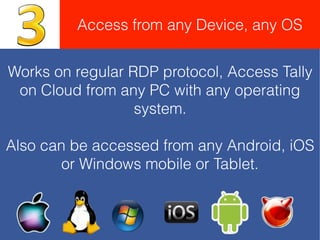
Works on regular RDP protocol, Access Tally
on Cloud from any PC with any operating
system.
Also can be accessed from any Android, iOS
or Windows mobile or Tablet.
Access from any Device, any OS
Your Company’s Tally is hosted in a Virtual
Server.
“Its not a shared hosting”
Dedicated Private Server for your Tally and its
Data
Data Privacy, our Main Concern
Hosted on Tiguin Linux Cloud OS
Enjay Tiguin Linux has been tested by Tally
Solutions Ltd., Bangalore, India.
Click here read it on Tally Website
Enjay Tiguin Linux OS, as featured on Tally
Website.
Low Bandwidth requirement.
Only 50 kbps required for each user session.
(we have modified RDP protocol for more efficiency)
(However take special care about quality of
connectivity. there should be no breaks)
Any TDL programming is supported.
Local Printers attached to your local PC is
supported.
Bar-Code scanners attached to local PC is
also supported.
Everything in Tally, is supported.
No Windows Server licensing costs (We have
hosted this on Enjay Tiguin Linux OS)
No need to buy MS-Office or Windows Server
or Server Client Access Licenses.
Save on Server & Client Licensing
costs
Enjay’s Tally on Cloud service is not based on
User Licenses.
No user based subscription model
Enjay Tally Cloud Planner
to help you select the plan
No Cloud User license required.
Your Cloud data can be synced with a local
folder on your local PC.
Always available to you, offline (Single Click).
BTW, our servers back-up your data @ 3
locations for Disaster Recovery.
Data Protection. Have it offline too.
BYOL, Bring your own License
Tally License is activated on the Cloud Server.
(in same way as you do on your server).
Have as many companies as you want on a
single License. (All your branches can run on
a single license)
Export reports from Tally to your local
PC
Export to any format (even MS-Excel) from
Tally.
Exported file gets directly synced to your local
folder.
Even TDL for import with Excel is also
possible.
View Plans for Tally
on Cloud
Click here to view Plans
Visual Tour of
Enjay Cloud Admin Panel
(Accessible only to Admins of the Clients,
for managing users, Tally, Data, Export,
TDL and all other settings)
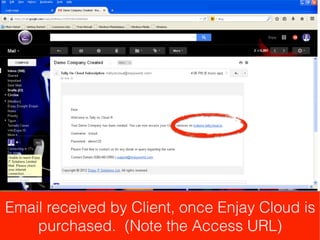
Email received by Client, once Enjay Cloud is
purchased. (Note the Access URL)
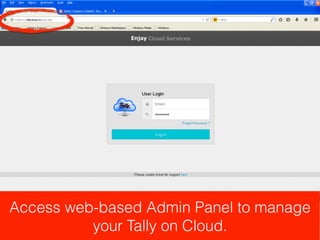
Access web-based Admin Panel to manage
your Tally on Cloud.
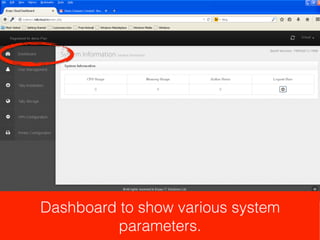
Dashboard to show various system
parameters.
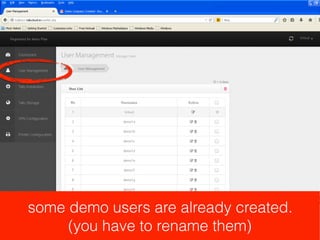
some demo users are already created.
(you have to rename them)
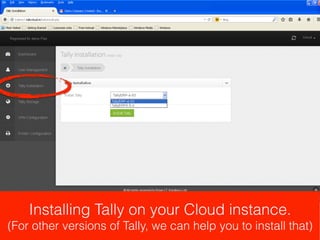
Installing Tally on your Cloud instance.
(For other versions of Tally, we can help you to install that)
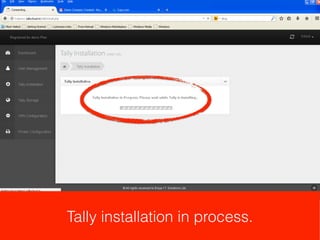
Tally installation in process.
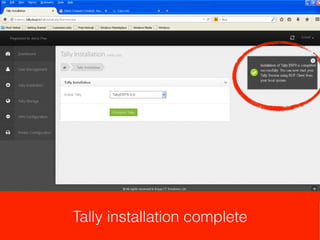
Tally installation complete
Prepare Cloud for sync
with your local PC
(We use copy.com to sync files between
Enjay Tally Cloud and your Local PC)
Create Account then sign in.
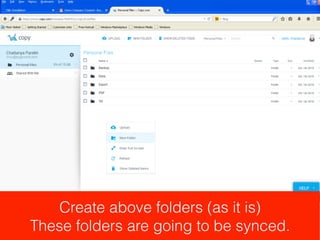
Create above folders (as it is)
These folders are going to be synced.
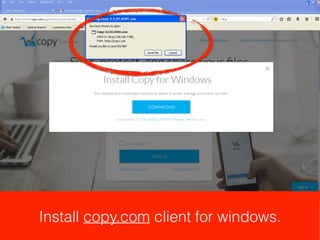
Install copy.com client for windows.
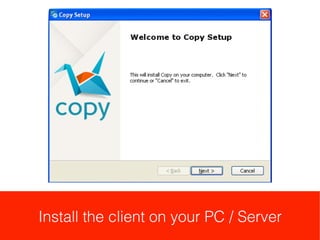
Install the client on your PC / Server
Login to client software
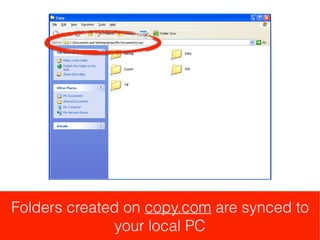
Folders created on copy.com are synced to
your local PC
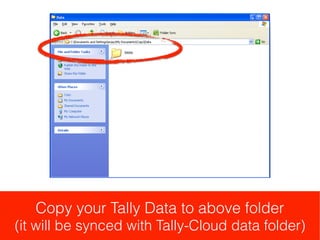
Copy your Tally Data to above folder
(it will be synced with Tally-Cloud data folder)
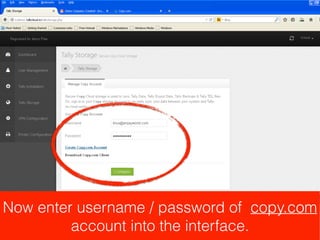
Now enter username / password of copy.com
account into the interface.
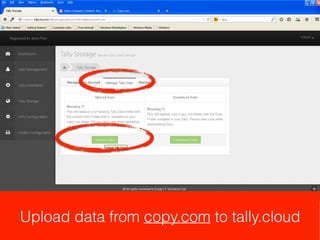
Upload data from copy.com to tally.cloud
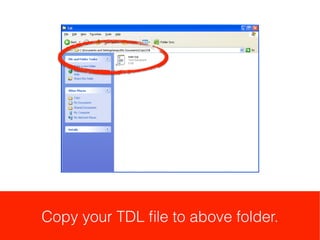
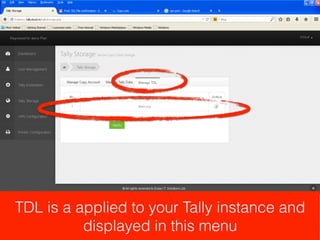
Copy your TDL file to above folder.
TDL is a applied to your Tally instance and
displayed in this menu
Prepare Cloud for
Printer Installation
(We use VPN to create link between your
PC and Tally Cloud for mapping printers)
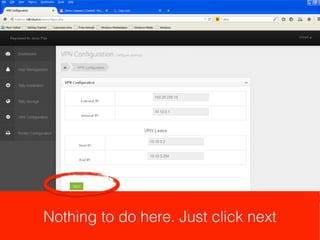
Nothing to do here. Just click next
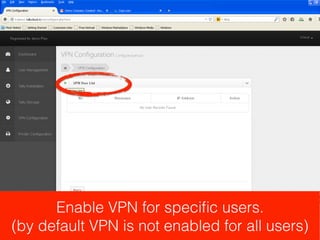
Enable VPN for specific users.
(by default VPN is not enabled for all users)
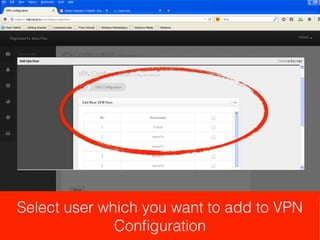
Select user which you want to add to VPN
Configuration
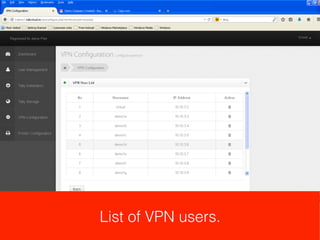
List of VPN users.
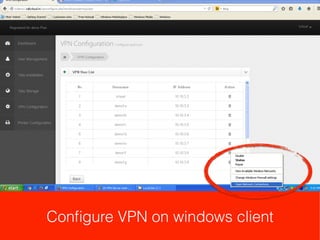
Configure VPN on windows client
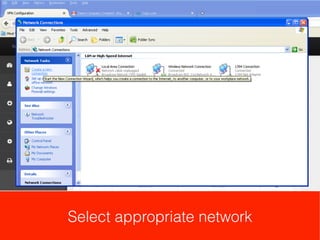
Select appropriate network
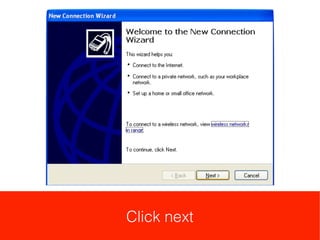
Click next
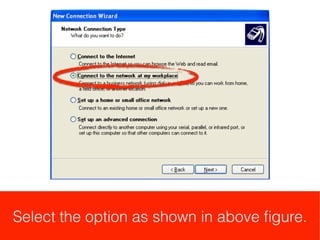
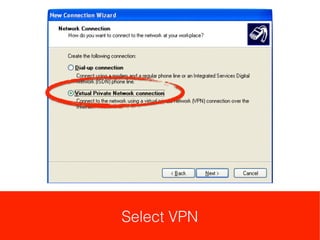
Select the option as shown in above figure.
Select VPN
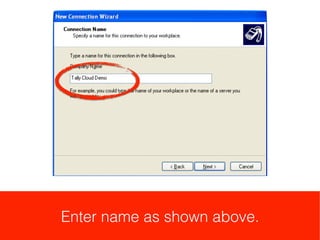
Enter name as shown above.
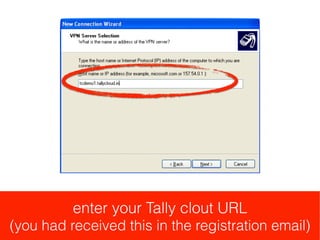
enter your Tally cloud URL
(you had received this in the registration email)
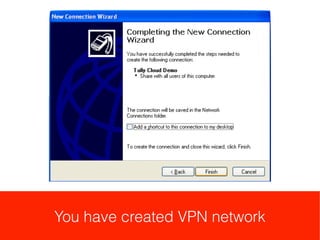
You have created VPN network
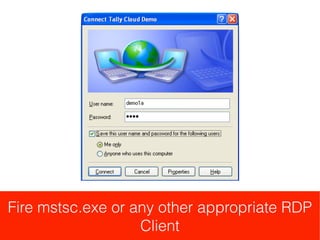
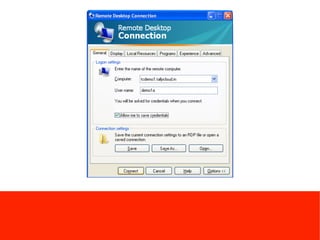
Fire mstsc.exe or any other appropriate RDP
Client
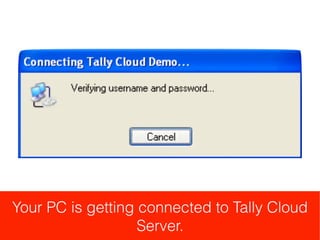
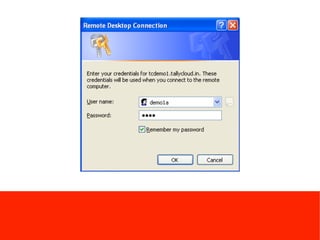
Your PC is getting connected to Tally Cloud
Server.
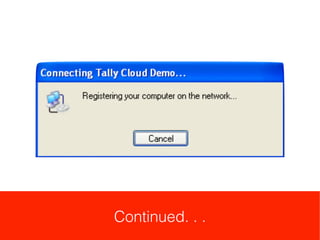
Continued. . .
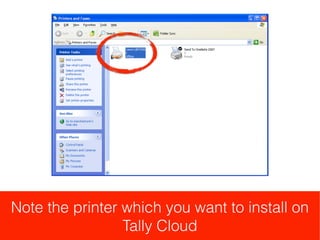
Note the printer which you want to install on
Tally Cloud
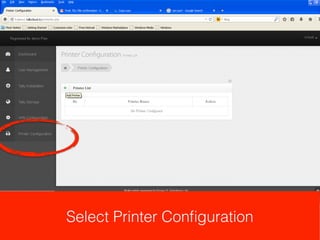
Select Printer Configuration
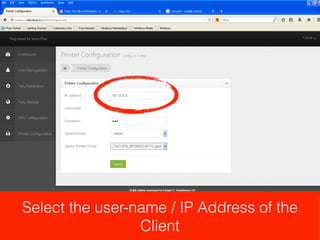
Select the user-name / IP Address of the
Client
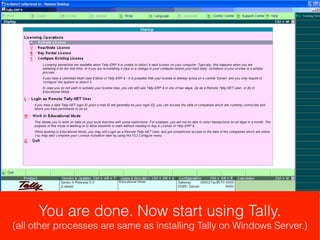
You are done. Now start using Tally.
(all other processes are same as installing Tally on Windows Server.)
support.enjayworld.
com
For more technical support visit our Portal
Support portal has all the information
required.
Enjay Tally on Cloud Features and Benefits

Enjay Tally on Cloud Features and Benefits