EFIS-D100
Electronic Flight Information System


                                                     Pilot’s User Guide


                                                P/N 100477-000, Revision F
                                          For use with firmware version 5.1
                                                                      May, 2009
                                                                 Dynon Avionics

                                              This product is not approved for
                                       installation in type certificated aircraft
Contact Information
Dynon Avionics, Inc.
19825 141st Place NE
Woodinville, WA 98072
Phone: (425) 402-0433 - 7:00 AM – 5:00 PM (Pacific Time) Monday - Friday
Fax: (425) 984-1751
Dynon Avionics offers online sales, extensive support, and continually-updated information on its products via its Internet sites:
  • www.dynonavionics.com –Dynon Avionics primary web site; including:
    • docs.dynonavionics.com – Current and archival documentation.
    • downloads.dynonavionics.com – Software downloads.
    • support.dynonavionics.com – Support resources.
    • store.dynonavionics.com – Dynon’s secure online store for purchasing all Dynon products 24 hours a day.
    • wiki.dynonavionics.com – Dynon Avionics’ Documentation Wiki provides enhanced, extended, continuously-updated online documentation
      contributed by Dynon employees and customers.
    • forum.dynonavionics.com – Dynon Avionics’ Internet forum where Dynon customers can interact and receive Dynon technical support
      outside of telephone support hours. A key feature of the forum is that it allows the exchange of diagrams, photos, and other types of files.
    • newsletter.dynonavionics.com – Dynon’s email newsletter.
    • blog.dynonavionics.com – Dynon’s blog where you can find new and interesting Dynon-related content.


Copyright
© 2003-2009 Dynon Avionics, Inc. All rights reserved. No part of this manual may be reproduced, copied, transmitted, disseminated or stored in any
storage medium, for any purpose without the express written permission of Dynon Avionics. Dynon Avionics hereby grants permission to download a
single copy of this manual and of any revision to this manual onto a hard drive or other electronic storage medium to be viewed for personal use,
provided that such electronic or printed copy of this manual or revision must contain the complete text of this copyright notice and provided further
that any unauthorized commercial distribution of this manual or any revision hereto is strictly prohibited.
Introduction
Information in this document is subject to change without notice. Dynon Avionics reserves the right to change or improve its products and to make
changes in the content without obligation to notify any person or organization of such changes. Visit the Dynon Avionics website
(www.dynonavionics.com) for updates and supplemental information concerning the use and operation of this and other Dynon Avionics products.


Limited Warranty
Dynon Avionics warrants this product to be free from defects in materials and workmanship for three years from date of shipment. Dynon Avionics
will, at its sole option, repair or replace any components that fail in normal use. Such repairs or replacement will be made at no charge to the customer
for parts or labor. The customer is, however, responsible for any transportation cost. This warranty does not cover failures due to abuse, misuse,
accident, improper installation or unauthorized alteration or repairs.
THE WARRANTIES AND REMEDIES CONTAINED HEREIN ARE EXCLUSIVE, AND IN LIEU OF ALL OTHER WARRANTIES
EXPRESSED OR IMPLIED, INCLUDING ANY LIABILITY ARISING UNDER WARRANTY OF MERCHANTABILITY OR FITNESS FOR A
PARTICULAR PURPOSE, STATUTORY OR OTHERWISE. THIS WARRANTY GIVES YOU SPECIFIC LEGAL RIGHTS, WHICH MAY
VARY FROM STATE TO STATE.
IN NO EVENT SHALL DYNON AVIONICS BE LIABLE FOR ANY INCIDENTAL, SPECIAL, INDIRECT OR CONSEQUENTIAL DAMAGES,
WHETHER RESULTING FROM THE USE, MISUSE OR INABILITY TO USE THIS PRODUCT OR FROM DEFECTS IN THE PRODUCT.
SOME STATES DO NOT ALLOW THE EXCLUSION OF INCIDENTAL OR CONSEQUENTIAL DAMAGES, SO THE ABOVE LIMITATIONS
MAY NOT APPLY TO YOU.
Dynon Avionics retains the exclusive right to repair or replace the instrument or firmware or offer a full refund of the purchase price at its sole
discretion. SUCH REMEDY SHALL BE YOUR SOLE AND EXCLUSIVE REMEDY FOR ANY BREACH OF WARRANTY.
These instruments are not intended for use in type certificated aircraft at this time. Dynon Avionics makes no claim as to the suitability of its products
in connection with FAR 91.205.
Dynon Avionics’ products incorporate a variety of precise, calibrated electronics. Except for replacing the optional internal backup battery in EFIS-
based products per the installation guide, our products do not contain any field/user-serviceable parts. Units that have been found to have been taken
apart may not be eligible for repair under warranty. Additionally, once a Dynon Avionics unit is opened up, it will require calibration and verification
at our Woodinville, WA offices before it can be considered airworthy.


EFIS-D100 Pilot’s User Guide                                                                                                                             iii
Table of Contents

Contact Information..............................................................................................................................................................ii
Copyright..............................................................................................................................................................................ii
Limited Warranty ................................................................................................................................................................iii
1. Introduction                                                                                                                                                                    1-1
Before You Fly ..................................................................................................................................................................1-1
OEM Installations..............................................................................................................................................................1-1
Warning .............................................................................................................................................................................1-2
About this Guide................................................................................................................................................................1-2
2. Product Overview                                                                                                                                                                2-1
EFIS-D100 Hardware ........................................................................................................................................................2-1
ADAHRS Operation..........................................................................................................................................................2-3
3. Product Operation                                                                                                                                                               3-1
Front Panel Layout ............................................................................................................................................................3-1
Display...............................................................................................................................................................................3-2
Menus ................................................................................................................................................................................3-6
4. Available Pages                                                                                                                                                                 4-1
EFIS Main pages ...............................................................................................................................................................4-2
HSI Page............................................................................................................................................................................4-9
Times Page ......................................................................................................................................................................4-10
Lists Pages .......................................................................................................................................................................4-11

EFIS-D100 Pilot’s User Guide                                                                                                                                                           v
Table of Contents

Menu Pages......................................................................................................................................................................4-11
5. EFIS Operation                                                                                                                                                               5-1
POWER – Power on/off ................................................................................................................................................... 5-1
BARO – Changing Altimeter Setting ............................................................................................................................... 5-1
BUGS – Setting Bug Markers .......................................................................................................................................... 5-2
LISTS – Using Checklists and Data Panels ...................................................................................................................... 5-5
SETUP – Setting Preferences ........................................................................................................................................... 5-6
INFO – Informational Items ............................................................................................................................................5-10
DIM – Changing screen brightness..................................................................................................................................5-12
TIMER – Setting and using a timer .................................................................................................................................5-13
OATSET – Setting Temperature Offset ..........................................................................................................................5-14
DATLOG – Logging and retrieving data.........................................................................................................................5-14
6. HSI Operation                                                                                                                                                                6-1
Required Connections....................................................................................................................................................... 6-1
Accessing the HSI/DG Page ............................................................................................................................................. 6-1
HSI Display Basics ........................................................................................................................................................... 6-2
Navigation Radio Overlay ................................................................................................................................................ 6-4
GPS Overlay ..................................................................................................................................................................... 6-7
HSI Menu Structure.......................................................................................................................................................... 6-9
7. Autopilot Operation                                                                                                                                                          7-1
Introduction and Resources .............................................................................................................................................. 7-1
EFIS AP Indicators ........................................................................................................................................................... 7-2
AP Modes ......................................................................................................................................................................... 7-5
AP Control Methods ......................................................................................................................................................... 7-9

vi                                                                                                                                     EFIS-D100 Pilot’s User Guide
Table of Contents

EFIS Autopilot Control .....................................................................................................................................................7-9
AP74 Autopilot Control...................................................................................................................................................7-11
Disengage/Control Wheel Steering (CWS) Pushbutton ..................................................................................................7-15
Optional Preflight Checklist ............................................................................................................................................7-17
8. Alerts                                                                                                                                                                     8-1
Alarm Indicators ................................................................................................................................................................8-1
Multiple Alarms.................................................................................................................................................................8-3
DSAB Alerts......................................................................................................................................................................8-3
9. Appendix                                                                                                                                                                   9-1
Appendix A: Serial Data Output........................................................................................................................................9-1
Appendix B: PC Support Program ....................................................................................................................................9-3
Appendix C: Troubleshooting ...........................................................................................................................................9-3
Appendix D: EFIS-D100 Specifications............................................................................................................................9-8


EFIS-D100 Pilot’s User Guide                                                                                                                                                    vii
1. INTRODUCTION
Thank you for purchasing the Dynon Avionics EFIS-D100. This section provides some important cautionary information
and general usage instructions for this manual.

Before You Fly
We strongly recommended that you read this entire guide before attempting to use the EFIS-D100 in an actual flying
situation. Additionally, we encourage you to spend time on the ground familiarizing yourself with the operation of the
product. While first learning to use the instrument in the air, we recommend you have a backup pilot with you in the
aircraft. Finally, we encourage you to keep this manual in the aircraft with you at all times. This document is designed to
give you quick access to information that might be needed in flight. CAUTION: in a flying situation, it is the pilot’s
responsibility to use the product and the guide prudently.

OEM Installations
If your EFIS-D100 is installed by an OEM distributor, you may find that you are unable to access some menus and
settings. Some Dynon distributors customize various areas of the EFIS-D100 firmware to maintain a consistent pilot
experience and minimize integration issues across a large number of installations. Currently, OEMs can customize
access levels to the following settings on Dynon systems: EMS GLOBAL setup menu, EMS SENSOR setup menu, fuel
calibration, trim calibration, flaps calibration, GPS/NAV setup menu, screen configurations, data logging, and
checklists/data panels. OEM distributors have the option of customizing some or all of these areas. Please contact your
aircraft’s manufacturer if you have any questions about how your unit has been customized.


EFIS-D100 Pilot’s User Guide                                                                                            1-1
Introduction

Warning
Dynon Avionics’ products incorporate a variety of precise, calibrated electronics. Except for replacing the optional
internal backup battery in EFIS-based products per the installation guide, our products do not contain any field/user-
serviceable parts. Units that have been found to have been taken apart may not be eligible for repair under warranty.
Additionally, once a Dynon Avionics unit is opened up, it will require calibration and verification at our Woodinville,
WA offices before it can be considered airworthy.

About this Guide
This guide serves two purposes. The first is to help you configure and get acquainted with the EFIS-D100‘s many
functions. The second is to give you quick access to vital information. For detailed technical and installation information,
please refer to the EFIS-D100 Installation Guide.
In the electronic (.PDF) version of this manual, page and section references in the Table of Contents and elsewhere act as
hyperlinks taking you to the relevant location in the manual. The latest version of this manual may be downloaded from
our website at docs.dynonavionics.com.
This guide discusses the most common operation scenarios. If you have an operational issue that is not discussed in this
guide, you can find additional operational information on Dynon’s Internet sites:
 • wiki.dynonavionics.com – Dynon’s Documentation Wiki provides enhanced, extended, frequently updated online
   documentation contributed by Dynon employees and customers.
 • forum.dynonavionics.com – Dynon’s Online Customer Forum is a resource for Dynon Avionics customers to
   discuss installation and operational issues relating to Dynon Avionics products. The Forum is especially useful for
   pilots with uncommon aircraft or unusual installation issues. For customers that cannot call Dynon Technical
   Support during our normal business hours, the Forum is a convenient way to interact with Dynon Avionics
   Technical Support. The Forum allows online sharing of wiring diagrams, photos, and other types of electronic files.

1-2                                                                                         EFIS-D100 Pilot’s User Guide
Introduction

The following icons are used in this guide:

         Any text following this icon describes functionality available only with the HS34 HSI Expansion Module
         connected to your system.
         Any text following this icon describes functionality available only with the AP74 Autopilot Interface Module
         connected to your system.
         Any text following this icon describes functionality that is possible when multiple Dynon Avionics products are
         networked together via the Dynon Smart Avionics Bus (DSAB).
         Any text following this icon refers to a setting or situation which merits particularly close attention.


EFIS-D100 Pilot’s User Guide                                                                                                1-3
2. PRODUCT OVERVIEW
This section provides a general overview of the various parts of the EFIS-D100 as well as a theory of operation. The
information in this section serves as a reference only and helps familiarize you with the inner workings of the unit. It
should not be used for diagnostic or reparative work.

EFIS-D100 Hardware
The EFIS-D100 uses solid-state sensors to provide accurate and reliable information about your flying environment in an
easy-to-use interface.
 POWER
The EFIS-D100 requires between 10 and 30 volts DC for operation and has inputs for an external backup power supply
and a keep-alive voltage. It is acceptable to have the EFIS-D100 turned on during engine start.
The EFIS-D100 can be ordered with an optional internal battery which allows the instrument to continue to operate in
the event of an external power failure. This lithium-ion battery is rechargeable and is managed by the EFIS-D100. If the
always-on Keep Alive circuit is connected, the EFIS-D100 continues to charge its internal battery even if the instrument
is turned off. This ensures that your internal emergency battery is always fully charged. Under normal conditions, the
internal battery should have a voltage between 13 and 16.8 volts. When the battery’s voltage drops below 13 volts, the
EFIS-D100 displays a low battery warning. When new, a fully charged internal battery is rated for a minimum of 1.5
hours of normal operation with the EFIS-D100. If the EFIS-D100 has switched to its internal emergency battery due to a
power loss in your aircraft, it is advised that you land as soon as possible.


EFIS-D100 Pilot’s User Guide                                                                                               2-1
Product Overview

 SENSORS AND INPUTS
Attitude information is obtained from 3 solid-state gyrometers, 3 solid-state accelerometers, and the airspeed pressure
sensor. Heading information is obtained from 3 solid-state magnetometers housed in the EDC-D10A. Airspeed, altitude
and angle of attack are obtained from three separate pressure transducers.
HSI information can be displayed when connected to Dynon’s HS34, a Garmin SL30, or a compatible GPS unit.
 DYNON SMART AVIONICS BUS
If you have multiple Dynon Avionics products in your aircraft, they may be networked together via the Dynon Smart
Avionics Bus (DSAB). Units networked via DSAB have the ability to transmit information to each other. Any product's
data can then be viewed on any other screen in the DSAB network. For example, an EFIS has the ability to display
engine monitor information if it is connected to an EMS or FlightDEK-D180.
Note that the failure of a unit in a DSAB network may cause the loss of some or all data shared between units. In the
above example, if the connected EMS/FlightDEK-D180 were to fail, the EFIS would no longer be able to behave as an
engine monitor. For more information on DSAB-specific alerts, refer to the DSAB Alerts section on page 8-3.
 OUTPUTS
The EFIS-D100 has an output to drive an external customer-supplied audible device for AOA (if installed) and altitude
alerts.
A serial output is also provided for serial altitude encoder data. An optional Serial-to-Gray Code Converter is available
for connection to Mode C Gray Code transponders.


         A connected HS34 or AP74 can output voice annunciations for many of the alerts generated by the EFIS-D100.


2-2                                                                                         EFIS-D100 Pilot’s User Guide
Product Overview

 DISPLAY
The display is a 7-inch, 854 by 480 pixel, 400 nit or 800 nit LCD screen, depending on the model.
 BUTTONS AND KNOBS
User interaction takes place via the six buttons along the bottom of the front panel of the unit.

         When an AP74 Autopilot Interface Module is configured to control the EFIS-D100, its VALUE knob changes
         values when in various EFIS menus. When no menus are displayed the AP74 can adjust the barometer, altitude
         bug, and heading bug. The AP74’s buttons control the Autopilot operation mode (Heading Hold, Track Hold,
         GPS horizontal navigation, altitude hold), and allow you to engage and disengage the Autopilot.
         When an HS34 is configured to control the EFIS-D100, its VALUE knob changes values when in various EFIS
         menus. When no menus are displayed the HS34 can adjust the barometer or altitude bug. The HS34’s
         HEADING and COURSE knobs affect their respective parameters on the HSI page. The HS34’s GPS and NAV
         buttons cycle through the available GPS and NAV sources connected to it.

ADAHRS Operation
The primary flight instruments on your EFIS display are generated using a group of calibrated sensors. All of them are
solid state – that is, there are no moving parts. These sensors include accelerometers, which measure forces in all three
directions; rotational rate sensors, which sense rotation about all three axes; pressure transducers for measuring air data;
and magnetometers on all three axes for measuring magnetic heading. These sensors form the core of Dynon’s Air Data
Attitude and Heading Reference System (ADAHRS).
The table below describes which inputs and sensors are used within the EFIS to generate the different displayed
instruments. It is not meant to enable in-flight troubleshooting, but is provided to convey how much of an integrated
system your EFIS is.

EFIS-D100 Pilot’s User Guide                                                                                              2-3
Product Overview

                      GPS      Pitot    Static    AOA      Magnetometers        Rate Sensors      Accelerometers
               Ball                                                                                     X
          Altitude                        X
         Airspeed               X         X
              AOA               X         X         X
        Turn Rate      X*       X         X                                           X                  X
         Heading       X*       X         X                        X                  X                  X
          Attitude     X*       X*        X                                           X                  X

 ATTITUDE CALCULATION
The EFIS-D100 artificial horizon display (attitude) is generated via a complex algorithm using a multitude of sensors.
Your EFIS attitude is not reliant on any single external system. It
can provide an accurate attitude - even in the event of airspeed loss
(due to icing or other blockage) - via a redundant GPS aiding source.
In normal operation the instrument uses airspeed to provide superior
attitude accuracy. If a problem develops with your airspeed reading,
a properly connected and configured GPS source acts as a substitute. When in this mode the instrument continues to
provide accurate attitude.
*If a GPS is present upon the loss of airspeed, the EFIS-D100 uses the GPS ground speed in
its attitude calculation. When in this mode, a magenta GPS ASSIST message is displayed
over the horizon and the ground speed is displayed below the IAS indicator (as shown at
right). If the connectivity with the GPS fails while in GPS assist mode, the attitude continues
to be displayed, using the last known GPS ground speed as a reference. This mode is flagged
on the horizon with a yellow CROSS CHECK ATTITUDE message. In the very rare case that


2-4                                                                                        EFIS-D100 Pilot’s User Guide
Product Overview

this sequence of event occurs, the EFIS-D100’s attitude accuracy is reduced; use other references in the aircraft to cross-
check against the EFIS-D100’s attitude.
 COMPASS ACCURACY AND AUTOPILOT PERFORMANCE
If you are using your EFIS-D100 to control Dynon’s Autopilot, it is critical that the magnetic heading be as accurate as
possible for comfortable operation in HDG mode and the upcoming radio-based VOR/NAV mode. The aircraft’s
compass must be installed correctly, calibrated, and operating well in all attitudes.


EFIS-D100 Pilot’s User Guide                                                                                            2-5
3. PRODUCT OPERATION
After reading this section, you will be familiar with the basics of how to use your EFIS-D100. For details regarding
specific procedures (e.g., adjusting display brightness, changing the altimeter setting, setting the clock, etc.) please refer
to the EFIS Operation section.

Front Panel Layout
All normal operation of the EFIS-D100 happens via the front
panel. The front panel contains buttons and a display.
 • Buttons – There are six buttons on the front panel of the
   EFIS-D100. Throughout this guide, these buttons are
   referred to as one through six, with button one being the
   leftmost and button six being the rightmost. EFIS-D100
   buttons are used to turn the instrument on and off, cycle
   between screens, scroll through menus, and adjust
   instrument parameters.
 • Display – The display shows EFIS information, menus, and
   data obtained from other connected products.
                                                                                1      2      3      4       5      6


                                                                      User interaction takes place via the EFIS-D100 main
                                                                      display and the six buttons beneath. Note: buttons are
                                                                      not labeled on actual product


EFIS-D100 Pilot’s User Guide                                                                                                3-1
Product Operation


Display
The EFIS-D100 display is the most obvious and commonly used output of the device. It is capable of displaying EFIS,
HSI, and/or engine data simultaneously.
 SCREENS AND PAGES
The terms in the following bulleted list are used in this section and are defined as follows:
 • Screen/Screen Configuration – Screens consist of one or
   two pages from the EFIS-D100 or from another DSAB-
   connected Dynon Avionics product.
 • Page – A page is a section of the screen that contains a
   collection of related data. Pages may occupy the total area
   of the screen (i.e., 100%) or share the screen with other
   pages (e.g., 2/3, 1/3 split). Pages that occupy 1/3 of the
   screen area are sometimes abbreviated versions of their full
   size (100% or 2/3) counterparts.
 • Screen Rotation – The rotation is the list of screen
   configurations which can be cycled to via the hotkeys. Your
   rotation is usually smaller than the total list of available
   screen configurations.
                                                                     Screens contain one or two pages and pages contain
                                                                     groups of similar information.


3-2                                                                                             EFIS-D100 Pilot’s User Guide
Product Operation

The EFIS-D100 has several pre-defined screen configurations.        Icon     Left Page Area         Right Page Area
The basic layout of a screen configuration is represented by one                   2/3                     1/3
of three icons on D100-series product. The table at right shows
                                                                                    1/3                      2/3
the three icons and their meaning.
                                                                               One page that occupies all of the screen
The predefined screen configurations with their respective icons                                area
are as follows:                                                    The SCREEN LIST Menu uses icons to illustrate the
                                                                   layout for each screen configuration.

              EFIS/EMS
              EFIS/AUX
              EFIS/FUEL
              EFIS/TIMES
              EFIS/HSI (in default screen rotation)
              EMS/EFIS
              EMS/AUX
              EMS/TIMES
              EMS/FUEL
              EMS/HSI
              EFIS (default EFIS-D100 boot-up screen; in default rotation)
              EFIS/EMS
              EMS/EFIS
              HSI/EMS


EFIS-D100 Pilot’s User Guide                                                                                              3-3
Product Operation

 CYCLING BETWEEN SCREENS
There are two methods for cycling between pre-defined screens:
via the menu and via hotkeys.

      Screen Cycling Using the SCREEN LIST
Navigate to the SCREEN LIST menu by holding button six for at                         Hold two seconds
least two seconds when no menu is present (see the figure to the
right). Note that if you only press button six momentarily, the
display cycles to the next screen in your screen rotation. Use the
DOWN▼/UP▲ buttons to move the caret (>). The caret denotes
the selected screen. Press GOTO► to remove the SCREEN LIST
and display the selected screen. If you wish to stay on the same
screen, you may either select your currently displayed screen with
the caret and press GOTO►, or press CANCEL.

      Screen Cycling Using Hotkeys
With no menu displayed, press button one to cycle to the previous
screen in your rotation. Likewise, press button six to cycle to the
next screen in your rotation (see the figure on the next page).
Cycling via hotkeys only allows you to display screens that are in    With no menus displayed, pressing button six for two
your screen rotation. They are meant to give you quick access to      seconds displays the SCREEN LIST menu, from
the screen configurations that are most important to you. If you      which you may switch to, and set up, various screen
wish to access screens that are not in your rotation, use the         configurations.
SCREEN LIST as described above.


3-4                                                                                        EFIS-D100 Pilot’s User Guide
Product Operation

   Changing the Screen Rotation
You may use the out-of-the-box screen rotation or define your own. If you desire to use the initial rotation, no user
configuration is required. If you desire to use a custom cycling
order, then user configuration is necessary.
To configure a custom rotation, navigate to the SCREEN LIST
menu page by pressing button six for approximately two seconds
when no menu is present. Press SETUP, then press ROTATN to
display the menu used to change the boot and rotation screen.
Scroll through the pre-defined screens using the DOWN▼/UP▲
buttons.
Press the BOOT* button on any selected screen configuration to
                                                                          cycles to                        cycles to
make it the screen that is shown immediately after the                   prev. screen                     next screen
instrument is turned on. Only one screen may be designated as
the boot screen. Next, press the TOGGL↕ button on any selected
screen to toggle the “↕” icon. All screens that show the “↕” icon
are included in the rotation. Any screen in the rotation may be       Buttons one and six cycle to the previous and next
accessed via the button one and six hotkeys. Press BACK to            screens, respectively.
save any settings.

   Changing the Screen List Order
You may wish to change the order in which screen configurations are displayed in the SCREEN LIST, thus changing the
order they are cycled to via hotkeys. To do this, navigate to the SCREEN LIST menu page by pressing button six for
approximately two seconds when no menu is present. Press SETUP, then press ORDER to display the menu used to
change the screen order. Scroll through the pre-defined screens using the DOWN▼/UP▲ buttons. Press the MV DN▼


EFIS-D100 Pilot’s User Guide                                                                                               3-5
Product Operation

button to move the selected screen down in the screen list. Likewise, press the MV UP▲ button to move the selected
screen up in the screen list.

Menus
All interaction with the EFIS-D100 is accomplished through the use of its menu
system. The menu system is accessed and navigated via the six buttons located on
the front of the unit.
 PAGE-SENSITIVE MENUS
On a screen where no menu is already present, buttons two through five are used to
display a menu. With no menu displayed, pressing any one of these buttons causes
the menu for the page above it to show at the bottom of the screen. For example, if a
screen is divided into two pages with the left page occupying 2/3 of the screen and
the right page occupying 1/3 of the screen, then pressing EFIS-D100 buttons two,
three, or four (all below the left 2/3 of the screen) displays the main menu for the left
page and pressing button five (below the right 1/3 of the screen) displays the main
menu for the right page (see the figure to the right).
 FUNCTIONALITY
A menu consists of two rows of gray boxes containing text. The upper row contains
one tab that denotes the currently displayed menu. The lower row contains six labels
that denote the function of the button below it. Many of the onscreen elements move
up to avoid the menu. This prevents the menu from obscuring useful data while it is
                                                                                            The configuration of the pages on
up. Upon exiting the menu, the screen returns to its normal appearance.
                                                                                            the screen determines which
                                                                                            buttons are used to display a
                                                                                            page's menu.
3-6                                                                                            EFIS-D100 Pilot’s User Guide
Product Operation

Pressing a button either displays another menu or adjusts a parameter. If there is no text above a button, then that button
does not have a function in the context of that menu. Occasionally, a button label spans two or more buttons. In this case,
any button below the label invokes the command.
If a menu contains more options than there are buttons, the MORE label is displayed over button five. Pressing this
button shows you the next set of options in the current menu.
In any menu, press the BACK button to return to the previous menu and save any changes. In all top-level menus, button
six is the EXIT button. Pressing EXIT removes the menu system and moves many of the onscreen elements down to
their original positions.
 FLOW
Each page has its own main menu, which may contain options
for navigating to other menus or choosing and adjusting
parameters. For example, the EFIS Main Page menu contains an
EFIS menu tab and button labels for MENU►, BARO, BUGS,
LISTS, MORE, and EXIT. Pressing MORE reveals the rest of
                                                                      Each menu consists of labels above each button
the EFIS menu. This menu contains options for SETUP, INFO,
                                                                      denoting their function.
DIM, TIMER, MORE, and EXIT. Pressing MORE on this menu
simply returns you to the first part of the EFIS menu.
In all top-level page menus (EFIS and HSI), the leftmost button is the MENU button. If you have opened up the left
page’s menu, the label reads MENU►. Pressing the button switches the menu to display the right page’s menu, and the
label switches to read ◄MENU. The arrow on this button always points to the side of the screen whose menu is
displayed when pressing the button.


EFIS-D100 Pilot’s User Guide                                                                                           3-7
Product Operation

For example, if you press the BUGS button on the
EFIS menu, there are options for HDG, IAS, ALT,
and EXIT. Pressing HDG, IAS, or ALT allows the
user to configure heading, indicated airspeed, or
altitude bugs, respectively.
To exit the menu system, press the BACK button as
many times as is needed to reach an EXIT button.
This varies based upon how deep you are into the          In any menu with more options than will fit on a line, the
menu system.                                              MORE button displays the rest of the menu.
 DESCRIPTIONS IN THIS GUIDE
Throughout this guide, the “>” character is used to indicate entering a deeper level of the menu system. For example,
“EFIS > INFO > LEFT” indicates entering the EFIS menu, pressing MORE, then pressing INFO, and then pressing
LEFT to enter the left info item menu. Note that the MORE button is not included in the sequence, since pressing MORE
reveals more options in the same level of the menu system.


3-8                                                                                       EFIS-D100 Pilot’s User Guide
4. AVAILABLE PAGES
The EFIS main pages use various tapes, digital displays, and other indicators overlaid on an artificial horizon. On the 2/3
and full-screen pages, you may also display up to two “info items” on the left and right side of the main page. HSI pages
use text and a DG style compass by itself or overlaid with lines and arrows of different colors.
Note: HSI pages use data that is obtained from a source external to the EFIS-D100. Refer to the EFIS-D100
Installation Manual for a list of compatible equipment.
Note: EMS-based pages use data that is obtained from Dynon’s EMS products. You may only display these pages
on your EFIS-D100 if you own a Dynon EMS-based product, and the two units are connected via DSAB. Refer to
the EFIS-D100 Installation Manual for details regarding proper connection between Dynon products and other
devices in your system. Please see your EMS-based product’s Pilot’s User Guide for information on configuring
the various displays sourced from it.


EFIS-D100 Pilot’s User Guide                                                                                            4-1
Available Pages


EFIS Main pages
      Available in 1/3, 2/3 and full formats
The EFIS-D100 default screen rotation includes only 2/3 EFIS
pages combined with the various EMS and HSI pages described
below. However, you may also choose screen configurations that
use 1/3 and full-screen pages. The 2/3 and full-screen pages can
display EFIS- and EMS-related info items on the left and right
side of the screen. You can enable any of the non-default EFIS
screens as described in the Changing the Screen Rotation section
on page 3-5. Some of the displayed items described below may
not be onscreen, depending on whether or not they have been
enabled in the CLUTTR menu.
Beginning with firmware revision 3.0, Dynon adopted a
dramatically different EFIS display format than it had previously
used. If your EFIS display does not resemble the layouts shown
at right, first ensure that you are using firmware version 3.0 or
higher. Then, ensure that the setting at EFIS > SETUP > STYLE
is set to MODERN. If you prefer the previous display style, you
can change this setting to CLASSIC. The classic display format
is documented in previous revisions of this manual, available on
Dynon Avionics’ website at docs.dynonavionics.com. No further
development will occur on the classic display format.
The following sub-sections describe the displayed items in
detail.

4-2                                                                 EFIS-D100 Pilot’s User Guide
Available Pages

   Horizon line, pitch and roll indicators
Bounded on the top by blue, and on the bottom by brown, the horizon line behaves in much the
same way as a traditional gyro-based artificial horizon. Unlike a mechanical artificial horizon, the
EFIS-D100’s horizon has no roll or pitch limitation. The horizon line stays parallel to the Earth’s
horizon line regardless of attitude. The parallel lines above and below the horizon line are the
pitch indicator lines, with each line indicating 5 degrees of pitch. The end of each 10º pitch
indicator line has a hooked barb that points towards the horizon line to aid attitude awareness.
The roll scale has tic marks at 10, 20, 30, 45, 60, and 90 degrees of roll. In the CLUTTR menu
(described on page 5-6), you can choose between a stationary roll indicator and one that rotates along with the horizon.
The stationary roll indicator (type 1 in the EFIS > SETUP > CLUTTR > ROLL menu) has an internal arrow which
moves to stay perpendicular to the horizon, like a jet EFIS presentation. The moving roll indicator (type 2) rotates the
scale about a stationary internal arrow which points to the current roll angle on the scale, like most mechanical attitude
instrument presentations.
Please see the ADAHRS Operation section on page 2-3 for important information about the theory of operation for the
attitude and external data sources.

   CDI/Glideslope Indicators
When the EFIS-D100 is receiving CDI or glideslope information from a GPS or NAV radio,
they can be displayed on the main EFIS display as well as the on the full HSI page (as
described in the HSI Operation section on page 6-1). The data source is chosen on the HSI
page using the NAVSRC button; the EFIS and HSI CDI/GS displays are always synchronized
to the same source. There is no way to change the source on the EFIS screen.
On the EFIS page, these two items are enabled via the EFIS > SETUP > CLUTTR menu
under a single item, which can be set to either CDI:N, CDI:Y, or CDI+GS.

EFIS-D100 Pilot’s User Guide                                                                                             4-3
Available Pages

The CDI is located just above the slip/skid ball when displayed, and behaves much as described in the HSI Operation
section on page 6-1. The CDI needle is green when sourced from a NAV radio and magenta when sourced from GPS.
When to/from information is available, the center of the CDI is an arrow; when on an ILS, it is a filled-in square.
The glideslope indicator is located to the left of the roll scale tape, and behaves much as described in the HSI Operation
section on page 6-1. The GS needle is green when sourced from a NAV radio and magenta when sourced from GPS, and
appears only when tuned to an ILS or a GPS source with vertical guidance.
Due to screen space limitations, turning on the glideslope prevents a left info item from being displayed on the 2/3-
screen EFIS page. Additionally, at extreme roll angles, the glideslope is hidden to provide space for other screen
elements.

      Stabilized heading tape and digital readout
Located at the top of the EFIS page, the heading indicator
functions much like a standard slaved directional gyro. North,
East, South, and West directions are labeled on the tape, “N,” “E,” “S,” and “W,” respectively. The digital readout
displays your current heading, while the surrounding tape scrolls beneath its arrow. You may set a yellow bug on this
tape as a heading reminder. The pointer in the digital readout is hollow to allow the GPS ground track indicator,
displayed as a magenta arrow, to show through. A difference between the ground track arrow and the current heading
indicates that some wind is present. The currently set course heading is represented by a “V,” colored green when
sourced from a NAV radio and magenta when sourced from GPS. When the CDI is centered, aligning the ground track
pointer within the course pointer compensates for all wind and takes you directly to the waypoint or VOR. For course
and ground track to be displayed on the heading tape, they must both be enabled in the CLUTTR menu.
Like a conventional gyro-stabilized magnetic compass, magnetic heading reacts immediately to turn rate so that heading
changes are reflected immediately. It then uses magnetometer data over the long term to ensure that it remains correct.
Additionally, heading is corrected for attitude so that it is accurate as you pitch and roll.


4-4                                                                                         EFIS-D100 Pilot’s User Guide
Available Pages

   Turn rate indicator
Centered just below the heading digital readout, the turn rate indicator displays
the aircraft’s current rate of turn with respect to the ground. The magenta bar
grows in the direction that the aircraft is currently turning, and is anchored at a
white vertical anchor line. The brackets on either side of the bar’s anchor line
represent the turn rate which results in a standard rate turn. Turn rate takes attitude into account. This means that even
when you are highly banked, it still shows rate of turn in relation to the aircraft’s heading.
The turn rate indicator is scaled to indicate a 6-second heading trend. In the example above, the trend indicator is
showing that the aircraft will be pointed at 17º in 6 seconds if the rate of turn does not change.

   Altitude tape, digital readout, and VSI
The altitude tape scrolls beneath the altitude digital readout and arrow. The digital readout’s digits scroll up
and down, simulating an analog altimeter and giving a sense of the direction of movement. Thousands of
feet are displayed using large numbers while hundreds of feet are displayed in smaller numbers. The EFIS-
D100 accurately displays altitudes from -1200 to 30,000 ft (-365 to 9144 m).
The graphical Vertical Speed Indicator is located next to the altitude tape. The magenta bar grows in the
direction of – and in proportion to – the rate of climb or descent. The numbers on the scale represent
thousands of feet per minute. In the CLUTTR menu, the VSI scale can be set to display 1000 ft/min, 2000
ft/min, and 4000 ft/min. The 2000 ft/min scale is linear throughout the range, while the 1000 ft/min and
4000 ft/min are non-linear as shown on the scale. When set to display 2000 ft/min, the VSI bar is scaled to
indicate a 6-second altitude trend based on its position with relation to the altitude bar. When set to display
4000 ft/min, the VSI bar is scaled to indicate a 6-second trend only up to 1000 ft/min. When set to display
1000 ft/min, the VSI bar is scaled to indicate a 12-second trend up to 500 ft/min.


EFIS-D100 Pilot’s User Guide                                                                                                 4-5
Available Pages

During the first 30 seconds of operation, the altitude tape and digital readout are not displayed as the unit needs a small
amount of time before altitude measurements are deemed accurate.

      Elevator trim indicator
Located in the lower right corner of the EFIS page, the elevator trim indicator displays the relative trim of the
elevator in graphic form. The elevator trim indicator can only be displayed on the EFIS-D100 if an elevator
trim sensor is properly connected to one of the 3 EMS GP inputs (on a DSAB-connected EMS device), and is
properly configured in the EMS setup. As with the EMS info item, the green line indicates takeoff trim. The
two arrows indicate the current elevator trim.

      Winds aloft arrow
Located in the lower right corner of the EFIS page, the winds aloft arrow indicates the wind direction relative to
your current direction of flight. The number indicates the current absolute wind speed in the current airspeed
units. If the EFIS-D100 cannot make an accurate winds aloft calculation, the arrow is not displayed and the
numbers are replaced by dashes. The display of winds aloft requires an active GPS connection and an OAT
probe. In very light winds, the wind speed number is not displayed, although the arrow is.

      Angle of attack (AOA) indicator
The angle of attack indicator – available only with Dynon’s AOA Pitot Probe – displays the aircraft’s current
AOA relative to the stall AOA. The AOA calibration process should result in the lowest angle of attack stall
(usually the “clean” configuration) occurring between the yellow and red lines and the higher angle-of-attack
stall (usually the “dirty” configuration) occurring at the top of the red. As your aircraft’s angle of attack
increases, the bars in the indicator disappear, leaving the empty outline. As your aircraft’s AOA approaches
stall, downward-pointing arrows are left. Depending on your installation and configuration, an audible alarm
may also occur when near or in the stall. This audio alarm is accompanied by a flashing red triangle at the top of

4-6                                                                                          EFIS-D100 Pilot’s User Guide
Available Pages

the AOA display. To judge when a stall will occur, remember that the AOA indicator is showing actual AOA, and the
stall AOA changes with configuration. Because of this, a stall could occur anywhere inside the yellow range, but will
occur at the same point every time given a specific configuration. Refer to the EFIS-D100 Installation Guide for more
information on calibrating the AOA indicator.

   Airspeed tape, digital readout, and trend
The airspeed tape scrolls beneath the airspeed digital readout and arrow. The digital readout’s digits scroll up
and down, simulating an analog airspeed indicator and giving a sense of the increase or decrease in speed. The
EFIS-D100 is factory-calibrated to be accurate for airspeeds between 15 and 325 knots (17 to 374 mph). As
airspeed increases from 0 knots, the indicator becomes active at 20 knots. The indicator remains active until
airspeed drops below 15 knots. The EFIS-D100 may display airspeeds above 325 knots, but it is not guaranteed
to be accurate.
The airspeed tape utilizes 4 colors to give you a graphical representation of your speed with relation to your
aircraft’s limits. By default all of the color thresholds are set at 0, causing a grey tape to be displayed. You
must set the values of the airspeed color thresholds via the SETUP menu. Refer to the EFIS-D100 Installation
Guide for more information on setting the airspeed color thresholds.
The airspeed trend indicator is located to the left of the airspeed tape. The magenta bar grows in the direction of—and in
proportion to—the rate of acceleration or deceleration. The trend indicator is scaled to indicate a 6-second airspeed trend.
In the example at right, the trend indicator is showing that the aircraft will reach 124 knots in 6 seconds if the rate of
acceleration does not change.

   Bugs
Bugs may be set to mark a desired heading, airspeed, or altitude. These bugs are represented by a yellow
inverted arrow located at the desired value on the tape. If the set heading, altitude, or airspeed is
currently off-screen, the bug icon appears at the edge of the moving tape closest to the desired value.

EFIS-D100 Pilot’s User Guide                                                                                            4-7
Available Pages

Your airspeed, heading, or altitude is at its set bug value when the bug’s inverted triangle encloses the triangle of the
digital readout’s pointer. The altitude bug also acts as an altitude alerter; see BUGS – Setting Bug Markers on page 5-2
for more information.
When a Dynon Autopilot is installed and configured, the heading and altitude bugs are repurposed as the target heading
(in HDG mode), ground track (in TRK mode), and altitude (in ALT mode). With an AP installed, all bugs are hollow
when not engaged in their respective AP modes, and filled in when they are. See Autopilot Operation on page 7-1.

      Slip/skid ball
The slip/skid ball works much like a standard mechanical gauge. It is a visual representation of lateral
acceleration. If the ball is within the two vertical lines, then you are in coordinated flight.

      Altimeter setting display
The current altimeter setting is displayed at the bottom right of the screen below the altitude tape. The value
is shown in either inches of Mercury or millibars depending on your preference set in the EFIS > BARO
menu.

      Clock/timer
The clock is displayed in the lower left-hand corner of the screen, below the airspeed tape. To set the
clock, enter the EFIS > SETUP > CLOCK submenu. When a count-down or count-up timer is
enabled, it is displayed in place of the clock until the timer is stopped. The character next to the clock indicates whether
the unit is displaying Local time (L), Zulu time (Z), or a timer (T). If a GPS is connected to your Dynon network and is
outputting time information, the Zulu time of all connected products is auto-set to that reported by the GPS.


4-8                                                                                           EFIS-D100 Pilot’s User Guide
Available Pages

   Autopilot Status Indicator
When a Dynon Autopilot is installed and configured, an AP Status Indicator is displayed at the
bottom left of the EFIS page. It provides information about whether the Autopilot is engaged and
what mode(s) it is engaged in. See Autopilot Operation on page 7-1.

HSI Page
   Available in 1/3 format
Your EFIS-D100 can function as a Horizontal Situation Indicator (HSI) when it is receiving data
from Dynon’s HS34 (connected to a NAV radio), an external GPS, or Garmin SL30 Nav radio. The
HSI information is overlaid on a directional gyro (DG) representation of the EFIS's stabilized
magnetic heading information. If no GPS or NAV radio source is present in the system, the HSI
page will still display the DG, but without any additional navigation information.
For detailed information on using the HSI page, please see the HSI Operation section on page 6-1.


EFIS-D100 Pilot’s User Guide                                                                                   4-9
Available Pages


Times Page
   Available in 1/3 format
There are two different versions of the Times Page. The EFIS version includes
two sections of times and the EMS version includes three sections. There are
some times that are common to both EFIS and EMS Times Pages.
The Times Page is divided into three sections: TIME, TIMERS, and ENGINE
TIMERS.
 • Native to both EFIS and EMS, the TIME section shows the present time
   (both local and Zulu) and can be displayed in either standard or military
   time formats.
 • Only the timer in the TIMERS section is native to the EFIS, while the flight
   timer and the trip timer require a Dynon EMS product. The flight timer              EFIS Times          EMS Times
   shows the total amount of time that oil pressure was above 15 PSI since the
   EMS-based product was turned on. The trip timer shows cumulative flight
   time since a manual reset. The third line of this section contains the general purpose timer which can be used for a
   variety of functions including a tank timer.
 • The ENGINE TIMERS section is native to the EMS and will not appear on the EFIS-D100 unless a Dynon EMS
   product is properly connected and running. The tach timer keeps track of engine time (normalized to the user-
   configured cruise RPM). The Hobbs timer records the duration of time engine oil pressure is at 15 PSI or higher.
Refer to the EFIS Operation section on page 5-1 for instructions on adjusting clock and timer settings.


4-10                                                                                       EFIS-D100 Pilot’s User Guide
Available Pages


Lists Pages
   Available in 2/3 format
This page displays user-defined checklists and data panels to be used
for waypoint information, lists of radio frequencies, or other
informational purposes. You may define up to twenty-five lists. Each
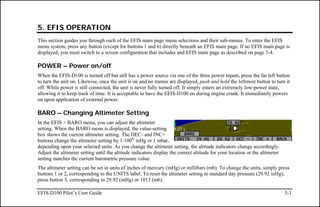
checklist/data panel can contain up to 14 lines of text and 40 characters
per line.
Checklists/data panels must be defined and uploaded to the EFIS-D100
as described by the Dynon Product Support Program, available at
downloads.dynonavionics.com. Reference the help file that
accompanies this software for more information.

Menu Pages
   Available in 1/3 and 2/3 formats
Some setup menus require a 1/3 or 2/3 page to display all the available
options. Menu Pages use a caret symbol (“>”) to indicate the currently
selected line. Use the DOWN▼ and UP▲ buttons to scroll through the
list of options.
Any line on a Menu Page that is followed by ► has more options to
configure inside of it. Press SEL► to expand the menu into another list
of options to the right.
Any line on a Menu Page that is not followed by ► indicates that its
value can be modified using the SEL►, DOWN▼, and UP▲ buttons.

EFIS-D100 Pilot’s User Guide                                                          4-11
5. EFIS OPERATION
This section guides you through each of the EFIS main page menu selections and their sub-menus. To enter the EFIS
menu system, press any button (except for buttons 1 and 6) directly beneath an EFIS main page. If no EFIS main page is
displayed, you must switch to a screen configuration that includes and EFIS main page as described on page 3-4.

POWER – Power on/off
When the EFIS-D100 is turned off but still has a power source via one of the three power inputs, press the far left button
to turn the unit on. Likewise, once the unit is on and no menus are displayed, push and hold the leftmost button to turn it
off. While power is still connected, the unit is never fully turned off. It simply enters an extremely low-power state,
allowing it to keep track of time. It is acceptable to have the EFIS-D100 on during engine crank. It immediately powers
on upon application of external power.

BARO – Changing Altimeter Setting
In the EFIS > BARO menu, you can adjust the altimeter
setting. When the BARO menu is displayed, the value-setting
box shows the current altimeter setting. The DEC- and INC+
buttons change the altimeter setting by 1/100th inHg or 1 mbar,
depending upon your selected units. As you change the altimeter setting, the altitude indicators change accordingly.
Adjust the altimeter setting until the altitude indicators display the correct altitude for your location or the altimeter
setting matches the current barometric pressure value.
The altimeter setting can be set in units of inches of mercury (inHg) or millibars (mb). To change the units, simply press
buttons 1 or 2, corresponding to the UNITS label. To reset the altimeter setting to standard day pressure (29.92 inHg),
press button 3, corresponding to 29.92 (inHg) or 1013 (mb).

EFIS-D100 Pilot’s User Guide                                                                                                 5-1
EFIS Operation

         The BARO setting can be changed using the HS34’s VALUE knob, depending on the configuration settings in
         EFIS > SETUP > HSI > VALUE KNOB.
         The BARO setting can be changed using the AP74’s VALUE knob, depending on the configuration settings in
         EFIS > SETUP > AP > VALUE KNOB.
The current indicated altitude is preserved across a power cycle. When powered down, the instrument saves the indicated
altitude. When it is powered up again, the instrument automatically adjusts the altimeter setting by exactly enough to
preserve that saved value. This is not a replacement for modifying the altimeter setting by the pilot before takeoff; it
makes it very close to the correct value, minimizing the amount of adjustment needed. To turn auto-set on or off, enter
the EFIS > SETUP > BARO menu and set the ADJUST AT BOOT option to ON or OFF.

BUGS – Setting Bug Markers
You can set a marker – or “bug”– to display on any or all of
the three tapes. To do this, enter the EFIS > BUGS menu (or
EFIS > AP > BUGS, if an AP is installed), and choose the type of bug to configure: HDG (heading), IAS (Indicated
Airspeed), or ALT (altitude). Note that if a bug is not currently displayed, changing its set value causes it to display on
the relevant tape.
 HEADING
In the BUGS menu, press HDG. Press the TOGGLE button to
turn on or off the heading bug display on the horizontal
heading tape. Note that this affects the display of the heading
bug on the HSI page as well.
In the HDG bug menu the value-setting box is displayed in the lower part of the display. Press SEL► to select which
digit to change and DEC- and INC+ to change the selected digit. Press the SYNC button to synchronize the heading bug

5-2                                                                                          EFIS-D100 Pilot’s User Guide
EFIS Operation

to your current heading. As you increment or decrement the heading bug value it rolls over at 360 degrees, returning the
value to 001. If you have the heading bug displayed, the marker moves left or right along the tape as you change its
value.

         The heading bug can be adjusted on any EFIS page displayed in the system and is synchronized across all EFIS-
         based units.
         The heading bug can be adjusted at any time by rotating the HS34’s HEADING knob. If the bug is currently
         toggled off, rotating the HEADING knob causes the bug to be displayed on the heading tape. To sync the bug to
         your current heading, press the HEADING knob briefly. To toggle the heading bug on or off, push and hold the
         HEADING knob for more than 1 second.
         When in the BUGS > HDG menu, rotate the AP74’s VALUE knob to quickly change the bug’s set value.
         Alternately, the heading bug can be adjusted at any time by using the HS34’s or AP74’s VALUE knob. Exact
         behavior is defined in the SETUP > (HSI or AP) > VALUE KNOB menu.
 AIRSPEED
In the BUGS menu, press IAS. Press the TOGGLE button to
turn on or off the airspeed bug display on the airspeed tape.
In the IAS bug menu the value-setting box is displayed in the
lower part of the display. Press SEL► to select which digit to
change and DEC- and INC+ to change the selected digit. Press the SYNC button to synchronize the airspeed bug to your
current indicated airspeed. If you have the airspeed bug displayed, the marker moves up or down the airspeed tape as you
change its value.

         The airspeed bug can be adjusted on any EFIS page in the system and is synchronized across all EFIS-based
         units.

EFIS-D100 Pilot’s User Guide                                                                                          5-3
EFIS Operation


         When in the BUGS > IAS menu, rotate the AP74’s or HS34’s VALUE knob to quickly change the bug’s set
         value.
 ALTITUDE
In the BUGS menu, press ALT. Press the TOGGLE button to turn on or off the altitude bug display on the altitude tape.
In the ALT bug menu the value-setting box is displayed in the lower part of the display. Press SEL► to select which
digit to change and DEC- and INC+ to change the selected digit. Press the SYNC button to synchronize the altitude bug
to your current altitude. If you have the altitude bug displayed, the marker moves up or down the altitude tape as you
change its value.

         The altitude bug can be adjusted on any EFIS page in the system and is synchronized across all EFIS-based
         units.


         When in the BUGS > ALT menu, rotate the AP74’s or HS34’s VALUE knob to quickly change the bug’s set
         value. Alternately, the altitude bug can be adjusted at any time by using the HS34’s or AP74’s VALUE knob.
         Exact behavior is defined in the SETUP > (HSI or AP) > VALUE KNOB menu.
If the BUGS > ALM button is toggled to ALT, then turning the altitude bug on enables the altitude alerter function
with the bug value as the target altitude. While climbing or descending toward the target altitude a level-off alert sounds
when passing through 500 feet from the target altitude. The target altitude is considered captured when altitude is within
150 feet of the target. Flying more than 200 feet away from the target triggers a short audio alert and alternates the bug in
red and yellow as a visual alert. When below the 200-foot window, a rising tone is sounded; when above the 200-foot
window, a descending tone is sounded. The visual climb or descend alert clears after recapturing the target altitude or 30
seconds. Flying back inside the 150-foot capture window re-arms the alerter without any user interaction.

5-4                                                                                          EFIS-D100 Pilot’s User Guide
EFIS Operation


         If your system is configured to output voice via an HS34 or AP74 module, the voice alerts “climb” or “descend”
         are sounded, instead of tones. Additionally as you approach the altitude bug, the voice alert “altitude” is
         sounded when crossing 500 feet away from the bug.
To simulate the altitude alerter on the ground, SYNC the altitude bug to your current altitude and then adjust the
altimeter setting up or down. When you adjust the altimeter setting enough that the altitude is outside the 200-foot
window, observe that the audio alert triggers and the bug alternates red and yellow.
If you do not wish to use the altitude alerter function, push the ALM button in
the BUGS menu to toggle it to OFF.

LISTS – Using Checklists and Data Panels
The Dynon Support Program allows you to enter your own checklists or select from included data panels. These
checklists and data panels can then be uploaded to your EFIS-D100 for quick access from the main menu or from your
screen rotation. Data panels and checklists can be included beneath 5 user-configurable categories and each category can
contain up to 5 checklists or data panels. By default the EFIS-D100 is loaded with the following 5 categories: CHKLIST,
RADIO, POH, EMGNCY and MISC. Each checklist/data panel can contain up to 14 lines of text and 40 characters per
line.
To load checklists and data panels onto your EFIS-D100, you must upload them as described in the Dynon Product
Support Program help file. Pushing the LIST button displays the 5 main categories as set up in the Dynon Support
Program. Press a button corresponding to the desired category to show the checklists and data panels beneath it. When
you display a checklist, the right 2/3 of the screen displays the checklist while the left side displays a 1/3 format EFIS
page. See the Dynon Support Program for more detailed information on entering checklists and data panels. It can be
downloaded from our website at downloads.dynonavionics.com.

EFIS-D100 Pilot’s User Guide                                                                                             5-5
EFIS Operation


SETUP – Setting Preferences
Enter the EFIS > SETUP menu to make changes to preferences.
Many of the settings in this menu should only be changed by the
installer, and are described in the EFIS-D100 Installation Guide. The preferences and settings that are relevant to the
pilot and in-flight operation are explained below.
 CHANGE DISPLAYED UNITS
In the UNITS submenu, you may change the system-wide
displayed units for the following units. See the      Parameter                                 Available units
following table for a list of available units for    Airspeed (IAS)                    Knots, miles/hour, kilometers/hour
each displayed parameter.
                                                          Altitude (ALT)                           Feet, meters
         In a DSAB network, unit preferences            Temperature (TEMP)                     Celsius, Fahrenheit
         are shared between all connected            Barometric Pressure (BARO)                     inHg, mbar
         instruments.                                     Distance (DIST)           Nautical miles, statutory miles, kilometers

 SET THE CLOCK
Entering the EFIS > SETUP > CLOCK menu displays the local
and Zulu times in the value-setting box. Because local time is
usually an offset in hours from Zulu time, set the minutes value
in the Zulu time portion of the box; notice that the local time
minutes setting change at the same time. Then, set the hours for
local and Zulu times independently. Once you have set Zulu time, you should never need to change it, as it is
independent of daylight saving time. When connected to a GPS which is outputting time information, Zulu time is
synchronized to the GPS and cannot be set on the EFIS-D100.

5-6                                                                                         EFIS-D100 Pilot’s User Guide
EFIS Operation

         In a DSAB network, you can only set the Zulu time on the DSAB master, and only if it is not synchronized to
         GPS time. You can set the local time on all units individually.
To change the local clock when moving through time zones or to enter daylight saving time, simply change only the
hours (and, if necessary for the time zone, the half-hour offset) for the local time. Be aware that connecting to the EFIS-
D100 with the Dynon Product Support Program resets the time; do not set the time until you have performed all of the
PC interface operations. Refer to the following set of tips as you set the clock:
    •    Set both the local and Zulu times in military time. You have may display the time in either military or standard
         12-hour format, as described below.
    •    SEL► moves the highlight to the next set of digits. The order of selection is 1. Local hours, 2. Local minutes
         (adjustable only as ½-hour offsets from Zulu minutes), 3. Zulu hours, 4. Zulu minutes. When connected to a
         GPS, you are not permitted to adjust the Zulu time on the EFIS-D100
    •    DEC- and INC+ change the selected set of digits. To speed up the process, press and hold the desired button. If
         you pass the desired value, you may simply back down to it by pressing the button corresponding to the
         opposite direction.
    •    Incrementing or decrementing the minutes digits resets the second count.
    •    In the CLOCK > FORMAT menu, press LC/ZU to change between local and Zulu time display on the EFIS
         page. Press 12/24 to change between standard and military time display on the EFIS page
 SHOW/HIDE DISPLAY ITEMS
In the EFIS > SETUP > CLUTTR menu, you can turn on or off almost every item displayed on the EFIS page. As with
all other menu items, these options are abbreviated to commands containing 6 letters or fewer. Pressing a button


EFIS-D100 Pilot’s User Guide                                                                                             5-7
EFIS Operation

corresponding to one of these options turns the respective onscreen item on or off. The following table summarizes the
display item abbreviations and their function.
Abbreviation            Display Item                                                  Function
  ALTBAR                 Altimeter Bar         Toggles the display of the graphical altitude tape.
  ALTDIG               Altimeter Digital       Toggles the display of the digital altitude window.
  IASBAR            Indicated Airspeed Bar     Toggles the display of the graphical airspeed tape.
   IASDIG         Indicated Airspeed Digital   Toggles the display of the digital airspeed window.
    HDG                     Heading            Toggles the display of the heading tape and digital display.
    BALL                 Slip/skid Ball        Toggles the display of the slip/skid ball and associated center markers.
  TURNRT                   Turn Rate           Toggles the display of the turn rate indicator and associated scale markers.
 AOABAR                    AOA Bar             Toggles the display of the angle of attack indicator. The AOA indicator requires the
                                               use of a Dynon heated or unheated AOA probe.
      CLOCK                 Clock              Toggles the display of the clock. Setting Zulu/local and 12/24 hour time is done in
                                               the EFIS > SETUP > CLOCK menu.
      BARO            Altimeter Setting        Toggles the display of the current altimeter setting (also known as the Kollsman
                                               setting). This display is not required to adjust the altimeter setting. While in the
                                               EFIS > BARO menu, a separate value-setting box appears, allowing adjustments to
                                               be made.
      ROLL               Roll Scale            Toggles and configures the display of the roll scale. When set to “N”, the roll scale
                                               is not displayed. When set to “1,” the roll scale stays fixed on the screen and the
                                               pointer moves along the scale, like a jet EFIS presentation. When set to “2”, the roll
                                               scale moves with the horizon, while the pointer stays fixed on the screen, like most
                                               mechanical attitude instrument presentations.


5-8                                                                                              EFIS-D100 Pilot’s User Guide
EFIS Operation

Abbreviation         Display Item                                                  Function
   GTRK              Ground Track            Toggles the display of the ground track indicator on the heading tape. The track
                                             indicator is a magenta arrow and is only displayed when the EFIS-D100 is receiving
                                             valid GPS data from an external source. If the GTRK button status displays “Y” and
                                             no ground track arrow is displayed, the EFIS-D100 cannot detect your GPS, or the
                                             GPS does not yet have a satellite lock.
    WIND               Winds Aloft           Toggles the display of the wind arrow and speed indicator. The display of winds
                                             aloft requires an active GPS connection and an OAT probe. If the WIND button
                                             status displays “Y” and no wind indicator is displayed onscreen, the EFIS-D100
                                             cannot detect your GPS, the GPS does not yet have a satellite lock, the FlightDEK-
                                             D180 does not have a connection to the remote compass (EDC) or the FlightDEK-
                                             D180 does not have an OAT.
  ASTRND             Airspeed Trend          Toggles the display of the 6-second airspeed trend indicator next to the IAS tape.
    VSI          Vertical Speed Indicator    Toggles and configures the display of the VSI tape next to the altitude tape. The
                                             VSI can be hidden (“N”), or can be set to 1k, 2k, or 4k ft/min scaling. The 2000
                                             ft/min display is linear throughout the range, while the 1000 and 4000 ft/min
                                             displays incorporate a non-linear scale to increase low vertical speed resolution.
     CDI        Course Deviation Indicator   Toggles and configures the display of the CDI and glideslope. Choosing “CDI”
                                             causes the course deviation indicator to display above the slip/skid ball. Choosing
                                             “CDI+GS” causes both the CDI and glideslope indicators to display, with the
                                             glideslope indicator displayed next to the roll scale. If the CDI button status
                                             displays “Y” or “CDI+GS” and no CDI or glideslope is displayed onscreen, the
                                             EFIS-D100 cannot detect your NAV radio or GPS, there is no active course, or
                                             there is no NAVSRC chosen on the HSI page.


EFIS-D100 Pilot’s User Guide                                                                                               5-9
EFIS Operation

Abbreviation           Display Item                                               Function
   CRS                 Course Pointer        Toggles the display of a “V”-shaped course pointer on the heading tape. Like the
                                             CDI, this can only be displayed when the EFIS-D100 is receiving a valid course
                                             from the NAV source selected on the HSI page. If the CRS button status displays
                                             “Y” and no course pointer is displayed on the heading tape, the EFIS-D100 cannot
                                             detect your NAV radio or GPS, there is no active course set, or there is no
                                             NAVSRC chosen.
       TRIM            Elevator Trim         Displays the elevator trim. This can only be displayed when an elevator trim sensor
                                             is properly connected to a DSAB-connected EMS device, and configured in the
                                             EMS setup.

 CHECK FIRMWARE VERSION
The EFIS > SETUP > VRSION menu gives you two important pieces of information: your EFIS-D100’s current
firmware version; and the number of hours the EFIS-D100 has been on. If you require technical support or other
assistance from Dynon, please have your firmware version ready when you call or write.

INFO – Informational Items
In the EFIS > INFO menu, you have the option of displaying an
informational display item on either the left or right side, or
both. You may display a voltmeter (VMETER), g-meter
(GMETER), vertical speed indicator (VSI), OAT/true airspeed/
density altitude (OAT), and engine RPM/MAP info (ENGINE). More detail about each of these is given below.

   Voltmeter


5-10                                                                                          EFIS-D100 Pilot’s User Guide
EFIS Operation

The voltmeter displays 3 rows of information corresponding to the three power inputs on the EFIS-
D100. The first row, labeled M, displays the Master Switch voltage. The second row, labeled E,
displays your optional external backup voltage. The third row, labeled I, displays the EFIS-D100
internal battery voltage. If any of the 3 voltage inputs are not present, 00.0V is displayed for the
respective voltage values. The letter V follows all three values, denoting the fact that voltages are
being displayed. The EFIS-D100 alerts you when the internal battery is low by displaying a low battery alert.

   G-meter
The g-meter displays the current vertical acceleration experienced by the EFIS-D100 measured in
g’s, where 1 g is the amount of acceleration due to the earth’s field experienced by an object at sea
level. Positive g-force is defined as upward vertical acceleration, making you feel heavier.
Negative g-force is defined as downward vertical acceleration, making you feel lighter. As can be
seen in the picture, there are three rows of text that make up the g-meter. The top row, labeled MX,
is the maximum positive g-force experienced by the EFIS-D100 since reset. The middle row, labeled CR, is the current
g-force experienced by the EFIS-D100. The bottom row, labeled MN, is the minimum g-force experienced by the EFIS-
D100 since reset.
To reset the max and min g-force values to the current g-force value, enter the EFIS > INFO menu and press the RSET G
button.

   VSI (Rate of Climb)
The vertical speed indicator (VSI) consists of a single line with your current rate of climb or
descent. If you are currently gaining altitude, an up arrow is displayed to the right of the vertical
speed value. If you are losing altitude, a down arrow is displayed to the right of the vertical speed
value. The units of VSI are feet/minute. Note that in the MODERN display (EFIS > SETUP > STYLE), found in EFIS-
D100 firmware version 3.0 and higher, VSI can be displayed as a graphical indicator next to the altitude tape.

EFIS-D100 Pilot’s User Guide                                                                                      5-11
EFIS Operation

   OAT (Outside Air Temperature)
The EFIS-D100 supports the connection of an OAT to its EDC-D10A. If no OAT is connected to
the EFIS-D100, or to any other device in a DSAB system, you may manually set the outside
temperature.
The OAT info item displays 3 lines of text, containing outside air temperature, density altitude,
and true airspeed. To use the TAS/DA calculator without an OAT installed, manually enter the outside air temperature in
the EFIS > OATSET menu. When a temperature is manually input via the OATSET menu, a box is displayed around the
temperature in the info item, as shown in the image above.

        When multiple units are connected to a DSAB network, one primary OAT is shared between all units. This can
        be an OAT connected to an EFIS or an EMS. If the EFIS-D100 is displaying an OAT provided by another unit
        in the system, changing the OAT type or install status on the EFIS-D100 has no effect on the displayed OAT.
        This change is only used if the primary OAT (or entire DSAB network) fails and the EFIS switches to the
        locally connected OAT.

   ENGINE (Manifold Pressure and RPM)
The engine informational item allows you to display engine manifold pressure and RPM on the
EFIS page. This requires that the manifold pressure sensor and tachometer pickoff are properly
installed and configured on a DSAB-connected EMS-based product.

DIM – Changing screen brightness
In the EFIS > DIM menu, press BRITR or DRKR to change the brightness of the display. It is not possible to turn the
screen completely black. Note that if power to the EFIS-D100 is cycled, the screen is reset to full brightness.
The DIM function also exists in the EMS main page menu. You may dim the display via either menu.

5-12                                                                                     EFIS-D100 Pilot’s User Guide
EFIS Operation

         All screens in a DSAB network share a common dim level. Pressing BRITR or DARKR on one unit changes
         the brightness level on all screens if the change is possible. If you have any D100-series bright screen units in
         the system, you must press BRITR on any bright screen unit to get the bright screen units to their final step of
         brightness.


         The HS34 and AP74 have built-in light sensors which can be used to automatically dim all of the screens
         connected to a DSAB network (if both installed, their sensor values are averaged). To turn this function on,
         press AUTODIM. When you enable auto-dim, the screen does not immediately change brightness. Instead, the
         system records the unit’s current brightness level as the desired brightness. From that point on, all networked
         units react to changes in light intensity and maintain perceived brightness at the desired level. If auto-dim is
         enabled and the screen is too bright or dark, continue to use the BRITR or DARKR buttons as you would
         without auto-dim. The system records the new set level as the desired brightness, and auto-adjusts around the
         new set point.

TIMER – Setting and using a timer
Enter the EFIS > TIMER menu. In the value setting box, the
DOWN or UP label is displayed, depending on which timer type
is currently selected. The currently running timer is displayed on
the Times Page, as described on page 4-10. Use the following
points as you work with the timer.
    •    The UP/DN button toggles the menu and timer between an up timer and a down timer. When switching to an up
         timer, the timer set value resets, allowing the up timer to count up from 0:00:00.
    •    To reset the timer, press the UP/DN button twice.

EFIS-D100 Pilot’s User Guide                                                                                            5-13
EFIS Operation

    •    To start the timer, press START. Once started, the button’s label changes to STOP. To stop the timer, press
         STOP.
    •    To set the down timer, press HOUR, MIN, and SEC to adjust the timer to the desired value.
    •    You may not have an up timer and a down timer running at the same time.

         Multiple Dynon products connected via a DSAB network share one timer. Starting, stopping, or configuring the
         timer on one instrument causes all other instruments to reflect the change.

OATSET – Setting Temperature Offset
If you did not purchase an EFIS or EMS outside air temperature sensor from Dynon Avionics, you may still manually
adjust the OAT to an approximate value. With this manually entered information, the EFIS-D100 calculates and displays
true airspeed (TAS) and density altitude as it does when an OAT is connected. Ensure that you have indicated that an
EFIS OAT is not installed; enter the EFIS > SETUP > OAT menu and press INSTALLED until the value is “N.”
In the EFIS > OATSET menu, press INC- or DEC+ until the value-setting box above the menu displays the current
outside air temperature. This value is then used in the OAT/TAS/DA info item on the EFIS screen. For more information
on setting up that display, see page 5-12.

DATLOG – Logging and retrieving data
The EFIS-D100 provides two options for logging data. You may configure the EFIS-D100 to log data to its internal
memory for later retrieval or you may record streaming data serial output to an external device (such as a laptop
computer) in real-time from the EFIS serial port (as documented on page 9-2). The former option has the advantage that
it does not require an external device in the aircraft while recording. Additionally, the internal storage logs provide an
indication of alarm events, while the real-time output does not. When data logging is activated, two logs are recorded -

5-14                                                                                        EFIS-D100 Pilot’s User Guide
EFIS Operation

“all data” and “MIN/MAX”. Both logs can be downloaded using the “Retrieve Logged Data” option of the Dynon
Support Program. On certain Dynon Avionics EFIS and EMS units, a “SNAPSHOT” log is also recorded and can be
downloaded. The snapshot log records the value of all parameters anytime an alert occurs.
To activate internal data logging, enter the EFIS > SETUP > DATLOG and set RECORDING to ON. Set the
INTERVAL depending on how frequently you wish data to be stored. Data can be stored at intervals of 1, 3, 5, 10, 30,
and 60 seconds. Leaving the RECORD AT BOOT option set to NO causes the RECORDING option to be reset to OFF
every time power to the EFIS-D100 is cycled. Setting it to YES ensures that the EFIS-D100 begins logging data
automatically at boot up. If you wish to mark the data log at any point, select the MARK NOW function and press
SEL►. This inserts a notation in the data log retrieved by your PC, allowing you to quickly find the place in your data
when you marked the record. For information about retrieving data and reading the file produced, please see the help file
included in the Dynon Product Support Program (version 5.0 and higher).
The EFIS-D100 has a limited amount non-volatile internal storage for the data log. With a 1-second recording interval, at
least 2 hours of cumulative data can be recorded; with a 10-second interval, at least 20 hours; with a 30-second interval,
at least 60 hours, and with a 60-second interval, at least 120 hours. When the EFIS-D100 internal storage fills up, new
records overwrite the oldest records. To delete the records in internal storage, select ERASE LOG, ERASE MIN/MAX
LOG, or ERASE SNAPSHOT LOG (only available on certain units).
The data format and connection settings for the internally-recorded data are described in the Help Files of the Dynon
Support Program.


EFIS-D100 Pilot’s User Guide                                                                                            5-15
6. HSI OPERATION
This chapter explains how to use the EFIS-D100’s HSI functionality.

Required Connections
To display an HSI on the screen, an external receiver is needed. The currently supported data sources are a Garmin SL-
30 Nav/Comm radio via a serial connection (Nav data), a Garmin GNS-430/530 GPS/Nav/Comm (GPS data), or any
GPS that outputs in either NMEA-0183 or aviation format. Please refer to the EFIS-D100 Installation Guide for
instructions on how to connect these devices to your Dynon network. Also, ensure your GPS device is configured to
output magnetic heading since all calculations and displays are done in reference to the local magnetic heading.

         The HS34 supports a variety of connections to navigation receivers via serial, ARINC-
         429, and analog connection. A connection to the HS34 generally carries more
         information than a serial-only connection to an EFIS- or EMS; when an HS34 is
         installed, connections to navigation receivers and GPSs must be made to it. Please see
         the EFIS-D100 Installation Guide for detailed installation and connection information.

Accessing the HSI/DG Page
The HSI is displayed as a 1/3 page, next to either a 2/3 EFIS or 2/3 EMS page. If the HSI is
defined as part of a screen setup in your rotation, display the HSI page using either of the screen
rotation hotkeys (buttons 1 and 6) until the appropriate page is displayed. If no screen
configuration including the HSI is in your rotation, you can access the HSI by holding down the
right button with no menus displayed and selecting a screen that includes the HSI. See page 3-2
for more information on screen configuration.


EFIS-D100 Pilot’s User Guide                                                                                        6-1
HSI Operation

           All HSI screens in a DSAB network share their configuration and are identical to one another at all times.
           Changing the source of information on one HSI page affects all units, as does changing scaling, bugs, or bearing
           pointers. It is not possible to show a NAV radio on one screen and a GPS on another screen.

HSI Display Basics
There are three possible sources of information on the HSI page: GPS, NAV, and internal EFIS data. It is important to
know what equipment is sourcing your data, so most displayed data is color coded so that it is easy to identify the source
of the data. Data that is sourced from a GPS unit is color coded in magenta, and includes course direction, course
deviation, vertical guidance, ground track, ground speed, altitude, distance to waypoint, and other data. Data that comes
from a navigation radio (VOR / LOC) is green in color and includes the course, course deviation, glideslope, NAV
mode, to/from, OBS setting, tuned frequency, station identifier, and more. The final data source is information that
comes from the EFIS itself and is color coded in white. The EFIS-sourced data includes magnetic heading, true airspeed,
winds, and various other data points. Below are some of the basics
      1.   Mode flag. This indicator, located at the upper left of the HSI page, tells you what mode the radio and
           display are in. There are five options for this indicator.
               a.   "GPS" in magenta text: This indicates the data source for the overlay is a GPS stream.
               b.   "NAV" in black letters on a green background. This indicates that the system is in NAV mode,
                    but there is no active VOR or localizer tuned. This is the same as a cross hatch indicator in the
                    TO/FROM flag on a mechanical CDI. Do not rely on any indications on this page except for the
                    DG and TAS when this flag is set.
               c.   "VOR" in green text. This means the radio is tuned to a standard VOR station and is giving a
                    valid TO or FROM indication.


6-2                                                                                          EFIS-D100 Pilot’s User Guide
HSI Operation

             d.   "LOC" in green text. This indication means that the radio is tuned to a localizer. The glideslope scale is
                  visible as well, but may be flagged invalid.
             e.   "BC" in yellow text. This indication means that the radio is tuned to a localizer and is in back course
                  mode. The glideslope scale is visible as well, but may be flagged invalid. Note: when flying a back
                  course on an HSI, no reversal is needed since the CDI indicator spins with the DG. If the course
                  is set to the runway heading of the ILS, when flying the back course, the CDI is flipped 180
                  degrees and indicates properly with no reversal needed. If you put the SL-30 into back course
                  mode, you need to set the course to the heading of the back course runway. Setting the course to the
                  heading of the primary ILS runway causes the CDI needle to be reversed.
    2.   Digital heading indicator. The number in this box is the current magnetic heading of the aircraft in degrees from
         001 to 360. The accuracy of this data depends on the accuracy of the heading calibration for your EFIS-D100.
    3.   Directional Gyro (DG). The ring of tick marks and numbers acts as a
         traditional directional gyro. The current magnetic heading of the aircraft is
         the heading that is at the top of the page and is being pointed to by the
         heading indicator.
    4.   Bug indicator. This user-settable bug also appears on the EFIS heading tape. Colored yellow, it can be toggled
         on and off using the HSI menu or the main EFIS menu.

         The HEADING knob on the HS34 always controls the heading bug. Turning the knob when the bug is not
         displayed switches the bug to the on state. Press the HEADING knob to sync the bug to the current heading.
    5.   True Airspeed Indicator. If it is possible to calculate true airspeed on the device then it is displayed here. In
         order to do this the device must have access to an outside air
         temperature from an EFIS or an EMS.


EFIS-D100 Pilot’s User Guide                                                                                                 6-3
HSI Operation

      6.   Winds aloft. This indicator, located at the bottom of the HSI page, appears only when you have GPS data and
           true airspeed available to the instrument. The arrow is the wind direction relative to your aircraft. It is always
           the same size and only indicates wind direction. The numbers below are absolute wind direction (magnetic) and
           absolute wind speed. Below that, labeled as "XW" is the crosswind component of the wind. Wind data is
           calculated while in stable flight with very little turn rate. It uses the GPS ground speed and track to compare to
           the magnetic heading and the true airspeed that the EFIS calculates. In order for winds to be correct, the
           airspeed, OAT, and compass on the EFIS must all be accurate.

Navigation Radio Overlay
The figure at right shows an HSI page with information sourced from a navigation radio. This
data could be a VOR or a localizer. The various elements are described below.
      1.   Text displays. The text displays (located at the top of the HSI Page) provide a variety
           of information. Displayed here is the course/OBS setting, the active frequency that
           the SL-30 is tuned to, the identifier for the tuned frequency, and the bearing to the
           active and secondary frequencies. When the data is not available or is not valid, the
           various data fields in this area are replaced by dashes.
      2.   Course indicator. The green course indicator (shown pointing to 273º at right) has an
           arrow at its end which points to the currently selected course (OBS) on your NAV
           radio. This setting is also shown in the text area as "OBS." When tuned to a VOR,
           this is the radial that you wish to fly. When tuned to an ILS, this is set to the runway
           heading. In a situation with no winds, keeping the course indicator pointed straight
           up and in line with the heading pointer keeps the aircraft on course. This indicator is
           fixed to the rotation of the DG, so it is easy to see which way you must turn to get on course. The course
           indicator is only present when you are tuned to a VOR or a localizer. If the NAV radio indicates that you are not
           currently tuned to an active frequency, this indicator is not displayed. The direction of this course is set

6-4                                                                                           EFIS-D100 Pilot’s User Guide
HSI Operation

         externally using the knob that is on the SL-30 when in VOR mode. When in ILS mode, the SL-30 disables the
         OBS knob, and thus you must use the soft keys below the HSI in order to set the course.

         When using the HS34 you can set the OBS using the COURSE knob. When properly configured, the HS34
         sends course information to the NAV radio, just like a mechanical HSI or CDI does. When using an SL-30, the
         HS34’s knob must be used to set the OBS; the SL30’s OBS is overridden by the course information sent out by
         the HS34.
    3.   Course Deviation Indicator (CDI). When tuned to a VOR, the CDI indicates how far to the
         left or right of your selected radial you are. Full scale deviation indicates ten degrees of
         deviation from the radial that has been chosen as the course. When tuned to a localizer, full
         scale represents 2.5 degrees of deviation. When on course, the course indicator and the CDI
         make a solid line, making it easy to see when there is little error in your aircraft's position.
         Unlike a CDI indicator found in basic aircraft, the CDI needle on an HSI rotates with the
         DG and course indicator. By turning the aircraft towards the CDI needle you reduce your deviation.
    4.   To/From indicator. Because an HSI rotates the course line on top of the DG, the to/from indicator
         always points TO the physical VOR or localizer transmitter. If it is pointing the same direction as the
         arrow at the end of course line, then that is a "to" indication. If it is pointing the opposite direction of
         the arrow at the end of the course line, then that is a "from" indication. This data comes from the
         to/from flag indicator provided by your Nav radio. In the image above, the to/from indicator is
         showing a “from” indication.
    5.   Glideslope Indicator. This appears only when tuned to an ILS. It displays deviation as 0.5 degrees
         when deflected full scale. This does not have an indicator on it unless the glideslope is valid as defined
         by the glideslope flag.


EFIS-D100 Pilot’s User Guide                                                                                               6-5
HSI Operation

      6.   Glideslope flag. This appears when the radio is tuned to a localizer and the glideslope is not valid. When this is
           active, there is no indicator mark on the GS scale.
      7.   Bearing To indicators. These arrows show you the bearing to the active and standby
           VORs. This is the direction that you would need to fly to go directly from where you are to
           the transmitter. When flying directly on course, your bearing and course lines overlap one
           another. The primary bearing indicator is depicted by a yellow diamond and the standby
           indicator is depicted by an orange circle. These elements only appear when the active
           and/or standby VORs are tuned to an active frequency. A numerical display of your
           primary (labeled NAV) and standby (labeled SBY) bearings and a reminder of which
           symbol represents each bearing is in the text area of the page.

           The HS34 adds the possibility of having many more bearing sources in the system. Pressing the BRG SRC
           button highlights the first bearing source. Turning the VALUE knob allows you to choose your bearing source
           from all options. Pressing the bearing source again chooses the second bearing source. If you wait more than 5
           seconds without adjusting anything or pressing any buttons, the selection self-clears.
           The HS34 adds the ability to display information from a marker beacon receiver. If you have marker beacon
           receiver connected and configured (as described in the EFIS-D100 Installation Guide), the “O,” “M,” and “I”
           indications are displayed on the HSI page. If configured, the HS34 plays the appropriate Morse Code tones on
           its audio output.


6-6                                                                                           EFIS-D100 Pilot’s User Guide
HSI Operation


GPS Overlay
The figure at right shows an HSI page with information sourced from a GPS receiver while the
GPS has an active flight plan between two points. The various elements are described below.
    1.   Text displays. In this area a variety of information is displayed in text format.
         Displayed here is the ground track (TRK), the course (CRS), ground speed (SPD),
         distance to next waypoint (DTW), and up to two bearing pointer selections.
    2.   Course indicator. The course indicator points in the direction of the course that the GPS
         is reporting*. This is usually the direction of the line between the start and end
         waypoints. This setting is also shown in the text area as "CRS." In a situation with no
         winds, keeping the course indicator pointed straight up and in line with the heading
         pointer keeps the aircraft on course. This indicator is fixed to the rotation of the DG, so
         it is easy to see which way you must turn to get on course. The course indicator is only
         present when you have an active flight plan in your GPS and are navigating to a point.
         *Some GPS units do not report course direction. In this case, a COURSE menu item is made
         available in the HSI menu to manually set it.
    3.   Course Deviation Indicator (CDI). When a flight plan is active in the GPS, the CDI indicates
         how far to the left or right of your selected ground course you are (CDI in large oval at right).
         Depending on the scale that you are in, each dot indicates 0.06 n.m. (Approach), 0.2 n.m.
         (Terminal), or 1.0 n.m. (Enroute). When on course, the course indicator and the CDI make a
         solid line, making it easy to see when there is little error in your aircraft's position. Unlike a
         CDI indicator found in basic aircraft, the CDI needle on an HSI rotates with the DG and
         course indicator. By turning the aircraft towards the CDI needle so the CDI needle is "on top"
         of the course line you reduce your deviation.

EFIS-D100 Pilot’s User Guide                                                                                            6-7
HSI Operation

      4.   To indicator. There is no "from" indication with GPS data, since the GPS is the source of the course line. This
           arrow always points the same way as the course line, as indicated in the small oval in the previous figure.
      5.   Vertical Guidance Indicator. When connected to a Garmin 396/496 the glideslope indicator mimics the GPS’s
           vertical guidance display. This appears only when a VNAV profile is active on the GPS.

           When the HS34 is connected to a WAAS-enabled GPS that can provide vertical guidance, this vertical guidance
           is displayed as specified by your GPS user manual.
      6.   Bearing to waypoint (BTW) indicator. This thin yellow diamond shows the bearing to the destination waypoint.
           The diamond points in the direction you would need to fly from your present location to the waypoint. When
           flying directly on course, your BTW and course lines overlap one another. The text area of the page contains a
           numerical display of this bearing and a diamond icon to signify its symbol on the display.

           The HS34 adds the possibility of having many more bearing sources in the system, so the behavior of the BRG
           SRC button is dependent on how many devices you have connected. When you press this button, if you have
           only one possible bearing source, the bearing source toggles on and off. If you have two or more bearing
           sources, pressing the BRG SRC button highlights the first bearing source. Turning the VALUE knob allows you
           to choose your bearing source from all options. Pressing the bearing source again chooses the second bearing
           source. If you wait more than 5 seconds without adjusting anything or pressing any buttons, the selection self-
           clears.
      7.   Scale indicator. This shows you what scale the CDI is using. Since
           serial GPS streams do not indicate the correct scaling mode, this must
           be configured manually with the "scale" button under the HSI menu.
           The three options are "E" for enroute (5 n.m. full scale), "T" for terminal (1 n.m. full scale), and "A" for
           approach (0.3 n.m. full scale). The current scale name and full scale range is indicated on the screen.


6-8                                                                                             EFIS-D100 Pilot’s User Guide
HSI Operation

         When the HS34 is hooked to a GPS unit via ARINC-429, the system can read the scaling from the ARINC-429
         connection. When connected this way, the scaling auto-updates and follows the GPS. The indication on the
         screen for mode and range should match the mode and range of the GPS at all times. When in this mode, the
         range is not limited to just 5/1/0.3nm, as the GPS may slide between scales, so it would not be unexpected to
         see a number such as 0.8 on the screen. Because of this behavior, on the final phases of an approach, a GPS
         hooked to the HS34 via ARINC-429 acts much like a VOR receiver would with the CDI acting as angular
         deflection, not linear distance. There are still only three master modes of Enroute, Terminal, and Approach,
         which are annunciated on the screen.
    8.   Track indicator. This indicates your direction over the ground as reported by the GPS. This is
         different than your magnetic heading when there are crosswinds present. Since this is your
         actual ground track, keeping this directly above your course pointer (when the CDI is centered)
         keeps you on course, even if your magnetic heading is different. As long as a valid GPS source is detected by
         the system, the ground track indicator can be displayed. This is not dependent on the currently set NAV source.

HSI Menu Structure
NAVSRC - This is used to choose what navigation source is displayed on the HSI page and the EFIS main page.
Pressing this button steps through the three options: DG, NAV, and GPS. This button cycles through only the overlays
that are available in the system; NAV or GPS pages are not available if these data sources are not hooked up.

         The NAV SRC button on the HS34 performs the same function as this NAVSRC menu button, but may cycle
         through NAV1, NAV2, etc, if you have multiple units connected. The NAV SRC button on the HS34 only
         works when the HSI page is displayed on the DSAB master. If it is pressed when no HSI is displayed, it has no
         effect.


EFIS-D100 Pilot’s User Guide                                                                                         6-9
HSI Operation

BUG - This is the same menu as EFIS > BUGS > HDG. This menu allows you to adjust and toggle a heading bug that
appears on the DG display as well as the EFIS heading tape.

        The heading bug can be adjusted at any time by rotating the HS34’s HEADING knob. If the bug is currently
        toggled off, rotating the HEADING knob causes the bug to be displayed on the HSI display. To sync the bug to
        your current heading, press the HEADING knob briefly. To toggle the heading bug on or off, push and hold the
        HEADING knob for more than 1 second.
COURSE (Nav mode, Localizer active) - This is used to set the OBS/course. The SL-30 does not allow you adjust the
OBS when tuned to a localizer so this must be done locally on the instrument.

        When you have an HS34 with any NAV instrument, the course knob on the HS34 adjusts the course/OBS. You
        can adjust the course when in NAV or localizer mode. When using a GPS such as the 430/530, that allows an
        external course command to control the instrument, this course adjustment also works. If the GPS or NAV
        device is in a mode where it is ignoring course commands, turning the course knob results in no change on the
        screen. This is true when you are in most GPS modes.
SCALE (GPS mode) - This is used to cycle through the three GPS scale modes.

        The scale button only exists if the source you are connected to is not providing scale information.


6-10                                                                                       EFIS-D100 Pilot’s User Guide
7. AUTOPILOT OPERATION
This section guides you through the indicators and operation of Dynon’s EFIS-based Autopilot (AP) system. This section
assumes that the AP has already been installed, configured, and tuned according to the EFIS-D100 Installation Guide.
Additionally, it assumes that you are already familiar with the operation of the EFIS-D100 menu system, documented
throughout this guide.

Introduction and Resources
Dynon Avionics’ Autopilot (AP) system is a competitively priced product for the Experimental & Light Sport Aircraft
(LSA) aircraft market. Unlike standalone AP systems, Dynon’s AP is an enhancement to the Dynon Avionics EFIS-
D10A, EFIS-D100, and FlightDEK-D180 products (beginning with firmware version 5.0). The Dynon Avionics AP
provides roll (aileron) and/or pitch (elevator) control, leveraging the proven sensors, algorithms, and display systems of
Dynon’s modern EFIS products. Another innovative element of the Dynon Avionics AP is that the servomotors (servos)
responsible for actuating the control surfaces are “smart” devices. Dynon’s servos not only accept commands from the
AP but also report “health,” resistance to commanded movements, motor override (or “slip”), and many other data
elements back to the EFIS. This level of communication between AP control and motors provides the pilot with an
unprecedented degree of awareness of the overall performance of the AP.
Because the Dynon Avionics Autopilot is a new product and we expect that it will be installed in a wide variety of
aircraft, Dynon’s Internet sites provide up-to-date information on installation and operation issues:
wiki.dynonavionics.com – Dynon’s Documentation Wiki provides enhanced, extended, continuously-updated online
documentation contributed by Dynon employees and customers.
forum.dynonavionics.com – Dynon’s Online Customer Forum is a resource for Dynon Avionics customers to discuss
installation and operational issues relating to Dynon Avionics products. The Forum is especially useful for pilots with
uncommon aircraft or unusual installation issues. For customers that cannot call Dynon Technical Support during our

EFIS-D100 Pilot’s User Guide                                                                                              7-1
Autopilot Operation

normal business hours, the Forum is a convenient way to interact with Dynon Avionics Technical Support. The Forum
also allows online sharing of wiring diagrams, photos, and other types of electronic files.
All Dynon instruments connected via DSAB must be running the same firmware version. This applies to the servos and
AP74 as well, which are updated via the Bus Master EFIS. See the Autopilot Installation and Configuration section in
your EFIS-D100 Installation Guide for more information.

         As with any autopilot, Dynon’s AP is no substitute for the pilot remaining in full control of the aircraft. The AP
         is a supplement in the operation of the aircraft. While the AP is engaged, you should not engage in activities
         (such as sleeping, reading, etc.) that detract from your overall situational awareness.
         The Dynon Avionics AP requires an accurate magnetic heading to operate efficiently and comfortably in HDG
         and NAV/VOR modes. Therefore it is critical that the aircraft’s compass be installed correctly, calibrated, and
         operating well in all attitudes.

EFIS AP Indicators
When 1 or more servos are installed and configured, the EFIS-D100‘s EFIS presentation includes some new indicators,
described below. If these indicators do not appear on the EFIS page, the AP installation procedure must be performed per
the AP Installation and Configuration chapter of the EFIS-D100 Installation Guide.
 AP MENU AND STATUS INDICATOR (LOWER LEFT CORNER)
When 1 or 2 servos are installed, a new AP menu is available, replacing the BUGS menu on the EFIS main menu
(BUGS is now available below the AP menu).
Additionally, an Autopilot status indicator is always displayed at the lower left side
of the EFIS page, as shown at right. In a 2-axis system, the left indicator displays the
state of the roll servo, and the right indicator displays the state of the pitch servo. If

7-2                                                                                          EFIS-D100 Pilot’s User Guide
Autopilot Operation

only a pitch or only a roll servo is installed, that axis’ indicator is shown just to the right of the “AP:” display. When
either the roll or pitch axis is engaged, the entire indicator has a black background. The following table describes the
different states for each axis and the relevant text descriptions in the AP status indicator.
 •   Example 1: AP:OFF–OFF (Roll and Pitch servos installed, AP disengaged)
 •   Example 2: AP:HDG–ALT (Roll and Pitch servos installed, AP engaged in HDG + ALT mode)
 •   Example 3: AP:ALT (Only Pitch servo installed, AP engaged in ALT mode, display of Roll mode suppressed)
 •   Example 4: AP:HDG (Only Roll servo installed, AP engaged in HDG mode, display of Pitch mode suppressed)
                                                     AP Status Indicator Modes
                                 AP State                                        Roll Display             Pitch Display
                          Status: Servo disengaged                                  OFF                        OFF
Status: Heading Hold Mode; AP uses HDG Bug as target magnetic heading               HDG                         N/A
 Status: Track Hold Mode; AP uses HDG Bug (colored magenta) as target       TRK (Magenta Text)                  N/A
 Status: Control Wheel Steering Mode (When CWS is configured, and AP
Disengage/CWS button held for more than 2 seconds). See: EFIS > SETUP               CWS                        CWS
                      > AP > BUTTON CONFIG.
               Status: Currently in middle of 180 degree turn                        180                       ALT
                  Status: GPS Horizontal Navigation Mode                     GPS (Magenta Text)                 N/A
         Status: ARINC GPS Steering Horizontal Navigation Mode               GST (Magenta Text)                 N/A
           Status: Radio-based VOR Horizontal Navigation Mode                 VOR (Green Text)                  N/A
           Status: Radio-based LOC Horizontal Navigation Mode                 LOC (Green Text)                  N/A
     Status: Altitude Hold Mode; AP uses Altitude Bug as target altitude             N/A                       ALT


EFIS-D100 Pilot’s User Guide                                                                                                 7-3
Autopilot Operation

                                                  AP Status Indicator Modes
                               AP State                                         Roll Display               Pitch Display
                                                                           Mode display with yellow    Mode display with yellow
                        Warning: Servo slipping
                                                                                background                  background


                                                  AP Status Indicator Errors
                               AP State                                         Roll Display               Pitch Display
  Warning: Servo has been calibrated but not tested (See: SETUP > AP >
                                                                                TST (red text)              TST (red text)
                              SERVO TEST)
  Warning: Airspeed outside min or max airspeed. See: SETUP > AP >
                                                                                SPD (red text)              SPD (red text)
                             PITCH SERVO.
 Warning: Servo error condition detected, or servo not found. Check DSAB
                                                                               ERR (red text)              ERR (red text)
                 configuration, wiring, and servo power.

Any axis that is in any of the above error states cannot be engaged.
 FAILURE MODES
The EFIS continuously monitors the overall operation of the AP as well as the state of incoming GPS data. If an error is
detected, the subsystem where the error has occurred is restricted and reported. Some examples:
 • If an error in the Pitch servo is detected, the AP reports an error in the Pitch servo, but continues operation of the
   Roll servo.
 • If, while flying in GPS NAV mode, the user cancels the active waypoint or the GPS sends malformed navigation
   data, the AP fails over to TRK mode.


7-4                                                                                              EFIS-D100 Pilot’s User Guide
Autopilot Operation

 • If, while flying in HDG mode and compass data is lost, the AP fails over to TRK mode (if valid GPS data is
   present).
 • If, while flying in NAV or TRK mode and GPS data is lost, the AP fails over to HDG mode (if valid compass data is
   present).
 BUGS DISPLAY (LOWER RIGHT CORNER)
Whenever either the heading or altitude Bug is toggled ON (via the BUGS menu or the AP74)
its current value is displayed in the lower right corner of the EFIS page.
Example: 005°/2250FT (HDG bug toggled ON, set to 005° and ALT bug toggled ON, set to
2250 Feet). In the example at right, the heading bug is toggled on (i.e., displayed on the
heading tape), but the AP HDG mode is currently disengaged.
 BUGS GRAPHICAL APPEARANCE
When an AP is installed and configured, the appearance of the IAS, HDG, and ALT bugs
is changed to reflect AP status. When the Autopilot is not engaged for a given axis, the
respective bug is hollow (as shown at right). When the Autopilot is engaged for a given
axis (HDG, TRK, ALT), the respective bug is solid, or “filled in.” Because the Autopilot does not currently have a
settable airspeed mode, the IAS Bug is always displayed as a hollow outline.

AP Modes
The Autopilot can be engaged in the following modes. During AP-controlled heading/ground track changes, the AP turns
the aircraft at the target turn rate specified in the EFIS > SETUP > AP > ROLL SERVO menu. The AP will not exceed
the maximum bank angle, set in that menu. See the EFIS-D100 Installation Guide for detailed information on
configuring these parameters.


EFIS-D100 Pilot’s User Guide                                                                                         7-5
Autopilot Operation

 HDG: HEADING MODE – ROLL SERVO
When the AP is engaged in Heading Mode, it uses the roll servo to control the aircraft’s magnetic heading, with the goal
of following the heading bug. You may adjust the heading bug, causing the AP-controlled aircraft to turn toward the new
target heading. The AP’s goal in the roll axis is to align the triangle of the numeric magnetic heading box with the
inverted triangle of the heading bug.
 TRK: GROUND TRACK MODE – ROLL SERVO
When the AP is engaged in Track Mode, it uses the roll servo to control the aircraft’s GPS ground track, with the goal of
following the heading bug (colored magenta to signify GPS mode). You may adjust the heading/track bug, causing the
AP-controlled aircraft to turn toward the new target ground track. In Track Mode, the AP’s goal in the roll axis is to align
the magenta ground track triangle with the inverted triangle of the heading bug.
 180: 180º TURN MODE – ROLL AND PITCH SERVOS
This special mode is a way to initiate a “quick turnaround.” When 180 Mode is initiated, the AP immediately engages in
Altitude and Track Hold modes with the heading bug set to 180º from current ground track. (If a GPS is not connected or
available, it engages in Heading Hold Mode.) The AP then turns the aircraft to the left until it is flying in the opposite
direction, and then remains in Track and Altitude Hold Modes.
 NAV: GPS NAVIGATION MODE – ROLL SERVO
To use the GPS-based NAV mode, your connected GPS must have an active waypoint (and must be outputting course
and course deviation information). Additionally, the EFIS’s HSI screen must have the GPS selected as the current
NAVSRC (i.e., the CDI and other HSI information is colored magenta). When the AP is engaged in GPS Navigation
Mode, it takes its instruction from the GPS unit’s horizontal navigation information. The AP’s goal in the roll axis is to
center the CDI, flying you to the active waypoint on the desired course.


7-6                                                                                         EFIS-D100 Pilot’s User Guide
Autopilot Operation

 NAV: VOR NAVIGATION MODE – ROLL SERVO
NAV/VOR mode is available whenever a NAV radio source is selected as the HSI page’s NAVSRC and the CDI reads
TO or FROM. NAV/VOR mode is indicated by the annunciation “VOR” in the AP LAT:LON status. NAV/VOR mode
intercepts from any position relative to the station and flies the radial specified on the OBS. It may not be able to
complete an intercept within 10 miles if the aircraft is far from the desired course.
Note that NAV/VOR mode requires a working, calibrated compass and uses no references other than the compass and
the NAV radio. (GPS is not required.) NAV/VOR reverts to and stays in HDG mode if the VOR indicates OFF, as when
crossing the station.
 NAV: LOCALIZER TRACKING MODE – ROLL SERVO
NAV/LOC mode is available whenever a LOC source is selected as the HSI’s NAVSRC and is valid. NAV/LOC mode
must be engaged only when the CDI needle is near center (not pegged at either end of the scale) and the airplane is on a
heading near that of the runway. Runway heading for the ILS must be set via the OBS. NAV/LOC mode is indicated by
the annunciation “LOC” in the AP LAT:LON status.
Note that NAV/LOC mode requires a working, calibrated compass and uses no references other than the compass and
the NAV radio (GPS is not required). NAV/VOR reverts to HDG mode if the localizer signal becomes invalid.
 NAV: GPS STEERING MODE – ROLL SERVO
The AP follows GPS Steering/ARINC roll commands from GPSs which produce them (such as the Garmin 430). An
ARINC connection via an HS34 is required. This mode is available when the GPS is selected as the HSI page’s
NAVSRC and is outputting ARINC roll steering commands. NAV/GPSS mode is indicated by the annunciation 'GST' in
the AP LAT:LON status. Note that GPSS is always used when the GPS provides roll steering commands.


EFIS-D100 Pilot’s User Guide                                                                                          7-7
Autopilot Operation

 ALT: ALTITUDE MODE – PITCH SERVO
When the AP is engaged in Altitude Mode, it uses the pitch servo to control the aircraft’s aircraft’s altitude. You may
adjust the altitude bug, causing the AP-controlled aircraft to climb or descend toward the new target altitude at the
average vertical speed defined during setup. In Altitude Mode, the AP’s goal in the pitch axis is to align the triangle of
the numeric altitude box with the inverted triangle of the altitude bug.
During AP-controlled altitude changes, the AP causes the aircraft to climb or descend at the target vertical speed
specified in EFIS > SETUP > AP > PITCH SERVO. When the AP is engaged and aircraft airspeed rises above the
maximum, the AP enters an airspeed hold mode, pitching the aircraft up to prevent exceeding the maximum airspeed.
When the aircraft’s altitude rises above the target ALT bug and the AP cannot pitch the aircraft down without going
above the maximum airspeed, the EFIS presents the prompt:
MAX AIRSPEED – REDUCE POWER
Likewise, when the AP is engaged and aircraft airspeed drops below the minimum, the AP enters an airspeed hold mode,
pitching the aircraft down to prevent dropping below the minimum airspeed. When the aircraft’s altitude drops below the
target ALT bug and the AP cannot pitch the aircraft up without going below the minimum airspeed, the EFIS presents
the prompt:
MIN AIRSPEED – ADD POWER
When the Autopilot is flying the aircraft in Altitude Mode, an out-of-trim indicator can
appear to the right of the AP Status Indicator. This alerts you when the pitch servo
detects excessive load on the elevator which would result in a large pitch excursion
when the AP is disengaged. The indicator instructs you in the direction to trim the nose
to produce more neutral trim. In the example at right, the indicator appears until the pilot trims the aircraft nose up until
neutral trim. During turbulence and small bumps the trim indicator may flash on and off. Do not take action based on the
trim indicator until it remains on for several seconds.

7-8                                                                                          EFIS-D100 Pilot’s User Guide
Autopilot Operation

AP Control Methods
The AP can be controlled and monitored in a number of ways (described in detail in the sections below):
 •   EFIS menus: Set HDG and ALT bugs (AP targets), change AP modes, engage/disengage AP
 •   AP74 AP Control Panel: Set HDG and ALT BUGS (AP targets), arm AP modes, engage/disengage AP
 •   HS34 HSI Control Panel: Set HDG and ALT BUGS (AP targets)
 •   Disengage/Control Wheel Steering (CWS) pushbutton: engage/disengage AP

EFIS Autopilot Control
This section describes the various AP control functions available via the EFIS > AP menu.
With an AP installed and configured, the AP menu is shown on
Button 3 (hereafter, shown in documentation as “EFIS > AP”).
This replaces the BUGS menu (relocated under the AP menu).
The AP menu includes the following buttons and functionality:
 • BUGS: Works as the BUGS menu has in previous firmware
   versions and is documented on page 5-2. The HDG and
   ALT bugs now control the targets for the autopilot’s HDG/TRK and ALT modes, respectively.
 • MODE-(H, T, or N): The MODE button is followed by the currently active lateral mode: H (HDG), T (TRK), or N
   (NAV). When the roll axis of the AP is engaged (by pressing button 3, the lateral engage button), it flies in the mode
   set in this menu. Pressing this button brings up another menu where you can select the armed AP mode. As soon as
   you select a mode, the AP menu is immediately displayed again.
 • (HDG, TRK, or NAV)OFF/ON: The menu label also reflects the currently active lateral mode, and whether or not
   the AP is engaged in that mode. Pushing this button toggles between ON and OFF, activating and deactivating the


EFIS-D100 Pilot’s User Guide                                                                                         7-9
Autopilot Operation

   roll servo in the specified mode. ALT and HDG modes can be enabled independently of each other. When the
   Autopilot is engaged in HDG or TRK mode, the heading bug is synchronized to the current heading or ground track,
   respectively. The heading bug can then be adjusted while the AP is engaged.
 • ALTOFF/ON: The menu label reflects whether the AP is currently engaged in Altitude Mode. Pushing this button
   toggles between ON and OFF, activating and deactivating the pitch servo in altitude mode. When the Autopilot is
   engaged in ALT mode, the altitude bug is synchronized to the current altitude. The altitude bug can then be adjusted
   while the AP is engaged. When ALT mode is deactivated, the altitude bug is toggled off.
 • 180: Puts the AP into 180 Mode TRK (or HDG, if no GPS available) and ALT modes, and sets the heading bug to
   180º from the current ground track. While in 180 Mode, the 180 button is highlighted, and the AP Status Indicator
   displays “180” in the roll axis position.


7-10                                                                                     EFIS-D100 Pilot’s User Guide
Autopilot Operation


AP74 Autopilot Control
This section describes how to control the Autopilot via the AP74. When an AP74 is installed, the Autopilot can still be
controlled via the EFIS-based AP menu. The AP74 has all the functionality of the EFIS > AP menu, while providing a
more efficient way to interpret and use the Autopilot. It also provides some additional features, such as the ability to arm
modes prior to engagement, and easy adjustment of AP targets via its dedicated knob.
 AP74 INDICATORS
The AP74’s button indicators (red lights) have the following meanings:
 • AP button indicator: ON when any Autopilot axis is active (i.e., servo controlling aircraft).
 • HDG button indicator: ON when lateral/roll servo is armed or active in Heading Mode. If the
   AP button indicator is on, the roll servo is active in Heading Mode. If the AP button indicator
   is off, the roll servo is armed in Heading Mode.
 • TRK button indicator: ON when lateral/roll servo is armed or active in Track Mode.
 • NAV button indicator: ON when lateral/roll servo is armed or active in Navigation Mode.
 • ALT button indicator: ON when vertical/pitch servo is armed or active in Altitude Mode.
 AP74 CONTROLS
AP Button: When its indicator is off, pressing the AP button engages the AP in the pre-armed
mode(s) indicated by the Horizontal and Altitude Mode button indicators below. Depending on
how you have configured bug synchronization, the AP may synchronize the bugs for pre-armed
HDG, TRK, or NAV modes upon pressing the AP button. Read Pre-select Configuration on page
7-14 for more details on configuring this behavior for your needs. If no mode is armed, pressing
the AP button engages the AP in HDG mode only.


EFIS-D100 Pilot’s User Guide                                                                                            7-11
Autopilot Operation

AP Button: When its indicator is off, pressing the AP button engages the AP in the pre-armed mode(s) indicated by the
Horizontal and Altitude Mode button indicators below. Depending on how you have configured bug synchronization, the
AP may synchronize the bugs for pre-armed HDG, TRK, or NAV modes upon pressing the AP button. Read Pre-select
Configuration on page 7-14 for more details on configuring this behavior for your needs. If no mode is armed, pressing
the AP button engages the AP in HDG mode only.
When the AP button’s indicator is on, pressing the AP button disengages all axes of the AP, but leaves the last-used
modes armed (unless configured to clear modes in setup). If you push and hold the AP button for 2 seconds, the AP
engages in 180 Mode.
VALUE Knob: When no menus are displayed, the VALUE knob changes the BARO, ALT bug, and HDG bug settings.
When in any EFIS menu which adjusts a numerical value, turning the VALUE knob adjusts the selected parameter.
Pressing the VALUE knob when in any menu exits the menu system completely. Pushing and holding the knob while
changing a bug synchronizes the bug to the current value. Pushing and holding the knob while changing the BARO sets
the barometer to 29.92 inHg. Further behavior can be configured, as described on page 7-13.
HDG Button: When its indicator is off, pressing the HDG button arms the roll servo in Heading Mode and turns on the
indicator. Depending on how you have configured bug synchronization, the heading bug may be synchronized to the
current heading value upon pressing the HDG button. Read Pre-select Configuration on page 7-14 for more details on
configuring this behavior for your needs. The heading bug can always be adjusted while the AP is engaged.
When its indicator is on, pressing the button disarms/deactivates the roll servo and turns off the button’s indicator.
TRK Button: When its indicator is off, pressing the TRK button arms the roll servo in Track Mode and turns on the
indicator. Depending on how you have configured bug synchronization, the heading/track bug may be synchronized to
the current GPS ground track upon pressing the TRK button. Read Pre-select Configuration on page 7-14 for more
details on configuring this behavior for your needs. The heading/track bug can always be adjusted while the AP is
engaged.


7-12                                                                                         EFIS-D100 Pilot’s User Guide
Autopilot Operation

When its indicator is on, pressing the button disarms/deactivates the roll servo and turns off the button’s indicator.
NAV Button: When its indicator is off, pressing the NAV button arms the roll servo in Navigation Mode and turns on
the indicator. If the AP is already engaged, pressing the NAV button activates the roll servo in Navigation Mode. In
Navigation Mode, the AP flies the aircraft based on the navigation information displayed on the HSI page.
When its indicator is on, pressing the button disarms/deactivates the roll servo and turns off the button’s indicator.
ALT Button: When its indicator is off, pressing the ALT button arms the pitch servo in Altitude Mode and turns on the
indicator. Depending on how you have configured bug synchronization, the altitude bug may be synchronized to the
current altitude value upon pressing the ALT button. Read Pre-select Configuration on page 7-14 for more details on
configuring this behavior for your needs. The altitude bug can then be adjusted while the AP is engaged.
When its indicator is on, pressing the button disarms/deactivates the pitch servo and turns off the button’s indicator.
When ALT mode is deactivated, the altitude bug is toggled off, disabling the altitude alerter.
 VALUE KNOB CONFIGURATION
The VALUE knob changes the BARO, ALT bug, and HDG bug settings and is configured in the -VALUE KNOB-
portion of this menu.
The VALUE knob can be configured to require an initial push before rotating the knob has any effect (REQUIRE PUSH:
YES / NO).
The default mode of the VALUE knob is configured by setting FIRST ACTION: to ALT, HDG, or BARO. This
configures whether the altitude bug, heading bug, or barometer is the first action to be adjusted by the knob.
If REQUIRE PUSH is set to YES:
 • The first push of the VALUE knob activates the FIRST ACTION mode (ALT, HDG or BARO) and displays a “pop-
   up” window indicating the current mode and value. Rotating the knob within 5 seconds changes the value of the

EFIS-D100 Pilot’s User Guide                                                                                              7-13
Autopilot Operation

   FIRST ACTION mode. A second push of the VALUE knob within 5 seconds after rotating the knob de-activates the
   VALUE knob and closes the pop-up window. If there is no further action (either a knob push or knob rotation), the
   VALUE knob automatically de-activates (times out) after 5 seconds and closes the pop-up window.
 • If, after the first push of the VALUE knob, the knob is not rotated, subsequent pushes cycle through the 2nd and 3rd
   settings in the rotation, in the order BARO, HDG, ALT, <off>.
If REQUIRE PUSH is set to NO:
 • Rotating the VALUE knob changes the value of the FIRST ACTION mode (ALT, HDG, or BARO) and displays a
   pop-up window indicating the current mode and value. Pushing the VALUE knob again within 5 seconds of the last
   knob rotation closes the pop-up window.
 • Pushing the VALUE knob without first rotating it cycles through the remaining modes (not chosen by FIRST
   ACTION above). Pushing the VALUE knob cycles through these modes in the order BARO, ALT, HDG, <off>.
 • If there is no further action (either a knob push or knob rotation) within 5 seconds, the pop-up window automatically
   closes.
 PRE-SELECT CONFIGURATION
In the -BUGS- section of the AP74/76 SETTINGS menu, you can choose when the heading and altitude bugs should be
synchronized to their respective current values:
 • ON ENGAGE: The HDG and ALT bugs are synchronized to the heading and altitude values each time the AP is
   engaged (via the AP button on the AP74 or in the EFIS AP menu). This is the default setting.
 • ON MODE ARM: The HDG and ALT bugs are synchronized when their respective mode is armed. When the HDG
   or TRK buttons are pushed on the AP74, the HDG/TRK bug is synchronized to the current heading. When the ALT
   button is pushed on the AP74, the ALT bug is synchronized to the current altitude. When the autopilot is engaged,
   the bug settings are not modified. This allows you to enter a desired heading and/or altitude prior to engaging the
   AP.


7-14                                                                                     EFIS-D100 Pilot’s User Guide
Autopilot Operation

 • NEVER: The HDG and ALT bugs are never automatically modified by turning on the AP or changing AP modes.
   Be aware that the bugs are highly likely to be set far away from the current heading and altitude at the time of AP
   engagement; this will result in the AP immediately commanding a turn and a climb or descent at time of
   engage. When using this mode, we recommend that you verify the EFIS’ bugs settings prior to EVERY
   Autopilot engage.
 MODE CLEARING CONFIGURATION
In the –CLEAR MODES– section, you can configure whether the autopilot clears the active modes (HDG, TRK, or
NAV; and ALT) on AP disengage. If you select NO, the AP leaves the mode(s) pre-armed when the AP is off. This
leaves the last-used roll mode (HDG, TRK, or NAV) and/or pitch mode (ALT) lights lit on the AP74. You may, of
course, switch to new modes prior to re-engaging the AP. If you select YES, the AP disarms all modes upon disengaging
the AP, turning off all mode lights on the AP74. You must then select the active modes prior to re-engaging the AP
(although if no modes are pre-armed, pressing the AP button causes the HDG mode to be engaged by default).
Clearing modes on disengage is most useful when used in conjunction with the ON MODE ARM pre-select
configuration above. This forces you to explicitly enable (and thus synchronize) the modes you wish the autopilot to
control when you press the AP button.
The default value for this setting is NO, leaving all modes pre-armed after turning off the AP.

Disengage/Control Wheel Steering (CWS) Pushbutton
The primary function of the Disengage/CWS pushbutton is to disengage the Autopilot. While the AP Disengage/CWS
button is held down, the servos are electrically disengaged and cannot control the aircraft. If configured in the EFIS >
SETUP > AP > BUTTON CONFIG menu, the button can also serve as a control wheel steering mechanism, as described
below.


EFIS-D100 Pilot’s User Guide                                                                                           7-15
Autopilot Operation

 HOLD TO ENGAGE
Setting HOLD TO ENGAGE to Y allows you to engage the Autopilot by holding the Disengage/CWS Button for more
than 2 seconds. This allows for a convenient alternative to engaging the Autopilot via the menus and/or AP74 AP button.
Default is N.
When this mode is active, anytime the autopilot is disengaged you can engage it by pressing and holding the
Disengage/CWS Button for more than 2 seconds, then releasing. Note that after 2 seconds, the AP status indicator at
lower left of the EFIS screen shows AP:CWS-CWS. This indicates that the servos are in Control Wheel Steering mode
and are waiting for the button to be released before reengaging.
 CONTROL WHEEL STEERING
When set to Y, the BUTTON CONFIG > CTRL WHEEL STEER > ENABLED option enables a secondary mode of the
AP Disengage/CWS Button. This mode allows you to be flying under AP control, press and hold the Disengage/CWS
Button while flying to a new heading and/or altitude, then release the button to reengage the Autopilot. The Autopilot
reengages in the mode set by the MODE parameter, described below. Note that while holding down the button, the AP
status indicator at lower left of the EFIS screen shows AP:CWS-CWS. This indicates that the servos are in Control
Wheel Steering mode and are waiting for the button to be released before reengaging.
When the Control Wheel Steering ENABLED parameter is set to Y, the MODE parameter selects between two different
ways of reengaging the Autopilot after the AP Disengage/CWS Button is released:
 • Last Heading and/or Altitude (LAST HDG/ALT) - the AP is engaged and returns to the selected Heading and/or
   Altitude
 • Hold Heading and/or Altitude (HOLD HDG/ALT) - the AP is engaged and changes the selected Heading and/or
   Altitude to match the current Heading and/or Altitude.


7-16                                                                                     EFIS-D100 Pilot’s User Guide
Autopilot Operation

         If CWS mode is engaged and during this time airspeed exceeds AIRSP MAX (SETUP > AP > PITCH SERVO)
         releasing the AP Disengage/CWS Button will not re-engage the AP. The Autopilot can only be re-engaged
         when airspeed is below AIRSP MAX.

Optional Preflight Checklist
If you desire an Autopilot preflight test, the following can be used as a baseline.

    1.   With the circuit breaker for the servos powered OFF, test the controls for proper operation of the control
         surfaces. The controls should feel normal; the servos should add little resistance. The FlightDEK-D180 should
         display an alert regarding DSAB connectivity. Additionally, the AP Status display should show AP:ERR:ERR.
    2.   With circuit breaker for the servos powered ON, observe the EFIS. Verify that the AP Status indicator now
         shows AP:OFF:OFF.
    3.   Repeat Step 1; the “feel” should be the same as with servo power OFF.
    4.   Enter the EFIS > SETUP > AP > SERVO TEST menu and follow on-screen instructions. This verifies proper
         operation of the AP servos and AP Disengage/CWS button.


EFIS-D100 Pilot’s User Guide                                                                                      7-17
8. ALERTS

Alarm Indicators
Any time a built-in or preconfigured alarm set point is exceeded, you are alerted to the fact via the alarm bar and menu at
the bottom of the screen.
When an alarm is triggered, the following things occur:
 • A red alarm bar appears at the bottom of the screen with a message identifying the out of range measurement
 • Below the alarm bar, the alarm menu gives you options for what to do next. See the following subsections for more
   information
Note that alarms may not be acknowledged during the initial two seconds of the first alarm.
In an alarm condition, the EFIS-D100 does not alert you audibly. The audio out connection on the EFIS-D100 is for
AOA an autopilot alerts only. If you have a Dynon EMS-based product installed, connected to both your EFIS-D100 and
cockpit audio system, EMS-based alarms will still sound an audible alarm.

         If your EFIS-D100 is networked to other Dynon products via DSAB, alarms sourced from those products will
         appear on your EFIS-D100 as well. Alert messages sourced from your EFIS-D100 are preceded by the label
         “THIS.” Alert messages sourced from another Dynon product are preceded by the label “DSAB.” Pressing
         SILNCE or ACK on any unit in the system silences or confirms the alarm on all units in the system. See the
         EFIS-D100 Installation Guide for more information.


         If installed, either the HS34 or AP74 (but not both) can be configured to output EMS, EFIS, and AOA alarm
         information with tones (such as with direct audio connections to the EMS and EFIS), or via spoken voice alerts.

EFIS-D100 Pilot’s User Guide                                                                                           8-1
Alerts

         When configured for voice alerts, the HS34 reads out an alarm that occurs, such as “CHT 1 HIGH” or “LOW
         FUEL.” These voice alarms can be acknowledged and silenced just like the EMS tone.
 SHOW PAGE
If the alarming measurement is not displayed on your current screen, or is available on a page which displays it better, a
SHOW [PAGE] button is included in the alarm menu. [PAGE] is replaced with the name of the actual page that is
displayed when you press the button. Press this button to display the page where the alarming measurement is best
displayed. From there, you may press GO BACK to return to your original screen, leaving the alarm indications active,
or press ACK to remove the alarm indications and return to your original screen.
 ALARM ACKNOWLEDGEMENT
To acknowledge the alarm, press the ACK button. The ACK button has a number next to it indicating the number of
currently posted alarms. If this number is higher than 1, after you press ACK, you will see the alarm text for the next
posted alarm. Pressing ACK does the following:
 • Removes the alarm bar and alarm menu (if no other alarms are stacked up), and brings up the previous menu.
 • Stops the blinking of the relevant display
 • Returns the display to the screen configuration displayed before the alarm occurred (if you pressed SHOW [PAGE])
The tic and numeric value remain red until the condition no longer exists. The alarm automatically rearms whenever the
alarm condition is removed.


         When acknowledging a voice alert from the HS34 or AP74, the full text of the current alarm is read before it is
         silenced; no other queued alarms will be announced after that.


8-2                                                                                         EFIS-D100 Pilot’s User Guide
Alerts

Multiple Alarms
Any time multiple alarms occur in quick succession, they are handled in the following way:
1.   Each numeric value and gauge posts its alarm by turning red, blinking, bringing up the alarm bar, and triggering the
     external light and audio alert.
2.   Alarm messages in the alarm bar are stacked into memory and presented in the order in which they occurred, unless
     a higher priority alarm occurs. Removal of the Alarm Bar requires separate pilot acknowledgement of each alarm.
3.   The ACK button displays a number indicating the number of stacked up alarms.
4.   When the last alarm is acknowledged, the Alarm Bar and Alarm Menu are removed from the screen.
5.   Once the top alarm is acknowledged, the next alarm in the stack is shown.

DSAB Alerts
         When multiple Dynon Avionics instruments are networked together via DSAB, there are a few error messages
         designed to warn you of failures or reduced functionality.
NETWORK CONFIGURATION ERROR: This error can only occur within a short period of time after the system is
turned on. This error indicates that a unit that was expected to be on the DSAB network was not found. For example, if –
in a system consisting of a FlightDEK-D180, EFIS-D100, and an HS34 – all three units are not present, this error
appears. This error is displayed when any part of the system is not working, including backup EDCs or OATs.
If this error is unexpected, check all Dynon equipment for proper function, and cycle the power to all units. Additional
information on the missing unit can be found on the network status page under SETUP > DSAB > STATUS. If a unit is
purposefully removed from the system, refer to the EFIS-D100 Installation Guide for instructions on reconfiguring the
network.


EFIS-D100 Pilot’s User Guide                                                                                          8-3
Alerts

NETWORK CONNECTION LOST: This error means that all network communication has stopped. In this event, no
instruments share data or settings until the cause of the communication problem is resolved and all units are power
cycled. Individual units that are powered on and functioning continue to function using their internally-derived data.
<INSTRUMENT FUNCTION> CONNECTION LOST: This indicates that the network is still functioning, but a
device in charge of providing a specific role on the network has stopped communicating. This means that other screens
in the system can no longer display information related to that function. If you receive an “EMS LOST” message on an
EFIS product, all EFIS-related pages still function, but all EMS pages are blank. This failure can warn about subsystem
failures, such as an EDC or an OAT. In these cases, the device falls back to a local OAT or EDC, if it is available. The
<INSTRUMENT FUNCTION> LOST message is preceded by “THIS:” or “DSAB:” on each connected display
instrument. If the label is “THIS:” then the screen with this label is the source of the failure. If the message begins with
“DSAB:” than the message indicates a failure on another device.
This message relates to the function on the network that goes missing, not the specific name of the unit that fails. A
FlightDEK-D180 can be a provider of EFIS and/or EMS data, so the failure of a D180 would present as "EMS" and/or
"EFIS" lost, depending on its function in the network.

         If the HS34 is not communicating on DSAB properly, both the NAV and GPS lights are illuminated. During
         normal system operation both lights will never be illuminated simultaneously; dual illumination indicates a
         communication failure. Additionally, if the DSAB network fails in flight “DSAB ERROR” will be annunciated
         via HS34’s the audio output.


8-4                                                                                           EFIS-D100 Pilot’s User Guide
9. APPENDIX
This appendix contains information not covered in the main section of the manual. This section contains reference tools
such as a detailed description of the serial data format output by the EFIS-D100, a specifications sheet, and a
troubleshooting guide. This section also contains details regarding EFIS-D100 servicing.

Appendix A: Serial Data Output
The EFIS-D100 has one RS232 serial port which outputs EFIS data. Technical information on the installation and
connection to these serial ports can be found in the EFIS-D100 Installation Guide. To log EFIS data, you must connect
the serial port to a PC. This serial data can be logged using any standard serial terminal program such as
HyperTerminal®. It can then be parsed into its respective columns by many spreadsheet programs including Microsoft
Excel®. All numbers are output in decimal and are standard ASCII. To view the data using a terminal program, the
following settings should be used for both serial ports:
Baud rate:          115200
Data:               8 bit
Parity:             none
Stop:               1 bit
Flow control:       none
The following section details the format used for EFIS data output.


EFIS-D100 Pilot’s User Guide                                                                                         9-1
Appendix

 EFIS SERIAL DATA OUTPUT
The format for the data sent out the EFIS RS232 port is:
   Start     Width       Description                                              Notes
   Char
     1          2            Hour               00 to 23, current Zulu time hour according to EFIS-D100’s internal clock.
     3          2           Minute             00 to 59, current Zulu time minute according to EFIS-D100’s internal clock.
     5          2           Second             00 to 59, current Zulu time second according to EFIS-D100’s internal clock.
     7          2         Fractions                        00 to 63, counter for 1/64 second. Data output frequency.
     9          1         Pitch Sign                            ‘+’ or ‘-’ (positive means aircraft is pitched up).
    10          3            Pitch              000 to 900, pitch up or down from level flight in 1/10 degrees (900 = 90o).
    13          1         Roll Sign                            ‘+’ or ‘-’ (positive means aircraft is banked right).
    14          4             Roll            0000 to 1800, roll left or right from level flight in 1/10 degrees (1800 = 180o).
    18          3             Yaw               000 to 359 in degrees (000 = North, 090 = East, 180 = South, 270 = West).
    21          4          Airspeed                    0000 to 9999, airspeed in units of 1/10 m/s (1555 = 155.5 m/s).
    25          1        Altitude Sign                       ‘+’ or ‘-’ (positive means altitude is above sea-level).
    26          4          Altitude        0000 to 9999, altitude in units of meters; alternates between pressure and displayed
                                                        altitude, depending on status bitmask, starting at character 42.
      30        1       Turn Rate/VSI      ‘+’ or ‘-’ (positive means aircraft is turning right). Alternates between turn rate and
                            Sign                       VSI sign, depending on status bitmask, starting at character 42.
      31        3        Turn Rate or         Alternates between turn rate and VSI, depending on status bitmask, starting at
                             VSI            character 42. When turn rate, 000 to 999, 1/10 degrees/second rate of yaw change.
                                                                    When VSI, 000 to 999, 1/10 feet/second.
      34        1       Lateral g’s Sign     ‘+’ or ‘-’ (positive means aircraft is experiencing leftward lateral acceleration).
      35        2         Lateral g’s                        00 to 99, lateral g’s in units of 1/100 g (99 = 0.99 g’s).

9-2                                                                                              EFIS-D100 Pilot’s User Guide
Appendix

   Start      Width      Description                                                 Notes
   Char
    37          1       Vertical g’s Sign      ‘+’ or ‘-’ (positive means aircraft is experiencing upward vertical acceleration).
    38          2         Vertical g’s                        00 to 99, vertical g’s in units of 1/10 g (99 = 9.9 g’s).
    40          2       Angle of Attack                                  00 to 99, percentage of stall angle.
    42          6        Status Bitmask      A 6-character ascii-hex field representing a 24-bit status bitmask. When the value of
                                               bit 0 (LSbit) is 0, the altitude field is displayed altitude, and turn rate is output in
                                            characters 30-33. When the value of bit 0 is 1 the altitude field is pressure altitude, and
                                                                         VSI is output in characters 30-33.
    48          2         Internal use                                          Internal use – ignore
    50          2          Checksum                            The ascii-hex 2 byte sum of all 49 preceding bytes.
    52          2           CR/LF                                    Carriage Return, Linefeed = 0x0D, 0x0A.

As an example, the following is what one line of serial data looks like:
00082119+058-00541301200+9141+011-01+15003EA0C701A4<CR><LF>

Appendix B: PC Support Program
Dynon offers a free PC Support Program which allows you to upload new firmware and checklists. The latest version of
this program is available from our website at downloads.dynonavionics.com.

Appendix C: Troubleshooting
See the EFIS-D100 Installation Guide Appendix for a variety of troubleshooting tips and solutions. You may also reach
us and other active users at our online support forums located at: forum.dynonavionics.com.


EFIS-D100 Pilot’s User Guide                                                                                                        9-3
Appendix

Should you experience difficulty with your product that is not solved by reading the troubleshooting section or by
posting on our forum, please call us at (425) 402-0433 or email us at support@dynonavionics.com. Be sure to have the
EFIS-D100’s firmware version number ready when you contact us. To locate your product’s firmware version, refer to
the Check firmware version section on page 5-10.
See the following list of alert messages displayed by the EFIS-D100. The list provides information about what they mean
and what to do about them.
 DISPLAYED ALERT MESSAGES
The following table describes the alert messages that the EFIS-D100 can display.
   Alert Message                            Description                                        End condition
INTERNAL ERROR          This error can occur for a few reasons, including    When this error appears, it may be possible to
SERVICE UNIT            an aborted upload. It signifies that the EFIS-D100   recover your unit in the field. The best way of
                        has detected internal problems in its firmware or    ensuring this is to call Dynon Avionics
                        calibration tables.                                  immediately. However, there is a good
                                                                             possibility that the unit will have to be returned
                                                                             for service.


9-4                                                                                              EFIS-D100 Pilot’s User Guide
Appendix

  Alert Message                           Description                                         End condition
ATTITUDE              This alert is displayed anytime the unit is rotated     The grey/black horizon indication and onscreen
RECOVERING…           at a rate faster than 150 degrees/second or the unit    message will remain until the unit has resumed
                      is powered on with airspeed applied. Rotating the       normal operation. In the case of rotation rate
                      unit faster than this threshold will saturate the       greater than 150 degrees/second, the unit enters
                      gyros, leading to potentially erroneous display.        a fast recovery mode and usually recovers
                      The blue/brown horizon indication will turn grey        within 5 seconds of coordinated flight.
                      and black to indicate that the artificial horizon is
                      not currently a trusted source. Note that this alert
                      only appears when airspeed is non-zero; using the
                      EFIS-D100 on the bench will not trigger this
                      alert.
TEMPERATURE           When the unit is turned on after having been off        The screen remains normal color, but the
UNSTABLE              for a long period, its internal temperature will rise   message is displayed until the temperature
                      above ambient at a fast rate. This fast change in       within the unit has stabilized. This temperature
                      temperature can sometimes reduce the reliability        instability should last no longer than 2 minutes.
                      of the output of the sensors. Therefore, this alert     For this reason, it is a good idea to turn the unit
                      is displayed and the horizon indication is changed      on before you run through any of the preflight
                      from blue/brown to grey/black.                          procedures, so that it will be ready by the time
                                                                              you are ready to fly.
TEMPERATURE OUT       The temperature inside the unit is outside of           The screen remains normal color, but the
OF SPEC               -30ºC to 50ºC.                                          message is displayed until the temperature
                                                                              within the unit is within the specified range.
                                                                              This is most common in unventilated panels
                                                                              during hot periods. If you continue to see this
                                                                              alert, provide more airflow to the space around
                                                                              the EFIS-D100.


EFIS-D100 Pilot’s User Guide                                                                                                        9-5
Appendix

   Alert Message                        Description                                         End condition
INTERNAL BATTERY   You will see this alert only when operating the        The alert will disappear when you press any
LOW                unit solely off the internal backup battery. When      button; however, it is advised that you do not
                   its voltage has dropped below a certain threshold,     ignore this alert, as it appears when the unit’s
                   you will see this alert. Additionally, the voltmeter   internal battery has very little life left. This alert
                   will be displayed onscreen. When you see this          will also go away upon the application of either
                   alert, it is advisable that you turn the unit off by   the external backup battery or Master Power. At
                   pressing the POWER button in Main Menu 1.              that point, the battery will begin charging off the
                                                                          external power.
REMOTE COMPASS     The EFIS-D100 is unable to communicate with            Ensure that you a) have an EDC-D10A installed
NOT DETECTED       the EDC-D10A. If you have an OAT connected             and b) have verified that the wiring to the EDC-
                   to your EDC-D10A, you will lose this reading, as       D10A is correct. Please see the EFIS-D100
                   well.                                                  Installation Guide for more information on
                                                                          verifying the installation of the EDC-D10A.
                                                                          This error also can appear if you have updated
                                                                          the firmware in your EFIS-D100 while the
                                                                          remote compass was not connected. If this is the
                                                                          case, try uploading the new firmware again with
                                                                          the EDC-D10A connected. Attempt the
                                                                          connection within the first few seconds of
                                                                          operation.
                                                                          Note that the EFIS-D100 does not have internal
                                                                          magnetic sensors and thus requires the EDC-
                                                                          D10A be connected.


9-6                                                                                            EFIS-D100 Pilot’s User Guide
Appendix

  Alert Message                          Description                               End condition
OAT SENSOR NOT        This alert appears when the EFIS has an OAT    Double-check your wiring between the EFIS-
DETECTED              connected and then loses that connection for   D100 and the EDC-D10A as well as that of the
                      some reason. Either the EDC-D10A has become    OAT sensor.
                      disconnected, or the OAT sensor itself has
                      become disconnected from the EDC-D10A.


EFIS-D100 Pilot’s User Guide                                                                                        9-7
Appendix


Appendix D: EFIS-D100 Specifications

                              Mounting:          6.95” wide x 4.90” tall x 4.51” deep (177 x 125 x 115 mm)
                Mechanical    Weight:            2 lb. 6 oz. (1.08 kg)
                                                 3 lb. (1.36 kg) with internal battery

      Operating Temperature   -22° to 122° F (-30° to 50° C)

                              Voltage:            10 - 30 Vdc
                     Power
                              Power:              12 watts typical; 17 watts maximum

               Connections    Wiring:             D-25 male

                              Type:               AMLCD, TFT (Thin Film Transistor)
                              Backlight:          400 nits or 800 nits
                    Screen
                              Size:               7.0” diagonal (178 mm)
                              Resolution:         854 x 480 color pixels

                              1 - Audio Alarm
                              1 - RS-232 bidirectional PC communication
             Inputs/Outputs
                              1 - RS-232 data input (GPS, SL30, etc.)
                              1 - Dynon Smart Avionics Bus (DSAB)


9-8                                                                                       EFIS-D100 Pilot’s User Guide

Efis D100

  • 1.
    EFIS-D100 Electronic Flight InformationSystem Pilot’s User Guide P/N 100477-000, Revision F For use with firmware version 5.1 May, 2009 Dynon Avionics This product is not approved for installation in type certificated aircraft
  • 2.
    Contact Information Dynon Avionics,Inc. 19825 141st Place NE Woodinville, WA 98072 Phone: (425) 402-0433 - 7:00 AM – 5:00 PM (Pacific Time) Monday - Friday Fax: (425) 984-1751 Dynon Avionics offers online sales, extensive support, and continually-updated information on its products via its Internet sites: • www.dynonavionics.com –Dynon Avionics primary web site; including: • docs.dynonavionics.com – Current and archival documentation. • downloads.dynonavionics.com – Software downloads. • support.dynonavionics.com – Support resources. • store.dynonavionics.com – Dynon’s secure online store for purchasing all Dynon products 24 hours a day. • wiki.dynonavionics.com – Dynon Avionics’ Documentation Wiki provides enhanced, extended, continuously-updated online documentation contributed by Dynon employees and customers. • forum.dynonavionics.com – Dynon Avionics’ Internet forum where Dynon customers can interact and receive Dynon technical support outside of telephone support hours. A key feature of the forum is that it allows the exchange of diagrams, photos, and other types of files. • newsletter.dynonavionics.com – Dynon’s email newsletter. • blog.dynonavionics.com – Dynon’s blog where you can find new and interesting Dynon-related content. Copyright © 2003-2009 Dynon Avionics, Inc. All rights reserved. No part of this manual may be reproduced, copied, transmitted, disseminated or stored in any storage medium, for any purpose without the express written permission of Dynon Avionics. Dynon Avionics hereby grants permission to download a single copy of this manual and of any revision to this manual onto a hard drive or other electronic storage medium to be viewed for personal use, provided that such electronic or printed copy of this manual or revision must contain the complete text of this copyright notice and provided further that any unauthorized commercial distribution of this manual or any revision hereto is strictly prohibited.
  • 3.
    Introduction Information in thisdocument is subject to change without notice. Dynon Avionics reserves the right to change or improve its products and to make changes in the content without obligation to notify any person or organization of such changes. Visit the Dynon Avionics website (www.dynonavionics.com) for updates and supplemental information concerning the use and operation of this and other Dynon Avionics products. Limited Warranty Dynon Avionics warrants this product to be free from defects in materials and workmanship for three years from date of shipment. Dynon Avionics will, at its sole option, repair or replace any components that fail in normal use. Such repairs or replacement will be made at no charge to the customer for parts or labor. The customer is, however, responsible for any transportation cost. This warranty does not cover failures due to abuse, misuse, accident, improper installation or unauthorized alteration or repairs. THE WARRANTIES AND REMEDIES CONTAINED HEREIN ARE EXCLUSIVE, AND IN LIEU OF ALL OTHER WARRANTIES EXPRESSED OR IMPLIED, INCLUDING ANY LIABILITY ARISING UNDER WARRANTY OF MERCHANTABILITY OR FITNESS FOR A PARTICULAR PURPOSE, STATUTORY OR OTHERWISE. THIS WARRANTY GIVES YOU SPECIFIC LEGAL RIGHTS, WHICH MAY VARY FROM STATE TO STATE. IN NO EVENT SHALL DYNON AVIONICS BE LIABLE FOR ANY INCIDENTAL, SPECIAL, INDIRECT OR CONSEQUENTIAL DAMAGES, WHETHER RESULTING FROM THE USE, MISUSE OR INABILITY TO USE THIS PRODUCT OR FROM DEFECTS IN THE PRODUCT. SOME STATES DO NOT ALLOW THE EXCLUSION OF INCIDENTAL OR CONSEQUENTIAL DAMAGES, SO THE ABOVE LIMITATIONS MAY NOT APPLY TO YOU. Dynon Avionics retains the exclusive right to repair or replace the instrument or firmware or offer a full refund of the purchase price at its sole discretion. SUCH REMEDY SHALL BE YOUR SOLE AND EXCLUSIVE REMEDY FOR ANY BREACH OF WARRANTY. These instruments are not intended for use in type certificated aircraft at this time. Dynon Avionics makes no claim as to the suitability of its products in connection with FAR 91.205. Dynon Avionics’ products incorporate a variety of precise, calibrated electronics. Except for replacing the optional internal backup battery in EFIS- based products per the installation guide, our products do not contain any field/user-serviceable parts. Units that have been found to have been taken apart may not be eligible for repair under warranty. Additionally, once a Dynon Avionics unit is opened up, it will require calibration and verification at our Woodinville, WA offices before it can be considered airworthy. EFIS-D100 Pilot’s User Guide iii
  • 5.
    Table of Contents ContactInformation..............................................................................................................................................................ii Copyright..............................................................................................................................................................................ii Limited Warranty ................................................................................................................................................................iii 1. Introduction 1-1 Before You Fly ..................................................................................................................................................................1-1 OEM Installations..............................................................................................................................................................1-1 Warning .............................................................................................................................................................................1-2 About this Guide................................................................................................................................................................1-2 2. Product Overview 2-1 EFIS-D100 Hardware ........................................................................................................................................................2-1 ADAHRS Operation..........................................................................................................................................................2-3 3. Product Operation 3-1 Front Panel Layout ............................................................................................................................................................3-1 Display...............................................................................................................................................................................3-2 Menus ................................................................................................................................................................................3-6 4. Available Pages 4-1 EFIS Main pages ...............................................................................................................................................................4-2 HSI Page............................................................................................................................................................................4-9 Times Page ......................................................................................................................................................................4-10 Lists Pages .......................................................................................................................................................................4-11 EFIS-D100 Pilot’s User Guide v
  • 6.
    Table of Contents MenuPages......................................................................................................................................................................4-11 5. EFIS Operation 5-1 POWER – Power on/off ................................................................................................................................................... 5-1 BARO – Changing Altimeter Setting ............................................................................................................................... 5-1 BUGS – Setting Bug Markers .......................................................................................................................................... 5-2 LISTS – Using Checklists and Data Panels ...................................................................................................................... 5-5 SETUP – Setting Preferences ........................................................................................................................................... 5-6 INFO – Informational Items ............................................................................................................................................5-10 DIM – Changing screen brightness..................................................................................................................................5-12 TIMER – Setting and using a timer .................................................................................................................................5-13 OATSET – Setting Temperature Offset ..........................................................................................................................5-14 DATLOG – Logging and retrieving data.........................................................................................................................5-14 6. HSI Operation 6-1 Required Connections....................................................................................................................................................... 6-1 Accessing the HSI/DG Page ............................................................................................................................................. 6-1 HSI Display Basics ........................................................................................................................................................... 6-2 Navigation Radio Overlay ................................................................................................................................................ 6-4 GPS Overlay ..................................................................................................................................................................... 6-7 HSI Menu Structure.......................................................................................................................................................... 6-9 7. Autopilot Operation 7-1 Introduction and Resources .............................................................................................................................................. 7-1 EFIS AP Indicators ........................................................................................................................................................... 7-2 AP Modes ......................................................................................................................................................................... 7-5 AP Control Methods ......................................................................................................................................................... 7-9 vi EFIS-D100 Pilot’s User Guide
  • 7.
    Table of Contents EFISAutopilot Control .....................................................................................................................................................7-9 AP74 Autopilot Control...................................................................................................................................................7-11 Disengage/Control Wheel Steering (CWS) Pushbutton ..................................................................................................7-15 Optional Preflight Checklist ............................................................................................................................................7-17 8. Alerts 8-1 Alarm Indicators ................................................................................................................................................................8-1 Multiple Alarms.................................................................................................................................................................8-3 DSAB Alerts......................................................................................................................................................................8-3 9. Appendix 9-1 Appendix A: Serial Data Output........................................................................................................................................9-1 Appendix B: PC Support Program ....................................................................................................................................9-3 Appendix C: Troubleshooting ...........................................................................................................................................9-3 Appendix D: EFIS-D100 Specifications............................................................................................................................9-8 EFIS-D100 Pilot’s User Guide vii
  • 9.
    1. INTRODUCTION Thank youfor purchasing the Dynon Avionics EFIS-D100. This section provides some important cautionary information and general usage instructions for this manual. Before You Fly We strongly recommended that you read this entire guide before attempting to use the EFIS-D100 in an actual flying situation. Additionally, we encourage you to spend time on the ground familiarizing yourself with the operation of the product. While first learning to use the instrument in the air, we recommend you have a backup pilot with you in the aircraft. Finally, we encourage you to keep this manual in the aircraft with you at all times. This document is designed to give you quick access to information that might be needed in flight. CAUTION: in a flying situation, it is the pilot’s responsibility to use the product and the guide prudently. OEM Installations If your EFIS-D100 is installed by an OEM distributor, you may find that you are unable to access some menus and settings. Some Dynon distributors customize various areas of the EFIS-D100 firmware to maintain a consistent pilot experience and minimize integration issues across a large number of installations. Currently, OEMs can customize access levels to the following settings on Dynon systems: EMS GLOBAL setup menu, EMS SENSOR setup menu, fuel calibration, trim calibration, flaps calibration, GPS/NAV setup menu, screen configurations, data logging, and checklists/data panels. OEM distributors have the option of customizing some or all of these areas. Please contact your aircraft’s manufacturer if you have any questions about how your unit has been customized. EFIS-D100 Pilot’s User Guide 1-1
  • 10.
    Introduction Warning Dynon Avionics’ productsincorporate a variety of precise, calibrated electronics. Except for replacing the optional internal backup battery in EFIS-based products per the installation guide, our products do not contain any field/user- serviceable parts. Units that have been found to have been taken apart may not be eligible for repair under warranty. Additionally, once a Dynon Avionics unit is opened up, it will require calibration and verification at our Woodinville, WA offices before it can be considered airworthy. About this Guide This guide serves two purposes. The first is to help you configure and get acquainted with the EFIS-D100‘s many functions. The second is to give you quick access to vital information. For detailed technical and installation information, please refer to the EFIS-D100 Installation Guide. In the electronic (.PDF) version of this manual, page and section references in the Table of Contents and elsewhere act as hyperlinks taking you to the relevant location in the manual. The latest version of this manual may be downloaded from our website at docs.dynonavionics.com. This guide discusses the most common operation scenarios. If you have an operational issue that is not discussed in this guide, you can find additional operational information on Dynon’s Internet sites: • wiki.dynonavionics.com – Dynon’s Documentation Wiki provides enhanced, extended, frequently updated online documentation contributed by Dynon employees and customers. • forum.dynonavionics.com – Dynon’s Online Customer Forum is a resource for Dynon Avionics customers to discuss installation and operational issues relating to Dynon Avionics products. The Forum is especially useful for pilots with uncommon aircraft or unusual installation issues. For customers that cannot call Dynon Technical Support during our normal business hours, the Forum is a convenient way to interact with Dynon Avionics Technical Support. The Forum allows online sharing of wiring diagrams, photos, and other types of electronic files. 1-2 EFIS-D100 Pilot’s User Guide
  • 11.
    Introduction The following iconsare used in this guide: Any text following this icon describes functionality available only with the HS34 HSI Expansion Module connected to your system. Any text following this icon describes functionality available only with the AP74 Autopilot Interface Module connected to your system. Any text following this icon describes functionality that is possible when multiple Dynon Avionics products are networked together via the Dynon Smart Avionics Bus (DSAB). Any text following this icon refers to a setting or situation which merits particularly close attention. EFIS-D100 Pilot’s User Guide 1-3
  • 13.
    2. PRODUCT OVERVIEW Thissection provides a general overview of the various parts of the EFIS-D100 as well as a theory of operation. The information in this section serves as a reference only and helps familiarize you with the inner workings of the unit. It should not be used for diagnostic or reparative work. EFIS-D100 Hardware The EFIS-D100 uses solid-state sensors to provide accurate and reliable information about your flying environment in an easy-to-use interface. POWER The EFIS-D100 requires between 10 and 30 volts DC for operation and has inputs for an external backup power supply and a keep-alive voltage. It is acceptable to have the EFIS-D100 turned on during engine start. The EFIS-D100 can be ordered with an optional internal battery which allows the instrument to continue to operate in the event of an external power failure. This lithium-ion battery is rechargeable and is managed by the EFIS-D100. If the always-on Keep Alive circuit is connected, the EFIS-D100 continues to charge its internal battery even if the instrument is turned off. This ensures that your internal emergency battery is always fully charged. Under normal conditions, the internal battery should have a voltage between 13 and 16.8 volts. When the battery’s voltage drops below 13 volts, the EFIS-D100 displays a low battery warning. When new, a fully charged internal battery is rated for a minimum of 1.5 hours of normal operation with the EFIS-D100. If the EFIS-D100 has switched to its internal emergency battery due to a power loss in your aircraft, it is advised that you land as soon as possible. EFIS-D100 Pilot’s User Guide 2-1
  • 14.
    Product Overview SENSORSAND INPUTS Attitude information is obtained from 3 solid-state gyrometers, 3 solid-state accelerometers, and the airspeed pressure sensor. Heading information is obtained from 3 solid-state magnetometers housed in the EDC-D10A. Airspeed, altitude and angle of attack are obtained from three separate pressure transducers. HSI information can be displayed when connected to Dynon’s HS34, a Garmin SL30, or a compatible GPS unit. DYNON SMART AVIONICS BUS If you have multiple Dynon Avionics products in your aircraft, they may be networked together via the Dynon Smart Avionics Bus (DSAB). Units networked via DSAB have the ability to transmit information to each other. Any product's data can then be viewed on any other screen in the DSAB network. For example, an EFIS has the ability to display engine monitor information if it is connected to an EMS or FlightDEK-D180. Note that the failure of a unit in a DSAB network may cause the loss of some or all data shared between units. In the above example, if the connected EMS/FlightDEK-D180 were to fail, the EFIS would no longer be able to behave as an engine monitor. For more information on DSAB-specific alerts, refer to the DSAB Alerts section on page 8-3. OUTPUTS The EFIS-D100 has an output to drive an external customer-supplied audible device for AOA (if installed) and altitude alerts. A serial output is also provided for serial altitude encoder data. An optional Serial-to-Gray Code Converter is available for connection to Mode C Gray Code transponders. A connected HS34 or AP74 can output voice annunciations for many of the alerts generated by the EFIS-D100. 2-2 EFIS-D100 Pilot’s User Guide
  • 15.
    Product Overview DISPLAY Thedisplay is a 7-inch, 854 by 480 pixel, 400 nit or 800 nit LCD screen, depending on the model. BUTTONS AND KNOBS User interaction takes place via the six buttons along the bottom of the front panel of the unit. When an AP74 Autopilot Interface Module is configured to control the EFIS-D100, its VALUE knob changes values when in various EFIS menus. When no menus are displayed the AP74 can adjust the barometer, altitude bug, and heading bug. The AP74’s buttons control the Autopilot operation mode (Heading Hold, Track Hold, GPS horizontal navigation, altitude hold), and allow you to engage and disengage the Autopilot. When an HS34 is configured to control the EFIS-D100, its VALUE knob changes values when in various EFIS menus. When no menus are displayed the HS34 can adjust the barometer or altitude bug. The HS34’s HEADING and COURSE knobs affect their respective parameters on the HSI page. The HS34’s GPS and NAV buttons cycle through the available GPS and NAV sources connected to it. ADAHRS Operation The primary flight instruments on your EFIS display are generated using a group of calibrated sensors. All of them are solid state – that is, there are no moving parts. These sensors include accelerometers, which measure forces in all three directions; rotational rate sensors, which sense rotation about all three axes; pressure transducers for measuring air data; and magnetometers on all three axes for measuring magnetic heading. These sensors form the core of Dynon’s Air Data Attitude and Heading Reference System (ADAHRS). The table below describes which inputs and sensors are used within the EFIS to generate the different displayed instruments. It is not meant to enable in-flight troubleshooting, but is provided to convey how much of an integrated system your EFIS is. EFIS-D100 Pilot’s User Guide 2-3
  • 16.
    Product Overview GPS Pitot Static AOA Magnetometers Rate Sensors Accelerometers Ball X Altitude X Airspeed X X AOA X X X Turn Rate X* X X X X Heading X* X X X X X Attitude X* X* X X X ATTITUDE CALCULATION The EFIS-D100 artificial horizon display (attitude) is generated via a complex algorithm using a multitude of sensors. Your EFIS attitude is not reliant on any single external system. It can provide an accurate attitude - even in the event of airspeed loss (due to icing or other blockage) - via a redundant GPS aiding source. In normal operation the instrument uses airspeed to provide superior attitude accuracy. If a problem develops with your airspeed reading, a properly connected and configured GPS source acts as a substitute. When in this mode the instrument continues to provide accurate attitude. *If a GPS is present upon the loss of airspeed, the EFIS-D100 uses the GPS ground speed in its attitude calculation. When in this mode, a magenta GPS ASSIST message is displayed over the horizon and the ground speed is displayed below the IAS indicator (as shown at right). If the connectivity with the GPS fails while in GPS assist mode, the attitude continues to be displayed, using the last known GPS ground speed as a reference. This mode is flagged on the horizon with a yellow CROSS CHECK ATTITUDE message. In the very rare case that 2-4 EFIS-D100 Pilot’s User Guide
  • 17.
    Product Overview this sequenceof event occurs, the EFIS-D100’s attitude accuracy is reduced; use other references in the aircraft to cross- check against the EFIS-D100’s attitude. COMPASS ACCURACY AND AUTOPILOT PERFORMANCE If you are using your EFIS-D100 to control Dynon’s Autopilot, it is critical that the magnetic heading be as accurate as possible for comfortable operation in HDG mode and the upcoming radio-based VOR/NAV mode. The aircraft’s compass must be installed correctly, calibrated, and operating well in all attitudes. EFIS-D100 Pilot’s User Guide 2-5
  • 19.
    3. PRODUCT OPERATION Afterreading this section, you will be familiar with the basics of how to use your EFIS-D100. For details regarding specific procedures (e.g., adjusting display brightness, changing the altimeter setting, setting the clock, etc.) please refer to the EFIS Operation section. Front Panel Layout All normal operation of the EFIS-D100 happens via the front panel. The front panel contains buttons and a display. • Buttons – There are six buttons on the front panel of the EFIS-D100. Throughout this guide, these buttons are referred to as one through six, with button one being the leftmost and button six being the rightmost. EFIS-D100 buttons are used to turn the instrument on and off, cycle between screens, scroll through menus, and adjust instrument parameters. • Display – The display shows EFIS information, menus, and data obtained from other connected products. 1 2 3 4 5 6 User interaction takes place via the EFIS-D100 main display and the six buttons beneath. Note: buttons are not labeled on actual product EFIS-D100 Pilot’s User Guide 3-1
  • 20.
    Product Operation Display The EFIS-D100display is the most obvious and commonly used output of the device. It is capable of displaying EFIS, HSI, and/or engine data simultaneously. SCREENS AND PAGES The terms in the following bulleted list are used in this section and are defined as follows: • Screen/Screen Configuration – Screens consist of one or two pages from the EFIS-D100 or from another DSAB- connected Dynon Avionics product. • Page – A page is a section of the screen that contains a collection of related data. Pages may occupy the total area of the screen (i.e., 100%) or share the screen with other pages (e.g., 2/3, 1/3 split). Pages that occupy 1/3 of the screen area are sometimes abbreviated versions of their full size (100% or 2/3) counterparts. • Screen Rotation – The rotation is the list of screen configurations which can be cycled to via the hotkeys. Your rotation is usually smaller than the total list of available screen configurations. Screens contain one or two pages and pages contain groups of similar information. 3-2 EFIS-D100 Pilot’s User Guide
  • 21.
    Product Operation The EFIS-D100has several pre-defined screen configurations. Icon Left Page Area Right Page Area The basic layout of a screen configuration is represented by one 2/3 1/3 of three icons on D100-series product. The table at right shows 1/3 2/3 the three icons and their meaning. One page that occupies all of the screen The predefined screen configurations with their respective icons area are as follows: The SCREEN LIST Menu uses icons to illustrate the layout for each screen configuration. EFIS/EMS EFIS/AUX EFIS/FUEL EFIS/TIMES EFIS/HSI (in default screen rotation) EMS/EFIS EMS/AUX EMS/TIMES EMS/FUEL EMS/HSI EFIS (default EFIS-D100 boot-up screen; in default rotation) EFIS/EMS EMS/EFIS HSI/EMS EFIS-D100 Pilot’s User Guide 3-3
  • 22.
    Product Operation CYCLINGBETWEEN SCREENS There are two methods for cycling between pre-defined screens: via the menu and via hotkeys. Screen Cycling Using the SCREEN LIST Navigate to the SCREEN LIST menu by holding button six for at Hold two seconds least two seconds when no menu is present (see the figure to the right). Note that if you only press button six momentarily, the display cycles to the next screen in your screen rotation. Use the DOWN▼/UP▲ buttons to move the caret (>). The caret denotes the selected screen. Press GOTO► to remove the SCREEN LIST and display the selected screen. If you wish to stay on the same screen, you may either select your currently displayed screen with the caret and press GOTO►, or press CANCEL. Screen Cycling Using Hotkeys With no menu displayed, press button one to cycle to the previous screen in your rotation. Likewise, press button six to cycle to the next screen in your rotation (see the figure on the next page). Cycling via hotkeys only allows you to display screens that are in With no menus displayed, pressing button six for two your screen rotation. They are meant to give you quick access to seconds displays the SCREEN LIST menu, from the screen configurations that are most important to you. If you which you may switch to, and set up, various screen wish to access screens that are not in your rotation, use the configurations. SCREEN LIST as described above. 3-4 EFIS-D100 Pilot’s User Guide
  • 23.
    Product Operation Changing the Screen Rotation You may use the out-of-the-box screen rotation or define your own. If you desire to use the initial rotation, no user configuration is required. If you desire to use a custom cycling order, then user configuration is necessary. To configure a custom rotation, navigate to the SCREEN LIST menu page by pressing button six for approximately two seconds when no menu is present. Press SETUP, then press ROTATN to display the menu used to change the boot and rotation screen. Scroll through the pre-defined screens using the DOWN▼/UP▲ buttons. Press the BOOT* button on any selected screen configuration to cycles to cycles to make it the screen that is shown immediately after the prev. screen next screen instrument is turned on. Only one screen may be designated as the boot screen. Next, press the TOGGL↕ button on any selected screen to toggle the “↕” icon. All screens that show the “↕” icon are included in the rotation. Any screen in the rotation may be Buttons one and six cycle to the previous and next accessed via the button one and six hotkeys. Press BACK to screens, respectively. save any settings. Changing the Screen List Order You may wish to change the order in which screen configurations are displayed in the SCREEN LIST, thus changing the order they are cycled to via hotkeys. To do this, navigate to the SCREEN LIST menu page by pressing button six for approximately two seconds when no menu is present. Press SETUP, then press ORDER to display the menu used to change the screen order. Scroll through the pre-defined screens using the DOWN▼/UP▲ buttons. Press the MV DN▼ EFIS-D100 Pilot’s User Guide 3-5
  • 24.
    Product Operation button tomove the selected screen down in the screen list. Likewise, press the MV UP▲ button to move the selected screen up in the screen list. Menus All interaction with the EFIS-D100 is accomplished through the use of its menu system. The menu system is accessed and navigated via the six buttons located on the front of the unit. PAGE-SENSITIVE MENUS On a screen where no menu is already present, buttons two through five are used to display a menu. With no menu displayed, pressing any one of these buttons causes the menu for the page above it to show at the bottom of the screen. For example, if a screen is divided into two pages with the left page occupying 2/3 of the screen and the right page occupying 1/3 of the screen, then pressing EFIS-D100 buttons two, three, or four (all below the left 2/3 of the screen) displays the main menu for the left page and pressing button five (below the right 1/3 of the screen) displays the main menu for the right page (see the figure to the right). FUNCTIONALITY A menu consists of two rows of gray boxes containing text. The upper row contains one tab that denotes the currently displayed menu. The lower row contains six labels that denote the function of the button below it. Many of the onscreen elements move up to avoid the menu. This prevents the menu from obscuring useful data while it is The configuration of the pages on up. Upon exiting the menu, the screen returns to its normal appearance. the screen determines which buttons are used to display a page's menu. 3-6 EFIS-D100 Pilot’s User Guide
  • 25.
    Product Operation Pressing abutton either displays another menu or adjusts a parameter. If there is no text above a button, then that button does not have a function in the context of that menu. Occasionally, a button label spans two or more buttons. In this case, any button below the label invokes the command. If a menu contains more options than there are buttons, the MORE label is displayed over button five. Pressing this button shows you the next set of options in the current menu. In any menu, press the BACK button to return to the previous menu and save any changes. In all top-level menus, button six is the EXIT button. Pressing EXIT removes the menu system and moves many of the onscreen elements down to their original positions. FLOW Each page has its own main menu, which may contain options for navigating to other menus or choosing and adjusting parameters. For example, the EFIS Main Page menu contains an EFIS menu tab and button labels for MENU►, BARO, BUGS, LISTS, MORE, and EXIT. Pressing MORE reveals the rest of Each menu consists of labels above each button the EFIS menu. This menu contains options for SETUP, INFO, denoting their function. DIM, TIMER, MORE, and EXIT. Pressing MORE on this menu simply returns you to the first part of the EFIS menu. In all top-level page menus (EFIS and HSI), the leftmost button is the MENU button. If you have opened up the left page’s menu, the label reads MENU►. Pressing the button switches the menu to display the right page’s menu, and the label switches to read ◄MENU. The arrow on this button always points to the side of the screen whose menu is displayed when pressing the button. EFIS-D100 Pilot’s User Guide 3-7
  • 26.
    Product Operation For example,if you press the BUGS button on the EFIS menu, there are options for HDG, IAS, ALT, and EXIT. Pressing HDG, IAS, or ALT allows the user to configure heading, indicated airspeed, or altitude bugs, respectively. To exit the menu system, press the BACK button as many times as is needed to reach an EXIT button. This varies based upon how deep you are into the In any menu with more options than will fit on a line, the menu system. MORE button displays the rest of the menu. DESCRIPTIONS IN THIS GUIDE Throughout this guide, the “>” character is used to indicate entering a deeper level of the menu system. For example, “EFIS > INFO > LEFT” indicates entering the EFIS menu, pressing MORE, then pressing INFO, and then pressing LEFT to enter the left info item menu. Note that the MORE button is not included in the sequence, since pressing MORE reveals more options in the same level of the menu system. 3-8 EFIS-D100 Pilot’s User Guide
  • 27.
    4. AVAILABLE PAGES TheEFIS main pages use various tapes, digital displays, and other indicators overlaid on an artificial horizon. On the 2/3 and full-screen pages, you may also display up to two “info items” on the left and right side of the main page. HSI pages use text and a DG style compass by itself or overlaid with lines and arrows of different colors. Note: HSI pages use data that is obtained from a source external to the EFIS-D100. Refer to the EFIS-D100 Installation Manual for a list of compatible equipment. Note: EMS-based pages use data that is obtained from Dynon’s EMS products. You may only display these pages on your EFIS-D100 if you own a Dynon EMS-based product, and the two units are connected via DSAB. Refer to the EFIS-D100 Installation Manual for details regarding proper connection between Dynon products and other devices in your system. Please see your EMS-based product’s Pilot’s User Guide for information on configuring the various displays sourced from it. EFIS-D100 Pilot’s User Guide 4-1
  • 28.
    Available Pages EFIS Mainpages Available in 1/3, 2/3 and full formats The EFIS-D100 default screen rotation includes only 2/3 EFIS pages combined with the various EMS and HSI pages described below. However, you may also choose screen configurations that use 1/3 and full-screen pages. The 2/3 and full-screen pages can display EFIS- and EMS-related info items on the left and right side of the screen. You can enable any of the non-default EFIS screens as described in the Changing the Screen Rotation section on page 3-5. Some of the displayed items described below may not be onscreen, depending on whether or not they have been enabled in the CLUTTR menu. Beginning with firmware revision 3.0, Dynon adopted a dramatically different EFIS display format than it had previously used. If your EFIS display does not resemble the layouts shown at right, first ensure that you are using firmware version 3.0 or higher. Then, ensure that the setting at EFIS > SETUP > STYLE is set to MODERN. If you prefer the previous display style, you can change this setting to CLASSIC. The classic display format is documented in previous revisions of this manual, available on Dynon Avionics’ website at docs.dynonavionics.com. No further development will occur on the classic display format. The following sub-sections describe the displayed items in detail. 4-2 EFIS-D100 Pilot’s User Guide
  • 29.
    Available Pages Horizon line, pitch and roll indicators Bounded on the top by blue, and on the bottom by brown, the horizon line behaves in much the same way as a traditional gyro-based artificial horizon. Unlike a mechanical artificial horizon, the EFIS-D100’s horizon has no roll or pitch limitation. The horizon line stays parallel to the Earth’s horizon line regardless of attitude. The parallel lines above and below the horizon line are the pitch indicator lines, with each line indicating 5 degrees of pitch. The end of each 10º pitch indicator line has a hooked barb that points towards the horizon line to aid attitude awareness. The roll scale has tic marks at 10, 20, 30, 45, 60, and 90 degrees of roll. In the CLUTTR menu (described on page 5-6), you can choose between a stationary roll indicator and one that rotates along with the horizon. The stationary roll indicator (type 1 in the EFIS > SETUP > CLUTTR > ROLL menu) has an internal arrow which moves to stay perpendicular to the horizon, like a jet EFIS presentation. The moving roll indicator (type 2) rotates the scale about a stationary internal arrow which points to the current roll angle on the scale, like most mechanical attitude instrument presentations. Please see the ADAHRS Operation section on page 2-3 for important information about the theory of operation for the attitude and external data sources. CDI/Glideslope Indicators When the EFIS-D100 is receiving CDI or glideslope information from a GPS or NAV radio, they can be displayed on the main EFIS display as well as the on the full HSI page (as described in the HSI Operation section on page 6-1). The data source is chosen on the HSI page using the NAVSRC button; the EFIS and HSI CDI/GS displays are always synchronized to the same source. There is no way to change the source on the EFIS screen. On the EFIS page, these two items are enabled via the EFIS > SETUP > CLUTTR menu under a single item, which can be set to either CDI:N, CDI:Y, or CDI+GS. EFIS-D100 Pilot’s User Guide 4-3
  • 30.
    Available Pages The CDIis located just above the slip/skid ball when displayed, and behaves much as described in the HSI Operation section on page 6-1. The CDI needle is green when sourced from a NAV radio and magenta when sourced from GPS. When to/from information is available, the center of the CDI is an arrow; when on an ILS, it is a filled-in square. The glideslope indicator is located to the left of the roll scale tape, and behaves much as described in the HSI Operation section on page 6-1. The GS needle is green when sourced from a NAV radio and magenta when sourced from GPS, and appears only when tuned to an ILS or a GPS source with vertical guidance. Due to screen space limitations, turning on the glideslope prevents a left info item from being displayed on the 2/3- screen EFIS page. Additionally, at extreme roll angles, the glideslope is hidden to provide space for other screen elements. Stabilized heading tape and digital readout Located at the top of the EFIS page, the heading indicator functions much like a standard slaved directional gyro. North, East, South, and West directions are labeled on the tape, “N,” “E,” “S,” and “W,” respectively. The digital readout displays your current heading, while the surrounding tape scrolls beneath its arrow. You may set a yellow bug on this tape as a heading reminder. The pointer in the digital readout is hollow to allow the GPS ground track indicator, displayed as a magenta arrow, to show through. A difference between the ground track arrow and the current heading indicates that some wind is present. The currently set course heading is represented by a “V,” colored green when sourced from a NAV radio and magenta when sourced from GPS. When the CDI is centered, aligning the ground track pointer within the course pointer compensates for all wind and takes you directly to the waypoint or VOR. For course and ground track to be displayed on the heading tape, they must both be enabled in the CLUTTR menu. Like a conventional gyro-stabilized magnetic compass, magnetic heading reacts immediately to turn rate so that heading changes are reflected immediately. It then uses magnetometer data over the long term to ensure that it remains correct. Additionally, heading is corrected for attitude so that it is accurate as you pitch and roll. 4-4 EFIS-D100 Pilot’s User Guide
  • 31.
    Available Pages Turn rate indicator Centered just below the heading digital readout, the turn rate indicator displays the aircraft’s current rate of turn with respect to the ground. The magenta bar grows in the direction that the aircraft is currently turning, and is anchored at a white vertical anchor line. The brackets on either side of the bar’s anchor line represent the turn rate which results in a standard rate turn. Turn rate takes attitude into account. This means that even when you are highly banked, it still shows rate of turn in relation to the aircraft’s heading. The turn rate indicator is scaled to indicate a 6-second heading trend. In the example above, the trend indicator is showing that the aircraft will be pointed at 17º in 6 seconds if the rate of turn does not change. Altitude tape, digital readout, and VSI The altitude tape scrolls beneath the altitude digital readout and arrow. The digital readout’s digits scroll up and down, simulating an analog altimeter and giving a sense of the direction of movement. Thousands of feet are displayed using large numbers while hundreds of feet are displayed in smaller numbers. The EFIS- D100 accurately displays altitudes from -1200 to 30,000 ft (-365 to 9144 m). The graphical Vertical Speed Indicator is located next to the altitude tape. The magenta bar grows in the direction of – and in proportion to – the rate of climb or descent. The numbers on the scale represent thousands of feet per minute. In the CLUTTR menu, the VSI scale can be set to display 1000 ft/min, 2000 ft/min, and 4000 ft/min. The 2000 ft/min scale is linear throughout the range, while the 1000 ft/min and 4000 ft/min are non-linear as shown on the scale. When set to display 2000 ft/min, the VSI bar is scaled to indicate a 6-second altitude trend based on its position with relation to the altitude bar. When set to display 4000 ft/min, the VSI bar is scaled to indicate a 6-second trend only up to 1000 ft/min. When set to display 1000 ft/min, the VSI bar is scaled to indicate a 12-second trend up to 500 ft/min. EFIS-D100 Pilot’s User Guide 4-5
  • 32.
    Available Pages During thefirst 30 seconds of operation, the altitude tape and digital readout are not displayed as the unit needs a small amount of time before altitude measurements are deemed accurate. Elevator trim indicator Located in the lower right corner of the EFIS page, the elevator trim indicator displays the relative trim of the elevator in graphic form. The elevator trim indicator can only be displayed on the EFIS-D100 if an elevator trim sensor is properly connected to one of the 3 EMS GP inputs (on a DSAB-connected EMS device), and is properly configured in the EMS setup. As with the EMS info item, the green line indicates takeoff trim. The two arrows indicate the current elevator trim. Winds aloft arrow Located in the lower right corner of the EFIS page, the winds aloft arrow indicates the wind direction relative to your current direction of flight. The number indicates the current absolute wind speed in the current airspeed units. If the EFIS-D100 cannot make an accurate winds aloft calculation, the arrow is not displayed and the numbers are replaced by dashes. The display of winds aloft requires an active GPS connection and an OAT probe. In very light winds, the wind speed number is not displayed, although the arrow is. Angle of attack (AOA) indicator The angle of attack indicator – available only with Dynon’s AOA Pitot Probe – displays the aircraft’s current AOA relative to the stall AOA. The AOA calibration process should result in the lowest angle of attack stall (usually the “clean” configuration) occurring between the yellow and red lines and the higher angle-of-attack stall (usually the “dirty” configuration) occurring at the top of the red. As your aircraft’s angle of attack increases, the bars in the indicator disappear, leaving the empty outline. As your aircraft’s AOA approaches stall, downward-pointing arrows are left. Depending on your installation and configuration, an audible alarm may also occur when near or in the stall. This audio alarm is accompanied by a flashing red triangle at the top of 4-6 EFIS-D100 Pilot’s User Guide
  • 33.
    Available Pages the AOAdisplay. To judge when a stall will occur, remember that the AOA indicator is showing actual AOA, and the stall AOA changes with configuration. Because of this, a stall could occur anywhere inside the yellow range, but will occur at the same point every time given a specific configuration. Refer to the EFIS-D100 Installation Guide for more information on calibrating the AOA indicator. Airspeed tape, digital readout, and trend The airspeed tape scrolls beneath the airspeed digital readout and arrow. The digital readout’s digits scroll up and down, simulating an analog airspeed indicator and giving a sense of the increase or decrease in speed. The EFIS-D100 is factory-calibrated to be accurate for airspeeds between 15 and 325 knots (17 to 374 mph). As airspeed increases from 0 knots, the indicator becomes active at 20 knots. The indicator remains active until airspeed drops below 15 knots. The EFIS-D100 may display airspeeds above 325 knots, but it is not guaranteed to be accurate. The airspeed tape utilizes 4 colors to give you a graphical representation of your speed with relation to your aircraft’s limits. By default all of the color thresholds are set at 0, causing a grey tape to be displayed. You must set the values of the airspeed color thresholds via the SETUP menu. Refer to the EFIS-D100 Installation Guide for more information on setting the airspeed color thresholds. The airspeed trend indicator is located to the left of the airspeed tape. The magenta bar grows in the direction of—and in proportion to—the rate of acceleration or deceleration. The trend indicator is scaled to indicate a 6-second airspeed trend. In the example at right, the trend indicator is showing that the aircraft will reach 124 knots in 6 seconds if the rate of acceleration does not change. Bugs Bugs may be set to mark a desired heading, airspeed, or altitude. These bugs are represented by a yellow inverted arrow located at the desired value on the tape. If the set heading, altitude, or airspeed is currently off-screen, the bug icon appears at the edge of the moving tape closest to the desired value. EFIS-D100 Pilot’s User Guide 4-7
  • 34.
    Available Pages Your airspeed,heading, or altitude is at its set bug value when the bug’s inverted triangle encloses the triangle of the digital readout’s pointer. The altitude bug also acts as an altitude alerter; see BUGS – Setting Bug Markers on page 5-2 for more information. When a Dynon Autopilot is installed and configured, the heading and altitude bugs are repurposed as the target heading (in HDG mode), ground track (in TRK mode), and altitude (in ALT mode). With an AP installed, all bugs are hollow when not engaged in their respective AP modes, and filled in when they are. See Autopilot Operation on page 7-1. Slip/skid ball The slip/skid ball works much like a standard mechanical gauge. It is a visual representation of lateral acceleration. If the ball is within the two vertical lines, then you are in coordinated flight. Altimeter setting display The current altimeter setting is displayed at the bottom right of the screen below the altitude tape. The value is shown in either inches of Mercury or millibars depending on your preference set in the EFIS > BARO menu. Clock/timer The clock is displayed in the lower left-hand corner of the screen, below the airspeed tape. To set the clock, enter the EFIS > SETUP > CLOCK submenu. When a count-down or count-up timer is enabled, it is displayed in place of the clock until the timer is stopped. The character next to the clock indicates whether the unit is displaying Local time (L), Zulu time (Z), or a timer (T). If a GPS is connected to your Dynon network and is outputting time information, the Zulu time of all connected products is auto-set to that reported by the GPS. 4-8 EFIS-D100 Pilot’s User Guide
  • 35.
    Available Pages Autopilot Status Indicator When a Dynon Autopilot is installed and configured, an AP Status Indicator is displayed at the bottom left of the EFIS page. It provides information about whether the Autopilot is engaged and what mode(s) it is engaged in. See Autopilot Operation on page 7-1. HSI Page Available in 1/3 format Your EFIS-D100 can function as a Horizontal Situation Indicator (HSI) when it is receiving data from Dynon’s HS34 (connected to a NAV radio), an external GPS, or Garmin SL30 Nav radio. The HSI information is overlaid on a directional gyro (DG) representation of the EFIS's stabilized magnetic heading information. If no GPS or NAV radio source is present in the system, the HSI page will still display the DG, but without any additional navigation information. For detailed information on using the HSI page, please see the HSI Operation section on page 6-1. EFIS-D100 Pilot’s User Guide 4-9
  • 36.
    Available Pages Times Page Available in 1/3 format There are two different versions of the Times Page. The EFIS version includes two sections of times and the EMS version includes three sections. There are some times that are common to both EFIS and EMS Times Pages. The Times Page is divided into three sections: TIME, TIMERS, and ENGINE TIMERS. • Native to both EFIS and EMS, the TIME section shows the present time (both local and Zulu) and can be displayed in either standard or military time formats. • Only the timer in the TIMERS section is native to the EFIS, while the flight timer and the trip timer require a Dynon EMS product. The flight timer EFIS Times EMS Times shows the total amount of time that oil pressure was above 15 PSI since the EMS-based product was turned on. The trip timer shows cumulative flight time since a manual reset. The third line of this section contains the general purpose timer which can be used for a variety of functions including a tank timer. • The ENGINE TIMERS section is native to the EMS and will not appear on the EFIS-D100 unless a Dynon EMS product is properly connected and running. The tach timer keeps track of engine time (normalized to the user- configured cruise RPM). The Hobbs timer records the duration of time engine oil pressure is at 15 PSI or higher. Refer to the EFIS Operation section on page 5-1 for instructions on adjusting clock and timer settings. 4-10 EFIS-D100 Pilot’s User Guide
  • 37.
    Available Pages Lists Pages Available in 2/3 format This page displays user-defined checklists and data panels to be used for waypoint information, lists of radio frequencies, or other informational purposes. You may define up to twenty-five lists. Each checklist/data panel can contain up to 14 lines of text and 40 characters per line. Checklists/data panels must be defined and uploaded to the EFIS-D100 as described by the Dynon Product Support Program, available at downloads.dynonavionics.com. Reference the help file that accompanies this software for more information. Menu Pages Available in 1/3 and 2/3 formats Some setup menus require a 1/3 or 2/3 page to display all the available options. Menu Pages use a caret symbol (“>”) to indicate the currently selected line. Use the DOWN▼ and UP▲ buttons to scroll through the list of options. Any line on a Menu Page that is followed by ► has more options to configure inside of it. Press SEL► to expand the menu into another list of options to the right. Any line on a Menu Page that is not followed by ► indicates that its value can be modified using the SEL►, DOWN▼, and UP▲ buttons. EFIS-D100 Pilot’s User Guide 4-11
  • 39.
    5. EFIS OPERATION Thissection guides you through each of the EFIS main page menu selections and their sub-menus. To enter the EFIS menu system, press any button (except for buttons 1 and 6) directly beneath an EFIS main page. If no EFIS main page is displayed, you must switch to a screen configuration that includes and EFIS main page as described on page 3-4. POWER – Power on/off When the EFIS-D100 is turned off but still has a power source via one of the three power inputs, press the far left button to turn the unit on. Likewise, once the unit is on and no menus are displayed, push and hold the leftmost button to turn it off. While power is still connected, the unit is never fully turned off. It simply enters an extremely low-power state, allowing it to keep track of time. It is acceptable to have the EFIS-D100 on during engine crank. It immediately powers on upon application of external power. BARO – Changing Altimeter Setting In the EFIS > BARO menu, you can adjust the altimeter setting. When the BARO menu is displayed, the value-setting box shows the current altimeter setting. The DEC- and INC+ buttons change the altimeter setting by 1/100th inHg or 1 mbar, depending upon your selected units. As you change the altimeter setting, the altitude indicators change accordingly. Adjust the altimeter setting until the altitude indicators display the correct altitude for your location or the altimeter setting matches the current barometric pressure value. The altimeter setting can be set in units of inches of mercury (inHg) or millibars (mb). To change the units, simply press buttons 1 or 2, corresponding to the UNITS label. To reset the altimeter setting to standard day pressure (29.92 inHg), press button 3, corresponding to 29.92 (inHg) or 1013 (mb). EFIS-D100 Pilot’s User Guide 5-1
  • 40.
    EFIS Operation The BARO setting can be changed using the HS34’s VALUE knob, depending on the configuration settings in EFIS > SETUP > HSI > VALUE KNOB. The BARO setting can be changed using the AP74’s VALUE knob, depending on the configuration settings in EFIS > SETUP > AP > VALUE KNOB. The current indicated altitude is preserved across a power cycle. When powered down, the instrument saves the indicated altitude. When it is powered up again, the instrument automatically adjusts the altimeter setting by exactly enough to preserve that saved value. This is not a replacement for modifying the altimeter setting by the pilot before takeoff; it makes it very close to the correct value, minimizing the amount of adjustment needed. To turn auto-set on or off, enter the EFIS > SETUP > BARO menu and set the ADJUST AT BOOT option to ON or OFF. BUGS – Setting Bug Markers You can set a marker – or “bug”– to display on any or all of the three tapes. To do this, enter the EFIS > BUGS menu (or EFIS > AP > BUGS, if an AP is installed), and choose the type of bug to configure: HDG (heading), IAS (Indicated Airspeed), or ALT (altitude). Note that if a bug is not currently displayed, changing its set value causes it to display on the relevant tape. HEADING In the BUGS menu, press HDG. Press the TOGGLE button to turn on or off the heading bug display on the horizontal heading tape. Note that this affects the display of the heading bug on the HSI page as well. In the HDG bug menu the value-setting box is displayed in the lower part of the display. Press SEL► to select which digit to change and DEC- and INC+ to change the selected digit. Press the SYNC button to synchronize the heading bug 5-2 EFIS-D100 Pilot’s User Guide
  • 41.
    EFIS Operation to yourcurrent heading. As you increment or decrement the heading bug value it rolls over at 360 degrees, returning the value to 001. If you have the heading bug displayed, the marker moves left or right along the tape as you change its value. The heading bug can be adjusted on any EFIS page displayed in the system and is synchronized across all EFIS- based units. The heading bug can be adjusted at any time by rotating the HS34’s HEADING knob. If the bug is currently toggled off, rotating the HEADING knob causes the bug to be displayed on the heading tape. To sync the bug to your current heading, press the HEADING knob briefly. To toggle the heading bug on or off, push and hold the HEADING knob for more than 1 second. When in the BUGS > HDG menu, rotate the AP74’s VALUE knob to quickly change the bug’s set value. Alternately, the heading bug can be adjusted at any time by using the HS34’s or AP74’s VALUE knob. Exact behavior is defined in the SETUP > (HSI or AP) > VALUE KNOB menu. AIRSPEED In the BUGS menu, press IAS. Press the TOGGLE button to turn on or off the airspeed bug display on the airspeed tape. In the IAS bug menu the value-setting box is displayed in the lower part of the display. Press SEL► to select which digit to change and DEC- and INC+ to change the selected digit. Press the SYNC button to synchronize the airspeed bug to your current indicated airspeed. If you have the airspeed bug displayed, the marker moves up or down the airspeed tape as you change its value. The airspeed bug can be adjusted on any EFIS page in the system and is synchronized across all EFIS-based units. EFIS-D100 Pilot’s User Guide 5-3
  • 42.
    EFIS Operation When in the BUGS > IAS menu, rotate the AP74’s or HS34’s VALUE knob to quickly change the bug’s set value. ALTITUDE In the BUGS menu, press ALT. Press the TOGGLE button to turn on or off the altitude bug display on the altitude tape. In the ALT bug menu the value-setting box is displayed in the lower part of the display. Press SEL► to select which digit to change and DEC- and INC+ to change the selected digit. Press the SYNC button to synchronize the altitude bug to your current altitude. If you have the altitude bug displayed, the marker moves up or down the altitude tape as you change its value. The altitude bug can be adjusted on any EFIS page in the system and is synchronized across all EFIS-based units. When in the BUGS > ALT menu, rotate the AP74’s or HS34’s VALUE knob to quickly change the bug’s set value. Alternately, the altitude bug can be adjusted at any time by using the HS34’s or AP74’s VALUE knob. Exact behavior is defined in the SETUP > (HSI or AP) > VALUE KNOB menu. If the BUGS > ALM button is toggled to ALT, then turning the altitude bug on enables the altitude alerter function with the bug value as the target altitude. While climbing or descending toward the target altitude a level-off alert sounds when passing through 500 feet from the target altitude. The target altitude is considered captured when altitude is within 150 feet of the target. Flying more than 200 feet away from the target triggers a short audio alert and alternates the bug in red and yellow as a visual alert. When below the 200-foot window, a rising tone is sounded; when above the 200-foot window, a descending tone is sounded. The visual climb or descend alert clears after recapturing the target altitude or 30 seconds. Flying back inside the 150-foot capture window re-arms the alerter without any user interaction. 5-4 EFIS-D100 Pilot’s User Guide
  • 43.
    EFIS Operation If your system is configured to output voice via an HS34 or AP74 module, the voice alerts “climb” or “descend” are sounded, instead of tones. Additionally as you approach the altitude bug, the voice alert “altitude” is sounded when crossing 500 feet away from the bug. To simulate the altitude alerter on the ground, SYNC the altitude bug to your current altitude and then adjust the altimeter setting up or down. When you adjust the altimeter setting enough that the altitude is outside the 200-foot window, observe that the audio alert triggers and the bug alternates red and yellow. If you do not wish to use the altitude alerter function, push the ALM button in the BUGS menu to toggle it to OFF. LISTS – Using Checklists and Data Panels The Dynon Support Program allows you to enter your own checklists or select from included data panels. These checklists and data panels can then be uploaded to your EFIS-D100 for quick access from the main menu or from your screen rotation. Data panels and checklists can be included beneath 5 user-configurable categories and each category can contain up to 5 checklists or data panels. By default the EFIS-D100 is loaded with the following 5 categories: CHKLIST, RADIO, POH, EMGNCY and MISC. Each checklist/data panel can contain up to 14 lines of text and 40 characters per line. To load checklists and data panels onto your EFIS-D100, you must upload them as described in the Dynon Product Support Program help file. Pushing the LIST button displays the 5 main categories as set up in the Dynon Support Program. Press a button corresponding to the desired category to show the checklists and data panels beneath it. When you display a checklist, the right 2/3 of the screen displays the checklist while the left side displays a 1/3 format EFIS page. See the Dynon Support Program for more detailed information on entering checklists and data panels. It can be downloaded from our website at downloads.dynonavionics.com. EFIS-D100 Pilot’s User Guide 5-5
  • 44.
    EFIS Operation SETUP –Setting Preferences Enter the EFIS > SETUP menu to make changes to preferences. Many of the settings in this menu should only be changed by the installer, and are described in the EFIS-D100 Installation Guide. The preferences and settings that are relevant to the pilot and in-flight operation are explained below. CHANGE DISPLAYED UNITS In the UNITS submenu, you may change the system-wide displayed units for the following units. See the Parameter Available units following table for a list of available units for Airspeed (IAS) Knots, miles/hour, kilometers/hour each displayed parameter. Altitude (ALT) Feet, meters In a DSAB network, unit preferences Temperature (TEMP) Celsius, Fahrenheit are shared between all connected Barometric Pressure (BARO) inHg, mbar instruments. Distance (DIST) Nautical miles, statutory miles, kilometers SET THE CLOCK Entering the EFIS > SETUP > CLOCK menu displays the local and Zulu times in the value-setting box. Because local time is usually an offset in hours from Zulu time, set the minutes value in the Zulu time portion of the box; notice that the local time minutes setting change at the same time. Then, set the hours for local and Zulu times independently. Once you have set Zulu time, you should never need to change it, as it is independent of daylight saving time. When connected to a GPS which is outputting time information, Zulu time is synchronized to the GPS and cannot be set on the EFIS-D100. 5-6 EFIS-D100 Pilot’s User Guide
  • 45.
    EFIS Operation In a DSAB network, you can only set the Zulu time on the DSAB master, and only if it is not synchronized to GPS time. You can set the local time on all units individually. To change the local clock when moving through time zones or to enter daylight saving time, simply change only the hours (and, if necessary for the time zone, the half-hour offset) for the local time. Be aware that connecting to the EFIS- D100 with the Dynon Product Support Program resets the time; do not set the time until you have performed all of the PC interface operations. Refer to the following set of tips as you set the clock: • Set both the local and Zulu times in military time. You have may display the time in either military or standard 12-hour format, as described below. • SEL► moves the highlight to the next set of digits. The order of selection is 1. Local hours, 2. Local minutes (adjustable only as ½-hour offsets from Zulu minutes), 3. Zulu hours, 4. Zulu minutes. When connected to a GPS, you are not permitted to adjust the Zulu time on the EFIS-D100 • DEC- and INC+ change the selected set of digits. To speed up the process, press and hold the desired button. If you pass the desired value, you may simply back down to it by pressing the button corresponding to the opposite direction. • Incrementing or decrementing the minutes digits resets the second count. • In the CLOCK > FORMAT menu, press LC/ZU to change between local and Zulu time display on the EFIS page. Press 12/24 to change between standard and military time display on the EFIS page SHOW/HIDE DISPLAY ITEMS In the EFIS > SETUP > CLUTTR menu, you can turn on or off almost every item displayed on the EFIS page. As with all other menu items, these options are abbreviated to commands containing 6 letters or fewer. Pressing a button EFIS-D100 Pilot’s User Guide 5-7
  • 46.
    EFIS Operation corresponding toone of these options turns the respective onscreen item on or off. The following table summarizes the display item abbreviations and their function. Abbreviation Display Item Function ALTBAR Altimeter Bar Toggles the display of the graphical altitude tape. ALTDIG Altimeter Digital Toggles the display of the digital altitude window. IASBAR Indicated Airspeed Bar Toggles the display of the graphical airspeed tape. IASDIG Indicated Airspeed Digital Toggles the display of the digital airspeed window. HDG Heading Toggles the display of the heading tape and digital display. BALL Slip/skid Ball Toggles the display of the slip/skid ball and associated center markers. TURNRT Turn Rate Toggles the display of the turn rate indicator and associated scale markers. AOABAR AOA Bar Toggles the display of the angle of attack indicator. The AOA indicator requires the use of a Dynon heated or unheated AOA probe. CLOCK Clock Toggles the display of the clock. Setting Zulu/local and 12/24 hour time is done in the EFIS > SETUP > CLOCK menu. BARO Altimeter Setting Toggles the display of the current altimeter setting (also known as the Kollsman setting). This display is not required to adjust the altimeter setting. While in the EFIS > BARO menu, a separate value-setting box appears, allowing adjustments to be made. ROLL Roll Scale Toggles and configures the display of the roll scale. When set to “N”, the roll scale is not displayed. When set to “1,” the roll scale stays fixed on the screen and the pointer moves along the scale, like a jet EFIS presentation. When set to “2”, the roll scale moves with the horizon, while the pointer stays fixed on the screen, like most mechanical attitude instrument presentations. 5-8 EFIS-D100 Pilot’s User Guide
  • 47.
    EFIS Operation Abbreviation Display Item Function GTRK Ground Track Toggles the display of the ground track indicator on the heading tape. The track indicator is a magenta arrow and is only displayed when the EFIS-D100 is receiving valid GPS data from an external source. If the GTRK button status displays “Y” and no ground track arrow is displayed, the EFIS-D100 cannot detect your GPS, or the GPS does not yet have a satellite lock. WIND Winds Aloft Toggles the display of the wind arrow and speed indicator. The display of winds aloft requires an active GPS connection and an OAT probe. If the WIND button status displays “Y” and no wind indicator is displayed onscreen, the EFIS-D100 cannot detect your GPS, the GPS does not yet have a satellite lock, the FlightDEK- D180 does not have a connection to the remote compass (EDC) or the FlightDEK- D180 does not have an OAT. ASTRND Airspeed Trend Toggles the display of the 6-second airspeed trend indicator next to the IAS tape. VSI Vertical Speed Indicator Toggles and configures the display of the VSI tape next to the altitude tape. The VSI can be hidden (“N”), or can be set to 1k, 2k, or 4k ft/min scaling. The 2000 ft/min display is linear throughout the range, while the 1000 and 4000 ft/min displays incorporate a non-linear scale to increase low vertical speed resolution. CDI Course Deviation Indicator Toggles and configures the display of the CDI and glideslope. Choosing “CDI” causes the course deviation indicator to display above the slip/skid ball. Choosing “CDI+GS” causes both the CDI and glideslope indicators to display, with the glideslope indicator displayed next to the roll scale. If the CDI button status displays “Y” or “CDI+GS” and no CDI or glideslope is displayed onscreen, the EFIS-D100 cannot detect your NAV radio or GPS, there is no active course, or there is no NAVSRC chosen on the HSI page. EFIS-D100 Pilot’s User Guide 5-9
  • 48.
    EFIS Operation Abbreviation Display Item Function CRS Course Pointer Toggles the display of a “V”-shaped course pointer on the heading tape. Like the CDI, this can only be displayed when the EFIS-D100 is receiving a valid course from the NAV source selected on the HSI page. If the CRS button status displays “Y” and no course pointer is displayed on the heading tape, the EFIS-D100 cannot detect your NAV radio or GPS, there is no active course set, or there is no NAVSRC chosen. TRIM Elevator Trim Displays the elevator trim. This can only be displayed when an elevator trim sensor is properly connected to a DSAB-connected EMS device, and configured in the EMS setup. CHECK FIRMWARE VERSION The EFIS > SETUP > VRSION menu gives you two important pieces of information: your EFIS-D100’s current firmware version; and the number of hours the EFIS-D100 has been on. If you require technical support or other assistance from Dynon, please have your firmware version ready when you call or write. INFO – Informational Items In the EFIS > INFO menu, you have the option of displaying an informational display item on either the left or right side, or both. You may display a voltmeter (VMETER), g-meter (GMETER), vertical speed indicator (VSI), OAT/true airspeed/ density altitude (OAT), and engine RPM/MAP info (ENGINE). More detail about each of these is given below. Voltmeter 5-10 EFIS-D100 Pilot’s User Guide
  • 49.
    EFIS Operation The voltmeterdisplays 3 rows of information corresponding to the three power inputs on the EFIS- D100. The first row, labeled M, displays the Master Switch voltage. The second row, labeled E, displays your optional external backup voltage. The third row, labeled I, displays the EFIS-D100 internal battery voltage. If any of the 3 voltage inputs are not present, 00.0V is displayed for the respective voltage values. The letter V follows all three values, denoting the fact that voltages are being displayed. The EFIS-D100 alerts you when the internal battery is low by displaying a low battery alert. G-meter The g-meter displays the current vertical acceleration experienced by the EFIS-D100 measured in g’s, where 1 g is the amount of acceleration due to the earth’s field experienced by an object at sea level. Positive g-force is defined as upward vertical acceleration, making you feel heavier. Negative g-force is defined as downward vertical acceleration, making you feel lighter. As can be seen in the picture, there are three rows of text that make up the g-meter. The top row, labeled MX, is the maximum positive g-force experienced by the EFIS-D100 since reset. The middle row, labeled CR, is the current g-force experienced by the EFIS-D100. The bottom row, labeled MN, is the minimum g-force experienced by the EFIS- D100 since reset. To reset the max and min g-force values to the current g-force value, enter the EFIS > INFO menu and press the RSET G button. VSI (Rate of Climb) The vertical speed indicator (VSI) consists of a single line with your current rate of climb or descent. If you are currently gaining altitude, an up arrow is displayed to the right of the vertical speed value. If you are losing altitude, a down arrow is displayed to the right of the vertical speed value. The units of VSI are feet/minute. Note that in the MODERN display (EFIS > SETUP > STYLE), found in EFIS- D100 firmware version 3.0 and higher, VSI can be displayed as a graphical indicator next to the altitude tape. EFIS-D100 Pilot’s User Guide 5-11
  • 50.
    EFIS Operation OAT (Outside Air Temperature) The EFIS-D100 supports the connection of an OAT to its EDC-D10A. If no OAT is connected to the EFIS-D100, or to any other device in a DSAB system, you may manually set the outside temperature. The OAT info item displays 3 lines of text, containing outside air temperature, density altitude, and true airspeed. To use the TAS/DA calculator without an OAT installed, manually enter the outside air temperature in the EFIS > OATSET menu. When a temperature is manually input via the OATSET menu, a box is displayed around the temperature in the info item, as shown in the image above. When multiple units are connected to a DSAB network, one primary OAT is shared between all units. This can be an OAT connected to an EFIS or an EMS. If the EFIS-D100 is displaying an OAT provided by another unit in the system, changing the OAT type or install status on the EFIS-D100 has no effect on the displayed OAT. This change is only used if the primary OAT (or entire DSAB network) fails and the EFIS switches to the locally connected OAT. ENGINE (Manifold Pressure and RPM) The engine informational item allows you to display engine manifold pressure and RPM on the EFIS page. This requires that the manifold pressure sensor and tachometer pickoff are properly installed and configured on a DSAB-connected EMS-based product. DIM – Changing screen brightness In the EFIS > DIM menu, press BRITR or DRKR to change the brightness of the display. It is not possible to turn the screen completely black. Note that if power to the EFIS-D100 is cycled, the screen is reset to full brightness. The DIM function also exists in the EMS main page menu. You may dim the display via either menu. 5-12 EFIS-D100 Pilot’s User Guide
  • 51.
    EFIS Operation All screens in a DSAB network share a common dim level. Pressing BRITR or DARKR on one unit changes the brightness level on all screens if the change is possible. If you have any D100-series bright screen units in the system, you must press BRITR on any bright screen unit to get the bright screen units to their final step of brightness. The HS34 and AP74 have built-in light sensors which can be used to automatically dim all of the screens connected to a DSAB network (if both installed, their sensor values are averaged). To turn this function on, press AUTODIM. When you enable auto-dim, the screen does not immediately change brightness. Instead, the system records the unit’s current brightness level as the desired brightness. From that point on, all networked units react to changes in light intensity and maintain perceived brightness at the desired level. If auto-dim is enabled and the screen is too bright or dark, continue to use the BRITR or DARKR buttons as you would without auto-dim. The system records the new set level as the desired brightness, and auto-adjusts around the new set point. TIMER – Setting and using a timer Enter the EFIS > TIMER menu. In the value setting box, the DOWN or UP label is displayed, depending on which timer type is currently selected. The currently running timer is displayed on the Times Page, as described on page 4-10. Use the following points as you work with the timer. • The UP/DN button toggles the menu and timer between an up timer and a down timer. When switching to an up timer, the timer set value resets, allowing the up timer to count up from 0:00:00. • To reset the timer, press the UP/DN button twice. EFIS-D100 Pilot’s User Guide 5-13
  • 52.
    EFIS Operation • To start the timer, press START. Once started, the button’s label changes to STOP. To stop the timer, press STOP. • To set the down timer, press HOUR, MIN, and SEC to adjust the timer to the desired value. • You may not have an up timer and a down timer running at the same time. Multiple Dynon products connected via a DSAB network share one timer. Starting, stopping, or configuring the timer on one instrument causes all other instruments to reflect the change. OATSET – Setting Temperature Offset If you did not purchase an EFIS or EMS outside air temperature sensor from Dynon Avionics, you may still manually adjust the OAT to an approximate value. With this manually entered information, the EFIS-D100 calculates and displays true airspeed (TAS) and density altitude as it does when an OAT is connected. Ensure that you have indicated that an EFIS OAT is not installed; enter the EFIS > SETUP > OAT menu and press INSTALLED until the value is “N.” In the EFIS > OATSET menu, press INC- or DEC+ until the value-setting box above the menu displays the current outside air temperature. This value is then used in the OAT/TAS/DA info item on the EFIS screen. For more information on setting up that display, see page 5-12. DATLOG – Logging and retrieving data The EFIS-D100 provides two options for logging data. You may configure the EFIS-D100 to log data to its internal memory for later retrieval or you may record streaming data serial output to an external device (such as a laptop computer) in real-time from the EFIS serial port (as documented on page 9-2). The former option has the advantage that it does not require an external device in the aircraft while recording. Additionally, the internal storage logs provide an indication of alarm events, while the real-time output does not. When data logging is activated, two logs are recorded - 5-14 EFIS-D100 Pilot’s User Guide
  • 53.
    EFIS Operation “all data”and “MIN/MAX”. Both logs can be downloaded using the “Retrieve Logged Data” option of the Dynon Support Program. On certain Dynon Avionics EFIS and EMS units, a “SNAPSHOT” log is also recorded and can be downloaded. The snapshot log records the value of all parameters anytime an alert occurs. To activate internal data logging, enter the EFIS > SETUP > DATLOG and set RECORDING to ON. Set the INTERVAL depending on how frequently you wish data to be stored. Data can be stored at intervals of 1, 3, 5, 10, 30, and 60 seconds. Leaving the RECORD AT BOOT option set to NO causes the RECORDING option to be reset to OFF every time power to the EFIS-D100 is cycled. Setting it to YES ensures that the EFIS-D100 begins logging data automatically at boot up. If you wish to mark the data log at any point, select the MARK NOW function and press SEL►. This inserts a notation in the data log retrieved by your PC, allowing you to quickly find the place in your data when you marked the record. For information about retrieving data and reading the file produced, please see the help file included in the Dynon Product Support Program (version 5.0 and higher). The EFIS-D100 has a limited amount non-volatile internal storage for the data log. With a 1-second recording interval, at least 2 hours of cumulative data can be recorded; with a 10-second interval, at least 20 hours; with a 30-second interval, at least 60 hours, and with a 60-second interval, at least 120 hours. When the EFIS-D100 internal storage fills up, new records overwrite the oldest records. To delete the records in internal storage, select ERASE LOG, ERASE MIN/MAX LOG, or ERASE SNAPSHOT LOG (only available on certain units). The data format and connection settings for the internally-recorded data are described in the Help Files of the Dynon Support Program. EFIS-D100 Pilot’s User Guide 5-15
  • 55.
    6. HSI OPERATION Thischapter explains how to use the EFIS-D100’s HSI functionality. Required Connections To display an HSI on the screen, an external receiver is needed. The currently supported data sources are a Garmin SL- 30 Nav/Comm radio via a serial connection (Nav data), a Garmin GNS-430/530 GPS/Nav/Comm (GPS data), or any GPS that outputs in either NMEA-0183 or aviation format. Please refer to the EFIS-D100 Installation Guide for instructions on how to connect these devices to your Dynon network. Also, ensure your GPS device is configured to output magnetic heading since all calculations and displays are done in reference to the local magnetic heading. The HS34 supports a variety of connections to navigation receivers via serial, ARINC- 429, and analog connection. A connection to the HS34 generally carries more information than a serial-only connection to an EFIS- or EMS; when an HS34 is installed, connections to navigation receivers and GPSs must be made to it. Please see the EFIS-D100 Installation Guide for detailed installation and connection information. Accessing the HSI/DG Page The HSI is displayed as a 1/3 page, next to either a 2/3 EFIS or 2/3 EMS page. If the HSI is defined as part of a screen setup in your rotation, display the HSI page using either of the screen rotation hotkeys (buttons 1 and 6) until the appropriate page is displayed. If no screen configuration including the HSI is in your rotation, you can access the HSI by holding down the right button with no menus displayed and selecting a screen that includes the HSI. See page 3-2 for more information on screen configuration. EFIS-D100 Pilot’s User Guide 6-1
  • 56.
    HSI Operation All HSI screens in a DSAB network share their configuration and are identical to one another at all times. Changing the source of information on one HSI page affects all units, as does changing scaling, bugs, or bearing pointers. It is not possible to show a NAV radio on one screen and a GPS on another screen. HSI Display Basics There are three possible sources of information on the HSI page: GPS, NAV, and internal EFIS data. It is important to know what equipment is sourcing your data, so most displayed data is color coded so that it is easy to identify the source of the data. Data that is sourced from a GPS unit is color coded in magenta, and includes course direction, course deviation, vertical guidance, ground track, ground speed, altitude, distance to waypoint, and other data. Data that comes from a navigation radio (VOR / LOC) is green in color and includes the course, course deviation, glideslope, NAV mode, to/from, OBS setting, tuned frequency, station identifier, and more. The final data source is information that comes from the EFIS itself and is color coded in white. The EFIS-sourced data includes magnetic heading, true airspeed, winds, and various other data points. Below are some of the basics 1. Mode flag. This indicator, located at the upper left of the HSI page, tells you what mode the radio and display are in. There are five options for this indicator. a. "GPS" in magenta text: This indicates the data source for the overlay is a GPS stream. b. "NAV" in black letters on a green background. This indicates that the system is in NAV mode, but there is no active VOR or localizer tuned. This is the same as a cross hatch indicator in the TO/FROM flag on a mechanical CDI. Do not rely on any indications on this page except for the DG and TAS when this flag is set. c. "VOR" in green text. This means the radio is tuned to a standard VOR station and is giving a valid TO or FROM indication. 6-2 EFIS-D100 Pilot’s User Guide
  • 57.
    HSI Operation d. "LOC" in green text. This indication means that the radio is tuned to a localizer. The glideslope scale is visible as well, but may be flagged invalid. e. "BC" in yellow text. This indication means that the radio is tuned to a localizer and is in back course mode. The glideslope scale is visible as well, but may be flagged invalid. Note: when flying a back course on an HSI, no reversal is needed since the CDI indicator spins with the DG. If the course is set to the runway heading of the ILS, when flying the back course, the CDI is flipped 180 degrees and indicates properly with no reversal needed. If you put the SL-30 into back course mode, you need to set the course to the heading of the back course runway. Setting the course to the heading of the primary ILS runway causes the CDI needle to be reversed. 2. Digital heading indicator. The number in this box is the current magnetic heading of the aircraft in degrees from 001 to 360. The accuracy of this data depends on the accuracy of the heading calibration for your EFIS-D100. 3. Directional Gyro (DG). The ring of tick marks and numbers acts as a traditional directional gyro. The current magnetic heading of the aircraft is the heading that is at the top of the page and is being pointed to by the heading indicator. 4. Bug indicator. This user-settable bug also appears on the EFIS heading tape. Colored yellow, it can be toggled on and off using the HSI menu or the main EFIS menu. The HEADING knob on the HS34 always controls the heading bug. Turning the knob when the bug is not displayed switches the bug to the on state. Press the HEADING knob to sync the bug to the current heading. 5. True Airspeed Indicator. If it is possible to calculate true airspeed on the device then it is displayed here. In order to do this the device must have access to an outside air temperature from an EFIS or an EMS. EFIS-D100 Pilot’s User Guide 6-3
  • 58.
    HSI Operation 6. Winds aloft. This indicator, located at the bottom of the HSI page, appears only when you have GPS data and true airspeed available to the instrument. The arrow is the wind direction relative to your aircraft. It is always the same size and only indicates wind direction. The numbers below are absolute wind direction (magnetic) and absolute wind speed. Below that, labeled as "XW" is the crosswind component of the wind. Wind data is calculated while in stable flight with very little turn rate. It uses the GPS ground speed and track to compare to the magnetic heading and the true airspeed that the EFIS calculates. In order for winds to be correct, the airspeed, OAT, and compass on the EFIS must all be accurate. Navigation Radio Overlay The figure at right shows an HSI page with information sourced from a navigation radio. This data could be a VOR or a localizer. The various elements are described below. 1. Text displays. The text displays (located at the top of the HSI Page) provide a variety of information. Displayed here is the course/OBS setting, the active frequency that the SL-30 is tuned to, the identifier for the tuned frequency, and the bearing to the active and secondary frequencies. When the data is not available or is not valid, the various data fields in this area are replaced by dashes. 2. Course indicator. The green course indicator (shown pointing to 273º at right) has an arrow at its end which points to the currently selected course (OBS) on your NAV radio. This setting is also shown in the text area as "OBS." When tuned to a VOR, this is the radial that you wish to fly. When tuned to an ILS, this is set to the runway heading. In a situation with no winds, keeping the course indicator pointed straight up and in line with the heading pointer keeps the aircraft on course. This indicator is fixed to the rotation of the DG, so it is easy to see which way you must turn to get on course. The course indicator is only present when you are tuned to a VOR or a localizer. If the NAV radio indicates that you are not currently tuned to an active frequency, this indicator is not displayed. The direction of this course is set 6-4 EFIS-D100 Pilot’s User Guide
  • 59.
    HSI Operation externally using the knob that is on the SL-30 when in VOR mode. When in ILS mode, the SL-30 disables the OBS knob, and thus you must use the soft keys below the HSI in order to set the course. When using the HS34 you can set the OBS using the COURSE knob. When properly configured, the HS34 sends course information to the NAV radio, just like a mechanical HSI or CDI does. When using an SL-30, the HS34’s knob must be used to set the OBS; the SL30’s OBS is overridden by the course information sent out by the HS34. 3. Course Deviation Indicator (CDI). When tuned to a VOR, the CDI indicates how far to the left or right of your selected radial you are. Full scale deviation indicates ten degrees of deviation from the radial that has been chosen as the course. When tuned to a localizer, full scale represents 2.5 degrees of deviation. When on course, the course indicator and the CDI make a solid line, making it easy to see when there is little error in your aircraft's position. Unlike a CDI indicator found in basic aircraft, the CDI needle on an HSI rotates with the DG and course indicator. By turning the aircraft towards the CDI needle you reduce your deviation. 4. To/From indicator. Because an HSI rotates the course line on top of the DG, the to/from indicator always points TO the physical VOR or localizer transmitter. If it is pointing the same direction as the arrow at the end of course line, then that is a "to" indication. If it is pointing the opposite direction of the arrow at the end of the course line, then that is a "from" indication. This data comes from the to/from flag indicator provided by your Nav radio. In the image above, the to/from indicator is showing a “from” indication. 5. Glideslope Indicator. This appears only when tuned to an ILS. It displays deviation as 0.5 degrees when deflected full scale. This does not have an indicator on it unless the glideslope is valid as defined by the glideslope flag. EFIS-D100 Pilot’s User Guide 6-5
  • 60.
    HSI Operation 6. Glideslope flag. This appears when the radio is tuned to a localizer and the glideslope is not valid. When this is active, there is no indicator mark on the GS scale. 7. Bearing To indicators. These arrows show you the bearing to the active and standby VORs. This is the direction that you would need to fly to go directly from where you are to the transmitter. When flying directly on course, your bearing and course lines overlap one another. The primary bearing indicator is depicted by a yellow diamond and the standby indicator is depicted by an orange circle. These elements only appear when the active and/or standby VORs are tuned to an active frequency. A numerical display of your primary (labeled NAV) and standby (labeled SBY) bearings and a reminder of which symbol represents each bearing is in the text area of the page. The HS34 adds the possibility of having many more bearing sources in the system. Pressing the BRG SRC button highlights the first bearing source. Turning the VALUE knob allows you to choose your bearing source from all options. Pressing the bearing source again chooses the second bearing source. If you wait more than 5 seconds without adjusting anything or pressing any buttons, the selection self-clears. The HS34 adds the ability to display information from a marker beacon receiver. If you have marker beacon receiver connected and configured (as described in the EFIS-D100 Installation Guide), the “O,” “M,” and “I” indications are displayed on the HSI page. If configured, the HS34 plays the appropriate Morse Code tones on its audio output. 6-6 EFIS-D100 Pilot’s User Guide
  • 61.
    HSI Operation GPS Overlay Thefigure at right shows an HSI page with information sourced from a GPS receiver while the GPS has an active flight plan between two points. The various elements are described below. 1. Text displays. In this area a variety of information is displayed in text format. Displayed here is the ground track (TRK), the course (CRS), ground speed (SPD), distance to next waypoint (DTW), and up to two bearing pointer selections. 2. Course indicator. The course indicator points in the direction of the course that the GPS is reporting*. This is usually the direction of the line between the start and end waypoints. This setting is also shown in the text area as "CRS." In a situation with no winds, keeping the course indicator pointed straight up and in line with the heading pointer keeps the aircraft on course. This indicator is fixed to the rotation of the DG, so it is easy to see which way you must turn to get on course. The course indicator is only present when you have an active flight plan in your GPS and are navigating to a point. *Some GPS units do not report course direction. In this case, a COURSE menu item is made available in the HSI menu to manually set it. 3. Course Deviation Indicator (CDI). When a flight plan is active in the GPS, the CDI indicates how far to the left or right of your selected ground course you are (CDI in large oval at right). Depending on the scale that you are in, each dot indicates 0.06 n.m. (Approach), 0.2 n.m. (Terminal), or 1.0 n.m. (Enroute). When on course, the course indicator and the CDI make a solid line, making it easy to see when there is little error in your aircraft's position. Unlike a CDI indicator found in basic aircraft, the CDI needle on an HSI rotates with the DG and course indicator. By turning the aircraft towards the CDI needle so the CDI needle is "on top" of the course line you reduce your deviation. EFIS-D100 Pilot’s User Guide 6-7
  • 62.
    HSI Operation 4. To indicator. There is no "from" indication with GPS data, since the GPS is the source of the course line. This arrow always points the same way as the course line, as indicated in the small oval in the previous figure. 5. Vertical Guidance Indicator. When connected to a Garmin 396/496 the glideslope indicator mimics the GPS’s vertical guidance display. This appears only when a VNAV profile is active on the GPS. When the HS34 is connected to a WAAS-enabled GPS that can provide vertical guidance, this vertical guidance is displayed as specified by your GPS user manual. 6. Bearing to waypoint (BTW) indicator. This thin yellow diamond shows the bearing to the destination waypoint. The diamond points in the direction you would need to fly from your present location to the waypoint. When flying directly on course, your BTW and course lines overlap one another. The text area of the page contains a numerical display of this bearing and a diamond icon to signify its symbol on the display. The HS34 adds the possibility of having many more bearing sources in the system, so the behavior of the BRG SRC button is dependent on how many devices you have connected. When you press this button, if you have only one possible bearing source, the bearing source toggles on and off. If you have two or more bearing sources, pressing the BRG SRC button highlights the first bearing source. Turning the VALUE knob allows you to choose your bearing source from all options. Pressing the bearing source again chooses the second bearing source. If you wait more than 5 seconds without adjusting anything or pressing any buttons, the selection self- clears. 7. Scale indicator. This shows you what scale the CDI is using. Since serial GPS streams do not indicate the correct scaling mode, this must be configured manually with the "scale" button under the HSI menu. The three options are "E" for enroute (5 n.m. full scale), "T" for terminal (1 n.m. full scale), and "A" for approach (0.3 n.m. full scale). The current scale name and full scale range is indicated on the screen. 6-8 EFIS-D100 Pilot’s User Guide
  • 63.
    HSI Operation When the HS34 is hooked to a GPS unit via ARINC-429, the system can read the scaling from the ARINC-429 connection. When connected this way, the scaling auto-updates and follows the GPS. The indication on the screen for mode and range should match the mode and range of the GPS at all times. When in this mode, the range is not limited to just 5/1/0.3nm, as the GPS may slide between scales, so it would not be unexpected to see a number such as 0.8 on the screen. Because of this behavior, on the final phases of an approach, a GPS hooked to the HS34 via ARINC-429 acts much like a VOR receiver would with the CDI acting as angular deflection, not linear distance. There are still only three master modes of Enroute, Terminal, and Approach, which are annunciated on the screen. 8. Track indicator. This indicates your direction over the ground as reported by the GPS. This is different than your magnetic heading when there are crosswinds present. Since this is your actual ground track, keeping this directly above your course pointer (when the CDI is centered) keeps you on course, even if your magnetic heading is different. As long as a valid GPS source is detected by the system, the ground track indicator can be displayed. This is not dependent on the currently set NAV source. HSI Menu Structure NAVSRC - This is used to choose what navigation source is displayed on the HSI page and the EFIS main page. Pressing this button steps through the three options: DG, NAV, and GPS. This button cycles through only the overlays that are available in the system; NAV or GPS pages are not available if these data sources are not hooked up. The NAV SRC button on the HS34 performs the same function as this NAVSRC menu button, but may cycle through NAV1, NAV2, etc, if you have multiple units connected. The NAV SRC button on the HS34 only works when the HSI page is displayed on the DSAB master. If it is pressed when no HSI is displayed, it has no effect. EFIS-D100 Pilot’s User Guide 6-9
  • 64.
    HSI Operation BUG -This is the same menu as EFIS > BUGS > HDG. This menu allows you to adjust and toggle a heading bug that appears on the DG display as well as the EFIS heading tape. The heading bug can be adjusted at any time by rotating the HS34’s HEADING knob. If the bug is currently toggled off, rotating the HEADING knob causes the bug to be displayed on the HSI display. To sync the bug to your current heading, press the HEADING knob briefly. To toggle the heading bug on or off, push and hold the HEADING knob for more than 1 second. COURSE (Nav mode, Localizer active) - This is used to set the OBS/course. The SL-30 does not allow you adjust the OBS when tuned to a localizer so this must be done locally on the instrument. When you have an HS34 with any NAV instrument, the course knob on the HS34 adjusts the course/OBS. You can adjust the course when in NAV or localizer mode. When using a GPS such as the 430/530, that allows an external course command to control the instrument, this course adjustment also works. If the GPS or NAV device is in a mode where it is ignoring course commands, turning the course knob results in no change on the screen. This is true when you are in most GPS modes. SCALE (GPS mode) - This is used to cycle through the three GPS scale modes. The scale button only exists if the source you are connected to is not providing scale information. 6-10 EFIS-D100 Pilot’s User Guide
  • 65.
    7. AUTOPILOT OPERATION Thissection guides you through the indicators and operation of Dynon’s EFIS-based Autopilot (AP) system. This section assumes that the AP has already been installed, configured, and tuned according to the EFIS-D100 Installation Guide. Additionally, it assumes that you are already familiar with the operation of the EFIS-D100 menu system, documented throughout this guide. Introduction and Resources Dynon Avionics’ Autopilot (AP) system is a competitively priced product for the Experimental & Light Sport Aircraft (LSA) aircraft market. Unlike standalone AP systems, Dynon’s AP is an enhancement to the Dynon Avionics EFIS- D10A, EFIS-D100, and FlightDEK-D180 products (beginning with firmware version 5.0). The Dynon Avionics AP provides roll (aileron) and/or pitch (elevator) control, leveraging the proven sensors, algorithms, and display systems of Dynon’s modern EFIS products. Another innovative element of the Dynon Avionics AP is that the servomotors (servos) responsible for actuating the control surfaces are “smart” devices. Dynon’s servos not only accept commands from the AP but also report “health,” resistance to commanded movements, motor override (or “slip”), and many other data elements back to the EFIS. This level of communication between AP control and motors provides the pilot with an unprecedented degree of awareness of the overall performance of the AP. Because the Dynon Avionics Autopilot is a new product and we expect that it will be installed in a wide variety of aircraft, Dynon’s Internet sites provide up-to-date information on installation and operation issues: wiki.dynonavionics.com – Dynon’s Documentation Wiki provides enhanced, extended, continuously-updated online documentation contributed by Dynon employees and customers. forum.dynonavionics.com – Dynon’s Online Customer Forum is a resource for Dynon Avionics customers to discuss installation and operational issues relating to Dynon Avionics products. The Forum is especially useful for pilots with uncommon aircraft or unusual installation issues. For customers that cannot call Dynon Technical Support during our EFIS-D100 Pilot’s User Guide 7-1
  • 66.
    Autopilot Operation normal businesshours, the Forum is a convenient way to interact with Dynon Avionics Technical Support. The Forum also allows online sharing of wiring diagrams, photos, and other types of electronic files. All Dynon instruments connected via DSAB must be running the same firmware version. This applies to the servos and AP74 as well, which are updated via the Bus Master EFIS. See the Autopilot Installation and Configuration section in your EFIS-D100 Installation Guide for more information. As with any autopilot, Dynon’s AP is no substitute for the pilot remaining in full control of the aircraft. The AP is a supplement in the operation of the aircraft. While the AP is engaged, you should not engage in activities (such as sleeping, reading, etc.) that detract from your overall situational awareness. The Dynon Avionics AP requires an accurate magnetic heading to operate efficiently and comfortably in HDG and NAV/VOR modes. Therefore it is critical that the aircraft’s compass be installed correctly, calibrated, and operating well in all attitudes. EFIS AP Indicators When 1 or more servos are installed and configured, the EFIS-D100‘s EFIS presentation includes some new indicators, described below. If these indicators do not appear on the EFIS page, the AP installation procedure must be performed per the AP Installation and Configuration chapter of the EFIS-D100 Installation Guide. AP MENU AND STATUS INDICATOR (LOWER LEFT CORNER) When 1 or 2 servos are installed, a new AP menu is available, replacing the BUGS menu on the EFIS main menu (BUGS is now available below the AP menu). Additionally, an Autopilot status indicator is always displayed at the lower left side of the EFIS page, as shown at right. In a 2-axis system, the left indicator displays the state of the roll servo, and the right indicator displays the state of the pitch servo. If 7-2 EFIS-D100 Pilot’s User Guide
  • 67.
    Autopilot Operation only apitch or only a roll servo is installed, that axis’ indicator is shown just to the right of the “AP:” display. When either the roll or pitch axis is engaged, the entire indicator has a black background. The following table describes the different states for each axis and the relevant text descriptions in the AP status indicator. • Example 1: AP:OFF–OFF (Roll and Pitch servos installed, AP disengaged) • Example 2: AP:HDG–ALT (Roll and Pitch servos installed, AP engaged in HDG + ALT mode) • Example 3: AP:ALT (Only Pitch servo installed, AP engaged in ALT mode, display of Roll mode suppressed) • Example 4: AP:HDG (Only Roll servo installed, AP engaged in HDG mode, display of Pitch mode suppressed) AP Status Indicator Modes AP State Roll Display Pitch Display Status: Servo disengaged OFF OFF Status: Heading Hold Mode; AP uses HDG Bug as target magnetic heading HDG N/A Status: Track Hold Mode; AP uses HDG Bug (colored magenta) as target TRK (Magenta Text) N/A Status: Control Wheel Steering Mode (When CWS is configured, and AP Disengage/CWS button held for more than 2 seconds). See: EFIS > SETUP CWS CWS > AP > BUTTON CONFIG. Status: Currently in middle of 180 degree turn 180 ALT Status: GPS Horizontal Navigation Mode GPS (Magenta Text) N/A Status: ARINC GPS Steering Horizontal Navigation Mode GST (Magenta Text) N/A Status: Radio-based VOR Horizontal Navigation Mode VOR (Green Text) N/A Status: Radio-based LOC Horizontal Navigation Mode LOC (Green Text) N/A Status: Altitude Hold Mode; AP uses Altitude Bug as target altitude N/A ALT EFIS-D100 Pilot’s User Guide 7-3
  • 68.
    Autopilot Operation AP Status Indicator Modes AP State Roll Display Pitch Display Mode display with yellow Mode display with yellow Warning: Servo slipping background background AP Status Indicator Errors AP State Roll Display Pitch Display Warning: Servo has been calibrated but not tested (See: SETUP > AP > TST (red text) TST (red text) SERVO TEST) Warning: Airspeed outside min or max airspeed. See: SETUP > AP > SPD (red text) SPD (red text) PITCH SERVO. Warning: Servo error condition detected, or servo not found. Check DSAB ERR (red text) ERR (red text) configuration, wiring, and servo power. Any axis that is in any of the above error states cannot be engaged. FAILURE MODES The EFIS continuously monitors the overall operation of the AP as well as the state of incoming GPS data. If an error is detected, the subsystem where the error has occurred is restricted and reported. Some examples: • If an error in the Pitch servo is detected, the AP reports an error in the Pitch servo, but continues operation of the Roll servo. • If, while flying in GPS NAV mode, the user cancels the active waypoint or the GPS sends malformed navigation data, the AP fails over to TRK mode. 7-4 EFIS-D100 Pilot’s User Guide
  • 69.
    Autopilot Operation •If, while flying in HDG mode and compass data is lost, the AP fails over to TRK mode (if valid GPS data is present). • If, while flying in NAV or TRK mode and GPS data is lost, the AP fails over to HDG mode (if valid compass data is present). BUGS DISPLAY (LOWER RIGHT CORNER) Whenever either the heading or altitude Bug is toggled ON (via the BUGS menu or the AP74) its current value is displayed in the lower right corner of the EFIS page. Example: 005°/2250FT (HDG bug toggled ON, set to 005° and ALT bug toggled ON, set to 2250 Feet). In the example at right, the heading bug is toggled on (i.e., displayed on the heading tape), but the AP HDG mode is currently disengaged. BUGS GRAPHICAL APPEARANCE When an AP is installed and configured, the appearance of the IAS, HDG, and ALT bugs is changed to reflect AP status. When the Autopilot is not engaged for a given axis, the respective bug is hollow (as shown at right). When the Autopilot is engaged for a given axis (HDG, TRK, ALT), the respective bug is solid, or “filled in.” Because the Autopilot does not currently have a settable airspeed mode, the IAS Bug is always displayed as a hollow outline. AP Modes The Autopilot can be engaged in the following modes. During AP-controlled heading/ground track changes, the AP turns the aircraft at the target turn rate specified in the EFIS > SETUP > AP > ROLL SERVO menu. The AP will not exceed the maximum bank angle, set in that menu. See the EFIS-D100 Installation Guide for detailed information on configuring these parameters. EFIS-D100 Pilot’s User Guide 7-5
  • 70.
    Autopilot Operation HDG:HEADING MODE – ROLL SERVO When the AP is engaged in Heading Mode, it uses the roll servo to control the aircraft’s magnetic heading, with the goal of following the heading bug. You may adjust the heading bug, causing the AP-controlled aircraft to turn toward the new target heading. The AP’s goal in the roll axis is to align the triangle of the numeric magnetic heading box with the inverted triangle of the heading bug. TRK: GROUND TRACK MODE – ROLL SERVO When the AP is engaged in Track Mode, it uses the roll servo to control the aircraft’s GPS ground track, with the goal of following the heading bug (colored magenta to signify GPS mode). You may adjust the heading/track bug, causing the AP-controlled aircraft to turn toward the new target ground track. In Track Mode, the AP’s goal in the roll axis is to align the magenta ground track triangle with the inverted triangle of the heading bug. 180: 180º TURN MODE – ROLL AND PITCH SERVOS This special mode is a way to initiate a “quick turnaround.” When 180 Mode is initiated, the AP immediately engages in Altitude and Track Hold modes with the heading bug set to 180º from current ground track. (If a GPS is not connected or available, it engages in Heading Hold Mode.) The AP then turns the aircraft to the left until it is flying in the opposite direction, and then remains in Track and Altitude Hold Modes. NAV: GPS NAVIGATION MODE – ROLL SERVO To use the GPS-based NAV mode, your connected GPS must have an active waypoint (and must be outputting course and course deviation information). Additionally, the EFIS’s HSI screen must have the GPS selected as the current NAVSRC (i.e., the CDI and other HSI information is colored magenta). When the AP is engaged in GPS Navigation Mode, it takes its instruction from the GPS unit’s horizontal navigation information. The AP’s goal in the roll axis is to center the CDI, flying you to the active waypoint on the desired course. 7-6 EFIS-D100 Pilot’s User Guide
  • 71.
    Autopilot Operation NAV:VOR NAVIGATION MODE – ROLL SERVO NAV/VOR mode is available whenever a NAV radio source is selected as the HSI page’s NAVSRC and the CDI reads TO or FROM. NAV/VOR mode is indicated by the annunciation “VOR” in the AP LAT:LON status. NAV/VOR mode intercepts from any position relative to the station and flies the radial specified on the OBS. It may not be able to complete an intercept within 10 miles if the aircraft is far from the desired course. Note that NAV/VOR mode requires a working, calibrated compass and uses no references other than the compass and the NAV radio. (GPS is not required.) NAV/VOR reverts to and stays in HDG mode if the VOR indicates OFF, as when crossing the station. NAV: LOCALIZER TRACKING MODE – ROLL SERVO NAV/LOC mode is available whenever a LOC source is selected as the HSI’s NAVSRC and is valid. NAV/LOC mode must be engaged only when the CDI needle is near center (not pegged at either end of the scale) and the airplane is on a heading near that of the runway. Runway heading for the ILS must be set via the OBS. NAV/LOC mode is indicated by the annunciation “LOC” in the AP LAT:LON status. Note that NAV/LOC mode requires a working, calibrated compass and uses no references other than the compass and the NAV radio (GPS is not required). NAV/VOR reverts to HDG mode if the localizer signal becomes invalid. NAV: GPS STEERING MODE – ROLL SERVO The AP follows GPS Steering/ARINC roll commands from GPSs which produce them (such as the Garmin 430). An ARINC connection via an HS34 is required. This mode is available when the GPS is selected as the HSI page’s NAVSRC and is outputting ARINC roll steering commands. NAV/GPSS mode is indicated by the annunciation 'GST' in the AP LAT:LON status. Note that GPSS is always used when the GPS provides roll steering commands. EFIS-D100 Pilot’s User Guide 7-7
  • 72.
    Autopilot Operation ALT:ALTITUDE MODE – PITCH SERVO When the AP is engaged in Altitude Mode, it uses the pitch servo to control the aircraft’s aircraft’s altitude. You may adjust the altitude bug, causing the AP-controlled aircraft to climb or descend toward the new target altitude at the average vertical speed defined during setup. In Altitude Mode, the AP’s goal in the pitch axis is to align the triangle of the numeric altitude box with the inverted triangle of the altitude bug. During AP-controlled altitude changes, the AP causes the aircraft to climb or descend at the target vertical speed specified in EFIS > SETUP > AP > PITCH SERVO. When the AP is engaged and aircraft airspeed rises above the maximum, the AP enters an airspeed hold mode, pitching the aircraft up to prevent exceeding the maximum airspeed. When the aircraft’s altitude rises above the target ALT bug and the AP cannot pitch the aircraft down without going above the maximum airspeed, the EFIS presents the prompt: MAX AIRSPEED – REDUCE POWER Likewise, when the AP is engaged and aircraft airspeed drops below the minimum, the AP enters an airspeed hold mode, pitching the aircraft down to prevent dropping below the minimum airspeed. When the aircraft’s altitude drops below the target ALT bug and the AP cannot pitch the aircraft up without going below the minimum airspeed, the EFIS presents the prompt: MIN AIRSPEED – ADD POWER When the Autopilot is flying the aircraft in Altitude Mode, an out-of-trim indicator can appear to the right of the AP Status Indicator. This alerts you when the pitch servo detects excessive load on the elevator which would result in a large pitch excursion when the AP is disengaged. The indicator instructs you in the direction to trim the nose to produce more neutral trim. In the example at right, the indicator appears until the pilot trims the aircraft nose up until neutral trim. During turbulence and small bumps the trim indicator may flash on and off. Do not take action based on the trim indicator until it remains on for several seconds. 7-8 EFIS-D100 Pilot’s User Guide
  • 73.
    Autopilot Operation AP ControlMethods The AP can be controlled and monitored in a number of ways (described in detail in the sections below): • EFIS menus: Set HDG and ALT bugs (AP targets), change AP modes, engage/disengage AP • AP74 AP Control Panel: Set HDG and ALT BUGS (AP targets), arm AP modes, engage/disengage AP • HS34 HSI Control Panel: Set HDG and ALT BUGS (AP targets) • Disengage/Control Wheel Steering (CWS) pushbutton: engage/disengage AP EFIS Autopilot Control This section describes the various AP control functions available via the EFIS > AP menu. With an AP installed and configured, the AP menu is shown on Button 3 (hereafter, shown in documentation as “EFIS > AP”). This replaces the BUGS menu (relocated under the AP menu). The AP menu includes the following buttons and functionality: • BUGS: Works as the BUGS menu has in previous firmware versions and is documented on page 5-2. The HDG and ALT bugs now control the targets for the autopilot’s HDG/TRK and ALT modes, respectively. • MODE-(H, T, or N): The MODE button is followed by the currently active lateral mode: H (HDG), T (TRK), or N (NAV). When the roll axis of the AP is engaged (by pressing button 3, the lateral engage button), it flies in the mode set in this menu. Pressing this button brings up another menu where you can select the armed AP mode. As soon as you select a mode, the AP menu is immediately displayed again. • (HDG, TRK, or NAV)OFF/ON: The menu label also reflects the currently active lateral mode, and whether or not the AP is engaged in that mode. Pushing this button toggles between ON and OFF, activating and deactivating the EFIS-D100 Pilot’s User Guide 7-9
  • 74.
    Autopilot Operation roll servo in the specified mode. ALT and HDG modes can be enabled independently of each other. When the Autopilot is engaged in HDG or TRK mode, the heading bug is synchronized to the current heading or ground track, respectively. The heading bug can then be adjusted while the AP is engaged. • ALTOFF/ON: The menu label reflects whether the AP is currently engaged in Altitude Mode. Pushing this button toggles between ON and OFF, activating and deactivating the pitch servo in altitude mode. When the Autopilot is engaged in ALT mode, the altitude bug is synchronized to the current altitude. The altitude bug can then be adjusted while the AP is engaged. When ALT mode is deactivated, the altitude bug is toggled off. • 180: Puts the AP into 180 Mode TRK (or HDG, if no GPS available) and ALT modes, and sets the heading bug to 180º from the current ground track. While in 180 Mode, the 180 button is highlighted, and the AP Status Indicator displays “180” in the roll axis position. 7-10 EFIS-D100 Pilot’s User Guide
  • 75.
    Autopilot Operation AP74 AutopilotControl This section describes how to control the Autopilot via the AP74. When an AP74 is installed, the Autopilot can still be controlled via the EFIS-based AP menu. The AP74 has all the functionality of the EFIS > AP menu, while providing a more efficient way to interpret and use the Autopilot. It also provides some additional features, such as the ability to arm modes prior to engagement, and easy adjustment of AP targets via its dedicated knob. AP74 INDICATORS The AP74’s button indicators (red lights) have the following meanings: • AP button indicator: ON when any Autopilot axis is active (i.e., servo controlling aircraft). • HDG button indicator: ON when lateral/roll servo is armed or active in Heading Mode. If the AP button indicator is on, the roll servo is active in Heading Mode. If the AP button indicator is off, the roll servo is armed in Heading Mode. • TRK button indicator: ON when lateral/roll servo is armed or active in Track Mode. • NAV button indicator: ON when lateral/roll servo is armed or active in Navigation Mode. • ALT button indicator: ON when vertical/pitch servo is armed or active in Altitude Mode. AP74 CONTROLS AP Button: When its indicator is off, pressing the AP button engages the AP in the pre-armed mode(s) indicated by the Horizontal and Altitude Mode button indicators below. Depending on how you have configured bug synchronization, the AP may synchronize the bugs for pre-armed HDG, TRK, or NAV modes upon pressing the AP button. Read Pre-select Configuration on page 7-14 for more details on configuring this behavior for your needs. If no mode is armed, pressing the AP button engages the AP in HDG mode only. EFIS-D100 Pilot’s User Guide 7-11
  • 76.
    Autopilot Operation AP Button:When its indicator is off, pressing the AP button engages the AP in the pre-armed mode(s) indicated by the Horizontal and Altitude Mode button indicators below. Depending on how you have configured bug synchronization, the AP may synchronize the bugs for pre-armed HDG, TRK, or NAV modes upon pressing the AP button. Read Pre-select Configuration on page 7-14 for more details on configuring this behavior for your needs. If no mode is armed, pressing the AP button engages the AP in HDG mode only. When the AP button’s indicator is on, pressing the AP button disengages all axes of the AP, but leaves the last-used modes armed (unless configured to clear modes in setup). If you push and hold the AP button for 2 seconds, the AP engages in 180 Mode. VALUE Knob: When no menus are displayed, the VALUE knob changes the BARO, ALT bug, and HDG bug settings. When in any EFIS menu which adjusts a numerical value, turning the VALUE knob adjusts the selected parameter. Pressing the VALUE knob when in any menu exits the menu system completely. Pushing and holding the knob while changing a bug synchronizes the bug to the current value. Pushing and holding the knob while changing the BARO sets the barometer to 29.92 inHg. Further behavior can be configured, as described on page 7-13. HDG Button: When its indicator is off, pressing the HDG button arms the roll servo in Heading Mode and turns on the indicator. Depending on how you have configured bug synchronization, the heading bug may be synchronized to the current heading value upon pressing the HDG button. Read Pre-select Configuration on page 7-14 for more details on configuring this behavior for your needs. The heading bug can always be adjusted while the AP is engaged. When its indicator is on, pressing the button disarms/deactivates the roll servo and turns off the button’s indicator. TRK Button: When its indicator is off, pressing the TRK button arms the roll servo in Track Mode and turns on the indicator. Depending on how you have configured bug synchronization, the heading/track bug may be synchronized to the current GPS ground track upon pressing the TRK button. Read Pre-select Configuration on page 7-14 for more details on configuring this behavior for your needs. The heading/track bug can always be adjusted while the AP is engaged. 7-12 EFIS-D100 Pilot’s User Guide
  • 77.
    Autopilot Operation When itsindicator is on, pressing the button disarms/deactivates the roll servo and turns off the button’s indicator. NAV Button: When its indicator is off, pressing the NAV button arms the roll servo in Navigation Mode and turns on the indicator. If the AP is already engaged, pressing the NAV button activates the roll servo in Navigation Mode. In Navigation Mode, the AP flies the aircraft based on the navigation information displayed on the HSI page. When its indicator is on, pressing the button disarms/deactivates the roll servo and turns off the button’s indicator. ALT Button: When its indicator is off, pressing the ALT button arms the pitch servo in Altitude Mode and turns on the indicator. Depending on how you have configured bug synchronization, the altitude bug may be synchronized to the current altitude value upon pressing the ALT button. Read Pre-select Configuration on page 7-14 for more details on configuring this behavior for your needs. The altitude bug can then be adjusted while the AP is engaged. When its indicator is on, pressing the button disarms/deactivates the pitch servo and turns off the button’s indicator. When ALT mode is deactivated, the altitude bug is toggled off, disabling the altitude alerter. VALUE KNOB CONFIGURATION The VALUE knob changes the BARO, ALT bug, and HDG bug settings and is configured in the -VALUE KNOB- portion of this menu. The VALUE knob can be configured to require an initial push before rotating the knob has any effect (REQUIRE PUSH: YES / NO). The default mode of the VALUE knob is configured by setting FIRST ACTION: to ALT, HDG, or BARO. This configures whether the altitude bug, heading bug, or barometer is the first action to be adjusted by the knob. If REQUIRE PUSH is set to YES: • The first push of the VALUE knob activates the FIRST ACTION mode (ALT, HDG or BARO) and displays a “pop- up” window indicating the current mode and value. Rotating the knob within 5 seconds changes the value of the EFIS-D100 Pilot’s User Guide 7-13
  • 78.
    Autopilot Operation FIRST ACTION mode. A second push of the VALUE knob within 5 seconds after rotating the knob de-activates the VALUE knob and closes the pop-up window. If there is no further action (either a knob push or knob rotation), the VALUE knob automatically de-activates (times out) after 5 seconds and closes the pop-up window. • If, after the first push of the VALUE knob, the knob is not rotated, subsequent pushes cycle through the 2nd and 3rd settings in the rotation, in the order BARO, HDG, ALT, <off>. If REQUIRE PUSH is set to NO: • Rotating the VALUE knob changes the value of the FIRST ACTION mode (ALT, HDG, or BARO) and displays a pop-up window indicating the current mode and value. Pushing the VALUE knob again within 5 seconds of the last knob rotation closes the pop-up window. • Pushing the VALUE knob without first rotating it cycles through the remaining modes (not chosen by FIRST ACTION above). Pushing the VALUE knob cycles through these modes in the order BARO, ALT, HDG, <off>. • If there is no further action (either a knob push or knob rotation) within 5 seconds, the pop-up window automatically closes. PRE-SELECT CONFIGURATION In the -BUGS- section of the AP74/76 SETTINGS menu, you can choose when the heading and altitude bugs should be synchronized to their respective current values: • ON ENGAGE: The HDG and ALT bugs are synchronized to the heading and altitude values each time the AP is engaged (via the AP button on the AP74 or in the EFIS AP menu). This is the default setting. • ON MODE ARM: The HDG and ALT bugs are synchronized when their respective mode is armed. When the HDG or TRK buttons are pushed on the AP74, the HDG/TRK bug is synchronized to the current heading. When the ALT button is pushed on the AP74, the ALT bug is synchronized to the current altitude. When the autopilot is engaged, the bug settings are not modified. This allows you to enter a desired heading and/or altitude prior to engaging the AP. 7-14 EFIS-D100 Pilot’s User Guide
  • 79.
    Autopilot Operation •NEVER: The HDG and ALT bugs are never automatically modified by turning on the AP or changing AP modes. Be aware that the bugs are highly likely to be set far away from the current heading and altitude at the time of AP engagement; this will result in the AP immediately commanding a turn and a climb or descent at time of engage. When using this mode, we recommend that you verify the EFIS’ bugs settings prior to EVERY Autopilot engage. MODE CLEARING CONFIGURATION In the –CLEAR MODES– section, you can configure whether the autopilot clears the active modes (HDG, TRK, or NAV; and ALT) on AP disengage. If you select NO, the AP leaves the mode(s) pre-armed when the AP is off. This leaves the last-used roll mode (HDG, TRK, or NAV) and/or pitch mode (ALT) lights lit on the AP74. You may, of course, switch to new modes prior to re-engaging the AP. If you select YES, the AP disarms all modes upon disengaging the AP, turning off all mode lights on the AP74. You must then select the active modes prior to re-engaging the AP (although if no modes are pre-armed, pressing the AP button causes the HDG mode to be engaged by default). Clearing modes on disengage is most useful when used in conjunction with the ON MODE ARM pre-select configuration above. This forces you to explicitly enable (and thus synchronize) the modes you wish the autopilot to control when you press the AP button. The default value for this setting is NO, leaving all modes pre-armed after turning off the AP. Disengage/Control Wheel Steering (CWS) Pushbutton The primary function of the Disengage/CWS pushbutton is to disengage the Autopilot. While the AP Disengage/CWS button is held down, the servos are electrically disengaged and cannot control the aircraft. If configured in the EFIS > SETUP > AP > BUTTON CONFIG menu, the button can also serve as a control wheel steering mechanism, as described below. EFIS-D100 Pilot’s User Guide 7-15
  • 80.
    Autopilot Operation HOLDTO ENGAGE Setting HOLD TO ENGAGE to Y allows you to engage the Autopilot by holding the Disengage/CWS Button for more than 2 seconds. This allows for a convenient alternative to engaging the Autopilot via the menus and/or AP74 AP button. Default is N. When this mode is active, anytime the autopilot is disengaged you can engage it by pressing and holding the Disengage/CWS Button for more than 2 seconds, then releasing. Note that after 2 seconds, the AP status indicator at lower left of the EFIS screen shows AP:CWS-CWS. This indicates that the servos are in Control Wheel Steering mode and are waiting for the button to be released before reengaging. CONTROL WHEEL STEERING When set to Y, the BUTTON CONFIG > CTRL WHEEL STEER > ENABLED option enables a secondary mode of the AP Disengage/CWS Button. This mode allows you to be flying under AP control, press and hold the Disengage/CWS Button while flying to a new heading and/or altitude, then release the button to reengage the Autopilot. The Autopilot reengages in the mode set by the MODE parameter, described below. Note that while holding down the button, the AP status indicator at lower left of the EFIS screen shows AP:CWS-CWS. This indicates that the servos are in Control Wheel Steering mode and are waiting for the button to be released before reengaging. When the Control Wheel Steering ENABLED parameter is set to Y, the MODE parameter selects between two different ways of reengaging the Autopilot after the AP Disengage/CWS Button is released: • Last Heading and/or Altitude (LAST HDG/ALT) - the AP is engaged and returns to the selected Heading and/or Altitude • Hold Heading and/or Altitude (HOLD HDG/ALT) - the AP is engaged and changes the selected Heading and/or Altitude to match the current Heading and/or Altitude. 7-16 EFIS-D100 Pilot’s User Guide
  • 81.
    Autopilot Operation If CWS mode is engaged and during this time airspeed exceeds AIRSP MAX (SETUP > AP > PITCH SERVO) releasing the AP Disengage/CWS Button will not re-engage the AP. The Autopilot can only be re-engaged when airspeed is below AIRSP MAX. Optional Preflight Checklist If you desire an Autopilot preflight test, the following can be used as a baseline. 1. With the circuit breaker for the servos powered OFF, test the controls for proper operation of the control surfaces. The controls should feel normal; the servos should add little resistance. The FlightDEK-D180 should display an alert regarding DSAB connectivity. Additionally, the AP Status display should show AP:ERR:ERR. 2. With circuit breaker for the servos powered ON, observe the EFIS. Verify that the AP Status indicator now shows AP:OFF:OFF. 3. Repeat Step 1; the “feel” should be the same as with servo power OFF. 4. Enter the EFIS > SETUP > AP > SERVO TEST menu and follow on-screen instructions. This verifies proper operation of the AP servos and AP Disengage/CWS button. EFIS-D100 Pilot’s User Guide 7-17
  • 83.
    8. ALERTS Alarm Indicators Anytime a built-in or preconfigured alarm set point is exceeded, you are alerted to the fact via the alarm bar and menu at the bottom of the screen. When an alarm is triggered, the following things occur: • A red alarm bar appears at the bottom of the screen with a message identifying the out of range measurement • Below the alarm bar, the alarm menu gives you options for what to do next. See the following subsections for more information Note that alarms may not be acknowledged during the initial two seconds of the first alarm. In an alarm condition, the EFIS-D100 does not alert you audibly. The audio out connection on the EFIS-D100 is for AOA an autopilot alerts only. If you have a Dynon EMS-based product installed, connected to both your EFIS-D100 and cockpit audio system, EMS-based alarms will still sound an audible alarm. If your EFIS-D100 is networked to other Dynon products via DSAB, alarms sourced from those products will appear on your EFIS-D100 as well. Alert messages sourced from your EFIS-D100 are preceded by the label “THIS.” Alert messages sourced from another Dynon product are preceded by the label “DSAB.” Pressing SILNCE or ACK on any unit in the system silences or confirms the alarm on all units in the system. See the EFIS-D100 Installation Guide for more information. If installed, either the HS34 or AP74 (but not both) can be configured to output EMS, EFIS, and AOA alarm information with tones (such as with direct audio connections to the EMS and EFIS), or via spoken voice alerts. EFIS-D100 Pilot’s User Guide 8-1
  • 84.
    Alerts When configured for voice alerts, the HS34 reads out an alarm that occurs, such as “CHT 1 HIGH” or “LOW FUEL.” These voice alarms can be acknowledged and silenced just like the EMS tone. SHOW PAGE If the alarming measurement is not displayed on your current screen, or is available on a page which displays it better, a SHOW [PAGE] button is included in the alarm menu. [PAGE] is replaced with the name of the actual page that is displayed when you press the button. Press this button to display the page where the alarming measurement is best displayed. From there, you may press GO BACK to return to your original screen, leaving the alarm indications active, or press ACK to remove the alarm indications and return to your original screen. ALARM ACKNOWLEDGEMENT To acknowledge the alarm, press the ACK button. The ACK button has a number next to it indicating the number of currently posted alarms. If this number is higher than 1, after you press ACK, you will see the alarm text for the next posted alarm. Pressing ACK does the following: • Removes the alarm bar and alarm menu (if no other alarms are stacked up), and brings up the previous menu. • Stops the blinking of the relevant display • Returns the display to the screen configuration displayed before the alarm occurred (if you pressed SHOW [PAGE]) The tic and numeric value remain red until the condition no longer exists. The alarm automatically rearms whenever the alarm condition is removed. When acknowledging a voice alert from the HS34 or AP74, the full text of the current alarm is read before it is silenced; no other queued alarms will be announced after that. 8-2 EFIS-D100 Pilot’s User Guide
  • 85.
    Alerts Multiple Alarms Any timemultiple alarms occur in quick succession, they are handled in the following way: 1. Each numeric value and gauge posts its alarm by turning red, blinking, bringing up the alarm bar, and triggering the external light and audio alert. 2. Alarm messages in the alarm bar are stacked into memory and presented in the order in which they occurred, unless a higher priority alarm occurs. Removal of the Alarm Bar requires separate pilot acknowledgement of each alarm. 3. The ACK button displays a number indicating the number of stacked up alarms. 4. When the last alarm is acknowledged, the Alarm Bar and Alarm Menu are removed from the screen. 5. Once the top alarm is acknowledged, the next alarm in the stack is shown. DSAB Alerts When multiple Dynon Avionics instruments are networked together via DSAB, there are a few error messages designed to warn you of failures or reduced functionality. NETWORK CONFIGURATION ERROR: This error can only occur within a short period of time after the system is turned on. This error indicates that a unit that was expected to be on the DSAB network was not found. For example, if – in a system consisting of a FlightDEK-D180, EFIS-D100, and an HS34 – all three units are not present, this error appears. This error is displayed when any part of the system is not working, including backup EDCs or OATs. If this error is unexpected, check all Dynon equipment for proper function, and cycle the power to all units. Additional information on the missing unit can be found on the network status page under SETUP > DSAB > STATUS. If a unit is purposefully removed from the system, refer to the EFIS-D100 Installation Guide for instructions on reconfiguring the network. EFIS-D100 Pilot’s User Guide 8-3
  • 86.
    Alerts NETWORK CONNECTION LOST:This error means that all network communication has stopped. In this event, no instruments share data or settings until the cause of the communication problem is resolved and all units are power cycled. Individual units that are powered on and functioning continue to function using their internally-derived data. <INSTRUMENT FUNCTION> CONNECTION LOST: This indicates that the network is still functioning, but a device in charge of providing a specific role on the network has stopped communicating. This means that other screens in the system can no longer display information related to that function. If you receive an “EMS LOST” message on an EFIS product, all EFIS-related pages still function, but all EMS pages are blank. This failure can warn about subsystem failures, such as an EDC or an OAT. In these cases, the device falls back to a local OAT or EDC, if it is available. The <INSTRUMENT FUNCTION> LOST message is preceded by “THIS:” or “DSAB:” on each connected display instrument. If the label is “THIS:” then the screen with this label is the source of the failure. If the message begins with “DSAB:” than the message indicates a failure on another device. This message relates to the function on the network that goes missing, not the specific name of the unit that fails. A FlightDEK-D180 can be a provider of EFIS and/or EMS data, so the failure of a D180 would present as "EMS" and/or "EFIS" lost, depending on its function in the network. If the HS34 is not communicating on DSAB properly, both the NAV and GPS lights are illuminated. During normal system operation both lights will never be illuminated simultaneously; dual illumination indicates a communication failure. Additionally, if the DSAB network fails in flight “DSAB ERROR” will be annunciated via HS34’s the audio output. 8-4 EFIS-D100 Pilot’s User Guide
  • 87.
    9. APPENDIX This appendixcontains information not covered in the main section of the manual. This section contains reference tools such as a detailed description of the serial data format output by the EFIS-D100, a specifications sheet, and a troubleshooting guide. This section also contains details regarding EFIS-D100 servicing. Appendix A: Serial Data Output The EFIS-D100 has one RS232 serial port which outputs EFIS data. Technical information on the installation and connection to these serial ports can be found in the EFIS-D100 Installation Guide. To log EFIS data, you must connect the serial port to a PC. This serial data can be logged using any standard serial terminal program such as HyperTerminal®. It can then be parsed into its respective columns by many spreadsheet programs including Microsoft Excel®. All numbers are output in decimal and are standard ASCII. To view the data using a terminal program, the following settings should be used for both serial ports: Baud rate: 115200 Data: 8 bit Parity: none Stop: 1 bit Flow control: none The following section details the format used for EFIS data output. EFIS-D100 Pilot’s User Guide 9-1
  • 88.
    Appendix EFIS SERIALDATA OUTPUT The format for the data sent out the EFIS RS232 port is: Start Width Description Notes Char 1 2 Hour 00 to 23, current Zulu time hour according to EFIS-D100’s internal clock. 3 2 Minute 00 to 59, current Zulu time minute according to EFIS-D100’s internal clock. 5 2 Second 00 to 59, current Zulu time second according to EFIS-D100’s internal clock. 7 2 Fractions 00 to 63, counter for 1/64 second. Data output frequency. 9 1 Pitch Sign ‘+’ or ‘-’ (positive means aircraft is pitched up). 10 3 Pitch 000 to 900, pitch up or down from level flight in 1/10 degrees (900 = 90o). 13 1 Roll Sign ‘+’ or ‘-’ (positive means aircraft is banked right). 14 4 Roll 0000 to 1800, roll left or right from level flight in 1/10 degrees (1800 = 180o). 18 3 Yaw 000 to 359 in degrees (000 = North, 090 = East, 180 = South, 270 = West). 21 4 Airspeed 0000 to 9999, airspeed in units of 1/10 m/s (1555 = 155.5 m/s). 25 1 Altitude Sign ‘+’ or ‘-’ (positive means altitude is above sea-level). 26 4 Altitude 0000 to 9999, altitude in units of meters; alternates between pressure and displayed altitude, depending on status bitmask, starting at character 42. 30 1 Turn Rate/VSI ‘+’ or ‘-’ (positive means aircraft is turning right). Alternates between turn rate and Sign VSI sign, depending on status bitmask, starting at character 42. 31 3 Turn Rate or Alternates between turn rate and VSI, depending on status bitmask, starting at VSI character 42. When turn rate, 000 to 999, 1/10 degrees/second rate of yaw change. When VSI, 000 to 999, 1/10 feet/second. 34 1 Lateral g’s Sign ‘+’ or ‘-’ (positive means aircraft is experiencing leftward lateral acceleration). 35 2 Lateral g’s 00 to 99, lateral g’s in units of 1/100 g (99 = 0.99 g’s). 9-2 EFIS-D100 Pilot’s User Guide
  • 89.
    Appendix Start Width Description Notes Char 37 1 Vertical g’s Sign ‘+’ or ‘-’ (positive means aircraft is experiencing upward vertical acceleration). 38 2 Vertical g’s 00 to 99, vertical g’s in units of 1/10 g (99 = 9.9 g’s). 40 2 Angle of Attack 00 to 99, percentage of stall angle. 42 6 Status Bitmask A 6-character ascii-hex field representing a 24-bit status bitmask. When the value of bit 0 (LSbit) is 0, the altitude field is displayed altitude, and turn rate is output in characters 30-33. When the value of bit 0 is 1 the altitude field is pressure altitude, and VSI is output in characters 30-33. 48 2 Internal use Internal use – ignore 50 2 Checksum The ascii-hex 2 byte sum of all 49 preceding bytes. 52 2 CR/LF Carriage Return, Linefeed = 0x0D, 0x0A. As an example, the following is what one line of serial data looks like: 00082119+058-00541301200+9141+011-01+15003EA0C701A4<CR><LF> Appendix B: PC Support Program Dynon offers a free PC Support Program which allows you to upload new firmware and checklists. The latest version of this program is available from our website at downloads.dynonavionics.com. Appendix C: Troubleshooting See the EFIS-D100 Installation Guide Appendix for a variety of troubleshooting tips and solutions. You may also reach us and other active users at our online support forums located at: forum.dynonavionics.com. EFIS-D100 Pilot’s User Guide 9-3
  • 90.
    Appendix Should you experiencedifficulty with your product that is not solved by reading the troubleshooting section or by posting on our forum, please call us at (425) 402-0433 or email us at support@dynonavionics.com. Be sure to have the EFIS-D100’s firmware version number ready when you contact us. To locate your product’s firmware version, refer to the Check firmware version section on page 5-10. See the following list of alert messages displayed by the EFIS-D100. The list provides information about what they mean and what to do about them. DISPLAYED ALERT MESSAGES The following table describes the alert messages that the EFIS-D100 can display. Alert Message Description End condition INTERNAL ERROR This error can occur for a few reasons, including When this error appears, it may be possible to SERVICE UNIT an aborted upload. It signifies that the EFIS-D100 recover your unit in the field. The best way of has detected internal problems in its firmware or ensuring this is to call Dynon Avionics calibration tables. immediately. However, there is a good possibility that the unit will have to be returned for service. 9-4 EFIS-D100 Pilot’s User Guide
  • 91.
    Appendix AlertMessage Description End condition ATTITUDE This alert is displayed anytime the unit is rotated The grey/black horizon indication and onscreen RECOVERING… at a rate faster than 150 degrees/second or the unit message will remain until the unit has resumed is powered on with airspeed applied. Rotating the normal operation. In the case of rotation rate unit faster than this threshold will saturate the greater than 150 degrees/second, the unit enters gyros, leading to potentially erroneous display. a fast recovery mode and usually recovers The blue/brown horizon indication will turn grey within 5 seconds of coordinated flight. and black to indicate that the artificial horizon is not currently a trusted source. Note that this alert only appears when airspeed is non-zero; using the EFIS-D100 on the bench will not trigger this alert. TEMPERATURE When the unit is turned on after having been off The screen remains normal color, but the UNSTABLE for a long period, its internal temperature will rise message is displayed until the temperature above ambient at a fast rate. This fast change in within the unit has stabilized. This temperature temperature can sometimes reduce the reliability instability should last no longer than 2 minutes. of the output of the sensors. Therefore, this alert For this reason, it is a good idea to turn the unit is displayed and the horizon indication is changed on before you run through any of the preflight from blue/brown to grey/black. procedures, so that it will be ready by the time you are ready to fly. TEMPERATURE OUT The temperature inside the unit is outside of The screen remains normal color, but the OF SPEC -30ºC to 50ºC. message is displayed until the temperature within the unit is within the specified range. This is most common in unventilated panels during hot periods. If you continue to see this alert, provide more airflow to the space around the EFIS-D100. EFIS-D100 Pilot’s User Guide 9-5
  • 92.
    Appendix Alert Message Description End condition INTERNAL BATTERY You will see this alert only when operating the The alert will disappear when you press any LOW unit solely off the internal backup battery. When button; however, it is advised that you do not its voltage has dropped below a certain threshold, ignore this alert, as it appears when the unit’s you will see this alert. Additionally, the voltmeter internal battery has very little life left. This alert will be displayed onscreen. When you see this will also go away upon the application of either alert, it is advisable that you turn the unit off by the external backup battery or Master Power. At pressing the POWER button in Main Menu 1. that point, the battery will begin charging off the external power. REMOTE COMPASS The EFIS-D100 is unable to communicate with Ensure that you a) have an EDC-D10A installed NOT DETECTED the EDC-D10A. If you have an OAT connected and b) have verified that the wiring to the EDC- to your EDC-D10A, you will lose this reading, as D10A is correct. Please see the EFIS-D100 well. Installation Guide for more information on verifying the installation of the EDC-D10A. This error also can appear if you have updated the firmware in your EFIS-D100 while the remote compass was not connected. If this is the case, try uploading the new firmware again with the EDC-D10A connected. Attempt the connection within the first few seconds of operation. Note that the EFIS-D100 does not have internal magnetic sensors and thus requires the EDC- D10A be connected. 9-6 EFIS-D100 Pilot’s User Guide
  • 93.
    Appendix AlertMessage Description End condition OAT SENSOR NOT This alert appears when the EFIS has an OAT Double-check your wiring between the EFIS- DETECTED connected and then loses that connection for D100 and the EDC-D10A as well as that of the some reason. Either the EDC-D10A has become OAT sensor. disconnected, or the OAT sensor itself has become disconnected from the EDC-D10A. EFIS-D100 Pilot’s User Guide 9-7
  • 94.
    Appendix Appendix D: EFIS-D100Specifications Mounting: 6.95” wide x 4.90” tall x 4.51” deep (177 x 125 x 115 mm) Mechanical Weight: 2 lb. 6 oz. (1.08 kg) 3 lb. (1.36 kg) with internal battery Operating Temperature -22° to 122° F (-30° to 50° C) Voltage: 10 - 30 Vdc Power Power: 12 watts typical; 17 watts maximum Connections Wiring: D-25 male Type: AMLCD, TFT (Thin Film Transistor) Backlight: 400 nits or 800 nits Screen Size: 7.0” diagonal (178 mm) Resolution: 854 x 480 color pixels 1 - Audio Alarm 1 - RS-232 bidirectional PC communication Inputs/Outputs 1 - RS-232 data input (GPS, SL30, etc.) 1 - Dynon Smart Avionics Bus (DSAB) 9-8 EFIS-D100 Pilot’s User Guide