Welcome to the eCO
(electronic Copyright Office)
          Tutorial
      A guide for completing your
    electronic copyright registration
Getting Started

Registering a claim is as easy as 1-2-3…

1. Application - A series of screens prompts you for information.

2. Payment - You can pay by credit or debit card, electronic funds
   transfer (ACH), or by Copyright Office deposit account.

3. Deposit of work - Either (a) upload a digital copy of your work (for
   certain categories of works only) or (b) print out a shipping slip to
   be attached to your work for delivery by the U.S. Postal Service.
Who Can File Online…
You can register basic claims to copyright (not group registrations) in
eCO. An electronic copy of the work being registered may be uploaded
directly into eCO if it is within one of the following categories:
1.   Unpublished work
2.   Work published only electronically
3.   Published work for which the deposit requirement is identifying material
4.   Published work for which there are special agreements requiring
     hard-copy deposit to be sent separately to the Library of Congress

For works that require hard-copy deposits, you can still submit an
application and payment by eCO and send copies of your work to the
Copyright Office by the U.S. Postal Service or an express courier.
Before You Begin…

BE SURE TO DISABLE YOUR POP-UP BLOCKER.
BE SURE TO DISABLE ANY THIRD-PARTY TOOLBARS.
The eCO system is designed to work with Microsoft Internet Explorer 6.0
and Netscape Navigator 7.02.
Firefox 2.0 users must adjust the Tabs setting to “New pages should be
opened in: a new window.” The Tabs setting is under Tools/Options for
Firefox for PCs and under Preferences for Firefox for MACs.
The Safari and Google Chrome browser are not currently certified for use
with the eCO system.
Other browsers such as Opera and Konqueror may work with the
eCO system.
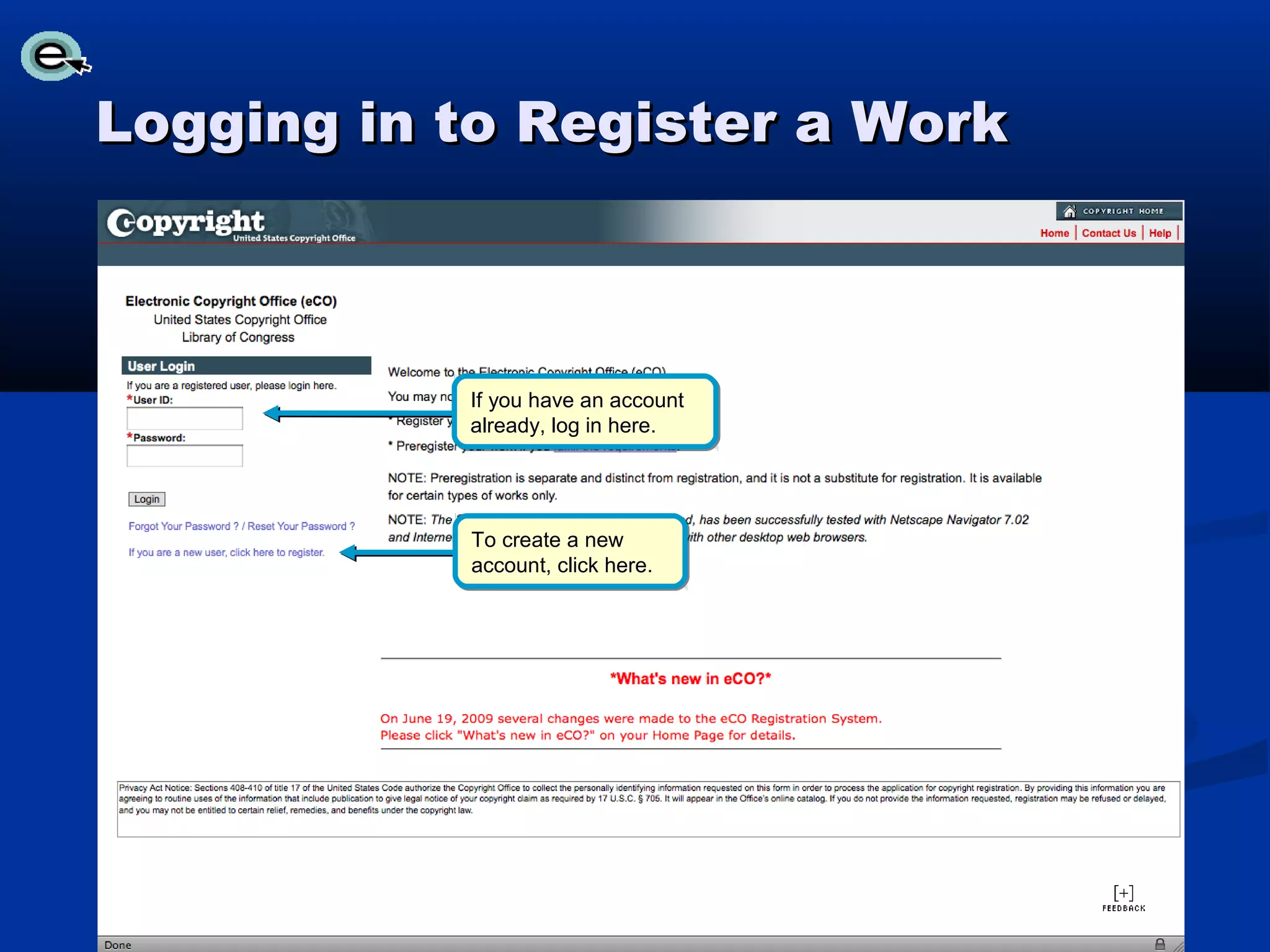
Logging in to Register a Work


           If you have an account
           already, log in here.


           To create a new
           account, click here.
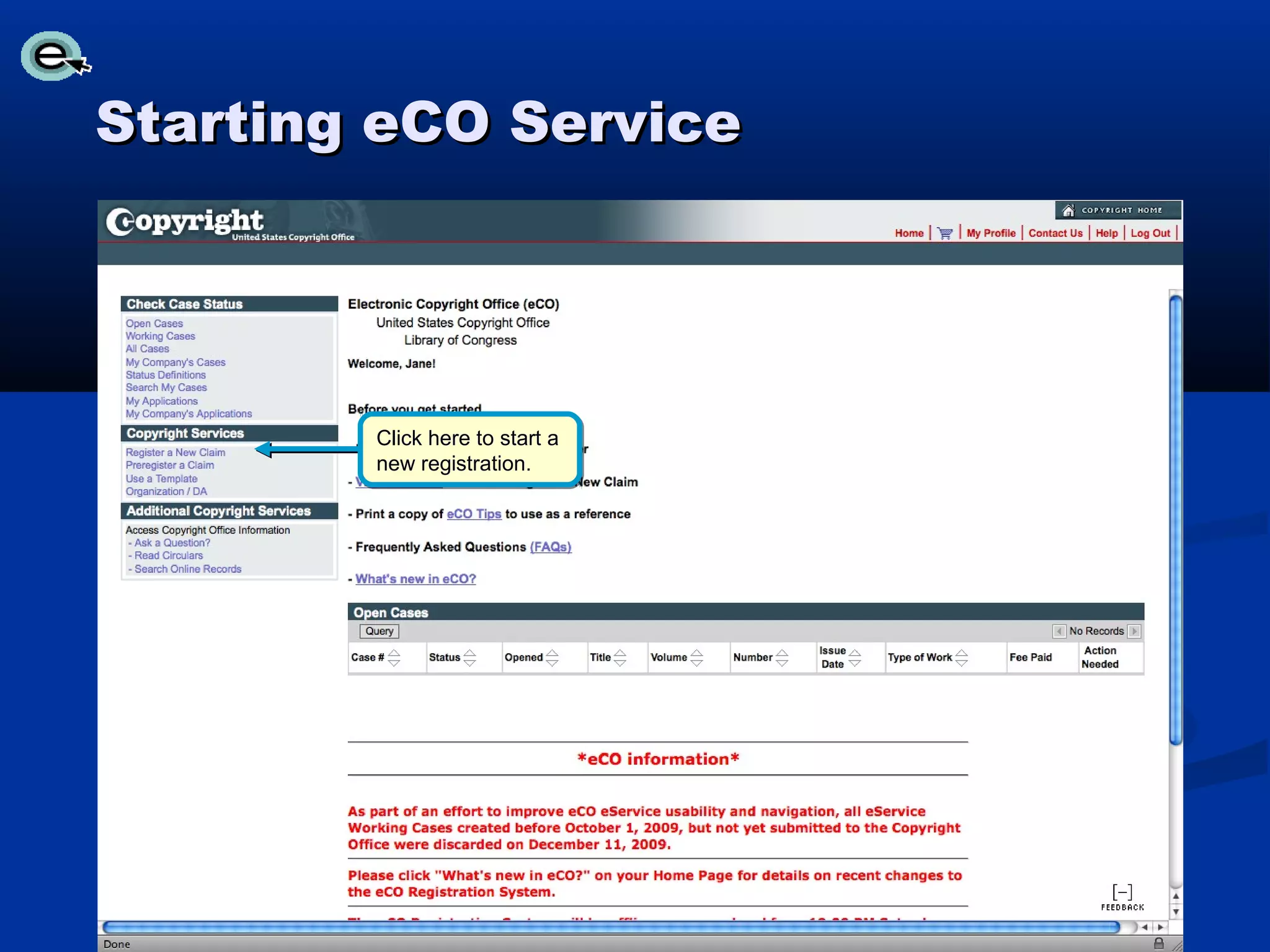
Starting eCO Service


        Click here to start a
        new registration.
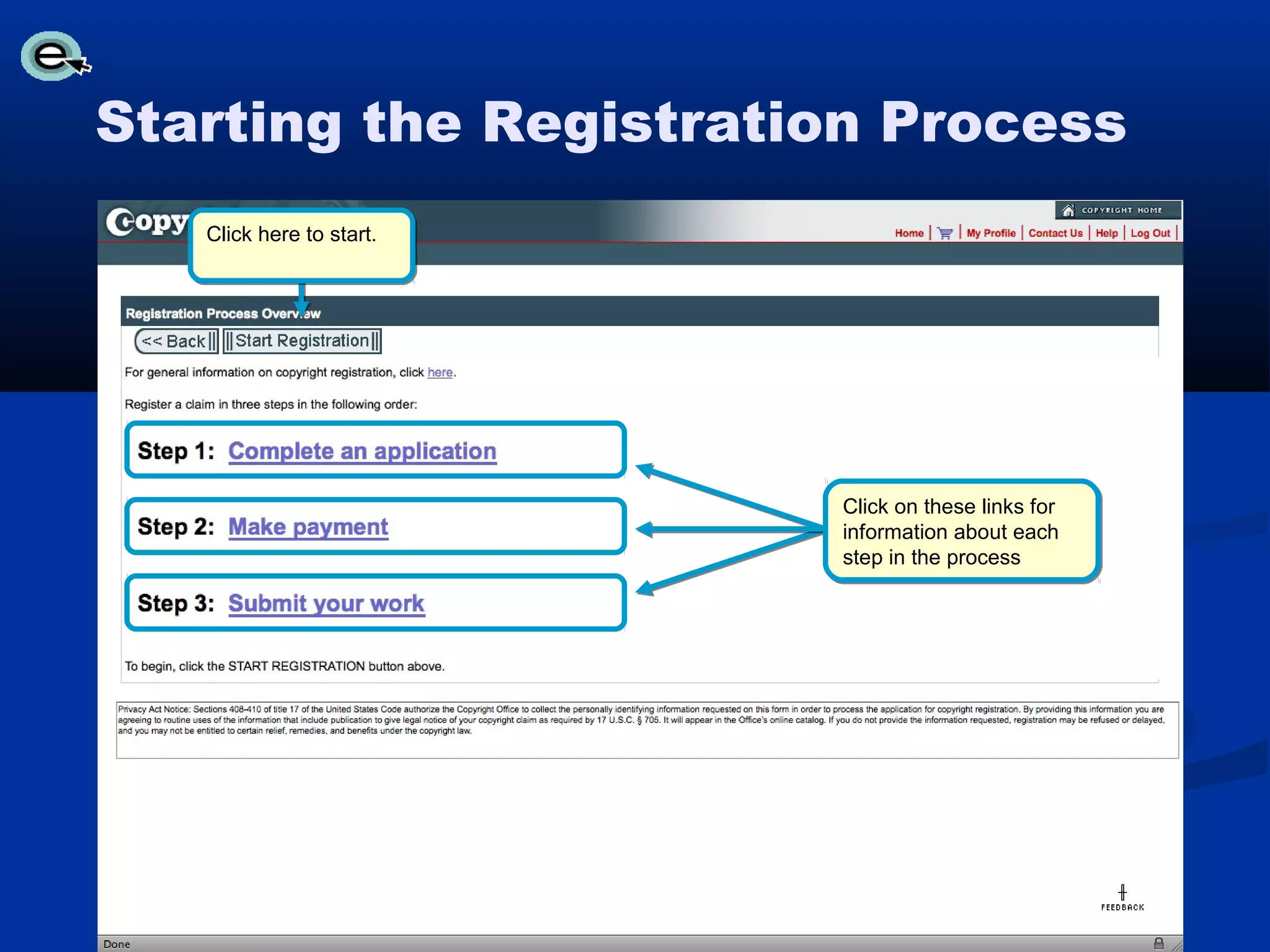
Starting the Registration Process
   Click here to start.


                          Click on these links for
                          information about each
                          step in the process
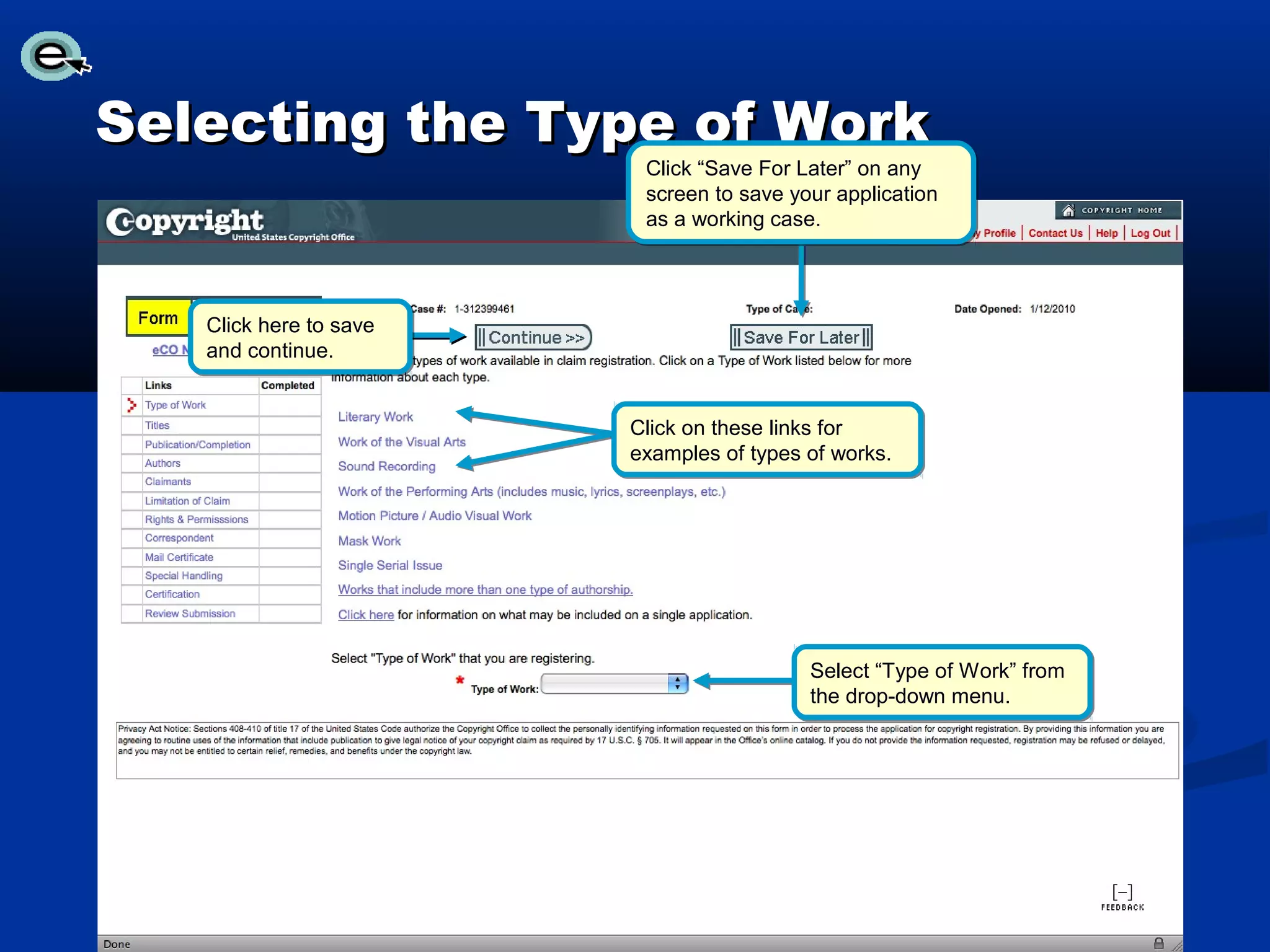
Selecting the Type of Work
                         Click “Save For Later” on any
                         screen to save your application
                         as a working case.


   Click here to save
   and continue.


                        Click on these links for
                        examples of types of works.


                                          Select “Type of Work” from
                                          the drop-down menu.
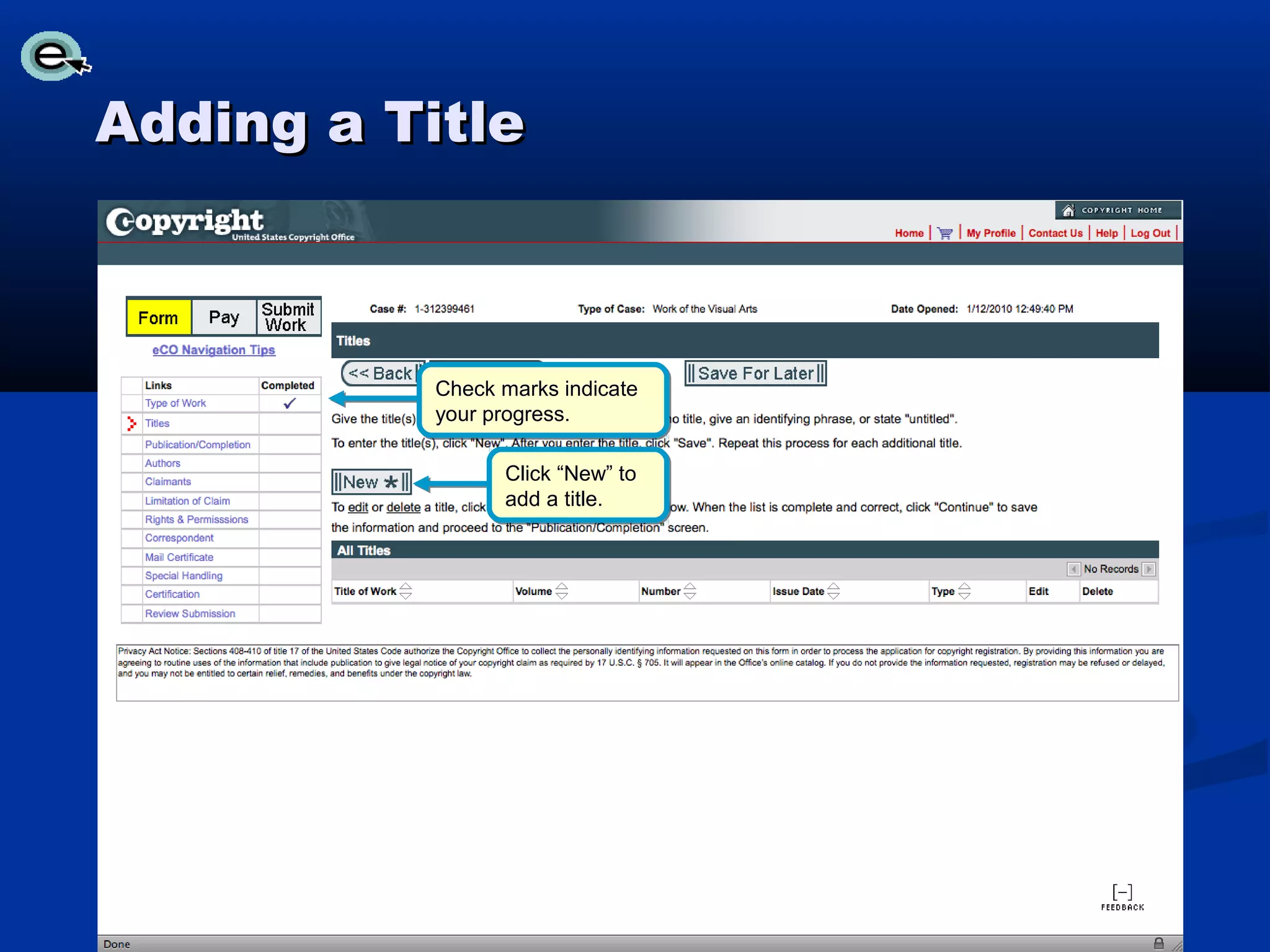
Adding a Title


           Check marks indicate
           your progress.

                 Click “New” to
                 add a title.
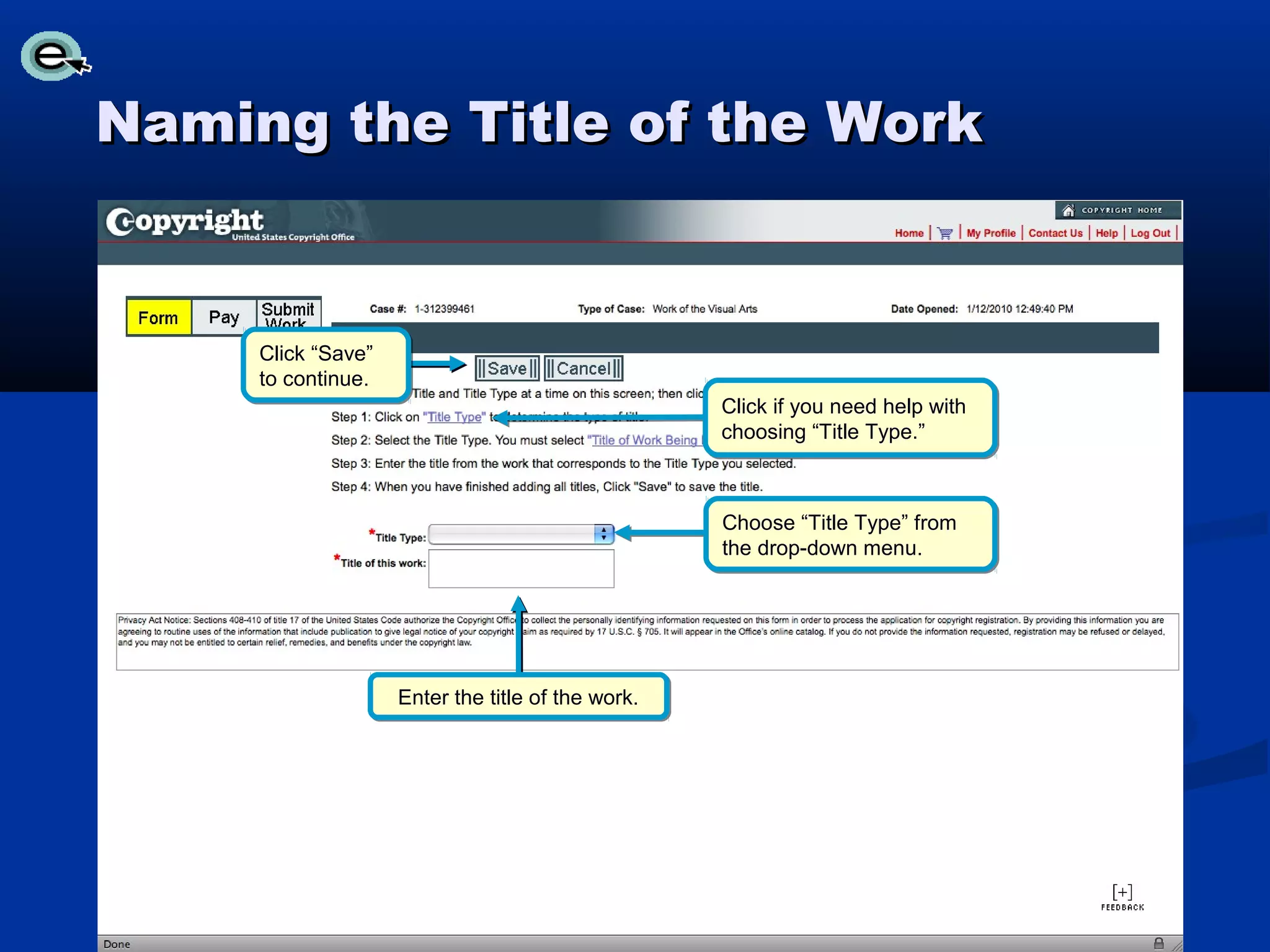
Naming the Title of the Work


     Click “Save”
     to continue.
                                                   Click if you need help with
                                                   choosing “Title Type.”


                                                   Choose “Title Type” from
                                                   the drop-down menu.


                    Enter the title of the work.
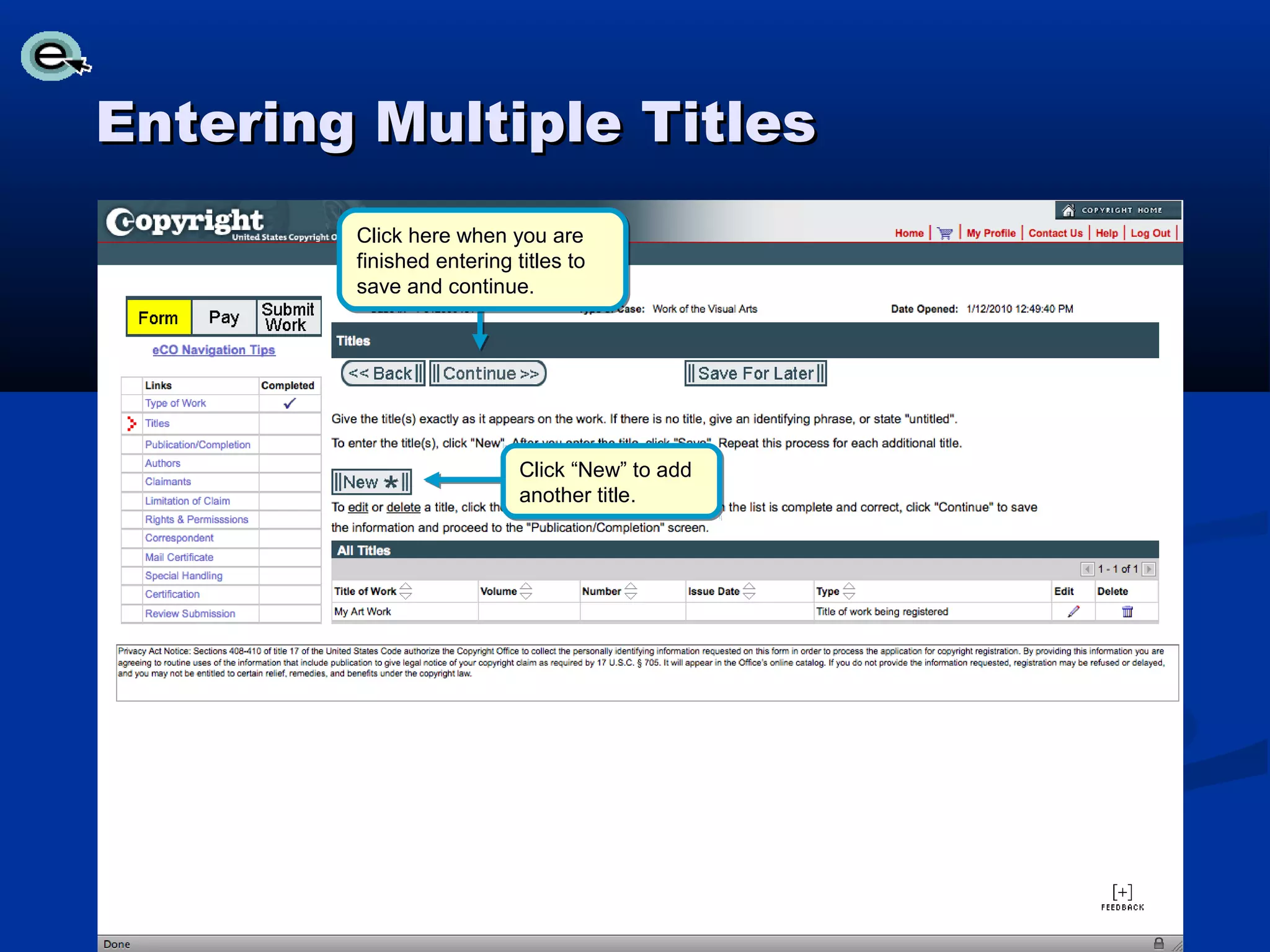
Entering Multiple Titles
        Click here when you are
        finished entering titles to
        save and continue.


                           Click “New” to add
                           another title.
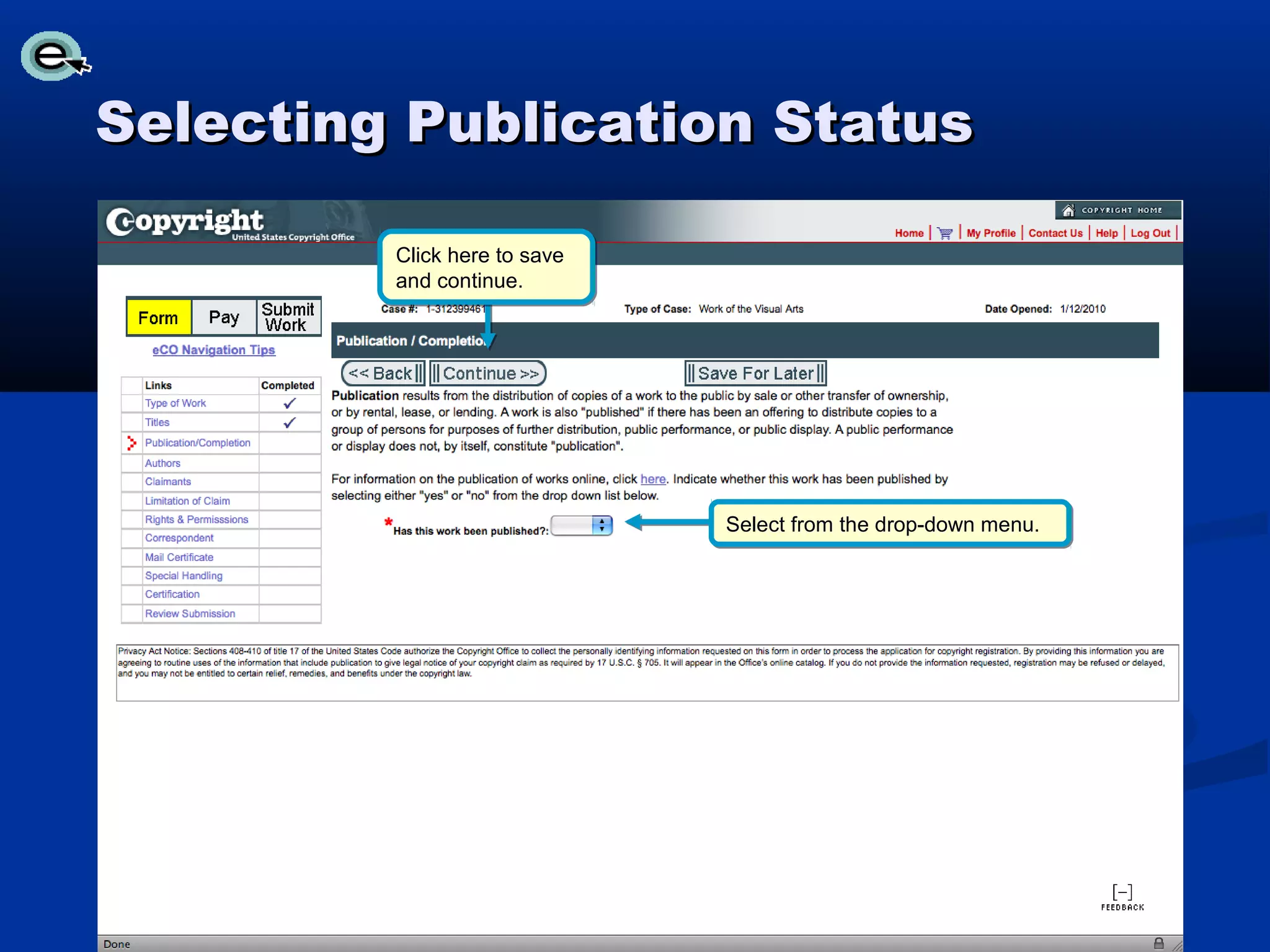
Selecting Publication Status

         Click here to save
         and continue.


                              Select from the drop-down menu.
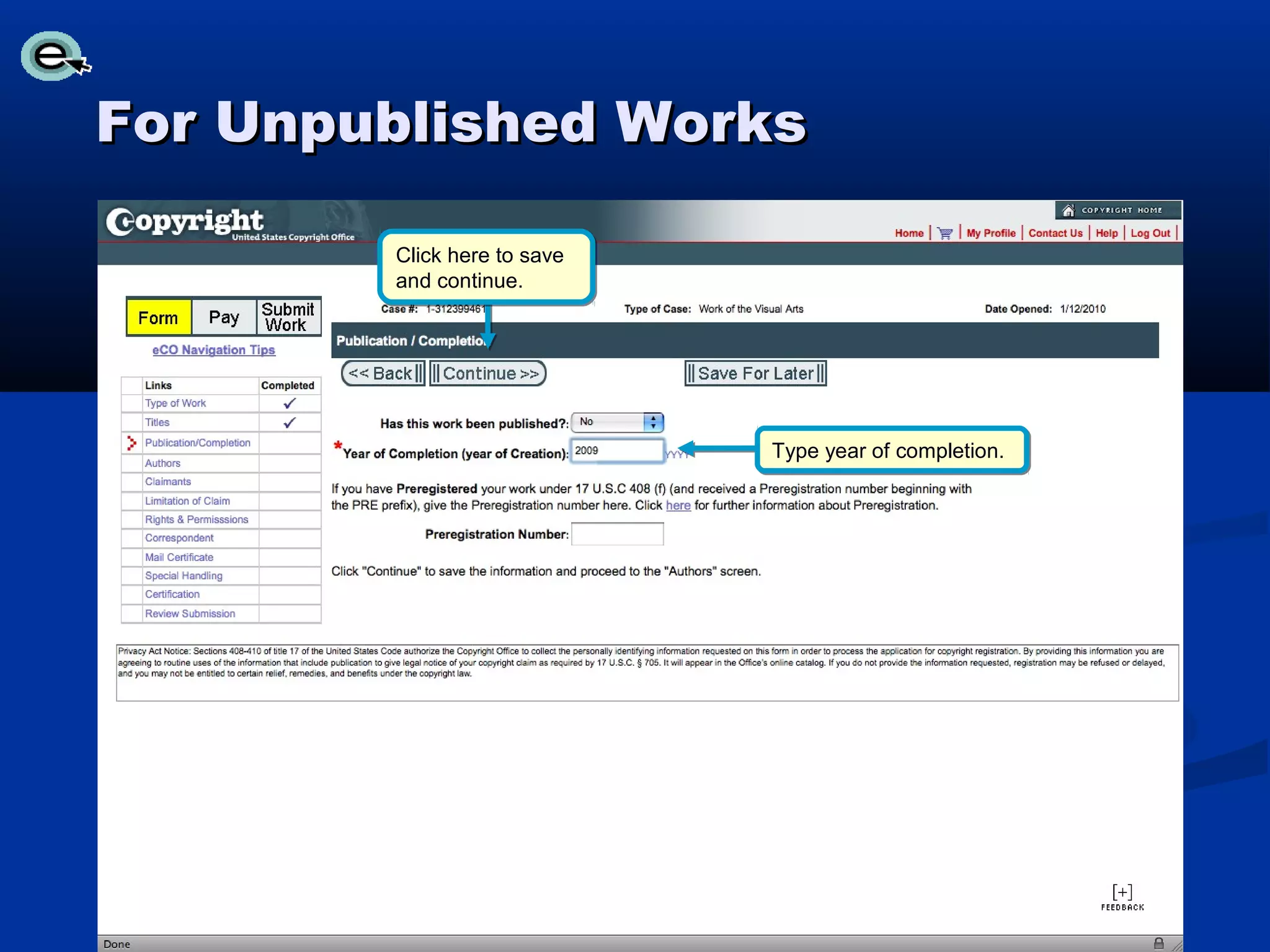
For Unpublished Works

        Click here to save
        and continue.


                             Type year of completion.
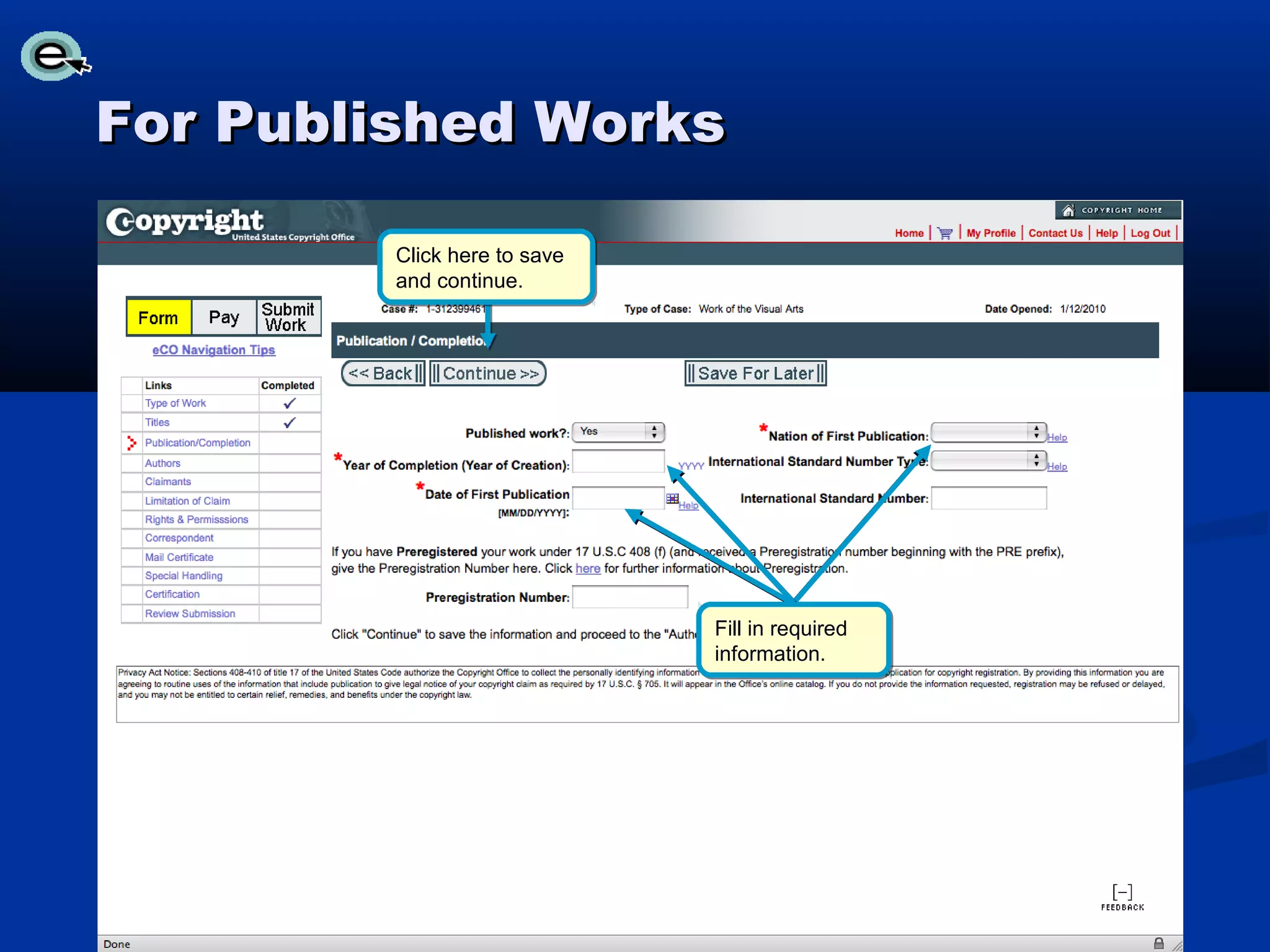
For Published Works

         Click here to save
         and continue.


                              Fill in required
                              information.
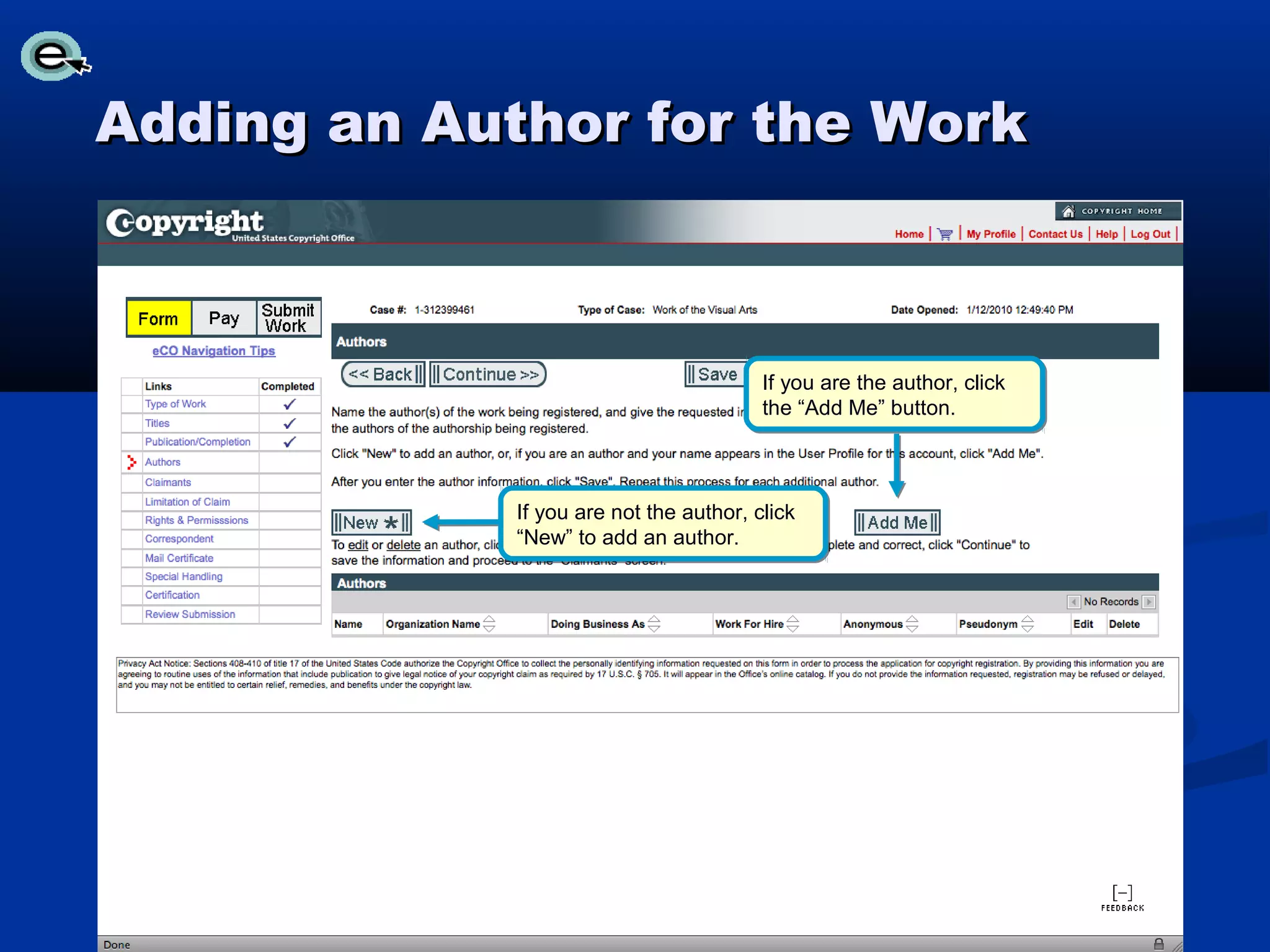
Adding an Author for the Work


                                         If you are the author, click
                                         the “Add Me” button.


             If you are not the author, click
             “New” to add an author.
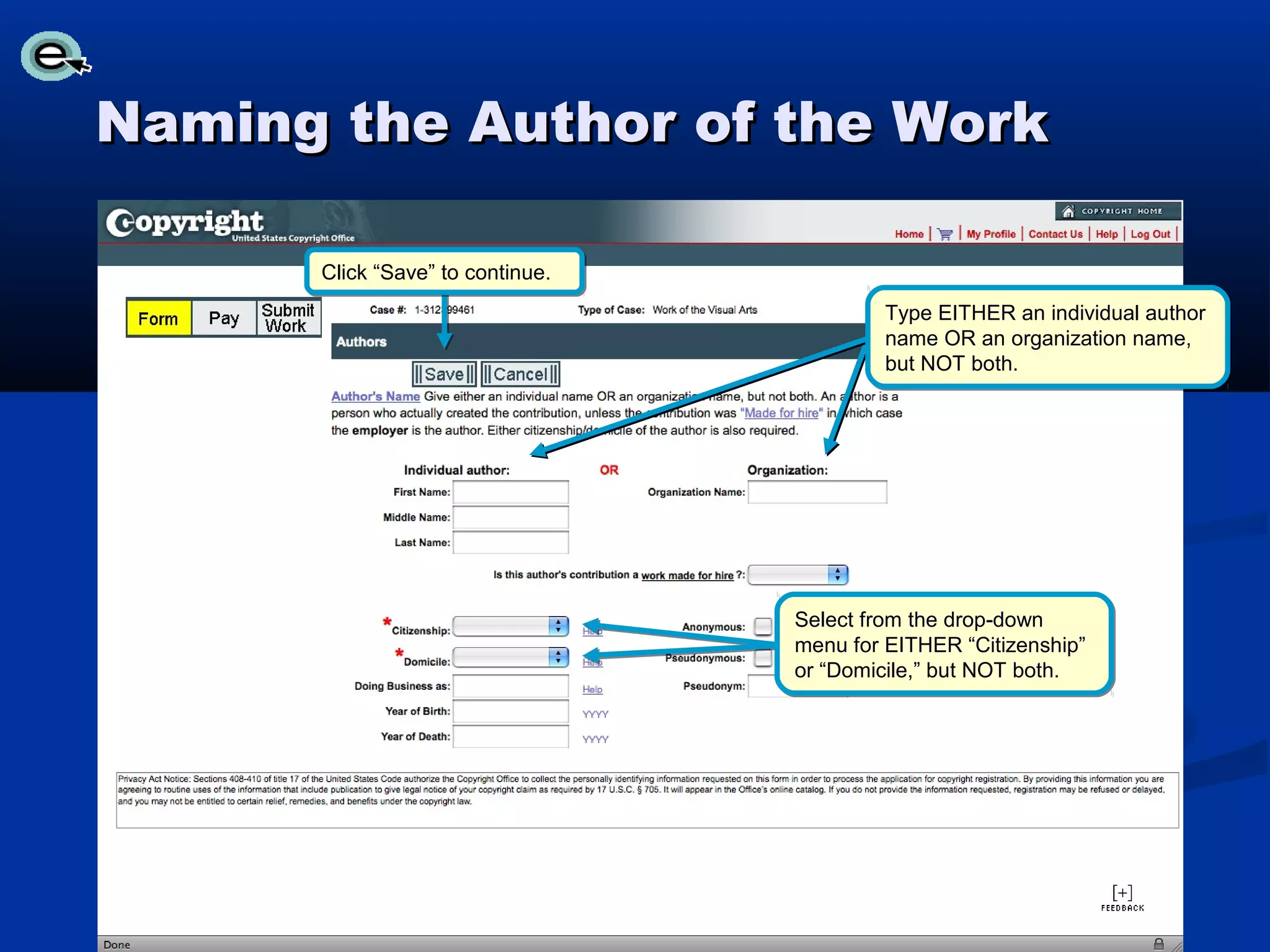
Naming the Author of the Work

      Click “Save” to continue.
                                          Type EITHER an individual author
                                          name OR an organization name,
                                          but NOT both.


                                  Select from the drop-down
                                  menu for EITHER “Citizenship”
                                  or “Domicile,” but NOT both.
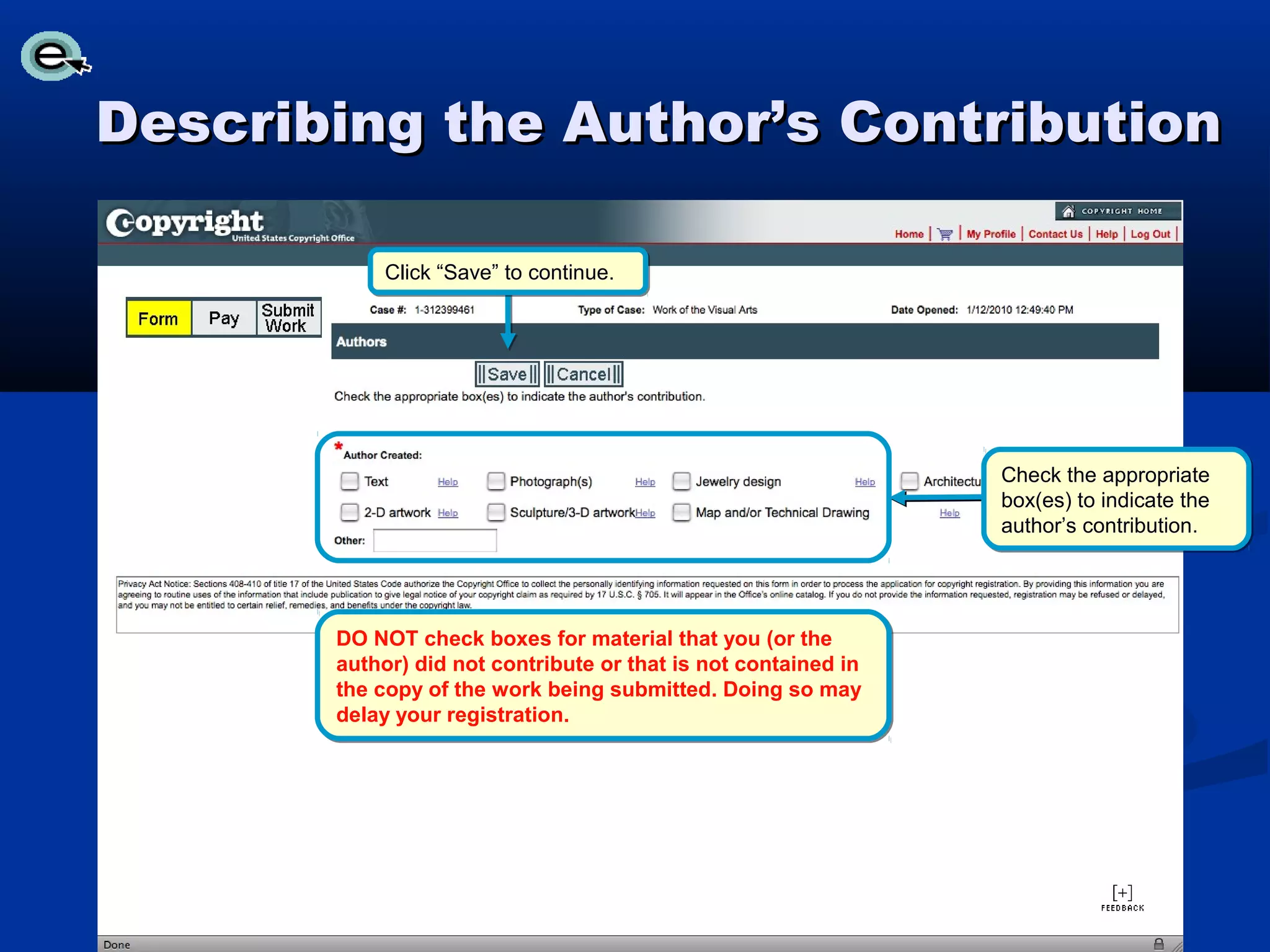
Describing the Author’s Contribution

           Click “Save” to continue.


                                                                Check the appropriate
                                                                box(es) to indicate the
                                                                author’s contribution.


       DO NOT check boxes for material that you (or the
       author) did not contribute or that is not contained in
       the copy of the work being submitted. Doing so may
       delay your registration.
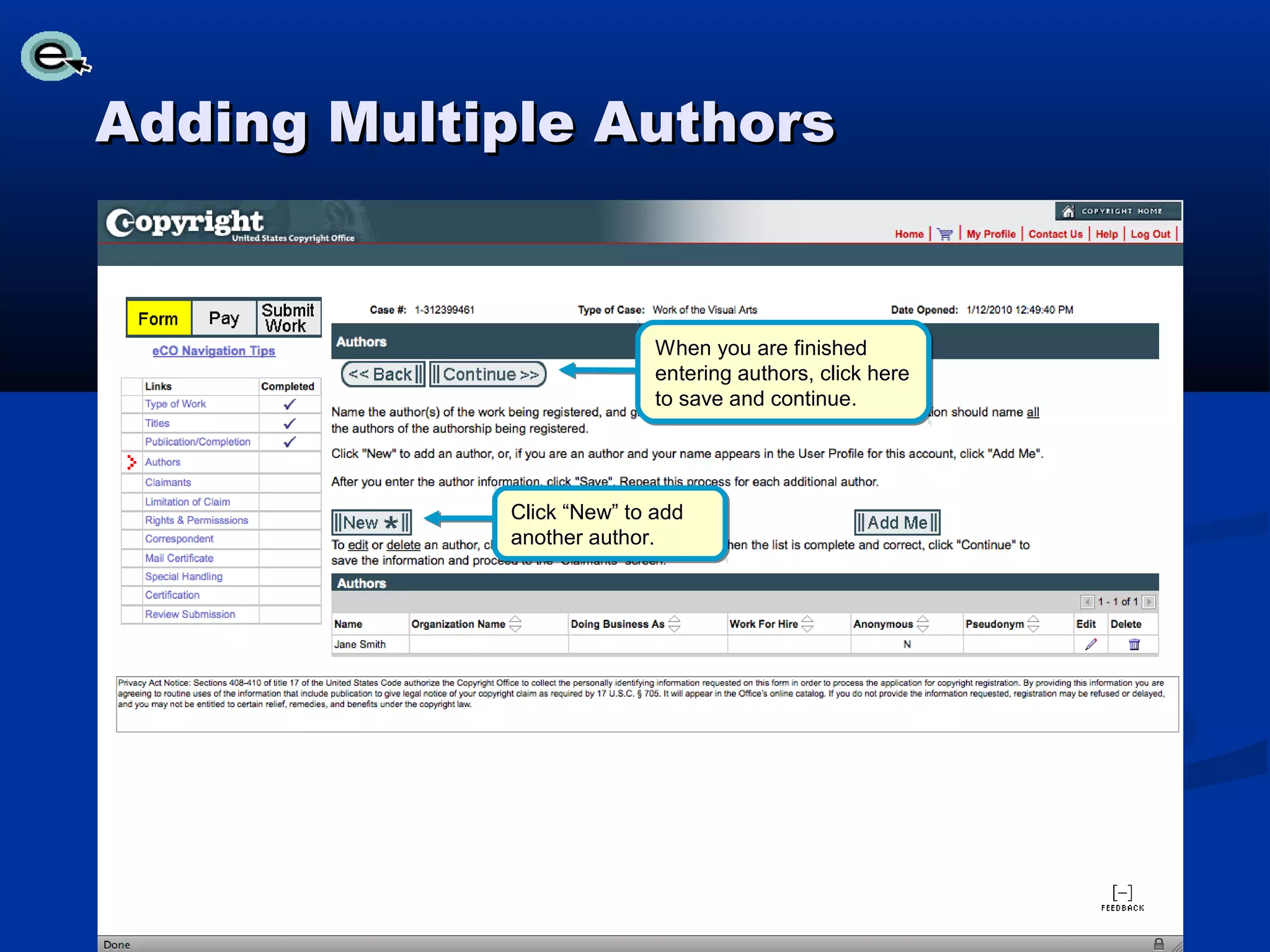
Adding Multiple Authors


                          When you are finished
                          entering authors, click here
                          to save and continue.


            Click “New” to add
            another author.
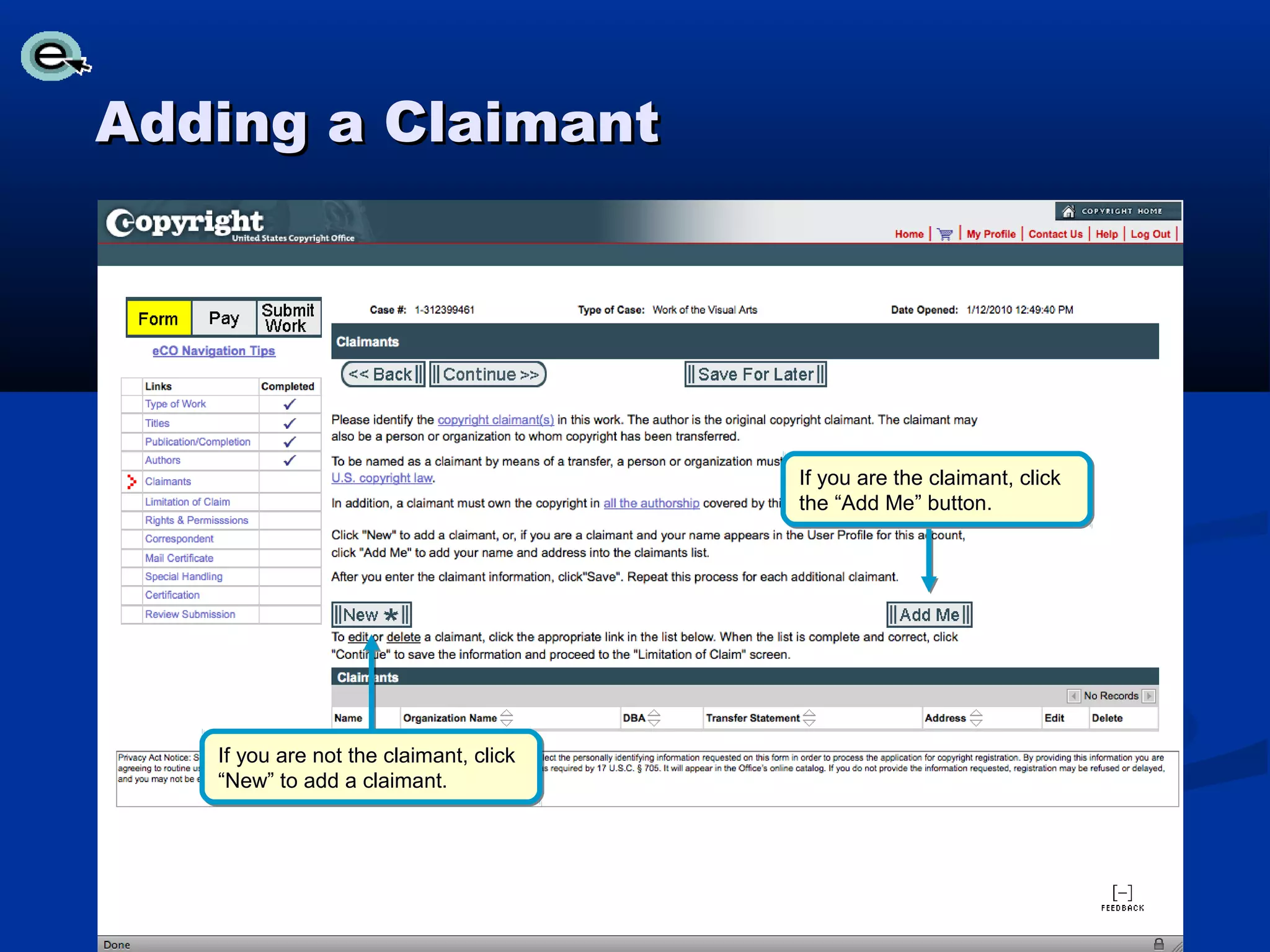
Adding a Claimant


                                        If you are the claimant, click
                                        the “Add Me” button.


   If you are not the claimant, click
   “New” to add a claimant.
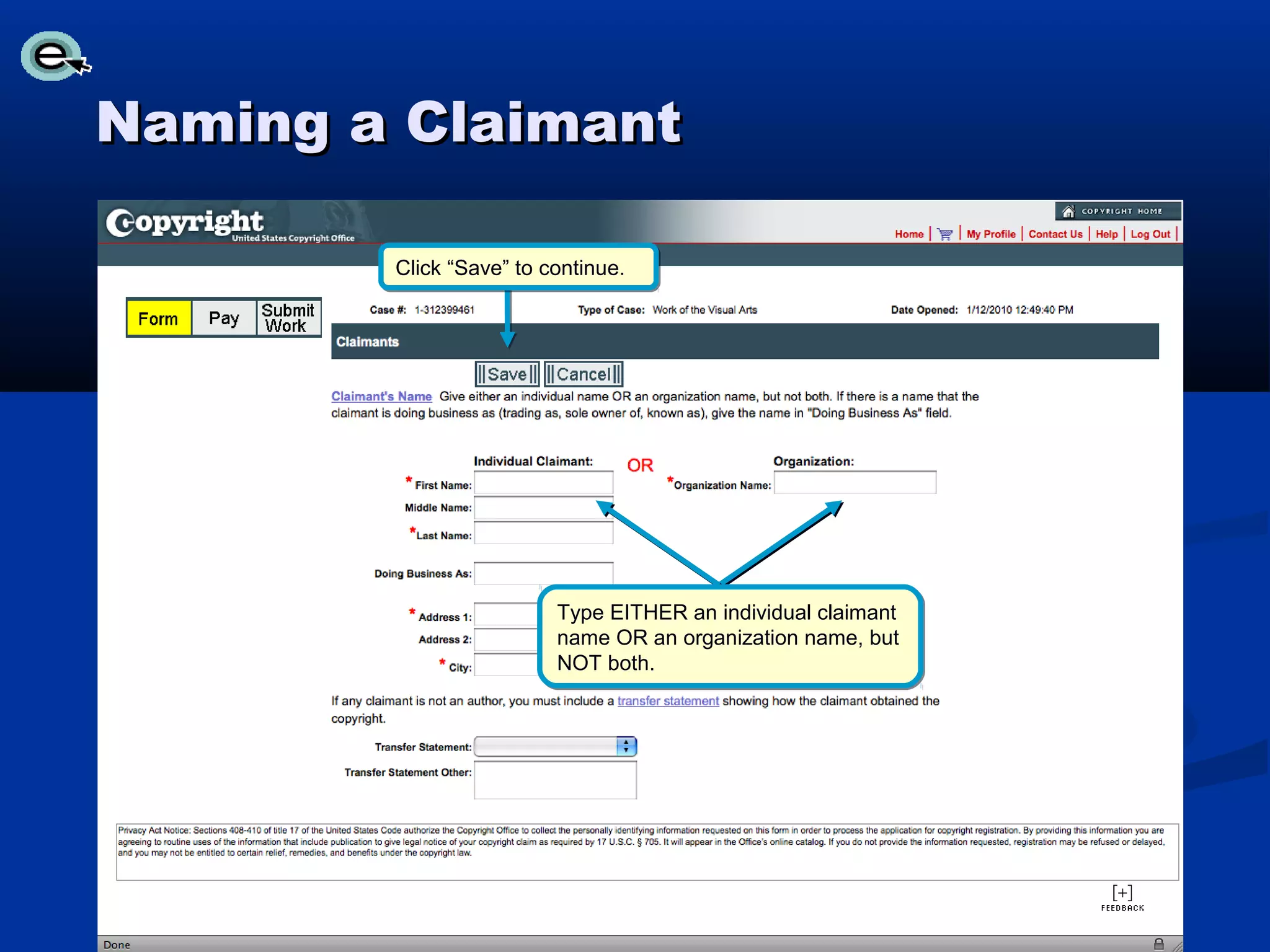
Naming a Claimant

        Click “Save” to continue.


                         Type EITHER an individual claimant
                         name OR an organization name, but
                         NOT both.
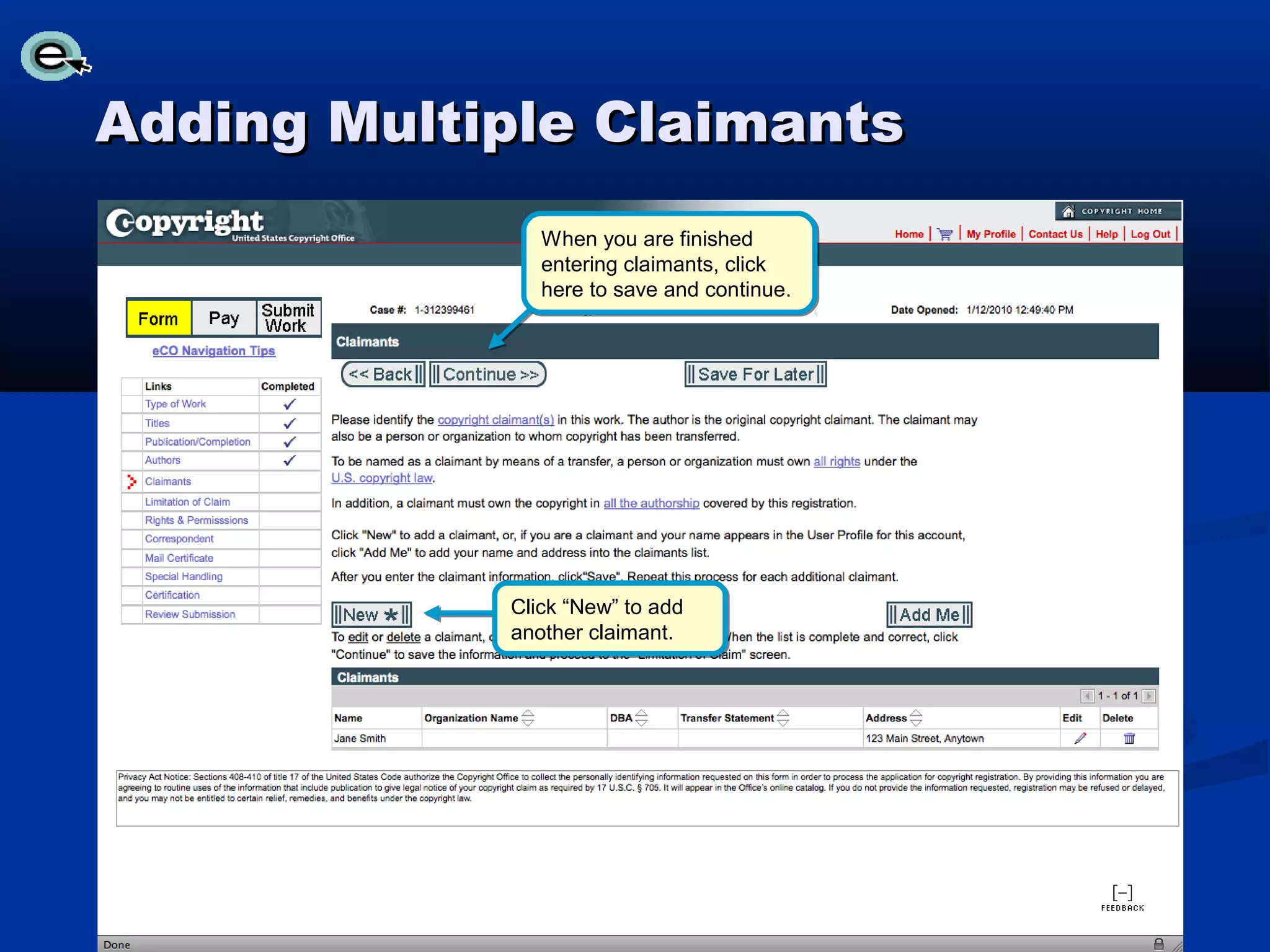
Adding Multiple Claimants
               When you are finished
               entering claimants, click
               here to save and continue.


            Click “New” to add
            another claimant.
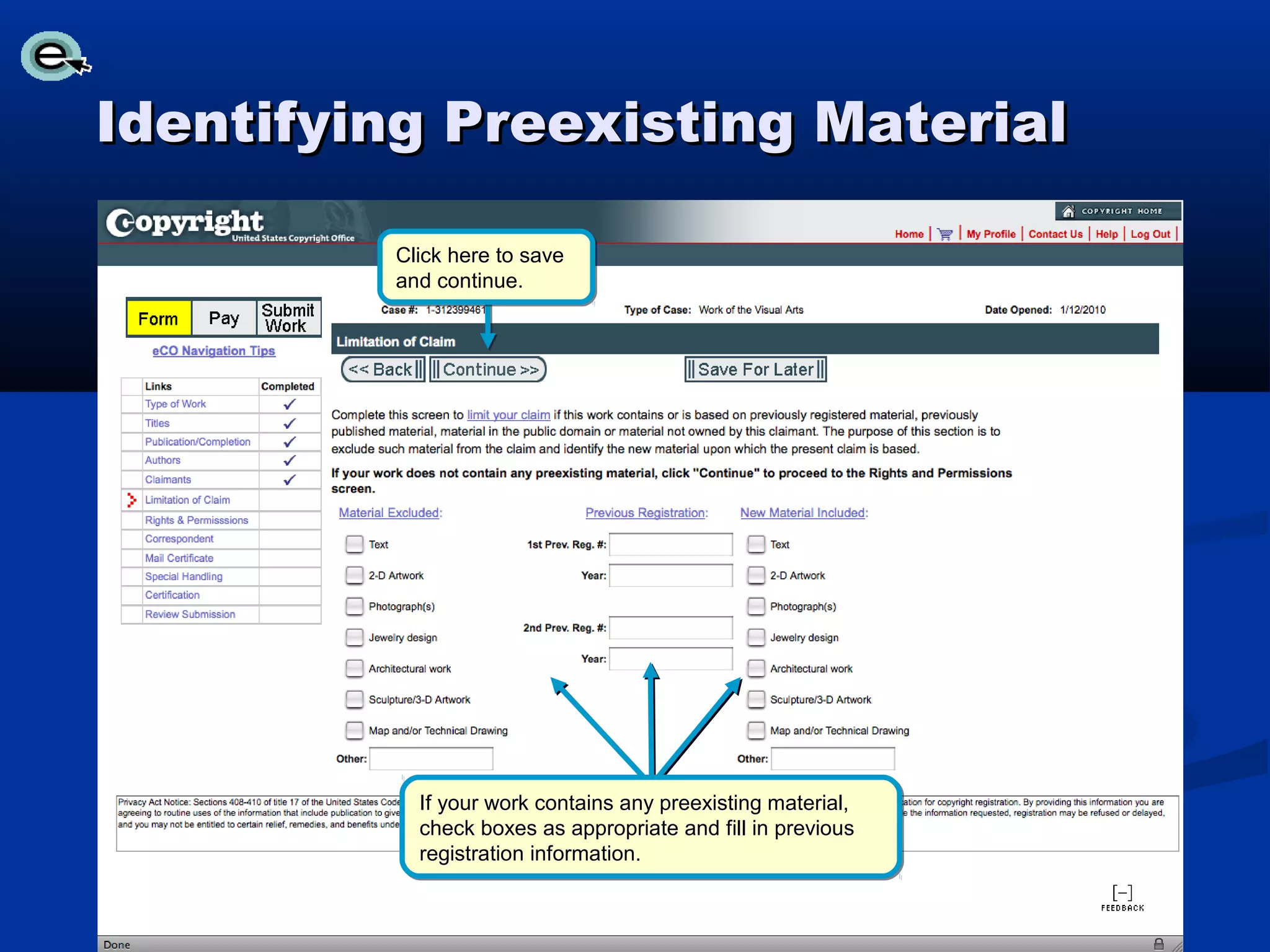
Identifying Preexisting Material

         Click here to save
         and continue.


           If your work contains any preexisting material,
           check boxes as appropriate and fill in previous
           registration information.
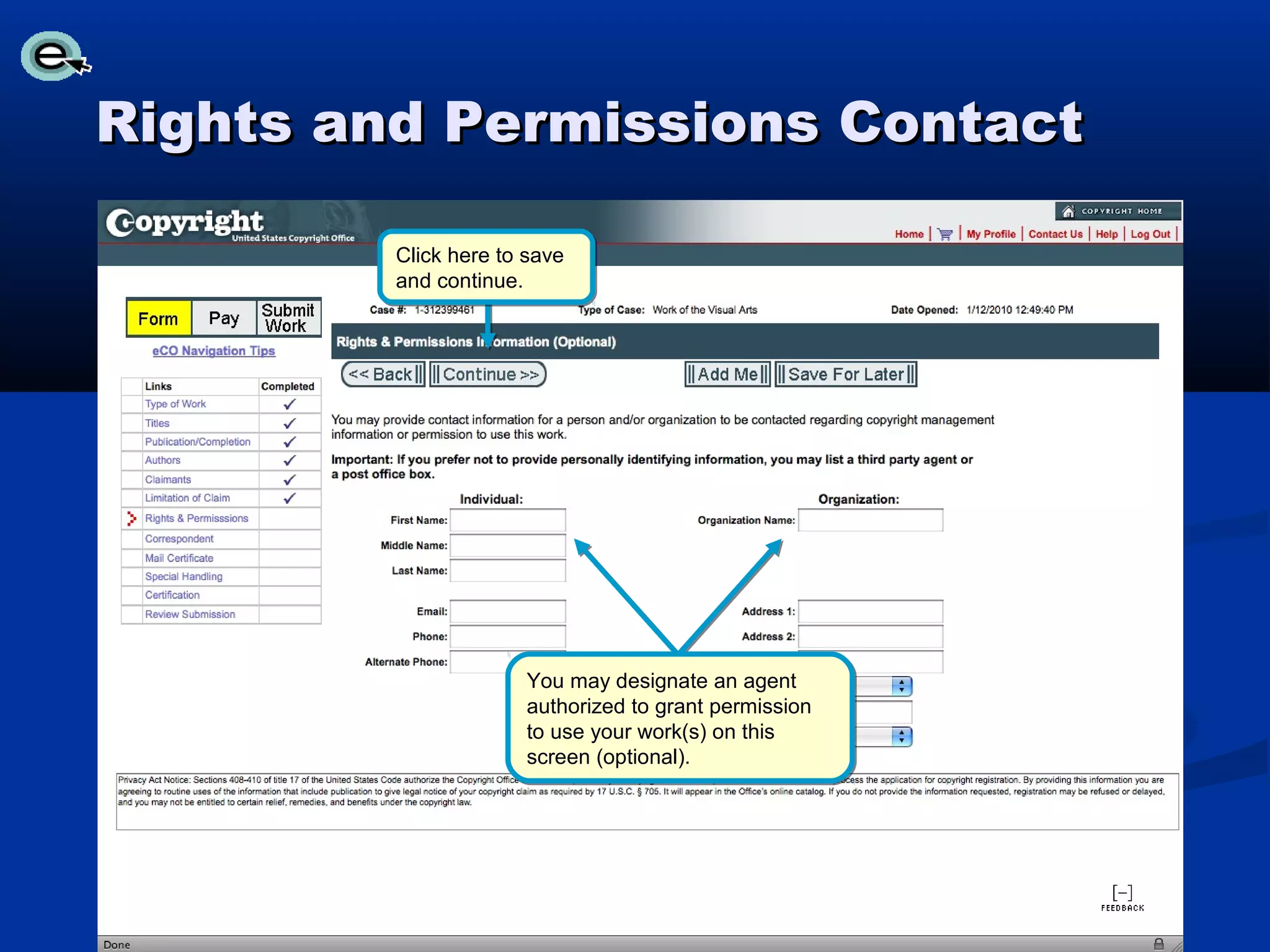
Rights and Permissions Contact

         Click here to save
         and continue.


                      You may designate an agent
                      authorized to grant permission
                      to use your work(s) on this
                      screen (optional).
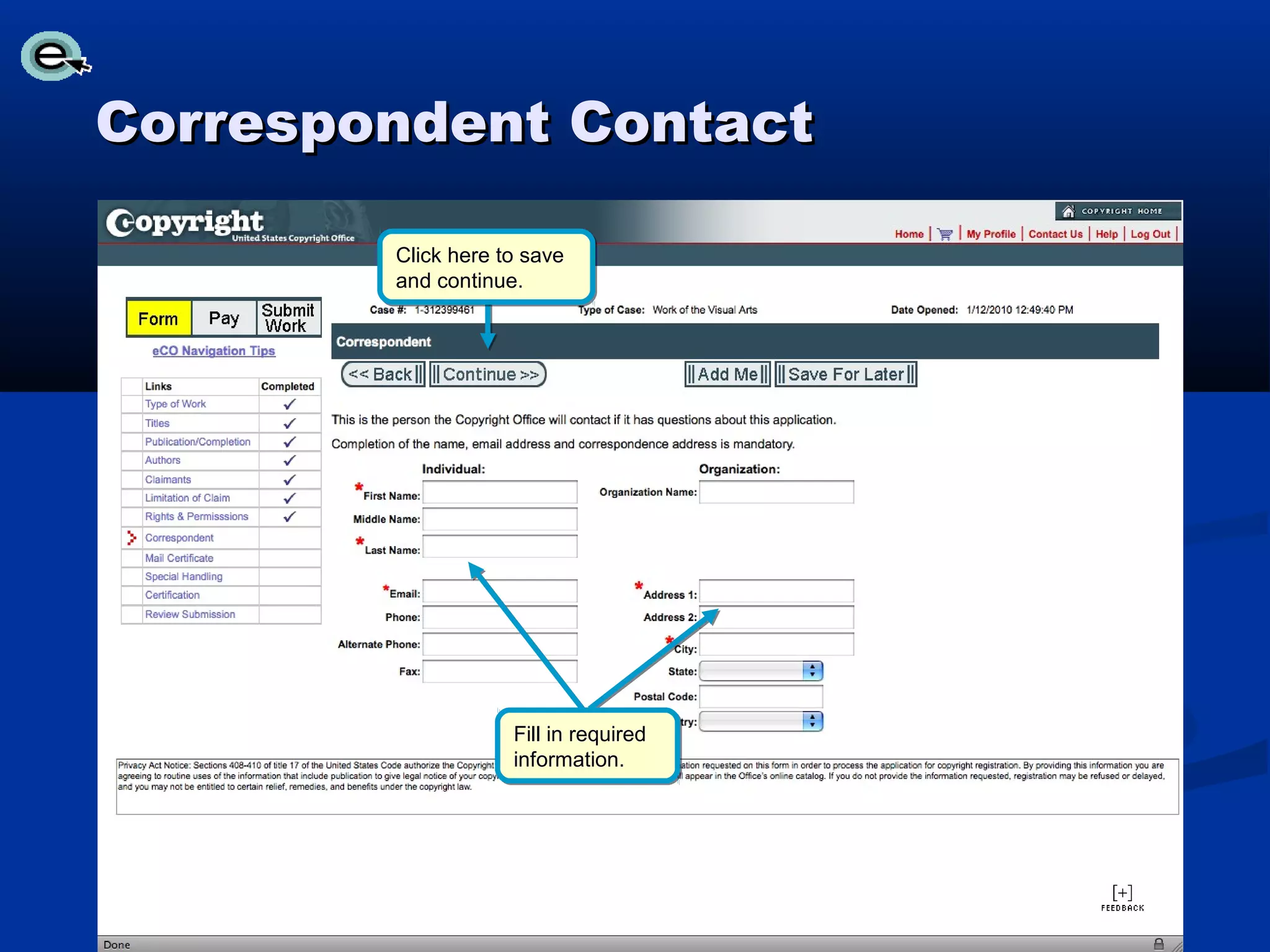
Correspondent Contact

        Click here to save
        and continue.


                    Fill in required
                    information.
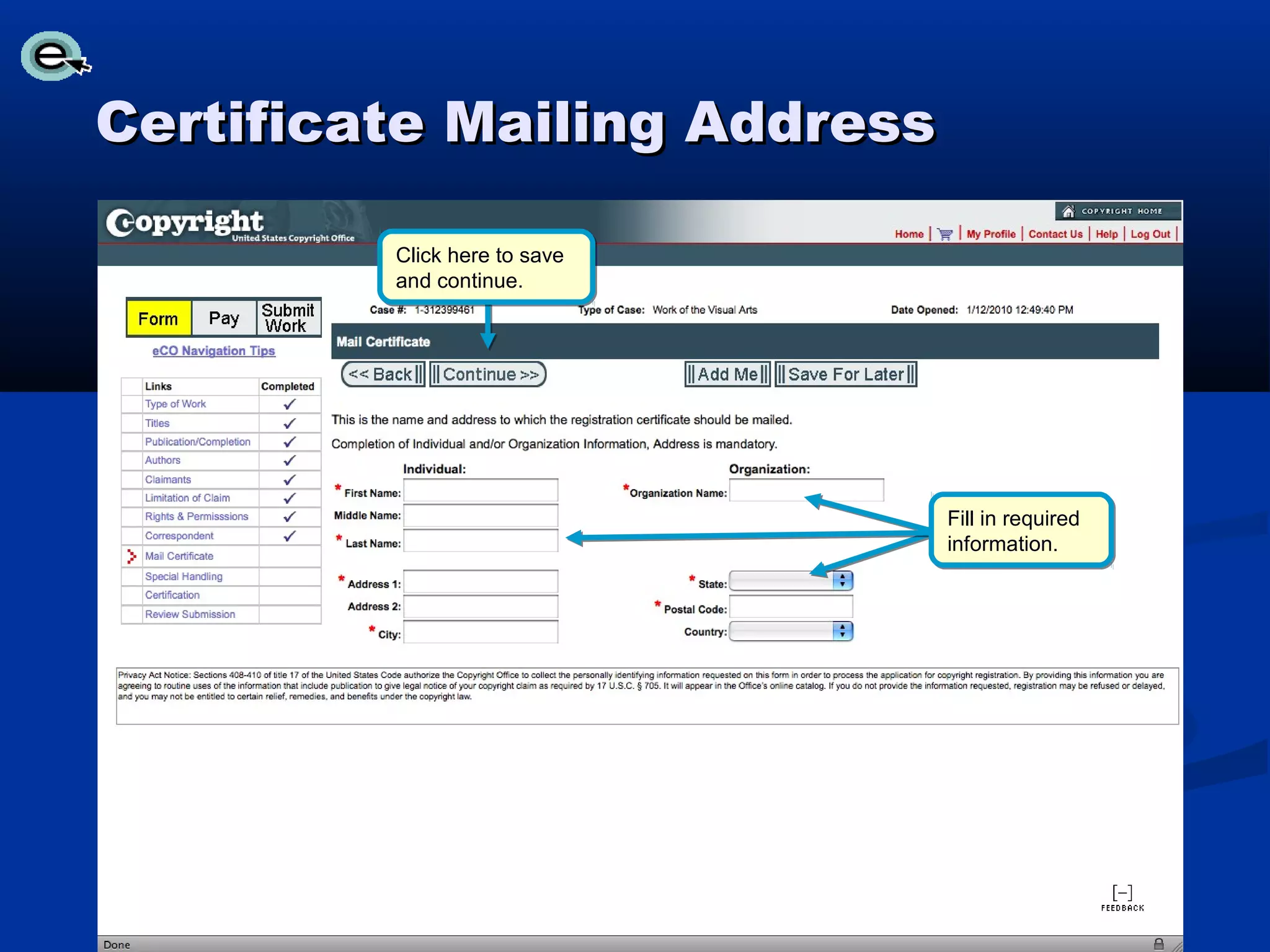
Certificate Mailing Address

         Click here to save
         and continue.


                              Fill in required
                              information.
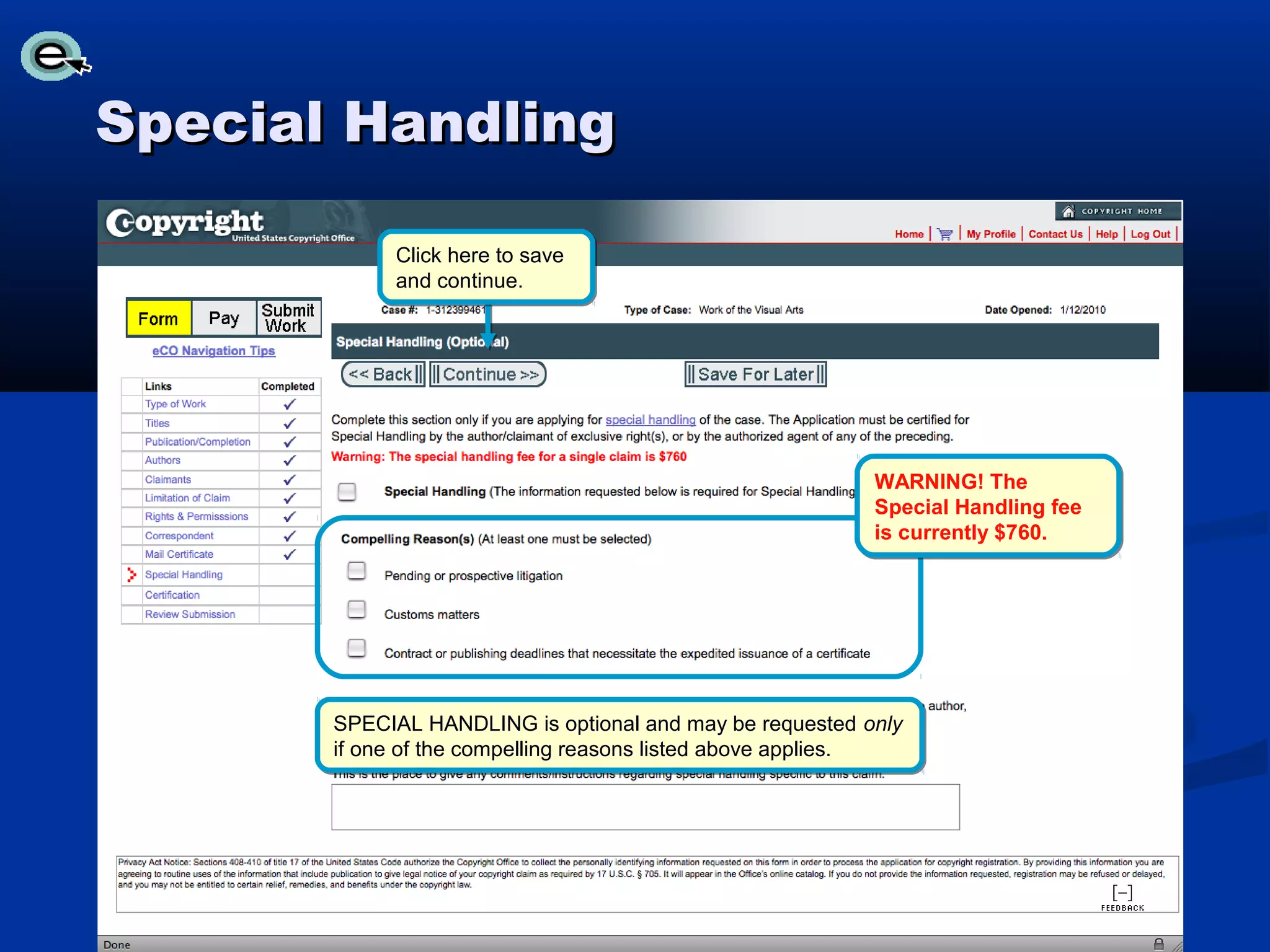
Special Handling

            Click here to save
            and continue.


                                                          WARNING! The
                                                          Special Handling fee
                                                          is currently $760.


       SPECIAL HANDLING is optional and may be requested only
       if one of the compelling reasons listed above applies.
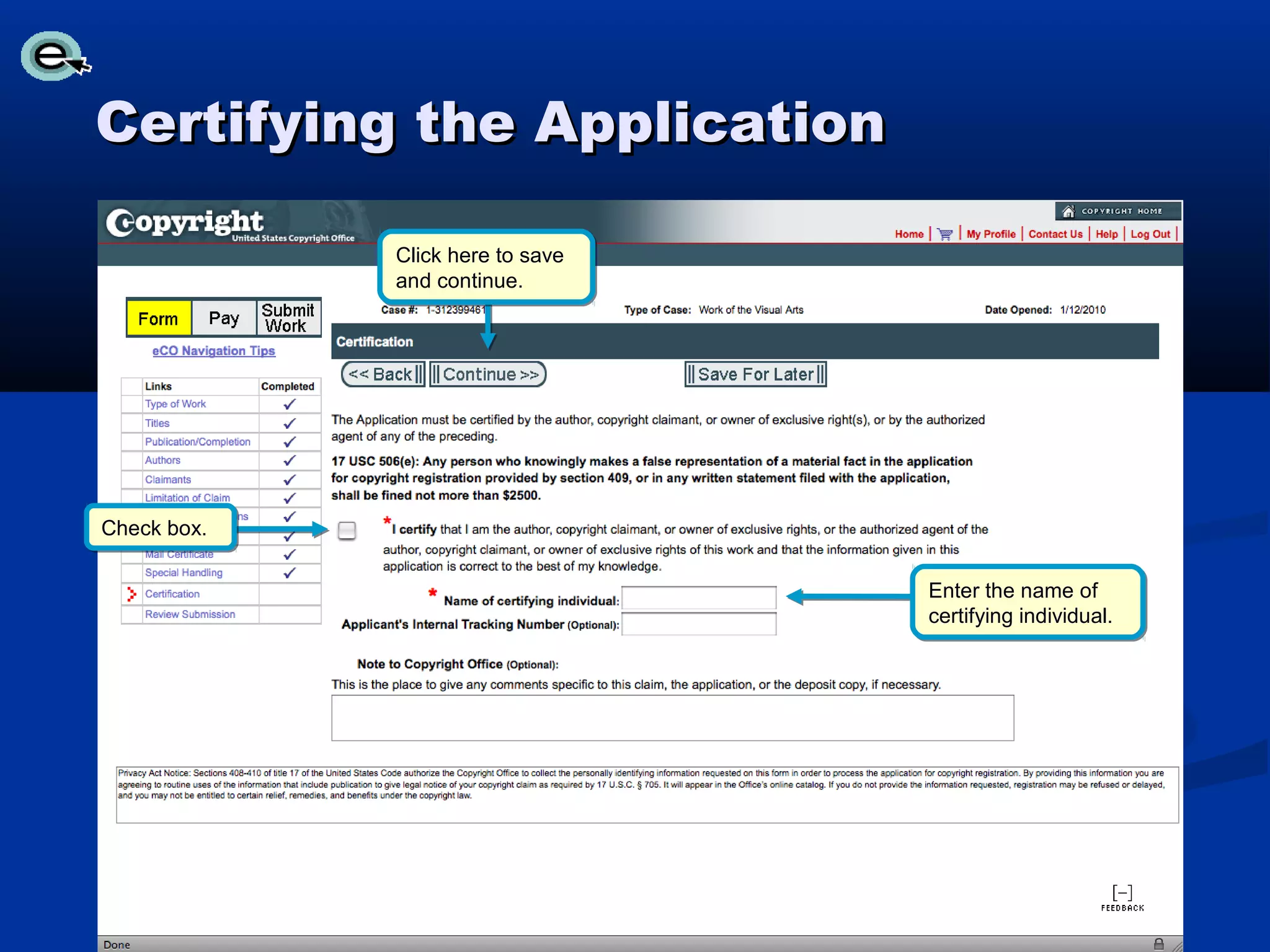
Certifying the Application

             Click here to save
             and continue.


Check box.

                                  Enter the name of
                                  certifying individual.
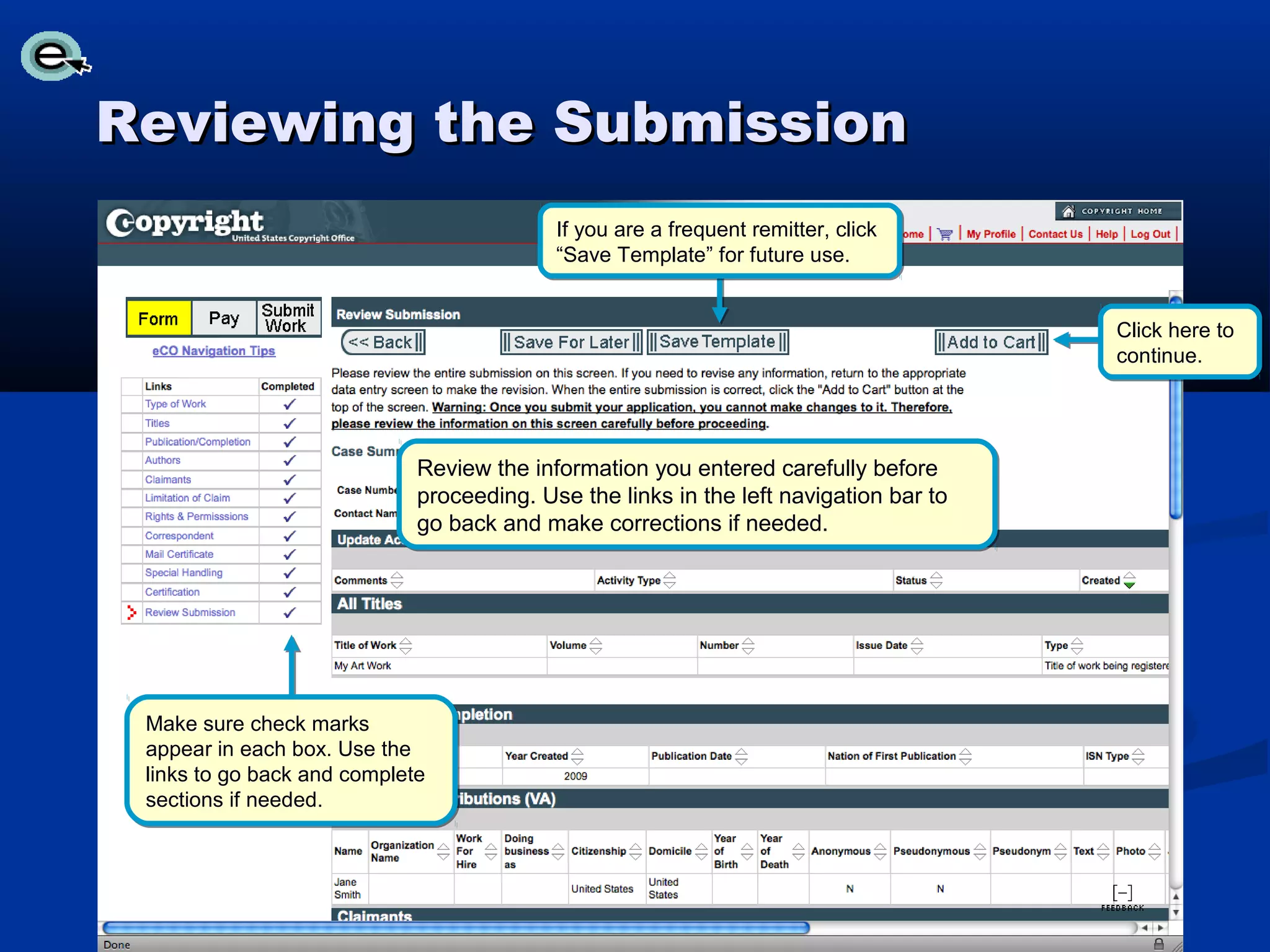
Reviewing the Submission
                                          If you are a frequent remitter, click
                                          “Save Template” for future use.


                                                                                      Click here to
                                                                                      continue.


                            Review the information you entered carefully before
                            proceeding. Use the links in the left navigation bar to
                            go back and make corrections if needed.


 Make sure check marks
 appear in each box. Use the
 links to go back and complete
 sections if needed.
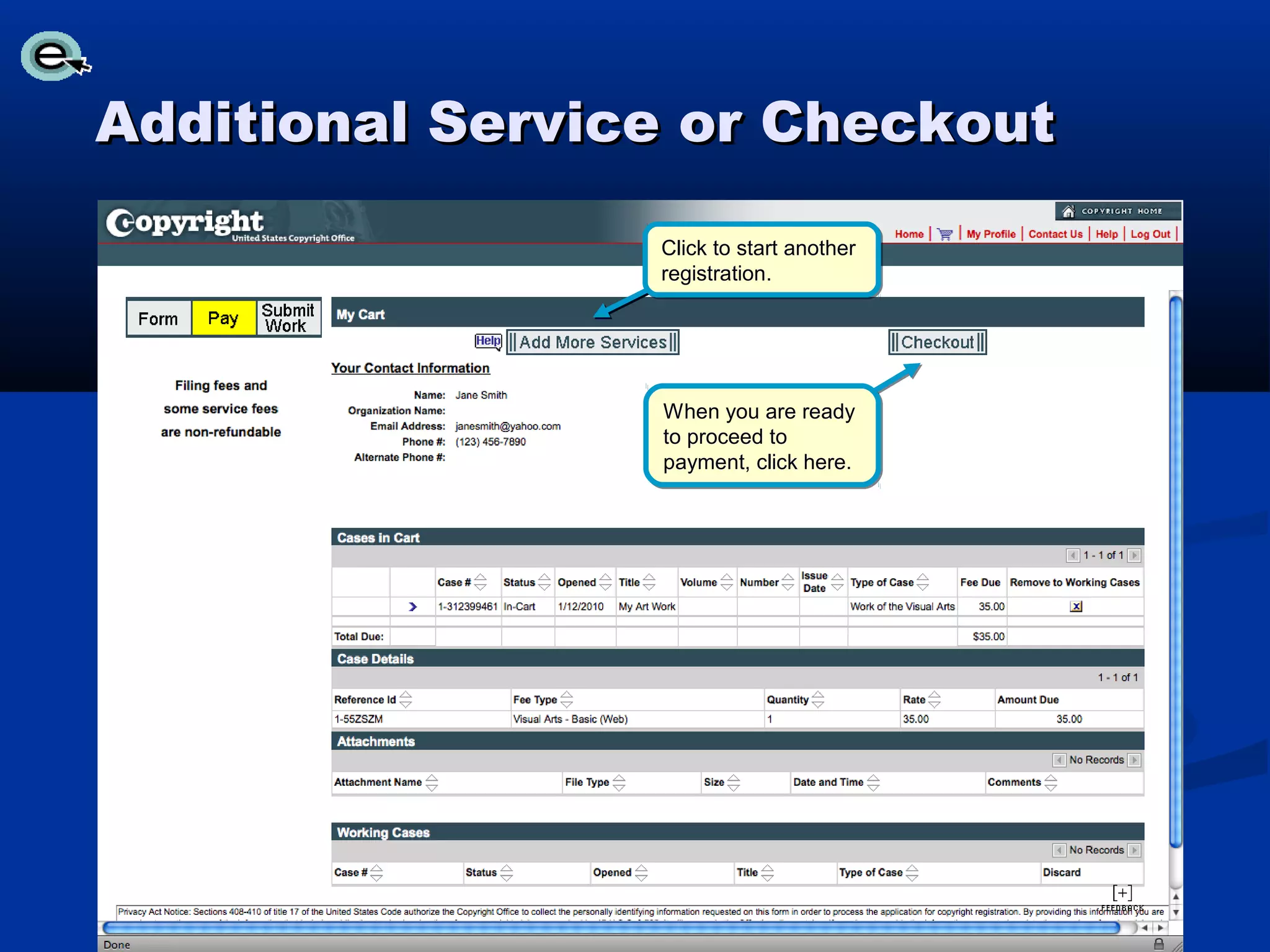
Additional Service or Checkout

                 Click to start another
                 registration.


                 When you are ready
                 to proceed to
                 payment, click here.
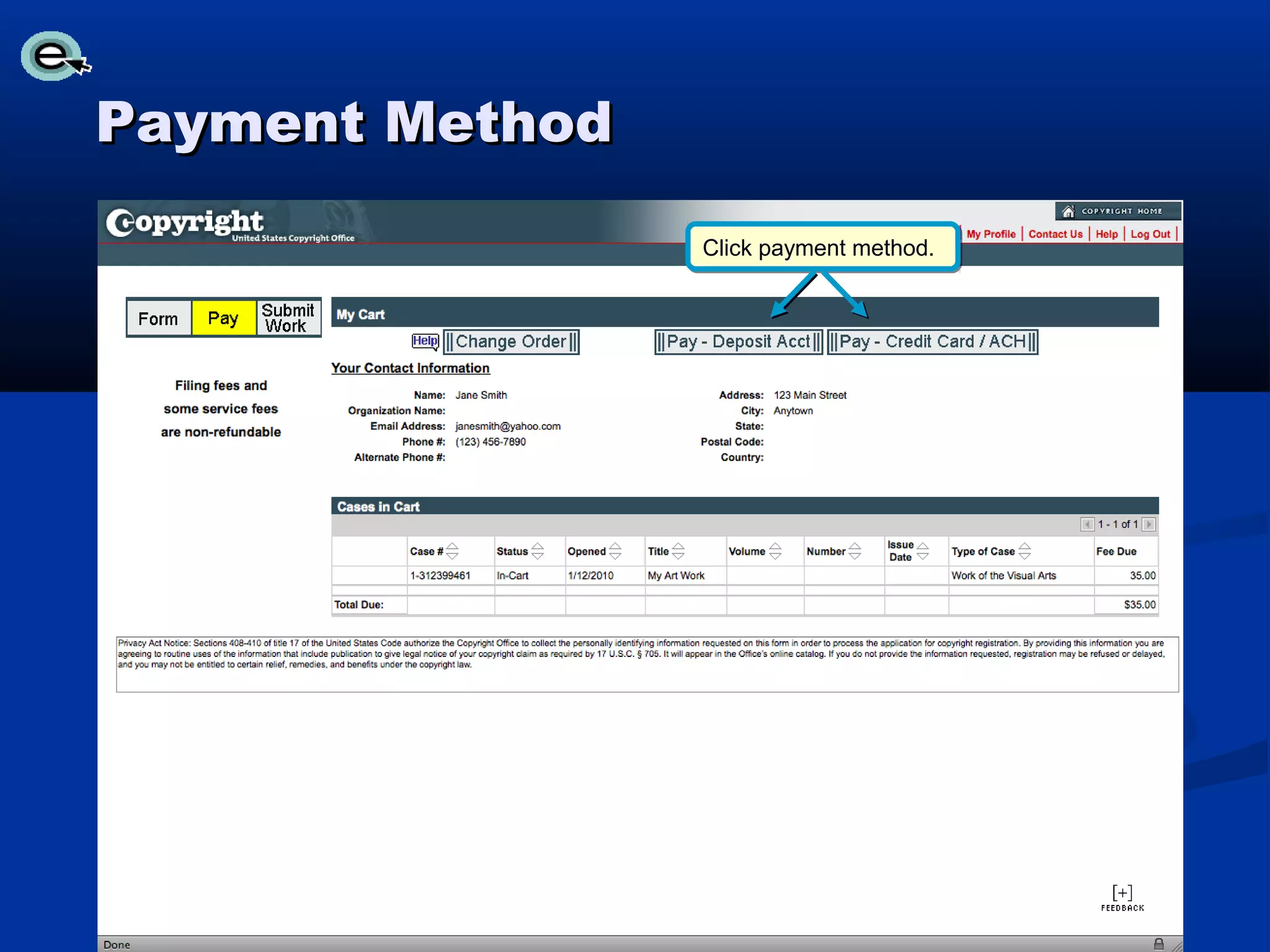
Payment Method

                 Click payment method.
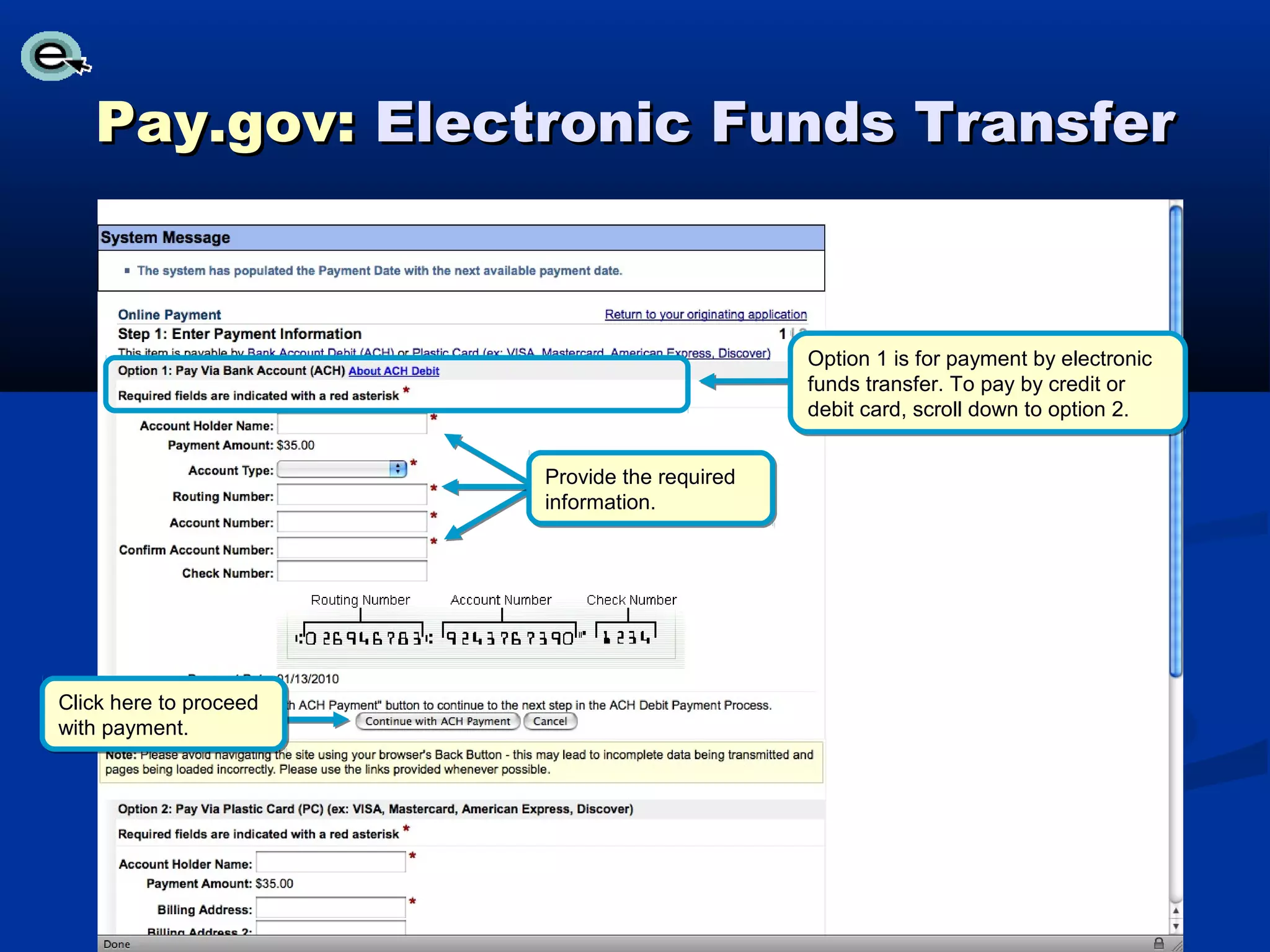
Pay.gov: Electronic Funds Transfer


                                               Option 1 is for payment by electronic
                                               funds transfer. To pay by credit or
                                               debit card, scroll down to option 2.


                        Provide the required
                        information.


Click here to proceed
with payment.
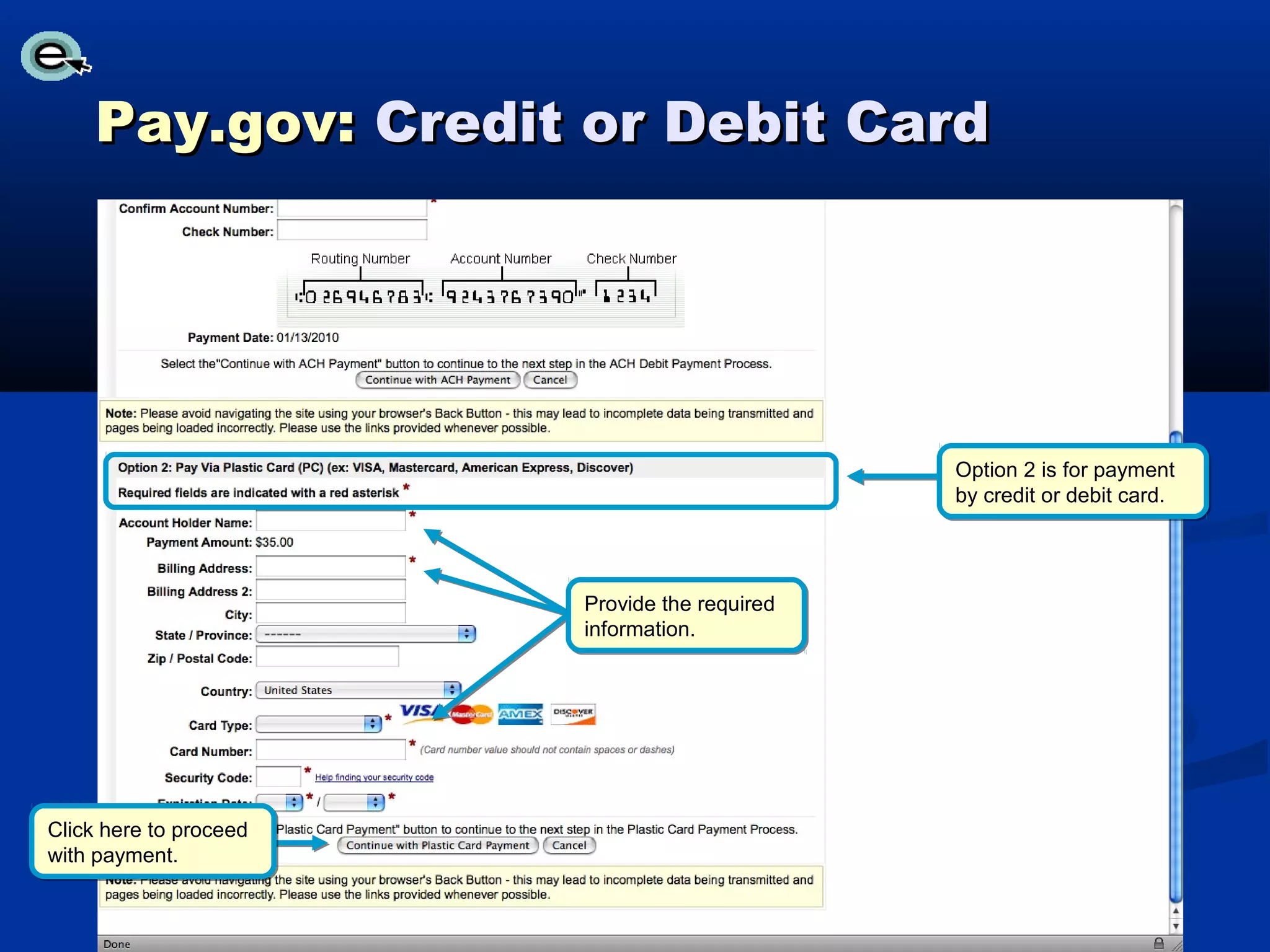
Pay.gov: Credit or Debit Card


                                               Option 2 is for payment
                                               by credit or debit card.


                        Provide the required
                        information.


Click here to proceed
with payment.
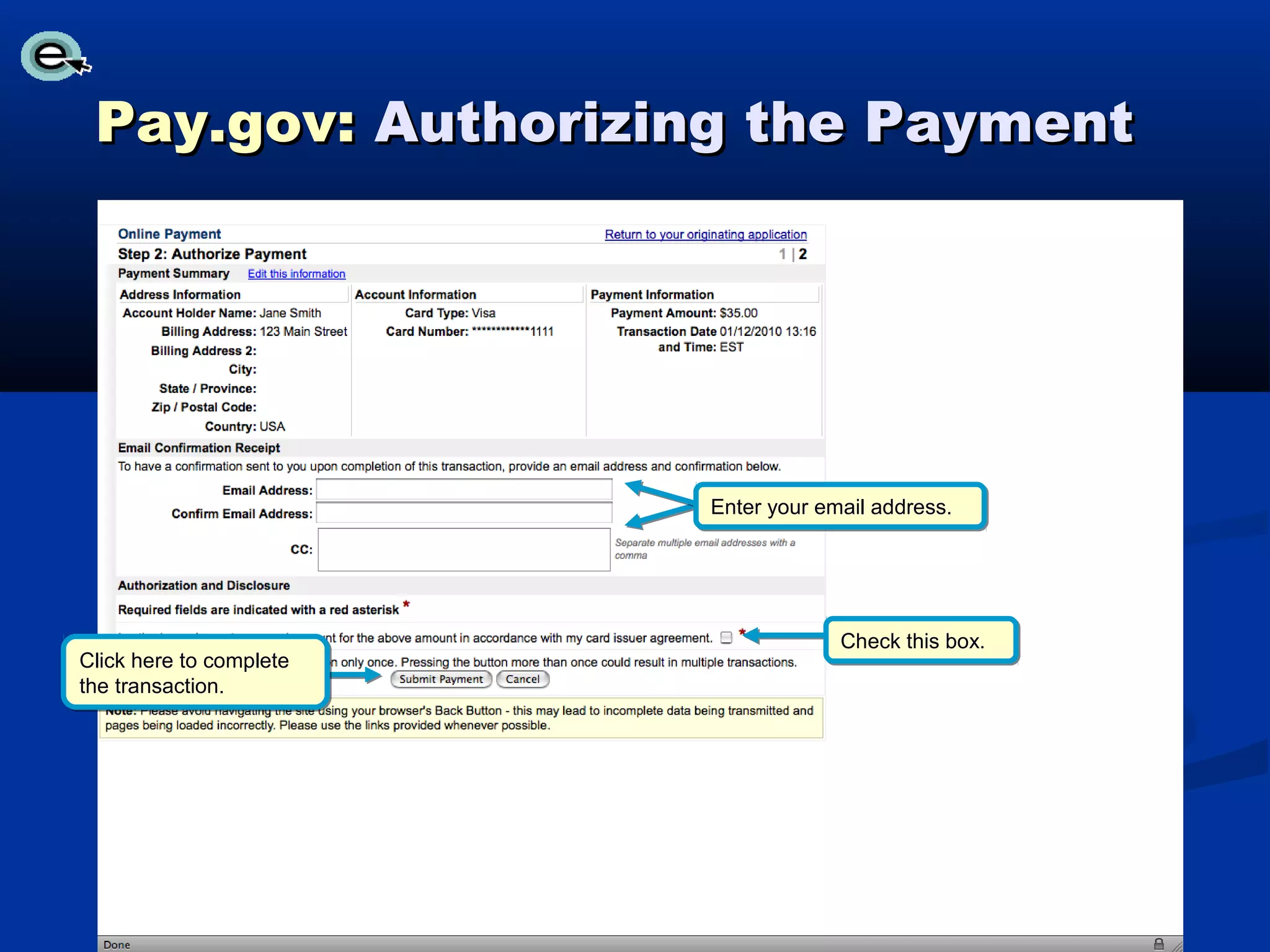
Pay.gov: Authorizing the Payment


                         Enter your email address.


                                      Check this box.
Click here to complete
the transaction.
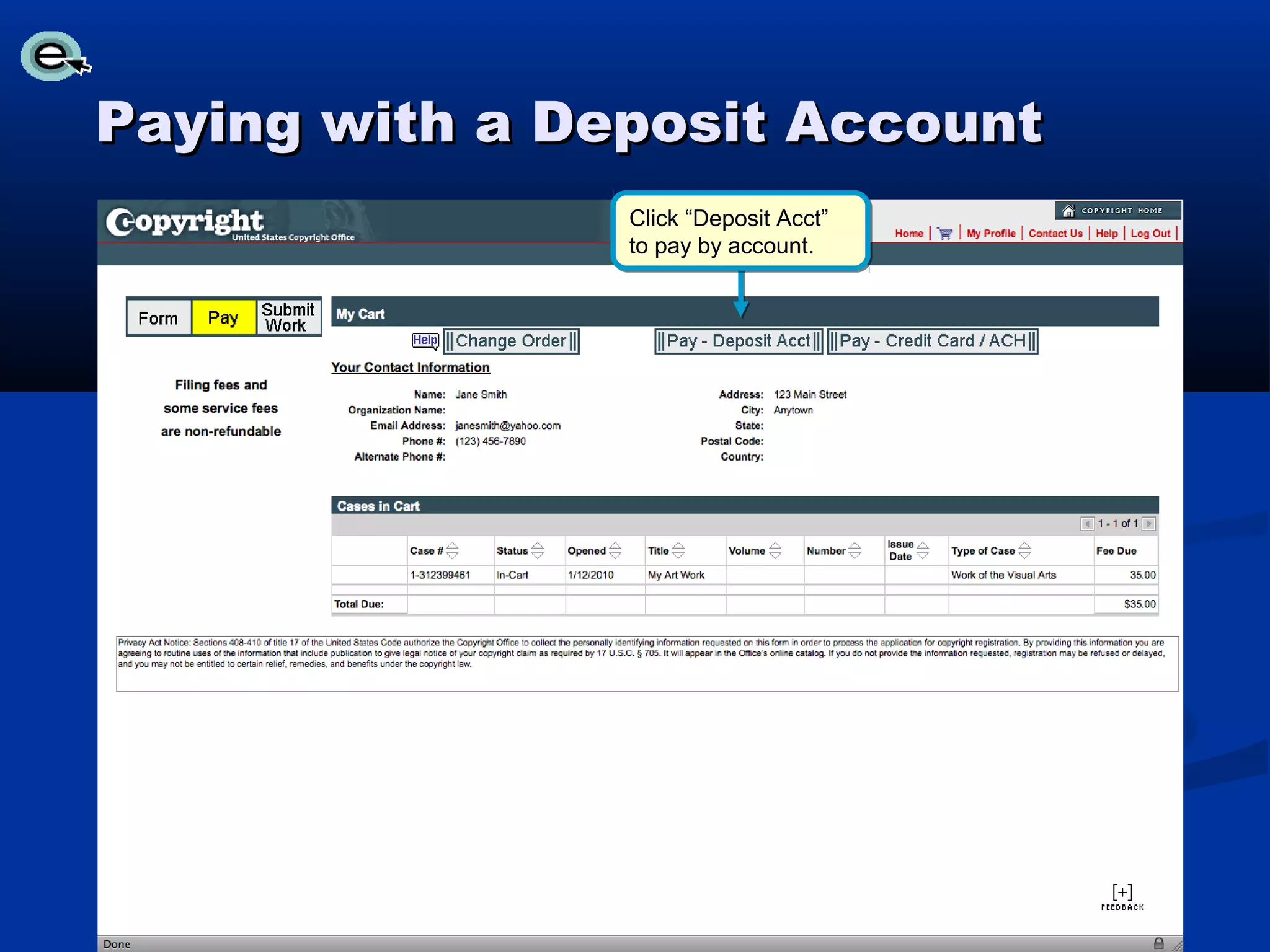
Paying with a Deposit Account
                Click “Deposit Acct”
                to pay by account.
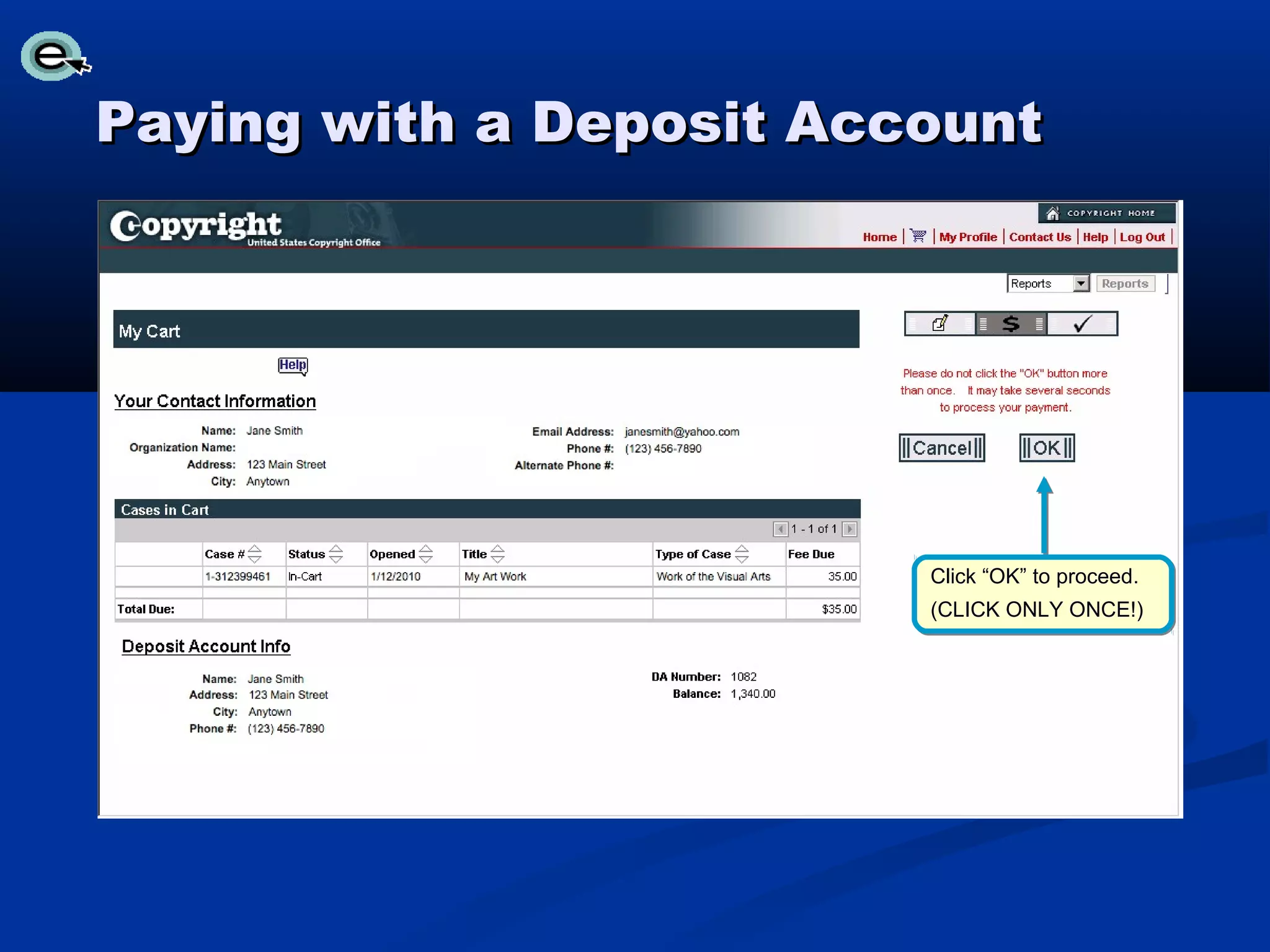
Paying with a Deposit Account


                         Click “OK” to proceed.
                         (CLICK ONLY ONCE!)
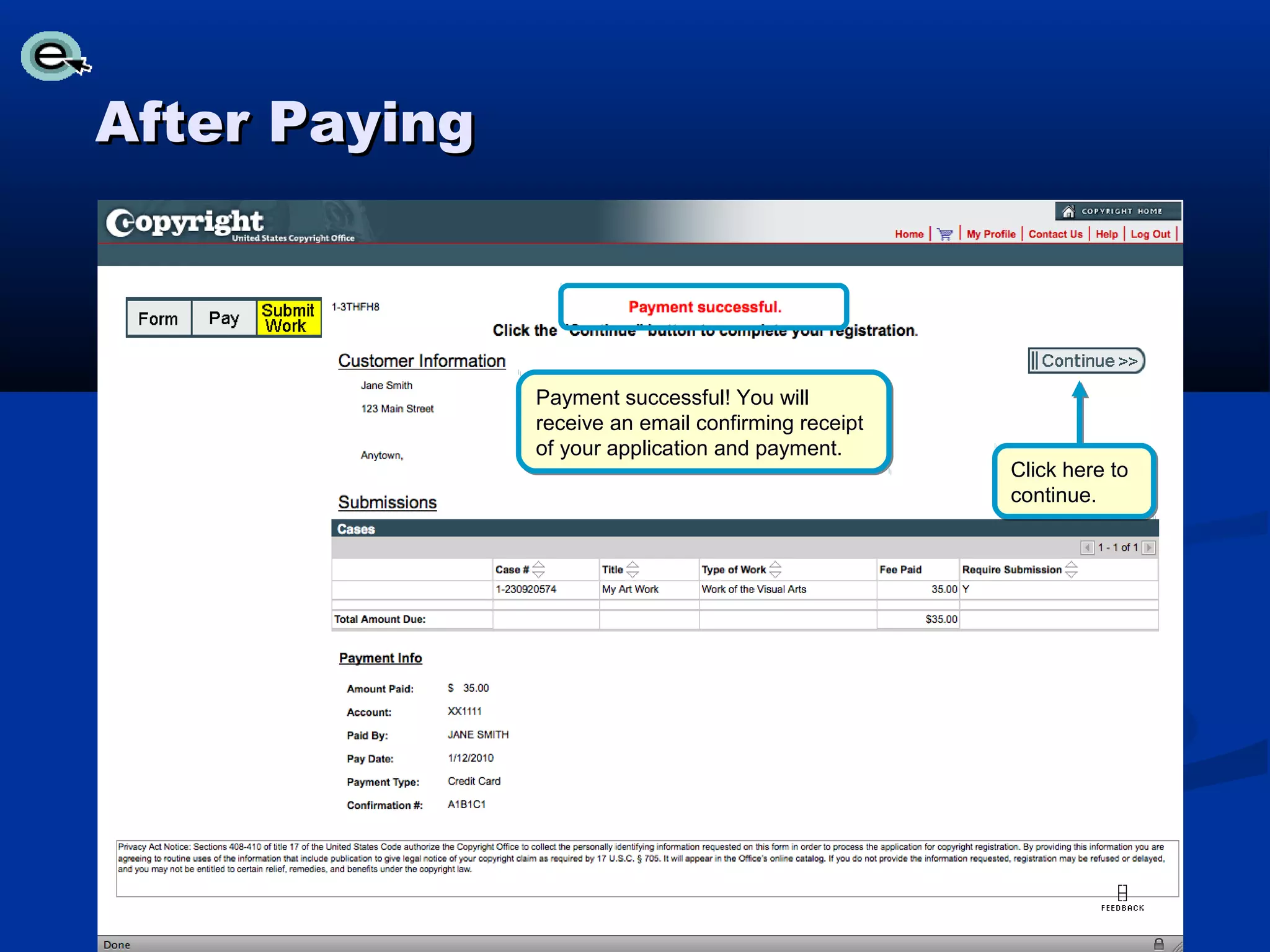
After Paying


               Payment successful! You will
               receive an email confirming receipt
               of your application and payment.
                                                     Click here to
                                                     continue.
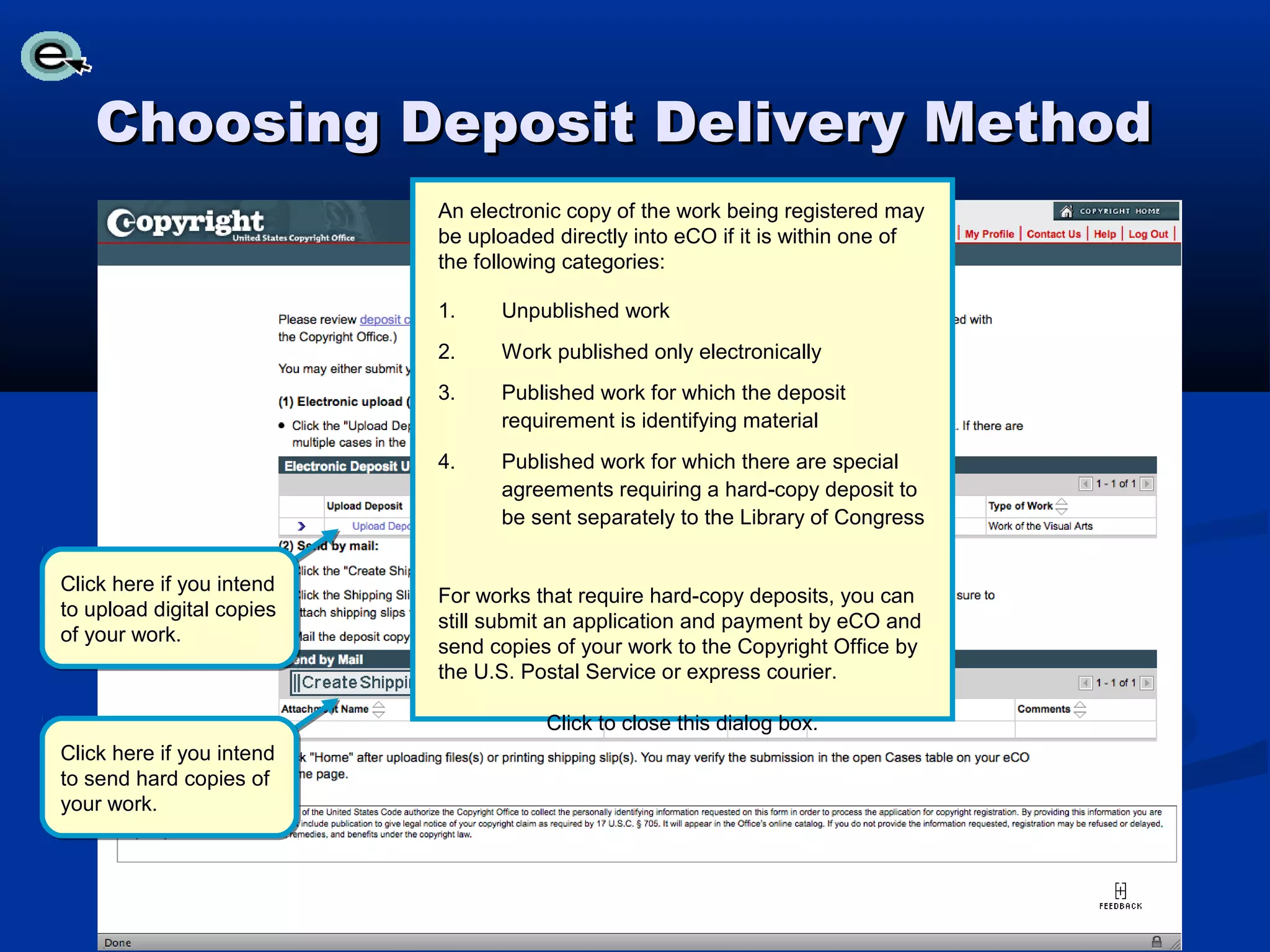
Choosing Deposit Delivery Method
                           An electronic copy of the work being registered may
                           be uploaded directly into eCO if it is within one of
                           the following categories:

                           1.    Unpublished work
                           2.    Work published only electronically
                           3.    Published work for which the deposit
                                 requirement is identifying material
                           4.    Published work for which there are special
                                 agreements requiring a hard-copy deposit to
                                 be sent separately to the Library of Congress


Click here if you intend
                           For works that require hard-copy deposits, you can
to upload digital copies
                           still submit an application and payment by eCO and
of your work.
                           send copies of your work to the Copyright Office by
                           the U.S. Postal Service or express courier.

                                      Click to close this dialog box.
Click here if you intend
to send hard copies of
your work.
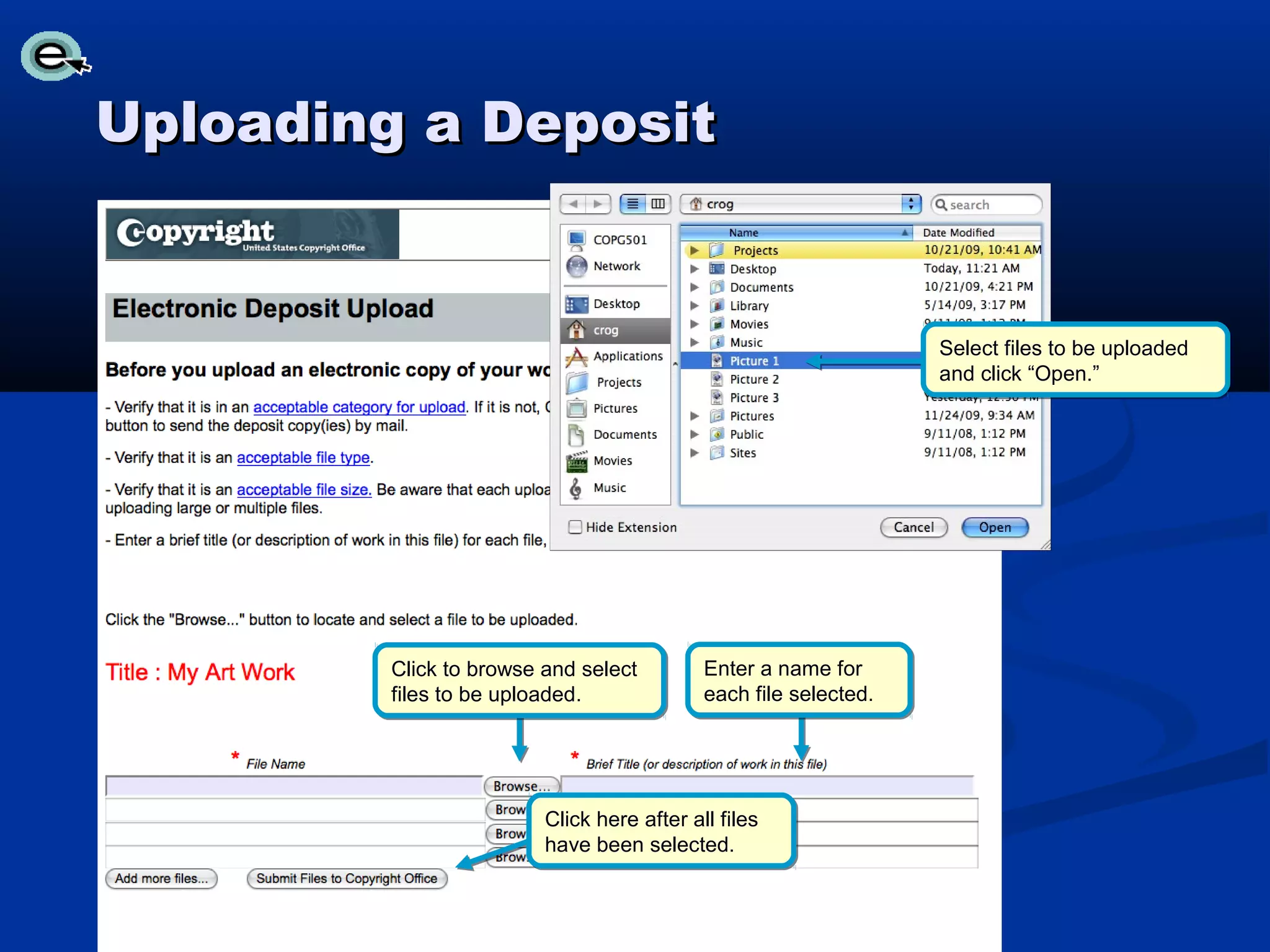
Uploading a Deposit


                                                                  Select files to be uploaded
                                                                  and click “Open.”


         Click to browse and select         Enter a name for
         files to be uploaded.              each file selected.


                         Click here after all files
                         have been selected.
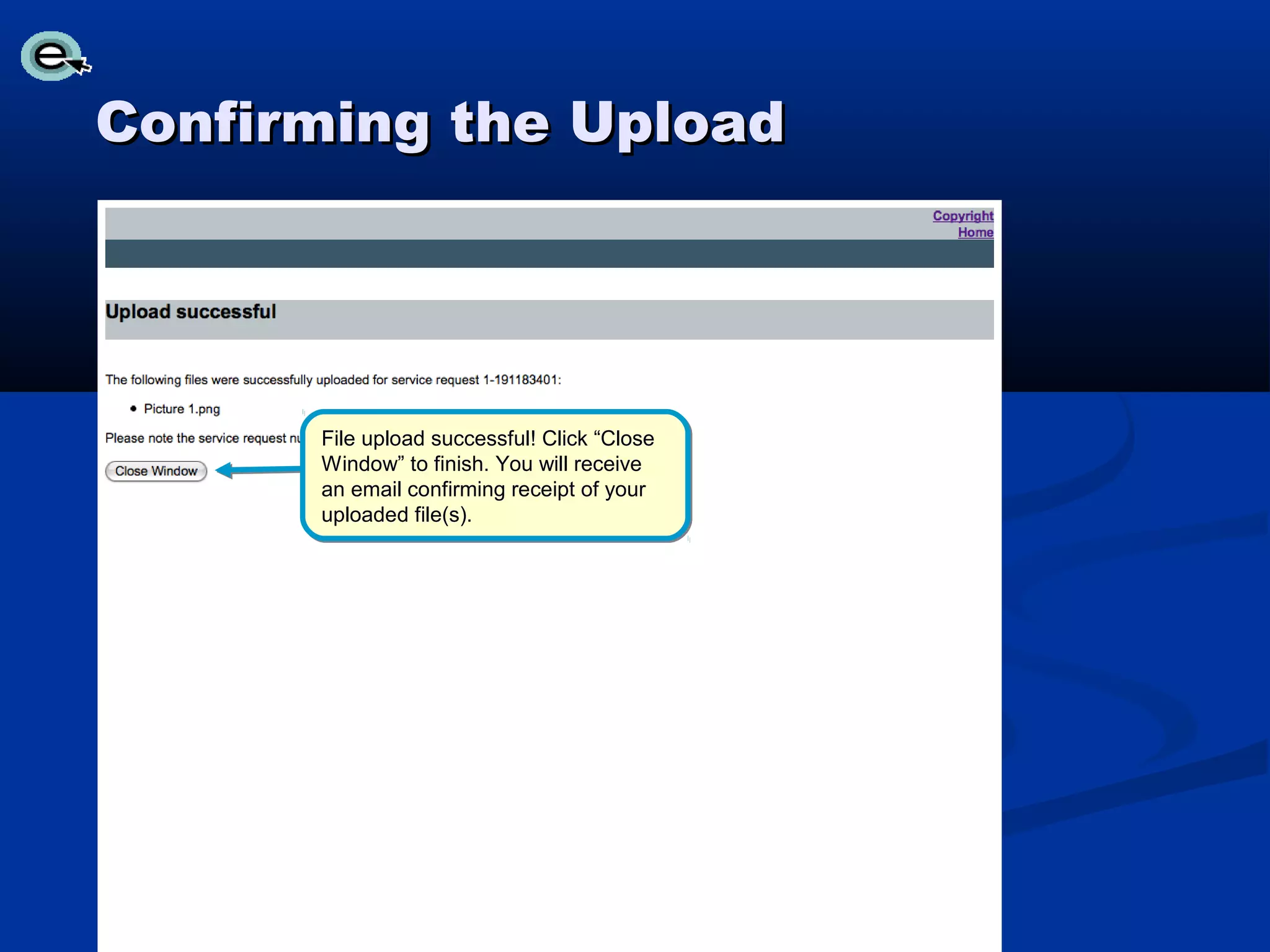
Confirming the Upload


      File upload successful! Click “Close
      Window” to finish. You will receive
      an email confirming receipt of your
      uploaded file(s).
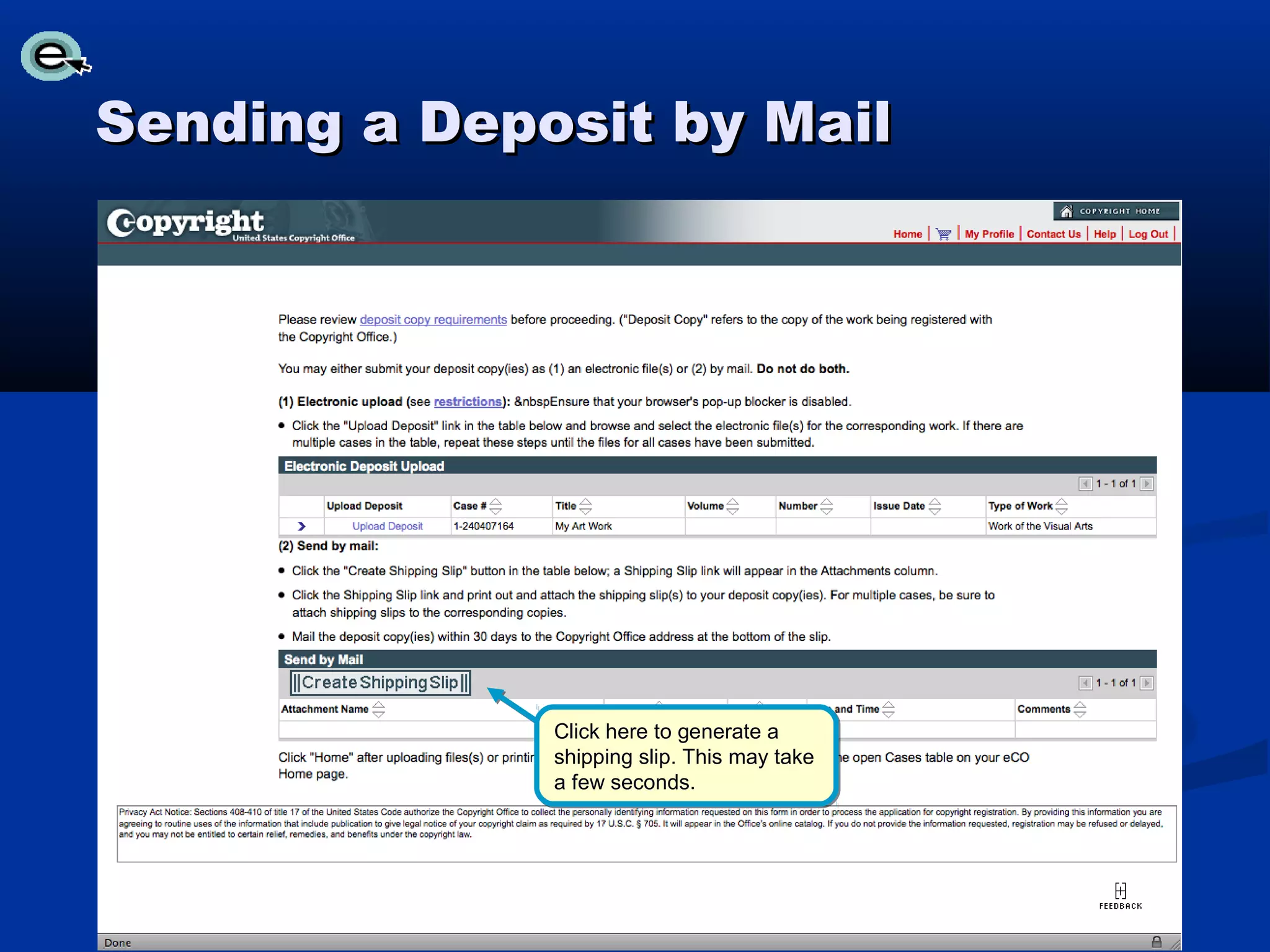
Sending a Deposit by Mail


              Click here to generate a
              shipping slip. This may take
              a few seconds.
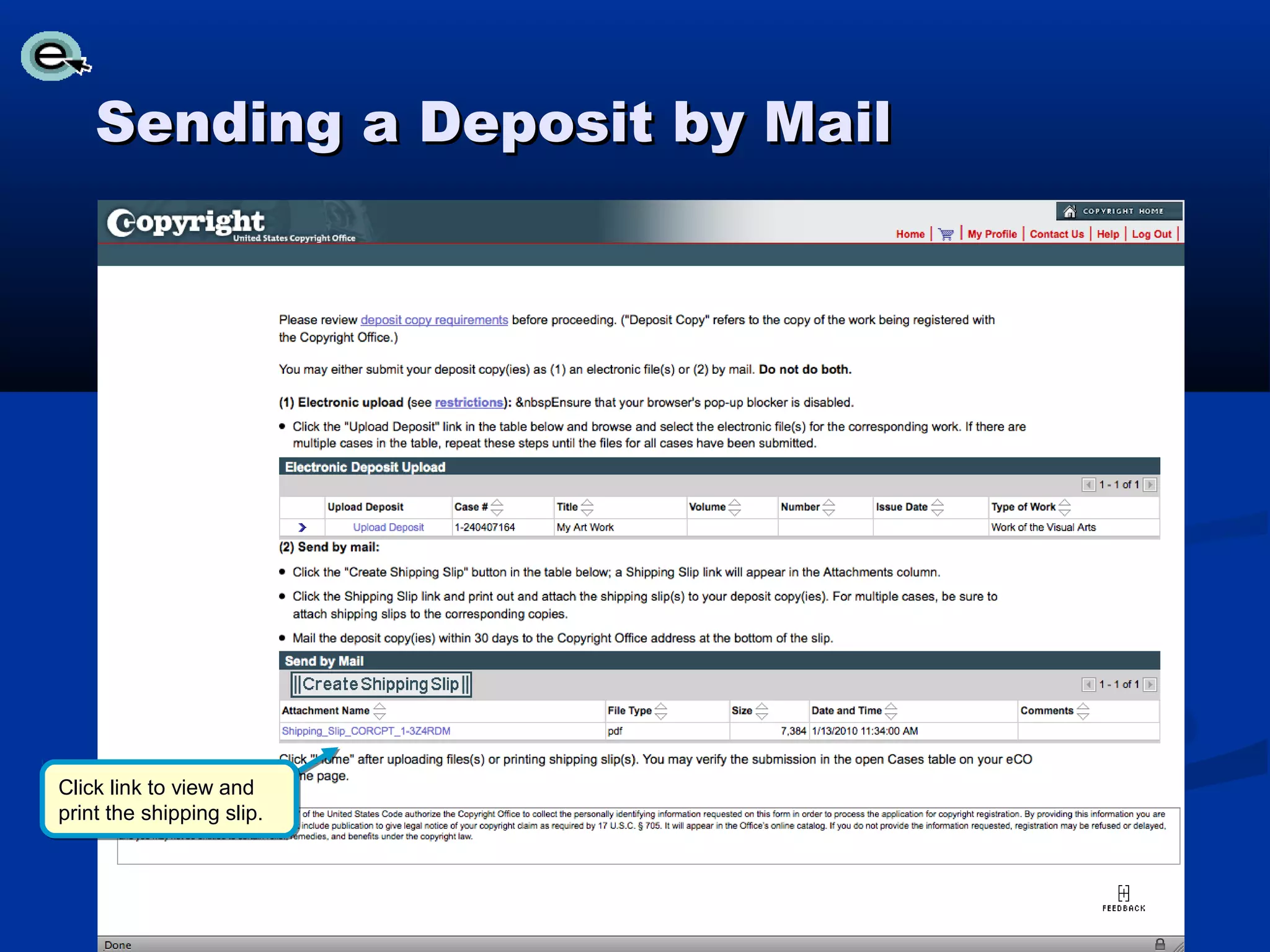
Sending a Deposit by Mail


Click link to view and
print the shipping slip.
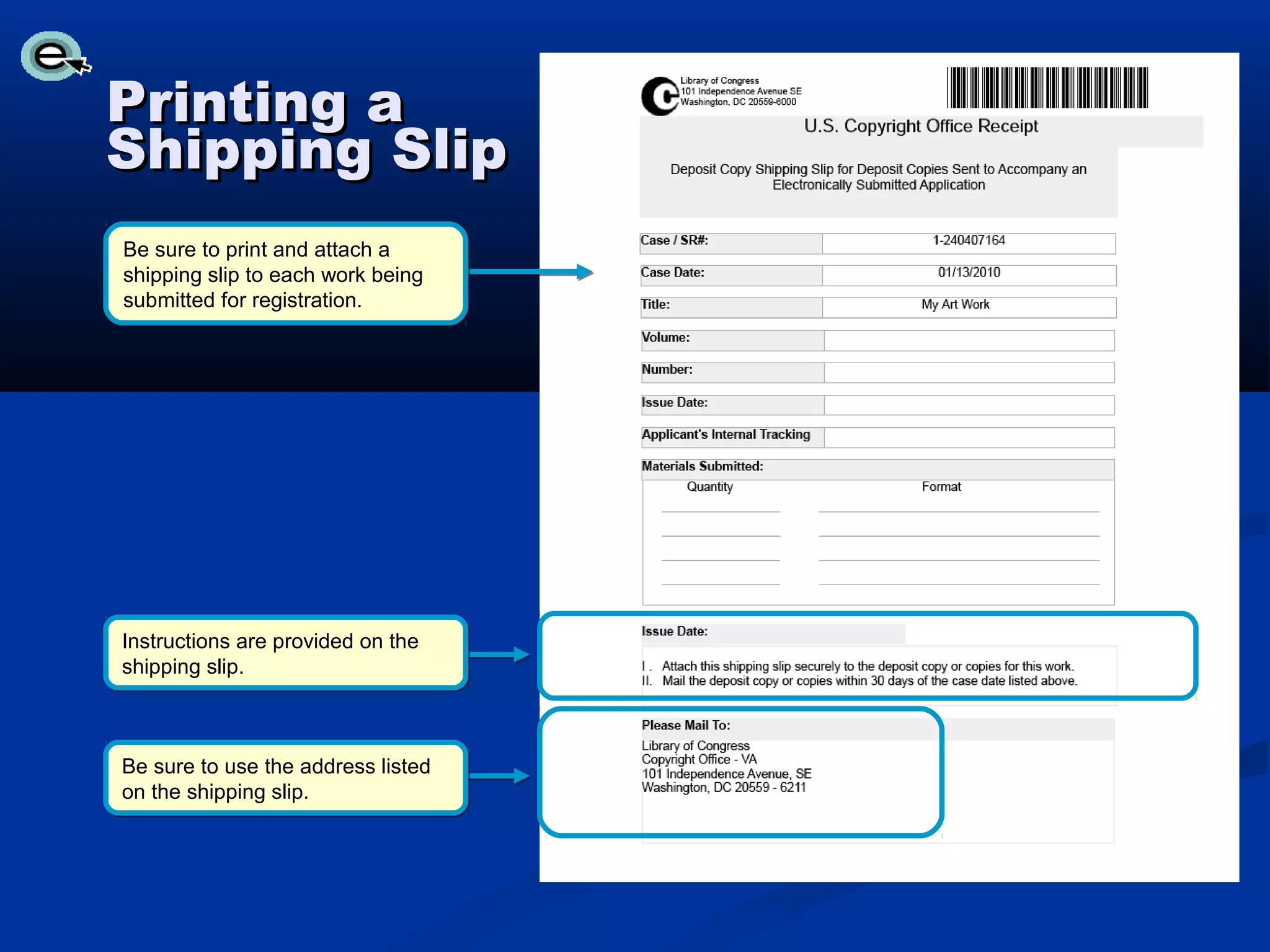
Printing a
Shipping Slip
Be sure to print and attach a
shipping slip to each work being
submitted for registration.


Instructions are provided on the
shipping slip.


Be sure to use the address listed
on the shipping slip.
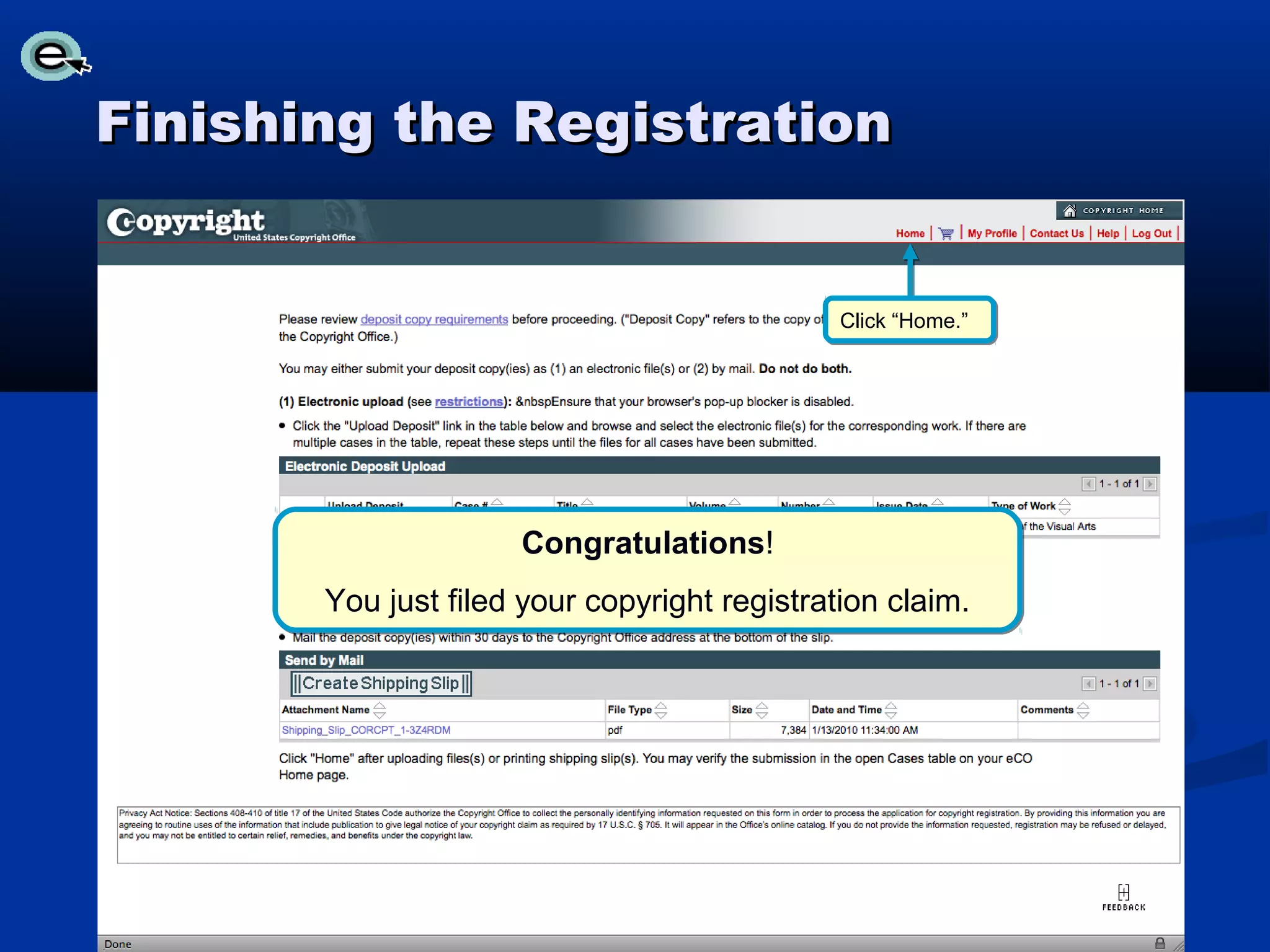
Finishing the Registration


                                              Click “Home.”


                     Congratulations!
       You just filed your copyright registration claim.
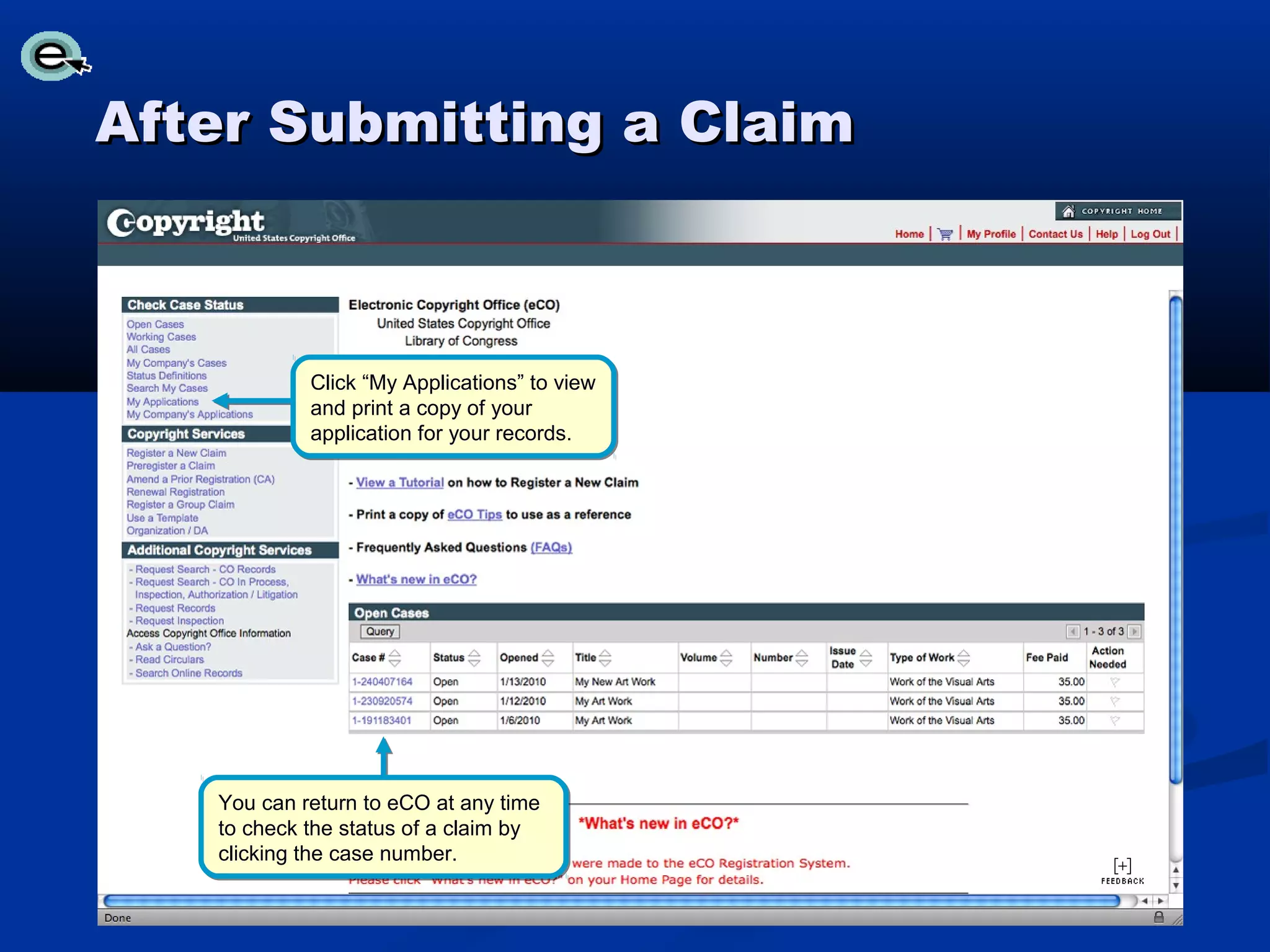
After Submitting a Claim


            Click “My Applications” to view
            and print a copy of your
            application for your records.


   You can return to eCO at any time
   to check the status of a claim by
   clicking the case number.
Contact Us

For technical inquiries:
     Copyright Technology Office
     (202) 707-3002
     ctoinfo@loc.gov


For registration-related inquiries:
     Copyright Public Information Office
     (202) 707-3000
     copyinfo@loc.gov

Eco tutorial

  • 1.
    Welcome to theeCO (electronic Copyright Office) Tutorial A guide for completing your electronic copyright registration
  • 2.
    Getting Started Registering aclaim is as easy as 1-2-3… 1. Application - A series of screens prompts you for information. 2. Payment - You can pay by credit or debit card, electronic funds transfer (ACH), or by Copyright Office deposit account. 3. Deposit of work - Either (a) upload a digital copy of your work (for certain categories of works only) or (b) print out a shipping slip to be attached to your work for delivery by the U.S. Postal Service.
  • 3.
    Who Can FileOnline… You can register basic claims to copyright (not group registrations) in eCO. An electronic copy of the work being registered may be uploaded directly into eCO if it is within one of the following categories: 1. Unpublished work 2. Work published only electronically 3. Published work for which the deposit requirement is identifying material 4. Published work for which there are special agreements requiring hard-copy deposit to be sent separately to the Library of Congress For works that require hard-copy deposits, you can still submit an application and payment by eCO and send copies of your work to the Copyright Office by the U.S. Postal Service or an express courier.
  • 4.
    Before You Begin… BESURE TO DISABLE YOUR POP-UP BLOCKER. BE SURE TO DISABLE ANY THIRD-PARTY TOOLBARS. The eCO system is designed to work with Microsoft Internet Explorer 6.0 and Netscape Navigator 7.02. Firefox 2.0 users must adjust the Tabs setting to “New pages should be opened in: a new window.” The Tabs setting is under Tools/Options for Firefox for PCs and under Preferences for Firefox for MACs. The Safari and Google Chrome browser are not currently certified for use with the eCO system. Other browsers such as Opera and Konqueror may work with the eCO system.
  • 5.
    Logging in toRegister a Work If you have an account already, log in here. To create a new account, click here.
  • 6.
    Starting eCO Service Click here to start a new registration.
  • 7.
    Starting the RegistrationProcess Click here to start. Click on these links for information about each step in the process
  • 8.
    Selecting the Typeof Work Click “Save For Later” on any screen to save your application as a working case. Click here to save and continue. Click on these links for examples of types of works. Select “Type of Work” from the drop-down menu.
  • 9.
    Adding a Title Check marks indicate your progress. Click “New” to add a title.
  • 10.
    Naming the Titleof the Work Click “Save” to continue. Click if you need help with choosing “Title Type.” Choose “Title Type” from the drop-down menu. Enter the title of the work.
  • 11.
    Entering Multiple Titles Click here when you are finished entering titles to save and continue. Click “New” to add another title.
  • 12.
    Selecting Publication Status Click here to save and continue. Select from the drop-down menu.
  • 13.
    For Unpublished Works Click here to save and continue. Type year of completion.
  • 14.
    For Published Works Click here to save and continue. Fill in required information.
  • 15.
    Adding an Authorfor the Work If you are the author, click the “Add Me” button. If you are not the author, click “New” to add an author.
  • 16.
    Naming the Authorof the Work Click “Save” to continue. Type EITHER an individual author name OR an organization name, but NOT both. Select from the drop-down menu for EITHER “Citizenship” or “Domicile,” but NOT both.
  • 17.
    Describing the Author’sContribution Click “Save” to continue. Check the appropriate box(es) to indicate the author’s contribution. DO NOT check boxes for material that you (or the author) did not contribute or that is not contained in the copy of the work being submitted. Doing so may delay your registration.
  • 18.
    Adding Multiple Authors When you are finished entering authors, click here to save and continue. Click “New” to add another author.
  • 19.
    Adding a Claimant If you are the claimant, click the “Add Me” button. If you are not the claimant, click “New” to add a claimant.
  • 20.
    Naming a Claimant Click “Save” to continue. Type EITHER an individual claimant name OR an organization name, but NOT both.
  • 21.
    Adding Multiple Claimants When you are finished entering claimants, click here to save and continue. Click “New” to add another claimant.
  • 22.
    Identifying Preexisting Material Click here to save and continue. If your work contains any preexisting material, check boxes as appropriate and fill in previous registration information.
  • 23.
    Rights and PermissionsContact Click here to save and continue. You may designate an agent authorized to grant permission to use your work(s) on this screen (optional).
  • 24.
    Correspondent Contact Click here to save and continue. Fill in required information.
  • 25.
    Certificate Mailing Address Click here to save and continue. Fill in required information.
  • 26.
    Special Handling Click here to save and continue. WARNING! The Special Handling fee is currently $760. SPECIAL HANDLING is optional and may be requested only if one of the compelling reasons listed above applies.
  • 27.
    Certifying the Application Click here to save and continue. Check box. Enter the name of certifying individual.
  • 28.
    Reviewing the Submission If you are a frequent remitter, click “Save Template” for future use. Click here to continue. Review the information you entered carefully before proceeding. Use the links in the left navigation bar to go back and make corrections if needed. Make sure check marks appear in each box. Use the links to go back and complete sections if needed.
  • 29.
    Additional Service orCheckout Click to start another registration. When you are ready to proceed to payment, click here.
  • 30.
    Payment Method Click payment method.
  • 31.
    Pay.gov: Electronic FundsTransfer Option 1 is for payment by electronic funds transfer. To pay by credit or debit card, scroll down to option 2. Provide the required information. Click here to proceed with payment.
  • 32.
    Pay.gov: Credit orDebit Card Option 2 is for payment by credit or debit card. Provide the required information. Click here to proceed with payment.
  • 33.
    Pay.gov: Authorizing thePayment Enter your email address. Check this box. Click here to complete the transaction.
  • 34.
    Paying with aDeposit Account Click “Deposit Acct” to pay by account.
  • 35.
    Paying with aDeposit Account Click “OK” to proceed. (CLICK ONLY ONCE!)
  • 36.
    After Paying Payment successful! You will receive an email confirming receipt of your application and payment. Click here to continue.
  • 37.
    Choosing Deposit DeliveryMethod An electronic copy of the work being registered may be uploaded directly into eCO if it is within one of the following categories: 1. Unpublished work 2. Work published only electronically 3. Published work for which the deposit requirement is identifying material 4. Published work for which there are special agreements requiring a hard-copy deposit to be sent separately to the Library of Congress Click here if you intend For works that require hard-copy deposits, you can to upload digital copies still submit an application and payment by eCO and of your work. send copies of your work to the Copyright Office by the U.S. Postal Service or express courier. Click to close this dialog box. Click here if you intend to send hard copies of your work.
  • 38.
    Uploading a Deposit Select files to be uploaded and click “Open.” Click to browse and select Enter a name for files to be uploaded. each file selected. Click here after all files have been selected.
  • 39.
    Confirming the Upload File upload successful! Click “Close Window” to finish. You will receive an email confirming receipt of your uploaded file(s).
  • 40.
    Sending a Depositby Mail Click here to generate a shipping slip. This may take a few seconds.
  • 41.
    Sending a Depositby Mail Click link to view and print the shipping slip.
  • 42.
    Printing a Shipping Slip Besure to print and attach a shipping slip to each work being submitted for registration. Instructions are provided on the shipping slip. Be sure to use the address listed on the shipping slip.
  • 43.
    Finishing the Registration Click “Home.” Congratulations! You just filed your copyright registration claim.
  • 44.
    After Submitting aClaim Click “My Applications” to view and print a copy of your application for your records. You can return to eCO at any time to check the status of a claim by clicking the case number.
  • 45.
    Contact Us For technicalinquiries: Copyright Technology Office (202) 707-3002 ctoinfo@loc.gov For registration-related inquiries: Copyright Public Information Office (202) 707-3000 copyinfo@loc.gov