Ease Your Dev Life
With the tools you use


                A Sublime Text 2 Story
                                   Featuring
             Ninio (http://shtrak.eu/ninio)
              Shtrak! (http://shtrak.eu/it)
                Init Lab (http://initlab.org)
Sublime Text 2
The cool kids’ text editor
Agenda
1. Tuning Sublime to make our life better
  1. How to find settings on your own
2. Go To Anything
  1. Go To Anything in settings
3. Installing The Package Control
4. Shortcuts, Shortcuts, Shortcuts
Tuning Sublime to make our life
            better
   User’s settings can be edited from:
     Preferences > Settings – User
Tuning Sublime to make our life
              better
//My most vital settings
{
     "bold_folder_labels": true,
     "caret_style": "phase",
     "highlight_line": true,
     "highlight_modified_tabs": true,
     "word_wrap": true
}
Tuning Sublime to make our life
            better
  Default settings can be edited from:
   Preferences > Settings – Default
Tuning Sublime to make our life
            better
  Default settings can be edited from:
   Preferences > Settings – Default


 Looky but no touchy!
Go To Anything

    Ctrl+P
Go To Anything

:123 //to go to row 123 of the current document
@myFunc //to go to the definition of function
myFunc
function.php //to go to the file function.php of
the opened project/folder
themeshtrastyle.css:190 //to go to row 190 of
style.css in the folder themes/shtrak/
Go To Anything for Settings

         Ctrl+Shift+P
Go To Anything for Settings

Simply type and browse the setting menus of
sublime
Installing Package Control

Do it from here:
http://wbond.net/sublime_packages/package_c
ontrol/installation
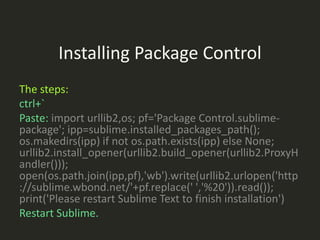
Installing Package Control
The steps:
ctrl+`
Paste: import urllib2,os; pf='Package Control.sublime-
package'; ipp=sublime.installed_packages_path();
os.makedirs(ipp) if not os.path.exists(ipp) else None;
urllib2.install_opener(urllib2.build_opener(urllib2.ProxyH
andler()));
open(os.path.join(ipp,pf),'wb').write(urllib2.urlopen('http
://sublime.wbond.net/'+pf.replace(' ','%20')).read());
print('Please restart Sublime Text to finish installation')
Restart Sublime.
Finding treasures via the
           Package Control
Ctrl+Shift+P
Shortcuts

Don’t touch the mouse!
Shortcuts (Code)

Ctrl+X – Cut current line
Ctrl+C – Copy current line
Ctrl+Shift+V – Paste and keep indention
Ctrl+Shift+Up/Down – Move current line up/down
Tab (or Ctrl+]) – Indent
Shift+Tab (or Ctrl+[) – Deindent
Ctrl+/ – Toggle comment
Ctrl+Shift+/ – Toggle block comment
Shortcuts (Multiple Cursors)

Ctrl+L – Select current line (repeat for next line)
Ctrl+Click – Add a cursor to that position
Ctrl+Shift+L – Place cursors to the end of each
row
Ctrl+D – Select the current word and every next
occurancy of the selected thing
Shortcuts (Searching)

Ctrl+F – Open Search
Ctrl+I – Open Instant Search
Ctrl+Shift+F – Search in all the files in the project
Ctrl+H – Search and replace
Shortcuts (Tabs)

Ctrl+W – Close current file
Ctrl+N – Open new file
Ctrl+Shift+T – Open the last opened tab
Alt+[1..9] – Switch to the number of the tab
Ctrl+PageUp/PageDown – Switch between tabs
Ctrl+Tab – Switch between last viewed tabs
Shortcuts (Layouts)

Alt+Shift+1[2,3,4,5] – Changes the layout of the
editor
Ctrl+[1,2,3,4] – Jump to group in the changed
layout
Ctrl+Shift+[1,2,3,4] – Move the current file to
the group
Shortcuts (Bookmarks)

Ctrl+F2– Toggle bookmark
F2 – Go to next bookmark
Shift+F2 – Go to previous bookmark
Ctrl+Shift+F2 – Clear all bookmarks
Keep practicing!
  And thank you!


       This was A Sublime Text 2 Story
                                 Featuring
           Ninio (http://shtrak.eu/ninio)
            Shtrak! (http://shtrak.eu/it)
              Init Lab (http://initlab.org)

Ease your dev life with Sublime Text 2

  • 1.
    Ease Your DevLife With the tools you use A Sublime Text 2 Story Featuring Ninio (http://shtrak.eu/ninio) Shtrak! (http://shtrak.eu/it) Init Lab (http://initlab.org)
  • 2.
    Sublime Text 2 Thecool kids’ text editor
  • 3.
    Agenda 1. Tuning Sublimeto make our life better 1. How to find settings on your own 2. Go To Anything 1. Go To Anything in settings 3. Installing The Package Control 4. Shortcuts, Shortcuts, Shortcuts
  • 4.
    Tuning Sublime tomake our life better User’s settings can be edited from: Preferences > Settings – User
  • 5.
    Tuning Sublime tomake our life better //My most vital settings { "bold_folder_labels": true, "caret_style": "phase", "highlight_line": true, "highlight_modified_tabs": true, "word_wrap": true }
  • 6.
    Tuning Sublime tomake our life better Default settings can be edited from: Preferences > Settings – Default
  • 7.
    Tuning Sublime tomake our life better Default settings can be edited from: Preferences > Settings – Default Looky but no touchy!
  • 8.
  • 9.
    Go To Anything :123//to go to row 123 of the current document @myFunc //to go to the definition of function myFunc function.php //to go to the file function.php of the opened project/folder themeshtrastyle.css:190 //to go to row 190 of style.css in the folder themes/shtrak/
  • 10.
    Go To Anythingfor Settings Ctrl+Shift+P
  • 11.
    Go To Anythingfor Settings Simply type and browse the setting menus of sublime
  • 12.
    Installing Package Control Doit from here: http://wbond.net/sublime_packages/package_c ontrol/installation
  • 13.
    Installing Package Control Thesteps: ctrl+` Paste: import urllib2,os; pf='Package Control.sublime- package'; ipp=sublime.installed_packages_path(); os.makedirs(ipp) if not os.path.exists(ipp) else None; urllib2.install_opener(urllib2.build_opener(urllib2.ProxyH andler())); open(os.path.join(ipp,pf),'wb').write(urllib2.urlopen('http ://sublime.wbond.net/'+pf.replace(' ','%20')).read()); print('Please restart Sublime Text to finish installation') Restart Sublime.
  • 14.
    Finding treasures viathe Package Control Ctrl+Shift+P
  • 15.
  • 16.
    Shortcuts (Code) Ctrl+X –Cut current line Ctrl+C – Copy current line Ctrl+Shift+V – Paste and keep indention Ctrl+Shift+Up/Down – Move current line up/down Tab (or Ctrl+]) – Indent Shift+Tab (or Ctrl+[) – Deindent Ctrl+/ – Toggle comment Ctrl+Shift+/ – Toggle block comment
  • 17.
    Shortcuts (Multiple Cursors) Ctrl+L– Select current line (repeat for next line) Ctrl+Click – Add a cursor to that position Ctrl+Shift+L – Place cursors to the end of each row Ctrl+D – Select the current word and every next occurancy of the selected thing
  • 18.
    Shortcuts (Searching) Ctrl+F –Open Search Ctrl+I – Open Instant Search Ctrl+Shift+F – Search in all the files in the project Ctrl+H – Search and replace
  • 19.
    Shortcuts (Tabs) Ctrl+W –Close current file Ctrl+N – Open new file Ctrl+Shift+T – Open the last opened tab Alt+[1..9] – Switch to the number of the tab Ctrl+PageUp/PageDown – Switch between tabs Ctrl+Tab – Switch between last viewed tabs
  • 20.
    Shortcuts (Layouts) Alt+Shift+1[2,3,4,5] –Changes the layout of the editor Ctrl+[1,2,3,4] – Jump to group in the changed layout Ctrl+Shift+[1,2,3,4] – Move the current file to the group
  • 21.
    Shortcuts (Bookmarks) Ctrl+F2– Togglebookmark F2 – Go to next bookmark Shift+F2 – Go to previous bookmark Ctrl+Shift+F2 – Clear all bookmarks
  • 22.
    Keep practicing! And thank you! This was A Sublime Text 2 Story Featuring Ninio (http://shtrak.eu/ninio) Shtrak! (http://shtrak.eu/it) Init Lab (http://initlab.org)