Document Download system Convergence Training Centre
Downloading a document …
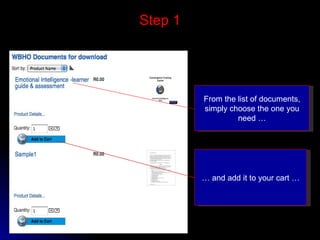
Step 1 From the list of documents, simply choose the one you need … …  and add it to your cart …
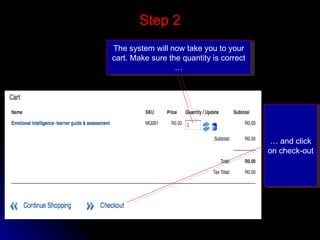
Step 2 The system will now take you to your cart. Make sure the quantity is correct … …  and click on check-out
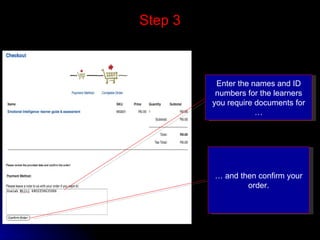
Step 3 Enter the names and ID numbers for the learners you require documents for … …  and then confirm your order.
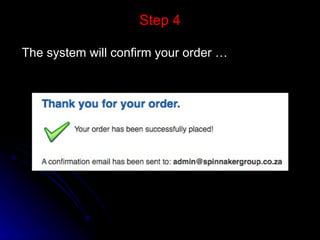
Step 4 The system will confirm your order …
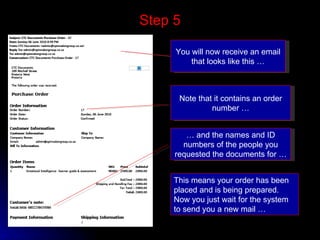
Step 5 You will now receive an email that looks like this … Note that it contains an order number … …  and the names and ID numbers of the people you requested the documents for … This means your order has been placed and is being prepared. Now you just wait for the system to send you a new mail …
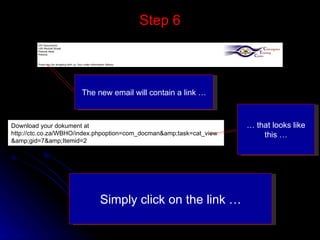
Step 6 Download your dokument at http://ctc.co.za/WBHO/index.phpoption=com_docman&task=cat_view&gid=7&Itemid=2 The new email will contain a link … …  that looks like this … Simply click on the link …
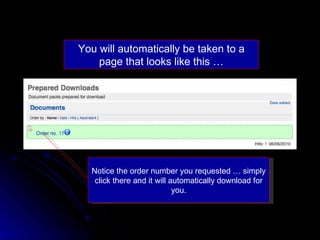
You will automatically be taken to a page that looks like this … Notice the order number you requested … simply click there and it will automatically download for you.
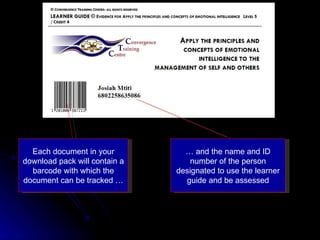
Each document in your download pack will contain a barcode with which the document can be tracked … …  and the name and ID number of the person designated to use the learner guide and be assessed
It’s as simple as that … order, wait for your download link, click and download. Each document is now completely traceable to the learner it was ordered for.
Uploading a document …
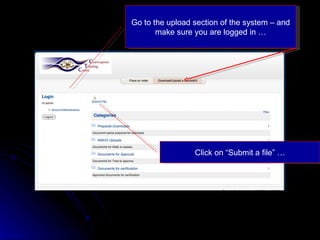
Go to the upload section of the system – and make sure you are logged in … Click on “Submit a file” …
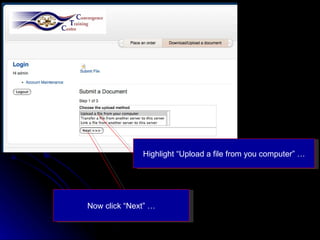
Highlight “Upload a file from you computer” … Now click “Next” …
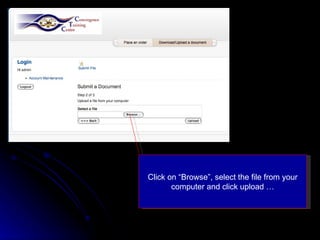
Click on “Browse”, select the file from your computer and click upload …
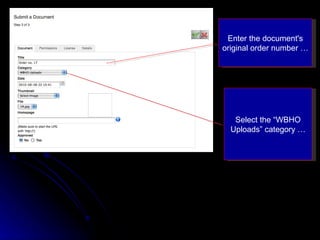
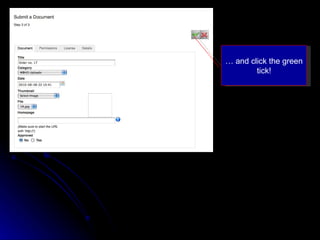
Enter the document's original order number … Select the “WBHO Uploads” category …
…  and click the green tick!
That’s it!! CTC will now confirm the assessments, approve them and issue a certificate. You will be provided with a download link from where the certificate can be downloaded.
Document management system Convergence Training Centre

Document downloads

  • 1.
    Document Download systemConvergence Training Centre
  • 2.
  • 3.
    Step 1 Fromthe list of documents, simply choose the one you need … … and add it to your cart …
  • 4.
    Step 2 Thesystem will now take you to your cart. Make sure the quantity is correct … … and click on check-out
  • 5.
    Step 3 Enterthe names and ID numbers for the learners you require documents for … … and then confirm your order.
  • 6.
    Step 4 Thesystem will confirm your order …
  • 7.
    Step 5 Youwill now receive an email that looks like this … Note that it contains an order number … … and the names and ID numbers of the people you requested the documents for … This means your order has been placed and is being prepared. Now you just wait for the system to send you a new mail …
  • 8.
    Step 6 Downloadyour dokument at http://ctc.co.za/WBHO/index.phpoption=com_docman&task=cat_view&gid=7&Itemid=2 The new email will contain a link … … that looks like this … Simply click on the link …
  • 9.
    You will automaticallybe taken to a page that looks like this … Notice the order number you requested … simply click there and it will automatically download for you.
  • 10.
    Each document inyour download pack will contain a barcode with which the document can be tracked … … and the name and ID number of the person designated to use the learner guide and be assessed
  • 11.
    It’s as simpleas that … order, wait for your download link, click and download. Each document is now completely traceable to the learner it was ordered for.
  • 12.
  • 13.
    Go to theupload section of the system – and make sure you are logged in … Click on “Submit a file” …
  • 14.
    Highlight “Upload afile from you computer” … Now click “Next” …
  • 15.
    Click on “Browse”,select the file from your computer and click upload …
  • 16.
    Enter the document'soriginal order number … Select the “WBHO Uploads” category …
  • 17.
    … andclick the green tick!
  • 18.
    That’s it!! CTCwill now confirm the assessments, approve them and issue a certificate. You will be provided with a download link from where the certificate can be downloaded.
  • 19.
    Document management systemConvergence Training Centre