Automated Post-Residential Action Plan: Online Data Entry
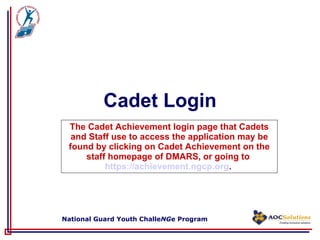
Cadet Login The Cadet Achievement login page that Cadets and Staff use to access the application may be found by clicking on Cadet Achievement on the staff homepage of DMARS, or going to  https://achievement.ngcp.org .
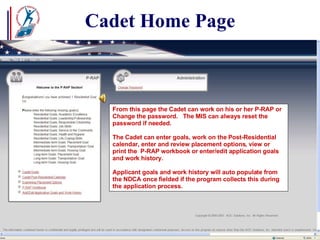
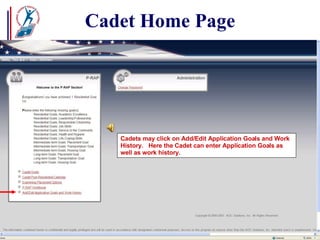
Cadet Home Page From this page the Cadet can work on his or her P-RAP or Change the password.  The MIS can always reset the password if needed. The Cadet can enter goals, work on the Post-Residential calendar, enter and review placement options, view or print the  P-RAP workbook or enter/edit application goals and work history. Applicant goals and work history will auto populate from the NDCA once fielded if the program collects this during the application process.
Cadet Home Page Cadets may click on Add/Edit Application Goals and Work History.  Here the Cadet can enter Application Goals as well as work history.
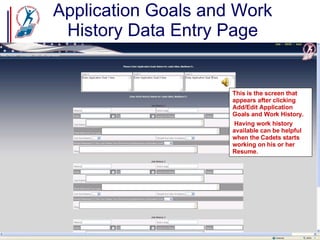
Application Goals and Work History Data Entry Page This is the screen that appears after clicking Add/Edit Application Goals and Work History. Having work history available can be helpful when the Cadets starts working on his or her Resume.
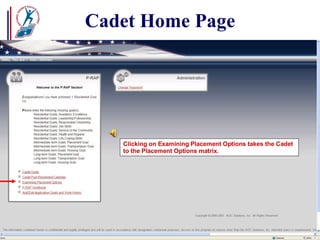
Cadet Home Page Clicking on Examining Placement Options takes the Cadet to the Placement Options matrix.
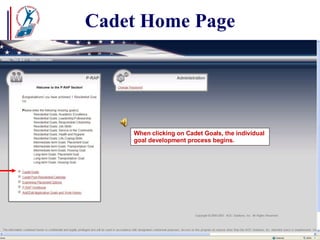
Cadet Home Page When clicking on Cadet Goals, the individual goal development process begins.
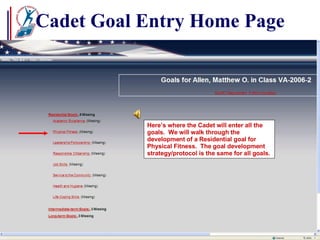
Cadet Goal Entry Home Page Here’s where the Cadet will enter all the goals.  We will walk through the development of a Residential goal for Physical Fitness.  The goal development strategy/protocol is the same for all goals.
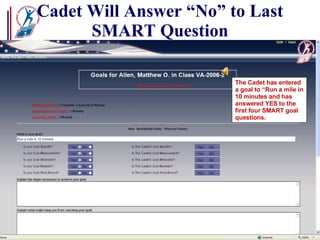
Cadet Will Answer “No” to Last SMART Question The Cadet has entered a goal to “Run a mile in 10 minutes and has answered YES to the first four SMART goal questions.
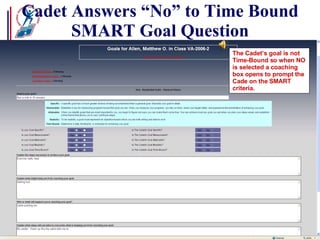
Cadet Answers “No” to Time Bound SMART Goal Question The Cadet’s goal is not Time-Bound so when NO is selected a coaching box opens to prompt the Cade on the SMART criteria.
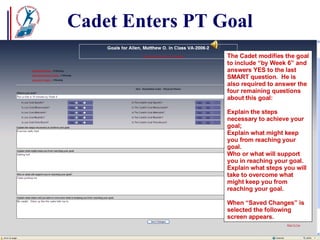
Cadet Enters PT Goal The Cadet modifies the goal to include “by Week 6” and answers YES to the last SMART question.  He is also required to answer the four remaining questions about this goal: Explain the steps necessary to achieve your goal; Explain what might keep you from reaching your goal. Who or what will support you in reaching your goal. Explain what steps you will take to overcome what might keep you from reaching your goal. When “Saved Changes” is selected the following screen appears.
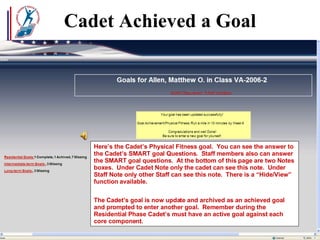
Cadet Achieved a Goal Here’s the Cadet’s Physical Fitness goal.  You can see the answer to the Cadet’s SMART goal Questions.  Staff members also can answer the SMART goal questions.  At the bottom of this page are two Notes boxes.  Under Cadet Note only the cadet can see this note.  Under Staff Note only other Staff can see this note.  There is a “Hide/View” function available. The Cadet’s goal is now update and archived as an achieved goal and prompted to enter another goal.  Remember during the Residential Phase Cadet’s must have an active goal against each core component.
Staff Member Login We will log on as a Staff member and review Cadet goals.
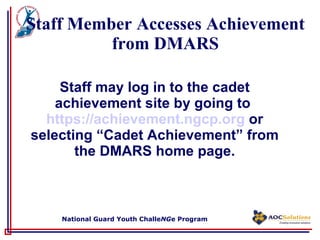
Staff Member Accesses Achievement from DMARS Staff may log in to the cadet achievement site by going to  https://achievement.ngcp.org  or selecting “Cadet Achievement” from the DMARS home page.
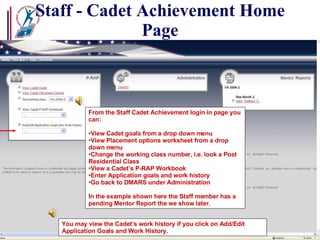
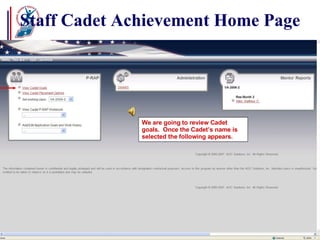
Staff - Cadet Achievement Home Page From the Staff Cadet Achievement login in page you can: View Cadet goals from a drop down menu View Placement options worksheet from a drop down menu Change the working class number, i.e. look a Post Residential Class View a Cadet’s P-RAP Workbook Enter Application goals and work history  Go back to DMARS under Administration  In the example shown here the Staff member has a pending Mentor Report the we show later. You may view the Cadet’s work history if you click on Add/Edit Application Goals and Work History.
Staff Cadet Achievement Home Page We are going to review Cadet goals.  Once the Cadet’s name is selected the following appears.
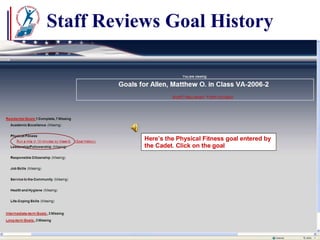
Staff Reviews Goal History Here’s the Physical Fitness goal entered by the Cadet. Click on the goal
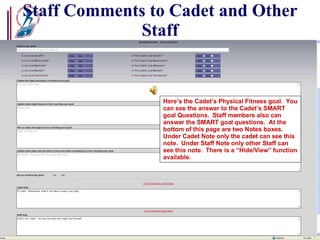
Staff Comments to Cadet and Other Staff Here’s the Cadet’s Physical Fitness goal.  You can see the answer to the Cadet’s SMART goal Questions.  Staff members also can answer the SMART goal questions.  At the bottom of this page are two Notes boxes.  Under Cadet Note only the cadet can see this note.  Under Staff Note only other Staff can see this note.  There is a “Hide/View” function available.
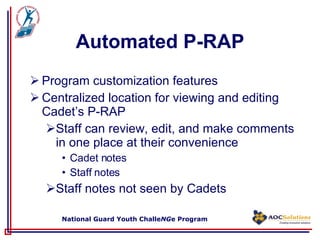
Automated P-RAP Program customization features Centralized location for viewing and editing  Cadet’s P-RAP Staff can review, edit, and make comments in one place at their convenience Cadet notes Staff notes Staff notes not seen by Cadets
NATIONAL GUARD  YOUTH CHALLE NG E PROGRAM Complete the P-RAP Online Data Entry Questionnaire

Dmars Part3b

  • 1.
    Automated Post-Residential ActionPlan: Online Data Entry
  • 2.
    Cadet Login TheCadet Achievement login page that Cadets and Staff use to access the application may be found by clicking on Cadet Achievement on the staff homepage of DMARS, or going to https://achievement.ngcp.org .
  • 3.
    Cadet Home PageFrom this page the Cadet can work on his or her P-RAP or Change the password. The MIS can always reset the password if needed. The Cadet can enter goals, work on the Post-Residential calendar, enter and review placement options, view or print the P-RAP workbook or enter/edit application goals and work history. Applicant goals and work history will auto populate from the NDCA once fielded if the program collects this during the application process.
  • 4.
    Cadet Home PageCadets may click on Add/Edit Application Goals and Work History. Here the Cadet can enter Application Goals as well as work history.
  • 5.
    Application Goals andWork History Data Entry Page This is the screen that appears after clicking Add/Edit Application Goals and Work History. Having work history available can be helpful when the Cadets starts working on his or her Resume.
  • 6.
    Cadet Home PageClicking on Examining Placement Options takes the Cadet to the Placement Options matrix.
  • 7.
    Cadet Home PageWhen clicking on Cadet Goals, the individual goal development process begins.
  • 8.
    Cadet Goal EntryHome Page Here’s where the Cadet will enter all the goals. We will walk through the development of a Residential goal for Physical Fitness. The goal development strategy/protocol is the same for all goals.
  • 9.
    Cadet Will Answer“No” to Last SMART Question The Cadet has entered a goal to “Run a mile in 10 minutes and has answered YES to the first four SMART goal questions.
  • 10.
    Cadet Answers “No”to Time Bound SMART Goal Question The Cadet’s goal is not Time-Bound so when NO is selected a coaching box opens to prompt the Cade on the SMART criteria.
  • 11.
    Cadet Enters PTGoal The Cadet modifies the goal to include “by Week 6” and answers YES to the last SMART question. He is also required to answer the four remaining questions about this goal: Explain the steps necessary to achieve your goal; Explain what might keep you from reaching your goal. Who or what will support you in reaching your goal. Explain what steps you will take to overcome what might keep you from reaching your goal. When “Saved Changes” is selected the following screen appears.
  • 12.
    Cadet Achieved aGoal Here’s the Cadet’s Physical Fitness goal. You can see the answer to the Cadet’s SMART goal Questions. Staff members also can answer the SMART goal questions. At the bottom of this page are two Notes boxes. Under Cadet Note only the cadet can see this note. Under Staff Note only other Staff can see this note. There is a “Hide/View” function available. The Cadet’s goal is now update and archived as an achieved goal and prompted to enter another goal. Remember during the Residential Phase Cadet’s must have an active goal against each core component.
  • 13.
    Staff Member LoginWe will log on as a Staff member and review Cadet goals.
  • 14.
    Staff Member AccessesAchievement from DMARS Staff may log in to the cadet achievement site by going to https://achievement.ngcp.org or selecting “Cadet Achievement” from the DMARS home page.
  • 15.
    Staff - CadetAchievement Home Page From the Staff Cadet Achievement login in page you can: View Cadet goals from a drop down menu View Placement options worksheet from a drop down menu Change the working class number, i.e. look a Post Residential Class View a Cadet’s P-RAP Workbook Enter Application goals and work history Go back to DMARS under Administration In the example shown here the Staff member has a pending Mentor Report the we show later. You may view the Cadet’s work history if you click on Add/Edit Application Goals and Work History.
  • 16.
    Staff Cadet AchievementHome Page We are going to review Cadet goals. Once the Cadet’s name is selected the following appears.
  • 17.
    Staff Reviews GoalHistory Here’s the Physical Fitness goal entered by the Cadet. Click on the goal
  • 18.
    Staff Comments toCadet and Other Staff Here’s the Cadet’s Physical Fitness goal. You can see the answer to the Cadet’s SMART goal Questions. Staff members also can answer the SMART goal questions. At the bottom of this page are two Notes boxes. Under Cadet Note only the cadet can see this note. Under Staff Note only other Staff can see this note. There is a “Hide/View” function available.
  • 19.
    Automated P-RAP Programcustomization features Centralized location for viewing and editing Cadet’s P-RAP Staff can review, edit, and make comments in one place at their convenience Cadet notes Staff notes Staff notes not seen by Cadets
  • 20.
    NATIONAL GUARD YOUTH CHALLE NG E PROGRAM Complete the P-RAP Online Data Entry Questionnaire